
“My Toshiba laptop suddenly shuts down by itself without any warning. Sometimes it works fine for hours, sometimes it shuts down in 10-15 minutes.†This complaint we hear from our customers over and over again. About 15-20% of all Toshiba laptops we get for repair, suffer from an overheating problem. Yep, OVERHEATING!
This is one of the most common problems with Toshiba laptops we deal with.
Indications of laptop overheating problem:
- The keyboard and the bottom of your laptop are very hot when the laptop is working.
- The CPU fans are working all the time at maximum rotation speed and operate much louder than before.
- The laptop suddenly shuts down by itself without warning. When it just started, the laptop was shutting down after 1-2 hours and how it shuts down after 5-10 minutes of operation.
- The laptop works fine when it runs idle, but shuts down as soon as you start using any memory demanding applications (DVD player, image editing software, video editing software, etc.).
Solution:
If the CPU heatsink is not clogged with dust and lint completely, you can use canned air and just blow it inside the laptop through the openings on the bottom and on the sides. It’s nice as a precaution measure, but it might not work if your laptop already has a problem and the heatsink is completely clogged.
- Open the laptop case, so you can access the CPU fan and the heatsink. In some cases you can access the heatsink through the latch on the bottom of the laptop. Sometimes you have to open the laptop case all the way down.
- Carefully disconnect the fan cables on the system board and remove the fan. If the fan makes unusual sound when it spins (grinding sound), I would recommend to replace the fan.
- Clean the fan and the heatsink with compressed air.
- I would also recommend removing old thermal grease from the CPU and applying new grease for better heat conductivity.
UPDATE: I just received a nice tip from MC N’Colorado. I think it could be useful for all of you with guys:
I decided to use a shop vac to suck the dust out and it worked. I tested it by letting the machine run all night and it worked. It’s been a couple of weeks now and I’m glad I did it. I was ready to take the machine apart, now I’m glad I didn’t. I’d suggest you use a heavy duty shop vac to clean out the fan and heat sinks first.
I agree. Try to fix the problem without taking the laptop apart first but I would recommend using a powerful air compressor instead of a vacuum cleaner.
If your laptop is still under warranty, you can take it to any Toshiba Authorize Service Provider and fix the problem at no charge to you.
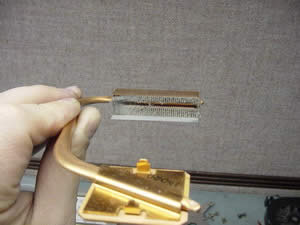
Toshiba Satellite A15 Clogged Heatsink
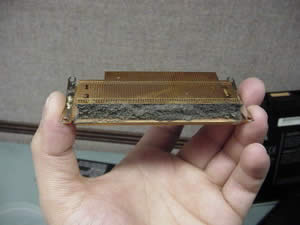
Toshiba Satellite A35 Clogged Heatsink
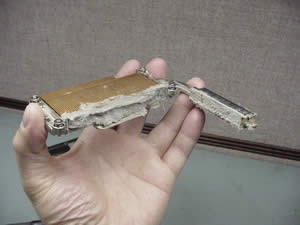
Toshiba Satellite P15 Clogged Heatsink. Absolute champion!
Fred Watkins
very good web page, found it informative, will be taking toshiba to an authorized repair dealer, still under warrenty. Thank You
Randy Corey
this site hits the nail on the head, very good details and instructions. Thank you!
Stan Overton
I was resigning myself to a laptop repair He…., before I found your very informative site. Thanks!
Mike H.
Thanks for your help! Decided my 2003 Toshiba A35 needed a cleaning since it would heat up in just a couple of minutes. Found your info thru Google. Took out a strip of “felt” a quater inch think running the length of the heatsink!!! You cannot see this stuff by just looking thru the fan grids…that always looked clean to me!!
So I put everything back together…carefully. But now it won’t start! I push the button, I hear the fan turn on for 3 seconds, then turn off. Nothing comes up on the screen. This happens using just the battery or with it plugged in.
What did I do? Is this thing now a boat anchor?
Mike H.
BTW, I am not blaming you, I hope you realize that. I have backups and all that. I just had had it with this computer, and it was either try to fix it on my own or trash it. The cost to fix it (out of warranty) would be half the cost of getting a new one (something other than Toshiba!).
My excitement after pulling out that junk from the heatsink came crashing down after failing to re-boot. So, it again is either going to be a simple fix or thrown away.
Got any ideas?
Ken
AWSOME! thanks man. that helped me soo much. I have a random question though. since the computer is a socket 478, could i replace my celeron 2.53 with a pentium? they come in this same computer up to a 3.06 i think. thanks!!
cj2600
I’m not sure. I’ve never done it before myself. If you give me your laptop model and configuration code (for example Toshiba Satellite 1800-S274 PS183U-00JR579 it’s on the bottom of your laptop) I can look up Toshiba website and find out what CPUs are listed for your system board.
damian
Hi, looking for advice… my toshiba satellite 3000×4 is overheating. Its been a while(days) since I’ve heard the cooling fan operating. This causes the machine to crash regularly when its under any load(eg. heavy programmes in use). any suggestions on repair, sourcing fan, is it d.i.y.’able etc.
cj2600
I do not have a guide for this unit yet. You say it’s Toshiba Satellite 3000×4, and I’m not sure what x4 is. I guess it’s similar to Toshiba Satellite 3000. In this case you can try to replace the CPU fan without disassembling the entire unit. You mentioned that it’s not spinning and I assume the fan is bad itself. All you have to do: remove the keyboard securing strip (be careful because it’s connected to a control board, do not pull too hard), remove the keyboard (4 screws). Under the keyboard on the right top corner you’ll see a hatch for the CPU fan. Remove the hatch and replace the fan. Before you buy a new CPU fan, try if you can access it in your laptop.
mallek
you are gentleman no one in this f*** world teach you for free i realy appreciate what you doing man thank you again.
MrMurdoch
Have to agree with Mallek, after two deeply unsatisfying adventures with Toshiba service during the warranty period (and then having to replace the power adapter two weeks after the period expired!) was resigning myself to another expensive trip to the repairers. Really appreciate your very generous guide, just sorry that your excellent instructions may cost you 20% of your Toshiba laptop business! Many thanks again.
Dave
Thanks for the info, you are a godsend! My A75 is only 6 months old and will shut down in full power mode, after surfing the net I was relieved to find your detailed process for disassemly. Since I still have warranty I’ll get it serviced but it seems like a devil of a design to completely strip down just to clean out the dust. When I spoke to the Toshiba rep he indicated the problem was with the motherboard but all the symptoms point to overheating though it could be a faulty SMBIOS on the board. We shall see! Thanks again for your great site and wealth of info!!!
crousti
Thanks to the people who help… And I need much help 🙁
So I have a Satellite A30 laptop and I wanted to clean it, I had the same problem of overheating..
I followed the advices, and when I removed the heatsink, I didnt unlock the CPU lock, I could remove it easily.. I don t know if it s the CPU but the pins came with the heatsink. No problem..
I cleaned and I replaced it and I had the same problem as Mike. It just can t start.
So what can I try to do?? The pins are all here, do I have to unlock this screw, replace the heatsink and relock it? I tried all the ways but always had the same black screen. Please…
cj2600
When you remove the heatsink from Toshiba Satellite A30 laptop it usually comes out with the CPU on it. You have to carefully separate the CPU from the heatsink and clean it up from the old thermal grease (be careful not to bend CPU pins). Then you have to open the CPU lock (screw on the CPU socket), insert the CPU (do not use any pressure) into the socket and lock it. After the CPU is in place, you can apply new grease on it and install the heatsink.
crousti
Ok thanks very much… Another question 🙂 the CPU comes with the heatsink but it seems to be pasted on this heatsink, I don t know if I can remove it, there is something white (like a whtie glue) between the CPU and the heatsink.. And I didn t see any thermal grease, or is it this white thing??? Thanks so much for your help!
crousti
Yes! I found it! So here my explanation for this kind of trouble (blank screen after replacing heatsink on a A35 laptop)
The problem is to put the CPU at the right place.. I didn t have to separate the CPU from the heatsink, just open the lock and place the whole piece carefully, turn the locking screw.. Only this. I had to do this several times before having a normal starting (maybe 30-40 times), just take the time to find the right position.. and good luck for the people who need! Special thanks to cj2600, what you do is very nice!
cj2600
The white thing between the CPU and the heatsink is thermal grease. If I you want to separate the CPU from the heatsink, you can insert a flat head screwdriver between the heatsink and the CPU and rotate it a little bit to lift up the CPU on one end. After that you have to insert the CPU back into the socket and lock the socket. Make sure to unlock the socket before you insert the CPU. The lock screw on the socket should be marked “Lock” and “Open”, turn the screw into “Open” position. The CPU and the socket are keyed, so there is only one correct way to insert the CPU. Be careful with the CPU pins, do not bend them. After the CPU is in place, you can clean old thermal compound on the CPU and the heatsink with an alcohol wipe and apply some new compound on the CPU. You can buy thermal compound online or in your local computer store.
Justin
For anyone who has taken-apart a Toshiba Satellite A75 series (mine is an A75-S229), can you tell me what kind of motherboard is in it…Brand, part #, etc? Thank you for your help!
cj2600
Hey Justin,
If you can give me the model-part number from the bottom of your laptop (for example: PS183U-00JRS7B) I can find the system board part number for your lappy.
Justin
I would appreciate that very much. The Part # is PSA70U-00E00G. I have downloaded a program called “SpeedFan” and am attempting to use it to cause my fan to run more often…hopefully keeping the temperature inside slightly lower. Have you, or has anyone, tried this program or know if it works at all?
Thank you again for any information!
cj2600
There is only one system board listed for this laptop. Toshiba part number is K000016360. I have no idea who makes this system board. I haven’t tried “SpeedFan” yet, and I’m not sure if it’s possible at all to make a laptop CPU fan run more often with this software. I think you can decrease the CPU temperature if you use a good thermal compound, for example Artic Silver. Also you can try a laptop cooler.
Justin
Thank you for the info on the motherboard. I am trying to decide whether to take apart the computer myself to replace the thermal compound and do some major dust removal, or to take it in at the tail-end of my warranty and be without a computer for 2-4 weeks while they do the same thing.
As for a laptop cooler–I have tried one of these and it actually caused my computer to shut down more quickly than without. The problem, I think, is that the cooler was sucking the air directly away from the intake fan on the bottom of my poorly designed Toshiba, thereby negating the effects of the computer cooling system.
So, regarding the clean it myself vs. take it in to be cleaned…can I take apart the laptop myself and somehow not void the warranty?
Thanks again for your help!
cj2600
If the laptop is still under warranty, I wouldn’t recommend taking it apart yourself. To replace thermal compound on Toshiba Satellite A75 you have to take apart laptop completely and it will void the warranty. Just take it to a repair shop and let them fix it. It shouldn’t take more than 3-5 days. Also you can ask them to replace the CPU fan. On this model fans are not very reliable. Ask them to check if the top cover assembly on your laptop was modified to avoid a static electricity issue (your laptop locks up when you touch around the speaker area). The top cover replacement is covered under warranty.
George Chin
Hi, This is an excellent site for all the infomations on the Toshbia laptops. Keep up the good works!! Do you guys service Toshiba Laptops out of warranty? Thanks ,
cj2600
Thank you George,
About 90% of all Toshiba laptops we repair are covered under warranty.
Richard
Thank you,your site has helped me as well as saved me time an money.
Brady
A cheap temporary fix: With an overheating Satellite 1905 S303 in Athens, afraid of the fragile pins and with no tools to open the heat sink cover, I simply held my household vacuum cleaner nozzle over the fan intake for three minutes. Gradually it sucked some nasty fuzz up against the grate, which I could then pull out. For the first time in a year, laptop now runs without the fan permanently blasting away…
Hope I haven’t doomed myself some other way…
Todd
Is there anyone to clean the heatsink for an A70 without having to completely dismantle it?
cj2600
Sometimes, when the heatsink is not clogged completely, I clean it with a compressed air. Blow it inside the fan opening on the bottom of the laptop, so the dust goes away through the opening on the laptop side.
Todd
OK, I’ll try that once I get a can of it, since blowing at it normally doesn’t seem to be clearing anything. If it’s working right, will air still just come out the fans, or will I also get air out of the heatsink?
cj2600
The dust is collected between the fan and the heatsink. When you blow compressed air inside the fans opening on the bottom, it will go through the heatsink and should clean it.
kevin
Quick question for my 9-month old Toshiba Satellite M45-S331– I haven’t seen too much about fan or overheating problems in a few quick searches online, but that’s gotta be what’s going on with mine.
Symptoms: if it will even get to the point where it loads windows (about one in every 10 “power-on” attempts, the computer generally freezes up completely as I attempt to run the very first application.
Strangely, I’ve been able to get it to run perfectly fine in “Safe Mode” and even in “Debugging Mode” a couple times, during which I upgraded the BIOS (no help), removed programs from loading on startup in msconfig (no help), even did a virus scan in hopes that it might be virus-related (no help).
I took it apart and cleaned the heatsink. Iit had a tiny bit of lint, but really not very much lint in there — certainly not enough to completely cover the grating anywhere. So that didn’t seem to make any difference. (Thank you so much for the helpful photos and charts, by the way). There was lots of the white thermal greese in there, but do you think putting new stuff in there would make a difference?
I’m kinda at a loss right now.
Still under warranty (assuming I didn’t somehow void it by cleaning out the heatsink), but I’m a little bit afraid that if I make the nine-hour trip to the nearest authorized toshiba repair place (I moved from the U.S. to China last Auguat) that they won’t be able to help me. Would I be better served just wiping the hard drive clean and hoping that the computer will somehow run long enough to let me reinstall Windows? Any other suggestions?
cj2600
It is very possible that you have a software problem, as you were able to run Windows in safe mode but not in normal mode.
I am not sure what knowledge you have about computers and I hope it will not sound very complicated for you.
You can download Knoppix Linux live CD in ISO format and burn it on a CD. After that you can try to boot you laptop from this CD. It will boot to a Linux GUI environment, very similar to Windows. Knoppix uses drivers from the CD and by booting to it you will bypass Windows OS. If you laptop works fine in Linux then most likely your problem is a corrupted Windows OS or the hard drive itself. You can test the hard drive with Hitachi DFT drive diagnostic tool. I do it all the time when I am not sure if a corrupted Windows OS is causing problems.
I would also remove any extra parts from the laptop (DVD drive, battery, wireless card, modem card) to minimize the system and see if it will fix the problem. Try to start the laptop after each part removed. If it will start working properly, the last remove part could be defective. Sometimes bad wireless card can prevent a laptop from booting normally.
I would definitely tested the memory modules with Memtest 86+ utility. If you have 2 memory sticks installed, you can remove them one by one and start the laptop to see if it makes any difference.
Your laptop is not old and I think you can use the same thermal grease if you do not have a new one.
If you do not have any important data on the hard drive try to run a restore CD, I guess you have nothing to loose and the laptop does not work properly anyway.
Steve O' Leary
Hi There – great site. I have a S5100-603 (european model I think) that crashed every day when I used ISDN -every time I logged on it would soon crash – but has been fine for months since I got broadband. Anyway, the big issue is that the screen has flickering pink-ish vertical lines, very hard to read but I manage by changing to lower colour settings where the lines get wider – about 1/4 inch wide or so. Once or twice the way i pressed on the body of the laptop made the lines disappear but I could not recreate this effect and it only lasted a few minutes. The screen is bad on a projector too so its not the LCD thats at fault. I could buy a new laptop for the money I’m quoted for a new video card (telephone diagnosis of the problem) which I’m told needs a new motherboard. I’m wondering if you have any ideas – do I need a new mortherboard? If so can I upgrade from the broken nvidia 440go? Can the video card be replaced without replacing the motherboard? Where can I buy a motherboard? I have searched the net for a long time now.
Incidentally my brothers Toshiba shuts down too till he got it cleaned.
On another note, I need a second laptop for work and the new Quosmio AV600 looks great – especially the speakers. Any ideas will this be crap for overheating too?
Many thanks for your help,
Steve
Gavin
Toshiba P30-100.
Having problems with it starting. As soon as it gets to desktop it shuts down. I don’t think it is an overheating problem as it doesn’t start long enough to even get warm. Any ideas would be great.
Thanks in advance
cj2600
The CPU in Toshiba P30 is getting hot very fast. It is still possible that you have an overheating problem, even if the laptop runs only for a minute. Check if the CPU fans work properly. Also try to start the laptop in Safe Mode to load only basic Windows files. It is possible that your laptop is infected with a virus. If the laptop works fine in a Safe Mode, than most likely you have a software problem.
One of the best ways to bypass Windows OS files and exclude the software problem is to boot the laptop with Knoppix CD (Comment 34). If you still have the same problem after you booted with Knoppix, the software is not your problem. If your laptop work fine in Knoppix then I would try to reload Windows OS (backup all important data and run a restore CD).
g
Hi i have a Toshiba M35X laptop and it shus down by iself. I used the coprssedair on the outside of the model next to the fan. I’m scared of opening the laptop but anyway my laptop shuts off in 15min on a good day and 50sec. on a bad one. I tried the old vaccum trick and hat didn’t work. I don’t know what to do because im not a computer wiz and im short on cash.
Bruce North
Great Site! I have a Toshiba A35 that overheats and Im about toopen it up to clean it. Having read about others CPU problems during reassembly, Id rather not pull the heat sink off. Is there a way to remove the “lint/felt” without pulling the heat sink out once tyhe back is off? ( I havent looked inside yet)
Meg
Thanks for the great site! You are a lifesaver for those of us out here with out of warranty Toshiba laptops. I have a A75-S229 with the common overheating problem. Sent it in for “motherboard replacement” while under warranty and I am having problems again now that the warranty has expired. Do you know if it is possible to change processors in this model? If I switched to a Celeron processor would that reduce the heat production? Is this even a possibility? Do you know if Toshiba is doing anything to make this right? I have tried to find out information from the company but they are not very forthcoming. I love this model with the exception of it overheating all the time. Thanks for any help you can offer.
cj2600
You would be surprised Meg, but Toshiba Satellite A75 laptops with a Celeron CPU inside experience the same overheating problem as laptops with Pentium CPUs. You can prevent the common overheating problem with this model if you buy a can of compressed air and clean the heatsink 2-3 times a month. Just make a few shots inside the fan opening on the bottom of your laptop. If you have some dust inside the heatsink, it will go away through the openings on the side. Also do not use the LAPTOP on your LAPs 🙂 , use it on a flat surface.
Michael Lee
Thanks for all the information. This is by far the best site. I have a A75 – S229 with had an overheat problem. So I followed the intstructions found herein and i seem to have fixed it. While I had the computer dismantled, I also applied the Artic Silver five but I am not sure I applied it on the right place. I did not place it directly on the CPU but the place that covers the CPU where it makes contact with the heat sink – it is a square plate. Is this the right place or do I have remove the plate to put the Silver on the CPU itself?
Steve O' Leary
Hi Cj,
Many thanks for the fast reply. Will let you know how I get on.
Best regards,
Steve
Steve O' Leary
Ok I tried the Video card removal, cleaning and reseating but it didnt work unfortunately. Was worth a try though. At least I managed to put it all back together and its working – which proves your instructions are top notch cause Ive never looked inside a laptop before! So people its not that hard, just take care and label each screw you take out!
The model numbers seem to match 5105 = US, 5100 = europe. So at least Ive more options now to look for a new video card, and I know I’ll be able to put it in if I get one. Took the opportunity to give the insides a good cleaning anyway.
Thanks again for the advice.
Steve
Brendan
Hey, I just followed your disassembly guide, absolutly flawless. I cleaned my fan and heatsink, which had a 1/4 inch thick piece of the “felt” dust on it. Couldn’t believe that. What I am wondering now, is how I should go about replacing my chargin plug, which is also damaged. In order to get it to charge I have to apply downward pressure to the plug, and make sure it doesn’t move. If you know of any tutorials on how to fix this, or if you’ve written one, that would be great. Thank’s so much.
Brendan
Thank you so much for your quick reply! I read the two posts and it is obvious that my laptop is suffering from the broken solder connection. I have soldered things before, but never a motherboard. How much do I have to worry about heating up the board? I don’t want to heat it up too much, but that it causing the solder to ball up and not stick to the board. Thanks again.
Ryan Johnston
My Eisystem notebook turns off suddenly without warning. can you help?
cj2600
Hey Brendan,
The DC jack stays away from other components, so you have enough time to heat it up. I do not solder myself a lot and it takes me some time to fix DC jack on the system board, but I haven’t had any problem so far.
cj2600
Hey Ryan,
Sorry cannot help with this one. I’m not familiar with this model.
Dan
Dear CJ,
Just bought a Toshiba M55-S3314 3 wks ago. Works great at the moment; but reading about the overheating and dc-plug issues scares me a bit (yeah, it’s under warranty, but I don’t want to have to go there if I can prevent it). Two questions:
1. Do the M55’s tend to get clogged and overheat? If I use compressed air blown through the side, maybe with a vacuum cleaner sucking underneath, say, once a week starting now, should that keep it under control?
2. The DC jack is kinda flimsy, looking at it from the outside. I don’t know if it’s on a pigtail or on the board. Is there a way to secure it (like, maybe, epoxy) around the edges where the jack sticks through the case or something like that? Something preventative? Or is this a non-issue.
Sorry for it being so long, I’m just trying to protect my investment…an ounce of medicine is worth a pound of cure, you know…
Thanks so much,
Dan
David
CAN CLEANING IT REALLY HELPS OR ITS JUST A GENUINE PROBLEM WITH ALL TOSHIBA?
Mike
been having overheating problems with my toshiba 35 found the guide in how to clean the fans out but dont have the star key to unlock the 2 screws to get to the heatsink…can i buy one ?where do i get one?
Alex A.
Hey, very nice job for doing this Page for all of us that need some manuals to fix the overheating problems, My father bought an A75 and after 1 year and a half working great he started to have some problems, so he took it to a repair center and it work great just for 3 weeks, so I found this page and I followed the instructions and applied some Arctic Silver 5 and is working great for now, hope it stays like this.
Now I have two questions:
1.- Is there any web like this to dismantle a Acer Ferrari 4005? I have one, I don’t have any problems but I want to put it Arctic Silver 5 hehehe.
2.- Is there any Software like MobileMeter to see the temperature of the A75?
Thank you a lot and great job.
Gordon L.
Thank you so much, especially for the instruction for dismantling A75.
I had this problem for so long, I tried to dismantle it, but never figured out how.
I’ll try this now,
Thank you so much
cj2600
Hi Alex,
I do not work with Acer laptops myself, but I found one interesting website with Acer laptop service manuals. It might be helpful for you.
I do not know any software like MobileMeter for Toshiba Satellite A75, I never needed one.
Sydo73
I was just looking through this lot. I just purchased an Advent laptop. I know it’s a differnet make but It’s showing the same signs as the Toshiba and appears to be more or less the same kind of set-up. I only got the laptop 3 days ago and lastnight I tried to watch a DVD, 3 times in a row the laptop overheated and shut down. Is this unusual considering it’s new? The laptop was on the entire day before this happened though.
cj2600
Hey Sydo73,
It is very unusual for a new laptop to overheat. When you watched a DVD last night, did you keep your laptop on a flat surface? Even though this computer is called LAPTOP, it is not a very good idea to use it on your laps. A laptop can easily get overheated if you close the fan opening on the bottom.
BTW, you bought it just 3 days ago. Can you take it back and exchange for a new one?
Sonja Snow
Hello
I hope that you might help with an unusual problem with my Toshiba Satellite P35-S605, only 6 months old.
When I remove the power adapter cable from the back of the laptop, the laptop still thinks that it is running on AC power. In other words, even when it is running on battery it still thinks that it is plugged into the wall and it runs at full power. The laptop simply does not know that it is running on battery power, it always thinks that it is running on AC power.
I reinstalled the Windows operating system and there was no change – it always thinks that it is running on AC power. If I shut it down in hibernation mode while running on battery the battery recharge lights on the front of the computer stay on as if the battery is being recharged from the AC adapter, even when the adapter is not plugged into the wall or attached to the computer.
On the upside, it will still charge the battery, will still run on battery – always thinking that it is running on AC power.
Thanks
Yahya
Thanks a lot :)… great job you guys are doing, really appreciate it… keep it up!
cj2600
Hi Sonja,
First of all, if your laptop is only 6 months old it should be still under warranty. Take it to a Toshiba service center and let them to fix your problem.
In this model the battery connects directly to the main board. Some circuits on the main board control charging and discharging the battery and switching between the AC power mode and the battery mode. If after reinstalling the operating system you still experience the same problem, then I can only blame the system board. Take your laptop to a repair shop and they will replace the main board.
Whitney
cj2600,
I am following your incredibly clear instructions about how to disassemble a Toshiba Satellite M35X in order to clean my heatsink. I am stuck on Step 13 — removing the top cover assembly. I don’t have a guitar pick, but I have used a thin metal barette and a tiny flathead screwdriver to attempt to pry the top cover off. It is not separating at the back left and right corners. I can lift up the sides and the front (where the speakers are), but I can’t get those back corners to budge. Any suggestions? THANKS!
Whitney
Oops! I must have missed the photo with those corner screws. I feel so dumb.
Whitney
Actually. they don’t seem to be circled in the step 2 photo.
Sorry to triple post.
cj2600
Hey Whitney,
Thank you for your help. I forgot to mark those screws on the picture in Step2. Fixed!
Also, I would recommend not to use a screwdriver when you separate the top cover assembly from the base, because you can leave scratches. Use any piece of plastic if you do not have a guitar pick.
Whitney
I don’t care about scratching this piece of junk, but thanks for the warning! I have owned the M35X for 13 months and have already gotten my motherboard replaced twice by Toshiba repair centers. I had the power jack problem before and all of a sudden the shutdown problem started yesterday. My heatsink was clean when I took it apart just now.
I finished putting it back together and unfortunately must have missed a detail. When I power on, it beeps a few times (a beep I’ve never heard before). The blue power light goes on and all the LED lights are on, but nothing happens. Any clues?
Thanks again for this amazing resource.
cj2600
Check if the memory is seated properly. Check if all cables are properly connected. I think it is something simple as a bad connection. If you removed the CPU make sure it it’s seated properly and locked.
fri
Thanks for your great instructions. I too suffer from a Toshiba laptop overheating problem, but after a quick clean (well its an a70 so really a complete disassembly) all is working great.
May good fortune follow you wherever you go.
.fri
Jules
I have just bought a refurbished A70. Should I regularly blow both fans. Also if I do this would you reccomend a routine dissmantle? Say annually, to clean the sink and fans? Finally you may know this. Where are the internal mikes on the A70, I can get the external working but not the internal?? Any Ideas? Thanks Jules
cj2600
Hi Jules,
If you blow off both fans regularly, let’s say 2-3 times a months, it is not necessary to dismantle the laptop for a routine cleaning. Just keep fans and heatsink clean all the time.
Rachel
Thanks! I wish I’d found this site a year ago when my Toshiba first had this problem. It was under warrenty then and I could have told them to replace the fan for good measure. Now it’s too late.
I’m planning to do the do it yourself way – however – is it terrible if I’m unable to remove the old grease and put new stuff on? I’m in Japan and have no idea where i’d buy CPU grease. Can I get away without it?
Rachel
PS – sorry just noticed this – when I plugged the AC cord in the fan immedietly went into high (and loud) mode. Was quiet and subdued when I was on battery power – but my battery doesn’t last too long.
Is this usual – or is there more to my overheating problem than I assumed.
Jules
any idea on internal mikes and how to et them working?
cj2600
Hi Rachel,
Try to clean the heatsink and the fan without laptop disassembly first. Buy a can of compressed air and blow inside the openings on the bottom of the laptop case and then inside the openings on the sides. If after that your laptop still overheats, it might be necessary to take it apart to clean the heatsink and apply new thermal grease on the CPU. You can find thermal grease and canned air in any local computer store.
In some Toshiba models fans have few rotation speeds. The rotation speed is higher when the CPU is hotter. In Toshiba Satellite A75 for example, when you turn on the laptop the fan start spinning very fast and then it slows down. If the heatsink is clogged then the fan rotation speed might stay on high all the time.
Try to eliminate the overheating problem first and you’ll see if your laptop has any other issues.
cj2600
Hi Jules,
I have no idea where internal microphone is located on Toshiba Satellite A70 and if there is a microphone at all. I think I repaired over a hundred A70 and A75 laptops but cannot memorize where it could be located. I never had a customer who complained about it; probably that’s why I do not know. I just went through the part list for Toshiba Satellite A70 notebook and didn’t find any.
Whitney
Thanks, the memory was in wrong. The heatsink was clean and yet I’m still having the shut down problem. In the past two days my AC connection has begun flickering and going off. The motherboard on my M35X has already been replaced twice–first right after I bought it and again 6 weeks ago.
IMPORTANT NEWS for everyone: I called Toshiba and they put me through to a customer service rep who told me that there is a big lawsuit against these models due to a grounding problem. They said that I will be contacted and compensated when it is over. In the meantime, all repairs will be free if I take the computer to an authorized repair center.
To all fellow Toshiba sufferers, make sure that Toshiba has your contact information by calling their warranty department at 800-240-7100.
Peter
Thank you very much for this very helpful and informative website. I tried to find answer how to solve the problem with my Toshiba Satellite 1415-S173 notebook. WINDOWS MEDIA PLAYER PLAYS CHOPPY VIDEOS.
I did clean reinstall of Windows XP and did not get any positive result. My computer works slowly and CPU usage is mostly 100%.
Is there the solution to above problems?
Thank you in advance for help.
Sincerely,
Peter
cj2600
Hey Peter,
That is very strange that a fresh Windows XP load uses 100% of the CPU. Are you using an original Toshiba restore CDs? Most likely the video are choppy because the CPU is always busy. It’s not normal.
brandon
Do you know any sites that show how to repair a sony vaio laptops??
Peter
Hello cj2600:
At the beginning I used an original Toshiba restore CDs and then I did clean Windows restore using Windows XP CD. Why CPU is always busy? What is the problem? Can heatsink cleaning help?
cj2600
Hi Brandon,
You can find some help for Sony laptops here and here.
cj2600
Hi Peter,
Not sure what is going on with your laptop. I think that cleaning the heatsink will not help. It is possible that one of installed devices is bad and loads the CPU 100%. Try to remove the DVD/CD-ROM drive, modem, wireless card, etc… one by one and start the laptop after each removed part. Check if it fixes the problem.
Peter
Dear cj2600:
Thank you very much for your response. Please let me know if the result of removing “the DVD/CD-ROM drive, modem, wireless card, etc†is SIMILAR TO DISABLING THESE DEVICES USING DEVICE MANAGER.
I want let you know that my majour problem is that Windows Media Player plays CHOPPY STREAMING VIDEO FILES .WMV.
Best regards,
Peter
brandon cabana
Thank you cj2600. I have a Toshiba Satellite A75-S226 laptop and I was wondering if my fans are messed up because my laptop shuts down unexpectedly. My fans makes grinding sounds when I put my power to full power such as processor speed and brightness but it goes away if I put everything on low, I can also feel the air coming out from the bottom and the fans are loud. I’m going to disassemble and follow your guide and also put as5. Hopefully this can solve the problem of the fan and the unexpectedly shutdowns. Any other advice? Thanks again
cj2600
Hi Brandon,
Most of the time the laptop shuts down not because of a noisy fan but because of a clogged heatsink. I am pretty sure that you will fix the unexpected shutdown problem by cleaning the heatsink and replacing the thermal grease.
I think that your fan should be replaced too. I have seen a lot of A70/A75 fans making a grinding sound when it spins on highest speed. Usually we replace the fan in this case. If you have no money to buy a new fan now, then you can leave it as is for a while. But the heatsink cleaning is necessary to prevent shutdowns.
BTW, the Toshiba part number for fan assembly is: K000016310
brandon
Thanks again cj2600. Do you know if theres anyway to fix an lcd because of the black spots or dead pixels? And Do you know the Toshiba Satellite A75-S226 part number for the lcd because I searched for lcds and they have many different part numbers. I was wondering which one would be the best one.
Steve
CJ,
Thanks for all the help. I took my A75 apart last night cleaned out the lint and put it back together. Now I’m running CPUSTRES.EXE on it for the last six hours and I would have to say it’s like a new laptop.
Only problem I had was that I accidently smashed one of the small circular connectors for the internal wifi card and I can’t get it snapped on anymore. I found the part number for the antenna (K000016040) and I found where I can order one, but I don’t know how to take the LCD screen apart which is where the antenna runs through. Any help here would be appreciated.
cj2600
Brandon,
You cannot fix a dead pixel. The only way to get rid of it is to replace the LCD screen. To find a correct LCD part number I also need the model-part number witch you can find on the bottom of the laptop. Something like PSA70U-004004.
Steve
CJ,
Yes, it works with only the one wire attached, but I was wondering if it was only working at a reduced performance, possibly not getting signal or intermitent signal if I go to far away from the base station.
Since it was working, I didn’t figure I would rip it apart again immediately, If I have to clean out the heat sink every 6-9 months I figured I would replace the antenna next time I open the laptop back up.
I am also planning on putting Linux on this system in hopes that the lower CPU/Memory requirements of a Linux system would help to avoid disassembly as often, but I am having trouble finding drivers for the WiFi card. Do you (or anyone) know which drivers I would need for my Satellite A75-S226 system?
brandon
The model number for my laptop is PSA70U-004004.
By any chance do you have any guides for taking apart a Toshiba Tecra M4?
cj2600
Brandon,
There are a lot of different LCD screens listed for your Toshiba:
K000009680 LG LP154W01-A3
K000009660 CPT CLAA154WA01
K000016010 Samsung LTN154X1-L03
K000009670 Toshiba LTD154EX0C
K000019460 LG LP154W01-A5
K000023590 LG LP154W01-TL12
They all 15.4†WXGA screens. The last one is the most inexpensive.
There is one more K000024340 CPT CLAA154W05, but I didn’t find if it is backward compatible with other LCD screens.
I will create a guide for Toshiba Tecra M4 as soon as I get it for repair in our shop.
brandon
Cj,
Thanks does it matter what lcd do I get for the toshiba satellite a75-s226? If it does, the more expensive the lcd is the better the quality?
cj2600
You can install any LCD you can find and afford. When we have to replace the LCD screen on a laptop, we order from Toshiba any available on the moment screen ignoring the price. When you replace the LCD screen, the most important part to find a correct LCD screen with the same mounting points and the same connector type. All above mentioned screens should fit your laptop without any problem (not sure about K000024340).
cj2600
Steve,
One antenna wire is called auxiliary. I would guess you need this antenna just in case if the main antenna cable is damaged, not sure. I asked other technicians if the performance would be reduced if you use only one wire, and nobody can give me a straight answer. It is not necessary to take it apart every 6-9 months; you can prevent the overheating problem if you use a compressed air to clean the fans. Blow inside the openings on the bottom of the laptop until the heatsink is clean. You have to take it apart only if the heatsink is completely clogged or if you want to replace thermal compound on the CPU.
I do not use Linux very often but know that it has a terrible support for wireless. Cannot help with drivers, you have to find some Linux gurus on the Internet.
cj2600
Hi Peter,
It is not enough just disable the device using device manager. When you troubleshoot the laptop you physically have to remove the device from the laptop. You mentioned that the CPU is loaded 100% all the time and reloading the operating system didn’t help. I guess that’s why you are getting a choppy video output. I cannot say what is causing the problem.
partyguy
I’ve A70 and same problem. Laptop keeps shutting down while working. Got reparied so far 4-5 times and changed mother board 3 times so far. They also replaced CD/DVD, TSF and much more. Now they trying to walk over me that there is lot of dust in my laptop which gets overheated, but infact it’s not true. My laptop never stays in the dusty environment.
Now I wanna get the permanent solution for my laptop so I can use smoothly, what can I do? As of now the unit is not under warranty.
cj2600
If the laptop shuts down while working then it might indicate two problems.
First problem: DC jack loosing connection with the system board and should be re-soldered. If the LED lights flicker when you wiggle the power plug, then the DC jack should be replaced or resoldered. Most likely your system board was replaced before because of this problem.
Second problem: the laptop overheats and shuts down without warning. To fix the problem you can buy a canned air and blow inside the openings on the bottom of the laptop. That could be your solution to prevent laptop overheating.
rajendran
before starting in my toshiba laptop there is a 20 seconds beep. Why?
sathya
I’ve got a Toshiba Satelite A75-S231 The problem is following: the computer switches off every 30 minutes, After 20-30 minutes of working it gets too hot (I think so) and switches off. What can be the reason of such problems? And i don’t have any warrenty on my laptop
i want to do myself pl give the clear idea to trouble shut the problem without any problem
i hope u will give the clear picture and also where i will get the accessories for the same
i am waiting for ur reply
with regards,
sathya
Eric
Hey, I know a million people have said this above — but this is such a cool resource. Thanks for putting it out here.
My laptop (5205-S703) just started shutting down today. Or actually, it doesn’t shut itself down, it just keeps throwing up these dire warning messages every 15 seconds or so, saying a problem has been detected with the cooling system.
When this happened, I noticed that there was no fan activity at all. The machine was totally quiet. I don’t know how long it had been like this, but MAN it was hot.
After reading through this post and the comments, I imagine I’ve got enough dust in there to build a whole new computer with (the machine is 3 years old). The question is, do you think the fan strained so hard to cool the system that it just broke? Or is a fan shutdown what you’d expect in an overheated situation like this?
Blowing out the heatsink I can do myself. Messing with component stuff like that, I’m going to people who know what they’re doing.
Thanks again for doing this — it’s great!
Madeline
Hi, 1st Thanks A LOT for having this site, is one of the few sites I’ve seen with real good useful info. I’ve been having the overheating problem for more than a year. I have a Satellite P15, how do I clean the heatsink?
Akmal
I want any information about Eisystem laptop prices specialy the kind of inte(R) , celeron (R) , cpu 2.6GHZ and Li-ion Battery 14.8v 4000MAH8640SC with serual no MSL S/N :4766050a8i-4c0428 and part No :40004852(SM)
Joe
Hi, Great Site.
Have you dealt with the touchpad shutting down? First the touchpad goes, then right after that or maybe at the same time I also then lose the USB ports and the keyboard. Usually the keyboard comes back but not the touchpad.
5205-S703 is the model. It has been cleaned of dust lint but didn’t help this problem.
Thanks for any help!
JOe
brandon
Cj,
I was wondering whats the average time disassembling a toshiba satellite a75-s226? This is my first time im going to take it apart, so hopefully it doesnt take long.
cj2600
Hi Joe,
I have never seen this problem before, not a clue. I would try to upgrade BIOS and reseat the keyboard and the touchpad connectors on the system board. Not sure if it will help, but I would definitely try it.
cj2600
Brandon,
To remove the motherboard I need 10-15 minutes. 😉 If you have never done it before, it might take about 45 minutes. When you disassemble the laptop make some notes, do not forget screw location. It is pretty easy to take it apart, just do not hurry. Be careful with connectors on the system board, unlock them before you pull cables.
Peter
If it is possible, please let me know the best place to connect anti-static wrist strap to the notebook computer.
brandon
“I have seen a lot of A70/A75 fans making a grinding sound when it spins on highest speed. Usually we replace the fan in this case.”
Cj,
After replacing fans, would my laptop be more quiet than before and would the grinding noises would go away?? Thanks because I was just wondering if it’ll be worth it buying a new fan this weekend.
cj2600
Brandon,
Toshiba Satellite A70 and A75 laptop are not the quietest computers in the world. After you replace the fan and clean up the heatsink it should be quieter and the grinding noise will go away if it is not caused by a failing hard drive of course.
If you use Toshiba Power Management Utility then you can also change the cooling method from the maximum performance mode to the silent mode. It should also help to make your laptop quieter.
To change the cooling method go to: Start-Control Panel-Toshiba Power Management-Advanced-Cooling Method
ray
Hi,
I have a used toshiba satellite A15, the guy I bought it from told me it worked fine, but when I got it home it would start go through the bios and then shut down. At first I thought it was the hard drive or OS so I installed a new hard drive, got my windows xp cd and tried to set it up. However, it won’t stay on long enough to set up. It will shut down normally at the setup is inspecting your hardware screen, or sometimes if I get lucky I will get to the blue screen to agree to the license, but then it will shut down again. I have tried cleaning the heatsink and fan, etc., but to be honest they were not even dirty or clogged with lent or dirt. Any help would be appreciated. Thanks, Ray I’m wondering if it could be a bios issue……….
Jerry Bransford
Is it possible to get at the M35X’s heat sinks and fan to clean them without completely disassembling the case? I see the instructions for completely disassemblng the case but it kind of glosses over the fan and heat sinks like are so prominently discussed in other model instructions. Thanks, this is the best Toshiba help site I’ve found and the best for the notorious overheating problems!
Brandon
Hi Cj
I am trouble removing some screws I think they are on so tight and I think I messed up the screw top part and I dont know how to take it off, Is there any way I can remove the screw?
Brandon
I believe my screw is stripped now, anyway to remove it?
tripware
Hello, I have a toshiba tecra a1, and its ben working fine until all of a sudden, i kept getting a cpu hog and shutdowns after start-up. Thinking it was a virus, i spent a whole week tweeking and installing and scanning and deleting files. It was only after some thinking i noticed that the usually loud fan was quiet and that the back and keyboard were unusually hot. At this point, i packed it away because I cannot afford repairs. Reading this blog gives me some hope, and in the event that i totally screw it up, i am resigned. But before i proceed, do you have any words of caution???
cj2600
Jerry,
You can try to clean the heatsink and the fan with a compressed air. Buy a can of compressed air and blow inside the fan grill on the side of the laptop. It’s not the best way to clean the heatsink, but you do not have to take it apart.
Tracey
I have a toshiba laptop model EA60-155, which is overheating and shutting down, does the same process of compressed air to clean the heatsink work with this model?
cj2600
Tracey,
It will work for any laptop that has CPU fan and heatsink openings on the bottom or on the side.
Don
I just finished taking apart my Toshiba A75 S206 because it was overheating/shutting down. I disassembled the computer, removed the dust/hair and reassembled. It now works great. If I ever need to do this again I think that I would try to “fish” the lint from infront of the copper heat sink using a thin wire with a hook crimpped into the end. I know the wire has to be thin, but I think that it is made. You can access the outside of the heat sink. If this would work it would save alot of anxiety!!
p10-873
hi, i have a toshiba p10-873
basically, it does the overheating problem, where it wont let me play any dvds or do any virus check-ups or anything, and my warranty is over. shud i do the compressed air thingy (is this model ok to pull apart?), is it easy to do, because im not really great with computers? or should i take it to a shop?
thanks for the help 🙂
Brandon
Thanks Cj,
Everything worked great disassembled Toshiba A75-S226 and changed out lcd and fan and cleaned heatsink and fan. I was wondering how to upgrade a notebook hard drive to a bigger one, is ez-gig II notebook hard drive upgrade kit worth it?
cj2600
Hi Brandon,
Congratulations on fixing your laptop. To upgrade your laptop you need just a regular 2.5†notebook harddrive. I believe your laptop is configured with 60GB 4200RPM ATA-6 hard drive by default. You can safely upgrade to 80GB, 100GB or 120GB hard drive. Not sure if the BIOS will support a bigger size, I have never tried it. I would go with at least 5400RPM or 7200RPM if you can afford it. 🙂
Check out newegg.com. Very good prices and very good service. I buy a lot of computer stuff from them.
Jerry Bransford
Thanks for the info on disassembling my wife’s Toshiba M35X, I was surprised that it wasn’t all that dirty and the filter was not as clogged as I assumed it would be. Afterall the fan was going crazy so I assumed the filter was clogged. What I think the problem was was that the thermal compound between the CPU and heat sink was bad so the heat sink was not conducting heat away from the CPU like it should have. I applied Arctic Silver thermal conductor between them and I feel that probably did the trick. 4 days later and zero shutdowns whereas before it was shutting down 4-12 shutdowns a day. The filter just wasn’t clogged enough to have caused this problem, you could see through it and there just wasn’t much dust or lint. So for me, I think the new thermal compound from Arctic Silver did the trick. Thanks for the instructions on getting into the M35X, I am an old computer tech and I was surprised how difficult it was to get to the processor! Thanks again!
ruby
Not realizing that the a75 had to be taken apart to access the heat sink, I took the hard drive out in the process of blowing compressed air into the computer to clear it. When I put the hard drive back in, the computer would not boot up.
I took the hard drive out and some of the prongs were bent and the piece that it plugs into (inside the computer) was broke. I am currently in the process of creating a ghost image of the hard drive before calling support.
Do you think I voided the warranty? I have full coverage, including accidental. I didn’t want to send it in for such a minor repair (or what I thought was a minor repair).
Thanks.
cj2600
Ruby,
The hard drive connector is a part of the system board and if it is broken, the entire system board has to be replaced. It is very strange that you broke the connector. It is pretty solid and cannot be easily broken. I’ve replaced hundreds hard drives on this model and never had a problem. I cannot say for sure if you voided the warranty, it depends where you bought the warranty and who is covering your laptop. I think you’ll be OK.
When you talk to the customer support, make sure to use your negotiating skills. 🙂 If you have a Toshiba repair center somewhere in your location, I would recommend taking the laptop there instead of shipping directly to Toshiba. In this case you will have a chance to talk to a technician and explain the situation.
ruby
I was wrong it is an a65-s1070. (Model no. psa60u-0le015)
Just got off the phone with toshiba, I am hopeful that everything will be okay.
cj2600
Toshiba Satellite A65 is a different model. When you install the hard drive, you have to slide it inside the laptop base and the connector is completely hidden. You need some skills to install a hard drive into this model.
Good luck!
ruby
Assuming toshiba fixes these current problems. What is the procedure for fixing these overheating issues (when they happen again) on the a65.
Do you have to take it completely apart?
Ragesh
Hi cj2600,
I have a Toshiba Satellite P10-803. There is a constant whirring and grinding sound when I switch on the PC. I suspect it is related to the heat sink and fan getting clogged. Can I use the instructions for P15 as you had mentioned in some previous comments for cleaning it my self.
The 2nd thing I noticed was that when I was writing a DVD/reading it took some time recognizing the DVD. I had previously written a DVD with no problems. CDs work fine. I am thinking of using a DVD cleaner CD available in the market. Is there anything specific that I should go for? And is there a laptop specific DVD cleaner?
andyandval
Thanks for the A75 disassembly guide. One question, to remove the wifi card you have a red arrow pointing to the right. I’m having trouble with that. Push it to the right to remove it? Thanks again.
artur
CJ,
You are my hero! My CPU’s fan was running like crazy all the time, today I took the laptop (A65-S126) apart, replaced the thermal grease, but didn’t have a blower, so just kinda blew into it. So now the fans don’t run all the time, but the CPU temperature shows 62C. And previously at this temp the fan would kick in. Why is that? Shouldn’t the fan start now too? Is worth to take it apart again, this time with a can and blow all the dust away from the sink?
Also has anyone tried replacing the CPU. The site mytoshiba.com has very cheap P4s for this model, but I am not sure of the quality. Anyone has any experince?
artur
also I forgot, my HDD overheats too, rund at more than 45 C all the time, and the CD/DVD drive is very hot too, I don’t know why. Any explanation for these?
Thanks a lot!
cj2600
Ragesh,
Make sure that the grinding sound is not coming from the hard drive. Sometimes a failing hard drive makes the same grinding sound as a failing cooling fan. Remove the hard drive and turn on the laptop. If you do not hear the grinding sound, most likely the HDD is bad and you have to replace it.
If it’s a fan problem then you can use Toshiba Satellite P15 disassembly guide. You can find a link to the guide in LINKS tab on the right side. Remove the fan and replace it. It is not necessary to remove the heatsink to clean it, just use compressed air to blow off the dust from the heatsink. You have to remove the heatsink only if you want to replace thermal grease on the CPU. Be careful with the CPU pins.
cj2600
andyandval,
The red arrow is pointing on the Wi-Fi card itself. To remove the wireless card you have to remove a metal bracket located above the card first. After that you carefully push on the white plastic latches on both sides of the wireless card. The wireless card will pop up and will stay at 30 degrees to the system board. After that you have to grasp the card and pull it from the slot.
cj2600
Artur,
Is it possible that the hatsink with fan is not seated properly? May be you replaced the thermal grease but didn’t secure the heatsink the way it should be secured? I’ve seen some units (Satellite A75 for example) when the cooling module had loose screws and there were a big gap between the CPU and the heatsink. The final result – overheating. Make sure that you use a good thermal grease and the cooling module is seated properly. If the cooling module is not seated properly, it will explain why your hard drive and the DVD drive is running hot.
andyandval
Thanks for the reply. Will try again this weekend.
Karin
I have a Toshiba Satellite A15, and i have had so many problems with it… first, the power cord ceased to function and i had to purchase a new one, second, the hard drive crashed and i had to purchase a new one of those as well, third, the fan ceased to function, i cleaned it, but now, the computer will not turn on at all. i don’t believe that the fan and the not turning on are connected, but either way, they happened around the same time. i must say, this laptop was not the ideal purchase for a student on a small budget.
Anabele
I have a Toshiba Satellite A75 that I have had for only five months, and I am beginning to have problems with overheating. I’ll work on it for an hour and it will shut off automatically out of nowhere. I also experience overheating after only 10-15 minutes. I paid $1500 for this brand new laptop, and this is what I get! Sometimes even when I elevate it with something such as a big book and make sure that the two fans underneath are not obstructed, it still overheats! Down with Toshiba!
artur
So, I took the laptop apart again, now when removing the heatsink the CPU came off with it. I cleaned the heatsink (it was extremely clogged), put all back on, but the laptop didn’t start:( So, rereading this forum again I thought it is most likely the CPU lock problem, took the laptop apart again, and I don’t even know what that lock looks like:) I didn’t have anything similar to what the pictures of other laptops have, with a screw-like thing on top. After very long staring at the CPU seat, i decided that the metalic rod on the side must be the lock, and it was! Now the CPU seated properly, and the lappy booted up all happy! Just for other folks like me with a Satellite A65 to know… Now my CPU is not heating up, HDD is running at normal temperature, and the CDROM as well.
Thank you very much for a great webpage!!!
Darrell
I have been searching for 2 weeks how to disasemble my m35x-s149 laptop to resolder the power port.I very impressed with the step by step, and photos to walk me through it.Thank You very Much.
celeste craig
had to use F5 to get screen to stay on – now it is stuck on that with screen too small to see verything. Cant get it to go back to normal size. Please need help!!!!!!!!
cj2600
Craig,
Try to reboot the laptop first. Then I would try to change the screen resolution. Right click on the desktop and then go to properties. Click on the settings tab. Set the screen resolution to 800×600. If it’s a wrong resolution, set it to 1024×768, etc.
Christopher
Hey..first off; thanks to everyone. The problem: after taking apart my Toshiba Satellite M35X-S149 laptop and cleaning out the heatsink, it no longer boots up and there is a blank screen. The power, battery, and HD light in the front are solid green and the power button solid blue. The fan kicks in, but after a few seconds the computer goes silent. The power light and lights in the front all remain green. I’ve tried the basic stuff (w/ & w/o battery, removing RAM, etc.) and no such luck. Most likely this is happening because of a loose part. Now I’m a broke college student so any help would be GREATLY appreciated.
cj2600
Christopher,
Check out if the CPU is locked and seated properly. Sorry, but you’ll have to take it apart again. Check out the comment #154. After you reseat the CPU put the top cover back but do not screw it for a while. First, turn it on and see if you can get the video on the LCD screen. To boot the laptop and get the video you need only the system board, the memory and the CPU (with heatsink and fan attached).
Christopher
Amazing, it wasn’t the processor at all. Apparently I also have the DC Jack plague that’s been going around. Though, it shorts out the entire board to the point where the laptop will not boot even with a fully charged battery. I am hoping that resoldering will alleviate the situation. I am having difficulty removing the mother after removing all the screws (even the screws for the HD incasing). The laptop is a Toshiba M35X-149S. I followed the pictures, but am I missing something, a movement or button to get the motherboard detached from the black plastic bottom?
cj2600
Christopher,
Wait for a while with resoldering the power jack. I’ve never seen the DC jack shorts the motherboard so badly that it will not start. Even if the power jack is bad, you still should be able to start the laptop from a battery.
Try to install the memory module into the second slot. Try to start the laptop without the LCD screen attached and without the top cover installed. You can carefully remove the power button board from the top cover and connect it directly to the system board, so you can turn it on. As I said in my previous comment, try to minimize the system. It might be just a loose connection. Check if the power button flat cable is seated properly on the system board.
When you remove the cable, you have to open the connector first. When you install the cable, open the connector on the system board first, plug the cable inside and close the connector.
Christopher
I would have thought that there’d be a loose part, however, I’ve secured all the ZIF connectors (top cover, sound card) by popping out the plastic parts first. I’ve tried using different Celeron M processors of the same speed and have also tried several RAM chips at various speeds (3200 & 2100) and of different sizes using various combinations. I am most assured that the DC Jack is causing a short as shifting the power cable and adding adequate pressure ensures the machine starts up as normal. What’s interesting is that the battery charges and the lights are all green. I know it’s bizarre, but I’m sure the DC Jack is causing the motherboard to short. I’ll get back to you when I resolder the joint since it is loosely connected to the board (there’s a small crack). Thanks for your advice and your help CJ. This forum has saved me some frustration.
cj2600
Christopher,
I previous comments you didn’t mention that you can boot the laptop when you wiggle the power jack and apply some pressure on it. I guess you are right; it might be the power jack problem. Good luck!
Christopher
Sorry about that CJ, I don’t want to undermine your expertise. Again, many thanks and I’ll get back to you after soldering the Jack.
Moose
I took apart my laptop and cleaned the heat sink reapplied the thermal grease. Worked perfectly. I reassembled everything works except one. The computer won’t start from battery power. I don’t think the battery is dead. I don’t see the orange battery charging light come on either. Is it possible that hte battery is dead or is it just not making conductive contact with the motherboard to charge it?
cj2600
Moose,
That is very strange. I’ve never seen that cleaning the heat sink can cause such a problem. Are you sure that I didn’t have the problem before you took apart the laptop?
Christopher
Hey Moose, CJ, All:
I had/continued to have a very similar problem. Taking apart the computer and cleaning the heatsink had been a conduit for more problems. Perhaps I might have damaged a part? I tried resoldering but the problem remained. My conclusion is that the excessive shorts caused by the overheating had damaged a few of the components other than the DC Jack on the motherboard. Perhaps replacing the DC Jack may work for you Moose; they are cheap on eBay. If all three lights are green, it means your battery should charge and is recognized by the motherboard. My first guess is just a short on the board itself. Did your laptop overheat and restart often before you cleaned out the heatsink?
Nima
Hi, i have Toshiba A75-S229 P4 laptop .when i play dvd or play any video file from internet
I am getting blue screen saying memory dump.when i try rebooting its work for about 30min and it does that again after cuple time rebooting i can boot. its beeping and ideo. i restore the OS 3 times from toshiba CD its does same thing even i restore fress install. any help will be good
john
I hate my Toshiba satellite A70…..we just bought it last April 2005 and seldom used it but last week , it suddenly shut down and smoke comes out from the bottom. I brought it at the service center here in the Philippines and they told me that the power supply from the motherboard is broken/burned. We had so many laptops but we are very dissatisfied with our Toshiba. And worse of all, it does not cover the warranty because it’s 2 months expirted. They ask me to pay 37,000 ( $700) for the repair…damn i hate it…..i hope toshiba company wil hear my complaint on this
john
Jeff Yeo
Hey, I’ve found this website through my searches, and its come up pretty imformative. Right now, i have a toshiba a70 and i’ve had it for about maybe… 5 or 6 months? I think it’s an older model, but it was brand new. Now my problem is this; during some memory/cpu/video intensive program (basically, a video game) my computer tends to “lag” for a short period of time, and i’ve noticed that it syncs up with the fan. the fan runs at i’d say one of the higher speeds, but sometimes it would kick in to maximum i think, and it would “lag” when it kicks in. it lasts maybe 15 seconds before it stops, so i don’t know if this is related to overheating or some other problem. i haven’t tried any solutions to overheating yet, i’d like your input before i do something drastic. thanks!
cj2600
Jeff,
It is very possible that the laptop overheats. You can try a very simple solution first. Clean the heat sink with compressed air. Blow inside the openings on the bottom of the laptop until the dust stop coming from the openings on the side. Test the laptop after you cleaned the heat sink.
Jeff Yeo
all right, thanks!
i’ll get back to you once i’ve tried that
Lorin Thwaits
Same kind of lag thing can happen with Dells when the heatsink is clogged. If it gets reallly clogged then usually the system doesn’t hang completely, but once in awhile starts running REALLY slowly as it switches into a fail-safe mode.
Nima
Hi, i have Toshiba A75-S229 P4 laptop .when i play dvd or play any video file from internet
I am getting blue screen saying memory dump.when i try rebooting its work for about 30min and it does that again after cuple time rebooting i can boot. its beeping and no video. i restore the OS 3 times from toshiba CD its does same thing even i restore fresh install. any help will be good
Michael
I had something that looked similar to CPU overheating, but apparently wasn’t. The machine would stall after some 1-2 h of work. I tried cleaning the heatsink, throttling the CPU, no dice. I then noticed that the hard drive was making funny noises when the computer had stalled. I changed the hard drive (got a Western Digital from tigerdirect instead of the Toshiba one, $88 Canadian), and so far it has not stalled again. May have been hard drive overheating. Just in case your box behaves similarly, may be worth a try…
cj2600
Michael,
You are right. If you hear a funny clicking or grinding sound from your laptop when it stalls, then most likely the hard drive is bad and must be replaced. It’s not a hard drive overheating problem; it’s just a bad hard drive.
MC N' Colorado
I had similar problems with my P35 S609 overheating. I spoke to Toshiba’s customer support rep, who suggested I take my machine in for service; however, thanks to discovering this site and looking several recommendations, ranging from using canned air to blow the machine out, to taking the machine apart, I decided to use a shop vac to suck the dust out and it worked. I tested it by letting the machine run all night and it worked. It’s been a couple of weeks now and I’m glad I did it. I was ready to take the machine apart, now I’m glad I didn’t. I’d suggest you use a heavy duty shop vac to clean out the fan and heat sinks first.
Luis Mendo
Hi,
I have a toshiba satellite A65-S126 which according to the gig sqpuads the memory that come with this computer (256 MB) is bad. But they told me that this memory can not be replace. It is true?, If not how can I replaced.
Thanks
cj2600
Luis,
Toshiba Satellite A65 has a memory integrated into the system board. Actually, it’s a few chips soldered to the board permanently. You cannot replace or re-solder it yourself. If onboard memory is bad, the entire system board must be replaced.
Chris
I just used your instructions to get at and clean out the heatsink on my P35 (truth be told, my boyfrind did the work – I just hovered like an expectant father).
It worked like a charm! The machine is running a long-overdue virus check now, and it hasn’t shut down yet!
Plus, I didn’t realize how NOISY the machine had been! It’s practically silent now.
Thank you, thank you, thank you….
Saray
Thank, exactly the info i’m looking for. I got this laptop A70 Satellite for a year already. At first I was able to do a lot thing with it, playing games, burning, encoding, etc, without lock-up. Then trouble starts after 2 or 3 months. Things going that bad that I can only play card game on it… Was so pissed that I was thinking about getting a new PC but NO notebook.
I did so googling and found this site and how to dismantle the laptop. I was hesitating to dismantle it since everytime I touch computer part, sometime I broke something hehe. Anyway I gave it a try, removed everyting except the CPU, cleaned the 2 fans and the damn so clogged heatsink. put everything together except 2 F3 screws that I can’t remember where it goes. Crossed my fingers and prayed, everything went good since it boot normally and now I can do encoding and playing without lockup.
I notice the fan is working less and it not as louder.
Thank for the dismantle link and insight guys.
Nima
hi, cj2600
I test memory on my A75-S229 i tested it 3 times
first time its came with red screen memory error then secend time its work 11 pass.then tird time red screen again. i think memory is bad. It has built in on board, its a 4 chips on it.can i replace it or disable it so i can use the memory slot
cj2600
Yep, it looks like the memory is bad. Unfortunately you cannot disabled it and I doubt that you can replace it yourself. The only solution – to replace the motherboard.
VS Devan
Hi,
I want to clean the heatsink of my laptop Toshiba S255/2435. Can you please provide detailed instructions with picture.. My computer is getting overheated and I am not able to play any movie files as the computer automatical shuts down.. also my DVD rom has stopped working.. I wonder what the problems is
Alex
I did it !
I’m touring USA right now and I had to get my Satellite a-70
working. I was a little bit scared to do it ,I’m still on the computer
waranty. It was easy but took 2 hours of my day . Last week I both a apple macbook computer beacause my sattelite used to shut down after 10 minutes . I was screwed again beacause my
sound card is not yet compatible with the macbook . Today I decided to open my sattelite a-70 ! ITS WORKING GREAT NOW! THANKS !
I’m still mad at toshiba cause I heard all their sattelite costumers have the same problems and all they can do
is clean up their computer insted of replacing them
Subra
Can anybody file a class action suit against Toshiba. I bought an A65-S1066 in Sept 2004 paying $1200 and since Sept’05 it shutdown after some use. Same overheating problem. Hi cj2600, Is the disassembly for A65 same as other toshiba?
Andre
Thank god that worked, mine used to boot out of nothing like once an hour. It turns out the heat sink was filled with dust, literally filled. Works greats now, the fan rarely turns on. It used to be running most of the time since it’d heat up quickly.
Jon
After one year of getting frustrated while my laptop would randomly shut down, I found your website from google. I hestiantly dis-asembled my cpu, but it actually was not that bad. What I found looked just like the pictures above. The fan was clogged with LOTS OF DUST! I cleaned it out, and now my laptop works just like new.
I would recommend this procedure to anybody that is having similar problems with their Toshiba laptop. It works! Just be sure to save all of the 100 different screws when you take the cpu apart!!
Awan
hi, looks like this is a very good resource for toshiba owner.
i just bought an M55-S3512 series, and have an annoying problem.
i usually work with AC power, but after about 2 hours (or more) the battery light is blinking and makes a beep sound about maybe 10 minutes, then it shuts down.
i go to toshiba power saver in control panel and set all powerdown setting to ‘never’ in ‘full power profile’ but no luck.
i tried to plug out the power source and pug it in again after the beep occured, still no luck.
it’s not an overheating problem i think, because there’s no abnormal heat under this laptop, it even far more colder than my old P15 series.
so.. what’s wrong with it? is anyone here had the same problem?
thank you.
.awan.
HANNAH
I have had so many problems with my toshiba a75 laptop so I called toshiba myself and found that there is a class action law suit against the a75 laptops.
this site will help explain a little better. Good Luck!!
cj2600
Awan,
Here’s my guess. It looks like that the battery charges when the laptop is turned off. As soon as you turn on the laptop, the laptop starts running on the battery power. The battery lasts for about 2 hours and then the laptop shuts down. It’s just a guess.
I would try to upgrade the BIOS to the latest version. At this time it is version 2.10. I checked Toshiba downloads for this model and they have a lot of BIOS revisions for this model.
Try to remove the battery, connect the AC adapter and start the laptop. Does it start at all when the battery is removed? I think it’s also possible that the AC adapter is defective and doesn’t provide a normal voltage necessary for the laptop to operate properly.
I have a Toshiba Satellite A60 laptop and the fan is pretty much dead - Ask Laptop Freak
[…] First of all, make sure that the laptop shuts down because of a dead fan and it’s necessary to replace it. When you turn on the laptop, does the fan start spinning? Can you here it at all? It’s very likely that the laptop shuts down because the cooling module is clogged and it needs just a good cleaning. Laptop overheating is a very common issue. I just replace a motherboard on Toshiba Satellite A65 and believe me, the heat sink was 100% clogged with lint and dust. […]
Andrew
Oh my God I travel all over the world with my laptop and could not figure out why it was shutting down. I had more dust than that pic you have posted and I keep my computer clean in a case. Thanks so much for the advise. Cheers from S.F.California
Awan
hi cj2600, ppl,
now i know why. when connecting to AC source, it’s charging (and it has to), the battery led went orange; but, when it reach 100%, the battery lamp went off (which it should be turn blue right?). now the problem starts here. after the battery led went off, the power icon is still there. and the battery meter suddenly dropped to 50% (!) when i tried to plug off and in again the power, the icon still ‘on AC’ (or turn to battery but it doesn’t matter), and it’s not charging… so the battery keep dropping until i hear the beep sound and blinking orange led like i told, then shut off.
now, this is office notebook, so i don’t have any authority to do anything in the hardware.
just my curiousity, if i remove the battery and put it on again, would it fixed? if not, is it the battery? or BIOS?
thank you all,
.awan.
Marvin
It really depends. Usually the life of the battery is around 1-3 years, depending on how you really used it. The optimized usage of the battery is fully charging it and discharging it from time to time. I advice you check the support website of toshiba, which is support.toshiba.com and check on the FAQ’s for battery. Also, try to download and install the latest bios update for your laptop because that could solve the issue
SaM
Dude, THANKS so mcuh!!!
Very good!!
Was going to pay 150 pounds to get it fixed:P
CHEEEERRRRRRSSSSSS
Randy Politte
This is the best site ive ever seen… I own a Satallite A75-S229.. Bought 11/29/2004…
At first I would always shock it by touching it and it would shut down.. (I just thought it was my electrifying personality.. til I read this thread).. After about 11 months it started overheating all the time and shutting down… Now the power cord works intermittantly.. (I Have to wiggle it to get it charge)… All three of these issues were addressed at this site… Thank you, Thank you, Thank you.. Wish i had found this info a year ago…
I’ll Let ya know how my cleaning and soldering goes…
TRE2K3
I have a A65-S1062,and at first it would shut off by itself. As time goes on, it would turn on for 3 seconds and then turn back off. Now it wont turn on at all. I would have to apply pressure at the bottom between the battery and memory card cover in order to have the green light to come, but that dont work any more. I have took it apart and cleaned out the heatsink which had dust clogs in it. But still no green light. What gives
George
I made a “heatsink cleaning” guide for the Toshiba 1955-S80x series.
cj2600, if you want to, you can adobt this guide into your fantastic collection. (or just strip the pictures and rewrite it, whatever you prefer)
Best regards
CH@IN
cj2600
Thank you George,
That is a nice guide and very clear pictures. Let me ad one little detail. I wouldn’t put the heatsink back in place with the CPU still attached to it. If the CPU is not aligned with the socket, you can bend pins and damage the CPU.
I would suggest the following steps. When you remove the heatsink with the CPU attached to it, carefully separate the CPU from the heatsink. You can place a flat head screwdriver between the CPU and the heatsink and rotate it until the CPU is separated. After that unlock the CPU socket on the motherboard (there is a screw-lock on the side), align the CPU and place it back inside the socket and lock the socket. Now, when the CPU is inside the socket it’s safe. You can clean old thermal grease and apply new grease.
Chris
I have a toshiba m35x. I used the instructions to crack it open and look at the cpu.. its not that dirty.. so im a little confused.. when i start the computer then fan turns on briefly.. windows starts and almost 5 mins later my screen goes off and the little light beside the blue is still running.. any ideas on what is going on?
George
Thank you for the info cj2600,
I will make the changes according to how you described the procedure in a couple of days.
I just thought that finding some heat-grease would be more difficult than just leaving the processor in place 🙂
Best regards
CH@IN
Andy
This was a really helpful guide, thank you. I own a P30 and have had it less than a year; it’s been back in for repair twice because of overheating but I’ve just tried the vacuum idea and it seems to have resolved the problem third time round. If it goes again, I’ve the confidence to open it up and see what I can do to clean the inside.
I don’t think I’d ever buy Toshiba again, though, judging by this being a known problem; that, and I bought the P30 to be a laptop (obviously) and the battery runs no more than 45 minutes tops – as low as ten if I try, heaven forbid, to watch a film or listen to music!
I’m just wondering, this may seem an odd thing to ask or maybe not, but if you have pets, can their fur get into the laptop even when it’s not on your lap but sitting most of the time on a table? I’m thinking we have cats, and that stuff they call ‘dander’ gets everywhere else – maybe the laptop too?
Angie
Hi! I own a Satellite A75 S209. I’ve had it for around a year now, and one day one of the fans suddenly stop working, and now my laptop won’t even turn on. What do you think is the problem, and do you think my documents and files will be lost because of this?
cj2600
Andy,
It’s not an odd think to ask. I’ve seen some heat sinks full of animal’s fur. One of our customers has a cat and she brings her laptop for cleaning every three-four months. May be here cat sleeps on the laptop? 😛
cj2600
Angie,
Your laptop is completely dead? When you plug it the AC adapter, do you get any LED lights? I think that you still should be able turn on the laptop even though one fan not working.
Angie
Hi cj2600! Yes, it won’t turn on at all. When you plug the AC adapter, the only lights that turn on are the 2 left green lights, the 3rd one doesn’t light up. When you try turning on the laptop, one fan just hums, and the power button won’t turn on also. Do you have any idea why this happened? The only problem I encountered with the laptop, like everyone else, is the shutdown problem when the laptop overheats.
cj2600
Angie,
Hard to say what is wrong only by the description you’ve provided. It could be a dead memory, dead CPU or something else. Try to remove the battery and start the laptop just using the AC power. If you have an extra memory module, try to remove it and turn on the laptop.
Fadi
Hey there, guys.
First off, I think it’s great that you provide these guides for everyone out there.
I’ve read through the guide and comments, and I’m almost sure that I need a new application of thermal paste. I have a Toshiba A15-S129, and I’ve disassembled (pretty easily) into the heatsink.
The color on this looks off, probably from oxidation or something like that. My question is: should I replace this part? Could this discoloration be a compromise to my cooling system?
One last thing, if you wouldn’t mind. Could you give a Model# for a replacement LCD screen for me? My Toshiba’s Part# is: PSA10U-0ZH6MV
Much thanks in advance for the help.
cj2600
Fadi,
It is not necessary to replace the heatsink, just clean up the surface that contacts the CPU.
There are a few LCD screens for this model:
Samsung Part#: P000367840
LG Philips: P000367850
CMO: P000367860
LG Philips: P000367860
There are also three Sharp screens, but they require a special insulator.
Here are part numbers for the screen: P000367870, P000379090, P000383670
TRE2K3
My Toshiba A65 was sent to get repaired because it wouldn’t turn on. The person said the AC is not broken, power is going through, and the voltage is ok, but the it still wouldn’t power up nor charge battery. What can be the problem.
cj2600
TRE2K3,
Apparently, the systemboard is bad.
In this model the battery connects directly to the systemboard, the power switch is located on the systemboard and the memory is integrated into the system board.
Angie
Already sent it for repair. Will update 🙂
John M.
Hiya folks…I have a Toshiba A75 and I have recently (the past two days) begun having a very thin yellow/greenish line running vertically down the right third of my LCD screen. The line seems to coorespond to the warmest part of the base and the bottom of the screen frame is warmest at that time. What’s this all about? The line is about the thickness of a thread. There are no other disruptions to the working of the unit, so I’m stumped…
Thanks,
John M.
cj2600
John,
It might be the LCD screen problem. There is no way to troubleshoot it, until you connect a test LCD screen and check if it fixes the problem.
John M.
Thanks, cj2600. I was hoping someone might say that. As of now the line seems to be intermitent, flashing on/off, then going away, then coming back. The LCD solution seems right. I’ll find someone to physically walk me through the test procedure. At worst right now it is only annoying.
Thanks,
John
Fadi
CJ, I took your solution and went to my local computer store and picked up Ceramique (an Arctic Silver product).
After following the instructions and trying it, it doesn’t look like it’s helping my problem. Could I have damaged my processor? I noticed that when I cleaned the surface of my CPU (isopropyl alcohol) it seemed just a tad discolored at the center, whereas around it there was a nice, mirror finish.
Fadi
I’ve been fiddling with my laptop, trying to figure out what the problem could be.
I’ve run it with a program that monitors my CPU temperature. It’s upwards 78-96C in temperature. Soon thereafter, it’ll shut down on its own.
Also, I’m almost sure that the heatsink is supposed to conduct heat, am I right? I’m not sure if it’s doing that. I opened the panel and ran my computer again. The brass directly in contact with the CPU is hot, but the heatsink out where the fan blows air is cool. In fact, it’s not even warm until about an inch away from the processor.
Not sure if that’ll help you out, just trying to get as much information as I can on the problem for you. Thanks again, CJ.
john booth
Disassembly EiSYSTEM need to resolder the power supply plug on this note pad but can’t seem to get at it can you please point me in the write direction thank you
John booth
Chris
I think my Toshiba M45 Satellite is overheating. It freezes after a minute of the computer being on every single time. I am planning on getting compressed air to clean out the fans.
If that does not work, is there a tutorial on how to apply artic gel, or to remove the fan to celean out more?
Thanks!
cj2600
Fadi,
I’m sure that you cannot damage the CPU by cleaning up the surface with isopropyl alcohol. I do it myself each time I have to reapply thermal grease on a CPU.
Does the fan spin all the time or it starts only on the laptop start up? If the CPU is so hot, the fan should run at least once in a while.
Just yesterday I had to repair a similar problem on Toshiba Satellite A75. The laptop shut down after 2-3 minutes being on. I noticed that the fan started spinning only on start up and then it didn’t start anymore. The heatsink was very hot and the laptop shut down. Apparently, the circuit that turns on the fan (when the CPU is hot) was bad and the problem was fixed after I replaced the board.
Another laptop with a similar problem I fixed about 3 days ago. It was Satellite M45 and the fan got stuck and didn’t spin at all. Fixed the laptop by replacing the fan. So, check for fans.
I don’t think that you having a problem because of thermal compound. Arctic Silver makes a good stuff and by the description they provide, Ceramique thermal compound is a good one.
Alex
Toshiba satellite A75-S229, is running HIPER slow!!!
My laptop is taking about 16 minutes to star in safe mode, and if try to start it normally I don’t even know, the last time I tried I let is start for about 5 hours, and it never did. I was watching a power point file and it just repently started going very slow, so I restarted it and it was doing the same thing, and restarted it again, but it never did. I thought is was a virus, so I took out the hard drive and connect it to my desktop, but it runs perfect and no virus found. Then I thought it could be overheating and I cleaned it as the procedure you show in the website, it stills the same. One particular thing is that the time never change, not even in the BIOS. Any advice???? Could the battery of the BIOS be causing this???
Fadi
CJ,
My fan seems to be doing fine. It starts up about thirty seconds into startup, and it blows at full speed. No odd sounds or anything.
cj2600
Alex,
Satellite A75 is not the fastest computer in the world, but 16 minutes in safe mode it’s too much. I would definitely test the hard drive. You can use Hitachi Drive Fitness test.
If it passes the test, I would back up all important data from the hard drive and then run a Toshiba recovery DVD to take it back to factory defaults. It might be a software problem.
To fix the time error, I would try to reflash/update the BIOS.
Alex
Thanks for your advice CJ,
I actually did that already, talking about the buckup my important information….well, I did it the hard way =), I used the toshiba recovery CD first, and when I saw norhing changed I uses Easy recovery to get back my important information connecting the HD to my desktop.I’m sorry for this question but, how do I reflash my BIOS??
Thanks for your help.
cj2600
To re-flash or upgrade the laptop BIOS, you’ll have to go to Toshiba tech support website and download the latest BIOS version for your model. It would be .exe file and after you run it you’ll get a media creator wizard. You follow this wizard to create a bootable floppy disk. For some models you can create a bootable CD or run the BIOS upgrade right from the Windows environment. I think that for Satellite A75 you can create only a bootable floppy disk, not sure though. After that you will have to boot the laptop from a USB floppy drive and finish it up. After you reboot the laptop you should have new version of BIOS. When you upgrade the BIOS, you should run the laptop from AC adapter power, because if the battery is not charged and it dies during the upgrade you might have a problem.
Alex
thak you CJ..
‘ll do that and let you know what happened.
cjones
Hi,
I have an A75-S206 laptop and it overheats after 10 minutes and turns off. It started this about 2 months ago and would only shut down after about 1 or 2 hours of being on. Do you think this is a dirty heatsink problem. If so in your dissasembly instructions the last two steps are removing the CPU. Will i have to remove the CPU to clean the heatsink. Thank so much for the site. I will be donating by paypal!
cj2600
Cjones,
I’m almost positive that’s a clogged heatsink problem. It’s not necessary to remove the heatsink and the CPU. After you remove the cooling fan you’ll get a good access to the heatsink and can clean it up. You’ll have to remove the heatsink only if you want to re-apply thermal grease on the CPU. It’s a good idea but not always necessary. Most likely just cleaning the heatsink would be enough to fix overheating.
Before you take it apart, try to blow off the heatsink with compressed air but you’ll need to find a good air compressor. Also, check if fan spins when you turn on the laptop. It should start spinning right away after you turn it on. In some cases laptop overheats because of a dead cooling fan. BTW, I like your idea with paypal. 😛
cjones
A couple of last questions c.j. what tools will i need to do this. Where should I look for the dust. I do have experience taking pc’s apart but not a laptop hope it fixes this thing. Also what email adress should I send the donation through paypal.
cjones
Man you are a life saver. I followed the instructions and man was that thing dirty. It was like a big ball of lent over both openings to the fan. I used a shop vac to get the dirt out then I followed the instructions and applied Artic Silver to the cpu. Ive had my laptop running for at least 2 hours now and its as cool as can be and doesnt shut off.I hope a 5 spot will due for a donation until I get paid. Again thanks so much I will tell all my friends about this place!
misty
my laptop is doing the same thing but it is a compaq armada m700 can you help me?
Saz
Hi there, I tried the idea above of vacuming out the vents from my Toshiba laptop, as my lap top too was shutting itself off everytime i tried to play a game or watch a dvd, and it had neever done this until now. After vacuming it today as advised, I’ve been playing on games for hours now and SUCCESS! No shutdown! I advise anyone with the same problem with any kind of laptop to try the same. Great tip thanks alot, saved having to take it to a pc store to get it sorted.
All the best,
Sarah 🙂
Carew Rowell
I was told that you needed to be careful when you use compressed air so that you don’t burn the fans up. What can I use to keep the fans from spinning that is non-conductive?
Judy
Hello and first, thank you for the help thus far.
We had an overheating problem with our A75. I’ve gone through all off the steps, cleaned, applied new thermal grease and put it all back together. Now, the computer boots up, however the fans are not running. So that’s the first problem as it won’t stay on long before shutting down. Also the display is “funky” . . . don’t know how else to discribe, resolution is off and there seams to be some ‘snow’.
If you could help address the fan problem first I would be most grateful. Any any ideas on the display problem would be much appreciated also.
Thank you again.
cjones
Judy,
I am not an expert but when you took apart the computer and unhooked the display cable there was another black wire secured by a screw. This is a ground make sure you hooked it back up properly. And about the fans cj will probably know the answer to that and the display problem. Just thought i might add a little advice!
cj2600
Misty,
I don’t have a guide for Compaq Armada M700. If you experience the same problem as I described in the post, try to blow off the fan first.
cj2600
Carew,
I’m not sure if you can burn up fans but when I clean them with compressed air I block fans just in case. I usually take the fan out and block fans with my fingers. I use very powerful air compressor and if I don’t block fans, they spin really fast.
cj2600
Judy,
Did you plug fan cables back into the system board? Unfortunately, if you didn’t, you’ll have to take the laptop apart again. In Satellite A75 there is no way to plug them back without taking the laptop apart. Satellite A75 fan has 2 fans and 2 connectors. May be you plugged in only one of them?
You can barely see one connector if you remove the memory/wireless card cover on the bottom of the laptop. That’s would be enough to check if it’s plugged.
When you turn on the laptop, both fans have to start spinning. You can see fans through the grill on the bottom. Do they spin at all?
cjones is right. You’ll have to coonect the ground cable. It has to be secured by F3 screw located under the keyboard.
cjones
I have an A75-S206. If I wanted to put the DVD burner from an A75-S226 in the 206 can I just slip it in place of the old drive. Is there anything else I will need to do ie. drivers etc. Thanks cj.
cj2600
Cjones,
You shouldn’t have any problem if you just replace the old drive with a new one. No drivers needed.
Alex
Need an advice..
toshiba A75-S229 Pentium 4 538 @ 3.2GHZ
I posted a problem before, (230) and I checked my HD and is working, I even use it after the test to star my desktop in safe mode with no problem, I updated my BIOS with no complications either, but it’s still not startin in normal mode and taking even more than 16 min in safe mode. Whe I go to properties of my PC (running is safe mode) is really wird that the speed of my procesor is showing as 68.33GHZ. I think the procesor could be damaged. Any ideas??, sugestions?? I would really apreciate it.
Fadi
Hey CJ, you may have missed my last comment.
Computer’s been on overheat, and I replaced the compound. Still on the fritz, and my fan looks like its working just fine.
Thanks again in advance.
cj2600
Fadi,
I don’t know what’s wrong. If the heatsink is clean, you have new thermal grease on the CPU and the fan works properly, then the laptop shouldn’t overheat.
Here are a couple guesses.
1. Wrong thermal grease. I would contact the manufacturer and ask them if you can use the grease with your CPU.
2. Usually fans spin at 2-3 different speeds. May be your fan works only at slow speed. The fan is controlled by the motherboard. It’s possible that a circuit responsible for CPU speed doesn’t work properly.
3. The heatsink is not seated properly and there is a gap between the heatsink and the CPU surface.
cj2600
Alex,
If the CPU runs at 68GHz, it should be really fast! Just kidding.
How your CPU is detected in BIOS? What speed does it show?
As soon as you turn on the laptop, pres on ESC key. The laptop will continue to boot with details on the screen. You should be able to see the CPU speed. I tried it on Satellite A75-S211 and on my laptop it’s the fifth line from the top. If the screen flashes too fast, you can pres on Pause key.
What CPU speed you see? 3.2GHz or 68GHz?
Toshiba Guy
My laptop toshiba a75-s206, will not power on from ac or battery. Tested w/ known good working other pwr ac and bat. still no power on. So I think power manager chip is dead?
cj2600
Toshiba Guy,
If Satellite A75 will not boot from a good AC adapter of from a good charged battery, then I would say something is wrong with the systemboard. Not sure about power manager chip, I do not repair motherboards on component level. Do you get any LED activity at all? What are your symptoms? Do you hear any sounds?
Alex
CJ,
The BIOS seems to detect it fine, it shows 3.2GHz, and what I see in My Computer properties is this:
Pentium(R) 4 CPU 3.20GHz,
64.58GHz, 896MB of RAM
And actually I updated the BIOS but is beeping whe is turning on, showing an “error on the time” (like when you don’t have battery on the BIOS or is low). And of course is THAT SLOW!! that the beep last for almost 12 seconds lol.
cj2600
Hey Alex,
If the CPU is detected properly in BIOS, but not in Windows, then might be it’s just a software thing? Have you tried to reload Windows at all?
Alex
CJ,
Yes, I also tried that, I used the restore CD and everything. It was kind of slow the instalation too, but after it tells you to remove the CD and restart, is when it won’t start at all. I’m kind of lost, I’ve never seen something like this before happened, but to tell you the truth, I got a bad feeling about the CPU, is just that I don’t find any other way to go. I even thought that could be just the battery of the BIOS, but after all the only way teh BIOS can affect the CPU speed is by changing the clock-speed, and that feature is not in my BIOS like other I’ve seen.
Should I trhow it away already?? lol
cjones
Do you know where to get a restore cd for a satellite A75-S229. I cant find it on ebay and I have lost mine.
cj2600
Call Toshiba customer service line at (800) 457-7777 and ask them if they can sell you one. It shouldn’t be very expensive.
Alex
cjones,
That is the model of my Toshiba (A75-S229), if you know any good P2P program and you have a good connection speed I can transfer you a ISO file.
I have Toshiba Satellite A75-209 laptop. Lately, after running for about 3 to 5 minutes the laptop shuts down - Ask Laptop Freak
[…] When you turn on the laptop, both fans should spin. You can see them through the grill on the bottom of the laptop. If both fans spin and they are not noisy, wait with the replacement, try cleaning the heatsink first. If the heatsink in the laptop is completely clogged, a vacuum cleaner will not be able to remove the dust and dirt and make it 100% clean. A powerful air compressor would be a better option. […]
brosner
Thanks guys. I will follow your advise and focus on cleaning the heatsink and get back to you on the results.
Thanks again.
Joseph
Hi!
I have a A75-S231 model and I had the same problem described here (laptop is on for 10-20 mins and turns off without warning). I already cleaned the heatsink and the fan and assembled back the laptop. I turned it ON and while it displays the “XP loading” screen, it turns OFF.
I tried everything (including disassembling and assembling again) but it did not work. I tried to do a SAFE MODE in XP and it did not not work as well.
One thing that I remembered doing differently is removing something (looks like GRAYISH DUST) on top of the processor that I thought was dust. I did not bother putting any coz I thought it was just dust. Is this the “thermal grease” that was mentioned in the article? What do I need to put in there?
Any comments?
cj2600
Joseph,
Yep, this gray stuff on the top of the CPU is thermal grease and before you assemble the laptop back, you must apply new layer of the grease (because the old one is already removed). If you run the laptop without thermal grease, it will overheat and shut down. You can buy thermal grease in any local computer store or buy it online.
When you assemble the laptop, make sure that both fan connectors are plugged into the system board. Sometimes people forget to connect the fan, it’s a common mistake.
Tomer Busidan
Hi
I am attempting to fix the hinge on my girlfriend’s Satellite A45-S150…I opened up the computer, and quickly realized that the hinge is broken (I thought I’d be able to simply tighten it). So I ordered a new hinge and put the computer back together in the meanwhile. I did not apply thermal grease (didn’t realize I’d have to). Of course, the computer overheated. So I went out and bought Ceramique thermal paste, and followed their online directions.
The first time the computer overheated, the fans were on full blast for a while. It overheated within I believe 30 minutes or so. After I applied the grease, the computer stayed on for several hours, and the fans were not running on top speed…they were running “normal”. All of a sudden, the fans went on full blast and the computer shut down. From the fans turning on to the computer shutting down was really quick, within 30-60 seconds…any ideas what to look for?
Do I need a thermal pad, vs thermal grease perhaps?
Tomer Busidan
Update to my situation:
I decided to retry applying the ceramique paste. I bought acetone, and thouroughly cleaned the heat sink and the CPU. The first time around, I was using 70% isopropyl alcohol to clean, even though Arctic Silver’s website said to clean with high purity isopropyl alcohol or acetone. So this time, I cleaned both parts really well, and followed the ceramique instructions very carefully.
The computer is still overheating. It’s idling in the 60degree C range. I believe it should be in the 30-40 range, correct?
I called Arctic Silver, and their (very helpful) tech instructed me that some laptops require a thermal pad for the heat sink to make good contact to the CPU. I called Toshiba, and their (not so helpful) tech stated that according to his specs, Toshiba uses pink silicon grease, not a thermal pad.
I’m out of ideas, aside from getting pads as a test…any thoughts?
cj2600
Tomer Busidan,
That’s right. According to Toshiba specifications, Toshiba Satellite A45 requires a pink grease. Here’s the part number: GY4C0000T210-01, you can find it if you Google for it. I would probably try using the grease recommended by Toshiba. I’ve applied it hundreds times and never had any problem.
Last year when I was building my desktop, I bought Arctic Silver grease for my new AMD 64 CPU (I’ve seen a lot of positive reviews for this brand) . I was very surprised that with Arctic Silver grease my desktop ran 10 degree C hotter then with grease that I got with the heatsink. Since then I use grease that came with the heatsink.
Tomer Busidan
From your knowledge, is there anything special about this grease? Do you know if Compusa sells anything that I can try? This specific Toshiba grease is expensive, and I’d love to be able to pick it up in a store if possible. Compusa has another grease listed that’s a light pink color, for example…thanks for the response, by the way.
cj2600
I don’t know if there is anything special about it, I don’t think so. When we were out of pink grease, we used just whatever we had in stock, some kind of generic white grease. I think you can try the grease from Compusa or any other local computer store; it’s much cheaper and faster. Let me know how it goes.
Tomer Busidan
Still overheating…I bought generic Compusa silicone-based grease, and there’s no change. The heat sink is on the CPU as tight as it goes, there is enough grease to cover the entire CPU…I can’t figure this one out. What else should I be looking for?
cj2600
Hi Tomer Busidan,
That’s a strange problem you are having in there. If the fan works fine, the heatsink is seated properly and there is thermal grease between the heatsink and the CPU, you shouldn’t experience overheating. Do you know the version of the laptop BIOS? Probably I would try to re-flash/upgrade the BIOS too. Version 1.50 has an update for non Hyper Threading Technology CPUs. I don’t know what exactly it fixes, but I would try it.
Are you sure that laptop shuts down because it overheats?
Tomer Busidan
No dice 🙂
The BIOS was outdated (1.3) so I updated it to the latest (1.5). I was praying it wouldn’t crash in the middle of a BIOS update, that would really be bad news…the BIOS did it’s thing, the computer restarted (thank God) and then the machine crashed again, literally as soon as the BIOS update ended…I’m thinking that it’s an overheating issue because the fans kick in full speed right before it shuts down. Also, I downloaded a freeware called Speed Fan or something like that, and it shows temps idling in the 60C range, and then when I do something like watch a DVD, it creeps up. When it hits around 82C, the PC shuts down.
I’m pretty sure I have the heat sink in correctly. I mean, it’s only three screws, there a cover that forces it to be in a certain place, etc. It seems kind of idiot proof lol…I put thermal grease on there 3 times now (each time I’d thoroughly clean the CPU and heatsink with acetone)…and I’ve used 2 different kinds of greases…should I call an exorcist?
cj2600
I think you should sell the laptop to somebody who lives in Alaska; at least they can use it as a heater. 😀
It looks like Satellite A45 has 2 fans. One fan you can see on the bottom, look at the step 2, that’s the CPU fan. The second fan you can see on the step 20 in the top right corner (I’m not really sure why it’s there, do not remember). Can you see if both fans spin? Man, that’s a weird one.
Wayne
I have a TE2100 and I have this overheating problem too.
Do you know where I can get the Toshiba pink grease cheaply?
I live in Singapore. On one website, I found that it costs USD16 + USD20 for shipping, which is really expensive. The tube of Arctic Silver 5 which I bought from a store here costs only about USD7, maybe I should use that?
cj2600
Wayne,
We’ve repaired a lot of TE2100 laptops and we used any grease we had in stock. I think you’ll be fine with Arctic Silver. Apply just a small drop, just barely enough to cover the CPU surface after you spread it.
Horatiu
I’ve have a Toshiba P35-6292.
It had a overheating issue. Blowed the dust seems to fix that. Now the problem that I have is that from time to time the LCD start displaying CYAN thin lines to the right of any Black draw item on screen. The lines are kind of 3-5 cm long. I tested the graphic card with a external LCD.. No Lines apear ever. So I opened the top lid that coved the connector of LCD to the motherbord. Tapping that connector seems to remove the problem temporarly.
Is there a way to fix this issue?
Replacing the video card?
Is symptom of cold wirring?
Tomer Busidan
CJ, Thanks for the help, I did finally get the computer to work. I had ordered a new hinge, and figured that I might as well fix the hinge and worry about the overheating later. It’d be cheaper to fix the overheating issue at a service store than fixing the hinge anyway. So I fixed the hinge using your wonderful tutorial (thanks man!) and figured I’d give the overheating issue one more go at it. I cleaned the heat sink and CPU again, this time for like a solid half hour. I spread some of the generic, $3 Compusa grease on there, and for some reason, it worked this time. Not sure what I did different this time, but I’ll take it 🙂
Thanks for the help, you rock!
Mike
Do you know if I can up-grade the processor in my Toshiba A65-S126 from a celeron to a P-4
Thanks,
Mike
Bernard
To Mike: Question 283
Yes you can change the Processor from an Celeron to a P4. Now the bad part. You must take the computer apart to gain access to the processor and remove fans, heatsink and processor. You will need new thermal grease to re-attach to heat sink. Now the most important part to remember you must find a compatable P4 that has the same or lower wattage rating than the Celeron. If you don’t the computer will overheat. I changed a Celeron 2.4G to a P4 2.0G with a lower wattage rating and the computer performed much better.
Good Luck
Bernard
Mike
Thank you Benard,
I need to dis-assemble the unit anyway. I had an overheating issue with this machine. I found your website and followed the directions to clean it. the temp dropped to 70 C but it still freezes up and runs consistently at 100%. I know i need to change the thermal grease if I havn’t burned out the processor. I was thinking this would be a good time to up-grade the processor since I have to dis-assemble the unit . You assistence is greatly appriciated.
Mike
Mike
Benard,
I was able to locate a 2.8GHz P4b Northwood. It requires the same wattage as my 2.8 GHz Celeron and the same voltage. The FSB on the P4 is 533 and the FSB on the Celeron is 400. Will it still work? The thermal design power for both processors is 68.4 Watts and the voltage for the Celeron is 1.25 to 1.52, the voltage for the P4 is 1.52, I am also upgrading the expansion ram to 1Gb for a total of 1.25 gb. I know I am pushing the spec’s to the max but hopefully this will give me the performance I need without purchasing a new laptop. I will also be placing a triple 60mm fan cooling pad under the machine.
Many Thanks for your advise!!!!
Mike
Garvin Choa
Hi,
Does anyone know where to buy or replace an LCD screen cheaply for a toshiba p35-s629? Warranty won’t do anything unless there’s like 7 or 8 dead pixels. I have 2 right now, but it’s annoying the heck out of me coz I paid so much for it and I expect the screen to be perfect. Any suggestion will be really helpful. Thank you.
cjones
You will find a new lcd for this laptop on ebay or amazon very cheap. Or you can order from toshiba for an extremely high price. I would check and see about how this will affect your waranty if you replace the screen though or you can do it and just not tell them anything 🙂 . If you are interested in selling your damaged screen let me know.
Wayne
My TE2100 will occasionally shut down by itself, so I thought it is due to overheating. However, I took out the HSF and did not see any clogging. I removed the thermal grease from the processor and HSF and reapplied some AS5 on it.
I assembled everything and switched the laptop on, but the temperature is about the same as before.
AS5 needs some time to perform optimally, so maybe it is due to this?
I used a program called MobileMeter to check the temperature.
It ranges from 60 to 64 degrees Celsius. Is this OK?
Steven
I have dealt with the overheating issue on my A65-1068 too, but my problem now is that it keeps restarting and going to the Windows Advanced Menu. No boot method works (Safe modes or CD-ROM), so it makes me think it is a HW issue.
Any ideas?
Martin
Hi
I have a fan problem with my Toshiba Satellite Pro 6000. It dosen´t turn on by it self when the laptop gets to hot. But the fan is not damaget because i can control it with the program: SPEEDFAN. The fan also starts when i start up in bios upgrade mode. Without SPEEDFAN the laptop crashes after few minutes.
Btw. Its all clean and the fan sounds nice and ok.
Sorry for my bad english, but i hope you can tell me what the problem is? And how to fix it.
Great site and best reguards from DK
christina
I have a 1905-s303. I used to have the overheating problem but fixed it by cleaning the heatsink and every few months thereafter cleaning it. My problem now is when I plug in the dc power adapter sometimes it shows it charging and sometimes not. When I wiggle a little the light goes on to show it charging. Sometimes it stays like this for a long time and sometimes I have to keep playing with it for a while. I read about the plug coming apart from the motherboard and re-sodering it there can fix the problem. Any news on this issue as replacing the motherboard isn’t worth it. If I want to check if this is indeed the problem do I check from the back of the computer or do I need to disassemble the front (which I have never done before) and am not quite sure how to do. Thanks for any help or advice.
cj2600
Wayne,
I think that 60 degrees Celsius is a little bit high. I tested my Pentium M 2GHz CPU and it runs at 46-50C.
Here’s what I found on their website:
So, just wait for a while and see if the temperature goes down.
cj2600
Steven,
Did you take it apart for cleaning? If the laptop worded fine before you cleaned up the heatsink then check if all cards and connectors are seated properly.
Noe
Hi, I have a Toshiba MX35-S111. It keeps shutting down randomly. I checked the heat sink and cpu and its clean..no dust. When it shuts down, the power light button stays lit but the screen is black. My battery charges fine. When the laptop shuts down sometimes it takes a few tries to get it to boot again. Some times it boots on the first try. Sometimes the laptop will stay on for hours and sometimes it shuts off after a few minutes. Do you know what the problem could be? Thank you for your help. Noe
cj2600
Martin,
I’m not really sure what’s wrong with your laptop. I guess that the temperature sensors might not work properly and the fan will not turn on when the laptop is hot. Not sure though. That’s strange that the fan works fine during the BIOS upgrade but not during normal operation. Let me know if you find a solution.
Steven
cj,
The booting up problem existed before I cleaned out the heatsink. I plugged the hard drive into another computer as an external and can read it fine. I tried using Linux (suggest in #34) to reboot from disk and even with failsafe it gets a kernel abort. Bios seems to work fine. When the Toshiba screen appears, the screen looks messed up though (lines and pixels), but text looks fine.) So, it seems like a HW issue, but not sure how to debug.
Thanks,
Steven
cj2600
Christina,
Laptop disassembly requires some tech skills and if you are not sure do not open the laptop or you can damage it.
In your case it could be either a bad power DC-IN jack on the system board (it’s necessary to take apart the laptop if you want to fix the problem) or a damaged AC adapter plug (it’s necessary to replace the adapter).
Overtime, the wires inside the adapter power cord can break. The break point is located close to the power plug. It happens if you move your laptop a lot and frequently plug and unplug the adapter. When the power cord gets damaged, you’ll have to wiggle the power plug in order to get power to the laptop. As you see, a damaged power cord can a damaged power jack can have the same symptoms. Before you decide to repair the power jack, make sure that the adapter is fine.
cj2600
Noe,
Test the memory module, it could be a bad memory. Try reseating memory, moving it into another slot. If you have two modules installed, remove them one by one and test the laptop again.
Remove the wireless card and run the laptop without the wi-fi card installed.
cj2600
Steven,
You should have mentioned that before. I think your problem is related to a bad memory module or a bad video card. If you have any extra memory module installed, remove it and test the laptop again. You’ll be very lucky if it’s just a bad removable module.
Next step. Check if the same garbled video (lines and pixels) appears on an external monitor. If it does, you’ll have to replace the motherboard.
Carlos
I have a problem with my Toshiba A55-S326 I was play a game GTA III and suddenly the laptop freeze and no key word Ctr Alt Del for end task, so I turn off with the on/off switch but after that the computer did´t start.
cj2600
Hey Carlos,
Can you provide a better description on the laptop behavior? It will not turn at all? Do you see any LED lights, any HDD or DVD drive activity, any video at all?
christina
Thanks for the reply. I am almost positive it isn’t the adapter as the adapter is only about 6 months old. Normally I would have someone open the laptop however I am overseas at the moment and getting someone where I am isn’t the easiest. I would in a minute if I were back in the states (which I hope to be in the not too distant future)
If I could ask 2 brief questions. I read somewhere where 1 guy was having a connection problem and used alumium foil on the end of his adapter and that helped. Is it safe to put alumimum foil on the end to help be a conducter? 2) If I just wanted to open the laptop to check if the dc plug is broke (not try to fix myself) would I open the computer on the front or back (toshiba 1905-s303) I opened the back panel to the left of the fan and saw where the plug comes in the back but that didn’t really show me anything, so either I have to take the whole back off or really open the front. I just want to see if it is broke or not, then I can get this thing to someone to repair. Thanks again for your time
Steven
cj
Thanks for the ideas. I removed the extra memory, no help. I plugged in an external monitor and see the bad Toshiba image. Sounds like I need to replace the mother board?
Thanks very much for the help. This site is great.
Steven
cj2600
Steven,
Yep it sounds like a bad system board. Most likely the onboard memory module is bad and it will fail if you test it with Memtest 86+ utility.
avery stewart
The LED on my Toshiba Laptop A15 is not activating when I boot the computer up. It works fine when I connect it to a monitor. What might the problem be?
cj2600
Avery Stewart,
Did you mean the LCD screen? If you are having a problem with laptop video, check out these posts:
How to troubleshoot and fix laptop video problems
Laptop has bad video on the LCD screen. What is wrong?
MichaelS
Thank You!! for your passion in teaching, I look forward to de-assembling my new to me (used) Satellite A15-S129 to clean, etc… got for deal due to LCD hinges are “loose” and LCD will not stay staionary (loose but wont open all the way flat so maybe ok?), but I am definitly happy with it!!
QUESTION: Can I tighten the hinges under the speaker covers or at base of LCD housing internaly? Help very appreciated…
Thank you again for your teachings!
MichaelS
Thank you sir!
Will be cleaning heatsink soon, currently she’s running great but as with anything proactive is pretty good huh… LOL …
I think will save the hing change for when ever I have to replace LCD, looking at some of the instruction definitly a LOT OF WORK!
Although does look quite fun ;-))
Thanks again!
saurabh
hi bernard,
i wanted to know, which processor can i use for replacing the celeron in my toshiba a65-s126 ?
thanks,
saurabh
amit khatri
dear sir,
I am using a toshiba M35X laptop.
The screen is damaged.
Can u advcie how much it will cost to replace the screen
rgds
amit
Brian
Thanks very much.
I have a Satellite A70 which I dual boot between Windows XP and SUSE Linux 9.3. Recently it started to shutdown suddenly every once in a while when I was running in Linux. As time went on it started happening more frequently until the point where I could not even have it on for five minutes. The weird thing is, this never happened in Windows. Only Linux.
I tried reformatting the Linux partition and installing a different Linux distribution. First I tried Fedora Core 5. Same problem. Then Mandriva 2006. No dice. Then Ubuntu 6.06. Again, hard shutdown with no warning. I was at a loss as to what to do until I stumbled upon this website. I disassembled the entire thing and the heat sinks were filthy. I blasted them with compressed air, reassembled and so far so good. It hasn’t shutdown yet! It hasn’t been that long yet (a couple of hours), but still. Better than before.
Thanks very much for the detailed instructions. They were a breeze to follow.
I am still confused as to why the problem never happened in Windows. This is the oposite of what I’ve been reading on other posts. ??????????
cj2600
Saurabh,
Give me more information about your laptop, I need laptop part number. I’ll check CPUs listed for this laptop.
cj2600
Amit,
I think you can find a used screen online for around $400-450. If you going to replace it in a laptop repair shop, add $100-$120 for labor. As you see, it’s very expensive. You can fish for a cheap screen on eBay, or even buy a whole unit for less then $400. 🙂
cj2600
Brian,
I don’t have a good explanation but I have a guess why your laptop works fine in Windows but shuts down in Linux. A clogged heatsink was definitely a problem, but apparently there is something else to it. Some Satellite A70/A75 laptop has a utility (Toshiba utility) that allows you to setup the laptop performance manually. If you set it up to a maximum performance, the cooling fan works on a higher speed and makes a better job cooling the CPU. I believe the high performance is set by default.
It’s possible that Linux controls the cooling fan differently and it might have a lower rotation speed by default, not enough to cool down the heatsink/processor and as a result the laptop overheats and shuts down. Have you noticed that the fan has a higher speed in Windows? Can you check if the laptop performance is set to maximum?
I’m not sure if this information is accurate, it’s only a guess, but cannot explain your situation otherwise.
cjones
I purchased a Toshiba P25-s5262 and it did not include an ac adapter. I bought one off of ebay part # PA3290U-1ACA because they said it would fit this model of toshiba. Well I got the adapter and it is the right output 19V 6.3A but the end doesnt fit. (the pin on the laptop is too large for the hole on the adapter) . Several other places have told me this is the correct part number for this laptop yet it doesnt fit. Please Help I need an adpater so I can start using this laptop. Thank You!
cj2600
Cjones,
That’s strange. It looks like PA3290U-1ACA is a correct part number for Satellite P25-S5262 adapter. You said:
Did you mean that the AC adapter plug has a bigger diameter then the hole in the laptop? If so, then you probably need PA3290-2ACA adapter. This adapter has the same output 19V-6.3A, and looks exactly as PA3290U-1ACA, BUT the power plug has a smaller diameter.
cjones
After some research I have found that there are 8 Toshiba Connectors (there may be more).
6 Are Round Hollow Barrel Type Connectors: Sizes below are diameteres in millimetres.
6.5 x 3.0
6.0 x 2.0
5.5 x 2.8
5.5 x 2.5
5.5 x 2.0
5.0 x 2.5
PA3290U-1ACA has two sizes the standard is 5.5mm x 2.5mm and there is a large barrel connector 6.5mm x 3.0 which I assume will fit my laptop. It is the other way around the ac adapter barrell is too small for the larger hole and pin on the back of the laptop. I dont know if you have ever heard of this it sounds strange to me because I would assume all part numbers would be the same. But two stores told me that they have ran into this problem before and this was the reason it would not fit. Thank you though for your reply I hope this will help other Toshiba users in the future!
cj2600
Cjones,
So far I’ve seen only 2 different tips for 19V-6.3A adapters. We call them “big tip†(6.5mm) and “small tip†(5.5mm). I don’t think that they have the same part number. I have both adapters at work and check the part number on Monday.
cjones
I would greatly appreciate that. Thank You!
cj2600
Cjones,
Here’s what I got.
PA3290U-1ACA is 19V-6.3A adapter with a BIG barrel.
PA3290U-2ACA is 19V-6.3A adapter with a SMALL barrel.
cjones
Ok I have two of these adapters. One that came with another laptop I have (toshiba a75-s226) it is part number PA3290U-2ACA . I also have the one I ordered for the p25-s5262 and it is part number PA3290U-1ACA. They both are the same size tip. I used the PA3290U-1ACA on the A75 and it fits fine(both adapters are interchangeable on the A75-S226). The PA3290U-1ACA is a generic ac adapter do you think that they just made a mistake when manufacturing thinking that because both had the same specs they were made the same. I can send pictures if you would like to show the two parts and tips. Thank you though for your speedy response
cj2600
Cjones,
That’s strange; I guess Toshiba made a mistake. I just checked other adapters listed for Satellite P25-S5262 and found 2 more: K000006860 and K000040129. Sparepartswarehouse has first one for $76, you can find it faster if you google for the part number.
Chris
Here is an adapter that I recently purchased for $26.99 + shipping if this is of any use to anyone. It works fine. We have a Toshiba Satellite A45-3130, though it works with many Toshiba notebook models.
Brett Caillier
I have tried to play video games on my computer, but for some reason every game I buy just freezes when I try and play it. I can play the games on my older dell that has even less memory for graphics. Any suggestions or anyone else run into the same problem.
Alan Carroll
I have to say I think the Toshiba EA60 55 is a problematic machine. The power connection broke on me last year – I think it’s a flaw in the design that it sticks out so much – and now it’s heating up too eaily and cutting out. I only have it 19 months after paying 900 euro so it’s hardly a reliable machine.
Great web page by the way and a great help. Thank you!
cj2600
Bret,
When you submitted the comment, you entered Toshiba Satellite P35-S6112 in the url field. I assume that’s your laptop. Satellite P35 heatsink designed similarly to Satellite A75 and this model tends to overheat because overtime the heatsink gets clogged with dust. When you play games, the CPU works harder and generate more heat. If the heatsink is clogged, the CPU will overheat. When CPU overheats, it slows down and the video might get laggy or freeze up completely. I think it might be your problem. Blow off the heatsink/fans with compressed air and see if it fixes the problem.
cjones
I have a problem with my P25-s5262 . I know it is not overheating from experience with my A75. While im using the laptop it just goes to stand-by and then turns right back on. After it does it once it just keeps doing it every 5 minutes and then it will quit and run sometimes an hour before doing it again. I know when they overheat they just shut off completely. I think it may be something to do with software but Im afraid to run the restore dvd because if the machine goes to standby while restoring it could be a disaster. Do you have any idea what could be causing the laptop to go into stand-by over and over for no reason. Again thanks for the site !!! 🙂
cj2600
Cjones,
Enter the power management utility. There should be a place where you can change timing for the system standby. Change it to “never†for the battery mode and AC mode. Does it make any difference?
Also, just in case, enter the advanced settings and find “when I close the lid of my computer†entry. Set it to “noneâ€. If the lid close switch is malfunctioning, it should eliminate the problem.
cjones
I cannot find where to change the timing for system standby. I looked under all the tabs in the power management. I will try to set the lid close option to none and see what it does and let you know what happens. Thank You!
cjones
I set both off the settings to what you suggested. Still it does the same thing. Im clueless I guess I have a toshiba paperweight now. Thank you for the suggestions!
cj2600
Cjones,
Can you download and burn a copy of Knoppix – live Linux that runs right from the CD? Boot your laptop from this CD (it looks like Windows) and see if it still goes to stand by. If it works fine, then it’s a software related issue.
The biggest advantage of this test – you don’t have to reinstall Windows.
Randy A75-S229
I have the A75-S229 Model, I’ve owned it for a year, I had the upper cover replaced because of the static issue and the speakers and I have opened it and cleaned it about 6 times. Well now my problem is this, I was playing Ned for Speed Most Wanted and I thought that Turning off Hyper Threading would allow the game to use more CPU, well I turned it back on and played it for a while and then it just shut off, nothing,? when I try to turn it on the Blue power light will come on, the fans turn on, and the CPU light blinks only once and then nothing, almost as if the CPU is fried, ? well I took it apart and cleaned everything again for the 7th time, put everything back together and it does the same thing, I tried putting in a CD and pushing the PLAY MODE button next to the ON one, the CD drive spins but again No CPU activity LED, or music, what could be wrong? I don’t want to buy a CPU and it not be the problem,
Thanks, Randy.
cj2600
Randy,
Try starting the laptop from the AC power, without the battery installed.
It also could be a dead memory. If you have any extra memory stick installed, remove it and start the laptop without it.
Randy A75-S229
tried both of those already, nothing, no LED activity or anything, Randy.
giulio brunetti
IN my notebook toshiba A60, the drive dvd doesn’t work well . May I please have some instructions to remove the drive to change.
Thank you very much
Giulio
Connie
My toshiba P35 S609 has a year and a half now. For about 2 month now many lines have appeared form top to bottom on the entire the LCD. I Connected an external monitor to the laptop and the image was perfect.
Are these lines symptoms of a faulty LCD or could it be somethig else?
Thanks you for help and such a great site!
Randy A75-S229
it’s either the LCD screen, or something is not plugged in correctly, did you take it apart at all? if not It’s the LCD screen, it can’t be the video card as the other monitor wouldn’t work, did you recently mess with any display setting before this happened? if so you could have overloaded the screen, Randy
Randy A75-S229
Does anyone else have any ideas on my laptop? I don’t want to spend $75 for the CPU if the board is bad, is there a way I can test it?
cj2600
Randy,
It looks like you know how to take it apart with closed eyes. Probably, you’ll have to take it apart one more time.
Here’s what I try when I have a situation like yours. I take the laptop apart completely and assemble it outside the case on my bench. With Satellite A75 it’s pretty easy.
You’ll need only the motherboard and the CPU with the cooling module. The motherboard has integrated memory module, the power switch is also located on the motherboard.
After the motherboard is removed from the case and the CPU with the cooling module is attached to it, connect an external monitor, plug the AC adapter and press on the power button located on the motherboard. If you can start the laptop and get some basic video on the external screen, then most likely the motherboard with CPU are fine. Start to assemble the laptop and test after each step. Check if the top cover has any bent metal pieces, which can cause unwanted grounding.
If you still cannot get any video on the external monitor, then either the motherboard or the CPU is bad. Reseat the CPU just in case and test again. That’s as far as you can go without test parts. Further troubleshooting will require either a test motherboard or a test CPU. From my experience a laptop system board fails much more often then a CPU.
Randy A75-S229
I already tried just the motherboard, monitor, and ac or battery, same thing, blue light and no video, cpu led activity or anything, I wish I could figure out whether it’s the motherboard or the CPU, oh, and I know it’s ot the monitor because a. the CPU led would still work and b. the external monitor I plugged in I know works would have turned on, Randy.
Jose Guevara
I do have a Toshiba Satellite M45-S331. Last night, after being off for 3 hours, I turned it on back and it did so, but there was no display at all on the LCD. It was total black. I tried reseting, turning the laptop off, taking the battery out and so on and I got the same response. I let it go. This morning tried again with the same result. Then, I connected an external LCD monitor and it worked, all the display was ok (on the external monitor).
I ran some software tests and found no problems. Afterwords, I asked somebody from Toshiba Thecnical support and was told to take the notebook to a technical representative to fix what appeared to be a LCD problem. I did so and when the technical guy turned the laptop on it worked perfectly (without external monitor). Brought it back home, had it working for a couple of hours and got back the same problem: a black screen. Went back to connect the external monitor and got display on it and all systems working ok.
So, have you ever se anything like this? LCD inverter or other cheaper part?
Thanks on advance
cj2600
Jose,
Yes, I’ve seen it before many times but there is no straight answer to your question. It could be a bad inverter, screen, video cable or even motherboard.
You mentioned that the screen is black. Is it completely black or you still can make out an image on the screen? When LCD inverter fails, the backlight turns off, but you still should see the desktop (very dim image). Can you?
Jose Guevara
cj2600:
Regarding my Satellite M45-S331, yes, it shows the Windows Xp image when starts booting, but nothing else, not even a dime image of the desktop after a couple of seconds had passed.
I had it on working over the weekend using an external monitor and (it) works perfectly. Boots, loads and does run all software without trouble at all.
I do not mind having to fix an inverter, cable, etc. or other minor problem, but I won’t go (for sure) for a new screen. It would be about $500, close to 70% what the laptop is worth now.
May be you can come with a wiser advise.
Thanks a lot,
Jose
cj2600
Jose,
Try this. Start the laptop with the external monitor attached. When it’s completely booted to the desktop (on the external monitor), try switching the video from the external monitor to the internal LCD screen by pressing Fn+F5 keys. Press on Fn first and hold it down, then tap on F5 for a few times. When you hold down Fn and tap on F5 one time, you might get a menu that shows where the laptop outputs video (I get this menu on my Satellite A105 laptop). Change it to the internal LCD screen. Try it and let me know how it goes.
Jose Guevara
CJ2600:
I started the laptop the way you advised me. First try, I got full display on its (laptop) screen, but for a split second. I went back to the external monitor (using Fn + F5)…everything ok on the external (display). I tried again switching to the laptop but did not get the same result as the first test. However, I am able to see a very dim display of the desktop on the notebook. It didn’t happened days ago when I tried using Fn + F5 by myself. So, could it be the LCD inverter? Is there a “dimmer” function as software or hardware on the satellite M45-S331?
I think I am gonna tried changing the LCD inverter. Its cost is about $40.
Any other recomendation, I would be please to follow.
Thanks a zillion,
Jose
fyall
I recently bought a Toshiba Satellite 2430 Laptop off ebay which had a faulty HDD, I replaced
the HDD and installed XP and the laptop was working fine. I have noticed however that when playing any sound whether it be DVD/CD or a sound file on the computer it crackles sometimes or loses sound altogether and if it is a DVD that is playing the movie jerks at the same time. I have traced it to the smooth areas either side of the touch pad as when I press firmly here it can cause the problem. I am thinking a loose connection is the problem, does anyone know of this problem or can help guide me to the disassembly of the problem area? Also I think the ac power connection could be loose but I understand this is a known problem. Any help much appreciated.
JimClarey
I have a Satellite 1135-S125 and tried to remove the cover to clean my heatsink, but it does not have phillips head screws; but little rivetlike things. Does anyone know how to safely remove the cover, or do I remove the entire back of the notebook? Please advise. Thank you. Jim
cj2600
Jim,
You don’t have to remove the entire back of the notebook in order to clean up the heatsink. Remove just the cover and you’ll get an access to the heatsink and the fan. The heatsink cover usually secured by two torx screws. If you don’t have torx screderiver, then probably you can use a small flathead screwdriver but be careful because you can strip the screw. BTW, you can buy torx screwdriver in any local hardware store for about $3-4. I believe you need torx #6 (T6), I don’t have this tool with me and cannot confirm the size.
frazza
I had the same monitor blackout problem which occured randomly, it turned out to be the spring catch holding the rubber switch on the back of the plastic strip beneath the screen. it has come loose from the three tiny plastic holding pips and trapped the screen off switch . I refixed the spring using epoxy resin and it is now ok
Sgalante
My Toshiba laptop keeps shutting down the adapter big barrel tip is broken (already had the inside plug fixed)it is adapter # PA3290U-2ACA any ideas where I can get this at a reasonable price? Seems to be at least $68.00 + Thanks for your help!
Kelli
The solution of using canned air to blow out the dust worked like a charm. I was going to take my laptop to a repair shop and spend at least $100. Thanks laptoprepair101.com.
Jose Guevara
cj2600
Regarding my Toshiba Satellite M45-S331, I replaced the FL Inverter Board (LCD inverter) as you told me and the laptop is working fine now. Blackout problem solved.
Thanks a lot for you help.
Best regards,
Jose
cj2600
Sgalante,
It looks like you are looking for 19V-6.3V AC adapter for Toshiba Satellite A60/A65/A70/A75. Is it right? Search by the part number you mentioned in your comment (PA3290U-2ACA).
Steve
my laptop wont start at all just gives me the options of safe mode, networking mode, command prompt mode and normall mode and when i pick one it starts to load then goes back to to the four options
alexis
My Toshiba Satellite MX35 laptop worked fine for a week after cleaning the heatsink with compressed air and reapplying silver thermal grease following the instructions given in this website. Recently, it started shutting itself down or freezing with a white screen again. If the air conditioning is on, my laptop works just fine. Any suggestion on what to do next?
Merger
This could also due to the poorly soldered DC power jack problem….
JIM
I have model TOSHIBA SATELLITE M35X the cooling fan is not working at all i can blow air in the open in you can hear the fan spin but as soon you stop blowing on it stops
Earl
I have a satellite p15- s479 and I warn all of you that the design of the jack in back or on most all computers is designed somewhat flexable and when you bump the cord or plug it does not take much to break the stem or post inside where the charger plugs in. Mine snapped off so for now I have a small spring inside the plug that goes into the back and I cut a good fitting piece of nail about 1/2″ long and plug it into the back and it works. I do not recomend anyone do this except as an emergency or real need to use the computer. But! since I first done this about six months ago I thought my batter was going bad because it would stop charging after a while and I purchased a new battery which seems a little better but still have a problem so I ordered a battery from getpartsonline.com and it is now in the mail. BUT! after looking around I am wondering if something is over heating, I will check that as well. I can use it for a while and it starts beeping and then just shuts off after a while. I tried to take apart the computer to get to the charger plug but I saw that I have to tear it most all the way down. Since I am kind of handy at these things I am considering cutting out a chunk for easy access to the plug and re vamp it with a better design.
I also had to buy a new computer when this first happened to me so I purchased another satellite but not a pro. for some reason it shorted out and Toshiba said to ship it to them and they will repair upon further questions I find out that most likley no matter what the problem is they will re image the hard drive. OUCH!! I must not lose all my research that I did not back up so I was looking at the warrenty info and see that when you ship it to them that they don’t want it with third party hardware in it OUCH!! again because I had ordered a new western digital 60 gig that I would send to them to re image I purchased it from 4allmemory.com and they got it to me right away but it was only a 40 gig. so they sent me a 60 gig with a return shipping label for the wrong one they sent me. I went to put it in and found that it is not the same one and will not plug into the satellite. Many emails and phone calls and I am not getting any results yet. The have what seems like an easy way to find the right part and order but even tho they say they guarantee it to be the right part that does not matter if you can not get what you need right away. It is a month later now and I guess I have to find another place and order another one and hope they remove the ones I sent back off my charge card.
I don’t know why but I try and do the right thing but it seems like I always run into some kind of problems. I think I will go with HP the next time but I doubt that will stop some of the same problems I have had. Wishing all of you better luck that I have.
David
hello,
I have a toshiba satellite 1415-s173 laptop. When I try to use the recovery CD I get the following message:
” This Recovery and Applications CD is not configured to work with this machine (Portable CD).
This CD is for: Satellite 1415
Please use the correct Recovery and Applications CD. ”
Any suggestions?
Thanks,
David
cj2600
David,
When you start a restore process from the CD, do you get a “WRONG MACHINE†message on the screen? Usually it’s written in big letters and this message takes almost the entire screen.
BTW, do you use the original Toshiba restore CDs?
Charles
My satellite M30-604 shuts down when the graphics card is in use. It drains the battery down to 0% then shuts down even with the AC in. It works fine with the graphics card not in use. Any ideas guys?!?
Hank P
I have two A75 Series Toshiba notebooks that I use extensively for video editing and DVD burning. Both of them have max memory, max power settings, and upgraded 7200 RPM hard drives so they’re running hot.
I got the crazy idea of using my leaf blower– Weedwacker Groundsweeper 2510 to BLOW out the crud and dust. Better than ANY air can around but LOUD. Put on ear plugs and remove main extension tube for portability. For only $30.00 (Just Google the model), you can get a radical blower. Awesome power tool. You’ll see AND hear the results. My fans are so quiet and they don’t kick-in to high very much at all anymore. Just do this once a month. Definitely not the extravagant high tech solution, but industrial strength, baby.
Hisham
Hi
I have toshiba laptop satellite 1137
it suddenly turn off
now it doesnt work any more!!
what should I check!
thank you
regards
khalid
Please
Could you tell me how can I remove the prossecor in TOSHIBA Satellit P15-S409
best regard
cj2600
Hisham,
Do you get any LED lights when you plug the AC adapter? May be the AC adapter is bad and has to be replaced? You can find a multimeter and check if the adapter outputs any power at all.
Jeanine
I purchased a brand new Toshiba Satelite A-70 notebook in March of 2005. It started overheating and shutting down on it’s own in December 2005. I have returned it for repair in Dec/05, April/06, July/06, Aug/06 and it’s back in for service where I purchased it. At the time of purchase I opted to buy the 3 year extended warranty. Do you think this type of problem is covered under such a warranty (for replacement)?
Chas
Wonderfull site!
-I managed to clean the heatsink on my Toshiba by pointing an airline into the side vent (the air tank was at about 30psi) – lots of dust came out the fan grill .
A hint : to see how well you’ve done; Go into a darkened room and put a torch onto the fan grill, then look down the side into the heatsink, you should see light through all the silver heatsink vanes.
No shutdowns now 🙂
D
My computer thanks you… it was about 3 seconds from being flung out the window when I stubbled on your site. Now it’s working like it was new! Great job!
daniel
Step 10 question.
Where do the black&white wires from the monitor connect?
Frederick
Hey guys,
was cleaning out my fans/heatsink as per suggested above to stop this whole ‘shut down every 5 min’ problem – only now i’ve put it all back together i’m not getting anything on the screen! Any suggestions as to what i’ve done wrong?
TOSHIBA SATELLITE A70.
cj2600
Daniel,
Step 10 on witch disassembly guide? 😛
I think you are talking about wireless card antenna cables – black and white wires coming from the screen. The white wire goes to the “Main†connector on the wireless card, the black wire goes to “Auxiliary†connector.
cj2600
Frederick,
Here are some common mistakes people make during laptop disassembly/assembly.
1. Make sure the memory module is seated properly. Reseat it just in case.
2. Make sure the video cable is properly connected to the motherboard. Unplug the cable from the motherboard and look inside the video cable connector on the motherboard. Make sure there are no bent pins. If you see bent pins you can straighten them with a very small flathead screwdriver. Be VERY,VERY, VERY careful with pins inside the connector. If one of them gets broken, you are screwed big time. Plug and unplug the video cable very carefully.
3. If for some reason you remove the CPU, make sure to lock in the socket when you install it back. If the CPU is not locked, the laptop will not boot. Test the laptop with an external monitor and if it works fine then CPU is locked and the problem is somewhere else.
Frederick
Cj2600,
Many thanks! Simply a case of being careless when reconstructing. Sadly, I doubt i’ve learned my lesson…
All the best.
daniel
I’ve finally put it back together.
EXCEPT for the batery, it works fine, but only if plugged into the wall.
It doesn’t see the batery anymore 🙁
Other than that, I run a set of tests that would have heat and shut it down, but they didn’t.
Any advice on the battery?
Chris Sheldon
I was repairing a Toshiba Satellite pro for a friend and found the previous information very helpful.
The cpu and heatsink were glued together and when I pulled out the heatsink, the cpu came out withit and slid off! I did all of the cleaning, put it back together, powered on and…. the fans spun for about three seconds, then the laptop died… It took it apart again and noticed that one of the corner pins on the cpu was bent and laying flat across the base! NOOOOOO!
To remedy this I had to borrow a pin from my girlfriends sewing kit and “very carefully” bend to pin back into position. I then put everything back together, remembering the cpu lock (I forgot the first time) and IT WORKED!!
I am sooo lucky…..
Cashif
Hello! You guys are amazing… I have been noticing Overheating with my Toshiba Qosmio G25-AV513. It is Bottom part batter, harddrive , Top Keyboard gets really really hot and Fan kick-in non stop for 10- 15 mins then it cools down. But it is keept on happening now when I try to run BenchMarking or Graphic Extensive Apps or JAVA APPS that uses JAVA VIRTUAL MACHINE. One Solution I’m using now is bought a really Fine Quality FAN that Sits on the BACK of my TABLE when I work on the Table which I now mostly to keep the Laptop Cool.This is getting annoying and i need a permenant solution. It is out of warrinty only 14 months old.
What I need from any of you guys to help me GET THE DETAIL HARDWARE MANUAL and Please TELL ME what are the HARDWARE TOOLS I would require to OPEN the LAPTOP and Get to the bottom of it…Please tell me where I can buy all the MUST have Tools and Maybe needed tools. I have none. This is my first time I will be opening any LAPTOP and I want to do it right. GOOD MANUAL and GOOD TOOLS with Precuations will do it.
CASH
Keith Ralph
The Toshiba Satellite P15-420 overheated from day one. The cooling fans always ran at full speed. Both the cooling fans and the heat sink were kept clean at all times, and heat-sink was properly applied to the chipset during each maintenance check-up.
At the end of the second year, the laptop motherboard burned out. Toshiba replaced the motherboard, which again burned-out within a few months when the laptop was no longer under warranty, and has refused to address the design defect.
Symptoms: The PC suddenly stops and the screen goes blank during normal operation. Occasionally there is system-dump information. Occasionally, there are CMOS errors when re-booting. Battery power management is not working properly.
Michael C. Minor
My Toshiba shut down on me last night, now when I attempt to turn it on it won’t boot up, it sits idle with a black screen. The power button is on because I see blue. I will say this, it came on earlier, then shut itself down.
Brian
This Toshiba 6000 was shuting down on it’s own. I suspected heat problem so I checked the fan. The fan never spins, no matter how hot the CPU gets. So, I replaced the fan, started testing, well, this fan does not spin either. System still shuts off due to overheating. Any thoughts?
Hans
There is a class action lawsuit against Toshiba because of problems discussed here for certain models.
James Fong
Toshiba Qosmio .Display distortion.Blue screen error then system reboot itself.
cj2600
Cashif,
Before you take the whole thing apart, find an air compressor and blow of the fans and heatsink. It should help.
cj2600
Brian,
The cooling fan plugs directly into the motherboard. If you installed a new fan (I assume it’s a good working fan) but still experience the same problem, then there is something wrong with the motherboard itself.
Bruce Kaufman
I was wondering…I have a toshiba laptop and i am experiencing strange freezing after starting up my computer…wondering if it is overheating. If i leave my computer for a while it will seemingly run fine for a little bit. Whether I leave it or open programs, it will eventually become unresponsive. Sometimes I can correct this for a short while by hitting alt ctrl delelte, and bringing up the task manager, other times this will not work and I have to restart. If I use my computer, the freezes seem to become more frequent and happen faster the longer I use it, which would seem to point to overheating. I want to know if this could be the problem before I try reformating.
mav
I have a P35-S692 and after over heating over and over and over, it wouldnt come back on, I took it apart and nothing, put it back together and a mirical is came back on, now its still overheating, and it shut down lastnight from overheating and wont come back on at all. I am really starting to hate toshiba, they told me to send it in, but now i am scared because of all the horror stories I have read on different forums. Has anyone come up with a good solution so this overheating problem…besides a boxfan and a cookie cooling tray lol…btw, it doesnt help when I try to play a game…its elevated 3in off the table and it still shuts off.
cj2600
Mav,
Did you clean the heatsink? Did you remove the old thermal grease and applied new one? Make sure both fans spin when the laptop is hot, may be you have a bad cooling fan.
Michael Jones
I have an A 70 which was suddenly shutting down due to overheating as well. I solved the problem by putting the computer on supports that hold it about an inch off the table or desk. The fin area cools down after that and the fans run at about medium speed; I downloaded a cpu temp monitoring utitlity (Hardware sensors monitor) and found that once cpu usage gets up to around 50%, the cpu temp rises quickly. But having the computer an inch off the table allows the cooling system to work properly.
Manish
I have a Toshiba Satellite 1905-S301 and would like to try cleaning the heat sink. Please let me know where could I find the instructions. I already checked the irisvista.com and it does not have instructions for this model.
If there are no instructions for this exact model, then please let me know which model most closely resembles 1905-S301 and I would try to follow those instructions.
Thank you for this really helpful website!!
Regards,
Manish
afet
I have a qosmio av 600, now i dont know but why does the web pages freeze on me.is it the graphics card,i have to go back and forth to other pages for it to come back and then again the same thing,the page keeps on freezing,please help very frustrated.
Nick Lopez
A note of thanks. Just finished putting together my Toshiba M35 after reading on how to take it apart. After using the shop vac on the fan and exhaust port, I removed the heat sink off the processor and found that the heat sink compound which assist in the transfer of heat away from the processor was non-existent. After adding a fresh dab of compound and re-assembly the unit is working nice and “cool”, relatively speaking. Thanks again. By the way I wound up with a spare screw.
cj2600
Afet,
Most likely it’s just a software related issue. Backup all personal data (burn it on CD/DVD or transfer to an external drive) and reimage the hard drive using the recovery DVD. This process will erase everything on the hard drive and reload it back to the factory default, it would be the way you bought it from Toshiba.
Heather
I own a Toshiba Qosmio F25. Recently it has been suddenly shutting itself down on AC power and shows it as a dead battery. The computer is not hot when it shuts off. It is almost as if the AC charger does not have enough power to run the computer and charge the battery. It runs off AC power when the battery is fully charged, but does not seem to fully charge unless the computer is off. I have brought the computer in multiple times to be looked at, but they say there is nothing wrong with the computer. Any idea what the problem may be?
Jason
I have a toshiba EA60-155 laptop with a display fault, it works ok on an external monitor but its own display just shows flashing horizontal white lines up and down the screen, i fear it is the mobo anyone had this before???
Regards
Jay
T
I have a Satellite A10-129. Just out of a 3 year warranty and of course now I have problems. The fan is loud and it runs hot. I’ve cleaned the heat sink but the fan is still noisy and the computer is hot.
Can you take apart the fan itself and clean it? If so, how?
Also, I dont need to replace a Toshiba cooling fan with a Toshiba part do I? There seem to be better cheaper options out there but I dont know what size fits what.
Raymond
Hi, I owned a Toshiba A75-206S and the problem that I had was overheating. I follow the steps on this site about using a compresed canned air blowing thru the open slots of my laptop and it really works. The overheating stop completelly without having to take apart the computer, thank you.
Deanna
My Toshiba A70 was shutting down due to overheating. I did not want to have to take it apart, so decided to vacuum with a very strong suction vacuum cleaner. It worked very well, except that there are some larger dust balls that will not get past the small holes of the fan vents. The fans which were whirring like crazy and making a lot of noise and now silent, so much so that I have had to pick it up and look to see if they were spinning. I guess I got used to the sound and thought it was normal. So, anytime your tosh starts to overheat, vacuum first.
Angel Soriano
Where can I by fan for my toshiba A75-S206?
nicolas
I just add another 512 of ram and it hasn’t overheated agian.
cj2600
Jason,
If the laptop works fine with an external monitor, most likely there is nothing wrong with the motherboard. Try reseating the video cable first, make sure both ends of the video hareness are seated properly and secured. Next, I would try replacing the video cable. Finally, the LCD screen.
You can find more tips on troubleshooting laptop video here and here. If you have more questions, please use an appropriate thread.
jason
Sorry for posting in the wrong thread but you were correct it was the ribbon cable at fault it had become slightly unseated, once replaced all is fine thanks very much for your help.
I however now have another problem,
Running the same laptop on ac power on full settings seems to be draining the battery especially when playing the likes of msn games and will just shut down, i have stripped down and cleaned the heatsink and fan but still the same problem persists.
I have two similar machines and have noticed that the worker takes quite some time to fully charge the battery were as the faulty one seems to fullly charge in around 20 mins from flat but then dies even when on ac……. could this be a software problem???????
Regards
Jay
cj2600
Angel Soriano,
You can find a new cooling fan for Satellite A75 if you search by the following part number: K000016310
Tiffany
I’m havining the same problem with my toshiba right now. It Shut down and goes to a blue screen telling me that it is shutting down to prevent any further damage….
ALSO, my D: Drive is NOT working….
charan kalsi
I have Toshiba Laptop satelite a45-s121, previously it was going dead after a 15 min and now it is totally dead, is it worth to get is fix or buy the new one?
Thanks
Charan
cj2600
Jason,
You have two similar laptops, right? Borrow the battery from another computer and test on yours. If it works properly with another battery, probably you have a bad battery.
The laptop dies when the AC adapter is plugged? May be the laptop overheats? If I understand right, you disassembled the laptop. Did you plug the fan? If you removed thermal grease from the processor did you apply new grease on it?
Jason
Hi there thanks for your reply, i have rulled out the battery as i have swapped them over and i have also swapped power supplies to rule them out, i dont think it is an overheating problem either as i have stripped it down removed the heatsink cleaned up and applied new heatsink compound and have rechecked my work there.
Regards
Jason
Lance
I have two M30-S309’s, both out of warranty. I wanted to take the system fan out of one and put it in the other since one of the machines had a very loud fan and cleaning it out didn’t help the issue.
So, I swapped fans, but now neither fan is spinning when the laptop is powered up. Shouldn’t it always be running? I let one run for a bit and it shut down and won’t come back. It smells funky too, like something fried. Since the fan isn’t spinning on the other machine I am hesitant to leave it running at all.
Any suggestions? Yes the fan is plugged in.
Thanks
Lance
HI again. Well, I’ve put both fans (both worked before I started this whole thing) into the known good M30 and neither spin up at boot. There isn’t a BIOS message about a failed fan, but I am real hesitant to leave this thing running since I think I fried the other machine.
Being a Centrino machine, I didn’t think anything was wrong when the fried machine was running without the fan.
… not sure what I should do about the fans…
cj2600
Lance,
Not on all models. I’m not sure about Satellite M30. Sometimes the cooling fan doesn’t spin when you turn on the laptop and kicks in only when the processor is hot.
Lance
Yes, I was thinking the same thing until the other machine fried. I was taking it apart again when it shut down though, so it may have been a coincidence. The M30’s are Centrinos, so I figured the fan wouldn’t kick on immediately, but I was concerned that leaving the machine running without a fan could led to a premature death.
I will let it run a bit and see. Since it isn’t a first edition P4 machine, it technically “should” run for a little while without a fan.
Thanks
Lance
Luckily, I was patient enough to wait. The fan did kick in and it did take a while. I figured this was so, but I was worried since another CPU fried (I believe). However, that machine had the faulty fan, so it’s possible that it had been overheating for a long time and the CPU simply couldn’t take the heat.
Thanks for the tip…
cj2600
Lance,
Right now I’m working on a Satellite M35 notebook and the cooling fan doesn’t start when you turn on the laptop. It kicks in after about 5-7 minutes. I assume it’s normal for this model.
Martyn
Dear LRGuy, I have a Satellite 2430-S256 and am having trouble with (i think) ovrheating, as discussed, but I can’t get onto the askiris link you have provided, or directly through the Toshiba site – i am guessing you have to be able to log on for this info. Any suggestion how i get the info, or anyone know how i get into the box ? From top or bottom ? Help plz
Jeff
shopvack trick worked great guys. with three dogs and two cats, I didn’t realize how bad the hair built up in their. I could have knitted a sweater with what came out of the cooling fans and heatsink. Funny thing was that it looked clean from the bottom and back but deep inside was the problem.
thanks,
Jeff
purple
These are my experiences of the A60 and things that helped me.
Also did the hoover trick and have a laptop cooling pad. Overheating improved, but wouldn’t buy another toshiba laptop again.
Zooos
Dear cj2600,
I’ve been reading your comments for the past month. Thanks to you i was able to find out the problem with my Satellite M35X-S311. It’s an overheating issue. It would boot and then shut down;sometimes within minutes if left off for a day, and sometimes shuts off within seconds if repeatedly booted. There was some dust/dirt in the heatsink which i managed to clean up. I then applied a thermal pad to the CPU-heatsink interface. The boot problem still persisted. I ended up buying a new heatsink and some Artic Silver 5. After multiple trials of applying various thickness layers of the Artic silver, without any solution to the overheating. Note that the fan doesn’t kick in, it only works when i first boot. i realized that when i totally cleaned the CPU and heatsink and connected them without any thermal compound in between, it seemed to boot and load Windows and then shut down after minutes.
Please help. What could be the problem??
cj2600
Martyn,
Could you please tell me where the link is located, the comment number? I’ll fix it.
Zooos
Thank you so much cj2600!!
I forgot to mention that the fan does turn back on only when not using any artic silver!! My guess is that the CompUSA brand Artic Silver 5 is not conducting any heat to the heatsink. I’ll try buying some thermal pads. Also, is that settlement/ 12-month warranty extension valid on previously disassembled laptops?
Olga
Hi,
I have the CPU overheating problem on my Toshiba A10-511.
I took it to a repair shop where my laptop was cleaned, the old thermal grease was removed, and new grease put on. Now the laptop stays on for longer and I can at least copy all of my important files onto cds as a precaution! But I can’t even go on the internet or run any software, it just shuts down!
Is there a solution to this problem?
Thank you for your help!!
Chris
I don’t know if anyone looks at this page anymore – but I’ve got a Toshiba A65 Notebook which kicked the bucket a few months ago. Everything was working fine when one day it froze up on me, and afterwards never agreed to reboot. The lockup in Windows was a hard one requiring a hard reset (8 secs on the power button). It shut down but will not restart, it does not do a think other than you hear the CD-Rom initialize and 2 of the front LEDS turn-on. But other than that she’s dead… No LCD activity, not HDD spinning up, no nothing – oh the power light around the On button does turn on. I’ve tried doing everything from pulling the additional memory out, pulling the CD Rom out, pulling the HDD out, using just batter, using just AC, but nothing… I’ve opened up the unit per the instructions on this site and looked for a clogged heat sink and fan – but neither were they were both very clean. I tried reseating the CPU and checking for loose connections. I put it all back together and still nothing.
What is interesting though is out of the 250+ times I’ve tried booting it in the past 6 months it actually started booting – but then locked up within just a couple of minutes and died not to be rebooted again. I have to presume a serious hardware failure somewhere.
This laptop was a lap-burner from day one, definitely a terrible design by Toshiba. I am quite sure this is the same problem that Toshiba got sued for on the A70-series. But they deny the A60 series suffers from this problem. I’ve called them and begged to differ…
Anyone got any ideas? Should I just scrap this thing on eBay? A new motherboard is way too expensive, but just a CPU would be cheap enough to replace.
I will never ever buy anything Toshiba makes, whether it’s a computer or a wide-screen TV. I can’t believe this notebook didn’t even last 2 years and I barely used it! I had an old Digital (DEC) notebook that ran strong for over 5 years – and I ended up selling it!
I’d really appreciate any advice if someone is still out there looking at this website.
Thanks
Mike Phatty
i found so much junk in mine i could stuff a turkey. I started going to the car wash every three months and vacuum it .
i had to open it to fix my cord too so i cleaned a bit also. I took the stickers of the fans and poured some baby oil in there:p
Mine use to shut off when i touch it , it also stopped
Mat
Hi i have a toshiba tecra and whenever i play any type of game in about 10 minutes the laptop shuts off without warning. Sometimes its not even hot. What is the solution to this?
Sheri
Laptop Repair Guy!
Thank you for this wonderful site!
I have a Satellite A70 and I found your site because I was looking for what the problem may have been for my computer shutdowns. I figured it was overheating but didn’t know how to solve the problem. I am not a computer techie person but I like to take things apart. And man it is a bit_ _ to get to the heatsink.
I have had problems with the ones mentioned here on your site. The powerjack and as mentioned the shutdowns. I did get the jack replaced by warranty. Hopefully I won’t run into any other problems. Thanks again. I hope you keep this site up for the lifetime of my laptop.
I do have a question about the Toshiba Settlement. I don’t think I am entitled to it because I bought my laptop in Canada. Is this correct?
Sheri
Oops! forgot a question.
While putting back together my laptop I have 2-3 screws left over. Yikes! I’m not sure where they go exactly. My computer is working so I’m thinking it won’t matter too much. The screws left over are a F8 and another one. I saw that most were labled(on the laptop) F3,F5 & F8. These came off while disconnecting the board (not labeled). Is this something I should find out? The screw is a little bit smaller than the F8 but bigger than the F3 and F5.
carol nielander
my picture is distorted. I don’t know what I hit but everything is much wider then it should be. Can you help me. Thanks
cj2600
Chris,
If you minimized the laptop completely and left only the motherboard (memory is onboard) with the processor, but still nave no video on the screen, then either the motherboard or processor is bad. It looks like you have a problem with the motherboard.
cj2600
Carol Nielander,
Do you have a widescreen notebook? Maybe the screen resolution is not correct and you should change it?
Right click on the desktop – Properties – Settings – Screen resolution.
Dave
I have a pos A75 laptop that has been overheating for about 6 months, particularly when I watch a video or use google earth.
I tried the vaccum technique, but first I used canned air and sprayed it in all of the vent holes and fans to break up the dust.
I then used a vaccum for about 5 minutes just holding it over the various holes…and….
It worked! The laptop hasn’t overheated since I did this (about a week ago), and it is quieter than any period in the last 6 months.
ragesh
I have a Satellite p10-803 with the similiar shutdown problem. What would the steps be to clean that? Would there be some set of steps with pics available?
deb j
I have a Toshiba laptop Satellite series s2112 (I think). Anyway, when turning it on today, the power button fell into the laptop. Any suggestions of where to get a replacement or how to repair this (knowing WHY it happened would be nice also).
Thanks! Great site!
Joseph A.Builsah
Please sir, my Toshiba laptop is runing very slow and. so pls help me out.
thank u.
joe
Rebecca
I blow out my fans almost every day. I run everest to tell me the temperature because this happened to me before. I also have a secondary fan unit that my laptop sits on, which has kept my P35 down to under 100 degrees most of the time.
The thing is, these shutdowns are still intermittantly happening. I don’t think it’s the heat thing, so are there other trouble-shooting things I can do?
Carlos I.
Thanks for your website, appreciate the help towards DIY’ers. My problem is with my Toshiba A55-S3061. It overheats on me, but only when plugged into ac power. Before this problem began, my ac adapter began to intermittingly function (through observation of the ac indicator led on the front of the laptop.) I would have to move the cord around to get it to work until that got real bad and thats when my overheating began. I assumed it was due to my ac adapter and took it apart and found it was indeed grounding out right at the male DC connector. I resoldered this connection and all voltages on the ac adapter tested fine. After retrying on my laptop the same problem was there- Overheating only when plugged into the ac adapter. A freind had a similar toshiba w/ an adapter of the same specs- same results with his power supply on my laptop. I can therefore charge the batteries with the laptop off, and run on batteries no problem (laptop runs normal), but as soon as I plug the ac adapter in it begins to heat up, even at idle. I have attempted cleaning my heatsink, but it was clear (I removed the cover and inspected). Running Speedfan I can see an instant jump in “Remote Temp” from low 30’s to low 50’s (celcius) within two minutes. The temp “Temp 1” also registers somewhat high around 52 celcius but that is constant. I am not sure what these temperatures refer to therefore am not certain where to look next. I had assumed that there is a possible problem with power regulation within the laptop, I don’t however know if there is a replaceable part for this or not. Also I don’t know if this has anything to do with it but at the same time as the overheating began I noticed the left speaker got scratchy. It did not do this before the overheating problem. Sorry for the long post wanted to explain as much as possible. Any help is greatly appreciated.
Thanks,
-Carlos
mike e
i can help you just let me know if your ok with dissasembly of it?
because i have a sweet fix for you. you have to make a sturdy connection to
the board . i have the instructions for you get back!
Mike Phatty
I had all the problems all at the same time too. Temp fix for overheating if you dont have time for disasembly. Go to the car wash and use the vaccum there to clean it. For the power cord , loosen the screws on that corner of the laptop. dont take it apart just take the screws out , wedge it open and with the power cord inserted heat the solder and wiggle it at the same time. this will temporary fix it . i didnt have a solder iron so i used a hot nife because it was thiner and less chance of melting the computer. but when u get the chance dismantle it and remove the ac inlet from the board and bend the pin up like this
(removed by hoster)
and finally solder it back to the board omiting the positive for the time. Get a wire and solder to the board where the pin usually goes, then solder to the erect pin :lp like it shows in the following pic. i drew the red line to represent the wire ok
(removed by hoster)
dont forget to glue it after for stiffness, the play is harmless now , but it is easier to sell if it isnt wiggly. Since the pin isnt in the board. Mine isnt glued i have no problems for the record.
Carefull not to heat the board too much also
good luck
Phatty
to get the board out work the smartmedia button to release the board.
Carlos I.
Mike e,
I’m ok with dissassembly. I don’t know if you were refering to my problem (post 445….the really long one).
-Carlos I.
Bryan
Hello, I have a Satellite a105 . I just bought it a few months ago and about 3 weeks ago, after 45 mins of use , the screen would go black with white lines in it. The music or an sounds would keep playing making me think it was a bad connection to the LCD. But today , I tried to turn it on and if I press the power button , it takes about 2 seconds to start up but it shuts down after 3 seconds.
If you can help that would be great. Im at a loss now
Carlos I.
Mike Phatty,
Thanks for the response, I couldn’t get the pictures to work however, also is this the cause of the overheating because my power is no longer intermittent after I repaired the cord. Did I damage this area or the connection around it. Thanks for any help in advance. Also is there another way to look at those pics?
-Carlos I
Jeremy
I need an original manufacturer ISO file for repairing an old Toshiba Sattellite P15-0479 running XP Media Center. Can anyone help. Let me know. THX
cj2600
Hey Carlos I,
I fixed links to images posted in the comment 448.
cj2600
Bryan,
The screen is not completely black, it’s kinda dark gray with a few thin horizontal lines, right? And the laptop works absolutely fine with an external monitor, right?
I’ve seen this problem with Satellite A105 a few times before. It’s a problem with the MOTHERBOARD. I don’t know what’s exactly is wrong, but it’s the motherboard issue. Firs time I misdiagnosed the laptop, because it looked like an issue with the display/cable/connection (the external video works absolutely fine). I replaced the screen, then video cable but it didn’t fix the problem. Only after I replace the motherboard the problem was gone forever.
After my first Satellite A105 I repaired over 10-15 A105s with exactly the same problem by replacing the motherboard.
Your laptop still should be under warranty. Take it to an authorized Toshiba repair center.
Zoltan
Hi, I have a Toshiba Satellite 1700-300 laptop. Although bits break here and there, off and on, it’s been working fine since I bought it about 4 years ago. I’ve been very happy with it, but a few weeks ago it started to show a strange problem.
It powers off in the middle of a session and it looks brain-dead (no leds on, it doesn’t run from battery, either, etc.). If I unplug it and let it rest for a while, it will work OK again, but just for a short time, and it goes dead again. It will repeat this pattern until it will just power on for a few seconds, then I have to put it away. IIf I wait a week, it would work OK for a long time, but soon, the shutdown problem starts all over again.
Then I found your great site, looked through the tips, I decided it might be a power cord/plug problem, so I stripped it down, but nothing of that sort. As my cooling fan had just started playing up I changed that too. Cleaned inside, applied thermal grease, etc, but it didn’t solve the problem.
Sounds strange, but it seems, the longer I let it rest, the longer I can use it afterwards. Seems like she wants to retire? Unless you can help me… Please!
Mike Phatty
Hey i got those pics from my own a70 toshiba 3.1ghz
Mike
I have a Toshiba Satellite M45-S331 that was first sold in early 2005 (I think). I am its second owner and it worked fine for me until two weeks ago. I turned it on without the battery and the yellow light around the power button turned on then off. About 3 seconds later, the blue light around the power button and the front 2 blue lights came on. It made some sounds for about four seconds and then turned off. This happens quite frequently now. If it is plugged in, there is no yellow light, but only the blue ones.
I tried opening it, but I can’t seem to get it separated. I don’t see anything wrong with it, but there’s a problem somewhere.
I took out the heatsink and processor, cleaned both, then applied thermal grease to both and reinstalled them. This didn’t fix it.
Please let me know if you know what I can do. It seems like it might be a power issue or maybe overheating.
Thanks.
Mike
Colin Henderson
First up; congragulations on an outstanding site! I’m a total newbie to anything techie regarding computers, but I was just fed up with my Satellite P35-S609 overheating and shutting down on me. it made burning discs or even browsing multiple websites impossible.
So using your instructions I dismantled my machine and cleaned out a very clogged heat sink.
Since then it’s been running great. the fans are barely working. In fact, I’ve been running multiple applications/DVDs/video files on it to test it out. So far it hasn’t crapped out on me. but it’s quite cool today; I’ll have to give it a go on a hot day.
One word of caution I would like to say to anyone else trying this is just how difficult and brittle removing and replacing the right speaker connection is. It’s tough to get your fingers around and when putting it back I squashed some of the pins. Now my right speaker doesn’t work.
The headphones work fine, but not the on-board speaker. No big loss, I know but it knocks down its resale value.
Anyway, thanks a million for this site. Because of it I’ll probably get another year or so out of my computer.
Richard
Toshiba A10 Over heating problem.
As a fault finding exercise i changed RAM and even tried another hard drive as i was getting strange page fault errors when trying to strat windows XP. As a test i removed the base cover to reveal the cpu fan and heat exchanger to find it clean but very hot. Laptop only ran for a couple of minutes.
To prove the fault i plugged in a hard drier, set it to blow cold air and presto, the laptop did a full install of XP from cd. There must be a better method of transferring the heat on these machines. This laptop has been fine for years but just recently packed it in.
hisham
hi cj2600,
my toshiba satellite 5100-201 is running fine but when i unplug the dc cable it turn off immediatly.they told me it might be the battery so i changed it but still the same problem the next thing is when the laptop turn off it will never turn on again so i removed the battery and reinstalled it the laptop turn on for seconds and turn off again i have to wait for like three days to be able to turn it on normaly with dc cable ofcourse so what could be my problem please… thanks!
cj2600
Richard,
Make sure the laptop cooling fan spins at all. You might have a defective fan. Also try replacing thermal paste on the CPU.
cj2600
hisham,
I’m not sure what is going on with your laptop. It sound’s like you might have a problem with the motherboard.
Zoltan
cj2600,
Thanks for your kind answer.
I was glad to hear the solution might be such a simple matter, however, 1700 seems to be completely different from 1800. There is no internal power cable (or battery board). Nothing of that sort. The battery plugs straight into the motherboard and the only power plug on the mother board (and I mean all over the board), that is similar to the one that you mentioned, is the cooling fan’s plug.
I completely agree that the problem is power-related, though, as even the led is off (when I plug in the thing), and I can’t use any of the “switched-off” functinalities either (like cd player, etc). The laptop seems completely dead. During these brain-dead times, when I plug it in, the led blinks, though, and it really seems like the longer I leave it alone, the longer it would co-operate. Very funny. Like a reward system: if I leave it off for a week, it would go for several hours (I could even install windows, in fact), one day grants half an hour, etc. Might be my imagination, but she seemed to wait until I finished installing stuff on several occasion. Very strange…
Ethan Eyre
I have a Toshiba A105-S361 and it seems to be overheating every single time I turn it on. It turns off every single time after it gets to hot. Whats the solution to this problem. I really appreciate your help with fixing this.
Ethan Eyre
Founder
AREYOUIN.COM
Tony
My girlfriend was using my P35-6292 and mistakenly buried the bottom rear of the computer into a blanket while she was working on it. When it froze (assumably from overheating) I had to come turn it off with a 4 second power button hold down. The next day when I attempted to restart it and with every subsequent attempt, the power light goes on, the fan starts its inital burst for a second or two and then it just sits there. No HD boot up, no monitor response, no dvd light. Just the power button light and three green lights up front. Any possible resolutions?
Thanks, Tony.
Steve N
James Fong,
I noticed your post of Dec. 16 regarding the Qosmio going to a Blue screen and then re-booting. I wish I had an answer to this myself since my G25 is doing the same thing. If I find any answers I’ll let you know and hope you’ll do the same for me.
Dennis Rick
Outstanding site, very good advise.
Now my problem, I have a Toshiba A-15 S129 puchase oh about a year of so ago (New) and it work fine to last week, when it started over heating and the fan was making noise’s. So, I got a can of compress air, blew everything out, then the fan died, so I brought a new fan, put new grease under the heat sink and it still heats up. Now when I take a little battery hand held fan and put it to the slot where the fan it (fan is running) it appears to help it cool down for awhile. But it still heats up, could I have cook the processor and its having a slow death?
Thank You
Dennis
cj2600
Tony,
Try this. Disconnect the adapter and remove the battery. Wait for 1-2 minutes, then plug in the power adapter and turn it on. If it will not help, try reseating the memory module.
ya Chan from Canada
I own Toshiba A10 and it stop running do to failure of the Cooling system.
does anyone know where I can buy a new fan to replace this defective piece?
Thanks,
cj2600
Dennis Rick,
Why do you think the laptop overheats? It freezes up, shuts down and just feels hot?
cj2600
Chan,
Search for “Satellite A10 fan” on ebay and you’ll find it.
Dennis Rick
Ref 473.
I would guess that the new fan I bought is bad.
It does freeze up and feels hot (unit)
Dennis
Karen Stollznow
Don’t restrict this excellent advice to Toshiba models. My HP Compaq Presario has been troublesome for months now, shutting down on me, seemingly due to temperature problems. The symptoms worsened and I contacted HP helpdesk and wwas given the drastic advice that I’d need to replace my motherboard! I did some self-diagnosis and found your site – the indications listed above perfectly described my situation, so I took the plunge and unscrewed my lappy, only to find the fan and heatsink covered in a disgustingly thick layer of dust! I cleaned it out, used compressed air to get rid of any lingering dirt and…voila! Like a new computer…purring like a kitten.
Don’t hesitate – try this great advice!!
ram
my toshina laptop suddenly shut down by itself yesterday, and it’s still not working!!! whenever I try to turned on it was shutting down in 3-4 seconds… I don’t know what happened….it never happened before… should I take it to service provider and fix it??
elle
my laptop is not under warranty.. does it take a lot of money and time to fix it??
elle
my Toshina laptop suddenly shut down by itself yesterday, and it’s still not working… whenever it was started, it was shutting down in 2-3 seconds.
I don’t know what happend… Should I take it to Toshiba service provider? My laptop is not under warranty… does it take a lot of money and time?
Victor H
hello thanks for your website very informative i just have a question: where is the heatsink located(please be specific) on a toshiba satellite a65-s1070) I’ve already cleaned the inside with compressed air but i’m not sure if i got the heatsink or not. Thank you very much
unknown
Thanks i spent hours looking for info on overheating laptops and this was the best one i found. 🙂
caresless
Thank you for all the excellent information. A15-S1292 (3 yr old) overheats and shuts down. Cleaned the dust out, new Si thermal grease, Si lube to the fan (was ‘rattling’ when it stopping), turned processor speed down, and bought a chill mat. Worked OK. Recently ran large application w/o chill mat; overheated, shutdown. No dust on the heat-sink. Fan is working. I am now undervolting to lowest setting, and monitoring temp w/ SpeedFan. I will replace Si grease w/ Arctic Silver. Is there anything else I could try? Thanks again, great site.
David
Well today I did it, I took apart the laptop, and when i got down to removing the heat sink well their was an inch of thick dust. I totaly recomend this way to clean it, I had a hard time around step 14. One of the screws at the top middle wouldn’t remove, it was stuck. I got it off, but you don’t want to know how. LOL
I also fixed my plug issue.
I put it all back together and well the only thing not working is the mouse pad (touch pad) So next time I clean it, or when i have a nice afternoon i will sit down, and do it all again!
Thanks so much,
David
cj2600
David,
Here’s something to try:
1. try enabling the touch pad with Fn+F9 key combination
2. lift up the keyboard and make sure the touchpad cable is properly connected to the motherboard
Mike Phatty
hey i did my a70 fans they sounded bad. I took the stickers of the middle of the fan axcel, after disassembly of course. Then squirted oil in.
Will
I recently purchased a new cd-rw for my toshiba a70.. it went out a few months ago but I jsut havent gotten around to getting one until now when the computer started failing… the computer started locking up telling me that the computer wasnt shutdown properly and gives me the four different boot options… anyhow on normal boot it flashes a blue screen then restarts. On all the others it still restarts never loading into windows… and for somereason when i put the xp cd ( not the toshiba rescue disk, i lost it.) it wouldnt give me the option of reloading windows even though i set up the bios to start cd-rom, external hardware then hard drive… I tried fdisk, deleted the partion but it stopped everytime when it was validating the hard drive at 41% … also would not find c drive to let me format it.. so I tried a third party partion program called wipedrive.. it would only get .18 % done then stop… so I figured its the hard drive has gone bad… the only problem i had with fdisk is that it said that it couldnt find drivers for the cdrom prob because the boot disk with fdisk i had was used for windows 98 se… what should i do.. go out and by a new hard drive ? And how do i load the drivers for the cdrom ? any help would be awesome
hugh
Same thermal overload problem with the Satellite. Problem got progressively worse until I had to use an external fan to do anything. Didn’t really feel like going thru laptoprepairguy’s 52 step process to disassemble then reassemble the machine. So tried the vacum trick but the lint just got caught on the screens. Popped out the screens (very easy just use an eyeglass repair screwdriver or small knife) an was able to get much cleaner suction from the shop vac and remove all lint frags. Also I blew compressed air in from the rear as it sucked from the fan ports. Presto!. Shinning a light in, the heat sink is totally clean and a few weeks later I have not had a problem. So my suggestion is save yourself the grief of dissembling your machine. Just pop out the screens and vacum.
Hugh
Lisa M
Toshiba has acknowledged they have a problem with these laptops overheating, and have extended the warrenty. If you try any repairs on your own you void the warrenty, call Toshiba first!!!!!!!!
rlllngriver
tswarnmsg.exe
I keep getting this tswarnmsg.exe that comes up and the cpu keeps running very slow at 100%. I have cleaned the heatsync. I have formatted and reinstalled the OS. It still has the same problems. What do you recommend?
cj2600
rlllngriver,
Isn’t it twarnmsg.exe? After a quick search I found that twarnmsg.exe belongs to Toshiba System Warning Function (provides notification dialog when the cooling fan stops). Try removing it from the startup menu (type msconfig in the run box) and see if it fixes the problem.
Kim
I have a Satelite A45-1202 and i have replaced the cpu (not a dirty problem )and cleaned the heat sync and blown out the whole underside. I booted up and all works fine except I keep getting a little pop up window telling me there is an internal cooling error and to shut down immediately, I feel the air intake and exiting but the fan motor has not come on. Do I need to replace the fan itself?
kim
If i do need to replace the fans can you assist with a guide on how to do it?
rlllngriver
It downloaded some software you recommended on your site and it turns out that although I can hear the fan running, the cpu temperature is off the charts and the usage is always at 100% aven after a format and reinstall. I used the notebook hardware tool you recommended.
KIM
If I remove this program from my start up menu will it harm anything? I am afraid that if there is something wrong I will fry my cpu or something.
Sundareswar
Hai, I have a Toshiba Tecra 8100 with 10GB HDD and 128RAM.
Some times its mouse is not working properly… sometimes it will move only vertically. Could u pls help.
Can I upgrade its HDD to 80/100 GB?
Can i upgrade its RAM to 512 MB?
Can i use an external HDD (with USB ) with this machie ?
Thank U ….
Sundareswar
Joan Miles
I have read your entire site. It is awesome.
I am not technologically savvy. I have a Toshiba SATELLITE A 105-S2716 which recently shuts down very often (4-5 times a day) .
It is burning hot on left side and bottom.
How do I find out what the temperature is. I am going out to buy compressed air in the morning.
Help me if you can.
Thank you so much.
cj2600
Kim,
Maybe you forgot to plug the fan cable into the motherboard?
kim
My computer is working good now. I do appreciate this site. It helped a lot and I feel a little more computer savvy.
I never unplugged the fan just cleaned out the REALLY BIG dust bunny and blew the heck out of the bottom with compressed air. I let it run for awhile and the window stopped popping up and it runs like it used too.
I JUST WANT TO THANK YOU FOR ALL YOUR SUPPORT.
I know where to go when I need help again.
THANK YOU !!!!!!!!!!!!!!!!!!!!!!!!!!!!!!
cj2600
Sundareswar,
I believe it happens because the AccuPoint (keyboard mouse stick) is failing and you’ll have to replace the keyboard.
I don’t know, never tried it on a Tecra 8100 computer. Some Tecra 8100 laptops were sold with a 20GB hard drives. If the laptop supports a 20GB hard drive, most likely it will support a larger hard drive too. You’ll have to try. Make sure you have a latest version of BIOS installed.
The laptop specification says that you can have up to 512MB of RAM.
You can use an external USB hard drive on any computer with has a USB port.
David
I have a Toshiba A65-126 can i update the cpu and if so what sixe can I do ?
Thanks
Maria
MY TOSHIBA WAS OVER HEATING BECAUSE THE FAN WAS CLOGGED WITH DUST…SO I VACUUMED IT! I SUCKED ALL THE DUST OUT WITH MY BRUSH ATTACHMENT AND IT WORKS 100% AGAIN…AMAZING! A VERY SMART MAN WHO USED HIS SHOP VAC…WAS RIGHT ON THE $ WITH THIS ADVICE! WHO EVER YOU ARE ,WHERE EVER YOU ARE, THANK YOU, THANK YOU, THANK YOU!
Karen Voorhees
I cant believe that I actually found the exact diagnosis of the problem with my Toshiba A75! Amazing and truly helpful!
Czar
How good are apple laptops?
This is in the case of heavy duty,and ability to run for long without heating up.
how long does it keep in operation with battery alone.
Czar
Agot a laptop-toshiba HQ-manufactured in 1998.
recentry i got shocked that it could boot but my my, the screen
was blank.
on trying to check it up,when i exart some pressure on the processor it could show
graphics,but later even pressing woulnt help.Where do i start for me to overcome this problem?
Yanique Ramdial
I have a Toshiba M115-S1061 and its the best ever It shuts down sometimes and takes a while to turn on back what is the problem with my labby?
Greg
Hey,
I have the same symptoms except my fan doesnt spin except wen the comp first tturns of, and when lt turns off by itself i have to unplug the power then plugit back in. What could be the problem here?
Tom Davenport
When both of our Toshiba laptops started shutting off by themselves wih what was apparently oveheating, I researched the problem on this (and other) websites and saw the potential remedy “blow them out with air”. It worked for both! $7 well spent.
cj2600
Yanique Ramdial,
It could be overheating. Make sure the heatsink is clean. Blow off the heatsink if it’s clogged. Make sure the cooling fan spins. If the cooling fan doesn’t work, the laptop will overheat and shutdown even with a clean heatsink.
Cplus
Yay!! i love the net for this. i got one of the Toshitbas for free cuz kept overheating. thanks for the tip. i took apart the laptop (every screw) and vacumed it. it works PERFECT now. WHAT A BAD A__ COMPUTER! ima put a gig a ram in it and then it should be complete.
MOST IMPORTANT-
THANK YOU! THANK YOU! THANK YOU!
CPLUS
PS – gosh darnit, thank you!
Clare Mullen
I have myToshiba laptop placed on top of a metal cookie cooler rack. I know I know sounds strange but…the fans are not blocked and it finally runs cool, AND it has stopped shutting down in the middle of tedius editing.
Clare
paco
Hello guys
I want to upgrade the RAM memory of my laptop, is a toshiba ea60 152, Which is the name of the memory I have to buy?
cj2600
paco,
Crucial.com has a memory advisor tool. According to this tool, Toshiba Equium A60 will take DDR PC2700 memory module. I believe you have only one slot available for upgrades, you can install 256MB, 512MB or 1GB RAM module into this slot.
Stas
Does anybody know if the cpu on Toshiba Sat. A35 is replaceble? I have a Cel-2800 and would like to replace it on a real P4.
cj2600
Stas,
It looks like there are four different CPUs listed for a Satellite A30/A35 notebook.
2.70GHz Celeron, 2.80GHz Celeron, 2.30GHz Pentium-4 and 2.80GHz Pentium-4.
I think if you replace your 2.80 Celeron with a 2.80GHZ Pentium processor, it might work.
Not sure 100%, never done it myself.
thegecko
So, here’s the deal…
I have a Toshiba Satellite A75, Pentium 4 3.0Ghz, and it shuts down randomly when I’m running the DVD player too long or playing a game (mainly World of WarCraft).
I’m using Notebook Hwardware Control to keep the CPU running at Max Battery Life, I have it on Mid-Power, and I have a cooling pad blowing air into the system on the bottom. I took the notebook apart last week, cleaned everything out, added new thermal grease, etc. and it was running fine for awhile, stayed around 88 to 92 degrees F. But now it’s getting up to 100 degress and this is at 11PM at night. I know its not that hot in my apartment.
I’m running out of options here. Anything you can say to help would be much appreciated 🙂
Charles Hamper
I have a Satellite that was overheating. Inspired by the “shop vac” method I gave it a shot. Seems my shop vac is rather week, so I turned tward the next obvious choice… the leaf blower. My laptop is now quiet and running cool. The leaf blower did the trick! Thanks to everyone for sharing, I wouldn’t have thought of this without this type of open forum.
cj2600
thegecko,
Do you think 100 degrees F is too hot? 😛 I think it’s normal or maybe even below the normal operating temperature. My laptop has a Pentium M processor. Right now it runs at 122 degrees F and I know it’s normal for my computer.
cj2600
Charles Hamper,
Thanks for a great advice. I wouldn’t have thought of using the leaf blower without your comment either. I think it’s a great replacement for a powerful air compressor.
David
Hi There – great site. I have a Toshiba Satellite® P35-S609 the big issue is that the screen has flickering pink-ish (red-ish) vertical lines. The odd thing is that when I press on the body of the laptop it makes the lines disappear and lasts for a few minutes. Different violent acts on the body have similar effect too. Now days I mostly jam the classic small metal pencil sharpener between the screen and body hinges gap. The laptop is over 2 years old, so I can’s get it repaired for free and money is an issue here too. I would like to open it and maybe clean it out, but I am very afraid to do it, with out some kind of instructions or something. What would you recommend?
Many thanks for your help,
David
mike
i have a satellite M45 and one day it suddenly shuts off. its doesnt seem to be the heatsink or any of that. i checked. to add to the sudden shut down, it wont turn back on. when i plug it in the led lights wont go on so im assuming its ac jack but iono for sure. i didnt really expect any problems to occur cause i jsut got it repaired, whole new motherboard and what not. anyways, when its plugged in i can hear a faint high pitched beeping. i dont know if thats of any help but if anyone can id be much appreciated.
sean powell
Hello.I have a Toshiba a75-s226.Ihave already taken apart the laptop and cleaned the heatsink and fans.What I need to know ,is there a program or utility that monitors cpu temps,fan speed,etc.,that is compatable with this laptop.Any help would be greatly appreciated.Please email me.THANKS. Sean Powell.
cj2600
David,
You can find some disassembly instructions for Toshiba laptops I posted on the other site (www.irisvista.com) but I don’t think that in your case cleaning the laptop will help.
You can remove the keyboard cover to access the video cable connector on the motherboard. Try applying a little bit pressure on the connector while the laptop is still running and see if it affects the video. If the video turns back to normal when you are applying some pressure on the connector, probably that’s your problem. Unfortunately this connector is permanently soldered on the motherboard and you cannot replace it yourself.
cj2600
Mike,
Is it still under warranty? If it is, send it back for repair. I think you got a bad motherboard.
BTW, the high pitched beeping comes from the laptop itself or from the AC adapter? Maybe the AC adapter is bad? You can test it with a voltmeter.
Anut
mike in #458 – IDENTICAL PROBLEM!
Same laptop Toshiba Satellite M45-S331
Will power on for 3 secs and then turn off! Removed ram, hdd, wifi, cleaned heatsink, no change!
What could this be? power related problem? How to diagnose further??
cj2600
Anut,
I’m afraid you have a problem with the motherboard. I just ordered a new motherboard for a Satellite M45 with exactly the same problem. Man, I hate working on this model.
Anut
Appreciate the reply cj2600, I guessed the same thing. Not sure how much the motherboard costs, but I think I will be better off getting a new laptop anyway.
Many thanks, this site is a great resource for us DIYers
Arijana
Great web site! I learned more about my laptop than in the past 2 years I have it. I do need help on top of what is listed here. I used my A75-S2112 for school (BS in IT) and had to install a lot of crap on it for most of classes. I initially used my old Toshiba, but because A75 is so huge (wasn’t happy about the size, but it was the only laptop powerful enough to run compilers and other demanding programs without locking up) I was too tired of carrying both and started using just the new one for both work and school. Anyways, its performance decreased dramatically in the past few months and even removing most of this crap didn’t help much. It even broke some of the existing hardware or software (CD/DVD stopped working, unable to use any zipping/unzipping software even after re-install, internet browsing super slow, etc…) Scanned it with multiple programs for viruses and/or exploits, but found nothing. I was ready to wipe the machine and start fresh since I spent hours trying to get the performance back and nothing, I know that restore will put it back into it’s original shape. One problem: I cannot find the restore disc anywhere! Does anyone know where can I get another restore disk for my laptop? This computer is as good as dead if I don’t find the restore disc soon. It’s getting worse with every day.
Thanks in advance for any help!
P.S. For everyone with overheating problems: I use my laptop on a breakfast tray and it runs great. It gets hot when I do a lot with it at the same time, but not overheating and most importantly not shutting down. My old Toshiba Satellite (now about 5 years old, cannot remember the exact model) never overheated even on the down comforter (I did overheat under it though), but this new one overheated after just couple of days. It totally freaked me out, but I figured out it’s the heat. This is when I got a $10 breakfast tray at Target and I just fold the legs and keep it on my lap. It’s just a little wider than the computer, actually just wide enough to place a little wireless mouse next to it – I love it! 🙂
Arijana
Sorry for another post, but wanted to make something clear after reading what I just posted. A75 I purchased was the only laptop I COULD AFFORD that was powerful enough to do what I needed it to do. Others were much more expensive or the performance was an issue.
cj2600
Arijana,
I think you can purchase the recovery DVD for your laptop directly from Toshiba. It shouldn’t be very expensive. One of my customers got it for a different Toshiba model for about $40.
Justin
Hi,
I just followed your instructions, put the thermal grease on, cleaned the fans, and my computer seems to be running great. But when I turn on my computer I hear two loud beeps, followed by a black screen saying: Push F1 to resume push F2 for default configuration. Something along those lines. Now everytime I turn on my computer I have to reset my time. Also, when I try to log on to MSN it says I have problems with my IP address. Anyways, any advice would be great thanks.
cj2600
Justin,
What kind of laptop do you have? Maybe you forgot to connect the CMOS battery?
Mitul Gadhia
The vacuum cleaner idea worked for me! I can’t believe this is such a wide problem!
Dan Benton
Thank You for the information regarding solutions to my toshiba laptop heating up and shutting down. I simply sprayed the areas explained and problem resolved. I actually put the laptop in the closet and was getting ready to take it in for repairs. I am so grateful I found this site and learned from some very nice people. Thank You!
Dave
Toshiba M45-S355, bought August 05, built June 05 I think. Not under warranty.
Good performance until this weekend, now I get freezing and freezing/rebooting.
Is this more likely to be heat’n’dust related, or static, or some form of recent damage to the motherboard. I’m pretty sure I’ve not bashed it.
If it is most likely dust, then I’ll risk taking it apart.
Thanks a lot, this is a great, great site.
Dave
louise
hi, iv just been reading the advice about toshiba laptops overheating, all i can say is ‘PHEW’ do u guys know how stressed iv been. i thought my laptop was finished and our relationship over. i was at the point of jumping up and down on it and i cannot repeat the names iv called it. sometimes the stupid thing shuts down when im halfway through a letter or project before i save my work. AAAAARRRRGGGHHH !!! THAT IS SO ANNOYING. iv even put the power pack and battery in the fridge in desperation. Anyway i am now going to follow your brilliant advice and try to clean this mother thing i really hope it will work. i will let you all know of my success. thanks again guys Louise. xxx
Oscar Vasquez
Hi !, I have a Toshiba Satellite m115-s6010, she was working good as well alright.. few days ago I cant use it without the ac cable because the batt doesnt work. Its brand new.. just 2 month. I dont think its batt problems, maybe I touch a key at the keyboard that disable my batt to get used..
Can anybody give me an idea or help me with.. I´ll be thanks full.
Oscar V, From Dominican Republic.
Thanks a lot!
cj2600
Oscar Vasquez,
Check the BIOS version running on your laptop and upgrade the BIOS to the latest version.
I just checked the BIOS change history for a Satellite M115 laptop. I think this problem was fixed in the version 1.20. Here’s a quote from the BIOS change history:
Try upgrading the BIOS first.
mikvot
Just wanna say thanks for the info on the overheating, just took mine apart, and it looked like it had sucked up a cat…haha. I was just about to get rid of this computer when i found this site. Lots of useful info here!
james williams
I cleaned the heat sink and my computer still shutting down.
Toshiba A75-s206 and now video.
Dave
Update to 540: Toshiba M45 S355
Cleaned the heatsink, but freezing persists.
Checked disk/memory and scanned for viruses. All apparently OK. Re-installed the OS from the recovery disk. Still freezing.
Most prone to freezing when the laptop is moved.
However, it does NOT ever seem to freeze in Safe Mode
whether I move it or not. Is there an explanation for this ?
thanks
Dave
Apolonia
Hi, I hope you can help. I took the advise of opening up my laptop to clean the heat sink which was quite simple and straight forward every thing works fine i was able to boot the system and use it but i’ve realised that now i have problems with sound when i play music on Windows Media or Realplay the sound becomes distored. I never had this problem before i opened up the Latop to clean it. Have i done something wrong? I didnt remove the CPU as it was easily detached from the Heatsink so i know i haven’t caused any damage to it. Have i not used enough thermal paste? Have i caused irrevsible damage? I ‘ve reinsatalled the sound driver but still have this problem. I would be extremly greatful if you could help out.
Many thanks
mgitur
Guys, excellent page/info.!!! I have a satellite P15, with lot of cooling problems. I followed the instructions mentioned here (first time I open a notebook!) and worked perfect! Thank U so much!!!!!!!!!!!!!!
Daniel
Well,
Thanks a lot !
And for Louise, don’t worry to much for computers,
You can try to insult it,
but better to pray 🙂
Perhaps a friend will help you finishing your work, lending you an other computer…
Blessings, Daniel.
eddie
hopeing you guys can help me here. I have a Toshiba Tecra 8000 and when i try to turn it on i receive a message ” Windows could not start because following file is missing or corupt”
\windows\system32\config\system
i try to put the disk in as they say and hit R to repair but nothing helps.. pls help i need it badly
thanks again
eddie
Jordan
Ive never worked on a laptop before, I was wondering if there is a trick to opening the case. I have a Toshiba Satellite A75 S206. I removed all the screws I could see but the case doesn’t want to come apart.
Nick
Hey was wondering if anyone could help, iv got a toshiba L20 and its just ran out of its warrantee. It wont boot up fully…in either safe mode or ordinary gets 2 the ‘ windows xp loading screen ‘ then no further..screen just goes blank? any help would be gratefully recieved as i havent backed up files an dont wanna lose items saved.
cheers Nick
cj2600
Nick,
You can try Last Known Good Configuration option, it might help. If it doesn’t help, probably you’ll have to reinstall the operating system from scratch.
You can easily backup all personal files (I assume there is nothing wrong with the hard drive) using an external USB enclosure for notebook hard drives.
Backup files and then run the recovery disc.
Jesse
Hi everybody. Thanks for the informative posts. I have an L25-S1194. I think my problem is similar to everyone else’s. My laptop gets hot and occassionally shuts off on its own for no apparent reason. I’ve found that if I lift the back of the laptop off the table and give the fans on the bottom more access to air, the problem is helped.
I was wondering however, if this compressed air idea will work for my model’s heating problems as well. If so, do I shoot air into the bottom opening or the side opening, or both? Do I do that while the computer is on or off?
Thanks again.
cj2600
Jesse,
A can of compressed air should work unless your heatsink is completely clogged, in this case you’ll have to find more powerful air compressor.
Turn off the laptop and spay air into the opening on the bottom of the laptop first. Then spray it into the opening on the side.
Nick
Hey cj2600
thanks for ur help i tried it out again and was again unsuccesful.
Iv tried the last known good configuration and safe mode nothing will work. It wont even boot to dos/command mode therfore i cant tell it 2 bak up files 2 a new device. dont know wat 2 do at all any more ideas?
Thanks Nick
Georgie
My wife’s Toshiba Satellite A70 was terrible, fan always cranking and computer shutting down. Has done this even when brand new. I also have a Satellite A20 which is great, never overheats, fan is always running nice and quiet,
My solution so far for the A70 has been to set the CPU to mid or low power mode using the Toshiba power management utility. Make a low power configuration for both AC power and on-battery which has the CPU set to “mid” or “low”. At first “mid” worked for me, now only “low” keeps the temperature below critical. Guess it’s time to open it up and do some cleaning.
Also a great utility to monitor the actual temperature is at hmonitor.com, so you can see exactly what effect your fixes are having.
Georgie
An update on cleaning my Toshiba Satellite A70… I just blew into the opening where the heat sink is with my mouth several times, and all sorts of dust flew out where the fans are. It’s now fixed and running cool… air flow past the heat sink has been restored…
You might want to be sure the laptop is off and battery is removed before trying this, in case too much spit gets it 🙂
Wait an hour then fire it up.
G
Chi
My computer has overheating problem; therefore, I tried to repair it by putting the case apart. After I change the CPU grease and I put everything together. However, the laptop doesn’t run anything except the power light is on…. everything is not working…. monitor, cd-rom….
I dont know what else I should do to fix the problem.
Do you think is the mother-broad problem??
Help me plx >.
cj2600
Nick,
I think you misunderstood me. Here’s how you can try to backup files step-by-step:
1. REMOVE THE HARD DRIVE from your Satellite L20 laptop
2. Install this hard drive into an external USB enclosure. You should be able to buy this enclosure in any local computer store for $15-$25
3. Connect this enclosure to any other WORKING computer (desktop or laptop) via USB cables (sold with the enclosure)
4. If there is nothing wrong with the hard drive, it will be detected automatically and you’ll find it in My Computer
5. Access the hard drive and back up all files
6. After all personal files are backed up, install the hard drive back into the laptop and try reinstalling the operating system by running the recovery disk
7. Transfer all backed up files back to the laptop
By the way, it’s possible that you have a faulty hard drive. You can test the hard drive with Hitachi’s drive fitness test (DFT) utility. You’ll find a link to this utility in the sidebar.
cj2600
Gerogie,
LOL! That’s funny.
About 20 minutes ago my hardware monitoring utility started complaining that my CPU runs at critical temperature – 88 degrees Celsius. I blew inside the opening on the side with my mouse (didn’t have a can of compressed air) and now the CPU runs at 76 degrees. Good enough for today. Tomorrow I’ll clean it with air compressor.
cj2600
Chi,
1. Make sure the memory module is seated properly. Remove it from the socket and install it back, all the way down into the socket.
2. Make sure the processor is seated properly and is locked inside the socket. It is possible that you pulled the CPU from the socket when you were removing the heatsink. You’ll have to take it apart again (if reseating the memory module doesn’t work of course) and check the CPU. Open the socket, reseat the CPU and close the socket.
Dana
WOW! THANKS!
I cannot believe that it took so long to find out that my computer was simply dirty! The Shop Vac worked! I appreciate the help! I spent countless hours on the “helpful” MIcrosoft discussion groups trying all sorts of SOFTWARE suggestions to speed up my computer. And it turned out my computer was just dusty!!!! THANKS!
Nick
Hey cj2600
cheers man, understand you now.
yeh my dads gonna borrow one of those do-da’s of a guy at work so hopefully we’ll see wat the problem is 2moro! Thanks for your help…i’ll probably be back on 2moro night asking for more help haha thanks again
eddie
hi cj2600
on July 1 i sent msg about having problems and you told me to try memory test which took awhile to burn but when i tried it nothing happen..now when i try to boot my toshiba tecra 800 there is a blue window that says: CHK for viruses. remove any newly installed hard drives or hard drive controller.. run CHKDSK /f
but i cant get to there.. how can i run this.
i forgot right before i get this msg i do see Window xp screen just for a second.. any help
cj2600
eddie,
You can try this. Restart the laptop and press F8 as soon as Toshiba logo appears, you should get an Advanced Options Menu. Select “Safe Mode with Command Prompt” and press Enter. Boot the laptop into Safe mode with command prompt.
At the command prompt type: chkdsk c: /f
When you press enter, you might see the following message:
“Chkdsk cannot run because the volume is in use by another process. Would you like to schedule this volume to be checked the next time the system restarts?” Select Y and restart the laptop. Chkdsk will run after you restart the laptop.
BTW, it is possible that you have a bad hard drive. You can test the hard drive with Hitachi’s drive fitness test (DFT), you’ll find a link on the sidebar in the Resources.
eddie
hello again.. i did try when the Toshiba logo appears to press F8 but i select the safe mode i get the same msg.. can not get the command prompt.. i will try the DFT.. instead of downloading to Diskett like it say can i burn on CD because i dont have 3 1/5 disk driver in cp
Ryan
Great Site,
I have an A105-S2716 that has been working flawlessly for the past year and 1/2. I was working on it last night, left it alone for a couple of hours and when I came back the screen was black, it was shut down and no LEDs.
To Ryan: I moved this comment to the Satellite A105 thread.
Kevin
Thans for the great article. I was having a problem with my Toshiba laptop also and suspected overheating. The heatsink looked totally clean from the outside but when I opened it up there was a ton of dust clogging the not-exterior-ly visible side. A good cleaning with a vacuumn and its good to go again.
Just a note in case this was missed: your laptop will run hotter when its doing more work. Especially on units that ramp up their speed based on processor demand. Test out the fix by doing something processor-intensive like video conversion.
aping
hi all,
i need recovery cds for my notebook toshiba satellite 1905-s301,because mine are crash (disc 2 and 3) somebody can help me to send it to me? contact on my email: thanks alot and great site…
rwcraz
What happens, is the machine will turn on for a couple minutes and then will shut down, it will not start up again, I have to unplug the power and sometimes it will start back up.
I cleaned the machine out, but does the fan run once you turn it on or just after it heats up?
I dont think it is the fan, I have to pull the battery out and unplug the machine for a few minute, before I can turn it back on. once it shuts off and you try and turn the laptop back on, the pplug light just blinks amber,
1 long, 3 short, 1long, 1 short, 1long
Thanks
A Dean
I have a problem with my Satellite that usually occurs when it is idle. It shows a blue screen with a lot of info on it about new software causing a conflict, counts down for about 10 seconds (numbers appear at the bottom) then shuts down. It immediately reboots back to the main windows screen, but any unsaved work is lost. Any suggestions?
cj2600
Kevin,
Thank you for your advise.
When I suspect overheating, I usually run the memory test because it takes lots of CPU power. If the laptop shuts down during the memory test, most likely it happens because of overheating. Clean the heatsink and see if it makes any difference.
cj2600
A Dean,
Alex
lol if ur computer is running at 68GHz it would be super fast, u click on a folder and it opens all its subfolders within half a second XD
Vannn
Hi!
I recently bought a toshiba satellite A135-S4527..about two weeks ago..
Today , I was working fine as usual…
Suddenly, the computer doesn’t responde anymore and finally turned off…
Since then it has been IMPOSSIBLE to turn on the computer again…When I push the power button nothing happens..
I wonder if it is a overheating problem or a battery problem..
I was working with AC power cord connected…
Thanksf for your help..
george
I used my Toshiba laptop in school, and when the class was over I put it in the bag. when I got home I turned it on, the fan runs for a few seconds and stops and the power light will still be on, but nothing will be display on the screen.
what should I do?
cj2600
George,
Try this. Unplug the AC adapter, remove the battery. Wait for 1-2 minutes, then plug the AC adapter and try to turn it on again. If it doesn’t help, check the memory module. It’s possible the memory got dislocated and is not making a good contact with the motherboard anymore. Try reseating the memory module.
Ronnie
Hey everyone my laptop is 1 month old and ive had to return it it to a toshiba repair center once before(toshiba P105 S9722) I am not located in the US so i spent a load of money to get it there and back.($300 US to be exact )
Basically my laptop wont start. I turn it on, the lights blink and then there is no display on the screen. Ive read all the comments and i would really like some advice because I know if i open it up I will void my warranty.
When I do get the laptop on i have to keep it steady or else it will shut off and sometimes i get a BSOD.
Im really sick and tired of everything and i would just like to hear what you guys think I should do
Thanks for everything
cj2600
Ronnie,
Try reseating the memory modules. If you have two modules installed, remove them one by one and also test each module in both memory slots. It’s possible that you laptop will not start because of a faulty RAM module.
janet
Anyone have any suggestions as to why the touchpad on my
Toshiba Satellite doesn’t repond well?? The cursor either goes wildly all over the screen or goes nowhere at all.
Joe
Hello,
I’ve been having problems with my P35-s609 (3 yrs old and out of warranty) where it will boot, windows xp comes up and then the screen goes blank (black screen). I can see the blue light still on and the hard-drive light stays lit. I’ve even started up in safe mode and does the same thing. I’ve already disassembled to see if the heat sink is clogged, however, it was not. I’ve already had the motherboard replaced approximately 6 months ago. Is it maybe the FL Inverter (need to be replaced)? Is it as simple as putting new thermal grease? Any suggestions would help.
Matt
For those of you that need to replace the DC Jack in the toshiba A70/75 and it is the pin that is broken there is another option. My motherboard was replaced 1ce by toshiba under warranty already, but the DC plug has failed again due to the pin breaking. I stripped the machine down to the motherboard and filled the back of the connection with a drop of solder. Its rock solid now and has not caused anymore problems for 6 months now. Only reason I did this was because toshiba epoxied the dc plug onto the board as well as soldered it so i thought I would give it a try the way I described, seems to be holding.
Sheldon
Hello all….. This is the best site in the world….
here are my issues: i have a Satellite M45-s331 system. I gave it to my brother a year ago..worked great.
Now it doesn’t work. It started the shutting down thing…and then just refused to start again. I took it apart..cleaned the heat sink put new thermal past on both the CPU and the other chip underneath the silver heat sink. well i put everything back togeter…turned it on and nothing. all i got was the power light blinking blue for about 2 seconds, the heat sink fan turns on and then off. 3 seconds later the power light comes on, the heat sink fan starts and then shuts off again….this goes on for as long as i leave it plugged in for. nothing come up on the screen…no backlight on the screen, no beeps for post…nothing but the light and fan show. hooked it up to an external monitor…same thing…no video and the power light blinks blue for a second and then shuts off…the whole thing keeps cycling…i did the memory swap….i did the all memory out…took the cpu out and reseated it…no bent pins…no missing pins, double checked all connections on the board and still same issue….i’ll keep pulling the CPU out and reseating but i fear that the motherboard is dead…but if thats the case why would i get the cpu fan and powwer for a few??? the green led lights under the F10 andF11 keys flash when the power button deos as well……….can someone give me some opinions or advice?
thanks Sheldon
cj2600
Sheldon,
Could be a memory related problem. Today I was troubleshooting a Satellite A105 laptop and tried turning it on without memory installed. It worked exactly the same way as you described in your comment. Light comes on, laptop starts without video for a few seconds and then reboots and everything repeats over and over. Make sure you are using a known good memory stick. Try installing it into another slot.
Try minimizing the system as much as you can. Remove all devices and leave only three main parts: motherboard, CPU (with heatsink and fan) and memory. Do not connect any cables, even the LCD cable and test the laptop with the external screen.
If your laptop doesn’t work even in this basic configuration and you know that the memory module is good, then most likely you have a problem with the motherboard.
Sheldon
okay here is the story…i got this laptop that started rebooting a couple of times….and then just stopped working one day. took it apart..cleaned it and replaced the the thermal with artic 5 silver. connected everything up, fired it up and it works…..i dont hear any
sounds while it boots. new hitachi hard drive, and started installing windows xp. it gets to 29 minutes then bam reboots.
i try to load linux….reboots after after 1 minute…and keeps rebooting. i did notice that on the copper heatsink there is a light black square the size of the chip in the center of the cpu. I think maybe my chip is fried…any suggestions ???
I have a Satellite m45
thanks.
Sheldon
hy cj i did swap memory chips 333 ones and it fired up. but now i have the problem below.
thanks
sheldon.
cj2600
Sheldon,
Can you hear the cooling fan? Does it start at all? Maybe the fan is dead (or not connected) and the laptop shuts down because it overheats?
Sheldon
no,…..the fan works fine…..the memory is fine as well.
Farrell
I have just learned that the fan on my Toshiba a45-s151 is fried. This happened two weeks after the extended warranty ran out. I have taken it to a repair service who says that to fix it (send it in to Toshiba) would be half the cost of a new one. They themselves cannot fix it and do not know of any one locally who can. The part # (the fan) is psa40v-ocisnv. My questions are: 1. Can I fix this myself? 2. Is there any recourse for compensation for this problem that anyone knows of?
cj2600
Sheldon,
Not sure what’s going on with your laptop, probably something is wrong with the motherboard.
Sheldon
well i’m thinking its possibly a cpu issue…..but a friend of mine has a toshiba..if its a m45 it will swap chips….if his no worky right then i know its the chip…if mine no worky right then i know its the mobo.
best i can do to isolate the issue.
Alex Tech
Hey you all, took me a while to find a decent website that keeps’s up to date. Check this out, my friend has a laptop Toshiba Satellite A70. Before i work on it, i’d rather research because his problem is very particular. When he plugs his power supply, the connection (male) is very fragile, slightes movement, becomes unplug. The other catch, you have 2 leds, the power supply and battery being recharged. At moment of bootup, just pressing hte power button, the led of battery charge turns off. But the power supply stays on. In windows – the battery is simply draining. I noticed that in the plug of power supply into the laptop (female) the little pin right in middle is just slighty wiggly… Not sure that might be cause of problems. Anyways has idea? (first thing in my head – the motherboard has jumped.)
cj2600
Alex,
Looks like you’ll have to resolder or replaced the power jack. Check out my other post related to a Toshiba Satellite A70/A75 power issue.
Hemal
Just wanted to say thanks for posting so many useful comments about the Toshiba Laptops. I have a overheating problem which I plan to resolve tonight using the methods on this site – I thought I would have to pay vast amounts of money to get it fixed but that doesnt look likely after reading several comments – Thanks Guys
Alan
I’ve got a good story. My A75 had a chronic overheating problem as detailed above – got worse and worse, but the computer could run as long as I propped it up at least 3 inches off a surface for clear air flow. Finally, back in March, it shut down and wouldn’t restart – I thought the power supply had fried because there was no indication it was getting power at all. I kept trying it for a couple of weeks just to make sure, nothing.
I couldn’t afford at the moment to get it fixed as I’d just had to replace my desktop computer, so I got a USB cable to allow me to access the HD and be done with it for the time being.
This past weekend, almost 4 months later, I decided to give the laptop another try. Bam, it suddenly works again. Still overheating like anything, but it’s getting power once more.
Anyway, going to try the tips above – thanks:)
ahmed hatab
I am facing a problem when i was baking up the information on my system to an external hard drive the lab top shut down then i received the following massege Abort;29005 Result=1 Drive=128 Sectors6292863to6292927 please could you help me to download this sectors to a cd then i will download that to my hard drive so i can start my lab top back.. My labtop is shutting down even with my recovery disk. or can you download an automatic recovery disc so i can solve my problem
stana
hello i need help my toshiba t8200 laptop shut down and now it wont charge can any1 help me
stana
hiya its me again my toshiba tecra 8200 laptop wont charge it wont even come on with no battery, is it my ac adaptor plz plz plz help me
cj2600
stana,
Remove the battery and plug the AC adapter. Does the power LED lights up? Do you see any lights at all?
If the laptop appears to be dead when you plug the AC adapter, it’s possible that you you have a bad AC adapter. You can test it with a voltmeter.
Barry Richards
Hi i have an A60-181 and the wifi has stopped working i know my router is ok as my ps3 is still logging in, can you help is there an easy test or will i need a new wifi card.
micheal evans
i just got my laptop fixed i got it back and i aint got no sound please could u help thanks
jason
i have a toshiba satellite 2400 which was working fine up until it suddenly turned off. Now when i attempt to turn it on i get the led error code 431 in the plug in light. I tried using a second ac power source and same result. I have remove all peripherals and the battery and such and still no change. Any ideas?
P.S the battery itself has been going downhill for some time and rarely holds a charge but the computer has not given me any grief.
YES
there was a class action lawsuit against toshiba over the a75. google it and you might be able to get them to fix it for free.
Adam
So if I have (a) noisy fan(s) on my A75, and I still have the static/speakers problem, would the extended warranty from the class-action settlement still cover both issues (and any others that might pop up before November), or does the settlement only cover repairs of the the static problem?
I’m blowing out the vents on my A75 weekly (canned air), and it’s not even that dusty in my office. The fans are always blasting and at boot, they rattle like a loose handful of chains.
I didn’t find any clarification about the warranty extension and if it covered non-static repairs or not. I know my original warranty is well over. I appreciate any insight. I’ll probably call the settlement administrator number from the website soon.
cj2600
Adam,
When you take your laptop to a repair center just mention both problems. Everything should be covered and fixed.
Brandon
i have a satellite m35X-S349, the fan is making some cracking sound n i can smell something like burning, what will be the main cause?? is there a way to fix it??
Brandon
also i have this laptop for over 3 years, and the warranty is over already like a few months ago.
Brandon
hi, i follow the guide for TOSHIBA SATELLITE M35X
Disassembling laptop. i have trouble taking the top part off… is there any more screw from the bottom? i had took out the 2 screws from the back already
cj2600
Brandon,
1. Toshiba extended warranty for Satellite M35X laptops sold in the United States. If you are from the USA, take your laptop to an authorized repair center and they will fix it at no charge or call Toshiba and order a shipping box.
2. You have to remove all screws from the bottom and also do not forget one screw under the keyboard.
Stephanie
What is the website for the class action settlement with the A75?
Guy
Disassembled my Toshiba P35 per the irisvista.com website. Upon reassembly I found I could not recall the proper connections for the Wi-Fi Card cables (disassembly in Step 2). I’ve reviewed the responses for Why my Toshiba laptop suddenly shuts down by itself without warning?â€, but didn’t see this addressed.
Can someone please direct me to the proper connections. For example does the black wire connect closest to the battery compartment, or is it the white.
Thanx for all the help,
Guy
Guy
DOH!
Found the answer in Response 379.
“The white wire goes to the “Main†connector on the wireless card, the black wire goes to “Auxiliary†connector.”
I had been searching on “Wi-Fi” but then tried “antenna” after my original posting.
Yours is an amazing site! And thanks again,
Guy
cj2600
Guy,
White to the main connector
Black to the auxiliary connector (I believe closest to the battery compartment)
But it shouldn’t matter because both antenna cables are identical
Tom
Hey there,
Do you know of a silent fan that I can buy for my Tosh Equium A60 as i have the 3.2 P4 in mine and its really loud? I have upgraded the ram and that has help but would like a new silent fan if they are available?
cheers tom
Michael Goodwin
Thank you so much for your help. I thought my toshiba laptop was a goner until I read your article. I have a Toshiba Laptop A75-S2111 that was overheating every 2 minutes after I turned it on. I used shop vac and it solved the problem without having to take it apart or take it to a computer tech. Thanks Again
cj2600
Tom,
I don’t think that you can find special silent fan for this model. Maybe you just need a new fan? Try cleaning the heatsink first, it might help to reduce noise.
CLARK
Why my Toshiba laptop suddenly keep getting a blue screen, “PAGE_FAULT_IN_NONPAGE_AREA” this happen about four times I kept rebooting, however the problem still remains. Afterwards I place the CD in to restore my computer back to the factory default, which downloaded the software fine, but somehow the computer is now stuck in reboot. Any idea what’s wrong?
Abraham
In my case, I have the same problem wich I didn’t know was that till I opened and clean up all part, but plus that I change the HD from 60GB to 100GB, afther tha I didn’t have any problem with that. Now I have another problem with the same loptop, afther I was going out and I decide to turn off the loptop before living.
The serius problem is that WAS THE LAST TIME THAT I TURN ON MY PC. What can I do to HAVE ALL THE INFORMATION THAT I HAD IT IN. Because I have ADMINISTRATOR PASSWORD, I can not get into those files or folder from my other desktop.
PLEASE HELP ME WITH THAT, I WILL REALLY APRECITE IF ANYONE CAN. THANKS.
Abraham
CLARK Says:
September 27th, 2007 at 6:26 pm
Why my Toshiba laptop suddenly keep getting a blue screen, “PAGE_FAULT_IN_NONPAGE_AREA†this happen about four times I kept rebooting, however the problem still remains. Afterwards I place the CD in to restore my computer back to the factory default, which downloaded the software fine, but somehow the computer is now stuck in reboot. Any idea what’s wrong?
ANSWER=
THE BEST WAY TO FIX THAT PROBLEM IS CHANGING THE HD AND RESTORE ALL THE PROGRAMS AGAIN. PLUS THAT IS A GOOD OPPORTUNITY TO UPGRADE THE GB OF YOUR LOPTOP
cj2600
CLARK,
In the comment 626 Abraham said:
Yes, it’s possible that you get this error because of a faulty hard rive, but I believe you can get the same error when you have bad memory. So, replacing the hard drive might not fix the problem. Before you replace anything, run diagnostics test for hard drive and memory. Find witch one is failing and only after that replace the bad part.
For memory test you can use Memtest86+. For hard drive test you can use Hitachi’s drive fitness test. You’ll find links to both utilities in “Resources” on the right side of the website.
cj2600
Abraham,
First of all, you can access your laptop hard drive by connecting it to another working computer via an external USB enclosure or IDE hard drive adapter. Looks like you know how to do that and I mentioned that only for people who don’t know.
Second, if you had administrator password set for your account I believe you can get an error message when you trying to access files or folder on your laptop hard drive. Something like “Access denied”, do not remember exactly.
I think you can work around this message if you take ownership of the folder/file. After you take the ownership, you should be able to access your files.
You’ll find step-by-step instructions in this article on Microsoft website.
Mark
Why do I have to be stuck with this faulty laptop?
There is obviously a design flaw with the A70/A75’s. I paid good $ for this – it should work without constantly having to clean it. I just had all the guts in mine replaced not 3 months ago and the problem (overheating) is still occurring on a regular basis. It must shut down 5-10 times a day. Is there any way to get Toshiba to replace these faulty laptops?
Eric Moore
I just came up with an interesting fix for my A70 (and I haven’t even done the shopvac trick yet — though I will). I decided that since it was dead and a piece of crap that I’d install Ubuntu Linux as the OS. I guess Ubuntu puts less stress on the CPU because it’s working beautifully now. And it’s a really nice OS. Only thing killing the machine now is trying to install print drivers — I guess that stresses the CPU, so now I’ll try the vacuum trick and see if that gets me past the driver install.
Jim
I have a Toshiba M45-s2693 that (was) spontaneously restarting shortly after Windows XP (SP2) starts. I completely disassembled, some dust blockage of heat sink, fan runs off and on as it should…everything is clean now. Disabled auto reboot but it still restarted…no stopping on a blue screen. Removed everyting from startup using msconfig. Restored system from factory cd and still a problem but now instead of restarting it simply freezes. BIOS was updated about 3 months ago and unit was working fine until now. Has (2) 512k RAM boards, removed one at a time, swapped sockets, same problem. It will run in Safe mode without shutting down. I figure it is probably a hardware problem and was going to try turning diabling things one at a time in Device Manager but there is nothing listed there while I am in Safe mode. Is it time to replace the System board?
Marvin Sabillon
Hi.
Please help, i have toshiba Satellite a75-s206. i put password in the Bios. and now i need to reinstall windows and modificate the bios setup.
please tellme wha t ia can do for reset the Bios, because i dont know reset
So Thk
cj2600
Jim,
Did you test the hard drive?
You can try this. Remove the hard drive and boot the laptop from a live Linux CD, you can use Knoppix for this purpose. This will load Linux OS directly from the CD bypassing the hard drive. If the laptop is stable when Linux is loaded, your problem could be related to the hard drive.
Kishor
I have Toshiba pT831C-30Qw6 laptop that is turning on but it doesnt give any display i checked up memory, its working good, may be some problem in system board so can any body give solution to repair system board ?
jessica
my Toshiba Satellite L25 _S119 is over heating the Fan is not working at all, What the heck happened please help me
cj2600
jessica,
If your laptop overheats because of a bad fan then I would assume you’ll have to replace the fan. For a Satellite L25 the cooling fan comes as a part of the thermal module. You can find a new thermal module by this part number: A000004350. But in order to replace the fan, you’ll have to take the whole laptop apart and remove the motherboard.
Eric
I just bought my A215-S7462 not 2 weeks ago. I’ve had it shut down on me 3 times. The second time I had been alternating between my lap and the table, but the other two were on solid funiture (glass once and wood the other). I’ve used laptops for years in the military and never seen this kind of heat problem. Even the power adapter gets hot. Now I have the back (under screen) lifted up on a small phone book hoping more air will equal longer work hours. I’ve been looking at the cooling pads. Why do they all pull air instead of forcing air up to cool the bottom of laptops? There would surely be more air-flow. Have to look that route since I will be using this computer so much. There are othe computers out there, so maybe I should look at how hot they run and return this.
Albert
I have a two year odl Toshiba Satellite A-75 that now gets so hot I could use it to make a “keyboard waffle” if I only had some mix standing ready when it shuts down. I’ve used a vac to such the lint from the fans several times each month but that no longer seems to work. I purchased a $7.00 mini desktop fan at the local hardware store on Sunday that now blows on the back of the computer whenever I’m using it. It has not shut down since I bought the fan but after reading this very helpful page, I’ll be looking at the heat sink next. thanks for the help. Now where’s that Bisquick!
kubes
I’m have the same problem with a Satellite L25-S121 I’m trying to repair. Computer starts but shutsdown at any given time. Tried removing and replacing hard drives, removing mobo and reseating the cpu heatsink, blowing out fan and heatsinks, changing bios config back to default, updating bios, but still same symptoms continue. Seems as though when the processor is required to work at a speeds other than idle, the computer shuts off. Any recommendations or suggestions would be appreciated before I replace the mobo, heatsink and fan. Thanks.
cj2600
Kubes,
Did you check the cooling fan? Does is start spinning when the CPU gets hot?
If not, probably you have a bad fan.
The cooling fan on Satellite L25 comes as a part of the heatsink. Here’s the Toshiba part number for the heatsink and fan: A000004350
kubes
thanks for the info cj2600. I checked the heatsink fan and it runs on startup. Do you think despite the fan is working correctly, it may be faulty causing heat entrapment? Thanks
Bill from Maryland
CJ,
I try to keep the space around my Toshiba Satellite A75-S229 as free of dust as possible and have not had heat problems. But I have only really used the unit during this year [2007] after its July 2004 purchase. So maybe the heat/dust issue is in my future.
To protect against that, I am asking if you can clarify your reply to Carew Rowell on August 17 of 2006 where you said, “I’m not sure if you can burn up the fans but when I clean them with compressed air I block the fans just in case. I usually take the fan out and block fans with my fingers.”
Most of your posts advise compressed air without further ado. So when you said, “I usually take the fan out [-did you mean ‘grill’?-] and block the fans with my fingers,” this appears to be a little additional technique of some importance.
Did you mean you pry the circular fan GRILL out of the bottom of the closed case and stick your finger in there from outside to hold the fan steady?
I ask because Hugh also indicated on March 26th of this year: “I popped out the screens – you can use an eyeglass repair screwdriver or small knife – and was able to get much cleaner suction from the shop vac and remove all lint fragments.” [question: Are those screens designed in a way that one can even get them out like that?]
I am confused a just a tad by your description because the compressed air method is all about not having to open the case. The generic process would be to blow air through the in-place fan screens of a fully closed case. In your quote, were you talking about a process during a certain stage of case and contents disassembly?
Lastly, if we ever need to graduate from a can of compressed air to “full leafblower mode,” is there any concern that that blowing highly compressed air into the open grill at the rear of the case or down through the circular fan grills could damage the fans? And are the fan mechanisms fully free to rotate in either direction?
– Bill
PS – By accident I stumbled upon lowering the processor setting to “Mid” in the Toshiba Power Mgmt utility. The result is that the notebook only very occasionally needs to rev up the fans up to hyper-spin speeds. (I do no gaming.) I wish I had found this option earlier in time because ‘less suck’ means less dust intake!
Bill from Maryland
Can I also ask if the fans are designed to run separately or always both at the same time? At the moment only the fan closer to the rear is in action but not the other.
Also, maybe there is some kind of thin strong narrow shaft that can be inserted through the fan grills to immobilize the fans when blowing hard compressed air.
PS – I am thinking your quote above referred to times when you had the fan units out of the disassembled case and could manually secure them.
cj2600
Kubes,
Yes, it’s possible. Make sure the heatsink is not clogged with dust.
Does it run only on startup or it also runs when the laptop gets hot?
If the fan runs only on startup but will not turn on when the CPU is getting hot, it’s possible that the thermostat witch controls when the fan should start is not functioning properly.
Did you notice if thermal grease under the heatsink is still OK? Maybe thermal grease dried out and has to be replaced?
cj2600
Bill from Maryland,
No, I was talking about cleaning fans when they are removed from the laptop. After the motherboard is removed from the laptop, I separate the fan from the motherboard and clean fans using a powerful air compressor. I block fans with my fingers and clean the with air, I just don’t like when they spin too fast.
I don’t think so. I’ve cleaned many laptops like that and didn’t have any problem. Yes, the fan can rotate in either direction.
cj2600
Bill from Maryland,
I believe the fans will run separately and the fan witch is located further from the battery will run more frequently.
Dan Gilliam
Hi CJ,
My M55 satellite is having an overheating problem, but it seems to be the hard drive. Now, I don’t know if that would be a hard drive problem, per se, or a general “it’s clogged with dust” problem. I was looking thru the photos of your disassembly, and it doesn’t *appear* to be cooled internally in any way, so I might just have a dying HD (actually, I hope it is…easier to replace than trying to open the case, which is probably too advanced for the likes of me). If it’s a general overheating thing, is there a way to just remove the base of the unit to get access, or does the entire thing have to be broken down? Any help would be really appreciated…
Dan
Panicing in Richmond, Virginia…
john
Hello I have a Toshiba Satellite 2435-s255 model, I disconnected the power cord from it the other day and now the computer is dead. When you plug the power adaptor back in it will not do anything, and you can not start it on battery either. I checked the power adapter and we are getting power. any ideas?? this happened once before and a friend took everything apart but could see nothing wrong and after that it powered up. I tried that and still nothing thanks for any help I love my little laptop. John
ROB
OK I have a major problem then!!!
I have cleaned the heat sink and replaced the fan. However it is still shutting down at various times. I also notice that the fan next to the heat sink is blowing much much cooler air out than it used too. The heat sink seems to heat up near the cpu however does not heat up nearly as much near the fan. I dont know how or if the actuall heat sink can go bad. Any suggestions??
April
i have toshiba satellite A215-S7444 which is only less than a month old. the first week i got it it just shuts itself off.. like nothing. the screen displays a dark blue almost black color and the hard drive just stops working but the power button is on. sometimes it does that for 2-3 times a day and getting really frequent. and im pretty much sure that there is space around it for ventilation.
so since reading this forum.. i wondered could my laptop be overheating? isnt it too soon for that?
so anyways, before stumbling to this website.. i called toshiba tech support and they told me to do a system recovery coz they said that maybe some programs that i installed is interfering with the hard drive. but my brother who has an acer laptop, we pretty much have the same programs installed and he’s not having any hard drive problems.
so, what do you think is wrong? and solution for it?
cj2600
ROB,
I don’t think that the heatsink can go bad, it’s just a metal part without any guts. But I would consider two possibilities:
1. Thermal grease between the processor and the heatsink has dried out and does not conduct heat from the processor to the heatsink properly anymore. Replacing the grease can help.
2. For some reasong the heatsink is not making a good contact with the CPU, maybe the heatsink mounting points got broken somehow and there is a gap between the heatsink and the processor. This would explain why the fan blowing much cooler air then it used to.
In both cases it’s necessary to disassemble the laptop and take a closer look at the cooling module.
If the heatsink is making a good contact with the processor, the thermal grease is good and both fans work properly, it’s possible that your problem is not related to overheating.
cj2600
April,
I don’t think this problem is related to overheating. I guess it could be memory, motherboard or hard drive related problem but not overheating.
They always say that, they have to.
I would recommend taking your laptop to the authorized repair center on sending it to the Toshiba repair depot.
Daniel
Hi
I recently had some troubles that with my toshiba a 45 the cooling fan stoped working so I offed the pc after 5 min, then I opened the pc to reach till that fan I found that the fan is brocken because one of the rounded wire is brocken, well I tried to on the pc after that to check if it would work, pc did not work and the transistors which are near the heatsink became very hot. this did not take long time maybe 30 seconds I offed pc very fast and unblugged adapter and the battery. then I connected the brocken fan again and owned the laptop, it shows the green light and at same time this place which is full of transistors gets very hot, or sometimes it shows orange button says blug the adapter but in real the adapter is bluged I tried to reblug it but the same still I dont hear the hard disk working neither the screen I dont see anything. does anyone knows what might caused the problem? I can not ask the toshiba because they dont have service in my city
thanks in advance
Melissa
I have AOL downloaded onto my laptop here. AOL has this feature through IMs where you can have a chat with people through microphones, its called AOL TALK. Anyway, I disabled the micophone under my laptop here, which is a built in microphone, and I’m just wondering how you would enable it again. Anyone know?
Steve
Where can I find Thermal grease?
sarrah
thanks for the information on the Toshiba shutting down. i thought it was because it was running too hot, i will suck out the fan area and see if that helps and if not change the grease conductors. thanks again.
cj2600
Steve,
You can buy thermal grease in any local computer store. Also, yon buy thermal grease online.
Toshiba uses this thermal grease for Satellite A75 series: X-23-7762-01
Google by the number and you’ll find it.
lukman
my compaq laptop 2800 just shutdown by itself when i am install winxp in it and no work again
Muthu
I have TOSHIBA SATELLITE A135-S2276, now I couldn’t use it as the bios has gone corrupted and system gets switched off by itself without any warning, found the cooler fan stopped working after sometime and thereafter the system gets shutdown.
We thought the problem would be in the OS, we formatted the disk and again we had this problem and went to reinstalling BIOS from toshiba site, unfortunately, the system went off in between of installation and switched on I couldn’t see anything on the screen. Now, it looks dead.
Core issue, system gets switched off by itself without warning.
Is there anyone out there to help me?
Vando
You site helps me a lot to solve the problem for my laptop. You provided me with many information.
Rita Baldini
I discovered my cat has been using my lap top as a spare litter box. Apparently cat feces not beficial to the Dell circuitry.
GSter
I don’t have a compressed air can in my home, but as someone suggested I used my vacuum cleaner. It seems to have worked well. My fan turns on now!
Hopefully it won’t heat up and shut down as much. thanks!!!!!
Wragie
Using an air compressor or compressed air is not actually the best way to do this. A vacuum is. The reason is simple, a vacuum pulls the dirt, dust, debris out the same way it came in, but a compressor can actually force the stuff in tighter. If you have just a dust problem for sure then you can use air, but if you have pets or hair you need o watch when you blow it out. Make sure the fans are stopped and cannot spin up or you will eventually burn out bearings as the air will severly overspeed them. Put the air in and you should get a few good puffs of dust. If you don’t get much dust then you probably have hair or lint clogging the vents and the things needs to come apart to get it clean.
Panelle
My lap top toshiba i have 3 yrs ago has a black screen eveyrhthing is ok no dust i have no idea i have a reg computer which i love but my husbands lap top has a black screen thats driving us nuts. can you please help? thanks
cj2600
Panelle,
At this point it’s hard to tell what is wrong. You’ll have to test the laptop with an external monitor and find out if the laptop works with an external monitor and external video is fine.
Here my other posts that can help you to troubleshoot video problems:
How to troubleshoot and fix laptop video problems
Notebook display assembly diagram. How an image appears on the screen.
Barry
Regarding Toshiba extending the warranty on the Satellite A75…just another loophole for a huge “don’t give a crap about consumers” company. I found their customer relations department arrogant and indifferent. I’ve had nothing but problems with my laptop since purchasing it new. Toshiba never contacted me about the extended warranty. I stumbled across the info while online one day. I sent the unit in before the deadline and they said they would have to charge me $400 to repair the overheating problem!….because I had modified the power supply. And you know what???? I’ve NEVER had a power supply issue since me and a teenage neighbor replaced the faulty Toshiba design. Enough said. I’ll never purchase any Toshiba product again.
R Baker
We too have a toshiba satelite laptop that shuts off after a few minutes of operation, we bought a 4 inch fan and have it blowing under the laptop while its on, and it stays running fine, apparently these laptops dont have proper ventilation, I think we need to start a class action lawsuit against Toshiba to force them to buy back the defective laptop computers that can IN court be proven to overheat due to a design flaw, any takers on attorneys that will take this issue to court?
R Baker
on 661 commentary, Id exterminate that cat immediatly
David
Hi, I have a Satellite A105-S2712 with the following problem.
After about 20 minutes of use the screen flashes. It can go on for about 2 hours of intermittent flashing but with no apparent pattern. At some stage the screen will black out with only a few horizontal grey lines at about a third way down the screen.
If the computer is running on battery power than the screen goes white and flashes with the horizontal lines barely visible.
None of this happens on an external screen.
Otherwise the computer continues to function and can be switched off by pressing the on/off button.
I have opened the computer and cleaned the heat sink and reapplied grease to the processor but it makes no difference. The computer is almost 2 years old and was getting very hot for some time with no adverse effects. Although it doesn’t get as hot since it’s been cleaned I wonder if the overheating in the past has caused irrepareable damage.
Enquiries on other forums suggest the inverter may be to blame or the screen or even the motherboard.
Any help would be appreciated and thanks in advance.
Edie
I don’t know if this will reach anyone. I find it difficult to understand how the forums work. If this reaches someone who could help, I’d be most grateful. I have a Toshiba Satellite P30 2yrs. old. My most recent problem – I wear wrist braces for my arthritis and hit a key accidentally and the text and icons increased in size and distortion. I can see them better but need it back the way it was. I cannot edit photos that are distorted.
All text size settings are unchanged. I know the problem is the Toshiba Zooming Utility Fn+1 which should reduce it, but it does not work!!!! All the other Toshiba “hot keys” work except Fn+1 and Fn+2 (I guess that one worked well because it is the enlarge function which I probably hit with my wrist and it worked just fine but Fn+1 won’t).
Toshiba won’t tell me how to fix unless I pay them $40 which I don’t have.
Can anyone help me or direct me to a site where the information might be? Thank you.
cj2600
Edie,
It’s possible that somehow you’ve changed resolution on the screen. Try changing the resolution back to original settings. Here’s how you can do that.
Right click on the empty area of the deskotop and then click on Properties. After that click on Settings. In the lower left corner you’ll see the screen resolution slider. I believe for a Toshiba Satellite P30/P35 laptops the resolution should be set to 1280 x 800. Move the slider to this resolution and then press OK. Does it fix your problem?
janis pollock
Hello~my daughter has a toshiba satellite A105 laptop and when she opens it she does not have a cursor…what is the problem? Help! we are not very computer savvy! and info would be greatly appreciated…
cj2600
Janis Pollock,
Most likely it’s a software related issue.
If you can see the cursor in Safe Mode, you can try using the system restore utility. Revert the system back to the time when the cursor was working fine.
Or you can reinstall Windows from the recovery disc, this will reload your laptop back to factory defaults. In order to run the recovery process you’ll have to boot the laptop from the recovery disc.
Insert the recovery disc into the drive, restart the laptop, press F12 as soon as Toshiba logo appears on the screen, select CD/DVD drive from the boot menu, follow instructions on the screen.
WARNING! The recovery process erases everything from the hard drive, so do not forget to backup all personal files (music, images, photos, letters, etc…) before you start the recovery process.
Most likely reimaging the hard drive (running recovery discs) will fix your problem.
justin tatem
I have a toshiba satellie L25 S121. I dropped it and now the backlight isn’t working. I can barely see my desktop. Any help would be appreciated. Thanks.
Jen W
How do I use this laptop! I can navigate around but I really feel like I am not using it to its potential. This is my first computer…I need help:) Thanks Jen
cj2600
justin tatem,
I moved your question to this post: Troubleshooting laptop with backlight failure.
It’s comment 35.
Frank P
My Toshiba A35 freezes randomly with whatever is on the screen….but it does not shut down by itself. I’m wondering if this is also related to overheating. The unit does seem hot and I’m not even sure I hear the fan running. Thoughts? Thanks much.
Krishna
Hi
Let me start with how frustrated I am with the Toshiba A65 laptop.
1. I took apart the laptop,courtesy your dismantling pic guide.
2. I also pulled the black connector where the keyboard ribbon is located
3. I accidently pulled the connector for the heat sink case fan.
But the good news was i was able to clean the lint of the heat sink,shiny new after a day’s work.
4. Now i tried to solder the connector where the fan is connected to the MB, I dont know how good a job i did??
NOw the fan does not turn on at all and the laptop shuts down after 20-30 minutes.
My question is diagnostics?
Do I need to replace the heat sink fan assembly?
How can i determine that the fan works? how can I test whether it still is good?
last but not the least, I feeel after all this trouble I should get the satisfaction that i did not take it to the tech.
Can you guys answer my questions and suggest what I need to do to get it working.
I appreciate your help
Krishna
Joshua Liuga Suiramo
i have a satelite laptop with one-side kingspeaker not working.What is the problem?. Can i fix it myself?. How could i go about fixing it myself? I need well explained proceedures along with depicted pictures.
David Franks
Hello,
I have a Tecra M5 and want to access the fan to clean it. When I had a Tecra M2 you could get to it just underneith the keyboard, with the M5 its all sealed off under keyboard (probably for spillages). Does anyone know how to get to it? Thanks David
cj2600
Frank,
yes, this problem can be related to the overheating. Also, it could be related to faulty memory and bad hard drive. Test memory with Memtest86+ and hard drive with Hitachi’s DFT utility (links in Resources).
You can see fans through the grill on the bottom.
cj2600
Krishna,
If the fan worked before you pulled the connector from the motherboard, them most likely there is nothing wrong with the fan. Maybe you just didn’t solder it properly.
As a last resort you can try soldering fan wires directly to the motherboard. I’ve never tried it myself but it might work.
Unfortunately I cannot give you a better advice without testing the laptop.
Here’s another thread dedicated to Toshiba Satellite A65 laptop problems.
cj2600
David Franks,
There is no easy way to access the cooling fan on this model, you’ll have to take the whole thing apart. There is no hatch on the bottom and there no easy access under the keyboard. You’ll have to remove the top cover.
Just find powerful air compressor and blow off the fan/heatsink through the grill on the side.
phuc
My Toshiba A105 no detect hdd. I replaced new hdd but It haven’t work. In BIOS display NONE. please help me how to fix it
cj2600
phuc,
First of all try this. Enter the BIOS setup menu and then load default settings (I believe you’ll have to press F9). Save settings and reboot the laptop. It might help.
Also, try reflashing the BIOS. Upgrade it to the latest version.
If nothing helps and the laptop still cannot see a known good hard dive, most likely you have a problem with the motherboard. Apparently the controller is bad. It means you’ll have to replace the motherboard.
Frane
Hello,
I have found your site over the Internet and I have tried it today and
I was able to disassemble my toshiba laptop and everything as you
written at your site.
You really helped me much cause I have laptop M40X (It is the same as
m35x just mainboard is little different) and I have been using it for
3 years. In that time lot of dust accumulated in laptop. After
clearing dust with compress air and changing processor thermal grease
I am able to use my laptop at full speed at 1.6Ghz.
Last year I was using laptop at 800MHz cause CPU was overheating and
it was really really slow at that speed.
I am fascinated with howto that you written and I have decided to
donate you 25$, I hope that is OK.
Shawn
I have a Toshiba Satelite P35 which has developed vertical lines in the display, how do I change or reseat the video card?
cj2600
Shawn,
Before you replace the video cable, check out this post.
Laptop has bad video on the LCD screen. What is wrong?
If your lines look the same as on the example 2, reseating or replacing the video cable will not help.
Daniel K
my toshiba a70 5v port which the cooling fan connects is not working but the fan is working
jose
the overheating comes sometimes from the transistors that can’t handle the load of power from the motherboard. these components are on the motherboard and are tricky to change if you have no experience doing so. the best thing to do is change the transistors and use one with a higher load so the laptop doesn’t shut down from overheating…
now on the motherboard their is about 10 of these trnasistors to change get an experienced laptop technician to fix the laptop for you and make sure he knows a little bit about electronics and then you should be good to go
Sam
Thanks so much for this post … this is aproblem that I have had with this laptop for years. runs like a champ now!
agus
Do you have a driver for laptop toshiba satellite p25-s5626???
Arek Stefaniak
I am looking for key bd for my Lap-top A25 Toshiba computer.
Where I may find the replacement?
Best regards
Arek Stefaniak
cj2600
Arek Stefaniak,
You can find a new keyboard for your Toshiba Satellite A25 laptop if you google for this part number: P000402600
Samuel Kimaro
Greetings.I am in tanzania,i have two toshiba satelite laptops and all have probles.when i on the first one its go on but screen shaked and britnes of light covers all the screen as u can not see any icon.
We have shotage of laptops spare parts in our country,
Rob
I have a Toshiba Satellite M45 S235 that just quit the other morning. No led lights, could power on by battery or AC. removed battery and AC cord, pushed power button to drain static and installed just the cord with no luck. Moved around a little and after five or six times I got the blue led to come on showing AC power and it went right back out. This has happened a few times. I have two AC adapters and both give same results with or without the battery. I have taken the case off unplugged the DC jack and plugged it back in and still experience the same issues. Any suggestions? I’m thinking maybe a short on the motherboard or something similar. Thanks for any help.
Tim
Stupid me, i removed the processor from the heat sink before noting the positioning of the processor. This is a toshiba satellite a75 laptop. Does anyone know what side is up (or how it’s positioned)?
Thanks!
cj2600
Tim,
The CPU and the socket are keyed. There is only one way to install the CPU back into the socket, if you position the CPU incorrectly it will not feet.
Take a look at the CPU and you see that in one corner pins are “missing” (this corner is marked with a small triangle), then look at the socket and find the corner where holes are “missing” (this corner is marked too). Match the mark on the CPU with the mark on the socket and carefully install the CPU back into the socket.
Peter
My Father has left his grandson a Toshiba Tecra T8200, serial number91534557G ST820 – 0
PT820E -01Eqp – EN. Windows 98 second edition.
This could be his inrtroduction to computers and assist him in his school work.
Is there any means of down loading some sort of user manual or instructions.
I don’t even know how to switch it on.
I have connected it to the ext power supply, two lights come on but that is all. Any help? Desperate Peter.
Peter
What is the difference between a lap top and a notebook?
Peter
Missy Haley
I just purchased a brand new Toshiba laptop two weeks ago and it shut down on its own the very first day. After several occurnaces I took it back to Best Buy and they exchanged it. Now the one has done the same thing. Does Toshiba have a fix? I don’t want to keep exchanging laptops.
michael saunders
Hi, new here but I have a compaq nx9010 it has 2 fans under neath and only the 1 blow out fan is working and the air intake fan has stopped, I updated my bios and now only 1 fan works would the bios update do this? as my laptop is now overheating.
cheers
mick
Cheeku
Hi CJ, please help, I’m a bit desperate with my laptop’s problem. I live in the UK. I bought a Toshiba satellite p100 – the one with a 17 inch screen and copper cover. I’ve had it a year and a half.
Yesterday, while working on it, the screen just went black. Since then, I have tried to turn it back on and it never gets past the welcome Windows XP screen. The power light is on, the keyboard light is on, it just wont get to the desktop.
I tried the recovery CD and it went through the whole process and even said, wait for Windows to start up, but it wouldnt.
Could overheating cause this problem? I read almost all the posts in this topic carefully and I have not had the problem where the laptop keeps shutting off – this is the first time this has happened to me.
KAS
thanks I already clean the heat sink in my Toshiba satellite s1900-101 laptop and every think going fine no more shutdown
SWATI MEHTA
my laptop is suddenly login but not properly shut down
pls.tell me if there is big problem
thank u
swati
Daniel
Dears,
Needed motherboard for Toshiba laptop Satellite S1900-703.
Please to reply.
Regards.
marlene taylor
My toshiba laptop has been freezing. When I try to go into the control panel it comes up not responding. A message comes up as well saying logon error message in the security
cj2600
michael saunders,
No, updating the BIOS wouldn’t damage the fan. Probably the fan is bad and has to be replaced.
cj2600
Cheeku,
Can you boot to the desktop in Safe Mode?
Test the memory module. Download Memtest86+ (you’ll find link in Resources), burn it on a CD and boot the laptop from this CD. If the memory module fails the test, you’ll have to replace it.
By the way, if you have two memory modules you can try removing them one by one and test the laptop with each memory module separately.
cj2600
marlene taylor,
Test the hard drive. Download Hitachi’s drive fitness test (link in Resources) and diagnose the hard drive.
Marcie vanderen
My daughter’s Toshiba laptop is a month old. Purchased the end of January 2008. Satellite A215-S7422. Worked great until the last week or so. Now it shuts down randomly every few minutes. Is this caused by overheating by dust or something else?
GUARANTEED FIX!
First step, disconnect power and pull out the battery and hard drive. hard drive isnt necessary, just a precaution. get to the processor. The heatsink is ontop of the processor. Pull out the heat sink and processor. You’ll notice that there is an aluminum shroud covering the heatsink and processor, take this shroud and throw it directly into the garbage. Next, clean the heatsink fins out using a toothpick or something of that sort, make sure you give them a good scraping. Make sure not to bend the pins on the processor. Also, it may take a bit of a pry to get the processor and heatsink out, it should just pop out with a little bit of pressure. After you have cleaned the fins, and thrown the piece of crap aluminum shroud in the garbage, reinstall the heatsink and processor. once you have the processor lined up, push on the top of the heatsink carefully until you feel a pop or hear a click. Now that the processor and heatsink are back in the laptop put the screws back into the side brackets. Now, the plastic cover on the bottom of the laptop, take this and drill some very small holes in it, i mean the smallest drill bit you have. fill it up with holes. now screw this back into the bottom of the laptop. fire it up and PRESTO!!! the son of a gun will run for months on end without overheating or needing to be shut off!!
cj2600
Marcie vanderen,
I don’t think that your problem is related to overheating unless the laptop has a dead fan, it’s too early for the heatsink to be clogged.
Try reimaging the hard drive from the recovery disc. This process will erase all personal data from the hard drive, so make a backup first if you can.
If the laptop still shuts down randomly even aver the hard drive has been reimaged, you’ll have to take the laptop to a service center. Apparently, it’s a hardware related problem.
cj2600
GUARANTEED FIX!
Are you suggesting to install the CPU back into the socket while it’s still attached to the heatsink? I wouldn’t do that because you can damage CPU pins. It’s very hard to align CPU pins with the socket when you cannot see the socket. If the CPU is not aligned with the socket and you push on it, you can damage the CPU. Don’t do that.
Here’s what you SHOULD do.
Overtime thermal compound between the CPU and the heatsink dries out and the CPU gets glued to the heatsink. When you are removing the heatsink, the processor may came out attached to the heatsink. In this case you’ll have to separate the processor from the heatsink with a flathead screwdriver. After that UNLOCK the socket, install the processor back into the socket and LOCK the socket. Now, when the processor is secured, you can remove old thermal grease from the top of the processor using soft cloth and alcohol. Remove old thermal compound from the heatsink too. Clean the heatsink with compressed air. Apply new thermal compound on the CPU and install the heatsink back in place.
DO NOT INSTALL THE HEATSINK WITH THE PROCESSOR STILL ATTACHED TO IT, YOU CAN DAMAGE PINS ON THE PROCESSOR. SEPARATE THE PROCESSOR FROM THE HEATSINK FIRST.
Karl Jahr
I have a Toshiba A10-S169 laptop. It normally runs fine (Firefox, Thunderbird, Open Office, and simple Photoshopping is most of what I do, though it does get quite warm. However, when I am running a chess game, which is compute intensive it will overheat and cut out after about 10 minutes.
I put some felt floor protector pads under my laptop to raise it and provide air space under it. It seems to help a little because it takes a little longer to overheat.
I shall not open the box (the good Lord gave me 11 left thumbs). Can anybody possibly send me a picture showing where I should blow air in or suck it out.
I am also not planning to buy a new computer because I can’t buy one with XP on it, and my experience with a friend’s Vista has turned me off.
Any ideas?
Thanks
venkat
sir
i am using acer aspire laptop even i am paceing same problem
now i am going to try wht u guided in this doc well i will check my laptop
thanQ for the impormation…………….
Maku Bamidele Adeshina
hi am it’s my to just inform u that my laptop was not ok at all but i try to put it in order but all my effoct to do so was thesame with b4 please can u just teach me hw to do this so that i would not give money to all this people that call their self engr
thanks i would expect your feedback have a nice day
DJ money
DONT EVER USE A VACUM ON A COMPUTER!!!!! EVER EVER EVER. The suction from partical (dust) moving threw the plastic tube stores a huge static charge and will discharge in to you computer. So never use the small keyboard vac and certinly never use a shop vac. take it apart and cland it with solution and compressed air
Harry O
I have a toshiba P25 S5262 that has corrupt/bad video, due to card/chip. Is the video integrated on mobo for this model and if so, is there any way to add a separate card and disable the integrated one?
Thanks in advance!
Karol_Sin
My Laptop was missing a file so windows wouldn’t start. i had no choice but to reboot because i’m not good with computers. Now all my pictures are gone. I didn’t want to lost everything just to get my windows fixed but i did. How can i recover my pictures from the back up hard drive? Please help me. there are hundreds of my babie’s pictures from the day they were born.
cj2600
Harry O,
Toshiba Satellite P25 motherboard has video card integrated into the motherboard, you cannot replace just the video card. If it’s bad, you’ll have to replace the whole motherboard.
lj
Hi, Cj,
My parents have a Toshiba A105-S4284. The model # is PSAA8U-0FH02K (not sure if those are zeros or O though). Recently it has been experiencing automatically shut down frequently and we can’t figure out the reason. It might NOT be overheating since the computer is not that hot when it shuts down. The latest patch for BIOS has been installed but no help. The shut-down happens more frequently when the computer is plug into the wall. When it’s disconnected from the AC adapter, but only uses the battery, the shut-down happens less, but it still happens. I have read all these comments from you for a couple of days (YOU ARE SUCH A NICE AND PATIENT PERSON!ïŠ) and I start to realize it might be the mother board issue. What do you think? Is it the problem of that DC jack that you guys mentioned lots of times? How easy to fix that? The warranty was just expired. If I have to re-solder some connections on the mother board, what kind of tool should I use?
Another weird thing my parents noticed is: Occasionally, they can see some green flash light from the keyboard when they restart the computer, such as from the bottom of key “F10†and “F11â€, and above the key “Aâ€.
The last important question is: Is it ok to still use this piece of crap without fixing that? I mean is this automatic-shut-down going to hurt the computer?
Your help will be highly appreciated! Thank you.
sj
Site states:
STEP 10
Disconnect the keyboard cable from the system board and remove the keyboard.
Attention! Be very careful when you are disconnecting the keyboard cable from the motherboard. You have to unlock the connector before pulling out the keyboard cable. If the keyboard connector gets damaged, you’ll have to replace the motherboard.
Well, “being careful” is not enough! If you don’t know EXACTLY how to correctly unlock this connector, you will likely DESTROY it and thus TRASH your laptop completely.
This connector is EXTREMELY fragile.
As great an idea as this site is, I think failing to provide EXPLICIT instruction on EXACTLY how to do this step is a dis-service that will result in destroyed machines (it happened to me).
Live and learn …
cj2600
lj,
Most people don’t read all comments so I have to repeat same troubleshooting tips over and over. 🙂
If your laptop shuts down by itself even when the AC adapter is unplugged, this is not related to the power jack, something else is going on.
Listen for the fan. Is it working? Can you hear the fan working before the laptop shuts down? It’s possible that the fan is dead and the laptop shuts down because of overheating.
Just for your information, in a Toshiba Satellite A105 the power jack is not soldered on the motherboard. The power jack is attached to the power cable witch plugs into the motherboard. You don’t have to unsolder the jack, just unplug the power cable (with jack attached to it) from the motherboard and plug in a new one. Here’s the power cable part number: V000922060. Just Google for the part number and you’ll find one.
This is normal. I have Satellite A105 laptop myself and just tested it. When you start the laptop, F10, F11 and Caps Lock key (on the LEFT from A) light up for a moment and then go off. This is normal.
I know this is very annoying. You still can use the laptop, just make sure that all personal data (docs, images, music) is backed up.
Here’s something you can try. Test hard drive and memory. It’s possible that the laptop shuts down because the hard drive or the memory module is failing. In order to test the hard drive use Hitachi’s drive fitness test. For memory use Memtest86+. I linked to both utilities in “Resources” on the right side of the website.
lj
Your answers are really really helpful. Thanks!
I will try the things you mentioned one by one. It could take a while. I will keep it posted if I can figure anything out.
Thanks again!
ChicagoChris
I just followed the instructions for disassembling my P35 Laptop and it was jampacked with dust, lint and hair. I’d been having the shutdown problems for quite some time and found this site thanks to Google.
Great instructions, thank you for revitalizing my laptop!
Sean
Hey great site….. loads of great info
My friends Tecra M2 Has the following symptons
1) Sudden shuts down after a couple of hours – gets very hot. (Figured this must be overheating)
2) The battery doesn´t hold more than 10 mins charge at which again sudden shutdown
3) There is a loose connection in the AC Jack which requires some delicate fiddling to get the juice flowing to the laptop which is lost of the laptop is moved
I used to work in an IT office and know my way around the inside of a desktop but have never tried anything more complicated than changing the memory on a laptop. How easy is it to dismantle the Tecra M2 and how easy is it to do serious damage to the laptop to fix these problems. is almost three years old and the only repair centre in my area is very expensive, but seeing as the laptop is not mine I dont want to make it worse by trying to fix it.
Loads of thanks for any adivce you might have
sam
my problem is the fan is working fine but the CPU hits the 100% and suddenly goes off while downloading…so i hope if any one can help me out……i have done all the clean up of CPU and the fan but still the same problem…….
sam
PH:+6799658912
Fiji Islands
Lotus_22
I have a Toshiba M55-s3294 which tends to lock up at least once a day. It sounds a lot like the static dischaged problem other Toshiba laptops suffer from, but I guess it could have something to do with overheating. The laptop doesn’t restart by itself or anything, it just locks up almost entirely (every minute or so, the cursor will move a little bit). Does this sound familiar to anyone? The fan and heat sink don’t look clogged, and I clean them with compressed air regularly…
Tai Nguyen
I have a Toshiba A75-S125. It shuts down 2 minutes after I started Disk Defragmenter or Disk Cleanup. Compressed air can did not get much dust out of the laptop. I decided to use my leaf blower and it worked great!
Notes:
– have someone hold your laptop, else it’ll be blown away.
– turn the blower on for 10 seconds to let all the dust come out
– block your laptop fans so that they won’t spin (I used a small electric wire)
Paul
This is such a life saver!!!! Thanks for the advice…..almost gave up on my Toshiba laptop this morning
Mary Anne
My 2 month Toshiba A210 Equium shuts down usually after a few hours, the screen will blank out and I have to restart. I thought it might be overheating. It happened also once when I was running a lot of functions and programmes at the same time. Though it is a 2ghz processor so shouldn’t be that? The last time it happened the disc drive popped open a few times. Can somebody help please???
Flim
I have a compaq nc6000 and sometimes it starts sometimes it doesn’t. And when it starts if you live it idle it will freeze in like 30 seconds. However, if you start a game or some kind of software program it works just fine. When you shut down the game/program it freezes immediately. Very weird. Any kind of help is welcomed!
cj2600
Flim,
I would run memory test. Download Memtest86+ utility and test the memory.
Raymond
Way back on comment # 523 (dave), I also posted a long time ago with similar problems. In reply to David’s post, You mentioned that the video connector on a p35-s609 is permanently soldered to the motherboard. I went the same route and jammed something on top of the video connector on the motherboard to keep the color from fading, but eventually through a small mishap with said jamming, I snapped the video connector off the motherboard (!!!!). I’m wondering if there’s any possibility of being able to solder this sucker back on or if it would even be worth the attempt. Would this laptop technically have a bricked lcd screen now? I never minded using an external monitor for it, but I bought a laptop for the purpose of mobility, there’s no point in having it if it’s forced to be solitary.
Thanks.
John
I have a Toshiba m35x-s311 and if i move the screen, the picture will freeze. I then have to wiggle the screen again to unfreeze the picture. What causes this and is there anything I can do to fix this issue?
Jean
Can someone give me instructions on how to clean my heatsink for a Toshiba A75-S209?
Thanks
Jean
clamato
Does anyone know how to remove a DVD-ROM drive from a Toshiba Qosmio E-15 (I think its the same as E-10)? Thanks in advance.
CL
Chris Duzak
This may not help but it’s a thought. My PC was doing the same thing. I’m a computer tech and this was the first time I had seen this happen. I would turn the PC on and after anything from a few seconds to a few hours it would shut down. I broke the computer down and found out it was the Momentary switch. This is the main switch you turn your computer on with. I never use mine. I allways shut down on shut down screen and only use it when I have to shut down completely and not have it on standby. This is just a wild guess but you never can tell. Sorry I can’t think of anything else though I will ask around and see what some other Techs say.
Chris
John
Like a few people here I have a Toshiba A75-S209. I’ve been having problems with it overheating and shutting down (the fans work at a noisy full capacity). I sent it to Toshiba a number of times while it was under warranty, and after the 3rd time of them not fixing the problem I stopped sending it.
I followed the instructions posted here for disassembly and fan/ heatsink clean up (yes, there was some dust in there). While doing this I noticed that the thermal grease for the CPU was completely dry- any recommendations on where to buy some?
Here is the problem:
1. Even after cleaning the fan runs noisily.
2. Upon windows startup the laptop shuts off (i can keep it on F8 or F12 mode as long as I want, but as soon as I click to log into my desktop, it shuts off).
Any suggestions? I have been thinking about reformatting the laptop.
Tijjani
I have a Toshiba A75-S209 it shuts down 2-5mins after power on I was trying to run memory test but it doesn’t go through before it shuts down. Where do I start? The fans seems to be working fine.
Asher
Hello EVERYONE!!
Can someone tell me exactly what tools (precision screwdrivers) I need to disassemble Toshiba Qosmio G25-AV13? And where do I buy thermal grease for CPU/heat sink?
Rob
My A75 had had overheating issues from day 1. I was generally able to muddle by with it — it would stay running as long as I didn’t actually push the CPU or do anything “fun” with it (ie, I could get my email and browse the web, and that’s about it). Recently it took a turn for the worse, however, and was shutting down before it even finished booting up. I was about ready to pitch it and invest in something more modern, when I stumbled across this forum, and the links to irisvista.com, which have the great, detailed instructions on how to take this bad boy apart. I followed said instructions, cleaned out my somewhat gummy heat sinks, and applied a fresh layer of thermal paste to the CPU. I put it back together, and I truly believe it’s running better than it was the day I bought it! I’m pushing the CPU hard, for long durations, and it does not shut off at all. This is leading me to think that the factory application of the thermal compound was sub-standard to begin with! I say this, because I KNOW this machine was shutting down before the heat sinks could ever have become really clogged.
Asher, I use a paste that you can get at your local Radio Shack, of all places. Top shelf compounds like “Arctic Silver” are available at places like Best Buy or CompUSA sometimes (or Newegg.com always), but there was product comparison article I read awhile back that showed the inexpensive Radio Shack stuff works as well, if not better than the higher priced compounds. I’ve been using it for years and I swear by it.
Good luck everyone. And thanks. This forum (and irisvista.com) has saved me about $1500 I really didn’t need to spend … though I was sort of looking forward to having a screaming new toy. 😉
Asher
Rob,
Thank you very much for your response. I was able to open and clean everything, but I still haven’t reassembled my Qosmio G25-AV23. Waiting for the fans to arrive from the supplier. Meanwhile quick question – maybe you (OR ANYONE ELSE ON THIS FORUM) can tell me how much grease to put on the CPU before applying Heastink? Will too much grease cause any damage?
Also (will put in other topic) maybe anyone knows if there any chance (and how) to take apart and clean the DVDRW unit inside (DUST, DUST, DUST!!!) because even before the laptop started overheating, the DVDRW was reading only one disk of 4….
Asher
cj2600
Asher,
You have to apply enough grease to cover the CPU surface. Apply some grease on the top of the CPU and then spread it evenly.
1. You can blow off dust using canned air or air compressor.
2. Clean the lens with cotton swab soaked in alcohol.
Rohit
Hi!
My Toshiba A-100 used to work very fine before. I used to let it running for days. But after I took it on a travel, after that it is showing the same problem you are talking about. It used to overheat before( i used it in very hot coutry, india where temprature usually goes above 40 degree celsious. hehe) Now i recently brought it to ireland(relatively cold country) Now it shuts down on regular intervals and I cant play games on it. I think it might be broken on the flight. Or it is the same problem as you have mentioned here?
cj2600
Rohit,
It’s possible. Clean the heat sink and find out if it fixes the problem.
david brindley
Firstly, thanks for all the conributions. I’m no techy but had the problem of my laptop showing a black screen seconds on start up. The “on” light still showed and the fan come on and off. I tried the suggested remedies and finally realised I had memory in two of my slots. I removed them both and tried each, one at a time in slot 1. Firstly no change but then with the other memory only in slot 1 all worked ok. I’ve turned the laptop on and off many times now and it still works. I’ve now ordered more memory and hoping for the best. Thanks all
Sam
I have toshiba A 75 s206. I dont have any dust problem or any thing its been cleaned out and stuff like that but my computer keeps on turning off. I run window xp pro and only less then 20 percent of memory is use as hard drive. If I play you tube video it wil shut off and stuff like that. I cant even play games that have messed up graphics and it stills truns off. I cant afford to buy new laptop. I use this laptop for college. So can some one please help me!
Asher
Sam,
First of all, it might well be the dust problem or need for new thermal paste layer! Actually, as one of the previous contributors wrote, sometimes sloppy assembly line workers DON’t put enough grease on CPU or the grease is low-quality. (my CPU was almost bone dry when I lifted the heatsink) I actually used the stuff from eBay seller “silicon-auctions”.
IN ADDITION: ATTENTION EVERYONE!!!
i COULDN’T ADD THAT TO IRISVISTA.COM LAPTOP DISASSEMBLY GUIDE, BUT YOU WILL NEED A TORX T6 (STAR-SHAPED SCREWDRIVER) TO OPEN ONE OF THE SCREWS IN TOSHIBA QOSMIO!
IT Geek
I too had the infamous arbitrary shut down problem with my new Satellite.
Condition: While my laptop was plugged into external power and supposedly charging, it would simply shut off. After re-boot, it would work fine until I unplugged it and moved it to my office.
Fix: Well, it was wierd, but this fixed it. I use my laptop at work and home on a daily basis. I tyically kick back in my recliner or in my bed to do my thing. As such, I purchased additional power cords/adapters on eBay to have power at each of these locations. Long story short, the non-Toshiba power supplies are the cause.
When I would plug in my laptop on one of these (knock off) power supplies, the power indicator icon on the laptop would change from “battery” (icon is actually a battery) to “on external power” icon (the icon is a power plug/cord). While this was encouraging, it simply meant the unit was plugged in but not charging which leads to the un-announced shut down.
There is yet a third status icon when the unit is charging (icon is the power plug with a thunder-bolt with it). I get this icon to appear (with the knock off power supplies) only after this process: plug power supply into laptop and let the “battery” icon change to the “external power” icon. Then, unplug the power cord from the transformer box on the power cord. Not the cord from the laptop to the transformer, but from the wall to the transformer, and wait for the “battery” icon to show again. Now, plug the transformer back in and you should see the “charging” icon with the thunderbolt.
I hope that is helpful to someone, I actually had my motherboard changed out before realizing that this was the issue.
Good Luck!
IT Geek
Lisa Montgomery
I have a Toshiba Portege 7010 CT
it is turning off with out notice , sometimes will run normal for about 5 min. most of the time it wont even boot up to windows 2000 or bios it goes to a blue stop screen that reads unknown hard error
C0000218. I have only one memory module so i did take it out and put it back in no change.
The fan is working and I have done the compressed air steps as well as the greese heatsink. still no change . Can some one please help?
cj2600
sam,
Take a closer look at the cooling fan. When you turn on a Satellite A75 laptop, both fans should start working right away. Do they both spin? Maybe you have a problem with the one of the fans and the laptop overheats?
Sam
Both of my fan are working fine. I have checked it out too.
E Fash
Toshiba Model 495200 running Home Premium Vista 64 bit Intel Core 2 Duo Processor T550:
First one crashed every time I turned it on. Replaced it the first week and the second one crashes every time I try to do anything for very long, i.e. 1-2 hours or use the drive. I have all new programs to work with Vista.
Kent
Thanks for the tip on how to fix this annoying, and apparently common Toshiba Satellite problem…just purchased a new fan on ebay, shipping within Canada 🙂
The purchase took less than a minute. The install will take less than 5 minutes. This will be much cheaper than replacing my laptop!
cj2600
E Fash,
Go to the Toshiba support website and find out if there is a newer version of BIOS available. Download and install the latest BIOS, it might help.
Pete
Thinkpad T43 running Windows XP SP2. I recently cleaned out my cooling fan, but it still will not run when I start the computer. They spin for a short while, and then stop, and then the computer displays a “Fan Error” message. What should I do?
cj2600
Pete,
If you get a “Fan Error” message on an IBM laptop, the first thing to try is replacing the fan. In most cases, the cooling fan comes with the heat sink, so you’ll have to replace the whole thermal module (heat sink and fan). Here are service manuals for IBM laptops, they have laptop disassembly instructions.
Lazar
I have overheating problem with my Toshiba Satellite L100-121 laptop. I would like to disasemble it to clean CPU heatsink, but I cannot find how to do it. Could you help me about, please?
cj2600
Lazar,
First, try cleaning the heat sink with compressed air. Find a can of compressed air and spray it into the air intake on the bottom and on the side. I think this model is similar to a Satellite A105/A135.
roc
i cant unscrew the screws to open get to my sink and fans … now wat i also have an a35 toshiba
Jeff
CJ I need your guidance, knowledge, & experience on this problem.
I’m pretty sure I know (with dread) what your answer will be, but I have a hard time just giving up on projects like these. I have just purchased a Satellite A45-S150 (2.4 ghz mobile pent 4, 512 ram, 80 gig toshiba hdd) off of a guy from Craigslist. In his ad he stated two problems, AC PS cord connector was bad (replace PS already), and screen won’t stay up (bad right hinge/haven’t done). When I met him I installed a diagnostic program to test out. Results showed that optical drive was intermittent, everything else was OK(or so I thought). Have had it for a week but long story short, Intel’s Processor Diagnostic utility indicates the CPU is operating at a tenth of the frequency it should (.29 ghz) and the 533 mhz bus was at 103. So, OK I thought CPU was bad and I could replace fairly cheaply. At that time I flashed bios to most current and then I started getting that warning about the cooling system had a problem. Then I looked deeper and opened her up. Heatsink fins had some dust but not enough to block flow. Reassembled and then checked to see if both fans were working. Secondary fan was OK, BUT the primary wasn’t operating at all. Checked if it would come on for those few seconds at boot up, nada. Then opened her up again and checked the primary. Applied 12 volts to the fan directly and everything checked out, operated strong and sound. CPU temp probe checks out and gives seemingly accurate readouts. I figure the mobo is shot (not totally, I still can run windows on it, it’s just slow & hot. What is your take? Unfortunetly I don’t have the funds to purchase another laptop or to buy another board for this one and the wife is pretty upset that it looks like we lost on this one.
Thanks for your effort on all of us DIY’ers. Your site has helped bridge that impassable gap between the pros and the wannabes. Your invaluable effort and solutions help us more than you can realize.
Regards,
Jeff
PS I your opinion, who designs and manufactures the best laptop consistently? The guys who work on these things should have the best opinions. I have had a Sony, Dell, and Toshiba, and the Dell seemed bullet proof.
Robert Hall
I gotta replace the CPU fan on my Toshiba A45 S130. I have pulled every screw on the bottom and still no access. Any help out there? Anyone know of a website that will talk me through it? Thanks Robert Hall
cj2600
roc,
If the screw is kinda glued, you can try heating it up with a soldering gun. It’s easier to remove a stuck screw when it’s hot.
cj2600
Jeff,
I’m not familiar with this utility. Maybe the CPU Hyper-Threading Technology (HTT) slows down the CPU because it’s idle, not loaded? Enter the BIOS setup menu and load default settings. Find out if you can turn off the CPU HTT in the BIOS.
I just went through some Toshiba fans I have in stock and they ALL are rated DC5V, not 12V. Find out how your fan is rated and try applying 5V on the fan. It’s possible the fan is bad and has to be replaced. Maybe the motor on the fan is weak and DC5V is not enough to start it. The only way to find out is testing the laptop with another working fan. As a last resort, I guess you can connect this fan directly, so it runs all the time as soon as you turn on the laptop.
Sony is good if it works. When it breaks, it’s very hard to find replacement parts and they are very expensive. I didn’t like my Sony because it had a HUGE AC adapter and was very noisy.
Toshiba used to make very good laptops but these days they are not as reliable as before. There are tons of replacement parts for out of warranty Toshiba laptops and they are not expensive.
I believe Dell make good laptops, but I don’t work a lot with this brand.
I like IBM ThinkPad (Not Lenovo but old IBMs). Very reliable laptops, but out of warranty parts are expensive.
Any laptop is good until it breaks. 🙂
Lissie
Before I saw this thread, I decided to buy a usb powered laptop cooling fan and it’s cooler than ever. Now that I’ve seen the pictures, I plan to clean out the fans – I’m sure that’s the problem.
Great site!
Chris
Ok, so hopefully someone on here can help me out. My laptop completely shut down yesterday. There doesn’t seem to be any power going to it (yes I checked the battery and cords) however, there is a clicking sound coming from the general area of the fan. Does anyone know what that indicates?
mahesh
toshiba laptop
swich on, light on but come power & off
juel
for format my laptop, can’t enter my setup. i try with f2,f1,all function key, del ,, but i am not able to enter my laptop bios setup..pls help me about this…model -TOSHIBA S5100-603
PS511E-05328-AR
Tokyo T
Blow high pressure air through the grills in the back and put your vacumn on the fans intake side. Worked like a charm and not dismantaling. Took 5 min!!
Wilson
Hi, I have a Toshiba Satellite M45-S265. It shuts down every time. I investigated and I followed almost all steps. They said that is over heating problems. I cleaned the fan and the heatsink, also I removed old thermal grease from the CPU and applying new grease for better heat conductivity, but the problem still there. I installed Its original recovery software just in case and i changed the fan because I saw It did not working so offen, but the problem still there. I see that in safe mode the laptop works, It doesn’t shut down. Is It has any relationship?
Oleh Kusyy
I have also a Toshiba Satellite M45 and the pretty same problem. It could turn itself off right after Windows XP screen appears or at the user login prompt screen or later, no logic at all. I tried different memory and hdds, no success. It is definitely not overheating!!! Fan runs and heat sink is clear.
If anyone knows what is the cause, please, write me.
cj2600
Oleh Kusyy,
I noticed that on a Toshiba Satellite M45 some very strange problems could be related to the 6-button switch board on the left side from the keyboard. Here’s the part number V000050380, google it. Also, take a look at the ribbon cable witch connects this 6-button board with the motherboard, make sure the cable is not damaged. Here’s the part number for the cable V000917790.
If it’s not that board, then most likely your problem is related to the motherboard.
This is just a guess.
Maria
I also have problems with my computer shutting down. I have lost infomation because of this problem. I took it to the dealer and nothing happened, they just said, it’s probably a virus, I’ve only had this laptop for two months and I have an anti virus program,, this is obvioulsly not a virus problem when there are so many complaints.
Maria
More….When the laptop shuts down, I have to un plug it, and take the battery out,, this happens at least twice – three times a day. what kind of problems can this cause?
MA
I have the same problem and an sure it is a heating problem. When I cool the intake air, I can run any application at any speed. The same without cooling intake air shuts off the PC.
PC runs longer on low CPU speeds. But during startup it runs at max … thus PC cannot restart.
cutie
it shut down without no answer b-cuz u nees to go to ur battery options to set up a warning
MIKE ON TOSHIBA SATELITE A70 SHUTS OFF STOPS CHARGING
i HAD THIS PROBLEM AND I CLEAND IT THAT WORKED THEN IT STARTED NOT CHARGING ALL OF A SUDDEN. i DID THE POWER CORD FIX. i EVEN MADE A SWEET FIX WITHOUT HAVING WIRES HANGING OUT. bUT THE ULTIMATE FIX WAS AN ACCIDENT AND I TOOK OUT A CIRCUIT TO THE WIFI BY ACCIDENTLY SLIPPING WITH THE SOLDERING IRON. eND RESULT MY WIFI DOESNT WORK . POSITIVE RESULT IT DOESNT SHUT DOWN OR STOP CHARGING NO MORE……. I USE A WIFI CARD AND ITS SWEET FREEDOM AGAIN..
Godwin Okoye
Hello Dear i have a TOSHIBA SATELLITE A200-1P6, PSAE3E-03V01FFR, is in French Language and i want to convart it in English Language, and the key pad is coresponding well, i need a help.
mike
I have the Toshiba M45. Its worked great for the last 3+ years. My roomate tried to use it the other day and when he started it up it gets to my windows password screen, then the screen shutters and then goes blank. Everytime I restart it the same thing happens. The power connection is good, no clue what is going on. I’m not too computer savy, anyone have any idea what might be causing this? Thanks
Tom
I have an A65 and I’m a pack a day smoker.
Every 3-5 months I use a air compressor (the kind some of us have in the garage to run our power tools – 100 psi) with a nozzle on it. I spray the compressed air from both sides, inlet (under computer) and outlet (back of computer).
NOTE: I use a small object, like a cocktail straw, to hold the fan blades still. Somes fans can be damaged by excessive RPMs.
Also, once a year, I remove any cover plates on the bottom and spray the compressed air (from a distance, not up close [you can get up close if you’re using canned air]) into the openings. And don’t forget the keyboard.
Trying to remove all the dust bunnies and such (usually only go to this extent once a year).
Laptop is over 3 years old and runs 24/7.
Even though it’s been a decent computer, after experiencing Toshiba customer service on one occassion I doubt I’ll ever buy another Toshiba product.
Gregory A Carlson
I bought a 250 GB replacement drive for my A75-S226. I just noticed that while the original drive is ATA-100 my replacement drive is an ATA150. Can I still use or should I send it back? It’s still in the package but it looks like maybe the pins are different.
cj2600
Gregory A Carlson,
It looks like you purchased a SATA hard drive and you cannot use it in a Satellite A75. SATA hard drive has a different connector and will not fit into your computer.
Send it back and purchase a regular ATA-100 IDE hard drive for notebooks.
Jen
Help! I stripped the screws on my A35 cover plate trying to get the heatsink!
Doug Santo
I have a Qosmio G25. It worked pefectly for 2 or 3 years. Then the bottom of the machine and the top of the keyboard started to get hot to the touch during normal use. Soon after, the machine started to shut off without warning. I could start the machine again and sometimes it would be fine, while other times it would continue to shut itself off after a few minutes. Sometimes the cooling fan on the left side of the machine would make a grinding noise when it started up.
I came across this website and it switched a light in my head. Heat and dust buildup was the likely problem. I Blew the cooling fins at the back of the machine with compressed air. Dust flew out. I decided to take the machine apart. I followed the instructions on this website and disassembled the machine to get at the cooling fans. Once inside I blew the case out with canned air, cleaned everything, copied down the part numbers for the fans and reassembled. I purchased new fans.
The machine works like new. I have not installed the new fans. I figure I will wait until the old fans act up or gring again. Anyway, this website was a real help.
Doug Santo
Pasadena, CA
Doug Santo
I made a $20.00 donation through paypal. The disassembly guides and advice on this website are very good. This site is a valuable resource for do-it-yourself laptop folks.
Keep up the good work.
Doug Santo
Pasadena, CA
cj2600
Doug Santo,
Thank you for your generous donation.
mark
i just bought a used toshiba satelite a few weeks ago It restarts while booting windows xp, the blue screen comes up with the message “A problem has been detected and windows has been shutdown. If this is the first time you’ve seen this stop error, restart your computer if this screen appear again follow these steps. Check for virus scan, remove any new installed hard drives or hard drive controller. Check your hard drive to see if it is properly configured.†And then some error number. I have tried to reinstall windows by booting it from xp cd but after loading files it gave me error message hard drive could not be found. If I replace the hard disk do I need any drivers cd to configure it or I can install window straight away. Actually I have misplaced the drivers software cd. Any help will be highly appreciated.
Timmy D
I have a toshiba A135-S2276 and it starts up immidiately shuts down nothing comes up on the screen the fan runs for about 10 to 15 secounds and stops. I checked the heat sink it clean as the day we bought it toshiba customer service goes beyond SUCKS and I was told that there was a recalll on some of these laptops for overheating. I took the unit back to best buy and they were of no help. this computer is only about 16 months old its a pile of junk. I only use this unit about 8 to 10 hours a week . is it true that toshibas reviews are less than stellar?
Sivaprasad
I have Toshiba Satellite A135-S4467 , If I shutdown the laptop whent it is conneced with power supply it reboots, if I switchoff the power supply again if i shut down ,it will be shutdown is it Adopter issue ? or laptop issue?
jim boyd
I have half a screen and have been told that a connection may be loose but when I turn it on, It almost boots the whole screen on until it finishes booting. I can also still use the blacked out side because I was able to minimize, shrink and close the page if I scrolled over and hit the right spot. That’s why I think it could be a virus,spyware or something with my software. If anyone knows anything about this I would appreciate the help. Thank you
jim boyd
Additional information related to comment #802. Toshiba P35-S609
drwholass
hi, i have a hp compaq nx9010 , which is not loading to the password screen , i tried booting it from lan but it said media test failure, i have searched around many other sites but have found no conclusion, can you help?
cj2600
mark,
You don’t have to configure the hard drive. The hard drive will be configured (partitioned and formatted) by Windows.
You’ll have to install missing device drivers (modem driver, network card driver, etc…) after Windows is installed but you can download these drivers from the Toshiba website.
cj2600
Timmy D,
After your laptop shuts down the power LED is still works, right?
Try reconnecting memory modules. If you have two modules, remove them one by one. Try installing different memory modules into different slots.
I think it’s either bad memory (maybe loose connection) or bad motherboard.
cj2600
Sivaprasad,
I think there is a problem with the motherboard, I’ve seen this happening before with a couple of different Toshiba laptops. Replacing AC adapter will not help.
cj2600
jim boyd,
Can you boot the laptop in Safe Mode? Will it work in Safe Mode? Press F8 on startup and select Safe Mode.
Test your laptop with an external monitor. If external video output is fine and you can use entire screen, it’s not virus or spyware related problem.
cj2600
drwholass,
Does it try loading Windows at all? How it fails? The laptop restarts by itself or you get BSOD errors?
toshiba_user
I have a Toshiba Satellite U205 laptop that started to overheat over the weekend and I couldn’t run any of my video programs without it shutting down and got a ton of BSOD. So I pulled out my Shop Vac and did as MC N’Colorado suggested and it WORKED!!!! I couldn’t believe it. Thanks for that tip. It saved me alot much time and tears. 🙂
Trent Dennis
I have a A200-400 ( I think) and the sound stopped working yeasterday. At the same time I noticed the laptop is really hot around the front where to speaker and microphone jacks are.
I’ve tried un/re-installing the sound driver.
Is it a heating problem, sound card problem or some combination?
fred
had the same problem first usb not working properly now it shuts down sometimes it is ok for hours then can be a problem after short times laptop toshiba A100 PS 8 windows xp pro 2GB ram 667 corsair 320 GB fitshu HD just over 1 year old out of the garantie, this is not the first toshiba, but the first one i have problems with.
jamermer
hi all there. i have a toshiba satellite s29… too. for four years, i already went to 2 repairs, and now a defective screen. there is a line on it due to a shaky screen when the fan became too noisy.
now everythings fine until suddenly it always turns off by itself. i checked the old problem on its fan but found out its fine. my guess is that its on power or its adaptor. is it possible that the toshiba adopter is the cause of this suddent shut down of my laptap? by the way, my battery is already not working so i have to plug my laptap everytime i use it.
thank you for the replies…
ray
i have satellite a75. works and charges ok with battery. when battery is removed, and i power laptop from ac adpater it will shut down within 3 or 5 seconds and power light stays on. however, if i press f2 and go to the bios ,laptop stays on as long as i leave it on. i tried different adapers, tried booting from dvd drive but no luck. . dc jack looks ok, because i wiggled the connector and light stayed on. i did clean the fans and vents, and put new cooling gel on cpu. any ideas
thanks
Tony Cairns
I have an A200 which turns off after playing games for 30 minutes due to overheating. Fan looks fine and is clear. At 2K in price I am annoyed they couldn’t fix the system fault of overheating. No wonder they are remaindering them at the store i bought them from. Buy another laptop which runs cooler next time.
Abe
My toshiba M45-S331 is down.It freezes up before it boots. I took it to the shop,they told me is the motherboard.
What can I do? I did recovery already,that was not a solution.
Thanks.
Jason
I have an ongoing issue with my U205-S5034 . The power cord broke while under extended warranty, however the replacement sent to me did not function well with the laptop and eventually cause the powering device to break. Toshiba claims it is not their problem, because it is no longer under warranty. I think they are wrong. Their new powering device was the cause of the new problem.
Abe
I need help on replacing the motherboard of my toshiba M45-S331 series.
Anybody with an idea? Ribbit computers says it’s a bad motherboard? What causes motherboard to go bad?
april
how do i restore my toshiba satellite m35x-s111 back to factory settings.
Rosey
TO JASON, NO. 817….You should be entitled to assistance from Toshiba, since, as you say, the replacement they sent you caused the new problem. You need to write a detailed, formal letter, not an email. It needs to be on paper, and keep a copy for yourself. State the facts, including dates if you have them, or the closest dates you can recall, and these facts should all follow the timeframe that the events occurred. State the reason clearly why you believe it is their obligation to help. But remember to remain diplomatic: you want to attract their sympathy, and appeal to their compassionate human nature as well as their professional duty. Also, if you get an inital reply brushing you off, send another similar letter, stating the facts again, and request a direct phone number to speak to a person “in charge”. Almost certainly they won’t give you a phone number, but they will know you mean business. You could also mention that you are considering contacting certain organisations, such as a Consumer Commission (here in Australia it ACCC). A good letter can work miracles, but be prepared to have to write up to half-dozen. Don’t give up, becuase that is what they expect most people to do. Remember: be diplomatic and factual. Good luck.
francis
hi, i have a problem with my Tecra 9100. previously i had a problem where by the fun was sometimes operating much louder, and it was obviously the laptop to shuts down suddenly by itself. what happened is now when i press the start button, a green light shows that the computer is on but its not on, what i mean is the fun is not working and even no displays. the only thing is the processor is getting heat seriosly after a few seconds. I need help on this please
Joe Doe
I have the same problem with my Toshiba, so I decided to open it and see what’s going on. I found that if I remove the screws from the fan it will work a little longer, however I’ve noticed that the fan got very hot at the spindle, so i removed the sticker and drop a very little drop of Oil, voila!!! No more noise and the computer works great!!
Please spread the word, it may save you a couple of bucks and it’s very easy to do.
cj2600
April,
You’ll need Toshiba recovery disc in order to restore the laptop back to factory defaults.
1. Insert the recovery disc into the optical driver.
2. Restart the laptop and press F12 as soon as you see Toshiba logo on the screen.
3. Select CD/DVD drive from the menu. Press Enter.
4. Follow the instructions on the screen.
Warning! The recovery process will erase EVERYTHING from the hard drive. Make sure to back up all personal files before you run the recovery disc.
def15
URGENT!!! i got a SATELLITE 1905-S301 IT HAS THE SUDDENLY SHUT DOWN ISSUE, WHEN I REALIZE THAT WAS A OVERHEATING ISSUE, I DISSAMBLE ALL THE LAPTOP AND I FIND A BLOCKED-DUST HEATSINK, I CLEAN IT AND WHEN I RESSAMBLE IT, IT TURNS ON BUT THE SCREEN DOESNT POWER ON AND THE MACHINE DOESNT START AND THE IT DOES NOTHING JUST KEEPING THE POWER LIGHT ON AND THATS IT. PLEASE I NEED YOUR HELP, ALL SEEMS TO BE WELL ASSAMBLE.
cj2600
def15,
Here’s my guess. Apparently, when you removed the heatsink you pulled the CPU from the socket. The laptop will not start because the CPU is not seated properly.
Here’s what you can try:
1. Remove the heatsink again.
2. Unlock the CPU socket, reseat the CPU and lock the socket again. I hope you didn’t damage CPU pins during your first disassembly process.
3. Apply thermal grease on the top of the CPU and install the heatsink back in place.
The same problem happened to me before and I’ve seen many guys doing the same mistake over and over.
def15
thanks to jesus all the pins are the i reinstall thpe cpu and aply thermal paste and still nothing, i dont know what to do
def15
THANKS!!! I JUST PLACE DSA SOCKET IN THE OPEN POSITION AND VOILA! THIS LAPTOP COME TO LIFE, THANKS TO CJ2600!
james
i have a clone cpu which behaves the same way as the stataments of other clients such as going off after a few minutes of operation . but what worries me most is that the cpu after 2 to3 times of rebooting it works as required. is it an issue to with heatsin or fan?
BB
I had the same problem with Toshiba Satellite (re overheating and shutting down. I read your tips, and applied an even more premitive solution i.e after reading your tips, without even switching of the machine, I turned it upside down, blew into the fans at the bottom of the laptop, then blew into the air vents towards the back of the machine. Seems to have worked immediatley! Now fans are running quiter and machine not over heating!
I had the same problem with this machine 2 yrs ago, I drove 400 km to the nearest dealers, stayed in a hotel over night. Until it was repaired next day. Perhaps thats all they did too 😉
BB
To free up HD spade, does anyone know how to delete files in C:\RECYCLER\NPROTECT, their size is upto 800mb each, their type is “.part file�
BB
I’m using Advanced windows care for pc maintenance. It allows a “find clone files” facility. When I run it, lots of clone files appear. Does anyone know if they are safe to delete even if they list the same file 2 times, should I delete 1. What if they are system files e.g dll? Thnx
cj2600
BB,
To be honest, I’m doing the same with my ThinkPad T42. When I feel that my laptop runs hot, I just spray some canned air inside the fan grill on the side (there is no air intake on the bottom) while the laptop is on. 🙂
cj2600
BB,
If you delete system files, you can screw up the operating system.
I would prefer this method:
1. Back up all personal files.
2. Reinstall Windows from scratch using recovery discs.
AngB3107
I will try the things you recommend, however, my Toshiba Sattelite A215-S4757 laptop has done this since the very day we bought it. We have taken it back to Best Buy, had them look at it, they replaced all the memory, and lots of other things. Very Very frustrating. You would think as much as these things cost they would be much more dependable. I have lost so much work because of these sudden shut-downs.
Wally O
I have been given a toshiba portege 7010ct. At startup it momentarly shows blue screen, somehting about virus. It then stops on the select safe, normal etc. I have formatted to HDD by putting it in another toshiba laptop and loaded Windows XP but it still does not run other than what I described above. I have run regCure and registry mechanic which both found numerouse problems which they fixed but with the HDD back in my mchine it just goes in to the mode described above.
How do I fix this problem? Please
John Downes
I have purchased a new battery for a Toshiba T8200. When I plug in the power adapter the battery LED flashes with an orange colour. I left the T8200 on charge for hours but the LED continues to flash and when I try and use the T8200 on battery power it is dead as though the battery doesnt exist! I have tried to follow the new battery recalibration instructions but can’t seem to set the battery to empty (it always shows 100% charged). If I refit the orginal battery seems to charge but as it is old it doesn’t hold the charge for long. Is the new battery faulty? – Thanks – John Downes
cj2600
John Downes,
If the laptop works properly with the old battery, even though it doesn’t hold the charge for long, but will not work with the new battery, apparently the new battery is defective.
richard jensen
Hi I currentley own a satellite 1735 and i believe i am having simular problems such as “as im typing now and surfing the web the laptop runs fine but when i’m downloading updates my laptop will shut down. I know I should upgrade to something newer but Im one of those people who cant let things go plus the history I’ve had with my laptop for the past 8yrs that and its my first cpu also the whole can’t just afford to go out and buy a new system thing, besides I’m happy with it. So I was wondering if you had illistration guide on disassembly guide and if you know the part #s for a heatsink and a fan motor if I have to replace them. hope you can help thanks. Richard Jensen
Robbert van den Berg
Hello,
My laptop (toshiba Satellite A50/110) shuts down suddenly every time as well. I have opened it and cleaned the cooling, although is was not dirty. The problem is not solved though!!. What should I do?
Regards,
Robbert van den Berg
mike moran
tremendous service and effort on your part, very professional.
mike moran
i came here hoping to find out how to open toshiba satellites charger to fix a cable whose ground is almost about to come a coonection issue.
cj2600
Richard Jensen,
Before taking it apart, try cleaning the cooling module with compressed air. Buy a can of compressed air and spray it inside the cooling module (air intakes on the bottom or side) until all dust is gone.
cj2600
Robbert van den Berg,
I would run memory diagnostics.
For testing memory you can use Memtest86+.
I linked to this utility in the sidebar in Resources.
Pam Campbell
I have a Toshiba M35x and at first I thought this was the DC power jack problem but under more investigation, on battery, the blue power light ring comes on, the fan starts for a few seconds, and then , nothing, but the blue power light stays on. The only way I know it shuts off or on is the hard drive light flashes. On Adapter is same thing, but the power blue light stays on all the time. It will turn to orange after few minutes, but still nothing else works except the lights.
Pam Campbell
oh also, i have taken it apart to see if heat sink is clogged or thermal grease stuck on, but not really a big issue. I put a new layer of thermal grease, cleaned and blowed everything out with compressed air, and still same thing.
cj2600
Pam Campbell,
1. Could be bad memory module. Try reconnecting the memory module. If you have only one module installed, try moving it into the empty slot. If you have two modules installed, test the laptop with each one separately.
2. Could be motherboard problem. Here’s what you can try. Remove all memory modules and turn on the laptop. When you start a Satellite M35X without memory, it gives you a beep error (one short – three long – three long – one short). Make sure the volume is turned on.
If your laptop will not give you the error message (will not beep) with memory removed, most likely there is something wrong with the motherboard.
Jeff
I have a Toshiba A75. I found your website last year and followed the instructions on cleaning the heat sink as well as replacing the power jack. Both worked for what I needed at the time and a big thank you for that. However, I am now having a big problem with it locking up and/or rebooting after maybe 5 minutes after I start it every time. Mostly rebooting.
I have taken it apart again, cleaned between the heat sink and cpu, reapplied thermal grease and it’s still happening.
Should the spring screws holding the heat sink need to be tightened all the way or left a little loose? Oh, everything is clean and clear of any dust so not the issue. I don’t not feel any heat on the bottom of the computer when it reboots either, although overheating could still be the issue. I am lost on what it can be at this point. Any ideas??
Again, thank you for your time. Especially in a time when money is tight for many Americans and sending the computer to the shop or buying another one is not really in the budget. Your help is very much appreciated.
Cade
(Warning may have bad spelling, Sorry) Hi guys im 14 and well i got the same problem with my dads laptop its a toshiba and well the fan is quite like i dont think its spinning real fast and well i come to my dads for the holidays and i play games on his laptop and been doing it for years but untill it started just blanking as blanking i mean when you cut the power from a desktop dads laptop just turns off aka shuts down with out warning and im a real hardcore gamer and i know a few cool tricks about computers and i told him what the problem is and yet he dose not beleave me i dont him he should do
1. take it apart and give a good clean with a vac
2. take it to a store and ask for cleaning
3. get a damp not wet cloth and keep it under untill hot and dry (50% risk, not reccommended)
4. buy new parts
or 5. get a new god damn laptop!
but he thinks he knows every thing about computers when he knows nothhing really any idears?
Sha_na_na
My dad bought a used Toshiba Satellite A75 S229 that did not have an operating system. It does have the system recovery dvd with it and we have windows xp cd. When we start the pc as directed with the dvd power on hold down c when Toshiba shows on screen it will start to do a system recovery but will only run for about 5 minutes then shuts down. We restart it says continue will work again about 5 minutes. The system recovery dvd has said it was done but at no time were we told to install windows xp cd. What am I doing wrong. Dad is frustrated and so am I. He is on a fixed income and has paid money for this thing can we fix it.
cj2600
Jeff,
Run memory and hard drive test. You can use Memtest86+ and Hitachi’s drive fitness test.
The screws should be tightened.
cj2600
Cade,
Sounds like overheating problem. You can try cleaning the laptop without taking it apart. Buy a can of compressed air and spray it inside the air intakes on the bottom or sides until all dust is gone.
cj2600
Sha_na_na,
It’s possible that your laptop shuts down because of overheating. Apparently, the heatsink is clogged with dust. It’s a very common problem with Satellite A75 laptops.
1. Clean the cooling module with compressed air.
2. Try running the recovery disc again.
Ron Senter
I am looking for instructions on Resolder all 480 connector pins on the motherboard of a Tecra 9100
Mrs. Summers
Wondering if anyone else has a problem with the bios restarting all by themselves .. but now with a password.. that no one knows.. I’ve been searching a lot on this thing.. and it seems now Toshiba not only has a over heating problem.. Looks like Toshiba has a bio’s problem also. They will fix it for 100.00 but why should we have to pay for something that they are over looking again. I’ve got a A130/A135 Satellite Toshiba with Phoenix Bio’s.. They both suck..
Martin Sheldon
If you’re spraying compressed air into the fan intakes I would advise to use a paper clip or something similiar to stop the fan from spinning when you do. If the fan spins too fast you can ruin the fan or knacker its bearings. Also if you remove the heatsink from the laptop I would advise cleaning the CPU die or heat spreader (depending on the cpu) and the heatsink surface with TIM cleaner and then replace the thermal compound. This is to ensure that you always have a good contact, this is more important if your cpu has the die exposed as if any of the surface doesnt have a good contact with the heatsink u can get hot spots on the die which will cause damage!
neo.alfresco
For problems like this, we get here in Sony India service, we have to replace the entire motherboard assembly. Especially in vista what we have seen is the laptop suddenly shuts down, no messages, error codes anything, the display dims out quickly the system shutdowns. when restarted no erroe is given nothings, as if nothing happen. thanks
stephen Normand
The lock device on my laptop comes on in the middle of my work and locks the computer. I then have to unlock and go back to work. this is very annoying. I have tried to unlock the lock at the top of the screen by hitting that button but it doesn’t seem to work. Please can someone help me. I am not very literate computer wise but I am learning and refer to a book Windows vista which doesn’t list the problem. Many thanks to anyone who might be able to help
Ed Siegler
Anyone that can help with this, I would be very grateful…
A75-S2112 fan issue.
I did have the impacted heatsink issue. Even replaced the heatsinc as whoever had the laptop before me stuck a pen in the back and boogered up the fins. The origional fan was so clogged with dirt, it had to be sprayed out.
The issue that I have now is that after the initial startup of the laptop when the fans run at high speed, they then shut down and do not run again at all, causing the infamous thermal shutdown.
My question is, did I ruin the fan assembly by spraying it out with electrical grade, non-residue contact cleaner, or is some kind of inthernal thermostat unplugged or diabled somehow by my complete disassembly of the laptop?
Lynn
I have a Toshiba Satellite A105 laptop, the problem I’m having is it keeps shutting off for no reason..Like if I do the McAfee quick clean it will shut down right in the middle of it…And the other day I was working on a picture in Photoshop and right before I went to save the picture it shut down and I lost the work I did on my picture… So I don’t know what is wrong or what to do… The laptop is about a year old and my warranty has expired …. So any help on this issue it would be greatly appreciated. Thank you.
clint
> My question is, did I ruin the fan assembly by spraying it out with electrical grade, non-residue contact cleaner, or is some kind of inthernal thermostat unplugged or diabled somehow by my complete disassembly of the laptop?
You may have removed the lubricant necessary for the fan to rotate. My son did that to a pop-out camera lens (thinking it was compressed air), and we had to try WD40 to get the lens working again.
How to fix dead Toshiba Satellite M35X laptop >> Inside my laptop
[…] Toshiba Satellite M35X is know for the following problems: 1. Overheating – when the cooling module gets clogged with dust. 2. Power jack failure. In this case you’ll […]
Michael
Ok, So I have taken this thing apart completely 5 or 6 times, M35x, I think it is finally working! had the usual push the power starts up for 5 secs then nothing, replaced dc jack. Then it would stay going and shut itself off, and try to start again start for 5 secs nothing….overheating maybe. Took out fan, blew it out, new thermal grease. Still intermittent, sounded more like a grounding problem. So what is a ground that isn’t attached to anything. The monitor, of course, So I soldered that to the little tab that it is supposed to lay against. And Wallah, works beautifully. This website has been awesome, thank you all so much!
umar
my laptop is toshiba stallite1900-803 and it keeps turning off and i think its the fan but i cleaned it out and i am ganna put sp2 on it and see if it shuts off or not because if tried and it and it shut off while it was installing . thanks for the help
Mehtap
I would like to know, I have A70, I am having problems with my DVD RW I can not record anymore. It displays in media player ”Needs burner”.
I don’t know much about computers. Any suggestions would be appricated.
Thankyou.
toberal
Hello, my laptop (toshiba satelite m30x) sometime was getting overheat. Now the laptop doesn’t start, it’s wroken.
Now, when i push the power start the fan starts to run but the screen continue black, the screen doesn’t shows nothing.
What kind of problem would be? maybe the motherboard?
I’m thinking in change it but i’m not sure what is the problem of the laptop, thanks for help.
Val
I have a satellite A105, i’ve been having sudden shutdown problems recently, so i figured it was the heatsink. however i gave my laptop a good vaccuming and the laptop still shuts down without warning when windows just boots up (like literally right after windows starts) any ideas as to whats wrong?
SAMMY TORRES
Hello! First hanks for all this very helpful instructions. I have a Toshiba Satellite P15 I have followed your instructions on how to Clean heatsink and fix laptop overheating problem. Works great! However, I see you instructions how to fix the jack battery charger but I cant find the instructions on how to put a part the motherboard to the stage where your instructions start. Can you help me put a part a Toshiba Satellite P15 and fix the failed power jack??????? Help!!!!! Help
kregg
The vacuum trick works like a charm for my 4 year old A70. 2 years ago my system would overheat and shutdown 5 mins after startup. I did the vacuum trick (on the back with the fans and vents) every couple of months since and it’s like new again. I keep thinking that this thing will die like pretty much everyone else who bought this beast…but it keeps going…amazing
kregg
MASSIVE THANKS FOR THE HELP!
CHEERS!
Tashia
I have an Alienware Aurora 9700, vista ultimate, recently I did a system restore. Before this system restore my laptop never shut down automatically even when it was getting hot, but now after I did it, the laptop shuts down on its own whenever it uses a bit more memory. Is there a way I can remove this problem? I tried to check under bios and it didn’t give me any options for anything like that.
Neil C
Hi there. I have a Toshiba P35ï¼S609 which started behaving like it had a heating problem. One day it packed up completely and now it won’t even turn on. Dead. Could this be a heating problem which has just fried the processor, or do you think it could be a failed memory or HDD? Any advice appreciated!
Jeanne Rose
My stepson has a Toshiba laptop and the power cable connection appears to have come away inside the laptop so it now cannot be used on mains or recharged. Returned it to PC World who initially said prob could be overheating. Sent away under warranty (under 6 months old) but now saying it is misuse and will not repair free!! As overheating with Toshiba’s appears to be a problem has anyone had a similar experience which I can highlight to PC World? Comments appreciated
Vassil
i bought a toshiba satellite A305, great laptop and everything but keeps shutting off, not every 15 mins but if i leave it on my bed (for 2 mins) it shuts off.. and the place where the hot air is supposed to go out from, well lets say nothing goes out from there.. what could i do.. i dont want to open it up, its 2 months old!
Martin (Martian)
Laptops can get hot very easily. I’ve had two Toshiba Satellite patients(!) and never suspected overheating. (My own computer’s (an Averatec) overheating problem was solved by hot-wiring the fan-wires to the USB port so that the fan stays on all the time. (I stopped trusting the internal sensors after my computer shut off all by itself, like the Toshibas).
I also cleaned the interior,(heatsink, etc.) but prefer the non-invasive surgery option: The power-vac;
considering the possibility of damaging the internal organs of the patient [cpu, etc.] The vacuum-cleaner procedure seemed like a viable option, albeit somewhat noisy.
Now my computer’s internal sensors record temps around 40 degrees Celcius, and my comp never goes to sleep on me again!
Kev
i’ve tried using a home vacuum cleaner to directly suck out the dust from my toshiba satellite m100 fan. And then when i turn it on again, my fan doesnt move anymore. It died. Now i’m thinking to replace it with a new fan but i’m not sure how to DIY for fan replacement. would appreciate any help/advice.
Saul
I’ve been having my laptop screen turn white then it restarts itself. Do u know what the problem might be? Would apreciate any help.
nat
i have a toshiba satellite it started shutiing of and th screen going dark while it was running two weeks after i puchased it…..
Paul Brownlee
Very Useful article, Fnd after 16 mos in IRAQ my son’s laptop was filled with sand even though the rest of his units HP.s, Dells, Gatewqays and Panafonics all bit the dust 6-8mos prior to his Satelite A75. His was P/S connector. After,… second disassembly and clean out. I planed CPU & sink used artic Ag and reassmbly’d only to find twice as long between shutdowns. Determined factory repair of P/S jack cracked a layaer on MB and that leaves it subject to Thermal Shutdown during first boot up once past the user login runs 2-3 + hours just fine DVD etc.
Laptop Overheating
Instead of using a vacuum to suck the dirt out, you can use compressed air to blow the dirt out. It all depends on how the air flow works; sometimes a combination is best.
It’s also important to always keep the computer on a hard surface like a lap desk so the air vents don’t get blocked. A chill pad with little fans can also help in extreme cases.
Pete
I tried the shop vac and air it now on my Toshiba .A45-S121 . It is not shutting sound like it was but now the fan sounds sick . What can I do next ? If need to replace the fan how do it do it and where do I get the fan . – Thanks
.
Roger
I have a Toshiba m45-355
GeekSquad Broke it :((
i reinstalled windows 3 times, runs fine in safe mode but booting in regular mode it crashes, my first thought was that it was a driver because it works fine in safe mode… i was wrong… My second thought was that maybe it was the video card… I was wrong… infact i have tested almost all the peripherals… it is running fine right now in regular mode after a fresh install and that is because i am only using 2 percent cpu and 89mb of ram. when i plug in my USB it crashes on top of its random crashing, also when i tried to install xp pro with sp2 it would crash and will only take xp home. what do you think is the problem? i believe it may be the processor but in the back of my mind it tells me its a driver somewhere. please email me the answer thanks 😀
cj2600
Pete,
Apparently, the cooling fan was on the brink of failure before cleaning. Cleaning it with the shop vac was the last straw.
Unfortunately, it’s not easy to replace fans inside a A45 laptop because it’s buried deep inside, under the system board.
cj2600
Roger,
What was wrong. Why do you think they broke the laptop?
Did you test laptop memory? You can use Memtest86+. Run the test an let it finish a few passes.
From my experience, CPU failures are very rare. If the laptop works fine in Safe Mode, most likely your problem is not related to the CPU.
o.d
hello, if i run the memory test and it shuts down suddenly during the test, whats the probs?
and, when run in safe mode, its fine coz in safe mode i basically cannot do anything and just let it on.
it normally shuts down when using app that requires high memory like photoshop and games in facebook like pet society.
can u please help me? its not the fan, coz my laptop is new and there;s no dust.
Amjad Khan
I have a Toshiba Tecra 8100, my lapto’s screen is broken
everything is fine except the front screen.
I can not see any thing clear
any body have idea how to change my laptop screen and whre can I get it
I am from India near by Delhi
Regards,
Amjad
Dehradun, India
William Reece
I ran memo test from cd all night and it show only 1 error. is the memory still bad. a45-s121 notebook
cj2600
o.d,
Most likely your laptop shuts down because of overheating. Check the heat sink and if it clogged with dust, blow it off with compressed air.
cj2600
William Reece,
Do you experience any problem with your laptop?
vikas
i have a satellite a 200 laptop but the cord that is plug into the charging ie,the adapter plug is getting so hot that it could boil my coffe
Bill Haf
I tried the vacuum trick and it worked!!!!!!!
Yahoo! That saved me a few bucks and lots of trouble.
joan luck
WE HAVE A TOSHIBA LAPTOP A210-STO (canadian model)
it normally shuts down by itself when it is being used (the repair shop leaves it on ,lets it sit all night and the problem doesn’t happen)
however when it shuts down at home i remove the battery and immediatly replace it..with the same battery within seconds it begins to work
since the repair shop cannot spend the time typing on it the problem does not occur and since they cannot find the problem they can’t fix it HELP!
Roger
I Put New Ram In Actually, and it seems to be running fine at the moment but i think it may just be the power cord, its a targus 90W and the toshiba satelitte reqs somewhere between 75w and 85w. Now with the current power cord that is 90w its working but on the battery now it fails :/
Roger
ok now it shuts down only when i try to listen to music ;(
Ken Linder
Our machine is a :
Toshiba Satellite M60-103
MODEL : PSM60-0l0R00VFR
We have had more and more problems lately with odd things lie the mouse suddenly not working,. the entire machine seizing, software and OS crashing, and at times it refuses to boot back up *at all*. Also the USB will at times refuse to recognize anything at all.
Interestingly enough (in hind sight) all this started as we eased into the Australian summer. Here in SA the days are often 30C or hotter. and the laptop worked fine all winter long (aside from a few screen lines appearing over time…we need to replace the display which is a hazard of these wide screens).
We have virus checked it beyond all reason and there is noth.,
Anyway, if I turn the whole thing off until the sun has gone down for a while (or at times just unplug every device on it) it will suddenly be OK again.
Am I to understand that odd behavior of this kind can be the result of heat (not just the machine shutting down)?
Ken Linder
One last thing.,
When the computer powers up the fan turns on for a few seconds…and then it turns back off. It has been on for over an hour now and the fan does turn on and of, but it seems to me that the laptop is hotter than it ought to be. It is night at the moment (1:20AM) and the temp in the house is around 23C. I have seen the fan turn on and off from time to time, but most of the time it is off.
I am beginning to wonder if the thermostat settings for when the fan turns on (on demand fan) for Toshiba laptops – are just plain wrong. It seems to me that if the fan was unable to remove enough heat, but the system was able to sense the heat, the fan would be on all the time.
James H.
The “shop-vac” worked for us too!!! Our computer was “disabled” for weeks but when I applied the “vac” to the fan vents and kept it as the lint etc. was withdrawn, the computer is “cured”! Thanks to Yahoo and all who contributed….”repair” expenses here in Ontario can be debilitating….
Marco Antonio Valdivia
My sincere appreciation to you for your great contribution to us all, really works.
Tim
READ THIS!
ive had this problem 4 awhile and i didnt know what to do until i visited this website. I went and bought a can of dust remover and it did the job 4 me. no vacum cleaners needed. just attach the extension tube flip ur laptop so that the screen is flat on the table and the base standing up facing you like a screen. make sure u follow the instructions on the can it should be sprayed only while in vertical position. go thru all the vent wholes u see in different angles sever times. do the same to the side panels. keep the laptop on so the vents workin n blowing the dust out. do it at again as necessary at least twice a month. good luck and thank yall
Aidan
I tried scanning for viruses and nothing was found, so I was thinking it would be the fan. Now I get how the fan wouldn’t be working well so now it works again after using the vacuum method and opening up the bottom flap and cleaning off the fan. Thanks this is an awesome site!
Luis C. Suárez
IMHO, the vacuum could do a better job than the compressed air. The reason is the thermal grease will not be sprayed out all over other pieces.
One more thing to consider is to upgrade your BIOS. This has always worked for me.
Just my 2 cents
Luis
jerry
I took apart my computer and the heat sink was not dirty. It still shuttts off unless i put a fan on the heat sink. The internal fan does run from time to time but not constatley. Any ideas. Thanks
MacDaddy
buy a mac. you will not run into these problems
trent
sir after taking apart my a45 i have a metal piece labled north? can’t seem to figure out where it goes?back side has plastic and a small amount of thermal grease
mel
stop recommending macs as an end all solution to all computer problems… it’s so annoying
Tim
I have the model A75. It heats up and shuts off, which i suspect to be caused by a clogged heat sink. I went to unscrew the back and found that none of the screws will come out. They simply spin in place, and whatever I’m attempting to unscrew remains latched down by the screw. They will neither unscrew or screw in, they simply spin in place. What can i do? I’ve already used brute force to access the hard drive and wireless card with minimal damage, but i don’t want to go that far with the PC case, maybe I’m not doing something right here, I’m just putting the screw driver in and turning it. Is there a trick to it? thanks.
Erik
Thank you, I was going to buy a new battery or laptop because of the shutdowns but the vacuum sucked all kinds of dust right out and now the heating is way down. I will continue to do this to keep my laptop clean. Thank you for saving me money!
stephanie
I had the problem with my Toshiba laptop shutting down. I tried to use canned air, which cleaned the fans temporarily. I considered a new battery, then I read this website. I used the shop vac idea and my laptop works great. I sucked out the dirt and have had no problems since.
Diane Thommes
Does anybody want my A75-S206 for parts? It has a new battery and a new power cord, just had the heat sink cleaned by a tech, but I guess now it needs a motherboard. I wanted to repair her, but I have been told I should just buy a new laptop. So I did.
Oscar G
I changed the fans and I cleaned the heat sink, before this my computer Iwas very hot in that area and it was working good and jst shut down. Now, after the change the parts it doesn’t work the fan work for 5 second speed and after run normally no picture no display aanytihg, I thing the cpu is bad someone can tellme another solution. Thanks
Oscar G
Tim:
to unscrew the screw you have to use the right screwdriver and use WD-40 put it in for 5 min and after give it some hits slow to do the WD- 40 penetreats in the hole. Be patient after that remove the screw good luck . Oscar
cj2600
Oscar G,
Why do you think the CPU is bad?
I guess you’ll have to disassemble the laptop again and check the internal connections.
First of all, try reseating the CPU, make sure it’s properly connected to the motherboard.
Disassemble the laptop to the point when everything is removed and you have only motherboard and the CPU with the cooling module attached to it, nothing else. Now connect and external monitor and plug in the power adapter. Press on the power button which is located on the motherboard. If the laptop start fine with the external monitor, start assembling the laptop back installing parts one by one and testing after each part.
If the laptop will not start even when it’s disassembled to the bare bone system, there could be something wrong with the motherboard. If you didn’t remove the CPU during the disassembly process, I don’t think that the CPU is damaged.
By the way, do you have an external memory installed? Before you disassemble the laptop again, try removing/reconnecting the external module. Maybe it’s not seated properly and the laptop will not start because of that.
joe
My toshiba satelite m45 wont stay on. When I turn it on the blue light comes on the the fan then a few second go buy and I hear what i think is the dvd drive make a noise like it is starting then shuts off. I do this many times same thing. Every once in a while It turns on and works with no problems. If I turn it off though I have the same problem.
ramseer
i have toshiba satellite A70 s256 model,i want to know about bios settings,especially in cpu fan settings,my cpu fan cannot working continously, cpu fan disabled ,how can i enable my cpu fsn please help me
cj2600
joe,
Could be bad memory module. Try reseating RAM modules. Try removing modules one by one and test the laptop with each module separately. If the laptop fails to boot with one of the modules, most likely it’s a bad one.
cj2600
ramseer,
On a Toshiba Satellite A75 cooling fans do not work continuously. Both fans start spinning when you turn on the laptop and then both fans go off for a while. They start working again when the laptop is hot and it’s normal. Also, it’s possible that fans will turn on one by one.
Akane
I have a Toshiba Satellite P105-S9722.
When I turn it on, and leave it idling/sometimes with firefox running, the temperature is 58 degrees celsius.
However, as soon as I start playing (Guild Wars), the temperature jumps up to around 80 degrees celsius, and keeps climbing all the way to 95 degrees, where the overheating shutdown sequence initiates and I have to shut down the whole thing.
I noticed that the fan blowing air out on the left side is not going nearly as strong as the one on the back, ever.
Is there something wrong with the fan control, or could it be clogged and I need to clean it? *Never done it before >_
rafee
my toshiba a60 satellite can not start with a direct a/c adapter without a battery attached.
it starts for 3 / 4 minutes and shuts down with ac and battery support.
it sops sooner as i try to start it again.
it doesnot start again and agian as i try to press the button. instead i am using a dead slow piii hitacchi flora laptop.
ur site is worth informativ and helping.
Jody Keiser
How do you check or change the bios settings for Toshiba Satellite A215-S4757? What am I looking for in Bios? My husband’s aboved named Toshiba has intermittenly shut-down ever since he’s owned it. He has a cooling fan/pad under it and it never feels as hot as my Inspiron, so I am suspecting something in the Bios. Please help!
jack
Hi, i have a Toshiba EA60-191 Equium and it says when i turn it on (before it asks for a password or user) a black screen with white text says ‘Windows could not start because the following file is missing or corrupt : /WINDOWS/SYSTEM32/CONFIG/SYSTEM
what should i do?
ps. i’m rubbish with computers and i don’t want to take the laptop apart. can it be fixed?
Goziem
Just taking a job in a sales office as Laptop Engineer. I only did hands-on-training. Thinks am good but catching fever already. Pls how do I build a wealth of drivers and replacement components to work with
Jon
Yeah I agree the best way to fix a overheating laptop computer is to blow it out. Canned air should work, but if not, an air compressor will always do the job.
Deborah Wright
The Toshiba Satellite M45-s359 system unit I purchased from Best Buy in Florence has never performed right from day one! I really believe I was sold a return item, as new. I will never buy anything again from Best Buy or Toshiba. I spent more time trying to get it to work than enjoying an expensive laptop. I blame the poor performance of this approximately $2000.00 Laptop,Toshiba, & Best Buy for my failure to succeed in the business world.
Alex
ya this problem was annoying but i didn’t have to take my laptop apart to fix it. grab a shop n’ vac and put it to the vents on this side and bottom. it usually gets a decent amount dust out.
Ken Smith
My Toshiba A100 also shuts down unexpectedly just like above.
One diference, however, is that when it comes back on I get messages such as “Toshiba Flash Cards Have Stopped Working”…”Microsoft Windows Has Stopped Working”…and on, and on.
Sometimes it will work for an hour…sometimes it will never work.
Is this still the same problem with dust?
Thanks,
Ken Smith
Theodore Baworo
My Toshiba Setalite laptop does the similar problem too as mentioned above. Sometimes when I switch on my laptop, the power light comes on but doesn’t come on at all on the monitor. It makes me swtich off the laptop and on it again. Even 3 to 4 times and then it comes on normally. This is so annoying.
Further, my windows media player does not function well either. It takes time when playing videos or music. The video plays but pauses and then plays and pauses and on and on, like the CD is scratched but not that as I’ve tested playing new CDs. This problem applies to playing music as well.
I have tried installing VLC to support my video files but was not successful and also tried installing Jukebox and Winamp for my audio files but was rediculously hopeless!…Is there any advice out there that I can be enlighten with?….
Thanks in advance for your responses.
Theodore Baworo
cj2600
Ken Smith,
I don’t think it’s a heat related issue. Something else is going on with the laptop.
Did you try reinstalling software back to factory defaults from the recovery disc?
cj2600
Theodore Baworo,
That could be memory related problem.
1. Try reseating the memory module.
2. If you have two memory modules, test the laptop with each one separately. This way you can find the faulty module.
3. Rum Memtest86+ and see if you get any memory errors.
Could be a software related problem.
liko
Geez…It seem that GPU isn’t actively cooled in satellite M40!!! what a shitty job from Toshiba!! anybody know how to enhance GPU cooling in this model?Any fan can fit there?? :/
ardi
sorry, i just need help for my toshiba laptop satellite M 100, since last three weeks the date time propertiy desnt work properly, when the laptop is on it works, but if the laptop is off, it doesnt run, please help me., thanks
Mich
Turn on my lap, begin whith the sound, the green diodde, turn on the fan and stopped THIS…. No image, no nothing It`s all….
Pls, what can I do for fix it.
Toshiba Satellite M35XX-SP161
anony
mich,
I had this happen with my sat 1905s303 and it was a bad memory module.
on the topic though, i cleaned out my heatsink which was completly clogged as well, but my laptop still shuts down every so often, 1x a day or so.
kumar ashish anand
h! my self kumar ashish anand from bihar,motihari, i have just problem that my lenovo note book 3000 G400,has been shot down without any warnning, after some time of power on,it’s model no. 2048 22Q & serial no. MA88DDW
quarrelmate
I’ve had overheating problem with my toshiba l100-120 for the last three months. My laptop got very hot after 20 minutes and switched off after maximum two hours. Now I tried the vacuum cleaner method and it worked!!! It doesn’t overheat at all. I can leave it switched on for the whole day!
cj2600
kumar ashish anand,
Have you tried cleaning the cooling module?
You
@Mich:
Mich, if you turn on your lap, begin witth the sound, the green diodde, turn on the fan and stopped THIS…. No image, no nothing It’s all…
The only thing you can do is jump it off the roof, land on its feet, jarring THIS loose, no the sound, no the green diodde, no turn on the fan, and all image (red maybe).
bobek
I have toshiba satellite A205, same problem, CPU temp stayes at 64 degrees, once I start using Youtube, skype etc it goes up to 70 something, and I think that once it hits 80 the computer switches off. It crashed 3 times and I only had it for a year. I vacumed it, but I think I’ll have to open it and see how bad it is,I’ve never done it before, so can you tell me if there’s anythingthing I can damage when doing it? shall I take the battery out? can I use a brush to dust it or I shouldn’t really touch anything? Please help me, I’m so frustrated!
bobek
I just noticed that my fan doesn’t spin, put a normal fan under my laptop and the temperature stays at 45. Any ideas how to repair it? can it just be dust if it doesn’t spin at all?
Lizzie
Do these instructions only apply to Toshiba laptops? Mine is an Advent, 7106, running on windows xp. I can hear the fan running, so I think this is the problem with mine – it is EXTREMELY slow (67% disk space!) & shuts down with no warniing. Don’t have funds to take it in to a shop, so any help (for a non techy numpty!) would be appreciated.
Thanks, Lizzie.
cj2600
Lizzie,
Nope, this applies to different laptops. Try cleaning the heat sink.
cj2600
bobek,
1. It’s possible that your fan is blocked by dust. Buy a can of compressed air and spray it inside the fan. It might help.
2. Could be defective fan and it has to be replaced.
3. It’s not very common, but there could be a problem with the motherboard. Maybe the fan controlling circuit stopped working. Again, it’s a rare failure.
Most likely the fan is either blocked and has to be cleaned or replaced.
cj2600
bobek,
Can you damage the laptop while taking it apart? Yes, it’s possible.
It’s not very hard to take it apart but you have to be very careful.
Ed
How could I do this with a Dell Vostro 1500?
Any help much appreciated,
Thanks,
Ed.
Travis
A75 owners,
I own an a75-s213 laptop. I have a work around for those who are experiencing the overheating. My laptop came with toshiba power management, as should yours.
Double click on the tray icon, under the Power Saves Mode tab go to the icon in the AC Power section. Select the default power icon (not sure what it is named, I renamed mine) and click the details button. In the new window, click the Power Saves Tab, then reduce the PROCESSOR SPEED to Medium or Low depending on your situation. I am in Brazil where temps reach 90+ in my house during the summer, and this along with a laptop cooling base help curb the problem. It doesn’t effect performance much and keeps me from loosing my work. I do notice that when I am using CPU or GPU heavy applications or games that heat jumps back up.
Hope this helps anyone. I recommend cleaning your heatsinks in addition to this step.
cj2600
Travis,
Thanks for your tip. Yep, it will work on a Satellite A75 laptop but only as a temporary solutions. If the heat sink is clogged with dust you will have to clean it eventually.
But you mentioned a good temporary solution.
cj2600
Ed,
The cooling fan in a Dell Vostro 1500 is hidden inside the laptop, there is no easy access to the fan. If you want to open the laptop and clean the fan, you’ll find step-by-step disassembly instructions in this service manual.
You’ll see the fan when you remove the palm rest.
Lizzie
Hi, I am slowly losing my mind with my laptop! I have tried taking the back off so I can clean out any dust and locate this mysterious heat sink, but although I have taken out all the screws everywhere, I just can’t get the back off – only managed to get one corner loose. The laptop fan is going, but the damn machine takes nigh on 5 mins to boot up & open an application, which is ridiculous. Any ideas – does it still sound like an overheating problem, and any ideas or hidden solutions to taking the back off? Its an Advent 7106. Thanks.
cj2600
Lizzie,
I’m not familiar with Advent laptops, never seen one but I have a suggestion. You said you removed all screws. Did you remove the keyboard? It’s possible there are a few screws under the keyboard.
Do you think it’s related to overheating? I don’t think so.
If it takes a lot of time to boot up the laptop, it could be bad hard drive or software related problem.
Jenifer
Hi, I have a toshiba satellite a200 laptop. I tried to vac my laptop but it still switches off by itself.
Is there a guide for a200 dissembling for the heatsink? I can’t seem to find it.
And does this usually only happen to toshiba laptops, if so I plan to purchase another brand laptop.
Ken B
Hi, I have a Toshiba X205-SLi2. A few months ago I was watching a movie on it and it overheated. It’s overheated before, but this time I let it sit for a few minutes and tried to boot it up and I got nothing. It doesn’t boot up, and doesn’t even show it’s plugged in (the light on the front doesn’t light up to show it’s plugged in). I tried taking the battery out and leaving it unplugged for the night, but it didn’t help. I sent it to GeekSquad and they told me they thought it was the Video Cards and wanted $1400 to fix it and said even after that it might need a new motherboard as well. I didn’t believe it was the video cards, so I took it back and tore it apart myself to see if I could see anything. So far I don’t see anything, but I’m no computer whiz. I was thinking the motherboard? Anything you can tell me on how to tell if it is, or how to fix it? Thanks for any help you can provide, I’m going crazy and can’t really afford a new laptop.
cj2600
Ken B,
If the AC adapter is plugged in but power LED doesn’t light up, it’s one of the following:
1. Dead AC adapter.
2. Bad DC-IN plug.
3. Dead motherboard.
I would definitely test the AC adapter first and make sure it outputs correct voltage.
If you never had a problem with the DC-IN jack, I would doubt that your problem is related to the jack but it’s possible. I just had to mention it.
If the motherboard gets power from the adapter but it’s dead and power LED doesn’t come up, most likely it’s bad motherboard.
If it would be a bad video card (actually two video cards sandwiched together), the power LED would light up anyway when you plug the adapter.
Just this morning I was troubleshooting a Satellite 205-SLi3 notebook with bad video cards. The laptop was turning on but without any video. Also, I was getting a beep error (three long beeps).
I don’t know if you feel comfortable doing this but when the laptop is disassembled you can plug the power adapter and test with a multimeter if power gets to the motherboard. Test voltage at the connector where the DC-IN harness is connected to the motherboard. If the motherboard gets power but has no signs of life, most likely it’s bad motherboard.
Ken B
I’m going to test it whenever I remember to bring my multimeter home. If I test it and it turns out to be a motherboard (as I figured it may be), do you know of any places to buy one? Or how to know which one to buy. Any place to get one for cheap, maybe used? Thanks for the help.
cj2600
Ken B,
Did you buy your Satellite X205 in the United States? If you did, you can give me the laptop model number from the sticker on the button (It’s close to the serial number) and I will look up the motherboard part number for you. After that you can research for a new motherboard by the part number.
Memory Hole Troll
Do you recommend a metalic or ceramic based thermal paste for this fix?
cj2600
Memory Hole Troll,
I use same Toshiba grease for all laptops I repair. It’s either pink grease (part number: GY4C0000T210-01) or gray grease (part number: X-23-7762-01). You can google the laptop number and find it.
Ken B
I’m guessing the Part # is same? The Part # is PSPBUU-01900J, Model is X205-SLi2. Anywhere recommended to buy? Thanks
Ken B
And yes it was purchased in the United States, sorry I forgot that part of the information before.
Jona
I opened my laptop and cleaned the heatsink and fan from dust. I turned it on without closing the parts completely and it works fine. Then I turned it off and removed the thermal sink, and it shuts down back on me, about every 10-20 minutes or less.
How does the thermal grease works by the way? And can I use the Thermalike Thermal Grease for my Satellite 1805-s274?
What can be the problem with my laptop?
Leanne
Hi,
I have a Toshiba Equium M40X-230. It’s four years old now and the fan has become extremely noisy. What steps should i take to reduce the noise? (I don’t know much about laptops)! Thanks x
Tanmoy
i have a HCL laptop Powerlite 6000i. I got it in the year 2006. It worked fine for these many years but suddenly few days back i was working with it and it freezed suddenly. I had to force fully, shut down the computer. After that it failed to start. i tried it after 15 days and it started normally and worked for 2 – 3 mins and again stalled the same way as it happened early. i donot know what to do can u people suggest me something good.
Rick
my touchpad mouse does`nt move i tried a usb adapter mouse and that did`nt work either.
cj2600
Tanmoy,
It’s likely that there is a problem with the laptop memory, maybe one of the modules (if you have two modules installed) is bad.
Try reconnecting the memory module, try replacing it with another known good module. If you have two modules installed, test the laptop with each one separately. It’s unlikely that both modules fail at the same time.
cj2600
Leanne,
Maybe the fan is noise because it’s clogged with dust? Buy a can of compressed air and spray it inside the fan grill on the bottom. This will remove most dust from the fan and heat sink. Does it help? If not, apparently the fan is going bad and has to be replaced.
Jules
I have a Toshiba Tecra A4 Laptop. It will pass the POST, and try to load Op sys, but then shuts down abruptly. I can get into the boot screen. I tried booting from the CD drive, from a floppy drive, but it shuts down. Any thoughts?
luvableangel
my laptop has been overheating for a while. it worked fine a week ago but it keeps rebooting itself. i can’t get into a safe mode at all and i dont’ have a recovery cd. any suggestions?
TylerC1234
Hey I have a toshiba satellite M35X. It keeps on overheating and now it is at the point where it shuts off immediately after 5 seconds. How do I access the cpu fan and the heatsink? I looked at the disassembly instructions but could still not figure out how.
Thanks
katherine
I have a toshiba laptop, its a few years old. It started to give me problems… when i would turn it on, sometimes it would run for hours, then at other times it would only run for like 3-15 minutes. now i cannot get past the boot menu. ive tried using a recovery disc, but in the middle of using it the computer shut down so now it says that there is no operating system installed or partial corruption, something of that nature anyhow.. PLEASE HELP!!
Andy
Hello. Noticed this site whilst trying to find the answers to my “auto-shutdown” feature that just revealed itself this evening. I do appreciate your site as it the most comprehensive site thus far.
Having said that, I too suffer from the auto shutoff that many have complained about. I did the aforementioned steps and low and behold, the heat-sink fan area was a bit dusty (understatement in fact it was clogged solid). I am hoping to pick up some thermal putty (whatever it’s called) tomorrow and see if my system is fixed. Is this the same problem that would cause the power to not come on at all? I seem to have no power, no lights, nothing.
But I did have a problem with my Satellite M45-S169 that I haven’t seen here and it is the fact that the thing stopped working a few months ago, no shut-down, just locked. I rebooted and started and it worked fine. Then the same thing. I read somewhere else that there is a section to the left of the mouse pad that when applying pressure, elevates the problem. The next time the problem came around, I pushed down on that area and it worked again. After a while the problem became worse and the quick fix was not working. I went to the hardware store near my home and bought a very strong wood clamp and affixed it to the same area and it works. My question, however, is there something that can be done that doesn’t looked so trailer-trashy?
Andy
josh
my satellite A100 battery ran out which is a usual thing so i put it in bag and put it away. The day after i put it on charge and the battery light has come on permanatly and the laptop wont turn on. Does this mean battery is broke?
Matt
hey can anyone help me i have a toshiba satellite a355 . new model came out in december . ive been having this problem that the computer does a hard shutdown randomly . toshiba support said it could be a battery or AC adapter issue but now im not sure . i recieved a new batter and it still happened . now im recieving a new AC adapter and well see if it happnens too
cj2600
Matt,
Nope it’s not a problem with the adapter or battery.
Also, I doubt that it’s related to overheating. The laptop is relatively new and most likely the cooling fan is still clean.
Your description sounds like a problem with the motherboard. I would suggest taking it to the authorized repair center while it’s still under warranty.
cj2600
josh,
Can you start the laptop from AC power when the battery is removed?
dong P
Hello, pls i need your help. I have this toshiba satellite pro m200 that i can’t use when plugged to ac adapter but functions well on battery. Everytime it is plugged to ac adapter, screen distorts and computer hangs. I have to charge the battery while it’s shutdown and can use it only for two hours max because battery is drained by that time. I tried plugging the power while on safe mode and it worked without hanging up. If hardware is the problem, why do u think it functioned while on safe mode? really will highly appreciate your opinion on this. thanks
cj2600
dong P,
What if you:
1. Turn off the laptop.
2. Plug in the power adapter.
3. Turn on the laptop without touching or lifting it.
Will it freeze or what?
cj2600
dong P,
Can you hear the cooling fan working at all? Maybe the laptop freezes because it overheats?
dong P
hey thanks for the quick reply. I turned off the laptop, plugged in the power, turned on the laptop without lifting or moving, it is booted up, hd is busy for about 15 minutes and i can’t run any applications until it displayed an IO error message then shut down. I turned it on again, just after the password it froze with this buzzing sound and screen distortions. I had to pull both the power cord and the battery for it to stop. By the way I can feel some air coming out of the two fans outlet on top of the keyboard. Help..what should i do now?
berthad33
The best solution is to dust-off the heatsink. If you don’t want to open your laptop, you can try this temporary fix:
1. Press F2 as the laptop reboots.
2. Disable Hyperthreading. Hyperthreading generates more heat, so they say.
3. Press F10 to save changes and then reboot again.
4. If you’re lucky, Windows may be able to load.
5. Next go to msconfig, How? – click Run and type-in msconfig.
6. Go to the Startup tab and click Disable All then OK. This will kill all processes that are running in the background.
7. Then Reboot.
Matt
so if this problem is a motherboard problem as you said CJ200 when i bring it to the service dealer or sent to toshiba am i going to lose all my information on this machine ? or they can replace the motherboard without doing that . or will i have to get a whole new machine alltogether
Jill
My son has a IBM Thinkpad T41. Unfortunately, he knocked it to the ground a few days ago, about a distance of 12 inches. Now when we turn it on the screen is slightly black with a strip of blue at the top and the lights flash and go out…I can hear the fan, but it sounds weak, like it is struggling to power up. After a few days we tried it again and everything booted up fine. It then worked for about 10mins then shutdown but the fan continued to work but humming noise was coming and going (very difficult to explain). When I try to start it up, again I get the black screen with blue stripe. Could the fan be damaged? Causing it to overheat, hence it shutting down? HELP! Thanks in advance for any advice.
TammieTea
My Toshiba Satellite was constantly overheating, slowing everything down and then spontaneously shutting down even though I had it raised to allow air flow for the vents on the bottom. I tried a regular vacuum on the vents and IT WORKED! No more shutting down and overheating. Definitely try the shop vac if you have one but a regular vacuum helped mine!
Josh
Hi there,
I have a Toshiba P33 Laptop (I use the word Laptop loosly.. Its a big bugger!) with the 3.6Ghz processor so it runs pretty hot. It gets so hot that it has artifacts all over the screen and can burn my hand if I touch the heatsink.
The fans turn on for 5 seconds when first switched on but stop and do not run again.
I had a look through the BIOS to find a setting for the fans to run all the time with no luck.
I have also pulled it apart and cleared all the dust.
The laptop only boot into windows by holding the air compresser underneath the fan holes.
Any assistance would be much appreciated in trying to get the fans to run.
Kind regards,
Josh Lindsay
Dolores
My Toshiba A75-S206 had overheated and consistently shut down 2yrs ago while under warranty. The Toshiba Authorized Repair Dealer indicated they cleaned the heatsink and replaced with thermal grease. Overheating is problematic with this machine model. Now with the same issues of loud fans, overheating and shutting down, I decided to call around for prices to fix this machine. The authorized dealer in my new location indicated $135.00 and a computer repair outfit for 120.00. Best Buy was $85 down to ship out for diagnosis (and more $$$) which would apply if repaired.
Since I’m A+ Certified and have never dismantled a laptop, I took the time to go through websites for assistance and found two and worked my way through repairing this myself. For the Toshiba A75, you would have to take it all the way apart in order to clearly see and get to the heatsink. It was all clean inside the laptop except for the heatsink which was clogged with dust. I cleaned the fans down with a soft cloth and long cotton tip and sucked up the dust with the vacuum and soft brush. I had a small tip brush to get between the heatsink fins. I put the laptop back together and VOILA!! She is sooo quiet and smooth now. Any future problems, I would know how to fix this with Artic Silver thermal grease and a new heatsink.
Kemosabe
I have the IDENTICAL problem as “katherine”(May 30th, 2009). 1) Laptop about 4 years old P15-S420. 2) Just recently, daughter reported that it was “dead”. 3) When I got it back, it booted and ran for me JUST FINE. 4) Then, the 2nd time I used it, it quit unexpectedly, but I was eventually able to get it to come up. 5) Things got progressively WORSE and like “katherine”, I can’t get it much past the boot menu. 6) I’ve followed the instructions that I found on Internet about cleaning HEAT SINK and how to apply new thermal grease (I bought the real expensive stuff!). No change. 7) I’m heartbroken about the loss of the 3 Ghz PC which has served me so well over the years. 8) There must be some OTHER overheating sensor that is tripping/causing this situation. Can anybody tell me what else to look for?
Inaya Kadry
I bought my first Toshiba Satellite Laptop used for $400.00, i was so pleased with it. I started to use it and it would unexpectedly shut off! i was so upset so i called a computer tech and asked him to check it out, he stated that it was the mother board and it will cost me 400.00 to replace, he also stated its not worth repairing to go and buy a new one. I was very upset with the diagnosis. I called a toshiba store and explained the problem, they stated they will look at it and they charged $90.00 to diagnois the problem and then 50.00 and hr after that. OH MY GOD! I did not want to give up, so I try to solve problem on my own with no luck.
Finally to my surprise i googled overheating laptop, not expecting a result, to my surprise this website came up. That was the best thing i did. I took out the Heat Sink and YES it was clogged with dust and debri,(DID NOT COST A PENNY). WOW! It has been working fine does not shut down unless i shut it down. THANK YOU SO MUCH!!!!!!!!!!!!!!!!!!!!!!!!!!!!!!!!!!!!!!!!!!!
Rick
I know this may seem funny but it works. usually I go to the local coffee joint to sit and work all day. I keep a small ziplock back with me and just fill it with some ice and just rest the laptop right on it just behind the center fan so the Ice makes contact with the flat surface and doesn’t interfere with the fans. and it works all day. but I am definitely going home and making sure the heat sinks are clean. Thanks everyone for you input.
susan
My Toshiba suddenly shut down. Dead! After 10 minutes and blowing cool air on the bottom, it started up again but then shut down again.. I did smell plastic and it was hot. So I took it apart and found a big lump of dust in the fan and a dusty heatsink.
My friend says to replace the fan because of the smell. I think it was just blocked and now since it’s all cleaned out it should work fine.
Did anyone smell plastic and still have it work after cleaning the fan/heatsink?.
Amanda
Can you help me please? My daughter has cracked the screen on her Toshiba Equium L20-197 laptop. I am trying to purchase another screen for it, but to no avail. Have tried numerous sites but they do not seem to recognise the make of this laptop.
ary
i have toshiba laptop a215-s7462, when i’am using my laptop that overheating, thanks your guide.
gm
thanks for this info. I was wondering why my computer always shuts down. also if this happens often(overheating) should i buy a cooling table (the thing that is used to cool laptops)?
kwame
my toshiba laptop freezes when ever i am trying to copy something unto it. please what can i do.
Bob
Hi,
I have a Qosmio G25 that is giving me a power light code of 01001110 which i think is 72h. Something with the ‘PCOREV’ being under 1.08 volts upon boot. The machine will not start up, just gives the code.
Does anyone know what the ‘PCOREV’ is and what I need to fix / replace??
Thanks very much,
Bob
syed
Hi,
I have a toshiba satellite M45-S359, My laptop used to shutdown randomly and i found a problem with the heat sink which i then fixed..Now after a day of using it, It shutdown again and does not start. When I turn it on it shows the toshiba screen and then nothing happens.. I tried to boot it through a cd but no results..Please help
tiff
Hi there,
great site by the way – thanks for sharing. Before I attempt to clean the heatsink I figured I’d just clarify something – when my laptop (satellite pro6000) switches itself off and I attempt to turn it on again, all the LEDs swich off except the first one (with the plug sign) which flashes orange in blocks of 8. I have to remove the battery and pop it back in to reset this. Some days I will have a fair few hours of working lappy, other times it won’t even boot up. Is this an overheating issue or something more sinister? It is a reconditioned laptop that I purchased from an ebay dealer. It came with a two week warranty and this problem started within three weeks of me getting it. It’s my first laptop and I am so dissappointed. I can’t afford to replace it or get it repaired.
Thanks in advance.
Danse
Is there any way I can revive the motherboard on a failed BIOS upgrade procedure? Toshiba Satellite P100-434, motherboard info, BD1V M/B REV C, P/N : DABD1VMB06C
Not expecting much joy befor I consign motherboard to recycling and farm out the other parts to be honest, but thought I’d ask first.
Thanks in advance.
mcoolit23
my toshiba satellite sp20 has a problem booting up.. i really dont have any idea if what is the problem. when you press the power button it boots up to the toshiba logo then the fan turns off and it hangs on that part.. but if i reboot it again if i press the f2 immediately i still can access the bios menu..(the fan still stops after a while) when i exit the bios all i have is a blank screen.(black) please help me to fix my laptop… i really need it… can’t afford to buy a new one…
Alan Rockefeller
My friend has a Tobisha A75-S1253, and after a couple years it developed an overheating problem, where it would turn off after about 5 to ten minutes of use. For awhile she was using it on bags of ice, which helped at first but not after awhile. We took it all apart, removed the dust from the CPU cooler, and it now works perfectly! It required quite a bit of disassmebly, but nothing too hard. Took us about 90 minutes, but now that I know how it comes apart I could do it in 20.
Jay
MY Toshiba Satellite A105 shuts down randomly. Sometimes it works for several days, sometimes for only a couple of hours. Sometimes it shuts down with a blank screen, sometimes it gives me a blue screen with error messages on it. I had it cleaned at Best Buy, but the problem has continued…
Can anyone help me out? It would be GREATLY appreciated.
Cassandra Miller
Thanks! I used compressed air and it’s as good as new. I have a Toshiba Satellite
Philip Oti
Hi,
I think you’re doing a wonderful job and I am hoping that you will be able to help me; a friend has given me a TOSHIBA EQUIUM A100-549 LAPTOP.
The problem with this laptop is that I have difficulty installing either XP Home or Professional because the DVD drive cannot read all the files on the discs. My conclusion is to replace the optical drive, but I need help to remove it from the laptop. I would appreciate your help in obtaining instructions on disassembling this model of Toshiba; it’s my first.
Thanks for your help
Regards
Philip
Audrey
Hello,
I have a Toshiba Satellite L305-S5875 amd it works completely fine but with only one problem:
The bottom of the laptop gets very hot, and the fan fails to turn on at all while i’m using it.
Could somebody give me some assurance that this procedure will fix my fan problem?
Thanks a bunch 🙂
Cindy
I have a Toshiba Satellite A205-S4577. It just quits responding, the keep board and everything. Sometimes it will shut down for days at a time. I put it in the shop and they said that they couldn’t find anything wrong with it. Any ideas?
Mr Pingo
If the vacuum cleaner is the type that doesn’t have an extension tube, that is the motor will be very close to the laptop, you have to remove the hard disk first, otherwise the powerful magnetic field generated will surely damage it.
Betus
I TRYED ON MY LAPTOP AND REALLY WORKS!! DISSAEMBLY GUIDE WAS VERY USEFUL!! THANKS!1
Michael
Hiya,
I have an A200 PSAE3 Edition, I disassembled and replaced the heat sink also cleaned out my fan. Oddly enough it still shuts down. It’s not due to over heating either… My Laptop only gets to a max of 50’C whilst gaming.
Any thoughts?
Chris
I have a sat pro M70, and have cleaned out the heatsink, and put some new termal compound on the CPU, but it has not made much difference.
I am using Everest to tell me how hot the CPU gets, and when under any load (i.e. opening up word) it peaks to about 65 degrees c. When idle, it sits at around 43. This surely cannot be right (or good!). The other thing that concerns me is that the HDD is sitting at around 48! This is a new drive, as the old one died (probably as a result of the heat).
Is there anything that you can suggest?
The one thing in my mind is that the CPU needs to be replaced.
Thanks
Chris
alma G
The pictures helps a lot.
lee
THANKS A LOT WITH THIS FUROM…I HAVE A A200-PSAE3…I ENCOUNTERED AUTOMATIC SHUTDOWN BEFORE, I TRIED TO FORMAT BUT STILL THE PROBLEM EXIST…SO I BRING IT IN THE TECHNICIAN TO REPAIR, BUT I THINK THAT TECHNICIAN IS NOT GOOD…I SEARCH IN THE NET ABOUT THIS PROBLEM THEN I FIND THIS FUROM…I DECIDED TO DISMANTLING MY LAPTOP TO CLEAN AND CHECK.BEFORE THAT I BOUGHT A THERMAL COMPOUND BRAND NAME NANO THERMAL COMPOUND.THEN I APPLY IT BETWEEN THE CPU AND COOLING FAN THAT CONNECTED TO THE CPU & HEATSINK…SUCCESS!!! IT WORKS NOW LIKE NEW, NO SUDDEN SHUTDOWNS…
Clint
I have a Toshiba A105 that is shutting off after 20-30 seconds each and every time. The fan comes on when you first boot it for a few seconds and then shuts off. I am uncertain if it just isn’t getting up to temperature where it needs to kick the fan back in.
I have tried to run the system on AC only, battery only, and both, but all three yield same results. Tried the two memory modules individually and swapping slots as well.
System will boot to windows quickly normally and then power off. The problem is not windows-specific, as if you are in the BIOS configuration, it will shut off after the same period of time.
Any ideas? I am at a loss, and I would prefer not to just start buying parts. The fan works fine and quietly when the system first boots, so it’s not a seizing fan that I can tell.
Thanks,
Clint
cj2600
Clint,
Have you tried removing dust from the heat sink? Spray compressed air into the air intake on the bottom of the laptop until it’s clean. Try running the laptop again.
Here’s how you can try if the laptop shuts down because of overheating. Turn on the laptop and when it starts blow air inside the same air intake on the bottom. This will help to move hot air away from the heat sink. Will it run longer when you blow air inside the fan? If yes, most likely your problem is heat related.
Could be:
1. Bad fan. Maybe the fan can start only when you turn on the laptop for the first time and cannot start after that. I’ve seen a failure like that a few times and replacing the fan helped me to fix the problem.
2. Maybe thermal grease between the CPU and heat sink dried out and doesn’t conduct heat as it should. Try applying new thermal grease.
3. There could be a problem with the motherboard. Maybe it cannot start the cooling fan after the initial start up.
Things I would try first:
1. Clean the heat sink.
2. Apply new thermal grease.
3. Replace the fan.
luminus
Hello, first and foremost I am appreciative for the laptoprepair101.com Documentation. My laptop is the
“A75-S211”.
I was having a heat related problem. I disassembled the laptop, cleaned the heat sink, reapplied new thermal grease. I hooked it back up and the heat related shut downs so far have not happened.
However!
I have a new possible problem:
Normal laptops usually boot up and you can hear the fan sometimes loud for a few seconds then they get quieter.
Since hooking it back up, the fans are running constantly fast and noisy. Maybe I hooked up the fan cables to the motherboard wrong? Or the fans are going out? Or maybe that is just how it sounds on this model. This laptop was given to me so I do not know how the fan should sound. Let me know what you guys think, that way I can take the most appropriate action to the situation.
Thanks,
Sheila
I’ve being having problems with my Toshiba Satellite laptop, which started when it was just out of the one year warranty. I took it to Best Buy where I bought it and had to buy a new charger pack for 90 bucks and it worked fine for about 6 months.
I’ve been dealing with problems with booting up for several months and now the screen is dark and the computer shuts off after less than 5 minutes. It also reboots, but shuts down.
It may be overheating, and, if so, then I feel it is the manufacturer’s problem, not ours and they should repair the computer and send another.
Certainly, a computer should be workable for more than a year.
I intend to send mine to them and have them repair it or give me a new one.
Owais
i just bought Toshiba satellite L100 its almost new n had no problems but one day i was seeing a movie i just paused it for a while and when i came back it was off the i turned it on but i turned on showing the nums light and restarts after 1 minute and there is no display i hav chaecked the ram the hard disk i have tried external monitor but nothing worked , got it to a repairer he took it and checked it and is telling me that a chip(whch just looks like a processor)is dead or something and its near to the processor is there a cheap way that could get it fixed or could you help me out to check wat is wrong with my motherboard and also that where could i get a motherboard for this if the old one could not be repaired.
person with a laptop
I have a toshiba sattelite pro A300D and it just randomly shuts down after about 5 mins – an hour please help!! 🙁 🙁
Anna
My Toshiba laptop was working fine earlier the other day. But today , i tried to start it up, and it almost immediately goes to the “sorry for the inconvienence” screen, and the whole “start off where the laptop last worked” or whatever it says, and the computer will start in 30 seconds. But it begins to start up and the fourth button, i think it’s the battery is blue, it blinks and stays solid for a moment while my laptop is loading on the windows xp screen, then it just shuts off and restarts itself, only to repeat the same thing over again. i think i have dust in my fan, i looked but i don’t know how much and i really don’t know if that’s the issue. what do i do?
Clint
cj2600,
I have cleaned the heatsink and replaced the fan. It is still doing precisely the same thing. The fan shuts off after the initial startup. I’m not feeling a great deal of heat, so I’m not sure if the system is shutting itself off for protection because the fan isn’t running or if it’s something else entirely.
It still shuts off after about 30 seconds regardless of being in the bios configuration or in Windows. I will try to clean the heatsink grease off and replace it, but I’m not seeing that helping. This powering-off problem came out of the blue. There were no previous overheating issues at all, and the heatsink was already pretty clean. I am becoming concerned that it is the motherboard.
Justin
Hi, I have a Toshiba M40 laptop that has just encountered shut off problems today. It happened the first time as i was moving the laptop from my bed to the table, then when i turned it back on, it shut off again after loading up XP, and during a startup scan by my antivirus. Happened 3 times. I looked closely at the lights, and when it shuts off, ALL the lights are off, including AC and battery. Then the AC and battery re-appear, and i can turn it on again.
I *think* i narrowed the problem down to the battery, i removed the battery and now it hasn’t shut off yet. I downloaded MobileMeter to check my temps and they are around 53C so probably not overheating. I DO keep my battery in the laptop at all times despite using AC power, this is because of one time i had a power shortage and i forgot to save a document and lost it. So i thought by having the battery in would protect me from laptop shutting off… but now its still shutting off completely. Scared the crap out of me as i thought the CPU was failing or something. My question is, could a faulty battery be the culprit? And could you please email me a copy of your response, thank you.
catchero
i have a Toshiba M305D-S4830,when windows is starting, it says put your recovery cd and repair the system but when clilk to repair its shutting down. i wanted to format it but there is an other problem there and its says error:10-fc12-0241
i really dont know what should i do, can anybody help me!!!
Brian
thanks for all the good info. i had the typical overheating problem with my toshiba A75. i cleaned out all the dust (there was a lot!) and it now runs just fine without shutting off.
cj2600
catchero,
Sounds like a bad hard drive. Try running the recovery with a known good hard drive installed. Will it finish the recovery?
sampa
i have toshiba laptop a235-2276 i format with xp no sometime the keys y,6,h,n, are not working what could the problem plaease help me
Chad
Sampa, hold Ctrl and press the function key (one of the upper right F-keys, if I remember correctly.) If you use an laternate keyboard sometimes it messes the laptops built in keyboard up but the function key fixes it.
cj2600
sampa,
Most likely it’s bad keyboard. You’ll have to replace it with a new one.
peter
About a month ago I got the idea to use a vacuum cleaner to solve the overheating problem, because I was a bit reluctant to open my laptop. I taped the cleaner inlet to the computer air outlet, switched on the cleaner (on a low speed first) and just let it run for about 30 minutes. Problem solved, no more overheating 🙂
Just be careful not to block the air inlet of your laptop. I think this is a bit of a brute-force method, but it worked well for me.
Toshiba Satellite A100
isaacaweya
i hav a toshiba a200 i was using it yesterday night in the morning it want of os try to put in the charger may is of lowbattry but it can not come on but if u removed the charger and but it on the power light will blink and will not come on
jagger
i have the toshiba qosmio x300. iv noticed that when i play games the fans slow or some turn off is there any setting where i can change this?
cj2600
jagger,
Why do you want to change that? Is your laptop overheating?
Sbrave
I did the shop vacuum trick and it worked. The surprizing thing is I did not think that it would work but it worked GREAT!
Ben Bennet
My laptop overheats after like 2 hours of using it (scanning and music). what should i do?
Edmond
Hello Cj2600,
I have the same problem as “Dong P” post number 974 dated
June 1st, 2009 at 10:04 pm.
My Toshiba Satellite M200 is either shutdowns, or system hangs every time it is plugged to ac adapter. However, it is fine and no problem at all whenever i use the battery. Can you please help me identify the problem?
Thank you in advance!
Keramat
I have had the same problem for over a year.
But, I have found a solution which looks a bit stupid.
I leave a frozen botle of water at a proper place under it. while I am using it.
Danny
1031 (Edmond)
I have the exact same problem.. my old charger was broke, so i ordered a new one.. is an ac adapter and it keeps switching off.. help? 😀
ive tryed taking the battery out and leaving the charger plugged in.. seems to be working.. but cant do this forever -.-
Gene
need a toshiba p25 s 609 shell case for 17inch laptop would like to remove everything and rebuild it in a new box the hinges are shot and my hard drive is acting up.
sam
To Alan Rockefeller:
I have a Toshiba A75-S1253 and I wanted to clean the cooling fan. I have unscrewed everything (taking out the hard drive, battery, DVDROM), but I still can’t take off the black case from the top one.
Anyway, i need further instructions to get to the cooling fan.
Thanks
Sam
Jeff
Hi, Do you know where I can get instructions for the Toshiba Satellite M200?
Thanks,
Jeff
Lisa Woods
I have a Toshiba Satellite A135-S2276 that I inherited from my mother. It was working fine until all of a sudden there is nothing on the screen. We called Toshiba today and they had us remove the battery to reset to see if that helped. I didn’t. He said that either the LCD or the System Board had failed. The part number is PSAD6U-00R00D. Currently the lights that show when the computer is on are the AC power light, the on/off light and the battery light. The hard disk drive light blinks, but then goes off. We called to find out the cost of the part and it was $235.00 plus $13.00 shipping. Not sure it’s worth repairing. Do you have any suggestions? Thanks.
Petro
Thanks, i knew it was a dust issue but at first i could get the laptop to run without shutting down by propping it up. when that started failing i thought i must have been wrong… Glad I found out i was right. just hope it is not to late to clean my A30’s heatsink as i can’t afford a new one….
J
I have a toshiba a135-4656 which required me to take the entire back apart to get at the fan etc. I tried the can of air trick with a regular vacuum. I got a fair amount of dust/lint out just by vacuuming for a few minutes. I am going to try again with a more powerful machine but already my laptop has stopped overheating and blows air out the side vent now as opposed to before where it was just on fire. Plus it is so much quieter! So I definitely recommend that if you are like me and don’t really know how to take things apart.
AC
If you clean the clogged heatsink will it still most likely happen again down the line ???
Michael
I’ve just received my laptop from geek squad because i couldn’t fix it. I was having the exact same problem, they told me, “We couldn’t find the problem but we fixed it.” Well that’s what they said in a nut shell. They clean and re greased my fans but I’m not sure about the heat sink. Something tells me I’m going to have to get a new laptop -.-
TekSoljiers
I wouldn’t recommend using a regular household vaccum but you can use a Anti-ESD vaccum instead.
cj2600
AC,
Most likely it will happen again.
Chris
Hi there. Couldnt find the info for my problem – I have a toshiba ea60-191,that has problems starting up. Upon switching on, the normal toshiba screen appears, followed by windows, then screen just goes completely black, and only the pointer can be seen. It does not change from this state. Any help/comments would be most appreciated. Thanks in advance
Phil Lewis
Hi, My Toshiba sp20, has stopped working. it will not switch on and will not illuminate any lights, the power supply has the correct output voltage and there nothing wrong with the wiring from the power jack socket.
Please can you help?
Which part of the motherboard would be at fault?? or which part of the motherboard deals with the input power from the mains.
Many Thanks
Phil
ikhan
Okay guys
I have toshiba Europe laptop i bought from pc world i was having the same problem ————
i tried to reach pc world guys to fix it
they keep the laptop said it is fixed and return
after many times i disappointed
then
i used
processor frequency utility
i clean my heatsink applied new one .
i also change my hard disk to new one with less current requirement
now it is a year since it shut down automatically
so thing is your laptop should ocntrol the amps it is taking …
lesley
I have a toshiba sat pro 6100 purchased new in 2002. Never had real issues other than heating, use a targa fan. It does occasionally have usb issues so bought a hub.
My main problems: I stupidly installed a free version of linux so upon startup I can open windows xp pro or linux (xandros). Now I need that 10 gig hd space back the linux side is using but cannot bloody remember how to UNINSTALL it. Someone said buy partition magic cd on ebay but then what? Is that the only way to remove linux and get my 10 gigs back?
Second, I installed a spore game but even using the external WD hard drive mybook, it says my video card needs to be updated to play spore on this laptop, no surprise. The video card is a nvidia geforce4 420 go. Is it possible to upgrade the video card on this laptop?
cj2600
lesley,
Boot from the partition magic CD and delete the 10GB partition. After that resize the XP partition.
I really doubt that you can find a better video card for this laptop.
cj2600
Phil Lewis,
Sounds like a failed motherboard.
I don’t fix motherboards on the component level and cannot give you a good advice, but I would check the power fuse first.
In most cases the power fuse located somewhere close to the DC jack. Find the fuse and test it for continuity with a multimeter.
It’s likely that the power fuse is bad and has to be replaced.
Gerwyn
im wonderin if u cud help. i got a toshiba equium a300d 13x laptop and it overheats when i have power cable attached, is it my power lead that is the problem or the computer ??
Thanks,
Damien
I have a full charge was working fine. Not it won’t turn on just the blue light symbol is on, huhcome it dose not turn on?
cj2600
Gerwyn,
Could be heat related problem. It’s possible that when you have your laptop plugged, the CPU runs at full speed and generates more heat. Clean the heat sink and cooling fan using compressed air and test the laptop again.
Howie
Your 120v power supply is possibly at fault. Try borrowing another before tearing into your unit
Doogal
Just to let everyone know about another problem that I came across. I recently bought a pre-loved Tecra M4, my wife has a M200 and I really liked that. It all worked for about a week but then started shutting down very ungraciously. I also noticed that the battery was not holding any charge. I cleaned out the fans, although they were not too dirty and re-pasted the heat sinks. This had no effect and the problem worsened, it would shut down during reboot. I wondered if this was a power supply problem so decided to see if I could boot from battery and took the one from the M200 and installed that. Wow, it works. So my crashing during boot is down to a faulty battery. It also seems that the laptop needs a battery to operate, that is, it cannot run solely from mains power.
p.lopez
I just replaced the main board on a A75 s206 Toshiba and nothing happened, No power and its not the power cord.
Thanks.
cj2600
p.lopez,
Do you get any LED lights at all?
Remove the motherboard from the laptop. Unplug everything and leave only CPU. All you need is the motherboard and CPU with cooling module, nothing else (it has onboard memory).
Plug the AC power adapter and turn it on. Can you see the cooling fans spinning? If not, most likely the new motherboard is bad. CPU failures are not common.
p.lopez
cj2600 I did what you posted and NOTHING happened Now The laptop comes with a 19v 6.3a output charger when I plugged it in nothing, I also have a charger 15.6v 5A out put , when I used that one I can hear a clicking sound coming from the CPU ??????
nvgroups
My Toshiba Qosmio F10 system does not power-up. When I attach the system to the power supply, nothing happens – the LED will not glow or blink. I checked the adopter (power cord) and it works fine. The battery was replaced one year ago (when the system was in warranty, Now I do not have warranty). What can I do to make it work again. Thanks in advance.
cj2600
p.lopez,
I guess it’s bad motherboard. You cannot use a 15V adapter with this motherboard. It requires 19V.
cj2600
nvgroups,
Sounds like the motherboard failure to me. I guess you’ll have to replace the motherboard.
help me
the display on my tosheba laptop is upside down and i dont know how to make it flip back. any ideas
cj2600
help me,
Try using CTRL, ALT and UP arrow key to flip it back.
ACK! milk on keyboard
I have a Qosmio G25-AV513. Spilled some milk all over the keyboard and i immediately shut down the computer. Now it won’t turn on again (after roughly 1/2 hour).
Steps taken so far: Shut down computer. Dry cloth to absorb excess liquid. Removed battery. Removed power cord. Laptop is currently open and standing on its side to dry.
I have not (nor do I know how to) removed the keyboard or opened the computer at all.
Any hints on next steps?
TIA.
pink32
my comp is asking for a password as soon as I turn it on, I have never had to have a password before. Why is this happening?
cj2600
pink32,
Is it a Toshiba laptop? Asking for a BIOS password you have never set up? It’s a known issue with some newer Toshiba laptops.
Call Toshiba and ask them to remove the BIOS password at no charge even if the laptop is out of warranty.
Johannes
Hi guys,
after having had the same problem with ventilator with our Toshiba SA10 S703 we have now a bigger problem:
It is now saying “a disk read error occurred press control alt del”
Unfortunately nothing happens!
Who can help us!
Thanks a lot!
Kind regards
Johannes
Kathleen
I have a toshiba A135 it’s about 3 years old and has worked great until last week. Then it shut down and I didn’t have any power to the computer. I opened it up and cleaned it out and it started back up again. I used it for about three days and then the computer shut down and no AC power light again. I waited about 3 hours and then the AC light came back on. The battery was OK and it would start with the battery. Do you think this might be a fan problem with overheating? Any suggestions would be great.
Thanks
cj2600
Kathleen,
I don’t think that your problem is related to overheating.
Your problem sounds more like the motherboard failure.
cj2600
Johannes,
Sounds like a problem with the hard drive.
1. Try reconnecting the hard drive.
2. Try replacing the hard drive.
Lawrence
I have toshiba satelitte M40X-237, i think it has overjheating problem and it shuts up it self after half an hour after switch on…i have been using this for 4years without a problem and problem of switch off it self started last month
amazingly when i sit outside in the wind near the ocean it doesnt shut down
can you advise what to do
Deni
I have Toshiba Satellite Mxx some number i cant remember, however once it shuts down it doesn’t start back up unless i wait for about 20 minutes. After that waiting, i turn on the laptop and it works fine. Can anyone tell me if that cpu issue or heating problem? if overheating issue, what can i do in order to fix it? Your reply would be a great help –
rr
My Toshiba L25 s1192 has crashed 3 months ago and an IT looked at it ande said it was the monitor and the after a while i tried it and worked for a month and half and then crashed again any ideas?:)
shane
hi i have a toshiba a105 and we have had an overheating problem for awhile and never took immediate action to try to fix it. Just recently the fan stopped working. is there anything wecan do to try to fix it?
Lynn Hauer
I have a Toshiba Satellite Pro 4270ZDVD. It is intermittently shutting down similar to but not identical to a dirty fan/heatsink overheating problem. I have swept and blown it out real good already; it seemed as though the fan was freewheeling. Sometimes upon initial start up, it will run normally for a hour or more but then it just up and shuts down (just like the dirt clogged fan/heatsink scenario). The fan isn’t working often or hard at all. The fan usually comes on and off for 4 short quick cycles and then it shuts down. Is there a fan controller or a board that has a tendency to cause this or…?
busche
okay idk the model but ive found its not a heating issue with me but the same problem. i think its more of a power issue. when the laptop is not plugged in it will run until it dies no problem but if it is plugged in it will blank the screen and stop operation after maybe 10 mins
julio lince
hi i have a toshiba satellite P305D-s8828 1 1/2 years old for some reason i turn it on and work fine for a while after 10 or 20 minutes turn off wait for few minutes turn back on but no display please some one tell me what can cause this problem the heat sink cooling fan or motherboard or display thank you for all your help please let me know
cj2600
julio lince,
If the laptop shuts down on its own, first of all try cleaning the heat sink. I know that a Satellite P305D can collect a lot of dust inside the heat sink. I just cleaned one this morning because my customer complained that his laptop shuts down while running multiple applications.
cj2600
busche,
Still could be overheating related problem.
On some laptops you can set different CPU speeds for the AC and battery mode.
It’s possible that when your laptop is unplugged the CPU works at low speed, but as soon as you plug the AC adapter, it switches to full speed and after a while overheats.
Have you tried cleaning the heat sink?
bridget
I have a toshiba satellite A215…$1500.00 pc…approx. 2 years old.. darn thing since i got i,t the battery hasnt kept a charge..then right before my warrenty went out (maybe at 7 months old) the hard drive crashed…sent in for repairs… a bit later crashed again (pc then was 13 months old…i was unable to purchase an extended warrenty (money deal)…anyway they done another repair… guess what its crashed again….been locking up, suddenly shutting down..i dont know if i bought a $1500.00 lemon or if toshiba just produces bad products.
Mike
Brand New Tecra A10’a. It also works for a while and shuts down.
I look like a fool in IT because i recomended we purchase these laptops.
Points i considered:
1. Virus— Cannot because the users only had it for one day and we use company policies. No other software loaded.
2. Heat— Cannot it is cold aircon offices.
3. Accidently pressing buttons– No because all setting to ” Do Nothing”
Please please please. I am sure out there somebody must have the answer for laptops that just suddenly comes up with message windows is shutting down.
Thanks
Mike
cj2600
Mike,
Listen for the cooling fan. Make sure the cooling fan is working. It’s possible that the cooling fan is defective and doesn’t start.
Ask the user if he’s using this laptop on a flat surface. There must me a gap between the laptop and surface for proper ventilation.
Does it give any warning message before shutting down?
Joe
hi there I have a problem in my toshiba A205
when I switch on there will be light underneath the keys for F10 F11 and there is a light on the left cps lock button, and the light stay there forever. no beep at all
Levits
The best solution is to buy an external coolant system. it will never shut down with it. toshiba sucks. and im crazy to buy a toshiba.
Glory
Hey Joe,
I don’t have the same model Toshiba laptop but your problem sounds like what I had before. The caps lock light is always on and those two lights under the F10F11 keys are always on and no matter what you press none of the keys on the keyboard responds. Well what I did with mine was removed the keyboard from the laptop (don’t disconnect the ribbon yet but be careful not to tear it off either). I noticed that the caps lock turned off as soon as my key board stopped touching any part of the laptop and the keyboard started working normally (so I assumed it was a grounding problem since the keyboard lays on top of these foil). I sent my laptop in since it still had warranty and they replaced the keyboard. I would suggest replacing your keyboard as well unless you want to fiddle with your laptop’s grounds.
fredrick doku
i am having problems with my toshiba satelite pro u400-13i sometime it does not come on and when it does the moment you restart it will not come on again it is only the power on light which will be on but no display what do i do?
Kevin
Thanks. I did as everyone suggested and cleaned the heatsink. I can already notice a difference in the way my computer is operating. But, only time will tell if this was the root cause of my problem.
I have a Toshiba Satellite-M45, and it too was shutting down completely and unexpectedly. I suspected that it was overheating by the way the fan was behaving prior to being cleaned. It seemed to be running constantly as of late.
I thought it might have been somewhat related to the plethora of new applications I installedon the machine, and that possible these were taxing the CPU beyond its intended purpose. Maybe it was a combination of both.
I would like to propose one other suggestion. Check the heat transfer grease beneath the heatsink. On mine, it didn’t form a complete, uniform film between the two devices. This in itself could have been a major contributor to my problem.
I suspect either the grease was not applied properly at the factory, or (most likely) it reflowed from its original location as it got progressively hotter over time due to insufficient cooling. Hope this helps.
Matt Stevenson
i have a toshiba satellite and iv had it for a couple of days now and i didnt have any kind of anti virus stuff and now when it goes the the welcome screen i have to wait 30 mins to load up and even the it is sooooo slow i want to reset the thing to when it first came outta the box but dont know how to
raymond
My Toshiba satellite A75 runns only from the battery. It has 19.4 volts at the output. It will only run on battery power.
Green light shows it has power and it even charges the battery.
Omly run on battert. (any help please0
Anonymous
Regarding Raymond’s post #1092, it sounds similar to my problem. I have a 2 year old Toshiba Satellite U305 with very rare shutdowns under Windows or Ubuntu Linux –the kind that would otherwise only happen if you were to pull the plug when there’s no battery inside.
I have tried two different batteries. When the random shutdown happens, and I don’t have the battery inside, shuts off a few random seconds after Windows or Ubuntu begin to load. Tried disabling the second core in the BIOS and the Data Exec prevention, but that doesn’t help.
I don’t think the problem is the AC adapter for mine. Normally the problem happens after a long day when the unit is very hot. Oh well, it’s been a good laptop.
DR.A.K.JALEWA
I am using satellite a105 model of toshiba and had the same problem of auto shut down of computer with loud fan sound and overheating.Now I am using a ice pack wrapped in cloth under the cpu where the fan is present(my fan has stopped working too) and surprisingly the problem is solved . no more shut down guys …. I intend to use a laptop stand with fan to further resolve the problem. The ice pack has to be changed 2-3 times a day. This is an economic way of dealing with this situation.Hope it works for you too…. good luc
Kumaran Krishnan
Hi,
Can someone please tell me how to reimage my Toshiba Satellite 2435-S255 laptop to factory settings by wiping out everything. I don’t have the CDs that came with it.
I tried F11, ctrl+F11. Neither one worked.
Help please.
Thanks,
KK
cj2600
Kumaran Krishnan,
You’ll have to find the factory recovery disc or generic Windows installation CD. I believe this laptop doesn’t have hidden recovery partition and the operating system has to be reinstalled from a CD.
Vladimir Manchev
The Touchpad on my toshiba qosmio x300 doesn’t work
It’s enabled through BIOS, It’s not locked with Fn+F9
yet it still doesn’t work
Please help
Muhammad Rizwan
Dear All;
I have Toshiba EQUIUM M40X-230 Laptop, i have problem with my laptop regarding its Mother Board. First of all it became shut down itself, now its not going ON completley OFF no beep nothing…technical support here suggest that its mother borad will be replaced…plz help. Thx
Ck828
Hello,
First I apologize if I am not in the right section.
I have a Satellite 1110 PS111C-006MU with the Japanese XP which I don’t understand a single word of them. I want to install the English version of XP on the laptop but find out both the DVD and floppy are not reading, although they are both recognized by the Bios and are not disabled. The cable connector of the floppy seems OK, but I still don’t know how to take out the DVD to check (DVD is underneath the motherboard).
My question is any one also have DVD and floppy not reading, and what cause them?
Thanks
Abdullah
I have A305 Toshiba and it turns off after 5-40 mins by it self the fan is workin fine and the AC adapter is working fine, should i try to change the DC POWER JACK since it the power light goes off for a few second then turns on again!! I spelled juice on the laptop but i cleaned it and changed the keyboard and it worked fine for two days after that then the power problem came along! if u have any suggesting ill be thankful its a 14 months old and i have no problem with the laptop it works perfect when its on… is it possible that the juice killed the Motherboard! im confused plzz help
Leon
This site makes very good sense. I had the same problem with my Toshiba Laptop. It would just shut down and it would only do it if i was playing a game or watching a video. I could surf the web and check my e-mail but if i went to play farmville then it would shut down within 2 minutes. It got to be very annoying so i checked into it and found out that it was over heating. I used my air compressor and blew on the heatsink and saw some dust but all that did was make the dust go somewhere else inside of it and didn’t keep it from shutting down. You have to try to remove the bottom cover if you know what you are doing or you can just take all the screws out of the bottom of the cover to where you can lift it of a bit and then shoot air into the back of the heatsink,,you will be surprised at how much dust will fly out,,and be sure to blow air throughout the whole pc to get as much dust out as possible. If you get your Toshiba dust free and it still shuts down then buy a new one!
Tania Howarth
Hi Everyone,
I found giving it a good clean out with an air compressor has solved my overheating problem. Just take it easy. Spinning the fan too fast is unavoidable. But blowing it out in spurts will at least lower your chances of damaging it.
Now my baby doesn’t even get warm!!
Good luck!
Albert
It is easy! I took out the cpu/heat sink. followed everything else. It works great! THANK YOU SO MUCH!!!!
Ck828
Quote: “find out both the DVD and floppy are not reading, although they are both recognized by the Bios and are not disabled. The cable connector of the floppy seems OK, but I still don’t know how to take out the DVD to check (DVD is underneath the motherboard).
My question is any one also have DVD and floppy not reading, and what cause them?”
Update: I reconnect the cable to fix the floppy, but the DVD is really defective.
Thanks
Mary
I have a three week old Toshiba P500 that shuts down only when playing Farmville – specifically when I go to full screen. This is a brand new machine running on a cooling mat. 64bit Windows 7. I don’t think it could be a heating problem, but I sure can’t figure out what it is. Any other ideas?
cj2600
Mary,
Have you tried running the laptop WITHOUT cooling mat (I guess you are talking about cooling pad)?
It’s possible that fans on the cooling pad and inside the laptop work in opposite direction canceling each other.
Try without cooling pad.
DAVE
I have a Toshiba Laptop model A105S2712, lately it has developed some very funny action……It shuts down within about 20 – 30 minutes of its starting<<<<<<<< the fan is running, I tried an auxiliary fan support, but to no IMPROVEMENT ??????
Than, the local TECHNICIAN ( REPAIRMAN ) advised me to access Function + F5 keeys simultaniously, the laptop will come back to life and ( BELIVE IT OR NOT ,,,,,, IT WOULD NOT STOP FOR MANY HOURS WORKING ????) But, if you restart it, it will again go BLACK SCREEN (with about 3 – 4 horizontal lines on the screen) ONCE AGAIN "ACCESS FN + F5 keys, it will work NON STOP until you decide to switch off ??????
Can any one help me?????? to avoide this Fn + F5 accessing ????
I consider this as a malfunction…..what is a possible remedy for this ????? The local repairs technician told me that, he can try replacing some SCREEN RELATED part,,,,, but he is not definitely sure of eradicating the PROBLEM….. It is only his asumption " TRIAL AND ARROR " method ????
I would not take any RISK / CHANCE with my unit!!!!!!!
HELP ME PLEASE
DAVE
Sofyan Gammaz
I have Toshiba satellite A350-214.It shuts down each time I play any game such as GTA IV ,saint rows 2, call of duty 2 and 4. I just wanna know whyyyyyyyyyyyyyyyyyyyyy? screw Toshiba . I will never ever buy another stupid Toshiba, why should I?
cj2600
Sofyan Gammaz,
Probably overheating. Clean the heat sink.
By the way, it’s not just Toshiba. It happens with many other laptops too.
Justin
I have a Toshiba A305 S6858 and didn’t know why my laptop would shut down randomly. After reading this advice, I looked up how to take apart my laptop. Thank goodness I did this! I found a massive clump built up in my heat sink, much like the third example above. It was ridiculous. Now my computer can breathe and keep itself cool. Thanks guys!
sanjay
Hello,
I have Toshiba sattelite, I am facing the same problem of shutting down and restarting of Laptop abruptly.but my other laptop of HP is also having same problem!!!!!!! Funniest thing is that both Laptops devloped this problem at the same time, when i use some infected USB.
where Toshiba is 5 months old, HP is 2 years old Laptop.
so is this could be a virus related problem.
Plz reply.
Thanks
sanjay
Jason
I have a toshiba sattelite L300-20n laptop. I had it for not more than 6 months and one evening when I decided to turn it on. It was completely dead. I took it in because it was luckily still under warranty, and they told me the motherboard had packed up. They replaced it, but for some reason the fan does not work. So I’m guessing they did not re-connect the fan when they replaced the motherboard or it could be something else. My question is, how do you take this particular laptop apart, because I have tried unclipping it so I can try get to the fan to have a look, but when you get the back part of the laptop where the screen is, it is almost impossible to unclip it, unless I wedge a screwdriver in there which could possibly cause some serious damage… any advise would be most greatful… thanks
Nerfe
Here a Toshiba A105, cleaned everything, heatsink, replace thermal paste from cpu, doesnt work; it loads windows xp media center edition, goes into desktop and then 2-3 minutes after it just shuts down; BUT, it does work perfect in safe mode, no problem at all, cant even format it and start all over again, because it behaves as if it was loading windows, meaning that it loads from cd, copies necessary files, and when I think I will continue with installation it just shuts down; I can only work in safe mode, Ive noticed a difference in fan when in safe mode, it does work, while in normal mode it doesnt as in safe mode, any ideas my friends? A problem with video?…
Ron
Got an A70 from a client that had serious virus issues. Managed to clean them out finally with Dr Web (tdss virus…nasty). Had shutdown issues. Tore the laptop apart (many thanks CJ for the detailed help and pics). Sent the dust bunnies to bunny heaven and re-greased the cpu. The only monitor that would give me cpu temps was an earlier version of cpuid’s hwmonitor. So, temps averaging about 50c at idle at full 3.2 ghz power…well within norms.
Every now and then…bang …off it goes..screen blank, fans shut down, blue power light is on and so are the front panel ones. Machine hasn’t been touched so I’m discounting any static interaction. Happens mostly on AC but DC will still pull a gotcha. Machine is NOT too hot, great airflow across the blades of the sinks. Using XP (safe and normal) and a linux PE…doesn’t matter still goes poof. flashed to 1.6 from 1.5, thinking that power management might be affected…no difference
Question: are there issues with the sensors for the cpu/gpu that will glitch and shut the machine down?
Q2: Is there a software interface with the acpi that could have been compromised by the virus and would affect the machine no matter what OS I put on it?
I’m a dog worrying a bone here. I’ve even gone so far as to set everything to absolute minimum to get temps down to 42c at idle and cpu at 1.8ghz and still it goes poof!!! ….sigh
Juda
how to enter bios in toshiba laptop portege s100
Gail
I tried replacing the Hard drive first, but when it contined shutting down intermittently, I had a pc guy come over and he replaced all 10 parts on my laptop..fans, case, everything! Problem cont. every now and then. Even with a new rebuilt pc. I figured it out by trial and error. It was all due to wearing a SABONA magnetic bracelet! when I didn’t wear it…no problems…ever! make sure you are not wearing anything on your wrists that have a magnet in it.
Jasmine
Urm…is the fan supposed to be sucking air in or pushing it out?
phew i anaged to type this without it shutting down! lol
Connie Hudlow
I have a TOSHIBA SATELITTE P205-S6347 and have noticed that the keyboard does not work all the time .. usually have trouble with the ‘shift’ key to use for caps .. it just will not work to capitalize a letter .. sometimes the whole keyboard will not work on an email also .. do you know if this is a common problem or not?
Thank you
please send reply to my email address
Kara
Hey, I just got a Toshiba Satellite L500 -00F, and it has this problem already. It only happens when I start watching videos, or playing games. What do I do?
PING
Where is Toshiba M40X-149 laptop’s heat sink? Do I need to open the computer completely to get to it? I can’t open the laptop base completely, always sense something attached to it, as I can’t lift the keyboard. And the laptop power on for two seconds, only heard the sound of fan, then it stopped.
Sandy M
I have a Toshiba M45-s2693. We’ve used it a couple of times since we bought it. The laptop keeps turning itself on and off over and over. It tries to start up and zzzzzzeeeeeee, then keeps trying to turn itself back on. Cleaned the heatsink, eventhough it was spotless. To no avail, it keeps doing the same thing. The fan does go on and then turns itself off after two seconds. Are these Toshiba laptops just damaged goods?
Lavern
You want to be careful using a shopvac for cleaning electronic equipment. The flexible vacuum hose builds up a lot of static electricity especially if it has been used as a dust removal system with woodworking power tools.
cj2600
Sandy M,
It’s hard to tell what is causing this problem, could be memory failure.
Most likely you have two memory modules installed. It’s possible that one of the memory modules went bad. You can try testing the laptop with each module separately.
When the bad module is removed, the laptop should start properly.
Chris Buser
I put the vacume directly where the fan is after turning the computer off and it sucked out a bunch of dust clumps that hung up on the grill covering the fan. I cleaned that off, and now my laptop works like it did when it was new. I run my laptop several hours each day and will now clean the air cooling system this way regularly. No need to open the case, just put the vacume hose over the fan grill and make sure to turn off the laptop first because you are making the fan spin fast in reverse. This will probably work for every laptop
Blaise
My Toshiba Satellite A350 suddenly turned itself off without warning- I mean it went completely dead. After that it would not restart and showed no signs of life. I let it rest for a few hours, removed the battery; held the ‘power on’ button for about 20 seconds, plugged it in and after opening and closing the lid it flickered to life.
The problem is that now my exterior battery system icon is burned out (it doesn’t light up at all) and the battery itself will only charge to about 97% and loses charge much quicker than it used to. The laptop is only 11 months old. Should I take it in to be looked at?
Deanna Simpson
I bought my Toshiba A215 two years ago. When I first bought it, I took it to Arizona and the shut down problem started right off, so I concluded that it wasn’t dust. I didn’t take it back to the store because it was in another state. Then I put it away and didn’t use it until we went to Arizona again. Same problem. Now I think it’s too late to take it to the store, but I don’t think it’s filled with dust. What do you suggest?
cj2600
Deanna Simpson,
Turn on the laptop and listen for the fan sounds. Does the fan start spinning for a while when you turn on the laptop? Maybe the cooling fan is not working?
Also, clean the heat sink as I suggested in the post.
cj2600
Blaise,
It’s possible the AC adapter is bad.
Your laptop is only 11 months old and it has 12 months warranty. Send it back to Toshiba for repair. Call 1-800-457-7777 and order a shipping box.
sanjay
Hi. have toshiba sattelite it restart automaticallay after 1 hour and 38 minutes, strange!!!!!!!!! but rue, does anybody have idea of this problem and solution??
plz reply
Thanks
Sanjay
cj2600
sanjay,
Is it exactly 1 hour and 38 minutes every single time???
Overheating?
ismail, orissa
dear sir,
surprised i solved my problem
thanking you
Ben Childs
Contrary to the suggestion of using a “shop vac” to clean the inside of the laptop, I do not recommend this. Normal household and shop vacuums are not ESD (electro-static discharge) safe, touching the nozzle to a static sensitive component can damage your computer. The damage may not be readily apparent it may be latent and show up days or months later. Anytime you work on a computer please discharge yourself by touching something metal and work on a surface that is not plastic or painted (this includes metal) as they can hold a low static charge. Better yet, purchase an anti-static mat with wrist strap, they are cheap approx $30 for a good quality one.
Darko
I just solved this problem!
I tried the compressed air thing first. It did blow a surprising amount of dust out of the fan and heat sink ports (making me wish I’d done it outside!) but the problem didn’t change. Then I removed all the screws from my Toshiba Satellite and pried the front of the laptop open… it only opened a little bit before I gave up at trying to get the whole bottom piece off. Then I turned it on… and now it’s back to its old self! I am surprised. It just needed some more breathing room, apparently. 🙂
Love, Darko
wcanorth
hi i have a toshiba A200 laptop which works great if i use a boot disk with mini XP and will run utility programs all day if i want to but i’m unable to install xp or windows 7 or toshiba restore disks as it loads so far and resets at random
fans/heatsink cleaned no dust HDD(sata)tested ok ram 2x 1gig also ok grafic card ok CPU thermal grease cleaned and replaced
2 laptop tec. had a go with no luck looked on toshiba forum and 90% of their reply’s were dust dust and more dust i would be very greatful if you could at least give another answer besides dust hope to hear from someone thanks a lot (WCANORTH)
Chriss KAYUKA
Hello,
I bought a TOSHIBA SATELLITE M40X 1 year ago.unfortunately,wile i was burning a DVD movie it shuted down by itself.it was on march 2010 till now the computer doesn’t function.But,when i power on, it seems to turn on the vetilator for 5seconds only but nothing ca be seen on the sceen.I leave in DR CONGO exactly in BUKAVU.PLEASE DO TELL ME WHAT I CAN DO IN FEW DAYS TO GET IT RECOVER
cj2600
Chris KAYUKA,
Could be bad memory module.
Do you have two memory slots in this laptop? Try removing memory modules one by one. Test the laptop with only one memory module installed.
cj2600
wcanorth,
Take a closer look at the fan. Even though the heat sink is clean, it’s possible the fan not working and the laptop overheats.
Try installing Windows with only one RAM module in place, try different modules in different slots. Sometimes RAM fails intermittently, but it’s very unlikely that both modules are bad.
Mike Air Compressors
I had the Satellite M40 and had the same problem of overheating. But instead of shutting down after few hours or minutes, I usually have trouble with starting the laptop – it just fails right before Windows OS commences and display some blue error page.
This seams to be a very common problem among Satellite owners in recent years, mine is now broken and would never buy Toshiba again.
Big Bore Bill
Ditto, have 6 month old Satellite P505-S8980 and it also started shutting down before, during and just after loading Windows 7. Hard drive just recently failed and was replaced under warranty. Still have the shut down problem! Any ideas?
Laura Boivin
Hi There,
Thanks for the tips on fixing my laptop which had just started shutting for no apparent reason.
I was ready to take the back off & decided to try the vaccuum & air compressor..works like a charm.
Unlike previous poster, I love my 6 year old Toshiba; wouldn’t buy anything else.
Jon
“If your laptop is still under warranty, you can take it to any Toshiba Authorize Service Provider and fix the problem at no charge to you.”
I have 10 month old Satellite with overheating problem.
My Toshiba Service Provider refuse fixing it because it dosen´t fall under warranty.
conch
Hi, i have a 7 month old Toshiba Satellite L455. On Monday I noticed the fan was staying on longer than usual but i didnt think anything of it. By mid morning, when I turned it on to use it again, the fan came on and stayed on but this time, my laptop shut down after 10-15 minutes.
I restarted it again and tried to enable my anti virus software (somehow it got disabled) and it shut down. I restarted it again and this time i tried to open up my web browser and it shut down again after 7-10 minutes. I attempted to restart it and sometimes it would shut down a few seconds after windows boots up.
I tried restarted it in safe mode to see what would happen and it stayed on for about 35-40 minutes with no programs being opened before it shut down.
I got a can of compressed air and blew out the heat sink. Restarted the laptop and it still shuts down.
If it is a heat issue, how come i can always restart it right after it shuts down. The fan is always blowing and i always use a cooling pad with my laptop. Plus the the back of my laptop isnt even that hot when it shuts down.
Any thoughts?
Alice
guess what? i send my laptop to two different shops and they simply predicted the problem of my laptop as “processor problem” and “motherboard problem”…. luckily i refuse to fix it because in the end, it’s just the fan problem.
many thanks to you.
Lyndsay
this site just saved my life, i was really worried because my toshiba just did the same thing, but i took the battery out, let it cool down a little, and then vacuumed it with the shop vacuum we have and it restarted. thank god or i think my mom would have killed me! thanks to whoever put this page out here!!!!!
Mike P
Brilliant; 5 year old Satellite A30, overheating, shutting down; solved after I removed the 5mm thick x 10 cm long wad of lint and dust out of the heatsink. Word of warning, check out the relevant laptop disassembly instructions – I didn’t and bent one of the tiny pins on the CPU resulting in black screen – managed to fix with a pair of tweezers though – phew. However, thank you, just given my old lap top a new lease of life; I’ll definitely be making a donation to the author, seeing as he just saved me spending £400 on a new laptop!
Martin
The fact that this is “known user issue” and most likely won’t happen until after warranty expires I filed a complaint with the BBB. The response of Toshiba was completely unresponsive and belligerent. It seems to me the only way for Toshiba this obvious manufacturer defect that should require them to offer a “free” cleaning of the fan, is to present them with a Class Action lawsuit. Perhaps, a website forum should be created for that purpose. Until, then I guess, like others, it’ll have to be compressed air or vacuums.
Donnie
look at your display and power settings, fo some reason all these settings default to SLEEP mode , power buttons and all, Im having same problem after updating important files , (everytime) and I noticed this was a problem.
Digital Fuit Tech Support
Yeah, this seems to be about the only complaint I get against Toshibas, but its a big enough one that I’m not sure I’ll be recommending them again. This many problems with over heating just doesn’t point towards a quality product.
But I have noticed that this kind of basic maintenance is not getting performed on peoples computers. As an electrician for my local PUD very obviously stated to me when I told him he should invest in canned air for his tower, dust is an insulator. You should have any laptop cleaned out regularly. If not, you risk burning the whole system up.
cj2600
Mike P,
It’s a good practice to blow off heat sink and fan once in a while. This simple maintenance will help you avoid overheating related problems.
Les D
I took my laptop (MX35?) apart and blew out all the dust I could find. It still is shutting down after a few minutes. I did not remove the heat sink. Is it possible that dust can accumulate under it and not be seen? If that is not the problem, do you know where the thermal sensor is? I was thinking it may be a component failure.
TIA,
Les…
Heather
My laptop has been shutting down since I got it,I have sent it back twice under warranty couldn’t find anything wrong with it the first time and the second time they replaced the fan, since the warranty ran out I have had it to my computer repair person and he couldn’t work out what was happening I have replace the hard drive as that became corrupt ( my repair man thinks it could have been from constantly shutting down ) but then by accident I worked out it was shutting down when it had the power cord attached so I tried a different power cord same thing, tried my car charger same thing, so have come to the conclusion (not sure if it is right) but that it has something to do with where the power cord plugs in,as I can have it going no problem if I just run on the battery do you have any suggestions or have you heard of this before
Thanks Heather
Ty
I just blew into the exhaust opening. It works fine now.
cj2600
Heather,
Are you using your laptop on a flat surface? There should be a gap between the laptop bottom and table/desk.
If you are using it on a pillow or blanket, most likely you are closing the air intake on the bottom and the laptop shuts down because of overheating.
All laptop repair guys cannot recreate the problem because they test your laptop on a flat surface.
Sandeep
I have Toshiba Satellite A205-S4777, laptop, I am facing startup issue.
When powered ON only with Battery without AC suppy it boots correctly. Once Booted completly if AC power is connected, then mouse does not move PC hangs.
With AC power it never boots.
PLease suggest the solution to resolve the issue.
cj2600
Sandeep,
This is a very very strange failure.
Have you tried a different AC adapter? Maybe your original AC adapter not working correctly (possible outputs wrong voltage under load) and it freezes the whole system.
First of all, I would test the laptop with a different adapter.
dang delarosa
good day my Toshiba satellite automatically shutdown ang re start again ,I already bring it to a technician to clean the fan but still on and off how could I fix it please help
cj2600
dang delarosa,
Remove the battery, DVD drive, hard drive, wireless card and try turning it on again.
If the laptop still restarts on its own, try removing memory modules one by one. Test the laptop with each memory module separately.
If the laptop still restarts, even after you tried different memory modules, most likely this is motherboard failure.
naira
I am concerned whether this is a problem or ordinary thing with Toshibas. When my battery is 7% the display shuts down but the processor still is on. In order to switch the display on again I have to keep pressing the power button for a loooong time , like in cases of emergency. Is it ok pressing the power button so long each time the display shuts down when the battery is 7% charged? please answer me if this is the case with other toshiba sattelites..Thank you
Jocelyn Roy
The vacuum cleaner approach worked for me. At last, the problem is solved. Thanks!
Jocelyn Roy
Montreal, Québec
Kristi
Wow-had the same problem-took a regular old vaccuum cleaner, and everything is running smoothly so far. Thanks for the advice!
cj2600
naira,
Check your power settings.
Most likely the laptop is set to go into sleep/hibernation mode when the battery charge reaches 7%. It’s normal.
Dan
My problem is, when I start up a game after 10-20 minutes it turns off automatically. I have cleaned up the CPU and replaced the fans, I bought a new battery for the computer to charge but it still turns off automatically.
Can anyone please help me?
danny
I have a Toshiba A200.. it started turning off suddenly at various stages of booting and loading OS.. i removed and reinstalled fan and the heat-sink, still the problem continues. Through BIOS I disabled the CPU multicore feature and put it to run “Always Low” mode and disabled dynamic switching. After this the OS loads up and the machine doesnt crash.. what could be the issue?? any help is much appreciated.
cj2600
Dan,
What do you mean by cleaned up the CPU????
Does your laptop feel hot while running games?
It’s possible thermal grease between the CPU and heatsink dried out and has to be replaced. This is just a guess.
cj2600
danny,
Does your laptop feel hot on the bottom before it shuts down? Maybe overheating?
When you removed the heatsink, did you reapplied thermal grease on the CPU?
Ali
sir my toshiba laptop is automaticaly swtiching off in booting and it is not aining power untill i remove the battery and put it again. i cleaned the heat sink and all its parts,what should i do?
adrian
Potential solution found. My wife’s toshiba satelite started to do this shortly after she bought it. Very frustrating.
At some point, the default battery and power settings were reset to weird settings, including the fan operation when powered. I suspect that an upgrade to 7 or during automatic updates triggered this change.
If you are having overheating / shutdown issues investigate your power / batter management operation settings.
Good luck!
cory bleaverman
My toshiba a200 start doing the shut off thing about 6 months ago. i had a clip on fan next to the laptop to see if it was an overheating problem. For the longest time I thought it was and it may still be. Sometimes it will go for 2 weeks without using the extra fan and I can move it around etc. Other times, I have to have the fan blowing on it, careful not to move the laptop at all or else it will shut down. Today, it seems it will only stay on as long as the power supply is not plugged in. One time when the batter became low, I plugged in the laptop and the thing shut down immediately. This leads me to believe it maybe a combo of maybe heat and/or powersupply or just the powersupply. Go figure?
Angel
I have a Toshiba Satellite M40-285 Laptop and 2 days ago my girlfriend dropped a cup of tea over the keyboard… After a few seconds the computer turned off. Inmediately I put the laptop upside down and dissasembled all parts. There was some liquid inside (specially inside the speakers, under the keyboard and where the the DVD unit is). Other parts (CPU area, memory area, wireless card, hard disk) were completely dry. I dried it with napkings and with a hair drier (afterwards I readed that I shoud never use a hairdrier…).
The laptop turs on a seems to work fine (only the first screen where it says toshiba stays longer than normal (15 seconds or more) before entering windows). But the problem I have is that the CPU gets o0verheated and the laptiop turns off after 5-15 minits of use.
I get warning from the RightMark utility I have saying “Core Overheated” and the temperature, always between 45C-55C
I have replaced the thermalgrease but the problem remains…
The CPU fan works (I think both speeds).
The heat sink is very hot after the computer turns off (it burns my fingers if I touch it)
What could be the problem?
Is the processor damaged? Can it be a problem in the motherboard?
I don’t know what to do know because It doesn’t woth the money to send it to the technical service but I cannot buy a new laptop right now…
cj2600
Ali,
Possibly motherboard failure.
cj2600
cory bleaveraman,
I think it’s more than just overheating problem.
If your laptop shuts down when moved, something is seriously wrong.
Try reconnecting both memory modules and test the laptop again. If the problem still there, most likely it’s motherboard failure.
cj2600
Angel,
I believe you have two chips covered by one heatsink – CPU and graphics chip. Did you replace grease on both chips?
Double check if the heatsink installed correctly. Maybe there is a gap between the processor and heatsink surface.
If the heatsink installed correctly, thermal grease applied correctly and the fan runs properly, I’m not sure what is causing the problem.
One time, I had a similar problem with a Dell laptop. We tried everything but it still overheated. Finally, the problem was resolved by replacing the heatsink. Yes, the heatsink! I never thought that this piece can go bad but apparently it was damaged somehow and didn’t dissipate heat properly.
Michael Turner
I have a Toshiba 200A I turn on the laptop the led power comes on and the hard drive blinks and that is all it dozs I tested the hard and it is ok. so what would be wrong with it?
mudder
I have a M645 S4050 satellite, 1month old. Overheating and shutting down.Casual net surfing and on eco mode, but I get this message that it has detected a critical heating issue and is shutting down.I have the 12 cell battery pack so the bottom is raised, no accumilation of dustcause its brand new. Is there a problem with this model, Toshiba in general or did I buy a lemon?
cj2600
Michael Turner,
Could be faulty memory module.
Try removing memory modules one by one and test the laptop with each module individually.
William F Hickey
My Toshiba Qosmio F-20 just Fried…I think! Repair facility in Ft Lauderdale, FL replaced the harddrive with a 250Gb WD & added 2gigs of Ram…that’s when All the problems began! Never had any issues b/4 then!!! Spent about $350 for that!
After a short time, the machine began Overheating (FAN?)…then, it wouldn’t boot-up! So, I reinstalled the Old drive. The Original 60 Gig Hitachi…was running good! Yet, was overheating once again. However, not as often. Til tonite, that is!
Now, all I get is; The Power Light Flashing Orange! Though it’s plugged into a power outlet…there are No Other Lights showing on the panel! Guess the MOBO decided to fry & die!!!
Bought this in Thailand while on R & R from Iraq…thus, it;’s difficult to find Compatible parts…The closest machine is the F-25.
Need info regarding a suitable MOBO replacement! Also, “How to access and remove the MOBO…I’ve been inside the case but not to that extent!
Going to USA next week…will get a less expensive Toshiba & repair my Qosmio baby!
Thanks,
William
Caleb
I have a toshiba a200 with an ATI HD2600.
It suffered from overheating problems but I took it apart and cleaned the dust out.
Put it back together and it ran fine. Never overheated.
But Recently it’s been shutting down at randomtimes and instantly restarting. Has done it multiple times today and the laptop hasn’t been hot at all.
Does anybody know why this is??
I’ve tried using system restore but not long after it starts the laptop shuts off and reboots.
At the moment it’s not even reading my gfx either and I can’t connect to the Internet either.
corbie_d
I cannot find any disassembly guides for Toshiba Satellite L555d-s7005. I need to access the cooling fan and heat sink.
Guido
Hi!
I`ve got a Tecra M4 PTM42E. For a few months, the computer shuts down randomly. Sometimes it worls well for days, sometimes every few minutes it will shut down itself. Shutdown means: Black screen, fans turning at 100% speed. No reaction. The problem appears more often with high processing power, like videos etc.
I`ve cleaned the whole CPU heatsink, reassembled it with new thermal grease. Same problem.
I connected the GPU fan to the usb power supply, so it turns constantly at full power and cools the GPU. Same problem.
Setting down the CPU to Level 2-3 seemed to help, though the problem now came up once again.
the temperatures shown via Speedfan now are showing sth around 40-45 °C, on every sensor.
Is there anything else I can do?
how can I detect a bad mb?
Greets from germany
Guido
Steve
I have a Toshiba P105 that has 2 problems (one I can solve relatively easily)- NOTE: This lappy runs 24×7 and sites on a cooler pad:
Firstly, when playing HD Video it stutters and slows down over time – this is a recent event. I assume this is due to GPU overheating and I’ll try the vacuum solution (though I am leery of damaging the fans). P105s are a real hassle to disassemble!
Secondly, and most annoyingly, when the lappy starts up the screen shows no video until it reaches the Windows 7 start up. This has been happening for a whiel (from before the upgrade to Win7). When powering up, the screen goes from dull black to “bright” black, indicating that the power and everything is fine.
My assumption is that some previous update has either screwed the resolution of the video being sent to the nVidia chip (it does the same when connected to external monitors) or something has been set in the BIOS (“fast start” or similar).
What I need is a key combo (or combos) to use during start up to try and reset the lappy show it shows the start up text information. the reason for all this is so I can replace the HDD using the Win7 drive backup method. As you have to boot from the DVD I NEED to see the boot stuff.
BALA
SUDDENLY MY LAPTOP A200 MODEL SWITCH OFF PLEASE GIVE TO CORRECT REPLY ME
cj2600
BALA,
I can try if you can give me correct problem description. Does your laptop turn on? Do you get any image on the screen? What’s going on with the laptop?
Mid
Ok well my Toshiba laptop turns off, at ramdom but my laptop rarely gets even warm, and now its shutting down even more often it use to be once every few months, but now it wont even let me turn it on, it shuts down maybe 30 seconds after i attempt to turn it on, now i turn my laptop off everynight and let it rest, iv tryed cleaning the fan and heat thing but still nothing, its not under warranty i dont know what to do!
cj2600
Mid,
Run Memtest86+ to test laptop memory. If memory module fails, replace it with a new one.
Also, if you have two memory modules installed, try removing them one by one. Test the laptop with each memory module separately. Does it turn off when only one memory module installed?
Take a look at the cooling fan when you turn on the laptop. Does the fan spin at all? Maybe the cooling fan is bad?
Matt
I would NOT use an air compressor or powerful sweeper to clean out the vents on a laptop or to use on a tower computer. High pressure air will create static electricity to build up and it has to go some place! You can very easily spark off on the CPU or other critical components by using a powerful sweeper or air compressor. USE what is made for the job, and that’s compressed air in a can. It is specifically designed to do this type of cleaning and specifically designed to use SAFELY on electronics!
I can’t believe someone recommended an AIR COMPRESSOR on here!!
cj2600
Matt,
Dude, what are you talking about? Using air compressor can spark the CPU???
Then touching laptop case with your fingers can spark the CPU too. You body has some static electricity too. 🙂
I don’t know about you, but I’m using air compressor on laptops and desktops every single day. I went though thousands of systems and never had a problem.
Miranda
When my computer starts up and goes to the Toshiba start screen, it will stay on for 15-20 seconds then shut off. It’s not overheating or anything. Why is it doing that?
jerome
same problem here
i dont know how to open the back of my laptop 🙂
cj2600
jerome,
What is your laptop model? Maybe I can point you to a disassembly guide?
Dave
My getaway loptop it gets hot and then it turns off after 20 mins
cj2600
Dave,
Clean the cooling module (fan with heatsink) and most likely it will fix your problem.
Omer Talha Cetiner
Thank’s for everything man… 🙂 my laptop is toshiba satellite A300-20F then it’s so HOT! I read your lesson and make your said then my problem solved. (my english grammar is very bad sorry)
JonConnor
My laptop is a Sony Vaio VGN-CS215, it’s really crappy because it keeps shutting down every few minutes and the fan sounds really noisy. This isn’t the first time it happened. First, the technician said there was a pin in the fan that got separated and it prevents the fan from turning which makes it overheat. Now, i don’t know if it’s the same, but is there any chance it is just because of the fan got clogged by dirts? D:
_Connor
Pam R
I have a brand new A215-S4817 Toshiba laptop. It was purchased about 2 weeks ago. Since day one, it has like just gone to sleep (black screen comes up and I have to unplug it and take the battery out. No set pattern for this. Maybe 5 minutes, maybe 5 hours. My fans arent making any noise and it doesnt seem to be over heating. Could it be a setting problem with the sleep/hibernate settings?
Gg
Their us a speacial vacuum to do this job. If u don’t have a vacuum that is none esd, then don’t use Ur vacuum. Air compressors are not bad, but I would recommend using a compressed air in a can
lpgranger
My laptop just turned off, so I’m on the desktop. It wasn’t even very hot. The screen went black and the fan shut off. The lights are still on on the board besides that. Is this just a fan problem or something bigger?
cj2600
lpgranger,
Let it cool down and try turning on again. Does it turn on? If not, probably it’s something bigger than a fan problem.
Denis
My laptop yesterday start to shut down. A have Toshiba A200 2years and this is first time to do this. No warning, just boom. But, when i work without A/C, working good. When I plug in, shut down. Somethimes work 5 min, one hour.. What to do? Is is fan or memory? Can I do it myself by cleaning or ? Thank you ppl
cj2600
Denis,
I think this problem related to CPU overheating.
The laptop shuts down by itself because the heat sink clogged with dust and CPU overheats. It runs fine without A/C because the CPU is configured to run slower while on battery power (it’s done to extend battery life). Apparently, when the CPU runs slower it doesn’t produce as much heat as on A/C and because of that your laptop doesn’t shut down.
Buy a can of compressed air and blow air into the fan grill on the bottom of the laptop. After that blow air into the grill on the side. Switch air direction a few time until all dust is gone. This should fix your problem.
andrew
I have a toshiba satellite a135-s2276, i turn press the power button to turn my laptop on, and the light comes on for about a second and it shuts back off, what could be the problem
Carlos Zatarain
I turn on my laptop and the display light says it’s turned on but nothing happens, the screen remains dark as if it wasn’t turned on.
cj2600
andrew,
1. It’s possible the AC adapter is dead and battery doesn’t have enough charge to start the laptop. Check your AC adapter. Make sure it outputs correct voltage.
Test your AC adapter with a voltmeter.
2. If the AC adapter is good, try reseating memory modules. It’s possible one of the modules is bad or it has bad connection with the motherboard. Try reseating memory modules one by one. Test laptop with each module separately.
3. If reseating/replacing memory doesn’t help and AC adapter is good, probably this is motherboard failure.
cj2600
Carlos Zatarain,
As I mentioned in the previous comment, try reseating/replacing memory modules.
Take a look at this post: http://www.laptoprepair101.com/laptop/2008/06/14/laptop-dead-troubleshoot-the-problem/
Deane Family
My Toshiba Satellite shuts down when i plug in the ac adapter cable, so i have to run it on battery. When the battery is almost gone then i can plug in the adapter to recharge. Help.
liz
hi, my laptop turns of after the battery runs out but i’m plugging the ac adapter at the same time… eventhough it’s plug in the socket the battery runs out and turns off.. what do u think is the problem??? pls. help
allyson kelly
my acer shuts down after 20mins,ive read other comments about cpu&over heating,but a dont no how or were my fan etc is to clean it,plz help thx
prince henry
an excellent solution, worked wonders for me. thanks mate
tanner
hey guys, I have Toshiba satellite laptop, maybe 3 years old.
I’ve never really had a problem like this before; however, my lap top will randomly shut-off completely – hopefully it doesn’t do it while I write this – and when I attempt a re-boot, it may, or may not work, and will most frequently last only a few minutes. Now, if I leave it for a long period of time, like 3 hours or more, it can run for like 20 -25 minutes. I had a few windows update issues before, but I think its pretty good now; it shows that all my shit is up to date, at least.
What could be going on?
cj2600
tanner,
Sounds like heat related issue. Most likely the heatsink is clogged with dust or the cooling fan failed.
It happens because the CPU is still hot.
The laptop works because the CPU is not hot anymore.
Most likely overheating. Try cleaning the laptop without taking it apart ans see if it fixed the problem. Blow off the cooling module with compressed air.
Check out this post: Why laptop runs hot and turns off or freezes?
cj2600
allyson kelly,
What is your laptop model number? Take a look at the bottom, most likely you’ll see the cooling fan grill.
Try cleaning the cooling module with compressed air as I explained in the comment 1215.
cj2600
liz,
Most likely it’s one of the following:
1. AC adapter is bad.
2. The DC jack (inside the laptop) is bad and has to be replaced or resoldered.
I cannot tell which one is causing the problem without testing the laptop.
jacky
i took my hp dv5 apart to clean the fan now the monitor ramdomly turns off and shuts down a min after the monitor turns off. when i turn it back on everything that was open before thr shut down is still there like it hibernated. Just wondering if you know whats wrong thx
Timothy Anderson
i have a HP Probook 4510s, running windows vista professional.
it randomly just switches off, no warning, no blue screen.
its not overheating because im running software called HWmonitor and whilst watching multiple videos at the same time the temp does not exceed 45 degrees celcius (116 degrees farenheight). and its randomly turning off whilst im doing ordinary work that doesnt use much CPU power i dont use the laptop for entertertainment or gaming.
checked the logs, no unusual application/system errors. so im stuck,
any ideas?
cj2600
jacky,
Maybe you forgot to connect the cooling fan? Does the fan work on startup?
cj2600
Timothy Anderson,
Here’s what you can try. Turn on the laptop and when it’s booted to the desktop, try moving the laptop. Try flexing the laptop base a little bit.
Does it shut down because of that? If it does, there could be a problem with the motherboard.
Timothy
Hey,
Thanx for your reply.
i flexed and moved the laptop around, and nothing happened. it doesnt seem to be randomly turning off at the moment, nomatter what i do to provoke it. it is still a concern of mine as this should not be happening.
are there any other methods i could explore to diagnose the problem?
Regards,
imothy
cj2600
Timothy,
Take a closer look at the power LED. Does it flash on and off when you move the AC adapter power plug? I’m thinking maybe you have a problem with the DC jack (socket). It’s possible the laptop turns off because there is no power coming from the AC adapter and the battery is dead. Just a guess.
Also, just in case try removing memory modules one by one and test the laptop with each memory module separately.
Timothy
Hi, it is definitely not the power, as the battery is fully charged and the power is working fine.
am trying out testing it with seperate memory modules, i noticed that under the CPU it is getting warm, but as far as i know it should be warm. i have cleaned it out with compressed air and the problem still persists. really stuck here, tempted to replace the motherboard at this rate.
windows couldnt be causing this sort of error without a blue screen could it?
thanxs in advance.
cj2600
That’s normal. It should be warm.
I’m pretty sure it’s not OS related problem.
If the laptop just looses power without any reason, this is hardware related problem.
I guess the next step is taking it apart to bare bone system and testing this way:
http://www.laptoprepair101.com/laptop/2008/06/14/laptop-dead-troubleshoot-the-problem/
Kiriakos
I tried the one with the shop vac, and it worked PERFECTLY!!!! I thought that it was just a S**T, but when i tried it and turned on my laptop, it runned smoothly and cool. JUST AMAZING!!!! Nice tip “MC N’Colorado”.
Rob
hi,
I have a Toshiba Equium A110-233 laptop and the issue I have now is that it was running fine until last week and all of a sudden, it wont boot after the windows screen and the HDD was making a lot of noise.
I checked the HDD and found it faulty and bought a new one but now when I install the new HDD and boot the laptop with recovery cd, it stops as soon as I select the language as english saying it cant recognize english language.
Unfortunately I dont have the HDD recovery disk which i have lost. please advice what else can I do or download the file from somewhere else?
Thanks
cj2600
Rob,
You can reinstall Windows using an OEM installation CD and your license key.
You should be able to find OEM Windows on pear-to-pear networks.
Download the image, burn it on a CD. Install and activate Windows with your license key.
Ryan
I have a Toshiba L500D, it is a little more than a year old, today I was using it casually, I closed the lid and set it down. I left for a while and when I returned it was off, so I tried to turn it back on but it didn’t respond in anyway, no lights, nothing. It was plugged into the wall and the battery was charged up. It is like it is getting no power whatsoever. I find this very strange considering I’ve gotten no warning signs, and there are a lot of documents on this laptop that I need. I’m thinking that maybe when I set it down a part came lose, because I can hear rattling inside, any ideas what this may be and how to fix it,
Thanks a lot!
cj2600
Ryan,
Disconnect AC adapter, remove battery, push on the power button for 10 seconds. Now try connecting the AC adapter and try turning it on again.
Hasan
I had a Toshiba laptop A300 1G5, Dualcore T5850 around 2 years old and had the same sudden shutdown problem along with frequent hangups which requires hard booting, the frequency was so high that it ruined my windows.
Now I changed my harddrive, cleaned the heatsink and cooling fan, replaced the thermal compound, instaled new windows through recovery DVD, but the problem is still there.
It either restarts after sudden shutdown or the screen gets freezed upwith harddisk light either constant on or constant off.
the windows is just a week old and I already face startup recovery 2 times.
The problem is same with the new as well as the old harddrive.
Hasan
I had a Toshiba laptop A300 1G5, Dualcore T5850 around 2 years old and had the same sudden shutdown problem along with frequent hangups which requires hard booting, the frequency was so high that it ruined my windows.
Now I changed my harddrive, cleaned the heatsink and cooling fan, replaced the thermal compound, instaled new windows through recovery DVD, but the problem is still there.
It either restarts after sudden shutdown or the screen gets freezed upwith harddisk light either constant on or constant off.
the windows is just a week old and I already face startup recovery 2 times.
The problem is same with the new as well as the old harddrive.
IN ADDITION TO MY COMMENTS:
It even Tripped many times while installing Windows
I also tried replacing the RAM but no results
Megane
I have a problem with my toshiba netbook (nb300) and it turns off every 10 or 20 min. of use, is overheating the cause? And if so, what can I do about it, I tried looking for the heatsink but I don’t know how to disassemble it…. please help. Thanks!
Raj S
Bought my 355 Satellite in 2007. It was working fine till recently. Then it started to shutdown randomly. Thanks for the help provided here, I cleaned the fans using vacuum cleaner blower. Lets see how it goes…
cj2600
Megane,
Yes, it’s possible your laptop shuts down because of overheating.
Does it feel hot on the bottom?
Do not disassemble the laptop. Find the fan grill and blow air into the grill as I show in comment 1215. This should remove most dust from the cooling module.
Joe
I have a toshiba satellite A15-S1292 that was given to me not working. I replaced the memory, and it booted right up. After less than 5 min the screen will start to jumble up (all the pixels start changing colors at once) fading the picture out until they turn to mostly white. If I shut it down, and restart it it comes up fine then repeats in less time. It does the same thing on an external monitor. The fan does not come on at start-up, but does come on after running, not till a few minutes after the screen goes white. Nothing feels more than warm on the computer.
any suggestions?
Mike in Vegas
My P505d-S8007 was great and can do a lot simultaeneously, then it started shutting off. I used a shop vac both ways. It seems to work, but it is doing it again. Purchased a can of compressed air. I took caution to use it with quick burst and stopped when can gets real cold. Still, it gets hot to 90 celcius. And then it shuts off. I do not see any topic “How to disassemble Toshiba P505D-s8007” online. Being poor, unemployed and all, Is it only the heat sink and the fan? I have read that the CPU in this model is not so capable. If that so, why was it working before? I would listen to my “playlist” while watching 4 different NBA games, no problem for several hours. I will keep on using the can. And if we get an apartment to live in, then I will slowly and carefully get into the heatsink and fan. But afraid of so many, do this, don’t do this—disconect this and that,,,I wish there is a video or pictures on this model…to disassemble it, JUST TO GET TO THE HEATSINK & FANS.
Anybody? S.O.S.
Thanking you guys in advance…
MikeinVegas
Megane
I’m still having problems, so I did what you said and used compressed air on the open latch, I don’t know when to stop though… how would I know if it’s fine already(would dust go out, and will I see it? or should I just test the notebook and run it for some amount of time?)
-I used it and it work for around 3 or 4 hours yesterday, no problems and it worked just fine.
-Today I used it again for 1 hour, it worked just fine( and by the way, my battery which formerly lasted for 4 or 5 hours, now can only last for 1 hour and 25 min.) battery went low, and I charged it.
-While I was charging it shutdown again, I tried to turn it on and it didn’t respond( while charger was plugged on notebook) I took the plug of the notebook and it turned on).
-I was wondering if there are more problems other than the overheating. Could it be that the charger and the battery have some problems as well? Can you help me? Thanks, for everything!!!
cj2600
Megane,
Yes, you will see the dust. Stop blowing air when all dust is gone.
This is not related to cleaning the cooling fan.
Yes, it sounds like there could be another problem with the laptop.
What if you remove the battery and run your laptop just from AC power? Will it shut down? Will it run at all?
I’m thinking there could be a problem with the motherboard.
Daniella
i have a toshiba and have had the same problems as everyone. My laptop kept overhating so i got it fixed. They said it was the motherboard and replaced it.. It was working okay but yet again it started overheating and recently shutting off randomly. The battery life is horrible too.. i have to constantly have the charger in or else it will run out in only an hour.. I do not reccomend a toshiba.. im getting the Dell insperon R soon. Good riddens toshiba..
Getu
I have Toshiba Equium A300D whish is a rubbish laptop I ever had. My company gave me a dell inspiron and it is always cool like the Arctic, even when I run large statistical analysis alI never had any issue with my Dell. I use the Toshiba idiot just for normal surfing or word processing and it cannot perform that. It frequently switches off due to overheating. The table on which it rest is extremely hot and I sometime wonder if it would one day burn completely. I will never have such useless device again and will never ever recommend to anyone. Refrain from buying any Toshiba laptops- just cursory search on web returns thousands of issues related to Toshiba laptop overheating.
Ash M
My friend bought his Equium A120 to me with this overheating problem shutting itself off every so often. I tried blowing air into the vents as shown on this page, but it had little effect on core temps.
I could only find the Toshiba Satellite Repair manual online, but it gave me the rough guide that I needed. To get to the heatsink I had to remove basically everything which was a bit of a pain, but am glad I did because there was a monsterous amount of dust on it that rivalled the absolute champion picture above. Reseated the heatsink with new thermal compound, cleaned the fan and put it back together. Running at 45c now under load, job done.
I’m not telling anyone to take apart their machine if they are not comfortable doing so, but yeah that’s what I had to do. This page was a help in the process, so thanks.
cj2600
Ash M,
In some cases blowing fans with compressed air will not work and it’s necessary to remove dust manually as you did.
Now, after you cleaned the cooling module, you can keep it clean by blowing air into the fan once in a while.
Steven
I have the Toshiba Satellite X200. I don’t have overheating issues, but it does get hot. I was wondering if I took a can of compressed air, and just simply blew it into the vents on both sides of the laptop, and in the fan under the laptop, would it clean the fans?
cj2600
Steven,
Yes, it should clean the fans unless they are COMPLETELY blocked with dust.
Try it.
Paul
Hi
I have a sony that was cloged with lint. It shut down more and more often until it now shuts down 1 or 2 seconds after powering on. Do you think the CPU could be fried and causes the almost instant shut down befor any heat . I am thinking of buying and exact replacement CPU and giving it a try. Shot in the dark ? Is there a thermal device that could be bad and shutting it off ?
Thank You,
Paul
cj2600
Paul,
I think it’s possible but the only way to find is testing the laptop with another known good CPU.
Take a look at the cooling fan. It’s possible you have a failed fan and the laptop doesn’t start because of that. I believe some systems (not all laptops) check for the fan on startup and if the fan doesn’t work, the laptop will not start. This is just a guess.
By the way, test your AC adapter. Maybe your AC adapter died and the battery doesn’t have enough charge to stat the laptop. It’s possible your problem is not related to overheating at all. Test AC adapter with a voltmeter. Make sure it outputs correct voltage.
Steven
Cool! I bought a can today, sprayed it down, and I idle now at 15 degrees lower. Definitely worth the $10 I spent on the can of air.
Paul
I will check out the fan.
I have a new CPU on the way for $29.00
I feel like a part changer that thinks he is a mechanic.
Will let you know it turns out.
Thanks for thoughts.
Paul
avelino
Hello I have a toshiba L500 tu-1.
and i have my memory very full, and my fan work´s at 90% and the cpu 60`5, some times he just do a shutdown,y clean it whit vacum cleaner. steel have warranty, but they take so long at this point i am ad up 500 Gg and an aluminium cooler? will i´´t
work? bye and say something
hailey
hi i have a toshiba L300D I got it second hand. It worked fine the first day I recieved It. But the next day I turned it on for half and hour it was okay, and the next thing i noticed was that the laptop had turned it self off, now i have read loads of comment regarding toshiba laptops over heating and turning them selves off when hot, but again i want to know if by putting a fan cooler under the laptop helps or makes a great impact. thanx.
cj2600
hailey,
I don’t think that putting a fan cooler will make a great impact. I would suggest cleaning the cooling module.
Just blow compressed air into the fan grill on the bottom of the laptop until all dust is gone.
Take a look at the last picture in this post:
http://www.laptoprepair101.com/laptop/2011/01/11/laptop-runs-hot-turns-off-freezes/
Tyler
Hello my dad’s Toshiba Satellite P9205 overheated (or so I belive) now it refuses to turn on I am wondering if the steps listed also works for this problem thanks for reading this
cj2600
@ Tyler,
If the laptop doesn’t start at all, even when it’s cold, this is not overheating related issue. If that’s the case, cleaning the cooling fan will not help.
What is wrong? Does your laptop shows any signs of life at all?
john
Hi,
MY Toshiba M200 was always randomly sudden restart and screen turn line color. I dun know what happens and i cant figure out also. Can anyone here help me ?
kerral fernandez
i have a Toshiba satellite and when i turn it on it turn off and show a blue, white, red green,or white on the screen. can u plz tell me what 2 do
ane
my toshiba satelite c660 is unable to shut down & even the cursor is not working
Bianca
Hi,
I have been using my BF’s laptop for a month or two now, I notice it gets extremely hot and he has quite a few games on there.
It randomly turns itself off then on then off sometime it works and comes on sometimes it doesnt. I can be using iti for a couple hours no prob or only a couple minutes before turning off.
When I try turning it on it freezes.
Please help =[ I have had it serviced and the guy couldnt work out the problem but thinks its the motherboard, could this be right? plz help =[ =[
Logan
@kerral
You probably have a broken LCD screen… or you have a bad driver for your computer… Can you start your computer and see the Toshiba Leading Innovation Screen. If you can see the Toshiba Screen, it is most likely a driver problem
Eilen C. Amista
Why my lap top is always freezing especially when I used online?
Eilen C. Amista
Hi, my Toshiba satellite L640 always hanging especially when I am online and If I used web cam my cam is always freezing. And if its hanging I cant turn off my computer so what i did is to pull out the battery so that the full power become empty. What will I do? its my computer had a problem?
Louis
I have cleaned out the heat sink, re-applied thermal grease and it still shuts down after 5 min. when it shuts down I have the front “power attatched” light goes out. I have to unplug it and plug back in and then the light goes on. The fan seems to be working normal. Help. Please.
cj2600
@ Louis,
In most cases cleaning the cooling module and reapplying thermal grease would fix the issue.
Here are a few things to check:
1. Is your cooling module seated correctly and makes good contact with the CPU?
2. Is your cooling fan running full speed and not just barely spinning?
3. Did you apply thermal grease on all needed chips?
Maybe you accidentally removed thermal pads and replaced it with thermal grease? In this case the laptop will overheat because there will be a gap between the chip and heat sink surface. If some of the chips require thermal pads, you must use thermal pads, not grease.
Finally, I’ve seen some failed heat sinks. Yes, heat sinks! It’s not common but happens.
H.Seldon
Hello, I noticed the same symptoms as Louis on my Tecra-A8. I disassembled the laptop and cleaned the fan and also re-applied thermal gel and it still doesn’t work. The one thing I noticed is that the heat sink is a bit loose. The fan works as expected and the exhaust air is not very hot.
I acts like it’s overheating though the reported temperature is not that high. There were times when it was a lot hotter and it didn’t shutdown, so it’s a bit weird. Also, it doesn’t initiate an emergency shutdown, it just cuts the power (I run it without a battery). After the sudden shutdown it acts like Louis said, the power LED goes off and it can take a few minutes for it to come back on even if the laptop was plugged in the whole time.
What else could be failing?
H.Seldon
I forgot to mention, it shutsdown even while in BIOS setup, so a software problem is most likely not the real cause.
Chet
Hi, I too seem to have a similar issue, have a Toshiba A505-S6035 laptop, Intel i7 330, hdd 500gig 5400rpm, mem 4GB, I use it mostly to play flight sims and watch/stream videos. Great computer worked superfast 1 year since I bought it, no problems. Right after the warranty run out now it overheats when I play flight sims and shuts down. Ran can air thru trying to clean fan out, didnt work, took appart keyboard etc and ran can air thru heatsink area and fan still heats up and shuts down. Am in Canton MI area, anyone know of a good yet cheap place to take it in to get looked at maybe fix??
Chet
Hi, I too seem to have a similar issue, have a Toshiba A505-S6035 laptop, Intel i7 330, hdd 500gig 5400rpm, mem 4GB, I use it mostly to play flight sims and watch/stream videos. Great computer worked superfast 1 year since I bought it, no problems. Right after the warranty run out now it overheats when I play flight sims and shuts down. Ran can air thru trying to clean fan out, didnt work, took appart keyboard etc and ran can air thru heatsink area and fan still heats up and shuts down. Am in Canton MI area, anyone know of a good yet cheap place to take it in to get looked at maybe fix??
PS: Also have a heavy duty Tagrus chill mat under it to cool down the device and that don’t seem to do much in cooling down. Well maybe…without it it may shut down in the first 5-10 mins of firing up Microsoft Flight Sim X, now with it it overheats and shuts down in 20 mins or so.
I understand i7 Quad core will heat up, but come on Toshiba is rated one of the best out there. If I knew this before hand I would have gone with a HP or Acer or something cheaper. 🙁
hassan
hello
i think cleaning the cpu from dust is the best solution,
i used to face this problem with my toshiba Laptop, when i cleaned CPU fan and the heatsink from dust it didnt turn off for several months, but later i faced the same problem but beacuse i kept it in room full with dust all over and i have to re-do the procedure again , sometimes when i use it in a place when the AC is turned ON, the cold places in other words, helps to keep ur Laptop ON more than a ho place,
SO guys go to Alaska and sit on the ice, but watch out
not get that area cold ……..
Steve
I have the same issue with my Toshiba Satellite A85-S107, CPU runs at 100% not long shuts down. Idle
will run all night long. Ram is only 256, I changed the CPU and cleaned and re-applied thermal grease.
I feel the next step is increasing RAM. Or did I get a bad CPU? What do you all think?
Thanks
Steve
naresh
i too have the same problem but with desktop PC
i am using win 7 and intel p4 processor and 1gb ram
while i start my pc its gets off automatically after 1 minutes sometimes 10 minutes or 1hour or 2hours
please reply me
why it happens now its on for a while i don’t know when its goes off(shutdown with out intimating).
jnroki
hi..the items on my laptop all have the same icon..even the items or programmes in the taskbar have the same icon as the ones in the desktop..can you assist me in fixing this problem
Bill
How can i fix my laptop, it turns on shows the toshiba logo then that little white line comes on and flashes and then nothing else afterwards i dont know what to do
I really want some help.
No Fear Granny
Hey guys and gals. I have a Toshiba A105-S4284 laptop, got it 5 years ago heavy use in a very dusty environment daily.
Two weeks ago it shut down, I opened in safe mode, was able to get to the log in window. The fan has been very loud lately, but I paid no attention. The laptop was getting very hot for a year, so I used bottle caps and made feet under it to help circulation. You can get a Cooling Pad for about 20.00 too.
Toshiba is known for it’s over heating problems, (I just saw one with NO vent for the fan this week at BestBuy (not a recommendation of the store) but I consider them to be the preferred laptop for me atleast. I paid 1,200 for the first one and 800.00 for my new one ( P745 satellite Intel Core i5 6gig, 640,(i3 not enough older technology and i7 newer, way too much unless your gaming).
Here’s what I’m doing right now: Gonna take this thing totally apart as there is no other way to get to the heatsink and CPU.
Thanks Toshiba!
I took a sheet of copy paper drew out a quick sketch of the back of the laptop. Then I taped onto the paper each screw to the place it needs to go back into. Next took out the important stuff. motherboard, harddrive etc. OF course you must have the power disconnected and the battery removed. Remember to keep the Harddrive away from any magnetic screwdrivers etc., also while working on the computer keep yourself grounded to the metal case parts as not to damage it with static electricity.
You’ll be flipping the thing over alot so make sure you have a white bedsheet under where your working. Nothing gets lost that way.
The screws are numbered on the back of lapatop, B6, B8 etc.
This indicates the size of the screw. Some people use plastic cups labeled with the B6 etc, then they drop all the B6 screws in the one cup. Saves confusion later.
50% of this is organization prior to starting.
By the way you’ll need a few things:
Small Phillips Head screw driver (poscket size)
Q-tips just a couple to clean the CPU )little square part in thermal grease. Be very careful with this part later you can bend the little prongs which might cause your comp not to boot. But no worries, just be gentle in reseating it in the thermal grease. More later.
Isopropol (rubbing) Alcohol, NOT the 70% it has too much water in it. Get the 90% or better, it dries faster. To clean the old dried up thermal grease off the CPU.
Thermal Grease, there are different brands, Arctic Silver 5 is the best?, BestBuy has Duromex it’s brand, but sorta thin so be careful with it. (You’ll see why later)
Frys Electronics, CircuitCity, BestBuy, all carry it $10 dollars maybe. Small Computer shops should sell as well.
Also if you were an idiot like me and had not backed up your complete and most recent computer files (like 8 websites you’ve built or are building), be sure to buy a 30 pk of cd-r disk. Some say the dvd-r has some advantage but who knows. the “r” means readable for any adventureous newbies trying this.
Sorry have no way to make a video for ya.
Stand by, I’ll be back later.
I expect to find a large furry animal in there…
Be Sure To Click On The Link At The Top Of Page To See The Disassembly Instructions On Video…very helpful.
By the way I love folks who create these free help websites.
Long live the good hearted!
No Fear Granny
Ok, I’m back, I took my time, made notes as I went and got considerable help from the “how to dismantile” pictures on this site.
It had been overheating. The dust bunnie looked about like picture #2 above. The thermal grease was still soft too, interestingly. The fan was fine, I cleaned it with a small craft brush to disturb it for blowing away with a can of “air”.
My wireless card was in a different place from the pic’s but no worries, it all went well.
I turned it on, and it hibernated almost immediately after going to the desktop and control panel to clean it out. But, I realized the battery had been out for a daym that is what caused it to hiberate battery was dead. 😉 It’s charging now. I’ll leave it alone till tomorrow, I want to give the thermal grease time to set up some. It was very thin and tried to run as soon as it hit the cold CPU. You can get a better brand (this was Dynex BestBuy).
The point in my post,is to encourage all of you to do things for yourselves. If this 60 yr old granny can do it, YOU CAN TOO!
Again many thanks to the kind person that created this site and the instructions. A donation will be on it’s way.
I’ll be sure to send folks to this site.
Many blessings.
Granny
Irtaza
Hi all,
I have Toshiba Satellite A100 and it shuts down suddenly, even its not getting over heated. Some times it works for hours & hours and some times it just shuts down even before loading windows properly and in this scene I have to wait for at least 15 minutes and after this much time it works again but if I try to restart immediately it doesn’t work.
Please help me to sort our this issue.
Thanks & regards,
KC
Hi all,
I’ve just got my Toshiba Satellite P745 running on i7 three days ago.It started shutting down by itself as I was putting together a multimedia intensive presentation! This happened 5 times! But the PC Health monitors shows that the CPU temp is only at 40% to max and the fan kicks in at 60% max. The overall build and spec is top notch. But this pain in the neck overheating problem on a brand new machine really pisses me off. Will sent it back for a check up failing which a refund!
No Fear Granny
Irtaza (post 1275)
NOTE: NOT SCREAMING AT YOU WITH CAPS.
EVERYTHING YOUR SAYING INDICATES OVERHEATING OR MAYBE A BAD FAN.
IT’S TRYING IT’S BEST NOT TO LET YOU BURN IT UP. SELF PRESERVATION YA KNOW. Your model A100 is virtually identical to my A105. Comes apart the same way, and you may need to do that to fix your problem.
HOW OLD IS YOUR COMP?
EVEN ONE FAIRLY NEW IS USED IN A DUSTY ENVIRONMENT CAN HAVE ENOUGH DUST/HAIR ETC IN IT TO SLOW IT DOWN AND SHUT IT DOWN.
IS THE FAN SPINNING UNDERNEATH?
ARE YOU HEARING THE FAN SPIN LOUDLY?
ARE YOU NOTICING THAT IT’S RUNNING SLOWER?
THERE ARE VIRUSES THAT WILL CAUSE A SHUT DOWN (AND RESTART) BUT I SERIOUSLY THINK IT’S OVERHEATING.
No Fear Granny
Bill (post 1272)
The little white line…are you talking about the little white cursor in the upper left corner that blinks for a second before the system loads and your log in screen comes up?
Have you had any identifiable issues recently?
You must have done something different to make this happen.
Tell us as much as you can about what has happened recently please.
Have you tried this:
As soon as the Toshiba icon comes up, start pressing the F8 key repeatedly, it will take a second but a black screen will come up, with odd looking font. it will ask you which OS you want to work on tell it whatever yours is like Windows Xp or Windows 7, whatever.
Oh, by the way your mouse will not work for moving around here so use the directional buttons at the bottom right of your keyboard.
after you tell it what OS you want to work on by clicking on it, another screen black with off fonts will come up. Listed there will be a line that says restore to the last time it operated correctly (something like that, you’ll know it when you see it).
You’ll have to use the up and down arrow buttons to get to the line you want. Click on it. the comp will reboot to the last time it was correct.
See it that works. please report back.
No Fear Granny
1276
KC Says:
August 9th, 2011 at 9:20 am
Hi all,
I’ve just got my Toshiba Satellite P745 running on i7 three days ago.It started shutting down by itself as I was putting together a multimedia intensive presentation! This happened 5 times! But the PC Health monitors shows that the CPU temp is only at 40% to max and the fan kicks in at 60% max. The overall build and spec is top notch. But this pain in the neck overheating problem on a brand new machine really pisses me off. Will sent it back for a check up failing which a refund!
**KC Please give me more info about your laptop.
Is it a P745 -S4217 ? That comes with Windows 7
How long have you had it?
I just bought this machine from Best Buy on the 5th of Aug.
using it now. I haven’t had any over heating problems. the numbers on your heat sound good, so that’s odd.
I did get one the Geeks at BestBuy had been into. It seemed odd and showed some critcal errors in the event log prior to my getting it, so I took it back and got this one they had not been into.
I had 14 days to take it back, be sure you take it back and get another one. One thing for sure…they are not building them the way they did five years ago!
Best of luck.
KC
1279
No Fear Granny
August 9th, 2011 at 7:19 pm
Yeah they sure don’t make them like they use to!
My Tosh Satellite is the P745 i7-2620M running at 2.7G with Win 7 Premium. I’ve just unboxed it three days ago. Used only in clean environment, therefore it can’t be a clogged heatsink.
The fan is running albeit at 50 to 60% max and i can feel the warm exhaust air from the vent. So that takes care of faulty fan.
Norton is up and running, so that rules out virus shut down.
Anyway my friendly neighbourhood computer guy is dropping by to pick up the set to Tosh service centre for evaluation and or a swap for a new set. I will keep you posted on the outcome. Keeping my fingers and toes crossed.
Thanks Gran!
abi
Hi,
My Thoshiba Satelite laptop, shutting down while connect charger to the laptop, what could be the reason, pleas advise.
KC
Hi all,
Just received my replacement Tosh Satellite P745-1001X from my dealer. They are still not too sure what was the problem with my previous set.Putting the new set through the pace. Looking good so far.
No Fear Granny
KC,
So glad to hear you got a new computer. yeah!
I know it takes an undue load off your mind.
Have fun!
Having fixed my overheating problem, I’m now trying to figure out where my D Drive went too suddenly, rather why it cannot record so that I can back-up the files I just saved from the overheating issue.
Dang, it’s alwayys something. LOL
All the best KC!
sibomana aimable
my toshiba laptop satellite A200-SC3 shut down its self many time, I wait for one or two week and when I switch on, some times it accept to switch on or some times it refuse, it has VISTA as an operating system.
rahul c
I am planning to buy a Toshiba satellite L series..But after going through lots of reviews it seems Toshiba got lot of problem. I am in dellima either to go for Toshiba or HP(lesser pbms as compared to toshiba:source-reviews)
Raul
This are great guides!! thank you! But i find myself in a situation, i follwed the satellite a505 guide so i could clean the fan with compressed air, i got all the way but now i want to reconnect the touchpad to the top cover! im not able reconnect the cable with the plastic black part in the step 11 of the a505 guide pleaase!! help!!
No Fear Granny
1284
sibomana aimable Says:
August 14th, 2011 at 2:45 am
my toshiba laptop satellite A200-SC3 shut down its self many time, I wait for one or two week and when I switch on, some times it accept to switch on or some times it refuse, it has VISTA as an operating system.
What your describing, the laptop shutting down on it’s on is usually a virus or Overheating. Overheating is a common problem with laptops and particularly Toshibas. There simply is not enough room under a laptop for proper air flow.
If your computer is say two years old or older, and/or used in what could be considered a dusty environment, then Overheating
would be my first concern.
Your computer is shutting down to prevent you from burning up your hard drive. This protection is built into the computer.
Some people think buying a can of Air and spraying into the vent on the side of the laptop will fix your problem, However, all that will do is dislodge some of the built up dust. It will not fix the real issue.
See the pictures above. The dust layer is tightly fixed against the inner vent fins and the entrance into the fan. The only way to clean the area is to take apart the laptop. It sounds scary but the instructions and pictures offered on the site will take you though it.
I encourage you to clean your laptop. Help will be here if you need it.
No Fear Granny
1285
rahul c Says:
August 15th, 2011 at 4:57 am
I am planning to buy a Toshiba satellite L series..But after going through lots of reviews it seems Toshiba got lot of problem. I am in dellima either to go for Toshiba or HP(lesser pbms as compared to toshiba:source-reviews)
ANSWER:
I like the Toshiba laptop brand. I have a laptop that is 5 years old, my first sign of any problem was a month ago when it shut down on it’s own, and it was running slower and the fan was very loud. I took it apart cleaned it and it’s great again.
It is a A105 S4284, I paid 1,200 for it. Five years ago things were more costly of course.
I just bought a Toshiba laptop P745 S4217, it cost me about $800.00 6gb. Way more than I need but I like the keyboard without the number keypad on the right side. It’s just whatever you get used to. They don’t make them as sturdy as they used to, the plastic seems weak and there is no latch on the top. ( the old one has a latch) They also no longer provide a recovery disk, so be sure you make one as soon as possible.
My first computer was an HP and it was dead within one year. I personally am not real impressed with HP.
When looking for a laptop, of course look for the features you need. But next turn the thing over and look for easy access to the Hardrive, the memory, and most importantly see if the fan area has a door/cover that can be removed making maintenance of the fan, heat sink and CPU easy. Most laptops have a fan you can see on the bottom, some might have two fan (rarely seen). Do not get one that does not have a fan showing. Toshiba has just discontinued one that was like that it was still right at $500.00 though.
Hope this helps you.
No Fear Granny
1286
Raul Says:
August 15th, 2011 at 9:38 am
This are great guides!! thank you! But i find myself in a situation, i follwed the satellite a505 guide so i could clean the fan with compressed air, i got all the way but now i want to reconnect the touchpad to the top cover! im not able reconnect the cable with the plastic black part in the step 11 of the a505 guide pleaase!! help!!
ANSWER:
Raul, the only disassembly guide for the A505 I see is to remove the optical drive. Is that what you looked at? If so the step 11 does not correspond to what you are referring to as your issue.
Joey
Hi my laptop (Toshiba) keeps overheating without warning i have already went out and bought a Cooling Pad and it helps a bit, but not much it keeps it from overheating for an extra hour or so but then without warning it shuts off Please HELP me.
No Fear Granny
1290
Joey Says:
August 17th, 2011 at 7:19 pm
Hi my laptop (Toshiba) keeps overheating without warning i have already went out and bought a Cooling Pad and it helps a bit, but not much it keeps it from overheating for an extra hour or so but then without warning it shuts off Please HELP me.
ANSWER:
Joey I’ll walk you through the disassembly and fix for your over heating problem if your game to do it. You’ll only need a few items, except for the thermal grease, you probably have the others laying around.
What model Toshiba Laptop do you have?
You’ll need to use the link to the disassembly instrutions on this site, to familiarize yourself with the process before you start.
I’m typing on a five year old toshiba that I though was dead until I took it apart and cleaned the heat sink about two weeks ago. You can do it!!
Warren
Hi all,
I own a Toshiba Qosmio x505 Q894 its great but i would like to know how to pull it apart so that i can clean it from dust ect.
makayla
my laptop suddenly shutdown and restart again and this blue window pops up i couldent read it faster because it keep shuting down i dont really know whats happening.please reply
carl
I have many hp laptops that have run for years and years,I recently purchased a toshiba and have had it for one year and two months,it shuts down constantly,I am really upset,I paid almost double what and hp would have cost,and the hp is a way better computer,I will never buy a toshiba again.
Jason
Guys, my laptop won’t start up.. I turn the power on and it goes to a black screen it won’t take me to the windows logo. then 30seconds after that a screen comes that says ‘start windows repair’ or ‘start windows normally’ I clicked ‘start windows repair’ and it took me to this blue screen but the recovery file is not there anymore 🙁
This problem happened to me before but the recovery file was still there but this time its gone. Is this fixable or is it byebye laptop. :/
I have a compaq presario cq61I had it for about 1 and a half years now and is not on waranty anymore. Pls helpppp. 🙁
Oh and also at the bottom of my laptop where the tiny holes are I can smell something burnt inside.
Nelson
Hi,
I have a Toshiba satellite P205-S6347 Laptop model which for the last 8months has been shutting down by itself every-time i turn it on.I have tried everything from disassembling it an cleaning the heat sink but still the problem persist.In addition i had taken it to a repair shop and the technician serviced it to the extent of even changing the processor but still nothing.Please advise me on what to do inorder to revive my laptop coz its giving me hell.Thanx
duane
I love this site, My Toshiba Qosmio just cut off in mid keystroke and i’m having a heart attack. Reading this site it seems as it may have been to hot, I have noticed that lately. Before I take it to compusa or geek squad to get it looked at, I would like to try and clean off a few things to see if that works. I just don’t see where the instructions are to open that computer. Tthe Qosmio Xx505
Carlos
Hi! My computer suddenly turned off & now I can’t turn it back on. Help please!
Diva
I have a Toshiba Satellite L305. I am having the same problem with it overheating and shutting itself off. How do I go about taking it apart and cleaning the fan?
Tim
The acer aspire 5735 series seem to have the same problem as the toshiba’s mine is cutting out nastly trying to run poser 2010 for example is a big no no it will kill it in minutes.
Stewart Bray
My Equium P200 is 5 years old. Worked fine in Vista. Upgrade to Win7, and as a new install all the Toshiba Power saving software was lost.
Works fine in “normal mode” but crashes in extensive Video mode, watching movies etc.
I believe it is the GPU at fault, and is over heating. Tried driver change without success. Anybody know how to UNDER clock the GPU?
bluebullet
A shopvac can suck out dirt, or if you put the hose in the outlet, it will blow instead. Also, your local ‘shack’ or diy store has compressed air in what looks like a spraypaint can.
If you ever take a heatsink off a chip, ALWAYS use new heatsink compound! [You don’t need much].
Ana
hi!
I have a toshiba L300 and i have the same problem, but I already clean the fan and it still’s overheat!
Anyone now’s why? or have any solutions?
cj2600
@ Stewart Bray,
Have you tried cleaning the heatsink?
marshallslion
Hi!
My Toshiba Satellite L500D had ALL of the problems mentioned under the headings.
You read correctly ALL of them under “Toshiba Laptop Problems”.
Including the LCD and i’ll add hard drive failure .
At least i had an extended warranty !
krysta
My lab top started making a loud nose and than 2hrs later when i got on it the sceen went black and shut down when i tryed to re start it said re satrt windows and than befor ei could do anything it shut down again and went black and now it wont turn on
AVELIN0
i believe that i´m going for the same fokes whith theyrs pc overheating, i have the L500 and the fan shuts im of in 90º plus when the cpu gets near 70 what can i do?
cj2600
@ krysta,
The laptop itself will not turn on or Windows OS will not load?
If laptop turns on but will not load Windows, this could be hard drive failure.
TuDo AKA (williedo)
I am a operation manager for a machine shop in Houston TX,We own and use 12 DELL Laptop computer for our computer numerical control(CNC) program dept.
Three month a go due to cost cutting,I buy TOSHIBA Satellite A665-5170 due to cost.
My TOSHIBA hard drive crashes,I call TOSHIBA for support,they tell me to send in for repair it will take 10 working day or more or Pay $24.95 for a restore Disc.
I will not buy any TOSHIBA computer for future use,But any of you out there own any on TOSHIBA Laptop or Computer,make your your own restore Disc as soon as possible, All TOSHIBA Hard drive are make in china,so don’t count on it.
christian
my laptop hardly shutdown until the next day
cj2600
@ christian,
Do you mean it takes a very long time to shut down?
Check the hard drive. Run hard drive diagnostic tool.
cj2600
@ TuDo AKA,
It’s possible your new Toshiba Satellite laptop has a hidden partition and you can use to run restore.
The following steps might work for your Toshiba laptop:
1. Make sure the laptop is turned off.
2. Push on 0 (zero) button and hold it down.
3. Push on the power button.
4. When Toshiba logo appears on the screen, you can release the 0 button.
Now it should boot from the hidden partition. Follow the guide.
toshiba satellite l500-1z1
my system was formatted with window 7 and my recovery file inside but now i want to restore my lap-top to it origin but some drivers are missing please help me for solution.
cj2600
@ toshiba,
In order to restore original OS, you can try the following.
1. Turn off the laptop.
2. Press “0” (zero) key and hold it down.
3. Push on the power button and when Toshiba logo appears on the screen release “0” key.
If your recovery partition is not damaged, the laptop should boot from the recovery partition. Follow the instructions to restore your laptop back to factory defaults.
NOTE: this will reformat the hard drive and erase all personal data.
Joshua
Hello, I recently purchased a Toshib Satellite P750, and it worked great for the first day of gaming. Now, it cuts out after fifteen or so minutes of playtime, and it’s really getting me worried. I’ve tilted it so the fans at the base are not concealed, got an external fan on it, and updated the drivers.
Any other ideas?
cj2600
@ Joshua,
Can you see the fans? Do they spin at all?
Probably you’ll have to take it to the Toshiba service center. A new laptop should not cut out after fifteen minutes.
I assume you are using your laptop on a flat surface so there is some space under the laptop.
mineesh
my salellite 128 has some problems
.its found sudenly change. when iam opening my lap top that time one message will come (rundll:msiogh32dll the specified module could not be found ) then i clik yes option then change my display color its sprtead typr colour will coming wat will dooooooo..please help meeeeee
kiran
MY TOSHIBA SATELITE LAPTOP SHUTDOWNS AS SOON AS TOSHIBA LOGO APPEARS PLS LET ME KNOW THE SOLUTION FOR THIS PROBLEM. WHETHER THIS IS DUE TO CURRUPTED BIOS OR ANYTHING ELES PLS REPLY ME TO THIS ISSUE
cj2600
@ kiran,
Does it shut down like that even when the laptop is cold? If yes, probably it’s not heat related issue.
Test the AC adapter. It’s possible your AC adapter is dead and the battery doesn’t have enough charge to start the laptop. Test the laptop with another compatible AC adapter.
Jawaud Shafeek
Yesterday I bought a new Toshiba laptop from Best Buy. I had to try 4-5 or more to have it recognize dvd in drive to upload antivirus. When should I return it?
cj2600
@ Jawaud Shafeek,
First of all, test your laptop with a few different DVD discs. Maybe the antivirus DVD disc is defective.
If you having the same problem with a few different discs, probably the DVD drive is defective. Return the laptop and get a new one.
It’s possible they will offer you to replace the drive. Don’t do it. Just return the laptop.
Muhammad ali johar
Put your charger in refrigerator for 10 min laptop will not starts shutdown
Its not the main Clogged Heatsink problem clean that first
I bought Toshiba laptop equium in uk and after one year this problem starts
I tried my best but the main culprit was not the Clogged Heatsink its was the tohiba charger
One day my home UBS better heat up and then gone as this I checked laptop charger and it was heat up I computer was start shuting down again and again so I put that in refrigerator for 10 min amazingly when I attached it to my laptop its start working
So please if this proplum start put your charger in cold place it will worked for me and will do for u
Amit Dhiman
I hv Toshiba Satallite A200, I am getting problem of suddenly shut down. Whenever i plug the Adapter in it suddendly it shut down. It well works with battery when the adapter unplugged, Pls let me know the solution. even i hv started with another adapter of Toshiba the same configratuion
cj2600
@ Amit Dhiman,
Does it shut down right away, as soon as the AC adapter plugged in?
What if you remove the battery and try starting the laptop just form the AC adapter, will it turn on at all?
Abby
Hello, I usually remove the battery of my Satellite M645 (and rely on the AC adapter) since I usually use my laptop like a desktop. Recently, whenever I try to run my laptop using the battery, it dies within a few minutes after start-up. Could overheating be the problem?
cj2600
@ Abby,
How fast it dies?
Are you running the laptop just on the battery power with the AC adapter unplugged? Is the battery charged?
Is it still working fine from AC adapter?
Tiffany
My Toshiba too is randomly shutting its self off despite the fact that I’ve sprayed the vents with compressed air multiple times and the laptop is not hot to the touch.
I’ve tried using the laptop while the ac adapter is plugged in and whether or not the battery is inside the laptop still shuts down.
I’ve noticed that when I use the laptop on a fully charged battery without plugging it in the computer often stays on longer. I am on my second replacement ac-adapter so I don’t think the problem is due to malfunction in the ac-adapter.
Sometimes the computer will stay on for hours but if I turn it back on shortly after it shuts its self off it will turn back off before the log on screen has time to come up.
I’ve also run the administrative check disk a few times and when it stays on long enough to complete the check it tells me there is nothing wrong with the disk.
What can I do to make it run normally again?????!
cj2600
@ Tiffany,
Take a look at the cooling fan. Does it spin at all while the laptop is running. Can you hear the cooling fan running intermittently.
Maybe the cooling fan failed and the laptop shuts off because of that.
NOTE: the cooling fan doesn’t spin all the time. It turns on only when the CPU/heatsink gets hot but it has to turn on once in a while.
fez
hi my name is fez ive had a big promblem ever since i bought my 13x toshiba equiem it sometimes last hours but of late it just gets really hot and turns off ive tryed everything that is on this website but nothing seems to work i think theres a promblem internally with the cpu becuase when theres to much usage on the cpu the keyboad and the side of the laptop gets really hot whenever im watching a avi film for a long period of time is freezes and crashes and then turns off i dont know what the promblem is i wish i never bought a toshiba now its so much hassel and it cost me 750 when i first bought it when it first came out now for like 300 pound u get model thats ten times better worst thing is its on a shared memory so the memory shite and i thought pc world were meant to give u qualtity im never going there again
cj2600
@ fez,
Listen for the cooling fan sounds when the laptop gets hot. Can you hear the cooling fan spinning? If not, probably you have failed fan.
I assume you cleaned up the heat sink already. Correct?
Cassie
My toshiba laptop experienced it just now, so im trying to monitor it as of the moment. What can i do to prevent it from happening again? Can i just shut it down now and not use it for a while? and also it is possible that it will only happen this one time or will it get worse? I’m getting worried.
cj2600
@ Cassie,
If the laptop shuts down because of overheating it will be necessary to clean up the heat sink and cooling fan. If it happened once most likely it will happen again.
Nope, it’s not going to help. The laptop will shut down again the when CPU overheat.
It depends how you were using the laptop when it shut down. If you were using it on a blanket and accidentally closed the air intake on the bottom, most likely it will work fine when you use it on a flat surface.
If the laptop shut down because of clogged heat sink, it will happen again and it will become worse overtime.
If it happened just once, don’t do anything yet, just monitor the problem.
Also, you can blow off the heat sink using compressed air. Blow air into the fan intake on the bottom and most likely it will resolve the problem.
Bob K
My Toshiba has been doing this since I bought it. It is perfectly clean inside. It seems that the fans turn on too late – everything will be going fine, the all of the sudden the fan runs full blast. At that point, I only have a few seconds before the computer dies. I wish one of these articles would address that problem instead of assuming they are dirty. There has to be a way to change the temperature when the fans kick on.
cj2600
@ Bob K,
1. Does the bottom of the laptop feel hot before the laptop shuts off?
2. Check the BIOS version installed on the laptop. Is it the latest version? It’s possible there is a fix in the newer version of the BIOS.
If the bottom of the laptop feels hot but the fan is perfectly clean, it’s possible thermal grease between the CPU and heatsink dried out. If that’s the case, it will be necessary to replace thermal grease.
Bob K
So I found some software that allows me to change the parameters for the fan and also monitors the processor temps. Without doing anything, the processors were running around 70 degrees celsius which is smoking hot. I set the fan to run at least 10% all the time (to keep the temps from getting out of hand so much in the first place) and the temps are now running from 40-50 degrees celsius. Huge difference. The fan was working before, but it wouldn’t kick on until the temps were really high. Surprisingly, running the fan a little all the time isn’t making a big difference in battery run time. I used to get 7 hours and now it looks more like 6 hours. Worth not losing my data all the time, though. And I’d swear my computer is a lot faster now.
cj2600
@ Bob K,
What is the name of this software?
Bob K
cj2600, it is freeware called Speedfan.
tim
i have a toshiba 5005 that keeps shutting off,i was in the process of taking it apart to clean the heatsink and put new thermal grease on,when the long thin ribbon cable came unplugged and i cant figgure out where it hooks up at
jackie
I have a Toshiba L355 that keeps shutting down as well. The laptop was getting very hot so I cleaned it out with compressed air and it is now running much cooler… but….. after only a day of running fine, it is shutting itself down again! It’s not shutting down completely, just going to maybe a comatose sleep mode or something! LOL! When it does this, I push and hold the power button and it shuts down completely. The day after I sprayed the hell out of it with air, it ran all day w/o a problem, but now is shutting down after only a few minutes. When it ran yesterday, the operating temperatures were from 40c to 50c degrees. They don’t seem to be any higher today, but it’s shutting down again! HELP!
cj2600
@ jackie,
Take a look at the cooling fan. Is it spinning at all?
Jackie
Yes, the cooling fan is definitely spinning. I just took everything apart right down to the MOBO and heat sink. Everything is very clean. Could it be the BIOS?
cj2600
Jackie,
I don’t think this is the BIOS problem.
Sounds more like motherboard related failure.
Test the laptop in very basic configuration: motherboard, CPU (with heatsink) and memory with anything else disconnected. Does it still fail?
jackie
cj….. You will have to tell me how to do that! LOL! I can rip things apart if mechanical, but have no clue how to do what you suggest! LOL!
FYI: today the laptop is running perfectly, and last night it kept shutting down repeatedly.
Thanks!
jackie
Samuel Plante
but is their other way i can stop my laptop overheat …i got a toshiba satellite L975 and i got a fan tablet to put under it and it still overheat…everytime i want play game and stuff it overheat after 15 minute…and im not very good in electronik so …i would like a solution for my laptop stop F**ki*g overheat cause this is really starting to piss me off …when im on facebook and stuff like that its ok and like you said everytime i use memory stuff it overheat…. if i was deleting some stuff on my laptop is this going to change something? the only thing i want is a good solution …thanks 😀
cj2600
@ jackie,
Take a look at this guide:
http://www.laptoprepair101.com/laptop/2008/06/14/laptop-dead-troubleshoot-the-problem/
It shows how to disassemble the laptop to barebone system and test with an external monitor.
Unfortunately, your problem is intermittent and it’s really hard to tell what is causing the problem.
Could be motherboard failure.
cj2600
@ Samuel Plante,
Take a look at the cooling fan. Does it start at all? Does the bottom of the laptop feel hot when you running games?
Samuel Plante
yep its getting hot when playing game but my fan is runninf and i got a tablet with 2 fan on it….last week i put frozen meat all under my laptop and its kept shutting down so im starting to really get pist off
cj2600
@ Samuel Plante,
Have you tried cleaning the heatsink? It’s possible the heatsink is clogged with dust.
I don’t know what else could be causing the problem.
If the fan is running but the laptop is getting hot most likely it happens because the heatsink is full of dust.
Buy a can of compressed air and spray it into the fan grill on the bottom (of side of the laptop) until all dust is gone.
vonix
HI! I just got my laptop’s IC reheated for about 2weeks now. and i still have problems with overheating since it’s getting hotter when I use it for longer hours. can anyone suggest what should be done? I really dont want my laptop go to waste. thanks much!
cj2600
@ vonix,
Not sure what it means.
1. Make sure the fan spins.
2. Make sure the fan and heatsink are clean.
3. Replace thermal grease on the CPU.
Trevel12
I have been dealing with this shutting down of my Toshiba laptop for a couple of weeks now. Fans are cleaned and it was working non-stop after that, but now it seems that it is OK as long as battery doesn’t start charging. Then after a while the laptop shuts down. Could it be a problem with power supply, ie. power voltage drop? Everything else is checked… And computer is not hot when I check with hand.
Please guys any suggestions?
Thanks!
cj2600
@ Trevel12,
I think the next step would be testing the laptop with another AC adapter. If the problem persists this could be motherboard related failure.
Trevel12
@cj2600:
Thanks, I will see to check it:)
RBD
My toshiba satellite a 505 was shutting down on me as well. What i did was blow it with a compressor. Get into all the crevices, fan outlets, key board. etc. This might work for you too.
Rizvi
i have a toshiba satellite pro C640……It was working well last night, but today morning when I start it , it shows the starting screen “TOSHIBA leading innovation” and after that it just blackouts…..I kept it for a long time but it does not show any reaction, it does not show the “starting Windows” screen, I restarted again and again but the same thing happens again….I don’t know what to do, pls help….
Ksfa
My laptop is Toshiba satellite-L30115.
Last night it was properly working and today morining when i gave turn on it showed ‘toshiba leading invation’ after it showed me ‘NTLDR is missing’and below that ‘press ctrl+alt+del to Restart’ please help me by this head ace. . . .
plz. . .
Nelson
i solve the problem if you want your computer to stop shutting down you will fist clean the dusted vent like above apply thermal paste and then replace the charger when your computer shuts down it means that it generates alot of heat in a short time when that happens thats because there is no paste and th vents are clogged but you can clean them and put the paste on and still will continue to shutdown solution replace the charger i guarentee 100% that will work i tested on 3 toshiba and the results were successfull
Lexxx
Hey guys, this is not about Toshiba but I think you can help Asus F3E(Intel graphics C2Duo)
There are 3 temperatures, ACPI Temp, Core0 and Core1
It overheats badly, happened one day out of the blue, from 40 to 70 degrees.
I openened it up, the heat pipe was flimsy inside the heatsink, it wasnt so firmly soldered to the aluminum fins. The pipe went into two things, the CPU and something else, the motherboard I assume. The latter had some thermal pad instead and had a longer gap I suppose. I removed it and put a thin layer of thermal paste on both. I had done something wrong since the computer shut down instantly, so I opened it again and smeared a lot more paste. Now it works but it still overheats but it’s a bit worse even.
The fan seems a bit flimsy also, but I think it’s a heatsink problem. Should I remove the paste and add a thermal pad again? Should the copper pipe be firmly soldered to the heatsink fins?
cj2600
@ Razvi,
First, I would try reseating memory modules. It’s possible one of the modules got loose.
Also, try removing memory modules one by one. Test the laptop with each one separately.
Also, enter the BIOS setup menu (if you can) and try loading default BIOS settings. Save, restart.
cj2600
@ Ksfa,
As I suggested in the previous comment to Rizvi, try reseating memory modules. Test laptop with only one module installed.
A failed memory module can cause “NTLDR is missing”. By the way, you can test memory with Memtest86+ utility.
If it’s not memory, test the hard drive. It’s possible your hard drive is failing. You can run Seagate “Seatools utility” to test the drive.
If both, the hard drive and memory pass test, most likely you have corrupted OS.
cj2600
@ Nelson,
Thanks for this tip.
cj2600
@ Lexxx,
Yes. If you replace thermal pad with thermal paste, you’ll have a gap between the heatsink and chip surface. I would install thermal pads and test the laptop.
I don’t know if your heatisnk is bad but I’ve seen failed thermal thinks before. It’s very uncommon but happens.
nagamani
my loptop is toshiba vth satellite c640.it takes more time for shut downing and some times not responding for applications.plz help me
Jacob
The way I fixed this problem(only ever happend when I was playing games such as wow/lol/cod/battlefield)I went into the power settings by right clicking on the “batt” icon then clicking on “power options” then clicked on change plan then clicked “advance power settings” then I scrolled down to “processor power management” and changed the maximum setting from 100% to 80% now I hardly ever get the problem of it overheating only if it has been running for more than 5 hours. The changes I made only really made a difference when I was loading into games but not actual game-play
But in the future I’m not going to buy Toshiba again because of this problem, also on my model the only way to reach the heat sink is to take everything apart you even have to take the screen off to access fans, CPU and heat sinks!
Anyway I hope I helped some people out 🙂
Sexytiffany
i hyave toshiba sattelite c665!It gets hot then shuts off!Computer is my life i hope it will be ok!
GAIL SMALL
‘i have a toshiba laptop satellite L455-S5975 Y9717329K THAT WILL NOT START. THE BATTERY AND POWER SUPPLY IS LIT GREEN, BUT WHEN THE START BUTTON IS PUSHED, IT GOES OFF QUICKLY. NOT EVEN ENOUGH TIME TO START THE COMPUTER.’
Billy
hi! i have toshiba a500-1ee and mine lap shuts down, like i pulled the battery or plugged off ac adapter from it! the light that shows that mine lap is connected to Ac, goes off and second laters goes back on and i can boot it again normaly.. its not overheating, the fan is clean(allready cleand it)it doesnt matter is laptop in windows, watching youtube or playing games. so enyone has encounter simmilar problems or have a solution, plz respond me coz my warranty just expired like 20 days ago!!! 🙁 tnx
Ps: sorry if mine english isnt great 🙂
shafath baig
I have this shuttin down of my laptop and hetaing problm since 2-3 yrs.. The laptop gets over heated evn if used for 5 or 10mins and shuts down much earlie if external devices are attached to it.. Ex: usb, ipod, fones , earphones or music system etc
I seriouslyy can’t dare this shuttin down , and sick and tired of it.. I repaired it more than 50 times bt this problem is be solved yet.. I want this laptop to get repaired as soon as it can .. So I don’t want to loose data from my laptop.. Plz need solutions for this. Thank you.!
Toshiba-User
ehmm how da faq am i gonna get a air compressor ? I hate toshiba… it worked so good yesterday today it’s burning ur hand if you keep it on the sides seriously. it’s so warm you can’t let your hand me there for more than 3 sec it’s so hot.
cj2600
@ Toshiba-User,
You can buy a can of compressed air in any local convenient store. Blow off the heatsink. It should help.
L30 Fan
How about if it keeps overheating even when the heatsink is clean and the fan fully functional?
I’ve taken it apart yesterday and there was not much dust in the heatsink. Would using an anti-static spray on the copper parts of the heatsink have anything to do with the way the thermal grease conducts heat between the components?
Nick Stacey
Why no technicians from toshiba come to our aid! You have enough money? Even if we buy these things used, we still by them for the quality name right! Then put out quality products. Some of us poor folks out here need help to,,geeeez
emma
i have Toshiba equium p300-16t got my dad to take it apart as was over heating now its been cleaned it wont even work any suggestions will not even switch on at all
Hesham
hi, i have a toshiba laptop satellite c655 i’ve just bought it 2 weeks ago it was great but now it becomes hot very quick in about 30 min or less idk why
Bhavin Shah
“My Toshiba laptop satelite pro suddenly shuts down by itself without any warning. Sometimes it works fine for hours, sometimes it shuts down in 10-15 minutes.†pls give suggetion or help what cause of this problem
Bruno
the same problem I was having with my toshiba satellite, I went too far by opening it and search in many different ways, what I couldn’t notice was to check if my fan was working correctly and lately I discovered that my fan stucked.
It was just simple to blow inside my laptop and therefore my fan started in the next logging on windows simce then no suddenly shutdowns till now.
try it it might help you guys only three steps
1. turn on your computer
2. have a look on your fan and see if its working
3. blow it and check if it still not turning if not take it for fan repair only
cj2600
@ Bhavin Shah,
Are you using the laptop on a flat surface? Maybe it’s shutting down when you use it on a bed or carpet.
Make sure there is gap between the air intake on the bottom and desk. Try cleaning the cooling module.
claire caballero
almost have the same problems with toshiba laptop, sometimes it wont shut down in evening when its not humid but in day time my laptop frequently shut down even just 5 minutes of using it. ya i heard grinding sounds and just knew it, its the built-in fan..thanks for the info..its very useful to me. more power to this website …
shahzad
Dear I have hp6910p laptop When i start laptop BIOS screen shows and after that it hanged. BIOS step can not be open and also not load the window. it will stay on the same position please give me instruction how can I fix that problem
chitrali
Hi friends,
I am using toshiba laptop.I bought it 2 1/2 years ago.Initialy it was not shutting down by itself but now some times it shuts down automaticaly.Is there problem with Operating system or what…..
Maggie
My Toshiba is barely a year and a half old, had my first overheating issue two months after buying it, ended up burning out the hard drive. Sent in for repair, got new fan and hard drive, 5 months later dvd burner quit working for no reason and started overheating AGAIN. Sent back in AGAIN, now 3 months later, its over heating again, shocks my hands whenever I pick it up as well. Wish I had bought a different laptop.
Wally Dog
Solved my problem with new thermal grease. Toshiba Qosmio, 1.5 yrs old, was always overheating (auto shut off, trouble rebooting till cool). Bought decent laptop cooler, which helped some, but still overheated when running intense games. Took laptop apart, cleaned fans and vents and everything, and no help. Finally replaced thermal with arctic silver, and now it runs fine – I don’t even need the cooler anymore! (Although, I had to do the grease twice, b/c the 1st time I amateurishly used too much. 2nd time was the charm, though!). Been cool for a few months now. Hope that helps!
Gonzalo
I bought a Toshiba Satellite L-305 and it worked fine for like 2 years, until it started shutting down after a few minutes. The strange thing is this ticking noise coming from the finger pad area, right before the CPU shuts down.
I’ve removed the battery and ran it from the DC adapter just to clear off a dead battery from the equation, but the noise and shutdowns continued.
I use this laptop for work, and this issue is really affecting my productivity.
Anyone with this clicking noise issue too?
I Furniss
On my Toshiba laptop the fans were running strongly all the time and had the occassional unexpected shutdown on my machine, an upgraded A30 Satellite, 9 years old now.
Put it down to overheating even with a big gap between fans and surface it was on. Took cover off CPU area and 4 screws released allowed me to remove the CPU heatsink (don’t pull it twist it side to side until it comes away easily. The thermal heat sink compound holds it tightly.)
There was a ‘blanket of lint’ blocking the channels through the heatsink.
Removed this carefully with a vacuum cleaner, put it back together and bingo. Fans hardly run and it doesn’t overheat anymore.
It’s not a design flaw that can be overcome easily when using fans. Have a look at your hair dryer intake.
Otherwise only cost me 15min and not a few hundred pounds and a lot more time to get an laptop I use working properly again.
mildred
hi i just want to know why my toshiba laptop i shuting down and when i want to turn that on is keeping ask for a disk and a ethernet cable what else i can do ……….thank youuuuuu
555hostelgal
I don’t use a Toshiba, I have an acer so I hope you can still help. My laptop shutdown, but not completely. I spend 5 mins looking at the blue windows screen. I tried turning it off then the screen went black. However the laptop itself is still on. The light bulb is flashing blue and I can still feel the fans working. I need help now. Please anyone!!
cj2600
@ 555hostelgal,
First, I would suspect memory failure. You can try removing memory modules one by one and test the laptop with each memory module separately. Try different slots.
If one of the memory modules failed, the laptop will start properly with another module.
cj2600
@ mildred,
This could be failed hard drive.
The laptop is asking for the Ethernet cable because it cannot see the hard drive and trying to boot from the network.
Shander
Hi! i have Toshiba satellite L505-13W When i turn On the laptop it will power On but after 30-40 secs the laptop automatically Shutdown, i already remove the main board from the case and i already replace memory remove the WiFi card but still my laptop power On for a few seconds then it will shutdown.Please give me some instruction or solution to my problem so i can fix my laptop.Thank you very much And more power to your Website..
raj
Hi! i have Toshiba satellite A305 when When i turn On the laptop power cable it will power On but after 30-40 secs the laptop automatically Shutdown, if i remove the power cable i will work correctly.Please give me some instruction or solution to my problem so i can fix my laptop.Thank you very much And more power to your Website..
mark
I had the same problem but all the repair people could not find a overheating problem. I sent the laptop to toshiba for diagnostics to which they replyed that i need a new key board and hard drive for $650 to which I declined. the unit was returned to me extremly clean and had not had a problem in the last 6 months.
cj2600
@ raj,
I would test the laptop with another AC adapter. It’s possible your AC adapter not putting out correct power and the laptop shuts down because of that.
I don’t think this is heat related issue but just in case clean up the cooling module to make sure it’s not clogged with dust.
cj2600
@ Shander,
I would check the cooling fan. Does it spin at all? It’s possible the cooling fan failed and the laptop shuts down because of overheating.
xiden
i just removed the clog and it works like a charm.. tnx
Cloudsnuts
It definitely needs a cleaning. I’ll bet you $30 that you can go to Best Buy, they’ll clean it for $30 in about an hour and it won’t do that any more.
Ravin
Hey !! I have a Toshiba Satellite P 745 which is 1 year old. This laptop works fine and suddenly shutdown automatically ( the screen goes dark like when it is hibernating) and when I try to turn it on again it instantly turns off. Its like the laptop times out and it cannot be turned on for some time. This has been happening for the past 5-6 months. Now the case is much worse, it happens all the time and I cant turn it on hours and when I try to turn it on it instantly turns off like somebody pulled the plug out. This also happens when I put the this onto sleep or hibernate mode. I serviced but it didn’t fix the problem and even sent it for repairs but it works perfectly at that time. Please I need a solution.
John Mounce
Toshiba laptops are notorious for overheating. I run my own computer services business, and whenever a client reports an overheating laptop I ask straight off: ‘Is it a Toshiba?’ The answer is almost invariably yes.
The best thing you can do to prevent this problem is to be careful of where you place the laptop when in use. Avoid putting it on the couch, on bedding (lots of users like to take their laptops to bed), or on your knees. Anything made of material traps dust and your laptop will suck it up through the air inlet in the underside of the case as effectively as a vacuum cleaner. It’s inevitable that the machine will collect a certain amount over time, and it helps to periodically remove it from the heatsink. Dismantling the laptop will reveal a thin carpet of solid dust on its inner face. With a little care this can be removed in one piece using tweezers. Use a can of air duster to clear the fins of smaller particles. While you’re inside the computer you can clean the fan blades as an extra.
I have a Toshiba Satellite L300D-11V, and go through this process about every six months. When used on a flat surface like a table it’s fine; however, put it on something soft that will cover the underside air-inlet vent and it shuts down within minutes. It’s just part of living with a Toshiba, I’m afraid.
Dayal
HI I have Toshiba satellite L745, after 1 year. It’s very hard to shut down actually not shut down. some times it’s get off & start again ( not restart ). some time not charging ( even power cable plug in )
cj2600
@ Dayal,
Please provide a better description of the problem. Your description is confusing. It’s possible that your laptop has more than one problem.
Solange
My Toshiba has been shutting down and restarting on its own. This has been happening for some months. I ran a virus scan and checked for over heating, even checked the hard drive. What could be causing this problem and how do I fix it?
Dayal
when I’m press the shutdown, it will take some time and
restart automatically with hard disk recovery option, some time it’s not charging. most of the time i have use the power button to off the laptop
cj2600
@ Dayal,
I would run diagnostics on the hard drive. It’s possible the hard drive is failing and the laptop will not turn off properly because of that.
Intermittent charging could be a separate issue. In most cases the laptop has charging issues because of failing DC jack or damaged power adapter cord. In order to figure out what is causing this problem you’ll have to test the laptop with another known good AC adapter.
cj2600
@ Sloange,
This could be memory or motherboard related problem. First, I would test memory modules.
You can use Memtest86+ to test laptop memory.
afser
i have toshiba a300 laptop it sudden shutdown while opening windows when it is cool but it start with save mode it dosenot shutdown in save mode my battery is not working help me
dominic yeboah
my toshiba satellite delays when opening applications,what will be the course. i tried checking the hard drive,(chkdsk)also i tried defragmentation and even installing a new windows but the problem still persist.
greg
I had similar problems. It was not due to overheating though. I did vacuum out and then blow out the dust — not very much came out. I then monitored the temperature using the Toshiba Health Monitor. It was fine but I kept having random shut downs as well as random disconnects from my wireless router! It was not the router- my roomates computer had not problems with the router.
I read at another forum to try updating the TVAP (Toshiba VAlue Added Package.) . I did and PROBLEM SOLVED!
I have Toshiba A665-S6055 model laptop running Win 7 – 64 bit.
Lillian
this is more of a reply with question i have same issues it powers on but just as fast shuts down maybe i get as far as window logo. mine is a Satellite P745-S4320 bought last year 2012 just this past spring [i hardly used it maybe once or twice a month] when it started doing this
i have been reading a lot of same issues different models
why isn’t toshiba having any recalls or alerts to this?
very disapoointed in toshiba have a tv over 15 yrs still works great very disappointed indeed
douglas
i have a toshiba satellite (l655-s5159) and i turn the computer on and after like 10 seconds it turns of prior to turning off the fan speeds up then the computer just dies what can i do im going crazy
Dennis Molnar
I have satellite A305 and can’t detect any wireless WIFI .I downloaded realtek drivers for WLAN What else can I do ?
cj2600
@ Dennis Molnar,
Is there a Wi-Fi switch on the front side of the laptop? Is it turned on?
Also, check the device manager. Can you see any errors in there?
mara oton
I have an hp pavilion g6. when shutdown, restarts automatically after a couple of seconds. I remove keyboard, dvd, wireless card still problem exist. Remove the ac adapter, battery and pressed power button 30 seconds, still the same. when ac adapter is connected (without battery) it starts automatically without pressing power button. only way to turn is press the power button or disconnect ac adapter. thanks in advance for the help.
Lino
My toshiba L655D after turning it on cpu fan turns at its full speed and no display on screen or in external monitor. This happened when i close the lid of the laptop for 15 minutes because of something done. When i open the lid, no more display on screen. remove the battery and connect power cord, no luck. pressing power button for 60 seconds no luck also. Any help is greatly appreciated.
Vuong
the place where i live suffers from iittrmnteent power outages..i never know when will one occur and my pc ends up shutting down NOT through the normal process which happens at least twice a day i wonder if it will have any detrimental effect on my pc/hardware anything..its an expensive machine :/
cj2600
@ Vuong,
Shutting down not properly might damage the operating system. You need a UPS battery backup.
Quote from Wikipedia: “UPS or battery/flywheel backup, is an electrical apparatus that provides emergency power to a load when the input power source, typically mains power”.
Jim
When using compressed air to clean fans heat sinks I always use a small screw driver tooth pick to keep the fan from turning,
using compressed air can ruin fan bearings by over spinning the fan
I learned the hard way
hellen
2014/05/17
I buy toshiba just only one year and also i used a few time,
I have same problem :
toshiba L655D after turning it on cpu fan turns at its full speed and no display on screen or in external monitor. This happened when i close the lid of the laptop for 15 minutes because of something done. When i open the lid, no more display on screen. remove the battery and connect power cord, no luck. pressing power button for 60 seconds no luck also. Any help is greatly appreciated.
cj2600
@ hellen,
Try removing memory (RAM) modules one by one. This could be memory related failure.
Test your laptop with only one RAM module installed. Try different modules installed into different slots.
If the problem still exists, most likely this is motherboard related failure.
DJ
Hi, I have a HP g42 notebook.I had overheating issues.If i don’t press ENTER during windows start up initial stage and just leave my laptop, on that screen it shuts down.
Later on i disassembled my laptop and cleaned my laptop and heat sink. As my laptop HDD was crashing, I bought new one and installed OS using another laptop.
Now, when i turn on my laptop, still the first issue is there regarding overheating. previously when I turn on my laptop, and after i get to ADMIN password screen, it used to stop overheating but now when i turn on my laptop and even get to desktop, within 3 mins it shuts down.
what is the issue..Need help..please.. you can email me in my gmail account..( djdmus66 ).
Thank u in advance.
Regards
DJ
cj2600
@ DJ,
Does it mean that you installed Windows OS on a different laptop and than moved the hard drive to your laptop?
Check the cooling fan. Does it spin at all? Maybe the fan failed.
Kara
Same problem here… I found a great tutorial to help take apart the laptop and clean the fan, but what’s the difference between the fan and the heat sink? I can’t find the heat sink indicated on any diagram.
cj2600
@ Kara,
Take a look at this post.
Teekay
I cleaned my heat sink but my toshiba sattellte c660 – 2D8 . But it keeps shutting down a few seconds after I boot it
vikas
sir/mam
When I Start My Toshiba Laptop it’s screen looking microsoft prosser then proper laptop stop with ‘tick’ sounds. please help what do
cj2600
@ vikas,
Listen very closely to the laptop. If the ticking sound coming from the hard drive area, most likely you have failed drive.
cj2600
@ Teekay,
Turn on the laptop and listen closely for the fan sounds. Can you hear the cooling fan working? There is a chance the fan failed and in this case cleaning the heat sink will not help, you’ll have to replace the fan.
Mahaboob
hi guyz can anyone help me plz i have Toshiba Satellite C660 last night i cleaned the fan and replace the heat sink with thermal greece and then when i on my laptop with Ac adopter the red light blinks continuosly first i thought might be a problem with my battery so charged whole night by turning off my laptop and charged morning it was fully charged so the windows starts as normal but when i connect Ac Adopter the red light blinks i dont know why???? can anyone help me out with this thank you in advance
kensai2000
“Mahaboob
November 4, 2014 |
hi guyz can anyone help me plz i have Toshiba Satellite C660 last night i cleaned the fan and replace the heat sink with thermal greece and then when i on my laptop with Ac adopter the red light blinks continuosly first i thought might be a problem with my battery so charged whole night by turning off my laptop and charged morning it was fully charged so the windows starts as normal but when i connect Ac Adopter the red light blinks i dont know why???? can anyone help me out with this thank you in advance”
check dc power jack, if problem is not in jack- more than likely, it would be system board failure
-TECH
Ayman Khan
Thanks………….
an tam
Thank you very much. You are doing a great public service! Your step by step instructions and PHOTOS are excellent. You should incorporate all this into a book. I’d buy it! I look forward to future posts.
jhaji
sir, I have dell studio 1555 model. When i am using it on battery it performs extremely well but whenever pluged charger and doing some heavy work like play hd video in vlc system suddenly shut down. Please help me out.
Mohamed
Thank you so much for this valuable information and effort to reply for all comments,
Actually what is happening with me that everything is going cool, fan is running in smooth sound, sometimes it is working for hours, sometimes I make a load (videos, programs, …etc.) and still running in good efficiency, other times when I just start a dvd it starts to freeze then fan produces a louder sound for seconds then it shuts down… do you have any idea?