
A bad connection between DC-IN power jack on the system board and the system board is a very common problem with Toshiba Satellite M35X and Toshiba Satellite A70/A75 notebooks. If your laptop is out of warranty, then you can fix the problem by resoldering DC-IN jack on the system board. If it’s still under warranty, it would be fixed at no charge to you.
Problem symptoms:
- Laptop randomly shuts down without any warning.
- Power LED and battery charge LED start flickering when you wiggle the power cord or the AC adapter tip on the back or your laptop.
- The battery will not get charged.
- When you plug AC adapter, the laptop appears to be dead and there is no LED activity at all (DC-IN jack on the system board is broken).
To fix the problem, you have to take your laptop apart, remove the system board to resoleder or replace the DC-IN jack.
Take a closer look at the power jack on the system board with a magnifying glass. In most cases you get the power problem because of a bad connection between the DC jack and the system board, you’ll see a crack between the DC jack connector and the system board.
Here is an example of Toshiba Satellite M35X power jack. The crack occurs between the DC jack pin and the system board.
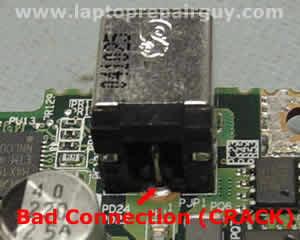
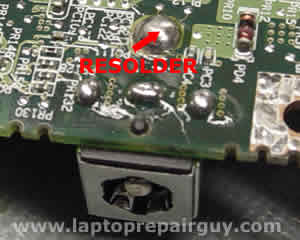
In some cases the connection is good, but the DC jack is bad itself. You can find a new DC jack for Toshiba Satellite M35X and Toshiba Satellite A70/A75 laptops on eBay. Search for DC jack M35X or DC jack A75.
How to resolder power jack yourself.
UPDATE:
Sometimes, after you replace the jack, you can see that the system board doesn’t get power at all. The battery will not charge and the power LED will not light when you plug in the AC adapter. So, here’s a possible explanation.
When a connection between the positive pin and the motherboard breaks (cracks), the power jack gets loose. You can feel it when you plug in the adapter plug. A loose power jack can damage the trace inside the hole in the system board. Take a look at the picture.
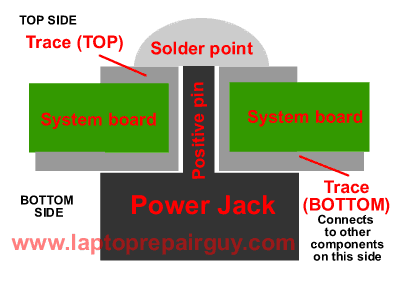
As you see, the positive pin goes through the hole in the system board and you solder it on the top side. Right? What if the trace between the top side and the bottom side is broken somewhere inside the hole? I’ve seen it before a few times. In this case everything looks nice and clean on the top side. When you plug in the AC adapter, you get normal voltage readings between “+” and “-“ pins on the top side, but the power DOESN’T go to the motherboard at all, because there is no connection between the top and bottom sides. Test with a multimeter if there is a connection between the top and the bottom.
If the trace inside the hole is broken you still can fix it. You can run a wire to connect the top and the bottom sides. Be careful not to short something on the board.
Update:
Here’s another solution to fix the power jack problem, it shows how to relocate the power jack outside the laptop base. Check it out here: Toshiba Satellite A75 failed power jack workaround.
When you repair a loose power jack, it’s a good idea to check the jack on both sides of the motherboard. When you remove the top cover from a Toshiba Satellite A70/A75 laptop you can see only points where the jack is soldered to the motherboard as it shown on the second picture in this post, but you cannot see the jack itself as it shown on the first picture.
Removing the motherboard from Satellite A70/A75 laptop is a good idea because the jack itself might has a broken “+” pin, as it shown on the picture below. If the “+” broke off the base, you’ll have to replace the jack.
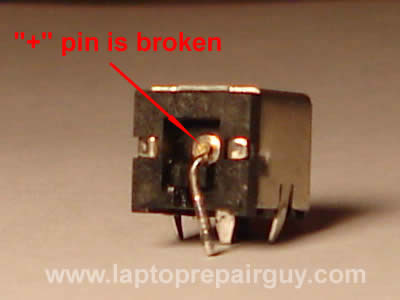
UPDATE:
Today I received another well written and well documented guide about fixing Toshiba Satellite M35X power connector issue. This guide was submitted by Stephen Macuch. Thank you Stephen for great pictures and detailed instructions.
686 Responses
john thomas
excellent! am fixing the prob right now. thank you.
Tim Haskell
This is great information! I have a M35X and an A15-S. I used the instructions for opening the A15-S to try to fix the DC jack, but have not yet resolved it – the Jack is not mounted directly to the board on this one.
In the process, I may have caused another problem, though. When removing the keyboard, it looks like the piece the tape connection slides into has pulled away from the board at one end. It’s not completely detached, but appears to be loose one one side.
Is there any way to repair this? I don’t yet know if the keyboard is functional because I can’t get it to power up.
Thanks for all the help,
Tim
cj2600
In A15-S the DC jack is not a part of the system board. If you want to replace the DC jack, you should find DC in harness. I believe the Toshiba part number for DC-IN harness is: P000377330 (or P000383390 backward compatible). You can search on eBay. I would contact the seller before you buy it, to make sure the part is compatible.
Now about the keyboard. To disconnect the keyboard cable correctly, you have to open the plastic lock securing the cable first and then pull the cable. You have to be very, very careful. In your case, I’m not sure if the lock is broken or just loose. Even if it’s broken on one side it should work fine (I’ve done it myself a few times). You have to carefully open the lock, slide the keyboard cable inside the connector and lock it.
Tim Haskell
Thanks again! Is it likely the harness or the connection at the board? I know there is no way of knowing until tested, but wondered if the board connections tend to break down due to heat.
On the keyboard connection, I could not get anything to “unlock” and eventually, the tape slid out of the connector. I got it to slide back in, but on the base where it attaches to the board it is loose on one end and can actually be pulled up off the board slightly. I can’t tell if the connection to the board has tiny pins which go through to the other side or not, so I don’t know if I’ve damaged the connection.
I’ll probably just wait until I get power restored and see if the keyboard works before I go messing around with it any more. If for some reason the connector at the board has been damaged can is be re-attached or would the entire board need to be replaced?
Thanks so much for the help,
Tim
cj2600
It’s hard to say. It’s possible that DC jack is bad itself. I’ve seen a few A15 laptops with damaged DC jacks and the power problem was fixed by replacing DC jacks. I cannot say exactly without testing the laptop.
I think that’s a good idea to wait until you get power and then test the keyboard. I wouldn’t guess until I test it.
so-loco
I have the same problem with a Satellite A30, bad DC jack. So I took it apart (I used cj2600 guide to take it apart, thanx).
I first tried to resolder it, and as I usually do on al my “projects” I did a simple continuity test with my multimetre – nothing. Not only was the solder connection broken, but the pin from the back just fell of when I desoldered it and took it out.
So my question is, is it the same DC jack as the M35X or A75? I figure I’ll get it on e-bay, but I just want to make sure. Or if someone has a part number for it, then I could try to find one somewhere else?
Thanx in advance for your help.
cj2600
The DC jack doesn’t have a part number because it’s a part of the system board. I just searched on eBay for A30 DC jackand found plenty of them. By description on eBay it should be the same DC jack for the following laptops: Toshiba Satellite A10, A15, A30, A60 and A65.
Tim Haskell
I have not completely disassembled the A15 and see no bad solder joints (there’s really no place they could be bad the way the plug for the harness is attached). Since I can’t test the unit while it’s in pieces, I detached the harnes plug from the board and ran it through the body of the laptop so I could try to see if the harness had a short.
When I got it back together, I still have no power at all. When I try to wiggle the plug within the harness sticking out the back of the laptop, I can’t even get the power light to flicker or anything. Even if the harness is bad, it seems like at least enough contact would be made to get the power light to blink on at least occationally.
I assumed the problem was at the DC jack/harness since prior to the laptop failing, wiggling the cord while it was attached would allow it to begin charging temporarily until finally I could no longer get any power.
Is there something I’m missing?
Tim Haskell
My previous post should read: “I have NOW” instead of “I have NOT” completely disassembled the A15. Sorry.
cj2600
Try to minimize the system. Leave just the system board, the DC jack harness and connect it to the AC adapter. The power LED should light, that means the system board is getting power. If there is not power LED light, than either DC jack, AC adapter or the system board itself is bad.
Tim Haskell
Turns out the power adapter was bad. Good news: the heatsink is now clean and won’t overheat anymore. Bad news: I detached part of the keyboard socket from the main board while trying to release the locks on it.
The pins are tiny, and don’t appear to be soldered to the board on the back, but must have been mounted at the factory or something. At this point, the left 1/4 of the keyboard seems to work, but the rest of it does not.
Is there any chance I can solder these pins back on? Is there a really tiny-point soldering iron available? The way I look at it, I may as well give it a shot. The keyboard is useless now anyway, so if I mess it up I would either use an external keyboard or just use it as a DVD player.
I know this question is off topic by now, but I don’t know where else to post it. Thanks so much for all the help.
cj2600
The keyboard cable is not soldered to the system board. It’s connected to the system board via the keyboard connector. The keyboard connector on the system board has two parts. One part (top) is connected to the system board permanently and second part (bottom) is a moving part and works as a connector lock. If I understand right, in your case the bottom part is broken.
It’s hard to give a good advice because I cannot see how bad the damage is but you can try next. Insert the keyboard cable inside the connector on the system board as far as you can. After that put the broken bottom part under the keyboard cable and move it toward the top part, trying to lock it. The keyboard cable should get jammed between the top and bottom parts and it should be enough to make a good connection. After that put some sticky tape over the connector.
Tim Haskell
Looks like it must be the top part that has pulled away from the board. The connector still can be locked to the tape cable, but the connector itself has pulled away from the board at one end so that the connector pins appear detached from the board.
This is what I’m trying to correct, and why I was hoping I could somehow solder the pins back. From what you said, it does not sound too hopefull for me, but since I have nothing to lose, I would like to at least try to re-attach the connector – I just don’t know if there is any way to get contact between the tiny pins and the board now that they have come loose.
Thanks again for all the help.
Boienin
Wahl Clipper Company makes a very nice portable soldering iron that comes in several models. You can get some very small tips for them in conical or flat styles. I have seen them for sale on the MCM Electronics and Mouser Web sites. Wahl has them on thier site as well but I do not recall if you can purchase directly from them. The product itsel is called Isotip and is reasonably priced in my opinion. I have the DC in jack problem on my Sattelite P15 but see no dissasembly instructions for it. Looks like the P30 might be close enough to get the job done. It is not bad enough yet to warrant tearing it apart but I know I will have to do it eventually. I’m thinking that the input jack should be available from an electronics parts distributor like Mouser but I have not looked into it yet.
Good Luck.
kevin collins
My m35x had the jack repaired/replaced? by an authorized service before the initial warranty was up. after 3-4 months stared to exhibit sudden shutoff, would not restart…no HD activity. Power button would turn on, but system never went any further…no video, no HD…Opened up the unit and noticed that part of the repair consist of a black epoxy around the base of the jack, covering the solder points and components within 1/8 to /14 inch of the jack. Noticed what looks like severe corrosion between the jack and the CPU cooling fan plug.I’m thinking the adhesive they used caused a breakdown of some component and caused my present problem. The job they did looks “neat”, neaning as professional as gluing something can be. Must have been a service tip for a long lasting repair. Now I’m faced with a replacement of the main board at my expense, and I can’t prove what caused the problem. Any way I can post some pics or send you some?
Thanks,
Kevin
Dave Weber
A took apart my wifes A75-S209 in an effort to fix what i believed was a bad DC jack. I check conninity and all three pins that as on the board get power from the O.d. ring and not the center post is this correct or is the Dc jack defective.
cj2600
Hi Kevin,
Most likely the service center did not fix the DC jack and replaced the entire system board. Toshiba apply black epoxy around the base of the DC jack to strengthen the DC jack after they replace or resolder it. I have seen a lot of system board failing because of the DC jack even after it was repaired. In your case I would check the memory module first because the problem you described might occur because a bad memory. You can check it with Memtest 86+ test.
Mike
I’ve had an A70 laptop for about a year and a half now and this problem has happened at least 4 times to me. Is there any possible way to make sure it doesn’t break every few months or am I stuck with a bunch of spare parts to sell and get a customized desktop?
cj2600
Hey Mike,
Unfortunately, you do not a lot of options. If this laptop is still under Toshiba warranty, take it to a Toshiba Authorized Repair Center. If it is not under warranty, buy a new DC-IN jack and take the laptop to a professional repair shop to re-solder the jack. If they do a good job and re-solder it properly, it should last for a long time. You just have to be very careful with the power plug.
Dave
Hi,
I have the same problem with the DC-IN jack the middle pin as snapped off also I have damaged the 2 USB ports on the back I need to replace these is it easy to do?
Cheers
Dave
cj2600
Hi Dave,
It is definitely possible to replace the DC-IN jack on the system board and it is pretty easy if you know how to solder. You have to buy a new DC jack, remove the old DC jack from the system board (remove the solder from 4 pins) and put in a new one.
About USB ports. It is also possible to replace the USB ports on the back. The only problem is to find a new part. USB ports are a part of the system board and I do not know where you can buy them. I guess it is possible to buy a bad system board for cheap and take USB ports from it. Re-soldering USB ports would be more difficult because it has about 14 pins.
Tim Haskell
I promise I’ll quit bugging you after this last question (see post #14). I seem to have pulled the keyboard connector away from the main board – not the lock, the actual connection between the board and the locking mechanism. Only the left side of the keyboard is functioning now. I want to re-attach the pins which are loose, but don’t know if it is possible. Are the pins too tiny to solder? Could I possibly use a drop of super glue?
Any input would be greatly appreciated. I currently am using an external keyboard. If I have to replace the main board, how much would that part cost?
Thanks.
cj2600
Hi Tim, you are not bugging me at all. 🙂
Toshiba says: “If the ZIF connector on the system board is broken, the system board has to be replaced”. If you give me the model-part number of your laptop (For example – Satellite A15-S129, PSA10U-0ZH6MV) I can find the system board part number. You can search on eBay by this part number and if you are lucky you can buy it for cheap. About three month ago I bought a system board for Toshiba Satellite 1135-S1553 for $49, still works fine.
Dave
Hi CJ,
I have a toshiba a60, I am stuck trying to get the dvd drive out. I have read the disassembly manual and it says about the three hidden screws. I have looked into the holes circled in the picture and can’t see any screws any ideas?
Cheers
Dave
Dave
Ah, take no notice it just pushes out.
Thanks
Dave
Tim Haskell
The serial number appears to be: A15-S1292, PSA10U-28RJRV. The 7th character is sort of scratched off, but I’m pretty sure the numbers are correct.
Thanks so much. After destroying my perfectly good laptop only to find out the adapter/cord was all that was bad, I’m finally learning how to take these little things apart – and sometimes even to put them back together.
cj2600
Hi Tim,
There is only one system board listed for your Toshiba Satellite A15. The part number is P000387490. I just searched eBay for this part number and found one working system board for $24.99 + $14.45 shipping (1day23hours left).
If you decide to replace the system board in Toshiba Repair Center, they will charge your approximately $230 for the system board + $120 labor.
Paul
Thanks for the fix, resoldered both sides. Works great, was about to send this out.
Thanks
Paul
shelly
I have a A75-S206 and having the same trouble. These tips are really handy. However, I have never taken apart a labtop computers before.
My warranty just expired also. Does any body know of a good place to get this fix? I would like to fix this myself,but i am not sure can handle this. Some of the places I’ve been to said I may have to replace my system board. Is that true? I hoping this works instead
Thanks everyone for all your tips 🙂
Vaibhav
Thank You very much for all the information above.
I was able to fix power connection problem of my Toshiba M35X.
Thanx,
Vaibhav
Gary Johnson
I’m looking for a service manual for a Toshiba Satellite 1135-S1553.
A friend of mine had one and the modem went out on him. He decided to play repairman and toasted it somehow. I’m not sure what he did… but now when you turn it on, it starts to boot up for about 10-15 seconds and then shuts off. I’m suspecting the processor or heat sink though that’s pretty fast to get to hot.
Anyway, he’s given it to me, and I’d like to tear into it and see if I could fix it…. I may also be looking for a system board for it – if you have any ideas.
Thanks
cj2600
Hey Gary,
I have exactly the same Toshiba laptop myself, but I have not created a guide for it yet. It is possible that he forgot to connect the CPU fan cable on the system board and didn’t seat the CPU properly. Read comment 14 in this post may be you experience the same problem.
BTW, I was able to find a good system board for my laptop (Toshiba part number K000004100) on eBay for $49. I bought it about 5 months ago and it still works fine.
tekweary
well today i thought i’d troubleshoot my tosh\sat
charging intermitantly, grabbed my meter figured cheap cable, figured wrong, started looking for advice and read your thread.
if you can tell me where to find directions\accompanied (pictures), for safely dismantling case and board, i b most appreciative.
( dont want to be that keboard fellow)
i’m thinkin i might take a stab, hopefuly i can make it better not worse.
lookin at your diagram i am toying with just solder sucking & remove the jack and making a power dongle, those retards should have had a sranded wire interface with a seperatly mounted jack, predertemined wearpoint i guess, you know people are going to buffet that jack and it should have been a right anle plug as well………arghhhh
never submitted to one of these, hope we can connect thanks :)……..tekweary
cj2600
You have to go through all the steps if you want to remove the system board and replace or resolder the DC jack. After you remove the system board you can check if the DC jack has to be replaced or just resoldered.
tekweary
cj2600, appreciate your timely reply,
think i’ll give it a go.
much thanks 🙂
CLarissa
Hello, I desperatley need some help/advice.I have a Toshiba a-70 PSA70C-RT100E. I too had the pwer problem and had a repair guy solder it 3 times( it kept loosing pwer after a few months). I did research and found sites like yours to help about this, so i opened my laptop and soldered it, it worked fine for few months, then the old flickering /then no pwer problem came back.I studied what a new power jack looked like and saw right away the PIn coming from the back was broke off.I bought a new jack, took off the old one, cleared the old solder, made sure the pin holes were open/clean, re -soldered the jack on and then appled Apoxy to the base around the jack, as recommended by some expert laptop guys .I know i did it right, the jack can only go on one way, and Today I finished that.Assembled my laptop, and plugged her in, and it was a nice tight fit and all three LED’s lit up, the fns started…BUT my screen was black-not dim, black.I disasembled it again thinking i missed a plug or something.it was fine, then i checked sites for black screen problems and disassembled my LCD and sge looks fine, nothing unplugged, no dirty plugs.Assembled it again.Same problem, I tried to open my DVd drive and she wouldnt open, no light either, then i looked at my wi-fi switch and turned it off and on, also no light.Im at a loss as what it could be.Im quite experianced on computers, and im just at a loss, ive never had a dead motherbaord, so Im terrorfied that that is the problem.BTw the harddrive is making noise, as the fans, and the power light are fine.PLease someone help, if i take it to a repair guy , hell KILL me with a bunch of crap i need, Im a single mom, i cant afford to be tooken to the bank if i could fix this myself.
cj2600
Hi Clarissa,
Is it possible that you didn’t lock the CPU in the socket if you had to remove it? Did you check if the memory is seated properly? Try to connect the laptop to an external monitor and start it up. If your system board is good and all connectors are seated properly, you should get an external video. By connecting the external monitor you can bypass the LCD module.
As a last resort, I would take the laptop apart and leave only the system board (it has onboard memory) with the CPU (do not remove fans and heatsink) and try to turn it on with an external monitor. If you get video, start adding parts one by one. If you have no video, either the system board or the CPU is bad.
shawn
I have an m35x which had the power problem. I followed the directions here and fixed the solder joint. Thanks. However, when i powered the computer backup, the monitor is showing wrong colors and has a fuzziness. I tried replugging the two feeds to the monitor. I am slightly confused about a black ground with an eyelet. I don’t remember disconnecting this wire but it does not seem right.
thanks
Von Summers
Had the same DC input problem with my Toshiba M35. Of course the warranty had expired the month before. Remebered I bought it on an AMEX card. Turns out they have a buyer assurance plan. I called them and they put me in touch with Micro Medics. They overnight me a box to put the laptop in paid for the shipping and sent it back to me in 2 days with a new DC Input port.
Same program may be available on other cards, Anyway, saved a few bucks for sure.
Gordan
Hi,
i have a75-209 model and at first, I had the problem with static electricity discharge. Then, recently the laptop started to crash suddenly. Then, while connected to AC power, it suddenly started to run on batteries. At first, I was able to wiggle the cord and it would switch back to AC. Lately, it’s close to impossible to use AC power.
Now, when I switch the laptop off, the battery charge indicator lights orange light constantly, and it doesn’t turn green. Then, when I switch the laptop on, the battery charge indicator turns off. I tried using laptop on AC power with batteries removed, but it doesn’t switch on at all.
The AC power light indicitor turns green whenever I plug AC power in.
Are the symptoms of my laptop consistant with the problem described in this article? I have not opened it, will probably do so, it’s just strange that the battery charge indicator switches orange when the laptop is switched off and plugged in AC.
cj2600
Hey Gordan,
I am pretty sure you have a problem with the DC jack. I have seen the same pattern as you described many times. The battery is getting charged when AC power is connected, but the battery charge LED goes off as soon as you turn on the laptop.
Gordan
thanks cj2600.. the problem is now fixed and everything works fine. thanks to all of you who compiled this page and the one about dismantling the laptop! greetings from croatia!
toure
hi
when i put my dc cable in the jack the motherboard becomes heat
Ted Schmits
I am a reseller of laptops and I get a lot of problem laptops. I have noticed this condition on a couple of laptops, right now on the bench is a toshiba P15 laptop. When the the battery is in and I hook the laptop up to an ac adapter I get nothing, no signs of power. Now when I take out the battery and plug in the ac adapter I get a buzzing/clicking noise from within the laptop. Could this be as simple as a dc jack replacement or is it something more serious? Now that I have this new test I am finding this to be common with some of the doa laptops I have been getting in.
cj2600
Hi Ted,
First of all, I would try to eliminate the buzzing/clicking noise. Try to remove the hard drive, the optical drive, the wireless card, etc… one by one and see if you can get rid of the noise. If you still having the same noise when only the system board, the CPU and the memory left, then I would suspect that the system board is bad. Make sure that the noise is not coming from the fan. 🙂
Now about a power issue. I guess it might be caused by a bad battery. Try to swap the battery. Might be the battery is shortening something, making the laptop appear to be “dead”.
I think it is not the DC jack problem, because most of the time you can get some LED activity by wiggling the power plug, but you say it appears to be “dead” completely.
Have you checked the AC adapter itself?
Ted Schmits
Thanks for your help. I have had another laptop with similar issue and the buzzing/clicking seems to be coming from a 1″x1″ chip set on the board marked intel. Don’t know if its a video chip or not. Its not the processor, its one that is soldered/mounted to the board. Its definately not the fan, doesn’t have a hard drive installed. I guess I will keep selling them as is. I know people out there are fixing them because they are buying them from me left and right, just wish I knew the trick to fixing them.
Ted Schmits
Oh, the adapter is fine, its a kensington universal 120 watt. I test 10 -20 laptops with it a day. Check me out on ebay under e-b-s
fri
After I had used your guide to disassemble the A70 and fix this problem I found this post about the power jack. I must say you are right on with this one. The power jack was exactly as you described it, cracked at the base where it connects to the system board. Too bad I did the soldering before finding this page. It would have saved me some time..
A million thanks!
.fri
Gary
Hey,
Can you tell me exactly where to solder for a A75 – S211 DC jack. Is it the same as the M35X. I took apart the laptop to see if the Flickering LED / Shutdown prob was due to the DC Jack and it seems so, as the jack seems to be moving around loosely.
Thanks for your help in advance
cj2600
Hey Gary,
Toshiba Satellite A70 and A75 has the same jack as Satellite M35X. When you remove the system board from the laptop, you can wiggle the DC jack and see witch connector has to be resoldered. When I resolder the DC jack, I usually remove it from the system board first. Then I clean up all four legs and apply new solder coat on it. After that I clean traces on the system board (both sides) and apply new coat on them too. Finally, I put the DC jack back in place and solder all 4 legs.
95% the DC jack fails because the “+” leg looses the connection with the trace.
Frank K.
I’m having trouble finding a DC-in jack for a Satellite A45-S150.
PSA4OU-OFOQ4V
Do you have one or know where I can obtain one?
Thank you
And great site, too !!
cj2600
Hey Frank,
That is a tough one. I just looked up on Toshiba Tech website a diagram for Toshiba Satellite A45. Even though the DC jack is not connected to the system board directly, it is still a part of the system board. The DC jack harness is soldered to the system board. I went through the part list for this model and didn’t find the DC jack listed. I also tried to search eBay without any luck. Sorry, cannot help.
Dave
I have a Toshiba Satelite P30, and have had the same problem with the DC jack, I have stripped it down and resoldered the faulty pin. When I switched it back on first time it worked fine until the battery went flat. Now when i plug it in, the DC LED on the front flashes (approx 2 or 3 times a second) and the fans go on and off. but I cannot charge the battery or switch the machine on.
Does this mean I have not fixed the problem at all? Or have I done more harm than good by having a go myself?
Any help appreciated!
cj2600
Hi Dave,
You can try to remove the battery and try to start the laptop from the AC adapter. If your laptop will not run when the battery is removed then I guess you didn’t re-solder the jack correctly. When I re-solder the jack, I usually test it before I put inside the laptop. To test if it works properly you need only the system board, the CPU with heatsink and fans attached and the memory. Connect it to an external monitor and plug the AC adapter. When you turn it on you should get a video on the external monitor. If you cannot start it, check the DC jack.
Giang
I have a Toshiba Satellite A75, and it has been having the overheating problem and the DC jack problem. A friend and I opened it and cleaned out the heatsink. We also tried to resolder the DC jack back in. When I turned it on and attached the adapter, I smelt a burning smell, and now my laptop does not power up at all. Would you happen to know what is wrong with it?
Dave
cj2600…thanks.
I’m pretty sure I’ve fixed the problem with the DC jack, I’ve proved it by doing simple continuity checks with my multimeter. But I think I have put another fault on somewhere, it looks like it is shorting across the cooling fans. Any ideas?
David C. Johnston
Is there a manual that tells me how to get into this thing? I’m trying to fix my Toshiba Satellite A75 S276. I am having the same DC In connector problem that seems to go with these machines. If I can get to it, I can resolder it. But I can’t get to it and can’t find a manual or procedure that tells me how to get the thing open. Anyone know where I can find something like that?
cj2600
Hey Danny,
Sure I can look up a system board part number for your laptop. There are over 10 different boards for Toshiba Satellite M35X-S346. To find out exactly witch one is for your laptop I also need model-part number. You can find it on the bottom of the laptop, something like PSA72U-01400U.
Garcete
HOW DO YOU TEST THE DC JACK TO SEE IF ITS FAULTY?
I have a multimeter, but don’t know how to use it or where to test it for connectivity. I have a Toshiba Satellite A65. It shows the same syptoms of DC jack failure (no power or power light, battery dead and won’t recharge). But unlike everyone else’s solutions, I cannot see any physical problems with the jack or its solder points so therefore I dont want to desolder and replace the jack if its not the problem. And fiddling with the multimeter, I think I got a voltage reading from both sides of the pin (while plugged in) on the board. Could the DC jack still be the problem?
dave c
hi all,, i need to know what motherboard i need for a toshiba m35x-s149 other numbers are psa72u-00t00u i tried a replacement DC jack to no avail. time for a new board. but i dont really want to pay 250+ dollars, and i want to get the correct one for my laptop. any help would be greatly appreciated. thx in advance.
cj2600
Hi Dave,
There are two system boards listed for your laptop:
K000019660 and K000020370. You can install both motherboard. The price would be about the same.
cj2600
Hey Garcete,
If you cannot see any physical damage on the power jack pins and you get a voltage on the exit, then most likely the jack is not your problem. With the power jack failure, most of the time you can get some LED activity when you wiggle the power plug. I might have a bad motherboard.
Check if the AC adapter provides a proper voltage. I believe you should get 19V for this model.
Garcete
Thats not what I wanted to hear 🙁 but just to make sure….
I tested the voltage from the AC suppy… little over 19v.
I plugged in the ac supply (without the battery and with it) and put the positive lead on the pin you show in the pic above with the connection problem… 19v. I even put the positive lead on the bottom side of the jack (like the 2nd pic above) and got 19v…. by the way, the negative lead was on the heatsink… metal, correct?
Did I correctly test the DC jack to ensure it is not the problem?
Is there any way I can test the motherboard in the same fashion with voltage tests? and where?
*I cannot find websites, pics, or anything on the schematics or voltage points for this motherboard and I read all over the place that people have replaced the motherboard just to have the new ones be faulty or become faulty in a short period of time! So again, I want to fully test everything before unnecessarily buying parts.
cj2600
Garcete,
You did everything right. If there is a voltage on the exit from the DC jack but the system board is “dead”, then you also can check the fuse. It should be located close to the jack. If the fuse is “open” then probably you can repair the motherboard by replacing the fuse (never done it myself). If the fuse is good, then most likely you have to replace the system board. We do not repair motherboards on the component level, we replace them.
Garcete
awww crap!
the only thing I found that was “fuse-like” was a little tiny white rectangle (smaller than a tic-tac) that said fuse501 on the bottom side of the board. I have no idea how to test it and I sparked it accidentally when I tried!
I still have voltage though from the DC jack to the motherboard. I also have voltage for the pins that connect to the battery. What I cannot find is voltage on the power button… even when I have it pressed. But again, I might be checking the voltage wrong.
Could the powerbutton be the problem?
By the way, thanks so much for continuing to give advice on this. I cannot believe Toshiba has such faulty computers! By getting us to turn in the computers for repair, they are just profiting on their own faulty equipment! If you had paypal donations, I definitely would give a donation for the help that you have given me so far. This information about the dead motherboard will help alot of others who have the same symptoms, and probably save them from frivilously spending anymore money, Im sure. Thanks!
dave c
thank you very much for your quick response. it is nice to find someone willing to help out.
Garcete
Thank you, thank you, and thank you!
No insult at all ! The laptop isn’t even mine, its my Aunt’s who by the way knows absolutely nothing about computers and bought the first thing the salesman offered her! Personally I only trust Sonys and Dells. My desktop computer is a Micron and I’ve had it for over 6yrs with absolutely no problems at all !!! (but i guess desktops are more reliable).
Anyways, the model is Toshiba Satellite A65-S126 Model# psa60u-02k015 Serial# 84095828q
And I’m going to tell my cousin the bad and good news and see if he’s willing to buy a motherboard.
As for the donation, as soon as I get my tax return, they’ll be a little something for you guys!
Thanks, thanks, thanks!
cj2600
Thank you Garcete,
There is only one system board listed for this Toshiba laptop. The part number is V000040730. I just searched for this part number on ebay and found two of them.
Ouch!!! $625 and $835
I can buy a brand new laptop for $800 🙂
Make a right decision. Good luck!
Nikki
Hi,
I have a compaq presario 1700 that we have replaed the power jack on 3 time. It has gone out again and I am wondering if there is any way we could just remove the jack and attach the power wires directly to the mb.
Thank you,
cj2600
Nikki,
I think there is a way to attach the wires directly to the motherboard, but do you really what to do it? The connection through the power jack is much more reliable then just soldered to the motherboard wires. Just be more careful with the jack.
Garcete
Maybe we (my cousin and I) should just part the computer out ourselves since everything else is okay. We’d probably make enough for a down payment on a new one !!! Which would definitely be a Dell or Sony !
Otherwise, Im gonna keep a look out and hope a cheaper board comes along! Wish me luck !!! And if you come across something, let me know!
John
Within a couple of months after purchasing my Toshiba M35X laptop, it evidenced the DC jack problem. The computer had seen little use, and no abusive loading of the connector. Unfortunately, at the time, I wasn’t aware that the connector was the source of the problem. Only after it finally gave up the “ghost” did I discover the reason… thanks to this very helpful thread.
In the process of repairing the faulty DC connector, I discovered that the center terminal of the DC connector manufactured by SINGATRON ENTERPRISE CO. wasn’t properly soldered to the PC board. The shiny ball of solder visible on the underside of the PC board concealed what ultimately turned out to be a “cold” solder joint from the factory. In fact, the terminal lead on the connector didn’t even appear to be “tinned”.
Based on the experience of others who have resoldered the joint only to have the problem repeat, I decided to replace the jack with an alternate direct replacement design available from an Ebay source, “dcpowerjacks”. This part is also manufactured by SINGATRON ENTERPRISE CO., but it doesn’t have a round wire-like rear terminal. It has an entirely different construction with a stamped rear terminal… which in my opinion is more suitable to a reliable solder joint. Of course, only time will tell whether I am correct!
Crestin
I have a Toshiba A75-s226 that needs a DC power jack replaced, I have studied the how to dissmantle pictures and am quite confident I can perform those steps with no problem. My question is when I put my laptop back together will it work as usuall,lose some type of files or all of them, will I have to use the recovery disc? How hard is it to get the A75 working properly?
I have this machine so scaled back,with many services dissabled I don’t know if I could remeber what all to do if I have to start all over?? Thanks
cj2600
Crestin,
Replacing the power jack on the system board will not affect your data on the hard drive. You will not have to use the recovery disk and the laptop should start as usual.
Crestin
Thanks for all your help and great web site!!
Lachlan Miller
Hi, The dc jack on my toshiba a70, is a dud 🙁 i opened it up and soldered all the connections, and i think it may have been better, but now it is even worse than before. i am going to replace the connector. Can i use a universal dc jack from radioshack etc ?
cheers
lachlan
cj2600
I am not sure if Radioshack sells laptop power jacks. You can find a cheap one on ebay.
Jeff
I seem to be having the same DC jack problem.
However, I installed a fully charged battery from someone else’s latop (same model but with no issues) and the laptop still does not power up.
Does this indicate that i might have another problem with the laptop?
Does this DC problem affect battery usage apart from charging the battery?
Any advice would be great
Thanks!
cj2600
Jeff,
I believe if the DC jack on the system board is damaged, the laptop still will run of the battery. You might have another problem. Does your laptop shows any activity at all? What about LED lights?
Jeff
cj2600, thanks for the reply!
At one point there was some activity. The fan and harddrive sounded like they powered up then everything would just shut off shortly afterwards.
I left it for awhile as i had other priorities that needed to be taken care of.
Now, nothing. Not even any lit LEDs.
After reading this article i was hoping that i had a poorly connected jack and the battery had discharged while the laptop was not in use. But after testing someone else’s charged battery to only produce the same outcome, i wasn’t sure whether a faulty jack would also cause a battery-run laptop to also malfunction.
Since it looks like my case is probably not related to a poor DC jack connection, i’ll be taking the laptop to a technician to be diagnosed and hopefully repaired.
Thanks
Jenni
I purchased a M35x s149 laptop a year and two months ago, (meaning.. its two months OUT of warranty). The other day my laptop decided to turn restart all by itself. Since then when I try to turn it back on after I have it off, it freezes up. The LED lights come on and the lights around the power key, the fan turns on, but the harddrive doesn’t. The computer will sit there for like five minutes or more and eventually turn on by itself.
I took it to a computer repair place and the guy said there is a short in my motherboard. He is waiting to get prices from Toshiba on the cost of the board. Because I paid only paid $800 I’m debating on just purchasing another laptop instead of putting nearly half or what i bought it for or more, into repairing it!!
Anyone have any idea how much it would run me to get the motherboard replaced on this laptop? Is it even worth it? I’ve heard so many complaints about Toshiba, I’m not sure I want to deal with them anymore! Otherwise it appears to be running fine. Once the computer is on, it stays on… I just have to keep it running 24/7!
Carlos Trujillo
Jenni, Sorry to hear about your problem. I just repaired a Toshiba M35X laptop for one of my teachers and he found a motherboard online for $475.00 or $395.00 if he trades in the old motherboard. I cannot find him right now but I installed it 2.5 weeks ago and now there are new problems.
I would not recommed putting in a new motherboard. Go with a different manufactuer. You can email me above and I will have the website info for you. Those prices were estimates because I spoke with them, I just cannot find the information now.
Jenni
Carlos– I did just thought. I purchased an HP laptop–with the extended warranty. I am hoping I have better luck with HP than I had with Toshiba.
Thank you for replying!
Do you know if I can sell this laptop for parts? Is it even worth anything? Or does anyone know?
kaysee
I am finding these two problems with my A75-S211 (overheating + DC power jack) quite disappointing. This is my third Toshiba, and I have had more problems with this one machine than I had with either of my others.
Frankly, if it wasn’t for the fact that I want to burn CDs and upload my pictures, I would still be using my 2515CDS . . .
Does anybody have an idea how much having a ASP fix these two problems might cost?
cj2600
Kaysee,
Both problems could be fixed at the same time. To replace the power jack you have to remove the system board. When the system board is removed it takes only 5 minutes to clean the heatsink. If you take it for repair to a Toshiba ASP most likely they will offer to you replace the system board. So, you will have to pay for the system board exchange approximately $300-$400 plus labor. So the repair might cost your somewhere around $400-$550.
You can try to find a local computer repair shop and ask them to resolder or replace the power jack. It would be much cheaper. You can also search for this kind of repair service on the Internet. I think you can get it fixed for about $120-$150.
Christopher
Hey Jenny, to all those that have a similar problem as in post 91, my Toshiba M35X-S149 laptop also had steady green lights and would not turn on right away. The short is caused by a loose DC Jack on the motherboard. I say do not have it replaced, but rather resolder or replace the DC Jack on the motherboard. My battery was charging and the computer would turn on fine, the fan would kick in but the harddrive refused to start. I thought it was a loose connection somewhere but resoldering the DC Jack did the trick. I hope this helps.
g
I am having the same problem with my Toshiba. Toshiba is not helping me at all The computer is not holding the charge, it was working if i remove the battery and use the ac adapter
g
JENNI
I WAS ON THE PHONE WITH TOSHIBA FOR HOURS. JUST SO YOU KNOW THERE IS A RECALL ON YOUR COMPUTER . YOU HAVE TO BRING IT TO AN AUTHORIZED DEALER . EVEN IF OUT OF WARRANTY IT IS STILL COVERED. THE RECALL IS FOR “SYSTEM LOCK OFF AND SPONTANIOUSLY REBOOTING ITSELF. ALSO FYI I READ THAT THERE IS A CLASS ACTION SUIT FOR THIS MODEL. IM LOOKING INTO IT HOPE THIS WAS HELPFUL
Jenni
I brought my laptop to get checked out and it did not fall under the recall about the spontaneous shut downs. That has something to do with an eletric shock in the speaker, or around the speaker, and is definately not what my laptop was doing.
I did end up purchasing a new laptop and the old one is now a paper weight. Toshiba is definately losing out on customers, and very rapidly for their poor customer service and lack of reliablity in their laptops. I don’t see the point in putting money into a faulty, out of warranty piece of junk! HA!
I have been searching for class action law suits for this laptop and have not found any! I would surely join, and I know others who would, too. If anyone has any information about this please post it on here! I’d be interested in the info!
Douglas Preston
repaired dc connection problem for my niece. Now after re assembly i am getting post error one long three short beeps. Is there a particular side you have to install memory if you only have one stick or do i have a video problem. Screen is black and no boot up. thanks in advance.
cj2600
Douglas,
Most of the time people cannot boot laptop after reassembly because something is not seated or connected properly. Check if the CPU is seated properly, check if flat cables are connected properly. The laptop should boot with memory stick installed in any slot. Are you sure that the power jack was the only problem in the laptop?
Peter
Hi, and thank you for all your great help. I have the m35x-s149 model. The first problem was the common power/battery charge problem. I followed one of the guides and it turned out wonderful. But now my current problem is that my screen randomly goes black. Pitch black. All my 3 lights are on, I hear my hard drive booting up, and fan spinning. Most of the times it stays black when I turn on the laptop. Other times the bios, xp, etc. loads up fine, and then it goes black. The rest of the time I make it all the way through the log in and see my actual desktop, then it goes black. I’ve noticed that when the screen goes black, i’m no longer able to open my DVD drive, but yet the 3 lights are on. Do you have any suggestions what I should do? My laptop is no longer under warranty, and I’m really on a tight budget. Any tips/help would be much appreciated.
cj2600
Peter,
I would check all connections first. It is possible that an improperly seated cable or a loose connection creates the problem. Check if all cables are seated properly, check the video cable connector.
Peter
Okay. I checked all cables and they seem to be placed correctly. I think it’s something else rather then the display. When I got into windows, I played a movie to check if I could hear it when the screen turned black. It seems like the system is shutting off or something, but the LED lights are still on and everything. The screen/system shutoff occurs when I move my laptop around. What do you suggest I do? Everything is correctly placed and tight. Thank you.
Peter
Okay, scratch my ‘problem occurs when I move the laptop around’. I took the laptop apart, and put everything back in place following the guide. It took me a few tries because the screen/system kept dying , but I logged into windows and left it there. It stayed for about 2 minutes, then the screen went black again.
cj2600
Peter,
I’m not sure what is going on. You can try one more thing. Remove the system board and try to boot the system outside the laptop case. That’s what I do when I have an unknown problem. I assemble the system on my bench: system board, CPU, cooling module and memory. Then connect the power button board and an external monitor. Boot the system and see if you still having the same problem. I do not have an answer what is wrong with your laptop. I’m not sure if I can help you without looking at the laptop.
GMoney
cj2600, Peter:
I’m in the same exact boat as Peter … I followed the directions posted here and have the same results.
cj2600 your idea about trying while disassembled is a good one because I seem to get better results that way. What I mean is that the laptop boots up good and I can login. However, after a couple of minutes the screen fades to black … It doesn’t appear to shut off it just fades out. The weird part is that I don’t get anything once I assemble the laptop … I press the power button and the blue light and fan comes on and after about 5 – 10 seconds the fan cuts off and nothing appears on the screen. The blue light stays on, but if i move the laptop the blue light goes off.
I tried attaching the assembled laptop to an external monitor and I still get the same results … My next solution is to just replace the DC-IN jack, however I don’t see how that will help anything now because it appears to be working fine because the battery is charging.
Polina
Hi, I have similar problem to Peter’s (with the same model), namely, I first had the problem with power supply when my laptop was 6 month old. The battery would not charge, and if you wiggle the plug in the socket then it would, so I had to prop it up. Then they replaced the motherboard under warranty and the upper cover which was manufacturer’s recall. Yesterday here’s what happened: I turned it on and the fan went on and the blue light, but… the screen is dark and the hard drive makes no sound whatsoever, which is unusual. Usually you can hear it turning as windows load. My CD-ROM does not open either unless I poke with a pencil into the small hole, that is provided specifically for this purpose to open it if it can’t be opened normally. My laptop is out of warranty now and the repair shop said it’s going to cost 300-400$ to replace the MB, but I think it may crash again soon. Does anyone know if there were any recalls on this model because of this problem?
Thank you 🙂
patrick
Hi Polina just yesterday i turned my computer on and the same thing that your computer is going through mine is going through too. Do you have a m35x-s109 model? Did you put into hibernation mode the last time you used your laptop? As of right now im still investigating but i have three possible solutions one is the cmos, the other is the dc jack ,and the last is the motherboard. I hope that the last isnt the problem because i dont have $400 for a motherboard
Kiet
Hi,
Now I have disassembled my A75 laptop. And i think that the power jack is indeed cracked. So I am gonna get a new jack. but can u provide the instructions (plus pictures would be great) on how to take the old jack out and put the new one in??? Thanks a lot.
Nathan
Mine’s doing this, too … but it’s an Acer Travelmate 2700. Apparently this is a very common problem in my model, which sucks a great deal. I get random shut-downs, and what’s even weirder is sometimes when i’m using it, if the AC plug comes unattached for whatever reason, it switches to battery, like normal. When I re-plugin the adapter, it stays on battery without switching back, until I shut down the laptop. The moment it shuts down, the AC adapter starts charging the battery again. Bloody frustrating!
Paul
I believe I’m having the power jack issue with my Toshiba Satellite A35-S159. Does anyone have a link to the Maintenance Manual for this laptop. I haven’t been able to find any links on how to break this one down completely. I figured out how to break it down part of the way. I was able to remove the battery, the DVD player, and the hard drive. I also removed all screws on the bottom of the laptop, the two P8 screws on the rear near the hinges, the two screws underneath the DVD player, and the two screws underneath the battery. Do I need to remove the screen and unconnect that as well? If so, anyone have any instructions to get to the power jack. I’m sure it’s busted as wiggling causes the power light to go in and out. I’m also having problems charging. I bought a new battery to rule that out, but I’m still having the same charging problems.
Thanks
cj2600
Paul,
I haven’t created a complete disassembly guide for this model yet, but I think you can handle it yourself. You’re almost there.
Now you have to do next:
– remove the keyboard securing strip (take a look at other guides)
– remove 2 keyboard screws, lift up the keyboard and disconnect from the system board
– disconnect the video cable, pull the wireless antenna cables
– remove covers from both hinges and remove screws from the hinges
– remove the display assembly
– now you have to remove the top cover assembly. Remove 4 screws located on the metal plate and 1 screw that was hidden by the display assembly (you’ll see what I’m talking about)
– disconnect all cables
– remove the top cover
Now you have an access to the motherboard and you have to remove it in order to fix the jack. It should be straight forward. Read through other disassembly guide to get an idea. The power jack is a part of the system board, so you’ll have to find a new one and re-solder it.
Kiet
Hi cj2600,
But how do u re-solder the jack though? I have a satellite A75 and the power jack is having problem. i can of course buy a new jack from ebay, but i just dont know how to do it…
Thanks.
cj2600
Kiet,
If you don’t know how to solder, then I wouldn’t recommend doing it yourself. I can damage the system board and it would cost a lot of money to replace it. Take it to a repair shop.
Polina
Hey everybody,
Here is an update to my comment # 111
I took my laptop to an authorized repair shop and they replace the mother board under “warranty extension”. Please note that I DO NOT have extended warranty on this laptop and the 1yr original warranty has expired in december 2005. They told me that Toshiba extended original 1 yr. warranty on some defects that apparently were happening too often, and the repair fixed my defect under this extension, so I did not have to pay anything. They also told me that the power jack problem that I had last year (see comment 111) is covered by this warranty extension.
To comment 112:
Hi, Patrick, my laptop is M35X-S149, and the problem was MB, but they repleced it under warranty extension. I did not put in hibernation mode, because for some reason hibernation stopped working properly some time ago. Toshiba customer service told me that it can be a software prob., and warrnsty doesn’t cover it, but they are not sure, so they suggested me to reinstall the system and see what happens. I did not reinstall the system (I’d have to kill a whole working day on it) but simply turned the hibernation off.
Polina
Patrick, I also do not have $400 for the MB. 🙂 Many people told me it is not worth the money to replace MB.
larry
regarding post 111, I got a m35x with the power jack problem. I dismantled system and repaired the power jack connection.
I now can charge the battery and occasionaly boot the system.
Most times, it just does a blink of the hdd light while the fans spin for about 5 seconds. The power lamp stays on blue, screen never gets to the toshiba splash and stays black. system is basically dead at this point. cannot open cd drive. it will turn off
after holding down the power button for about 5-7 seconds.
I tried removing memory with out any change, I will try other ram tonight. I am suspecting the hard drive which I will also remove tonight. Anyone out there have similar experiences and possibly solutions?
larry
follow up to my previous post. seems that if I flex the lower right corner of the base up and hit power button, unit boots fine. seems like a bad connection somewhere on the board. this rules out memory, cpu, hdd and lcd. I wonder if dis-assembly to repair dc jack could have damaged motherboard?.
thoughts, comments?
Jeff
I was able to complete this repair (not sure if it worked or not yet), however during reassembly I broke the clip that holds the ribbon cable from the power switch and LEDs to (I think) the motherboard. It’s about 1/2 inch long with two prongs on it with catches, one of the catches broke.
I’m even sure where to start to find one of these. I would guess it’s more of motherboard part than anything. Any ideas what I should be looking for or where to buy?
Thanks!
cj2600
Hey Larry,
A few months ago I had to repair a Satellite M35X with symptoms of a bad power jack. I was able to start laptop only after I applied some pressure on the power plug. After I disassembled the laptop I found that the power jack wasn’t damaged at all. Actually it was necessary to apply some pressure on the motherboard itself to start the computer. In my case I had to replace the motherboard.
Check if you put all screws correctly. Is it possible that you put let’s say 8mm screw instead of 6mm? A longer screw can touch the system board and short something. Try to assemble the laptop outside the laptop base. Connect the system board, CPU (with cooling module) and memory and try to start it with an external monitor. If the system starts fine outside the base, then start assembling it back and pay attention to each screw.
cj2600
Jeff,
Did you break the moving part of the connector? I think that you still can place the ribbon cable inside the connector and lock it. You should be able to jam the ribbon cable inside the connector.
Jeff
Re: #123: cj2600, I broke the prong so that one side catches but the other side doesn’t lock. It apparently needs the clip (FFC connector lock) to keep it in place – jamming doesn’t work. My quest is just starting so I’m not sure how easily this lock will be to find. Since it’s on the motherboard, I’m not too confident. I’d guess it’s specific to that connector manufacturer.
Perhaps I can “fatten” the cable by gluing something to the end and jamming it, but I’m afraid it will work itself loose.
nat
The bad connection really was a problem strange power/charging behaiviour. I bought a power jack from ebay and took my laptop(toshiba a75) apart according to the instructions and call my friend to help me to change the power jack. He saw the problem right away and said that I don’t need a new power jack.
I had an overheating problem also, which kept getting worse and worse, unless I simply vacumed where the fans are at the bottom ! And it helped a lot, if not solved it complitly.
thanks to everyone.
tubster
My M35x developed this fault (battery only charges when switched off, erratic power to computer). Out of warrenty by two months. International support referred it to UK customers services when I said that this seemed to be a recurring fault with this model. I also mentioned the class action, but said I just wanted it repaired. UK customer services came back to me and said that if it was the power fault they would repair it free of charge as this has been a problem with this model… phew. This took about a week and four calls (they aren’t great at getting back to you). Now considering whether to buy extended warranty for two years at £163, which they said could arrange as a good will gesture… I think I might just cross my fingers and put the money towards a stronger laptop. Any thoughts?
bill
Yesterday, I spoke with a guy at a local Toshiba authorized service center. Toshiba has extended the warranty for this issue to 3 years, and gave me the impression that would cover all m35x’s, and perhaps all machines with this issue..
The fix is a motherboard replacement, and he says the new motherboards have a redesigned beefier jack that fixes the problem.
cj2600
Hey Bill,
I’ve never heard that the warranty on Toshiba M35X’s has been extended to 3 years. I’m not really sure if it’s true. Anybody can confirm it?
Chuck Stafford
Thanks so much. This article and website saved me from just throwing my wife’s A75 out in the trash. A perfect tutorial on disassembly and insight as to the causer of our recharging problem. 45 minutes of effort and $8 for a soldering iron saved me hundreds.
Ralph
Just fixed the same problem with a new DC jack. I own 2 of the A75’s and had one warrenty.. I snet my one maching out and it came back reformated with a blank hard drve. I sent for the part and had the second one fixed in less thn 2 hours. one trick is to have a desoder pen to clear the ports.
B toktas
Hi guys excellent info her, many thanks to all fo you. i have atoshiba m35x laptop. same problem power jack. i soldered it. doenst work. and now my laptop dont even power up. i checked everythin.
i dont what happened
. will soldering effect the motherboard. i need help. i would apritiate if some1 could help me.
Many thanks in advance.
gene purvis
I fixed the m35x s149 with the illustrations presented by this web page. Soldered the connection as illustrated, and I’m back in action. The other great thing was that my company has other laptops of this model, with the same problem that are out of warrenty. Saved some money here…at least until we deside to purchase more laptops. This time they will be from Dell.
Toshiba Tech Support Sucks Crusty Monkey A**!!!
cj2600
B toktas,
If you soldered everything correctly then you shouldn’t have any problem with the power. Do you get any LED lights on front when you plug in the power jack? If yes, then check if the memory module is seated properly.
matt
I’m having same probs as post 129. Took it apart and touched the solder up and reassembled. Now I get nothing, no turn on, no leds, no battery charge. Just wondering what we might have done. I am assuming it is still an issue with the jack since nothing works. I took it back apart again and checked the solder and all looks good. Any ideas?
Kwame
My m35x s161 seems to be stone cold dead. Know where I can get a system board at a good price?
Ike
So I’m wondering if anyone can diagnose this problem for me…
I’ve had the power jack issue twice now with my m35x-s329. re-soldered the first time, and then that only held for like 3 months. replaced the jack the second time.
Now however, I have a funnier issue, which I highly suspect is related to power, but probably not the DC in jack anymore.
Now, whenever I boot up the laptop, or resume from hibernate or standby, I have about a 60% chance of having the computer freeze up not long after splashing up the windows logon screen. This happens under battery power and DC power (both with and without the battery in the system). USUALY, once I get the system to come up without locking up, it stays that way for as long as I want to use it….but not always….from time to time, it will spontaneously lock up, or restart after a BSOD…but those are somewhat more rare. I have also found that if I am working on it at work, for several hours and then take it home and immediately plug it in and boot it up, I have a much higher chance of having it come up normally.
So, one might be right to think this is a software issue, however, I do not believe it is, due to one simple fact. I can induce these lockups well into normal operations simply by switching the power mode (ie going from DC to battery or vice versa).
I’m ordering a new motherboard anyways ($590, with $295 reimbursed with return of original motherboard…for those that want the supplier its National Parts Depot), but I was curious to know what some of you might think. In my very very limited knowledge of these things, I am guessing that there is a problem with what must be some kind of backup power supply on the mother board which maintains a constant current through power switching or fluctuations, and it is my suspicion that my previous problems with the DC in jack contributed to the frying, or partial frying of this component(s) (ie, due to the “blinking lights of doom”)
So, if I am correct, there lesson to be learned for everyone here….
if you have this power problem, don’t put off the repairs just because you can eventually wiggle the cable just right to get power. Do it quick, because the situation will deteriorate, and it is possible that such a situation can damage more components on the motherboard.
cj2600
Hey Matt,
Did you check the power jack itself? Sometimes the soldering is good, but the jack is broken. Very often the positive pin gets broken close to the spot where it’s coming from the jack and as a result the laptop is “dead”. But in this case it still should run from the battery power, if it charged of course.
cj2600
Ike,
I do not think that this time your problem is related to the power jack. I think you might have a failing hard drive or a bad memory module. Yes, it might be the system board problem, but I would definitely test the hard drive and the memory module before I spend money for a new system board. Download Memtest86+ for testing the memory module. Let it pass the test for at least 10 times. It might take time and you can run it overnight. Download Hitachi Drive Fitness test and test the hard drive. Both utilities are free.
Ike
cj,
thanks for the suggestions. I have tested the HD and it has passed the quick test, and the memory has passed memtest once. I’ll have to try again later when I have more time to take the notebook down and run the full hd test and memtest 10 times…it may take all night.
I would think that if either of those components were bad enough to cause failures as often as I see them, that they would show up rather quickly in each of those tests….but then again, I’m hardly an expert. I’ll post back later what I find when I can run the full test.
mark
Thanks guys, this description works for me, i have fixed it by myself 😀
cj2600
Not always. Yesterday I had to repair Toshiba Satellite P25; it had intermittent start up problem. I tested the 1GB memory module overnight and it failed the test. Just to make sure, I’ve tested it again (in the same memory socket) and it passed 5 times!!!
The same story with hard drives. I’ve seen it many times that a hard drive successfully passes a quick test but fails to pass an advanced test.
Ike
thanks for the input CJ.
the HD checked out fine in the advanced test. The memory has passed 10 times now, but I did notice one odd behavior that I can’t quite explain….I had mentioned previously that I can induce the computer to lock up by switching power modes during operation. On a whim I tried to see if this behavior repeated itself during the memtest, and I found that it did not. I’m not sure what that means, but I have a hunch that it means something…..
Rhard49
I have an M35x that has been repaired by Toshiba for the power plug problem. Presently the unit locks up several minurtes after staring up. If I start it in safe mode it always runs and works fine. I think its some sort of ground issue. I have replaced the hard drive reinstalled from the recovery disk, but during the recovery process it will lock up and I need to reboot it multiple times to get it to finish the install. Then will never run fro any length of time in real mode. Any Idea’s?
cj2600
Rhard49,
By the description it looks like a software issue, but you’ve eliminated it by replacing the hard drive and reloading the software.
Test the memory. You can use Memtest86+. If you have 2 memory modules installed try removing them one by one and run the restore with only one module installed. If memory is fine, then you might have a problem with the system board.
Just in case remove the wireless card and try to run the restore without it. A bad wireless card can cause very weird problems.
During the power plug repair Toshiba replaced the system board (most likely refurbished) and it’s possible that the board had a hidden defect.
Ken
Do you know of a place to buy reconditioned labtop screen for a Toshiba A75 – 209 labtop, mine has gone out after 16 months of use
Dave Brader
Thanks so much for the informative site you have here. I spent an hour and a half today adding the pigtail replacement power jack, rather than resoldering the old one and hoping it lasts a few months.
In less than two hours, my laptop was up and running, charging the battery as if it was brand new. I did make the pigtail with jack attached very short, so it almost seems as if it was manufactured that way. No long wires hanging out to be snagged or pulled.
I am quite pleased, and surprised at how easy it was.
Thanks again
Dave
Steve
Hey!
Thank so much for your help on the website. I used to info you had for disassembling a Toshiba Satellite A70 that was having problems with a buggy AC connector. You saved me $450!
The Toshiba repair place I brought the laptop to said that my motherboard needed to be replaced, for $400 + install + taxes!
This way, I brought it to a plain old electronics repair shop, and the guy did a bit of creative soldering.
In any case, thanks a million for sharing your knowledge.
missy
Hi, I’m having the same problem with a HP zv5000 laptop. I need to replace the dc power jack. Does anyone know how to do that one? Is it the same way as the Toshiba one? Please anyone help!!!!thanks. missy
josh
I am nowhere near as good with home repairs as everyone else seems to be. I just bought a replacement battery for my laptop because it wouldn’t hold a charge and I don’t trust myself with a DIY job. If anyone else out there would rather just skip the fix and replace the problem part, I would highly recommend the site I used – laptopsforless.com It was really affordable and works great. Hope it can save someone else from a lot of frustration.
Mel
can i just say, this is not just a toshiba problem! fujitsu has it as well. and my fd who uses dell had it too (didnt know until i told him my problem) and coming to think about it, thats the reason another fd of mine replaced her toshiba laptop years ago -_-”’ just looks like its an overall LAPTOP problem. everyone i know who’s had this problem chose to buy a new one. the laptop companies just dun wanna perfect the design so more customers would come rolling in!!!
cj2600
Hey Mel,
I totally agree with you. It’s not just a Toshiba problem. I’ve repaired Toshibas, Sonys, HPs, Dells. All of them had the same failed part – the power jack.
John Moore
I have a satelite toshiba laptop and it works for a while and then I have to turn it off because it overheats and the fan has stop working.
Is there anything that I can do to fix this problem?
cj2600
John Moore,
First of all, check if the heatsink is clean and it’s not causing the problem. Does the fan start spinning at all when you turn on the laptop? If the fan start spinning on start up and then goes off and never comes back, then it might be a system board related problem. Some circuit responsible for turning on the fan is not working properly. Or it could be just a bad fan. What are your symptoms?
Ricky
I had the flaky DC jack problem with my Toshiba M35X-S149. I sent it in to a local repair center, and the repair center (with the help of Toshiba) replaced the motherboard free of charge. There is no more flaky DC jack issue.
However, every time I turn on the laptop, it seems as if the case fan and power LEDs turn on, but not everything else (hard drive, CD/DVD drive, LCD.. basically the motherboard.) But when I twiddle with the DC jack (regardless of if it’s plugged in or not), then it powers on.
Maybe I should get another service order on it.
cj2600
Ricky,
I would send the laptop to the same repair center again. Talk to a technician and explain the situation. Most likely they will replace the motherboard again. Do it, until the warranty runs out.
ahmar
plz my laptop is not working its not starting up
my laptop is toshiba staltlite so plz tell me wht to do there ius not light and am keep pressing start button but its not starting
tx
Bernie
I’ve worked on my daughter’s Toshiba A60 a number of times because of the power jack problem. I soldered in wires directly to the board, much like a number of tips on other responses. The wires pulled out so on this last repair which was going well, I was going to wrap the wires through the vents to keep them from pulling out. Now when the A/C power cord is attached there is a beeping coming from the adaptor. Nothing power’s up on the board. Any comments?
Bernie
On an A60 Toshiba lap, is there a replaceable fuse on the board?
Thanks
cj2600
Hey Bernie,
May be when you accidentally pulled the wires, the positive and ground wires touched each other and shorted the adapter? I would test the adapter with a multimeter.
When you relocate the power jack outside the laptop base, make sure to secure the wires as shown in this post.
I guess the fuse is located somewhere close to the power jack and a technician experienced with soldering can easily replace it.
Bernie
Good news for me. I was perplexed at the lack of power to the board noted in 162 and 163. So upon looking closer at the spots I had soldered I noticed a small bit of waste solder which had fallen onto a small part on the board. After removing the small blob – success. Everything is back to normal and I also used the tip of winding the soldered wires through the vents to help prevent pulling on the soldered spots.
Thanks for the info provided here.
TLe
Just fix my lap top cause over heating and unit shut down it self. .I had dis -assy. completed the unit remove the heat sink, fan clean and apply thermal to CPU put everything back the unit not power up nothing display . So i had to re-dis assy, again and find out i did not lock the CPU to lock position. After lock the CPU .put every things back the unit working ok now.
Ramesh
Hi CJ,
I am back again, I hope u remember me. With your valuable guidence i reassembled my Toshiba Satellite M35X-S329 Laptop just after replacing the DC Power Jack. This is second time i am doing the assembly, first time you remember i got booting problem then you asked me to unplug and plug in the Memory, then it booted. But the problem that time is laptop hangs after 10 min. Then you asked me to to reassemble the whole parts again after removing them. I did it second time and the same problem of hanging persists after 10min. Okay i found one thing after research. Here you go…. When i run my laptop on battery it is not hanging, once i plug the power cord to my laptop it is getting hanged. Other than hanging my laptop works perfect and once it hangs thats it, i have to switch off directly. I don’t know why it is hanging actually the power lights are perfect and recharging is fine. Also my internet is not working even with direct cable or wireless.
Thanks a bunch,
Ramesh
flavio
i had the same problem with my toshiba laptop m35x s149. My power jack totally broke off. WEll i followed the advice and actually soldered it back on on the board. So i put the laptop back together and powered it up. The fan turned on momentairly along with the power lights but then after like 5 seconds the fan turned off and u the computer did not boot. Could i have messed up the motherboard somehow? i was really careful. Did i not plug something in right? i need help guys. When i plugged in the LCD to the motherboard, i noticed a black cable that i did not know where to connect. Could that be my problem? any adivce would help! thanks guys. Or if anyone knows where i can get a replacement mobo? let me know!
cj2600
Ramesh,
If the laptop hangs only when it runs on AC power and works fine with the battery, then I would assume it’s not related to a bad memory, hard drive, wi-fi card or any other devices. I guess it might be somehow related to the AC adapter itself? Can you find a spare AC adapter to test the laptop?
Also Satellite M35X might lock up, freeze up and even reboot itself because of not properly grounded top cover assembly.
cj2600
Flavio,
I think it’s too early to look for a new motherboard. This black cable on the video harness doesn’t connect to anything and it’s not your problem. Put this black cable along with the video harness in the groove and forget about it.
Your laptop might not start up because of the following mistakes:
1. The memory module is not properly installed. Remove the memory module and install it back, try moving it to a different slot. Make sure that you plug it all the way down into the memory slot on the system board.
2. You forgot to lock the CPU in the socket. I don’t know if you removed the CPU from the socket during disassembly, but if you did, check if it’s locked. See comment 168.
Ramesh
Hi CJ,
Thanks for your reply, Here is my updates, My laptop hangs even on Battery also, One of my colleague advised me to run the Win XP recovery DVD which i got along with my Laptop from Toshiba, i did a recovery and re-installed Windows XP. It successfully re-installed without any system hanging and it is pretty fast now, only problem is everytime after booting 5 min it is hanging and the processor fan is blowing, no matter either it is on DC or AC power. Also my internet is not working. Pls. advise. Did my memory is making that mess, I remeber we just replaced the DC Jack with new one except that we didnt do anything on the board.
Thank you very much for your advise.
Ramesh
cj2600
Ramesh,
You were able to re-image the drive and the laptop didn’t hang, so I would assume it’s not the memory problem. With a bad memory module, you would get an error during re-imaging the drive. I think your problem could be related to a failing hard drive OR to a bad wireless card (sometimes a failed wireless card can cause weird problems). Try to remove the Wi-Fi card and see if it makes any changes. Test the hard drive with Hitachi drive fitness test and see if it passes it.
jb
I also am a victim of Toshiba’s pieces of JUNK m35x-s 329 and m35x-s309 .. They are both just out of warranty and both have similar problem as discussed above. Neither will turn on unless you play with the dc jack .The m35x-s309 just refuses to charge the battery but will work if i insert a fully charged battery.
The m35x-329 would not start with either charged battery or it being plugged in. Sometimes the m35x-329 cpu fan starts going but it still doesn’t come on. I know its not a Display problem cause i scraped them both down and troubleshoot with one display to the other. Both displays and inverter tested good. The dc jack seems to be the problem. even if i get the M35x-349 to start it will work fine until i try to move it. I scraped it down and try ti see what was slack, turns out when i touch the dc jack the computer shuts down. I know what the problem is ; the Dc jack needs soldering as posted in the previous comments. I would also like to be informed about any class action suit against Toshiba or any recall concerining this matter for laptops that are out of warranty…jb
Rupert Mulrenan
I bought a faulty Toshiba A60 off a friend for a reasonable price, i replaced the broken power jack but now the laptop seems to have a short somewhere. HELPP!!!
Jon
I’m fixing a Toshiba A60.
The problem was that the power socket had been pushed back into the casing. I’ve now removed this and am waiting for a replacement.
Unfortunatly when the power socket was pushed back it knocked off R13, R15, R16 and U4. I’ve reconnected U4. This was badly damaged, like a leg short, I’ve tried to use a wire to fix this but don’t know if this will be successful. R13 I’ve re-attached. R15 and R16 are missing.
So what I need to know most is –
R15 &
R16 Values (Even an in circuit meter measurement would help)
Also would be useful to know what U4 is and if a replacement is available.
Finally if this all comes to the crunch point is it cost effective to change the board and if so where would be a good place to source it?
Thanks
Bill
I have a Toshiba M35X that has a power problem. I am 99% sure that it is the power jack. I am puzzled though. The scomputer will loose power if i move the power jack even when it is running on battery power. Should this happen if it is the power jack? A couple of notes: 1.I already resoldered the connections on the power jack and the problem is a little better but I still loose power if I barely push on the back of the power jack. 2. When I do loose power the screen goes blank and the fan goes off but the blue power light stays lit.
MarkM
I have a M35X and have gone through the pain of resoldering the jack three times until it came undone again. I’m convinced the jack will never hold, no matter how much you baby it. It’s poorly designed and cannot handle the stress from the power cord moving around.
Fortunately, there is a solution, described here. It involves externally installing the jack via two wires soldered from the board (aka pig-tail). Be sure to tie the wire as mentioned in the article so that the stress is on the case and wire and not the motherboard when the jack/wire is pulled. I had to drill a small hole next to the existing power jack hole to make the knot.
It’s not pretty, but the pig-tail jack works. It’s been three weeks and it’s still holding strong. Hopefully I’ll never have to disassemble this laptop again.
cj2600
Jon,
I just searched on eBay for “A60 motherboard” and found 3 different boards. One board is in working condition, so far it’s $40 including delivery, and 2 more motherboards for parts, starting $12. I guess you can use one to borrow R15, R16 and U4.
I don’t know values for this components, cannot help here.
cj2600
Bill,
No it shouldn’t. If the battery is charged and the AC power cuts off, the laptop should run on the battery power. Remove the battery and start the laptop from AC power without the battery installed. Does it still shut off when you move the power plug?
I would check if the power jack is soldered properly, AND the power jack itself is in good condition. May be it shorts something when you move it? Take a look at the “+” pin that connects to the back of the jack (right in the middle). Sometimes the problem with power still exists even after you resolder the jack because the “+” broke off the jack.
It doesn’t look like the power jack problem. With a bad jack, the laptop either shuts off completely (if there is no battery or if it’s completely discharged) or runs on the battery power (if the battery is charged). I think you that you might have another issue with the motherboard.
Pete
Guys, I have Toshiba M35X-S309 and the power connector is so lose that I rarely get the battery charged. Also, the new problem now is that I am stareting to get a Blue Screen Errors–something to do with drivers.
Please help me with this. Looks like repair cost will exceed the laptop value.
– Pete
Ferment
I have old Toshiba T1900 laptop. Past month it has been difficult to turn on the laptop. DC led will appears when I connect adapter normally to the wall but when i try to powered the laptop on few led lights only flashes and dc led starts to flash. Computer won’t start unless I continue to powered it on few minutes it suddenly starts. Whats the problem?
Mike Vail
Ok, I just submitted a question and resolved it finally…
If any of you replace the power connect on your A75 system board, make sure you didn’t pull the processor loose during your work. I just bought a new sytem board thinking I screwed the pooch when in fact I just lossened the processor by mistake. I reseated the processor and It works perfectly now. if your system powers up and the fans turn on, but you get no video and the thing won’t boot, open her back up and reseat the processor and relock the lock screw on it. This fixed my problem. I had no idea this was it and I replace the system board to resolve it.
Email me at mikevail AT netzero.net if I can help you. After tearing apart my Toshiba A75-S229, I’m now an expert! HAHAHA Take care!
rika paula
i’m guessing this is the problem with my laptop.. only i’m not sure. i have a toshiba a75-s21, for a couple of months, i have been having problems with power. at first i thought it was only the ac adapter, (i was planning to buy a new one), i thought wiring was loose, so i fix the problem by repositioning the wires. recently, that quick fix doesn’t work anymore. what happens is, when i turn on the laptop, the battery doesn’t charge, but when i turn it off, it does charge. and also recently, the power light flashes, and i was hearing some clicking sounds where the dc jack is in.
i don’t know how to resolder or whatever, but i need confirmation if the problem is truly the dc jack connection, or only my ac adapter. if it’s the dc jack, i’ll be bringing it to the repair guys.
please reply. ^__^
cj2600
Rika,
Looks like a power jack issue to me.
Are these sounds coming from somewhere under the keyboard? I do not have a straight answer to this question. It could be a failing fan, a bad HDD, or something else. I cannot tell you until I hear the sound. 🙂
Rika
cj2600,
thanks for the reply. no, i don’t think it’s the fan, the sound only clicks when there’s erratic light flashing. also, i hear a clicking sound even if it’s turned off. after reading this text on the common failures of A75 laptops, i’m pretty sure it’s a jack problem. *sigh* good thing i haven’t bought the AC adapter yet.
hanima
I have the same problem! I was told that this is the main problem with toshiba laptops. at first, my laptop shuts down without warning so im not sure if its the cooling fan or the battery or the hard drive. then somethings wrong with the power too when i plug in the powr cable (connected to wall and laptop) sometimes the light that indicates u have it on ac power comes on while the light for the battery doesnt come on so its not charging er
Patrick Grimmett
Thanks for the great website. I had a friend with this problem. I am Dell certified but did not have access to Toshiba manuals to do the disassembly. I had our Instrumentation guys resolder the connection and everything is fine now. Thanks for posting this material.
Krish
I have a Toshiba A75-S231 and I cannot charge the battery while the computer is on and it charges once the computer is shut down. I am hesitating to re-solder the jack since it is perfectly charging while the computer is off. (Sometimes it does charge even when the computer is on)
Kevin
I have a couple of these A75 machines. Erratic light flashes and clicking are both indicative of a loose power supply. Do not go out and buy a new power adapter. You will need to have a technician solder the jack.
Also notorious on the A75 machines is an overheating issue. This causes the computer to shut off without notice. Always leave a space for air to get to the fans if it is on your lap. If you are using it on a desk, invest the $30 to get a laptop stand. Go to keynamics.com to view some nice stands. These hold the laptop off the desk so more air can get to the fans. That will fix the problem for sure (I have the aviator stand).
Rika
@Kevin
Yeah, I experienced the overheating problem as well. What I did was buy one of those cleaners in a can.. I don’t know what it’s called exactly.. but the ones that spray pressurized air. I clean my fans regularly, as the dust causes the overheating.
emma
hi
i was wondering if you could help me i’m currently in the process of replacing the power jack in my advent 7081 laptop i am having trouble removing the keyboard to get into it any suggestions.
thanks
Tim
I’m having trouble finding a technician that will do soldering work, is there another way to go about it? If someone knows of a techie that will do the work in Dublin, Ireland, let me know.
Victor
Is there any way to bypass the battery and run stricly off the AC adaptor?
I have given up on this laptop and just want to transfer the files to another computer.
rika
just take off the battery. the problem with that, is when the cord is moved, the laptop will turn off
Rusttype
Need help
I have a toshiba M35x laptop , the problem is this
When i plug it in and pwr up it comes on for a second or so
you can here the fans spin up – then it just stops – but the power botton light is on and the led’s are on in the front of the laptop –
I have call customer support – but the laptop is out of warranty
, I have wiggled the pwr connector as stated in the posting here and everything is stable – no blinking lights
Do you think i could be a bad power supply? , if so can i replace it myself ?
Need some help
Thanks
Victor
Rika,
I tried that, it doesn’t work. The computer just powers off. Any other suggestions?
cj2600
Victor,
To backup files from a laptop hard drive, you can buy an external USB enclosure for laptop drives. These enclosures are cheap; you can find one for about $10 on eBay or for $20-30 in any local computer store.
Remove the hard drive from the laptop and insert it inside the enclusure. After that you just connect the enclosure to a working computer and it will detect a new drive automatically. After the hard drive is detected, you can back up all needed data.
cj2600
Rusttype,
I don’t think it’s a bad power supply (AC adapter) because when it fails, usually the power button and LEDs will not light up.
It could be a memory failure. Try reseating the memory module/modules. Remove the module from the slot and insert it back. If you have 2 memory modules, remove them one by one. Test the laptop after each remove memory stick.
victor
CJ, thanks for the advice. I thought of that today while looking through an ad for a local computer store. I also though of installing the HD right into my desktop. That should also do the trick.
cj2600
Victor,
To connect a regular ATA laptop hard drive to a desktop computer you still need an adapter. If you have a SATA drive, you can connect to a desktop without adapter using SATA cables.
Melinda
Hello,
I have a Winbook J1 that need to have the power jack replaced. Can you please send me a link showing me how to open up the laptop and replace this part.
Thank You Kindly,
Melinda
PS Do you know where I can buy the power jack(asumming it is not attach to the MoBo)?
Manbehindthemadness
I have a Toshiba M30x laptop that will power up from A/C just fine, it will charge the Battery fine as well, but it will not switch to battery power when the A/C power is removed, it has recently had a D/C input jack replacement, is there a reed or power diode I am missing? I have checked the board mounted fuses and they all check out.
cj2600
Manbehindthemadness,
What do you mean by this?
The laptop shuts down when you unplug the AC adapter or the power icon in the lower right corner still shows the AC power source?
Does the laptop start just from the battery, when the AC power is unplugged?
If you think that it’s a hardware issue, have you tried to update/re-flash the BIOS?
mike
I’m trying to fix our A75 s209, it is basically brand new, we got it about a year ago, and my boss took it out on a trip a couple of weeks after we got it and it “died”
it behaves as follows, power on, fans spin screen does not come up and a second later fnas shut off and power button remains on. I have completely disasembled the unit, same thing, only thing left on the board is the fans and cpu. when I hook up an external monitor, the led on the monitor changes to green for a second after i turn on the power, but then goes back to orange. I measured the power on the motherboard and it is at 19 volts. I am stumped.
Manbehindthemadness
when the A/C adaptor is removed the unit goes dead, no lights no activity, the unit functions normally when using the wall jack, but refuses to accept power from the battery(I tested the battery and it is indeed good)
Kevin
Mike, I had this problem when my ram went bad. I replaced the ram and everything worked fine.
cj2600
Manbehindthemadness,
Have you checked if the power jack has good, clean solder points and there is no short between traces? Probably you’ll have to open it up again and examine the jack solder points with a magnifying glass. If you cannot find anything wrong with the solder points, then I would assume that something is wrong with the system board. Sorry, I do not work with motherboards on component level and cannot point to the problem.
I would probably try re-flashing the BIOS too.
cj2600
Kevin, Mike,
You are right, it might be just a bad RAM, but unfortunately Toshiba Satellite A75 has a memory permanently soldered to the motherboard.
In the comment 208 Mike said:
I assume he’s not using any external memory module and did run the test with the onboard RAM. So, even though it could be just a failed RAM, you still have to replace the motherboard. OR find somebody who can attempt to replace the onboard memory.
Luis Gomez
hello i was wondering if any body can help me with a manual of some sort or guideness in putting a Toshiba M35X-S149 back together it had a bad power jack and I replaced it but the problem was i wasn’t the on that put it disassembled if some can please help that will be great thanks.
Ozzyyz
I’ve done the pig-tail workaround “succesfuly” on an A75-259, but now the screen seems to be pulled or blured to the left
gradually until the screen goes blank or simply the screen suddenly looks like a scrambled image. but the fans, leds, etc still functioning, sometimes it happens at the Toshiba Splash, sometimes at the XP booting (the screen with the “walking” bar), sometimes under XP fully working and sometimes (the few) everything is fine until the next reboot.
Its the wife’s laptop so she getting me crazy with the whinning.
Any suggestions?
mike
Well it just so happens that I work for a company at which we build our own boards in house, so I can probaby get someone in production to help me out with that, since after all this is the company’s laptop. Do you think it would be possible to remove the onboard memory and simply replace it with external ram?
cj2600
Ozzyyz,
I guess it could be a grounding issue. Remove the LCD panel and the top cover and start the laptop with an external monitor. If you still have the same issue with video, check if the motherboard is seated properly. Make sure that metal pieces located on the laptop base are not bent and not touching the motherboard. Check the top cover too.
Just recently I had a similar issue after I replaced the jack. The laptop had an intermittent boot up issues. After I removed the top cover I found that a metal piece located on the top cover was bent and touched the motherboard when I had my hands on the top cover.
Check the video cable connector on the motherboard. Make sure that the connector has no bent pins and the cable plugged in all the way down.
cj2600
Hi Mike,
That’s a good question and honestly I don’t know the answer. I asked the same question other technicians and didn’t get a straight answer.
I think yes, the laptop should work if you remove the onboard memory and install an external memory stick. But I’m not sure. I don’t know if the BIOS requires the onboard memory to be present in order to start up the laptop.
I’ll try it as soon as I can find an abandoned motherboard with failed onboard memory. Please let us know if it works for you.
Andy
Hi guys its been an entertaining read all this. My problem with my Toshiba P30- 141 is sending my hair gray. Usual DC jack problem where it had become loose. Took it in to shop and they fixed the Jack and it worked for about 2days. The laptop charges now and again but when plugged in to ac adaptor and switch it on the battery light goes off and it wont work from the ac adaptor. Battery runs dead in the end , constantly does it after about 20 tries the battery light will charge and it will stay on for a few hours. Spoke with the people who fixed the machine and they said that it is definatley not the DC jack as they repaired it and it is another issue ie the charging board on the laptop. i have also noticed the heat on the laptop goes very hot as i ran speed fan and it goes from 29c to 40c after an hour or so, they said all the fans where cleaned so i dont know why this thing is overheating so much. if anyone can shed any light on this that would be great. Thanks
cj2600
Andy,
You said:
Sounds like a loose power jack, but it also could be a loose wire inside the AC adapter cord. Did you leave the AC adapter in the repair shop too? Did they test the AC adapter plug for a loose wire?
Here’s what you can try. Remove the battery from the laptop and plug in the AC adapter. The power LED on the front should light up green. If it will non light up, wiggle the power cord/plug on the back of the laptop and see if the power LED on the front flickers. If the power LED flickers when you move the AC adapter plug/cord on the back, then it’s either the power jack issue (resolder or replace the jack) or the AC adapter has a loose wire inside (replace the adapter).
Andy
Hi thanks for getting back to me,few more things which i aint added before, the ac adaptor i took into the shop was dead when they tested the voltage, they repaired the dc jack and did not replace it, the laptop now gets a great charge, no flickering etc but just cuts out at random times. When i discharge the battery and run from AC the laptop green light comes on and as the laptop boots up it stlll cuts out and turns itself off. when the laptop gets fully charged and all 3 green lights are on, a hissing noise from the adaptor starts and the battery lights goes off and 2 green lights stay on but then it wont run from ac adaptor , the battery just runs right down, u cant charge the laptop again untill u have switched the machine off. since my laptop went in they gave me another ac adaptor in case it was that, but stil getin this problem
cj2600
Andy,
It’s very hard to say what is going on with your laptop without looking at it. It might be a defective power jack, bad AC adapter, bad connection between the jack and the motherboard, or even bad motherboard.
To me it looks like the power jack problem or possibly the power supply fault but you said the jack has been repaired and the adapter was replaced, so I really have no answer. I don’t think that anybody can give you a straight answer without looking at the laptop.
Andy
Hi cj2600 thanks for your help. I have just come off the phone to the place that fixed the laptop for the faulty connection i had last time. When it was in with them they only repaired the DC jack socket on the motherboard, they said to bring it in and they will have another look and fit a new DC Jack connection. So hopefully this will be the cure of this terrbile P30. Ive still got 13 months left to pay on this machine so i wont give up hope on it just yet
thanks
will let you know the outcome once i have the laptop back from them
Dr W Akeel
DEAR SIR, YOU ARE REALLY GREAT….. I SENT MY TOSHIBA A75 FOR REPAIR HAVINHG THE SAME DC JACK PROBLEM AND THE SAID U NEED A NEW BOARD FOR 475 STERLING POUNDS.. DO U BELIEVE???.. SO BETTR TO TROUGH IT AWAY AND BUY A NEW ONE. I WENT TO THIS MARVELOUS SITE YESTERDAY ONLY AND PRINTED OUT THE STEPS FOR DISASSEMBLY AND REPAIR.. I BOUGHT A SOLDER AND A GUN, AND A SCREW DRIVER ALL FOR 10 POUNDS.. AND HERE WE ARE.. IT IS BACK TO LIFE AGAIN AND SEND THE TOSHIBA CUSTOMER SERVICE TO HELL..
THANK U VERY MUCH AGAIN AND AGAIN
Prknbn
I just pulled my A75-S229 part & replaced the faulty power jack. After I reassembled the unit, the unit seems to be working on AC power & the battery seems to be charging, but the LEDs on the front do not light up at all & the touchpad is not working. Any ideas why? Any help would be greatly appreciated>
rob
Gee ;I thought I was the only one with this problem. My solution comes after taking my a70 apart 5 times. I finally realized that the way they designed it could have been better. To permanently fix this I resoldered the power jack on and made a little trip to the hardware store,bought some JB weld and epoxied the jack to the motherboard.You have to buy the good jb weld not the quick stuff. JB weld is used on engine blocks.It is like literally welding the jack to the motherboard.You would have to use a pry bar to get the jack to budge.Problem solved
rob
JB weld————fixes every power jack from wiggling loose again.Resolder the power jack.Then apply jb weld overtop.It will never come loose……………………………..
Prknbn
Nevermind. I am a dummy. I forgot to reattach the ribbon cable for the touchpad/LED. It works perfect now
Dr Akeel
Dear Rob and experts.. can I use the JB WELD as a solder alone.. I mean is it a current conductor?? Is there any other material which i can apply to the loose area and it dries afterwards, because my Iron Soleding gun tip is thick and i am afraid to damage any part of the board .the part which needs soldering is in a very narrow space in the A75 S206.
braucht1
No the JB weld will not conduct. It will keep the power jack from wiggling
loose which causes ther solder to crumble.Solder the jack back on and then
apply JB around it with a toothpick. It will never come loose.
Nym
Hi, I am repairing a Toshiba A75-S206 for a guy who is going to college & since he don’t $$ for a new one I told him I would try. The typical power jack problem except he got heavy handed & jerked so much that it shorted & smoked. With nothing to lose, I took a dremel & cut the burnt end of the board off. It was burned so bad that it was causing shorts between layers. Now I plan on connecting postive side of an external jack to the fuse & the neg. side to a ground. Of course the fuse doesn’t show an ohm reading to the battery. When I connect a battery I can get 19 volts on the copper layer that passes under the fuse which is one layer down. Since the motherboard is no good anyway, do you see any problem with running a jumper wire from this copper layer to the fuse so the power will be able to reach the battery? Thanks, Jim
cj2600
Nym,
I would try it. You have nothing to loose. 😛
Don
I followed advise in this thread and re soldered the jack on my 1135. Also cleaned out the heat sink.
Now it is back togehter and it shuts off during boot up. I also have no led lights on at all. When once it got far enough to see the battery status it did say I had full battery and was on as charging.
I don’t know what to do.
Also, on the 1135 there are two wires coming out of the monitor in addition to the ribbon cable. I don’t think they were connected and I don’t see anywherre for them to go. The actually just hand in the memory compartment.
Any help appreciated.
Don
Christine
I have an M35X-S349 and have had problem after problem regarding power. First of all, my actual power cord shorted out, and I had to buy a new one. Worked for a few months, and then I found the short in the old one, fixed it, worked good as new. Then, several months ago, the DC power port started to become loose, but since the computer stays mostly on a table top anyway, I didn’t think of it as any big deal.
Well, tonight was the last straw. I moved the computer, and it just shut off with no warning at all. Pulled out the power cord, and the tip was scalding hot, and the DC jack is rattling around aimlessly on the inside of my computer.
My question is, I have small re-soldering experience, and no experience at all in taking apart and repairing laptops. As a college student, I’m naturally tight on money, so I’m hoping I can do this myself. Is it really as easy as it seems to take these apart and fix them, or do I have to shell out the big bucks to get this thing working again? I don’t have a warranty anymore, the computer is almost 2 years old. Saving up for a new one as of now, but if it keeps breaking, it could be years before I can get rid of this nightmare of a notebook.
Thanks in advance you guys, you seem to really know your stuff, and I’m so glad to have found this.
Matt
First of all – THANK YOU so much for the info on this site. I repaired the charging problem on my m35x by using the “workaround” and it has worked great for about a month now! I highly recommend doing the workaround since I attempted twice to replace/resolder the jack and it came loose again quickly each time, although the JB weld sounds like a good idea too.
I am still, however, having problems with this lemon I bought. It will freeze/lock up (regardless of whether or not I’m touching it) EVERY time unless I am either playing a DVD movie or have something plugged into a USB port. Yes, you heard correctly! It’s not horrible, I just keep a wireless mouse receiver constantly plugged into a USB port and it doesn’t ever freeze, except for on shutdown when it disables the USB device in the shutdown process, and it will freeze in that 2 second window before it actually shuts off. HAS ANYONE EVER HEARD OF SUCH A THING?? I have shown it to some smart computer people and they can’t explain it or have ever heard of it before.
On the bright side, Toshiba has apparently agreed to a settlement in the class action lawsuit granting us a 12 month warranty extention from 11/7/06 – 11/6/07 (WOO-HOO!). I want to bring it in now to see if someone can fix my freezing problem, but I’m wondering: 1) since I’ve been inside my computer messing around with the power jack, is this new warranty automatically void? 2) do we have to wait for the court to approve the settlement before the warranty can be used, or do we get that automatically regardless of the settlement outcome? That could take a while with all the appeals, and that 12 month period may be over before everything is settled. Please post your thoughts.
Thanks again for all the great info. Take care everyone.
Matt
GREG
Hello there,
I am working on my M35x-S249 Laptop yesterday because of the power jack issue (crack!!). I followed your instructions here in your website on how to disassemble my laptop. I got it all squared away and was able to solder and put the laptop back the way it was before. Unfortunately, after charging the battery and pressed power on my laptop, I heard a beeping noise (probably 3 times) and then it freeze. There is no power in the LCD but the LED light in the front shows it is on and also the power button is lit up. What do think happen?
cj2600
Greg,
Usually when Satellite M35X is screaming for help on startup and say BEEP-BEEP-BEEP it translates like PUT-SOME-RAM. 😛 Check if you have any memory module installed or if you have it installed, make sure it’s seated properly. I think that’s your problem.
Brian
SO YEA!
I had the dc jack problem and resolderd a new one on. I still have a black screen with no power indicaters. I dont know where to turn now. Please assist me.
Bilal Shah
power jack problem happened on my M35X laptop. Followed these instructions, they are just absolutely wonderful … allow me to add that you will need thermal paste once you replace the CPU and video chip cover
Jamesbagg
Hi, I have an A70 from 2004.
I appreciate all the comments about a faulty jack but this is not the issue. When plugged in on AC sometimes it will just randomly switch back to battery and start discharging.
I know it is not the jack because the AC indicator on the front stays on indicating it is still receiving power. Also, a simple reboot (without even touching the power connector) fixes the issue for another hour or so…
I would suspect some kind of driver issue or bios issue but updating does not help…
Any thoughts would be appreciated.
Thanks
Ken
There is a better Singatron jack that we use on these machines and do not feel alone. The same basic jack is failing on HP’s as well. (Hardwire).. The problem is the jack itself and we get a ton in. If you need more help or info just buzz us as weve aided alot of dissatisfied HP and Toshiba consumers and will continue to do so.
cj2600
Jamesbagg,
The problem still could be related to the power jack. I’ve seen it many times before. The battery stops charging (and battery LED goes off) even though the power LED is still on.
Can you “fix the issue” if you jiggle the power plug inside the power jack or if you unplug the adapter and plug it back?
GREG
Hello Cj2600,
I just want to let you know that I was able to fix the problem with my M35x-S329 laptop. This is to follow up on my post# 237. I’ve disassemble the laptop one more time and checked for any short circuit. I’ve noticed that it was just the way I put the laptop back together. I didn’t put it back properly. For those of you that had the same problem *** “I am working on my M35x-S249 Laptop yesterday because of the power jack issue (crack!!). I followed your instructions here in your website on how to disassemble my laptop. I got it all squared away and was able to solder and put the laptop back the way it was before. Unfortunately, after charging the battery and pressed power on my laptop, I heard a beeping noise (probably 3 times) and then it freeze. There is no power in the LCD but the LED light in the front shows it is on and also the power button is lit up. What do think happen?” *** don’t loose hope. Disassemble the laptop one more time and check for any short circuit. Also, it is very important to check the screws were properly put together. Wrong screws can lead to short circuit. Try powering up your laptop without the top cover. Just plug the power cable on the mother board, plug the monitor cable and make sure you insert the HD back to the motherboard and see if it makes any difference.
Don
Per my note # 234, the problem is fixed on my 1135. As I said, I did the resolder procedure and had problems. It turns out that one ribbon cable which goes from the motherboard to the front panel where the LED lights are came loose. I reattached that and I am in business.
Thanks for this site. The easy repair was well work the effort to save buying a replacment laptop.
BTW, still can not figure out why there are two extra cables coming out of the LCD that go nowhere. Speakers that are not on the unit????
cj2600
Don,
If you are asking about thin white and black wires with small round connectors on the end then they are wireless card antenna cables. When you have a wireless card installed, you have to connect these antenna cables to the card. White cable-main connector, black cable-auxiliary connector. If you don’t have the wireless card, leave the antenna cables alone just put some electrical tape on the connectors to avoid an electrical short if they touch the motherboard.
Jonathan Call
I needed to repair my Toshiba M35X and while I had the computer apart I was looking into upgrading some of my components and I had a few questions. My main question is will the K000019660 motherboard be able to support the Intel Pentium M 735 processor and if so will I need to upgrade the heatsink and fan? Also model did not come with an intergrated WiFi card and I see where the PCI interface should be on the board but it is not there, if I soldered one in place would it cause problems with my board?
-Thanks
cj2600
Jonathan,
I just pulled a list of parts for your Toshiba Satellite M35X notebook. There are 6 different motherboards listed for this computer and 5 different Pentium processors (Pentium M 710, M 725, M 745, M 755). There are no notes witch CPU goes to witch board so I assume they all should work on all boards. There is no Pentium M 735 in the list, but if I understand correct the main difference between CPUs is the clock speed. So, I think you have good chances that Pentium M 735 will work just fine. Not sure though, I’ve never upgraded CPUs myself and Toshiba will not provide any information on upgrading processors.
There is only one thermal module/fan in the list. If your upgrade will be successful then your original thermal module should work just fine.
Sounds really scary, I wouldn’t even try. Use a PC card adapter instead. If you don’t have the wireless card connector on the motherboard then probably you have no wireless card switch on the side too.
Cam
I have had a a70 for over two years now, recently i got a memory error and it has never been able to boot into the os again. i ran mem test and got over 280 000 errors within a half hour.. i tried taking it apart looking for the memory but i guess it is onboard, is it possible to remove that memory and just replace it with a memory expantion?
Alex
I own a P30. I have the same power jack issue as everyone else. I got Toshiba to pay for the board to be replaced even though the warranty had expired for 2 months. It worked for 8 months and now it’s doing the same thing (goes to battery even when AC is plugged in and working fine; jiggling helps, but what a pain!). My question is about the class action suits and Toshiba’s decision to extend some warranties that I’ve read about on here. Does anyone have any suggestions for how to apply pressure to them in this regard? Also, is my P30 covered by the agreement that applies to M30 and A70 etc? I wondered if P30 was a Canadian variation on one of these models as I don’t see it come up much. Anyone know about this?
cj2600
Cam,
Toshiba Satellite A70 has a memory module integrated into the system board. If it goes bad you’ll have to replace the entire board.
This question I keep asking myself over and over again. I don’t know. I wish I had a scrap motherboard with a failed RAM so I can cut it off the board and try to run it with an external memory module. I guess it’s possible but I’m not sure if the BIOS requires the onboard memory to be present in order to work properly.
I’ll try it as soon as I can find a bad board. At this time I have no answer for you my friend. BTW, if you purchased your laptop in the USA, I believe Toshiba has issued a warranty extension for this model even for out of warranty units. Call them and find out if you can fix it for free.
Peter
I had the same power problem everyone else here seems to have. My M35X would only power on if the power cord was jiggled. Then the power jack came out completely. I bought a repair on ebay which isolated the jack so there was no stress to it. It seems to work fine. However, when I plugged it in, the computer would power up fine, but the battery wasn’t charging. I figured that it was just a dead battery so I bought a new one on ebay. That battery came and I let it charge. The orange charge light went on, so I figured everything was ok. But the battery wouldn’t charge past 10%, which is the level it came at. I left it charging for a whole day and its still at 10%. Any ideas as to what might be causing this would be greatly appreciated.
John
The prong from the DC power supply (that you plug the AC adapter into) broke inside of my AC Adapter cable. Its stuck in about half a centimeter, and stuck tight. I ordered a replacement DC power jack, but how do I get the little prong out from my AC adapter?
B. Steeples
Did T. Haskell get his harness fixed? I have an A15-S128 no-power problem as well. First I replaced the AC adaptor cos I thought that was the problem. Now I guess I’m going to try getting a new harness assembly, but I wondered if a new harness did the trick for Tim or if there is something more. Thanks.
Peter
I noticed that the power cord for my AC adapter is slightly frayed in one spot. My laptop powers on fine, but the battery still will not charge. Could this be the reason? Would it be possible for it to work enough to power my laptop but not enough to charge the battery, even when the computer is off? Thanks.
Jared
I actually tripped on my Dells powercord and the DJ jack fell out. How exactly would i fix this?
Walter Schoustal
Just wanted to thank you guys for the great help!
I bought a couple of A70’s from Laptop Depot in Calgary, not being at the time that they were refurbished, not new.
No wonder they were only $1,000 each. With one of the laptops, I had the crashing problem from day 1, and not too far off,
the battery charging problem. Eventually after 7 months it wouldn’t charge at all, so I brought it back, just to find out
my warranty was only 3 months long. Since I was from Canada, the 12 month extended warranty from Toshiba was also ineffective…
they told me so.
Laptop Depot told me it’d cost $45 to determine the problem, and when I pried some more, they said when they have problems
like this, it’s always a motherboard replacement fix, which usually runs $500-600. Furious, I took my laptop home, and found
this article on the web. I bought 4 DC Jacks from ebay for $30 including shipping, a soldering iron for $20, and used some
wire I had laying around. The first solder job lasted less than 24 hrs, the 2nd about the same, the 3rd has been working
for days now. The trick… clean the motherboard and connection well with fine steel wool before soldering, use 63/37 solder,
and 15 watt iron.
Many thx again!!
Laptop switching to battery while connected to AC adapter - Ask Laptop Freak
[…] I think you might have a few different problems at the same time. First problem: the laptop switches to battery power even with connected AC adapter. Most likely you have a faulty power jack. It’s either broken or loose. It’s a known issue with Satellite A70/A75 laptops and you can fix it by replacing/resoldering the power jack or relocating it outside laptop case. It also could be a problem with the power cord. Find a multimeter and check the AC adapter. See if the power cuts off when you jiggle the power cord. If it does, replace the adapter. Second problem: the battery will discharge from 100% to 90% and then jump to 0%. It sounds like a bad battery. […]
Hans
There is a class action lawsuit against Toshiba for problems on certain models.
Altun
Considering the explanations I solved my problem. Some additional explanations can be helpful for others. I did not changed the connector but the problem I faced is just the same given on the schematic on the update. The multilayer printed circuit board can not work fine with a damaged via. You can resolder the connector at the solder side and resolder at the component side. The key point is extended soldering duration can help solder element penetrate well enough to solve the problem.
Peter
I have a hypothesis for my battery charging problem. Someone please let me know if this is way off, or actually plausible. I got my Toshiba m35x’s power jack repaired after it had come loose, like a lot of other people here. The jack seemed to be working perfectly, but the battery would not charge. So I got a new one. That one did not charge either. I figured that it was defective. So I had it replaced and I received another brand new one. That one also appears to not be charging. However, last night, after I had let it charge for about 8 hours, it said it was at 3% capacity, exactly what it said before I started charging it. So I figured I would completely discharge it and try to charge it again. It lasted for at least 30 minutes. That cannot be possible on only 3%. I tried again today. It said it was at 0% battery power but it stayed on for 20 minutes. I let it charge for half an hour, and then unplugged it and the battery lasted for 2 or 3 more minutes. My question is whether or not it would be possible that the battery is actually charging but my computer cannot or will not recognize that somehow. Any thoughts would be greatly appreciated.
kNIGHT ARTHUR
Somebody help me!!!! My battrey is not capable of powering my travelmate for a second. I really don’nt know how to go about such a problem. A look at my power meter indicates that ia have about 86% or at times 100% and yet my battry wont last for a second. I really need help
William Bensinger
I read the details of the settlement suit. You can file a clain immediately but its unclear whether you can actually USE the warranty service until the suit is settled. It appears there will be a hearing on Feb 9, 2007, but if Toshiba opposes the payment of attorney fees, it looks like the suit6 could drag on for months..years? The warranty extension ends Nov 2007, but in the meantime can we actually use it?
Don Garner
I have a blown IC chip in my HP ZE4400. That baby looks like toast. Trouble is , I cannot read the chip to see what a replacement should be. I can see the numbers 4800. It is an 8 pin chip. Any additional help please. and right near the power connector.
cj2600
Knight Arthur,
It sounds like your battery is dead. When you have a dead battery it might appear that it is charging when the AC adapter is plugged into the laptop, but when you upplug the adapter the battery discharges very quickly, almost immediately. I think you have a bad battery.
Just in case reseat the battery and make sure the contacts are clean (if you can access them).
cj2600
William Bensinger,
I think you can use it now. Here are two quotes from the Toshiba Settlement Website:
If you have any questions, you can call Toshiba customer service or contact your local authorized service provider.
Justin
Heys! Thnxx for the tips but can u tell me wat a mainboard is? or send me a picture of the main board? That would help alot Byebyes
Justin
Are the pictures from the top view or from weird the battery is?
lawrence
my toshiba qosimo started showing lines on the screen,at first it was just a line,then two,now it is five,seems like the lines are increasing gradually,when connected to an external monitor no lines can be seen,what is the problem
Brian Brown
I have a Toshiba Satellite M35X-S149. I have had the power jack repaired and it is getting power, but it will not boot.The fan comes on for about 3-5 seconds and thats it. What could have caused this and do you think that the motherboard will have to be replaced?
Jessie
Hello, i am having trouble with my satellite a60, i just used it last night then it drained the battery, i tried charging it and plugging it into power supply but i got nothing no power at all, all the leds are off. i disassemled the unit focusing that i had similar problems with this board the” jack issue”, i soldered it and tested the continuity, i have also tested the fuse just opposite or behind the jack but all works fine. i also tested the power supply output and its ok. i am running out of ideas. anyone pls help….
michael
i have a minor problem with my toshiba satellite m55-s325.. the full charge light indicator (blue) doesn’t work.. but when i plug the AC cord, it lights up (orange, which is normal).. how can i replace the blue LED (fyi, the blue light lits up in the same slot). Thanks
Thorn529
I have a Toshiba Satellite P-15 and the power goes out all of the time. The lights on the front flicker and the only way I can charge the battery is by turning off the computer and letting the AC power charge the battery. The battery will not charge when the computer is on. I have recently purchased a new AC Charger and new battery. It helped for a few days but now the battery only holds the charge for about a half hour. I have searched high and low on this issue to no advil until now.
This problem has been happening for at least six months now and I have had the computer for several years with no problem.
I am not a computer person, so I plan to print out the information on the DC jack and pin and find someone to pay and fix the problem. My computer is no longer under warranty.
Besides this problem, I have not had any other problems with this computer.
Thank you for posting this information and let your readers know that the DC jack pin problem refers to the P15 Series as well!
challangedinafrica
I have a Toshiba Satellite a75-s231. I have had my plug jack replaced, my fans &Cpu cleaned and repasted. But now my LED lights do not come on and charge the battery. If I press and fiddle with the cable strip to the mouse control/led lights it will charge my battery up for a while. But if I try to put my keyboard back in or replace the casing screws it goes off. I can’t figure out what is loose. Anyone have an idea! Oh.. by the way to top all this off I am a missionary to Africa and can not find anyone who can help me. So I greatly appreciate anyones input.
Yosarrian
I have a two year old Satellite A70. Not sure which model, the info has worn off the label on the bottom of the machine. I had the intermttent power and battery charging problem. Took it to a Toshiba service centre who charged me a $65 (Australian) diagnosis fee to tell me I needed a new motherboard at a cost of $1,000. I didn’t think the machine was worth that sort of money so bought a new $2,800 Dell laptop.
On the verge of throwing the Toshiba into the gargage I found this site and dismatled the darn thing. Sure enough, even to my untrained eyes, the +ve pin on the DC jack had come loose from the motherboard. I resoldered it (First time I’ve ever tried to solder anything). Anyway, reassembled the machine and it works perfectly. From what I’ve read here the repair may not last as I didn’t epoxy the jack to the motherboard.
My biggest problem was reinserting the touchpad cable into its connector, you need very small and nimble fingers.
Very disappointed with Toshiba’s service, they clearly didn’t even bother to look at the DC jack, but dead chuffed that, with the help of you guys, I was able to fix it myself. Now trying hard to convince myself that the money spent on a replacement machine wasn’t wasted.
Thanks to you all for your help and a special thank you to cj2600 for all the time and effort he puts into this site.
Chris
My Harddrive died and I had to go buy a new one…I wants money from Toshiba :p
Tony
Thank you for the high quality posts on this forum.
I have a Toshiba A75-S229 with the same intermittent power problem. The machine was working great until a few months ago, when it began to randomly switch from AC power to battery.
It now boots almost always into battery mode, even though the AC power cable is plugged in. It then drains the battery. Jiggling the AC adapter, wire, or plug has no effect. If I unplug, wait a few seconds, and plug back in, I get a momentary AC power icon from the Toshiba Power Management utility, and then it drops back to battery power.
The only way I can get AC power for more than a few seconds is to repeat the plug-and-unplug cycle several times until it sticks. Even then, it randomly drops to battery after a few minutes to a few hours.
Jiggling the cable or moving the laptop tends to drop the AC connection.
Interesting thing is that the green LEDs on the front of the machine light up whenever I plug in AC power, without fail. So the front of the machine knows I’m getting AC, but the back doesn’t!
I’ve now set my screen to a dimmer setting when on battery so that I can tell when the random switch occurs, and I don’t end up draining the battery.
I will go back to Best Buy and see if the Geek Squad has an AC adapter that I can try out, to see if the problem follows the adapter or the jack.
Davis McCarn
Last month, I opened up an M35X to discover thet the plate thru (pictured above) had been fried by the poor connection, over time. From a guy who has been fixing these things for over 30 years, I have to wonder why the design engineers have forgotten a big rule of design; NEVER place high current traces on the top of any PCB without adequate, multiple, paths through the PCB. It is a guaranteed point of failure.
Anyway; the fix isn’t too bad and I would reccomend it to anyone who faces the loose jack.
Use a small screwdriver or razor to scrape some of the green solder mask off of the PCB next to the pin on the top side. Strip a small piece of 24-30 guage wire and bend it into an L shape at the end. Place the vertical section of the L against the DC pin lead in the jack. Solder it to the cleaned area and the pin, then cut off the excess wire.
Establishing a good electrical connection between the DC jack’s pin and the trace on the PCB carrying the current will solve that problem once and for all.
P.S. I can submit a photo if someone tells me where to send it.
Ernie
I’m having the same problem with my Toshiba P35-s609. Do these instructions apply to the P35. I have gotten this sent in by the warranty 3 times. I am actually getting a new system under the protection plan. Until then I don’t know when my laptop is going to work, and I don’t konw if they are going to let me keep my old system. Anyway any suggestion would be appreciated. By the way, this site is a godsend.
rika
i just actually sent my laptop with this problem to the repair guy. it’ll cost me $170. i know i know, it’s too much. that’s why i’m writing again. the warranty of the repair is only 3 months, and i’m pretty sure that after a year or so (or less!), i would have the same problem again. i saw the link to the article of the guy who put the jack outside. i MAY try that, since i think that’s the best solution.
my problem is… well.. i don’t think i have enough guts to open that laptop. i mean, it’s pretty complicated, and i don’t know what would happen. my questions is.. do you guys think that i, who has never opened a computer before, would be able to do the task? the pictures really help, and i think i could, maybe i just need a little encouragement. hehehehe.
oh and one question, when you dismantle the laptop, do you need to reinstall anything? and to fix this jack problem, do you have to dismantle the whole whole machine?
i would appreciate your reply. 😀
Rev.A.R.Smith
Sir; I have a Toshiba Satellite M35X, my wife spilled water on it and the power went off quickly. I stood it up on its edge over night with a fan on it to dry it out. Today I pluged it back in and the power lights on the frount come on and the C.D. seams to be working but the main power light and the scream still doesnt come on. Power is there but the computer wont come on. Can you tell me what could be the problem? ars.
cj2600
Brian Brown,
Make sure the memory stick is seated properly. Try reseating RAM, it might help.
cj2600
Jessie,
Sounds like a dead motherboard, sorry.
cj2600
Chalangedinafrica,
I think the battery will charge even without the LED board connected to the system board, you just will not see the LED light when the battery is charging.
Make sure the LED/touchpad board cable is seated properly, all way down inside the connector. May be you have some kind of grounding issue? Remove the top cover from the laptop and examine the internal surface of the cover, make sure nothing is touching the motherboard. Check if the motherboard is seated properly inside the laptop base.
Pete
Guys…anybody having problems with the M35X step 8? because one of the screws for that step is a weird screw…it’s one of those 8 sided one…help?
Jesse
I have the same question as Ernie. I have the P25-S609. A week after I bought this thing the the harddrive had to be replace. I was at Pilot Training for a month without a computer thanks to the malfunction. Then the thing overheats non-stop. After about 15 months I was sitting on it and Bam, the blue line down the screen. The battery stopped working on this completely after a year and my favorite is the AC Jack that you have to place something underneath in order for it to keep power to the cp.I feel the same about taking this apart. I have so much saved on it and am afraid 1 it wont work period when I put it back together, 2 that Ill loose my information. Do you need to take it completely apart to fix the AC Jack??? Also is there any kind of lawsuit against Toshiba yet on these problems? Its completely out of control. The Energy company I work for canceled 20 laptop orders for their new offices after I told him of the treatment I received from Toshiba. The Compaqs he got are nice.
Jesse
BTW I wasnt sitting on top of it, I was sitting there using it, just caught that:)
Jesse
Is ther any quick fix that might work for the thin vertical blue line on the LCD like a connection??
Brandon
This question involves the AC jack. You have to plug the adapter in and press down to get the connection to work. I have taken the laptop apart and pulled the board out. It appears that the silver ‘male part’ on the inside of the jack is a tad bit loose. The adapter itself seems pretty secure to the board. Do I still need to solder the piece according to your picture up top? Or does this concern the jack itself?
Thanks
CH
HELP!!
I had the DC-in jack repaired, no cost-the class-action warranty applied. But now it will not boot in any mode. The tech said I have to reinstall windows. I have the Toshiba CDs, but the only option I am given will reformat the drive, so all my info will be lost. Unfortunately, I couldn’t get the beast to power-up before the repair so I do not have my files backed up. I have seen some references to ways of working around the restore, is it possible?
CH (again..good news)
Good news! I found a way to repair my windows, at least enough to copy the files I need. You need a separate copy of Windows (XP is what I used). Change the boot sequence to go to CD first. “Press any key to boot from cd…” Yes. BUT DO NOT SELECT “R” on the first round, select install or setup. On the next screen you will get to select repair. You should be able to go from there.
cj2600
Rika,
If you are not confident enough, do not open the case. You can make it worse. If you follow the pictures, it’s pretty easy but still some technical skills are required.
You don’t have to reinstall software after laptop disassembly/assembly. In order to replace the power jack, you’ll have to remove the motherboard. Some soldering skills also required.
cj2600
Rev.A.R.Smith,
Probably water wend down to the system board and shorted something. It’s impossible to troubleshoot a laptop with water damage over the Internet. It’s necessary to open it up and take a looks at the system board.
cj2600
Jesse,
Yep, you still have to take the whole thing apart and remove the motherboard if you plan replacing the power jack. I haven’t heard about any lawsuit against Toshiba regarding this particular notebook model.
Now about a thin vertical blue line on the LCD screen. If the line looks like a line in the example 2 here, then probably it’s a screen problem. There is no quick fix for it, you’ll have to replace the screen.
cj2600
Brandon,
For some jacks it’s normal, the pin inside of the jack might be a little bit loose. Take a look at the last picture in this post and check your jack again. If your jack is not broken as it shown on the picture, then most likely there is nothing wrong with the jack itself.
Resolder the jack and it should take care of your problem.
Ed Puariea
I have a compaq nx6110. The pin is broke on the power jack. How can I determine what power jack to buy and where does one buy that from?
michele
Can anyone tell me the component part number on the diode back of power jack for Satellite M30X?
I broken it… do you know what component can sostitute it?
Thank you!
William Patterson
We have the A75 and after a year sent it in to Toshiba and had he motherboard either repaired or they replaced it for this DC power jack problem. It has worked fine for a year and now is back doing the same thing. Wiggle it and you might get it to come on. My wife has it plugged in all the time so I’m afraid it is going to be a problem all the time even if we send it back under warrentty again. If I mount the DC connector outside the laptop will that help matters? I also can not find a docking station for this model. Do you know of one that would allow the laptop to get power from the docking station?
Thanks for the great site
justin
Is there a certain way how to get the solder out of the holes. The solder on my board seems to be extremely hard to get out.
Jeff
I have started to wonder if I may have damamged the main board of my M35X with heat while soldering. I re-soldered the jack on the top and bottom of the board and ohmed out the connections. I have a clean connection on both pos and neg from the ac adapter to the component side of the board (Through the previously loose Jack), but with power up it doesn’t charge. Any thoughts on other things i should check? Since I know power is making it to the component side of the board i just assumed i damaged some internal connections. Any thoughts on things i should check?
Also, does anyone have a picture of the bottom (under and opposite of the jack location) before and then after a resolder? I know the three negative connections on the bottom are connected, but should there be a direct connection from the + Pin on component side to anything else?
Cheesy Picture
– – – Three negative pins
, Some random Pin(Connect to + pin?)
+ Positive Pin coming through board from Jack
Shahid
I found this site very helping. I have Toshiba laptop. M35X. All of sudden once it turned off and did not turn on. All the indicators( LEDs ) attached with the system showing the status of the lap to show that lap top is “ON ” e.g LED under turn on switch and middle LED on the front remain ON, but nothing appears on the screen. If I turn it off and then turn ON by pressing power button, it sounds that fans are running and after some time fans sound stops and nothing appears on the screen.
After going through the instructions on this site I disassembled my lap top and did not found any thing wrong, One I assembled it again it turns on and works well but shuts down at once if I lift it up. and turns on again after few attempts. Can any one guide me what may be the problem and how can I fix that. I will appreciate for this big help.
Thanking you in advance
advance
cj2600
Justin,
You have to use a solder sucker tool. Search on Google-images and you’ll see how it looks like.
Ebdoradz
I have a Toshiba Satellite A70 and i had problem with the DC jack so i took the laptop and resolder the + dc pin on the motherboad.
the notebook is now working fine if its plug in the wall, but it took about 5-6 hours to charge the batteries
the orange led that indicate that the battery is charging doesnt even come one, but when its fully charge the green led indicated it come on.
plus, when the battery is fully charge, it only last 10 min max be4 the laptop shup down by itseft.
any idea on that ???
Mike Marciniw
I hope this is the right place to post with my problem…I found lots of useful info here so i thought i’d give it a shot. I am a print/plotter and general office machine techician so i know my way around a circuit board. I’ve also been doing laptop power jack repairs for the last four years and have done this repair on just about every make u can think of…In my honest opinion the newer toshibas have a power jack that is mounted via wires to the main board which nakes replacment a lot easier and is by far the best design i have seen. Now to my problem. I have a Toshiba Satellite 1905-S301 laptop. Since ive owned it Ive had a hard drive failure in this machine but that was a long time ago and i replaced it and it worked fine for almost a year after that. I did have some video flickering after i bought this thing used but fixed it with some tape…it turned out to be a loose connection between the data cable and the lcd right where it plugs into the board mounted at the top of the backside of the lcd screen.. My dog snagged the power cable and broke both the jack and the power supply. I ordered both and soldered a new jack back on the board. Before this happened i was having overheating problems where my machine would just shut down. I realized this was usually when i had the laptop on my “lap”, crazy place to use it i know =), sometimes i would accidently cover up the fan induction opening. Thats when the laptop would shut down. When i tore it apart to replace the power jack i found my entire cooling system was clogged thanks to my pet cat “spike”. Cat hair had clogged everything. I cleaned it all out and I put the machine back together and it worked great with the exception of having no sound, i forgot to plug the sound cables back in. It took me awhile to get around to plugging in the sound wires. During this time i had no over heating issues and my fan was blowing nice and powerful. When i went in to plug in the speaker wires a few montes later i buttoned up the machine and when i went to start it up i had vertical lines and then no video just darkness. All my lights work fine and the hard drive is working. I hooked up to a monitor and again i have vertical lines but constant. Then if i touch my touch pad and move my finger around the lines flicker so i know things are still working and my main problem is my video. I havent been using it for monthes now and the other day decided to tear it down one more time..i found that i may have plugged the wire loom that goes into the small board mounted right below the lcd right behind where it says TOSHIBA on the screen side of the laptop. Im not sure it was backwards but it did look kind of half in so i figured HA ive found it! well i didnt =(…Then i found this page on the net and after reading i decided that maybe i had a loose processor…i tore it back down and confirmed that the processor is securly mounted and i reseated it anyways just to be sure. I powered it up and i get one dimm flash and nothing but darkness….when i plug into an external monitor i get vertical lines that flicked when i move my finger across my touch pad…what shoud i do next….mainboard?…processor?… i was also thinking that little board behind the TOSHIBA on the screen side of the laptop might be suspect. Oh i forgot to say… i had to replace my on/off button board. It started out where i just had to push harder and harder until that stopped working….i found the part on the net and replaced it. It worked great after. So what should i do next? Thanks for the help in advance…..
Mike Marciniw
ADD-ON to POST: (312) Toshiba Satellite 1905-S301 laptop NEW DEVELOPMENT…..I plug it in and get a amber battery light and a green plug light but laptop no longer powers up….no fans nothing…=/…..im thinking main board failure…i didnt do anything to it and last night it powered up with a quick dim flash on the lcd and then complete darkness but i had HD light flashing like it was booting with no video and when i went to a monitor to check if it was just the lcd i had vertical lines that shuddered when i moved my finger across the touch pad…im looking at the thing right now and both lights went out then the atenna light on the far right flased while the others went out, then the plug light came back on and when i moved the pwr jack in the back the battery light is comming and going…it seems to be solid now but still not powering up now….im stumped!
Gonzalo
Hello everybody. I have a Toshiba A75-S211. I have a weird problem. When I start my computer it doesnt still charging the battery. When the battery is over the computer turn off, in that moment when the computer is off it start to charge the battery so the unique moment the computer charge the battery is when its off. I tried with the another AC adapter but it the same problem. So the adapter is working good. If you know something I can do about this problem please drope and email me, thanks
Mike Phatty
just a guess try reattaching the keyboard make sure the sleeve is all the way in
try it good luck
GREG
Answer to post #311
I had the same problem with my m35x laptop. Originally I thought it was the power adapter but after reading this thread I found out that it was the DC Jack. This is what I did instead…
brian
I have a toshiba laptop, I am not sure of the brand details becoz I am in a cafe at the moment. My problem is that it wont boot – up. If you press the on button, the is a sound of the processor and the fan running for about 30 sec and then it goes quite, nothing happens. What suprises is if you press the on button again as if you want to boot it up again, it makes a beep like that one that happens when you switch it off. It will actually be on only that it does not boot up.
Kathy
I soldered the pin and this fixed my problem of the battery not charging. Now the computer also won’t work from AC. The plug light is not green and the display is not as bright as it is on AC power. How can I fix this?
Phatty
go to your battery advanced settings . Set the display to be bright on battery. If you resoldered it on one side only , it might not work!
The first time you plug it in practicly weakens it, the second time plugging it in breaks it! I know i used to pop some screws out and stick a hot knife off the stove in there right after!!. “I might even be a redneck” lol
Mark
I have Toshiba M35x-S149 wIith damaged DC Jack (it came off the motherboard as all of them ), so I did replaced with new one . I did replace many of them on HP and Compaq with no problems before . This my second Toshiba with bad DC Jack. Well after replacement of the jack on Toshiba M35x-S149 Jack has short between (+ ) and ( -) contacts .. I was thinking my new jack was defective , so I removed and mesured with multimeter between contacts with out jack and the short was still there.. Looks like short is at (+) to the ground.. I spend already several days for looking for bad shorted components with out luck!
It possible that positive pin trace inside the hole shorted to the ground ? Any comments on this ?
Laptop works great on battery but not charging from AC Adapter and power plug led on front not glowing.
cj2600
Mark,
I don’t think so. There is no ground inside the hole, probably it’s shorted somewhere on the system board. Sorry, cannot give you a better advice. I do not work on the component level.
Andy
I am experiencing the problem with my dc-in. When i plug in my charger it wont charge unless some sort of pressure is applied. It is an annoyance and my warranty is expired. i am not a handy man and there isn’t a toshiba repair store within 250 miles of my hometown. Advice?
Mark
UPDATE ON POST # 321 & # 322
cj2600- Sorry to say but you was wrong !
Yes, It is a ground inside the positive hole ! You can’t see and I spended several days with loope 10x.. and couldn’t belive my eyes what I saw . Motherboard made up of layers ..So it has traces on top and botom which is visible and all can see plus it has 2 ground layers inside of the circuit board not visible ( if you look on light it big darker area (one close to top and other to botom).
So when this DC Jack comes out and at he time was connected to AC Adapter it makes sometimes spark inside positive hole and burns the board so trace get pushed clouse to the ground layer ether top or botom or both. I had same ones happens on HP laptop which I replaced DC Jack also.. On this Toshiba’s this motherboards so difective ! Usualy positive hole inside trace is insulated from this ground layes ..Toshiba made this insulation so thin and when it get pushed or burn trace get connected and making short ( DC Adapter can get bad also)! Oh well to replace the Dc Jack is half the job another half to make sure it not making short inside the hole or had brocken traces! Ones on another unit I had all checked good no short on both ends (+,-), but when I did insert the new Jack inside the hole it made connection to the ground .. Or overheating of motherboard in time of replacing the DC Jack can burn the board insulation and make short to the ground. I hope this will help to make repair easy for all of you fix it yours selfs like me .. If you can get Toshiba fix it for you and free — way to go !!!
josh
i have a toshiba m30 laptop.. same thing happen to me, laptop wont recharge wont even turn on when its connected to an outlet.. do u think i shuold follow these steps?
Tom
Hi all,
It’s my first post here.
I agree with Mark on #325. I had a M35X with all the lights on, the fan starts for few seconds and nothing else. I have resoldered the power jack, but it didn’t help. If I bend the power plug with a little force either up or down while pressing the power button, the laptop is able to boot. So my guess is that the traces from the inside layers might loose contact or something like that. I wonder if anybody can locate those inside traces that might contact to the + or the – of the power source.
Thank you
Julia Vriend
Awesome fix, thanks!
Gary
Unfortunately, I found this site too late. My laptop had all the symtoms that you mention. I was downloading overnight when my computer completely fried. Motherboard, hard drive, etc. The plug burned off from the wire. Lucky there wasn’t a fire. Any alternatives for those of us who lost everything before finding the fix?
cj2600
Mark,
Thank you for the information:
It’s rally strange, and doesn’t make a lot of sense. I’ll take a look inside the positive hole as soon as I can get this motherboard. Weird.
cj2600
Tom,
When you bend the power plug with a little force, you actually flexing the motherboard. Maybe this problem has nothing to do with the power jack? Maybe there is a loose connection somewhere on the motherboard and when you flex the board it works for a while? You can try this. Remove the top cover and see if you can boot the laptop after you apply some pressure on the motherboard, try different areas. Be careful, do not short something. 😛
I’ve seen a few laptops with a problem like yours. The laptop will not boot when it’s assembled together, but you can start the laptop temporarily when you remove the top cover and push on the motherboard (usually in the area of CPU) just a little bit. You’ll have to replace the motherboard in this case.
Mark
cj2600,
Nothing strange about it , just cross cut any laptop motherboard and you will see layers of ground inside ..
The fix is- first clean the short circut by make hole a littele biger and bend up top trace with botom trace a way from the inside hole … always masure with multimeter to make sure short gone after pull smalll insulation jacket on positive pin of DC Jack and do soldering on top and botom . This should do it ! I did it and now Toshiba Satellite M35x-S149 works again !!!
cj2600
Hey Mark,
Thank you very much for the information.
I mean it’s strange that the motherboard was designed this way. I’m not an engineer but I would avoid any possibility of a spark inside the positive hole.
Tom
cj2600,
Thank you for your input. The probelm is not the power jack. I have not try to disamble a laptop again since I did it a few times. I got it works by pressing the monitor port down (with something in between the port and the uper casing to keep it down that way). This is just a temporary fix. Sometimes, I experience freezing or unexpected shutdown.
I’m not the original owner of this one so I do’nt think Toshiba is going to give any extended warranty.
Patrick
I bought a toshiba A70. when my system boots up, it on AC mode, right after the boot up it goes into battery mode. Any ideas
Jennifer
What would cause my Toshiba M35 to not hold a charge? The power jack has been repaired, so it will charge, but now when the battery reaches 100% it begins to discharge. Any ideas what could be wrong?
Jacky
I got a problem with my A75. i brought a A75 like a year or 2 like a few week ago, the battery just dont charge no more. when i turn off my laptop. the light for charge is orange and the plug in is green, when i start the laptop, the like for plug in is green still but the charge is turn off. what wrong with my laptop? but then some time i can charge it for like 5-15 mins then it stop again. any suggestion?
jacky
Daniel
I have an A60 and I might have a similar problem.
I am sure that both my battery and my AC adapter work. I get no LED activity. Of course, my machine doesn’t get charged, as well. That much I know from last time I was able to use it.
Would it be possible that the problem you describe here also happens on A60s? If not (or even yes), what are any alternative explanations?
Thanks a lot!
Dovran
i have toshiba a75 and i have problem with power jack i think but once i spilled wine on it then it started rebooting itself without warning. What do you think i can do about it? If i replace motherboard with used one will it get better?
Mike
SUPERB step by step instructions, thank you! My Toshiba M35X is as good as new. That said, I would caution those hesitant due to a lack of skill in this area to think twice. Many steps and LOTS of screws. On the plus side, as it’s ‘only’ a connector and not heat sensitive, the soldering should work, even if it’s ugly. Still, it wouldn’t take much to screw it up and a $150 repair bill is cheaper than a new laptop.
Lefteris Ginis
I have an IBM thinpad notebook T40 which his motherboard is burned out
I have change a few FET SO-8 chip’s and make the all motherboard to work but!!!!!!!!!!
The motherboard did not give a trigering voltage of 22,5v to a FET in order to make the CCFL on the TFT to light.
For me now the problem can solve only with a schematic from this model, or from some one who faced the same problem and solve it.
Is there any one who can help me on this ??????
machanic
Well mine broke but I sent it to repair. and they fixed it
When the warranty died the AC Adapter went dead as well, so I had to buy one off eBay. After a few months of using the new adapter, I started to see some strange behaviour.
This behaviour is making me pissed off. what happens is that when you plug the AC Adapter in when the PC is on the thing does’nt charge, but I get a green light telling me it’s getting power from wire. But when it’s turned off and I plug the charger in the thing looks as if it’s chraging but it’s not, All it’s doing is taking the battery power away.
To date I can’t chrage it.
Also to add to that I took the cover off (on top of keyboard) and looked at the DC Jack and the REPAIR GUYS glued it back on
I am using a LITE-ON Charger, when I wiggle the cord the jack doesnt move.
Would a BIOS update help
Sasha
May I just say that out of every page on the net, this one holds the world record for the most number of times saving my ass.
Brad
Used the Toshiba extended warranty listed above and had it out, fixed, and back in a week.
Thanks for the info.
Marc-Philippe
How do you disconnect the speaker wires?
bocek
Hi,
I have A75-S231.The overheat and charging problem made the computer useless. But I solved these problems with this site. Thank you. I disassembley the computer and fix the dc in and clean the cpu fan etc. Now working great. Thank you. But now i have a problem with wireless. The signal is too low . It ıs too close to modem but signal low. Do you know why ?
cj2600
bocek,
Make sure both wireless antenna cables are properly connected to the wireless card. I think it shouldn’t matter, but just in case: White cable goes to the main connector on the card, and the black one to the auxiliary connector.
Joe
Why is my Toshiba MX35 fan running continuously! It has been running for the past 1 hour non stop! This is very frustrating.
Any commets are greatly appreciated.
Joe
Mike V
Toshiba A75 S211 – I just resoldered the infamous jack back on and got it re-assembled without much problem. Both A/C and Battery Charge LED’s are on and bright.
However, I have a curious anomaly. First – it would not boot up on A/C. I’d get the Toshiba screen then it would just die. I tried to run it sans the battery and same problem. So, I waited for it to charge fully and was able to boot up. It seemed my problems were over but I noticed that the screen dimmed suddenly a little – kinda like when something draws on your house current. But the computer still ran so I went about running it to be sure it wasn’t going to die.
Well… the battery ran out. I wondered why it was off when I came back to it a little over an hour later. I hit the power button and it came out of hibernation just fine. Hmmm, I walk away and not long come back and it’s back in hibernation.
After sitting down and mulling over it, I see a low-battery warning! Even tho the A/C LED was bright it was showing to be running off the battery! When it goes into hybernation, the battery charge light comes back on.
So – the computer won’t run on A/C when it’s on. It runs on the battery only. But… when it’s off, it charges the battery. It only charges the battery when it’s off. I’d hate to have to turn it off every hour for about 4 or 5 hours to recharge the battery.
Is this something that ya’ll have any experience with? It’s a most troubling problem since everything else seems to be running okay.
Thanks,
Mike
Andy
Hi there
Hope someone can help me as this laptop is causing me a massive headache
Had the P30 for 2 1/2 years now, had my share of problems , DC connection having to be repaired, and overheating due to clogging of the fans/heatsink etc
the past few months I’ve noticed problems again with the DC connection, works ok but if u knock the laptop slightly it loses its charge and the orange light goes off and it runs from the battery, the laptop has to be turned off in order for it to be charged again. Also there is a hissing/crackling noise coming from the charger when plugged in
I downloaded ATI Catalyst software few days back and since then I’ve had nothing but problems, I got an error mom.exe and since then I’m getting constantly rebooted at random times, I formatted my system using the master CD, the laptop was back to factory settings, but 2 mins into windows I got rebooted, I formatted again and put an original XP SP2 disc and used that to put a fresh xp on my laptop. But again I was getting rebooted without no warning. I had obviously installed the drivers of all my hardware from the Toshiba disc.
Now my system is totally messing with my head, I can get into windows with no problem, I can surf the internet with no problem, I tested a game for 5 hours last night (high spec game) there was no reboots at all, and computer ran fine. if i open up windows media player and search for songs my computer reboots, I tried installing software programs like nero and system mechanic it rebooted again, I watched a film using windows media player and that ran fine, its when its searching for songs it goes off, i just cant understand how random this is , I cant see the problem being the video card (games run fine) and I do not think the problem is a power related issue because the game ran fine with the fans spinning, got slightly hot but that is normal I suppose. It’s mainly when I’m accessing certain files on my C: drive is when it reboots
does anyone think this is to do with the power problem
thanks in advance
Davis
I have a Toshiba Satellite S401. My wife spilled coffee on the desk and it got on the bottom components near the power jack. As soon as the coffee hit the components, the power went off and as never returned. I have taken it apart and used an Ohm meter to test the circuits in random places throughout the mother board, which have all checked out fine. When I plug in the power, the multimeter (on the proper setting) measures DC V coming into the immediate power jack. However, the power does not appear to be consistently making it beyond the power jack. The traces seem to be OK according to the Ohm test, but the power is not making to the other components. Any thoughts?
cj2600
Mike,
Probably the power jack still not making a good contact with the motherboard. Did you remove the jack from the motherboard and cleaned the contacts or you just added some solder without removing the jack? I usually unsolder the jack from the motherboard, then clean contacts on the jack and also clean soldering pads on the motherboard, apply some fresh solder on contacts and solder the jack back in place.
I think it’s just power settings (brightness settings). The screen dimmed a little because the laptop runs from the battery.
By the way, Toshiba extended warranty for this model (units sold in US) and you might be eligible for a free repair. Call Toshiba and ask them about the warranty extension for Satellite A75.
cj2600
Andy,
Maybe you have a faulty hard drive? Test the drive with Hitachi’s drive fitness test, run an advanced test. You’ll find a link to this utility in “Resources” on the right side.
John
I last posted a comment here in early Janyary 2007 after I’d repaired the charging problem on my Satellite A70.
As I predicted, the repair, which was to simply resolder the +ve pin on the DC jack, didn’t last. It started to play up again 2 weeks ago.
This time I replaced the jack with a new one and epoxyed it to the M/B before resoldering the pins. I have to say that after seeing how Toshiba fitted the jack to the M/B its a miracle that it lasted a week given the stresses put on it every time the power plug is inserted and withdrawn.
Hopefully, this time the repair will last. But just in case, when I bought the new jack I bought a spare and if it fails again I’m going to try the external work around.
By the way, I did write to Toshiba Australia to alert them to the problem and asked them if the US class action settlement would be extended to their Australian customers. Toshiba, to their credit, did respond but their answer was “no, we’re very sorry to hear about your problems but we can’t help you”, a response I’ll bear in mind next time I purchase any electronic equipment.
One good thing was that second time around dismantling and reassembling the darn thing wasn’t nearly as stressful as it was the first time.
Anyway, thanks again to CJ2600 and all the other contributors to this site. I wouldn’t have dared attempt a repair without your help.
mike
just do this…connect the jack positive pin to the board by a wire. add glue to stiff it up.. mine has play but never shuts off no more.. next time i take it apart ill glue it up with apoxy…. guaranteed to work with or without glue.. Trust me!!!!!!!!!!!
Bret
I have a serious problem here…
One of my supervisers at work gave me his satellite M35X to look at because of this power jack problem. I figured it was an easy fix (and i was right). After putting the computer back together, It wont boot up!
Upon startup it will usually go through POST without a problem, and get to the windows loading screen, but after that the screen goes completely black. Sometimes it does this during the POST screen as well. The blue LED around the power button stays lit, but the screen goes completely black and the computer seemingly stops. any ideas? Otherwise this is going to the shop on my dollar to get it fixed. and i really dont want that.
Thanks,
Bret
cj2600
Davis,
Maybe the fuse is gone and needs to be replaced?
cj2600
Bret,
Check all connectors. Make sure the CPU is seated properly and it’s locked inside the socket. Make sure the memory module is seated properly and reseat it just in case. Make sure the video cable is plugged correctly, all the way down into the connector on the motherboard.
Davis
Cj2600,
This probably shows my ignorance, but what fuse?
LP Cloutier
” What if the trace between the top side and the bottom side is broken somewhere inside the hole? ”
Hi it is probably my problem… Id like to change my DC jack then.. How do you remove it from the Motherboard?
Thanks.
LP
Mark
LP Cloutier ,
The trace between the top side and the bottom side can’t be broken somewhere inside the hole if this is first time you trying to fix the jack! If the jack was before fixed , when possible this case I think.
However possible your problem is soldder needed on top of the hole to make connection with top trace.. will worth to resolder the botom connection at same time also..
Please follow the instructions on this page or just desolder of the motherboard , but be carefull not to birn the traces and to make short connection inside the hole !
Good luck !
Conan
Hi everyone,
Let me first say that this site has saved me innumerable amounts of time, mental anguish, and money…you are to be commended!
Now…on to my problem. I have the requisite POS Toshiba Satellite M35X-S149 and have owned it for ~ 3 years. Until a few months ago, there were few major problems (at least none that required this level of help).
Now, over the course of the last week, I have had to resolder my DC-IN jack on several occasions, as solder joints didn’t hold. Each time I met with success, although short-lived, even though on one occasion, the middle (not +) pin developed a stress fracture and broke off….although continued to work without a hitch.
When I went to resolder the jack for what I hoped to be the final time yesterday, I used superglue in order to bind the jack to the motherboard more firmly to forestall the inevitable “Toshiba Syndrome”. I also redid the solder joints on top and bottom, making sure that they were nice and solid.
So, I closed it up, went to turn the PC on, and it powered up OK (i.e., Toshiba BIOS screen came up). However, once this occurs, the computer will go no further through the POST process.
Also, regardless of whether the unit is on battery power or AC power, the battery power LED glows orange instead of green.
Is this a mobo issue? Could this be a job for the evil empire at Toshiba, Inc., courtesy of the extended warranty?
This is my primary work PC, and since I am a writer (and an admittedly poor practitioner of practicing what I preach), I have not had the chance to make current backups to many of my files. So, anyone that has taken their PC into a repair shop understands my level of hesistation about entrusting my data to Toshiba or authorized rep…they have an annoying tendency to use those godforsaken “rescue disks” that lazy manufacturers/OEMS package with new PC’s. For those of you that don’t know, these disks will completely reformat your entire hard drive and return the system to the factory state (i.e., when you first got the PC).
Any suggestions, advice, help, or donations towards a Toshiba Free ™ laptop would be greatly appreciated. 🙂
Mark
Conan,
In this stage I think it worth to take your laptop to Toshiba authorized repair center to get fix.. Also I think could be the mothrboard problem ( freeze up, static ) or hard drive got corrapted .. Before taking to Repair place remove your hard drive and give them just the laptop with out hard drive. Be advise , that theymayrefuse repair under warranty since you used super glue on motherboard..How ever it worth to try… If they will accept your laptop for repair and will fix it under warranty let them do it .. After you pick up repaired unit install the hard drive in the unit and see if works ..
Conan
Thanks for the reply, Mark…
I was able to remove the jack from the motherboard this morning…and was going to make a run to the friendly neighborhood Radio Shack ™ for some parts to see about performing the external workaround before admitting defeat.
It appears as if the DC-in jack is in good shape post-removal…all
things considered. What I was feebly attempting to describe in my previous post (pin that developed stress fracture and partially broke off) turned out to be the ve(-) pin. I feel fairly confident that it can be salvaged with some solder when the wires are soldered into place during the external workaround procedure.
However, just in case, what are the best suggestions as far as compatible Radio Shack DC-in jacks for a Satellite M35X-149? Also, I was going to use some 20 gauge speaker wire and then insulate with either shrink wrap or electrical tape…does that sound reasonable?
Or, now that I’ve successfully removed the original jack (as well as any “incriminating” evidence, should I quit while I’m ahead and surrender my laptop into the hands of the unknown?
Thanks again for your help…I’m really stressing out over this!!!
Mark
Conan,
I don’t think Radio Shack have DC-in jacks for a Satellite M35X-149! 20 gauge speaker wire and then insulate with either shrink wrap or electrical tape for external will work.. Remember that your motherboard could have problems also… But why you need to bother ? Just put back bad jack in with some solder and take to Toshiba Repair Center and get it fix under warranty ! Let Toshiba eat the cost of new motherboard ! However if you will decide to play with it .. you can get correct DC Jack on Ebay for about $10.00
Mike Phatty
Hey just bypass the jack to the motherboard with wires like the fixes always say. But glue it to the original spot. Make sure you use 5 min apoxy glue.. Put it in a beer cap and stir till it is about to harden then apply… Or leave the ground soldered in the board bypass the positive pin with wire running to the board. Apply the glue again for stiffnessor else the same problem will occur with the ground.. This just happened to me today it took me 2 and a half hours. I went and bought some thermal crap since it proably needed it.. good luck!
djohnson
Same problem as all of you. Opened Toshiba up: the pins had already been reworked by Toshiba (no-clean flux residue on board, hand-job on solder fillet). So they really really knew this problem. If you pull the jack, clean the pads before soldering. Go to Digikey.com, you can get these jacks for 60 cents. I think the design is bad, and next time (and it will happen) I am pulling the jack and running a short cable out the jack-hole. As mentioned by others, use a pcb-safe epoxy or potting to secure your wires to the board for strain relief if you go this route.
good luck – dj
Scott
Hi,
I have an M35X that I have been having some random shut down issues with. I have noticed that jiggling the connection to the DC jack makes the LEDs toggle. I went ahead and resoldered the jack. I don’t get the LEDs to toggle anymore when I jiggle the cord, but my system won’t power on. My LEDs show that AC is connected and that the battery is charging. As soon as I turn on power, the battery charge light turns off and the system on indicator illuminates. The system powers on gets into the boot a little, then shuts off. I noticed that if the battery charge light stays on, I can boot up totally. I am trying to understand what could be going on here. Seems to me if the DC jack were bad I wouldn’t be seeing the AC connected LED at all.
Any thoughts? I hate to have a stupid issue like this cause me to need to buy a new laptop!
cj2600
Scott,
Probably you’ll have to remove the laptop top cover and check inside for any kind of grounding issue. Unplug and remove the laptop display panel, remove the top cover and start the laptop with an external monitor. Check the opposite side of the top cover, make sure the metal pieces are not touching the motherboard when you assemble everything together.
As a last resort, assemble the laptop (motherboard, CPU and memory) outside the case and test it with an external monitor. If you still experience the same problem, check if the power jack is properly soldered to the motherboard.
BTW, if you purchased this laptop in the United States you can get a free repair from Toshiba, they extended warranty on Satellite A70, A75, M30X and M35X laptops. Call your local authorized Toshiba center for more details.
Jim Bright
I have a Tobisha A65 S126 and the pin in the power jack as broken. Can you help me?
Thanks
Jim Bright
cj2600
Jim Bright,
I cannot replace the power jack for you but here’s how I usually do that.
1. Buy a new power jack. You can find it on eBay, just search for “Satellite A65 power jack”.
2. Take apart the laptop and remove the motherboard.
3. Resolder the power jack.
Not sure? Do not open the case. This job requires some experience.
Conan
Hi all,
After several futile tries last week (even using epoxy!!!), my DC-IN jack would not stay put and finally expired. I gave up and took it in to my local Toshiba service center…where I almost had a rude awakening. Before going over there, I called first and explained the situation to a technician, also explaining that I was a computer consultant that knew what the problem was. He then asked the frightful question, “Have you attempted to solder the jack back onto the board yet?”. Innocuously, I replied, “no”, and he gruffly stated, “That’s good, because the first thing that they will do is put it under the UV light to make sure that it hasn’t been tampered with…if it has, they will just as quickly stamp the board ‘REJECTED’ and you will be SOL”.
Well, that caused my gonads to shrivel a bit, since I didn’t exactly relish the thought of paying hundreds of dollars for the repair of this frankly subpar machine…but I stood my ground and said that I’d bring it in later in the day to be looked at.
Long story short, I received three calls from the authorized repair center…one was less than an hour after dropping off the PC. I figured that the game was up and resigned myself to defeat as I returned the phone call. Much to my delighted surprise, they just wanted the username and password to get into XP. The second call came a few days later to inform me that the parts (motherboard, keyboard, plastic overlay) had come in and were installed, and the third call was to let me know that they were having issues with Windows booting properly and wanted to know what I would like to do about it.
So, in a nutshell, I got my PC back with a complete overhaul on Toshiba’s dime. Oh, and the whole “didja solder anything?” question ended up being moot as hell…as long as you take your PC that’s under warranty to an authorized Toshiba repair center and DO NOT send it in for depot service at Toshiba HQ. Apparently, THAT is where the CSI stuff comes into play.
If you want my opinion, after all that I’ve gone through trying to fix my PC with nothing to show but frustration and a wicked migraine…save yourself the trouble and take it in to the closest authorized Toshiba repair center. I promise you that you won’t regret it.
Conan
Oh, and by the way,
Thanks go out to Mark and Mike for the encouragement and help anyway…keep up the good work on this forum! It is a great resource for people like us who are actually in the end trying to save Toshiba money by fixing the problem(s) that we have as a direct result of their manufacturing/engineering ineptitude.
One more thing, incidently…if you do decide to take your laptop to a service center to get repaired and have done work on it yourself, don’t let them try and push you around by saying that the warranty is voided because you decided to do so. What I did was remind them that the DC-IN jack came completely off the mobo and that I had to take apart the PC in order to fish the jack out so that nothing would fry.
Additionally, when you go into the shop, they pull up your laptop by serial #, which contains the date of purchase, and therefore, the date that the original factory warranty expired. Evidently, there is nothing in the system to alert authorized repair agents that qualifying models of Toshiba laptops are covered under an extended manufacturer’s warranty due to the class action suit, so you may have to battle it out with them for a bit until they get things straightened out. In my case, I had to get the store manager involved, because the person handling repairs/warranty work was convinced that my warranty expired back in late 2005.
Just a friendly suggestion…bring a copy of the extended warranty statement and/or class action suit when you go in to mitigate any hassles that you might encounter.
Good luck and keep fighting the good fight! 🙂
CHRIS,
I HAVE A FUJITZU THAT ALSO JUST SHUTDOWN WITH NO WARNING OR ANY SYMTOMS,I HOPE IF I CHECK THAT PIN IT WOULD BE THE ONLY PROBLEM! OR SEMILAR PROBLEM,! I HOPE I CAN FIX THIS! THEN ILL GET BACK TO YOU! I THANK U NOW EVEN THOUGH I HAVENT GOT IN TO IT,OR FIX IT THANKS NO MATTER WHAT HAPPENED!!
DO U THINK ITS THESAME PROBLEM?, I HAVE THE BATTERY LIGHTS ON BUT THATS IT! WHEN I PRESS THE MAIN POWER BUTTON NOTHING HAPPEN! I ALSO PUT THE BATTERY SAME THING ONLY ONE BATTERY INDICATOR LED ON NO POWER!
BUT YOUR INFO HERE SEEMS TO BE VERY HELPFULL!
THANKS A LOT
Jeff
Hello there,
I just ran across your thread and I am amazed at the amount of info here. I have a quick question about my Toshiba Satellite 1135-S1553. I have unscrewed every visible screw from the laptop’s base however I cannot get the case to split apart – I get most of the front up although I cant figure out how to pry the rest off. I am hoping to crack this open in order to solder my DC jack myself without having to take it to my local PCLUB.
What else am I missing? Is there a trick to splting open the case on a Toshiba Satellite 1135?
Thanks in advance,
-Jeff
djohnson
Well my resolder job didnt last. I replaced the jack with a good cable and did a good pcb prep job. Very low resistance (0.2 ohms) from jack to board contact. Amazing – charge rate now very fast, with unit on. Looks silly, but the charge rate is better ( I believe) than it ever was. At this point my recommendation is to put in a cable if you can do it, rather than opening the T
Jerry
I found that if you scrap away some of the green insulation off the trace on the bottom of the board where the pin comes thru and then solder the pin to this spot that it helps. I had the situation where the trace disconnected from top to the bottom of the board.
Matt
Hello,
I have a MX35 and the d/c plug (external) is shot. I need to solder on a new one. Does anybody know what size this plug is and where I could get a replacement? Thanks so much
Matt
bp4645
I have a Toshiba Satellite M65-S809 laptop. I recently experienced an unexpected loss of operation from the laptop. I didn’t see the AC power light on the laptop when the power cord is inserted in laptop. Neither did I hear a low battery sound. If I start the laptop the power button lights up for no more than 3 seconds before dying. I thought it was a power adapter, so I bought another to find out I had the same results. I called Toshiba who suggested I buy a new motherboard….BTW, laptop is only a few months pass the basic warranty period of 1 year. I looked at the power connection which does not appear to be bad. I therefore start to believe it’s a motherboard problem of bad circuitry. To troubleshoot a motherboard is like looking for a needle in the haystack.
Do you believe I’ve exhauted every possible assessment to draw a fair conclusion of a bad motherboard.
Appreciate your advise and/or guidance.
Aloha…BP
Bret
I posted here about a month ago with a problem of my screen going black after turning the computer on. I wanted to post again with some updates…
I was actually able to FIX the power jack problem using the solution detailed on this webpage. now there is no more flicker and the cord doesnt have to be wiggled to make the battery charge.
However, every time i turn the computer on the screen is completely black, not even lighting up. I can hear the fan and the hard drive rev up for a couple seconds, but those stop shortly after. All power seems to be lost at this point (cant eject CD tray either).
A couple times i was able to get all the way to windows before the screen goes black. the power light on the front remains lit after this however, untill i hold the power button for 5 seconds.
Also, the blue light around the power button NEVER lights up, under any circumstances. This I can live with though…
Above it is stated that if the trace between the top and bottom is damaged, it can cause the mobo to not get power…could this be the case here? and then it says that it can be fixed with a piece of wire being run from top to bottom, can anyone elaborate on that?
I’ve had this thing from my boss for probably over 2 months now, and i would like to give it back without having to send it in with money out of my pocket. ideas?
thanks, bret
cj2600
Bret,
I think not in your case. You can hear the fan and hard drive activity, so the motherboard is getting power.
Sometimes you can get a black screen on startup because of a bad memory stick. Did you check the memory?
I believe you have a Satellite M35X notebook, right? Toshiba extended warranty for this model. Contact your Toshiba authorized service center and ask them about this warranty. You might be able to fix it for free.
Bret
Thanks for the heads up, but isnt the waranty void after opening the laptop and “tampering” with it? I’m just afraid that toshiba will say they cant help me because I tried to fix it myself.
After reading the first few lines of that PDF, it looks like that is my problem in a nutshell that is being addressed.
thanks
Mike Bailey
I have a toshiba A75 S206. The other day while it was booting I plugged in the power adapter. A few seconds later everything on the screen was gone. Now if you press the power button or just plug in the AC adapter only you can hear the fan turn on, but no lights come on except the power light on the front (the one furthest to the left to say you on AC power). Thats it. If the motherboards was not getting power why would the fan come on (especially if I haven’t tried to turn the computer on at all)?
cj2600
Mike Bailey,
If you installed any extra memory, remove it and try starting the laptop just with base memory. If it doesn’t help, remove battery, wireless card, DVD drive, hard drive and try again. If the laptop still will not start, most likely it’s a motherboard related issue. You’ll have to replace the motherboard.
Sara
HELLO YOU ALL, I BUY SECOND HAND LAPTOPS FROM THE US (I’M FROM SPAIN) AND NORMALLY ALL THE LAPTOPS I RECEIVE HAD BAD AC ISSUES… ALL I DO IS TO BUY DC REPLACEMENTS FROM EBAY, JUST WRITE YOUR LAPTOP MODEL BESIDE THE WORD “DC” AND YOU’RE DONE. GOOD LUCK!
Sara
I have a HP Pavillion NX9110 that is acting very weird… when i plug the AC I can start the laptop but there are no lights (not even power lights or battery charging lights), but the fact is that the laptop can start, the LCD is black and I can eject the DVD drive… any advice about what is happening?? I was told it could be a DC problem but if I can start the laptop… how come its the ac?? I wonder if the DC was broken in any part, in case, would the laptop receive that power??
Joe
I have a Toshiba M35X and i have had for more than a year now. Couple of weeks ago the screen has gone black with little light on the back ground of the screen, but nothing shows. at first I thought the computer has crashed, but after some effort i found that the computer is OK, its ony the screen problem. I am using my Labtop now with connecting it to my a separate delll flat screen, but the screen of Labtop is still not working and i could not figure it out what the problem is it with screen.. Could you please advise me what to do. I have opened the computer couple of times, but still could not find the problem with the screen. Please advice..
Com
I have a dell latitude d600 that usually, when i turn the power button on, all i get is flickering lights for three seconds, then nothing. I have noticed that sometimes if you rub the keyboard as it does this it works again, but this is rare. Occasionally (about 1 in a hundred times) the computer will boot, but the fan never works.
cj2600
Joe,
If the laptop works with the external screen then most likely there is nothing wrong with the motherboard and the problem is somewhere inside the display assembly. It might be just a loose connection between the video cable and the LCD screen. Try reconnecting the video cable on both sides. If you bought this laptop in the United States, call Toshiba and ask them about extended warranty for Satellite M35X laptops. Toshiba extended warranty for this model.
cj2600
Com,
Check the AC adapter. Then minimize the laptop as much as you can. Remove battery, hard drive, DVD drive, wireless card (if you have any), try installing a known good memory stick. If you still experience the same problem, most likely you have a faulty motherboard.
wesley
I’ve just fixed a broken dc power jack on my advent 7085 and everything appears to be fine all systems work ok the battery appears to be charging etc but after bout 20 mins the whole laptop just shut down like the battery is dead but this cant be so as it always responses to the adater going in and the power unit on the task bar changes? Im scratching my head here could it be something else to do twith the processor maybe…
😉
cj2600
Wesley,
Check if the cooling fan is plugged into the motherboard. Make sure the fan spins.
It’s possible that the laptop shuts down because you forgot to connect the fan and it overheats. Also, did you remove old thermal grease from the CPU? Did you apply a new layer of thermal grease?
Sara
Thanks for the previous help… I finally think it’s a mobo proble 🙁 Now I have a Compaq Evo N610c which won’t boot up with the AC (I think it’s a bad power dc) anyway I tried with a fully charged battery and the battery LED on the laptop blinks 8 times… nothing else. Any help related to this issue??
Thanks!
john chambers
I have an A70 with this problem and repaired once and now doing it again after 1 month of use.
I purchased Laptop from an Ontario, Canada Future Shop Store.
I called Tech line for Toshiba in canada and they say the problem is only in the states and not here. Why then is mine doing this and not covered by extended warranty ??
tom
I have a satellite as well, spilled water on keyboard she boots up fine, fan works, but when I try to use dc power it turns off. I tried to buy a new dc power adapter but it has the same result. sometimes i can keep the computer off and charge the battery, but there must be a better way. Hope you can help. Oh yes, i did the terrible thing of trying to turn on the computer after it shut off from the initial water spill. I dont think i fried the mother board because I still can boot up and still see normal operations. The problem is sometimes it turns off when i plug in dc, others the dc will be in and shut off randomly. Thank you, this is a great forum. tom
cj2600
Tom,
I think water went down to the motherboard and damaged it. It’s necessary to disassemble the laptop apart and take a look at the motherboard. Most likely you’ll see corrosion on it.
Shank
My Toshiba A75 stopped working abruptly. Aftet reading over few Q and A I realised it could be because of falulty DC Jack. It has all the systoms what is described for DC IN Jack but I see my fan runs for fraction of seconds every time I plugged in power adapter. Could you tell if this is too caused by falty DC Jack ? Your help will be appreciated.
yusuf
i have a nec versa lite tablet and every time i plug in the ac adapter into the dc jack noting happens i tested the the ac adapter and it works fine is it the I/O board or the dc jack itself
cj2600
Shank,
Does your laptop run form the battery power at all? Does the power LED flashes when you wiggle the adapter power plug on the back of the laptop?
Shank
Hi cj2600,
Thanks for the reply.
No it does not flash. Out of three frond side LEDs, two LEDs are glows after plug in the power – green light which I believe is power indicatior and yellow light which I think is battery indicator. Hard disk LED is the one never turns ON.
Even if I removed or put the battery in Laptop, I always see yellow LED glowing after I plug in Power adapter.
I have disassebled the Laptop, cleaned eveything with brush(didn’t put the grease on CPU though), adjusted CPU, cleaned both fans, adjusted video card etc but problem simply wouldn’t go away.
cj2600
Shank,
If the power LED and the battery LED always glow and do not flicker when you move the power plug, most likely there is nothing wrong with the power jack.
Remove the hard drive and start the laptop without it. In some cases a faulty hard drive can halt the entire system. If you can get video without the hard drive installed, probably it’s your problem.
I think this problem also can be related to a faulty memory module. If you have any extra memory installed into the expansion slot, remove it and test the laptop with the base memory. If the problem still exists even after you remove the hard drive and extra memory module, you might have a faulty motherboard.
Todd
Hey,
Thanks alot for posting this info. I had the same problem with mine. The Geek Squad wanted $175 to fix it. It took me about 1/2 hour to fix it following your instructions. Thanks again.
Kiefer
I have a problem with my battery charging and the ac power. I am pretty sure it is not the power jack problem since wiggling the cable does not help. When I try to have the ac and the battery plugged in at the same time while the laptop is on it doesn’t detect the ac and goes on battery. When I try to charge the battery with the laptop off it shows the plug in light on, the battery light orange and then the battery light goes off and the power light goes off. Then they turn back on again. It just repeats this forever every 5-10 seconds. The top cover is new and modified and the DC Jack appears to have already been replaced and reinforced with hot glue so it doesnt move at all.
It is a Toshiba Satellite A70
Part #: PSA70C-KL100E
Dave
I have resoldered the power jack on an M35X as per the suggestions on here. Worked OK for a while then started the 5 second fan running with no boot problem again. I have heard that it is necessary to resolder the 40-48 pin chip near the jack to correct this. I took it apart to attempt this. Looks next to impossible for a do-it-yourself deal. I did notice that one of the ground connectors was loose. Is it possible this is the problem. My old feeble eyes cannot see a loose connection on the chip???
Any comments appreciated.
Dave
Brian
I have a M35X-S149. Lately I have been having some sort of power issue, but I can’t pin point it. At first, the system would not boot unless I wiggled the power cord, or smacked it if I was running it with just the batt. pack. About a week ago this method began to not work. I can get the pc to turn on, boot, and use it for a while. Either spontaneously, or if I decide to switch to battery only (which usually always has a full charge/ or no problems charging it), the pc decides to “STOP”. The screen appears as if the power is completely off. However, the blue light around the power button, and the corresponding power LEDs on the front indicate that the power is on. The HDD read/write light doesn’t even work. Therefore, I know that the HDD lost power, but the entire system didn’t. I have problems when I try to reboot from this stage. I can’t always get the system to reboot. I don’t feel that I have overheating issues, my fan is at max cooling mode, and I have a Targus Chill pad to help keep the system cool. Could my power issue be related to the DC jack? Since I am off warranty, I can operate on my sick laptop. So here is another question: How do I open the case if I can’t get all the screws loose? Some of them appear to be stripped (I can’t get a grip on the phillips head screws.).
Thanks for your help!
Momchil
I have a Toshiba Satellite M45 S-165 and i have a problem. Few days ago I turned it on and it started just fine. After a few minutes the whole system was dead. When I tried to turn it on it did not work. I have tried to remove the battery, removed the RAM, removed the HDD but nothing. When I plug the DC cable in the laptop there is no LED indicating that the computer has power.
Any suggestions what it might be?Thanks
Dave
Follow up on post 408. I diassembled again and on close examination saw that the two pins on either side of the + pin were loose in their solder also. It was very hard to see this. You need to grip the power jack tightly and wiggle it while examining the back side of the joints with a good magnifier. If it is broken you will see the pin move in the solder. i also examined the 40 pin chip next to the power jack. It is very small and difficult to see the connections. I bought a small microscope at Radio shack for $10 that showed it pretty good. I could not see any breaks. Most people who offer to fix this problem for a fee suggest that this chip be resoldered. That looks next to impossible for the average DIY. When I reassembled everything worked great. Has been up for a week now. I treat the power cord very carefully now.
Walter Z
Hi. A70 experiencing power jack problem. Resoldered jack in and multimeter show 19 volts on both sides of board. Fans spin up when jack plugged in. The power and battery led illuminate. Battery led remaines orange indefinately. Does not power on. Bear board with nothing but monitor and power plugged in, still no go. Any ideas? Anyone have diagrams for voltage points on the motherboard so I can test the entire board.
Walter Z
Can anyone US side findout what the extended warrenty covers. Toshi Australia are passing the buck on this one. They claim not to know anything about it.
cj2600
Walter Z,
Did you remove the processor during the disassembly process? If you did, make sure the processor is seated properly and the socket is LOCKED.
Sorry, cannot help you with the motherboard diagram.
I believe the warranty has been extended only for notebooks sold in the United States. Here’s what it covers: “Toshiba Satellite® A70, A75, M30X and M35X notebook computers contain a system defect that causes them to freeze, reboot and/or crash, shut down, and/or lock-up with a black screen due to static electricity.”
BMB
Douglas, saw your post from a year ago:
“repaired dc connection problem for my niece. Now after re assembly i am getting post error one long three short beeps. Is there a particular side you have to install memory if you only have one stick or do i have a video problem. Screen is black and no boot up. thanks in advance.”
I am having the same problem. Did you get yours fixed? Please let me know–Thanks!
cj2600
BMB,
Do you have a Satellite M30X or M35X laptop and you get three short and one long beep after reassembly? Check the memory man, make sure it’s seated properly.
A Satellite M30X/M35X laptop beets this way when it cannot “see” the memory. It doesn’t matter with memory slot you use, just make sure the module is installed correctly.
Jeff
Can someone help me? I need the the ribbon cable connecter reataining clip for toshiba m35x-s149. I broke the clips removing cable. its the connector clips for the touchpad and power button cables. does someone have part # or maybe have some old 1s laying around. Thanks
Susan
Thank You so much for you information regarding the DC Outlet and the entended warrenty. I have the DC problem and I was going to try to fix it but thanks to your web site I came have it done under the warrenty extension. God Bless
Thomas
the DC power problem is under warranty for all computers until Nov07. I just got mine fixed free. See toshiba web site for approved repair companies
Uma
Thanks Thomas, Free warrenty info. was really helpful. I will soon go and fix my computer.
Felipe Antonoff
Thank you all for the information about how to repair the AC problem on the Toshiba A75!
I was almost sending my notebook to repair, when i found this site.
You guys saved me about US$ 400,00!! That’s how much Toshiba was going to charge me for the repair!!
Now it’s working great!!!
Thank you very much!!!!
Greatings from Brazil!
Steve
Does Tashiba have a different re-solution for the power connector, this is a wear and tare item. this will be a constant repair issue for the life of the computer, replaceing the power connector so often.
is there a better connector that has a better longivety than the standard part.
thanks
cj2600
Steve,
Yes, Toshiba has a different solution as attaching the power jack on a pigtail cable but not for the above mentioned models. If you have a Satellite M35X or A75, you might consider the power jack workaround solution. It doesn’t look pretty but should last for a long time.
Stephen Macuch
Just did this repair to a M35X – note that the primary electrical traces are on the same side of the board as the connector – you shouid scrape away the green solder mask down to bare copper around the center pin, and along the sides near those two connections, apply a good flux, and then solder on the SAME SIDE OF THE BOARD AS THE CONNECTOR FIRST. If “laptop repair guy” wants me to send him a doc with pictures – email me.
-Steve
cj2600
Hey Stephen,
Thanks a lot for your guide. It has been published.
Ernesto
I have changed and resoldered the jack, but the problem persist….what can I do now?
Susan
I can’t thank you guys enought for the info about the extended warrenty for the Toshiba Satellite A75 . I hand the DC power problem and was ready to start the repaire myself but with the extended warrenty I just called and they gave me a case number and I took it to repair shop that they recomended and I have it back and it’s working great. Best of all it didn’t cost me anything. They also fixed the short on the top of the laptop which is what the extended warrenty and classs action was about.
Thankyou Soooooooooooo Much!!
Suzie Humarock
Susan
Stop!!! If you have this problem with the DC Power outlet on your Satellite A75 there help.
Toshiba has extended the warranty on them till November 2007. If you have this problem you can call them and tell them that because of the class action suit that you warranty has been extended and you need a case number and the nearest repair shop that they recomend.
Good luck
megan
Hi I am having the same problem with my A85 Satellite. Does anyone know where I can purchase a new DC Jack for this model? I have looked on ebay and to no avail. 🙁
Also, does anyone know if the A85 requires the same process as the A75 as far as fixing/replacing the DC jack?
Thanks in advance,
Megan
cj2600
Megan,
Satellite A85 is a little bit different the Satellite A75. The power jack is attached to the motherboard via cables. I believe the jack comes with the motherboard and is not sold separately. Probably it’s possible to solder a power jack from another similar model but right now I cannot tell witch one you can use.
Are you sure this is a problem with the power jack itself? Maybe you have a damaged wire inside the power cord on the AC adapter?
Laurie Eaton
Very helpful information. Thankyou all. A point that seems to be missed. The solid +ve pin connection is just asking for trouble since the forces from the plug are transferred directly to the solder connection. Solder is not meant for that. I have an A70 I need to repair and will be replacing the solid connection with small insulated flexible hookup wire. The socket casing may also disconnect but that is another and less likely problem.
Jim
I seem to be having the same problem with my Toshiba A30 laptop. When I plug in the adapter the LED on the the front of the laptop blinks or just shuts off after a few minutes. I have tried unsucessfully to take the laptop apart to see this dc jack. Can anyone direct me to a site where it gives me directions on how to take the laptop apart to change this jack or possibly solder the part..
J Saylor
I have a M65-S9092 and have experienced some of the power up problems in these posts. The first incident took place 8 months after my purchase. As instructed by Toshiba, I took it to an authorized service center and they concluded that the mother board was bad and replaced it. (Took a month to get the part) Then . .. 4 days out of warranty the same problem start again . . . power light comes on for a few seconds and nothing. Toshiba basically told me it was too bad since it was out of warranty and when I tried to log a complaint with the company, I was forwarded to a customer service line that never answered. This happened several times before I finally took it to a local service center. Interestingly enough . . . they are able to take it apart and remove the battery, reset the cpu . . . and it starts up and runs with no problems? They have not been able to determine what is putting the laptop into this state, but it has happened 3 times since May. So I am wondering if anyone else has figured it out yet.
Conrad Msoma
I have the same problem with my Toshiba A 70, first I had a sound problem, sometimes it play sometimes it doesn’t. Then I have power problem. When I switch on laptop it does not charge, when I switch off it charge but never full! Last week smoke came out of my keyboard and power jack. I think Toshiba should recall all A 70 laptops in the world and replace them. What do you think?
ilyse
I seem to be having the same problem with my A55. Do you think these plans will help with my model???
Ravish
Where can I buy this Jack? Ebay yields no search results. plz help
BT
My wife brought home her friend’s Toshiba M35x b/c her friend said the laptop would freeze if she tries to move it and wanted me to talke a look at it since I’m the geek/nerd. I always like a challenge so I’d thought give it a shot…. My first hypothesis was that there was some type of lose connector…. I decided to google to see if others were having similar issues and sure enough, there’s plenty of folks who do. The laptop was experiencing the same issue as many of the other posts…. laptop would begin to boot, fan kicks in for 5 seconds and then everything would freeze but the power light would continue to glow and once in awhile it would fully boot into windows but would freeze if you tried to move it. Would work fine if you left it where it was but you could surf the web and continue on your busines…. I followed the great instructions on this site to dissassemble the laptop… first time ever that I only had 1 screw left over versus about 5 😉 . everything looked intact and the power jack was secure… it looks like Toshiba reinforced it after all their complaints. They had some type of black stuff on it and it felt secure. I figure it may have been some other loose connections so I made sure that I tightened everything I could… put everything back together but had the same symptoms… read through more of this forumn and there was a suggestion about disabling hibernation. I initially tried but windows said that I had to do it through the Toshiba power management versus the standard hybernation setting…. took me forever to find it… (it’s the bulb in the bottom right task bar). I disabled it the first time and then shook the laptop… it powered down as before. I rebooted the laptop, went back in the settings and for some reason it didn’t initially take… I changed the hybernation setting again (unchecked it) and saved and then shut down. I then booted back up and now am bouncing the laptop around as I type this and seems to be stable… must be some type of short on the motherboard that triggers hybernation if it’s enabled…. so long story short, if you have the 5 sec fan and then freeze, if you put it on a stable table and just boot, it should boot into windows… disable hibernation, save your settings and then shut down. Hopefully it will work for ya like it did me.
cj2600
Ravish,
Are you kidding me?
Searching for “M35X jack” or “A75 jack” brings you no results??? Then you must be searching or a wrong ebay. 🙂
cj2600
BT,
First of all, Toshiba extended warranty for Satellite M30X, M35X, A70 and A75 series laptops sold in the United States. So, if you are experiencing an issue with this model, just take it to the authorized repair center and they will fix it at no charge.
Second, if the laptop freezes up when you touch it, it’s a known issue with this model. Check out this post.
TZ
Hi,
I have a M35x-S349. I have fixed the DC jack problem but when I disconnect the AC power and try to use battery only computer will not start. When connecting the AC power the battery seems to be charging normally and the OS reports the battery as fully charged.
Anyone experienced this problem?. Any solutions?
Thanks.
Lyle
What kind of wire do you use if the traces are damaged?
Lyle
Zach
My laptop will not power at all with or without the adapter plugged in.
I am following the instructions on how to fix the DC in power problem. However i ran into trouble. The DC jack unit on my laptop (M35X-S311) is glued (massively) to the system board. So there is no visual to the top connection of the + pin of the DC, the soldier point on the bottom of the system board looks fine, so i am assuming it is either the the top connection of the + pin or the whole DC unit needs to be replaced. However it looks nearly impossible, because of all the (yellow hard) glue, which is all over the DC unit, PL1 and PF1. I did not see that problem on any of the pictures above nor anybody mentioned of it.
Please advice
Zach
I just redid the bottom soldier point of the + pin (even thought it looked fine before) and everything seems to work now
bp
my toshiba L25s121 can not charge the battery. i gotta new battery and a new charger. when i connect to ac power the charging light lits but the icon at the bottom right corner shows battery is charging but is not actually. when i plug off the computer it shuts off due to lack of charge. i upgraded the BIOS but still no result
Jake Jacguard
I tried to resolder the dc jack on my toshiba m45 however, it did not work. I used volt meter to check all the connection and the positive pin; I found no error, but the laptop did not work. It even did not show the eld light. I sent it to laptoprescuer and they fix it for me at $100. It is good to try to fix the laptop by yourselves; however, sometimes it makes worse.
James Foote
I have a Toshiba Satellite M55-S325, That cuts out after a while, it seems to happen when I am multi tasking, and it is running hot.
I checked the power connection, and that seems to be solid , no flickering when I shake it around.I thought it was over heating, and a themastat was shutting it down.
could this be the case?
Any ideas?
Thanks
J
Delhidada
We have the M35x-S149, The DC Jack gave in. We bought a new jack and soldered it in. Assembled the laptop and not nothing happens. I called Toshiba and they said that the M35x warranty is extended and told me go an authorized center. My question, have we voided the warranty by trying to fix it ourselves? Can a technician find this out and still repair it under warranty? Thanks in advance for your comments.
Delhidada
Note that the links for settlement do not exist anymore. Does anyone know of a new site or know where to find it. Thanks.
cj2600
James Foote,
I think it’s possible that your laptop cuts out because it overheats. You’ll find more help in this post: Why my Toshiba laptop suddenly shuts down by itself without warning?
Clean the heatsink and cooling fan, it might help.
cj2600
Delhidada,
I noticed that links for settlement do not exist anymore, so I removed them from the post.
You don’t need this links in order to fix your laptop under extended warranty. Just take it to an authorized repair center. Hurry, this special offer from Toshiba expires in November 2007.
delhidada
Thanks CJ2600 for my message 450. I already got the case# an plan to go next next week.
Any response from you or others on my message 449. Thanks.
Jen
Never mind. I attached it to power and checked the voltage and found the problem. A pin was bent inside the power jack most likely from the unit being dropped. Thank you for all of your help.
Jen
Lock-Up Agreement
Hi there, This is just what I was looking for!
dr ismail
m having the same problem with my Toshiba P35-s609. Do these instructions apply to the P35. I have gotten this sent in by the warranty in toshiba center in egypt and the problem came back
so they told me that i must get a new system board
?????
tell me your openion i bought it from united staes do i sent it back there to be repaired or what and how much does it cost anyway
Frank Edgar
Hi everyone, have a problem with my m35x. i fixed the dc jack successfully but there seem to be a problem with the board. the power leads comes on but the system won’t boot i.e its charging normally. the cpu fan hums for awhile and tunrs off. though i noticed some scratch on the resistors close to the dc jack base after soldering the dc jack. could it be the motherboard its gone bad and please how do i get a new board. please help.! thanks
cj2600
dr ismail,
Yes, these instructions apply to the Satellite P35 too. Toshiba Satellite P35 power jack is kinda similar to Satellite A75 jack. If the laptop is still under warranty this problem should be covered by the warranty.
Some repair centers will offer you to replace the whole motherboard, some repair centers will repair the power jack. In my opinion, it’s not necessary to replace the whole motherboard unless the power jack got loose, shorted something on the motherboard and fried it. If the motherboard is still alive you can fix the problem by replacing/resoldering the power jack.
cj2600
Frank Edgar,
Did you remove the CPU during disassembly process? Make sure the CPU is properly seated inside the socket on the motherboard and the socket itself is locked. Make sure the memory module is properly seated inside the slot. Just in case reseat the memory module and try installing it into another slot. Try another good working memory module.
You can find new motherboard if you search by the part number from your old motherboard. Usually the part number is located on a sticker and looks like this K000019630. This is just an example and you might have a different number.
Melanie
Hi, thanks for posting this. I shipped my A75-S206 back to the Toshiba depot along with this page. Today I got them back and guess what, I still have exactly the same problem. The battery light still wouldn’t lighten up. On the depot website it says “replaced sys bd top cover,” do you think that was necessary to fix the problem? Also under the subject it says “NB Is Not Charging / AC/DC Input Jack lose SATELLITE A75-S206.” Do you think they just tightened the input jack but when in fact the problem is inside between the jack and the system board as you described?
Also, now I’ve got a new problem. I put the volume switch on the side of the laptop all the way to minimum, but I still can hear the sound. Can you tell me what the problem is?
Thank you sooooooooooooooo much.
Gis
I have a Toshiba m35x-s114 and just finished re soldering the power jack to the motherboard. Your instructions are worth GOLD! In the beginning, after putting the laptop back together, it would start up for about 1 minute and then die. Then I read the post by the person who attached the jack with wires externally. What was happening with my laptop is that the motherboard kept shorting out because my soldering points were “too high”. I covered the points with tape and BAM, the laptop works great now. I can’t thank you guys enough! If I had one simple addition, then that is to clean up the heat sink and the cpu cover and re apply the heat sink compound. If you’ve taken your laptop apart a few times like I did during this process, then the compound is worn off and dried up.
All the best!
g-
Gertha Harper
Thank you for having the information that I needed.
cj2600
Melanie,
If you still have the same problem then they didn’t fix it. It’s possible they installed a “new motherboard” with the same problem, it happens.
Send it back to the Toshiba depot or any local authorized repair center and list all problems you are experiencing with this computer. It’s still under warranty until November 7, 2007.
No, I don’t think so. In this case Toshiba replaces the motherboard.
Roberto e Cícero
I fixed soldering both parts of motherboard, see picture
Milton Hetrick
I have a Toshiba a35-s209 was having issues with the battery charging and running off just the power supply towards the end if i moved the plug where it connected to the power jack to get the battery to charge all lights would flicker . Toward the end it started smoking . I pulled the heat sink out to get a better look at the jack .
The proccesser came out with it. Put proccesser back in put gel on it and heatsink back in after sleaning it . a friend tried to resodier the jack from the bottom side of the computer. Still when I plug it in it smokes and if I try to boot it The power light comes on the fans come on then everything stops is there any hope?
R. Zugie
I got a A75-s231 off of a friend. he said it was mine if i can fix the jaxk problem. it happened before, and it was replaced, and then the jack problem happened all over again, The machine would notice the power, then it wouldn’t and you have to keep messing wtih the cable to get the machine to run on direct power. i resoldered the jack, and put the thing back together and the pwr led, and batt led were flickering between each other no start. i unsoldered and resoldered the jack back on, and now it just flickers once when i hit power button. this off course is the board sitting out naked, and grounded on an antistatic foam pad.
i tried the old jack for the hell of it. the one that was originally replaced by the one i took off the unit. and same thing, power and batt led flickers once. i did the external wiring idea from teh link provided, and still wehn i tap the power button i get pwr and batt leds flickering once. now do i have two bad jacks or is it the trace being broken? i noticed that the solder made it through the holes on the positive and the negative solder points. is the flicker a good thing, and it’s just a bad jack? i don’t know what to think. i’m getting power. i mean the flicker even onces says i’m getting power right? so waht is going on? should i worry about this trace or worry about the jacks being bad? i have no meter to check them.
Jon S
I found the N-size power jack that is available at local Radio Shack’s for about $3 makes a great replacement. This jack mounts into the original power connector hole in the case. Instead of soldering to the board, I have scraped of solder mask near the positive connector, soldered solid-core wire to the board and jack, and mounted in this hole. This eliminates the stress on the jack and motherboard by allowing it to flex independently.
Tena
I have a question…. I currently own a Satellite 2435 series, and I have been having all the above described problems. Not being sure if it was the power jack or the adapter I went and purchased a new battery charger/ adpater. It is now receiving a charge and no flickering, just wondering if this is a temporary fix? The original battery charger/ adapter does not send any charge to the laptop. any info would be greatly appreciated.
Dellywhere
My A75 charge problem a little different. Left green power light on all the time OK. Battery light on right comes on and off. When battery light goes out, screen dims and battery discharges. Must plug adapter in and out to get battery light to come on again. Is this a solder problem? Ideas? Thanks!!
cj2600
Dellywhere ,
I think this problem still could be related to the power jack. Resoldering the power jack should help.
That’s normal. The screen gets dim because you have different settings for LCD brightness when the laptop runs on the battery power.
Dellywhere
Thanks! I was guessing that, because the left (power cord) light comes on reliably whenever I plug the cord into the jack, that the jack is OK. And that the problem must be somewhere deeper than the jack. Is there a power module inside that might be weakened and might be causing the symptom of the right hand (battery) light to often fail to come on? And the screen to dim? I’ve also recently added an external USB-powered hard drive. So I am suspicious I might have overwhelmed something. Thanks!
Ljube
In the process of dismantling laptop, I lost what appears to be ferrite for antenna cables. Does anyone know what ferrite is used and where can I find it.
don
I found a solution for A75-S231 laptop “OVERHEATING” problem. After about one year of use, this laptop started shutting down when overheated. I used a home vacuum cleaner to suck out the dust, but it didn’t work.
I finally took it to one of the major national chain electronic stores to get it disassembled and cleaned up, but they said that they don’t do any maintenance work for laptops. They told me to send it to the manufacturer.
A couple of days later, it just dawned on me that the suction power of a home vacuum cleaner isn’t adequate. So, I took my laptop to the coin operated car wash place. I used a car vac to suck out all the lint and dusts from the two circular shaped fan vents (opposite side of where keyboard is located). I was amazed to see how much stuff was coming out of those two vents. I could feel that the suction power of a car vac was extremely strong, even stronger than that of a shop vac. I also used a car vac to suck everything out of the keyboard as well. I ran a car vac for at least 4 minutes until nothing came out.
Ever since I did that, A75-S231 hasn’t shut down due to overheating, not even once. When I place my hand behind the heat sink vent area, I could feel that the hot air was blowing out. Before, I didn’t feel the hot air blowing out. Hope this is helpful.
Josh
Okay, I’ve got an M35X-S149 and the same problem mentioned by many people in the thread, I think first by Peter (104, 106, 107) but also similar to 109, 327, 358, 364, 409.
Had the power jack problem and sent it to Toshiba over the summer. Got it it back and the random-shutoffs began and became more and more frequent. It got to the point that it would do the whole fan turns on for a few secs, hard drive doesn’t spin up, and screen stays black.
I have replaced the motherboard and still have the same problem. I have read the whole thread and tried just about everything. After significant troubleshooting, here’s what I’ve learned. It’s not the memory. It’s not software. It’s not BIOS. It will boot perfectly into windows when both halves of the case are open, specifically over the power jack. If the case is completely closed or the slightest pressure is on the power jack, the screen goes blank and the system is unresponsive even though the blue power ring is still lit.
CJ2600 mentions this in #331 and says the whole mobo needs to be replaced. Probably right, but it think it’s also a situation like Mark describes in 321, where the “repair” done by Toshiba or whoever is shorting itself on the internal ground layers. Regardless, it’s still screwing up as a result of the DC Jack, but in a whole new way. If the DC jack wasn’t epoxied onto the mobo, I’d try the pigtail as a workaround.
I can’t believe Toshiba only had to repair these for a year, especially when their repairs are still causing problems. Customer: lost.
cj2600
Josh,
If the laptop works fine without the top cover, maybe that’s your problem? Maybe there is nothing wrong with the motherboard itself?
You can try this. Run the laptop without the top cover installed. While the laptop running very gently press on the motherboard in the area of the power jack. Be careful, do not touch open circuits. If the laptop still works fine when the top cover is removed and you are applying pressure on the motherboard, it’s possible there is something wrong with the cover.
Take a closer look at the back side of the top cover, make sure there are no metal parts that can touch the motherboard after the top cover is installed. There could be some kind of grounding issue.
Before you install the top cover back, cover the power jack solder points with electrical tape, just to make sure that there is no connection between the top cover and the power jack solder points.
MB
I have a A75-S23 when I plug in the power adapter I see the power indicators on the front of the keyboard. However when pressing the power button I get no responce from the laptop. Does anyone know what the possible causes are?
Derek
Hello. I replaced the DC jack on my P35, and am now having a bit of trouble. One of the traces was removed in the process, but the guy that soldered it for me did something to “fix” that.
The problem is, that my system board still will not power on using the adapter, and it produces a steady clicking noise when plugged in. The board still powers on from the battery.
There’s a 10 amp fuse near the DC Jack… Could that fuse be blown, and cause this problem? Or is it likely a short? Or was my friend’s trace repair just not good enough? There aren’t any case grounding issues, as I’m testing the board with CPU, Fans, and RAM only.
Thanks in advance!
Derek
Oh, I forgot to mention. the clicking isn’t coming from the fans, either. It still clicks when there’s no fans/RAM/CPU on the board.
Don
I need to replace the power jack on my Toshiba A70. I have done computer work(soldering etc.) but have never been inside a laptop. Am I asking for trouble. Should I pay to have it done. Where is the cheapest place to get the jack.
cj2600
Don,
It depends. It’s very easy to disassembly this laptop. It takes me about 10 minutes to remove the motherboard from this laptop but if have no experience, you can damage the laptop if you try to fix it yourself. So, it’s ut to you.
cj2600
Ray,
From your picture I see that you still have the hard drive installed into the housing. Maybe you should remove the hard drive first? 🙂
Dale Trotter
I made the DC jack solder repair on the MX35. The first time I looked for it I did not see it. It is probably a good idea to use a magnifying glass or jewelers loupe to find any solder cracks. My DC jack pin had a slight crack near the base of system board. It was confirmed with a Mulitimeter.
Thanks to this web page I saved $175.00 that the Toshiba Authorized repair shop will charge.
beers6
I disassembled a Toshiba L15 S104 to inspect the power jack. When I reassembled the notebook, the battery will no longer work. It was working fine prior to disassembling. I then took the computer apart a few days later, soldered the DC plug which now doing fine, but the battery will still not work. The battery charge light comes when plugged in. I went in the power section and clicked on the battery and it say the battery has 86% charge. I hit the refresh and nothing happens. Any ideas?
Sterling Marshall
HP DV4000 has this same problem. The DC IN Power Jack is not stabilize sufficiently onto the motherboard; so, overtime, with continuous power cord movement, the positive pin breaks. Thanks to this site, I was able to repair it cheaply. $25 for the power jack and $10 for solder iron and solder.
thanks
Shon
Thank you for posting this. It helped me repair my laptop in less than two hours and saved me alot of cash. Peace!
Kent
I have a Toshiba A-65 S1062 with a broken-off positive pin in the power jack (but don’t have the pin itself). Any suggstions as to the best places to order the power jack — and prices?
cj2600
Kent,
You can find cheap power jacks on eBay.
This power jack replacement instructions will be useful too.
By the way, take a look inside the power adapter plug. If the pin stuck inside the barrel you might have hard time removing it.
john
My Toshiba M35X will only show a blank screen unless you apply pressure on the the ram sockets. If you release the pressure the computer freezes and the screen turns into a checkerboard pattern. I have plastic spacers taped to the back of the ram cover to hold the pressure and it has been working since. By the way, I have re-soldered the d/c jack 3 times now as my computer is no longer under warranty. Is there a way to buy a new motherboard?
john
My M35X is up to its old tricks again. The trick of putting pressure on the ram quit working after a couple of days so I took the motherboard and peripherals (on/off switch, keyboard, mouse) out of the casing and reconnected everything without the casing and still nothing. Then I tried slightly bending the motherboard while powering up the laptop and I can get it to boot up every time. This tells me that there is a bad solder joint or a crack in the board, neither of which I can find. I had that laptop for barely 2 years and treated it very gently. $1200 down the toilet. Thanks Toshiba. I guess I’ll take the chance of $200 for a used motherboard that was designed as badly as mine?
lindsey
I have been dealing with this for over a year. I kept taking it in to get worked on, and the computer people tried to tell me it was because I was getting dust in the bottom and then gave it back to me. Then I bought a new charger cable, didn’t work, so I returned it. Then I bought a $75 new battery and it is not returnable. I just spent all this money and I bet my computer is out of warranty. I am very upset about this, especially after reading that this is a common thing. Does anyone know how much a new part costs?????
cj2600
John,
Yep, I’ve seen this problem with Satellite M35X laptop a few times before. One day I was fixing a Satellite M35X laptop and I had to replace the motherboard. I had to reorder the motherboard three times because first two motherboards came from Toshiba with the problem mentioned in your comment.
It’s not a bad unit, WHEN IT WORKS.
john
I am happy to report that I am typing this on my M35X at last. It turns out that the solder joints on the terminals for the ram socket are very weak and easily broken when the motherboard is installed or removed (you can’t help bend it a little). Anyway, I bent the board to get to work, released it to get the screen to scramble, then used a tiny flat-blade jewelry screwdriver on the empty socket side (tried both sides) to push on each terminal until the boot screen went back to normal. In my case it was pin 42. I then wrapped a piece of 22 gauge wire around my 25 watt radio shack soldering iron to get an ultra fine tip. I used a tiny amount of solder and checked it with a magnifying glass. It’s now booting perfectly but took me quite a few hours to figure out. By the way, the d/c jack pigtail is still working perfectly. Thanks!!
Paul
My A75 does not charge the battery as well. I have taken apart my A75 in hopes to fix it. NO problem getting the mother board out but when I check continuity it looks good from the DC jack straight to the mother board. I did touch up the solder joints but I have a feeling it won’t fix the problem since connections seemed OK. Any idea? Can anyone give me a pin out on the battery leads on the MB? And maybe what voltages I should see? I would assume they 19v coming in is stepped down to charged the battery but should I’m looking for some pins and Voltage measurements that I might take before I close it up. Would I see 19V on underside power pin if the DC jack was bad??? I would assume it’s alright.
praveen
i have toshiba satellite A30-714 laptop i am problem with cooling fan it is getting heated and system goes to shutdown. how i can remove the cooling fans can u suggest me.so that i can remove dust from fan
steve
I have an asus Z91E and need to get to the motherboard to check the condition of the power jack can anyone tell me how to take my laptop apart so that I can make neccesary repairs. I can’t seperate the upper and lower casing. help would be greatly aprecciated
Chuck
Thanks for the really useful site!
This is the type of information which I think makes the internet so useful.
My wife’s laptop had been flaky for awhile and I knew it was the power connector but had been dreading the disassembly process because there is always a tab or screw you can’t see!
Other than one screw I had to drill out, this made the repair very easy.
And it even worked!
Thanks again.
MrBJ
I have the same damn problem and it drives me nuts. Did somebody get this fixed from some professional? and how much did it cost?
I just dont want to open it, as for most things when I open, I can’t put the them together at the end.
CMFU
I got it fixed at a local shop here in Manassas VA,
they charged 20 bucks for the jack and 150 for labor,
not cheap, but I got it done anyway……..also added RAM and a bigger hard drive. I’ll see how long it holds up, I payed mainly because I didn’t have the time/tools to take it apart.
cj2600
MrBJ,
I would say replacing the power jack will cost somewhere from $90-$200. It depends where you fix it.
David
i truly feel like an idiot for not being able to figure this out. My Tosiba Satellite A105-S216 died in much this way. The LEDs come on but there ain’t no power home. Anyway, my extended circuit city warranty will cover fixing the DC problems… but they told me to retrieve my data, as they may have to reset the harddrive. The harddrive does not connect to any of the enclosures i find in stores. They all have “pin connectors” and the ends of my harddrive are more like little cartridges. How do i find something that will work??
Kris
I have had mine replaced 3 times and just now had to have the hard drive replaced. I think Toshiba needs to doa recal on this computer. With the board that is in the computer now it has a black coating over the connections, will this melt an cause a problem if I resoder the parts? Thanks
cj2600
David,
That’s because you have SATA hard drive and external enclosures you see in stores are designed for IDE (PATA) hard drive.
You should search for a SATA external enclosure for external 2.5″ hard drives.
Or you can connect your SATA hard drive directly to a desktop computer using same cables as for desktop hard drives. I assume the desktop has SATA connectors on the motherboard.
cj2600
Kris,
Are you talking about black stuff around the power jack? I guess the power jack was repaired by Toshiba before and they glued the power jack to the motherboard with epoxy.
I doubt that you can melt it and keep all connections clean.
I had to replace a power jack like that before. I was able to remove the black stuff with a sharp knife and only after that I resoldered the jack.
Pierce
Hi,
On the A70, after reassembly, the mouse won’t work. I cannot figure out how to set the cable in the zif socket on the mouse. Is there a special toshiba secret on this?
never had this problem on all the dells, compaqs, acer and hp laptops I repair.
Mrbj
Ok, I just bought soldering iron and stuff from The Source and will start working on this mission immpossible tonight.
P.S. DO NOT buy that cordless cold-heat soldering iron, it’s a peice of junk. I bought it and it does not work at all and I can’t return it as I was holding on to it for too long..Anways..it totally useless.
Naman
My dad just replaced a new power jack for me and now the computer works great.
Pierce
never mind, the client had the touchpad disabled
cj2600
Pierce,
Yep, that’s the first thing to try if your touchpad doesn’t work after reassembly. On Toshiba laptops press Fn+F9 to enable/disable the touchpad.
jack fredrickson
searching for help have a toshiba m35x s329 start button light comes on shows all the lights on the front lit up battery charging but when you push the start it sounds like the fans runs but for a short time and will not boot up could this be a motherboard issue
Mrbj
cj2600…
Man would you be able to tell me how to emply the power jack holes without damaging the board.
Thanks.
john gerbich
My toshiba lsatalite battery just charges to 1 – 2% and computer dies out. Works with just the power cord if the battery is removed.
Tried a new battery. Orange light just flashes?
Any suggestions.
Liked your articles but didnt address my issue.
Thanks,
John
cj2600
jack fredrickson,
Yes, it’s possible that you have bad motherboard but first check the memory. Try reconnecting the memory module, move it in the empty slot. Test the laptop with a known good RAM.
cj2600
john gerbich,
In most Toshiba laptops the battery plugs directly into the motherboard. If you have a problem charging the battery and new battery didn’t resolve the issue, there is something wrong with the battery charging circuit on the motherboard. It means you’ll have to replace the motherboard.
Jim Asher
Hi
I have an ARM 3100C I am trying to repair for refugee family. It is an old P3 but will help them learn English. The dc power connector is broken but the mother board seems to have a connecter in the middle somewhere. I have all the edges free.
Do I have to remove the keyboard as well?
Jim
Aaron C
Hi,
I have a A75-S206 and would like your opinion on what could be the possible problem. When it is connected to the power charger both lights on the front are green however after being in Windows for a short time the unit unexpectedly turns off. It is not being moved at all and just sitting in front of me on the table untouched. When the laptop turns off both lights on the front remain green. They do not flicker at all. Does this sound like the laptop is overheating and may need a heatsink cleanup or something else?
Aaron
Molly G
I also have a M35x-S149 I purchased it Dec 2004. I purchased the ext. warranty from circuit city and have had to have the MB once for the DC problem dec 05 with the original warr. and once more in nov 07 when it wouldnt start, but the fans ran and id close the top and an hour later id realize it was booted! like some previous posts ,if I left it on it was ok! I am also on my 4th power cord these “replacement” cords the warranty company provides are junk and ive been waiting for a new one since dec 15! they just keep giving me the run around. Im determined to use this laptop till my ext warranty is over at the end of 2008. I will then get a new one (if I can come up with the $)and it WILL NOT be a toshiba or from circuit city (Im fed up with the ext warr. they offer!) Im thinking maybe HP
Molly G
Oops! It should have read
I purchased the ext. warranty from circuit city and have had to have the MB “REPLACED” once for the DC problem dec 05 with the original warr. and once more in nov 07
Joan Glover
Thank for the info! My Toshiba laptop has been nothing but trouble. The power jack has failed three times. I have just ordered my fourth power jack from eBay. I am hoping that the new and improved jack solves the problem.
Tony Leone
I need to know if the two terminals on the side are needed…I am going to try to do the workaround solution and I am not sure if those terminals are just for support or are they part of the electrical connection.
this is on a M35X
thanks
Tony Leone
OK…so I took my laptop apart today and pulled the motherboard.
The power jack seems fine…I did a continuity test across the positive pin and the MB..tested good. Also did the same for the Negative terninal..tested good.
I also noticed that if I tested across the negative to the ones on the sides..I get continuity..
My question then, is what does all this mean?
Is my dc jack OK?
Casey
i’m gonna leave a pretty indepth question as to hopefully receieve a pretty in depth answer. have a toshiba satellite m35x laptop that had the dc jack problem. it would only work on battery power. you could plug it into ac power as long as the computer was turned off so that the battery could charge, but you could not use it with ac power plugged in as it would freeze. so we would charge battery with it off, unplug, then use computer till battery died or etc. bought new dc jack, unsoldered old, soldered new in. reassembled laptop (i had done it 3 times by now) as perfect as possible, turned it on for moment of truth, and nothing. well, cpu fan would kick on, 3 lights on front showing power was plugged in was on and charging, blue light on power button was on, but nothing. no video. no power to cd tray. hard drive didnt spin up. nothing. just the cpu fan for a few seconds and those lights. took it apart 3 more times to be totally sure evertything was seated right and etc. still nothing. same thing. the only thing that i can come up with is maybe i fried the motherboard or something somehow when i soldered. i used anti-static band properly. but maybe i didnt solder properly. can anyone give any tips or suggestions on how to troubleshoot this or anything at all? thank you.
Nina
Can someone tell me how to replace a toshiba satelline A35-S159 loptop cooling fan, I recently purchased a new one and I cannot replace it.
I need instructions.
Thank you,
NINA
Bill Roadman
My TOSHIBA Satellite A15 PSA10U-28RJRV has a short in the dial up telephone female plug. About half of the time I have to unplug and replug the phone wire to complete the circuit and connect. Can I remove the case and solder a new connector on the board. It looks like I would have to remove all the case screws and the whole bottom of the case.
tony
thanks for the tut. I actually had to fix the dc jack twice because the first time I used wires that were too thin. The second time I used wires with the recommended gauge and I haven’t had any problems yet. However, now the manual volume dial is broken and I’m trying to look for parts to repair it.
seijin_[at]hotmail[dot]com
Hi, i had to take apart my A75 to re-set the power button, now the thing wont turn on! When I plug in the laptop the green and orange lights (plug & battery lights) flash once, it is not a long flash, its like a single blink. And the battery will not charge.
monticello
I have a HP Pavillion dv4000. Ihave two cracks on the outer case near the hinges. The computer is still operable. I talked with an HP tech. and they have not received a report of this type problem with the pavillion dv4000 model. Does anyone have knowledge of this type problem?
Peps
hi!
in order at all sorry for my english!
I’ve a Toshiba satellite m30x-128 and i’ve problem with DC jack. i’ve soldered the jack in the both side, but the notebook start only if i push strongly the connector. else the note start but after few seconds stop itself, but don’t switch off itself completely.
now i’ve unsolder the jack and i’ve seen that there isn’t any trace in the “top side”, under the solder point.
wath i must do? there is anything connected on the top side solder? help me please! thanks!
Randy
Hi, my employer was going to toss two full laptops into the trash. I asked if i could have them and see if i could get them working.
Toshiba Satellite A75-S206
I have gone through the power/DC jacks like the instructions here say and still no power to anything.
on one I did the external modification and nothing.
Is there anything else i should be aware of to bring power into these things? Something else i can try?
where can i find a cheap/inexpensive supply of motherboards?
cj2600
Peps,
I don’t think that this problem is related to the power jack.
You can try assembling the notebook outside the case. All you need is motherboard, CPU with heatsink, memory and power switch board. Assemble this system on your desk, plug in an external monitor into the VGA port, connect the power adapter and turn it on.
Does it boot to the Toshiba logo on the external monitor? If you have to press on the motherboard in order to boot the laptop, apparently there is a problem with the motherboard.
I have a Toshiba Satellite M35X laptop with a similar problem under my bench. It boots only if I apply some pressure on the motherboard. In my case it’s a problem with the motherboard.
cj2600
Randy,
Did you test your laptops with an external monitor? Did you test the power supply?
As I mentioned in my previous comment, all you need is main board, CPU and memory. With these three part you should be able to boot the laptop to the Toshiba logo. If the laptop gets power and power LED lights up, but nothing appears on the screen (internal or external), check the memory first. Try installing another working module. If it doesn’t help, probably you have dead main board.
Peps
hi c/2600 and thanks for the answer. i think that you are right!
i’ve tried to press on the MB in the corner instead to press the jack and is boot the toshiba logo anyhow.
i think also that is the MB damaged (some trace break or some component unsoldered. Yes, but which one!? ) because i have to press on the motherboard in order to boot the laptop, else the laptop seem to go in the protection state.
now i’ll try with the VGA port, but i think that is the same.
if the problem is the MB ought to trash it? is there any solution?
thanks!!
Peps
i’ve tried with the vga port and is the same thing. is enough a little pressure on the corner (near the fan) in any direction for allow the laptop to boot. i’m sure that is a little problem, but is very hard to find!
Woody
I have a Toshiba Satellite A70 and had the DC jack come unsoldered from the motherboard. The disassembly guides are awesome. The solder popped off the positive (back) pin of the jack, so I just cleaned it up and added some more solder. We’ll see how long it lasts. I have learned to use preventative measures including keeping my laptop off my girlfriend’s lap (to avoid stressing the DC power connection and me). Thanks for this posting!
cj2600
Peps,
Unfortunately, you cannot fix it at home, at least I don’t know how to do that. You’ll have to replace the motherboard.
Peps
thanks c/2600. i’ve find the service manual for my toshiba. don’t think that it help me so, but it can help me to do other try.
i need ( if exist) a software that tell me the cause of protection state.
the last solution is to put an object under the MB to keep it in the right position. isn’ t en excellent solution, but can it be a try!
sorry once again for my english.
Aleh Mamonka
Good aftenoon.
Could anybody advise me about my problem?
My laptop’s nearly 2 years old,it’s Toshiba Satellite M65 S9092.
Laptop randomly started shut down without any warning and few days ago it appears to be dead.Now,i could’not start it any more even when plug AC adapter is off(battery in).
But,when i plug in the AC adapter on,Power LED and battery charge LED start flickering and ckliking.Some one told me my battery is gone.I took off the battery and computer works perfectly just with plug AC adapter on(no battery in).
I bought new battery and was disappointed to see the same result after puting it in:Power LED and battery charge LED start flickering and ckliking and i can’t start laptop on.
So,i still working when the plug AC adapter is on without battery .
Does any body have any ideas??
Thanks.
cj2600
Aleh Mamonka,
This sounds like a problem with the motherboard. In a Toshiba Satellite M65 the battery plugs directly into the connector on the motherboard, there is no other boards between the battery and the motherboard. If replacing the battery didn’t fix the problem, there must be something wrong with the motherboard. Apparently, there is a problem with the battery charging circuit (integrated into the motherboard), witch means you’ll have to replace the whole motherboard or use it as is.
Here’s another idea. It’s possible that the power adapter is faulty and is not providing enough power for charging the battery. That’s would be a good idea to test the laptop with another known good power adapter. This is just a guess and most likely I’m wrong. Try to find another working adapter (without buying it) and test the laptop, just to make sure the problem is not related to the adapter.
Troy
Not a repair question, but you folks seem to know everything, so I figure it’s worth asking.
I have a Toshiba A75-S206. I’d like to make it my desktop machine (my current one is old and slow, and about to die). However, I want to still be able to use it as a laptop, and I’d rather not have to unplug all the peripherals one by one every time I want to use it outside.
My question: is there a docking station or port replicator that works with this model? I couldn’t find anything on Toshiba’s website, which can’t be a good sign, but then again they wouldn’t be telling me about some generic one that’s compatible. Can anyone help me?
Carlos
I have a A75-S211 with a loose power jack, I have removed every screw but I can’t open the laptop. Is there any trick on doing this? I’m afraid of using excessive force and breaking something.
cj2600
Troy,
There is no docking station for this model, because it has no connector on the bottom like Toshiba Tecra (business line) laptops.
You can use your Satellite A75 as a desktop if you connect external LCD, external USB keyboard and external USB mouse. And yes, you’ll have to unplug these peripherals one by one every time you want you use it as a laptop, that’s the only way I know.
Ryszard Rusinek
My Advent 7081 battery will not charge. it is not the battery as it will charge in my friend’s laptop, so it must be a problem with the laptop. Any ideas how i can resolve the problem?
AHMAD ZAKI
It’s helpful. Thanks.
I have some question. I have a Toshiba M35X series, i bought in year 2005, it did not work since the battery uncharged and dropped. There are no supply on the pin connector to battery, i measured it without battery attached. What the problem is? It will solve the problem if I replace the battery with the new one? wireless do not work and led indicator doesn’t light, i have turn on the switch
Please help me
Thanks
Mark
Satellite M35 with plenty of battery charge (no charging problems) . Turn on power (with or without AC adapter plugged in ) and PC just waits with power light lit. After a couple of minutes, PC turns on. On occasion, wiggling the power cord causes unit to turn on sooner. Happens when PC is powered down or hibernated. Problem getting more frequent. Any suggestions?
vick manabat
i have toshiba sattelite mx 35 whaen i turned it on theres no video comming out from the srceen, the fan will run for a moment and then stop, the power button will keep lit , any idea or reply?
lauren
If you cannot fix this yourself, how much do you think a computer shop would charge to fix this problem? I’ve had the same problem described here for over 6 months and it completely broke today. I just don’t want to be over charged if I bring it in. thanks
josh
They fixed my computers power jack on my toshiba laptop for cheap. think it was around $70 or so.
Fil
Hi,
I need your advice.
I have a Toshiba Satellite M35X-S329. The other day, when it was connected to the AC adapter, it shut down suddenly (within a second). So, I removed the AC adapter and ran it on the battery, it ran fine. But, when I try to connect the AC adapter, it again shuts down immediately. Then when I shutdown the laptop and connect the AC adapter, the battery charges fine. I also tried running the laptop on AC adapter only(removed the battery), it doesnt run.
What do you think could be the problem? Please suggest.
Thanks.
Art Wiles
Have a question, have a A70 Satellite that i thought needed a new battery. After buying a used and then a new battery still have same problem. Unit will not charge the battery fully. the battery lite charge idicator will come on constant yellow and in the morning after a 8 hour charge it will be flashing yellow and will only last 5 minutes on a charge. Occasionally the bsateery charge indicator will be constant green after an evening charge but battery will only last 1/2 to one hour. any ideas? have cleaned case contacts and brand new battery stll no luck….
KERRY WARREN
I have a toshiba a75-s211 the battery charges when it is off but when you turn it on the battery wont charge the laptop will work with or without the battery
ibnu
my toshiba m35x have prolem with scren .picture no show up. and when i turn on can’t be turn off by boton power.
luiguiv
Hi. Im having the same problem with my satellite a70 model. I can repair it easy but im having trouble with dissasembly. Could anyone help my out with a link or help on how yo properly dissassemble this laptop? i dont want to break anything. Thnx.
Shpend
PLZ somebody help me NOW, i need to know how can i find password for my Laptop TOSHIBA, when i bought it it was OK but now i have to re-install the system operator and when i try to get in BIOS it require PASSWORD that TOSHIBA company add that password and now i cant find it….plz SOMEBODY HELP..
Alex
Hi, everybody. I had the same problems. I had to replace the DC jack, the fans, and now it turns out that the motherboard refuses to power up the the fans. They spin for a few seconds at the startup, but then the don’t work any more. Ideas?
Bill
I have completed the dc jack repair on my Toshiba Satellite M35X-S309 and now the laptop charges and powers on. only one slight problem now! No Video! I get nothing through the external vga output either.
I did notice another wire on the video connector that plugs into the motherboard though, it looks like a ground wire. Anyone know where this is supposed to be? I looked at the manual here and it does not even mention it.
Any help would be appreciated. Im not even sure if that is what is causing the problem.
Bill
This has been said over and over but I can not find the answer, maybe its a little late and I need sleep. 🙂 But the blue power light lights and the power light turns on the fan spins up then shuts off.
I have left it on for 30 minutes or so just to see if anything happened, Ive tried re-seating the memory, removed the wireless card and modem, but nothing changes. Im going to try a new memory dimm I have at work tomorrow just to rule out the memory problem.
If anyone has found a solution please let me know.
I have a good hunch I am going to need a new MOBO. Guess Ill be parting it out to sell on eBay and get a new notebook if thats the case.
Stumped
Dave
i have a terrible problem with my toshiba S1800-712. it won’t turn on. the light for the power supply is green but the light for the battery is orange. when i press the power button nothing happens. why is that?
Bobster
I have the exact same problem as Fil (555) on my Toshiba A75. Any suggestions?
555Fil Says:
April 11th, 2008 at 11:07 am
Hi,
I need your advice.
I have a Toshiba Satellite M35X-S329. The other day, when it was connected to the AC adapter, it shut down suddenly (within a second). So, I removed the AC adapter and ran it on the battery, it ran fine. But, when I try to connect the AC adapter, it again shuts down immediately. Then when I shutdown the laptop and connect the AC adapter, the battery charges fine. I also tried running the laptop on AC adapter only(removed the battery), it doesnt run.
What do you think could be the problem? Please suggest.
cj2600
Bobster,
What’s happening with the laptop when you remove the battery and plug the AC adapter? Do you get any LED lights on the laptop? Can you turn it on at all? Does it make any sounds when you push on the power button? Any video on the screen at all?
ibnu
how much a motherboard of satelite m35x.and where can i get it?
Brian
I have a toshiba M35X-S1492. 2 years ago I had the power connector repaired and static issue was fixed (I thought but I am not sure now). Now, when I start it up the fan blows during bios but when windows is loading the fan stops blowing for good until I reboot. The machine works fine for 15-30 minutes then freezes. When I reboot the fan starts up then stops. When windows is loading I can move the cursor briefly until windows is completely loaded then the machine freezes. This is after the 15-30 minutes that it worked fine.
I thought it was a heat issue so I blew out the heat sink and put new thermal paste on CPU and Northbridge. Then I removed the top plastic piece above the keyboard to allow air flow.
cj2600
Brian,
It’s possible that you problem is not heat related. Try testing memory and hard drive, I linked to both utilities in Resources on the right side.
Joe Hart
571 reply:
hi there, it seems that we are both having the same problem, my m35x-s329, at first it will start and it will be blank for appx 25- 30 minutes then it will start, but after the windows loads completley it will freeze and wont be able to do any thing besides rebooting it, can’t move the cursor and ctrl + alt + del doesn’t function, i recently had installed a 1gb ram (about 2 months ago) since then it has been perfect but dont know what happened, there is a theory a friend of mine told me about, is that you can’t install a ferrari enzo engine on a honda civic !! i dont know if this is the case though, mine could take up to 2 gb and is now on 1.5 gb.
am thinking about formatting theb whole thing today, am glad i was able to get back ups done for it.
any help will much appreciated …..
Brian
Hello,
I now own two Toshibas with this same problem (never realized this was the issue with the first one–glad to find out what’s going on.) The second is barely out of warranty.
When my wife called the local notebook repair shop he seemed to immediately know what was wrong as soon as she uttered “Toshiba”.
This seems like the sort of thing that Toshiba should just fix. I’m wondering if this isn’t exactly why there are such things as class action lawsuits.
Francisco Herrera
Please I need some clarification. I did the process to repair the connector. I remove it and redolder it, it is cleanly solderd in both sides and 19 volts are there when I apply power. I only see the fans spin for halfsecond or so and turn of. I think something remain disconnected from 19 volts. Note when I remove the connector the internal hole copper ring go out with the piece. So I wonder if there are some internal power layer and now it is not connected? If it is so where in the Board can I wire it with a cable to bring the positive 19 volts? Where In the board are the 19 volts present?
Thank you.
Frank Washington
I have the same concerns of response #574 (Herrera). Is there a schematic of the Motherboard available or known points where the 19 volts branches are?
Thanks, for the info and everything
lewis monroe
i have a toshiba satellite m105
when i power it on it stays on for about 7 second then shut back down, the battery & the power cord are hook up
what shell i do?
cj2600
Francisco Herrera,
There are no internal layers. If you pulled the copper ring, you can connect the top and the bottom traces with a wire.
You can test the laptop using this method. Minimize the laptop as much as possible, as it shown on the last picture, and test it with an external monitor. If you still cannot get any video, it’s possible that there is a problem with the motherboard.
cj2600
Lewis Monroe,
1. Take a look at the power LED on the front of your laptop. It has to light up when you plug it the AC adapter. Does it? If the power LED will not light up when you plug in the power adapter, it’s possible that your adapter is dead and the laptop shuts down after a few second because there is no charge left in the battery.
2. If the power LED lights up and stays on all the time, apparently it’s not the adapter problem. Remove the battery, DVD drive, hard drive and start the laptop just form the power adapter. If the laptop still turns off by itself after a few seconds, I think there is a problem with the motherboard.
davis
I have a M35x that has been fixed once already for the defect in the dc power plug. My computer now has a problem when i turn on the computer the blue led light comes on and sounds like it is going to boot but does not do anything. Have any suggestions to what this might be related to?
Pedro
sorry my english! :-S i have a Toshiba Satellite A70. When connect it to AC, both LED (battery and power) are ligth. But when i startup the Notebook, the battery LED turn off and i need to “play” with the AC cord to get it turn on again…. but i only have luck many few times. More the times I do that, the Battery led not turn on, and Notebook not start.
Samtimes i have a beep too, when it turn on and battery is connected.
To use the Notebook i do this: get out the battery, turn on the Notebbok (only with AC) and when windows start, i put the battery in the Notebook.
Please tell me if you think this may help me!!
Thanks
harry
hi body,While there’s no universal standard, a blinking LED on the battery charge indicator is probably not good news. It often indicates a battery that has been over-discharged, the voltage is so low that it’s confusing the charging circuitry into thinking the battery has a dead cell and would just overheat if a charge is pushed into it. The newer the laptop, the smarter the charging logic, and it won’t want to try putting a charge into a battery that may damage either the battery or the notebook itself. In some cases, you’ll be able to recharge an over depleted battery if you wait until the notebook is shut down, install the battery, and then plug in the the battery charger, but I’d keep a close eye (and occasional finger) on it for overheating. There are also fuel gauges built into some newer batteries that simply disable the battery when it reaches it’s planned cycle life.
if it is the problem from the battery, i suggest changing a new one for a replacement battery.
hope to help you, good luck!
Rajeev
Hi..
I have toshiba A205-S4587 laptop. My laptop power adapter has got some problem of wire stretch from DC out point of Adapter. when i twist the DC out wire just from close to ADAPTER, it works and when i release, it goes off. I do not find any screws to open laptop power adapter, otherwise i could re-solder the things myself. any ideas on how to open the adapter.. please help.
adapter part# is PA3467U-1ACA
Thanks and regards..
jimbo
I have a A70 laptop and had this repair completed off of warranty by like 2 weeks but none the less after the repair the laptop works fine on ac only. will not work on the battery i was told by the repair centre i needed a new battery so i ordered one installed it and the same thing happens…. this shuts right off when the ac is disconnected and on battery power when you try and turn it on the lights flash and thats it if i keep pressing the power button i can get the fans to cycle on for a few seconds but that is it i am thinking they have some solder somewhere they shouldnt have but i have recently spent over 300 dollars on this thing and really i can buy a newer laptop for around 6-700 these days you think this could be the problem??
i checked the voltage on my batteris and they are fine so i unno what else to try……..
cj2600
Rajeev,
This AC adapter is sealed and you cannot take it apart, it’s not repairable. Just buy a new one, you can find it for less then $20.
cj2600
jimbo,
In this model the battery is connected directly to the motherboard. If you replaced the battery but still experience the same problem, apparently it’s bad motherboard.
Did they replaced motherboard? It’s possible you got a defective one.
Ted
I have a Dell Latitude D600. My problem is when I try to conect to the internet using my dial up service it will not connect and keeps retrying. I discovered that if I unplug the phone line from the back of the computer and plug it back in I will be connected to the internet like normal. A few days before this started happening there was an electrial storm in the area. The computer is connected to a pricey surge protector. Could ther be a relationship between the storm and my connection problem? How can this be repaired?
Thanks for any and all replies.
cj2600
Ted,
Wait for a few of days. It’s possible that your internet provider experiencing technical difficulties.
If it doesn’t help, probably you’ll have to replace the modem card.
Rich
Has anyone attempted to cut the onboard memory out of a Toshiba Satellite A70/A75 yet. I have one that’s causing BSOD’s & won’t boot at all without the help of RAM in the additional slot, it’ll run with the extra RAM but crash after awhile. I’m thinking that if the mobo will boot without it, cutting out the integrated memory will solve a lot of grief.
I read that this has worked on A60 model’s.
Thx, for any help possible.
gerlie galudo
hi… can you help me about the problem of my laptop? i had this new laptop model P300-16T but everytime i charge my battery when its off it keeps on by its self? hope you can answer me this problem as soon as you can. tahnk in advance with your help.
John
The DC adapter stopped charging on my Toshiba Satellite A135-S2356. I checked it with a meter and no voltage. I bought a replacement aftermarket adapter off eBay. It worked fine for about 15 minutes, then I got a message that the battery was unplugged. I unpluged charger and plugged back in and it worked for a couple of seconds. Now, it doesn’t charge at all, no voltage with VOM. Is it most likely a bad adapter, or something to do with the jack on the computer where it connects, or a bad battery? Don’t know what to do at this point… Any suggestions?
John A
Ref the M35 power problem, mine behaves like this;
The led light up and the battery always charges OK.
But after a bust of fan, no activity .
If running when it happens, display goes out,activity ceases but lights remain frozen in the condition at the time.
Puttin a little presure on the jack enable me to reboot.
Need a schematic for power supply routing and control
John A
My last message was a little garbled,. Stress on the dc plug has caused an intermttency on the motherboard somewhere in the neighborhood of the dc in jack. In failure mode the AC adaptor in is present and battery charging with good led’s., but no disc activity or display ie no boot. NO power interruption when woggling the jack.
You can switch off by holding power button down for a long time.
Pressure on the dc plug may enable you to boot correctly again.
When running, very sllight tapping or power cord movement causes failure as described, but charging continues and leds.
No visible fault on pc power area. Won’t be traceable without schematic
JOse Piscal
I have problem with Laptop Dell inspiron 1150. the batteri and power adaptor is fine but when I conect power adaptar no charge. Is Motherboard bad or what is happeing. thanks
cj2600
John,
I would try replacing DC adapter again, it’s possible you got a bad one.
cj2600
John A,
Sounds like a problem with the power jack but for some reason I think it’s not. Maybe because LEDs work properly when you wiggle the plug.
Do you have the same failure when the power adapter is unplugged and the laptop runs from the battery? Will it fail if you tap on the cord or move the laptop?
If it does, there could be a problem with the motherboard. Apparently, there is a bad solder joint somewhere on the motherboard.
I think when you press on the power jack, you actually flex the motherboard witch is causing the problem.
cj2600
JOse Piscal,
If you use known good power adapter and battery and the battery will not charge, apparently there is a problem with the charging circuit on the motherboard. In this case you’ll have to replace motherboard.
Nicholas Kormendy
My a75-231 Satellite power input finally shorted out and got cooked.
replaced the DC input jack, but not sure where the replacement fuse is to be soldered.
Anyway I can get some help re the PCB layaout with regrds to the input fuse positioning>
Reverend
i have a problem with my dell laptop it powers on but after 10 seconds it goes off, both on ac adaptor and bactery
Mark
I have a problem with a Toshiba Satellite P30-145.
When the laptop is turned off and plugged into the mains, the charge light is on and charges the battery. If you then turn on the laptop, the charge light goes off and appears to run on the battery. It will not then run on mains. If you then turn off the laptop the charge light will not come back on until you remove the mains adapter and plug it back in.
Has anyone got any ideas on this fault please?
Thanks
Mark
Following on from my comment 600
I have repaired the issue with the aid of this excellent site. I resoldered the power jack after seeing possible damage around the solder. It now appears to be working as it should do.
Thank you
Fil
Follow-up to post #555
I’ve given my laptop to a friend of mine who is good at fixing stuff. He isolated the issue. Surprisingly, it is not the motherboard or the power jack. It was a loose hard drive. He fixed it… and it is working fine. I hope this might help some of you to at least rule out one possible cause.
HTH.
Gus
This is a great site, loads of info and help. I guess i have been reasonably lucky, I have had a Toshiba Sat S1800 712 since 2002 with only a few problems including 2 full reinstalls. Then several problems with the computer running very slowly and with the cooling fan not working. I resolved the these by stripping it down and blasting it with compressed air, which seemed to work ok. As it is still running fine, although slower than newer stuff my 8 year old daughter now has the use of it. Not being able to increase the Ram or upgrade the old processor due to it being fixed and the clock speed will not handle anything bigger I wondered if anyone out there knew of a mother board that I could use to replace the existing one. I’m not being tight it just seems a waste just to buy an new laptop unless it’s going to cost too much anyway.
John
i put AC adapter for HP into toshiba satellite m35x power jack and smoke came out of the notebook since then if i put M35x AC adapter in the power jack nothing come at all, the system as totally goes down so i want to know if i can replace the system motherboard and where i can get one i really need your help. hope to hear from you soon. THANK YOU
Alex
If you want to open the adapter you have to jam a screw driver into the side of it and pop each side open. You will scrape up the plastic a bit, but it will pop apart.
Don’t forget to discharge the cap so you don’t get zapped.
Chances are if you can’t open the adapter your not going to be able to fix it either. lol
Good luck.
Kokuho
My Laptop runs perfectly with battery.
With just the AC adapter:-
1) It turns ON for 5 seconds and then turns OFF automatically.
2) The AC Adapter LED is always lit. There is no loose connection. I have wiggled the chord but the LED is always lit.
3) The battery charges but very slowly.
I have resoldered the power jack. But the problem still persists. I can see 18 volts with a multimeter inside the MOBO (after the jack). In other words it doesn’t seem like a faulty jack but the symptoms are like one.
If I plug in the AC adapter while its running on battery the LCD brightens up as would happen in perfect conditions, and also shows “battery charging”. But the Laptop still runs as if it is running on battery only, hence after an hour when the battery reaches 0%, it shuts down. Any ideas?
CWO2TT
GREAT SITE! Toshiba Satellite M35X-S161. Had exactly the symptoms of bad pwr jack. Attempted repair. Now have all LEDs, battery charges, boots 1 out of about 5 pwr up attempts. When it boots gets as far as user window and then I get the black screen of death. When it starts w/o booting I get about 5-10 sec. fan w/no HD LED.
Have I FRIED/BURNT the MB or is there still hope?
Thanks and have a great American day!
Anthony
I have the same problem as post 607Kokuho. I have not tried to resolder yet .
1) It turns ON for 5 seconds and then turns OFF automatically.
2) The AC Adapter LED is always lit. There is no loose connection. I have wiggled the chord but the LED is always lit.
3) 1st led (power) shows lit, second led is not on, third led is orange showing battery discharging.
if I wrigle the connection sometines the second led goes green.
Anthony
i took it apart today and the center post loks like it had flux applied but it looks like it was never soldered. I works now.
thanks for maintaining this site. i found it invaluable in taking the laptop apart. i got a white sheet of paper and taped the screws to it with a with a step number next to them. it orked great.
cj2600
CWO2TT,
Could be loose connection somewhere inside the laptop. You can try to assemble and test your motherboard as it shown on the last picture in this post: Laptop is dead. How to troubleshoot the problem.
If it works fine when the laptop is stripped down, start assembling it back together and test after each step.
Neville
I have a toshiba Satellite A35 with the same problem. I replaced the DC jack with an alternative but i power up, it starts then shuts down and keeps starting and shutting down. What could be the possible problem?
Kokuho
This is in continuation to my last post.
I have a feeling that though the AC adapter is delivering 18V to the MOBO just after the jack, something is wrong in the MOBO, either some capacitor, resistor, etc. This in turn is not supplying the adequate voltage to the MOBO. The voltage that is going to the MOBO is low. Hence the battery charges, but very slowly and hence the Laptop doesn’t turn ON with just the AC Adapter. Basically a case of low voltage. Any comments?
Rick
Follow up on #588-589 faulty onboard memory. The RAM got worse over time & began to corrupt files. Laptop became completely unusable, so I decided to try the A60/65 trick by removing the onboard RAM & just using the expansion slot. This does not work for A70/75. You will get the beeping sound just as if you had no memory installed. Seems that both the BIOS & Video card must read from the integrated memory & will not bypass to the expansion slot. Don’t bother to call Toshiba for a replacement, I already did & they want as much for a new motherboard for this model as the cost of a new laptop.
Good Luck….Rich
Me
Had jack replaced, worked on AC until I put battery in. Shut down with battery and appears to have died. No fan movement, no lights, nothing. Multimeter shows power into mb. Can’t find the other post regarding this same problem, any solutions or ideas of what causes this?
1. Replaced jack
2. Worked on AC Power
3. Put battery in and turned off
4. No signs of life(No fan movement, no leds, nothing.)
Sincerely,
Did the battery short the motherboard.
jenna
I changed the power jack and the new one was fine for a couple of days. but now the computer is turns on for 5 seconds with the fans working and than the fans shuts down and the screen is black
NTS
Toshiba saelite A-75 I replaced DC Jack, got power from Ac oulet, but not battery charging I can only work Ac power.
Kokuho
Again a continuation to my last post….
Guessed that the AC adapter was the culprit, which was not delivering enough power to power ON the Laptop, even though it was delivering the correct voltage.
Since I did not have an extra AC adapter to test and confirm it, so I went to Bestbuy and requested them to test my Laptop with a spare AC adapter. Voila! My Laptop powered ON. Went back home to much relief.
Pry opened the AC adapter. Noticed that the inside plastic cover had sort of burned just above a Cool MOS. I resoldered the MOS and tested it in my Laptop. Yahoo…my Laptop turned ON. Its been running perfectly since then.
jose bautista jr.
My son gave me his Toshiba laptap.It’sworking well when plug-in to a wall outlet.but if unplug and using battery power it stops working after a few minutes.Battery problem? I supposed? Battery name – PA 3210V. Unique ID 3658 QToshiba PA3210V. Where can I buy one and how much? Thank you for your attention.
Jammunico
I can not remove the jack, the pin has no tin but can not be removed, any idea what to do or what happens?
Please help!!
Renee
Unreal how hundreds of customers are experiencing the same problem with the power and motherboard but Toshiba has not recalled this and fixed it. I’m about to spend $125.00 to get this repaired.
Make sure you check out Toshiba’s support website. The posted a new recall on batteries that start fires. They are replacing them for free but you need to pay for shipping.
Chris
If you’re good a soldering and taking things apart. Do it yourself.
I have to apply pressure to the power cord for it to connect, I did try to resolder my Tecra 8100 DC jack but it didn’t work. I will retry later.
My memory module slot B had some loose connections 6 in total. And all on the outside portion of the connector. I resoldered them and it works great! Now I have 512 Mb again.
Eduardo Morales
Hi, first all WOW with all information I have a Dell Inspiron Mod. 5160 and have the same problem, let me explain a little bit, when I connect the ac adapter only are blinking the power led anthe batery led orange and green respectly. and I put my ear at the bottom I heard a liitle clickc click very lower, so let me try sneeak around the connector and the ac adapter
W. Rust
Test the output voltage from your ac/dc converter before taking everything apart. Center pos., outside neg. (19v). Just took out 20 some screws to check the soldering. Turns out it the problem was within the converter. Seems stupid now that I didn’t check it first, but after finding this, I was sure the soldering was the problem. Good luck guys.
Aron
help i have packard bell argo c laptop and its not working. I was using it on battery power and when it had half bar I decided to charge it, but I realised something was wrong when the charge light did not come up. By this time it was so low it was telling me that i had 11 minutes remaining so I called a friend and ask them what to do but they did not know to do. Then that was when i saw that a pin in the slot where you push charger wire into was gone, then I saw it in the slot, then it was gone.
ANYBODY PLEASE I’M A STUDENT AND I NEED IT!
Doug Keister
I am looking for info on a Toshiba A75-S276 power issue? the Jack was replaced and machine was powered on I believe the Bios may have been flashed and possibly failed in the middle. But it was brought to me and now all I can get it to do is when I plug the Power cord into the back the fans start but nothing else?? this will not charge the battery or even the screen.. Any help would be great if anyone has ever run into a problem like this. I was thinking of trying to replace the DC Jack again and see if that takes care of the issue. Is there a CMOS Clear jumper or reset switch anywhere…
Thanks for any help you can give me..
doug
with the toshiba 35x how does the back come off. i have every screw out and it starts to come off but in the back where the power is it will not release, is there a clip i am missing?
Boris
10x i have same problem.
Problem has been resolved with a soldering.
cj2600
Doug,
Maybe a screw under the keyboard?
Scott
unscrew the two little silver bolts holding in the blue connector. Not sure what it is called but this was a problem that I had. I had every screw out..everything unhooked and the motherboard wouldn’t come out. Finally I took needle nose pliers and unscrewed them.
Dick Kauffman
I have a Toshiba A60-S159 and the center pin is broken off from the power supply input jack on the motherboard. Anybody know what circular connector replaces the broken one?
Thanks,
Dick
Tom
I just had the same problem with my m35x. I installed a new power jack and the same problem was still there. After checking the problem with my meter it seems that the solder makes no contact to the system board. I then soldered from the top side and it looks like all is well. Hope this helps someone. Happy New Year!
Spill
Mine did this twice, 1st time it was still under warrenty. Second time I took the whole thing apart and resoldered the thing, without replacing the jack, which didnt fix it. turns out my damn power cord was bad…..D’oh
David
Bottom line — no more Toshibas for me! My A70 did this before it was stolen (hurrah), and my wife’s is a piece of junk – the keyboard keeps shifting out of place, and they wouldn’t cover it under warranty; it’s slower than the 2nd coming of Christ, and the battery has hardly any life in it at all. All for a $1,200 3-year old laptop!
StangKid
Bottom line Toshibas are JUNK.
Kyle Igantowicz
GHETTO WAY THAT WORKS!!!!
The peg inside my computer broke, and I was about to try to replace it, but if you like do things kind of ghetto like me, I discovered an option. First take out the broken peg if it is still in the end of the power adapter, and in is place, fit in 4 pieces of 1 inch long copper wireing. Then cut them all at once, just so the copper is only slightly coming out of the end of the power adapter. Does not work perfect because you need to wiggle it sometimes, but better than getting rid of the computer, or trying to fix when you have no experience.
Chris
I need help. I replaced the power jack and now the computer is getting power but my screen is dead. I checked all of the cables and they seem to be in place. Any suggestions?
Thanks
cj2600
Chris,
Did you check the RAM module? Maybe it’s not seated correctly?
Konrad
My Toshiba MX35 S311 laptop monitor fails to turn on when powering up. I hooked up an external monitor and got it to come on and then it automatically switches back to laptop monitor and everything seemed to be working until I moved the laptop; then it went dead again. Now when I hook up the external monitor, I cannot get either monitor to work. Could there be a short in the wiring that connects to the monitor? I have also tried removing RAM and hard drive and reinstalling but I do not think that is the problem. Please help!
Rob
I have a 35x and am having a this same power problem, the laptop won’t hold any charge. I am no good with working on computer hardware or any type of soldering for that matter and would rather someone else did it.
Anyone have any idea how much this would cost at a repair shop or best buy or something?
Chris
I may have found my issue. After replacing the power jack, my monitor was not working. I checked the RAM module and it was fine so I decided to take it all apart and hope there was just a loose wire somewhere.
In step 11 of the disassembly guide it talks about removing the display. In order to do this, you need to disconnect the LCD data cable. When I did this, I noticed a wire connected to the cable that looks like a ground wire. You can’t see it in the picture and it is not discussed but it has a loop on the end and it looks like it needs to be grounded. I can’t find where this wire goes. Can anybody give some advice on what this wire connects to?
Thanks, Chris
fred
i tried repairing ma a75 toshiba laptop cos it was over heating but in the process the fans got bent so i detected that it was rather the connections that were bent. so pls how do i get power to power the fans and u know is 5volts
omegachi
i followed this tutorial to repair my faulty power connector and now that problem is resolved and its working fine… but, for some reason i can’t get a wired connection (ethernet) to work with the laptop. wireless is working fine, but wired internet is no longer working. hmm, anyone know whats going on?
matt
Ok so I am going to attempt to replace my DC-in jack on my Toshiba Satellite A70/A75 series. I’m looking at the disassemble guide and is it necessary to remove the heatsinks and cpu to work on the system board or can I leave them in while I replace the jack? I just don’t want to add extra work or mess anything up that I don’t need to remove.
thanks in advance!
Nathan Reeves
I have a 35x and am having a this same power problem, the laptop won’t hold any charge. I am no good with working on computer hardware or any type of soldering for that matter and would rather someone else did it.
Anyone have any idea how much this would cost at a repair shop or best buy or something?
It would be cost prohibitive and I doubt anyone at Best Buy could even do the repair! Be wary of mom n pop shops as well but maybe someone can do it for cheap i dunno
Kerry
I am having this exact problem with the jack on my Satellite. I took it to Geek Squad and they told me the laptop was fried and tried to talk me into buying a new computer (crooks)!
But I need to replace this jack, and the model number is worn off the bottom of the laptop. So how do I know what it is so I can buy the appropriate jack? Thanks!
L Kerry
That loose wire is, I think, the antenna wire for the wireless card, and doesn’t need to be connected to anything.
Paul
I am looking to replace my jack. Several questions have come up. I have seen that people have used the Radio Shack part # 274-1582 and others have used part # 274-1563. One of them has a switch and one does not. What is the purpose of the switch? My research indicated that the switch could shut-off power to a battery when the power supply is connected. This seems counter-intuitive as the power supply is used to charge the battery. However the jack with the switch certainly looks more like the OEM unit then the one without. Secondly, I live in Canada and Radio Shack will not ship here. :^( Anyone know of a company that will ship to Canada, or a Canadian source for a suitable jack with the screw on flange (to connect directly to the case as opposed to the motherboard)?
Thanks,
Paul
cj2600
Nathan Reeves,
The power jack repair will cost you somewhere between $100 and $200, it depends where you do the repair.
I think BestBuy will quote you a new motherboard, so it would be better taking it to a local laptop repair shop.
cj2600
matt,
You can leave them connected to the motherboard.
j kronemeyer
Keyboard on m35x not working but usb keyboard does work any repairs that you know of jim
George
I have my A-75 completely dissassembled, but the dc power jack seems to be also epoxied to the motherboard and doesn’t feel loose. I’m having all of the same symptoms mentioned here and the motherboard was replaced a couple of years ago under warranty due to the overheating problem.
How do I remove this jack – some of the glue even seems to be partially covering a resistor or two. Can I leave it in place and install the radio shack workaround plug next to it and just run wires to the + & – ??
Thanks for the great site!
james
my a75 will power up when the AC adapert is pluged in but the battery wont charge at all but it comeson fine, is this a problem with the DC jack?
cj2600
james,
It’s hard to tell.
You said the batter will not charge. Will the battery charging LED light up when you plug in the AC adapter? Can you light up the LED if you wiggle the power plug inside the DC-IN socket on the back of your laptop?
John Utah
Hi I have a toshiba Equium m40x and when i press the power and release the button it lights up then turns its self off within around 3 seconds and then the fan tries to start.
This happens if it is plugged in and also when running on battery, if i keep the power button pressed in and listen to the laptop i can hear a high pitched squeeling sound coming from the fan.
It looks like the dc power jack has been replaced before.
Any suggestions?
cj2600
John Utah,
Sounds like a problem with the motherboard.
Your Toshiba Equium m40x is similar to Satellite m35x laptop. You can try this technique for troubleshooting. If nothing helps, I guess you’ll have to replace the motherboard.
misty
i have a gateway mx3215 and just recently the battery would only charge for up to 30 minutes. So then i just left it plugged in all the time and it would always be charging but just now hold for long. Then now the computer wont power up at all and i had to wiggle the power cord just for the computer to charge or work without the battery in. Now the laptop wont power up at all even with it plugged in. Do i have to replace the Dc power jack? or should i just resauter it?
luis
I have done this with one laptop toshiba satelite M35X everything was ok the battery chargin and the cumputer turns on but simple de dsiplay dosent do nothing even the harddisk i dont hear it spinning what can it be
cj2600
luis,
Could be bad memory or faulty motherboard. Here’s how you can troubleshoot a dead laptop (as an example I took a Satellite M35X).
ghazanfar
i have toshiba laptop and its power sockets is broken.i am very hard to find m40x power socket.can i use m40 power socket instead of m40x.or which one is similar to m40x
cj2600
ghazanfar,
I think that your Toshiba Satellite M40X is very similar to Toshiba Satellite M35X. Search for a Satellite M35X socket, you’ll find plenty of them available.
djohn
I have an M35X-S109 and I am having a strange problem. My laptop shuts off randomly, as though it has simply lost power. It does not shut off before the OS is loaded, only after (usually within 5 minutes, but it varies every time). I ruled out problems due to overheating and memory. I noticed the laptop sometimes shuts off when I plug in or unplug the ac adapter. The battery charging light comes on when the ac adapter is plugged in, and I haven’t seen any evidence of a loose jack (the ac power light does not flicker at all when I plug it in). The laptop will start up and run on battery or ac power (or ac with no battery installed). The computer is 5 years old now, so it is possible the battery life is near its end. Any suggestions on how to fix a problem like this?
John Ainsworth
I have a Satellite x200 with what appears to be the same problem. Is this an inherent problem over a range of Toshiba models. I am trying to get Toshbia to come good for the repair as it started acting up a month before the end of the warranty then fail 7 weeks after the warranty. My daughter however didn’t take it in when the problem started and now the battle with Toshiba any suggestions to convince them to fix it under warranty as th eproblem started in the warranty period
Steve Palmer
When my Satelite 1905 is plugged in, usually the power supply light comes on as well as the power light, but the battery light only comes on for a moment. I have to jiggle it slightly to get the battery charging light to stay on. (which most of the time goes off within a minute) any ideas?
sometimes the power supply light goes off as well but most of the time it is just the battery recharge light.
Is this just a loose +pin or some other problem?
cj2600
Steve Palmer,
1. It’s possible that your power AC adapter has a damaged cord. Maybe there is a short inside the cord and when you move it, you make is work again. It’s not likely but possible. Before you do anything with the laptop, I would suggest testing the AC adapter with a voltmeter as I described in this post: Laptop charges when I move power cord.
2. If the AC adapter works fine, most likely you have a problem with the power socket (DC-IN jack) in the laptop. Apparently the DC jack is not making good connection with the motherboard and has to be resoldered (or replaced if it’s broken).
I posted instructions here: Resoldering DC-IN power jack.
Matt
Hi. Thanks for these great instructions. My M30X was working fine, but charging inconsistently, so I replaced the power socket with the help of these instructions.
I feel like everything went fine, but…
When I plug in the power cord, both the green and orange lights come on like they are supposed to and they stay on. When I press the power key, all lights continue to work properly, and the fan turns on for about 5 seconds, all lights remain lit, but the computer doesn’t make another sound and nothing shows up on the screen.
It seems that I fixed the power connection problem fine, but caused some other issue. Does anyone have any thoughts on what could be going on. By the way, this also happens if I just try to turn the computer on with only the battery.
Thanks for any help.
Carlotta
Each time I open my sony laptop, Explorer Outlook said its error, I click on Tools – click accounts – show mail, click properties, open Servers, in the Incoming mail needs to be “mail.copper.net but in it is Localhost=this is the one that don’t need it in. It keep doing this each time I open E.O. I’m tired of keep doing this all the time. How can I change the word so it won’t come back again? Its got to be some way to get to it somewhere. I think that is a program somewhere behind it in there. Please help me find it so I can change the word to mail.copper.net & not Localhost. Thanks.
Usman
I have repaired the dc jack as instructed but after assembly my ether-net cart is not detected plz some one help me on this. where did a go wrong.
Gene Goldstein
OK, here’s a way to make this resolder repair in 30 minutes without removing the motherboard or taking apart all the internals. It’s a less elegant finished product, but as you will see, it’s actually very simple, much less risky, and it should be possible for anyone who is reasonably skilled at using a Dremel tool to accomplish.
The approach is to create a removable access panel to the bottom section of the case. I used a Dremel tool with the speed reduced to about 30% max and a disk cutter approximately 1″ diameter.
With the case turned upside down, battery removed, computer powered down, I made one cut in the case just perpendicular to the bottom just to the right of the location of the screw on the bottom. (There is a circular plastic support leg on the case immediately to the right of this screw. Remove the screw and save it.) Continue the line of this cut on the bottom of the plastic case to slightly beyond the raised section of the bottom.
I mmade another cut parallel to this one on the other side of the DC plug at the point where the case indents next to the external VGA connector. Also continue the line of this cut on the bottom of the case to the corresponding point where the bottom of the case is raised.
Then parallel to the back of the case I made a cut that connects the prior to cuts.
As you make these cuts in the plastic case with the Dremel tool, be very careful and go slowly so you do not cut too deeply. You will see hint of metal when you have reached the proper depth of the cut. This metal is the metal shielding for the motherboard. You don’t want to cut through it, just up to it.
With these 3 cuts finished, you can insert a small jeweler’s type screwdriver at the 4th edge of the case, which is just below the LCD panel mount. You will find it easy to pry up the newly created “access panel”. If you want, you can completely remove it, or just swing it back. We’ll talk soon about how to re-assemble. First let’s next get to the repair.
With this portion of the case now removed you have clear access to the bottom of the circuit board where the DC plug is soldered to the board, except for the metal shielding. Use a small wire cutter to carefully cut into the shielding so you can swing it back to get to all of the solder lugs of the DC connector.
Now you can either re-solder the connector (which is what I did) or you can do as some have suggested (maybe even better) and solder wires to bring a new connector outside of the case. This is a matter of preference. The problem with this Toshiba design is that there is not a nice secure mechanical mount of the DC connector to the CASE. Each time you insert or remove the power connector, strain is placed on the lugs and circuit board. That’s why the external connector, though less elegant, is a better long-term repair. To add some mechanical strength, before I re-assembled my unit, I placed a few drops off Krazy Glue at the back end of the connector where it meets the circuit board. This adds some additional strength.
REASSEMBLY: The section of plastic that has been removed does not compromise the integrity of the case. You can put it back in place, use the single screw to re-attach it, and then, depending on your preference, re-seal the joints with some hot glue or similar sealant (silicone sealant also should work well.)
With this method of repair, you do not have to worry about breaking connectors or the host of other re-assembly issues that some have experienced.
Emily
i have the satellite A215 with the same power jack problem. will the solution above fix this model as well?
Doug
I have a Toshiba A75 that will run on AC power until it has to think! I have loaded a new BIOS and Windows XP but the problem persists. It charges when it’s off and does not seem to have any “loose connection” issues. It will not boot up with the battery removed but once booted and dormant I can unplug and replug the AC adapter and it will begin to run on AC even if I remove the battery… until you run a program or in some way ask it to “think” then it reverts to the battery. Any ideas?
drajat Imam m
My notebokk c 8223 MV,
If I press power button must be in charging, although batery 90 %. I need explanation..thank you very much
otto schulz
the trace in the hole thru the board was bad so i soldered a jumper on to the wire coming out of the back of the plug and on to the hot side of the resistor feeding the trace that way
Douglas Lazarus
I have a Dell latitude 630. The battery power does nto last long. As it gets too low, I get a message that says Switch to Plug-in Power. But I only use the AC Adapter. It’s a fight between the battery going dead and getting recharged. If I take the battery out, I can use the computer on AC power, but it goes dead after a while. If I am using AC power and remove the adapter connection, it goes dead immediately andwon’t restart if I plug in the adapter without the “dead” battery installed.
At first I put in a brand new battery, but had the same problem of it going dead with the message to switch to plug-in power.
In Control Panel Power Options, I do not see a menu item that allows me to switch from battery to plug-n power.
Can you please advise? Thank you very much.
Ingrid
Thanks to your site, I was able to ID the charging problem with my Toshiba A70. However knowing I don’t solder well, I decided to take it to an authorized Toshiba repair shop. The last time I had the unit running, I performed an orderly shutdown before the battery ran too low to prevent a crash. The Tech is now calling to advise after repairing the DC Connector he’s getting a “Cannot detect Hard Drive” and my HD is toast. The unit booted and ran fine before he opened it up to repair the DC connector, but since we couldn’t power up the unit when I left it with them, he say’s he doesn’t believe me. Is it possible he either hasn’t reassembled correctly, or forgotten to return the the CPU to the locked position? He says it gets to the windows screen then he gets the error message. Thanks
rollie
I have a toshiba M35x. I resoldered the +pin and all the 3 leds turned on. I wiggled the plug , all the leds stayed on. While the laptop was booting, the screen went blank. I hit the on button to turn the computer back on but nothing happened. I resolder the pin and all the connections again but still the computer will not turn on. There is a fuse beside the power connector. I used my meter to test the voltage between the output side of the fuse and -voltage, I was reading 19+ volts dc. Any idea about what happened?
cj2600
rollie,
Check the memory module, maybe it’s not seated correctly. Try reconnecting the memory module.
cj2600
Ingrid,
Hmmm, he said the hard drive is not detected by the laptop and at the same time it gets to the Winodws screen? Really strange. When the hard drive is toast, you will not see Windows screen at all.
I cannot advice in this situation because I’m not really sure what’s going on with the laptop.
Yes, it’s possible.
Nope, with unlocked CPU the laptop will not start at all.
cj2600
Douglas Lazarus,
Remove the battery and start the laptop with the AC adapter. Now wiggle the power plug inside the jack. Will it shut down when you wiggle the adapter plug? If yes, it’s either DC jack problem or you have a damaged wire inside the cord.
Igor
I have the solution for the non booting Toshiba m35 that I wrote almost a year ago. This tutorial is applicable to laptops that shut down without any warning, laptops that turn on only sometimes, and laptops that simply refuse to turn on. So if your laptop does not turn on, it goes completely dead within a few minutes after bootup, here’s the link to the tutorial. The repair takes about an hour, there’s no need of replacing any parts, reinstalling any software or any other thing. The only investment in repairing your laptop with this tutorial is your time. Basically, you can repair your laptop within the hour, without spending any money for any parts or software.
jay
SOULTION FOR SOME!!
wrap some tin foil around the AC plug and plug into socket on back and bingo!!!! for many the problem is a poor earth connection between the plug and the socket… fixed!! be carefull not to let tin foil touch inside of plug however, its just the outside of plug that needs to fit more tighter into socket, this reduces heat problem and allows power adaptor to work more efficiently. :]
Chris
Hey Computer Guy,
I’am having the same problem with my toshiba m35x. Your solution sounds like a miracle. Why could’nt you connect the appropriate Plus/minus wires right to the battery in its compartment with out having to take apart the whole darn computer. wouldn’t this also solve the bad dc plug problem?
Chris
Dan Baxley
go to page 67 of this site and follow Gene Goldstein’s fix. I was reading through all of these solutions and saw how many were having problems after reassemby of all the parts — a lot of disconnect and reconnect to get at the Power Jack. Gene’s solution is perfect and you don’t have to be a tech to do it. I went to Radio Shack and got a female jack, just like Gene said. I then tookk a piece of lamp cord (no need to use electric tap for bonidng the wires together) and I found a pen cap, you know one of those that goes over a pen? The female jack fit perfectly into the open end of the cap. I drilled a hole in the other end of the cap, threaded the wire through. I cut the ends of the wire, on slightly shorter thatn the other and removed just enough insulation form the ends to bare the wire, about 1/8 inch. I used a pencil soldering tool, any shordering iron with a small tip will work and it does not take much heat to get the solder to flow if you use very small solder wire. I used an aligator clamp to secure the wire to the Jack on the board. What you are doing is bypassing the onboard, female A/C power jack by making a direct connect from the bottom of the board. Once you cut away the sections of the Laptop surrounding the input jack you will see. Look at the pictures closely as presented on this site and make sure you have the positive solder spot and negative solder spot located correctly. The positive will be toward the keyboard, the negative toward the back edge, each in line with the other. There is not much room but it will solder up fast, so as soon as you see the solder flow do not move the wire. Take the heat away and it will be a solid connect. don’t be afraid to put heat to it again to get the solder to flow if the connections is not right. Once you have the wire soldered to the back of the board you can cut the wire to whatever length you want, I did 6″ then soldered the opposite ends to the Female Jack I purchased at Radio Shack. First, however, I threaded the wire through the pen cap. Once this was soldered up I put some Goop glue in the cap and pushed the Jack inot the end. Actually came out quite nice, better than I hoped. Next I took some of the Goop glue and put a gob on the connections I soldered to the board then folded the pieces I had cut away back into place, took a small clamp to hold it in place for the glue to dry — finished, works great. No more pwoer failures in the middle of work. the best part is not having to dismantle the machine. Gene is correct, 30 minute, when you have all you tools and everything ready to go. If you don’t care much for how it looks you could use a nastier tool that a dremel to cut the case away revealing the connect points behind the input jack, but the Dremel worked quit nicely.
Thanks Gene for the good, fast and easy solution to thei problem.
charles
Hi! Mate,
I have a problem with my Toshiba laptop (Equim). Whenever I attach the powercord in the laptop(when running on battery), it just freezes and cant be brought back to normal and needs to be completely shut. It also doesnt start when I attach the cord and start the laptop. But, it charges the battery when in closed position. So, I charge it then use on battery, which is making me sick.
Do please help!!!
Dan Baxley
Update on A/C power input jack on Toshiba M35x. I forgot to make it plain which model I made the Gene (number 065) repair. I woulod advise anyone with the M35x Satellite should use that procedure for the fix, it is the easiest and least intursive.
The repair on the A75 shows the wires loop around the vent to sucure it. You cannot do this on the M35x, so I have a fix for this. It is important to secure the wire or there will be the possibility of pulling the soldered ends of the wires loose. Looking at the back edge of the Laptop you will see a slot close to the corner, this is used for cabling (chaining)a you laptop to a tabel or chair, it is a security feature no one uses. This is a reinforced section of the plastic casing. Either obtain a wire clamp, or make your own, and find a screw 1/4″ or less in length that will fit into this slot and tighten. Easy fix, and it reall secures the wire lead coming from the laptop removing the danger of pulling or working the wires loose. I was going to post a picture but could not figure out how. Send me an email and I will forward a picture of the repair.
Dan Baxley
Update # 3 Sorry, I gave the wrong page number for the simple fix of the M35x faulty jack repair. Go to page 067, Gene Goldstein repair. Believe me, this is the answer. Forget about the tinfoil business, that could lead to a destroyed computer. Also, taking the laptop completely apart is asking for more trouble, just as many have written. Cutting into this small portion of the plastic casing around the input jack is perfect. Once you peel the shielding back the bottom side of the pc board is revealed right under the jack. you will see four soldering points, the four small solder points on the sides (two on each side)are the fastening points for the Jack. The two center points are the ones you are interested in — remember the solder points are close together and it is a bit intimidating. I’m not a Soldering expert and managed to tag a solder point to each of the solder points with a light cord wire. Be sure to run positive end to the positve, center pin of the replacement jack from radio shack. I see some have gotten jacks identical to the square type like the orginal, I would suggest to go with the type Gene mentions as it is round and makes a much nicer fix. Hope this helps anyone with the on again off agains faulty input jack. Since I made the repair on my Laptop it has been working perfectly, battery charges great, and I can run my laptop with or without the battery or with the battery in place while plugged in — works great. Thanks again to Gene for this great fix. Dan
robyn raymond
I’ll be totally honest, I”m not sure if the problem I’m having with my toshiba a70 is exactly what is described because, on the most part, it does charge when plugged in. Occasionally the charge light doesn’t come on but the led on the other side is flickering. The bigger issue is that the second I power the system on, it runs only off battery. The power will not seem to get from the charger to anything else unless the laptop is powered off. Would this possibly be the same issue with the faulty jack?
cj2600
robyn raymond,
Very likely. Your description sounds like the power jack failure. It’s has to be resoldered or replaced.
Nolan
Hello,
Is there a guide to disassemble the Toshiba R33030 power supply?
Are there any tricks or tips to getting the case open?
Thank you,
Nolan
cj2600
Nolan,
Most Toshiba AC adapters are sealed and not designed for disassembly/repair.
When the AC adapter fails you just replace it with a new one.
Mike
Hi, i’ve got a problem with my a75-s231 laptop. just like one of the most common problem with it, it over heats too much and shuts itself down. i know that there is a problem with its sink being to dirty but i don’t have the guts to completely disassemble it. i just got to the point where i was able to completely remove the keyboard but couldn’t go through anymore. so I’m thinking if someone can give me at least a brief of what could be the next step is or just simple reminders of the step by step process to remove everything to get to the sink. Thanks!!
RAVI.L
Hi
I do hardware work motherboard repairing of pc & laptop boards Is there any software to read the bin file of bios program , so that i can read and locate password from bin file which i have saved i have a bios programmer . your websight has helped me for Toshiba pasword removal.thanks a lot
Thankyou
ravi.l
Me
how much will it cost to get a professional to fix it
jackie
I’m freaking out! All my pictures are that computer and the powerjack is cracked! It’s a Tosiba! Can best buy fix it?! PLEASE HELP
cj2600
jackie,
If there is a problem with the power jack, Best Buy will not fix it. You’ll have to find a local laptop repair shop and ask them to resolder/replace the jack.
You still can access pictures on the hard drive.
You’ll have to remove the hard drive and install it into the external USB enclosure. After that connect this enclosure the another working PC and get your pictures.
Here’s the guide: http://www.laptoprepair101.com/laptop/2007/04/17/access-hard-drive-using-usb-enclosure/
Andre
Hi, I’m extending the dc jack away from the motherboard on a hp pavilion zd7000 and I know the positive connection, but what are the 3 other contact points for? and which one is the negative I think its the point on the outer edge.
cj2600
Andre,
I really cannot give you a good advice without testing the motherboard and power jack with a multimeter.
Here’s a picture of the zd7000 jack I found.
Take a look at the left image of the jack.
It looks like the left connector is “+” and three other (two connected to the jack case and one between them) is “-”
But again, all laptops and jacks are different and I don’t know all of them. This is my best guess.
grmmysue
Have a Toshiba L500D customized laptop purchased June 18, 2010 , the power adapter piece is “broken” and Toshiba says it is not covered under warranty!!! Is anyone familiar with the extent of this problem on laptops that are so “new”??????????? Since it is under warranty we don’t want to try to repair it ourselves, though one of us is familiar with electronics………….
Mr. kimbe
i’heve toshiba laptop the jack is ok but no any led indicator seen, what possible area should i go
cj2600
Mr. kimbe,
Test the AC adapter. Does it output correct voltage?
Chris Leonhardt
After a few years of use, my Toshiba Satellite A70 showed the symptoms you decribe when there’s a problem with the DC power jack. Thanks to your excellent step-by-step instructions for disassembling the laptop and repairing the jack connections, we successfully replaced the jack with a new one and the laptop is as good as new! I also used your instructions about a year ago when the laptop had the CPU overheating problem you covered. All aspects of your instructions are well thought out, well explained, and well illustrated. Thank you so much for providing them! I have, of course, made a donation, since I have found your instructions so useful. Chris
Brian
Can someone please help me determine if my power jack is bad? I’ve been doing a lot of reading about the power jack issues.
I just replaced the cooling fan in my Toshiba Satellite M30X after putting all back together, my AC plug quit working.
There are 3 led lights on front:
Plug: Never comes ON anymore.
Power: Comes ON when AC plug in and goes OFF when unplugged.
Battery:Comes ON when AC plug in and goes OFF when unplugged.
The Labtop Current Power Source (in desktop tray) shows to Battery and never recognizes AC Plugged in.
I’ve wigged the plug real good and never see any change in the led’s on front.
Any help would be greatly appreciated.
Thanks,
Brian
cj2600
Brian,
First of all, I would test the AC adapter. Make sure it outputs needed voltage. You can test the AC adapter with a voltmeter.
Could be just bad AC adapter.
Brian
Thanks for the response. I have measured the voltage and it was ~19.3VDC which is real close to what the specs on the ac/dc box on cord says.
Not sure what to do….Kindof older laptop…not sure if I want to spend ~$100 on repair or bit the bullet and put that money toward a newer one.
PaulV
Sometimes we get too technical. When my plug would not power my OLD Toshiba M35X-S329 I took a small bit of Aluminum and lined the outside of the plug. Then I plugged in the jack and it powered right up. Don’t know how long it will last but it workds for now.
TAYYAB ALAM
Hey! I have Toshiba Satellite L45-S4687 laptop, the problem that I am facing is, its not switching ON! I guess there is some problem with its power button. power cable & battery are working fine. plz help me out. give me an advice to switch it ON an alternative way! thanx.
cj2600
TAYYAB ALAM,
What happens when you push on the power button. Does it turn on at all? Can you see the power LED turning on?
Agyei seth
WHEN I CONNECT THE ADAPTER TO THE MACHINE IT FREEZE AND NATHING WILL WORK,IF I REMOVE THE ADAPTER IT WILL WORK PERFECT,PLS WHAT IS COURSING THAT PROBLEM ON THE TOSHIBA EQUIUM SERIES.
cj2600
Agyei, seth,
First, I would test the laptop with another adapter.
If the problem still there, even with another adapter, most likely this is motherboard related failure.
TAYYAB ALAM
Thanx cj2600. Its power light wasn’t turning ON.. but only when charging LED was there when I plugged the power adapter.
Well last night I disassembled it…….. and got to know that a diode has burnt…….! :p I’ll get it repaired locally Thanx allot! =)
Betty Jean
Toshiba Power Mgmt – recently my ‘power options menu’ was changed to turn off the hard disks at 25 min (it has been set on ‘never’ for years)
problem is – when I try to change it back – the entire window ‘greys out’ and wont let me change anything… if I try to use Windows, an error message pops up telling me to close windows and use Toshiba power mgmt – which is no longer allowing changes .. ?
the only harddrive change was the purchase of a pantec modem from Verizon and I have uninstalled their software and it still isnt allowing me to change the power mgmt settings… any ideas appreciated.
cj2600
Betty Jean,
What if you uninstall Toshiba Power Management software and use just Windows utility?
You can always reinstall Toshiba software later if you like it.
Paul
Following your clear instructions, I succeed. And I had not done something like that before. I purchased the tools, completed with somme youtube videos on soldering and that’s it. I thank you very much to help me resolve my problem.
PatrickTwardowski
Hi i followed your instructions to solder the top of the power jack and i don’t think that is the problem for me because my computer randomly turns of when i turn it on and sometimes it turns off right after your press the power button. Can anyone help me or have some advice for this problem ??
PatrickTwardowski
Here is the link to my you tube video that i made of my problem with the computer.
http://www.youtube.com/watch?v=dOQrG9cm_2g
cj2600
@ Patrick Twardowski,
I think this is heat related issue.
When you turn on the laptop, I hear the cooling fan running full speed all the time until the laptop shuts off.
Normally, the cooling fan in this model turns on on startup and then goes off for a while (because the CPU is not hot).
Here’s what you should check:
1. Make sure both fans connected to the motherboard. Make sure both fans spin on startup.
2. Make sure the heat sink is installed correctly and there is no gap between the heat sink and CPU.
3. Make sure there is thermal grease on the CPU. You have to apply fresh thermal grease before installing the heat sink back in place.
Again, I think your laptop shuts off because of overheating. There is a problem with the cooling module.
BeepingDC
Hello!
My Toshiba A60 is in big trouble! When the AC is plugged in the power adapter emits regular continuous beeps! I disassembled the laptop because I thought I had a standard trouble about the AC jack… But visually from the outward it seems neat! Where could the trouble come from? Tested also without the battery…
Thanks!
Cyrille
Hi! Well I just forgot the most important part of my former message: THANKS a lot for your GREAT site!!!
Hello!
OLANIYAN $PO
the solution really worked. but what if in the course of removing the dc in jack connector form the board and mistakenly remove an IC
Amha
my Toshiba laptops supply voltage to processor +5volt is grounded and when i turn it on it goes to off after a few seconds
lynn
my laptop cord was the problem. i think it’s a design flaw where the cord meets the end (where it goes in the laptop). it’s the second time it’s happened – same problem both times – the cord became loose and expanded right at the meeting point. unless i finagled the position of the cord, it wouldn’t work. now using a rocketfish generic adapter from best buy, but office depot had an easier USB power adapter that seems to be universal for all types of laptops.
kamal
my toshiba lap does not charge while i use it, but if i connect to power after i shut down it charges, can anyone give me a solution on this
davion
MY TOSHIBA 505-6960 WILL NOT POWER ON AND WHEN THE CHARGER IS PLUGGED IN THEIR ISN’T ANY POWER SOMEONE CAN PLEASE TELL ME THE PROBLEM.
nash
why take it apart ?1 all what you have to do is make a USb connection using a the male part and cut the tip from the adapter.
connect the red + black in the usb cable to the white and black in the adapter. keep in mind to keep not to cut both shot just in case you want to change your mind and want the adapter tip again.
cj2600
@ davion,
Most likely the AC adapter is dead. You can check voltage with a voltmeter. If there is no voltage coming out of the adapter, replace the adapter.
cj2600
@ kamal,
First, I would test the laptop with another power adapter.
It’s possible your adapter doesn’t work properly. Maybe it’s not providing enough power when the laptop is running. I’ve seen a problem like that before.
cj2600
@ nash,
I have no idea what you are talking about!
Dylan Caamano
You guy’s (I mean that about the females also Just my way of talking)are lifesavers and your solotions are right on THANK YOU
If I wasn’t disabled and surviving on a $480.00 check for s month I would definitlly Donate and will in future when i run into some xtra cash this is not somthing I will forget about as if I didn’t get the LapTop fixed I would be out in the street due to power adapter broke on my freinds computer when I was useing it.To all the people who ain’t livin on peanuts these guy’s deserve a cash bump. just my opinion though.
Thanks You Very Much
Mr Dylan D Caamano
steg
My Toshiba has been dead 3-4 years now with this precise issue.
I tried new battery, new power brick…nothing.
I work at a company that builds desktops and pcbs, and had a tech follow the instructions. He got the laptop working for about a month before I had the same failure reappear.
I hate to toss out a laptop where everything works.
Could we hardwire the power brick to the board? Say for example if I wanted to “convert” the laptop to a tablet and mount in my kitchen? Or any ideas at alternate uses besides scrap?
cj2600
@ steg,
Probably you can try this trick:
http://www.laptoprepair101.com/laptop/2006/05/27/failed-laptop-power-jack-workaround/
What do you mean by “convert” to a tablet?
Gia
I have the same problem as post #730.
The difference with my machine is that it charges when powered down, but if the PSU is connected when booting it can shut down and then reboot itself. This can also happen at random intervals after / if I get to login to Windows. Then it seems to happen in a loop – SHUTDOWN/ RESTART/ SHUTDOWN/ RESTART/ LOGIN/ SHUTDOWN/ RESTART etc etc.
Seems to run without a problem on battery itself.
Is this more than likely an issue with the power supply also?
cj2600
@ Gia,
Here’s something to try.
Remove the battery and start the laptop just from AC adapter.
Now wiggle the power plug inside the socket. Does it shut down when you wiggle the plug?
If yes, it could be a problem with the DC jack.
simba
my toshiba L300 laptop will not display anything when power adapter is connected, but has no problem when working from battery, what do i do
jooo
1)my toshiba l755 it was shut down in unexpected ,but not every time, around 10%.(mostly on start up the window(98%)).i thought it hv some loose bits on my adapter,so i put on my battery. but it was still happening !! but not much(5%).
2)my lp was automatically start window when i open the lid(90%).it’s not window resume,it’s really start up after i turn off.
all in normal condition(even thought the problem happened)
power led-light up but no blink.(light off when it’s turn off or automatically shut down)
battery led-light up but no blink.
adapter led-light up but no blink.
YY
I just repaired my neighbour’s A70 notebook with the power jack problem together with the pushed-in power button problem. I have a pretty good theory of WHY the power jack problem occurs. I found out that the solder joint at the positive pin has eroded away, leaving the whole power jack movable when pushing in and pulling out the power connector. I re-soldered the positive pin to the motherboard and thought that I had fixed the problem. I assembled the notebook and when I attached the power input the A/C D/C adaptor beeped, indicating a short-circuit. I took the motherboard out again to examine and found out that because of my amateur soldering technique, I had made a bigger ball of solder than most professionals the it touched a metal part of the top cover when the top cover was put back on top of the motherboard and caused the short circuit. The ball of solder showed a flat surface at one side of the spherical ball of solder indicating the electric arc caused high temperature which melted the solder while short-circuiting. So I used the solder gun to remove a little bit of the solder ball and re-assemble the notebook and it worked. I accidentally discovered the reason why so many other users had the same problem. The close vicinity of the positive pin solder to the metal part of the top cover caused electric arc to jump continuously or occasionally across the air to cause high heat which melted the solder. I then took the notebook apart again and use electric insulating tape to cover the soldered area of the power jack, hopefully will avoid the electric arc to happen. Hope this information helps. As for the pushed-back power button issue, I used super glue to attach the top rectangular part of the button to the back of the top cover and it worked perfectly.
CS Thampy
I have a Thoshiba laptop L300. It works well without connecting power code up to the backup time. If connect the power code then the laptop stuck or suddenly off or some scratch shades appearing on the screen and stop working.