
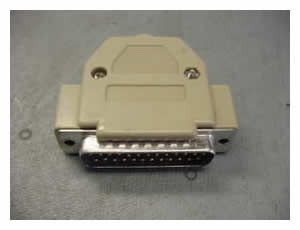
 You can use this plug to remove or clear the BIOS password from older Toshiba laptops. I tested the plug and it successfully cleared the BIOS password from Toshiba Satellite 1415, Satellite 1800 and Satellite Pro 6100. Using the plug you should be able to remove a BIOS password from most Pentium III Toshiba laptops and from some Pentium IV laptops. To make a password removal tool you need a DB25 plug from a parallel printer cable (cable with a plug that you can take apart), a solder gun and 30-40 minutes of your time.
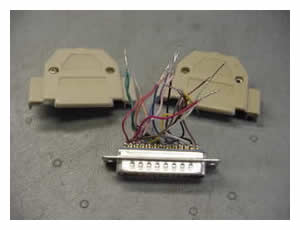
Cut a DB25 connector off an old parallel printer cable and remove screws to disassemble the plug. The wires should be long enough to strip the ends and solder them.
All pins on the connector are marked from 1 to 25 and you should connect and solder together the wires from the following pins:
| 1+5+10 | 2+11 | 3+17 | 4+12 | 6+16 | 7+13 | 8+14 | 9+15 |
On some connectors pins 18 through 25 are already connected. If they are not connected, connect them. Do not connect a wire from pins 18-25 and a ground wire to anything, just insulate it with electrical tape and leave alone.
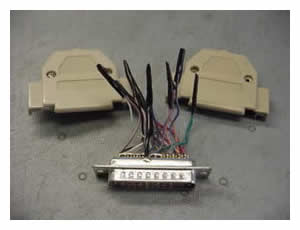
Carefully fold the wires, put wires inside the DB25 connector and assemble the connector.
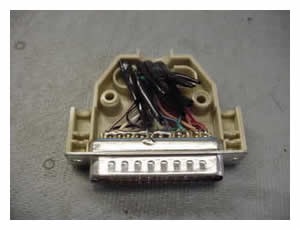
How to use the Toshiba BIOS password removal tool: connect the plug to the parallel port on your Toshiba laptop and turn on the laptop. You should bypass the BIOS password and the laptop will boot directly to the operating system.
You can find and purchase the BIOS removal plug on eBay. Before you buy, make sure it works with your Toshiba laptop.
UPDATE for all Toshiba owners:
Some newer Toshiba laptops can start asking for the BIOS password even if the password has never been set. This affects the following models: Satellite A100, A105, A130, A135, A200, A205, L35, M200, M205, P100, P105, P200, P205 and probably some other models.
Before you can use the laptop, the BIOS password has to be cleared.
203 Responses
marimad
thank you very very much my brother
Metrologist
Thanks for the info; I haven’t built it yet, but it’s great info!
mozzman
I made one of these a few months back and they work a treat 🙂
Great site by the way
Chatur
By the way, It does n’t work on Toshiba Satellite A 30 what can I do. Please assit
Ometa
KramW
You are the best. I have been trying to get into this laptop for two weeks after a friends kids “played” with it. I built your tool in about twenty minutes and was back into the laptop in two minutes.
Derick
I tried this on a toshiba 1415 with a celeron processor and it didn’t work. does this not work with celeron?
cj2600
This plug should work on Toshiba Satellite 1415. Check if you connected all above mentioned pins correctly.
gmc
Will this work on inspiron2650 as well?
cj2600
Hi gmc,
This plug will work only on some Toshiba laptops.
Red_Wolf_2
There is a modification to this plug that can be used to do low level diagnostics of toshiba laptops. Essentially it displays the POST codes using eight LEDs on a board. When I eventually get time, ill post the schematics and guides on how to read the codes 🙂
Jules
I love this move Mr. Laptop guy. It’s so awesome. I’m yet to try it but I feel it’ll surely work. My lil sis played with my Toshiba and somehow locked it. I’ll give you feedback ASAP. Thanks.
Samuel S. Guilliem
EXCELLENT! Unfortunaly I read this after dissasembling the hole laptop looking for a batt. to remove an clear the CMOS. 😛 Well, any way this is a great and very useful tool! Congrats!
Samuel S. Guilliem
Any one know where to fine more of this tips/tools for desktops and laptops? Greetings from Mexico!
Steel
I tried with this plug, but not works. I tried on a satellite a15 sp127
..but nothing.. 🙁 then I try joining the wires from pins 18 and 25 ,
so , the new order was:
1-5-10, 2-11, 3-17, 4-12, 6-16, 7-13, 8-14, 9-15, 18-25
and.. voila! It works . Hope this help someone.
cj2600
Hey Steel,
Thank you for your comment. When I built the BIOS removal plug, I used an old printer cable and just cut off the connector. And pins 18-25 were already connected on my connector. I believe pins 18-25 would be connected if you use an old printer cable. I guess you just bought a new connector and that’s why you had some problems.
Thanks again for you comment, I guess it would be useful for many users.
Steel
hehe not exactly, I dont know that 18 and 25 were already connected in older cables …I find one in my junk and It doesn’t looks very new xD .
Btw, for the ppl , just check your cable and the order above and it will work in most cases.
MillenniuM
I´m calling from Brazil.]Lost my password and my model is m45, without a parele port…
Help me please!
Matt D.
I couldn’t find a connector and was desparate so I just cut a series of wires and inserted them in the correct holes of the female connector on the laptop and worked good too. Thanks a million for the info.
Chris W.
Worked like a charm! I used it on a Toshiba Tecra 9100. I did connect 18 & 25 as was suggested in one of the later posts.
Thanks!!!
Brian O'Callaghan
Followed directions but no go on a10 psa10u are 18 “and” 25 connected ? or 18 “Through” 25?
some help please!!!!!!!!!!
cj2600
Hey Brian,
If this plug is assembled correctly it will work on Satellite A10. Pins 18 through 25 must be connected (18+19+….+24+25).
Daniel Bendris
I lost my password for a laptop Toshiba M45-S169 and i don`t no how to skip the bios password.Please help me,but without paralel port
Lisa
i have a toshiba a10 but has not paralel port ,is there any other way to do it please help
cj2600
Hi Lisa,
I know only one way to reset the BIOS password on Toshiba Satellite A10 – the parallel port plug.
shazli
how to remove bios bassword from tosipa laptop model no psm70e-01500qg3 model name m70-131
cj2600
Shazli,
I am not familiar with this model at all. I repair laptops sold in the USA.
nikki
i am so amazed, grateful & cant wait to pass info on this site on to others!!!!!!!! My toshiba Satellite A45- S151 wouldn’t get pass the bios system password screen. I didnt have the passcode because a friend of mines from college needed to use my laptop for a “very important” class project. Well, I lended it to her because i wanted to be nice and be there for a friend… Well, when she brought it back to me 1 day after that, I couldnt get pass the passcode black and white screen…. 🙁
Everywhere else i went wanted to charge over $300 which I didnt have… Oh well, at the public library, I came to this site and got the help i needed…. I just followed the instructions listed and WWWWWWWWWOOOOOOOOOWWWWWWWWW!!!!!
IT REALLY WORKS!!!!!!!!!!
IT WORKED ON MODEL : TOSHIBA SATELLITE A45- S151 / PENTIUM 4 LAPTOP
cj2600
Here’s an update. Today I got my second Toshiba Satellite M105 notebook with the same BIOS password related problem. The customer complained that even though he didn’t set any password for BIOS, the laptop started asking for the BIOS password on startup. The previous customer also said that he didn’t setup any password, but I didn’t pay attention to it and just erased the password. But when I got the second unit with a very similar problem, I decided to find out what is wrong. I noticed that the laptop has the BIOS version 1.20. I went to Toshiba website and found that the latest version is 2.20 and there are tons of changes and updates since v1.20. BUT one particular updated got my attention more then other updates. Here’s a quote from the BIOS update list: “Added a workaround for a BIOS password anomaly”. I don’t really know what it means but I think it’s somehow related to the problem reported by the customers.
So guys, if you have Toshiba Satellite M105 laptop check for the BIOS version. It might happen that the laptop might ask you for the password even though you didn’t set it up.
Infotech2000
It’s work for Toshiba satellite 230CX
Ali
Yes it’ work for A10, with Pins 18 through 25 connected (18+19+….+24+25).
thank you
Nayan
how to bypass in toshiba A100/PSAA9L Laptops??
reply me “freaky.nayan@gmail.com”
Oscar
Legend. Works perfectly on Toshiba A-10. I connected 18 through 25 and it worked.
Dave
Hello everyone
I just bought an old Toshiba 220 CS, the problem I have is every time I turn the laptop on I am unable to get passed the password I need to get onto the laptop,wheni switch the laptop on it says Toshiba Videos Bios V2.70 enter password.
On reading the information on how to remove BIOS passwords from Toshiba laptops etc. do you know how I could bypass the password on the Toshiba 220 CS, I have just stripped an old printer cable which fits in to the back of the laptop,the plug is sealed so I have taken an inch of the insulation of the 25 various wires,do you know the exact format the wires have to connect to each other in order to use the plug to bypass the Toshiba 220 CS
I would be grateful for any information you could give me etc.
Regards
Dave
cj2600
Dave,
Make sure your plug is assembled correctly and all wires are connected properly. I believe that this plug should work for a Toshiba Satellite 220 laptop.
Check the plug, plug it into the port, restart the laptop and wait until it boots into Windows.
David Jameson
This fix worked like a charm on my Sat Pro 6100. I owe you. Thanks a MILLION, dj
WS
I used the fix from #16, #19 and #15 for my Toshiba Satellite 2060CDS. I didn’t have a plug either so I wired it manually. I am sooo glad to be back in. Thank you cj2600
Diego
how to bypass in toshiba A60-159 Laptops?? I need your help!!! Plis!!!
BrianLam
Hi, Dear I really need your help how to bypass in toshiba M40, Because I need it for school,please help.
Diego
Satellite A60
1. Open Wi-Fi slot cover
2. Lift up black plastic
3. Locate & short C561 Pin 1 & 2 together
4. Power on machine while still shorting Pin 1 & 2
5. As soon as the TOSHIBA logo appears, remove short
6.
7. If machine boots, password has been removed
ekundayo adeosun
i want u to send me some method on which i can remove password on various laptops
touco
hi
how i can recover or reset a bios pasword for a toshiba satellite m70-168
Kevin Nguyen
This method does not work for toshiba satellite M35-S320. Is there any other solution. I opened up the whole laptop, removed the CMOS battery cable, and it still did not work. I am trying to find the EEPROM or PROM, but I cannot find it or where it is located on the system board. Please help. Thanks.
Giuseppe
@41 Diego Says:
April 13th, 2008 at 3:49 pm
Satellite A60
1. Open Wi-Fi slot cover
2. Lift up black plastic
3. Locate & short C561 Pin 1 & 2 together
4. Power on machine while still shorting Pin 1 & 2
5. As soon as the TOSHIBA logo appears, remove short
6.
7. If machine boots, password has been removed
————————
THANKS DIEGO!
Great Job!
It works!
Mine is Toshiba A60-197
Sam
Hi guys, nice job, I have a Sat pro A120 which doesnt have a parallel port so cant use this method, anything else I can try?
Tina Tessmer
Send to :
PPT
7343 lake Worth Road
Lake Worth, FL 33467
She charges $90.00 plus cost to ship back to you. It was done right . Didint loose anything. IM happy! Password Removed by a professional Toshiba
(561) 574-4357
gamblez wong
hi
how to remove password for toshiba, if the unit have not
pararel port? anyone info for me ?
thanks for reply, i wait
warm regards
sandeep
it is good
Nurain
Hello I have Toshiba satellite A 130/ 135 Series with the same type of problem
Whenever I start the laptop,there is a blank screen in the background with a blue box in the centre saying enter password…….
I try to give my password but it says is incorrect and I am sure of the password
Please what is the way out
Thanks
Nurain
jabbar
Required lapop Remove Bios password
Toshiba
cj2600
Nurain,
This is a known problem with some newer Toshiba laptops, including Satellite A130/A135 series. This is related to a glitch in the BIOS. You can send your laptop to Toshiba or take it to the local authorized repair center. They will clear the BIOS password on this model at no charge even if your laptop is out of warranty.
shadowkenshin
This site is very informative. Was able to remove the password of my laptop by just following the instruction. If you don’t have a DB25 you can actually you use copper wires which is enough to fit the hole then follow the sequence of short circuiting the wires.
Thank you so much for this website. Hope it can help others too.
Tom
hi Dongle works on a lot of models – but whats about the Models which have no LPT Port ???? I heard about a USB Stick – do anyone know something About ???
cj2600
Tom,
If your laptop doesn’t have LPT port most likely it’s a newer model. The Parallel plug will not work on newer models.
AHMED
Thank you for Help …
But My TOSHIBA IS Pentum IV that is mean thers no LPT1 connector ….
How I can reset my PASSWORD
Thanx
Conrado Davila
Hello, I work as a certified technician in Toshiba and i can unlock ANY MODEL of toshiba. If anyone have questions feel free to write me to conradodav_at_hotmail.com.
Satellite TECRA, QOSMIO, SATELLITE, SATELLITE PRO, PORTEGE BIOS PASSWORD UNLOCKER
Milkman
I have a P305D-S8818 locked with the damm power on password. Can someone please help me out with this? The tricks above don’t work.
samer
How to remove BIOS password from Toshiba laptops
but I don’t have parallel port on my laptop
toshiba a8-10f
cj2600
Mulkman,
This parallel plug will not work on newer Toshiba laptops. You can take your laptop to the authorized repair service center and they should remove the password at no charge.
cj2600
samer,
Only an authorized Toshiba technician can remove the BIOS password from a Tecra A8 laptop. The parallel plug will not work, there are no jumpers to short. The technician will have to call to Toshiba and get a special code to unlock your laptop. There is no other way besides taking it to the repair center or replacing the motherboard.
jayrome
I need to remove a cmos password on my L35 satellite laptop. I had a friend messing with cmos asking me a password for it. I think he entered one and now I can’t remove it.
Ed
Works like a charm when it is wired right, I missed a wire when I originally wired this plug and of course it did not work but after I checked my wiring and corrected the problem I turned the 1415 on and straight to windows we went. Also I did connect all of the extra wires together
Thanks
Ed
hippy
Can you provide colour codes, because the cable I have is not numbered.
Zoran
How to remove BIOS password from Toshiba 4030cdt laptop. I tried with paraller port, but it’s not working.
cj2600
Zoran,
Check the wiring, make sure all wires are soldered correctly. This parallel plug should work for Satellite 4030 series.
hamza libya
i have laptop toshiba satellir A105 how i can remove password bois ???
can any one help me ????
guillermo aguilar
i have a toshiba satellite a 215sp4027 but tis computer no have parallel port how can i do? i need unlook
i can´t acces to bios
help me please
cj2600
Guys with A105 and A215.
If you are the owner of the laptop and it’s registered on your name, you can call Toshiba and ask them to remove the BIOS password. According to the support bulletin I mentioned in the post they will clear the password at no charge.
zana
hi
how to remove bios password on toshiba a60 pro as i tried the above method but not use full.
Richard Caston
This work perfect for a tecra 9100. Cut a DB25 connector off an new parallel printer cable and remove plastic cover and metal shield to get to the wires . The wires should be long enough to strip the ends and solder them connecting 18-25 worked fine. Booted up the compute and booted into the windows XP OS.
Reboot worked fine.
Behlul
Hi,
How I can recover or reset a bios pasword for a toshiba satellite A40-S231.
or
How can I enter big mark key. (>)
Thanks
andrea
I have a Toshiba Satellite M45 Model # PSM40U-01R001and I broke a key on my keyboard. I just need the letter D key to put back on. The plastic thing broke behind the key. Do I need to replace the whole thing? Where can I get the parts. I live in Puerto Vallarta, Mexico.
Thanks
Abdul Wahab Adju
I have tried all but still not be cleared
CHRIS
DOSE THIS dongle WORK FOR ALL LAPTOPS
cj2600
CHRIS,
Nope, only for some older Toshiba laptops.
kyle
I have an a60 and i noticed it says to open wi-fi cover wich one is that?do i have to short it this way or can i make a splice like you showed?
Efrain Alvarez
It is Wonderful I tested the connector in Toshiba Satellite A25-S207 P4 and It works!!!!, I was desesperate I disarmed all laptop trying to found any jumper ,but I run into this page and It was the solution… Thanks !!! 😉
rob
tryed it on an old tecra 520cdt it worked !thanks a lot its been 4 weeks of a pain in the !!!!!!!
JOSE
Resolved 100% on Toshiba Satellite 6100 and 1800 s253. Very, very thank you my friend, and God Bless you and yours.
Your Brasilian Friend
José Silva
Hanson
it works on toshiba tecra 8200, amazing … a big thansk to laptop repair. again thanks …
Gizew
Thank you For this great Tutorial.
Worked like a 100%.
The funny thing, I just used old electric wires bending like “U” shapes and use them to make a parallel loop back with the help of this tutorial instead of using the real/ actual/ parallel port printer cable.
My boy friends lap top was Toshiba satellite pro 4600 series
Thank u once again
Gustavo
2805-S301 Password removed using this process!!! Thank you a lot!!!
Ed
Solft the problem on the satellite 6070.
THANX man.
Mohammed Taleb Ali Khan
Thanks alot, our problem for 2805-s302 is solved, our sincere blessings to you. Keep it up.
camilo cardona
I have a toshiba tecra M4 , the bios is somewhere in the mhoterboard i cant findt it , i don’t know what else to do , i tried almost everything that people told me on the internet battery, passwords , short and nothing , i dindnt know anything about laptops but since i started to fight with this one , i have learned lot , but i dont want to be beaten by this laptop could you pls help me . i dont want to keep losing my time , i dont want to change the motherboard its expensive and mine is not demaged its only the password , i wil appreciate your knowledge a lot
cj2600
camilo cardona,
You cannot remove the BIOS password from a Tecra M4 laptop yourself. Nothing will work. The only way to clear the BIOS password is taking the laptop to the authorized repair center.
In order to clear the BIOS password, an authorized technician will have to call to Toshiba and get a special code which unlocks the BIOS. That’s the only way to clear the password besides replacing the whole motherboard.
Mihai
Hello. I have a Satellite A215 and must reset the bios . It a way to do that by myself?
fwahyudi
Thanks for the info..i’ll try it first and hopely it can solve my problem.
RICHARD RUBIN
ANYONE HAVE ONE THEY CAN SEND ME OR TELL ME WHERE I CAN GET A DB25 THAT I CAN SCREW IT OFF.
cj2600
Richard Rubin,
Usually you can find one in a local PC recycle store. You can buy it cheap.
RICHARD RUBIN
please help me i live in new jersey, i beg of anyone out there i called some places and they told me no, if you live with in 4 hours i will come to you or pay for one please help me
cj2600
Richard Rubin,
Are you looking for this connector in order to make the BIOS password removal tool?
If you cannot find it locally, you can order one from the Internet. Check out here.
nery
what about the comoputers that has´nt the serial port?
RICHARD RUBIN
WORKED LIKE A CHARM!!!!, but you do not need a db25 just get some thin solid core wire and stick it directly into the 25 slots in the back of the laptop and twist the ends with tape accordingly and ” look mom no solder” it worked great this way thanks and special thanks to pc warehouse you guys really know your stuff and a word to the bios yeah f**k you biatch!!
Juan
Need help people, I’ve been up and down the net, yet have not found an answer to my question which is. (How to reset a toshiba a215-s5839 password). I found notes for what seems every other model except this one. Please help thank you.
Juan
Toshiba Satellite A215-S5839 password??? How to figure this out???
Ramon
I have a A-105,im not sure if this will work with this model…..if its possible i’d like some feedback if it will work…..please.
tonybanks
Do this work on a toshiba m400 protege?
cj2600
tonybanks,
Nope, it will not work.
The only way to remove the BIOS password from a Portege M400 laptop is using the response code.
Basically, a certified Toshiba tech will have to get a special code from your laptop, send it to Toshiba and get the key.
Otherwise you’ll have to replace the motherboard.
ron
is this work in fujitsu loptop pls, let me know,,,
this is a useful website thanks
cj2600
ron,
Nope, this plug will work only for older Toshiba laptops.
Goric
I have a Tecra M3 with the power on password. The LPT dongle doesn’t work and it can’t be removed with shorting or removing the battery. Anyone have any ideas?
ravi.k
My Toshiba laptop displays Password= prompt on startup
model BIOS password from Toshiba Satellite 2060cds pin detels
Imelda
Hello everybody I’ve got Toshiba U305-S7432 with Vista pre installed on.
And also stuck with BIOS password, which I forgot.
IF ANYONE KNOWS
THE SOLUTION PLEASE HELP!!!!
Damian
hello
i have a fujitsu siemens amilo pi 2530 laptop which i activated the bios password without typing in any words(Empty).when i restarted my laptop it asked for a password and i press the enter button but it tells me wrong password.i can not even get access even to the setup menu.please help me
Nass
This loop does not work on Toshiba Tecra M2 (made in 2003)
So i suggest for you all to try something ealse 🙁
cj2600
Nass,
In Tecra M2 Toshiba uses challenge code method. Basically, you have to hit a special key combination on the keyboard, get a challenge code, call Toshiba and ask for the response code. But to do that you have to be a certified Toshiba technician.
brunoo
hey guys it doesnt work for me , i have an toshiba T 9100 so i ll tnx if u gimme a help
Jakow
Great thanks. I made this magic trick with TOSHIBA Satellite Pro 4600 and its WORKING!!!Thank you again!!!
Romy
I have a Toshiba P-15-S470 P4 3 GHZ that for some reason have the password.. please can anybody help??
Thank You..
pete
how about for a toshiba satellite L305-S5875 it does not have a parallel port?
cj2600
pete,
On newer Toshiba laptops the parallel plug will not work.
aline
hi guys can some one help me plz to unlock a toshiba protege m 200 bios password and i be very appreciate.
bruce
To cj2600,
I have tried the work around on my 2805 s402 but to no avail.
I also connected 18&25 but what do you do with the rest of the wires 19 thru 24? Please be specific.
Thanks,
Bruce
bruce
cj2600 Quote:
On some connectors pins 18 through 25 are already connected. If they are not connected, connect them.
Question:
Connect them to what?
Thanks
cj2600
bruce,
Connected to each other.
Mukesh Kumar
I have Toshiba satellite A200 model and in tat i have the power-on BIOS password problem…
I read the steps u gave here, but dunno how to connect it to my toshiba coz it doesn’t have the 25-pin connector…
How the both end of a pin shud b?i mean how to connect it to my laptop?
help me out….
khaleel
Dear sir
i want remove bios password ( labtop)
i have printer cable but i donot about colour sequence &
where start from 1,2,3 etc cable
i will wait
khaleel ishaq
Ewrzen
I’ve got Toshiba Satellite A215-S7437. Got similar problem. Once after restart laptop shows: Enter Password. I never set any password!? Can You help me?
naser
i have toshiba sa60-102 i need bios password of company please
tom
i got toshiba sp 6100 with password bios battery remove didn’t work so bought old printercable copied instructions above and worked PERFECT!!!!!!!!!!!!!!!!!! so thanxxxxxxxxxxxx
Tam
I have a Toshiba A200-JA1 that asks for a password before start up. There is no parrell port. I have called some authorized service providers for Toshiba and they say they never heard of it. I dont want to pay to have it taken apart to get at the cmos battery if that wont clear the password. Do I have any other options?
chris
i have a toshiba satellite pro 4300 that my daughter put a password on and forgot it,,i bought a printer plug and tried to wire it as directed but pin 14-18 had no wires attached, i did the rest ,,,no good,,i then connected the spare wires together and again nothing,,,is there another way around the password or do i keep buying cables till i find one with the right wire set-up,,,thanks,,,,,help,,,,,thanks
James Henry
I have the Toshiba A215-7437 I set the password when I first bought the computer and never changed it, all of a sudden It says invalid password. I am trying to find the instructions for this model to remove the battery and see that will work. My problem is that I can’t seem to find this model.
johne
This information is intended for experienced users. It is not intended for basic users, hackers, or computer thieves. Please do not try any of following procedures if you are not familiar with computer hardware. I’ll not be responsible for the use or misuse of this information, including personal injury, loss of data or hardware damage. So use it at your own risk.
A. By Using the Motherboard Jumper:
In most motherboards CMOS battery is soldered, which makes it difficult to remove the battery. In this case we use another method.
Almost all motherboards contain a jumper that can clear all CMOS settings along with the BIOS password. The location of this jumper varies depending upon the motherboard brand. You should read your motherboard manual to check its location. If you don’t have the manual then look for the jumpers near the CMOS battery. Most of the manufacturer label the jumper as CLR, CLEAR, CLEAR CMOS, etc.
When you find the jumper, look carefully. There will be 3 pins and the jumper will be joining the center pin to either left or right pin. What you need to do, is remove the jumper and join the center pin to the opposite pin. e.g. if the jumper joins center pin to left pin, then remove it and join center pin to right pin. Now wait for a few seconds and then again remove the jumper and join the center pin to left pin.
Make sure to turn the PC off before opening the cabinet and resetting the jumper.
B. By Using Software:
I have found that BIOS/CMOS Password Recovery Tool is the most effective.:
BIOS/CMOS Password Recovery Tool is a program that works instantly to remove any lost or forgotten BIOS/CMOS password. Simply boot your PC to DOS and execute the program, and get access to forgotten BIOS/CMOS passwords in just seconds
cj2600
johne,
Will not work on Toshiba laptops. You have to bypass the BIOS password before you can do anything with the laptop. You cannot boot from a floppy or CD unless the BIOS password is entered.
haneef
hi
plz kindly help me to remove the password of Toshiba satellite A100 and some word is there PASCLE like that it is asking the password first like…………and i m pressing the numerical keys as 1234 and again after few mints it is going to like some boot like that and again it is asking password even at second time i press the same 1234 then after it is going to in off then again i have to start the laptop by pressing power onn button and same messege it shoing enter the password again 1234 again laptop off in this condition wht shall i do plz kindly help me my mail id is samsamsung52 AT yahoo.com.
Note:-
Before this there was full of virus in my laptop satellite A100
Dave
p/s give me the solution about Bios Password reset mechanism for Toshiba Satellite A200
cj2600
Dave,
Did you buy this laptop in the United States? Are you the registered owner?
If yes, call Toshiba and they will clear the BIOS password at no charge. Just mention that the laptop set the BIOS password on its own.
JUEL
Hi
I have toshiba satellite 1415-s123 laptop and all of a suden
there power on pass word pope pls help me?
cj2600
JUEL,
The parallel port plug should fix it.
ant
this is brilliant! i really doubted wheter this would work or not but it did. thanks you have saved me a fortune
Brunoo
hello plz, i a have a toshiba tecra 9000 and cant remove the password with the LPT dongle dosent work . so , if anyone know or have the usb key for removing ths password bios i will tnxfull
Joey
i have a toshiba dynabook ss portege 6000ct from a friend who forgot the bios password, i removed the cmos battery and ac adaptor for 48 hours hoping that it would clear the bios but to no avail, i dont know were to look for the cmos jumprt or dip switch to try and ckear the password, pls helpppppp how i can clear the bios, thanks a lot
RENE
DOESN’T THIS TOOL WORKS ON ALL LAPTOPS?
Billy 1
I have a Tecra S1 PT831C – and it didn’t seem to work on it – does anyone have any suggestions
Please and Thanks
Amila
It’s work for Satellite A50,
Thanks,
Amila
Don Ho
It works like a chram 🙂 for Toshiba A45-S151 . Thanks for sharing this trick. I owe you.
aquiles_fair
Hey men, you are a genius. I Solved my problem Thanks.
Laptop Toshiba Tecra9100
malis
does the procedure above works on toshiba equium a60
pls i need your reply……..
Sam
hi
how to remove bios password on toshiba M400 .tried the above method but not use full.
I got the other faulty motherboard, I am trying to find the EEPROM and get to change i cannot find where it is located on the system board. Please help. Thanks.
Thameesha
I have a secand hand Toshiba dynabook 2120ds11L/2 notebook
but i can’t acsess the computer it ask a HDD Password but i don’t it how correct this problam
plese help me
thanks
cj2600
Thameesha,
If you forgot the hard drive password, you’ll have to replace the hard drive.
The password cannot be removed.
Ella
This didnt work for me, I got mine fix from getting the instructions from ebay.com just enter in search TOSHIBA Bios password removal A210 or A215.
Good luck!!!!
Cody
Worked for me THX
ComputerTech
I have a Toshiba Satellite A200-TH1 (PSAE3C-TH108C). If you take the memory chips out and short JUMPER #1 with a flat screwdriver while turning the computer on. Then hold power switch till it turns off. Then reinstall memory and voila. No password.
stpehen
pls i have a toshiba satellite A300-259 sytem unit and i have a bios password problem do u help reset that one as well. cuz i cant see that one your specified list of toshibas.. thanks
mohamed
how can i remove bios password without opening the device
it is toshiba sttellite A300
james maina
how can i remove bios password on my Toshiba tecra M3.
please help
with regards
James maina
cj2600
james maina,
You cannot remove the BIOS password from a Tecra laptop without calling Toshiba tech support.
They have to provide a special code to unlock the BIOS password. And most likely they will not even talk to you unless you are a certified Toshiba technician.
Ken
I’m looking for a fix. My toshiba A200 is locked out right at startup. I by-passed BOIS by taking out the battery. But now the HDD is locked out. Is there a way to by-pass this too somehow.
Thanks
ken
I was wondering if anyone knows where exactly I can and find the by-pass on the mother bord, including what number”s” im looking for. I have a Toshiba A200. Im getting conflicting results. Ive trysd going in from both sides, “under memory cards” and under the “wireless card” no numbers mach to what thay say to look for.
cj2600
Ken,
Are you asking about hard drive password? Unfortunately, you cannot remove this one. If the hard drive password set and you don’t known it, you’ll have to replace the hard drive.
cj2600
ken,
I think in a Toshiba Satellite A200 you have to look in the memory compartment.
There are two pads marked B500 (also has XXX mark).
These pads located almost under the DVD drive mounting screw. You’ll have to remove black film to find them.
After you found these pads, short them with a screwdriver and while shorting the pads, turn on the laptop. Wait until the laptop bypasses the BIOS prompt and starts loading Windows or goes into the BIOS setup menu. After that you can stop shorting the pads.
Sometimes you have to try a few times until the BIOS password removed.
This will not remove the hard drive password.
sunil
I had a Toshiba sattelite A10 mother board and it does not have any printer port !how am i suppose to connect DB 25 connector or is there any other idea to remove password from the bios.
cj2600
sunil,
This DB25 plug doesn’t work for all Toshiba laptops. It works only for older laptops with parallel port available.
If your laptop has no DB25 port, the BIOS password can be cleared though jumpers on the motherboard (not sure where located) OR it’s necessary to call Toshiba tech support for the BIOS unlock code (could be done only by authorized tech).
stan
Hi there. I tried it on my Tecra 8100 and it worked perfectly. thanks
fixedit
worked great on sat 1800, you saved alot of money for alot of peeps.
subair upt
i have laptop satellite pro m40x forgot bios password pls help me
thanks egards
Scott
Thank you, thank you, thank you for these instructions!!! This worked like a charm. Because of this site, I am now able to access my computer.
Thanks again,
Scott
john
hi there
i have a toshiba sattelite m40x somebody gave to try a disable the password on it can you help please
best regards
john
ibrahem
pleas i want to now is thes work with toshiba (a65)
A-Class
hello @ all, please i was working on a toshiba tectral motherboard but when i boot it, it started asking for bios password that wasn’t configured.
please how do i clear it?
chad
hi i have a satellite pro 420 cdt ,, i forgot my password how do i bypass this
cj2600
chad,
Have you tried the method I mentioned in the post?
chad
i tried the plug to by pass bios password it doesnt work now what? my comp is a satellite pro 420 cdt any one with other ways to by pass password
babulal
toshiba a305-s6916
password bios
Aernout
Thanks for the information,
Unlocked a toshiba 6100 with it for a friend,
it works like a train boot with the made connector on,
you can’t get in to the bios but the next time you restart
without the connector you wil be directed to the bios.
namaste.
The Prof
Wow!!! Built the interface from a molded printer cord. Took an hour to cut the DB25 away from the cord and get access to the pins. Soldered all those wires on and like magic, I booted this Tecra 9100 that a friend brought to me with that horrible password: prompt. You saved my reputation as a computer guru. Thanks so much for posting this.
FYI: Toshiba will no longer fix this problem. The offer ran out December 31, 2010.
Ryan
Parallel port dongle did the trick, thank you!
Paul
It works fine on Toshiba Tecra 8000.
Thanks for this!
pinasTosh
I have a Toshiba dynabook 2000 DS80P…
It ask me for HDD password
cj2600
pinas Tosh,
If you don’t know the password, you’ll have to replace the hard drive.
You cannot clear the hard drive password.
Maiko
It worked on Toshiba Tecra 8200.
computer hardware servicing
Thanks mate it works!!!
How I wonder if you can give us some thoughts regarding bios passwords for newer laptops with no LPT1 port???
Can we possibly do the “resetting” via the serial port? Im pretty amazed how you did this trick.
Anyway, for people asking how to get your ATA password, there are a lot of utility disks like hiren boot cd that can erase your hard drives’s ata or pata passwords. 🙂 (though i had little success with it)
Pareethu Najeeb
Hello,
I have not remember BIOS password for Toshiba Satellite Pro (SPM30), modelPSM35E, so kindly advice how to recover the same.
Thanks in advance,
Najeeb
Bane
toshiba A10,model psa10e-ookwy-dk,password,thanx
satwinder singh
i have toshiba tecra m5 . we have install the bios update software an then next he ask me a password . this problem r also show on startup,when we r remove the harddisk . plz send me a soloution of this bios password problem
cj2600
@ satwinder singh,
Unfortunately (or fortunately), Tecra laptops are more secure than other Toshiba laptops in the consumer line.
In order to unlock the BIOS, it’s necessary to call Toshiba and ask for the unlock key. But this could be done only by authorized Toshiba tech.
I guess you’ll have to take your laptop to the authorized repair center.
anruy
please can you help me to unlock a tosheba tecra s11-11g .
i wont to remove a master bios password
D@nilYcH
Can you help me to reset/clear notebook password on Qosmio G30 ?
roman
i have a satellite a135 and when i turn it on before i can do anything it ask for a password and i dont have one of those plugs i read about is there any other way
vadim
ноутбук toshiba tecra a8 – Был извлечен аккумулятор когда ноут находился в спящем режиме (ОС Windows XP). Теперь при включении после заставки Toshiba выдает черный экран и следующую надпись – “Resume Failure and Press any key to continue” в верхнем левом углу. Нажатие клавиш никакого результата не дает, ноут висит и ничего не собирается делать. Не грузится ни с винта ни с дисков. Попытки запускать его без памяти и без жесткого диска тоже ничего не дают. Игра с биосом – нулевой вариант. Подскажите, может кто сталкивался с такой проблемой, что делать то теперь с этой кучкой металлолома? Просто даже не знаю что могло вызвать такую проблему и как от нее избавиться. Заранее благодарен за любой дельный совет.
Rodrigo Brasil
It’s Worked for me. Tecra T9000. Thanks!!!!!
wagner
gracias me funciono en una toshiba satelite 6100
Umar AlFarooq
I have a Toshiba A45-S121. Can you please help me reset the password? I set it a long time ago and for the life of me I can’t remember it!
Thanks,
-Umar.
Mod
I have this laptop toshiba satellite a10 – s811 please guide on reseting/clearing bios password. Thank you
cj2600
@ Mod,
Have you tried building the BIOS password removal plug as it explained in the post? I think it should work for Toshiba Satellite A10.
Andy
Anyone try this on a 1625cdt?
marcelin kouakou
je voudrais de l aide pour supprimer le mot de passe de ordinateur Toshiba tecra m5
cj2600
@ marcelin kouakou,
Usually Toshiba Tecra laptops are more secure than regular consumer line. Most likely in order to remove the BIOS password you’ll have to take it to the authorized repair center. They will have to call Toshiba and get the unlock code.
sourisbulle
it works great on a satellite 2600!
thanks!!!!!
David
will it work on a Toshiba satellite U505
cj2600
@ David,
No, it works only for older Toshiba models.
franklin
I have a Compaq laptop which is locked by the bios
Hazrot Ali
Hi,
I have ‘Toshiba tecra A8’, and after pressing power button, it’s showing Álart: System protection failure!’….password:….. I can’t enter into BIOS setup or any setup to change or remove this. I forget the pass”word.
How I will solve this? Help me plz plz plz plz
JOZSO64
Üdvözletem: Egy Toshiba SM30 bios jelszó törlése lehetséges,megoldható?
A választ nagyon szépen köszönöm.
Pepe
Hola, tengo un Toshiba Tecra A8, y muestra el siguiente mensaje: “System protect failure. Password”
He intentado:
– no dispongo de Puerto paralelo
– encontrar un jumper para resetear
– he quitado la batería de la bios 24 horas
Ninguna me ha solucionado el problema. Alguien me puede ayudar????
Gracias con antelación
okult
Does it work for Toshiba Satellite 220cs?
Adex
I have a dynabook toshiba 1612 is writing password and I can’t remember it again pls any help
Anarki
Thanks for great manual, works perfectly with Toshiba Satellite Pro 4300 series. P.S. Pins 18-25 will be shorted on the mainboard side.
OutDoor Dan
i have a second hand toshiba satelite L505D-S5093 it asks for the bios password. i have no idea what it is,how can i stop it from asking for the password and get rid of that ! I don’t see my laptop in any of the above comments, if you can please help! OutDoor Dan
Max
How to change the password?
I know the password, just want to change it.
Doesn’t seem to be possible.
Toshiba satellite 1800-100
Justin
How do I clear or remove BIOS Password from Toshiba satellite pro A300 PSAJ1E Laptop?
I can’t access the Bios setup and the it can’t boot without password……..I can’t remember anymore.
Please assist.