
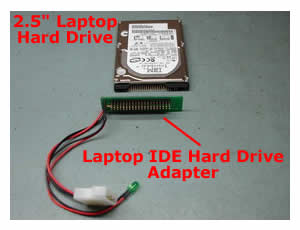
 To connect a laptop hard drive to a desktop computer you have to use a Laptop IDE Hard Drive Adapter. You can easily find this adapter on the Internet for $10-$15. This adapter is very handy if you want to scan a laptop hard drive for viruses and spyware using antivirus software installed on a desktop PC, transfer data from a laptop hard drive to a desktop computer or create a ghost image from one hard drive to another. I also use this adapter if a laptop hard drive has failed and I have to recover data from it.
When you connect a laptop IDE adapter, a desktop IDE cable and a laptop hard drive to each other, make sure to connect pin 1 on the hard drive, pin 1 on the desktop IDE cable to pin 1 on the adapter. On a desktop IDE cable the side painted in red goes to pin 1.
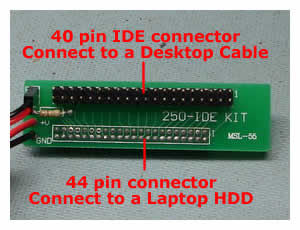
On a laptop hard drive there are 2 groups of pins. One group has 43 pins and the other has 4 pins. The pin 1 is located on the side closer to the group of 4 pins.

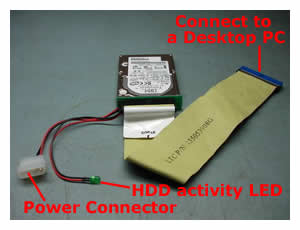
After you’ve assembled everything together, connect the IDE cable to a desktop PC. Connect it to a free IDE connector on the system board. When you start the computer, you should see the laptop drive in BIOS and in Windows. You can treat this drive as a regular hard drive.
In the next post I explain how to access data using an external USB enclosure.
118 Responses
Shoaib
i have the HDD out of my M45-S359… but i cannot put it in my enclosure, or connect it to an adapter. I need help. The IDE pins aren’t there. What can i do?
cj2600
Most likely you have a SATA hard drive and it does not have regular IDE pins. SATA drives have 2 flat connectors, one for power and one for data. If your desktop computer supports SATA drives and it has SATA connectors on the system board, you can connect it directly to the system board using SATA cables. If the system board does not support SATA hard drives by default, you can by a SATA PCI controller card. You install this card into an empty PCI slot on the system board and connect the SATA drive directly to the controller card with SATA cables. After you boot the PC you should see the laptop SATA hard drive as a regular drive on your PC.
Chris
hi i’ve bought one of these adaptors but when i’ve attached the drive to my desktop it says my laptop drive isnt formatted when i know it has. Both machines were running XP Pro, and ideas??
Would really appreciate any help.
Cheers
Dave
I got a Toshiba MK3017GAP HDD from a damaged laptop and put it into an enclosure, it spins up, but it’s not recognised in my computer. I can see it as a USB device in device manager and was wondering if the four pins need jumpers to make it work. Any ideas what I could try?
Any help appreciated.
cj2600
Hey guys,
I experience the same problem with one of mine HDD enclosures.
I have 2 enclosures. For first one I paid about $25-30 and the brand name is Mapower (I bought in on newegg). This enclosure is very solid and works perfect with all laptop hard drive I put in. The only thing I do not like, you have to disassemble the enclosure completely to put in the hard drive. I often use the enclosure for data recovery and need an easy access to the connector. For this reason I recently bough the second HDD enclosure. The second one is cheaper $15-18 (the brand name is Hotdrive), but it gives you much easier access to the hard drive, you just have to remove 2 screws. The second enclosure will not work properly with some hard drives. Sometimes I’m getting BSOD when I connect it, sometimes the USB device is detected but the HDD will not show up in Windows and sometimes it works just fine. I guess it is not just compatible with some hard drives. So, when you buy an enclosure, do not buy a cheap one and read reviews from other users.
brad
I have an A15 satellite with a cracked LCD and use it with an external monitor, my question is this, is there a way to remove the LCD from the unit and not affect it functioning?
des taylor
I have a toshy m 30 s 309
it wont boot up to win xp. has a grey stripped screen image and flashes through a blue scree,
sees but does not run the CD/DVD, maybe needs a Bios update. but how do I do that with nil access to it.
maybe your adapter is the go?
please help out. do you know the toshibas faults in this area?
Drew
Hi, I attached a destop cable (that was initially attached to a CDROM drive) to an adapter holding a laptor HDD. Nothing pops up anywhere…
I’m wondering if my HDD is dead? or if i can’t use a cable that was attached to a CDROM drive?? it seems like a valid option, just nothing pops up indicating an additional hard drive is found..
if my laptop HDD is dead, is there ANYWAY i can restore the data? please help
cj2600
Drew,
Make sure if the laptop hard drive is the only drive attached to the ribbon cable. It shouldn’t matter what cable you use. Make sure that you plugged the hard drive correctly. If you connected everything correctly, you should feel that the hard drive start spinning when you turn on the computer. If it doesn’t spin then most likely it’s dead. It is also possible that your hard drive IDE connector is bad.
You can also try to buy a USB enclosure, just to make sure. It’s about $20-25. You put the hard drive inside and connect to the computer via USB cable.
Your last chance is a clean room recover – VEEEEEERY Expensive! I’m not sure if then can get data from a hard drive that doesn’t spin, it depends on how bad it’s damaged.
Supernova
Hi!
I want to Connect a Laptop SATA HDD to my DESKTOP PC.
My PC is AMD X2 on MSI Geforce 6510 Mobo,that supports SATA 2 ports.
IS it possible to connect a laptop SAT HDD to desktop SATA ports this way?
steve
Same issue, HD isn’t spinning and CD/DVD won’t rev up after initial 3 second spin.
Unit is a Toshiba Satellite A35-S159.
I didn’t find the disassembly instructions here or anywhere else.
I’m thinking that I need to check the cables to the HD but don’t know how to get to the HD.
cj2600
Hey Supernova,
Sorry for a late response. You can connect your laptop SATA HDD directly to the desktop pc. You can use the same cables as for a desktop SATA HDD. With SATA drives you do not need an adapter, connect it directly to the motherboard.
cj2600
Steve,
I haven’t created a guide for Toshiba Satellite A35 yet, but I can guide you how to access the hard drive. In this model the hard drive is located under the DVD drive. The DVD drive is secured by one screw on the bottom of the laptop. Turn over the laptop and remove a screw above the DVD drive. After that slide the DVD drive away from the laptop and remove it. Under the drive you’ll find the hard drive. There is no cable between the hard drive and the motherboard. The hard drive connects directly to the system board. The hard drive is secured by 4 screws. Remove 4 screws and slide the hard drive away from the system board to disconnect it. Now you can remove the hard drive.
matty b
I have an emachines e5310 which i’m sending back to the company for repair (overheating problems are abundant).
I bought an IDE adapter to get the data of my laptop hard drive but when I boot it up I get an error message that says there is a problem and i need to boot up using a boot cd.
i tried using my USB enclosure along with the adapter to connect the hard drive but it doesn’t detect the hard drive. I hear the hard drive spinning…. any ideas what the problem could be?
cj2600
Matty,
I think it’s possible that the laptop hard drive is bad itself. If the drive is spinning but not detected by the OS, most likely the laptop hard drive controller board is bad. That’s would be my first guess. If the hard drive controller board is bad, I don’t think that you would be able to get any data from the drive at home.
Julie
I bought an adaptec USB HD enclosure kit for this purpose, but when I plug the drive in to the USB, windows tries to boot from the USB-connected drive, which causes my desktop system to crash. How can I attach the drive without it trying to boot windows?
cj2600
Start your computer without the USB HD enclosure attached to it. When it boots to the desktop, connect the enclosure. It should be detected by the OS automatically and you can access the HD inside the enclosure as a regular HDD though My Computer.
Julie
Tried that. It still tries to re-boot. Also tried shutting down and having the USB attached when I power up. The desk-top boots fine, then as soon as I try to view the USB drive, it tries to reboot.
cj2600
I would try to connect the USB enclosure to another working computer and see what happens. If you experience the same problem, then it’s possible that the enclosure is not working right. I have one of those cheap enclosures. My home PC doesn’t want work with the enclosure attached, I’m getting BSOD. But my laptop works fine with the same enclosure. My second (more expensive enclosure works fine with both computers). There shouldn’t be any issues with connecting an USB enclosure to a computer, unless you have some strange problems with the hard drive itself or your enclosure is defective.
Julie
OK. Tried the same enclosure with 2 different laptops. New results for both – the USB is acknowledged as a mass storage device, but I can’t find a way to browse it. It doesn’t show up as a drive except on the system hardware list.
cj2600
Julie,
It’s still hard to determine with link in the chain is bad. It could be a bad hard drive or a bad enclosure. If you have another laptop with a good working hard drive, you can remove it from the laptop and install into the enclosure. After that connect to a working computer. If the hard drive is still not recognized, then most likely the enclosure is defective.
Greg
It doesn’t work for me ..
I have an old laptop (Thinkpad 760ED) that has no boot device (no floppy, old non-booting CD drive, an HD with corrupt NTFS). I took the HD out of the caddy and connected it to a similar adapter, plugged in the IDE, the power cable – and nothing. It isn’t spinning.
I made sure I didn’t damage it, and it’s fine, spins very well wihle its back in the laptop.
What can be the problem here ?
cj2600
Greg,
I guess it could be a bad IDE hard drive adapter, or you connected it incorrectly. Some IDE adapters have unmarked pins, so it’s easy to connect it backward (pin 1 on adapter to pin 40 on HDD). Make sure that the hard drive is connected properly.
You can also connect the laptop harddrive via an external USB enclosure. These enclosures are cheap and you can get on for $15-20 in any local computer store. The data transfer via USB would be much slower but it’s still an option.
computerguy
I realize this post is old but one thing I didn’t see posted is this. BE VERY CAREFUL WITH THE PINS ON THE LAPTOP HDD!!! They are MUCH MORE fragile than their desktop counterparts, and easily bendable as you attempt insertion or removal of the adapter from the drive. I’ve bent pins twice now, on two different drives. Luckily, they bent back quite easily; I believe you can straighten them out easiest with a 0.7 mechanical pencil tip over the pins. Just push the tip over the pin, and viola!, straightened.
Haki Taki
I have dell latitude d8000. I had a paasword from bios. but i dont now no what my password is. how can i coming in mijn laptop.
help me pleace!
thnx.
jamie
hi, my old laptop broke and i got a harddrive transfer usb plug in adapter. The problem is my oldlaptop was password protected so when i try and access documents and settings for my pictures my music my documents etc it doesnt allow me access. Do you know how i can bypass this so i can get to my files? Thank you for your time
gaurav gupta
my hard disk shows hardware installation error whenver i connect it using adapter.it shows the same error when used with usb caisng.
Suggestion
For those who may not know/or encountered these problems… If it applies to you, please try these things out.
My situation… The DJ that is doing my wedding has a laptop hard drive that not even Best Buy Computer help center could fix. They even charged his $60 for nothing. They tried everything.
His OS was shot and it was looking really grim for his sake. The DJ wanted to know If I could rip all the music he had on it and I gave it a shot.
He told me this and I said I would take a look at it. I found this device and bought it. Tried hooking it up on my desktop as the Master Drive and as a Slave drive hoping I could use a boot CD loaded with MISC tools to salvage whats on there. Nothing was working.
So I tried to tweak the Desktop system and ultimately it worked. The laptop hard drive worked with the following steps. Mostly Suggestion 2 was the winner here. Suggestion 1 is something that you may not have known to do. Especially when this device had no instructions with it. This website page help ALOT with the visualizations/steps!!
1) I had to bend back one pin on the adapter to accommodate the Desktops IDE cable. So feel free to do so.
2) I also had to disable the UDMA in the CMOS for this thing to recognize.
Jon
I have a HD from a Toshiba Satellite that i am trying to connect to my (once was) Dell PC to retrieve any remaining files from a bad crash. The drive seems to be spinning, although this could be my imagination, but I continue to receive an error that my cpu will not boot. it is looking for a either a cd-rom or floppy boot disk. I get the same results when there is no power to the drive but it is still connected via IDE. When i tried to connect the HD after i had booted, my screen screen froze along with the rest of my computer. It seems that my computer is not detecting my master hard drive when this HD is connected, even if it is already running. Do i have the connection wrong? is there something i have to do with my BIOS? is this hard drive bad? any guidance would be greatly appreciated.
cj2600
Jon,
If the drive is spinning you can hear or feel it if you touch the drive.
Do not connect the notebook drive to the IDE cable with other device attached. The notebook hard drive has to be the only device on the ribbon cable/IDE channel. If you have an HDD or optical drives connected to the IDE2 on your PC, unplug them and connect the laptop HDD to this channel.
You cannot do that, it’s not plug-n-play device. You have to boot the computer with the laptop hard drive already attached to it.
Rob
Hi,
I found an adapter for connecting a laptop HD to my desktop on ebay, that is all on one board. I’ll send you a picture if you reply. My question is, will this work, or is it a poor setup, possibly because of the power connector (looks like it might be a passthru, nothing to force 5 volts)?
thanks, Rob
cj2600
Rob,
My adapter doesn’t look fancy either but it works. 😛
Rob
So is that a “Don’t worry about the 5-volt power requirement, all IDE drives use the same voltage.” or “I use one of those chips, too.”? Rob
THE J-Man
Hi,
I have a laptop hard drive which has some important files on it, which I want to transfer over to my Desktop. It’s a pretty old Dell Dimension 4100. I have the adapter and can connect the two IDE ends up, but can’t find anywhere to plug the power cable into!
any ideas where on the computer this would be? would it be within the PSU?
Thanks,
cj2600
THE J-Man,
I think you can borrow the power cable from the CD-Rom drive. You don’t need the CD-Rom drive to transfer files from one hard drive to another. Unplug the power cable from the optical drive and use it for the hard dive adapter.
Rob
Hey CJ,
Do you think the 1-chip laptop drive to desktop drive adapter I mentioned before, will work or will I have a posible power problem?
thanks, Rob
cj2600
Rob,
I don’t know. I’m not a person who engineering these adapters. If you do not trust these adapter, buy an external USB enclosure instead. You can install the hard drive inside this enclosure and connect to any other working computer via an USB post. No drivers needed, the hard drive should be recognized by the operating system.
Rob
Thanks – I’m getting one and I’ll let you know how it works for me.
pat
nobody answered the other persons question on how to get access to the hard drive files if the previous laptop it was installed on had a password at the windows login. Please help. tybye
cj2600
Pat,
Probably you’ll have to take ownership of a folder you are trying to access. You’ll find more information here, it’ll help you to take ownership of a folder in Windows XP.
Jack
What about using a laptop or notebook to access the Laptop hard drive?
I have 3 hard drives from previous laptops I have owned that I kept in a ziplock that I want to access. The problem is, I only have a laptop to do it with. Is there any other sort of device I could find/use to plug these hard drives into and copy and paste what data I want to save?
Any help would be much appreciated my friends.
cj2600
Jack,
It shouldn’t be a problem either. You can use an external notebook hard drive USB enclosure, you can find it online or in a local computer store for $20-30.
Install your hard drive into the external enclosure and connect it to any working laptop (or desktop) via USB port (the USB cable should be included with the enclosure). If there is nothing wrong with the hard drive and the laptop is running Windows 2000 or higher, the external hard drive should be detected automatically. You can access it through My Computer and transfer all needed files.
jack
thanks for the advice. I went and go tthe device and was able to get into two out of 3. Unfortunately the one i couldnt get into, is the one that I bought the device for.
It is clearly recognized as a “fugitsu” mass storage device on my task bar, and as an extra drive in my device manager. For some reason, it doesnt show up as an extra drive under the mycomputer icon.
It is definately turned on, and sounds just like the rest that were able to boot up and be accessed without a hitch. Any advice on alternate routes on how to get into this thing, or get my computer to recognize it more? It seems like its recognized………but only as a ghost.
I would even copy and paste the whole thing if i could just find a way to interact with it outside of the device manager.
jack
I read the previous posts and “julie” seemed to have a similar problem with the drive showing up in the device manager, but not under her “my computer” icon.
She never came back to explain what happened or if she fixed it. Considering 2 out of 3 hard drives worked fine……..and the 3rd hard drive is at least spinning and recognized in the device manager, is there another way to access the files on it?
Any advice greatly appreciated.
cj2600
Hey Jack,
I’m not sure why this drive will not appear in My Computer.
If the Fujitsu drive has any jumpers, remove them and try again. Make sure the drive is getting enough power. I don’t know witch model of the external enclosure you got, but if it has two USB cables on one end, make sure both of them are connected to the laptop. Sometimes the power you are getting from one USB port is not enough to start the hard drive.
Try connecting the same Fujitsu drive to another working computer, it might be some kind of compatibility issue between the enclosure, hard drive and computer.
Take a look at the Fujitsu drive in the disk management (computer management in the administrative tools). Does the drive has valid file system? Maybe the file system is corrupted and that’s why the drive is invisible in My Computer?
Jack
It actually uses just one usb for the power source and there are no other power options for either the drive, or Device.
It shows up under computer managent,but only under device driver. Under Storage Devices, etc, I dont see any sort of way to access the drive even though it is consistently spinning.
The strange thing is the other drives i was able to access last week wont even boot up now. Very weird.
I guess this is what my last question is. Even if the drive is corrupt, there HAS to be a way within reason to copy it somewhere. would it be a hardware device? Software program ilke Partitian Magic? there is only about 12 gigs of info on the drive.
I am just trying to figure this out. Thanks again for your help.
EL
Is it possible for me to use a desktop hard drive for my laptop drive?
cj2600
EL,
You can connect the desktop hard drive to your laptop via an external USB enclosure. You can do that in order to access the data on the desktop hard drive if the desktop computer is broken.
But you cannot use the desktop hard drive INSTEAD OF the laptop drive.
Alan Tuthill
Interesting article but I have a couple of questions. First, you state that pin 1 on the laptop drive is closer to the group of 4 pins but on the Toshiba drive from my Compaq it is marked at the other end and I have already tried it that way but the drive will not power up. Have I damaged the drive?
I also took out the middle locating pin from the PC end which I will put back
cj2600
Alan Tuthill,
I don’t think that you can damage the hard drive by connecting it backwards. I’ve done it a few times myself and didn’t have any problem.
Yes, that’s how it was marked on my hard drive. If you have a different pin layout, you still have to match the pin#1 on the hard drive with the hole#1 on the adapter.
dr.dan
my problem is quite opposite.
i salvaged a toshiba laptop with its hdd missing.
i want to connect my desktop’s regular hdd to it.
i think i need to make an adapter which does that.
does any one know any resource on net which shows how to build one .
thanks in advance .
dr.dan
Roselle
I think I connected it right but after I boot the desktop it was reading but later on black screen and a cursor is there.
cj2600
Roselle,
Maybe the desktop is trying to boot from the laptop hard drive? Make sure the boot order is correct in the BIOS.
salman
Hi, I have Dell Latitude D505 dard disk. its connector are same as described above. actually I connected the hard drive by wrong way with ID cable. I mean last pin of hard drive with first pin of IDE cable. when it was not detected I refered on net and found I was wrong. but now it is not detecting either in BIOS or in windows. Did it damage hard drive?.
cj2600
Salman,
I did the same mistake a few times before but it didn’t damage the hard drive. Maybe the laptop hard drive was dead before you connected it to the desktop? Does the hard drive start spinning when you connect it to the desktop?
pazj
hi attached my old laptop hard drive to my new laptop using 2.5 enclosure via usb. It initially worked fine but now the drives appear in ‘my computer’ but i cannot access them as the computer insists they need formatting any suggestions?
Jill
Just want to make sure what I read is how it should be understood.
If I have a sata Laptop harddrive-I can use the same cable I use for a sata desktop hard drive….right?
And what if I want to copy a SATA Laptop Harddrive on to an IDE hard drive-is there an adaptor for that?
cj2600
Jill,
That’s right. You can connect SATA laptop hard drive to a desktop computer using same data/power cables as you use for a SATA desktop hard drive.
You connect both SATA and IDE laptop hard drives to the same PC.
1. Connect SATA laptop hard drive using regular desktop cables.
2. Connect IDE laptop hard drive using IDE hard drive adapter.
3. Both hard drive should appear in My Computer and you can transfer data between hard drives. If you want to make an exact copy of the SATA hard drive, you’ll have to use drive ghosting utility witch support SATA drives.
Marklee
if my laptop hard drive have a damaged file system,will it still work?can i still recover my data in the hard drive?
Joe
I moved my desk top computer to a new location. When I plugged it in there ws no power, the light in the back flashes continually, but no power to the computer. I think the power supply is bad. I bought a 3.5″ enclosure and took the hard drive out of the desk top and plugged it into my laptop to retrieve the documents I need. For some reason, I cannot acccess the my documents file. Is there something I need to do so the laptop will see these files? Do I need to do something special to be able to download these files to the laptop one they are found? Both machines have Windows XP
gemma
ive had a problem with my laptop.The screen has pressure damage and the whole screen has gone white.Is the drive adapter my only solution to get al my documents on to my new computer .
plz write bk . thnks !
Gedas
You saved my life. I had to scan for viruses sisters laptop without turning on. I didn’t knew how to do that, now I know. Thanks.
doubledee
Dell laptop drive placed in usb/sata enclosure connected to desk top usb port. I’m not sure why this drive will not appear in My Computer. It shows in computer management but not as a icon in My Computer. I have seem a few with the same problem however no one expains how to fix
cj2600
doubledee,
Is it a brand new hard drive? Make sure the hard drive is partitioned and formatted, otherwise it will not appear in My computer, you’ll see it only in Disk Management.
If the hard drive is not new then apparently the file structure is corrupted or the drive is defective.
g_man
cj2600
Context: 2.5″ 80GB laptop SATA, not work in DELL dsktop, tried Ext Enclosure and internal adapter, help?
Computer steps through “found new drive…”, but NO SHOW in My Computer.
Drive shows up in Device manager, but no Volume info
Press ‘Populate’ button but produce
[TYPE=Dynamic], [Status=Foreign], [Capacity, space…=0]
Drive shows up in Disk Mgr but no volume info.
Drive shows up correctly in external enclosure on laptop ONLY.
Tried other desktops machines, same results, no go
Tried jumpers on all desktop drives, still no go.
Have data on drive, therefore, I cannot format drive.
Comments are invited …
William Pursell
This is about the 4th site I’ve located that has a sentence like:
> One group has 43 pins and the other has 4 pins. The pin 1 is
> located on the side closer to the group of 4 pins.
This is great, but I’m a bit frustrated…what are the 4 pins? I’m
assuming they are for the jumpers, but I haven’t found a pin-out yet.
Please, when writing documents like this, include such information.
Christopher
Thanks so much for the pictures. They really helped!
Best,
Christopher
Matt
I have a lap top hard drive which came as an external hard drive in an enclosesure but now when i plug it into the USB port it does not get recognised. I can feel it spining up inside but pc shows nothing connected when i go to ‘my computer’.
cj2600
Matt,
If it’s a brand new hard drive most likely you cannot see it in My Computer because it’s not partitioned and formatted.
Access this external hard drive through the Windows Disc Management utility.
Go to Start menu, right click on My Computer, click on Manage and then go to Disk Management.
Find your new hard drive. Create a partition and format the drive.
cj2600
William,
Yes, these 4 pins are for jumpers, so you can set the drive as Master or Slave.
Different drives have different pin-out.
Dana
This is fine for the 2.5 drives but I am trying to connect one of the Toshiba mini drives that is not quite 2 inches wide. I have been searching for an adapter that works but am having no luck. Any suggestions?
Imran
I would like to connect my Desktop PC Hard disk to my laptop.Is there any cable available for the same as i am not allowed to open laptop case.
I have a dell m4300 laptop.
cable which goes in to usb of laptop and gives to output one for power and another for data.
cj2600
Imran,
You can purchase an external USB enclosure for desktop (3.5″) hard drives. After that you install your hard drive into the enclosure and connect to the laptop via USB cable (included with the enclosure).
zach
hi i have a hitachi travelstar sata laptop hdd and its totally different from the one in the picture on the top it has 5400 rpm and its 60 gigabites and 21 pins i need help on putting this driver into my computer which is a windows 98 and this one is windows xp froma toshiba satelite pro can you tell me how i can put this in my computer for storage and reading stuff from the hardrive thanks
cj2600
Zach,
SATA drives and IDE drives have different connectors.
Most likely you cannot do that. If your laptop came with Windows 98, it’s an old laptop and requires an IDE drive. You cannot replace your old IDE drive with a newer SATA drive.
Ter
I have a notebook HD adaptor for desktop but it doesn’t have any power supply. What pins are for power so I can add in the power?
cj2600
Ter,
I’m not sure what you are talking about. Does your desktop have no power supply?
Rookky
Hi,
I’ve tried to connect my TOSHIBA laptop hard drive (SATA) to Deskop comp (IDE) using an adaptor. Both (laptop and Desktop) have got Windows XP.
When I connect the laptop HD – my Desktop does not see it. I go to “My Computer” and there is a list of all the Desktop drives only, but no laptop…
What am I doing wrong? Do I have to change any BIOS settings?
Also, if I connect my laptop HD to Desktop and restart my Desktop – it will display message “No Operation System detected” or something like that…
Please help! THANK YOU
clare bear
if i do this, does it void the warranty? my hp laptop doesn’t start up, so i need to send it in. they sent me a box already, but they also told me i should go to an electronics store or something to have them connect my hard drive to another llaptop for data. i don’t want to pay like 100 dollars an hour if i can do the same thing myself. do ya catch my drift? so all i really need to know is whether it voids my warranty or not.
please reply asap
thanks a bunch.
PLEASE ANSWER ME
I have an acer aspirer 3680 with 80gb HD running xp, and I have a desktop running windows 98. I was just wondering if it was possible for me to do this, and if so do I just plug the cord into the motherboard? Thank you.
Bryan
Also have a Hitachi Travelstar with a strange pin config. It seems to have 44 pins, but is not the typical two row male pin config. This is not a SATA, it is definitely an ATA/IDE, but pins are more like female. Model # is HTS541080G9AT00. Can someone suggest an adapter?
Thanks.
struxton
I have a hitachi travelstar and although my PII motherboard recognizes the drive, it will not boot to it.
I know the hard drive works because I tested it on a newer motherboard & it booted to the O.S. no problem.
Any ideas on what to do / try?
jae
i’m trying to take files from my old laptop hard drives and download them on my new laptop what cord do i need. Please help
Steve
I tried to configure the system to boot to my SATA drive so I could look at the contents of the notebook HDD. It just gets stuck in a loop with the F8 screen asking how I want to boot, I chose, it restarts and goes back to the F8 screen. Any suggestions?
cj2600
Steve,
I assume your notebook hard drive is the SATA drive you are trying to boot from? That’s wrong.
You have to boot from a regular hard drive and if there is nothing wrong with your notebook drive it will appear in My Computer.
Steve
No. The notebook drive is IDE and the desktop drive is SATA. I can boot to the XP CD and go through the installation, but that is not what I want to do with this drive. I just want to boot into XP from the desktop’s SATA drive and see what’s on the notebook drive.
Postmaster
So… I have a HDD out of my Lenovo T60. The drive seems to have failed, but I am not posative that is what the deal is. I have tried to hook into a desktop via mainboard SATA connectors and everything seems fine. Drivers are installed, device is working properly, and XP gives it a new drive letter and recognizes it as an alternate drive in my computer. When I try to open the drive XP tells me it isnt formatted…..it was the primary in my laptop, so it is formatted and has an OS on it… any ideas???
I really need the files on this drive. Will a USB adapter do the trick, or is this drive toast and I am SOL?
thanks guys.
Postmaster
since when did SATA drives become an irregular hard drive? As long as the drive has an OS you can boot to it. I would just boot via the normal primary and access the other drive as a slave or secondary primary drive. Then you can view the contents.
Jose
Hi everyone,I have a laptop computer that I purchased, the laptop was given to my son he used for a few months and created a password to sing in, now I have the laptop back, but he does not remenber the password, is there a free program that I can used to recover the password he had.
Thanks,
Jose
cj2600
Jose,
Are you asking about Windows password? Is it Windows XP?
Start the laptop and wait until it boots to the login screen. Now press CTRL+ALT+DEL two times (if you have user icons instead of two fields).
For user name type: administrator
Leave the password filed blank.
This might work. On some laptops the admin account might be not protected.
if you hook
hook the laptod drive in as a secondary, if you are running xp it should pick up the drive and try to scan it at startup. The drive is probably corrupt and the damage is where the drive keeps track of the files. Windows will repair the drive if it can and immediatly afterward you should remove anything you want to keep to the computers hard drive. You cannot boot a desktop from a laptops drive, they are too disimilar. Hopes this helps you, helped me about a year ago on a drive i had given up on.
Sameer
2.5 HDD sata connectors are Compatable with the Desktop Sata Connector ,Just Plug the desktop pc’s unused Sata Power and Data cable in to the 2.5 Sata Hdd it will work normal as Desktop Sata Hdd. no extra adapter or modifications are required in the desktop pc’s Mother Board or in the Power Supply.
sheila
Hi
I will gladly donate if I can get this Dell Inspiron 910 netbook working again. I want to restore it to default factory settings but it does not contain an F11 key or a CD drive. All I get on bootup is a black screen because in error alot of system files have been removed. Your lesson about removing hard drive putting into a connector and joining it to my PC is interesting but will this do the job in that will I be able to restore the hard drive sufficiently for it to make the netbook work again?
thanks sheila.
cj2600
sheila,
Nope, you have to install Windows on the hard drive when it’s connected to the laptop internally.
You’ll need to find a CD drive and run the OS installation CD.
Simon
Good day!
I’d like to know if I can still get my files from my old laptop that runs Win95 as OS. I am currently using Windows XP SP3. I also hope that I can use that old laptop, it has sentimental value in it that’s why I am tying to fix it.
Thanks!
John Fahlsing
If i dont have 40 pins on the laptop hdd, Toshiba tecra, but it described as a slotted, rounded edge male into female slot.
cj2600
John Fahlsing,
I guess you have a SATA hard drive. You can connect this hard drive via an external USB SATA enclosure or connect it directly to the PC motherboard using standard SATA cables.
Mike
If you have a newer system capable of booting from USB, you can always purchase an external hard drive adapter. Stores near me carry them for around $20. We’ve found these especially useful when on site repairing or doing data recovery.
Al
I’ve been trying to see if I can recover data from a laptop (SATA)hard drive by installing it in my desk top. I’ve purchased a data cable and a power cable and hooked everything up. When I power up the desk top there is no hint that the lap top drive exsists. I can feel the SATA running but only my desk top drives are detected.
cj2600
Al,
Enter the BIOS setup menu on your desktop and make sure the SATA channel you are using for the laptop HDD is enabled.
Most likely it’s disabled now.
Zubair
Dear,
i want to connect my old hard disk to new laptop to pick all old data via usb. please advise me how i will connect because i cant remove any thing its all in company seal. Thanks
cj2600
Zubair,
Is your old laptop still bootable? Save data on an external hard drive or USB flash drive and transfer to the new laptop.
Ibkhar
My hard drive couldnt read anymore i got a lts of important files,what should i do to recover all my files,there is a possible way to retrive all data/files again? Really very sad coz all files saved really needed and important to my life. Thanks Ibkhar
sanjay rajput
I have one laptop model:-acer 5738 which have problem like this:-
when I plugin the charger then it is automatically power on but it is not on or off with the laptop power on/off switch.sometimes it is not start. sometimes when I remove the cmosbettery it is automatically power on .
so please give me the suggestion for above problem,I wait for your positive reply…….
matsia louies
i got a laptop harddriver i want to put in my computer so i want to buy a adapter,were can i buy it @ nelspuit/mpumalanga/south africa,please
justinzera
i have a hp pavilion 6000 laptop. it wont turn on. all it does is start up for literally a second then shuts down and continues to repeat that process until i fully take out the battery. is there any way i can just remove mmy hard drive and use an adapter of soe sort to hook up to another laptop? if so, could you tell me how and where to get this adapter? please email me
cj2600
@ justimzera,
HP Pavilion dv6000 series notebooks has a known issue with the graphics card failure. Most likely your laptop doesn’t boot because of failed graphics card.
If you have nothing to lose, you can try this method to fix the graphics chip:
http://www.laptoprepair101.com/laptop/2011/02/23/fix-laptop-motherboard-with-failed-nvidia-graphics-chip/
Yes, you can. You can remove the hard drive and use an external USB adapter to hook up your hard drive to another PC or laptop.
You’ll need an external SATA hard drive enclosure for 2.5″ notebook drives.
Noob
Is there any way I can remove a hard drive from a laptop and use it as an internal hard drive for my desktop? The laptop in question is the Dell XPS Studio 1640. My screen broke a couple of months ago and I just got a new desktop, I was wondering if it would be possible to remove my laptop hard drive and use it as an extra hard drive on my PC?
cj2600
Noob,
Sure you can.
I believe Dell XPS Studio 1640 laptop uses a regular 2.5″ SATA hard drive.
If you have SATA ports available on your desktop, you can plug the 2.5″ laptop hard drive directly into those ports.
You just have to buy a 2.5″ to 3.5″ mounting bracket to secure the laptop hard drive inside your PC, that’s it.
kuks
what cn i do,i left my laptop behind my car trunk
and found it all wet,when i removed the laptop out
of the bag,water was just droping down,its like the
rain where entering the trunk,nw what first step should i take?
cj2600
@ kuks,
1. Remove the battery.
2. Do not turn it on.
3. Disassemble the laptop to inspect the damage.
http://www.laptoprepair101.com/fix-laptop-after-liquid-spill/
Rsa
I like PC games too much especially truck driving games. but my laptop does not support most of the games. is there any changes i can do to the laptop just to play them? if which site will be helpfull?
Joe
I received one of these IDE laptop to PC adapter, but I cannot tell which way the power leads go (the red and black wires connect both ways). How can I tell which wire goes to which pin? I am afraid if they are switched I will fry the drive. Thanks.
compaq presrio
Laptop is not rebooting.on screen message showing that Press to resume, to setup.but none of key does not work from keypad.disply freeze
cj2600
@ compaq presario,
I would test the laptop hard drive and memory first. It’s possible one of them failing.
jalascoo
I have a laptop which failed to boot up. So I hooked up its hard drive on a desktop pc to reimage. Yet I found after I moved back the hard drive to laptop, I is not booting up. I know the drivers like NIC,Video, Audio etc are different. So I removed all the desktop NIC and Video driver before moving back the hard drive to the laptop.
Any idea what else I need to modify so that the laptop can boot up?
Thanks.
cj2600
@ jalascoo,
It’s not very clear what you did with the laptop hard drive.
Did you install OS on the laptop hard drive while it was connected to your PC? If that’s what you did, most likely it’s not going to work in the laptop. You have to install OS on the laptop.
Here’s what you can do:
1. First of all, test the laptop hard drive. Connect it as a slave to your PC. After that install HDTune software (free for personal use) and test the laptop hard drive.
Select the drive you want to test (laptop drive), click on Error Scan tab and Start the test (do not check Quick Scan).
2. If the hard drive fail test, replace it.
3. If the hard drive pass test, install it into the laptop and reinstall OS.
Zafar
I have a Dell Latitude D610. It had Window XP. We also added Window 8.1. When we booted it would ask for one of two options and worked for both. But now when we turn on it shows Window XP momentarily and displays “Repair in Progress” and never ends. We kept is over 24 hours. We took out hard disk Hitachi HTS541080G9AT00. We were advised to buy an enclosure [we have bought Sabrent Model EC-AHDD enclosure] and connect the hard drive and check what is wrong and may be able to fix the problem. We do not know how to make Sabrent enclosure connection to hard disk. Do we have incorrect enclosure? We want to recover data from the hard drive, if we cannot make it work. Please help!