
Here are some tips and tricks for troubleshooting and fixing laptop video problems. Video issues are very common within portable computers and with the following tips you should be able to detect and eliminate basic laptop video problems.
Laptop LCD screen has a faint image.
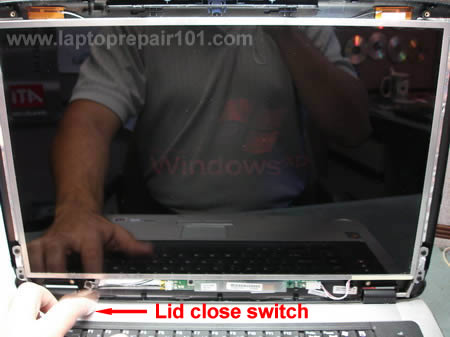
Look at the LCD screen very closely and check if you can see a faint image on the screen. It’s possible that the LCD lid close switch stuck in the “closed” position and the backlight stays off even when you open the LCD screen or turn on the laptop. The switch turns off the backlight when you close the LCD display to save the laptop battery power. Check the LCD lid close switch. Usually it is a small plastic pin located close to the LCD hinges. Try to tap on the switch a few times to turn on the backlight. If after tapping on the LCD lid close switch the backlight stays on, you fixed the problem.
It is also possible that after tapping on the LCD lid close switch the backlight works fine, you see a normal video on the screen for some time and then the backlight turns itself off again. In this case I would blame the FL inverter board. Try to reseat cables on both end of the FL inverter to make a better contact between the cables and the FL inverter board. If it doesn’t help I would try to replace the FL inverter board.
Laptop LCD screen is solid white color.
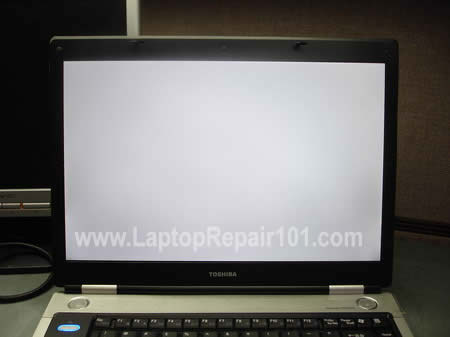
Most likely it is just a bad connection between the LCD display and the system board. I would try reseating the video cable connector on the back of the LCD screen first and check if it fixes the problem. After that I would try reseating the video cable connector on the system board. I would also try reseating cables if there is no video on the LCD screen at all.
The video on the LCD screen is garbled.
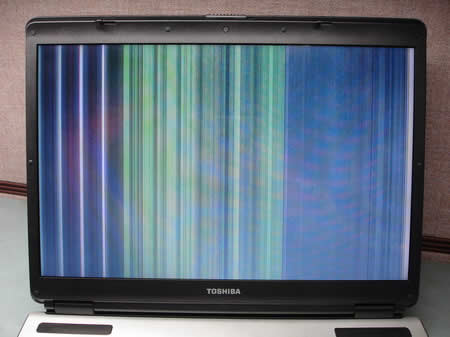
Try to connect the LCD screen to an external monitor. If the external video is fine, you have a problem with the LCD screen or the LCD video cable. You can try to fix the problem by reseating the video cable on the back of the LCD and on the system board.
If you see the same garbled video output on the external monitor most likely it is not the LCD screen problem. In this case the system board (with onboard video) is bad or the video card is bad.
I understand that these tips will not cover all video problems with portable computers. If you have a different problem, you are welcome to leave a comment and I will try to help you if I can. 🙂
Here’s a notebook display assembly diagram.
Related articles:
Fixing notebook LCD screen with water damage.
Screen inverter replacement. Fixing laptop backlight problem
Laptop has bad video on the LCD screen. What is wrong?
Laptop screen shows strange colors. What could be wrong?
1,190 Responses
Melissa
Thank you SO Much for providing this service. I spend the majority of the afternoon on tech support with Dell with an expired warranty on a 3 and a half month old computer with no backlight. There I was, sitting by the computer using a flashlight in order to read the screen. I was about to spend the fortune to send it to Dell for repair but found your troubleshooting guide it and was… the little thing was stuck down and it was keeping the backlight from coming back on. You just made my day, maybe my month!!! Thank you SO much!
cj2600
I just received Toshiba Satellite M35X-S161 laptop for repair. The laptop problem – completely white screen. It took me 5 minutes to fix the laptop. I removed the LCD mask and two screws from the screen to get to the video cable. The connector on the back of the LCD screen was half-way out. I put the connector back in place and secured it with a sticky tape. After the assembly the laptop started with a good video on the LCD screen.
Damian
Excellent resource – two questions though.
Do you have a service manual for a Portege 7020?
My Portege 7020 sometimes makes a long beep and blanks the screen. Sometimes at power-on, sometimes after an hour of use. It remans functional (disc etc, boot-up) but the screen goes blank with the long beep sound. If the screen does come back it tends to flicker on and off along with the beeping sound.
I would love to know if a repair is possible or if it is destined for the skip?
With thanks
Damian
cj2600
Hi Damian,
I have not worked on this model but let me guess. It is possible that the LCD lid close switch is causing the problem. The switch is supposed to turn off the backlight when you close the LCD and on some models it makes a beep sound during that. You can find the switch close to the LCD screen hinges and in most cases it looks like a little plastic pin. Check if it’s dirty and try to clean it. Try to tap on it a few times when you LCD screen opened and see if you can reproduce the problem. My guess is that the lid close switch is getting stuck intermittently and causing the backlight to go on and off.
Tiger
Hello again. I found and reseated the cables to the FL Inverter board in my Toshiba Satellite P35 to try and eleviate the faint image problem. This didn’t change anything.
I did notice that the lid close switch, which is NOT stuck in the down position, can be wiggled back and forth. When I do this, there is a flicker of backlight from time to time. How do I repair this switch? Or can I repair this switch?
Thanks again! ~Tiger~
Damian
Many thanks – I discovered that if I disable the option “to shutdown when I close the lid” and turn off the speaker, the screen just tends to flicker – which like you say is either a loose inverter cable or the inverter itself.
I discovered that I actually have a 7220 so it will be very nice to repair and upgrade the memory – hopefully it will give some extra life 🙂
cj2600
Hey Tiger,
I think the switch is fine and you have a bad FL inverter.
When the FL inverter is failing, you can get the backlight for a moment when you tap on the lid close switch. Try to tap on the switch a few times and see if you can get a flashing backlight. If you get the backlight, replace the FL inverter.
Giovanni
Hey! Thanks for such a great website!.
I’ve had my Acer 1710 Inverter broken TWICE, and both times i sent it to the repair center. I decided that I want to change the inverter myself next time. I have read in Internet that is a very common problem on this kind of laptops, so where can i found about changing an inverter? where it is located? how i screw out all the things to remove the broken inverter?
Thank u very much in advance!
cj2600
Hey Giovanni,
I have never worked on Acer laptops, but I repair Toshiba laptops every day. I guess you have to do the same steps for replacing FL inverter on Acer laptops as for Toshiba laptop. I created a few guides for removing and replacing LCD screens and FL inverters for Toshiba laptops. Read through them and I think you will be able to replace the FL inverter board on your Acer notebook yourself. It should not be very difficult.
Ross
I have a screen with no backlightt. However there seems to be no physical switch for the screen as there are on other laptops (mine is a dell inspiron 1150). Also there is now a high pitched buzzing sound.
If there is no easy fix could it be possible to remove the monitor completely. I don’t particually want to do this as at the moment an external monitor will not work outside of windows. Any help would be greatly appreciated, especially with getting an external monitor to work in the BIOS etc.
Lhybz Thahil
Hi…
Im trying to repair an Mitsubishi Apricot.. It does not give any display. Tried to reseat the connector but nothin happende, also tried to connect an external monitor the same thing no display…
Is this an indicative of a bad onboard display or motherboard?
cj2600
If you have no internal and external video, most likely it is not the LCD problem. I would check the AC adapter first. Also I would check the memory module. If you cannot boot your laptop with a known good AC adapter and memory, then it is possible that the system board or the video card (not sure if it’s a separate board in your laptop) is bad.
Dustin
I have a Toshiba Satellite 1200. Yesterday, with no prior problems, the display went black. My research landed me here. Thanks to your guides I was able to, maybe a little over cautiously, (or fearfully) reseat the inverter connections. Thank you very much for sharing you wealth of knowledge.
After reassembling the display, I was delighted to find that everything booted normal once again. Sadly, I watched as my efforts vanished into a sea of darkness just after windows explorer started. 🙁 It seems that the longer I wait between tests the longer I have a display. I can still , with a lot of effort, see the faint display in the blackness. If anything when the backlight is on I notice a slight pinkish hue on the darker transition screens.
Before I order an inverter I want to be sure that the problem is not some sort of overheating issue or safety shut off for the backlight. I’m probably reading too much into the whole thing. Any insight (or reassurance 🙂 you might offer would be greatly appreciated.
Great site….thanks for helping out
Lhybz Thahil
Hi cj600..
I have checked the AC adapter and have tried using another AC adapter result is the same….
Yes maybe your right I also think that its the board.. Do you know anybody here that might have a copy of a service manual of Mitsubishi Apricot AL?
cj2600
Hey Dustin,
To me your problem doesn’t look like an overheating issue at all. Most likely it is just a failing FL inverter board. Usually you can get the backlight back for a while when you tap a few times on the lid close switch. You can find the switch close to the left LCD hinge. Make sure that the lid close switch is clean. Sometimes it might get stuck, causing the backlight to turn off.
One thing concerns me. You mentioned that you noticed a slight pinkish hue on the screen. It might indicate a problem with the LCD screen. Try to connect your laptop to an external monitor. If you see the same pinkish hue, most likely you have a problem with the video card (it is a separate board in this model). If the external video is fine, then I would suspect the LCD or the video cable connection. In some cases the LCD screen still would be usable because after it warms up the pinkish hue can go away.
Carline Alexander
I have a Dell Latitude CPX600 & I see individual pixels sometimes on the screen.A I shut down the sysytem, rows of pacman like characters appear. Upon re-boot, those packman like charactors get super small and appear in several rows when Windows 2000 is booting.
Then the screen goes back to one line of pixels and then to seveveral lines of pixels in any new windoe that opens. And then that whole thing will stop if the system is rebooted (again).
jules
Nice site!
I have a laptop here in repair, and I think the videocard is broken(it’s a seperate geforce 5700 go). The laptop displays strange white dots all over the display when booting(on both the screen, and the external video connector), and I don’t think it passes the videobios(on boot). Any tips? I’m thinking of ordering a new videocard for this laptop, do you think this is wise? The laptop is a Acer aspire 1510 series.
Thanks in advance Jules
Jeff Yow
I have a Toshiba A70 and few days back when I start up, I got a black or sometime a flash screen. I try to connect my laptop to a monitor and it’s work fine. I check all cable and all seem to be ok.
Could some help me to solve this problem.
Thanking you
Jeff
Jeff Yow
HI
How to check if the inventer is still good or need to replace?
Jeff
cj2600
Hey Carline,
Connect the laptop to an external monitor. If you see the same pattern of bad lines, the system board or the video card is bad. If the external video is fine, I would suspect the LCD screen.
cj2600
Hi Julies,
Yep, it looks like a video card problem. If you can, try to reseat the video card first. It might fix the problem. Sometimes the problem occurs because of a bad connection between the video card and the system board.
cj2600
Hey Jeff,
With a bad FL inverter you still should see some data on the screen. It would be a normal video output but very dim. You should see some data if you look at the screen at different angles. The problem might occur because of a bad FL inverter or a bad connection. There is a possibility that the backlight bulb is dying.
In a case like yours, we usually try to spray connectors with ProGold and reseat the FL inverter. If it doesn’t help we replace the inverter board.
PAUL
HI THERE
I OWN AN ACER ASPIRE 1360 AND EVERY NOW AND THEN MY DISPLAY GOES GARBAGED WITH ALL HORIZONTAL LINES ACROSS THE SCREEN.WHEN THIS HAPPENS I HAVE TO REBOOT MY COMPUTER TO GET THE DISPLAY BACK TO NORMAL.THIS HAPPENS ABOUT ONCE OR TWICE A WEEK OTHERWISE THE PICTURE IS FINE. IS THERE SOME SETTINGS I CAN MAKE IN WINDOWS XP TO CORRECT THIS OR IS THIS A PROBLEM WITH THE VIDEO HARDWARE.
THANKS
cj2600
Hi Paul,
I am pretty sure that is a hardware issue. If you see the same horizontal lines on an external monitor, then the system board or the video card is bad. I am sure if the video card is integrated into the system board or it is a separate board. If the external video works properly, then either the LCD screen itself or the video cable is bad. When you have a garbaged output on the LCD screen you can try to twist the display a little bit (not too much or you can crack it). When you twist it you put some tension on the screen. If during twisting you see that pattern of lines is changing or you get a normal video then most likely the LCD is bad itself. Be very careful with the screen during the test.
simon
hey great help here, i just have a major issue that i cannot fix. toshiba satellite p25-s509 has lit backlight and boots up perfect with an external monitor. I have reseated all the connections and run out of ideas. Do you have any more not suggested here already?
cj2600
Hey Simon,
It is not very clear what problem are you experiencing? No image on the screen or something else?
simon
yeah im sorry, it works perfect in external and backlight is lit just fine but there are no images (not even faint under flashlight) appearing at all. i have checked close lid switch and all connections.
Mike Dion
Hi:
My wife’s Toshiba M35X-S161 LCD screen just went black last night. I have jiggled the switch for the backlight as you have suggested here and occaisionaly a faint image would appear, but it disappears pretty much right away. I have since hooked up an external monitor and rebooted the machine, but any image on the external monitor disappears after Windows XP starts to boot up. External monitor then goes blank and then shows a “No Signal” error. Prior to all this happening, the laptop had been running on battery for quite awhile, so the power level was way down. And, now even under AC power the display is blank. But the compter shuts down after a little while. She supposedly had this fixed a year ago under warranty. Could the display problem be a result of a power problem?
JeffV
I have a Toshiba A75-S229 that has issues with the video. I get the backlight just fine, and I can use an external monitor with no problems. I pulled the cover off of the LCD and all the connections look good. The one thing I did notice is the wires going to the connection on the left side has what I would call a severe bend or kink in the cable. Is there anyway to test the cable? And where would I go to get a replacement cable for this?
Thanks for your help.
cj2600
Hey Mike,
Usually a power problem will not affect the display. It might be just an FL inverter problem and the faint image is not disappearing, you just cannot see it. You say that the video on the external monitor goes blank after the Windows welcome screen. I’ve seen that before on some Toshiba laptops. I guess you can get a normal video on the external monitor if you pres Fn+F5 a few more times. I think that the system board is OK, and you have a problem somewhere in the display module.
cj2600
Hi Jeff,
I would try to reseat the video cable on the system board and on the back of the LCD screen first, just in case. If it doesn’t help, I would try to replace the cable.
There are 2 video cables listed for Toshiba Satellite A75-S229 screen.
Toshiba part number for the first one: K000015960
Second one listed as backward compatible with the first one: K000034510
You can try to search on ebay by the part number or just google for it and find a store.
cj2600
Hi Simon,
If the connections are fine, then I would try to replace the LCD video cable next. It is the cheapest replacement part between the system board and the LCD screen. You have very good chances that the cable will fix your problem.
There are 2 cables listed for Toshiba Satellite P25-S509:
K000005950 for Samsung LCD screens
K000005960 for LG Phillips screens
Check on the back of the LCD screen who made it and try to find this part via ebay or google.
Video cables in Toshiba Satellite P25 are not very reliable. I repaired a lot of P25 laptops with problem like yours just by replacing the cable. But it also possible that the system board or the screen is causing the problem.
Ted Cwynar
I have a Dell Inspiron 8000 and I am experiencing problems with the LCD. A few minutes after the system has booted and the desktop appears, the display goes black. However, you can faintly make out what is on the desktop if you look closely enough. I did attach an external monitor to my laptop and it works fine.
From the posts I have read on other forums, the problem could
be related to the inverter, backlight, or ribbon cable.
I don’t have enough knowledge to know which part(s) needs to be replaced. I would appreciate any insight on how to make this determination.
In addition, I began to disassemble my laptop and have the LCD panel flipped out from the protective casing. I don’t know where these any of these parts are located. If anyone can provide some instructions or diagram resources, this would be appreciated as well.
Thank you for your assistance,
Ted Cwynar
cj2600
Hey Ted,
Here are instructions for Dell Inspiron 8000 laptop.
By the description you provided I would assume that the FL inverter board is causing the problem. Most likely the inverter board fails when it’s getting warm. I think a bad LCD cable would give you an intermittent problem.
I think that it‘s also possible that the backlight bulb is failing itself but I would start with replacing the FL inverter board.
WEBB
I know very little about the inside of my notebook, so please help me understand what I need to try. It’s a Compaq Presario R3000, and it’s just as you described – very faint screen with no backlight, when I tap rapidly on the lid switch, the backlight will flicker and I can intermittedly see video on the screen. How do you reseat connections or replace inverters? I’m still learning.
Also, we had a problem with our Invidia Graphics causing video distortions and crashes for several days, but those issues amazingly went away – that was only about 3 days prior to the backlight issues, do you think they are related?
Sree
Thanks for this awesome website
I have a Toshiba and have the exact same problem you are describing. The display is very faint and when I push on the little hinge button, it beeps and the display flicker. However, I have noticed that if I am on battery (which has a life of 5 mins now) instead of being plugged in – it stays on. I am wondering if I can change some bios settings to fix this? Or is this a FL inverter issue? Or is this a Battery issue?
Thanks so much in advance
Guido R. Rolon A.
HI all, surfing the web i’ve found this usefull site. I have a Toshiba Satellite P35 (P35-S6292 17″ LCD) sice 8 months ago. A couple of weeks ago appeared a cyan vertical line on my screen (from top to the bottom). Today a have 3 lines, cyan, red and yellow. A new LCD costs 650$ here in Asuncion Paraguay. Any help will be be very wellcomed. Thanks in advance.
cj2600
Hey Sree,
Very weird problem!
If you would only mentioned only a faint screen I would me almost positive that the FL inverter board has to be replaced. But after you mentioned, that you can get a normal video when you run off the battery, I’m getting lost. I have no idea what’s going on, I think you might have a system board issue. Just in case try to upgrade/reflash BIOS.
cj2600
Hey Guido,
Make sure that it’s the LCD problem first. Connect an external monitor and restart the laptop. If you see the same lines on the external video, then the LCD is fine, the system board is causing the problem. I’m pretty sure it’s just a failing LCD screen but still it would be nice to verify it by connecting the external monitor. In the USA the screen would cost you about the same or even more.
Guido R. Rolon A.
Hi all again, this is a picture’s link of my Toshiba Satellite P35-S6292 with 3 colored vertical lines LCD problem
http://www.flickr.com/photos/grolon/125324583/
Guido R. Rolon A.
Hi cj2600, i have connected an external montior to notebook, it seems that everything is ok, on that external monitor. This means that system board and video card are ok?.
Jean Dubé
I have a Acer aspire 2002WLCI (centrino 1.5/ATI 9200 32mb on a seperate board). A few weeks ago I started to have problems with the LCD display on the laptop. At first, when I started the computer, the screen showed full brightness white vertical lines on a royal blue background. If I connected an external monitor everything was OK (normal windows login window). If I restarted the computer a few times, the LCD would come back in full working order. After a few weeks, the LCD started showing the the same vertical lines all the time (extenal video still OK) and the LCD went dim. I cannot see the normal windows graphics on the LCD now, just the lines, although if I move the mouse, I can see dim vertical lines moving on the LCD. I would like to repair the unit myself, I have already checked the connections but would like to know what part to change (inverter, graphic card, cable, LCD).
Thanks for the great site.
Jean
toure mamourou
hi friends
i have a display problem with my thinkpad t22
i Try to connect the LCD screen to an external monitor,the external video is fine, but the internal monitor (lcd) is white
i change the lcd connection on the mainboard it”s the same problem,i do the same with a new sreen it ‘s always white
i want your help to fix this problem
thank you for all
my best
touré
cj2600
Guido,
Your laptop has a video chip integrated into the system board. If an external video is fine, then the system board works properly. I am almost positive that you are having a problem with the LCD screen.
cj2600
Hi Jean,
I am pretty sure it is not the video card, because you still can get a normal video on the external monitor. You would get a bad video output on the external monitor if the video card was bad.
Here is my guess. You have 2 different problems on the screen: vertical lines and lack of the backlight. Normally these two problems are not connected to each other and it is not likely that the LCD screen got 2 different problems at the same time. There is only one part that can cause these problems – the video cable. I would try to replace the LCD video cable first.
If replacing the video cable will not help, the next step would be to replace the LCD screen (of course after you checked all connections) . In most cases buying a new LCD screen wouldn’t be cost effective solution to repair the notebook computer. It would be better to buy a new laptop, unless you can find a way to buy a cheap LCD.
cj2600
Hey Toure,
When I see a white notebook LCD screen I always check the connection between the video cable and the LCD screen first. Most of the time the video cable is half way out and after I reseat it the video is back to normal. You say that you tried to replace the screen and it didn’t help and the external video is fine. So I am pretty sure that you can fix the problem by replacing the video cable.
Robert Faulkner
My Dell latitude c600 display only covers half of the screen. The display adapter system shows the default vga driver is in use. I can’t find or load a new driver. Support for the driver should be included in windows-me.
Can you help?
Bob
Chun
Hi, CJ
I’m so glad to find this blog. Now I’m so depressed because of my computer.
I have Toshiba Tecra S1 laptop and I think it has vedio problem.
It’s started few days ago. When I was using this computer, suddenly something happened on the screen. It seemed to be broken resolution or something trouble with graphic unit. Graphic was broken and suddenly computer was stopped. So I turned it off and turned it on again. Then there was no problem.
But yesterday, when I tried to connect with my external hard drive, it happeded again. So I thought it’s time to format this computer because recently it showed something weird. So I formatted it using recovery CD and installed it succesfully.
I turned it off and then when I turned it on again. on the screen there was nothing I can see. It was just black screen.
When I turned it on, I could hear one beep sound and fan worked. But on the screen it did not show anything.
I think I also heard three times beep sound from inside of computer after booting it. I think this could be vedio unit problem.
Could you give me any advice for repairing this computer? I think I may be able to fix it. But I’ve never opened laptop. If this computer is desktop, it is not a big deal. In my country I used to open and fix some parts.
I bought this computer in my country in 2003. This computer is my best friend ( of course I also have best friend in human ^^). Now I’m so sad…I can not do anything even my homework. :'(
Please help me out…..The cost for repairing is so expensive.
Have a nice day!
cj2600
Hey Robert,
Have you tried to find a new driver on Dell Support Website ? It looks like they have the video driver for Windows Me.
nicole gestels
After installing a new video driver and deactivating the old driver, the computer restarts but when windows starts up the screen becomes black. How can I reactivate the old driver when I see nothing on the screen?
cj2600
Hi Nicole,
You can try to boot your computer in a safe mode. After that find a display adapter entry in the device manager. Right click on the display adapter and go to Driver tab. Use Roll Back Driver button get back to the previous driver.
Chun
Thank you for your reply, CJ. I tried to check memory modulus. I think it is not memoey sticks problem. I also tried to connect to external monitor. The result was fine. But what I don’t understand is when I connected my laptop to external monitor, it was fine. I removed external monitor and turned on my computer. At that time it was fine. However after I came back home, it happened again.
What do you think about this?
Irene
Help! I have a screen with no backlight, images on my screen are really dim. I would like to check if the switch is stuck, however there seems to be no physical switch for the screen as there are on other laptops (mine is a dell inspiron 1150).
I am planning to buy an inverter online and replacing it, am i on the right track?
cj2600
Chun,
I think that it might be just a loose connection. I would try to reseat the cables. It requires some skills because you have to open the laptop case. Not sure 100%.
Try to turn on the laptop and use Fn+F5 key to toggle between the internal and external video output.
cj2600
Irene,
Most likely a new FL inverter will fix the problem. It also might be a video cable problem or the LCD screen itself is bad. I would suspect the FL inverter first.
Chun
Hi, CJ.
Today I tried to connect to another external monitor. But it didn’t work. I think I should open this computer. When I turn on the computer, I still hear three times beep sound. One is a little long, and two are shorter than first one. I have no experience to open laptop, but I want to try it.Because I’m a student in electrical engineering in college. I will do it following your explanation in this site. When I open computer, should I also remove memory, hard drive and etc on the bottom? There is 23 steps, right? I think I should check “step 14 in your guide for Tecra S1”. For checking this, which steps should I do? Do I need all steps before step 14? I want to try to fix my computer by myself. I already appreciate you, but if you help me little more, I’m really happy. Please~~
cj2600
Hey Chun,
It’s hard to say what is happening with your laptop. If you want to take the laptop apart completely, then you have to go through all 23 steps. If you only want to check the video cable connection (step 14), then you have to remove the battery (step 1) and the keyboard strip (step 5), you do not need all steps. I do not remember if the keyboard strip is secured by screws on the bottom, be careful when removing.
It’s hard to repair a laptop at home when you do not have any spare/test parts.
Good luck!
marlow
Hi there,
I have dell latitude c800 (it’s actually my roommates but he just bought a new one) and the screen turns on shortly after startup or not at all. When it does start up there appears to be a reddish hue to the screen for a moment. When the screen works it works fine I don’t suspect the back light. I can’t locate any switch specifically either. You can still see a very faint image on the screen. If there is anymore info you need just ask.
Thanks,
Marlow
George
Would you know what the electrical value on a Pavilion HP laptop inverter should be on the lamp bulb side? It is a pk070012310 inverter in a zt1000 laptop . I would like to check it out before I order a new one . Thank you George
cj2600
Hi George,
I work mostly with Toshiba laptops. For Toshiba laptops the output voltage on the FL inverter exit should be 200-600 VAC and the voltage before the FL inverter board should be 4.5-5.02 VDC. I have never tried to measure it myself, I just remember this numbers from Toshiba training. I think you should get the same values for HP laptop because most laptop manufacturers use the same LCD screens.
cj2600
Hi Marlow,
It doesn’t look like a backlight problem. I would suspect the LCD screen itself. Try to start the laptop with an external monitor. If you get the same reddish hue on the external video, the system board (or video card) should be replaced. If the external video is fine then most likely the LCD is going bad. Usually when a reddish hue appears on the screen, the LCD screen failing itself.
Erica
I have an Dell Inspiron 1200 notebook. When the laptop is running on power from the A/C adapter the backlight will only stay on for about 20 minutes. But when the computer is only running on battery power, the backlight will stay on until the battery dies. I already tried replacing the A/C adapter and that did not seem to help. Any other ideas?
cj2600
Erica,
May be it is just a software settings. Check power options in the control panel. There is a setting to turn of monitor after some time. You can set a different time for your laptop when it runs off the battery and off the AC power.
Jamie
Hi. Thanks ahead of time for any help. I have a Dell Inspiron 1150 that is only displaying a white LCD screen. It displays to an external monitor just fine. I double checked and re-seated the LCD cable and then bought a new one, which didn’t do any better. I went to the Dell website to look for a new driver, but it told me that the driver I had was newer than the one I found on the site.
I can make the screen brighter or dimmer, but the only thing I ever see on the LCD screen is white – even during boot up. I can even get to the bios via the external monitor – just not with the laptop screen.
Any ideas?
cj2600
Hi Jamie,
When I get a laptop with a solid white screen, I’m pretty sure that I can fix the problem by reseating the cable or by replacing the cable. If it doesn’t help (very rare) then you might have a bad LCD screen or a bad system board. The only way to find out witch one is bad is to connect a test LCD screen and see what video output you get. I guess in your case it would be better to take the laptop for diagnostics to a computer repair shop.
Brian
Having some issues with my M45 lcd. When I first boot up the computer the backlight works fine for 2 or 3 secs then goes out. I can see a faint image if I shine a light at the screen. If I unplug the fl inverter and plug it back in the backlight comes back for a couple secs and goes out. The same will happen if I switch between external video and lcd. I have replaced the fl inverter but the same thing happens. Right now I am running an external monitor.
Jean Dubé
Hi cj2600
Followed your advice from post 43, changed the video cable for the laptop (12$ + shipping) and now the screen is back to its full functionnal state. A great deal compared to the 449$ flat fee for the service at ACER.
Thanks for your advice
Jean
David
Here’s an odd one – It’s an Acer 1310 and the display is ‘washed out’. All colours are very weak eg black is a blue/grey. Gives the impression of contrast set below zero.
Screen is bright so no inverter problems. VGA output is fine and there is no corruption to the display so no RAM problems.
Any suggestions?
cj2600
David,
Sounds like the LCD screen problem or the video cable problem. I would try to update / re-flash BIOS. It is possible that BIOS is corrupted. Is there are some settings for the contrast and brightness in BIOS? Try to reseat or replace the video cable. According to Jean (comment 70), the video cable for Acer is pretty cheap.
cj2600
Brian,
There is an issue alert for Toshiba Satellite M45-S165 and M45-S1651 models. It says: “The LCD Back Light would stay off when the Lid Switch was pressed and released quickly.” As a solution, Toshiba recommends to update the BIOS to version 1.50 or higher. Might be your problem somehow related to this issue alert?
Brian
OK I have updated the bios to the most current and I reinstalled the display drivers, still no luck. Could it be possible that the Lid Switch is bad? Is there any way I could bypass the switch to take it out of the equation?
John Anderson
I am replacing the FL Inverter on a Satellite M35X-S149. However, when I first dissassembled the laptop, I noticed there is what appears to be a ground strap coming from the wiring harness that runs from the main board above the F10 key to the connector at the top rear of the LCD panel. This ground strap was not connected to anything, and there does not appear to be any place to connect it. Is this supposed to be connected anywhere? The ground strap naturally lays very close to the lid switch. Thank you.
John
cj2600
John,
The ground strap is not connected to anything on Toshiba Satellite M35X. Just leave it alone with the harness when you assemble the laptop.
cj2600
Sorry Brian, cannot help with the switch. We do not work on the component level. If the motherboard is bad, we replace the entire board and send the original one for repair to Toshiba. I think if the lid close switch is bad, then it is ether always “on” or always “off”. In your case, the backlight starts for 2-3 seconds each time you apply power to the LCD screen. I guess the lid close switch is not your problem.
Ivelina
Hi guys
Great forum – it gave me hope I can sort out my prob with your help!
I have a 2 year old hp Compaq nx5000. The problem it has is that in 90% of the occasions, its backlight fails during resuming from hybernation or stand-by. The only thing that helps keep the backlight on is cold reboot. Even after warm reboot, the backlight does not always stay on. However, once booted successfully, the backlight works fine indefinitely, until the next time I try to resume from hybernation/stand-by or warm reboot.
Does it sound like a software problem to you? I updated the monitor driver, did a Windows update, etc with no success. Shall I be looking at flashing the BIOS?
It would even be helpful if you can just asure me that it is a hardware problem – backlight going, FL inverter failing, loose connections, etc – at least I know I have no other choice but to spend the money to repair it!
Many thanks in advance.
P.S Sorry if I posted twice – my prevous message failed but just in case it went through somehow.
cj2600
Hi Ivelina,
The problem with backlight might be hardware or software related. How do you put your laptop into hibernation or standby? Do you close the display or you enter these modes through the Windows? If the laptop backlight fails to resume after you close the display, then it might be a lid close switch related problem. Try to tap on it a few times after the backlight fails to start. If the laptop backlight fails to resume after you enter hibernation or standby modes through Windows, then the problem might be related to a bug in the BIOS. Some Toshiba laptops have the same issue and you can fix it by upgrading BIOS. Try to upgrade or re-flash the BIOS.
Ivelina
Hi cj2600 and thanks for the reply.
I always put the laptop into hybernation/standby by closing the display. When I changed the power settings to “Do nothing” when the lid is closed, the problem did not happen when I reopened the lid (or when I pressed the lid switch for a few moments) so it will have something to do with the computer entering standby/hybernation. I will try using the windows standby next time and i will also try to disable the laptop going into stand by after a period of time (it is currently 30 minutes if not in use) to see what happens.
Please let me know if you still think upgrading the BIOS will help as it does not seem to be a Windows problem.
Many thanks!
cj2600
Ivelina,
You are right; it looks like the problem is connected to entering into standby or hibernation mode. I think it is not a problem with the FL inverter board.
I would definitely try to upgrade the BIOS. It is very possible that new BIOS can fix the problem. Carefully read instructions before attempt to upgrade the BIOS.
Frank
Mine sister gave me a satellite 4030cdt laptop. It has a split screen on it problem. The Toshiba is on the buttom when starting up. But when I place mine home monitor on it and the screen is fine. I check all the connections. Any Ideas? Thanks.
Ivelina
Hello – me again.
Reflashed the BIOS (was latest version anyway) with no luck in solving the problem. I used the Windows-based flash – is that the same as a floppy-disk based or would the latter be worth trying as well?
Does not seem to matter if it enters stand-by from Windows or just by closing the lid – same thing happens. The only thing that keeps the backlight working is to leave all computer on, just close the lid to switch off the screen while not using it. 🙁
Any other ideas? I am willing to try anything!
I think there should be a clue (to who can read it!) in that the backlight comes on during the first few moments of resume/boot – it only goes off a few seconds into it (but always at different stages).
Derek
Hey CJ2600 –
I’ve got a Toshiba Satellite P25-S607, and I recently spilled water…ok, boubon and soda, on it.
I immediately shut the power down, took it apart, dried it thoroughly with a hair dryer (not too close) and came back a couple days later to fire it up.
First I should say that after I shut the power down, after the spill, I turned the in an upside down V on the table to help it drain.
Thankfully, the computer runs fine, but the display is dim. External monitor works fine. Lid close switch does nothing…no flickering. Is it possible when the machine was upside down, liquid shorted the FL inverter? Or could I have shorted something on the system board? But, the external monitor works fine. Could it be a power issue to the inverter? I poked around with a voltage meter on the board and was able to get some signal…(not an expert, just poking around) Could you post a close up picture of the inverter, I have what looks like some black goo coming out of a white circular piece on the board, and I’m not sure if its just some kind of insulation on the board, or if something is fried.
Thanks! Great resource!
Charlie
Hi there,
Just wondering if you could help. I have an Acer Aspire 1360 which I’ve had for just over a year.
When I put pressure on a certain point of the laptop underneath about an inch or two above the battery just below the arrow keys it swithches itself off immediately. As though the power supply has been disconnected.
Do you have any suggestions?
Thanks for the help you may be able to offer.
Charlie
cj2600
Frank,
I think either the LCD screen itself or the video cable is bad. Not sure, I have never seen a problem like yours. Try to reflash or upgrade the BIOS just in case, it might help.
cj2600
Ivelina,
Not sure what is going on with your computer. 🙁 I think the next step would be reloading the Windows operating system. It is just a guess – may be the power management software is corrupted somehow. By the description you provided, it shouldn’t be the fl inverter board problem, even though everything is possible. Some problems are very weird! I have a laptop that I haven’t been able to fix for over 30 days! Replaced almost every single part twice and it’s still doing the same! Just a nightmare. 🙂
cj2600
Derek,
Here is the best close up picture for Toshiba Satellite P25 FL inverter board I have for this moment.
You should be very happy that your laptop still works. Liquid spills are very unpredictable. Any part could be damaged even if it wasn’t affected by the liquid directly. Yes it is possible that only the FL inverter has been damaged, but it also possible that some circuits on the system board have been damaged too.
cj2600
Charlie,
I would try to call to Acer and ask them if there is a know issue for your model. It is possible that not only you suffer from the same problem, and it is possible that they can take care of your laptop for no charge. I suggested calling to Acer because I know that Toshiba has some laptop models with a top cover issue, laptops freeze up when you touch the speakers and they fix out of warranty laptops with this problem at no charge to the customers. I’m not familiar with Acer laptops, but may be you have a similar problem?
Derek
Thanks CJ! However, the business I wanted to see is under that protective plastic.
Chun
Hi, CJ. I’m here just to say ‘Thank you’. I tried to open my laptop for checking connector part, but I couldn’t. it’s too tight. I gave it up and decided to send computer to repair center. Today I got back my computer. Fortunately my computer is under warranty. (Actually I didn’t know that.) I really thank you for your guide and advice even though I couldn’t fix it by myself.. They replaced and tested the Main System PCB, COROM and CPU cooling module. Is there any relationship between no signal on the screen and CDROM or Main system? I thought it was VGA proplem. Anyway my laptop came back to me. I’m so happy. ^^
Zergrinch
Hi CJ,
I stumbled across this rather informative site on a Google search about laptop LCD troubleshooting, and was wondering if I could find an answer here.
A bit of history. My Toshiba Satellite M-40 is less than a year old, but has encountered a fair share of problems. A moldy black smudge became a permanent fixture on the upper-right part of the screen. Although things were pretty much viewable, the darkened part was rather unsightly.
Since the notebook was still under warranty, I took it to the Toshiba Service Center for repairs. After the repair was done, the laptop came back with a clear screen, but with uneven lighting – there was a bit of backlight bleeding on the lower edge of the screen.
So back to the repair center it went, and now I got it back without moldy patch, dead pixels, or bleeding. However, there is something very slight that I noticed. My google searches don’t turn up anything definitive, so here goes:
At a normal viewing angle, everything is fine. However, if I tilt the screen back, I start to see a lot of subtle vertical lines all across the screen. These lines very faint, and are completely invisible at a full-on forward view.
So a question – is there a problem, or am I being overly sensitive?
Any assistance is greatly appreciated!
Regards,
Zergrinch
cj2600
Hi Zergrinch,
I wouldn’t really worry about the LCD screen with a bleeding backlight on the lower edge. Some screens have it and I think it’s not a big deal. But I would definitely replace the screen with faint vertical lines.
Zergrinch
Thanks for the advice, CJ. The bleeding backlight actually bothered me a bit, since it made the screen more glaring for me on the lower part of the screen. Since the faint lines weren’t visible at optimum viewing angles, I was second-guessing myself.
Again, thanks!
Regards,
Zergrinch
Frank
thanks for thr info. I just put in a new lcd screen and it is fix.
stairman
I had my 6 month old Sager packaged to go back, when I decided to look up the faont screen issue. And thanks to your site, I found it to be the switch, just as you said it would be, Thank You!
khalid
I have an old toshiba satellite 320 cdt w/ a working inverter & a presario 2200 with a broken inverter. Do u know if it’s possible to replace the presario’s inverter w/ the toshiba’s? I know it’s not likely, but possibly?
Also, would you recommend buying the inverter from any site or company in particular? reputable? I’m in Canada, and am having a difficult time locating a retailer that carries inverters.
cheers
Ibn
My frined recently bought an Acer Laptop and when the laptop is on there is a small green speck of light in the screen. When it is turned off it vanishes. Any take on that.
Thanx
ps you’ve got a good site. Very helpfull
cj2600
Khalid,
It is unlikely that FL inverter from old Satellite will fit to Presario. I cannot recommend any particular store because we get all our parts directly from Toshiba and never buy them somewhere else. I would research on the Internet.
cj2600
Ibn,
I think this small green speck is the LCD screen defect. I’ve never heard that a bad video cable or a bad inverter can cause this problem. The only way to fix it is to replace the LCD screen.
Or to set a green background as a wallpaper. 🙂
Justin
hi people….having troubles with my satellite A70 screen….it works perfectly on an external monitor…but on its own..the bottom 2-3 inches of the screen are solid vertical bars (resembling the colors present above them)….i have dismantled the laptop and checked all connections, including grounds…..any help would be great….TY
Pc Doc
I got a satellite a75-s209 dim video on lcd. Yet external gets awesome video. No backlight activity when pressing the suspend swith on board. need some advise.
heather
Hello,
I have read all of the entries in this section regarding LCD problems and I am currently having a problem with my Toshiba Satellite 3000 series laptop. The lcd screen is almost black but you can faintly see the display. When I hook it up to an external monitor it looks great and super clear. I replaced the inverter thinking that might be it but with no luck. I am assuming that the only things left to check would be the lcd cable, lcd screen itself or the button to the top left could be stuck causing the backlight to not display. I took this laptop to a laptop repair shop and they previously told me that it was a mother board issue which would have been too costly for me to fix. I am assuming that was not correct since I have no problems seeing the display on an external monitor. Please let me know if you think that it could possibly be anything else. i would rather not trash my laptop since it works great except for the lcd screen. Thanks!
cj2600
Hey Justin,
I think you have a bad LCD screen and replacing the video cable will not help.
cj2600
Heather,
If I would get a laptop like yours for repair I would suspect the FL inverter board first. OK, you have replaced it and it didn’t help. There are 2 more parts in the display assembly – the LCD screen and the video cable. There is only one way to test witch one is failing – to replace them one by one.
By the way, a faint image on the LCD screen might be caused by a failed motherboard. It is not very common problem, but I have seen it before.
Most likely, technicians in the repair shop already tried to install a test LCD screen and video cable, that’s what I would do first.
Michael B.
Hello all
I wonder could anyone help with this problem. I have a Compaq Presario laptop – the monitor display blanks out as soon as the screen goes above a 60 degree angle, the screen is perfectly clear until then. The laptop stays switched on.
Thanks.
craig
i have adell insperion i have a line across my screen that goes away briefly when i tap the sides or back of the screen can you give me a clue as to what to do next thank you
Heather
Thanks for the advice – I bought a refurbished motherboard and hooked it up and that didn’t fix my lcd problem either. Still the same problem surely trying another motherboard I wouldn’t have the same issue if it was the motherboard. So I guess I will try to replace the cable first since I am sure it is less costly and then if that does not seem to help I will replace the lcd screen. I feel like I will have a new laptop by the time I get finished! Thanks!
Aaron
Hi cj,
I’ve been looking over your site for a while now, seems like you might be the man to talk to. I have a Toshiba Satellite A75, and I have a similar problem to Guido from his posts in early April. I have a few thin vertical lines through my screen. When I press on the casing above the screen it goes away, but comes right back when I let go. Does that sound like maybe the casing is just loose somewhere? Maybe it’s possible for me to tight something instead of having to buy an entirely new screen? Not trying to spend hundreds of dollars if I don’t have to of course. Thanks a lot.
cj2600
Michael,
It is possible that the problem is caused by the video cable. Check if the cable is seated properly on the system board and on the back of the LCD screen.
cj2600
Craig,
Connect the laptop to an external monitor. Check if you have the same lines on the external video. If you do then you have a problem with the system board or the video card, I’m not sure if the video card is a separate module in your laptop. If the laptop displays lines only on the internal LCD screen then the problem is somewhere in the display assembly. The LCD screen is bad itself, the video cable is bad or the connection between the cable and the screen is loose. First step would be reseating the video cable on the back of the laptop screen. If it doesn’t help then you have to try to replace the video cable or the LCD screen. One more test. You can grasp the screen for top left and right corners and try to twist it a little bit, put some tension on the screen. If lines go away when you twist the screen, then I would suspect the LCD screen itself.
cj2600
Heather,
You project is getting costly. Are you sure that the FL inverter board you installed was 100% good? It is a reasonable risk to replace the motherboard, the FL inverter board and the video cable, but the LCD screen might be too expensive. That is the most expensive part in any laptop. May be it’s time to invest money into a new laptop?
cj2600
Aaron,
Check out comment 112 where I responded to comment 108. It looks like you have a similar problem. Toshiba Satellite A75 has the video integrated into the system board. If you get the same lines on an external monitor then most likely the system board is bad itself and should be replaced. When you press on the LCD screen cover you also flexing the system board, so it’s hard to say witch part is failing. Try to connect the external monitor first.
Ed
Hey,
I am having a video problem on my Satellite A75. About an inch to the right of center there is an inch wide vertical stripe that is adding a significant blue tinge to any video displayed there and certain colors get streaked across it horizontally. It happened a couple months ago and I took it to a warranty center (it was still covered then) and they replaced the whole LCD assembly. It has come back now and is no longer covered. I am thinking that there may be something simpler than a bad LCD given that it is happening in exactly the same place as last time. I was wondering if it might be a loose video cable or something like that. I don’t think it can be a software issue because it happens whenever the screen is on (including during BIOS). Any ideas would be great.
Thanks,
Ed
cj2600
Hi Ed,
The warranty center replaced the entire LCD assembly (screen, video cable, FL inverter) or just the LCD screen? If they replaced the entire LCD assembly then it is possible that the video connector on the system board is failing or loose. Try to reseat the cable on the system board. If they replaced only the LCD screen then it is possible that the video cable is bad or the connection on the system board is loose. First, I would try to reconnect the video cable on the back of the screen and on the system board. If it doesn’t fix the problem, the next step would be replacing the video cable. Finally, if a new video cable doesn’t help I would suspect that the video connector on the system board or the system board itself is bad.
Ed
Thanks for the info! The guy at the warranty center said they replaced the entire assembly, but the paperwork only said the LCD screen, so I dont know entirely. I am going to take the thing apart on Tuesday to clean out my heat sink, and while I am in there I will give all the video connectors a check.
Thanks so much!
Peggy
My ThinkPad A31p’s screen has horizontal lines going across it. They look like the matrix.
Sometimes they cover a small section of the screen, sometimes they cover the whole screen and flicker.
I can reboot and the screen may be perfect for the rest of the day, or the lines may be there right at boot-up, or they may appear after an hour or so.
This has been going on for a week. Any help would be much appreciated. Thank you!
Peggy
cj2600
Peggy,
Have you tried to start the laptop with an external monitor? What video do you have on the external monitor?
BTW, I was troubleshooting IBM ThinkPad A31p notebook this morning. The laptop had a faint image on the screen, the external video was fine. At first I thought about a failed FL inverter board. I took apart the display assembly and removed the screen. After that I connected my test screen and got the backlight! So, I had to quote to the customer a new screen. Our price from IBM was over $600!!! He declined the repair.
Peggy
I was afraid you’d ask that. Unfortunately, I tried an external monitor and the screen was perfect. But it could be that it’s just in a behaving mood right now.
I’ll have to troubleshoot by turning my laptop off and on throughout the day on the external screen to see if I get the garbage. I was hoping the intermittent nature of my problem would be a clue to something.
Thanks very much for your help!
Peggy
pat
hi i want to know if you can help me with a problum with a toshiba satelite 2410 pent-4m 17ghz there appears to be a fault with the nvidia driver error warning comes up advising to reinstall driver also when starting up display settings usally have to be reset and display is not always 100% some times will have vertical lines across it laptop is 4 yrs old would be thakful for any help .pat
cj2600
Peggy,
That is the first thing to do if you troubleshoot a laptop with a bad video output. This test helps to determine witch block is failing – the system board or the display assembly. Both parts are very expensive and you don’t want just start replacing parts without troubleshooting.
cj2600
Pat,
Do you see the vertical lines only in Windows? Do they appear right after you start the laptop and Winodws OS is not loaded yet? Have you tried to reinstall the video driver?
You can run a restore CDs (or DVD) to reload the laptop back to original factory settings. It will erase everything from your harddrive, so do not forget to backup or transfer all important data to another location before you reload the laptop. If you have a software issue, it would be fixed after you restore the laptop.
Peggy
Ed,
I tried several times plugging into external monitor yesterday. Each time, the display was perfect. However, my laptop was behaving all day yesterday — until last night. I turned it on, got the garbaged display, and plugged the external monitor cord into the laptop without restarting laptop. Didn’t know if that would work; I guess not. Nothing showed up on external monitor.
So I restarted laptop and external monitor was perfect. Disconnected laptop from external monitor, restarted laptop, laptop screen was perfect. So it’s sure hard to troubleshoot when the problem is so intermittent, but I’ll keep on keepin’ on …
I called IBM, they said I am out of warrty, but to see if I have a loose cable.
I did pay by credit card, and it looks like I may have an extra year’s warranty (Hurray!) so I will call them. To be continued …
simon
#
32
cj2600 Says:
April 5th, 2006 at 9:57 pm
IN RESPONSE TO THIS ANSWER…….BELOW
If the connections are fine, then I would try to replace the LCD video cable next. It is the cheapest replacement part between the system board and the LCD screen. You have very good chances that the cable will fix your problem.
There are 2 cables listed for Toshiba Satellite P25-S509:
K000005950 for Samsung LCD screens
K000005960 for LG Phillips screens
Check on the back of the LCD screen who made it and try to find this part via ebay or google.
Video cables in Toshiba Satellite P25 are not very reliable. I repaired a lot of P25 laptops with problem like yours just by replacing the cable. But it also possible that the system board or the screen is causing the problem.
Thank you cj for your response it was already replaced though. So in your expert opinion would you think its the motherboard connection or a bad lcd? and if so is there anyway to test these without swapping them out since i don’t have either here? thank you again for the only useful LCD Q&A site on the internet!
simon
ok, its me again, i just got done testing with another lcd screen on this same problem and got the same results…..backlight is light great but no display…..so i guess its the motherboard at this point. I cant possibley think its anything else except maybe two bad vga cables….which i guess is not unheard of in this line of business i have seen similar things before.. any other suggestions?
cj2600
Peggy,
CONGRATULATIONS!
That is a really good idea to buy an extra warranty. If you can get it, you are lucky. IBM parts are very expensive. In your case you have either a bad screen or a bad system board. Each of them would cost you tons of money.
BTW, it is very hard to troubleshoot a laptop with an intermittent problem. You can run it for a few days and it will not fail. But as soon as you give it back to the customer, he calls back with complaints. 🙂
cj2600
Simon,
Two bad VGA cables in a row – not very likely, but still possible.
At this point, if you have tested your laptop with a good known screen and a good video cable but still have no video, I would blame the system board.
Your laptop has a normal video on the external monitor, so I wouldn’t blame the CPU. That’s a tough call man, sorry cannot help.
simon
thanks for the response. and yes i agree two in row is very unlikey. since you said, or at least i think you did, you have toshiba experience, do you know where to find a mobo for p25s509? not much luck on ebay or just google either at least for less than 350.
cj2600
Simon,
A new system board for Toshiba Satellite P25 is not cheap. We usually get motherboards directly from Toshiba because we work mostly with warranty laptops.
I think ebay and google are the only options you have. Try to search by the board part number. Do you know the part number for your motherboard? If not, you can give me a model number for your laptop, something like PSP20U-1LKF3V and I can look up the part number for your system board.
Elijah Chan
Hey, sorry but I have a problem similar toGuido R .Rolon as
my screen also has similar colored lines…What should I do? Will my acer warranty cover it?
I dun want to waste unnecessary cash as I need the laptop for my school work.
What is the problem actually?
Anderson Nielson
I am having the same problem Ed did in 115. How did Ed solve the problem? My LCD in a Toshiba A75-S229 displays a magenta colored stripe near the right side in the display, during the BIOS system screen too.
Ed
Anderson,
I have attempted to solve the problem, unsuccesfully. I have completely disassembled the laptop (I was also going in to clean the heatsink) and display assemblies, disconnecting and reconnecting all of the connectors. This has had no effect on the display issue. I guess my next move is to start ordering replacement parts. It seems that the problem could be anywhere in the video system, from the video card, to the cable, to the inverter or the LCD itself. If anyone has any other suggestions, that would be greatly appreciated.
Ed
CJ,
Could you get me the part numbers for the MoBo, VGA cable, inverter and LCD for a Satellite A75-S211? Any other suggestions would be great too!
Thanks,
Ed
cj2600
Hey Ed,
Before you start buying and replacing parts it would be a good idea to narrow down witch part is failing. You mentioned that the laptop repair center replaced at least the LCD screen, so let’s trust them and exclude the screen from the list of suspected parts. I have never seen that a bad FL inverter is causing the problem like yours. Usually, if the FL inverter works, you have the backlight and if it doesn’t work you do not have the backlight. So, we have 2 parts left – the system board and the video cable. Start the laptop with an external monitor connected and check the video. If you see the same vertical stripe on the external monitor, then the system board is bad and has to be replaced. If the external video is fine, then most likely the video cable is bad (replace the cable) or the video connector on the system board is bad (replace the motherboard).
I can look up for part numbers for you. Please give me the model number for your laptop. You’ll find it on the bottom of the laptop, it would be something like this: PSA70U-09700E.
Jono
Hi there all. I have a Philips 170s4fg/00h model LCD which suddenly stopped working. The backlight comes on just as normal when I turn on the PC but no display. The OSD works fine as well. I have looked at the controller board for signs of an issue but nothing burnt or blown up that I can see. Big ups for any suggestions.
Jono
PPS. the OSD does work for some functions except the the contrast and brightness and colour settings are all stuck at -1. Thanks
charlie
hi i have a p35 satelliote and only half of my light works its only a faint light and it keeps makin werid beeps does that mean i have to get a FL? help me pls i couldnt use my computer fo 5 months
eugene
i like to say this is a very very helpful and informative website. thank you so much for some of the items here.
i have an ASUS W3V with ATi x600. just recently my TFT LCD would dim or faint out. 98% happens during the startup of games (warcraft and counter-strike). for every other tasks such as photoshop, web browsing, MS office, it would be perfectly normal.
when i alt-tab back to the desktop, re-plug AC power, or gentle tapping would get the LCD to come back. sometimes nothing works and i have to restart and it comes back to normal.
i downloaded all the latest driver and it kept me trouble free for a couple of days then the problem came back again.
there is no switch for the lid and its a hinge type. the LCD does turn off when the lid is almost shut (sensor inside hinge i believe). when i use an external monitor it works perfectly.
from your expertise, do you think this is the faulty inverter? hardware problem? or some software problem?
any imput would be highly appreciated, thank you everyone.
John Carter
I have a 2647- 4EU IBM T22 Laptop .. I have used it for past three years … since about three months, the display becomes almost zero … if loked carfully, very faint image can only been seen on screen …. the display come back after I reparatedly connect and disconnect external monitor …. some times it takes many such attempts … external monitor alwayd shows image from laptop … any advice to repair this laptop willl be highly appreciated .. I wish to repair it myself… Thanks a lot
cj2600
Charlie,
If you see only a faint image on the screen, then most likely the FL inverter board is bad and has to be replaced. Also, it is possible that the LCD screen backlight bulb is bad itself or the video cable is bad (not very likely). It is hard to say witch part is causing the problem. I usually install a test FL inverter board to see if it fixes the problem.
I cannot say why your laptop beeps without looking at it. There might be many different problems.
cj2600
Eugene,
You say that a gentle tapping can help you to get the backlight back. I would suggest reseating connectors on the FL inverter board, even though it’s only a guess. Also check if there is a BIOS update. It is possible that there is a fix for video problems in new BIOS release. I’ve never seen a problem like yours before. Usually if a piece of hardware fails it doesn’t matter what application you use.
cj2600
Hey John,
In your case I would suspect a bad FL inverter board. If the display backlight sometimes comes back, then apparently the screen backlight bulb is fine. You can remove the LCD mask (I hate removing the mask from IBM screens 🙂 ) and reseat cables on the FL inverter board first. If it doesn’t help, replace the inverter board. I think you have good chances to fix your laptop by replacing the inverter board.
Cory
Hi,
I have read around 30 posts, and didnt see a problem that was exactly like mine, but here it is:
I get no backlight at all, i have checked the lid switch and taped and did every thing i can to it (i work with ps2s, and i know how them switches can be). Any way, it did work this morning, it just went out (just fixed the mother board :(, new security chip. i have reseated the connections a few times and still nothing. I did not bend the lcd or any thing that i know of where the back pannel of the lcd would be broken (i cant see any cracks or any thing either).
Of what i read, if there is a backlight for a bit, then goes out, its the inverter, can it just not work at all and be it?
also the backpannel bulb, its flourscent light, and normaly dont just blow like a bulb in a house, but can it durning power up?
Also is there any kind of ways to test the inverter/backpannel to find what is the problem, or to actaully know that they are working right, but something is not connected?
Such as reading the AC voltage on the inverter to the bulb (probley not but just a ex.) Also i have some older thinkpads here (mines a T30) and i know that they have working inverters and bulbs, can i use one of them (maybe some soldering) to just use as a test, maybe pernament. They are the 365XD model (both are).
* I might take the backpannel apart and check the wires to the bulb to see if it has any beaks, them are too small of wires for my likeing :(. but thats probley a few days later.
Like i kind of metioned, i fix ps2s/xboxes and other small electonics just about every day, also modding them, so i have a pretty good hand at soldering/working with electronics. If you want, you can do a google serch for “cmd19872002” for some of my history :P.
Thank you very much for your time (i use to help people online all the time and i know it kind of gets tiresome answering questions for nothing, but in the end its worth it :).
cmd19872002
Email: PS2fixer(AT)Gmail.com
Cory
Opps, sorry about the double post, but forgot, on the inverter board there is the lights for the power/suspend, and they do light up, so i do know that the board is geting somewhat power.
Thanks again,
cmd19872002
Carlos
Please help! My name is Carlos.
I have also a very thin vertical cyan line in my display. I have tested plugging my computer on a external monitor and it disapears. Does anybody now what would be the most accurate problem? Should I consider: 1.Display hardware LCD problem? 2. Display cable (motherboard to display)? 3. Motherbaord problem?
I ask for any help since I’m living in Brazil and technical opinions are welcome before I go to any costumer support over here.
Any help will be fine.
Cory
HI Carlos,
Im no pro with laptops, but if i was asked, i would say the LCD screen, I think if the wire was bad, the screen would have more than 1 line in it. But dont hold me to my word, wait for cj2600, thats the pro :P.
cj2600
Hey Cory,
First of all, did you replace the motherboard? Is it possible that you got a bad motherboard?
If the FL inverter is bad then you can get the backlight working for a while on start up or it will not light up at all, not for a second. Both variants are possible. But you should have a faint image on the screen if it is the FL inverter problem. Sometimes it’s very hard to see any image, but it still should be there. With IBM laptops you usually can see IBM logo on startup (very faint). The video on an external monitor should be fine, hook it up and check the video just in case.
Toshiba says that you can test the FL inverter with a multimeter. The voltage on the exit from the FL inverter board should be 200-600 VAC. I have never tried to measure it myself and I don’t know if this numbers are accurate. I guess you can measure the voltage on the exit from the FL inverter board to see if you have any output at all.
For test I have 2 different backlight bulbs with different connectors, they were removed from cracked LCD screens. If I see a problem with the backlight, I disconnect the LCD screen from the FL inverter and connect my test backlight lamp. If I still have no backlight then the LCD screen is not my problem and most likely the inverter is bad. If I was able to light up my test backlight lamp, them most likely the backlight on the LCD screen is bad.
You can open one of yours laptops to check if the connector for FL inverter board is the same as on the laptop you are trying to fix. If it is the same connector, you can try to connect your screen to the laptop you are fixing and see if you can get the backlight. It is not necessary to connect the data cable, only the cable for the FL inverter would be enough. If you still cannot get the backlight, them most likely the inverter is bad.
I had a situation very similar to yours. I had to replace the LCD cover on IBM laptop because it was cracked around hinges. After I replaced the cover, the laptop booted without any backlight, it even didn’t turn on for a millisecond. There was a very faint image on the screen. LEDs on the FL inverter board worked fine. I connected my test backlight bulb and it didn’t light up. The problem was fixed by replacing the FL inverter board.
cj2600
Hey Carlos,
I agree with Cory. The external monitor has a normal video output, so most likely the system board (video card) is fine. I would suspect the LCD screen itself.
Cory
Wow, I was thinking on the right path for Carlos’ laptop 🙂 Maybe i should get into laptop repair also lol.
Any way, the connector for the bulb is a little bit bigger, but i would think that i could solder wires directly on the junker one (just more stuff missing lol). I would think that most inverters would be the same voltage, also i will try to get a good reading on the inverter that might be bad, im hopeing its just that switch so i can just do a quick solder fix, but if i have to put more money into it i guess i should make it right. Thanks a lot for your help so far :).
Also i forgot to tell you about the other things, it does have the very dim immage (ibm logo is about all i can ever make out, but i know it loads to windows). I have another mother board here, but i got error 192 (fan error) with it and that was before the light went out (geting my $150 back from that thing).
I might have to do some research on FLs and FL inverters, my dad has a ton of FL fixturs that i could “hack” apart and make it where the small bulb could plug into it (right polarity of course, if it matters). That is where my multimeter might come in handy :D. Im off to fix this and that so i will check back here later.
cmd19872002
Cory
Wow my invertor is bad, i think im going to check that other laptop out (one i never said about, because it actually works lol, but its too slow to use really)
Only thing is, if that lid switch is stuck, then i would get the same reading, so i will have to check that befor i can confirm it, but i have a feeling its the FL invertor.
Oh ya, my ext monitor works just fine.
Reading to FL…0 vac im going to take a reading on the other one now…
Wow its a weird reading, around 4.1.0 (yes 2 . in it) Thats on 600vac setting. other did read 0 so now its either the switch or invertor… be back with more news lol.
Maybe i should team up with you on this sight to help people :).
New news, the button is “NOT” stuck down my invertor is acting up/bad :(. Time to price check on ebay lol, or maybe i will be lucky and be able to fix the one here :).
Lauren Toshiba Satellite M35X-S161
Problem: All of a sudden the screen on my Toshiba Satellite M35X-S161 went out. I turned the machine off and could hear it boot but the screen would not come on.
I am out of my warranty since I have had the machine a little over a year so I brought it to a local shop. He held a flashlight up to the screen and couldn’t see anything. He also hooked it up to an external monitor-again nothing.
Just got the call that the motherboard is bad and a refurbished one is about 400-500 bucks. Have you seen anything similar with this model?
Sadly,
Lauren
cj2600
Hey Lauren,
I have seen it many times. In this case I usually try to replace the memory first. If it doesn’t help I remove the wireless card because it might hold the system from booting. After that I minimize the system completely and leave only the system board, the CPU (with cooling module) and my test memory. If still there is no video, either the system board or the CPU is bad. From my experience, the system board fails much more often then the CPU.
toure mamourou
dear repairer
All of a sudden the screen on my Toshiba Satellite A60 went outand become white. I turned the machine off and could hear it boot but the screen would not come on. it stays white
but when i put it on an external monitor it works fine
i want an help from you
cj2600
When the screen is white I would try to reseat the video cable on the back of the LCD screen first. There is a very good chance that the video cable is half-way or completely out and reseating the cable will fix the problem.
Peter
Hi all, I have the same problem as Guido in post 38. I own a Toshiba P35-S609. A couple of months ago two vertical lines appeared on each side of the screen. Since then they have multiplied and I now have more than 20 lines of different colors in two groupings at each end. As in Guido’s case the lines do not show up on an external monitor. Did anyone manage to solve this problem without replacing the LCD (i.e. by replacing the video cable)? My computer is out of warranty and I am not keen to shell out $600 for a new screen. Any comments would be much appreciated.
Kelly Fink
I have a Toshiba Sat. 1115-S123 I was having problems with the display so I carefully opened the LCD cover and found that the plastic connecter that connects the inverter to the cable that goes to the backlight is broken. When I hold the cable in it works fine but I need the plastic piece to keep the cable in. I really do not want to have to purchase a complete inverter for 60-80 bucks in order to replace a small 1 cent plastic piece. Any ideas?
RoseNebula
Thank you for the trouble shooting advice! My LCD screen became very dim, just as you described and after following your advice-it turned out to be the lid close switch!! I have a Satellite P35 17″ and I have experienced quite a few problems with my LCD Screen, primarily BAD PIXELS!! My lap-top is used as a desk top PC, so I am not sure what is causing these issues! I know that Toshiba has claimed issues similiar to this one, but not for my model. Has anyone else experienced this problem?
cj2600
Hey Kelly,
Are you talking about small white 2 prong plastic connector with 2 wires coming out? If yes, them this connector is not a part of the FL inverter board. This connector is a part of the LCD screen.
I’ve seen some cables with this small connectors already attached to it. This cables are used to extend the lengths of cabling from the LCD screen to the inverter board. I guess that’s what you need. When you find one, you can cut off the old connector and solder new cables with the plug already attached to it. After that you just plug it back into the inverter board. I do not know the correct name for this cables, I would call it something like “LCD screen backlight cable extension kit”. I hope I understood you correctly.
Luis Iglesias
I have a Compaq Presario 1500 Laptop, with a 15″ LCD HSD150PX14-A
When turning the laptop on the display light is ok and boot perfect. LCD’s Bright and Color Perfect. If I work for some time (1 hour, 4 hours, 15 minutes – the failing time is random) or when I move the LCD Assembly (to open or close) then the backlight goes dark, but I can see barely the desktop image.
If I press the little “latch switch” that the screen frame hits when it closes then let that pin go again, nothing change.
If I put Windows XP in Standby (suspend) mode and resume to normal mode or turn off and turn on the laptop, the screen will light again with the brightness and color perfect.
I think that the problem would be the Inverter, Inverter Cable or the CCFLs, so I decided to buy an Inverter and Inverter cable. After replace them, the problem still happens.
I read in other forums that if the CCFL goes bad, the Inverter detect it and turn off itself for safety, Is that true???. At that point I not sure if the new inverter is bad too, or the problem is inside the LCD.
Any Ideas?????
Thanks in advance!
Luis
cj2600
Luis,
You’ve replaced the FL inverter and the cable, so the only part left is the screen itself. I do not think that inverter can turn itself off for safety. From my knowledge, the main function of the FL inverter board is to provide a necessary voltage and amperage to light up the backlight bulb. Correct me if I’m wrong. I think that in your case the CCFL is bad itself (if your new inverter is OK of course).
Also, there is a possibility that there is something wrong with the system board. The FL inverter is getting power from the board, right? What if the inverter is good, the cable is good and the screen is good but something wrong with a circuit that provides power for FL inverter? That is just a guess. I think that’s would be nice if you can find a second (test) screen or just a bulb and connect it to your laptop.
When we get a cracked screen with good backlight bulb, we always remove the bulb for testing purposes. That’s would be very useful in the case like yours.
Luis Iglesias
Thanks for your answer. I think too that the problem would be a bad CCFL. My only concern is to know how is the behavior of a bad CCFL?.
In my case, Always I cut energy to the lcd assembly (Turn-off and turn-on or Put XP in Standby and resume) the CCFLs always works fine, and after that, sometimes works fine for 3-4 hours!!!, but when the backlight turn off, I noticed that the lcd screen is hot, and if I press the “backlight turn off switch” (that supose cut the energy to the backlight too) the CCFLs not
respond… very weird!!!
Based on your experience, do you think that a bad CCFL could work for 4 hours before to fail (work intermittently)?, could be a bad solder joints?, CCFL Overheat?, CCFL Cracked??
Any sugestions will be apreciated
Thanks again for your usefull help!!!!
-Luis
cj2600
Luis,
I think that you might have a different problem then just a bad CCFL. I just talked to other technicians and we all agreed that if CCFL goes bad, it might flicker, it might not to work at all or it might work fine for a short period of time, but you say it stays on for 3-4 hours. It’s hard to say what is wrong. The best way to test it would be connecting a test screen. Check if the connection between the screen and the FL inverter board is fine.
Might be it’s just a bad inverter again?
Jack
I have a Toshiba M35X-S161. I’m having problems with the dc connector also…How do you get the computer apart to resolder the connector.
I have taken out about 30 screws and it still wil not come apart…
Any help would be appreciated.
Jack
cj2600
Jack,
Where did you stuck, witch disassembly step?
Owen
My lcd screen comes on sometimes when I start my computer with red letters while the computer boots up and then a very faint image once Windows is running. I also have a funky loose connection on my AC adapter and my battery is not charging. I’m not sure if these are related issues or not. One time I fiddled with the AC charger and I turned on the laptop. To my surprise the backlight came on pretty good. It was still a little reddish and flickering kind of but I could actually work through the LCD display pretty well. I stopped working and came back and it had gone back to being dim again.
I think it is the FL inverter board based on what I’ve read here. I’m not sure how to reseat the cables and all of that or to install a new FL inverter board but maybe I’ll look into it.
Owen
Revision to problems below:
I just noticed that the battery IS charging now just fine. I think it’s because I’ve turned the LCD off and I’m using a CRT monitor now. When I toggle to the LCD display I still get the faint image. I’m not sure why it was bright that one time though. Any help would be appreciated.
cj2600
A reddish video might indicate a problem with the LCD screen itself. Do you have a reddish image on the external monitor? If yes, then the system board could be bad. If no, them most likely the screen itself. Most of the time a faint image on the internal screen is caused by a failed inverter, but with your reddish video I’m not really sure. Might be just a bad screen.
Owen
I’m not getting the red anymore on the lcd. All I see is a very faint image. Another thing that is weird is that the battery says its 100% charged now but if I disconnect the AC adaptor then it starts to beep and it turns itself off. When I close the lid on the laptop I’ve set the alarm to go into standby and therefore I can rule out the stuck plastic switch problem. The only alarm that I have for the battery is a low battery text warning so I can’t understand why it shuts down unless it’s just a really bad battery. If so then why is it now at 100% and originally it was at 6% when I got the computer?
Owen
There is no red on the CRT and there never was any. Just on the LCD and now it’s gone away. Instead I can barely see the faint white text on the black screen as it starts up. Won’t start on battery power alone.
Jennifer
I have Toshiba Satellite A75-S209 LCD display is so dark that you can’t read anything on the computer. We had used the computer the night before and it was fine, we shut the cover and when we went to reopen the screen was almost black.
Is it possible that the screen is gone? Please Help.
cj2600
Owen,
I’m almost positive that the battery is bad. A bad battery behaves exactly as you described below. You can charge it from 0% to 100% and it might take some time, but as soon as you unplug the AC power plug, the battery discharges very quickly, sometimes almost instantly.
I still think that you have a problem with the LCD screen (reddish hue) and this problem might not be related to the backlight. If the reddish hue is gone now, it will appear later. In most cases, when there is no backlight it the FL inverter board failure.
If you really want to try to fix the backlight problem, I would go with the inverter board first, but be prepared that you can get a red color on the LCD later.
cj2600
Jennifer,
Yes, it’s possible the screen is gone, but most likely it’s just a bad FL inverter. Check the lid close switch stuck, tap on it for a few times.
Owen
Thanks for your help cj600. I removed the FL inverter board to take it to a computer shop and find that part. I wasn’t able to find one in the stores but I did find one on eBay that says it’s “NEW”. Should I buy a new FL inverter before I get a new panel? One thing that I can not understand is why I still get a faint image on the Panel even though I’ve removed the FL inverter? I see it mostly when the PC is starting up and the Windows Logo comes on with the little progress bar. I thought that by removing the FL inverter, I was severing any connections between the panel and motherboard.
cj2600
Owen,
A new FL inverter costs much cheaper then a new LCD. There is a very good chance that a new inverter will fix your backlight problem (but not reddish hue). You should see a faint image even if the FL inverter is removed. FL inverter helps to light up the backlight bulb and doesn’t affect data transfer from the system board to the screen.
mark
i tried to open the lcd of my presario v2140US but i can’t take off the bottom part after removing six screws. i was trying to see if there is loose connection to the FL inverter as suggested(faint lcd image). help please
Sandy
Hi, I bought a Compaq Presario R3000 about a year ago. It ran great until two days ago when the screen suddenly “dimmed” in the middle of an application. One minute it was fine, the next the colors from the screen became really “washed out”–similar to when you turned the contrast all the way up, and you can only see faint images and colors in a whie haze. I was told that it may take up to $300 or more to fix it (depending on what the problem is). Can you give me an idea as to what the problem may be, and whether self repair is possible? Any comment would be appreciated!
Thank you!
cj2600
Sandy,
Try to boot the laptop in Safe Mode and see if you still have the same problem with the video. If it works fine in the safe mode, then you might have an issue with the video driver. Try to reload the video driver.
Sandy
Thanks for the response! Unfortunately, restarting it in safe mode doesn’t work either. When I restarted the screen, I noticed the top third of the screen is “brighter” than the bottom half. I suspected a problem with the hardwares since the problem persisted and began as soon as the computer is turned on. Furthermore, when I connected my desktop monitor to the laptop, the display on the monitor is perfectly fine. Thanks again and please, any advise/suggestion is greatly appreciated!
Julius
I recently got given a Compaq Presario 1200 model 12XL300. It has a 600mhz celeron with 128mb ram and a 6gb harddisk. He told me the screen started playing up when he tried to install XP.
The screen has an extremely slow response time, it is very blury. If you could imagine dividing the screen into three colums the middle colum is washed out.
I am not 100% sure if the screen is actually faulty as i havwe not seen it in action before it was formatted with XP. Using an external display it works fine.
I have installed 98SE with the drivers from the HP Compaq website to no avail. The screen is slow also in the post and bootup.
Is it worth checking the logic board and replugging the video cable/Backlight ?
Thanks
cj2600
Julius,
I think that’s a bad LCD screen. A bad video cable can cut off the video signal completely or you’ll get some garbaged video, but I doubt that a bad video cable can cause just the middle column to be washed out.
It’s not the FL inverter board. The FL inverter provides power for the backlight bulb and if it’s bad you have no backlight at all. It will affect the entire screen and not the part of the screen.
So, if the laptop works fine with an external monitor then it must be the LCD screen problem and the motherboard (video card) should be fine.
simon
Hey CJ, you have helped quite a bit in the past, im just needing a refresher. where to start with a laptop that will not boot externaly or internal monitor?
cj2600
Simon,
Test the memory, try to install a test module, move it from one slot to another. Minimize the system – remove HDD, DVD, wireless card, etc… Finally, reseat connectors.
maxell
anybody here encountered a problem regarding sensor switch magnet for toshiba satellite P10?
thanks!
Pat
i currently own an ECS G556E notebook and sometimes after i resume from standby the lcd does not turn on. the lid is not closed when this occurs. whay could possibly be the problem? thanks!
maxell
i have a toshiba satellite p10-792 and encountered all the symptoms of bad fl inverter but what really bothers me is that when the fl inverter gone bad sometimes my laptop will not boot.is bad fl inverter can be the cause of my laptop not to boot.
thanks mr. cj2600
John
Hi,
I have a Dell Inspiron 7000 running a clean install of Windows ’98 se. Out of nowhere the right half of the screen is a garbled combination of the colors and icons on the left side of the desktop. The display works properly if I go vga out to a monitor or s-video out to the tv. I changed the cable to the display and swapped in another video card, but still have the same problem. any advice would be appreciated! thanks, John
cj2600
Pat,
Start the laptop with an external monitor and wait until it goes to a standby mode. After that resume it from standby and see if you experience the same problem with an external monitor. If the laptop works fine with the external monitor, then the problem is somewhere inside the display assembly, possible the FL inverter is going bad. If you still having the same problem with the external monitor, then it’s not the display. Call to the manufacturer and ask them if there is a BIOS update for you laptop.
cj2600
Maxell,
I think that you might have more then one problem in your laptop. The laptop still should boot fine (without video on the screen), even though the FL inverter is bad.
cj2600
John,
Did you try to boot the laptop in Safe Mode? If the laptop video works fine in Safe Mode (system uses standard VGA device driver), then you might have a corrupted driver. I would also try to re-flash/update the BIOS.
Do you get a garbled video on the screen even before the OS is loaded?
Luis Iglesias
About the reply #166:
I got a test lcd (same model) with a good backlight, so I check and the problem was not the Inverter, the problem was the CCFL (This Hannstar 15″ lcd have only 1 CCFL on the botton of the display) so I changed the CCFL fron the test lcd to my lcd and It is working fine!!!.
Thank you for all your help!!!!!
maxell
mr. cj2600 thanks for your reply(193).now that i figure out that fl inverter should not give booting problem what will be the next step for me?is it a power problem?
thanks once again.your site is very helpful.
cj2600
Maxell,
First of all, confirm that the laptop is getting power when you plug the AC adapter. The power LED on the laptop should light up when you plug the adapter. Try to wiggle the power plug and see if the power LED flickers when you do that. If the LED flickers, then you might have a problem with the power jack of with the power plug on the adapter.
If the power is stable, then I would try to reseat or replace the memory module. If the memory module is bad, the laptop will not boot.
By the way, the laptop will not boot into Windows or it will not start at all?
John
Hi, cj2600 and All,
In response to post 194, the right side of the screen is blank during BIOS info at startup, as well as durning the Dell and Windows start screens. Once the desktop is loaded, the right side of the screen (exactly from the middle to the right) is generally the same color as the desktop background but displays no other information. The mouse pointer just disappears if you go over there. Sometimes it is blank or contains colored verticle bars. When booting in safe mode, I have the same problem. I have also installed the latest drivers for the ATI mobility card. But still the same problem. As you know, I had also replaced the cable and swapped in another video card. I have not updated the BIOS because I have heard it can mean trouble for the 7000. I don’t want any more trouble. But I’ll probably do it anyway, because I am running out of options. Thanks for any advice,
John
maxell
Hi! i checked the power and it is ok.while i was doing it i came across with the cd mode in front panel and try to play some cd.it is working but when i press the power switch while playing a cd an amber light is flashing slowly from the power switch itself and the power LED. i tested the memory module with my friend’s laptop (same model) and it is working very fine.regarding the booting behavior of my laptop, when i did not use it for about 2-3 days it will boot fine but after shutting it down it will not boot anymore.not even bios.it is intermittent sometime after few hours it will boot again.
thanks!
maxell
mr.cj2600,
thanks for every bit of little help youve given me.now, my laptop is working fine. before i go to toshiba center to buy a new fl inverter, i try to remove the sensor switch magnet out of the main board just to make sure that it is not the source of my problem. after removing it, i test its continuity with my tester and it is always in close position. the sensor switch magnet in my laptop(P10-792) should be in open position whenever a magnet is not present (lid is open) so when i assemble my laptop again without the sensor switch magnet, my laptop is back to life again.i found out also that this switch is preventing my laptop from booting.
thank you very mr.cj2600!
Cynthia ferro
Help! Sent my Toshiba a75 s2292 into be repaired was told that the blue line and blue ribbon going up and down my lcd was from Tab separation. I can not find any information on this. Recently it was repaired for overheating and also the motherboard was replaced.
The claim from the repair facility is it must of been in a padded case and then dropped (Padded case because there aren’t any cracks or marks on the computer case). this computer was not dropped by me at anytime. Am I being taken for a ride ?
Malia
Hi!
I have a satellite P25 S607 in which the monitor is very dark. External monitor works fine. I actually switched the lcd screen with another laptop and it still looks the same.
When I push the lid close swith I can see a change in the light, but when it is not pushed it is very dark. I do not see a faint image even if I look very hard.
I think it is the FL converter, but not sure. What do you think?
Thank you!!!
cj2600
Cynthia,
So did they fix the problem or they didn’t? There is no way for me to say if the laptop has been physically damaged without looking at it. I do not really understand what they mean by Tab separation. Does it mean that the video cable connector wasn’t seated properly?
Sometimes you can get vertical lines on the screen because the LCD screen is bad.
How can you determine that the laptop was dropped if there are no cracks on the case???
cj2600
Malia,
By connecting another LCD screen and having the same problem, you proofed that it’s not the backlight bulb problem (if the spare LCD screen is good of course).
Sometimes, when the FL inverter is bad, it’s very hard to see any image on the screen. Usually you can see only a very faint Toshiba logo in the middle or a faint Intel logo in the lower right corner, and after that everything is very dark.
I think that you have very good chances to fix the problem if you replace the FL inverter. Just in case I would reseat the video cable on the system board and the cable that entering the inverter before buying parts.
simon w
I have an HP Pavilion ZV5000 and the s video out quit working. I tried to buy an adapter to go off of the VGA output ands into the TV, but this will only work (with weird colors) as the laptop boots, but then quits. I took this to Geeksquad and they said they’d have to ship it in and that I’d probably need a new motherboard….any advice?
Dan DiStasio
My Inspiron 9300 with a wide screen display 17″ suddenly had tow vertical lines appear and never go away. they seem to delineate a conventional screen size as they are each roughly 2″ from the left and right edge of the screen. They are no more than a pixel or so wide—like threads –but the do over everything including the bottom task bar. Is my screen givign out? is it video connected?
Andre Vieira
I’d like to know how do a FL inverter brakes. I’ve just changed mine and after few weeks the problem came back. Is there some another problem inside my notebook that is damaging the inverter? What should I do? I have a toshiba satellite 1800 207s.
tarun
i have recieved a laptop which is ibm 600e
ok lests ee its problem
no ibm screen at startup on lcd but yes there is display on external monitor
using fn +f? does bring the ibm logo on lcd and the laptop starts to boot well when windows 2000 is booting the ccfl goes off
tried the thing for aleast 20 times but ccfl goes of at the same point
everytine boot up no lcd display
have to use fn + f? to bring on display
okay used the fn +f? key and pressed f1 went in to bios checked the lcd test and then left it on for two hours
ccfl and the in verter satys on no problems
the self test in the bios uses all modes display to check it
i had another lcd of a brand new r51 laptop ofcource the lcd was broken by accdentially keeping a pencil bon the keyboard but the ccfl is u cansay month old ony
plugged the ccfl into the inverter
same problem
well i think this is purely bios problem
i mean question 1:- why does it pass all tests in bios tests and the 2 hour test the ccfl passed
question 2
when i go to the bios and say that it should display on both then save the setting and exit
it only shows in the external monitor
well i feel its the bios
ill try something tommorw loke take another hdd and load wiin 98
which originally it was supposed to be handling
by the way win 2000 is load ed
lets see
cj2600
Simon w,
I think that guys from Geeksquad are right; it looks like a motherboard problem.
cj2600
Dan DiStasio,
These lines appear even before the laptop boots to Windows? These lines look like lines on the example 2 here? If yes, then most likely that’s the screen problem.
cj2600
Andre,
I don’t know why FL inverters break. I think it’s just like any electrical device fails without any reason.
Are you sure that your backlight problem is related to a bad FL inverter? Have you checked if the lid close switch moves freely? Did you install a new inverter board or it was an aftermarket part?
It looks like Toshiba new about FL inverter board issue in this model for a while and even was replacing inverters on out of warranty laptops until May 4, 2006.
I guess that original inverters for this model had a defect and Toshiba had to modify them somehow to prevent the backlight failure. May be your second FL inverter comes from a not modified batch? That’s just my guess.
cj2600
Tarun,
I think you are right; it might be the BIOS related problem. Try to re-flash the BIOS. I don’t think that reloading OS is going to help a lot. Weird problem. I can assume, that it also might indicate a problem with the system board. Please let me know if you find the fix.
Aram K
I accidentally stepped on my laptop and now the colors are inverted (negative). For the rest it’s working fine. Reseating the connections did not help, it’s a Fujitsu P1120 with 8.9″ Toshiba screen.
I installed Powerstrip and can reverse the colors, which almost look normal now. However, colors stay inverted during video playback and I would rate the screen quality 70% of original.
Can you tell me which component(s) may have been damaged, how I can test this and perhaps even if it can be fixed?
Is it the inverter? I found refurbished inverters on the Web but want to be sure to make the right diagnosis.
Thanks!
Rich
I have a Thinkpad T30 that I got after the owner dropped it and broke the LCD. I replaced the LCD and I have learned that there is a problem where the front memory slot doesn’t work. I cannot be sure, but I think it hasn’t worked for some time. I have searched around and found that this is a common problem with this model, but that the “free Engineering change” from IBM is no longer available. I figured out that if I put a spacer (2 thicknesses of cardboard) between the memory module and the cover, the memory seems to work. Do you think this is a situation where I could make a permanant fix by resoldering the connections between the MB and the slot? If so. how and where should I apply the heat, assuming I use a heat gun.
Thanks
cj2600
Hey Rich,
If the laptop works with “cardboard engineering change” 🙂 I would leave it the way it is. If you try to re-solder the memory slot, you can permanently damage the board. I know that professionals with right equipment can do that, but I would never try it myself. Just leave it as is.
Tony
Heather:
I have a Satellite 3000 with similar problem to yours… external monitor works fine but LCD goes dark. In my case I notice the LCD image is fine for a while when I power up, but it goes dark or the whole system freezes, especially if I move or pick up the laptop a certain way.
To me this suggests a problem with a bad solder joint or connector. I’ve replaced the FL inverter, the motherboard and still does the same. The only thing I haven’t tried is replacing the graphics card.
So… I just bought a graphics card (part no. K000810990) and will post a message on here and let you know whether or not this fixes the problem when it arrives next week.
Tony
Luke
Wow, great site. Good to see someone helping people.
I was using my Compaq Presario x6000 tonight like normal, then all the sudden the screen is filled with thousands of vertical blue lines. On a white background they change to yellow.
I got in touch w/tech support, they had me do the external monitor test, which showed the lines on the external monitor. Based on what I’ve read above, that would mean my video card is bad?
Should I remove and reinsert the card to see if that will fix it or just go ahead and try to order another card?
I belive my notebook has a ATI Mobility Radeon x600.
Thanks for your time!
cj2600
Hi Luke,
If you get the same lines on the internal LCD screen and the external monitor, then most likely the video card is bad. But I think that in this model the video card is integrated into the system board and you cannot reseat it. If the video card is bad, you’ll have to replace the system board. The service manual will show how to remove the system board. Navigate to “Removal and Replacement Procedures” entry in the left pane and go to line 5.16 – system board. There you’ll find a part number for your system board; it depends on how much video memory you have. Man, I googled for these boards and they are expensive.
Luke
cj2600,
Wow, thanks for the link. I agree w/your logic…
Yes, it seems my pc has a very expensive motherboard, looks like I’m out of luck for now 🙂 Guess thats what you get for buying a nice computer. ha.
Thanks for the help, I take it from your perspective, having removeable video is a good thing to look for when buying a notebook?
Thanks again.
Ricky
Great Website. Thank you for taking the time to help me and everybody else.
I have an IBM thinkpad T22.
Recently, When I turn it on the screen is very dark and I see a faint image of windows.Sometimes When I jiggle the screen back and forth the screen goes back to normal and stays that way till I shut down.
Now even the jiggling doesnt bring back the screen and all I see is a dark faint image. However, The display comes up perfectly using an external monitor.
Do you belive it is most likely an inverter problem?
I am just not sure where to start. Thank you.
-Ricky
cj2600
Ricky,
I think it could be just a loose connection and you can fix the problem by reseating connectors on the inverter board. To reseat the inverter board, open up the display assembly, disconnect the inverter board (both connectors) and connect it back. If you plan to do it yourself, you’ll find a link to IBM laptop disassembly manuals here.
Ricky
I tried to reseat the inverter board by disconnecting both cables from it and then putting them back in. It did not fix the problem.
Do you have any other suggestions?
cj2600
Ricky,
I still think that it could be a connection issue. You’ve mentioned in the comment 220 that sometimes you can get the screen back to normal when you jiggle the screen. At the next step I would probably reseat the video coble on the system board and on the back of the LCD screen, just in case. Also check the lid close switch, it should move freely. If the FL inverter goes bad, I don’t think that you can get it back to normal by jiggling the screen.
BTW, very often when the inverter is going bad, you can get the backlight back to normal for a moment if you tap a few times on the lid close switch. Try it and see if you can get the backlight flashing. If it flashes when you tap on the switch, then you might have a bad inverter board.
cj2600
Luke,
Most modern laptops have a video card integrated into the system board. Some models have shared video memory (they use a part of the main memory), some models have a dedicated video memory. Laptops with dedicated video memory perform better then laptops with shared memory and they are more expensive. You should go with a dedicated video memory if you are looking for performance (gaming laptops). If you are going to use the laptop just for basic operations (Word, Excel, Internet, etc…) then shared video memory would be good enough. I don’t know if there is any advantage to buy a laptop with a removable video card. A laptop video card itself is pretty expensive and not a lot of models implement removable video cards, so you have a limited choice and if you need to buy a new video card it would cost you half price of a new motherboard.
christina
i have a problem with my laptop screen it total black but went i hook it up to my husband laptop that the same model as my it works fine.I can hook it up to a external monitor it works fine.i have try the LCD lid close switch and nothing.does anyone know why the laptop acting this way.i also try updating the driver and the whole system and i try uninstalling the video card and restalling it and nothing.
cj2600
Christina,
Your LCD screen is TOTALLY black or you still can see a dim image on it? Take a closer look at the screen when you restart the laptop. Do you see any changes at all?
If you still can see an image, it could be just a bad FL inverter board. It looks like you know how to take it apart 🙂 , so try to install the FL inverter board from you husband’s laptop into your laptop. See if you can light up the screen.
xxloganxx
I have a HP pavilion zv5000 and my display is showing green where white should be and red where black should be. ie. when I reboot and get the windows boot screen, it should be a black background but its red wih this problem. I hooked it up to a desktop monitor and the display is fine. I bought a new display and that didn’t fix it either. It intermits back to normal for a while and then eventually screws up again. Please help! Thanks in advance!
James
I have a fujitsu Lifebook S6210. I just replaced the LCD and inverter, but still don’t have a backlight. I looked for a lid close toggle switch(pin) like you mentioned but couldn’t find one. Would anyone know where it might be located on this particular model?
cj2600
Xxloganxx,
Have you tried to reseat the video cable on the system board? The video cable connector is pictured on the page 148 (5-41). Disconnect the cable from the system board and connect it back.
It’s hard to say witch part is causing the problem; it could be a bad video cable, a bad video connector on the motherboard or just a loose connection between the video cable and the motherboard (I hope the last one). Try reseating the video cable first.
cj2600
James,
I’m not familiar with Fujitsu Lifebook, never worked on any. I guess this laptop might have a magnetic lid close switch. Usually a magnet is located somewhere under the LCD screen bezel and the switch itself under the palmrest. The lid close switch is activated, when you close the lid and the magnet gets close to the switch.
Joe
I would like to disable the switch that turns off the backlight. Removing the switch, is that an option? I attempted cleaning it, it didn’t have any effect. I’ve already changed the power inverter and the bulb. Occassionally, the screen will flash on for a few seconds when I play with the switch. That’s why I would like to just eliminate it altogether. Please advise and I will be looking forward to hearing from you.
Joe
Zachary
I too have the Fujitsu lifebook S6210 and have the exact same problem. I can turn on the computer and hook it up to an external monitor and it works fine. As a matter of fact the screen flashes a little when I turn it on and also when switching it to external monitor and back. the image on the screen is feint. My question is kind of twofold. 1) Is there some sort of way to permenantly enable the backlight to always stay on so that the switch (you said its possibly magnetic) is disabled? (perhaps in bios) 2) If that is not possible are there any ways to possibly fix this problem without getting the switch replaced? (I want to fix it but I am currently not making as much money as when i bought the laptop and do not have the cash to get it fixed) thanks for your help (if you have any)
cj2600
Joe,
I think that removing the switch is an option, but you have to know what you are doing. Most likely it’s not enough just remove the switch and it’s necessary to connect some traces. I just checked a lid close switch on a Toshiba system board and it has 6 different contacts.
cj2600
Zachary,
In most cases the laptop backlight fails because of a bad FL inverter board. With a failed inverter board a laptop behaves exactly as you described. A lid close switch failure is not very common and usually I place it at the end of my troubleshooting steps. I would try to reconnect the inverter board cables, just to exclude a loose connection problem. If it doesn’t help, I would go with the FL inverter board replacement.
Zachary
If thats the case are there any kind of precautions I need to take prior to ripping the LCD screen open to make sure the connections are sound? Actually heck, looking at it I dont see any screws or anything like that holding the screen on. According to the previous diagram on the front page it looks like the connection you are talking about is behind the actual LCD screen itself, but how to I take that apart to take a look? I’m kind of a computer dummy so please excuse the question if it sounds stupid
Anirban
I have an IBM A31p. I dropped it while it was in the bag from not too high. Now I am geting a black screen but if I look carefully, sometime I can see a faint image.
Also when I press the Alt. key, the computer beeps. I cannot use Ctrl+Alt+Del anymore.
Can it be a BIOS problem at all? Does the beeping tell me anything?
cj2600
Anirban,
I don’t think that your problem is related to BIOS. If the laptop was dropped and doesn’t work properly anymore, most likely the problem is related to a loose connection. It’s necessary to open up the laptop and reseat loose connections.
In your case I would check connectors on the FL inverter board, located inside the display assembly. After you reseat connectors (unplug cables and plug them back), you might get the backlight back. I hope you didn’t damage the backlight bulb, when you dropped the laptop. If the backlight is damaged, the repair would be more expensive.
Also, I would check if the keyboard is properly connected to the motherboard. You’ll have to lift up the keyboard and reseat the keyboard cable on the motherboard.
SM
This is a good service, thanks for keeping a free public access of useful information.
I have a satellite P10-S409, out of blue, the screen went blan/black. There is nothing that I can see on the screen, there is a tiny shad of backlght that increase and decrease little bit by clicking Fn+ F6 and F7.
I tried all the function keey combination, thinking that the key board is messed up or accidently wrong keeys were pressed. Nothing happened, I conneceted to the extra monitor (my desktop), I have a perfect video and I am using my laptop conntected to the extra monitor. It is not comfortable, but for emergency, It is working now.
What do you think would have happened, the inverter or LCD?. Is there any other tips or troubleshooting I can do, before I take this to a repair center to be get ripped for the repair?.
thanks,
SM
cj2600
SM,
It tells me that there is nothing wrong with the FL inverter and the backlight bulb.
If the external monitor works fine, then most likely the system board (video card) is not damaged and the problem is somewhere inside the display assembly.
I think that you might have a bad screen, a bad video cable or a loose connection between the video cable and the screen or the motherboard.
If I would get this laptop for repair, first of all I would open up the display and checked if the video cable is seated properly. It looks like the data is not coming from the system board to the screen. Check the video cable connection on the back of the screen first. Then check the connection on the motherboard. If all connections are fine, I would replace the video cable next and finally the screen.
You can find a link to my Toshiba disassembly guides in the “Links” on the right side. I don’t have a guide for Satellite P10, but I have created a few guides for other models. Taking apart LCD assembly is kinda similar for most Toshiba laptops.
Mark
I have an HP zv5000z, a surge went through the s-video cable from my TV. The Internal and external monitor(s) dont work. I have a feeling the video card is completely shot, which would mean I would need to get the system board replaced completely.
Does anyone know, from experience, how much it would be to get the board replaced out of warranty?
cj2600
Mark,
I think the labor charge would be somewhere between $100-$140. It will include the motherboard replacement and testing. Now about the motherboard itself. There are a few boards for ZV5000, it depends of the configuration of your laptop. You can find all boards listed on the page 171 of the maintenance and service guide for HP Pavilion zv5000 notebooks. In the same manual you’ll find instructions for replacing the main board, just in case you want to do it yourself.
To find out how much would it cost you to buy a replacement motherboard, I searched on eBay for “zv5000 motherboard” and found it on sale for about $300. If you buy the same motherboard through a repair shop, they will bump up the price and it would be around $500. So, if you take it to a repair shop, you are looking approximately at $600 -$700 plus tax. That’s a rough estimate, but you’ll get an idea.
Miguel
Hi there! Last week i open my laptop, since it was displaying vertical lines. But i made a critical error: i forgot to take out the battery. When i was testing the connections on the display cable, my screw driver touch on the top of the display cable (it’s made of metal) and the GFX cooler. Then a big spark came out flying, and the lcd lights went off. Since the, they never turned on again. the lights in the lcd are ok, since i’ve tested with a power inverter from an desktop cumputer tunning kit. On the DC part of the lcd power inverter there’s some Voltage (Tested with a Voltimeter), and the power inverter fuse its ok, but there’s no high voltage output.
Other thing i’ve notice: when the computer restarts, the light turns on for almost a second, then come off…. So, on booting some of the power can reach the light.
I’ve tested also switch who turnos of the ligth when you close the laptop lid. it seems ok.
Can anyone help with these? Thx.
Miguel
Bizza
I have a problem with my laptop, when i switch it on it gives the LED lights and then it switches itself off.
Help???
James
Like I said before. I replaced the LCD first then the Inverter but still no backlight. If I use a flashlight and point it at the screen I do see windows barely, and the external monitor hookup works just fine too. Should I use a voltmeter to see if the inverter is atleast working? I know it produces high voltage and the meter I have goes up to 1000 volts. Any thoughts would be appreciated.
Use the email address provided. I’ll pay $ if someone can seriously help. again it’s a Fujitsu Lifebook S6210.
James
email: shockwa2@pacbell.net
cj2600
Bizza,
Check if the cooling fan starts when you turn on the laptop. Do you get any activity on startup (HDD start spinning, DVD drive makes some noise, etc…) at all?
Colleen Browel
I have been very frustrated. I have contacted Dell and Epson both. There tech people are not very helpful. This is the problem. We own an Epson PowerLite S1 LCD and a Dell Inspiron 9400. We previously owned a Dell Lattitude.
When using the Dell Lattitude with the Epson LCD everything was fine. The image was clear but when using the Dell Inspiron the image is not clear. The grid is magnified to the point that it distorts the image. I have messed with the focus, the tracking and whatever else I could think of on the projector. I have changed the pixels on the laptop. It just changes the size of the picture not the quality of the image. We have the laptop set at 1280X768. The projector’s native resolution is fixed at 800X600. Can you help? Like I said Dell and Epson have been of no help.
cj2600
Sorry Colleen,
I don’t work with projectors at all. Cannot help.
Doug Logan
This shows up both on the LCD and on an external monitor
Its on an Compaq 1800 Notebook. I am assuming that the onboard video is likely dead *sigh*, but would love a second opinion. Sometimes everything loads great. Also, when it looks like this, I can sometimes move the mouse around and it will redraw properly behind the area where the mouse has moved. I don’t appear to have any issues when I have simply text displaying. Any chance it could at lest be heat related? Memory passes Mem test. Thanks!
DaVe
I’ve a dell inspiron 9300, horizontal white & grey lines apear in a vertical stack along the left hend side of the screen. The lines appear to be above the picture and images can be seen (distorted) on the part of the screen. changes and movement on screen also affects their spacing and colour. My first guess is that the problem is related to connections. Any further advice or ideas would be greatly appreachiated,
DaVe
cj2600
Doug,
I think you are right. Looks like a video card problem. In most cases, when a bad video output appears on the external monitor too, the system board/ video card must be replaced. You mentioned that the laptop has an onboard video card, so you’ll have to replace the entire motherboard.
Apparently you have a problem with the video memory. If you laptop uses a share video memory (a part of the main memory), I would probably try installing another memory stick. I would try it just in case, even though the main memory passed Memtest. You can do that only the main memory is not integrated into the motherboard and both memory slots are accessible.
cj2600
DaVe,
Usually when you have a bad connection, it would affect the video output on the entire screen, not just on a part of the screen.
Check the video output on an external monitor to make sure that it’s not the video card problem. If you have the same lines on the external monitor, it’s the motherboard/vide card problem.
Osi
I must say that your page is one of the best i’ve seen yet. very well laid out and comprehensive.
Anyhow, I have a thinkpad t23 and dropped it by mistake. Now the backlight comes on at first but then goes off after a few seconds but you can still see the faint windows logo. If i depress and release lid close switch the screen come back on but then goes back to faint after a few seconds again so i know the lid close switch seems to be working ok. I reseated the connectors from the lcd ribbon and the lcd inverter first but the problem persisted. I then replaced the LCD inverter itself and still have the problem. I am considering replacing the LCD ribbon next and if that doesn’t work perhaps the LCD screen. I really have no clue what the problem is and I’d rather not spend the money to replace anything else (especially not the screen) if the problem lies elsewhere. Any thoughts?
cj2600
Osi,
Did you reseat the video cable connector on the motherboard? You can access it if you remove the keyboard. Try it first before you ordered any parts.
Osi
reseated all connectors and still no change. screen stays on a few seconds and then goes off but the dim image remains. I noticed that the bottom part of the LCD screen is brighter than the top part from the backlight. Also notice a faint buzzing noise when the lcd is on for those few seconds. Any ideas on what would cause this?
cj2600
Osi,
Can you check if the buzzing noise is coming from the FL inverter board? May be you installed a bad FL inverter?
I don’t think that the video cable was damaged when you dropped the laptop. Of course, it’s possible but very unlikely. If a new FL inverter will not fix the problem, I would probably blame the LCD screen. Apparently, the backlight bulb (part of the screen) has been damaged.
It’s normal. The backlight bulb is located on the button of the screen, that’s why the bottom part of the screen seems to be brighter. On some screens you barely can see any difference between the top and bottom sides, on some screens the difference is very noticeable. Usually you can see the difference only on startup when the background is black, until the image appears.
Orsi
Hi,
T
A million thanks for this great blog and all this useful info!
I have read though most of the comments, but I did not seem to find a problem quite like mine, so here it is:
The LCD of my IBM T21 is black quite often, you can see the images dimly and it works fine with an external monitor, just like for many other people here, what is strange is when and how it goes off.
A few months ago it started coming back from hibernation / turn-off with a black screen. I can’t to anything to make it work, no shutting off/tapping the lid close button helps. Then it comes back miraculously (sometimes I have the feeling that moving and bending the display back and forth helps, but I am not sure, most of the time it comes back without me touching it. I wanted to check the cables and the connections for months, I just couldn’t get myself round to take the whole thing apart yet…), and it works fine for weeks, then again, I turn it on and it gives the black screen, and then it heals, etc… it is getting worse, lately the screen flickered and then went off when the notebook was turned on (came back in a few minutes).
Do you think it can be the inverter?
Thanks again, and forgive me the lenghty description. :)))
Orsi
Sorry, just a few more comments: 🙂
In a way, this whole phenomenon has nothing to do with turning the notebook on and off, because when the screen works (i.e. lit), I can turn it on and off, it works all right; and when it is in this ‘black fit’ :), there is no bringing it back for even a fraction of a second.
In an other way it does, as most of the time I get the black screen when I turn the notebook on, it was only once or twice that the light went out while it was on.
cj2600
Orsi,
When the screen goes black, can you see any image on the screen at all? Take a closer look because it would be very dim. If you can see the image, then I would try replacing the inverter board. We also noticed that with Thinkpad T21 a video failure very often is related to the video cable, so if you decide to open up the laptop yourself you can swap the cable too. Replacing the video cable is more complicated then replacing the inverter board. I would go with the inverter first.
Luckily, both parts – the video cable and the inverter board are not expensive. After a quick search on eBay, I found the video cable for $35 and the inverter board for $10.
Osi
cj2600,
After a few days waiting the new LCD inverter came and sitll nothing. You can actually see the faint image once the screen goes black so i don’t think there is anything wrong with the lcd or backlight. I am now going to try and replace the video cable. I hope this is the problem. i will keep you posted.
Osi
Osi
ok i installed the new ribbon and still same problem. I don’t understand what could be causing the problem since i’ve switched out the lcd ribbon and lcd inverter. Could it be the LCD screen even?
molo
ok. Just a few days ago I opened my Compaq Presario R3000 after it sat in hibernate mode for about a week during a move. Bad idea leaving it in hibernate, I know. I turned on the laptop, received a clear screen with great color, than all of a sudden it went blank. I restarted the computer and could only see a very DIM view of the “windows” logon screen and the folders on my desktop once I logged in. When I connect to an external monitor it looks beautiful! No color issues or anything. I tried everything with the hibernate button near the hinge, I reseatted the monitor cable to see if it was a bad connection and still nothing!.. The only thing driving me crazy is the fact that I am still able to see an image, but it is very dim and dull. I am confused as to whether it is the LCD itself, the backlight, or the lcd inverter that needs to be replaced.. Please help me!
cj2600
Osi,
then it must be a bad backlight bulb (it’s a part of the screen). In the post 256 you mentioned that you dropped the laptop. I think you damaged the backlight bulb when you dropped it.
I would try find a service center who can replace the backlight bulb, it should be much cheaper then buying a new screen.
cj2600
Molo,
Most likely it’s just a failed inverter board and I would try reseating the inverter cables first and if the problem still appears, I would replace the inverter board. You can find a new FL inverter board on the Internet for about $30, it’s not very expensive to try it and you have a good chance to fix the issue with the backlight.
miguel
Hi! It seems that my inverter blew up. since i live in Portugal, does anyone know where can i buy a new one? (e-bay, maybe?)
thx
Paul Mouritsen
I have an HP ZV5000. The external video works fine but the LCD has only a very, very faint image. If I use the hotkey to switch from the external monitor to the LCD I get a very brief bright image on the LCD, then it goes nearly out as before. Is this the inverter board?
Thanks a lot.
Paul
cj2600
Paul,
I think you are right. Looks like a failed FL inverter board. Likely, it’s cheap and you can find it on eBay for about $20.
Dawn
Greetings,
I have a Toshiba M45-S331, about 15 months of use.
1. It will not power off normally – every time I shut down, I get to the “Windows is shutting down” screen but ultimately have press and hold the power button to get it to power off.
2. Further, unless I wait a period of time 15-30 mins before restarting, it gives me a narrowed (compressed) left-justified Toshiba logo screen and then halts. Wait a little longer, and she boots fine.
3. Finally, in Windows there is an intermittent “USB Device Not Recognized” error that comes and goes in spurts; the device manager lists “Unknown Device” in the USB Controllers section right below the Intel controllers (for Video??) and the Device Instance ID is: USB\VID_0000&PID_0000\5&1D60131D&0&1. Does VID mean Video? There are NO peripherals or cables connected to the machine.
In trying to identify the issue, I installed a new hard drive because I had some bad sectors showing. I loaded to that a known good backup image from several months ago and the problems didn’t change; so I concluded it is not a corrupt driver or hibernation/standby software.
2. I was considering flashing the BIOS as a next step. What do you think?
3. Does it sound like this could be a video hardware related problem and if so what other tests can I try at home to determine the source?
Thanks,this site is the tops!!
cj2600
Dawn,
I don’t like this part:
it sounds like a hardware problem.
The laptop displays a narrowed logo even before the operating system is loaded, so it’s not related to the software. It indicates either a hardware problem (probably motherboard/video card) or there are some issues with the BIOS. What about an external monitor, the Toshiba logo is displayed incorrectly too?
I found that there are a lot of BIOS updates for Satellite M45-S331. Probably I would try reflashing/updating the BIOS first. NOTE: there are a few different versions available for downloads, make sure to download the correct one. Version 1.90 says for Intel Display Adapter only, and version 2.00 says for Intel video. For me “Intel video” and “Intel Display Adapter” sounds the same but I have no idea why Toshiba wrote it differently. May be you should call Toshiba for more explanations because if you flash the BIOS with a wrong version, you might get BIG trouble. Sorry, I cannot recommend witch version to choose.
VID is Vendor ID and PID is Product ID. It’s not for video, it’s for USB ports. When you have issues with video, you usually listed in display adapters section.
Jaz Dean
Im having a massive problem with my out of service Dell Inspiron 9300.
About 2 months ago, it developed a 2″ strip from the top to the bottom of the screen, about 2/3’rds of the way over, when you boot the machine, this appears as a white strip, when you use the computer, if you use a white background you cant tell.
Tonight, on the opposite side of the screen, there is a 2″ strip, and its flickers with lines in it… I have reseated the video cable but it still does it, please help me… I love my laptop and dont want to throw it away
cj2600
Jaz Dean,
Sounds like you have a failing LCD screen and you’ll have to replace the screen if you want to get rid of the vertical strips.
Jaz Dean
One more thing I thought of, for a while, when I turn the computer on, it would not turn the screen on…. DELL had me unplugging the video cable from the motherboard (the one that runs into the LCD)… do you think that maybe it could be the inverter?
George Hamilton
Hello. First of all, thank you for being so helpful. This is one of those places in which I feel people want to share the knowledge, and hardware is not something where this theory is usually applied much. Now, on to my question.
I have an HP zv5000 laptop computer whose LCD screen repeatedly turns off. It can be turned back on pushing the lid close switch.
This happens whenever the notebook moves suddenly. For instance, laying it on a desk, hitting any keyboard keys just a little harder than “really soft”, or -more evidently-, (softly) tapping the lower center of the screen.
It looks like the FL inverter board is failing. What do you think?
I disassembled the screen and tried to reconnect the cables in case they were loose, but the problem persists.
Please tell me if I should check anything else before buying a new inverter board.
The repair manual says it needs a 354873-001 board. Am I really restricted to that specific model? Is it manufactured by HP? Do you happen to know where one can usually get those in a non-first world country such as mine? (Argentina)
Thanks in advance, and keep up the good work! 🙂
woojie
I have a toshiba satellite A-55. I have no video at all, (not even faint with a flashlight), but do have video on the external monitor. However, the letters on the external monitor change from red to blue to green when I tilt and put slight pressure on the laptop screen. Is this a bad video card? Also, is the video integrated on this model. Thanks for you help!
cj2600
Jaz Dean,
Yep, it could be a bad inverter board. Make sure that you still can see a faint image on the screen when the backlight is off. If you can, then most likely a new inverter will fix the backlight problem. Likely Dell inverters are not very expensive, you can find one for about $30.
cj2600
George Hamilton,
Can you make the backlight to fail if you tap on the inverter, not on the keyboard or the lower center of the screen?
It’s possible that the video cable connection to the motherboard is loose. I would try reseating the video cable on the motherboard before buying a new inverter.
Just recently I had a similar issue with Satellite P25.
Here’s the problem. The backlight goes off when you move the display. I opened up the display and found that the cables that go from the screen to the inverter board were jammed between the screen and the hinge. The shielding on one cable was cracked, exposing the wire. Then the screen moves, the wire touches the hinge shortening the inverter and the backlight goes off. The backlight comes back when you tap on the lid close switch.
I put some electrical tape over the cracked cable and the problem was fixed.
So, take a look on the cables inside the display assembly.
Rizqa
I had same prob as u are my lcd has faint lines thought the vga had a problem or probably had a hardware malfuntion so I did try to play wit it but cant find the prob however after about 2 weeks it just sort it out itself got me wondering whats the prob with it
Prabin Shrestha
Thank you for hosting such a informative site. I had bought 2nd hand Panasonic CF-L2 laptop, which I accidently dropped, and since then there is only faint display. I taked it to repair guy and he told me the CCFT tube is broken and there is no spare parts available. As I went through ur website, there is no problem with LCD lid close switch. So, there must be problem with FL inverter. Please give me advise on how can I repair my laptop, or any other information, as I had spend a fortune on it.
chuoc lam
hi mate i would be grateful if you could give me some guildence on how to go about fixing my laptop. i dropped it recently (only a light tap on the ground) and the screen now only lights up but no image. Connected the laptop to an external moniter and everything works fine. The internal screen has no cracks or visable damge. Its the toshiba sp10-304 any help would be much appreciated. thanks for your time.
amaronduk
I have a “Dell Inspiron 9300 Laptop” and the problem Im having is the screen is blank when booting Windows XP as well as when booting up the System but if I mess with the button which switches between external and internal display it works only when loading from outside of windows. The mean reason for the problem was because I bought a New TFT to plug into the external port. Then I installed the driver but for the wrong TFT which was the internal one and accidentally set the resolution higher then it supported and now it won’t reset back so Im unable to use the monitor but it is clearly lit. When I am able to get it to display stuff on screen out of windows the content showing is clearly visible, so if you could provide some incite as to fixing the problem it would be greatly appreciated.
chuoc lam
cj2600 thanks for the advice mate. I will give that a go when i get back from work.
chuoc lam
hi mate its me again. i opened up the laptop using the guide provided and i checked over all the connections already and there doesnt seem to be any loose connectors. i opened the one behind the moniter and underneath the keyboard and they were both secured. Any other suggestions that may help? thanks
cj2600
chuoc lam,
if it’s not related to a loose connection then probably you’ve damaged the screen. I don’t think it’s the motherboard problem because you still have external video. The only way to test it to find another LCD screen and plug it in instead of yours.
Did actually you reseat connectors or just made a visual inspection? If you didn’t try it.
Bruce
I wanted to say a big thanks for saving me big bucks. I have the Satellite A70 and the screen all of a sudden went terribly dark. I saw your guide about checking the lid close switch and fl inverter cables. after pressing the switch a hundred times it came on stronger and stronger until it stayed on. i took out the fl cables and put them back in and the two together have solved the problem. Now I can at least sell the stupid thing. I hate this laptop, it has caused more problems than anything I’ve ever owned. The grief was unbelievable.
zman
I have a Toshiba Satellite P35 and have
the same vericle lines problem. I has gotten progressively
worse over time (more lines). External monitor shows
the display with no problems.
If I am going to replace the cable or the monitor,
where do I find instructions for taking the machine
apart, specs for the type of cable to buy, and a
place to buy the cable?
thanks!
Tony
Hi, cj2600
I have a sony laptop pcg-v505bl, the 12.1″lcd shows partially flickering image (about 6″x2″ rectangular shape) in the low right corner. the other part of the lcd shows image fine. I checked this forum, and did not find similar situation like mine, I did open the LCD cover, checked the LCD back connector(pull out and put back in), and I did a full harddrive reinstall from the recovery cds, but I did not solve the LCD problem.
by the way, the LCD shows stable image sometimes(10% of the time) but with a partial horizontal line (about 6″) on the low right corner, also I found a few dead spot on low right corner on LCD if background is dark.
Any advice? thanks!
cj2600
Zman,
I haven’t created a guide for taking apart Satellite P35 display assembly yet, take a look at Satellite A65 guide for example. It has the same general steps.
I think it’s not a cable problem. Most likely the LCD itself is bad.
cj2600
Tony,
Have you checked the video output on an external monitor? Does it also has the same flickering image in the low right corner or the external video is fine?
I’m not really sure what’s wrong. I’ve never seen such problem before. If the external video is fine, then I would assume it’s a problem with the screen.
Kyle
I have a dell 700m. One day all the sudden the back light won’t turn on. I can see the image if I apply light onto the screen. The back light will turn on most of the time when I just start the computer or come back from standby. If I am lucky, it will stay on for a long time, else it will be black again. I was quite sure it was the inverter. I can hear the sound of electic when it fail to turn up the light. So I went to ebay and bought a lcd inverter. But the thing is, it is still not working! What are some other possbilities? Or I got a broken one again??
tony
The external monitor shows image fine, only the laptop Lcd shows partial flickering image. what should I do next? maybe replacing the LCD screen?
cj2600
Kyle,
Man, sound like a bad inverter board to me. I would probably try another one before making any conclusions.
cj2600
Tony,
So it’s not a software issue. The external video displays normal video so most likely it’s not a faulty video card.
I’ve never seen the video cable causing a problem like yours. If I would guess, I would say a bad LCD screen.
Tony
I am searching for replacement lcd on internet. one question about the LCD compatibility, I found one on ebay, same size 12″ lcd, about same position connector, but a different model (sony z505)
which is made by hitachi, mine(sony v505) made by toshiba, can I still use that lcd since the size and connection is about the same?
cj2600
Tony,
I would be very careful with buying a LCD screen from another model. Even though it has the same size, it might have a different connector for the video cable, different connector for the FL inverter board and different screw hole location on the side.. I would search for the original screen.
David
Hi you seem to know all things laptop so maybe you can even help me. I have a dell 9300 and the backlight works but no image. External digital and analog works fine, I checked the cable and both ends have been re-seated but still nothing. Is it the screen or maybe the cable? It’s never been dropped though I did have to replace the front speakers but that was weeks ago… I’m at a loss I can’t afford a screen right now so please do so amazing wizard stuff and please make it an easy cheap fix!
Thanks in advance,
David
Riddhi
Hi
I have a dell laptop and the problem is that whenever i start it the screen starts flickering. When i place the screen down and pull it up, the screen is normal but after 4-5 minutes it again starts to flicker. So is the problem with the backlight or inverter, or is there something else problem. Please help me with this.
Thanks,
Riddhi
cj2600
David,
I wish I could. You went through basic troubleshooting steps already. The external video works fine, so most likely the problem is not related to the system board. You reseated the video cable, so it’s not a loose connection. From here I can see only two things. Either a bad screen or a faulty video cable. Yeah, I’m not a wizard. I would go with the cable first, you can find it on eBay for about $25.
cj2600
Riddhi,
How it flickers?
If the display is loosing the backlight for a while, then probably it’s a bad FL inverter board. In this case I would try reseating the inverter board cables first and if it doesn’t help I would replace the inverter.
If the backlight is fine, but the display is loosing the image then it could be a loose or bad video cable. In this case check if the video cable connectors are seated properly.
Diederik van Luijk
Weird Laptop Display problem: I’ve a HP NC6120 notebook which displayed strange behavior lately. When I start-up Windows XP Pro, I can logon and work for mostly 30 minutes or so. Sometimes this is longer, sometimes this period is shorter around 5 minutes. And then my display blacks out (still showing a faint image).
So I thought the back light was broken. I called HP support and they told me my warranty had expired and replacing the display would cost me €550 ex tax. Then I tried to figure out if it was really the back light. I noticed that whenever the back light turns off and I shut down my notebook. If I turn it on again the back light always lights up so I figured it may be some software problem.
So I decided to reinstall Windows XP Pro after reinstalling everything worked great again. And I used my notebook for a weekend. After this I decided to install auto updates. After installing the critical update my display started to black out again (still showing a faint image)
I got really disappointed and decided to install UBUNTU 6.10. After installing everything worked great. And still does. I would rather use windows xp because of some programs but I don’t dare to because of the problem showing up again.
My question is: Do you have any clue why my notebook display back light is falling out only when I use Windows?
THANK YOU VERY MUCH!!!!
Todd Rennie
Hi,
I have a Toshiba Tecra S1 laptop. I turned the computer upside down to look at something on the back and when i turned it back around the screen has thin verticle lines going through it and even the mouse is followed has a small box around it depending on the colour of the page (on a white page, everything is normal except taskbar and top display). I connected my laptop to an external monitor and it is just about the same as my laptop. I believe this means something is wrong with the system board or video card from reading other responses on this site. I was planning on selling this laptop before this happened and it sells for 600-800 AUD on ebay. It is out of warranty and not sure what can be done to fix it. Is it worth taking it to a professional to fix it?
Darlene
HELP!! I have an HP dv2020, this one is 3 weeks od. I’m experiencing monitor toggle problems. This is my second laptop of the same model with the same problem, the first I returned for a replacement. HP tech support seems to not understand the problem, let alone be able to solve it, and claims this has not been an issue with other customers. Perhaps it IS just me, but I wanted to get some more advanced thoughts before I take this laptop back. I use the function/f4 to goggle from my laptop screen to my monitor and have had no issues doing this on a regular basis. A houseguest disconnected my laptop to plug his into my monitor, and then when he was finished replaced my computer back where it was reconnecting the monitor. I believe he did NOT toggle back to the laptop screen, as I do, when disconnecting. The bottom line is that now my toggle is stuck. I have a backlight on my laptop monitor that was not happening before as well. When I press the function/f4, the monitor screen goes black, but then flashes back on. There is no change in my laptop display…I simply have a blank screen with the backlight running. Please help me!! I can’t find this issue anywhere online and HP has been NO help at all. Thank you.
cj2600
Diederik van Luijk,
Not really. If it’s a hardware problem it shouldn’t be OS related. Check out if there is an update for the BIOS. Download and install the latest version and test again. May be there is a conflict between some Windows updates and the version of the BIOS you are running now?
cj2600
Darlene,
I think it shouldn’t be a problem if he didn’t switch back to the laptop screen before unplugging the external monitor.
What if you start the laptop with the external monitor, will it display just fine? What if you use Fn+F4 while the external monitor is attached, you still cannot get display video on the laptop screen?
Darlene
c/2600, Thanks for the suggestion, but I’ve already tried that multiple times. The laptop won’t even flash…it’s just steady backlight.
cj2600
Darlene,
You can try this. Enter the BIOS setup screen and set the BIOS to defaults (if there is such option, on my HP it’s F9 key). I believe on HP laptops you have to press F10 on startup to enter the setup screen. If it doesn’t help then I would probably take it back to HP guys.
Todd Rennie
Thanks for the suggestions cj2600. I also think something is loose inside the case as it suddenly stopped working when i turned it upside down and i think maybe the video cable of the laptop jusat fell out? Do you think that is a possibility? Can you tell me how many steps on your guide i will have to do to be able to replug in the video cable and where exactly it is situated in the laptop and the pictures you display? Thanks
laz
Hi there,
i have a toshiba satellite pro m10, and a couple of months ago it started doing the scrambled screen routine. It seems totally random, but happens after a while (sometimes after 2 minutes of booting up, sometimes after 4 hours of using the machine). All sorts of wierd noise appears on the screen, made of different colors. It happens on an external screen too.
Usually, it happens sooner if i use directx (play a dvd, it starts happening inside the directdraw window), and have resolution / hw acceleration at max. But that might be just my feeling, as i said, it is random. Tried swapping the memory modules (in case it’s a shared memory issue). Also tried cleaning the cable work for the lcd connection, but no help.
I installed linux on it, just to see what happens, and the first boot after i installed the nvidia drivers on it, it crashed the same way.
The scrambled image usually instantly hangs the machine. Sometimes windows can recover, and set itself to safe mode (which, every now and then, carries the artifacts over).
I suspect this is a gfx card issue…. would that mean a full board swap?
thanks,
laszlo
Kambiz Afshar
hello dear loptop repair help,
i have find a problem with my loptop when i watchd a video
sudanly the back light is gon and i cant see anything claerly if there is anyhting that you can recomand or advice i well be glad for your help thanks
Kambiz Afshar
Neel
Hey!
I have a T30 that’s been acting up lately. Once in a while (at random times, but getting increasingly more periodic), the screen gets garbled and freezes. At this point, the entire system is non-responsive. I can’t even use the keyboard to force it to hibernate or sleep. the only option is to hold down the power button till the computer shuts off.
Often when i turn on the computer again, there is still no display (i.e. the screen is completely black). It takes a few shots at turning it on before it actually gets a display. It’s not a matter of the computer overheating, as sometimes it’ll turn on right away, sometimes, i may leave it for an hour and try again and it still doesnt’ work.
I have a feeling that it MAY be the cable, but i’m wondering if anyone can confirm this before i go out and order the cable and spend the time to replace it.
Thanks in advance.
Neel
Shaoqiang
hey guys,
my laptop is a hp pavilion zv5000 …
so here is my problem:
the laptop was running and i got back after being away 15 oder 20 minutes …
i moved the mouse, the laptop switches out from the standby modus but suddenly the screen was getting black and i only could see a faint image …
so i rebooted and used the LCD lid switch by pressing it 2 or 3 times … the lcd was no longer dim …
but i have to use this button everytime i turn the laptop on … i’m only getting a faint image after a cold boot …
so, how i can fix this problem?
it’s not my laptop … warranty is over …
greetings
Steve
Have IBM Thinkpad T23. I purchase a used inverterter per your suggestions, and the backlight worked for a while with a noticeable hum. After about 5 minutes the backlight went off. Is the hum sound indicative of a failing fl?
cj2600
Hey Steve,
Did you buy a used inverter board? May be you got a bad one?
Ryan K
Hi CJ, This has been an informative thread — perhaps you could help me as well:
I have a Compaq Presario r3000z and it powers on, the fans start whirring, but the screen does not turn on –when I press the power button, powers on and fans whirr, and I see the lights saying that the wireless card and volume controls are on, and the DVD/CD drive opens, but I get THREE BEEPS: One long, then two short. Yesterday before this happened I noticed an occasional garbling of images, but it would fix itself within 3 to 5 seconds and be fine. The screen would go black every few hours, but then once again fix itself within a second or two.
I tried with only the AC adapter, and with only the battery, that is not the problem. I removed the 2nd RAM (I have 512 under the keyboard, where I haven’t touched it yet and 1GB in the 2nd slot that I am comfortable messing with) and it has the same problem. Any suggestions? Thank you, and merry christmas!
Rod
Hey guys,
Have a Dell Inpiron 2200 whereby the screnn flickers and the ac-dc charging seems to be going back and forth(while watching power meter) when plugged into AC. If I go straight to just battery no problem, only when connected to AC. Tried cleaning the contacts with no change.
Any thoughts on this one ? Thanks.
Shahidul Islam
Hello
I got a laptop as a gift from my uncle which is Panasonic CF-L2
After someday I lost my motherboard software installations CD
Now I reinstall my windows XP but its install all future automatically but not install VGA drivers and Wireless LAN driver so it can’t working VGA and Wireless LAN
I also search from internet but not getting any support from internet. I wan to download software from internet.
Please provide me internet website so that I could download the required software and install in my laptop.
Otherwise provide me solutions how I will solve this problems.
My laptop model is : Let’s Note PRO PANASONIC CF-L2
Manufacturer : Matsushita Electric Industrial Co., Ltd. Japan
Thank you and regards
Shahidul Islam
Riel Carlo O. Ingeniero
Help me… My laptop have some problems. When I turn it on, the screen is somewhat garbaged (with bars, boxes, lines scattered in it). I don’t know what to do. Can you e mail me so I’ll knowhow to fix such problem…. I think the LCD is just loose (not sure)…
nanan
hi! good day.
i have a problem on my presario 2500 laptop.
no power going in to the inverter board.
Chris Meymandi
I have a video problem with a Gateway 600YG2. Upon running for 10 minutes or so, the screen display tends to go “snowy.” I am able to rectify the problem (usually temporarily) by applying pressure to the button panel over the area of video cable plugin/ wiring harness channel to monitor. Unplugging/replugging cable seems to have no effect. External monitor display fine. Would you care to venture an opinion on harness/ inverter possibilities? Local professional dignostics suggest inverter but my personal experience indicates cable short or grounding.
Thanks,
Chris
cj2600
Ryan K,
I think you might have a memory related problem. Remove the keyboard and replaced the 512MB RAM stick with 1GB you removed from the bottom. See if it makes any difference. If don’t know how to lift up the keyboard, download the laptop maintenance and service guide (3.97MB) and go to the page 138. It’s not necessary to disconnect the keyboard from the motherboard, just flip it over and put on the palmrest. Replace the memory module and test the laptop.
cj2600
Rod,
I think that you might have a loose power jack and it needs to be resoldered. Try wiggling the adapter plug or moving the power cord when it’s connected to the laptop and see if the power LED goes on and off (the laptop switches between the main power and battery power). If it happens when you move the adapter plug, most likely you have a loose power jack.
Also you might have a bad power cord and there is a lose wire inside. Find a multimeter and test voltage on the power plug. If the power cuts off when you move the cord, it’s necessary to replace the AC adapter.
cj2600
Riel Carlo O. Ingeniero,
Test the laptop with an external monitor attached, check the video output on the external monitor. If you have the same problem on the external monitor, test the memory module. It’s possible that you have a faulty RAM. If the problem appears only on the laptop LCD, but not on the external screen, you might have a bad LCD.
cj2600
Chris Meymandi,
I don’t think the problem is related to the inverter board. The inverter board acts as a power supply for the LCD backlight bulb. If the inverter board works fine the backlight works fine, if the inverter board fail the backlight fails too, but I doubt that a faulty inverter board can cause a snowy display.
I think it’s either a bad video harness, faulty video connector on the motherboard or bad LCD screen. Can you reproduce/get rid of the problem when you touch or wiggle the video harness itself, without applying any pressure on the motherboard connector or the LCD screen? If yes, then I would try replacing it first.
Chris Meymandi
I have reached similar conclusions, too. One thing bothers me, though. I am able to also correct the problem by applying pressure to the top surface of the case adjacent to the connector/harness area. After applying the pressure, the problem disappears for varying amounts of time, sometimes for the duration of the session. Could this indicate ground or other issues?
Jason
I have many major problems with my A70!
Hello, first of all i would like to really thank you for a great site with so much info.
I have an a70, and it has had so many problems, first it had the Jack problem, where i had to wiggle to cord to get it working, i also re soldered the points, but that didn’t help much.
next problem was that it always shut down because of overheating. and again i also read on you website that i should clean the heat sink, and so did. but after putting it back together, the screen didn’t work, when i pressed the power button, the fans went on for 3 secs and then nothing. so again on your website, it said that the CPU wasn’t seated properly, and i then reopened it and properly seated the CPU chip.
i checked to see if that worked, so i connected the HDD, connected the LCD and connected the battery to already disassemble unit. (it was all laying on the table i didn’t put it back)
when i turned it on, everything was working fine, the computer was running, there was nothing wrong with the screen at this point.
I was so happy, so i started putting the unit back together. after completely reassembling the unit i turned it on. and it had the screen problem.
I mean it was perfect when i connected it before, when the unit was disassembled. but after putting it back, i have no idea what happened.
o and the video output works fine. its perfect, please let me know what’s wrong with it. thank you
Karen
IBM 390E with 3 thin horizontal lines at top part of screen spaced out about 1 inch, 1.5 and 2 inches apart. Plus display flickers, fades in and out sometimes. Works fine with external monitor. I’m guessing it is the LCD screen itself?
Thanks for having such a generous spirit sharing your knowledge and time.
Karen
thediddles2004
i have a ibm thinkpad t21. the laptop works fine apart from the screen. i get a very faint display. i can get a display by connecting to an external monitor.
i did take it apart to check to see if there was any loose cables but didnt see anything.
any ideas? dotn want to spend money on a replacement screen just yet.
thediddles2004
further to my previous post, the backlight (Fn Page Up) works but the Fn Home and Fn End doesnt make any difference to the brighness of the display. Home and End does work in Windows.
cj2600
Jason,
Make sure the video cable is properly connected to the motherboard. Take a look inside the video cable connector on the motherboard and check if there are any bent pins.
cj2600
Karen,
If the external monitor works fine and lines appear only on the laptop LCD, then yes, most likely you have a bad screen.
Brad
I have a Dell Latitude D510. About 1/4 of the distance into the screen, there is a vertical dark box on the screen. You can still read the text on the screen, but it’s very noticeably darker for about 2 inches across, extending from top to bottom. Please let me know if you have any suggestions for diagnosing/fixing this.
Jeff
My laptop’s screen flashes when turned on, then goes mostly blank, with some horizontal lines on the bottom 1/4 of the screen.
I’ve connected an external monitor, and it displays just fine, so it doesn’t appear to be anything related to the graphics card or m/b.
I plan on checking cables and connections. Anything else I should consider?
Thanks, your site is great.
cj2600
Thediddies2004,
If the laptop screen displays a very faint image but it works fine with an external monitor, then most likely you have a failed screen inverter. I would try replacing it first. IBM screen inverters are not expensive and you can find a new one for about $10-15 on eBay. Make sure to buy a correct one, you can search by the FRU number (find it on the old inverter).
Valery Romero
Help!
My laptop powers up but I can’t see anything on the screen. It’s completely black. What do you think the problem might be, and do you think I can fix it?
cj2600
Jeff,
Will these lines go away or change pattern if you twist the screen a little bit? Move top left and right corners of the display into opposite directions and see if the pattern changes. If it does, probably you have a bad screen. Be careful, do not crack the screen.
Try reseating the video cable too. Not sure if it’s going to help, but just in case.
Albert Palmer
When I first turn on my Dell Inspiron 1000, the screen will flash on for a second and go off. I have attached an external monitor and it works fine. When I change the display size, the laptop screen flashes on for a second and then off. It does the same when I press the small white screen switch. I purchased an inverter from eBay and changed the part but it still does the same thing. The eBay seller first sent the wrong part and then lied twice about when they re-shipped the right part so I don’t trust them. They claim the inverter was tested before shipment. It is a used inverter. Can the lamp or cable also cause this problem?
ben
Help Me!!
When I turn on my laptop, it turns off right away. This happen after I fix the damage dc jack. The laptop has power, but it won’t turn on. I have a Sony frv26 laptop. Anyone know how to fix it.
Abel Wilkes
I have a IBM ThinkPad 380D. On the right side of the screen there is a vertical grey bar. It looks almost like a task bar of some sorts. But I have installed and unistalled different OS with it still being there. I can connect it to a CRT moniter and the bar is not present. Is this a bad screen or is something messed up in the bios?
Deon
My Fujitsu Siemens Amilo Pro laptop screen is white with no data. Inverter is OK and backlit can be adjusted dim or bright. Works OK with external monitor. Replaced LCD data cable with new one from Siemens but problem still the same. I have double checked all screen connectors with a magnifying glass
Please help
cj2600
Albert Palmer,
You still can see a very faint image on the screen when the backlight goes off, right? Sounds like a bad inverter board.
I would try one more inverter first. If the screen still flashes for a second and then goes off even after the second inverter replacement, probably the CCFL tube (backlight bulb) is dead.
cj2600
Abel Wilkes,
probably it’s just a bad LCD screen. I’ve never seen BIOS causing this problem.
matt
i need some professional help 🙂
this is very weird to me
i have 2 dell inspirons 9300
both have same setup basically
nvidia 6800
17″ screen
one machine the laptop display is very very dim so i thought it was the inverter but please explain if this is possible
when i take the dim display and put it on the other laptop – it works fine
if i take the working laptop display and put it in place of the dim display – that works fine
i can’t really determine what the cause if for one display to be dim on one laptop but work fine on the other
anyone have any help i’d greatly appreciate it
i’ve swapped video cards with each and nothing changes – its just basically if i swap monitors, that fixes it but i can’t do that since one is not mine
help
matt
Liz
I have a little problem,I have a selected background for my laptop,but it recently has been changing to the color black on its own.I keep changing it back the way i want it but a few minutes later while I’m using it, it just goes back to black.Is there something wrong? Everything works fine,by the way its a toshiba A105 S4284.
Carmen
I want to know what is a FL inverter board. My laptop screen when faint. I got a a use one that work but for some reason it doesn’t show anything too. Can you help and explain what’s wrong? Thank you.
Gian Garro
I have a dell inspiron 8500.
I cannot adjust my video settings above 840 X 600, if I do I cannot see a thing on the LCD screen but if I plug in an external monitor all is fine???
Any suggestions would be greatly appreciated.
Cheers
Matt
I’m working on a Compaq M2000 right now, and it’s having some video problems.
The LCD is lit, and it flickers when it’s supposed to (ie: at boot, when Windows is about to load, etc), but it displays nothing. Having an external monitor connected, I’m able to see everything fine, so the video card is not the issue.
This happened all of a sudden, it wasn’t even the issue I was originally repairing in this laptop. I can’t figure out what to do to get the screen working again now.
Any help would be greatly appreciated!
steve rosen
Can you help me locate the LCD lid close switch on my Toshiba A25 S207 notebook computer. It snot in the manual and I called Toshiba but they were no help.
cj2600
Matt,
maybe the video cable got loose? Try reconnecting the cable on both ends – the motherboard and LCD screen.
Glenn Ross
Hello:
My Compaq (1505USP) LAPTOP has a Video Problem.
The Display has flecks of Colors in it.
When I move the Back of the Display Forward it
Clears UP?
Do you know what I could do ?
cj2600
Steve Rosen,
I believe your Toshiba Satellite A25 notebook has a magnetic lid close switch, not just a regular button. It’s a small magnet located inside the display assembly. When you close the display, the magnet activates the switch.
Daniel Anderson
I am having a problem with a toshiba satellite 6100 pro. All of mmy regular functions and video work fine until I try to do any online gaming. When I try to load the game the video and graphics become garbaged and distorted. I have tried to reload and install the game all to no avail. Could there be a problem with the video connection? I have tried to run the same game from another computer and it all works fine…
Carmen
I need to know where the Fl inverter is located cause for some reason i can’t find it. Can any one tell where it at? I have a Dell latitude cpx.
cj2600
Carmen,
Did you open up the display assembly, did you look inside? You cannot find the inverter board under the display mask on the side from the LCD?
Damo
Ok, I have a problem with a Dell Inspiron screen, initially it was black, so I took the housing apart and found that the cable at the back of the lcd panel had become unseated. I rectified that, but now the bottom 3rd of the image is garbage; the rest is fine.
Any ideas?
Volker
Hi,
I’m having a problem with my toshiba satellite M30-344. The LCD shows no picture. An external Monitor works fine and when I press Fn+F5 I can see the backlight is switching on and off. I checked the cable between motherboard and LCD and I have connection at every cable. Is my LCD broken or what happens?
Thanks
Volker
cj2600
Volker,
It’s hard to guess without testing the laptop with a known good LCD cable. It could be either a bad LCD screen or bad video cable. Sorry, cannot narrow it down over the Internet.
taye
I recently tried to run a game on my laptop that is only 2 years old. The graphics were HORRIBLE so I bought more ram. That of course was not the problem. I believe it is the video card. Can I replace the video card or would it be easier to sell this computer and buy a new one? Help me! 🙂
Kari Peppers
I just replaced the inverter board on my daughter’s HP DV1000 laptop and the screen lights up just fine as long as she’s using the battery, but as soon as it’s plugged in, the screen goes dim. Did I not connect something right? Before I replaced the board the screen was dim even using the battery. Any help is appreciated. Thanks!
david askari
Luis Iglesias: I have the exact same computer with the exact problem with the display, have you figured out why?
Joy
I have an ACER Travelmate 2410 model. Within warranty period, the LCD screen became white, and so it was replaced. The replacement LCD screen (I think now that the replacement is a refurbished one and not new) started to work fine, but after 15-20 days after I noticed that in grey/light coloured areas in the screen, some greenish pixels are visible. Before this, I once reduced the brightness of the monitor.
Now I have to adjust the brightness level (-20 ) and then only the phenomena is reduced. Sometimes alphabets got garbled. Please suggest any solution
TJ Baker
I have a Fujitsu Lifebook C2210 that has screen problems. I think the screen switch is broken. When I turn it on, sometimes it will work for about 30 seconds, then the screen will start to flicker badly. Other times, it just flickers on-and-off from the boot screen. Any idea how to fix this? Thanks
cj2600
taye,
It depends on the model of your laptop but in most cases you cannot replaced the video card. If you want to play games, buy a good desktop, it will be much cheaper then a gaming laptop.
Andy Figueroa
This is for Colleen who is trying to use an Epson S1 with her laptop set to 1280X768. That’s not a supported resolution. Change your laptop’s resolution to 1024X760, or, if you must have wide screen use 1152X870 or 1280X720 or 1920X1080.
david askari
I have the same problem as post 164 but tested further. Compaq presario 1500 14″ (his was 15″) LCD goes dark when bumped (he had changed the wiring and inverter) so I skipped that step but attached a second monitor which ruled out system board. So what makes A lcd go dark after working for a while if it is not the harness, inverter, or system board? Or this is the stage where a new LCD is the only solution?
cj2600
TJ Baker,
How it flickers? Does the image disappear from the screen or it’s only the backlight turning on and off?
Did you test the laptop with an external monitor?
R. Frye
Hello all,
I have an IBM Thinkpad A30. The problem I have is that when I start up the computer I see the startup screen it then goes black. The image is there but it is very dark and I can not see it. I replaced the inverter but I still have the same problem. Also I was using it on a monitor but it stopped showing the video and all I get with the monitor hooked up is check cable connection. The monitor works on a desktop computer but not the laptop. Anyone got a suggestion as to what the problem might be. Please help..
Thanks
cj2600
David Askari,
Could you provide more details regarding your failure? When the LCD goes dark can you see any faint image on it? The external monitors works fine?
cj2600
R. Frye,
It’s hard to guess what is wrong. In cases like this I usually connect a test back light lamp and see if it lights up when I turn on the laptop. Most likely you have no test lamp so you’ll have to guess or take the laptop to a repair shop for a professional diagnostic.
It could be:
1. defective video harness
2. bad backlight lamp (located inside the screen)
3. motherboard problem
4. the second inverter is bad too (not likely but possible)
Just in case try reseating the video cable on the motherboard. Make sure it’s making a good connection with the motherboard.
david askari
Replying to post 377 cj2600 Says:
March 4th, 2007 at 1:09 pm
David Askari,
Could you provide more details regarding your failure? When the LCD goes dark can you see any faint image on it? The external monitors works fine?
Yes, I can see a faint image like one can see when the backlight is off. The external monitors continues to work after I bump the screen and it goes dark. A restart always fixes it for a while.
This same exact issue was posted by luis for the same computer.
I have the skill level of changing backlights in factory sealed lcds from a wallstreet and pismo mac laptops.
and I have changed inverters.
The question is if mother board, inverter, backlight, and wiring harness are ruled out, then there are no repairable parts left?
cj2600
david askari,
I think you listed everything and there are no repairable parts left.
david askari
It is the oddest thing I ever encountered. Since there are no repairable parts left, only a specialized repair person can test the LCD,s chips and resistors and etc. So it is better to replace it.
What I do not understand is how does a physical bump affect the chips, resistors, and stuff on the LCD board itself. All that fine tiny stuff just does not seem to be affected by bumps. The closest I have seen where physical manipulation can affect the electronics is bashing a tv on the side to a video back because of bad cold solder joints.
Donna Schwarz
I have a p35-S605 Toshiba laptop, there was mt dew spilled on the keyboard. The keyboard was cleaned three times and still keys were sticking so I bought an USB external keyboard and it worked for awhile and quit. Everything except the internal keyboard was working fine, hardware etc. Until today it opened up to the setup/boot screen and it took 2 restarts from the power button and 30 minutes on the 3rd to get to the log on screen and to the desktop
In the meantime I found irisvista.com and it showed how to take apart the laptop. I followed each step and now the LCD screen wont work and when you hit the power button the hard drive runs then abruptly quit.
Also now the CD drive wont open and the network slide on the side will not move and there is no red light indicating that the network is running.
Hope you have some ideas….I would appreciate an answer
Thanks
Donna
APS
I’m having some major problems with a Packard Bell EasyNote Laptop. The unit will turn itself off completely without my prior command.
At first I suspected overheating, via a fan failure, but then I discovered if the screen is tilted back or forward at a certain point the unit powers off. It’s somehow the action of the screen lid moving that’s doing this.
It’s totally baffled me.
Inez
I have a averatec laptop 3500 series. Not only does the mouse run slow at times but it also on occassion would have light green horizital lines across the screen and flicking green specks. What are these issues and how can I fix them? I have run virus scans, defragmennted, ran spyware and there is nothing there. I dont have a whole lot of files on the laptop either. Someone HEELLLPPPP! GRRRRRRR. Its getting frustrating trying to figure out whats wrong and how to fix it.
garry shisnky
i have a problem with my dell inspiron 9300. it has a 17″ lcd screen. sometimes i get the bottom third of the screen distorted but if i move the screen around on the hinges it goes away..sometime if i hit the top it also disappears..is the screen bad or something simple…thanks in advance
cj2600
APS,
Maybe the video cable is loose? In cases like this I try reseating the video cable first.
cj2600
Garry,
Check if the video cable makes a good connection with the LCD screen and motherboard, reconnect the cable on both ends. If reconnecting the cable will not help, probably you have a problem with the screen (most likely) or video cable.
david askari
If one can see stuff on a totally dark screen, then there is absolutely nothing wrong with the LCD unit itself? The back light is an independent system?
cj2600
David Askari,
The backlight lamp is located inside the LCD screen. If the backlight is off and the screen is dark but you still can see a faint image, most likely there is a problem with the inverter board. It also could be a problem with the backlight lamp and in order to replace it you’ll have to disassemble the LCD screen.
tim
I have a dell inspiron 6000 notebook and the bottom 2-3 inches of the screen gets fuzzy and when i squeeze the bottom of the monitor just below the screen above the shutoff switch, the picture clears and is fine …the rest of the screen works fine.
what do you think is causing the problem…if you want a picture of the problem let me know…
thanks
ricky
Have been reading ,I see some of the symptoms of whats going on with my dell but not all my screen flickers but on the bottom portion (about 1/3rd way up) when I move the top,Is this just the early signs,of worse to come about? I know nothing about it but it seems to me that a loose cable would affect the entire screen.or is my assumption wrong?I will try the external monitor troubleshooting in the meantime.
david askari
cj2600: I understand that as long as there is a faint black image and external monitor works, it is worth fixing the lcd. For it could be having the bulb, and/or inverter and/or cable replaced or fixed. Thanks
If the faint image is gone while external moniter works, the LCD chip is shot, and repair would be replacement.
Thankyou,
If I was redundant, it is because I cannot believe what I hear the first time.
booming
my laptop tecra 8100 not display when connec Power AC but when I connec in battery.. my laptop ON…
plese.. help
Livin
HELLO ,,,,,,,,,,,,,,,
I have SONY laptop .the problem is when i turn on the system the screen turns on to pure white but i can hear the sound of windows XP which play after boot up and but there is no display
but pure white color.
CAN U PLS MAIL ME ABOUT THIS PROBLEM
THANKS
– LIVIN
Jason
I have a dell inspiron 1000. After it got left outside in the very cold weather over night, the backlight would not come on. I can see the image on the screen, but the back light does not come on. I ordered a inverterboard from ebay, and installed it, still no back light. Should I attempt to change the ccfl? Is there a way to test the screen switch, I don’t see one externally?
Grady Dale
Hello, Got a aproblem with a Satellite A75-S211. The laptop will not turn on unless you hit the lid switch abou 5 times. Could this be a case of a stuck switch or a board problem. Thnaks
Charles Mies
Toshiba Satellite with a black screen. I do have a very faint image and the flash light beam helps to see the screen. I replaced the inverter and have played with wires and the lid switch. Still no image. What’s next? Replace the back light? What should that part cost?
JR
Have you found out about this problem? Mine is similar and looks like the screen is melting with horizontal green lines. Just wondering if you resolved yours.
Thanks
Mark
IBM T42.
I believe I have a loose connection. The screen starts up fine, but as I begin use the laptop (move the monitor or type), the screen goes blank, but the laptop is still on… there is no faint image on the screen. I have started the computer and just let it sit there without touching it, and the monitor will stay on indefinitely. If anyone has had this problem and it is not a loose connection, please let me know the solution. Otherwise, let’s assume that there is a loose connection somewhere–where should I look and what connections could I tighten.
Thank you. Great site.
cj2600
Grady Dale,
The entire laptop will not turn on until you hit the switch? If yes, then it’s possible you have a stuck (or defective) lid close switch.
cj2600
Mark,
Test the laptop with an external monitor
the external screen goes blank too?
If this laptop has a discrete video card, make sure it’s making a good connection with the motherboard.
Charles Mies
See comment 397. I removed the inverter and no change. Dim image with or without the inverter. When I plug the inverter back in I get a red image, but only for a flash. I don’t seem to have a pin type lid switch. I can close the lid and the computer stays on. I have moved and played with wires..no help.
External monitor works fine.
What do you think? A new tube?
eric Lindenberg
Hi, I have a garbelled screen problem on my Vaio VGN-A215M laptop it seems to occur when the laptop is moved, i connected a external monotor and the same problem occured.
I think it could be the graphics driver but sa far as i know i have reloaded it. Which leaves i’m not sure…..
Pleeeease help if you can! Thankyou Eric
nomi
i have a laptop toshiba 1800, screen is solid , i change the video cables , i changed the fl inverter and i also changed the screen , but the screen is still white , wht should i do, again the everything else works fine ?
thanks
cj2600
Eric,
If the same garbled video appears on both screens when you move the laptop, probably there is something wrong with the video card, not the driver.
cj2600
nomi,
You changed cable, inverter and LCD, looks like the only part left is the motherboard.
Mark
See comments 399, 401.
External monitor goes blank with the laptop lcd(Reply to 401).
Have taken the laptop apart, looked for loose connections, tried to reseat wires/connections, but no obvious signs of a problem. Closed up laptop and started it up. Ran well for more than an hour (I used it as I normally would).
Then I carried it to another location. Soon after screen blanked out again. It is now back on the operating table.
I started it up without closing it up (I don’t know if that is not recommended, but I made sure I was grounded). Anyway, I think I have narrowed it down–screen seems to die with the movement of the keyboard.
Could there be a short in the keyboard causing the lcd screen to die (but not the computer)? Does the keyboard need to be firmly set on the motherboard? Could the keyboard be drawing too much power? I’m not too familiar with the workings of a laptop, so is any of this possible or just a coincidence? Should I still be looking for something else (i.e video card wise)?
Any and all advice is greatly appreciated. Thank you for your timely previous response.
Sam
Please help -got a new dell Inspiron 6000 with radeon x300 video driver -LCD show only in safe mode or if u disable video driver. Have reinstalled the driver but no change – notebook will show on external monitorwith driver installed but LCD remains black. Not sure what to do next.
cj2600
Mark,
I don’t know, never seen it before. Try disconnecting the keyboard and start the laptop without it. If the screen still blanks out, the keyboard is not your problem.
cj2600
Sam,
Not sure if it’s going to help but try reducing screen resolution on the external monitor and then restart the laptop. If it will not help, I would probably reinstall the operating system just to make sure it’s not a software related problem.
Sam
Have doen that – reinstalled XP Professional and then XP home – still the same
Mike McLain
This is one of the most helpful sites I’ve found on the internet!
I have a Toshiba Satellite A25-S207. After pressing the ‘ON’ button, to turn it on, the video output on the display, immediately begins blinking (flashing) at a fast rate and horizontal lines appear on the screen. The computer boots completely to the desktop and works normally, but, the video continues to flash on the laptop display. Occasionally the display will stop flashing and return to normal, but, returns to flashing after a few seconds.
When I connect an external monitor to the laptop, the video does not flash and appears completely normal.
Could a bad inverter possibly be causing the flashing?
OR since everything appears normal when using an external monitor, does this problem point more closely to a bad display?
Simon
I’ve just fixed a Toshiba laptop with a garbled display. I removed the ram and gentle cleaned the edge connector with a dry towel, on reinsertion it all worked fine.
adolf meyer
HI i have a big problem with a packard bell EASYNOTE_GN45-010
notebook starts up displays post screen, boots to windows xp
Xp boots up screen appears with progress bar running.Then everything dissappears.After this point i can hear the xp logon sound but there is nothing on the display.
Here is what i tried.
Safe mode
last known good config
enable vga mode
used external crt monitor, the same results here.
checked in the bios for a setting, found nothing
searched google, nothing
tried the fn button together with the f3 button
any help will be greatly apreciated.
Jacquelyn Smith
Hello. I am having problems with my LCD screen on a Inspiron 9100 laptop. Called Dell and they had me put it through a series of tests and concluded that I need a new LCD screen. Would like a second opinion. The LCD screen has faint white lines running across half of the screen which is causing the images on the screen to look faded on the right hand side. Can send you a picture to show exactly what it looks like. Thanks for any help you can provide.
cj2600
Mike McLain,
It doesn’t sound like an inverter problem. With a bad inverter the backlight might flash on and off but it shouldn’t cause any horizontal lines on the screen.
How it’s flashing? The backlight is flashing but the image stays on the screen or both the backlight and image disappear?
I would check the video cable first. Try reseating it on both ends, it might be just a loose cable.
cj2600
Adolf Meyer,
It could be a software related problem. Try reinstalling Windows.
Kaushik
Hats off to this resource, before anything else. Now, for the rest. I have a Acer travelmate c100 with a screen which is misbehaving. This is what actually happens – when the unit is powered on, horizontal bluish lines appear, which steadies to a pattern which has a hint of the shape of the windows login screen. On loggin in, I can hear normal disk activity and again, lines appear which vaguely resemble the graphic patterns to be expected, like predominanly blue lines interspersed with the white of the start menu when the windows start key is pressed.
I checked the output on an exernal monitor and its fine. I took apart the cable assembly, used contact cleaner and put it back again. Took apart the lcd housing, and put it back again, but to no avail.
I suspect it is either the screen or the digitizer that has gone, not the inverter or the backlight (the reason I think this is because the brightness of the horizontal and vertical lines that appear on the screen can be controlled by the screen brightness feature.)
Finally, finally, my question. How do you diagonize whether it is the lcd screen or the digitizer that has gone? Or is it the cable? Also, any place where I could get cheap or used screens? My apologies for making this a mile long, and thanks again. I already posted this on the ‘bad video on lcd..’ forum – hope I’m not being redundant.
cj2600
Jacquelyn Smith,
Sounds like a bad screen.
It’s not a faulty inverter because you still can see the backlight.
It’s not a faulty/loose video cable or bad video card because only a part of the screen is affected, not the entire screen.
I would say it’s a bad screen.
Mike Mc.
cj,
Now that I know the inverter controls the backlight, much like a ballast controls a flourescent light, I will try to explain the flashes.
The images never disappear and the backlight
appears to remain on. More precisely, it’s as if the same image is being re-drawn at a fast rate, which it is, but, there appears to be a small offset between the original and the re-drawn image (hence; flashing). On occasion the image will stablize, but, within 30 seconds begins (flashing) again. I will try re-seating the video cable as per your suggestion.
When using an external monitor, there are no symptoms…I could provide a short video clip, if interested.
Thanks again.
Will
My laptop’s lcd screen is always black when I turn it on and it stays that way…I can still type in my password and hear it logging in to my user account, but the screen is just black. Please e-mail me some help!!
Madde
I have a compaq notebook that when everytime I lift the screen to a certain degree the screen goes really dim where you can hardly see anything. I tried using a new inverter but still had the same problem. would it be the lcd cable? if so, any idea where I could buy one and how much they cost?
cj2600
Kaushik,
Response to comment #419.
I don’t think this problem is related to the digitizer. The digitizer is located behind the screen and helps to locate the position of the tablet PC pen (stylus). When you have a problem with the digitizer, it shouldn’t affect video on the screen.
I think you have either a bad video cable or a problem with the screen. Unfortunately there is no way to find out witch one is causing the problem until you test your tablet PC with a known good screen (or cable).
cj2600
Mike Mc,
Not sure what’s going on with your laptop. If the backlight stays on, probably the problem is not related to the inverter. The external video works fine, so likely there is nothing wrong with the video card.
There could be something wrong with the LCD screen but it’s just a guess.
david askari
Bad inverters have numerous ways to show it. My backlight goes off after a little while and comes back after restart and goes out again. Is one of the possible causes of this behavior a Bad inverter or cable?
cj2600
Madde,
Make sure if the video cable is not loose, check connections on both ends: on the motherboard and LCD.
cj2600
David Askari,
This is a typical behavior of a faulty inverter board.
Madde
I unplugged the cable from each end, plugged them back in and still nothing. does this mean I need a new one? I don’t know what else it could be.
david askari
Thankyou
james h
I have one of those ?Toshiba laptops and there’s about twelve irregularly spaced white vertical lines on the screen, with a couple lighter colored blue or red one too. They’ve been there for a while and when I shut down they go off but they’re on the startup screen so is it something with the videocard or hard drive? I really don’t know anything about computers so could somene please help?
cj2600
Madde,
In the comment 423 you mentioned that the screen goes really dim when you lift it to a certain degree.
So you reseated the video cable and it didn’t help, right? At the next step I would try replacing the cable. It might not help, but at lease it’s not as expensive as a new LCD screen or motherboard.
Check the lid close switch button, make sure it moves freely. It’s possible that when you move the display, it somehow pushes the lid close switch and the backlight goes off. It’s just a guess.
cj2600
James H,
Take a look on the example 2 in this post. Does it look like your screen? If it does, then most likely you have a faulty LCD.
bryan
I am trying to diagnose a video LCD problem I have with a HP ZT1155 laptop.. Video is perfect if I hook to an external monitor. If I use the laptop LCD. The top third of the screen is fine, has color, but is very bright and color is faint. The botton two thirds is garbled and objects seem to be jumping around on the screen. Sometimes i get darker colored vertical lines in this section of the screen. I lose the mouse ponter in this section also. I have checked the video cable on the board and the back of the lcd. They seem to be seated ok. Any ideas ????
Thanks a lot for the help.
G.Yogaraj
Hi,
Thanks for having this wonderful site.
My Dell inspiron 9100 has hori and vertical lines all over the lcd and the picture is totally blur, connected to the external monitor and got the same unclear display. Is it a video card issue. Please help.
cj2600
Bryan,
It sounds like a problem with the LCD screen. Unfortunately, you have to hook up a test LCD to confirm the diagnose. I don’t think this is a problem with the video cable.
cj2600
G. Yogaraj,
If you get the same unclear display on both internal and external screens, then most likely something is wrong with the graphics card. If the graphics card is a discrete module, try reseating it, make sure the card is making a good contact with the motherboard. If the graphics card is integrated into the motherboard, you’ll have to replace it.
Just in case. If the video card uses shared memory (part of the main memory), run the memory test. For testing memory you can use Memtest86+. If memory fails the test, replace it.
G.Yogaraj
Thanks cj. Just to clarify, By saying graphics card, you meant the Video Card correct ?
I am finding used video cards for less than 100 dollars and I will try that out first as i could not run the memtest becoz’ I cannot see the screen display
Rachel
I have the exact same problem as 415 and 418. Windows xp starts with bar running across, and screen goes completely blank. Some advice was given to reinstall XP, but how can I if I can’t get a screen to appear in the first place? Also, would I lose everything in Windows Media player if I did that?
Bill boyce
Im haveing a problem with my toshiba satellite laptop. When i play a online game called city of heroes, the graphics get slightly distorted and garbled during gameplay.
It’s really weird, some graphics seem to be affected more seriously then others. For example, the characters don’t really distort too much, just the facial features. The in game txt seems to be affected the worst.
And it gets worse over time. The graphics are perfect when I start playing, but after about 10 min of play time it starts and after a few hours it’s horrible.
I downloaded all recent drivers and still nothing. Any help with this problem?
Jim
IBM ThinkPad R31 boots up, but backlight sometimes does not come on for several minutes–sometimes not at all without further off/on tries. Same when returning from standby. Once on, light stays on. Does this sound like a bad inverter board connection or failing inverter or is this likely some other problem?
Robert
We have a Compaq M2000 which when turned on has horizontal lines running and it does it usual boot up sequence and then to the desktop except the lines still run. I have tested it on another monitor and it boots up properly would be this be an inverter LCD problem. Thanks for the great site.
Aaron
I have a IBM ThinkPad T40 which i use to play online games and recently when i was playing a game i picked up the laptop to move it and the screen went black, i moved it again then i got fuzzy colored vertical lines going down the screen the only way i was able to get around it was by shutting down the computer by holding the power button. This happens with all of my games and now if i move the laptop to much while doing anything it will go black then it will come back up with pixels that wont work, when this happens i just have to logout of the computer then log back in PLEASE HELP ME!
cj2600
Jim,
Most likely it’s either a bad connection between the cables and the inverter board or you have a faulty inverter.
Jerry
Hope you can help. I have a Fujitsu n6010. There is white flashing on the bottom third of the screen only. Rest of the screen look fine. If I put pressure on the edge of the screen the flashing will frequently go away but will come back. Also moving the screen forward or backward seems to cause the problem to occur. Thanks
sri
my laptop screen displays like negative film if i tap on my screen its come out normal n gon again but i didnot manage to find the luse cantact ? help me plese
Jamie
I have a Toshiba L25-S1192. The LCD lid close switch is broken. Where can I find a replacement one?
Thanks,
Jamie
cj2600
Robert,
Check the video cable connection on the motherboard, make sure it’s correctly connected, reseat the cable. In some cases reconnecting the video cable on the motherboard makes this problem go away.
cj2600
Jerry,
I think this is a problem with the screen and you’ll have to replace it.
cj2600
sri,
If you reseated the video cable on both ends and it didn’t help, most likely you have a bad LCD screen. I don’t think that a faulty video cable can “invert” colors on the screen.
Vin
I have a HP zv6000 laptop. the display will distort and have lines in it. I can tap on the screen or flex the frame and the picture will straighten up and stay this way until restart or tapping the screen or flexing the frame is the LCD bad and need replaced or can something else be at fault. thanks for any help
Eoghan
Hi there,
I have a HP nx9005. At certain times the screen starts to fade to white\red from the outside inwards. This is usually followed by a series of horizontal lines running from top to bottom.
It seems to be triggered by certain screens(maybe higher definition images) but this is not always the case.
If I adjust the screen(pull forward and backwards) the problem gos away but only briefly. This machine is about to go out the window!
Just wondering if you feel this is an LCD issue or something else?
Thanks a million,
Eoghan
rosi
where are the answers of these questions? How i can find them?
rosi
I have problem with my FSiemens notebook, it`s shows white screen when I`m working and I need to turn of and then on if I want to work. I change the mainboard, the desktop and all screen connections, but nothing change and I still have some problem . Please help me!
cj2600
Vin,
First of all I would try reconnecting the video cable on both ends – motherboard and back of the LCD screen. It’s possible the video cable connection got loose and not making a good contact with the motherboard or LCD screen. Reseat the cable first.
If reconnecting the video cable will not help, probably you have either a faulty video cable or bad LCD screen. I would say it’s probably a bad screen.
You can try replacing the video cable, just in case. The cable is not expensive, I just found one here for USD13, just search for “zv6000 video cable”. Good luck.
cj2600
Eoghan,
Take a look at my previous comment and try the same. Try reseating or replacing the video cable first.
Andre
My acreen has a line from the top to the bottom which disapear when I press the top. What is the problem and solution?
cj2600
Andre,
Sounds like you have a faulty LCD screen. You cannot fix this problem yourself, you’ll have to replace the screen.
Eoghan
Hi CJ,
Reseat of video cable has resolved the problem. Thanks a million.
EK
Tony
I have laptop as in my sig. I had flex video cable between LCD and mobo with bad connection where it plugs into mobo. When you tug on that connector you might get it to work properly and I did a big mistake, I tried to use screwdriver to move it in place and that moment I felt smell of burning semiconductors. I might have touched mobo next to the connector and power was on. No video on LCD screen afterwards, only one white line on bottom (actually broken in 2 pieces) or u can get all screen grayish/whitish if u play with connector. Hoping that smell came from broken connector on flex video cable I ordered new one and installed it. Same white line on black background. I connected to external LCD monitor and everything works normally, I can even get internal LCD to display single color red, green etc screens with good brightness and uniformity during diagnostics when I tell that I don’t see horizontal color stripes (that I can see only when I toggle to external LCD). I can take it to local repair shop, send it somewhere (it’s out of warranty) or replace parts myself. I had replaced LCD, flex video cable, memory, processor, HD on this laptop before so I most likely will be able to replace mobo by myself. I also own 640m and can switch parts from it temporary for diagnostics. Thanks!
Tony
Oh, my laptop is Dell Iinspiron 6400
Tony
And one more thing to 2 previous posts. The only error message I get when running Dell full system diagnostics utility is 5300:021C which I looked up and It says that it can be mobo, lcd, video cable or card. It also said “detected a problem with retraced status”
Sarah
I have a Dell 6000 Inspiron. Recently I keep losing the bottom half of the display. It appears to be a faulty “lid” – if I move it around the full image comes back on but then the bottom half gets stuck again. The laptop otherwise all works OK. Any suggestions what I can do to fix this? Total novice in laptops!
AMG
I have a IBM T41 with a a red tint with it and now a backlight which comes on for a short while 30 secs, if i turn the brightness up it only stays on for 5 secs, the inverter was making a buzzing noise, so I replaced it. still got the same fault. Is this likely to be the LCD itself…. have you got instructions on how to replace one?..
Excellent site, very useful!
cj2600
Tony,
I think you might have damaged the motherboard. If you have some experience, it shouldn’t be very difficult replacing the motherboard.
cj2600
Sarah,
If you have never repaired laptops before, probably you will not be able to fix the laptop yourself because it requires some disassembly work.
First of all, I would try reseting the video cable on both ends to make sure it’s making a good solid contact with the motherboard and the LCD screen. One end of the video cable connects to the motherboard and you can access it after removing the hinge cover. The second end connects to the back of the LCD screen and for reseating it you’ll have to take apart the display assembly. Fortunately you can download the maintenance manual for your model from Dell website. The manual has step-by-step disassembly instructions with pictures.
If the LCD screen still has the same problem even after you reconnected the video cable, most likely you have a faulty screen.
coolex
Hi
I own ThinkpPad r40 and the lcd screen has extra horizontal or vertical lines displayed , PLS advise.
cj2600
coolex,
Test the laptop with an external monitor. If you see same horizontal and vertical lines on the external screen, most likely you have a problem with the video card. If the external monitor works fine, something is wrong inside the laptop LCD panel, could be just a loose cable or a faulty LCD screen.
Peter
I have a toshiba satellie a 105-s2716 and when I turn it on the windows loading screen comes up fine. Once windows loads up, the screen goes dark, no light or anything. I plugged in an external monitor and it works fine. I did a fresh install of the OS and while the system is installing the new OS everything is fine on the screen, the problem is once the OS begins booting up, it goes dark and the only way to see it is through an external screen. Any ideas?
cj2600
Peter,
The screen is completely dark and has no backlight at all or it turns dark gray with a few horizontal lines?
Peter
Yes the screen is completely blank with no lines at all.
Paul K
Hi, my brother’s laptop is a Toshiba Satellite M30, and he asked me to take a look at it, in short, the lcd screen and an external display will show garbled video, it looks as if the days of the first nintendo when the cartridge would pop out of the system and you would see those white vertical lines, except on a laptop. at first i thought it might be the connection but after disassembling it with the guide from this website,and assembling it all back i did not get much of a video difference.i carefully looked around the motherboard and no sign of burning was present,i was wondering if replacing smth could help solve the problem or if i will have to replace the mainboard?and if reseating the GPU might help this as well.now when loading windows in normal mode it would start the loading process and then give me a blue screen which i cannot read,but it does load the laptop in safe mode, i can see windows but it is very hard to navigate.any help will be appreciated, thx and GREAT WEBSITE :D. warranty is out of the question since the laptop is over 2 years old!! thx again
cj2600
Peter,
That’s a weird problem.
Boot the laptop with an external screen and then try using Fn+F5 key combination to switch the video output from the external monitor/TV to the internal LCD, maybe the laptops stuck in the external mode somehow. Press and hold down the Fn key and at the same time press on the F5 key to select the correct screen.
Also try this. Enter the BIOS and set it to default. Reboot the laptop and see if it helps.
Try upgrading the BIOS.
Yuhoo
Hi,
My IBM Thinkpad R32’s LCD looks dim/yellowish even if the brightness is on its full level. What should I look into?
Many thanks.
cj2600
Paul K,
Does the screen display garbled video even before Windows starts loading?
I don’t think this is a software related problem but just in case you can try booting the laptop from any live Linux CD (I recommend Knoppix) and see if it makes any difference and the video works fine with Linux. If it does, try reinstalling Windows.
If both screens show garbled video, most likely you have a problem with the video card. Toshiba Satellite M30 has a video card integrated into the motherboard. When the video card goes bad you have to replace the entire motherboard, you cannot fix it at home.
cj2600
Yuhoo,
Have you tried adjusting the screen brightness in the BIOS? I believe for IMB laptops you can adjust the brightness level in the BIOS setup menu.
Yuhoo
Hi,
Yes, I’ve already set the brightness on the BIOS to high. I’ve attached an external LCD monitor and the display is clear and bright. Is my LCD already failing?
Many thanks.
cj2600
Yuhoo,
Probably the LCD screen is getting old, apparently the backlight lamp is not as bright as before. On your picture the IBM screen doesn’t look too bad.
Dan
i dropped my laptop and now it has inverted colors unless I bang on it a few times….but as soon as i move, it goes back to inverted. what do i do!?!
cj2600
Dan,
I would try reconnecting the video cable on both ends – the motherboard and the LCD screen. It’s possible that one or both contacts got loose.
If reseating connections will not help, most likely you have damaged the LCD screen and have to replace it.
sunnie
Help me fix this mess Please!!!!!!
Dell inspiron 1200.
Monitor goes blank, over heats, can’t play Cd’s (audio) Says no
soundcard or it’s damaged.The say’s found new hardware,
thie is driving me Nuts.
help
sun
Marcellus hill
Hi I have an prolblem with my toshiba Satellite M35 Series One night I was listing to music when i woke up the next moring There was no music and the lcd screen was white i closed the lid and open it up and it would not come on I had a nehibor of mine come and look at it he reset the ram had the notebook come and hooked it up to an exteranl montior and the computer was working Put the lcd screen was not working however when he switched sources you could see the back light come on but now image he says the screen is dead but i would like an secound opinon. any help would be aprieated.
also could some one tell me what is the fastes processor that i could use in this notebook ?? it is now at 1.40 ghz i am hoping for anything between 1.70-2.20 ghz
cj2600
Marcellus hill,
The laptop works find with an external monitor, so most likely there is nothing wrong with the motherboard/video card.
It could be:
1. Loose connection between the video cable and the LCD screen. It’s necessary to open up the display assembly and reseat the cable on the back of the LCD. It might help.
2. It’s possible that you have a faulty LCD screen.
3. There is a possibility of a bad video cable (doubt it).
Cannot help you with upgrading the processor. Toshiba doesn’t provide any information on upgrading processors.
Marcellus hill
THANKS !!!
Lisa A Cate
While trying to delete something else, I deleted SavageIX and Utilities which changed my XGA display settings to VGA mode. I’m wanting to download whatever will restore it back to the XGA setting. The laptop is a Thinkpad T23 & running Windows 2000 service pack 4. You can either Email or leave comment on: cooltruth.spaces.live.com if know where I can download a fix for this problem.
David
I have a Toshiba Satellite 2400. Display is fine with external monitor. LCD display flickers constantly. There are horizontal lines at start up. When running Windows it looks like the whole screen is vibrating vertically. It stops sometimes but quickly resumes.
I think the LCD is pooched but want to confirm diagnosis before ordering the part. HELP!
Undraga
hi, well i have a laptop which is Panasonic CF-L2 so i lost my charger and the battery is gone. So i am looking for it badly, by the way i am in india, bangalore. So plz if anyone know how to get these 2 things let me know!!! I’ll be very very happy if somebody tells it. Thank u!
Rick Lance
My back light is not working on my dell laptop.I can make it out with a flashlight.But for the life of me I cannot find the switch that tells the laptop that the screen is open.I can see the switch on my wifes hp laptop.can you help
pete
I have a jujitsu e7010 and on the right of the screen about a 1/4 way across I can not see anything I just get red blue green white and so on all the colours tried all I can think of is the screen on its way out or can it be fixed hope someone can help
pete
I have a fujitsu e7010 and on the right of the screen about a 1/4 way across I can not see anything I just get red blue green white black and so on all the colours in vertical lines tried all I can think of is the screen on its way out or can it be fixed hope someone can help sorry about the last post thanks
Shavonne
My Toshiba Satellite M60 was working fine up until recently. The first time, I was playing a MMORPG (one that I’ve been playing on this notebook for over a year and a half), and the screen flickered for a second, and then went blank (there was still a backlight, but nothing on the screen at all). I alt+tabed out of the game, and the screen filled with my normal windows screen. So I went back into the game, and it worked for a few more minutes, then went blank again. The game was still running, as I could see my character in the game on my hubby’s comp, and could type in chat, and it came up on his computer. So I alt+tabbed out again, and this time, the computer crashed. I restarted it, but when I restarted it, it didn’t seem to want to do anything. After a bit of trial and error (and two complete system reboots), the problem still persists. It most of the time restarts, and can be used with an external monitor, and after the two reboots, it would work fine for a while (a few hours), then it would do it again. We are at wits end, as this laptop was not cheap, but it is out of its waranty, and we are not keen to pay out the ears for an expensive repair. Any help, or suggestions you could give would be fantastic.
p.s. The computer has been taken apart and put back together, with the fan being hoovered and everything jiggied to make sure it’s in properly. HELP Please!
Janos Bartok
Thanks for the great information here – it’s been a good resource.
Question :
I have a Toshiba Tecra A1 with a screen problem. Half of the screen is composed of wide black vertical stripes (which sometimes will appear as shades of gray/green.)
I’ve tried :
*reseating the connectors to the LCD / Mobo
*external monitor test (works fine)
But no luck. One suggestion has been that
“the contacts on the display edge have
separated, which means replacing the whole LCD unit”
What do you think?
Thanks in advance,
Janos
Janos Bartok
Shavonne,
Have you completely ruled out a software problem?
Things I would try (if you haven’t already)
1. Check and make sure that the fan is working – restarting is sometimes known as a sympton of overheating. It’s outputting hot air, correct?
2. Reinstall video card drivers (they usually come with the laptop)
3. Use Windows Repair utility if that’s your OS
4. Use a temperature-monitoring utility to check the internal temperature (around the vid card, if possible)
5. Check out the BIOS on the notebook to make sure nothing is set incorrectly somehow…power management or something like that…
I’m not an expert, but hopefully that will help..
cj2600
Janos Bartok,
Looks like a bad LCD screen to me. I doubt that a faulty video cable can cause this problem.
YP
After connecting my laptop to a projector screen in class, a green thin vertical line appeared on my laptop screen and doesn’t go away with turning on and off the machine. Is there anything I can do to remove the line and to recuperate the normal screen?
Thanks.
YP
dalobo
I have a Toshiba 2535cds and the screen is almost pure white (bright light). I can view the screen at the extream bent back position, but the whiteness is still there, just more viewable. The output to an external monitor works great with no signs of a video issue. I crank down the contrast and that helps a bit but it is still more or less useless. I have checked my cables and they are all seated.
Could it be a bad inverter board?
What else could it be?
Thank you,
Dalobo
Dalobo
cj2600
YP,
Does this line appear on the screen even before Windows starts loading or you can see it only in Windows?
cj2600
dalobo,
I don’t think your problem is related to the inverter board because the screen still lights up. When you have a faulty inverter, the screen is almost black and you can barely see the image.
I think you might have a bad LCD screen. This is my guess.
dalobo
My screen is white (over bright) from the moment I turn it on, until I turn it off. The contrast wheel brings the image into a bit more viewable range. The colors are all right. The Toshibia comes up red, and the windows logo has the right colors and the blue screen of check diisk is a deep blue. To see this though, the LCD has to be bent back as far as it can be, and the contrast wheel must be turned all the way down. I have the BIOS set to smii-bright too, which seemed to help a bit.
Many years ago I had this laptop in for an issue similar to this (At least I thought so) and they said they replaced the inverter board and the contrast board. (Twice! I just do not remember the symptons…) That is why I suspeced one of those. The contrast wheel does make a change so I figured it was not that.
Couldnt the inverter make it to bright?
I have seen somewhere that an all white screen could be the cause of a fualty wiring harnes… what do you think?
I can provide pictures if need be.
Thanks for the help.
cj2600
dalobo,
I didn’t know that you have a separate contrast wheel.
For me it is hard to guess what is wrong because I have never fixed laptops with a contrast wheel (contrast board), modern Toshiba laptops do not have it.
I still doubt that your problem is related to the inverter board. The inverter board works as a power supply for the backlight lamp, it converts low voltage DC power into high voltage AC. From my experience, the inverter board either works or not, there is no intermediate state causing the screen to be too bright or half-bright. When the inverter board works fine, you can see the backlight, when it doesn’t work, there is no backlight.
I’ve fixed hundreds modern Toshiba laptops with backlight problems but I’ve never seen that a faulty inverter causes the screen to be over bright.
I’m not sure how the contrast board works but it could be your problem or your problem is somehow related to the LCD screen.
Sorry man, cannot give you more accurate guess.
P J JONES
All the images on my Toshiba Satellite 2595DS appears to be trailed by ‘Double Images’ or GHOSTS What would cause this type of image problem ?
cj2600
P J JONES,
Do you see this ghosting only when Windows is loaded or it appear right from the startup screen? Did you test your laptop with an external monitor? Do you see ghosting effect on the external video?
Temple
I switch on my laptop and it shows a light both hard driv LED and battery LED shows but about five seconds the lights went off again, so i try ccharging the battry and when I pluged it in the power to try charge it, the ccharger LED will show and in some minutes the charger LED will go off, and will not charge, pls guys I need some advice on whate the problem is and on how to fix it? thank you.
P J JONES
Hi cj2600,
The Ghosting starts right after windows xp loadsl I will test it on an external monitor tomorrow. But in the meantime, so you have iny ideas of the cause?
P J JONES
Hi cj2600,
I tried hooking up an externa; monitor but without muck success. I plugged the monitor in back of the laptop but the monitor did not come on just the laptop screen remains on . What am I doing wrong?
P J JONES
Hi cj2600,
Do you think that because my system has a Celeron 399 processor ans 192mb ram while running windows xp pro might have something to do with the ‘Ghosting’ effect show
ing up inthe video system?
Thaks!
cj2600
Temple,
Maybe your battery will not charge because the power jack is loose? Check the post I linked to.
cj2600
P J JONES,
To switch the video signal from the internal screen to the external monitor, you can use the following key combination. Press and hold down the Fn key and at the same time press on the F5 key until the video switches to the external monitor.
Before you come to any conclusion, test the laptop with the external screen. If the external video is not ghosting, most likely it’s not a software related problem.
I don’t think so. Here are XP requirements. 300MHz or higher processor, 128MB or higher RAM, so you are good here. Yes, your laptop will run very slow with XP but you shouldn’t see any ghosting effect because of your CPU and memory.
Did you run XP before on this laptop or you just installed it? Check the video driver, make sure it’s a correct one.
P J JONES
Hi cj2600,
I hooded my laptop up to my external monittor and the video worked just fine! Windows XP PRO was installed along with the DVD drive on top of I believe Windows 98. I know the driver info but I am having great difficulty in locating the driver from Trident.
Thanks
Marianne
I replaced the inverterboard on my laptop, but now am having trouble connecting to the internet.
Any connection?
cj2600
Marianne,
It depends.
1. If you cannot connect to the Internet using the network cable, most likely there is no connection.
2. If you cannot connect to the Internet using the wireless card, there could be a connection. The wireless antennas are located inside the display assembly. It is possible that you damaged the wireless antennas while replacing the inverter board. This is just a guess.
Vampunk
Heres goes nothing, My laptop just today has acquired a LCD problem. It all started with a purple vertical line on the left side of my screen and that would blink for 2 seconds and show up every 10 – 20 seconds or so. I ignored it, and then alot of little horizontal blue lines appeared on my screen. And they resize and move with my screen when I changed resolution size. I was working with 1920 x 1200 resolution, and now I cant get to it because I had to unistall my graphics card driver. Seems that My screen goes all black when its installed. So I either run my laptop in safe mode, or with a VGA regular driver in normal mode.
I also cant get my laptop to hook up to my tv via S-video, or an old CRT I got via adapter. If I could I could test the other screens to see if it had horizontal lines or not. Anyways… If anyone has any idea how to help me Plz tell me 😀 I’ll be around. If I cant fix the problem I’m just gonna go up to a compaq store and have them take a look at it.
Patrick Fitzmaurice
hi. A while ago my dc jack on my Sony Vaio PCG-V505 was acting up, so I had it replaced. Ever since then the video on my machine has been garbaged. So, I took it back to the repair place 4 times, and each time they found nothing. Finally, they said it was the LCD. Then, since I was skeptical, I connected the computer to a monitor at my house using a docking station, and the picture was still messed up. You say up there that the problem is probably the video card. Do you think they messed something up when they replaced the dc jack?
Pierre
Hi, I have an ASUS A3000 laptop. Just recently, one dotted blue or green vertical line has been moving up and down the screen. This line shows up even before Windows comes on, as soon as there’s light. Someone says it could be the video card. Is this the same as a graphics card? Or is it the LCD screen. Would really appreciate your help. Thank you.
Pierre
Hi again, I started reading other comments and questions posted, and I plugged to an external monitor and there wasn’t any problem with a vertical line. So then I tried unplugging and plugging the video cable again. Then I reinstalled the video VGA? driver. Still have the line on the screen. Do you think I should try replacing the video cable next? Or is it the LCD?
Anthony
My girlfriend has a Toshiba P30 with a problem similar to one a few comments back. After playing a game in full screen, when the screen resolution changed back, a thin yellowish vertical line appeared about a third of the way along her monitor. When she turns the computer on, and the Toshiba splash screen is on, the line is not there, but once the Windows XP loading screen comes up, it is there and stays there the whole time the computer is on. Is there any hope for the LCD?
cj2600
Anthony,
Test the laptop in safe mode. Do you see the vertical line in safe mode?
Check out video on the external screen? Does it appear on the external screen?
If this is a thin (1-2 pixel wide) line, then most likely this is related to the LCD screen. I guess you cannot see this line on the starup screen because the line is not visible on a black background.
Try this. Load Windows and change the desktop background to black color. Do you still see the line?
cj2600
Pierre,
If the vertical line appears only on the laptop LCD but not on the external screen then most likely you have a problem with the LCD screen.
I doubt that this problem is related to the video cable. A bad video cable can affect the entire image on the screen but I don’t think it cannot cause a thin vertical line.
Check out example 2 in this post. You line looks something like that? If yes then most likely it’s a bad LCD screen.
Bogdan
Hi.
I have an Acer Aspire 5630 with a bad FL inverter. The wierd thing is that often it also makes 3 beeps (1 long and 2 short ) when starts and then it hangs. Could the bad inverter cause this beeps or is there something else?
cj2600
Bogdan,
No, it couldn’t.
Check the memory first, make sure it’s seated properly. Reconnect the memory module and check if the contacts on the memory are clean. Test your laptop with a known good memory.
Bogdan
Thanks CJ.
I reseated the memory modules and now the beeps are gone but there is no display on the LCD (not even the faint image that was before when only the inverter was bad) nor on the external monitor.
rosi
Hello ! I`m the girl with that Fujitsu Siemens which were making white screen. I understand from where were the problem – my RAM memory wasn`t same frequency like it should be for this model. Because I increase it and instead of to put DDR 330, I put DDR 400.
So if someone have same problem and just before that he change his RAM memory , please check is it same frequency 🙂
Daniel Laverdiere
Hello, I have a Gateway M680. My screen display vertical line usually during the startup and a couple of minutes after. Sometime when it is cool I also experince some random crashes (?). On the S-Video everything is fine so I guess this is the motherboard or the video card (Ati X700). How can I test this ? Also I have never experienced any crashes or weird display was I was under battety. Any idea ? Thanks.
Daniel Laverdiere
*** On S-Video I also get the lines – sorry for the mistake.
sadi
I have three LCD monitors these are having same problem , first i bought one it worked good but afterthree month it came problem that no brightness in display on time coming the light after sometime it is comimg bklack if try to re on it will come the brightness one time again go off then I bught another LCD monitor, after 4 month came to this same problem again bought 3rd one also same I gave these to repairing shope the tecnician tried to repair this but he could not do, now I am trying to repair this I thoght the problem in FL inverter section and I changed the transistose with new but no progress coming same problem can u help me to solve this problem.
cj2600
Daniel Laverdiere,
If lines appear on both internal and external screens then most likely you are right, the problem is related to the video card. The only way to test it is replacing the video card. If the video card is integrated into the motherboard, you’ll have to replace the whole motherboard.
Daniel Laverdiere
cj2600 thanks for the answer. Fortunatly the video card is not onboard (ATI X700 128mb). So I will to buy a new one. Any idea where I can find a cheap one ? Meanwhile, I will stil to underclock the core and the memory you think that might helps, the default on the card is 351/330 ?
Thanks
frank
my laptop as a bunch of colored line in i how can i fix this
Tom
Info to add to my last post: When the laptop starts, it is blank, and then it goes to a lighted blank and nothing else happens (as mentioned). If I switch to external display at that point, I do see the WDE password entry screen which is what appears after the BIOS screen when things are working. So it appears as though it is booting just fine. This makes me think there’s a problem with the video signal getting to the LCD display. I say this because I do see the display go from completely off to a lighted blank. Would that be a good LCD that’s not getting any signal? In other words the back light seems fine. Also I notice right when I turn it on, it does slightly flicker (very low, almost unnoticable) but it doesn’t look like a “bad” flicker. It just looks like its turning on. But the LCD does not seem backlighted when it flickers. Then several seconds later, it goes from blank to lighted blank. Then I have to turn it OFF an ON, experience the same thing over and over until it works. Once it works, it works. So I repeat myself! 🙂 Pls excuse but I’m trying to convey the nuances properly. Thanks for any tips! Regards, Tom
Tom
Another thing I just noticed: When the system is fully booted and video is displayed perfectly, the display will go to the “lighted blank” mode as part of the normal “Turn off the display” settings. In other words, the mode of the display when it turns off as part of the Windows timeout is the same look it has when it has a problem while booting. When the display “turns off” it goes to that lighted blank mode which appears to be not really completely off. So I guess part of the question is can anyone think of a reason as to why the display would be in its “turned off” mode during boot, and why would it take many attempts to turn the system OFF and ON before I can see the BIOS screen and have LCD video during boot?
Tom
Okay, you’re gonna kill me. 🙂 But I don’t want to neglect providing any new info. I noticed that when the problem occurs, where the screen turns to a lighted-blank upon boot but there is no BIOS copyright, the brightness UP and DOWN using FN-F6 and FN-F7 on the A6020 works. In other words, I do see some light going up and down. That means the backlight works right? So the problem is some video signal issue right? Or could it still be that inverter thingy? Thanks!
cj2600
Tom,
I see that you posted a few comments here, so I’ll go through them one-by-one. I’ll quote a part of your comment and then post my thoughts.
Isn’t it still covered by the manufacturer’s warranty?
Test your laptop with an external monitor and see if you can get external video. If the external monitor works fine, you might have one of the following problems:
1. The video cable is not making a good connection with the LCD screen, so the LCD is not getting any data signal from the motherboard/video card. The LCD screen changes color a little bit and it indicates that it gets power but not the data signal. In this case reseating the video cable connection on the back of the LCD screen might help but it means you’ll have to open up the laptop.
2. It’s possible that you have a faulty video cable.
3. Finally, it could be a bad LCD screen itself.
Find out what version of the BIOS is installed on your laptop. Then visit the manufacturer’s website and find out if there is more recent version available for downloads. It’s possible that this issue was addressed in the latest BIOS release. Updated the BIOS if needed.
I work mostly with Toshiba laptops and have seen similar issues before. Some laptops will not display video after hibernation/sleep mode. In this case updating the BIOS is one of the possible solutions.
You can try this. Start the laptop without the hard drive installed. You should get the BIOS/Logo screen even without the hard drive. If you still experience the same problem with video even without the hard drive, it’s not a software related issue and has nothing to do with WDE.
You are right, if the external video works normal the problem is somewhere inside the display assembly (loose connection, bad video cable or faulty LCD screen).
That’s right. If you can change the brightness of the screen, the backlight and FL inverter (power supply for the backlight lamp) are fine.
Here are some suggestions:
1. If the laptop is still under warranty do not open it up and send it back to the manufacturer.
2. Check the latest BIOS release and see if it has a fix for any video related issues. Update the BIOS if you can.
3. Make sure the video cable is making a good contact with the screen. Try reseating the video cable connection on the LCD screen.
Lex
Why do in modern portables PC’s manuals they tell to not leave the LCD screen open? If the place is safe and the portable isn’t moved at all, isn’t it better to leave it always open instead of opening/closing constantly?
Tom
Hi cj2600,
Thanks for your great input! The BIOS was already up to date, and I also checked the external video and it worked fine. I tried removing the hard drive and the BIOS screen still did not display.
It is not only under warranty but it also has a service plan with Fry’s. The thing is, even with a service plan, it is a MAJOR pain to prep the unit for service not to mention prep for the interim loaner. I wanted to exhaust trying anything that would allow me to fix it on the spot. I hesitated opening it up because it was on a service plan and I didn’t want to risk breaking it or violating the warranty. So I didn’t try to reseat the cables inside. But thanks for that suggestion.
I have to tell you, dealing with turning the unit in for service was so much more of a pain than I expected. Since hard drives are so large now, they take FOREVER to back up. Not only that, setting up the loaner has been nothing but a pain. I’m still working on it! 🙁
Oh, and guess what? Vista is such a lovely beast when it comes to cloning a disk. They use some new signaturing or something where, after I clone, I was getting these nasty failed boots. So they tell you to use the “startup repair” by booting the Vista DVD. No prob right? Wrong! I’ve got a Fujitsu OEM Vista which means I don’t have a legit bootable DVD, and Fujitsu doesn’t have the startup repair option which is standard with Vista DVDs. I yelled at them via support chat. 🙂
So part of the trick was to use their restore DVD to do a restore, and then use that partition as a basis for whatever. It takes a lot longer than startup repair because I found a Release Candidate 2 DVD of Vista, and low and behold, it was able to repair my startup of Vista release version. It was very quick once I got around to it. I mention it for whatever it’s worth.
After waiting in Fry’s for about an hour or so processing my laptop, I find out it will be several weeks! Uggh… I thought a service plan was faster but they gave me an A6025 loaner which is nice but guess what: It’s SATA not PATA!!!! Arrggh… all that imaging was with drives that work on my A6020 which is PATA but A6025, which looks identical to my A6020 is SATA. That bit so friggin’ hard. Totally lame. What a headache. I hope you’re laughing because I’m beyond frustrated. 🙂
It’s already been like a 5 day effort. What do normal non-tech consumers do? I always wonder that. They must pull their hair out.
Oh, one thing I should mention: Although I just bought the unit from Fry’s with service plan, I tried Fujitsu support to see what magic they could offer. They told me my unit was still under warranty until some time next year, but that the LCD was not covered and would cost like $750 or something. That’s lame. I decided it was time to use the Fry’s the service plan. It too a while, and I got an SATA loaner, which is better than no loaner, and it will take several weeks to get my unit back, but at least I won’t have to pay $800 for LCD stuff.
Hey, I have an ACER 8104wmli that is not that old (like 12/2005 or something), and it developed LCD problems too as well as what I think might be severe motherboard or electrical issues. It was very glitchy, then the LCD went out and so forth. I tried to get things going to no avail. I need parts which I haven’t been able to find. Do you refurbish those or can you recommend a way for me to invest reasonably to get that thing up and running. It has no warranty or service plan. I was trying to find a duplicate unit for parts but no luck yet. I’m wondering if you handle Acer 8104wlmi and was wondering what your cost would be to get it going. It may need a new LCD, possibly new power board or motherboard. (???) I have a feeling you’re not going to want to touch it, and you’ll probably agree that finding a spare is my best bet. But I’ll not answer for you.
Well, thanks for your help. Great site/blog here. Thanks again!
Regards,
Tom
Sahil
Hi… i have a fujitsu siemens laptop… the display screen is not displayed at all.. not even flickering… system boots.. the green lights show and also the DVD ROM boots… but there is nothing on the screen… also tried connecting to an external monitor but still there is no display… let me tell u the details… actually was trying to install windows and it installed only half way and rebooted.. then the system wouud not boot at all.. then removed the hard disk and it would enter into bios.. i put back the hard disk and it does not go to bios even… later somehow tried 3-4 times and it started booting with the hard disk also and was going into bios.. then suddenly there was no display on the screen.. and since then it is like that… i m not getting any display now… so can u tell me what the problem can be?? thanks a lot.. hope i have not taken much of ur time….
Ivan
Hello, I dont know if this is the right post to ask questions, but this is the problem:
Laptop was working fine until one day LCD screen shows Solid white color. I checked external video and everything was perfect. How could I fix this?
Matt
Hey I’m trying to get my Toshiba Qosmio Laptop to work. I push the power button and my power light comes on. Nothing happens on the display. I can hear the DVD-RW spin and I can hear the hdd (I think that’s what I hear) but thats it. Nothing happens after that. If i press a few buttons after a few tries I can get it to beep back at me (one beep for each button I press on the keyboard) I have hooked the laptop up to an external monitor but I get nothing. I tried pushing the function key and the “switch display” key but nothing. There is an orange LED under the power button that lights up when power is connected (AC or battery) and it turns blue once you push the button. Also this LED goes off when the screen is shut, so I know that the “screen close button” works. Could you suggest anything?
Annie
I have a Portege M100 sub notebook. I am getting an RTC checksum error. I assume it is dying and needs to be replaced so I went to find repair manual on your site but could not locate one that would show me where the RTC battery was. I was tolde that the 4010 was similar but when I opened my M100 the RTC was not located n the same spot. I don’t want to pul out the wrong thing so could you describe the location of it.
Thanks for your help
Annie
cj2600
Sahil,
I think you might have a faulty memory module. Try reconnecting the memory, move it from on slot to another, replace with a known good memory stick.
cj2600
Inan,
You can try reseating the video cable connection on the back of the laptop screen. Sometimes, when the video cable is not making a good connection with the screen, it might turn white.
cj2600
Annie,
I think I know where the RTC battery is located in a Portege M100 notebook. Do you see the wireless card cover on the bottom of the laptop? Do you see another small cover located close to the Wi-Fi cover (on the right side from Toshiba sticker)? I think the RTC battery is located under the small cover.
cj2600
Matt,
Is it Toshiba Qosmio G15 or F15? Did you purchase this laptop in the United States?
I believe one time Toshiba had a recall on these models and they were replacing motherboard even on out of warranty laptops (some kind of video card failure). I don’t know if this recall is over or not. If you have Qosmio G15 or F15 laptop, try calling Toshiba and ask them about any recalls. You might get a free repair.
kostas
HI! I HAVE A 170S4FG/00 PHILIPS LCD MONITOR AND THERE IS NO PICTURE.ACTUALLY IT SAYS NO VIDEO INPUT.THE BACKLIGHT COMES ON JUST AS NORMAL WHEN I TURN ON THE PC, BUT NO DIPLAY.CAN ANYONE GIVE A CLUE IN WHAT IS GOING ON? THANKS IN ADVANCE
Maricris Garcia
Hi,
I have a compaq laptop. Everytime I turn on, it gets me to the re-booting part but does not go all the way through windows and then it shuts off. It does it over and over again.
tio
i have portege m100, not working properly screen is blank, if powr panel “on” indicator power (led) light green so… orange blinking,
proccessor fan is on, thank is advance
kcp
I have got a Toshiba SP6100 laptop. I connected it to a external LCD TV ( TV with a PC-IN option ). I can see everything that I do on the laptop – on the screen.
Only the videos I play on the laptop ( MPG / wmv / avi files ) on various players like “windows media player / VLC player / etc – do not show on the screen.
What could be the problem ? help please
Beth
I have a Gateway M210, and Im having trouble finding the lid switch. I havent removed the LCD, trying to avoid that. Noone can tell me where this switch is on my laptop. Any ideas anyone? Whoever gives me the answer gets 20% a piece of chainmaille, big or small!
cj2600
Beth,
It’s possible in this model you have a magnetic lid close switch. A piece of magnet is located somewhere under the screen mask and the switch itself somewhere on the motherboard under the cover. When you close the display, the magnet activates the switch and the backlight turns off.
This type of switch cannot get dirty and get stuck inside the case. I don’t think they fail a lot, at lease I’ve never seen one.
So, if you having issues with video, I would check LCD, inverter and cable first.
MIke
Mother in laws laptop had faint image on screen. When I connected a VGA monitor you could only see the XP startup and then the external would go black and say “no signal” I could not get the ext. screen to toggle on. Until I read #550 and popped the lid switch back up and now the laptop screen works perfectly.
Thank you
from the son in law
Andrea
Hi, hoping you can help me i have some questions.
I received from a friend a nx5000 for free without screen, i have plastic parts and the video cable, not the lcd (broken).
I have connected a 14.1′ screen but all i can see is a black screen which in a few minutes turns in a brighter screen which shows only coloured vertical lines.
The external screen works fine.
the questions:
1- May i test this laptop (born for 15′ screen) with a 14.1 inch screen (on HP store both screens are sold for this laptop)?
2- May i connect any XGA 15′ lcd screen with 30 pins connection or i have to look for special one?
3- Maybe a (video)systemboard failure?
Many thanks and sorry for my english.
Andrea
karen
My toshiba when turned on the bottom of the screen is a light blue.i can still operate it ,but i can not see the bottom half .
I have a picture if you have a place i can send it to.
waysiong
Hi there, i’m currently using a Dell Inspiron 8600 laptop. It is reaching its three year old mark but recently I encountered a problem.
Following a game session, the screen had many glitches with random lines and boxes. It appears in both my lcd and my external monitor. It also appear in the BIOS. I called tech support and they diagnosed it as a graphics card problem (a diagnostic test showed a video memory problem).
After replacing the graphics card, the problem went away. However, 2 weeks later the problem returned slowly. More and more lines started appearing and now it’s completely covering my screen.I’m wondering whether the graphics card is the only problem as the problem returned so soon. Is there a possibility of other malfunctioning system occuring concurrently that caused this problem? How do I check?
Furthermore, I think during the process of replacing my video card I think i might have damaged the lcd screen. It goes dark after using it a while although I can still barely make out what’s on the screen. It also happens if i move the lcd lid. Is this an inverter problem? Is there a way that I can make sure?
Sorry for so many questions.. this has been causing me much anxiety.. Hope you can help.. thanks in advance!
Wayne Jay
My sister has a Dell Latitude D410. Recently it fell out of her bag and now the image on the display looks like a photographic negative and is very faint. When an external monitor is connected the display on the external monitor is normal. Do you think this would be an inverter problem? Thanks in advance. You have a great site!
cj2600
Wayne Jay,
This is not an inverter problem. You still can see the image on the screen and it’s still bright, even though it’s inverted, right? If the screen is still bright, there is nothing wrong with the inverter board.
I would check connections between the video cable and motherboard/LCD screen, it’s possible one of the connections got loose. There are two different places to check.
1. Connection between the video cable and the motherboard. Usually you can access this connection after you remove the keyboard.
2. Connection between the video cable and the LCD screen. In this case you’ll have to take apart the display panel because this connector is located on the back of the screen.
Reseat both connection and see if it help. If the image on the screen is still inverter, most likely the LCD screen has been damaged and you’ll have to replace the screen.
mary estes
The screen in our Presario 2700 only shows rainbow color vertical lines and similar random changing patterns. The laptop works fine when connected to an external monitor, and the LCD also works fine when switched to another laptop (same model). What is not working? We are not sure which part to replace. Help!!!
bebede
My Asus laptop LCD becomes completely white
external output is good
Somebody suggest me about inverter
Rob
I have a sony vaio. I have just changed a broken dc power connector and after reassembly the lcd is acting up. It will work right up until windows starts to boot and then cut out. External monitor works fine. Any ideas?
Matt M.
Hey cj.
I have an IBM T42 laptop that’s display went very dim a few weeks ago. I came across your site and found it very informational.
When the lid close switch is pressed it will flash for a moment like it is trying to turn on but failing. Everything works fine on an external monitor. It was showing all the symtoms of a bum inverter. But I may have jumped the gun and purchased a new inverter, but after I installed it there was no signs of the problem being solved. Same old story.
But a few days later when I started it up, the screen came on just fine, but it would shut back off after a few hours. Very bizarre behavior. Now I can sometimes get it to turn on by rapidly pressing the lid close switch. It seems to have a pinkish hue at forst but it goes back to normal after it is on for a little while.
Do you think that I could have received another bum inverter? Or do you think that I have some loose wires or a bad connection somewhere? Any insight would be greatly appreciated.
Cheers,
Matt
steven
I have a compac presario v5102 nr and the screen is usaly blac but back light is workin and display starts working after hooked up to external monitor. need sugestions
cj2600
Steven,
Have you tried Fn+F4 keys in order to switch video signal from the external to internal mode. I could be wrong but I think Fn+F4 is the right key combination.
Turn on the laptop, hold down Fn and then press F4.
Check the BIOS. Maybe you can find some settings for internal/external video output in there.
Jodi
I have a dell insprion 2200. The lcd has a “C-shaped” area on the right hand side that is lighter (almost white) than the rest of the display. You can still see the display, but it is faded in that area only, making lighter images difficult to see. Any idea what might cause this?
cj2600
Jodi,
This sounds like a problem with the LCD screen. Most likely you’ll have to replace the screen.
matt
i have a wird problem. just landed in dubai via bangkok. i used my laptop in bangkok and it was fine, then when i arrived in dubai the screen has distorted colors, pink is everywhere, wierd color spasms. only thing i can think of that may have caused this is thex-ray scan or something i went through at the bangkok airport. does anyone have any remedies??
phiipp
well, thanks for the helpful advice. i figured that the problem is the ose butto, which i abt a couple of tims (ca 1000 :P). after tapping the screen will turn back on. however, it turns off right away after about 10 seconds. i tab again and its on, after 10 secs ists off again. i guess the switch is wasted, however i would like to to know if you could give me some advice before i start some major action here.
thanks in advance,
phil
Phil Renner
I have replaced the inverter board on my Thinkpad A31, but still only have faint image on screen. Toggling F7 will bring up screen corectly only for a second. Attaching output to working monitor gives a good image. What should I try next?
philipp
Me again 🙂
i havent done anything just yet. the problem prevails though. however, i found out, that the scrren stays on, when i reduce the brightness level from max to about medium.
It doesnt fix the problem but at least allows me to work on my thinkpad until i find a solution (that should not involve too much monex :P)
Thomas
Hi,
I’m having a problem with my Gateway M680, the screen, more often than not, will not get a signal. The backlight stays on though, I don’t think there is a problem with the inverter. I, embaressingly, can sometimes get it to work the old fashioned way, by hitting it, but I’d like to try to fix this.
Since the screen does sometimes work fine, I think the problem must be with the video cable, do you think this might be right? Or could there maybe be a loose connection somewhere on the motherboard? Any ideas where to look?
Thanks
c couch
I have a Gateway 600yg2 laptop and the screen has gone completely black. I have a external monitor hooked up and it works fine. The laptop monitor actually came back on a couple of times when I started it, but when I turn it off for a while then turned it back on it was black again. When I go to display properties it always says the montitor is not activated, so I tell it to activate the montor, and after rebooting It says the same thing (this monitor is not activated) any help with this would be greatly appreciated.
Thank You Chet
Jennifer
I have a sony vio, and we have had trouble with it from day one but it seems to always work itself out. well now it powers up for a split second the screen flashes, the lights across the bottom flash and then it shuts down. I can also get this same afffect when I push the av button. First is there anyone that can help,second am I going to lose anything from my computer. All of our xmas pictures from yesterday are on there. Thank you
cj2600
Thomas,
That’s right. If the screen lights up most likely there is nothing wrong with the inverter.
Did you test the laptop with an external monitor. It looses only internal video or external video is bad too?
I would check the video cable first. There can be some kind of connection issue between the video cable and the motherboard/LCD.
Check connection on the motherboard first, this one is easier to access. If it doesn’t help, try reseating the video cable on the back of the LCD screen. I think reconnecting the cable might help.
By the way, if video disappears on both internal and external screens then this problem is not related to the video cable. Something else is going on on the motherboard.
cj2600
Jennifer,
Here’s how you can backup pictures from the hard drive.
Unfortunately there is no simple solution for this problem. It could be something simple like a faulty memory stick or something complicated like a problem with the motherboard. Just in case, try reseating the memory module or try installing it into the empty slot.
Also, it’s possible that your AC adapter is dead. The laptop flashes because you still have some charge left in the battery, but it’s not enough to turn on the laptop. It’s possible to test the AC adapter with voltmeter and find out if it’s bad or not.
Glen
I don’t even know if its reparable at home so this may be a pointless question. But after a fall onto a hard tile floor the LCD monitor looks almost like its cracked. There are lines running out from the right hand side and a bunch of rainbow colored lines crossing them vertically. The rest of the screen is simply black. The rest of the computer seems to be functioning normally and I’m using another monitor to write this. Is there anything that can be done short of sending it in for professional repairs?
Many thanks,
Glen.
cj2600
Glen,
It looks like the LCD is broken. Unfortunately the only way to fix this problem is replacing the whole LCD screen. You cannot fix the crack.
bongaul
first i want to thank you and to tell you that what you are doing is awesome.i’ll be short and not bother you with a huge story.
i have 10 vertical lines on my laptop display(toshiba m30)which stay there from the startup.i can see the window starting up through the lines but after that i see only a black screen plus the same 10 vertical lines which are by the way composed of around 12 lines each of different colours.the sound is ok.
thanks again and hope you can help me
KarenC
I am having trouble with a Toshiba A105 model. I can see everything fine when I hook it up to another monitor, but on the laptop I am getting both vertical and horizontal lines, and text is all garbled, I mean crunched up sometimes, stretched sometimes, showing shadows of words two or three times too sometimes, if I keep tapping around and moving the screen, sometimes I can get everything to look right, but I cannot use the keyboard all of the time.
Now I am stuck in a reboot loop, I cannot even get it into safe mode, it has XP Media Edition, and even using the external monitor I am getting nowhere with it. And I do not have a disk to repair XP Media, I only have an XP Pro disk for another computer.
Any insight would be really appreciated.
KarenC
Update here, I am getting this to work fine on an external monitor.But I still cannot access Windows. Chkdsk r is showing volume contains unrecoverable problems. NTLDS files are missing even though I have copied them 3 times from the Installation Disk.
So I am thinking maybe some kind of virus?
Is there any chance that replacing the Hard Drive will fix this LCD issue also?
Or is there any chance that something loose in there could be causing both of the problems? It’s a Toshiba Satellite A105 S4054 notebook. I tried taking the HD out and putting it back in without results, and reseating the RAM, and of course Battery. It’s really hard to get into, I removed all of the screws on the back, and still really was afraid to keep pushing to remove the back because of all of the USB ports and such.
KarenC
The video cable is connected well, but it is worn in the hinge area where it is running between the motherboard and the LCD.
I am going to try a replacement of the video cable.
I am pretty sure that the Hard Drive problems started with too many improper shutdowns, and got worse with my attempts at repair, lol. Once I get the display worked out, I will see what can be done with the Hard Drive.
diego
I have a serious problem with my laptop, 2 days ago while I was checking my email totally died on me. the screen kinda froze, I shut it down and it can’t seem to work anymore. it’s a HP dv2020 (1 1/2 yo). when I turn it on only the blue lights on the keyboard will pop up but can’t hear a vent sound or any other sound you usually hear when you turn on a laptop. i thought it was the screen but i start to think it is the mainboard in which case my files are gone! does anyone have any tip? some hidden reset button that I missed…anyway the most important thing for me is not to lose my files. is these any way i can transfer over another computer even though the laptop is not functional? Any advise will be very much appreciated! Thanks
cj2600
bongaul,
First of all, test your laptop with an external monitor. Does the external monitor works fine and you can see the desktop? Do you see the same lines on the external monitor?
cj2600
KarenC,
Here are some tips for troubleshooting your laptop.
You can unplug the laptop video cable from the motherboard and test the laptop with external monitor when the LCD is unplugged.
Additionally, you can remove the hard drive and try booting the laptop from a live Linux CD (Knoppix for example). This will boot your laptop into Windows-like environment, where you can test the laptop and see if it still freezes. For this test you don’t need any Linux knowledge, because it will look like Windows with similar desktop and icons.
If the laptop still not working properly even with the HDD removed and LCD unplugged, you might have another issue.
cj2600
Diego,
Could be memory related problem. Try reseating the memory module, move it to the empty slot. If you have two memory modules installed, try removing them one by one and test the laptop with each module installed into each slot. If you have only one memory module, try replacing it with a known good one.
If the hard drive is still OK your files are not gone, they are still on the hard drive and it’s not difficult to access them. You can remove the hard drive and install it into an external USB enclosure. After that connect the enclosure to another working computer and get your files back.
If you connected the hard drive to another computer and you can see your profile but cannot access it and get “Access denied” message, you’ll have to take ownership over the files.
diego
Thanks a lot!
How do I reseat the memory module and move it to the empty slot. I guess I have to open my laptop?
Andybird
I have a Fujitsu Siemens Lifebook T series PC. I bought it about one year ago but used it very few. This evening I started it and… surprise, a lot of coloured vertically lines appeared on my screen. To be more precises, the lines were more preminent at the top of the screen all the way from left to right but only about 1 cm from the head, while the middle of the screnn and the bottom was clear. Except on the left and the right sides of the screen, the lines were visible from top to the bottom.
Now the strangest thing is that in 3 hours since I turned the computer on, all those lines are less and less visible as the time goes by. Now I still see clearlly some of them, especially the ones appearing at the screen, but much less than in the begining.
I will post a new message ago tomorrow morning and tell if the lines are still visible.
In the meantime, maybe you guyes have an idea about where the trouble comes from.
KarenC
Thanks for the tip! I did not know that you needed to remove the hard drive before testing with Linux Live. I have an old Gateway notebook that I am going to try this with. When it would not operate with linux live with the Hard Drive still in, I chalked it up to a bad motherboard. I have been watching for months for a motherboard for that gateway at a good price.
cj2600
Diego,
Usually you can access both memory slots from a door on the bottom of the laptop. Check out service and maintenance guide for HP Pavilion dv2020, most likely they have instructions for accessing the memory. I don’t have time to open up this 8.18MB file but usually you can find disassembly instructions in there.
You simply remove the memory module from the memory slot on the motherboard and then install it back. Overtime contacts on the memory module get oxidized and the module can loose connection with the motherboard. Reseating memory might help.
If you have two slot and only one module, you remove the module from one slot and install into the second slot.
cj2600
KarenC,
You don’t have to remove the hard drive, but it’s a good way to troubleshoot the laptop. Knoppix (live Linux) runs directly for the CD bypassing the hard drive. If there is nothing wrong with the motherboard, the laptop will fork fine with Knoppix when the hard drive is remove.
cj2600
Andybird,
Test the laptop with an external monitor. Find out if you see same line on the external video.
Andybird
That’s one of the, hopefully, funniest thing I’ve seen in my whole life. This morning when turning on the computer, all lines were gone!!! Maybe the screen interfered with a magnetic source or somtehing. It is on a shelv just above my audio amp. How knows…
So everything’s fine now.
Cheers!
diego
Thanks again,
I tried to remove the two memory slots and reseat them but nothing happen. when i turn it on my computer seems dead — don’t know if you are familiar with the hp dv2020 but basically when press the power button on only the blue lights come on but i don’t hear any noise, the one the you usually hear when you turn on a laptop (vent etc.). I know that I had issue with my battery, meaning that my battery power was less than 20 minutes therefore I always had to use my AC adaptor but I don’t think right now a new battery would help right?
I also tried to connect my laptop to a PC to see if it was a screen related issue but nothing would pop up on the PC monitor. I mean everything happened so abruptly, I was working on some emails (for more than 2 hours) and all of a sudden the screen made like a zzzzzzz sound and looked like snow in the old TVs. Therefore I pressed the power button to turn off the laptop and turned it back on and it died ever since (in the way that I described, that is only the basic blue lights come up, the ones that are on the top part of the keyboard…power button, volume, link to the quick time player commands but no computer noise). I also tried to put a dvd on, I would hear the initial noise but nothing after 30-40 sec. and no image of course.
At this point, I am wondering if this is something I can fix. It sucks I am loosing all my files and in this respect I am wondering if the USB enclosure you suggested to transfer the files to another computer would work given the current status of the laptop.
Thanks in advance for any tips you might have for me — you service is excellent!
cj2600
Diego,
It’s possible that there is a problem with the motherboard. It’s hard to tell you what is wrong without looking at the laptop.
Most likely you’ll be able to recover your files because it looks like you have a problem with the motherboard, not the hard drive.
Just in case test the AC adapter with a voltmeter, make sure it outputs correct voltage.
Scott Miller
You’re the MAN!!! I replaced the cooling fan in my Toshiba Laptop tonight. I am not a computer repair person by any means. Toshiba’s instructions to disconnect and connect the pressure plate connector was not near as good as your pictures and instructions. THANK YOU VERY MUCH!!!
Steven
I’ve had a DELL Inspirion 9300 laptop for 3 years now.
2 months ago a 2″ wide white vertical stripe appeard
on the screen.Is seems as if it were taped from outside.
Icons cen be moved beneath it.If someone could find out
the reson, I’d be more than grateful.
Thanks,
Steven
cj2600
Steven,
To me it sounds like a problem with the LCD screen and in order to fix the problem you’ll have to replace the screen.
Shawn Pisciotti
I love your website!
I am pretty new to the laptop repair world,but I do love it.I have a pair of Compaq Presario 3000’s.One boots fine,white screen,good external video.I tried replacing the inverter,screen,screen cable…same result..white screen.The other 3000,no video at all….black screen…even on external moniter…did same thing with this one…cable…screen…inverter.Im thinking the on board video card is bad on this one.But the one with the white screen…Im lost here!Any ideas?Thankyou for your time….Shawn
David Stein
Hi,
Thanks you for your site and all the usefull information.
I have the following video problem:
I have a toshiba m100, core duo (yona) with ATI X1400 pcie graphic adapter. The screen stopped working almost completely. the screen is totaly blank (no dim image), but everything else works: The computer boots fine and I can even login with the fingerprint reader and managed to launch programs (using windows narrator, I managed to turn on disk sharing an rescue some files…).
I connected an external monitor and it is also blank. I made sure to try to switch to it using fn key combination.
curiously, once in a couple of days the computer boots with the screen working fine, but then after about 10 minutes, the screen picture freezes (still turned on..) and the computer hangs. on one ocasion when the screen turned on on boot, I changed the bios setting to make sure I try the external monitor, but for no good. when the laptop screen is blank, the external screen also does not work.
I understand that the fact the screen works once in while, together with the fact that when the screen is blank the external screen is also bad, suggests that this is a MOBO problem or a Graphic adapter (ati x1400) problem, and not an LCD problem.
My questions are:
1. How can I know if it’s the MOBO or grachic card which is bad?
2. is the fact the when the screen is blank the computer boots and works fine (with sound, wifi etc.) suggests the the MOBO is fine and the bad part is the graphic card?
Thank you very much.
3. I saw both parts are offered in SparePartsWarehouse, it it possible to replace just the graphic adapter?
Thanks,
David.
KarenC
Well I replaced the Video Cable on the Toshiba Satellite A105 S4054, and I still have a problem with having to have the screen exactly in the right position to be able to see everything and run the mouse. Sometimes I have to open or close it more, sometimes I can just mash around a little on the screen. All of the screws are tight, the video cable is connected well.
Everything still works great on an external monitor, before I buy the FL Inverter, is there anything else I need to know?
cj2600
Shwan,
If you replaced screen and cable but still having the same problem (whites screen) there is a problem with the motherboard. I don’t know what else could be wrong. It’s not related to the inverter board by the way.
I would check the memory first. In order to get video on internal or external screen you have to have good motherboard, CPU and memory. If replacing memory doesn’t help, probably you have bad mobo. CPU failures are not very common.
Barry Carlson
I have a Presario 2200 laptop and recently a 208px wide vertical bar appeared on the right of the display. The bar seems to have slightly more brilliance than the remaining screen. A day or two after the previous incident another vertical bar appeared 416px to the left of the first. It is also 208px wide and the brilliance seems to be at maximum. Everything on the screen is functioning normally with the exception that it is difficult to read text in the washed out bars – especially the one near the centre of the display.
I’m starting to think that it is a video display cable problem as plugging into an external monitor gives a normal picture.
Have you seen this before?
Many thanks
Randy
I have a hp pavillion zv6000 that works fine except for the screen. I have checked other lcd screens with this laptop and they have worked fine but my main one has the following problems. When I boot up, the hp screen comes on and flickers a bit then a red line close to the right end appears. After booting the desktop continues to flicker on and off with the desktop showing then a black screen with cloored lines then back to the desktop. Occassionaly when I move the screen it works fine but when I let it go it continues to flicker. I wa sthinking of buying another screen but I’m hoping it’s the inverter or a lose cable. Thanks for any help you can give me-keep up the good work.
cj2600
Barry Carlson,
Check out this thread: Laptop has bad video on the LCD screen. What is wrong?, it’s dedicated to laptop LCD problems.
Most likely this problem is related to the LCD screen, not to the video cable. Just in case you can try reconnecting the cable on the motherboard and LCD, to make sure it’s making a good connection.
cj2600
Randy,
– The flickering problem could be related to the inverter board, loose connection or failing backlight inside the LCD screen.
– The red line is not related to the inverter and most likely is not related to the video cable. Probably it’s related to the LCD screen.
Try reseating connections first and see if you can get rid of the flickering.
arun
hi
i have ibm thinkpad laptop
the lcd display of the laptop
on the display many of vertical line of different colour
tell me the solution of this prolem
thanks
arun kumar
+919914469331
karen w
my laptop when plugged in the power light is on but the computer doesn’ come on,the screen is black. what do you think?
anoj
Toshiba Satellite p25
it seems to power on but there is no bios display on lcd or external monitor. is it the cpu or the montherboard? thank you.
cj2600
arun,
Check out this post: Laptop has bad video on the LCD screen. What is wrong?
cj2600
karen,
The laptop will not turn at all? Can you see the hard drive LED flashing when you turn it on? Does it make any sounds at all or the laptop is completely dead?
Did you try booting the laptop with an external monitor attached to find out if there is video on the external monitor?
The first thing to try would be reseating the RAM module and then replacing it with a known good one. It’s possible you have bad memory.
cj2600
anoj,
Check the memory first.
anoj
cj2600
the memory works in other laptop. i will swap the cpu later on and post back. thanks for the insight.
Aparna
I have a Toshiba M50. The screen seems to be dark but on closer inspection, one can see the desktop clearly in the background if one holds the LCD near a power source. When one closes the lid and then reopen it, the backlight gleams pinkish for a second or two, and on few occasions it seems that it is trying to turn white from pinkish. Is the problem with the backlight or the FL converter? What should be done to rectify this problem?
Ravi Shankar
Hi,
I am facing a strange problem with my laptop. Sometimes when I am running my laptop on battery power the laptop starts blinking, then if i put my laptop in standby and again power it on the blinking disappears. The situation occurs when i switch the laptop pwer from a/c power to battery by removing the a/c power chord when working with the laptop or when i started the laptop on battery power and watch a movie in real player or windows media player and close the movie window then the display is blinking. Please help me out with a solution for the same. Eagerly waiting for your response.
Regards,
Ravi Shankar.
anoj
aparna
the inverter is easier to change. may be the contacts are loose. try that first.
cj2600
Aparna,
To me it sounds like a problem with the backlight lamp. Unfortunately, the only way to narrow down the problem is testing the laptop with a known good backlight lamp.
By the way, here are instructions for replacing the backlight lamp but it’s not easy. It’s only for experienced technicians. You can permanently damage the screen if something goes wrong.
cj2600
Ravi Shankar,
What exactly do you mean by blinking? The backlight disappears but the image stays on? Both the backlight and the image disappear?
Test the laptop with an external monitor and let me know if the same blinking appears on the external screen.
cj2600
David Stein,
Try switching the video signal from internal to external mode pressing Fn and F5 keys. Press and hold down Fn and at the same time tap a few times on F5. Maybe you can light up the external screen.
You’ll have to guess, there is no test that I’m aware of.
You can hear the welcome sound, apparently the motherboard is working. If both internal and external screens are blank even after you play with Fn+F5 keys, I would probably try replacing the video card first. This is just a guess.
By the way, try booting the laptop with an external screen when the video cable is unplugged from the video card. Find out if you can get external video when the laptop LCD is unplugged from the motherboard.
Ravi Shankar
Hi,
blinking means the display is switching on and off at a faster rate. I will test it with external monitor and get back to you.
Thanks & Regards,
Ravi Shankar
Walter O. McCants
IBM Thinkpad T30 display will not center; excellent picture, but display needs to move up approximately 2 inches. Had no display at all, so replaced inverter and cable, and got the uncentered picture. Backlight is fine, rest of laptop is fine, just can’t get the screen to “move up” as one could do with a desktop monitor. Tried it on 2 other T30s and got the same result. No help when change UV expansion in BIOS. Win XP Pro. Any help would be greatly appreciated. Thanks
Ceaser
I have an Hp compaq nx 7000 am trying to repair. The LCD screen does not show, I used external monitor but same thing its just a black screen. When I switch power on, it comes and the CD rom makes some continuos clicking noise. I tries to start it without it but same thing. I then tried starting it withour memory but no change. I finally tried it without the hard drive but again the screen was still black, with the same noise from the CD ROM.
What could be the problem?
cj2600
Walter O. McCants,
This is not related to the inverter board, that’s for sure.
Is the screen uncentered on the BIOS level too or it happens only in Windows?
Did you try changing screen resolution?
Did you install exactly the same video cable (with the same FRU number) as the original one?
cj2600
Ceaser,
Can you find and install a known good memory module?
pauline o'keeffe
I have a IBM notebook, it will not turn on at all. Before it went of it said low battery I plugged into the mains but it still said low battery. Now it won’t turn on at all. Should I be replacing the battery or will it be the charger lead?
tony Figliomeni
Hi there,
Who ever can help me I would appreciate it.
I have a Dell laptop part No. F0588 revA01 and I have problems with the video.
It works fine on aregular monitor.
The backlight works fine but no video, I unppluged and pluged blugged back the cable from the board and also frm the LCD screen, what do you think th problem might be?
Thanks in advance,
Tony Figliomeni
dawidi
My Toshiba Libretto 50ct has a problem with the internal TFT. It boots and operates normally, and I can control it using UltraVNC or by attaching an external monitor, so it’s not an issue with the graphics chip.
But the TFT stays mostly black – after switching on, it gives a short flash showing colored noise with a darker spot in the middle for about a second, then turns nearly black and only shows vertical brighter and darker lines that change in appearance somewhat whenever the screen content is changed. Shaking or pressing did not help.
The backlighting still works and on very rare occassions, the screen turns on correctly and then shows no sign of any problem until I reboot.
I’ve tried re-seating each and every connector that might be involved – the large connector from the main board to the panel, as well as all the connectors leading from there to the Sharp TFT module itself and the connectors inside the module. I’ve noticed some connectors that, when unplugged, cause a solid white screen, but otherwise the problem persisted.
It would be a shame to retire this cute little thing to a drawer just because of the screen.
Does anybody have a suggestion as to what the exact cause could be? If I knew for sure that this would solve the problem, I might buy a replacement screen or wait for a damaged item on ebay that has a working screen.
kinnari
its been just 40 days buying an HP laptop,,,till then it had no problems,,2day when i used it after a week, i on it,,all the display light work but i see no video on the screen,is the problem very grave ?
Nathan
With my laptop I turn it on, It shows the acer logo then the windows loading screen, Then it goes blank and stayes that way but yet I can still hear the start up and login sounds what can I do to fix it without having to restore the whole thing????
cj2600
kinnari,
you’ll have to send it to a repair shop. It sounds like a hardware problem. Do not repair it yourself, you’ll loose the warranty.
cj2600
Nathan,
First of all, test the laptop with an external monitor. Maybe video got stuck in the external mode somehow. Try switching video from external to internal mode. I’m not sure about Acer laptops but on Toshibas you can do it with Fn+F5, on HP Fn+F4, on IBM Fn+F7, not sure about Acers.
Can you boot the laptop in Safe Mode? If you can, uninstall the video driver. Then start the laptop in normal mode and reinstall the video driver.
sidney
i have a problem with my laptop, the screen splits in 3 parts so that the image is repeated 2 times. how can you help me?
cj2600
Sidney,
Do you have this problem right from the startup? When you turn on the laptop you get a logo first, is it displayed two times too?
Test video output on an external monitor? How about the external video, it’s normal?
Nancy
When we startup our Acer laptop, the colors are wierd!! The background color is hot pink & blue, and the graphics are grainy. We had it in the trunk of our car overnight in cold weather! Help!!!!
cj2600
Nancy,
You’ll have to check external video. How about video on the external monitor, is is the same?
Dave
I have a Dell 2200 laptop with a screen problem. It is total black. External monitor works fine. When I toggle between monitors, I can get a brief, faint image to appear on the laptop screen. No other movement, tapping etc. produces an image on the screen. Does this sound like inverter or LCD issue?
Angela
Hi,
I have sony notebook but the thing is the screen display goes on and off, but not totally blank. The background display stays but all the program icons, start up toolbar goes off what i mean is that it disappears after a 30 seconds or so and then it appears again. Is there anybody can help me solve this. Please! What do you think, is it a hardware or software failure?
cj2600
Dave,
Could be either bad invert or bad LCD screen. I would try replacing the inverter board first, it’s way cheaper and there is a good chance to fix the laptop.
cj2600
Angela,
Did you test the laptop with an external monitor? If the same happens with external video, you may have a software related issue. Back up all personal files and reimage the hard drive using recovery discs.
TKNY
whenever i try to play a music cd or a dvd, it doesn’t play well, in the sense whereby it jumps….it begins to break and the voices are mumbled…..
I was told that i may have too many programs, but i dont think so, as i don’t have any extra featues, just the basic microsoft xp…any ideas people?
cj2600
TKNY,
Do you have any important information on this laptop? Make a backup. Try reimaging the hard drive back to factory defaults using software recovery discs. It’s possible that you have a software related problem and reimaging the hard drive will take care of your problem.
David
I have a Sony Vaio PCG_FRV27 and the graphics chip on it is shot.Where could I find a replacement and do you have a how to segment for replacing the chip like you do for the dc jack repair or could you possibly create one.
Kevin
I am trying to work on a Toshiba Satellite A15 laptop.
The LCD screen got impacted hard and definitely doesnt
work anymore. Only shows up as large dark spots and
cracked lines. I hooked up an external monitor, the bootup
process works until you get to the user login. Then the video
display reverts back to the trashed LCD screen and reads
cable disconnected on the external monitor. External monitor
boots up OK in Safemode. How do I get the ext. monitor to go
in normal bootup without reverting back to the broken LCD ??
THANKS !!
Owen
Kevin,
you can press “Fn” and then F5, which should then revert the screen output back to the external screen.
Cheers,
OP
Owen
Hello,
Firstly, just thought that I would echo the sentiments of many others who have found this site extremely useful. I think it’s amazing you have taken the time to keep a useful tool like this up and running.
Secondly, I have a question with regards to my Toshiba M40X laptop, model number PSM40XC-RS100E. My LCD has gone into wonky mode, and is now distorted with aqua, pink and red lines/dots. I should note that all black and dark shades are showing red – in case that matters.
Thirdly, this has happened before during my exams last year. I was going to get it repaired under the warranty in that case, but needed it during my exams. Fortunately, one night while studying it suddenly came back out of its wonky mode and worked fine, and continued so until now – a year and a half later.
Any ideas on what it might be / what I should do?
Cheers and thanks again for this great site!
OP
Owen
Sorry, to add to my previous post, I also tried an external screen and the video output was crystal clear!
aparna
cj, can you tell me where to get the CCFL for my Toshiba M50? What exactly do I ask for? I am not gettting that part. Does anyone know where to get it in Bangalore?
Mike
HP zv5000, just replaced lcd with used one, works on startup from a cold start but if you reboot it will get this white haze covering the entire screen. Doesn’t matter how many times you reboot it will still be there, however, if you boot up from a cold boot 90% of the time it will go away. And if it’s not there and you try and mess with the display settings it will magically appear and not go away until you totally shut down and then boot up.. Any ideas?
mervyn Toby
my dell laptop screen is black ,no pictures when i attach a moniter to it ,it works.
Roger Lange
Hello, could someone help me with instructions or directions on how to replace my lid on my GATEWAY 600YG2 LID – 15.7 Laptop. I am considering buying a new lid but now wondering how difficult it will be to remove the old and install the new. It happens that my lid has had a cracking problem for some time now and I have had it in for repairs on at least 8 times. Gateway now tell me that it is off warranty. I plan on ordering a new lid from mundocorps.com. I would appreciate any help given.
Mike
I’ve a Dell Inspiron 9100 with Vista. Was running fine until recently. I can see the Windows loading screen then the cursor, but the monitor is blank otherwise. I can move the cursor. I hooked an external monitor up and same result.
lisa
I have a laptop and it seems to have this dark shadow going down the side of the screen ,it was never there before its almost 1 year old what could this me an?
Adom
I have a Dell 700m. The computer was being used when it was dropped perhaps 2 ft, mostly onto the battery side. Then the screen when blank. Here is the current situation: When first turned on and booting, the screen is bright and pale white with thick (~1.5 in) bands that are very similar in color and shade. Then, as it continues to boot, the screen begins to fade to dark (not black) and some thin banding begins on the right side. I’m not sure is if this is due to XP being finally loaded or simply due to time. At all times, I can control the brightness with the computer controls, except that as stated, the general brightness is greatly diminished after boot up. I have attempted to reseat all cables and everything works when attached to an external monitor. Anyone’s help would be appreciated.
Tien Khoa Nguyen
Just reverse everything to the original manufacturer’s specification.
Robert Jones
I have an old IBM ThinkPad (600) where the image on the screen is about 1/4 of the space on the screen. When I hooked the laptop to a regular monitor it was fine.
Is there a problem with the screen or can I made some type of adjustment to fix. Thanks for any suggestions!!!
Larry Sitkiewicz
I have a Dell 9100 laptop. My screen powers up at start up but after 30 seconds goes dark. There is a faint image but can’t make out anything. Dell says it’s the screen. Have been looking for a used Dell to replace the screen with no luck. A remote display worked until a week ago then that stopped. Took the laptop to another monitor (unpluged the powercord & worked off battery only), powered it up & my laptop screen now works. When on the power pack it doesn’t. While on the battery it works. It has been working for over a week now this way. Any ideas what would cause this? Any help would be appreciated.
cj2600
Adom,
I think when you dropped the laptop you damaged the LCD screen. This sounds like a problem with the screen.
cj2600
Robert Jones,
Does this problem appear as soon as you turn on the laptop, even before Windows starts loading? Is the IBM logo displayed correctly, right in the middle?
cj2600
Larry Sitkiewicz,
Most likely this problem is related to the inverter board. The inverter board works as a power supply for the backlight lamp and when it goes bad, the backlight stops working but you still can see a very faint image on the screen. Of course, this problem could be related to the backlight lamp witch is located inside the LCD screen, but I would try replacing the inverter board first. It’s way cheaper than replacing the whole screen and you have a good chance to fix the problem.
If I understand correctly, the LCD screen works fine when then laptop runs on the battery and doesn’t work when the laptop works on AC power. Did I understand you correctly?
Here’s my guess. It’s possible that your LCD screen has two different brightness settings. One for the AC mode and one for the battery mode. Find out if you can change these settings in the BIOS setup menu. It’s possible that the LCD brightness it turned all the way up for the AC mode and your faulty FL inverter cannot handle it. Enter the BIOS setup menu an lower the LCD brightness for the AC mode if you can. After that test the laptop on AC power. This is just a guess. 🙂
louie
How to repair ibm Pentium laptop w/out beep?
and w/out video..
am I right that the memory is failed?
Sooraj P
I have an IBM R 50e laptop. Recently, I find that the four sides of the screen have turned red. This is similar to what you have in a CRT monitor in the presence of the magentic field. The problem is very much evident on a black background, but is not significant otherwise. Another problem I find is that in the safe mode or at the time of starting normally, the screen occupies only the central portion, with the display scaled accordingly. However, once it starts, the display expands itself to fill the entire screen.
Could you please let me know why the problem occurs and how it can be rectified.
Doug
My HP dv1000 series laptop has a curious video issue. When first powered on, the display (built-in OR external) lights up for about 1.5 seconds, then goes dark. Cycling through the LCD/LCD+CRT/CRT keyboard commands causes the display (internal or external) again lights up for 1.5 sec then goes dark. If I am using the external only, after it goes dark I can turn the display (not the laptop) power off, then back on, and I get another 1.5 seconds of illumination. I’ve tried removing CMOS battery, BIOS is latest version (F23). Laptop runs fine except for display problems. Any ideas would be more than welcome!
Ghost
I have Toshiba A135 when I start it the screen is blank and no
hard drive loads.
cj2600
Sooraj,
It’s possible that you see that reddish screen because the backlight lamp is getting old. Take a look at this laptop for example.
Check settings in the BIOS setup menu. I believe in BIOSes you can change settings so the startup screen, so it appears in the center. Not sure 100% that you have these settings on your laptop, this is just a guess. Enter the BIOS setup menu and load default settings for the BIOS.
cj2600
Doug,
This sounds like a problem with the motherboard/graphics card.
Can you unplug the LCD screen cable from the motherboard and test the laptop just with the external monitor. Will the external monitor work when the LCD screen is unplugged from the motherboard?
cj2600
Ghost,
Try stating the laptop without the hard drive installed. Can you get video on the screen this way?
Try reconnecting the memory modules. Just remove the memory module from the slot and install it back in. Does it help?
Adom
Adom: The computer was being used when it was dropped perhaps 2 ft, mostly onto the battery side. Then the screen when blank. Here is the current situation: When first turned on and booting, the screen is bright and pale white with thick (~1.5 in) bands that are very similar in color and shade. Then, as it continues to boot, the screen begins to fade to dark (not black) and some thin banding begins on the right side…I have attempted to reseat all cables and everything works when attached to an external monitor.
cj2600: I think when you dropped the laptop you damaged the LCD screen. This sounds like a problem with the screen.
UPDATE: Thanks for the help! I replaced the inverter board and saw no difference. Put old one back then replaced the LCD screen. THEN something starting smoking on the board, I think by the next to where the video cable is attached. No video. Ripped the battery out. Put the old LCD back in and get basically the same thing. Plugged into an external monitor again and everything ran fine. Anyone?
Danny Cannon
My display looks like its going bad, I have red tint to everything and you can see at the bottom some red swirly lines down at the task bar. This just happen today when I booted up…….
I have a Toshiba P205-S6267 17″ running Vista bought new in May of 2007.
If you give me your email I’ll send you some screen shots.
Thanks
Danny
cj2600
Adom,
If there is an image on the screen, bad or good, and you can see the image, there is nothing wrong with the inverter. The inverter board is just a power supply for the backlight lamp. The inverter board cannot affect image on the screen.
Are you sure that the new LCD screen is compatible with the old one? Different LCD screens require different cables.
cj2600
Danny Cannon,
Did you test the laptop with an external monitor? External video is fine?
If external video works fine and this problem appears only on the internal screen, I guess you a right, it’s related to the LCD screen but there is a possibility of bad video cable.
Don Weaver
My toshiba a135 screen goes blank,only faintly seeing anything at all
cj2600
Don Weaver,
Could be bad inverter board. That’s the first think I would try to replace.
Josie
Hi, I was wondering if my video cable is bad. I replaced the inverter & the CCFL lamp. I have my laptop connected to an external monitor and everything works fine. When I replaced the lamp, it did not light up…so I am hoping its b/c the video cable is bad.
cj2600
Josie,
If we assume that the inverter board and the CCFL lamp are good, then this problem is related either to the video cable or to the motherboard. The only way to find out is replacing the video cable and hopefully it will cure the problem.
Jeff
Hello, First thanks for this excellent resource!
I have a Gateway MX6440 and the screen intermittently flickers with the text ghosting itself making things almost unreadable. I have tested on a external monitor and things look perfect.
It seems to be worse when I am using the external power source instead of the battery. The screen is not dark so I am not sure if it’s the invertor. Any suggestions?
Daniel Herrera
The video on the LCD screen in my laptop is partially garbaged, I have a HP Pavilion DV6000t and I see in perfect conditions upper 3/4 of the LCD screen, but the bottom 1/4 sometimes freezes and sometimes show garbage, I have to close and open the lid and I can back to normal, but when I close the lid to shutdown and I open again to turn on, I experience the same problem.
I realize that when I touch/press left/bottom corner LCD border (close to conecion between board and screen) the view improves, so maybe the problem is near that zone.
What should I check inside my LCD screen to fix it?
thank you
dave k
hi i have a problem with my laptop the screen has lots retragles red and black but its the same on the external monitor as well any idears thank u
Matt
My dell xps m140 lap top screen just went out. The video on the LCD screen is garbaged. It started working again the other day then quit again. I noticed last night if i press on the screen it seems to fix it. Sometimes when pressing on the screen i can get it to work again but slightly faded. Right now though without holding my thumb on the screen in a certain place on the monitor screen it is garbaged. Is this somthing that can be fixed or should i try to find a cheap used replacement screen.
Paul
I have an Acer Aspire 9301awsmi 17″ widescreen laptop, The screen has suddenly gone white with very fine coloured lines running vertically on the screen. I’ve tried re-seating the lcd cable but still no joy. sometimes the startup screen comes on fine, but the minute it goes to the windows xp boot screen thats when it happens. please help!!!
Gil T
First: Thank so much for this much appreciate service. Whatever you can do my daughter will be ever so gleefully happy! 🙂
My Dell Inspiron 6000, Win XP boots up as far as this text:
“A problem has been detected and Windows has been shut down to prevent damaage. . .”
Technical information:
Stop: 0X000000BE (0XF876E2D8, 0X02E6A121, 0XF8902420, 0X0000008)
PartMgr.sys – Address F896E2DB base at F876C000, Datestamp 3b7dc5a
Gil
Filipe
Can you please help me find a service manual for a Fulitsu Siemans Amilo M3438G model laptop. I need to see how to pull the laptop apart as well as to see why every time I touch the screen the computers just powers down as if there is a short circuit. It switches off immediately no saving of anything just straight off.
Any Help is appreciated
cj2600
Jeff,
I don’t think that your problem is related to the inverter board. When you have a bad inverter, the screen my flicker (the backlight goes on and off) but there shouldn’t be any ghosting. Try reseating the video cable first, that could be connection related problem.
I think it’s either bad video cable or bad LCD screen. That’s my guess.
cj2600
Daniel Herrera,
This sounds like a problem with the LCD screen.
You can try reconnecting the video cable on both the motherboard and the LCD screen. If reconnecting the video cable makes no difference, most likely you’ll have to replace the LCD screen.
cj2600
dave k,
I think this problem is related to the graphics card. If the graphics card is integrated into the motherboard, you’ll have to replace the motherboard.
Just in case. Try reseating the memory and maybe replacing it with another one if you have any. Why? These days most laptops share main memory with the graphics card (shared memory). It means that a part of the main memory is used for the video purposes. Theoretically, it’s possible that a part of the main memory witch is shared with the graphics card is bad and it’s causing the problem.
cj2600
Matt,
This sounds like a problem with the screen and it has to be replaced. I don’t know what else can cause a problem like that. Unfortunately, you cannot repair a laptop LCD screen at home.
cj2600
Paul,
Did you test the laptop with an external monitor? The external video is working properly?
cj2600
Paul,
Did you test the laptop with an external monitor? The external video is working properly?
Chris
I have a Northstar notebook model # A929 that powers up but does not come on…i thought it might be a backlight but it also does nothing when plugged into a desktop monitor do you know what the problem could be?
Paul
The screen has suddenly gone white with very fine coloured lines running vertically on the screen. I’ve tried re-seating the lcd cable but still no joy. sometimes the startup screen comes on fine, but the minute it goes to the windows xp boot screen thats when it happens.
Did you test the laptop with an external monitor? The external video is working properly?
Yes, it works fine when i connect to an external monitor. Tried reseating the LCD cable but still no joy
Tarun
i have about 2 inch vertical white band runing on left side of my screen. i turned off my laptop and switched on again next day and now i have 2 such bands on my screen.
Tarun
i have a same problem as you have shown in example 9 of bad screens, is there anyways to repair it?? thanks for your help
cj2600
Tarun,
If you have the same problem that it’s related to the LCD screen. You cannot fix that, you’ll have to replace the screen.
cj2600
Paul,
I posted some tips for troubleshooting a laptop with a white screen in this post, but your problem is a little bit different. In addition to the white screen you have some very fine colored lines and I’ve never seen this kind of failure before.
For some reason, I think your problem is related either to the LCD screen or to the video cable, I cannot tell witch one is causing the problem without testing the laptop with another working LCD screen.
Can you get video back to normal if you torque the screen a little bit? Grab the top left corner of the screen with your left hand and the top right corner with your right hand. Now move these corners in opposite directions. Be careful, do not torque the screen too much or you can crack it. Does it make any difference? If it does, most likely you have a problem with the screen.
Alejandro Salgado
hi,
I have a dell precision m70, I’ve had it for 3 years and it worked fine until now, when I try to start the computer, the bios takes for ever to load and the display has a dirty image, vertical and horizontal lines, but they are not continuous, I think it has something to do with the nvram but I’m not sure, please help!!
alejandro
Anjan
Hi
I have Acer Aspire 5610Z, when I was working my kid threw a plastic ball (very low weight) which hit the top edge left corner of the screen. It didnt hit the lcd screen at all. But after this I found my LCD screen is changing colors intermittently(few pixels colors changing). I checked video memory which is fine. I tried to move the screen to check if there is any loose contact but no use. Even though if I dont touch the screen, it will become normal by itself. Please help me to point out the actual problem.
Thanks and regards
Anjan
kris granger
hi my laptp monitoris totally blank, as there is no power going to it or its broke. do u have a bit on your website explaining how to troubleshoot and fix this prob. as i see u have alot o help advice on here. i have basic comp knowedge and i am pretty good atfollowing info. any hep would be great. thanx kris
Bernard jr dacs
i have dell latitude 800 laptop just recently the color changes in the screen it becomes pinkest, sometime when i move the cover it returns to normal then shortly it goes back.
i try to use my extension monitor the display is okey, so i concluded that my primary monitor is defective i just don’t know whether the fl inverter or the back lights or the cable loss connection.
can i find help here?
thank you very much,
dacsb
cj2600
Alejandro Salgado,
Sounds like a problem with the video card. Most likely you’ll have to replace the video card if it’s a discrete module. If the video card is integrated into the motherboard, you’ll have to replace the whole board.
Also, try reseating the video card if it’s a separate module. Unplug the video card from the motherboard and plug it back in.
cj2600
Anjan,
If you have this problem only with a few pixels, most likely it’s related to the LCD screen.
cj2600
Kris Granger,
Test the laptop with an external monitor attached to the VGA port. Can you get video on the external monitor?
Does the laptop starts at all when you press on the power button? Do you see any LED light or hear any noises coming from the laptop?
cj2600
Bernard jr dacs,
Usually the screen becomes pinkish when the backlight lamp is dying.
Try reseating cable on both ends of the inverter board, maybe connectors got oxidized.
Shinji
Firstly these guides and help are awesome!
I have looked at all the display problems above and cant really find anything similar to my problem. i have a kinda mixed up mish mash on the display but can just about see some stuff to navigate around a little. I have reseated the display plugs at both ends with no joy. I dont have another monitor to try but as soon as I have access to one, I will. see what you think
cheers, surfersaiyan.
OS is backtrack that you can see.
cj2600
Shinji,
In order to narrow down the problem you’ll have to test the laptop with an external monitor.
If both internal and external screens have the same bad image, most likely it’s related to the motherboard/video card.
If external monitor works fine, probably you have a problem with the LCD screen.
Rohit Kaushik
What would the problem be if the left half of my laptop becomes dim, but if I turn my laptop off and let it sit, the screen will be fine for a while?
cj2600
Rohit Kaushik,
I’ve never seen failure like that.
1. It’s possible the inverter board is going bad and doesn’t provide enough power to light up the backlight lamp.
2. Could be bad backlight lamp.
Prashant
Hi
My laptop screen shows a picture only in a certain position when I move it up or down. Otherwise it stays blank. When I connect an external monitor the picture is always present. I suspect a loose cable connection in the display unit. I have a toshiba M105-S3041 model. Can someone tell me how to get access to this connector in the display unit? I remove the four screws but then what do I do?
Thanks
Kim Phillips
I have a Dell XPSM140 laptop that only the top half of the LCD screen shows up. However, if I hook it up to a regular monitor it works fine. What could be causing this?
cj2600
Kim Phillips,
Is there any image on the bottom part of the screen or it’s completely black? Can you get image on the entire screen if you torque or move the screen? If you can, probably you have bad LCD.
Henry
I have a dell inspirion notebook that the screen will come up on momentarily, then the backlight will go dead. When the screen is on, it has a red tint to it as if I went into the gama adjustments and turned green and blue all the way down. I have replaced the inverter with a known good unit, and it is still the same. I do not have a spare screen at this time to test, however if you use an external monitor, the video is ok. I have replaced many bad LCDs and inverters, but am hesitant to charge the customer for a new LCD and that not work. Any suggestions would be appreciated.
cj2600
Henry,
From my experience, a red tint indicates a problem with the CCFL lamp.
Take a look at the fifth picture in this post: Troubleshooting laptop with backlight failure: Troubleshooting laptop with backlight failure. Does it look like your screen?
LK
my young brother spilt water over my 1 years old toshiba satellite laptop.. apparently the water went through the keyboard and came out from the bottom of the laptop …. after trying to dry my laptop by leaving it in the sun… i switched it on and all i can see is the toshiba sign appearing and then everything goes blank then laptop turns of by its own
what can i do about that?
Rohit Kaushik
cj2600,
Thanks from everyone for your constant support and help.
I figure that my problem is with the inverter because now, if I’m not connected to an outlet, and I turn my brightness up, the computer starts buzzing and the light goes out entirely. If I turn off the comp, take out the battery, and hold the power button for 20 seconds, the screen will return to normal. What do you think?
cj2600
LK,
First of all, stop using the laptop. Unplug the power adapter, remove the battery.
It’s necessary to open up the laptop and take a closer look inside. Most likely you’ll find water inside and honestly, I’ll be surprised if the motherboard is still in working condition. If you don’t know how to disassemble the laptop, I would suggest taking it to the repair shop.
cj2600
Rohit Kaushik,
If the buzzing noise coming from the display, most likely it’s bad inverter.
You mentioned that the light goes out when the laptop works from the battery. Will it go out when you are connected to the power adapter?
Rohit Kaushik
cj2600,
Nope. I can turn the brightness as high as I want when I’m plugged in.
cj2600
So, you can use the laptop when it’s plugged in and it works properly. There is no buzzing and the screen works properly too. But when you unplug the adapter and increase the screen brightness, the laptop starts buzzing and the screen goes off.
That strange. For some reason I don’t think that this problem is related to the inverter board but I could be wrong. If the screen works fine from the adapter, I would assume the inverter works properly. Listen for the buzzing noise. Is it coming from the display panel or from under the keyboard? Maybe it’s coming from the motherboard?
Here’s my guess. It’s possible that there is a problem with the motherboard. Maybe it’s not providing enough power for the inverter board when running from the battery power and because of that one of the components on the motherboard or inverter board starts making the buzzing noise.
I guess the only way to find out what is wrong is replacing the inverter board. If you still have the same problem, apparently it’s the motherboard.
Rohit Kaushik
“So, you can use the laptop when it’s plugged in and it works properly. There is no buzzing and the screen works properly too. But when you unplug the adapter and increase the screen brightness, the laptop starts buzzing and the screen goes off.”
That’s not completely it. No matter what, the left half of the screen is dim. However, without the charger, the screen will buzz at full brightness. I’ve tried to listen to the buzz, but it goes out too fast with the screen. I’m going to do what you said though, and hope for the best.
salen
V3000 not display LCD screen but display Moniter ( LCD screen and cable not bad), Can you help me
john wilkins
My sons Toshiba a135 was sent in with bios access number needed got it back was fine then it froze up and had to be unplugged to turn off. Whe trying to turn it back on powers up but no video on screen. Tried second monitor while toggling f-5 and still got nothing also the hibernate button appears to be fine called the hot line and said out of warranty and would cost $40 to talk to tech. Any help would be appreciated school starts soon.
Joy
Please help. I do not know much about notebooks. Everytime I open my pictures and videos in my folder, RUNDLL window appears. “Error loading C:\Program Files\Windows Live\Photo Gallery\WLXPhotoviewer.dll The specied module could not be found.” I am using HP Pavilion entertainment PC, Windows Vista.
thanks!
Josephvss
This Compaq Presario R3000 was working fine till i test some LCD’s. Now it does not show picture on a good LCD can some one point me to the burned fuse or diode!
It works fine with an external Monitor
PCLady
I think I can figure out my laptop problem. I’ve tested both external video connector and also video cable in the back of LCD, they both work great, except the system board (with onboard video) is bad or the video card is bad. I will have video card replace for now.
Kirsty Johnson
Genius!
Quickest fix I have ever read or executed.
My wife is very happy
sammy
i have a satellite 4030CDT the screen is totally white without display when i try to shake it it will display on half of the screen and later fades out please i want you to help me fix this pro thanks and God bless.
cj2600
sammy,
I covered the white screen problem in more details in this post: Laptop LCD screen turned completely white. It’s possible there is connection issue between the video cable and LCD screen. Reconnecting the video cable may help.
aniruddha
Hi i hve IBM R61 laptop the problem is that sometime display is comming properly..but if i touches to LCD ..display get vanished..could you please advice what will be the problem .Is the problem with display cable ?
cj2600
aniruddha,
Did you test external video? If video on the external monitor works well and this problem appears only on the laptop LCD, your problem could be related to the following:
1. Loose connection between the video cable and LCD screen. You’ll have to reconnect the cable.
2. Defective video cable and it has to be replaced.
3. Bad LCD screen.
carlos
my lap top screens shows like electrical waves (trembeling) when connected to the ac charger, it goes on and off, it does not do it while on battery operation.
Omar
I have an HP dv5215us laptop and I’m having trouble seeing anything on my lcd screen without a flashlight. When I took my laptop into a service center they claimed that my screen inverter is working fine and my lcd screen was defective. I had replaced the lcd screen, put in a completely brand new screen and I’m still getting the same dim black screen. When I connected an external display, I can see everything just fine, doesn’t that mean it’s an lcd error? Thanks
Paul
I have a Sony VGN S- 150 screen was bad. I replaced it. I still have no screen image on it is it possiable the back lite or inverta is bad?
cj2600
Did you ask them if they tested your laptop with another LCD screen (or inverter) or they just guessed that your inverter was working fine?
No, if your external display is working fine it means the motherboard is working fine.
If you purchased a new LCD screen from a reliable source and properly connected it to the laptop, but still experience the same problem (dim image/no backlight), I would assume it’s not a LCD problem.
Could be bad inverter, bad video cable and even motherboard problem. I cannot tell you witch one is causing the problem without testing your laptop using known good parts.
I would talk to a technician who troubleshooted your laptop in first place and asked him how he tested the inverter board with LCD screen.
cj2600
Paul,
Why do you think your original screen was bad? Did you test your laptop with an external monitor? Did your laptop work fine with an external monitor?
When the inverter board or backlight lamp is bad, you still should see a very faint image on the screen.
james
pls i need to troubleshoot my laptop for example my laptop is not coming up. and is on .what will l do .and if the power cable is not charging and is pug is not showing in the system but ,if i pug power cable the system will be bright and if i remove it ,it will don so what will i do thank u god bless.
Omar
In regards to what cj2600 said, when I went to pick up my laptop from the repair place, he said that they tested my laptop with there own working inverters, I believe that’s how he came to the conclusion that my lcd screen was bad. Also, he said that he tested it with there own working lcd screen and said it worked fine.
However, for some reason, I don’t believe him and think he was just trying to get $500 out of me for the repair. I have a new replacement inverter on order right now so hopefully that fixes the problem.
Paul
Hello,
Having some problems with my laptop monitor and just looking to see if you know what the problem might be before I start ordering and throwing parts at it…
Laptop monitor will start to fade to white starting at the edges and move to the center of the screen. If you move the monitor it pops back to full color and the white goes away, but slowly starts again until the whole screen is white. Sometimes if you play around with the monitor position you can get the screen to stay normal, but a small knock will cause it to bleed to white again…
Repair shop told me over the phone that I needed a new monitor at a cost of $250…wasn’t sure if this was the case or not.
Any Ideas?…
Thanks!
Paul.
khosrow
i have a hp pavilion 6700 laptop. the problem im facing right now is ” LCD Remains Blank or Displays an Error Code 83 When Resuming From Hibernation/Sleep Mode” as noted in hp website. i believe i read some useful hints about how to update BIOS and everything. But the first problem is how can i get rid of blank screen and start up the windows? then i would have follow the BIOS update instruction. if anyone has any hint, please share it with me asap. im dying without laptop:). thnx
Omar
I just recieved my new screen inverter and installed it. Yet I am still getting the same problem…. However, I did notice, when I boot up my computer with my old inverter installed, the HP symbol when the computer first boots up is completely dim. But when I use my new inverter, the HP symbol lights up brightly for a split second then goes back to being dim….
This is getting really frustrating. I have replaced my LCD screen and my screen inverter and I’m still getting the same problem!
I also noticed that when I connect an external monitor to my laptop and try using the fn hotkeys, all of them seems to work except for f7 and f8, which are increase and decrease screen brightness. Could it be that there is nothing wrong with my inverter or LCD screen and the only issue is with the hardware not allowing me to higher the brightness on my screen?
Thanks for any help or suggestions, I really appreciate all the help I’ve received so far.
cj2600
Omar,
Fn+F7/F8 will work only for the laptop LCD, not for the external monitor. I believe you cannot change brightness on the external screen using these hot keys, they will work only for the internal screen. I think by using Fn+F7/F8 keys you increasing or decreasing output voltage on the inverter board and as a result you are increasing or decreasing the backlight lamp brightness.
Man, I understand you. It’s really frustrating but it’s possible that one of your new parts, LCD or inverter, is defective. Are they still under warranty, can you replace them?
cj2600
Paul,
I’ve seen this problem before and most likely it’s related to the LCD screen. My guess – you’ll have to replace the screen. I don’t think that your problem is related to the video cable or bad connection between the cable and LCD.
shaolinprince
I have a IBM Thinkpad R51 and just recently it stopped working. It was working fine and then the screen froze. I did a hard reboot but it wouls not show anything on the screen (the power and battery light comes on) and it did not go through it’s POST with no hard drive activity. I turn it on and off and some times it will display the IBM screen and I am able to put in the boot up password and I am able to log in to Windows (XP) but after a second or two it freezes again. I tested the hard drive in my other Thinkpad R51 and it works perfectly for hours. I also replaced the memory in the defective one and it came up for a few minutes and then I get like a small static (for a second or two) on the screen and it freezes again and sometimes the screen will go black and then back to the frozen screen. When I can get the The IBM boot screen (maybe every 15 or 20 tries or if I leave it for a few hours) It will not allow me to get into the BIOS screen because I get that static and it freezes again. The har drive is working and the memory is OK I cannot figure out what is the problem. Is it a video connection (I removed the keyboard and reconnected the video connection. Would a video problem cause the freezing? Thanks for any help you can provide.
Omar
cj2600,
Both the lcd screen and screen inverter were bought off of ebay. I tried to make sure they were compatable and whatnot so that I could just replace them and hope to fix the problem. I returned the lcd screen to the seller but still have the inverter. Should I just buy a new lcd screen straight from HP so that I know that it is the right part?
Carolinaware
How do I find the lid closed switch on my P205-S6267? I looked at the diagram and I don’t see a switch like that on my particular model. If it is magnetic, it is still possible that dirt would affect its performance in the same manner?
Janet Davis
I just replaced the LCD screen on my toshiba satellite P205 S6237. It works when I turn it on…but the screen is 17″ and the display looks like it’s set for a 13″ . It looks like the old “vertical Hold” on our old tv’s. I’ve downloaded new drivers,personalization..resolution etc…but nothing seems to change this. Any suggestion?
cj2600
shaolinprince,
I don’t think so but you can unplug the video cable from the motherboard and test the laptop with an external monitor. If the laptop still freezes, it’s not related to the display panel or connection between the cable and motherboard.
Unfortunately, I think there could be a problem with the video card witch is (most likely) integrated into the motherboard. So, it’s bad motherboard.
cj2600
Omar,
It will cost you a fortune to buy parts directly from HP. I believe they don’t sell LCD screens separately, you’ll have to buy the whole display assembly witch includes the LCD screen, video cable, inverter board, hinges, cover, etc…
cj2600
Carolinaware,
The switch is magnetic, so there is no lid close button.
I don’t think so, at least I’ve never seen it myself.
cj2600
Janet Davis,
I assume you purchased a LCD screen compatible with your laptop.
Is the image like that right from the start up? Even the Toshiba logo appears to be smaller than it should be?
Enter the BIOS setup menu and try setting BIOS defaults, there is a key for that F9 or F10 but I don’t remember exactly witch one. It will be mentioned in the BIOS setup menu.
Also, try updating the BIOS to the latest version. Sometimes Toshiba makes changes to the BIOS version in order to support some LCD screens.
Ranz
i have a Panasonic cf-l2 laptop, the problem is after reformatting all the support drivers are installed except the modem or the Simple Communication Controller which is dificult to find…and the other problem is the default mouse of the laptop wont work only the ps2 will work..pls help me where to find the modem driver of my laptop and how to remedy my default mouse which is not funtioning…
cameron pettitt
okay heres the problem when ever i insert my charger in my laptop the screen fliickers from light to dark every second, and my charger is new it may be the batteries. but when i look at the batterly.[on how many minites is left, and what power source its using] when it flickers dark it says its using battrys but when its light it says its charging. can you help me out on this
cj2600
Ranz,
Run Windows update (custom). It’s possible you’ll fine the missing driver on the windows update page.
Josephus
Guys (Girls) I HAVE 7 V5000’s (C500,C300) Compaq presarios With same problem no video to LCD (shows very Dim) LCD’s I tested are Good. On External screen video ok but disporportional only displays correctly when fully booted i.e. in windows
What could possibly be wrong
Michael Huppman
Hi.
I have an Acer Aspire 5630. When browsing last night, the screen went faint, not quite blank. When I depress the close lid switch, the screen is visible for only a nanosecond. When it is visible the bottom left hand of the screen remains relatively dark. The unit is 13 months old, one month out of warranty.
Any direction would be appreciated. I’ve called Acer on three occasions and received 3 different answers. backlight, ac adapter, fl inverter.
cj2600
Josephus,
7 similar laptops with the same problem? Did you purchased them like that from the same person/company or you purchased these laptops new and they just failed one by one?
cj2600
Michael Huppman,
1. I don’t know why the mentioned the AC adapter. I really doubt it.
2. The first thing to try would be replacing the inverter board. Inverters fail more often then backlight lamps.
3. If new inverter doesn’t fix the problem, most likely it’s bad backlight lamp.
It’s way harder to replace the faulty backlight lamp because it’s mounted INSIDE the LCD screen. Take a loot at this post: How to replace laptop backlight lamp (CCFL).
Tyler
I have an Alienware Area 51-M 766SN0 with a GeForce FX 5600 GO. The screen has lines up and down at when starting up. The lines are like:
=================
The text is also garbled.
I hooked it to an external monitor, same thing.
Have dis assembled 100%, re-seated memory modules, re-seated the video card, etc. No go.
I can’t find a replacement video card short of a buying a complete (used) laptop to replace the video card with.
HELP!!!!! This maybe an old system but it was $3500+ when I bought it and still works great, with little signs of wear!!!!
sugar
I have a HP Presario V6000 running XP. The screen show only a black line on top and then after the window booted, you see different color strip (like the garbled pic) I connected to an external screen but not picture show on the screen at all. What can be wrong?
Josephus
HEHEHE What difference that makes ?
I want to know how to fix’m becuase they suffer from the same problem I believe it must be a common problem! on these Compaqs
I buy them on Ebay to repair and resell! ( I love to fix puters)
Jerry
Hey thanks a lot for this article…that LCD lid close switch was stuck somehow on my laptop. I bent a paperclip to get at it and everything is fine now…again thanks…
Darryl
The screen on my Compaq Presario is all garbled with yellow-green colors. Everything is distorted until I push down the power button the computer is going into sleep mode, you can see the screen return to normal before going to black.
When I press the power button again to return from sleep mode it returns to garbled. Can anyone help?
cj2600
Darryl,
Did you test your laptop with an external monitor? The external video is garbled too?
Also, try starting your laptop in Safe Mode (press F8 when Compaq logo appears on the screen). If the screen works fine in Safe Mode, try uninstalling and reinstalling video driver.
Darryl
cj2600,
Thank you for the response. I just re-booted in Safe Mode. The same issue occurs. My wife said she kind of dropped the laptop but caught it before it fell. Is it possible the video connector to the mother board came loose? Isn’t it relatively close to the power switch on the Presario?
This happened once before when my 18 month old son slammed the laptop closed. It didn’t work right for two days but then suddenly worked fine for three months until now.
Thanks,
Darryl
Omar
I just got off the phone with a local computer technician and he said that it’s “definitly not the inverter or lcd screen but either the video cable or the motherboard.”
When I originally replaced my lcd screen, I made sure that the video wire was plugged all the way into the back of my lcd screen… so I’m pretty sure that the video wire is not the problem. The computer technician said most of the time, from his experience, the $30 video cable is not the problem but rather the motherboard. He wants $275 – $300 to replace the motherboard but I am still hesitant.
Should I spend the $30 for the new wire and see if that is the problem or is that a waste of my time? Also, are motherboards hard to install? Say I bought a new motherboard off of ebay for example.
Mind you, I’ve had this issue with my laptop for about 3 months now. I can’t use it unless I have an external monitor nearby and, as a college student, I would like to be able to bring my computer to class so I can get some homework done. I’ve even thought of just buying a completely new laptop… $300 for the repair, $800 for a new much better computer.
Thanks for the help
cj2600
Omar,
I think you forgot to mention your problem. What is wrong with the laptop?
RO
I have a Compaq/HP NX9600, the video comes on and it looks like the Matrix screen, a bunch of text scrolling it would stop for a couple of minutes and start up again.
Can you direct me on what could be wrong and what to replace. I’m willing to try replacing some parts but, if the parts are over $150.00,like a MB replacement, I’ll probably buy a new or refurbished laptop for a little more money with a warranty.
Thanks for the helpful website and hope to hear from you soon.
cj2600
RO,
Sounds like a problem with the video card. Test the laptop with an external monitor and if you have the same problem with external video, most likely it’s bad video card.
If the video card is integrated into the motherboard (witch is true for most laptops), you’ll have to replace the whole motherboard.
Omar
cj2600, the problem with my laptop is that when I turn it on, I can’t see anything because the screen is so dim. I can see a little only when I hold a flashlight to the screen. And, when I use an external monitor, I can see everything just fine.
I’ve already decided to replace the entire motherboard, my classes are becoming more and more dependant on computers and it would really help if I just had a computer to use.
The computer (HP Pavilion 5215us) is not a bad computer at all, definitly not one to just get rid of when it stops working properly. Hopefully, once the repairs are done, I won’t have any other serious problems… gotta just keep my fingers crossed I guess.
Spanish Eyes
I have a toshiba 1905 s301 with windows xp home. I have changed the fl inverter once. I have lines appearing where they shouldn’t be when the laptop is ‘cold’. Once it’s warmed up on the AC adapter, the lines start disappearing. I also go to display properties and change the refresh rate back and forward and it fixes the problem once the laptop has been connected to AC for a while. Any idea what the problem may be?
Thanks for such a valuable site!
Riyaz
i have compaq f500..my laptop glass break.disply is working properly
but glass is broken..
i open my lcd but i am fail to fix it,,tell me how can i fix it
please
hengky
i have sony vaio vgn-tz50b Japanese version, the lcd become error. its show only 4 colours. yellow, blue red and green.
i can see image on the lcd, but only 4 colours. what wrong with my vaio? thanx
chris
ey i need some help wid my vista laptop ok heres the problem. evrytime i log on to my vistas account the screeen goes al black and it wont respond i even slept for 3hrs and stil black help!
Pratibhu
HI. In my case, my HP laptop boots with a blank LCD screen, but it lights normally once the OS(Vista Home Premium) kicks in, then, everyhting is normal. When I attached an external monitor, it did not have any problem showing the boot screen, etc. Also, the LCD display was previously being shown as a Plug-n-Play Monitor, but since this problem has started, it now shows Generic Non Plug-N-Play Monitor. I have no idea how all this happened on its own. Please help me out.
ramon
Hi, i have a laptop of IBM old model, it lights on for about half an hour and then goes blank, all of a sudden. Then i have to wai for a few minutes and then restart it again, but it goes off again in an half an hour. Pls let me know what is the problem thanks
amarins
Hi, you are my only hope!
I have a Toshiba P100 PS3A3C MA502C laptop which displays always vertical lines from boot time. Nothing new so far, I’ve read hundreds of similar problems. What’s the difference:
When I took the plastic case apart, a small cracked component felt down from inside the laptop. It looks like a small cylinder (5x10mm approx), made from ferromagnetic material (like some solenoids), empty inside. My guess is that that piece was cracked long time ago, but when I moved the laptop (usually I don’t carry with me) , felt inside the laptop and the video card doesn’t accept to work because it sees some weird currents or voltages. I can run win Xp but with generic VGA driver – when I try to install or enable the driver – BSOD – nv4_mini.sys not working.
What drives me crazy is that I can’t find where is the broken piece from. I’ve been steering many hours at the dismounted motherboard and video card, but nothing. Can it be somewhere else., like on a cable to protect for interferences or … I don’t know, Google doesn’t help me.
If you can give me an advice where could that piece be from, I would be always grateful.
Thanks in advance,
G.
Spanish Eyes
I have a toshiba 1905 s301 with windows xp home. I have changed the fl inverter once. I have lines appearing where they shouldn’t be when the laptop is ‘cold’. Once it’s warmed up on the AC adapter, the lines start disappearing. I also go to display properties and change the refresh rate back and forward and it fixes the problem once the laptop has been connected to AC for a while. Any idea what the problem may be?
Thanks for such a valuable site!
Alan
I have an acer aspire 3000 and I need to find a good diagram of the inverter. I also need to know if other model inverters will interchange with the aspire 3000 inverter.
Thanks.
John Kean
The colours on my screen start normal then gradually become green tinged. LCD
Please help especially if there is a programme to repair I would be extremely grateful.
sean
help me please i have a dell inspiron 1100 i took it apart to clean out the fan and now it seems to stuck in standby mode.there is no display and if i tap the power button it shuts it off rather than have to hold it down
Trev
My laptop screen will just get a black blotch in the bottom left corner sometimes randomly, if I move the screen back and forth it will go away in some positions. I have a 3 year warranty on hardware, will this be covered when it goes black and wont turn on?
Mike A.
Hi, I have a Toshiba Satellite P205-S6237 notebook. When trying to connect a dual monitor display, my main screen goes blank (the second screen never responds) and the computer freezes all together. I’m running Windows Vista. The freeze happens the second I click “apply” or “ok” under the display menu after setting up the second monitor.
This also happens if I simply connect the second monitors video cable and just try to start the computer this way. The computer never starts and completely freezes exactly the same way it does if I go through display settings.
I’ve tried multiple second monitors with no luck.
Any help would be much appreciated. Thanks!
Chopin
Hello CJ2600,
First of all, great handle. Secondly, I’ve got a Toshiba L25-S1194 with an intermittent screen issue. The output is fine in general, but when I have the screen open to a particular position I get a lot of colorful noise on the display. All I have to do is move the screen a couple of degrees forward or back and it goes away, but of course the position in which the problem exists is also the one which is the best viewing angle normally. I’m thinking this is probably related to the cable flexing where it passes through the hinge and was wondering if you had any thoughts.
Thanks,
Chopin.
Steve H
My daughter has a Toshiba P205-6287. I’m having some dsplay problems. First, the screen frequently goes blank after it starts to boot up although it looks like the backlight is working. The second issue is more puzzling. When you tilt the screen more than 90 degrees, the background color changes to red. I’ve checked the cables and they appear to be ok. Anything else to look for?
1flyguy
Thanks…..I had the same issue and it was the switch. Just pricked the switch and viola …..it worked. Thanks again.
Megan
Hello there! I hope you can help me. I have a HP Pavilion laptop that will not display via the internal LCD monitor. The screen is COMPLETELY black. No dark images, I’ve tried searching w/ flashlights and bright light. When I attach an external monitor or my TV to the laptop, the screen appears with no trouble.
Another weird thing (I’m running Win XP) is that this coencided with a virus. THe virus is now cleaned up, I don’t see any remaining issues with that, but the LCD monitor internal to the laptop still will not display.
I’ve tried in Display Properties to make the LCD monitor my primary, however, the “use this device as the primary monitor box is unchecked yet greyed out on the LCD monitor. On the external monitor it is greyed out and checked along w/ the extend windows deskop check box.
Any help or suggestions of things to try would be GREATLY appreciated. I’m at a loss. I don’t even know if it could possibly be the LCD or the inverter or anything else hardware wise. Pretty sure it’s not the video card or driver since the external monitor works w/o issue.
THANKS!!!! 🙂
Megan
no, it’s a HP Pavilion zv5000.
Megan
Thanks for the info….unfortunately it doesn’t seem like I will be getting free repair. 🙁
Steve H
Update to my problem with a Toshiba P205-6287. When I now boot I get nothing on the screen. It does get a dark blue color versus totally black but I have no image what so ever. I’m assuming the blue is coming up because the backlight is working. Is this correct? I can get the video to work on an external monitor. Where do I go from here? Supposedly the cables are tight. Does this mean the LCD is bad? How do I check to make sure the cables aren’t somehow broken?
Steve H
Update on comments 780 and 786. I can get the display to come up on an external monitor. All the connections appear tight. I took them apart and reseated them to make sure. Backlight appears to be working as the back of the LCD lights up when I turn it on. If I put tension on one side of the video cable behind the LCD it changes from a dark blue color to a much lighter blue color for a few seconds. However, there is still no writing or images on the screen. Where do I go from here?
Ian Kershaw
Hi, Please Help.
I have a white line down the middle of my Fujitsu Laptop. I run the Fujitsu driver update utility and it says that everything is up to date. I have tried a external monitor and the line does not appear.
Does this mean my screen is faulty or do I need to update the video card driver.
Having trouble updating the driver. Is there a site that doesn’t require you to pay for driver updates.
Any help or suggestions will be greatly appreciated.
Angie
I have a Toshiba A75-S209 about 4 years old. I had the static discharge thing fixed by Toshiba within the 1st year and haven’t had any problems since. I tried to boot up yesterday and the machine runs and boots up fine but the screen is blank. Had no prior warning of any screen problems. Was fine a few days ago and now screen really messed up. I can see a very faint Windows logo on boot up but can only see my normal desktop if I press the white lid close switch and then release it – I can see my regular desktop for about a second then it all goes black again. From what I read it may be the inverter? How can I determine if it is the inverter or the LCD screen? If I hook it up to an external monitor and it is fine – will that help determine what is going bad? thanks.
sudhakar
i have IBM thinkpad 2647
its fallen down floor, when i switched it on, its showing light, but nothing displaying on screen, i connected it to another moniter checked but there also same problem, just a black screen,
some machine is running inside, but nothing displaying,
please solve my problem
thank you
Angie
update to post 789 – I was able to use an external monitor just fine so I ordered an inverter off ebay and hoping for the best. Thanks
Frederick B
Steve H post 787, I was waiting for you to find a fix for me on the exact same problem, but alas,I could not wait. Replaced the LCD cable for $70 FTW!
Emanuel B
hello, I have a compaq presario and when i push down and put pressure on the motherboard or when i move the lcd in different position the screen turns on. I replaced the bulb and also the inverter and i still have the same problem the light goes off and won’t turn back on until i put pressure or move the screen. could you or anyone help.
Steve H
Frederick B I’m still waiting as well for suggestions. Not really sure it’s the cable. Except for the tension thing changing colors, I cannot find any other discrepancies. Cable doesn’t appear to have any sheathing cut through. And I don’t want to just throw money at this. We’re having other problems as well. I can’t believe an expensive machine like this fails at 18 months old.
cj2600
Steve H,
If the external monitor works fine, most likely your problem is not related to the motherboard (or video card).
The screen lights up, so the inverter works properly.
You’ve checked the cable connections, so it’s not a connection related problem.
From your description I can assume:
1. The video cable could be defective. I would try replacing the cable first because it’s way cheaper than replacing the LCD screen.
2. If replacing the cable doesn’t help, apparently it’s bad LCD.
In the comment 780 you said:
Sounds like a bad/defective video cable to me. I could be wrong, but that’s my guess.
Also, just in case check the version of BIOS installed on your laptop. If it’s below v1.30, update the BIOS. Toshiba issued a fix for LG screen in the version 1.30.
Version 1.30 – 2007-04-04
* A workaround was added for a LG panel LP171WP4-TLB1 garbage issue.
cj2600
Emanuel B,
First of all, check the laptop with an external monitor. If video on the external monitor works the same way and you have to apply pressure on the motherboard in order to make it work, it could be related to the system board or video card.
If video on the external monitor works all the time and you experience this problem only with video on the laptop LCD, here’s my guess:
1. Could be loose connection between the LCD cable and system board. Try reconnecting the cable.
2. Could be bad video cable.
Josh
I’ve had the same serious problem before. I was playing Madden NFL 2004 on my emachines laptop and then the video on the screen went garbled like Identical vertical colored bars on the screen and the sound just stopped and the fan kicked into HIGH speed. I pulled the battery out of the back and I restarted the computer. It didn’t boot, I tried again it did and I had the same problem right when I got to the welcome screen. I tried over and over and had the same series of events. Then it didn’t boot at all. Any thoughts? I need Help. I got it fixed and they said it was my video chip how can I prevent the problem? Josh
cj2600
Josh,
Sounds like a problem with the motherboard, apparently related to the video card.
You cannot prevent that. You just use the laptop the same way as before. If it fails, it fails.
Nick...
Hi, thanks for the tips. Though I may have figured I left the screen cable off after yet another monitor dismantle…a big thanks for saving me the time…thank you. I am beginning to sort of enjoy this buying broken down lcd monitors and getting them to work….
Joe
I have a Toshiba P205-S6237(with Vista), It is about 18 months old and I havent had a problem with it until a couple of days ago when the black or dark pixel areas of the display monitor turns red (actually reall red fine lines). I have figured out that when the screen is approx. 0-45 degrees open the display is correct but when i move the screen pass that point to 120 degrees then get the red fine lines. I have been through several different websites but can not find anything on this problem.
The only thing that i can think of is that a wire may be pinched at certain angles of the monitor being opened. Anything that i may be missing.
Westlake Computers
I have a Gateway MA-3 MX646. The problem is: When POSTing there is a momintary flsh of Pink then back to normal. By the end of POST or @ Desktop the screen starts to Flicker/Jump, and a Black blanket effect occurs (starting from the bottom 33% to 95% of the screen jumping up & down.). I have allso noted that the lower 1/3 of the sceen gets Very warm. Thank you for any info you can give me.
Bluenose
hi
my laptop screen goes black if you move it and sometimes as a blue line going across it can anybody help and do you know how much to fix
thanx
Rohan
Guys need your help……
wel me using Hp dv200 laptop…..i am getting message biosinfo.inf file is missing and even ,I can’t install XP on my dv2000. It always says “NO HARD DISK DETECTED” when i have hard disk in it. HELP! Thanks!
steven
i have a compaq presario v2140us that has a error code 104 unsupported wireless device detected system halted please remove the device and restart do you have any suggestions on how to fix the bios problem so my wireless mini pci card will be accepted by my laptop again?
Peregrino
my laptop Toshiba satellite A70 works well (video display) however a bright-green appears in the monitor since it was opened by a technician. Can this LCD problem be fixed?
precious
can you tell me what might be wrong with the lcd IMAGE. (link removed).
cj2600
precious,
Looks like a bad LCD screen.
Helin
Hello
I`ve a laptop of Mitsubishi Apricot Al model.
I`d a problem with activexdebugger32.exe virus and then my laptop off. When I on it there write only Apricot and then only black board.
I wanted to call Safe Mode but I don`t know how can I do it because I pushed F8 F10 F12 every of F but safe mode will not come
Help me please
bob
I have a m35x-s149, i replaced the motherboard in it since known issues were with the power chip solder job were bad……
I tested the new board and all worked fine before i installed the motherboard into it’s case… After installation of the motherboard into the case, i had no video,…… but a faint sign of the images on the screen…. i replaced the fl inverter twice and backlight bulb……. Result……. the same, no backlight, and then i put a Fluke test meter on the outgoing leads on the fl inverter and no voltage, nothing…….. Help!…. any ideas at all, ………..it seems like the power from the motherboard is not going to the inverter to the backlight bulb…
cj2600
Helin,
Why do you think your problem is related to the virus?
Can you enter the BIOS setup menu? Will Esc, F1, F2, etc… keys work?
Try entering the BIOS setup menu when the hard drive is removed. If you cannot and still have no response from F* keys, most likely your problem is not related to the virus. There is something else going on.
cj2600
Bob,
Did you test the lid close switch?
I guess you’ll have to remove the motherboard again and test the laptop outside the case. The top cover has a lot of metal parts on the bottom side, make sure they are not shorting the motherboard. Try turning on the laptop with the top cover removed.
bob
good idea about renoving motherboard again, i will try that. and check for grounds, i have checked it with cover removed, the same no pic,and the switch was the first thing i tested…… and i forgot to say, when hooked to a pc monitor thru the vga plug it works great…
nurse183
I am hoping someone can help… I have an Acer 5610 laptop I checked the lid close button, reseated all cables, including the lcd video on the motherboard, I have replaced the inverter, replaced the back light but messed that up bad, so moved on to new lcd… but continue to have a very dim screen. It works fine when on external monitor. When I boot up I get a flicker of correct lighting in the bottom right side of the screen when the Acer llogo flashes, but only for less than a second.
Any ideas? I have already replaced the laptop since it is my lifeline for work, but at this point my teenage son and I are kinda having fun and he would be the recipient if we can resurect it.
Thanks!
gil
I have a problem w/ my loptop hp dv6000 dark screen. when i push the power on all the led is on but the lcd monitor is dark ,ill put onother outside monitor but itsi not working.can you help ne w/ my pc.
John
have a IBM T42 with 14.1″ lcd (1000×800). the lcd is fine on the top 1/3 of the screen – botom is blank (gray ?). external video works fine. I took apart lcd and got it to work (don’t know what I did !). WHen assembling it (very carefully on the laptop) by clipping the outside bezel back, it went back to the 1/3 screen. can’t seem to figure out why I can’t fix this. tried flexing it, replacing cable, inverter board, and even taking apart lcd layers. any suggestions ? Thanks, John ajshoe@cinci.rr.com
Linda
I have an Asustek Computer running Windows XP Pro. The screen on this notebook PC suddenly went black; it had been displaying a Quickbooks screen for about 10 minutes as I worked on another PC nearby. There is no hint of a picture on the screen, but when use the power button to turn the laptop off and (after 30 seconds) back on, I can hear the hard drive spinning. I tried to boot into Safe Mode, but it made no difference. I attached a monitor which had been hooked up to an identical laptop, but there was no display on the external monitor either. I don’t know much about working on a laptop, but it sounds like maybe a video card? Any suggestions are appreciated. Thanks
melcan
hello! Good day! i need some help on my Acer travelmate 2480 series with a video problem. when i turn on the laptop the screen appears to be dim. the backlight is off. this is the second time i have exprerienced this problem but solved it by reseating the video connector. it works for a week. i reseated the video connector again but its not working anymore. have tried to find the lid close but i cant find it near the hinges. help me please. waiting for your reply. God bless.
Melcan
Aaron costine
hi can anyone help me with my satellite pro A60 it powers up
with 2 green lights but nothing comes on lcd screen i have tried connecting it to external monitor but still no image still black
do you think its the motherboard i have stripped it down and reasembled it again same problem. it has no hard-drive but im trying to run a windows live cd . but it still should show someyhing on screen anyway. thanks
Penny
I have a HP Pavilion zv6000. The LCD slowly went out until I could no longer have anything but a black screen. We hooked it up to an external monitor and it works just fine. In looking into different things on the monitor, we noticed that if you ppress slightly into the top right corner of the computer lid it works just fine. However trying to hold the screen with one hand is very hard to do anything on the computer. Any ideas? My husband thinks we just might needs a new LCD screen and I say no?
cj2600
John,
Sounds like a bad LCD screen and I don’t think that you can fix this problem at home. Apparently there is a bad solder joint somewhere on the LCD controller board and when you took it apart, you accidentally press on that joint and temporarily fixed the problem.
You’ll have to replace the whole LCD screen.
cj2600
nurse183,
If you:
1. reseated all cables
2. checked the lid close switch
3. replaced inverter
4. replaced the whole LCD
but still experiencing the same problem, there must be something wrong either with the video cable or motherboard.
I guess the video cable will be next.
cj2600
Linda,
You have to hook up an external monitor and only after that turn on the laptop, so the external monitor is detected by the laptop. Did you try that?
So, there is no video on both the internal and external monitors, right? The first thing to blame would be RAM. Try reconnecting the memory module. If you have only one RAM module move it into the empty slot, if you have one available. If you have two RAM modules, try removing them one by one. Test the laptop with each one separately.
cj2600
melcan,
Did you try reseating the cable on the motherboard or on the inverter board? Maybe it’s bad cable?
cj2600
Aaron costine,
I have a thread dedicated to Satellite A60 laptop problems.
It’s possible that you have a memory related problem, it’s very common for this model. Do you have an external RAM module installed? Remove it and test the laptop again. Still same problem? Probably onboard memory is bad. Also, could be bad motherboard.
Read the post I mentioned above.
cj2600
Penny,
Do you have to press on the top cover or LCD cover?
If the LCD screen works fine when you press on the LCD cover, most likely it’s a bad screen.
Penny
CJ
We are putting our thumb on the frame that fits around the screen, sort of like twisting the top.
Joe
Great article/review/help, first off.
I’m having a bit of an issue. I’m a tech.. but laptops aren’t my strong suit. I’m working on an HP ZD7000 that either has a bad MoBo/Video Card or LCD. The laptop screen is black with white lines sometimes. The first time I booted to it I could see the windows logo and then it would go all black. I could hear the windows logon sound. If I hook it up to an external LCD it works with VGA mode; I’m pretty sure it doesn’t normally. Since hooking it up externally I can’t get anything on the laptop by itself, just black with a few random blurry lines.
I think it has an ATI Radeon Video card of some sort which has knows issues with Microsoft/Windows (ati2dvag.dll or something)
Help please!
Thanks
Vincent
Hi.
I have a notebook: Acer Aspire 9500.
I few weeks ago a top-to-bottom 3 cm wide white bar appeared somewere in the middle of my screen. after a fewdays it dissapeared.
Now it is back on a different part of the screen; see this: http://i580.photobucket.com/albums/ss248/zumbas/SSCN5961.jpg
The white bar is transparant and showing best on a dark screen.
What’s wrong?
I’ve searched this nice site but couldn’t find anything similar.
Any help/comment would be highly appreciated.
cj2600
Penny,
Probably it’s a bad screen.
cj2600
Joe,
I could be wrong but your description sounds like a problem with the video card, which is most likely integrated into the motherboard.
In cases like that, I usually run MicroScope (micro2000.com) test for the video memory. If the video memory fails and the video card is integrated into the motherboard, it’s necessary to replace the whole motherboard.
cj2600
Vincent,A transparent bar like that usually indicates a problem with the LCD screen, apparently it’s failing and has to be replaced soon.
In some cases you can temporarily get rid of this problem if you grab the display by the top left and right corners and slightly torque the screen. Not too much or you’ll crack the screen.
Steve
I have an NEC i-select M5210 (re-badged Packard-Bell Easynote L) with a dim display. I’ve changed the inverter and it made no difference. On removing the mainboard I found a blown fuse F4 and there is a short circuit across the large capacitor next to it. Anyone know the rating of the fuse (I’m assuming around 500mA) and which components could be causing the short? (the display cable is unplugged)
Nathan S.
Hey there! I have an hp pavilion ze4400 and the screen turns on and then fades to white, but never gets any video. It is possible something may have shorted since my dad had it apart to fix something else. Nothing looks burnt on the motherboard as far as i can tell from the top, but would u know if its the video cable that is causing the no video? or should i lift the board and check the bottom for fuses and so on? Thanks much!
Mert
I have a HP Dv2171cl laptop. It had a problem with restarting. When I start the computer, half of the time the screen stays black, although the laptop powers on. Sometimes it boots properly and works fine. Now, it has started to garble when the windows starts. I connected it to an external monitor, the external one shows garbled picture too. Any ideas or recommendations are greatly appreciated.
Ralphie
I have a problem that doesn’t quite match anything I was able to find on this site.
I have a Compaq 3000z laptop. A few years ago, the LCD died … I could just barely make out the faint image of the graphic output on the screen. If I connected the laptop to an external monitor , the external monitor worked fine. [By the way, to my knowledge no physical damage caused this problem, it just stopped working one day.]
I put the laptop away because I assumed it was a backlight problem, and that I would eventually get around to it. Well, I did some more research recently and it looked like it might not be the backlight but perhaps just the inverter. So, I ordered an inverter (only $20, much cheaper than a backlight), and it came today. I swapped it out … and it looked like it was going to fix it. However, it isn’t a complete fix.
After replacing the inverter, I have working ‘text mode’ on the laptop, but no graphics modes. That is, I can boot linux on the computer and if I boot into text mode, everything appears to be working fine. I can even adjust brightness on the panel with the function keys. However, if I choose to go into ‘graphical mode’, I just get a blank screen. If I hook up an external monitor I can see the graphic mode image on it, but I can’t seem to get it going on my laptop LCD. Of course, I have this same issue with a blank screen if I boot into Windows.
The panel is a 1680×1050 panel, and the video card is an nvidia GeForce4 440 Go (64M).
Any thoughts on what might be the problem? I haven’t exhaustively examined it yet, perhaps someone has a suggestion?
Thanks in advance …
Fru Terence
well thanks allot for your site.I have this problem with my Dell Pentium iii laptop. When it it runs for about 10 minutes, the display starts to shake and some points are like a lens.The fan dose not turn! Bur at times,the problem begins at boot up even with a cold processor. Please help.
Terence
Valentin Reyes
My laptop (Pavilion dv2625la) goes to a black screen sometimes while watching pictures on internet and then turns off. I turned on by pressing the power button, but it comes back as if it were just hibernating. Do you think that’s a problem with the video card? thanks!
Martin
NEC i-select M5210 (re-badged Packard-Bell Easynote L)
I have pretty much the same problem as the post a few above this one, I have tested the screen works perfect, I have changed the inverter 3 times, I have changed the cable twice, I have 2 of these laptops with the exact same problem, I have checked and removed the stand by switch, think we may be at a loss with these, hope you can help.
erin
hi, having issue with my toshiba satellite M115, there are crazy lines all my screen. SOmetimes vertical sometimes horizontal,they seem to roll too.If I position my screen a certain way, it stops.
If the screen is moved, it starts up again and I can’t see the screen clear. It seems like it is harder to find the spot(place where screen is clear)each time it happens.please help!!!!!
Damian
I have read all posts till about 300 and could not find my issue statted. Hopefully you are familair. Laptop works find 90% of the time. The other 10% you can be using the laptop and the screen goes black, backlight can be seen around the edge. Any keyboard actions do not bring it back, turn off and on with power switch system boots up and is perferctly normal. I’m awaiting for it to happen again with external monitor as cannot re-create issue. Can you advise of any further test would cable re-seating resolve this type of issue? Thanks
Steve
NEC i-select M5210 (re-badged Packard-Bell Easynote L)
I fixed mine!
First remove the motherboard and on the bottom side is a fuse labelled F4. Use a multimeter to check if this has blown. If it has, check across the large ceramic capacitor next to it. There will probably be a short. There is another large ceramic capacitor on the top side of the board, above the LCD socket. One of these is probably shorted. With mine it was the one next to the fuse. I don’t know what the value should be, but I got away with just removing it. I used a 750mA fuse to replace F4 (educated guess), put it all back together and Hey Presto! The backlight came on.
Obviously, great care is needed in reworking this kind of stuff, and any warranty will be void, but if you’re not happy using the notebook with an external monitor then you’ve got nothing to lose by having a go.
Steve
One thing I forgot to mention – the components are glued as well as soldered to the motherboard, so careful how you chisel them off 😀
Also, I suppose you could say this is an un-rebadged Packard-Bell, as the documentation says “Packard Bell is a trademark of NEC Computers International B.V.”
Allen
I have a toshiba M105, you can open the screen about 2 or 3 inches, any more and the display goes out. I took the laptop apart and I was able to get the screen completely open without going off. Now I cannot get the screen to come on, although I can see a very faint image. So I replaced the inverter…..no go….so I replaced the lcd screen…..still no image…..so I took it apart further, it has the magnetic lcd screen switch…when I have the laptop booted up I can barely see the screen, I place the magnet over the detector and the laptop goes into hibernation and completely shuts off the screen…..what do you think the problem is? Do I possibly have 2 bad inverters?
Charles
Hi,
Many thanks for a very useful and informative site.
I have Toshiba p100-188 satalite 2.5 years old. Started having graphic problems with xp, thought it was a virus. Colours for some parts of xp went pink. Have tried recovery disc for toshiba, but have now been getting realy poor quality graphics with virticle lines 4 together spread equally accross screen. LCD is blank on start up, with visual only by external monitor. Re-installation only seems to work part way through
with safe mode indicating that xp has not been fully installed.
Have strpped the machine and cleaned the heat sinks etc as described on this site MANY THANKS FOR THAT.
Is it virus problem effecting recovery area of system, or a chip problem as George in 81 suggests, even with such a new system, or a faulty graphics card. NVidia Go 7600 card, looks like sperate card when I took apart, with graphics card and its own heat sink, being connected by one small white multiconnector.
Each time I have tried to reinstall system, it has bad graphics and a blue screen crash mentioning nv4.mini.sys.
Any experiences or suggestions would be most welcome.
Thanks again.
Ann
Hi, I want to thank you for all the wonderful posts. I have a Dell Inspiron 8200 laptop where the video isn’t working correctly. It looks fine when it’s on but it won’t stay on very long. It will boot up and I can login to Windows XP but after about a minute the screen will go dark. There is a very, very faint image but can’t see very well unless you shine a flash light on it. At any rate, I first replaced the inverter board but problem persisted. I have just replaecd the backk light and it still does the same thing. What would be the next step? Do I need to simply replace the LCD? Any help you can provide would be appreciated. Thanks again for all the great information on your website.
GERALD ONYEBUCHI UZOH
I have a HP compaq nc6120 laptop. The screen wil temporaly display HP but return to black. while the laptop is on. All this problem happen on the process of booting.
Ikusan Charles
I have hp-dv2000 notebook.I notice that if i press the power button,it boots to windows but you cant see the POST.The flourescent is on.
What do you think could be the problem and the possible solutions.
cj2600
GERALD ONYEBUCHI UZOH
Take a closer look at the screen. Is it completely black or you can see a very dim image?
Did you test the laptop with an external monitor? Do you know if the external video output works fine even thought the laptop screen is black?
cj2600
Ann,
So, you’ve replaced the inverter and backlight but the screen still works for a minute and after that goes dark? Did you purchase the inverter board from a reliable source? It still feels like a bad inverter or backlight. If not, apparently there is something wrong with the motherboard.
I don’t think that this failure is related to the video cable.
Can you make it work if you reduce the screen brightness?
cj2600
Charles,
Sounds like a problem with the video card.
No, it’s not a virus related problem. Your description sounds like a hardware failure.
maurice
I have aspire 4720z no power comes, but no display on the monitor and when I connect it to a external monitor still on image is this a lcd problem or maybe a board problem..
tfm238
I have a screen problem not detailed here: most of the white areas are bluish (turquoise) or pink and these colors appear kind of blurry.
An external screen is fine.
It can be back to normal after a few weeks and then it comes back. But I don’t have any idea of the trigger.
Do you have any idea??
Thanks
John Ray
The video on the LCD screen is garbled.
I have tried all below
Try to connect the LCD screen to an external monitor. If the external video is fine, you have a problem with the LCD screen or the LCD video cable. You can try to fix the problem by reseating the video cable on the back of the LCD and on the system board.
If you see the same garbled video output on the external monitor most likely it is not the LCD screen problem. In this case the system board (with onboard video) is bad or the video card is bad.
I do not have a extra screen to test with and wonder if you found out what the problem was with the LCD above. ?
My screen looks exactly like this one shown. (Garbled)
After 3-5 minuters the screen goes white. I checked all Caps. OK, all lamps OK, Cant find any cracks on screen face.
Thanks
John Ray
cj2600
tfm238,
Hard to tell. Could be bad video cable or LCD screen. You can open up the display panel and carefully move/touch the video cable while the laptop is still on. Will it affect video on the screen? Can you make the image worse or better by touching the cable? If yes, probable it’s a bad cable. If not, could be a bad LCD.
Michael Casey
Hi,
I was given an IBM ThinkPad R40 (2897). My screen has a yellowvertical line and and a blue vertical line just to the right of center and black splotches in certain areas on the screen and around the perimeter of the screen. From what I have read on your site, I would assume that it needs a new LCD screen. I recently got another R40 (2652) that was used for parts and was going to be discarded. I was told that the screen was fine on this machine. It is the same size as my screen, but different model. Would I be able to replace the bad screen using the other one? Any assistance that you can provide would be greatly appreciated. I would send you photos of this screen, so that you could add them to your examples, but I do not have an E-mail address to send it to
Mike Casey.
Jason Webb
Hello,
I have a Dell Inspiron 6000. The bottom 3 inches of the LCD is speckled light blue with yellow and black vertical lines. Above this 3 inches, the screen appears fine. Any ideas whether this would be the inverter, screen, backlight, or a combination of these? Any assistance you could provide would be appreciated. Any way I can send you a picture of this issue?
Thanks,
Jason
cj2600
Michael Casey,
I think you can do that but I’m not sure 100%. I searched through the service manual and they didn’t mention models 2652 or 2897. If both LCD screens have the same size, most likely you can swap them. If it doesn’t work, probably you can try swapping the video cable too.
Here’s a link for the service manual. It will help you with the laptop disassembly.
cj2600
Jason Webb,
I assume video on the external monitor appears to be fine?
Nope, it’s not related to the inverter or backlight lamp. You still can see the image and it’s bright, it means that inverter/backlight work fine.
Your description sounds like a problem with the LCD screen.
Robin
I have a Dell C600 laptop and just recently after turning it on the screen start jiggling violently. Icons, any program you get into. It make my eyes hurt just to look at it. I have no clue as to what to even try. It allows me to go online. I will let me open up programs. Everything else seems to be working but the screen is unbearable to look at. I need help “ASAP” I have a love of sewing and have programs on here that I use all the time and now am stuck.
Rick Lorey
I’ve got a video problem…here goes…I have a hp ze 2000, it works ok but the screen is entirely black. when i look real close i can see that windows boots up, etc., but the screen is black. I plugged in an external monitor and that works just fine…so is this the backlight on the lcd??? please help, thanks for your assistance.
John
I recently got a laptop working that would not even start and i tested it on an external monitor and all was perfect but when i used the laptop screen all the colours were inverted. Any ideas how to fix this? I tried using power strip to invert the colours but no good. Any help would be greatly appreciated
JORDAN
My toshiba a 100 fell of my bed now it has lines going everywhere looks like a abstract picture.Will not move of this screen.
cj2600
JORDAN,
Does it work with an external monitor attached to the VGA port.
1. Could be loose connection between the video cable and LCD screen. Try reseating the cable on both ends.
2. If reseating the cable doesn’t help, apparently the LCD screen was damaged. You’ll have to replace the screen.
cj2600
John,
If your laptop displays inverter colors but external video works fine, most likely the laptop LCD screen is bad and has to be replaced.
cj2600
Rick Lorey,
1. Most likely it’s a bad inverter board. I would try replacing the inverter first.
2. Less likely it’s a bad backlight lamp.
3. Unlikely but possible a problem with the motherboard.
Does this model have the lid close switch – a small button located close to one of the hinges? Try tapping on the switch. Make sure it’s not stuck inside the case. If the lid close switch is dirty, it might get stuck inside the case and the laptop “thinks” the lid is closed. Because of that the backlight is turned off.
Sherrie Dunn
I have HP PAVILION dv6000. The last several time, at night I close the lid and it goes into sleep mode (I guess). When I open it, there are several flickering lines and one time was flickering lines and half black. Today, when I moved the lid, the flickering lines again and I moved lid again and it quit. If you have time, any suggestions would be greatly appreciated. Thank you!
Ranjith.kr
Sir,
I have Toshiba Satellite M45/S-165. It was working fine last 2 years.Now there is no display on the screen(only darkness).I tried to connect with an external monitor to the VGA port of the laptop, it is working fine.While working with the external monitor, the battery of the laptop heats unusually.Please give me the exact step which i want to perform for this issue.Iam residing in bangaloor.If there is a hardware issue can you please tell me if there any service centre in bangalore to troubleshoot my system. Please reply as soon as possible.
cj2600
Ranjith.kr
Are you sure there is no faint image on the laptop LCD screen? Take a closer look, maybe the image is there but it’s just very dark? Let me know.
Prabha
Hello,
I am havinga DELL laptop and it was working fine for the past 1 year and suddenly the battery drains out finally the battery is gone, however I have to replace the battery. But I thought it should work with the power adapter. So I tried to connect it with the power adapter. It was working fine and suddenly the monitor went black. But I am still able to see the Windows screen faint image. So nowadays it got increased and when I switch on the laptop I am able to see initial screen after that the monitor becomes black but still I am able to see the faint windows on the monitor. Any help is much appreciated.
Thanks.
Ville
Hello.
I have an Acer Aspire 2920Z 13″ laptop. It’s completely functional otherwise, except the screen looks stretched and limited about 2/3 of the screen to the left. External monitor works fine, so I guessed the problem might be a disconnected cable. I opened up the screen bezel, checked the connection behind my LCD screen but it seems to be solid? As in, connected to the circuit without any visible detachable cable. The cable end connected to the motherboard was properly in place.
There’s a little history to this problem. The computer’s been with me on a lot of trips and had it’s share of little bumps to corners and such, and after some of those the screen problems started. The screen would go on completely normal sometimes, other times with the same problem it’s having now. Opening and closing the screen several times seemed to help, but I’m not sure whether it was that or the rebooting. Nowadays it never displays correctly.
Another peculiar thing about the problem. If the computer was rebooted properly without the display problem, then put into standby mode, thus not losing power altogether at all, the screen problem wouldn’t return no matter how I’d turn the screen or move the computer. Turning it off or putting into hibernation, or anything else making it lose power completely might return the display problem.
Any suggestions for this problem? Should I look again at the connections behind the LCD to see if it can be detached by removing the tape or such?
I can provide some picture too, if helpful.
Thanks, Ville.
cj2600
Ville,
I don’t think that your problem is related to the cable or poor connection.
Here’s my question. Does the screen look stretched even before Windows is loaded or it looks normal on startup and after Windows loads the screen goes bad?
If the video is bad even before Windows starts, most likely you have a faulty LCD screen.
Jess
MSI Crystal Edition Megabook M677. Turned it on one day no backlighting, no display at all I can hear it booting up fine. Screen had been getting lighter and lighter and pixels were out so I figured lcd was bad either way. Researched and found a replacement lcd cheap, installed it, nothing came on. DVI connection on the laptop, hooked an adapter to a regular monitor, nothing comes up. I found an inverter but have not ordered it yet. Unless I have to hit a function key or do something else from what I have been told my graphics is done and im not sure if it is economical to continue to fix. Your advice would be greatly appreciated 🙂
Rosemary
I have a Dell Inspiron 6000 – about 4 years old. One day the screen went black and I confirmed with a phone tech that it was the LCD. I’ve been using it with a monitor, then the screen came on. It worked a little while, then black again. Now it’s been working for a while. I guess the problem is with a switch or something rather than with the screen itself. Is there something I can do if/when it happens again? Is there anyway to fix it that won’t cost as much as a new laptop? I’m not handy or knowledgeable about computers but I have friends that might be able to help.
Thank you. Rosemary
cj2600
Rosemary,
Can you see a very faint image on the screen when it goes blank? The image could be very dark so you have to look very closely under bright light.
I suspect you have either a bad inverter board (could be replaced separately) or failing backlight lamp (a part of the LCD screen).
Bernie L.
I have a 4 yr old Gateway laptop which I think is a 4740Z. In the last couple of days I had this problem a few times. While using it the screen would go solid blue, similar to blue screen of death but no text. First times I couldn’t get it to do anything to forced power off and rebooted. Last couple of times I figured it was “just” a problem with the screen, so jiggled the cover a little and the screen came back to where I was. I guess a connection problem is developing between the laptop base and its cover/screen. I’d hate to see this laptop die. Suggestions?
Bernie
Ashutosh
Hi,
recently my kids have installed some Game on my laptop (campaq V5000)and after that my screen went on Red color.
i uninstalled the display Driver and restarted my laptop . it was working fine till last night, in the morning when i switched it on ..i was not able to see anything on screen..it was black.
however laptop is work..i can see disk moment and windows booting sound but display is not coming.
Please provided me some suggation on above senerio..what shoudl i do not ?
Mohinder
Dear CJ,
I have a five year old Dell Inspiron 8600 LCD 15.4 WSXGA notebook. Its screen was replaced in the third year during the warranty period because some pixels were always on. On power up, it usually goes into a blank screen mode and you can see the dim image most of the time. Some times it is quite dark. After pressing the LCD turn off switch many times, the screen will show fine and stay that way for hours. I have replaced the inverter board with no change in screen behavior. The switch actuator seems OK and it is not stuck. I have vacuum cleaned the key board and the inside LCD turn off switch area. It didn’t make any difference. Any suggestions?
Thank you,
Mohinder
Dylan
Hello there good sir!
I have a toshiba satellite laptop. For the last few months, whenever I bump or move the laptop on the desk, the graphics flicks to a dsitorted grid kind of pattern. You can see that windows is still running, like if you press ctrl alt del, you can see that something happens on the grid mess display.
Any suggestions? Loose connection? Take to a fixer?
Thank you.
LEO
my lcd screen has horizotal lines, and then screen turns completely green, no BIOS or anything shows up, and if i plug it to external monitor it all works fine, ive checked lcd cable on back of lcd and seems fine i reseated cable on board and i get the same thing, waht might be the problem??
thanks
cj2600
LEO,
I think it’s either bad LCD screen (more likely) or bad video cable (less likely). You’ll have to guess which one to replace first. I think it’s bad LCD.
cj2600
Dylan,
Test your laptop with an external monitor. If the image on the external monitor gets distorted the same way as on the internal screen, your problem might be related to the video card.
1. If your laptop has a discrete video card, the video card has to be reseated or replaced.
2. If the video card is integrated into the motherboard, it’s possible you ‘ll have to replace the motherboard.
cj2600
Mohinder,
Apparently you have a faulty backlight lamp inside the LCD screen. The backlight lamp and inverter failure symptoms are very similar.
If a known good inverter board doesn’t fix the problem, the next step will be replacing the LCD screen. It’s possible to replace just the backlight but it’s not easy at all. Here’s the backlight lamp replacement example. If you have no experience fixing laptops, I would suggest replacing the whole LCD screen.
jony
hi sir,
actually i have problem in laptop diplay Acer Aspir 3000.first of all there was no power at all than i re-assemble it an the power came, but no display.and when i turn on the processor cooling fan run for 15sec: then stop.so it might be processor or fan prob i guess.but not sure .so plz i need ur help.plz give me a solution.thank you
Dave
We have a Compaq Presario laptop that seems to boot but the screen is just black with three wide vertical white lines. When we connect a second monitor, the original laptop monitor seems to work. Any thoughts as to cause. I seem to recall that at some point, I suspected problems caused by standby. But I can’t replicate that. Thanks.
Shelley
Hello
I have an acer laptop that keeps reverting the resolution to 800 x 600 everytime I logon. I am running windows xp os. It seems to look ok when logging on then it does a quick flick on the screen and it has changed to 800 x 600. I can change it to the correct resolution of 1024 x 768 but when I next logon it reverts back again. How can i get it to stay on 1024 x 768. Please help.
Shelley
A bit more information. Acer Travelmate 4730. Intel centrino.
The problem started around the same time that I connected to a projector for a powerpoint presentation. The next day our IT support person configured my laptop to the school network. Not sure if any of this info is helpful but that’s when the problem started and I havent been able to revert back to correct settings since.
Awaiting your reply. Thanks in advance.
Brenda
I have a Toshiba lap top and I must have pressed the wrong button because suddenly eveything on my screen is stretched out and short. It is very frustrating and I am not sure what I did to it. If you could help me that would be wonderfu.
Thank you.
Charlotte
Hi,
I have a Toshiba Laptop Satellite P100-441 and it doesn’t start anymore. Actually it doens’t start in de normal mode. When i put it in safe mode, or safe mode + network. Then it does start. When i press the on-button, it starts , so you get the Toshiba screen, normally then you’ve got to see the user screen, but that’s where it goes wrong. It goes black. it isn’t shut but just black, the only thing i can do is turn it off again. I already took my battery out and cleaned it from dust.
Can anyone help me please?
Alan Hargrove
I have a broken left hinge on an IMB T42 Thinkpad. Need help removing the screen and replacing the hinge, which I think I can order from a parts supplier. Thanks, Alan
Jag
Hi, I have an NEC i-select M5210. I dropped my laptop. When I turned the screen on the laptop is showing black and white lines across the screen and I can see blue in the backround which is my wallpaper setting. I have connected the laptop externally to a monitor and the laptop is working fine and have full visual. There are no cracks on the laptop screen.
cj2600
Jag,
It’s possible that the video cable got loose and not making good contact with the motherboard. Try reconnecting the video cable.
John
Here’s a fun one. We just replaced the motherboard in a Gateway S-7500N laptop. The old motherboard had 8MB video ram, the new one has 128MB. When on just battery power, it works fine, no issues at all. However, as soon as we plug in the AC Adapter, the screen goes black a few minutes later. Everything is still running, because we can hear sounds, but the screen is black.
Any ideas? We are thinking it’s the wrong wattage AC Adapter, but are not sure
Dave
Hi,
I have a Gateway Laptop MT6841, the desktop appears to have “shrinked”. I recently disassembled it to replace a broken touchpad and when I later turned it back on the desktop got smaller; about 1/4 of the right side of the screen is black and 1/16 of the bottom as well. I’ve tried adjusting the screen resolution, but it only gets smaller, not bigger. It used to work fine before disassembling it. Please help.
Edgar Henriquez
When I turned on my laptop computer, the power light is on , backlight is on but there is nothing display on the screen. I get a black screen, no video action
Shadae Hendricks
Hello, I recently got a laptop satellite a105 2712 (used)
when i 1st got it, It didn’t show any video on the lcd screen
but on the external screen it was fine. after reformatting it worked, then after updating the video drivers im back to square one it only shows on the 2nd screen. ive tried several different drivers all w/ the same outcome.
also..im not sure if its related but when the lcd screen IS working i have to have the external monitor connected in order for it to boot w/ lcd visual…if not the screen is lit but still black….any help with this would be appreciated thank you in advanced
chris kaminska
ok i messed up my laptop screen so i took it apart and fixed it for the most part i took it aprt agin becuse the lid close switch waznt working so when i did that i messed it up agin now every time i move the screen forward even an inch the screen dies and i have 2 shut it down and restart so i waz looking online 4 a monitor cable (if thats what it called) becaues i figered outthat its a loose connection in the cablr that runs from the internal componants to the screen so i dont know where i could get a new 1 so plz help me and contact me at my e-mail
joe
ok, i went to see if my lcd cable is seated properly. and in the process of un screwing the screws i striped one nasty one (already had pre existing damage to the head) and i cant get to the screws in the corners of the pc. im a little skidish on using a extractor on the striped screw as the other screws that i did remove are really small. my model is identiacl to the model used in your tutorial. halp!!!
glenn
I have just installed a new motherboard in my laptop, the laptop is fired up but can not get any display
cj2600
glenn,
Make sure the CPU is seated correctly and the socket is LOCKED.
Make sure RAM modules are seated correctly. Try reconnecting them.
Test the laptop with an external monitor before you plug in the LCD screen.
David A.
Thanks for the advise! It worked like a charm………
Masud
Hi,
help me please,i have deel labtop computer. my computer screen sometimes does not work. and if i restart the computer sometimes stsrt to work and sometimes dose not.
thanks a lot
Alemu
I seated on my laptop a week ago and when I turned on my laptop after that, I got half screen. Can somebody tell me what is wrong wth my laptop and give me the solution for getting full screen?.
Thanks,
cj2600
Alemu,
Do you mean only one half of the screen is working? I think you’ve damaged the screen and it has to be replaced.
Hamish
Hi,
I’ve a Fujitsu Siemens laptop that has developed an odd fault. If I change the angle of the screen sometimes the screen goes blank (about 10% of the time) and, about 1 in 10 of the times when it fails it goes to solid white instead. Disk activity etc carries on & a rebott will get everything working again, even without changing the screen angle again. Once it’s gone blank or white no amount of changing the angle will recover the image – I always have to reboot. V V strange!
cj2600
Hamish,
I think problem happens because of poor connection between the video cable and LCD screen. There is a good chance to fix the problem is you reconnect the video cable on the back of the LCD screen but it means you have to disassemble the display panel. Are you ready for that?
Hamish
Hi,
Thanks, yes, I’m OK with disassembling & reassembling it. I suspected it’s a loose connection, but it’s odd that it’s OK after a reboot.
fox
Hi, Is it possible to replace or repair a bad video card in a laptop?? Thanks and hoping for your answer.
cj2600
fox,
It depends on the model of your laptop. If you have a discrete video card, you can remove it and replace with a new one. If the video card is integrated into the motherboard, it’s not repairable (at least in home conditions). You’ll have to replace the whole motherboard.
David
Hi,
I have a Gateway Laptop MT6841, the screen appears to have “shrinked”. I recently disassembled it to replace a broken touchpad and when I later turned it back on the desktop got smaller; there’s a 2 inch black bar on the right side and a smaller bar on the bottom the “blurs” everything on the edge of it. I’ve tried adjusting the screen resolution, but it only gets smaller, not bigger. It used to work fine before disassembling it. Hope you can help.
Nick
Do you have suggestions for what is wrong when a laptop display rolls? It will roll continuously, have to hold laptop lid to stop the rolling.
Bill
Thanks for answering all of these questions. Hopefully you have time for one more.
The display I’m working on shows the colors inverted, it’s this way even in the bios and startup splash screen. It looks normal on an external display.
Bill
cj2600
Bill,
Sounds like a problem with the LCD screen. You’ll have to replace the screen.
paul rowland
my laptop has got a blue screen up telling me 2 press f2 or f12 or start in safe mode f8 but it wont let me. i was doing a system restore and turned it of by mistake can you help please?
fix
i have buyed a new blacklight but it dont works i tink that (video cable, motherboard)dont work where can i buy it
fix
o sorry i mean that cabel who goes from motherboard to FL inverter board where can i buy it
fix
hallo sry for so mutch posts xD it is an inverter cabel for 12″ lcd it has 6 smal cabel inside
Taylor J.
I am not a whole lot experienced at the whole monitor repair but I am familiar with PC’s and to a degree laptops. Anyway I am trying to repair my girlfriends Pavilion 2500 laptop with an 15″ LCD Monitor, Model#: HSD150PX14.
Anyway the backlight turns off randomly within a couple of minutes. I used a flashlight to confirm that the LCD still got picture though just no backlight. Before taking the laptop apart the backlight would go out whenever I touched the laptop at all but would be fine if I let it sit, now it goes out within seconds of booting up. Another CRT monitor works fine when connected via VGA.
I took the monitor apart, tried to seat all the connectors of the FL Inverter and the Cable that connect the whole monitor to the laptop. I noticed that when I had the monitor out the backlight flickers, then just shuts off.
Any Ideas? Suggestions? Questions? Anything could help! Thanks in advance!
David filles
Hi,
I’m having a serious problem with a laptop that im repairing:-
Its a toshiba satellite laptop celeron. The screen appears to be grey as soon as start up but i can hear windows loading music after about a minute. I tried connecting to a external monitor nothing. Somebody suggested holding fn and f12 i think to switch between monitor that didnt help. How can i isolate the problem ;-
it is bad motherboard, inverter , or bad lcd.
Any help will be very much appreciated:-
Trainee Computer technician.
My moto:-
Anything can be fixed with patience and persistence.
cj2600
David filles,
In Toshiba laptops you have to use Fn+F5 keys in order to switch between internal and external screen.s Hold down the Fn key and press on F5 (sometimes it’s necessary to press a few times). Can you get video on the external monitor?
Plug in the external monitor first and than turn on the laptop.
cj2600
Taylor J.,
Most likely you have either a faulty inverter board or bad backlight.
Try replacing the inverter board first. It’s easy, cheap and you have a good chance to fix the problem. If not, you’ll have to replace the LCD screen (the backlight lamp is mounted inside the screen). You can try replacing just the backlight but it’s not easy and should be done only by an experienced tech.
cj2600
paul rowland,
What kind of system restore? You know, some people are using same therm for different processes.
Were you running Windows system restore trying to take it back to the previous restore point or reinstalling the OS from the restore partition?
Can you reinstall Windows from the recovery disc?
Nik
Hi
I am working on a DELL Inspiron 640m. When the laptop boots up the LCD is completely bright green (even while displaying the DELL logo on immediate startup). The screen stays green until Windows Vista loads up its logon screen. At this point the screen looks like as if a glass of water was thrown on it i.e. all the colors are “washed out”. I tried replacing the screen with a new one but the problem remains. If I hook it onto a external monitor the display is absolutely fine on it.
Could you please suggest what might be the problem here?
cj2600
Nik,
Here’s my guess.
1. Bad connection between the video cable and motherboard/video card. Try reconnecting the cable.
2. Could be faulty video cable. Try replacing the cable.
Taylor J. Silenzio
Is it possible that the cable connecting that goes from the motherboard to the inverter is faulty? I could take pictures to help only because I noticed on one of the wires there is no plastic coating around it unlike the other wires surrounding it?
cj2600
Taylor J. Silenizio,
Yes, it’s possible but you said the backlight turns on for a while, so I don’t think that your problem is related to the cable. I think it’s either bad inverter or faulty backligth lamp. With a bad cable you wouldn’t get any backlight even for a moment.
sanj
Hey, I have a Dell Inspiron 6000 laptop. Almost a year ago I started having this problem. My laptop would just white screen. It kinda looks like the picture under “Laptop LCD screen is solid white color.” I have already hooked it up to an external monitor and even my tv and there is no signal. From the information I have gathered it most likely be the cable from the screen to the motherboard. I stopped using the laptop for about 9-10 months, I just wanted to see if it started working and 2 months ago I started it up and it worked fine. Has been for the last 2 months. Last night I left it on, but with a cooling pad underneath, with fans and vents, and today I was working on it and just suddenly it white screened. I have had the computer for about 4 maybe 5 years. The warranty from dell only last 1 year or something. The specs on the laptop is:
-(If I remember correctly)Intel Pentium M Processor at 2.0 GHz
-2 Gb of RAM
-running windows XP
I wish i had my literature with me because I don’t remember what the graphics card.
Anyways please help me, I have school work on there and I just updated the RAM on the computer. Thank you for any help.
Lea Taylor
I am very frustrated. Currently my laptop screen is a bunch of blue vertical lines. My backlight is at the bottom of the screen. If I press on the TOP of the screen by the latch it will make the screen jump.If I tap on the backlight itself the screen will jump as well. What is the problem?? I am currently hooked to an external monitor and it works fine that way. I need to get this fixed asap and not sure what the issue is. Sometimes (if Im lucky) i can get the laptop screen to work for a brief 20 seconds and then it goes back to how it is. Someone help, Plz!! lol
lflavora
I’ve got a Dell m90 that the video stopped working on. Connecting to an external monitor worked fine. The LCD would boot up black, then get some juice to it then did this brightness thing from one corner to the other, then went almost black, lit – no data – with a grid like pattern. I replaced the LCD and now the boot up looks kind of normal – steadily lit – but still no data. I’m certain the LCD is good, I’m assuming the inverter is ok since I’m getting very steady lighting. At this point, might I be looking at a bad cable or board connection? Can I rule out the GPU if the external monitor is working? Thanks!
Robert
Hi! What a great website – I have a problem with my Acer Travelmate 7720g Notebook.
There is no backlight on the screen but the windows page is showing in the background. I have connected an external monitor and it works fine with the notebook.
I also have an Acer Extensa 5220 which is of the same design as the Travelmate. I swapped the invertor and screen from the broken Travelmate along with the LCD cable and it worked fine in the Extensa. I also tried the Extensa invertor and screen and LCD cable in the Travelmate and the screen still didn’t light up…
What could be the problem – The switch for the lid switches off the external display so I assume it is working fine…
Why would the Travelmate not light up the LCD?
Thankyou for any help!!
Alexei
I have a new notebook HP Pavilion dv5-1020er. When i reload, shutdown or ON him on the only black screen I see a horizontal line. 2 milimetrs. In BIOS and Windows all correct. When i OFF notebook i see her 10-12 seconds. When reload – 5-7 seconds. When ON notebook – 1 seconds. In windows when i choose SLEEP i see her too on 5-7 seconds. What is this? Issue? Sorry for English, i am from Russia
Richard
Hello! I have the same problem as the picture in “The video on the LCD screen is garbled”. This happens everytime (1) the laptop loads windows (sometimes) (2) the computer has load and i unplug the ac adapter. but today i cant get to load windows anymore, the garbled screen happens right after you see the windows logo. i can only get it to boot to safe mode, nothing else. is the laptop (toshiba satellite pro m200) useless now? THANKS!!!
Tricia
I need help on mine please, when i hit the power button the lights flash then it powers down, it wont turn on, i had it up and running then it just shuts off now i cant get it back on, I have a Dell 8600. Is it the screen? what do i do. someone help
cj2600
Tricia,
I already answered your question in another thread.
I don’t think that your problem is related to the LCD screen.
It’s possible that your AC adapter died while the laptop was running and it shut off because of that.
First of all, I would test the laptop with another working AC adapter.
cj2600
Richard,
Test your laptop with an external monitor. Connect monitor to the VGA port on the laptop and turn it on. If you get same garbled video on the external monitor, you have a failed video card.
If the video card is a discrete module, you’ll have to replace it.
If the video card is integrated into the motherboard, you’ll have to replace the motherboard.
Josh
I have an IBM Thinkpad T40 which will not boot for the LCD but boots and runs just fine to an external display. Originally, it appeared to be a backlight problem as mentioned above. I tried everything including swapping the inverter board. Now the laptop won’t boot or even POST unless an external display is connected to bypass the LCD. Any thoughts or help would be greatly appreciated!
cj2600
Josh,
Have you tried installing the original inverter back in place? Can you boot with the original inverter in place?
Check cable connections on both ends of the inverter board.
Tony
Hi:
I have a Dell Latitude D610 with a completely dark LCD display, but the laptop still works via the external VGA port.
I have reviewed your posts, but do not believe my problem is a bad inverter board, switch or backlight. In my case, when I go to the setup screen immediately after powering on the laptop, I look at the system settings and the setup is telling me that I have an unknown display type, with a resolution of 000 x 000. Based on this information, I don’t believe my problem is the inverter board, backlight, or video card.
Have you ever seen this condition and if so, which failed component would yield such a symptom?
Thank you.
Best Regards,
Tony
GERARDO
I HAVE A DELL INSPIRON 9300 AND I HAVE VERTICAL LINES ACROOS THE SCREEN.CAN U HELP ME TO FIX IT?.
ousman
the problem is on the lcd screen, try and fix it on a external monitor to see whether the problem is there or not.
fai
thx for the guide but ‘reseating the video cable on the back of the LCD and on the system board.’ how or where?
Laptopman
“You can try to fix the problem by reseating the video cable on the back of the LCD and on the system board.”
Yeah, I know this, but HOW????
This “howto” is for idiots, I guess.
cj2600
Laptopman,
1. Take apart the display panel, access the back side of the LCD screen and reconnect the cable.
2. Remove the keyboard, access the video cable and check the connection.
If it sounds too complicated, stop right now and take your laptop to a repair shop.
Helen
Hi cj2600
I have a Dell INSPIRON 6000 laptop. After I strike Ctrl+Alt+F1 the screen went black. It works with an external monitor. I can see the Windows XP image, but after the image the laptop screen went black. Any suggestions?
Thank you in advance.
Helen
Keshiaa
I have a HP DV1000 and the screen went dim. I took it to a repair shop and they told me I needed a new inverter and quoted me a ridiculous price. I bought an inverter online and replaced it myself and it was still dim. Thinking that it might be the backlight, I bought a new LCD screen and its still dim. So there was more than likely nothing wrong with previous LCD screen. I have no clue what could be the problem at this point. It connects fine with an external monitor. Do you have any idea what could be the problem and what should be my next steps at this point? I really need my laptop for school and as a poor law student I have no money to buy another laptop!
Thanks,
Keshia
lhexis
to mr laptop wizard,
i have a toshiba satellite l30 laptop..after i used it for some windows application, i shut it down then after 10 minutes i’ve opened it but…the screen appears at dim the resolution is to low..i tried to adjust the brightness but does’t work..
what shold i do??
pls send some clue or tips..
tenx..
lhexis269
cj2600
lhexis,
Can you use the laptop with an external monitor attach? Check out external video. Does it look normal?
FL90
Hi,
I have a notebook (FL90) which has the following problem:
In fact the image displayed on the screen is 6 times smaller than it should be and the lcd screen image is split in 6, so the enire lcd screen is filled with 6 times the same image ! (like you can see on those video walls).
thanks for your help to this strange problem !
cj2600
FL90,
Does the problem occur as soon as you start the laptop, even before Windows starts loading?
If yes, most likely this is the LCD screen failure.
fitsum
i have a siemens fujitsu laptop.there is a single horizontal white stripe generated.please send me the solution.thank you.
cj2600
fitsum,
Sounds like the LCD screen failure. Can you test your laptop with an external monitor and find out if same white stripe appears on the external video?
If the external video works fine, I would say you have a faulty LCD screen.
Josephine
Hi I have an hp pavilion ze2000 laptop. The screen of my laptop keeps falling that I can’t put it in place. I can use my laptop from a 90 degree angle it not it would either fall back or front. Please help me fix my laptop. I will greatly appreciate your help. Thank you so much.
Josephine
Chris
I have a Compaq Presario i think 1200 anyway model# 1456VQL1N. When you turn on the computer the screen goes from black to a lighter gray color but I can’t see anything. I replaced the screen (with used but was told they were working) parts, But no luck. I can see everything when I hook up the laptop to my desktop monitor just the laptop screen dont show anything. Could this be a bad screen or bad video cables Please help. Thank you.
cj2600
Chris,
Does your laptop fail exactly the same way when a new “used” screen is installed?
If the new screen fails the same way, I guess it’s not related to the screen.
You said the laptop works fine with the external monitor and I assume the video card and motherboard work properly.
Check connection between the video cable and motherboard/video card. Try reseating the connection.
Try replacing the video cable.
deisler
I have a ASUS laptop. Recently there is flashing on the bottom part of the screen.. and the area of flashing seems larger n larger….any idea to solve it ??
thanks for your help and soultion to this problem !
Collin
I have a Toshiba Satellite L350D, and i’m having a problem with the video. When you turn on the computer, you see part of the Toshiba display and then the screen goes from black to a lighter gray color but I can’t see anything. I cannot see anything when I hook up the laptop to my desktop monitor just the samething i see on the laptop screen i see on the desktop. Please help. Thank you.
alan566
hi,
i swapped out a lcd on my laptop from the same make and model laptop(everex VA4300M) because of a broken screen. when i power on the laptop the screen is white.
if i try to reseat while the computer is running its garbled.
if i unplug the lcd at the systems board, start the computer wait till i see the white screen appear then plug in at systems board it works great. problem is i have to do this every time i power up. it will stay working for as long as the laptop is on. any thoughts on this problem? thanks alan
cj2600
alan566,
Maybe the LCD screen from the donor laptop has a different part number and requires a different video cable? Just a guess.
cj2600
Collin,
If video on the external monitor fails the same way as video on the laptop screen, most likely there is a problem with the laptop video card.
Just in case, try reseating memory modules. Try removing them one by one and test the laptop with each module separately.
cj2600
deisler,
And the rest of the screen works just fine?
Sounds like the LCD screen is failing. I think you’ll have to replace the screen.
deisler
I have a ASUS laptop. Recently there is flashing on the bottom part of the screen.. and the area of flashing seems larger n larger….any idea to solve it ??
And the rest of the screen works just fine?
Sounds like the LCD screen is failing. I think you’ll have to replace the screen.
cj26oo,
yaya, the rest of the screen works fine..what is meant by LCD screen is failing ?? any other ways to solve the problem except replacing ? THX very much ~
alan
basically what i did was change out the whole top of the laptop that contains the lcd, and also i used the cable that came with lcd. should i try to replace the cable with my original cable? any more ideas? thanks alan
cj2600
deisler,
I don’t think you can fix it. You’ll have to replace the LCD screen.
kendra
i have hp dv2917 and im having problems with my laptop. it happened about a week ago when i noticed that there is some weird red and blue lines on the screen. i had a colored desktop background then and most of it would change to red except for the white ones.. i tried restarting the computer and when i did, i saw the entire screen turn red (instead of black) during the loading of microsoft. what is the problem here?! my laptop is fairly new and almost not used for games. is this a video card problem? pls help 🙁
cj2600
kendra,
First of all, test video output on the external monitor. If the external monitor works fine and this problem appears only on the laptop screen, it could be:
1. Bad connection between the video cable and motherboard or LCD screen. Reconnecting the cable on both end can help.
2. Bad video cable. Try replacing the cable.
3. LCD screen failure. You’ll have to replace the screen.
I really cannot tell which one is causing the problem without testing the laptop.
sm
hi, i have an asus m50s notebook. i’ve been having problems with the cpu fan and having a lot of overheating problems. i bought an external cooler which seemed to fix the problem but recently it started to overheat again and turn off automatically when it got too hot. now all of a sudden the video has stopped working. i know its not a monitor problem as i connected an external monitor and still had no video output. when i turn the computer on, i can hear the normal boot up sounds and the computer seems like it’s working. i’ve tried using the boot disc and the reset button on the leptop but there’s no change.
cj2600
sm,
Connect the external monitor again, start the laptop and try switching video from the internal to external mode using Fn+F8 shortcut (i believe that’s the right one for Asus laptops). Can you get video on the external monitor?
If it seems like the laptop is still working (you can hear normal noises and windows sounds) but the laptop screen is absolutely black and blank (no backlight at all), it’s possible that your problem is related to the video cable.
First, check connection between the video cable and motherboard. Try reconnecting the cable.
Rachel
Hi, i wonder if u can help. My laptop screen keeps flashing on and off, more so when i am on the internet. Do you have any suggestion as to what may resolve this? I have taken the keyboardoff and chacked the connections between the lcd screen and the board and theyre fine. I’m not sure if it is the back of the lcd screen? many thanks, (Compaq presario m2ooo)
cj2600
Rachel,
How it flickers?
Does it lose the backlight or image?
Also, test video on the external monitor. Will it flicker too or the external monitor works properly?
John
I have HP DV9000z laptop.
http://picasaweb.google.com/johnmighty2009/Screen#5410269596364841538
http://picasaweb.google.com/johnmighty2009/Screen#5410269600914568498
These lines appear within 20min after i turn on the laptop and sometimes random time. It works good with external monitor even at BIOS screen,but laptop screen has horizontal lines. Is this an inverter/lcd screen or wireless antenna related problem? I installed pc-doctor service center and checked for any hardware problems.Everything passed. When i see these lines, i tried to restart, but it keeps restarting and all i see is a black screen. I wait for 30-60 mins. and i turn it on, it works fine.
jad
hey.
i have a acer extensa 5620 ,the LCD back light it dos not work .
i have changed the LCD inverter and the LCD cable and in the lsat i have changed the LCD and i still have the same problem. when i conect the laptop to external LCD it works well .
i hope you can help me .
glenn
Im impressed!!!!
The lid close switch was indeed stuck.
My Toshiba works just fine now after years of backlight problems.
You should take a bow.
many many thanks
robert acosta
laptop works ok, except when i lightly bump the computer or the built in mouse the screen is garbled, then i have to turn off and re-start. what could be the problem
Richard Rossin
My daughther has a Dell Inspiron E1505 laptop. When I swivel the screen, the screen goes dark. If I play with a screw holding a wire under the hinge cover plate, I can get the screen back. This has to be done alost everytime I boot her machine up.
Is there a way to dignose intermittent blank screen on this Dell?
Phunter
My wife has an emachine laptop which is progressively losing the image on the right hand side of the screen. It seems about half of the vertical lines are missing giving a faded look and making it hard to read. Is there a fix for this or is this the death throes of the laptop? It’s about 5 or 6 years old.
jhun dungca
my lg rd410 monitor screen blingking every 3 sec. can u help about this problem?
TomG
Hi, my Toshiba A105 screen went totally black so I hooked it up to an external monitor & it looks & operates normally. I toggled back to the LCD & it was initially pink…could see windows & icons & then it cleared up. Seems like something is on the way out…suggestions? Thank you!
cj2600
TomG,
Take a close look at the laptop screen. Do it in a dark room.
Is it completely blank and black or you still can see a very faint image on the screen? The image could be very very dark, so look closely.
cj2600
Phunter,
Sounds like a problem with the LCD screen. The screen has to be replaced.
cj2600
Richard Rossin,
Try fixing the problem by moving the video cable (do not touch the screw). Can you?
I’m thinking maybe there is a short inside the video harness and when you play with the screw, you actually moving the cable.
Cathal
Hi there,
I have a Lenovo N500 laptop and sometimes the screen goes solid white and then garbled. This happens intermittently and is fixed by a small tap to the LCD screen.
I would think that the cable is the problem. What do you think?
cj2600
Cathal,
I think it’s either bad connection between the video cable and LCD screen or the screen itself is going bad.
1. Try reconnecting video cable on the back of the screen.
2. Replace the screen.
By the way, test your laptop with an external monitor. Set the laptop to output video on both screens. If video on the external goes bad when internal screen gets garbled, there could be a problem with the video card, but I really doubt it. Most likely external video will works just fine but test it just in case.
Susan
Hi. I have an HP DV1000 series laptop and tried a number of different things to diagnose my LCD problem. My backlight works (tested) and ordered a new screen inverter when the backlight test failed. I just received my new inverter but it is not working. I am wondering if it could be the LCD/video cable (the left side to what’s being plugged in the inverter?) Maybe there is no current to give power to the backlight? Is there any way to test the LCD/video cable without having to remove it from under the keyboard? I am able make out the images/words on the screen but there is no backlight so it is very hard to see anything. Any advice you provide will be helpful. Thanks!!!
cj2600
Susan,
This laptop has a lid close switch located near the left hinge. Try tapping on the lid close switch when the laptop is running. Can you turn on the backlight when tapping on the switch?
There is no good test, but you can measure voltage on the left side of the inverter. Measure it between the ground trace and pin #1. It should be somewhere between 12-20VDC. It’s not a good test, but at least you can find out if the inverter is getting power from the motherboard.
If you tested your laptop with a known good backlight lamp and inverter board but the screen is still very dim, most likely you have either bad video cable or faulty motherboard. I cannot tell witch one is bad.
Susan Black
Hi, Thanks for your quick response. At this point, I am pretty sure it is the video cable. If I use an external monitor it works fine–does that rule out it’s not a motherboard issue? I have tested my backlight by plugging my backlight to an old laptop’s screen inverter and turning on my old laptop. I am able to see everything clearly! The downside of that is having to drag my old laptop and current laptop just to see the screen so it defeats the purpose of the laptop. My next question is instead of me fixing the video cable (last resort), is there a part I can purchase that can connect my backlight to say a USB or soemthing a little less bulky to get power?
veeru
hi, i have an HCL leaptop, which is two and half years old,the problem with it is that if i maximize a small size video,it appears just like censored videos i.e clarity drops significantly. i tried it on other laptops, they handle it fine.Even wallpapers are displayed properly but problem is with videos. Please help
Henry
I took my toshiba sat. 105 apart following instructions to clean fan. After I put it back together when I turn it on the blacklight does not turn on. When I connect the ear phones it goes on but the internet does not work when I unplug the earphone the screen turns off or it goes to sleep mode. Laptop works fine on an external monitor. What cable is not connected properly? thank you for your help.
jhunz
i have a lg rd410. the problem is my monitor is flicker or blinking every seconds, i try to connect in external monitor everything is fine, when i put in to dim the monitor is blinking faster, can u help me what should i do..
Shreedhar
Hi I Have a Asus A6KM Laptop, and its 3.5 years old.
recently it stopped showing blue color in place of black colour and the screen looks garbled.
There is no black colour in display at all.
I had been using this very much for 3.5 years.
Emlee
I am having the same problem as Steven from Dec 26th 2008 – There were no reponses to his psot, I hope someone will now have an idea of how to solve this problem. I have an error code on boot – 104 that states “unsupported wireless device detected system halted please remove the device and restart” I can not get past this. I am given 2 options, F1 and F2. Neither work. Do you have any suggestions on how to fix the bios problem so my wireless mini pci card will be accepted by my laptop again? Like Steven I am assuming this is the problem….
Guido R. Rolon A.
Hi all, I have in hands a Toshiba Satellite P35 motherboard dead. I want ti use its (PHILIPS LP171W02) 17″ LCD in a Sony VAIO with (PHILIPS LP171WP7) 17″ damaged LCD. But this Sony lcd its a 2 CCFL Screen; i can see two wires and dont know what is that. My thoshiba 17″ LCD has only one. It there any way i can replace Sony LCD with this ?. When a install this 1 onle wire LCD into Sony VAIO lamp goes on but there is no VGA Signal. With external monitor is ok but no LCD. Regards. Guido
Duane
Thanks for the great information on the Toshiba Tecra 8100. I also just left a donation. I really appreciate your help.
THANKS!!!
Duane
cj2600
Duane,
I’m glad to help. Thank you for your donation!
david
Hi ..
I have a problem with my notebook, DELL Inspiron 1420. The LCD is garbled. It happens suddenly when i was using the notebook.
I try to follow the windows standard procedure to solve the problem, but after restarting the LCD is back garbled.
I try to format the hard disk and istall a fresh copy of Windows. The problem seems gone, but after a few days the problem come back.
The strange thing is when i enter the windows in safe mode it working fine.
And when i change the resolution to 1280 x 800 it still work fine.
Whats wrong? Could it be only software problems or the Video Card problems?
thanks
chris sakellaris
I have a Lenovo R61 8932CTO. The backlight will not turn on unless I unplug the multiconducter inverter cable that attaches to the motherboard and then loosely fit it back into position. I’ve tried replacing the inverter and checking the connection to the motherboard. I’m afraid there may be an issue with the main board itself.
FRAZ
I have an evesham voyager c535s laptop.A lot of times now the lapyop freezes when fastforwarding videos (using scroll bar) or quickly scrolling down a web page. When the laptop is rebooted it has tiled multiple images of the screen displayed. Sometimes just rebooting cures this but is now coming a very irritating issue- is the problem with the graphics chip or something else and is this a problem that can be sorted out easily by any reputable engineer
regards
fraz
Suhail
Hi,
My Acer TravelMate 2300 LCD display having 3 vertical lines, what need to be checked, please reply.
Federico Rolon
Hi all, I have in hands a Toshiba Satellite P35 motherboard dead. I want ti use its (PHILIPS LP171W02) 17″ LCD in a Sony VAIO with (PHILIPS LP171WP7) 17″ damaged LCD. But this Sony lcd its a 2 CCFL Screen; i can see two wires and dont know what is that. My thoshiba 17″ LCD has only one. It there any way i can replace Sony LCD with this ?. When a install this 1 onle wire LCD into Sony VAIO lamp goes on but there is no VGA Signal. With external monitor is ok but no LCD. Regards.
Eric
I bought a used Dell Inspiron 1505E notebook. After I recieved it I noticed the colors on the screen were washed out. The text during boot up was very fuzzy and ghostly. Do you know what may be causing this issue? I can adjust the brightness and contrast some with the video drivers but this doesn’t really correct the issue.
shelby
I have a thinkpad z60m with just the lower third of the dislay garbled as shown in your image.
for some time, twisting the lcd a little bit around the middle made this go away.
I took the display apart, replaced ribbon cable and tightened back up. Worked a treat for about two weeks, now the problem is back, and doing the “twist” does not bring it back.
works fine to external display
Any ideas?
thanks in advance !
Boblo
Hi,
I have acer aspire 5920g, I face a trouble for 6months now, the screen start to garble on start up then turns black, after days it just start black light( back light on but no image)
when pluged to an external monitor it’s happen nothing ( monitor turn off [black] )
I hit F+f6 the laptop screen turns off ( back light off ) when hit it again the back light turns on but no image(blank)
laptop run normally,sound,led,DVD also.
Pleassssssee help, is the graphic card dead or the inverter or the LCD(wich I don’t think so)
sorry for the English
alex
i bought a toshiba satellite L200 sytem unit or something. everytime i turn on the computer after hours of not using it, my video display will suddenly become garbled, so i have to pull it out from ac, or take out the batteries. after i restarted it again, it’ll go back to normal. I thought by reformatting my laptop, and reinstalling my OS would fix the problem but it didn’t. and my friend told me if the video card was the problem, then my video display should be garbled all throughout. help? why does it always happen every time I turn on the computer?
cj2600
alex,
Go to the Toshiba website and search for the BIOS updated. It’s possible this problem was fixed with the BIOS update. Just a guess.
hanz
Hi,
I’ve bought a semi used Compaq v6000 after an one month, Im having problem with the screen. Using it for how many hours then it suddenly just stops and just hangs up… then I’ve tried rebooting it ang the buttons for the power and AC sockets lights up but theres no video thats pops out.. could you help me through this to I have to reformat it right away? what should I do?
This would be a great help if you teach me.
Thanks in advance!
Siddhartha Chatterjee
No Display on laptop screen but screen some glowing. When I attached a monitor no display shone , but when I open LCD connector of laptop display shown on other monitor. Laptop Model is HP DV6500. Please solve my problem.
cj2600
Siddhartha Chatterjee,
It’s possible that connection between the video cable and motherboard is bad. Try reconnecting video cable connection on the motherboard. This connector located under the keyboard cover, close to the left hinge.
The connector located under the white sticker on the left side from the copper heatsink.
Also, it’s possible the video cable itself it bad. This would explain why your laptop works with external monitor when cable unplugged from the screen.
1. Try reconnecting the cable.
2. Try replacing the cable.
ZAHEER
may lcd one time display after the 3sec display out when off to on the lcd same problem again
Felix
Hello, im currently using a rock premade computer and it appears to have the LCD screen garbling issue. However, it appeared perfectly fine on an external monitor until a few days ago and now nothing appears on the external. I have tried fn + f4 and starting in safe mode but still no image/no signal shows up on the external monitor (tried on two seperate monitors). Any help is much appriciated .
cj2600
Felix,
I think it’s either bad RAM or video card failure.
Try replacing memory modules. Do you have two modules installed? Try removing them one by one. Test your laptop with each module separately.
If one of the RAM modules is bad, the laptop should start when the bad module removed.
By the way, from your description sounds like you have more than one problem.
moha
i have my laptop msi when i turn on just the biose screen run i remove the keyboard but the same probleme stay run to the biose.please give me some idvises if you can help me, thanks.
cj2600
moha,
Could be hard drive failure.
erick
sir im using a toshiba dynabook that i bought from japan.it was a vista first then i downgrade into windows xp.now sound dont work and i cant see the driver in the net.sometimes when i open it it hang,sumtimes the screen was garbled.only at the first time i open it.sometimes it run like no problem at all.please help..tnx
Siva
This is the problem i’m experiencing
->Usually during startup i have this dell logo with a black background,but now a dark red background is coming this red shows up even on my desktop, this also causes most of colors to change.i.e white is not shown as light sky blue and etc ….. the contrast seems to be more…
->There is D+power button to test the LCD(on my DELL inspiron 1420),it displayed different colours with absolutely no problem,there was no distortion in those colors….
->The problem is that the red background is there but not everything is red(some areas have red horizontal stripes ) ,this red bacground causes other colors to look different.. i can adjust brightness and all…..!!
What could this problem be… kindly assist… i read somewhere that LCD’s are robust and doesn’t need replacement unless physically damaged or cracked…!!
Dustin
My problem isn’t exactly what I’ve been reading on here. My screen is slightly faint, but no redness. Also, the graphics are not very good and it moves slow. (Example: I move my mouse and a few seconds later it slowly shows my new mouse position) My external monitor works like a charm. I initially thought that it was the inverter so I changed it. The problem obviously had nothing to do with the inverter. I’m thinking now that it is the LCD screen. My gateway has wires going from the motherboard to the inverter and then from the inverter to the screen. There is no separate video cable like on your diagram. What do you think?
cj2600
Dustin,
Sounds like LCD screen failure. I think you’ll have to replace the screen.
It’s not related to the inverter failure. When inverter fails, the backlight goes off completely.
There must be video cable in the laptop. Most likely the LCD cable and inverter cables bundled in one harness.
lyla
hi. wow, so many symptoms but not what i’m having. my tosh qosmio g15R just got new hdd and xp mce install has failed on several attempts. now, the lcd is solid dark grey (dimmly lit) but external monitor display is full screen of repeated horizontal colored bars of a geometric like pattern. some parts of that pattern look like there are paragraphs of text all garbled down the left side of the screen, the external not the laptop. this is all on the external monitor only, which is opposite of everyone elses symptoms. laptop has all power functions : all lights come on except hdd, no beeps at all, speakers have good power-on sound, dvd spins to read disks and lights up, all fans run, and the qosmio splash screen flashes on the lcd for a nano second on startup. i’m pulling my hair out and kicking myself in the butt for letting my friend ‘help’ me install new hdd! i have no clue if this is hdware, sftware, or both! help? anybody?
Kikoba
My screen shows only a portion of a clear image but the main part is gabled what should i do?
cj2600
Kikoba,
Most likely this is LCD screen failure and you’ll have to replace the screen.
Just in case, you can try reconnecting the video cable on both ends (maybe connections are loose) but I don’t think that chances to fix the problem by reconnecting the cable are good.
erick
about my toshiba dynabook.i remove the battery and plug it in.it dont open at first attempt but it run smooth in 2nd attempt of opening the laptop..but when i put the battery there the problem occur.sometimes it hang..sometimes the screen is garbled.i thought it was video card failure,could it only be a battery failure???plz help sir..tnx
cj2600
erick,
I don’t think this is just the battery failure.
Does it fail when the laptop runs just from AC adapter with battery removed?
Hadi
Have a toshiba satellite p105-s6227. Right side of the screen had a bunch of vertical colored lines. Connected it to a monitor, monitor display was fine. Formated the hdrive and installed windows7. Was almost finished, just putting the final touches on it and installing anti virus (Macafee) and then the video flickered off. I could still hear the music from the speakers, but screen completely black. Restarted, removed batter, etc etc… even took the damn thing completely apart and reconnected everything from the processor, to the lcd/inverter. Same problem – boots up, I can hear it get tot he login screen, I login blindly and hear it get to the desktop but the screen is completely blank. External monitor shows no signal either.
Any idea? Guessing either the vcard died or problem with the lcd – but wouldn’t the video out work with a bad LCD?
cj2600
Hadi,
This part of your description sounds like a problem with the LCD screen.
That’s very strange that you can hear Windows login sound but no video on internal or external monitors.
What if you disconnect the LCD cable from the motherboard and try just with the external monitor connected? Can you get any video on the external monitor this way?
You wouldn’t hear any Windows login sound with bad video card. That’s why I asked you to disconnect the cable first and try with the external monitor again.
erick
about my dynabook,whenever i turn on my laptop it doesnt open at first attempt,the power indicator is on but the screen is black..i will turn it off pushing the on off button and try it again..den it will open and run smoothly,it happen always when battery is remove.tnx for answering..
Hadi
Doesn’t look like it gets to windows without the LCD plugged into the main board. External output still doesn’t work. I even tried clearing the cmos, screen is still completely black. Motherboard went bad maybe? Or just a fluke bad lcd screen that causes the video output to not work?
Lam
I have pretty near the same problem as Hadi.
Laptop boots up fine, I can use the biometric to login, hear the default windows sound but no video, very frustrating…
Keith Van Derberg
Hi,
My laptop display is having problem. I suspect it is a graphics card problem. Anyway of troubleshooting?
The problem is as follows:
– When I turn on the laptop, the LCD screen is being divided into evenly sized screens all showing the same content.
Thanks for your help.
ms003
Hi,
I started having problems with my Acer Aspire 7720 laptop. At first my LCD display would sometimes become white or it would fade and then then it would become perfectly fine. Now it stays always white. When I connect my laptop to an external monitor, the display is fine. What is the problem in your view? Please advise.
Those who are having problem seeing the video on an external monitor, log into the windows in safe mode by pressing F8. You should be able to see the video in safe mode. Try uninstalling your video driver in safe mode and reboot. You should see the Windows login screen. Even if you don’t see the login screen, login blindly, Hopefully the screen will appear after awhile. Be patient. If your external monitor was set up as an extended desktop, you might not see your regular desktop otherwise you should be able to see your regular desktop. Hope this helps.
Thanks.
cj2600
ms003,
1. Try reconnecting video cable on the back of the screen. Could be loose connection.
2. If reconnecting the cable doesn’t help, most likely the LCD screen is bad. You’ll have to replace the screen.
cj2600
Keith Van Derberg,
First of all, test your laptop with an external monitor. If same problem appears on the external video, most likely this is video card failure.
I think this is LCD screen failure, not the video card failure.
Your laptop has normal video on the external monitor, right?
cj2600
Lam,
Can you get video on the external monitor?
If yes, check connection between the video cable and motherboard. Isn’t it a Toshiba Satellite laptop by the way?
cj2600
erick,
Check the BIOS update. Sometimes Toshiba fixes this kind of problems with the BIOS updated.
kirata
hello ,
i have the same problem on the picture2 :The video on the LCD screen is garbled/i have asus x71 video nvidia geforce 9650gt 1
when i push power buton the windows vista home premium dont start normal ! this is like your pic with laptop toshiba :pic2 on your website ,please help me what to do step by step via email because is difficut for me ,this situation is disaster !thank you for your help !respect !kirata
cj2600
kirata,
Test your laptop with an external monitor. Can you get normal image on the external video or it’s garbled too?
If both the internal LCD and external monitor show garbled image, most likely this motherboard failure.
Carlo
Hi,
i have a problem with my Toshiba satellite m60…When turn on my laptop the LCD screen is black…no bios SPLASH, no WINXP desktop…nothing! With a external monitor there is no problem, all function in perfect way. I have installed UBUNTU 10 also…and, that’s incredible, the LCD screen is alive…Why does LCD not function only with WINXP? Where is the problem?
Thanks for any ideas about…
cj2600
Carlo,
Very weird problem!
Maybe the screen is stuck in external mode? Try using Fn+F5 to switch video from external to internal mode.
carlo
…thanks for your answear…I have tried to use Fn+F5 combination but nothing. It seem as the lcd screen is turn off!! Can I do something to wakeup it????? Can it be a ACPM problem?
Thanks a lot of.
minisprintira
On my Gateway 450SX4 the video on the LCD screen is garbled(picture 3) and shows up on an exterior monitor. Is this an easy fix? I am getting a WinXP Pro SP3 CD here in a couple of days, so I am going to try that, but if that doesn’t work, is there any hope?
Thank you for any help you can offer! 🙂
mjolnir
I have a polaroid 32″ LCD that was on VGA watching some movies the other night (Nvidia/Clone setting). I woke up and had some garbled bars, but about 76% of the screen still ‘no signal’ blue (PC screensaver/sleep mode forces the screen to go blue). GFX card is fine, definately the LCD.
After some googling, I suspect it’s the LCD inverter board, but am not certain because the backlight still works (which seems the common failure among these boards). The screen just glows black, with no picture at all. I don’t know enough about the function of this part, however if it controls all LCD display (thinking colors) and not just the backlight, then I may have my culprit.
I’d like to rule out the screen itself being damaged as well before coughing up $80 for a new component. Is the screen simply a medium for the display, or can it lose the ability show a picture altogether?
cj2600
minisprintira,
If you have bad image on the laptop screen but external monitor works fine, most likely it’s wither bad LCD screen or video cable.
You’ll have to replace the screen and if it doesn’t help, replace the cable. Is it an easy fix for you? I don’t know. 🙂
cj2600
mjolnir,
Please provide more information about your system setup.
Are you running a laptop with an external monitor?
Are you running a PC with an external monitor?
It’s not very clear how your system setup.
By the way, if the screen shill has backlight but no video at all, most likely it’s not inverter related failure.
gscobie
ECS G736 laptop P4 3GIG, 1g ram
Hi mine is fine but has video display problems after running about 30 minutes or more the screen(s) (external monitor hooked up does same) it goes all screwy with lines etc, can hardly see anything.
Is this repairable.
Power
Hello,
Laptop video issue where running something with intense graphics (e.g. games, movies, etc.) causes the system to freeze. At first the display gets all messed up with weird bars of colours projecting from moving things (e.g. game sprites), it gets staticy, then crashes completely. I have tried to connect to an external monitor with the same problems occurring. I have updated drivers (graphics card, MoBo etc.) but the problem still exists.
HP Pavillion 9700 Notebook PC
AMD Turion(tm) 64 x2 TL-60 2.00GHz processor
4.00 GB of RAM memory
Vista 64 bit
NVIDIA GeForce 8400M GS, 256MB DDR2
Also, I do not believe it to be a heat issue as it happens right away even if I do it as soon as the computer starts after being off for hours.
Any feedback would be greatly appreciated!
Thanks!
cj2600
gscobie,
Sounds like graphics card failure. Apparently it fails when the laptop gets hot.
I’m not familiar with your model but most likely the graphics card integrated into the motherboard. It means if the graphics card fails, the whole motherboard has to be replaced. Probably not worth fixing.
Just in case, try removing memory modules one by one and test the laptop again.
If the laptop still fails, this is graphics card failure.
cj2600
Power,
Sounds like graphics card failure. Unfortunately, there is not much you can do. The graphics chip integrated into the motherboard. When it fails, the whole motherboard has to be replaced.
Chris
I have horizontal bars across my laptop screen. If I connect to an external monitor everything is fine, so I presume not an issue with the onboard graphics.
How do I determine if it is the video cable or the screen itself. I have tried reseating the cable and it makes no difference. Are video cables individual to each laptop or do they just need the correct number of pins?
Anon Posta
Can you please explain what “reseating” exactly means to do? My Vaio is all white just like the you have one shown above. I have a vgn fj270 series and I want to do this, but I don’t know what reseat means.
Anon Posta
Also, am I at risk of electric shock if I do this (simply opening the LCD to reseat the cable)? I have no previous experience opening computers, but I want to learn on my own.
Mike Roberts
I have a Toshiba Setellite Laptop A135S2386 with a backlight problem. I comes on for a few minutes,then goes out. I have a image on the screen. The attached external display works fine.
I have replaced the LCD screen, backlight, and LCD video cable. (the one that connects the LCD, inverter, and video card together)
I still have the problem.
????????????????????????????????
Mike
Mjolnir
Sorry for the delay, It’s amazing what you can get done without a tv :p
My desktop PC uses an external monitor, yes. The TV has been removed from everything but basic cable while I troubleshoot however. Aside from occasionally using the PC to stream video, the TV is most often used for Cable/DVD/Xbox etc. The TV itself is a Polaroid Proview FLM323B.
I have had the chance to swap out inverter boards with a cheapy I got on ebay, but the symptoms persist. Assuming both my IV board and the replacement are in working order – it must be something else – Power ok, Audio ok, Backlight ok. Displays no picture at all.
I’m currently looking into what other parts control the display in this TV. ie: If the inverter is ok and only governs the current(color) for the display, what part is telling the inverter what picture to display at all, and can I swap that part out?
So, yah, work in progress. Thank you for your interest. I’ll try and keep you updated.
Mjolnir
I don’t believe it, but the TV suddenly went from black to ‘no input’ blue after I let it sit, powered on for almost 10 minutes. I switched the input from composite to sVideo (cable) and vioala, works like the day I bought it (although the color is a bit off). First sign of life since the garbled bars of death 2 weeks ago!
I hate to do it, but I’ll have to turn the thing off and repeat the occurance. Then I’ll have to put my original inverter board back in and try and make it happen again.
Hope this helps you, all it does is confuse me…
Power
Thanks for the feedback
I sent it in under warranty and they just recently returned it to me. Despite my insisting that it was graphics card/MoBo related, the replaced a bunch of other parts instead including the harddrive, fans and heatsink. Unfortunately they also instaled a 32 bit OS so I can’t use all my RAM…. I will return when I get my computer back.. again.
Waqas
Dear, i am using Toshiba Satellite Pro M10 laptop, with nVidia graphics chip, the problems i am facing are
– Doesn’t pick VGA driver, if picks then after restart it shows a blank screen
– While moving mouse it is drawing pixels on screen, and the drawn pixels can be removed by using refresh option in context menu
Please help me to sort out this problem..
Thanks
LAWOYE
I have an HP Compaq NX7000 laptop and there is no picture. But when I turn it on, seconds later the Windows start sounds is heard, and the Hard Drive LED indicator lights up and flashes as usual. Also, when I press the Caps Lock button, the green indicator LED lights up. All these indicate to me the Motherboard is working.
I have also tried the laptop by connecting it to external monitor of my PC – using the combination Fn + F4, but with no success.
So my problem is, which one is faulty, the inverter, or the Video Card, or something else?
Thanks very much in advance,
Lawoye
cj2600
LAWOYE,
I think you are correct. Sounds like motherboard is working.
I believe on some laptops you cannot switch video to the external monitor unless Windows booted completely to the desktop.
You can try disconnecting the video cable from the motherboard and start with an external monitor after that. Most likely the external monitor will get the signal.
It’s hard to tell.
Is your laptop completely black AND blank. No backlight, no dim image? If yes, probably it’s not related to the inverter board. Usually, when inverter fails, you still can see a very faint image on the screen.
Also, I don’t think the problem is related to the video card. You can hear Windows start sounds, so technically the laptop works.
I think it could be one of the following:
1. Bad connection between the video cable and motherboard. Try reconnecting the cable.
2. Failed video cable. Try replacing the cable.
3. If the laptop has a regular lid close switch (button), not a magnetic lid close switch, it’s possible the switch is dirty and got stuck inside the case. Try tapping on the lid close switch.
cj2600
Waqas,
I think this could be video card failure.
Test your laptop with an external monitor. If you see same problem (bad pixels) on the external monitor, this is definitely video card failure.
Unfortunately, the video card integrated into the motherboard. It means the motherboard has to be replaced. Not worth fixing.
LAWOYE
Thanks very much for your reply.
In answer to your question about the display that “when inverter fails, you still can see a very faint image on the screen”: The display does not even show any faint image. Instead, and far worse, it is completely black – AND BLANK! So, the problem could still lie with the inverter – on the one hand.
In the meantime, I have re-tightened the video cable to the Motherboard, and rechecked the lid-close-switch. I have checked this switch several times by tapping it, and it does not look stuck. Also there is no dust or any other impediment stopping it from working properly.
This leaves me to decide between buying a new inverter, or a new video cable – or even both!
Again thanks very much and best regards
LAWOYE
LAWOYE
Thanks very much for your reply.
In answer to your question about the display that “when inverter fails, you still can see a very faint image on the screen”: The display does not even show any faint image. Instead, and far worse, it is completely black – AND BLANK! So, the problem could still lie with the inverter – on the one hand.
In the meantime, I have re-tightened the video cable to the Motherboard, and rechecked the lid-close-switch. I have checked this switch several times by tapping it, and it does not look stuck. Also there is no dust or any other impediment stopping it from working properly.
Also, I disconnected the video cable from the Motherboard and connected the laptop to an external monitor. I t did not work. In this state, I also tried the Fn + F4 combination, but with no success.
This leaves me to decide between buying a new inverter, or a new video cable – or even both!
I would be grateful if you can figure out a choice for me – before I become a shopaholic
Again thanks very much and best regards
O. Lawoye
joe24
Hi my tosihba laptop powers but i get the black screen. I hooked it up to a monitor and it worked fine. So I replaced the inverter board and same problem. I reseated the video cable on the back of the lcd it looked pretty good. I did not check the cable from the motherboard. So what is my next step should i replaced the laptop screen. I need your advice
samson
hi,
i was suprised pleasantly to find a site like yours that tries to address issues end users have with their laptops. i use a sony vaio FE series, without any warning the screen starts displaying incomplete images,which makes it difficult to work. the images are in form of dotted horizontal lines. please i’ll like to get suggestions as to its likely reason.
thanks.
vince rappa
hi thank you so much for your site it is extremely informative.
i read trough most of the posts, but could not find anything that matches my problem, i have a IBM lenovo Z61m the display has colored lines vertical at 2/3 of the bottom portion the 1 third at the top is fine, when i press on the display at a very select place with my finger the whole display shows perfect, the pressure point is at 2/3 the way up from bottom on the left side, in fact i am now using a small wood clamp to create the pressure point and it has been fine for hours now, is my display no good? works fine on external display. thank you very much
Vince rappa
PS had display completely apart checked all connections seem to be OK
mike
Have a Texas Instruments Extensa 510, screen is super bright so you can barely see icons on screen. How do I adjust brightness or is there another problem?
bigguy51551
I have a Toshiba Satellite A215-S4807. This unit does not have a video card, it is shared memory. The video on the laptop is showing two to four versions of the screen where only the very top and bottom of the each version of the screen is somewhat legible, the remainder is unreadable. When I hook the laptop to an external monitor all is good. Next step appears to be to reset the video cable on each side. If the problem persists, is there any easy way to determine if it is the motherboard, cable or LCD?
Thanks
cj2600
bigguy51551,
I think this is LCD screen failure.
Jason
I have a HP DV4T laptop. It has red/green/white stripes on the lcd when the temperature is high. It also blinked every several seconds. It is ok when the temperature is low, such as in winter. I have tested the laptop with a external LCD, there is no problem at all. It seems the video cable or the lcd has some problem related with the temperature. Can you give some suggestion?
jack
my hp compaq nc6120 laptop .Yesterday it was working ok and suddenly shut down. Now when I press the power button, it start the fan and HD LED for few seconds, turn off fan and HD LED, turn on BATTERY LED in green, yellow, and shut down
cj2600
jack,
I just answers a very similar question in another thread. Here it is again.
First of all, disconnect AC adapter, remove the battery. Wait for a few minutes. Now plug the AC adapter and try turning it on.
If it doesn’t help, try the following:
1. It’s possible the AC adapter is dead and battery doesn’t have enough charge to start the laptop. Check your AC adapter. Make sure it outputs correct voltage.
Test your AC adapter with a voltmeter.
2. If the AC adapter is good, try reseating memory modules. It’s possible one of the modules is bad or it has bad connection with the motherboard. Try reseating memory modules one by one. Test laptop with each module separately.
3. If reseating/replacing memory doesn’t help and AC adapter is good, probably this is motherboard failure.
nickkydko
when watching videos whether online or stored on my laptop, after a few minutes of uninterrupted watching. The picture starts breaking and the sound becomes slurred. sometimes when i restart the laptop after experiencing this problem the startup sound the laptop makes would be slurred as well. I Have scanned my laptop and the videos several times for virus and no virus plus when i restart my laptop or the video player it works ok again (so its not the video) my laptop compaq presario cq61. Also i have the red line along the side of the screen of my laptop (is that the reason for my video problems?)
laurence
Good Day,
Sir, how about 6 split mini display, did you experience that?
how can i solve that problem?
“6 split mini display”
at left side have 3 mini screen
at the center has 1 vertical black screen
at right side have 3 mini screen.
the 6 split mini screen appear at from the beginning(or BIOS boot)
to windows screen.
I hope you can help me in this problem. please email me.
Thank you
GOD BLESS
Robert
I have a Compaq Presario Laptop. It is the c500 model. I recently replaced the screen that had gone bad but my new screen is displaying a gosh awaful lime green color and the picture is to faint to make out real good. What do you think it could be? I changed the screen out with an exact replacement from the manufacturer. And tried to be very careful with the 2 connections on the back of the screen. This is a handme down laptop from my son. And it used to have a fantastic picture on the screen. He dropped it and now has a new one for school and I want to try to fix this one for me.
Dave G
Have a Dell Inspiron 1420 – I believe I have a problem with the inverter, but want to present the scenario.
The laptop turns on and I can see the VERY faint image on the scree. I plugged in an external monitor and it worked fine for a few days. But…. then the external stopped working too. I just took the screen apart to make sure all connections were ‘tight’ and booted up again – still the same faint image.
Could this still be an inverter issue? And why would the external all of a sudden stop working?
Thanks in advance …. Dave G
cj2600
Dave G,
The first part of your description (faint image) sounds like a problem with the inverter board OR backligth lamp. But the second one (external stopped working too) sounds like a completely different problem.
Do you still see faint image on the internal screen even though external doesn’t work at all?
Try disconnecting the LCD cable from the motherboard and test your laptop with the external monitor after that. Can you get external image when laptop LCD disconnected? If not, try reseating memory modules. Try starting the laptop with only one (either one) module installed.
If you still cannot get external monitor to work, this could be motherboard related failure. Just guessing.
cj2600
Robert,
Did you have a chance to test your laptop with an external monitor? You said the laptop was dropped, so I would suggest testing the external video ouptup to make sure the motherboard is still good.
If you get same problem (green color and the picture is to faint to make out real good) on the external monitor, most likely the graphics card was damaged.
Let me know how your external video works.
cj2600
laurence,
Most likely this is LCD screen failure. I think you’ll have to replace the screen.
cj2600
nickkydko,
Not sure what’s causing the problem but try cleaning the cooling module. It’s possible the cooling module is clogged with dust and you experiencing this problem because of CPU/GPU overheating. Cleaning the heatsink might fix the problem.
I don’t think this like is related to your sound/video problem. Sounds like a different problem. Probably related to the LCD screen failure.
jahna
Hi I have an hp G60 and when I turn on my computer the sound and power are on but a black screen I cant see a mouse or anything please help
maart
Hi,
I have HP Pavilion dv7-1133cl that has LCD with inverter (old type). The display won’t come up while it will display through vga port with either project or external monitor. When I turn the power own, I can see very faint hp logo flash once (but very hard to see) and go away. While holding on the power button to shut down you will notice that very faint light flash and go. All this lights or hp logo are barely visible. I check with both another working LCD and inverter separately but non of this test did help. This means the lcd bulb is good. I also tried with another working video cable (internal-motherboard to LCD), still no luck. I got the same result like initially got (faint HP logo or very faint flash light). The video card seems to built-in with the mother board which is very close to the external vga port. My question is can the video card gone bad while the video through the vga port is working fine?
Let know what can be the possible solution.
Thank you in advance.
Maart
cj2600
jahna,
Do you mean you can hear the Windows startup sound but there is no video at all?
Can you get image on the external monitor?
cj2600
maart,
Yes, it’s possible. I’ve seen a problem like that many times before.
Apparently, the graphics card still works fine because you can see image on the external monitor but the circuit responsible for the inverter/backlight power is failing. This is just a guess.
richard
install my new screen for my sony vaio but when I turn on the screen changes from blue, red, yellow but when I installed the original screen works really well
because I do that?
cj2600
richard,
If your original screen works fine but the new one fails, most likely the new screen is not compatible or bad.
Make sure you use a compatible screen.
not-so-techie-college-girl
Hi! I’m currently having problems with my laptop screen display, it has red horizontal lines (that grows thicker as days pass) at the topmost area and it blinks around every 5 seconds..it also causes the display to move up and down everytime it blinks.
what do you think is the problem and what should i do with it? is it hardware failure (should i change my lcd or something), or could it be an effect of a recent trojan that i have recently removed from my computer?
thank you so much!
dindo
hey there…my lap top screen shows a white color display in a straight line. About 1/8 of the screen is white but it is still functional. can you help me with my problem?
Mark
The six Split screen problem is what i am seeing also on an ASUS notebook, it cannot be the LCD thats failed as the problem also transfers to an external screen if one is used.
3 tiny screens on left (top of a 4th at the very bottom) Inch and a bit wide black stipe down the middle of the screen, and then 3 tiny screens on the right (that go off the right hand side of the screen, also signs of the top of a 4th screen at the bottom)
if i boot from an ubuntu installation disk, the problem will cure itself for a while.. which is odd,
Any Ideas ?
cj2600
Mark,
If the same problem appears on both internal and external monitors, it must be related to the video card.
Do you mean it works normal for a while and later goes back to six screens, even in Ubuntu? Yes, this is odd.
Sounds like the video card failure.
It’s possible it works normal in Ubuntu until the video card heats up and fails after that.
Does your laptop have onboard video card? Is it NVIDIA chip?
If you have nothing to lose, you can try this fix: http://www.laptoprepair101.com/laptop/2011/02/23/fix-laptop-motherboard-with-failed-nvidia-graphics-chip/
Proceed at your own risk. 🙂
Connor
Hey, I have a custom computer that is 4. The screen is glowing and displays lines. screen seems to only display these when windows is loaded, when booting is only glowing(backlight). Computer works perfectly otherwise.
Gary
toshiba satellite a215-s4807, i have replaced cable, inverter, lcd. I have video out just fine on a external monitor. I have a black screen. the lid switch is a magnet and it works as it will shut the external monitor on and off. Any ideas?
walt
Compaq pressario r3000 screen is faint, have tried inverter and have same problem. When i keep pushing the screen switch reel quick the screen keeps coming on and off. when i stop pushing switch screen goes faint again
amjad
Hi All
I am a Laptop repairing technician. I got on Toshiba Satellite L500 laptop having pbm in the external VGA. only with the LCD its working fine but if you connected to external monitor it is not working. anybody please help me
cariboo kim
I disassembled my laptop screen to get the part # for the inverter because i have the issue of either a bad inverter or bulb, and when i put it back together i don’t have a picture on an external screen now. what did i do wrong and how do i fix it?
Naira
my Laptop keeps going copletely black and then fixing itself . it takes like 2 sec but its worrying me that it may get worse. this only happens like after 5 mins or so . the screen goes dark very fast and then goes right back to normal . im worried because this laptop was given to me through a program at school and the insurance has expired. i cant afford to get it fixed if something happens . plz HELP !! thnk u .
cj2600
Naira,
First, I would test the laptop with an external monitor. Does the external image go black too? Or the problem appears only on the laptop screen?
If both screens (external and internal) have same problem, try reinstalling or updating the video card drives.
If video goes black only on the laptop screen and external monitor always work properly, this could be hardware related failure.
As I said earlier, test the external video first.
cj2600
cariboo kim,
Did you remove memory modules for any reason? If you did, make sure memory modules connected correctly.
Also, check the video cable. Maybe you accidentally pulled the cable and it’s partially disconnected from the motherboard. Make sure the video cable plugged correctly.
Also, try this. Disconnect AC adapter, remove battery, push on the power button for a few seconds. Now plug in the AC adapter and test laptop again.
cj2600
amjad,
Here’s something to try. Disconnect the laptop LCD cable from the motherboard. Now plug in the external monitor and turn on the laptop. The external monitor should be detected automatically when the internal screen is disconnected.
Can you get image on the external monitor? If not, there is a problem with the VGA connector or motherboard.
Also, enter the BIOS setup menu and try loading default settings. Probably F9 key? Save settings and test your laptop with the external monitor again.
juans91
Hi I have a problem with my HP Pavilion dv6000 when I turn it on the Hard Drive sounds like its running but the LCD is black. I know that it’s probably not the LCD because I plug it to an external monitor and it does not turn on either. Sometimes the LCD turns on and so does the external monitor. Can someone lend me a hand please I would really appreciate it.
cj2600
juans91,
If both, the internal laptop screen and external monitor work intermittently, most likely you have a problem with laptop memory or it’s failing graphics card (known issue with HP Pavilion dv6000 series).
First, I would try reseating memory modules. I would try removing memory one by one and see if it fixes the problem. One of the modules could be bad.
If the laptop still fails regardless which memory module you have installed, I would suspect the graphics card failure.
I mentioned a couple of different ways to fix this problem. It’s not a permanent solution but might last for a while. Check it out:
http://www.laptoprepair101.com/laptop/2010/10/06/fix-video-problem-hp-laptops/
and
http://www.laptoprepair101.com/laptop/2011/02/23/fix-laptop-motherboard-with-failed-nvidia-graphics-chip/
MALAY KUMAR MANDAL
Hi,
I have HP Touchsmart tx2z-1300 tablet Laptop. It was working fine. However after shutting down, when restarted, it stopped working,no display appears in LCD screen (touch screen). The Caps lock and Num lock LEDS are blinking continuously.
Earlier the same problem once or twice appeared, but at that time when after forced shut down, restarted, the system was working fine. But this time even with force shutdown and restarting the system,nothing is appearing in the screen, but as mentioned above Caps lock and Num Lock LEDS are blinking continuously.
Please help me with possible solutions urgently
Thanks
Malay
malaymandal AT hotmail DOT com
allen
I am using a dell inspiron 1545 model . recently i have noticed a thin hair like “red” line vertically across my screen at one side.I am worried if these lines start appearing all over . Is this some pixel line problem? I urgently need some help and solution in this matter.
helpme
I have a Dell Vostro 1400. The screen is completely black. I’ve ordered and installed a new screen and inverter with no change. When I plug it into an external monitor, the display is fine. What else is there to replace? This ribbon cord or something else?
Wena
Can you help me? My Compaq Preasio C700 laptop accidently dropped on the floor. The screen is smashed and the screen is blank when switched on. I’ve tried using an external monitor and that screen was blank too and nothing happened. Any suggestions??
ilu
Hi,
I have a Compaq 620 notebook-PC and I have the white screen problem. By reading different threads and comparing with my situation, I have come to the conclusion that its the loose video cable. I read the PC-Manual to disassemble the LCD completely but that involved opening the main board, keyboard and taking out a lot of “stuff” which I cannot do. Is there a simpler way to do that, like by just opening the LCD front cover and tightening the cable just in place without completely taking out the whole screen? I am afraid to do so because I think it may break some cables or hinges if I don’t unscrew and remove everything else that’s connected to screen, first. Please help. Thanks a ton.
swiftgt
hi, i have a dim screen so i relapsed the screen inverter, it worked for about 20mins then it started to buzz and the screen started to flicker and jump untill it would go blank.
when i disconnect and reconnect the cable to the inverter it would work for a few secs and turn off again, i have a feeling soming is damaging the inverter and i would need to fix this problem before i replase the inverter again, but what?
maybe replase the screen cable?
what else could be causing the inverter to blow,
thanks for your time,
Thomas
Hi I have a problem with my Fujitsu Lifebook E series E8110 as when switch on it won’t turn on up to desktop screen. After entering the password it will go further but it won’t the desktop screen. But I can shut down after entering Ctrl+Alt+Del. Till last week it was working properly. Can you please advise what is the reason for this and what should I do to rectify this error.
Mike
At the suggestion of Firefox, I tried updating the driver of my Lenovo T61P with a newer quattro driver from the NVIDIA website. During the install of the new driver, the installer failed, and after a reboot, laptop beeps 1 long+2 short (Video failure)and does not proceed to boot.
Is there any way to get this laptop to function again?
Thanks for any tips.
Rosario Householder
Hi, I have a hp pavilion DV2020us notebook and i had trouble with the power switch button, which I replace with a new one, but after I finished i turn it on and no display at all, I re-open the laptop and check if I did something with the display wires, but no wires were exposed, the ones that i disconnect was the sound speakers wire, the keyboard wire and the power button, so I never mess with the display, since you don’t see any connections or wires expose, I try to connect it to an external monitor but nothing it’s all black no display at all, before it was a perfectly working display, any ideas were to look?
Thank you
ricky moore
my acer extensa 4420 is black you can see the windows by holding it up closse to a light but its pitch dark can the screen be bad or the inverter ?…ricky
idorenyin
pls i have a problem with my mini laptop, when i power the laptop it start normally boot to window after booting from window it when
white blank screen but still on booting till desktop i will hear a sound that it has boot to desktop but noting display pls help me
thnks
Congo James
I have an AspireOne Z95. I needed to use an external screen for a project and now when I start the laptop without it the right 2/5ths of the screen are black, even during Acer splash screen, so it should not be a driver issue. After a long time, hours, the right 1/5th starts to show, garbled at first but eventually clear. Finally some time later the entire screen clears up. As I live in the middle of the DR Congo and transport is an adventure to say the least I want to get the right parts one time. Is it the cable, the screen or the inverter doing this? Thanks very much
stan
Hi I have this issue with my ThinkPad SL400, that, everything displays fine, except the last 3 or 5 horizontal lines are blurry, and displays random things in horrible quality. sometimes showing the top most pixels, or faintly showing the desktop, where it was supposed to be, or random stuff on the page. I checked the back of LCD, the connection was re secured, and I don’t feel like it’d be the inverter, so what would your diagnosis be? Please help, and thank you very much for the assistance!
Sincerely,
Stan Huang
Ash
Hi, when I turn on my laptop all the way I can’t see anything even tho my backlight lights up,
But when I drop my screen at very very low angle I can able to see everything. So I don’t know what would be a problem? Since I can at very low angle so it’s probably not LCD screen problem. Can you please guide me here? Thank you
Gene Head
The tip about the lid closed switch being stuck in the closed position allowing a very dim content display seems to make sense. I think my switch is working properly because the externally attached monitor goes blank when I close the lid.
Laptoprepair101.com seems like an exceptional resource for laptop owners.
Thank you.
Morgan V
so i got a used toshiba laptop (sattalite series but idk which one) and the computer its self works fine but the screen is black just black nothing else.. i do not know a single thing about laptops so idk what to do the screen was busted when i got it for it was dropped the screen has been replaced since but it still doesnt turn on wtf
ashlie bird
Hi I need serious help with my laptop Toshiba L505 ES5018. Bought in may 2010 the computer is running I can hear it but the screen is black? the past month I have had lines across the screen which suggested my video card is going out. Is that on the motherboard? or can I replace myself Im very tech savvy 🙂 I did take out my RAM cards blew on them and clicked them back into place. Toshiba is refusing to fix cause its “out of warranty” ya the problem started 1 month after the 1 yr warranty go figure. I cant afford to take it in and have someone charge me 300 buck when I can buy it myself. Any ideas or troubleshooting ideas would be greatly appreciated. Im going to go home and try the screen Idea from above 🙂 thank you!
cj2600
@ ashlie bird,
Yes, most likely this laptop has onboard video (which cannot be removed or replaced).
First of all, test your laptop with an external monitor. Can you get any external video? It should be detected automatically as soon as you turn on the laptop.
If there is no video on the external monitor, most likely this is motherboard failure.
Just in case, try removing memory modules one by one and test the laptop with each module separately.
cj2600
@ Morgan V,
First, connect the laptop to an external PC monitor and turn on. Can you get any video on the monitor? If not, I would take a look at the laptop memory (should be accessible on the bottom). If the laptop was dropped, it’s possible the memory module was dislocated. Try reconnecting the memory module and test laptop again.
Chris
Is there anything that can be done if the laptop screen works just fine but the external video port does not? We have already tried different cables, and different external monitors.
Phineas Gage
I have a Dell Inspiron 1525 (my son’s). It boots up fine, then goes to black. However, if we hit control-Alt-delete, we can get to Start Task Manager, and from there we can access and start certain programs (like Firefox). We can then see the browser display just fine, and use the internet. But still can not see anything on the desktop area. I ran virus software and found and removed lots of problems, but did not fix this – any ideas?
Lisa
I have a Dell Studio 1737 OS is Vista. Son flipped it over on the carpet in the living room. Now video does not work on the screen. When I boot up, I just get a blue screen with backlighting that is somewhat dim. It’s a bit pixely at the top. I can dim or brighten the screen still. I hooked it up to external monitor and home screen comes up on that. Everything else works fine on the computer. Think I have it narrowed down to the inverter board or the video card. Is there a way to rule out either of these? p.s. Important to note that when I press FN+8 to toggle between monitors, my laptop screen goes nuts, flashing and flickering and I have seen the windows startup and home screen flash in and out for short bits of time behind the blue screen.
miken230
I have a Toshiba tablet computer, which, by the way, has survived 10 years dust-filled construction environments (amazing machine). The keys started sticking, so I attempted a quick diagnostic/repair with my fist on the keyboard. The video, only the video became garbled. Re-booting, restore, all of that stuff didn’t work. Windows suggested limiting the accelerator although I was almost certain there was hardware damage and this wouldn’t work. It worked! Why?
Everything works now, but my wallpaper is like a medium grey. Am I on borrowed time or is there a better fixed. Not cost effective for professional repair.
Nick
A friend brought their laptop for me to look at today, a HP Pavilion dm4. The laptop had been dropped onto one corner, hard enough to damage the outer casing of both the base and the lid. However, the laptop worked when turned on, and connected to an external monitor using the VGA port. So the video card works, as does the memory, mother board, etc. However the laptop screen turns white when power is turned on, and remains white, with occasional vertical bars of grey. I hoped it would be a cable coming unseated, but having taken the laptop apart the cables were securely attached to both motherboard and screen, and adjusting them did not improve the situation.
There is no crack or other defect on the screen, but given the symptoms, and the history of impact, is it likely that a replacement screen would solve our problems? Would a replacement screen come with the necessary controller chips / logic board?
London
@Phineas Gage
Sounds like a OS problem and not the screen. Try to run “explorer.exe” in “start new task”,as well as “dwm.exe”(without quotes). Can you see BIOS options on startup, try pressing F2. If so, it is not the screen and my recommendation would be a new system install. You can do this by pressing the combination of “CTRL” and “F11” at the same time at startup or using the original install disk. Another option is Ubuntu 11.10, as a new release came out recently. Hope this info helped. –London–
Alex Villacorta
Sir, iam having problem with my acer aspire 4520G of 4 years. First sign of defect was the lcd screen went black/no display for some time. Sometimes, there were horizontal black and white lines rolling, then a short sunburst type of light displayed then it went black again. The latest problem was everytime i restart/ turn off and on the laptop again, an error message is displayed saying initialization problem, error at slot no. 9 pci something…can’t remember the exact words. Then press F1 to resume and F2 to go to settings. After pressing F1, the laptop works.
External monitor working when connected. What seems to be the problem. Brought it to acer service center, they said problem is with the motherboard and can’t be repaired,parts unavailable. Thanks.
cj2600
@ Alex Villacorta,
Sounds like a problem with the motherboard.
The laptop not worth replaceing the motherboard, it’s better to buy a new one.
abdusalam kasim
my hp 550 laptop fell of and refuse to on i dont know how to solve this problem but i dont think the screen broke becouse there is no mark on the surface
cj2600
@ adbusalam kasim,
Try reseating memory modules. Maybe one of the memory modules got loose and reconnecting it will fix the problem. Also, make sure the hard drive is not disconnected and plugged correctly.
Dhilan
Hello
I own a toxiba equium a300 13x which now i have send it to repair centre. The screen was working fine until i have opened it to fix a fault in the touchpad which was jumpy. I had opened this model several times before. When i put the parts back together suddenly the screen gone blank. The guy from the repair centre said it could only be the onboard video because he has checked the inverter and it is okay, the cable that connects to the screen is okay and screen is also okay. He said that he will make further diagnostics to see whats the problem. If i connect an external monitor its works fine and i can boot the OS well but the laptop video aparently seems to be the issue. My question is, If the video card is onboard built in the motherboard, Is there any chance to have it repaired ? I know the video card has 2 outputs: one for the vga and another one to the screen. The VGA output works well but the screen one doesnt. What do you recomend? How much would the repair be in terms of cost? Does it worth the fixing ?
cj2600
@ Dhilan,
I believe your laptop has the following video card:
type : ATI Radeon® X1250
memory : up to 831 MB total available graphics memory with 2 GB system memory MB
memory type : shared
And this one is integrated into the motherboard. When video card fails, it’s necessary to replace the whole motherboard.
Probably not but really depends on how much whey want to charge you.
Ask him to check pins inside the video cable connector on the motherboard. Maybe you accidentally damaged those pins.
Hank Morgan
I have HP 110 Mini. On powerup some unintelligible characters flash on and off in the upper right hand corder then display goes black, display is black in BIOS setup, Microsoft progress bar is displayed at bottom of screen when Windows is loading, cursor with hourglass is displayed in the middle of the screen while windows is initializing, then screen goes black. Backlight seems to be working….I can see it going on and off when screen is closed and opened. Everything works fine with external monitor connected to VGA out. Any help would be greatly appreciated. Thanks, Hank
cj2600
@ Hank Morgan,
You said the laptop works fine with external monitor and it tells me that most likely there is nothing wrong with the graphics card. It means the problem is somewhere the display panel.
The problem could be with one of the following:
1. Bad connection between the video cable and LCD screen or motherboard. Reseating video cable connectors on both ends might fix the problem.
2. Defective video cable. Try replacing the video cable.
3. Failing LCD screen.
For some reason I think it’s somehow related to the cable but I could be wrong. It’s hard to troubleshoot a laptop without seeing it.
Rob Peters
Color display problem with Dell Latitude D630.
Symptoms: red color disappears from screen, leaving red icons & graphics black and an overall bluish tint. The first time this happened, the red returned after a week. Then it happened again with no red for a couple weeks. Sometimes it loses red for a second then and then red returns.
Display is fine on external monitor.
Shaking the computer to see if there’s a loose connection has no effect.
The problem is not the LCD screen or monitor cables because I replaced the entire top cover unit, including inverter and LCD screen. This does not fix the problem.
Once I was able to get the red back by pressing Fn F8, which is the key combination to alternate the display between the laptop screen and the external monitor.
Any ideas? Thanks very much.
cj2600
@ Rob Peters,
If you replaced the entire display assembly (screen, cable, inverter) and the problem didn’t go away, most likely this is motherboard related failure.
It’s possible there is a problem with the video cable connecto on the motherboard.
Can you apply some pressure on the connection between the video cable and motherboard and see if it tepmorarily fixes the issue?
andycrosno
my laptop coming on with rolling till cannot read it then goes black. Using an external monitor there no problem at all with the second monitor. Sometime its clears up and is normal then it happens again. I change the battery because it was bad and at first it did well but now it is starting again. I am running windows 7 64 bit with 4gb of memory. I have just installed the new windows and the problem clears and then occurs again. Any help would be greatly appreciated.
cj2600
@ andycrosno,
Can you temporarily “fix” the issue by moving the laptop display back and forth. Is it possible the find the right position for the display so the image stays stable?
If yes, most likely it’s either bad connection between the video cable and LCD screen or failing video cable.
If the image goes bad no matter what and moving the display doesn’t fix it at all, probably you have a faulty screen.
Here’s what I would do to narrow down and maybe fix the problem:
1. Try reconnecting the video cable on the back of the LCD screen. Also, it would be good if you can reconnect it on the motherboard too.
2. If reseating connections doesn’t help, try the following. Turn on the laptop and move the cable. If moving the cable fixes the problem temporarily, probably it’s bad cable. Replace the cable.
3. If moving the cable doesn’t affect image at all, probably it’s bad LCD screen. Replace the screen.
Phantomslicer
I have a Sony FW56E which I am attempting to repair for a friend of mine. He previously sent it to a laptop repair centre and was told the motherboard needed replacing. They wanted an extortionate amount of money so we are attempting the repair ourselves. Motherboard has been replaced and also found the inverter was blown so have also replaced but still have no output to the screen or external monitor. Power light comes on, HDD comes on, processor fan runs at intervals as it should but just nothing to the screen. Also not getting any sort of post beeps. Have tried unseating the RAM and also tried the powering on with the battery removed and power cable in but still no joy. I have rebuilt a few laptops before and don’t mind admitting being a little bemused by this one!! Any help would be greatly appreciated. Thanks in advance!
cj2600
@ Phantomslicer,
I dont’ fix motherboards on the component level. Cannot help here.
Daren
LCD on laptop freezes or goes blank. I have replaced cables and inverter. Now last night I found that if I use a clamp on the bottom left side of the monitor close to the hinges, that the monitor stays in good working condition. When I took it apart and looked at the location I found nothing that looked to be broken. The only thing that runs through this area is the wires for the webcam, monitor ribbon, and the bottom edge of the lcd. Do you think perhaps the lcd is malfunctioning at this location?
Abhishek Sarkar
hi,
I have a hp dv9312tx laptop. I had shut down after my work. Next day when i turned it on, the laptop is booting perfectly but the display is black(with only backlight). I tried several methods like reconnecting the inverter & also a method of unplugging power supply, remove battery, press the power button for 30/60 sec., plug the power supply and power on the laptop(the display should have come), shut down, insert battery & power on. It should have fixed it but these didn’t work for me. What to do?
cj2600
@ Daren,
Sounds like the LCD screen is failing.
Here’s something to try.
Disassemble the display panel and turn on the laptop. When the backlight fails, try applying pressure directly to the screen. If it fixes the problem temporarily, most likely it’s bad screen.
cj2600
@ Abhishek Sarkar,
Did you try connecting the laptop to an external monitor? I would check the external video first. Does it work?
Kevin
I have a problem with my laptop screen. Occasionally, the screen looks fuzzy like an old TV, what should I do to fix it? It’s not even a year old or even 2 months old for that matter. Again, it’s just like an old tv screen, just fuzzy from certain angles. I move the monitor and it goes away.
cj2600
@ Kevin,
Isn’t your laptop still covered by the warranty?
Most likely this is video cable or LCD screen failure. This should be fixed under warranty.
JKB
I have a esystems Sorrento 1 and screen broke got a replacment, works for 15-20 mins then goes white leave fro a few hrs and same thing happens but connect an external monitor and that works fine no problem please help running win 7
cj2600
JKB,
I assume the laptop worked fine before the screen broke, correct?
If the laptop screen goes white, it could be one of the following:
1. Bad connection between the video cable and LCD screen. You should try reconnecting the cable first.
2. It’s possible your new screen is defective.
3. Could be motherboard problem but I don’t think so. If the laptop worked fine before the screen broke, probably there is nothing wrong with the motherboard.
JKB
cj2600
I put the old brokern screen back in and still see a picture even through it has a crack right through it, but does not go white put the new one on and about 20 mins later it goes white and blank and the external one still works fine tried moving cable etc blew it all out with compressed air no change so I assume it could be a capacitor on the new screen overheating or something like that thank you all help appreciate
cj2600
@ JKB,
It looks like your new LCD screen is faulty. I hope you still can replace it under warranty.
TDISH
Somehow two of the screw holes in the cover to my laptop were stripped and I had to replace the cover. In the meantime someone grabbed the lid and pulled it backwards. I replaced the cover, (it looks nice), problem is the screen is totally black. I checked for broken wires etc. and I see nothing as such. I was going to see about getting a new video cable and see if that is something that I could replace myself. Do you think it would be the cable or could it be the LCD screen itself? The screen was fine before. No blips or color problems. just totally black now.
cj2600
@ TDISH,
It’s impossible to tell without testing the laptop with a test screen.
Did you check connection between the video cable and motherboard? Maybe it’s just loose connection?
Diego
Hi! I have a Sony Vaio laptop. My screen is giving me this problem:
on the right side i have about 3-4in of black screen and below i have like half inch and is not displaying anything too. I already updated my driver just in case, but it didn’t work. Can you help me with this?
cj2600
@ Diego,
And the laptop works fine with the external monitor?
Sounds like a problem with the LCD screen. There is a chance of video cable failure but I think this is just bad screen.
Normally, when the video cable fails, it affect image on the entire screen, not just part of the screen.
dale
My laptop’s screen goes fuzzy during windows startup. but when tried it on safe mode, it works well. using the normal mode it goes fuzzy and hangs again. i’m using windows 7 ultimate 32bit.
i also tried using XP. it works fine without the drivers installed.
i don’t why it doesn’t work on windows 7. 🙁
Rodrigo
Hello,
My laptop is a dell inspiron 1545 with LED backlight, whe I turn on it gives me a white color since the laptop start then at the login gives me an horizontal color lines not all but with some white screen, sometimes the color goes blue. I tried with an external monitor and it works correctly, I recently replace the LCD video cable with a new one and the same thing. Did I need to replace all the LCD? or it could be an onboard video problem?
Thanks for your help and happy new Year!
cj2600
dale,
How about video on the external monitor? Does it go fuzzy too?
cj2600
@ Rodrigo,
It’s hard to tell without testing the laptop with a spare screen.
As you said the external image appears to be fine, I think most likely this is LCD screen failure. I’m not sure 100% but I think replacing the LCD should be the next step.
Kere
hi sir my when i restart my laptop and run it with a normal screen the lcd screen is grabled but when i boot it in a safemode its ok i think the problem is my video card?cause when i install my video card driver thats the time my lcd goes grabled how can i fix this?…
uhm and if i have a bad video card do i need to replace or fx it cause my laptop fell down then my lcd screen is broke and now i have my new lcd installed sir but i have a feeling that my video card is broken :'(
Paul
I’ve got a screen that has the garbled video output, I’ve assessed everything and think its the connection, the male output on the motherboard seems to be missing a pin. Is it possible to fix this?
cj2600
@ Kere,
Start your laptop in normal mode, connect and external monitor and switch video to output to the external monitor. Do you see the same garbled image on the external screen? If yes, most likely this is video card failure.
Most laptops have integrated video card – it’s built into the motherboard. If that’s the case, the video card cannot be removed and replaced.
By the way, what is your laptop model? Is it an HP laptop?
Some HP laptops have known problem with the video card.
Take a look at this post: http://www.laptoprepair101.com/laptop/2011/02/23/fix-laptop-motherboard-with-failed-nvidia-graphics-chip/
cj2600
@ Paul,
If the motherboard connector is damaged there is not much you can do. I don’t think you can replace it at home.
Are you sure it’s missing a pin? Have you tested your laptop with an external monitor? Do you see the same garbled image on the external screen?
Junior
My laptop works, I can hear it booting. but the screen won’t show up(white to black). I try to connect it with an external monitor using the vga, yet nothing happened. please help me find a solution to solve this problem. I think it is the backlight or the inverter, but i’m hoping it’s not. thanks
jb
i had a problem with my toshiba satellite L300, it suddenly shuts down and displays turns to white or blue and freezes,
i’ve already tried to change the operating system,but even during the installation the problem still occurs.,
what do you suggest to do with this?
calin
@Junior
i don’t think you have a back light problem…
you should see something…
most likely is your video chip problem … because of the heat the links between it and the board are cracking
it can be repaired but it isn’t done at home
i suggest you a service
cj2600
@ jb,
Test your laptop with an external monitor. What happens with the image on the external monitor when internal screen fails?
Sarah
Wow, I am so glad I found your website!
My laptop screen is currently not working – yet when I first turn it on, I can see the logo and sometimes the Windows login screen. Sometimes I can even go as far as logging in, but after a minute or two, the screen goes black. There are also vertical coloured lines in small patches of the screen.
Do you think I need to replace the screen, or the invertor, or something else?
Thank you for your advice!
deb dow
my laptop powers on… I can hear the fan. Black screen with quick flashing horizontal lines. sometimes like greenish psychadelic color and then flashes a bunch of white lines again then powers off.
what is happening?
cj2600
@ Sarah,
It looks like you might have two different problems:
1. Probably the screen goes black because the backlight turns off. This could be related to the inverter failure or LCD backlight lamp failure.
2. Vertical colored lines could be related to the LCD screen failure, video cable failure or even motherboard failure.
There is no simple answer. It’s impossible to tell what is failing without testing the laptop with spare parts.
At least, you can test the laptop with an external monitor. If external image appears to be fine and has no lines, most likely this is not the motherboard issue.
cj2600
@ deb down,
Sounds like motherboard failure. Just in case try removing memory modules one by one and test the laptop with each memory module separately. I don’t think this is memory related problem, but try just in case.
Also, you can try disconnecting the video cable from the LCD screen and test your laptop with an external monitor. Can you get external image when laptop screen disconnected?
Kere
sir..i connect it into a external monitor but the video is fine how do i fix this? but someday i format my laptop and i put my xp driver on it it works fine but when i play some 3D games like chess it grabled i format into windows 7 but i use the driver in xp /.. now i want to know how to fix my laptop screen it seems that it only grabled when my video card play a 3D game and if i use the driver of my vista or 7 .. sir how can i fix this ? my laptop is a NEO basic neo basic 4200 i think i lost the name
wasabi
sir i dont know why but when i connect it in an external monitor sometimes it grabled and sometimes its not ? how can i fix this video card problem or wiring ? i dont know
Kree 18
For me i dont know whats going on in my laptop sometimes when i reboot i had a grabled screen but when it loads up to desktop i push the sleep button to sleep so that it will go to the welcome screen then after that my screen goes ok really ok but when i log on sometimes its grabled again and sometimes it work fines i try to connect it to a external monitor and it always works good not like my laptop monitor i tried to fix the wires but it still up
BUT
it always happen because of the windows 7 and vista drivers i have a windows 7 installed in my computer and i try to install the xp VGA driver then it works fine no grabled thing or error but i dont have any aero effects etc. just basic theme .. i didnt know what to do to fix it cause i dont know whats the problem is the driver?VGA?or cable ahmf its making me insane pls help me thanks i’ll wait
cj2600
@ Kere,
It’s hard to tell what is causing the problem. Are you using the latest driver available?
cj2600
@ wasabi,
What about laptop screen? Is it garbled too?
If both, the external monitor and internal laptop screen get garbled sometimes, most likely this is graphics card failure.
Sharon
Before I attempt to pop open my Sony Vaio Notebook (or take it for repairs), would you suggest the same steps given to others for this situation? I ignored a thin pink vertical stripe on the screen for a month. Then came 3 more very thin vertical stripes – different colors. Too busy to take it to be fixed, I could easily work around the stripes which were extremely thin. Yesterday, I lost half my screen. First, half the screen was a fat red vertical bar and a fat black one. Now, it’s a fat black one and a fat white one. It’s exactly half the screen with half the text underneath it … as in I now have an “io” as opposed to Vaio.
cj2600
@ Sharon,
Sounds like this is LCD screen related problem. You’ll have to replace the screen.
If you decide to do it yourself, make sure to buy a compatible screen. It must be compatible with your Sony laptop. I’ve seen incompatible screens burning the motherboard in Sony laptops.
engeeaitch
Hi,
I have an Acer Aspire 9300. It has suddenly developed a strange ghosting or shadow on the screen.
The problem occurs on the BIOS screen as well as when Windows is running (which appears to be much worse because of the finer resolution), so I assume that this is not a software problem.
I have tested this on an external monitor, and there is no problem, which presumably means that the GPU is OK?
Any ideas where to go from here?
Any suggestions much appreciated.
Dave
Hi,
I have been working on a Toshiba Satellite A505 that has symptoms like the 2nd and 3rd examples. I checked all the connections and they were ok. I purchased a new screen because it seemed as though something was wrong with the screen. The new screen did the same thing! I replaced the video cable and I got the same results. I had another replacement screen shipped and now I am getting the same results!
The output to an external monitor are fine…. What else could it be? Could it be a voltage issue from the video card? I am at a total loss at this point!
Thanks for any help you could provide.
Dave
pinkem07
When I turn on my laptop,the power is on and I can hear the fan too.But the screen is black.That’s all.What’s happening?
lino
Laptop no display at all. power lights on, fan spinning at start, dvd drive try searching for cd or dvd… what is the problem? please help….i need my laptop to make my works.
ron
Arrgh! I have been working on a Sony VGN-A290, running XP, SP3. First, I replaced the backlight bulbs and the display is operating fine. Except for the fact there is now an 1/8″ white (or blank)stripe on the right side of the display.
I thought it may have happened when I was using a flashlight on the dimmed-out screen to set up for an external monitor. I tried using the ATI display menu to re-position the screen output, but could not access the sub-utility (which the “help” guide directed me to). I updated the ATI software through the Sony Vaio site, but I was again unable to access the positioning utility.
I also tried physically re-positioning part of the display components (the part directly behind the very front of screen), but it seems to have no effect. This last action was taken in case I accidently displaced something when reassembling the display.
I am currently searching for a diagram/instruction set for further dis-assembly, help with the ATI software, and anything else I can glean off the internet. Help?
Thanks
lalit
Dear Sir,
I am a computer professional. I am facing a problem with laptops that laptop is turned on but there is no display specially in compaq. Plz. suggest me what I can do.
vijay patel
Thanks dude…for your valuable advice. My problems solved. My laptop was not starting. There was nothing on the screen backlite was completely dark. I followed your steps and now everything working fine.
Web Developers NYC
Thanks for sharing interesting tutorial. It really helped me a lot. My laptop screen remains off when ever I opened my laptop. Now, it is working fine.
ABHISHEK
When I start laptop its display starts with black screen (I come to know laptop started as laptop screen turns from Dark black to light black colour) but no manufacturer logo also further process not seen.
1) HPDV 6516
2) When I press button for factory restore beep voice comes but then also nothing visible on screen)
3) I also tried to connect outer display but then also nothing is visible on outer screen.
sAME CONDITION AS SHOWN IN PIC 2
pICTURE LINK
http://www.laptoprepair101.com/laptop/2006/02/22/troubleshoot-fix-laptop-video-problems/
arjun
hii….ma laptop display is becum ful black nw bt before that it was like same as shown in your above figure got some distorted horizantal and vertical lines.bt on that if i left it for some 30min-1hr it get repaired itself means i can see clear working screen bt now its not at all showing anything plz help me
PaulyboyUK
i have replaced the lcd in hp pavilion G6 laptop it works brilliantly as in lovely vibrant display all pixels working but 1/5 of the way down from the top of the screen there is a slight displacment of the graphics it appears as if when u scroll the mose cursor up the tip disappears for a few millimetres and then reappears its almost like on old video games where u leave the top of the game screen and it reappears at the bottom – hope this makes sense – guessed it might be a driver issue but cant solve it an ideas?
ABHISHEK
What is permanent solution for graphic chip?
Pedram
Hi, My laptop screen is white (dark white) I connected an external monitor to video port and there is also no screen ( no signal in the monitor). Is this the graphic card problem or I still need to dissemble laptop to check LCD connections?
Thank you
Pedram
Hi, My laptop screen is white (dark white) I connected an external monitor to video port and there is also no screen ( no signal in the monitor). I disconnected LCD cable on the Main Board then I tried by an external monitor and I had screen on monitor, but again when I connected LCD cable I had a white screen on LCD and NO Screen on the external monitor! what can be the possible problem??
Thank you
Tove Heikkinen
Thanks for this many of people really don’t know how to troubleshoot their laptop specially when there is something happen and me too i am also having difficulties about it.Thanks because this is very helpful.
Vishal
Hi,
I have Dell Inspiron 1545 laptop. It is three years old. Today i tuned on my laptop (From Hibernate mode) it was working fine. But when i restart it, it is showing me a blank screen flashing regularly. I am not able to load to BIOS setup.
I have reinserted the RAMs,Hard disk, Display cables. But same error i am getting. (Screen flashes randomly)
Please help..
My battery and charges are absolutely fine.
cj2600
@ Vlshal,
Have you tried installing memory modules one by one? Try each memory module in different slots. Maybe one of the memory modules failed.
cj2600
@ Pedram,
It’s hard to tell. On some laptops you can switch to the external monitor only after Windows OS booted.
If you have nothing to lose, try reseating the cable.
Vishal
@cj2600
I have reinserted the RAMs,Hard disk, Display cables. But same error i am getting. (Screen flashes randomly)
Thanks for info.
I have already installed memory modules one by one and tried different slots, but same error i am getting. Is there any other problem?
Avid Gamer
I have a Toshiba Satellite M45-S359 I’m working on for my uncle. It has a video problem. Can anybody help me figure it out? Seems to be either the LCD screen itself, the circuit board on the back of it?, or maybe a broken solder connection. I know nothing about it as he got it used from a business that no longer wanted it (and some other computers). The front frame bezel is cracked so somebody either dropped it or already tried to dissemble it to fix it. The screen will work perfectly in a certain sweet spot with the screen flexed a bit, sometimes even without flexing one side back or forth a bit (for a few seconds and then starts it again). I attempted to capture some video of it; hopefully you can make it out. LOL
I already tried reseating the connector cable at both ends.
And the video output is perfect on the external “D” video port using an external LCD monitor… That leaves the LCD screen itself and the connections by my count… LOL
Keith
My laptop is an Acer Aspire 1690. I have 3 problems which I list below. I appreciate your help and direction in solving them but wish to concentrate on the first. The first occurred several months before the other 2 so they are unrelated I am sure.
1. On the extreme right of the screen, an area (3 inches on horizontal and full screen on vertical) is completely black whether in the BIOS setup, Windows or Linux. Sometimes the area is similar to your example shown at http://www.laptoprepair101.com/wp-images/bad-laptop-video/washed-lcd-image-1.jpg The rest of the display is perfect. The complete screen is visible when the laptop is connected to an external monitor. What would be your prognosis? How should I proceed?
2. The CD/DVD tray is stuck. The tray does not have an access hole. On pressing the button, the light comes on but the door does not open. No hard drive is currently installed so the Windows operating system is not available for right-clicking the CDRom icon and selecting Eject. When I boot a Linux system on a USB flash drive and use Linux’s eject command the light comes on but still does not open.
3. The male portion of an ear-phone has broken inside the ear-phone jack hole.
Rancy Sharp
I have a Dell XPS running Vista. The laptop screen is white but when I connect an external monitor, the icons are large and lots of garbled lines on the screen.
Alex
Hello, guys
I have a very specific problem, the screen is black!
Here what proceeded bofore this problem occured – Ive noticed the last day my date and time were setting back to 2007 (apparently the production date) even after I sat it back to the current datre couple times it went back again to 2007.
So Ive decided to reboot the computer and see if the problem would go away insteal of that I have now black screen, but the harddrive is working, im failing to enter bios and by pressing capsk lock the light doesnt turn on….
Id like to poit your attention that my USB 3G modem was plugged in during the reset
and Ive always had similiar issues when I started my Toshiba Satelite laptop with thís 3G modem plugged in, it would simply not boot and the screen remained black WITH WHITE DASH ON THE TOP, so the screen itself worked (the hard drive, fan also worked) until I unplug the modem and restart the lapotp. I never paid much attention to it, as it didnt cause much trouble untill now..
Now its similar situation except of screen doesnt work at all
Here are the things that Ive already done:
-The first thing I did was, tryed to access bios and it didnt
-I checked the screen under sun if it works – so far havent seen any, so its not the light issue
-Elimiated the glitch possibility by unplugging both the battery and the power and holding power button 30secs than, starting it back on the AC power… didnt help either
-Removed the harddrive- didnt change anything
-Removed one by one the modules, switched them – also didnt help
-For now dont have the External screen so can not check if it will work but I think it wont (as when I press Caps Lock or numlock they are not turning on)
Now I dont know what is it…
Either the VIDEOCARD or DEAD SCREEN, or lost connection to SCREEN or something else… but either if its one of these problems why caps lock is not turning on?
Notice that the laptop wasnt affected by mechanicals impacts (like falling down or something) so I was still hoping it was software issue…
Any help would be greatly appreciated
cj2600
@ Alex,
This sounds like the BIOS battery is discharged. There is a chance you can fix the problem by replacing the BIOS battery.
vipul
Thank you SO Much for providing this service. I spend the majority of the afternoon on tech support with Dell with an expired warranty on a 3 and a half month old computer with no backlight. There I was, sitting by the computer using a flashlight in order to read the screen. I was about to spend the fortune to send it to Dell for repair but found your troubleshooting guide it and was… the little thing was stuck down and it was keeping the backlight from coming back on. You just made my day, maybe my month!!! Thank you SO much!
Ione Couch
My laptop flickered and slowly (within a week or so) lost picture. It is black but there is sound. I (didn’t see your info until today) thought that it may be the lcd inverter board and got one. Of course, this was not the solution. This laptop is a IBM ThinkPad R51 (I’ve replaced with new laptop)and there are Word documents, pix and software info I’d like to retrieve. What can I do? Thanks!
cj2600
@ Ione Couch,
You will have to remove the hard drive from the old system, install it into an external USB enclosure, connect to the new laptop and transfer needed files.
Take a look at this post.
Mark Chester Santiago
Samsung i7 17nchs 2nd gen.
there are instances wherein it blinks continuosly. once it starts, it wont stop anymore. it blinks 4 times per second. ive tried to adjust the settings of the definition but nothing happens. blinking though doesn’t happen frequently.
oneday i was watching but then afterwards i closed the player. right after then, the backlight went dim and the blinking of the screen started.
im sure it’s not just out of battery cause it still happens even if my laptop is fully charged. ive been using my laptop for four days now without battery and just connecting it to the charger and it hasn’t blinked even once. is there another way to fix it?.. or a part of my laptop got damage or should be change? if yes then what should that be?
pls help me, i will really appreciate it <3 thanks guys God Bless
cj2600
@ Mark Chester Santiago
Your question is not very clear. Are you talking about the battery light?
If the battery blinks all the time it’s either there is a problem with the battery itself or possible motherboard failure. It’s hard to tell what is causing that without testing the laptop with another battery.
Adib
my laptop’s LCD screen has some sort of prob. half of the monitor is covered with black lines and sometimes two screen appear at the same time.
cj2600
@ Adib,
This sounds like a problem with the screen.
Just in case, test your laptop with an external monitor. If external video works fine and the problem appears only on the laptop screen, most likely the screen is bad and has to be replaced.
I don’t think this is graphics card related failure.
raghul
Thanks a lot.. tapping the lid close switch for a while my laptop got started 🙂 🙂
toshi-user
hello, my toshiba satellite a200-1ax (with removable gpu) started showing garbled image, i connected it to an external monitor (vga) and the same image appeared.I used the heat gun trick and also noticed that video cable was touching the system’s heatsink so i moved it a bit so that it wouldn’t touch anything hot.Laptop worked fine for some months until today.Smoke came out from the top left corner where video cable sits and the smell of burnt plastic.Now the screen is white BUT the image is perfect on an external monitor!!i connected another lcd panel and it also shows only white.i reseated the video cable with no result.i think that probably the gpu’s head that transmits signal to lcd panel is burnt or video cable is gone.Please share your thoughts on the matter.
thank you
toshi-user
Correction: lcd shows white background, 4-5 thin vertical colored lines and a couple of vertical thick whitish lines.After restart is always the same.
Clarification: when i say i connected another lcd to laptop, i mean i plugged lcd’s white and pink cable to the toshiba’s inverter, to test the inverter.That screen only displays white, so i assume inverter works.
Peter Bray
Hi,
I have not read all these replies but thought I might tell my story. I have a Compaq Evo N800w, the screen appears not to be booting. An external video mirrors the onboard video (although I might be toggling incorrectly). I have tried the tests you recomend and feel that it may be the system board.
This is what happened. I was booting the laptop near an electric fire which has a remote. I switched on the fire with the remote and when I returned to the laptop the video was fuzzy and then died. It remains dead although the systems board appears to be booting correctly.
Have you any ideas please?
Regards,
Peter
Jordan
Hi,
I have a strange one for you on a Dell Vostro notebook with Windows 8. Ever so often the screen goes garbled…colors and alignment out of sync (like cable is not connected properly), but will fix itself in 5-10min. OR you can just change screen mode (for external display options) OR open the Start menu and both fix it immediately. LCD diagnostics does not find any issues and tried 3 different drivers (from Dell and from Intel – 3000).
Any ideas??
Raven
I have a Dell Inspiron laptop. Every now and then video just garbles up. I plug it into an external monitor and it clears up. Its like it resets the video or something when I do that.
T.Malakondaiah
Hi,
when i play a video in my dell laptop after a few minutes its getting strucking and video jumps up and downs, i think may be you can give a solution for this one.
Thank you.
Donald Truss
I have a Toshiba Qosmio X505-Q885. It has a Nvidia GEForece 360 video card. I have extended the display to a 2nd monitor by use of an HDMI cable – works great. But I want to extend to a 3rd monitor by use of the VGA port. No signal from VGA port. I discovered a VGA drive that is not running. How do I fix this?
zack
hello
well recently i had a problem with the screen of my alienware m14xr2 its having lines so i decide to move for a new screen well the thing is that the basic screen which is coming with my laptop is 1368*768 resolution and it says in the website that the laptop support the 900 pi screen which is HD+ so when i ordered a new screen i order the hd+ one i just install it ; remove power AC and battery and mount it then i found out there is tow big lines in white in the right side and black and that is only for the right side the rest it works absolutely fine its sharp clean and very clear i need to know if the problem is from the screen which is defective or the video cable , know that i call dell service center and they have told me the laptop is ready for hd+ screen and in forums several people they have upgrade resolution without changing any cable …. i am really confused
thank you
todd
Hello,
Thanks for all the advice here. I tried to see if you had already answered my question, but couldn’t find it. I have a Toshiba Satellite c675d with an led screen that was turning off and on randomly, so I decided to replace the video cable. After I put in the new cable I turned on the computer and got no display, then I realized that the cable could plug into the motherboard even if it was flipped over. When I flipped it, the backlight came on but I am getting a white screen with both the new and old cables. Could I have damaged the screen by plugging the cable in upside down, or damaged the plug on the mb?
swaroop
My lenovo c series all in one computer occurred vertical colored lines on my complete screen.system is working properly able to open files. hope my Lcd screen is not damaged. Kindly advice A.S.A.P
john
Hi there. I have a Toshiba laptop Satellite C50-A and my problem is with the Video Player. The eject button does not work. When I insert a dvd it will play however I can’t pause, stop, fast forward,fast rewind, etc. That is, none of the “control buttons” work. Any suggestions please.
Prasanta Rout
i have a laptop hp probook4420s i5 processor.i have face some problem,like sometimes automatic colour changes & whenevr i m switch on laptop small rolling will happening ,after sometime no problem. wht is my problem lcd or lcd cable ,pls suggest me sir i m waiting for ur valuable suggetion.
umesh thakkar
I HAVE A LCD TV 32 INCH I HAVE FACE SOME PROBLEM LIKE SLIDE IN THE TV CONTINUES AND THERE ARE SO MANY OPTIONS COMES IN TV ON LEFT HAND SIDE ..PLz suggest me