
If you own a Toshiba Satellite M35X, A70 or A75 laptop then you can experience the following problem. You laptop might lock up, freeze up or even reboot by itself when you touch the palm rest around the speakers area. It happens because of a static electricity discharge when your touch the laptop speakers. In some cases you will not even fill that discharge. The problem occurs because of improperly grounded top cover assembly. To fix the problem, it is necessary to install a new modified top cover assembly. If you laptop was made before January 2005 then most likely you have unmodified top cover. For example, I made some pictures from a Toshiba Satellite A75 top cover assembly. The top cover for Toshiba Satellite M35X is almost identical.
On these pictures you see unmodified top cover assembly for Toshiba Satellite A75. The foil runs from the speaker and from the touchpad to the metal chassis.
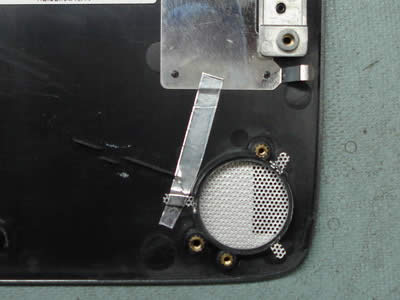
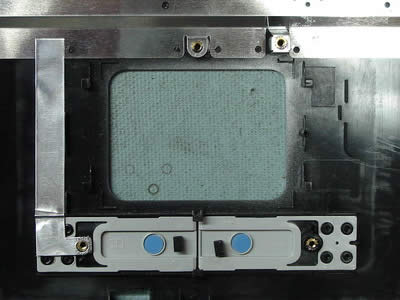
On these pictures you see a modified top cover assembly. The foil runs from the speaker and the touchpad, touches the metal chassis and ends on a screw stud.
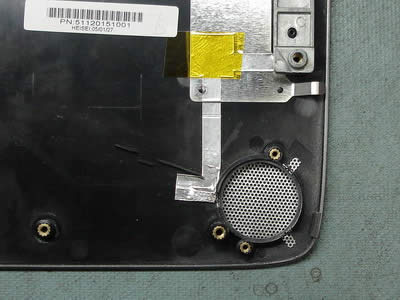
On this picture I remove the metal bracket, so you can see where the foil tape is connected.
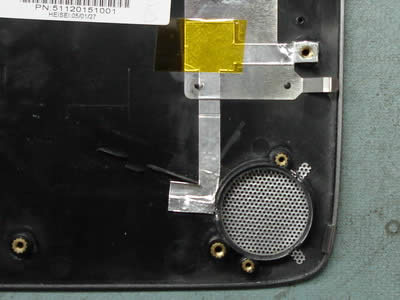
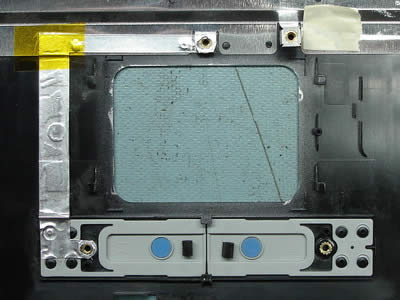
I think it is possible to make this modification yourself. All you need is to find a foil and run it as it shown on the pictures. I have never done it myself, so not sure about the result. 🙂
Here are some other problems found in these models.
Power jack issues: Toshiba Satellite M35X and Satellite A75 power jack and battery charge problem
Overheating: Why my Toshiba laptop suddenly shuts down by itself without warning?
112 Responses
Steven
Any ideas on a Toshiba Power Saver Error. This error pops up after booting up.
It reads ” A Fatal error has occured. This program will be terminated.
Code: 0x0
cj2600
Steven,
Have you tried to reinstall the Power Saver software? You can download it from Toshiba website. I am not familiar with this particular error.
Kal
I bought my Toshiba A70 in September 2004, and strangely enough, I didn’t have this problem.
However, there is another problem with the laptop that really pisses me off. For some reason, the contact between the battery and the laptop is really worthless and I can’t really use the laptop unplugged. When I put my laptop on my lap, the pressure against my lap may cause the battery to shift slightly, and then BOOM! The laptop loses power and shuts down.
The battery is not dead, it still discharges properly and can last 2 hours when the battery remains in good contact with the laptop. I suspect that it’s really a design problem and not just a defect. When the laptop is plugged into the wall, I can play around with the battery; if I put the laptop upright and apply a little bit of force with my hand and push the battery towards the right, the battery is detected (the battery indicator LED turns on) and gets charged; as soon as I take off my hand, the laptop loses sight of the battery (the right most battery indicator LED turns off).
I brought it in to Future Shop to get it fixed and specifically told them that the battery is not dead, but a week later they say it’s a bad battery and that it’s not covered by the extended warranty. I really don’t want to spend more money to buy another battery just to get the same problem again. Do you think there is a way I can argue that it’s an inherent design problem?
cj2600
Hey Kal,
The problem you described is not very common for this model. The battery connects directly to the system board through the connector you can see in the battery bay. Either the battery or the connector on the system board is bad. The best way to test it is to find a spare battery and see if you still have the same problem. I would try to replace the battery first if I would get your laptop for repair.
Try to find second Satellite A70 or A75 laptop and swap the battery.
David K Dudley
I have a A75-S211, and the left speaker seems to have fallen inside the laptop. Do you have a picture of the speaker assembly? I’d like to take a look at it before I risk breaking anything.
Great website!! Thanks for all the information!!
Yvette
Hello: I have a Toshiba A70. It has a sporadic problem where switches from AC to battery when pluged in. It then works on battery and drains it and gives me the critical battery level message. There is nothing that I can do at this point to make it revert to AC. Unplugging and re-plugging the AC adapter into the computer does not work. The computer goes into hibernation and shuts down. When I restart it it starts charging the battery and works fine till it suddenly repeats the same thing. Have you run into this problem and know the solution. I purchased an extended warranty from Toshiba and took the notebook into their service centre. However the problem did not occur while they had the notebook and they say that they cannot fix a problem when they don’t see it. Please help. Thanks. Yvette.
cj2600
Hi Yvette,
I am almost 100% positive that you are experiencing a power jack problem on the system board. Read the post and you’ll see how many people have the same laptop failure. It’s a very common issue with Toshiba Satellite A70 and A75 laptops. Over time the power jack looses the connection with the system board and the laptop stops charging the battery. I guess the repair center didn’t see the problem because the jack is still connected to the system board and fails intermittently.
Cathal
Just wanted to say thanks for the detailed instructions on how to dissemble the A75 and fix the freezing problem. I had relegated my A75 to a shelf because of a consistent problems. However, after coming across your site and reading the instructions I took it apart and added additional metal foil to the speakers and touch pad. Two days after re-assembling and using the A75 and it hasn’t frozen once…yet!
Thanks again!
sherwin
I have a very big problem with my toshiba satellite 1905-S301. it looses power and automatically shutsdown. in every morning I always try to open my notebook, but the problem is, I can only use it within 10 – 35 minutes and after that it looses power and I try to open it again and again, the laptop power looses in a seconds. I even try to solder the DC jack but it didnt work, I tried to change my memory and even the thermal paste on the processor but still didnt work. pls any can help me with my laptop. so that i can use it more than the 10 – 35 minutes. thank you very much for anyone who is interested to help me. . . . God bless….
cj2600
Hey Sherwin,
Does your laptop actually loose power or it just shuts down by itself? Did you check if the cooling fan spins fine? If the fan doesn’t work you might have an overheating problem.
Rex
Hi, I had a recent crash and now after reinstalling everything I’m having nothing but problems with the hibernation enabling after 10 min, I’ve tried disabling it through the control panel but it hasn’t worked? I have the Toshiba A70, anyone know how to disable the hibernation? I’m not all that comp savy so what may be obvious to most of u is a complete mystery to me, thanks for any helpful suggestions any of u may have. ……. Rex
cj2600
Rex,
Have you tried this? Control Panel- Power Options- Power Option Properties- Hibernate and here uncheck “Enable hibernation” box.
Are you sure that your laptop goes into hibernation and not system standby?
Joyce
I own a Toshiba Satellite m35x and owned it for less than a year. I have a question my battery would not charge than followed up by the laptop turning on but is pitch black and I can’t hear the laptop running anymore is this the motherboard?
Thank you
06/28/06
cj2600
Joyce,
If the battery will not charge – it might be a jack problem (system board). Send it to a repair center, it should be still under warranty.
Polina
Hi,
First of all I want to thank everyone who posts tips and problems on sites like this, and helps other people by doing that.
I also wante to sharel some problems that I had with Toshiba satellite M35S-X149, and what happened. Maybe it will be helpful to other unlucky owners of this laptop model.
I bought it in dec.2004, in june 2005 the following happened: power jack worked badly, the battery did not charge, so I had to wiggle the power cord in the socket or prop it up against something to make the battery charge. I took it to an authorized repair shop in Albany NY and they replaced the mother board under warranty and also they replaced the top cover, since there was a recall on that and they were replacing it routinely on every laptop of this model. The problem with the power jack is a common one with this model as I found out later.
Well, 2 weeks ago (june 2006), I was on an overnight flight and I wanted to work on my laptop, but it would not boot. When I turned it on the blue light around the power button went on and I could hear the fan start working (the fan always starts working and works for several seconds when you turn the laptop on). But after that nothing happened. The screen remained black and I could not hear the hard drive turning. The next day when I got home I went on-line and found out that some other people were having similar prob. I called the authorized repair shop (calling Toshiba customer support is a waste of time) and they told me that there were some recalls on this model but they have to diagnose it first to see if mine had a recalled problem. I have no extended warranty and my original warranty has expired. I took the laptop to the shop again and a week later they called me and told me that it was mother board again and they were able to fix it under do called “warranty extension”. This “warranty extension” worked like this: toshiba extended the original 1 yr. warranty on some defects because they were happening with too many laptops, so these defects are repaired free of charge to owners, and mine was one of such problems. The repair shop specialist told me that definitely the power problem that I had last year is covered by the warranty extension, so you can get it repaired for free even if your original warranty expired.
xb
As I understand it, there’s a recall for this problem… Is Toshiba still covering the repair of this even if the laptop is out of warranty? I think mine’s about 1.5 yrs old now, give or take, and I assume it’s no longer covered by any warranty at all.
The foil tape repair looks simple enough, but if Toshiba’s willing to do this repair work “properly” at no cost (at all) to me, then it’s certainly worth considering. Anyone know?
cj2600
Xb,
I think Toshiba will cover this fix even if your laptop is not under warranty anymore. Read this support bulletin. It says:
If it covers only laptops under warranty, why would the mention that there will be no charge? I think if you call them and explain your situation, they will fix it for free.
yashar
dear
while working with my a70 laptop i noticed that the touch pad on the left makes a kinda tick sound but the right one is fine i was woundering how i can fix that issue.
amier
I happen to come across your website, this is really good where everybody get to share their knowledge on the web. i have a problem with my toshiba too, the laptop can charge the battery and even shop ac power on the LED light but not able to ON even on battery. both AC and battery will show availability but once I press the switch on it will dissapear. what should I do, please reply. this laptop is no more under warranty.
cj2600
Amier,
Make sure that the AC adapter is working properly and outputs required voltage. Try removing the battery and start the laptop on the AC power without the battery installed. If the adapter and the battery are fine, then I guess you have a problem with the system board.
Yolanda
My Toshiba M35X-S149 has been freezing up, but not after you touch it. It says “A problem has been detected and windows has been shut down to prevent damge to your computerer. KERNEL-DATA-INPAGE-ERROR” it also states “Check that all hardware and software have been properly installed”. Then “A process of thread crcial to system operation has unexpectedly exzited or been termintated”. Then “Tech info: STOP OX 000000F4 (OX00000003, OX88F1FDAO, GX88F1FF14, O804F9F881). This was in August. I called the geeksquad, who finally told me the Operating system needed to be replaced. I left the computer to go to work, came back at night and it started up beautifully. It worked for about five weeks, and yesterday the same problem began again. AFter i leave it off long enough, it will start and stay on long enough for me to transfer off most of the stuff I really need. is this laptop doomed? What could be the issue? Any thougts, great. Thank, Yolanda
cj2600
Yolanda,
When a laptop experiences intermittent blues screen errors, it’s hard to troubleshoot and find the problem right away.
Does the laptop work fine in Safe Mode? (Press F8 on startup and choose Safe Mode). If you get BSOD error while working normally, but the computer worst fine in the safe mode, then you might have software related problem and re-imaging the drive will fix it.
Run Memtest 86+ to test the memory module and Hitachi drive fitness test to test the hard drive. You’ll find a link to these utilities in the right pane of the site.
If you have 2 memory modules installed remove them one by one and test the laptop only with one module installed.
Remove the wireless card and run the laptop without it. Sometimes a failing wireless card can cause all kind of different failures, including BSOD errors.
Ron Usher
I have a Toshiba M35x that will not boot up, the power light comes on but thats it. I have done the modifacation on the cover, can anyone tell me what the problem was with these m35x’s so I dont have to spend hours hunting it down, thank you guy’s
Ozzyyz
I was wondering about those reboots and freezes as soon i place my hands on the cover to start typing or to use the touch pad.
I though about a short or something like that but reading this topic
made the things very clear. Looking at the pictures and the date on the stickers on my A75-259 (2004) i can see i got a “improperly grounded top cover assembly”.
Right now got the A75 dismantled (fixing the power jack issue) but i was thinking of using wires instead of foil to fix the issue.
Shall be that ok?
Thank in advance.
Brian Arnold
A75 -S206 – Toshiba.
My Laptop freezes about 2-3 times a day and then is ok for days and then it happens again. Screen shows ok but everything is frozen. It has happened many times, even while I am way from machine so I doubt that its about static in my case.
Memory tests ok, and so does hard drive on diagnostics.
I am thinking of trying a new process and or hard drive to troubleshoot. Any suggestions?
cj2600
Brian,
May be it’s just a software issue? I would probably try reimaging the drive back to factory defaults using a recovery DVD. Before you run the restore process, backup all personal data.
Lee
Hi,
cj2600, I’m not sure if you remember me, but I had a problem with my Toshiba A70, where the charger would stop charging when I would do something hardware extensive (watch a move/play a game). I actually have a generic charger that has a light indicator to show that it was working. I went through one of them where I would use it on low processor mode and I burned it out when I tried to put it on high processor mode (you told me before you thought it was the charger that was the problem). So I got a replacement and it worked fine for several months.. until a couple of days ago. It would work fine for a period of time until I do something hardware extensive, the green light on my charger would turn off, the charger itself become really hot and it would stop charging. So I assumed it was a faulty charger. But then I noticed that one of the bottom fans on my unit doesn’t turn on.
My questions:
Are both fans suppose to be on all the time?
Can overheating because of broken fan stop the charger from charging?
I know you belive it’s a faulty AC jack, but then how come it works fine when I don’t do things hardware extensive?
I have a friend who has the same laptop, but I’m not sure if I want to test his authentic charger with the risk of burning it out.
I thank you in advance for any advice you can give.
cj2600
Lee,
Make sure that your generic AC adapter provides enough power for the laptop. For Toshiba Satellite A70 and A75 the voltage output should be exactly 19V and amperage 6.3A or higher (not less then 6.3A). The original AC adapter provides 19V-6.3A. That’s could be your problem.
Both fans should start spinning when you turn on the laptop. After that, I believe, it’s normal if only one fan is working. The second fan might start up later, when the CPU temperature gets higher. To see if both fans can spin, turn on the laptop and look at the fans through the openings on the bottom of the laptop.
Charles
Steven,
I am having the same problem. I took cj2600’s advice and re-installed the Power Saver Software and drives. After a reboot, no change.
Let me know if you have a solution. I sure would hate to reformat the hard drive with so many applications (ans updates and servie packs) to reinstall.
Charles
Atlanta
Charles
Kal,
I had the same problem when I worked on my lap or briefly laid it on the bed to get up for a while. It seems the lack of air to the fans on the bottom of the laptop causes an immediate shut down.
Actually, the fans have been replaced with stronger ones due to a lack of airflow causing shutdowns. Overheating has been a problem.
Maybe you had the same experience.
Charles
Vishal
A70 Issues
when i start the computer it says this:
SMART failure predicted on HARD DISK 0: Toshiba MK4025GAS- (PM)
WARNING: Immediatetly backup your data and replace your hard disk drive. A Failure may be imminent.
Press F1 to continue.
(and beeps in 15sec intervals)
when i press F1 this is what shows up:
We apologize for the inconvieniecne but windows did not start successfully. A Recent hardware of software chanemight have caused this.
If You computer stopped….. (and so on)
SAFE MODE
SAFE MODE WITH NETWORKING
SAFE MODE WITH COMMAND PROMPT
LAST KNOWN GOOD CONFIGURATION
START WINDOWS NORMALLY
then when i pick one this shows up on a BLUE SCREEN with WHITE FONT:
A problem has been detected and windows has been shut down to prevent damage to your computer.
If this is the first time you seen this stop error screen, restart your computer. If this screen appears again, follow these steps:
Check for viruses on you computer.
Remove any newly installed hard drives or hard drive controllers.
Check your hard drive to make sure it is properly configured and terminated.
Run CHKDSK /F to check for hard drive corruption, and then restart your computer.
TECHNICAL INFO:
*** STOP: 0x0000007B (0xF7A70528, 0XC0000034, 0X00000000, 0X00000000)
CAN SOMEONE PLEASE TEL ME WHAT I CAN DO TO GET SOME FILES OFF MY COMPUTER AND SOME FONTS. THIS LAPTOP SUCKS!
Malcolm
I have been having a lot of problems w/ my Toshiba A70 laptop, lockups, shutdowns, blue screen of death and so on, sent it in three times for repair and they say there is nothing wrong w/ it.
I came across your website and took your advise on grounding the top cover. When I took the unit apart I could see that it had already been modified as per your pics, I added more grounding tape all over the top cover, every where there was some i added more on top or beside, and made sure the tape ended on a screw hole. This fix has worked great, the laptop has been working steady for 3 days now w/ no problems. Thank you very much for the advise and pictures.
Gids
Hi
Does anyone have any advice on how to resurect an M35X after it’s done its black screen of death – I think the cause was static at the side usb when a printer was plugged in.
If I get a new BIOS from Toshiba; how can I run it – is it just a case of putting it on a cd and getting the thing to run it.
Do all computers die at the point of maximum inconvenience or is it just Toshibas…
cj2600
Vishal,
Here’s what you can try. Buy an external USB enclosure for laptop hard drives. It’s relatively cheap and you can find one in a local computer store. Remove the hard drive from your laptop and install it inside the USB enclosure. Connect the enclosure to a working computer via USB interface. If you are lucky and the hard drive is still in a good condition, it will be recognized by another computer and you can access the files and transfer them to a safe location.
Vishal
My a70 is a crap computer is there anyplace i can go to get it re called or fixed by toshiba or anything?
battery life sucks, blanks out, doesnt start half the time and has electroshocks. Over heats too.
meh.
Teresa
I’m not suprised that I’m not the only one with these problems. My A75 just shuts down when it wants (did it twice tonight within 2 hours), or if I move it to stand up, it’ll freeze. Guess I’ll be calling the dealer I bought this from tomorrow.
Andre
HI, I have a Toshiba Satellite A105-S2101 which freezes up but runs ok in safe mode, i format it, then while without any drivers it still freezes, but still not in safe mode, i am now clueless on how to proceed, can somebody help me
Telegrapher
Thanks for this website. About a week ago I took a spill. My knee did a trick that really showed me who I am! Of course, I could not fall without knocking over the table containing my
M35x S1492. It worked for a couple days after that. Then, Thursday night, as I was logging onto AOL, it suddenly went blank. The power switch glowed blue, but nothing else happened.
I held it in until it shut off, then tried to restart. The fan came on, then shut off after a few seconds. The HDD LED just below the power switch only flashed for a moment.
I read some of the entries here and did some experimenting last night. I removed the HDD, and turned it on. The Toshiba screen came on, then it began the POST. It kept repeating
a system failure message–I wish I had noted down the specific message. I stupidly tried to reinstall the HDD without shutting it off and the screen went blank again.
Since then I have tried to start it with and without the HDD
and I get nothing. I just tried moving the memory module to the other side of the socket. But I’m getting no response, except for the blue light special. Later today, I’m going to buy an HDD enclosure to see if I can read the drive on my desktop.
Do you know if a 2.5″ Toshiba HDD will work in an Dell Inspiron laptop? I am thinking about buying one. Or, can you recommend any further troubleshooting or tricks, or should I go back to typewriters and sliderules?
Willie
I have an m35x-149s and it is now a huge paperweight. Just died on Saturday. I’m guessing it was the static issue, but I can’t be sure.
I was using it as I normally do, and all of a sudden, the screen went black, the fan turned off, but the blue power light was still on. Now, when I turn it back on, after about 3 seconds, everything shuts down, but the blue power light still remains on. Once, I was able to get it to where I could choose to boot in safe mode, but it hung up and then went black after several minutes.
I took it apart to check if there was excess dust in the fan, and it was clean. I replaced the thermal compound on both the CPU and video chip prior to putting it back together. I still get the same thing, powers up, shuts down within a few seconds, but the power light continues to glow.
I took the hard disk out and put it in a MadDog sleeve, hooked it up to my Desktop’s USB so I could at least access the hard disk, but I discovered that a good portion of my photos and video clips were corrupted and couldn’t be viewed. I also couldn’t access My Documents because I made it unsharable as a security precaution.
I guess I’m going to have to send it in to get fixed, is there anything else I can do to bring it back to life on my own? Thanks.
SSmith
Thank you for submitting the information about the Toshiba Laptop law suit. We recently had our (m35x) crash and searching for a solution I found this. I am still researching, but atleast there is something out there to help me. Thanks again.
cj2600
Andre,
Test memory and hard drive first, you’ll find links to the testing utilities in “Links” on the right pane. Try reimage the hard drive with a factory restore DVD. If the hard drive freezes up in Windows, but not when you run it in safe mode, it could be a device driver related issue or you might have a defective hardware device.
I would start taking the laptop apart piece by piece, removing device one by one and test the laptop after each removed device. Remove battery, DVD drive, wireless card, modem, etc… Following this route you can find witch device is causing the problem.
cj2600
Telegrapher,
Toshiba Satellite M35X uses a regular 2.5” ATA notebook hard drive. I don’t know witch Dell you plan to buy. Some new notebooks still come with ATA hard drives and some with SATA hard drives. Toshiba HDD will work in a Dell Inspiron laptop if it supports ATA drives.
It doesn’t mean that you can install your old drive into a new Dell notebook and boot it to Windows. Before you can use the old drive you have to reinstall the operating system and device drivers, but the drive itself should work in this laptop without any problem.
butasan
In response to “18 Polina Says”
I had exactly the same problem, but got mine fixed for free of charge!
JB
I have had an A70 for a year and a half and it was purchased from best buy in Vancouver. Computer started overheating and shutting down so i vacuumed the fans out and it fixed it for a bit. but now it It makes a loud rattling noise when running and sometimes it will make a very high pitched whining noise for several seconds then stop. Before i take it in for expensive service anyone have any ideas? Is it a problem with the fans or the hard drive? The computer works fine other wise. The noise is really irritating and after reading all the complaints about this model i feel ripped off! Noticed the lawsuit settlement doesn’ apply to canadians…..
Thanks in advanced!
Laura
I have Toshiba A 70 Satellite laptop. Since purchasing it two years ago, I have gotten my laptop fixed three times, one was to replace something on the hard drive and the last few times was replacing the AC adaptor on the rear of the computer and cleaning the cooling fans. Be aware of your laptop shutting down and not working. I couldn’t shut down my computer because if I did, it would beep and say UBS error and then beep. I would have to shake my computer to try and get it running. Right now my AC adaptor is acting up again and luckly I bought the performance plan with Best buy and I hope they either fix it or give me a new computer.
Wes
I have an A70. The power lights come on but the power button will not work. I have had the original fix done by Toshiba but now I cannot get the computer to work at all, with or without the battery in.
Please help.
Gideon
I had a similar problem with an M35X. You may want to try taking out the RAM and then putting it back in… I still don’t know why it worked but it did…
Les
I have an M35X. After repairing the power jack, I recharged without issue. Unfortunately, after one recharge and discharge, I plug in the charger and get a flahing yellow light on the front. I have plenty of power at the motherboard…good connections, etc.
Is the motherboard history? Any help is appreciated…
Henry
I had a DC power jack issue with my m35X so I took it apart and resoldered the power jack since it had come loose. After reassembling everything, and powering on, the cpu fan comes on for a couple seconds, and the leds come on (both the power and plugged in) but the screen stays blank…
any ideas?
cj2600
Henry,
Did you remove the CPU during the disassembly? Make sure the CPU is seated properly and it’s LOCKED in the socket. Try reconnecting the memory module, make sure it’s seated properly.
thee
I was working on a customer’s laptop (toshiba m35x) and had that freezing problem. I found out that if I have an optical usb mouse plug in on the right side, the laptop would be running fine and I could even use the touchpad with no problem. The moment I unplugged the usb mouse I would get the freezing problem again. I’ve tried this several times and the usb mouse seems to make the problem go away. It works for me, might work for some of you out there with the same problem.
ratonxi
hi from Spain! I am trying to fix a m35x-s149. My problem is that bios doesn’t recognize the hard drive. I try the hard drive on other computer, with an adaptor, and it works. I think that the hard drive doesn’t make contact with the socket on the motherboard, because the dvdrom is detected by bios, so motherboard should be good. i try to connect the hard drive without the caddy with no succes. What should I do? Maybe someone could send me a photo of the correct position of the hard drive. Or could you explain how the hard drive makes contact with the socket? Thanks in advice!
oghma-infinium
HI All , I’ve got a similar problem , battery et AC adaptator are okay , I can start laptop one time ( even start OS ) , once warm (40 to 60s) , it reset , then nothing append …… , led light on and then off as pressing on PowerOn.
I search plan of the motherboard to see if I can find a defective thermal sensor and cut it.
Brent
I’ve been having a problem with my own laptop like this. Every time i move my feet, the computer freezes or simply shuts down (completely, as if in a blackout without a battery). It seems that it’s exactly as you describe this toshiba’s problem: whenever i touch the speakers without touching something metal first, it gives me trouble. How should I go about fixing this?
cj2600
Brend,
If it’s a Satellite M30X, M35X, A70, A75 laptop and you purchased the laptop in the USA, take it to an authorized repair center and they will replace the top cover assembly at no charge.
Brent
Hmm. It was silly of me not to say what kind of computer it is. It’s an HP Pavilion laptop, and I think it’s about 4 years old. It probably won’t cost much if HP won’t do it for free if I find an HP repair center. The place we bought it at (a local COMPUSA) went out of business, so we can’t take it there. I suppose it’d be better to have them repair it incase I can get a discount or free repairs if i haven’t tried working on it myself.
LoOner
I disassembled my M35X down to the motherboard. I re-soldered a DC (with a wire externally). I put it back together. It worked and I was proud. Left it in hybernation THE NEXT DAY while I ran some errands. WHen I came home it wouldnot turn on.
-Power & Battery lights register
-Side CD Player turns on, but no power or noises from the Computer.
ANy ideas?????
cj2600
LoOner,
Maybe the memory module is not making a good connection with the motherboard? Try reseating RAM modules.
Claude
I have a very strange problem with my Toshiba M35X-S109. I’ve had all the power plug problems as well, and resolved them by solder the circuit board points and soldering a wire from the center post of the power plug socket on the top of the motherboard to a component lead that is connected to it through the circuitboard foil. The power plug problem has now worked fine for months, and still does. My problem now is that it freezes up or reboots either during boot up or within a minute after it fully boots. When I could not get control either with the mouse or the keyboard I tried an outboard USB mouse and rebooted. To my surprise it works fine as long as I leave the USB mouse connected to the back USB sockets. Both the mouse pad on the computer and the USB mouse work. The slow speed side USB socket does not have any effect on this problem. Just for an experiment I tried replacing the USB mouse with a removable “stick” drive and it works fine with it as well. My conclusion is that something HAS to be plugged into the USB ports on the back to complete some sort of connection that has either broken or come loose and the USB component, what ever you plug in there, is completeing the circuit that it needs to run with stability. By the way, it runs just fine without the USB device plugged in if you run Windows XP in “safe” mode. Suspecting a driver or software problem, I did a complete recovery disk procedure and wiped the hard drive and put it back the way it came from the store….same problem. So….the issue must be a problem with a bad connection with the hardware,….motherboard, grounding problem with the USB ports on the back? If you can help me with some suggestions of what to look for or check I would certainly appreciate it. Please reply to my e-mail address because I may not be able to find the reply on the Website.
cj2600
Claude,
First of all, I would run the memory test and the hard drive test utility (links in Resources in the sidebar). Make sure both passes test.
Claude
Thanks for a great fix! I ended up fixing my freeze up and reboot problems with a bios upgrade. Works great now!
Claude
I am trying to make a hard drive to hard drive copy of my laptop to upgrade from my 40gig to a120gig drive using my tower computer to do the job. When I first got the new drive I did the copy successfully, but in trying things to correct my freezing and rebooting problems I wiped the 120gig drive and did a complete recovery disk procedure to see if it was driver or software issues. Now that the bios upgrade fixed the problems, now I can’t get my tower computers, either one, to recognize the laptop drives so I can do the drive-to drive copy procedure again. Is there some way to get the tower computers to recognize them? Both laptop drives work in the Toshiba M35X-S109, I just can’t get the small 40gig drive to copy to the large 120gig drive, they are not recognized by the towers.
cj2600
Claude,
If both 40GB and 120GB drives work fine when they are installed into the laptop, most likely there is nothing wrong with these drivers. Maybe there is some kind of Master/Slave configuration issue when you connect your laptop drives to the desktops? I don’t know how your towers are configured and cannot help you.
unurkhan
hi I am having problem with my satelite m35x-s109. Every time i want to recharge the battery i have to wiggle the powercore. so one day i got angry with it so i fixed it after month one it happened again so this time i fixed it but when i try to turn on the computer nothing happens not even the blue light that around the power button the only thing that is working is the fan. Any one have solution for me? I have not warranty
cj2600
Unurkhan,
If you purchased this notebook in the United States, you DO have warranty. Toshiba extended warranty for this model and you should be able to fix it at no charge, even thought you purchased this computer over a year ago. Call Toshiba or your local service center and ask them about extended warranty for Satellite M35X notebooks.
You’ll find more information about it in one of my previous posts. Most likely you have a problem with the power jack.
Jose Chang
I had a Toshiba laptop computer A75-SXXXX. I opened the laptop case and found One of the pin of the power jack open. I solder the pin and check the power and I got 19V on the system board. But what happen is that the battery cannot charge up and I check the adapter is good. The battery cannot charge , I want to ask what other place I can check about the battery checking circuit. Please reply, thanks
Ilene
I have Satellite 2805 s603. I’ve dismantled it six times now, there must be ONE screw that makes the speaker connection, I’ve always got extra screws when I’m done. HELP! which screw makes the front speaker connection?!!?!?!??!?! I’m getting confused. (Had to repair the power jack, easy!)
Gary
Can anyone tell me if a Toshiba satellite a75 – s211 can use any dvd dtiver? The reason I ask this is that my original UJ-820B dvd driver has died and I need a replacement. I’m From Australia and these drives are pretty hard to come by.
Many Thanks In Advance
cj2600
Gary,
You cannot use any DVD drive for this laptop. It’s possible that the drive will have different configuration and the laptop will not see it.
You can search for these part numbers:
CD/DVD-RW drives: K000015770, K000015780, K000015790, K000015800, K000025480
DVD Multi recorders (DVD burners): K000015860, K000015870, K000024880
To the best of my knowledge, all these drives should work fine with any Satellite A70 or A75 notebook.
truffliepuff
I have a Satellite M35X-S149 with several problems.
First, when I was plugging my IPod into the USB port, my computer screen suddenly went blank. Just the screen, but the power didn’t turn off. I got it into repair and found out it was the motherboard/mainboard overheating.
After taking my laptop back from repair, I noticed the laptop’s keyboard was weird, and that when I was typing, it came out as random symbols, like numbers, or it came out as spaces. A few days later, as I was turning on my computer, the screen where it says “In Touch With Tomorrow TOSHIBA,” the screen froze and made HUGE beeping noises. I hit the laptop’s keyboard, and rolled my hand around furiously on the keys, and it started booting up properly.
When I am using the computer, however, when I even type with a USB keyboard, it makes random symbols. I also got a message that something was trying to perform a “NewTear” to my computer.
Help please!
cj2600
truffliepuff,
Could be software related issue, try reimaging the hard drive using the recovery disc. This process will erase everything from the hard drive and take it back to factory defaults. Also, there could be something wrong with the laptop keyboard or even motherboard. It’s hard to tell until you test the laptop with another working keyboard.
Maybe one of the keyboard keys got stuck and that’s why the laptop makes these beeping noises?
You can try the following in order to narrow down the problem:
1. When the laptop freezes at the Toshiba logo and starts beeping, press a few times on each keyboard key until the laptop stops beeping. Find out witch key is causing the problem. Reproduce the same problem a few times in a row and see if you can fix it by pressing on the problem key. If the laptop stops beeping any time you press on the same key or keys, them most likely you have a problem with the keyboard and have to replace it.
2. You can unplug the laptop keyboard from the motherboard and try using the laptop with an external keyboard. If the laptop still freezes and beeps with the external keyboard even when the internal keyboard is unplugged, most likely there is something wrong with the motherboard.
jeremy
a couple days ago I did a run msconfig on my laptop toshiba m35x-s149. now im getting the we apologize for the inconvenience…. now when I go to any of the prompts safe mode, safe mode w/networking, safe mode w/ command prompts last known good configuration, start windows normally my laptop will go back to the main screen then go to the apologize for the inconvenience…… can anyone help me. I call toshiba tech support but no help cause they wanted to charge me a 35 dollar out of warranty fee to continue
truffliepuff
I see. I got it into fixing, I also need to tell you that the beeping and random symbols occurred after the guy fixed it. If the guy screwed up, can I get an extended warranty?
And how do you reformat?
truffliepuff
And also, new symbols have started to appear. When I type sometimes, it goes CAPS lock on me when it isn’t even on; not only that, the screen starts turning full screen on itself and I am not clicking anything. Another problem I get is that my computer selects the first option on any program opened (IE. when I used internet, it keeps selecting “File” at top left corner” and I can’t press anything)
I have been forced to rub the laptop keyboard, and to the point where one of my keys fell off.
And at boot-up, where it beeps/freezes, I have to rub the laptop keyboard and press F12, where I then select “Hard Drive” to begin operating Windows.
What does a motherboard do? What is it?
cj2600
Jeremy,
msconfig is not harmful unless you enable/disable something in there without knowing what you are doing and probably that’s why your laptop will not boot normally.
The fastest way for you to bring your laptop back to life would be reinstalling the operating system from the recovery disc. This process will load default software and will erase all personal data (pics, music, video, docs, etc…), so if you have something important on the hard drive back it up first, you can use an external USB enclosure to back up the data.
After that boot the laptop from the recovery dics and follow the instructions. It’ll take 30-40 minutes and the laptop should be up and running as before.
cj2600
truffliepuff,
I doubt it. The warranty extension ended November 7.
You insert the recovery disc into the DVD drive, reboot the laptop and press F12 as soon as Toshiba logo appears on the screen. Then select to boot from CD/DVD drive. The laptop should start booting from the recovery disc and after that you follow the instructions on the screen. The recover process erases everything from the hard drive, so if you have any personal data, back it up first.
It sounds like a problem with the laptop keyboard but I could be wrong. It’s hard to troubleshoot the laptop without looking at it.
Maha
i have a toshiba with a sound problem, if i fold the screen n unfold the sound doesnt work, do u have any solution? email me pls.
SCOTT
COMPUTER FREEZES UP SOON AFTER BOOTING. THIS IS TOSHIBA M45-S2692 ABOUT 2 YEARS OLD. I ORDERED THE RECOVERY DISK FROM TOSHIBA AND HAVE PERFORMED THE RECOVERY PROCESS SEVERAL TIMES AND IT STILL LOCKS UP AFTER 30 SECONDS TO 10 MINUTES. YOU HAVE TO POWER OFF WITH THE POWER BUTTON. KEYBOARD AND MOUSE PAD DO NOT WORK AFTER THE LOCK-UP. THE LIGHT FOR THE HARD DRIVE GOES DARK ALSO. IT STAYED ON LONG ENOUGH FOR ME TO RUN THE TOSHIBA HARDWARE DIAGNOSTICS AND THEY ALL PASSED INCLUDING THE HD. THE COMPUTER DOES SEEM TO GET A LITTLE HOT IN MY OPION BUT I PLACED IT DIRECTLY ON A FAN TO FORCE AIR AND IT STILL LOCKED. COULD IT BE THE HARD DRIVE. BIOS IS 1.10. RUNNING XP THAT CAME WITH UNIT. PLEASE SOMEONE HELP A POOR PARAMEDIC THAT CAN’T AFFORD A NEW NOTEBOOK. WHAT CAN I TRY NEXT? WHAT IS THE BEST UTILITIES PROGRAM OUT THERE THAT MAY HELP?
THANKS, SCOTT
Willis
I have a M35X. When I turn the wireless switch on at my home, it causes the BSOD and my laptop to reboot. This doesn’t happen outside of my home. I just reinstalled all the factory software but it still persists. Any advice?
tom stepanski
I have an M35x and it does not matter where I touch the laptop, it will just shut off, NOT shut down, just shut off. It has shut off while unpluging a wireless card from the card slot, trying to plug in a usb device or even typing on the keyboard without touching the machine. My fan cycles like it is cooling and the slots are dust free. And it will also shut off when touching the speaker grill or resting my hand in that area.
Would this still be a fix???
Jack Keenan
I am having the same problem as scott in post 86. I have an m45 as well. Can someone please help us and give us advice?
cj2600
Scott,
It takes more then 10 minutes to reimage the hard drive. The laptop will not lock up during the recovery process, right? Apparently this is not heat related problem, otherwise the laptop would lockup during the recovery process.
Test memory with Memtest86+. Leave this test running overnight. If the memory test comes up with errors, move the memory module into the empty slot and run the same test again.
If the same memory module fails test in both slots, you have a problem with the memory. If the same memory modules fails test in one slot and passes in the other, you have a problem with the memory slot. In this case you’ll have to replace the motherboard or use the laptop with only one memory module installed into the working slot.
If you have two memory modules installed, remove the one by one and test the laptop with each module separately.
D V
So I tried fixing the problem myself with some aluminum tin foil because I’m away from any tech shop and i need the laptop for every day use and can’t be without a computer for more than a day or two. Everything worked like a charm. Didn’t have any problems for 2-3 days but then unexpectedly my speakers stopped working. I tried reinstalling the audio drivers but nothing helps. I have sound only with external speakers or headphones.
waeromed
I have an M45 with similar shut down/freeze problem. It’s been to Warranty repair for the same problem twice already. Motherboard replaced each time and worked as supposed to for 6 months then SAME freeze problem occurs. Now Toshiba says “tough luck” to warranty repair and refuses to touch it without a “minimum” of $450 service fee. Customer relations (“Ezekiel”) is a jerk and worthless…
This machine freezes and wont restart. Power light lites up momentarilly then shuts down without even completing the post test.
Freeze may occur at anytime. 30 seconds or 2 hours after powering it up! The touchpad and keyboard freezes BUT plugging in extenal KB or mouse and it works ok…. only to shut down a few min later.
I discovered (out of frustration) that I can make it start up again by striling the palmrest just to the left of the touchpad. I’ve replaced the keyboard and touchpad and same thing happens. I totally disassembled it and removed the motherboad and cleaned all contacts with tunercleaner and including copper screw points on the mother board, ribbon cables, etc and reassembled it. It worked ok for a few hours and did it again. Seems a bit more reliable but still freezes and shuts down- especially if it’s moved off lap ontp table, or off table to lap.
Its the last time I buy a toshiba! I have 6 others in my business and are prety bulletproof… but this M45-S3553 is made in China and is a flimsy piece of garbage! Any help would be appreciated….
HD is OK; Memory tests OK, same with WiFi/modem boards, etc. It’s a great machine when it’s working but having to replace the Motherboard every 6 months is nonsense…… I don’t want to dump more $$$ into it.
PLEASE! Any advice????
waeromed
CORRECTION:
I meant to say that if I smack/thump it (pretty hard) to the left of touchpad, it will usually fire up ok. only to freeze again later.
Thanks for the website and the help!
Joaquin Lacayo
Hi,
I am looking for a top cover for a Toshiba Satellite A65-S1065. Model # PSA60U-023016.
Please reply to my email.
cj2600
Joaquin Lacayo,
Here’s part number for the top cover: V000040380
Google for the part number and you’ll find it.
radwan
hi , my problem with A200 , when i touch the area around palm rest my laptop freeze up or reset and before that happen it showen on screen blue screen with attention message for may be physical problem , this problem just happen when i move the laptop but when it stay on my desk never happen
james
hey everyone. This fix works. I took apart my laptop and used regular aluminum foil. no more static problem. try it. it works.
cj2600
radwan,
This is a very unusual problem for this model. Do you have to touch the palm rest or you actually press on it?
Unfortunately, there is no easy answer for your question. It’s necessary to remove the top cover and take a look on the back side of the cover. Maybe something is touching the motherboard when you press on the palm rest. This is just a guess.
shannon
SO i have a m45 also what are others doing with this laptop which seems to have these freezing issues/restarts and does yours work in safe mode cuz mine will boot up in safemode and run all night…..? Puzzled!
Gwendolyn Clash
Hi: I have a Toshiba M35X-S109. I must have accidently pushed a button and turned off my internet connection. I tried the Fn+8 Hot Key and no luck. The modem and router have been cheked and they do work OK. Please help
Gwen
How do I use the Linksys Wireless-G Notebook Adapter
cj2600
Gwendolyn Clash,
Do you mean wireless connection? Check the wireless switch on the right side of the laptop, it should be turned on.
Mark Jensen
I had the DC jack replaced at least 3X during a 3 year CompUSA extended warranty. I also had the static discharge problem and lost a few full days of term paper writing during final exam time at University.
Oh, I have/had the M35X-S161. I think Toshiba has made the replacement stock DC jacks better designed, as they look different and I think the repair had to be factory.
Tim
I have a similar, but different problem. My 2005 Toshiba M35X-149 had the top cover and power connector replaced under warranty in 2005. Since 2007, it usually fails to awaken after hibernation, or to complete startup from off state. The symptoms are: Power button lights, fan starts and on-disk LED lights 2-3 secs., then both off. Power button stays on, but boot halts. Sometimes LED backlight will come on. Soft reboot is fine.
My solutions have been these: -plug power supply in & out. -drop out battery while on AC power – press down on bottom cover between the keyboard and base of the flip cover. The latter seems much the more reliable, used to work all the time. If the on-disk LED comes on again, it will boot to completion. They are becoming less reliable, often take 10 tries to work now.
-removal reversion to XP power panel, or reinstallation of Toshiba Power Utility doesn’t fix it.
-turning off hibernation support doesn’t fix it.
-memory tests fine.
-HD tests fine.
-symptoms are stable for cold or hot laptop.
If it ever doesn’t work at all, I’m taking it apart and looking for broken links underneath where I’ve been pressing. FWIW.
cj2600
Tim,
I have one Satellite M35X like that under my bench. In my case it’s bad motherboard. I think you have the same problem, something wrong with the motherboard.
Jimmy Rash
The bottom line is Toshiba manufactured a load of garbage laptops over the last 4 years and has seriously destroyed their reputation in the land of laptop computers.
If you are only able to see video on your lcd after applying pressure to the underside of the series m30, m35, a70, a75 and many other laptops, you are most likely experiencing a motherboard failure due to a design flaw which caused the motherboard to bend.
Opening the laptop and creating a standoff between the motherboard and the cheap plastic underneath can provide a short term solution to temporarily fixing many of the listed models. If you are experiencing the symptom of a blue power on led with no video on the lcd or external monitor, you are most likely a victim of the chassis design flaw.
In order to get the laptop to boot and act as normal you actually have to bend the motherboard or apply pressure to it in the area under the touchpad.
Even if you undertake the repair and succeed in bending the board enough to make it work without breaking it, you will most likely end up with a laptop that needs to be used as a desktop. You will always have to take extra care when moving the laptop.
The amount of work that one has to put into fixing this issue is not worth the value of the laptop.
I’ve never purchased a laptop from Toshiba, but I’ve been in possession of dozens of used ones over the past few years and after seeing so many units, all with the same problems, I’m thankful I never have, and probably never will.
waeromed
You are truly correct saying that Toshiba produced a line of crap over the last few years! The older Japaneese and Taiwanese/ Korean buily Toshiba laptops were pretty much “bulletproof” and mine still function well even today- 10 years later… …..but the newer ones now are so cheaply made and flimsy that I will NEVER buy another Toshiba product. I was actually told to “get Fuc*ed” by their chief customer service rep in Irvine CA when I inquired about yet another return trip for repair (5th MB replacement in less than 2 yrs).
The machine is so flimsy that if you pick it up one handed from a desktop, it visibly flexes (case and all) like a Salvador Dali painting!! Well, maybe not quite so much, but certainly more than a laptop machine should!
I did find if I smack it at the 8:00 position to the touchpad it WILL fire up only to freeze shortly thereafter. HOWEVER, if I apply a c-clamp between the top and bottom of the case and apply firm focused pressure to that same spot, it DOES fire up and remains running indefinitely. Doing this requires me to use an external KB and mouse but it does work like it used to.
I wonder if the issue is not a matter of flexing the MB as you suggest in your last remark (#107), but more like a bad ground as you describe in the beginning of the thread (where you illustrated the static speaker fix), or perhaps an errant ground that shorts out a component on the MB and is moved out of the way with the clamp’s pressure allowing functionality.
I have opened the case and removed the MB and do not see a likely culprit. The MB is cheaply grounded with tin foil over post screws and leading to a tin foil trace glued to the plastic case (how much did Toshiba actually save doing THAT nonsense??)
I know there are multiple class action suits against Toshiba for their laptops but my M45 isnt covered— maybe it should because there are so many M45’s being sold on eBay with the EXACT same problem that it sounds more like a design flaw and yet another crappy Chinese manufacturing shortcut overload!
Thanks again for your insight and your website!!
cj2600
Waeromed,
I wish I can tell you how to fix your Satellite M45 laptop but I cannot. This is really crappy designed model and I hate fixing Satellite M45, the repair never roes right.
We noticed that some really strange problems with this laptop are related to the 7-button board witch is located on the left side.
For example. One one laptop the keyboard stopped working properly, it was working only intermittently. After we replaced motherboard, keyboard and reinstalled software we still had the same problem. And we fixed it by replacing the 7-button board.
I think this problem could be related to one of the memory slots. Maybe one of the contacts has bad soldering and when you press on the case you temporarily “fix” the problem. If you have only one memory module installed, try moving it to another slot. If you have two modules installed, remove them one by one and test the laptop with each memory module in each memory slot. It’s possible that the laptop will work fine with both modules installed into the slot 2 but will not work when with both modules installed into the slot 1. In this case the slot 1 is defective.
Garrett
Hi I have a Satellite R15-S822 tablet (just to let you know I’m 15, so I’m NOT taking my computer apart) and a few days ago I was online and a scratching spinning noise sounded coming from the hard drive/fan area it sounded like a disc was loose in the disc drover but it wasn’t coming from the disc driver area plus i checked thd disc and it wasn’t loose I immeditly shut the computer off thinking it was the hard drive disc or something and since then it’s made the noise 1other time and just now it made a clicking noise and an error message popped up saying “Windows has dectected a problem with the cooling system. Immedity shut the computer off and get it serviced” I’m worried the hard drive will over heat so I’m not using the computer!
I don’t hear a the running so is there anything I can do before I take it to get it fixed??
Email me your responce please!
Bernardo
Hey men, I just want yo say tank you for this tutorial, it was very helpful, you do a great work.
cheers from Mexico.
PD. excuse my English, I’m not totally bilingual.
Alvavaca
I have the same problem with a satellite a135, can anyone help me please? mail me the solution please please……….
Rogerio
Hi, I live in Rio de Janeiro – Brazil, I have a Satellite A205 S4777 and every time I put the power jack freezes and nothing works, help me please
Todd
Hello, I have a satellite A205 that just stopped working yesterday. Worked fine the night before, closed the cover and the next day nothing happens when trying to boot up. A couple of times the boot screen comes up stating that Windows did not shut down properly and if I wanted to boot up normally or safe mode. It said this may have been caused by a recent update. There have been no signs of any issues, power or otherwise. Power cord light is on, battery light is on and power light comes on. Any ideas?
Lavonne Cogburn
I have a toshiba satellite L645D It has started freezing up on the internet. It reboots frequently I never put my hands near the speakers. This tutorial is awesome, and I wish it would work for me. This however doesn’t seem to be the problem with my computer. Thanx.
cj2600
Lavonne Codburn,
Possible memory failure.
Most likely you have two memory modules installed so you can try the following troubleshooting:
– Remove memory modules one by one and test the laptop with only one module installed
– Try installing each memory module into different slots
If one of the modules is bad, the laptop should start working properly when the bad module removed.
agus
Is the problem just happen on toshiba laptop?
cj2600
agus,
I’m not sure about other brands/models but it was a very known issue with Satellite M35X, A70, A75 laptops.
LiLi
What kind of foil is used for this (other than your kitchen tin foil)? Can you buy foil tape at the hardware store?
ahmed lotfi
Dear Sir
I have Toshiba satellite M40 when install windows make restart and restart again and refuse to complete installing the windows after I change ram the installation of windows completed and after loading the desk top image about 5 seconds making restart again and every time I turn the computer on loading the windows and stay about 5 seconds and restart again
cj2600
@ ahmed lotfi,
First of all, I would run diagnostics on RAM (memory) and hard drive.
You can find these utilities on Ultimate Boot CD. Download an iso image, burn it on a CD and boot your laptop from that CD.
For memory test I use Memtest86+.
For hard drive test use manufacturer’s test utility (also available on Ultimate Boot CD).
Before testing, you can remove RAM modules one by one and test the laptop with each RAM module separately. It’s possible one of the RAM slots on the motherboard is bad.