
Today I received an email from Tony Sakariya who was experiencing a problem with the power jack on his Toshiba Satellite A75 laptop. He’s been able to fix the problem by relocating the power jack outside the laptop case away from the system board.
I would like to share with others a tip for repairing their Toshiba A75 laptop for the DC Jack and battery charge problem.
I have a Toshiba A75-S209 for a year now. After the first 3 months it developed the exact same problem. Battery would not charge and I had to twist and turn the power jack to make the connection. Since it was in warranty, I returned it and they repaired and sent it back to me. The problem recurred again after about 4 months and I sent it again and they repaired it and worked fine for 5 more months and it failed. This is a design flaw with Toshiba. Now that I am out of warranty, I decided to repair it myself.
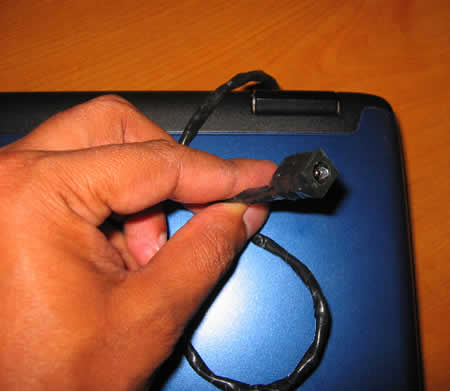
Now here is what I want to share with others. Resoldering the power jack with a new one does solve the problem for a while but it will reoccur. Hence I decided to bring out a wire with the Jack outside. Of course it looks dirty but it is a permanent solution. I am attaching the photo of the repair I did. I got the DC jack from ebay and insulated it with a electrical insulation tape. Now it is working fine, I do the connection and disconnection on the dangling power jack outside the laptop and hence no chance of breaking the soldering outside.
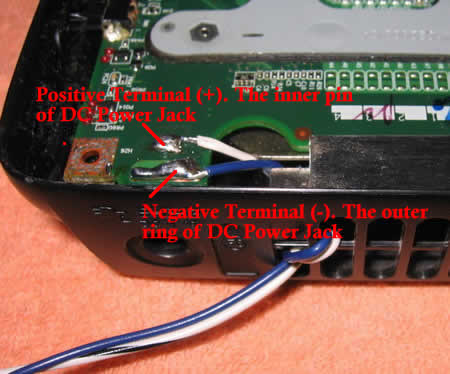
• Coil the pair of wire one round through the ventilation grill before taking it out as shown in the picture above. This is to prevent any external shock or force being directly transmitted to the soldering joints.
• Now we need to connect a new DC Jack to other end of the wire. I purchased the new DC jack from eBay for $6. Shown in the picture above the white wire is the positive terminal (+) and hence must connect to the inner ring of the DC Jack. Similarly the blue wire being the negative terminal (-) should connect to the outer ring of the DC jack. Refer the picture below on how the wires are soldered to the DC Jack. Be careful not to short the leads as they are very close.
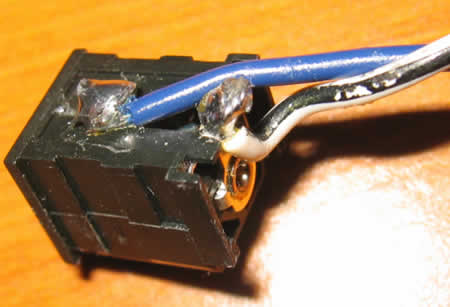
• Now neatly wind a round of insulation tape over the wire and especially on the exposed DC Jack exterior. This will prevent any short-circuit and also give a better appearance.
Valued Comments.
Submitted by Binney:
The workaround relocates the jack externally. When I did this, a short occurred between the metal casing on the top cover (the one removed with the guitar pick). This happens if the solder repair is too tall. I covered my repair with electrical insulation tape and that fixed the problem. It took me quite some time to figure out where the short was and would like to save others the headache.
Comments #282, 286 submitted by Jake and John:
Size N: DC Power Jack #274-1576 from Radioshack works perfect and looks great. Costs $2.99, easier to solder, snugger fit, 5.5mm O.D. x 2.5mm I.D.
Here are some pictures of the end result of the repair with
the Radio Shack type jack. I added one of those quick release
key holder that I had lying around as a retention holder.Here is what it looks like unplugged: Power tip unplugged.
Here is what it looks like with the adapter plugged in and
the key holder reattached: Power tip plugged.
412 Responses
vks
Thanks. I wish this was a permanent feature on laptops..i.e. all mechanically weak spots should be placed outside.
Adil
What sort of a cord did u buy specifically? Did u use the current cord and just cut it out? Please explain step by step of what you got and how did u go ahead and installed it?
Thanks.
Adil.
highspeeddirt
Have you ever worked on a Dell Latitude CSx H500GT? If so, how do you remove the keyboard and/or get inside to replace the fan, etc? Thanks in advance!
Jim Johnson
I tried something similar to what you did on your Toshiba, but I put in a new DC Power Jack from Radio Shack (Part # 274-1563). I had to enlarge the hole in the case a little bit, but now it works fine and looks like it belongs there.
Tony
Hello Adil, I used standard 22 SWG multicore wire. Two of them, about 12″ each. On the main board you will see that there are four soldering points connecting the powerjack. Actually you will require only two points (one for the +ve terminal and one for -ve terminal). If you look closely you will 3 points in a row and testing it using a multimeter reveals that they are electically connected. so when soldering a wire over that you may solder all the three points together. I left the damaged DC jack intact and soldered the wire on the connection point on the reverse side. Then I took the wire out of the casing after coiling it one round on the case as shown in the picture so that any movement is not tranfered to the soldering points. After that on the other end I soldered the new DC jack. Be very careful with the terminals (+ve and -ve, the inside portion of the DC jack is +ve and outside is -ve). I used insulation tape to cover the open DC jack. If you would like, I can send you a document with pictures and explanation as I am aware how to post the images on this site. Please let me know if any clarification is required.
Tony
Hello highspeeddirt, I haven’t worked on Dell Latitude CSx H500GT. Hence I am sorry, I am unable to provide any information on that. The service manual is not available even on Dell site.
Tony
Hello Jim, Well, the basic idea of taking the connection out of the box was to avoid any shock to the soldering points when we insert and remove the power plug. As I mentioned in the post, replacing the jack on the main board did work for some time but the problem reoccured owing to the fact tha there is nothing to take the force/shock. If there was a clamp on the DC jack or a holding to the case this problem would not have occured. Now I am confendely using the repaired laptop without any fear of breaking the soldering once again!
Andy
Hey, im attempting to do the same thing, and I just have one question, you made it clear that the inside piece of the jack is positive and the outside negative, but, on the laptop itself, are the three soldered dots in a row positive? or is the single one behind it? thankyou
cj2600
On the picture above, the positive cable is white and the negative is blue.
Tony
Hi Andy,cj is correct. The white cable is positive and blue one is negative. The three points in a row are negative and electrically short, hence there is no harm in soldering the three points together as I did.
humanspider
Where did you get the new DC Jack that is connected to the other end of the wire? Can you send a picture? I got Radio Shack 273-1563..is that okay? Thanks.
nick s
i’m having this problem with my toshiba A75-S226 and was quoted approx $300 to replace the motherboard. i’d rather find an inexpensive, permanent alternative, and this may be it. one problem is i’m completely naive to DC Jacks and electrical repair and the such. i need this explained to me very explicitly.
i think i understand the concept of soldering the wires to the reverse points of the bad dc jack, as long as it is the same in my A75-S226 (it shouldn’t be any different in my model, right?). the thing that i foresee posing a problem is the alternate dc jack.
1) can i use one of the Radio Shack ones mentioned above (part # 273-1563 or part # 274-1563)? would these work for my specific model laptop?
2) once i have either the Radio Shack dc jack or the one off ebay, how exactly do i connect it to the wires out of the laptop? do i solder them? could anyone provide picture of this?
thank you all in advance for your help!
cj2600
Nick, humanspider,
Recently I received an email from one of the readers. It has more detailed explanations for relocating the power jack. I’ll post it soon, when I have some free time. 🙂
Adil
Tony,
Thanks for the detailed explaination, but I dont quite understand how to deal with the DC Jack.Dont I need the adapter in the middle to convert the power? Do I just put the dc jack on the wire and directly connect it on the wall?
Please advise, and if you can provide additional pics, that would be wonderful. I dont want to burn off the motherboard, if u know what i mean ;). Hope to get a quick response.
Adil.
cj2600
Adil,
You still need the AC adapter. You just relocate the power jack from the system board. You solder wires to the system board and solder the power jack to the other end.
Tony
Hello Everybody, I have compiled a detailed document that explains the complete repair process with pictures. If you would like to get a copy of it just send me an email mentioned above (tsakariya AT Yahoo dot COM) or let me see if I can post it here on the forum.
I purchased the DC via ebay for $6.
Regards,
Tony Sakariya
jim
Back in February, I used advice on this website, bought an iron, followed the very well explained disassembly instructions, and re-soldered the DC jack to the board. 3 months later, in May, problem shows up again. My guess is that the recent hot temperatures (I live in Montreal Canada) were a factor.
I was then fed up with this and was even online shopping for a new laptop. But after realizing I had no money for that, I came across this post suggesting taking out the DC jack.
I figured out, hey, nothing to loose, tried it, and it works great now! I just want to give a more detailed explanation for anyone who has the will to do it but doesn’t know too much about how to do it. Think about the 2-3 weeks you’ll have to spend without your laptop if you take it to service, plus the 300$ to replace your motherboard if your warranty’s dead…I know I couldn’t afford both.
What you’ll need:
– Electronics tool kit…to remove the zillion screws holding the laptop together (5-10 bucks)
– A 25W iron for electronics that you can buy in any hardware shop. Cost: about 10-15 bucks.
– Solder: It generally comes with the iron but can be bought separately for 2$
– Connection wires: I used 18G connection wires at 8.99$ for a pack of 3 at radio shack
First, take the notebook apart.
Second, you remove the DC jack from the board. To do this, once you do have your motherboard in your hands, you need to use the soldering iron to remove the solder points. It takes a little bit of time as you gotta be quick in removing the solder while it’s hot. I used the tip of a flat screwdriver to do this while heating the solder. (CJ2600: I would recommend using a solder sucker tool because if you use a screwdriver, you can damage the traces on the system board). You need to remove each one on the top of the board, and also the two underneath holding the jack to the board. This is the hardest part of it all really…
Third, you connect the wires. I used the standard red and black so as to avoid confusion. Then you solder the red one to the board, in the whole where the DC jack pin use to connect. That means the red = positive. You connect the other end to the now loose jack. You do the same thing for the black (negative), which you will connect to the flat pin on the top of the DC jack (e.g. on the side where the cord connects). Then I insulated the DC jack using electrical tape. Please make sure that the connections don’t touch each other before reassembling your laptop!
And this is it, as simple as 1, 2, and 3!! The pigtail option is certainly not the most sexy looking solution but effective and cheap! By working properly you’ll have your laptop up and running AND charging in less than an hour. To me that’s much better than 2-3 weeks! Thanks to the person that came up with this idea, I just wanted to add some detail so that anyone understands how to do it.
Hope this can help others with this stupid problem!
Jim
Brett
You can use any jack that will fit the plug. It is very low voltage, can’t hurt you. Take the new jack from Radio Shack, leave about a 12″ tail and cut and strip the wires. Using a meter, if you don’t have one, Harbor Frieght Tools has them for $3.99. Plug in the adaptor and measure the voltage on the striped ends. Pay close attenion to if it says negitive before the voltage. This will tell you if you have a good connection between the to connectors. It will also tell you which one is postive and which is negitive. If the wires are not clearly marked, I recommend putting a small piece of red shrink wrap around the positive wire.
Marcus
Your instructin are simple ,But i had a small problem.
I done every thing you said to do When i plug everything in theirs no power. All i hear is a beeping sound from my AC adapter box . When i usa my old connection it powers up ,but Now my monitor is not working . don,t worry about it my computer is out of warranty.
HOw can i fix this problem? Thank you
Tony
Marcus, I doubt if you got the terminals interchaged. Make sure that the +ve terminal is indeed connecting the the +ve terminal of the AC adaptor plug (inner ring) and the -ve terminal is connecting to the -ve terminal of the AC adaptor plug. Also make sure that there are no short circuit, it may have happened while the solder was applied. Use a multimeter to ensure the above mentioned points. Since your laptop works fine with the old connection, it is most probably due to terminal interchange (most likely) or short circuit in the new connection.
sathya
i have the toshiba satellite A75-S231 model
i am facing the same problem what others facing
how to remove the dc jack frm the board and how to replace the with new one
where i have to buy that
and how to remove frm the board
can u explain in detail so that i can fix the problem of mine
i am new to this type of issue and i managed to remove the complete laptop assumble but i am not able to remove the dc jack
i am waiting for ur reply
b’cos my laptop kept one
with regards,
sathya
jonathan tomlin
Well, I purchased a new power plug from ebay, desoldered the old one from the laptop and soldered the new on onto the laptop mobo.
Note: You need a 40watt iron to remove the factory solder and desoldering braid.
The system gets powers and turns on; however, when it attempts to boot from a device (hdd, cdrom) it immediately powers down.
i can access the BIOS settings, and it will stay on
I can also remove all bootable devices, other thank the LAN, and it will continuously attempt to boot from LAN and not power down.
I am seriously confused… I had a similar problem with a new build on a desktop machine, but I just cleared the CMOS. Unfortunatly there is no jumper to clear the CMOS and the CMOS battery is very finely soldered to the board. I don’t want to detatch it.
Any ideas??
Thanks,
Jon
jonathan tomlin
UPDATE
————————
For some stupid reason, you have to have the battery in the laptop.. I don’t understand..
So far everything is working…
I recommened soldering on the a new DC power plug, i’ll check this post later if anyone is interested in my experience.
It reassmbled clean and i don’t have a crazy cable out the back of my laptop..
jonathan tomlin
Update
———————————————————————
The laptop will not run from DC power after it POSTS. It will drop the DC power and pull from the battery; however, it will charge the battery while the laptop is turned off.
The front panel LEDs inidcate that the DC power cable is plugged in, but the BIOS seems to choose NOT to use the DC power.
I will continue to troubleshoot the issue. I plan on flashing the BIOS. I need to fool the hardware into pulling juice from the DC plug. More updates to come.
Kindest Regards,
Jon
Paige
I have a Pavilion zt1135, my power jack was broke pretty much in two and I bought another one. I’m a confused to which points are positive and negative on the motherboard and the same on the dc jack. I dont think mine is like the one in the pic above. Can someone please help me?? Thanks is advance!
Tony
Paige,You will need a multimeter/voltmeter to dtermine the polarity of the terminals. When connected to power measure the DC voltage at the points using the multimeter probe. If the reading shows a positve value then the point under the red probe is +ve and point under the black probe is the -ve terminal. If the reading in the multimeter shows a negative value the polarity is reverse, that is point under red probe is -ve and that of black is +ve. In many cases it can be generalized that the inner portion or ring of the DC plug from the AC adaptor is +ve and outer is -ve, similarly with the DC socket, the inner point is +ve and outer is -ve. This does not hold true for all the systems hence you will need to confirm the same with a multimeter. Also you will find a small diagram on the AC adaptor indicating which side is +ve and which one is -ve. Once that is determined you may then determine the polarity of the DCd socket it connects to. This information would further help in determining the polarity of the soldering points on the mother board. Good Luck !
Fusheng
Today I fixed my Toshiba laptop’s power jack problem by following the discussions in this thread. I am happy that the computer is working again and want to say thanks to the site for the information and to Tony for his good idea.
When I took apart the laptop I found the jack’s pin was already broken and the jack fell off the board when the board was lifted. I went to Radio Shack and bought a 40w iron, solder, 18G wires, a multimeter, a # 274-1563 jack, and electric tape. The rest just went as what the instruction showed.
I ended up not using the Radio Shack jack. I soldered the wires to the broken jack and it worked fine. The Radio Shack jack does work for the plug, but the old jack is better suited for the pigtail.
The multimeter proved to be useful as I used it to test the jacks and the soldered connections.
BTW, I also cleaned the heatsink after dismantling the laptop. I was amazed how much dust it got there. If you visit the other thread on this site about the overheating problem, it is just like what the picture there shows!
Mel
Hey I just want to say, I’m having the same problem and the Fujitsu guy said i’d need to pay AU$500-2000 on top of a AU$100 labour fee!!! Gonna try and do this myself now. tho it’s a little different for me, coz i can already see that the male black plastic thing has snapped and come off the power jack!!! might have to buy a new one!!!
David Brenner
You ‘da man!! You saved me about $500. The repair shop wanted me to buy a completely new system board and pay for labor. I went for the internal fix, but it worked fine. Thank you so much!
Mike Larsen
I have had the power problem for about a year on my A75and have been going through all kinds of wiggling and ducttaping in certain positions to get it to work (and trying not to bump it). It finally quit all together the other day and i found this fix. i went through the whole process and put everything back together and turned it on and it still does nothing. monumentally frustrating! i had my buddy do the soldering and it all appears to be good. i put a meter on it and there is no short between the wires and everything still works with the battery but not even a flicker of light on the power when i hook it up to AC. i even skipped the dc connector and hooked it up directly to the wire harness but nothing. not sure where to go from here… my battery is down to 10% and i cant even charge it. any tips or ideas? TIA
cj2600
Mike,
Have you tested the AC adapter itself? May be the power plug on the adapter is bad?
Mike Larsen
im not that adept at reading the meter but we did hook it up to the meter and it looked like it was working (it was giving similar readings as the AC adapter on my work laptop). i guess thats the only other thing it could be though unless something went out on the system board (does that sound likely if everything works fine with battery power?) how would i check to make sure the AC adapter is really working? is there a certain reading it should be giving? thanks
Tony
Mike, The AC adptor for Toshiba A75 has an output voltage of 19V DC. Make sure you get that reading. The most common mistake people make is interchange of terminals. Please make sure that the +ve terminal of yout DC jack is really connecting to the +ve terminal on the board. Please see the picture to identifying the terminal. On the factory Toshiba AC adaptor the +ve terminal is the inner ring of the DC plug. You may use your multimter in DC Volt meter mode and measure the voltage and its should read as 19V and not -19V when the multimeter probes are touched to the correct soldered points. Red probe should be +ve and balck prove -ve.
Mike Larsen
Thanks Tony, I figured out the multimeter and was able to check my AC adapter. it read 19.28 or something so I’m sure it is ok. I also picked up a universal one at Best Buy and it read the same. I stuck the + wire in the adapter hole (of the new universal adapter) and held the ground to the outside of the plug and was able to measure 19.28 at the place where i soldered the wire to the board so power is getting there. I can turn the power on with the battery in (the orange charge light glows intermittently just with the battery running things) and when I hook up the AC it seems to have no effect whatsoever. I don’t get what could be wrong since my original symptoms were textbook powerjack. is it possible that its not grounding correctly or something? my only clue to anything unusual is that the orange light flashes on every few seconds with that battery in but that may be because the battery is down to 7% charge. Can it be anything other than the system board? Like I say, it works fine with the battery but now im almost outta juice and no way to charge back up. I have a spare battery as well and it does the same thing so I know its not the battery. Just my luck, im in the 2% chance of it being the most expensive thing to fix. *sigh*
cj2600
Hey Mike,
Did you remove the power jack during the repair or you just re-soldered the pins? Did you replace the power jack itself? If you didn’t may be there is something wrong inside the jack?
Here’s another thought. Take a look at the first picture in the post. Do you see that the positive terminal actually doesn’t connect to anything on the top side of the board? That’s because all traces and connections are on the other side.
Here’s my piece of art. 🙂
As you see, the positive pin goes through the hole in the system board and you solder it on the top side. Right? What if the trace between the top side and the bottom side is broken somewhere inside the hole? I’ve seen it before a few times. In this case everything looks nice and clean on the top side. When you plug in the AC adapter, you get normal voltage readings between “+” and “-“ terminals, but the power DOESN’T go to the motherboard at all, because there is no connection between the top and bottom sides. Test with the multimeter if there is a connection between the top and the bottom.
If the trace inside the hole is broken you still can fix it. You can run a wire to connect the top and the bottom sides. Be careful not to short something on the board.
Mike Larsen
Thanks for the reply c/2600. 🙂
My solder job looks just like yours in the top picture of the main post. i got a new jack and hooked it up per your instructions. I am confident that everything is correct on the top side of the board. I will check to make sure that there is continuity going to the back side of the board tonight.
In your drawing, you show a power jack on the bottom side of the board. sorry, im not up on electronics lingo but does that just mean the leads that are embedded in the plastic on the bottom side or is there a physical little box there? because there is nothing on the bottom side of my board except the little trails of embedded wire or whatever you call it. I didnt find any other pieces when i took everything apart so i think the only piece i removed from the board is the power jack on the top side of the board where i then soldered wires in accordance to your photo.
i will check to make sure there is continuity between my top soldered wire and the bottom side “+ trail”. does this sound like we are on the same page? thanks again very much for your assistance!
cj2600
First of all I would like to give a credit to Tony. All pictures and all instructions for relocating the power jack outside the laptop case have been created by him.
I’m not an artist, so my drawing looks much different then a real jack and real motherboard. 🙂 The main idea of the picture is to show that the top solder point and the bottom “+” trace in this model are connected.
Yep, we are on the same page.
Unfortunately, my limited English doesn’t always allow me to put in writing everything in my head. 🙂
Kevin
Thank you so much for this wonderful site! I have an A75 with a broken connection on the DC jack and resoldered it with no problem. When I put the laptop back together I got the dreaded blue power light with no HDD / DVD activity. Fans spin for a few seconds then stop. I stripped the board down to the bare minimum and still no luck. I have tried reseating the CPU, using an external monitor, using extra memory chips, all to no avail. I think that the system board is still good and that there is something else I am overlooking. Do you have any ideas? Thanks in advance!
Mike Larsen
Ok, I checked the solder passing through the board and it does have good continuity going from the topside where I soldered the wire on to the bottom side + hole where the jack used to be. Is there another place i can check to see if juice is getting to the motherboard? or narrow down where the problem is? i dont see where the juice goes from that hole as there are no leads or tracks coming off if that I can see. thanks again for all your help!
cj2600
Kevin,
I would try to minimize the system completely and even remove the system board from the laptop base. I usually assemble it on my bench with ESD mat. With Satellite A75 you need only the motherboard, the CPU with cooling module and an external monitor. The memory is already imbedded into the system board and power button is located on the systemboard too. Connect the external monitor and turn it on. If you get video on the monitor, start assembling the laptop back and test after each installed component. If it doesn’t start with video, then apparently the system board is bad.
cj2600
Mike,
I have one more guess but I’m not sure if it’s correct. There should be a fuse somewhere close to the power jack. If the fuse is bad, the motherboard will not get power and you can fix the problem by replacing the fuse.
Here’s the thing I’m not really sure about. Would it be possible to start the laptop from the battery power if the fuse is bad?
I do not repair motherboards, so I cannot help you to locate the fuse. I just looked at Satellite 1135 motherboard and I found a small component located very close to the power jack with “FU” on it, I think it’s a fuse. If the fuse is good, you should get a good continuity between fuse ends.
Hey guys, if you know the answer and can help to locate and test the fuse, please leave a comment.
Kevin
CJ,
Thanks for the quick response! In another part of your site someone with the same problem mentioned he had to reseat the CPU as many as 30-40 times to get the laptop to boot properly. I’ve read that the CPU mount is very finicky on this particular laptop. I will try doing that for a while to see if I can save myself from having to buy another system board. The board number is K000016390… what is the best price you can get it for?
Sandra
Ok, how do you get the laptop apart to even get to the plug?
cj2600
Sandra,
I’ve already mentioned a link to the disassembly guide in the post. OK, I added one more link under the last photo.
Tim
i need help! i followed the instructions of disassembly, got down to the board, but couldnt get it out of the case without force. so i left the old plug in and then just soldered the wires to the top of the board as in the picture. got it all back together and now alls i get is beeping from the adapter box. does anyone know what that is? must i take it back apart and remove the old plug? please help
cj2600
Tim,
Read comments 163 and 166 posted by Bernie here. It looks like you have exactly the same problem. Check if solder points on your motherboard are clean and there is no short of any kind.
Robb T.
Waht kind of wire did you use for the Power Jack Workaround
ALBERT
IS THE DC JACK WORK AROUND THE SAME FOR THE M35X -S329?
chris
I have the same problem, my A75 will run off battery power but not AC. The battery will charge when the computer is powered down but not while it is on. I can go to the F2 boot option page and it will run without the battery in but as soon as windows starts it goes to battery power. Somewhere I read that it could be a bios problem but I am afraid to flash cause it wont run on ac and I dont want the battery to die in the middle. I have resoldered the power plug twice now and the first time it worked great but this time it wont run on ac?????????????????
Joe
Hi Chris looks like i am stuck at the same point as you. I have dismantled my A75 twice and resoldered the connector on both occasions. Second time around i soldered the 3 pins together just incase. All was well till this evening. If i shut down the laptop the battery will charge fully. If i turn it on sometimes it will power via the adapter or the battery but not always. I might try flashing the bios on a full charge and see if that helps fingers crossed. Will let you know what my results are once i have tried it.
Regards
chris
Ok last night I took it apart yet again. I had my buddy solder from the center pin on the ac plug to the other end of the fuse. That didn’t make a difference. So then I downloaded toshiba power management software and that didn’t seem to make a difference. But, I woke up this morning and my battery is fully charged and my computer is running on ac power. I’m afraid to turn it off now! Dont know if maybe the aftermarket ac adapter I have is not powerful enough to charge the battery and run the laptop at the same time or what….. Actually that wouldn’t matter cause it wouldn’t run with the battery out either last night so who knows. It must have been little elves in my sleep.
cj2600
Albert,
DC jack workaround should be the same for both models A75 and M35X, they both use the same type of the power jack.
ilau
Hi, I have just doen the same to my Tecra 8000, using the original power socket. I had to solder the -ve wire to two fo the posts on the socket (it would not work with just one). Now it works great, However I have discovered the battery is either dead, not charging or not switching over to battery power (the latter is a problem I have with my Toshiba 490CDXT as the battery will work in my 400CDT)
Thanks for you great advice 🙂
Tony
Hi Chris & Joe, Why don’t to try to relocate the DC jack outside the laptop? I reached this stage after my futile attempts to just resolder the DC jack, even Toshiba service centre failed to give a permanent solution. Toshiba service centre replaced my old DC jack with a new one and the laptop worked fine for about 2 months and it developed problem again. That was the time I decided to take out the DC jack. With the DC in, I faced the same problems as you all faced, like loose contact, battery not charging while PC is ON etc. Its been about 5 months+ since I did this (DC jack out stuff) and I am getting good results, not a time I faced any problem there after. Some of the people who read the messages in this forum did mail me saying that they too had great success.
Good luck to you all.
NP Suber
I think I may have an improvement on the extremely helpful suggestions on this site. I took the suggestion of earlier commentors to look at Radio Shack for parts, but I ended up using 274-1582. That one has a couple of advantages: it has a slightly smaller outer diameter, and it mounts from the inside of the case with the nut going on the outside. The smaller diameter means it can fit where the old jack was, and since it mounts from the interior, if you ever want to pull the motherboard in the future, you won’t have to desolder the jack.
First, disassemble the laptop per the instructions on this site. Then desolder the jack from the motherboard. Next, enlarge the hole in the case, to fit the new jack, using a 5/16 drill bit. The new jack has a switching feature that we don’t need, but you will have to test the voltage coming off the back to get the right post for the negative wire. Once the wires have been soldered to the jack, make sure to insulate everything. I used heatshrink from Radio Shack, 278-1627. That is a pack of multiple sizes. It has small ones that will fit the wires/posts, as well as a big one that will fit over the whole assembly. I left only the threads exposed. Now fit it into the enlarged hole and thread on the nut. Solder it to the motherboard (I went from the bottom up, and tusked the extra wire underneath the motherboard). Finally, reassemble the laptop, and you should be in business. The advantage to this method is you don’t have to hav the connection dangling out of the case, but it also isn’t physically mounted to the motherboard, so no stress on the solder points.
dbalter
Does anyone have the wiring diagram for Radio Shack part 274-1582 (referenced in post #57)? I lost the packaging with the diagram.
Joe
Long time no post thought i would update everyone. Basically what i have done now is what NP Suber has posted above. Remove the old jack totally and solder in a couple of wires then onto the new jack. I left the old hole in the case intact just moved new jack it a bit to the side. Laptop has been going great. The trick to this is solder on both sides of the motherboard top and bottom. Works a treat now. On a side note since you have it all apart remove the fans and give everything a good clean you will be suprised at the amount of dust that gets in there.
Regards
Louie John Canuel
i have a toshiba A75 laptop and i have the same problem.
i would like to ask if where can i buy a new AC/DC JACK and What kind or what size is the AC jack is? please someone reply?
cj2600
Louie,
You can find tons of power jacks on eBay if you search for “A75 power jack”.
james
Joe, I was wondering if you could post complete descriptions about soldering both the top and bottom of the system board. If you have pictures that would be fantastic. I agree with NP Suber about attaching the jack to the case instead of the system board. Also NP Suber if you could post pictures that would be great as well. I,m also going to use either DC jack #274-1576 or #274-1583. If these won’t work please list the ones that will.
Brian from Graham
I have a Satellite 1115-S103 with this problem. Is there a web site that shows how to take it apart to install an outside located power jack?
Thanks! – Love the site!
Paul Griffiths
hi ,ive got the same problem ( now totally dead laptop )
Toshiba tecra 8200
is there a guide to taking the unit apart ??
thanks for any replies
Kevin
Hey Tony, the pwr connector on my A75 started going bad a couple of months ago and has gotten progressively worse. It would sometimes take 10 mins to get the plug to stay in the ‘right spot’ to run on AC pwr. Talk about frustrating! Anyway, I found your site while researching this problen and it was a big help. After understanding the prob was weakened solder joints, I removed the laptops bottom screws and the two in the rear. I was able to gently pry the case open enough to gain limited access to the pwr connectors pins on the underside of the MB. I used a VOM to identify a bad (intermittent) pos solder joint on the MB. I reapplied solder to the joints (Your photos were very helpful) and things seem to be working ok for now.
I know the prob is very likely to reoccur in the future and if it does I think I will try your fix. Since I will only need to take out a few screws, it will be fairly quick & easy. I think I’ll order the new connector now and be ready. Much thanks dude.
Toshiba Satellite A70 Power Problems :: Dammit Jim!
[…] So I fired up my fresh new soldering iron and after practicing with a few resistors, I finally worked up the guts to solder the loose jack. I ended up with a decent sized blob so I cut off some of the extra with some wire clippers. It’s worked for a week now so I guess it turned out ok. So in summary it took me, a complete novice at electronics, several hours to fix and cost $45 but I can use the tools again and I learned a lot about the inner working of my computer so I guess the only real cost was a bit of solder. If it breaks again (knock on wood), I might have to try this workaround. […]
naslime
After soldering and desoldering the wires to the motherboard THREE times and not getting the battery to charge, I went out and got a multimeter. After testing everything I discovered that the extension cord that was connected to the AC adapter was also going bad and that’s why I was not getting any power (additionally to the dc jack going bad).
Also, my local Radio Shack did not have parts 273-1563 or 274-1563 so I got 274-1577. It’s a little bigger but it works just fine and it has a screw-on housing so you can solder the wires to it and then the housing covers the soldered points.
Thanks a lot for all the tips everyone posted, great site.
james
This site is AWESOME!!!!! I was able to repair the dc jack following the information in post #’s
57 and 59. Reassembling the the laptop was much harder than disassembling it, but as long as you’re patient you’ll be fine. I used 22 awg wire and radio shack dc jack #274-1576. You’ll need to use a multimeter to determine the proper polarity. I also soldered both sides of the system board to insure connectivity. BE SURE TO CHECK THE VOLTAGE ON BOTH SIDES OF THE SYSTEM BOARD!! The new jack connects to case and looks like it belongs there. Again as long as you’re patient it’ll work out fine.
Ozzyyz
I though i was the only one with that problem…
i fix it temporarily resoldering the broken point and it worked
for a couple of weeks, now it’s worst the battery doesn’t not
charges, with the slightest tip on the table/desk (and of course the A75) it reboots, freezes, locks up and/or the screen looks like a bad tuned/scrambled TV screen.
Fortunately I found this GREAT topic, but OMG i tried to dismantle the A75 again then I ruined up a screw (the F8 one) the cross turned into a cone.
How extract a ruined screw?
cj2600
Ozzyys,
You can carefully drill it out or use a screw extractor tool. Google for “screw extractor” and you’ll get an idea.
Rick W
Awesome instructions. Took the laptop to one repair shop and he quoted me 350.00 because the connector was “soldered” to the motherboard-ergo you need a new motherboard. Took it to another shop who was willing to solder the poweradapter onto the motherboard for 180.00. If I had done this I would have had the laptop back in the shop within 4 months-ergo another 180.00,
Just by luck happened to stumble over this website and lo and behold repaired the power adapter and had the computer up and running within an hour. I spent 2.35 for adapter #274-1582 at radio shack and followed Tonys suggestion about mounting the adapter in the original hole where the old adaapter was. The hardest part was getting the ribbons for the mouse and keyboard seated. So thanx for a great repair suggestion and a great web site. I even have enough money left over for a “couple of six packs”. Later guys and gals…. Rick W
Ozzyyz
cj2600,
I bought the screw extractor ($6 bucks the set) but as the screw was too thin, when I was drilling the “guide” suddenly the screw’s head climbed up the drill but at least the top cover was free, the rest of the screw came out easily with the help of a needle-nose pliers, now to find a new screw.
Thank you very much for all the information.
Ozzyyz
The fix is done (it looks almost exactly like the pictures lol but with a yellow wire instead the blue one LoL) and the holy A75 is alive again.
Just a last advice to those whose want to try this AWESOME workaround:
Watch the height of the soldering points at the MB because they could short with the base for the LCD frame hinges, preferably cover them with insulation tape too.
Dan
I have soldered the wires out of the back of my A75 with a new connector and no luck getting it running. It runs on the battery but not on DC through the AC adaptor. I have checked the voltage on various points on the motherboard ( most of the screws are grounded) and get 19vdc so power is getting to the board. The fans did run momentarily when I plugged in the adaptor. Any ideas anyone?
Christa
Thank you so much for this solution, it helped me to save alot of money, and so far it is working. One question I do have if my battery light isn’t on but it shows on my power supply that it is charging is that ok? however it does light up when I hit my space bar, so Thanks again you fixed my problem.
ctrl_Z
Excellent write up and tips. I used the Dc power jack #274-1563 from Radio Shack ($1.99) and it worked out perfect and solid. I bored the new hole in the back of the case a little smaller than the new power jack so that when I screwed it in there it cut threads into the plastic and made it a solid and clean looking install.
Just wanted to say thanks for the great write up, easy to follow.
David
I just have one question. I want to try this but I was wondering if I have to get a new DC jack or can I just break off the one that’s already in there and use that one? If anyone knows, please help. Thanks.
cj2600
David,
You don’t want to “break off” the existing jack, you want to carefully unsolder it from the motherboard. If the jack is not broken, you can use it.
Gurjinder
Hi i have a problem in Power Jack on my Toshiba Setellite A75-S206. Firstly i would like to know the part no. that power Jack.
and seconly i want to know some technics of soldering the power jack with motherboard. I am not professional with soldering if u tell me the processer i will thankful to you. like what kind of material i need for soldering and many more which u think it would be helpful for me to do this job.
Thanks Gurjinder Kang
joseph
thanks guys for helpping me with my problem like all of you hade. i guees were all in the same boat. thank you gret site.
DICK WAGNER
LOOKING FOR A DC POWER JACK FOR A TOSHIBA PORTAGE R100 NOTEBOOK.CAN’T SEEM TO FIND A VENDOR THAT HAS THIS JACK IN THERE INVENTORY.PLEASE CAN YOU HELP.
Shiheng(Jason) Zhang
Hi cj2600/Tony,
Can I just leave the old power jack there and use a new one and wires to follow the instruction to fix it ?
mikee
You can get the original connection to worlk again just as easy. I did it the redneck way and wedged it open with pens sticking a hot nife in the solder.wiggle the connection to the ac jack while heating for a good solid connection. I also didnt take it all apart i just took some screws out where the location is. So if you wanna do that every 3 months it takes 5 min. I recomend your cord because toshiba’s cord puts stress on it and the solder is like a liquid, the same way glass is. When the heat and the strain from that thick cord combine the connection is doomed. Also remember to vaccuum the dam thing every 3 months or it will really do weird things!!!!!
mikee
Hey body ,
Ill explain in detail if needed. Take the battery out.
Loosen screws in main area of the power inlet. Get a hot nife going on the burner of the stove. Wedge it open with something enough to let the nife in. I would sudjest protecting the suroundings of the entrance with something.(tape) so it dont melt if accidently touched.Stick the plug in the jack and wiggle it while touching the positive with the hot nife. I use the nife because its skinny. This is easy and can be done quick
cj2600
Shiheng,
If I understand right, you don’t want to remove the system board and plan to solder the wires wile the power jack is still installed? I think there shouldn’t be any problem.
James Hendrix
I have a toshiba tecra 8200 and I have the motherboard disconnected. I can’t put it back together because I don’t know where the black and white wire I must have unsnapped from the motherboard go. Can anyone help? sprint cell phone 214-450-1444 Thank you
Robb T.
Just wondering for the Toshiba Satellite A75 failed power jack workaround –
What kind of wire do you use for it?
mikee
Hey i would sudjest taking the motherboard right out , to apply solder on both sides of the pin. Also you should be able to access it from just loosening a coulple screws at the bottom, then wedge it open to do the work. Bad advise but sure saves time. Just remember you need the solder on the otherside tight to the board too. Dont do the workaround yet try to solder both sides! i just let it drip on the pin then heat it tilll it runs to the board.
The board is sorta hard to get out i looked up the way to take it out.
For example my a70 motherboard came out dvd area first.
good luck
Mike
Tony
Hello Robb T, Just use the a standard wire with SWG 22. You will get it at any local electronics spare parts shop such as Radioshack. Good Luck.
Frank
I justreceived the A70/75 DC jack from an ebay vendor today.
Problem is that its “covered” in a metal sheath with a pin extension on each side of the metal cover (and there’s a 3rd & 4th pin coming from the centre of the jack) . So there’s no access to the described solder point/s on top – do i simply remove it with a small pliers to expose the top ?
Frank
here is a picture of the dc adapter (removed) i bought and i cant see where to solder the wires onto –
either the shiny metal has to be removed or maybe solder directly onto the pins ?
help appreciated
Tony
You may remove the metal casing as it is not going to server any purpose since we are not soldering the jack to the motherboard. The two leads from the metal casing is to make firmly solder the jack on to the motherboard.
Richard
Thanks for the instruction on the power jack repair. I paid $280 to have it fixed once but it failed again. Just when I was going to toss the laptop, I found your site. I followed your instructions and was happily able to get the power jack repaired, using the pigtail approach. My only problem was when I put it all back together, the touchpad doesn’t work. I can plug in an external usb mouse and it works fine. Any suggestions for fixing the touchpad?
Rhys Mitchell
Mate all i can say is that ur a legend.
I am a technician by trade and found ur instructions very simple and effective. Though the only change I made was using an in-line DC jack socket instead, just so if the insulation broke down, you would have no exposed wires. Good luck with all the other A70 owners out there, now its time for me to fix the DVD drive, yet another Toshiba screw up!!!
cj2600
Richard,
Remove the keyboard and check if the touchpad cable is seated properly, all the way down the connector on the motherboard. Reseat the cable and make sure to lock the connector. Probably that’s your problem.
BTW before going inside try to enable the touchpad by pressing Fn+F9 key combination. May be the tochpad is just disabled.
Mike Phattness
Hey guys just thought i would add to the question about the metal jacket on the ac inlet.” its fine dont mess with it” the 1 all by itself is the positive all you need to know!. First of all you all dont have to replace or attach anything , unless something is broken ie: the pin. I would sudjest soldering on either side of the board to assure no play stress is applied to the positive pin. If you only solder the top the pin will still have a week spot, this would be under the board. The pin will eventually be able to move wherever. The pin is still connected so it will provide minimum power required for charging.
These are tell tale signs that it can be repaired by solder the bottom.Or have wires hanging from your laptop!! get a vacuum cord so i comes back. :p
John G.
I am so glad I ran across this site. My dc adapter was losing its connection to the board and I was sick of re-soldering it. The external dc adapter is working perfectly.
Thanks !!
Hammad Hassan
Can you please tell me how to put back black and white wires of wireless card in this laptop. One is AUX and Other is Main. which one goes where ? Thank you.
Hammad Hassan
I had DC jack problem also. External wire was not an option for me. What i did was to desolder the dc jack. Positive terminal of pin was broken so all i did was to solder the back of positive terminal with flexable wire so what ever happens there is no stress on board solder. I think this is the best solution. Please comment. Also can someboday help me with wireless modem pinouts.
Tony
Hello Hammad Hassan, For your reference I have uploaded the photograph of the WiFi wires connection. The white wire goes to AUX and black one goes to Main. Looking at the image you should be able to identify.
monee
My A75 S209 had the same problem but bafter going back to Toshiba it got fixed
But now the problem is different, The cursor just hangs up at times when u are working
Richard
Thanks, cj2600. When I reassembled the laptop, I neglected to connect the touchpad cable. Missed that step. 5 minutes later, I reconnected the touchpad and everything works great now. Thanks again.
McDaniel
Pictures of dismantellingl the laptop helped me alot. Here are some simple tips to take apart the laptop. Since the screws are so tiny, put scotch tape over the screws after you loosen them. You wont loose them and the screws stay in their original hole. Laptop parts are also small so I use a notebook binder with plastic page protectors. I number each page 1-30. As I unscrew each part, I put that part in a page protector. Just one part per page. Heavy things like the battery, I just put aside, not in the binder. The last piece I took out is the last page. When I want to reassemble the laptop, I begin with the laptop component on the last page and then go to the next page (e.g., page 30 – page1). If you need to put notes to yourself about that component, you just slip it in the page protector with the component.
Cyberdactyl
I also have a power receptor issue. A friend of mine dropped her laptop on the power cord male end while it was plugged in and broke the positive receptor post inside the receptacle.
I found drawing a simple diagram of the back of the laptop and mapping the screws as well as a simple sketch of the interior and doing the same. I also took some digital shot at a few stages of disassembly.
Jerry
Hi Tony,
I followed the instructions for installling a new radio shack jack that had a small nut on it to secure it to the case. When I went to screw the motherboard down it was jammed by this nut. I then hacksawed a tiny piece off to increase the space to fit down. it still was not flat, however when I finshed with all of the screws it did seem ok. I was able to start it up and everything seemed great. The battery charged up at what I think was a faster rate and held the charge at 100%. I then had to leave with the laptop and did not shut it down, just closed it and left for a ferry. when I opened it the next day it did not start up, and still has not….any suggestions? Thanks for all the help so far!
Joe Oliver
Incredible. My son who is in college has had the exact same problem. I gave him my HP to take back to school while his unit went off to be repaired – AGAIN – for exactly what you described above.
why hasn’t Toshiba issued a recalland FIXED?
Even if it’s out of waranty as stated in the item above, they have an obligation when its an apparent flaw.
LB
Argh, I have this same problem with my A75 but I don’t have the courage or skill to do the fix. Is there such a thing as an external battery charger out there?
or is there anyone in the Cincinnati area that would be willing to do the fix for $?
David
I have the same DC jack problem on my toshiba laptop. I have disassembled the unit but don’t know how to get the old DC jack off of the motherboard. Can anyone offer some help? Also, while taking the thing apart i accidentally pulled one of the wifi wires off of the connector. That looks like it just pushes in to the connector though..
Thanks,
David
Twannie
Thank yoiu for the information. I have the same problem with my Toshiba laptop.
Toshiba Satellite A70 Power Problems (Again) :: Dammit Jim!
[…] Then I tried to clean the contacts on the board with an eraser to remove any oxidation on the copper, stuck the jack back in its holes and soldered it back on. So far I haven’t had any problems, we’ll see if it last this time. If it breaks again (knock on wood), I’m definitely trying the external power jack workaround. […]
Tony
Hello David,
Well, if you are implementing the external DC jack fix, you may let the broken jack be there in its place. It will do no harm. But if you insist on removing it, you will have to desolder it using a soldering iron and desoldring pump. The basic technique being to remove all the solder holding the DC jack to the motherboard and then pull it out. And regarding the WiFi antenna cable, it ok, its just a push-in connector and you just need to push the connector back into position.
Regards,
Tony Sakariya
David
Hi Tony, Thanks for the response. I may just leave the old one in place then. That seems much easier.
David
David
LB,
Unfortunately mine is an A65, so while it apparently suffers the same malady as the other models it’s not covered.
Thanks,
David
Mike Phatty
Why would any1 want a cord hanging from the laptop? Just be smart and solder it on the top and bottom of the board. This worked well with the a70 jack. At first i was just loosening screws and sticking a hot butter knife in there to heat the solder joint , renewing the connection!. This has to be done on both sides or the cord will start to wiggle within the first week. Also any1 doing it to the Toshiba 2800 power cord fix i used a cannon printer parts to fix the broken power plug. This part would work in any laptop fix. The good thing is it has wires hanging from it so dont attach the part to the motherboard anymore!
Mike Phatty
The pathetic thing is i just sent that message and already i have to resolder my board again. I just looked down and saw the light go out. It means taking all the screws out all over , i wanna sell it, or have a wire hang out of it. I might consider not attaching the ac inlet to the mother board. I will take my old inlet and mount a wire from the pin directly to the positive on the motherboard. Im just wondering if i should do this? or i could use a different type of solder that is harder. This is gonna be funn!!
Tony
Hello Mike, I had gone through your exact problem. My first solution was not to dangle a wirte outside. I had sent the laptop to Toshiba service centre and they resolddred it. It worked fine for few weeks/months. I was gettting so frustrated by this that I had to come up with the “out of the box” solution. I know the dangling wire does not look good at all, but this solution works great. Due to the bad design the possiblility of breaking the conneciton if the DC jack if directly on the motherboard is very high. Hence I suggest you take the connection out. To answer your question, this is exactly what I did, soldered the wires directly from the motherboard.
Good Luck.
Tony.
Mike Phatty
Ok i did it again. The solder on the opisite side of the board. I even noticed the board comes out like a stick of ram. The smart card being the button you have to press to open the board with the video and usb connection area as the hinge. I made sure the solder covered the pin all the way to the board i hope this lasts ;p I also fixed my mouse it was cracked inside so i melted the crack with the iron too. Next time ill hand some funky design outside , or find an original way!! I snapped a pic but i dont know how to post it ty all
Phatt
Mike Phatty
new alternative . when the positive pin breaks it does you a favor!
your no longer connected to the motherboard! so you solder a wire from the pin to the motherboard. This will take away the stress from that plug. It is too tight im gonna loosen it a bit too mabey, mabey not :p I can do this operation in under an hour. The hardest part was the diode next door to the pin. It was sort of in the way. But this pretty much solved the problem with my ts 2800
Only i used a whole new ac inlet out of a cannon bj dinosaur printer. I even used the same plug i just taped it to my old end since it was designed for it! this thing looks like it was manufactured for it. nothing is attached to the mother board. the new ac inlet fit in the the frame like a glove lol cya
phatty
Mike Phatty
I guess it was meant to be!
Rick w
The easiest way is the way Tony said to do it. Put the jack in the old hole and solder the wires to the mother board after removing the old jack. Did mine a while back and here I am responding and no wires exposed
Mike Phatty
i did it again! I took the old jack out bent the pin up so when i reattach it back the positive doesnt connect to the board. Instead i soldered a wire to the board and then to the pin. Now it is 50% dependant of the board. The pin needs to be secured still so just get some 5min apoxy add 1 drop over the pin just for stiffness. The cord is pretty stiff remember. Im happy now any1 want pics just ask
Ty
holly phattness :p
Lets have a T.S. beauty contest lol
Tony
Guys, IT would be great if you could post some photgraphs of your work. This will definitely help many. Just upload your photos to any of the free image hosting server and provide the link here. For instance I did it on:
(hoster dead)
Good Luck !!!
Mike Phatty
Heres a little look at what i did.
(removed by hosting company)
I hope it last’s forever :p
shawn
hey everyone,
i am gonna try and do mikes mod this weekend, i will try and get some more pics of how to do it for you all. hopefully it goes pretty straight foward, first time splitting a case on a laptop, so everyone wish me luck.
William Patterson
I like the idea of running the wires outside the case and using a pigtail to the connector. I would suggest using some shrink wrap tubing around the wires so it will look professional and also give it some strength. you can even use shrink wrap around the dc connector. I think this is the only fix that will last. I could send our unit to toshiba but that took a month last time and it will not fix the problem. What they should have done is mount the connector in the backside of the case and then connected it to the MB with some short wires…flex wires. This would be the way to go.
Great site and tips
LB
Did the workaround you described and now the laptop works great! Thanks!
Carson Haycock
I took my A75 S226 apart (this is the second time) – and this time when i put it back together – the monitor appers not to turn on and stays black, however, when I turn it off – the screen flashes blue for a second before my computer shuts down. This makes me think that the screen is hooked up (i made sure all screen parts were connected) – but that for whatever reason my computer is not booting up.
I had some weird beeps one time- the second time my disc drive started up – the third time it made a few weird noises and then just stopped with the booting up sounds and just sits there. Someone please help!
Kim
I am having the same problem as the person below me. I took apart and cleaned and when I put it back together – the screen stays blank although I know it is plugged in – and it doesn’t make the sounds that it normaly makes when windows starts up- please help!
Gary C
Followed instructions for attaching wires and external connector except did not remove old jack. I’ve got power to/from wires outside. New problem. Lights go out after about 10 minutes and battery not charging despite amber light. Short somewhere? On meter I am reading 19.28 volts even after lights go out.
James C Lee
I have the same problem as 133. All Toshiba Laptop seems have this similar problem…from PII models. I will try another time…by removing the old jack.
Tony
Hello Gary, Here are few things you can try. Rmove the battery and switch on the Laptop powered by the adaptor. See if it boot fine. If it doesn’t boot, then you have a problem with the connection. If it boots fine, then install the battery and then boot thr system, check the battery charginf status from the Windows battery status, it should indicate as charging. If it is shown as charging then shutdown your latop and leave it overnight for the battery to charge fully. Try these and see. Good Luck.
Tony
Hello Carson and Kin, Looks like you both have the same problem. When you say that the screen is blank, does it mean that evn the backlight is not present? To see if backlight it present, just tun on your laptop in a darm room and see if it shows some light. If not then the most likely proble is loose connection. Just make sure that the connector is tight. You may want to unplug the connector and verify if any pins are bent and that the connectors are going in the right way. Good Luck !
Gary C
Tony:
Thanks for response. It will start to start up without battery in BUT then
conks out at some point.
Seems the AC works for a while, then conks in computer despite still getting
juice. Unplug and wait and plug in again and works for a little while and
then dies. Might even go back on for a while. Building up some
heat/capacitance??? somewhere and then circuit breaks inside somewhere ????
Fan seems to be working but don’t get much chance to get to hear it.
With battery in, not consistently charging despite amber light. That was
true before opening up and is still true. Totally different problem
unrelated to jack?? It will run off battery without conking out.
Ready to open up for third time. I do have a couple of screws extra from
putting back together that I missed reinstalling somewhere. Would that
matter?
Thanks,
Gary Champlin
Tony
Hello Gary, This really sounds like a heating problem. You may want to try the following. Make sure the heat sinks are all seated proprly and fans are working fine too. You may hold a thread from a fabric to see if the fans are really sucking in air from under and blowing it out through the rear. Also you may want to see if the soldering you did on the area of broken jack is strong. It could be that when the Laptop is powered by the adaptor the soldering points are getting warm (normal) and in the process there is some loose contact developing as the solder becomes soft when it becomes quite hot. All my guesses, Just wanted to give you some ideas. Good Luck !!!
Joe Oliver
we have tried several times to fill in the online form.. no go, the form errors out so I investigated. Any one who knows how to code on the web will see what they have done.. – I am including my letter to them.. also called. no forms to join the class todate. I almost want to file a seperate action. this is times 4 ( its in the shop now ) this computer has gone in for the problem described here as well as over heat.. and others.
They have replace the mother board 3 times.. those mama boards got for over 400.00 – this trip will exceed the 1400+ dollars that was paid for the computer.
We still have the original box and this is information from it
that may be useful.
Toshiba A75-S209
P/N: EDW10880012
SN: 1046049300857
SUPPLIER PART NUMBER: PSA70U-09700E
Joe Oliver
——————————————————————————–
Mike Phatty
hey those screws may have came from a secret screw spot under the cd rom and theres another sneeky spot mabey.
When you take it apart you need to check the cooling area. take the fans out vacuum. Or even just take out the huge build up if you see it. I had more lint than my dryer can produce in 1 day. I bet your having a hell of a time. I did the same bro. I had shut offs for ever, i felt the laptop and it was very hot every time . Try leaving it on with nothing blocking the fan area, make sure it is not on a flat surface because it needs space to breathe now. I vaccuumed mine when this happened, at the car wash. It usually stopped for 3 months at a time. I even had fans that sounded like a truck. The batery light going out when in use/ charging at the same time. Is a result of the cord connection needing matainance. For a while i was calling toshiba too…. Ill do this for any1 if there near guelph ontario canada!!
Mike Phatty
Ill i have to say is my power jack fix has been awsome. I have my battery out all the time, running on ac. I didnt add the glue to the pin for stiffness. So im left with some play. Anyone having this problemknows that the wiggle is not a good sign, remember Atari power cords back in the day? With the fix i described i didnt know the pin had so little holding it still. Im wondering if i glued the positive pin so i cannot wiggle or weaken the solder joint. Would this solve the reoccurances? “toshiba you should have thought of this before making a cord that sticks strait out of the back of a laptop. Same with the audio/usb area, theres a chance that they will be next. All that should be on the other side i think.
T.Y.
MikeMiester
William PAtterson
I am in the process of having a certified repair center replace the motherboard as the fix for the power jack. They said placing the jack outside still did not solve the problem since the wires will eventually loosen up too. They said the new MB’s have the jack glued to the board and this solves the problem…I’m going to see if I can find at Radio Shack or some other place a 90 degree end for the power cord like they use on some phones and then tie wrap it to the back of the laptop so there is less movement to the whole thing. My wife uses the machine daily and never unplugs it. I have tried to get her to use the battery once a month until it shuts off just to keep it from getting a memory problem but it is not happening. I understand and have been shown that you can run it without the battery. I wonder if that is a good idea…anyone??
I also have a sound problem. Every so often the sound just stops. All indications are that it is there but nothing. If I turn it off and start it up from a cold boot it works again. Doing a warm restart or a log off and back on will not fix the problem. I am hoping that the new MB will fix that too…
I just wonder if IBM’s laptop or HP or Dell etc.. have all of these types of problems. I was told when we bought this that Toshiba was the best…UGH!! not so sure.
Mike Phatty
Hey man if your sound goes off any more hit the “fn” button and escape at the same time. And if you want to fix that mother board have a wire from the board to the positive pin installed and i garentee you will not have a problem. heres a picture tell the tec you want to bypass the positive pin to the board through a wire. And then glue it so it is stiff again. dont even glue it .
H
Mike Phatty
Heres what you do with the pin
(removed by hosting company)
when i bent mine up i herd a crack so be carefull.
I just used more solder :p
Take it apart man!
Phatty
Gary C
Tony:
Thank you so much for suggestions. As per note sent in meantime, I have
gotten (and still have!!!) laptop working good since removed added wire and
just strengthened solder at original jack. Laptop is M35x-s109: things are
a bit tighter around that jack in terms of placing and exiting the
additional wires.
Thanks, Thanks, and Again,
Gary Champlin
Back again. Original jack is secure and good connection (and even if shake plug a little). After lengthy period on it did cutoff on own. Although does not seem very hot on outside, suspicious CPU overheats and kicks off (?). Fan comes on but not much. Followed instructions for disassembly, but on my own to reassemble. I did nothing with heat sink and paste except smudge a little on my hand. I did not tighten screws with springs on heat sink all that tight. Should I be getting some thermal paste and reapplying? How tight should those screws holding heat sink be tightened? Thanks for help. Great site. Really appreciate.
Marty
Hey, all. I just finished a successful -internal- power jack replacement on an A75, using Digi-Key part number CP-024B-ND. This is meant as an in-line power connector, (no leads intended for PC board mounting), but if you pull the boot off it fits just fine. I used a loop of 20ga solid wire to hold the jack down to the board and make the ground connection, and another small segment of 20ga sold wire to make the connection between the jack’s center pin and the motherboard. I liberally hot-glued the jack onto the motherboard for mechanical reinforcement. Works like a champ, and all internal!
William Patterson
Just got my A75 back from the repair shop and it works great. They replaced the motherboard for the power jack problem and said the new one is glued down and they use a different connection..???whatever that is. They also replaced the top cover and fixed our speakers that they said where never installed correctly and where shorting out on the cover since they had exposed wires, not protected. The repair guy said it was just a bad job of putting the machine together. The sound was intermitten but I thought it might have been a software issue.
Anyhow it all now works fine and at no cost. Great job and in just 4 days. These guys are a platinum certified repair dealer for Toshiba.
Thanks
Richard K
Two things…….
(1) This may be *very* important on some computers! Mine has *three* contacts, not two, so doing the external-jack thing requires three wires.
I paid someone to do the job, so not sure of the details. I believe it has to do with the fact that the DC connector has a sort of switch inside that tells the battery charging circuit whether it’s plugged in. He figured it all out with the multimeter.
Sorry I can’t be more specific but thought this should be brought up.
(2) Use a big blob of hot glue to strengthen everything. One blob on the top side of the motherboard, another on the now-external DC connector.
[AND – if like me, you don’t know how to solder, put an ad on craigslist to hire someone……….much cheaper than going to a repair shop, and I got to watch and learn!]
Gary Champlin
Toshiba m35x-s109. Previous posts here. Strengthened solder connection. Good contact. BUT still an old problem (or is it a problem?). Computer on and once battery charged amber light (far right indicator light) goes off but green light does not go on and battery gradually discharges despite being on AC power. If I hibernate and start up again, amber or green will come on and battery to or remains full charge, but if amber then once battery charged light goes off and battery gradually discharges again, if green post hibernate then stays green. If turn off computer get amber and charge or green and stays full charge. Thoughts?
Gary Champlin
Thanks for info about warranty, but what fun would that be ????
Actually, did send it back once and it started acting up again in short order. Now I’ve had it open and did my own soldering.
I guess I’ll check into it. Thanks.
cj2600
Gary,
I agree it’s not much fun, but at least you can get a working laptop. 😛
Kin
Dear All, I need your expertise and help. I came across a problem on the charging circuit of my FOSA 290 I2 laptop computer which is rather old but in good condition. The two pins of the power plug shorted and burned out. Luckily the powerpack was still working properly. Since I could not find a similar plug, I replaced it and the socket on the motherboard with a pair of BNC plug and socket. When I desoldered the socket from the motherboard, I found three holes originally occupied by the socket. They were just next to a component labelled as D102 8221. I connect the middle hole with a red cable to the positive terminal of the plug, and joined the hole on the right with a black cable and the hole on the left with a white cable, and joined both cables together to the negative of the plug. When I started the computer with the battery in place, it could not load Windows properly. When I took the battery out, it worked alright. The computer charged the battery, but using the battery could not run Windows. Since I don’t have a schematic on the charger of the laptop, I can only suspect that I should not connect the white cable to the black cable.
I would like to know whether there is a mechanism in the socket which connect these three wires, just like the ordinary power socket. When the battery is connected, the third wire may be used to sense the degree of charge so that the computer stops charging when the battery is full. When AC is not on, the computer will be powered from the battery.
I would be most grateful if anyone of you could advise me. Thank you very much.
Jeff Mathews
I’ve sent my A75 in twice already and it’s now acting up for a third time. It appears the class action suit is not for the power jack but rather static electric discharges. Anyway, I’m going to try and repair it myself since Best Buy wants to charge $250 each time. Fortunately, since I have a MasterCard which doubles the manufacturer’s warranty, I was repaid both times! I don’t know that I can do it this time, though. And I thought it was my son’s fault! Thanks, too, for the link to how to dismantle, though I figured it out myself, I need it to put everything back together!
Don
Regarding amber charge light intermittently going on/off.
I have a Satellite A70 with the same problem.
I think this malfunction is caused by static charge when using the built-in mousepad. I started using the pad for a while when my wireless mpuse died and this is when the problem started.
Stopped using the mousepad and got another external mouse and lo, the charging problem “magically” disappeared.
Note to self: Never EVER buy another Toshiba laptop.
David
Hi All,
I also have a Toshiba laptop and recently replaced the power jack on the motherboard. I took it to a small TV repair shop and they did it for $20. I reassembled the notebook and when I turn it on the power light comes on, the fan spins, and 2 of the l.e.d.s come on but nothing on the screen. The battery does take a charge but still nothing else. Does anyone have any ideas?
Thanks,
DTK
Richard K
re: #158
(1) After having this solder job done I had to press the Reset button on the bottom of the laptop to get it to re-start. Having never used a Reset button, I was afraid this could wipe something (everything?) off my hard drive, but it did no such thing.
(2) Also, had to push the Power button five, maybe six times to get it to start the first time. It’s now been a month and never had that problem again.
(3) Are you sure you reconnected absolutely everything during reassembly, including having the ribbon cables properly seated?
For reassembly I sometimes refer to the technical manual I downloaded from the manufacturer’s website, because it methodically lists all the steps in order, including which screws go where. Great complement to the user-friendly websites like this one.
Once I had inserted the screen’s connector wrong and had bent a pin, which I didn’t notice until I had taken everything apart again to find out why the screen was blank. Fortunately was able to bend it back with a needle.
Paul Tang
I bought this Toshiba M45-S165 a year ago, runs smooth and great nothing happened to it until several days ago. I always let it recharge overnight, then ready to use for the next day, but at that morning I realized the computer has no power at all. I use a voltage measureing device to check both Adapter and Battery, and all work. But no matter how I tried to plug and unplug both power sources with no luck. I checked the website and tried to find if there is anyone has the same problem with the Toshiba notebook, Please help me or give some suggestion to fix my M45-S165? Thanks.
Mike Phatty
I had all the problems all at the same time too. Temp fix for overheating if you dont have time for disasembly. Go to the car wash and use the vaccum there to clean it. For the power cord , loosen the screws on that corner of the laptop. dont take it apart just take the screws out , wedge it open and with the power cord inserted heat the solder and wiggle it at the same time. this will temporary fix it . i didnt have a solder iron so i used a hot nife because it was thiner and less chance of melting the computer. but when u get the chance dismantle it and remove the ac inlet from the board and bend the pin up like this
(removed by hosted)
and finally solder it back to the board omiting the positive for the time. Get a wire and solder to the board where the pin usually goes, then solder to the erect pin :lp like it shows in the following pic. i drew the red line to represent the wire ok
(removed by hoster)
dont forget to glue it after for stiffness, the play is harmless now , but it is easier to sell if it isnt wiggly. Since the pin isnt in the board. Mine isnt glued i have no problems for the record.
Carefull not to heat the board too much also
good luck
Phatty
cj2600
David,
Did you remove the CPU from the motherboard before taking it to the repair shop? If yes, then make sure the CPU is seated properly and it’s LOCKED in the socket. There is a screw-lock on the side of the CPU socket and it has two positions: “Open” and “Locked”. If you forget to lock up the CPU the laptop will not boot.
Make sure the RAM module is seated properly. Reseat the RAM module just in case.
paul tang
Hi cj2600,
Thanks for analysis the situation I had. I disassembled the whole M45 last night. Don’t know what to do next? If the motherboard goes bad, I assume there is no point to get a new OEM motherboard that costs $400 to $500 or more. But before jumping into this conclusion, Is there anyway to test the motherboard to confirm it good or bad? It sounds challenging to do so. Any help will be a great appreciation. Thanks again.
ALI OMAR
DEAR SIR ,
I HAVE APROBLEM WHIT MY SCREEN TOSHIBA LAP TOP. I BOUGHT IT FROM 10 MONTHS I NEED NEW SCREEN .
WOULD YOU PLEASE SEND TO ME THE PRICE AS SOON AS POSSIBLE. TANK YOU
I AM WAITING FOR YOUR ANSWER
cj2600
Paul Tang,
Its possible that you have a blown fuse somewhere on the motherboard but unfortunately I cannot help you in this case, I do not work on the component level. I don’t know any way to test the motherboard. If the laptop appears to be dead (no LED lights or other activity) with a good power supply, most likely it’s a motherboard problem.
jim
Hi,
I have another SONY FX370 that the DC jack is broken. Like the post above me, i also need to twist and adjust the dc jack with my AC adapter to get power and then finally broke.
I am wondering if there is some demonstration of pics and explanation on SONY laptop, particualy FX370
David Whitman
You are a genius! I have had my jack repaired 3 times now and I just know that it doesn’t matter what i do, it will just keep braking. I now know what I am going to do next time mine breaks. Thanks heaps!
Debbie
Why hasn’t this been a recall item? My connection also kept coming loose and not charging my battery. I even got a new battery. After all this running around, I found out it was the jack. Anyway, b/c I purchased the ext. warranty through Best Buy, they fixed the jack and replaced the fan. My notebook was also overheating and shutting down for no apparent reason. Now, it seems to be shocking my leg while wearing shorts. Ouch!!!!! Anyone else experience this???
Mandy Humphrey
I’ve had the same problem with my DELL, but I can’t seem to pull the laptop apart, I’ve looked over the whole thing for hours and can’t seem to find any screws that I”ve missed. does anyone know if I’m just missing something important? I’d like to try to do the same thing that was done with the Toshiba, and has anyone had problems with their DELLS as well? I was unable to get their help for anything. I’m a little frustrated! ANY help would be appreciated
Sy
#169Debbie
If you check on Toshiba’s website about the class action lawsuit you will see that everyone else has the same problem. Must submit claim by March 9th.
Sy
#170 Mandy Humphrey
I went to Dell’s support website-clicked on Manuals on the left and then entered model and model no. Then clicked on English and then Service manual. It gave pictures with the screw placements.
Hope
I have a Toshiba satellite A85-S107 its got similar problem to this A75. Any comments please on to how to replace the DC jack on A85 ?
thanks
kuntal
I too have a A75-S209 laptop. Had the motherboard and fans replaced. The laptop does not overheat but it locks up…. They repared the static issue and still my laptop is locking.
It happens when either my laptop is idle or when I am typing something in WORD. When it hangs, I have to shut it down and reboot it.
Anyone knows the reason for it?
I did change my OS from Windows XP HOME to WINDOWS XP PRO SP2 but I do not thing that it might affect locking. I updated the drivers to tje latest ones also.
Please help as this is driving me nuts…
Kuntal
aaron
Great info. I wish I found it before I tried opening this sucker up. I managed to avoid any damage and will be using the same short cut you mentioned. It is a design flaw on the satellite a70/a75 series and I can see the outside connection of the jack is buggered up and not making the connection. I plan on sticking a jack outside and maybe even glueing it sideways over the old power jack location.
Thanks for stopping me from ordering a new jack from Toshiba, I don’t have the patience for it.
Gary Champlin
Took your advice. Found local Toshiba authorized dealer. Took my 2+ yr old m35x-s109 with chronic power jack problems. Replaced system board no questions asked and despite my previously opening up and resoldering jack. Had it back in less than a week. They say new board has more secure/stronger attachment of jack. Works great (so far!!) Thank You !!!
Jerry Benner
Hi,
I followed one of the suggestions in this group and replaced the DC jack with one that could screw to the back of the case using the same hole. However when I went to screw everything down the new nut was stopping the motherboard from coming down. Being a logger I sawed off a slice of the motherboard and then it seated. Things worked fine for a month and then I started gettig lots of blue screens. Recently I re-botted the blue several times and it then said no operating system found. I tried to use the original cd from Toshiba to restart and it said that it was not the right one. Any suggestions and do you think it goes back to my motherboard surgery or just another crappy A70?
cj2600
kuntal,
How did they fix the static issue? Do you know if they replaced the top cover?
cj2600
Jerry Benner,
I think there could be a problem with the hard drive. Test the hard drive with Hitachi’s drive fitness test, you’ll find link to this utility in “Links” on the right side.
Do you get an error message? Or something like “Wrong Machine” message?
amanda
Throw it away. I’m about ready to, but since it was my moms 1500 $ laptop for work taht NEVER WORKED and she’s given to me I think ill just have to go buy a new one. It’s been into toshiba to be fixed at least 20 times.. and i recently sent it in again *since it always shuts off/reheats* anyways, got it bak.. same thing has been happening.. it’s been doing this sine we bought it in 04.. nothing but problems. So here’s the deal now… I was on it earlier today, the battery died.. Went to plug it in and turn it on and well.. it won’t turn on. The light for the battery indicator is red-the power cord green, the center is not even lighting up. I was stupid enough to not have a backup of my current college assignments-and let me tell you, distance ed takes a lot of tie, so now I’m going to be VERY behind if I cannot get that computer up to get my data… any tips?
thanks.
Judy
This might be the most unusual Toshiba question ever. I have A65. It has been working fine until the past weekend. It still works fine but AC power light is on whenever laptop is plugged in (that’s good. It should be) or when the battery is not dead. In short, the only way it goes off is if laptop is unplugged and battery is removed.
Running XP. Any chance this could somehow be related to the time change upgrade?
Tropicalwolf
PERFECT!!! People attempting this fix need to keep in mind…when you solder the wires to the top of the motherboard, you will need to cover the bottom of the lid direct above your solders with a couple (four) layers of electrical tap. the bottom of the lid directly above your solders is METAL and will short out the power jack as soon as you tighten the screws in that corner of the laptop. Other than that, this is the PERFECT fix for this problem!!!
Jerry
I had the same problem with my daughters laptop. I took a little different approach. I re-soldered the jack to the board and also soldered wires to the ground and positive on the jack and then wrapped the wire around and also soldered it on the bottom of the board. This way if the jack / board connection breaks, the wire will be the backup conductor.
Same idea, cleaner implementation.
Sanjay
I am trying to fix my toshiba satellite M35X series, and i got stuck after the keyboard disembly. there is a torx screw and i dont know what number i need to use to take it out. Please help.
Gary Champlin
Toshiba m35x-S109. Follow-up to message 178. Toshiba Authorized Dealer replaced system board and seemed working great (jack, AC, battery). but then I notice spontaneous reboot (on AC and battery inserted). Then used battery alone and rebooting after startup and Microsoft melody plays. And/or if makes it through, spontaneous reboots at any time. Had it back to dealer once and okay when idle and selective start-up and using AC so gave back to me saying it was switch for hibernating and turning off screen when close cover. I booted in front of them and still spontaneous reboots again right away when on battery power but okay on AC power so then thinking maybe its the battery. But since then I am getting spontaneous reboots any time including just AC without battery even in machine. More likely on battery power alone, but happens with AC and battery in or out. I’m hoping at this point they are willing to replace system board again. Never had this particular problem before the replacement. At least jack seems great now, but no good if can’t keep computer from rebooting all the time. Any thoughts ????
John French
Just finished the DC jack bypass – my A75 is still not working – the AC adapter gives of a high-pitched beeping sound whether plugged into the original DC jack or the bypass. Had the same noise before I did the bypass. Any suggestions?
Brian
I am having the same “beeping” problem described by John French in post #188. Can anyone explain why this is, and if it can be overcome? It may be worth noting that after soldering as described, the new power jack worked for about a day-and-a-half before the beeping began and the power ceased functioning.
John French
My “beeping” problem started before I did any work on the computer and continues now. The computer is totally unresponsive. I’ve already tried a new battery and a new adapter. Is there a fuse somewhere that I’m overlooking?
Gary Champlin
Last comment 187. M35X-S109 back to authorized dealer for third time. Again replaced mother board and this time also face board. Looks like new computer. So far working great. Time to sell on e-bay !?
John French
Followup to comment 190: I was advised that the beeping is a signal that the adapter is bad. Tried a new one and that one, too, started beeping, so I returned it today. Guess I’ll try a local techie, tho not one in a big box store.
Jonnyboy
In reply to problems listed under 188 and 189.
If you have soldered the DC jack in and your laptop and it still does not work then your problem is not the connection of the jack anymore. You’ll probably hear a beeping from your Power Supply Unit. If you run a continuity test across both poles of the the jack connected to the motherboard, you’ll note that your meter will read that it is a closed circuit. This means it is shorted out. Your problem now ,which is an easy fix, is to focus on the thin aluminum stamped sheet mounted to the bottom of the laptop case and in the upper bezel that you remove to access the mother board. That thin sheet has little leaf springs that contact many things including the motherboard, your DC jack (Be sure to check this point) and even to the RAM memory module replacement cover. You should dissassemble your laptop again and bend those leaf contact springs up so that they have positive firm contact with whatever they should be touching. On my laptop, I just bent them out in the direction that they were pointing a little bit more. This action assures complete contact allowing a circuit to be completed essentially telling the motherboard you are grounded so that there aren’t any shorts. Your beeping will stop and your computer should work fine with charging. When you last had taken your laptop apart, you probably accidentally bent those tabs so not all of them are contacting their appropiate locations.I’d like to not thank Toshibas shitty customer service that had me making a 55 minute drive to “recognized” repair facility only to be turned away for making mods to the jack after I had my jack fall off. So much for no questions asked. I I figured this problem out after I had taken it appart again and spotted that when I removed the jack,I had bent the little spring under it. I went over them all though and tweeked them just in case. My laptop is back in business. Good luck!
Mr X the Unknown
Have done this mod myself, used a jack plug from a hardware store that was insulated as well as a small cover. Just had to check it was rated for the correct voltage and currrent. Thank you for this fix, it haas saved me a small fortune. Mr X
tank
did you leave the old jack in?
Robert
I’ve got a similar problem on another laptop.. It has 4 holes for the negative connection and 1 hole for the postive.. do I need to connect all the negative points to the wire?
Junio
I have a Sony Vaio PCG-Z1WA and it not getting any power at all, The adapter is new so thats not the problem, I think it’s the jack itself..This DC jack is not soldered at all. now I bought this laptop off ebay so I don’t know if everything intact but anyway the DC jack is connected to the board by alittle plug no solder at all..I’ve tried to look up info on this laptop, and there’s none…Just the basic manual at Sony.com…If there anyone out there that can help me out, with picture of what the laptop looks like on the inside, Just so I chould see if everything is hook up right..PLEASE HELP1!!
cj2600
Robert,
Most likely all 4 negative holes are already connected on the motherboard, you can test it with a multimeter. In this case it will be enough to connect the wire just to one point.
dstone
Do I have to remove the jack that’s on the motherboard before I add the wire to the external jack.
ie, will this work the same with or without the jack that’s on the motherboard???
Binney
I would like to suggest an improvement/tip to supplement the “work around” for the Toshiba Satellite A75 power jack repair. The workaround relocates the jack externally. When I did this, a short occurred between the metal casing on the top (the one removed with the guitar pick.” This happens if the solder repair is too tall. I covered my repair with electrical insulation tape and that fixed the problem. It took me quite some time to figure out where the short was and would like to save others the headache. Furthermore, I would like to sincerely thank you for such useful information. I couldn’t have done the repair without this.
Binney
cj2600
dstone,
You can add the wire without removing the jack, it should work.
milkman
in the first picture, what step are you at in the dismantling guide?
cj2600
milkman,
Step 16.
milkman
how are you getting the wires outside in the first picture? did you buy new wire or are you disconnecting the wires at the other end?
cj2600
Milkman,
There are no wires to disconnect, the power jack soldered directly into the system board. You’ll have to buy new wires.
PresbyPreach
Is there a signiificant difference between the Toshiba A70 (which this fix specifically addresses) and A35? I am not an expert but I think I can do this. But, I need this info before I start.
unxposed
Does this appy to the A60 also?
Thanks
cj2600
unxposed,
Yep, a Satellite A60/A65 laptop might have the same problem with the power jack. The workaround will be similar to Satellite A70/A75.
Lisa
I completed the workaround on my A70 and the battery charges when the computer is off. As soon as I turn the computer on the battery stops charging. Any suggestions?
milkman
Is there a certain kind of wire to use? Also, where did you purchase the wire? I called a few computer stores in my area but they didn’t have anything that would work.
Me
My gosh. A whole howto on soldering two wires. I’m so glad I found this on the internet!
TonySakariya
Hello milkman, The wires used were standard 24 SWG stranded wires bought from Radioshack. I suppose you will not find it in computer stores.
Andy
OK, I’ve just got an external DC jack soldered to the motherboard via a wire which locates the jack outside the case. I really don’t want to put the whole thing back together again to find out whether it works so I just put the battery back in and plugged in the power lead to see if it would begin to charge. The answer was no, it didn’t begin to charge. Could anyone tell me what stage in the dismantling process I need to be at to be able to test whether my modifications have worked. The laptop will run off the battery at the moment in its dismantled state but the battery wont charge through my dc jack extension. Does this mean it hasn’t worked. I get no lights or anything and no whirring, etc.
cj2600
Andy,
After the modification you don’t have to assemble everything back in order to test the laptop. All you need is the motherboard installed into the case. If you done everything correctly (and there is nothing wrong with the motherboard), the battery should start charging when you plug the AC adapter.
Try starting the system without the battery installed. The cooling fan should start as soon as you press the power button.
Gary Tremblay
I have a Toshiba Satellite A70 and just repaired the ac adaptor plug in. It seems to work ok but the computer will not boot up and all I get is a black screen. The blue light is on but no indication that the processor is working. Any hint as to what I shoul do??
cj2600
Gary Tremblay,
Do you have an external memory module? Make sure it’s installed properly. Reseat the memory.
Did you remove the CPU during disassembly? Make sure the CPU is seated properly and is LOCKED inside the socket on the motherboard.
Gary Tremblay
Hi again and thanks very much for your help. Further to my comments (215), I wasn’t sure if I had touched the cpu when I took the laptop apart but I took it apart again and pushed and wiggled everything and now it works just fine. The only problem I have now is that it keeps locking up on me after about 5 minutes of operation.
cj2600
Gary Tremblay,
Make sure the cooling fans are plugged into the system board. It is possible that the laptop locks up because one of the fans (or both fans) are not plugged in and the laptop overheats. Both fans should start as soon as you turn on the laptop. You can check fans through the air intakes on the bottom. Check if both fans start spinning as soon as you turn on the laptop. If they don’t, check if the fans are plugged in.
Dude
i Soldered the wires and tied it on the thing and put it back 2gethor… i hope it works cause i dont wanna take the “headache” apart again
Tj
Thanks for this article, I have yet to do this, but I will be by the end of the week. I’ve soldered the box back onto the motherboard about 5 times now, and each time it gives out sooner and sooner, it’s a real pain. This looks like it’ll do the trick though.
Ken
Actually I needed help to resolved an issue with my Toshiba Satellite Toshiba Satellite A85-S107. It keeps rebooting without loading the operating system. Since it gives me the choice to select safe mode, I did that but again it only reboots and comes to the same point. Any help? Please e-mail your help to my address
Ken
RR
Ken, I have had what sounds like the same problem on my hp. It turned out to be a hard drive failure and I had to replace it…now works like a charm.
cj2600
Ken,
1. Try “Last Known Good Configuration” option from the boot menu
2. Run memory test and hard drive test. Make sure both pass test. Use Memtest86+ for the memory test and Hitachi’s DFT for the hard drive test. You’ll find links to both utilities on the right side of the website in Resources. Replace the faulty device if needed.
3. Backup all personal data from the hard drive and run the recovery process. I will load original factory image on the hard drive.
Julie
Thank you so much for the info….I have been having problems off and on with my power adapter…It finally stopped working today…I just happened to look online for a new battery and came arcoss this….I am going to have my hubby do what you suggested….When the power adapter stopped working it was within minutes that the battery died too….Do you think I need a new battery??? I love how Toshiba tells ppl about this problem…Makes me mad…..And I also see the settlement they are going thru with this same model….I have had that problem since I have owned this laptop…..And looks like it is to late for me to get anything from them…..Again I love how they alert Toshiba owners….Thanks
mash
@ken
run XP disk and enter Recovery Console (option R after booting from xp cd)
once at prompt, run: chkdsk /r
if that dont sort it, try ‘fixboot ‘ in recovery console.
happy days
Julie
I need to tell you THANK YOU VERY MUCH!!!! My hubby just did what you said to do…I was waiting to get the part from ebay…But hubby went ahead to at least get the internal work done while waiting for the new part….But he ended up fixing the old part and my laptop works like a charm….I will keep the part in case this one fails again….seeing it is external it will be easier to replace….I am so thrilled…..Thanks to ppl like you that let others know how to fix this problem or I would still be in the dark and annoyed…..So again THANK YOU!!!!!!
Brian
I was wondering on if anyone has done anything to make the appearence of the cord less noticeable or anything to make it look nicer?
WHat if you were to get a case or a sleeve? Can the cable hide in there?
charlie hill
thinking about working on a35 power connector redo–how about runing one wire to the positive side of the connector only and put a slip connector on this wire and another on the positive side of the power adapter– now the power adapter negative works as it should –tape up ect and less obvious with one wire on back side–just thinking out loud- what do u think–charlie
tracy
Is anyone having problems with the Tosibia Satelite 75 LCD monitor? Mine has been in the shop 5 times to replace the LCD. I luckily got Extended Warranty. It has been in the shop 2 other times for the power outlet problem and the motherboard going out. It has been a great computer when working. tosibia states it has to be in the shop with them x2 for a replacement. I have been taking it to a Tosibia recommended shop x7, but that does not count.
Brian
I have an toshiba Sat A70 and i was woundering if its neccesary to take the old powerjack off the motherboard if im gonna replace it with a new one outside the laptop, also is the same exact same type/brand powerjack required or can i use something similar that the connector can fit in also. Please answer back thanks 😀
cj2600
Brian,
I think it’s not necessary removing the old jack unless it’s broken and can cause a short on the motherboard, you can leave it in there.
I would use the same type of the power jack so you can use the same AC adapter. The power jack has to match the AC adapter plug.
Cheryl Tunstall
I have everything ready and would like to attach the new power jack outsie the computer. What kind of wire do I use to make the connection?
Raynewater
I had a friend soldered the power supply like in the picture above but why is it getting hot and melting the tape off? today I powered up and it started smoking from the wire what is causing that?
Kristianne
I am looking to try and repair my Toshiba Satelite 2435 and could use some guidance. Can someone help me? I need to make my DC Jack external. My old Jack is completly broken, so I ordered a new one. I have never done anything like this before, but I am a really good with computers and repairing things I just need some guidance. Money is really tight and can’t afford to have it done, so any help anyone can give me would be greatly appreciated.
DLi
Hello- I own the Satellite A85-S107 and reading the blog I seems to have the same issue.When plugging the power in the computer the light is flickering and the computer not charging. Does it look to be the same issue?
Ana Mariche
hello i succesfully put an outside adapter for my laptop
and still have flashing lights the power will not stay on
and don’t have money to send to shop what could be the
problem now can anyone help ??????
Chris
I was wondering if their is any way to just bypass the jack all together and just hardwire the power supply directly? I have no reason why I would need to disconnect it.
Alice
I have a toshiba satellite M45. I push the power button and it lights up, but it makes no sound. We had a storm this morning, computer was plugged in, everthing else plugged in there still works. Pushed power button at one time and it made sound like it was running, but it neve went ahead and powered up. Any suggestions?
NWdev
Anyone have success in removing the motherboard from an M35X-S3112?
I’d like to remove the motherboard to solder on the bottom of the board, but can’t get it loose from the case bottom.
Followed the guide (thanks!), and it seems to be held fast in 2 areas — on the side toward the PCMCIA, 1394, and USB slot (right side of the laptop) and also near the CPU, DC jack, serial port, an parallel port (rear of the laptop).
I hestitate to force things too much since I don’t want to create another problem (aside from the DC jack) by losening up soldered points to these other IO connectors.
Guess if I can’t get the board out I’ll add the wires and the new jack by soldering to the existing jack solder points that I can reach… Hopefully that will do?
Any tips/hints appreciated. Thanks!
NWdev
Well, got the motherboard removed — it was hung up on the 1394 connector.
Soldered the wires onto the bottom of the board to the + and – for the original jack.
Put it back together the reverse of disassembly (except left the secure strip off for the time being).
Unfortunately it appears the board has failed — no boot when powered up w/ or w/o AC power. Reseated memory, still same. Powers up, fan runs, blue light on the power, then fan shuts off. Power light remains on until I remove AC and battery.
I’ll be picking up some thermal grease for re-greasing just in case, but its not on long enough to heat anything I wouldn’t think — less than about 3 seconds.
Any ideas of other things to try?
NWdev
Forgot to mention, the battery appears to be charging based on the front lights when the AC plug is put into either the old or new jack…
Course not sure that matters if the motherboard is toast. :o(
cj2600
Alice,
Try this. Remove the battery, unplug the AC adapter, press on the power button and keep it down for a few seconds. Now plug the AC adapter (without battery installed) and try to turn it on.
Another thing to try is reseating the memory module/modules. Just remove the memory from the slot and install it back. It’s possible that memory is not making a good connection with the slot on the motherboard. Try replacing the memory module with a known good one.
cj2600
NWdev,
This problem could be related to a faulty memory module.
Try starting the laptop without any memory. When you start a Satellite M35X without memory, it beeps. Does your laptop beep when you have no memory installed? Make sure that speakers are connected. If the laptop will not beep without memory, you might have a motherboard related problem.
Did you remove the CPU during the disassembly process. If you did, make sure the CPU is seated properly and it’s locked inside the socket on the motherboard.
Surya
I have Toshiba Satellite A-75 S209, i buy one year ago. now, i will break my laptop because every 15 minute the power always shut down by it self.
I hate you toshiba, back my money.!!!
Kev Simpson
Hi,
I just attempted to relocate the power jack socket outside the case of my Satellite P10-873. It seems the metal jack ‘cube’ used to touch onto a springy metal plate which runs along the inside back of the laptop. With the ‘cube’ outside this will no longer happen so instead I soldered some wire between one of the pins where the ‘cube’ used to attach to mother board and soldered the other end to the springy metal bit. Seems to work but not sure what it is for?
Kev.
P.S. In the end I did away with the power jack as it was making a poor connection and simply hardwired the laptop to the charger using a terminal block. Never use it without mains power anyway.
NWdev
Thanks for the response cj2600.
No memory, no beep. :o(
But, perhaps I’m losing a clue-bird… I also don’t have the HDD installed (its got critical data and don’t want to toast it as well if the main board is toast… I’m also in the process of building a fileserver for handling backups more thoroughly, this HDD was backed up about a week ago, but I’d rather not redo some of the work not included in that backup)
Before the no memory retest, I’d disassembled again to double check the voltages coming in to the board through the jacks (resoldered original one & radio shack add-on). Both appear to provide the 19+v as measured from the external metal jacket and inside pin of the original jack. Soldering was all done on the bottom of the board which is quite dense — (M35x-S3112 has lots of tight components, but care was taken to avoid soldering across other components and soldering points on the bottom). Also added additional thermal grease to both the CPU and video.
So at this point am still puzzling on whether the laptop is salvageable. In any event, I also need to find an adapter that will allow me to access the HDD as an external HDD.
I’ve got 40pin adapters and a weibetech combodock, but no adapter for what appears to be a proprietary connector that Toshiba uses for their HDD on this model.
Anyone know where I can find a HDD adapter for it – or even what type of connector it is?
Also am I losing the forest for the trees by thinking the laptop should still run the POST without memory, HDD, or CD installed?
NWdev
HDD connector resolved. :o)
For anyone else puzzled by the Satellite M35X-S3112 laptop’s HDD connector here’s what I found:
While the HDD doesn’t appear to be in a “caddy” the HDD has a small brownish plastic cover over its 44-pins that allow it to mate wth the HDD connector on the motherboard.
You can see examples of this small piece by searching for “Toshiba HDD caddy connector” or “Toshiba HDD laptop caddy connector” (no quotes). Several are listed on eBay.
This connector can be carefully removed by using a small flathead jeweller’s screwdriver (or similar) and prying under it’s shoulder away from the HDD alternating each side until you can lift the connector off the normal IDE pins.
Once the plastic connector is off, the HDD which is a Hitachi Travelstar (in this case its an 80 GB model tha goes under the name of Travelstar 80GN as found on hitachigst.com). The HDD pinouts are provided on Hitachi’s site, but for this drive they are:
43 — 19 — 1 C A
44 — 22 — 2 D B
That is 2 rows of 22 pins with row 2-44 missing a pin at point 22. 4 additional pins A-D are at the right and are for the “drive address setting” (my assumption is that this may be like the typical master, slave, cable select setting).
Anyway, the exposed IDE pins allow the HDD to be mounted in an external case and connected to another laptop or computer via USB cable. Generally these sell for under $20.
Hopefully this info will help someone else trying to access their data but afraid to start prying this plastic part off the HDD. Of course the bottom line is carefully and without too much force…
Aree
This message is for Binney
>>The workaround relocates the jack externally. When I did this, a short occurred between the metal casing on the top cover (the one removed with the guitar pick). This happens if the solder repair is too tall. I covered my repair with electrical insulation tape and that fixed the problem. It took me quite some time to figure out where the short was and would like to save others the headache.
Aree
solved!!! 🙂
Both sides of motherboard must be solderedto have proper conection
KJ Owen
Just a note … a large long piece of heat shrink would have made this repair almost look professional. Not that I’m knocking the ingenious resolution to a recurring problem ..
ryan
One clarification needed. What type of wire was used in attaching the dc power jack outside of the laptop? Wire’s aren’t all the same, are they? I have already replaced one jack on my laptop, and the inner pin seems to be breaking again.
ryan
nevermind, i had overlooked the 25 previous pages of comments. The wires are described on the first page. Thanks for the info!
NWdev
Anyone know of a way to determine if the motherboard is fried?
M35X-S3112 laptop — no boot when powered up w/ or w/o AC power. Reseated memory, still same. Powers up, fan runs, blue light on the power, then fan shuts off. Power light remains on until I remove AC and battery. Reapplied thermal grease for video and CPU, ensured CPU was locked, results same. No beeps on power up with or without memory. Battery appears to charge.
Fix was attempted by adding a 2nd AC adapter attached via wires soldered to bottom of m-board. Soldering included only bottom as original adapter left in place and resoldered from the bottom. All multi-meter checks indicate both re-soldered old and new AC adapters have proper voltage.
Any ideas/info on other checks would be appreciated as I’d like to resurrect the laptop without having to buy a new motherboard which will eventually have he same power jack problem.
I’ve read & reread posts here to see what may be the missing link, but nothing jumps out as the culprit :o(
Robin Debreuil
Wow, I’ve done exactly that repair — about a year ago. The wire finally gave out. One word though, it is a PIA going through airport security with. For the new repair I’m trying to get something internal for only that reason. Btw I brought my wires out the little hole on the right side just near there, worked great..
oh yeah, damn Toshiba — last time I buy one from them.
JimA
Sounds like a job for hot melt to me. Take the strain off the electrical connections. I love that stuff!
sjonesy2
hello, i have a m35x and have ran the wires outside the case. i used what i believe to be 18 gage speaker wire. i can put the battery in and receive no power. i can plug in the ac adpater and still not receive any power. my ac adapter is beeping. i also know i have shorted it out several times due to the small streams of smoke i have saw. i will be out of town until monday so i plan on checking back then. i do have a multimeter but have no clue how to use it. i am also pretty new to soldering. i know i have placed the wires in the correct spots (positive to postive, negative to negative). the problem i kept running into was with my positive wire on the board. i couldnt seem to get it connected and stay connected. i used solder with flux in it. my negative wire seems to have stayed connected very well and i have got all three spots on the board connected. my original attempt was to resolder the plug in adapter to the board and it did work then but i have to lift up on the cord to make it work. then the next morning i saw smoke and no power and decided to take it off and try to take the adapter outside the case. my current setup: negative- i have all three spots on the board connected and soldered with a good solid connection (in my opinion) on the bottom of the board i just have three little bits of solder just over the holes these are not connected, positive- part of the green on the motherboard has actually peeled up around the whole, i have a small peice of speaker wire inside the hole on the motherboard and i have soldered it on both sides of the board. the bottom of the case is actually extremly close to the bottom of the board and have very little room to solder anything that is the least bit tall (know this from experience by seeing smoke) without shorting anything out. i am pretty sure that i have a good connection with the adapter itself do to the fact that i have saw sparks inbetween the positve and negative soldered parts on the board. however i can not get anything right now with or with out the batter. another question, does the battery need to be in to power on the laptop. any help would be greatly appreciated, thank you in advance.
Carolyn
Hi, thanks for these instructions. My friend gave me her dead Gateway solo 9550 laptop. The DC jack was serviced before for $175, and of course, it came loose soon after. It turned out it was a horrible hack job that wound up breaking the joint again and melted the DC jack casing.
I followed your directions. However I did not remove the motherboard. The dc jack for this laptop is 3 prong. I soldered the + and – terminals. I also soldered in the 3rd wire. Tested everything with a multimeter. I tied a knot in the case at the opening. Used a lot of electrical tape. It works perfectly beautiful now.
laptop- free
electrical solder- $3.00
new dc jack- $6.00
beer- $1.34
salvaged 22g wires- free
burned finger- free
burned carpet- free
time- 2 hrs out of a Monday night
Thak
thank you for all the good information I found on this site. Have a Thshiba A75 s209 with power jack problem. After reading info here I decided to open it up. I have odered new jack from EBAY.
On the old Jack I re soldered the center post and one other post.
Put the laptop back and plug the power cord. No action so I disassembled totally and tried to measure continuiety at the Jack.
I get contiuity signal between the center post and the body without any thing plugged in. Should there be continuiety??. or is it since the jack is part of the circuit on MB there would be continuity.
Appriciate any feed back if someone has tried to measure with a meter.
I have a feeling there is a short circuit between the post and the body.
Mike
I see the repair and the pictures are clear but do I need to remove the motherboard to do this repair, and what screws do I remove to take the motherboard out.
Cristian l.
I had another problem rightn now… i do this repair solution, but sometimes the laptop charges only when is power off…
i turn on the laptop and battery stop charging…
any idea about that??
J.T. Kiser
What type of wire do you recommend when relocating the jack to the outside of the laptop?
Kent
How much do I have to take apart — just to fix the jack>?
cj2600
Kent,
If you want to replace the power jack, you’ll have to remove the motherboard.
If you want to relocate the power jack outside the laptop case, probably you can do it without removing the motherboard, but you still have to remove the display and the remove the top cover.
Rafael Jaen
I have a problem with the power jack on my HP zd7010us Laptop. I would like to Know How fix it by myself and What kind of toll I need to have to do it.
Thanks…
Javier G
For those who did the repair and get no battery charge at all, except when you shuted down the laptop: The solution is in the wires, when you have a thin low current wires the current isn´t enough for both the battery and AC demand. So if you put a little thicker wires you get the power you need.
This is an amazing web site keep up the good work and keep posting
Good luck with your repair
Javier G
LISA
i think i have a broken power jack on my laptop, it wont charge and i cant even use it when its plugged in. i have a gateway nx510s, can anybody help me to repair it?? i didnt spend very much on it and dont want to spen more than i paid for it just to repair it.
thanks, lisa
cj2600
lubomir,
You just carefully unplug both speaker connectors from the motherboard. It’s a mail/female type of connectors.
In order to disconnect the touch pad cable, you’ll have to unlock the connector first and then pull the cable. It’s the same connector as for the keyboard but smaller.
lubomir
Thank you cj2600,
The problem is with the speaker cables/connectors only. They seem very delicate to me and I am afraid to apply force. I already tried to unplug the male parts of the connectors with fingers and then – small pliers, but they are acting like locked or something. Is the technique just pulling outward or I have to change the angle (or else) ?
Greetings
Paul H
I just cured my A75-S2901 of the power jack blues. In my case, the positive lead of the jack was never properly soldered to the board, and I touched-up the negative solder pads while I was at it. Now, the thing charges up nicely, uses mains power like it should, and all is right once more.
What I saw looked to be a total idiot job, assuming the jack may have been replaced once before, but I can’t be sure.
Should this fix turn out to be short-lived, I have the new jack just in case. However, re-flowing the solder did more to help than not. Make certain, when you do your soldering job, to get good flow INTO the positive lead’s hole, because it goes thru the board.
Pat Cussins
I removed the DC Power Socket from my Toshiba Satellite A30 Laptop and would like to replace it with a Panel-Mount 2.5mm DC Socket. There are three terminals on this socket; can anyone tell where the three terminals connect to?. Obviously two are the positive and negative terminals. As the socket connects to the laptop frame I think it would be more stable.
Zack
My Toshiba Satellite A105-S2001 Laptop shut off itself dead without any Led on. Any suggestion on what could be wrong ?Do you think it’s DC Jack issue ?
cj2600
Zack,
Check the AC adapter first, make sure it outputs correct voltage.
It’s possible that the AC adapter died while the laptop was still running. The laptop worked for a while on the battery power and then shut off when the battery discharged.
A problem with the AC adapter would explain why you cannot see any LED lights when you plug it in.
If the AC adapter is OK but the laptop appear to be dead, it’s either a problem with the power jack or motherboard.
The power jack in this model is attached to a power cable and this cable simply plugs into the motherboard, you don’t have to resolder the power jack, but you still have to disassemble your laptop in order to access the power jack cable. I’ve noticed that power jacks on this model are not durable, so it could be your problem. For some reason one of the cables often breaks off of the power jack lead, apparently the solder joint is not durable enough.
If the power jack is OK, then you have a problem with the motherboard.
Zack
cj2600,
Thanks for the advise. I will check the AC adapter and then power jack tonight. Hope it’s not MB problem.
drov
I just repaired a Gateway MX3228 laptops’ power jack after seeing this write up. I bought a new jack and soldered it to the board but if it comes loose, I will do the wire trick. But it was this article that got me to find the replacement jack, find my laptop’s disassembly manual online (free) and do the work myself saving lots of $$.
Also, after seeing the jack I needed for rip off prices of over $30, I found a great site and got the jack for $5.99 with $3 shipping – so that was good.
Thanks for this write up, it’s good to see sites like this .
Larry
Hey. Im trying to get to the dc port but the guitar trick thing doesnt seem to be working for me. The case won’t seem to come off. Can any one give me some advice on how to do this?
Larry
nvm lol i missed a screw. uggh took forever for me to realize.
So now I’m at the DC jack. FOr me the jack itself worked fine when connected. Its just that the thing won’t stay still because the case is moving around. Do I need to do a sodering job on the motherboard in this case? Or can I just glue it back into place?
Larry
btw my laptop is Toshiba Sat. A85 S107 so it has that little cord thing going from it to the mb.
cj2600
Larry,
In your laptop the power jack is attached to the motherboard through power cables. On one end cables are soldered to the power jack, on the other end they are soldered to the motherboard. From your description it’s not very clear what kind or problem you are experiencing with the laptop. You said:
If the power jack moves inside the case when you moving the laptop then you’ll have to take a closer look at the place where the power jack makes contact with the laptop case. It’s possible that the power jack or laptop case is broken.
cody
i am going to try to do this, but i cannot see clearly enough to see where i should solder the wires to the dc jack?
Thanks
Jake
http://www.radioshack.com/product/index.jsp?productId=2102489
Size N: DC Power Jack #274-1576 from radioshack works perfect and looks better than the more expensive jack replacement from ebay. Costs $2.99, easier to solder, snugger fit, 5.5mm O.D. x 2.5mm I.D.
Andy
Hey can you tell me if this “Size N: DC Power Jack #274-1576 from radioshack” could replace my toshiba satellite A65-S1064 power jack.
Will
Hi
My Name is Will and I need help on my Toshiba dynabook satellite 2250
it doesn’t have a powersupply when I tried to check with a local technician is it the same with the adapter? or the laptop itself?
please I need help asap. thanks..
John
Jake, thanks for posting that Radio Shack part. I went to my
local electronic store [no Radio Shack around here] and
got the same exact part for $1.00 and repaired the A70.
My friend should be happy when he gets back his computer.
John
Here are some pictures of the end result of the repair with
the Radio Shack type jack. (removed).
Ana
Hey! I’m not an electrician or a professional of any other kind, but I want to try and do this to finally stop my problem! I have a dell inspiron 6000 and I think there’s 4 or 5 pins, instead of 2? What wiring should i use?? What do I connect to what? Thanks for any help you can offer!!
William
I use my Dell Inspiron B130 in bed a lot and this puts constant bending on the power plug and jack coming out of the back of the laptop. I have been through two power supplies and am on my third but now my jack is broken.
I am going to go to an external jack and plug.
My Inspiron has three actual electrical connections and two support pins that are soldered.
Using a meter, the center post of the jack is positive, and this is the center pin soldered on the aft side of the jack. The inner barrel is the negative and is soldered on both sides of the positive but they are common.
I am going to remove the faulty jack and just have two wires exit the jack hole. I will make sure they cannot be pulled out by tieing them around some part inside.
I am going to use 22gauge double standed wire.
Black for negative and red for positive.
I also plan to test this out before reassemly since it is time consuming.
William
John
This is f***ing brilliant. I’m going to try to do it the ‘right’ way, by replacing the DC jack, but I’m now totally reassured that this is the right approach, because I have a f***ing brilliant backup plan. Thanks for your guidance!
ibel
I tried to fix the dc power jack so i removed the old one and soldered the new one..didnt work so I tried to remove the new jack and i broke off the piece that holds the pins on the left side. My motherboard has a very flimsy design, when all the pins are in the board the dc jack has no support on the bottom it looks like a docked boat with the dock on the front and sides. I wonder if there is a fix for this prob.
Raoul
I’m experiencing the same issue and have my A75 taken apart. I noticed that the adapter shows an output of 6.3 amps. What AWG wire should I use to keep this repair work safe?
Jimbo
I too have a failed DC jack on my A75. The help posted on this forum are invaluable. I did the wokaround locating the jack externally as suggested on this forum. And it worked! I just wanted to help others by suggesting that if they choose to solder pls use the biggest wire possible. The first time i used the recommended 24 gauge wire and failed. The battery would charge fine but as soon as i turned on the computer it would still run on batt until it discharged itself and shut down. I figured it was because the computer was not drawing enough current thru the thin wire. The second time around I used a bigger size wire…18 gauge i think…and it powered the machine on A/C! Again thanks everyone who have helped me and many others get the most out of this shitty laptop 🙂
robert
Does anyone have a circuit diagram for the Satellite A70 motherboard? My power jack was dislodged and pushed in too far and scraped about 3 tiny components from the mother board. I need the values of the components to replace them. I also think a tiny fuse next to the plug has blown. Alternatively I can take a very close-up photo of the damage and maybe together we can identify what’s missing. Thanks.
drew
i did this but now my screen wont turn on and my wireless light isnt on… can anyone let me know what they think could be wrong?? i have the m35x laptop PLEASE HELP ASAP thanks drew
Erich
I did the radioshack repair and got rid of the terrible oe jack. The only thing I had trouble with was I had the negative wire on the wrong prong of the new jack as there are three. I’m getting pretty comfortable taking my A75-S211 apart now. Once I got it back together it works GREAT! No more wiggling the plug. I highly recommend doing this. Thanks for the pics and DIY. Somebody was going to charge me $200 to fix the old jack but this is much cheaper and more reliable I’m sure.
deeps
I am having a problem with toshiba a75.when i connected to power the light is flickering.i tried to replace with ac adapter & battery .still i am getting the same problem.is it sure the problem is with dc jack.
cj2600
deeps,
If you replaced battery and AC adapter but it didn’t help them most likely your problem is related to the power jack.
Oliver
Thanks everyone, I finally got this system to work following the advice i received on here. I even did the soldering myself. A Toshiba service center had asked for $600 to replace the motherboard.
And thanks Jimbo(Post 293) I experienced the same problem with the 24gauge wire. That gauge of wire is not even sufficient to carry the current rating of the laptop power pack and when u remember that resistance increases with length for a dc cable coupled with heat also then you will be having too much resistance in that small gauge of wire.
The main problem with the original power jack is that the connectors especially the +ve terminal doesn’t run through to the base of the motherboard so it doesn’t get firmly anchored. I also noticed that it heats up sufficiently. So the heat from the cooling fans may not be the only reason why the solder comes off. Anyway to successfully get this stuff working:-
1) …Use wires that can support at least 8amps of currently, I’d suggest about 16 – 18 gauge. or any wire that is at least 1.5 – 2 mm in diameter (core and not insulation). p/s convert to inches yourself:)
2)…Be careful not to connect the wires the wrong way especially when you want to solder the wire to the jack. If you do and you plug the adapter to the jack, you will end up shorting the fuse on the bottom surface of the mother board, a white chip fuse, I think its rated at 12 Amps (Sat -A75 model) This fuse is what actually makes it difficult to re-solder a loose jack or a new jack as it often has to be removed first on the A75 model that i have, but this work around method doesn’t bother with that.
3)….Use that black insulation tape or what ever type u have to insulate the top body shell from the solder point especially if its high..mostly unavoidable as you have to place a wire on the surface. U can insulate by taping the work area directly, or you c an put the tape on the part of the body shell that is directly above the solder point. Or u can just do both.
4)…You don’t really have to pass the wire through the vent, you can still pass it through the former jack hole but be sure to knot it on the inside to u can’t accidentally pull the soldered joint off. I thought about this because of the heat coming out of the vent and especially if smaller gauge wire was being used.
4)…Remember, this A75-S209 and the rest of the series, run very hot, very very very hot, so do not place it on your bed excepting u put it on some kind of solid flat surface. Else it will over heat.
Well I can eventually send pics if needed, and thanks again everyone.
Oliver
correction:..
I meant to say between the 16 and 18gauge wire. The 16gauge wire is my preferred choice as its 1.2mm core diameter is sufficient to carry the 6.3Amps current rating of the power pack with some room to spare.
By the way has anyone ever spliced the dc portion cable of a disused power pack of this model of laptop. I’m just curious to k now what gauge of cable is carrying the dc current.
pete
Do the A45-S121 models have this problem too ?. Mine has a 4 pin square ( traezoid) molded plug . – Thanks
cj2600
pete,
Not really. In a Satellite A45 laptop the power jack is not soldered on the motherboard, it’s connected to the motherboard via cables.
If your laptop looses power when you wiggle the power plug inside the jack, check the power cord on your AC adapter. It’s possible it has a broken cable inside and there is nothing wrong with the jack. Test the power adapter with a voltmeter.
Christopher
I have really enjoyed the information I have got from your web page and this is why I am sending you this message I have been searching for days trying to find information or pictures on how to find short circuits that causes laptops to show no power at all even when the power jack is well secure is there a method to find out which circuit has grown bad. It will be deeply appreciated if anyone have the answer for me thank you very much
Maged
HI, I tried to solder the ac Adapter to me a75 toshiba and once i turned the power on, I saw smoke coming out. I saw pd1.. which is next to the DC Jack cracked. could someone help me with this part.. where can I buy one.. or do I have to buya whole mother board… what size and where I can buy it…
Robert
Will this work on a Toshiba satellite A30? My jack is not loose but the pin inside the jack broke off inside the Power adapter. So I need to replace the jack regardless. I was thinking if silver soldering the adapter to the jack. Will this work?
Michael
My laptop is A70 type and now that I’ve removed the jack to install the wiring for the work around, the + and – positions on the mother board are shorted when tested with a meter. Any suggestions for this problem.
Mike
Steve
Hi, Was wondering if anyone could help me with some information. What and where should the pos+ and neg- continuity readings be? When I checked them aganst themselves I get a pos+ reading which cannot be right. I must have touched or soldered something which is connecting the pos+ and neg- of the power jack together somewhere, please help me with some knowledge, a diagram, or something, Please. Thank you, Thank you
cj2600
Robert,
Yes, it should work on a Satellite A30 laptop too. The power jack on this model is similar to A75.
cj2600
Michael,
Take a closer look at the contacts on the motherboard, maybe even use a magnifying glass. It’s possible that you’ve created a solder bridge between + and – contacts while removing the power jack.
Sai
Excellent advice.
You don’t need external wiring.
Buy new PC power jack and replace it. It cost only 10 dollars. (Computer repair shop asked $500)
It works.
Thanks.
Bradyn
Hi,
I have a HP Pavilion ZV5000, and my power cord needs to be resodered, but I want to try this instead.
So, what wires do you need to buy?
Johnnie
IT WORKED!!! I did the Radio Shack version and it worked! The best part is that the Toshiba was given to me! These dismantling instructions were perfect
Thanks to you guys I have a working laptop!
One thing I would add is instead of the barrel keychain tether, I cut a couple of inches of a phone cord with the jack and put it in the same place with tape and plug the jack in the phone modem hole… I don’t use the modem anyhow, so it just keeps the cord from being yanked and ruing my new fancy jack. Great help guys thanks.
David
Performed the fix above (much thanks!) on Toshiba (p35-s609)
Now plug in and battery charges, turn on and Ok but runs off of battery. Remove battery and plug in no lights, no turn on?
Confused?
stormand
hi i see your diagram in picture about connecting wire blue and black,white going to power jack.
can i use regular wire black and white or what should i used wiring what kind of specification do i need ?
Fred Fisher
Great Site! Need help, Laptop is Toshiba A75-S231. The glowing plastic ring around the on/off switch has dislodged from it’s mounting inside the laptop. I can still turn the computer on by pushing on the actual on/off button that sits mormally under the glow housing. How do I get to the underside of the panel to reposition the glow housing and/or epoxy it back into place?
Thank you,
Fred Fisher
cj2600
Fred Fisher,
There is a link to the disassembly guide in this post, right under the third picture.
scott villalobos
Thank You So Much!
This is the second time I’ve been to this site to fix my laptop. After seeing how you fixed your power supply problem and reading about how John and Jake used a $2.99 dc power jack from Radio Shack I embarked on my own repair and fixed it.
Thanks So Much!
Josh
I recently replaced the dc jack on my laptop and I fixed one problem but created a new one. The new problem is that the battery will not charge at all. It works great on AC power but the battery doesn’t charge. I fear it is because I forced out one of the metal sleeves when trying to remove the old broken dc jack. Now that it is gone, is that causing the battery not to charge because the lead is not making contact with anything? If so, how can I fix this new problem? Thanks!
cj2600
Josh,
Yes, it’s possible. On some laptops the sleeve connect traces on both sides of the motherboard. You accidentally pulled the sleeve and now these traces are not connected. It’s possible you can fix the problem if you connect these traces with a thin wire.
Christian
Hi, thanks for this great tutorial. I soldered everything together as described, and now the LED lights light up, so I have AC power again. The laptop powers up, Windows XP starts, but after a a few minutes the laptop suddenly powers down, even if the LED lights (power green, battery red) are still saying the AC power is okay.
An other odd thing, if I remove the battery the green AC power LED starts to blink rather fast and I cannot start the laptop.
I am thankful for any suggestions,
Christian
cj2600
Christian,
Make sure the cooling fan cable is plugged into the motherboard. It’s possible your laptop shuts down because of overheating.
Take a closer look at your solder job. Maybe accidentally shorted traces with the solder?
Christian
Okay, thanks I will open the laptop to check the cooling fan cable, and also check for shorted traces. How important is it that the plus pin goes all the way trough and makes contact with the other side of the circuit board? It seems on my M30 there are no contacts on the lower side of the motherboard?
Thx, Ch
Alex
Made the things with RADOSHACK – starts without problem but when windows starts the yellow light, showing charging of the battery, dissappears. When I remove/insert the battery charging light appears again. Any ideas?
Checked for shortcuts but found nothing. Negative wiring was made from the two points except the point in the middle. Positive only one point. Any ideas please?
mehtap
i have got packard bell laptop i bought it 2 yeaars ago but it died now i showed some repear shops they said that laptop is dead now i dont wanna buy new one i wanna my old laptop it has got power light its working but i cant see in the secren nothing sistem has died can you fix it could you tell me definitly its possible fix it
its not possible sistem might work thanks
Ben
I did th exact same as alex # 323 and I still can’t get it to operate via battery. it works from either jack when plugged in and never fails. The only problem I still have is the battery not being recognized. I think I soldered it to all points exposed on the top too? so wtf else could possibly be done to resolve this.
LEO
I did the similar thing on a toshiba A75-S2131, and it works then it stops workign agin and the charger makes a beeping sound why might this be???
Cameron Myers
Well, i was sitting on a chair working on my laptop, my legs were crossed on the chair and the ac adapter cord was under my knee. when i moved to put my knee down, i accidentally caught the cord with my knee and ripped the plug out of the computer at a sideways angle. I heard something like plastic snapping. Now, when i plug my Laptop into the cord, the cord freely moves around inside the laptop as if there is nothing to support it on the inside. It still charges and i don’t think anything technical happened, but something defiantly snapped, and now its really hard to keep the plug into the laptop because it has nothing to hold it in place. this only happened 30 minutes ago and i’m like freaking out, due that i’m only 14 and my parents bought me this laptop and if i break it i owe them a new one!!! so if i don’t get it figured out… i’m dead.
cj2600
Cameron Myers,
I don’t think that you can fix it yourself because the damage is inside the case. Is it a Toshiba laptop? I’ve seen a few newer Toshiba laptops with a very weak power jack and it breaks a lot. I’ve replaced a few jack like that myself. If the laptop is less than one year old you can try taking it to the authorized repair center. There is a chance they fix it under warranty.
CR
Laptop manufacturers have known about these DC inputs since the nineties (probably before that as well).
I know since I worked on them.
Best to look into laptops with the input attached with a wire connector instead of soldered to the board. Many high end laptops honor this method. It’s not wholly by choice though.
Most of the time it’s because they can’t accommodate a rear input due to interference with docking stations, port replicators, etc.
If the input is on the side of the laptop it’s going to be connected with a wire to the board. If it’s in the back, it’s on-die as they say- affixed to the mainboard.
The side inputs are cleverly built to collapse and push inside the laptop, but at least you can just get a new one and plug it in by only removing the palmrest. Far superior in my opinion but not perfect. Best of two evils I imagine.
You think millions of dollars in development and thousands of engineers don’t know this is a crappy idea?
The laptops usually fail after warranty so that leaves millions of people hungry for new laptops- regardless of their brand loyalty.
When is anyone going to wake up and demand real quality and not more hype and disposable shiny garbage.
This is a cancer that is consuming ALL industries.
Your better off hanging onto your old reliable than blowing cash on the next core duo super disco ball burner.
I’m still handing out nearly ten year old laptops that outlast the hard drives. Try that will the new junk. Craigslist and ebay are full of scrapped laptops and sob story’s about their struggle to convince the service department in India to honor their own warranties.
GOD SAVE US ALL!
Luis
In response to
Comments #282, 286 submitted by Jake and John:
Size N: DC Power Jack #274-1576 from radioshack works perfect and looks great. Costs $2.99, easier to solder, snugger fit, 5.5mm O.D. x 2.5mm I.D.
I have a Toshiba A75 and tried the part from radio shack. I used a soldering iron to gently melt the plastic casing because the original hole was a tad small for the new jack. I soldered wire to the motherboard and ran the other ends to the jack following the instructions of the original poster. The only problem for me was that I mounted the jack onto the case and THEN soldered the wires from the motherboard. I didn’t want the external wires. Doing so does not leave enough room for the motherboard to sit correctly. There is now a very small gap on the back corner of the laptop case. Lesson to others; solve the problem before you solder because you will be too lazy to go back and fix it.
The connection itself works great though. I don’t see this problem occurring again since the wires will provide room for movement. I’m just glad I was able to preform open heart surgery on my laptop. Thanks to all who posted and this website!
Gerr
Great thanks for tip. Did it and no more pulling on dc cord.
Fedup
Ugh!
Ok I almost had it. Had the jack outside then I got a short. And it was where the casing touches. Anyway. How do you fix a short? Do I just cut the end of the wires where it is burnt or do I need to start with fresh wires? I tried cutting the end of the positive end and soldering again but that didn’t work. There is not power connection at all now. ahhhh!
garojas
Hi everyone,
I had the same problem that Joe and Chris (#51 and #53), my laptop only sometimes charged the battery when was turned on and always when was turned off. I started re-welding the power jack and then changing the battery and the charger…nothing improved. With time, the laptop was working worse, and finally only charged when was turned off. Looking for solutions I found this site and I follow the suggestinons on #57 but nothing changed. Now I´m buying a new motherboard, I gave up looking for solutions, I already did everything I could.
garojas
INCREDIBLE!!
I changed the motherboard and I still have the problem, my next step will be change the charger.
XU
I removed DC jack and sodered with + & – Wires, it ran beautiful..also charging the battery as well. But it only last for couple of months. Now I can’t get current from power supply and not charging the battery. I have also checked my power supply with omh meter, its still in good sharp. I tried using my buddy’s fully charged battery and it works fine. So I guess I am not getting power from the power supply thru main board to Battery? Does anybody have same issue or know how to fix this? Your help & input is much appreciated. Thanks!!!
yesenia
to Jake & John
how do i sawder the radio shack size N panel mount coaxial jack?
how did you enlarge the hole on the laptop plastic?
thanks
John
yesenia : I just happen to look at this page
when I saw your question since someone emailed
me a question (maybe it was you?). Anyway…
I enlarge the hole with a round file. The plastic
is soft enough to file it. Just file it until the jack
fit snuggly in (it took me 2 tries – less than a minute)
– the nut will hold the jack in place.
I did have to remove a small piece of plastic
to get the nut flushed with the inside (wall to jack)..
Make sure you use electrical tape to cover
the jack on the inside so that there is no chance of
a short.. I attached couple wires to the jack so
that I can flip the motherboard over so that I can
connect those wires to the motherboard. I took
those wires from old broken power supply.
Sorry I didn’t take pictures of the steps.
The computer is still been used by the owner.
John
Chris H
I think I need the DC Jack reinstalled and soldered however I can’t do this myself. How much do you think this would cost at Geek Squad?
Drew
I had it fixed and it worked for quite sometime, now though i think i had a short and pc shut down off with 1 click. I figure it shorted out so i opened it up and did find 1 strya wire shorting out. i removed the wire but i still cant get any response any ideas
Nathan
What type/rating of wire do I need to buy to perform your fix (I’m referring to the blue & white wire in your guide)? Thanks.
george
hey i was wondering if you know where the positive and negative are on an hp ze5300 motherboard … if you can add a picture and point them out for me i wud really appreciate it … thank you
Akenabah Begay
And how much would a repair cost to for a failed power jack for the Toshiba Satellite a75?
cj2600
george,
I guess you can find polarity with a voltmeter.
cj2600
Akenbah Begay,
It depends on where you take your laptop for repair. I would say it will start somewhere from $90 plus a new jack if needed.
Matt
I have done this repair a few times on customers machines and found that soldering a wire from the pole coming out of the new adaptor as well as soldering a wire from the top to the bottom of the board on the + side will work well and last a while. I charge $95 parts included for this repair as it takes less then 2 hours. Those people charging $300 should be wearing a mask and holding a gun.
Matt
Jose
Hey this worked like magic. Fiddling with the power jack went as far as it could, and got to the point where it simply wouldn’t charge the battery anymore, whether the laptop was on or off – in other words, it was about to become landfill. I followed the instructions and, initially, I kept getting shorts when I would plug in the power tip to the dc jack. Then I read Binney’s comment and decided to take it apart once more and give it a try – and voila! Now it works perfectly and charges while the laptop is on or off – a perfectly good laptop that would otherwise have been scrap. Thanks!!
Ralph
I recently dismantled the A75, as per your great instructions. I removed the old DC jack and attempted to use the outside wire method instead of a new internal jack. I believe 16 gauge wire was recommended, I had no problem with the positive soldering on the MB but could not the negative wire. I couldn’t get the 16 gauge wire thru the positive hole in the board and it wouldn’t stay soldered on top. Any suggestions since the A75 is in parts. Thanks.
Ralph
Sorry in my last Reply I meant I had a problem with the negative wire in the MB.
Alex
Hey guys, Ive got a Toshiba P25 with the same issue and have taken it apart and resoldered the points on the MB 2 times now, and now the problem is back again so Ide really like to try this workaround technique…the thing is…
My DC jack had 5 pins which stuck through the motherboard that needed soldering. When I look at the photo above of where he resoldered onto the new jack, there are only two points…
Is there only 1 positive terminal on the jack? If so, am I supposed to solder the 5 other points into one solder and run the negative from there to the external adapter (and how if the external adapter also has 5 negative terminals?) Does the new external adapter need to be the same model as the one on the laptop already? Thanks for any help you guys can send my way. Its appreciated.
cj2600
Alex,
Yes, the one coming from the back of the jack.
Yes, same way as it shown on the first picture. The jack above has 3 “-” terminals and yours have 5. Take a closer look at the motherboard, at the place where the power jack is soldered to the motherboard. All 5 “-” terminals are connected to each other, right? It means you can solder them together.
Nope, it has only two terminals. “+” inside the plug and “-” outside the plug.
It doesn’t have to be the same model, but it must output exactly the same voltage as the original adapter. The amperage could be the same or higher. If your laptop is designed to work with a 19V adapter, your new adapter must output 19V.
Be very careful with the polarity. If you connect the jack backwards, most likely you’ll fry the motherboard.
Alex
Wow, thanks for the quick and very helpful response sir. What if I only connected three or so of the solders of the jack on the motherboard instead of all 5…that would be like a dime size mound of solder just sitting in there?
So do you suggest NOT getting an external jack with 5 pins and finding one that does 19v with only 2 solder points?
cj2600
Alex,
You don’t have to use a lot of solder. All five “-” pins of the jack are soldered to the motherboard and I believe they are connected to each other by traces.
I’m not sure 100%. You’ll have to use a multimeter and find out if they are connected.
Kerri L. Knopp
I am having the same problem only mine is a step further; I have had my laptop computer for only about 2 years but it doesn’t seem I can find the DC power jack anywhere, heck I just put in my make and model (Toshiba Satellite A135-S2266) and not computers even come up anymore. I got a replacment adapter about two months ago and that helped for a little; I’m guess it was a tighter fit and that’s why it worked for a while but…my main thing is, can anyone help me find a DC adapter for my computer? I have been looking all morning and calling places too (3 hours now).
Thanks,
Kerri
Terry
Just successfully attempted this fix myself and thought I’d leave some tips.
I used 18 gauge standard hook-up wire and whatever solder I had–IE nothing special.
I had a problem with the wires blocking a screw post that goes near the powerjack when re-assembling the laptop. I didn’t want to do another solder job (since I suck at it), so I just decided to live with the result of having the top right corner sticking open a little bit. To avoid that issue, make sure your wires follow the curve on the motherboard (around the half-circle near the jack, pictured above) and then go out of the grill.
Also, when disconnecting the wireless internet card cables, note which one goes where–I did not and had to guess. The BLACK one goes on the TOP post (if oriented so the battery is facing you).
Good luck all, thanks for the guide!
Other than that, disassembling the laptop was the toughest part. Re-assembly went by fast (even though I had 12 screws left over–oops!) and problem free.
Stryker
So I have attempted this work around. I purchased a new power jack, soldered the wires to the correct spots on the motherboard and power jack, plug it in and nothing happens. I tried resoldering everything again, tried using the old and new power jack, and now I noticed that there is a faint clicking sound some where near where the plug is to the battery connection. When everything is put back together it can run from the battery no problem, but when I connect the AC plug the laptop wont detect the power plug whatsoever. I tried reading through some of the old posts and possibly found a fix and that is to flash the computer? Is that right? I am going to try a different size wire tonight, a thinner copper wire, so that I can close the case better. Any help would be greatly appreciated.
jon
I performed the dc jack fix and it charges only when powered off.I tried a wire from the bottom of the board to the top on the + end and one on the – end and nothing i tried both 16 and 12 gauge wire with same result.My a75 powers up with no batt in but dies before login, with batt in it powers up but immediately switches over to batt power i am completely fed up with my lappy someone please help.
Dave
Hey I went to ebay and paid Kitten computers to replcd my dc jack.. They did an excellant job cost me about $70. I had to mail it to them they mail it back. Very profesional job. Work awesome they did all the work for me. Dave
Aaron
I wanted to express my thanks for the information compiled here. I have just completed fixing my laptop this weekend. I was able to use the instructions for disassembling the A75, and they helped greatly.
A few things worth mentioning… I went with the type N panel jack and noticed that the mother board ends up hitting the jack. Two things can help it clear, one is to put the locking washer on the outside of the laptop and two trim the circuit board. You have to cut a tiny bit off right at the jack about an 1/8″ including the blade width. Also the panel jack requires a 7/16″ drill bit. I used 22 AWG Type 1A wire, it is working so far.
Thanks again for the info.
Aaron
I forgot to add that I used a piece of poster board and each time I removed something I drew a box around it and labeled it. Also each time there was a series of screws to remove I drew a picture of the case and where the screws were. As I removed them I stood them up on their head in the place that they belonged. When I put everything back together it made it very easy. Some of the screws are different lengths so this way makes it easy to remember were they go.
I read a lot on here where people had extra screws when done. I can honestly say that I have no extra screws.
Cheryl Tunstall
This site is great. I was able to correct this problem for my son’s computer and he has been using the computer for a full year now with no problems.
Aaron
I noticed that people suggested larger wire than what I used (22 AWG Type 1A wire). So far my laptop is working and charges fine. Should I replace the wire? If it is working could it fail/ short later. I found out that the 22 AWG wire is rated for 4amps. A lot of the charts are based on longer lengths of wire when tested. My wires ar less than two inches, will this work? Please help. Thanks.
Stephen
what gauge wire and type did you use?
Mike
Thanks for the great idea and link to the dismantling guide. I just finished the mod using 18AWG wire and the radio shack dc power jack routed outside of the case. When I opened everthing up the existing power jack was epoxied on and felt solid but I went ahead with the mod anyway as I had nothing to lose. Now everything works like its supposed to, battery charges, no cutting off….perfect!!!!! Thanks again for the solution.
Jes
I am trying to fix the dc jack problem on my Toshiba Satellite A75, but I only have took all the screws from the back off. I am following the guide to dismantling A75, but am stuck on taking the wire card and the other silver box above the DVD off. I feel like I am going to break them if I pull to hard or something. Maybe I did not take all the necessary screws off? Can someone show more pics step by step… literally? Thanks!
Jes
Nevermind about the dismantling portion, I was able to dismantle my Toshiba afterall…. I like your idea of an external dc power jack, but I have a question. Did you put the ends of the wires through the inner and outer rings of the dc jack holes on the motherboard? And on the blue wire it seems as if it is soldered across the entire three holes of the motherboard? Can someone help? Thanks!
KathleenB
Thanks so much for these instructions! My a75 was driving me to tears on a regular basis – the repair shop charged over 100 bucks to resolder the last time, and we don’t have that kind of money! I girded my loins, called my brother for help with the soldering, and got it working again.
I actually used a size n panel mount coax type jack from Radio Shack. It works like a charm, and I didn’t have to wait for the part to ship.
Thanks again,
KathleenB
Alaska Jack
I’m going to try the external jack relocation trick on my wife’s A60. Just one question — is there a certain gauge of wire I need to use? I’m a little concerned about using a too-small gauge.
Rapid Dan
Hey- I’ve seen this issue posted numerous times on here butt haven’t seen any help yet–
I just performed the new RadioShack jack internal replacement on an A75. The thing charges like a champ! However, when I turn it on, it powers up, blank screen of death– No boot/hard drive activity, cooling fans spin up and blow, no wireless light– When hold down the power button to shut ‘er down, the screen flashes for a fraction of a second before it shuts down– that’s all she’s got- I didn’t touch anything I didn’t need to while having ‘er open… Thoughts, ideas, is it time to cry? Hey, at least I have a sweet-ass toshiba battery charger, right? thanks- dkk
cj2600
Rapid Dan,
Did you touch the memory module? Maybe it’s not seated correctly? Try reconnecting memory.
Rapid Dan
cj2600- thx for the quick reply… no such luck wrt memory- When i did the mod… i skipped dis-assembly steps involving the cooling module and CPU since i could get at the parts i needed at the time– possible restarting affects? could that have screwed it up? the replacement jack is also crammed in there pretty tight under the board… possible shorting? but if so, i’d think it wouldn’t even power up/charge—
cj2600
Rapid Dan,
There could be some kind of connection related issue or the new jack is touching something and shorting. I don’t know. I cannot help without looking at the laptop.
You removed the top cover when you installed a new jack, didn’t you? Try removing the top cover again and starting the laptop. Make sure the top cover is not touching the jack.
Harlan
Thanks for posting this information! I tried the external mounted jack on my A75 and it initially worked great. Everything worked except the touchpad and external battery indicator lights. I used a USB mouse and ran the computer just fine. I decided I didn’t have the touchpad wire connected, so I’d take it apart and hook the wire up. When I plugged the computer in, the exterior battery indicator light was working so I pushed the ON button. It turned blue, fans kicked on and then everything shut off. I’ve tried everything and it won’t come on. Does that sound like I’ve fried the motherboard? Are there any areas I should look for on the motherboard that would indicate this? I tried holding the ON button for 20 seconds to reset the memory, battery tested the AC cord, everything looks ok. I did not take apart the CPU/fans when I worked on it. Any ideas? Thanks!
Rapid Dan
I’ve got the same problem as Harlan above… Tore it all apart and tried with external monitor, no top cover, held up the board as much as possible to mitigate any possible shorting issues… still nothing. Powers up, fans kick in, no HDD activity… nothin’. Any thoughts, anybody? thx- RD
Per-Inge Johnsen
I had the same problem fans spinning up an lights turning on. Disassembeld the laptop (2 time today first time was to fit new power jack) and looked for any posible shorting but then i realised that one og the ram modules was not seated right so i took out one of the ram modules and fited screen and then everything came back to life. So if you have any rammodules laying around just thest them in the pc and see if they are causing you problems
Rehman KHan
I was experiencing the same problem I did resold the part but after few months same problem, this was awesome technique and I really appreciate the way it presented.
Jeff
Excellent post! I fixed my laptop by re-routing the wire externally after having no luck trying to fix the adapter internally. The laptop is running great now, but my concern is the heat coming from the wire I used. It is VERY hot to the touch. If I hold my finger on it for 5 seconds or so, it burns. I am obviously not comfortable with the amount of heat being generated. I guess I could be using too small a gauge wire. Does that sound right? Which type of wire should I use? Thanks!
Tim
Awesome idea, and a fun project.
I used the coaxial jack, #274-1576 from Radio Shack.
here’s some pics of the hookup.
http://img.photobucket.com/albums/v168/linksdeity/laptopfixs2.jpg
http://img.photobucket.com/albums/v168/linksdeity/laptopfixs3.jpg
I ended up adhering the wires to the plastic case just before they go into the laptop via Instant-Bond Adhesive from Radio Shack to make certain that when the wires move outside of the case it wont affect the connection inside. It’s been running perfectly since the fix, and I intend to cover the wires in blue electrical tape, and find a way to fortify the wires a bit more as soon as I get some more motivation.
Thanks again for the excellent guide.
David
hey man what kind of wire did you use. i was going to just replace the power jack but relocating it seems logical so it doesn’t become a recurring problem.
marcos
Size N Panel-Mount Coaxial DC Power Jack from radio shack#274-1576 wish is pos/or neg on the jack it self ?
Attila
hello..after doing this jack workaround, exactly like it is told, my LCD wont start up…everything looks fine for me..the LEDs are OK, battery is charging, it ever work without battery now, but i don’t see nothing..I have tried with external monitor too, result: NOTHING. All the soldering what I did is isolated with insulation tape, I did even the isolation for the speakers, and still nothing..
I have no idea what went wrong…checked, double and triple checked everything, still found no problem with it…Anybody has any suggestions please mail me.
Thank you in advance
cj2600
Attila,
First of all, check memory modules. Reconnect modules, make sure they are seated correctly. Look inside the memory slot and make sure there is no junk on pins.
If you removed the CPU, make sure the CPU is seated correctly and locked in the socket.
In order to start this laptop with video, you need only three parts: motherboard, CPU and memory. All three parts has to be properly connected to each other.
Attila
OH my dear GOD….I have been checking these things all day..everything was ok…I mean CPU,motherboard,memory, and everything…
BUT I FOUND THE PROBLEM…I cannot believe I made a complete foul of myself over this (I am a technician :D, this laptop is my client’s)…after reassembeling the laptop for the 10th time..i saw that the metal brace on the wireless card is not in the right place…The smaller part (not the one with the screw) has to fit in a tiny hole inside the base(back) cover. If it is not in its place, it doesn’t make the connection between the AUX and the MAIN (black and white) cables.
So now everything is OK. My customer’s laptop works perfectly fine now, with a cute little cable attached to the back..
I want to thank you for your helpful tutorial, and for your quick reply. Keep up the good work..
Oh and for those who didn’t succeed.CHECK,DOUBLE CHECK,TRIPLE CHECK everything, it just HAS to work..
THANKS AGAIN
Jarrod
So let me start by saying thank you for posting this info. My jack has been slowly getting looser over time and it finally came completely disconnected to where it wouldn’t charge. I re-soldered my jack, and it doesn’t work. I’ve been going through everything with a volt meter, and the charger is putting out 41.3 volts until I plug it into the jack, then it drops to nothing. I tried removing the jack and plugged the charger into the jack alone and I get 41.3 volts from the negative and positive on the jack itself. Then I run wires from the charger straight to the board, to see if perhaps the jack was still somehow bad, and get the same original result, it drops from 41.3v to nothing as soon as I touch the negative to the board. Any ideas as to why this is happening would be very appreciated. Thank you.
cj2600
Jarrod,
41.3 volts???????????????????
I believe the adapter for this model should output 19volts, isn’t it?
Maybe you have a defective AC adapter?
Jarrod
Yes it says 19 volts on the adapter, and I thought perhaps that might be it, but I checked the charger for my other laptop which is also 19 volts, and that one puts out 41 volts, and it works fine. I think it has something to do with the amperage it’s put out at, I don’t know though. So I’m pretty sure the problem is something with the board. Is there anything that could go bad and cause something like that? A blown circuit or capacitor or something? The laptop starts and everything works when I turn it on, but with no battery charge it just shuts off again. So I’d think it’s something to do with the charging circuit, but I’m no expert…obviously.:)
Lyner
can you pls give me the link where I could buy the DC jack that you use outside?
Mascot
Just did mine, thanks a lot for the idea. Mine looks like the picture above. Started having problems with it about a month ago, bookmarked this site for when it gave out completely and ordered a new jack off ebay for $8. Got it a few days ago and today was the day i needed it.
Used a 20 guage wire and 30 amp soddering iron.
ali
hi all sir i have laptop toshiba satellite a200 problem power can u tell me how to solve this problem ?
Mona P
Great solutions by all of you creative and innovative people. wonder why Toshiba cannot do a good job themselves with so much feedback. The fact that this problem is being faced by so many should make them get up from their deep slumber and rectify it. Otherwise its going to be bad reputation in the market for them.
Thanks everyone for a ton.
humm idk
i have it all disasembled now, i am doing a countinuity test w/a digital meter on the legs”(conections of the dc jak, and seem to be ok….question: when i test the “PF1” ,it doesnt check, is it suppose to chek ok w/ a cont. test ?????????
cj2600
humm idk,
Yes, it should check ok. I guess your power fuse is open and has to be replaced.
hmmidk
thank you very much- i will make sure and donate A.S.A.P……..
Ross
I repaired the power jack on A75-209. Continuity checks out, but will not power on, no LEDs light up when plugged in. Getting 19.3v out of power supply. Getting 19.3v at different locations on mother board. What else should I check?
Jeff
I’ve resoldered the power jack a lot and did an external jack on A75 and it was working fine for months. Then it started overheating while playing old games and the power connectivity would start to be a bit on and off. So I figured the heat must have loosened up the soldering I did on the internal wires for my jack.
After popping it open like always and resoldering the connection the power would still flicker but would work if held in a certain way. The big problem was that the monitor wouldn’t even turn on, the dvd won’t spin and the fans only go for like 3 seconds. So I popped everything opened about 7 times after that, tried external monitors (nothing happens), cleaned out the fans, and reseated the memory, wifi card, harddrive. When I checked on the CPU it was actually stuck onto the heat sink. The CPU lock was still on too. I then put the CPU back in it proper place, locked it, (reseated it like 5 times now) and still the same problem.
So basically it’ll turn on (only with AC and battery connected) and won’t boot or anything. Front 3 LEDs are good, fan turns on full for 3 seconds, but no load sounds or monitor or external monitor. I’ve done this with just the motherboard hooked up to an external monitor, battery and AC completely without the case. Nothing happens. It basically was doing this before I even touched the CPU and it was booting fine before when I first decided to pop it open. The original problem was the power connection but now what’s the problem?
B Harris
Please tell me how the new external two wire cable is wired to replace the three points of the three pin DC jack ? How does two equal three ? Which two pins are wired together ?
cj2600
B Harris,
Are you asking about a Satellite A70/A75?
You can see that on the first picture.
Lower two pins are connected to the “-” wire. And the top one to “+” wire.
cj2600
Jeff,
Do you use memory in the external slot? If so, remove the external memory module and test the laptop only with onboard memory.
If still nothing, it sounds like the motherboard went bad.
mystirious
I have tried more than 15 times re soldering dc jack of my toshiba a75 but not its giving me new problem like it worked on when AC connected but when I plug out AC it does not go on battery I checked and found battery is ok.
In windows it shows 100% battery sometime goes on battery for just 1 second and than dead suddenly what should I do now my laptop is still opened
cj2600
mystirious,
Sounds like a bad battery to me. How did you test the battery? Are you sure it’s OK?
mystirious
I tested battery by putting in Laptop and checked by meter on the soldering points over the mother board.
mystirious
please note that I could not be able to check my Toshiba a75 laptop battery on load approximately around 1 or a/2 amp e.g I just checked voltage
criso
I saw that in the drawing you soldered everything, my question is : Did you include the point close to the hole of the positive terminal?
thank you for sharing your experiencie
Gary
Hello,
I have a LG LS70 Express that I got, and I have the DC power plug in problem that seems common to all. My question is has anyone worked on a LG Laptop? I paid a ridiculous price to fix it once, the fix did not last 90 days. Also has anyone changed out the 600x Ati card, the laptop is old but it still fills my needs, but a little tune up never hurts. Thank you for your help
Bill Barr
Great artice. I used the idea but purchased the Radio Shack DC jack. It is sturdier than the toshiba jack. I mounted it on an external wire as shown here.
Problem. It powered up, got lights for a few minutes but now nothing.
I checked for voltage on the board by plugging the power cord in then placed my positive meter probe on the positive terminal and put the negative probe at various places on the board that I had continuity with the negative point on the dc jack solder point.
Any suggestions?
Bill Barr
Charleston SC
Bill Barr
An additional comment after my last post. With the battery removed and the power plugged in the mother board will power up. Cooling fan runs etc.
Bill Barr
Bill Barr
Update from my last. I removed some solder from the + terminal on the back side and all seemed to work. Put it all back together and let it sit powered up. Disconnected the ac power and let the battery drain. Plugged the AC cord back in ligts all came on, ie amber battey light and the green power cord symbol.Looked at after a few minutes and all thelights were out.
Since then nothing. I took it apart again last night and intend to start over.
Any suggestions/comments would be appreciated.
This is an A35X unit.
Bill Barr
Bill Barr
More update. Took it back apart, desoldered the + connection on the back side and made sure that the hole thru the mother baord was full of solder. Resoldered the connection and powered up and it appears to be working.
I believe the problem was the sleave connecting the bottom and top traces. There was another article that discussed this issue.I had my unit repaired by a company and the sleave was not there when I started my fix.
I believe making sure that there is a good connection between the top and the bottom traces cured my problem.
Thanks again for your site. I could not have started without it.
Steve
Hi– thanks for the advice.help on getting this repair done. I used the connector/housing combo from radio shack, then a dot of hot glue holds it in place on the laptop– about a 6.5/10 on the clean scale I think. 🙂
Problem for me now is that in XP, things run fine under AC… but when you pull the power, it still thinks it’s on AC, not battery. It’d think it was an XP issue, but when you power all the way down, it still lights the LED lamps like it’s charging (which I assume is draining hte battery). The only fix I’ve come up with to correct the lights and behavior is to pop the battery in and out.
Any other ideas as to what we may have done wrong ro what’s happening here??
goldfrobe
Whats the best type and size of wire to use for this?
Mike
Hi guys! I have been having major problems with my Toshiba a75 laptop. It keeps shutting itself down so I tried what you guys have on this site which is very helpful. I must say that I didn’t have the confidence taking my laptop apart but you guys have done it all for me. So first, I was able to take it apart with no problems, re soldered the stupid dc jack coz that’s where the issue is. I decided to do the Toshiba Satellite A75 failed power jack workaround and decided to have a small cord wiggling at the back of my laptop. At first I was having problems turning it on until I found out that some leads were actually sticking with my laptop’s metal case. So I had to re solder that put it all back and guess what it powered on. BUT! my LCD won’t display a thing! I can hear the fans spinning like what it normally does but the screen is all black, I’m worried something must have been damaged when I first had the problem with the metal casing sticking with the soldering leads. I haven’t been able to fully check if I missed something putting the parts all together again but I’m sure I’ve done it correctly because I’ve been taking it apart and putting it all back for so many times now. I’m just wondering if someone can give me some sort of advice how to resolve this and hopefully fixed the problem. Cheers!
Mike
Hi! Just by reading your instructions you seem know almost everything about Toshiba laptops. I’m just
wondering if you can help me with my problem. I have a Toshiba Satellite A75-S231 laptop and it’s been working
fine till the last 3 months. Originally the problem was it’s shutting down by itself randomly. I’ve done a couple of
researches on the net till I had the chance to see what we have on this site. I must say that you all are pros!
Anyway, I found out that I have to clean the heatsink and I must tell it resolved the problem and it’s been fine
for 2 months. Lately, about 2 or 3 weeks ago it’s doing the same thing, it’s shutting down by it self randomly.
The new thing about it is it doesn’t overheat like what it was doing when I had the problem with my heatsink. So
I’ve done a research on this site till I got something like having a problem with the DC Jack and believe me it
really is the problem. I’ve re soldered the stupid dc jack coz that’s where the issue is. I decided to do the
Toshiba Satellite A75 failed power jack workaround and decided to have a small cord wiggling at the back of my
laptop to make sure that it won’t happen again. At first I was having problems turning it on coz it wont turn on
until I found out that some leads were actually sticking with my laptop’s metal case. So I had to re solder that
put it all back and guess what it powered on. BUT! my LCD won’t display a thing! It’s all black! When I turn the
laptop on the fan spins but after 3-5 seconds the fan stops and it wont do anything as if it doenst wanna boot
properly, it wont also display a thing on the LCD. Again I’ve done some research and found something about
using an external monitor to test the LCD but still it wont display anything on the LCD! Apart from that the fan
also stops in 4-5 seconds after I turned it on. Based on what your post says I could have a problem with my RAM
but I dont wanna a new one till I find out if I really need to buy a new one.
Mike
Sorry for my last post. I know the words are separate from each other, I actually made it on Notepad and pasted it here. Sorry again!
cj2600
Mike,
I already submitted my suggestion in a different thread but here it is again.
I hope you didn’t fry the motherboard.
First of all, make sure the memory module is seated correctly (if you have it installed).
Remove the external memory module and test the laptop without it (there is some RAM soldered to the motherboard).
Minimize the laptop as much as you can. All you need is motherboard (again, it has onboard RAM) and CPU. If you still cannot get image on the internal or external screens, most likely you have a problem with the motherboard.
Check out this thread for help: http://www.laptoprepair101.com/laptop/2008/06/14/laptop-dead-troubleshoot-the-problem/
Craig
I Finally tried to fix my power connector issue today and surprisingly enough with just a few seconds of soldering i got it working, well kind of. I also have a black LCD, but if i look at it it seems as though the lid close button is pressed cause i can still see windows with enough ambient light on it. Anyone else have this problem? Mike are you sure that is not the same thing as yours check and see cause im willing to bet we both made the same mistake whatever it is 🙂
Craig
Ok so i tried to hook it up to my TV with the S-Video and it works like a champ so im almost POSITIVE it has to be the button that shuts the screen off when the lid is closed, any ideas?
Karla
Great information – thank you so much! Was wondering on the comment and pics regarding the dc jack from radioshack, size N…what is the keyholder/retention holder for? Can I just use that jack as opposed to waiting for one from ebay to show up? I’m pretty good at taking things apart and fixing them with some instructions, but I’m not very knowledgeable regarding all the electronic misc. stuff that goes into how and why it all works so I don’t want to hurt my computer trying something without all the information. Thanks so much for all of the DIY help!
frank
i have the toshiba satellite p205 s7806 i think i short it out cuz my friend put foil into it cuz it was malfunctioning in the same manner as the ones on this post. the laptop still turns on, the charger still works. but it wont charge.
avedis
Dear sir
I have Toshiba satellite l20-121 laptop. I have some problem with the screen now. It has gone dull, which means i can see the display but the backlight is not working, i have bought a new inverter for the backlight and need to know about the cable. The 5 pin connector that goes to the invertor is broken , i need a picture of it showing me which color of wire goes in which pion
There are 5 wires. Black, orange, yellow, brown, red. please can you send me a picture of the 5 pin connector that goes to the invertor
Best regards
cj2600
@ avedis,
I don’t have this picture BUT why do you need it?
Just unplug the connector from the failed inverter and plug it into the new inverter. You don’t have to separate wires one by one.
henry
I have the same problem. It is a little weird anyway, I tested and the three negative pins individually were working and gave 19v with the positive. The notebook anyway, worked only when the plug was forced to one side… I can’t figure how could that be the case, but anyway, I am buying another jack and soldering it to the m/b
thanks!
cj2600
@ henry,
It’s possible there is a micro crack in the solder. Try resoldering the jack.
KGP
Hey I have Satellite T115D and have had this issue with my socket. at first it was just going further into the body of the lap top but with careful manipulation it would still charge. Now it doesn’t charge at all. I took the lap top apart in order to access the socket better but when I plugged the AC adapter in it didn’t work either.
I guess I just need to replace the entire AC power socket assembly? I’m not going to solder anything, I’m just going to order the whole thing including the ground wire and the pin clip. (Sorry not a computer person).
You think this is a good idea?
Brandy
I should show you my work around for my toshiba. After countless fails of the dc jack, I used an old power cable and hard wired mine directly. It looks a bit ghetto, but it works great!
Carol
Hi
Do you have any instructions for an Asus F3JM and how to fix the charging port? i have a bit of knowledge and know if i had instructions i would be confident to do it. Any help would be appriciated.
Thanks
MP
What size wire did you use for the connection from the motherboard to the power jack?
cj2600
@ MP,
I think 18-14 gauge cable should work fine for this repair.