
Here I’m going to post some laptop screen photos showing bad video output. I’ll explain what was wrong with the screen and how I fixed it. I plan to ad more examples as soon as I get new pictures. If you have your own example (and know how to fix it) please let me know and I’ll post it too.
Example 1.
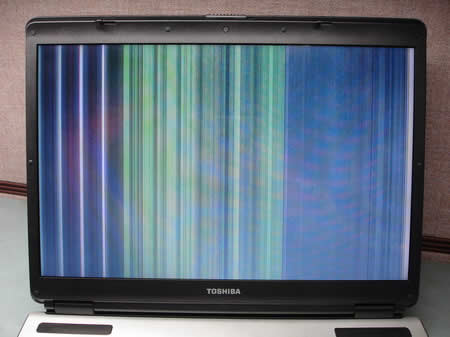
Here’s a picture of Satellite M55 LCD screen I made this morning. I got this video output as soon as I started the laptop. There were a lot of vertical lines, and they were changing color without any pattern. To me it looked like Northern Lights (never seen in real life) :). The external monitor worked fine.
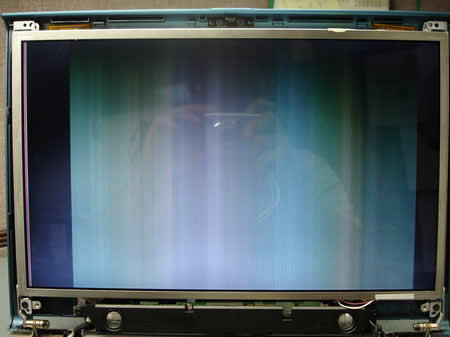
As soon as I applied some tension to the screen it changed the pattern. Some horizontal lines appeared in the middle of the LCD.
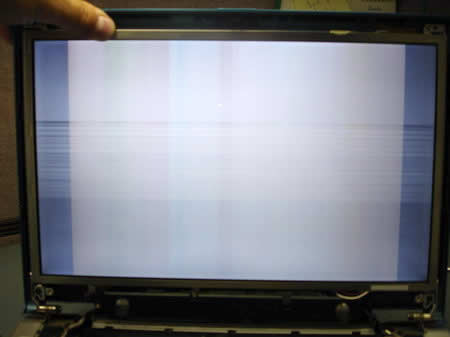
Here’s the difference. When I torque the screen, the image appears but it’s distorted with some horizontal lines running across the screen.
Reseating the video cable didn’t make any change and the problem was fixed after I replaced the LCD screen.
Example 2.
I took this picture from Toshiba Satellite M65. I think that this example is very typical. One day you wake up, turn on the laptop and see one or a few hair-like vertical lines in different colors.
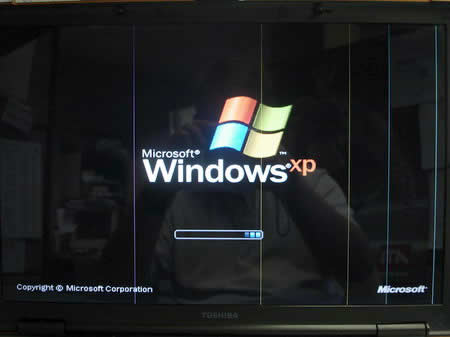
When you move the LCD screen some lines might disappear or more lines appear on the screen. A video output on an external screen would be perfect, without any lines. Unfortunately, these lines indicate a screen problem. I’ve never seen this kind of video output caused by a bad video cable or bad FL inverter board. My laptop was fixed after I replaced the LCD screen.
Example 3.
The photo below comes from Toshiba Satellite 5205. The laptop displays identical vertical lines all over the LCD screen as soon as I turn it on. Sometimes these lines are red, sometimes they are blue, sometimes they become wider and change color to white.
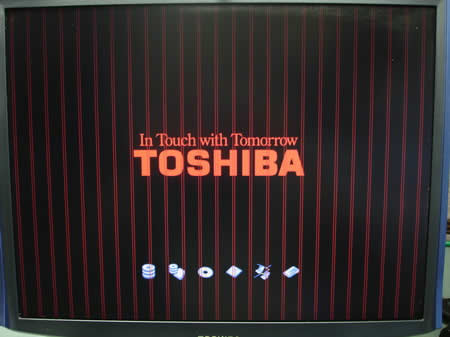
The same pattern appears on the external monitor. It displays same vertical lines. When the same video defect appears on both monitors – internal LCD screen and external screen, then most likely it happens because of a bad video card. On some laptops the video card is integrated into the system board, on other models it’s a separate module.
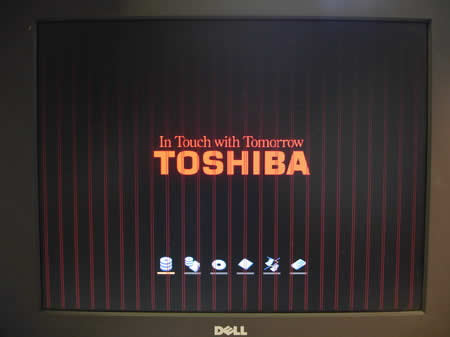
In this example, the vertical lines were caused by a failed video memory on the system board. I’ve tested the video memory with Microscope utility and it failed the test. In Toshiba Satellite 5205 the video memory is integrated into the system board. To fix the problem, I’ll have to replace the board. (We do not have equipment to replace the memory module itself).
Example 4.
Here’s another example of a bad LCD screen. My bad! It wasn’t the LCD screen problem.
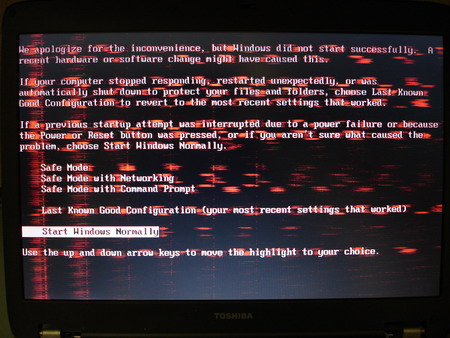
As soon as I turned on the laptop, I was getting these reddish marks on the LCD screen but not on the external monitor. Reseating and replacing the video cable didn’t help. The problem disappeared when I installed my test LCD screen. Yes, for some reason I wasn’t able to reproduce the problem on my test LCD screen. But the reddish video appeared again as soon as I replaced the screen. I guess it happened because the system board had some kind of intermittent problem with onboard video or video connector. Long story short, I had to replace the system board and it fixed the problem. Yep, I misdiagnosed this laptop.
Example 5.
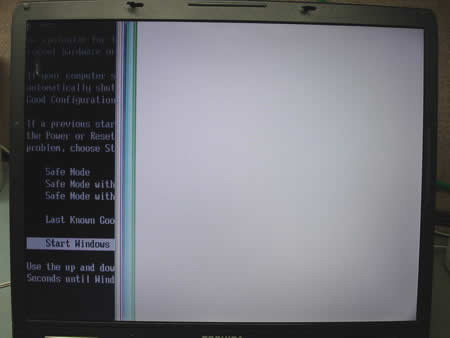
Here’s one more example of a faulty LCD screen. The left half of the screen works just fine but the right side is completely white.
Example 6.
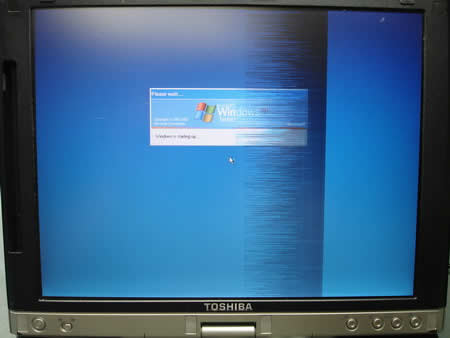
Here’s another laptop with a bad LCD screen. This time it’s a tablet PC.
Example 7.
This screen looks like the screen on the example 1. I hooked up an external monitor and the external video works perfectly fine.
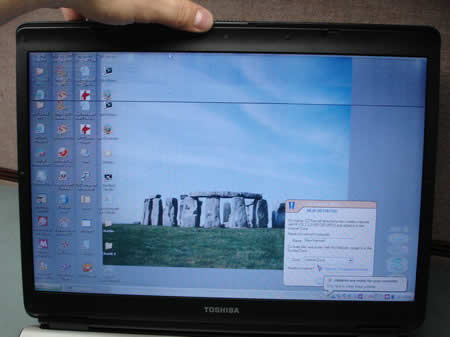
Here’s the difference. When I torque the screen, the image appears but it’s distorted with some horizontal lines running across the screen.
After a few seconds the image washes away.
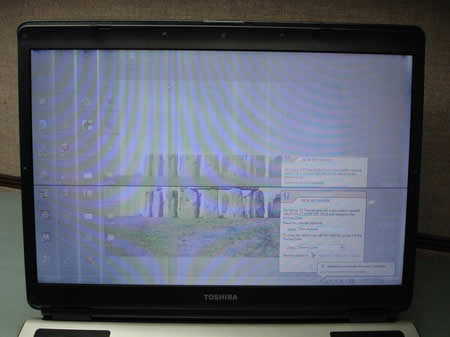
I had to replace the LCD screen.
Example 8.
This laptop displays inverted colors right from the startup. As you see, the Toshiba logo is light green instead of red. The background is light gray instead of black. The Intel logo should be blue on a white background but it is red on a black background.
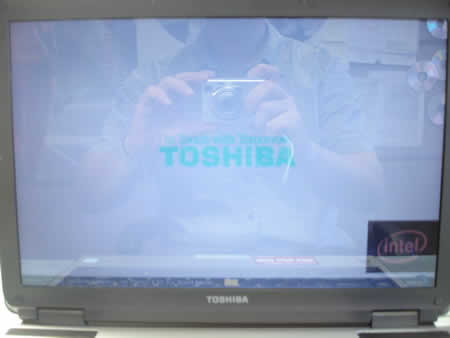
When your laptop displays inverted colors as on the picture above, this is an indication of a bad screen. You’ll have to replace the screen.
Example 9.
Here are two more screens. In both cases this problem is related to the LCD screen, witch means the screen has to be replaced.
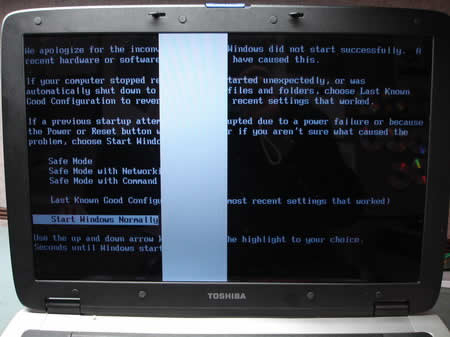
On the image below you see a white band running from the top of the screen to the bottom. This band appears right from the laptop startup and runs through the logo too.
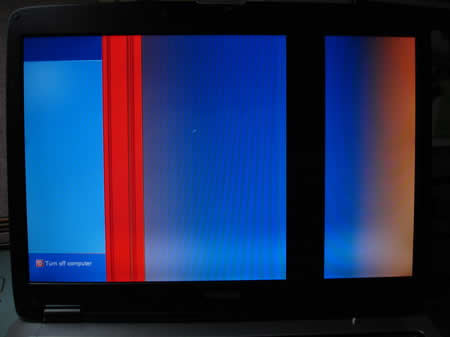
On the following image only the left side of the screen is working properly. This problem is caused by faulty LCD screen.
Other post related to troubleshooting laptop video problems:
How to troubleshoot and fix laptop video problems
Taking apart notebook LCD screen
Replacing LCD screen inverter
The newly installed screen is not working
918 Responses
seanrox
I’ve owned a Toshiba M55-S3294 since October, 2005. I’ve seen your first example on my own laptop only once and it went away when I rebooted the machine and has never appeared again but it’s nice to know replacing the LCD isn’t to hard after reading around your site.
I do have another question about the same laptop. Can the lid over (mine is copper) be removed without taking the LCD out? I’ve read you can change the color, so before I go looking for one on eBay, I wanted to know what I was getting myself into.
seanrox
Hey CJ2600. Thanks for the detailed reply and link to your guide.
Since you’re in the business, do you have any M55 covers for sale? I tried eBay. No luck. I’m wanting the grey/platium colored one. Currently I have the copper color.
Thanks again!
cj2600
Seanrox,
I don’t sell parts, I install them but I can give you a part number you need.
K000027700 – blue cover
K000027710 – copper cover, you don’t really need 🙂
K000027720 – gray cover
Google for the part number and you’ll find it in the first line.
Rob
What a great site!
I have a Satellite P30 and today a vertical strip approximately 1 inch wide down the left hand side of the screen turned white. I can move my mouse cursor over to where the “Start” button is in Windows, and activate the “Start” button, however, I can’t see the button or the mouse cursor. Any ideas what might be the cause and solution to this problem?
cj2600
Rob,
Most likely it’s the LCD screen problem. Just in case try to connect an external monitor and check out the video output. If you see the same vertical strip (very unlikely), then it’s onboard video problem – the motherboard problem. If the external video is fine, then I would suspect the LCD screen itself. Try to twist the screen, apply some tension to it. Does the vertical strip changes location, color or width?
jim
my screen is dim, it flickers but no lines like in these exampes. the external monitor works fine. i have a m35x-s111 sometimes i can make out whats on the screen but most of the time its to dim. please help. great site
jim
paid $40.00 on eBay for inverter. easy intall with your instructions , laptop works great
thanks for your help. saved me lots of $$$$$
Chuck Dirienzo
Toshiba Model M55-S135
Part number: PSM50U-02L01C
I have an interensting situation. When first powered on, there is a pink tint to the display. After about 10-15 seconds, the display blanks out. If I shine a flashlight on the display, I can see that there ie everything there. If I close the lid and place the machine into suspend mode and open it again, the display lights up and then goes off again. I have determined there is a magnetic switch near the keypad that places the machine into suspend mode. If I place a small magnet near the proper spot, the system goes into suspend mode and then will come out again. As I do this the display lights up for a few seconds and then off again. Keeping a magnet near the switch seems to keep it on for a while longer.
My question is this. Is this switch bad or is there a problem with the backlight or FL inverter? I think it is the switch but, I would like your opinion.
Thanks for your time.
Tony London
Dear Sir…..
i have a prob that i don’t see discussed yet…..i’m in dire need of help….my toshiba a70 has a prob..it only displays about 11 inches of video on the screen…the right side 3 or 4 inches are black…it works well on an external monitor…no luck updating drivers… also it does the same thing in safe mode…..please gimme a holla on where to go and what to do.i heard you were the best out there
thanx
cj2600
Hi Tony,
Turn on the laptop and go into BIOS setup. I believe you’ll have to hit ESC key on start up for this laptop to enter the setup. Do you see the same lines when you are in BIOS? If not, then I would say that’s software issue and re-imaging the drive will fix the problem. If the lines are still there, even when you are in BIOS, then it would be a hardware related problem, most likely a bad screen.
Just in case try to re-flash/upgrade the BIOS. Sometimes it helps.
John
I have a Pro-Star 8790. Everything was running fine until a couple months ago. My video distorts at random and forces me to restart my laptop. But I’ve noticed that it only does it when the laptop is plugged in. I listened and heard a quiet clicking noise coming from my power supply (like small sparks) and decided that that was the problem. Now, I’ve bought a brand new AC adapter and it didn’t solve the problem at all. My screen still distorts forcing a restart. I know it’s not a driver problem either. My video card is integrated into my system. I now think it is a video card problem. Does this mean my video card/laptop is fried?
cj2600
John,
Have you tried to connect an external monitor to the laptop? What about external video, is it bad too? If both screens – internal LCD and external monitor display the same distorted video, then I would suspect the system board. Let me know how it goes with the external video output.
chaib whiteford
hi, there i have slight problem with my lcd unfortunately the top 8 cm of my screen are gray and do not work, i assume it is completely broken a therefore wish to replace it however my warranty has run out. so i plan on doing it myself, i have two questions relating to this and would really appreciate if you could help me answer them. First of all the laptop in question is a fujitsu-siemens Amilo m7400 and i was wondering if i could replace my lcd with my friends Amilo m7405, in terms of resolution and size they seem identical, however i would appreciate if you could tell me whether or not i am barking up the right tree, my thoughts were that since they were the same model basically that fujitsu would probably have used the same lcd. secondly could you possibly tell me were i could get hold of some sort of manual or instructions. thanks.
Jared
I am having the same problem as shown in the first three photos above. Computer is a Toshiba Satellite L25.
It has gotten progressively worse over time. If you apply some pressure to the screen frame, the display will return to normal and the small vertical line will go away. I would assume that this is a loose connection? I intend to remove the frame and re-seat the inverter, LCD cable and do some cleaning. Does this seem like a failing LCD screen? The computer is slightly over a year old.
Any help would be great, thanks
cj2600
Jared,
If you have hair-like vertical lines that go away when you press on the screen, then most likely that the screen failure.
I would try removing the LCD and putting it back and hope for a miracle. Last month it helped me to “fix” a bad LCD on IBM ThinkPad. The screen was bad, it had some horizontal lines on it. Reseating cables and replacing the video cable didn’t help. But, after I removed the screen and put it back I got a perfect video. I think that when I put all screws on sides back in place, they stretched the screen somehow and made it work fine. I’ve never seen the customer again. I don’t know if it’s going to help you, but I think it worth trying.
Jared
I forgot to mention that the screen goes dim every couple of minutes as well. If you give the back of the screen a light tap, it will return to normal. Can you give me any ideas of where to look for a replacement LCD if that is the problem?
cj2600
With backlight it could be a loose connection problem, try reseating cables on the inverter board. To find a replacement screen, you’ll have to search by the part number. You can find the part number on the back of the LCD screen and it looks like: A000002050 (you might have different part number). Try searching through Google or on eBay. LCD screens are very expensive and very often it doesn’t make any sense to replace the screen, it’s better to buy a new laptop.
If you cannot find the part number for the LCD, give me more info about your laptop: model number and part number from the bottom and I’ll look up a part number for you.
Jared
just an update, but disassembling the LCD and re-seating the connections as well as the inverter seems to have fixed the problem. Thanks for your advice.
allen
hello sir, i have a compaq armada M700 laptop…since yesterday i am getting a horizontal line exactly at the middle of the screen. every thing is working absolutely fine. the line is about half a milimitre thick. what should i do…take it to a techician or can i repair it myself
plz do reply at the above address
thanking u
T
I woke up this morning, turn on my Dell Inspiron 6000 and theres a vertical line. Reboot, Reboot in safe mode and line still there and everything runs fine. After reading the great info on this site it seems a my screen has gone bad. Below is a link to my screen while XP is booting. I need a new screen right? Just wanted to get some feedback before I go spending on one. Thanks in advance.
http://img.photobucket.com/albums/v479/trd937/26-27APRIL2006063.jpg
cj2600
T,
It looks like a bad screen. From my experience, this kind of failure (thin vertical line across the screen) is not related to a failed video cable, bad connection or bad video card.
Vanessa
I have blue and purple vertical lines along the bottom 40% of my laptop screen and absolutely no image (entirely lines). The top 60% of the screen works great! I tried contacting Gateway but they won’t even answer me as to what it could possibly be without me paying them $3 per minute for cusomter support! Argh! Any advice on why only part of the screen is on the fritz? Thank you.
cj2600
Vanessa,
Start laptop troubleshooting with connecting an external monitor. That’s the first thing to do when you have a bad image on the LCD screen. If the same blue and purple vertical lines occur on the external monitor, then it’s the motherboard (video card) problem. If the external video is fine, then I would say that you might have a bad LCD screen.
Have you tried booting in Safe mode? Can you see the same blue and purple vertical lines in Safe mode or the video looks normal?
Bernie
Hi I have a Satellite p35-s605,which has developed a red horizontal line on the display,when connected to an ext monitor there is no line,guess Lcd problem also have reinstaled the os and drivers,
what would b your recomendation other than lcd replacement
thanx
bernie
Greg Baumgar
Hello,
I have a gateway m500 that fell off a desk and crack the LCD. I couldnt use the external monitor so we sent it in for warranty to use the external display. I bought another lcd, put it in, replaced the cables,and now I get color with vertical lines but no picture. Now that I have replaced all of this, my external monitor no longer works. Do you have any ideas on what needs to be replaced next? please let me know. Thank you
Matt
I have a Gateway 400SD4. When you first turn on the laptop you can see data on the screen but just for s second then the screen goes white, quite brite too! You cannot see any data on the screen. The external monitor looks great. Any ideas? Thanks!
cj2600
Greg,
Have you tested if the laptop works fine with an external screen before you replaced the internal LCD? Disconnect the internal video cable from the motherboard and test it again with an external screen. If you still get the same lines on the external video, even when internal LCD is disconnected, then I would say that’s a bad motherboard (video card if it’s a separate module).
If the external monitor works fine after you disconnect the video cable from the motherboard, connect the cable back and test it again. It might be just a loose connection. If you still have the same bad video, then you might have a bad screen.
cj2600
Matt,
It’s hard to guess. First of all, I would check if the video cable on the back of the LCD screen makes a good connection with the screen. I’m not sure if it’s going to help you, but I know that on some Toshiba laptop the same white screen appears when the video cable is not seated properly.
If reseating cables doesn’t help, then it could be either the motherboard or the screen problem. I would say most likely it’s a bad screen but I’m not 100% confident.
It would be nice to hook up a test screen and see if it also goes white.
Matt
Thanks for your response. I took the laptop apart and checked every wire in the cable going to the display and could not find any problems with the cable. Even found there is a fuse on the circuit board but that was OK. I put the unit back together and now it’s working! I think you were right, probably just a loose cable as the connection to the LCD itself does not feel that secure.
Reynol
I was a laptop technician in a company that only uses Dell, IBM and Compaq. I just recently started my own business in a Flea Market and have come across Toshiba laptops that recently needed screen replacements due to accidents and dc-inline jacks that need to be replaced. Your website is a life saver for a tech that is new to the Toshiba brand. I will continue to contribute what I can as I use your website.
Brian Gatti
Great Site, thank you so much for helping us figure out our lcd problems!!
I have a dell 9400 with a wuxga true life display. Recently the video card was changed and then the lcd had a blueish tint and no blacks whatsoever. When plugged into a crt all the colors are fine and the video card works good as well. Dell is sending someone out to replace the motherboard and video card, i was wondering if you have ever run into this problem and the cause…Before the lcd was replaced it was wavy and the windows logo during start up was shadowing.. along with distortions to the color. The wavy ness is pretty much gone but no blacks color distortion and a blue tint remaiins… any ideas? why would they change the motherboard?
cj2600
Brian,
I haven’t seen a laptop screen with bluish tint yet, but I’ve seen a reddish tint many times. In most cases, if the reddish tint appears on both screens – internal LCD and external monitor, it’s the system board/video card problem. If the reddish screen appears only on the internal LCD screen but not on the external monitor, then I would suspect the screen itself first. I guess the same would apply to a bluish tint.
I think they are replacing the motherboard just as a precaution. Please, let us know what parts Dell technician will replace and if it fixes the problem.
Brian Gatti
Thanks for your reply…
This is what happened when the technician came out…
Well first of all he had the wrong video card, an ati x1400
was supposed to be bringing a Nvidea 7900 go gs. Anyway he changed the motherboard and then later i reinstalled the blue tint video card. ( i had to do it later because he installed the ati x1400 and i had to uninstall it then put back in the nvidea. When i did the blue tint was still there but not on the external monitor. Now this is really wierd. Remember the card i mentioned that was doa? Well i installed that just to see if it would work it did this time… not sure if it will die later on… Here is the thing with that i noticed about the Nvidea Cards today as i was looking at them… The 2 cards that i had 1 was the blueish tint one and the other one was the DOA card each of them had different Assembly Revision Codes on them…The Blue Tint one had A001 (JULY 06)
and the DOA had A000 (Feb 06)
I was wondering if it had a reaction to the bios of the motherboard.. cause the bios has changed from A01 to A02 when the motherboard was installed…. i dont know i am still lost
They are sending out another card…. Dont know What assbly revisions are only that i BM both cards and the newer (blue tint ) A001 revised card had a 900 score and when i tested the A000 (DOA) had 600 score???
AMAN
Dear Matt
you problem could possibly be the vga cable, or connection of the vga cable. when you check this problem please make sure that your laptop in completely turn off the battery is removed, whit screen is signe of fauly cable or disconnected cable, that is the case if the laptop works on external monitor, else check you video memory. this sort of problem could also couse by dry joint, at mother board chip, or cable connection area.
good luck
Leo
Thank you for providing all of the laptop lcd tips. I have 2 laptops with pretty much the same issue with a very dim screen or no backlight. Both laptops are fine on external monitor.
The first laptop is an Acer Aspire 3000 that is dim throughout the boot process but a Toshiba M45 has a good screen for about 10 seconds, flickers and then goes dim. I am suspecting both laptops to have a bad FL inverter that needs replacing. Do you have any other suggestions to try? Thanks.
cj2600
Leo,
I’ve posted some laptop video troubleshooting tips in this post. Most likely it’s just a failed FL inverter board on both laptops. If Acer Aspire 3000 has a regular lid close switch (not a magnetic one), make sure it’s not stuck and moves freely.
Don L
I have HP ZE1210 LCD screen, The problem was black screen,
at night when i shine flourecent lamp to screen i can barely see
some icon.
i replaced the back light-still not light up.
i order inverter board-it light up but the back ground is white, character is black and desk top icon or windows had bad color like low 16 bit color ressolution, the color look like example 2 above but no line. Hook up SVGA work ok.
I have reseated cable hardness from lcd to mothe board so many time. My question is…is it the inverter i have ordered and replaced is bad. I think the invert board is to convert small dc voltage into high RMS voltage to ignite the backligh and control
the brightness not have to do with color? LCD bad? inverter…not sure. Any body have any ideas or comment please reply.
Raymond
I recently purchased a toshiba satellite p35-s609 from ebay, my problem is similar to bernie’s in which when booting up there will be a couple red lines on the left side of the screen, while installing windows xp I noticed that there is a reddish hue and diminished color (the white sunburst gradient cirles on the background of the windows turn into reddish circles), this problem is not duplicated on an external monitor. I found that if I tilt the laptop a little will reset the color and brightness to its normal display and stay like that as long as it is kept in that position (which is a little awkward at times). Could this hopefully just be a loose connection from the LCD to the motherboard? I have yet to open it up and wondering what my current options are.
cj2600
Don,
I’ve never seen that FL inverter causes such a problem. You a right, the inverter convert voltage for the backlight bulb, but from my knowledge it cannot affect colors on the screen. I guess you might have a failed video cable, but most likely it’s a bad screen.
BTW, look inside the video connector on the motherboard and video connector on the back of the LCD screen. Check if there are any bent pins. Last week I had to repair Toshiba Satellite P30 with a backlight problem. After 15 minutes of testing I discovered that couple pins inside the connector on the motherboard were bent and the video cable didn’t seat properly. The problem was fixed after I carefully straightened the pins.
Bernie
hi
now my screen has developed a diminished colour to the left hand side ,
where can i get a lcd display 17”
cj2600
Bernie,
In the top navigation bar there is a tab “Laptop Parts”. In there I listed 2-3 companies who sell LCD screens for Toshiba. We worked with Spare Parts Warehouse and AG Parts (used to be ID parts) and don’t have any complaints. Man, screens are expensive.
Bob
Hi – great site.
I have a Tecra 8100 with video problems.
Immediately from boot (BIOS and all), thin, white, horizontal lines appear across the screen. Looks like interference and/or loose wire.
External video works/looks great.
I removed the plastic front of the laptop that holds the screen in.
I have seated and re-seated all connections – no luck
What does work though is if I leave the lcd screen connected but remove it from the case (so it’s not touching the laptop) the lines go away. Is this a grounding issue. It seems like I am close to fixing it but can’t figure it out…
Thanks for a great site.
cheebster
Hi there. Who wrote this article ? I was wonder what he meant exactly about the 5205 failed board, that ‘failed the microscope utility test’ on the BGA video memory.. What does that mean ? You’ve inspected the ball grid array, and some of those balls were cold soldered ? Why didn’t you just reflow it ?
Thanks, cheebster.
cj2600
Cheebster,
Satellite 5205 has an onboard graphics controller (integrated into the system board) with a dedicated video memory (external, not shared). You can test the video memory with a utility called “MicroScope”. So I did run the video memory test and it failed. I guess it’s possible to replace the video memory but we do not repair system boards unless it’s something simple like a failed power jack.
Please share you knowledge if you know how to fix this problem without replacing the systemboard.
What do you mean by that, can you explain?
A I
Hi! I just got a new laptop: the HP Pavilion DV8333EA and I’m already facing problems! It’s not a major issue but there seems to be a strong pink tint between text on my lcd screen; particularly between vertical characters such as ‘t’, ‘l’ and ‘i’. It’s quite distracting and I didn’t expect such from a brand new laptop. How can I resolve this?
cj2600
A I,
Is your laptop still under warranty? It could be a major issue with the LCD screen or with the video card. A new computer shouldn’t have any pink tint between characters.
Connect an external monitor and turn on the laptop. If you can see the same pink tint on the external monitor, then it could be related to the motherboard (video card). If the external monitor displays characters fine and the problem appears only on the internal LCD screen, then it could be the screen problem.
I guess it also could be related to the video driver, but I’ve never seen a video driver causes such problems (like tint).
I would update/reflash the BIOS, reinstall the video drive and finally reimage the drive back to factory defaults. If the problem still exists it’s most likely a hardware issue. Call the tech support.
CARLOS PORRAS
I was working wth my computer just fine, suddently it went to dimmer white , and freezed my laptop completely.
Rebooted and now I get a lot of horizontal color lines.
cj2600
Carlos,
Are you getting these horizontal lines even before Windows loads or they appear only in Windows environment?
Test the laptop with an external monitor attached. If the external video as bad as the internal, then it could be the motherboard (or video card) failure. If the external video is fine, and you have a problem only with the internal LCD, then I would check if the video cable got loose. Probably you’ll have to reseat both connections – one on the motherboard and one on the back of the LCD screen. If reseating the cable will not help, probably it’s a hardware issue.
Sean Riordan
How about this one. Toshiba A105-S2716 Laptop and everything is working fine. Then the screen goes grey with a few white lines running horizontal across it. The external monitor is working fine, and if I cycle through the Fn-F5 key, the LCD starts working again for awhile. Also, if I reboot it starts to work again for awhile. The time it takes to go to the grey screen is intermittent though. It could be 2 minutes or 20. I’m not sure which component may be bad. Thanks for a great site.
cj2600
Hi Sean,
Yeah that’s a weird one. I’ve seen a few Satellite 105 laptops with a problem like that. It works fine for 10-15 minutes and then the screen goes gray with a few horizontal white lines.
When I got a Satellite A105 laptop with this problem for the first time it took me just 10 minutes to troubleshoot it. I connected an external monitor and set the video output on both screens. After 10-15 minutes the internal LCD screen failed but the external video was fine. I just ordered a new screen and video cable (as a precaution) because it looked like 100% LCD issue. BUT replacing the screen with video cable DIDN’T fix the problem. The same gray screen appeared after about 10 minutes. Reflashing the BIOS didn’t help either. After that I ordered a new system board and the problem was fixed.
Since then I’ve repaired about 5-6 Satellites A105 like that and resolved the video issue by replacing the system board.
I don’t want you to encourage buying a new system board right away, because in your case it could be just a bad screen. That’s would be nice if you can find a spare LCD screen and test it for a while. But from my experience this kind of failure on Satellite A105 laptops is caused by faulty system board. As I said before, that’s a wired one.
cheebster
Hi there. Yeah, i got the equipement here to rework those motherboards CJ2600.. all the issues you’re explaining about the toshiba boards showing distorted video.
Yugandhar
Hi, i have a prob similar to the 1st one that has been discussed. There r lot of horizontal lines that appear on the lcd and the whole display looks inverted and out of focus. Is the problem very common with M55s?
Glyn
Hi there. I’ve recently inherited an Inspiron 8000 which works perfectly apart from one thing. When the display resolution is set to the lowest setting the windows desktop is off centre, to the bottom right of the screen.When the resolution is set to the highest setting the right and bottom 3 inches of the desktop are off the screen! I have updated bios,drivers,reformatted the hard drive and re-installed windows. Any help would be much appreciated.
cj2600
Yugandhar,
I wouldn’t say it’s a common problem with Satellite M55s, it might happen with any laptop.
cj2600
Glyn,
Make sure to install a correct video driver. You said that the video is not displayed correctly on the lowest and highest settings, do you have any other settings, something in the middle?
glyn
cj2600
I have installed the latest nvidia driver for the graphics card to no avail. The screen is offset in any resolution. I should mention that the bios and bios splash screen are also off centre. When the laptop is connected to an external monitor everything is fine. I have checked that the graphics card and connectors are all seated correctly.Any other thoughts would be gratefully received.
cj2600
Glyn,
So it’s not software failure at all, because the screen is off center even before the operating system starts loading. You’ve already updated the BIOS, so it’s not the BIOS issue.
I afraid that it could be either the video card failure or the LCD failure. I cannot narrow it down without test LCD. I don’t think that the video cable can cause such problem.
Rustam
My notebook’s screen has blue background colour even then it should be black, for example at startup or in DOS command prompt window, so the colours of the screen are distorted. I can send photo to email. External monitor working absolutely OK, even then I replaced the LCD panel the problem persisted. What do you recommend to check?
cj2600
Rustam,
So you’ve replaced the LCD screen and still have the same problem? Man, that’s was an expensive one, but at least you know that’s not the screen problem.
Have you tried to reseat the video cable on the motherboard? I would try it next. You’ll have to open up the notebook, but you don’t have to buy any part. When you unplug the video cable from the motherboard, take a look inside the connector. Make sure that all pins (if you have any) are straight and not bent. If you still experience the same problem after you reseated the video cable, I would probably replace the cable (it’s much cheaper then the motherboard). The final step would be replacing the motherboard, nothing else left.
Before you buy any parts, I would try reflashing/upgrading the laptop BIOS. It’s not likely that the BIOS is corrupted, but it’s possible. I’ve seen some few strange problems with video that was fixed by reflashing the BIOS.
glyn
Cj2600
Thanks a lot. Have replaced graphics card and it is working .
Winston
Hi, my laptop DELL 510m developed a solid 1 inch thick vertical white bar to the right of my screen.
External monitor works FINE.
I replaced the inverter – still not fixed.
I replaced the display cable – still not fixed.
I ran DELL diagnostics and it found an error in the display adapter – ie. Intel 82852/82855 Graphics controller. This is ONBOARD video. What can I do??? Is there any way of replacing the chip without the whole motherboard?
cj2600
Winston,
If you experience a problem with the video output on the laptop LCD screen but not on the external monitor, then in most cases it would indicate a display related issue. If onboard video card is bad, the same video problem usually appears on both screens, internal and external. It’s not a rule, but from my experience it’s correct most of the time. I think that you have a problem with the LCD screen but after you mentioned this:
I’m not really sure.
Wins
Hey thanks for your reply. It’s got me stumped. I changed the inverter and cable and no difference. The diagnostics clearly say that LCD, inverter, cable are all fine. Problem with adaptor…go figure. The most annoying thing is that it was only 1 year and 9 months old when it had this problem. The laptop is absolutely mint condition, I have used it as a ‘desktop’, not even taken it out more than 5 ocassions! If I need a laptop I’m gonna use my girlfriend’s Intel Macbook. Gonna build my own desktop, that way I can fix it easily.
Wins
Max
I have an old 5105-S901 which, within a few minutes of running, shows an increasing amount of random pixel trash on the screen – similar to some of your screenshots (both on LCD and external monitor; shows as corrupted ASCII characters during boot-up). In 640×480 (safe mode) it works relatively stable for a while, but it crashes with ‘unknown hardware failure’ within minutes if it’s running in higher resolutions. After spending countless hours of testing, cleaning, replacing memory and experimenting, I found out that it’s a temperature issue with the video card. The Nvidia chip is getting extremely hot (burnt my finger twice) and if I spray liquid ice on it, the pixel trash immediately goes away. The video card has no active cooling, so I guess it became defective from permanent overheating over the years. I’m not quite sure what to do now – I can’t leave the laptop open all the time and spray stuff on it every 5 minutes. A new video card is ridiculously expensive ($350 – Walmart has a complete laptop for that price) and I wonder if and for how long it would solve the problem. I already force the CPU fan to run permantently at 100%, but that doesn’t help the video card. Is there a way to improve the video card’s cooling in my laptop model ? Have others experienced similar problems?
cj2600
Max,
Believe me, you are not along. We’ve seen the same problem with this unit many times before, but usually our customers decline any repair because of unbelievably expensive video card.
Barbara
Hi!
I have a used ThinkPad T40. I’ve noticed that if direct sunlight hits the back of the screen (the cover), the screen gets multi-colored lines all over. The couple of times that my roommate left the computer in the sun, the lines would disappear after we’d let it cool down. I can only blame myself for this, but the other day I left the laptop near the window, and the sun attacked it once again. Now it’s been two days and many reboots, and I only get picture (on the top half of the screen) when I first turn the laptop on, then it goes to colored or grey lines. I haven’t found any info on the net about screens overheating in sunlight – but is this possible? Is something permanently fried, or can it be tweaked?
p.s. my previous older model ThinkPad never suffered in sunlight…
Thanks, I really appreciate any advice,
Barbara.
cj2600
Barbara,
I’ve never ever seen or heard about laptop screen overheating in sunlight. Probably I should sacrifice one of my laptops and leave it in the sun to see if I can reproduce the problem. 😛
Sounds like a bad screen to me.
Veeru Singh
hie there
i have an acer aspire 3002 nlc laptop, there are vertical lines apperaing on my lcd monitor, the external monitor shows no display when i try to connect to it.. plz let me know where lies the problem.. and is there any precautionary measures should be taken to avoid it.
Timo
Winston, I just came back to my Dell lapton and I have the exact same issue. with a 2 inch white bar on the side of my screen. I can move the cursor under the bar and do things, but I can’t make the bar go away. I have had my Dell Inspirion laptop since March 2005, not even two years. Is there an inexpensive fix?
d.h.
Hi there,
I have the same problem as seen in Example 2.
What causes this problem?
And also, how much does it cost to change the lcd.
Is it worth getting a new laptop instead?
Ozy
Hello all,
First up great site! I seem to be having a bit of a problem with my Toshiba Satellite P30-145.
I turned on my laptop one morning to find the screen had reduced resolution size and colour to 640×480 and 4-bit colour. Anytime I try to alter the settings they switch back to 640×480 and 4-bit as soon as I apply or ok the command window. I have hooked the laptop to an external monitor and it is the exact same problem.
I have tried to start the computer in safe mode to try and isolate a driver which could be playing with things but that does not help.
I then switched out of safe mode to have a play with the video card.
I deactivated the video card (ATI Mobility Radeon 9600/9700) from the device manager and restarted the laptop. Upon restart, the colour system had reverted to full 32-bit but the screen resolution was still set at 640×480. I then went into the display manager, had a play about, and managed to get the screen up to 1024×768. This is the best setting I have managed to get but is still some way short of full resolution (not to mention the laptop has slowed to snails pace and paging rates are awful).
I tried reactivating the video card through device manager and keep the new settings, but as soon as I do that the laptops go’s all the way back to the original problem.
I do not have the recovery disk or the driver disk for the video card so cannot try the uninstall route. This is pretty much as far as I can get. I hope that this problem is something simple.
I am a CAD Tech so I am comfortable with playing around with settings/software/hardware.
Any help would be great.
Thanks again
Ozy
V.S.
hie there
i have the problem in ex 2. but i dont get a display on my external monitor either.. i opened the laptop then disconnected the lcd connection and then tried to connect to the external monitor.. it worked fine.. but with the lcd connected the external disaply is simply not there.. and the lines are also no solid they are in dots moving from top to bottom.. and few of them vice vera…
Dan
I have a P35-S629 that, yesterday, developed a different video problem than those written about. Beginning from the Toshiba start screen, the right half of the LCD has horizontal lines and poor quality, similar to Safe Mode. Lots of flickering too. The left side is perfect. I don’t think the laptop was dropped or damaged.
What could be the problem? Where should I start to troubleshoot?
Is the video card separate or part of the motherboard?
thanks
cj2600
d.h.
It depends. Some LCD screens are not very expensive and it makes sense replacing just the screen. Some LCD screens are very expensive and it’s better to buy a new laptop. Make a research on the Internet and find out how much you have to pay for a new screen. Add $100-120 if you going to replace the screen in a laptop repair shop and you’ll see if you want to go this route.
cj2600
V.S.
Did you see any lines on the external monitor? I think you might have a video card related issue and if it is, the lines of dots will appear on both screens – internal and external.
cj2600
Dan,
The problem starts from the Toshiba logo screen before Windows begins loading, so it’s not software problem. I think you might have a bad screen, because the problem you described sounds like a screen related issue.
Just in case test the video output on an external monitor. If it’s a video card related issue (I doubt it), you’ll get the same bad video output on the external screen. The video card in this model is integrated into the system board and if the video card goes bad it’s necessary to replace the system board.
V.S.
hello cj,
Well i tried to connect to the external monitor, but there was no display. Then i removed the lcd video connector, to my surprise the external monitor showed perfiect display. but when i connect the lcd monitor and use fn keys to swap display on the external monitor there’s nothin but a blank screen. Is there a system board issue?
cj2600
V.S.
I’m not really sure what is wrong. I wouldn’t think that disconnecting the video cable from the motherboard can affect video on the external monitor.
In the comment 79 you mentioned that the laptop LCD has lines of dots moving from top to bottom. If the external screen would have the same lines, then it would say it’s the motherboard/video card failure. But you say that when you unplug the video cable from the motherboard the external screen shows perfect video. So I’m not really sure what’s going on.
May be you have a faulty video cable and there are shorted wires inside the cable? When it’s plugged into the system board it shorts something making the laptop LCD to display these lines of dots and also the VGA port not to work properly. But when the video cable is unplugged the problem is gone and the external screen works just fine. That’s my guess.
V.S.
i guess dats vot wrong. thanx pal. i shall come back to you as soon i get a solution…. thanks one again cj.
regards V.S.
T.C.
hi my problem doesnt seem to be mentioned or i just havent looked hard enough but i am very frustrated, ive had my laptop for over a year but today i had been using it a lot at school and pulled it out for my last class and the screen coloring looked inverted, if i applied a little pressure at the top of the casing (not the actual screen) i could get the color to go back to normal and if i would hold it that way for a long time, it would stick to being normal for a long time…any suggestions?
cj2600
T.C.
When you apply pressure on the screen casing, you indirectly apply pressure on the screen itself. If the video changes when you press on the screen, then most likely it’s a bad screen.
mikee
The video card drivers or something. Looks like a nintendo game when it isnt all the way in!!:p
try checking the conection from the monitor to the board too!
andy
Dear:
my production is ccfl (Cold cathode lambs) EEFL and T2 neon light. I see your web,if you make all lamps or buy from other company?
I had glad to supply my tube to you.
as a professional CCFL EEFL and T2 manufacturer in lighting field,was set up in 2002. The factory covers 5000 square meters,a team of 10 engineers and technicians work in the R/D and Quality-control sectors to update technology and assure the quality of the products.
With the state-of-the-art equipment and latest technology,by using selected material the glass from Schott-Rohfglas Gmbh,Germany and the Nickle-alloy cup-shaped electrode from Japan to organize the production,the CCFL have achieved the international standards.To serve as indispensable accessories for well know backlight firms,the products have been well accepted by customers of Japan,Korea and Taiwan,China for its high reputation and stable quality.
I want to contect with you, and introduct my production to you. thank you.
Best Regards
Andy
abs
umm… about that about replacing the system board… how much would it cost for replacing that for a Toshiba Satellite P-35 series laptop/…. I put in the power yesterday, the screen froze and when I rebooted it, it showed exactly as the one the picture shows in example 4… thanks for the help
Conrad Klug
Hi i love this site
well anyway, im having a problem with my monitor on a compaq presario v2414NR, and the lower half is all white while the top half is fine, it works with an extrenal moitor, ive reseated the connectors, but im getting the feeling tht it may just be the video connector to the lcd
cj2600
Abs,
If you take the laptop to a Toshiba repair center, then you’ll have to pay approximately $450 for a “new” system board (most likely it will be a refurbished motherboard) plus $100-140 in labor. If you decide to replace the system board yourself then the final cost might vary. Sometimes you can find really good deals on used parts online.
cj2600
Condrad Klug,
I’m not sure about the video connector on the LCD but to me it sounds like a bad LCD screen.
Edmundo
Hi! very frustrated, my Toshiba M200 never had a problem until one day the LCD only showed color lines (it was sitting in my desk, no moving or hitting that I recal) , on external works perfect, bought a computer for parts on e-bay, and tried everything first the LCD, then LCD plus inverter, and dedicated ram for graphics card, do you have any knowledge that this could be a system board problem, right now it seems the only answer, I really dont know where else to look, I would really appreciate some light at the end of the tunnel. Best Regards
leo
I have the same problem and I’ve just find where the problem comes from. Between motherboard and LCD screen, there is a cables linking them. When I touch these attached cables, screen remains correct but some colors may disapear. One or more of these cables may be cutted, and it seems to be the reason of the problem. I change it and I will tell you if my problem disapears.
(Sorry, I’m not english fluent )
Harry
Hi
My laptop screen is not working good it has horizontel lines on it and if i connect he laptop to external moniter than also it give the same horizentol line
i donot where is the problem?
Thank you
syed
hi i bought a toshiba satellite p30-145 red top laptop. one day suddenly the screen quality turned poor. it seems like there are very thin vertical lines all over the screen. the screen size is 17 inches. one more thing if i press between the key board and the screen the display chnages but doesnt turn to its original quality. some times there are pink patches over the screen. some times it looks like the screen has more of blue color. even if i place my hand on the laptop to type something the screen chnages colors some times improves sometimes worst. i attacvhed an external crt to check and its just fine. preesing above the keyboard tick me that there is some hardware problem. can you help please. one more thing, once there was some over heating problem, so i send it to toshiba and they changed the board.
thanks
cj2600
Harry,
If the laptop LCD screen and external monitor display the same bad video (horizontal lines), most likely you have a bad motherboard, I assume the video card is integrated into the motherboard.
Mika
Hello!
I have Compaq evo n800w UXGA laptop. When I start it, display becomes first greenish and after that picture is harsh and blurred but colors are OK. I had to drop down resolution to xga level that I can read any text seen on display. I have changed drivers with no help. On external display picture is OK. I have unplugged Lcd cable and put it back with help of manual but no help. Is it possible that some cord of ldc cable is broken or other edn of it is loose? Is it possible to change that cable on that particularly model? Is there any instructions available? No warranty anymore. HP offers only replacing whole display and the price is over 1000€ !!. Can anyone help with this problem? Yours Mika
syed
thanks for the reply. well i removed the strip today. took the white 30 pin connector coming from the lcd into the motherboard, out. checked the pins inside the white female connector onboard, which was OK. the 30 wire cable is well in placed in its male connector.placed the connector securely back into its female.when i press the white connector on board the display chnages. seems like there is always a blue overlay on this screen formed by very thin vertical lines, which has taken away the crispness of the image on the lcd.the connector is very sensitive, even if i press is lightly the display changes.the cable is ok from the end where it goes into the lcd. Does this description ticks any thing??? i cannot solder it again on the board as it is very tiny connector with 30 pins. what ticks me is a bad connection b/t the motherboard and the female conector on the board. is there anyway that i can convert the 30 wire cable from the lcd into the external monitor port, so instead of video signal from the on board connector i can use video signal from the video port at the back. i was good at electronics in the university:)
Cindy
My dad basically just ran a magnet (from a portable FM device) in front of his LCD on his laptop (accident). Now the screen is in bars of blue, green and some white, predominately on the left side of the screen and across the top. He says it appears “smeared.”
Is this something there is a way to reverse? He says he is pretty sure it is magnetic damage to the LCD; the computer itself appears to be working fine. He can’t search the ‘net himself as he can’t navigate with the damage to the screen and asked me to see what I could come up with. So far, this seems to be the best place to look for answers!
Thank you,
Cindy in AK.
cj2600
Syed,
I don’t work with motherboards on component level, but I think it’s not possible. Probably you’ll have to find a technician who can resolder the connector on the motherboard and see if it can help to fix the problem.
albert
i purchased this laptop on 5/28/04 from Gateway 450 ROG online. It started giving me problems about a year ago. The screen kept flickering and then a lil while ago it just went red and constant flickering. I was advised that it was just the video cord that needs to be replaced. i actually bought this item from ebay if this correct i wanted to know if that could be the problem thanks
Joseph Issa
Dear Laptop Repair Guy,
Thanks so much for the posts. I have a question about the 5205 model you posted with the video artifacts. I have the same identical problem with my laptop, 5205-S703, but it does not appear from the moment I turn my laptop on. Sometimes it does when I turn the laptop on after immediate prior use, but not the first time in the day. It happens on both the main LCD and any external monitors when it does happen, though. I think that this might be a problem with my system fan, because when I use high power apps, the glitches reappear and the computer freezes. The system can run for about 20 minutes if I dont use it intensively before the artifacts appear. Also, when I hold the laptop and apply pressure to the underside of the laptop near the fan and VGA area, the lines dissappear (but the system remains frozen if already frozen). Have I diagnosed my problem correctly as a fan malfunction, or do you think the video card is fried. The reason I suspect it is a fan problem is because my laptop once had intermittent fan grinding problems, and I think it may have finally died. One final thing, I thought the VGA board on 5205 laptops was discrete? Am I wrong? Thanks for your time and help.
With much appreciation,
Joseph Issa
Matt G
hello, i own a compaq evo n800c laptop and i recently replaced the bezel around the keyboard which required the screen be removed. upon rebooting after the install the colors are all distorted with a lot of neon colors (blue pink green) making any picture or video impossible to see. i tried reseatting the cables off of the lcd onto the laptop itself and the problem remained. any ideas?
Matt G
i forgot to add that the picture on an external screen is perfectly fine.
cj2600
Albert,
If the external monitor works fine then the problem is somewhere inside the display assembly. It’s either a bad LCD screen or bad video harness. It’s impossible to say witch part is failing until you install a test LCD or replace the harness.
V.S.
hey C J
I have lines on my laptop screen. i tried to test direct x 3d, using C:\WINDOWS\SYSTEM32\dxdiag.exe, display, test direct 3d, and then the revolving box stopped and the laptop hanged! on restart there was an error relating to the display driver.. i want to know if this is the result of the lines on the screen…
lk
I have an acer travelmate 290 which has a problem of not displaying an output to either the laptop screen or an external screen. When switched on it appears to start ok and the lights come on to show switched on/ battery/ hard disk activity but not display. Have you seen this before and if so what should I be looking at ?
Katie
i took my labtop outside i had it in a lab top bag and itw as really cold outside when i got home i turned it on not knowing that you are supposed to let it warm up to room temperature and the lcd screen has purple dots all over it. how do i fix it? my lab top is a acer.
cj2600
Joseph Issa,
To the best of my knowledge, the VGA board on Satellite 5205-S703 is not discrete. This unit has a dedicated 64MB video memory, but the video card itself (NVIDIA GeForce4 460Go) is integrated into the system board.
From this description I would assume that something is wrong with the motherboard/video card. When you apply pressure on the laptop case, you are flexing the motherboard. Probably there is a bad contact somewhere on the motherboard.
But this one looks like a heat related issue.
I would check if thermal grease on the CPU is still good and reapply it if needed. Not sure if it’s going to help, but anyway it’s worth trying.
cj2600
Matt G,
Look inside the video connector on the motherboard, make sure you have no bent pins inside the connector. It’s possible that you accidentally damaged the video cable while unplugging it from the motherboard. Did you unplug the connector by edges or pulled the harness? May be the video harness is damaged? Turn on the laptop and wiggle the video cable, see if it makes any difference.
cj2600
V.S.,
Boot the laptop in safe mode. Do you still have lines on the screen? How about video on an external monitor, also has lines?
The lines appear as soon as you start the laptop, even before Windows is loaded or you can see it only in Windows?
Alicia
Hmmm I have a similar problem. See I have a ThinkPad laptop (600E.) See when I first started my laptop up, it would turn on, but it would remain a black screen. Someone told me it sounded like it was stuck on stand-by. I tried what they told me and the computer loaded up with windows and everything. So not even 5 mins and windows is loading up and the screen turns different colors. (vertical lines) just like in the fist picture. I’d move the laptop screen up and down and it would go to normal and then it would freeze and then go back to the lin colors. I don’t know what’s wrong with my laptop. I brought it to one of my step dad’s computer guys and they told me it was the mother board. Then they tried selling me a use Mac for over a 1000 dollars. I turned it down. I doubt that they were telling me the truth. I’m not totally stupid when it comes to computers. Because if it was the mother board, why would it even turn on. Any ways I think it may be the hard drive from what I’m seeing online. Could anyone please help me. Thank you very much.
cj2600
Ik,
The first think that comes to my mind is RAM. Try reseating the memory module, move it from one slot to another. Find a known good memory stick, install it and test the laptop again.
stability
hi friend
i m really happy to find this site
it is fantastic thank you very much.
i have a question:
are there some protections or security on laptops so we must be careful when we disassebly?
sincerely yours
cj2600
Alicia,
Here are some basic troubleshooting steps that can help you to narrow down the problem. Start your laptop with an external monitor and see if you have the same vertical lines there. If the same video defect appears on both internal laptop LCD and external monitor, then most likely you have a problem with the graphics card. If the graphics card is integrated into the motherboard, then it becomes the motherboard problem.
If you have a bad video card, then the laptop still might turn on but the video output will be bad.
I doubt that lines on the screen could be related to a failed hard drive.
cj2600
Stability,
Yep, all manufacturers booby trapping laptops and as soon as you open it up, the laptop blows up. Just kidding. 😛
I haven’t seen any protection on laptops sold in the USA. Not sure about European units. Probably they have some kind of security stickers. If you remove them, you’ll lose the warranty. There is nothing live threatening.
Ben
Thanks for sharing all of your knowledge. This site is a huge help.
I have a Gateway 400vtx
As soon as I turn on (even during bios), there are horizontal lines of different colors and they seem to move almost giving a scrolling effect on the screen. Any Ideas?
cj2600
Ben,
did you check video on an external monitor? If the external monitor works fine try reseating the video cable on the motherboard and LCD screen. If it doesn’t help, replace the video cable, it shouldn’t be very expensive. If the problem is still there, you might have a bad LCD screen.
Englila2
Hi, I have a question in need of a answer.. I have a acer aspire 3610 and the LCD screen has made everything inverted. In Order to see a picture i have to save the image, Open it on paint and invert it back to its normal color….Does anybody have any idea what is causing this and how i would go about fixing it.
Thanks in advance
Jester
Good afternoon, I love this site and have reviewed all of the questions and answers, and can not find an answer to my problem so here it goes. I own a Toshiba M35X- S114. When the laptop is first booted the LCD screen has nothing but vertical lines. After a period of time the screen goes compleatly blank. I have connected the laptop up to an outside monitor and the video works fine once i use the FN keys to move it to the outside monitor. The screen looks kinda like what you have in example one, but does not move when i press on the lcd…
james
Sometimes, but not all of the time, my screen goes completely blank with all of the programs still continually running. It’s just a white blank screen. Once this happens, I restart the computer and
everything is fine until I move the screen.
I recently repaired and replaced the dc power jack 6 months ago, but this problem didn’t occur until about 2 weeks ago.
Mike Phatty
reminds you of a nintendo game not all the way in . i would check the connection inside the lcd because you may have caused a tug action and unplugged it inside a little. Just a guess. since you might have not gave enough slack and when you open the monitor it pulls. Mabey you have the wrong screw in somewhere! . Does it work hooked up to an external monitor?
Ron
I have a hp pavilion zv6000, and I am having a problem with the lcd display. When I turn on the computer the screen comes in and then dims out. I move the display and it will come on again. I replaced the video cable and inverter and it is still having the same problem. Can you help me?
cj2600
James,
It’s possible that you have a loose connection, maybe the video cable connector on the LCD screen is not seated properly. Check the connection and make sure the video cable is plugged all the way down into the connector.
cj2600
Ron,
Maybe you are experiencing some kind of grounding issue? Remove the LCD screen from the case but do not disconnect it from the laptop. Will it work outside the case? Be careful, it might shock you. Do not touch the screen when it’s on. Take a closer look at the wireless cables, aren’t they damaged? Once I had to repair a laptop with similar problem. In my case it was happening because the wireless antenna cable was damaged and the wire got exposed. When I moved the display the wire was touching the metal hinge and the backlight was turning off. Just a guess.
Van
I have an Alienware Laptop and last night a pixel wide blue line appeared on my screen running vertically.
It only happens when windows loads during POST and bios bootup it is not there. I ran a direct3d test and it disappears during the test except the last 2 seconds when it goes back to the desktop it reappears. I connected an external monitor to it and the line does not appear there. Before I started the external monitor test while booting up initially after being off for 10+ hours the line was not there but appeared within a minute or two.
I tried resinstalling drivers and direct x with no luck. I got a driver cleaner for Nvidia and removed even the registry keys. When the monitor flickers during driver install the line sometimes disappears for a few seconds.
I talked to a coworker at the tech company I work at and he thought it might be the LCD inverter. What I want to know is it the Inverter, Display, or Video card?
Eduardo
Hi guys. This site is very interesting. Congratulations!.
I have a Dell Latitude CPxj. It was working well until 2 days ago when the power cable was suddenly desconnected. One hour after that it was turned on and surprise!, the video output was full of trash and is like this until now.
I’ve tried connecting an external monitor but the result is the same.
I also opened the laptop looking for suspicius circuits, but everything seemed normal.
Please, if anyone has experienced something similiar or has any idea of how to fix the problem I’ll apreciate your support.
Do you think that the onboard video chip is broken? In that case then it’s probably a lost motherboard.
Thanks for your help!
Eduardo
Hi guys. This site is very helpful with all that thecnical info and the tips. Congratulations!
However, I’ve got a problem with a Dell Latitude CPxJ. Two days ago it was working as normal but suddenly the power wire got disconnected… One hour later the laptop was turned on and, surprise!, the screen showed a lot of trash.
All big images appear with shadows all around the screen.
I’ve tried connecting the laptop to an external monitor, but the result is the same.I’m thinking that maybe the onboard video chip got fried something like that.
Has anyone experienced something similiar? Any help or comments will be appreciated. Thanks.
Rhys
Hey guys,
A couple of days ago, my Qosmio G10 -133 develped a vertical bar measuring about 7cm’s wide. Sometimes the bar is a solid colour, sometimes its a solid colour with a whole bunch of multi coloured vertical lines mixed in. At times it even phases out into like a tv snow pattern where I can kinda see anything thats hiding behind it.
If I use the print screen function to take a screen shot. It doenst show up when I view the captured image.
The bars there from start up to shut down. Even when I’m in the BIOS its there. So I know its not a driver issue.
I dont have an external monitor to test on. But would you guys have any ideas?
cj2600
Van,
It sounds like a screen failure to me. But it’s really strange that the line appears only when Windows loads and it’s not there during POST and BIOS bootup. I’ve seen a lot of screens with a pixel wide vertical lines, but usually the line is ALWAYS on the screen not just in Windows. Weird. Maybe the line is still there but it is invisible on a black background?
The LCD inverter provides power for the LCD screen and cannot cause this problem. If the inverter goes bad, you loose the backlight and the screen becomes very dark. The image is still on the screen but it’s very dim. I’ve never seen that a faulty LCD inverter causes a pixel wide vertical like on the screen.
When you have a faulty video card, most of the time the same problem will appear on both internal LCD and external monitor. So in your case it’s not a video card issue.
I would say it’s a failing screen, probably a bad contact somewhere on the circuit board.
cj2600
Eduardo,
I think it could be a video memory related problem. Do you know if this laptop has shared memory – part of the main memory is used for the video card? Try this. Reseat the memory module. If you have two RAM modules installed remove them one by one and test the laptop with each one. Find a known good memory stick (maybe you can borrow it from a friend) and test the laptop. If new memory doesn’t help then probably your guess is right. Something is wrong with the video card.
cj2600
Rhys,
Looks like a bad screen. You’ll have to replace the screen.
Ken
Great site! Hope you can help me. I used my wife’s Dell Inspiron 8100 (with 15″ UXGA LCD) for a long period over one night, and it was working fine when I shut it down. A few hours later, when she got up and powered it up, the screen colors were very odd, and there appeared to be alot of video noise. I thought the video card (nVidia 32MB GeForce2) was shot, so I bought a new card on eBay (nVidia 64MB GeForce4), and installed it, along with the new drivers for that card (Inspiron 8200). Powered it up, and the colors still looked bad, no change. I then tried the external monitor test, and everything looked great on the external monitor (wish I’d tried that before replacing the video card). I found the Dell diagnostic disk and ran the video tests. I discovered a test that lets you play with the individual red, green, and blue colors, by using sliders to increase or decrease each individually, showing the individual color intensity in separate boxes, and the combined color in another box. This test showed that red and blue ramped up cleanly from no color to intense color for each. However, the green color did not have a smooth transition. By moving the green slider the green color would make jumps from low to high intensity, and back again, and at many points along the path it would display video noise over the color. This affected not only the individual green box, but also the box containing the combined colors. Since I just replaced the video card, with no change, I’d rule out the video card cable connection. Could this possibly be a cable problem, or connection problem on the LCD? I’m trying to decide what part to replace next, the cable or the screen, and those screens aren’t cheap. Or, could this be a motherboard problem? Any suggestions? Thanks!
Stacy French
I am having a problem with my lsptop LCD..Let me send a pic to you and maybe you can tel me how to fix.
joel
I have the same problem, have been recommended to replace the “inverter” it is inside the display near the hinges, and a pain in the rear to get to, the display cover is attached by 4 screws (HP zv6000 15.4 WXGA screen) and some super duper sticky tape, I cannopt get the tape off to get to the inverter which has 2 screws in it. I bought a new inverted off ebay (new, not pulled) last week for $23 including shipping. if I can get to it without breaking anything, I’ll repost to let you know.
cj2600
Ken,
I don’t think this is a motherboard related problem. Have you tried reconnecting the video cable on the back of the LCD screen? I would try this first because it might be just a loose connection between the cable and LCD screen.
If reconnecting the cable will not help then it’s either a bad video cable or faulty LCD. Witch one is bad? It’s hard to guess.
It’s possible a you have a defective wire/connection inside the video harness or the LCD itself is going bad. If you have no LCD available for testing the laptop, you’ll have to guess. I would probably go with the video cable first because it’s much cheaper and you have a chance fixing the laptop without an expensive LCD replacement.
cj2600
Stacy French,
Where are a lot of free websites for sharing your photos. You can use any of them (flickr.com for example) and post a link to the photo here.
cj2600
joel,
I know exactly what you are talking about, I agree it’s a pain. Sometimes the LCD mask is glued to the LCD screen (to the metal frame) with a sticky tape, really sticky tape 😛 and just removing screws is not enough. Here’s how I usually separate the LCD mask from the screen. I insert a piece of soft plastic between the mask and screen and slowly move it along the screen. I use a guitar pick, sometimes a small library card because it’s made of soft plastic and cannot damage the screen (if you are careful of course). One side of the card slides along the bottom side of the LCD mask and another side along the metal frame of the screen (not the screen itself). After the mask is separated from the screen, work with your fingers to release plastic latches and lift up the mask.
joel
well, I got the new LCD inverter installed, put everything back together, and other than the obvious signs of me opening up the display, everything is right as rain now. I have a beautiful display on my zv6000 and I can finally remove it from my PC’s monitor. It makes me so happy to be able to carry it away from my desk once again. I cannot even imagine how I managed these last 7 months without the display functioning.
Again, my problem was a very dim display, and only lighting from a single side. After setting my desktop top pure white I was able to see it when I shined a flashlight at it in the dark, or by having direct/bright sunlight shining directly at the screen.
Ken
cj2600,
I took the plunge over the weekend, and hadn’t been back to give you an update, but your analysis is spot-on, it was the video cable to LCD connection. When I finally got the bezel and display apart, the connection looked good, and was covered with tape that appeared to be holding it securely. When I powered up the notebook, with the display in my hands, I found that the screen was blank, just the backlight was on. I thought maybe the LCD had actually died, but then I put a little upward pressure on the cable to connector connection, and the “bad color” display came back. I applied more pressure, and wow! the original crisp clear display with great colors was back. I hadn’t removed the tape over the connection, just applied upward pressure to “tighten” the connection. I didn’t see or feel any movement within the connection, but the display had come back to life. Since there doesn’t seem to be a way to make this connection more secure, I left it alone and used it for a day while it was disassembled. Since it continued to work well, I reassembled the display, and it continued, and still does work well. I guess I’ll just have to wait and see if it holds together another 5 years, but at least I now know how to get it working again if these symptoms reappear. (Now I just need to decide on whether I should put the original video card back in and sell the new one, or leave good enough alone, as my wife has her laptop working again.)
So folks, listen to this guy, he knows his stuff! Thanks!
Stacy French
http://farm1.static.flickr.com/166/397121572_23ef126795.jpg?v=0
http://farm1.static.flickr.com/123/397116388_a4cca5d1cb.jpg?v=0
http://farm1.static.flickr.com/132/396745130_5d0eadaf72.jpg?v=0
Mike Phatty
i would check if you bent a pin in the plug . Or have it upside down if even possible. Just curious.
Mike
cj2600
Stacy,
Quality is not very good, hard to see what is going on with the screen. It looks like you have a black background with a few vertical lines, correct? No image on the LCD at all? I see an external monitor on the background. Did you check the external video?
Stacy French
Correct…It started out being just a few virtical lines and the more I messe dwith it, the bigger it got. In various colors. Yes, I have it plugged into an external monitor and it works fine that wat.
Mike Phatty
have you tried adjusting you mutiple display settings . Whith it on the external adjust to have multiple displays. Adjust the settings freely as well!
sally
hi i just replaced a backlight on my dell 9100 inspiron,have light again but desktop fades in and out,colors and lines etc.i have it apart still and noticed a small 1/2 inch ribbon cable on back top left side of lcd screen came loose when i removed lcd,it slides under tiny finger clamp,when i set it back in place,i get garbeled video,when i put tension it i see desktop fade in,and out is there a calibration i need to do to get desktop video stable again,any idea what that tiny ribbon cable is???
harminder saini
i have an acer laptop…from last few daysmy lcd goes pink that is the background which is white in colour goes pink….i dont know what todo…if it remains it remains for full day otherwise sometimes it goes in 1 hour and the lcd becomesok
Barry
My problem is that there is a 1” black stripe down the right side of the screen. It’s an AOC LM942 LCD monitor. I deleted the video drivers, then reinstalled. It’s hard to tell, but I think the stripe is still there when the computer is starting.
cj2600
Stacy,
It’s hard to guess what is wrong because you have no image on the background. It can be either a bad LCD screen or defective video cable. For some reason I think it’s a bad screen. Not sure 100%.
cj2600
Barry,
Enter the BIOS setup menu. Do you still see the same stripe on the screen in BIOS setup and it covers part of the image? If yes then most likely you have a bad screen.
Stacy French
How can I tell? Take it apart? I am very afluent at working on desktop pcs, but never taken a laptop apart. Are we talking about an inverter? LCD? How much $$$ am I looking at here? I know I can fix it, if I knew what needed to be fixed.
T Wheat
Hello,
I need to replace the DC Jack on my Gateway 400sd4. I have the new DC Jack part. Can you give me any help in how to get the old part to remove and replace it?
Thanks for your help,
TWheat
Kim
Well, we have an Averatec 4265…yeah, I don’t know the brand well, it’s a hand me down from my Grandma. But anyway, today my fiance was on the laptop, and was turning it on. He got an error message, something about something being corrupt and needing to use the boot CD or something to that effect. Then came the lines. Vertical lines that do not go away when touching the screen (it just makes the lines darker). They start as a single green line in the center that gets brighter, then they multiply, eventually consuming the whole screen, and kind of fade in and out but are constantly there. Tried rebooting it, attaching an external monitor…on the external monitor, the lines do not appear, but it goes into standby mode like when I turn off the desktop after the windows loading screen, which also appears on the laptop before the lines appear.
Any solutions would be much appreciated! Thanks in advance
Yasmin
Hello cj2600:
First, sorry for my english that it’s not very well. I speak spanish 🙂
My problem is similar to Max (Message #71, page 8) and Joseph Issa (Message #109, page 11) about the heat (Well, I think so). I have a toshiba Satellite A105-S2716.
When I turn it on for the first time, I don’t have a problem. My problem starts after 10 – 20 minutes when appears great many gray horizontal lines randomly (and sometimes black screen). This fault doesn’t appear on an external display. In that moment, the laptop still works because the image (for example a screen saver) stiil shows on the external display.
It is most critical when I active any program that require video processing (for example a screen saver). When the problem is more intense, I turn it down and try to eliminate the heat contained underside of the laptop (for example with a fan wheel). Then, this problem dissapears until after few minutes.
Please, help me!!!. ¿What can I do?. I can’t be all the time refreshing my laptop with a fan wheel.
Thanks for your help and congratulation for this web page…
cj2600
Yasmin,
I’ve seen many Satellite A105 laptops and noticed that some of them fail the same way:
Does it sound like your problem? If yes, then I believe it’s a problem with the motherboard, probably a faulty video chip.
First time when I got a Satellite A105 with a problem like this I thought it’s either a bad screen or something is wrong with the video cable. I replaced both but it didn’t fix the problem. The problem disappeared only after I replaced the motherboard. After that I repaired over 15 Satellite A105s with exactly same problem (gray screen with white horizontal lines) by replacing the motherboard.
Your description is a little bit different and I’m not sure what is wrong in your case. It’s necessary to test the laptop with a known good LCD screen in order to narrow down the problem.
If you believe the problem is heat related, try cleaning up the heatsink. Blow off the heatsink with compressed air.
Yasmin
Hello cj2600:
Thanks for your answer.
I used compressed air and I solved the problem about temperature. It has diminished 10ºC aprox. But the problem about screen continues.
Accidentally I turned of WiFi of my laptop and surprise!!, the display was normal. I don’t know if this is a chance, but it’s real. I turn on WiFi and the problem returns again. Have you had any problem between screen and WiFi?.
¿Where is the antenna located in A105-S2716?.
Thanks for your help again.
Nick
I have a sony laptop, the screen went dark so I got a new Inveter and now the screen lights up too bright and the image is washed away. its weird I put back the old inverter and that now does the same as the new one.
mms
Really, what my problem is my laptop is having pink color vertical line in my lcd unit.
pink line on blue background
gray line on yellow background
not visible on white background.
When I was working with laptop my son pulled out the “cordless mouse usb senser”. Suddenly the line displayed on the screen.I tested with multimedia projector, the line is not in the project display.
What is ur idea about udpixel software.
I run it but I don’t know where to place the flashing area in the line.
is it recoverable? please email.
Christopher Hammer
Hey,
I’m having some problems starting up my Acer Aspire 5114WLMi laptop-computer.
I’ve already tried the methods described in the user manual:
– Pressing any button on the keyboard to ensure it’s not in power-saving mode.
– I’ve tried pressing + -> to try to increase the brightness-level.
– I’ve also tried pushing the power button to “wake up” the computer; I’ve even turned the whole thing on and off without any result. The power is on, no doubt about that, but I just can’t see anything on my screen. When I start it, it sounds like it usually does when I start it, but then it stops loading after a few seconds. The only thing that’s audible is the fan below the computer.
I’ve only had the computer for 3 weeks time, so it’s quite unlikely that some sort of strain caused this.
harmindr saini
thanks for the information…i am really thankfull to you…i was wordering what is happening and i went to the three computer shop everybody said its a software prolems…it needs to reinstall the windows xp and i was not having inst cd…so thanks once again for the information
todd
Wonderful web site! Tons of helpful info.
My problem is identical to that of yasmin (# 166). Satellite a105-2716 (had it since late jan. 06) has begun going to a gray screen with white horizontal lines after being on for 30-40 minutes. When I close the screen and reopen, the computer restores and screen is fine. But after 20-30 min. problem returns. I have had my WiFi switch OFF since getting a broadband cable connex. But I turned it ON while troubleshooting this problem and the screen immediately went gray with the lines.
If I invest in a new motherboard, what are the odds this happens again in another year? Thanks again for all you do.
Scott
my friend has a Dell e1505 with a cracked screen. We looked on ebay but they are all expensive. I found “Dell Inspiron XPS 9100 8500 8600 D800 15.4″ WXGA LCD”
would this fit in my friend’s laptop? they are both 15.4″.
Frederik
Hi,
First, this site is an excellent source of information for laptops, thanks for all the information.
I had what seems to be an inverter problem, no backlight at all (very dark image) and the external works perfectly.
Pat
I have a Compaq Evo N800W that has a problem when I try to use an external monitor. When I try to “Extend my Windows Desktop onto this monitor” the laptop screen has a problem. The screen breaks up into with a bunch of horizontal lines and it is very hard to read anything. It’s kind of like the refresh rate is wrong. The external monitor screen works fine. When I turn the extend feature off, the laptop screen goes back to normal. I have updated the video driver & BIOS to the latest offered for this machine. The Evo uses an ATI Fire Mobility GL 9000 video card.
Any suggestions?
Kaushik
Hi,
Hats off to this resource, before anything else. Now, for the rest. I have a Acer travelmate c100 with a screen which is misbehaving (similar to the first picture, but nothing happens on torquing the screen) This is what actually happens – when the unit is powered on, horizontal bluish lines appear, which steadies to a pattern which has a hint of the shape of the windows login screen. On loggin in, I can hear normal disk activity and again, lines appear which vaguely resemble the graphic patterns to be expected, like predominanly blue lines interspersed with the white of the start menu when the windows start key is pressed.
I checked the output on an exernal monitor and its fine. I took apart the cable assembly, used contact cleaner and put it back again. Took apart the lcd housing, and put it back again, but to no avail.
I suspect it is either the screen or the digitizer that has gone, not the inverter or the backlight (the reason I think this is because the brightness of the horizontal and vertical lines that appear on the screen can be controlled by the screen brightness feature.)
Finally, finally, my question. How do you diagonize whether it is the lcd screen or the digitizer that has gone? Also, any place where I could get cheap or used screens? My apologies for making this a mile long, and thanks again.
Alex
Hi Everyone,
this website I think is excellent for advice, I can’t quite see my problem as it is happening though so if anyone can help that would be great.
It doesn’t seem to happen at any particular set time, but every now and then the back page on the display that is white and everything else that shows up white turns bright pink all over, it doesn’t matter whether I am using the laptop or not and it doesn’t matter whether it is on charge or running on the battery it just happens.
It can sometimes flicker and other times it will stay on longer, if anyone could help I would be very grateful.
Thanks.
Alexandra 🙂
cj2600
Kaushik,
Probably it’s not related to the digitizer. A faulty digitizer would affect video on the screen. I think it’s either a bad video harness or bad screen.
Martin
I have someones Toshiba Satellite P30 here with a video problem. Usually manifests itself as two vertical stripes a couple of inches wide and 2 or 3 inches from the left side of the screen. Sometimes one stripe is grey and the other black, or sometimes one of them is a chequered grey, or even partially filled with coloured vertical lines.
The same shows on an external monitor, so I am assuming a video processor/motherboard problem. Is this likely to be a cost efficient repair? Having been inside quite a few laptops, I am confident I could replace the MB myself. (I feel for the kid it belongs to as it has only just gone out of warranty)
Tony
Hi,
I’ve been reading the forums and this is great information.
I have a zv6000 and was having problems with vertical lines on my display. At the advice of this website, I purchased a new LCD screen from Ebay. After installing it, everything worked great. For about a day. Then the back light when out. So I purchased a new inverter from Ebay and installed the inverter. This didn’t fix the problem. So I tried plugging in my old LCD screen (that is fine except for a few vertical lines on the display), and that backlight does not work as well.
Any ideas? I’m about to throw the whole thing in the garbage!
Thanks in advance.
Liz
Hello I have an HP Pavillion Dv1000 and to make a long story short..I spilled soda on it. I let it sit over night and then turned it on the next day and it worked fine.. The battery started dying so i decided to plug it in..as soon as i plugged the charger in the screen went black but i noticed it was still on..So I pulled the charger back out and the screen was still black. So i took it to a computer repair place and they told me it needed a new lcd. So I’ve replaced the lcd and the inverter and now when i start it..It lights up like normal for a split second then goes back to the dim screen…
Please help!!!
cj2600
Tony,
Can you see any faint image on the LCD? Any video on an external monitor?
Check the lid close switch, make sure it’s not stuck inside the laptop case.
ankit
Well….
Hi !!!
This is ankit and i hv Acer Aspire 3002NLC laptop and i had misplaced motherboard driver cd of my laptop……may i know from where should i get the free download of drivers of my Acer Aspire 3002NLC.
Henry
My Dell Latitude C610 shows only vertical lines on display, similar to picture in Example 7. Also, when hooked to an external display, shows weird patterns. I believe the graphics card is shot, is there any other way to test? If it is shot, does the whole motherboard need to be replaced or only graphics card? If replacing motherboard, can it be upgraded to C640 board and P4 processor? Thanks for any advice you can provide.
Gary
Help!Help!My Toshiba Satellite 5205-S705 video is out of order by overheating probably.It is no possible to run 3D soft and games. Anybody knows this problem? Thaks a lot. During 3 yeas I replaced combo-drive and hard drive as well…:(
simon
I have a Toshiba p35 laptop and one day when i started it up the windows screen which has a black backround was red i bent my laptop a little and it fixed the problem but when i let go it goes back. Also when i log on any white screens have a light blue horizontal lines som lines flicker and other dont. If any one knows how to fix it please comment.
cj2600
Henry,
If the laptop has bad video on both internal LCD and external screen, then I would assume something is wrong with the graphics card.
I’m not sure about that. I just went through the Dell service manual for Latitude C610 laptop and they do not mention the graphics card anywhere and it looks like it’s a part of the motherboard. On the other hand, I found a used graphics card for Latitude C610 on eBay. So it’s not clear if your computer has a discrete video card or not. I guess there are two different modifications and you’ll have to take a look inside.
Anonymous
I had a situation that was like example 2 where there would be weird vertical lines that would show up during boot up and during any programs running in compatibility mode. This was on a A65-S1362 and the problem seem to be some sort of connector on the motherboard with the video card. I place some downward pressure near the dvd drive and it fixed the problem. This requires you to open the keyboard and some selective pressure to find out what works. I think it is some alignment issue with the video card.
Thank you guys and this site for giving me a way to fix my laptop display!
Nick Ouimet
Hi I Have an HP Pavilion ZV6000 Series. (HP Pavilion ZV6131US) and my BROTHER steped on the screen. It is now broken how or where can i get a new one and install it myself????
Thanks
Satyas
hi, i have this weird problem with my laptop m55, when i power on, it gets struck at the initial toshiba welcome screen never goes to windows. if i go into bios, it gets struck inside bios. if i put a new windows CD, it says hard drive not found ? does this mean my hard drive has crashed totally ? can you suggest me a way of conforming that my hard drive has gone bad ?
cj2600
Satyas,
Try running Hitachi’s drive fitness test, you’ll find a link in Resources on the right side of the site. This test will help you to find out if the hard drive is bad. If for some reason you cannot start this test (you mentioned that the laptop gets stuck in BIOS), you can remove the hard drive from the laptop and install it into an external USB enclosure. After that you connect this enclosure to another working PC or laptop. If the hard dive is detected and you can access it, probably there is nothing wrong with the hard drive itself and you have an issue with the motherboard. If the hard drive is not detected, most likely it’s bad and should be replaced.
jeff
my hp zv6000 needed an inverter 2 months ago when the screen went dim. After I replaced it, everything was OK….. now the screen works for a little while and then it shows displays like example 1 and 7 photos on this page, unfortunately you mentioned that you needed to replace the screen. The only other symptom that I see is that I can torgue the screen and it will eventually go away, also the cursor remains frozen when the screen is bad….. does this sound like it needs a replacement or should I check to see if the cables are loose? could this be a result of the new inverter? thanks!
cj2600
Jeff,
I don’t think this problem is related to the new inverter. The screen still lights up and you still see an image on it, right? It means there is nothing wrong with the inverter.
Sounds like a bad screen to me. In most cases with a loose cable you’ll get no video at all.
jeff
thanks again for your help!
Jeff
it lives! put a new screen in the old laptop and it works great.
great website.
kay
Hi,
I have a Toshiba Tecra M4 Tablet PC and for the last week or so there have been red pixels on my display and some white areas appear aqua. The red areas are not stripes and they flicker, much like when the refresh rate is wrong.
I can sometimes get the screen to return to normal if I put pressure on the upper left corner and lower right corner of the cover, but the display doesn’t respond to direct pressure to the screen. I’m hoping that the digitizer isn’t connected to the lcd if I do have to get a new one. That would be insanely expensive.
What do you think is the problem?
Thanks for your help!
cj2600
Kay,
I don’t think it’s a digitizer related issue. The digitizer tracks the tablet PC pen position so the arrow on the screen follows the pen, but it shouldn’t affect the video.
First of all, test the laptop with an external screen. If the same red pixels appear on the external video, there is a problem with the graphics card. I don’t think it’s the culprit, but still you should test the laptop with another monitor.
If video on the external screen is fine and this defect appears only on the internal LCD, most likely you have a bad screen. Before you replace the LCD screen, try reconnecting the video cable. It’s possible that the contact got oxidized and the video cable not making a good connection with the screen. Not likely, but possible.
Sgt_JAX
I had a problem with my laptop that was simular to this but the only thing that I done was took the plastic cover off the display and tighten the screws on the display and one that I think grounds the monitor itself. After I done that all was working and have not had any problems since. I had a lattitude cpx j seriers.
Just a thought if you have not already fixed it.
Jon
i have an M65 that has the colored lines just like that picture shown, do i have to replace the screen? is there another way?
cj2600
Jon,
If your screen has lines similar to example 2, you’ll have to replace the screen. You cannot fix this problem at home and there is no other way.
Rich Foggin
HELP!!!!
My laptop screen is exactly as described in example 7. Do i have to get a new screen? can i fix it from home?
Thanks….and well done for a brilliant website very insightful
Regards
cj2600
Rich Foggin,
You cannot fix it at home. There is something wrong with the LCD circuit board and you’ll have to replace the screen.
Rich Foggin
Ok then,
DARN thanks for your help though!!
Regards
Kay
Thanks for the help. What I meant before is that since the digitizer is attached to the screen, it would make replacing the lcd even more expensive. Which is really bad because I think that it’s a bad lcd screen. The problem doesn’t occur with an external monitor and everything suggested here did not have any effect.
By the way, do you know where I could order a screen for my computer? I did a search and all the companies that sell normal lcds said that they don’t carry tablet pc screens. The part number is g33c0002p110. If anybody knows of a seller, please help!
Thanks again!
cj2600
Kay,
You can transfer the digitizer to a new screen.
Here’s a part number for a new screen: P000435180. G33C0002P110 is correct too, but most sellers list it by the P-number.
Search on Google by the P-number.
Eddie
I have a color problem with my HP Pavilion DV1580 laptop. The color is faded or washed-out. Video or photos look like color negatives vs. a vivid color image. The problem started about 6 weeks ago and was infrequent and intermittent. As of a couple days ago, it appears to have become a permanent condition. Images and the screen are perfect on an external monitor. Any suggestions on cause and fix for the problem. The laptop is about 18 months old.
cj2600
Eddie,
This problem sounds like a bad LCD screen to me. I think you’ll have to replace the screen. Can you get the image back to normal if you slightly torque the screen?
Naresh Patel
I have a Dell 9400. Does any body know if there any type of FUSE on the motherboard?If yes where the location is.
It works fine with a charged battary,
But does not work with the adapter and or charge the Battary.THE connecter is good!
The adapter tested fine on another laptop.
Naresh
carlos
Hey thnx for the cool website.
i’ve got a problem with my laptop’s after it fell on the floor its screen iturns grey with a few horizental white lines, after i restart it the problem is gone but not for so long. i also noticed that it hapens imediatly after i open or close a file especialy video files. the screen is also flickering sometimes.
Tag Powell
Sir:
I have a Sony PCG-FXA35/D laptop. It has a bad display. It works great when connected to a desktop monitor. Is there a way I can remove the LCD display all together to allow the unit to fit better on the desk?
Alan Mueller
Thanks CJ2600, I wish I had found this page before I ordered an invertor board for the grey screen with lines going through it problem. Anyway now I know what it is. Just thought you ought to get some kuddos.
Wes Sauter
Hello My question is I have a toshiba satellite laptop. I lost several desk top icons. Windows Media Player, Real Player, Enternet Explorer. I loaded the recovery disc in the pc. I exacuted a full restore. The pc went into restart mode but did not come back on. I tried to turn it back on but the monitor is blank and the led light shows no signal between motherboard and hard drive. I am not sure if the mother board died or if the video card died or if the hard drive died. My AC / Battery voltage is fine and the led light indacates my ac/battery connection is good. Any help would be awesome. Thanks Wes Sauter
Eugene
i have an inspiron 6000. I have been having problems with my backlight working for a couple of seconds and then going dim. The only way to make the screen light up is to close the laptop and open it again but it stays lit for only 4-5 seconds.
The other issue is that the screen always has a horizontal line running across it. This line shows up from the moment the computer turns on and is booting. It can be either black or white.
It appears that a new inverter may solve the first issue but I don’t know about the second issue. Is my LCD completlely shot or is it worth changing the inverter or plugging and unplugging the connections to see if that fixes the problem.
cj2600
Eugene,
I think these two problems could be related to each other. Maybe there is something wrong with the video cable? Try reseating the cable connectors on both ends, on the motherboard first (because it’s easier to access) and then on the LCD screen. If reseating the cable connectors will not help, try replacing the cable.
kay
Hi,
I just wanted to provide an update on my situation. Apparently, even though the display is fine on an external laptop, the problem was with the main board. A new motherboard fixed the problem and a google search showed that this is a common problem for Toshiba M4’s. Thanks for your help and I hope that this will help somebody who has this same problem.
Joaquin
Hello,
One of my users has an Inspiron 6000 that is used mainly with an external monitor. Recently she came to me because the screen on the laptop had this pink hue to it, but the display on the external monitor was fine.
I started to research this and found that bad CCFL’s will cause this. However, later the same day it seems the CCFL went out all together because the screen on the laptop is very dim but you can still make out icons and wallpaper. However the external monitor display is still fine. There is no lid switch that I can see so I’m assuming it’s internal and moving the LCD display and closing/reopening does not change anything.
After reading through all the posts here I guess my question is, even though it had the pink hue which points to a CCFL issue, since it now is very dim do you think it is a CCFL issue or an inverter issue?
Sandy
After a friend borrowed my laptop, I got it back and now, only the top 1/3 of the screen shows a picture. That part is perfect, but everything below it is completely black.
Is this likely the LCD or could it possibly be the vga cable?
When I hook it to an external monitor, the picture is fine.
Simon
I have a Tecra M3 – the screen displays bright red for black (so BIOS and Windows starting screens are red). External connection works fine. I have replaced the inverter, screen, and cable (from system board to inverter and screen) from a dead M3 I tracked down, and it is still the same… 🙁 Any other ideas?
cj2600
Sandy,
Sounds like a problem with the LCD screen.
Just in case reseat the VGA cable on both ends.
Torque the screen a little bit and see if you can get the video back. Sometimes it helps. Do not twist the screen too much or you can crack it.
cj2600
Simon,
Sorry to hear that. You’ve replaced everything inside the display assembly and still experience the same problem? Then there has to be something wrong with the video card (integrated into the motherboard). I’ve seen many Tecra M2 and M3 notebooks with a faulty graphics card.
Even though video on the external screen is fine, it still can be a problem with the video card (motherboard).
Simon
Thanks cj2600…
Anthony Nino
I have a Presario 2800. nice computer, but my video is having problems. If I plug in an external monitor, it displays perfectly externally. However, on the LCD screen, it is a light aqumarine blue, with a thick area (1/3 the screen) down the middle being a lighter blue. When I hit the ENTER key, some vertical lines appear down the middle of the middle blueish area, if i hit the ENTER key again, they disapear and it goes back to being just blueish. I reseated all the cables, and to no avail. If I unplug the left hand ribbon cable that comes from the videoboard, the LCD is just all blue, If I unplug the right hand cable, which powers the inverter, I see only black and that’s with or without my Maglight shining into it. I torqued the screen this way and that, squeezed it and tugged and pulled on all the cables, but to no avail. i unplugged the backlight and the inverter buzzed and it had a black screen. There are some contacts located behind a panel that appear to be testing points for the cable that goes to the inverter, but I don’t have the specs. What does this sound like to you?
steve
i have a toshiba m35-s320 that has video problem. my niece took it to best buy’s geek squad and they said the sceen was bad.she gave it to me. i ordered a brand new screen ,but when i installed it it lit up bright grey with no video. when i hooked it up to an external monitor i got video. i ordered a new video cable, same result. do you think it could be the video card on the motherboard? do the guys at geek sqaud know what they are doing?no clue here.
Dan
I’ve got a Dell 8600 notebook that is having some sort of video problems. The original LCD will display a grayish / white background and there will be many multi-colored vertical lines that start bleeding in from the top and bottom of the LCD. I first went out and replaced the LCD. The original was WXGA and the new was WSXGA+. On the new LCD I would only get solid colors, cycling from red > green > blue > gray > black. My next step was to replace the flex cable…Still the same results on both LCDs. My only other guess is the video card, but it displays fine on an external monitor. Could it be that the video card only supports WXGA and not WSXGA+? The video card is a GeForce Go5200. Let me knowwhat you guys think the problem might be. Thanks
dale
i have a hp zv6000.screen went black then blue horizontal lines go along screen.any sugestions.thks
cj2600
Dale,
You’ll have to test your laptop with an external monitor.
If the external video is fine then most likely your problem is somewhere inside the display assembly. It could be just a loose connection between the video cable and the motherboard/video card. Try reconnecting the video cable. If reconnecting the cable doesn’t help, I would probably try replacing the cable.
Shawn Wilson
I have the problem you illustrate in example #6: a colored (purple) vertical line on the lcd (only) about an inch across. It exactly corresonds to ribbon connection # 4 from the left as you look at the circuit board. It goes away if I pinch it, around the connection point (leading me to strongly suspect that loose connection…) I haven’t seen any response that covers how to fix this. I have a Toshiba Satellite A75-S211. I suspect (hope…) that it’s a loose conection between the lcd circuit board and the lcd itself. I know it isn’t the M/B lcd connection because I have checked that on both ends. The actual connection points are covered by a metal rim that I can’t remove without removing a metallic tape at the bottom, which I don’t want to ignorantly mess with.
Please, please help!
I am quite handy with my… uh, hands, but I’m flat broke so I can’t get it fixed professionally.
cj2600
Shawn Wilson,
You purchased this Satellite A75 in the United States, correct?
Just for your information, Toshiba extended warranty for Satellite M30X, M35X, A70 and A75 series. Yep, that’s right. Your Satellite A75 should be covered by the extended warranty. Call Toshiba and order a shipping box or take your laptop to a local authorized repair center and they should fix it at no charge.
Rodrigo
Hi,
i have this problem with toshiba M35X,..
the widescreen display looks like it’s compressed to normal width at the left side of the screen. There’s a black bar down the right 20% or so of the screen, but a strip of the display seems to be aliased onto it.
please help me!!!
btw, i reseated the connector, and still the same problem
bianca
I have one horizontal line across the screen…white colour….turned on the compputer and here it is…just few days ago…I use HP PAVILION wide screen..garphics by VIDIA…
Any clue what i need to do…
cj2600
Rodrigo,
Sorry, but I think you might have a bad screen. Did you test your laptop with an external monitor? The external video is fine or it’s compressed too?
cj2600
Bianca,
How about video on the external monitor?
Ron
This is the best web site on the net.
i wish he had a chat forum.
i have a problem with a dell 1000
blowing the ram,works for about 1 min and the ram
heats up and bam its gome.
try all the remove parts but still same thing.
deep down in side me i think it is something
easy,im a tech and dont think its the motherboard.
if anybody had that problem let me no what you did .
thanks Ron ratcris@yahoo.com
cj2600
Ron,
Did you try replacing the RAM module with a known good one?
Ray
Hello People, Umm I dont Own a Laptop but i am having some of the same problems seen on this webpage and this was the closest thing i could find that referred to my problem. Im hoping that maybe you might be able to help me? I have a Sony lcd monitor model SDM-HS75 and theres a PINK LINE running straight down the center of the screen,:(:( I was dumb and bought it from a “FRIEND” (Friend lmao) for a ridiculous amount and thinking i could fix it myself………..Hasn’t worked out just yet LOL! every Once in a blue moon VERY BLUE Moon it disappears altogether but comes back a day or two later, So its got me Completely PUZZLED!! ! Any suggestions or thoughts would be greatly appreciated!
THANKS
Ray
Javier
This website is really helpfull. I but I can still figure out my problem. I drop some water over my laptop keyboard, it was working fine but after 5 minutes the buttom part of the screen started to flicker, then it show a faded image, it came back and work fine. the it did it again exept this time is a white line about 1 inch and a 1/2 thick. It covers the WinXP start icon and when I drag the mouse thru the wihe line the Coursors diisapear. Yesterday the line was gray and this morning it was working fine. When this happens the rest of the screen looks fine except the 1 1/4 inch line that covers the windows bar. I also hook my laptop to an external monitor and the image was good so i know is not the Video Card. Could it be the mother board or the screen inverter?
Than you Sir
cj2600
Javier,
I posted my suggestion here.
Charlie
Just noticed today that there is one vertical line 2/3 of way (left to right) on my screen (starts just below the catch). You stated in your Example 2 that “When you move the LCD screen” it changed. Can you tell me what you mean by ‘move’ the LCD screen? up, down, side to side, take off unit?
Replacement for LCD is around $400. Know anywhere a refurbished one can be purchased? Toshiba P35-611 three years old – out of warranty.thanks in advance for your consideration!
Denis
A75-S226
A few days ago the display started showing a 3inch black area on the right. Its unusable. The taskbar is now also twice the height, however the bottom portion is unusable. The left portion of the screen works fine. Hooked up to an external and everything is fine. The image is very similar to 5 and 6. I have reseated the display cables on both ends motherboard and LCD. The problem is still there. Every few reboots it will fix itself for one or two reboots. Does this sound like a bad LCD?
When there’s a problem the display settings in windows only show a max of 1024×768 but its a 15.4. The problem also occurs in bios.
Denis
yeah it was purchased in the USA on 9/8/2004
i purchased the 3 year extended warranty directly from toshiba. so the warranty expired 9/8/2007. I called up tech support seeing what they would do low and behold they said it was good until november 7 of this year. They didnt say why nor did i ask. Now i know why. THanks
John Jackson
My HP Compaq NX9600 Notebook Series Laptop screen suddenly developed triple images and will only boot up in SAFE mode. I’ve reloaded drivers. Any ideas about a fix?
cj2600
John Jackson,
Test the laptop with an external screen. Do the same triple images appear on the external screen?
Can you see these triple images only in Windows or the same defect appears from the startup and HP logo is not displayed properly?
whistle
… .and the laptop is an E1505 with the SXGA+ screen, if that matters.
cj2600
Whistle,
Then this problem is not software related.
Sounds like a problem with the screen.
Do not repair it yourself, you will lose the warranty. I would recommend sending it back to Dell for repair.
Kayla
I have an older model Alienware Area 51m 766 laptop(Conspiracy Blue) that needs repair. Problem is, I bought it off eBay for around $480 because it’s all I could afford for college, so I have no warranty and the Alienware techs won’t help, they just ignore me.
I don’t know the first thing about fixing any type of computer, nor do I have the tools. I was hoping someone here could help me?
The screen displays these dotted grid of blue lines that move around. Sometimes they appear yellow, when I view a web page that has a white background.
picture here: http://i22.tinypic.com/2mi2w5d.jpg
cj2600
Kayla,
Test the laptop with an external monitor. Do you see the same dotted grid of blue lines on the external monitor or they appear only on the internal LCD screen? If external video is fine, you might have a problem with the laptop screen.
Kayla
The image is exactly the same on an external monitor, it still has the blue grid. How can I fix this?
cj2600
Kayla,
If the same defect appears on both screens, most likely you have a problem with the video card. You’ll have to replace the video card. If the video card is integrated into the motherboard as it is on most laptops, you’ll have to replace the motherboard.
I don’t think this is software/driver related issue.
angela
hello,
i have determined that i need a new lcd screen for my vaio pcg-5b1l but cannot find the way to remove the bezel. there are no apparent screws. can anyone tell me how to access the lcd screen?
thanks
cj2600
Angela,
I’m not familiar with your laptop but in most cases screws on the bezel are located under rubber or plastic seals. You can remove the screw if you remove the seal first.
mo
Hi, I need help removing a laptop screen for a toshiba qosimo g30. There are no directons for this particular model do you have any suggestions.
Thanks
Stomp Monster
Hi, on example #5 I have a similar problem, however I was able to rig this up to work 100% correctly! Let me explain what is wrong in Example #5, the LCD’s electronics has come loose from the LCD Glass, resulting in short of some sort, I have no idea of the technical terms for LCD’s (as I seem in your shoes on LCD’s) however I have a Toshiba Satallite A45 I got off ebay, the guy sent me 90% dead parts, for $165 so I felt ripped off, luckily what I needed was included in the auction & was good, however I bid $165 hoping the LCD was good, it wasn’t, but it is working now! 😛 Back to the point!
With the bezel off, & the LCD in my hands, I dare’d to touch where it says do not touch on the upper electronics of the LCD display, applying gentle pressure in the area closest to the working side of the screen resulted in 100% screen function, now HOW TO rig it to work while being installed. I simply applied a Adhesive Skid Protector rather than a protective pad which is usually VERY soft, & would give in a few days, the skid protector is rather stiff, but still somewhat spongy, applied to each area needed, where pressure was applied (mine only required 1, near the middle of the screen, there is a small bar/semi-conductor/something if you tear down a cracked LCD you will have an idea of what I am talking about, where the Circuit board is connected to the LCD via a Thin Ribbon, intrigutive ribbon I might add. Ok for the Skid pad spec’s it’s 1″ (inch) round 1/8″ (inch) thick. Generic brand, Hawk, made in China, UPC reads No. FT3012 7 68537 73009 7 **Note this is a sticker applied to the packaging!**
I’ve been testing this for 24 hours now, no sign of repeated problem! Even occasionally slapping the LCD Housing rather hard, I’ve only seen it glitch once, I probably slapped it close to it’s breaking point (I wouldn’t have been surprized if I broke the Glass of the LCD with how hard I slapped it, & it only flinched for a millisecond on the repeated problem display.
Added note, I feel the problem is only in 1 connection not all of the following as this LCD seems to display in series, not parallel, meaning it relies on each prior area of connection to be connected otherwise from this area on is errata display.
I hope my advice was as good if not as good as the guitar pick to tear about plastic’s as I felt that was a genius idea, seeing metal screw drivers produce scrapes & nicks if done too fast!
Also great site! I have an LCD I can take pics of, but I don’t wish to reproduce the errata display of my Toshiba as if I can’t fix it again I will have to cry! lol
Steve
Try switching off computer, discharge any static in yourselfe by touching somthing grounded, (a tap on your radiator for example) remove the RAM chip, blow on the edge connector and re-insert RAM. Boot up computer and check. Your symptons exactl same as mine on a PB laptop, now fixed.
KJ Ryth
hey, i gotta a problem, my Fujitsu Table’s scrren go crazy, had sent it to Fujitsu, the replacement is so expensive i could buy another brand new tablet, the thing is the cpu n all is still ok. can i rig an external lcd monitor pemanently, if can i’ll be installing this new thing in my car, for a car pc. how can i rig an external lcd screen permanently…pls help..
JB
I’m trying to to find a replacement screen for my Toshiba Satellite M45-S2692. Different sites give me different part numbers, and there seems to be different screen compatible with my laptop. Can anybody help me with this? I’m not sure which one to get…
LGT
Hi.. I just replaced the screen for a laptop Hp pavillion dv100. The new screen is exactly the same model (the only difference is that it says, ¨special edition¨ instead of widescreen). However, the new screen resolution is very weird, too white. Some of the symbols cannot be seen and after a while it hurts the eyes. I tried to change the brightness with Alt F7, F8, but in any case the screen is very difficult to look at… Any suggestion? Thanks a lol.
cj2600
JB,
I can help you to find the part number but I need the laptop model part number, you’ll find this number on the sticker with the serial number and it will look similar to this: PSM42U-019006 (or even the same). Let me know the model part number, different models have different screens. I can help you to find the right part number.
cj2600
LGT,
Not sure what’s going on. Check the BIOS version, try upgrading it to the latest revision.
Did you test the laptop with an external monitor? The external video is fine?
Are you sure the new screen is in a good working condition?
bon
Situation 3.
When you press on the power button, the laptop makes a series or short and long beeps and will not start up. There is no video on the screen.
In this situation test the memory module as I described in the situation2. Try installing a known good memory module. Most likely you are getting a beep error because of a faulty memory.
This is my situation, and i tried a new memory module…still no dice. Any other ideas??
mkormendy
There has got to be a way to fix a screen that has problems like in example 2 .. if just twisting it fixes the problem then there must be some sort of connection problem with the that column driver transistor being loose somewhere.
robin
hello i am a pc repair techniition and i am trying to repair a laptop a packard bell easynote r1938 the customer siad she dropped it four times and on the last time the screen devoloped a green yellow tint to it, now i imediatly thought damaged screen as after running a few tests the motherboard and vga are all working also when plugged direct into a monitor via vga cable perfect screen, so i replaced said lcd screen and charged £180 pounds but still the same, could it be the lcd ribbon even though i did jiggle it about all over or the inverter, which should only adjust the lbackight. i have been trying to figure this out for 4 days now and could really do with some help. the on board video is via s3g unichrome pro.
thank you for all your help.
robin
allen king
i can load my laptop up to the start up screen then after that it goes green and the only way i can get to my files is though my task manger what can i do?
TheKookie
It’s always easier to plug the laptop into a monitor first.
Video issues can be caused by: Video rasterizer circuitry (video card), memory (system or built-in), LCD cable, LCD assembly itself, clip connectors and sometimes bad parts on the motherboard.
If you plug it into a monitor and switch it over, and you get video problems, then you know the issue is not with the LCD. Viceversa, if you plug it in and get issues with the LCD but not on the monitor, you know that the LCD is at fault. From there you can impliment a fix. Lines on the screen are often bad cabling, and no picture is often a bad backlight (use a super-bright LED Flashlight to tell).
ALAN
HELP !
I have an HP pavilion DV8000 laptop, was bought in USA last year. I’m from Brazil. Now, my screen have 4 vertical lines, The lines are like a hair. What I need to replace to my laptop work fine again ? Please help me !
Denise
My laptop looks just like the one in example 5,I was wondering how much it would cost to replace it? I have a Dell Inspiron E1505
I left it one day and came back and 2/3 of the screen was white!
I’m not a expert on fixing computer,I’m great on programming though.! I really need this computer!!!!! SO if anyone has advice PLEASE e-mail me ASAP……..!
TUAN
My laptop looks just like the one in example 5 and exxample 2, i use a Compaq Presario M2000. if anyone has advice PLEASE . Thank you very much
soren
Hi
Thank you for a nice site.
I have a problem with my IBM R31 Laptop.
Please see the pictures and let me know what to change.
The video problem dissapeers when tap the screen i lttle hard on the back of the LCD.
Hope you know, how i should fix my laptop.
I have tried to change the LCD cable, but that didn’t do anything.
Help wanted.
Best Regards
Soren.
Jennie
Hi. I’m having problems with my laptop and was wondering if you can help me out. I turned on my computer today and after 10 minutes or so – my screen started to go blank and then changing colors. It goes from red to blue to green to gray and this cycles continues. I can’t see anything else on my screen. Occasionally, it will go back to the desktop, but eventually it does this color changing screen. What should I do? What is wrong with my laptop?
cj2600
Soren,
Test the laptop with an external monitor. If the video fails only on the internal LCD screen while it’s perfectly fine on the external monitor, most likely you have a faulty LCD screen and it has to be replaced.
cj2600
Jennie,
You’ll have to test your laptop with an external monitor and check out if the same problem appears on the external screen.
If both internal and external screens fail the same way and both screens start changing colors, apparently there is a problem with the motherboard and/or the video card.
If the external screen is fine and only the internal screen changes colors, the problem is somewhere inside the laptop display panel. It’s possible there is connection issue between the video cable and the LCD screen, might be the cable got loose and it’s not making a good connection with the LCD screen. In this case I would try reseating the video cable first, it will eliminate any connection related issues.
EDWARD WILLIAMS BLANKSON
I have a HP laptop but anytime I turn it on it gives me line with color on the screee, can you please show me how to fix it?
iBeleave
my screen looks like both 1 and 7. and worse. it fades in and out, flickers, the image repeats itself vertically etc etc. The only solution I see here is “replace the lcd screen”. For my hp zv6000 (23 months old) that’s running $150 – $200 on ebay (i need brackets, hinges as well, because one of mine is cracked). is there REALLY NO WAY to fix an lcd screen??? It’s got to be a loose wire, a short or improper ground … I’ve had it apart once following instructions here and other places. At this point I have nothing to lose. The computer works beautifully, just the sceen is messed up. I don’t really have the extra money to replace it, and hardly seems worth it when new laptops with similar features run $400-$500! This is driving me insane! If anyone out there has any new ideas … I’d really like to hear them! Thanks!
Mark Hirst
You mention a utility to test video card memory, but I cannot seem to find it. Can you provide the link? Using a Dell Inspiron 8500 and a nVidia GeForce 4 4200 Go video card.
Baqi
Hi all,
I have LCD monitor Benq FP15 which i bought from used items.
after 1.5 year i had problem on LCD screen. Bottom of screen about 20% is shows multiple lines without any background and the rest of 80% screen is perfectly fine. I want repair my LCD monitor, any help is appreciated.
Baqi
Marcel
Hello,
I replaced the motherboard on my Toshiba m35x. The lcd screen now only shows 1024 resolution and will not extend over the netire 15.4″ lcd screen. About 1/4 of the screen is black (not like it is turned off, but actually only shows a black line). What’s the problem?
Raymo
I just repaired my backllight. now i am getting my screen 1/4/ to 1/2 with vibrating horizontal lines, I can use the mouse. but when moving the screen a bit it chokes the mouse.
any help?
shannon
Hello,
Alike Max, I too have figured that Toshiba has bad overheating problems. The fans collect a huge amount of dust overtime, not allowing air to circulate. The result is the laptop completely turns off constantly. I want to know if this is related to the discoloration in the lcd which i also have. My problem most resemble max’s, as the screen will flicker with patches that have discolored pixels going in and out. where is this video card located in the laptop?
Andy
I have a one of the infamousToshiba m35x-s149 laptops. Mine worked perfectly well but has developed a display problem. I get a bar on the screen that is a darker color than the rest of the screen. Other than being darker than the rest of the screen it displays fine. If the background is a light color it almost disappears. The video out seems to dsplay perectly on an external monitor. I have read most of the page and did not see a similar problem mentioned. Any help would be appreciated.
Luke
Hi, let me just say, this page is a very cool resource.
I have an ASUS v6000. When the right hand side of the screen (roughly a 5mm band) displays a ‘near’ black colour, the part of the band displaying it shimmers with bright artefacts like bright green, red or blue. Colours not ‘near’ black, and even black itself display fine in the band. I can reproduce the effect by using the gradient tool in photoshop and sliding the near black part of a gradated image to the right side of the screen. I have tried with an external screen and the banding effect does not occur. And the video and main memory have both tested fine. Screenshots of the error do not reproduce it, unless that part of the image is near the right side of the screen.
I have the feeling the only way to fix it is with a new screen, but I would appreciate any thoughts.
Mike
I closed my monitor while a pen was inside.
The pen caused a hugr black screen displaed image. Do I need to replace the screen, or is there a way to fix it.
Mark Hirst
I have a Dell Inspiron 8500. When I turn it on in the mornings, the screen is a disaster of moving lines etc. However, after about 10 minutes or so, it clears up and the screen remains fine for as long as I leave the laptop on. It’s like something has to warm up first….
Any idea what could be causing this?
cj2600
Luke,
This sounds to me like a problem with the screen. I think you’ll have to replace the screen.
cj2600
Mike,
You cannot fix the crack on the screen, you’ll have to replace it.
cj2600
Mark Hirst,
I think there could be some kind of connection issue between the video cable and the motherboard. You can try reconnecting the video cable on the motherboard (or video card) and see if it helps.
steven esplin
white lines across and down but no graphics on screan.
satalite p20 toshiba.
powers up……fan kicks in and then off…….dvd drive trys to read
and then nothing…….
cannot see bios screan or boot up screen.
need prices and repair from east london.
will keep p20 as the size of screen is lovely for games and movies.
would poss upgrade some components to maxamise abillity……
2-300 is the new lap top price so think of it in up grade
steven esplin
none of the above screens duisplayed
mine has lots of oooooos in it
o o o o o o o o o o o o
o o o o o o o o o o o o o
you get the jist of it
re instaling windows…..cd runs fine set up screen runs fine
bios is fine in texture
no hard drive in the matchine but this ooooooos shouldent be there
memory 1gig+ 3gig processer satallite p20 tosh….
running foren 19volt dc adapter from other computer charges it but femail slight bit too small……
screen is slightly damaged on the tip of lid as screw missing and a slight pull brings the picture back…….
i could solve this my self but for the ooooos afecting visual identifacation of words like letter i changes to y …..
startup screen showing bios as phinix
reeds crystal clear then all the ooooos arive.
media test falior……flopy falior then repeats its self over and over………..
thank you for your time in this matter
steven esplin
Rob
I’m having trouble with viewing my video on my Dell Vostro 1000 laptop. All the video’s are showing mixed colors, can’t fix, any help would be greatly appreciated. Thanks, Rob
cj2600
steven esplin,
Check memory. Try reseating RAM module, move it to the empty slot.
Do you have two RAM modules installed? Try removing them one by one and test the laptop with each RAM module in both slots.
I think your 0000000000000s can be related to faulty RAM. You said the BIOS screen is fine, so you can run memory test. Download and run Memtest86+ and find out if memory fails.
cj2600
Rob,
The video is bad right from the beginning, as soon as you turn on the laptop? Can you see the BIOS screen at all?
First of all, test the laptop with an external monitor attached. Find out if external video displays mixed colors too.
If video on the external monitor is fine and it’s bad only on the laptop LCD, apparently there is nothing wrong with the motherboard and your problem is somewhere inside the laptop panel.
Could be loose video cable.
Mohit
Hi cj2600,
First of all thanks for such an awesome resource for troubleshooting notebook problems. I have a problem with the lcd screen on my notebook. It was caused by a liquid spill. It is similar to example 5 except the top 30% of the screen is perfect and the lower 70% is one big band with varying colors. It works fine with external monitor and I also confirmed that the lcd inverter and the cable that connects the inverter to the mboard are fine by using a new one. Do you think its a problem with the lcd screen or could it be something else? Thanks in advance!
Kelvin
My problem is closet to #5. I have a Gateway 450ROG with a Chungwa CLAA150PA01 screen.
My screen outputs to an external monitor fine. The screen itself however is split into two about 2/3 of the way from the top by a 1inch white horizontal bar. The two splits display the same stuff, albeit at two different corrupted resolutions. As well, overtime, the screen fades to red. I just tried replcing the LCD cable and nothing chaned. Could it be the screen?
Kelvin
As well, thsi problem occurs from start up just like post 301. When I use teh external monitor the startup looks fine. Its just everythig on the laptop is messed up.
Thanks for your help!
cj2600
Mohit,
Where did you spill? On the keyboard, LCD? If the laptop was damaged by a liquid spill you’ll have to it apart and take a closer look on the internal part. If you can see any sighs of corrosion, liquid damage on the motherboard, apparently that’s your problem.
With liquid damaged laptops you cannot guess, you have to take it apart and examine internal parts.
I don’t think that this problem is related to the LCD screen. I think this problem could be related to the motherboard/video card/video cable.
Take a look on the motherboard.
cj2600
Kelvin,
1. External monitor works fine so most likely the motherboard is fine.
2. Video on the internal screen is messed up replacing video cable didn’t help. Sounds like a problem with the LCD screen.
3. Overtime the screen fades to red. This also sounds like a problem with the LCD screen.
Most likely you have a problem with the screen. This is my guess.
Kelvin
thanks i will try to find a spare screen for a reasonable price
cj2600
Gabriel Roit,
It’s definitely not the inverter board or the backlight lamp (CCFL) because the screen is still bright and you can see the image. To me it looks like a problem with the LCD screen.
Miki
If is possible, please send me a pic with a lid close switch position , or described me where can i find it.
I have a Fujitsu Siemens Amilo M 7405 Laptop and are backlight problems
cj2600
It looks like this model doesn’t have “normal” lid close switch button as many older laptops have. Usually the lid close switch is a small button located close to one of the hinges.
In your case it could be:
1. Magnet activated switch. A small magnet is located somewhere inside the display panel and when you close the lid, it activates the switch located somewhere under the palm rest or the top cover.
2. The switch could be located inside one of the holes on the palmrest. Then you close the display, one of the display locking hooks presses on the switch located inside one of the holes, activating the switch. I hope you understand my explanation.
Fay Holland
I have a Presario R3000. 1/3 of the bottom of my screen is gray. You can see the shadow of the screen saver under it but you csn`t use the tool bars at the bottom of the screen. Any suggestions as to what my problem is ?
alex
i have a few viruses and i kniw i can erase all the content on my laptop, but i dont know how
plz help
cj2600
Fay Holland,
sounds like a bad LCD screen.
cj2600
Alex,
Reimaging the hard drive will erase all personal data, so make sure to back up the data before you erase the hard drive.
Usually laptops are sold with recovery discs. You can use these discs to reimage the hard drive back to factory defaults. You’ll have to insert the recovery disc into the optical drive, reboot the laptop and make sure it boots from the CD/DVD drive.
If the still boots from the hard drive when the recovery disc is inside the DVD drive, you’ll have to change the boot order in the BIOS menu and set the DVD drive ans the first device in the boot order. After that you reboot the laptop again and after it starts from the recovery disc, you just follow instructions on the screen.
If these instructions sound too compleated, I would suggest taking your laptop to a repair shop.
Carlos Oliver
Example 2.
I took this picture from Toshiba Satellite M65. I think that this example is very typical. One day you wake up, turn on the laptop and see one or a few hair-like vertical lines in different colors.
When you move the LCD screen some lines might disappear or more lines appear on the screen. A video output on an external screen would be perfect, without any lines. Unfortunately, these lines indicate a screen problem. I’ve never seen this kind of video output caused by a bad video cable or bad FL inverter board. My laptop was fixed after I replaced the LCD screen.
————————————————————–
I have that problem… laptop less than 1 year old, a Sager NP2090… does the warranty cover this? or is there a known cause/ way to fix it without having to replace the monitor… cause from all I’ve read, seems the only option is replacement, and that would be costly i assume… it would suck anyways, college, gonna have to do without the computer somehow, for the time it takes to repair/replace… though, if not covered by warranty (God, I hope it is) I won’t repair it until summer. even if it’s covered by warranty, the shipping would cost me $80 each way… since I live in Puerto Rico and the shipping isn’t covered here.
Jat
I recently had a spill on my laptop i immeditately turned it upside down in the sink and turned it off.
Later the screen would not power up, when turned on the laptop would be black as if it was off and then have 2 very faint gray bars on the screen.
I found a replacement inverter on ebay, the inverter lit the screen at start up however the 2 bars still appeared on screen, and the image was garbage. I tried to press on the close lid switch and the screen again was garbage with the vertical bars and would turn off.
Once the computer gets into windows the screen has no power however if i hit the close lid switch for a spli second it is garbage white with vertical bars.
I have disassembled and cleaned the laptop internally, it works fine on an external display (crt), when i took it apart there was reminents of soup on the lcd video cable.
Does anyone think it might be the cable? Or is this simply a bad LCD?
PS the close lid switch is not stuck , i have tried to clean it and it pops back normally.
Any help would be appreciate.
Thank you,
Benjamin
Recently, I purchased a used laptop on eBay. Part of the item description said this:
“The only issue with this laptop is there is a 1-pixel wide dead LCD spot which shows up as a light blue line which runs down the screen about 1/3 of the way from the right side. I am told this is due to a poor connection on the ribbon cable that attaches to the actual screen – it is fixable either with a new connector, new cable, or messing around with the connections on the cable. I have researched fixing this and it is very doable, I just do not have the time to continue more work on this machine.”
In terms of desktop PC hardware I consider myself fairly knowledgable and I’ve built several desktop units and in the past I’ve even repaired some electronic devices. But I’m not familiar with laptop hardware. Still, from the description given, I thought I could do this.
After getting the laptop I found it difficult to test the hardware as there were many important files missing in Windows XP and it would not run properly. (This, despite the claim “Windows XP Media Center edition installed.”) It seems that when the previous owner cleaned out his personal files he deleted some Windows system files as well. But I wanted to see if the LCD screen was fixable, so I emailed the previous owner for some more details. He told me:
“The LCD screen needs to be completely unscrewed from the plastic casing. After you disconnect the power cable and inverter, you should see a long cable running up (basically a fiber cable). This cable needs to be “adjusted” or replaced. I was told by repair places and people in the know that this CAN be adjusted, although may require some patience. I know if that is not the problem, there is a controller that could be replaced as well – although I do not believe that is the issue. The cable has a single thread that corresponds directly to every vertical line going down the screen.”
I carefully took the LCD screen apart and I was stumped when the insides did not match what he described. I can not see how re-seating or replacing the video cable could fix a single 1 pixel wide line problem, especially since this problem doesn’t change. It’s always in the same location and always there, even during the boot screen. And, obviously, the few wires in the video cable do not DIRECTLY correspond with every vertical line.
From reading this thread and others like it, I’m starting to think that fixing this problem will necessitate replacing the LCD itself. Further, it sounds to me like this guy doesn’t know laptop hardware – like he doesn’t know what he’s talking about.
It’s like Example 2 in your article, except it’s only one light blue line. You wrote: “Unfortunately, these lines indicate a screen problem. I’ve never seen this kind of video output caused by a bad video cable or bad FL inverter board. My laptop was fixed after I replaced the LCD screen.”
The thing is: I currently have the LCD screen completely apart and if there’s anything else I could try, I’d want to try it now before I put it back together. Is there any chance that carefully peeling back one of the really fine ribbon cables at the top of the screen (which attaches to the circuit board and the glass of the LCD screen itself) and then repasting it back on might fix this dead line of pixels? I’m concerned that attempting this might destroy what’s left of the screen.
I’ve invested over $450 in this thing, not including shipping & insurance. It’s 2 & 1/2 years old and not worth replacing the screen. Perhaps I should contact the seller and tell him that I tried what I could, but that it’s not repairable without replacing the screen? Perhaps take this issue up with the eBay claims department? (It was NOT sold As Is. The seller and the item description made it sound like this was a sure thing…)
PS: He claimed he had already replaced the inverter board, so this should not be the problem.
cj2600
Benjamin,
This is a problem with the LCD screen, you cannot fix it simply reseating the video cable. You’ll have to replace the screen.
Call Toshiba customer service and find out if they can sell you the recovery disc or you’ll have to install your OS. I wouldn’t use the laptop without reinstalling the operating system from scratch.
I wouldn’t do that. You can damage the LCD screen.
Did you make a research before you paid $450 for this thing?
You can buy a brand new Satellite A210 directly from Toshiba for $649 (AMD Athlon™ 64 X2 Dual-Core Processor, 1GB memory, 160GB hard drive, DVD burner with 1YEAR WARRANTY).
Francisco Martinez
Someone gave me a laptop w/cracked LCD monitor, bought a screen and changed it. When I turned it on it was blank, I played moving the screen back and forth and got to a point where it will work if I closed the screen a little more than half way. If I open it up more then I’ll loose the image. If I play with it trying to open it or closing to a certain point it will work. Do you think I may have to change the video cable too? Or what can be wrong with it? Laptop is a Dell, model HP Pavillion ZT1230
cj2600
Francisco Martinez,
Before you replace the video cable try reseating connection on the motherboard. It’s possible that the video cable is not making good connection with the motherboard.
Drii Trikshie
hi,
someone gave me a Panasonic CF-W2 laptop. the top right 25% of the screen has vertical lines across is, colours keep fluctuating in the affected area. the far right side of the lcd is brighter than the unaffected part.
plugged it into my monitor and external video is fine so it isnt the video card.
moving the screen up and down or shacking and twisting does not change anything.
is the ribbon a likely cause?
also am i damaging the lcd by running it in this state since there is brightness and colour fluctuations in the affcted area?
thank you so much 🙂
Robert DiG
Hello, I have a Toshiba 5205-S705 from way back in 2003. Sadly within 6 months of the warranty expiring the screen died on me. It happened slowly. At first it started displaying vertical lines intermittently on the very edge of the screen, usually they kind of flickered but would go away. I started using an external monitor whenever possible but that kind of defeats the point of a laptop. It progressively got worse and the lines would stay longer and you could hear audible noises coming from the laptop when they were on screen (almost like a high pitched very fast scratchy random electronic beeping). then the screen started to go black on me and would only work sometimes… eventually it just didn’t work at all.
Basically the laptop has sat in my closet for the past 2 1/2 years. I had looked up a replacement screen and it being a 1600×1200 they are a bit expensive (around $500-600). My question is what do you think that high pitched noise was? I am almost positive after reading some of the posts that the LCD is broken now, but could it have been something else that caused it?
I am probably going to take it apart and just leave the screen off soon, just so its a tiny desktop computer with a built in keyboard and mouse.
cj2600
Robert DiG,
Check out eBay or Amazon.
If the line were appearing only on one side of the screen and video on the external monitor was fine, most likely this is LCD related problem. I’m not sure why it was making high pitched noise. It’s possible that you have two faulty parts – LCD screen and inverter board, but in order to find out you’ll have to test the laptop with another inverter or LCD.
cj2600
Drii Trikshie,
To me it sounds like a problem with the LCD screen. A bad video cable would affect image on the whole screen, not just in the top right corner.
Zordan
Hi, I have IBM ThinkPAd A31 and it suddenly it started displaying red vertical lines when i turned it on. after dat id displays a lot of colored dots al over the screen. if i leave it alone it boots right to the window desktop but all through this time it has all those colored dots. i know this cause i can hear the music it plays at the welcome screen. I connected the laptop to an external monitor and it showed the same thing. once in a lot of reboots it would show the ibm startup logo but with all the vertical red lines then it would continue to the status screen but it still has all those colored dots and lines. Once I reboot it starts to show only the red vertical lines and later the coloured dots and lines
Kris
I just replaced my broken lcd on my dell inspiron 9100 with a used lcd. after hooking everything back up only the left side of the screen works well has color anyway its green, dk blue and light blue the right half stays black. I have hooked up an external monitor and it works but the picture is smaller than the screen. Do I need to load different drivers, the old lcd was a sharp and the new one is samsung? I looked for the monitor drivers but the device drives page says there are none loaded. What am I doing wrong?
thanks for your advice.
Heba
Thanks for an excellent informative site!
I have a TOSHIBA Qosmio G30,
As I turned it on today I found a very thin line that looks exactly like a single hair, it’s not straight in shape, and it starts from the bottom of my LCD and curves a bit upward for about 1 cm, it appears on the lower task bar of WINDOWS, and goes for a few millimeters above it.
The laptop was not subject to any falls or accidents!
What could be wrong?
Jon VO
Hi, I have a Sony PCG-GRT360ZG laptop. I drop my laptop and crack my screen about 5 month ago. eventhough i had a bad screen, the laptop still work fine. i use it for like 4-5 month to check my email and chat to friends online. i finally decided to buy a new lcd and came across one off of ebay. it is the exact model for mine. when i first change it out the laptop work fine. i had been using it for the last 4-5 days straight about 4-5 hours a day. on the 5 day..i was online watcing Youtube and suddenly my screen went to a heavy dim…it was very dark …i can barely see what was on the screen. so i thought it was a bad lcd. so i turn it off for like 45 min and switch out to my crack one. i turn it on and it work fine. but after like 20 min it also went black on me but i still cold see the screen but it was very dark. i than turn it off for 15 min and switch back to the used screen that i bought. it turn on like for 30 second brightly and also went back to black on me. i was wonder what is the problem? 1) is it the ccfl backlight? or 2) is it a bad inverter? if i 3) or perhaps both lcd screen is bad? by switching out the black or the inverter would that may fix the problem? please help!!! Thank You!!!
wendy deshazo
i own a dell inspiron E1505, my problem is my screen is bleeding, it has many fuzzy black areas right in th the screen, its so annoying, short of replacing the computer can you give me clue how to repair this or even if its feaible to do so. i love the computer and i don’t know how this happened as i have never dropped it or set anything on it its never been out of my home. in fact it still has 3 years of a full warranty on it, however; dell won’t fix it free because i did not get accidental insurance or buy that kind of warranty, i did not know there was such a warranty or surely i would have purchased it . go figure., and of course they did not go over that with me when i bought it. anyway if i could fix this myself maybe you can guide me and give me some advise. thanks for you time.
Eric
Hi, – great site although I think you’re going to need a message filtering soon or at least maybe a new message format …lots of great responses here – too many for one page I’d say. Anyway, I have an XPS 1st generation and a few weeks ago my screen went dark – I could still see the video output on an external monitor just fine and I could still see that my LCD had output but it was very faint. With the help of an external light like bright sunlight reflecting in you can still make out the icons etc. So I knew that the LCD and video are still working fine. Then I found a used inverter board online for $33 and decided to try it. Just got today and but it didn’t change a thing. I still get the same millisecond flicker of light behind my screen during initial screen output and then it goes dark. Now I’m wondering if I just got a bad used inverter board or if it’s the backlight. From what I understand the CCFL backlight bulb is rated for 50,000 hrs which is like 5 years. My laptop is 3 yrs old +/- a week so I’m sort of questioning if it’s the backlight, particularly if I get a bright flicker on start up. I mean doesn’t that sort of suggest that the bulb could work if it got the correct jump start? I would love to know you’d do in a situation like this? Would you try to replace the backlight or would you try to replace the inverter again with a new board?
cj2600
Eric,
If you get a known good inverter but still experience the same problem, apparently there is a problem with the backlight lamp. But you mentioned that the inverter board was used, so there is no guaranty.
Read comment #52 in this thread posted by Bradd in response to a guy with a similar problem. Here’s what he said:
As you see, sometimes you can get a bad part even though it’s “guaranteed not to be DOA”.
Eric
After all the trouble I’ve gone thru to ask around to various sites on what they would do in my situation (including this site – reference to my last post #330) I think my problem has solved itself. But I want to thank this site for the input, it prompted me to reinvestigate before going further to replace the CCFL backlight. That would have been a mistake. For some unknown reason my LCD backlighting decided that it wanted to work today! There’s no apparent reasoning behind it other than maybe the position and color of the moon or possibly that the price of oil just went up again.. As I posted earlier, I’ve changed out the inverter board to a new board (actually refurbished found on eBay under th seller called Handhatlarge for $24+SH=$33. The reason for the posting was because after the replacement I tested the new board for output over a dozen times and ran it with the output to the external monitor for over a week with frequent attempts to output to the laptop monitor thru out the week and got no lovin’. Now it suddenly decides to work! Go figure. In hind-site, I’ve got a theory that switching back and forth between a large new external monitor and the laptop LC may have taxed the original inverter board somehow. Now that I can see it working with the refurbished inverter board I think I’ll be testing to see if the original inverter board still works. If it does then I’ll really be confused but somewhat happier all the same. If it doesn’t work then I’ll chalk it up as the new inverter board being somewhat selective as to what it likes. The key thing here is that the CCFL flickered brightly even if it was just a brief 1/10th of a second during monitor output mode changes to the laptop LC. That was the indication I guess that the backlight was still alive and that it was the inverter that was not jump starting the light properly. I suppose it could be argued that the CCFL might flicker in a similar manner if it was defective or dying but in this case there was other evidence that the bulb was not going. For one, it was never dim or pinkish and the flickering was fairly bright. Also, there were intermittent times when the flickering lasted as long as a few seconds. Oh, and one other thing that’s sort of related, make sure that if your screen does go out during a monitor mode setting that this isn’t just the software dialog timing out when waiting to see if you want to keep that new monitor setting. Some times that dialog gets hidden behind other windows stacked up and you tend to forget it’s there. Then it times out and reverts back to the original monitor output. That’s only of course if you are using software that has this feature. My ATI card comes with a configurable control panel which allows one to add new monitor modes and associate them to a selectable short-cut key sequence. Unlike the Fn+F8 (Fn+CRT/LCD) button, this feature can be set to ask you if you want to keep the setting. If you get a bad result and can’t see the output it automatically reverts back to the original setting in a few seconds as a safety net. It was a source of confusion for a little bit at one point. But having shortcut keys that I knew for sure set either monitor separately and then a third that set both was a nice way to test things out and to save myself when things weren’t working. Well, so sorry for the long post but I’m hoping others might somehow benefit from what I’ve written. For now, I’m happy that my backlight is working and if I get the chance I’ll post again if I confirm that my old inverter board was actually dead.
MUHAMMAD ASAD
i have a simens laptop. when i push power botton nothing happen. but power light blink and not any other light blink/function. and no other activity.
i think there is mother board problem.
please give me some tips to solve the problem. this is most urgent.
Bruce
I have a Toshiba Satellite P35-S6053 laptop. I bought it at a garage sale hoping to crack it open and look at the parts. The screen was obviously cracked. Got home and plugged it in to power (the power adapter was with it) and it’s lights flickered like it was booting and the screen had bright sections (some of the cracked parts) but no actual video. I hooked an external monitor to it and to my surprise it had booted and looked great. I was really upped then, so I contacted an online parts house and ordered a new screen ($216). Changing it out is a snap, but alas, when I booted it with the new screen it will do this:
1. Whole screen is filled with colored vertical lines
2. As the unit continues to boot the lines slowly fade to black, then flicker once (like the video usually does) then just goes to a faint dark blue.
I re-seated the cables on the screen and mb, and inverter but no luck.
Do I have a bad inverter too or something else. Could the video card do this?
Anyone got any ideas?
This seems to be a darned good laptop when it’s hooked up as a desktop (external monitor).
Helpful replies happily invited.
Thanks in advance.
BR
cj2600
MUHAMMAD ASAD,
Here’s something you can try.
1. Test the AC adapter using a voltmeter, find out if it works.
2. Unplug the adapter, remove the battery, wait for 1 minute, plug the adapter and try turning it on.
3. Try turning on the laptop without battery, just from the power adapter.
If it doesn’t help, apparently there is a problem with the motherboard.
cj2600
Bruce,
It’s not the inverter board.
Could be defective LCD screen or bad video cable.
I don’t think this problem is related to the motherboard because you have external video.
Bruce
Does anyone have a suggested source for a new video cable for this Toshiba P35-s6053?
I’d like to replace it but can’t seem to find a supplier anywhere.
Gads! Where’s a dealer when you need one?
I can’t believe there’s none to be had, i just can’t find one.
Thanks for the help!
Bruce
BTW, I made sure the new screen was a direct replacement for the broken one, going through the numbers with the sales clerk at Smart-Micro USA in Dallas, Texas.
They sent a nice new 17″ WXGA+ Glossy LCD screen made by LG/Phillips. I didn’t write down the Manuf. Part No. because they assured me it was the correct screen.
Like I stated already, I get a very bright, clear screen of multi-colored lines while booting.
Perhaps the video cable is shot – I’d get another one if I could just find the thing.
Mucho Thanks for the help guys!
P.S.
I get the same pix as originally stated even when running on AC adapter with battery removed. 🙁
Bruce
Uh, make that “multi-colored VERTICAL lines…)
james oppedisano
hi i have a toshiba a105 laptop 14 months old
the lcd screen does pretty much what ur example 7 does and kinda like example 1
sometimes the screen looks pergectly fine just for a split momenet but then goes to vertical lines on 75% of the screen the other 25% is pefeclty fine…anyways you said u repalced the screen and it worked…well what about replacing the video cable???? could that work also prior to replacing whole screen??? could the video cable be causing the issues in exapmple 1 and 7????
james oppedisano
by the way when hooked up to external monitor the video is perfectly fine all the time……and the video is bad on the lcs even prior to windows booting up……..i took the screen apart and made sure the cables werent loose and they werent…..if i tap the back of the screen it would make the screen to weird funky stuff……vertical and horizontal lines doing spontaneous things…..
james oppedisano
the screen is nice and bright but having issues such as ur ex 1 and 7…….and like u said when the screen is torqued it does random graphic displays of lines and colors……with part of the screen being perfectly fine
cj2600
Bruce,
If you can give me your laptop model number, I can look up for the video cable part number. I assume your laptop was sold in the United States.
cj2600
Bruce,
Did you test your laptop with an external monitor? Video on the external monitor has no lines?
cj2600
james oppedisano,
If one part of the screen is perfectly fine and the second part is not, most likely this problem is not related to the video cable. A bad video cable would affect image on the whole screen, not just on the part of the screen.
again, this sounds like a problem with the screen, not the video cable.
dr.binod
i have a inspiron 700m 12.1 ” laptop which is about 2 years old. last week when i on my laptop after not using for 2 weeks i noticed a single pixel thick horizental line in the upper one third of the scree.the line appears even before the windows load.
now the lines are increasing from 1 to 6 and have combined to become a thick 6 pixel sized line.the colour of the line changes with the screens colour.
since few days back a black small patch has just emerged from one of the side of the line.its bothering me a lot and looks like the whole screen is going to be covered with it. all the other functions of the laptop is ok.
please let me know whats the problem and is there any solution to it besides repalcing the screen
thanks
cj2600
dr.binod,
I think replacing the screen is the only option you have.
Josephus
I have a Nec LCD1765 display 4 Lines ( sometimes less) to right of the screen (Example 2 ) I have it for 2 years, it doenst bother me any more but i’d love to fix it 🙂
cj2600
Josephus,
If your lines look the same as on the example 2, you have a problem with the LCD screen. If you want to fix this problem you’ll have to replace the screen.
Dee
Hiya, I wonder if you can help me please? I ahve a laptop with a broken screen, so I ahve connected it up to an external monitor (in fact, I’ve tried two). anyway, it connects up ok but the whole of the sc reen doesn’t display. That is, the background is all present and correct, but therr are no icons or mouse cursor – any ideas as to what it could be?
yeisi
hello! mi lcd screen from my toSHITba tecra a3-s611 is displaying weird colors (whites look like pink and the letters look smudgy like your 6th pic (the boot safe image). I have it on a external crt monitor and it looks good (i have also tried it on a tv through the s-video cable and it looks properly too). i believe is a problem with the lcd and not the fl inverter.. but am not sure.. i can send you pictures if you dare help…
anyhow, any suggestions are welcome! please help me!
cj2600
yeisi,
This problem is not related to the inverter board because you still can see the image.
1. Maybe loose cable connection. You can try reconnecting the video cable on the motherboard and on the back of the LCD screen.
2. Maybe bad video cable. This is not very common but possible.
3. Finally, bad LCD screen.
alex
My laptop looks similar to example 7… I brought it to my college because it’s under warranty through them, and they said it was a problem with the video card, and said that Dell replaced the video card and, if I heard him right, the mother board. After I got it back, it worked for about five days and then in the middle of watching a video, it froze. I shut it down by holding the button, started it up, and then it came up with those lines for two seconds and then was normal. Later on I then tried to play Battlefield 2 and it again froze, but this time when I started it up it was back to its old problem for good. The difference is that bending the screen does not make the image appear.
As for a couple other details, I can still hear the startup jingle, so the sound still works. And, when this happened the first time, my computer was slowed to a crawl before it froze for the first time, but this time it was working fine when it started.
I’m going to, if you don’t mind, print off this page and show them these details to see what they think, but if you have any other suggestions, I’m all ears.
James
I had a P35 Toshiba. After a one year and a half vertical lines appeared on the LCD. Unfortunately, the problem remained and got worst. Does anybody have the cause of the vertical lines? Thank you!
Larry
I have a Qosmio G35 av650. The other day I was using it the display lightly changed colors, the information that was on the screen started to fade, the colors around the edge of the screen looked like a cloud turn all grayish and the cloud or misty looking edge advanced toward the center of the screen. At the same time a thin vertical line appeared toward the middle of the screen. It started to grow and change colors and more lines appeared until most of the display was covered in multicolor lines. At first I thought it was some wild looking screensaver or a virus, but when I rebooted windows logo screen had vertical dashed lines and would crash stating some sort of hardware problem. The problem seems to change a little each time I reboot the computer but always ends locking up or crashing causing harddrive problems. I have had to run check disk a couple of times and some times it lockup while running it. The laptop is unable to get a good startup even if the display starts out ok, in the end some sort of display problem happens. I think it is the video card or video memory but i cant seem to find anything or anyplace to buy these parts. Is trying to fix it a waste of time?
Thanks in advance.
Larry
cj2600
Alex,
If video on the screen just freezes in the middle of doing something, most likely it’s not related to the LCD screen. Could be related to the video card, memory, etc… It’s possible they installed defective parts.
If the laptop is still under warranty, take it back, do not open it up yourself.
You can print the page if you want.
cj2600
James,
If your lines look similar to example 2, then you have a problem with the LCD screen and it has to be replaced.
cj2600
Larry,
I think you are right, it sounds like a problem related to the video card or video memory. Unfortunately, the video card (with memory) is integrated into the motherboard and you cannot replace them at home, they are soldered on the motherboard. If you want to fix the problem you’ll have to replace the whole motherboard.
ed
bought a cicero m3cw laptop on ebay,said it had no display,plugged in the brick to charge it.powered it on and nothing,no faint image,latch switch ok.tried turning the laptop on and off to no avail. then once it showed the bios for a few seconds,turned it off and on and nothing again.out of curiosity i removed the power adapter and turned on the laptop.it booted into bios.turned the laptop off and on and it booted into bios without the adapter..plugged the adapter back in and the screen went all red and then black.tried to reboot withe adapter plugged in and nothing.again booted without the adapter and all was good and as soon as i plug the adapter in the screen goes black.
Jason
Hey there…
I have a Compaq R3000 series, and the right half of the screen flickers and shows bad quality and much ghosting. Here’s the kicker though…it only does it when XP initializes the video driver and loads the desktop, and only after 10 minutes starting cold. When I load the safe-mode driver, the problem disappears. I screwed around with the refresh rate, and got it to go away at 60 Hz, but it came back later. I tried 70, but problem remained. Stock is 56Hz. I tried different resolutions but problem remained. I have not tried an external monitor, and have updated the video driver. Please guide me in the right direction here as my customer is ready to throw the laptop away! haha
Thanks!
Jason
cj2600
Jason,
Did you try reinstalling Windows? It sounds like you may have software related problem.
Dan Hamilton
Hey,
I’ve got a fairly old laptop, LG LS50a , recently 2 inches of the left hand side have become brighter than the rest of the screen. It happened out of nowhere while i was watching a movie. I restarted the computer and it went away for a couple of days. however now it has now been back for several days without change. the second time it happened the laptop gave a wicked BEEP. I had recently been installing video driver updates and i thought that might be the problem, however after i un-installed the drivers the line still remained there.
The brightness is simmilar to having frosting over a window, no colours have been affected, and it is mostly unnoticable except when watching movies.
The beep (apart from scaring the bejesus out of me) made me think it might be a hardware problem…
thanks!
Dan Hamilton
cj2600
Dan Hamilton,
Sounds like hardware problem. Did you test the laptop with an external monitor? The external video is fine?
Dan Hamilton
Yes, just finished testing with another monitor. It showed no sign of the whiteness, so does that mean it is only the screen? or could it be the video cable/ribbon?
PS. closing the laptop on my bed and hitting it with pillows didnt fix the problem either. You reckon i could follow your tips on “DIY fixing a laptop” and get it to work?
Dan Hamilton
cj2600
Dan Hamilton,
I don’t think that this problem is related to the video cable. From my experience, a damaged/defective video cable affects image on the whole screen, no just on a part of the screen.
If external video works fine and you have this problem only on the internal LCD, it’s related to the LCD screen.
anonomous
I havnt got a problem like this but is anyone a=have cpu problem when it suddenly switch off?
if anyone now how to fix plz post.
because its so annoying when im doing something
Deb
You don’t have a picture of what mine is doing, the are a lot of different colored squares all over the screen the whole screen is covered. Then sometimes it is ok, with little tiny squares scattered in the middle of the screen, then as soon as I boot it goes to a disaster of squares and colors, so much that I can’t read bios.
Deb
Also I haven’t been able to boot to an external monitor yet either.
Deb
Oh and when I use the center keyboard mouse knob, it is a Dell Inspiron 8500, It seems to distort also, that is located above the ram compartment. When can you help me with this, today?
Justin Restifo
i have a gateway 450ROG, lcd went, but external CRT worked fine. i replaced the inverter board, nothing. i replaced the lcd cable and i got just a plain bright white screen, but no actual video. the CRT still works. any ideas? is it the actual LCD screen?
Donny G
I have a m35x114 in excellent shape with 15″ screen and 1.30 GH processor. I also have a m35x-s149 with a bad motherboard and and a good 15.4 screen and 1.50 GH processor. Question, can I switch the wider screen and faster processor to the m35x s114 with out any conflicts, or major problems. Thank you for your time Don
Brandon Davis
I had a question for you!
i was reading over your site very nice by the way!!
My question is i have a accer aspire 5000 and my screen use to come on sometime and sometimes not, and also when it would come on it would look good for a lil bit then BAM….thousands of lines and when i would move the mouse you could see lines get more bold and move also. then i would try and hook it up to a crt monitor and once in a while it would show sometiimes not at all! In your proffessional opinion what do you think is wrong? I was thinking a bad video card!!BTW i replaced the lcd and still had these problems
Adom
I have a Dell 700m. The computer was being used when it was dropped perhaps 2 ft, mostly onto the battery side. Then the screen when blank. Here is the current situation: When first turned on and booting, the screen is bright and pale white with thick (~1.5 in) bands that are very similar in color and shade. Then, as it continues to boot, the screen begins to fade to dark (not black) and some thin banding begins on the right side. I’m not sure is if this is due to XP being finally loaded or simply due to time. At all times, I can control the brightness with the computer controls, except that as stated, the general brightness is greatly diminished after boot up. I have attempted to reseat all cables and everything works when attached to an external monitor. Anyone’s help would be appreciated.
gamer-girl
hi
I have a hp pavillion ze2000 laptop. the right side of the screen flickers and has colors inverted going all the way down horizontally. i hooked it up to another monitor and it was fine on there. is there a solution to it?
cj2600
Justin Restifo,
If you replaced the inverter board and video cable, but still experience the same problem, this could be related either to the LCD screen or motherboard. There is no simple answer to your question because both parts can cause the same problem. If you want to narrow down the problem, you’ll have to test the laptop with another working LCD screen. If you don’t have another LCD, you’ll have to make a guess or take your laptop to a repair shop so they can test it.
Make sure the video cable is properly connected to the screen. On some laptops you’ll get a plain bright white screen if the video cable not making good connection with the screen.
cj2600
Donny G,
I just compared both laptops, M35X-114 and M35X-149. It looks like both laptops have same motherboards. The only difference between 15″ and 15.4″ laptops, they require different video cables. If you want to install 15.4″ screen from Satellite M35X-149 into Satellite M35X-114 laptop, you’ll have to transfer the video cable too. If you replace both the LCD screen and cable, it should work.
Now about the processor. Toshiba lists a bunch of different CPUs for a Satellite M35X laptop. They range from Celeron M360 1.3GHz to Pentium M755 2.0GHz. I’m not sure if the motherboard installed into your Satellite M35X-114 can support a Pentium M 1.5GHz CPU. Most likely it can, but I’m not sure.
Usually, when I’m not sure, I just replace the CPU and see if it works. 🙂 Proceed on your own risk.
cj2600
Brandon Davis,
I think you are right, this sounds like a problem with the video card. I’m not familiar with Acer 5000 but it looks like the video card is integrated into the motherboard. If that’s the case, you’ll have to replace the whole motherboard, you cannot replace just the video card.
Here’s something you can try before the motherboard replacement. This laptop has shared video memory – a part of the RAM is used for video purposes. If the part of the RAM allocated for the video card is bad, it can cause video problems too. You can download Memtest86+ and test the memory. I don’t know if your laptop will have video long enough to finish the test but you can try. If the RAM passes test, apparently you have a problem with the video card (motherboard).
cj2600
Adom,
I think your LCD screen has been damaged and has to be replaced. I don’t know what else can cause this problem.
cj2600
gamer-girl,
This sounds like a problem related to the LCD screen. I think the only solution is replacing the screen.
Matt
I had example number 7 for about 3 months but you could actually get it to work if you held the monitor in a certain position. Then it went to example 1. I bought and installed a brand new lcd and still have example #1I rechecked all my connections and the backlight seems very good. External monitor works fine. New wire perhaps?
iGO
Hey Guys, i got the number 3 and the solucion is replace the video card if were off, an on board card, you must change the motherboard almost always.
Note: Reduce the video color from 32bits to 16bits let the video better without lines.
pramod
i want this ic named below
urget plz help me
ntel 102 e w3210aa pci controller ic
CHristos
Hello, I have a HP Pavillion DV5000. The screen was working without problems when within one day a) first shifted and enlarged the image to the left and down (resulting in me seeing only about 2/3 of the screen content) – colors were ok, larger setting, XP running ok etc. mouse running. and then b) next day the image fainted completely (in what would be consistent with an Inverter failing). The image is very very faint (almost invisible – but is there), but still shifted. XP loads correct etc. I will check with an external monitor tomorrow. However, I do not understand why the image shifted-enlarged first to the right for 1/2 a day (several restarts staid the same), only to faint after a day. Could there be a double video card AND inverter problem at the same time? All assistance much needed….it is the second laptop of the family that goes in 2weeks….painful.
V1-P
I have an HP Pavilion dv8110us which I’ve had for 20 months now. Your example #2 is what started appearing on my laptop just as the warranty expired and leads me to think the monitor is bad. Where do I buy a new monitor for my laptop and are they hard to change out?
To me, I am so disappointed with HP for not using better quality I may never buy another HP product.
cj2600
Matt,
Either bad video cable or motherboard problem. I would try replacing the video cable first, it’s way cheaper.
cj2600
CHristos,
Two different problems at the same time? Unlikely but possible. I’ve seen that before.
Test the laptop with an external screen. If external video is displayed properly, most likely the video card is working fine.
I think maybe your problem is related to the video cable? A bad video cable can affect both the image on the screen and the backlight.
Anyways, test the laptop with an external screen first.
cj2600
V1-P,
You can buy a new LCD screen for a Pavillion dv8110us here, for about $200.
It’s not very difficult to replace the LCD screen at home.
sebastian
Hi!!! Someone can help me to change the lcd scrren of my lapto? Thanks, Sebastian.
New Orleans Computer Repair
anyone know where I can find a take-apart for a Gateway 450ROG?
dada
Hi all,
Recently I bought an acer aspire 3630 from ebay. The screen froze when moved, and generated lines etc. Thanks to this site I found out that by pressing the corners of the screen I could get a temporary fix. However it was a pain, and I decided to change the lcd after checking that an external monitor would work ok.
So, I have bought a replacement lcd, which is an LP154W01(TL)(AE). The old one was an LP154W01(TL)(A2). As you can see, the only difference is the last 2 letters within the last bracket.
I mention all this because when I plug in the new lcd, it doesn’t show any image, just stays black (whereas the old lcd does light up, though it freezes often) . Why is it not working? I have noticed that the video cable that came with the new lcd is not the same as my old one. It does not fit with the inverter. But why would it not be possible to use the new lcd with the old video cable/inverter, if it is the same lcd model?
Assuming that the new screen is somehow incompatible, I am now waiting to get an inverter (which they forgot to send) that fits with the new cable. The problem is I am going to have to disconnect the old video cable from the motherboard, and I don’t even know if it’s going to work…
What’s happening? Help please!
cj2600
The new LCD doesn’t show ANY image or the image is very very dark? Take a closer look at the new LCD screen. If the screen is dark but you still can see the image, then the new inverter may fix it.
If we assume that all three parts LCD, cable and inverter are good, then either your new LCD is defective or it requires a specific video cable witch is not compatible with your old cable.
It’s not difficult. The video cable connector is located either under the keyboard bezel or under the keyboard. Just unplug the old cable from the motherboard and then connect your new LCD, cable and inverter.
richard douglas
when i start up my pc it hse all kind of lines red blue green ect and not only lines but letters to give it a little time it woks fine . what could be the prolbem with it?
dada
Thanks for replying cj,
The screen in definitely black, no image, but having said that, you can see it’s ‘on’. Also, if I change screen resolution (throuh external monitor) something happens in the laptop screen, as if changing from one type of black to another…
Let’s hope that I can fit the new video cable into the motherboard…I’ll report back when the inverter arrives and I install everything
d
cj2600
richard douglas,
How about external video. Did you test the laptop with an external monitor?
cj2600
dada,
This sounds like the inverter board is working fine but the screen is not getting data signal from the motherboard (of the screen is bad). I would definitely wait for the new inverter and then test the screen with the original video cable.
Debbie
I’m having a problem with my daughter’s HP ZV6000 laptop (mine now, as she has bought herself a new one). After powering up, the screen will turn various shades, then it will turn a light blue and develops a series of horizontal green and dark grey/black lines (some thicker than others) with a thin pink vertical line across the screen. When I squeeze the top of the screen at the center, the display is normal. If I move the LCD as if to close, or move it back and forth, the display will jump around and either return to normal or revert back to the series of lines. I would sure appreciate some suggestions as to how serious a problem this might be. If I can find out what the trouble is, then I will attempt to fix it myself.
Kevin McIntosh
I have a Toshiba Tecra 8000 PII 400MHz laptop with the 14.1″ LCD display.
I have an intermittent problem with inverted colors displaying after getting past the black background ‘Windows XP’ loading screen (sort of similar to your Example 8 except that I also have graphics and font garbling associated with cursor [mouse] movement).
If you could e-mail me, I’ll return e-mail pictures of the symptomatic screen displays as soon as the issue recurs (which, lately, seems to be more and more often, and, more consecutively (re-boot-wise) difficult to get rid of.
Thanks, Kevin
Cesar
I installed Lord of the Rings Game – Battle for Middle Earth II, then when it started up, screen went colorful and computer stopped responding. So now i have color bars from the moment i start the laptop. The thing is that the lines are really wide when it boots up, then they were slimer when windows started. Resolution on my screen was huge. I reinstalled the nvidia drive and the lines are even smaller now since the resolution worked back to widescreen. The device manager keeps telling me it found a device (video controler) but it cannot find the driver. The lines are there, vertical and slim. Reboot and lines are thick. Is this my screen or can i fix this with a driver instalation?
Toshiba Satellite M35 S456
cj2600
Debbie,
1. First of all, test the laptop with an external monitor, just in case. Most likely video on the external monitor will be fine and it means that most likely your graphics card on the motherboard is working properly.
2. There is a cable witch runs from the motherboard to the LCD screen – the video cable. It’s possible that the video cable is not making good connection with the motherboard. In this case reseating the connection on the back of the LCD screen may help.
3. Also, this problem could be related to the video cable itself. The video cable can be bad. In this case you’ll have to replace the video cable.
4. Could be bad LCD screen and it has to be replaced.
I cannot tell you what exactly is wrong with the laptop but I listed the most common problems and solutions.
cj2600
Kevin Mclntoch,
Test your laptop with an external screen.
If external screen has the same problem, most likely it’s related to the video card.
If external screen is fine and this problem appears only on the laptop LCD, I think you have a problem with the LCD screen.
cj2600
Cesar,
Do you see these color bars even before Windows start loading? When you turn on the laptop the first thing that appears on the screen is Toshiba logo. Do you see color bars on this screen?
Kevin McIntosh
cj2600 … thanks so much for such a prompt response … how do you manage to field all these inquiries?
… just to clarify … when you say try an external screen, do you mean connect an external monitor to the D15-pin SVGA connector at the rear of this laptop, or, substitute a known good 14.1″ LCD screen in place of the existing unit?
Thanks, Kevin
cj2600
Kevin McIntosh,
I mean connect an external monitor to the VGA connector (DB 15) on the rear of the laptop. After that set the laptop to output video on the external monitor. If you see exactly the same problem on both internal LCD and external monitor, this is related to the video card. On most laptops the video card is integrated into the motherboard. If the video card is bad, you’ll have to replace the whole motherboard.
gordon brown
i have a dell inspiron 6400. my screen is typical of example #2 except there is only one line. i first noticed it after installing a computer game last night.
if there is any advice, i will listen.
thanks.
tiago ribeiro
basicaly what holds my screen up has broken . i would like information on how i can fix it . i will send pictures if neccessary
JLoyd
I have an Dell Inspiron 8100 that is having screen issues. Upon first turning on the system I see a white bar covering the bottom 1/4 of the screen. After windows has started the white bar disappears and a green/blue or purple bar runs vertical through the center of the screen. I have checked the video output via an external monitor and it worked fine. I believed that the problem was a faulty screen and ordered a replacement, however the new screen is displaying the exact same problems. I have tried reseating the video cables. This problem started out as an intermittent problem with part of the screen going blank, but on reboot the problem disappeared only to reappear later. All connections are tight. Thanks in advance for any advice.
cj2600
gordon brown,
That is LCD related problem. I don’t think it’s related to installing the computer game.
cj2600
tiago ribeiro,
Apparently, you have a broken display hinge. All laptops are different and there is no universal guide for replacing display hinges. In some cases it’s necessary to take the whole laptop apart, in some cases you’ll have to disassemble only the display panel, it depends on the laptop model. Check out the Laptop Service Manual category for the laptop disassembly instructions.
cj2600
JLoyd,
I think the next step should be replacing the video cable, the cable could be bad. I could be wrong and it’s possible that there is a problem with the graphics card (even though external video is fine) but a new video cable should cost you too much and there is a good chance to fix the laptop.
JLoyd
Thanks for the help. I’ll try the cable and hope that solves everything.
Christina
I’m dual-booting Ubuntu and Windows XP and for about a month, the screen would show up inverted from startup and would never go away. Then eventually my Ubuntu’s X became all messed up (on the screen were one corner of my desktop repeated three times across the monitor). Oh, also, I connected an external monitor and everything was alright (except when my Ubuntu desktop was messed up.. it showed up on the external monitor that way, too). Recently I restore the xorg configuration file back to its original. Well, the inverted colors still persisted until one random day, my laptop monitor was okay again! the colors were fine! so i unplugged the external monitor and just used my laptop’s. I turned it off and then later turned it back on only to find out that it’s inverted again. At first it was inverted NOT from start up but when I got to the Ubuntu login screen. I restarted my computer a few more times and the inverted colors started from startup each time. What appears to be the problem?? I haven’t tried reseating the video cable yet…
Cesar
Yes, I have color bars from the toshiba logo, and it seems the video card is damaged acording to a guy who took a look at it. I found my driver disk and gonna try to reinstall the video driver. I tested another screen and still get the color bars. It seems internal, but i do hope its not the whole motherboard since it will be expensive to fix.
mehmet
I had this laptop only for a year and half never done any physical damage, it is was in excellent condition until the screen went crazy. Its a bit difficult to describe but mainly all the colors got mixed up.
Connected to an external monitor and the screen is perfectly fine, so the video card is fine. Then i bought a brand new inverter and replaced it with the old one but still messed up screen 🙁
My only guess is now it may be one of the cables from the bottom part of the laptop to the screen or the screen it self. the screen itself is a 17″ high definition very expensive stuff.
So im completely stuck with loads of deadlines lined up. Any suggestions or advice would be much appreciated.
Cheers.
JLoyd
Just a followup – I replaced the video cable and everything is working great now. Thanks for the help.
Michael
My monitor on my Asus G2 is having issues much like example #2, It seems to just be one color vertical lines if on a black background (Red), if its on a white background the lines are gone but there is blue haze to the monitor (Think Fuzzy TV Screen)
Its getting worse as of late the monitor has to be tilted at just the right angle and not moved or it stays on, Seems like a short to me but would like to know where to start looking.
Courtney
I’m so impressed that you’ve helped so many people – Kudos to you!
Ok so my problem is with my Toshiba Satellite M35-S456. I had issues with the jack (didn’t everyone). And I got it repeaired at a shady place. when they returned my laptop to me it worked until after 2 weeks when the jack finally stopped charging the battery and powering the machine. Oh, and this was after they broke my original AC adapter – they said sometimes with a faulty jack – damage can be done to the adapter… maybe?
Anyways my problem is now, after a year of ignoring my laptop I finally tried it again and it powered up!! Unfortunately the screen only displays one quarter of what is now a giant image. It’s as if the welcome screen has been blown up to fit on a 32″ screen, but I’m viewing only 15.4″ of it. I can move my mouse around to view diff parts – but I can’t quite get to the bottom edge – so the tool bar is out. Also on the right hand side there is a half inch of black running down the side, and a half inch of multicolored vertical lines next to the black. Please help me!!
cj2600
Courtney,
I think you are confusing M35 with M35X. Satellite M35X has a known issue with the power jack.
It depends. If there is a short inside the power jack, it may fry the adapter.
This problem happens only in Windows or the initial screen with Toshiba logo (when you just start the laptop) is blown up too? Did you try changing the screen resolution in Windows?
Did you test your laptop with an external monitor? The external video is fine?
Darricka Lucas
I have an IBM thinkpad T40 and I have my computer hooked up to a pc monitor. Anyhow, I think my problem is similiar to examples 2 and 8. While my laptop is plugged up to my pc monitor I still experience the same problems from time to time. Do you think it is the LCD screen or the inverter or a bad video card?
Omrie
My macbook pro is connected to a 26inch samsung LCD HD and i have noticed when i look at certian images there are bleck vertical lines on the HD, not always but when i use logic pro and watch films from my external drive, does anyone no this problem i dont seem to have the problem when i use internet. thanks
grage
I have a very different problem than others. My laptop boots with a very very dim screen. However the desktop picture can be viewed with a closer look. After 30-40 minutes the screen comes back to normal state. Even the screen doesn’t gets off on rotating it. The most amazing thing is that once screen come back to normal state then even after a RESTART/SHUTDOWN the screen doesn’t get dimmed at next boot. But If I leave it TURNED OFF for about 2 or more hrs, the screen again gets dimmed at next boot.
Also an external monitor works fine all time. I am using compaq presario v5000 series notebook. Model v5202TU.
Is it a hardware or software problem? Thanks for any suggestions!
cj2600
grage,
I’m pretty sure you have a hardware related problem. Apparently, some components have to warm up before they start working properly.
Pete
Hello – I have a Dell Inspiron 8600 that started to display vertical green and /or other color lines on the LCD – same thing when connected to an external display. I removed the video card go5650 (128meg) and reseated it. All was fine for a few days, then it started coming back. When I push on the keyboard (in the area that sits above the GPU – the problem goes away. I’ve tried reseating the card several times, but the problem keeps coming back intermittently. The notebook is almost 5-years old – But I love it. I’m torn between replacing the video card ($100) or the motherboard ($110) – I don;t want to make the wrong choice. Can anyone advise from experience, what’s more likely the culprit?? Thanks!
Akash
I have the same problems as you have shown above in Example 2. I want to know whether this is a big problem or not. I want to continue with it, I do not feel any inconvenience working with it. Should I continue ? How long it will work properly in the future ? Or will it grow more and more ?
Guj2008
Dear Sir,
I have IBM Thinkpad R51. It shows very thin 5 to 6 vertical lines on LCD. I just want to know how serious this issue is. I want to continue with these lines as they are not problamatic for me. Should I continue or not. Will these grow more in number and size in the future ? How long I will be able to continue with these ?
Nick Christou
Trade price laptop lcd screen | TFT | WXGA and Ultraglossy as standard, very very cheap prices. It might be worth throwing your broken screen out and getting a replacement unit, depending of course on how damaged the laptop lcd screen actually is.
Hope that helps some1
Nick 🙂
Stian A. Jensen
Hi
I have a 2,5 years old Fujitsu-Siemens M4438G laptop, with Nvidia GeForce graphic card, and a 1900×1200 17″ monitor.
Two days ago it started displaying pink vertical bars on all white areas (blank pages). Images appear fine, but a closer look reveals strange colours on bright edges. In Adobe Photoshop, the bars are green on the normally grey background.
External monitor works fine, and when I move or torque the screen nothing changes.
I’ve tried system restore, to a date before the lines appeared, but did not help.
The computer has been exposed to sunlight through a window pretty often, both when turned on and off.
Regards
Stian A. Jensen
Norway
cj2600
Pete,
Comment 426.
Unfortunately, you’ll have to guess. It looks like there is connection issue between the video card and the motherboard and either one could be the culprit.
cj2600
Akash,
This is not a big problem and you can continue using the laptop.
cj2600
Guj2008,
It looks like you have exactly the same problem as Akash (comment 427).
This issue is not serious and you continue using the laptop.
Yes, it’s possible that you’ll get more lines in the future. As I mentioned above, these lines will not damage your laptop.
cj2600
Stian A. Jensen,
I think it’s either bad video cable or bad LCD screen. I would try replacing the video cable first.
In cases like that system restore will not help because it’s hardware related issue.
Stian A. Jensen
Hi again
When I adjust the brightness, the pink bars go away, but I get all kinds of distortions in other colors. Especially black areas get a lot of green dots.
I will try to replace the video cable, thank you for the advice!
Stian
Rene
I have a similar problem to example 7. 16:9 Travlemate 2423wxci displays only 4:3. Cant find exact driver for it. Mine shows black bar on right side, no content. When i swith to widescreen, its like that part of the screen does not exist. Is htis driver issue or bad screen? laptop works fine, just annoying that I cant enjoy my full widescreen.
kal
i need help to find memory and delete window 2000 professional nt 4.0.
replace it with xp
help
jose lopez
hello,
i having a lcd problem in the notebook like you show in the example 4.
what causes that problem?
how to repair it?
thanks for your help.
best regards.
jose lopez
hi,
reading carefully your information in the example, i don’t think i having the same problem.
in my case, the lcd the image seems to be a interference (like electronic interference in monitors that you can see in movies) but when i connect to a external monitor, there is not problem.
thanks for your help.
best regards.
mahoromhr
I have a Sony Vaio PCG-U101 with a problem similar to the Toshiba in the article, which started after the unit accidentally dropped off some 80cm.
The problem was caused because the GPU heatsink got separated when it dropped.
I’ve now taken the unit apart, cleaned the heatsink, replaced the thermal grease and it’s working perfectly again.
cj2600
Jose Lopez,
I think it’s either bad video cable or bad LCD screen.
Bob
I have a HP dv9010us Pavilion Laptop. The laptop’s display works great. I’ve always used an external LCD monitor- and about a month ago, the secondary monitor suddenly had a blue tint to the screen. The laptop’s display worked great. Eventually the 2nd LCD screen wouldn’t even display a picture. Assuming it burned out- I just got home with a brand new Samsung 22″ LCD monitor- plugged it in, same exact problem- blue tinted screen. Initially I thought it might be a bent pin in the cable or receptacle- but I tried brand new cables with no results. My laptop also has a ‘docking stand’ in which has an external monitor jack in that as well. I tried the docking stand’s monitor output, as well as the one directly on the laptop- both have the same exact results- blueish tint to the screen. This leads me to believe it’s NOT the monitors or the cables.
Do you have ANY ideas as to what this could be, and how to fix it? My drivers are completely up to date as well. Please help…
Bob
ok, process of elimination. It’s NOT the cables, NOT the monitor (they all work otherwise)- it’s NOT software as it’s a blue tint even during the bootup into safe mode (no VGA Drivers), etc. It’s definitely an internal hardware problem. The docking station port and the laptop port itself both make a bluish tint to it- so it’s not a specific port. I almost wonder if the graphics card itself is dying? Do laptops even have a separate graphics card? Can I fix this myself???
Rocky Dunklee
Hello,
First off Thank you for the Amazing post!! and the replies really helped me confirm my suspicions of the malfunctions i am faced with.
the laptop i am currently working on compaq presario V5000 has similar symptoms visible in EXAMPLE 7…
i have a couple of questions for you..
1. what caused this malfunction?
2.can this malfunction be fixed with out screen replacement? and if so could you assist me please?
i have a brief explanation of the problem i have at hand on the compaq..
the screen is kind of fuzzy with lines in it but you can still tell there are things going on in the background..if you torque the screen a little (sometimes you have to fiddle with it a bit) the screen comes back perfect just as if it were new… you can let go and sometimes it maintains integrity and does not got back to the malfunctioning state until moved once again…my main problem is that it seems to me like a short of some sort in the screen…where i have no clue of…i am not entirely sure how an LCD screen functions, but i have did some research which had let me to this forum.. i beleve it can be fixed with out a replacement.. i will list the steps i have already taken to try to clear up this malfunction..
1. tested the auxilary screen output…tested good on my monitor while dual screen mode was in effect the laptop screen was in malfunctioning status and the CRT monitor was clear of any fault.
*with this step i ruled out the inverter and partially the video card as the malfunctioning agent.
2. i pulled off the video card cover and removed and reset the main and aux cables for the LCD screen… i also removed the video card and replaced it…i booted up the laptop. the screen was still malfunctioning .
*with this step i totally ruled out the video card as the malfunctioning agent.
3. i disassembled the laptop and the screen itself and checked the connections to the inverter..and the connection to the LCD screen chip located in the cover of the screen in between the backing plate and the LCD unit..i reassembled everything paying close attention to put everything where it had belonged and paying extra attention to tighten everything up just in case that was the cause of the short…(i have a process i do myself when disassembling laptops which makes it 100% easier to disassemble and REASSEMBLE **the hard part**LOL) if you would like to know this step please..after the reassemble was complete (except the LCD case just in case i had to remove it again) i booted up the laptop and the screen was still suffering from the same problem..after i powered down the laptop i came to the computer in search of a way to fix it…,so please if you have any info on the cause or solution of my problem EXCLUDING LCD screen replacement please E-Mail me.. or if you have knowledge that would be benificial to understanding the problem and simply how an LCD screen works E-Mail me also….
Thank You All for you time
Rocky Dunklee *freelance computer tech
Greg
I have a problem with a Dell latitude C840, the images can be seen at:
http://www.flickr.com/photos/28845387@N06/sets/72157606298855630/
I will test tonight for the external output, but any tip, idea over this images will be really appreciated.
Excellent work, I really find the site extremely useful!!
Best regards
cj2600
Bob,
You are correct, your description sounds like the laptop has a hardware related problem, most likely related to the motherboard or the graphics card.
I believe in your laptop the graphics card is integrated into the motherboard. You’ll find instructions for removing and replacing the motherboard in the maintenance and service guide for HP Pavilion dv9000 and dv9200 notebooks, click on the link (it’s 3.72MB pdf file).
cj2600
Rocky Dunklee,
I believe this malfunction is caused by the LCD controller board, apparently it has a bad solder joint or something like this. You cannot replace the controller board because it’s permanently attached to the LCD. I think you’ll have to replace the screen.
cj2600
Greg,
I think it’s a bad video card. Test the external video output.
Megan
Hi there,
I found this website when typing in my computer symptoms at google.com, and I figured I’d write something just in case anyone can help or suggest something. I’m a college student, so my laptop is quite important for me to have.
My computer screen is starting to develop a fading section on the bottom third of my screen, sometimes its blue, but lately its become multi color, mostly greens and blues. If I apply pressure to the screen, sometimes it goes away.
What should I do to fix this problem? I’d appreciate any help you can give me. Thanks so much.
Patricia
I have a Toshiba Satellite A105-S1014. The display is black. I am able to hook it to an external montiro and get a good picture. I was wondering if this could be an LCD problem? Also, I have a Topshiba M35X-S111 Satellite that was given to me with nothing inside. CAn I switch out LCD screens betwwen these laptops?
Patricia
I have a Toshiba Satellirte A105-S1111 and the LCD is bad. I also have a Toshiba Satellite M35X-S111. Can I replace the LCD screen from the M35X to the A105.
cj2600
Megan,
Sounds to me like a problem with the LCD screen. I think you’ll have to replace the screen.
cj2600
Patricia,
Last week I installed LCD screen from a Satellite A105 to a Satellite M35X and it worked fine. The screen had exactly the same connector for the video cable and I didn’t have any problems with video output.
I guess the LCD screen from a Satellite M35X will work on a Satellite A105 too.
cj2600
Patricia,
Take a closer look at the display. Is it completely black or you still can see a very faint image?
Ramon
My 17″ HP DV8000 have vertical lines similars to example 2.
cj2600
Ramon,
Unfortunately, you cannot fix this failure. Either use your laptop as is or replace the screen.
Patricia
No the video connectors are different from the A105 to the M35X
Patricia
Yes the screen is completely black. I am able to use it connected to an external montior and it works fine.
Luvnhugz
Hello,
I have a hp pavillion dv6000 series and the screen was stepped on and it was shattered. I replaced the screen, and everything went fine, for the first day, except i felt it was hotter than usual. then the next day I turned on the computer and the screen is completely white. I did play with the inverter and cable connector. nothing seems to change the appearence at all. Can you please help me?
cj2600
Patricia,
Are you talking about the connector on the back of the screen? That’s strange.
Right now I’m working on a Satellite M35X with the LCD screen removed from a Satellite A105. I installed this screen without any problem. The video cable from M35X fitted into the A105 screen perfectly.
I would assume that you can fit M35X into A105.
cj2600
Patricia,
1. Try Fn+F5 key combination to switch video output between internal and external. Maybe your laptop stuck in the external mode.
2. Make sure the video cable makes good connection with the motherboard.
3. Could be bad video cable, dead LCD screen or even motherboard problem.
In order to narrow down the problem, you’ll have to test the laptop with another working LCD.
cj2600
Luvnhugz,
Did you try reconnecting the cable on the LCD screen? Check out this post: Laptop LCD screen turned completely white.
luvnhugz
yes I hook the bad lcd back in and the same thing just a white screen.
cj2600
luvnhugz,
Did you any image on the cracked LCD before?
luvnhugz
the cracked screen was working before when i turned the computer on I could still see my destop icons and stuff but now just a white screen.
cj2600
luvngugz,
Apparently, the laptop has another problem not related to the screen. In the comment you said:
It’s possible that when you stepped on the laptop you damaged the motherboard.
Just in case, try reconnecting video cable connector on the motherboard. Maybe the cable was pulled from the connector when you stepped on the laptop.
luvnhugz
when i replaced the new screen it worked for a day or so and then i just stopped working.
Patricia
I am using an external montior and it works good. To test the A105 with another LCD can I use another laptop and connect them with a USB cable?
cj2600
Patricia,
You cannot do that. You’ll have to attach another screen to the laptop you want to test.
DaveUK
Hi,
I have a problem similar to example 5 half the screen has thin multi coloured lines. Would it be the video drivers? or the lcd cable?
Many Thanks in advance!
cj2600
DaveUK,
I would say it’s bad screen.
DaveUK
Oh ok thanks 🙁 was hoping it was just the cable. i checked yesterday that it was seated properly and it was and also i plugged it into an external monitor and it was fine on that. Its a Dell inspiron 6000. Are the screens expensive on these do ya know?
Many thanks for the excellent advice and super fast response!
kyle
I recently bought a used HP and it has a TINY red line on the left im wondering if there is a fix for this or how much it will cost for a new screen plz reply to this by sending me an email
Omari
Yea I have this laptop and the screen keeps blinking on and off but when its off its not completly black but its enough to cause panic. I have a Gateway…the Vista type. If you can help Thanks!!
CAS
I recently bought a new TOSHIBA M305-S4819 with Windows Vista. After a while, the screen starts blinking on and off, with horizontal lines, and then turns completely black. The system continues working well.
Taking advantage of the manufacturer’s warranty, I took it to a technician who changed the LCD screen. At the beginning looked OK, but the problem persisted. Then, I took it to a different technician who changed the board and memory, but the problem continued. Finally, I took it to Toshiba Technical Center. They checked everything on the BIOS, but the problem continues. They said that Graphic Settings was reset, but I am not satisfied with that. Please send me any idea what is going on Thanks.
ilian portillo
hey whats up man! i have to say that mines is doing what example 5 is doing! but it changes from time to time, sometimes i get it just in the middle and it changes to various color only when i push where the line is at! so i guess ima have to get and lcd screen! i check with a external screen and it works fine so im thinking its nothing else but the lcd screen! if you think its something else feel free to email me! or if you have any other suggestiong before i purchase a new screen some tests i might be able to run!
cj2600
ilian portillo,
That description sounds like you have a bad LCD screen.
tafadzwa
my laptop Accer,is turning on but no display.how shold l fix it.lm a computer technician ,l need to lean how to repaire laptops
Ato
I have the same problem as number 4. However it also goes into a black screen sometimes. However when I press down on the left hand side of the laptop near where the gateway logo is its comes back to normal. I have a gateway m320x. When I connect it to an external screen I ahve no problem and the display is just fine. Any advice on what might be the problem and if its a board how much it would cost.
Alicia
First, thanks for all the information here on this site. Second, perhaps you might have help for my particular problem. I have a HP Touchsmart IQ770. It’s not a laptop of course but it is an all-in-one. It’s just over a year old but only has been used for three months. Here’s what’s happening. It’ll turn on and boot up great sometimes. But sometimes after using the screen turns to a mash of flickering moving lines of color that continuously form vertical and horizontal lines that move up and down and across the screen. This problem is cured only by unplugging the computer and letting it sit for two-three days. It has to be unplugged. If plugged in again before two days it’ll look similar to the first screen on this page or you can hear it boot up but the screen is nothing but moving colors. Any advice would be great. Best Buy wants to replace the mother board.
cj2600
tafadzwa,
Check out this post: Laptop is dead. How to troubleshoot the problem.
cj2600
Ato,
Maybe loose connection between the video cable and motherboard. Do you know if the video connector is located on the left hand side of the laptop? You can try reconnecting the cable.
If the video output changes when you touch or move the video cable, it’s possible you have bad cable.
gordon brocklehurst
hi everyone,great site,and yeah i need help,i run a karaoke and just recently,well after a serious computer crash i have everything more or less back to normal,except when i extend the screens ,the desktop picture pixalates very badly,the pic on the computer is fine,as is the words of the songs when they come up,it’s only the desktop picture on the extended screens…….hope that makes sense to someone and that some one may be able to help……thanx in anticipation.
gb
Joanne
Hi, my toshiba M105 is displaying horizontal noise/lines which clears or gets worst when I pivot the screen. I am assuming that I have a cable being pinched, the inverter perhaps? I have determined to keep the laptop in the open position in order to prevent the problem from getting worst. i would like to repair the problem rather than buying a new laptop. Any suggestions?
cj2600
Joanne,
It’s not the inverter.
Could be:
1. Bad connection between the video cable and LCD screen. If that’s the case, reconnecting the video cable will fix the problem.
2. Bad video cable.
3. There is a problem with the LCD screen and it has to be replaced.
Before you do anything, test your laptop with an external monitor. If this problem appears on both internal and external screens, there could be a problem with the motherboard but I doubt it.
arun
Hi,
I have a Sony Vaio. The display suddenly divided into two uneven diagonal parts. The lower part (the greater part) is completely white. the upper part has the usual display.
Should i change the display???
Please help with your advise.
Thanks
Arun
cj2600
Arun,
I would try to reconnecting the video cable first, just in case, but most likely it’s bad screen.
Tony Clarke
I have a smashed white screen, changed it with a suposedly good one from ebay, still white but vga out is good. will try the lead next. any thoughts
tony
Hi everyone,
I’m facing problem on my computer as above in example no.4 suspect board problem but not sure which board either system board or NVIDIA Geforce4 440 Go graphic, anyone out there can help.
My mobile computer :- Toshiba Satellite
Model :- 5105 S 701
Jess
Hi, I have a Sony Vaio, and recently I have the same problem as in Example 2, but they’re horizontal lines at the very top of my screen. Is there anything I can do, short of replacing my LCD screen?
arun
thanks cj…
It works fine now.
Kermit
I have an Acer Travelmate 4000 laptop that is approximately three years old. About 10 months ago, a few multi-colored vertical lines appeared towards the right side of the LCD. The lines continued to multiply over time and I now have approximately 75 vertical lines that occupy almost half of the LCD. Other than than this problem the laptop operates properly.
What is wrong with the laptop and how can it be repaired
cj2600
Kermit,
I think you have a problem with the LCD screen and the screen has to be replaced.
cj2600
Tony Clarke,
1. Make sure the video cable is seated properly. Reconnect the cable on the back of the LCD.
2. Could be bad motherboard. I’ve seen that before. The same white screen problem could be caused by bad LCD or motherboard. The only way to find out witch one is the culprit is testing the laptop with another known good working screen.
Rosalyn
Need your help. my laptop has a bad video on the lcd screen. It kinda looks like your first example only the vertical lines are all black with a white background. do I need to replace the lcd screen?
cj2600
Rosalyn,
You’ll have to test your laptop with an external monitor. Find out if the external video has the same problem.
If both internal and external screen has the same problem, most likely it’s related to the video card.
If the external video output is fine and you see lines only on the internal screen, it’s possible you have bad screen or video cable.
karazamalazavragkas
My laptop screen god damaged after installing Magictune. After i install it, it asked for reboot and when it restarted then it was a white screen with vertical and horizontal lines here and there. Put on another screen and it works fine. How is it possible for a screen to be damaged because of software and is there any possible cure? Thanks in advance.
cj2600
karazamalazavragkas,
I don’t think your problem is related to the software, most likely it’s just a coincidence.
If your laptop works with an external monitor these vertical and horizontal lines appear on the laptop screen as soon as you turn on the laptop (even before Windows starts loading), it’s not a software problem.
Could be:
1. Loose connection between the video cable and LCD screen.
2. Bad video cable.
3. Bad LCD screen.
Trev
Hi. I would like to thank you for excellent job on your website, very educating. I’m looking for a confirmation if possible. I’m experiencing EXACTLY the same (May I say very unusual) problem with reversed colors on LCD of my Toshiba m115 (Your sample #8) I have fairly extensive experience with equipment and this is the first I see such defect. Did you have an opportunity to replace the cable and inverter on your machine first ? Perhaps you have swapped the whole LCD/Lid assembly ? It is hard to believe that otherwise fine display would be at fault here. Especially two EXACTLY same failures. Please let me know if you do recall this case. I could provide you with some additional pix to your portfolio regarding this case if you like. Would like to know as much as possible before throwing money down this tube 🙂 Thanks a bunch
Xavier
I have same problem, theres like some cables or somehting thats not correctly cnected, in the middle upper of the screen put ur fingers and press alitle hard it might work; it worked for me xD
Kieran
Was looking at your info RE: bad video on Laptop LCD screens. I think, based on what you wrote above, that I have an issue with my system board, but would like your take on my problem before getting a new one. When I power up my Toshiba Laptop everything comes up fine. After a few minutes however, the icons on the desktop start getting fuzzy, and eventually the screen goes blank. If I try to start the Laptop up I get a distroirted image on the initial windows login screen. If I wait an hour or 2, I can start the laptop, and get to the desktop before teh screen goes fuzzy again. Any ideas what may be the issue. Any help greatly appreciated..
cj2600
Trev,
I’ve seen this kind of failure a few times before and from my experience it’s related to the LCD screen.
It’s not related to the inverter board. The screen lights up, so backlight lamp and inverter work properly. Bad video cable? I guess it’s possible but I don think so. In my case I tested the old screen with a new video cable and it didn’t fix the problem.
Nope, I swapped just the LCD screen, not the assembly. The new screen worked fine with old cable and inverter.
cj2600
Kieran,
You’ll have to test the laptop with an external monitor. If you have the same problem on both internal LCD screen AND external monitor, most likely there is a problem with the video card. Most laptops have integrated video, in other words the video card is a part of the system board.
If external video works fine and your problem appears only on the laptop LCD, most likely it’s related to the LCD screen.
Maurice
I have a compaq laptop that suddenly started showing thick white vertical lines down the screen. You can connect the laptop to an external monitor and see a perfectly fine display however on the second monitor.
Just wondering it you think its just the screen. Thanks for any help you can provide.
cj2600
Maurice,
Could be related to the video cable, possibly loose connection between the cable and screen. You can try reconnecting the video cable on the back of the LCD screen.
If reseating the cable will not help, apparently it’s bad LCD. From my experience,video cable failures are not very common.
Libby Alfonso
My screen broke, it fell it broke. It is a Tecra A3 S611. I have been trying to find the screen to replace it and I know it has to be somewhere for less than 159.00 where can I find it?
Please help!!
mili
hi, ive got a compaq presario v6000 , the bottom quarter of the screen is like all mixes up and u cant see the colors, just a mix of the color that should be there, top bit of screen works perfectly do u think this can be fixes if so whats wrong?
Matt P.
The screen on my Toshiba M105-S3084 suddenly goes slightly dim and grayish in color and sometimes goes almost totally black, with slight splashes of color. At first it would do this off and on and would correct itself at random times, but now it is dim from start-up and doesn’t fix itself anymore. If I push on the top right corner of the screen casing and pull on the left top corner it goes back to normal, but only as long as I am pushing/pulling. It works fine with an external monitor. I had a person open the screen and check the connections, but the problem persists.
My wife has a M105-S3041, so I’m wondering if it would be worth swapping the screens to verify if my screen needs replacement; do you recommend this as a first step or do you think it is something else?
Stefan
My Problem is that the screen resolution horzontal seems to be divided.
So my Screen from the evo N800c is a UXGA with the resolution of 1600×1200 and i have checked every connector and installed several ATI video Driver for the internal video card Radeon Mobility 7500. Letters and signs are very cryptic in the Resolution 1600 (very bad), better with 1280, good with 1024 and best with 800×600. So my idea is that only every 2 Pixel works horizintal.
Has someone experience with this problem?
Paul
Hi,
I have a Toshiba Satellite M100, everything is working fine even the screen. However, when pressure is apply at the edges of the top middle of the screen, the screen gets fuzzy. Anywhere else is fine. Do i need to replace the LCD?
cj2600
Libby Alfonso,
I found a few new screens on eBay for $140.
cj2600
mili,
Most likely it’s bad LCD screen and the screen has to be replaced.
cj2600
Matt P,
That description sounds like a bad LCD screen.
That would be a good test but do you feel comfortable doing that?
I’m pretty sure in your case it’s a bad LCD screen.
cj2600
Paul,
There could be a problem with the screen.
If the laptop is still under warranty, I would take it to the authorized repair center and explain what’s going on.
If the laptop is out of warranty, I would use it as is until the LCD screen fails and then replace it.
Bea
I have a toshiba tecra M2 screen part #:LTN141P4-L05. my problem started with a white line running down in the middle of the screen. Then I replaced the screen, I accidentaly installed the wrong part number. When I tryed to install back the old screen everything turned white! I cant see anything else, since it boots up its all white nothing else. I currently have my laptop hooked up to the TV and it works perfectly. My question is, what is causing this problem? The video cable does not seem to have anything broken, and if im not mistaken it cant be the inverter since the screen does light up, but in all white. could it be something internal? I already ordered another screen with the exact part number this time. But im not sure if that will fix it since my old screen looks all white now… many thanks!
Paul
Thanks for the super-quick reply o.O =]
I have opened it up and tried to apply pressure to the screen without the facial enclosure and the chances of it getting fuzzy is much lower than with the enclosure on, maybe it’s a contact problem. Thanks anyway.
zack
Hey …my color is inverted which i see above means I have a bad screen. currently i am usin a screen magnifier w/ the magnification set all the way down and a built in color inverter which is a great bandaid. While I have been searching out my problem I have ran into some post discussing flipping the polarizer to get the desired effects of a negative picture, now that sounds like what i am looking for you can buy polarized screen for alot cheaper than a new monitor. Has anyone had anykind of experience with this? I would appreciate any support or guidance I can get.. thabk you
zack
by screen I mean polarizer film.. and By monitor I mean lcd
Paul
crap! I fixed the problem mentioned earlier but now got another problem. If the screen is bend backward more than 100 degree the screen gets fuzzy. Any idea? Do i need a new LCD screen?
LM
I have a Dell Inspiron 6400 and the right side of the screen has recently started showing dimmer than the left side. Is the LCD screen bad and need to be replaced or is it something else? Thanks for your help.
cj2600
Bea,
Check connection between the video cable and LCD screen. Reseat the cable.
Also, take a look inside the connector on the LCD screen. Make sure there are no bent pins inside the connector.
Check out this post: You replaced broken LCD screen but the new screen is not working.
cj2600
Paul,
That sounds more like cable problem to me. Check connection between the video cable and LCD screen.
cj2600
LM,
I think the backlight lamp is getting old. It’s very hard to replace the backlight lamp because it’s mounted inside the LCD screen. I would suggest using the laptop as is until the LCD screen dies completely.
luke puxley
hey mate, i have the excact same laptop as your EXAMPLE 7 model. and its doin the line thing but not fixing it when i torque the screen, it does however fix it when i close the lid and open it again.. also the line thing appears when i tap or bump the laptop itself.. it boots up fine. the screen work awesome 99% of the time. its only when i bump my laptop (like when picking it up to put it on my lap whilst sitting on the couch) even more sensitive touchs, like just resting my palm on it to type something..
what do u think could be the problem?
supun
My Toshiba laptop screen has yellow vertical line on the left side of the screen like example#2..what can i do for it
sue
please help my laptop screen keeps going pink and i dont know why! also im hopeless with tecnical things !! can you help?
please!
thank you
sue
Stefan
Hello, I am looking for an expert in displays,
The problem is that the screen resolution horizontal seems to be divided.
So my Screen from the evo N800c is a UXGA with the resolution of 1600×1200 and i have checked every connector and installed several ATI video Driver for the internal video card Radeon Mobility 7500. Letters and signs are very cryptic in the Resolution 1600 (very bad), better with 1280, good with 1024 and best with 800×600(half of physical resolution). So my idea is that only every 2 Pixel works horizintal?!?
Is the display defektiv? It seems like a systematic error…
Has someone experience with this problem?
Thanks in advance!
James
I have an Inspiron 9400/E1705 Lapop with 1.664Mhz Solo Core, 512Mb Ram and Intel 945GM Graphics Board. All Drivers are updated, including the Video Driver. Bios has been flashed to A09. When the internal LCD is enabled, there is flashing (pulsing) on the screen at the Start icon. And, the mouse begins to get jerky and sometimes, blue and yellow vertical lines appear on the LCD and then the whole screen fades out like losing contrast. Sometimes there is one horizontal line in the middle of the screen. Does not happen on Desktop, Solitare, Control Panel or other utility screens, only with Internet Explorer, Windows Media Player, etc. I figured they were maybe only VGA resolution? Now, if I plug in an external LCD Monitor, it will work all day and night with no problems, no pulsing and no lines. And, the mouse works smooth! Laptop does not get overheated. Any ideas other than a defective LCD Screen?
Alejandro Toffaletti
Hello, I’m having troubles with my asus m6ne’s lcd, it goes entirely white sometimes and needed to be restarted several times to splash images again. It’s driving crazy! Do you have any information about a solution for this? I’ll really appreciate it
carmela
my laptop is the same as example number 5 and im wondering if it can be fixed and would it be expensive or is it something i can fix myself
cj2600
Alejandro Toffaletti,
That’s could be loose connection between the video cable and LCD screen. In some cases reconnecting the video cable can fix the problem.
cj2600
carmela,
If your LCD looks the same as example 5, most likely it’s bad LCD screen.
LCD screens are not cheap, it depends on your laptop model.
In order to replace the LCD screen, you’ll have to disassemble the display panel.
carmela
my laptop is a sony vaio …
and i didnt pay for it i got itgiven to me like a month
ago so it doesnt bother me to much but kinda sucks
but thanks ill take it in maybe and see if they can give
me a reasonable price to fix it or its not worth it
Mike
Can you tell me why some pictures from websites are out of focus. I have downloaded some pictures and some look fine and others are distorted. The pictures are from the same website, this has me baffled. Any suggestions
Fakhruddin
if your LCD like example five, just use file clip and clip top of screen, half screen will go. it is loosing problem.
Gabriel
I have a Thinkpad R51. I replaced the backlight because of a redish tint. Now I put the LCD back together and now the redish is gone but I get a vertical white line on the right side of the screen about 3 inches from the edge. Any help or advice would certainly be appreciated.
jason
hi,
do you have a typical circuit diagram of the lcd inverter board , mainly for the hp nx9030, it has 5 pins and is drivern by a smd transistor 57vbb
Austin
I have a latitude d500 with no harddrive and when i start it, the screen letters go from like caps to not caps and gets all symbols and stuff could that be from havig no harddrive?
Mxme25
i have a similar problem why don’t you try switch the output to monitor only using Function + F5 and wait. Then press Function + F5 3x. Most likely its time to replace the screen anyway. IF it works fine on the external monitor then it is the definitely the LCD screen.
Mxme25
What about example number 7 picture 3 how do i solve this problem cause I have a similar problem with my A45-S250 Toshiba Satellite computer. Thank you.
Natalie
I have just purchased a replacment Dell 15.4″ lcd on Ebay. How do I know if it’s a good screen before I install it? I don’t want to be blamed for destroying it if it was already DOA in the first place. Is it that easy to burn out the lcd while installing it? Thank you for your help, it is really appreciated.
Asmawi Mardi
I have a Display/LCD problem with my Dell XPS M1210. Actually it’s a Nvidia GEForceGo 7400 problem. After I restarted the notebook the screen goes blank. After I pull out the connector to the LCD and connect it to the CRT monitor then started using Safe Mode, the notebook seem to work. But before that I have to uninstall the GeForce Go 7400. I have to use the default vga adapter, not the Nvidia. So what’s the problem? The Nvdia, Motherboard or the LCD?. What is the solution? Please help!
Flo
When I turn my laptop on it says what it says in your example #4 without the red lines. What do I do to fix it from there?
Megan
I just recently Started noticing this happening. I got up and As usually got on my Laptop, But When I flipped it open the screen was black with a faint visual of what was on the screen, I could make it out, but not very well. As I moved the screen it would flash on, but then there are times it would flicker off again, At times where I can make it out and times where I could make nothing out. Anywho. this is becoming rather annoying having to continue to hold the screen so it does not turn off. If there was to be a bad connection between the LCD and the connection wire, is that something I could simply do here or would I have to take it to a shop? The only reason I ask is there is no…Professional places here in town to fix it. I think I’ve invested enough money in this little laptop to just end up tossing it. (Oh! and I have checked it with a monitor, there is nothing wrong internally that is causing this!)
Thanks!
-megan-
Rufino
I have a laptop with a problem similar to Example 9, but the band is horizontal and it ocuppies a little over half the screen. I’m pretty sure the LCD needs replacement but I want to be sure before ordering the part. What fo you think?
Rufino
Sorry I mistiped my email. I have a laptop with a problem similar to Example 9, but the band is horizontal and it ocuppies a little over half the screen. I’m pretty sure the LCD needs replacement but I want to be sure before ordering the part. What fo you think?
Volker
I’ve got a HP Pavilion dv2500 – 18 months old – which doing similar things. Actually started within warranty time. One minutes it’s got dots and patters (cyan and red and green) , very often on black or nearly black pixels. White comes out pinkish often and a little flicker on the patterns!
Applying pressure to the left hand side (where the connector to the LCD sits from what I can make out)… sometimes works a bit. Seldomly, the whole screen gets totally messed up and becomes completely unusable with parts of the screen being compressed and moving.
My observation is that if the machine is generally warm, the problem goes away.
I can’t help suspecting it is the connectors (have opened up and fiddles with the LCD cable), but it really is strange… once the machine is nice and warm, it’s usually OK.
desperate
I have a strange problem. My screen also goes dim and I can faintly see the background. I changed the Inverter and it didnt fix the problem. I have a Toshiba A75.
Is my next move changing the LCD?
Thanks
cj2600
desperate,
Most likely yes. Replace the whole LCD screen (easy but expensive) or the backlight lamp inside the LCD screen (not easy at all but cheap).
Erizo
Hello,
I also have a problem with my toshiba satellite M 3.
When i start my computer, i didn’t see anything on my screen (not even the background light)
after several attempts (shutdown and start again) my screen shows vertical lines (random colors)
so i tried another reboot and after others attempts unsuccessfull i havemy computer starting normally …
Must i change the lcd?
Jackson
Strange problem..
I’ve got a ADVENT 7090 with bad lcd screen… showing lines and so… Tested on external monitor and works fine… monitor model = HT140WX1-101
Now the funny part… I’ve got a HP DV1000 with same screen size and resolution… WXGA 1280X800 LTN140W1-L01 so I put this lcd on my advent and the screen is not full.. looks like 1024×768.. or 4:3 resolution and not 16:10….
I have tested that dv1000 lcd on an Acer 2420 and show the same error 4:3 like 1024×768..
But Acer 2420 screen it’s a little bigger then my 2 14.0 widescreen from Advent and HP.
Show same error on bios screen and windows.
The DV1000 shows full screen on bios and Advent 7090 not. So what could be the problem?
Thanks.
rob
i have a toshiba satellite p25-S609 which has the same vertical lines in the lcd screen. This is my second bad LCD on this laptop and i want to do away with the screen all together and rig the connector to an external VGA or DVI monitor.
I use the DB-15 VGA connector out of the back to go to a secondary monitor, but what I’m wondering is what sort of DIY rig is necessary to connect a VGA (or DVI) monitor to the connector which connects to the LCD in the laptop after you’ve popped off the laptop screen bevel. I want to just remove the LCD screen from the laptop altogether and use two external monitors, as the primary lcd is hosed and it’s not worth me spending more money on a third LCD. the hinges are beyond repair and this thing just sits on my desk so i obviously don’t care about mobility 🙂
any insight?
Santy
Hi,my toshiba satellite M305-s4819 is displaying horizontal lines when i keep it in 90 degree but it disappears when i go 100 degree. when i keep ifrom 70 – 90 degrees it creats hair like horizontal lines some time it also flickers. What should i do? I will be very glad if i could get your opinion on this.
Thank you
Louise
I have a fijutsu siemens laptop and on the bottom right hand side of the screen i have a box of purple, white and blue lines and then beside it a white section with what looks like a black smash, as if the screen itself is broke, but it’s not. I have no idea how to fix it, or if it’s even possible. Can you give me any help?
Geoff Oates
Hi,
Thank goodness I found this web site !
I hope you can help.
I have an IBM 600X and if I use an external monitor then I can load up the laptop no problems ! Windows XP or Windows 98
However, if I put it onto the laptop screen it is just blank ! The screen lights up, but no IBM logo, no nothing. I know the screen is good, because I have put another IBM 600 onto the screen and get the IBM Logo and everything !
I am beginning to think it is the Video Chip ! Motherboard?
HELP
USman
plz, i have dell p3 latitude that the screen is bad i removed to check the screen cable but it`s not having any sing of cutting but it`s not displaying anymore
usman dikko
Philip Brown
hi!
i am have some problems with my LCD screen. whenever the computer jerk the screen fade out to white and when i apply pressure at the top left corner horizontal lines appear and the white also disappear. the funny thing is that i of to apply the pressure constantly in order to use the computer.
Tim
Wow! This is simply an EXCELLENT compilation of LCD display problems! Great job. I know this represents months if not years of hands-on experience fixing these things. One common problem is missing from this page, however. I don’t see any mention of a pink screen or pinkish purplish haze over the entire screen. This problem should be photographed and included also to make this a complete guide. This problem is caused by a failing CCFL backlight, which can be replaced with some difficulty. A new screen would of course fix the problem because the backlight is part of a new screen.
cj2600
USman,
Test your laptop with an external monitor. Can you get external video? If not, it’s possible your problem is not related to the LCD screen.
cj2600
Philip Brown,
Could be:
1. Loose connection between the video cable and screen. Try reconnectin the cable.
2. Defective LCD screen. You’ll have to replace the screen.
cj2600
Thank you Tim!
I’ll do that as soon as I get a laptop like that.
I explain how to replace the CCFL light in this post: How to replace laptop backlight lamp (CCFL).
But it’s not easy. If you’ve never fixed a laptop, I would suggest replacing the whole LCD screen.
reg
I have a problem when i start up sometimes the sceen is black the fans run but thats all after several restatrs it starts normaly its a A75
Gary
I have a Dell Inspiron E1505. The left side of the screen is much dimmer than the right. I can still see it, but I was hoping you had a suggestion as to how to improve the picture. I tried increasing the brightness, but the left is still significantly darker that the right.
Robert
http://img.photobucket.com/albums/v717/Kacela/OS.jpg
Dell Inspiron 8100. Lower half of screen is blank thru-out the boot and OS load. http://img.photobucket.com/albums/v717/Kacela/Desktop.jpg and http://img.photobucket.com/albums/v717/Kacela/BIOS.jpg . External monitor works great.
I ripped into it using Dell’s “take-apart”, and reseated everything, including the ribbon cables going to and from the inverter.
My questions are, 1) When you buy an LCD screen, does it usually include the inverter – Or do you need to get the inverter separately? 2) Do you think my issue would be rectified by buying ONLY the inverter?
Thanks for having this thread 🙂
cj2600
reg,
Could be memory problem. You can test memory with Memtest86+.
If you have an external memory module installed, try removing it and run the laptop with the base memory.
cj2600
Cary,
I think the backlight lamp inside the LCD screen is dying and there is not much you can do besides replacing the backlight or the whole LCD screen. That’s my guess.
cj2600
Robert,
Looks like a problem with the LCD screen. I’m 99% sure (I cannot say 100% 🙂 ) your problem is not related to the inverter board.
It depends. You can buy the whole display assembly which included LCD screen, video cable, inverter, casing, hinges, etc… or you can buy just the LCD screen.
mathew
mine does this SAME exact thing, how do i fix?
Jorge
Hi there,
I have an ASUS A3H and yesterday it fell on the flloor while opened and with the screen down.
I got some horizontal and color lines but the screen is divided in 3 equal horizontal-reactangular areas and the botton one is a complete mess of lines and colors, the middle one is slight better and the top one is almost normal…
Do you think is the LCD Screen? the connections? or the video card? The part that took the most impact was the top plastic part of the screen. Thankx in advance
cj2600
Jorge,
You’ll have to test your laptop with an external monitor connected to the laptop VGA connector to find out if external video works properly.
If your laptop works fine with an external monitor, most likely there is nothing wrong with the system board or video card, but there is a problem with the display panel.
Possible problems:
1. Loose connection between the LCD cable and screen. It’s not very likely, but just in case try reconnecting the cable.
2. Damaged LCD screen. I think you’ve damaged the LCD screen and it has to be replaced.
Jorge
Thanks for the answer.
I’m working now in the laptop via an external monitor.
I’ll try the loose connections.. Hope is the last thing to die..
Since it stretched when it fells maybe something got disconected.
And there’s no visible “physical” damages to the LCD.
One last question. It’s possible to know if the LCD of the ASUS A2500H (Monitor TFT XGA 15′) is compatible to my (ASUS A3H 5026h)? I have a chance to buy parts of an ASUS A2500H for a good price.
Thanks again for the quick response.
cj2600
Jorge,
I don’t know. It’s hard to tell without looking at both LCD screens. If both screens have the same type of the video cable connector, there is a chance that you can swap them.
CK
Recently I have a horizontal line across my Dell Inspriron 640M. After a few days, total 3 horizontal line across the screen. Any way to eliminate the three horizontal line? Thank you
cj2600
CK,
You can try reconnecting the video cable on the LCD screen, just in case if it’s loose connection.
But most likely it’s related to the LCD screen.
Did you test the laptop with an external monitor. I assume there are no lines on the external video?
Fi
Hi there, hope someone can help. i have a philips freevents laptop, and recently it has started freezing on me a lot. After I turn it on, it stays on between a minute and fifteen before crashing. When it freezes, I get vertical blocks or horizontal black lines. I can’t take a screen shot – it crashes and has no function. Does anyone have any idea what the problem could be? Please help.
Fi
Rene
Hi, I upgraded my Bios from a22 to a32 on my Dell Inspiron 5100. Since I have done this my start up screen for Windows XP has turned red (from black) and the the graphics in windows are a bit distorted & it has a lot of blues & reds. The system does operate
ok, but by changing the bios it has the over all look of poor resolution. I have checked the display setting and the are set fine and the system says the video card is ok…………..I dont know what to do!
Jono
I have a toshiba satellite a-135 and i have the exact problem in example 2. a friend of mine told me there’s a way to fix it when i told him about it. surely there has to be a way other than getting a new screen.
Richard
Hi there,
I have an Toshiba A200-MR4, and I got some weird lines of black and colours dots on the screen, but this is happen when I use only battery and after starts Windows. I connect on external monitor and defect appears too. If I plug onto power cord, the defect dissapears. I used recovery cd and re-install the windows vista but still the same.
Thanks in advance
shawn
I have this problem my screen is crack but right now i would apprciate if someone could tell me how to clean out the dark color marks behind my screen the crack is not bad but the dark color is on top of the laptop screen please hrlp
BD4798
i have a hp laptop dv9000 with geforce go 7600. when i start my laptop it shows a black screen with vertical a few vertical lines in it. Sometimes after leaving it own for awhile it will reboot several times and finally sstart up normal and works fine. hooked it up to external monitor and it locks up unless i boot in safe mode then it boots up fine. what is the problem?
Alienware Owner
Here are some photos of what my alienware mobile desktop monitor looks like. It doesn’t look like the backlight is bad. I am thinking either the video card or motherboard like some of your articles are saying. Can you take a look and let me know what you think????
http://i50.photobucket.com/albums/f304/craigslist123/ComputerMonitor/IMG_0452.jpg
http://i50.photobucket.com/albums/f304/craigslist123/ComputerMonitor/IMG_0453.jpg
http://i50.photobucket.com/albums/f304/craigslist123/ComputerMonitor/IMG_0454.jpg
http://i50.photobucket.com/albums/f304/craigslist123/ComputerMonitor/IMG_0455.jpg
http://i50.photobucket.com/albums/f304/craigslist123/ComputerMonitor/IMG_0456.jpg
sapna
how will i get rid of this vertical green line on my laptop screen
jay
well i have a sony vaio vgn-cs110d model laptop and its wi-fi stops working after 2 -3 hours .what seems to the problem?will really appreciate ur help
cj2600
sapna,
Is it a very think vertical line running from top to bottom? Sounds like a problem with the LCD. You’ll have to use the laptop as is with the line or replace the whole LCD screen.
Ian Sharples
My son plugged his eye toy into his laptop. Immediately a fault occurred on his screen. A line about 10mm deep is seen across the top of his screen, from right to left for about 70% before turning down the screen, extending all the way to the bottom. The mouse pointer passes underneath this line.
Do you have any suggestions please ?
I have a photograph that I could forward, if you could let me have an email address please ?
Thank you
Joe
I fixed this screen once already and they did a crumby job, it’s 4 years old and I won’t spend any more on this computer when you can get a new one for less than what it would cost to repair this one. I will never buy another Toshiba again.
Matthew Wilson
Well the problem started shortly after I tried a new harddrive in the system, when I boot it up it gives me these strange lines of color across the screen and it doesnt show the boot info. I tried connecting it to a external monitor but that did not work either I got the same lines.
Carl
I do have the same problem Santy said:
my toshiba satellite M305-s4819 is displaying horizontal lines when i keep it in 90 degree but it disappears when i go 100 degree. when i keep ifrom 70 – 90 degrees it creats hair like horizontal lines some time it also flickers. What should i do? I will be very glad if i could get your opinion on this.
Can somebody help me with this?
ajay
hi sir i m ajay i m using acer travelmate 2420
its lower part is white when i connect extrenal moniter it works good but laptop LCD show’s white screen whatr should i do pls tell me
cj2600
ajay,
So, if I understood you correctly, the lower part of the laptop screen is completely white but you still can see the image on the upper side of the screen. The external monitor works fine. If that’s the case, I think you have a bad LCD screen.
Chris
I have a Toshiba Satellite M105 that I believe has a bad LCD screen. The backlight works (changing brightness up and down is OK) but the screen is a bit dimmer than normal and the colors are all inverted. Does this sound like a bad LCD?
cj2600
Chris,
I assume the laptop works fine with an external monitor and external video works OK, right?
“Inverter colors” sound like a bad LCD screen. Apparently failure, same as on the example 8.
florenti
Hi, I have a very big problem with my laptop, I don’t know really what to do, so I need your help. I was working something in my computer and it suddenly shuts down, and now when I want to start it the video on the screen has lines, some strange characters or other defects and it appears as it is going to reboot but it restarts it self, and this repeats until I fore to shutdown.
What can be my problem?
Please help me!!!!
EFRAIN
i have a similar problem with a compaq v3600 like the example 1 but this happen only when i close the lcd panel when I torque the screen to close up, but when is open is not to seam have the problem you can work fine is only when you close the lcd not when you open up the lcd.
sometimes is only the lower part of the lcd, other is the full lcd the laptop has only one year of use (in that time i can say it has been used about 4 mouse of full-time) i don’t use so much.
Alex
I am not having any problems with colors on my laptop but periodically i get the horizontal white flickering stripes that seem to appear in your examples when you torque the screen…but I am not touching the screen at all.
Some days it seems fine and others it is really bad.
Moving the lcd seems to make the bars worse, as well as when i move the mouse on the touchpad. Any ideas?
I attempted to disconnect the video cable and reconnect it but that didn’t help.
Tony
cj2600,
You did a great job for this site. I got one question. I got one laptop Dell D600. The screen is showing flicker and big window logon before startup. Use the external screen it working perfectly. After that i bought a new screen. The new screen didn’t solve the problem. The senario for new screen is white line at the begining then after go into window logon screen it show a flicker screen like example 6. I tested the new screen using other laptop it working alright. I didn’t check for the original screen before I order.So the original screen propably is alright. But i don’t why it show different video output. So, is relate to video cable or motherboard problem? How to test these part?
Tony
cj2600,
I check the original screen already. Seem it show the output at example 6 from other laptop as well. So, the original screen was damage. Now i just need to make sure is the motherboard problem or video cable problem.The cable for another laptop is the same connection for screen but different from motherboard side so i cannot use that cable to test. Any idea ?
thomas
Hi
I have spent numerous hours trawling sites to try figure out if my laptop LCD screen has failed, looking at all the different scenarios hereI can not find a clear cut answer, On boot up the screen flickers with vertical sharp white lines randomly spaced, at this point I can see the windows load up process bar etc, I am already set to fire up to a second monitor that being a standard 25htz standard TV. This I have to connect via a s/video cable. The reason for this is that I have tried 2 different external LCD monitors, and my trustworthy IIYAMA high res visionmaster pro. But can not get any of them to show my desktop? But using the old TV with s/video I have a perfect desktop? Also when iI do flex the laptop screen I have a combination of vertical white flash lines and what looks like a splotchy desk to, patchy blotches that look kind pixalated or like a low res background? Well after that long winded explanation. Can you give me any expert inclanations? Is this likely to be SCREEN or GRAPHICS CARD? My laptop is a SONY VAIO VGN-AR21M.
glenn cruz
my is laptop hp dv 2700,…a week ago i notice a horizontal blinking green line at the very bottom of the screen…i don’t why is that line apear, its annoying…
my cousins speculation that it is not a dead pixel and she said to me if i dropped the laptop but i haven’t drop it yet, but i always borrow it where ever i go.
can it be fix? by myself? or someone at the repairshop?
PS: grammar error ^^
matt
Hi I have an Advent K4000, it was dropped and the screen sometimes works (the picture is perfect) but most often get lots of multicoloured vertical lines and PC crashes. In safe mode it works fine all the time. External monitor only works when the laptop screen is ok. The safe mode bit confuses me it also fine prioe to XP starting and will display perfectly in bios. Have reseated video cable behind screen but struggling to get keyboard off to check other end. Any ideas please?
cj2600
matt,
This description sound’s like a problem with the video card. Do you know if this laptop has a discrete video card? It’s possible, when you dropped the laptop the video card was dislocated a little bit and now it’s not making good connection with the motherboard. Reseating the video card may help. Also, check memory modules. Make sure they are connected correctly.
cj2600
glenn cruz,
Does the line appear only in Windows or you can see it as soon as the laptop is turned on? Can you see the line in Safe Mode?
Nope, it’s not a dead pixel. A dead pixel is a very small dot on the screen which lights random colors.
Brandon
YESSSS!!!!! IT WORKED THANKS ALL I DID WAS TORQE THE SCREEN A LITTLE AD WALLA I TRYED EVERYTHING AND IT WORKED
cj2600
Brandon,
I’m glad it helped you but don’t be really frustrated if the problem comes back. Be ready to buy a new LCD screen.
Sean
I have also a problem with my laptop screen…
There’s a thin multi-colored horizontal line under the taskbar.
The line appears when I start the computer and never goes away. Can anyone help me??? Please?
Kari Doctor
I have a Toshiba Satellite P35-S6292. I took a picture of my screen that I would like to email you. I have heard it is my hard drive because it also says read error occured and to press Ctrl + Alt + Del to restart – when I turn on the computer. Will getting a new hard drive fix the screen?
Sincerely,
Kari
cj2600
Sean,
Does it appear on the external monitor? If not, most likely it’s a problem with the LCD screen. There is not much you can do besides replacing the screen.
cj2600
Kari Doctor,
You can upload you picture to a photo sharing site (like Flickr) and give me the link in comments.
Yep, sounds like a bad hard drive. Also, just in case, you can try reimaging the hard drive from the recovery disc. Just insert the recovery disc into the drive, restart the laptop, press F12 when Toshiba logo appears on the screen, select to boot from the CD/DVD drive and follow instructions on the screen. This procedure will reimage the hard drive back to factory defaults and might fix your problem.
NOTE: all personal files will be erased when you run the restore disc.
Try running the recovery disc first and let me know how it goes. Will it fix the problem or you get errors?
Keena
I am experiencing similar prob with my Fujitsu 6010. Th screen has now turned completely black.e
cj2600
Keena,
Is it completely black you you still can see a very dim image? Does it work fine with an external monitor?
D'Angelo
Hello
I have a ThinkPad T-series and it was working just fine a minute ago and i just touched a small part of the top center of the screen to tilt it back and a line formed down the middle of my screen and ther is a giant spot where i touched it. its not a completely black spot its just like speckled and striped in speckles. Its blue, black, purple, and near the end of it,green.
It doesen’t touch the bottom of the screen but it is around 4.5 to 5 inches from touching it. Can you help me?
cj2600
D’Angelo,
Did you crack the LCD screen? There is nothing you can do to fix it, you’ll have to replace the screen with a new one.
Vanessa
I was having fading/blacking out/flickering lines on my HP dv5 1004-nr laptop late last year. I just purchased a new laptop screen (the old one ended up getting stepped on) and I am stil experiencing the same issues from before. A friend told me it could be the connection from screen to laptop, but everything seemed ok…
Marco
I also have 3 hairline vertical lines on my Toshiba Satellite.
Is this a common fault for Satellites?
cj2600
Marco,
It’s common LCD failure but not only for Toshiba Satellite laptops. Any laptop screen can fail this way.
cj2600
Vanessa,
You’ll have to test the laptop with an external monitor. If the external video is stable and works properly, you might have one of the following:
1. Bad connection between the LCD cable and motherboard. Try reconnecting the cable.
2. Defective LCD cable. Replace the cable.
Andrei
Hi everybody
Laptop: Toshiba Satellite P30-129 / CPU: Mobile Intel(R) Pentium(R) 4 CPU 3.06GHz / MB: TOSHIBAEEQ00/EFQ00 / RAM: 1024MB / Video: ATI MOBILITY™ RADEON™ 9700 64 MB (8 x AGP bus).
Problem: some days ago, all of the sudden the image was displayed with those stripes of white rectangles – I was told it is not a software problem but hardware (most likely the video card is damaged). I put that laptop aside and started working on another one. In all this time I’ve opened it several times for getting files from its hdd and the problem persisted. Well, this morning I needed again some files and … surprise: no more stripes. The image is crystal clear. Do you have any idea what could that be?
Thanks a ton
Georges
I have a Satelitte P200-16V. When i leave the laptop for a long time open (utorrent) suddenly the screen looks like it looses its definition with very thin vertical lines!!
When i reboot it the problem is gone!!
P.S.: GREAT JOB YOU DO HERE!!!!!!
Warwick
Hi
I’ve got a HP nc8000. It’s had screen problems for a while, with the backlight intermittently flickering.
Then it developed a black stripe down the left hand side of the screen. There’s about an inch of dimly fuzzy image, then completely black for an inch, then fine.
External monitor is OK.
Upon dismantling, it appears that two of the pins in the inverter-to-screen socket (left hand connection) have scorch marks. The blacklight appears to be lit 100% when examining from the back.
Is it possible that the inverter has just fried the cable? Or has it managed to kill the LCD?
Thanks
Bruce
Hello,
I inherited a Dell Inspiron 8100 with a screen problem. It boots to Windows XP but the desktop display appears approximatly 13″ of the 15″ display. The right side of the screen is black about 1 3/4′ wide and the top 1″ of the desktop screen is duplicated below. So it appears like I have a 13″ desktop on a 15″ screen with a 1″ band of the top of the desktop duplicated below. On the BIOS screen the same problem appears on the right side of the screen but there is not a duplication of the screen information below. When I plug into an external monitor everything appears normal. I presume from this that the lcd of the laptop needs to be replaced and opposed to the problem stemming from a bad video card. I have attached a photo link to help clarify my attempt at describing the problem. your opinion is greatly appreciated. Thanks
Bruce
Hello,
A correction to my prior post. The same problem DOES occur on the BIOS screen INCLUDING the duplication of the information at the bottom. I don’t know why I didn’t notice bfore. Sorry for the misinformation.
cj2600
Bruce,
If you have the same problem in Windows and BIOS it’s not related to the software. The external monitor works fine, so I assume there is nothing wrong with the video card.
Have you tried reflashing the laptop BIOS?
If refalshing the BIOS doesn’t help I would say you have a faulty LCD screen. That’s my guess. A faulty video cable wouldn’t cause a problem like that.
Pam
Have a LCD laptop screen that shows 2 identical windows/screens horizontally. It use to have 4 but replaced the lcd and it was ok for about a week and now it is two. Occasionally it boots up normally but doesn’t stay like that on other boots. It is hard to explain how it looks but you can see windows startup screen then there is very small line (maybe edge of that window) and then another of the same thing right under it. I can’t find
David Wood
I have a Green320 laptop, and The picture somehow seems Embossed, and has a pinkish tint,it effects the whole screen but is more prominent when viewing pictures.it also flickers sometimes, I have tryed every thing in The Screen settings, no luck though,could this bee a lcd,inverter or video lead problem?
cj2600
David Wood,
You mentioned the pinkish tint and flickering and it tells me that most likely there is a problem with the backlight lamp inside the LCD screen.
Can you make the reddish tint go away if you move the display panel or it stays there all the time? If it goes away, there is a possibility of bad video cable, but I cannot tell without looking at the laptop.
cj2600
Pam,
Maybe another defective screen? It worked for a while so there shouldn’t be anything wrong with the video cable. Try reconnecting the cable just in case.
Moe
Hello,
i haave a bigggg problem
I was on my laptop on msn, lisening to music andon youtube and all of a sudden some WEIRD lines came up.
and then the blue error screen came up saying windows had to shutdown.
I have restarted the laptop a million times nothing happened.
i have tried everything, except openeing it.
even in safe mode and BIOS the lines are still there
when i open the laptop the sony vaio sign comes up then the windows loading and then nothing else a black screen.
:s
im really confused
please help me
Fast pleeeaaassseee
Thank you.
cj2600
Мое,
Your description sounds like a problem with the video card. If that’s the case, most likely you’ll have to replace the motherboard because the video chip is integrated into the motherboard. The video chip cannot be removed separately, unless you have a discrete video card (not very common). Then you’ll have to replace the video card.
Just in case, try removing and reconnecting memory modules. If your laptop has shared video memory, there is a slight chance that replacing laptop RAM might fix it, but I’m not sure. Do you have two RAM modules installed? Remove them one by one. Test the laptop with each one sepratelly. If you still have the same problem, most likely it’s related to the video card.
wielandt
I have a 4.3 ” GPS unit which has the left half of the screen in black and white and the right in perfect color. Any suggestion as to the reason why will be greatly appreciated.
Thanks,
john
Ed
I found just what I needed to know here, thanks for having this website. I know I need a new laptop lcd screen now. Is a laptop screen easy to replace? I bookmarked this site you have some great stuff here.
Thanks again,
Ed
andy kirk
i have a acer 3630 laptop
i recently broke the screen, so i replaced it with a new one.
the screen is on but the backlight is not on.
i have changed the inverter and cable,but still cant get the backlight on.i have tried the screen in another laptop and it works fine.so i tried to run it on a external monitor and it gets as far me seeing windows xp is loading then the external goes off!
any suggestions welcome
thanks
andy
lizzycxx
hello, I have a samsung r60 plus & I have problems which are alot like your first example which have come out of nowhere!
I ave just spent 3 days removing trojans etc from it & am now livid that this has happened after all my hard work!
If u can Please help me it would b much appreciated 🙂 thank u
Andrew Heniks
Hi, i know this may be more of what youve heard of already but… it worked
i had a screen (im using it now) that would display random lines (horizontal and vertical)(mostly green lines)
the laptop worked fine it was just the screen
i read to apply tension to see if the lines go away
i did that – didnt work
it turned out my casing was comming appart at the top and pulling the wires
after a week of messing with it pushing in just the right spot did it and i heard a click and my screen was fixed!!
hope the helps
apply tension thuroghly and all the way around
daniel filderman
Hello, I have the same problem as example 7 the second one.”The image appears but it’s distorted with some horizontal lines running across the screen.” The only problem is that mine has been getting bigger eversince it started. I also experiance have incountered a traumatizing incident where the laptop actually gave up on me and the computor/laptop was filled with these distorted lines. I have looked on google for help and this is what came up. Please it will be very much appreciated if you help me.
many Thanks,
Daniel
blanca
my dell inspiron b130 sceen has to the left 1 pixel width very bright white veritical line, followed by a dark grey, lighter grey and dark grey vertical grid -4 sections of vertical grids black/grey with some back light…what could be the problem?
video card, inverter or need new lcd?
cj2600
blanca,
You still can see the screen and it’s bright, so your problem is not related to the inverter board.
Test your laptop with an external monitor attached to the VGA port.
If same vertical lines appear on the external monitor, most likely you have a problem with the video card.
If external video works fine and lines appear only on the laptop LCD, you have a problem with the LCD screen.
cj2600
daniel filderman,
You’ll have to test the laptop with an external monitor.
If the same problem appears on the external video, you have a bad video card.
If the external video is fine and the problem appears only on the laptop screen, most likely it’s related the screen or video cable.
Rocky Cifalia
Hi There, I have a Gateway 400sd4 with no display on LCD screen it has backlight.I get perfect video on an external monitor.I have installed a “known good” LCD screen with no change.I have toggled the outputs between internal,external & both.That works correctly & I am able to brighten & dim the backlight. Is it time to condem the system board? Is this a “repairable”problem with the system board?
Thanks,Rocky
Maggie
Hi, I have a Toshiba M115-s3094 and I’m sure it now needs a LCD screen. But it started off showing random lines and display irregularites, kind of like your example in the first example and example 7. When I would press on the outer edge it would sometimes be corrected. Well I started using a small plastic clamp and that worked for awhile. Now it has an obvious crack in the LCD screen. Just wanting to make sure that just the LCD scree would correct it? And where is a good place to order one? I’ve done some searches, one was smart-micro usa laptop lcd, there was one called screencountry, but I think it is in Canada. There was a few more, but there doesn’t seem to be much info on them when searching. Thanks.
Bruce
Hi
I have a HP pavilion laptop and my problem looks like (example 5).The only difference is left half of the screen is black
and the other half is ok.
Rafael Bueno
I have a problem just like example number 1, the external monitor does not work fine, but does not show the lines like the Example 1. It shows the screen with wrong colors and very mixed up.
This happend just after the windows 7 + driver for NVIDIA site installed + Changed resolution to the maximum possible.
waterfish22
I have a tx1000 laptop with a bad screen. Like show in the picture above in Example 1. I thought I had a bad screen. It turned out that the screen was not bad it It’s Something to do with the motherborad. I’m not sure how it fix it. Other than get a new motherborad. I was lucky enough to test it on another computer that i had.
Any idea on how to fix a fulty connection on the on the motherboard. The external monitor works fine and all of the drivers are istaled correctly.
monica
I have a dell d600. My thin lines and then half black screen were not vertical but horizontal. Does it make a difference as to what might be wrong. If I jiggle the screen I can make the lines get better.
thanks
Bailey
Well my screen doesn’t look anywhere near your examples, but I am worrying. A fine blue line appeared on the left hand side of my dell inspiron. I updated the drivers and it went away and came back. Is it from opening my monitor to 85 degrees? Someone mentioned that on another website.
Susan
Hi. Thank you for this article. My HP laptop problem is like example #2. I am going to replace the screen myself. This has saved me a great deal of money. Thanks again.
Alex99
heyyy i think my computer has the problem of example number two but most of the time while using the computer i get red vertical lines and a loud noise from my computer. so do i do what example number two to reffering to??? and i have a Pc not a laptop.
Fahd Y Sharaf
my HP compac labtop keyboard suddenly types two letters when I key in one letter for example typing e show we. this happen to some letters not all. your swift help is highly apreciated
cj2600
Fahd Y Sharaf,
This problem could be related to:
1. Poor connection between the keyboard cable and motherboard.
2. Bad keyboard.
3. A problem with the keyboard controller on the motherboard.
Here’s what you can try:
1. Reconnect the keyboard cable. Make sure it’s seated properly.
2. Replace the keyboard.
3. If 1 and 2 do not help, replace the motherboard.
cj2600
Alex99,
Desktop PCs are different. In this post we are talking only about laptops.
By the way, you might have a failing video card in your PC.
cj2600
Susan,
For some HP laptops you can find instruction for replacing the LCD screen in the maintenance and service guide.
cj2600
Bailey,
Does it look like one of the lines in the example 2? It’s a bad screen.
I don’t think so. It’s just a faulty screen.
PaulFLV
Oh, and my laptop is different, is not a Mac, mine is a Gateway P-7811fx =]
PauloFLV
other information, this problem does not happen all the time … he comes and goes when it wants and its performance has not changed at all, remains the same …
Qaboos
example 3 is the same problem that i have with my laptop “dell xps m1210” please tell me what do i need to do i can only go on safe mode and sometimes in noraml but what is the problem i have this problem for almost 6 months plz help plz…
TroyE
Ok, call me crazy, but im tired of just replacing these things. How about actually fixing the faulty screen? Can it be done? Anybody out there done it already? I just cant send em to the glue factory yet! Right now I have a dell c840 screen With a Horizontal white band just laughing at me. Little does it know that it already has one foot in the grave!
beth
Hi,
You seem to be the only one on the internet I can find by searching with the same problem as my son’s laptop. (example 4) He has a lenovo 3000 C200. Out of the blue his screen on his laptop started highlighting anything red a vibrant red and now the black turn occasional bright green. He found by putting pressure on certain points on the keyboard area of the laptop it would all go back to normal. Sometimes it may take a few minutes after turning it on for it to start doing this? So I’m thinking a connection or the video card is going bad? Suggestions?
Thank you so much!
Beth
cj2600
beth,
You’ll have to test the laptop with an external monitor and find out if the same problem appears on the external screen.
If it fails the same way as video on the laptop screen, probably it’s bad video card.
If video on the external monitor works properly and the problem appear only on the laptop screen, it’s possible you have a faulty video cable or bad connection between the video cable and motherboard.
Tom
turn on my laptop and got a colorful one inch strip down the middle to the screen. Thought it was from getting to hot, so I let it cool down my turning it off. After 30 min., booted it up, line was gone for about five min. then it came back. Any ideas what it may cause this effect?
Dave
Toshiba Satellite M35X-S349 laptop has a pink line in LCD. Replaced the LCD with 3 compatible LCD’s, and all 3 had bad backlight.
I have 6 different M35X inverters (K000018860) which I swapped out with each LCD, and they all did not resolve the problem.
If I put the original LCD (with the pink line) into the laptop, there is no backlight problem and all 6 inverters test ok.
Reseated all the video cables many times (including to motherboard).
The screen looks normal through an exterior monitor (for all LCD’s).
I pushed the white button many times and did not solve anything.
What the heck is going on??
Any help would be appreciated.
cj2600
Dave,
Is it a thin vertical line? Sounds like LCD problem.
There is a chance of bad video cable but from my experience when cable fails it affect video on the entire screen.
Find another source. That’s very strange that you are getting so many defective screens.
Again, sounds like you are getting bad screens.
Are you sure that LCD screens are compatible with your laptop? Maybe there is no backlight because your new screens are not compatible with the video cable. Just a guess.
cj2600
Tom,
Most likely there is a problem with the LCD screen. You’ll have to replace the screen.
Hugo
But what´s the solution for all this problems?Change the LCD screen?Change inverter,cables,conectors,…
cj2600
Hugo,
Each problem has its own solution. When I say it’s a bad screen, it means you have to replace the screen. When I say it’s a bad video cable, you have to replace the cable.
The only universal solution for all problem is replacing all parts together. Replace LCD screen, video cable, motherboard, video card and most likely you’ll fix it. 🙂
Colleen
Hi,
I replaced the LCD screen on a Dell M1210 and that did not resolve the problem. Images on LCD look like a coloring book, but display normally to an external monitor. Reseating the cable doesn’t help and the inverter seems to be fine – bad video cable?
Thanks,
Colleen
Colleen
Follow-up to 9/1 post:
Short of having a spare of each to test, do you know of a way that I could tell if the problem is the video cable or the connector on the motherboard?
Thanks again
Mike
Hello, I have a Presario V5204NR and I replace the LCD thinking I had a bad one. The new LCD is still showing the same bright white light background. When I plug a external monitor up, the only display I see is the Windows XP Logon screen then the external monitor goes black and does not display anything else. I can hear the windows sound when it’s booting to the desktop…so I know the laptop boots up fine. I have also tried resetting all the cables and inverter. What do you think could be causing the white screen?
Rogerius
Hello,
I’ve got a laptop XPS M1210 and since last week all the pictures or videos appear blurry… somewhat like watercolor images but, other graphics (e.x: word editor) on a white background are fine. Onother observation: when Windows is loading on a Windows blue starting screen, instead the clear light blue on upper left corner I can see something like a sun with round circles around.
I tought is from a corupted driver, so I rebuild the system but, without luck. Even I opened the laptop and checked all the connectors and clear the dust but, with the same bad luck. I connected another monitor and also a HD TV to the laptop and on these the pictures and video are perfect. So I hope is the LCD or other component and not the videocard which is on board.
Please let me know your thougths. I appreciate any sugestion.
Thank you.
cliff pooley
Hello
I had to replace the lcd screen in my MSI PR210 laptop and having installed it I have what I can only describe as coloured lines flickering across the whole screen. they are very thin and seem to change colour. I can see the windows screen etc but the lines are really annoying!
I connected the laptop to a monitor and they don’t seem to be on that screen.
I have checked all the connections and they are all connected correctly – any ideas what could be the problem?
Thank you
Cliff Pooley
Deepak
Respeced Sir,
I have a Toshiba A200 PSAFCL-01M00P (Asian Model). The problem is when i turn on my laptop it displays a white screen with verticle fine colourful lines. but when i connect to external display monitor the display comes fine(not white as in case of my aptop screen) but it also contains fine verticle lines. what could be the problem? i have tried resetting my lcd cable and inverter wires but no change. please suggest me a solution. P.S i have a Nvidia GeForce Go7300 128 MB pci gfx card on it, means i can replace it. please help me about this problem.
Thanks & Regards
Deepak
Denton jarrett
MY LAPTOP SCEEN IS LIKE SCEEN NO. THREE JUST A WHITE SCEEN WHAT WOULD YOU ADVICE TO DO TO FIX THIS PROBLEM PLEASE IT A TOSHIBA
cj2600
Denton jarrett,
First of all I would check connection between the video cable and LCD screen. It’s possible that the cable got loose. Reconnecting the cable might fix the problem.
Debbie
PLEASE HELP! I GOT EXAMPLE 5. I DONT KNOW WHAT TO DO> HELP
Samir
I hope you can help me, I just replaced a broken LCD with another one from a similar laptop, but all I see is white screen nothing else. When connected to a monitor the monitor does not seem to get anything form the laptop (as if there is no video feed). Any suggestions.
cj2600
Samir,
1. Make sure the video cable is properly connected to the LCD screen. Reconnect the cable and test again.
2. Try connecting the broken LCD back into the laptop. Can you see image on undamaged areas or the broken screen also completely white?
If you can see image on the damaged LCD but not on the new one, most likely the new LCD is not compatible with your laptop or damaged.
Again, before you jump to any conclusion, try reconnecting the cable and test your laptop with the old screen.
Alex
Hi, I have a Toshiba A200-180 model. The problem is when i turn on my laptop it displays a black screen. And nothing else. The sound is ok. but screen is black. what could be the problem? Firstly, some time ago, it was like your example2. And now the screen is black only.
I have tried resetting my lcd cable and inverter wires but no change. please suggest me a solution.
Thank You
cj2600
Alex,
First of all you have to test your laptop with an external monitor. Can you get video on the external monitor? If you can, most likely the motherboard is still works fine and your problem is somewhere inside the display panel.
Did you reseat video cable only on the back of the LCD screen? Have you tried replacing the cable on the motherboard?
Remove the keyboard and take a look at the cable connection. It’s possible the cable got disconnected from the motherboard. I’ve seen a few laptops like that.
Reconnecting cable on the motherboard may help.
Alex
To cj2600
No, with cable everything is ok. Actually, this problem started with smth like example 4. Sorry. I mixed up picture numbers. It was smth like green snow, some patterns, waves to all screen. looks like damaged colour setup. And sometimes when shake the laptop a little, it becomed better, all this things disappeared. And now the screen is grey only. Can hear the sound, but cant get the video.
Don
Hope you can help. I have an Alienware 5500i R3 also called m5550. Screen is black. When hooked up to external monitor it shows blocks of all colors and sizes not what I’d really call a picture. Have a new graphics card on the way. Do you think that will fix it or should i also get a new lcd? or will it require a new moboard?
thanks
Don
mae
hi, i have a 5month old MSI CR-400 and i’m having problems with my LCD screen. it starts out normally then after a while, the screen washes out and displays vertical and/or horizontal lines. you can’t see the display. shutting it on and off makes it work fine again. but the washing out is becoming frequent now. and just recently, the laptop has taken a bit of a knock and now, all is see are a mix of colorful vertical and horizontal lines.. please help..
Mukesh Soni
My problem is like Ex 5 and 9…the screen contents is alright for 2/3 width from left….right 1/3 is filled with (mostly white) colored vertical lines.
other details:
Machine:
Lenovo 3000 N200 Model 0769-AH8
Problem:
I had my original LCD screen broken – LTN154X3-L06 / LTN154X3S2LV3.1 (on PCB)
so ordered one from a US based online store. The new one i got has this written on its pcb: LTN154X3S4LV3.2 (on PCB) and LTN154AT07-002 on a white sticker.
The new screen has same size and resolution and backlight type.
After changing the LCD, I get contents only on 2/3 of the screen…1/3 of the right width of the screen is filled with white and other colored vertical lines. (picture attached)
Any suggestion what is the problem? are the two screens not compatible? Any help will be greatly appreciated…I am in deep trouble due to this problem.
Thanks.
Soni
soni _dot_ on _dot_ net _at_ googlemail _dot_ com
cj2600
Mukesh Soni,
To me this sounds like a problem with the LCD screen. Apparently, you got a bad one. Can you call the seller and replace it with another one?
Ed Ramos
Hi My problem is some rare like example 7 like when I were waching the tv with noise well I did try to change the inverter, the lcd cable and the screen and nothing happend I have other laptop hp dv6000 working 100% and I try chek the parts on my broken laptop I did try with 3 screens and nothing happen the rare is on external monitor the laptop works well I am confuse because I never seen this before I hope you can help me
Tsewayod
Hello sir,
mine problem is my computer fading and some time disappear the brightness and if i pushed than after come back normal screen. in front of screen there is three different vertical color line all the time. i don’t know what should i do than.
can you plz explain me.
thank and have a good day !
cj2600
Tsewayod,
Do you mean the video on the screen is fading? What disappears, the backlight? You push what?
This part of your description sounds like a faulty LCD screen.
Hania
My problem is that my laptop screen’s colors’ are inverted (opposite)black shows as white red as light blue and it’s driving me insane!!! please if anyone knows what i PLEASE I REALLY NEED YOUR HELP!!
(oh! and don’t tell me in a fancy nerdy way I’m only 11 i barely know anything!!)
-Hania ^_^”
cj2600
Hania,
Sounds like you have a failed LCD screen.
Tell your dad to replace the LCD screen. And while he’s fixing the laptop do your homework. 🙂
Bob Fisher
I also had strange characters, colors and lines on my sony laptop and tried evything including flashing new bios but eventually came across technomart and they fixed the video chip on the motherboard in 2 days time. Works very well and its been going for a year without a problem.
Bob
cj2600
Bob Fisher,
Did he mention how he fixed the video chip?
oognok
of course every solution is to replace the screen. not much investigative work there.
I fixed example 2 (apparently quite common) with a screwdriver and 2 q-tips.
cj2600
oognok,
The question is for how long will it work?
If for some reason your repair fails, just replace the LCD screen. 🙂
Your repair might be OK if you are fixing your own laptop, but what if someone payed you money for that?
saummya
hi
i am having hp pavilion dv 2700, just a day before its screen got crack badly can you tell me what should i do, and how much it will be costing approximately.
thanks
cj2600
saummya,
The cracked screen cannot be repaired. It has to be replaced with a new LCD screen.
A new screen for HP Pavilion dv2700 is about $70-80 on eBay.
Joe Leach
Here is a direct link if the pic didn’t show.
http://img.photobucket.com/albums/v359/jleach42/HPIM0715.jpg
Thanks. Could you please let me know what you think.
Joe Leach
I don’t know if my question was posted. I have a Compaq Presario V3000 laptop. Sometimes when you turn it on it will boot to the OS and sometimes not. When it does boot to the OS and runs for awhile the screen messes up. I have posted a link to the photo I too just below this comment. Thanks
cj2600
Joe Leach,
Did you have a chance to test your laptop video on the external monitor? Do you get the same problem on the external monitor or it works properly?
Joe Leach
Hi thanks for your response. Even with the video working I couldn’t get it to show up on the external monitor for some reason. Thanks. I know to press the Fn key and a corresponding key.
cj2600
Joe Leach,
1. What if you run your laptop in Safe Mode? Does the screen go bad in Safe Mode?
2. What if you enter the BIOS setup menu and leave the laptop in there for a while. Does the screen goes bad in BIOS menu?
Joe Leach
Messes up in Safe Mode, and locks up in Bios. GPU maybe? Thanks
John
I have HP DV9000z laptop.
http://picasaweb.google.com/johnmighty2009/Screen#5410269596364841538
http://picasaweb.google.com/johnmighty2009/Screen#5410269600914568498
These lines appear within 20min after i turn on the laptop and sometimes random time. It works good with external monitor even at BIOS screen,but laptop screen has horizontal lines. Is this an inverter/lcd screen or wireless antenna related problem? I installed pc-doctor service center and checked for any hardware problems.Everything passed. When i see these lines, i tried to restart, but it keeps restarting and all i see is a black screen. I wait for 30-60 mins. and i turn it on, it works fine.
Marc
Wow so many problems – but none exactly like mine.
I have a Compaq Presario v2000 series. A while back the screen would become garbled if i changed the angle. Sometimes it would take a few minutes to fix itself, sometimes it could be fixed after putting it into sleep mode and resuming it would be fixed.
Just recently, i noticed that when i opened the screen the backlight seemed to turn off if the screen was open more then a few degrees.
Now, when I open it the screen works fine within the first 5-10 degrees of opening, but then it will garble and then go black.
I’ve opened it up and checked all the connections and everything is seated properly. I’ve tested it with the vga out and that works fine. So i’m not sure whether it could be the inverter or the lcd cable or the backlight. They all work fine as long as the screen isn’t open more then 5-10 degrees but after that something goes haywire.
Have any ideas?
cj2600
Marc,
I think there is a problem with the video cable, apparently there is a short inside the video harness.
A failed inverter board or backlight lamp wouldn’t garble image on the screen.
Marc
Thanks for the quick reply. I’m glad i can rule out the inverter and backlight. Should I just replace the lcd cable, or is there an easy way to test it for shorts? On the connector to the motherboard a small piece of clear plastic looks to have been cracked and fell out when i looked under the black tape to inspect the harness connections. Could that be the source? The rest of the cable looked fine, with no visible sources of wear.
cj2600
Marc,
Here’s what I do when I suspect the LCD cable failure.
1. Take apart and display panel and remove the keyboard bezel so you can access the video cable. Do not disconnect anything.
2. Turn on the laptop and wait until it boots.
3. Try moving the LCD cable while the laptop is on.
If moving the cable affects the image (it goes bad, gets garbled, LCD looses backlight, etc…), probably the cable is bad.
jones
I had mine which had the problem but the words were not clear.i tried to format it but no respond,at point i realised was the screen was bad. i thank you for your answers.
Dinesh Yadav
Loptop working ok. but display not working ok. display low britness.
Marc
Just wanted to follow up on the great advice. I ordered a new replacement LCD cable for about $20 and installed it myself. Everything is working great now! Thanks so much for the advice!
veer
I have a hp dv9000 laptop. Suddenly the laptop screen has gone bad. when i open up the laptop and i started the laptop i got all vertical banding. When i put the screenlid more open and then to the normal position everything was normal again. Afther a month or 3 the laptop decided to stop working. When i now start the laptop i see vertical line’s and a white screen. Afther further loading (no drivers for the video card i get a normal picture. Seems fine. But when loading the videodrivers load then i see horizontal line’s and everything is halted. I tried windows and linux. They react the same. When a external lcd is connected i get the same problems.
I searched the internet and i’m not the only one with this prob. Is this a cable/lcd or video failure. I did the 30sec power option etc.
The laptop is out of garanty.
Thanks
Emily
hi, i have a compaq Presario CQ50 and everything is really big and all the colors are messed up. it happens every once and a while. it mostly hapens when i exit out of a game. its very agravating. can you please help?! thanks.
Tom
My dog stepped on my girlfriends toshiba satellite a205 laptop while it was closed and since then, when ever started or woken up, the screen correctly displays for a few seconds, then fades to gray and then into photo-negative. All display settings and the driver have been checked and rechecked, external video works fine.
Many others have reported the negative screen, but so far I haven’t found any that describe that fade at startup, or as it being a situation caused by trauma, rather than regular use. Any ideas? thanks for your time.
cj2600
Tom,
Sounds like a problem with the LCD screen. Most likely the LCD screen was damaged and has to be replaced.
BoB
Alright My laptop was hooked with an HDMI cable to the TV. we were watching a movie. and out of no where vertical blue lines came on the laptop screen(first time this happens to me) and vertical blue lines were also on the plazma Tv screen sooner (couple of seconds) a complete freeze. what does this mean. what problem do I have?
cj2600
BoB,
Sounds like the video card failure.
james
hi need some help here with my laptop,my laptop is a compaq presario 5000.what the problem is my screen splits into 3 screens with 1 big black line down the right hand side.sometimes the screen works ok for a while.
cj2600
james,
Sounds like the LCD screen failure. I’m afraid there is not much you can do except replacing the LCD screen.
Jeff
Dell 2005FPW 20.1 LCD Monitor – I have found this monitor to power up and display its splash screen just fine (the genesis chip splash). However, after the power up splash upon initiating the monitor’s built in self test, the screen is unreadable and shakes badly for the first minute of use. As the initial warm up progresses, the screen becomes more and more stable (allowing the self test to become clearer and clearer) until the image is normal. Once warmed up, the monitor can be power cycled (both at the switch and PSU) without any symptoms. Upon sitting and cooling, the problem will return.
What intrigues me is the power on splash screen is 100% clear and normal (just absolutely beautiful even on a cold startup). It isn’t until the monitor seeks input from one of the four sources that the screen turns into garbage for the first minute of warm up. In the back of my mind, I am thinking inverter board, but again, the splash is always perfect (an internal ROM supplying the picture). So the main board makes more sense. Any suggestions?
Bruno
Hi,
Like in example 4 i have a Vaio VGN-A that has symilar symptoms, i have allso been told that although it is attached to the MB it is possible to fix the graphic card. I have some reparing skills but can´t seem to find a way to do that. Could you possibly help me?
Sony charges values that are not even considerable, and the laptop is obviously out of warrnty.
Best regards
brian
Hi all. I have an HP HDX-1180us laptop. 9 months old. When I start the computer, everything is fine, full color on the monitor. Then after a minute or so, it goes to black and white, with no color. I can still see everything fine, just not in color. I have connected to an external monitor, which shows colors like normal. Therefore, I am trying to figure out what is wrong with the monitor on the laptop, or if I need to replace it. Any help would be greatly appreciated. Thanks.
Lamont
I have a solid vertical white bar bout 2 inches thick thru boot up and everything. U got an idea what it might be? Just appeared one day wasn’t touching laptop or anything.
cj2600
Lamont,
This is the LCD screen failure. You’ll have to replace the screen.
Robert
Lenovo T61: I replaced a cracked sreen, worked fine. 3 days later, the user showed me the classic “Northern Lights” which goes away after about 2 minutes and it works completely normal. Is this LCD or maybe inverter? No amount of flexing the screen/ frame causes any variation of the initial symptom. This seems backward from what I’d expect from a bad LCD…
Robert
T61: forgot to clarify, it starts the Northern lights at power-on and then is fine after 2 minutes. Only buggy when it’s powered on, and then is fine after 2 minutes. I’d expect teh reverse; fine for a couple minutes and then ~splat~
Denis
my laptop lcd displays blacks as red. for example my desktop background is set to black but is displayed as red, when booting bios load screen schows as white text on red instead of white on black.
any ideas? have you seen this before?
thanks for any input
clevo m575u
cj2600
Denis,
Yes, I’ve seen this before.
First of all, test your laptop with video output on the external monitor. If external video displayed properly, most likely you have a problem with the LCD screen. In this case you’ll have to replace the LCD screen with a new one.
Draac
Hi all. I have an ASUS G50VT laptop about 9 months old. When I start the computer, everything is fine, full color on the monitor. Then after a minute or so, it goes to black and white, with no color. I can still see everything fine, just not in color. I have connected to an external monitor, which shows colors like normal. Therefore, I am trying to figure out what is wrong with the monitor on the laptop, or if I need to replace it. Any help would be greatly appreciated. It’s quite a frustrating problem and I hope someone out there can help me out. Thanks again for your time.
Draac
cj2600
Draac,
To me your description sounds like a problem with the LCD screen. I think you’ll have to replace the screen.
By the way, have you checked warranty on your laptop? Isn’t it 1 year warranty?
Alex
hello, im having problems with my laptop. looking at this helped me narrow down that the trouble is being cause with my video card. what happens is that when i play games or run some application or watch movies and now it would happen randomly, the screen goes black and gets vertical lines going down the screen similar to that picture with the toshiba logo with the red lines. is there any thing i can do to fix that? i need most of my applications for school
Tom Hagan
I have a HP Compaq NX6325 my LCD has vertial coloured lines running down the screen. I have replaced the whole diplay from another NX6325 and the lines are still there, exactly in the same place? I thought by exchanging the screen it would have got rid of the problem but it has’nt. Please help
scott
thank you for ur advice on fixing my laptop which had the same problem as yours did, all i did was apply some pressure with my thumb to the screen of my laptop and the fuzzy lines went away and thanks again for your advice.
cj2600
scott,
Do not celebrate yet. These lines may come back later, hopefully not.
Kero
wow! thanks for this tutorial it was very helpful.
nouuata
Solution to Example 2 and 7 (it might help to some more). Open the bezel and remove the screen of the hinges. Remove the antistatic tape off the screen. You will see (usually, depending on the model) 8 connectors – 5 on the top of the screen (those controlling the vertical lines) and 3 on the side (those for the horizontal lines). Vertical and horizontal lines appear due to bad connections in these 8 wide cables. Now play with the corresponding cable (if you have a vertical line in the center – try the upper central connector or its neighbors). You should get to a moment when the line disappears. Use scotch tape to tape it to the screen in the position when the line disappears. There you go – screen fixed!
Rose
I have been having screen problems for abobut 4 months. First it started with a thin vertical white line. Then horizontal waviness appeared. Just recently, the screen blinks intermitently for a couple minutes. The white line is constant but the other problems occur ocassionally. Do I need a new LCD or invertor? Thanks.
cj2600
Rose,
I don’t think this is inverter related problem. Sounds more like LCD failure.
Test your laptop with video on the external monitor. Can you see “horizontal waviness” on the external video or it works properly?
If external video is fine, most likely you’ll have to replace the LCD screen.
Nina G-J
I have an HP Pavilion Entertainment PC and i had some problems with it a few months back. the problem was the graphics card and this was replaced. i switched it on a few days ago and now there are thin vertical white lines covering the whole of the whold of the screen at (close) equal distances. some help on the matter would be great!! (ps, i hope this paragraph makes sence as i can hardly read what im typing haha)
thanks
cj2600
Nina G-J,
This sounds like video card failure. Can you test your laptop with an external monitor? Will you get same lines (or garbled image) on the external monitor?
If you, your video card failed again.
hendra
Hey,
In this two weeks, I have found new problems with my LCD. Sometimes, after running one program the screen become white. At fisrt it’s only like thin white line and few second after become white. But, after I change the position of LCD the screen become normal again. do you have any comments about this
Teddy
Hey man. Thanks for this great tutorial, it helped alot.
Now i have a HP Probook 4515s for a week or so, and in the left of the screen I get a purplish semi-transparent line, wide about 5-10 pixels. If I close the screen and then open it again, it appears after 30 minutes or so.
Do you have any idea what could it be? My notebook hasn’t been hit or physically damaged as far as I know.
Thanks !
Nurul Jannah
I have a problem. My Lcd Screen show different colours of line horizontally at the bottom of the lcd. It has grown wider and needs to be repaired. But the service centre is quite far. I would like to DIY myself. Please help.
Kenneth
My M5000 laptop was bought recently, and when i webcam with my friends on msn, i realise only a picture of clouds and people appear. And when i tested my webcam, i realise the webcam only worked at a resolution of 1280×780 and above. Smaller then that, only a picture of clouds and people were shown.
danielle
I’m having trouble with my laptop. Whenever I try to charge my laptop, suddenly turns off or the image in the LCD would be disrupted and it would have horizontal or vertical multicolored lines appearing. And the stripes would appear and dissappear and you will be able to hear a loud noise.
But whenever I use my laptop in safe mode, I am able to charge my laptop. Although sometimes I need to try it over and over again just so i could use my laptop while it is charging.
I hope you could help me. Thanks!
I tried to use another charger to see if that was the source of the problem. But my laptop still doesn’t function properly whenever its not in safe mode.
Ampuj4
Hey great site. Those youtube videos dont really have any real solutions. Keep up good work :). I had this acer 3102 wlmi and it had northenlights problem and similar disfunctionality. Havent replaced the lcd (make of lg) model LP154W01 (TL) (D1) the connector cable for screen dc020007o00 appears to mee that it is ok.
Felicia. :3
I use my HP dv5 laptop for editing videos and editing pictures and the screen is being extremely glitchy. The lightest parts of the screen are pink, and the darkest are green. It appears shimmery and glittery looking and looks to be a hardware problem. When I tilt my screen to a certain degree (different each time i open my laptop)everything will be normal. Well, it used to. Now everything is pink and green and annoying. :/ anyone know how to fix this at home???
Ronald Catapano
I have a Toshiba Satellite P105-S9722 laptop running Windows XP Pro and I have a problem with lines on the screen like in your example #2. I don’t get the lines on a seperate monitor and I’m prepared to replace the screen if it gets any worse but I still don’t know what caused the problem.
Each of the lines on the screen has appeared after the computer was restarted from standby mode.
I don’t get a line every time it goes into standby, but every line has appeared after coming out of standby.
While the lines may be caused by partial monitor failure, I get the impression that something else is causing the monitor to fail. Any ideas?
Morac
I had a problem with my Dell Inspiron 9300’s display that was fixed by buying a replacement lcd screen, but now the brightness controls are reversed. Turning up the brightness in the BIOS makes the screen dimmer and vice-versa. The new display did not come with an inverter, I needed to use my old one. Could that be the problem?
Is there a way to fix this or do I have to simply live with it?
Fred Schuff
I have a Toshiba M105-S3041 laptop. The display appears correct without spots or lines or bands or white sections but it is shifted on the display by about 1″ to the right and 1/4″ from the top. An external monitor displays the screen perfectly centered. I have not seen this problem reported elsewhere. Can you tell me what the problem might be? I did not know if there is some adjustement to shift the display right/left and up/down. Thanks.
cj2600
Fred Schuff,
Is it happening only in Windows or you see the same shifted screen problem on startup?
When you press on the power button, the Toshiba logo appears on the screen. Is it shifted to the right?
cj2600
Morac,
Not sure what’s going on. Maybe you should try updating the BIOS?
cj2600
Ronald Catapano,
I don’t know exactly why lines appear on the screen but here’s my guess.
The LCD screen has a controller board on the back. The controller board connects to the LCD via a few ribbon cables. It’s possible that one of the traces inside one of the ribbon is not making good contact with the LCD or controller board causing lines on the screen. This is just my guess.
Your description sounds like the LCD screen failure. I think you’ll have to replace the screen.
cj2600
Felicia,
You’ll have to test your laptop with an external monitor.
If the same problem appears on the external monitor, most likely this is the video card problem.
If the problem appears only on the internal LCD screen and external video works normal, most likely you have either bad LCD screen or bad video cable.
benpro
Hello.
I’ve a HP DV-5000 which has an inverted colors screens.
Its OK from external video.
I’ve tried to unplug/clean/replug the LCD cable and Inverter and its the same.
But If I play with video cable on the connector of the motherboard, I can have the good value colors, just like 0.5 seconds. The screen go blank next… Repluged totally the video cable and its always inverted colors.
It is really a bad LCD screen ?
Ian Porter
I had a similar video fault to example 3 on the motherboard of my laptop. I was getting the same fault on the external monitor aswell.
And eventually found a blog which mentioned technomart. They fixed the problem within a day because were able to repair motherboards.
Saved me a fortune since a replacement motherboard was nearly as much as a new laptop.
Hope this helps.
Roxy
Hi,
My Sony Vaio VGN-N320E LCD screen displays a horizontal line which disappears when I slightly move the screen upward (it’s like the LCD is divided in two pieces and joined together when I move the screen). If I open the top of the LCD, what should I look for to know if the screen is loose or broken? OR What other parts might be causing the horizontal line effect? I found a website which sells a LCD screen for my laptop for $85!! plus includes one year warranty. Thank you!!
Smitha
Hi,
My laptop dispay is not coming.But its working using remote monitor.When i gave it to repair centre they said even changing lcd monitor doesnt work.Now they are telling nvidiai chip had problem.will it happen like both nvidia chip and display will be damaged.just want to know they are fooling me or not.
my doubt is if nvidia chip is not proper will it work on remote monitor ????
Brian
dell precision m60 – lcd working normally then starts pixilating and becomes unreadable and screen goes black. Restart with dianostic boot, screen is barely readable with lots of vertical lines, but hardware tests are passing. It gets to graphics test & screen returns to almost normal. Let it run another couple tests and as soon as I see that the dialog box running a test looking normal I can escape the test and windows reboots normally and graphics work fine – all day! I updated the video drivers but it didn’t make any difference. Any advice as to whether this is software or hardware related would be appreciated.
Thank you
cj2600
Brian,
A saw your comment on another blog. 😉
Same advice. Test your laptop with an external monitor and find out if the external video goes bad too.
If both, internal and external images go bad, you have a problem with the video card.
If external works fine and only internal goes bad, most likely it’s either bad video cable or LCD screen failure.
eKeR
I tell him my experience and forgive my English, I’m Spanish.
The screen of my laptop almost every time it goes blank. The screen is white and gradually leave him vertical stripes of different colors, when I go into windows directly screen is black (I think it’s because Windows does not recognize the screen.) I tested with an external monitor and works fine. I tried pressing the screen and does not change. One thing I find curious is that sometimes the display is working properly and not fail again until you restart Windows, sometimes throws without a miss two or three restarts, but then takes too long to return to work. Another curious thing is that when the screen is blank and start Windows with the external monitor, Windows only recognizes the external monitor and not the screen. I tried reconnecting the LCD cable but neither has helped. I can enter the BIOS from the external monitor.
What could be the possible problem? Thank you very much.
Evgeny
Hi,i have bought asus x83v and first couple of weeks it worked perfect, but later i have got a blinking strip at the bottom of monitor. Strip appear and disappear every second. I connected external monitor and it is no problem with that, works perfect. How can i check if it is problem with my screen or may be with video card or connection problems? Thank you.
cj2600
Evgeny,
Did you buy this laptop used? If it’s new and covered by the warranty, do not disassemble yourself.
First, I would check the cable connection on the motherboard. Reconnecting the cable might help.
Second, I would try moving the cable while the laptop is turned on. If moving the cable affects video on the screen and the blinking strip disappears, it’s likely you have a bad video cable.
cj2600
eKeR,
It’s hard to tell what is causing the problem without testing your laptop with another LCD screen.
I think you have a bad LCD screen.
Carlos
I have a 5 year old Dell Inspiron 9300 with WUXGA 17” LCD display (LINK 1). For the last couple of weeks the bottom 1/3 of the Display would flicker with a set of vertical lines that would quickly disappear. After a few days the vertical lines would appear but this time they would stay until I moved the laptop screen angle (LINK 2). That technique worked for 10 days or so. Now, no matter what I do the screen always have the bottom 1/3 of the screen with a series of vertical lines with no specific pattern. Thinking it was a short on the LCD video cable I bought a replacement cable and installed it with no success. Also, I tripled checked all connection with no recovery whatsoever. I connected my laptop to my TV via DVI video and the image on the TV is perfect (LINK 3). That leads me to conclude that my problem is a faulty LCD screen. A replacement screen for my laptop runs for about 240 (shipping and tax included). Now I found a couple of instances on the web of people having similar problems, following my general troubleshooting steps. They decided their problem was the LCD screen and bought a new one. Only to find out that they still had the same problem. What do you think?
James
Hi cj2600,
I have the same probles as in example 2 (a few hair-like vertical lines with different colour). My laptop is an acer travelmate 4003LMi 15″ LCD.
Do you think changing only the lcd inverter will solve the problem here? Thank you.
luce
I have a laptop display that shows orange highlights all over, like contour lines, fringing everything.
I have tried plugging the vga port to another lcd screen and it is fine, so it is not a video card or driver issue. So is this a failed lcd screen?
cj2600
luce,
Most likely it’s one of the following:
– loose connection between the video cable and LCD screen or motherboard
– bad video cable
– bad LCD screen
First, I would try reconnecting the video cable on both ends – on the motherboard and back of the LCD screen.
If reconnecting the cable doesn’t help, try moving the cable while the laptop it turned on and at the same time watch the screen image.
If moving the video cable affects image on the laptop screen, it’s possible the video cable is bad and has to be replaced.
If moving the video doesn’t affect image at all, probably this is bad screen.
Albeee
HI, I have an Asus F3SV, and my problem is much like example #4. Red fringes line a lot of other colors. On White backgrounds, you can see vertical lines that make the color look more like a shade of blue. I was wondering what you meant by replacing the system board?
-Thank you!
Dave B
Hi, my laptop screen is exactly like example 5 except the right half of the screen is black, not white. I took it to a local repair guy who claimed it was the graphics chip. After reading your execllent page, I twisted the screen and, hey presto, the image worked perfectly! My question now is: I take it the problem is the screen and obviously not the chip. Correct?
The screen flickers now and then but a quick twist corrects everything. I don’t want to keep doing that though and I’d like to get it repaired so any help you can give is most welcome.
leroy
I have a Dell D620 laptop that has developed a problem where text is fuzzy and appears to be missing some fine detail information. An external monitor works fine and does not show this issue. I replaced the display with another new WXGA+ display, but I have the same problem. The display looks normal except for the fuzziness. I have updated drivers also (laptop has NVidia NS-110). The display does not change if the cables are manipulated and the screen is normal brightness. I don’t suspect an inverter would cause this, but is it possible the cable has become bad? The screen is difficult to read as it is so unfocused.
manyu
i have a sony vaio vgn cs 290 laptop, recently i
noticed a flickering thin line on my laptop
screen base, i can see the whole window
flickering through it fastly,it jus came by itself,
its in every window
kindly help.
slicendicen
Hello All,
I have a toshiba x205-s9800 with a display problem. I changed the inverter cable. Didn’t help… I then read some of the previous posts and plugged in an external monitor. I got a garbled screen on the external. Here is the kicker: the lcd screen on the laptop lights up but very dim. Is it possible to have an inverter go bad at the same time the graphics board goes bad? Have you ever seen two components go bad at the same time? I think the graphics (mother board) has gone bad… Could it be a bios issue? Any help would be greatly appreciated. Thanks everyone.
Mikee
cj2600
slicendicen,
Could be just bad graphics card.
By the way, I believe that Satellite X205-s9800 has a discrete graphics card (not onboard video). It’s a GeForce 8700M GT card.
There is a chance that replacing the graphics card will fix both problems. Unfortunately, this card is not cheap.
cj2600
manyu,
Is it like a transparent vertical band running from top to bottom?
If yes, most likely this is LCD screen failure.
Just in case, test your laptop with video on the external monitor. If external video works fine, I think you have a bad screen which has to be replaced.
cj2600
leroy,
You are correct, this problem is not related to the inverter failure. That’s for sure.
Have you tried playing with the screen resolution? Maybe your resolution settings are wrong?
If all settings are correct, this could be the video cable failure. You said the external video works fine, so I assume the motherboard video card works properly.
cj2600
Dave B,
Correct. Sounds like this is LCD screen failure.
You’ll have to replace the screen. What is your laptop model? Maybe I can link you to the disassembly guide.
cj2600
Albeee,
I meant replacing the motherboard AKA system board AKA main board AKA main logic board.
In my case the graphics card was integrated into the motherboard and couldn’t be replaced separately. That’s why I had to replace the whole motherboard.
liar killer
you’re not telling the truth..you’re a liar.it seems that the real issue is the flex cable.at some point those horizontal/vertical lines are the effects of a bad flex cable not the lcd screen .you wanted to earn money by selling brand new lcd screens.well,in fact the issue is the flx cable .you’re a liar and a con artist.get a life will ya! you cheat!
cj2600
liar killer,
LOL 🙂
I’ve been fixing laptops for many years and let me tell you something. Sometimes it’s impossible to tell if your problem is related to the LCD screen or video cable even for an experienced technician. The only way to find which one is causing the problem is testing the laptop with another known good screen OR cable.
How many laptops have you fixed? Five, ten??? If you go through thousands of different brand, you’ll understand what I’m talking about.
On this site I’m trying to help people by sharing my experience.
If I would be able to give a 100% correct solution to everyone without even seeing the problem, Warren Buffet would pay $$$$$ just to have one hour lunch with me. 🙂
Where exactly an I selling brand new LCD screens? Maybe my advertisers selling them but not me.
Now piece off and get back to work. Do something useful. 🙂
Gagan
hi cj2600;
i have a thin blue vertical line in my laptop sceen.
It is coming on both Windows as well as Linux.
so i feel it is hardware problem .
Have googled around and got the idea that video display cable may have sm problem.
can you tell me how to fix the display cale.
Thanks
cj2600
Gagan,
First of all, you don’t fix the video cable. If you suspect that your video cable is bad you replace it with a new one.
Second, your description sounds to me more like LCD screen failure, not the video cable failure. If you have a single vertical line running from top to bottom of the screen, most likely it’s bad LCD screen.
Tom
I have a Sony VGN-SR290 with a 13.3″ screen and the ATI graphics card. I began to develop vertical lines of distorted color about 2 months ago, starting with a small flicker in the lower left corner on the windows logo, and gradually growing. Now the lines take up exactly the left half of the screen. The lines are evenly spaced at ~15 lines per inch. The lines generally do not show up on plain black or white areas, unless there is significant color parallel to the black or white area, and then there is a fade with lines.
Is this a bad LCD, or could it be an inverter or connection problem. I have connected an external monitor and the lines do not show up on that, so I ruled out the video card.
Also, windows only recognizes the monitor as a “Generic PnP Monitor.” I don’t recall if it always referred to it as such, but I feel like it should be more specific.
Thanks
cj2600
Tom,
The problem is not related to the inverter board, that’s for sure. When inverter fails, you lose the screen backlight.
Also, I don’t think this is connection or video cable failure. When video cable fails or disconnects from the motherboard, USUALLY it affects image on the entire screen, not just part of the screen.
Most likely this is LCD screen failure.
By the way, can you temporarily fix the problem if you move or torque the screen?
Tom
Torquing the screen has no effect.
cj2600
Tom,
Your description still sounds to me like LCD screen failure.
You can try taking apart the display assemble and move the video cable while the laptop is on.
If moving the cable affects image on the screen and vertical lines go away (or multiply), it’s possible you have a bad cable (doubt it).
If moving the cable has no effect and the image remains the same, probably this is LCD screen failure.
Dave
I have a HP G7000 laptop. I have just bought and istalled a new screen but when I boot it up at first I get a completely white screen and after it has gone through the boot up process it ends up with half the screen white and half black/or dark grey. There is no text on the screen. Like I said this is a brand new screen. I have tried reseating the video cable but still no luck. can you help?
cj2600
Dave,
Test your laptop with an external monitor. Can you get any image on the external screen?
Why did you replace the screen? Was it broken?
Eric
I have an Acer Aspire 5000 laptop. The entire display is shifted to the right on the sceen so I cannot see the part being offset. The display quality seems ok. Could someone tell me what is wrong
cj2600
Eric,
Hard to tell. Can you test the laptop with an external monitor?
How the image appears on the external screen, is it normal?
franie
Hello!
I have an old Toshiba Satellite M55-S3291.
After some time, colorful vertical lines began appearing on the LCD, and now they’re covering the whole right side of the screen.
They -used- to fade away after a bit of pressured was applied on the LCD, but now they stay and I’m left with a bit less than half of the screen.
Please, help?
porterb
I have an Asus UL50V. There is a single, yellow line that runs down the exact center of my screen. It doesn’t flash or move. It simply sits there. Sometimes it’s there and sometimes it isn’t. Any idea what it is or what could have caused it?
Nak
I have a Dell Inspiron E1505 laptop with a bad screen. Example 5 and 6 in the pictures above. It was caused by voltage spikes. Can this be repaired without screen replacement? Or is replacement the ONLY solution? Thanks for your help.
cj2600
Nak,
First of all, test your laptop with an external monitor, just to confirm that your problem is related to the LCD screen.
If external image works fine, most likely this is LCD screen failure.
No, you cannot fix that problem, you’ll have to replace the screen.
Ron
Having issues with vertical lines om 1/3 of the screen. Occasionally I can get them to go away but the desktop is still not correct, I am trying to find a disassembly procedure for my HP Pavillion dv6 1245dx… can you help?
Geoffrey W.
Bought a screen on ebay from ebay seller Laptopaid. Had example 8 problem, inverted colors, tested on another laptop, same model and same thing, inverted colors. Contacted them and now i need to pay out of my own pocket to ship it back to them!? i don’t see why i need to pay to ship it back? it’s their mistake not mine. I already lost money on time and now i’m losing money on shipping an item back to them because they sell defective items? Do not buy screens from “Laptopaid”
Raymond
Half of my screen was black and the other half normal, I replaced the screen with a new one and had the exact same effect, Come to find out it wasn’t the screen that was faulty, it was the inverter. It ended up costing me 14.00 to fix. Hey and now I have a replacement if my 4 year old happens to break it.
gary
toshiba satellite a100 has very dim image. Works fine on external monitor. I took apart and exposed the lcd screen. The backlight is lit and is bright. I reseated the flex cable. Could it be a broken wire in the flex cable?
cj2600
gary,
How dim the image is? Is it very dim, like there is no backlight at all OR the backlight work but it’s just not bright enough?
Have you tried increasing screen brightness with Fn+F7 shortcut?
gary
cj2600, thanks for the reply. you can see the image but it is very dim. the backlight works and can be brightened and dimmed. last night I unplugged the cable from the screen and got a white screen then I tried a cracked screen that I have that is similar. It worked so the problem is the screen. I have never seen this before and thought for sure it was the cable. I hope this info helps others.
cj2600
gary,
Apparently, the backlight lamp in the original LCD screen is failing. I guess you’ll have to replace the screen.
Rachael
I have had a Toshiba Satellite L350 with 17″ LCD screen for nearly 2 years. Just recently the white on the monitor started flickering yellow when I typed. It’s gradually gotten worse and now stays yellow unless I adjust the monitor position which may temporarily solve the problem. I can still see everything on the screen but it has a yellow tint… what could the problem be and how can I fix it please?
Many thanks
Britney
I have a screen problem like your example 5.
I just barely touched the wall with the laptop, and all of a sudden my screen went weird. And its not any better, well it was all whte, now lines of color came into but thats i..
What can i do to fix it??
Gary
Hi there! i came across you while trying to google my problem. my wife’s advent 5401 laptop just froze up the other day and not even ctrl,alt,del etc would do anything so she switched it off but when she switched it back on the screen was totally white from the start, no boot up writing or anything and then the right hand part of the screen seems to go more gray and the left stays white sort of a two tone type of display.
it does work perfectly fine on an external monitor so i am obviously guessing that the problem lies with the lcd screen but im not sure whether i should change the whole screen or go for a particular part – im not too clued up on laptops tbh and i was just wondering if you had any ideas.
Regards,
gary.
cj2600
Gacy,
This could be:
1. Loose cable connections. Try reseating the video cable on both ends.
2. Defective video cable.
3. Failed LCD screen.
Which one is causing the problem? I don’t know. Cannot tell without testing the laptop with another working screen.
If it’s bad screen, you don’t have to replace the entire display assembly. Replace just the LCD screen.
Brad
I am a computer repair technician, but have never worked on a laptop before. I followed some great instructions on fixing the power connector on a Toshiba M35X. Everything went great, but when I got done, the display was showing inverted colors, just like your example #8. I’ve reseated the cable, and it’s still the same. Is there anything inside that I may have mucked up, and maybe just needs reseating? I did not remove the video controller chip, only the heat sync that lies on top of it.
cj2600
Brad,
When you get inverter colors on the screen, most likely the LCD screen goes bad.
It’s possible that it was ready to fail before you started repair and taking apart the laptop killed it completely. Just a guess.
Just in case, check pins inside the video connector on the motherboard. Make sure they are straight. I hope you didn’t damage pins.
venkat
I have LenovoY550 Laptop with LED type display. Since last 2 days I have a problem with the screen.
Display shows only solid Red, Green, Blue, grey, black, white colour pages for every 4 seconds & this colour display order is cyclic always.
With external monitor, windows screen could be displayed.
we have already checked the cable with mother board & did not find any defect with cable.
Now my question is
Is this display problem or video cable problem ? or Graphic card problem (If Graphic card is defect, can one see picture in External monitor?)
venkat
I have LenovoY550 Laptop with LED type display. Since last 2 days I have a problem with the screen.
Display shows only solid Red, Green, Blue, grey, black, white colour pages for every 4 seconds. This colour display order is cyclic always & not changed.
With external monitor, windows screen could be displayed.
we have already checked the cable with mother board & did not find any defect with cable. ( Means, I just check connector with the mother board & it is fixed properly)
I am able to adjust (increment/decrement) the brightness of the display without problem.
Now my questions are
1. Is this display problem or video cable problem ? or Graphic card problem (If Graphic card is defect, can one see picture in External monitor?)
2. How should I check the videocable? (using multimeter edge to edge)
If required, i can also attach the pictures for the display.
cj2600
venkat,
I don’t think this is problem with the video cable. With a bad cable usually you get garbled/distorted image but in your case it’s just changing colors every 4 seconds.
I think it’s either bad LCD screen or motherboard failure.
You said the laptop works fine with an external monitor and it tells me the graphics card work properly, but there could be a problem with the connector/channel which is transferring data to the laptop screen.
If this is motherboard problem, the laptop not worth fixing. Lenovo motherboards are too expensive.
There is a good chance of bad LCD screen. You can gamble and replace the screen, it’s not very expensive.
You can find a brand new LED screen for a Lenovo Y550 laptop on Amazon or ebay.
You cannot.
Pubudu Gokarella
Hi.
Thnx for maintaining a this kind of site.When I using the laptop (THOSIBA L510)today morning yellow laser like vertical line appeared.I kept it stand by @ night..After seen a one post saying sometimes it turns like this coz of overheating i truned off the lap and kept it.Now it only shows till the logging screen and disappear.any explanation??and remadies.thnx
Emma
I have a three week old Acer Aspire 4732 Z, it’s running Windows 7. It has worked fine up until now, when I was browsing the internet, all of a sudden a thin white line popped up on the screen, running vertically down it, the line itself is about one pixel thin and extends down the whole screen.
I can see the line in screenshots taken with paint and, before, it was coming and going. Any ideas on how to fix it? I really don’t want to have to replace the screen, but it is still under warranty.
cj2600
Emma,
Sounds like this is LCD screen failure. I would recommend contacting Acer and ask them to replace the screen.
Greg
Hello. I have a Compaq Presario 17″ about 5 years old. I replaced a failed LCD screen just last year with the help of this wonderful website. Recently, the image display failed again and I noticed a buzzing sound that I traced to the inverter. Inverter replaced and image returns. However, the screen has a checkerboard or grid appearance. It’s like looking at the LCD through a screen door. Do you think the LCD is bad again? I checked all connections. All good. Thanks-gregor
mosad
i have a clevo m54… something. it has been working fine until one day when my sister fell it down from a stool. i switched it one and didnt get any display on the screen, everything seems to work fine. do u know if the caplocks led will display if the that type of problem occurs/ i have tried on external output but no display too.
Pls help me! i have to use the laptop for an exam! pls help!
Jim Murphy
Toshiba laptop has vertical bar or band about in the middle of the screen. P105-S6147 made in 2006. Toshiba not supporting the upgrade?
No problem until installing Win 7. the bar goes away for a while sometimes. If I unplug the monitor and reseat the connector the screen
will have a perfect picture but after a second or so the bar will start at the top and fill to the bottom. It will also go away on
occasion after some keystroke or other but eventually returns. New screen and inverter installed. Just woke it up and logo screen
perfect, Win 7 welcome screen good for about 2 seconds then a 1/4″ line starting at the top and then a second later a 1″ wide band from
the top in the same location. band had alternated between sizes. Fully booted now and the bar is there. The bar is not present when
using CTRL/Print Screen and pasting in Paint. Remote screen works fine. Have gone through all of the display settings with no change.
This is a fresh Win 7 install on a newly formatted hard drive. No other software has been installed. The computer did this before with
a different hard drive also with Win 7 installed. I am looking for suggestions as to what might be broken here.
cj2600
Jim Murphy,
Sounds like LCD screen failure.
Most likely just a coincidence.
Alex
i have a hp dv9500 laptop, and the bottom half of the screen is not working (it’s black)it happen all of a suden after traveling, do you think its the display fault or the video card fault, if it’s the screen faults how much do u think it will cost to change it?
Thanks
Lali
Hello
i bought a brand new laptop LCD and installed it ,its not the first time i do this,this one is a 15.6 it turns on fine but its the black vertical lines on the screen appear to be too far apart from each other resulting in very poor image quality,your eyes will hurt looking at it.i have installed same manufacturer 15.4 and it was fine.im not sure what might be wrong here.
Thanks
cj2600
Lali,
It’s possible your new 15.6″ LCD screen has a different native resolution that your original 15.6″ screen and requires a different video cable.
Michael
Hi, I have a Toshiba Satellite P35-S605 with 17″ screen @ 1440×900
the problem start 2 years ago with only one blue vertical line on the far left side of the screen, the rest part are usable although the line is uncomfortable to see.
2 years later, the lines added one by one, not only blue, but also red green white, any basic color would appear, the center side is completely gone and just filled with lines, the whole left side of it have red color flickering. The screen now is completely unusable for me to work so i plug an external monitor and it’s perfectly working.
to my question, which is likely going wrong, the lcd cable or the screen itself? and how to determine?
thanks in advance
gumi
First, I would like to thank you for shareing your great knowledge and experience.
I’m a laptop Technician and this is the case-
HP DV4, starting up with one horizontal line at the top of the screen, after a few second (post) a differnt horizontal line appears in the middle (the upper line was disappear..).
most of the time the screen is black and nothing appears. sometimes i’m able to see a corupted graphic (like 256 colors..) from the O/S.
When connecting to an external monitor, all works fine !
I replaced the LCD screen and the same problem appears (tryed with 2 diffrent screens)
I checked the video cable and i can’t see any damage or a problem, i tried to touch/move the cable but there is no change.
I’ve cleaned the heatsink and the fan tunnel, i found there alot of dirt (excessively).
also i would like to mention that the computer was very dirty.
What do you think doc ?
Thank You !
cj2600
gumi,
First of all, you said the external monitor works fine, so this is not a video card related problem.
New screens didn’t fix it, so it’s not a screen problem.
I think this could be one of the following:
1. Bad connection between the video cable and motherboard or LCD screen. Try reconnecting the video cable on both ends.
2. If reconnecting the cable doesn’t help, try replacing the cable with a new one.
3. If it doesn’t help, apparently this is motherboard related failure. Maybe there is a problem with the video cable connector.
Brittany
I have a Compaq Presario CQ60-211DX Notebook (laptop) that just 2 days go started having screen issues. It is fine unless I tip the screen back a little. I would like to know if anyone can tell me what the issue is and I can look up from there how much it will cost. It is NOT under warranty, and my nearest store that can tell me what may be wrong is over an hour away. Please help! Here are some pictures of my laptop:
Normal-
http://i21.photobucket.com/albums/b252/billabongbabiix0/01whenitlooksok.jpg
When I tilt the screen-
http://i21.photobucket.com/albums/b252/billabongbabiix0/0001messedup.jpg
Closer-
http://i21.photobucket.com/albums/b252/billabongbabiix0/00laptopbroken.jpg
Closer-
http://i21.photobucket.com/albums/b252/billabongbabiix0/00laptop.jpg
Any ideas??
keith
Hi I have a Gateway M675 Laptop 17″. Ok so I had a picture like you described in your main page was the third pictire with lines on the screen then finally blank, I replaced the LCD with new one and same thing no picture. I checked all connections are all good, however in my case the M675 has a wifi card Gateway M675 Wireless Wifi Card BCM94306MP. This card has two wires connected to it then to the LCD blk/and gry. Could this be my problem?
cj2600
keith,
Take a very close look at the LCD screen. Can you see a very dim image when the laptop turned on?
Does your laptop work with an external monitor? Does external image look normal?
I don’t think so.
edward
I have an interresting problem. I have a toshiba satellite that the lcd is displaying colors very wrong. For example, during post, where the screen should be black with white letters, it is instead yellow with white letters. I have replaced the led panel and video cable with brand new replacements with no change in this behavior, and have even taken a screen and cable from a working identical computer just to have the same issues. My train of thought leaves only the motherboard/video controller being at fault, but I would welcome any other thoughts/opinions, or suggestions!
Ghie
Hi.
I’m getting the same image as your example 1 and 7 however after a few minutes of letting the computer just stay opened, the image goes back to normal and there’s no problem with images at all (no horizontal or vertical lines, no dimming etc)but sometimes it just suddenly turns into image 1 or 7 but if I adjust the screen or wait again, it will go back to normal again.
I’ve also observed that most of the time when I turn my laptop on, it takes time before it displays any images, it’s just black for about a minute or two before it displays any images.
What do you think is the problem? Do I need to replace the LCD screen?
cj2600
edward,
It does sound like a problem with the motherboard (graphics card). I don’t know what else could cause that problem.
Just in case, test your laptop with an external monitor. Does it show same problem or all colors look normal?
By the way? Is it your laptop or you bought it this way? If you bought it like that, take a look inside the video cable connector on the motherboard. Maybe someone tried to replace the video cable and accidentally damaged pins inside the connector.
tim johnston
Greetings! Cool blog! I have a problem not mentioned. My DELL D820 video has full image but the image is grainy or staticky in places, and gets much worse as CPU temp rises (above 60). External monitor video is fine. I can see the entire image but the effect is distracting to say the least. DELL tech support said LCD or heat sink problem. Is this fixable? How can I know what is the true problem? Thanks, Tim
cj2600
tim johnston,
It’s not very clear if you have a problem with the external image.
You said the external monitor works fine but the effect is distracting. What does it mean?
If both the internal and external monitors show bad image, most likely this is motherboard failure (bad graphics card).
On the other hand, if the problem appears ONLY on the internal screen and external image works ABSOLUTELY fine, the problem could be related to one of the following:
1. Bad connection between the video cable and motherboard or LCD screen. Try reconnecting the video cable on both ends.
2. Bad video cable. Try replacing the cable.
3. LCD screen failure. Try replacing the screen.
You cannot tell what is causing the problem without testing the laptop with good spare parts.
cj2600
Chie,
This could be just bad connection between the video cable and LCD screen or motherboard.
Before replacing any part I would try reconnecting the video cable on both ends.
Anna Watson
Thanks for sharing the post.
thineshsanthar
My laptop LCD screen image became distorted working after half an hour. Kindly send information how to rectify this problem
jeffrey miller
I play adult video games on my desktop and my senceary turns all white at times .Unable to see also.I tryed everthing poss.
cj2600
jeffrey miller,
Maybe your laptop overheats? Does it feel hot on the bottom?
Try cleaning the cooling module.
http://www.laptoprepair101.com/laptop/2011/01/11/laptop-runs-hot-turns-off-freezes/
cj2600
thineshsanthar,
You’ll have to test your laptop with an external monitor. Check the external image. Will it become distorted too?
If you get distortion on both screens, the laptop LCD screen AND external monitor, most likely this is graphics card related problem. Could be overheating.
Try cleaning the cooling module. Maybe it’s full of dust and the video card overheats.
cj2600
tim johnston,
Could be bad connection between the video cable and motherboard. Try reconnecting the video cable connector on the motherboard.
Also, try moving the video cable while the laptop is running. Will it affect image on the screen? If moving the video cable affects image and it gets better or worse, it’s possible you have a problem with the cable.
Max
To: Laptop Repair Guy
Subject: re: your ex#2; is replacement monitor better than original?
Find a replacement LCD screen manufacturer (for Toshiba Sat laptop A135) who addresses this specific issue, and offer assurance (percentage) this failure will not occur again.
Dear Guy,
Thanks for posting these informative pages. I am sorry I address you as Guy (abbrev. laptop repair guy), but I cannot find your name on your website.
I have scattered vertical lines as you indicate in Ex#2 on a Toshiba Satellite laptop. Initially you can make them abate completely by rubbing along the top margin above the line. But eventually even this does not remedy the problem.
This is a design flaw in that LCD screen (as many people report this occurrence, typically after the warranty period expires).
I have observed other laptop monitors never have this problem. Before I purchase a replacement LCD screen, “is there some assurance that this particular issue has been addressed and the replacement screen is not likely to fail” in this manner??
Regards, Max
cj2600
Max,
I don’t understand your question. The replacement screen is compatible with the original. You will not notice any difference after the replacement.
Any LCD screen can fail.
I don’t think this is a known issue with some particular LCD screen model.
I’ve seen same problem on many different screens from different manufacturers.
klester
i hv hp laptop which i bought in the US.it fall down on the floor during scanning in the airport.when im at home,i tried to switch it on but the display is not working anymore but d system is okey..is it possible that the lcd is busted?
Mike McK
My Toshiba L300 notebook has LCD issues, the bottom 1″ of monitor is hazy and also is a mirror image of the top of my screen. There also is one vertical line(green) running accross to screen. Please help, very frustrated.
cj2600
klester,
What do you mean the system is OK? Does the laptop still work with an external monitor?
Do you see any image on the laptop screen at all?
More details please.
cj2600
Mike McK,
Most likely this is failed LCD screen. In order to fix the problem it’s necessary to replace the screen.
tonyfernandes
macbook 13inch screen just fitted brand new screen but when i turn it on lcd have black verticle band in the centre of screen then i bought another one replacement same issue. is my screen faulty or video card on the motherboard? please help
cj2600
tonyfermandes,
I’ve never seen a failing motherboard (or video card) causing a problem like that. If motherboard or video card failed, it affects image on the entire screen.
Your problem sounds more like LCD screen failure but you said you’ve replaced the screen two times already and it didn’t help. I guess it’s not the LCD.
It’s possible there is a problem with the video cable OR connection between the video cable and motherboard.
Here’s what you can try:
1. Try reseating the video cable connector on the motherboard. Disconnect it from the motherboard and plug back in.
2. If it doesn’t help, try replacing the video cable.
Just in case test your laptop with an external monitor. Can you see same vertical band on the external image? Most likely not, but try it just in case.
rachid
Hi;
My laptop, when turning on, gives two images zones split horizonly. When tested on an external monitor, it shows up normaly.
I ve changed another LCD, but I got the same problem with the other LCD. Also changed the inverter, same issue.
Will you please help?
Greeting
kat
my vpcee23fx sony vaio has the same defect as that in exaple 2 and 4.. at first the problem was a white blank screen all through out.. it just turned white, but after sometime it will normalize. this happened for about 6 months. just the other day, a red vertical line appeared. that sometimes turns into blue.. when booting or with black bckground red spots appear.. what must be the problem. the laptop is a year old.thanks
frank
i have an ibm laptop the back light is not working and i changed the inverter yet no response,i discovered that the inverter is working in another laptop perfectly please what could be the problem?.
cj2600
@ Federico Bianchini,
This is not inverter failure, that’s for sure. The screen is still bright, it means the backlight/inverter work fine.
I think this is LCD screen failure. There is chance of bad video cable, but I think this is bad LCD. If you have to guess, try replacing the LCD screen first.
Louise P.
Hello! I’m new here and not computer savvy. I don’t know if this problem has been addressed before.
I have a Toshiba Satellite M-200. Lately, it only works on battery but once I plug in the AC adapter, it freezes and lines on the screen appear such as in samples 6 and 7. I can work with the AC adapter on safe mode but there are still occasions when it freezes at booting. When I open BIOS, there is no problem with the screen. I thought it’s a heating problem so I opened and cleaned it but nothing’s changed. Any advice? Thanks.
Goatman247
I have a Lenovo N100 that has good display for about 5 minutes then turns to a checkerboard. You can see the images on the screen every other block ??? Have any Ideas ?? Thanks
Hippychick
You have a great selection of LCD issues and solutions but not mine and I cannot find anything similar on any site. I have a rolling vertical distortion exactly like an old TV. I can get it hold but only by finding a happy position the lid likes and holding it with one hand. Made sense to replace the cable, seemed like a faulty cable or connector but the problem remains. An Fn diagnostic boot said nothing was wrong. Since I can get a fine picture by holding the lid just right, I can’t believe the LCD screen is bad. Am I missing something?
Ruben
Hey, my computer is a dell. My computer currently looks like the example 5. Please help me i have no idea what to do next. Thanks. 😀
tomrlopes
What is this microscope utility that you used to test the video ram in example 3?
Fai
Hi, I have a Sony Vaio SR laptop.
Recently the left half of the screen was having fuzzy line issues – which when some pressure was applied on the lower left of the screen, the fuzzy lines changed, and eventually it would go away and return back to normal.
Note that the right half of the screen is fine, so the signal seems to be coming through fine, leading to suspicions that another cable leading to the screen itself is defective or misplugged.
Usually the issue returns when pressure is reapplied discriminatory on the same spot – or when the screen has been shut back down flat, and reopened later on.
I decided to open the screen up as the warranty had long expired,and this is a simple matter of screws at the four corners of the screen. Pulling the screen out, prodding and pressing and trial and error showed the cable from the laptop itself was fine.
The issue is with the left ribbon cable which leads from the board containing the inverter and other connections which in turns connect from the laptop. An identical cable on the right connects to the right half of the screen, and another small ribbon cable connects to the LED-backlight component panel.
Squeezing or pushing the left ribbon cable in a certain way corrects the screen issue, but this is not something that can be kept that way normally.
Unfortunately it seems this ribbon is surface mounted onto the circuit board, and seems to attached directly to the LCD component itself.
Is it still possible for someone with specialist skills to repair/replace the ribbon cable? The alternative is to replace the entire screen panel.
It would seem a waste to do the latter as the rest of the screen is fine, but it is an easier job as it is a simple matter to disconnect and reconnect a new panel in place, compared to replacing the ribbon.
NAUMAN
sir i have
COMPAQ Evo N610c
when i turn it ON
LCD Shows display normal upto bios screen {compaq}logo,
after logo LCD goes off,
display is normal with external monitor,
when i restart it, then again LCD shows display up to Compaq logo
then it goes off, with external monitor display is ok all the time.
without hardisk and resetting rams problem is still same.
i will b thankful to U.
cj2600
@ NAUMAN,
Take a closer look at the laptop screen after it goes off. Is it completely off? Maybe the faint image is still there? Look under bright light.
Tedane
I have a hp dv6000 laptop with blank screen. It works perfect with an external monitor. I changed the screen and it is still blank..what else could wrong. please help?
cj2600
@ Tedane,
Did you change just the screen or the screen with video cable?
This could be bad cable or loose connection between the video cable and motherboard. Try reseating the video cable connector on the motherboard. It’s located under the keyboard cover, close to the left hinge. Unplug the cable, plug it back into the motherboard and test the laptop.
sevoy
i had a crack in my screen and i replaced it.. new screen displays everything fine but the images are frozen untill i torque or put pressure along the edges of the screen. with pressure , it works ..with out the torqueing pressure the screen freezes on its last image displayed before letting off pressure..i triple checked all connections and dont wanna damage anything.. any help? its a lenovo t40 i think.
cj2600
@ sevoy,
Here’s something to try.
Remove the screen from the display cover but keep everything connected. Test the laptop while the screen is removed. Does it work this way? If you still having the same issue, probably you got a defective scree.
If the problem is gone when the screen is removed, make sure to assemble everything correctly.
Salman
What is the solution of example 2?
David
Hi I have a samsung np-n130 , the screen is like the first picture you have posted and I have replaced the cable and still the same, I tried to project it to an external monitor but with no look but that could easily be the fn button not working due to it not being set up prior to this as I’ve experienced this with laptops before so I’m just wondering do you think it’s the video card or the LCD , the screen has coloured (northern lights) changing all the time and after 2 min of leaving it on the right part of the screen gets much worse ,
cj2600
@ Salman,
Replace the screen.
cj2600
@ David,
If you screen looks like picture 1, this is LCD screen failure. You’ll have to replace the screen.
On some laptops you can project to the external monitor only after the laptop booted to Windows. It’s possible your laptop is like that.
Probably the LCD but cannot tell for sure without testing the laptop.
Here’s what you can try.
Disconnect laptop video cable from the motherboard and try booting with an external monitor after that. When there is no internal screen connected, the laptop should start with the external monitor. If you get external image, probably the video card is fine.
waheed
I have HP compaq, recently changed Motherboard, screen turn to red when videos are on , i have tested with external LCD it is working properly , could it be the cable problem ?
Ramprasad
my laptop Compaq presario V5000 V5207TU dropped on hinges with shoulder bag, since then laptop screen not working. I can see some faint and shifted screen on lcd. it is working fine with external monitor
Please help me
cj2600
@ waheed,
This could be one of the following:
1. Poor connection between the video cable and LCD screen or motherboard.
2. Failing video cable.
3. Failing LCD screen.
Cannot tell which one is causing the problem without testing the laptop with spare parts. Try reconnecting the video cable first.
cj2600
@ Ramprasad,
It’s hard to tell what is wrong but if the screen light stopped working right after you dropped the laptop, most likely you damaged the backlight lamp inside the screen. It means the screen has to be replaced. This is just a guess.
Rusty
I’ve got something similar, weird coloration and flickering. I can’t get it to work from tilting the screen though.
When I bend the cable input under the keyboard I get the flickering to stop, though colour is still off.
This is a hp dv 2808, works on external display
cj2600
@ Rusty,
Feels like a problem with the video cable. I would try replacing it first.
Kristens
Whats wrong with my laptop? Same on external monitor. And sometimes doesn’t are black screen and CPU cooler are not working.
Please help! 🙂
here is the link – http://twitpic.com/7zq94y
cj2600
@ Kristens,
This looks like possible graphics card failure. Just in case test the laptop with an external monitor.
Do you see the same garbled image on the external screen? If yes, this is graphics card failure. Most likely the laptop not worth fixing.
Wajahat
Hi, i was cleaning my laptop screen, i wiped it off but in the mid right corner some liquid remained unwipped and when i cleaned it lil part of my led diplay is more brighter just a small part arround that area! the color is good, no pixels dead.
If you can please let me know about the problem
thanks
cj2600
@ Wajahat,
Do you know if it happened because some cleaning liquid got INSIDE the screen? If it did, wait for a few days it may dry out and go away.
Did you apply lots of pressure while cleaning the screen? I hope you didn’t damaged the screen itself.
Kristens
This looks like possible graphics card failure. Just in case test the laptop with an external monitor.
Do you see the same garbled image on the external screen? If yes, this is graphics card failure. Most likely the laptop not worth fixing.
Same on external monitor… But sometimes everything is normal.
cj2600
@ Krostens,
If the same image problem appears on both the internal screen and external monitor, most likely this is graphics card failure.
Just in case, I would try reseating laptop memory. If your laptop has shared memory, this problem might appear (not likely though) because of failing memory module.
Do you have two memory modules installed? Try removing them one by one and test the laptop with each memory module separately. If one of the modules is failing, the laptop might start working properly with the second module.
Let me know if removing one of the modules helps.
Karen
What can you do if the laptop LCD screen turned completely white?
KK
The display of my laptop has a problem. When I play any video, patches appear on the screen and the quality of video is very bad. But the images do not have any problem. Only videos. Let me know what the problem is and how to fix it.
thanks, KK
cj2600
@ Karen,
First, I would test the laptop with an external monitor. Can you get image on the external monitor?
cj2600
KK,
Connect your laptop to an external monitor. Change the video output to the external monitor and start watching videos. Does external video has same problem?
If the same problem appears on both screens, the internal laptop screen and external monitor, most likely this is graphics card related failure.
Try cleaning the heatsink and cooling fan. Maybe it happens because of overheating.
If cleaning the laptop doesn’t help, I think the graphics card is going bad.
Tom Dicuirci
My CQ50 laptop Lcd screen shows shows horizontal and verticle lines only. My external monitor output plug sends no signal
Tom Dicuirci
When I turn the laptop on The normal boot windows seqence never happens on the screen. But you can just barely see on the top of the screen something that resembles window not booting. This is all hard to see through the verticle and horizontal lines. I tried torqing the screen with no change. I tried running a windows 7 boot disk but there is no reponse.
Anna K
Hi I’m quite glad to have stumbled upon this article because I’m currently having an issue. I turned on my IBM Thinkpad T43 laptop after it had a small fall (in my opinion at least) and it had all those funny northern lights lines like your first picture. However when I touch the screen I don’t have an outline of an image or anything. Is there other way to fix the screen without having to replace it entirely?
cj2600
@ Tom Dicuirci,
First of all I would test the laptop with an external monitor. Can you get normal image on the external screen or it also has lines?
cj2600
@ Anna K,
Connect an external monitor to the laptop and test external video. If external image is OK I assume this is not a problem with the motherboard.
You can try reseating the video cable on the back of the screen. Maybe it got loose. If reseating the cable doesn’t help, probably you’ll have to replace the screen. Most likely it got damaged.
farhan
i have a problem in my laptop LCD. there is appearing a vertical white line. when i pressed the screen from the top, then it; removed but when i live it it will appear again, please solve my problem
cj2600
@ farhan,
Sounds like a problem with the LCD screen. You’ll have to replace it.
Damien
Hi all i have a Toshiba satellite A210 laptop and i have a vertical line problem i see lots off red lines in screen iven on boot so i look of some forums and i did the mistake to buy a new lcd screen so i place it on and again same broblem so i did a test in my laptop with external monitor and i had the same problem. Do you think this problem is from VGA card inside laptop ? maybe cable problem? do you know eny other way to test my hardware if it works ( i try to download drivers from ati catalist but iven if i choose the corect type it writes me wrong version !!! )
cj2600
@ Damien,
If the same problem (lots of vertical lines) appears on both the laptop screen and external monitor, this is graphics card related issue.
Reinstalling the new video driver will not help.
Most likely the video card is part of the motherboard, it means the entire motherboard has to be replaced.
1000
Hello I have a toshiba sallite A205 and starting today my monitor shows a white screen so Im having to use an external monitor and seems like it works fine but look at the monitor built in and it will say something else. What should I do?
ShamekaHardin
I have a Toshiba Satellite and Starting a few months ago I started getting lines across the screen. Hoizontal lines. Sometimes it takes the whole screens. Sometimes just a little bit. When my laptop is hooked to the tv the lines do not show up. When I bend the screen at different angles or tap the screen they go away sometimes. What could cause this. It does have a new screen but I dont know if it might have been installed improperly.
aditya
Dear cj
My t30 back light failed I remove the CCFL and install new one by mistake my laptop screen damage b;cos of extra thumb pressure on top left corner (a black spot appear equal to thumb ) now 2/3 inch top and one and half inch side of the screen is now showing anything other 13 inch working properly
is it possible to remove the spot and repair the screen
please reply
Manuel
My screen is not performing normally, that is all the button displays are missing the text for them are present and the cursor indictaes the presence of the buttons, but none are visible. I ngeneral some of the graphics are gone. I did have a prompt with audion to enable some features that I thought were harmless, basically voice command operations. How do I fix it?
Andy
Lenovo Laptop screen goes a little crazy – bluey/white – no image visible – intermittent problem. Torque the screen then it’s ok. After a while it might do the same again, though sometimes not for weeks. Ok when hooked up to external monitor.
Loose connection?
Grateful for any suggestions to fix annoying problem
him69
Laptop screen only shows pink with occasional random colored dancing vertical lines. When the screen is torquedimage stays the same. It fell but about a week ago before this occurred.
Nihad
To all who have problem with lines on screen
The problem i that the graphic card chip has been disconnected in some places. And every disconnection shows as a line on the screen.
To fix this you have to heat up the graphic chip to melt the metal that connect the chip with the motherboard.
I did this with my laptop, now it´s working with no problem.
If the lines appear again you need to heat up it again with hotter air.
note that you have to protect the other components from melting. there is many videos on youtube.
Good luck!
Miles
I have an HP mini 110-1030NR, on the right side of my screen there is a black bar followed by colored lines (vertical) but only when the screen is on, what should I do?
Munesh Kumar Sharma
what is the laptop screen problem solution when display in divided three parts.
cj2600
@ Munesh Kumar Sharma,
Test the laptop with an external monitor. Do you see the same problem on the external monitor?
If external video works properly and problem appears only on the laptop screen, probably it’s bad screen.
laptop problem
so thanks for this post
ragul
I’m using dell stdio1558. I’ve a problem while opening some video through windows media player. They play very slowly. What could be the problem. Even when opening games its very slow.
desta
my Toshiba laptop has LCD problems .w/c separates screen in to half. and half part work the rest not. wt is problem
chris
thx for sharing! from what i ve reat so far its almost everytime a h/w issue, not a loose cable… did Toshiba finally learn how to assemble lappies?!? for me its a clear case To stay away from that brand
cj2600
@ desta,
Most likely this is failed LCD screen. You’ll have to replace the screen.
Lathan C.
I have a HP Pavilion dv9617dr. I have changed my HDD and RAM. The laptop is currently running Windows 8 Pro.
Last week is was typing a word document when the screen flicked and the became dim, extemely grainy, and flickery. The image is veiwable but almost looks somewhat scrambled. Theoutput to an extrenal moniter is perfectly fine. I have pictures posted to pic.twitter.com/sdPHfcXA , pic.twitter.com/wUOgMfct , pic.twitter.com/Tx3Xe8ob , pic.twitter.com/wE1BdNpV , pic.twitter.com/evUxIJUf
cj2600
@ Lathan C,
If the laptop works fine with the external monitor, your problem could be related to one of the following:
1. The video cable got loose. Try reseating the video cable connectors on the back of the screen and on the motherboard.
2. The video cable failed. Try replacing it.
3. The LCD screen failed. Try replacing it.
kareem
i have a dell vostro 1500 with what looks like a bad screen!! the LCD have reddish marks (mostly Waves shape), the external monitor works fine, so i replaced the Lcd, same problem, i replaced the video cable and then tried with 3 different inverters and nothing changed, i thought maybe the new lcd is bad too, so i tried with a 3th screen, still no luck!! i’m thinking it’s something on the Main Board but i doubt it will be the video chip cause the external monitor works fine..any help will be greatly appreciated.
Alfredo
My laptop is showing some ghosting (?), like red and blue. It appears like those screens that you are going to see it in 3D with red/blue glasses. I was getting a new screen but wanted to be sure. This happens since BIOS POST (not just Windows).
daagar
My laptop LCD has an issue where anytime I should be seeing solid black, I instead see a wood panel texture. Doesn’t happen on an external monitor, and it is present even during POST. Picture here, since it sounds a bit delusional without some visual evidence: http://i.imgur.com/i6Jhw9j.jpg?1. This is a photo of a screenshot of a standard command window – notice that not only is the command window showing the odd texture, so is any part of the black webpage!
Carlos
Hey.
I’m currently working on a Sony vaio, model vgn-z610y. The problem with this laptop is that when I turn it on, it displays a huge amount of vertical lines of different colors. When I connected it to an external VGA monitor, it works fine. Tried applying pressure to the lcd or moving it, and nothing; the lines don’t move or anything, they just stay there.
We’ll be waiting for the reply. Thanks.
cj2600
@ Carlos,
Most likely this is LCD screen related failure but there is a chance of bad video cable.
You can try the following. Disassemble the display panel and try moving the video cable while the laptop is on. If moving the cable affects video on the screen and lines go away or change somehow, probably it’s bad cable. If moving the cable doesn’t affect the video at all, probably it’s bad LCD screen. Try replacing the screen.
Andrew Thomas
newly installed laptop screen words are blurry and fuzzy
Ameet
Hi,
My TOSHIBA laptop monitor briefly comes on and then goes blank after 2/3 seconds. The display after connecting the laptop to an external monitor via VGA cable works fine.
Pls. advise, what could be the source of error – is this an issue with the hardware or some monitor drivers ?
Thanks
Ameet
vivek
i’ve dell studio 1555…for last two days suddenly some color lines come on scree and thn screen becomes blank…after restartting sometimes it run for hours without any problem and sometimes those lines come again and screen goes blank..
Plz help
cj2600
@ vivek,
First thing to try – test your laptop with an external monitor. Can you recreate the same problem on the external monitor?
If external video works fine and the problem appears only on the laptop screen, this could be related to one of the following:
– Failing LCD screen.
– Failing video cable.
– Bad connection between the video cable and motherboard or LCD screen.
If that’s the case, try reconnecting the cable first. After that replace the LCD screen and video cable.
If the same problem appears on BOTH screens and external video goes bad the same way, this problem is related to the motherboard failure.
Just in case, try removing memory modules one by one and test the laptop with each memory separately. It’s not likely but could be memory failure.
cj2600
@ Ameet,
This is definitely hardware related problem.
Take a closer look at the laptop screen after it fails. Is it really blank? Can you see a very dim image on the screen?
If you can see a dim image, most likely it’s either failed inverter board or failed backlight lamp inside the screen.
I would try replacing the inverter board first.
varsha
hi there!!
i have exactly the same problem as in example 5 above but it s much thinner band about 1 cm on the right side. it keeps increasing in width gradually!! can it be repaired safely without screen replacement and what is the reason it happens.
Can i stop it from increasing in width, coz i wouldn’t mind a 1 cm band on right much 😛
thank you!!
Terry
Hi, I have the exact same pattern as your example number 1. I have been trying to upgrade my Dell XPS M1330 from the chunky CCFL backlit LCD to the slim LED backlit version. I purchased all the required parts, but the replacement LED screen appears to be faulty. I’ve tried two separate new screen cables with no success. At the moment I’m back to the original chunky CCFL which is o.k. just not very modern.
Good article.
Green
Hello I dropped my mobile and though it hit the screen of my new Hewlett Packard laptop there appears to be no crack. But the screen is half white with vertical lines and the bottom half is black. I’m unsure what to do. The screen image looks cracked in the bottom right hand corner where the mobile phone landed but its smooth to the touch. Can anyone advise?
NP-SL
Do you think that I need to replace my LED screen?
(Notebook screen doesnt dispaly Red color
A Notebook screen doesn’t display red color on objects, but entire screen covered with light pink vertical lines expect small area on top of screen. In this small area, can see all colors as normal. Vertical lines are not constant. When I connect an external monitor via VGA port it is fine and working without any issue. I dismantle the notebook and check cables and LED screen for loose connection but it didn’t help. It is a Samsung NP300E series notebook. What can be the cause for this problem?)
Anne
I have two vertical white lines on the righthand side of my Toshiba Satelite C70, like in example 2. Yesterday there was only 1 line now there are 2, what can this be ?
cj2600
@ Anne,
It sounds like the LCD screen is failing. Most likely you’ll see more lines in the futures. Use it as is if you can or get ready to replace the screen.
cj2600
@ NP-SL,
Most likely this is screen related failure.
I don’t think this is related to the cable. When a video cable fails usually it affects the entire screen, not just part of the screen as in your case.
cj2600
Green,
It sound’s like the LCD screen IS cracked. You’ll have to replace it with a new one.
genesis
hi sir i have problem same in your example no. 5 how can i fix it that kind of problem in my laptop please help thank 🙂
cj2600
@ genesis,
The only way to fix it is replace the LCD screen.
Ranjeet Verma
I m facing example 7 prob in HP Laptop
anon
Example no. 7 hp laptop too. 14.1″ lcd screen costs around $45 here. Too expensive to repair old laptop. Lol
Tim
Mine is example 5, instead of white it is all black, i have acer mini notebook
Ihor
Hello.
A quarter of my Acer Aspire 5251 laptop screen is black. It’s a vertical stripe on the right side. Issue occurs in both BIOS and Linux. I have confirmed that it works fine in an external monitor.
Could the problem be the LCD display cable or the screen itself? Is there anything I could try before replacing the screen?
Any suggestion is welcomed.
Thank you,
Ihor
Wayne
When I put it all back together.and turn it on the left side was ok , but the right side only had all colors of little lines horizontal what did I do wrong?
cj2600
@ Wayne,
Test your laptop with an external monitor. If external video works properly (no lines), you have a problem with the laptop LCD screen. Most likely the LCD is failing.
cj2600
@ Ihor,
I would say this is failed LCD screen. There is not much you can do without testing the laptop with another screen.
Try torquing the screen while the laptop is running. If the image changing somehow (you get vertical lines or defective area clears up) this is an indication of failed LCD screen.
larry
first of all thank you for your time and your web sight…i have a HP 14 inch lap top,with a line horizontal across screen,everything works great on it..i did what your said on another comment about flexing the screen, and in doing that it will make it go away intierly for a few seconds,and,or be lighter or double,as it comes back till i flex it again,the lines are not very wide.but argravating.is there anything else can be done than replacing screen.
cj2600
@ larry,
Nope. You will have to replace the screen or use it as is.
Ashleen O'Brien
Hi,
My LCD also has lines over half the screen when I boot it. However, sometimes I can move the screen back and forth until the other half of the screen shows up, and then the video is fine until the screen gets moved again. Do you think this means I just need to re-position the LCD rather than replace it? I have an HP Pavillion by the way.
Thanks so much,
Ashleen
cj2600
@ Ashleen O’Brien,
Bad connection between the video cable and screen/motherboard would affect the entires screen, not just half of it.
I think there is a problem with the LCD screen itself and it’s failing. It will get worse overtime and soon moving the screen will not help anymore.
Get ready to replace the screen.
Jo
Thanks so much – I’ve looked at so many sites and the pics on this page made it so simple! Example 7 answered my questions!
Alyssa
I have an HP Chromebook 14. I have a horizontal grey on the upper half. This horizontal grey has vertical stripes and fluttering in color. The bottom half works fine. I have taken the screen off to check the cords and etc. But nothing seems to be wrong. Before I spend $50 at least on a new screen, I just want to make sure that there is nothing else wrong with it.
Could you be able to help?
Thank You!
hasitha
my hp pavilion 15 lcd screen has a pink horizontal line half way across the screen near the bottom end. please tell me what might be the problem
will
please help me I have an acer travelmate and it has horizontal line going across the screen. sometimes it gets so bad that ican’t see anything. help!!!!!
Subroto Sengupta
I have a HP Pavilion G61, it was working great until yesterday. When I press the power button to turn it on, the initial screen with the HP logo shows up for a fraction of a second and then it goes away. Absolutely no video after that. I pulled out the hard drive, and tested it. It is fine all files readable. Can you tell me what is wrong. Do I have corrupt RAM?
I would greatly appreciate if you can give me some update.
Thanks in advance,
Subroto.
computer lady
cracked screen, replaced with new one. resolution was crazy and font was messed up. realized i ordered wrong screen resolution. got new correct screen in and it boots to dark blue screen. works on external monitor and always has worked. ?? could be a bad screen that came in, but what happens when cable is bad??
pattio
thank the universe I found your site–I have been living with these horizontal pinstripes at the
bottom of my toshiba satilite for a few months– and they were getting worse–until I found your site–I just gently pressed the sides were the stripes were and they disappeared-thank You
joe patsch
I have a toshiba p105s6197.the screen shows blue and red vertical lines.first 1 then 2 then3.then a transparent white mesh line about1inch on the left.external monitor shows up perfect.on the left there’s a line as if another image is there.i can move the cursor up and down and see it move in that line.what would this be?
AB
Thanks for the wonderful you’ve been doing Suddenly My HP probook screen started displaying distorted and coloured lines that I can’t even see anything on the screen. I kept it for few days and later turned it on, it came back to normal and I was able to use it for like say 2months. But now the problem has started again. Please help
Wildan
Hi,
I got a sinle horizontal line on my Toshiba Satelitte Click Mini sceen. It’s black most of the time, but sometimes colored. Connectors are attached correctly so could the screen be faulty?
Here are some photos:
http://i.imgur.com/UB78FD8.jpg
http://i.imgur.com/U5FhZXx.jpg
http://i.imgur.com/311W0UJ.jpg
Luis
Hello!
I have an HP Envy 15 and I’ve had sort of the same problem as Example 5.
Pictures:
http://i.imgur.com/EsjZmvW.jpg
http://i.imgur.com/i17PUcD.jpg
been having this sort of problem for the last two weeks. I went to the technician and he said that the computer would probably need a checkup, but knowing the company they’ll charge me a ton just for that checkup, so I’d rather take the matter into my hands.
The left most screen disrupts and upon closing the laptop and reopening it again, the vertical lines completely disappear. Maybe a bad LCD problem? Please contact me if you know the answer to this problem.
Kevin Ferguson
Hi, I’m looking for some advice. An Acer chromebook had a fall, and now the screen is not displaying properly, all that comes up is what I describe as a grey screen with some corrupt bars and lines showing horizontally. I am assuming the screen is damaged (even though there is no physical damage to be seen), I have connected the HDMI output to a TV and it works fine, I am wondering if this confirms the video side of things on the motherboard is ok, and that the screen is the fault, I am just unsure if the HDMI video output is created from the same source as the actual screen video ???
Thanks in advance, Kevin.
Terry
Hi, I have a Dell 14r with the vertical line issue also. If I twist the screen sometimes the screen stays on and sometimes not but the external screen works fine. I’m sure it’s the screen. I just wanted to tell you that you site is great and very informative. Thank you.
Sam Campbell
I have a Dell Latitude E5400. The top 10mm of the screen is duplicated at the bottom of the screen as a flashing ( every three or four seconds) transparent ghost image. It appears as soon as laptop is powered up. The display on an external monitor is perfect. Should I try a new ribbon cable first or go for a new screen?
Rodney
I have a black line in my laptop screen and when i press it and move a little to the left, it now shows other color and it spread out.
Please help me.
Please Click the link to show the picture.
https://drive.google.com/file/d/0B8PV5FGy5DNbalVqaF9SNzkwR1U/view?usp=sharing