
Do you have a problem with the backlight on your laptop? If yes, you are not alone, that’s one of the most common laptop problems. In most cases the screen inverter is the culprit. Here are some LCD screen backlight failure symptoms that could be related to a bad inverter board:
– Laptop boots as usual but after some time the screen blacks out. You still can see an image on the screen but it’s very dim. You might even use a flashlight to see it better. Sometimes the backlight comes back for a while but then goes off again. In some cases you can turn the backlight on if you tap rapidly on the lid close switch.
– The screen always stay black and the backlight never comes on but you still can make out an image on the LCD. It’s dark, but the image is still there.
-In some cases you might hear a buzzing noise coming from the area where the inverter board is located, it’s on the bottom part of the display assembly.
NOTE: if you cannot see an image on the screen (not even very dim image), most likely you have a different problem and there is nothing wrong with the screen inverter.
Other related articles:
Laptop has bad video on the LCD screen. What is wrong?
Notebook display assembly diagram. How image appears on the screen.
How to troubleshoot and fix laptop video problems
How to replace laptop backlight lamp (CCFL)
Here’s an example of replacing the FL inverter board on an IBM ThinkPad T41 notebook. This guide will work fine for any other IBM notebook. Replacing screen inverter on other notebooks like Dell, HP, Toshiba, etc… will not be much different.
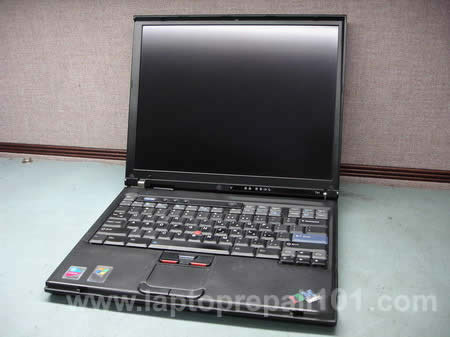
First of all, unplug the AC adapter and remove the battery.
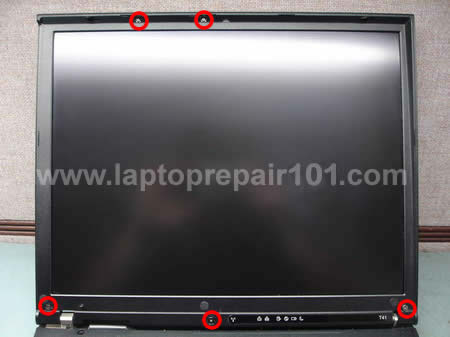
In order to access the inverter board you’ll have to remove the LCD screen bezel. On most laptops screws are hidden behind screw seals. In this case we have 5 screw seals on the front. Carefully remove the seals with a sharp object and glue them on the LCD bezel, in this case you will not lose them. Remove all screws and mark them somehow so you are not confused when you assemble the notebook back.
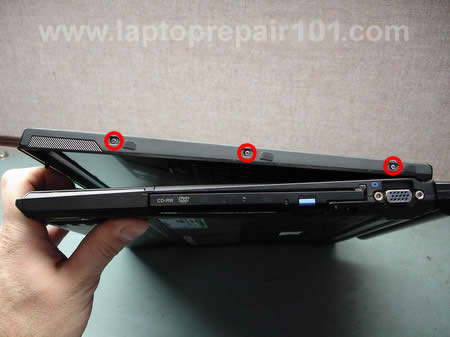
Some laptops also have screws on the side of the display. This notebook has 3 screws on each side. Remove screws seals and then remove screws.
Start removing the LCD bezel with all fingers. Carefully wiggle the bezel to release plastic latches. Never use any sharp object during disassemble because you can accidentally damage the screen.

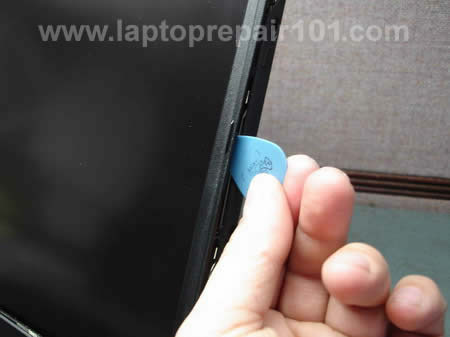
If latches are very tight you can use a guitar pick to unlock them. Insert the guitar pick between the LCD bezel and cover and carefully move it alone the side.
This notebook allows you to replace the inverter board without removing the LCD bezel completely. Lift up the bottom part of the bezel and remove one screw securing the inverter board to the LCD cover. This location is very common for the screen inverter. On most laptops you’ll find it under the display bezel below the screen.
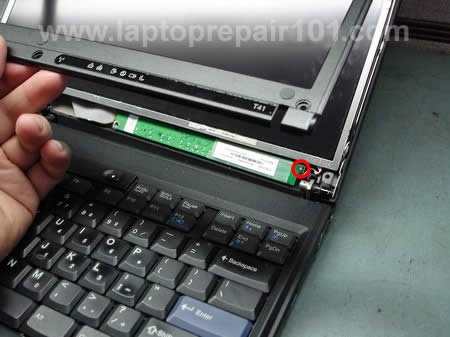
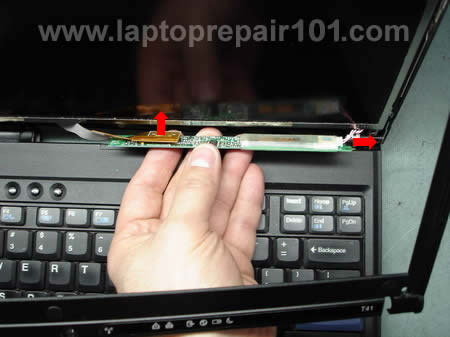
Carefully lift up the FL inverter and rotate it a little bit. Unplug cables on both sides. The left side of the inverter board connects to the video cable, the right side to the backlight bulb (CCFL tube) inside the LCD screen. Remove the inverter and replace it with a new one.
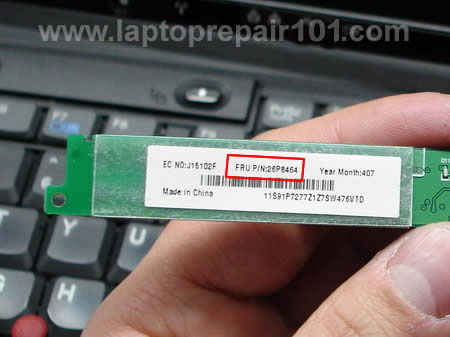
To find a new inverter board (and any other spare part too) for any IBM notebook you should use the FRU number from the part.
693 Responses
Garry Conn
Hey its great to see a new post here. I subscribed to the feeds months ago and I totally forgot about the site until I read this post. Nice write up! I have always enjoyed reading this site. I guess posts come when repair jobs come… huh?
Well, I guess everyone should pool together and break their laptops and mail em’ in… I am looking forward to reading more articles written by you in the future.
Best Regards,
Garry Conn
Carmen L.
How about if I tell I can’t find the Fl Inverter in my Dell latitude Cpx when I open it? Could you tell me where it should be at them? It’s not where it say here on this page. Thank you.
cj2600
Carmen,
Maybe the inverter board is located on the side from the LCD screen? I just opened up a Dell Latitude CSx display to check the inverter board location and found it on the right side from the screen.
Speed Is Life
Very timely – the inverter in my T22 died yesterday. I had trouble getting details on the inverter at the IBM/Lenovo site – the FRU number of 10L1402 didn’t seem to exist. On the phone to them today, they told me that the part has been replaced with a new FRU of 91P7739, which explains why I couldn’t find it.
Thanks for the very useful article. I hope to have mine fixed in just a couple of days once the new inverter arrives.
Jason Denniston
Is there a way to test the inverter board to determine it’s actually the inverter board and not the bulbs?
sajeer
my ibm laptop power s working but screen not working i don’t know what happend
Rebecca
I have an IBM T40 and it boots up fine and will work for ten minutes or so… then the screen will freeze/flicker or turn black, especially if I try to move it. It wont work again right away but if I leave it for a few hours I get another 20 minutes of work done on it.. I did all the virus scans etc… but now im a bit lost. Any ideas?
sincerely,
poor college student trying to save a 5 years old laptop
yusof yaghi
I have a problem with my thinkpad r32 everytime i boot it it says
ERROR
Resource conflict – Allocation error static node # 02
ERROR
Resource conflict – Allocation error static node # 07
PLZ HELP
cj2600
Jason Denniston,
The best way to test the inverter board would be replacing it with a known good one.
I usually hook up a test backlight bulb first (I remove them from cracked screens) and if it will not light up I install my test inverter and test it again.
I’ve been searching for the instructions on how to test the screen inverter with a voltmeter, but haven’t found it yet.
cj2600
yosof yaghi,
Download the hardware maintenance manual for IBM ThinkPad R32. On the page 50 you’ll find some tips on resolving this problem.
cj2600
Rebecca,
You said the screen will freeze, what do you mean by that? You cannot use the mouse and access any programs or what? It’s possible the video cable connector on the back of the screen is loose. Try reseating the video cable.
If the screen flicker and turns black intermittently, it’s possible that you have a loose connection on the inverter board. Try reconnecting cables on the screen inverter, shown on the photo 7.
gnu
I have a T41 (XGA screen) with an weird issue: when starting Windows GUI or getting back from sleep/suspend, a LCD light is coming from center of screen and it is slowly extending to margins, then image is displayed. The same on turn off, the LCD looks like starting to slowly turn off pixels from margins to center.
Otherwise it is working fine, but I’m worried about this issue. Is this an inverter issue ? Or is this a sign that LCD will be dead soon? Thank you!
Shirley Pollak
This is my problem:
– The screen always stay black and the backlight never comes on but you still can make out an image on the LCD. It’s dark, but the image is still there and sound works perfectly.
Will the above photo instructions also apply to the R31 ThinkPad?
Thank you.
cj2600
gnu,
I don’t know for sure what is causing problem, never seen it before. I don’t think it’s an inverter issue, feel free to correct me if I’m wrong. I think the problem might be related to the LCD itself.
Use the screen until it works, there is nothing you can do.
cj2600
Shirley Pollak,
I think the above photo instructions will apply to most IBM ThinkPad notebooks. Screws location might be different but general disassembly steps will be the same.
You can download a hardware maintenance manual for IBM ThinkPad R31 and find instructions for replacing the inverter board on the page 136 (page 130 in HMM).
JORGE TREVINO
I have DELL INSPIRON 6000 and The screen always stay black and the backlight sometimes comes on when you plug it with the a/c adapter but came off after 10 seconds and the right part is darker than the left one you still can make out an image on the LCD. It’s dark, but the image is still there and sound works perfectly. i need an advise what cause that, thanks
Raluca
Hey – I had the same problem with the inverter – my laptop screen is now black but I can still see some images. Instead of repairing I got an alternativ monitor-but after a month the new monitor goes black after 20 min or so whenever I use it. Then if I let it stay for a while it works again for 20 min. Can it be the laptop that caused the monitor to have this problem, or the LCD is gone independent from that?
Thanks.
cj2600
Jorge Trevino,
It sounds like a bad inverter but I’m not sure 100%. I don’t like this part
I would try replacing the inverter board first, it shouldn’t be very expensive. If it will not help, probably there is something wrong with the backlight lamp located inside the screen.
Dave
All symptoms point to my inverter being bad. I called Dell and all they will sell me is the whole screen with the board. Is there anywere else I can go to find this part?
Thanks, Dave
Ben
Hi Everyone,
I have a question. If you have a 17″ LCD on your laptop, can you replace it with another 17″ screen as long as the replacement screen comes with the inverter and cable made for it?
Thanks.
Jorge Trevino
Ok I forgot tell u something else the lcd comes on a regular light as soon and I connect the ac adpater 10 seconds later start to comes off again I can see the screen but is to faded, I read a lot of different situation and the lcd inverter regulate the power to the lcd? I already try to clean the end but still doing the same and the inverter heat at least 90 degrees way to hot do u think is the inverter?, thank for this site let me learn more about different situations, thank u again
Eric
Hi,
I’d first off like to say many thanks to this laptoprepairguy as my NX5000 inverter died previously, and the instructions on this site helped me change it with complete success.
I have had the second inverter for a period of about 6 months, the same problem has occurred. I reboot and it’s still black, but when I turn it off, take out the battery, press the power button, put the battery back in and boot up, it’s fine until the screen goes black again. Any suggestions? Is this still an inverter problem?
(by black i mean the inverter light turns off)
Regards:
Eric
Mike Fager
I had a problem with the backlight on my Toshiba M45-S331. I bought a new FL inverter board and installed it a month ago. Everything worked fine. Yesterday it quit again. It comes on for a short period of time and then goes out. I can see a dim image when that happens so I know it is the same problem. Is it possible to replace the backlight, or do I need to replace the whole screen?
You have a very good website. Thanks!
cj2600
Dave,
Try on eBay. Here’s a guide for taking apart a Dell laptop LCD assembly, might be helpful.
cj2600
Eric,
Maybe it’s bad again?
cj2600
Mike Fager,
Maybe it’s an inverter problem again? I would try replacing the inverter board one more time, it’s much cheaper then replacing the screen.
Carmen L.
I don’t find the inverter on my screen. I have a Dell Latitude Cpx. Can anyone please tell where it at? Thank you.
Kenny
I have a Dell Latitude C610 display screen on my C640. Its been working fine until the inverter went bad. I want to replace it and have already taken it apart, but I dont know what to use to find the replacement part because it doesnt have a tag on it like the one in your guide. Do you know where I could find the part number for it or do you happen to know? Thanks.
Mairo
Thanks! for this very helpful information, you are a money saver thanks.
Roger Wells
I have a TP X31. Yesterday the PC died as though something overheated. It came back after 20 minutes or so. When it restarted the display is dim, not black just about 1/3 as bright as before. It is now working with a dim display but is usable. Would the inverter be the suspect component?
Bob V
I have a Toshiba satellite 1135. It usually sits on the counter running through it’s photo screen saver. One minute it was on like normal the next minute “black”. I flipped the cover switch and it momentarly goes on for a second, but it was in a “red” cast – no other color and then black out again. I plugged my regular screen into the laptop’s jack and the stand alone monitor worked fine. The laptop is 5 years old. Should I replace the back light as well? or is the inverter the cause? Thanks for any help you can give me.
Ryan Jennings
My laptop screen will go very dim, then cutting the monitor off or forcing it to go into standby mode will make it come back on for 15 or 20 seconds then it goes back out again.
However if the power cord is not connected to the computer, it works fine. Is this still the inverter or is it something else?
Livin
HI THERE
I HAVE A LAPTOP OF SONY..THE PROBLEM I AM HAVING IS WHEN I SWITCH ON THE SCREEN IS TURNING TO WHITE COLOR .PLS TELL ME WHAT IS THE WRONG WITH MY LP
cj2600
Kenny,
Search for “Dell C610 inverter” or “Dell C640 inverter” on ebay and find one you need.
cj2600
Reger Wells,
I’m not sure if this is an inverter problem. When inverter goes bad you loose ALL backlight, not just 2/3 of it.
Deepika Parikh
Hi;
Your information of Screen inventer was a money savings for me. I fixed my dell inspiron 6000 screen with $40 instaed of
$500+ the Dell technicains were asking for.
Thank you very much;
Jan
Hi,
I was able to take apart my Inspiron 8500 laptop screen because of your website…Thanks. My problem it seems is not fixed…Magnets where placed on top of my screen and since then the screen is black. I have about 1/16 inch of windows at the bottom of the screen but nothing else…I bought a used lcd and inverter hoping that this would solve the problem but it did not….I am now thinking it might be the back light…what do you think….??? when I hook my laptop into a regular monitor, I can see my desktop so I know that my hard drive has not been effected….Please advise if you can…thanks for such a wonderful website!!!!
Jan
Roger Wells
regarding #40. You were right. The inverter did not fix it. Do you think that the ccfl is just dim? Or the entire lcd panel? I hooked up an external monitor and that seemed to work as expected.
Jeff
Where do you buy an inverter? I have an HP L2005CU with a failing inverter. I’m very sure it’s the inverter because it works perfectly with an external monitor and the inverter area of the screen buzzes just before the backlight shuts off. I’ve opened it up and found the part number, but HP doesn’t sell it in their parts store. Other than some long-since-passed eBay auctions, I can’t find it for sale anyplace.
Deepika Parikh
For Jeff;
I found the inverter for Dell 600 from ebay and it worked fine. I got a new screen inverter and not a used one.
Hope this helps.
Deepika
Luis Fernandes
I have a HP Pavilion ZT3120EA and it recently took a fall… The screen is dim and when i tap the button to turn the light off, it makes a buzz sound, but i don’t think that it comes from the inverter, and the light from the mouse pad goes off to…
Everithing else is fine and was fine before the fall…
Do you think it’s the inverter?
Thanks in advance!
Ryan L.
Thank you in advance for all the time and effort you have put into this website.
My problems sound very similar to posts 8 and 43. But before I go and buy an inverter, I was hoping you could give me some specific insight.
The LCD monitor went out as I was in the middle of typing an email. After this happened, I could not see the screen (not even a faint image), however the computer was still running (as the audio still worked). I adjusted the angle of the screen-open to close-and noticed some flickering, but the screen did not come back, nor was I able to see a faint image of the desktop. I manually shut down the computer and restarted it after 5 minutes. The laptop started up normally. After about 20 minutes the sceen went out again. I repeated this process and the time to blackout was even shorter now.
The power cord connection (in the laptop) has recently become sensitive (and loose). This would cause the connection to break frequently and the laptop to switch to battery power. In the process, the screen would flicker as the transfer of power was made. Sometimes, this would happen multiple times consecutively, and consequently, the screen would flicker multiple times.
I don’t know if this has “abused” the inverter and it gave out or not even related, but it is the only problem I have had with the laptop till now.
After I found these postings, I took off the screen faceplate, unplugged the right side of the converter (the left side was tight and I didn’t feel like breaking it just yet), cleaned the area, tried to adjust/settle the video cable and inverter better. Unfortunately, that didn’t fix the problem.
The main reason I am posting is this: I plugged the laptop into an external monitor and booted it up. I wasn’t able to switch the video to the external monitor until the second start-up (in which case, the external monitor was the screen the laptop started running on). The moment I touched the keyboard on the laptop, the external monitor went black (as if I had disconnected it), although the laptop was still powered up. This also seemed to be the case when using the laptop’s lcd monitor (it would go black as I touched the keyboard).
I will defer to you, but would the external monitor “go black” if it was an inverter problem. That is, is the inverted localized only to the laptop and would it affect an external video feed?
I know this is a rather long post, but I wanted to be detailed. Thank you again for your response.
Jim
I have a Compaq Presario 2100. The screen dims if I pull the screen toward me more than about 45 degrees. Almost as if it hits a switch or bad connection that occurs as the angle decreases. As long as I leave it at a wide angle, the screen seems to be ok. I can live with this but am concerned that something is about to really go wrong. Suggestions?
cj2600
Ryan L.,
A failed inverter shouldn’t affect the external video output at all. I think you have a different problem.
The external / internal video goes black when you touch the keyboard so it’s possible that you have something loose (maybe video cable or video card) under the keyboard. Maybe some kind of gounding issue. It’s hard to guess until all connections are checked and reseated.
cj2600
Jim,
maybe the video cable is loose and has to be reseated?
Ryan L.
cj2600,
Thanks for the help. First time openning up a laptop–lot different from a desktop.
Anyway, for those who have a similar problem (now or in the future) it appears that the video cable from the screen managed to get loose from the motherboard.
Thanks again.
Jorge Trevino
Ok I remove the inverter from the laptop, now where I get the replacement is quanta display is a 15.4 wxga I call dell they dont sell the part separate, what I can do? anybody have any advice where I can get it
Ram Mohan
Hi:
My NEC Rugged PC (FC-11) screen goes White when it is fully opened (over 45 degrees). However, when I close it to less then 45 degrees, the screen comes back up. How can I fix this?
Howard Lewis
I have a monitor problem with a Compaq Presario R-4000 with a 15.4 screen I need to diagnose. Any help will be appreciated. My screen is black – cannot see any picture, but works perfectly with external monitor. I tried a new inverter, but it did nothing. Anyone have suggestions – PLEASE !
Thanks,
Howard Lewis
cj2600
Jorge Trevino,
Try ebay. Enter “Laptop model inverter” and see what search brings to you.
cj2600
Ram Mohan,
the laptop screen might turn completely white (on some models) if you unplug the video cable from the LCD. It is possible that in your case the video cable is loose and needs to be reseated. Unfortunately it’s necessary to open up the display assembly, get under the screen and reseat the video cable.
Howard Lewis
I have installed a NEW inverter – which did not help. I’m beginning to think it may be the back light. I can’t see any picture at all except on an external monitor. Any one agree OR disagree ???
I could use some help diagnosing this.
Thanks
jorge trevino
i have the solution to all the person who cannot find the inverter for the quanta display lk01 of 15.4 wxga 1V11145/T, (link removed) I HOPE THIS WORKS FOR YOU
Four
My laptop is not showing anything on the LCD, its black but it can turn on when i switch it on. Pls help me
Joe Jaber
58Howard Lewis Says:
March 23rd, 2007 at 7:50 am
I have installed a NEW inverter – which did not help. I’m beginning to think it may be the back light. I can’t see any picture at all except on an external monitor. Any one agree OR disagree ???
I could use some help diagnosing this.
Thanks
Hi, I tried two used inverters in my IBM T21 , I see the screen very very vague so I also think it is the backlight itself, does anyone have a solution?
TX, Joe
Marianne
My problem is a little different from all of these, as my screen does not go out completely, but I still have problems with it. The color on my screen is not as bright as it once was, and fluctuates between being brighter and dimmer. I can deal with that, as it stil works, but not the colors on my screen are all inverteted! As in, black is white, orange is blue… it’s driving me crazy! Any suggestions about where to look to fix it, or just what on earth is wrong with it?
Thanks!
cj2600
Howard Lewis,
When you have a bad backlight lamp, you still should see a very faint image on the laptop screen. You mentioned that there is no picture at all, so I don’t think this is a bad backlight lamp.
You might have:
1. Bad video cable (likely)
2. Bad LCD screen (likely)
3. Bad graphics card (not likely because the external video works).
cj2600
Marianne,
colors on the scree are all inverted? I’ve seen this problem a few times before, most likely it’s a bad screen.
calvin mcbell
There is another possibility if you can see the screen very dimly but no backlight. On my t20 I discovered it wasn’t the light nor was it the screen. It was the little button the screen pushes down when it is closed. (It’s up on the right hand side just below the battery light.) This turns off the backlight. You might try using a needle nose tweezer to lift that button. If that turns the light on you’ve found your problem. If you take off the keyboard bezel you’ll find that the spring that is supposed to lift the button is bent too far down to do its job. You need to either replace the bezel with one that has a tight spring, or do a little constructive bending to get the spring to push the button up enough to break the contact so the light will come on. I discovered this after replacing two inverters and a screen. It turns out they’re all good.
Erin
I have a gateway m250 and the backlight has been going off and on for sometime now and now it never comes on. i can faintly see the picture on the screen…i was wondering if this could be the inverter? Also I was wondering if u have any how to on where the inverter is in the gateway m250?
Thanks
Erin
Abhijit Bhosale
Hi,
I have a ROCK laptop- Quadra XS. I removed the inverter as per your suggession. I could not find any code at the back. There are no numbers over there. Ain’t these inverters universal? Where do I get the inverter for this uncommon laptop?
Please offer help if you know any websites, where I could get it.
Thanks
Bye.
Abhijit
Charles
My C640 battery is not charging my AC cable is working what can I do to tell if I need a new battery
cj2600
calvin mcbell,
You are absolutely right. Before replacing the inverter board, I would check this little button (lid close switch) and make sure it’s not stuck inside. When the lid close switch gets stuck inside (maybe because it’s dirty), it cuts off power from the inverter board and it looks like you have a faulty screen inverter. The image is still on the screen, but it’s very very dim. Try tapping on the switch, make sure it moves freely. It might help fixing the backlight problem without replacing the inverter board.
cj2600
Erin,
yep, it could be just a bad inverter board. I don’t have any instructions for Gateway laptops, but most likely the inverter board is located under the LCD mask as shown in the article.
Rachel
I have a Gateway 400VTX. I am following the instructions above to try to replace my inverter. I got the screen off and found (I believe) the inverter with number RT2X313. However, this number does not exist anywhere on google. Is there a way to find out if there are compatible inverters? And any idea where to get them?
Thanks.
Bobby
I have a wierd problem where the screen looks extremely light and mouse movements look like that they have a ghosting trail. The backlight is definitely working, but..?
Herman
Thanks for your website, it might have saved me the money for buying a new laptop.
Just to share the experience, mine is a Compaq HP NX5000. In less than a year after I bought it, the backlight was out, HP replaced it with a new display under warranty. Now 9 months later the backlight flickers or goes out altogether (if the screen is wide opened, the flicker will stop and the screen stays on). I followed your instructions and opened the display, just pressed hard on the connectors on both ends of the inverter, turned the laptop back on, it has now been working for a couple of hours since then (the trick seems to have worked, as the flicker usually came soon after the laptop is turned on). Now if the problem recur I will try cleaning or reseating the connectors first, before replacing the inverter.
Just some observations to share, if one can see faint content in the dimmed screen, most likely it is the inverter. If this situation is added with flickers which may come and go with the screen opened to an angle, it may be loose a connector at the inverter, most likely the one from the video card (opening and shutting the screen could have loosen it). If the screen stays half dim or with red colour, it may be the backlight problem (due for replacement). If there is not even faint content in the dimmed screen (screen totally black), but you can see the picture with an external monitor, then the cable from the video card may have become loose. If you cannot see anything on the external monitor, then the video card probably has a problem.
Thanks again for your website, at least now I know where the problem is and I most likely could fix it myself if it recurs.
Rgds Herman
Kari Peppers
I have an HP dv1000. inverter board was bad but when I replaced it, it only worked with the battery, not when plugged in. got 2nd inverter board and replaced it today. it works with both battery or power cord BUT if laptop is powered up with the battery installed, the screen goes dim. Powered up with just the power cord, everything works fine, can run on AC or DC power. Just can’t have the battery installed when booting up. Is this an inverter problem, wiring problem, battery problem? How does one inverter board work with just a battery and the next one can’t have the battery installed? Weird. Any ideas are appreciated.
Jeff
I had an issue that seemed like a classic inverter problem. The screen was still visible, just without a backlight, it worked with an external monitor, and when I pressed the screen closed button, it would flicker on for sometimes 5 seconds and sometimes an hour. Also, the top of the laptop is cracked (not the screen, but the plastic casing) just from general use.
I found a new inverter on ebay and put it in and had no change. Then, a day later, the screen lit up brightly with an audible “pop” and went dark (no backlight but still a dim LCD image) and hasn’t come on since. My best guess is that there was a short somewhere in the backlight circuit that blew this inverter and might have blown the bulb too.
So, my questions to the group are: 1) Does my diagnosis seem correct? 2) How difficult would this be to track down and fix myself without breaking something else (like the LCD)? and 3) Would I be better off just ponying up the $400 for a new display, which I’m sure I could install myself, since the current casing is cracked and the repair might be that much anyway?
cj2600
Jeff,
Yep, looks like a classic inverter problem. I think your diagnosis is (was) correct and I would replace the inverter board in this case too.
I’m not sure why the screen went dark. Did you use a correct inverter board?
You’ll have to find another inverter board or find a test backlight lamp.
Jacin
It would appear that my inverter went out last night but, now that I’ve already gone ahead and purchased a new one and disassembled my laptop, I wanted to post here and ask for a ‘second opinion’.
Here’s the situation: I’ve got an HP Pavilion ze5300 series laptop. Last night, I was working on it doing some graphics work and the screen went dark. I could still see some of what was there, but it was extraordinarily dim (though, this morning, nothing is visible at all).
So, after some quick research via Google, I went on eBay and found what I thought I needed (a new inverter) and it should be shipping out tomorrow.
Am I correct in thinking that is that the correct repair … ? If it’s not, is the cold-cathode flourescent bulb something I can fix on my own, or would it be better just to order a new screen and lid for ~$200.00 … ?
Thanks for the assistance!
cj2600
Jacin,
Most likely it’s just a bad inverter board and your diagnosis is correct.
If you can find a new screen and lid just for $200, I would go with that. Replacing the backlight lamp is not an easy repair.
CJ
I have a Dell Inspiron 8500 that I dropped 🙁
The upper half of the screen is fine! the lower half is lit, but is actually displaying the last line of the top half of the screen all the way to the bottom.
At first, I hooked up an external monitor and it was working full screen there, but eventually it turned blue, then green now won’t work at all.
Suggestions? Think it is the video card which i understand is part of the mother board, or think it is the screen and the video card?
I’ve been laid off work and need to find a solution fast and inexpensively of course!
thanks for any help you can be.
Chaz
Hey there. Thanks for enlightening us technically challenged folk.
I tried changing my inverter and it worked fine for 3 hours or so, then it just wnet black again. I can get it to work again briefly by pressing the screen cable down next to where the inverter is and opening and closing the screen. There’s a knack to it. But even that’s stopped working. What is wrong with the thing? I only need it to last me a few more months.
Is it the screen cable? Do I go find out how to change that now?
Thanks, Chaz.
Jacin
First of all, thanks for the previous help.
I got the inverter that I’d ordered, but despite assurances from the seller that it works on all HP and Compaq laptops with a 15 inch screen, it didn’t do anything to solve my problem. It also wasn’t the same model / part that I’d taken out, so I’m hoping THAT is what the issue was and ordered one that I’m absolutely certain is the same part number and everything.
I’ve powered up the screen with the old inverter, with the different inverter that was the wrong part number, and without any inverter at all and it’s all the same level of ‘dim’ … so, in that regard, I’m still hoping that’s the issue.
My question now is, if I get that new, correct inverter in there and that doesn’t solve the issue, what’s my next course of action … ?
elkyn
Hi I have a T20 with no video at all..what can I do ..pls help me?
Mitch
Hi,
I replaced the inverter, but it didn’t resolve. Any other ideas?
Thanks,
Mitch
jorge
85 sell you laptop for parts replae the video card is a major fix becasue u must disamblie the lcd and the laptop too everything is the left top corner conect a couple wires to the but u need dissambly the lcd god luck if u want sell it
cj2600
Chaz,
Your laptop worked fine for 3 hours, right? I don’t think it would work for 3 hours with a bad cable. Maybe you got a bad inverter? Did you buy a used inverter? Can you ask the seller for a replacement and try it again?
cj2600
Jacin,
Even though the screen is dim, I assume you still can make out an image on it, correct?
1. Try reseating the video cable connector on the motherboard
2. Make sure the lid close switch isn’t stuck inside and moves freely. Try tapping on the lid close switch and see if the backlight flashes when you do that.
You can do 1 and 2 before you buy a new inverter.
If installing a correct inverter doesn’t solve the issue either, then one of the following parts is bad:
– backlight lamp inside the screen (more likely)
– video harness (not very common but possible)
– motherboard (less likely)
Allan Johnston
I have an M45 Toshiba. Is the wireless antenna just a pair of wires or is there something else at the end of the wires. I don’t want to take the unit apart to find out and I want to hook into the wireless pcb so I can use some sort of external antenna (parabolic).
Any suggestions are welcome.
Chris
Hi there, I got a laptop that works fine using the external VGA D-SUB, but when trying to use the laptop without the display is just black – nothing but blackness.
The strange thing is, I can actually change the brightness of the black…
Any ideas? Is this the inverter or you reckon it could be the LCD itself?
Appreciate any help guys!
Thanks
cj2600
Chris,
If you can change the brightness of the black then I assume it’s not an inverter problem.
If I understand right, you have the following symptoms.
1. The screen is blank but it’s not completely dark, you still can adjust the brightness of the backlight (inverter and backlight lamp are OK).
2. There is NO video on the laptop LCD, not even a faint image.
3. The laptop still works with an external monitor (probably the motherboard is OK).
Is it close enough? If yes, then the LCD doesn’t get data from the video card.
First, I would try reseating the video cable on both ends – on the motherboard and on the LCD screen too. It might be just a lose connection. If it doesn’t help, I would probably replace the video cable, it’s the less expensive part. If replacing the video cable doesn’t help either, you have either a bad LCD or a faulty video card (probably integrated into the system board). In this case you’ll have to guess witch one is bad.
Ideally, you just connect a test LCD and this test helps a lot. Unfortunately not everybody has a spare LCD at home.
Chris
@cj2600
Hi thanks for the reply; I was getting itchy feet and decided to go the whole distance with the “Blackness” on LCD issue…
I re-sat all connectors to the LCD and Mobo, still nothing; the cable was fine so I forked out £87 for a new compatible LCD – 5 mins of fiddling later we had lift off.
First time I’ve come across this particular issue, the fact all the backlights were in full swing swayed me to the LCD.
Can’t complain – got a new laptop for £87!
😉 Cheers
Rory
another dark screen question….
I have a 3 yr old Toshiba Satellite Model A20-S207.
It’s been a great laptop until last week then the screen started flickering and finally went really dark and dim. With some research on the web, I thought it was the FL inverter. I found a new inverter, replaced it & the screen is still dark.
Could it be the bulb? If so, how & where do I find the bad bulb? Is it a replaceable item?
Thanks!
cj2600
Rory,
Yes, it could the the bulb. Unfortunately there is no simple answer because you might have a bad bulb, defective video cable or faulty motherboard. The only way to find out is installing a test screen or connecting a known good backlight bulb. For cases like this I always keep 2-3 different backlight bulbs I removed from broken screens, it makes my troubleshooting process much easier.
Is it possible to replace the backlight bulb? Yes it is but I never done it myself. The backlight bulb is buried deep inside the screen and replacing it is not an easy job.
Rory
CJ,
Thanks for the info. Looks like a job for a professional. Unfortunately, I don’t have any test parts. I am thinking the best, easiest & most practical fix for me is a brand new LCD screen. I’ll keep the new inverter since the old inverter is 3 yrs old & used approx 4 hrs a day average.
How easy is it to replace the keyboard? The most used letters have worn – no big deal but if I am going to replace the LCD I might as well replace the keyboard also. But, I don’t want to open a pandoras box and because of my inability, cause other problems. What’s your opinion?
Thanks again for your speedy reply!
brad
hi, i have a T41 EXACTLY the same as your website, but the thing is i’m not too sure is it my screen inverter that is spoiled or what. Cause when ever i plug in my battery, my backlight just goes off, but rather i’m in AC MODE. So i’m not too sure is it my screen inverter spoiled or? pls address my problem thanks!
Pedro
My laptop screen flicks when I pull the lit towards me… It only happens in some angles… It also happens when I turn it on after moving it around. Do you think it may be a lossen cable or something more complex? Is it is a lossen cable, wich cable is more likely to be?
Thanks in advance.
Ilus
Hi,
My presario 900 laptop screen goes dim after a few minutes once it boots up. When it happens desktop can still be faintly seen thru the dark screen. On occssion the screen has gone dim after a couple of hours, happens with the slightest movement to adjust the screen up or down. Initial repairer queries have said I needed new backlight &/or inverter. & quoted $200+ to repair. It works well with an external monitor. Any ideas/advice on a possible fix?
Many thanks!
Ilus
Julie
I have a HP ze5300 with this problem I am attempting to fix. The hardest part so far is removing the screws.
(This is the most common stumbling block in most other types of repairs I’ve encountered.)
I have three of the six out so far. The other three (along the top) I can’t get a grip on with my phllips. I have the screen on the table (keyboard up) as it is easier to remove screws with the screwdriver in the vertical position for better control. I have my notebook on a flat, stable surface and with ample lighting for the dark-color laptop.
I want to avoid stripping out the screws or getting metal bits on my screen. It’s possible they have been affected the most by weather (haat and cold) and so need something to help them out.
Any suggestions? Is there a lubricant that can be safely applied to a notebook screw?
Thomas Gregor
I’ve got a problem with a IBM A30p.
Symptoms are as described:
When booting, the IBM-Splash appears (but quite dim), after that everything is dark. Under some light-conditions ic can see the win2k bootsplash and so on.
VGA-Connector is ok.
Replacing the inverter results the same.
Any hints for fixing it???
Thomas Gregor
Mike
Turn off power mgt in bios, or make sure screen brightness on max in battery mode.
cj2600
Thomas Gregor,
As Mike suggested check the BIOS power settings.
Check the lid close switch button. This button cuts off power from the inverter board (and backlight lamp) when the display is closed. Make sure the lid close button is not stuck inside the laptop case. Sometimes the lid close button might get stuck inside the case and the inverter board will not get any power, as a result the LCD screen has no backlight.
If a known good inverter board doesn’t help and there is nothing wrong with the lid close switch, you might have a problem with the backlight lamp, motherboard or video cable. It’s hard to say which part is failing, probably you have a bad backlight lamp but this is only a guess.
ketan
my dell laptop lcd is black so send me pannel digram
THIS ALL WORDS IN THE PANNEL
T51.008.c.00
007054-35
AMBIT REV:3
CK99
9952
Harreson
have a compaq v2000 with a screen which does not light up nor does it show any dim images on it at any point whatsoever. it remains completely and totally black throughout the entire bootup process up to and following, windows xp desktop.
connecting to an external monitor shows the laptop is working.
i have ensured that the video cable into the motherboard is plugged in securely, and that the connectors in and out of the inverter are snug.
inverter or backlight or …?
any ideas is greatly appreciated. thx,
Harreson
actually, i think it might be the motherboard itself. i googled and someone had some (what) success with setting the video driver to “single monitor.”
i fiddled with numerous combinations with the video driver and all of a sudden, a vibrant image came back on the screen!
upon turning off the laptop and coming back to it, the screen was blank and black again. i reloaded the driver but only had an image on the screen one more time.
so, perhaps a faulty video circuit on the presario v2000 motherboard. i googled v2000 and other folks weren’t having a happy experience with this motherboard either.
cj2600
Harreson,
This is not a problem with the inverter board or the backlight lamp because when either of these parts fails you still should be able to make out a very faint image on the scree.
Not sure about that. In the comment 112 you mentioned that the laptop works fine with the external monitor and it means that most likely the motherboard/video card operates properly. Yes, it’s possible that you have a faulty motherboard, but it also could be a faulty video cable or even bad LCD screen. It’s hart to tell that is wrong until you test the laptop with a another LCD screen.
Pedro
Couple of weeks ago I posted “My laptop screen flicks when I pull the lit towards me… It only happens in some angles… It also happens when I turn it on after moving it around.”
Finaly I had the time to open the screen and reaset the cables. Everything is working fine so far, problem solved. Thanks…
kevin
how do you know if the problem is with the inverter or with the actual light? Is there some way to tell the difference?
Khahn
Great information on your site. I have one question, I took my Dell C610 14.1″ display apart to remove and replace the inverter. I took the old inverter out and I cannot find a part number or anything. How do I find the part number so that I can replace the inverter with a compatible one? I bought an inverter off of eBay and it says it’s for a Dell C610 and it has a part number that starts with LXN. It does not fit the little metal strip that my old one was screwed into. The “groove” on the metal strip does not fit with the “notch” on the inverter.
liu
I also have T41 display problem. the laptop boots up and function ok. It’s just when I move the laptop, or any type of vibration of the unit. The screen will lock up. I can’t move the mouse or anything like that. I can still hear the harddrive and LEDs still respond. So could this be a inverter problem or something else? Any comments appreciated, I am indeed to fix my laptop, finals are near.
thanks
Maarten
Hi,
after I accidentally dropped my T41 on the right-back corner (the casing is slightly cracked around the external monitor outlet), I now have this dim screen as described above. Before I try the above suggested fix, could it perhaps also be that the backlight bulb (CCFL tube) itself is broken? What if?
Thanks,
Maarten
Johann Helgason
Hi I have a IBM T40 with a problem which I am not sure what to think about or how to go about isolating. But the thing is the computer will boot fine, no dim sscreen or anything but after a few minutes it freezes, that is to say the mouse button will NOT move and no keyboard commands do anything either. Image on screen is fine but will flicker if I turn the laptop or move it or it goes totally black and if I move it again it may show an image again but everything frozen, this also may happen if I move the screen as if to close it. Sometimes I get a hardcrash and a blue screen of death and it says the problem was caused by Ati2Dvag. If I leave the computer and turn it on later it will again boot until the same dance begins. Any ideas ?
jerry
Have a panasonic toughbook cf-73 can barely see the bios, how to change invertor or backlight or is there a stuck switch…
Adam V
It sounds like you have a drive conflict. You should remove the current video driver and reinstall the most recent driver from IBM. You should also adjust your refresh rates to what works. Default is usually 60hz. I would also verify the problem by using F8 and go to VGA mode and see how the PC acts. If it is stable, Update driver. BSOD?? You have a hardware driver issue and need to see what you added that may cause this??
Michelle
My back light does not stay on, but it appears for a second after pushing the button that turns the light off/on. The button is not stuck. I just push and release, and the light is on for a second. I can do that repeatedly. Does this mean there’s a connection problem or I need a new FL inverter? I have a Compaq Presario v2000, 2 years old. Any advice would be great! Thanks.
cj2600
Michelle,
I think you should try replacing the inverter board.
ostap
Great site!
A few weeks ago some beer was spilled into my Gateway MP8708. I’ve since replaced the motherboard with great results except for the display being dim – an image is visible, but only with a flashlight. I went on to replace the inverter #AS023217020 with no improvement. Rather than fuss with soldering new backlights, I swapped out the 17″ LCD display (Samsung #LTN170x2-L02) for a new one – result was same dim LCD image.
Should I be double- and triple-checking the wire connections for a proper seat, or am I missing something more fundamental? Perhaps the switch that turns off the backlight when the lid is closed? The image is there, just can’t get it to light up… Please help!!
Many Thanks!
cj2600
Ostap,
You’ve replaced almost everything connected to the backlight, except the video cable. At this point you can only guess what is wrong.
Did you spill beer on the screen or it didn’t touch the screen at all? Did you purchase the motherboard from a reliable source?
ostap
The beer was spilled only over the keyboard – missing the screen. I bought the motherboard on eBay – it appeared to have been pulled from another machine.
Your hunch is that the video cable is the last link that may be faulty?
Many Thanks!
telsiz09
I have a hp omnibook XT 6200 my laptop last night ( black screen) but Display see windows logo and etc. My problem is inverter or Backlignt tube? A lıttle know english Excuss me.. Thanks….
Khahn
Ok. I found the matching inverter for my laptop LCD. I replaced the inverter and I get the same results. If I stare hard enough, I can see the images on the screen so it sounds like the symptoms mentioned on this site for a bad inverter. Might it be a backlight problem? Any suggestions?
By the way, regardless of the results, your site was very helpful in replacing the inverter. Thanks!
cj2600
Ostap,
If the beer was spilled only over the keyboard and it didn’t go inside the LCD screen, then most likely the old inverter/backlight lamp/LCD screen weren’t damaged and they are good. I don’t think that internal display parts can by damaged because of the beer spill on the keyboard. Doubt it.
You said that after the motherboard replacement the image on the screen is visible. Do yo get the same result (visible image without backlight) with both old and new LCD/inverter board? Did you try different combinations as old inverter/new screen, new inverter/old screen, new inverter/new screen, etc…? If you tried it but still cannot light up the screen, then most likely the motherboard is not functioning properly or the video cable has been damaged and has to be replaced. Sorry, I cannot narrow down the problem. In this case you’ll have to guess.
cj2600
telsiz09,
Make sure the lid close switch (if you have any) is clean and is not stuck inside the laptop case. Clean it up and make sure it moves freely.
If you still can see a faint image on the screen and cleaning the lid close switch doesn’t help, then next step would be replacing the inverter board. I cannot tell you if this is the backlight tube or the inverter board problem, you’ll have to guess. I would go with the inverter board first.
cj2600
Khahn,
In most cases, when a laptop screen looses backlight but you still can make out a dim image on the screen, your problem is a faulty inverter board. From my experience, this is correct for most cases but not all of them.
If you have replaced the inverter board but still experience the same issue, there could be many different reasons.
It can be related to the lid close switch, defective video cable, bad motherboard, faulty backlight lamp or not properly working inverter board.
Unfortunately, there is no way to find out what is wrong until you test the laptop with a known good backlight lamp and inverter board. No one can tell.
You’ll have to test the laptop with good parts.
Joaquin
Hello,
I orginally posted this under a different article and thought this one to be more appropriate for my problem.
One of my users has an Inspiron 6000 that is used mainly with an external monitor. Recently she came to me because the screen on the laptop had this pink hue to it, but the display on the external monitor was fine.
I started to research this and found that bad CCFL’s will cause this. However, later the same day it seems the CCFL went out all together because the screen on the laptop is very dim but you can still make out icons and wallpaper. However the external monitor display is still fine. There is no lid switch that I can see so I’m assuming it’s internal and moving the LCD display and closing/reopening does not change anything.
After reading through all the posts here I guess my question is, even though it had the pink hue which points to a CCFL issue, since it now is very dim do you think it is a CCFL issue or an inverter issue?
cj2600
Joaquin,
It is hard to guess without testing the laptop with a known good backlight lamp but I would assume that this is a backlight related problem. Is it possible that both CCFL and inverter are failed at the same time? Yes it’s possible but unlikely. You see, the laptop already had bad backlight lamp and it’s possible that the lamp just died on you. Just explain it to your customer and I think she will understand.
Anyways, Inspiron 6000 inverters are not expensive and you can find a new one for about $25-30 here.
Joaquin
Hi again,
So you’re thinking because it was pink before it went dim that it’s a CCFL issue instead of an inverter? Basically the bulb went pink before it failed completely?
Joaquin
Hi CJ2600,
No I have not been inside the machine yet. The user came to me with the pink screen and I started researching and then an hour later they came back to my office saying the screen was black which we later determined was actually just really dim.
My boss had me research what it would take to repair it which is what led me to your site. To tell you the truth I was hoping it was an inverter because it seems those are easier to replace unlike a CCFL. I researched replacing CCFL’s and it requires going deep into the screen assembly and desoldering and resoldering the CCFL.
Do you think this procedure is doable or am I just intimidated because it requires soldering? Or is it more headache than it’s worth and should I just try to find a replacement screen? Is replacing the whole screen going to fix my problem and is it easier than changing out the CCFL?
Lee Johnson
I really appreciate the info on your site!! I just replaced the Inverter in a Dell. With both the old and the new inverter the video is fine for awhile, then screen goes dim. External monitor video is fine. Even if I bought a defective inverter I don’t think the problem would be identical. The Dell was dropped off a bed before this problem started. Could it be the backlight itself?
Thanks
Lee Johnson
cj2600
Joaquin,
Replacing the backlight lamp is not an easy task, I have never tried it myself. I would probably try it on my own laptop but if you are doing it for your customer it’s a different story. What if you damage the screen? What if you break the CCFL tube? Do you know what is going to happen? Yep, they will blame you. And this job will turn into a nightmare. If you can get out by replacing the screen, just replace the screen. If you search here for “Inspiron 6000 screen”. You can find many offers, you can buy this screen for about $200. It is MUCH easier to replace the whole screen then changing the CCFL lamp.
Thanks for the link by the way.
cj2600
Lee Johnson,
If a known good inverter doesn’t fix the problem then probably you have a faulty backlight lamp. Unfortunately the only way to find out is testing the laptop with a good backlight lamp.
Make sure the video cable is seated properly on both ends and makes a good contact with the motherboard/video card and the LCD screen. If this model has a discrete video card, make sure the video card itself is making a good contact with the motherboard.
Krazykwok
I made a walkthru on replacing inverter on a Dell Inspiron 8600 while i was doing it. hope it helps people.
:kk
LJ Tonga
My notebook screen flashes when I first turn it on, but then goes black. I do see that there are images on the screen, and have deduced to either the lamp or the inverter needs replacing. Also when turning off, it flashes again, but only for a second. How would you be able to tell if its the INVERTER, or the CCFL?
Poor college student so as much research is being taken, haha! Either try a $8 CCFL, or go for the $60 inverter! I’m sure you understand! Advice would be very well appreciated!
Manzoor Ahmad
I need screen inverter for my laptop part # is P/N:412802800001
Please help me
Harreson
re: compaq v2000 no image whatsoever – comments 112/113
your suggestions in comment 114 have proven to be right on. i was lucky to get my hands on a hp dv1000 screen. i put the dv1000 screen in the compaq v2000 and a nice clear image came up!
i took both screens apart and swapped the video cable (even though they don’t quite the same and the cable routing is not the same) and the dv1000 cable worked with the v2000 screen and v2000 inverter. the dv1000 screen stopped working with the v2000 cable. –> need new working v2000 lcd cable.
thx for your suggestions! they/you were very helpful! keep up the great work!
AGAL
I have a gently used older laptop (Compaq Presario 1277) which had been working fine and the screen went suddenly black. If I hook the computer to an external monitor, it works fine. Is it worth
repairing since the computer is >7 years old and not nearly as powerful as a newer one? If it’s just the inverter, can I replace it myself?
Ken Ng.
My IBM T42 (14.1″) has following display problem: when starting Windows or getting back from sleep/suspend (turn the LCD on), the color in the both sides of the LCD are pink/hue tone while the color in the center of the LCD is normal. Then it brighter to normal after a few seconds (say 30 sec). The same thing happen when I lower the LCD brightness (lower than 4/8). It is working fine with external LCD monitor. Is this an inverter issue? Or the back-light problem?
Thank you,
Ken
R.KUMAR
I have a Fujitsu Siemens AMILO pro v2030 laptop ,Now recently one day screen became very very dim (not visible in darkness).Please suggest problem may be with backlight/inverter?And how to open screen.We have no technical person in nearby region who can handle this problem.
BHAGWAN DAS
I have hp dv1000 laptop. It has dim image which i can see in reflection of light and window i can see as well. when i check the invertor, small bulb on ivertor turns on with blue light.
Can any one suggest me that either this is problem of ccfl tube or invertor or mother board or any other fault.
second, which type or size of ccfl is required for this laptop i.e hp dv1000.
caleb durward
Oy, my girlfriend had this “dim immage” problem with her Dell Inspiron 8600. The repair looked simple, so I ordered the part. Simply replacing the LCD inverter didn’t work though, so what else could be wrong with it? Should I remove the screen completely and look at the bulb itself? Should I be checking connections or something? Please help… thanks…
-Caleb
caleb durward
Hey again, sorry about the double post, just read through all of the previous comments. I re-checked all of the connections and the lid-button-thingy and it’s all fine. The screen flickers red at the very start and then goes dim, and since I replaced the inverter (twice!) I guess that means the problem is in the light itself, but you guys don’t seem to reccomend trying to replace it. Still, what if the Dell guys just want to replace the whole screen? If they’re going to replace it anyway then who cares if I might damage it attempting to replace the backlight lamp? Or is there some other expensive thing that I’d need to watch out for? -Not intimidated by soldering.
Thanks for all the help this site has given, it is very much appreciated!
cj2600
BHAGWAN DAS,
1. bad connection between the cable and the inverter board. Try reconnecting the cable
2. bad inverter
3. dead backlight lamp (CCFL tube)
subra010
THanks…I had a ze4900 which had a lcd flicker problem…..just disassembling and reseating fixed the issue.
The detailed instructions and photos here were a great help in giving me an idea of how to do this.
Thanks a lot!
OVGuillermo
Thank you for your site. I have found here much useful information.
Good site ! 😉
peter
I have a compaq armada e500 with a defective inverter, 15,1″ I also have al working compaq armada m700 14,1″ screen witch is compatible they tell me
Can I use that inverter for the defective screen ?
2de question I have removed al the screws of the 15,1 screen (4 screws) 2 at the lock 2 at the bottom corners but I can’t remove the front.
What I’m I doing wrong ?
Edmund Johnson
🙂 this is the best website. But not very completly teach to fix the inverter. Just replacement inverter.
Makdaddy
I have a 4150 Dell Inspiron with a bad inverter, part # IV11153T/ I2. I purchased an inverter with a completely different part number that an ebay seller listed as compatible with the Dell Inspiron 4150, #J07i037.05, and it appears to be working perfectly except that it has a few extra holes for screws. Should I be concerned about using a different inverter than the exact same as the old one????
Bobby
I have an HP Pavilion dv1000. I have a backlight problem like no other. I replaced the inverter… no dice, I replaced the entire screen/lamp…. nuthin. I even replaced the mother board. Still… all that happens is that when I power on the light comes on for a sec then goes black. It does the same when I switch to the external monitor (which I am using right now). I am now at a loss. Help me Obi Wan.
Josh
It sounds like I have a similar issue to Bobby. I have an hp dv1207. My screen went dim about a week ago. I read up online and all symptoms pointed to an inverter problem – so I replaced the inverter.
Now, strangely, my screen comes up bright when my computer is first booted (this didn’t happen before). After about 5 seconds, the screen goes dim again. When I switch to an external monitor, my screen will flash up for a few seconds, then dim. The external monitor displays without a problem, so I know the computer is working.
Could my new inverter possibly be defective??? It obviously did something to help (I’m assuming since the screen will light up now, even if only for a second) but doesn’t seem to have fixed the entire issue.
Any advice you can offer is GREATLY appreciated.
Bobby – if you find anything out about your issue
Thanks!
Brian
impact computer was ABSOLUTELY ZERO help at all. my ze5300 screen is dim and all he could tell me (Because after about 20 minutes of waiting over and over again in the chat window with just about no responses) was they didnt have the part in stock and he didnt know anything about them but i was welcome to send my laptop in for diagnostics at a substantial cost. Great sales technique… Dont waste your time with impact.
Julio Rodriguez
Thanks a lot!!!
This site is great!
I had an IBM T23 Thinkpad with a very dim LCD screen, as described here. I read this post. Found the correct inverter on Ebay and bought it. I’ve just installed it and my problem is SOLVED.
Again. Thanks a lot.
visva
I had a hp pavilion laptop which has a very dim LCD screen. I can barely see the picture. I can hear sounds. When i connect with different monitor, it works perfect. So, I don’t know what i need to replace in. LCD inverter or backlight inverter. Give me some advice.
Thanks !
cj2600
Visva,
This is the same part. First, I would try replacing the inverter.
Roy Hays
Laptop Repair Guy,
Thanks, first of all for the excellent site and detailed instructions. I wanted to share with all my experiences with several IBM Thinkpad laptops we use in a “harsh environment” in which the dimly lit screen was visible in the background, but replacement of the inverter board did not fix the problem.
The symptoms were very much like the bad inverter problems faced by many here, but the actual problem was that the microswitch which gets depressed when the laptop is closed (located in your second picture on the lower left of the laptop) gets stuck down. Using a very small screwdriver, I was able to pry up the microswitch and – Voila! – four working Thinkpads! Had I tried this before disassembling the laptops and ordering parts through eBay, I would have saved a lot of time and money.
Thanks again for a great site.
Roy
Jeff
I have a similar problem as Bobby (msg 161) – a HP dv1000, screen went dim, replaced the inverter – worked for 2 days, then same problem – replaced the entire screen/lamp – worked for 3 days, then same problem. Lid switch is not stuck. Computer works fine with external monitor.
What is the problem? Did I get a bad “new” inverter? Could it be a power issue to the screen (since it works fine with ext monitor)?
HELP!!!!
cj2600
Jeff,
Did you but a used inverter board? I would try replacing it again. The “new” inverter can be bad.
Jessica
I read the comment posted by Roy about “prying” up the microswitch and then having the screen work. I just replaced the inverter and it did not fix the problem. I was hoping that Roy’s solution may work for my thinkpad as well. Can you tell me where the microswitch is located and the best way to “pry” it up without breaking it?
Thanks for all your help, this site is amazing…
Regards,
Jessica
cj2600
Jessica,
Some laptops have a magnetic microswitch located inside the laptop case. In this case you cannot press on it.
Usually the microswitch is located close to the laptop hinges. Right now I’m typing on a ThinkPad T42 and on my laptop this switch is located on the right side from the left hinge. It’s a small button.
James Trainer
I have a acer aspire 3618 ,and need some help trying to figure out if I am getting any voltage to the inverter,the LCd has the faint images and when connected to an external ,everything works. I attached the LCD to another laptop inverter and ribbon ,the LCD checked out fine.I have purchased three new inverters and all do the same thing,nothing ,the backlight remains off. so with a radio shack voltage meter how do I test it to make sure that I am getting voltage to the inverter ,so I can rule out the motherboard and or the inverter cable???Thanks James T
Javier
Sir,
This website is really helpfull. I but I can still figure out my problem. I drop some water over my laptop keyboard, it was working fine but after 5 minutes the buttom part of the screen started to flicker, then it show a faded image, it came back and work fine. the it did it again exept this time is a white line about 1 inch and a 1/2 thick. It covers the WinXP start icon and when I drag the mouse thru the wihe line the Coursors diisapear. Yesterday the line was gray and this morning it was working fine. When this happens the rest of the screen looks fine except the 1 1/4 inch line that covers the windows bar. I also hook my laptop to an external monitor and the image was good so i know is not the Video Card. Could it be the mother board or the screen inverter?
Than you Sir
cj2600
James Trainer,
Not sure if I can help you here. I do not test inverters with voltmeter, I just use a known good inverter. 🙂
Here’s my guess. Set voltmeter to test DC. Put the ground probe of the voltmeter on the laptop chassis and with “+” probe test each wire inside the harness coming to the inverter board. If there is voltage, probably nothing is wrong with the motherboard. If not, try replacing the harness. This is just a guess.
cj2600
Javier,
I’m sure 100% the problem is not related to the inverter board.
Did you check out the motherboard for any visible liquid spill damage? Check out the video cable, maybe water somehow got inside the video cable or the video cable connector on the motherboard and it’s causing the problem.
Stop using the laptop as soon as possible. Open it up and let to dry out. I hope it’s not too late.
Bruce Pirl
I have an HP dv1000 with the exact same problem. What are you doing about it? Where did you get the part?
Teo
I have a hp pavilion dv1000. Originally the screen was dim and could see screen with a flashlight so i thought it was the inverter bought a new one off ebay replaced it. turned it on it worked fine for 10 mins all fine but once i closed the laptop and openeed it again same problem occurred the screen would go on for a second and go dim again. i waited 30 min for it to cool down i turned it on it works fine now again untill it gets hot like lets say 20 mins of using it and once u close or press the lid botton the scren stays dimmed untill you totally turn off the notbook leave it for it to cooldown.i dont know if it could be the inverter again or the LID botton that could be stuck and doesnt let a full power connection to be made.
cj2600
Teo,
Sounds like you might have gotten a bad inverter board. The original inverter didn’t work at all and this one works for some time, right? Could be bad inverter.
Cheryl
Hi, I just replaced my inverter and still have the same dim screen. Only viewable with a flashlight. It happened suddenly though. No flickering. I can use an external monitor so it isn’t the video controller. So it must be the lamp, right? (Unless I got another bad inverter). Your thoughts are appreciated. Thank You.
cj2600
Cheryl,
It’s hard to tell what is wrong until you test the laptop with a known good backlight lamp. Sorry, I know that most likely you don’t have it so you’ll have to guess.
If you replaced the inverter board two times already but still experiencing the same issue, most likely it’s not the inverter problem. Could it be a faulty backlight? Yes, absolutely, but it also could be a faulty video cable or even motherboard. If I would have to guess, I would go with the backlight lamp.
It’s hard to troubleshoot these kind of failure without proper equipment.
Teo
I am going to replace the inverter for a second time, i will repost and let you guys know how it goes.
Cheryl
I am going to replace the backlight. It is in the mail. for $14 we thought we would give it a try. Hubby has more faith in me than I do. I wonder though. You mentioned the motherboard. May I ask a further question on that topic? I am using an external monitor from my desktop right now and I see the picture great. Would I be able to use this monitor if the problem was the motherboard? or are they 2 separate things. am having trouble with my battery and wondering if it is the motherboard. … Hence my question. THank you again.
Cheryl
cj2600
Cheryl,
In most cases, if you can get video on the external monitor, there is nothing wrong with the motherboard or video card.
There is no simple answer to this question. What kind of problem you are experiencing with the battery? Usually, to find out witch one is causing the problem the battery or the motherboard you’ll have to test the laptop with another good working battery.
Cris
My screen stays black on the IBM x31 screen. I checked the lamps (working fine) and put a new inverter but I still can;t see anything on the screen (but shadows).
With an external monitorl everything works fine.
Cheryl
Hi, Thank you for your help. I did go ahead and replace the backlight. I was very careful and guess what… It didn’t work. SO just to quickly review, I replaced the backlight, and the inverter, I am at a loss. Still get an image on the screen but very, very dim. I am viewing the screen on an external monitor. The company selling the inverter is sure it was a working one. (But found out it was harvested). But I think I will go ahead and resolder the light just to make sure. I don’t know, I am grasping at straws. On the battery, I haven’t found the pattern in the problem, but here is the background. The battery life was gettig quite short, but the laptop was purchased in 2003. SO just thought it was the battery life. We started having powerjack problems and the battery would only work for minutes at a time. I chalked it up to being an old battery. I went the route of having it refilled. Now the Battery LED light may come on for a sec. but goes out immediately. The computer will not run on the battery at all. Originally the power meter in windows had 0% charged and showed the batteries ID information, also it said it was online and charging. BUT when looking at the power meter without the battery installed. IT gives basic information of a Bat1 Battery and says it is online and charging. I tried refreshing it by going into safe mode and unplugging the Adapter. THe computer shuts right off. It doesn’t seem to recognize the battery is there to draw from. Anyway. After doing that the first time, I left the Laptop plugged in, No charging light, and the next day we were at 47% according to windows power meter. Since then it is down to 46% and holding, the Laptop still will not run on the battery and I can’t seem to get it to charge anymore even by going in to the safemode. ALSO, the show power meter on taskbar check box was checked, but it was not showing. Simply unchecked, clicked apply and rechecked and applied and it did appear. But still can not use the battery. Lastly, I get a very short flash of lights when trying to start the laptop on the battery. Almost unnoticable. If you have any ideas, I would greatly appreciate it. Sorry for my long winded explanation. Thanks again. CHeryl
cheryl
PS… we did replace the powerjack. (that was while the battery was away being refilled and before I did anywork on the lcd problem, as I thought It may solve all the problems). Thank you.
Jon
Hey-
WOW! Your disassembly instructions are GREAT. I came across your website after searching for a resolution for my wife’s R50. Similar problem to what alot of others have; no backlight. The image is there on the LCD, but it’s dark (that would be the definition of no backlight!) External monitor works fine. So I bought a new inverter card and replaced it. It was a drop ship from IBM, so I’m fairly sure it’s good. And the LCD still has no backlight. ARGH. I have not had a chance to check the output voltage, but I’m going to /assume/ it’s OK. One thing to note, when I turned on the computer after replacing the inverter, I heard a hissing from the bottom left of the screen. It sounded like a gas charging (or discharging). Any thoughts? What would the next step be? Do I replace the backlight? Any recommendations on where to get that?
Thanks!
PS: The same computer has similar battery problem as Cheryl; I’ve written it off to the short discharge cycle my wife was doing. She would only use it on battery for 30 to 60 minutes at a time.
cj2600
Cheryl,
Make sure the LCD lid close switch is not stuck inside the case, it should move freely. If parts you installed into the laptop were good, then the next logical step would be replacing the video cable and finally the motherboard (or video card if it’s a separate module). I don’t know what else to blame.
Not sure if refilling the battery is a good way to go, never done it before myself. Unfortunately you cannot tell if refilling the battery worked well, at least I don’t know a good way of testing the battery beside charging it in another working laptop. You’ll have to test your laptop with another KNOWN GOOD working battery. If it fails too, you have a problem with the motherboard.
Richard Lewandowski
Hello: I’ve been tinkering with laptops for only a short time now so my cousin gave me a dead one (HP ze5375) which no one would fix even with an expensive extended warranty. It turned out to be the notorious power connector problem. I bought another motherboard on eBay and I am in the process of putting it back together slowly but my main concern is the note in the service manual that after replacing the motherboard I must reprogram the EEPROM on the motherboard for the new display. Is this going to be a problem? I can”t find any info on the HP website that the manual refers to as the Partnership Web site. Thank you
cj2600
Richard Lewandowski,
What do you mean they cannot fix it even with extended warranty. If the laptop is still covered by the warranty, they should fix it. If they cannot fix, they should replace the laptop. This is the main purpose of the warranty.
Most likely you cannot find this utility on the HP website because it’s available only for authorized repair centers. You purchased another motherboard from eBay and probably this is a used motherboard. There is a good chance that you don’t have to reprogram the motherboard because it had been programmed already and it will work as is.
hany
hello i have a problem with my backlight,sometimes it works fine and then it becomes like flashing,the light increases and decreases in a hesitated manner like an old tv can u help me if it is from the lcd it self or the inverter???
cj2600
hany,
I think I know what you are talking about because I have the same problem with one of my laptops, it’s a Toshiba Satellite 3005. Unfortunately I didn’t have time to find out what is causing the problem but I think it’s related to the backlight lamp.
From my experience, when you have a faulty inverter board the backlight either work or not. But in my case the backlight works all the time but the screen kinda flickers, changing the brightness and I think it happens because the backlight lamp is failing (it’s located inside the LCD screen).
perdo
hi i have ave a hp pavilionzx5000.
i try to open a prt of it ,but when i put it back together . nothing on the screen is like no power on it .please any body can tell what can i do .or how to fix it. .
cj2600
Pedro,
Did you remove the CPU during the disassembly process? If you did, make sure the CPU is properly seated inside the socket and the socket is locked.
Check the memory, it may not making a good contact with the memory slot. Reconnect the memory module.
To start any laptop with video you need only three main parts: motherboard (I assume the video card is integrated into the motherboard), processor and memory. If these parts are not defective, you should be able to get video.
If there is no video, either you have bad parts or there is some kind of connection issue between these parts.
Cheryl
Hi there, it is me, Cheryl. … seeming to have a never ending story with the lcd problems…. After replacing the video cable and checking out the lid close switch… which could actually be the problem… I did some research and found out that for the HP series zd7000 there is what HP calls a Global alert or ADT. It concerns video problems… (I think it is due to the GPU or something on the motherboards that has consistently gone bad on the zd7000.) They are replacing them… the motherboard… free of charge… My laptop is out of warranty, but they are still replacing it free of charge. I am hoping that this will fix the problem… If anyone has questions… Chat with them (HP) and mention the ADT ID # 1760…. Some web forums mention a global alert from april of 2006 around the 20th. Not sure if you need all that informaiton ….
Douglas
I own A T-21 Thinkpad with a backlight/inverter/lid switch
issue
Iam trying to find out which
when the laptop is running on ext, moniter its ok
when the lcd screen is working I can adjust the level of
brightness
does that mean the inverter is ok
when the lcd is blank I can see the screen with the help
of a flashlight
also when the screen is dark ,the only way I have been able to
get it back is by actually turning laptop upside down and partially closing and fully opening lid whil pressing on parts of laptop
which makes me think the problem is either lid switch or loose connection somewhere ., my laptop is missing one screw from the bottom and the front right section of keyboard where the arrows are below the right shift key lifts up and is not attached our t40 is not like this the t21 can swap cd to floppie I do not remember if it was always like this
can any other T-21 owners let me know
this is a helpful website I could not find right part # for inverter from Ibm (10L1402) thats what they list ,but when you try to buy it they dont acceot that as part #
I dont want to replace it and find it is ok
Lee
Can I connect Any Backlight to Any Inverter “just for testing”?
I have a good backlight but the connectors wont fit into the “possibly” faulty inverter that I have.
If I cut the cables and make them fit, would this be safe?
cheers
cj2600
Lee,
That’s what I do. I have two test backlight lamps I removed from old cracked LCD screens. These lamps have two different connectors and I use these lamps with all laptops where I have to troubleshoot the backlight problem. Never had a single problem.
mdstudio
Hi,
A couple weeks ago, the screen of my Dell Inspiron E1505 started appearing pinkish and flickered. After a day or two, the screen went to black and I could barely see the image. I use the laptop with external monitors so I knew the system was working fine otherwise. Based on the symptoms, I deduced that it was the backlight.
From what I’ve read, it’s really difficult to replace just the backlight (at least on Dells). I couldn’t afford to be without the laptop for even a day so I bit the bullet and bought a new screen (w inverter attached) online.
I followed Dell’s instructions to replace the screen, which meant literally taking half the laptop apart (is that necessary?)
Anyway, it worked fine for about a month and then the screen went black, just like before but without the pink stage.
I called the company that sold me the screen and they suspected it might be the inverter and sent me a new one.
They suggested I first put it on my old screen and to try reinstalling that. I did and it started up fine but within minutes the screen was pinkish and then went to black. This seems to confirm that the first screen indeed had a backlight problem.
I took the laptop apart again and reinstalled the newer screen with the new inverter. That worked, which seems to indicate that the second screen’s inverter was the culprit.
My only issue now is that the screen seems dim. I use the brightness control but that doesn’t really make any difference. When I try, the screen flickers for a second like it’s adjusting but the brightness maybe varies 5% from the top to the bottom setting.
Any ideas? Though I’m happy to have the screen working again, I’m considering trying to install the original inverter (I had to get a little rough to get it off the original screen) or trying another one. Could the inverter be causing the brightness problem?
The tiny pink wire that connects the inverter to the screen has a tiny wear mark on it so I can see a little bit of darkness of the wire inside. The wire’s not exposed but perhaps it was pinched before. Possibly the culprit?
Also, in your experience, can I use method on this page or is there something particular about the Dells where you have to take them all apart? Doesn’t seem like it in retrospect but, my first time in, I didn’t want to take any chances.
Any perspective on the whole experience would be greatly appreciated. Thanks!
Rommy Channe
I have a T41 with the same problem described and was wondering if I can just remove the inverter/LCD screen (unplug it) and use the machine as a “desktop”
tatsat
I have HP omnibook xt6200 laptop, yday suddenly my screen gone,so I restarted manually. It started all in normal but screen is very dim i can barely see Images,logging process and everything. according to above posts I think its may screen inverter broken?
can anybody suggest how can I find the compatible Inverter for my laptop model.
Thanks in advance..really very useful forum and website.
Jeet
I have Dell 8600 laptop. All of a suuden my screen gone very dim.its working with the external monitor though. based on the comments of the people on this blog i replaced the inverter but the problem is still the same. I am not sure what to do next..please advise.
Scott
Hi,
Last week, my Dell 6000’s screen went dim all of a sudden. After some Google research, I found this website and decided that the problem was the LCD Inverter. The screen was very dim, though I could still make out some images and an external monitor worked perfectly.
I found one on eBay and ordered it. Once it arrived, I installed it which took about 15 minutes. I turned the computer on and everything worked fine again. So, I put the computer back together and turned it on. The screen was dim again. I turned it off and turned it back on.
The laptop then worked perfectly again, with a bright screen. But, I heard a high pitched squeal coming from the bottom of the monitor. I determined, through more Google research, that it was the inverter again.
I’m not sure if I simply installed it incorrectly, which seems unlikely since it does work, or if there is something wrong with the power source. The battery on this laptop is quite old and does not hold a charge for longer than an hour anymore. There are constantly orange blinking lights, which signifies this, according to more Google research.
Is there any way to subdue the squealing noise without buying another new inverter, or is the problem a bulb?
I have been running my laptop on the dimmest setting, since the highest setting makes the squealing noise. Actually, I just raised the setting, and the screen is now dim again.
I saved this post to a text document (barely seeing what I was doing) and restarted the computer. Now, it’s working again on the dimmest setting.
Please help.
Regards,
~Scott
Internapse.com
Scott
201 (Tatsat)
eBat is where I bought my inverter from.
Serarch for “HP Omibook Inverters”.
You may want to check the exact number on your inverter, as it states in the last picture of this article, to make sure you buy the correct one.
Dave
I have a HP Pavilion ze5300 with a power jack that has come loose. I’ve been able to use the laptop by toggling the cable a little whenever I get a power message, but it is getting worse. Is this something that I can repair myself?
I have been quoted about $200 for labor and parts, but online I see that this part is just under $4.00.
My biggest concern is opening up the laptop without breaking anything. Is there a resource where I can get instructions on taking apart my specific laptop? Thanks!
kyle
Laptop Repair,
I have some of the same symptoms as people mention on here and still haven’t been able to pinpoint my problem. Any help would be appreciated. Here are the symptoms and what I’ve done so far.
My LCD on my IBM went black one day while it was booting. The color was always great until the last day so there were no symptoms of a fading bulb. It happened all of the sudden. I can still see everything on the screen with a flashlight but it’s not bright. I can hook it up to an external monitor use the computer fine that way so I think the graphics card is ok.
I then bought a new inverter card from IBM thinking it would be a quick and easy fix that were the problem. I swapped them out, made sure the connections were good, and still the same problem. I can see everything, but it’s not bright.
Then I ordered a new bulb and attempted to replace my bulb on my own. I soldered the new bulb to the leads and tested it with the new inverter. It never lit up. So I thought I damaged the bulb when I tried to repair it.
Then I thought it could be a setting in windows. So I went into the display properties and noticed that my LCD monitor was shut off. I turned it on, applied settings, hit ok and then switched to the LCD output and still had the same result. It had picture but just very dull. Adjusting the brightness didn’t do anything either.
I then bought a used replacement LCD on Ebay and hooked it up with the new and old inverter card, new one first, then had the same problem even with that monitor. Picture but not bright!
I think the inverter card should be ok because it’s new, the LEDs light up, and all the connections are good. I think it’s unlikely that my old LCD, new bulb and used LCD are all bad. One of those bulbs should have lit up with the new inverter card.
Could it be something with the graphics card? BIOS? Display Driver? I did a fresh install of the recovery CDs containing windows 2000 pro. It restores the system to the factory settings. I still get the same output. What is going on here?
Thank you,
Kyle
James
I have an IBM T41 which now starts to show symptoms of complete screen blanking. No shadowing or faint items can be seen on the screen, the screen just goes off. After the notebook is switched off after a while, it powers up fine but then reverts back to the display going completely blank. I have turned off ALL the screensavers, power save options etc etc but to no avail!
cj2600
Kyle,
Looks like you’ve replaced everything that could be related to this problem.
Here’s one more thing you can try. Did you check the lid close switch? It’s a small button located close to the left hinge. This button turns off the backlight when the display is closed. It’s possible that the lid close switch got stuck inside the case and because of that the power never gets to the backlight lamp. Make sure the lid close switch moves freely, without any problem. Try tapping on the lid close switch when the laptop is running and see if it makes any difference.
cj2600
James,
Did you test the laptop with an external screen? The external video goes off too or it works fine even though the laptop LCD went blank?
shakeira littlejohn
My Laptop is a gateway and it does not have screws like the one that your example has shown above and also wher can i find one of thos blue things?
Thank You,
Shakeira A Very Smart 10 Year Old Computer Geek
A Spitler
Very informative. This info was RIGHT ON and helped me greatly. Thanks a LOT.
Greg newton
THis information was very helpful in figuring out what was a wrong with my laptop. Thank you for this site it has been a great help.
mike
I have replaced the FL inverter board…3rd time now…1st time worked for 4 months…second…lasted 1 day, I thought I had an out of box failure, but still the same symptoms. Here’s what happens: Toshiba M45…on boot up, you can see the Toshiba logo…after 30 seconds or more, the screen goes “blank” but you can see a very faint image.. I tap the cover switch, or hit FN-F5 a few times, the screen comes on, then goes blank again. Ocaisionally, it will stay on for a few hours. I was going to reload the machime for Sh!t’s and giggles, but when I boot from the XP cd rom, it does the same things…so the problem is not related to the OS. I’m guessing it’s either the screen, system board, or the cables…oh, and by the way, I can hook up an external monitor, and it works fine. Thanks
Susan
I took a hard fall and though my IBM T40 was well protected in a backpack, the screen display indicates something happened to the inverter. I thought perhaps the inverter was loose, but after following your wonderful directions, it seems to be well-anchored Before I buy a new inverter, is it possible that there is another problem? The hard drive is fine.
Thank you.
cj2600
mike,
Probably you have a problem with the backlight lamp (CCFL). This lamp is located inside the LCD screen. The backlight lamp itself is not expensive but it’s hard to replace the lamp because you’ll have to open up the LCD screen.
Unfortunately, the only way to test the laptop is connecting another working backlight lamp and see if it works fine.
If the test lamp works fine, the backlight lamp inside your screen is bad and has to be replaced.
If the test lamp fails the same way as the original one, there could be a problem with the motherboard or the video cable. But I don’t think this problem is related to the video cable.
cj2600
Susan,
You have to check not the inverter board (it’s screwed to the case) but both cable that connect to the inverter. Make sure cables on both ends of the inverter board are seated properly.
Joe
My IBM T42 screen is no longer bright, i thought it was the inverter, so i bought one off ebay, it didn’t work, the seller sent me another one, and this time i ordered a CCFL backlight too, i finished soldering it with the old connectors, and tested it, it still did not work, so two backlights(mine + brand new), 3 inverters(mine + 2 used/they said it was working), and still no success, im suspecting the inverter again, and planning to buy it from a different seller. I connected the Laptop to my PC monitor using the VGA cables, and it works pefectly. Could ANY body help me out b4 i lose my patients and throw the laptop away, it’s taken 1 month just for parts to arrive! finally, could someone suggest a diagnostics, could it be the mobo, video, video cable, or another inverter? Thanks, will be refreshing this page steadily! thanks.
cj2600
Joe,
Check the lid close switch – a small button located close to the left hinge. Make sure it’s not stuck inside the case.
When the button gets stuck inside, the laptop “thinks” the display is still closed even when it’s open and cuts off power from the inverter board. Make sure the close switch is clean and moves freely.
Joe
cj2600, the button is fully functional, the screen turns on but very dim. This is the 4th inverter i own, and still no luck, and now i have 2 backlights as well. Could it be the LCD cable? or the MotherBoard? thanks for your reply 🙂
cj2600
Joe,
Yes, it could be bad cable or faulty motherboard but I cannot tell you witch one, you’ll have to guess.
Joe
I did some research, looks like a burned out, fast blow fuse, maybe 7amps, my mobo looks exactly like this, http://img148.imageshack.us/img148/4962/rimg0184lc8.jpg where the fuse is on the left of the battery :S btw this fuse is about 1/4 a canadian dime, which i don’t think i can solder :S now im looking at electronic componets store to see if they have it and will keep this forum posted, thanks 🙂
Manoj Durve
Hp Cpmpaq1500 laptop
On display on lcd but on external monitor
display is perfect pls help what could be problem
Hunter
Okay, my husband has now purchased and replaced two backlight inverters for our HP Pavillion dv1000. He was able to install them thanks to your excellent photos and instructions. The first one lasted exactly 3 weeks and then went out. The guy we got it from (ebay) made good and sent us another one. Husband installed that one and everything worked fine. Just went out yesterday….exactly 3 weeks again! What the????? Any ideas what might cause this? Since they both worked for exactly 3 weeks I can’t believe it is the inverter. What do you think???
Jeff
If the inverter keeps blowing, could be older bulbs drawing too much of a load.
Hunter
Thanks for the tip, Jeff. Maybe we’ll try replacing the bulb(s)?? Is there one or more?
Richard Müller
Hi,
thanks for your informative repair pages.
Before I replace the backlight unit resp. the inverter I want to find out, if the inverter fails or if the fault lies _before_ the inverter.
I poured by accident a glass of wine into my Thinkpad R40 and it went off. Afdter cleaning and drying overnight it started up the next morning but the backlight stayed off. I dont assume that the wine got into the inverter, it just soaked the keyboard. So I think there may be some instance which commands the inverter to power up. Can I measure anywhere on the mainboard if the inverter gets this signal?
Thank you, Richard
Jesse Quick
On the R32 what is the size of the blub I need to repalce the bulb and not sure the size. I do not want to mess with it anymore then I have to, the things in their are fragile.
abid
my computer is flacking when light goes.
help
My Ibm Thinkpad t41 never usually gives any problems
i guess its because i dont use it much
the display is somewhat fudged when i put it on charging , but it becomes alright when it runs on batteries
its just that it runs for like 20 min max on batteries
please help me out ..and by saying it becomes fudged u mean the fact that … the black areas on the lcd in the gg page for exams shows variants of red / blue etc…
ok here are the specs:
256mb ram
40 gb disk space
wi-fi
lan
and 2 touchpads !!! (one orange circle)
PLEASE HELP ME OUT!!!
cj2600
Help,
Try reducing the screen brightness when the AC adapter is plugged. Will it become somewhat normal? On my ThinkPad T42 I use Fn+Home to increase the brightness and Fn+End to decrease it. On your ThinkPad it’s probably the same. I’m thinking maybe the backlight is going bad and reducing the brightness will prolong the screen life.
Do you know if the same video defect appears on the external screen? Did you test your laptop with an external monitor?
Jeffrey Rai.
I have a thinkpad a22m I replaced the lcd last year with a new screen. My daughter tells me that the screen was tinting red for a week or so and now goes black. At start up I see the IBM logo then black, then the cursor , then login, then desktop all these last for 3-4 seconds. I replaced the inverter and it still has these short bursts of display with a red tinge to them. Any Ideas? Possibly a back light problem. I did however hook up externally and it all worked fine.
cj2600
Jeffrey Rai,
This sounds like a problem with the backlight lamp (CCFL). This lamp is located inside the LCD screen and is not easy to replace. Here’s an example of replacing the backlight lamp.
Mike
my laptop fell of a table and the bottom 1/3 of the screen does not show an image what can i do to fix it? Should i take it apart and connect wires?
Jeffrey Rai.
OK FYI !
I took the laptop apart and put in a new inverter put it all back together only to still have the same problem. after an exhausted search on line I boiled it down to the CC-FL bulb. I started looking into bulb providers and on one site it gave the exact description of my problem.
I also found directions to remove and replace the bulb which by the way is extremely fragile due it it’s dimensions.
Here is the link.
Now I did this removal process but was not so fortunate in taking the minute screws out that hold the frame work of the LCD screen. The screw stripped and I had to take my dremmel tool to it to grind down the head of the screw. It is now secured by packing tape. I also broke the bulb in it place as I tried to remove it because the frame work was not completely removed (my mistake) I ordered 2 bulbs at $9.95 apiece and I was on to a tantalizing repair mode.
I had to put on a new set of leads that had to be soldered and capped to protect the ends. That was not to bad . Then onto replacing it in the reflective sleeve. Did that, onto putting it all back together. Turn it on and nothing not light no screen!!
Took it apart again removed the bulb and turned it on and the bulb lit up. Turned it off removed all power supply Put the bulb back in turned it on and It lit up but no windows or startup screen just back-lit glass screen wit a slightly blue screen. Shut off, removed power, turned the screen over to find one of the LCD connections on the supply video ribbon was not securely in place there by completing the circuit. Snapped it in turned it on and OH BOY we got video.
To those of you who are willing to by a whole new screen for $150.00-$350.00 or more you can save your self some dough and do it yourself with a little patience and determination.
I hope this helps someone.
Roy Gott
I have a Toshiba Satellite P35 which is well out of warranty. Over a year ago, it began developing 1-px-wide vertical lines of solid colors (screen failure). Over this period of time, a second problem began to arise, so sometimes, when I adjusted the screen angle or opened it initially, the screen would flicker a few times to black, and then come back on. The problem intensified over time and ultimately, about 2 months ago, the screen went out and stayed completely black.
Following the advice here and on other websites, I ordered a replacement screen first. It installed fine, but unfortunately it was still completely dark. Under inspection with a flashlight, however I saw that all the colorful lines at least were gone. Then I ordered a replacement inverter and installed that and like magic, I have a brand new, beautiful working screen.
I have cause for concern though, because the screen has begun once again to show a flickering anomaly when changing the angle of the screen. I would rather not have to replace the inverter again but it seems that either I have bad luck with inverters or there is something which is causing them to burn out.
I wouldn’t think it’s anything to do with the screen housing itself. I could only guess that there might be some problem with the power cable or that maybe the power supply is not sending the right output to the inverter.
Any suggestions?
TIA, Roy
cj2600
Roy Gott,
It’s possible that there is connection issue between the video cable and the motherboard, check the connection. When you move the display, you somehow stress the video cable/connector causing the problem. Make sure the video cable is seated correctly, all the way down into the connector on the motherboard. This is just a guess.
Phil
Thanks so much for the pictures showing how to remove a Thinkpad LCD bezel!
Nathan
Thanks so much for your website! Using the information I found here and on one other site that you posted a link to, I took apart my laptop to see what kind of inverter I needed (backlight wasn’t working). Turns out, the inverter was fine, the only problem was that the connection between the inverter and the backlight lamp was loose! I plugged it back in and haven’t had a problem since!
Tony
I have a problem with the LCD of my dell D 600.
its blank on when turned on.
what do you advise i do?
thank you.
Brian
I replaced the inverter in my Dell Inspiron 4150. Now the screen lights up for 1 second then go dark and stays dark until I power cycle the machine. External displays work fine. I can see the faint unlit display so the panel appears OK. Any ideas?
Mariel de Jesus
Hi …thanks for your advices. My laptop is a HP Pavillion ze5375us. I had the same problem, screen was black. I already replaced the inverter, but now my screen is white ( all you can see is like a bright light, but any image).
Now what else can be the broblem…what can I do???
Brian
Never mind (re #243). One of the wires on the CCFL had broken off, occasionally making contact. Must have been a bad soldering job to begin with. I swapped in a new bulb even though the old bulb and inverter were probably fine. Now everything works.
cj2600
Mariel de Jesus,
Check the video cable, make sure it’s properly connected to the back of the LCD screen. Try reconnecting the cable, it may help.
Zack
After reading through this I was sure I had an inverter problem. The screen would work for a few seconds or minutes, then go dim. So I replaced the inverter with a “new” one I bought on eBay. The new inverter worked for several hours and I was sure it was fixed but sure enough the problem came back. I bought a new flex cable and replaced that but no luck.
Could it be the backlight? If i reseat the video cable it will light back up for a minute or so then dim again.
PLEASE HELP!!!!!
Zack
Oh yeah, I’m tying to fix a Dell Inspiron 8600
Thanks for your help!
cj2600
Zack,
If the new inverter would work the same way as the old one, I would suspect the backlight lamp. But you said the new inverter worked for several hours. Could be bad inverter again. I would try replacing it again (easy fix) before replacing the backlight lamp (not easy fix). Can you ask the seller to replace the inverter board and try it?
Zack
cj2600,
Thanks for the fast response. I have contacted the seller and they are going to replace it so I will try another inverter. Sometimes I can get the screen to work for hours then it goes dim. If i undo everything and turn the laptop off for a little while it will work for a while before going dim again. Hopefully the new inverter will fix it. Thanks again
Zack
I am still awaiting the replacement inverter but i have found something interesting. If I reseat the video cable and dont touch the laptop, the screen will stay on for a very long time, days even. If I move the screen it will sometimes go dim again. Sometimes I can move it all over the place and it will work but sometimes it will go off. If I dont touch it then it will work.
I hope I explained that well but its really weird. What could it be? I have replaced the video cable already cause thats what I would think that would be. Maybe the new inverter will work but I thought I would ask about this first. Thanks again.
Canna
This is the best site for addressing this problem. My Thinkpad T42 started giving a red hue on the LCD when first turned on. After a few days it went black, coming on for a few minutes and then back to DIM. As with others, the desktop is barely visible.
I got an inverter on eBay for $10. When I put it in the LCD acted perfect for about 15 hours. Next reboot it went red/pink and then off again. Back to square one. External monitor use is fine. Pushing the lid switch and releasing results in good backlighting for a fraction of a second and then black again.
Next step is to replace backlight but used (tested) replacement LCDs on ebay are $100 and the only backlights I can find are ~$100. So, will replace whole display.
ajomattackal
I am also having problem with laptopscreen. It was showiing coloured vertical lines for last 3 months. External monitor work perfectly ok. The colour etc. of this vertical lines corresponds to what is seen in the monitor. Suddenly yesterday the screen started working after a system restart and it worked fine until i switched of the computer after 3 hours. During this 3 hours I changed the position of the Laptop as well as Screen .But it worked OK without any problem. But again today the screen is not working. Any Idea what is the problem
cj2600
ajomattackal,
Are your lines similar to lines on the example 2 in this post? If yes, you have a problem with the LCD screen.
ajomattackal
Dear Cj2600
“Are your lines similar to lines on the example 2 in this post? If yes, you have a problem with the LCD screen”
No It is something like example 7. But how it become OK for one session ?
thanks for the reply
cj2600
ajomattackal,
I’ve seen it happening before. Apparently there is a faulty element on the LCD controller board and sometimes this element works fine.
JT
OK…..so, what if you CAN’T see a very dim image onscreen? What is the “other” problem besides the inverter? My screen just goes blank after awhile, but the display lights are still on. Only option is a hard power-down.
Andilad
I was just about to order a replacement laptop, when I thought I’d have a go at seeking out assistance on t’internet. I am extremely pleased to say I found this web-site and follwed the advice & saved my laptop.
Grining ear 2 ear – thanks guys.
casey
i am getting a picture but i can hardy see it do you no what it might be i heard that is the inverter and if how much and were do i get it i live in windsor ont canada
marc robert
Toshiba P30, 2005. Just started showing display problem.
Display has pale blue washout hue and you can see vertical pattern all the way across but you can still see everything without distorsion except colors a bit smudged and slightly shifted.
When I push top of screen at its max open position, it temporarily goes away. Makes me think something is loose, like video card pin losing contact. Brighness is not really affected although screen is appears little dimmer when the blue veil is there.
External monitor works fine.
Anybody know what to do? Should I take apart and reseat video cable to motherboard and to panel?
Thanks
cj2600
Casey,
You are right, most likely this is related to the inverter board. How much for a new inverter? It depends on witch laptop model you have.
Take a look at the inverter board. Find the part number and google it.
John B
I had an older T42p with out a burned out motherboard. Pulled the inverter and popped it into my newer T42p with non-working backlight, and now it’s working again. Excellent! Only took about thirty minutes to make the swap (due to your instructions).
DA
I HAVE THE ISSUE, JUST GOT NEW SCREEN, BLUE HUE, VERT LINES STILL. FOUND THE ISSUE WITH CABLE. WIRE BROKE INSIDE, MAKING CONNECTION IF MOVED BUT AT FREE STATE I HAVE THE ISSUE. ELECTRONICS TEACHER PULLED THIS MOVE ON ME IN CLASS. PULLED WIRE OUT OF COVERING. CUT INTO PUT BOTH PIECES BACK IN, WOULD WORK TELL YOU MOVED WIRE, THEN NOTHING. HOPE THIS HELPS
James Clarke
Hi, I am trying to diagnose an inverter problem on a 15.4″ Dell Inspiron 6000 Laptop. The screen switches off at full brightness but works fine on anything below full. So when using the laptop with the charger in i get a black screen without just a slighty dimmer one.
Cheers
Jim Clarke
Martha
I have an HP Pavillion xz295. The computer boots up and i can see a faint image it is so dim it looks as if it is black. Is this still a problem with the inverter? If so, could I use a inverter from another laptop? Or does it have to be from the some make and model. If I need to purchase a new one, can I purchase one in a store near me or does it have to be online?
Lee
i got an ibm thinkpad laptop and recently dropped it and luckily only cracked the casing does anybody know where i can a spare casing for it as its affected the screen clips
cj2600
James Clarke,
I think on some Dell laptops you can adjust the screen brightness for both battery and AC modes in the BIOS. Enter the BIOS setup menu and lower the LCD screen brightness for the AC mode, so it’s the same as for the battery mode. Hopefully it will fix your problem for a while.
cj2600
Martha,
This problem is related either to the inverter board (most likely) or you have bad backlight lamp inside the screen (less likely). I would try replacing the inverter board first. You’ll have to use inverter designed for your laptop.
Yes, you can if this is the same or similar model.
You can find the HP part number on the inverter board. Find the part number and then google it.
cj2600
Lee,
Take a look inside the casing and find the FRU part number. After that search on the Internet for that FRU number.
RAJDEEP
i cannot hear any sound.also i lost my driver cd.tell me how i recover this problem.my laptop’s product id-2887AE3
type-2887-AE3S/NL3-AECXB
rply me soon.
cj2600
RAJDEEP,
You can try restoring the laptop back to the previous restore point (when the sound was working fine) using Windows System Restore utility.
David Goldman
I have an IBM thinkpad T42. I have a problem exactly like discribed for a bad Screen Inverter.
After a short while ( 5 to 40 min) the screen goes very dim as discribed. No lines no buzzing. This while on battery, when plugged in screen goes dim within a few secs to mins.
Works fine with external monitor. I can restore sceen for a short while by toggleing though the ext monitor function (Fn + F7).
I did get a new inverter (FRU 26P8464) from bestcompu.com on ebay. It does the the exactly same thing. They will replace or refund.
Could it be another problem?
cj2600
David Goldman,
It’s possible that you got a defective inverter. If after replacing the inverter again you still have the same problem, most likely it’s related to the backlight lamp (CCFL), apparently it’s getting old. The backlight lamp is located inside the LCD screen, on the bottom. It’s possible to replace the backlight lamp at home, as I described in this post, but it’s not easy and there is a chance that you can damage the LCD screen. The best way to go is replacing the whole LCD screen. If you have nothing to lose, then you can try replacing the backlight lamp, you can find it online for $10-15.
Joe Beene
Part of the screen is black and part shows the screen. It looks shattered around the edges of the black.
Can this be fixed or do I need to replace the screen
Larry
i have a ibm thinkpad laptop it latter says resource conflict-allocation error static node #01, i changed the battery the message continues what can i do to rectify that
cj2600
Joe Beene,
If the LCD screen had been cracked, you cannot repair it. You’ll have to replace the whole LCD screen.
David G
Thank you for this site and your input. This is a continuation of post 275 + 274. I have not sent back the replacement inverter board and have kept it installed. I have lowered the screen brightness with the function keys (Fn + [home or down]), to 5 bars of 7. For a few days now the screen works normally, with not one outage. Can I consider it fixed? What was (is?) the probable problem?
Enigmaniac
Hi,
I have an HP dv6157ea notebook. Some days back the display started flickering and after a day or two it went totally dim. It seems that the backlight is turned off as I can still faintly see my desktop if there is enough light focused on it.
I took it to a local computer repair centre who say that its a motherboard problem and the entire motherboard needs to be replaced! However, when I connected an external monitor, it works fine. So I’m sure its not a motherboard issue.
I’m pretty sure that its something to do with the magnetic display lid switch as I have tried replacing the inverter.
Any ideas on how can I find the switch in the laptop and replace it?
Many thanks!
cj2600
David G,
Here’s my guess. If you are getting the same problem with another inverter board, most likely it’s not related to the inverter. Apparently, the backlight lamp is getting old but it still works when you lower the voltage (reduce the screen brightness). I just tried reducing the screen brightness from 7 bars to 5 bars on my ThinkPad T42 and looks OK, it’s still usable.
cj2600
Enigmaniac,
This problem could be related to:
1. Screen inverter.
2. Backlight lamp (CCFL lump) inside the LCD screen.
3. Video cable.
4. Motherboard.
I think the magnetic lid switch would be the last think to blame. I’ve never seen a failed magnetic switch. Maybe I’m lucky.
You should ask the technician how he came to that conclusion. If he tested your laptop with another known good LCD screen and inverter, most likely he’s right. Also, this problem could be related to the video cable.
If you have a magnetic lid close switch, you have to have a magnet somewhere inside the LCD panel. This magnet activates the switch when the display is closed. Find a small metal screwdriver and move it slowly along the LCD screen bezel. The screwdriver will be attracted by the magnet. Now when you know where the magnet is located, close the display and find the location of the magnetic switch.
Try reducing the LCD screen brightness as David did in the comment 279. I guess you have a different key combination for a HP laptop. On my HP Pavilion zv5000 I use Fn+F7 to reduce the screen brightness and Fn+F8 to increase the brightness.
The only reliable way to narrow down the problem is installing another inverter and LCD screen. Talk to your technician and ask what he did. If he tried that already, you may try replacing the video cable. If replacing LCD, inverter and video cable will not help, apparently you need a new motherboard.
Enigmaniac
Hi again,
This is related to my previous post number 280.
Thanks for your reply!
The reason I think the motherboard is working okay is because I’ve connected an external monitor and it works fine. Can the motherboard be faulty even if the external monitor is working okay?
Please correct me if I am wrong.
Thanks again!
Titus Winarko
Guys, I had the same problem with my laptop as well and had a working temporary solution (still gives me a problem sometimes)
I had an IBM x20 with screen problem. Bought a new inverter and new screen and just doesn’t show any picture at all after I replace it.
Apparently there are some setting or option that determine if your computer recognize your screen properly after you fiddle with it residing in its own proprietary or shared ram. Whichever one it is you need to take your charger off and take out your battery as well. Then leave your computer for about 30 seconds before turning your computer back on to make sure the charge in memory has been cleared /depleted.
This solution works fine for me and now I had my x20 shining like new again. The screen still blink sometimes maybe indicating that I need to get a new inverter board. I actually still using my old inverter because it is not dead yet. The replacement is already waiting besides me.
Unless your cable breaks (you can check it visually) or your connector very loose (no idea how to make certain) then you don’t need a new cable. Just reseat the cable properly then clear your memory using the step above and it should solve your problem. It may take several attemps though…
Good luck
ps: That’s why you pay for professional to fix your computer, saves you a lot of hassle plus you have someone to blame if it doesn’t work…..hahaha
cj2600
Enigmaniac,
Yes, it’s possible. I’ve seen that before.
In the comment 280 you said:
The image is still on the laptop screen but it’s very dark (no backlight), right? That means that the LCD screen is getting data signal from the motherboard / video card but the backlight lamp is not getting power. Take a look at this picture. Display diagram
What could be wrong?
1. The backlight lamp is bad.
2. The inverter board is bad and it will not provide power for the backlight lamp.
3. The video cable is defective and because of that the inverter/backlight is not getting any power.
4. There is something wrong with the motherboard and it will not provide power for the inverter/backlight.
Even though the external monitor works fine, the problem still could be related to the motherboard.
netshark993
i have a compaq presario 2100 i have tried replacing the inverter… still dim screen. when i hook up an external monitor it has no signal… the screen is dim on the laptop tho.. i get a picture when looking very closly… what could be the problem?
cj2600
netshark993,
In most cases replacing the inverter board would fix this problem but not all the time. In some cases this problem could be related to the backlight lamp (CCFL bulb), the video cable, or even the motherboard.
The next troubleshooting step would be testing the laptop with another working LCD screen or at least another working backlight lamp, as I explained in this post.
If you don’t have any spare parts, you’ll have to guess.
Keith
Hi all,
I have a Dell Inspiron 6000
I had the following problems in this order:
– Flickering
– Hot spot in right bottom corner
– Now light for a few mins – then gone
– Faint image
– Fine on monitor
I am ordering a new inverter – but anybody experience of the spot?
Thanks all!
rennie
yes if you can see the image dim on screen and perfect on an external monitor then it is your back light.
Charles M. Barnard
How come there’s always ONE screw which is torqued too tight to remove easily?
And how do you get it out if it’s stripped?
cj2600
rennie,
Yes, it could be the backlight lamp failure but try replacing inverter first. Inverters fail more often then backlight lamps.
Stonekold
I have a HP DV5217CL, and I know it is either the inverter or the backilight. For the longest time it has had a pinkish hue to the screen, especially with the battery only powering the pc. I found the Inverter but not the backlight. Can any help me on that?
Stone
cj2600
Stonekold,
I think a pinkish hue on the screen indicated a problem with the backlight bulb, I doubt that replacing the inverter board will help. Please correct if I’m wrong.
It’s not easy to replace the backlight bulb because it’s buried deep inside the LCD screen. You can damage the screen during the disassembly process, so do it only as a last resort.
I guess you can buy a new backlight bulb on ebay, it’s only $10.
Rohit Kaushik
Hey, I have a similar problem with my Dell XPS m1710. I’m trying to figure out whether the problem is with the ccfl lamp or the inverter. Whenever I turn on my laptop, the screen is fine, but slowly, over time, the left side will become dimmer until it’s barely lit. If I turn it off and then let it sit for the day, the screen will be back to normal. I’m leaning towards the inverter as the culprit, but I just wanted a second take so that I don’t waste money.
terry mogel
i have an ibm r40 my screen starts jumping around and becomes fuzzy looks like the pixels are off, and if i put some pressure on the left side of the keyboard it stops for about a minute then starts jumping around again any one have any ideas about this?
Am i going to have to buy a new laptop?
Terry
Leigh
Hi, my (IBM ThinkPad T43) laptop’s suffering from the pink hue and the subsequent dark screen (i can make out the windows and text, but just barely). I’ve since connected my laptop to a monitor. But, i really want to get this fixed, soon. I’m assuming it’s a backlight issue (CCFL), and am not super skilled with dissembling…Does anyone have any idea how much it’d cost for me to bring my laptop to a store and get someone to install it for me? Roughly?
It’s still under warranty, but I spilled some juice in it about a year ago… — don’t think the issue is with the spill though — b/c it is still under warranty, should it be cheaper to send it in for someone at Lenovo/IBM to install it for me?
I can sometimes force the display back on by pressing at the screen on/off button, but it takes a while. I think i may have to resort to keeping my computer on all night in order to keep the screen on.
help !
Ettore
i have a Pavillon ZV5000 with some backlight problem…
when the laptop boots displays red backlight and after few seconds the screen becomes clack.. but i can view image in the dark..
it’s an inverter or backlight problem?
Jerry
Hi, listen i got a problem with my laptop, when i turn it on the image comes completly white, i guess it’s not a software problem ‘ause i can still listen to the windows starting up, the most wird thing is the fact that if i plug in an external monitor the image is seen on that one and if i swithc between this monitor and the laptop monitor then the image on the lap comes up!, but if i try to change the screen resolution if goes white again, do you have any idea of what could be causing this?? i woul really appreciate your comments, thankx
Ben
Hi, I am using HP DV5000 series laptop, it has been used for more than 2 years. Today, I got a problem with its backlight. Whenever I try to increase the backlight’s brightness, the screen will be blackout. However, I need to do something for the screen to readjust its setting, for example changing the screen’s resolution, the screen will light up again with the pop up window asking do you confirm with this resolution you have selected, this happens for a few seconds. At this moment, I need to reduces the brightness in order to prevent it from blackout, readjusted to the minimum brightness. Now, the screen back to the normal while the backlight seems blinking frequently, until a moment, it stopped.So, can I actually maximize the brightness at this stage? I am worried if I do then the screen will be blackout again! So what is this problem actually?
Thanks lot for you feedback n helps 🙂
Elena
I’m using a HP DV500 series and for the most part it runs really well. Recently I had a problem with the backlight/inverter and had all the classic symptoms. I replaced the inverter but unfortunately when I went to turn my laptop back on I still had a dim image displayed. However the next day when I went to boot up my laptop to hook it up to an external monitor it was fine and the backlight was working. The only thing thats wrong with it now is sometimes if I move the monitor part it will go back to being a dim screen and I have to move the monitor back and forth repeatedly for it to light up again. I’ve talked to a few people (friends of mine who work with computers) and I’ve gotten suggestions ranging from loose wiring to a bad video card to my CCFL going out. I was just wondering if anyone has had similar problems or any suggestions on how to fix it.
cj2600
Ben,
It’s hard to tell. Could be faulty inverter board or dying backlight lamp. To find out witch one is causing the problem you’ll have to test the laptop with another known good inverter or backlight.
cj2600
Elena,
Could be bad connection between the video cable, inverter board and LCD
Could be bad (damaged) video cable.
margaret
Please help. I have a unique twist on the dim screen problem. When I run my Dell Inspiron 6400 off of its’ battery everything is fine. When I plug in the laptop in to use AC power, the screen goes dim. Too dark to read, but the same faintness everyone else has mentioned. Obviously, the ac power works to recharge the battery. Any ideas? ……please don’t say motherboard.
Justin
I had a Thinkpad T43 with the symptoms you described and replaced the inverter and its back up and running again. Thank you very much for this tutorial!
Gordon
I replaced mine but I am still having the problem,when the laptop starts, the backlight comes on then goes off after 1-2 seconds, this also happens when the screen closed button is released. The new board did not do anything different than the first, is there a part that has the same symptom as the inverter board. I am using the thinkpad A31 if that makes a difference.
pail
MARGARET,
Have you managed to sort out the problem as ive got the exact problem with my dell inspiron 6400.
let me know
paul
Phil
I have an IBM Thinkpad R51 and my screen was black with a picture very faint. I just replaced the inverter my screen goes color for 1 sec and then back to black. I can see some picture but I need a flash light or be in direct light to see it. It does work with external monitor.Can someone please tell me what I can do to fix?
Frank Thomas jr
Hi, there. OK, That is great for us to learn about repair laptop. I’m not an expert about laptop. I want to how to do it. My laptop is Dell C600/C500 and it’s 14.1″ LCD XGA screen. It’s cracked at the very front of it. I’m planning to buy the whole LCD Screen Display w/ everything (LCD, Inverter, Cables, Plastic case, and hinges) Please email me back as soon as possible. I want to know, how to fixed it myself. Many thanks. 🙂
cj2600
Frank Thomas jr,
Here are instructions for taking apart Dell Latitude C600/C500 notebook.
Take a look at the Removing Display Assembly chapter.
cj2600
Phil,
1. It’s possible that your new inverter board is defective.
2. There is a problem with the backlight lamp. The backlight lamp (CCFL) is located inside the LCD screen and it’s hard to replace. You’ll find an example in this post: How to replace laptop backlight lamp (CCFL).
It’s way easier to replace the whole screen, but it’s way expensive too.
Edward Nilges
Hi, I’m experiencing lack of backlight on a Compaq Presario B1800, except for a moment after power-up and whenever the lid close switch has just been released. I can make the backlight stay on longer if I turn down the brightness, but having the power adapter connected makes it go out much quicker. I purchased a refurbished inverter from PCHub, but I’m experiencing the same problem, though perhaps it stays on a little longer and I can turn the brightness up a notch. When the backlight does light, everything looks as it should.
My question is: do these symptoms indicate that both inverters are faulty, or could it be the backlight itself? Thank you for this excellent resource!
cj2600
Edward Nilges,
Could be defective inverter or bad backlight. I really cannot tell you (and no one can tell) without testing your laptop with known good equipment.
Probably you still have warranty from PCHub? I would try replacing the inverter again, just in case.
Marc
I had a similar issue. In my case, I changed the inverter and the screen worked again for 2 days, then it once again went so dim
I can’t see it. Does it sound like I got a bad inverter? Or is it a coincidence it worked for a while after replacement?
Colin
Hi, I have a Toshiba satelite Pro, it got dropped and cracked the screen. I have replaced the screen and back light inverter but still have no light, can anybody help?
Chris
I was just wondering where I would find a FL inverter board to replace my broken one. Thanks!
javier herrera
WOW! WOW! and WOW! just by tapping on the little button the screen came back on!
cj2600
Colin,
Did you have light on the cracked screen? I mean, did it light up after you dropped the laptop?
Can you see a very faint image on the new LCD screen?
Test your laptop with an external monitor. Can you get the external video? If not, check the memory module. It’s possible the memory module popped up from the slot. Reseat the module.
cj2600
Marc,
Could be defective inverter board. Try replacing it again if you can.
Colin
Hi cj2600, There did appear to be a light on the cracked screen, I can see a faint image of whatever I am doing on the new screen. At the moment I am using an external monitor which is ok. Thanks Colin
david
just fitted new invertor to al51. Still have the same problem when i connect the external vga output to monitor there is nothing on the monitor. The fn function works ok on the laptop screen.
cj2600
Colin,
If your cracked screen lights up, it means the inverter boards works fine.
So, you’ve replaced the LCD screen and now it will not light up but you can see a faint image, right?
1. Could be connection related issue. Make sure the new LCD screen is properly connected to the video cable.
2. It’s possible your new LCD screen has a defective backlight lamp inside. Try installing the old cracked screen and test it again. If the old screen lights up, apparently your new screen is defective.
I posted some suggestions for troubleshooting problems with a new screen here:
You replaced broken LCD screen but the new screen is not working
fred zayed
I have a Dell Insprion 6000 that was in the trunk of my car for a couple of days, when I booted It displayed the upper part fine but the lower 1/3 showed lines. can you advise? Thanks
Bryce
I replaced the inverter on my acer-5610. I still have the same problem the back light goes out about 1 minute after the machine boots, I can get it to come back on for a brief period by pushing on the pin switch that tells the machine the display is closed. Any thoughts beyond replacing the back light?
kerry
i have a compaq presario v2000. how can i tell if i need an inverter board or a backlight? have a dark screen but i can see the screen with a flashlight. i have been looking thru your web site (which is fantastic!) but both problems are similiar. thanks for any help
Robert Hansen
I have a Dell 5160 inspiron laptop. Just recently, noticed that when the power supply is connected, the screen does not come to full brightness anymore. The screen is always partially dimmed as if it were on battery power. Is this a hardware or software issue?
Nikhil
Whenever I start my Hp pavillion laptop. The display doesn’t show up & it gives a strange buzzing sound though machine seems to be working.
cj2600
Fred Zayed,
First of all, I would try reconnecting the video cable, maybe it got loose. This connector is located under the hinge cover. You can remove the hinge cover following these instructions.
If reseating the cable will not help, probably you’ve damaged the LCD screen.
cj2600
Bryce,
There is a slight chance that your new inverter board is defective. If not, I would say it’s bad backlight lamp. You can try replacing the backlight lamp but it’s not easy.
This post could be helpful: How to replace laptop backlight lamp (CCFL).
cj2600
Kerry,
You cannot tell until one of them replaced. That’s right, you’ll have to guess. I don’t know any reliable way to test the inverter board at home.
Inverter boards fail more often than backlight lamps. If I would have to guess, I would go with the inverter first.
cj2600
Robert Hansen,
Most likely software settings. Make sure the brightness is set to 100% for the AC mode.
I believe on some (maybe all) Dell laptops you can change the screen brightness settings in the BIOS setup menu.
Also, try changing the brightness with Fn+Up Arrow (to increase) and Fn+Down Arrow (to decrease) keys. Can you? Hold down the Fn key and tap a few times on the Up Arrow key.
cj2600
Nikhil,
Can you see a very faint image on the screen? Does your laptop work fine with an external monitor?
mrs elson
I have the same problem with my macbook. No backlight but you can see desktop image with folders very faintly which tells me that it might be the inverter. However I don’t know how to replace it even if I could find a replacement. Do you know of any instructions for the Macbook? It’s an expensive machine and I can’t afford to buy another one.
fernando flower
i have an R52 with a dim display, i know the problem is not the screen nor the inverter, because it works fine, any ideas on where to look in the motherboard for a fix?
Sulaiman
I any one know where I can purchase an invertor for the back light on an HP Pavilion ZE4900(US) please let me know. thebomani_at_hotmail.com
Khaleel
Fernando, you may want to try a ccfl bulb…if you’re decent with a soldering iron and have some patience it’s worth a shot. Just my guess if you say your inverter is fine. The ccfl bulb is physically located at the bottom of the LCD screen.
Gerard Verbeek
i have a 4 years old IBM R50P THINKPAD. some times ago by starting up my screen turned redish and after a view minutes was back to normal. now it is black and stays black some times a very shallow hard to see image is visual but very rear. what problem could it be.
Jasper Pollet
Gerard, I seem to have the exact same problem.
I also have a R50P, the screent was reddish on the sides for a while and turned black on a sunny afternoon.
Now, I orderd this LCD Inverter from IBM Belgium (just called the techcenter, costed me €22, tax and shipping included) and it worked fine for 10 minutes. My screen got red again on the side and it started flickering for a couple of seconds and black again. It is without any doubt that the backlight failed but replacing this is a bit out of my league… And I’m out of waranty since August.
What to do… I know it’s time for a new laptop but I would rather save some cash.
cj2600
fernando flower,
Check the lid close switch, make sure it’s not stuck inside the case. Try tapping on the switch with a pen, make sure it moved freely.
cj2600
Gerard Verbeek,
Sounds like a bad backlight lamp (CCFL).
cj2600
Jasper Pollet,
Apparently, you have the same problem as Gerard Verbeek – failed backlight lamp.
If you cannot replace the backlight lamp, you’ll have to replace the whole LCD screen.
Maybe you can find a technician who can replace the backlight lamp for you.
Ed Baker
I’m trying to diagnose a Dell 6000. The screen lights just for a second on power up, then it remains dark. Sometimes it is very, very faint, but usually it’s completely black. Could this be the inverter board?
joey nazareno
Hi I am replacing a lcd screen from sreentek of my alienware aria 51-m m5500 series a 15.4 b154ew08 v.1,the screen only show 1/4 of it on the left side of the screen the right part has different shade of blue line from top to bottom i change the lcd same thing
but if i plug my desktop lcd monitor the loptop works fine and i also change lcd cable (new) same result, could give an advice
maybe its the video card?
thanks.
joey
Steve
Hi All,
I am having trouble with my Thinkpad T42 LCD screen. The problem almost perfectly fits the symptoms of a bad inverter (backlight is off, but an unlit image is still formed on the screen; backlight comes on briefly if I open and close the lid). However, I replaced the inverter, and the problem was not resolved. There is one other symptom (I think): when I open and close the lid, and the backlight turns on briefly, the color on the screen is wrong (the white-point is off, and everything has a red tinge). Does this suggest any other cause for my problem than the inverter? What other problem fits these symptoms (especially that the backlight turns on briefly when opening the lid)? This doesn’t seem to me like a problem with the CFL bulb, but maybe I’m wrong.
Thanks for your help and insight!!!
Steve
dj wagner
you rock! this totally explains my problem (i need an inverter). i now can confidently arrange repair. thank you!
Chris
Awesome, your hint of the close lid switch was the answer in my case. KUDOS to you for the hint.
Karookee
Hello, My laptop screen started trembling (flickering) I opened my laptop screen and found this inverter
71-4200R-D02
When I wiggle it with a plastic pen it shows some trembling but I cant find exactly a position that stops the trembling of the light…
Does anyone know of a place in europe that has this for a cheap price? How much does these cost normally? I am in Greece.
Is there any way to REPAIR an FLinverter?
sm
Lol i have that exact part
3 of them in fact except i believe that two are broken
ZIZI
i have the same problem as mentioned with my R50 Think Pad IBM here but what should i do or where their a place to fix these kind of a problems?
i’m not so familiar with opening the screen or what ever it would be is there any one might checking the option within my area?
90048 los angeles
Jack
I got the same problem guys but i don’t think it’s a bad inverter, but it may have led me to the correct direction. My backlight bulb fails to light up, but that doesn’t mean the bulb is bad, because sometimes it does light up. My screen goes very very dim, then i have to slightly close the computer lip…. to decrease the angle, then it will light up, then i increase the angle and it’s gone. Sort of a chance by chance thing. Im figuring it’s bad connections or loose connections, so I’m going to take off the lid and check it out.
Terrace Currence
My dell inspiron 2200 keyboard is acting strangly. When I type letters like h, y, t, enter key, and the space bar key I get something other that what I selected. My keys are typing words that I have not choosed. Do I need to replace my keyboard, or what can I do?
Shoaib Ali
Hi, I have HP OMNIBOOK 4150 its casing/body is damadge from the hatches and it creates very troubble to open and close the notebook, I always use a cussion behind the screen for stay.
Please suggest the solution for this or can i change the casing / body of this notebook and if yes then where from i can get.
natalio gamez
does hp notebooks have a backlight inverter?
kevin
which one is broken, if the half screen is black.
inverter or CCFL? thanks
Aaron
I read this repair help a week or so ago and decided that the inverter was the problem. I ordered a replacement inverter and installed it. The monitor worked !! … but only for a few days. then it went out again. Why would the screen just go out like that again?
Len Allen
Thank you so much. I was having display problems with my Thinkpad R51 and I really thought it was the inverter. The problem was actually in the lid close switch. I took a pin and toggled the mechanism in the hole and the screen was back to normal. Maybe you can indicate on a diagram where this port is located. Thank you so much. You saved me money and time I didnt have to spare.
Charles Tomes
I have a laptop Compaq Presario 2200. The bottom 1/3 of tjhe monitor/screen is blank. My Son did something to resize the image to fit the remaining 2/3 of the screen. But I want the computer fixed. Any idea what is broken? Do I need a new screen or is this something else.
About how much will it cost to fix? Where can I get it fixed?
We live in Green Bay, WI.
Thank you,
Charles A Tomes
Jack
Hi,
I had a similar backlight problem. The old inverter usually worked for about five minutes. When I changed the inverter with a new one, the backlight turned off immediately during the boot. Also, when I press the lid close switch, the backlight turns on for a second and then turns off again.
What do you think?
THANKS FOR YOUR TIME,
Jack
Kevin
Congrats on the site – really well put together.
My problem…..Customer has a Thinkpad X61 about 5 months old. Unfortunately she stood on the laptop and broke the LCD. New LCD was purchased and installed. On power up, the lcd was working altho some of the indicator lights on the inverter were not. Decided to also replace the inverter and LCD cable to cover all bases. Parts were ordered. In the meantime, out of the blue the backlight stopped working. Installed new parts on receipt. Everything in the LCD panel is now replaced. Indicator lights now work but still no backlight. Also determined that no voltage from the inverter so I am suspicious of the lid closing “switch”. Appears that this may be a hall effect device attached to the LCD cable and operated by a magnet in the bottom of the bezel (I THINK!). Also noted that the laptop does not go into sleep mode when the lid is closed. Have checked the obvious like secure plugs and also disconnected BIOS battery thinking that BIOS may have gotten confused during surgery. I have run out of any ideas – any help on the matter would be very gratefully accepted.
Mark
Hi, I have replaced the backlight and it was working perfectly until I bumped something while placing the stainless steel cover on the back.
Now I don;t get an power out of the inverter (and I have tried multiple inverters). I reckon I must have blown a fuse somewhere. I did see a fuse map that someone posted but honestly can’t understand where I am supposed to be looking.
Has anyone got a detailed fuse map for a Thinkpad T41 or at least a better explanation of where I should be looking for the fuse.
What kind of fuses is it by the way, is it easy to source and replace ?
romsworld
Hi,
I have a T42P and I have the pb describe in your article.
How can I be sure that the problem is the inverter or the CCFL ???
Thanks.
just broke it
had issues with a T41 screen and replaced it with a screen from a gutted T42… lights fine but no image – assuming I need a new driver??
Anyone know if this can be fixed or if I need a screen from a T41?
Ben
Hi, I have a Dell laptop and the screen doesn’t come on at all, the machine works fine if I hook it up to a monitor so I think the inverter may be my problem. Any Input would be great.
Thanks
cj2600
romsworld,
The only reliable way to find the culprit would be testing the laptop with a know good inverter board.
If new inverter doesn’t help, apparently it’s bad CCFL.
cj2600
just broke it,
It’s possible that the video cable is not compatible with your new screen but I’m not sure 100%.
Does it work with an external monitor? The external video output is fine?
I don’t think that you have a driver related problem. Sounds like something is wrong with hardware.
cj2600
Ben,
I assume it’s not related to software settings. Enter the BIOS setup menu (using video on external monitor) and check the setting, make sure the laptop LCD is not disabled (if there are settings like that).
Take a closer look at the laptop LCD. Can you see a very faint image? If yes, most likely it’s bad inverter. Look at the screen very closely, the image could be very very dark.
If there is NO image at all, probably it’s not a problem with the inverter. Could be bad cable or bad LCD.
Cait
Acer Aspire 3618 laptop works great but even when it is plugged in and charging it will turn itself off for no reason. Battery says it is 100% charged. I have to turn it back on and I lose anything I haven’t saved. It goes for hours but then may shut down every 10 minutes or so.
Marlon Vasquez
Hi, thanks for all your help. I have a thinkpad z61T the screen is very dim, I just replaced the Inverter it did not fix my problem. I can see whatever is in my screen with a flash light and also works fine with an external monitor. Do you think is the back light or another cable. The ghost image on the screen appear with and without the inverter.
Thanks again
Marlon
AKASH GURUNG
HI I have a HP laptop and the screen is blank and as per your advice I used a flash light to see if any dim image are there but I couldn’t find that one. But when I press the LCD inverter it show a white screen with nothing. Do you think if it is a bad inverter or a video card problem? hope you will help me to fix it.Thanking you.
rob
Help with Thinkpad T41. Have an IBM Thinkpad T41 that has a disk problem. The laptop randomly just goes dead. Its not a power source issue, but seems to be a problem with the disk drive. With constant medium pressure on the keyboard, directly above where the disk drive sits, the laptop will run without a problem, while a bit awkward to use (lol). However, remove the pressure, and the system stops instantly. I’ve reseated the drive a couple of times, without any luck. Am trying to determine if there’s some known issue, or how best to diagnose / resolve. This is an older refurbished unit. Thanks for any help.
yaha
Can someone help me with freezing VGN-FE41M.
Sometimes my laptop freeze at startup and sometimes when working on windows Vista or XP. I have check all components like memory, HD, Modem, NIC and replaced them by others but nothing helps. Vista and XP have installed many times too.
Does anyone have any idea what the problem is?
Thanks for your help.
shawn
i have a compaq laptop with a 15.4 brightview lscreen that has a glich or something going on with only the bottom third of the screen. if i put pressure on the lower left hand side of the screen it will look ok till i let it go. it seems to be getting worse. i have opened it up and checked all the wires and i checked the screen for damage. all seems well and i have never dropped the computer. any ideas? do i need a new screen? inverter? video card? i donno? ill appriate any and all help and info you come up with.
thanks
guna
hi
thank you for your valuable information on laptop.
i have a Sony notebook vgn model. the laptop shows half screen when i poweron but the bottom screen images are not visible.
i connected the laptop with desktop pc (dual monitor setup) it works fine..
i have a doubt , the trouble is because of invertor or screen ?
can you please help me in this issue/
gk
Aashtee
I am so glad to have found the root cause of my problem.
I still need some further help before i go and open up the LCD to get the FR number to buy a new inverter.
1. My laptop LCD works fine on battery power (Its much less bright than ii used to be and compared to my husbands T43. But at least i can use the laptop for the 30-40 min it works on full charge! The minute I plug in the AC power it flickers and turn off but I can see the image is there. Is this still an inverter problem?.
2. I know the process seems simple with the pics and all but is there any special care I need to take to ensure I do not mess something else up when i replace the inverter?
3. Is it possible to use the same FR number and buy an inverter card before i open up my laptop?
shawn
my T60, the top 1/3 of the display works fine, but the bottom 2/3 is full spectrum colorful tiny verticle bars. what’s the problem? inverter? backlight? or something else? please help me with this!
cj2600
Aashtee,
It’s hard to tell until you test the laptop with another working inverter board. Could be either bad inverter or failing backlight lamp.
Here’s something to try. Enter the power management utility and lower LCD brightness for the AC mode, make it the same as for the battery mode. It’s possible after that you’ll be able to use your laptop with AC adapter too.
Be careful with the LCD mask, it’s made of fragile plastic. Do not forget to remove the battery. And do not hurry. 🙂
You should check the FRU part number on your inverter and buy the same.
shawn
yes. exactly the same. now i see it’s a bad LCD screen.
Thanks!
Val
Hi there!
I Have Dell laptop INSPIRON 6400 for last 3 years and recently I have problem with monitor. No image on it only vertical lanes, back light working ok so screen looked to be white. I connected external monitor and laptop works ok, so I replace screen and that didn’t fix problem then I replace video cable and still no joy, at this stage I’m running out of ideas, didn’t try replace inverter back light working ok so I don’t its inerter can inverter effect image on lcd? Any chance you can help me my warranty expired, please help Val
Andrew
Inspiron 6000
laptop very dim. can see the screen faintly in well lit room.
i replaced the inverter but it doesn’t fit perfectly. the screen holes don’t line up exactly. but the connectors fit fine and i just used a bit of tape.
is the screw necessary for an electrical connection? can i drop some solder to connect them?
do you think the lamp is broke?
thanks.
Ed Baker
Dell Vostro 1000
Display is much dimmer than normal, but not totally dim as I’ve seen on other laptops with a bad inverter board.
Do you think this is also a bad inverter board? I’m going to replace it to find out, but am curious.
maria
hello.
i have a toshiba satellite a135-s4467. its 2 years old and my display went dim. i replaced the fl inverter today, and the computer was running great. however, i thought i should mention that when i replaced the inverter, it was buzzing a bit. i was fearful at first but then the buzzing stopped. my joy was short lived though, after approx 3 hours or so, the screen went dim again. same prob. that i had before. display visible with a flashlight…..
was wondering if i received a bad inverter, or is something else causing the inverter to go bad. this computer obviously is out of warranty and i’m in no situation right now to purchase a new one. so i was trying to fix the problem myself.
can anyone tell me if something else can cause the inverter to go bad
PCTSg
Just replaced a laptop screen… random horizontal lines at random times. Nothing seemed to cause it, just appeared randomly. Twisting the screen, or torquing the screen fixed the problem for a short period of time. Turned out to be the screen itself.
Alex
DUDE I LOVE YOU! Tapping the button fixed my monitor on my laptop THANK YOU SO MUCH!
Mo'
I have a problem I’ve replace it but it seems no only partially work!
I orders a hp dv1000 LCD inverter and it fixed the dim problem.
But when I unplug my laptop and run of the battery its all dim again.
I thought it might be a defective product from the manufacturer,
so I ordered another one and its still the same thing..
Its really weird…
Plugged into the wall, electricity, it works fine
Running off the battery its back to dim barley seen screen.
Please advise.
I also would like to know how I can tighten my screen cause unlike other laptops the hp dv 1000 dosent have a simple screw that I can just tighten
Thank you
Colleen
Dell Inspiron 1720: The screen went dark on the left side but is fine on the right side. What would cause this problem? Looks like the backlight is out on the left side only — is that possible? I can read the left side of the screen, but it is darker that the right side.
frank
Its a Compaq v5000 the screen went black and all you can see is lines running up and down if i move the screen it will get brighter and some thing could me seen at times but only for a second. could it be the inverter of the screen
thanks in advance.
Brian
Before I pitch this thing:
I have an hp dv1720us. The inverter went out once and hp repaired under warranty. It seemed to go out again – classic description – at bootup see logo then goes dim. I ordered replacement, put in, worked for 24 hours then stopped. Same scenario. I ordered replacement and no go.
What is interesting is that connector to the left, facing machine, the one with 4 or 5 little connections – if I “wiggle’ it, or just barely attach, the display comes on but then goes again – almost like it’s a short or something but I can’t figure how to troubleshoot it. I’m just about going to give up and sell it for parts on ebay as I don’t want to spend money on it.
If there are any words of wisdom, please let me know.
Thanks in advance.
AK
Thanks for putting out this excellent guide. I was able to replace the inverter on my dell inspiron 5150 using the procedure provided. Couldn’t have done without it. Thanks Again!
cj2600
Mo,
Is it dim like there is no backlight at all, or dim like the backlight works but it’s not bright enough?
Did you check the laptop power settings (usually found in control panel)? Maybe the screen brightness is set to minimum for the battery mode?
cj2600
Colleen,
Not sure 100% what’s going on but I think the backlight lamp is failing. I think one day it will not light up at all. That’s just a guess.
cj2600
frank,
If the screen is black but you can see the lines, it’s not the inverter. When inverter fails, you barely can see anything.
You’ll have to test the laptop with an external monitor and check the external video.
1. If the external monitor works fine, most likely you have either bad LCD screen or defective video cable. For some reason I think your problem is related to the cable, but I could be wrong.
2. If both the internal LCD and external monitor display same lines, most likely your problem is related to the video card. I guess in your laptop the video card is integrated into the motherboard, so it’s a bad motherboard.
First of all, test the external video output. It will help to narrow down the problem.
cj2600
Brian,
From the description it sounds like there could be a problem with the cable, not the inverter.
You’ve replace the inverter two times, but still experiencing the same problem. At the same time you cam make it work if you wiggle the cable? Sounds like a bad cable to me.
Judy
I have had recurring problems with my laptop screen. 6 months ago the screen went dark (but picture still dimly visible) and I was told the problem was the cable, it was replaced and I was good to go. For 6 months. The screen went out again (still dimly visible), the inverter was replaced, and the screen worked for a day. When the screen went dark again (still dimly visible), I took it back to the computer shop – they kept it for a week, then told me that the video card was bad, it would be very expensive to replace, and I would have to replace the whole motherboard. He then suggested just connecting the laptop to an external monitor. Which I did. Works fine. But another tech I happened to run into, said that if the external monitor works, the video card is fine, and the original tech must have put in a defective inverter or missed a cable problem. Before I take it back to the original technician, does the opinion of the 2nd tech make sense? Any help greatly appreciated.
radiator
Hi there
I am the owner of T41. When I touch left or right bottom part of ma LCD the bulbs go blind and I barely can sse the windows desktop. I can see what is going on. When i touch the upper part of my lcd and move it up and down nothing bad happens. When I touch near the inwerter and start moving the lid I hear buzzing sounds from the inverter place and then the lcd becomes dark, bust still it is possible to see the desktop. My friend says it the lcd cable but from the above posts it seems to me it is the inverter. What do you think?
And one more thing. I could work without any interference yesterday when moving the lcd lid. It only happens when I move the lid.
thx
Brian
394cj2600 Says:
January 26th, 2009 at 11:17 pm
Brian,
What is interesting is that connector to the left, facing machine, the one with 4 or 5 little connections – if I “wiggle’ it, or just barely attach, the display comes on but then goes again – almost like it’s a short or something but I can’t figure how to troubleshoot it.
From the description it sounds like there could be a problem with the cable, not the inverter.
You’ve replace the inverter two times, but still experiencing the same problem. At the same time you cam make it work if you wiggle the cable? Sounds like a bad cable to me.
***************
Can I purchase this cable somewhere? I’m not sure how to google that….
John Dougherty
What if plugging an external monitor into the VGA port works fine – does that still mean the inverter board might be bad?
cj2600
Judy,
From my experience, if the external monitor works MOST LIKELY there is nothing wrong with the video card.
It’s possible the inverter board was defective and has to be replaced again.
cj2600
radiator,
It’s hard to tell what’s going on with your laptop. Could be bad connection, defective cables, some kind of grounding issue, etc…
I think it’s necessary to remove the screen bezel and find out which part you have to move or touch in order to kill the backlight. If the backlight goes off when you move the cable, it’s either bad connection between the cable and inverter or the cable is defective.
cj2600
Brian,
Usually HP puts a sticker with the part number. Can you find the sticker on your cable? Also, you should be able to find the part number in the maintenance and service manual.
By the way, I tried searching for the manual but when I search for an HP Pavilion dv1720us, I’m getting no results. Are you sure your wrote the laptop model correctly?
cj2600
John Dougherty,
Testing a laptop with an external monitor tells you nothing about inverter.
If the external monitor works fine, it means that most likely the motherboard/video card work properly. If the laptop screen is extremely dim but you still can see the image, most likely it’s related to the inverter but also could be bad backlight lamp, defective video cable and even faulty motherboard. Can you see any image on the laptop screen at all?
Brian
By the way, I tried searching for the manual but when I search for an HP Pavilion dv1720us, I’m getting no results. Are you sure your wrote the laptop model correctly?
It is dv1712us. I found the cable – ddct1alc100 and found on ebay. I will likely order one. I know I tried two inverter boards but the symptoms are so classic for what you describe. One of the items comes with both cable and inverter board so i may purchase that one to be sure. I’ll let you know what happens….
Thanks for your help!
gf
I am posting this here hoping to get advice from those folks who disassembled Lenovo displays.
I had to replace the broken bottom cover of my X60s and now the LEDs at the bottom of the screen are dead. (These are green status indicators for battery/AC, hard drive, wireless, caps lock, etc.) The laptop works fine otherwise. Since I did not open the display, I suspect that I damaged one of the cables that power the LEDs.
The images here suggest that the LEDs sit on the inverter board. Are they powered by the same ribbon cable as the rest of the display? Or is it one of the wires hidden in the hinges?
Finally, could it be a software issue? Windows found some ‘new hardware’ when I turned it on, so a lost driver is possible. Do the LEDs have their own driver?
Thanks!
Rob
I’m really in need of a screen replacement on my thinkpad. The laptop is in perfect condition exept the screen is cracked and now I can’t see nothing I know there’s an easy solution but I don’t want to make any drastic moves.
Brian
It is dv1712us. I found the cable – ddct1alc100 and found on ebay. I will likely order one. I know I tried two inverter boards but the symptoms are so classic for what you describe. One of the items comes with both cable and inverter board so i may purchase that one to be sure. I’ll let you know what happens….
UPDATE:
Got the new cable with the inverter and am typing on the laptop NOW! So, it worked. As an experiment, I tried one of the other inverters with the new cable and it DIDN’T work – so, who knows. the new cable with it’s inverter seems to be working so I’m happy. The only minor thing is cosmetic – I can’t seem to get the plastic housing that sits just over the inverter to snap back in place – I don’t know if it’s a little ‘thicker’ or something but I’m not messing with it any more and I’m happy to have my little laptop back.
Thanks again for all your help and love the website.
Dev
I have HP dv5000t (15′) have display issue where I can see DIM image on the screen but the VGA out to external monitor works great.
So based on the reviews, I thought it could be inverter board or the Lamp. So First I replace inverter board $15 from ebay (most common problem and also easy to replace). But didnot solve my problem, still same dim image on the scrren.
Can anyone suggests, replacing CCFL lamp would solve my display problem? If yes than what kind of lamp should i be buying , as i cannot get good info for my laptop anywhere.
Any suggestion would be a gr8 help.
Tarun
I have a Hp Dv2000. The problem is weird every time I boot my laptop the screen is dim[I can see the Hp logo]. after hitting the Fn F4 a few times the screen comes back on OR if I close the lid and open again after 3 mins the screen is on. the laptop then works fine for 2.5 hrs or so. then suddenly the screen starts getting dim and the back light goes off.
The screen starts working again after a few hours of using the external monitor.
-happens on both power and battery.
-external monitor works fine.
-lid switch works fine[have tested by disconnecting it]
-have tested the ram
I don’t know if the problem is the invertors or some voltage problem on the mother board.
Please help.
Tarun
FORGOT TO ADD
Fn F& &F8 brightness control not working as well
Ken
I changed my LCD screen (glossy) and was dim s replaced the inverter and dim as well…any suggestions on what to do.
steven
my laptop screen wont come on but the actual laptop does
i have tried putting a cable in the back of it then in my pc screen and it comes up on my pc but not on my laptop.
whats the problem and how do i fix it ??
sabre2th
I have this problem but am not bothered to do this as it is much hastle. I have a toshiba tecra and this happens to me . now while i am plugged into mains electricity it flickers slightly but while idle or after system startup it flickers rapidly and to the point where the backlight dims completely and i can hear a strange buzzing noise coming from the hinges of my laptop.
Dev
Update :
I replaced the CCFL lamp but still the image on the scrren is DIM. The lamp didnot glow when connected to inverter and powered on.
Beffoe that i also replace the inverter board.
Not sure what elase colud be the issue.
Any suggestions?
Lucy
Hi,
My laptop (Dell Latitude D630) screen has gone dull. Usually when we plug it in the screen gets brighter but now when we plug it in it gets duller.
Does it need an LCD inverter like above?
Thanks
Joe
I have a IBM Thinkpad and the symptoms are the same as you stated withthe inverter board. I replaced it with no results.
When I boot up the screen is pink and then goes away.
If I go into sleep mode and then back it comes back fro a short time.
You can faintly see the screen as you state for the symptoms for the inverter board.
The disk is constantly running. Could it be software???
Please help!!
David Lee
I have a problem, it seems as though the inverter is a problem but I have one thing that really can make the difference. When my laptop is not plugged in or isn’t being recharged while in use, the screen is fine. However, as soon as I plug the charger into the laptop, it goes very, very DIM. The Image is there, but the backlight just turns off. Any suggestions as to how I would fix this?
B
I have a very similar situation as comment #415:
1. Screen seemed a bit pink at start-up for a few weeks, but hardly noticable.
2. Start up Thinkpad T43 and screen is blank. Notice desktop is visible, just barely – seems like a backlight issue.
3. Connect external monitor, activate “presentation on projector and thinkpad 800×600” display profile, i.e. mirrored display on LCD and external monitor. Surprisingly, the main monitor now works (at 800×600).
What’s the deal? Last major thing I did was a full Matlab R2008b installation just before shutting down.
barutaana
after changing inverter board on the LCD i have a picture but is not like before its less light about 30 % than before. what should i do
PHIL
MY THINKPAD T40 SCREEN BOOTS UP TO WINDOWS XP PRO BUT WHILE ITS TRYING TO REINSTALL XP, THE SCREEN ALWAYS BLACKS OUT. THE IMAGE IS NOT DIM I CANNOT SEE IT AT ALL, WHEN THE SCREEN IS AVAILABLE IT IS CLEAR AND VISIBLE, COULD THIS BE AN INVERTER PROBLEM?
paul
I just replaced the invertor in my HP NC8000 laptop. Basically, the screen was going very dark, you could only very slightly see the images. Sometimes the image would come on properly. Sometimes it would flicker. Or it would come on for 5 seconds when you first turn it on, but would dim after that. Since replacing, it hasn’t happened. Good luck to you all.
henry
can i just remove the laptop monitor and replace it with a regular monitor.. i have a flat screen 21inc monitor.. is that possible?
karyanna
ok I took everything a part andpulled out in inverter to get the number now having trouble finding a place that will sell it …is ir possible it can be the bulbs that are making the screen dim? and if so how do I change those and find out what kind of bulbs I need?
Bern
Bottom third of screen blacked out on a HP Pavillion ze4900?
michael
hi. so i just followed your instructions on how to take apart a toshiba a105 laptop screen to replace my inverter. i just got done replacing it (with a board from the ebay site that you suggested) and i rebooted my laptop it flickered a little bit and it stop being pink. but after a few minutes i heard a hissing noise and the screen all of a sudden died on me again being completely dim or complete darkness with some windows being visible if i use a light on it. any suggestions?
cj2600
michael,
1. Could be defective inverter board.
2. You have a faulty backlight lamp. If that’s the case, you’ll have to replace the LCD screen. You can try replacing the lamp but it’s not easy at all and only for people with experience.
Robert Folkes
My Advent 7108 goes dark after a couple of seconds, but if I look really carefully I can still see the graphics, cursor moving etc and the atatched monitor works fine. If I toggle between the monitor and the laptop screen the picture comes back for a couple of seconds. I see a high voltage on the output of the Darfon inverter for a couple of seconds (not not long enough to get a stable reading on my DVM).
Classic inverter problem you may say, but exactly the same thing happens with the replacement inverter. Have I just been unlucky and the repalcmeent unit (sold as tested and working) has exactly the same issue as the original?
I don’t see how it can be the screen since the inverter cannot sustain an output voltage with the screen unplugged.
Am I being unreasonable to expect the supplier to send a replacement or refund?
Thanks in advance
Robert
cj2600
Robert Folkes,
It’s either bad inverter or faulty backlight lamp.
I doubt that you can test the inverter board with a regular voltmeter. I’ve been looking for a good reliable method to test inverters with a voltmeter for a long time and haven’t found one yet. As soon as you attach the voltmeter to the inverter board, it shocks the system and the laptop stops working properly until you restart it. That was my experience with testing inverters. The only reliable way is installing a known good inverter board or attaching a known good backlight lamp.
That means you have a problem with the backlight lamp inside the screen. Also, there could be a problem with the motherboard or video cable but it’s not common. My guess, it’s either defective inverter or bad backlight.
That’s right, it works correctly only when it’s loaded – the backlight lamp is attached.
Not at all. Try replacing the inverter again. If you still experience the same problem, move to the backlight lamp.
Alan
I have replaced the LCD (twice) and the inverter (3 times!) on my IBM R51 – screen’s black but working -I can see a faint image.
So I guess the motherboard power to the ibnverter’s the problem – is that diagnosable or fixable?
sexyback
hello,
My X40 screen has gone black, and i don’t know whether it’s the inverter or the back light. how can i figure this ?
Also i have a asus m5 which is dead. Can i user this screen and the associated inverter on the x40 ?
cj2600
Alan,
First of all, check the lid close switch – a small button located close to one of the display hinges. Make sure the button moved freely and is not stuck inside the case. Can you make the backlight flash if you tap on the lid close switch?
If tapping on the switch doesn’t help, apparently there is a problem with the motherboard.
Also, you may have a defective video cable.
I don’t know what else could be wrong. It’s either bad cable or motherboard.
cj2600
sexyback,
The only reliable way is testing the laptop with another known good inverter or backlight. If you have to guess, go with the inverter first.
Nope, you cannot. IBM laptops require IBM parts.
Riz moorji
Thank you for this great info. I have a Dell 640m and I was sure that I had a inverter gone bad. So I ordered the part opened up my laptop and switched the inverter.
My laptop was working fine for about 2 days or so then the flickering started and I have the same issue again. I just replaced the inverter so it can’t be that. Could it be a short circuit somewhere or something else?
Please help.
cj2600
Riz moorji,
Did you purchase a used inverter? Maybe it was defective?
At this point it’s hard to tell what’s wrong. I would try replacing the inverter board again. If it fails again, most likely you have the backlight failure. The next step will be replacing the LCD screen (it has the backlight lamp inside).
tim
I have an HP Pavilion DV1000.
It sounds like a faulty FL inverter after reading this page.
The backlight turns off a second after releasing the ‘closed lid’ button. It works, but never for more than a second. It used to stay on for 5 min then turn off. It makes that ‘buzzing’ sound and seems to get quite warm in the area of the wiring on the left side of the inverter.
I accidentally pulled the colored wires out of the white plug and need the pin set. What is the order?
Thanks
Green Black White Red Blue?
zmasterflex
Kept getting BSOD error. Screen shut off sometimes. I reinstalled XP, now the screen just freezes randomly. I tried using a different monitor but it doesn’t help. Any suggestions?
cj2600
tim,
sorry, cannot help. I don’t have this laptop and cannot confirm the pin set.
cj2600
zmasterflex,
Most likely it’s either memory or hard drive related problem and one of them is failing.
1. If you have two memory modules installed, try removing them one by one. Start the laptop with only one memory module installed.
2. You can run Memtest86+ and test memory. Make sure the test makes a few passes. Does it give you any errors?
3. Listen for the hard drive sounds when the laptop boots up. Can you hear any grinding or clicking sounds? You can use Hitachi’s drive fitness test to test the hard drive. Does it fail?
I linked to both utilities in Resources on the right side.
vinchenzo
i replaced lcd screen on hp530 laptop everything was ok until i put the laptop back together now the back light dosent come on could i have damaged the inverter or the back light
cj2600
vinchenzo,
Could be just a connection related issue, maybe you accidentally pulled the LCD cable from the connector while installing the screen.
Disassemble the display panel again and try reseating the cable. Check connections on the inverter board.
Shawn
Hi. I was wondering if when doing this if there is a way I could seriously damage any part of the computer and how?
Lance
I ordered a Sharp LCD replacement for my Fujitsu laptop (it got cracked), and asked the seller if it was a Sharp LA02 (my model), which they confirmed, so I bought it. I plugged in what looked like the identical part into the laptop and got no light, nothing, not even the faint image. It was a Sharp LA03. When I called to complain they said it was the same thing and that the manufacturer was not shipping 02’s any more. So as a test I tried the old screen, which used to work even though cracked. Now that doesn’t come at all on either, not even faintly.
Based on your comments, it doesn’t sound like the inverter, which is what the company who sold me the screen is saying. I can return it and get my money back, but I would rather get it working and be done with it (if they are correct in fact about the LA03 being compatible).
help
Ann
I have a Dell Inspirion 1501 and have had it for a year and a half. My screen keeps going dim especially when I plug in my ac adapter. I can still see the words on the screen and there is a buzzing noise. Based on what I have read, it sounds like a faulty inverter board.
Peggy
Hi,
I think your web page is awsome!
I have a Dell Inspiron E1505 the screen is not as dark as what is talked about in these messages but it is dim and very hard to read in the day time but easier at night. If I move the screen back and forth the light will come back on but then goes back off in about 10 seconds but again you can move the screen and the same thing comes back on then goes back off. Everything eles seems to be fine what could the problem be? I have tried the Fn key and that doesn’t help.
Thank you so much for you time and May God Bless You for all the help you give
Tim Williams
I had a similar problem after the screen went dark but in which you could still see the picture. I’ve replaced both the inverter and the LCD panel, still no difference. The inverter is the exact same item. Could it be both are bad? Or could it be both CCFLs are bad on both LCDs? Could there be yet another culprit I’m not aware of that would make the CCFL not ignite?
will
I replaced the inverter on my Qosmio F25 laptop and the screen is still black, although I can still see faint images in the black. Online comments led me to believe it was an inverter problem. Is replacing the lamp the next solution or, as one blog suggested, the ID in the inverter EEPROM needs to be updated?
cj2600
will,
I’ve fixed many Toshiba laptops but never had to “updated the ID in the inverter EEPROM”. To be honest, I don’t even know how to do that.
The inverter board and backlight lamp failure symptoms are very similar. The screen light goes off but you still can see a very faint image.
If replacing the inverter doesn’t help, most likely it’s bad backligth lamp.
Here’s how you can test the laptop with a spare backlight lamp without replacing the whole screen.
cj2600
Tim Williams,
If you replaced the inverter and backlight with known good parts but still experience the same issue, apparently it’s either bad motherboard (most likely) or defective video cable (less likely).
Mark
Hi, my Toshiba Satellite M105-S3041 has developed an issue where the screen dims when the screen is moved up and down or due to some vibration, there is also a buzzing noise when this happens. I have to move the screen around normally to correct it. Does this sound like I need to replace the screen inverter? or could it be the video cable that is faulty? or something else? It’s normally fine when there is no physical movement. Please also recommend a site to order the part from. Thanks!
Nick
I have a similar problem whereby the screen goes very dim a few seconds after being turned on, so I presume it’s the inverter. However, sometimes before going dim it flickers in horizontal blocks the full width of the screen – some dark, some less dark and some full brightness (and slightly grainy image quality, although it’s hard to tell because usually immediately it then all goes very dark). Have you heard of this? Could this also be caused by a faulty inverter? I’ve ruled out a bad connection because waggling the screen makes no difference.
alain
fixed it myself…thanks to this site.
thank you
Paul Volker
Great! Fixed the HP Pavilion dv1000 in about 15 minutes. If you don’t have a guitar pick, the edge of a credit card should do the trick.
Jeff
On my 2.5 year old Toshiba Satellite A135, I replaced the inverter but that wasn’t the problem for my computer. My backlight had obviously failed as I could see the images on the laptop screen using a flashlight. But replacing the inverter using the info on this site gave me the confidence to handle replacing the screen myself.
Got a new LCD screen today for $99 from lcdsforless and that fixed the problem (thank goodness). So I don’t have to buy a new laptop and deal with transferring data at least for now. The backlight lamp apparently failed on the old screen, and I wasn’t interested in peforming surgery on the old LCD screen to replace the lamp.
SO glad to have it working correctly as a laptop tethered to a regular display monitor isn’t very portable. And it is nice to have a very bright screen again – in comparison to this new screen (and backlight) I can now see how dim the other one had become before it failed.
Sharon
Dell inspiron 1501. Had the sometimes dim, sometimes black screen, so I replaced the backlight and the inverter. The backlight does light up but very dimly and only the first few inches of the bulb. Could I have bought a bad replacement inverter or do you think there is another problem? ALmost like there is not enough power to light the bulb all the way. Seems like there must be another problem if the replacement parts didnt change anything, but I don’t know where to look now.
Eric V
WoW that was the fastest repair i ever made to a computer!!! Thank you so much for the step by step instructions.
Sharon
Can a laptop (in my case, Dell Inspiron 1501) have different inverters parts that are not interchangeable or compatible? I just purchased one on ebay, and when I installed it, My screen still did not light up (See previous posting. So I contacted the seller to arrange for an even exchange, thinking my new one was doa…but the seller says because the part number of the inverter I bought was different than the original one in the machine, I must have purchased the wrong one (they look very similar). So, my question is….can there be multiple inverters for the same laptop model that are not interchangeable?
Kamykaze
Hi
and what if only the backlight works on an LCD and no other output can be seen?
is it inverter or LCD failure?
Sqip
REPLY to Sharon:
Laptop LCD backlight mostly consists of 4 different parts: Laptop inverter, laptop LCD lamp (CCFL) , inverter cable and toggle switch. Failure of any of the component will give similar symptoms. There is no other way to find out what might be wrong as long as you don’t use tester equipment. Possible causes of lamp failure is laptop age, continued usage of LCD. Inverter failure is mostly due to variation in power source to LCD or laptop. Sometimes physical breakage and pressure impact also causes backlight failures. Toggle switch issues are very common with HP and Compaq laptops. Toggle switch is On Off switch which turns light off on laptop LCD when laptop bezel is closed. Inverter cable is a bus which runs from motherboard to inverter. Function of inverter cable is to run power from motherboard to inverter. Possible cause of failure is hard impact of pressure or breakage on laptop as cable is situated inner side of laptop and normally does not tear out with age. In worst cases Bad Motherboard and bad LCD cable ( flex cable ) can also cause backlight failure.
cj2600
Kamykaze,
It’s not related to the inverter. The backlight is on, so the inverter works properly.
Can you get image on the external monitor?
Paul Volker
Well, my post from June 15th was maybe a bit premature. I replaced the inverter (in my Mom’s laptop) due to the black screen. You could just barely make out an image if you got the right angle of light on the screen. The laptop worked great for two weeks. Just got an email that it’s back to the same problem with a dark screen. I ordered the replacement inverter from lcdparts.net using their link posted in this article. Could I have maybe gotten a bad inverter? Or does this sound like the inverter is not actually the problem?
cj2600
Paul Volker,
I think it’s possible that you got a bad one. Try replacing it again.
John E
Thank you for this tutorial. The screen on my HP 6000 laptop was intermittently dim, so after reading your article I ordered a replacement inverter on eBay for less than $12, including shipping. I followed another website’s specific bezel removal instructions for my screen (trivial, if you know where the 6 screws are), and in less than 30 minutes I had a nice, bright good-as-new display.
Kamykaze
Hi
yes, the external monitor showed perfect image, so I changed the LCD screen in the laptop so now it’s OK. I just wasn’t sure about which component to change (inverter or LCD).
So if backlight OK + external output OK = LCD error
Many thanks for the help and instructions
Richard
hi i would just like to ask, because i have the same problem, but not on a laptop. but on a IBM POS system. The lcd is fru 47p9282. i can see an image but very dark and no backlight. can you help me pls? thanks.
Jerry
I have an HP NC6400, that was dropped and the LCD physically cracked. I took the opportunity to upgrade the screen from 1280×768 to a 1440×900, I installed the new panel, turned it on, the backlight came on fine, but, no video. A query to the supplier generated a question that threw my off balance, “Did you talk to HP asking them if inverter is compatible to new resolution?”. It would be my judgment that, if the backlight works, then the inverter is “compatible”, since the external VGA functions its my guess that the signal cable was also damaged in the fall, am I off base here or does the supplier have a relevant question?
Help me!
I have a HP Omnibook 900 and the backlight chip is broken. If I can find the right amount of voltage to put in, I can make it work! BUT I CAN’T FIND THAT! Please help!
Fred
Here is a strange one. I have an older Thinkpad T21. For some reason it keeps burning out LCD Inverters. I’m on my third one. When I first replace it, the display works for a while. Within a few weeks I notice a delay from when I power up the laptop until the screen lights up. This delay keeps getting longer and longer until eventually it stops working all together. It starts at just a few seconds and over time becaomes a few minutes. Eventually, the screen just stays black. Each time I replace the inverter the process starts all over again. Once the screen lights up, it is rock solid. I can rock the lid back and forth with no flickering or anything like that so I don’t think there is a wiring problem. Any ideas?
Me
This may seem ovbious, but make sure that the switch which is pressed down when closing the laptop cover is not being held down by any obsticle. I say this because that is what happened to me. I laptop became a brick for a week or so until i decided to replace the invertor from another broken laptop only to figure out that the clips which keep the screen closed were broken and lodged in the switch which prevented the backlight from working. I am glad i didnt have to pay money for something i didn’t need yet spend time figureing out the little problem.
Fred
Yes, when the problem first started I inspected the little switch because I had the same thought as you. However, the switch is in perfect shape and appears to be working just fine. Is it possible for some other faulty part inside the LCD to damage the inverter? I’ve searched the web and I really can’t find any other mention of someone having a similar problem with inverters getting burned out over and over again.
Larry Holmes
About the only things that can cause inverters to fail are the power supply (as in, the power supply voltage to the inverter is too high, or has “spikes” on it which harm the inverter, etc.)and the CF light tube. I would suspect the light tube, to be honest, before I would suspect the power supply problems.
Oh, one other thing I just thought of: have you checked the inverter(s) to see if the input fuse is “blown”? You would check them with an ohmmeter; if the fuse is good, it should read less than one ohm. If bad, it will read a very high resistance, or at least, more than a few ohms. Some of these fuses are made with a chemical process, rather than being just a thin wire in a package. The chemical fuses tend to fail gradually if they are run near their maximum rating. If you have a situation where, say, an aging CF light is drawing a lot more power than it should, causing the inverter to work hard, it is possible that the chemical fuse could gradually age and develop enough resistance to eventually fail, gradually decreasing and then finally cutting off power to the inverter. These fuses are usually small, rectangular packages which look very much like an SMT capacitor. Look for tiny letter markings stating the rating in amps and volts, such as: 4A 27V . Or something similar. The inverter draws a lot of power (that is why it runs down the battery so quickly!), which means the components are under a lot of strain, which invites failures.
The inverter in my laptop has recently failed; it has a 4 amp chemical fuse on the power in line! It is “blown”, but there are other problems, so I will just buy one on ebay, where they are MUCH cheaper, rather than try to fix the inverter when I don’t have a schematic or part numbers.
Ullas
Hi,
I have a very peculiar problem , I have a dell inspirion 6000 machine.
When I start my computer, I have a completely blank LCD screen THEN I checked by connecting an external monitor – everything starts fine from BIOS to Loading Windows XP Os. The LCD monitor still remains blank.
I have a dual boot OS, Ubuntu, when I start loading the Ubuntu – i cannot see anything in the LCD screen but the moment the password prompts comes up on ubuntu- My LCD screen works fine and have no problem.
Any thoughts what may be the potential problem or any way to resolve this issue. Thanks in advance for any suggestion
mica
Hi i have a MSI PR210, im looking for the screen inverter which fits this make, I have found one site only that supplies these and they are currently out of stock. Many thanks.
itchibahn
We’ve had higher failure rate on backlight than the inverter. Is it just our bad lucks? The inverter is easier to replace but it generally costs 500% more than the light bulb.
Florence
hi, i have problem with my laptop, should be screen inverter problem. i have a question here, if screen inverter failed,will it affect the adapter too? because my screen was black out and seems to be very dim i tap rapidly on the lid close switch to cause the lights on. but den after few days, my adapter was spoiled. but den i change a new adapter , it seems to be function again with no more dim screen, after a few days. the sick back again.. i was wondering will it affect the adapter when sceen inverter failed?
u may reply to my email. thank you very much =)
Rick
I too have a Dell inspiron 6000. Recently my lcd screen started acting up. After startup the LCD screen would blank out (the light would go totally dim), but the image was still there. I could see it fine when i hooked up an external monitor. When I hit Fn 8 and switch back and forth between the LCD and the external monitor, it would sometimes cause the LCD to light up again. I started researching and found out about possible inverter problems. I just received my inverter in the mail today and installed it in the computer. ALAS, i still have the same problem. After startup, the light blacked out, though the image was still visible. If I put it on standby or hibernate and restarted it, the LCD monitor would come back on again temporarily, but the light would black out again.
So, could it be I got a bad inverter? But assuming it was a good inverter board, should I try the backlight now? It’s disappointing because of all the work to get the screen apart – and now it doesn’t work.
Any suggestions would be appreciated.
Thanks.
Rick
adminlvieira
Same problem here 🙂 same ibm labtop 🙂 reat labtop batterry still works and the dell dont 🙂
cj2600
Rick,
A problem like that could be related to:
1. Inverter failure. You are getting the same failure even with a new inverter board. Is it possible that you got a bad inverter? Yes, it’s possible.
2. Backlight lamp failure. When you are getting the same failure with a new inverter, most likely it’s related to the backlight lamp.
3. Could be motherboard failure, but it’s not very common.
If you think that replacing the inverter is a lot of work, try replacing the backlight lamp which is located inside the LCD screen. Take a look at the backlight lamp replacement instructions, and…. do not go this route. It’s not easy at all. If you suspect the backlight failure, I would suggest replacing the entire LCD screen. They are not very expensive.
cj2600
Florence,
No, the inverter failure should not affect the adapter.
I think it’s just a coincidence.
onye
please help my laptop is in danger!
my laptop work for 25 minute and go off,first i suspected the battery, but after charging it remain the same and i tried the inverter board but all the component seem to be working well.
Jack
Like many of us do, I’ve done plenty of hunting but have some up with nothing conclusive enough to include using the Dell support forums. Thus my present entreaty here after being impressed with both user contributions and jaw droppingly’ detailed technical tutorials. Thank you all for that.
I’d like to know how to confirm whether or not the inverter board and or the entire LCD assembly I have from a Dell Inspirion 1100 note book will be compatible as replacement part/s for a Dell Latitude c800.
I have not yet disassembled the C800 to confirm actual part numbers and OEM of them, and do not plan to at this point, but
I do have part numbers for the Inspirion 1100 as follows.
While I am not willing to gamble causing damage to display adapter or motherboard…(both which are working fine)…by trial and error (replacing the inverter or just connecting the entire C800 display unit to see if it will work…
I am hopeful that someone with advanced technical knowledge might be able to tell me that I’ll be
able to use these part to trouble shoot and use as replacements to correct the display problems I’m
having with the C800 now…be it inverter, LCD Display and or Backlight lamp.
Inspirion 1100
Inverter Board:
LP141XB-A1C2
LP141XB-A1M3
6632L-0017A
YPNL-N011A
LCD Panel:
LG Phillips
LP141X8
14.1
XGA
Wire Assy:
CN-09L1775-12961-3AB-MB26
Rev. A00
China
Connector end:
BDW00
14″ VGA
DC025040900
D.C. 03/10/11
HIGH TEK (M8) Rev: 1.0
Tom
I have the same issue with a IBM R51.
I have no doubt it’s the bulb/inverter.
Just as a side note, We use to use compaq laptops, they had the wires running in the hinge assembly.
after a while of wear and use, those needed to be fixed by pulling the screen and fixing the connections.
So, if you have a screen issue, you may want to check
invertor, if the wires are affected by opening/closing
(ibm has the band strip)
Richard
I have a dell inspiron 6400 and ive disassembled it quite a few times. Theres a hissing sound coming from the bottom right corner of the screen where the two small (mines white and red)wire are coming from. It also smells like its burning when it hisses. During the hissing, my screen will flicker. Unfortunately I tried taking the metal casing around the screen off to get to it but the screws are so small that I cannot get enough force to turn. Any ideas? Thank you.
Natalie
I have an Acer-5920 that has been acting up on me. When I start it up the display is working fine but within a short period of time the backlight dims. I’ve checked my power management settings and it says the LCD is 100% and my battery is fully charged. Do any of you guys think this problem could be related to backlight lamp or inverter board?
MSB
I had my 1 year 8 month (old) new Lenovo T61 fail.
I followed the instructions from this website and replaced the inverter using the photos and instructions.
Thanxs.
MSB
cj2600
Natalie,
Could be either one. Both have very similar failure symptoms.
I would try replacing the inverter board first. If no help, move to the LCD.
cj2600
Richard,
Are you sure the noise is coming from the screen and not from the inverter board?
It’s hard to tell. Could be bad inverter or backlight lamp.
You have to use a really small screwdriver but I wouldn’t recommend taking apart the LCD just for fun. There is not much you can do inside except replacing the backlight lamp. It’s not easy. Take a look at this backlight replacement example.
wayne kerr
Thank you for the help ordered the part on ebay, follow your help screens and bingo got it working. A new backlite in and fitted and i saved myself a big repair bill thank you.
Roger
Have a Dell Latitude D800. After reading all of the problems with the inverter/backlight lamp, I’m confident that my problem fits into that category enough to start with changing the inverter. My question is: how do I determine the part #/name correctly and where can I get the parts?
Thanx,
Roger
cj2600
Roger,
When I don’t know the part number, I remove the faulty part from a laptop and search for any string of numbers and letters on the part. After that I google it.
Alternatively, you can search for “Latitude D800 inverter” on eBay.
Nathan
I seem to be having this problem with the screen inverter. I can see the image with a flashlight but not by itself. It started working again earlier but after I shut it down and started it up again a while later, I had the same problem. The only thing that is confusing me is that it also keeps turning itself off, could the inverter be causing this to happen? I have a dell inspiron 1501 and have ran the diagnostic tests and it says “LCD inverter failed”. I don’t want to replace it then find out there is a bigger problem. Thanks.
Marinel
Thank you so much! Information really helped!
Bernard
Hi,
I have a working screen and a working inverter, though same symptoms. Any idea what this could be?
IBM A31 laptop.
thanks,
Bernard
Rich Lang
Replacing the inverter card in my ThinkPad T42 did not solve my blank LCD screen problem. Replacing the entire LCD panel did solve the problem. My “blank screen” had symptoms similar to the first two listed at the beginning of this web page. But it was the LCD panel itself, and not the inverter that was the culprit.
My “blank screen” was triggered by the LCD brightness setting–the higher the LCD brightness, the sooner the screen would blink off. Further details to assist in troubleshooting a blank screen on a ThinkPad notebook and additional points and information helpful in replacing both an inverter card and a LCD panel can be found at
http://richlang.home.pipeline.com/TP-LCDswap.html
I do disagree with the statement in the main body above, “This notebook allows you to replace the inverter board without removing the LCD bezel completely.” Attempting to change the inverter card without completely removing the bezel (a) will make it very difficult to unplug the inverter card because you don’t have room to work on it AND (b) you risk distorting the plastic edge of the bezel where it remains attached to the cover, with the result that the bezel does not fit perfectly to the cover when you try to put it back together again (happened to me).
To cj2600, Thanks for the info. It helped me understand how to tackle this job.
cj2600
Rich Lang,
Apparently you had a faulty backlight lamp inside the screen. The backlight lamp and inverter have very similar failure symptoms. If you have no test equipment, you’ll have to guess which one is causing the problem.
I’ve done it many times before and it worked for my just fine. The screen bezel is pretty flexible and if you work slowly everything should be OK.
cj2600
Bernard,
1. Stuck lid close switch.
2. Bad video cable.
3. Something wrong with the motherboard.
Felipe Valero
Hi, my laptop inverter was burn (wather accident) I have a new one
TBD281NR-1 E168066 the laptop is a hp compaq 6720s
but the 7 pin conector was very damaged and the wire too, now i want to fix the wire conector but i have not idea about the color oreder of the wires.
I was googlin but I don’t found any diagram
hace any idea???
thanks a lot.
Colin C.
Replaced the screen inverter; didn’t fix.
However, noticed stimulating magnet of lid close switch gets screen to flash on temporarily? Do I just need to clean/replace the lid close switch?
cj2600
Colin C,
I doubt it. From my experience, magnetic switches do not fail very often.
Is it possible that you have a faulty switch? Yes. Is it likely? No.
Most likely you have a bad backlight lamp inside the LCD screen.
If you don’t want to buy a new screen without confirming the backlight failure, you can buy a new backlight lamp and test the laptop as I explained in this post:
http://www.laptoprepair101.com/laptop/2009/05/04/how-test-lcd-screen-inverter-in-laptop/
1. Find a test backlight lamp.
2. Confirm the backlight lamp failure in your LCD screen.
3. Buy a new screen and replace it.
Felipe Valero
Hi, me again 🙂
I did, I disassambles the lcd panel, before wrote my first post, I bougt the inverter toom but i can’t find the conector.
I was thinking Weld the wires in inverter’s 7 pins conector , but I need the color order of each wire
do you know where can I find it?
thanks a lot to answer 😉
Felipe Valero
Hi Again!
I was reading all site (you have a really good one!!) and I find some more information about my problem (but i have no idea how to fix it, yet…)
I’ll try to be more specific using u’r own pictures 🙂
My problem is in the conector number 3 of this picture:
http://www.laptoprepair101.com/wp-images/video.gif
and looking this picture:
http://www.laptoprepair101.com/wp-images/lcd-inverter/test-screen-inverter-02.jpg
i can see a few colors cooming from the video cable:
pin 7: blue,
pin 6: green,
pin 5: yellow
pin 4: orange
pin 3: red
pin 2: ?
pin 1: ?
my question is: is the same order in most cases? I understand it is my own risk, so can i try this order in the inverter of my HP compac 6720s?
thanks for your time and for this site 😉
Sam
Hi, I have this strange problem with a Sony Vaio Laptop. The screen is very dark when computer’s running. You can still see it though if you try really really hard.
The weird thing is when I close the lid (to the point the magnetic sensor goes off I guess), the screen suddenly gets much brighter and I can see things on the screen just like normal. But if I open the lid again, the screen goes back to black.
I tried external monitors with both VGA and S-Video ports, none of them worked. Which makes me wonder maybe it’s the video card or the motherboard? What do you think?
Thanks
cj2600
Sam,
This is a very weird problem. So, the screen actually lights up when you CLOSE the display, correct? Really strange.
Maybe the magnetic sensor is not working properly. That’s my guess. Find a small piece of magnet and try activating the switch while the screen is open, kinda make the laptop “think” that the display is close. Can you light up the screen when the switch is activated?
Sam
Sorry I didn’t make it clear in the first post. When the LCD lights up, it only stays on for a second no matter how you move the lid.
Anyhow, I have tried many different things including my magnetic screw driver on the sensor. It only responds to those two touch pad buttons. I’m not sure if it is magnetic sensor any more. The two touch pad buttons do look like metal.
Here’s what I’m thinking. The sensor sends out a signal that the lid is closing, the computer gets the signal, and for some reason, it lights up the screen for a second before it shuts down the screen. Is that normal? Does that mean backlight and inverter are working fine?
Thanks for your time,
Sam
dean
i have a toshiba lap top 17″ screen it only shows half of the screen now .i have hooked it up to a pc monitor and i had no video problems. in the middle of the screen i have color lines runnung up and down and on the left side it has black and white streaks running up and down .but the right side of the screen is ok .so does it sound like i have to replace my inverter or my lcd screen
cj2600
dean,
This description sounds like a problem with the LCD screen. You’ll have to replace the screen.
There is nothing wrong with the inverter. You still can see a part of the screen and it’s bright, it means the inverter works properly.
Alobtony
Hi, i have this Hp phoenix laptop, and i’m having a serious screen problem on it. The screen goes damped few seconds after i put it on, Pls kindly help me out.
Reben
I have the T30. I push the power button, all the light, bells and whistles goes on… and then nothing happens.
The thing is the screen doesnt go on and then the pc just idles. doesnt load anything or go on standby or off.
Heeelp!!!!
cj2600
Reben,
First of all, I would check laptop memory. Do you have two memory modules installed? Try removing memory modules one by one. Test the laptop with each module separately. If one of the modules is bad, the laptop should start when this module is removed.
cj2600
Alobtony,
Sorry, I’m not sure what damped screen means (English is not my native language).
Is it loosing backlight or video? Please describe the failure.
nick
hi, i have an acer aspire 1520 laptop. i dont think there is anything wrong with the screen its like a light goes out, sometimes the light comes on at the windows screen for a few seconds but other times the light stays on, could you send me a reply to my email or this website on what you think please it has been really irritatin an it would be appreciated, thank you
Eric
I need a new power inverter for my Gateway NX260X, but nobody seems to carry replacement inverters for that exact model. Does anyone know if inverters for other Gateway models will work (and if so, which ones)?
Thanks!
cj2600
Eric,
Do you have a sticker on the original inverter? Maybe you can find the part number and google it?
cj2600
nick,
It’s hard to tell what is going on without testing the laptop.
Take a closer look at the screen when the light goes out? Can you still see a faint image on the screen? If yes, most likely you have a failing inverter board.
If a new inverter doesn’t fix it, it could be bad backlight lamp inside the LCD screen.
Bill
Dear Laptop Repair Guy… Thank you for the marvelous information. I have an Acer Travelmate 4652 LMi that exhibits all the backlight symptoms you have described. The LCD no longer lights up but stays black. With a flashlight I can just barely see the display. I replaced the LCD inverter per your instructions and that did not fix the problem. I just finished replacing the backlight and that did not fix the problem either. Any idea what else could be the problem? Thanks!!!
cj2600
Bill,
I assume that parts you installed are good.
Take a look at the lid close button if you have it on your laptop. It’s a small button located somewhere close to one of the hinges. Make sure the lid close button moves freely. Sometimes, the button might get stuck inside the case the laptop “thinks” that the display is closed even though it’s opened. Try tapping on the lid close button.
adl
Hi
i need help please i have vaio sony laptop yesterday was working fine but this morning when i turn it on i can see the light on but nothing show in the screen i just hear the fan working
how can i fix this, i am worry if i took it to technical i will lose what i have in my computers, all my work in the laptop i did not put in external memory!!!!
any solution please
cj2600
adl,
It’s possible that there is a problem with laptop memory.
1. Try reconnecting memory modules.
2. Try removing memory modules one by one. Test the laptop with each module separately.
3. Try installing new memory module.
Wagner
Hi, Can anyone help me?
I have a Dell XPS out of warranty.
The screen sometimes changes the color black for red. It is not changed 100% but 80%.
I already tried a connection with another screen and it worked well.
Do I have to replace the screen or is it a problem with this inverter?
Thank you
Bill
November 2nd:
The LCD no longer lights up but stays black. With a flashlight I can just barely see the display. I replaced the LCD inverter per your instructions and that did not fix the problem. I just finished replacing the backlight and that did not fix the problem either. Any idea what else could be the problem?
I assume that parts you installed are good.
Take a look at the lid close button if you have it on your laptop. It’s a small button located somewhere close to one of the hinges. Make sure the lid close button moves freely. Sometimes, the button might get stuck inside the case the laptop “thinks” that the display is closed even though it’s opened. Try tapping on the lid close button.
November 5th:
When I press the lid close button the laptop goes into sleep mode, so I don’t think the button is “sticking”. Right? I do remember that when I first started having the LCD display problem, pressing on the lid close button would cause the screen to light up and function normally for up to a couple of hours. However, that only worked for a day or so, and now pressing the lid close button has no affect on the LCD lighting.
cj2600
Wagner,
This is not related to the inverter. The screen is still bright (even though shows wrong colors), so the inverter and backligth lamp work properly.
This could be:
1. Bad connection between the video cable and motherboard or LCD screen. Try reconnecting the video cable on both ends.
2. Bad video cable. Maybe there is a shorted wire inside the video harness. Try replacing the video cable.
3. LCD screen failure. Replace the LCD screen.
cj2600
Bill,
Yep, sounds like the lid close switch button works properly.
Usually, this indicates a problem with the inverter board or backlight lamp.
It’s hard to tell what is causing the problem. I guess it’s possible that your new inverter board or backlight is not good. I’ve seen is happening before.
If you know that inverter and backlight are good 100% then you have a problem with the motherboard. Apparently, it’s not providing power to the inverter/backlight (just a guess).
Sorry, I cannot give you a better answer without testing the laptop with known good parts.
Johnerything.
Yes, I have the exact same problem. Screen goes DIM but you can still see everything. Move the screen back and forth rapidly brings it back but now even that doesn’t work.
cj2600
Johnerything,
If you can fix the problem by moving the screen, most likely it’s either bad connection or faulty video cable.
1. Check connections between the video cable and LCD screen, inverter board. Reseat them just in case.
2. If you have the lid close button, make sure it moves freely. Try tapping on the button and see if it light up the screen.
3. Try replacing the video cable, it could be bad. It’s not a common failure, but possible.
trav3ller
Just had an MSI EX300 repaired under warranty.
The service report said the inverter board had been faulty and was replaced.
My laptop had different sypmtoms though, the screen was actually a dull grey/white so it looks like the backlight was working ok but no image appeared.
But as you described the laptop boots up ok and runs an external monitor just fine.
Thanks for providing the info at least I’ll know what to look for in the future
cj2600
trav3ller,
Your description doesn’t sound like a problem with the inverter board at all. If you can see the screen, even though there is no image on it, the inverter is working properly.
It’s possible that your technician ordered a new inverter board “as a precaution” (that’s how you get parts for test 🙂 ) but fixed your laptop by reseating the video cable connection.
Barrera
Do you know how much the replacing part “the inverter” cost?
cj2600
Barrera,
You should have mentioned the laptop model. There are tons of different inverters out there.
mike
my screen will power on and then go black. i have tried to use the svideo out and that also has the same effect. is this an inverter problem?
David
I’ve had my R60 for years now, and it seems that over time the screen has just lost it’s brilliance, and contrast… do you think that it could be the inverter, or is the back light just going out on it?
Greg2600
I have the same problem as “Dave” on a Dell Inspiron 8600. The screen is still usable, very much so, but the highest brightness setting is no longer very bright. I’ve no interest in changing the lamp, inverter maybe.
Theodore
Hello,
My Toshiba shows a black screen, though I can see what the laptop shows when a lamp is in front of the screen.
I’ve changed the inverter, according to your suggestions, but no luck.
Is there a problem with the inverter, it has a light on it that turns on, it goes stronger as I upgrade the brightness of the lcd screen or dimmer vice versa.
If I have the inverter out of the laptop, it still works the same way.
Bad inverter or different model of inverter of my laptop;
What do you think?
Robert
Great article – thanks.
Have an HP Pavilion DV6000. Initially showed the classic failed inverter symptoms. Replaced the inverter and the backlight worked, but there was a noticeable flicker. Tried checking for driver settings etc. but there did not appear to be any issues. After approximately one hour the backlight went out. Contacted the inverter supplier and, after verifying that they had provided the correct one, they sent out another inverter. Hooked up the new inverter and same result – backlight works but has a noticeable flicker. Contacted the supplier for suggestions on troubleshooting but their only solution was to return the inverters for a refund.
Any suggestions besides looking for a new supplier?
Thanks!!
Alex
T42 IBM – the same problem. I was so happy to find your article thinking to myself – bingo! Ordered inverter board, installed……same problem 🙁 If I connect my laptop to external monitor – it works just fine (does that mean that mother board is OK? should I replace the lamp?
Al Bee
I have a Toshiba M105-s3041 (14.1 screen) laptop that has LCD Problems. A month ago the screen started flickering and eventually went out later that day. You can see the faint image on the black LCD of the laptop.
I replaced the inverter board myself and had these results. LCD screen came on but flickered (like a phloresent bulb warming up). After 10 minutes, the LCD came up to full brightness. But then started flickering again, got the pinkish hue (hue comes in and out), and LCD went black 30 minutes later.
I have the laptop hooked up to an external monitor and that image is fine. If I toggle through to the multi-monitor mode (Fn+F5) the laptop LCD will come back on again, but still with flickering, pinkish hue (in and out), and eventually goes black. The external monitor is fine, and you can still see the faint image on the black LCD of the laptop.
There is not an external shut off button for the laptop lcd screen on this model. Pressing anywhere, flexing, or flipping the bezel OR the laptop base shows no effect on the laptop LCD.
Is there anything else I can check on the LCD that could be causing the flickering?
I looked at your great backlight lamp replacement guide. I have some light experience with electronic repair, but lamp replacement may be a touchy repair. I can replace to a new LCD screen for under a hundred.
Your thoughts?
Many thanks for all your help!
cj2600
Al Bee,
Sounds like a problem with the backlight lamp. I assume that your new inverter was good.
The pinkish hue is one of the symptoms of failing backlight lamp.
It’s not easy to replace the backlight lamp. I would suggest replacing the entire LCD screen.
don gray
as i open the laptop screen past 45 degrees the screengoes blank.
below that degree of opening the screen is perfect, no problems.ing this
Why am I getting this problem? Is the video cable that connects
the screen tom the motherboard, being stressed beyond the angle of opening?
Jay
Hi there, I have a Toshiba Equium p200 series laptop where the laptop screen is very dim on startup and then goes black. I shone a bright light on the screen and the log on screen is visable. I connected to a external monitor just to confirm.
I replaced the Invertor – Still problem exists.
I replaced the LCD screen – still problem exists.
I assume as the image is displayed properly there is nothing wrong with graphic card or motherboard…. its driving me nuts…. please help!?
Veda
Hi, thanks for the helpful article. My Dell Inspiron 6000 started experiencing these same issues about 2 years ago. During startup, I see the Dell splash and Windows screen briefly, accompanied by a red tint and strange buzzing noise. The screen then immediately turns black. From what I’ve read online, it seems like I have a problem with the inverter or backlight? I have been hooking this broken laptop to an external monitor for nearly 2 years now in order to continue using it. The laptop works fine on this external monitor. Since I have another laptop to use, I have been putting off getting this problem fixed. I’m just wondering — is it okay to keep using this laptop with a broken inverter/backlight while hooked to an external monitor? Would this cause more damage in the long run? I want to avoid spending extra money to fix a laptop that I only use at home now and just want to make sure this won’t create further damage. Thanks!
repaircom
do not replace inverter repair it
inverters are not hard to repair,
example most burnt inverter are repaired by changing a
link which is like a fuse. it is a small black square by the plug of the inverter markd by T or 0,00, or 000 which means it is a fuse resister replace it. in some case if it has capacitors then a cap replacement would do it.if any problem send me a picture of your inverter and i will place a repair tecknick for it.any electronic,refrigiration or computer probem i would be glad to help
cj2600
repaircom,
Maybe it’s not hard to repair for an experienced technician but how about all other people? Is it really worth fixing it?
These days you can find a replacement screen inverter very cheap (Thanks you Internet).
Christy
Excellent article! Not much tech knowledge required either. The laptop was given to me because tech @ local computer repair shop told original owner it would be “cheaper” to buy a new computer. (And they don’t even sell computers!) I almost ordered a replacement screen, but decided to research first.
Thanks a bunch!
Al Bee
This is an update to my black screen problem (see 535). I have a Toshiba M105-s3041 (14.1 screen) laptop and the screen went black one day. I had been using it with an external screen with no problems. I replaced the inverter board for about 7 dollars, but no change.
It was suggested (cj2600 – thanks for your help) the problem was the LCD backlight Lamp. You can pick those up for 6-12 dollars (w/o wiring), but the backlight lamp is not as easy an installation as opposed to the inverter board.
I also have a 14.1 Compaq laptop that I dropped 3ft about 6 months after I bought it, and that cracked the inner LCD screen layer. At the time they wanted five hundred to replace the LCD, almost as much as the laptop cost. However that backlight Lamp still worked, so I figured I’d try to put it in the Toshiba M105. If I was unable to do the installation right, I’d just replace the whole LCD screen.
Presto, the lamp swap worked! It was as not as hard an install as I thought, but still you have to work gingerly with tiny screws and tin framework. The lamp is as long as the screen, kind of a mini floresent lamp about the diameter of pencil lead.
I had only one problem with the repair. When I put it all back together I did not get the lcd backlight frame snapped in evenly, and this made dark screen flare on the right and left side of the screen. By re-seating it, I got rid of the flares.
All in all it took about 3 hours to do it. The instructions provided here will give you a good idea of what is involved. Remember to unplug and remove the battery. You will need a phillips eyeglass screwdriver, plenty of space to work, and a cup to put your screws.
There is only one thing I like better than fixing something myself, and that’s the money I’m saving.
Thanks to everyone!
Ck828
Hi,
my friend HP Omnibook 900 screen got all red but no picture in it, however the laptop is working OK with a external monitor. Please tell where should I check to correct the problem, thanks.
PS. Is the LCD inverter in this model built into the motherboard?
Goran
For repaircom!
My inverter KUBNKM035A Compaq EvoN800V
Help
Thanks
cj2600
CK828,
1. Bad connection between video cable and LCD/motherboard. Try reseating connections.
2. LCD screen failure (more likely).
3. Video cable failure (less likely).
This is not related to inverter failure, that’s for sure.
Ck828
cj2600,
I have already reseated the cable connection but couldn’t find the inverter that is why I thought it built into the motherboard.
Thank to your suggestion I will try to replace the LCD next, it is 13.3″ TFT, Unipac UB133X01 and I am not sure it is easy to find.
I appreciate very much for your insight helping me to narrow down the process!
shane
I have a Toshiba Satellite L305-S5908 laptop and the monitor went dark. Computer is still working fine, with the back of the screen off i can see everything fine in bright light. I replaced the Inverter, Light tube and LCD screen but still no fix. Anybody know what else i can check? Thanks for your help
cj2600
shane,
If you replaced the inverter board and LCD screen (with backlight) but the problem still exists, most likely this is the motherboard failure.
Also could be the video cable failure but it’s not common.
I assume that your new inverter and LCD are good.
vsp
I have a toshiba satellite A200. When i start my laptop the screen goes grey right from the beginning. Then the sides slowly turn black. If i connect a monitor to it, then it works fine, i can see everything on the monitor,, but not on my laptop display. Can anyone suggest any solutions
moshu
Hi, I have a IBM T43 with XGA LCD. If I want to upgrade the LCD to have a SXGA I need also another inverter or I can use the one that I have? What about the LCD cable that is going to the motherboard, it need to be replaced also?.
Thanks
Ron
I am looking to make a donation and I appreciate the assistance but where can I purchase the lights.
cj2600
Ron,
Do you mean the backligth? Search on eBay.
Tom
Hi, I ordered the inverter and replaced it, but I still get the screen dimming to almost black. Is the second step to replace the backlight? And do you have instructions on how to do that? I found everything here easy to follow and helpful. If only it solved my problem!
Jessie
I am a 20-something female who knows nothing about fixing laptops, and my HP Compaq nx4800 screen went black about a week ago. I called HP and asked them how much it would cost to have them repair the inverter. They quoted me $500 to $600.
I found your website and bought the appropriate inverter on eBay for $7.99… $20 including shipping. It came 7 days later. I sat down today and followed your instructions, plugged the battery back in, said a little prayer, pressed “on”… and it worked!
I owe you $500 to $600 in repair costs. Thank you for your hard work in creating this website, and for sharing your knowledge with people like me.
RYAN
So, I replaced the inverter, piece of cake! Now the laptop will not power up. The light where you plug it in isn’t even lighting up. Is it a ground issue with the screw that holds the inverter in place?
Tyler
When I was using my laptop, a burning smell came from around the bottom of the screen, & it went very dim. I replaced the inverter but it was still very dim. I tried to replace the backlight but broke the light while installing it & the screen was stayed black. I ended up getting a second backlight & installing it, but it is still dim. It isn’t the inverter or backlight, what else could it be?
cj2600
Tyler,
Maybe the video cable has a short? I guess you can try replacing the cable. If not, most likely something got fried on the motherboard.
david of valio
thanks dudes I’ve been asking around repair shops in my area and after 50 dollar diagnostics they all said my lcd is bad ok well what exactly is bad on it i wonder so i took out my screen and replaced it with one i found on ebay brand new so called. i replaced my screen took it to them they say the same thing haha do these guys even know what there doing i began to wonder i can still see an image but no light so they say backlight haha replaced that as well with time i had to try twice cause i broke the first one lol never occured to me just what was that small bored under the screen. yeah i spent over 250 dollars on guesses that were all wrong then began reserch on just what did what in my computer learned it top to bottom and found the screen inverter haha found a part for 12 bucks on ebay replaced it and it worked fine put in my old screen and it worked fine as well. took the screen inverter to the repair shop and asked them if they knew what the part was haha do you have to go to school to become a computer repair person or do you just put up a sighn and charge people outrages prices to tell them pay 600 and youll fix it not even explaining in detail what was wrong with it. the guy had to look up the part to find out what it did haha millenium sucks and so does trio computo ha waste of time and money. thanks guys now i know better than to trust them with my laptop i will take it in to my own hands next time and thanks for providing the info although it took some time to find lol
Salil Surendran
Hello Friends,
My DELL inspiron 9100 laptop screen went dim and I replaced the inverted with a inverter that i got from eBay. The dealer said it was for the dell inspiron 9100 but it was not from DELL but from a chinese manufacturer. It worked initially then the monitor started flickering and completely fizzled out. Now when I switch on my laptop my screen is very dim just like the way it was before I changed the inverter. I am not thinking of replacing the backlight but I am puzzled as to why on changing the inverter it worked for a few days. Maybe the dealer shipped me a wrong inverter and the inverter fizzled out? How do i make sure that the inverter is the right part and the backlight is the problem?
cj2600
Salil Surendran,
It’s possible the replacement inverter was defective. Can you replace is under warranty and try again?
At this point it’s hard to tell if your failure is related to the inverter or backlight lamp. Try replacing the inverter board again. If the screen light fails again, probably it’s bad backlight.
sterg
Hello i have an acer aspire 9410 with 17″ lcd , and i have no light to my ccfl of my screen. I have tested the inverter and its ok , the cccfl lamp it is ok and my screen cable is ok.the problem is in my motherboard.can i install a universal inverter;any guide; i have think tu install a universal 5volt inverter and put it on usb (such as the guide with the external bluetooth -> to internal)
Sean
I have replace the inverter on 2 Dell laptops (Latitude D800, and and Inspiron 6000). I get my screen back for a few minutes then I get the same problem as before I changed the inverter (screen flickers, then goes black). It seems to be “burning out” the new inverter in a few minutes. What would be the cause of this? I have replaced the inverter with the exact same part number as the original inverter, twice. Any help or advice is appreciated.
Thanks,
Sean
Robert
How do you remove the screw seals? It looks like there really in there.
Elisa
Hello
I installed a new inverter on my Dell B120 laptop according to your instructions displayed on the website. As expected, the backlight turned on. However, I noticed something weird involving the brightness controls on my keyboard. Before the inverter replacement, to raise the brightness, I used the UP arrow key and to lower, the DOWN key. With the new inverter, it seemed to reverse the controls: UP arrow key now lowers the brightness and DOWN arrow key raises the brightness. According to an Amazon seller that I purchased from, it’s 100% manufacturer compatible and I wonder if the new inverter has different configurations from the old one. Or perhaps it was the way I handled the installation process that caused to reverse the brightness controls? I can provide photos of how I did it, if you like.
Your response will be greatly appreciated!
cj2600
Elisa,
I think you purchased a wrong inverter board. I would suggest buying exactly the same inverter, not a compatible one.
I don’t think so. Basically, you unplug two cables from the old inverter and connect them to the new inverter.
Kisun
thanks for the instructions. Really helpfull!!!!!!!!!!!! 5 stars!!!!!
pastor win
good am. Thsi is a helpful website i have a problem on my own too hope you can help me. i have no display watsoever in my laptop but the light turns on. What might be the problem. It just white light whenever i turn it on tanx.
God bless
vishal juthani
sir
i am having compaq presario laptop v 3000. before 2 months vendor had replace the nvedia chipset however now laptop is once again had no display( power is coming in it ) . i want to know how to diagnos that whether there is a problem in my motherboard , lcd screen , inverter or display cable. pls help me on my email
Laura
OK – my variation on the problem of a dodgy display (works fine only at certain angles) is that the lights on the keyboard part go out when the bright display konks out – but not upon startup! Only if I move it then they all go out – but if it starts up and the screen is dim, the keyboard lights are on.
I already tried just monkeying around with the back lcd cable – no dice. Am afraid to venture to the hinge area on my own.
Thanks so much and I appreciate your having a forum for people to post their problems – I at least feel I have some idea what the problem might be, thanks to this site.
jjjhon
hi. my laptop is having some problems. when i turn it on there is the baclight and some sort of flashing as it boots on the screen by it does not display anything.what could be the problem. please help
abhijeet
I am facing exact same problem i.e. my IBM R50e laptop screen has gone blank but I am able to use additional screen (desktop) and managing my work. Kindly let me know how much does it cost to replace that inverter as I am not sure if I should repair or get a new laptop instead.
Thanks in advance.
Regards,
Abhijeet
birendra
Any problem taken to a professional will cost you immense amount of money. Be it a simple visit to a doctor with fever or to a mechanic for just a brake problem. First they will try to test you with 20,000 other things which are not necessary just to jack up the price.
If you have a dim light on your laptop screen more or less its sole culprit is the inverter it self.
The part it self costs around 50 dollars. and you dont have to be a computer savvy person to do it.
Thing to do:
1) Go to manufacturers website and download the manual for your laptop.
2) There you will usually find the spare part number for your inverter.
3) Once you get your part, unplug the power cable and remove your battery once you shut your computer.
4) press the power computer(that is to remove any static energy that is still stored in the computer)
5) Ground your self by touching some metal or using the strap.
6) Find the screws in the screen and unscrew them.
7) Find the inverter wrapped in a plastic covering. remove it but dont throw that plastic covering since you will reuse it.
8) Before putting the plastic covering back to the laptop turn it on to see if it works
9) leave it for 30 more minutes just to see its working properly
cj2600
birendra,
Yes, in some cases this problem is related to the inverter board failure, but sometimes it could be related to the backlight lamp, video cable, lid close switch or even motherboard.
Anyway, try replacing the inverter board first.
You can get manuals for HP, Dell, IBM/Lenovo laptops but not for Toshiba, Sony, Acer, etc…
Kaul
Great and helpful post. I tried to repair the display on my HP ze2000 but need some more help.
Problem: The display is too dim and hardly visible. When connected to an external monitor it works very well.
Based on this and similar articles, I figured it is the inverter. So I purchased an inverter from ebay and replaced it. Again same problem. Then I thought it must be the backlight. Since I could not find it easy and safe to get to the backlight, I purchased the LCD screen, hoping this would definitely solve it. Still same problem. Exactly as it was in the beginning. Can anyone help?
Praky
Very informative information..thanks for posting you all, keep up the gr8 wrk
Paul
Hi,
I’m trying to fix my vostro 1500 with a similar issue.
There is a purple haze, as well as some static, over all of the menu bars in windows/firefox/etc. It’s very annoying. Also, on the windows startup screen there is a very curious looking white ring that kind of pulsates with static.
I’ve done a system restore, reinstalled video and bios drivers, opened the laptop and jiggled the lcd cables to see if there is a break, blown dust off the motherboard, all to no avail.
To my knowledge, there are three culprits left: lcd, inverter, or motherboard. I have my suspicions, but if anyone can offer any advice please do.
Thanks!
cj2600
Paul,
1. This is not related to the inverter board, that’s for sure. You still can see the screen, so the backlight/inverter work properly.
2. Test your laptop with an external monitor and take a closer look at the external video.
If external video has same static problem, probably you have failing video card.
If external video works properly and the problem appears ONLY on the laptop screen, it’s not related motherboard/video card.
Again, if this problem appears only on the laptop screen, it’s not motherboard. Most likely it’s either video cable or LCD screen problem.
1. Try reconnecting the video cable on both ends. Make sure the video cable makes good connection with the LCD screen and motherboard (video card).
2. Take apart the display panel and try moving the video cable while the laptop is turned on. If moving the cable affects image on the screen, maybe it’s getting better or worse, probably you have a bad cable. Try replacing the cable.
If moving the cable doesn’t affect video on the screen at all and the image always has the same static, probably this is LCD screen failure. Try replacing the screen.
David
Hi, I think my problem may be a loose cable or the inverter board. Its a g71gx from BestBuy. Ive been getting white flickering time to time: other than that- the picture is fine. I don’t get flickering when I don’t bother the screen at all when I leave it up. But even now: I’m getting a little flicker time to time. Not as bad when I move the screen. I’ve reinstall drivers, driver sweeped, and everything. I believe this is a hardware problem.
Since I bought it from bestbuy a little than a year aago..I’m not sure if I have Asus’s 2 year warranty..Help please?
skyline
hi.. my laptop is having a problem.. its screen keeps on flickering.. but i can still see the images.. please help…
cj2600
skyline,
I assume the image is ALWAYS on the screen but the backlight flickers. Correct?
Most likely it’s either bad inverter board or backlight lamp failure. I cannot tell without testing the laptop with a known good backlight lamp.
If I have to guess, I would try replacing the inverter board first.
Raghu
Hi,
I am having similar issue and i gave it to a technician in India. The technician says that the inverter is fine but the cable that goes all the way from inverter to display is the fault one. are there any such possibilities and if so can i just buy the cable in the market. If not if i replace the inverter as a whole will i get the cable as well.
I have an Acer TravelMate 5520.
plz help me out.
Raghu
cj2600
Raghu,
It’s possible. Failed video cable can cause a problem with the backlight.
MOE
HI, i had the some problem. i been trying to figure out what was my laptop problem, and i search on google and it gave me the answer the problem is from screen backlight. then i search again to fix it and i got ur helpful experienced help. but i get wondering after i finish reading i was a bout to start fixing it. but before i start teaching in it, the screen stop doing that. i am not joking…its real. i am happy now cus my laptop can work back again. but i would like to say thank. i hope if this thing happen again, i am gone go in. i know i don’t have any computer fixing experience, but it is good start fixing from your own thing. thanks again.
Tom
Hello
Lately, my Thinkpad T42 always screen turn off after few seconds. Moreover, the screen is not as bright as usual. I don’t know the problem whether comes from inverter or the LCD.
I am looking for the solutions for it.
Your response will be appreciated!
cj2600
Tom,
When the screen turns off is it completely black? Can you see a fain image?
Carlos
I have a HP DV-1000, the problem is when i power up the computer it lights up normal, and the screen turns black after a second. But if I touch on the sleep/hybernate i can get image again, and after several touches it stays on several hours, i can move it from one place to another.
But if the computer is turned off for 20mins or so it is the same thing…
When the light from the displays stays on it could be on for months, the problem is when i have to turn it off…
The image is clear and bright, the colour white is white not pink.
Thanks
cj2600
Carlos,
It’s hard to tell which part is failing. I would try replacing the inverter board first.
Rancher
Hi CJ2600,
Someone has probably brought this up but my time is short. My situation is that yesterday the Toshiba L505 worked fine, turned it off last night and today no screen. I can see the images faintly on the screen. Plugged it into an external monitor and it works fine on the external. My question, how do you diagnose which is the culprit, the light or the board? What is your recommendation?
Carlos
I found the problem, one of the edges of the ccfl lamp in the wire that connects to the lamp it was a little bit burned, I changed the isolator rubber because it was black/burned and resolder the wire to the ccfl lamp, the problem is now solved.
CCFL lamp it´s very hard to change and to work with, I hope never to deal with that again.
In a scale of 100% this job is 95%, not to mention the risk of damage/trash the lcd screen it´s very high.
Great forum you have here!!!
Regards from Portugal
Carlos
cj2600
Rancher,
What is the laptop full model name Satellite L505-XXXX?
Does it have a LED LCD screen or a regular LCD screen with backlight lamp inside?
cj2600
Carlos,
That’s why in a case of backlight failure I advice to replace the whole screen.
Marco Polo
Hello! The problem with my Toshiba laptop is very similar to the problems many of the other people here are having. My back light works fine except whenever I have to close the lid and put it to sleep or turn it off. When booting up and up to the point where I have to type in my password to log in to my account, the screen is lit up. Once I am logged in, the back light turns off and the only way to get it back on is to repeatedly shut and open the monitor until the back light is on. It’s like a game and I have to open it a very precise way or the back light will flash on for a split second and then turn off. If it is the inverter, is it possible that it is just loose and it can’t tell when the screen is open or closed? Thank you.
Marco
Rachel
Hi,
I’ve got a Samsung R510, and I’ve been having issues with the backlight. It works absolutely fine when it’s charging, but as soon as I unplug it the backlight goes off. I can still see a feint image, and if I press FN – and the backlight button it’ll come back on for a few seconds and then go off again.
I’ve rang samsung and they told me to decharge the battery at boot up but it’s made absolutely no difference!!
Thanks!
Dave
Hi I have a HP G60t 200, and I am having the blank screen also, I hooked up an external monitor and it works fine. When my laptop goes to sleep and I move the move to wake it up my laptop screen comes on for about 2 seconds then goes out, I can actually see an image if I shine a flash light or the sun shines on it. I tried replacing the inverter with one I got on ebay and it still does the same thing. I ordered a new display and they sent me the wrong one. Do you think it is the display or did a get a bad inverter on ebay. If the laptop is turned off a few house it makes a noise when I turn it on, it sort of sounds like the fan but after a few minutes it goes away, I did clean the fan when I had it apart. Any help would be greatly appreicated.
Mike
Hi,
I have a Toshiba Satallite L305-S5921. It would go black (I could see the images in it though – no backlight), then it would come on. It did this for a while, however, now it is just black. I replaced the inverted board, however, it still does not come on. Any suggestions, works great with a monitor.
Damadmedic
I have got an Acer Aspire1802WSMI Intel P4 3ghz, 17″WXGA wide tft lcd, ATi Radeon X600 PCI Express 64mb vram.
The problem I have is that there are vertical lines which are multi-coloured running across the screen, I can still see windows and it still functions, with a white backround the lines are almost gone but on any other colour backround you see them return, and on black it is the most brightest…
Any advice?
cj2600
Damadmedic,
First of all, test the laptop with an external monitor. If external image looks normal (no lines), your problem could be related to one of the following:
1. Bad connection between video cable and LCD screen or motherboard (not likely but possible).
2. Bad video cable (not likely but possible).
3. LCD screen failure (very likely). You’ll have to replace the screen.
You can disassemble the display panel and try moving the video cable while the laptop turned on. If lines on the screen do not go anywhere (and image doesn’t change at all) when you move the cable, I would say this is LCD screen failure.
iamfrontosa
Hi, I have a dell studio 1537 and depending on the angle of the monitor my backlight goes out. If I angle it differently it would reappear. Any ideas? Loose wiring?
faith lillie
i have an Hp compaq5000 and my screen was working fine then my battery died. then i plugged it in and turned it on. the computer itself is working but the screen did not. then the next day it turned on fine approximatley 24 hours after the battery died. then my computer did the same today. but now i can slightly see the screen. it has sound and everything. can you tell me whats wrong?
Bruce
Hello, I have a T41 with no display. Using the video output jack to a standalone monitor results in the same thing. The system powers up and seems to attempt to access the drives but then goes idle. I had the whole thing apart but found nothing obvious. Any ideas? (I didn’t look through all of the posts for a duplicate post)
edward de leau
“Carefully remove the seals with a sharp object and glue them on the LCD bezel”
Well.. these round thingies on the bottom of the LCD of the T60… it seems I need something sharp the size of a nano screwdriver to take it off. I tried a pencil but now I have a hole in my seal LOL
nasser
hi
how I will get the IBM thinkpad g40 inverter,
from where I can purchasing and how much
Is not available in saudi arabi
if there some hepl to receive the product
nasser
Andrew
Hi,
my t42 LCD die. as described, I can see image very dim in the back and use an external screen works. Hit Fn and F7 couple times sometimes it lights up for an hour or so and it dies. First I thought it was the backlight since the lights are on at bottom of lcd(power plug, battery hard drive ect.) so, purchase a backlight on ebay and replaced it, but still the same. At this point, I thought it must be the inverter. again, I bought a inverter and lcd cable on ebay (someone said might be bad because open and close lcd so often) and replaced them. 🙁 still the same. Now, I don’t know what to do. just search on web, someone suguest it could be on of the small fuses on the mother board. Any idea or suguestion?
Haris
I have LCD screen problem that 4 horizontal thin lines are coming continuously. 1 is on the top, 2nd one is on 1/4 of screen and 3rd, 4rth are below the half of the screen.
In the start there was only one but now they are increasing with the passage of time.
Is that a LCD converter problem or it is related with LCD and how can I get rid of them?
/ Haris
cj2600
Haris,
Did you mean inverter problem? No, it’s not inverter related problem, that’s for sure.
Most likely this is LCD screen failure.
cj2600
Andrew,
Not sure what is causing the problem. Your description sounds like either bad inverter or bad backlight lamp.
You said that replacing inverter and backlight lamp didn’t fix the problem but did you purchase these parts from a reliable source?
I still think it’s either inverter or backlight lamp failure.
John Fitzgerald
Sorry for the mega late reply, and take you for your advice.
Would this “LCD screen failure” mean that the LCD panel will need to be replaced?
Celia
I’m having the same problem as Andrew. I replaced the inverter in my 1525, but it still does the same thing as before. When I power up I get the Dell screen, but then it goes black. I assumed it wasn’t a bulb problem because it does work occasionally, but should I try replacing that anyway? How about the video cable? Thanks in advance for any advice you can give me.
Celia
So, I just read through your bulb replacement tute, and I don’t think that’s something I should try at home. lol Do you think I should try another inverter? Or just bite it and buy a whole new lcd?
cj2600
John Fitzgerald,
Yes, it means the screen has to be replaced.
cj2600
Celia,
If a new inverter board doesn’t fix the problem, most likely IT IS backlight lamp failure. The next step would be replacing the screen (because backlight lamp mounted inside the screen).
cj2600
Celia,
It’s very hard to replace the backlight lamp. I did it just to show how difficult it is.
If you have a screen with failed backlight lamp, just replace the whole screen.
Das
Hi,
I have one DELL Studio 1535. Few days back, while I was working on the machine, the LCD screen just got blacked out. However, I can see a very dim image. However, when I connected my laptop to an external monitor, it could display the image. Can you please suggest if its a case of backlight and / or inverter failure? Or I need to replace the whole LCD screen?
Thanks,
Das
cj2600
Das,
You cannot tell if it’s bad inverter or failed backlight lamp without testing the laptop with another working inverter OR backlight.
Both have very similar failure symptoms – no light on the screen and very dark image.
If you have to guess, try replacing the inverter board first. If it doesn’t help, move to the LCD screen.
Robert McCown
I’ve got a Compaq Presario. My monitor screen has taken on a yellow tint and a slight flicker. Do I need to install a new monitor screen? If not……what could cause this problem?
Thanks for your help.
cj2600
Robert McCown,
Test your laptop with an external monitor. If external monitor works fine and the problem appears only on the laptop screen, it could be one of the following:
1. Bad connection between the video cable and motherboard/LCD screen. Try reconnecting the cable.
2. Defective video cable. Try replacing the cable.
3. LCD screen failure. Try replacing the screen.
Don
I replaced a cracked laptop LED screen, but the screen lights up for a split second upon powering on then remains off. With a flashlight, I can see that it is otherwise working. External monitor works just fine.
cj2600
Don,
I would check connection between the video cable and screen.
What happens if you connect the cracked screen back to the laptop? Does it light up?
If the old screen lights up but the new one doesn’t have light, most likely the new screen is defective or not compatible.
Kris
Is the same lcd inverter used by all manufacturers?
Can I use a Dell inverter on HP DV6000?
thanks
Kris
cj2600
Kris,
No, all inverters are different. You cannot use a Dell inverter on HP dv6000.
Gil
Hi,
I am having a problem with my LCD screen, Asus F3sv. I was watching a movie and the screen become all dark sudendly.I can adjust the brightness up and down, and i see the changes in the screen but no image.
You think this problem is from the inverter?
I opened one time and after that all fine but just happen again, i need some help here, thanks
Jay
I have an ibm thinkpad t30. My (father inlaws)which has an lcd issue. When powering up the screen flickers and lights, usually a read color, then goes black. On an external monitor its perfect. Do you think this is an inverter issue or a new screen needed.
Craig
I have a hp dv6000 which has what i suspect to be a broken inverter.
i replaced it with the inverter out of my dv9000 which is slightly different and the screen flickers slightly when I use it
i have now bought a replacement inverter with exactly the same part number as the one that was originally in the laptop and the just gives a blank screen too!
what gives? why does the original part replacement not light up at all but the dv9000 inverter works to some degree?
cj2600
Craig,
It’s possible you have a bad backlight lamp inside the LCD screen. If that’s the case, you’ll have to replace the screen.
HP Pavilion dv9000 has a 17″ screen with longer backlight lamp. It’s possible the dv9000 inverter outputs higher voltage and it makes your failing 15.4″ screen backlight lamp work for a while. This is just a guess.
Dan
Hi,
I have an HP DV6700. External monitor works fine. Never see a picture on the laptop monitor BUT it does light up, but no picture at all. Is just installed a new LCD but still the same symptoms. Should i try an inverter? Could it be anything else? Thx
cj2600
Dan,
I don’t think this is inverter related problem. The laptop screen lights up and it means the inverter/backlight work fine.
I would check connection between the video cable and motherboard. This connector located under the switch board, close to the left hinge.
Make sure the video cable plugged in correctly. It’s possible the cable connector got pulled up overtime.
Abhishek
i’va a HP 520 laptop. The screen suddenly got blank but the display is coming fine. is it inverter related problem?
if yes then is it repairable or would i have to change the lcd itself?
also can u tell me the expected cost of such a reapiring?
thans..
cj2600
Abhishek,
Your description is not very clear. Can you see a very dim image on the laptop screen? Does your laptop work fine with an external monitor?
Ingram
– Laptop boots as usual but after some time the screen blacks out. You still can see an image on the screen but it’s very dim. You might even use a flashlight to see it better. Sometimes the backlight comes back for a while but then goes off again. In some cases you can turn the backlight on if you tap rapidly on the lid close switch.
This describes the problem I have with my Dell Inspiron 1521 laptop. Can you help with instructions on how to replace screen inverter board?
James Poulos
Hi
I have an acer aspire 4810T and my laptop monitor is very dim and faint. Do you have any suggestion on how I should fix this problem…
Thank You
cj2600
James Poulos,
Most likely it’s either bad inverter board or failed backlight lamp inside the LCD screen. I cannot tell which one failed without testing the laptop with another inverter or screen. I would try replacing the inverter board first. There is a good chance to fix the problem.
James Poulos
Thank You… how much do you think it cost also will i lose any of my data?
cj2600
James Poulos,
Cannot tell. All laptops are different. You’ll have to research prices online.
No, you shouldn’t. All data is saved on the hard drive and has nothing to do with laptop backlight.
Just in case, you can backup your data.
There are two ways:
1. Use your laptop with an external monitor.
2. Remove the hard drive and install it into the USB enclosure as I explained here: http://www.laptoprepair101.com/laptop/2007/04/17/access-hard-drive-using-usb-enclosure/
Mike
my laptop has no screws or screw seals, like you indicated it would be mostly the same for all laptops. i have an hp, how else would something like this be removed if there are no screws? its a very thin screen, so i dont think its meant to be removed.
cj2600
Mike,
Maybe you can mention the laptop model number?
edwin
Dear Sir,
many thanks for your clear explanation.
I need your guidance, if I decide to use external monitor, instead of buying a new inverter, do you consider I can use external monitor permanently? I mean, is there any potential problem(s) in the future using external monitor?
Thanks,
Edwin
Mike
hey, hp dv5 series. any suggestions on how to get this screen off? no screws or anything on the front, to thin on the sides for any screws? i doubt it just pops off, so is it not possible for me to do? thank you for your time.
cj2600
edwin,
Yes, you can use it permanently. There shouldn’t be any problem using the external monitor.
Aram
Hi
i have hp dv5, and my screen flickers sometimes, i have to twist the screen to make the flickering stop, but now its getting worse every now and then it flickers, do u think i need to change the screen or just inverter will do ?
thanks
kind regards
John
I have an hp dv6 laptop and the lcd screen is black with just a hint of brightness. I played with screen position a few times and it came on. I have switched to an external monitor and that works fine, what do you think is causing issue?
miltos
Hi there,
i got an hp dv8000 with the following symptoms…
pc boots fine,external vga works perfect,
laptop monitor has no display but the backlight is working fine.
i found the service manual and i already have changed the monitor
evrything is double checked. video/power cable connected ok.
still no display but the backlight is working fine.
any ideas?
P.S. Excellent job with your site!thanks for your time, sorry for the trouble!
Diana Dinikles
Dear Sir,
I have an IBM T42. My LCD screen is very dim when I turn on the PC for the first time in, say, 48 hours (I do not normally use it, I use it averagely once every 2 days).
Now, the LCD remains practically black for about 6-10 minutes after booting, then it will come on. However, it will not go dim again even if I restart the PC a 100 times. I therefore do not know exactly what the problem is, even if it’s a problem at all. Or, could it be some adjusted settings that I might have made?
Please advise me. Thank you.
James Sandford
Hi, my Dell latitude D610 laptop wont power up the screen.
When I turn my latop on the screen powers up for a split second then goes dark. I am currently connecting my laptop to a standalone plug in screen and the laptop works fine in every way.
Its not like the back light is broke because it does power up momentarily but then it goes off.
Any idea what is causing this?
Thanks
James
swiftfeett
i have recently purchases a nobilis EL80(15.5inch display) laptop on ebay and i seem to be having the lcd backlight issue. when booting the lcd is visible when using a flashlight to look at it. right now i have very little into this laptop so i would like to see if i can fix it. i usually build my own desktops but this is my first attempt at a laptop. im having issues finding the part number to look up a replacement lcd inverter anyone have any idea what i need to be looking for? on the front of the inverter there is a barcode sticker reading “pk070006s00-aoo-682-09021” on the back of the inverter there is a pwa number and a “p/n:316809000005_ROC” with a few other numbers here and there on the board. i have google searched the inverter and lists pull up for the “pk070006s00-aoo-682” without the last 5 digits but not sure how compatable those inverters are going to be any clue as to what else i need to look for to look up a part numer somewhere?? thanks again for anyones help it will be much appreciated
Roni
Thank you for your reference …
Noor
Hello, I have a Lenovo T400 laptop with the same issue, dim screen, i have changed the inverter, the LCD, the motherboard and still the same problem is occuring. Its working fine on an external monitor, but on the LCD screen you can barely see the image.
Thanks in advance
Regards, Noor
cj2600
@ Noor,
It’s hard to tell what is causing the problem. In most cases replacing the LCD screen with inverter would fix it.
It’s possible you have a bad video cable. Have you tried replacing the cable?
damon
i have a acer aspire one 1410 and recently i cracked the lcd screen. normally this would not be a big issue as i have done it several times before on different laptops. after the damage was done to the screen i checked it for any sign of other issues and ended up hooking it to my tv via hdmi for several days before the replacement screen came . also i would like to stat that the broken screen still have picture on half so before i went to do the swap everything was in working order. so i get the new screen in the mail and go about the usual routine for taking out the screen . it goes off without a hitch , i take the old one out put the new one in. put it all back together and…. nothing . not only is the new screen not displaying anything but it seems that the laptop itself decided it does not want to boot anymore. the screen remains black and the fan comes on thats about it. it wont work when plugged in externally (as expected) and it still wouldnt work when i placed the old screen back in. any ideas what could have caused it or how to fix. is it possible the new screen shorted out the board or something to that effect ? this is really driving me nuts so any help would be well recieved.
Bhushan
I have a bad display of monitor; sometimes it looks clear in between for some period. it shows following problem whn i asked for windows help.
Why are some visual elements being automatically turned off?
If you receive a message that some visual elements, such as window frame transparency, have been turned off, or if you receive a message that the theme has been changed to the Basic theme, one of the following might have happened:
A program that you’re running is incompatible with Aero themes. When this happens, some visual elements are automatically turned off. When the program is no longer running, the visual elements that were turned off are turned on again automatically.
Your laptop might be running low on battery power. Windows might turn off Aero themes or window transparency to save battery power.
Your computer’s hardware configuration or screen resolution was changed. If you changed your screen resolution, video card, or monitor setup, your computer might no longer meet the minimum recommendations for running Aero themes.
Your computer doesn’t have enough memory to run all of the programs that you have open and also run an Aero theme. If Windows automatically changed your theme to the Basic theme, and you want to change it back to an Aero theme, close some windows to free up memory, and then follow the steps below.
To use an Aero theme
If the troubleshooter doesn’t fix the problem, try changing the theme back to an Aero theme.
Click to open Personalization.
Under Aero Themes, click a theme to apply it to your desktop.
To run the Aero troubleshooter
To try to get visual elements like transparency running again, use the Aero troubleshooter, which can find and fix problems automatically.
Click to open the Aero troubleshooter. If you’re prompted for an administrator password or confirmation, type the password or provide confirmation.
To learn more about the Windows 7 desktop features that use Aero elements, see What is the Aero desktop experience?
Was this helpful?
Read the privacy statement onlineA piece of computer hardware that converts electronic information into the text, images, movies, and animations that are displayed on a computer screen. Also called video display adapter, video adapter, or video controller.
Zo
To the person with acer aspire one 1410 – you may have shorted the power plug where you plug in the power adapter.. Its a possibility that may need to be replaced.
Working on a Dell Inspiron 1545 and it came in without any working power by battery or by Power Chord, so I had to replace the part on the Mboard that the power cord plugs into.
Hope you find the solution.
Tevita Toloi
Hi, I have a HP Altec Lansing Pavilion Entertainment PC.
I have a white vertical line running from the top right hand corner across the screen and it’s getting wider everyday I see it. Can someone tell what the problem is with my laptop.
Lisa
I purchased online an inverter for my HP pavilion laptop and installed it. It worked for 5-10 minutes, got very warm, made a high pitched sound and then the screen went dark again. I received a replacement that did the same exact thing. Do you think there is more wrong than just the inverter?
cj2600
@ Lisa,
Probably there is a problem with the backlight lamp. I guess the next step would be replacing the screen.
Pedro
If the problem is:
1. after some time the screen blacks out.
2. there is some kind of buzzing sound
it is for SURE that
– Inverter is failing
– backlight bulb is failing
– Both are failing
to know which one is you have to understand that the inverter transform low voltajes to HIGH Voltajes.
The problem here is that voltajes in the inverter and in the cables of the bulb are high enough to make a discharge through air, when this happens:
– There is the buzzing sound, (zap!)
– Sometimes its visible (spark)
– Sometimes it expels a ozone (smells when its buzzing)
– The backlight turns of inmediatly (it seems that after a discharge occurs there is a protection system that turns of the inverter, you can turn it on again with the lid button, or even you can unplug the cable that supply power to the inverter and reconect it)
Also remember that high voltajes are present from the trnasformer (in the inverter) any circuitry after it has high voltajes and can give you a discharge which is not mortal but its a bit painful.
so identify where is the problem and replace the part that is giving you the problem.
Paul
I have a dell inspiron m301z, which has a cracked screen. When running on battery can see screen clearly, but as soon as i plug in mains charger, backlight goes off.It only does this if there is a mains supply, screen comes on as normal if charger is connected in but not plugged into wall socket. Any ideas?
Many Thanks
Paul
Steve
Hi
I have a Dell Inspiron 6400.
Yesterday the screen flashed and now there is a pinkish/redish like blemish to the right hand corner of my screen. I am assuming this is a problem with one of the backlights?
Does anyone know if this problem can be fixed???
Thankyou in advance.
burak
Steve, it seems your inverter is not broken but the sceen data cables may corrupted. Take a look at that cables first.
Good luck!
burak
Steve, it seems your inverter is not broken but the florescent is nearly die. you should change it first.
Mac
Hi,
I have an HP 550 in which the inverter appears to have expired, there is a very dim display, I used an external VGA monitor for some time but the vga output has also failed now, is there any link between that dim display and the lost vga output.
cj2600
@ Mac,
I don’t think so. If the laptop has a very dim display, most likely it’s either bad inverter OR failed backlight lamp inside the screen.
If you have to guess, try replacing the inverter board first.
aditya
Hello friend
my IBM thinkpad T30 creating problem from last 2,3 days
screen of my laptop not showing anything sometime it automatically start and work very well after 1/2 hour or one automatically start blinking than disappear everything (error show>> prepare stand by) in a day it work 1 or 2 time whats wrong i don’t know
is it possible it because of moisture?
or
need to change display of my ibm thinkpad t30?
please guide me
Thank you
urgent this time my laptop working very well
cj2600
@ abitya,
Connect your laptop to an external PC monitor and test.
Does it work properly with the external monitor?
DrGM
i have Acer extensa 6600 ,
i had previously a problem with the power supply , and because it wasn’t giving constant power , the light of the LCD wasn’t constant , it was moving between high and low … i changed it 3 months ago , and everything was working perfectly
now again for some reason i’m not sure about it , the screen light again is changing between high and low (not completely dim) but low (my laptop has around 10 levels of brightness )
now i’m not sure is it the power supply again or the screen inverter or the whole LCD needs to be changed ?
thanks in advance
GM
cj2600
@ DrGM,
Usually laptop screen light switches from high brightness to low brightness because the laptop switches from AC power to battery power.
I think your problem could be related to the following:
1. Defective AC adapter.
2. Damaged DC jack inside the laptop.
I don’t think this is LCD screen or inverter problem.
I cannot tell if it’s bad AC adapter or DC jack problem without testing the laptop with another working AC adapter.
DrGM
Hi ,
i discovered ,i don’t actually know if it’s useful or not , my laptop is usually hot (around 55c) , when i force cooling with my A/C to 18 c …. the screen works perfectly for hours
another point is , i don’t think i have defective adapter because i don’t have a battery connected to the laptop , so if it was switching to the battery mode , it should shut down , correct ?
last question , what could happen if i replaced the inverter with another model but same category ?
regards
aditya
Thanks for your prompt reply cj2600
yes external monitor working very well
cj2600
@ abitya,
Take a close look at the laptop screen when it turns off. Most likely the image is still there but it’s so dark that you cannot see.
Look on the screen under bight light.
If the image is there, I think this your laptop has either bad inverter or failed backlight lamp inside the screen.
I cannot tell which one is failing without testing the laptop with another inverter or backlight lamp.
If you have to guess, try replacing the inverter board.
cj2600
@ DrGM,
This is correct. I didn’t know that you had battery removed and this is a good test by the way. Doesn’t look like this is AC adapter or DC jack problem.
It’s hard to tell what is failing.
The motherboard provides voltage to the inverter board, which converts if from DC to AC and lights up the backlight lamp. Each one can cause the problem:
1. The motherboard might be not providing correct voltage to the inverter board.
2. The inverter malfunctioning.
3. The backlight lamp is failing.
I guess the next step would be replacing the inverter board.
Not sure what you mean by same category.
All inverters are different and I would try to find the same as installed.
aditya
I remove the inverter of my laptop when fix again image clearly appear for 2 to 4 second in my screen but shimmer than black again (an error appear preparing stand by) external monitor also act same like my laptop screen I push login button again and enter password external monitor start working but my laptop screen not
what’s wrong ?
should I change inverter?
or
it is something else?
cj2600
@ abitya,
Hard to tell. Could be bad inverter or failed backlight lamp inside the screen. Try replacing the inverter board first.
aditya
Thank you for you time CJ
Paul
this totally worked for fixing my T22! I had thought it was a backlight issue, but no, just the $6 inverter. Back light is apparently fine. Thanks so much.
kumar
I have a dell 640m laptop. The screen is normal or dark(with dim image) depending on my luck. some times restarting it multiple times works out or leaving it on for sometime and restarting it works. I am not sure what is the exact problem.
munir qaddura
I do have adell inspiron 1521, It was working normal, suddenly, the screen went dark,and switched off,and every time I tried to turn it on I can hear the fan is working and the screen is dark and no start up audio at all, I removed the LCD only without the inverter ,tried on another diffirent dell model it works normal,I tried another inverter from adell inspiron 1520,and I,m still facing the same problem dark screen and no booting nothing you can hear,could it be the mother board , or no voltage supplied to the inverter PCB. please advice .
cj2600
@ munir qaddura,
Yes, this could be motherboard failure.
By the way, have you checked laptop memory? It’s possible the laptop doesn’t boot because the memory is bad.
munir
hellow again, thanks for your support, cont. If the memory is bad what to do , do I have to replace the mother board, or it should be away to test the memory, and if I have to replace the motherboard what are the replacements, for example inspiron 1520, 1525….are they the same as my motherboard? please advice ?
munir
yes, I did swap the memory from my dell, 1521 & tried it on acompaq615, itis working normal,
cj2600
@ munir,
Here’s another think you can try.
Disconnect laptop video cable from the motherboard. Connect an external monitor to the VGA port. Turn on the laptop with the external monitor attached. Can you see any image on the external monitor? If not, probably this is motherboard issue.
I assume laptop memory is good because you tested it with another laptop.
sproutqueen
I have a TP R61i 14.1″ widescreen and when the monitor is on, the location of the inverter gets extremely hot. I have replaced both the inverter and the fan/hot sink and the problem still exists. I can view everything on the screen fine until the heat causes the screen to slowly dim. Think it may have damaged it slightly in the lower right corner.
When I connect an external monitor, thereby not having any power go to the laptop monitor, everything cools down.
Any guesses on what I need to check or replace next? Much thanks!
cj2600
@ sproutqueen,
Not sure what’s going on.
Maybe the backlight lamp is not working properly and it’s overloading the inverter board. I cannot tell without testing the laptop with another working screen.
ashriv
I have a hp dv 9000 laptop. The screen is no display but only comes back light on it.external display OK on the monitor. i had check display connector,display cable also it working fine.what is possibly the problem.
cj2600
@ ashriv,
Did you check connection between the video cable and motherboard? It’s located under the power button cover, close to the left hinge. Push on the video cable connector, make sure it’s seated correctly.
Shaun
I have an issue that I’m trying to diagnose. I’m hoping you all can help me.
I have an Acer laptop and all of a sudden, my screen went dark. Never had a problem with this laptop before, so I guess it was due. Anyways, it works just fine when not connected to the A/C adapter. However, as soon as I plug in the A/C adapter, the screen goes dark. Does this mean it’s the inverter or a potentially worse problem?
Any help would be appreciate. Thank you.
cj2600
@ Shaun,
Could be bad inverter or faulty backlight lamp. Cannot tell without testing the laptop.
Shaun
@cj2600
Well I contacted Acer directly about the problem. Because it’s out of warranty, they were of little help. Were more focused on me sending in a 5 year old laptop at the tune of $200+ to fix than assisting me.
Through my research, I discovered that my problem was most likely a static electricity issue. I grounded my system at a usb port and the thing is working just as good as it ever has. Not sure why it’d develop the static issue all of a sudden, but I’m grateful it was a minor problem instead of a major one.
Will it last? Who knows…I asked for a new laptop for Christmas anyways! lol
Thanks for the assistance though.
bsmith
Hi, I have an HP G60 laptop. The problem is the backlight is not working. The LCD Panel works because you can faintly see the image. So first i figured the backlight bulb was no good. I bought and installed a new bulb and its didnt the same thing. So i figured I would try an inverter. No luck. last but not least I bought a new lcd panel and dont you know it, its still doing the same thing. Backlight is not turning on!!!! any ideas????????????
Mortatita
Thank You Very Much!!!!!!
Megan
Hi,
I’ve tried to reboot my computer and all that jazz to fix my screen. Yes, the screen is almost completely black; I have to flash a light on it to barely see anything.
I bought a new screen about two months ago. It shouldn’t have such a problem with a new screen, should it?
cj2600
@ Megan,
Could be failed inverter board or backlight lamp. Cannot tell which one is failing without testing.
Nevadaleigh
I have an emachine em350. Half the screen has gone white. and the image that I do have is what should be on the left side but it is on the right with what is suppose to be on the right missing.. I can scroll the screen around if on the net and see the whole thing.. and if I take a screen shot it shows the whole screen. But Its almost as if the screen has been shifted to the right, by half a screen. Help please.. they want 300 to put in a new screen which seems crazy when it is only 359 to buy a new one.
Junho
I have a gateway mt3705 and the screen went dark. You can see it slightly with a flashlight. I tried replacing the inverter board but it did not fix it. Then i tried booting it with the inverter board unplugged and the same situation persisted (i saw a dark screen that i could see dimly with a flashlight. Does this mean my replacement inverter is faulty or could the problem lie elsewhere?
cj2600
@ Nevadaleigh,
Did you have a chance to test your laptop with an external monitor? I assume the external image works fine?
Also, when you turn on the laptop you should have the eMachine logo on the screen. Is this logo shifted too?
If external image appears to be fine and the eMachine logo is shifted too, probably this is LCD screen related problem.
You can try replacing the LCD screen yourself.
A new screen for eMachines em350 laptop is about $60-70 on eBay.
It shouldn’t be very difficult to replace. Just remove the screen bezel and unplug the old screen.
cj2600
@ Junho,
If new inverter didn’t fix the problem, it’s likely you have a problem with the CCFL bulb inside the screen. It means the LCD screen has to be replaced.
Ken
Screen backlight works but the screen is white. Replaced the LCD Screen and the cable without any luck. If I connect to an external monitor, the image is fine.
thanks
cj2600
@ Ken,
If new LCD and cable didn’t fix the issue, probably this is motherboard related failure.
Ram
Hi, my question is about an LCD screen (not a laptop per se). It is a sony LCD TV. The power supply unit and one of the inverters had transistors blown out due to a power supply surge. I am in Egypt where the current is 220v. I can order parts from ebay from the US but I know the power supply there is 110v. When I do that, I assume I have to connect the power supply via a transformer (220–>110) but do I have to also change BOTH inverter panels (not just the one that is blown out) and would the rest of the screen components get the right voltage power supply?
cj2600
@ Ram,
Sorry, cannot help you with LCD TV repair. I’ve never done it before.
Dan M
My laptop LCD looked like it was broken glass, but externally it wasn’t. Just the picture has blacked out over a portion of the screen. Thought it was the actual LCD, but when hooking up an external flat panel, I noticed a couple of lines in the picture. Could this be a result of a bad inverter or should I be looking at something else?
rich
I am attempting to repair a toshiba laptop where the LCD screen is very dim. I have replaced the entire LCD which included a new backlight and the inverter board…the issue remains. I suspect the inverter board I rcvd from ebay is not a compatible part but is there any other issue besides the LCD/backlight and inverter board that would cause the LCD to be very dim?
cj2600
@ Dan M,
If you still can see a part of the laptop screen it’s definitely not the inverter related problem.
It’s hard to understand what’s going on without looking at your screen. Can you take a picture, upload it somewhere and send me a link?
cj2600
rich,
Could be faulty video cable or motherboard failure. It’s hard to tell what’s going on without testing the laptop with KNOWN GOOD parts.
s44xD
Hi there! I just replaced my backlight inverter after it and now the display works again…. works for only up to 5 minutes from booting the system. does it mean i replaced my old inverter with just another broken one?
I am at a total loss. what to do now?
cj2600
@ s44xD,
Did you buy a used inverter or new one? It’s possible your new inverter is defective.
Did you notice any change after replacing the inverter? Maybe the screen stays on for longer time?
In short, here’s what could be wrong with your laptop:
1. Your new inverter is defective.
2. The backlight lamp is failing.
I would try replacing the inverter board again.
Rohit
i am having the same problem as there is no backlight, even i am able to see a very faint display. the laptop m using is ibmt23.
now my question is that, whenever I tap my lcd , backlight comes and it remains until he computer is turned off. there is also a display cable.. whenever i tap that cable lcd works fine.. so is the problem with my lcd cable or my inverter board??
Azazel
My desktop screen will flash on for a split second when the computer boots, then it goes off. If I turn it off and then back on, I see it again for a flash of a second. What I’ve been doing so far is unplugging the power cable for ten minutes and then rebooting. It’s working for now. I’ve been told it’s definitely the backlight. If so, how do I replace the backlight bulb, and how much will this cost me?
mcmorris55
Hello, can a LCD of the same size, Res, and back light config. Be exchanged if they are made by different manufactures? Would the inverter and screens of each be sending and receiving the same electronic information? A Samsung panel and a Philips panel both wxga, 15.4”, both single lamps. Can you assume that both would work in place of the other?
Azazel
Absolutely. Monitors connect to the motherboard via VGA cable, and the video card it connects to talks to its controller built into the motherboard. As long as these things are working appropriately, there should be no problem.
Wartooth
Absolutely. Monitors connect to the motherboard via VGA cable, and the video card it connects to talks to its controller built into the motherboard. As long as these things are working appropriately, there should be no problem.
meli
im trying to replace the inverter for my packard bell easynote TJ74, but they dont seem to exist !! anywhere 🙁
so my question is, is it ok to use an inverter for another type of easynote ……e.g. TJ75 or TJ73, without any problems, or do i have to strictly stick to my model ??
thank you
Charlotte
does the backlight and inverter come with a new screen
cj2600
@ Charlotte,
The backlight lamp installed inside the screen. When you buy a new screen it always come with a backlight lamp inside.
Normally, you don’t get a new inverter with a new screen. You have to purchase it separately. NOTE: some Dell screens come with the inverter board attached.
Juan Antonio
Hello: I have an Acer Aspire 4810TG, the screen turned black, you can see images to the light and on an external monitor, I open but can not find the inverter, could you tell me where it is?, If I buy a screen new?, the inverte is built with the new pamtalla?
thanks
cj2600
@ Juan Antonio,
This laptop has LED screen so there is NO inverter board.
It’s hard to tell what is causing the problem like that on a LED screen. Most likely the screen failed and has to be replaced.
Also, could be motherboard related failure but you cannot tell without testing the laptop with another screen.
Joy
I just replaced an led screen on a gateway nv55so2u laptop and the backlight still doesn’t work, I can see the image on the screen using a flashlight and putting an external monitor to the laptop, what could be the problem?
cj2600
@ Joy,
What was wrong with the original one? Maybe your problem is not related to the screen?
Anyway, check the video cable connection. Make sure it’s seated properly.
Joy
The original had the same screen issue, the backlight wasn’t working you could the image on the screen when a bright light was on the screen.
cj2600
@ Joy,
If the new screen didn’t fix it, most likely you have a problem with the motherboard of display cable.
Unfortunately, you cannot tell without testing with another cable.
Joy
@cj2600, I have now replaced the display cable after noticing a scorch mark, after doing this now I get flickering on the screen when I jiggle the 40pin connection on the back of the screen, any help is appreciated.
cj2600
@ Joy,
Do you still have an image on the screen?
How does it flicker? The backlight flickers or the image flickers?
Was it a new cable or you bought a used one?
joy
It was a new cable, can still see the image on the screen, and the led flickers on when you jiggle the cable in and out of the 40 pin
cj2600
@ joy,
You’ve replaced the screen and installed a new cable correct? And now the image flickers when you jiggle the the 40-pin connector on the back???
It’s either defective screen or bad cable. I don’t know what else can cause this problem. Sorry, cannot give you a better advice without looking at the laptop.
Nancy
My plug was accidentally pulled out of the wall, then screen had strange lightening-like flickering across the very top and very bottom of the screen, then it went completely black when re-plugged. Power light still turns on, as does “caps lock” light which stags on for a bit, then off, then on again. Can you help me get it working again? It is an old Toshiba laptop. Thank you for any help you can offer!
Nancy
toshiba laptop screen went dark after plug accidently yanked from wall. Power light, caps lock light come on, but screen stays black. Help!