
Yesterday took apart and repaired my notebook LCD screen with water damage. The screen itself was working just fine but it had two different problems.
– previous owner spilled water on the laptop. Somehow the water got inside the LCD screen and left stains inside the screen. The water marks were very noticeable on a white background and it was very irritating.
– the screen also had dust and lint inside also very noticeable on a white background. I have no idea how it got in there but I decided to clean it up too.
To fix both problems I had to open up the LCD screen. This was my first experience on opening a notebook screen. I was pretty confident because I didn’t really care if I break the screen, I just wanted to know if it’s possible to fix it.
Warning: the LCD screen can be easily damaged if you open it up. If you do something wrong the screen might become completely unusable and you’ll have to buy a new screen. It’s very expensive. Think twice before you decide opening the screen. Continue at your own risk.
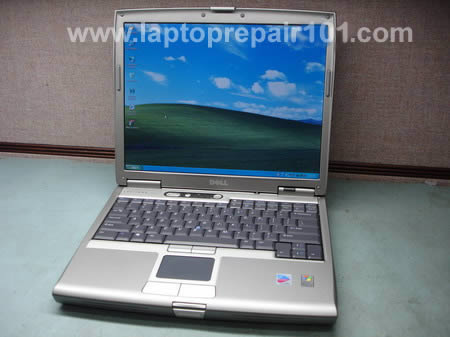
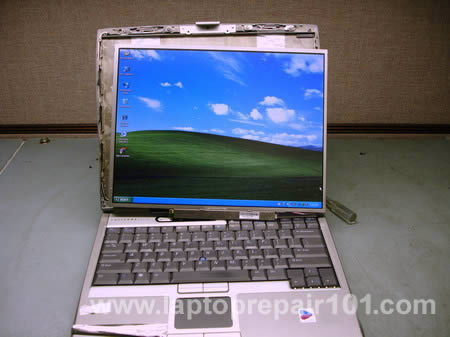
Here’s my Dell Latitude D610 notebook with water damaged screen I’m going to take apart.
First of all remove the battery from the notebook.
Lift up rubber screw seals and remove all screws.
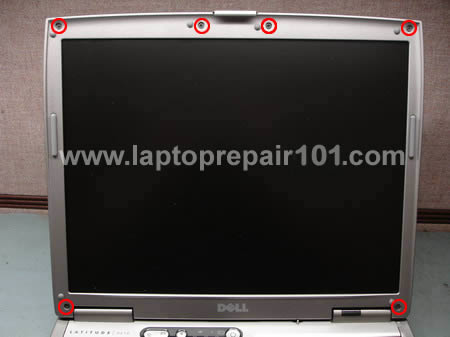
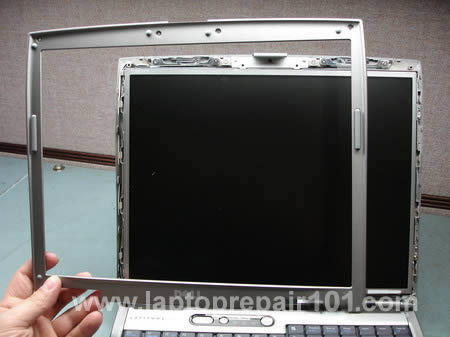
Carefully separate the screen bezel from the LCD cover and remove the bezel.
Remove two screws from the front and two screws from both sides.
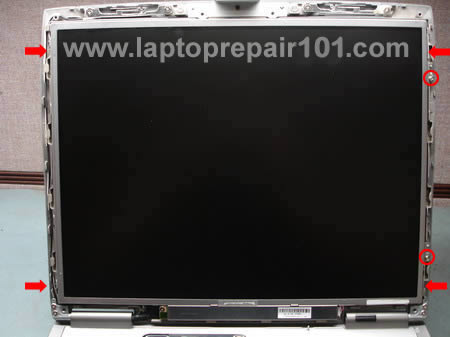
Carefully remove the LCD screen from the cover and place it on the notebook base. Disconnect the video cable and the inverter board cable.
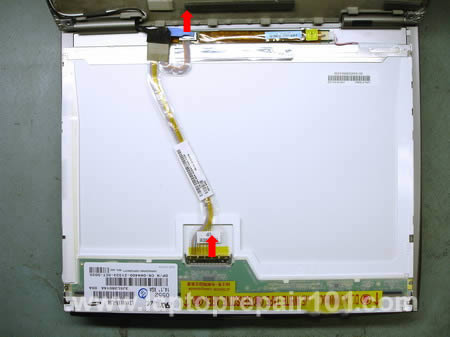
On this model the inverter board is attached to the screen with two screws. Remove both screws, disconnect the screen cable and remove the inverter board.
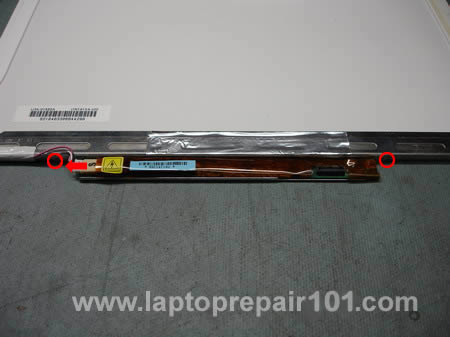
Carefully peel off sticky tape and foil and put it aside. You’ll have to put it back in place during the screen reassembly.
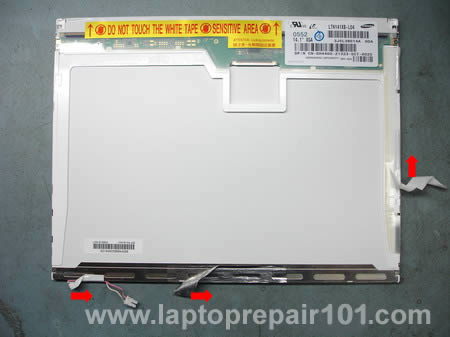
Remove two screws from both sides of the screen.
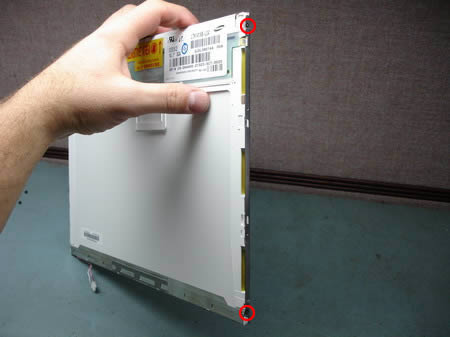
Carefully place the screen upside down on a flat surface. Carefully unglue the film that covers the circuit board and remove two screws from the board (top circles). I wasn’t really sure if I have to remove screws on the bottom, so I removed them just in case. Do not touch the circuit board with fingers.
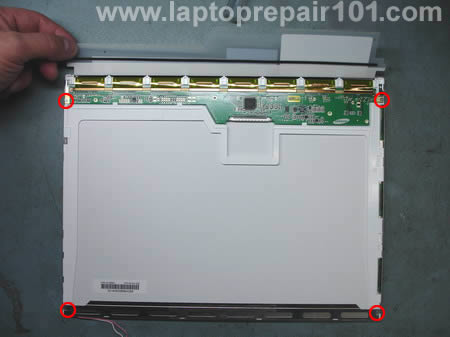
After both screws are removed you should be able to lift up the circuit board. Be careful, it’s still attached to the LCD.
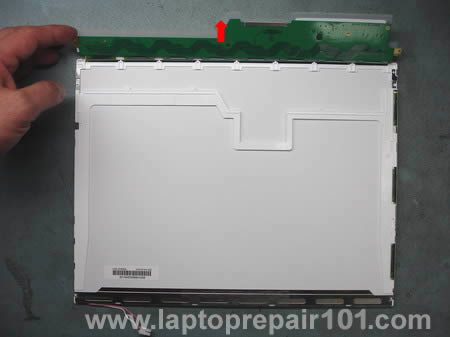
Start unsnapping the metal frame from the screen. There are a lot of latches on all sides of the screen. You can unlock them with nails or a small flat head screwdriver.
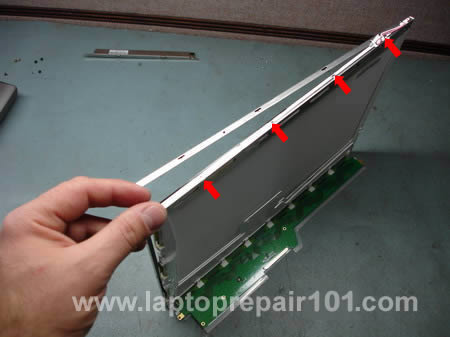
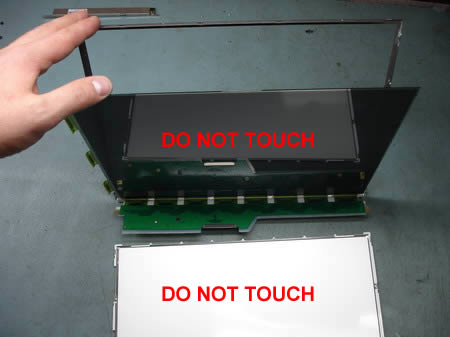
After all latches are opened you should be able to separate the screen into three pieces: metal frame, LCD and background (not sure about correct technical name).
If you have lint or dust inside the screen, probably you’ll find it between the LCD and the background. Do not touch LCD or background with your fingers. I was able to remove dust and lint up with a very soft cloth, barely touching the LCD and background surfaces.
After I split the screen I found that the background has a few some kind of optical layers (three transparent sheets) and in my case they were damaged by water. The water dried out and left stains between these optical layers.
In my case removing dust and lint wasn’t enough and I had to go further.
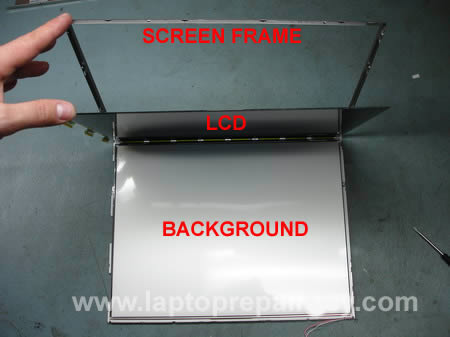
Very carefully separate the LCD with attached circuit board from the background.
To remove damaged optical layers it’s necessary to remove metal locks on both sides of the screen. It’s like a small clip that keeps layers in place.
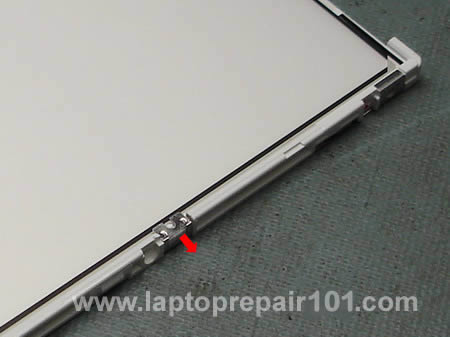
After I removed both clips, I was able to look between the layers. At first I tried to clean up the dried water marks with a soft cloth but it didn’t help. The stains were still visible and didn’t want to go away.
Fortunately I had another similar screen laying around, it had a cracked LCD. I decided to borrow the optical layers from the cracked screen and transfer them to my screen. I wasn’t sure if it’s going to work, but as I mentioned before I didn’t really care if I break the screen. It was just an experiment.
So I disassembled the cracked screen and carefully transferred the white background and all transparent layers to my screen.
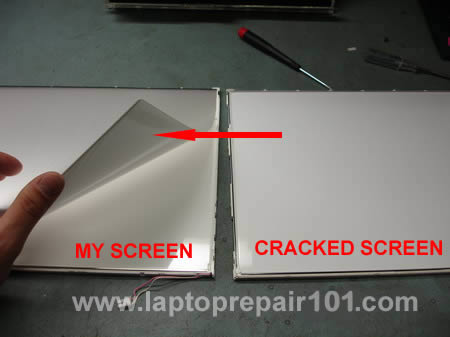
After that I assembled my screen back removing dust and lint with a very soft cloth. Breathlessly connected my new screen to the notebook. Turned it on and…
That’s a miracle, it works!
No dust, no lint, no water mars inside the screen! It’s clear and the background is absolutely clean!
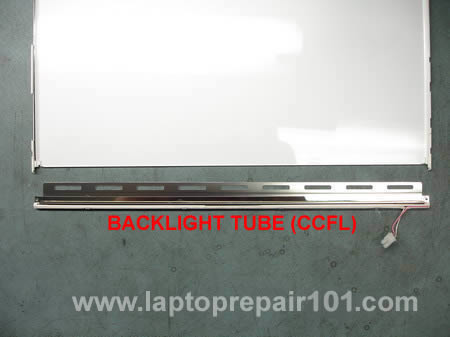
My donor screen had a cracked LCD but it had a good working backlight tube. The backlght tube is very fragile and it’s located inside a metal casing. I didn’t remove the backlight tube, I just broke off the entire metal casing from the plastic frame. I’m going to use this backlight tube for testing purposes.
396 Responses
dsna
hi
this is unbelieveble site, i got many helps from this site,
thanks a llot
Dietrich
hi
I’m trying to replace the optical layers of my old Dell Inspiron 5100 from an old lcd screen. The question is. in which order should the optical layers be positioned??
Thanks
cj2600
Dietrich,
When I was fixing my screen I just removed all layers from the old screen and transferred them in the same order into the new screen. I didn’t pay attention how the layers were positioned.
keith
thank you very much my laptop was really messed up. i took it apart then played with the clip and now it is like brand new. you saved me some money
amarty
thanks so much for your help. i did it …. and it worked on my 28 day old Acer that i spilled water on
charmaigne
Thanx, a mil! We will follow your leadership and try to fix an HP pavilion dv1000 blacked-out screen. I will let you know how it goes. Bye!
Chris
I have a Tecra S3 which is only a year old, just out of warranty. The display just started to have problems mainly with the color red. Little red dots appeared everywhere and the color red had blotches of crappiness in it. Toshiba told me my warranty was over, I figured I’d try to fix it myself. I determined the problem comes from a weak plug in the display
panel itself. I removed the rubber bumpers at the top and the flat plastic covers near the bottom, and all four screws.
Then I carefully removed the plastic cover by inching it up with my fingers. There were two screws near the bottom of the panel that needed to be removed, and a high voltage plug with white & pink wires that will pull out of a circuit board
near the bottom of the housing. I then pulled up the display & saw the long data cable & plug going into the top of the
display. I pulled this and determined it is made of copper. I took a can of Radio Shack contact cleaner, and sprayed both
the cable and the plug on the top of the display. Just for good measure, I sprayed a light coating on the board under the
plastic cover as well. I replaced everything, and now my display works perfectly. If you have a similar display problem
crop up, you might want to give this a shot, it can’t hurt anything. Always be extra careful with the front of the
display, they scratch very easily.
-Chris
Stacey
This is exactly what I need. I have damage on the monitor of my Sony VAIO. However, what do we do if we don’t have or know how to find these layers?
Bojan
Hi,
I have a Toshiba M100 which is otherwise in great shape but has a problem with the LCD. If you look directly at the screen you can see dark grey spots scattered around the screen. To me this looks like mould or some sort of dirt and it’s definitely on the inside of the screen. So basically, the LCD is dirty on the inside!
To make the story worse, a friend of mine also bought the same laptop from the same source (private seller, used laptop, no warranty) and it also has the same spots. When I was buying the laptop I figured the screen was just plain dirty and I could wipe it off. But it turns out it’s not and the spots are driving me nuts.
Do you know whether or not it would be possible to open the screen and clean the LCD panel? I figure it’s the top glass layer but then again, I could be wrong.
Thanks in advance.
Greetings from Slovenia!
Bojan
Jerry
My laptop is Toshiba Satellite A75-S2292.
Do you have any idea how to disassembly the screen and change the new LCD on this model.
Appreciate your help.
Thank you.
Shayne
Hi charmaigne, did you have any luck with your blacked out screen??
I now have the same problem!
Shayne
John
I have a Sony Vaio FRV25. I was having fan problems, opened up the laptop, replaced fan. The screen is now black. I tried an external monitor and nothing happens.
I’m just wondering if I broke a ribbon or something. Im pretty sure I put all of the screws into the right holes.
Any help would be appreciated.
Ken
Google brought me here while searching LCD screen cover Toshiba 105.
Question: Can one replace only the flexible shiny front plastic cover which protects the Toshiba LCD screen? Mine has a little scratch where the cover bravely protected the LCD from a falling tool. It’s not the end of the world, but if I can replace this easily and economically I’d like to do it. If I could I’d replace it with a protective cover that was not so reflective.
KLS
cj2600
John,
Did you remove the CPU during disassembly? If you did, make sure it’s seated properly in the socket and the socket is LOCKED. Make sure the memory module is seated properly in the slot.
Wajih ur Rahman
I have a question, or should i say i have a fried laptop and i wanted to ask if you can give me some clue to what’s wrong with it.
Its a Dell D600, and when i turn on the power, the Caps-Lock and Scroll-Lock lights turn on, and so do the power and HDD lights. about 5 or so seconds later, the thing powers off!
I have tried everything from swapping Memory modules, to removing battey and using AC power instead, and also tried removing DVD and HDD … Nothing seems to work 🙁
Any ideas ?? i read in one of your posts that you fixed a laptop which wouldnt start because of a lose cable .. do you think this is a similar problem ? or is the motheboard DEAD ?
Helpppp meee … pleaaseeee ….
and doc .. here is some medical history of this laptop …
…. a few months back i had a different problem, the Caps Lock key was blinking a few times, and then the system would shut down. I read on some forums that this was related to memory, so i tried removing the memory from Slot 2, and it turns out, the Slot2 is probably fried. Because the system doesnt work if it has memory in Slot 2.
At that time i was relieved that the motherboard was OK, and so i happily kept working with half the memory !
Jamie
I have a 15.4” WXGA High-Definition BrightView Widescreen laptop that has a bright white spot that is very notable, what causes this problem? And is it fixable?
Julie partridge
Just to say a big ‘thankyou’! Your site gave me the confidence to open my screen cover and swap the broken LCD with a working one…which saved a fortune. Keep up the good work and thanks again.
Julie
cj2600
Wajih ur Rahman,
Disconnect the video cable from the motherboard (under the keyboard) and try starting the laptop without the video cable connected. If the laptop still shuts down the same way as before, you might have a problem with the motherboard.
allen
my daughter accidently knocked my e1505 off my desk now i have a three inch portion of my screen that is white with pink,green and yellow lines running through it,any suggestions
Carla
I replaced a cracked screen on an HP Pavilion dv8000. I followed your instructions, but I only get horizontal lines on my new screen. Any ideas what I might have done wrong?
Thanks for your help!
cj2600
Carla,
Make sure the video cable is seated properly on both ends – on the motherboard and on the back of the LCD screen.
savvas
i have a toshiba satellite p105 17”. i tried a massage method to remove a stuck pixel but instead of that when the laptop is turned off there is a circle on the screen which is like a blur bubble. when the notebook is turned on the circle is visible only on black background.i havent put much pressure so to cause damage.
can i fix this problem or i have to change screen?
Bran
I think I have the same problem as Savvas, tried to do something with probably bad pixels on my Toshiba Satellie A105 which I thought was a dirt at first. I did not do it to hard, but may be it suck water inside and now it has a large blur on the screen, when it is on it is not visible, mostly not even turned on black screen. what bothers me more, is the fact that I have two shiny spots on the screen, pretty visible and it is not dirt (as I have found out), they were there before. Can these be fixed? Can I try to repair at least the shiny spots within manufacturers warranty?
Sharon
I’ve been striping and repairing laptops since 97′ in Toronto, Canada. I know that it has been pointed out with a big disclaimer, but I think for the average user or “tinkerer’ it would be LCD Suicide to disassemble the LCD layers on a spotty screen !!.
The only “advanced” work I do on LCDs are backlight replacement, which at times can be finicky
I’m very curious to know what kind of environment you did this in. I.E. Was it a clean room /box or were you just sitting at your desk ? I’m also going to hazard a guess that although you and I may have LCDs lying around in many “stages of broken” very few other people do !!
However on the flip side: For someone in the laptop repair business this is a very interesting article.
Thanks
cj2600
Sharon,
I’m not saying this guide is for everybody :). If you are not careful enough and have no experience fixing laptops, you can damage the LCD. That was my first time when I took the laptop screen apart. I had to reassemble it three times until I was satisfied. It was really hard to get rid of dust between layers.
I disassembled it at my dusty desk, same desk where I fix laptops.
Shawn
I have a dell Latitude D600 and am having a problem with the lcd. When there are large black areas on the screen it kind of blinks black and red in that area. Also, there are very fine vertical lines throughout the whole screen. Dark blues have the blinking redish problem also. Also there is a slight double image of some elements on the screen such as the submit comment button below, I see a pink outline to the right of it. It does look normal sometimes, but a majority of the time it has these problems. Any suggestions? Thanks
Peter
Bottom inch or so of my LCD is blank.
Any ideas
adik
hello i have a problem of my lcd laptop acer. hopefully you can help me. on my lcd screen have a line in the middle. what i suppose to do?
cj2600
Shawn,
Test the laptop with an external screen and see how the external video is displayed. If you have the same bad video on the external screen, there is a problem with the video card.
cj2600
Peter,
Can you see the taskbar above this blank area on the screen or it covers the taskbar with part of the image?
If you can see the whole desktop, including all icons and taskbar (the image on the screen appears to be compressed vertically), it’s possible it’s just a software related issue. Play with the screen resolution, test if the display works fine in Safe Mode. Try reinstalling the video driver.
Dale
Thank you very much for detailing your disassembly with photos. I’ve recently gotten a fully functioning Inspiron 5100 with good external display but the LCD is completely dark. I am considering replacing the backlight or inverter myself and you’ve helped a lot with your pictures. I have the display panel removed but cannot tell one part from another. For instance I wondered if the backlight was behind the top edge or the bottom edge and was the inverter the circuit board in the middle of my display of the one that has the caution tape on it running across the top of the panel.
Kudos and thanks – Dale
cj2600
adik,
Is it a thin vertical line about 1-2 pixels wide running across the entire screen? If yes, then there is not much you can do to fix it. It’s a screen problem and you’ll have to replace the screen (or get used to this line).
cj2600
Dale,
The backlight lamp is located INSIDE the LCD screen, I’m not sure if it’s behind the top edge or the bottom edge.
Search for “Inspiron 5100 inverter” ebay and you’ll see how it looks like.
If the screen still has a very faint image but no backlight, most likely it’s just a bad inverter board.
Dale
Thanks CJ,
Yes great idea – eBay to the rescue. I completely disassembled it yesterday. The inverter was actually very easy to remove; the backlight is quite the opposite. To get the backlight out you will have to take every piece of the display waffle layers apart and the outer metalic rim/frame. The 5100’s backlight is nestled along the bottom of the inner plastic frame in a u-shaped metalic channel that fits snuggly into this plastic. Additionally when you get down to only having the backlight assembly in that plastic frame there is a keyed black plastic topper which you have to spend a bit of time studying how both the left and right sides must be manipulated to remove. Once that is off then I had to take an exacto knife carefully under the backlight channel where it is glued to the frame. Then the backlight pops out. After all that I stuggled putting it all back together without smudging any of the film layers or the glass. This was the hardest thing. After several failed attempts of keeping everything aligned, I improved my techniques and got it fully assembled.
Post-op I’m convinced the backlight is fine and therefore the inverter is at fault. For roughly $30 I hope to aquire a replacement. This will be a reasonable cost for the fix.
My advice to anyone considering removing the backlight would be to not do it. The reason is that unless you are in a clean room you will likely gather dust on the display’s waffle layers as you handle them. You won’t notice this until you’ve got the whole back together and figuring out which layer holds the dark spot is itself likely to induce smudges. It is a viscious downward spiral. The backlight itself is a self contained part that could be simply replaced without soldering if not for the above mentioned issues.
BTW I took pictures of the process.
Jacin
Just out of curiosity …
I see that, on your pictures (and in my own laptop) there is that white tape with specific instructions not to touch it. However, it would appear that you are, in fact, touching it when you’re displaying where to remove the screws on the side of the screen.
What is the reason for not touching this tape? And, if it is touched incidentally, is that cause for major concern? And, if so, can it be easily cleaned / repaired?
Dale
ahh! the dreaded don’t touch that tape warning;->
I touched it and live to tell the tale. On my display, behind the tape were flexible circuitry hinges that link the adjacent circuit board visible on the back side of the assembly to the display panel that faces the the front side. As I removed that tape I couldn’t help worry about what gremlin was about to be unleashed. My take is that this is all sensitive and so I did my best to avoid any abrasion or contact with anthing with these surfaces.
Additionally once I opened the hinge I elevated the display and allowed the hinge to fully open just past 180 degrees. This took a little work to get something to get just the right heights for both hinged sides and to keep any tension on the hinge itself to a minimum.
To preserve that tape I got out a long cookie sheet and stuck it to the clean backside of it. The cookie sheet as a palette idea turned out to be useful for all of the several the tape pieces I found I had to remove.
Don’t touch the tape – bah! I dare you :->
cj2600
Jacin,
I believe they put “Do not touch” instructions because there are data cables connecting the circuit board with the LCD and they are located right under the white tape. I think nothing terrible is going to happen if you accidentally touch the tape, but do not push on it because you can damage the data cables.
cj2600
Dale,
I hope new inverter board will fix your problem.
By the way, if you don’t have your own website and would like to publish your backlight lamp removal instructions here just let me know.
Edgar
All this information is great, but I need to know what’s the best way to find out if I need to replace the whole LCD screen, or just the inverter?
Secondly, I formatted the C:\ drive and now am trying to install XP…but it keeps turning the screen off after 3-4 minutes…and I have to restart the computer so that the screen comes back again…is there a cure to this? ANY help is appreciated.
sam banda
Hiya was searching the internet for this and stumbled on your page its been of great help as am looking forward to buying a toshiba m100 protege laptop but the outer metalic case is scratched and can do with a new one. I just dont know how to go about this and where to get the cheapest parts so I can refurbish it to brand spanking new. Your help is highly appreciated.
Sam.
Nick
Don’t Laptop LCDs Have mercury. I read that in a book from the libary. So if you diasembel an LCD Wash your hands when done!!!
cj2600
Edgar,
Here’s my previous post about troubleshooting laptop video problems,take a look.
If the laptop starts with normal video but after some time the backlight goes off (you still can see an image on the screen) then most likely it’s just a faulty screen inverter. If the screen goes off and there is no backlight or image, then it’s not an inverter issue.
cj2600
sam banda,
Are you asking about the bottom cover? If yes, then you can search on the internet by the following part number P000382360 and find the cheapest one.
shakeel
i forgot my dell inspiron 600m bios password please give me full solution
jimmy
hi, ive justknackered my sceen with water damage, its stillworkingbut a can see a water mark esspecially on awhite background.i don’t fancy taking the screen apart because i have important work on my comp anddon’t wannabreak it. it seems to have subsided, (only damaged it a coupl of hours ago!) what are the chances of it evapourating and evrything bing hunky dory again?
Seymour Butz
Probably a better chance of that than of you improving your spelling skills. If it was distilled water (pure H2O), you might have a chance of it coming clean. The impurities are what makes a mark and tap water (or bottled) has a bunch of them like trace minerals, microscopic solids, etc. If it was still wet, you might be able to remove the bezel, detached the screws/clips that hold the screen in place, and “drain” it out by taking the screen, holding it vertically, and gently tapping it against a hard surface to possibly spread out or move the water out of the screen. Kind of a long shot, but there’s not much you can do when you don’t want to go to the source of the damage. There’s an active market on ebay for used screens.
David
Followed the article on LCD screen repair. Found it excellent. Cleaned the glass layer with Walmart glasses cleaner (70% isopropyl alcohol might also work) and used latex gloves without talc to avoid fingerprints, have not taken a screen appart before but dissassembled an old broken one to get the back sheets and learn the pitfalls . The silver back layer does not seem to clean and needs to be replaced if the water damage is on this layer..
Don Bailey
My 14″ Dell Latitude CP M233XT has a 8″ screen What can I do to get a full screen.
mel ship
does anyone know the part number for a dell inspiron 510 laptop p.c. backlight inverter please?
Babu
hi 1/3 part of my toshiba ps140e gose white so if u have any idea about the fault plz let me know.
i will be very thankful to u
Babu
Jeff
I’d like to replace the sound card in my Dell Latititude C400 Notebook. (The headphone jack cracked and no longer will hold a plug). I have the new sound card, but am stymied by how to get to the old one–seems like replacing it will be a piece of cake–if I can open the case.
Any help? Any postings or directions someone can direct me to?
Thanks much
Jeff
To ch2600–
Thanks much–I had gone to Dell and found nothing–and had not gone quite far enough to actually download a manual from one of the other sites. Got a manual and now I’m one screw shy of opening the case–appears the screw is cross-threaded or something–no budging at all. Time to get a better screwdriver!
I trust I’ll get it and do the repair.
Thanks much for your quick reply.
jeff
Bob
I need an entire screen for an inspirion 6000 , anywhere to buy a used one?
steve
sharon could you email me about replacing my screen on a Hp dv8000?
I am in east end of toronto
Sarah
PLEASE PLEASE can you he
i dropped my work laptop in puddle on friday and its wasnt drying out – so followed ur and hp manual instructions to take screen apart dried various bits of lcd screen 90% sure they all back correctly as they only fit in one way and now have vertical lines across screen n no picture hooked it up to external monior and it worked ok. ple\se tell me i haven’t messed it up! and theres something i can try to put it right so that i odnt have to crawl back in to work n get b******ed
any help would be great Thanx
sergio
Thanks very helpfull, I also tryied to fix my LCD screen for the first time. I got a replacment on ebay for a LCD 15″ dell insiron Model 5100 but the cable connections are diffrent from LCD to mother board as my old one . Any idea where I can get a cable?
Your LCD with the exception of 15 has the same conections as my new replacment…
Kelly
I need a screen for my Dell Latitude C640. I dropped it and the screen broke. Do you know where I can find one real cheap. The computer works fine. I live in Richmond, Va. Right now it is hooked up to a regular monitor.
cj2600
Kelly,
Probably the cheapest one you’ll find here. I just searched for “Latitude C640 screen” and found two LCDs, one for $85 and another one for $65. I think this cheap enough.
Tony
Hi! I have successfully transferred LCD screen from Inspiron 6000 to Inspiron 6400 but I had to take along inverter and video cable. I really like this particular screen and I wonder if it likely to be compatible with other brand laptops? I plan to upgrade to a santa rosa laptop and don’t want to limit my choices to Inspiron 1520. Thanks!
Cindy
I ony Vaio FRV37 with possible moisture damage around the outer edge. I never had to clean the screen so I’m not sure if it is moisture. The damage- some spots with dark uneven middles that fade out then go dark at the outer edges – some are at least 1/2 inch in diameter. The extensive damage from right side across the top to left side and are darker at inside edge and lighter closer to bezel. All spots are very noticable on white background. I cannot find any examples of screen damage to compare. I need to know is this indeed water spots or LCD damage so I can fix it or replace it. I do have another undamage screen as replace but only as a last resort. Thanks for writing such an informative article.
cj2600
Cindy,
I don’t know. There is no way I can tell what is wrong without looking at the screen.
Cindy
I’m not sure if it would even show up in a photo but I would be willing to try. Is there anyway to post the pics on here or link to them once I upload them to my laptop so you can see the spots and possibly identify the problem?
Dago
Every body know, how I can convert my notebook LCD screen in a pc LCD ?
Jocelyn
Is a laptop with a crack lcd(accident) still safe to operate?? The computer still starts and operates as normal.
Paul
My dughters Inspiron 6000 has the black screen problem with (very) faint image. How can I tell if it’s the backlight or inverter which is bad and can the backlight be changed on this model without the horror story above ? Thanks for any help you can give, a local repair shop is quoting £180 for a fix !
Hein
So, I disassembled the screen, and found that there are blotches on the two layers nearest to the screen.
I would say it is mould: roundish, separate a.s.o.
Could someone advice on how to clean these transparent layers, please.
Another problem I have is that one of the sreens just does not work, that is to say the backlight is fine, but no image. I am sure that the inverter and the cable to the screen is OK, as they work properly with another screen.
Can I try to repair this. If yes, where to start with the diagnosis?
cj2600
Jocelyn,
Yes, it’s still safe to operate but the crack will not go away by itself. 🙂
Atif
dear sir
my laptop is (Dell D600) P_4
my problem is that my laptop is ded.
the battery charge is full.
2nd that when i connect the laptop with power charger.the charger is auto off.
plz tell me this problem.
JOHN T
Hi, I would appreciate any help.
I have an ACER TRAVELMATE 2300. In the “screen” are appearing some “thin” lines (vertical), different colors (green, red, blue)
Which could be the problem?
I know that the monitor is very delicate so I am worried that this damage can be irreparable?
I would like to know if these could be problems with the video card or the LCD? and if could be easy to repair?
Thanks
cj2600
JOHN T,
Here’s my other post:
http://www.laptoprepair101.com/laptop/2006/08/17/bad-video-on-lcd-screen/
Take a look at the example 2. Does it look like your screen. If it does, most likely you have a faulty screen. You’ll have to replace the screen in this case.
Test your laptop with an external monitor. If the same vertical lines appear on the external screen, you have a problem with the video card.
If vertical lines appear only on the internal LCD screen, most likely you have a bad LCD screen.
jerry
I dropped my laptop about couple of months ago. the top corner of frame is cracked. i turned on computer a thin line bluish/white vertical from two inches from the edge. it ran ok. its starting to get larger due to opening and closing the laptop. it is a hp new model. when i hold the screen tight the line does get thiner. please help
giuseppe
hi!
I’m in trouble with a lcd:
starting the pc, nothing appears and when there is the tipical “choose user” window, the monitor is an half blue and an half sithout anything (just dark).
In your opinion is this a question of the lcd or of the inverter?
thank you,
Giuseppe
cj2600
giuseppe,
If the LCD screen lights up and you can see an image on it, even though the image is completely garbled or distorted, the problem is not related to the screen inverter. When the inverter goes bad the LCD will not light up at all.
From your description it’s hard to understand what you see on the screen but here are a couple of hints for you.
You’ll have to test your laptop with an external monitor connected to the laptop VGA port. Set the laptop to output video on the external screen. If both internal and external screens display the same bad image, most likely you have a problem with the video card. If this defect appears only on the laptop LCD but no on the external screen (external screen works fine), then most likely your laptop has a defective screen.
MikeD
I have an HP zd7249. My screen is not functioning properly. When the computer is on, the screen is dark, but I can see that a light, which I assume is the backlight, is actually lit. From what I have read here, that would indicate that the CCFL and the inverter would be fine. I should also note that I have connected the laptop to an external monitor, and I get a perfect image. What do you think my problem is?
Christopher
I’m using a Dell XPS M140. About 8 months ago I replaced the LCD screen. Currently when the laptop is running off the battery the screen will stay lit for about two mintues and then go dark. You can still see the image in the background. When running off the AC cord the LCD will remain lit. I was wondering if this is something that I did incorrectly upon install or if I have an off setting somewhere. Thanks.
brandi
I was running from my car to front door wile it was storming and some rain drops somehow got in the lcd screen. I have a Compaq Presario V300 made by HP and it is basically new and is a great system. As soon as I got inside and noticed the damage, I looked up on google “I got water in my laptop screen”. This was the first site and it worked great!!!! I read through and followed all directions (my lcd is connected to the laptop a little different though). It worked perfectly and I was able to get all the rain water out before it was able to dry and stain. I recommend this to anyone with the same problem. Just like the directions say, be very careful though! THANK-YOU THANK-YOU THANK-YOU ! ! ! ! ! ! ! !
cj2600
MikeD,
I assume it’s not a software/settings relate problem.
Could be a connection issue between the motherboard and the screen. First, I would try reseating the video cable connector on the motherboard, it’s easier to access this one. Second, I would check the connection between the video cable and the LCD screen. To access this one, you’ll have to open up the display assembly and take a look on the back side of the screen. Make sure the video cable is plugged in correctly, all the way inside the socket.
If reseating the cable doesn’t help, I would try replacing it.
Roland
Hello,
I’ve cleaned my laptop (an HP nx9105), like I do as usual, with a special product for screen and pc (a foam).
Some product have entered under the screen and I have now a white light transparent stain at the bottom left corner.
Do you think I can dismount the screen to clean it ?
Regards
altaa
>i turn on the power, the Caps-Lock and Scroll-Lock lights turn on, >and so do the power and HDD lights. about 5 or so seconds later, >the thing powers off
dear Wajih ur Rahman
im my case (inspiron 8100, same symptoms) it was short circuit on the mainboard, precisely there was very tiny coppaer braid wire which was stuck in the memory module socket and had probabyl also contact to the main board. after removing this everything was just fine again,
greeting, altaa
Melissa
hi,
a few weeks ago a family member left my laptop in a postion where no air could come out of the ventilators. when i discovered this my laptop was really hot. Now my laptop will begin to heat up and won’t cool down unless i shut it off. Also, my computer screen doesn’t look right. It’s hard to see, especially on darker backgrounds. how can i fix this?
Jeff Trost
My DV1000 screen went dark (with faint images of the screen) 2 weeks ago – I ordered a new inverter (from invertercentral.com) that was supposedly compatible with my DV. Replaced the inverter and found out that the old one didn’t have the exact same number as the new one.
The screen powered up, worked fine for about 2 days – now back to dark/faint.
Is this an inverter problem (still)? or is this a backlight problem? or neither? What should I do?
Joe Clatch
How do you access the motherboard to install a CPU? Any ideas?
cj2600
Melissa,
First of all, clean the heatsink/cooling fans with compressed air. Spray air inside the air intakes on the bottom until the cooling module is clean. It’s possible that your cooling module is completely clogged with dust and the laptop overheats because of that.
You said the screen doesn’t look right. Does it happen only when the laptop is hot? How about video on the external monitor, it looks bad too?
cj2600
Jeff Trost,
At this point it’s hard to tell which one is causing the problem. Your laptop worked fine for 2 days after you replaced the inverter board, so I would try replacing the inverter board again. It’s possible you purchased a defective inverter board.
Make sure the lid close switch (button witch turns off the backlight when the display is closed) is clean and it works when you press on it with your fingers. A dirty lid close switch might get stuck inside and the backlight will not turn on even after the display is open. Clean the switch.
Renier
How I will replace the LCD backlight of my laptop DELL inspiron 510
Thank you.
Ivan
Hello, I dont know if this is the right post to ask questions, but this is the problem:
Laptop was working fine until one day LCD screen shows Solid white color. I checked external video and everything was perfect. How could I fix this?
Jon
I have question about removing all the films fron an Inspiron 6000 LCD screen and replacing them. First, is there anywhere I can get new film sheets? Second, when I put everything back together, is there a schematic on the placement of the film sheets and/or does anyone know what order they are supposed to be in? This is a used laptop that I aquired and someone has already taken the LCD completely apart. All the parts are there and there are no visible scratches or anything like that but I notice that the clear plexiglass panel is thicker on one edge than the other. I am going to assume that that is because it sits on the backlight but I really want to know before I start in on this. I have the film sheets (Background?) laid out like they came to me but if I could find a schematic showing which one goes in first, second, etc. I would be in heaven.
cj2600
Ivan,
It’s possible that the video cable got pulled from the connector on the back of the LCD screen and is not making a good connection with the screen. Reseating this connection might help, I would try it first.
cj2600
Jon,
You can get them from another screen, I don’t think you can buy them separately.
Yes, I believe these transparent layers has to be placed in the order they were removed. If someone has already taken the LCD screen completely apart and didn’t assemble it back the way it should be, probably your are screwed. I think you’ll have to find a new screen.
Rebel_X
Hi, I have a problem with my laptop, recently I turned on my laptop and the screen stays plain white, I could hear the sound of windows started, but it stays white, if I remove the power cable, the screen will start dimming, on the other hand, I tried to test the LCD screen on my brothers Identical laptop and it WORKED wonderfully, when tried to put it back to mine, it’s WHITE! this is frustraiting! anybody please help me..
cj2600
Rebel_X,
Your LCD screen works fine with another laptop, so there is nothing wrong with the screen. Apparently, you have a problem either with the video cable or the motherboard/video card.
Test the video cable from your laptop on your brother’s laptop. If the video cable is fine, I would suspect the motherboard/video card.
Gerald Millward
The lid catch on my Compaq Evo N600C is broken; I have obtained a damaged N600C screen with a good catch system. However, I cannot discover how to separate the screen form the bezel so I can remove the catch system. I have removed all screws I can see, but the top left and left side will still not separate.
cj2600
Gerald Millward,
Sometimes HP glues the LCD bezel to the screen with double-sided sticky tape. In cases like this I usually insert a piece of plastic (guitar pick, credit card, library card, etc…) between the bezel and the screen and move it alone the side to separate both parts. Be careful with the screen.
Marc
I have a Dell Inspiron 9300. The screen would appear fine when only when pressure was applied.
I took it apart and found the problem. On the left side of the LCD (screen facing you, back behind you), it has some flexible circuits that connect with the white tape. When one part doesn’t touch the white tape, the image is dark (or has vertical lines). Applying pressure connects the circuit to the tape.
OK, so apart from sticking my finger on the screen while I work, how can I ‘reconnect’ this?
Marc
B
I was able to follow your directions and repair the inverter on my Toshiba Satellite P30. Your information was perfect. Thank you for allowing me to have the information to repair my laptop myself!!!!!!
cj2600
Mark,
This flexible circuit has a lot of very small connectors. I’m afraid you cannot fix it at home. Maybe you can put a piece of eraser between the screen and the screen top cover, so it always apply pressure on the screen? It’s just a wild suggestion but it might work.
Steve
Hello,
I have a Dell Inspiron 6000 with a wsxga+ lcd that is cracked and displays weird colors when turned on. I have tried it with an external monitor so I know the video card still works. Here’s the question: my buddy has a screen from a Dell Inspiron 1520 with the same resolution and he is willing to let me have it cheap. How can I find out if it is compatible? I don’t want to bother him and have him ship cross-country if it won’t work. I have conflicting answers from others who say it will work no problem and also that it won’t work because of the inverter. I’ve searched everywhere I could think of to no avail. Since you sound extremely knowledgeable, What do you think? Any help would be greatly appreciated. Thanks.
JimA
I doused my Inspiron 6000 with water and had water between the laminaire of the LCD. I tried all the stuff recommended by others, but in the end I did the exact same thing you did, except I cut the sealing tape and applied new when done. Mine is now as good as new.
A couple of tips. You need the right tools, and patience. Dont try to get along without a good quality 0 and 00 phillips, aluminum foil tape and mylar tape. To clean the various layers I used eyeglass cleaner wipes, and changed them often. The alcohol in them kills any organisms, and they are lint free. The LCD itself is relatively simple, and more durable than everyone seems to let on. Take your time and roll the layers over as you clean them so you dont mess up the order. An ice tray will allow you to sort the screws. Make sure the LCD is properly supported all the way across its surface on a book and soft cloth, and dont do this when tired or upset. By the way I cleaned the LCD panel too, and it caused no damage whatsoever. Good luck to all. JimA
Rodney Calkin
I have a toshiba portege a100 12.1 inch laptop with a cracked lcd. Is it possible to use the lcd from an m100 12.1 inch and transplant it into the a100?
Justin
I had a sploshy screen on the bottom right corner of my Laptop, due to spilling fluids on the laptop, it showed up as super bright patches on the LCD.
even though it was a Toshiba, I followed your instructions and cleaned off the fluids from the back of the backlight material and when I re-assembled it, the patchy bits were gone!
My first time taking apart an LCD too.
Thanks dude, you Rock! (great “How To.”)
Now my screen is clean and clear again!
cj2600
Rodney Calkin,
Can you open up both laptops and compare cable connectors on the back? If both connectors are similar this replacement might work.
Rodney Calkin
Both the cable connectors are the same. 20 pins. However, I have not purchased the screen from the m100 as I do not know if it will fit. The A100 has 2 circuit boards attached to the screen and the M100 screen only has 1. I am asking so as to know if if should purchase the M100 screen online from auction.
J Nye
Hi i have a dell D600 latitude and the front cover is very badly scratched when you removed the lcd could you have easily removed the front lid cover as i want to change mine to a nice new lid/cover but i dont know how to go about it is it easy to change the fron cover can you advise on how i could do this please many thanks
cj2600
Rodney Calkin,
I don’t know if the screen from M100 will work on A100. I’ve tried to research online but it looks like both screens have different part numbers and they might require different video cables. If I would be you, I would search for the original A100 screen replacement. Find the part number on the back of the LCD screen and search by the part number. It will help you to avoid unnecessary waist of money.
cj2600
J Nye,
There shouldn’t be a problem replacing the front cover, I believe you are asking about the palm rest. Here are instructions for taking apart your laptop. Go to the palm rest part.
gary
I have a cracked screen on my dell d410. I was able to replace the lcd, but when i booted up, the screen showed white. Is there something wrong with the inverter or video cable?
cj2600
Gary,
How about the original cracked screen, was it white too? Even though the screen is cracked you still can see part of the image, right?
Test the laptop with the cracked screen again and see if you can get image. If you get it with the old (cracked) screen but not with the new one, probably your new LCD is bad and you’ll have to replace it.
It also could be just a bad connection between the video cable and the screen. Reconnect the video cable on the back of the screen, it might help.
Tina
Thank you so much for your detailed instructions on taking about the lcd..Dell didn’t send any instruction with the replacement and this was my first time attempting this…I was able to follow the instructions without wrecking anything….and now my user is happy happy happy!!!! Thanks again~!
Darrell
See photo at this link
Disregard the blurry picture. That’s my lack of photography skills. Instead, please tell me what’s making any LCD I connect to this laptop display images (including BIOS screen) 4 times. Despite the bad photography, the 4 images are perfect representations of the 1 image that is supposed to be seen on the display, i.e. no blurriness or dimness. External monitors show the 1 image perfectly.
roy
this might be the wrong place, but you guys seem to know about this stuff, but … is it possible to rip the lcd off a dead laptop and with some messing about, get it to act as a standalone lcd vga monitor ?
cj2600
roy,
I doubt that you can do it, at least I don’t know how.
Henrik J
I have one Dell Latitude 600 and one Latitude 610.
I want to use my D600 screen on my Dell 610 (D610 screen has 3 cracks over it, that’s why I want to change screens). Every thing looks the same when I take it apart, except one thing. The cable from my D600 has more wires connected to the screen. The socket itself looks the same, so I can move the cable from D600 to D610 or vice versa. But when I boot the D610 with the D600 screen, I have tiny colourful strips all across the screen. It doesn’t matter witch cable I use, same result. The screen cables has a tag, the D600 has CSSWJ.Wanshih REV.3A 04/03/15 DD0JM1LC0000 and the D610 CSFFOL.Foxconn REV.3A 06/01/03 DDJM5BLC107. Can I do anything to make this work?
chris
i spllied something on my lapop now it goes on fer a few seconds then turns off
its a dell latitude c610 that i bought off ebay it works fine (except for three spots of discoloration on the screen) but i digress
i spilled a small amount of diet coke on it towards the left side of the keypad. now when i try to turn it on all the lights come on for about 5-8 seconds then they turn off and no activity on the screen.
Can anyone tell me how to fix this or what to look for when i take it apart?
bench
my laptop is Compaq tha problem is if i power my laptop lose tha power then i power again he lose again in your experience what tha probem of my laptop
cj2600
Chris,
Can anyone tell me how to fix this or what to look for when i take it apart?Look for corrosion on the motherboard. Apparently the motherboard has been damaged by coke.
Smridh
Problem: LCD Blackout.
I don’t even get a ghost (faint) image. But the external monitor works just fine with the laptop. Its an Inspiron 2200 (2years old).
When the laptop is switched on the LCD shows a dark gray light (for less than a second) and then turns black. Earlier it used to flicker and come back but one day it just went black and is same since then.
Since there is not even a ghost image, culprit should not be either a bad inverter or CCFL backlight. Am I right?
Now, assuming that I am correct in the above assumption, it could be the video cable or the LCD screen/circuit itself. I have removed and replugged the video cable but nothing happens. Is there a way I can guarantee a faulty video cable without trying another one? (i suspect the answer to be no)
Now the final question, I am willing to buy a new LCD screen for my notebook and its available on ebay (and a few other sites). But is it possible that its not the fault of the screen at all? Could it be the circuit on the motherboard between the video card and the LCD connector on the motherboard that is breaking the signal? I ask because if this is the case then even buying a new screen wouldn’t help.
Waiting for a response with a half-dead laptop 😐
Thanks in advance.
Smridh
Hello Again,
I have tried my screen on another laptop (Inspiron e1405) which has a different video cable connector to the motherboard. But I managed to attach my LCD (of Inspiron 2200) to e1405 using its video cable and the LCD works fine (I used my inveter only).
So now the problem could be only in one of the 2 things.
1) The video cable of my notebook (Inspiron 2200), or
2) The mother board circuit between the video card and the LCD connector.
The problem as I have explained in the last post is:
1) Nothing come on the LCD Screen, just a flash for the 1st second after which the LCD turns black. No ghost image.
2) The external display works fine (hence the video card is good)
I am going to try a working video cable of the same make soon. Will post the results after that.
But meanwhile, what do you feel the problem could be? the video cable or the motherboard connector?
borgward
I recently revived a friends laptop that had been his daughters. The display is splotchy. He is not interested in spending $100 for a replacement LCD panel. It displays text OK. Thats enough for him. The colors are muddled. I do not think it is bad pixels, as during the Dell diagnostics routine, it displays solid colors perfectly. It does not display red well when mixed with other colors. The colors are perfect when displayed on an external CRT monitor.
Is this an inverter problem, or a motherboard problem. (the video is embedded in the motherboard) Any repair suggestions?
DR TEETER
Just a quick ?. I do not want to throw good money after bad. I bought ny daughter a Dell Inspiron 2200 about 3 years ago. She used it about 20 hours watching dvds. About 2 weeks after the 1 year warranty, the screen went dark. If you have light shining on it at the right angle, you can see and read what is on the screen. Obviously, it works fine with a monitor.
Does it sound like this backlight thing and app. how much does it cost for you to replace it?
I, obviously, would never buy another Dell. I thought I bought the extended warranty. I notice now it shows up on the order, but with a zero quantity. I did not catch the 0 when I placed the order.
Thanks.
Sue
hi, here is my problem i have a ibm think pad a21m and the white color all seems to be either a grayish pink or pink color,,any idea what this could be… thanks
Paul Salazar
Excellent guide!! Thanks for you help!
Director
Your instructions on how to replace the layers was quite informative. However, could you please advise if this solution is applicable to a lcd with different colored vertical lines on the screen at startup and windows?
Looking forward to hearing from you.
Regards,
EMoorhead
cj2600
Director,
Nope, this solution will not work. If the LCD screen has a few vertical lines (see example 2), then you’ll have to replace the whole LCD screen.
gatolt
Thank you for so detailed instructions . I have read trough all posts but don’t find neccessary answer. How do You think- changing LCD layers will help to remove white spots? Now I san “see” through monitor and see all support points behind LCD as white cloudy spots. I have Dell Latitude D600. Thank You
Randy Askew
Laptoprepair101.com was a “LifeSaver For ME”.. Very Detailed Instruction That was “Dummie-proof Enough For Me To Follow”.
The whole process took a total of 30-minutes to effect repairs on a severely crack LCD Panel on a Gateway MX6124. I Can not Thank These People Enough For Helping Explain What I thought was an ardious task being made simply for a layperson.
Thank You,Thank You,Thank You!!!!!!!….
R.Askew
cj2600
Gatolt,
I don’t know, probably yes. But you need to find another LCD, so you can transfer all transparent layers from the loaner to your screen.
While creating this guide, I had to disassemble/assemble the screen a few times. It wasn’t as easy as it looks in the instructions above. 🙂 One time, after I assembled everything back together, I got a few dark spots inside the screen. These dark spots were noticeable on the white background and I wasn’t satisfied. I’m not sure how I got them, maybe I accidentally pressed on the screen during the disassembly process so I had to take it apart again. I took it apart and kinda reseated the transparent layers. I just separated layer one from another and put it back together in the same order. After that my dark spots were gone. Not sure if this technique will help to remove your white cloudy spots. You have to do it in a clean room, otherwise you’ll get dust or lint inside the screen.
By the way, underneath the transparent layers there is a white sheet – background. Maybe the background is dirty an that’s why you see these spots? This is just a guess.
Smridh
Well, here is my third post (without a response from the admins yet) regarding the problem I have had for over a month now.
I got my hands on another laptop of the same make (Inspiron 2200) and checked my LCD on it. IT WORKED FINE.
So, now its definitely the motherboard. But the external display works fine so it couldn’t be the video card.
I also checked the lid-close switch which looked fine. But still I shorted the switch’s ends to bypass the lid-close switch. Output still the same: LCD doesn’t work but the external display does.
From what I suspect, something is telling the system that the lid is closed but its not the led close switch. What else could be it? maybe an IC or a broken wiring on the board? Is there a way I can check this up?
Fabian
Well, I have an HP Pavilion dv9535nr with a nice 17″ widescreen LCD. That is, it WAS nice…until one day when I was atempting to clean surface of the screen. I hadn’t noticed how damp a cloth I was using, and so when I finished the job (to much perfection I ght add) I booted up my laptop only to find that about 2/3 of the screen (horizontally from the bottom up) didn’t work and the 1/3 worked but had just a couple of “rows” drawn straight across the screen. I also noticed what apeared to be a crack underneath the screen.
Fearing the worst, I cried for aprox. 15min. Then I atempted to remedy the situation. I tried leaving the laptop on all night while slept, keeping the lid closed and just letting the machine warm up. I was trying to see it maybe the warmth would eventually evaporate the water. I put it partially under my cover as I slept.
I woke up the next morning, and then observed the results. The “crack” that I had seen was actually water, and it was much smaller now. I now concluded that the damp cloth seeped some of the liquid into the edge of the left side and then it got into the screen itself. I had hoped that it wouldn’t be so hard to repair. But I didn’t want to try anything yet, so I am wating for it hopefuly continue evaporating. Also, the output still isn’t displaying that bottom 2/3 of the screen. Luckiliy, I have been getting by on my external 19″ Samsung SyncMaster 906BW, but I need that screen working again, seeing as how it’s a laptop.
Fabian
On my previous comment, it basically looks like example 5 on this page, except turn it 90deg clockwise
http://www.laptoprepair101.com/laptop/2006/08/17/bad-video-on-lcd-screen/
Gros Fils
I followed the instructions for my Latitude 620, which has the exact same screw pattern, but the bezel does not want to come free. I’ve tried to pry it in every direction but it seems like it’s still mounted solidly. Anybody else run into this problem?
Gros Fils
Nevermind. I got it. The trick is to push the bezel outward by prying with your fingers under the inside edge. One you get one side started the rest is easier. I broke a clip off in the process of doing this. It took more force than I was comfortable applying to a $1500 laptop!
Darrell
I’m reposting this question because I never received a response and still have the same problem after swapping different video cables, inverters, and LCD’s. Again, external monitors show the image once but internal LCD’s show the one screen image 4 times. See photo at this link:
Disregard the blurry picture. That’s my lack of photography skills. Instead, please tell me what’s making any LCD I connect to this laptop display images (including BIOS screen) 4 times. Despite the bad photography, the 4 images are perfect representations of the 1 image that is supposed to be seen on the display, i.e. no blurriness or dimness. External monitors show the 1 image perfectly.
Jack Francis
I replace an LCD on my laptop, When I power it on, the screen turns Balck after few minutes, the laptop stays on and it is not the Power saver function that is turning it black. By mistake I did touch the “white tape” anyone can tell me what to do. Thanks a lot.
Dan
Hey man. I did this I got everything out and fine. Although you know how their is those 4 plastic pieces of paper I’m preaty sure are the LCD part of it. Well i got the water damage on that and I was wondering if you knew any where where i could get a replacement for that? I got a gateway. Tried calling gateway they just hung up on me saying I shouldn’t have opened up my laptop.
cj2600
Darrel,
What if you boot the laptop is Safe Mode? Do you get the same image even in safe mode?
Did you try playing with the screen resolution, try setting it to 800×600.
Just in case try uninstalling the video driver and running the laptop just with basic Windows driver.
cj2600
Jack Francis,
You said the screen turns black after a few minutes. Does it mean that it works fine for a while?
Is it completely black or you can see a very faint image on the screen?
What was the original problem with your screen, why did you replace it?
Allende
I have a laptop with no image at all in the lcd display. The external video works perfectly. I understand that when the inverter or the backlight are bad you still have a very dimmed image, I’ve seen it, but in this case I have NOTHING.
I tried the inverter with a working backlight anyway and it didn’t light, as expected.
What else can be?
Thanks.
Tim
I solved a video problem with my Compaq Evo N610C .
On boot the LCD screen would showthe Compaq logo and “F10=setup” for 3 seconds, then go to black with no faint images or anything wer to be seen. An external monitor would however display the normal XP boot sequence and login screen etc.
The problem was the “lid closed switch” was keeping the LCD turned off, except for the first 3 seconds after power up so you could see the F10 message. This switch is inside a recessed whole at the front edge of the keyboard, where the latch hooks engage. The switch is under the left hole.
Had to disassemble the whole laptop to get to fix a thin copper actuator arm that presses on the lid closed switch on the mother board when the latch hook is in the hole. Had to break away a plastic “melt post” type mount for the copper piece, and straighten the copper out so it wouldnt continuously press the lid closed switch. Replace the copper and remelt the post or use epoxy to hold it in place.
Many problems are just mechanical in nature. Be careful always with the internals of any laptop, camera, video recorder, etc. There are so many ways to break parts that were’nt broken before, simply by not knowing how to properly open a device case. Use common sense and don’t force parts, they’ll probably break.
cj2600
Allende,
Maybe the laptop video output somehow got stuck in the external mode, trying to display on the external screen? Try switching from external to internal mode. Fn+F5 for Toshibas, Fn+F8 dell, Fn+F7 IBM, etc…
Try reconnecting the video cable on the motherboard, could be bad connection.
Check the BIOS, maybe there are some settings for the primary monitor. Set the laptop LCD as a primary screen.
Try replacing the video cable.
Au Yong
MY Laptop display appear many line, the line colour red, blue green and some dot dot line.
May I ask what is problem?
Man Fix
I swapped the LCD from my HP 14.1 laptop to my Dell 14.1 laptop.
LG makes almost all LCD screens so if the size is the same and your screen lights up fine, then yer good to go.
As long as the inverter on the laptop you want to keep is good, you should be able to swap the screens. The screws were the same, and the data cable was the same, but the inverter needs to stay with the laptop. The cable from the inverter to the screen was the same.
I had an issue with the screen being solid white. I diagnosed it to a grounding problem with the inverter. Some inverters ground to the laptop frame, some don’t. Make sure you ground everything to the frame that was grounded before. Look for silver colored areas of the circuit board that touch the frame. Or copper colored areas too.
Took a long time diagnosing, but the faster working laptop has the good screen, and the older and junk laptop is still old and junk. Everything else but the screen had broken and I saved $300 for a new LCD for the fast laptop.
Blessings!
Darrell
cj2600 – thanks for replying and trying to help. It’s much appreciated. The image is distorted long before Windows boots, i.e. it’s present in BIOS. I ruled out driver/software issues by connecting an external monitor and seeing the display image fine… in BIOS, then Windows, & then UBCD4Win. However, when connected to two different internal LCD’s with different internal video cables, the image shows 4 times… perfect representations of the image I should be seeing yet shown in 4 small versions with a blank “+” shape between them. Any other thoughts? Anyone? I took a can of air to the connectors also and that didn’t fix the problem. Click on my name to see how the problem looks.
David R. Shadoan Sr.
I had a Toshiba A55-S306 display go bad and through your site was able to comfortably diagnose the problem as the LCD itself and than install a new one I ordered from Smart-Micro USA. Without your web site, it would have been much more difficult and scary to dig into the machine.
THANKS !!!!
DRS
jack slater
Hi this is my second post, I have an Acer Aspire 1691 notebook. The LCD panel has 4 horizontal dead lines. I downloaded the service manual, to see what is the lcd panel model to buy for repair. But I have noticed that there are 5 different models of lcd panel to choose. How can I do to know which is the right model to choose?
Can somebody help me? Thanks
Jack Slater
PA
CJ600 and other Admins/Experts,
Thanks for the great site and detailed information.
I have a toshiba L25-S1193 with a solid white screen. Do not see any faint images. External Monitor works fine. Fn+F5 is not switching between external/internal but Fn+F6,F7 does change the brightness display of internal. Pressing LCD close switch turns ON/OFF the display as expected.
Opened the LCD display, reseated Video cable on back of LCD panel and motherboard. No effect.
As has been mentioned before inverter, motherboard, video card should not be problem since internal display is bright and external monitors shows everything.
That leaves me with bad video cable, LCD panel. Any way to check these? Which one should I replace first OR is it even worth it?
Thanks in advance,
PA
cj2600
Darrell,
If you get the same problem with two different LCDs and video cables, there must be something wrong with the motherboard. I don’t know what else could be wrong. The video cable plugs directly into the motherboard or it plugs into the video card? Maybe something is wrong with the video card? Try reseating the video card if it’s a separate module in your laptop.
Even though video on the external monitor works fine, the problem still could be related to the motherboard. Apparently the video signal has two different paths for external and internal screens.
cj2600
Jack Slater,
The best way would be opening up the display panel and taking a look on the back of the LCD screen. On the back of the screen you can find the manufacturer information, part number and other useful information. This information will help you to find the correct replacement.
It’s possible that all 5 models will work fine with the same video cable but you never know.
cj2600
PA,
There is no way to find out until you test the laptop with another working LCD screen. You’ll have to guess.
Last week I had to repair a laptop with similar problem. It was a Satellite M35X. The LCD screen was turning solid white after a few minute. The laptop worked fine with an external monitor until the laptop had good video on the internal LCD screen. As soon as video on LCD goes white, video on the external screen goes off. In my case it was a motherboard related problem and I had to replace the motherboard.
Two days ago my fried had to repair a Sony laptop with similar white screen. External video worked fine all the time even when laptop LCD was white. Replacing LCD and video cable didn’t fix the problem. He had a problem with the motherboard too.
But in some cases this solid white screen could be related to bad LCD screen, I’ve seen this problem before.
There is no simple answer, you’ll have to guess. From my experience some Satellite L25 laptops have very weak screens, so it could be related to the LCD.
It depends how much you pay for parts.
vincent
I have a vgn-sz33op sony laptop I guess the screen is cracked I can’t get no picture when i press the screen I get a a certain area where it just …u know its where the problem is u can tell its cracked how do I replace it. So new too I just picked up by pinching the screen.
jack slater
Hi and tnx for reply. I have found a seller on ebay, that sells the LCD panel for 1680 series. When I asked him if the panel is compatible with the 1690 series, he told me yes. Do you think is better to ask him the exact manufacturer and part number he sells me, before order it?
bb and tnx
danny
how do i fix my laptop because when i turn it on there is a folderwith a question mark and it doesnt go away.And i cannot use my i book from 2000.
cj2600
jack slater,
I would check what else he’s selling. If he specializes in selling laptop LCD screens, most likely he knows what he’s talking about.
In most cases, the same laptop has more then one compatible LCD but I cannot advise you in this case, I do not work with Acer laptops.
Check out Acer service manuals, maybe you’ll find some help in there.
Nick
The back side of my Dell Latitude 610 is cracked. The screen is ok but i have to replace the back shell of the computer. I recently purchased this part. Now I am unsure of how to sucessfully take off the old part without ruining my screen. Should i have a professional do it or is it something that i would be able to do!
Rick
I liked your thought process on the lcd repair. I have replaced many laptop screens and have had several apart, however after reading your experience with the water damaged screen and the layered transparent film transplant. I think I will attempt more repairs and see if I can reuse some parts from my growing stack of cracked and non working lcd screens. Thanks for the detailed instructions, it must have taken quite a bit of extra time to document the repair process, and I appreciate your posting it on this site.
Juan Carlos
Hi!
I am having a weird problem with the display of my HP Pavilio DV5234US (15.4″ WXGA 1280×800) and I would much appreciate you pointing me in the right direction as I dont know if this is a display card /MB problem or a LCD panel problem.
It is not a problem with the OS (WIN XP SP2) as the same proble ocurrest a post or setup.
Except for the “split” panels, the video quality is perfect and I can change resolution, color depth, etc.
The only other odd thing I have noticed is that the LCD panel refresh rate is fixed at 49 Hz interlaced (should be 60 Hz I think) and MONINFO reports a vertical scan range of 0 – 49HZ which is also not reasonable.
The laptop is around 2 months out of warranty (of course!) and it has had very little use since purchased.
Any help would be more than appreciated!!!
TIA,
Juan Carlos
KDH
It’s not that it’s a Dell that means it’s poor quality –It’s that is was an INSPERION. Latitudes have a much better track record.
knowelus
Hi. I have a Compaq presario V3000. The problem is that the picture shows like a “film negative”. The color is fine with external monitor. The LCD screen is bright enough. I suspect a bad display cable or the LCD screen itself.
cj2600
Juan Carlos,
Unfortunately, it’s hard to tell what is wrong without testing the laptop with another working LCD screen>
I’m not familiar with this model but most likely the video card (I guess you called it display card) is integrated into the motherboard. You mentioned that the external video is fine, so most likely the motherboard/video card works fine.
I think you have a problem withe the LCD screen. You can try reseating connections on both end of the video cable, on the motherboard and on the back of the LCD screen. Just unplug the cable from the connector on the motherboard/LCD and then plug it back in. Just to make sure this is not a connection problem.
cj2600
knowelus,
Sounds like a problem with the LCD screen. I had to repair laptops with similar problems two or three times before. In my cases I had to replace LCDs.
Osmium
How to clean the translucent diffusion sheets:
Hi, I have an Acer Aspire 3050 notebook, which had a dirty screen (on the outside). I used a wet sponge with liquid dish detergent to clean it. I cleaned it very well, but when I turned it on, there was a surreal pattern like criss-crossing diagonal crystals. It was very beautiful; but I wish it was a picture on the wall, not on my LCD screen! It was from a drop of soapy water that seeped into the screen and onto the translucent diffusion sheets. F#u@c%k!
So I took it apart as per your excellent instructions and pictures here. I found out that the two sheets are engraved with very fine parallel grooves in a diagonal orientation. The grooves seem to act as light channels to diffuse the light evenly across the screen. The sheets are very difficult to clean. After many trials, the screen looked acceptable by cleaning the sheets like this:
1. Clean a kitchen sink or tray very well and rinse with distilled water.
2. Place the sheet in the sink grooved side up, and apply distilled water on it.
3. Brush with a clean, fine paintbrush in the direction of the grooves, then brush the shiny backside.
4. Rinse with distilled water.
5. Shake the sheet, then place it on clean inkjet printer paper sheets, grooved side down, and press all over the shiny side with clean fingers to soak up most of the water into the paper.
6. Rinse and shake the paintbrush to get most of the water off of it.
7. Turn the sheet around and use the paintbrush to spread the remaining water evenly in the direction of the grooves. Let dry.
8. Turn the sheet around again and wipe the shiny side with a lint-free cloth.
It’s true that it’s hard not to get dust in there when you’ve got it apart, but after a brushing the sheets and the glass LCD screen, it should be unnoticeable unless you really look hard for imperfections. Good luck and be proud you repaired it yourself!
damo
Hi, I’ve got a big problem with a replacement LCD that you may be able to diagnose. I replaced a Philips LP154W01 with a supposedly compatible AUO B154EW01 panel and when I switched on, 4 images instead of 1, as if I had 4 screens in a 2×2 formation. I put the old panel back with the laptop running, and same problem. I rebooted and was back to a single image. Changed the panel to the new one again and everything was ok. Rebooted and back to 4 images. This is at POST on rebooting, so I’m guessing a BIOS problem. I haven’t tried flashing the BIOS, I thought I’d try for some suggestions first!
Osmium
Some guy ripped off your page, paraphrased some of the text in bad english, and tried to cover the watermark logos on the photos. He didn’t give any credit to you, phooey!
notebookrepairs.blogspot.com
cj2600
Osmium,
Thank you. I’ve seen this site before. Some lazy stinking rats copy my sites all the time. These stupid idiots don’t know that Google and other search engines penalize sites with duplicate content and creating sites like this is just waste of time.
cj2600
damo,
It’s possible that both screens are compatible but they require different video cables. Find out if you need a different cable for your new screen.
Test the laptop with an external monitor. If there is something wrong with the BIOS you’ll get the same 2×2 image on the external screen. I don’t think this problem is related to the BIOS.
krye
I took apart a Dell Inspirion 4150 and mounted all the parts into a new enclosure to make a digital picture frame. It worked great. I since found a smaller enclosure and moved the guts into the new case. In order to get the LCD to fit, I unscrewed the inverter from the LCD and tapped it to the back of the display. Now the LCD doesn’t always get power. If I wiggle the inverter around I can sometimes get it to work. I tried a spare inverter that I had and I get the same results.
Bottom line: Does the inverter have to be grounded to the LCD chassis to work? Or do I have a bad ribbon cable now?
Thanks
cj2600
krye,
the screen works sometimes when you wiggle the inverter while it’s still disconnected from the LCD chassis, right? I assume, if it works occasionally, then it’s not necessary to ground the inverter board to the LCD chassis.
I’ve seen inverters attached to the LCD chassis only on Dell laptops, on all other laptops inverters are mounted separately. I think it’s not mandatory grounding inverter to the LCD chassis.
sounds like either loose connection or bad ribbon cable.
Charles
What is the average cost of a Toshiba Satellite laptop? Do you recommend I change the LCD screen? My computer had the same symptoms as your models. I had to “wack it” a few times to make it work. Now, I am afraid to close it or even move it .
What do you suggest?
Cheers,
Charles
Segun Ige
my Dell computer does not boot atimes.It says hard disc not found.What could be the problem please.
cj2600
Segun Ige,
Could be bad hard drive I guess. Try reconnecting the hard drive maybe it’s just loose connection.
mike
i have a dell e1505 and my right mouse button rarely works, i used compressed air and took the battery out and the keyboard off to try to get to the mouse buttons to see if there is anything in there and i can’t find a way to get into the mouse buttons. please help. many thanks
yaman
i have hp 510 when I operated i found that the screen light is very faint,i sent to the maintenance but after a while it returned to its past. Process repeated three times noticed that whenever i leave it for a long time i got the same problem
Peter
I have an LCD that when the laptop is on two thirds of the screen work, the upper two thirds, and the lower third stays black for about two minutes or so and then it regains to show vertical colored lines.
I have not yet taken the LCD apart yet. I prefer to see what you might have in mind before hand.
I also want to take this moment to thank you for you help and also for a great website you have provided for all of us who need a helping hand.
Thank you again and if you need me to, I will send you pictures of what I am talking about on my LCD.
Sincerely,
Peter
tony Figliomeni
I have a DELL ispiron 1100 there is a problem with video the backlight is fine just no video.I tried moving the connections on both sides and still not working.
can someone help?
Thanks, Tony
cj2600
Tony Figliomeni,
Did you test the laptop with an external monitor? Can you get video on the external monitor?
LP
Hello, I have the same problem as yours, sir. My dell c400 has white regions in the middle of the screen. It is also very noticable on white backgrounds like MS Word, for example. It disappears when color combinations are in the background. How can I fix this without having another screen to replace it with?
harold
i find this site to be very helpful it saved me lots of money in repair cost thanks so much…..
Guillermo
Thanks for helping me do two things with my hp dv1000 laptop: The first was guiding me through the process of changing my keyboard and the second was showing me how to remove my inverter. I’m glad I was able to do it on my own thanks to this site.
Barbara
FANTASTIC HELP!!! I switched screens in no time. That says a lot for me…I’m an Accountant. Thank you so much for having this on line.
Anirudh
hi if any one has a broken inspiron 6000 that they are willing to donate i need one for parts for mine.(lcd has a line inside it ) could be dead pixels
thanks
venkata
Want to know what it would cost to repair my Inspiron 1100. The Power and Hard Disk lights are constantly flashing. Have replaced a new battery but still the same. I have also replaced a new Power supply still the same.
No change if you remove the battery or put the battery in. The green and amber lights are blinking.
What could be the problem and what would it cost to fix it ?
Marula
I got a Acer Travelmate 250. It a gr8 laptop and it’s working 100% but i got sum gray spots and lines on the screen it’s looking like dust and lint to me but im no to sure about it. How can i clean it and with what and what are the chance of it being dust and lint that came into the lcd and how do you stop it from happining. I got the laptop from sum one as a gift and then it had the spots on it alredy. Its looking like sum one opened the laptop bevore. And a big thanks from a cool South Africa
Sharon
My dell laptop Screen is cracked and I need to replace the screen so that we can use it the model is older but… latitude C540/C640 model #PP01L can you advise where to get a new screen to get this operational?
Mike River
I replaced an LCD screen on an Inspiron 1100 for my nephew… I went on e-bay and bought a used replacement. After close inspection , I found two things different: the original was 14″ vga and the replacement was 14.1″ xga. The plugs were the same but the replacement ribbon cable was longer, had one more wire (22) and was 90 degrees different orientation to the original. I plugged it in to test it and it worked! To correct the orientation problem, I folded the extra length. The only problem is the display is a bit darker than the original. My question is, will the difference cause trouble later on?
cj2600
Mike River,
I don’t think so. If the new replacement screen works and it displays the image properly, probably you are fine.
Floydie
Brilliant aritcle. Just changed the screen in my Dell X200 in about an hour. Thank you soooooo much!.
xor
i’ve got a compaq nx9105 and there is a black spot eating the screen on the lower right side: it begins very small then grows to the size of a nut. the screen is very hot on the black spot, even burned my finger.so opened it and changed the inverter cause had another one but same pb;do i have to change the screen or could it have sthg to do with the wifi since the wires pass exactly where the pb is (same pb with wifi desactivated)?
many thanks from France
Eduardo
I have a HP pavilion zd8200CTO. My notebook screen is completely dim, and only sometimes the notebook screen shows image normally. If I connect an external screen, the computer works just fine.
What could it be? How can I test it?
Thanks
cj2600
xor,
I’ve never seen a problem like that before but I don’t think that your problem is related wo wi-fi cables, they are just antenna cables and have no current.
Apparently there is something wrong with the LCD screen itself.
cj2600
Eduardo,
Most likely you have a faulty inverter, it’s like a power supply for the backlight lamp and located inside the display panel. Unfortunately, in order to troubleshoot backlight problems you need either another working inverter board or test backlight lamp. Read this article for more help with troubleshooting laptop backlight problems.
Maii
If I have a screen that’s been cracked? Can i solve the problem this way as well?
cj2600
Maii,
If the screen has been cracked you’ll have to replace the whole screen. You cannot fix it using this method.
Bhargav
I have a Lenovo T61p with some hair and dust seemingly on the inside of my lcd.Will the same guide work for me?
Jacob
ok, i have a hp tx2000z. Basically the screen consists of visibly 3 main parts. The plastic-like first layer, the glass below that, and finally the lcd screen below the glass. Its a tablet pc, and i guess the glass is required for the touch screen.
The glass part of the screen cracked. Nothing has been affected by it except for the touchscreen. The pen still works accurately and the lcd is fine. However, there is a nasty line across it and bits of the glass are chipping off.
I want to know if its possible to just remove that middle glass by opening the screen? If so i shall try it. The screen itself costs WAY too much to replace.
noodlz
My D610 screen went off and wont come back on, it boots normally and if the room is bright you can make out whats on the screen…….
Any Ideas?
PS I dont really want to buy any parts f I dont have to(Obviously)!
M Walker
Hassan
my laptop is compaq i have got a problem with the display system.
when i turn on my laptop the LCD screen shows nothing but blank.
when i connected to an external Monitor it really works and shows every thing.
i look forward for help
Simon
Hi: I have a Dell Inspiron 9300 Laptop, the bottom 2 inches of the screen is white, when I press on the 2 sides of the screen (I took apart the screen, and when I press on the left side, and on the right side) it will turn on, what could be the problem?
cj2600
noodlz,
Most likely this problem is related to the inverter board. The inverter board works as a power supply for the LCD screen and it powers up the backlight lamp. When inverter dies, the screen remains dark after you turn on the laptop but you still can see a very faint image on the screen.
cj2600
Hassan,
Take a closer look at the laptop LCD screen, maybe even use a flashlight. Is is really blank? Can you see a very dim image on the screen? Check out my previous comment.
cj2600
Simon,
This sounds like a problem withe the LCD screen. Unfortunately, you cannot fix it at home. Most likely you’ll have to replace the screen.
seyed bagher
Dear sirs,
i have a problem with my laptop screen
when it,s on the screen is dark but system is working
let me know how can i repaire it?
i,m looking forword to hearing from you soon
best regardse,
s.bagher
felicia miller
I bought a used Sony Vaio SZ330p on Ebay. When it arrived, it was fine. A day later, I took it over to the clinic where I was getting some treatment, left it on: one of the nurses saw vertical colored lines, then it developed a large tear-drop shaped dead spot. The dealer denies there was anything wrong, says I damaged it. This is possible only if in carrying it, the plug somehow damaged the screen—the screen doesn’t close tight and they may have banged together in transit. This is the only thing I can think of. Could it be a bad video card? I am willing to replace the screen.
nathan
i have a inspiron b120 and teh screen works, but the color is messed up(all the colors are partly gray), if i push on the screen gently, full color will come back, is there a way i can fix this?
cj2600
seyed bagher,
The screen is completely black or you still can see a very faint image? Does your laptop works fine with an external monitor attached to the VGA port?
If the laptop works with an external monitor and you still can see a very dim image on the laptop LCD screen, your problem could be related to the inverter board.
cj2600
nathan,
First of all, test video on the external monitor. If video on the external monitor is messed up too, most likely you problem is related to the graphics card.
If video on the external monitor is fine and this defect appears only on the internal LCD, most likely this problem is related to the LCD screen.
Also, this could be related to the video cable. Try reconnecting the video cable on the LCD screen, make sure it’s seated correctly.
Adam
Hi, I have an IBM R51 laptop that I’m trying to fix for a friend. The problem is the display is very faint, however, when I hook it up to an external CRT it works fine. The first thing I tried is replacing the inverter. I ordered a new one from thinkpad-parts.com. When that didn’t work I tried replacing the whole LCD screen with a used (supposedly tested and verified working order) one I found on eBay. It appears to be in excellent condition, but still the same problem occurs. I’ve also tried re-seating the video cable and the old inverter with the new (used) LCD. I’m at a loss as to what to try next. I hate to say it, but I believe I either got two bad inverters or two bad LCDs. Any ideas?
cj2600
Adam,
Not sure if it’s going to help, but take a closer look at the lid close switch – a small button located close to the left hinge.
When the lid close switch is pressed down (the display is closed), it cuts off power from the inverter/backlight and the image on the screen becomes very dark. It’s possible that the lid close switch on your laptop is dirty and it’s stuck inside the case somehow. As a a result, there is no power coming to the inverter/backlight even when the display is opened. Make sure the switch moved freely when you press on it with a small screwdriver.
Yeah, it’s really hard to troubleshoot a laptop when you are not sure about spare parts. Sorry, cannot help you here. If a known good inverter and LCD will not fix the problem, I guess I would try the video cable next.
crismon
that real help! thank’s a lot
Benedict O.
Thanks for the good job. I need help with Toshiba satellite P25-S607. You switch it on then it switches off almost immediately. The power led stays on. What can I do t correct the problem?
cj2600
Benedict,
Try this. Remove laptop battery, DVD drive, memory, hard drive. Connect the AC adapter and try turning it on again. Does it still shut down as soon as you turn it on? If it does, your problem could be related to the motherboard.
Also, it would be a good idea to test the AC adapter. Even though it look like the adapter powers up the laptop, you don’t know if the adapter outputs correct voltage. You can test the adapter with a voltmeter.
David Lawson
Ok, so, the only problem I have is a cracked screen. The backlight is working just fine. How do I go about simply replacing the cracked LCD screen on my own? I checked into having it done professionally, but out of pocket expense is going to be enough to buy another laptop all together. And since I never got a warranty, I assume I have nothing to lose if I mess up my screen any more than it is. Any help would be great.
Kyle
Thanks for this! I have a cracked screen and I also have a Dell Latitude D610!
cj2600
David,
The backlight lamp is a part of the LCD screen, it’s mounted inside. When you order a new LCD screen, it will come with the new backlight lamp.
You don’t have to transfer the backlight lamp from one screen to another. Simply buy a new LCD and install it instead of the broken one. It’s not necessary to disassemble the old screen.
Roland
Hi, I have a d610 and when I start it the display colors are very warm and redish, but eventually become normal. Anyhow, after some some 15 seconds the backlight lamp switches off. I can revive it by switching the scrren off and back on via a software tool, but it fails again after some 10s.
Any clue what could be wrong and how I can fix it?
Thanks!
cj2600
Roland,
Either bad inverter board or dying backlight lamp. I cannot tell you witch one is the culprit. In order to narrow down the problem, you’ll have to test the laptop either with another known good inverter board or another known good backlight lamp.
Marius
Hi, I have a DELL Inspiron 6400 with the screen loosing its brightness on the left side. Sometimes after a few hours the shade advances towards the middle of the screen. One can distinguish the image on the darker side, but it’s clear that something goes wrong. I have replaced the LCD inverter with a new one bought from ebay, but no change. What could be faulty in the screen? The backlight lamp perhaps? Thanks for any clue!
Charles
hi I’ve got a presario v4000, I accidently spilled Water on the LCD screen and keyboard and now some of the keys are not working, my main problem is that the LCD screen was working fine for half an hour and then it started to flash and a few minutes later the screen was White. I was wondering if there is a solution for this, thx
Hector Ugarte
Hi, I have a big problem… I got a HP PAVILION DV2125LA, and my brother sprayed one white liquid to clean it, but it was too much, and this entered to the screen. I don´t know how to open this screen. What I have to do??
cj2600
Marius,
Apparently the backlight lamp (CCFL tube) is getting old. You can try replacing the lamp but it’s not easy. Maybe you can find a cheap replacement screen.
cj2600
Charles,
It’s possible that water damaged the motherboard. It’s necessary to disassembly the laptop and take a closer look inside.
cj2600
Hector Ugarte,
First of all, stop using the laptop for a few days. It’s possible the cleaning solution will evaporate.
Kevin
i have a problem, got a dell inspiron b130 and about last year the screen stopped working, the problem araised since i used to leave the laptop on for weeks at a time… it was like an “always on” house computer, then the screen stopped working, but then in the next few weeks, after leaving it off for 1 or 2 days the screen would come back on but would stop working again after a few hours… i still use the laptop but now its plugged to a monitor.
Now, after looking at this, is it the screen thats gone or the back light tube? im glad i saw this website, as i never asked anyone about this problem till today, perhaps someone can help? Thx!
Goneorn
I was wondering if it was possible to take a 17 inch HP notebook screen and use it on a desktop. The screen is in good working order, but I am just unsure on how to find a converter for it. Any ideas?
victor de brito
I wanted to thank you. I have just recovered my laptop screen following your examples. I didn’t have a donor screen so I ended up cleaning the films myself and it works beautifully. Thanks again, much appreciated – you saved me a fortune
HT
I wanted to thank you as well. I have a Dell laptop with an LCD like yours. I accidentally spilled some water onto the thing. After taking it apart and wiping it with a lens cloth, the water spots are all but gone!
Noele
Hello,
The baby pulled down my husband’s laptop from a high shelf. When I went to turn it on, the screen displayed a lot of colors and looked like it could be cracked on the inside. It also does not seem to load up windows. I can see some text when I turn on the laptop saying something about windows failing. It is still in the warranty, but I don’t think it will cover this. It is a Toshiba, any advice, or is all lost?
cj2600
Noele,
Apparently the LCD screen has been cracked and has to be replaced. You cannot repair cracked LCD and a new one is not cheap.
You can test the laptop with an external monitor attached to the VGA port. If external video works fine and you can use the laptop, most likely the broken screen is the only problem.
RD
I replaced the motherboard on my Dell Latitude D820 after my daughter spilled soup in it a it then “fell” on the floor. Now when I press the power button, the 3 LEDs light up for a few seconds and it sounds like the hard drive starts to spin up. Then it shuts off. I see no LCD backlight. COuld the LCD display keep the laptop from powering up?
cj2600
RD,
You can test your laptop with an external monitor. Can you get video on the external monitor?
You can troubleshoot the laptop as I did in this post:
Laptop is dead.
cj2600
Richard,
I doubt that you’ll be able to find a replacement button.
jackie
I just wanna say; what a freakin awesome step-by-step walk through!! THANK YOU!!!!!
jyothi
hai,how can i fix my dell inspiron 6400 laptop broken lcd display with the new one.i need photos and instructions for that.please help me.thank you.
cj2600
jyothi,
You’ll find LCD removal and replacement instructions in the official service manual for Dell Inspiron 6400/E1505 notebooks. Click here.
It’s very similar to instructions in my guide.
Myron
My brother has a Dell Inspiron 2600 that has an LCD that doesn’t display the red color. Is there a way to fix this? Thanks.
cj2600
Myron,
Could be software settings. Go to display properties, find screen gamma settings and restore them back to defaults.
kaksas
I have a good working screen with a few scratches and it’s has bit darker little circle like a fingertip and i have a new screen with no scratches and much brighter but i think the circuit board is damaged because all i get is vertical and horizontal little coloured lines and no image.
What i’m wondering is if i could take apart both screens and use the lcd which is attached to the circuit board of the working screen and place it together with the parts of the non-working new screen. Will it work?
Ms.Lhen
hi there…my lcd monitor just turned blurred….when i change the display settings, CONTRAST its still the same….i really find it hard reading/surfing the net…hope you can help me with this thanks…..God Bless!
Michael
Hi Guys,
Wondering if anyone knows how to power an lcd from a laptop without the laptop base itself? Any suggestions or directions would be appreciated.
Thanks,
Michael
dan
perfect info….i’m going to try this in the morning,. i had stepped on my laptop, twice, crackin the screen in two seperate places. although i can still use my laptop it has two dark ink-like streaks down the screen reducing the 15 inch to a 6 inch view. I will take pictures and post , just in case it works….or doesn;t.
jana zalberzina
This might sound funny, but an ant has somehow gotten in inside my Dell vostro 1700 lcd. Its really annoying. I partially removed the front bezel, but it would not come open near the build in webcam. I really don’t want to risk to break some of the plastics there ;/ Since I still have varranty, I probably won’t execute the whole opening process. Only problem with varranty is that those guys do usually take their time and repair the laptop for weeks or even months :/
walt
EXCELLENT SITE!
You guys rule!!
~walt
warren
hi , i have a HP G5056EA ,I have noticed a couple of areas on my screen which are like bright patches (3mm across)mainly noticable on a white screen ,they are approx 1″ from the lefthand side ,i dont think it is water damage and laptop hasn’t been dropped, the patches are not a eyesore ,but i just wondered what they could be.
thanks
warren
dan
Did you try to repair your laptop screen?
Just curious, because I have the same problem with mine.
MJS
Hi,
I was trying to lift my DELL laptop with my one hand, the thumb finger had pressed the monitor hard i guess, 75% of the screen is not visible.. with lines throughout..Just wondering if I have to go for a brand new screen or I still have a chance to get it repaired though!! Dont find any visible crack on the outer screen…
Any comments, welcome!
Tihamer
My Hp dv8000 doesn’t go to post. When I unplug the screen it boots to windows normaly. I can network from my other laptop. Does anybody have an idea whether it is the screen or the videocard?
charaka
ihave dell vostro 1500 when i connect to ac adapter my lcd backlight turns off.every tinhg does black. can any one help me?where can be the problem?
leonardo
I have somewhat a similar problem regarding dark area in my presario, actually the position of the dark area covers exactly the same space of the tgrack pad when the lid is closed.
Whats seem to have cause this? Is this because of the trackpad heating up when the lid is close(laptop on) for a long period of time?
heres a shot of it:
http://i15.photobucket.com/albums/a400/dencio888/Picture023.jpg
Oliver
Hi, I have the problem where the video on the LCD screen is garbled. When the LCD board is flexed just right the screen returns to normal. How do I find where the problem is? I believe it is in the ribbon connecting the LCD board to the LCD itself. It has many tiny tiny wires. I have been looking at them with a 10x magnifying glass, but I am not sure where the break is, or why is it that when I ‘stretch’ it/ or bend the board the screen works. The even that caused this damage was that someone had stepped on my laptop when it was closed and cracked the lid case, probably either disconnecting some wires with a fissure or something along those lines. I am certain that the problem is not the inverter as the lighting is perfectly fine, and when the top board is bent just right the screen works just fine. Is it the wires between the chips? or is it a cracked microchip? … I already have a new laptop, but I would like to figure out how to repair this one myself without replacing the LCD screen as it works (when the board is bent just right).
Don
I have a 2 1/2 year old Dell Inspiron E1705 with an XGA+ (also known as WXGA+?) display. For the past few weeks when I power the unit on, the screen looks normal. But, over the course of the next 20 minutes or so, about 1/4 – 1/3 of the screen (on the left side) dims. It never gets really dark, but it’s definitely dimmer (and harder to see) then the rest of the screen, which looks normal. The transition in brightness is gradual – there’s not a clear “line” separating dim from normal. The image is otherwise fine – just dim in that section of the screen. I have an external monitor connected to the laptop and the image is fine, so I think that rules out a video card problem. From reading the above (great info by the way), it doesn’t appear to be an inverter problem either. It think (but am not certain) the display for this laptop has one backlight bulb. If that’s the case, where is the bulb located? Does it run horizontally or vertically. If it’s horizontal, can part of the bulb go bad? What does it sound like the problem might be, and how should I troubleshoot it to determine whether or not I need to bite the bullet and get a new display?
Harsh Kulkarni
Hi i have a compaq DV6800 laptop thats barely 10 months old. i havent used it for the past 2 months and when i removed it and switched it on there was this pale halo in the center of the screen almost frosted white. it doesnt show that easliy when i play games or movies but shows when i open a word document. The laptop is under warranty ofcourse but is there an easier way of solving this issue. would appreciate if you could help me with the same. Regards
Harsh
pau
on my laptop the lcd screen goes white and then the power cuts off any idears
Fazel
Hey
I have a Compaq Evo N610c Laptop.
But i take a very long time to start.
When Compaq Logo Screen Appear,it take five minutes foir the logo screen to finish and laptop to continue booting
Sorry for my english but i hope u will understand what i wanted to say.
So plz,plz,plz HELP ME IN GETTING RID OF THIS PROBLEM.
cj2600
Harsh Kulkarni,
Sounds like a problem with the LCD screen. There is no easy way to fix it. Call HP customer service and fix it while the laptop is still under warranty.
cj2600
Oliver,
You cannot fix the ribbon, you’ll have to replace it with a new one.
From your description it sounds like there is a problem with the LCD screen, not the ribbon cable. That’s my guess.
cj2600
Don (comment 262),
Sounds like a problem with the LCD screen, apparently the backlight lamp is dying. That’s my guess.
I don’t think that your problem is related to the inverter. From my experience, when inverter fails, the entire LCD goes dark, not just a part of the LCD.
Most likely there is only one backlight lamp. The backlight lamp is located INSIDE the LCD screen on the bottom and it runs horizontally. It’s possible to replace the backlight lamp yourself as I posted here:
How to replace laptop backlight lamp (CCFL)
But it’s very difficult. If you have no laptop repair experience, most likely you’ll make it worse and damage the LCD screen, so proceed on your own risk. I would suggest replacing the LCD screen.
I’ve seen backlight lamps like that, when one side is brighter than the other one.
The only reliable way would be testing the laptop with another LCD screen.
cj2600
Fazel,
I think there could be a problem with the hard drive. Run test on the hard drive, you can use Hitachi’s drive fitness test.
greg
my lcd screen on my toshiba satellite notebook crashed and it seems that the warranty won’t cover it. is it possible for me to fix it without having to dish out $425?
cj2600
greg,
Find a cheaper screen and replace it yourself.
rajesh babu
hi , my notbook ibm thinkpad R51 show half portion display on lcd pannel { bottom side is blank white screen top portion is ok} what can i rectify it any budy pls help me
koka
i have hi-grade laptop when i turn it on the switch on boton and wirless boton turn it on and i hear normal sound like when it start , but the screen still black ,but when turn it off and turnd on again if the wirless boton not turn it on its start window and the screen opend as normal, but some times when turn it on and the wirless no light it does some noise sound and the screen still black, i dont know whats problem, because it was work as normally and i didnt have any accident with it , please help me , thanks.
monoranjan biswas
verry good disply iwant to see compaq laptop lcd reapair
howayda
Hi i have a soney laptop, few days iam facing a problem with my screen it shoes 3 vertical lines from left sides of the monitor 2 of them are blue and one is red, can you help me to solve this problem pls?
Renee
I have a Dell Inspiron 1150, I didn’t drop it or spill anything on it. One day I go to turn it on and the Dell logo flashes then the screen goes black, I can see windows booting up but it’s very very very faint. After that, all I see is a black screen. Do I have to replace the whole screen or is there another (cheaper) alternative?
cj2600
howayda,
Are they 1 pixel vertical lines running from the top of the screen to the bottom? This failure is related to the LCD screen. You’ll have to replace the screen.
cj2600
Renee,
I would try replacing the inverter board first. You can see this part clearly on the 6th image. The inverter works as a power supply for the backlight lamp. When inverter goes bad, the laptop screen looses backlight.
marge
hey i have a dell xps m1210 and my scrren just went black and now i dont know what to do is ther any way that i can fix it with less cost then a computer store
marge
the lights on the keyboard work and the power works its just the screen wont show anything please help
Richard Green
congrats on what a great sight! THANKS! You were right on with my white screen dell latiude. Not that Ive fixed it yet, but thanks for being there to help!!!
Jimmy
I have a dell inspiron 1100 that had a lcd problem of going dark except for a super faint image. I figured the backlight was bad, so until I could get another lcd screen from my spare 1100, I hooked up an external monitor and used it via the intel dual display clone. I changed the lcd’s out and rebooted and the problem remained but the screen on the external monitor showed an alert to input a password (even though it’s disabled at bios). I hit enter and and a message breifly flashed up saying something about factory settings and it started booting windows. When it got done booting, I started to go into the device manager to see if the monitor was ok and I started a driver update for the monitor. I noticed the battery light blinking orange constantly. I unplugged the charger and the alert came up that they battery was dead (even though it was fully charged) I pugged it back in and about 30 seconds later the lcd came on suddenly and I noticed the battery light was back to normal. I cancelled the driver update and went on my merry way. I have never had that happen before and I thought maybe it had to have time to check hardware or something weird like that. I unplugged battery while having the problem and replugged back in and that never solved anything and also the light wasn’t flashing either. What could the lag in lcd pwering on be? I’m happy it’s fixed, but I would really like to know what fixed it. Any help would be greatly appreciated!
Cathy
I have a Dell Inspirion B 120 and I am having some problems that I would love to have some assistance with; my screen when it is first turned on has a blueish green cloudy display ( almost like the appearance of alge) and then as the computer begins to boot up there are three lines of different colors, red, green, blue and then nothing happens or is atleast visible.
Could someone offer me some assistance? I will appreciate any input at this time since I will probaly have to do my own repair. Thank you.
cj2600
Cathy,
First of all, you’ll have to test your laptop with an external monitor. Do you have the same problem with the external video?
Lee
mine presario v3000 screen have water then how?
use the same way as above to dry up?
Ilia Gur
Hello, I have a Tosiba P100 17 inch laptop. It has Nvidia Geforce 7600 Go Videocard. The LCD screen went black few days ago, but the laptop is in working condition, LCD are working , ect. Was anle to connect to external monitor via VGA port, got the picture, but it’s somewat corrupted, picture has a lot of pixellation. This is also repeated with another external LCD. DVI port is dead though. I dissasembled it to chek connections, the video cable connection seems to be tight… What seems to be the problem? If this is screen , why I have pixellation on external monitor? Is it a videocard? Is it a motherboard?
Thanks
Allen Jones
I recently bought a Gateway MT6000 series notebook, with a cracked lcd. I found a replacement on ebay so I bought it for 57 dollars. Remove the old screen and install the new one. power up…nothing. Hook the notebook up to my desktop monitor and that works. So I hook up the broken lcd video cable and the new lcd backlight… the backlight works. and i get picture through the broken lcd. So now I hook the new lcd back up and still nothing…so I do the same thing again…hook up the old video cable with the new screens backlight hooked up. Broken screen video and new screens backlight turn on. I swap the video cable into the new screen while the backlight is on and it works until I reboot. I dont know what it could be, did it like 6 times and it worked each time until i reboot.
koniichiewaa
got a problem I have a toshiba satellite laptop that has a crack in the screen case on the left near where the base of the screen is connected to the laptop. screen and everything else still works.
i really need your suggestions and please do help me… thanx!!!
God bless
cj2600
koniichiewaa,
Is it cracked plastic or cracked hinges?
cj2600
Allen Jones,
Sounds like your new LCD screen is defective OR incompatible with the laptop.
Check if there is a newer BIOS version available for your laptop, try updating the latest version. It’s possible that your new screen is too new and Gateway added support for that screen with the BIOS update. Maybe the laptop cannot initialize the screen with the old BIOS installed. Just a guess.
Soldis S.
I want to express my graditude for your help manual!!
I got my used notebook as a gift 4 months ago.
It had just been to repair so it should have been fine!
But i got the same problem concerning the lcd screen turning white with some pastel rainbow stribes, just shortly after turning the notebook on. Turning the computer on and off was a habit in the end…always hoping that now it would stay clear for some time.
I googled the net for answeers but didnt find any untill i ran across your site.
So before i used alot of money on another repair where they prolly would ´ave replaced the lcd screen (goodbuy money) i tried to fix it myself.
And im a total newbie concerning laptops!!!
Well since the problem could be either the screen or the video cable i desided that I should try to give the video cable a go.
It was the video cable!!!! It looked connected when i got inside but i unplugged it and then plugged it again. I also nugged all plugs i saw with my screwdriver, just abit, to be sure.
I have used it for a whole day now (testing) and the lcd screen woooorks!!
So thank you !!!!!
You are in my favorites now!!!!
Best regards Soldis
P. Kajzar
I want to express my gratitude for your help manual!!
I have learned a lot from them and I was able without any problem Take out my crashed LSD from Toshiba Portege R200 . It is broken and only thing to do is exchange it. I have older Portege R100 but I was wondering if it will suite? New LCD costs nearly more then all notebook so I would like to recycled one older version witch may be compatible ( maybe from P2000 or 2010 ?) .
It has 20pin connector . I hired that those from Toshiba Portege 4010 it’s possible to convert in some way but how?. Thank You and maybe someone will know how to help
cj2600
P. Kajzar,
Is it the same size LCD? Does it have the same type of connector for the video cable? If you answer yes to both questions, probably it will fit. You’ll have to try.
rsaranglao
Hi !
I just need to ask if you remove the backlight housing and how difficult to put it back and @ what steps did you replace it.
I did try replacing the backlight but having problem to put it back on D810 and D600 due to tolerance between the backlight housing and the plastic groove underneath. In my approach i did not remove the top circuit board and the metal frame around the LCD but in your process i believe you need to uninstall them too for proper fittings. Please advise when you have extra time to answer this inquiry.
Thanks.
S M
Hi,
I have old Dell Latitude CPX model laptop. Works fine except the top cover does not remains in position when I opens it, what I mean is it falls back flat. I have to keep some support in the back to keep in position (upright). Can I fix this problem? If yes how? I will highly appreciate your advise and help in this matter.
Also if you could advise where could I find Memory card for this Laptop. current Memory is 512 MB.
Thanks,
cj2600
S M,
Apparently, both display hinges are broken and have to be replaced. You’ll have to take apart the display panel and replace both hinges.
Andres R
Dear cj2600,
You said:
“I tried to clean up the dried water marks with a soft cloth but it didn’t help. The stains were still visible and didn’t want to go away.” My case: I opened my screen (I have a dry water stain) but I didn’t dare to go ahead to open the layers and so on… I want to ask you If you think if one can “at least in some degree” clean the stain (since I do not have another LCD to use for replacement). (If you want I can send you a picture of the stain). And: do you think it can be done in an non-clean normal room?
best,
G Velez
I have two M2000 compaq presario one have a bad motherboard, the other have a bad LCD screen,I tried replacing the backlight to the one with the bad LCD screen but still will not light up,is it possible to remove the whole LCD screen from the moherboard and swap it from one to the other? How do you remove the wiring connection from the motherboard to the screen? Thanks!! G Velez
liniqux
Hi,I am glad to find your post. I just managed to ruin my Latitude D510’s screen with some monitor cleaning lotion seeping inside it. I was wondering if you tried to clean the optical layers with distiled water, as seen in the youtube video “water damage mobile LCD cleaning”. Also, have you noticed layers stuck together, that had to be forcefuly separated? I hope someone could help me. Thanks.
Navdeep Mahajan
I tried the above process and on checking the optical layers hey were pretty clean already and even afer wiping them with cloth still the colors haven’t imrpoved for me. But when i connect my laptop to LCD it works properly. What could be the issue
Kenny
so, my hp tx2510us tablet also has the same problem as Jacob who posted previously: everything works fine except the glass is cracked. I don’t use the touch screen, only the digitizer anyways, so really I just need to buy a standard 12.1″ screen and replace the glass in mine with the glass in that one, right?
cj2600
Kenny,
Which glass is cracked? The LCD screen or the screen cover?
cj2600
Navdeep Mahajan,
Maybe the laptop screen is bad and has to be replaced all together?
cj2600
liniqux,
Wait for a few days, maybe it will dry out.
cj2600
G Velez,
If both laptops are similar there shouldn’t be any problem with that.
You’ll find instructions in this maintenance and service guide for HP Pavilion ze2000 and Compaq Presario M2000 notebooks. It’s a large pdf file and might take some time to load.
The display panel removal instructions could be found on the page 126 in the chapter 5.12
siddharth
I dropped oil on my laptop screen. I did what you described above. The optical sheet got damaged because of the oil, the marks just won’t go away. So I removed the damaged optical sheet. The screen is working just fine now, but should I use it like this or not?
Jim
I have a Latitude D610 and have forgotten the password. When I start it up a white screne appears prompting me to enter the password. Any ideas on how I can reset the system?
Thanks,
Jim
Journeyman
Well if one is careful enough it works, worked for me, had some problems with dust but only because I didn’t replace the layers with new ones (plus I live in a dusty area), I don’t mind the dust its 99% clean and I’m happy! cj2600 tks I wanted to try this before but only now after seeing your tutorial I had corage for it.
Btw, it was cleaning lotion that f&%$ up my TFT, I’ll never use it again, from now on only destilated water and very little. Anyway I’m glad it happened to my less expensive laptop than on my expensive TFT’s, I learned my lesson. Kudos for ya!
raman
My sony 17″ screen has developed 4 vertcal lines. They don’t bother me with text but somewhat annoying while playing games or watching programes
sony service center says it costs 700 $ to replace the screen.
Do you have any suggestions
erdi
i have grabled lcd problem on 2 laptops. 1 is compaq presario b3800 whose lcd is totally grabled (nothing viewable except random-color lines). I ve tried connected it to external monitor and it is OK. I have opened and reseated the signal cable but nothing change. The LCD show totally white when i disconnect signal cable.
the 2nd is sony vaio pcg (sorry to forget full type). the display is intermittenly grabled (like a monitor that got interference from cell signal, but more severe) i havent open this unit nor check with external monitor.
coincidently both are use ATI video chipset. do you think it is chipset related problem?
or do you have any suggestion?
thanks before. BTW i will very appreciate if you send me copy of your answer to my email.
Deilytech
Hey! It´s great the tutorial on the laptop, i have a very similar problem with my lcd, i guess it got water in the inside and now it has like 6 balls on the screen, do you think that taking the optical layer out would fix the problem or i need to replace it? Please reply me, thanks a lot,
Mark
Hi. I´ve got a Fujitsu siemens lifebook c-4355 with a lcd of 12.1 svga. I wanna exchange it for a 12.1 xga. will it be possible if the cable is 20 pins also but from a different laptop manufacturer like sony or toshiba? I saw a aa121xf01 from mitsubishi lcd at pc hub. what do you think. Thanks in advance.
catherine
I have a toshiba Satellite M300-st3401 and water went inside the screen. Now my laptop screen has a water stain in the lower right corner. Would the water stain dry or do I to replace it, take it apart?
Computer Repair Help
One of my clients has a Toshiba laptop, and picked up a nasty virus. I have tried doing a low level format, and even put a new hard drive in it. When I install the OS, even on the new hard drive, it runs for about 15 minutes, and then starts getting tons of popups. They start coming up as fast as I can close them. It has a high speed connection, but I haven’t even gone online at that point.
Is it possible to have a virus in the BIOS? Has anyone else had this issue?
Sam
Hi, I just replaced a backlight by myself for a Dell laptop Inspiron 6000. However when I turned on the computer, the screen is much bright on lower portion, I even can see the backlight tube through the LCD. The upper portion is pretty dark. Would you tell me what is wrong? Did I reassembly the backlight on wrong position?
Thanks for your advice.
Veronica
thanks so muh for posting this tutorial. I’ve just successfully changed the LCD adapter on my daughter’s laptop and all is working fine now.
again many thanks
Dave
I had computer in rain. Screen is still quit legable with some distortion of images. I ruled out motherboard and video card. So I thought it was the screen. I ordered new one hooked up the inverter to backlight backwards. Some sizzle then went dark. I then installed connector properly and screen lit up fine, but image is still garbled. Did I ruin new screen or ids the problem lcd cable. Thank You.
Dave
khalid
I have a dell 1525 laptop and the problem is my laptop battery is not charging.When i many times plug in and plug out then it starts charging.please help me to solve my problem THANK you.
Jay
Hi-
Trying to find out information about CCFL.
Is there a difference between CCFL for XGA and CCFL for WXGA?
Replacement CCFL put is not bright it appears green hue.
thanks
J
cj2600
Jay,
The size of the lamp. WXGA (wide XGA) screen is wider than a regular XGA screen and requires a longer CCFL lamp.
cj2600
khalid,
I think you might have a problem with the DC-IN jack inside the laptop. Apparently, it’s not making good connection with the motherboard and has to be resoldered.
I covered this issue a few times on this site. Here’s it is again: Power jack repair instructions.
Margaret Jones
My monitor on my laptop goes out when my the screen is setting straight up. I can lean it very far back or forward and it is perfect. Does anyone have any suggestions?
cj2600
Margaret Jones,
There could be a problem with the video cable. I would try reconnecting the video cable connections first and if it doesn’t help, replacing the cable.
Steven J Gaither
I have an Acer Aspire One netbook that has had water spilled on it several times, the last of which occured in mid-May. I took the battery out and attempted to let it dry, but it hasn’t powered up since. I sent it to Acer, who told me it had liquid damage and that was not covered under the warranty. It’s been nearly a month and a half since this happened. Is there any cance of salvaging my machine?
Bobbi
I have a m-series gateway laptop and my kids were fighting over it and some how damaged the screen its not cracked or anything but there is what looks like black ink in the bottom right hand corner… Is this fixable with a new screen? laptop works fine otherwise.
Vanessa
Does anyone know if the Dell Inspiron 6000 widescreen (17 inch) use a different inverter than the 15.4 inch? I can’t take the laptop apart at the moment to see what the part is, and I can’t find any information anywhere.
sudhi
After the power on my screen is showing very fraint images….(its almost black)…wht can b the problem…and how 2 correct tht
Jasmine
Hi,
I have a Dell Latitude D620. When I carried it to work in my laptop case, the shoulder strap broken and the case dropped on the ground. Then my notebook’s LCD monitor doesn’t work properly. When I turned it on, I can barely see the image, very dark and no much contract. When I hook up another monitor, I can see very clear image. What can I do to diagnose if it connection loose or the parts get damaged? Thanks!
Saud
Hey,
i’ve read it and i think i’m gonna try it my i have a presario v6313 and i have the cleaning solution inside my lcd i opened it but they in the lcd screen like u said in the optical sheet but i don’t have any spare optical sheet any suggestions what should i do? should i use it leaving the optical sheet??
Hina Patel
It seem like hinges on my laptop Dell latitude d600 is broken. Screen will not stay upright. It is left hinge. How can I fix it and where can I buy the Hinge.
Thank you
Thomas
Hi. i also have a problem like water in the lcd display. I could order a replacement raw lcd display, and mount it properly. As far as I know, the wireless antenna is also in the display part, mounted somehow to the display and I dont know how to deal with it. Do you have any suggestions ?
cj2600
Thomas,
You are correct. The wireless antenna cables are mounted under the LCD screen but you don’t have to deal with the antennas when you are replacing the LCD.
If you are replacing the whole display assembly (screen, inverter, plastic covers, etc…), you’ll have to disconnect original antenna cables from the wireless card and unroute the cables. The cables could be accessed if you remove the keyboard.
Correo
My Dell Latitude D505, works great! but the hinges are becoming stiff, its not really serious problem yet. How can I avoid future problems? can I clean the hinges? if so, how and what can I use to clean them? or what should I do with the hinges? What do you suggest?
Thanks in advance
Luis
Correohs
Audrey Guiboche
Good morning. My grandson has a laptop and the other night he left his ear plugs between the screen and keyboard. Now there are two black circular spots on the screen that are about 1″ in circumference with a couple of lines zizagging off from them. Is this fixable?
cj2600
Audrey Guiboche,
Sounds like the LCD screen is cracked. You cannot fix it. You’ll have to replace the screen.
Sami
Hi i dropped my laptop and now my screen is completly white is there a way i can fix this?
cj2600
Sami,
Is it cracked? Can you get video on the external monitor?
If the screen is not damaged and external video works fine, it’s possible that the video cable got disconnected from the LCD. Reconnecting the cable may help.
Kenneth
Hi,
I have a problem with my laptop screen. It’s an Fujitsu Siemens Amilo M1425..
I’m having about 5 colored strips (vertically) on my screen, if I tilt my screen on the corners (pull on the left and push on the right corner, the stripes go away. But I can’t keep them away.
Are these just loose connectors or something like that? And is it fixable?
Thanks in advance!
cj2600
Kenneth,
I think you have a problem with the LCD screen. Apparently the screen controller board is defective and the LCD has to be replaced.
I don’t think that your problem is related to connection between the video cable and LCD screen.
Erika
i was cleaning my laptop screen i have a dell mini laptop it got water in the screen & i was wondering how can i take it a part or get it fixed
cj2600
Erika,
You’ll have to take apart the LCD screen and it’s not easy. If you’ve never done it before you can damage the screen.
I guess at this point you can wait for a few day and see if the water evaporates.
leyakat
hi,
I applied ur article exactly to my HP ipaq LCD which had huge stains of oil inside.when i switched it on…it was miracle…screen as if all nu.
thank you
Carmen
Hi:
I have a toshiba satellite A-105 and the screen have horizontal lines at the middle, then i thought that the problem was a series of dead pixels, but the lines change their colours when i change the background of the screen, if i put the screen in red the lines dissapear because their turn red but they doesnt work correctly.
Somebody tolds me that the problem could it be moisture in the LCD panel.
¿What do you think? ¿Does my LCD have any possibility to live like new again?
Thanks
Sven-Erik
I would like to thank you for the excellent description of how to fix the screen. Mine became black, but I could see faint images on the screen. I disassembled the screen according to your instructions and found that one of the cables to the back light tube was burnt and broken. Soldering back the cable fixed the screen and now it looks as if it was new. Wow!!! A picture is available if someone is interested.
cj2600
Sven-Erik,
It’s not a common failure but happens. Congratulations!
Mike
Thanks for the info. I have a Dell Inspiron 1000, quit using it after about 9 months because the display was useless…lots of intermitent lines but nothing discernable as a display. A couple of years later I’m trying to make use of it again. The computer works using a separate disply but I really want the laptop display working but its not worth repair costs unless I can do it myself. Found a couple of references that this model has a know problem with the ribbon cable getting pinched causing problems with the monitor. Anyone have similar but more specific instructions to take apart a Dell Inspiron 1000 before I jump into my repair effort with all thumbs? Thanks in advance.
Richard
I just replaced the lcd on my Dell C610 with one I bought from a reputable seller on eBay. Everything went well, but when I fired it up I found the display much dimmer than it was before. Checking part numbers, I came up with my old Hitachi TX36D98VC1CAC and the new part, TX36D98VC1CAE. I swapped invertors, but nothing improved. Can you tell me if there’s a difference in the brightness of these two models? If so, I’m sunk. If there is no difference, your article has given me the courage to swap the backlights. Thank you.
cj2600
Richard,
Can you increase/decrease LCD brightness using the Fn and Up/Down arrow keys?
Also, check the BIOS settings. Maybe you can change the screen brightness in there.
Richard
Yes, I’ve got the keyboard brightness cranked all the way up. And in the BIOS too, but you’ve given me an idea. My BIOS is old, A03. I know A16 is more current. I’ll try flashing and let you know how it went.
Richard
With A16 there’s no change in brightness control.
Richard
Happy ending. Add to your checklist Reinstall Video Driver. I’ve got bright white now. Thanks for your time!
cj2600
Richard,
Thanks for this tip. I guess when you reinstall the video driver, it re-detects the LCD screen and installed the correct software if the LCD screen is not the same as before.
Joe
Well, I accidentally knocked a glass of water onto a Dell Latitude 2100 netbook. It was really soaked. I shook the excess water out of the keyboard, dried it off with a cotton towel, and waited a couple of days to boot it up after reading on the web that the keyboard is supposed to be water resistant on this model. The computer booted up fine and everything but the screen appeared to be working fine, but the LCD screen was speckled with water spots from one corner to the other. Rather than take it apart, I decided to wait for a few days to see what would happen. It has gradually been drying out for about 5 days and about 4/5 of the screen is clear now with no water stains being left behind. I don’t have a water softener, but I think my water is pretty free of minerals judging by the absence of mineral deposits on my faucets. My advice is that if you have soft water, try letting your LCD dry out for a while before taking it apart. It looks like mine is going to be fine in just a few more days.
jeremia
i have a dual express laptop that can not display desktop clearly(the screen is faint)what can be the problem?
jeremia
jeremia again: how can I fix that problem because i tried different way, when you connect external monitor the desktop is ok.
cj2600
jeremia,
If the laptop works fine with an external monitor but the image on the laptop screen is faint, most likely this is the screen inverter board failure.
The inverter board is mounted inside the laptop display panel below the LCD screen.
I think you’ll have to replace the inverter board first.
Christy
Hi,
My Dell studio 1535 monitor cracked several months ago. I was planning on purchasing a new laptop, but have decided to try to replace the monitor by myself!
Just wanted to say thanks for this great website!
Christy
Sam
I have a brand new dell inspirion 15 laptop I took it in the bathroom to listen to music and take a shower i was in the shower for a while i notice when i got out the laptop has watch moisture in it just a little. what shall i do. the computer is working the same. i see the moisture on my screen only. didn’t spill anything inside just took it in the bathroom while taking a shower.what should i do i notice today when i turned on the laptop it just a little moisture is noticable.
theshoe
I have a e1705 Dell that has screen/video issues. It looks like a series of squares and blocks on the laptop screen. It has normal video to a secondary monitor. I was told that the video card is good if it has a normal output to a second monitor. I researched it and learned it should be either the inverter or the LCD screen itself. I replaced the inverter and it did not help. Then I ordered a new LCD screen with inverter included and that did not change anything. Has anyone seen this and do you know what the problem may be and how to fix it.
lis
Okay okay so ihave the dell lattitude D610 and one wekkend i went away and i allowed my sister to play her game soniit and when i cam back the creen had a faint read glow to ot and the within 1 or 2 minutes of use the screen goes black now if u look closely the screen is black but u can still kinda see like the stuff behind the black help!
Jose
DISPLAY PROBLEM
Hello everyone!
I have a screen problem with my dv6000 HP laptop. When I turn it on I get four rectangular small screens. This happens as soon as the bios screen appears and it does not goes away, it remains like that, so I basically can’t use it. I have looked online for a solution, but unsuccessfully. I updated my video driver but it did not help, I also uninstalled the video driver to force the laptop to look for the right one. Same result.Hopefully someone here will give some advice.
Any idea is welcomed. Thanks
cj2600
Jose,
Most likely this is LCD screen failure. Unfortunately, you cannot fix it, you’ll have to replace the screen.
Jose
thanks cj2600.
I appreciate your response. I will look for an screen, replace it and then I will be back posting the outcome of it for other with the same problem to see.
Michael
I got upset and well my screen broke I have just ordered the replacement for it after taking it out. I only want to know if by breaking the screen does it effect any thing else or by replacing the screen all should be well. I think it will but I’m really nervous because I just installed some sensitive software for studying and I’m afraid it will be lost. It was expensive and I don’t want to deal with that.
cj2600
Michael,
If the broken screen is the only problem, just replace it with a new one and you should be fine.
abdoul
can we change the circuit board behind the lcd on which it is written DO NOT TOUCH
Dave
Thanks for your guide. I managed to pull mine apart but was unable to save it. It just had too much water in it.
Daz
ok i took my laptop screen apart, but somehow the inner layers got messed up n now i have no idea in which order they go back in to the screen, can u somehow show a diagram or explanation on how the different layers go back……. PLEASE!!!!!!!
Ti
No way to clean the watermarks?
Peter Iorember
My friend, you’re such an interesting guy! It takes risk to invent! I take such risks and come out with unique results. Thank you so much for helping alot of people out there.
khan
Everything you said work wonders. Follow exactly your instructions and it did work.
Additional tips:
1. doing your steps before the water dried out will save the filters. because when it dried out it will leave stains on the filters and impossible to clean (as you said). S,o shut down your laptop, remove the battery and open the screen immediately after it get spill.
2. If you are not sure to open the screen, ask somebody else who at least know electrical stuff. If you do so, you have to be careful and remember in what order you disassemble the monitor (or else you will unable to put it back as I read on one of above comments).
mathew ellis
what woulkd happen if you dont clean it off?
jabee
Hi,
thx for the info you gave…
i have the same problem but with inspiron 1420…
i dissasemle my lcd although it’s quite tricky coz in my case there’s a webcam cable that connect to the data cable.
oh yeah for your info, i manage to remove the water mark from the film layer of my lcd background. So there’s no need to buy new lcd for my laptop.
i’ll try to upload some foto of me doing repair…
Badharu
I have Dell Lattitude D610 laptop, problem with it is that the display in the screen showing only two lines(Contents in the top two lines of the screen are showing). All other parts of the screen is purely white color (nothing can be seen). The system is working properly when I connect it to another CRT monitor. Can anybody help me in this matter.
cj2600
Badharu,
I think you have bad LCD screen.
Darren Bates
Thanks for the instructions – they were invaluable!
My LCD was damaged in a car accident with cracks throughout it, so I ordered a cheap laptop of the same model (D810) through eBay for $50 that had a good screen. Followed your instructions and it worked!
Except – the backlight kept turning off after a few minutes of operation! So I took the backlight panel from my cracked LCD which still worked, and tried replacing the backlight panel from the replacement LCD, but the assemblies were different revisions, and they weren’t a direct replacement.
I ended up removing the light tube component from the good backlight panel and replacing the tube in the bad one (I discovered one of the leads to the tube had become separated and was just touching the contact – no way to fix/solder it on).
Crossing my fingers as I re-assembled the screen, I then powered up, and Yay! It works!
kedare computers
hello sir,
i have i ball model no. i1512 there is problem that when i put on my laptop processor fan stop in few second but display is not coming plz help me and guide this trouble shooting
thaku
shamik
abhijeet pardeshi
cj2600
kedare computers,
1. Test your laptop with an external monitor. Can you get image on the external monitor?
2. If there is no image on both, internal and external screens, check laptop memory. This could be memory failure. If you have two memory modules installed try removing them one by one.
Carlo
Is it possible to replace the LCD without taking the entire display assembly off? The Dell online repair manual indicates that it should be disassembled and then opened. Your instructions seem easier than taking the whole top display assembly off the computer. My kid dropped his guitar on my screen so I need to replace it.
Rhys
Thanks for this. I just took apart the screen of my Inspiron 6400 and it was pretty similar. A couple of different screws and slightly different tape. I wouldn’t have known how to do it without reading this.
I cleaned out some dust and an annoying eyelash that had somehow found its way in. There was even some crud that had gathered on the back of the LCD film itself, which I wiped off very softly with a duster.
It’s looking better than before. Still some dust there, but it’s very difficult to see it all without the screen turned on. I have noticed some partially dead/stuck pixels that I don’t remember seeing before, so I’d advise being very careful about touching the LCD film. But it was worth it overall.
mathyie
My laptop white background screen become to yellow (not pure white). I think that are cause by aging of white plate at the background screen. And than, I think maybe should replace with the new once.The during class lab computer lecture, i was make screen comparison color with desktop screen and my laptop screen.The result if quite difference color.So can someone tell me how fix it.
….Thank you(Mathyie,M’sia)
cj2600
mathyie,
First of all, check the graphics card settings. Make sure all color settings are at default values.
If all settings are correct, probably your LCD screen is getting old and has to be replaced.
jason
Just opened my laptop to discover that the screen is dark. I can barely see the screen in low light. Everything else about the computer seems to boot up correctly. Do you think that my problem is what is addressed here? dead CCFL tube? Thanks.
Dave
Hay man, thanks for the guide. Unfortunately I have replaced inverter and bulb and still have the same problem. Nearly black screen with faint outlining of log in screen. Any ideas? Thanks dave
cj2600
Dave,
I hope your new pars are good.
If you replaced inverter and backlight but the problem is still there, it could be one of the following:
1. Stuck lid close switch. If your laptop has an old good physical lid close switch button, make sure it’s not stuck inside the case.
2. Bad connection between the video cable and motherboard (or video card). Try reconnecting the cable.
3. Bad video cable.
4. Motherboard failure.
I really cannot give you a good advice without testing laptop with known good parts.
Tim
THANK YOU.
Just replaced my D610 screen,. No Problems, only Solutions,. works Perfect,. and it was Free,.. Thank You kindly for the information,..
Vancouver BC.
Tim
Hi,
My laptop turns on, then the screen goes black. I can use an external monitor and everything works fine. I can occasionally get the laptop screen to start working momentarily, but then it will switch off after a few seconds. Could this be a problem with the inverter? ANy help is appreciated. Thank you
Zainab
My notebook screen has been cracked, but still it is working. The problem is that the crack appears to be very irritating while using notebook, please tell me about the solution?
Steve
The step-by-step photos are great. I had no trouble doing this on a Latitude D630–just slight differences here and there. No success, though: unfortunately, the film layers of the “background” have acquired some weird flaws I can’t clear away with a dry cloth. So I still have speckles 🙁 But this is not the fault of your very clear instructions, so thank you anyway!
Zero
Hello, i would just like to ask, how much will it cost to fix my notebook, its inner screen cracked quite badly.. and its not my property, i have to fix it before returing .. anyone?
Maria
thank you for the tips
nick in Abruzzo
I dropped my Inspirion E1405 notebook, and the LCD screen got trashed. It is mostly a giant black sploch that covers about 96% of the screen. However, it does work fine with an external display. question: How can I tell which parts of the LCD package are good or bad? i.e. is replacing the LCD screen enough? how to determine of the inverter is OK? any thing else I could have trashed, given that the external video is fine? Last question: anyone know the location of service manual pages on replacing the LCD?
jose emmanuel
Hi,
Your instructions for taking apart the screen are very clear- I have a samsung 19 inch monitor with two patches of water just behind the soft outer layer of the lcd screen- think that monitor too can be taken apart?
Thank you.
cj2600
@ jose emmanuel,
I’v never done it on an external monitor. Can it be take apart? Probably yes. Is it easy? Probably not.
Probably it’s time for a new monitor.
Remon
Yesterday took apart and wash my hp530 notebook LCD screen with water damage. The screen itself was working just fine but it had 1 different problems. Extra side water color But open it correctly.
Phil
So…I have a similar issue with my Inspiron 14S (N4010). I took the laptop completely apart. I also found other issues with the base (nutserts for the lcd screen were broken and will be buying another base). So, was your fix the optical layers or the backlight tube? The laptop works for now but water marks are annoying. I might just buy a replacement screen and base all together and wait until I fiddle with it again.
Ash
Have got a kind of ink. inside the screen. If pressed moves around. Is it possible to remove it with a syringe? Please help.
Ash
cj2600
@ Phil,
That’s a good idea. New screens are not expensive these days.
cj2600
@ Ash,
Sounds like your LCD screen is cracked and has to be replaced. You cannot fix it.
Laptop Help
Hi, yesterday I dropped my little Eee PC netbook, and the laptop was miraculously fine, until today when I used it again and now the right side of the computer screen is all white. How can that be fixed? Can it be fixed without getting a new screen?
Thank you!
cj2600
@ Laptop Help,
You can try reseating the video cable connectors on both ends. Maybe one of the connectors got loose.
If it doesn’t help, most likely you’ll have to replace the screen. Probably the screen was damaged.
haniz
why when i open my laptop the screen is larger?
cj2600
@ haniz,
What do you mean by that? All icons and text larger than used to be?
Check the display settings. Make sure your screen resolution is set to max.
Anely
i have a sony vaio and i dont know why or how it shows a white and black spot on the left side of the screen. PLEASE HELP Me on how to fix it. this laptop was too expensive to go take it somewhere and pay more. thank you
Jaitner Christoph
Hallo, wish you happy christmas, i changed the display 10.2 of my samsung nc 10, model KA06DE, The problem now: only with accu power the display is very deep, with 220 V power there are the right colour and i can not the the real symbol of windows xp of the display, it mean´s i can`not all symbol of the display. Is it nesserary to by a display correctly for this model?
Thank you for your answer!
Christoph Jaitner
harish
Great thanks for the solution… thanks alot..
Scooby
Hi. I bought a used acer aspire one w/a cracked screen. I installed a new screen and now the backlight will not cut off while the ac power adapter is plugged in. And this occurs even when the laptop is powered off. Plug in the ac adapter and the light comes on, pull it and it goes off. There’s only one connection so I didn’t forget anything, lol. Any idea what could be causing this? Thank you.
Sandy
My Acer Chromebook has some kind of brownish stains draped like a curtain on the top and sides of the screen. A couple of weeks ago the stains started out small but got bigger each day. They look like water or oily stains, definitely on the inside of the screen. Twice I took the screen completely out, even disconnecting it so I could hold it and get a good look at it. The stains are obviously somewhere between the screen and that white paper thing in the back. I don’t know correct terms. The screen has metal on the sides, and I tried twice to separate the screen from the white back but couldn’t figure out how to get it apart. I don’t even know if a chromebook screen does come apart or if I have to get a new screen. I want to try to clean it but I can’t figure out how to take the screen itself apart. Does anyone know if this can be done?
JABEEN
hai..my laptop having lcd screen got some patches like water or any other liquid drops inside the screen.i can move that drops when i press and move that from exterior.is that necessary to replace my lcd screen or we can remove that screen and cleaned? it is safe for the screen.or i just want to replace that..
Jawed Eqbal
Nice guidance provided by you. Thanks dear.