
If for some reason your notebook fails to boot and you need to access data on the hard drive (I assume there is nothing wrong with the hard drive itself), you can use an external USB enclosure. This method is very simple and could be very useful when you need an emergency access to your data on the hard drive.
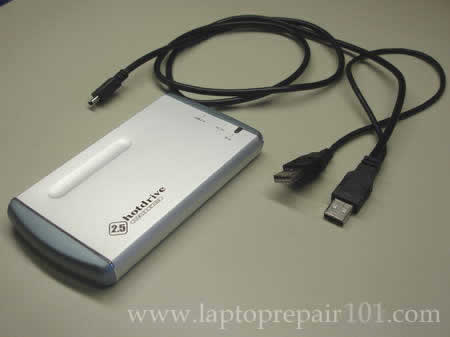
First of all you’ll have to buy an external USB enclosure for notebook hard drives. These enclosures are inexpensive and usually you can buy them in any local computer store. You also can find a wide variety of external enclosures on the Internet. Make sure to buy a correct one, enclosures for ATA and SATA hard drives are different (the connector inside the case will be different). Usually the enclosure includes the case and the USB cables.
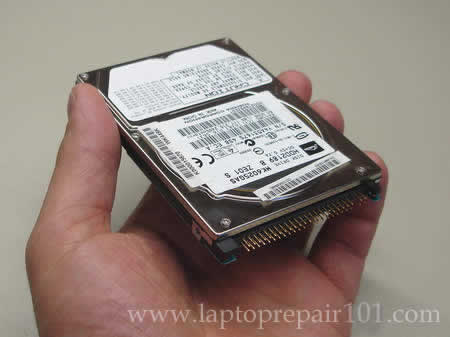
Now remove the hard drive from the laptop. For this example I’m using an ATA hard drive.
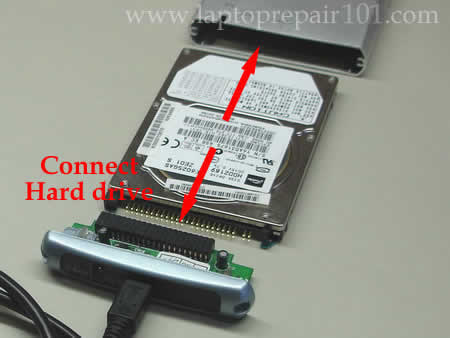
Open up the enclosure case and connect the hard drive to the connector inside. After that insert the hard drive into the case.
After everything is assembled, you are ready to connect this device to any working computer (notebook or PC). The enclosure cable usually has two USB connectors on one end, make sure both of them are connected to the computer. You don’t need any external power supply for the enclosure because the hard drive gets power through USB ports. If the computer you are connecting the enclosure to runs Windows 2000 or higher, you will not need any device drivers. As soon as you connect the enclosure to the computer, the external hard drive should be detected and recognized automatically. After that the external hard drive will appear in My Computer and you can access it as any other hard drive in the computer.

If you are getting “Access denied” message when you are trying to access your files on the hard drive, you’ll have to take ownership of a file or folder.
My previous post explains how to connect a notebook hard drive to a desktop PC via IDE hard drive adapter.
151 Responses
Gary
To take that concept one step further, you might consider a Data Transfer kit that is capable of doing a full identical copy. CMS offers a kit that can mirror from an existing drive to a new larger drive. This saves a lot of time re-loading the operating system and apps and gets you onto a larger hard drive in less time. You can use the transfer encloser to access files from the old drive if need be.
Koen
I was wondering if I will still be able to put the harddrive back into my laptop after I have transferred all my files to another PC using an USB enclosure, because I’m having trouble booting and I have no clue how to access my files otherwise. My laptop is a Acer Aspire 5002WLMi.
MJ
I’m so glad you posted pics with this post! 😀 I was having trouble extracting data from a (cannot boot into Windows) notebook and was suggested to attach hdd to USB casing.
Jacob
OK so i did this and im having a small problem.. when i go to access the different parts of the hard drive only the guest and defult profiles from the old OS will open. the place where all of my files were will not open.. i have a feeling it is because it had a password. is there some program i could download or buy to allow me to type in my password and access it? i know it is not corroupted because it works when the laptop has power.. please help!
Atreu Cell
Thanks for the article, very helpful!!! 🙂 One tiny question though, my notebook HDD is a ATA drive (the drive from my now dead VAIO PCG F809K) and I’m finding it hard to locate a external enclosure for this format. Instead, all the enclosures available to buy (AKA in stock) seem to be SATA or IDE format. Would IDE format work with ATA as I think?
me
IDE=ATA=PATA=same format and connector
Meg
I have the opposite issue — I want to take (recent) data from the hard drive I removed from the dead desktop and transfer the files to my working laptop. Is there a simple IDE to USB sort of contraption that would ease the pain of this? Or will I be able to use a Data Transfer Kit to recover the files when the new desktop arrives? What worries me about THAT is the new desktop is an all-in-one system with the screen and PC workings combined. Help. Please. Please. — Thank you!
ST
This guide was great. I followed all the steps, but here’s my problem:
Now that I’ve got it connected, Windows (vista) insists that “the disk in drive H must be formatted before use”
Formatting, obviously, would defeat the purpose here. Is there anything I can do? The notebook HD was from an XP computer, and I *think* I used NTFS formatting, though I don’t know if that makes a difference.
cj2600
ST,
Try connecting the hard drive to a XP machine.
I think this message indicates a problem with the file system on your notebook hard drive. If you are getting the same error message on XP machine, I would suggest using professional data recovery service.
Cat
I am having the same issue at ST and I tried the XP also and got the same message. And there are no other ideas to access the drive? There surely must be or how else can the professional service people get in to the drive?
cj2600
Cat,
You can try using GetDataBack software made by Runtime software. Really good stuff. I think you’ll be able to find your data if you do raw data scan.
But before you buy any software, try accessing the drive with Knoppix (live Linux CD). Knoppix is free and I find it VERY helpful when Windows tools are useless. Boot the computer from the Knoppix CD and click on the drive with data, see if Knoppix can recognize the file structure and mount the drive. If it can, burn data on a CD/DVD or transfer to an external drive with FAT32.
That’s my best guess.
Jay53
In an attempt to recover data from a hard drive in a laptop with a motherboard problem, I tried an external USB enclosure and so far have had no success. I installed the laptop drive in the enclosure and connected it to a desktop running Windows XP. The indicator light on the enclosure came on immediately when I plugged it into a USB port, and it sounded like the hard drive was spinning. But the desktop gave no indication that it was seeing the laptop/USB drive after many, many minutes. No messages of any kind – errors or otherwise. The same thing happened when I tried to connect the USB enclosure to another laptop.
One thing I did not do was mess with the jumper on the laptop hard drive that sets it to be master, slave, etc. Could the jumper setting affect the ability of the host PC to detect the USB drive?
cj2600
Jay53,
Most external USB enclosure cables have two USB connectors on one end, as it shown on the last picture. Make sure you plug both USB connectors into the computer. One USB port does not provide enough power to fire up the hard drive and it will not work properly. So, make sure to use both USB ends.
Definitely try playing with the Master/Slave jumper if you have it installed on your hard drive. First, remove the jumper and test if the hard drive is detected. Second, set the jumper to master and try again.
From my experience, this setup should work without any jumper.
Ashley
My laptop stopped working about a week ago. The lights turn on but nothing comes on the screen, apparently something happened with the motherboard. I have alot of information I need off of the harddrive, and do not have the money to get the laptop fixed. I bought two different external enclosures, but neither of them will connect to my Harddrive. (which is a serial ATA) I’m afraid to buy another one, because the last two, which said were for serial ata’s, did not connect. Any suggestions?
cj2600
Ashley,
I don’t known how I can help you. If you buy external serial ATA enclosures for notebook hard drives they should work with serial ATA notebook hard drives. Make sure you are buying a correct one. Take your hard drive to a local computer shop and show it to the salesman.
conchquest
For Ashley- I had a similar situation with my Dell laptop hard drive and the enclosure that I bought. At first, it seemed that the two were incompatible. However, after doing some research on the web I figured out that the hard drive had a removable adapter already attached to it. The adapter gave the drive a “female” interface. By pulling this plastic piece off, the pins were revealed that allowed the drive to connect to the enclosure. Check to see if your facing the same situation.
conchquest
Now, on to my question. After fitting my laptop’s hard drive into the enclosure and connecting the USB cable to a desk top computer, the drive lights up, spins up and the desktop recognizes that a usb device has been attached. It even recognizes the model name and number (dara-218000 appears). However, the drive doesn’t appear as an icon in “My Computer”. Therefore, I can’t yet open the drive and access the files. Any suggestions?
Randall
I have an older IDE hard drive I would like to put into an enclosure. The laptop it came out of was using Windows98 in FAT32. I am now running Windows XP NTCS. Will the newer system read the older file structure if used as a external slave drive?
cj2600
conchquest,
1. Make sure the laptop hard drive is partitioned and formatted. You can do it through the Disk Management in the Computer Management. Right click on My Computer and then click on Manage, go to the Disk Management. Can you see your USB hard drive in there?
2. Most USB enclosures have cable with two USB connectors on one end. Make sure both USB connectors are plugged, otherwise the hard drive inside the enclosure will not get enough power and might not work properly.
cj2600
Randall,
There should be no problem. XP supports both NTFS and FAT32 file system.
John
I’m trying to replace a hard drive on a Dell Inspiron 6000 with a larger hard drive. I’m using Norton Ghost 12.0 to do a “copy drive” with an external USB drive. The laptop recognizes the external drive and assigns it a letter and the copy procedure completes successfully, but once I’ve placed the larger drive in the laptop, it will only boot up to the “Windows is starting up” screen and then freezes. I’ve tried everything I can think of, but still can’t copy the operating system to the new drive. I think it may have something to do with the external USB drive, but I’m not sure. Anyone have any suggestions? I’ve done this exact same thing on a desktop and it was a breeze, but this laptop is a different cat.
rahul
I have a Toshiba Satellite 1905-S301 laptop. Few weeks back when I started it, a dialog box opened up saying there is some problem with the registry. I have tried connecting my laptop hard drive using USB enclosure to my new Mac Book Pro, however it mentions that the disk you inserted was not readable by this computer due to unrecognizable filesystem. My question is if I connect this hard drive to Windows XP pc, will I be able to transfer the important files then? Its hard to understand that the Desktop will have access to the files which originally require administrator password to log into. I seek some advise on this. Thank you.
cj2600
rahul,
Yes, you should be able to transfer files if you connect your hard drive to another PC.
You’ll have to take ownership over files located on the external hard drive. You can do that when you login to the PC as an administrator.
Roy
Check out this adapter:
http://www.newegg.com/Product/Product.aspx?Item=N82E16812119152
Its cheaper than buying a usb enclosure and much quicker to attach any IDE/SATA 2.5,3.5,5.25 drive. I wish I would have found this adapter years ago!!!!
Paula
I removed my hard drive from a Dell and bought the USB enclosure and was able to use it to store my data. But sometimes when I connect to my PC it makes this weird tapping noise and the PC doesn’t connect to the external Disk. Also sometimes in the middle of doing something it gives an error that “Windows failed to write….” What could be wrong?
miC
Hi there.
I face the same problem too but my problem is i dont know how to “stick” my SATA notebook hdd into the external enclosure. May you show me how to “stick” it using pictures? Thanks
Mike
My laptop recently crashed and as far as I know the HD is still in usable shape, I’m trying to find the correct enclosure device for my HD, I have a Dell Inspiron 1150 but have not found an enclosure yet, I already have to return one.
cj2600
Mike,
Take your laptop hard drive to a local computer store and show it to the store attendant. They will help you to find the correct enclosure.
I believe this laptop has a regular IDE laptop hard drive installed. There shouldn’t be any problem finding the correct enclosure for your hard drive.
Jim Pan
I recently upgrade my PS3 20GB to 120GB. I purchased a SATA USB enclosure. It worked with 120GB but no the 20GB. I put the 20GB back to PS3 and it finds it. I put it to the USB enclosure and connect to either laptop or desktop with no success. It look likes PC does not detect any usb connection. If the drive is bad, at least the PC will told me. I download Gparted Live CD and it does not detect any external HDD. I know the USB enclosure is working since I use other HDD and PC finds it. I have no clues, please help.
Diane
I have an old Toshiba laptop with a dead lcd display. I want to hook it up to my new Dell laptop lcd display in order to clean out all the files before I get rid of it. How can I connect the old laptop to display on my new laptop lcd?
Peter
I followed your instructions about buying and using a USB enclosure for notebook hard drives. When I turned it on my desktop did recognize the new hardware and installed drivers for it. But now I can’t find the drive under “my computer.” It appears that it might have something to do with partioning my hard drive (which I don’t know how to do). Desktop uses Vista and hard drive is from an older Dell laptop using XP. Can you help?
Jug
I put my toshiba MK4032GAX (that crashed twice) in a standard enclosure (Aikuo AI-EN2501).
After I plugged it to my computer, the computer seems to detect a USB storage drive but I can’t see any hard drive.
I stupidly thought this might be due to a wrong plugg inside the enclosure so I flipped the drive and replugged th enclusure.
This time, the light blinked several times and I started smelling an electronical-burning smell…
I have two questions:
1- why did my HD not work properly the first time
2- what did I probably lose: the enclosure (this would be OK), or the HD (this would be bad)
Thanks a lot for your help
Jug
cj2600
Diane,
You cannot output video on another laptop LCD screen, but you can on an external monitor (LCD or CRT). Connect your monitor to the VGA port on the Toshiba laptop (it’s D-shaped and has 15 holes) and restart the laptop. If video doesn’t appear on the external monitor, use Fn + one of the F-keys in the top row in order to switch video output from internal to external.
cj2600
Peter,
It’s possible that there is a problem with the partition/file structure or with the hard drive. You can try this. Left-click on the start menu (Window icon in the lower left corner) and then right-click on Computer. Click on Manage. Now select (left-click) Disk Management.
If your external had drive was detected by the computer, you should see this hard drive in Disk Management.
Normally, if there is nothing wrong with the hard drive, it will say something like this: (C:) 55.89GB NTFS Healthy etc…
What do you see in your case?
cj2600
Jug,
Apparently there was a problem withe the file structure or with the hard drive itself. See comment 34.
I hope the enclosure. The only way to find out is testing it with another enclosure. I really think that you burnet the enclosure, not the hard drive.
Jon
Hello,
I bought an external HD enclosure to put my other laptop HD into, because the laptop would no loger boot and I need the info off of the HD.
When I view the disk drives in the device manager the external drive sows up. However the Drive letters are the same on the external as they are on this computer. I have tried going to the Compter Management / Disk Management to change the deive letters but the external does not show up here.
How can I change the Drvie letters of the external so I can transfer the files?
Thank for the help.
Jon
James H Godfrey
Which external USB enclosure do you recommend to remove data from a Dell Inspiron 300M hard drive? Thanks
pretorian
got a external drive that i have connected to a xp laptop by a usb adapter cable i put it in a external drive case and it does not show
up at all under the drives in xp device mangager though it spins and lights up – the drive in the laptop keep showing up as aragon i think it may be a curpt xp how can i get this drive to be seen so i can wipe it clean and start over. – email me at above address if you have any ideas thanks.
jack
can i upgrade size of my inteneral harddrive in my dell inspirion1100. say fron 20gb to 100gb and still keep it internal. whats all the avantages of using these external drive?
jack
cj2600
pretorian,
Can you see this drive in Computer Management – Disk Management?
Apparently the drive will not appear in My Computer because it has no file structure or the fils structure is corrupted. Before you can use the drive you’ll have to partition and format it in Disk Managment.
cj2600
Jack,
If your laptop can handle 20GB hard drive, most likely it will handle 100GB hard drive without any problem.
You can safe all personal files (pictures, music, documents, etc…) on the external hard drive and use them on multiple computers, just connect this drive to any computer using USB cable and access it through My Computer. The external hard drive is very handy if you use more then one computer.
yebs
“Operating system not found” on my acer aspire 4520 setup. how to install operating system on hdd using external USB enclosure? Please teach me, thanks!!
cj2600
yebs,
I’m not sure what you are asking about. If you receive “Operating system not found” message on startup, try reinstalling OS from the recovery disc. Reinstalling OS will erase everything on the hard drive. Before reinstalling OS you can make a backup using external USB enclosure.
SR
My toshiba satellite laptop is no longer bootable and I needed to recover data from the hard drive. I bought an USB 2.0 enclosure and followed the steps as mentioned above. Once the USB cable is connected to a desktop running Windows XP, I can see an additional drive listed in the explorer. However, I cannot seem to access this drive. When I click on it, my whole system freezes and the CPU utilization spikes upto 100%. Even after leaving the system in that state for over an hour, I still cannot access the laptop drive.
Any idea whats going on ? The laptop drive is abt 80GB.
cj2600
SR,
Apparently the drive is damaged badly. I think you’ll have to take it to a professional data recovery specialist.
Jeff
I removed a 60.0 GB Fujistu hard drive from my laptop..
How do I know if it’s SATA or ATA or whatever (so I can buy the right enclosure)?
Kenn Johnston
I am also hoping to recover files from a dead laptop. The computer acknoledges the USB device, hard disc device but the drove does not show up in My Computer. It does show up in Disc Manager as Active and Healthy, but with no associated drive letters. Right clicking on the drive in disc manager the only availiable option is “remove this partition.” Will selecting that option that delete my data?
Also, can I boot another laptop directly from the USB HD/enclosure?
cj2600
Jeff,
ATA hard drives have two rows of pins as you can see on one of the picture above. SATA hard drives have two flat connectors.
cj2600
Kenn Johnston,
DO NOT DELETE THE PARTITION, it will make the data recovery process even harder.
If the hard drive will not show up in My Computer, apparently the file structure on the drive is corrupted. You’ll have to use data recovery software.
Dan
I am having similar issues. My Dell laptop crashed earlier this week giving me a “No boot sector of hard drive,” message when I tried to reboot after receiving the blue screen of death. After reading similar forums, I purchased a USB adapter for my old HD. I’ve attached the HD to another functioning laptop via the USB, but it is not listed under “My computer.” Actually tried this with 2 different computers- one with vista and one with xp. Again, after visiting other forums, I went to the Disk management section and “initialized” the drive, however, I still cannot find it anywhere else on the computer to access the files. As well as being listed under Drive maint, it’s also listed when I select to “safely remove hardware.” I’m not the most computer savvy person but was hoping to save myself the $100 I was quoted for professional data retrieving service. However, after wasting most of my weekend toying with it, I’m starting to think shelling out the cash may be easier. This is my last ditch effort. Any suggestions on how to access the data on the drive?
2 other quick points: 1) I hear the drive spinning when connected and 2)there are 4 other prongs on the HD which are not encorporated into the adapter, could that be a problem?
stevo
10x for the great article!
Mandeep
I have Hitachi HDD for my laptop.I am not able to find pins on this drive to connect it with hardisk enclouser.Please help me how to connect it with enclouser
cj2600
Mandeep,
If you cannot see pins, apparently you have a SATA hard dive. You’ll have to find enclosure for SATA drives.
Som.Gii
Hello all, I’m having some serious issues with my Lappy HD.
Firstly when i plug it in it takes a while to register in my OS (XP Home). The when it does my computer freezes until I unplug it. This all came about when one day the Laptop decided to bluescreen every time it got turned on and then it rebooted. Nothing would work in terms of booting into windows. Not even Safe Mode.
I tried using the Filerecovery program but that wouldn’t let me into the Documents and Settings folder to gain access to My Documents. (This is where all the files I need to retrieve are located).
The Lappy HD is an ATA NTFS Formatted drive. For reference I’ve tried a different Lappy HD and that works fine.
Any light would be gratefully apprecciated! Thanks for your time.
Chris.
cj2600
Som.Gii,
Are you getting an error message trying to access My Documents? What happens when you try to access My Documents?
Chris
I accidently killed my laptop a few days ago when I spilt a pint of water all over it.
I would like to sell the HD which is still working, but it still has all my data on it (some of which includes passwords, etc).
How do I safely wipe the HD using an external USB enclosure so the buyer cannot access/get back my files?
Marilyn
I cannot boot up into windows so before I do a destruction recover I would like to take all my pictures and files off my hard drive. I bought a case enclosure and hooked it up to another computer, but cannot find my pictures or word documents. I only found one file with pictures. Are they hidden somewhere?
Help
Chris
I recieved the SATA USB enclosure today and put my laptop HDD into it.
Windows XP came up with a message saying “New hardware found; USB mass storage device” and about 60 seconds later it said;
“A probem occurred during hardware installation. Your new hardware might not work properly.”
I can’t see the HDD anywhere in My computer or Disk Management.
I can see it show up in Device manager under USB controllers as “USB mass storage device” but only for about 60 seconds then it disappears. Also, when I right click on USB mass storage device in the device manager and click on properties > driver, it says that a driver is NOT installed.
Do you think the reason why it is not showing up in My computer/disk management is because Windows XP has failed to install a driver for it/ recognise it?
I don’t understand why it isn’t showing up, please help.
Jimmy Verma
i have laptop hdd with case but hardisk is not working since 2 days suggest me how cn i recover my data
davinder
i bought laptop and in my bluetooth is not working i do’nt not have a blue tooth hardware in it.many times i tried to fix it..but error cames up bluetooth hardware not found.can give me any suugessttion fr this thnks and you are othe all stuff is oke
Richard
Wish I had found this sooner.
I discovered this process myself after much labor.
I was able to recover hard drive I would have normally replace an thrown away. Imagine that.
Greg
Thanks, Saved me more than $300 to have an “expert” access this drive, and now I have an external HD!
Istvan
I had a same problem with my laptop hard drive but it I can’t access. It is not showing in my computer file. Sometime the small icon pop ups that is connected but it disappears. The 2 USB cables are connected. I have Builders XP professional on computer.
What now?
Thanks for the answer.
Istvan
LB
Hi – Im having the exact same problem as 64 Istvan. Is there any that Im not doing? Ive connected the hard drive as per instruction. Many thanks!
joseph
is there any way that any one can show the pin outs for a laptop hard drive, like the main pins that are use?
Joe k
You have provided information with great deal, i really like tips and trick section. I wish i had my laptop with me which I broke 1 year ago, wasn’t working due to some power issue.
kevin doucet
I bought an enclosure and it worked perfectly fine the first two times I used it. After that though, every time I connected it to the desktop it would freeze my computer. While the USB cord is attached to the desktop nothing works and nothing happens; however, once I remove the USB cord everything runs normally again.
Any thoughts or suggestions?
Thanks,
Kevin
Pete
i have a 120Gb hardrive from my laptop that I already put into a usb drive but my 2 pcs and my laptop recognize it as a 6GB hardrive. Why?
Steve
Number 69, Possible because of a FAT setting or older computer/windows if they are old, its unlikley u can use the entire hdd expecially if it works fine on some other pc,
Number 68 Try this
go to start then run, type in CMD
in CMD type
set devmgr_show_nonpresent_devices=1 Then press enter then type
start devmgmt_msc then pres enter again, device manager will open, go to view then show hidden devices, uninstall all greyed/ghosted hard drives and USB drives, then reboot with the drive connected, if windows fails to load do it wil it disconnected, then conect once loaded, if it still freeses, i may suggest the easiest soloution being a reinstall of windows
Steve
Often problems with this and other USB devices not being seen can be fixed by reinstalling windows, before you do that backup everythig and try the system restore utility first, its under accessories in the startmenu.
Reinstalling is not as daunting as most people thing, i do it for a living……..
Lex
I have a hard drive (IDE) which I used for my Windows XP desk top as a storage drive on my DELL. One day it did not boot up and no method I tried couln’t get it to boot and I would really like to access it for the last time so I can retrieved the precious photos and important files I stored in the drive. Can this USB enclosure method be use to extract my files out of that unbootable Maxtor drive?
PrincePersona
You could try switching the jumper on your hard drive to slave and connect another hard drive that can boot into an operating system and have it’s jumper set to master (sometimes will have master with slave present) connect them both to one ide cable and turn on your computer. you may need to go into the bios to get your mother board to recognize the drives. most mother boards will automaticly have detected your hardrive settings. go into cmos in the bios and have it do an auto search for your hardrives if it does not already recognize them. If it comes back as nothing is ther you will need to take the harddrive out and look at it to find the hard drive properties that the cmos will ask for if you do a manual setting.
you should be able to turn on your computer and load into your operating system and transfer those precious files from your old hard drive (currently set as slave) to the new one (currently set as master)
let me know if this helps.
If not I’ll find something else for you to try.
Alberto
Hola,
Thank you very much for this web site. It’s been of big help to initially gain access to my “lost” data in my harddrive.
I just want to collaborate with this web site and all the people strugling to have access to the hard drive once connected to antoher PC. I had the same trouble, the problem was the partition was damaged and then its imposible for the new PC to detect it (you don’t see anithing in MiPC). Well the solutions for all your troubles is this free software:
Partion find and mount.
With the free version you’ll be able to detect lost partitions give them an extension (ie E:) and automatically you will see them in MiPc and you can just copy your data you need. There is a pro version but I am sure you don’t need it..
In my case the boot partition was damaged and I couldn’t fix it with partition find and mount. Anyway I could saved all the DATA in the harddrive.
Now I am trying to repair the boot partition with test disk…. any suggestions or help????
Best of luck to all .
Al.
cj2600
Alberto,
You said all personal data is save. Why do you want to repair the partition? Can you reinstall the operating system from the recovery disc and start over?
Cherie
My husband just bought an EAGLE CONSUS portable 2.5 mesh external storage system, we hooked it up with the usb cords and it pops up with an option to safely remove the hardware; and shows that the system is running properly but it never pops up in my computer under the hard drives or removable hardware;
We can feel the hard drive loading and the fan spinning what if any could be the reason the drive isn’t registering 100%
thanks in advance
cj2600
Cherie,
Here’s my guess. Most likely the hard drive is working fine, but it’s not partitioned and formatted.
Before you can use the hard drive, you’ll have to create a partition and format it.
Go to Disc Management utility. Right click on My Computer – Manage – Disc Management. Can you see the hard drive in there?
Right click on the hard drive, create a partition (primary partition) and format it with NTFS (you can use quick format).
After it’s formatted, the hard drive should appear in My Computer and you can use it.
Anupriya
You are a lifesaver!
My Acer just wouldn’t boot up and even though I have the proper Recovery disk and all, I suspect that would erase all my data.
So I decided to yank the drive out, back up my C: drive and then reset the computer to default by using the recovery disc.
Am I right in assuming I can just plug in my UATA Seagate 120 GB in an external enclosure and read/copy files off it? Are these discs any different to my normal backup disc because they have Windows XP and all that jazz in there as well?
Anyway, a well written and illustrated guide. Well done!
Anupriya
Robert
Hi,
My Sony laptop didn’t boot and I proceeded the “Restore C: Drive”, meaning everything I had (software and files)was erased (I have a back up of only part of the files). Is it still possible to recover my files using an external USB enclosure?
James
I have an HP laptop that has stopped working. The screen is blank but the LED lights are on. 2 times after the laptop has been plugged in for weeks it came on for a half day or so then off again. also when it was working it would not work at all without the power cord. So I was thinking the battery or power is the problem…suggestions please
Pat
Okay, I don’t know a whole bunch of technical terms or anything, but I hope you can help me.
I have an IBM thinkpad 600. The computer works, but does not have the OS I want on it. It currently has installed on it Ubuntu 5.10 and I would like to put Win 98 on it. I have tried burning boot disks, but cannot seem to find one that works.
A few days ago, I got the idea of plugging in my HD to my PC and putting the needed files on it from there. I borrowed a converter (laptop AND desktop Hard Drives to USB) from a friend, and tried to use it. My PC recognizes it right away, and installed the drivers needed, but I cannot find it anywhere. I have checked My Computer, but still don’t know where it is.
Can u help?
cj2600
Pat,
I think this article from Microsoft will help you. The article explains how to install Windows 98 on a computer without OS.
Anna
Hi there. dont know if anyone can help. I bought an external enclosure and used it with the harddrive from my laptop where the screen was broken. I then connected it to my new laptop and it works. But I cant find my pictures or music in the harddrive, just the programs, but they cant open. Are there any ideas on how i can get access to my pictures on the external harddrive?
Thanks for a good site.
cj2600
Anna,
What was the operating system installed on the hard drive? XP or Vista?
Path for XP:
Documents and Settings >> User (your profile name) >> My Documents >> My Pictures
Path for Vista:
Users >> User name (your profile name) >> Pictures
These are default paths for XP and Vista.
EroticaXP
You only need enclosures for notebook ATA HDDs. The notebook ATA does not match pin configuration with PC ATA. SATA HDD can be swapped with no other addition. Those are both ways compatible no matter what.
Barbara Collier
I have an HP Paviliondv6000 laptop that the screen got broke on. I purchased a desk monitor that works great. Now I purchased an external hard drive and was wondering if I can use it to transfer my operating system onto. I have no memory left in the laptop and no money to buy more or another computer. Can you help me? Thank you.
sontara
I have a HP Paviliondv6000 Laptop and the screen broke. I set it up as a desktop by adding a free standing monitor and a keyboard. Then I bought a FreeAgent External Hard Drive (500 GB) the guy at at store said I could use the external drive as my main hard drive……But I don’t know how to do this. Can anybody out there help me. I don’t have anymore money to buy another computer. I live on a fixed income, I’m old and my computer is such a blessing for me. Oh, the memory on my Laptop is full and I can’t open internet windows or emails very fast.
I am also on dial-up because I live in the mountains. Thank you
cj2600
sontara,
I’m not sure what you are trying to achieve. What do you mean by the main hard drive?
If your laptop hard drive is full, you can move some data to the external hard drive and free up some space.
cj2600
Barbara Collier,
Why would you want to transfer the operating system?
If your laptop hard drive is full, just transfer all personal files (images, music, video, documents, etc…) to the external hard drive and delete them from the laptop after that. This will free up some space on the laptop hard drive.
Valentina
Hi
I was reading this article which makes everything to look so easy. But I am still a bit confused.
I just bought an External 3.5” USB IDE Hard Disk Drive Case Enclosure and I bought the wrong one ( is got that 4 pin connector as well)and it says for IDE.
The HDD from my laptop looks exactly the same with the one from the pictures.I checked the part number over the internet and it is ATA(Toshiba MK6025GAS- 2.5″ – ATA-100 – 44 pin IDC).
Can anyone please tell me which USB enclosure do I need (obviously I would need a similar one with the one from the picture),but when I try to buy is so confusing.
Any help would be appreciated.
Thank you!
cj2600
Valentina,
Why do you think it’s a wrong one? The enclosure doesn’t work?
It’s an IDE hard drive and you need an IDE hard drive enclosure. I think you got the right one.
Install the hard drive into the enclosure and connect it to any working computer. If the hard drive is fine, it should appear in My Computer.
Valentina
Thanks for your reply.
As I said it is a laptop HDD. The enclosure that I bought doesn’t look like the one from the above picture. I don’t know what to do with that white connector (4pin). Could you tell me please what enclosure is used in the picture?
Thanks once again.
Valentina
I tried the enclosure again and the connector will not fit with the pins from my hdd(they those flat square ones)so that one doesn’t work.
Please if you can tell me which one is that one from the pics from above.
Thanks again.
Raymond
Hello…..When you say any computer do you mean if I use a HP harddrive it can upload my files on a Computer other than a Hp computer..for ex.acer..And my picture’s and stuff will show up on the new laptop…
cj2600
Raymond,
Yes, after you install the hard drive into the enclosure you should be able to access it from any computer, laptop or desktop.
Raymond
One more question..Were on the harddrive can I tell if it’s ATA or SATA I don’t see that anywhere…To help you out all I see is Seagate on the top.Then under 120gd it say’s serial AT disc drive..Do I to open to find out….Thanks….
Tim
Hello, I was reading through this because I need to take files from my laptop hard drive and transfer them to my desktop. The hard drive in my Dell Inspiron laptop I beleive is an IDE because it has 4 pins that are separated from the others as shown in the photos, however, the other 40 pins aren’t there. They have an adapter over them. I have heard that some laptop manufacturers put that adapter over the 40 pins so that it will connect inside the laptop, and that they are removable. I just have no idea how to remove it and don’t want to break it. Also, the HDD has a plastic piece at the non-connecting end so it can be securely screwed onto the laptop body. I have also read that those are removable so they will fit into the enclosures. I have no idea how to remove these two pieces and would appreciate any help you can give me. If I damage the hard drive while trying to remove those pieces my whole purpose of transferring the files will be void. Thanks for any help in advance.
Oh and in case this helps, it is a Fujitsu hard drive 2.5″ IDE (I hope, because I’ve already purchased an IDE enclosure.)
cj2600
Tim,
Just pull the connector off the hard drive.
What is your laptop model?
tim
its a Dell Inspiron 2600. i got it in 2002! do you know anything about how to get the other end off. Its a plastic piece same plastic as the laptop case. the plastic piece lifts up so you can put the drive in the bay. then you push it down and screw in the screw.
toolio
I have pulled my hard drive from my Pavillion 6000 series laptop.
Once I put it into a case and connect to my desktop via USB, will I be able to access the emails from my former Inbox (MS Outlook)?
Tim
Hello again. I just put together my laptop HDD and the HDD enclosure but when I plugged it into my computer Windows XP automatically ran the add hardware wizard and says I need a USB to IDE bridge driver. it couldnt find the neccesary driver with windows update and the enclosure never came with software. I also cannot access the drive in My Computer. Do you know of any way to get this to work without a driver or know where I can get a driver? I have contacted the Hong Kong based company that I bought it from but hey go figure, they were no help. Anything you can do to help would be greatly appreciated. If you need more info or specs please let me know.
ximan
Hi.I have a dead ACER ASPIRE 1642 with a damaged power connector and i want to take the data from the disk.But i cannot find what type of external usb enclosure i have to buy.I mean what type of hard disk has an ACER ASPIRE 1642?
Thanx!
Adam
I had the access problem and rebooted with the enclosure plugged in.
XP ran the checkdisk program and fixed the security problem along with a few other indexing errors that occurred when the hard drive crashed.
After the checkdisk scan, I had no problems accessing the enclosed hard drive.
Derek
Is there an adapter to plug the hard drive from a Dell Latitude X1 laptop into a usb port on another laptop? It has a female IDE connection of some sort.
cj2600
Derek,
You’ll have to use an external USB enclosure. Install the laptop hard drive into the enclosure and connect to the USB port on another computer. The hard drive will appear in My Computer.
Derek
Do you have a part number for this external HD enclosure? I have looked everywhere for one that specifically fits a Dell Latitude X1 laptop hard drive.
cj2600
Derek,
You don’t have to search for this particular enclosure. Is it a 1.8″ hard drive you have installed in your laptop?
Just google for “1.8” enclosure usb” and you’ll find it.
Amanda
Hey i am having the same problem as Tim and Derek…. i have a Dell and the adapter is covering it… Do i literally just pull the plastic piece off?? i really do not want to break the hard drive.. any advice?
Steve
I have a question I fear I know the answer to. I have just had to replace the hard drive on a relatively new Dell latitude. I have been down this road before, but had a little warning. My problem is that I have some e-mails, buried in Outlook (not exported into files) which I really would like to access. I don’t believe Outlook on a USB drive can be opened. They must be stored as a file, w a name in Outlook. Anyone know a way I can access them? names?
cj2600
Steve,
The file name is Outlook.pst
The location depends on the version of Outlook, but you can search the hard drive for “.pst” files.
After you find the file, import it into new Outlook installation.
Anna
Dear Sir
I have an old laptop which is completely dead. The power socket is broken so I can’t switch it on anyway. I don’t have a desktop which I can transfer the laptop hard driver to. Is it possible to copy the laptop hard driver to a new external hard driver?( I am thinking of buying one if I need it.) I recently bought a netbook(only 1 GB memory capacity though.Is there any way I can use this netbook instead of using a desktop? I don’t know the differences between the external USB closure and the external hard driver. Could you kindly explain to me please?
Please, help me.
Anna
cj2600
Anna,
The best way would be buying an external USB enclosure. After that you remove the laptop hard drive and install it into the enclosure. You can connect this enclosure to any other desktop PC or laptop via USB cables.
Yes. You can connect the external enclosure with hard drive to the netbook and transfer files.
Anna
Dear sir
Thank you very much for your advice. It sounds simple. 🙂
I think I can manage to do that.
Anna
Warren
I have placed my old (Windows Vista) notebook HDD in a NexStar-SX enclosure and connected it to my new (Windows 7) notebook. The enclosure appears to be working fine and it is recognized as a device on my control panel. However the old connected HDD is not showing up as a lettered disk drive on my new notebook. Can anyone help? Thanks.
cj2600
Warren,
Sometimes, after connecting an external drive, you have to restart the PC. Have you tried that?
Take a look at your external drive in Disk Management (found in Computer Management). What does it say? Can you see file system (probably NTFS) shown on the drive?
Kelly
Hi there,
I’m hoping someone will be able to help me out. I bought a NexStar TX external enclosure for my laptop hard drive today. It is showing up as a drive in My Computer but when I try to open it, it says it must be formatted first. Also it won’t open when I right click it either. It shows up under My Computer management but under file system it is blank. How should I proceed to get my files off this thing? It is a Vista hd in the external, trying to load on a computer with 98…not sure if that matters or not? Thanks in advance for any help 🙂
cj2600
Kelly,
Probably the file structure is corrupted.
You’ll have to try scanning the hard drive with data recovery software. I usually use Get Data Back (made by Runtime software).
This software works great and it’s cheap compare to other data recovery software.
Make sure to use the right version: GetDataBack for NTFS or GetDataBack for FAT. Depends on the type of file system you had on the drive.
Govind
My computer has sound problems ,also if i wear head phone ,so what shall i do
cj2600
Govind,
First of all, try reinstalling the audio driver. It should be available for downloads from the manufacturer’s website.
Bo
My computers hardrive has failed and i was wondering if i can use an external hard drive as a hard drive for the computer. If there is a way could someone tell me how to do so.
John
I have purchased a USB enclosure and want to back up files on my laptop (which is fried apart from the hard drive) to my desktop. However, when I connect the drive to the desktop PC and view files, the only user accounts visible are Default, Guest, and Public. The admin account that I need access to does not display. Both PCs are running Vista. I have even tried creating an account on the desktop that matches the account that was on the laptop, but still does not work. Any ideas please?
cj2600
John,
Are you searching in the right location?
In Windows Vista the main account would be located in C:\Users folder.
Mikie
Great article. I took the project on but am not having much success. I removed a 2.5″ SATA drive from my Dell M1210 laptop and put it in a IMicro enclosure with USB connection. Using my new Windows 7 Dell laptop, in Windows Explorer, I see the old drive as “Recovery (E:)” with 9.36 GB free of 9.99 GB. Folders show (in example) Dell, Program files, Sources, Tools, Windows, Users. I can open and there are subfolders and if I force it gobbledygook seems to come up. I THINK I am seeing just the Recovery partition of the old drive and not the main partition with my “real” data such as “My Documents, etc”. Any suggestions and/or solutions?
cj2600
Mikie,
I think you are looking at the recovery partition.
If the main partition doesn’t appear in My Computer, it’s possible the partition or file structure corrupted.
Take a look at the external hard drive in Disc Management utility on your new Dell Laptop. Can you see the main partition in there?
Most likely scanning the external hard drive with data recovery software (GetDataBack for ntfs for example) will give you some results.
K Lewis
Would these instructions also apply to an Apple laptop? I have an older G4 titanium unit that has some very expensive programs on it and I failed to back them up so was wondering if this would apply to my Apple laptop. Thanks
cj2600
K Lewis,
I think so. Apple use same hardware as PCs. You’ll have to install your hard drive into the external USB enclosure and connect this enclosure to another Apple computer (to make sure it can recognize apple file system on the external drive).
Brian
I purchased a 2.5″ USB 2.0 SATA Hard Drive HDD Case Enclosure and then put my laptop hard drive into it. When I connect the usb cable to another computer it is not recognizing the drive at all. I even restarted computer and it is still not recognizing the drive. The reason for my trying this is that my laptop died and I am trying to recover data on the hard drive. Any suggestions to have the other pc recognize the drive?
jon lark
this article is out of date you can now purchase a multi purpose usb dongle without shell that has ide sata ability for about 26 bucks from several computer part websites
cj2600
jon lark,
Why multi purpose USB dongle is better? It’s more expensive than enclosure. Also, if you buy an enclosure you can use the harddrive as an external storage later.
The multi purpose dongle is good for one time recovery and computer shops using it on daily basis.
Priscilla
Hi I was wondering how do I know which type of hard drive I have. Sata or ata?
cj2600
Priscilla,
You’ll have to take a look at the hard drive connector.
If you see two rows or pins, this is ATA hard drive.
If you see two flat connectors, this is SATA hard drive.
Jamie Lee
Hi, I’m having a hard time figuring out if I have a SATA or ATA drive and what kind of USB enclosure to purchase. My drive doesn’t look like either of the ones in the photo. I have a Compaq Presario F700-F768WM. In the middle there is a plastic piece that would stop if from going just into an ATA enclosure. Do you have any recommendations? I would be so grateful for your help!
cj2600
Jamie Lee,
You have a regular 2.5″ SATA hard drive. The plastic piece just an adapter between the hard rive and motherboard.
Pull this adapter from the hard drive and you’ll be able to install it into the enclosure.
amit bravo
what if incase I do not want to remove HDD from the laptop. is there any device/trick from USB to USB transfer ?
Jamie Lee
Thank you so much! I would have never thought it was just an adapter. You have saved me so much time and fustration. If I make a donation will it go directly to you?
cj2600
Jamie Lee,
Yes, it goes directly to me. 🙂
cj2600
amit bravo,
If the laptop still boots, you can boot it from Ubuntu CD (Live Linux on CD).
After you boot Ubuntu, access and mount internal hard drive. After that you should be able to transfer files to another USB device (flash drive or hard drive).
Sunil
My hcl leaptop p30 is dead when i switch on before boot i press ESC key continue 2-4 time and system show erase bios and i remove the battery and then the leaptop is not ON or no current is come help me reply sol. by mail plzzz……. .
ali
hey ! bro. i am in a real mess. i dont knw what to do. i wud be xtremly thankful to u i solve my prob.
here it goes. i have HP pavilion DV6 notebook.
350 gb, 2gb ram, core i3 processor.
the prob is i was installing patch of idm, the moment i clicked the setup, windows turned off. and restarted and couldnt reboot then. i tried a lot but it didnt. i tried to repair it but it was showing an error. i tried to restore it to last best configuration but still it was having some error. then i thought to format it and install new windows but then i faced new problem. laptop couldnt detect hard drive. no drive was dispayed so that i could install new os. i took it to service center.i thought mat=y be my hard drive is crashed so i took it to the service center. there also they told me that there is no problem with the hardware. they suggested me to order recovery disk nad recover your hardrive.gain i did the same. but now the prob is i dont wanna lose data, it would format the wholr drive. it has many imp data. to save the data i tried the hard drive enclosure, but thats also not working. the hard drive is not detectable.
please just suggest me how could i save my data. i dont wanna loose, please do reply as soon as possible.
cj2600
ali,
Can you see the hard drive in the BIOS setup menu at all?
You said OS doesn’t see the hard drive AND you cannot access it via external enclosure.
I’m thinking maybe the hard drive crashed?
You can try this method to recover files: http://www.laptoprepair101.com/laptop/2011/02/25/recover-files-from-computer-laptop-crashed-operating-system/
Tim
I am taking the hard drive from my macbook and have placed it in a hard drive enclosure. I have connected it to my PC (running windows vista) and am trying to back it up but the drive does not show up anywhere? Any idea on why and how I can access this drive? I am using a Speed Metal USB 2.0 HDD External Enclosure for a 2.5″ SATA Hard Drive. (Fujitsu Brand hard drive)
Please help. This had been very frustrating.
cj2600
Tim,
Windows OS cannot read Mac file system. In order to back up data you’ll have to connect enclosure to another Mac computer.
Juli
Hi,
I’ve been trying to do this, however, I have done all of the things you have suggested and I have the message that all drivers have been installed for the HD but I cannot find it on My Computer. It is in Disk Management but all I can do is Initialse, which from what I understand is formatting it?
Help please! Thank you for your time 🙂
Justine
I recently dropped my laptop (while having a heart attack), it smashed beyond repair. Now that I am back on my feet again, I am in need of getting the files of my hard drive. My question is, for someone who can read and follow directions is this a good do-it-yourself option or should I just pay the $270.00 rate that the local computer store (great small town living 🙁 )is wanting to charge me? Any advice would be appreciated. THANKS!
Shawn Z
Often users wonder how to backup files to a USB hard drive. This is an issue because some drives do not contain software to do the job. Microsoft released a tool called “ROBOCOPY” in Windows Vista, and 2008 Server that does a good job of synchronizing drives.
For Pre-Vista Computers
XCOPY use to be the tool of choice, but when encountering path and file names greater than 255 characters, XCOPY will generate an out of memory error and exit. If you are using a Windows XP or 2003 Server computer, ROBOCOPY can be downloaded from Microsoft in the “Windows Server 2003 Resource Kit Tools” located at:
http://www.microsoft.com/download/en/details.aspx?id=17657
Once you have downloaded and installed the resource kit tools, search for “ROBOCOPY*.*” and copy it to “C:\Windows\System32”. This will make the program available anywhere.
Creating the Backup Script
On the backup drive, we will create a one line batch file that contains the backup command. This batch file should be located on the backup drive. We want it here so that no matter what letter the drive is assigned, the backups will run.
Using “Note Pad”, we will create a file called “Backup.BAT” and save it to your backup drive. The file should contain the following command:
ROBOCOPY c:\ .\Backup\ /e /w:1 /r:1
This will back up the whole hard drive to a folder called “Backup” where ever the “Backup.BAT” file is located: on the backup drive.
How it Works
ROBOCOPY will only copy the changed files, skipping a majority of the files that have not changed. If a file is in use or cannot be copied, ROBOCOPY will nicely skip the file and move on. This ensures that the backup will be completed to the best of the computer’s ability.
If you have Outlook or QuickBooks on your computer, you will want to make sure that those programs are closed before doing a back. If you leave these programs open, the backup will skip their important data files.
Shawn Zernik
Internetwork Consulting
me
i have a problem any help please ??
what i have is an ex laptop hdd now an external hdd with the vista operating system still on it with 2partitons boot and recover
i was able to view most files but could not see documents and settings folder or my music,my pictures folders etc
so i check to make sure hidden files was turned off and still no luck, so then i took ownership of the drive but still unable to see these folders
so then i tried a linux distro and i can see documents and settings folder but it is a shortcut and can see my pictures,my music folder but they shown a file is missing or unknown if i click them i just get an error file missing or deleted
any1 experienced this before and have any ideas ??
thnx
klprasad
will you please help me to buy external case for my loptop HP DV04-1414tx.where it is available in bangalore either INDIRA NAGAR or in MG ROAD.please mention which company name which one is good to buy
Petes
To test an enclosure is it possible to connect it without the hdd???
cj2600
@ Petes,
I don’t think the laptop will see the enclosure as a USB device if the hard drive not connected.
You’ll have to connect the hard drive to the enclosure.
Ayush
I fixed the hard drive with the casing as described and connected to my desk top USB having Windows 7 but it is not showing up. What could be the problems. I already checked the connector of hard drive and casing and done it 2-3 times but it does’nt work. Also a beep sound is emerging from the hard drive. Pl suggest any solution.
mritunjay kumar
my laptop dvd rom is not working when dvd put in dvd rw not open. if i am click dvd lockl dise automatic eject dvd rw so please give me right advice.
thnks
Mritunjay kumar
Joy
Hi…somebody reformatted my laptop and I am getting suspicious that he used an enclosure to my laptop so that he can access my files and everything in his netbook..He can change the settings in my internet,access my files..everything…I felt so hacked and my files are not safe anymore. Please help me, what should I do to block his access to my laptop?