
Let’s talk about problems typical for Toshiba Satellite A60 and A65 notebooks. Do you own one of these laptops? Is it working fine for you?
Here are some typical issues I’ve notices with this model.
1. First of all – overheating
Does your laptop shuts down without any reason when you ran CPU intensive programs? If yes, then most likely it happens because the laptop overheats. It happens because overtime the heatsink gets clogged with dust. A layer of dust collects between the cooling fan and the heat sink (dashed line on the picture) and heat produces by the processor gets trapped inside the laptop. As a result of that, the processor overheats and the laptop shuts down.
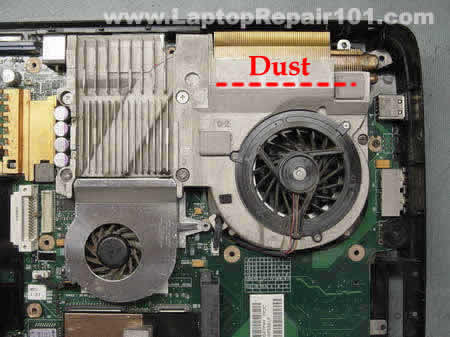
There are two different way to clean the heat sink and fan in these models:
– Buy a can of compressed air or find an air compressor and blow off the heat sink through the air intakes on the bottom of the laptop.
– Remove the keyboard and you’ll get an access to the cooling fan. Blow off dust from the fan and the heat sink.
In some cases the laptop overheats because of defective cooling fan. The fan should start working as soon as you power up the laptop. If the fan will not star, most likely it’s bad and must be replaced. You can find a new heat sink cooling fan for Satellite A60 and A65 notebooks by the following part number: V000042110.
2. Defective onboard memory
Here’s another common problem – bad onboard memory. This memory is integrated into the motherboard and if it goes bad you’ll have to replace the entire motherboard.
If your laptop starts with some weird characters or lines of dots on the screen, most likely you have a faulty onboard memory. If you test the laptop with an external monitor, you’ll see the same defective video on the external monitor too. You can test the onboard memory with Memtest86+ utility. Remove any external RAM modules and run the memory test. If the onboard memory fails, you’ll have to replace the motherboard.
The integrated memory module is located close by the memory extension slot, under the foil.
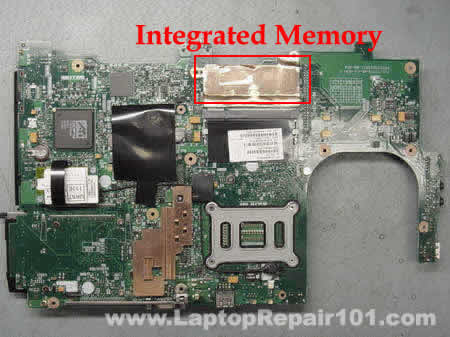
UPDATE: If you have bad memory, you should read this comment.
3. Last but not least – power jack issue.
With Satellite A60 and A65 notebooks this problem is not as common as with Satellite M30X, M35X, A70 and A75, but it’s still a problem. Overtime, the power jack might get loose and the positive pin stops making a good contact with the motherboard anymore. As a result, the laptop switches to the battery power even though the power adapter is still plugged in. Usually you can temporally fix the problem by adjusting the power adapter plug on the back of the laptop, but after some time the problem reappears.
In this case you’ll have to disassemble the laptop, remove the motherboard and resolder the power jack.
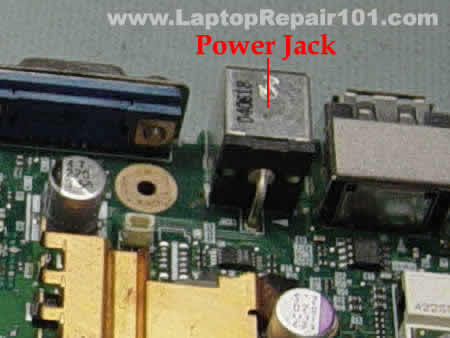
Do you experience the same problems or you have another issue with your Satellite A60 or A65 notebook? Please share your experience.
Instructions for replacing laptop power jack yourself
433 Responses
Steve Faiwiszewski
So I was following the disassembly instructions on irisvista.com for my A65, but ran into a major oops when it came to disconnecting the fan power plug from the motherboard; the whole connector broke off the motherboard.
So, how do I get it back onto the motherboard? Glue, or solder it? The connector apparently was physically mounted on both sides by these 2 tiny “feet”. I can’t tell if they were glued down or soldered. The connector has 3 electrical leads which make contact on the MB with 3 leads. Again, I can’t tell if these leads were soldered down or if they were just physically pressed together to make contact.
Help!!
Cheryl
Steve,
I have run into the same problem on a Toshiba A65-1062 that I am trying to replace the CPU fan on. It appears the previous owner mut have broken the connector from the motherboard and tried to solder the leads directly onto the board. Is there a better way of doing this? I’m stuck until I can find a better way!
Thanks,
Cheryl
cj2600
Steve, Cheryl,
I think they were soldered.
Here’s a picture of the cooling fan connector on the motherboard.
I don’t fix laptops on component level but here’s my guess.
I think soldering the cooling fan wires directly to the leads on the motherboard is the best option you have, unless you can find and replace the whole connector. This is just a guess.
Jeff
Your Overheating solutions worked! After taking the keyboard off and cleaning out the dust the fan doesn’t run at high speed all the time.
Since your solution worked so well I tried to slavage the system by getting rid of my ATI programs which were causing blue screens. I removed all ATI programs and then disabled the graphics adapter.
Now when I boot up I only see the Windows XP start up screen for a few seconds and the screen goes black! I tried the safe modes but the screen goes black right after I choose any mode on the advanced screen. The recovery disc won’t work either.
Please let me know if there is any thing that I can do to save the system.
Thanks and you have a great site here.
cj2600
Jeff,
Did you try Last Known Good Configuration?
What do you mean by that? If you cannot boot from the recovery DVD or the recovery process will not run?
Just in case run a diagnostic test on the hard drive. You can use Hitachi’s drive fitness test (link in Resources on the right side) to test your HDD.
Jeff
Hi again and thank you for your help. I tried the last known good configuration option but the screen goes black right after I chose it.
If I insert the recovery DVD I can hear it spin for a minute but the screen just stays black. I can see that the backlight is on though and tried to increase the brightness but no luck. I’ll try the drive fitness diagnostic.
Thanks for your help. Now that the system is not overheating I’d liek to try and save the rest of it! Take care.
Jeff
System works great now, like it did a couple of years ago! Thanks for all of your help!
I did the esc button option on boot up and prioritized the CD ROM to run first before the Hard drive and the recovery DVD worked. I thought it might be a useful tip for those who get into a pickle like I did. Take care,
Jeff
cj2600
Also you can press F12 as soon as Toshiba logo appears and select the CD-Rom from the boot menu, or just place the disc inside the drive, reboot the laptop and press “C” key – it will force booting from the CD-Rom.
Sean
When you get a moment, I need to know how to get into a Sony VAIO SZ330P/B to replace a hard drive. Thanks in advance.
cj2600
Sean,
I work mostly with Toshiba, IBM and business line HP laptops, but not with Sony computers. I guess you are asking about your laptop because the hard drive is buried inside the computer and you cannot easily access it from the bottom? Sorry man, I cannot help you with detailed instructions.
In general you’ll have to do the following steps:
1. Remove all devices from the bottom and remove all screws.
2. Remove the keyboard
3. Remove all screws located under the keyboard and disconnect all cables
4. Split the laptop case
Sean
Thanks CJ.
I was hoping you’d know of a way to remove the keyboard on this model as it seems the hard drive is under and to the lower left of the keyboard. I can hear it under there 🙂
I’ve used your manuals before on my previous Toshiba’s, so I know you’re really good with this stuff.
I really don’t want to take all the screws out of the bottom of the machine if there is an easier way from the top/keyboard area.
I’ll keep poking around. Thanks again.
J. Tharsen
I have a Toshiba a65-s126 that I bought about 3 years ago which has been a great desktop replacement while I’ve been living abroad in Asia, but as of about a month ago I started getting all kinds of memory errors (STOPs, BIOS not ACPI-compliant, more page faults than I can count). Since the machine is out of warranty and I am a former IT pro (now grad student in ancient Chinese) thanks to your helpful guide I feel confident I can fix this myself.
My question is, would it be at all possible to replace only the memory modules or do I need to replace the entire logic board? Toshiba lists the built-in 256MB RAM as “on-board”, but the real question is, can I replace it without prying out the chips and sottering new ones in (not worth the trouble). I did run memtest86+ after removing the extra RAM card, and got thousands of errors, so it definitely seems like the original memory is the culprit. Any suggestions / further tests I should do?
Many thanks, I plan to donate some $$ to you for your hard work and to encourage you to keep it up, please reply when convenient.
Best,
J. Tharsen
cj2600
J.Tharsen,
The original (onboard) memory module is permanently soldered on the system board and you cannot remove it yourself. I’m sorry, but it looks like you’ll have to replace the entire motherboard.
J. Tharsen
No problem, that’s what I had figured — many thanks for the quick reply!
*grumbling about stupid motherboard design engineers*
I’ll post this on the blog as well, and the last question, which is: now that I have to replace the board, what kind of an upgrade can I make? Does the CPU or some other component require the specific model of board and/or would it work just fine and be worth it to put in one with more RAM? Any recommendations?
cj2600
J. Tharsen,
Here are three different motherboards listed for your laptop. All three motherboards have 512MB onboard memory.
Part numbers: V000041510, V000041560, V000041490
The fastest CPU listed for this model is Mobile Intel Pentium 4, 3.33GHz. Part number is: V000042950.
I don’t know which CPU you have right now and not sure if it will work in the above mentioned boards.
J. Tharsen
Any recommendations on where to buy motherboards?
impactcomputers.com , getpartsonline.com & sparepartswarehouse.com all have a wide selection, but not overly attractive prices. I’d also prefer to avoid eBay if at all possible.
Thanks so much for your help! You certainly have earned your donation…
-J.
Dustin
I have had all of the problems mentioned. My bad onboard memory was diagnosed by one computer repair business, but I was unwilling to shell out the 5 to 7 hundred dollars to replace the motherboard. I eventually had my motherboard shopped to a company that repairs motherboards. It turns out that the overheating and jarring from transporting my laptop around campus had broken connections, that could be resoldered, between the cpu and the motherboard, and the memory and the motherboard. $250 plus shipping was the cost for repair. Three days after it was returned repaired the power jack broke off inside the power supply adapter.
justin
this is a great read glad i found it- so i bought one of these laptops for $50 and the lady said it needed a new motherboard- but for $50 i took the risk- well it had the #2 symptom (bad onboard memory) so i thought what the hell- i removed the onboard memory with soldering iron and works like a charm now- also reslodered the DC jack for good measure while i was in there- glad i found this thread
Damas
greetings all,
i have toshiba satellite A65-S126 Celeron (R) CPU 2.80GHz has the following problem:-
It cant come on when you switch on….error System32/DRIVERS/isapnp.sys is missing or corrupted….instruction is to boot from original cd and press r at the 1st screen to fix BUT when you boot from cd error code 4/7/14 with the msg ntkrnlmp.exe is missing or corrupted. I took to toshiba agent in my country they said motherboard problem…the issue for me is sometimes you can succeed to install but if you shut down then it fail to come up again,any idea please.
Best regards.
cj2600
Justin,
Could you please provide more information regarding this repair? If I understand right, you completely removed the memory module (defective memory) soldered on the motherboard and now your laptop works with a memory module installed into the expansion slot on the motherboard. Is it correct?
I was thinking about that too but didn’t have a chance to try it. I didn’t have a motherboard with bad RAM that I can sacrifice for this experiment.
cj2600
Damas,
Run the memory test, I think you are getting this error because of defective onboard memory. If the memory test fails, you’ll have to replace the motherboard. Or if you have nothing to loose, you can try the same as Justin. See comment 19.
It looks like he was able work around the failed onboard memory by removing it from the motherboard. I asked him to provide more information on this repair and hope he will response.
justin
yep- i had nothing to loose- the motherboard needed replaced so i thought to myself- what if i removed the memory and installed a stick of ram in the expansion module- i grabbed some chipquik (special stuff for desoldering smd chips) and removed the 4 chips that were the onboard ram- and hey guess what the unit works perfect- it would boot before but when i tried to restore kept getting acpi error which i thought was a bios problem- this is kinda difficult- but i work on tvs for a living and computers for fun so maybe not for the amatuer- but it worked and the unit is fully functional- is there a section for dells here? i have 2 that i’ve been unsuccessful in repairing- inspiron 2650 and 2200
cj2600
Hey Justin,
Thank you for the information. I’ll try it myself as soon as I can find a motherboard with bad onboard RAM.
Paul Clark
CJ, great site, a couple of general questions re laptop repair: 1) If a problem is determined to be motherboard related, what is usually more cost-effective: to replace the motherboard, or to buy a new laptop? 2) Some laptop repair companies offer board-level repairs – do you know of any web resources to learn how to do this? Thanks, Paul.
cj2600
Paul Clark,
It depends. If you can find a cheap working motherboard and replace it yourself, repair it. But I wouldn’t pay full retail price for a “new” refurbished motherboard to fix a Satellite A65 computer.
Nope, I don’t.
bottleman
Thanks so much for this article. At least I have some leads now!
For about 6 months I’ve had problems similar to Damas (comment 20) with my Satellite A65-S126 — freezing screens, page faults in Windows, corrupted system files. The weird thing is the problems appeared irregularly. Initially I thought it was a Windows driver problem, which convinced me to switch my system to a dual-boot linux/windows laptop. For some reason performance has been better in linux (i’m using ubuntu 7.04 now). Eventually Windows stopped booting because it said system files were corrupted but Linux was more reliable.
Unfortunately, the OS switch hasn’t always been enough. On some days it’ll take like 10 tries to boot up linux… failing with “kernel panics” and other stuff, then it will work just fine. (?!)
I finally did the memtest the other night… I ran it like 5 times and the first time there were tens of thousands of errors. Then the other times there were zero errors. I’m wondering what could cause that… shouldn’t bad memory be bad all the time?
cj2600
bottleman,
It depends. Sometimes memory fails intermittently, it can pass the test 3 times in a row but on the 4th try it will fail.
diaphus
What a useful page!
Two weeks ago my SA60 toshiba seemed completley unuseful, so i decided to open it. I found the dust problem mentioned here. I cleaned it and after that the noise from the fan and shutdowns stopped. Unfortunately, the memory problem continue. I’ll try the Justin’s solution (comment 19 and 23), but I have a doubt: how many chips of integrated RAM memory do the motherboard have? Justin mentioned 4 chips, but I found 8 chips, 4 in one side and 4 in the other.
I would appreciate your help.
Thanks
Sergio
cj2600
diaphus,
I don’t have a Satellite A60 motherboard in front of me and cannot confirm haw many memory chips it has. Usually motherboards have 8 chips, 4 chips on one side and 4 ships on the other but I’m not sure about the Satellite A60 board.
You don’t know witch RAM chip is failing and probably will have to remove all 8 chips. Continue at your own risk. 🙂 If you decide to remove them and your repair is successfully (or not), please let us know about your experience.
Erica
I’m finding that if the power plug becomes unplugged it switches to battery use, but when I replug it, my computer freezes. This has happened too many times to count and the only way I deal with it is by restarting. Is there something wrong? I have a satellite M40/M45 (according to the manual).
Jim S
I just bought a new upgrade battery for my Toshiba A85-S107 Laptop,the other died. After sending the 1st one back;It would not charge,I recieved the 2nd one with the same results.The battery comes fully charged and worked fine but It will not re-charge. The charging orange LED just blinks every five seconds. Tech support was useless, They lie and say the have no history of problems with the A85 series,I told him i read where the A75 series had the same problems. Any suggestions?
Sam Bartle
Hi, Was just wondering if anyone reading here has tried to solder the third USB header on a satellite A60?
Linux shows 3 root hubs so im assuming theres another connector.. and id like internal bluetooth so ive bought a cheap module and im gonna have a go this weekend integrating it into the satellite.. ill post back with results if it all goes well or not..
just wondering before i start if anyone has found a set of solderpads to solder too (as theres no point starting if they dont exist – htough i suspect they do)
Thanks for this great resource and if all goes well and the instructions posted work ill make a odnation to you after i put it back together 🙂
JGuam
I have an A60 that needs to be powered on and off a couple of times before it boots. Sometimes holding power button will not allow system to shut off, have to unplug adapter and remove battery. Retry and usually boots up after this.
Had problems with the old hard drive so I just recently replaced and reloaded system.
cj2600
JGuam,
Here’s what you can try to narrow down the problem.
Remove the battery, hard drive, DVD drive and any extra memory you’ve installed. Try to reproduce the problem when the system is minimized. If you still experience the same intermittent problem powering up and shutting off the laptop, you might have a problem with the motherboard.
Fred McGriff
I have a problem with the on-board memory of my A65 Satellite laptop. Is it easy to de-solder the memory module and replace it?
diaphus
Since the motherboard RAM memory of my Satellite A60 was damaged, I had decided to desolde it. Nevertheless I realized that sometimes the bios detected only one half (128 Mb) of the total memory (256). If this happen the laptop works perfectly. Contrary, if some of the damaged memory is detected by the BIOS the laptot goes into troubles a few minutes after start-up. So, my practical “alghoritm” for starting-up:
I turn the laptop on : If the memory detected by the bios is one half I continue with booting. If the memory detected is greater than one half then I turn it of, and I try again.
I am using a boot loader (GRUB) so I can see the bios-detected memory before booting the operative system.
sofia
I have a Toshiba Satellite A60 and the cooling hardly ever stops. Does anyone knows how can I fix it?
cj2600
Sofia,
I think the cooling fan works hard because the heatsink is clogged with dust and the laptop overheats. Find compressed air and blow off the heatsink, it might help.
chuy
Help, my computer is asking me for the, automated recovery system, which I do not have it, can somebody send me a copy to my e-mail:chuycuyutlan@cuyutlandirectory.com please, end let me know if it will work with my compu, or its like the new ones that came with the personal OS, end don’t run whit no others?.
god bless…
GuamGuy
My toshiba A60 will not power up. First it would power up intermittently, sometimes i would need to remove the battery and have to replace it to start it up. Now it shows the blue light around the power button then after a few seconds it turns off? What can I do.
Nick R
Great Site!
I have been experiencing problems with over heating and failing to boot on my A65. I followed all your instructions by disassembling the Laptop and cleaned out all the dust. I then ran the memtest and it failed. After reading some of the comments i came across Justins comment on removing the onboard mem. This seems to be my last option as i do not want to spend $$$ on a new motherboard. I was under the assumption tho that the onboard mem would be considered bank 1 and during the POST if it failed to find the onboard mem it wouldnt work? Am i wrong? Will it just skip over the onboard mem since it wouldnt be there and just use the mem in the expansion slot? Any thoughts or help would be greatly appreciated.
Nick R
cesar rivera
i have this problem with my Toshiba Satellite m45 i need turn the power jack to get poweri know i need to open it to fix i am a noob i just want to fix were can i get guide to fix it for Toshiba Satellite m45
Joao Vitor
I have a Toshiba A65-s126, it only works plugged on outlet power. Does anybody knows if theres a new version of Bios that can fix this problem or any tip to help me. My A65 dont works with battery, on toshiba aplication theres a status of the battery that say N/A, its like there is not a battery or something.
PS: I am from Brazil, excuse my bad english.
Thanks! GOd Bless YOU!
cj2600
GuamGuy,
Did you have any extra memory stick installed into the memory expansion slot? If yes, remove it and test the laptop again. It could be a faulty memory stick.
If it doesn’t help, try this. Remove the battery, the hard drive and the DVD drive. Try starting the laptop from the AC power. If you still have the same problem and the laptop doesn’t start, most likely you have a bad motherboard.
cj2600
Joao Vitor,
Most likely you have a bad battery. It’s possible that you have something wrong with the charging circuit on the motherboard, but I think it’s just a bad battery.
I went through the BIOS change history and didn’t find any fixes for the problem you are experiencing.
Gary Serfas
I cannot turn on my Toshiba A60. When you turn it on it only runs for a few seconds and then shuts down. Sometimes it will start right away but very seldom. Can you help me??
Lawyerjet
I have a MotherBoard to Toshiba A65, and i remove the memory installed in the board, but not turn on, a few seconds shut down.
Is false then that when remove a memory can turn on.
it is necessary to buy a new motherboard.
justin
my method works- the only drawback is there is only one memory module slot after the repair- but hey saved me from buying a new motherboard- by the way- mine was an A65 and it had the classic symptom with lines from top to bottom on the toshiba logo and would never install windows- acpi bios problem
diaphus
ALTERNATIVE JUSTIN’S REPAIR. I was tempted to try the repair proposed by Justin (to unsold the on board memory ram). Nevertheless I realized that only one half of the memory RAM was damaged (the errors detected by memtest were always above 127 Mb ). So, I solve the problem by simply changing the file “boot.ini” with msconfig. In the section [operating system], i added the following: /maxmem=127.
Even more: i installed a memory 256 Mb SoDIMM in the memory extension slot, I changed the boot.ini (/maxmem 383), and the laptop works perfectly!
For a Linux booting I added the command “mem=383” to the kernel line.
Nick R
Thanks fellas. I wish only some fo my memory was bad but after running memtest it looks like everythings gotta go. I’ll sit down later this week and get the onboard memory out, im not lookin to have it working perfectly, i just want my buddy to be able to do word processing and whatnot on it for classes
rizwan
hi.I have got toshiba satellite A60 laptop. I tried to open back cover of my laptop.but i couldnt because there is are 3 hidden screws near by cd/dvd drive but i couldn’t found it.So could you tell me that how can i open it?
Thank you
tilkan
I also have a problem with my Toshiba Laptop satellite A60. I could not find the solution. I has worked so well since 2004.but recently,It always shutdown after 5 or 10 minutes. (some times one hour).
I read through all above-mentioned methods to solve the problem. I cleaned, reinstalled the system many times. nothing happened.
Any help willbe appreciated.
best
Toshiba Damm
cj2600
rizwan,
You can access these screws if you remove the CD/DVD drive as it shown on the step 4.
cj2600
tilkan,
Make sure the cooling fan spins. It’s possible you have a bad fan and the laptop overheats. I believe the fan should start working as soon as you turn on the laptop.
Gail
Toshiba A65 S126…wireless NEVER worked on this. Finally, I went to Toshiba’s help/support (after Circuit City wouldn’t help and, made it worse and slower…even though it still has one more year on Service Warranty). I found a download and that seemed to fix it. Then, I plugged in a new Microsoft wireless optical notebook mouse. Although it recognized new hardware, it never configured it through the Wizard. I decided to remove AOL thinking this was causing everything to be so slow. When I went to restart…OH NO!!! Got Windows first page THEN lasse.exe (0xc0000006) Application Failure Click to end. Then the Black screen. can’t find anything to explain this. Tried F8 through every choice…nothing. Any help?
cj2600
Gail,
Looks like some files were deleted or corrupted and there is not much you can do to fix the problem.
Probably it is possible to restore the registry or revert the operating system back to working condition using third party software, for example ERD Commander, but most end-users do not have this kind of software.
Most likely you’ll have to backup all personal files and after that run the recovery DVD – it will reload everything back to original factory defaults.
Mike
Hi,
I’m thinking of upgrading my CPU (A60 now is Celeron, 128kb cache). Is this possible, cheap, effective?
Thanks
cj2600
Mike,
I think you can try installing a Pentium processor but not sure if it will be cheap. Pentium CPUs are expensive and unfortunately Toshiba doesn’t provide any information on upgrading processors. You’ll have to figure out which Pentium processor will work with your motherboard.
quim
hi i got a toshiba a60 motherboard, its no power at all the dc socket is good, i try test the voltage i read is 19v. but when i sw the button on there still no power, so can u help me for a schematic diagram, or flow charting of a60 motherboard and which parts i will check please…
Any thoughts or help would be greatly appreciated.
thanks in advance
Sergio L
excuse me for my English. I have a toshiba A65 and I have been having that problem of the memory, but the one that I noticed is that the problem only happened when I pressed the keyboard when calling and then he/she appeared some risks in the screen, then I disassembled him/it notices all and I tried resoldar the 8 modules of memory, he/she didn’t give right, when I passed the memtest and it pressed the modules of memory soon they appeared defective blocks in the memtest, if I left the test to run without pressing the memory he/she didn’t find mistake any, for that I thought that it went some bad contact. I removed one of the chips the 1st of the close right to HD and the notebook didn’t call, then I put of turn and it called again. I believe not to be problem of memory, but other thing, because the mistake happens in varied addresses the times with 8MB, other times with 192mb, 55mb and so on.
if somebody has some idea, it will be useful for many. Thank you
Alfred DeBose
My sister gave me the Satellite A65 S126. It was in her closet for two years. She said it would not turn on. When I got it, it turned on for 2 days. It worked well. Now when I push the on switch button, it acts like it wants to come on but will not. Do you think I need a mother board ? They are expensive even on Ebay. $ 250.00 – 355.00
A.DeBose
cj2600
Alfred DeBose,
I wouldn’t spend this amount of money for a “new” refurbished motherboard for this laptop. These days you can find a brand new laptop much better hardware and one year warranty for about $600.
I cannot tell you what is wrong with your Satellite A65 notebook, it can be bad AC adapter, CPU, memory, motherboard or something else. This post covers some startup problems, check it out.
Sherry
My computer has a ‘cosmetic’ issue I haven’t heard of anyone else having – something inside the computer caused the case to crack over top of the right speaker. The cracks are about an inch and a half long and that whole side is a little warped.
Amanda
I took apart my Toshiba A65 to clean the fan area but now I only get a white screen when it lights up. Ugh… any ideas what I could have done?
Amanda
cj2600
Amanda,
Test your laptop with an external monitor. If video on the external monitor appears to be good, most likely there is nothing wrong with the motherboard.
Check the video cable, make sure it’s properly connected to the motherboard.
Gudman
I have Toshiba A65-S1067. The pin inside DC in (where you plug in your AC Adapter) broke
and came out with the AC Adapter. So, I can no longer
charge it.
Can it be repaired ? Any suggestions will be greatly
appreciated.
cj2600
Gudman,
Yep, it can be repaired but you’ll have to remove the motherboard (follow the link) and replace the broken power jack. Here’s a disassembly guide for DYI-ers. Unfortunately, sometimes it’s very hard to remove the broken pin from the AC adapter barrel. In some cases you’ll have to replace the adapter.
You’ll find some tips for buying a new power jack inside the disassembly guide.
Peter
Does anyone know where the C561 chip located on the Toshiba A60 Motherboard?
Thanks,
Peter
Alan
I have a 3 years old A60-CJW which comes with a Toshiba ATA100 4200rpm 40GB hd. Will it be able to detect any bigger hd properly, say 80/100/120 or even 160GB? Must I use Toshiba made 2.5″ hd? Many thanks.
Phil
Hi
I have a Toshiba A60 692. ii’m having major problems installing windows after a blue screen incident on startup. It seems that the motherboard cannot recognise the size of a HDD. whether it is a 40gb hdd or a 120gb hdd, the space shown (during the winxp installation process where you choose what partition to install on) always reads 809360mb.
I’ve tried formatting, deleting, creating new partitions but all fail.
Anyone know what could be causing this?
cj2600
Alan,
80GB, 100GB, 120GB and even 160GB hard drives should work just fine. You can use Toshiba, Hitachi, IBM, or any other brand.
cj2600
Phil,
Not sure what is going on. Enter the BIOS and try setting it to defaults, there should be instructions in there witch key to press for default settings. Try reflashing the BIOS.
Maybe you should try erasing the hard drive with Active@ Kill Disk utility?
Paul
My A60 seized up on me and is gone for good. I reinstalled the system twice with the restore disk and now its telling me to hit “r” on reinstallation but I am locked out.
I’ve been told that the RAM is defective and fixed to the motherboard – Toshiba says “Tough luck”
Is a new motherbaord the only way?
cj2600
Paul,
If you have faulty onboard memory then you’ll have to replace the motherboard. Earlier in this thread, one guy mentioned that he was able to remove (unsolder) the onboard memory and start the laptop with a memory stick installed into the expansion slot. I’ve never done it myself but it also could be a way of fixing this problem.
Paul
I have lost the computer so, based on what I see and read here, I am going to go for broke and dismantle it and try to take it off – or buy a new motherboard.
Wish me luck.
Paul
Okay, I am into this now!! I got the motherboard out – remarkable in the ease that I did so.
I have photos and it woulld seem that the copper tape is easily peeled back to expoase 4 chips – Samsung k4h511638b-TCB3 – that are stapled into place.
Two questions (this website is excellent) – could I somehow cut these out – how?
Could I get a new memory and plug it in about in the expanded memory slot and then hotwire the computer to bypass the first and go to the new connection first?
Thanks.
Also, I read a lot here about getting the Part Number correct if I buy a used motherboard – where is that part number?
6050A0059801-MB-A04
Paul
I read Justin at post 23 and am going to give this a try – what the heck! Will advice – also I have seen used motherboards for as low at $50 US and will try that next – I got the exisitng chips off with a soldering iron as well.
George
Hi,
First off I would like to say that this website proved really helpful to me. I was one of the unlucky people that came across on all the three problems that usually occur to an A60.
First problem was overheating. I just blew compressed air as described and I keep doing it quite often and ever since no problem with that.
Second problem was the jack. Soldering got loose I opened the laptop and resolded three times but it was keeping on getting loose.. Last time I decided to scratch the side of the plastic of the jack that touches the motherboard in order to increase the length of the two pins of the jack that are soldered. Futhermore, I scratched some metal of the metallic holder that holds the jack in its position in order to icrease as well the lenght of the four pins of the metallic holder that are soldered to motherboard. The result was really good and the connection of the jack to the motherboard is much stronger.
Last came the memory. I was keep on getting weird lines and dots when computer was booting (which sometimes would disappear if I was pushing at the area of the laptop between the keyboard and the mouse pad) plus blue screens with different errors when logging to Windows. I tried diafus suggestion (Comment 52) after testing the memory with Memtest86+ utility (the memory test utility that can be found on Microsoft’s site couldn’t find any errors for my memory) without any memory in the extension slot. I was getting errors above 277 MB. I installed a 256 MB memory in the extension slot so I set the MAXMEM value at the Boot.ini equal to 533 MB but no luck. Even tried to set it up to 256 MB and less, hoping that the memory chips that would be used would be from the additional memomy chipset only, but again no luck. So I followed Justin’s suggestion (Comment 23) and unsoldered the 8 memory chips from the motherboard. After that I am using my 256 MB memory in the extension slot, the computer is slow but stable.
I am planning to get a 1 GB memory chipset installed to the extension slot. Does anybody know if all the SO-DIMM memories that are on the market now and can be used in the current laptops, would work with A60?
Many Thanks
Robin
Having issue with powerpoint not showing on TV monitor even after S video cable is OK.
cj2600
George,
Congratulations! I’m glad that Justin’s suggestion worked for you.
All PC2100 DDR266 1GB memory modules should work fine. Also you can use a PC2700 DDR333 module, but it will run at PC2100 speed (266MHz). I would go with known brands as Kingston, Corsair, Crucial, etc…
Paul
I put the chip in but when I turn the machine on there is a loud alarm sound and it shuts down in less than 10 seconds. Thoughts?
Tom
Many thanks for all this help, its proved invaluable!
I had the classic memory problem and figured I didn’t have much to lose so I took the whole thing apart and managed to get the 8 RAM chips off the board.
I found a small craft knife was best to simlpy cut the legs off the chips and then used a soldering iron to remove the remaining bits of the leg and tidy up the connections.
After this I just put the whole thing together again and hey presto!
Many thanks to this guide 🙂
Rajiv
My experience of this model says that it is probably one of the worst laptops ever made, contrary to Toshiba’s marketing claim that its “designed to perfection” or whatever. The software that Toshiba loads along with the Windows XP only makes it worse. A lesson I have learnt is to stay away from Toshiba altogether.
nAffie
I also have an A60 with problems.
After a year or 2 my toshiba wouldn’t start up anymore.
It just produces a tone and then it shuts of after a 3 seconds.
I found out after opening the laptop that the video fan (little fan in the picture) is not working.
I looked for replacement parts, but found almost everything except the videofan.
Anybody got some tips to get my laptop running again?
dick olson
i have an A65-s1065 and it ran really bad with XP but when i put vista on it – over the same hard drive, it really works good w/ this upgrade. i have a sticker showing an ATI graphics card but it shows up as just having a standard no name graphics card and it looks ok but i would like to get a better card to work better w/ the vista – any suggestions – thanks
cj2600
dick olson,
You cannot upgrade the video card on a Satellite A60/A65 laptop, period.
Paul
Gdisk error message:
My A60 Problems Part 3:
Bought a refurbed test motherboard, and a 200 pin memory expansion.
Installed – booted up. Started out well.
Then put recovery disc in:
Got gdisc error message
told to power down – any ideas?\
Thanks much.
Paul
Jerry
C561 is located next to the ram slot. It’s probably a CMOS reset.
Jerry
Jerry
Does anybody know what component is located at or near C591 on an A60 or A65 motherboard? This on the bottom of the board, looking from the rear, it is to the left of a metal bracket. Mine is gone.
Jerry
Daniel
My dauther’s laptop Toshiba A60 was useless for year because of bad onboard memory. There were vertical lines on the display and Windows failed to boot. Only some DOS-like applications were able to run. I used QuickTech 5.51, found on an 2005 multibootCD, to test the onboard memory. It showed stuck MSB (most-significant-bit) errors. Search for a motherboard replacement showed very high prices, so I shelved the A60 to wait for better times.
Until last week, when read Justin’s comments #19 and #23, as well as George’s #81 post. Removal of the 8-chips onboard RAM costed me $5 at the nearby computer service. Plugged 512MB 200-pin SO-DIMM DDR333 in the spare slot and voila!
Everything now works perfectly. Thnaks this site and Justin.
Edmond Facho
I have a Toshiba Satellite A 60 which works on the battery but does not work on the AC adaptor. It is too costly for me to replace the mother board (It has a problem). i want to charge the battery using a home made charger.
I don’t know to which of the battery terminals i should give power supply to charge the battery & i don’t know which of the battery terminals are for the supply current.
Please tell me how to connect the battery to a home made battery charger.
Please help me.
cj2600
Hey Daniel,
Thank you for your comment. I mentioned it in the post. I don’t want this information to get buried.
Ramesh
I have Toshiba model Satellie A60. I haave a problem that when I turn on the power switch it does’nt start and there is no display. Few days before having this problem, it used to show my 40G hard is full but I have hardly 1G data. Is it a virus proble? How can I fix this? I have tried cycling the power several times.
Devin
I was really happy to find this forum. I have an A65 that had the lines across the screen. Upon reading the earlier comments, I removed what I thought was all the onboard RAM. But I thought the 4 chips on the bottom of the motherboard were all the chips. After reassembling the laptop, I had the same problem. Then upon reading all the post, I realized there were 4 more chips on the top of the board. I removed those last night. I have a 256MB chip in the external slot. But now the laptop won’t even POST. The screen never turns on. Is it confused because of the missing RAM it would have used for video? Or maybe I just accidentally fried a transistor while desoldering… I’d appreciate any insight anyone might have.
steve megyery
I have a toshiba satellite pro a60. It was seriously overheating for ages then cutting out (due to heat). I then got the missing dll errors which I now know are caused by melting memory.
I carried out memtest86 with bootable cd and found memory errors all above 137.1MB.
I somehow managed to get the laptop up and running and changed the boot.ini file to maxmem=137. it seems to be working but I havent really tested it for more than 5 minutes.
1 question though. Can’t you simply take the 8 memory chips off the motherboard and solder some new ones (carefully) on. Surely they will be standard chips??
steve megyery
NO IT DIDNT WORK
Next time I switched the laptop on the “missing dll file” message was there. I will try to desolder the memory chips and get a dimm for the spare slot.
Does anybody know if you can replace the onboard chips with standard memeory chips?
roberto
my toshiba a60 turns on well and in a few minutes lster the screen gets dark. I have no idea of what is wrong.
Please help if you know a solution
thanks
Roberto
cj2600
roberto,
How dark the screen is? Is it still possible to see a very dim image on the screen? If yes, most likely you have a faulty screen inverter board and have to replace it. The inverter board is located under the LCD bezel and it works as a power supply for the backlight lamp. When inverter fails, the backlight fails too.
jerry
great site for A60/a65. I gotta a strange problem. I installed a new toshiba hard drive and booted the restore CD. Everthing loads and than the screen pops a message “Please wait”. Than nothing. I booted an XP install disk and everything loads OK. Than I get “Starting Windows” and nothing else happens. I’ve loaded the latest BIOS, the fan was replaced so it’s not overheating. BIOS shows harddrive is OK. I have another harddrive and the same thing happens. Both drives run OK in other machines.
cj2600
Jerry,
Rut the memory test, it’s possible that Windows will not install because of bad memory.
Maurizio
I have a toshiba satellite a65 and it stopped working, when i start it it says the system was turned off wrong and stuff and it gives me the options: safe mode – last configuration that worked – normal system, i’ve tried all of them and it always restart the machine never get in windows with any choice always restart, can you help me with that?
jerry
For item 102 the memtest showed all on board memory bad. I guess I’m either unsoldering or just dumping it.
How is it that the onboard memory all of a sudden goes bad without warning on an operating machine?
Bob Montana
followed online instruct re taking laptop apart. Got all apart (hidden screws, keyboard etc.) BUT- except the top is secured in the front by (seemingly two latches. I tried various pushing, holding in etc. in the slots on the front top but still have the top caught on the front.
My problem is that powe 0n r switch used to be intermit and now can’t get it to work at all so suspect either bad solder connection or switch is bad.
Bob Montana
RE post 106 by me. Never mind getting the “hidden latches”. I turned on another light and saw that there was another 2 screws. SO I’ll be able to proceed. and check out the on/off switch
mark
Got a working laptop again after removing the main motherboard memory. Memtest showed the onboard RAM to be bad – snipped it all out and put in a separate RAM chip – all running now.
Thanks to the guys who mentioned that here!
Darwin
does anybody knows what component is locate on the left beside r530 bottom of thin heatsink a60 motherboard? its blow up.
steve megyery
*********************READ THIS********************************
I am completely amazed. After confirming damaged onboard memory I removed the onboard memory and installed a 512Mb memory module (cost a whopping £24) I only wish I had the courage to buy a 1gig module now (not knowing whether my surgery would work or not). When removing the onboard memory I did develop a useful technique which made life easier:
TIPS:
1. When removing the chips I cut down one side of the chip first by scoring with a craft knife over and over again(as close to the chip as possible) until all the legs were cut.
2. then slid the craft knife under the chip and bent it up so it was attached only on one side.
3. By gently bending up and down (without twisting) the legs snapped off the body of the chip and were left in the solder. However, they were so perfectly spaced they didnt need taking off at all(just like big lumps of solder really) so this meant I only had to clean up half of the connections.
4.The side of the chips which were cut were much messier and needed removing. – I got a 99p craft knife with a sharp point and individually bent each leg up and down until they snapped off. It was a bit laborious but after all better than binning the laptop.
5. As the technique above wasnt used from the start I did use a soldering iron to start with. To get rid of excess solder I had something called “copper braid”. Its a small ribbon made out of plaited copper wire. You put the copper braid on the solder then put the soldering iron on top. The copper braid soaks up the excess solder by capillary action.
I DID SAY SEVERAL TIMES WHILST CARRYING OUT BRAIN SURGERY ON MY MOTHERBOARD THAT IT WOULD DEFINATELY NOT WORK AGAIN. BUT IT DOES (AND WITH TWICE AS MUCH MEMORY NOW!!)
GOOD LUCK
when removin
Bryan
I can confirm the removal of the onboard memory fixing the problem. I bought an a65 s1065 from a friend. It had bad onboard memory, me and my brother removed the onboard ram. Through a stick in the expansion slot, and bingo, it booted up in Ubuntu just fine.
steve megyery
Horror of horrors.
turned laptop on yesterday (2 days after carrying out brain surgery on motherboard) there was a high pitched beeping and machine turned itself off.
Not had chance to investigate yet but wonder if there is a piece of rogue solder inside the motherboard?
Nelly
Hi all!
I have a toshiba a60 from a friend and I can’t figure out what’s wrong with it. I know it was overheating for quite a long time, and turning off because of this. Then I advised my friend to change the CPU level from the power options to a lower one so that it won’t overheat, and it worked. But it the started to have other problems. The screen was swithcing off by itself, or having an image as if there were no video drivers and all sorts of errors given by the video card. so i decided to reinstall the windows on it, however I can’t do it since it switches off by itself during the process. I have tried to use the ultimate boot CD and do a Memtest, but i can’t do it either, since again it doesn’t stay on as long as the test takes place.. reading this forum I can see that most likely it is the memory that has gone bad due to overheating… What do you think? Help please..
Thanks!
Ian
I have a toshiba A60. When the charger is plugged in it shorts out. It runs fine when using a charged battery. I removed the jack but the power to ground contacts on the motherboard are still shorting out. Has anyone got a cure for this problem? Thanks
Thor Hedderich
I have an old A60 and the touchpad is not workinag as the 5 front leds dont. I have never tried to open it because it was a gift from a nieve which bought a new HP notebook and gave this old one to me. I would like to repair it but do not know first if I should do some test . Any idea on this ?
Alex
Hi all!
My laptop (Satellite A60) overheats, so I wanted to blow off the dust. I removed the keyboard (as written in steps 5-8), but there was no dust there! I think, it’s somewhere deeper. Maybe something else should be removed from there (the fan, …). If you succeded (practically!) in this, please tell me what to do. 🙂
Thanks in advance.
Ian
The ribbon bacle has come off which controls the LEDS and the touchpad. If you remove the plate at the rear of the keyboard. Then remove the two keys securing the keyboard. Then check the ribbon cable to the right of the Keyboard cable about 2cm wide.
good Luck
Shwan Sebastian
Hello,
Even my A60 is a Pentium 4 at 2.4 GHz, my RAM is only 191MB. I hardly use my laptop because it freezing very often. I wonder if I’ll put more RAM, does my problem solves?
Thank you in advance.
sunny
Hi, My A65 laptop doesn’t start up. When I press the “Turn On” key, it starts up for like 3 seconds, and it turns off automatically. I tried to put a new memory in the extension slot. The size of the new memory chip didn’t fit well, i had to push it hard to put it in. I removed the new memory that i put, but still i can’t turn on the laptop. Any advice is greatly appreciated.
sunny
This is for #111..Could you tell me how u have removed the bad memory via a stick?
cj2600
Nelly,
It’s possible the laptop switches off because of overheating. Take a look inside the heatsink, most likely it’s clogged with dust. Try cleaning the heatsink with compressed air, it should prevent overheating.
If you lift up the keyboard, you can see the cooling fan. Blow air inside the fan so the dust goes away through the heatsink grill on the side of the laptop.
After you clean up the heatsink you should be able to run the memory test and reinstall Windows.
cj2600
Thor Hedderich,
I agree with Ian. The touchpad and frond LEDs are connected to the motherboard through the same ribbon cable. It’s possible that there is connection issue between the cable and motherboard. You can try reseating the cable, it’s shown on the step 9 (lower arrow) in the disassembly guide. Disconnect the cable from the motherboard and then connect it back in. Make sure the cable is properly locked in the connector.
cj2600
Alex,
It’s possible that thermal grease dried out. In this case you’ll have to take the whole thing apart, remove the heatsink and replace thermal grease on the CPU.
cj2600
Shwan Sebastian ,
Most likely yes. 256MB of RAM is barely enough to run Windows XP, moreover 64MB in your laptop is used for the video, so you have only 192MB available for the operating system. You should install more memory, you have one memory expansion slot that you can access through the hatch on the bottom of the laptop. You can install up to 1GB into this slot.
Eamonn
I have an A60 which powers on – NO post but one single post beep.
Any ideas.
Tahir
Hello,Cj
Great read and very helpful for novices like me.My problem is My A60.Fixing it just for fun. The problem is like this.
It starts to the Toshiba logo and when it tries to read optical drive or hard drive it turns off.If I disconnect everything sometimes it stays on and tells me the usual media failure message.but when I try to connect anything it switches off. I have read all the comments and various problems relating to A60.Do you think Its the on board memory problem ?But mind you The Toshiba logo seem fine Another thing, when it starts if I press F2 key immediately I can get into bios and it stays on but after that as soon as it tries to boot it shuts off. Any ideas or thoughts will be very much appreciated.Thanks a mil….Tahir
cj2600
Tahir,
If you disconnect everything but the laptop still shuts down by itself after the Toshiba logo, I assume there is a problem with the motherboard. Not sure if it’s related to the memory or not, but most likely it’s related to the motherboard.
Here’s what you can try. Remove the motherboard from the laptop case, install the CPU, attach the heatsink and test this system outside the laptop case with an external monitor. All you need is motherboar, CPU, heatsink and working external monitor. The power button and RAM are located on the motherboard. If this system boots to the Toshiba logo but then shuts down as before, I would say you have a bad motherboard. If it works fine, start attaching components one by one and see what happens.
Tahir
Thank you CJ.I followed your advice at first it stayed on then I turned it off and connected the cd rom but as soon as it tried to read cd rom it turned off . and the same thing happens it stays on for a few seconds and then off. so I think like you said probably its the motherboard. Thanks for your time anyway. keep the good work up.
Alberto
hi, I removed the bad memory chips located on the motherboard of the A60 of my brother, but it still don’t works.
Tryng to switch on the laptop completely disassembled, with only battery and monitor conected, it start sometimes, but as often as not it stay switched on for about tree seconds, and then switc off with no output. It seems that moving the heat-fan or the motherboard temporarily fix the problem, but i can’t re-assemble the laptop. Does anybody have a suggestion? Thanks.
Krishna
I inherited a A65 which has heating problems and I followed your dissaembly guide, well I am at the step where u disconnect the keyboard from the connector, I took out the black plastic and out came the cable but my question is how do i connect it back
all i see is a white plastic soldered to the mother board.
How do I put it back in? does it need to go underneath that white plastic or inbetween, if its inbetween the white plastic i cannot see any space to slide the flat cable in??
can u help hope i made it clear??
krishna
Bazza
Firstly, what a great site. After reading all the comments here I decided to have a go at taking the on-board memory out of a broken A60. I used the craft knife method and it took a while, you have to be very careful not to slice the board. Once all 8 chips are out I rebuilt most of the laptop for a test. Switched it on but just got a high pitch whining sound and then it turned itself off after a few seconds. I then cleaned up the connections where the 8 chips had been, using a soldering iron and some soldermop. Once reassembled it worked great. Its been up and running for a day now with no problems so far! Thanks very much for all the info.
steve
HELP!!! I have a M35X lap top, the power button lights up when I turn on the PC, the fan kicks in then after a few seconds the the fan shuts off and the PC is silent with the exception of the power button light remaining on. I do not hear any processing and the screen remains blank. What can be causing this problem? Thank you for the advice. Steve
Jim Avery
I have an A65. Everything will be working but the battery discharges when the computer is on and plugged in to AC. It takes about an hour to go dead. The battery charges to 100% when the computer is off or hibernating. The computer runs for about 1 hour on battery power only. Why would the battery go dead with the AC ON??
vishal
i m using a laptop Dell Inspiron 5160, From last 2 weeks it is not working,
cj2600
Steve,
this could be memory related issue. Try reseating the RAM stick, move it from one slot to another. If you have two RAM sticks installed, remove the one by one and test the laptop with each one separately.
cj2600
Jim Avery,
Could be a problem with the power jack as it described in the example 3.
What if you unplug the AC adapter plug from the back while the laptop is running and then plug it back in? Will the battery charge LED light up for a while and then go off?
Will it start charging the battery if you wiggle the power plug inside the power jack while the laptop is running?
ashok patel
i have prob in my laptop satelite A65 I CANT HERED VOICE I WILL TRY TO PLAY MASSAGE APPEARD YR DEVICE WITOUT AUDIO
I SEE IN DEVICE MANAGE I FOUND HERE ? MAK
ON
?ETHERNET CONTROLLER
?AUDIO DRIVER
?MODEM
?VGA DRIVER
CAN U TELL ME SOME SOLUTION
cj2600
ashok patel,
It’s impossible to troubleshoot these kind of problems without looking at the laptop.
Most likely this is just a software related problem.
Backup all personal files and reimage the hard drive back to factory defaults using the recovery disc.
Peter J Romaniuk
Just Read the thread, Have a A60-155. Memtest finds Fault with the Onboard Memory, Have stripped the Laptop & am now down to the MOBO. Would like to “remove” the Onboard 8 Memory Chips and put in a 1mb as per post 81/93. The Pin connections look really small…..How Easy is it to desolder the Memory Chips?? Has NEI got any personnel Expierences to Share.
Any Info would be greatly received…..
Donald W Maire
On my Toshiba A65 there are two leads coming from the top cover. Black and white.One goes to aux and the other to main. The sheet I had it written down on got destroyed. Which lead goes where? Thanks
cj2600
Donald,
It shouldn’t matter, but white is main and the black one is auxiliary.
Arlmoe
Hi guys,
really appreciate if anyone can tell me ways of removing Toshiba Satelite A60 memory modules.
Thank you
Ray
I have a problem with an A60 I bought on ebay. The keyboard works on some keys and not others. It look as if the previous owner may have been inside as the base plasic has lifted at the side where is connects to the silver plastic.
DoI need a new keyboard?
cj2600
Ray,
You can try reseating the keyboard cable on the motherboard. It’s possible that the previous owner assembled it incorrectly.
There could be something wrong with the keyboard (you’ll have to replace the keyboard) or with the keyboard controller (you’ll have to replace the motherboard). You cannot tell witch one is causing the problem until you test the laptop with another working keyboard.
Try reinstalling the operating system too. Could be software related issue.
Ray
Thank you reseating the cable worked.
Another problem I have noticed is the laptop will run on battery but not mains. As soon as the battery is exhaused the laptop will cut out even though it is still plugged into the mains outlet.
paul millward
tried to upgrade the bios on my equium a60.The battery went flat and it turned off rendering the laptop dead,now when I try to turn it on I just get a series of bleeps then shutdown,any ideas to get it running again?
cheers
Paul
Dede
Hi There,
I have a toshiba A60 when ever i plug it to recharge it does a sound bip bip bip with the charger.. or do spark when i try to plug it.. Yes i did change the power jack. but it do the same thing… anyone having the same problem.. i am so sure my motherboard is burned.. my friend played Sims 2 lol.. overheating of course it closed.. after taht i heard a bip bip bip from teh charger when ever i plug it.. anyone know what i need to do? i have a lot of experiance in computer / laptop repair but i can’t find the problem of this one i’m sure it’s the motherboard but o well if anyone know ? let me know please
Thank you
bombalina
Hi,
Thanks all of you for posting all those useful tips. I have question if those “weird lines and dots” when computer is booting could be coused by failure of additional memory module? I’ve run MemTest without additonal RAM and it passed, no errors. Thanks in advance.
Brendon
hi i have a toshiba satellite a30. ive had it for 3 years now and it was running fine, but the other day, if just crashed. so i turned it off, and now when i turn it back on, i can hear the fan going, but the screen just stays blank, even when i connect it to an external monintor, the screen still doesnt work
cj2600
Dede,
Did you test the AC adapter? Maybe the adapter is bad? Test it with a voltmeter, make sure the adapter outputs correct voltage.
cj2600
bombalina,
What laptop do you have? It’s possible that your laptop has dedicated video memory. I believe MemTest will not test video memory. That’s why it can pass MemTest even though the video memory is bad.
For testing video memory I use MocroScope utility but it’s not free.
cj2600
Brendon,
Test the laptop with a know good memory module. It could be just memory related problem.
If you have two modules installed, try removing them one by one and test the laptop with each module separately, find the faulty one.
Mike Gibson
Hello,
I have a Toshiba SPA40 laptop and when i boot it up the fan kicks in the goes off then kicks in again and does this a lot until a cooling error comes up from XP – can you please let me know what this could be
Many thanks
Mike
Paul
I have successfully removed the (bad) onboard memory from two A65 laptops now with good success.
Tips: Use a small lightly serrated knife and CAREFULLY cut the one side of the chips off, then bend the other side off. Afterwards, use a small soldering iron and quickly ‘scrape’ the pins left towards the middle of where the chip used to be, cleaning the tip often, and making sure the pin remains go OFF the board. There are a lot of small, easily popped off components around the chips, so watch carefully when ‘sawing’ the chips.
Second, VERY IMPORTANT TIP: There is a metal finger bradded onto the bottom case that MUSt be removed. Otherwise, that metal finger will intermittently short to the old memory locaiton. If your laptop works until it is put together/screwed down, you probably missed this.
Go to toshiba and get the ‘chipset and agp’ driver. Not only are they MUCH faster than the old drivers that come with the A65 (or on the restore cd), you can also tell the graphics card to use 32M of memory instead of 64. This makes XP bearable on a single 256MB SODIMM…not great, but a lot better.
There is also a Microsoft Update on the toshiba website to support Prescott P4-M procs. Haven’t played with it yet, but planning to do some proc swaps eventually to see what I can get.
Hope this helps. ;>
Abubakar Siddik Lubis
I need Chipset & AGP drivers for my laptop TOSHIBA A65. How can I get it ?
cj2600
Abubakar Siddik Lubis,
Maybe you should try Toshiba website?
Rajesh
Hi,
I have a portege m600 laptop. there is no back light on the tft.
i have already change lcd ,cable & inverter but the problem is not solved.
cj2600
Rajesh,
Does it work with an external monitor? Can you get external video?
alia
Hi every body
I have prob with connection by bluetooth
help me how to install it
thanks
LIVIU
Hello
My laptop Toshiba satellite A110-293 left sound chanal not work and right is low. Model PSABOE-OOGOOXG3 serial x6143715k
Please send to my nume , model sound chipset for replasament a new chipset.
Please help my
All the best
tody
Ana
Hi everyone,
I would like to put more memory on my A65 S1762. So I’m looking for a 1GB ddr333. The stores contacted tell me this memory is discontinued. Does anyone know if there is any compatible memory that will fit for sure?
Thanks for your help.
cj2600
Anna,
Probably you will not find this memory in retail stores anymore, so you’ll have to buy it online. Check out crucial.com, they have this module for $81. Sounds like a good price for 1GB PC2700 module.
z1gg33
Hey there, had an A60 with faulty on board ram. tried the fix suggested here by removing the 8 chips. No luck for me. powers up, high tone beep and then switches off. Was worth a try I guess. just adding my experince (great site BTW)
Pumping iron
Hi to all.
I’ve a Toshiba Satellite a60-197 that have a ram problem that i have resolved with this blog. Today the laptop doesn’t want to work: i clic on the button and it work for 5-10 second than it stop. there’s no images on lcd screen. Can this is a jack ac/dc problem?
Sorry for my english and thanks to all
cj2600
z1gg33,
I think you should take a closer look on the motherboard, at the place where you removed RAM chips. Probably using a magnifying glass. Make sure that there is no short between traces.
Margaret
It all seemed so easy- I have a Toshiba A65 laptop that shuts down after a period of time. I believed it was the heat sink so I followed the steps in taking the laptop apart- then blow the heat sink out with an air compressor and a lot of fuzz came out- then I put it all back together and pluged it in to turn it on and the lights came on then went off. It does not come on at all -no lights -no sound -nothing- What did I do wrong- I am not sure, I even wore a antistatic wrist band. Can you help? Much appreciated 🙁
Margaret
I back tracked my steps and put it back togethter again and now it works I kind of think that I did not have the black and white wired posts on the connectors tight enough anyway all is well but the volume seems kind of mulffled and very low I am working on it now but any ideas is very much appreciated! 🙂
Margaret
I did not realize that the laptop had a volume control wheel on the side HAHAHAHA! Well, all is well now- Hopefully it will still stay running now that the heat sink is clear-
Fili
Hi everybody,
I gave a a 65 toshiba satellite S1070, tried to update bios(what a mistake), mashine froze…so I swicted it off.It never come back to life.
Looking at this webpage I found out the Power Jack might be the cause(already was very bady damaged).My question is how much should I pay to replace the Power Jack?Or is the Bios the cause?
Thanks for any help
Fili
cj2600
Fili,
If the BIOS got screwed during the upgrade you’ll have to replace the motherboard.
Scott
CJ,
I have an interesting heating/cooling problem. I cleaned out my A65 fan using your excellent pictorial guide. While in there, I upgraded my CPU from the Celeron to the Pentium (same clock speed). I replaced the thermal grease, reconnected everything, and fired te old girl up. The system ran great for about five minutes, then shut down, presumably due to overheating. I could not restart with the power button (system would begin to power up and would shut down in a few seconds). Hm. I re-opened the case up and checked out my work to make sure all was well. No problems. After all was reassembed, I tried it again. Sure enough, the fan started spinning at power up, then stopped. After a few minutes, the system shut down due to overheating. I checked the BIOS settings to make sure I didn’t have something weird there, and confirmed that the settings were to maximize CPU performance (rather tan optimize battery). I could not find any other settings relavant to the cooling fan, so I back to the drawing board. At this point, I began to suspect that I somehow managed to dorkle up (technical term) my fan when I was working on the CPU swap. I powered the system up, and lo and behold! It worked great! The next day, I was back to overheating again… ??? I discovered that when cold starting my lappy, the fan spins up at power on then shuts down. The system will run until thermal shutdown due to overheating. However, if I restart the system while it is still warm (not waiting for the thermal safety shutdown) then the fan will spin up at start, shut down, and then (drum roll please…) will spin back up to cool the system as necessary during operation. Using this two boot method, my system runs just fine (I ran 3DMark01 in an endless loop for three days to verify). What could cause this weird annoyance? Is there a way for me to bypass the fan controller and hardwire it to the on position?
Thanks,
Scott
cold-zone
I am an a65 user an a i have the 3 problems.
1 the duft is the most common an easy solved problem
2 the jack problem is the less common but i solved re soldering
3 the memory problem i am currently whit just 96 good ram an 123 when shows problems and its passable
my recommendation its that first of all determine where the problem comes, following my steps first check the dust then check the power jack if its not turned on with out battery and only the cable connect or the power led does not illuminate completely, then you go by a power jack failure. but if you tried the previous steeps and when you go to the bios menu show you that the amount of memory its less than 256 then you got a memory failure that its hardly difficult to get out unless you go to quit the on board memory with extreme precaution recommendation go to one professional to do it for your self if you do not how to do an explained what to do and show him this page. other way try it your self and good luck i am go and try another trick that its re flow the memory on my mainboard to check first which module its truly damaged before remove all of them and try to save some on board memory for my video card and use the full extra memory for the operating system
another point to make its that please every one that had done the memory remove please take high resolution pictures of their works i do not mind if their work its not beauty enough but it could help to make a good reference guide for every one that gone by these problem and help other on how to do it properly, check out the ati amd page for the video card of these equipment because it has a section to see the memory types, models and combinations that can be made with the a65 main board and the toshiba page were you can get the more specific and detailed information for some of these modules i currently have one pdf with the configuration for the toshiba model of memory but i am not sure if these its the one i got installed on my board so when the moment of truth comes i going to post it here to help the a65 community, so i hope can help me make a good guide for every one
and i am from méxico
sad
yep, it’s sad but true…..
Stripping this machine down as justin sez and removing the onboard memory………..works!!
Bad design or dusty environment…Bad design.
Toshiba..Bow your head in shame………………..
Justin take a Bow……………………………………….
Timberlake is unplayable without this solution.
Ed
Just like comment 165, I tried emoving all 8 memory chips on the mother board and all I get is a high pitched beep for about 3 seconds .and then the machine shuts off. I am attempting to use solder wick tomorrow to remove all traces of solder …. but I am not optomistic. I will post back again if this works.
Ryan
Hi, i was wondering where i can find the cmos battery for my toshiba satellite a65-s1065, i’ve looked on numerous websites with no luck, it would be much appreciated if i can get at least some input
many thanks
Tim
Here’s a strange one…I bought my daughter this computer (A65) several years ago when she entered college. She started getting the “shutdowns”. Cleaned out masses of dust and it worked for her for quite a while longer. Then she started getting blue screens. Reloaded recovery and it worked fine for a few months longer.
Now it doesn’t boot up at all unless I’m running memtest 2.01. I removed the mem stick and memtest runs fine, no failures…it’ll run all night like this.
If I try to boot computer from HDD is always goes to safe mode and I can’t go beyond that.
If I try to load recovery disc it boots up OK (from CD), does the preliminary install stuff and then goes to a blue screen that says in effect “A problem has been detected…..
Technical information:
STOP: 0x000000024 (0x001902FA, 0xFAFBF80C, 0xFAFBF50C, 0xFA871BBA)
ntfs.sys – Address FA871BBA base at FA865000, Datestamp 3d6de5c1
I don’t know if that will help at all to all you super techies.
One more thing, if I try to boot from HDD and start from “Safe Mode” it always stops partway through loading drivers\atisgkaf.sys and then stays there for a second or two and then flashes a blue screen too fast for me to read and then goes to “Safe Mode” screen again.
Any ideas? suggestions? I’m assuming that I’m not dealing with on board memory probs as it passes memtest, right?
Tim
One other thing that I’m not sure of (I wrote the tome in #177)…if I remove my 1 gig stick, do I “disable” level 2 cache in bios? I guess my question is, Is level 2 Cache the same thing as my 1 gig ram? I can fix sound equipment all day but some of the inner workings of these computer boxes flummox me 🙂
I also forgot to mention in the last post that I just got done completely disassembling this computer hoping I’d find a loose connection or something else obvious…no dice…reassembled it and same problem…is it possible that I’m dealing with a bad hard disc?
Is it possible to force this computer into DOS somehow so I can perform some sort of chkdsk without having to boot into windows?
Tim
I can’t stop playing with this thing. I thought I’d try something…I pulled out my hard drive and with the recovery disc in the computer, I turned it on. It went through the preliminary stuff and then zoomed on through to the point where it was asking me if i wanted to wipe the disc clean or just do a restore….way past where it goes with the HDD installed….as a test, I reinstalled the HDD, turned it back on and I get the BSOD as soon as it gets past the preliminary tests.
I gotta call my son tomorrow and see if he has a HDD kicking around and see if I can get this thing to work with his drive…otherwise I might take a chance and order one from newegg…if it doesn’t fix the problem, i can always return it, I guess.
Kyle B
Toshiba failed big time on this model.. My brother has this laptop and i havealready replaced the power jack for him. Both of his USB ports in the back of his computer are screwed up, the keyboard keys come off quite often, one of his hinges on the screen has broken, it over heats like a madman, and now im going to try to remove the on board ram as soon as i can as a last resort for a problem that it’s having (stringy looking lines through the picture at startup and then fails to load windows.)
Did i mention taking this thing apart requires removing billions of screws just to get the mobo out of the unit? I have a dell laptop which must have been created to dissasemble in the field like a vietnam machine gun.
Ok, enough of my venting. Great website with lots of posts!
Kyle B
JoeW
My Toshiba A65 is having some weird power issues. It has been working fine since I replaced the DC jack a few months ago, but now it seems that the battery does not want to charge properly and it seems to take forever to charge it. I have a second battery and it does the same thing. The DC jack appears to be ok, because as soon as I plug it in, the green plug light in the front comes on. If the DC jack was not working, I would assume the light would not come on.
I have two questions about this laptop:
1) Shouldn’t it run off of the AC power alone, without the battery installed? If I pull the battery out, plug in the AC power and press the power button, it just flashes and nothing happens.
2) Is it normal for when the laptop is off and the battery appears to be charging, for the AC plug light (green) and battery light (amber) to just flash on and off every few seconds?
I have a Dell laptop and an IBM laptop and when the battery is charging, the light just stays on as an amber light until it is fully charged and then it turns green. There is no flashing of any of the lights on the Dell and IBM.
What setting should I use so that when it is plugged in, it will charge the battery, but it will only run off of the AC? Right now for some reason, it runs off the AC for a while and then automatically switches to the battery and the battery ends up discharging to the point that the laptop starts to hibernate.
Could the system board be going bad?
cj2600
JowW,
If there is nothing wrong with the DC jack and another known good battery doesn’t charge either, there must be something wrong with the battery charging circuit on the motherboard.
What about the battery charging LED? Does it light up when you plug the adapter? Does it light up if you wiggle the power plug inside the jack?
Yes, it should. The laptop should run on AC power even when the battery is removed.
All laptops are different but I believe on a Satellite A65 it should work this way. If the laptop is off and you plug the AC adapter, the power LED should light green and the battery charge LED should light amber. If these lights are flashing on and off, there is something wrong.
This sounds like a problem with the power jack, apparently it’s not making good connection with the motherboard and has to be resoldered.
ricardo
well, great thread! i have all the symptoms of bad on-board memory. i did not know what was wrong with my laptop…yet..i was actually just looking at laptop modding and keyboard replacements. glad i found this thread. i’ll be trying to remove the onboard mem (maybe have some tech guy do it) and installing a mem in the extra slot. ill get back to posting some news 😀
steve
I unplugged the keyboard on my A60 so I could clear out the dust. When I turned it on, the keyboard was not working, but the LED under the F10 key still lights up so it must be connected correctly. It works fine with an external keyboard. Could this be a problem with the motherboard or should I buy a new keyboard?
cj2600
steve,
Try reconnecting the keyboard. Disconnect the cable and plug it back in. Make sure it’s seated correctly, all the way down inside the connector.
Apache Admiral
thank you for the info about the memory problem for a toshiba satellite A60 laptop l managed to remove the internal memory using a soldering gun and it worked perfectly l’m now using a external memory
Bluemax
Hi there,
My A60 is really getting into my nerves, first, the power plug is loose, i have to adjust it so i can get power because the batteries are either dead or dont function the way it is supposed to. Now is have a corrupt part of the software. I want to re-install the OS through the recovery CD but I dont know where to start. Please help me. Thanks Great thread!
cj2600
Bluemax,
either the power jack is loose and has to be resoldered or the power cable on your AC adapter is damaged. You can test the AC adapter with a voltmeter. If you get stable voltage even when you move/twist the power cable, apparently your AC adapter is fine and the problem is related to the power jack.
In order to fix this problem, it’s necessary to take the whole thing apart, remove the motherboard and resolder or replace the power jack. I linked to instructions for power jack replacement at the end of the article.
Here’s how you can reimage the hard drive from the recovery disc:
1. Insert the recovery disc into the drive.
2. Restart the laptop and press F12 as soon as Toshiba logo appears on the screen.
3. Using arrow keys select CD/DVD drive and press Enter. The laptop will start booting from the recovery disc.
4. Choose to restore the laptop back to factory defaults and follow the wizard. It’s not hard.
WARNING. This process will erase all personal data from the hard drive and reinstall everything back to factory defaults.
Steve B
First off….this site, and Justin — you ROCK!
For those of you that have removed the memory, but your computer only runs for a few seconds — you will need to clean up the solder where you removed the memory chips. I cut-out one side of the chips, and then gently moved the chip back and forth to break off the other side. Then, “raked” the solder of the side I cut toward the center of where the chip was located with a soldering iron while wiping the iron clean often. You also must remove a metal finger from the bottom of the case. This is where the “whine” is coming from when you try to boot the computer. Break it off, and then cover the exposed metal surface with electrical tape. It does work! I thought I was going to be the only one it didn’t work for…but I finally got all the shorts out and it’s working great! Only took it apart 3 times 🙂
Good luck!
PalaDolphin
Sounds exactly what memory problems I’m having too: vertical blinking lines on screen, bsod, PAGE_FAULT_IN_NONPAGED_AREA (an oxymoron). I’ve replaced the power jack and cleared out the dust in the heatsync fins, and I no longer have heat problems, but now I must remove this bad memory from the motherboard. I think I’ll wait until I’ve lost all patients with it. I’m writing this on the A60, so it does boot eventually. When it’s up, it stays up.
Without Wax,
Katie Springett
I have owned a Toshiba Laptop A60 for over 3 years. I know in laptop years this is really old. However, over time i have replaced the fan (15 months into owning it) and now the power connection is going. My problem is that the battery life has been reducing over time, and is now at 3 mintues before the computer shuts down. I also have problems with the connnection.
My big problem is that i was moving the wire around and a few sparks started to fly. This scared me alot. I want to know is there any way to retrieve my files from my laptop without pulling it in even though my battery life is ony 3 minutes.
Ron Holland
Does anyone know where to find LCD latch spring and knob for A60/A65 series (15″ screen)? The latch itself is OK but I need the spring and knob. I think the latch/spring are P/N V000912750 and the knob is V000912760; are they the correct P/Ns? All the LCD latches I’ve found are seem to be out of stock/NLA or excessively (>$50US) priced. I’ve already googled the P/Ns; a LOT of companies seem to be using the same inventory listing. One requires $100 minimum/order, most are NLA.
TIA
cj2600
Ron Holland,
These part numbers should be the same for all Toshiba Satellite A60 and A65 laptops:
– display latch: V000912750
– display latch knob: V000912760
– display latch spring: V000912770
If you buy these parts separately, they are expensive. Here’s what you can try. You can buy the whole LCD bottom cover assembly. The part number: V000040370
I believe the LCD cover assembly comes with latch, knob and spring.
If you search for V000040370 here, you’ll find this cover starting $10+plus shipping.
rafael_brasil
Dear CJ2600
Congratulations for the site. I´ve seen a lot of people solving their problens. I hope you can help me.
I have a Toshiba A60-S159 laptop. I used memtest 86 version 1.65, and I got no errors (I ran it through multiple times). I am on Windows XP Pro with SP2. The computer is running but I have a lot of dots and lines, first in toshiba openning screen and also in windows. I try to re-install the video driver a lot of times, but the dots and lines in the screen remains. I´m afraid I can lose the computer soon.
Should I try remove the onboard chip memory, even if the test says it is ok? Do you have any idea what´s going on? I have tried everything I can think of. Any help would be greatly appreciated. Thanks!
Beagrie
I have a Toshiba Equium A60-181 that has been sat in its bag for almost two years now as it died a while ago. I got the lines down the screen, the windows blue screen, reinstalling any operating system failed. Running memtest confirmed it was the memory, but at the time I couldn’t find any solutions other than buying a £400 ($700?) motherboard replacement.
So I’m looking on ebay earlier this month and I stumble across a load of Toshiba laptops. I manage to win a bid for a spares/repairs A60-156, which I figured should have parts I can use, and if not it was only £50.
So far I haven’t managed to get it working, but I did come across this article and figured, what the hey, I’d given the motherboard up for dead anyway. I removed the onboard ram chips as stated earlier (comments #19, #23) plugged everything back on and booted it up. It all fired up as normal, hdd, fan, lights, but nothing on screen and then after a few seconds it died.
I don’t know whether it’s worth pointing out but it did the exact same thing when I tried the motherboard from the A60-156. I’m hoping it’s not a problem with another component (hdd etc) I’ll be trying the unplugging everything method after work tonight. What I’m hoping is someone has come across this and can say what it’s like to be and how to fix it.
So, anyone comes across this? 🙂
cj2600
Beagrie,
It’s relatively easy to troubleshoot the motherboard on a Satellite A60/A65.
Here’s how you can do that. Put the motherboard on your desk. Install the CPU and attach the heat sink. Nothing else. After that plug an external monitor into the VGA port, plug in the AC adapter and turn it on (press on the power button on the motherboard). If there is no video on the external monitor, most likely there is a problem with the motherboard. CPU failures are not very common.
cj2600
rafael_brasil,
That’s strange. This sounds like a problem withe the video memory, witch in your laptop is a part of the main memory. Apparently, your problem is related to the video chip. There is nothing wrong withe the memory, but the video chip itself is going bad. In this case removing onboard memory will not help.
Gary R
Hi all I have a A60. When i plug in the power jack the lights come on @ the frount of the laptop as normal. I then push the power botton and the power turns blue and that it. no fans , hard drive or screen. anyone got any idears?
ps sorry about the spelling
cj2600
Gary R,
1. Bad memory.
2. Motherboard failure.
Bryan
2nd fan I have put in my A65-S126. I seem to have a faulty connection to the motherboard. Sometimes when I wiggle the wire connecting the motherboard and the fan the fan kicks on.
Yves
I can’t see any thing else than a white page. Nothing on it, what is wrong ?
cj2600
Yves,
Check out this post: Laptop LCD screen turned completely white
Joao
Hi,
I am thinking to buy a second hand Tecra A60 to fix it myself. The owner said that the video seems not to be working well, I asked him if when he connects it to the external monitor works, and he replied that it does the same thing, that only works well in D.O.S mode. Is this normal for a broken video card?
What would you recomend? Many thanks in advance.
Joao
cj2600
Joao,
1. There could be a problem with the video card, witch is integrated into the motherboard. You cannot remove or replace the video card on a Satellite A60/A65 laptops because it’s a part of the motherboard. You’ll have to replace the whole motherboard. Are you ready for that?
2. It’s possible that there is nothing wrong with the laptop hardware and it’s a software related issue. Maybe corrupted video driver or something like that. In this case you can fix the problem by reinstalling the operating system or video driver.
I cannot tell you if the problem is software or hardware related without looking at the laptop.
Loren
PLEASE HELP! A65-S1067
I’m looking for not only detailed instructions on how to access my CMOS battery and replace it, but also the actual part # for the replacement CMOS battery. Maybe the best place to buy also.
Symtoms are that my system boots fine but when unplugged (and battery discharged) for a long period of time my computer asks for time and date and so forth. Thank you for reading!
ronnie rabell
hey i need help. i have 3 problems. my brother laptop (toshiba A65) is having power failuer. When i plug in the DC outlet the DC plug beebs and no charge light indicator turns on. 2 when i disasmeble the laptop, it had 100s of ants in it and the board is dirty with ant left overs, and last, a micro transister on top of the battery input terminal is compeltly fryed, and oh yeah hi laptop dosent haves a 2nd fan lmao what should I do.
Damon
Working on an A65-126 and the lcd was not working, opened it up reconnected the lcd and it works but on the screen when it starts up it says “check system. press [f1]key” Only problem is I hit the key and nothing. I tried all the keys and nothing is happening. I checked the connector and sure enough the little black clip that holds the keyboard ribbon in place is gone. I searched all over the net and nobody has had this issue. I tried using a piece of plastic straw to hold the ribbon in place but to no avail. Am I looking to replace the motherboard for this issue or will a usb keyboard work for it? Thanx in advanced
cj2600
Damon,
You should be able to use the laptop with an external USB keyboard.
Arvin Parmar
I have a Toshiba a65 laptop which does not have a wireless card in it although there is a slot to place one. However I don’t see any antenna wires anywhere. I haven’t opened the whole thing but is it possible there are no antenna wires and placing a wireless card would do me no good. Model number for the laptop is PSA60u-01w015.
cj2600
Arvin Parmar,
Apparently, the motherboard is “Wi-Fi ready” but the laptop itself is not.
You have to have Wi-Fi antenna cables for the internal wireless card. These cable should be installed inside the display panel, under the LCD screen.
Search for the antenna cables using this part numbers: V000040500 or V000043010
Also, there has to be a Wi-Fi switch on the right side of the laptop. It’s possible that on your laptop the switch is covered because the laptop is not “Wi-Fi ready”. Before you purchase Wi-Fi cables and Wi-Fi card, make sure you have this switch and it has to be turned on.
Jake Bloomfield
Hi @ All,
I am trying to repair a A60 for my brothers friend.
He said that he tried upgrading the RAM. He then turned it on, and then nothing comes on the screen.
It powers up, LED ring around the power button comes on and the green power LED on the front of the laptop turns on. Nothing else happens, the Hard doesn’t spin up alot, or the CD/DVD drive.
I’ve tried reseating the RAM, and did the guide above to get rid of the unwanted dust. If anyone has a possible solution to this problem, can you please reply to this or contact me on:
bloomerz_uk @ hotmail . co . uk
Thanks in Advance,
Jake
TAIWO
hello, thanks for your assistance concerning the advice you have been rendering on this sites
But i have a problem with my laptop, the problem is that: it power used to blink without switching it on, and also it didn’t produce any signal whenever it been switch on.
kindly help me out
thanks for your cooperation
micheal
I am having a problem with my toshiba a60-si591st laptop
When I start it up all I get is a Check System message,then press f1 key
after pressing the f1 key – it says
enter date and when I do it just stops there
Any help on this?
Thanks
Samuel
I knew that the onboard memory was defective, so I thought about replacing the motherboard. Thanks goodness that I stumbled upon posting 19, 23 and 110. I decided to remove the onboard memory per blog 110 (using a sharp knife). At first the PC would not boot up and a continuous beep for about 30 seconds the power off. Then I decided to re-do everything all over again, this time I decided to clean up the soldering real good using a de-soldering bit. Afterward reassembled the laptop. I was able to power up.and Laptop running okay. Currently using 1 GB memory. PC is faster and working better than before. Thanks to posting 19, 23 and 110.
Total time taken was about 6 hours, amount spent was $19.95 (de-soldering tool) + $49.00 (1 GB of RAM).
cj2600
Jake Bloomfield,
Did you try removing the new RAM and starting the laptop with default memory?
Just in case. Unplug the power adapter, remove the battery, wait for 1-2 minutes. Try turning it on.
cj2600
TAIWO,
Witch LED light is blinking? Is it blinking orange? Is it power LED?
Rene Goldsmith
Hi my Toshiba A65 has bad onboard ram,
so I removed the 8-chips onboard but I don’t know
what is the metal finger? and where is it located?
can someone please tell me.
Arvin Parmar
Thanks for the reply about the wireless (message 212). I did look at the right side switch but there is no actual switch but something like a cap. I didn’t think to remove this cap but will see if it is removable.
Jane
Hi:
I have 2 slightly different problems with a Toshiba A65-S1068. The insides all work fine but someone dropped or stepped on the computer and broke the top of the case (not the inside, just the outside) and the plug that goes into the computer (we suspect family dog).
I’ve looked for a replacement case top but am confused by the terminology the various parts sites use. When I describe the problem with the top, they respond by describing terms that make no sense to me. In one case, I had a price of $9 and in another $132. Some people “seem” to refer to the bezel as incorporating the top and others do not. They also seem to call the top the bottom ! I’m having a hard time calling these folks as I live in Panama and our phone is currently out.
The second problem is with the plug into the computer. It was damaged, too. The black ring around the top has a small piece missing so when I plug it in it wiggles and won’t connect. I’ve been through the business of ordering a new power supply and, as this is a back up computer, don’t want to spend that kind of money on it. Can you suggest any kind of repair or are you aware of anyone who sells these plug components? I haven’t been able to find them.
Many thanks,
Jane
Jane
Thank you CJ. I found the top immediately by following your link.
Do you know anything about the other part — I believe it is called a head? It’s the very end of the power supply cord that plugs into the computer. The top of it is black plastic, only a couple of millimeters, but it is broken and therefore the plug won’t fit in. I’m wondering if there is such a thing as a replacement for this part? I’ve never seen power supply parts sold individually. It looks as though you have to buy the whole thing. I don’t want to do this as the power supply itself works just fine. It is only the connector that has a problem.
Many thanks,
Jane
cj2600
Jane,
There is no replacement the power plug because it’s a part of the adapter.
Basically you have two options:
1. Replace the whole adapter.
1. Cut off the old broken power plug and replace it with a generic one that you can buy in Radio Shack (if you have one in Panama).
Never Buy Toshiba Laptops Again
For those who have system boards that come with 512M of memory do not have to remove all the chips. The memory is organized in two banks, one 265M 4 chip set on one side and the second 256M section on the other side, and by running memtest you can figure out which bank to remove. Mine showed errors around 300M, and by removing the bad section I still had 256M of working RAM.
cj2600
NBTLA,
Thanks for your advice. I think some people will have the same question I want to ask.
How did you figure out witch memory bank is witch? For example, as you said, I’m getting errors around 300MB. On witch side of the motherboard this memory bank is located?
Never Buy Toshiba Laptops Again
For me it was pretty easy. Inspecting the memory chips closely, I noticed one of the chips on the end of the row had a hairline crack running thru it. Memtest implied that chip was bad because it was failing at the MSB above 258M. After removing the row of chips the laptop was functional again – minus 256M of RAM, which I promptly made up by installing a PNY 256 DDR PC2700 module (STAPLES has it on clearance for $4.50). So based on my experience, it appears that the high side memory modules are located on the side of the board that has the DIMM memory slot.
Jane
Hi CJ:
Thank you again for your VERY helpful answers re: our problems with the Toshiba A65-S1068. which has gotten all broken up. (See Q&A 221-224). We are on the way to resolving the first two problems. However, there is a third problem which we didn’t see immediatrly. The round silver circle where the power supply plugs into the computer has somehow gotten a little bit bent. Will this affect the new power supply plug we are obtaining? We took the whole computer to the local “electronica” here in Panama and he said the very scary words: “inside the machine.” However, he’s a generalist who specializes in TV repair so we are hoping he’s wrong. Is there a way we can take the computer apart to see if there is any damage inside or should we just wait for the new plug and try it? Sorry to be so tedious with all these questions but you are a lifesaver for us as we are in the mountainous wilds of Panama and the resources here are quite limited.
Many thanks again.
Jane
Jane
UPDATE:
CJ, is the piece I’m describing in post #228 the jack? I can’t find head-on photos of it so I can’t tell if that’s the part I need.
Thanks again,
Jane
Jane
CJ, I asked too soon. I have verified (inbetween power outages down here -happens all the time) that the part is indeed the jack. The site you gave me was great and I found another that gave additional information about how to verify the exact jack number before ordering. I thought it might be helpful to others so am posting it here: laptoprepairparts.com
Thank you once more,
Jane
michel
Hello
I want to how to replace the battery CMOS.
Because I can’t locate it!
j’aimerais savoir comment changer la pile CMOS
Thinks you foir yours answer
Rich
I also have bad on board RAM. Googling has led me here. I have a A70/75 Toshiba Satellite with 512 onboard. I’m wondering if removing that RAM(Via the surgery method mentioned here) & just running with RAM in the expansion slot would also work on the latter model.
cj2600
Rich,
I don’t know. No one reported any success or failure doing that for a Satellite A70/A75.
If you decided to remove the onboard memory and it works well for you please let us know. Your experience will be very useful for all users with the same problem and model.
Moe
Hi,
I just fixed my A60 suffering from bad on-board RAM, and it was quite easy to do so actually. It had been shelved for over a year, but I stumbled upon this forum and read justin’s and other people’s comments, sure enough de-soldering the on-board RAM and using the extension RAM worked like magic. I went to a friend who had some sort of a hot air soldering tool which is very quick and easy to use…managed to remove all 4 memory chips in under 1 mintue! I have only 198 RAM now (extension) but its working again, planning to upgrade it to 1GB. Does anyone know if it is possible to upgrade to 1G RAM on this model? It is a 2.8 Celeon by the way which is dog slow.
cj2600
Moe,
Satellite A60/A65 has one memory slot available for upgrades. You can install up to 1GB memory module into this slot. You should use PC2100 or PC2700 module.
Moe
Hey thanks for the reply cj2600, i have another question for you:
As soon as I start a game emulator or so the fan starts getting loud and it keeps on going and doesnt stop even if i quite the application…it only stops when i put a bigger fan near the air intakes underneath. Now I opened up the laptop when i desoldered the chips and i accidentally removed the heatsink and saw that there was some thermal paste on the CPU so i left it as it is (didnt reply) and re-bolted the heatsink then i desoldered the bad memory and put the laptop back together, but im worried about the heating issue…could it be that i must reapply the thermal paste? I’ve recently used a hoover to blow off the dust from the heatsink should I do it again? Oh yea one more thing i downloaded this temperature monitoring app called “SpeedFan’ and it reads two temperatures, one is the HDD and it is usually around 40-42 C and another is ACPI and is usually 50 and sometimes hits 60 C , but it is alwlays constant.what is this temp. could it be the CPU? Please let me know.
cj2600
Moe,
Did you notice if thermal paste was dried out? If it was, maybe it’s time to apply new thermal grease.
If your laptop doesn’t shut down, probably that’s OK. Games consume a lot of CPU power and make them hot really fast.
Moe
cj2600,
The thermal grease was sticky actually, and so far the laptop hasn’t shut down it just gets real hot. I guess thats natural for this model? Do you advise sticking a pentium 4 chip in instead or would that just heat up more and mess things up? I saw the same laptop with a pentium 4 and it had the RAM problem, though of using its processor.
Finally, do some desktop P4s use the same socket type as this laptop?
cj2600
Moe,
Yep, this model runs hot. Also, overtime thermal grease looses its thermal conductivity and has to be replaced. Next time when you clean the heat sink, try replacing thermal grease.
I’ve seen many Satellite A60/65 with a Pentium CPU inside. They have the same cooling module as laptops with Celeron CPUs, so installing a Pentium chip shouldn’t mess things up. I cannot tell you if your particular motherboard supports Pentium CPU, most likely it does. You’ll have to try.
Not sure about that, I don’t work with desktops at all. I know that P4 laptop and desktop CPUs look the same, but I’m not sure if the pin layout is the same.
Joe T
Hi;
I was hoping you could give me a bit of advice.
I was replacing the fan in my daughters Toshiba A65 S126 Satellite laptop. When attempting to disconnect the male
pin from the female pin that is connected to the circuit board, the female pin broke off the circuit board.
I tried soldering the fan directly to that point on the board but there isn’t enough contact material
remaining on the board to do so. Is there some place on the board that I can directly wire the fan into? I
don’t care if it runs at high speed whenever the laptop is on. Any ideas as to how to jerry rig this fan would
be very much appreciated.
Thanks Joe
cj2600
Joe T,
I think it’s possible but I don’t know the spot of the top of my head. The cooling fan requires DC5V. You’ll have to find it with a multimeter.
Gerbil Waster
Hello,
I have an A60 and just like others on this forum, the small fan has stopped!
Since I wasn’t aware of this forum b4, I replaced it, having in mind to replace the thermal grease on both the cpu and the graphics card.
Still nothing :/ not working :S
So here’s my question, could the fan controller on the board be busted? If so, what can I do? I was on the verge of making an “y” from the cpu fan controller!
Is that possible to do, can the controller support both fans? Is it even necessary?
I’ll w8 for some answer and while I’m at it, just wanna thank u for the knowledge u’v been sharing!
Take care!
Johnny R
Hi I have a Toshiba A65 and when I turn it on it doesn’t start windows it just says loading windows and right after that it comes back to the Toshiba logo and it goes like that. I tried to use the recovery CD but it doesn’t seems to work, it happens the same thing. Before having that problem the laptop showed a blue screen saying that it had a problem with the virtual memory, so I shut it down. Right after that is when the problem started. Is the memory screwed up? Please help me.
jus
Power Jack on Satellite A65 is very bad every time I fix the same it comes off after few days again and again I am looking for some other solution if any one can suggest
cj2600
Gerbil Waster,
Are you sure the small fan is not working? I believe the small fan (North bridge fan) turns on very rarely.
Do you experience any particular problem with your laptop or asking just in case?
cj2600
Johnny R,
Run system memory and hard drive tests, you can use Memtest86+ and Hitachi drive fitness test. It’s possible you have bad RAM or faulty hard drive.
cj2600
jus,
Do you just keep adding fresh solder on the connectors without removing the jack?
In you want to fix it for a long time you’ll have to:
1. Unsolder the power jack.
2. Clean contacts on the motherboard and jack.
3. Solder the power jack back in place.
Here’s power jack repair procedure.
Or you may consider relocating the jack outside the laptop case.
Marleen
I have a Satellite A60, my issue is not being able to install 0S with recovery Cd. Toshiba said my original was probably bad, so I purchased a new one from them.
no when running the program to reinstall OS and drivers it immediately stops and throws the following error.
File \i386\system32\KDCOM.DLL could not be loaded. The eroor code is 4
Setup cannot continue. Press any key to exit.
Any info would be great to get this thing running again;
cj2600
Marleen,
I would run diagnostics tests for the memory module (Memtest86+) and hard drive (Hitachi DFT). I linked to both utilities in the sidebar.
It’s possible you have bad memory or hard drive.
Kenneth
I am fixing a friends A65. First it had the power jack issue. I managed to replace that and get it working. Then i reassembled the laptop and discovered the fan had stopped working and it was overheating.
After taking it back apart i realized the plug for the fan had broken off the motherboard. Reattaching was not possible, so i soldered three fan wires (red, blue, and yellow) directly to the motherboard. If i test the potential between each one and a ground i get 3.3V on the red, 2.7V on the blue, making the 5VDC that i know this is supposed to use. Unfortunately, when i start the computer the fan still wont start and it still overheats.
Does anyone know how this fan is supposed to be wired? Is there anyway i can test the fan to make sure it is working without attaching it to the motherboard? A battery or something?
This is the same problem as the first post on this forum, and it seems that was never resolved, so any help would be great.
greg sanders
Hi guys,
I have a problem with my satellite A65 and do not know how to fix it. When I power one, the red Toshiba sign on the start screen has black stripes running though it, then it goes into a black screen with the command prompt and stays frozen.
If I restart the computer and apply some pressure (with fingers) below the space bar (and to the right) the toshiba red sign is just fine and the computer loads fine. However as soon as I remove the pressure it freezes again. I opened up the computer and search for faulty connection/stuff not pushed all the way down. I tried cleaning up the inside and checked everything inside but it did not solve the problem.
Any innput would be greatly appreciated.
Greg
greg sanders
This is a great website.
I figured reading all the posts that I have the bad memory problem.
I opened up the laptop (with the motherboard still attached to the plastic casing) and removed the black/coppery maskingtape that covers 4 rectangular memory chips. I just removed those.
If I understand the comments correctly, I should unscrew the motherboard, flip it and there should be another 4 RAM chips on the other side. Is this correct? Is it on that other side that there is some kind of metallic finger that I need to get rid of (along with the offer 4 chips)?
Thanks for the input?
JER0EN R0LAND
i have make stupid mistake in begin phase used my Notebook.
I have remove Windows XP and install Windows 98. After setup get error blue screen dead! Than copy system.dat user.dat the register of other computer on my toshiba notebook and run Windows 98,. Problem can not install ATI mobility. Sometime computer turn of overheats when play Grand prix 2. ,remove windows 98 i know that can damage computer. Now used Windows 2000 Professional.
Shajahan
How can find out cmos battery and reset.
Lee
Great blog. I had the memory problem #2 with red dotted virtical lines on the screen. It was solved by removing the onboard memory as in posts #19 and #23 : ) Was about to throw out a perfectly salvagable laptop!
thanks
shuelessjo63
Help and Support error. I click help and thats what pops up. It says start the service named “Help and Support”.
I also can’t do a system restore. It keeps saying not able to protect your computer. Please restart then run again.
This all happened at the same time. No other problems before that.
Any ideas?
Ian
I have an A60 that will not charge the battery while the laptop is on(battery decreases even when plugged in) also it will not run on AC without a battery installed. It will charge the battery when the laptop is shut down any ideas anyone
mwamba
hey my laptop has a similar charging problem i’ll try what you have just said. thanks
Jonny
Hi there,
I have a Toshiba A60 which had the pin missing from the DC Jack.
I took it apart and changed the jack as instructed on this web site (well done by the way great instructions)
Once finished put it back together and powered it up works and charges fine on problems.
BUT….. The dvd-rom will not show up in my computer & device manager, but it powers up and spins when a disc is inserted into the drive itself………its just not recognized by the laptop…
Please can anybody HELP me…..
Jonny
Jonny
Sorry misspelt my e-mail……….. on last comment
Jonny
Hi there,
After changing my DC Jack and putting my toshiba A60 back together again.. the dvd rom drive is not recognized in my computer and its not showing in the device manager.
The light comes on and when there is a disc in the drive it spins but shows nothing in windows..
Please HELP …………..
cj2600
Jonny,
First of all, try reconnecting the DVD drive. Remove it from the laptop and install back. Take a look inside the connector, make sure there is no dirt in there.
Try booting the laptop from a bootable CD (windows installation CD, live Linux CD, etc…) If the laptop boots from the bootable CD, most likely it’s just a software related problem and there is nothing wrong with the drive.
ILIJA
Hi
I have a toshiba satellite m40 184 laptop and i have this problem:
when i try to shut down or restart the machine, windows stops at windows is shutting down and freezes there , i have to manually shut it down. after this if i try to turn it on it starts but only a black screen appears and nothing. if i leave it to cool it starts and works whole day without any problem even with cpu 100%. the cpu temp is max 68 and everything seems ok, but if i try to restart or shut it down i have to leave it to cool for 20 min and then starts again. i tryed reinstalling windows but it gives me an error that my pc is not acpi complient ,but it is , when i enter windows in control panel hardware manager it says acpi is ok. i recovered the hard disk using the toshiba recovery dvd and still the problem remains. i tryed to reflash the bios but the stupid program says i have the latest version and i cant reflash.
do you have any suggestion, what could be the problem? i cleaned the cpu cooling system, but still have the same problem.
for me there is a chip (bios or i dont know) that is over heating and stops tha acpi but i dont know how to fix this?
any ideas?
thanks in advance.
adrian
I have to change the HDD (MK4025GAS – 2.5″ 4500rpm 8ms IDE) on my Toshiba Satellite A60 but I’ll never try a Toshiba hard drive (they said 300.000 live hours for this HDD … I don’t understand where is the joke ? Mine . was died after aprox. 10.000 hours …) .
If somebody could give me an alternative solution …an equivalent for my MK4025GAS (if more than 40Go, no problem!)
thks guys!
Adrian
James
I had the memory issue … I used a utility knife to cut the feet on the top 4 and inserted ram in the available slot and the laptop booted perfectly. FYI there are 8chips 4on the top and 4 on the bottom.
Thanks justin and this site.
hazem
i have toshiba satellite A60/A65
i Have Proplem With Dvd Rom
How Can I Boot From USB Hard Disk To Setup Windows.
Mar
Hi I don’t know what happen when I insert my recovery cd. I got it running and it restored everything but when it was finish and it restart. It showed me a error black page. Did I do something wrong? Please help me 🙁
John
Hi
I removed very carefully the 8 onboard memory chips from my a60 and inserted 1gig mem in expansion slot. Now when powering up I just get thick white vertical lines on screen with fiickering horizontal “flashes”. Any Ideas??
cj2600
John,
Did you test the laptop with an external monitor? Maybe the video cable is not plugged correctly?
Take a closer look at the onboard memory connectors, maybe you accidentally bridged them while unsoldering the onboard RAM chips.
James (comment 266) also removed all 8 chips and apparently his repair was successful.
John
Hi
Yes I tried external monitor and the problem is the same. When I first removed the memory chips I only took off 4 and my laptop still would not load windows so I took off the other 4 and now this. One thing ……the computer seems to be working and trying to boot but the screen is going crazy with mottled colours.
Looks like I need a new motherboard……..I will check again for shorts on the connections but I have checked with a powerful magnifying glass and it looks good.
Cheers……..John
James
I just wanted to update what I did to my A65 S126 (comment 266) might help some out.
I removed only the top 4 ram chips that are attached to the motherboard. I used a pencil knife with a new blade and cut the feet on one side and slid the knife under until I could break em off. I then cleaned the feet with the knife so no soldier touch (don’t know if this mattered. I didn’t remove the botton chips only the top 4. I inserted ddr ram 1g and started it up booted and read the new ddr ram. Bad news was that the fan connector broke off the motherboard… I just resoldered it to the Usb port on the side of the computer both are 5volt so I figured it would work and it did. (Also the USB is still functionable, with no surges) Fan runs all the time, but hey… the laptop works again so it was a fair trade off.
I was going to do the bluetooth trick, but I found a Targus bluetooth USB that was super small. Its plugged into the usb that the fan runs off of.
All in one breath… 🙂
Peace!
soton
something burn in my Satellite A65-s126 and now I have no USB ports – + 5V are there but no data on pin 2 and 3.Device manager seys “This device is working properly”.
10x
Julie Mills
I have a toshiba satelite and the power adapter charges the laptop, but when I try and use the laptop while it is plugged in the screen goes black. Everything else is working properly as I connected it to a monitor and everything is fine. And as long as I am only on battery, laptop works great no blank screen. Ordered new power supply adapter thinking that was the problem, but not. Anyone else having this problem?
rafee
dear reader besides a comment i have a problem with my toshiba a60 sattellite laptop. p iv. 40 gb. 512 installed. 2.8 ghz. cd/dvd rw.
it shuts down within 3 minutes wit fan blowin at a high speed.
it does not start remains switched off if battery is removed i mean no start with a/c adapter without battery support.
if it runs for first 3 minutes it would for seconds when second swithch on.
your site is a great help for the needy, help seekers. thanks
William
Hello,
Thank you’s to all the useful comments and tips I’ve picked
up from this forum. I have the bad memory onboard problem
and I’m wondering if anyone knows in which sequence the
system reads each chip. Memtest is giving me a report of bad
memory at 129 MB. Since each chip is 64 MB, this would
mean that the 3rd chip in the sequence is the bad one. I want
to remove this single chip before I pull all 8 chips or gamble on
removing just 4 chips, and at that which side of the mother-
board to pull them from?
I’m not even sure if the stenciled numbers next to each chip
are the same order as the system addresses/reads them.
Thamk you.
William
mrbargin2001 at yahoo dot com
Any thoughts or suggestions on this I will greatly appreciate.
Robert
Hi
I purchase a used Toshiba A60 Motherboard that was suppose to have a power jack problem. Turns out the underside of the motherboard where the postive side comes in on the board has two fried smd parts -L529 and L530 and the copper clad is lifting
off the board. What I needed to know is what are the two smd parts and were can I get them.
Thank you
Robert
Jorge Luis
hello
i´ve a a65-126, with the problem of bad memory, so i tried to fix it taking out the memory chips..but
now when i plug the battery, or when its on, the on-off button and led, flashes inermittently, also the speakers beeps like that.
my laptop is dead??? help please
Gretta
I am having problems with a toshiba satellite A65-S1762 my son removed his hard drive and when he put it back in now keeps getting black screen and when u select any other start mode it just goes back to the beginning again. pls.help….
Charles
Hi,
Many thanks for a very useful and informative site.
I have Toshiba p100 satalite 2.5 years old. Started having graphic problems with xp, thought it was a virus. Colours for some parts of xp went pink. Have tried recovery disc for toshiba, but have now been getting realy poor quality graphics with virticle lines 4 together spread equally accross screen. LCD does not show up on own at the moment, only by external monitor.
Have strpped the machine and cleaned the heat sinks etc as described on this site MANY THANKS FOR THAT.
Is it virus problem effecting recovery area of system, or a chip problem as George in 81 suggests, even with such a new system, or a faulty graphics card.
Each time I have tried to reinstall system, it has bad graphics and a blue screen crash mentioning nv4.mini.sys.
Any experiences or suggestions would be most welcome.
Thanks again.
kyle
how do i get a colour upgrade why when i take my ram chip out the computer doesnt work bsod from the radeon colour?
alex_
i got a strange problem, my a65 shutsdown after 3 seconds
and the powerjacket its fine the battery fine and heat its fine
wat can it be, could it be cause of the memory or ar abios ghost
any suggestions are wellcome
but please dont sugest any operative system solution like try f8 or reinstal the operative system
due that the lap canot even show the toshiba logo
sorry if its got hard to stand what i say but my english its not well egnought i can speak spanish if its prefered
alex_
guest what
i goit it working a few minutes ago but the problem persist
but now i have more info to atach
when i was trying a motherboard test, i accidentally missed to plug in the fan connector, so i turned down the computer and plug in the fan connector and try it again to check if cpu got damaged but instead the system comes to work again showing the toshiba logo somethin slow but due that the 1g mem wasnt pluged so after to many tryouts of wat can be hapenning i got that wen the 3 sec problem cames again i have to wait until de laptop get totaly refreshed itself and try de unplug trick
i hope some one can redirectme to the correct issue due that begin plugin and unplugin the fan connector could not be the true failure
so the problem most be on the overheating and the memory failure
someting to attach i finaly got what was mean by metal finger, it is not located on the motherboard its in the case, i can get pictures to share but where and to who i have to send it to be shoed on the page for references
alex_
from 282
by how the things look i would need references to find one brandnew motherboard no mather the memory problem
im interested in these computer because it has full compativility with linux operative system and if the cost its less than buy a new laptop that will not gona be compatible with the operative system that im using for work. thanks for the the heelp that you guys had bringed to me and i hope i coul find someting that can help with my troubles
the knockout memory tricks its really good it worked and be sure that the trouble i got whit the motherboard its not related with the memory knockout,
in any case could it posible that it hapened due my lack in done the trick because i awaited until alll the onboard modules had gone bad
please dont wait until the end
gloria cheng
i used the can of compressed air method and it killed my fan. now ive got an expensive problem.
not happy.
where can i buy a replacement fan?
cj2600
Apparently, your fan was on the verge of failure and cleaning it was the last straw. I’ve cleaned many many fans using compresses air and never killed a single one. You can find a replacement fan on eBay.
Mayank Dharamshi
hello sir,
I want pcb layout for laptop motherboards ,if you can help me with that. any website featuring layouts for motherboard.
ravi
Hi
i have toshiba A60,all the 3 usb ports not working , in which 1 port says multfunction device inserted. but the device dont work. and 2 porst dont sence any device.Tthanks for password clearing option i used shorting capacitor c561 it work great.lpt loop didn’t worked
thanks
John
I want to add ram onto my laptop but i’m not sure how many memory slots it has, what memory I should buy and how many.
Solly
Hello, I’ve been trying to repair a A60 and have traced the problem to the battery, at a guess I would suggest many people in this thread are having the same problem. Toshiba in their wisdom decided that the laptop cannot be used without a battery installed. Some people only use the laptop off the mains so the battery never gets properly conditioned – because of this over time the batteries ability to hold a charge diminishes to the point that when the laptop is on and connected to the mains the charge level slowly falls until it reaches 0% at which point the machine shuts down. My question is this, does anyone know of a way to mod the battery connections so that the machine can run solely from the AC adapter? Any help or advice would be greatly appreciated.
cj2600
John,
It depends on your laptop model. All laptops are different. Can you give me the model?
cj2600
Solly,
Are you sure about that? If you have a good working laptop you should be able to remove the battery and run it just from AC adapter. If your laptop doesn’t run on AC when the battery is removed, there is something wrong with the motherboard or power jack.
Remove the battery and run the laptop just from the AC adapter.
d_v_d
question, i have bad memory onboard. how are the chips ranked? i would like to only desolder the bad chip(s), and not desolder all the 512 mb. does anyone know a way to identify which module is bad? with memtest, goldmemory and docmem i do see that the onboard memory is bad, with a bunch of address information. but does anyone know how this information relates to which onboard memory chip. on a previous laptop, i just desoldered all the chips. that off course worked, but this time i would like to save most of the 512 mb memory
cj2600
d_v_d,
There are 8 chips on the motherboard. I believe 4 chips on one side represent first 256MB and 4 chips on the other side another 256MB. Unfortunately, I don’t know on which side first 256MB are located but I believe one of the guys who did this repair mentioned it in his comments. When you run the memory test and it fails, it shows where it fails. Let’s say it fails at 184MB. It means if you can identify and remove first 4 chips (first 256MB memory), it might fix the problem.
Andres Guitron
I had also the memory onboard issue (satellite 65). Suddenly my laptop was not booting and showing the error of some dlls missing with showing on the screen some lines and errors. I did tapped between the mouse pad and key board and the lines on the screen got corrected (following this blog suggestion). I reboot and I could enter windows. I decided to open the laptop after I was able to save my HD. I wanted to remove the internal memory. however before of removing the memory I just remove the protection cover and with alcohol I cleaned the eight chips and then I heat each pin with a solder pointer to melt again the solder pad of each pin thinking about a solder joint issue. I have been working with the laptop so far two days without getting the memory problem maybe I just got luck but maybe this is the rootcause not the memory but the solder joints… So my advice is that before replacing any cheap just review the pins (visual inspection or with possible a microscope) and resolder any pin with seems to have a joint issue or resolder all its possible the memory chips are ok and it is just the pins not having proper contact. BEcarefull of creating shortcuts to the pins!!!
However I didnt had lucky to install the external memory. I bought a 1 Giga card but it was not entering into the slot (not perfectly alligned) so I cut the plastic internally to make it fit but when I plug it in I loose video signal. I do not know If my connector got damaged or the memory is not for my laptop or I need to do something else. Do anyone had same problem and have a solution about the external memory. I got kind frustrated after fixing the issue saving my internal memory but not able to add more memory …
About the location of bad chips I didnt run any software tool but I do believe the chips causing the video lines and this DLLs issue are the two right ones( top and buttom)
294
cj2600 Says:
April 19th, 2009 at 11:20 am
d_v_d,
i have bad memory onboard. how are the chips ranked? i would like to only desolder the bad chip(s), and not desolder all the 512 mb. does anyone know a way to identify which module is bad?
German
I did all the steps for resolder the power jack, When i conected the laptop everything went right, until some grey smoke came out of the back of the computer, and its death. what should i do??
andres guitron
Continue from 295: Thanks to all the people who post about the memory on board problem and the rootcause of the isapnp.sys I could not know that the video memory was causing my computer not to reboot specially after reading microsoft office help about windows problem not a HW problem. Well my computer is still running after I clean the memory chips and resolder (reheating) each terminal searching to fix a solder joint issue not only that I was new to this memory issues and when I bought the external memory I bought a DDR2 I when to the store (Best buy) and I got a DDR memory which was twice expensive: Kingston® 512MB PC-2700 333MHz DDR Notebook Memory Module. I try it once and I got the Toshiba logo and the Windows logo and then it got the traces on the screen again and freeze I panic!!! so I remove the external memory and restart again and without issues it works with the internal memory of 191 Megas so I clean the connector to plug the external memory with pressure air and put back the Kingston chip and reboot and my surprise: IT WORKS!!! so I went to start-settings-control panel-system and yes I got 1.18 GB of RAM!!! Y work several ours without issues I even reconfigure my laptop to use less virtual memory on the harddrive without issues. Its feels like having a new computer again! Thanks to all of you. I am not fan of writing just dig out what I need surfing around but I make a promise to myself of sharing this info if it works so I am taking my time to post this here. Thanks to all Hope you all can fix your problems!!!
Richard (London)
I just repaired an A60 Toshiba with this same problem. Screen Black, no boot, and would beep with the F10 F11 and Caps Lock lights lit – and then shutdown. Hard Disk was good, no corruption.
Couldn’t get any diagnostics or tests.
First desoldered 4 chips on bottom of Motherboard – this was easier to get to, they are under a copper foil that you have to peel up. I find it easuer to just cut the legs on the top of one side of he chip with a very sharp blade and then wiggle the other side to break it clean. You can then remove the legs with a small wattage iron (12w-15w I suggest). Keep the tip clean!
This didn’t fix the problem and at forst I was worried. Then I removed the complete motherboard as I had nothing to loose- flipped it over and did the next 4 chips on the other side.
On adding a 512 MB SODIM memory to the expansion slot, success! The laptop boots XP and runs perfectly.
I used Bytestor DDR 266MHz PC2100 – which was very cheap to get compared with a replacement laptop.
And in respnose to other questions, you can run it without the Battery installed and just on the AC adaptor.
:o)) Thanks and kudos to all. -Richard
Richard (London)
@296 – Buy a new laptop? You cooked it.
@294 – My experience suggests the easiest memory to get to towards the bottom of the case on an A60 / A65 is the higher mem. And the memory facing towards the keyboard is lower in the memory map. I say this because removing the first 4 chips I found still would not allow my laptop to boot to diags.
Your milage may vary- this makes sense to me.
If you are in doubt, get a 1Gb mem module (PC2100 DDR at 266MHz or faster) and take out all the 8 onboard chips. I would put the protective foils back with the copper facing out towards you again just as you found it. Or tape over the empty memory spots with black electrical tape to avoid shorts on the address pins.
Worked for me! -R.
d_v_d
@ 294
i tried that, but desoldering only the upper four modules didn’t make it boot. i had to desolder the lower four modules to. during that process i touched one small resistor with my soldering iron and i killed it. when i power on, the blue light comes on and then after a few seconds it turns of. no boot, no post nothing.
i also had a second one, i did the same proces. i desoldered the first chip, which appeared to be enough to get it working. after desoldering the first chip the rest of the chips weren’t recognized anymore. i installed xp and it worked fine. the next day, it didn’t post 9 out of 10 times. the one time it did post, i got the familiar stripes during the toshiba screen. so i desoldered the chips in pairs (two by two on each side) to find out which ones were faulty. i ended up needed to desolder them all, after which it ran fine for a short time. now, it again, does not post. sometimes 1 / 100 it does post, but once again the familiar stripes during the toshiba screen (now all onboard memory is taken off and i am booting from a 256 mb memory module. i tried 2 different modules, both same problem). i cleaned up all the old soldering of the legs of memory chips on the mainboard, but still no luck…. any thoughts on either laptop 1 or 2 is appreciated
Brian
Hopefully someone has some ideas, because I’m all out…
I repaired a friend’s Toshiba A65-S126 that had the broken dc jack issue. I installed the jack and everything was working fine. A while after I gave it back to her, it began having problems. The laptop would be plugged in and the battery charging and then once it reached 100%, the laptop would shutdown and reboot! This was witnessed several times by different people. She assumed a battery issue and bought a new one. Once the new one arrived she popped it in and plugged in the laptop and now nothing happened. She brought it back to me and after checking it out, I noticed that when I plugged it in the light on the PSU would go out and sometimes you’d even get a spark when plugging it in. We tried a new PSU with the same results. I tore it down again and noticed the solder connection from the positive terminal on the jack was loose. I pulled the jack and resoldered everything (even doing the “sleeve” fix since I missed that the first time). Still the same symptoms even with the motherboard out everything removed from the board. I’ve checked the voltage from the PSU and even off the jack when plugged in while I had it off the motherboard. It’s reading within range (~19V) both ways.
I’m at a loss as to what to check next.
Since cost is an issue aside from replacing the motherboard or buying a new one, does anyone have any thoughts or ideas?
Thanks!
torento
ive got a a60 with 3.7ghz p4, i added an extra 1gb of external ram about 3 yrs ago, i bought the laptop way back in 2003, so its been a good little machine, untill yesterday when i think ive fried the on board memory by leaving it on my memory foam mattress. Now it boots round and round in circles on the toshiba screen with pretty little lines running vertically down the screen. how do i run the memomery test so i can be sure its the onboard memory and not just another stinking virus that the sickly windows operating system loves to pick up?
dvd
@302
first take out your extra memory
1 way:
just take out your 1 gb memorystick, and then try to boot from the internal memory. if you still see the familiar stripes, then your onboard memory is fried.
or
second way: take out the memory, download memtest or whatever (i use hirens boot cd since the laptop does not have an internal floppydrive and most of the programs require you to boot to dos…), then run the program
but if you see striping with only the onboard memory installed (or your laptop does not boot at all), you have to remove the internal memory
Jazzs Paceman
I have a Toshiba Sat Pro A60 no extra memory (just checked and itr is sadly only 256meg of RAM), Windows XP Sp3.
The fan comes on quite quickly after booting then can stay running whilst just browsing the internet.
It may switch off got a minute but then comes back on.
Is this down to a lack of memory?
Dusty cooling fan?
All of the above?
daisy
Okay I don’t know to much about computers but I know enough but my problem is everytime I turn on my computer all it shows is a bunch of 99’s
99’s I have no idea what to do I need help I’ve treid everything can someone please tell me my email is daisybeba AT yahoo DOT com please help me someone.
hel
Hello, i have a A60-122.I desoldering a onboard memory, the 8 chips. And when put the external memory and i boot, all its ok, but i have a problem, the pc not boot the first time that i push a button. I have to push the button very times, and then boot. When boot every thing it´s ok.
Sorry for my bad english.
Thanks a lot.
cj2600
hel,
Make sure the external memory module is good and seated properly. Try another module.
cj2600
daisy,
If I understand correctly, as soon as you turn your laptop you see 99 everywhere on the screen, right? Sound’s like a problem with the video memory. You’ll have to replace the motherboard.
David
Hi, it is my very first time in this page. Nice! Sorry for my inglish. To the grain!
I have a Toshiba A60 5159 System Unit. 2.8Ghz, 192 MB RAM. Can I change the RAM Memory for a bigger one?
Thanks
David Rodolfo
Ben Miller
I have a A65 S1065, which I just replaced the motherboard and keyboard everything works great, but I mangeled the motherboard to front LED’s flat ribbon cable. It is similar to the cable attaching the keyboard, just not as many pins. Anyone know of the part unmber for this or perhaps where I can find a good one?
Thanks,
Ben
Gilles Roussel.
I have a Toshiba A60 128. The keyboard had problem, so ireplaced it with an external one connected via usb port. All was working well
Unfortunately, I have desable in the setup USB keyboard et mouse emulation.
So I can’t ue my PC now.
I think I need to reset setup to default values.
So I tried to reset setup as describe in previous post (by doing a strapping on c561 capacitor). The problem is that I can’t find this capacitor.
Does someboby have more detail about the location of this capacitor?
I have photos of this area that I can send.
Thanks,
Gilles
hel
Hello again,
@307
cj2600 Says:
Make sure the external memory module is good and seated properly. Try another module.
I try another module and nothing change. But i´ve noticed that when heated, has a good time on, then start at the first attempt.
What could it be?
Thanks
dingo
also bought the A60 in 2004. CPU temperatures exceeded 80 degrees celsius. in 2008 it suddenly stopped booting. vertical lines on the screen. i thought the graphics card was gone. i took it in at the toshiba service and got an estimate of around 500 euro. Now i see that people have similar problems here too. Wen i try start it, missing files occur. I let it go, thinking its a lost cause. 7 months later i tried my luck again. Put in the recovery dvd. first tried the expert mode but failed in the process. the i tried the normal mode which formatted the hd. amazingly, the laptop boots, vertical lines are no longer there and everything seems ok.
Michal
I have a Toshiba A60 and I had a lot of problems with it. I remove integrated memory change a power jack and after that laptop works very good for few monts. But last time something happen with a display. It turns red just I start the computer. It is not all red but most of the monitor is covered by red color or red pixels. I fix it for some time when I titen all screws on lcd. but after one or two days the problem comes back. So i thing it’s something in lcd display.It looks like some connection broke inside lcd display. anybody have similar problem? What could it be? How can I fix it?
Sorry for my English… ;P
Thanks,
enrico
I have had numerous problems with my Satellite A60-106.
Some of the main problems I have fixed were:
– POOR HARD DISC CONNECTIONS due to some form of corrosion on pin contacts causing irregular shutdowns [Solution: I simply wiped laptop connector pins with cue-tip and a bit of electrical connector spray disconnected/reconnected HD a couple of times to ‘clean’ pins. NOTE: do not spray directly on to HD connectors or on laptop connector, spray on cue-tip then wipe, you may need to completely disassemble laptop to clean connectors properly which is what I needed to do eventually after my first attempt as described above only fixed problem for a few weeks]
– NOISY FAN [Solution: disassembled laptop and cleaned fan fins]
– POWER JACK BROKE This was awkward to fix because the power jack pin broke off inside the power lead connector [Solution: 1. to get broken pin out of lead connector. It was impossible to get pin out with pliers so I drilled 1mm hole in one side of base of cylindrical, metal part of lead connector. With this done I was able to push broken pin out of connector by pushing a curved needle through drilled hole.
2. needed to fix this immediately and since I could not get online to order power jack, I decided to look around my room for spare parts and found just the right material in my closet. Found that the wire from a coat hanger was the perfect diameter to fit the power lead connector so sacrificed a coat hanger to make a new power jack pin. Cut and appropriate piece out, bent the wire into a ‘L’ shape, pushed the longer side of ‘L’ through power jack casing (this would connect to power lead) and shorter side of ‘L’ through hole in motherboard circuit, then proceeded to solder the short side to motherboard ensuring that long side ‘centered out’ in jack housing, rebuilt laptop and powered up just fine. That’s been working fine ever since!]
Pretty much all of the problems I have experienced have been described in some manner on this site. I am disappointed that Toshiba would produce a laptop with such compromised quality. I know that the A60 may not be a ‘top-end’ product but I would not expect simple and basic things like a power jack to fail after a few months from purchase. I still own and use the A60 however, I no longer proudly own it as it has let me down too many times. I do hope that Toshiba have improved their products but as for me I will no longer buy their products in future based on the experiences I have had with this A60 laptop.
Rico
kaleem
hello sir,
I have a Toshiba A60 and I had a some problems with its keyboard
some keys are not working. what can i do with it.
please tell me
cj2600
kaleem,
If only some of the keys are not working, most likely you have a bad keyboard. There is not much you can do without replacing the keyboard.
Also, there is a slight chance that the keyboard controller on the motherboard is bad. If that’s the case, you’ll have to replace the motherboard. Fortunately, it’s not a common failure.
As I mentioned before, most likely it’s just a bad keyboard.
Dungster
For those who going to throw the motherboard away. Nothing to loose. If you dont like to use the soldering iron. Use a razor blade instead.
I didn’t feel like using the solder iron/heat gun. I pick up a set of razor at Fry’s Electronic (you can also get them at hobby store) i got mine for $6. Cut 1 side of the memory chips and lift up the chip up and down a few time. The other the side also break off perfect (remember to clean off the side that you cut make sure there no contact from the left over memory’s legs).
My laptop is a Toshiba A65-S1062. I remove all 8 onboard memory. and got my laptop to work again. Thanks Justin for your info.
marcelgrando
I live in southern Brazil where the climate is hot, and many will have a65 by my hand for the same reason bad memory … but the last, beginning with lines on the screen, via tried memtest86, removed the 8 chips as I had done other times, installed an external module, but now it’s not boot, the screen goes black and is a long beep, 5 on 5 seconds
Helene
Thank you for soooo much useful information. My main problem was the system shutting down due to overheating. I did mess with something and tried to fix the system with the recovery disk. The system overheated and I was left with a corrupt win32 (I think this was it.) It kept going back to the same message until I did a search on my mac and found that I could hit sys c and I was able to do a full restore to original settings. I lost all of my information. Do you know any way I can recover programs myself? I no longer have the backup on external hardrive because it took me so long to figure this out and I bought the mac. Just a side note…once the system was reset to factory settings, the fan slowed down and the computer was running cooler. I don’t want to throw the computer away now. I will try to fix the fan/cooling myself…maybe:)
Fred
Thanks a lot for this helpful forum. Daniel on comment #93, Justin #19 and #23 gave me the solution to repair the laptop of a friend’s daughter. I removed the embeded memory of the motherboard with a very precise soldering iron (Weller 3000m) and inserted a 1Go pc2700 ram in the free slot. (sorry for my english speaking!!! I’m french. I hope to be understood!) So, now, It works like a charm!!!
Bonjour de la france!
Charles Nord
I have a toshiba satellitea65-s1070. It has begun to cut off frequently and reboot without going into windows. I suspect that it is a bad motherboard. Any ideas?
Charles Nord
cj2600
Charles Nord,
Do you have an external memory module installed? Remove it and test the laptop again.
If the laptop still reboots on its own, probably you are right, there is a problem with the motherboard.
Almeida C.
My Toshiba A65 has a problem with cooler. It seems that the motherboard does not provide enough energy for him to start his work, but when I turn it into a usb port the cooler operates normally. You know what can be?
cj2600
Almeida C.,
If the fan works fine but will not start when connected to the motherboard, apparently there is a problem with the motherboard.
Also, even though the fan starts from USB, it still could be bad. I would try replacing the fan first.
Sofie
Hi,
I have a Toshiba A60 and the fan had progressively gotten louder. But then one day it started making this unbearable, extremely loud/high-pitched noise. So I simply dusted off the fan. Now the noise is gone… but that’s because the fan isn’t running anymore (or just for a second), which causes the laptop to shut off after 10-20 min of use because of the heat.
Then, I took opened the laptop completely to reach the heatsink and remove lots of dust. But the fan still isn’t running… Any ideas? Could I have damaged the fan? I could buy a new one, but I’m not sure I’d change it properly…
Toshiba User
I have Toshiba A 60 laptop. Recently my laptops power adapter cable wasn’t working properly. i.e the power adapter cable giving interrupted supply(blinking) to the laptop. So I have bought new power adapter cable with the same specifications(I/P volage,current in amps and O/P voltage,current in amps etc are same). This new power adapter cable worked fine for 2 days, but now now it is not charging my laptop. Sometimes the power adapter charges and some other time it won’t. Why is this behavior, some times my laptop will be charged and some other time it won’t.Please help me if you the answer
ZIa
Dear sir,
i have Toshiba A60 model but that have a very diffrent problom.
if i push again and again power button it,s ON but then its working and try to change some place it,s automaticaly off.
It,s ON in self then like and Off self then like 🙂
How i solve this problom. also if u have any link to main board available of A60 then also tell me
thanks
Tasha
Please help!!!!!!
Toshiba Equium A60, corrupt hhd bought new one installed it. Everytime i boot up to load windows it says media test failure please check cable.
Im at my wits end need to install new os.
Thanks.
cj2600
Tasha,
Can you see the new hard drive in the BIOS setup menu?
Did you install the OS?
What happens when you boot the laptop from the recovery disc?
cj2600
ZIa,
1. Turn on the laptop so it loads windows. Do not touch or move the laptop. Now wiggle the adapter plug inside the jack. If the laptop shuts off, it’s possible that you have a problem related to the power jack. The jack has to be resoldered or removed.
If the laptop works fine when you wiggle the adapter plug, move to the step 2.
2. Apply some pressure on the top cover assembly in different places like palm rest, keyboard cover, keyboard.
If the laptop shuts off when you apply pressure on the top cover, most likely there is a problem with the motherboard and it has to be replaced.
cj2600
Toshiba user,
I think you have a problem with the power jack as it explained in the example 3. Apparently, the jack is not making good connection with the motherboard and has to be resoldered or replaced.
You new AC adapter stopped working at all? It’s possible that bad connection between the jack and motherboard killed the adapter OR the jack broke off completely.
It’s necessary to disassemble the laptop and take a closer look at the jack.
robert
Hello my step dad laptop recently got repaired under warranty due to it dying completely. so they gave us a new motherboard and hard drive and power adapter.
My step dad accidently let it fall off his dashboard in the lorry while it was still on. apparantly it still worked but turned it off and to use later which was when it wouldnt power back on.
Ive inspected the board and cannot find anything damaged. They replaced the power jack which still looks ok.
The mains charger is beeping an the green light goes out when connected to laptop. I checked the voltage which was 21DC.
Im completely lost as i dont know my way round laptops and the warranty ran out!!
Please help
Thanks!
Robert
cj2600
robert,
First of all, I would check memory modules. It’s possible that one of the modules popped out of the slot. Reconnect memory modules and try again.
J.Rbson
Hi.
I need some help please
I got a Toshiba A60 and I can’t remember my BIOS password. After hours searching on the web how to reset the BIOS password, I found a few advices saying to remove the CMOS battery from the mainboard to reset the BIOS password.
Thanks to your disassembly guide I could find it on step 17 the CMOS battery location. I removed the CMOS battery then after 24 hours I welded it back on its place. When I started the computer come out on a black screen the following message ”Check system. Then press [F1] Key.” I pressed the F1 key, I reset the date and time. After that I was asked to press F2 and to my surprise I am stuck again, and the BIOS password has been asked over again.
Doing more searches I read that when removing the CMOS battery that doesn’t work the BIOS have to be removed and replaced from the mainboard to reset the password.
Can you tell if is the right thing to do, if so, where is the BIOS location??
Many thanks,
J.R.
lmsb
To cj2600:
I have the same problem as Guamguy… and did already removed the DVD-rom, harddrive and battery… I could confirm the Motherboard does turn on and works fine… and then,,, I plugged back everything and still was working fine… but after beeing playing a movie in the DVD drive turned off and returned to the first fault condition again… so… what to do next?
Bell
Hi guys, I’ve been reading this site on the last couple of days. I have a A60-S166 that had all the symptons for bad onboard memory. So, I removed the 8 chips, but the board won’t boot now. It turns on just for a few seconds, without image on the screen and with a high beep sound. I don’t know if this board is killed now or if it’s trying to tell me something. So, what should I do? I already cleaned the memory contacts. What could it be? I tried to turn on the motherboard inside the case and outside. Same thing… Hope you can help me. Thank you.
Colin
My laptop is: Toshiba Satellite A65-s1069
It will load xp then bsod in 5 mins. On restart it gives the ctrl+alt+del to restart screen but leaving it turned off seems to fix the problem allowing another boot to xp and bsod.
Im getting error codes “0x000000f4 , 0x00000003 , 0x84eda65c , 0x8060567e”
0x000000F4: is CRITICAL_OBJECT_TERMINATION
0x00000003: is INVALID_AFFINITY_SET
I have no idea what the other 2 are. I cleaned the heatsink and fan (Typical big ball of hair removed), reseated the cpu and applied as5 (after cleaning the old paste of coarse). It looks kinda like the hdd has a bad connection or is dieing. I forgot about it, then found it,reinstalled xp downloaded updates and a movie before the first bsod. Now after 4 days of playing with it, the bsods happen sooner. Any1 got a screenshot of their hdd bios page b/c I don’t think it shows up in bios it only shows what lanes it would uses for primary and slave. I also read on here that some1 had corrosion on their ide connector but a search for what he said he used in google turned up nothing. any1 know more about that?
cj2600
Colin,
Download and run Memtest86+ to test laptop memory. Will it pass without errors? Could be memory failure.
Colin
its done 4 hrs of memtest86 no errors. I put a new hdd in and I cant even get the windows installer to boot up.
Colin
When I put in the toshiba a65 bootdisk now it loads until it says
“starting up:” then restarts.
cj2600
Colin,
Not sure what’s going on.
Can you heat the cooling fan spinning? Maybe laptop overheats?
Also, can you boot from a live Linux CD (Knoppix for example). Will it start Knoppix and boot to the desktop?
If it’s not memory and you have a new hard drive, it’s possible the motherboard itself is failing.
Dean Bennett
Hi I have a toshiba satellite a60 my computer has crashed it will not start even in safe mode. I have a windows cd how can I install windows from scratch? I have back ups of my files from my windows one care
I think it happened from my new telecom mcgee security software as it crashed the day after installing it. I wish I had never left onecare!!
Can you help me is there a reset combination of keys ?
Bell
I have an A60-S166 that had all the symptons for bad onboard memory. So, I removed the 8 chips, but the board won’t boot now. It turns on just for a few seconds, without image on the screen and with a high beep sound. I don’t know if this board is killed now or if it’s trying to tell me something. So, what should I do? I already cleaned the memory contacts. What could it be? I tried to turn on the motherboard inside the case and outside. Same thing… And this also happens when I put a memory module on the memory slot… Does this notebook’s motherboard turns off if it has no memory?
Costas
I tried to fix the defective onboard memory, by removing the 8 ram chips, but this didn’t worked for me, and laptop doesn’t boot any more.
Costas
Exactly the same problem as Bell’s
Bell Says:
October 2nd, 2009 at 6:33 pm
Hi guys, I’ve been reading this site on the last couple of days. I have a A60-S166 that had all the symptons for bad onboard memory. So, I removed the 8 chips, but the board won’t boot now. It turns on just for a few seconds, without image on the screen and with a high beep sound. I don’t know if this board is killed now or if it’s trying to tell me something. So, what should I do? I already cleaned the memory contacts. What could it be? I tried to turn on the motherboard inside the case and outside. Same thing… Hope you can help me. Thank you.
Is there any solution?
Thanks
cj2600
Dean Bennett,
1. Insert the recovery disc into the optical drive and restart the laptop.
2. As soon as Toshiba logo appears on the screen press the F12 button.
3. Select the CD/DVD drive from the menu of boot devices and press enter.
4. After the laptop boots from the recovery disc follow instructions on the screen.
cj2600
Bell,
1. It’s possible that your failure wasn’t related to onboard memory.
2. It’s possible you damaged the motherboard while removing 8 chips.
3. You must have memory in the external slot in order to start the laptop successfully. Maybe the memory module you are installing is not good?
Steve
Hello ,hopefully this hasnt been asked but i have an A60-cjw that the onbaord 256 memory has become corrupt.
I ran memtest and it was massive failure 🙁
What i am trying to do at this point since the local computer shops seems to want 100 bucks to remove the onboard ram i am simply looking to replce the motherboard.
What i have not been able to find is what motherbards are compatiable for what models as in my motherboard is a V000916790 ,I’m having trouble finding this exact model in Canada is there a model that would work the same and have no compatibility issues with.
I see various models for A60 for sale but of couse the motherboard number doesnt always seem to match up with mine.
Any tips on where to buy or what would be compatible would be greatly appreciaated
Thanks
cj2600
Steve,
If you have nothing to lose, you can try cutting off all eight memory chips with a sharp knife and use the laptop with memory installed into the external slot. A few people reported successful memory removal in this thread.
That’s a really strange part number. Will not pop up when I search all motherboards sold for US models.
I searched on eBay and found a couple but they are from UK.
Most likely any motherboard from another A60 will work just fine.
Tell me which CPU you have installed and I’ll try to find a part number for the motherboard that supports this CPU.
Simon Bullock
Hi
I have a satellite SA-60 129 (at least I think that’s correct).
The battery seems to have died…is it easy to replace?
Also…it gets very hot…is it easy enough to take apart and clean… for a moron like me?
Great site btw.
cj2600
simon Bullock,
I guess you are asking about the CMOS battery? You’ll have to remove the motherboard. The CMOS battery is soldered to the motherboard.
You can remove the keyboard.
Do not disconnect the keyboard from the motherboard, simply flip it upside down and place on the palm rest.
When the keyboard is removed, you’ll get an access to the cooling fan.
You can clean the fan with compressed air. Blow air inside the fan until all dust is gone. It is not necessary to disassemble the entire laptop.
satsh dhiman
I have same problem of on board memory faulty in A60 after testing with memorytest software . so I go to mobile repairing shop and again resolder all the memory chip with small tipped solder .After that my laptop working fine . Thanks for danial comment no 93
Lalemar
A-60, with bad integrated memory.
After remove them all memory Cis, my note is fine, like new one.
Thanks a lot for those informations.
Luiz Alemar (Brazil)
Benjamin Vander Jagt
Has anyone tried swapping the onboard RAM for chips from a larger stick? I found a 256MB desktop DDR DIMM with the same Samsung chips the A65’s use, single-sided, 8-chips. I think I found an 8-chip 1GB PC-2100 desktop DDR DIMM with Elpida chips from Geeks.com for about $30. I’ve gotten my A65 fixed by reflowing the Radeon 7000 BGA, and I could add another 1GB in the one SODIMM slot, but I’m curious to see whether I could hit 2GB by simply swapping chips. I have an IR rework station and wouldn’t mind trying it myself on my own hardware, but I don’t have compatible chips and wouldn’t want to spend money on simple exploratory surgery. Besides, I also don’t know whether the Elpida 1GB stick is 8-chip or 16-chip.
Thanks. benvanderjagt AT yahoo.com
Al D
Having trouble loading Win XP
maciej
280
Charles Says:
February 16th, 2009 at 4:07 pm
Hi,
Many thanks for a very useful and informative site.
I have Toshiba p100 satalite 2.5 years old. Started having graphic problems with xp, thought it was a virus. Colours for some parts of xp went pink. Have tried recovery disc for toshiba, but have now been getting realy poor quality graphics with virticle lines 4 together spread equally accross screen. LCD does not show up on own at the moment, only by external monitor.
Have strpped the machine and cleaned the heat sinks etc as described on this site MANY THANKS FOR THAT.
Is it virus problem effecting recovery area of system, or a chip problem as George in 81 suggests, even with such a new system, or a faulty graphics card.
Each time I have tried to reinstall system, it has bad graphics and a blue screen crash mentioning nv4.mini.sys.
Any experiences or suggestions would be most welcome.
Thanks again.
I have the same problem, anyone know hot to solve it? It is a virus?
erik
I have a toshiba laptop and updated the bios when I shut down unexpectedly staying black screen with a beep and not boot the operating system
which do you recommend?
C Bitner
I was wondering if anyone has any experience replacing the ATA6 IDE hard drive that came stock with my A65-S1065 system with a SATA HDD using an IDE to SATA converter. Is there enough room to house the converter in the HDD bay? If someone has done this, did it work? I’d like to replace the 4200rpm drive with a 7200rpm SATA drive
Most of the IDE-SATA adapters are driverless, but I’m not sure if the BIOS on the A65-S1065 will allow or recognize a SATA drive.
Any thoughts would be appreciated.
Michael
Are both fans supposed to run continuously when the laptop is turned on? There are two fans but I can’t tell in your article if one or both are supposed to run continuously when the laptop is powered on. Thanks!
Darthmatch
I had two Prolems on the A60. My Mom got this laptop, but after a short time it got so hot that it powered off. So it came into a box and slept there for years. But last month i found it again and began to repair it. There where 2 big problems. The fan of the graphics card was broken so i had to take an old fan of a graphics card and cut it right 😀 so that it fit. The power for the fan i got from the near USB hub (Fan is also on when laptop is in standby!). The second Problem was the fan of the cpu which was full of dust. So i took it out and disassemblyed the fan out of the heat sink. Than i was able to wash it so that it was clean. Now the Laptop works fine.
Sorry for my bad English im German 😉
Adrian
Hello
Until this morning my A60 laptop had been working perfect. There was no problems when I switched it off last night but when I tried to power it up this morning, windows would not start even in safe mode. It kept giving the same error messages ntfs.sys and isapnp.sys corrupt.
Googling the problem indicated possible memory problems and testing the system with memtest+86 revealed 1000s of errors and no passes.
Surely the entire bank of RAM cannot go completely bad overnight ?
xkoolrod
I have two Toshiba laptops. A60-159 and A65-S126. Picked up the A65 on ebay for cheap because it was missing a HD. When I received it, I tried booting and it did great until it came to needing the OS. I took unit apart to install the HD caddy. After reassembly and installing the HD, I attempted to boot system. At power up, there was one long beep tone for about 2-3 seconds then it powers off. Please advise. Thanks
brian
i have an toshiba a65-s126. my nephew was messing around with my computer and screwed up my bios. now when i try to boot my computer i get a bios password. is there a way to clear this out other than switching out the bios chip from a dead motherboard or will i end up having to buy a new one.
hanoga
i have a toshiba equium a60-173
i was updating the bios with the file in toshiba support
and the laptop was frozen with the fans work with a large sound and then i take the charger out and the battery to stop the laptop after that the laptop is dead nothing works no power or lamps or any thing what shall i do ,thanks for your help
cj2600
hanoga,
Unplug the AC adapter, remove the battery and push on the power button for a few seconds. After that plug the AC adapter.
Can you see the power LED? Does the laptop make any noise when you turn it on?
Is it dead completely and there are no lights whatsoever?
hanoga
it is dead completely and there are no lights whatsoever
cj2600
hanoga,
Check the AC adapter first. It’s possible that your AC adapter died while the laptop was working and now it will not start at all because the battery has no power.
Could be just a bad adapter.
hanoga
it seems to me that there is no power at all no lamps no sound no movment of fanes completly dead is there somthing i can do or check ?
thanks for your replay .
hanoga
the adaptor is working i checked it in onether laptop is working perfect
cj2600
hanoga,
1. Check the DC power jack. Maybe it’s got broken or has to be resoldered. Can you get lights if you wiggle the power plug inside the jack?
It might be necessary to disassemble the laptop and take a look at the jack from inside.
2. If the jack looks OK and the motherboard is getting power through it, you have a problem with the motherboard. Could be blown fuse or something more serious.
Your description sounds like a problem with the motherboard.
hanoga
the jac is ok and i also cheked the battery it have half charge so it seems that the motherboard like you said ,
my quastion is i was updating the bios and it was not finished , is it is possible that the bios chip is damaged? and if so is this can lead to no power ?
and if the faulty bios lead to this is it possible that i can replace or charge the bios ship ?
whatever the bios chip is not removable it is welded on the board and where i can get a replacment?
hanoga
I THINK MY REPLAY ARE LOST SO I SEND IT AGAIN,
The jac is ok and i also cheked the battery it have half charge so it seems that it is the motherboard like you said ,
my quastion is i was updating the bios and it was not finished , is it is possible that the bios chip is damaged?
and if so ,is this can lead to no power ?
and if the faulty bios lead to this problem, is it possible that i can replace or charge the bios ship ?
whatever the bios chip is not removable it is welded on the board so where i can get a replacment?
cj2600
hanoga,
It’s possible but you said the laptop is completely dead and there are no LED lights at all when you plug the AC adapter.
I believe, even with damaged/corrupted BIOS you should get the power LED working when the AC adapter is plugged.
I think you have some kind of power issue on the motherboard. It could be just a coincidence that your laptop failed while updating the BIOS.
I think you’ll have to replace the motherboard.
cj2600
xkoolrod,
Make sure the hard drive installed correctly. I know that on a Satellite A60/A65 it’s possible to connect the hard drive incorrectly. It feels like the hard drive is plugged into the connector, but only one row of pins is actually connected to the connector on the motherboard. Make sure both rows of pins on the hard drive are plugged into the connector. I hope you understand what I’m talking about. Take a look inside the hard drive compartment when the hard drive is removed. Do you see the connector? Do you see two rows of holes on the connector? Make sure ALL pins on the HDD are plugged into those holes.
hanoga
thank you a lot for your help ,
can you tell me where can i get the mother board and if it have a part no or code , the lap top is toshiba equium AE60-173.
GREETINGS,
cj2600
hanoga,
I don’t know the part number for your particular model but usually you can find it on a sticker in the memory compartment.
The part number looks something like this: V000041560. You’ll have different numbers.
Find the part number and google it.
Stanley Cantave
I have a toshiba A60 that has the bad onboard mememory. I tried to repair by removing the memory but after removing the computer would come on then turn off immiediately. I then purchased a refurbished motherboard, same part # as the one that came off of my old unit. Now the computer comes on but the fan doesn’t and neither does the moniter. It hums..but nothing else..not sure which direction go go now….I don’t really need the computer but it is now become a challenge to get it started and operational…any advice!!
cj2600
Stanley Cantave,
1. Make sure the CPU is seated correctly and is LOCKED in the socket. Did you lock the socket after installing the CPU?
2. If you installed any memory module into the external slot, remove it and test the laptop just with onboard memory.
3. It’s possible your “new” motherboard is not good.
Stanley cantave
I removed the CPU and reinstalled also took memory out but, still have the same problem. It is starting to sound like I need a new laptop
gamei56
I have a Satellite A65 with faulty RAM. I’ve read the comments here. Would using an exacto knife to cut off the onboard RAM actually work?
steve graham
Hi
i have a problem hope you can help
i was re-assembling the laptop after cleaning
and was attaching the little white switch on
the mobo when the other end of the
cable snapped one red wire one black i think its the power switch cable but im not sure and i dont want to blow the mobo
help! thanks
gamei56
I managed to cut off the 8 chips for memory with a craft knife, but when I tried to turn it on outside of the laptop case it turns on for a few seconds, no beep, and then it turns off.
Would I have to clean the 8 chips with a soldering braid?
hcm
so if i remove the 8 cips off memory it works?
gamei56
I cut off the chips and cleaned up the solder with a soldering tool. Put in an external module and turned it on. I hear a spark and then I smell plastic burning. The ATI chip fried.
Mishuk
Hi,my laptop have a hanging proble,mostly when i use Internet.what can i do? please give me a good advice.
cj2600
Mishuk,
What problem?
Goodluck Gunda
Hanging of a computer during using internet is caused by;
1. High internet speed where as your your network card doen’t support.
2. A corrupted internet browser that you are particulary using on your mashine.
3. Some times it may be a virus.
4. unnecessary files in your computer which were by takes hold of your RAM.( try deleting cookies, run disk clean up, scan for virus,delete programs that you don’t use them.)
5. Update your programs
cold-zone
did some one know where i can find the CPU cooling fan not the video one
on mexico
terrence
I have a toshiba a65-s126 and i just got a power cord for it and now i let it charge the battery and the battery is, i think completely dead. so i press the power button and the laptop wont power up. it lights for a second then goes out. Could it be the motherboard going bad or bad memory? the lights on the front comes on but the screen and load doesnt come on. it just goes out and i have to replace the battery and power cord to even get it to charge the battery. can anyone help me and let me know what the problem is??
Alal o Dulal
My Toshiba Satellite laptop has Windows XP Professional installed in it. When I switch the notebook on, after the Toshiba logo, I see a blank screen. It goes nowhere.
When I tried booting in safe mode, after listing several files the procedure stops and that’s just it.
Does it mean the hard disk has been damaged beyond repair? Does it mean only the system drive has been damaged? If further information is needed, kindly let me know.
Waiting eagerly for your response.
Thank you in advance.
Cheers,
Alal o Dulal
cow
i have toshiba a60-166 problem is the power when i push power bottomalthe light are on for a few second and off.i have replace heatshink and cooling fan but it do not work.i need help for this
would you help me ….
jason cole
i have a Toshiba Satellite A65 laptop with bad ram i cut out all 8 chips cause it had the 512 md onborad can i just put ddr sd ram in the exp slot or do i have to have the onbroad back
cj2600
jason cole,
Many people reported that you can cut off onboard memory (8 chips) and use the laptop just with memory module installed in the external slot.
jason cole
ok after i cut the ram out i put the computer back together no problems and didnnt put any onbroad ram back i dont have the ddr ram yet but tryed to trun it on just to see what it would do it just truns the power light on and makes a long beep and then sops the beep for a half a min then starts again is that a good sing or no i fig its doing it cause there is no memory
Rahul
when i switch on my toshiba laptop for first 2 sec i am getting screen correctly then completely ash color screen and it is not getting on
cj2600
Rahul,
Test your laptop with external monitor? Can you get normal video on the external screen?
If external video works properly, most likely you have either bad video cable or bad LCD screen.
1. Try reconnecting the cable, just to make sure it’s not connection related problem.
2. Try replacing LCD screen.
3. Try replacing video cable.
Aadil Jamal, Creative TECHNOLOGIES
TOSHIBA A60 BAD ONBOARD MEMORY FIX….
2 days back i received a Toshiba A60 for repair. it had red vertical lines on display and operating system could not be loaded properly with messages of random corrupt files, unable to load kernnel NTFS etc etc. i suspected Bad RAM so i removed additional/external RAM and tested the onboard memory with memtest86+, WHICH FAILED. it became certain that onboard memory/ RAM is faulty.
i googled a bit and reached laptoprepair101.com and studied the posts 93, 81,23,19 about removing bad onboard memory. thanks alot to you guys about sharing the details.
i removed the mobo first and before proceeding to the use of cutters and solder removing etc, i opted to sacrifice an old RAM chip to analyse the way chips are soldered on the board. i simply used a small screw driver to apply some pressure under the chips from top end and surprisingly it popped out/ stripped off the board. I NAMED IT ‘STRIP THE CHIP’ procedure.
later in the same way i removed all eight chips. although some chips did not strip properly and broke in the middle. i used small knife and pliers to pull the remaining part vertically. however, some stubborn legs of the chips removed the print of mobo with them as well. SO BE CAREFULL – NO TO DAMAGE THE BOARD OR ANY OTHER COMPONENTS.
FINALLY, i cleared, inspected and cleaned each n every point of contact of these eight chips with surgical blade to ensure that there is no shortcircuiting in between. throughly cleaned all the parts of the laptop especially the motherboard to remove any conducting residue from the broken chips (although i used a tooth brush but compressed air/ blower may help). cleaned the work desk too and re-assembled the machine AND LAPTOP SURGERY WAS SUCCESSFUL.
Thanx Again,
Aadil Jamal
Director
Creative TECHNOLOGIES
Quetta, Pakistan
Sarah
My toshiba A600 battery charges for a few seconds when I plug the charger on and then stops charging…I tried updating the bios, taking the battery off and on again but nothing worked.
Your help will be much appreciated.
Thank you in advance
Sarah
cj2600
Sarah,
Does your laptop run from AC power when the battery removed?
If not, check the AC adapter. It’s possible the adapter is bad.
If the laptop runs fine from AC with the battery removed, most likely this is either bad battery or motherboard failure.
You cannot tell without testing the laptop with another known good battery.
mark
i cannot get internet connection with my A60 laptop, everytime i connect it with internet it doesnt connect and it always shows “offline” and when i switch it online,still, it wud not connect to the internet , help me..other laptops work on my internet/ethernet connection but not with this one. help me fix this.pls.
cj2600
mark,
It’s hard to troubleshoot these kind of problems without laptop.
This could be one of the following:
1. Wrong Wi-Fi settings on the laptop.
2. Corrupted network stack.
3. Failed wireless card.
Thomas
My toshiba sa60-672 takes a good half hour to load fully up it’s so slow can u help?
Nick
Hi Ive followed your steps and removed the bad ram on my board via desoldering initially it would switch on for 5 seconds and emit a long beep then shut down.
I then cleaned it up a bit more and realized i had dislodged the orange transistor after re-soldering that it now comes on but goes to blue screen whenever windows loads or even a boot disk,
Help please.
Gordon
Hi… I have a Toshiba laptop… A60
I have a worn out battery but use the laptop plugged in most of the time. I have a new adapter. The power light is on at the front of the laptop.
Even though the laptop is plugged in I get a message to change to another power supply because the battery is exhausted. Then the laptop dies….. or goes into standby…..
Can anyone help?
cj2600
Gordon,
Does you laptop start from AC adapter when the battery is removed?
Does the power LED light clicker if you wiggle the AC adapter plug inside the jack?
giorgi
i have toshiba A60 and i have not adapter yesterday i got dells adapter 19V 7.7A and it does not works in my laptop why?
and one week erlier i got universal adapter that gives in 19v 10A max and that one not work tooo in my laptop????/
giorgi
a computer just charge when it is off and after i power it and turn on any game it turn offs fast 3or5 after
Eddie
Hi,
I have a Toshiba A60 that won’t power up with the ac adaptor. It was disassembled and the power jack seems to be ok and so is the adapter( both checked with meter ). Is there a fuse somewhere on the mainboard ? I remember seeing fuse mentioned in one of your replies but I couldn’t find it.
Any help would be appreciated.
Darryle
I have a Toshiba Satellite A 65-S1068……..
There is no sound. If I put in a cd it does not play the sound?
If I watch Netflix there is no sound….
If there is a video online there is no sound?
I went to sound and it is greyed out so I cannot change anythin
I made sure switch ws on….
I think the drivers are not working correctly?
Can you send me access to a free download of the drivers I need..
Toshiba website is pretty useless..
Thanks
Darryle
Darryle
cj2600
Darryle,
Try reinstalling the audio driver. You can download it from Toshiba website.
http://www.csd.toshiba.com/cgi-bin/tais/support/jsp/home.jsp
Click on Downloads, select your model and download the driver.
karan
Hi,
I have a Toshiba A60, a need a motherboard for it, kindly help…
Lydia
Hi, I got my toshiba a little more than a month ago and the I have just had one problem with it so far. Once in a while if I am listening to music or watching a video, the sound will distort ( becoming slower or just freezing) and the computer will freeze up as well. any suggestions on what this might be?
Tosin
My Toshiba Satellite A110,when I try to type anything in word or even notepad, the key ‘/’ keeps coming up…This has affected the whole system because even when I boot it up.It does the beeping sound like a key is depressed but I have checked the key. It is not depressed. Any help…could it be a virus ?..
cj2600
Tosin,
Nope it’s not a virus.
Most likely the “/” key is stuck. Not the key itself, but contacts under the key.
Unfortunately, you cannot fix it. The whole keyboard has to be replaced.
Dave
I have an A60-692, a couple of years ago the power connector on the back broke so I have to get that fixed, now suddenly there’s no power getting to the laptop, i.e. the supply is ok but no lights come on when I plug it in. I can only assume it;s related to the connector, bad soldered joint perhaps? I took it to a local repair place he said it would cost more than the laptop’s worth to fix it, so I should really only think about recovering my data.
Is it really so difficult to fix these things?
How difficult is it to get the hard drive out, & how would I then access it to get my data off?
Thanks
Dave
cj2600
Dave,
It depends on your technical skills.
If you can remove the motherboard and replace the jack, it’s not so difficult. 🙂
I posted links to the disassembly guide and DC jack replacement instructions in this post. Can you do it yourself?
It takes about 1 minute to remove the hard drive. Just remove the cover and pull the hard drive out.
Not difficult. Take a look at this guide: http://www.laptoprepair101.com/laptop/2007/04/17/access-hard-drive-using-usb-enclosure/
mbarreirodg
The solution for the dots and lines problem shown in the first comments worked fine for my A60. I removed the four memory chips using only a cutter (and being VERY CAREFUL) and now it’s running ok.
Thanks!
Tite
my computer satellite A200-1DT not run at all just the light of power on is lighting
cageyr
Bad memory on Sat Pro A60. Reluctant to remove memory chips from motherboard so followed the same procedure as diaphus (post 52). Set maxmem to exclude the bad memory, installed 512Mb extension, reset maxmem to (good mobo memory)+512 and it works fine.
George (post 81) reports problems with this process but it certainly has worked for me and has been stable for several weeks now.
Thanks diaphus!
cj2600
Tite,
Check laptop memory. It’s possible one of the memory modules is bad.
Try removing memory modules one by one and test the laptop with each module separately.
The laptop might start properly when you remove the failed module.
KASIM
MY TOSHIBA A60 SATELLITE IS HAVING BLUE SCREEN PROBLEMS I HAVE CHANGED THE RAM SEVERAL TIMES ITS STILL WONT STOP I THINK THERE IS AN IN BUILT RAM BUT I CANT LOCATE IT. I NEED HELP HERE
Gail
I have Tosh Satellite A65, I bought 1gb memory. can u please tell me how to put the memory in to my laptop?
Daniel
Hi,
I have a A60-793 and my hard drive is damaged.
Where can I get another one? Is the hard drive IDE?
Tks in advance
Daniel Augusto
Daniel
Hi, I have a satellite a60 and I want to buy a 1 gb RAM, but memory occupies, what kind of memory the satellite a60? Please!!!
Aslam
This is a great site which helped me alot! I have solved the Overheating problem of my Toshiba Satellite A65. I’ve also put in a extra 1Gb Crosshair Memory card.
Now the first problem is that weird lines(Vertical) are appearing on my Screen on the start up logo also when i play a movie in windows. I know that it is the Faulty On board Memory module but i can’t seem to find a good way to remove or unsolder them myself.
Second problem is that the Laptop was off for 2 days. It has Windows 7 Ultimate in it, When i started the lappy it showed the recovery screen that something had changed but when i select the recovery option the Laptop restarts. I tried to install Windows 98 to see if there ain’t a Hardware problem but Win 98 wasn’t installing. Then tried Xp and it restarted when loading files and same happens with Vista, Windows 7..
Please i need immediate help as i cannot afford more vacancies in my work… Thank you and Great Site!
jmots
I’m in the process of replacing a motherboard in an A65-S126. I’m trying to be cautious and verify components as I install them, using an external monitor and the irisvista.com disassembly guide. All went well until I hooked up the LCD screen. The whole boot sequence displayed just fine on it, but accompanied by a fairly loud hum coming from the motherboard that wasn’t there at all when the boot sequence is viewed through the external monitor. I disassembled some parts and think I found the problem. In the image from step #17 in the guide there’s a piece of black tape covering a group of components. Just sticking out from under the tape towards the ATI chip is a largish (1cm square) transistor(?) with a plastic cap that’s separating from its base. Pushing on this cap when the hum occurs stops the sound. Is this something I should be concerned about? Try gluing the cap back on? Return the motherboard?
Thanks for any advice.
Aslam
Thank you Cj for all your work! This blog has proven worthy… I did desolder all the 8 Memory Pins(Without testing with +mem86 :P) and Eureka! The lines have gone and my laptop is working as Brand New.! Thank You very much 😀
Chris S
I Have a Satellite A65 and it has a (non-removable) 256k, and a (removable) slot. I bought a 256K and a 512K for it, But If either one is in the (removable) slot, It will ERROR Screen. I’ve checked the IRQ Sharing/Conflicts list. it seems ok. But the RAM Conflict is bother the heck out of me. Please Respond. Chris
cj2600
@ Chris S,
It’s possible the second memory slot is defective. What if you apply some pressure on the memory stick in this slot? Will it boot this way?
Check out this post: http://www.laptoprepair101.com/laptop/2008/02/28/fix-laptop-memory-slot-failure/
Emma
Thanks ever so much for the above blog! awesome
keke110
hello i have a laptop toshiba a60 … and monitor on me by the digit value and strange lines … what can I do????
khoder hachem
i have a toshiba satellite c660-1tf
and i notice that it freezing after a little time when i turn on and begin work in windows 7 , for that i try to use the mouse or anything but there nothing answer .
in this case i must turn off the laptop and then to turn it on agaibn from the beging .
can you help me for that
i wait your answer
khoder hachem
cj2600
@ khoder hachem,
It’s hard to tell if this is hardware or software related problem.
Try booting the laptop in Safe Mode (press F8 key when the laptop starts). Does it freeze in Safe Mode?
jay
Hello All I have been reading about this A65-s126 toshiba satellite and about cutting off the 8 memory chips!! To my amusement I decided to go ahead and try this Guess what Now all I get is a beep!!! I tryed a 1 gig chip a 512 chip and a 256 chip and still just a beep…. So now it looks like i have a new decoration for the trash can!!!
MICHEAL
Good evening please sir i have a problem with my laptop, i forgot my password so what do i do to open it
Clieferd
Please help me sir…my problem are first..when i open my laptop…it will shutdown..and overheating …
The Pallindrone
(This is information concerning a CPU upgrade for the A65-S126 Tosh Satellite laptop.) I have enjoyed great success after upgrading the A65-S126 Celeron CPU with the Mobile Pentium4 532…3.06GHz…533mhzFSB…1mb L-2 Cache…”SL7NA”…the laptop actually streams video at a respectable rate and is more functional than ever(the RAM is maxed out), although the caveat is making sure you have the version 1.90 BIOS installed. The revision and stepping microcode was added to the BIOS and upon installation, the Hyperthreading control options and EIST control options appear automatically in the BIOS.
My research indicated SEVERAL models of A60/A65 Toshiba laptops to be utilizing the same motherboard. The limitations haven’t changed, but after processor research, cross- referencing,comparison, as well as Toshiba parts re-sellers’ information, I as able to glean that this upgrade would be plug-n-play—–just an install only needed. Upon first, boot, however, I did have to clear the CMOS by removing ALL power and holding down on the power button solidly for one minute. The laptop proceeded to boot to Windows Desktop.
You may have to go into the BIOS and change the newly added Hyperthreading instructions and fan controls to utilize the newly added functions. Everest benchmarks show varied improvements—20-150% across the board—but speed bumps nonetheless. The CPU is averaging about 50-70C (I expected this—bought a laptop cooler to help) and battery drain went from 1hr 45 min on the Celeron 128 to roughly 45minutes on the Pentium 4 532 with a new battery I just purchased.
Finally, should someone want to try this, I must say STRONGLY 2 things: BE VERY CAREFUL of the ribbon cables (I trashed the touchpad,now waiting for the new one) and your own experience may vary from mine. I’m certain that this laptop in this configuration qualifies as a higher model in the A65 food chain, so I’m quite happy. Just thought I’d mention this to you.
(Also, I did have the overheating [super-thorough clean-up on teardown] and the DC jack defects [replaced] in the past, but since addressed those issues. The on-board RAM defect and the resolution is VERY GOOD to know and I thank you for this excellent forum!!!)
Peter
Thanks for the hints here. I had a toshiba with the memory issue.
Memtest seemed to indicate that the issue was in the higher parts of the onboard memory.
I only desoldered the ram chips on the bottom of the motherboard, leaving the 64MB on the top of the board intact.
After cutting the legs on one side and wiggling the chip to cut the other side, I used a little solder to easily remove the remainings of the legs.
Once everything was cleaned, no more memory errors in the remaining 64MB and after inserting the other bar of RAM, Linux and Windows booted right up.
Laptop fixed 🙂
samidinramadani
XP is not installed in the laptop problem is that neither sleep nor not ban the cd
I toshiiba laptop sa60-197
juiceWIRELESS
Toshiba Satelite c655D -55518 5V