
This laptop came for repair because of the LCD screen backlight failure. My customer complained that the laptop LCD screen is black but the laptop works with an external monitor.
Here are my steps for troubleshooting this laptop with the backlight failure.
First of all, I tested this laptop with an external monitor connected to the VGA port and the external monitor worked absolutely fine. I was able to get crystal clear image on the external screen even though the internal screen didn’t light up. If the external screen works fine, then most likely there is nothing wrong with the video card.
Notebook display assembly diagram
After that I took a closer look at the laptop LCD and noticed that the screen is not completely black. The laptop screen still works but the image is very very dull, you barely can see it. It means that the screen still gets data signal from the video card, but for some reason the backlight lamp doesn’t work.
From my experience I know that this problem can be related the lid close switch, faulty inverter board or bad backlight lamp. I checked them one by one.
If you have a similar problem, make sure the lid close witch moves freely. The lid switch is a small button located close to the LCD screen. This button triggers the hibernation or sleep mode when the screen is closed. If the lid close switch is dirty, it might get stuck inside the laptop case and cut off the power from the inverter board. The inverter board works as a power supply for the backlight lamp and if there is no power coming to the inverter board, the backlight lamp will not light up either.
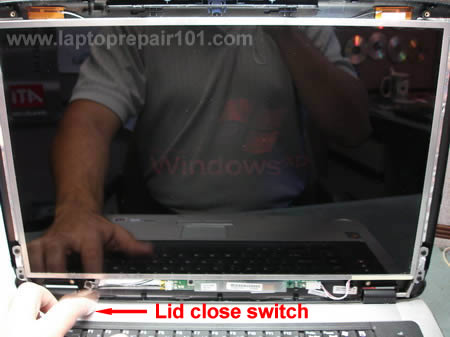
In my case the lid button worked properly, it didn’t stuck inside the case. When I was pressing on the button very fast, I was able to light up the screen but only for a fraction of a second. The image wasn’t bright and it had a pinkish tone. A pinkish tone usually indicates a problem with the backlight lamp, not the inverter board.

Even though I suspected the backlight failure, I decided to test this laptop with a new inverter board just in case. But it didn’t help. The screen didn’t light up even after I replace the inverter board. So, I was right, this problem is not related to the inverter board.
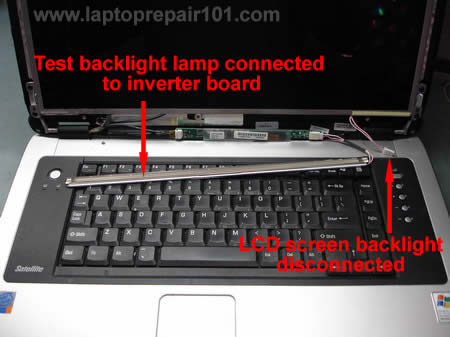
Finally, I disconnected the screen backlight lamp connector from the inverter board and connected my test backlight lamp (I removed it from another cracked screen). You can find a new backlight lamp on eBay. Try to find a backlight with the connector already attached to it, so you can plug it into the inverter board. Make sure the connector on the backlight lamp is similar to the connector on your LCD screen.
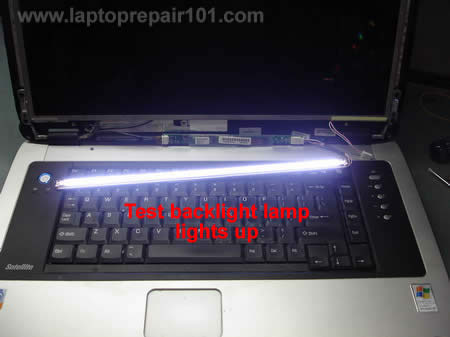
As soon as I turned on the laptop, my backlight lamp lighted up. Yep, that’s the problem. The laptop screen has a faulty backlight lamp.
Here’s another laptop with backlight failure
This laptop video fails in a little bit different way. In this case the backlight lamp hasn’t failed completely.
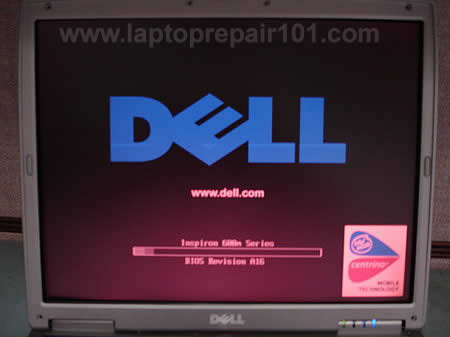
The laptop starts with video on the screen but the background has reddish tone, the screen flickers and it makes noticeable buzzing noise coming from the backlight and inverter area. After a few minutes the backlight turns off by itself and the buzzing noise stops. When the backlight is off, the image on the screen is still visible but it’s very dark.
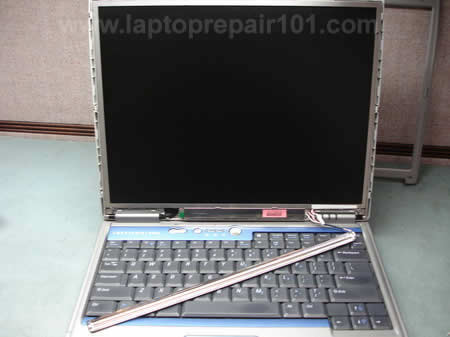
I removed the screen bezel and connected my test backlight lamp.
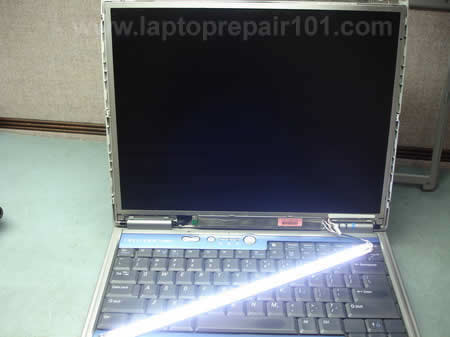
My test backlight works absolutely fine. The lamp doesn’t flicker and there is no buzzing noise. So, this laptop needs a new backlight lamp.
230 Responses
Ryan Dettmer
Dude you rock… I did as instructed.. works like a charm… it was only the switch. Thank god but none the less.. my sony is back up and runnin
Angelos
Hey Dude! I have problem with my monitor! My external monitor works fine so it’s possible a problem with back light! I press the lid switch and just for a piece of second turns on as you said so probably the switch has no problem. Sometimes it turns on just for a few seconds so I suppose that there is no problem with thee lamp. So I again uppose that it is a problem with the inverter. Could you tell me how can I open my monitor to change the inverter and an idea on how much this could cost?
Thanks again friend.
Very good post…
Wojciech
Hello… I have a dell latitude CPx laptop wtih the problem you described. The screen is still working but I can see only a very dull image. I do not find the lid close switch where you said it was. There is not any button close to the LCD screen, but the power button. Oh, this problem began when the laptop, into its briefcase,fell to the floor and slightly hit its back. Maybe is anything broken in it, like the backlight lamp or the video cable? I have not opened the laptop.
cj2600
Wojciech,
It could be just a loose connection on one of the inverter ends. Try reseating these connectors, it might help. Also check connection between the video cable and the motherboard/video card.
You cannot tell with part is failing the inverter board or the backlight lamp without testing the laptop with a known good backlight lamp (or inverter). I think you might have a dead backlight bulb because the laptop was dropped.
Anyways, try reseating cable connections first.
Eugene
Hi, I think my back light inverter may be faulty. I’ve checked it with an external monitor and it’s OK. You can see the image on the laptop but it looks like every other vertical LED is not lit? ie if you look at the letter “S” it would look like a “$” I have a Compaq N800vp, product DJ125T. The question is, can I get a replacement back light or will I have to buy a whole laptop screen?
Yours suggestions would be very much appreciated
michael
i’ve got a laptop diagnosed and they said i have a bad motherboard due to waterdamage. i want to take out the motherboard and put in a new one. however, rather than just put in the old outdated one, is there another motherboard you reccommend that would fit inside the laptop?? and how much would that run compared to putting an old but working replacement??
cj2600
Eugene,
If you still can see the image on the laptop screen then the problem is not related to the inverter board or backlight lamp. When you have a dead inverter or backlight lamp, the whole LCD screen will be dark, not just some vertical lines.
From your description I would assume that you might have a faulty LCD screen. There is a possibility that your problem is related to the video cable.
cj2600
Michael,
First, I don’t know the name and model of your laptop. Second, in most cases you cannot upgrade the motherboard.
mike
I have a toshiba satellite M35X-S149 with what appears to be a bad LCD backlight. So i bought a “new” LCD screen to install. However, once I installed the screen, the same thing happened that the last screen was doing. The video would show up VERY faintly and the external video would work, but the backlight would not work. I tried switching inverter boards and nothing helped. I think I may have a grounding problem. I think i’m not putting the black wire with an “eye-hole” at the end in the right spot. Does anyone know where it goes? Please Help!
Shawna
Hello, I’ve been having to live without my laptop since December 31st of last year because of this problem. I don’t have the money to take it in and am trying to save up to fix it some way. I’m wondering if anyone can help me identify the problem because I’ve read and speculated a few different things.
Last year the LCD light began flickering and I could hear a faint high-pitched noise. If I closed the monitor and re-opened to “wake” it back up, the light would work for a few minutes and then go out again. It eventually went out completely. Now, I can barely (barely!) see the screen (and as of a few minutes ago, for some reason I cannot get a screen at all). I have a desktop at home also, and tried to hook the monitor up to the laptop to no avail. I went through troubleshooting and cannot figure out why the laptop will not comply with the external monitor. I read through your posting and am a bit confused (I’m not good with the hardware aspect, so I’m clueless right now) so I’m hoping you have some insight…
Laptop: Dell Inspiron 5100
External Monitor: MultiMedia Series M70 (ViewSonic M70 on RAGE 128 VR)
Anyone have any ideas? Inverter board? LCD? Something else?
cj2600
Mike,
If you are asking about a short black wire attached to the video harness, then you don’t have to connect it to anything, just route it alone with the video harness.
So, you’ve replaced the LCD screen and the inverter board but still have no backlight? There might be a problem with the video cable. Also, it’s possible that you have something wrong with the motherboard but I doubt it because you have external video. I would try replacing the video cable next. Did you try reconnecting the video cable on the motherboard, just in case, to make sure it’s making a good contact with the motherboard?
It’s also possible but to find out you’ll have to disassemble the laptop and assemble “outside the laptop case”. Not sure if you want to go this route and I would do it only as a last resort.
cj2600
Shawna,
I think you might have two different problems with your laptop and it’s always hard to troubleshoot any laptop with two or more different issues.
This hight pitched noise and flickering screen could be caused by a faulty inverter board or failing backlight lamp. I would try replacing the inverter board first, you have a better chance to fix this issue. If it doesn’t help, you’ll have to replace the backlight (witch means replacing the LCD screen).
A few days ago I was troubleshooting a Dell Inspiron 600m with a similar problem. In my case the screen was making noise and it flickered as yours, but when the backlight was on, the white colors had reddish tone. I connected my test backlight lamp and it stopped flickering and the noise was gone. So in my case it was a faulty backlight lamp.
When your screen flickered, did you notice that white background had reddish tone? If it was normal white then most likely you have just a faulty inverter board. You’ll need more equipment (as spare backlight lamp or inverter board) to make troubleshooting more accurate.
I don’t like this one. So you had flickering screen/no backlight/faint image for a while and then it disappeared and now you have nothing? Could be a problem with the motherboard, video card, CPU or memory.
I think you should take your laptop to a professional repair shop for diagnostics as you have more then one problem.
Morris Rosenthal
With the high pitched noise, especially if it’s coming from th elid, I’d suspect the inverter. You might check out the LCD troubleshooting flowchart I’m working on:
I actually popped into this thread to ask if the owner had any feedback on the flowcharts, but couldn’t figure out how to contact him.
Morris
cj2600
Morris Rosenthal,
I didn’t have chance to go through all troubleshooting charts but I think this is a REALLY GREAT idea.
Angelos
Before I order the inverter I would like to have one more question that might help if it is the lamp or the inverted. In the begining, before the screen is totaly black(not exactly black but with this shadow), sometimes suddently the light turned on until I switch off the laptop but next time again black. This hapenned for 3-4 times and then all black…This indicates if it is inverter problem or backlight lamp? Thank you…
cj2600
Angelos,
It can be inverter or backlight lamp. You cannot tell until you test the laptop with a known good inverter or a known good backlight lamp. You’ll have to guess.
You said the screen is black. How black it is? Can you see faint image on the screen?
Angelos
Yes, I can see a little. Especially if it is dark in the room I can see more. Also I am not hearing any noise from inside.
cj2600
Angelos,
I would try replacing the inverter board first. There is a good chance to fix the problem and it’s way cheaper and easier then replacing the backlight bulb or the LCD screen.
Dj
Hey…
I have been having problems with backlight/inverter recently.
After reading up on many websites, i figured i had inverter problem since my lcd was dim to the point where i couldnt see anything. I ordered the inverter from ebay and got it today. After replacing it, i noticed that the laptop works fine for few (2) seconds and then goes dim again. If i tap on the lcd close button, it again turns on for (2) seconds and then goes back dim.
I am not sure what the problem is :S could it be that the backlight is bad or can there be something else?
thanks in advance
Angelos
Finally, I replace my inverter and like previous guy said it worked for 2 seconds with a strange noise from inside and then again the same problem (a faight black image without noise). Maybe this helps about my problem? Thanks again.
Angelos
cj2600
Dj, Angelos,
If the inverter you installed is good, then my next guess would be the backlight lamp.
Joseph
Tonight my Thinkpad 600X had a unlit screen.
Last night it was fine.
Backlight lamps look wickedly hard to replace but cheap on ebay. Inverters easier but not cheap. A new LCD, more than the whole laptop is worth.
Your suggestion to check the screen close switch – pure genius! You Rock.
Angelos
Can I test a backlight bulb directly after buying without opening the whole screen?I mean can I connect it dirrectly to the inverter without the metal part for testing first and if it works then replace it?
cj2600
Angelos,
Yes, you can if the bulb comes with wires so you can connect it to the inverter board. The metal part is just a reflector.
Karl
I get the buzzing sound coming from the inverter and if I turn the brightness up the screen goes black and the buzzing stops. after it being on for awhile the left side of the lcd is slightly more dim than the right. external monitor works fine. Do you think its an inverter or bulb and if its the bulb where would i find one (inspiron 9400 – true bright screen) i found the inverter on ebay but can’t seem to see any bulbs maybe i’m not searching right. I want to know which it is before i shell out the money thanks
Martin Ruge
Dear all,
I`ve problems with my notebook-screen. It shows a vertical bar, within the bar the image is darker than on the remaining screen.
Does anyone have an idea if this is related to a broken video cable?
Martin
Mark LaTorre
I am guessing that there is a cable to the screen problem, my unit works properly using an external crt but even while connected to the crt my laptop screen showes a medium white background with no other images. I can increase or decrease the brightness of the laptop screen using the function keys but still there is no image at all on the laptop screen only a uniform smooth white glow.
E-Machines m5312 laptop about 2 years old
LTN154X1-L03 Samsung LCD
W-720 Inverter
cj2600
Martin Ruge,
This sounds like a problem with the LCD screen, not with the video cable.
cj2600
Mark LaTorre,
It’s very possible that there is connection issue between the vide cable and the LCD screen. I’ve seen this problem before. Reseating the video cable might fix the problem. You’ll have to take a look on the back side of the scree, that’s where this connector is located. Make sure the video cable is properly plugged into the connector on the screen.
Stefana Muller
So, I have this problem with my Vaio PCG-K33 laptop. How do you remove the screen to replace the backlight lamp?
Victor Violet
I’ve been having problems with my backlight too. I have a Toshiba Satellite Pro M40 and the backlight acts strangely. Sometimes it will work fine, other times it will come on after a minute or two, and other times it will come on if I f**k around on the computer’s monitor settings. It has been doing this for about a year but I can always get it working in a few minutes before. But for the last few days it hasn’t turned on at all no matter what I do. I’ve known for quite some time that it was my screen itself because I sometimes have to use a flashlight to see to get to the monitor settings. I don’t plan on taking it apart but I’m grateful to posts like these that can help me pinpoint the problem to tell the repair shop.
Bahula Smith
I’m working on an Thinkpad A22m (2628-SSU) that was dropped. The LCD is displaying but only very, very faintly. I figured I could do an upper half replacement and ordered one from eBay. So far I have been unable to get the replacement to display anything. The damaged LCD panel is 1400×1050, while the replacement is 1024×768. Could that be the cause of my problems?
cj2600
It could be:
1. Loose connection on the inverter board, you’ll have to reseat cables on both ends.
2. Damaged backlight lamp (CCFL), in this case you’ll have to either replace the lamp (no easy) or replace the whole LCD screen (much easier but more expensive).
3. It’s possible that the inverter is dead but most likely you’ve damaged the backlight lamp.
Unfortunately, the only reliable to find the culprit is testing the laptop with another working screen.
cj2600
Bahula Smith,
What do you mean by upper half, the whole display assembly with LCD, cable and inverter or just the LCD screen?
Bahula Smith
cj2600,
Yes, I purchased the whole LCD assembly. Lcd panel, inverter, cable, bezel, etc. I can’t get anything to display at all on the new assembly. I’ve tried changing several BIOS settings thinking that could be the problem, but still no joy!
BTW, what could be the problem with the old display? I am guessing since it was dropped that it is the bulb. The LCD panel is not cracked and still displays (although very darkly).
cj2600
Bahula Smith,
First or all, check the lid close switch. It’s possible that the switch got stuck inside. Try tapping on the switch with a screwdriver, make sure it moves freely.
Second, it could be loose cable on the inverter board. I would try reseating cable connectors on both ends. I think it worth trying.
I would suspect the lamp failure too, I don’t think that you can damage the inverter by dropping the laptop.
Bahula Smith
cj2600,
Lid close switch = ok
Inverter connections = ok
Still a dim display…
So back to the LCD assembly that I purchased that will not display anything, 1) it could be bad, 2) I could be doing something wrong… although I’m not sure what, or 3) it could be incompatible. Now that I think about it, it makes sense that the output from the video card needs to match the LCD panel. Will a 1024×768 panel work where a 1400×1050 once was? Thanks for the help.
Andreas
Hey there!
I am the owner of a Toshiba Satellite 5200-902.
The first weird behavior I noticed was the pinkish colors when my screen was just turned on and the colors were normal after a few seconds. I don’t remeber when was this behavior started, but I think it is at least for the last 2-3 months.
During the last week I had a flickering problem with my LCD screen.
Sometimes, I could hear a whistling sound too!
My graphic card seemed to be ok since I could connect an external monitor and have no flickering to the external monitor.
So, it should be a problem with one or more LCD parts…
Since yesterday my screen turned almost totally black! I can hardly see the desktop.
However, the flickering seems to have stopped and I can still connect with an external monitor.
Do you have any idea what is that could be going wrong with my LCD?
I think there the following possibilities:
1. The problem is complex so the whole LCD needs replacement
2. The video cable needs replacement
3. The inverter that supplies the power needs replacement
4. The backlight bulb needs replacement
5. The inverter or backlight cable needs replacement
6. Other (please specify)
Please if you are familiar with my problem I would appreciate your help.
Thank you for your time reading my problem.
Andreas
cj2600
Bahula Smith,
I think it will but I’m not sure 100%. I don’t work a lot with IBM laptops.
Here’s what you can try for testing the backlight lamp inside the new LCD screen.
Disconnect the LCD screen on your laptop from the inverter board and plug the new screen instead. In this setup the video signal still goes to the old screen and you still should see a faint image on the old screen, but the inverter board will provide power for the backlight lamp inside the new screen. If the lamp inside the new screen is good, it should light up (I assume the inverter board is working fine).
Check out if you can light up the backlight lamp inside the new screen.
Mike D
Hi,
I have a Dell Inspiron 9200 and the LCD display is extremely faint:
I can see a very faint image so think I don’t have a working backlight in the LCD display.
I can plug in an external VGA screen and it works well
I purchased from ebay a new display/inverter/cable and it still is has a very faint image.
I noticed the LCD plugged into the ATI video card (while the VGA plugged into the motherboard) so got a videocard on ebay; same issue.
So I have replaced everything but the motherboard. Are there special voltages the inverter needs to enable the backlight?
I don’t see the on off switch for this computer and a google search didn’t help yet either. Do you know where the on/off switch is? I would think the computer would go into hibernate mode if this was an issue.
Any other ideas of where to go next? I am pretty hardware/computer proficient but very frustrated with this issue.
Thanks,
Mike
cj2600
Mike D,
Did you buy and swapped the whole display assembly or you bought all parts one by one? Did you try replacing parts one by one? First inverter, then LCD and finally the video cable.
Andreas
cj2600 do you know what is the input-output voltage characteristics of any of the inverters:
G71C00011121 (toshiba part number: P000354880)
or
G71C00011221 (toshiba part number: P000439470)
Thanx in advance!
cj2600
Andreas,
I don’t know. Toshiba doesn’t provide this information and I’ve never tried measuring it myself.
Andreas
Thanx cj2600…
I used an AC multimeter to measure the output of the inverter while the input was normally connected to the laptop.
The output was more than 1000V AC!
This means that the inverter works (since it is supposed to have a high voltage AC output) and this is what I call bad news.
Since the inverter works my only solution is to buy a new LCD screen?
Right?
Could something else be wrong?
Toshiba service replaces the LCD with 940 euros!!!!! Of course this is not an option, I better buy a new laptop. On ebay the price is much better, around 200 euros but then I am worrying if the screen will be ok after doing the long trip from USA or China to Greece.
If there is no other case for something to test if it is not working then probably I will have to risk it…
Please suggest me if I should check another part before ordering the new LCD.
Thanx in advance!
Andreas
Andreas
At last!
I fixed my LCD!
I found some backlight bulbs from the LCDs of old laptops that were sent for recycle!!!
I made the appropriate connections, I re-assembled my LCD and everything worked fine!!!!!!!!!!!
Dana
Am I correct in assuming it isn’t the inverter, backlight or cable if I get no power to the screen, and nothing on an external monitor?
My display failed on my A70 after disassembling due to the overheating issue. Laptop powers on, hd fires up, no beeps, just no display. Reseated inverter wires, ground and video on the board…still nothing. Took it all apart (again), reseated the CPU and heatsink….still nothing.
Any ideas for troubleshooting? I’m really stumped! Thanks
Bradd
OK… I think I have a good little problem for someone to try to solve. My laptop backlight wont light up. Everything works and looks great when I send the video to an external monitor (my TV). I can also see the picture on the laptop monitor if I look closely and use a flashlight. I replace the inverter board… didnt fix it. I took the lcd apart and I have a new backlight as well as the old backlight resting comfortably outside the lcd panel so that I can see it clearly. Here is what I see. Please Help. When I turn the laptop on, the backlight flashes once real quick, and thats all I get. I don’t know if the inverter I put in there is just another bad inverter board or if this is some sort of power supply issue or something else. Please Help
Roy
The LCD panel on my IBM ThinkPad T60 (model #1953-D9U) got cracked, but with the exception of a small 2″ square area where the damage occurred (white screen), I could still use the laptop with the screen open.
However, now that I have tried to replace the screen with a new one, I cannot get the new screen or the old one to light up. I thought I may have damaged the inverter, so I bought a new one and installed it. However, I am still not getting power from the inverter to the new LCD (no backlight) and the images on my old screen are very faint…as if it was a bad inverter. (FYI – The external video still works perfectly.)
I have not tried to replace the LCD cable yet (perhaps I damaged it when removing the old one?), because I am trying to find out where the “closed lid” switch would be on this model. (My old T30 had a mechanical switch that could be depressed, but this one doesn’t.)
Please tell me the best approach for troubleshooting this problem, and if it sounds like I may need to take or send it to a laptop repair shop. Thanks.
Bradd
to 51 (Roy)
I thought I had a bad inverter so I bought one on ebay… guaranteed not to be DOA. It did not fix my problem. After thinking and scratching my head for a bit, I decided that the issue was still the inverter. I bought another one and this one fixed my problem. What is the point of this story? Well it is simply where did you get your inverter? and how can you be sure that this replacement part is in working condition? After all the one I bought was guaranteed to be NOT DOA but it was in fact DOA.
Your best bet is to try again or find someone with the same model that is working and try their inverter.
Roy
Thanks for the tip, Brad. I bought the inverter “new” directly from IBM/Lenovo, but I suppose it could be bad. However, since this was my first crack at fixing a laptop, I am more inclined to think I damaged the cable or (worse) something on the system board, because I forgot to take the battery out first. (Doh!)
cj2600
Roy,
Let’s assume that both new parts LCD and inverter are supposedly good. Here’s what you can try in order to troubleshoot the problem.
Let’s say you have the new LCD screen installed. Leave the data cable connected to the back of the screen but disconnect the cable witch goes to the inverter board and plug the old LCD screen instead. In this combination you still should see a very faint image on the new(installed) screen but the inverter board should light up the backlight inside the old screen. If there is no backlight, swap the inverter board and try again.
After that install the old screen back into the laptop. Connect the data cable into the slot on the back of the LCD, but plug the new screen into the inverter instead. In this combination you’ll get image on the old screen but the backlight will be on the new screen. If no backlight, try swapping inverters.
Also, you may try connecting LCD and inverter without mounting them inside the display panel case, maybe it’s grounding somewhere and will work outside the case.
If you still cannot get the backlight and your parts are supposedly good, apparently there is a problem either with the video cable or with the motherboard. Just in case check connection between the video cable and the motherboard located under the keyboard, maybe you accidentally pulled the cable.
If you cannot see the lid close switch, apparently it’s a magnetic one and located somewhere inside the laptop case. I don’t think this is your problem.
Guillermo
I am having trouble with my satellite m35x-s111 lcd display. I can see the whole image, but the lcd brightness is very low. I also noticed that brightness is higher in the right side of the display. How can i know if the trouble is in the inverter module or in the backlight lamp? The lamp can be easily replaced? Thank you.
cj2600
Guillermo,
1. Could be bad inverter. Maybe it’s not providing enough power to light up the backlight.
2. Could be a faulty backlight.
Unfortunately, I cannot tell you witch one is causing the problem. You’ll have to test the laptop either with another working inverter or another working backlight lamp.
It’s not easy to replace the backlight lamp because it’s located inside the LCD screen. You’ll have to take apart the screen. You can easily damage the screen if you have on experience with fixing laptops.
Haluk testereci
Hi there,
myToshiba M70-215 has faint light, i had taken to repair, they tried invertor and couldnt repaired. Now they take to far away for repair and send computer for that reason. The laptop works fine w/ external monitor, and vision on original screen is very faint , can be seen on very light environment. So i dont think my screen went totally off. However, the repairment men from where my computer send gave us estimated repair demage and cost claiming that LCD screen went off and screen need to be replaced and sure that cost 250 USD. I am having hard time to belive ( since laptop is not older than 2.5 years just after waranty end!!) that and never dropped, that screen went out. Ithey just wanted to suck me i have strong belive right now it is backlight lamb and not invertor.
As an expert would you confir me that if screen went off i would never get any vision on screen right ( besides i used to have loss of light or brightnes while computer works few months aga, any time i turn off computer then light was comming on scree. The final and resisting light loss happened while i am using computer, the vision sudenly gone, and screen can be hardly seen with carefull look. So just give me some expert information before i decide replace my LCD screen. Do you think it need to replace LCD screen or light bulb. We tested inverter by bringing new inverter from Toshiba but didint work.
with my best regards from Turkey
haluk testereci
Haluk testereci
Hi ( Ref 57)
In addition of my question on 57
would that be reason hard to replace light bulb ofr Toshiba M70-215 screen, so they might be asking for whole LCD replacement ? Is it easy to replace light back bulb, and what is the aproximate cost on that lamb?. Is there any visiual show of that light bulb might be?
thx for any help
best regards
haluk testereci
Haluk testereci
response 57 &58
I found out that repairmen is trying to sell me whole LCS screen. It is only problem is backlight lamb and since they dont carry the lamb he wants to sell me whole LCD secren w/lamb..So iwas right on. Besides same attitue Toshibe center has, they want to sell whole LCD screen for about USD500 when i told only backlight need to replace as other repairment diagnosed at distance, Toshiba center is even unaware or pretending as unaware there is even backlight lamb…so kind of ridiculus bussines going on here. Now i am going to on my own, try to collect proper lamb and fix it w/ myself or fix w/TV repari man who would do things more chepaer…
any help on where to fing backlight lamb and instruction to fix that would be helpfull
regards
haluk
cj2600
Haluk testereci,
If a known good inverter didn’t fix the problem and the image on LCD screen is still very faint, most likely you have a problem with the backlight lamp (CCFL) inside the LCD screen.
It’s not easy to replace the backlight lamp because you’ll have to take apart the LCD screen. Most repair centers will not replace the backlight lamp, they will swap the whole LCD screen.
Frank
I Don’t think my screen problem is related to an inverter or a backlight. When I fire up the computer my screen flickers and depending on how I move the screen up and down it gets better/worse. I have a 1.5″ area top to bottom on Left hand side which remains uneffected but the rest of the screen is distorted. I took it apart and when I tap the top back of the screen with my finger it replicates the problem. This area is near the cable and the Green circuit board.
Graeme
I’ve got Toshiba M70 with a slightly different screen problem. Everything works fine on an external monitor but with the laptop screen, at first it appears the screen is dead. The screen remains black when booting up, but if you look closely, it is noticable that there is light behind the screen, I just wasn’t getting an image. I started poking around and found that if I squeezed the top left corner of the screen, I got a nice bright image and the computer was working fine, my thumb gets really tired while surfing though. It has to be some sort of connection problem, but I just can’t find it.
Any idea’s?
mervyn Toby
it songs good so i am going to try it to see if it work on my dell laptop.
thank you.
Ken
I am having LCD issues with a Dell Inspiron 6000 laptop. I have replaced the inverter initially, and tried replacing the bulb with no success. There is still a ghost image on the original screen, and the laptop works fine with an external monitor attached. I finally broke down and got an aftermarket LCD screen, which works but is very
dim compared to the original. When I check display settings it lists only “multiple monitor” configurations and I can’t seem to find a way to reset to just the built-in monitor. It has an ATI graphics card which supports and changes multiple monitor settings, and under devices there is a “mirror” monitor device also. Any ideas whether
going to single monitor configuration will allow adjustment to a brighter screen setting, or could cabling or motherboard issues
be involved? Thanks for any help.
Ken Cotton
LARRY BAMIS
my laptop Aspire acer 7620 bios setup was passworded by my younger brother, And he has forgoten d password and operating on d laptop as corrupted,and there is nothing i can do than to boot to the cmos setup and setup the boot option to load another operating system.and have tried all the master password that i know none of it solve the problem .now i dont know what to do either to go for a new laptop or i should try other site for help.please if anyone can solve my problem i promise to be his or her friend forever.i also i’m an engineer and i’m fed up with it.THANKS.MY LAPTOP IS A PHOENIX MAKER.
Laptop Repair Help » Laptop is dead. How to troubleshoot the problem.
[…] First of all, take a closer look at the LCD screen. Look at the screen under bright light. It’s possible that the image is still on the screen but it’s very faint. If that’s the case, check out these tips for troubleshooting laptop with backlight failure. […]
Gloria J Olp
I had severalo keybord keys that weren’t working
missing letters and keys that don’t work:
eghikmopruw
up & left arrow
rt ctrl
\|
delte end home
pg up pg dn
5 6 – _ =+
num lk
i also managed to, idiot that i am, pull the LED cable along with the part it plugs into right off the system board. Please help screen is almost too dark to see. and with the keyboard problems i can’t perform fn up to brighten it up if that would even work with the led cable inoperative.
thank you for ANY help.
sharon zusman
My problem sounds very similar … when i press the Lid close switch and then release it, the light comes back and the screen is well lite but only for a few seconds. it doesnt seem to be the backlight since when it does lite up it looks as usuall.
what should i do..?
cj2600
shanron zusman,
1. Replace the inverter board and most likely it will fix your laptop.
2. If you still have the same problem, probably the backlight lamp is bad. If that’s the case, you’ll have to replace the LCD screen. It’s possible to replace the backlight lamp inside the screen but it’s not easy.
Joy
My Dell laptop went black today, after flickering just a bit for the last week or so. From everything I’ve read, I’m thinking it is the inverter since it works with external monitor and it actually lit up once when I brought it out of the screensaver mode. I talked to the Dell tech support and finally got the guy to tell me one of the tests to try. It sounds crazy, but he said if you turn it upside down and then power up, if the screen lights up you know it’s not the backlight, so it’s likely the inverter.
Well, I didn’t power down, but closed the lid so it went to standby. I turned it upside down and then opened it and voila! the screen looked normal. The one thing I still wonder about is something I read about a failing backlight causing the inverter to shut itself down. That scenario isn’t proven or disproven with my test. So I guess I’ll get a cheap inverter and see what happens.
cj2600
Joy,
That’s interesting! I’ve never heard about this test. I’ll try it on different laptops with inverter/backlight failures.
Fernando
I had the same issue with the backlinght very dim on the lcd screen on a dell laptop. So I replaced the inverter but it had the same issue, then I went ahead and replaced the entire lcd screen with inverter and backlight and still had the same issue, so I tried moving the motherboard to another laptop and still had the same issue so I just replaced the motherboard and that worked.
cj2600
Fernando,
It happened to me before. In some cases the problem looks like bad inverter/backlight lamp, but it’s bad motherboard.
That’s why I always test a faulty laptop with known good inverter and backlight lamp before I jump to a conclusion.
Joy
Unfortunately, replacing the inverter didn’t fix my problem. I’ve gotten a replacement backlight, but it doesn’t have connectors as it was advertised, so I have to solder it. Since the inverter I bought was refurbished, I wondered what are the odds I got a faulty one?
Since I now have 2 inverters and 2 backlights, I should be able to test different combinations, but I only have one set of wires so it’s more difficult…
1groovygroves
WHO ARE YOU? I have searched for many long months for info on problems i have had being shocked by my toshiba satellite a 75. I’ve delt with toshiba for months…. and walla! i’m on-line tonight looking for the type of replacement dvd r/w i need and lo and behold, i find you! you answered all my question. and you are dead on as far as the common problems with my toshiba. i love my laptop, have owned this one for 3 years, but golly wally; my three only complaints you covered 1,2,3! with pictures to boot! I am amazed at how much information you have on this site. most of what i know i have had to learned through trial and error over the past 24 years. THANK YOU!!!!!!!!! SERIOUSLY YOU SHOULD HAVE A ‘DONATE HERE’ link. thanks again!
Rene
My laptop frequently have just a blue/gray screen when I
boot up. I’ve tried every thing I can, but it doesn’t work. Any suggestions?
ray
My Hewlit and Packard laptop screen stays completely blank and iits like its trying to keep starting up.No movement on the hard disk light on the front.Tried to get ti to go into safe mode by pressing F8 but nothing.Any ideas.Had this problem recently but then after doing the same thing of continualy waht sound like it was turning off and on the screen loading sign came on with the black background.This time nothing comes on at all!!!!!!
cj2600
ray,
Could be anything and there is no way I can tell you what is wrong without testing the laptop.
Try this. Turn on the laptop without the hard drive installed. Can you boot to the HP logo?
Try reconnecting the memory module. Move it to the empty slot.
I posted some suggestions for troubleshooting dead laptops in this post.
julie
I have a Satellite Pro A10 with dim screen, I have tested the backlight and that works fine, I bought another inverter but nothing changed although this could be faulty too. I would like to know can anyone tell me where the lid close switch on this laptop is please. So that I can check this problem before buying yet another inverter. Thankyou
Bruce
Last night, shut the top for the evening and this morning opened it to find a very very very dark screen. The display never recovered. However, with a flashlight you can see that the computer is functioning just fine. Its too weird peering into your LCD with a flashlight and seeing the image ‘somewhere in there’.
Inverter board or back light? Plugged the video output into the TV and got my desktop just fine (but its not a HDTV so the quality was crap). Ok, there’s a screen in there – but its like looking into deeply smoked glass.
My Service Manual shows an inverter board and a display assembly in the exploded parts view of the unit – but no back light or bulb? Customer service online chat just told me I needed to replace the display assembly part … but yikes! that is the entire LCD screen kit and kaboodle! Huge price difference between CCFLs and display assemblies!!!
Any comments? Do some laptops have the backlight as a component of the display assembly so your stuck buying the entire set??
cj2600
Bruce,
It’s not easy and the backlight replacement procedure requires a lot of patience and concentration.
You can easily damage the screen but on the other hand, you can fix it for under $15. 🙂
If you know for sure that your problem is related to the backlight lamp and not to the inverter board, you can try replacing the backlight lamp.
Bruce
cj2600,
Thanks. I did find one website that lists my make and model laptop with the compatible CCFL and the price is under $15.
However, I do not know how to determine if I need to replace the inverter board (easier looking job for about $45)… OR, if I need to replace the CCFL bulb.
How can you tell?
I can output my laptop screen very nicely to my TV screen and the computer works just fine.
So, in remembering what you taught was the purpose of the inverter board – that I believe is my prime suspect – because the screen went out completely without a long death period of that pinkish look.
cj2600
Bruce,
The only way to find the culprit is installing known good parts. I’ve been trying to find a reliable way to test inverters with a multimeter, but haven’t found it yet.
The only reliable way I know is swapping parts.
You cannot use this troubleshooting method to test inverter/backlight.
Could be:
1. Bad inverter (more likely).
2. Bad backlight lamp (less likely).
3. Motherboard problem (rare).
4. Video cable problem (rare).
From my experience, inverters fail more often than backlight lamps. I would try replacing the inverter board first.
Ratha
I had a power pin fault (had loose connection with board circuit) and managed to fixed by removing the board and rejoined with soldering iron. then it works ok but the lcd display became blinking and then turned into negative film like colour (like a film negative shading-no original colour), some times turn to normal then go blinking…. like over lightening or bright light is over the normal screen.
But the blinking of the display is still have problem. When the cool environment, it has small blinking but without external table fan cooling and opened with lot of applications (AVG scanning, firefox, ms word), it has frequent blinking.
First i faced the problem when i tried to install the MS Powepoint 2007. then i stopped to install it.
Specifications:
laptop: toshiba tecra 8100
OS : Windows xp
Speed: PIII
RAM : 256
please help to solve the problems.
thanks
ratha
cj2600
Ratha,
Could be connection related problem. Check the video cable, make sure it’s properly connected to the motherboard. Try reconnecting the cable.
walter owens
I have an HP ze 5700, the screen kept blinking and finally failed. I installed a new inverter board a few months ago and it still blinks white with the background still there. Do I have a backlight promlem and how much is a new one.? I’m not very good at this and I dont want to spend a lot of money unnecessarily. I’m just a retired person.
jostein
Impressive site! I’ve got an asus s5a 12.1″ laptop, and my backlight falls out when I tilt my screen to far backwards. First the light on the left side goes out, then if I continue to tilt, also the right light goes dark. Do you have any idea where to start..? Thanks!
Eric
Hello,
I could use some advice regarding a failing LCD backlight. I have an Acer Aspire 9800 with the following behaviour:
– The backlight flickers and eventually turns off.
– Re-opening the lid makes the backlight fire off again, failing in a few seconds.
– Manually turning off the backlight ( fn + [F6] ) and back on again doesn’t make it fire off again.
– Reducing the backlight power ( fn + [left arrow] ) makes the backlight last longer, for an hour so far. The flashes, however, continue and some of them are brighter than the screen should be. (Ignore that, it lasted for over an hour now, flashes disappeared)
– Ofcourse, the LCD keeps showing a picture or else I wouldn’t be rambling about the backlight.
– When the backlight is on, the LCD displays a proper image, not pink or reddish which in my opinion would exclude the light bulbs.
Now by what I’ve seen and read I suspect a failing inverter. However, I could use some advice.
Could it be the power supply is failing; delivering insufficient power causing the backlight to “magically” turn off.
Could it be the lid switch? It’s a magnetic, not mechanical and I have no clue on how it works or whether it could cause the behaviour described above.
While I keep my bet on the inverter, any comment on this would be appreciated.
Sincerely your,
Eric
PS.
Food for thought:
Could a failing power supply cause this issue, with motherboard capacitators preventing any other clues from surfacing?
Why does the “mechanical” switch (magnetic in this case) have a different effect on lighting up the screen than the software switch ( [fn] + [f6] ). Does the inverter have some kind of build-in protection? If so, what could be triggering it in this case?
Paul
I’m having similar problems as described by the many replies herein. My screen initially went black about two months ago. I could still see the image if the light in the room was turned on, and connecting my laptop to the TV produced a perfect image. Opening and closing the lid would bring the picture back, but only for either a split second or, at most, two or three seconds. Then, about a week later, I opened the lid one morning and the picture stayed on for maybe four or five days! This cycle repeated itself for the next few weeks. (It should be noted that during the periods when the screen stayed on there would sometimes be a slight flickering effect.) So I ordered a new inverter. The website I ordered it from did not have the exact part number I needed, but it did offer an inverter that was compatible with the part number of the original. After replacing the original inverter with the one I purchased, the longest the screen lasted before going black was maybe 30 seconds, AND I heard a buzzing noise that I did not hear with the original inverter. So I put the original inverter back in and for whatever reason the screen didn’t black out once for a good three weeks. Well, for the past week the screen is going black again. Opening and closing the lid did very little until I figured out that if I pressed my finger once into the screen bezel directly over the invert and then closed and opened the lid, the screen would stay on for hours at a time (in some instances, a day or more!). However, there was a new wrinkle: manually adjusting the screen’s brightness directly affected when and how the screen would go black. Adjusting to the dimmest screen setting would eventually result in screen flickers that, after a few seconds, would lead to the screen going black. Adjusting to the brightest screen setting would result in normal image functioning. This lasted three days. Now the screen is going black again. Opening and closing the lid produces an image for a few seconds, except now the left half of the screen is very dark while the right half looks normal. And the kicker: When I switch the original inverter with the one I purchased online, the entire screen lights up like normal but will still go black after 2 – 10 seconds go by.
So does this sound like a backlight issues (I have dual lamps)? Does it sound like I should try finding an inverter with the same part number as the original even though the one I purchases should have been compatible? Is it possible the one I bough online is faulty? Any suggestions would be supremely appreciated!
By the way, my laptop is an HP Pavilion dv9000.
cj2600
Paul,
Your problem sounds either like a bad inverter or bad backlight lamp. Unfortunately, the only way to find the culprit is testing the laptop with a KNOWN GOOD part.
Yes, it’s possible. Could be a faulty inverter or maybe it’s not compatible with your screen.
I would try installing a new inverter with the same part number. If you still have the same problem with the screen, most likely it’s bad backlight lamp.
Bryan Ard
Great article! I tried an test inverter, no change, tried a test backlight. New inverter does nothing with new backlight. Old inverter causes backlight to blink briefly during startup then nothing. Anyone seen this before?
TIA!
naomi
Thanks for setting up a help website. I was just wondering how you take the panel of where the backlight is. Im going to attempt to fix my laptop when i get home. cheers
imher
i’ll be fixing my own HP laptop..
the problem was it has no display, which i realized, really has a backlight failure..
i tried it with an external monitor, it works. as if nothing hapeened.
i wonder if the real problem was not the backlight lamp..
will i replace the inverter board?
how much do you think it will cost me?
in philippine peso, if you may… i need an estimate…
laali
I have a similar situation. My screen does not light up but I can see the images very faintly. I am now working with a external monitor.
I replaced the backlight with a one that I got on ebay. I was actually a cracked lcd display. and I took the entire frame which had the backlight in it and replaced mine with it. I did this so that I would not damage the backlight trying to get it out of one frame and put it to another. After all this the screen was still the same. So is it the inverter ? If the inverter was faulty would it have burned the backlight? If its the case the one I replaced may have been burned as well. Do I need to replace both and see?
Thanks
Vladimir Vladimirov
Bryan Ard,
I have exactly the same problem as you on my toshiba m100. Have you found any solution of the problem ? it blinks slightly during startup and then once by the time the windows logo shows on. Will appreciate your help if you have any clue what the problem should be…
Jason
Hey guys
Ive justt recently been having troubles with my Toshiba Satellite m50..i have the same problem as the rest with my backlight..but it ocassionaly goes but then goes out after a while..ive unplugged an replugged the inverter thinking it could be a bad connection…any other ideas?? help would be appreciated thanx
Cid
HI,
I changed the inverter of my Toshiba laptop 3 weeks ago, just after I changed the inverter the screen started to flicker, first I thought that the problem was with the new inverter but then I realized that was with the back-light.
It is possible to be the same problem that damaged the inverter and now the back-light or is just a coincidence or while I was changing the inverter I screwed up the back-light?
Vir
Hi, I found this site exremely intersting, making the complex world of laptops a tad easy. Coming to the issue of laptop display, Im facing some issues myself. The laptop display is dim, which happens a few secs after booting. It is very hard to make out whats on the screen. But the problem always occurs a few secs after booting, its perfectly ok before that. Dislay is fine on an external screen.
I went throught the site checked out the inverter model I had. I’ve put the old inverter back. Booted again, somehow there were no problems this time. However, I don’t expect that to last too long. My guess is that its the inverter, but I’ll need to be sure. Hope someone here can give me few tips how to test it.
cj2600
Vir,
From this description it sounds that you have a problem either with the inverter board or backlight lamp. I cannot tell which one is causing the problem because both parts fail very similarly. The inverter would be my first guess.
Why not? If it works, it works. Maybe it was just a connection related issue and reconnecting the cable fixed the problem.
If it fails again, I would try replacing the inverter first.
Aaron Fleming
Thanks a lot all I had to do was clean thelid close switch and My backlight works fine, sweet
Linda Baca
Thank you. This is so helpful. I am trying to troubleshoot my Toshiba Qosmio F-15. I have a unreadable screen that goes between red and green garbled lines and black screen with garbled white symbols. I can kind of see some icons when I boot in safe mode. Your guide is helping me. Hopefully I can figure it out. I am thinking it has something to do with the fact that I actually used it for 2 hours one day. Ha!
Adam
Hey cj2600 and thanks for the very, very usable information on your website. I have some questions though.
I have an Acer Aspire 3610, with backlight problems.
Just until now it hasn´t been given any light from the screen, so i figured i would check to see if the cables where inserted correctly. They seemed fine, but when i booted up the laptop again the screen lit up, amazingly.
I had it running for a few minutes without doing anything, and then suddenly it went dark again. There is no light but i can still see the picture from a specific angle.
I restarted it, and there was the light again, but it disappeared again and did this with the light disappearing in smaller intervals. Eventually the light was gone just after the BIOS sequence, and i stopped doing this when there were coming some strange noises and a not so nice smell from the laptop.
So now im afraid to do anything with the noise and the smells.
What do you think is wrong with my laptop?
I have tested the inverter with my multimeter, and it says around 42 KHz until the screen goes black and it goes down to 0 Hz.
Can it be the inverter which is causing the trouble?
Is the inverter supposed to give away frequenzies even when the CCFL is dead?
Is there only one standard in CCFL’s? Can everyone of them be soldered on to the power connectors, taking that i have the right size for my screen?
I think thats all for now, thanks in advance for the answers!
// Adam
Allen Jones
I just bought a Gateway MT6451 with a broken lcd. Ordered a new one, installed it and nothing. So I put the old one back in and that works. So I decide to test the inverter and backlight, both work. I then unlug the broken display backlight but leave the video cable hooked to the bad display, hook the new display’s backlight to the inverter. power up… backlight works…so while the laptop is on I unplug the broken lcd video cable and plug it into the new one…it worked. But only till I reboot. I did it like 6 time and it worked that way each time. Oh and the vga and svideo ports work also. Anyone know why its not turning my new lcd on?
saya
Thank you. Before I had been wondering why my notebook screen looks a bit reddish on the sides when it’s running on battery. Now I know why, thanks to your article.
Lee
I have a HP Pavilion with a backlight problem, I first replaced the inverter and that didn’t work. Then a new display and again that didn’t work. Next the video/display cable which still didn’t help. Then the motherboard with no help. There is no visible lid close switch. Seems like one of these parts should have fixed it. I have had a dim display through all of this that can be seen using a flashlight. Any other ideas other that a new computer?
cj2600
Lee,
You are correct, on of these parts should have fixed it.
Did you try all possible part combination? For example, the old motherboard and old LCD with both new and old inverters, both motherboards with the old and new LCD/inverter, etc…
Chessboxing
I have a HP Pavilion. My girlfriend unplugged it while it was running, she thought the battery was in.
When I start it now the power on button is flashing continuously. ram, hdd, monitor are not dead I think because I basically tested them.
Does someone know what the flashing could mean…
pls notify me kactusrvm (at)hotmail (dot) com
Jane
Is the inverter the same for a 15 or 17 inch lcd ?
cj2600
Jane,
I think it depends on the laptop model. Take a look at my last post: How to test LCD screen inverter in a laptop
I’m using the same inverter with the backlight lamp removed from a smaller screen and it works just fine.
Adrian
i think i have a similar problem, when i turn my laptop on the screen is up briefly, but it just goes black. if you hold it at a certain angle you can faintly see the background it is just so dark it appears black. i have dell xps about 3 years old..any idea if it would be the screen inverter board or something more serious?
Dushyanth
I had the same problem with my DEll Inspiron 6000. The monitor went totally dark. I was not sure if it was the inverter or the backlight. The monitor was bright for a couple of seconds when the DELL logo pops up, and then went dark. There was no reddish tone on the screen and so I guessed that it was the inverter (which is much easier to replace compared to the backlight). Replacing the inverter worked for me and it only cost 10 bucks.
Andrew
I have the same prob with my 1.5 year old dell 1501. what does that cost to replace the backlight?
andy9466
help please!
i broke my screen on my aspire 3630 so i bought and fitted a new one,but i cant get the backlight to light.windows loads up as normal but without backlight.i have tried the lid switch and this appears to be working fine(windows goes to standby)
i have changed the inverter and tried the screen in another laptop and it works fine.so i tried to connect it to a external monitor but it only goes as far as windows xp is loading then,external monitor goes off (no signal),but the laptop screen loads up as normal without backlight!
any suggestions gratefully accepted.
thanks
andy
Jay
Hi! i have a presario v2000 which is starting to turn reddish on me and then turns back to it’s normal color. i did all the troubleshooting(after watching your videos)just to make sure it wasn’t the video card or the inverter, so my guess that it’s the bulb. any suggestions on where i can but the bulb? thanks for your help.
skijosh
Thanks, this info helped me to fix my qosmio x307-q705.
nilson
thanks a lot, very useful your tips and the information posted. again thanks for your time spended and sharing your experience..
Jack
Dell Latitude C800 LCD problem intermittent, no 100% indicative of back light or inverter failure so I am wondering if the LCD screen could be faulty? The machine will run well for days and then this will crop up again. I’ve run an external monitor successfully to rule out adapter problems.
Symptoms:
Screen has consistent thin blue line vertical line/drop out
along right part of screen…a second similar line will appear on left portion of screen, with minute stress on lid when adjusting then disappear.
The entire screen/or horizontal portions will distort/if by static, screen resolution/color rendering will suffer concurrently.
The only sign of back light failure (after educating myself via this site) is infrequent and very brief screen flickering from full illumination to black out…nothing in between.
Dave
Toshiba Satellite M35X-S349 laptop has a pink line in LCD. Replaced the LCD with 3 compatible LCD’s, and all 3 had bad backlight.
I have 6 different M35X inverters (K000018860) which I swapped out with each LCD, and they all did not resolve the problem.
If I put the original LCD (with the pink line) into the laptop, there is no backlight problem and all 6 inverters test ok.
What the heck is going on?? I pushed the white button many times and did not solve anyything.
Any help would be appreciated.
cj2600
Hi Dave,
That’s me again. I already replied to your question in a different thread.
Are you talking about a 1-2 pixel vertical line? Can you upload a picture somewhere?
Adrian
Your description of notebook backlight failure is exactly my problem. The screen is not completely black. I tried the first suggestion, but even a quick flick of the lid button, the notebook went into hybernation. When I started up notebook again the screen is fully lit. I tried closing down my notebook again, but on restart the same problem occurs each time, but when I depress the lid switch button and restart from hyberantion the screen is fine. Any idea what the problem is???
Tammy
I am having trouble with my Toshiba laptop screen. It was very dark. I replaced the inverter & when I turned it back on it came on but then went dark again. I discovered that when I tapped the metal lid closed plate it would come back on. This worked for a few hours but now it is dark again & tapping does no good. Do I need to replace the lid closed plate, the backlight, screen, or is it possible I have damaged the new inverter by tapping on the plate too much?
Eric
Just wanted to say thank you. I would have never figured out it was a stuck laptop lid switch. I just disconnected the switch from the motherboard. Now I can’t put the computer to sleep by closing the lid, but at least the monitor works.
Eric
By the way, it is useful to find the service manual for your laptop before beginning disassembly.
lt775
My AC adapter has a short in it. The local shop tried a universal adapter with a couple of tips but nothing worked. If I I wiggle the cord on my original adapter, I can get enough power to max the battery at 100% within the usual amount of time. Two questions:
1. Is it possible that the laptop is not getting enough juice to power up the laptop LCD?
2. Could the local shop have shorted something out and caused my laptop LCD to remain black? Would that be the inverter or the backlight?
Ultimately, the computer works fine except the LCD screen. It works with an external monitor, and when the lid closes it hibernates so it is not a lid switch issue. The screen is dead black, no image at all so I am trying to narrow it down to power supply, inverter or backlight. It’s a 3-year old Toshiba Satellite A105.
Thanks,
-lt775
Eddie
I have a Dell Insprion 600M Notebook
The weird part is that the dim image shrink to 60% to the left. Other 40% is just blank image. I don’t have any invertor or CCFL lamp to test on. But I guess the whole lcd is the best way.
Do this 60/40 screen happen often?
Al Green
Hi tech guru…I was wondering if you can you help me figure out whats up with my dark screen. I can see everything but its just too dark… I have a dell inspiron 6000 and I accidently dropped it from my counter top. I have replaced the backlight and the inverter and still have a dark lit screen. My case looks exactly like your first picture on this page. I have also used an external monitor to test the video card and it works just fine. What can it be? Thanks in advanced!
cj2600
Al Green,
Have you tried reseating the video cable on the motherboard? It’s located right under the keyboard/hinge cover. Maybe the cable got disconnected from the motherboard when you dropped the laptop.
Terry
Thanks for posting all this great info.
Question about backlight testing – Should a good backlight have continuity across it’s terminals if it’s good? I was assuming yes, but all the backlights that I tested (1 out of 5 was good for sure) had no continuity when tested with an ohmmeter.
cj2600
Terry,
I really doubt that you can test the backlight lamp with an ohmmeter but I’m not sure 100%.
I don’t test them, I replace them. 🙂
Godfirst
Hi everyone
i dont know if this is a backlight problem.
I just opened the laptop(dell inspiron 5150) to dust the fan and after closing it began to function but refused to display. I tried several times making sure that the video cable is okay but it still did not come up.
It displayed very fine on an external monitor but never on the lcd.
I dont know if i must open plastic covering the lcd before i can find lid close switch because i cant find it on the surface.
I dont just want to go such great lenght because it was functioning before i got it loose.
Please help me, is it a backlight problem or something else?
I just did not expect it to grow a problem so fast
cj2600
Godfirst,
Try to switch video from external to internal mode using Fn+F8 keys.
Press and hold down the Fn key and at the same time press on F8 (try to press a few times if it doesn’t work).
lee
hi there i think i have a Philips 15NB57 series. i think my problem lies within the backlights hinge sensor as the screen its self works fine and i get a display through an external monitor. the backlight switches on for a split second during startup and also will do when inserting or removing the connection for the external monitor it will also come on when the lid is in a near closed position but only briefly again. is there anyway i can bypass the hinge sensor through the settings or is it something i’ll have to get repaired? (am using vista if that helps)
cj2600
lee,
I think it’s either bad inverter board (most likely) or failed backlight lamp (less likely).
It’s very unlikely that you have a faulty lid close switch. I’ve been fixing laptops for 5 years and seen very few failed lid close switches.
1. Try replacing the inverter board.
2. Try replacing the LCD screen (because it’s very hard to replace just the backlight lamp).
Mike
“I think it’s either bad inverter board (most likely) or failed backlight lamp (less likely).
It’s very unlikely that you have a faulty lid close switch. I’ve been fixing laptops for 5 years and seen very few failed lid close switches.
1. Try replacing the inverter board.
2. Try replacing the LCD screen (because it’s very hard to replace just the backlight lamp).”
I respectfully disagree here I’ve seen many laptops where the lid-switch either both mechanical & magnetic version has failed.
It’s much cheaper & easier to find this switch attempt to clean or just disconnect it before buying a inverter/back-light on a whim. The mechanical switches can usually be cleaned or just manipulated until then start functioning again. The magnetic sensors range in price depend what else is on the PCB. Many types like Sony Viao’s require replacement of the track-pad. That is unless your happy unplugging the switch and using a external mouse
Tony Harroun
I have an Acer Aspire 5315-2153.
When I boot up the monitor works, then after a few minutes it fades to white, then grey. after about ten minutes, it comes back and works fine.
Ideas?
leo
Hi:
Thanks for the useful site. I have a laptop which half the screen is completely black (the bottom half). When I connect the laptop the external monitor, it is no problem to display to external display. SOmetimes when I open and close the lid, it works fine but after a while, the bottom half of the screen freezes (i can not move my mouse over it).. I opened the laptop and check all
the cables from the motherboard to the LCD screen and inverter. Does this sound like a bad LCD screen?
Thanks
Leo
John King
My problem is a little different from others I’ve read. After turning on the unit and heating up for 10 minutes, I get a small semi-circular black spot that appears in the lower right hand corner of the screen. It appears as about the size of a thumb print. It will remain and after the unit runs for additional 10 minutes or so, the screen will start to “flicker” and become distorted. I have not just left it on to see if it will go totally black. After shutting off and cooling then restarting, the screen is clear until it warms up again. Would this be the inverter or a screen problem?
manny
Hello
Have a Compaq Presario C500,when turn it on,screen stays on for about 15 seconds then turns off but there is very faint image…have not tried external monitor (next step),do you know how to get disassembly directions fot this laptop?
Billy
Hello,
I have fujitsu siemens amilo v2010. The image on screen is very dimm. I tried good known backlight lamp, and it is not working. Replaced with new inverter, also no luck. Image is very dimm like backlight failure. Could it be video cable or bad motherboard?
audhie
thank you so much (in my tongue = terima kasih banyak) for your article this help prevent me from buying another inverter or backlight or even a new lcd screen 😀
after reading I encorage myself to look into the lid switch only to find that it’s half stuck meaning if you close the lid it enter hibernation, but if it stuck halfway it only turns off the backlight.
I’m a fool for not checking the lid switch, I was really certain that this is an inverter or a backlight problem.
this case really adds my experience in laptop handling.
advise for newbie: CHECK THE LID SWITCH BEFORE DISMANTLING YOUR LAPTOP!!!!!
Grubby
I have this laptop it’s a Compaq presario cq60.
The monitor was sat on so it’s not good, I took a display out of an older HP the inverter and cable connect does not match, so I am attempting to try to splice the wires, but there are so many and all different colors….
what do you think?
LAB
This article gives me some hope but doesn’t answer my real problem. I have a workhorse Dell Inspiron 8500 laptop with a very recent issue. On start-up the windows splash screen and booting bar are shown fine on laptop screen (so can’t be backlight?) but it then goes black (not dim) – however on remote screen it continues to boot and show desktop all OK. It is not an F8 problem; I’ve checked switch and this is OK; been into laptop Display in safe mode and it doesn’t recognise that laptop screen exists. Any thoughts/ ideas for a non-techie to try??? Any help much appreciated.
MD RIZWAN AHMED
HELLO
I HAVE ACER ASPIRE 4710Z LAPTOP IT GIVES SOME PROBLEM WHEN I TURN ON THE LAPTOP IT SHOWS WHITE SCREEN DOESN’T SHOW ACER OR WINDOWS . LAPTOP WORK BUT EVERY THING IS WHITE IT GIVES WINDOWS STATUP TONE ALSO . WHEN I USED TO LOG OFF & START AGAIN THAN IT WORKS PROPERLY
Richar J Olivera
thank you so much for this info. You helped me save a couple of hundred bucks, from some tech, who told me there were a bunch of things wrong with my monitor. It was just the switch. THANK YOU.
I am considering buying the video series. Thanks again.
benjamin asare-kumi
hello
i have a problem with my fujitsu siemens laptop. the screen wont light up but i can see the image in the screen. i took out the whole screen and tested it on another laptop and it worked perfectly which means there is no problem with the screen. i changed the inverter and the light came on but it was dim. and then later it went off completely. i’ve tried different inverters but still its not coming on. but when i try that same inverter on another laptop it works perfectly. please help me.
cj2600
benjamin asare-humi,
I like your troubleshooting steps. You did everything correctly.
It looks like your problem is not related to the backlight lamp or inverter. You tested them and both work properly.
Apparently, in your case this is the motherboard failure (more likely) or LCD cable failure (less likely).
Maybe the LCD cable is damaged. You can try replacing the LCD cable. If the problem still exist, most likely there is a problem with the motherboard.
Bill
I have an HP Pavillion dv9000 laptop.
The pixels that should appear as black are appearing as a neon green. If I close the screen so that it’s within a few inches of the keyboard, the problems seems to disappear but it reappears when I move it up a bit. I did take apart the bezel over the LCD secreen and checked the inverter connections and the wires going into the laptop keyboard area. I can see the point where it changes back and forth as I move the screen closer and then away from the keyboard, but can’t see any wires or anything that are impacted when I do this.
Secondly, the screen is dimmer than on my other laptop that I own by quite a bit. It’s certainly readable, but it is dimmer than I think it should be.
Finally, the function F7 and F8 which control the brightness of the screen aren’t functioning.
Any ideas?
cj2600
Bill,
I saw the same question in a different thread.
Again, test your laptop external video. If external video also shows green instead of black, most likely this is the video card failure.
If external video works fine and the problem appears only on the laptop screen, this is either bad LCD screen or video cable failure. Also, could be connection related problem. Before replacing any parts, try reconnecting the video cable connectors on both ends (back of the LCD screen and motherboard).
drew
I have a Dell D830. It seems like th backlight is functional as if i use the blue fn key and adjust the brightness i can see teh screen adjust. However the screen is still blank.
I have changed the display cable, this cured the problem for about an hour, coincidence maybe?
Its the WUXGA screen so i’m not sure what the next port of call is? Any advice?
cj2600
drew,
Did you test your laptop with external monitor? I assume external video works fine, right?
Try reconnecting the cable again. Maybe connecting between the cable and LCD screen is bad.
I think it’s either bad cable or LCD screen failure. Unfortunately, I cannot tell which one is causing the problem without testing your laptop with another known good screen.
Debby
Hi,
I have been reading your site with great interest, but haven’t seen my exact problem. I have a Dell Inspiron 1720 laptop and last night I noticed that about 3 to 4 inches on the left side of the screen is darker than on the right side. It is still legible VERY noticible and is something I don’t feel I can live with. I spoke with Dell and was told I needed a new LCD, but I suspect after reading your articles, that maybe I need a new inverter and/or back light. I updated the Nvidia drivers which was no help. Suggestions? Thanks so much! Debby
Debby
Update: Meant to say it is still legible but is very noticable and distracting. When I run on battery power, it is worse and may be darker on both sides but more so on the left, the middle of the screen is not affected.
I connected the laptop to an external monitor and the display is FINE on the external. Thanks for any help you can provide.
mark
i have a acer aspire 8935g ,the screen is totally black but if you hold a flash light close to the screen every thing works normally i have been told as this is a new laptopit has no inverter and it is also a led screen 18″4 do i need a new screen help thanks
cj2600
mark,
It’s hard to tell.
1. Could be LCD screen failure.
2. Could be motherboard failure. Maybe the motherboard doesn’t send correct signal/voltage to the screen.
3. Could be bad video cable.
If I had to guess, I would try replacing the LCD screen first.
I think most likely you have a failed screen.
vedran
hi,
i have sony vaio vgn-fe11h. i have new inverter, new lcd,but still no pic on a display. over extern monitor i have a pic.
what else should i check.
1. motherboard?? (but there is 19V on a inverter IN)
2. cable (there is a very dark pic on a display, but still a pic)
thanx in advance
cj2600
vedran,
Does this model have a lid close switch button? It’s a small button located somewhere close to the left or right hinge. When you close the display, the button is activated and the laptop goes into sleep/hibernation mode.
It’s possible the lid close switch got stuck.
If your laptop has this button, try tapping on it. This might help.
vedran
No, there is no lid close. On booting process, there is a short flashing (1-2s) on a right screen size and from that moment just dark screen with very dark desktop gui.
cj2600
vedran,
It’s hard to troubleshoot backlight failure without KNOWN GOOD inverter or backlight.
It’s possible one of your new parts is defective.
Do you still have old inverter and LCD screen? Try different part combination: old inverter-new screen, new inveter-old screen.
vedran
my original lcd display has 2 lamps. my new display has 1 lamp.
i have 3 inverters 🙂 with 2 outs pro inverter for lcd lamps.
but, none of part combinations works.
are inverters very “sensitive”. must it be exactly the same inverter like the original?
lcd buyed over ebay, new, i think, must work.
Dr.Garushi
I have a Dell Vostro 1310 laptop, I have troubles with the screen.
The light lights up very normal at the start, but after some seconds it turns off, you can still see the image verry dark, I oppened the case of the laptop but it doessent seem to have a “lid close switch”
I think it may be a problem with the lid close switch more likely than a problem with the lamp because it turns on at the start really normally, what should I do or try?
lipu
hi,…i have asus A6r laptop..very often the lcd of this laptop does not work….but when it works the lcd is totally ok…it works fine with extenal monitor…
DON
NEED A NEW 40 PIN RIGHT ANGLE MALE CONNECTOR FOR THE MOTHER BOARD OF A TOSHIBA SATELLITE M115-S3094. THIS IS WHERE THE LCD HARNESSED PLUG GOES ON THE MOTHER BOARD.I BENT PINS ON THIS CONN AND COULD NOT STRAIGHTEN THEM WITHOUT BREAKAGE. I HAVE GONE NUTS TRYING TO FIND A REPLACEMENT CONNECTOR.
CAN YOU PLEASE HELP ME.
THANKS
DON
cj2600
DON,
I doubt you can find this connector separately.
Probably you can find a non-working motherboard for Satellite M115 on eBay, desolder the connector and solder it to your motherboard, but it requires some very good soldering skills.
On the other hand, you can replace the whole motherboard.
agus
Is the backlight lamp same at each any laptops?
can I test with another laptop anything brand?
How about netbook?
darren fletcher
hello i have toshiba satellite l300d 242 backlight does not work at all i can still see my screen saver. tryed inverter board no change . but i can hear and see slight crackle were wires from inverter board go into screen. any ideas? thanks
Terry
What causes a back light on the monitor to go out? I have an HP which I took to Best Buy to remove a virus, they called and said the back light went out and they wanted $300.-$500. to fix it. The back light problem occurred after they removed the virus.
cj2600
Terry,
Back light might fail just because it’s getting old. It’s just like a regular electric bulb might stop working one day for no reason.
Probably it’s just a coincidence. Virus removal cannot be related to the backlight failure.
cj2600
darren fletcher,
If you tried another inverter and it didn’t help, most likely this is bad backlight lamp inside the screen. The next step is replacing the screen.
cj2600
agus,
I have only one backlight lamp I use for test. It was removed from a 15.4″ LCD screen, don’t remember the laptop brand.
This backlight lamp works fine as a test lamp and I’ve tried it with many different laptops.
Enabled
Hi!
I have a little problem with a Acer Travellmate 8200 … the backlight is not working … I tried to change the display ( I thought that is the problem)that costs a bit more than I can afford and I had to ask my mom for giving me the money and it wasn’t just that … when I replaced the display … nothing happened … I thought that is the invertor , and I bought a new one … ( I think that works good despite that the display is still dark )
I tried to put a led to the invertor with “+” and “-” as in the other post picture and it works …
I have no ideea what can I do next … please help me as soon as possible …
Thanks a lot ,and I’m sorry for my bad english
Daniel,
RO
cj2600
Enabled,
It’s hard to tell what is causing the problem.
Could be bad connection between the video cable and motherboard. You can try reconnecting the cable.
Does it work fine with an external monitor connected to the VGA port? Can you get image on the external monitor?
Also, if your laptop has lid close button, try tapping on the button a few times. It’s possible the button got stuck in the closed position and the laptop “thinks” the display is closed.
Bekki
Hello,
I am hoping you can help me, as I have final exams coming up and my laptop just went nuts. Yesterday, when I opened the laptop (it was powered on, just closed), the screen looked fine for a second but then started jumping around, horizontal and vertical lines started scrolling, and you could still see the desktop image behind all the scrolling but not so well. I restarted the computer and all was fine for a bit. I closed it and left it until today. It had powered off, and when I turned it on, there was absolutely no picture. The screen was black, but lit up (meaning there was a visible difference between screen being powered off and being powered on, but the screen was still black). I performed several hard power offs, removed battery, restarted, and the same. Finally, I connected to my desktop monitor, where the image came through fine, with all my programs and documents. While I was working from the desktop monitor, the laptop screen started going crazy again (although the desktop monitor was the actual functioning monitor). This time, it was white lines, and you could barely discern the desktop image. There was nothing I could do to make it stop. I tried applying pressure in various locations (mentioned on another message board) but no luck. Finally, it stopped, by itself. During this whole time, I was able to use the desktop monitor with no problems.
I am hoping you can tell me what the problem is/what to do to fix it. My warranty with Dell expired last December, and I have exams in less than a week. All my study documents are on the laptop, and using the desktop monitor seems to slow the speed of my laptop considerably.
Thanks,
Bekki
cj2600
Bekki,
I think your problem could be related to one of the following:
1. Possible bad connection between the video cable and motherboard. If that’s the case, reconnecting the cable might cure the problem. In Dell laptops the video cable connector usually located under the keyboard.
2. Could be bad video cable. In this case you’ll have to replace the cable.
3. Possible bad LCD screen. You’ll have to replace the screen.
Unfortunately, I cannot tell what is causing the problem without testing the laptop with another good known working screen.
AHMED ALI
my laptop inverter was damage, I changed it, it is ok, but there are one side only of my lcd light, I changed Lcd with new one , the same problem found?
what can I do?
sarmad abdulghani
dear sir,
I have an amilopro 2o1o,with backlight problem.i tried several invertor cards,I also connected the lcd backlight to one of the usb ccfl lights and the backlights lit up but with low brightness.when i switch the lid sw on and off seccessviley,the screens lights up.i made a continuity test for the cable from the mother board to the screen and was all good.i measured the outgoing voltages from the mother board and compared them with another laptop of the same brand and found the following,
pin 1 = 20 v ok
pin 2 = 20 v ok
pin 3 = 1.7 to 5 volt ok
pin 4 = 2.7 volt + 10 hz oscillation ok
the only difference i found was on pin3 where there is 160 hz of oscillation that should go down when 5v go to 1.7.
i wonder if you have a clue for this.
thank you.
davidm
Hello, I need your help. I have a 2009 macbook white unibody, and the screen isnt working. the external monitor works perfectly, and ive taken the screen off and verified that it also works perfectly. I have even tried to order a new lcd cable and tried that but no luck, still nothing. at first i could see the desktop but very very dim, like the backlight wasnt working, but more recently when i try it, its completely black. am i correct in assuming it is a problem with the motherboard socket? if that is the case, can i do anything to fix it myself? anything at all? its out of warranty and im a college student, so taking it in for repairs is really out of the question for me. any help on this will truly be appreciated, and i thank you ahead of time for your response.
cj2600
@ davidm,
It’s very likely. Sounds like there is a problem with the video cable connector on the motherboard.
davidm
would there be anything i can do to fix that?
jasper
I HAVE A SAME PROBLEM WITH MY SAMSUNG N120 NETBOOK.WHERE CAN I FIND BACK LIGHT INVERETR,
?ANY HELP WIL BE HIGHLY APPRICIETED
Fabiog
I have a dv9700 pavilion laptop and the screen is completely black ,I cannot even see any faint images.
External works fine ,I have tested the lamp with another computers inverter and it works fine.
Since I cannot test the cable nor inverter I am thinking of ordering the LCd cable ,inverter or both which one would be the best in this case?
Thanks
cj2600
@ Fabiog,
First, I would check connection between the video cable and motherboard. Maybe it’s just loose connection.
Are you sure the LCD screen has no image at all? Look very closely. If there is image at all, I would try replacing the video cable first.
Fabiog
Thanks for the reply I cannot see anything i’m not sure if the screens material itself is very dark.
I actually wiggled the cable by the hinge and it came back on for a few seconds then I wiggled again and image went greenish colour.
now i cannot get it to work anymore.
I will try the cable and see what happens.
Snowber
Great article,
I am currently troubleshooting a backlight issue myself 🙂 My question to you is this, as a computer repair technician, ordering a proper backlight or inverter board usually means buying it online and waiting for the shipment to come in. Is there any way to get around this? Maybe a universal backlight/inverter board that you can use on virtually any laptop to test what the problem is first before ordering? Thanks! If you could email the reply that would be great!
Nihad
I have a Dell D610 and I do not have an image on the screen. I can see it with a flashlight, and it works with an external monitor. I have replaced the inverter and the backlight. I tested the backlight before I put it all back together and it worked fine. Once I put it back together, I wasn’t able to see the screen unless I used a flashlight. Any idea what the issue may be?
Fabiog
I received the LCD cable and it fixed the black screen problem with the HP dv9700 laptop.
The inverter was not required.
Manan Shah
Hi I need one help to identify what is problem in my laptop LCD and how can i solve.I have Dell inspirion 1520 model and i am getting 2 lines in LCD .Can Please Help me to know what is problem.
Thanks in Advance.
cj2600
@ Manan Shah,
I assume there is no problem with image on the external monitor, right?
Move the laptop display. Does it make those lines to go away or make image even worse?
I think this could be one of the following:
1. Bad connection between the video cable and motherboard.
2. Faulty video cable.
3. Bad LCD screen (more likely).
cj2600
@ Nihad,
It’s hard to tell.
Your laptop should have a lid close switch button somewhere close to the left hinge. Try tapping on the button while the laptop is turned on. It’s possible the lid close got stuck inside the case.
Usually when you have a very dim image on the screen, it’s one of the following:
1. bad inverter.
2. bad backlight lamp.
3. stuck lid close switch.
4. bad connectin between video cable and motherboard.
5. bad video cable.
6. motherboard problem.
Kathy Cobb
Nahid?
Do you know where the closed lid switch is for the Acer Aspire 6930?
My new lcd screen is black but when connected to an external monitor, it is fine. When I shine a flashlight, the images show.
So, I am not sure it’s the new screen, the backlight, or the inverter.
Any help would be appreciated.
Shree
I bought a hp dv 2000 4years back.it was working fine till a month ago it started having similar problems. The screen goes blank suddenly and emits a continuous buzzing sound. This doesn’t respond to anything not even the power button. I need to shut the AC power and pull out the battery to make it stop. When i restart again it works fine for sometime and then it happens all over again. Any ideas on why this is happening nd what i do about it. Plzzz….help.
Rox
Can you advise me please? Toshiba Equium, screen replaced as it got damaged. After I replaced it and switched laptop on I only have about 5/6ths of my display. Settings etc for the widescreen are correct but I have a black section on the right. If I open a webpage I can actually hide part of it behind the black section! My taskbar is also stretched at the bottom. I basically have a square display on a widescreen panel and can’t change it. Any ideas?
cj2600
@ Rox,
First, of all make sure the video cable is plugged correctly. Try reseating connection on the back of the screen.
If it doesn’t work, it’s possible you got a defective screen.
Marcus
Hi,I have a Dell St2010 Monitor for desktop,I had almost the same problem in Ur articular.Few weeks ago my monitor started flickering and 2 days ago while I was using,I heard buzzing sound coming out from my monitor,so I turn it off and turn it back on and my screen went dimmer,darker than it used to be(its like 90% of the power cut off)But in Ur article you stated that u experience reddish tone but I didn’t have that problem.I m just curious know is it my back light failure? I cant afford to buy a new monitor it cost a bomb 🙁 ,thanks for sharing ur experience and great article,and sorry for my bad english,I hope you can reply as soon as possible 🙂 thank you
cj2600
@ Marcus,
I assume that desktop monitors are similar to laptop monitors but this is just a guess. I don’t fix PC monitors and never done it before.
Al
Good morning,
HP Paviilion with dark screen. Works fine on external monitor.
Pressing firmly on keyboard will light the screen perfectly, but it goes off when pressure is released.
Thank you.
cj2600
@ Al,
Could be bad connection between the video cable and motherboard. When you are applying pressure on the keyboard, you actually applying pressure on the video cable connector. This is my guess. I would try reconnecting the video cable first.
Gordon
Hi there,
I have a Dell Inspiron 1720 and a similar problem with my monitor. I´m not quite sure if it is the black light or the inverter board with mine.
I´ve got the following problem. I was running my laptop on battery, after a while I connected it to the power supply. Doing this my lower 3rd of the monitor first went white and fuzzy now it´s darkish or grey ish. Looking closer it´s like grey and white strips coming down. The upper 2 thirds are working fine. I´m actually working with it right now.
So I´m asking which part a need to replace? The black light or the inverter to fix this nuisance of a problem!
THX
Andrew
Good evening everybody,
first I would like to thank you for such an detailed article about backlight failure.
Second – and that is my problem – few weeks ago, my LCD screen during the start was a little redish or pink we could say. Yesterday after few hours running it became black completely.
However by closer look, I can still the desktop etc.
My question is – could you please give me a more detailed photo of the LID SWITCH? According to image above, I cant find it.
It also may be a problem of backlight or its inverter, however I dont have equipment to test that or even replace.
Papirin
Thank you for all your help,I have a HP dv 2000 and I change the inverter on it,but the problem continue,you can see icons in the
dark screen,and here is something important,the splash HP screen
appeears for some seconds,real small in the center of the screen
and after some second dissapear,I apreciate to know if you suspect of a faulty backlight..I plug an external monitor and it didn’t work,how can I test the video card? I just read this article after I bought and try the inverter replacement..Where can I find a backlight like the one you are using,and that you are suggesting to get one with the cables on it?
YAZ
that’s exactly the same thing that is happening to my notebook, does any one know how much it cost to repair?
Todd
Where is the switch that turns off the lcd when you closed the lid i have a Fujitsu Lifebook n3010 i can not seem to located it
Thank you
Lessie
I found a solution for dark laptop screen/supposed burned out back light, *without repair! : (Dell Latitude D620, for 2 1/2 years and w/ previous users). Tap/lightly bang on the laptop screen front and back, up/dwn, left and R, open and close it, repeat, and the light has remained on. Advised by internet users that the sensor on the laptop screen lid is ‘off’/altered and wasn’t detecting lid open for the light to stay on. :). P.S. I also had a notch/tip at the edge of my laptop top missing with wire exposed so pay attention to keeping that straight. I didn’t check inside the laptop, but I discovered and fixed this 30 mins ago!
Bret
I had a similar problem with my Acer Travelmate 6292….just suddenly “clicked” and went black…..but the image can just be seen in reflected light…….enought to operate just……its working fine otherwise………..can’t rememebr if it worked with a monitor, but the laptop screen did illuminate OK in safe mode…..!
These threads have encouraged me to try and make good…….
B.T.JAIRAM
my lenovo 3000 n100 fell and the lcd moniter is completly off when opened 45 degrees and beyond and when just pressed lt frame from top it light-up or otherwise when i pressed at back on point it works upto 90 degrees up
will you let us know the circuit connections to open up the monitor and repair
thanks
DaveK
I have a Dell XPS M1530 with a complete dark screen. I’ve replaced the LCD Panel, the inverter board and the video cable. Nothing. One thing to note here is there isn’t even a shadow on the screen either. System boots fine and displays fine on an external monitor. I’ve been through this severla times, rechecked all connections, etc. This is the way it came to me, so none of the new parts changed the problem. What else could possibly be casuing a completely black screen (no shadow)???
cj2600
@ B.T.JAIRAM,
It’s possible the video cable got disconnected from the LCD screen.
It’s necessary to disassemble the laptop and reconnect the video cable on the back of the screen. Also check video connector on the motherboard.
Mike
Worked for me. Old Advent 7201. Clear on external monitor but very faint on laptop screen. Culprit was dirt in the lid close sensor. This is a small sprung tab in the bottom of the left hand of the two sockets into which the lid clips sit.
Thanks
mohammed
i have check scree n inverter board but i cant get the lcd scree n back litght
Gustavo Rubio
I have a toshiba p205-s6347 problem went I turn on the laptop the screen are black but in the buckground see the intel and toshiba logo, but I noted that went I touch with my fingers wet the inverter over the circuits on the left side the backlight comes on, inverter new, backlight new, bus video cable new, i know that is missing voltage on the inverter any option to fix this issue
Bob
Acer purchased at Future Shop, Best Buy Canadian subsidiary had a backlight failure. As it was still under warranty I took it in for repair. I am unsure of the backlight failure, but when returned they had performed a system recovery. I suspect this was done to deflect responsibility from Acer and onto the customer. When returned now one USB port not functioning. I did all updates, system and drivers, but no joy. Returned the laptop to them and was again threatened with a system recovery. Luckily I have a system image.
Lisa
My brand new Gateway NE5R41u the screen stays black I hooked it up to my desk top monitor and still nothing it stays black. power turns on there is sound just black screen. help
Albert
Thanks, after about a month of searching the wrong places, this article has unwittingly shown me a hack for my laptop’s issue till i can afford a technician and parts (the best i can fix with a screwdriver is probably a door knob). Turns out that my laptop while having the same symptoms described here but without the pink hue, behaves if i turn the brightness way down and watch it that way.the buzzing sound goes away and the screen stays on.. probably cos it puts less pressure on the weak backlight.
gs
i have a dell xps m1330 running Winows 7 and have the same problem – the screen works as i can see the desktop but it’s in darkness as it isnt backlit.
I think this is a software issue – i did a system restore which undid a windows update and hey presto it worked again.
unfortunately i forgot to disable auto windows updates and the same thing has happened again but this time it seems to have wiped my system restore points so im puzzled of how to roll it back. any help appreciated.
Alexis
Sir, My laptop need to be heat up to turn-on the backlight properly.
John
Hi, Have an old Aspire 9800 lap/desktop unit, have problems with LCD, computer bots up, but screen remains black, have tested with external monitor and it works fine. When starting up i can see a bare glimmer of light in the screen, then black screen, have been for the last couple of months or so gotten it up and running by start-stop-start-stop for up to half hour,when up and running screen lighting looks ok, so what could be wrong here then? Another one for you, how do i get the LCD hinges removed, or LCD removed from hinges, have dismantled most of the internals as manual says,but hinges/hinge covers seems to be stuck, any ideas?
Cheers
John
cj2600
@ John,
Take a look on the black screen with a flashlight (while the laptop is running of course). If you see a very dim image of the desktop, most likely this is the inverter or LCD screen backlight failure. I would try replacing the inverter board first.
Here’s the service manual for Acer Aspire 9800.
vee
i have a Dell inspirion pp41l laptop, using an l.e.d lcd backlight screen,15.6inch size..
laptop lights,and reaches the desktop but with no backlight,tried the screen on another laptop and it works fine.. the signal cable was also tested and is fine..
could there be a problem on the motherboard?
if its the board would you know which components on the board might be faulty/
thnx..
emmy
I am wanting to replace the backlight on my laptop but cannot figure out exactly where it is located. I have a Gateway NE 522. The monitor does not come apart like the one in your demonstration. Any advice would help…Thanks!
usman kamboh
how i can check any laptop board shortage help me
Fred
Hi CJ,
Thanks for the great article with useful advises which is growing already 8 years!
Got exactly the same laptop on my lap 😉
It is buzzing and sometimes start to sound like a geiger counter resulting in switching off the LCD. Not clear to me if this is Inverter, Backlight Tube or poor contact issue. When I key the Fn and Left-arrow (Auto brightness) key combination the Back-light will go on for a while again.
I read from internet that there were many problems with this Latitude D620 since its birth back in 2006. This laptop I got now has already a history of Inverter and backlight tube replacements by DELL service and was finally abandoned by the owner in its current state.
Based on this 9 years of poor experience by Latitude D620 owners I have a second thought on it: There might be something wrong in the inverter design.
I read that someone used a DELL monitor’s CCFL inverter as a HV DC power supply for a Geiger counter and he optimized the switching frequency so it wouldn’t without noisy resonating sounds and it would consume least power (less than 1 mA at 5VDC input and 400 HV-DC output or something, to feed the GM-tube).
This is an interesting approach I think because now the Inverter clearly is resonating in the audible frequency range.
A fact many owners were complaining about.
You have any thoughts, advise on this?
cheers,
Fred
sahin
I have hp pavilion dv6 6000 laptop suddenly my laptop display light is not coming when i switched on my laptop but cpu starts so what should i do recover it?
Heather
Hello,
I have a Fujitsu Lifebook L Series, Model LH530. It is about 4 years old and just in the last few months I have started having problems with the screen when I start it up.
At the moment I am getting a perfect screen but earlier today when starting it up I observed horizontal lines through an almost completely washed out white screen. This problem initially began with just some lines slightly obscuring the screen start up image and then clearing. Sometimes now it will clear up and there is then no distortion as long as it remains on but other times I will restart it several times before it starts normally. However, I really have no idea of knowing if restarting it is working to right the problem at all.
I would really like to fix this problem as up until now, I have never had any kind of problem with this laptop and would like to keep it until it fails completely.
kunle
God will bless you for this great job!
yussuf
I have a lenovo 3000 N100 the data on a screen is so faint, but when I connect with external screen It working fine, so I have change the inverter body the problem still continue, I have replace another cable and screen the problem still continues so I think the problem will be at the motherboard but I don’t know which part at the motherboard deals with the power to light up the back light, please help if you know something.
Robiee
Hi guys
I have similar problem with my IBM Screen that appear dull, but i can still see the image with my bare eyes, i tried to check the back-light with other screen but it don’t work either, so i started to confuse as which procedure or process shall i use to make that happen or my screen to have the back light on again. any help out there!!!!!!!!!!!!!!!!!!!!!!!
Yuyo
Hi there,
I have a Dell ST2310f monitor, and the backlite goes in a loop from normal level (aprox 1.5 min) to medium dimmed level (aprox 3 min) all day long. I can barely see the sceen on dimmed mode.
Any Hint?
Jayen
can i use a LED bulb to test inverter instead of backlight lamp from another screen??
Walter K
This site is quite informative. Keep up the good work. someone hit the screen of my Acer 4738z laptop since then screen has gone blank though it isn’t cracked. Each time I put it on the screen will flash and go dark and after some seconds it will flash again and stay dark indefinitely.I can’t see any image even with a flashlight. awaiting possible solution(s). tanx.
surendra
my laptop model is dell inspirion 3542.
my laptop display is suddenly darken.
but its working.
1 hour before screen normally working. after 1 hour its darken.
if we saw very closely to desktop it will be visible with very lo contrast.
what is the problem…??
how much amount needed to resolve this problem.
Sadia Rahman
Thank you so much. Problem was with the sleep button. I could fix it. Thanks a lot. I have another problem with my laptop. 20% of the bottom of the screen is always flickering. what can I do to fix it. Is it the problem with graphic card? Or do I need to format my laptop? Please help me.
Vishnu
Hi,
I have an Acer Aspire v5-571P and the screen is black when I start. Using a flashlight, I can see that the screen is working fine.
Couple of times, the screen worked well (I was able to see the pictures clearly) but after some time, the screen went black again.
I checked with Acer and the support person on phone said this might be a screen issue and it may come around 3000 NOK (350USD) to replace the screen.
pls help.
eswar
HI. I have a acer v5 571 with flashing screen. I am now certain that the inverter. is bad. Guys at acer insist that I change the display panel which gives more money to them. Where can I get the inverter board for this. Any guesses?
Anubko
Hello, think i have similar problem as described higher. Screen backlight of my Asus M70v turns off after few seconds. I can turn it on again, but after few seconds it turns off again.. It’s 17″ screen and has a 2 light bulbs, so i think, one of them is gone. But I can’t find any CCFL for this model of notebook on eBay and any parameters of that bulb. Could i use CCFL from other notebook? I have 17″ HP (very very old) or 15,6″ DELL with died motherbouard..