
This tutorial explains how you can install internal wireless card into an older laptop. I assume that your laptop is “wireless ready” which means it has a slot for the wireless card and equipped with wireless antennas, but missing the wireless card. Why did I make this tutorial for an older laptop? Because all new laptops are sold with the wireless card.
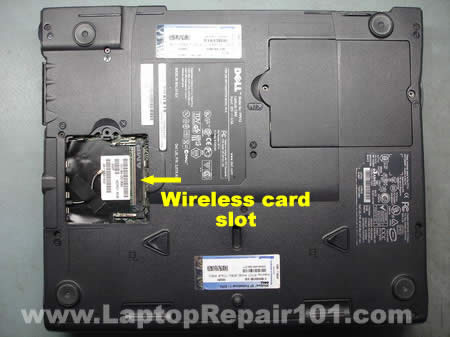
I’ll take as an example my Dell Latitude C840 laptop. As you see on the picture, it has a slot for the wireless card and one antenna cable. That’s strange, most laptops have two antenna cables, white and black. One cable goes to the main connector on the wireless card, another cable goes to the auxiliary connector. Probably you’ll ask me which antenna cable connects to which connector? I think it doesn’t really matter because both antenna cable are identical.
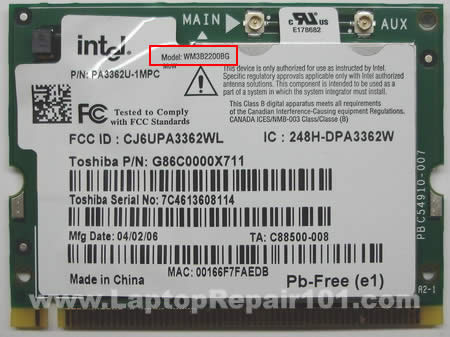
My main concern was finding the right device driver for the wireless card I plan to install into my laptop. As you know, without correct driver it will not be recognized by the operating system and will not work at all.
Likely, I have a spare wireless card from another not working Toshiba laptop and this card worked perfectly.
You can find this wireless card by the model number: WM3B2200BG.
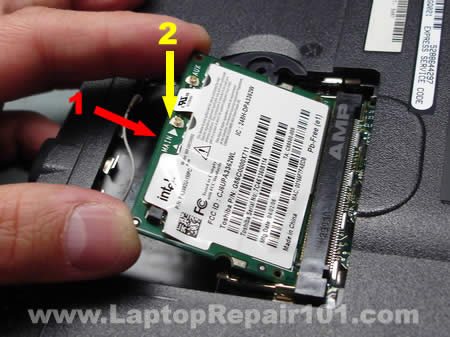
In order to install the wireless card into the slot, just push it into the slot at a 30 degree angle (step 1) and then press on the card (step 2) until it’s locked.
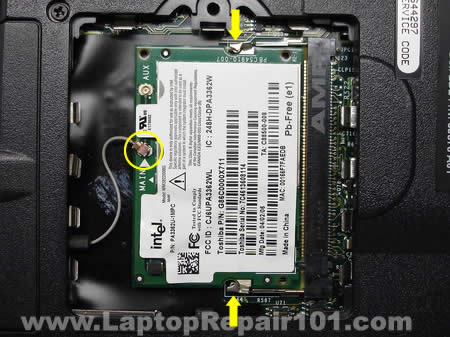
After the card is locked in the slot you can connect the antenna cable. In my case, I snapped the antenna cable on the main connector. If you have two antenna cables, snap one of them on the main connector on the wireless card and another one on the auxiliary connector. As I mentioned before, I don’t think it matters with cable goes to which connector. Both antenna cables are identical.
Finally, you’ll have to download and install the wireless card driver. If you use the same card as I did (WM3B2200BG), you can download driver from the Intel website here.
Select the operating system, download and install the driver.
You have a couple of different options:
1. Download and install the driver only. Use this option if you want to use Windows wireless connection utility. That’s what I did because I prefer using Windows tools.
2. Download and install both the wireless card drive and the connection software. Use this option if you want to use Intel’s software application. It’s totally up to you.
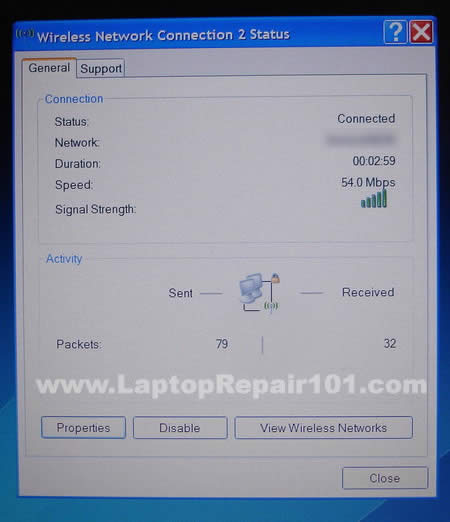
As you see on the picture above, the wireless card successfully connected to the wireless access point at 54Mbp/s.
78 Responses
TheKookie
If memory serves, the signaling standard requires two antenna’s; one sends the normal signal and one sends a NOT normal signal. Meaning, one antenna sends 101010 and the other sends 010101. on an ever so slightly different frequency; this way the receiving antenna knows when it’s getting garbage and can request a new packet; it’s the same hardware method DDR uses to double signal speed or some ethernet standards use to keep signal loss low.
Older standards use an older scheme so you just plug it into MAIN. It’ll read as a 54MBPS connection or whatever the wifi drivers tell it to read as, but in the end, it’ll downgrade the signaling speed and standard (from G to B then from B to A, etc) until it gets a reliable connection.
Adrian
Thanks, got my dell on wi-fi. only $5 for the card on ebay.
Scott Macnchester
I just puchased this same card and installed in my C840 (yes one grey wire only!). I replaced a Truewireless B card that recently has been performing only at 2 Mbps, My problem is that though the Intel connect to my outer at 54, it will not talk to internet. The ony time it will talks is sporadically when I am across house and then only whn signal drops to 2 to 6 Mbps. I’m sure this is providing clues to the problem but not sure what that problem is. Do you suspect bad card? Or possible compatibility with driver or Netgear Wireless G router?
cj2600
Scott Macnchester,
Not sure what’s going on with your wireless connection. I had this card in my Dell Latitude C840 for over a year and never had any problem. The connection is stable all the time.
Test your laptop with another wireless router. Try upgrading firmware on the router.
chris
I need to find the cable that hooks on to the wifi card. mine broke off on the ends. so I need to replace it and I cant find a site that carrys it. where do I go?
steph
Ok I have a ibm think pad n a wireless notebook adaptdor how do I connect that
Aliso Zebeayo
Please may you send free download dell latitude network adapter drive?
Waiting for your reply soon
dware
I have tryed to download drivers to my Latitude C840 Dell latop.to connect the wireless card # CEO336,can’t find the download device drives
, please HELP !!! i would like to see it work waiting for your reply !!!!!!!!!!!.
cj2600
dware,
Who is the manufacturer? Maybe you can download the driver from their website?
For example. If the Wi-Fi card is made by Intel, you can download this driver form intel.com
dware
thank’s for your reply, the manufacturer is intel ceO336 wifi card but was still unable to download the drivers,i use my other laptop and download the drivers on a disk,then try to download on to my c840 latitude but it ask me for a password, what now? this make you want to give up on it .Help me out if you can.
cj2600
dware,
Are you logged in as a user with administrative rights?
Metyner
Hey make sure that the router that you are using isn,t password protected, Ifso it may require that password.
Seth
I downloaded the device driver and the intel connection software and I’m not getting anything. It says that the driver was installed, but when I try to complete the install with the connection software it says driver not found. Any ideas?
london computer repair
the above tutorial is a very useful tutorial for the many, the only problem is: should anybody upgrade such an old laptop that doesnt have a wireless network card integrated within? would your money not better be spent onto a new laptop system since they all have wireless capabilities and the prices have gone down dramatically year on year since the time wireless wasnt included within.
Matt
Thanks for this helpful webpage. I was able to muddle through after a couple of trial and errors this evening.
Just a thought… maybe a more in-depth instruction at this point: “1. Download and install the driver…”
The “install” part could use some expanding.
I know that for many who have done this before it may seem obvious, but for those of us who never installed a driver before (this was my first time) it might be nice to be walked through the steps opening the download file, finding the install file (which wasn’t obvious as the “install” file – 32bit and 64bit were both given in my XP download) and proceeding to the conclusion.
Overall, this was great help. It certainly made it easy finding the right place to get the driver and buying the right card off eBay – would have been fantastic with the added info, though.
Kenan
Hello,
I fixed solder problem with DC.jack in my toshiba with your help, thank you. But now my wireless cards connection signalis too weak. I tested in different areas and modems, far from 3-5 meters modem but the signal is too weak. I checked the antenna cables but they are connected properly. What is the problem ? Do i need to replace my wireless card ?
Ralph
How do I install a internal antenna wire connector on a Gateway 450 sx4 for my mini pci .Gateway did not install one on the laptop.Do you know the right wire I need to install?Need help.Thank You
Jose
My laptop (XPS M140) crashed and I had reinstall XP and software. Problem I’m having now is that the laptop can’t connect to the internet. There used to be an icon under Network Connections that looked like a computer monitor that would pick up wireless signals. That icon is no longer there. What do I have to do for my laptop to have the ability to connect to the internet this way again? Any help would be appreiciated.
Parham K
is it possible to connect the laptop wireless network card in a desktop pc?
Tony
Is this procedure the same for a alienware M7700?
cj2600
Parham K,
Nope, you cannot do that. The desktop motherboard doesn’t have a Mini PCI or Mini PCI-E slot needed for the laptop wireless card.
cj2600
Tony,
I’m not familiar with that model. Can you access the wireless card slot from the bottom of the laptop? Can you see the antenna cables in there? If yes, most likely this card will work for your laptop too.
chena
hi…my dell c840 laptop is having trouble with its mouse..the pointer keeps running out of my screen…im thinking its the mouse that is imbedded in the middle of the keyboard is the culprit! help..i dont know how to disable it….and im in the middle of my thesis….help! =(
Ben
Installed an Intel internal wireless card (Intel P/N PA 3362U-1MPC) in a ‘Toshiba Satellite 2430’ Laptop. Downloaded and installed drivers from Intel’s site. When I open the program (Intel PROSet/Wireless) it shows that the radio is turned off. I made sure that the hardware switch is turned on. I also tried toggling the Fn + F8 function key (It doesn’t show, nor do anything). I turned the radio on via the program, and nothing happens. When I close the program and reopen it, it again shows that the radio is turned off.
Ben
I found a solution for my problem above (#27), at “techspot.com/vb/all/windows/t-18046-Toshiba-Satellite-1135S1552-WiFi-Networking-Problem.html”.
Solution: Cover pins 11 and 13 on your m-pci wireless card (even pins are on the bottom side, the odd are on the top. For orientation, the “top” of the card is where you plug the two antenna in.
While facing the “top” of the card count to pin 11 and 13. (from the “cut” in the card over, don’t forget to count the lone pin as well) cover both pins 11 and 13 with tape (or as suggested in the post, finger nail polish) Place card back, start laptop, and you should be able to configure it from there
Bryan
I have an old emachines m6811, the procedure apears to be the same as this. However, what I wanted to ask is if this is my problem or not. The computer is asking for me to make sure my wireless is “turned on” because it cannot see any networks. I have installed a temporary USB network card and it works fine. I have updated all drivers and service packs so I can rule that one out…. does this sounds like a bad card to you? Thanks!
wt
Instructions worked great. I installed a Broadcom BCM 4306 card I picked up from a local used parts store.
However, I am unable to locate a driver. Nothing on the Broadcom site. Any suggestions?
John
I have a Dell Inspiron 5100 and I purchased a broadcom mini pci card, but when I install the card into the slot and reboot the display screen is black so I’m unable to install any drivers. In fact i’m unable to do anything including logging into my system. I’m running Windows XP Pro.
Any suggestions would be appreciated.
cj2600
John,
Make sure the wireless card is seated correctly, all the way down into the slot. Try reconnecting the card.
Will it work fine if you remove the card and start the laptop without it?
It’s not very clear. So you can type the password and loging? The screen goes black after that?
Jamiya
I have an HP compaq nc6000…and my wireless card is acting up at the moment. Currenty, I’m on another computer, but I really want to go back to using that one because I’ve had it for so long and am used to it…I’m a tad bit concerned about how I may be able to download the driver if I can’t access the internet at all unless I download it onto another computer and transport it via CD or Flash drive….Sadly, I don’t have any CDs in my possession nor am I able to go out and purchase any at this time. I was just wondering if using a CD or portable flash drive is a good idea….
cj2600
Jamiya,
Using a portable USB flash drive is more convenient than burning drivers on a CD. I guess it’s time to buy a new USB drive. You can buy a 4GB USB flash drive on NewEgg for $9.99 (including shipping).
Jesri
Hi,
I have a TECRA 9100. Wifi card already installed and wifi icon appear on task bar.
The problem is, there is no signal and when the antenna is swithing on, the led of antenna is not light. Do you suggest me, how to solve the problem ?
cj2600
Jesri,
There is no simple answer.
1. Could be just a bad Wi-Fi card.
2. Do you have any problems with the sound? If Wi-Fi and sound fail at the same time, it’s possible there is a problem with the I/O board.
3. Could be bad Wi-Fi switch but it’s not common.
Have you tried reinstalling the driver?
Jesri
Yes I have problem with sound card, sound card not detected anymore. I try to replace with a good wifi card, but not better.
Any suggestions would be appreciated.
Thank you.
cj2600
Jesri,
In Tecra 9100 this might be a problem with the I/O board. In order to fix the sound and Wi-Fi problem you’ll have to replace this board. That’s a common failure for Tecra 9100 laptops.
Pam
So I’m sure this is elementary but I have a new laptop and want to know if I take it to starbucks or any wifi location will it work or what do I have to do when I take it somewhere and want to use it there?
vhinze
i have a acer aspire 5100 the wireless card is malfuction,, when i try to restart my computer it doesn’t display anything can u help me.,.,
Clive
Great fix the 11 & 13 thing. Worked a treat first time. Love this site.
Thanks all
Aisar
Thanx.But is there anyway to connect a Laptop Wireless Card into a Desktop..?
Brayden Price
Thanks for your input. Curious, 2nd paragraph, is it “witch” or “which”??
cj2600
Brayden Piece,
LOL. Fixed! English is not my native language but the content on this site still should be good and useful. 🙂
Sorry guys if my grammar mistakes bother you.
Nititi
ok i know how cai i install a wirless card in loptop but i don’t know how to instal it in desktop
cj2600
Nititi,
For a desktop computer you’ll need a different wireless card. Take a look inside your desktop and find out if you have any PCI slots available. You can stick and PCI wireless card in there.
Filmore Tate
Laptops have a function key to turn on or off the internal card. Does this feature have to somehow be enabled or installed to work with a computer that didnt come with a factory installed wireless card? I have a Dell Inspiron 5100 and the keyboard doesnt have the symbol would it be in the default location?
Your Face
I bought a laptop that came with the wireless card, but it’s stopped working. Could I just buy one, take the old one out and replace it with the new one the same way you did in this tutorial?
cj2600
Your Face,
Yes, you can do that. If your wireless card stopped working you can replace it with a new one.
But… are you sure that your problem is related to the wireless card? It’s possible that you have software related problem.
1. Try reinstalling the wireless card driver.
2. Back up all personal data and try reinstalling the operating system from scratch.
If the wireless card still doesn’t work after that, most likely it’s a hardware related problem. Try replacing the wireless card.
Eric
I leave my internal wireless card out of my C840 because it sits directly under the hard drive and I’m concerned the heat produced by the wireless card may cause the hard drive to run hotter and reduce its service life.
cj2600
Eric,
I don’t think that the wireless card produces any heat at all. Even if it does, it will not affect the hard drive.
David Lopez
Greetings, Thanks to this article I get the idea to use an wm3b2299bg wireless mini pci card from a defective hp and use it into an IBM thinkpad. It is recognised by bios and windows but I can’t get the bloody Driver, I have download several 2200bg drivers but I allways get message The location does not contain drivers for the hardware. Any Idea what’s going on? is there more than one intel wm3b2200bg? does it have a BlueToot too?. I work with windows since Win 3.1 and I have never fail finding a Driver. (I install a Ubuntu OS and it seems to find a device 8006:4220) Thank you.
cj2600
David Lopez,
Not sure what’s going on. I think if you are using a wm3b2200bg wireless card, the 2200gb driver from Intel site should work.
I know that some people were experiencing a problem installing Wi-Fi cards into ThinkPad laptops because they didn’t use “IBM certified cards”.
I guess your laptop can see the card but doesn’t know how to handle it because this card is not ” IBM certified”. That’s my guess.
Are you using Intel driver or you found it on IBM (Lenovo) site?
David Lopez
Update: Today in the morning I turn on the Thinkpad and voila! it is recognised and the driver works great… then I connect the antena and puff, the card gets the ! sign again. Then I remember that I have read somewere about using a “heater” to repair a card, I don’t have one of those “heaters” then I hold the card close to kitchen fire (sorry don’t remember the name, I only speak spanish) and then the card works fine, I even catch some wireless networks. The problems were not the driver but Hardware. Thank you for your time.
Jim
I bought an “N” wireless card on Amazon for under $20 as I recall. It is a TP-Link. I followed your instructions and installed it in my Dell C840, downloaded the software and it works like a charm!
Thank you very much for posting these install instructions.
Benice
Hi,Im wanting to upgrade my old laptop(Compaq Presario 2200) and install wireless in it.Problem is, my “wireless card slot” has NO antenna’s.Although some models of this laptop does have wireless,I was wondering if it was possible for me to follow how you’ve done so in the instructions or would I need antenna’s for it to work.In that case my only other option would be to buy a PCMCIA wireless card,any negatives about those?
Thanks.
satish
I have new Compaq model laptop which has built in Intel-3945 series chip. I need to replace it with other vendor chip.
I tried to replace it with Atheros chip, it is not allowing. It
says error message as Unrecogonised wireless chip while rebooting.
There is any option to do this??????
quito
I found the driver for me laptop dell d510 intel pro wirelees….thankss
ryan brown
not the easiest thing to do. still can’t get it to download. thinking i should buy a new laptop. waste of time
Ernie Flores
Great information on the wirelss subject.
Most of the time the information on other sites is only not that
clear.
Great work.
One more question:
I have the same type of laptop (Purchased on E-Bay) every thing works except the wireless connection.
Found out thru your web site that my laptop is missing antanna.
Fount the little plug cable broken
Cannot identify where it is connected to bother board.
Any suggestions???
Lynn Paschich
Hi, I recently purchased a new HP laptop which, may I say I love!!! The old one I had for ever and Im not joking. I was just going to recycle the old one but ive recently got my husband interested so he now would like to fix it up alittle to bring it alittle more to date. Im wondering now whom it will be him or me? LOL! but I figure one step at a time right? Anyway, the computer is a Toshiba Satelite 1905-S303 Ive opened the compartments under the computer but dont seem to find the slot where the card goes. will it or can it go into this computer, if so, do you think you might help me locate where abouts I should look for it maybe some landmarks of where it would be located. Thanks I greatly appreciate your time and knowledge.
Lynn
Marius A
I work for AcrePC and have just come across installing a new Internal wireless card for a Toshiba and it has two cables/antenna.
I have checked several other Toshiba’s and they all have the White cable/antenna attached to Main and the Black cable/Antenna attached to Auxiliary.
Thought I might share that with you for future use.
pulser
Hooray for you! Found the model number so my endless searching dells site ended and i got the right drivers thanks to your pics…..i had to use a magnifying glass to read the label on mine! Now my crappy old lappy wifis again….top man!
emmac
i farmated my laptop dell with backup and i have lost my wirelesss network connection. please how can i recover the network back
michael
hi i need some assistance with my dell latitude c610. i reinstalled oem windows xp pro and office. I have a question? Can I use the same wifi card I use in my other Dell laptop Latitude to receive internet connectivity in my c610 Dell. If possible how do I obtain the correct software I need to install it and where do I obtain that software. Please reply.
michael
This is Michael again I forgot to identify that I am currently using my D610 latitude model. suggestions!
Jamison
@ micheal assuming that you are talking about the card that look like the one above then yes you can do that and you will have to install the drivers at dell website under the model number like artical said,
JUDICAEL
Hi, i need some help from you guys my problem is since i installed a windows 7 in my laptop HP 530, i lost the wireless i mean it can’t connect again with the wireless and when i try to configure it it says my wireless it’s off i don’t know what to do guys plz can you tell me how can i make it on?
cj2600
JUDICAEL,
Did you install the wireless card driver?
Bratislav
recently i found wi-fi card for my dell latitude c840, and this information was very very helpful for the instalation.
thank you so much !!!
grettings from serbia
The Dude
I recently opened my vaio netbook to upgrade my ram and in that heroic effort messed up a few wires then after fixing everything and getting everything in position my wi-fi stopped working thats where this link came in i had disconnected the antennas from the card and didnt realize it, thanks for the link and making us computer wiz wannabe’s look like idiots
Thanks again
Jennye
I recently refurbished a Toshiba 1135-S155 and all is well BUT, the only way to connect is with the ethernet cable. I installed a Linksys Wireless G adapter, drivers and all through a USB port. It found my network, but could not obtain the IP address, no matter what I did. I uninstalled the USB and installed a Linksys Wireless B card in the slot, with drivers, and the same thing happened. It found the network, but would not get the IP address. I then installed an old Railink mini pci card, with driver and the same thing happened. That’s a total of 3 different paths, with the same results. Any help you can give me would be appreciated. Oh yea, I’m using Windows XP Pro and it’s got all the security updates. HELP!!!
Tal
I was able to get an answer on upgrading the wifi chip in the Series 3. Samsung product support said that upgrading to Intel Centrino Ultra N 6300 would work. However if you need to send the laptop in for service, you would want to send it in with the original chip. You would probably want to call Samsung product support for other chips…but to give some insight (because I wasn’t sure)….the physical specs half-mini pci-e with bluetooth. the 2×2 and 3×3 specs do not affect the antenna installed. These specs are your communication band and speed (for instance 2×2 refers to 2.4g and 5g at 150m and 300m speeds. 3×3 would be 2.4, 5g (i don’t know what the other spec is) at 150m, 300m, 450m. Anyway that’s how it was explained to me.
Ailonas
Hello. I have problem with wireless connection of Toshiba Satellite L450D laptop. Everything is ok, all drivers installed, internet works perfectly on the cable but not when you are trying to connect by wireless. It just shows “wireless is off – turn on wireless” what you could do by keys FN+F8 but it is not working at all. Like I said I installed drivers, tried to update by Windows Update (Windows 7 x64), updated bios and everything what I found on toshiba website. Could You help me by any ideas about that? Thank You.
cj2600
@ Ailonas,
Take a closer look at the sides and front of your laptop. There could be a physical Wi-Fi switch you have to turn on.
Ailonas
I checked – there is no button to turn on the wireless. Only combination of keys FN+F8 wich doesn’t work.
cj2600
@ Ailonas,
It’s hard to tell what’s going on without looking at the laptop.
In cases like that, I usually boot laptop from Ubuntu CD (live linux CD) and test wireless in there.
If wireless works in Ubuntu OS but not Windows, this is Windows OS related problem (corrupted software, wrong settings, etc…)
If wireless doesn’t with with bout Ubuntu OS and Windows, most likely this is hardware related issue.
It’s a good test when your wireless is supported by Ubuntu OS.
Lloyd
Re: Intel WM3B2200BG driver
Thank you very much for link to Intel page.
Mc Bouman
Re: Dell Lattitude C840 laptop wireless card insertion tutorial
Will the card used in this example connect to the internet on a wifi basis, or does it require a router, which in turn connects to the internet? This tutorial is expertly written. Cordially, MCBouman
Pradeep Kumar
Thanks…………………..
It is very useful site.
All problems are esily solved.
(P.K)
Ahmad Zaki
Could anyone here help with pins configuration or datasheet?