
What can you do if the laptop LCD screen turned completely white? From my experience I can tell that this problem may be related to the following:
1. Loose connection between the video cable and the LCD screen.
2. Defective LCD screen.
3. Defective motherboard (I assume the graphics card is integrated into the motherboard).
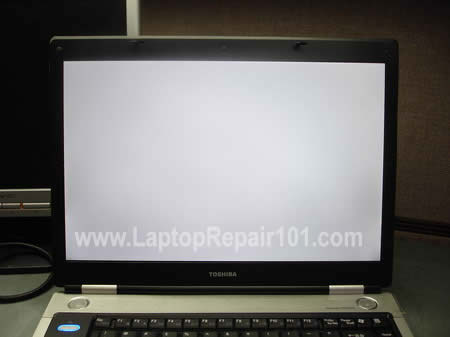
Here’s an example of a laptop with white screen. When you turn on the laptop, it starts but the image on the screen is completely white right from the beginning. In my case it was a Toshiba Satellite M45 laptop but this problem may occur with any other brand.
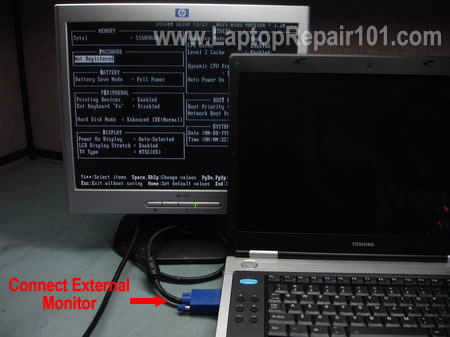
Most likely you still can use the laptop with an external monitor. Just connect the monitor to the VGA port on the back or side of your laptop and then switch the video output from internal to external mode.
On Toshiba laptops you can toggle between internal and external screens using Fn+F5 keys. Hold down Fn and press on F5 until you get video on the external monitor.
On IBM laptops use Fn+F7.
On HP laptops use Fn+F4.
It’s possible that you have to use a different key combination on your laptop but you get the idea.
On some laptops, in order to be able to use the external monitor, you have to connect it to the laptop and then restart the laptop so the external monitor is detected by the laptop.
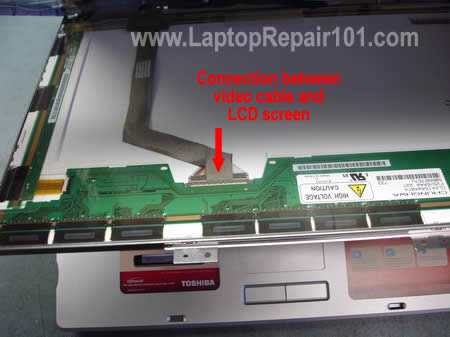
I noticed that in some cases the laptop screen may turn white because of poor connection between the video cable and the LCD screen. If you want to check this connection, you’ll have to take apart the display panel because the connector is located on the back side of the LCD screen.
These laptop service manuals and disassembly instructions may be useful.
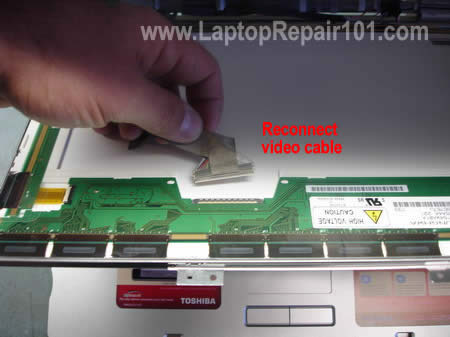
I always check the video cable connection first. Reconnecting the video cable may fix your problem.
If reconnecting the video cable doesn’t help, most likely you have a problem either with the LCD screen or with the motherboard.
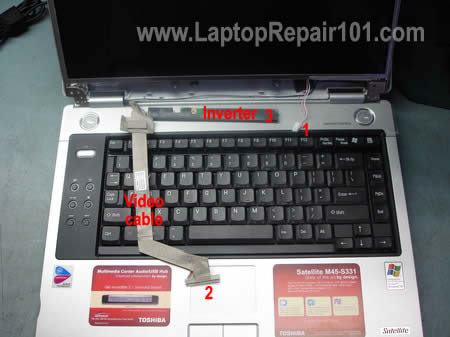
The best way to find out witch one is causing the problem is testing the laptop with another working LCD screen. Without this test you’ll have to guess because as I mentioned before this could either bad motherboard or bad LCD screen.
You’ll have to disconnect the video cable from the LCD screen (connector 2) and the inverter board (connectors 3 and 1). After that you connect another working screen and test video.
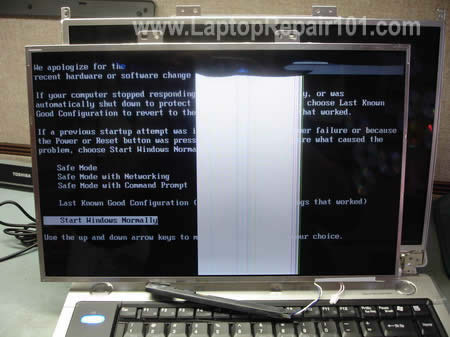
For this purpose I’m using one of my test LCD screens. My test screen is cracked and because of that you see a wide white band in the center but it still works fine for this test.
The original screen is white but my test screen works normal (except the crack of course) and I can see the image. After this test I can tell that the problem must be related to the screen.
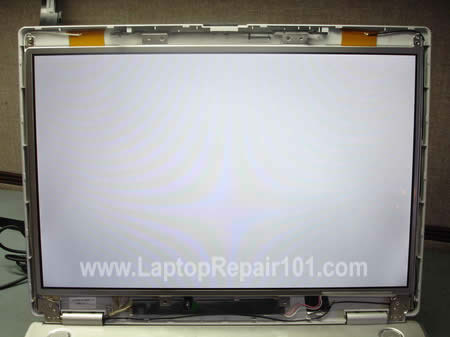
After I assembled everything back together and connected the original LCD, it’s still white.
CONCLUSION. In my case this problem is related to the LCD screen and it has to be replaced.
369 Responses
aziz
you do a good job. thanks
Asif
Thank you for sharing such a nice data, it was usefull information .
keep it up..
js_buyandsell
I had the same problem. Did the same test and then replaced the screen. Still same results, any ideas.
So far I replaced the screen, motherboard, and the inverter.
js_buyandsell
Also if I hold a light to the screen I can see it, otherwise everything is black.
Ignacio Zamora
Good job. thank you
cj2600
js_buyandsell,
I guess in your laptop the video card is integrated into the motherboard?
If you’ve replaced LCD, motherboard and inverter but the laptop still has the same problem with video, then I would assume the problem is related to the video cable.
Helvis
I’m new to this and have only handled a few different models/brands but it seems to me that most lcd video cables have different connectors (where they connect to the motherboard). Is the connector on the back of the lcd the same so that you can swap any lcd for testing or do they all have specific connectors on the back as well?
Erica
wow that was great you are awesome…does the same thing apply for black screens?
cj2600
Helvis,
Different LCD screens have different connectors. If you want to test your laptop with another screen, you’ll have to remove the screen from your laptop and compare connectors.
cj2600
Erica,
Troubleshooting laptops with black screens will be similar. Here’s my previous post for troubleshooting video problems.
You said the screen is black. How black is it? Can you see anything at all, maybe a very faint image? Did you test the laptop with an external monitor? Can you get see external video?
Fathi
Mine is a Compaq, when I move the screen forward of backward it flickers and gives a damaged image when get my hands off of it it works well,,,, can u assist me please… and thanks in advance
cj2600
Fathi,
Test your laptop with an external monitor and find out if the external video goes bad too when you move the laptop LCD screen. I’m just trying to narrow down the problem and find out if it’s related to the LCD screen or something else.
Fathi
Thanks cj2600 i will try it tomorrow cause the laptop is at work and i’ll tell ya what happened with me…. thanks again
Giordano
Hi from Italy, my brother’s notebook, an Asus L3TP L3500, has a white screen since 4 years: Many people look into it to find what’s going wrong: at the end, after many years and many repairers, this is the response:
1) the LCD is ok
2) the mother board is ok
3) the inverter is ok
4) every connection into lcd is ok
There’s an other idea in your opinion to explain white a screen apperas so white? The notebook works perfectly with an other external monitor.
Thanks if you can give me your opinion
“Ciao” (Bye)
🙂
Fathi
HIII cj2600 I did just as u told me but the external monitor worked perfectly no damage on the video or flickering…. please help me
Helvis
Thanks CJ. Do you know how many different kinds of connectors there are? I would buy a cracked screen of each kind to use for testing if there were just a few different types.
Patrick
I’ve got a similar problem toFathi (13) but mines an acer. When I apply pressure to the keyboard area or bend it slightly the screen goes flikery and messed up.
I’m going to have a go a wriggling the video cable and hope for the best – good plan or not?
H.P
HI, I WAS WONDERING IF ANYONE COULD HELP ME LEARN HOW TO REPLACE MY LAPTOP RIBBON CABLE FOR MY SCREEN FOR A HP DV8000. I WOULD LIKE TO DO THIS JOB MYSELF BUT I DO NOT KNOW HOW TO TAKE APART THE LAPTOP TO DO SO.
IF YOU NEED MORE INFO FROM ME TO HELP EMAIL ME AND I’LL GIVE YOU THE INFO.
THANK YOU SO MUCH
H.P
Scott
Good Try it could be LCD, LCD Cable, and Video chip issue;
From Laptop Repair Technician
t2dano
on a HP dv4000, I can barely see windows on the black lcd screen, no backlight, with an external monitor only works if the lcd cable is disconnected from the motherboard, is the problem the motherboard? need advice……..
cj2600
Fathi,
1. Check connection between the video cable and LCD screen/motherboard. Reseat connections on both LCD and motherboard.
2. Could be damaged video cable. You can try replacing the cable.
3. If 1 and 2 do not help and you still having the same problem, most likely it’s related to the LCD screen. If that’s the case, you’ll have to replace the screen.
cj2600
Giordano,
This is not related to the inverter board. Most likely the repair people tried reseating connections, so it’s not connection related issue. Did they try replacing the video cable? You didn’t mention anything about the video cable.
I do not understand why your repair people cannot find the problem. All they have to do is test the laptop with another working LCD screen.
If the test LCD screen works fine, your problem is related to the LCD.
If the test LCD screen is white, your problem is related to the motherboard or video cable.
cj2600
Helvis,
No, I don’t. I work mostly with Toshiba laptops and they have 3-4 different connector types.
Be careful when you buy a cracked screen for test. If the screen is cracked badly, it’s possible you will not get any image on this screen, so it’s not really good for test.
cj2600
Patrick,
You can try reseating the video cable connector on the motherboard. Also, this can be a problem with the motherboard or graphics card. When you apply pressure on the keyboard, you are flexing the motherboard.
cj2600
H.P.
If you never disassembled the laptop, I would recommend taking it to the repair shop.
cj2600
t2dano,
I would try replacing the inverter board first.
Benjamin
I was wondering… do you know if all latitude c series laptops use the same lcd panel connector?
Would it be possible to frankenstein a larger lcd panel from a model with a larger lcd? Would there be voltage issues??
Would it be totally safe to assume that at least the same model, but different cpu speed, would be usable for testing whether a larger lcd would fry the system?
I have a c400, it has heating issue and 12 inch lcd. There is a c800 with a 15in lcd (I believe). I want to put my c400 in a totally custom case, and need to find out if a c800 lcd plug is the same as on my c400… and whether the system can take the strain of the larger panel (battery life is nothing to me)…
any ideas are appreciated!
Cool site!!!
cj2600
Benjamin,
It looks like they use different video cable with different connectors. I don’t think that you can replace your 12″ LCD with a 15″ LCD screen.
Jose
i Got a Problem With my toshiba Laptop When i Turn it on it Turns Like orange Pink Color N i Tried My Computer screen didnt Work either. and if U Can Help Me Fix this Problem N thank You.
Gerald
I just want to thank you for your advice on making sure that the video cable is securely inserted. That fixed the white screen trouble with my HP laptop.
Gamer
Hello
Thank you for this step by step explanation it was very helpful.
I have a question well i came up with an idea but I don’t know how do able it is. Is there anyway to connect the LCD of the laptop to the external VGA?
is there such a cable ?
or can i cut 2 of the cables and make it on my own?
I’m just curios
cj2600
Gamer,
Do you mean connecting a laptop LCD screen directly to the VGA port on another laptop? I don’t think you can do that.
Julianto
Hi,
Very very good. I love your website and your kindness to share your knowledge. Do you have any idea, what book should I read, or website to learn to repair a notebook mainboard?
Thanks in advance.
Andrea
Hi, i’m sorry if my question is OT but i don’t know where to post it.
I have a Compaq nx5000 with a 15′ lcd screen.
Can you tell me if i can test on this laptop a 14’lcd (from a nc6000).
The connector on the motherboard is the same but all i have is a series of coloured lines
I use the cable of the 14′ lcd screen.
Maybe i have to change something in the bios?
The nx models came with 15 or 14 screen and the part numbers are the same, both for nx and nc series screens.
Thanxs
cj2600
Andrea,
I’m not sure. It’s possible that both video cables are not interchangeable and you cannot nx5000 with LCD and cable from nc6000.
By the way, what is your problem with the nx5000?
Andrea
My 15 lcd shows a vertical line (one pixel thickness that disappear if i push the screen).
A friend of mine gave me the lcd from a nc6000 and so i thought to use it as a spare part.
I tried to use it with both cables without results.
Greg
My LCD is completely white, i have disassembled everything and re attached the cables, still white. Tried an external monitor and that works. Am i safe to assume the LCD panel is dead?
cj2600
Andrea,
Sounds like a bad LCD screen.
cj2600
Greg,
Nope, it’s not safe. This problem could be related to LCD or motherboard. I’ve seen both failing the same way – white screen.
The only way to find the culprit is testing the laptop with another working screen. If you still have the same problem on another screen, it’s bad motherboard.
If you don’t have another screen, you’ll have to guess.
Ramana
Hi,
Really nice usefull information.. thanks for the nice work. I have an issue with my laptop display. the display is fine in the first half the screen and the rest of the screen is just white.. i tested external monitor and it works fine. Please advice.
cj2600
Ramana,
Sounds like a problem with the LCD screen.
Take a look at this post: Laptop has bad video on the LCD screen. What is wrong?
Is your problem similar to the example 5? This is LCD related. You’ll have to replace the screen.
jun braga
to who made this information availble, thank you so much, its a big help! god bless u pipz…
Colin
Hi. I have a problem where the screen is normally white, but I get an intermittent display depending on how I move the laptop. It generally works best when I tilt the laptop backwards.
This is seemingly indicative of a faulty connection, but I’m not sure exactly where. I’ve opened-up the laptop and ensured the video cable is attached properly at both ends, but the problem persists. Is it more likely that the faulty connection is on the motherboard or in the video cable?
Advice/ideas welcome.
cj2600
Colin,
Usually it’s bad connection between the video cable and LCD screen. Did you try reconnecting the cable? Just remove it from the connector on the back of the LCD and then connect back.
If reconnecting the cable doesn’t help, it’s possible that you have bad cable. Could be faulty LCD and even motherboard, but I would try replacing the cable first. It shouldn’t be very expensive.
Paul
Ok guys, this is driving me nuts. I have a HP Pavilion dv6000 and it works fine. The backlight works but I do have a screen problem. The bottom third of my screen looks like a large bar code. It doesn’t display anything except a bunch of vertical lines. When I plug into an external monitor, everything is fine. Any suggestions?
ferratus
Ok i know this is kind of a stupid question but could you tell me the name of the connector that would connect into the video card. I am working with an Inspiron 5100 (yes i know ancient) but i am taking the screen out and converting it to be used somewhere else anyways if you know the name please tell me.
Thanks
laptop repair
The new screens ie LED screens dont have an inverter. I have heard that most laptop companies want to use these new screens. I still havent seen a white screen on an led yet. Thanks for the comments
Mychal Pelham
With my laptop, it starts out with the image jumping and flashing. It works its way to the all-white screen. Do you think that is the same problem???
cj2600
Paul,
To me your description sounds like a problem with the LCD screen.
cj2600
ferratus,
Do you mean using this LCD as a screen for a desktop computer? I doubt you can do that.
cj2600
Mychal Pelham,
Do you mean loose connection between the video cable and LCD screen? I guess it’s possible, try reconnection the cable. If no help, probably it’s the LCD screen problem.
Did you test your laptop with an external monitor? The external video works fine?
ferratus
cj,
yes that is what i was planning but i found the a way to do it but i found a cheap flat monitor so i am using that instead (less hassle), if you anyone wants to figure out how its not too bad you are just running it via a network instead a direct connect (its more like redoing the laptop and putting a program on it so it is used as a monitor instead of a laptop. but it is possible i just found a cheap monitor and am using it instead.
andy
My screen had a one pixel vertical bar down the middle of the screen. then one day it just all of a sudden went completeley white. However,when I move the screen to certain angles It flickers back into a seeable image of the login screen before it again fades slowly to white.
I sent it in to hp for repairs, and they told me it was going to be a lcd screen replacement based ON the vertical bars that they saw. I just want to ask if its possible that the vertical bar was the catalyst that set off the entire screen breaking, as it seems that only that bar was there one day before, and one day later the screen completeley broke (without being subjected to any heat or pressure. (They are trying to charge me 450$! and I think that my case should be covered under my 3 year warranty! Especially because it was a 2k business notebook at the time of purchase)
cj2600
adny,
Yep, sounds like a problem with the LCD screen.
Do you mean your laptop is still under warranty and they are trying to charge you for the screen replacement? It shouldn’t be this way.
If your laptop is still within the warranty period and the LCD screen is not damaged, it should be replaced under the warranty agreement.
Nick
In my case, toggling back and forth from external to internal screen I can manage to get the video back on my laptop screen. Sometimes I turn it on and it is white, some other times it is normal, and some others, I lose the video while working! Any ideas on that? Fiddling around with the screen, repositioning it or moving it in anyway does not bring the video back.
cj2600
Nick,
Could be bad connection between the video cable and LCD screen. Reconnecting the video cable could help.
JT
I have a similar conundrum. The Toshiba Satellite A105 started with a white screen now – nothing at all. I read to try pressing on the outer edges of the LCD screen – no change. I connected it to an external monitor and it worked great. When I unplugged the monitor and tried to go back to just the lcd screen, now I have nothing – black screen. I tried removing the battery and ac power and pressing the power button for a minute. After I put everything back, I turned it back on – still black. I removed the screws that held the top half of the laptop (kb, screen, touchpad, etc…) to the bottom to try to see where the screen connected to the main board. I removed and reseated the cable, verifying that there were no bent pins and everything lined up. When I put everything back together and tried turining it on nothing – still black. I checked the cable again – no bent pins and everything was aligned – still black.
I know the problem could be the screen, the inverter, the cable or the mobo. Since I have a limited income and if I tried all 4, I would be at the cost of a new laptop. Can anyone help?
Any and all suggestions are welcomed!
Thanks in advance.
gary slater
hi I dropped my laptop bought a new screen and replaced it and it just shows a white screen I took it apart again and saw damage to the data conenction ribbon how much about isit to repair thanks
JAS
HI everyone,
Ive got a Hi-grade EAA-89 laptop a few days ago. when i switched it on the screen just went white with a few vertical white lines across the screen after i leave it on for a few mins, the screen seems to split into two halves one being white and one dark grey/black.
I have read through the wonderful and helpful guides on this site and therefore done some experiments:
1) Ive opened it up checked all the ribbon cables etc all connected fine!
2) during the boot up procedure if i press FN+F3 with an external monitor plugged in it will switch over to the other monitor however the picture seems fuzzy sometimes with random distortion shooting across the screen for a few mins but then windows runs fine.
3) But if i press Fn +F3 with no monitor connected then it seems to switch over somehow and display the picture, however this only lasts during the DOS/BIOS selection (ie: how do you wish to start windows………..) as soon as i select any option to get into windows then it goes white again ????
I PHONED A FEW COMPANIES WHO IMMEDIATELY TOLD ME IT WAS THE SCREEN BEFORE LISTENING TO ALL THE SYMPTOMS WHICH TELLS ME THEY WANT £150 OUT OF MY POCKET, SURELY IF THE SCREEN WAS DEAD I WOULD NOT BE ABLE TO VIEW THE DOS BOOT SEQUENCE? I WAS THINKING IT MIGHT BE THE POWER INVERTER BOARD IE: IF WINDOWS TRYS TO DRAW MORE POWER THEN IT CAN PRODUCE, OR POSSIBLY THE GRAPHICS CARD THAT WOULD EXPLAIN THE FUZZY BITS WHEN AN EXTERNAL SCREEN IS CONNECTED.
THATS ENOUGH OF MY RANTING LOL, ANY IDEAS ARE WELCOME………
REGARDS JAS
Dan Brown
I have a question about what to do with an LCD that will not display. I have a Compaq v2424nr and my LCD stopped working, but if I plug in an external monitor it works fine.
If I tap on the button that puts the computer into standby when you close the lid the LCD screen blinks to the tapping of the button, it tries to turn on but won’t and the screen looks ok (a little reddest as it flickers). I have changed the settings for the display and nothing works.
I have read through the guides and I am ready to tackle the repair, but where to start? I took the computer into a shop and for $40 they said it was the LCD and could replace it for $525 (way to much).
Any help in where to start!
Thanks, Dan
Dan Brown
In reference to Post #60:
Not knowing what to do I took the laptop apart (nothing broke). I checked the connections for the video card, video cable and inverter, they all looked fine. Nothing looked out of the ordinary, no burnt cards, smells or blackened areas.
I checked the standby button (lid close button) to see if it was dirty or loose. The rubber extension for the button was clean and the switch itself does not seem loose at the circuit board. But if I play with the switch (tapping it down) I can get the screen to flicker.
Moving the small plastic point that comes out of the switch side-to-side does nothing, just up/down (on/off) makes it flicker.
Could this be my problem, just the switch?
Thanks, Dan
cj2600
Dan Brown,
Sounds like a problem with the inverter board or backlight lamp.
You mentioned that the screen turns on for a moment and it has reddish tint, right? It tells me that most likely you have a problem with the backlight lamp but I cannot be sure without testing the laptop with a known good inverter.
You can try replacing the inverter board first. If it doesn’t help, you’ll have to replace the LCD (or backlight lamp inside the LCD).
You said the repair shop quoted you a new screen, apparently it’s a problem with the backlight lamp which is located INSIDE the LCD screen. I assume they already tried a new inverter, you can ask them. Most repair shops will not replace backlight lamps and they quote you a new LCD screen instead.
It’s possible to replace the backlight lamp yourself but it’s difficult. Check out this post:
How to replace laptop backlight lamp (CCFL)
If you have no experience, there is a really good chance to damage the LCD. But if your repair is successful, it will cost you less then $20 instead of $525. Proceed on your own risk.
Dan Brown
Thanks cj2600 for the reply,
I have an older laptop (Gateway SoLo), the connector to the LCD was a different size so I couldn’t try that without taking the LCD apart further (i didn’t check to see if the cable to the notebook card was the same, figured it was also different).
Would the inverters be the same for testing?
Yes the screen flickers (only for a second) as the laptop is turning on or switching between displays, and as I play with the switch. I did call the shop after I found out there was an inverter and bulb that could also be wrong, but they didn’t remember if they checked the inverter, just said they found the LCD bad…
Don’t have any problem with replacing the bulb (downloaded the guide), I just need some advice on where to start so I don’t purchase something not needed. It does seem to be the inverter or bulb.
Thanks, Dan
paul
when you said you have a test LCD does it have to be the same LCD what matches the model of the laptop or can you use any laptop LCD to test these problems
Bob
i have a problem with an Acer Aspire 3610 screen, when i switch the computer on the screen goes full white and then fades into the normal view slowly and with blotches, and the mouse arrow cursor moves really slowly, here’s a video of waht i mean: http://uk.youtube.com/watch?v=8QqJ-21yCJc
any ideas? thanks.
Didier
My old Toshiba 1905-S301 worked perfectly for over 6 years.
He is still working perfectly as long I DO NOT MOVE THE LAPTOP OR THE SCREEN. THEN THE SCREEN IS BECOMING OF DIFFERENTS COLORS WITH LINES OR SQUARES, WITH OR WITHOUT THE POINTER APPARENT ON IT. SOMETIMES THE SCREEN TURNS BLANK.
I CONNECTED AN EXTERNAL MONITOR AND IT WORKS FINE (TOGETHER WITH THE LAPTOP SCREEN) AS LONG I DO NOT MOVE THE COMPUTER OR THE SCREEN OF THE LAPTOP. THEREFORE I PRESUME THE PROBLEM IS NOT IN THE SCREEN OF MY LAPTOP.
AFTER THE FAILURE, I CAN HEAR THE HDD, THE COOLING FAN RUNING AND THE CHARGING OF THE BATTERY IS WORKING FINE AND NOT AFFECTED BY THE FAULT.
SO IT CANNOT BE A POWER SUPPLY PROBLEM.
I presume the fault is coming from a short or a loosed connection between the SCREEN and the COMPUTER (because of many years of opening and closing the laptop) or A LOOSE CONNECTION IN THE MOTHERBOARD (VIDEO/VGA).
I HAD A PROBLEM WITH A BROKEN PIN OF THE POWER BOARD BUT I REPLACED AND IT WORKS PERFECTLY.
I bought a new Toshiba laptop but I like my old one better and I would like to keep it for “play” and “experiments”.
Could you help me?
Thanks.
Dan Brown
Responce to # 64 paul Says:
No Paul I have an older Laptop (Gateway Solo from the mid 90’s) and my current laptop is a Compaq V2424 from @2003. I am asking if the Inverter/bulb would be the same for testing.
I would hate to take the new laptop apart to replace the bulb and find it’s not the problem. But I would realy hate to try the inverter and it messes up the new laptop…
Seth
HI, my sony vaio VGN-CR25G laptop LCD screen turned completely white. But I’m sure that the OS is running, Keyboard is working; everything else is working except the LCD screen.
1. I tried to connect my laptop to External Monitor, but it’s not working either.
2. I tried reconnect the cable between LCD and motherboard. no luck either.
I don’t think the Graphic Card is faulty…coz OS is loading, and I can shut down Windows normally, although I can only completely white
screen
Is that a LCD issue or MotherBoard issue? Thanks
cj2600
Seth,
Unfortunately, I cannot tell which one is bad without testing the laptop with a known good screen. One day we had two laptops in our shop failing exactly the same way as yours. One of them had a problem with the LCD screen and the second one a bad motherboard.
Sorry, cannot help.
Joseph
Hi, I seem to be having a similar problem. My screen is completely white but when I put pressure on the top part of the laptop screen (where I’m told the connectors are) I can get an image on my laptop. It is too painful to keep putting pressure with one hand on the top part of the screen. Do you think this is simply a problem with the connection? Everything else works fine as I am actually using my laptop and typing this with one hand.
seth
Thanks cj2600. it was a motherboard issue.
Jon
I have a similar problem to Joseph, in that squeezing the plastic on the sides of my Inpiron E1505 LCD fixes the problem, for a while. It seems to happen randomly – the image will fade away to white, sometimes slowly, sometimes more quickly. Rocking the LCD screen back and forth or squeezing the sides seems to help. Any ideas?
Eric Naranjo
Did you use same model lcd for test o can you use any??
cj2600
Eric Naranjo,
Nope, the model was different but it looked very similar to the original LCD installed into the laptop. Same size, same type of connector on the back. It just happened that I had that cracked screen under my bench.
Mick Malkemus
Is it possible to remove the screen and just use the laptop with a monitor?
Or do I have to leave the broken screen on in order to use it with a monitor?
Danny J
I have the exact same problem as Joseph. It seems like it is a connection problem. As far as a way to put a band-aid on the problem, you can get something like a thin piece of metal, and bend it into a vice, and slide it on to keep constant pressure. It works for me, but I am looking for a more permanent solution. I use a PCI slot dust cover. Cheap and effective.
Anyone know if I can fix this without replacing the LCD?
cj2600
Danny J,
Yep, it might work as a temporary solution. Also, you can use a piece of pen eraser and placed it inside the display assembly between the LCD screen and cover. When you assemble the display back together, the screen cover applies pressure on the LCD screen because there is a piece of per eraser between them. Might work too.
Permanent solution? Buy a new LCD screen.
I don’t think that you can fix this problem at home.
Margaret
I have a similar problem where my toshiba M302 screen goes totally blank or the picture becomes unsteady. When I use pegs to hold the sides it becomes temporary steady.When I remove the pegs, it goes blank again. As a lay person, I was told it was a fibre problem. I am yet to find a solution to it.
John M
I have a customers Vaio CR510e. The LCD is white with little black spots. When you lightly tap the LCD you can see video. Connected to an external monitor everything works fine. What do you think? Someone suggested the video cable from the MB to the LCD.
cj2600
John M,
First of all try reconnecting the cable to the LCD screen. Could be just loose connecting between the cable and screen.
Kacie
Alright, I know this is asking a lot, but I think I might need a bit of help.
I started without this guide. (Headstrong and have issues with instructions >.>) Halfway through I decided it might be a great idea to have a diagram displaying and informing about what I was looking at.
I came across this article, but now I need help.
Over the course of a few weeks, my LCD display has been acting off. I could turn the computer on, but whenever the screen refreshed completely, it would come up white with faded lines. Sometimes, depending on the angle of the lid, the screen wouldn’t come on at all.
Does any of this make sense? Is it possible that you might be able to help?
Louie
good day i need help.. i have compag presario 2100. the problem is when i turn on the screen appear pure white but after 15minutes waiting i see on screen working fine but if i restart it back to white again then wait another 15minutes.. i check all the video cables but it plug properly.. thank you please reply
Jennifer
Im in a bind. My screen is completely white. I have the toshiba satellite. Can u help me fix the problem because, i have so much memory on it. For me just to take it to a computer repair store is 100.00. Thats for the estimate. And no telling how much to fix the screen. I really do not want another laptop. I love this one. Please help me out of this crisis.
rob
My T-60 has a white screen. Hooked up to external monitor, everything fine. Bought a new screen, still white. Bought new cable, still white.
Could it be inverter? Can’t think of any other possibility.
Stumped on this one.
Thanks for any help.
Rob
LeV
Hi,thanks for useful site.
I have a Sony VGN-S150 laptop. One day when i pressed the power button, the screen went “white” (gray-bright actually)and held there,HDD still running, nothing else, and my laptop could not start, even the boot logo.
But the interesting thing is, when the laptop not responding, if i turn off (by press-n-hold power, wait for HDD stops) and then turn on immediately, it will work as normal ( boot, starting windows,…), but the screen gets white again if at screen saver mode (turn off display).
What could be the problem?
I really need help. Thanks
Sean
I have a compaq presario 1500, the monitor is white but works with a external hooked up. How do I fix this problem? I see someone fixed it but was still white and the screen needs replacing. But I need to make sure if it can be hooked up on the inside first. This would help very much. Thank you for reading this.
john
PLEASE HELP ME, I DO NOT KNOW WHERE TO TURN TO….
HERE i made a video of it so you guys can see clearly :
http://www.youtube.com/watch?v=meqokDHolw8
THE main PROBLEM: OK i have an inspirion 1520 with 8600mgt. i was playing a video game but then my graphics drivers crashed, so i went to start> shutdown and i restarted the computer. when i turned it on again everything was ok so i turned on the game again. this time graphics driver crashed again but this time i had to shut down by holding down the power button for 10 seconds. now when i restarted the computer, the screen is BLANK AND BLACK, nothing shows up..no bios boot page, no windows logo, nada. i reckon that the system still runs b/c i can still hear the windows sound when i log into my account (yes i logged on blindly). also i can turn up and down the brightness, but i just can’t see anything, CAN ANYONE PLEASE HELP ME? i update my computer regularly and had the newest bios, i was running windows xp sp3/
ANOTHER PROBLEM: so alot of people from other forums are saying its my gpu, but here is the other problem, MY DELL WARRANTY EXPIRED. is there any way for me to replace my 8600mgt with another 8600m gt? i can’t send it to dell cause my warranty expired. i looked at the online manual and it seems like you could take out the 8600m gt on the inspiron 1520 with ease, but my problem now is finding another 8600m gt that is compatible with dell. i’ve googled and found nothing, DELL does not have one neither. does anyone know any place where i can get another 8600m gt card and remember my comp gpu is not mxm. anyone know any sites?
my DELL WARRANTY EXPIRED 5 MONTHS ago, is it possible to still extend my warranty? i haven’t played my laptop the whole before it crashed. i only turned it on for 30 mins and i noticed that it was running hotter than usual and i checked the temps and noticed that the 8600m gt gpu was really hot, THEN BOOM NOW I CAN’T SEE ANYTHING ON MY COMPUTER. PLEASE HELP PLZ.
cj2600
john,
To me it looks like you have a problem with the LCD screen.
In order to confirm that you’ll have to test your laptop with an external monitor attached to the VGA ports. Can you get video on the external monitor?
If you can, most likely it’s bad LCD.
You might have to use Fn+F8 key combination to switch video from the internal to external mode.
Before you replace anything, test the laptop with an external monitor.
JSM
I have HP Pavilion ZD8000. it boots Ok but there ia 3inch vertical line to the left of screen. After copmletion I can see WindowXP logo and finaly for moment or two I can see mosuse pointer the the screen goes completely white. I have tried external monitor and it shows some red and orange bars. Can you help me as if motherboard was faulty, I should not get all bootup info, windoXP logo etc. Please can you diagnose from this info , problem with my laptop. The inverter works OK.
Rgds
JSM
Luiso12321
Hi, I have a toshiba satellite, it works fine but when I try to play Virtua Tennis 3 The screen turns white? Why and how to fix it? Thanks.
Anne
Hi,
When you connect an external monitor and use the function keys to toggle, does this work before logging into windows? I thought you would have to be logged into windows for the function keys to work but from your photos it looks like you have the boot sequence showing up on the external monitor….laptop in my case is a HP Compaq M2045.
It hasn’t got a white screen but it has developed a thin vertical line an inch in from either side of the screen which is various colours depending upon the background colour. Thinking it might be the cable or possibly screen, but getting an external monitor would be cheaper than replacing the laptop screen…but if the screen eventually dies completely, would want to know that the external one will work without needing to get into windows first…
cj2600
Anne,
I think it depends on the laptop brand and model you have. On some laptops you can toggle in BIOS, in other laptops you have to wait until it boots into Windows.
I was working on a Toshiba laptop. This particular model detects an external monitor automatically.
1 pixel vertical lines? Sounds like a problem with the LCD screen.
Can you find an external screen and try?
Anne
Thanks for all your help.
I’m actually asking this on behalf of my Mum who doesn’t live near me so I haven’t actually seen the screen. Yes it sounds like she has a 1 pixel line down the screen – two of them either side. I thought it might have been the cable, but perhaps it is the screen. She is taking it to someone to look at today. I thought I’d ask about an external monitor as getting the internal laptop one is going to be expensive as it has to come from overseas…she hasn’t got access to an external monitor otherwise I would already have got her to try, hence my question. 🙂
Roy
I have a problem with my laptop NEO M54G.. when I plug-in an LCD projector and activate the function button to feed the video to the LCD projetor. Nothing happens! no image is projected. But the projector detects the signal coming from my laptop, yet there is no image projected.
I’ve already press the function button + F7, check the cords and even tried plugging in 2 different LCD projector models (AcER and SONY) Same thing happens, the LCD projector detects the video input but shows no image. what could be the problem?
Mujtaba
cj2600 you are doing a great job, thanks and I need your help. I am from Bangladesh and I purchased a used Sony VAIO from a lady from England. I didn’t know the LCD had troubles and after a few days, the screen started to turn white with streaks of dirt black. I thought the LCD was gone.
But strangely if I didn’t turn the laptop on for sometime, the display started to come back again. Recently, the display comes back very rarely. What I cannot figure out is that, if the LCD is gone, how come it is working some of the times. I tried with external monitors and it worked fine too. I checked with Laptop electricians, not very good in this country, and they suggested to change the LCD. What would be your suggestions? I know changing the LCD would be an easy solution, but is there anything else that might be going wrong?
Wendy
Hi, I recently dropped my Toshiba Satellite A215 and the screen cracked. I would like to replace this myself, can you give me instructions for this task. Also can you recommend a website where I can buy a LCD screen for this model. Thanks.
Tamie
I have a Dell Latitude D820, It works fine except for when the screen goes white and yellow starts to flicker and the image on the screen cant be seen. could this be the back light or the screen itself?
vijay
I am having Dell Inspiron 630m laptop which has display problem for more than 5 months which was dim display before. now my display is fading(white) and also showing vrtical lines sometime.
but here the thing is if i press and hold the screen on particular part (before it was the center of the screen, now it is the left upper corner of the screen), then I will get the original display!
Pls tell me what could be a problem? if I need to replace my LCD screen, how much it costs?
cj2600
vijay,
It sounds like you have a problem with the LCD screen and it has to be replaced. You can replace the LCD screen yourself as it explained in the Dell service manual.
You can find a new screen on ebay for about $70-80.
Nandu
Hi CJ
My Laptop is Dell Inspiron 6000 ..4 years old..Its been a while I used to have vertical lines on my screen as show in the pics
http://www.flickr.com/photos/9479887@N07/3805712926/sizes/l/
http://www.flickr.com/photos/9479887@N07/3805712762/sizes/l/in/photostream/
http://www.flickr.com/photos/9479887@N07/3805712584/sizes/l/in/photostream/
..Usually I used to place a tight paper holder (clip) on left or top and these lines used to go away..I was thinking there might be a connection problem. And I ran diagnostic , all checks passed..I reconnected the video cable but no change…Can you please help me which connection might be loose or wrong..
Thanks
Nandu
cj2600
Nandy,
Your pictures and description sounds like a problem with the controller board inside the LCD screen. That means the LCD screen has to be replaced.
You can search for a new LCD screen on eBay or Amazon and probably find it’s very inexpensive.
The LCD replacement instructions are located in the service manual, here’s the link.
Ben Smith
Hi, Iv got a compaq c300.. I noticed a fault with small sharp flashing lines so after reading a few surgestions I tested the connection on the back of the screen, took it out and replaced it. All I get now is the white screen connection securly connected but still the white screen. Do you think its the screen or the cable??
Amanda
I know nothing about taking apart an LCD screen, but when my screen turned white I followed the directions. And thank YOU for such precise instructions because my Toshiba Satellite laptop is up and working again without purchasing anything. The cable was loose. You saved me! Thank you!
Elizabeth
My screen is yellow and green. I will turn black as well< what do I do?
cj2600
Elizabeth,
Did you have a chance to test the laptop with an external monitor? Do you get the same problem on the external screen?
Chan
Hi,
my laptop is ACER, at time M/B is not good and my LCD pannel is good. My LCD pannel is join to 4 pin. I went to know, how to join this LCD pannel to VGA cable.
chaz
i have a compaq presario f700, the screen has been going white, flashing and the pictures jumps and freezes to, but sometimes its fine? i did a test with a external monitor and the picture was fine on that one, i want to try the cable thats conects the monitor to the laptop etc becuase i feel that might be the problem, any ideas? and how should i go about getting into the inside of my screen? im new at lcd screens but i feel this maybe easily rectified, any help would be most appreciated, thanks chaz
Sastry
HI I have the same issue, i have a sony vaio laptop(VGNFE865E) recently by accident few drops of water were spilt accidently however i was quick to flip the laptop upside down so that no water gets logged on the motherboard. It worked fine till today(the water spill happened almost a month ago) but suddenly today it is not working. Is there a chance to save my laptop if yes how can i do that or appreciate if i can get a shop name and place where i can take it to get this rectified. Appreciate you help in advance
Thanks
Sastry
greatful
Thanks so much – helped me figure out why my screen was white!
Steve
Hi
I have read your topic about the white LCD screen and I have the same problem. But on my HP compaq it goes to a white screen but there is no harddrive light on and also it wont power down unless i take off the battery. I have also tried via the VGA lead and it doesnt come up with anything (just black blank screen on tv)
My brother put the windows disk in and tried but nothing until about the 15th attempt and it let me in and i manged to save some files until it did the same and went to white screen again. This is still the case ?
Do you think its my motherboard and if so is it easy and cheap to replace???
Many thanks steve
cj2600
Steve,
It’s likely that you have a problem with the motherboard.
You’ll find motherboard removal/replacement instructions in the maintenance and service guide published on HP website. You’ll have to search a little bit.
Type in Google: Hp support. Enter your HP notebook model in the search line. Go to the manuals and download the maintenance and service guide. Search for the instructions.
Find the motherboard part number, most likely it’s located in the memory compartment. Google the part number and find out how much they are asking for it.
Jen S
hhaha I have the same computer as your example… it just happend to my toshiba – so sad. Fortunately it still works with an external monitor.
great web site!!
Jenna
Xhevdet
I have problem with my Acer Aspire,my Lcd is all white, i can work with other monitor but in my laptop is all white,nobody cannot find the solution,someone say: YOU NEED TO CHANGE MOTHERBOARD,but i cannot understant why,coz i can work with other monitor? do you have any idea whats going on?
thanks
cj2600
Xhevdet,
I cannot tell without testing the laptop. It’s one of the following:
1. Loose connection between the video cable and LCD screen. I would definitely try reconnecting the cable first.
2. Bad LCD screen. You’ll have to replace the screen.
3. Motherboard fault. You’ll have to replace the motherboard.
The only way to find out which one is causing the problem, is testing the laptop with another known good LCD screen. If you don’t have a spare screen, you’ll have to guess.
TBill
Another Acer white screen problem. When I partially close the laptop, I can see the screen image perfectly. Does this suggest anything?
Probably unrelated, but four weird “dll” messages pop up, like “kitohulo.dll not found” Scan with AVG didn’t show anything.
Thanks,
cj2600
TBill,
As I mentioned before it could be connection related issue. Try reconnecting the video cable first.
Unrelated.
ahmad2
hi, i have a hp laptop 6735 i cant see anyting on the screen untill i look at it very well because it displays very tint i tried 2 lcd screen screen but no avail, what do think is the problem.?
JohnnyMartinez
hi, i have a hp laptop
6735 i cant see anyting on the screen untill i look at it very well because it displays very tint i tried 2 lcd screen
screen but no avail, what do think is the problem.?
If the screens work fine on other machines but both of them don’t work in your machine then the next step is the inverter. If the inverter is replace and you still have that problem then the next step is the sleep or stand by switch for the laptop. Many of them if they are press on while the machine is on the screen will look like the back light of the screen is bad or the inverter is not working anymore. If you still have the problem after all this then the motherboard will need to be replace.
osrkd_9
i have a toshiba l25 and if i grab the top left corner of the screen and put pressure on it i will have a perfect screen. if not my screen goes black or has lines through it. i figured it was a loose connection but replugged everything i could think of. anyone think the screen itself is cracked just enough for me to fix it like that and go back when i don’t?
jimmy
My computer is an Acer Extensa 4620z and I have had the same problem. The screen jumps and little then burns into a white and doesnt allow me to see or work. I noticed that when i moved the screen is jumps and if i keep pressure on the screen usually it will work fine. So it seemed to work best at the top left hand corner for me, so I was holding it in for awhile (was in China so made it hard to find parts). But then my sis gave me a big binder clip and i squeeze that on the top so i dont have to hold it. I am going to try to see if it is a connection problem. But for some of you that might help you use it until you get it replaced and dont want to hold the screen too long. Good luck!
Matt
I have the same problem with a presario c310,the laptpo has an onboard intel graphics chip, after boot the screen goes white, so I boot in safe mode and every thing works ok.
I was thinking this could be a corrupted graphics driver….?
robert
Have a hp laptop , goes to white screen often.
I don’t believe its a lose conection with wires.
It just goes in different times , more so now then before.
Can you think you can point this down for me.
Could it me the lcd screen. this laptop is only about a year
old. gets used every day , my wife leave the screen on all the
time. Does that have any thing to do with that.
Thanks for your time
cj2600
robert,
It’s hard to tell what is causing the problem without troubleshooting.
Here’s what you can try.
Start the laptop, connect an external monitor and set the laptop to output video on both screens. Wait until the laptop screen goes white. Will you loose video on the external monitor?
If video on the external monitor stays normal when the laptop screen goes white, most likely it’s either bad connection between the video cable and LCD screen or you have a faulty LCD screen.
Nick
My laptop turns white very often i never really used it is only about 2 years old and i was thinking it could be the video cable? How do i get to it? Just take the back off? Well anyway thank you for your time please email me back
Bob
I have a toshiba 17 inch-satellite p200-2 just 2 years old and out of warranty of course. Screen gone white-external works god.
I am assuming motherboard becasue before it went I could smell compnents burning! Can it be the inverter> I hope!! Cheaper than MB!
I have a working dell d600 can I take screen out of it to use as a test screen?
Also have a IBM thinkpad-600 no screen-no external but boots ok
figure MB on that too!
Charles Santerre
Hi, I have used your website in the past and have donated. I have replaced the lcd screen on a laptop that was dim and had vertical lines across it. Now it works for about 30 min, then upon next reboot screen it stays white. External video screen works ok even when internal lcd is white. The connector going to the board is not in perfect shape. It`s hard to describe the damage, but it looks almost as if a wire or 2 could be coming apart from the connector. The other end of the connector, at the lcd side, is in perfect condition. My question: Have you ever had to replace a video cable for a laptop? If so, are they universal? Where do you recommend I get one? thx. Charles.
cj2600
Charled Santerre,
Could be poor connection between the video cable and LCD screen. Try reconnecting the cable on the back of the screen.
Yes, I replaced many video cable. They are NOT universal. Video cables are model specific.
You’ll have to search on the Internet for a new cable.
cj2600
Bob,
First, I would try reconnecting the video cable on the back of the LCD screen. Could be just loose connection.
It’s not the inverter problem. The LCD still has backlight (even though it’s white), it means the inverter functions properly.
Your problem could be related to:
1. Loose connection between cable and screen.
2. Bad LCD.
3. Bad motherboard.
4. Bad cable, even though very unlikely.
cj2600
Nick,
So, the screen is getting white intermittently? Could be loose cable. Try reconnecting the video cable on the back of the screen.
Charles Santerre
Hi, I wanted to leave a follow up to my white screen issue. I initially thought it was the video cable because the connector going to the mobo seemed to be in less than perfect condition. However I got to thinking: on a cold start everything worked fine. It’s only once the pc was running for a while, after which I would do another test reboot, that the screen would be white. Initially I had scotch taped the excess wire from the screen to the inverter because I was afraid it would get tangled or too much pressure would be applied to the wire and it would cut off. Anyhow I removed the tape and shoved the wire in a crevice under the screen, out of the way. Also I removed the material around the video connector going to the mobo and re-taped it with black electrical tape and made it more snug. It works fine, I did lots of long tests and many reboots and everything is ok.
krissbay
hi,
i also hav a white screen problem but i think a bit complicater.
my laptop falled down and the screen broke ,its now completely white .do you thing its the inverter ,the screen or both i have to replace ? please notice that the screen is a 16,4 ” CCFL 2-Bulbs and i dont hav the possibility to find another one just for test purposes.
Suvesh varghese
I have a SONY VAIO VGN-CR23G laptop.
My laptop lcd screen shows white blank screen.
I connected with an external monitor but i am not getting either
” the white screen” nor the normal screen. Thus it is neither showing white screen nor working properly.
I tested my external monitor with another laptop, it is fine
Sony service people say categorically that my LCD has to be changed cost around 250$, which is not acceptable to me.
Kindly show me some light
cj2600
Suvesh varghese,
1. Could be bad connection between video cable and LCD screen. Try reconnecting the cable.
2. If reconnecting the cable doesn’t help, most likely you have a failed screen. You cannot fix the screen. You’ll have to replace it with a new one.
3. Could be a problem with the motherboard.
Emmanuel mwaba
I have the problem with my HP compaq laptop cn6120. when I switch it on it starts normally and it hangs up after a few seconds until I press near the mouse pad. when it opens into windows again it hangs and brings a pop up message saing power surge on USB port hub. Could you please help me solve this problem.
cj2600
Emmanuel mwaba,
It’s hard to tell what’s going on because it’s not a common failure.
Try reseating memory modules. Maybe one of the modules is not making good contact with the motherboard.
Test the laptop with only one memory module installed, try it in different slots. Maybe the memory slot is bad.
Ernest
hi,
I have tested the backlight and the inverter board everything is ok and power to the inverter board is also ok but my lcd screen is still dim, what should i do. Please if there is a fault on the motherboard how would i fix it. Thank you.
Rob
Hi.
I hope someone can answer my question. When using another screen to test the laptop, does it need to be the same size as the original one? i.e. could I test my 15.4″ widescreen laptop with an older 15″ screen as long as the connectors are the same?
Cheers
Rob
cj2600
Ernest,
It’s impossible to tell what is wrong without testing the laptop. Maybe you have a stuck lid close switch and the laptop “thinks” that the display is closed even though it’s opened.
When the display is closed, it activates the lid close switch and the backlight goes off.
cj2600
Rob,
It’s hard to tell. I would think that you should test the laptop with another 15.4″ screen.
I don’t know if the 15″ screen will work, I haven’t tried it myself.
Kashif
Hey… I have AMILO Pa 1510, Its Display works f9 when I turn it on and then goes WHITE slowly and Hangs, and then some times get back OK
External Display works f9…
wut could be the fault, the LCD connector or LCD itslef???
Nikki
Hi,
Got an HP laptop the screen remain black but the power supply on!Can anyone help me
cj2600
Nikki,
Take a closer look at the display. Can you see a very faint image or it’s blank black?
1. Unplug AC adapter and remove the battery. Push on the power button for a few seconds. Now plug the AC adapter and try turning it on.
2. Try reconnecting memory modules. Test your laptop with only one module installed (try both modules).
ken
i will appreciate it
dave
i have a toshiba 7140ct w/ a screen which is 1/3/black(top),2/3 furry gray(bottom). there is a stripe about 1/8″ in between them that seems to be normal. ext monitor is ok.is this a screen prob,or inverter or what? thanx
Billy
Hello,
I have Asus X51r i replaced Lcd with a new one. When I turn it on it boots fine, but when it enter windows the screen is too much brightnes and poor contrast. Tried reinstall the os did not help. Also when i restart OS then in the boot up sequence is also too bright image. Only when i turn it off completely and then turn it on the image is ok, but only in boot up sequence.
Any suggestions?
cj2600
Billy,
Did you buy the correct LCD replacement? Maybe your new LCD screen is not compatible somehow?
Also, could be defective LCD screen.
mark anthony belgira
my laptop finds a installation disk of windows vista,, and when the repair is complete my laptpop didnt reboot properly., alli can see is the mouse cursor and a black background
cj2600
mark,
Instead of using the repair option, try installing Vista from scratch.
schoolface
HI every one, can anybody pls help me out? when ever i put my IBM thinkpad T40 on without the power cable connected, it works very well. but while it is on, and i connect the power cable to the wall out let the screen starts to shake and then goes dark. Imean it gets black that you can not see any thing. can i get some help to solve this problem.(urgent pls)
Marc
If the image is displayed correctly via external monitor, but there is still a white screen on the LCD, could it still be the motherboard?
Have this same problem and have tried:
Three different LCD panels – all work in other systems, but not on the laptop in question.
Already replaced the inverter.
Already replaced the actual CFL on the original screen – not fun…
Only thing I have not doen is replace the ribbon cable from mobo to LCD.
So would a functioning external connection mean that the motherboard/GPU is still good and it is ONLY the LCd/Inverter/Cable?
Be Na
Hi,
I have HP laptop for about 2 years. This morning when boot up it showed dark screen. Turn off and turn on again it works as normal. Later the same thing happened the first boot up showed dark screen. Turn off and on, the laptop worked as normal. So, it needs two boot-up to start running.
Any idea what is going on?
Thank you.
Regards,
Be Na
cj2600
Be Na,
First of all, I would check memory modules. Try reconnecting both modules. If the problem still exists, try removing memory modules one by one and test the laptop with each modules separately. It’s possible that one of the modules is failing and the laptop will start working normally when the faulty module is removed.
Rob
Billy,
I have an ASUS G2S and turned it on the other day and just get a white screen but you can hear the system boot up in the background. It has done this about 3 months ago but if you let it run for a few minutes the screen would return to normal. Tried to hook an external to it but will not recognize it.
Any ideas?
Sarah
i was using my Dell XPS M1330, and the internet froze, then the screen went black. i restarted it and the screen appeared if it was broken, it was all white with a big black spot on it and lines. i left it untouched for about a month, turned it back on and it was fine. an hour after using it the same thing has happened again. it turns on fine, you can hear sounds and everything but the screen still wont work. i dont really know how to explain it all to well, any ideas on what i should do?
cj2600
Sarah,
It would be nice if you can take a picture of the faulty screen, upload it somewhere (Flickr for example) and post here a link.
BjjDrh
The other day my 1 year old daughter got ahold of my laptop, and she threw her toy at it, and left a crack in the bottom…Now I see a black screen when I turn it on…The computer is running and the screen lights up, it just is black…She hit the computer perfectlet in the middle of the back…What would you think needs to be repaired for this?
cj2600
BjjDrh,
Can you test your laptop with video on the external monitor? Can you get the external monitor working?
Valentin
Hello
I have a Dell 1501. One day water drops got into it and since then i cannot use it properly.
When i attach an external monitor, i can use it.
Recently i opened it and moved the LCD (the whole thing) to a Dell 1505. And the LCD worked.
But when i use the laptop with it’s LCD nothing in displayed. I see a difference in lighting thou.
What is the problem?
Bubai
Sir,
Similar thing happened to my Sony Vaio CR190 LCD this weekend. Hehe, you know why I am here. LCD panel show very bright white (some black line, spots and bordering). This happens from BIOS POST onwards (so not a Windows/Linux) problem.
The laptop runs perfect with an external LCD monitor connected to the projector (VGA) port. very rarely the LCD panel on the laptop also shows perfect picture.
I will try re-seating the LCD panel video cable.
So my questions are:
Is it a GPU/MoBo/VRAM problem or is it an LCD-panel/inverter/cable problem ?
It is possible to replace LCD-panel/cable/Inverter ? The laptop’s outside warranty and Sony is asking for $400+ for replacement, too much in my opinion.
Where can I buy replacement LCD-panel (if that is enough) ? Are the ones on eBay reliable enough ? Or are there reliable sellers out there on eBay ?
Running the laptop with an external monitor sort of defeats the portability factor. I would really want to keep it portable. Any help will be appreciated !!!
Thank you,
Bubai
Koteswara Rao
Hi,
Currently am using Lenovo 3000 N200 laptop with 15’4 disply it is working fine am completely satisfied with the way it works. recent fast I was identified there is a white shade appeared in the bottom of the screen. A person from my work told me that it is a display problem but i strongly belive that it is not a disply problem I presume that something relted to setting am not sure… can some one plz guide me if am worng…
Thanks in advance
Koti
Douglas
I have the same problem with that same Toshiba. Thanks for giving me an idea of what to do next.
nirkorlica-morrocco
change the Cable between conector in the motherbord & LCD connector
vyvo
I have Acer 5601 the wireless Can’t connect to internet when ac adapter plugged in and it cannot find or connect to the network but on battery it immediately finds the network and connects. Help me please! Thanks,
Muluken
I have the same problem with that same Toshiba. Thanks
leo
Fujitsu Siemens Esprimo v5535 fixed!
Connector on back of screen had become partially disconnected.
Solution (half an hour’s work):
Prise up and remove cover at top of keyboard, releasing from the two hinges behind the screen.
Remove rubber stops, remove screws prise shell apart gently.
Disconnect two pull-apart connectors at base of screen.
Remove two screws on bottom hinge brackets.
Ease screen away from rear cover.
Carefully peel back adhesive tape that holds plug in place, reconnect plug and replace tape.
Replace hinge screws, reconnect pull-apart plugs.
Gently snap front cover back into place, replace screws and rubber stops.
Replace keyboard cover.
Thanks for your hints!
ADB
Fujitsu Siemens V5535, screen started to show distorted colours, with a lot of red where no red exists in the actual image. Fault appears to be intermittent. Plugged into VGA screen shows normal image. Have replaced LCD screen, but same fault occurs. Any ideas?
arjun
when i turned on HP laptop, it not completely while but white with some lines on the screen. how can i fixed it any idea?
cherrynele
i have a problem with my sony vaio vgn-fe25gp
the problem is i replaced the ccfl bulb to my lcd because before it was blinking when i boot my computer, i can see my windows boot screen darkly. i try to connect my pc to an external monitor to see if i can see anything but as i see it is totally black screen.
Now when i turn on my pc it becomes white on my lcd,and still black on the external monitor. it can boot up because i heard a boot up sound of sony. my harddisk runs normal.i check all the connector one by one it all fit in. do you think i have a problem with my video chip on my mother board. i am suspecting my video chips with my issue.
please give me some advice to solve my problem.
thanks in advance.
cj2600
cherrynele,
When you have a problem with the CCFL bulb, you still should be able to use your laptop with an external monitor attached to the VGA port.
Here’s what you can try.
Disconnect the LCD cable from the motherboard (or video card). Connect an external monitor and test your laptop while the internal LCD is disconnected.
On some models in order to get image on the external monitor you have to switch video from the external mode to external mode. Usually it can be done by using the Fn key and another F* key in the top row (which F* key to use, depends on the model). For example, in Toshiba laptop you have to hold down the Fn key and at the same time press one or more times on the F5 key.
Can you get video on the external monitor when the laptop screen is disconnected?
omar
hey…i have toshiba A30..when i start my laptop it works fine..but some time when i run vidoes my laptop screen turns totally white..
then i have to restart again.
i have a grey line on my LCD also.
this line has appeared may years ago but it was working fine.
now i am experiency the problem of white screen.
what should i do?
cj2600
omar,
Can you test the laptop with an external monitor? Does the external video goes white (or disappears)?
Robin
I just got a laptop from someone with a problem like this. I tried checking the connections but didn’t seem to help. though a moment ago it did flash up 100% normal for a few moments, but it was lagging. I don’t think it was regular lag but rather a really slow refresh rate. It did still have one white line down one side. Does this sound like the LCD is faulty?
When opened I noticed that the hinges were stiff and starting to cause stress fractures. The LCD bracket on one side had snapped where it mounts to the hinge, cold it be a grounding problem caused by that?
cj2600
Robin,
It’s hard to tell what is causing the problem. Could be bad LCD screen or motherboard (video card) problem.
Can you get image on the external monitor?
mark
what could it be if you connect a new lcd screen and its still white. also connected an external monitor and that was ok apart from the laptop would only start up in safe mode.
cj2600
mark,
Did you get white screen with the original screen? If yes, most likely this is the motherboard failure.
mark
yes the original screen was white so i thought that was the problem. i bought a new screen and fitted it and that was the same so i connected the laptop to an external monitor an it started up but would only show up on the external monitor in safe mode. when i try to start it up normally it tries to use the original screen which goes white.
Robin
Sorry for the long wait, I misplaced this link. Yes, I do get external output perfectly. Today I took it apart again. Here’s the story: The hinges are very stiff, and I noticed this has caused part where the LCD mounting bracket connects to the right hinge to snap.(you can also notice stress fractures appearing on the outside of the lid) Today I pulled the lid toward me gently from the top of that side, and when enough force was used (not too much), the screen would come to life. It was still pretty badly messed up, with horizontal and vertical lines, random colours, etc. But I could see the mouse cursor and move it. When I let go, the screen would hold the image, frozen, and slowly fade to white. The mouse would not move, so I assume some connection is broken and causing this? I carefully unscrewed it and manipulated the cables, but none had any effect. I notice the back of the lid has foil, and that is connected to the hinge too, so I can;t help but thing there is some sort of connection there? I can provide photos if you need. I’m not really sure how to proceed.
Berk
Hey, I just wanted to post and say thanks.
I was able to fix the white screen I was getting by taking the screen off and fully plugging the cable in.
Also, this video that shows you how to take the screen off helped me quite a big too:
http://www.youtube.com/watch?v=l_FtMr_40-w
😀
mike
My laptop is doing some weird stuff. I can turn it on and it has a fine picture for about 10 to 20 minutes and then the whole screen starts to turn white then multiple color lines that stretch from bottom to top. If I plug it in to a external monitor there is no problem. Also if I set the monitor to turn off after 1 minute of inactivity or if I go to sleep mode and then come out of it then the screen is back to normal for a few minutes then it does it again. The more I repeat this method the sooner the screen returns after resetting. It seems the longer I let the monitor rest the longer I have until it turns to white and then colors. Also I had it off for a while and put it in my hot car for a trip somewhere and it would do that screen after only like 2 minutes. When before it would take 10 to 20 minutes to do so at first. Which leads me to believe it is something getting to hot or something. Do you have any ideas? Also just to say, everything works fine on the laptop while this goes on. I currently have it hooked to external monitor. Thanks.
Advisor
My laptop LCD went white too a few weeks ago, I also thought the system board was faulty. It turned out that it was getting too hot! The problem has not returned ever since I put a ventilated tray underneath and not to leave it on all day long.
Turn off your laptop for a day or two and try again.
doug
I just replaced the LCD screen for a customer with this issue, and the problem remains, so it looks like the screen was fine, and the motherboard is faulty. Stupid me, since the customer first went to Geek Squad who told her the LCD needed to be replaced, and she came to my store since we are half the cost.
I figured I could trust Geek Squads troubleshooting ability, so I didn’t bother to do any research, I just ordered a screen based on Geek Squad’s testing…..if only I came across this article earlier.
Laptop in question is a Toshiba Satellite A305-S6898….cables are all secure, the laptop does seem to work fine with an external monitor. This laptop was a pain in the rear for me as well, I am starting to work on more laptops, but I’m still not very comfortable taking them apart all the time.
I always tell people….get the extended manufacturer’s warranty….it will usually pay for itself within 3 years….something is bound to go wrong with a laptop in 3 years the way people treat them.
jav2000
I have the same problem. My model is a Dell D531. I have read some people come with the same problem so if you know exactly which connector is faulty i will appreciate it. Thanks
Sam Parker
Hi – would appreciate some advice if anyone can help? My Dell XPS laptop screeb goes white when switched on and then fades in a blotchy-way (almost like it is burnt) to a black screen – what I’m wondering is whether this is the screen that would need replacing or whether it could be some other part? i.e graphics card, motherboard etc..
aleksi
I have this problem with my 8.9 AOA150 zg5 Acer Aspire One netbook but I switched the LCD with a different unit and it showed and also works using an external monitor but the LCD itself is flawless so I was wondering if anyone could tell me what is wrong with mine because I really don’t like the idea of buying a new screen when mine is perfect except it just shows white….
since I said another unit’s LCD worked that mean its not the cable nor the motherboard or graphics so it leads me to believe something physical on the LCD is loose
please help
Dave
I don’t think the motherboard is bad, especially if an external monitor works. I have the same problem with the A305, and I’m wondering if it’s the Inverter? I replaced the LCD screen to no avail.
qazibasit
i unscrewed my hp dv5 laptop or cleaning the fan, but after assembling, its lcd ia totally white with occassional lines. It was working fine before just loud fan. But now its not even booting.
leslie
Doug. It appears it would be your inverter. Not the screen. If it isn’t the inverter it would be the connector on the motherboard itself. Which could possibly be fixed without getting a new mobo, but very difficult. I would try swapping mobos.
cj2600
qazibasit,
I don’t know how far you had to disassemble the laptop.
Did you have to disconnect the video cable? Maybe it’s not plugged correctly?
Try reconnecting the cable.
MGB
Perfect! I had the white screen problem after installing a new lcd in a toshiba satelite. All I had to do is push the connection on the back of the lcd screen in just a little bit further. When plugging it in I was a little too cautious and didn’t make a good connection. I checked it as you said and BAM! it’s working.
You kick butt. Thank you much.
Everyone check the connection on the back of the lcd screen. Make sure you plug it in all the way. Mine went in furthur than I thought.
Kray-C
My Acer laptop screen started chipping in and out and i wud just tap on it and it went fine, eventually tapping on it was no longer useful. I opened it and checked for connections but doesnt seem to locate the cause for this problem. My concern is what would be the solution if the problem turns out to be the inverter?
MAcky
good day hope i got imediate reply on my porblem…
i got a NEO BASIC SERIES B2145
just this night i was shucked by what i had seen…
i ust left it for a while, while i was preparing our dinner..
whn i got back i observe that my laptop is getting a lighter while and the pictures got freeze…
since im using this desktop slide on windows 7 the pictures where overlayed and the screen is getting white from the side and trhough the center….
what can you think is the casue of this…
i can see the image but overlayed and froozen…
i have seen like this incidents but not that much…
is it the connection? inverter thing or the lcd it self…
i dont know if there is about the LCD becuase there is no crack on it…
i tryed to use external but yez its oky… what should i do…?
need answeres
cj2600
MAcky,
Sounds like LCD screen failure. I think you’ll have to replace the screen.
price
Thank you very much for this tutorial and demonstration. Very informative!!!
azlan
i had the same problem. mine is acer travelmate. it stated a few months back. starting once in a while but now getting quite frequent. what i do when it’s happen:
1. if it happen while i’m watching movie in fullscreen mode, i just press ESC (to turn off the fullsceen mode – windows media player classic) then it will gone.
2. when it happen while i’m not watching movies, pressing ESC will not do anything. instead, i will set my laptop tu stand-by mode, and then turn it back on – the white screen gone.
Lancio
Hi, I have a Acer Aspire One laptop.
When i replaced the screen, it works fine, but when i shut it down the screen stays white… and the only way to get it to go away is to remove all power to the netbook. What could be the issue Im having?
THANKS!!!
cj2600
Lancio,
This is a weird problem! Never seen something like that before.
What if you disconnect the LCD screen and test the laptop with an external monitor? Will it work properly with external video?
Alexis Hernandez
I have a Compaq Presario C571NR Notebook. i bought this laptop 3 yrs ago and it had been working fine until recently. My laptop screen shows some lines near the taskbar and its hard to see the taskbar. i though maybe that it was system that was failing so i took a print screen but it came out with no lines so im guessing there is a problem with the screen. a few days later i turn it on again and there were more lines of the screen.
cj2600
Alexis Hernandez,
Most likely you are correct. Probably this is LCD screen failure but just in case, I would try reseating the video cable connectors on the motherboard and LCD screen, just to make sure it’s not connection related failure.
Adam Zakaria
A few hours ago I tripped and spilt some water on my laptop (hp pavilion dv5) keyboard and after immediately shutting it off, cleaning off the water, and repowering it…I got the white screen. Since then I have taken out the hdd and battery, put my laptop to dry open and upside down so that it forms a tent shape, and focused a fan on it. Someone please tell me what the white screen means in my situation and what I can do.
cj2600
Adam Zakaria,
A few hours is not enough. Most likely you still have water inside the laptop. I wouldn’t use the laptop without taking it apart to make sure the motherboard is completely dry.
re used com
haloo..everybody..ha ha..thats a small matter..as speacialist,i really aware abaut white screen on your laptop..what i can say..juz repalce your lcd..that not the inverter problem or mobo.when you faces this problems..try to use external screen.ya..of course image come out again…so..mobo had no problem at all.light on lcd,means your lcd inverter work..but the lcd board already damage.so …it need your money to replaces for new lcd screen.u can do it yourself…but must carefully..take out batery and power source…and do it by own risk…thanks.
Anas
Its not necessarily always just a bad LCD panel when the display is white.On the LCD controler PCB where the video lead plugs in there is tiny SMD fuse which very commonly goes open circuit,you can usually bridge this with somr thin copper wire to get a fix.I have done this several times with lasting results.
Lica Gavrila
Nice forum and useful.
But I still have a question:).
I have a sony vaio laptop with white screen and sometime dark gray. I still can see something in the top of the screen. Looks like 1/8 of the top screen is still working, I mean I can see the mouse coursor there. Is it working fine with external screen. Bought from ebay a screen compatible with this, but on this case everyrhing was white on the screen.
Any sugestions??
cj2600
Lica Gavrila,
Your description sounds like the LCD screen failure.
Try installing the old screen back into the laptop. If the old screen still works as before but the new one is completely white, your new screen either bad or not compatible.
I guess you’ll have to return it to the seller and purchase another one.
waleed
first thanks for this and i did what u say i open the mother board and i see the sccreen wire is unbloged so i bluged it in and evrything work great sorry for bad eng im arabic gut again thank u
Ashley
I dropped my computer for the first time ever and now about 2 inces of the left side of the screen is white with a little black line next to it with a little pink line next to that. Is there any way to fix this? I have a Compaq Mini it was given to me last year for christmas so the warranty isn’t expired. If it is fixable should I do it myself or see if it is covered under the warranty?
Ron
Hi, I have an ASUS G72GX laptop. While my screen is not constantly “Whited out” it does do it at random. When i tap it or change the angle it seems to fix it. Could this just be a loose connection to the screen or inverter? I have done work on desktops, but never a laptop and not completely sure about tearing it up. Thanks in advance…
Joe
Hi, just wanted to give you a big thanks!
My gf had the whitescreen problem, I verified that it was working with external display and figured I’d take it apart to see if I could narrow down the problem. Turns out it was the connection on the back of the LCD, instant hero.
Thanks again 🙂
wayne
hi guys, i have a similar problem to most. im using a dell inspiron 1564. firstly i got a virus on my computer so i reinstalled windows 7 to try and fix sum problems on my laptop, 1 of which was this white screen of death. reinstall didnt do a thing to help this problem but fixed the others 🙂 my white screen happens so randomly i cant predict when it will happen. when i try opening a new tab on the net it happens, when i try changing a setting of when i try running a new program for the first time or even when im not on it and im playing music of my laptop. its driving me nuts now. does any1 no what the problem is with mine? any help would be great guys.
cj2600
wayne,
Most likely this is some kind of hardware related problem.
Could be loose connection between the video cable and motherboard or LCD screen, failing LCD screen, motherboard problem.
It’s hard to troubleshoot without spare parts.
e.James
Just wanted to say thank you for the advice. I had a panel-mounted LCD that was 100% white on power-up. Came close to just tossing the unit until I ran across this site. Your first try was right: the ribbon cable connection to the main board was loose. Thank you!
Bendee
Hey, I had this problem just now. You see I turned the laptop on but then I was in a hurry to leave so I turned off while it was on start-up by using the power switch. Little did I know was that it was still On and was on white screen so I had no idea what to do.
When I got home I went straight into the internet and I found your article. I panicked and thought that I blew some of the circuit inside by turning it off instantly while it was still on.
You see this was not really the case. I realised that when I tried to turn it off by holding down power switch it wouldn’t work. I clicked on the Disk drive and it wouldn’t eject so I realised that it was only the screen that was on and not the computer.
All I did was take the battery out just to suck the power out of the screen. I then put the battery back on and turned the computer on. It was now working perfectly. I was still kind of scared of what might happen to the battery or the screen though so I decided to turn it off and charge it.
Phew that was close!
Nev
I have an acer aspire and I get a white screen too. But it only happens when windows 7 turns the display off in the power saving options. The rest of the time, the screen works just fine.
cj2600
Nev,
Not sure what’s going but just in case find out if you have the latest version of BIOS installed. Try updating BIOS to the latest version.
sofiya
hi everyone,
I have a ph dv5 1233se. Couple of days a go the screen turn all white but i could still change the angle of the screen to make the white go away(and it would work fine). However now when i turn on the computer the screen will only turn all white. Just recently there was little smoke coming out between the keyboard and the screen(next to the power button) and i don’t what to do.
cj2600
sofiya,
There is no way I can answer your question without opening the laptop case. It’s possible you had a short inside the video cable. Just a guess.
Probably you’ll have to take your laptop to a local repair shop for diagnostics.
mark
I have found many solutions to various issues here and my thanks to all contributors. This is my first post as I can’t find this replicated here.(nor how to make a NEW post. Apologies if this is not the right way to post)
My daughter knocked her laptop off the table whilst open. Initial problem was very dark screen. After trawling the interweb, I decided to replace the inverter board (hoping it wasn’t the backlight)
The inverter board was obviously damaged as replacing it gave me a bright screen, unfortunately, it was all white.
Another trawl resulted in my replacing the video ribbon cable; this made no difference.
As the windows log in screen was just barely visible before replacing the inverter and is now totally white, I am sure it must be something I did during the inverter replacement operation.
Runs perfectly on external monitor.
I would be grateful for any ideas concerning my possible ham-fistedness.
Sony Vaio PCG-7Y1M
Windows Vista home premium
on board graphics
cj2600
mark,
When laptop screen turns completely white, it means there is no data coming from the motherboard.
Did you replace the inverter board and LCD cable at the same time?
It’s possible your new cable is defective or not compatible with the laptop.
What if you install the original video cable back into the laptop?
daniel c.
hello
i got a acer 5220 extensa. i hade the white problem with the lcd. so i check the fuse from the board and i did manage to start the lcd but now its show purple(more like pink) and two fuzzy lines 🙂
ty very much if you got a answ.
Alyssa
OK. so, my sister’s laptop (Windows 7) just showed up with a white screen one day. You turn on the laptop, it is blank a couple of seconds, and then the screen turns completely white. Nothing is loading, nothing is happening. I need answers please. I don’t know a lot about computers, so I wasn’t willing to work with all the cables and wires inside. please reply! need answers!
Gregsam
Hello, I have Dell 700M. I googled my problem about white screen on my laptop. I got lucky to click on this website and in less than a minute, I fix my problem. Thanks you for your help.
cj2600
Alyssa,
Is I mentioned in the post, this could be bad connection between the video cable and LCD screen.
Take your laptop to the repair shop.
William
I have an ASUS G73JW-A1, and I recently started getting the white screen. However, mine only shows up when I go into intense games such as Final Fantasy XIV, or Crysis 2. I have had it pop up on me when I was watching a movie once, but it onl ever seems to happen when the computer starts to actually work hard. Any thoughts?
cj2600
William,
Maybe your problem related to overheating. Try cleaning the cooling module.
http://www.laptoprepair101.com/laptop/2011/01/11/laptop-runs-hot-turns-off-freezes/
edison
hi,
i have sony vaio laptop and i often use it everyday but my problem is i couldnt shutdown my unit after i used it because it become totally white when you turn on.What i did is to wait for a couple of hour and sometimes it tooks a day or more to work again normally.please give me advice to fix it. thanks
kelly tkachenko
have the same trouble with this dell inspiron laptop i cant get it to go to white but the owner has it all the time it could be memory too with most laptop each are very hard to pin down what doing it like a desktop start taking out every thing and put it back one thing at a time to see what is the trouble.
bugzy
i have a samsung n110 notebook. It recently started showing a white screen after a few hours.. its about a year and half old.. everything is always updated on it when needed.. its never done this before.. Help..
cj2600
bugzy,
After a few hours? Maybe your laptop overheats?
Check the cooling module. If the heat sink is full of dust blow it off using canned air or air compressor.
Test laptop after the cleaning. This might help I think.
bugzy
done that last week i thought it might make a difference too.. But i was wrong..
cj2600
bugzy,
Connect your laptop to an external monitor and test external image.
Does it go bad/blank/etc.. too when the laptop screen turns white or the problem appears ONLY on the laptop screen?
Hazel
I have an HP Pavilion after the computer is turned on for a few minutes the screen goes white,the icons below are stil visable i am able to use the computer butthe rest of the screen us white
rky
HI,
I have a DELL INSPIRON 1564 lap which i bought in last april.
a few weeks a go it starts showing white screen when booting up. (this happens some times, not always, still the windows loads at the background) if i close the screen and reopen, then the screen works normally.
pls help as this is a big problem for caues while using the lap also it goes white.
any clue?
Thanks and Regards
rky
Linda
What if the opposite is happening? I have a cracked laptop screen that still worked. I ordered a new LCD screen matching the part number etc. When it arrived I took it to be hooked up by a local computer shop and the screen came up white. Old screen put in still usable despite the crack. New screen only white. Sent the new screen back and they took the laptop information again sent a new screen and once again the tech hooks up the old screen it works. Puts in new screen it goes white. The tech at the shop has replaced a number of laptop screens. I found him through other people who have had him work on laptops and replaced screens and they were in and out in the time it took for the replacement screen to arrive. Why would my screen be the problem? The laptop is an Acer aspire 5336-2524 The tech is willing to give me back my laptop with no fees charged as he couldn’t fix it. But I’d really rather know why 2 LCD screens go white when the company says they are the correct screens. Yet when hooked up the screen goes white. It can’t be the inverter board or the video cable because the tech explained if they were the old screen wouldn’t work, nor would he get the video on a regular monitor when he hooks it to the monitor. He has done driver updates, bios updates, checked and rechecked display settings, triple checked connection and keeps getting the same result. Old screen and attached monitor works. We can both use the laptop to do any of the usual tasks done on it so he doubts it’s a motherboard or hard drive problem either. Yet the new screen refuses to work and the company insists that that they have sent me the correct screen for the make and model of my laptop. Any ideas would be helpful. The tech is as frustrated as I am about the situation. Is it possible to of gotten 2 bad LCD screens in a row?
Thank you for any help.
Jordana
Hi,can you PLEASE give me any advice I will be so grateful ….I have Sony Vaio VGN-CR510E laptop and today when i tried to pull back the screen, many white stripes showed up and they worked their way up to almost all white screen.When in certain position my Lcd screen is completely ok but when i press forward or backward the lines are showing up, and when i readjust again everything is ok.I don’t have any other external screen to try it just a small acer netbook and if i should check the video cable is it safe if i do it by myself?Please tell me what to do …(I’ve bought this laptop in usa but i live in europe and there is no sony service in my town so if i can fix it by myself it will be perfect.)
Jean S
I have a destop computer and I have a complete white screen..do I need a new monitor or can this be fixed and how much do you think it would be?/ just a ballpark or should I buy a new one.
thanks
JS
Mark
9 times out of 10 if your screen is white in the picture and you know its the LCD there is usually a part located near the LVDS cable input on the LCD circuit board labeled FU for Fuse. You can check this fuse with a multi-meter and see if it has broken continuity. If you find its blown replacing it should repair the panel assuming no other electrical damage has occurred. Hope this helps!
enock mugita
my laptop screen becomes white everytime when i am working with it.
bravado
I think what can cause a white screen like mine is the display ic on the motherboard. please if this is true send a solution reply to my email.
Thanks
Tahir Khan Pakistan
Hi dear.
Q—
I had also encountered this problem with Toshiba laptop.During working and restarting it used to happen.
Ans—
The simplest solution is that ,
1–if your laptop functions key are not working so install the hot key functions driver(you can easily download it from internet)
2–Now toggle the screens by hold and pressing twice Fn+F5.
So the white screen will become normal.
so easy.
Enjoy.
Muhammad Tahir Khan,Pakistani
Saudi Arabia
ashley
i was on my laptop at my nanny house and it turned half of the screen white then i woke up the next morning and finded the whole screen was white! was it bc my nanny smokes? please help me on how to repair it
hayatu
hey guyz i need help. my laptop computer is not displaying full screen. is displaying half pls i need help.
raaj
hi..i ve a prblm…as my laptop screen gt broken,i replaced with a new 1..after few days it appears a horizontal white line at the bottom of the display..can i fix it at home???
or i have to take it to techshop.
please help me in this regard.
Samara
Hi Linda
I have the same problem but my laptop is Sony Vaio PCG-6N1L.
The other problem I have when I connect the new LCD the video cable from the motherboard to LCD become very hot, I don’t know why but when I connect external LCD every thing works fine.
So did you manage to fix your laptop? If yes what was the problem.
Thanks
slavy nick
I usually dont post thank you’s to these things but, THANK YOU
Ken
Dell E1705 screen went white for no apparent reason one morning. I tried reseating cable on motherboard and LCD sides, no joy. Was just about to hit the “buy” botton for a new screen and I decided to try reseating one more time, this time really pushing in hard, beyond the point were the first click is heard or felt. Cable didn’t feel like it went in any further, but…the screen now works again!
So, thanks for this website and its recommendation to reseat the cables, and to several posters who made the point to push the cables in hard. If you’re about to spend some money for a new LCD and toss your old one, applying a little muscle as a last ditch effort could be the cure.
Brianna
I went on vacation a week ago and a couple of days after i got there i used my laptop . The screen would go completely white and after a while it would go back normal . But then after while these color dots would cover the screen and it would go white . Can someone please help me before my warranty goes up , PUHLEASE !!!
Dave
I have a G60 and the screen goes white only in certain positions when opened. In certain positions it is fine. Is this usually the video connection?
Dave
I have an HP G60 laptop and it has a white screen but only in certain positions of tilt when open. In other positions it is jittery and flashing lines across the screen and other positions it is normal, of course that position changes depending on duration of use. Does this sound more like the video card going or can it be a connection?
Thanks
Jim
Ahhhh man you are a saviour! I had just got a white screen on my Toshiba Equium p200 and found your article, I was praying it wasn’t a faulty screen and it wasn’t. Turned out to be a loose connector in the display. I advise no one to try and open Thoshiba laptops, their like the worlds worst transformers! Anyways, thanks again man, you rock!
Sheila
I connected the cable from my Toshiba Satellite laptop to my TV today to view slides – worked perfectly. But tonight when I did the same thing to try to watch a movie on TV via Laptop, the cable end connecting to the laptop gave a flash and my laptop screen is completely white, flashing intermittently, no pics, now way to access my start button, and I think something may have been “fried” in the process! At the time, I had my battery cable plugged in and since all this happened, I can hear the laptop “chugging” as if to try to find something but only the flashing white screen (total screen) comes up! Any suggestions? I’m afraid the internals may be totally pooched!
cj2600
@ Sheila,
Unfortunately, this sounds like a problem with the motherboard. I guess it got fried.
cook
Thanks Bro you just saved my behind hundreds of dollers
SpankB
Yo man i knew you was right you just saved me 190 bucks from getting a new screen my connector was hangin buy a thread when i took apart the screen thank you soooooo much
araf
When i try to turn on my laptop, it’s screen went white after showing the bios screen.After several times of restarting it starts. When i start large applications it works fine for hours.But after closing it my screen get white again.I followed the ways but nothing happend.
cj2600
@ araf,
If you tried reseating connections and it didn’t help, most likely it’s either failing LCD screen or motherboard. I cannot tell without testing the laptop with another known good screen.
DM
My screen turns white if I pull it towards me (like closing it). It works fine if I open it a little more. Sound like the cable?
Gokhan Gunes
Hi, I have sony notebook and when i was playing counter strike on my computer, it crashed! and i restarted computer, but lcd was only white! i tried to use it with vga cable, vga cable also not work.. Than i tried to connect with hdmi monitor, but for hdmi everything is ok.. its working only with hdmi.. so? can i do something for it by myself? because warranty is finished yet.. thanks..
cj2600
@ DM,
Yes, this sounds like cable related problem. Try reseating the video cable connection on the back of the screen.
cj2600
@ Gokhan Gunes,
It’s hard to tell what’s going on.
Try this. Boot your laptop with HDMI cable. After Windows started completely, plug in the VGA cable. Now switch video from HDMI to VGA using keyboard chortcut (Fn key and one of the F* keys). Can you get image via VGA?
Kryssy
hey, this might be a little left field but I have a Pendo Pad and suddenly the screen has gone white. There is no reset button and such on the pad. You can hear it start up fine but the screen JUST stays blank. Could you possibly give me a hint of anything I can do? Not very tech savvy and it looks like i’m going to have to call tech support (oh yay, Dodo is fun!!) Thanks in advance even if you can’t help! K
cj2600
@ Kryssy,
Sounds like hardware failure to me. Unfortunately, I cannot help you because I don’t work with tablets.
I think this could be bad connection between the screen and motherboard but this is just a guess. I guess you’ll have to call tech support. If your device is still covered under warranty, they will fix it at no charge.
flo jibril
My compaq laptop has been working fine for 3yrs,until this morning when i put it on..it started showing white screen,force shot down it a couple of times and it’ll display..when i restart again it’ll show a white screen,please what can i do??
cj2600
@ flo jibril,
As I mentioned in the post, this could be connection related issue. First, I would make sure the video cable is seated correctly.
Freddy764
Hi I have an acer 5742g, the screen fades to white and sometimes pixels at the top are broken. A temporary fix is just pressing the screen down at random places or tilting the laptop screen. Is there a permanent solution?
Thanks
cj2600
@ Freddy764,
First of all, test your laptop with an external monitor attached to the VGA port. If external video works fine and the problem appears only on the laptop screen, probably you have a faulty LCD screen.
The permanent solution would be replacing the screen. New LCD screen for Acer Aspire 5742g laptops available here.
Sherwin
Hi sir, i have the same problem here.. but the white screen randomly appears.. sometimes it appears while i’m watching a video, sometimes during windows restart..
cj2600
@ Sherwin,
Could be loose connection. Have you tried reconnecting the video cable on the back of the screen?
Kevin
My NEC Versa A2200 laptop screen display becomes complete white. The VGA display to an external mon is OK. I have checked and resit the video cable (both ends) but result the same. Some observations. 1. the white screen is up even during POST. 2. if I unplug the motherboard video cable, the screen becomes all black. 3. During the windows startup, the white screen flicker to black several times (it seems the logic can still output a black screen). 5. In win XP, I press the screen brightness (Fn + F8), the white intensity lower if I increase the brightness. 6. I toggle the video output between the LCD and mon pressing Fn+F9, the LCD can become black if output is solely to the mon 9. someone said a fuse on the LCD logic open circuit caused the white screen. I find there is a tiny component labelled F1 but check with a multimeter it is through (no open circuit). 10. I find there is some signal name on the LCD PCB board, such as VCC, GND, ROA, etc, is there some way we can measure voltage on some of this monitor points (or prehaps at the 30 pin cable head) to figure out whether it is a Motherboard, video cable or LCD problem? For me, I don’t have a spare LCD screen can be used to compare and therefore can’t solve this problem. Pls help.
cj2600
@ Kevin,
There is no way you can tell if this is failed LCD or bad motherboard without testing the laptop with a known good LCD screen. If you have no spare parts, you’ll have to guess.
I don’t think this laptop worth replacing the motherboard.
You can try replacing the screen but it’s about $100.
Probably it’s time to move on and buy a new laptop.
Kevin
Dear CJ2600, Tks for yr reply but I like this machine and try to rescue it. Even I buy a spare LCD but it may not cure the problem since as you say the fault can be motherboard. In other forum people say this kind of fault relate to the voltage. I check my LCD model is QD15XL09 and the data sheet says the JAE connector into the LCD logic board pin1=VSS (Ground), Pin2=VDD (Power supply 3.3V), Pin3=VDD (power supply 3.3V), pin4 = VEEDID (DDC 3.3V power). I measure the voltage with the JAE connector plug-in, respectively:- 0V, 0.6V, 0.6V, 3.2V. If the JAE is unpluged, voltage is 0V, 0V 0V, 3.5V.
In both cases, the VDD on pin2 & pin3 are too low. I also check the video cable continuity is Ok for these 4 pins. I dont’ know why the 3.3V disappear on pin2&3, can you try similar measurement on your good LCD and advise result to compare? I don’t have a circuit diagram and don’t know how to check further the VDD problem? Pls help. My laptop is NEC Versa A2200
thanks.
khurshid
dear sir,
my problem is that, i have a toshiba laptop containing problem, that it starts for a while and after some time it give white screen.
sir please tell me what is the reason behind that problem
thanking you
cj2600
@ Kevin,
Sorry, cannot help here. I don’t fix laptop parts on the component level. Cannot give you any advice on fixing it.
cj2600
@ khurshid,
Could be loose connection, bad LCD screen or motherboard problem.
Try reseating the video cable connection on the LCD screen first. If it doesn’t work, try replacing the screen.
Jerarte
Hi, I have an acer aspire 5742-7653, my screen starts white and then the image comes back to normal by itself ( no tapping, no pressing screen, no magic angles), I check the video cable connection, and i also tried using an external monitor and it works perfect, but i am not sure what is the problem, any suggestions will be accepted, thx in advance.
cj2600
@ Jerarte,
Is it an intermittent problem or it always happens on the initial startup?
Let’s say the scree started working normally. What happens if you restart the laptop? Will it start with a white screen again or this time it works properly right from the startup?
I’m just trying to figure out if this failure somehow related to the temperature of the screen.
jake
i have a gateway nv series theres probably a longer name but idk what it is but when i start it it seems normal but the screen starts white then fades to black on almost all the screen but the rest of the screen is outlined in a fading white around the sides and there is a piece of paper looking white shape in the midde. any thoughts on how to fix this or what the problem is?
cj2600
@ jake,
I think this is LCD screen failure. Just in case test the laptop with an external monitor and confirm that external image is fine.
I think you’ll have to replace the screen.
muthupandi
Sir I am using Toshiba satellite L350 series laptop.
The thing is it was working fine till last month and now it is showing colours Like the one in your discussion “laptop-lcd-screen-turned-white”. But its not just white…….if am viewing my destop wallpaper which is blue in colour then the entire screen becomes in that blue colour.. If I am viewing a picture whichis in pink colour then the screen becomes entirely pink…. and i could not switch off and all the process comes to end..
I thought in to be virus problem and installed fresh OS formatting everything. But when i was loading OS from CD the same thing happened.
This problem occurs not in any pattern. Sometimes I am able to work for very long and suddenly it happens.But sometimes as soon as i enter the desktop this error occurs. Then again I have to switch off and On.
Please help me find wats the problem.
cj2600
@ muthupandi,
You’ll have to test your laptop with an external monitor and see if the same problem appears on the external screen.
Connect an external monitor to your laptop and turn it on. In Windows you can setup your laptop to output to both screens (Fn+F5 keys). Wait until laptop video fails and see what happens on the external monitor.
Let me know.
Chris P.
I believe I have this problem, as well. I’ve mostly determined it to be related to the screen, but I have a question regarding getting a replacement screen. Does the resolution of the replacement screen matter that much?
For example, my laptop(Presario V5303W) has a WXGA (1280×800) display and I found one option that is a WSXGA+ (1680×1050). Would that make much difference?
Liamas P
Just want to mention something on what Chris said above. Be careful buying new lcd screens cause they may not work on your laptop. The connector must be the same..There is 30pin 40pin and 50pin connectors and also these three some times are led connectors too. I change laptop screens as a job so if anyone has any questions e-mail me to answer it if i can… liamas88 AT hotmail DOT com…
cj2600
@ Chris P.
It depends. A new screen with higher resolution might require a new video cable. Will it work without replacing the cable? I don’t know. You’ll have to try.
If in doubt, go with the same resolution to be safe.
Tiago
Greetings friends, I am with a problem with my laptop, you can see more details on youtube, I did some videos about that. I thought that it was the LCD screen but I did the replacement but the problem persist, I get to see the image using an external monitor by VGA and HDMI cable; sometimes my laptop stay normal and get to see the image on internal monitor but several times occur an oscillation of the image and the image stay all white/gray. I would like that someone help me with this question trying to find the correct defect with my laptop.
Laptop Model: HP HDX X16T 1200 CTO Premium series( Full Hd with a video card Nvidia 9600GT)
Use: 2 half years without much frequency.
youtube Links:
1- http://www.youtube.com/watch?v=j8RdZFd_Mh0&feature=player_embedded
2- http://www.youtube.com/watch?feature=player_embedded&v=KeB4c3S-RvA
Thanks
Cheers
Tiago
BEVERLEY
i am using an external monitor screen with a toshiba equium L20. I recently purchased a new mains plug lead for the external monitor as the other one kept making a crackling noise every now and then and the screen would keep turning off. After using the new power lead when i turn the monitor screen on its just a white blank screen even though the screen on the laptop is showing a normal windows start up screen (only part of the screen on the actual laptop shows thats why im using an external
monitor). Is it possible to fix the external monitor?
Sonie
Thank you very much. With your dirreccions I fix my laptop.
cj2600
@ BEVERLEY,
I don’t think it would be worth taking it to a technician. New monitors are cheap these days. Probably you’ll pay as much in labor to fix the old one.
marius
I tried different screens on my comapq presario c300 also tried different screen cables for the right model but nothing screen still comes white what if is the graphics how can that be fixed I also tried different motherboard but for same mode but didn’t turn on the board maybe was dead not sure ?v??
d-wreck
I have a problem with my screen randomly going all white, only for a few seconds until I “wiggle” the screen a little and then all is good again for anywhere from a few minutes to a few hours.
Already replaced the inverter but that didn’t fix it. After stumbling upon this site I think my problem is in the connection to the screen. But how can I fix it? if I take my screen all apart and unplug and replug the connection it only helps for a few days, if that.
Thanks for the great info on this site, let me know of any advice, please.
Mnardy
I have a similar issue to the white screen. My daughter’s Inspiron 1545 where the screen appears washed out like the brightness is turned to 150%. Image is best if the screen is viewed from the angle closest to the hinge. Plenty of brightness tells me it isn’t the backlight. Screen is only a few months old (my ex stepped on the laptop). Just looking for thought before I pull it apart and play with reseating cables etc..
evaboy
Goodday all! I have hp and suddenly when l was using my laptop to do something, the screen turned white but whenever l turn it on l will see the upper part of the desktop. Whenever l press f5 or Windows botton l will notice a movement at the left topmost part of the screen btween the screen and the case. So what could be the actual problem? I need help from you all. Thanks all.
Matthew Monroe
Hi good night, thanks for your info I followed closely to your instructions and found out that my lcd screen was the problem. All other cables and the inverter is in commission. I used a spare lcd and it worked fine.
mariz
it really worked for me! super thanks a lot!!! 😀
James
I put mine in the fridge 5 minutes and it was ok… don’t try it at home… it was much like a humidity matter
Rushamz69
Recently I have white screen problem with my friend laptop HP Compaq V3000, try to solve the problem by reconnecting video cable and all cable came from LCD screen. The problem solve only for 1 day but come back with the same symptom. When I search over internet seeking for the solution, some website suggest to replace LCD panel and the others says that motherboard faulty. After reading in this page, I try to open LCD bezel and check-out the ribbon cable that connect to LCD.. I found that connector are not properly seat, but it seal with 2 layer of adhesive tape – maybe manufacturing fault. Try reconnect back and my problem solve until today.
Eric
This could help everyone, just as i fixed the same way. thanks
Michael
Hi my laptop never had a white screen before! I powered it on this morning and 5 seconds later BOOM a white screen! I clicked the power button once to make it go on sleep mode and woke it up it was back to normal (black screen with mouse pointer) but then an error window popped up saying something about event i didnt catch all of it… but i shut it down and its normal…
matt19
Hi, I am also experiencing a “white screen” problem on my laptop. If I will turn it on, the screen or the lcd is white(no graphics at all) then after 2 minutes it will turn into blackish stain until it is fully black. I tried to connect my laptop into our flat screen tv using HDMI and it actually works but as soon as it finish loading. A blue screen appeared saying, hard drive failed. I turned off my laptop then turned it on again, this time I clicked Safe Mode with networking and I am able to enter to my desktop but when I tried to play a music, it will say, BadDirect sound driver and please install a proper driver. Also, when I tried to leave my laptop for 5 minutes, the screen saver will say No graphic driver found. I really dont know what is the problem so I hope that someone will help me before I go to a computer repair shop and pay another bucks so my laptop will be fix. Please give me your conclusion and at the same time your solution. I dont know if the lcd is the main problem, a loose cable, mother board, or harddrive. I already backed-up my important files to my harddrive with 500 gb memory if ever my laptop will be reformat. PLEASE HELP ME !
cj2600
@ matt19,
It sound’s like you might have more than one problem with your laptop.
You said the laptop screen is white but external video work, it means the video card and motherboard work properly (most likely).
You said the laptop screen is white for two minutes and than turns black. I think this is LCD screen problem.
If all data is backed up, you can do the following.
1. Test the hard drive.
2. Test memory.
3. If both pass test, try reinstalling OS from scratch using video on the external screen.
4. If the laptop works fine after reinstalling the OS, try replacing the laptop screen.
It’s hard to troubleshoot this kind of problems over the Internet.
Joe P
I have a Dell Inspirion Minu 10. And I am experienacing a white screen. At first it starts as it dependent of the angle of opening. If I closed it a little it would come back. Now its all white.
If I connect the HDMI Cable to a tV The Dell Mini works fine.
I am ready to order a new screen But because the screen is white. Iam being to that it made be the data cable Can you make a suggestion?. The machine has hardly any usage on it about 50-60 hours asit was only used by my wife when she went on vacation.
Can I get a video cable?
I am confused.
jjefff
i think you damage the LCD while you are opening it, thats why it turns to that last image. and i guess the problem is the connector, you just need to clean it with a pencil eraser the plug it again. then everything will be normal.
Michelle
I am so grateful for your instructional. I just connected my laptop to my desktop monitor and it is working perfectly. So grateful for this info. Have a midterm due tomorrow and I was not looking forward to going to the library.
Alex howes
heyy i have this problem the screen at first was flickering and pixelated and i could still see the image on the screen but not very well then the screen turned white. when i connect a monitor it works like normal anybody got any ideas.
usman
hi,
i have most likely the same problem with my laptop, OS (Windows 7 Ultimate 32 bit) is working fine, its working fine with external screen or LCD monitor, i opened it and remove the LED cable then reconnect again it works fine but after in few minutes or when i make restart or shutdown and turn on again, problem come on same like before white screen, some time when i turned on… its work normally but not all the time
so its means OS is working fine, VGA and motherboard both are fine so the problem must be either LED or LED cable, any one can suggests me which thing i have to replace it ? cable or LED ?
sorry i forget to tell you about the model guys, its ACER Aspire 5742
thanks 🙂
Anthu
I had the same white screen death problem while i was palying a game (“monkey island”)….i simply pressed the windows key…..the screen came back to NARMAL(!) showing my desktop which was a higher resolution than that of the game….i clicked the game again on the taskbar….the game showed up well as before…..(not for long though…white screen came back soon)…..was forced to repeat this pressing of Windows key in order to bring back the high resolution desktop to my view…….Maybe it was because of a problem of “heated” graphics card !! ((eventually, i pressed the hibernate button and then resumed power a few minutes later for the G Card to cool…..No White screen of death for quite a looooong time !!! Like a Charm ! ))
so u can TRY YOURSELVES by assigning a SHORTCUT KEY to a ‘game’ or other ‘Programs’ that can run in lower resolution(u can even do that by checking the ‘Properties’ option)…so you can switch to a display other than the white screen !
This is a temporary solution but yet helps you from the burden of shutting down the computer to Escape from the ‘WHITE SCREEN of death’
Rajkumar
i have same problem.pls help me..my laptop is hp530.i dont know the circuit diagram.pls help me.
hoihe
Hello,
Broken screen 1 month ago (walking over it)
I replaced screen and LED cable, brand new.
<<<<<<<<<<<<<<<<<<<<<<<
I got blank white screen, not bios or w7 showed. With an external monitor I can´t see the bios but the w7 works normally.
Thanks.
Jay
My screen on hp envy 17 1010nr laptop is all white. I have taken apart laptop and re connected all cables and nothing works, external display is fine, laptop even works every now and then but then goes back to all white, what do Ido “….???????
d0cument
It can be still an issue around the system located behind the right-bottom frame of the LCD. You could try lightly push the frame on that place using your finger while your laptop is on (and white) to see if you get picture than. Cheers
Jen
hi everyone, just to let you all know I had this same issue and I purchased a new LCD screen from ebay for £38. (some may say that’s pricy however considering brand new laptop’s cost on average £230,I’d say it’s a bargain!), anyway I watched a tutorial on YouTube ..got myself familiar with how to un-do and re-do the laptop up and replaced it myself ..now I have a virtually brand new fully working laptop!! I also had a button missing that couldn’t be replaced with buying a single button so I replaced the whole keyboard also so all in all my repairs where just shy of £50
Johnson
hello,, Am Jonson from Dar es alaam,Tanzania,africa. I have the same problem and i test to re connect but the problem still occur please help, my laptop is Toshiba Tm 5
Don
Goto the catalyst program and then goto desktop management and make sure that you check the detect devices manually and not auto.
This has cleared up my white screen problem; I guess the auto detection function is messed up and that is why you get a white screen.
Loren
Thanks a lot, my laptop screen hasn’t been working properly .for a while so I’ve been using an external monitor since. When the white screen appeared the external monitor stopped connecting to my laptop for some reason. I never knew I could activate it using fn + f4. Learned something new today.
Parvesh
Hi everyone,i am from Mauritius an my problem is about my laptop. The screen goes white and i have to close the lid and re open it many times so as to get my screen back. But now,i need to ‘play’ with the cable so as to get my screen back to normal from the white one. Can you help please? Thank you in advance 🙂
my model is MSI CR420
AC
This worked for me! Many thanks for the posting – instant fix.
308
d0cument Says:
December 11th, 2012 at 12:39 pm
It can be still an issue around the system located behind the right-bottom frame of the LCD. You could try lightly push the frame on that place using your finger while your laptop is on (and white) to see if you get picture than. Cheers
cj2600
@ Parvesh,
If you have to play with the cable to get video back, probably it’s bad video cable. 🙂
In order to replace the cable you’ll have to take apart the display panel.
Jaime
Mine is Asus K43u..Before my lappy flickers and sometimes i press the cable connection of screen to mobo under the keyboard, but then after 3 months it became totally white,,, i already disconnect and reconnected the cable, installed a new cable but still white screen..im still able to use my ,lappy with an external monitor so i conclude that the main problem is the screen itself.
IKRAM
hello sir i have a problem with my laptop some time i play the game or movie suddenly the screen goes to white and nothing to show i closed the lid and open again and its works i open the lcd and reconnect the video cable but the problem still remain what should i do can u help me i am waiting for your reply
cj2600
@ IKRAM,
I would test the laptop with an external monitor. Can you recreate this problem on the external monitor?
If external works fine and the problem appears only on the laptop screen, I would try replacing the screen.
If external video fails the same way as internal video, this could be motherboard failure.
cj2600
@ Jaime,
It’s hard to tell what is wrong. Could be failed LCD screen or motherboard failure. The only way to find out is testing the laptop with another working screen. If the problem still there, this is motherboard issue.
You’ll have to gamble and buy a new screen.
Adolfo
PROBLEM SOLVED
on my Toshiba Satellite Windows 7
Hi, I had the same problem with a Toshiba Satellite laptop, I found the problem: Trojans.
Heres is what I did:
Start your laptop, and while it is booting press F2
a boot menu options appears, select something with command prompt ( I do not remember exactly the words)
Now a command prompt window will appear, just type: explorer.exe
this will load windows in safe mode.
Now download this little but powerfull program: Rkill from this site: http://www.bleepingcomputer.com/download/rkill/ (if you have another computer download it there, put it in a usb flash drive then run it in your afected laptop, this is what I did)
After you run Rkill, download this antimalware program : Malwarebytes from this site: http://download.cnet.com/Malwarebytes-Anti-Malware/3000-8022_4-10804572.html run it, select Quick scan, after the scan select the afected files and select remove. After this it will ask you to restart your computer.
It worked for me!
I hope this will work for you guys, please let me know
Bernard
Thanks man my problem Solved
Naresh
Thanks for the wonderful article !
I have an HP G7 Laptop. It shows only white screen and it doesnt display anything on the external monitor.
I have tried reconnecting the cables, but no luck.
Also, because of broken hinges I can see that the wire to the LCD is cut a little, but even taping it, it displays only white screen.
Does external monitor will work even if the cable that connects to the LCD is broken ?
cj2600
@ Naresh,
In you case I would try disconnecting the cable from the motherboard and only after that testing the laptop with an external monitor. If it works when the cable disconnected, probably it’s bad cable.
marcus
I replaced the cable and the LCD and now my lcd works on a lenovo g470. The issue i have with this aftrermarket screen is that the brightness functions only go to reallybnlow Or really bright. I have updated all drivers and the bios. I have updated my graphics card and its built into my motherboard. Any advice?
cj2600
@ marcus,
Apparently, the new LCD screen not fully compatible with your laptop model. Unfortunately, there is not much you can do.
Either use is as is or replace the screen with a compatible one.
Just in case, check out Lenovo power management software for your laptop (if available from their site).
Shan
Hi,
I’m having display issue with my HP G72 laptop. The screen was displaying lines and mostly white color. It is working ok when connected to an external monitor. After researching I have replaced both LCD and the cord that connects the display. Now I get complete white screen.
Is this due to new bad display or bad mother board (it works on the external monitor) ?
Thank you in advance!
Mary
I have an HP Pavilion dv7 and my screen is completely white.. Can I test the screen by hooking my laptop up to the television?
cj2600
@ Mary,
You can try connecting your laptop to a TV via HDMI cable. I’m not sure if your laptop detects an external monitor by default or not.
On some laptops you can to switch from internal to external monitor only after Windows OS booted to the desktop.
Can you hear Windows boot sound even though the screen is white?
Emma Wright
I’m having a problem here. I’ve got a hp laptop and the screen has turned completely white and then it turns into grey. I’ve tried unplugging it and turning it off and it doesn’t work. I’ve also tried pressing the crtl,alt and the esc key and the same time and that doesn’t work. I can hear the sound. Please help me solve this problem as soon as possible. Thank you for your help.
Timi
Pls am not too sure what is wrong with mine. The lcd screen goes completely white, but displays again after i turn it off and on. And it keeps doing that. Help me out.
joseph
Cj2000…Could it possibly be a variation of the white screen virus? My laptop booted to the username screen. When I chose one without a password, the white screen the came on.
cj2600
@ joseph,
I’ve never seen a virus like that. Could be corrupted video driver.
Try booting in safe mode (press F8 when logo appears on the screen). Will it work in safe mode?
Sharad
Hi,
My laptop screen does go white with black lines, however adjusting the screen gives me the picture back. At times it doesn’t work, so not sure if it is issue with lcd screen. Any suggestions?
Regards,
Sharad
Terri Pendergrass
My toshiba satellite will power on like it should but as soon as it powers up, the screen is totally white. No sign on page, no windows logo, no nothing but a white screen. I have unplugged it, removed the battery, tried control, alt, delete and still nothing at all except a plain ole ugly white screen.It goes straight to white as soon as the power key is pressed. I have tried about everything that has been suggested short of giving it a pilot’s license (tossing it out the window and seeing if it can fly). Any suggestions would be greatly appreciated
cj2600
@ Terri Pendergrass,
Test it with an external monitor attached. If external video works fine, check the display cable on both ends. Make sure it’s plugged correctly into the motherboard and display. I’ve seen loose connections causing this problem.
If reseating the cable doesn’t help, you’ll have to try replacing the screen.
Johan
When I use youtube, and the Laptop goes into slumber when still on youtube, I have a total white screen afterwards. Sometimes I can get it back to normal by pulling the screen back and forward. Sometimes I this motion only affects the screen, if I connect a USB device at the same time. How can this be?
Valerie Ann
Is there also a white screen virus? If so, how do you get rid of it? On my HP laptop, I won’t get the white screen if I start out right away, as fast as possible, to play videos on HULU.com but if I open another page to search how to solve the white screen problem or anything else, the white screen covers the entire screen within about 3 minutes or so, and I can’t see where the cursor is to close the page I’m on in order to start the next video in the tv series, Leverage. If I’m able to guess and start video by left clicking the left side of the screen, the picture comes back after video is playing for 3 minutes or so. The sound always plays right away. I also need instructions how to remove the fan for cleaning. It’s a fairly new laptop, but it ran very hot right from the beginning, new, right out of the box, even though it was on the cooling station ordered with it. Thanks in advance for any help with this fix!!
(PS, I can only get rather small emails at the above email address as I can’t get on regular stuff right now, like checking email on my computer.)
mathew
also my laptop it has the same problem
Pack
Hi I have similar problem with Packard Bell NAV50 netbook. Screen all white after boot up. But when I plug-in power cord and reboot It becomes ok. Could it be a failing board or battery problem? thanks
Suman Dutta
I have purchase Sony vaio laptop e-series model VPCEH25EN WITH 3 YEARS WARRENTY BUT PRESENTLY VENDOR ASKED NOT VALID ITS ONLY FOR 1 YEARS FREE SERVICE. MY LAPTOP DISPLAY SCREEN IS WHITE LIGHT GLOW BY RIGHT SIDE OF CENTER POINT FOCUS WHITE LIGHT. BUT SOMETIMES IF HALF TOP OF THE SCREEN WHITE GLOW AND REST OF THE PORTION MESSAGE DISPLAY FOR WINDOWS TROUBLE SHOOTING OPETION AND SOME TIME FULL WINDOW LOADED BUT SHOWS HALF LOWER PORTION. WHEN I CONNECT TO ANOTHER vga MONITER ITS DISPLAY NO SIGNAL. KINDLY PROVIDE ME A SOLUTION. HOW CAN I RECTIFY THE MATTER. 1. HOW CAN I OPEN LCD SCREEN AND CHECK A CARD FOR RESTORE THE SAME.
aWAITING YOUR REPLY
sUMAN dUTTA
emmanuel
My own laptop is an RM laptop. It shows white whenever its turned on.
T Ranjith
Thanks its very helpful to me
drmate
How is possible that two brand new ordered panels, both having white screen and no bios post , while cracked original still working?
Original is Innolux , replacement items are Samsung brand.
Comparing datasheet of both models found no differences in connectors or electric values. So they must be compatibile. So, whole new Samsung production lot is faulty. Can’t see other option.
cj2600
@ drmate,
Apparently, your new screens are not 100% compatible. Probably you’ll have to search for the same original replacement screen.
I’ve seen a problem like that before with Sony laptops.
andy
hi there can it be possible for a picture to be seen on a external monitor (presume motherboard is ok) but have another part of the motherboard be faulty for not displaying image to a LCD (presuming motherboard is faulty even though output to external display still possible) , where the LCD are perfect and LCD cable are pefect.
As In one case above: Quote:
mark
May 8, 2010 |
what could it be if you connect a new lcd screen and its still white. also connected an external monitor and that was ok apart from the laptop would only start up in safe mode.
cj2600
May 10, 2010 |
Did you get white screen with the original screen? If yes, most likely this is the motherboard failure.
mark
May 11, 2010 |
yes the original screen was white so i thought that was the problem. i bought a new screen and fitted it and that was the same so i connected the laptop to an external monitor an it started up but would only show up on the external monitor in safe mode. when i try to start it up normally it tries to use the original screen which goes white.
so is it possible that the motherboard can still be at fault even if it “still” displays through an external tv.
drachir
hi there:
my laptop screen turns white but if i press on the bottom center of the plastic frame, or open and close the screen sometimes it comes to life for an instant
i try with another screen and it works just fine, so i guess it should be some kind malfunctioning in the internal connections of my screen??? maybe it could be repair somehow???
binky
hi. All this about loose connections, bad Mobos, bad screens may well need checking out as part of diagnosing the problem. However most White screen events happen when bot-up initiates and before Windows drivers launch. they also happen when the systems automatically restart following updates (auto in the background). Try reflashing the VBIOS. VBios is the caveman of code that the Video card uses to tell the CPU it is ready to interpret and send to screen. the white screen you see is merely the backlight that needs simply a power supply to show it. – good look – you’ll need the exact VBIOS.rom file and the appropriate maker’s flsh software to do the simple reflash. copy your current .rom to bak up in case you mess up. much more easy to recover from a messed up VBIOS flash then BIOS flash. – everything is possible with patience and teamwork.
xenda
Hello
the screen of my laptop broke, don’t know how thou cos I wasn’t there.. gave an engineer to help fix it, but he told me the screen was just showing white after he changed it, he said he was gonna change the cable, but he said its still not working it was still showing white.. The laptop is coming on fine bt the screen is just showing white. what do you think is wrong with it and what should I do.
PSoryu
Hello,
I’m having a problem with white screen on my acer laptop. The screen is usually fine until I start some more demanding processess, like tests or video games. After a short while my screen turns completely white (maybe due to overheating). When I apply pressure on the place where switch cable connects to motherboard, I can see the screen. Sometimes it’s white right after I turn on my laptop and then the only solution is to turn off the dedicated gpu via device manager. I’ve tried reseatting lcd cable. Can the cable be damaged inside? Or is it rather related to screen or motherboard?
Chad W.
You should have wrote the following first:
“Connect an external monitor to the laptop. If you get a good display on the external monitor, then you can rule out the motherboard and video card. That isolates the problem to the monitor on the laptop—-the problem is with either a loose connection or defective LCD screen.”
Chad W.
Binky,
That is not true. VBIOS is not usually the culprit.
The best thing to do is connect a working external monitor to the laptop—if the external monitor works then it is definitely *not* VBIOS. Reflashing VBIOS should be further down on the troubleshooting list.
Burke
i have a asus laptop and my small sister jumped and kick the side of the screen and now its all white everytime i on it.. what may be the problem?? and what can i do..
julius
Really helpful thanks a lot
Daniel
hello, i just bought an alienware mx11 r2(used) it works great but then from time to time it randomly starts dimming whithe from outside to the center and freezes, sometimes ends white, other turns black. would it be the integrated video card(since the nvidia kicks in only when needed) or a ram problem? Also when it starts dimming mouse freezes. havent conected an other monitor since it doesnt have a vga output. only hdmi and usb.
hope you can help me, thanks!
Ramong
Awesome! Thanks!!!
Worked like a charm, I just had to unscrew my keyboard and the plug was right there, half plugged in!
Re-seated it and the screen looks like new!
You save me from replacing my laptop!
altaf
hi everyone, I have same problem with my laptop samsung core i5 Q340 model, unfortunatily, yesterday i was using and it happended, white screen is showing but when i connect to extrernal moniter, it was working, please help me how can i open it and set its graphic card or any cable related to lcd.
sandra
hi….thanks a lot for your post…it was really helpful. in my own case,it was the video cable…reconnected it and the screen came on….was really apprehensive at first,thinking i would have to replace the screen,so when it finally came on,it was such a huge relief…….thanks again.
Mani
Hi mine is hp elitebook 8460p and while working its display disapeared. when connected to external device works fine. However it only shows white screen with horizental lines on it when swithed on which turn gloomy and disappear with time.
arokayraj
hi guys hats off to you all . the information is very usefull, keep going ,
kartik
well my laptop screen few month ago it gonna white on 2week then it goes ok now the same problem is happening
Finley
thanks this was very helpful
Ganu
Thanks a lot. It was very helpful. Appreciate your taking the time to share your experiences. Great job!!
umed
I have a Toshiba satellite S955 the screen turn completely white unless it is moved. I tested it with an external monitor, the external monitor was fine but the laptop screen was still white. Can you please explain how to do this.
himan
I have a dell inspiron it works perfectly during start up but as soon as welcome screen comes it goes white
mohd imran
Really usefully information and like the way you put the information systematically.
Thanks
jcdamirez
hi im from the philippines my laptops screen is going white i tried to close it down then open it up still nothings happening sometimes i see some image flashing but it fades back into white ,thank in advance and sorry for the bad english
mugalajustine
My. Compaq was working perfect but after dismantling try to change speakers then I assembled it brought a faint white screen turn off it refused I had turn it on till for waited for 15min then brought the white screen and can’t even boot Up what could be the problem
Brain Nkuna
Hi, I have the same white screen on an Acer notebook, your information was very useful. Thank you
Peter
I recently had an issue of screen turning pearl white when I took the computer out of the sleep or hibernation. After reading this thread I tried another trick and it turned out it works. So this is what I did:
– I realized the white screen started turning white after I was doing a presentation and fiddling around with HDMI and miniDisplay ports.
– When I opened the lid from sleep or from hibernation, the screen turned white.
– Then, press WINDOWS and P keys. This is a windows shortcut for the projector, selecting what screen you want to project to the secondary display.
– Then, screen went pitch black. I knew I was on the right track. So I pressed arrow up screen to change from whatever to something else, and suddenly regular screen opens. I selected “PC DISPLAY ONLY” and the white screen problem dissappeared.