
In this post I’ll explain how to troubleshoot a dead laptop and find the problem. The following troubleshooting tips are not model and brand specific.
Let’s take a look at different failure scenarios.
Example 1. The computer is absolutely dead.
When you plug in the AC adapter and press on the power button, there are no signs of life at all. It appears to be dead.
What you can do ?
1. Make sure the wall outlet is working and the AC adapter is getting power from the outlet. Try another wall outlet.
2. Test the AC adapter, make sure the voltage output is correct. You can test the adapter with a voltmeter.
3. If the adapter is good, try reconnecting the battery. Remove the battery, wait for 1-2 minutes, plug in the adapter and try turning it on again.
If the adapter doesn’t pass the test with a voltmeter, replace it with a new one and test the computer. I always recommend buying an original replacement adapter from the manufacturer, not a generic one.
There could be more than one adapter available for your model.
The voltage output on your new adapter must be exactly the same as on the old one. The amperage, on the other hand, can be the same or higher.
If previous troubleshooting steps didn’t help, it’s possible your computer has a problem with the motherboard or DC power jack. In this case it’s necessary to disassemble the laptop and test the DC jack.
Example 2. The computer turns on and makes normal startup noises, the LED lights turn on but noting appears on the screen.
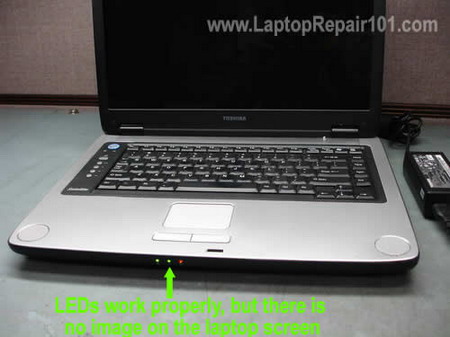
First of all, take a closer look at the screen under bright light. It’s possible the screen shows the image but it’s very faint. In this case you’ll have to troubleshoot the backlight failure.
On the other hand, if the screen shows no image at all, test the laptop with an external monitor (or TV) connected to the VGA port or DVI port or HDMI port.
You can toggle video output between internal and external modes by using Fn keys:
– Fn and F4 keys simultaneously on HP laptops
– Fn and F5 keys on Toshiba laptops
– Fn and F7 keys on IBM laptops.
Other laptops may use different key combinations.
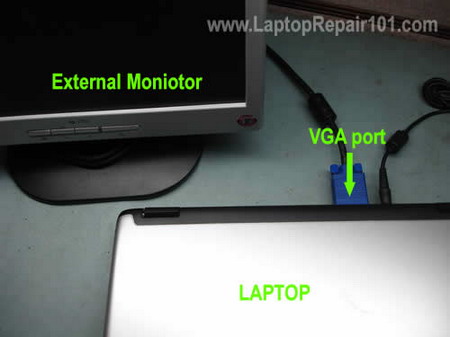
If the external monitor works fine but the internal screen has no image at all, the problem can be related to:
– Poor connection between the video cable and screen or motherboard. Try reconnecting the video cable on both ends and check out if this helps.
– The screen failed. Replace it with a new one.
– The video cable failed. Replace it with a new one.
– The motherboard failed.
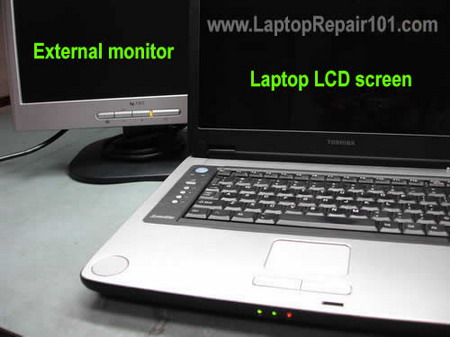
If both, the internal and external monitors show no image, the problem can be related to:
– Failed memory (RAM).
– Failed motherboard.
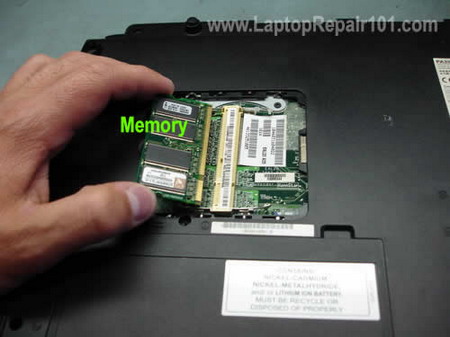
– Try reconnecting the memory module, maybe it’s not making good connection with the slot.
– Try cleaning contacts on the memory module.
– Try moving the memory module into another slot.
– Try replacing the memory module with another one.
If you have two modules installed you can try removing them one by one, it’s possible that one of the modules failed. Try moving modules from one slot to another.
If changing or reseating memory doesn’t help, you can try this:
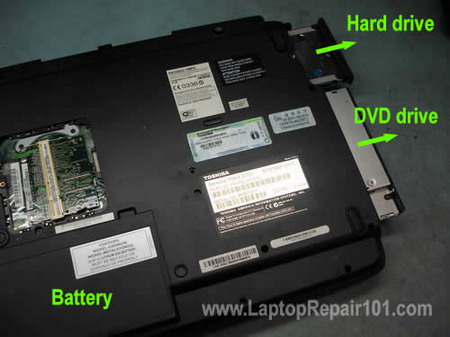
Removing the battery, hard drive, DVD drive and other components you can easily access. Try turning on the laptop without these components installed.
It’s possible one of them failed and it’s preventing the entire computer from starting up properly.
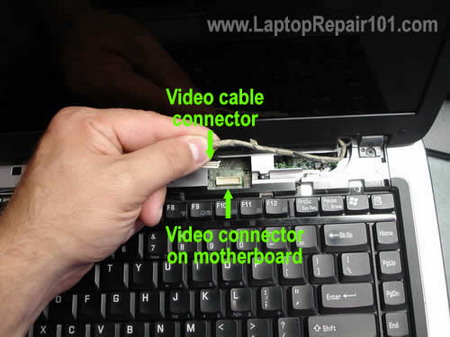
Also, try turning on the laptop with an external monitor while the video cable is unplugged from the motherboard.
If external image appears after you disconnected the video cable, apparently there is something wrong with the cable. Replace it with a new one.
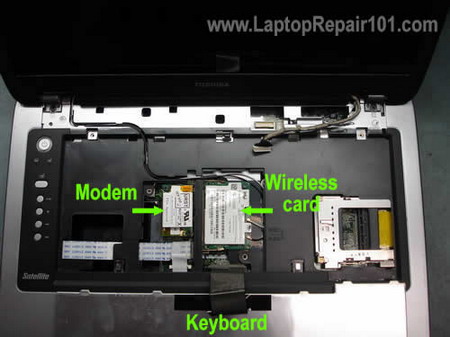
If the computer is still dead, try removing other internal components (wireless card, modem, keyboard, etc…) and test it with an external monitor after each removed part.
The last step is testing the laptop as a barebone system.
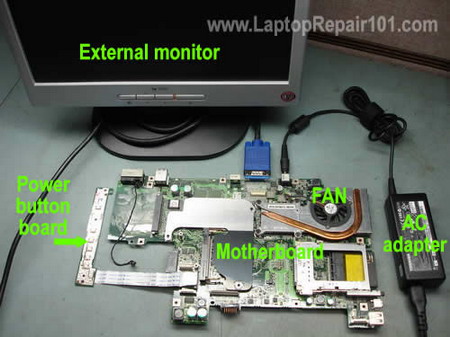
On this picture you see my final test. The motherboard has been removed from the base and I assembled a basic barebone system on my bench.
The bare bone system includes:
1. Motherboard (like in most cases it has onboard graphics chip).
2. CPU with the cooling module.
3. Known good memory module.
4. The power button board.
5. Known good AC adapter.
If the system still doesn’t turn on, it’s either bad motherboard or failed CPU.
If you computer shows garbled or distorted image, check out this post.
505 Responses
Kayode S.
I discover on all hp dv series(2000,6000,9000) that the board powers but does not display until some force is applied by the tumb near the keyboard/system controller/bios area(ene embedded chip)before it at times display.Whats like a permanent solution
Kayode S.
how can battery charging problem be solved on laptop board even if it does not have to function anymore with the windos software dictection of the battery
cj2600
Kayobe S,
That sounds like bad solder joints somewhere on the motherboard. I’ve seen that before on some Toshiba laptops/motherboards. Unfortunately, I don’t think that you can fix these kind of problems at home. You’ll have to replace the motherboard.
larry
I have a similar problem with the Dell Latitude D610 series, if i try to power after the battery is dead, the laptop does not power ,it only gives a wink of the LEDS,within seconds trips off with an accompanying sound.
It does not work with the AC Adapter without enough battery in it.it only charges when the battery is full enough. please help, am still troubleshooting though.
miro
The problem was as described above in the example 2. The black screen with nothing happening inside upon start (no HD activity, no keyboard checkup, no nothing. Following your advice, I took the battery out, waited few minutes, plugged in the AC and it came back. THANK YOU A MILLION!
The laptop was Toshiba satellite something-something (6 months old, thousand bucks good)
Oliver
I have a hp dv6265ca laptop. Recently it would come on by itself with the dvd drive lights on and some sounds coming from the harddisk area. Then it finally stopped coming on altogether, when i push the on button the led lights up for about a second then goes off, but there is no sound, no fan spinning or anything else, just the power on led for a second then off.
I have no idea what the problem may be.
kresna
I have th same problem for my VGN-C140
when I turn on power the screen black out no picture at all,but the background process still running,(i still get hear start up sound after a while -> entering OS)
but some times after I leave it for a while I try to restart it again and it’s perfectly okay no problem at all
Do you guys any idea what happen with my laptop?
Paul Gys
You have a lot of intresting info on your website, and I learned a lot of it as I was looking for info on laptop screens with low light output as on one of our laptops, the Acer Travelmate 2490.
The laptop works fine and I can see all ouput information on the LCD screen. However the screen is pretty dark and I can barely read the information. I disassembled the LCD screen and the backlight lamp is litting up. I assume that the brightness of the lamp is gone down very much. Can such a lamp loose a lot on brightness ? Or is such a lamp go/nogo ?
Thanks for your advice.
Kat
Help!! I dropped water on my laptop and everything works fine now except for the crackling noice emanating from my speakers. The water was dropped on the keyboard and speaker which is at the very top of the keyboard. I have a Dell Vostro 1400 and I don’t know how to fix this! Please help… thank you
cj2600
Oliver,
First of all, test the laptop with another known good AC adapter. You can test the AC adapter with a multimeter. Make sure the adapter outputs correct voltage.
If your adapter is good, you may have a problem with the motherboard.
cj2600
Kresna,
Could be loose connection between the video cable and LCD or motherboard. In a case like that I would try reseating the video cable on both LCD and motherboard.
cj2600
Paul Gys,
First of all, check all brightness related settings. On some laptops you can change brightness even in the BIOS setup menu. Make sure it’s not just settings related issue.
If the backlight lights up but barely glowing, probably the backlight lamp is dying and has to be replaced.
cj2600
Kat,
Apparently water damaged the motherboard. I cannot tell you what is wrong without taking a closer look at the motherboard.
cj2600
Paul Gys,
Here’s an update for my comment 13 and maybe some help to your comment 9.
Today I had to troubleshoot a Toshiba laptop with the backlight failure.
Failure symptoms:
The laptop starts but there is no backlight. Sometimes the backlight flickers on and off. After a while it goes off completely. I still can see the image but it’s very dark.
Also, there is a constant buzzing noise coming from the inverter.
Troubleshooting steps:
I removed the display bezel, so I can access the inverter board. I unplugged the LCD screen backlight from the inverter board and connected by test backlight lamp. Still same problem! My test backlight was barely glowing on one end and the inverter was buzzing.
I installed new inverter and it fixed the problem. The LCD screen is bright again.
David Kaunang
Hi, i’ve got the problem just like the one that you trying to explain with this guide, can you please help me ..
how to open the laptop, just like you did on this guide? sorry for my bad english. hope you understand. Thanks.
Faraz
Hello,
I have a problem with my dell latitude d610, it operates normally without any problem, and then all of a sudden I get the message that my ac adapter has been disconnected and I am on battery power now, but I did not disconnect it.
It keeps discharging and starts working again whenever it feels like, maybe after 2 days or maybe after the battery has discharged by 90 %.
During this time I dont move the laptop or try to fix it it just stops charging and startgs again by itself.
also during this period, the remaining battery life is show as something like 1027:16 hours remaining.
can you please tell me what may e the problem with my laptop?
cj2600
David Kaunang,
Check out the Laptop Service Manual Category on the right side of the website. I post links to service manuals and disassembly instructions in this category.
cj2600
Faraz,
Could be power jack related problem. Maybe the jack is not making good connection with the motherboard and has to be resoldered.
Check out this post, maybe you have the same problem with your laptop.
Bijoy
Dear all,
I am facing a strange problem. My Laptop is totally dead (Not responds anything after pressing power button) but when i plug the adapter the battery LED is emitting and showing its full charge color. What are possible problems? Can you give some solutions?
gil h. lariosa
ihave my laptop when i press the power on the led is ligth but ther is no emage on lcd . sometimes when i push thepower on the have image and run normaly . when i shutdown the computer and re start it again no moreimage on the lcd .can you help me on my problem. anyway mylaptop is syntax model a530.
cj2600
gil h. lariosa,
Did you test the laptop with an external screen? The image disappears from both screens, internal and external? Could be memory problem. Try reconnecting the memory module. Test your laptop with another working memory.
criz sars
may be you already test basic troublesooting..hope i can help you..try to check the inverter b+,swichting,sensor,adj….using the volt meter,usually in normal condition that pin have volts..if okay replace the inverter..if no b+ posible the problem is with in the mother board, check the failure of switching circuit of backlight nare the video connector on motherboard usaully they use transistor..NOTE: ONLY FOR SERVICE PERSONEL.
Jeremy
Alright here is the problem.
At first my Presario would boot up fine and run. But the slightest movement such as shifting with it in my lap would cause the screen to either go blank or create vertical lines. It would work perfectly still on a desk. Now I have gotten to the point where it wont boot up all the time. The fan will spin the power light and wireless light come on but the hard drive light will flash x2 in a repeating fashion. It also has a very low audible sound it makes when the hard drive light flashes. Any advice would be appreciated.
John A
It’s frustrating. The M35 when in failure mode lights up and charges and runs fan for 1 sec.but no boot.
Upward pressure on the dc jack enable it to boot normally.
Once running , the slightest shock (hitting a key e.g.or moving the lid)) will stop it. Evidently there is a systemboard crack near the back but after removing the pcb and staring at it thru a glass, until blue in the face, I cant see it. I’ll never trace the open circuit without a schematic
Right now I have a piece of foam wedged under the dc jack doing upward pressure. I have switched away from Toshiba.
Tony
My Niece closed my laptop screen down very hard in a fit of anger at her brother and now the Laptop will not display. Have a compaq presario c500. Is there a micro switch or sensor that could be suspect? When the laptop worked before, the laptop when closed would power down the machine. I have taken it most the way apart, but cannot see a micro-switch anywhere around the hinge area or LCD. Left hinge contained the display cable, Right hinge contained a black and a white wire that snake through the bezel of the LCD and terminate on 2 different side into some type of clip. I believe it may just be the leads for the Wifi antenna, but perhaps not. I would like to find the schematic for it, but have had no luck finding it (yes I checked your documentation) Any other advice?
cj2600
Jeremy,
Try removing the hard drive and powering up the laptop. Will you get any video on the screen when the hard dive is removed?
cj2600
Tony,
Did you test the laptop with an external monitor? Maybe the laptop itself works fine but there is a problem with the LCD screen. It’s possible the video cable got disconnected from the LCD screen and because of that you have no video. Can you see external video?
Yep, that’s Wi-Fi antenna cables.
bernard
my laptop is dead due to bios setup, how can i reset a cmos on motherboard.. thanks
cj2600
bernard,
You can try disconnecting the CMOS battery for a while but I’m not sure if it will help.
If your laptop failed while upgrading the BIOS, for example it lost power, it’s possible that the BIOS got corrupted. If that’s the case, you’ll have to replace the motherboard.
mel
To the person made the guide nice job…
Now with your experience can you go into more detail bring back a dead laptop ? i mean there places they bring those motherboard back depending on what happen… like example short circuit… from a outage can this be repair? or checking regulator and how check them with meter so on
cj2600
Mel,
When I find that there is a problem with the motherboard, I just purchase a new motherboard. I do not repair them except replacing bad power jack.
mel
cj2600,
I will keep researching to find someone out there willing teach more advance stuff repairing laptop motherboard. I don’t give easy.
cj2600
mel,
Please let me know if you find any source on the web.
Sam Modonpour
There are few more steps you can take to fix the motherboard, rather than just saying its dead.
For example if you follow the editors steps and the laptop turns on and no video on the LCD, its apparently the video chip on the motherboard. This problem usually happens to P4/PM/Centrino Boards. The only thing you should do is to reflow the chip, which you can either do it with a expensive oven, or a good heat gun, the one I use is “Milwaukee 8978-20” since it does not have L shape handel its easier to hold while sitting at the table and cost only $99 in Amazon. The other thing you need is a Infrared Thermometer like Fluke 63 which is what I use and you can get it on Amazon for $130, to measure heat of the core while reflowing it. To know more about the reflow cycle watch the video “Re-flow Video Card IBM T41p Latop motherboard.” Thats how you fixed the video problem.
Lets get back to the main problem, if your laptop does not turn at all, and you have cheked the power jack allready, check the fuses on the board beside the powerjack, always check those with the buzzer on the multimeter, If the buzzer does not beep across the fuze that means…. Another thing to remeber is watch the board closely, and try to find any visual defects, usually if the SMD components burn their color changes and they sometimes crack too so if you look carefully you might be able to point it visually. Wherever you see there is food crumps or dirt or you might suspect there is a short in the circuit clean it with Isopropyl alcohol and a tooth brush. You can also test the SMD component of the power circuit with the buzzer mode on the multimeter. The buzzer on Good “C” Capacitor should not beep, On the Good “L” Inductor should beep, On the resistor depends on the Resistance so if small R beeps if not test it with the resistance measurement on the multimeter if it is Zero or Open the resistor is bad. Check the on board SMD power button test it with multimeter too I have exprienced after testing the whole board the power button is bad. I will add on stuff later. Cheers
cj2600
Sam Modonpour,
Thank you very much for your really valuable comment.
Kris
Can anyone help me troubleshoot whether my motherboard is dead?
Giving you only information that when I press the on button on my Inspiron E1405, which is attached to the wall even or running on battery, the LED lights go on (screen is black). After ..mm.. about 2-3 seconds of the LED being on (while still with black screen) the laptop powers off.
Dead?
cj2600
Kris,
1. Make sure the power adapter is working properly.
2. Minimize the laptop as much as you can as I suggested in the post. Test the laptop again. If the laptop still turns on for 2-3 seconds (without video) and then turns off by itself, probably it’s related to the motherboard.
Kris
yeah.. its dead. lol
now im gonna have to decide between replacing motherboard or buying new laptop.
is there anyway to get my data from the harddrive using my desktop?
cj2600
Kris,
Sure. Check out this post: Accessing notebook hard drive using USB enclosure.
jose
i have a dead dell inspiron model PP10L.
my dell was working fine then all of a sudden it will not turn on. no lights no noise no sign of any life in it. i tested to see if we had power to the power cord/adapter and i get the 20 volts. we now that is ok i have removed hdd, battery, and still no sign of life. i was thinking the maybe it is my dc jack. when i plug the cord to the laptop there is a little play but it does not matter if i wiggle the cord in any direction and attempting to power up its still a no go. i guess i need to take the laptop apart and see if the jack is broken or loose. has anyone had any problems of this kind with there dell. thanks
cj2600
Jose,
Take a closer look at the power jack. If you have a voltmeter, you can test if the power gets to the motherboard when the power adapter is plugged in.
If the motherboard gets power from the adapter but has no signs of life, it’s possible that you have a blown fuse witch can be replaced by a technician with some soldering experience. If the fuse is OK, most likely there is a problem with the motherboard.
execcese
Reading laptop BIOS Post Codes with a second PC
I have purchased a Post Code Adapter but it’s readings make no sense to me.
My faulty laptop is a Toshiba S2450-S203, after switch-on the following front LED’s are
lit: DC IN 15V, Power, Battery & Disk. There are no beeps and nothing on the screen.
I do have the post code meanings but the final reading for the adapter at parallel port of
my faulty laptop was 00FF and before that LP__, END_, 5005, then flashing numbers.
These do not tell me what is wrong.
Because the post codes are issued to the parallel port I would have expected that
someone would have written a program to log these messages on another PC via a direct
parallel port cable connection. Does you know of any such software?
—————————————————————————————-
malvinder
Same problem. Thanks for the graphics. Got some idea now!
Rich
Satellite m35x, just fixed the dc input worked well, however now I can not get it to boot. I traced it to the little switch that sticks up out of the case, the standby switch I guess. When you close the cover it puts the computer on standby. I know this is the problem because if I figit with it it will eventually get the computer to work. I am thinking it is a bad swith or connection to the board. Anyway to replace or repair this? Where would I find a new one? Please help!!!!!!!
Kasan Santosa
I have a dead Benq Joybook 7000 with beep sound very loud.
It is already broken a year ago and I have tried to ask the benq service centre about this problem. They said it is a main board failure and it cost about $ 300.
After I found this very useful web site, I try to implement all the advice but still don’t work for it. From reseating the memory, remove the hard disk, remove the battery, remove wifi and modem, and test it with external monitor.
The symptom is like this: if I press the power button, the light indicator glow normally and the beep sound is loud with no picture in LCD. After I press and hold the power button again, the beep sound stop and the laptop shut off. But if I try to press the power button once again, the processor fan spin with no beep sound but the LCD still blank and seems the laptop not working at all.
I really need any advice to fix my laptop problems.
Thank you.
Karen
HELP! My daughter has a Compaq Presario V3000 laptop. I started it up and the hard drive made 2 booting noises and then stopped but the screen never lit up. I tried the HP guide steps- reseating the memory and then let my brother try to boot from an install CD. He felt it was a hard drive problem. I purchased a new hard drive tonight from Best Buy and am attempting to use my other daughter’s Recovery CDs to reboot. I’m on CD6 (out of 10) and have still not seen any flicker on the screen. I hooked up my desktop monitor to the laptop during this process and the screen was blank.
From what I’ve read, this may be the motherboard. I’ve put $85 in it already (with the new hard drive) and need to know where to stop. Last Christmas I bought the younger daughter a very similar laptop for $399. It looks like replacing the motherboard is going to cost another $200 and I’m not guaranteed that will work. Is there a way I can rule out everything else and know that it’s just the motherboard?
Funds are very tight right now but I HAVE to get her off my computer. As a rule, I was reformatting her laptop every other month because of irreparable viruses (virii?) and/or spyware or some other incompatible program she downloaded.
Any ideas?
cj2600
Rich,
So, when you tapping on the lid close switch the laptop sometimes starts fine, correct? Try this. Remove the keyboard bezel – the plastic cover above the keyboard and try turning the laptop on without this cover. Can you?
If the laptop starts fine without the cover, most likely there is nothing wrong with the lid close switch which is soldered to the motherboard but there could be a problem with the white button attached to the keyboard bezel. Apparently, the white button is not seated correctly and when you install the keyboard bezel on the laptop it’s pressing on the lid close switch all the time. Take a closer look at the button on the keyboard bezel.
cj2600
Kasan,
Could be bad memory. I would try replacing the memory module with another known working module.
cj2600
Karen,
The first thing to try would be replacing the memory module with another one. Your description sounds like a problem with the memory. I could be wrong, but replacing the memory module would be the first thing to try.
Richard
I have tried starting it without the bezel on there and still will not work. Again if I figit with the button, I get it to work for a second then it happens again. Can I remove the button from the board and bypass this. Or, where can I find a replacement button?
Jay
Hello, like everyone else here, I am trying to fix my laptop. It’s a
Sony Vaio laptop. I’m not sure if the problem is ram related, but before anything happens, SOMETIMES the screen LCD is working, and sometimes not. I’ve tried booting up a disk but with no avail. I’ve tried pulling out the RAM and redoing it, with some luck, but then on the 2nd try, once again nothing. I’d continue further, but I don’t have the slightest idea on how to do it.
Regards,
Carlosab
Elizabeth
hi I am very knew with my knew over $1,200 dollar lap top and these aren’t bragging right’s I saved for this thing forever and it’s totally caused me to quit school this semester etc,,,I did’nt buy the 300 dollar warranty but I have a brand knew HP and I don’t know what I’m doing wrong it’ was getting so hot and I bought a fan for under it, and now it just goes completely black, I’ve taken it to best buy before they seem not to want to fix it, my printer won’t stay on line I’m completely frustrated, they said to bring it back for a 3 day diagnostic whatever, it get’s so hot, I take it to my fan hold it there then after about 10 minutes it works for about 5 minutes it’s a joke, does anyone have any suggestions? please anything? thank you in advance
Nikhil
I’ve a HP Pavillion Laptop.It was workin for the past one year but one day when i started the laptop the display didn’t showed up though the LED were working & it was givin some strange beeps.I’ve tried resetting the memory module but it didn’t work.
Reeky
I have the same problem as 54th. also HP Pavillion. also worked for about 1 year and one day when i started the laptop the display didn’t showed up though the LED were working. The difference is I didn’t hear any strange beeps.
cj2600
Nikhil,
Could be bad memory module. If you have two RAM modules installed, try removing them one by one. Test your laptop with each memory module in each slot.
OLU SHWOUNMI
HEELO EVERYBODY! MY NAME IS OLU ,MY FUJITSU AMILO LI1705 GOT STUCKED FOR THE PAST 3 DAYS, THE LAPTOP POWERS ON BUT NO DISPLAY , I CAN SEE THE LED LIGHTS ON , BOTH WIRELESS LED AND THE POWER ON LED’S ARE ON , THIS PROBLEM STARTS INITIALLY,WHEN I WAS WORKING ON THE SYSTEM AND ANY LITTLE SHAKE , THE SYSTEM WILL FREEZE, THEN I WILL PRESS THE POWER BUTTON AND HOLD FOR FEW SECONDS TO RESTART THE SYSTEM , THEN IT HAPPENS AGAIN AND AGAIN FOR LIKE 3 MORE TIMES , THEN THE EVENTUAL HAPPENS, MY SYSTEM IS NOT COMING UP AGAIN, THEN SOMEONE TOLD ME IT MIGHT BE THE HARD DISK OR THE RAM , I SHOULD REMOVE IT AND CLEAN IT, BUT SADLY WHEN I OPENED THE SYSTEM , I SAW THAT THE FAN HAS BEEN DISCONNECTED FROM THE BAORD AND I RECONNECT IT, THEN I CLEANED THE HARD DISK ANND THE RAM , AND POWER IT ON AGAIN , AGAIN NOTHING CAME UP , THE SYSTEM REMAINS IN THE SAME STATE OF COMMATOSE, AND I AM HAVING ALMOST ALL MY PIECES OF LIFE ON THAT SYSTEM , MY BUSINESS PROPOSALS AND MY FINAL YEAR PROJECT ARE ALL THERE STUCK UP , I EVEN WONDERING WHATSHAPPENING TO ME , MY LIFE IS LIKE GOING OFF THE RAIL , KIND LY PLEASE HELP MEEEEEEEEEEEEEE
John
Thanks so much, I was having trouble getting any display on the LCD or external monitor on my HP nc6220 laptop.
I removed the extewrnal ram module and restarted and it worked!!!.
I cannot believe this could be the problem.
thanks for this website.
jefry
I refer to your web side ,
my hp compaq presario v5000 mother board confirm dead.
i want to replace my mother board
can’t find the mother board ,
can you sell it to me
Timothy Scheiman
I had a Dell latitude that I bought second hand work 3 times and today when I tried to use it no power with either the the AC adapter or battery. Looks like the system board went belly up.
Jacob
hey I need some help here,
I have a dell latitude c840, I think my battery or my adapter is gone. I got an exact replacement 2 months ago, it is the same adapter but battery is 6 years old. Okay my problem is that when the computer is plugged into the adapter and the computer is off, the battery LED blinks constantly a green light every second, no pauses. I take the battery out and the computer is plugged into the adapter and the computer will not turn on at all. I do not know what it could be. I took the whole damn computer apart like 20 minutes ago and the connection on the motherboard seems fine, it doesnt look borken or anything. Please help me. my email is jakelabelle@comcast.net.
Jayson Darling
As with comment 57 I am having the same problems with my FSC Amilo Li1705.
The wireless led & power led light up and then the laptop does nothing. After 5-10 hard restarts the lights for num lock, caps lock and scroll lock flash and the system starts. Once started the slightest shake and the laptop freezes, and the whole process starts again.
Laptop is 14mths old, FSC won’t have a bar of it – strict 12mth warranty. I did open it up from the access panel and found the CPU fan had lost a screw.
Sounds like its turned into a paperweight. Really don’t know if its even worth getting it fixed.
Oscar
need some help please…
i have a Toshiba Satellite M35X. LEDs work, normal noises, but no hd activity. Seems ot be charging just fine. I tried everything up to removing the video cable… I stopped there because a lot of the screws inside are really right and getting stripped.
Taking the ram out does cause a beeping… So is this a sign that the mobo is not dead? Should I just take it to a shop?
cj2600
Jacob,
I guess it’s either bad AC adapter or bad motherboard.
cj2600
Jayson Darling,
Could be loose connection somewhere inside the laptop. In cases like that I usually try reseating internal cables and reconnecting removable components (RAM, DVD drive, HDD, etc…)
cj2600
Oscar,
Can you boot the laptop to the BIOS setup menu when the hard drive is removed? Maybe it’s bad hard drive?
Haresh
I have Toshiba A135 laptop, it has suddenly stopped working, the power n charging led come up when i power on the laptop the cpu cooling fan spins and stops in few seconds and no display comes on. There is nothing on the lcd, tried disassembling it step by step but still nothing worked, is the laptop motherboard dead or is it some other problem??
cj2600
Haresh,
First of all, test your laptop with an external monitor attached to the VGA port on the laptop. If both internal and external monitors have no video, your problem could be related to:
1. Bad memory module. If you have two modules, try removing them one by one. Test the laptop with each module separately.
2. Bad motherboard.
monart
My Acer tablet laptop is not dead, but I’ve scanned the comments here and didn’t find anything about the problem of no longer getting video on the external monitor (but still can get video on laptop monitor). The display settings and drivers, the monitor and cable, have been checked OK. The problem seems related to the laptop VGA port. If so, is it repairable or does the motherboard need to be replaced?
Thanks for considering this problem.
Oscar
cj2600,
I did check… With an ext monitor too I think. The only noises I hear are from the CD drive and from the fan and only for the first 5-7 seconds. Tried putting a LiveCD but still no HD light. And no light on the screen at all with or w/o ext monitor. I can’t open it any further due to badly stripped screws. Any suggestions? Is it safe to say that the mobo died? Are there any mobo testing tools? Thanks for the help
“Can you boot the laptop to the BIOS setup menu when the hard drive is removed? Maybe it’s bad hard drive?”
cj2600
Oscar,
I think it’s bad motherboard. The only test you can do at home is a visual inspection. If the laptop doesn’t start you cannot run any tests.
Here’s what you can try. Remove the keyboard bezel and take a look on the motherboard. Between the video cable connector and DC jack there is a small square chip with about 10-15 pins on each side.
Turn off the laptop, press firmly on the chip and try turning the laptop on while applying pressure on the chip. Will it start? In some cases M35X fails because of poor connection between this chip and motherboard.
Asif
I have an ACER Aspire 4530. My laptop is working okay except that I cant see the boot sequence on my laptop monitor. It comes in an external monitor. However, in the laptop screen, once windows loads, everything becomes okay again. What can I do?
kris
HP Pavilion dv9535nr
Symptoms: no power. Light around the AC plug is lit. Pressing power button causes one flash of LED by power button and the power indicators at the bottom left of the case. Press it again and nothing happens. Unplug AC & discharge power, plug back in and I can get the LEDs to flash. No fan, no noise, nothing.
Steps already taken: Tested AC & Battery, not it. Reseated RAM & checked for failure, not it. Pulled out CMOS battery and reseated it, not it. Disconnected all HDs, NICs, etc.
Can’t see any cracks or discoloring. All connections seem secure. No water damage. Motherboard gone bad, power supply, or power button board? Any help is good help, I’m at my wits end.
mike
I’ve got a toshiba M105-S3041 laptop.
I’ve disassembled down to board level and tried the bare bones test. I get the customary power led, the “ON” led and it appears to charge the battery. Turn on the laptop…it blinks the HDD light, but HDD never spins up (HDD is good). the CDROM will look for a CD, it will spin but won’t boot. Won’t pass POST. No beeps, no video, no HDD activity. I have re-seated everything. Again, bare bones is known good memory, mboard and power button board.
The CPU fan never turns on. I’ve not seen a bad CPU fan cause a PC not to POST but am I wrong?
Of course I’m looking at a mboard replacement. Just wanted to get some feedback.
Thanks
cj2600
Asif,
Check the display properties. Make sure the laptop screen is set as a primary screen. Also, check the BIOS settings. Just in case restore BIOS to default settings.
I think it’s just wrong settings.
cj2600
Mike,
I don’t think so. I believe this laptop should boot even if the cooling fan is unplugged from the motherboard.
Unplug HDD, DVD drive, keyboard. Unplug LCD screen cable from the motherboard. You need only motherboard, CPU (with heat sink and fan) and memory. Test system with an external monitor. If still nothing, most likely it’s bad memory or motherboard problem. CPU failures are not common.
If you installed new memory, apparently the problem is related to the motherboard.
Asif
Sry for messaging again, but I gave you wrong information in my previous message. The fact is when I press the power switch, the laptop gets power as the lights are on. However I cant see anything on the screen and after a few seconds the laptop restarts and the same thing again happens. The situation is same for both internal and external monitor. However on some very random occasions the laptop starts working. My model is Acer Aspire 4530. Thanks.
Skillzgeez
Had this problem….I know I sound like I know but really thing I got this one for you….O.K. first thing the story…..doing some paper work on the laptop (Gateway) went upstairs to retrive some papers …I come back and all I see is a black screen…I think its on standby but it never cuts on…..Restarted nothing…no bios no startup no wording no warning… so I thought it was the HD sent it for warrenty repair HD came back and its still doing the same thing….the only thing that work a little on both occasions were the indicator lights…and the fan..Power light on, battery light on…then the diskdrive light but thats it still black screen…..took the laptop components apart and tested…come to find out after testing it it was the RAM slot that was defective…only one of two worked and if you put the ram chip it to the non working slot “DEAD CITY MY MAN”….try
Skillz Unlimited MDA
cj2600
Asif,
Could be memory related problem. It’s possible that one of the modules is bad.
Remove memory modules one by one, test the laptop with each memory module separately.
Red
Very helpful article and lots of good comments.
However I would like to ask and if possible get an answer.
HP dv 6000 series. Less than two years old. is Hardly moved and never bossed around.
A few months ago, when booting the LED button comes on and it starts making noises looking to start up but doesnt, When forced shut down (Pressing and holding Led button) and trying again it starts normally. Kept happening all the time.
Then all of a sudden stopped working. Now the Led light is on, power and battery checked all ok. the CPU fans spins onces then silence then “restarts” itself.
No beeping sound when RAM removed, done all the checks in the article, still nothing. So now i fear the motherboard is damaged.
My question. Am i missing something? What would damage the motherboard just like that on its own?!
BillyBennett
My Toshiba A105 will work only as long as it is connected to the ac power supply. As soon as I unplug it it will go off. I replaced the battery and the first time I used the battery it worked but then it stopped with the battery always showing 77% charged. I suspect it is not charging the battery or what ever switches from ac to battery is not working. any suggestions? Thanks
Steph
One day our laptop just turned off. When we tried turning it back on it wouldn’t work at all. For some reason, when we plug the charger into it, the power light comes on as if it were going to start but it never does. And to turn the power light off each time we have to take out the battery. Any ideas of what’s wrong?
sandy morris
i have a toshiba satellite p105-s6084
when ac is plugged in and battery is in it i see ac blue light and battery blue light
i removed intel 3945abg internet card and i have 512mb of pc4200 in it dvd is in it and hard drive is in it
when i press power button all lights go out
no power
does not turn on
anyone have any answers to what i can do other than getting new motherboard
or could my power button board be bad
thanks
Igor Mateski
dont know if others mentioned, but here’s my fix for this problem
http://imateski.blogspot.com/2008/08/toshiba-satellite-m35x-motherboard.html
According to the comments, this link has helped some of the folks that posted comments on your post also.
regards
Igor.
kk
Thanks so much for referencing the HP Limited Warranty Service Enhancement on this site. I was going to replace my motherboard at my expense and your information just saved me the time and cost. HP’s program is handled very professionally and courteously and it covers my out of warranty laptop. Again, thank you for posting the heads up where it was likely to be found by many people like me.
soppy
Hi
I wonder if anyone can help me, i recently changed the AC adapter on my Compaq 2100 laptop.
Having removed the old one by following instruction on numerous websites i soldered the new one in place all went well or so i thought!!!!. I put the laptop back together again and was pleased to see the power light come on when i pluged the power cable in.
My problem arose when i tried to start the laptop, the power comes on, the fan starts up, the hard drive seem to start up and the normal messages comes on the screen compaq press F2 for boot sequence etc… then when i thought everything was going well it switched itself off. i tried again but the same thing happens it seems to be after about 10 seconds….
Can anyone help…i have taken the laptop back apart and checked all the conectors but cant see anything out of order.
Dean
My gateway laptop lights up but ther is nothing on the monitor. It made some noises beore the screen went blank. Do you think its the monitor or the video card?
mer
Hi,
I have a Acer Aspire 5600 series (5601 AWLMi). So the laptop is dead and when i press the power button nothing happens. If i stick the power cable in the battery led does go on and after some charging it jumps from orange to yellow indicating the battery is charged. So i dont think it has a power problem. I think the motherboard is fried so im thinking about ordering one from ebay that isnt that expensive. Okay now my question, when i receive the new motherboard, is it save to test it in the configuration on this site, meaning the mainboard out of the laptop with the cpu, cooler fan, ac power cable and an external monitor. (I have onboard video card) Or would you recommend installing everything before testing?
stephen
This is very very odd, im working on the exact same model laptop and it has the same problem. And im stumped also, i get external video sometimes and no video on lcd.
Vicky Nguyen
I have an HP Zt. When I turn on the laptop, it still working, but the all of the icon on the screen is not appeared. The mouse is still working when I move it around, but when I click it, there is no response. What can I do? Thank you
andrew
i have a packard bell i go . it was ok then one morning i turned it on and it only powers on for a few seconds . then thurns off but a green light stays on ??
alaiksander
My friend handed me his laptop (Dell c510 or c610 – I’m not sure) for a display check. It was like old CRT monitor where the display shrink vertically to the left and down sparing black display on its right side. I’ve checked it with external CRT and its OK. The problem is I broke the inverter connector, but my fellow manage to jumper it all over.
Soon after that i tried to put things back on, but I can only get a power blink once every time I press the power button. I’ve tried to remove the battery also and got nothing. Can you help me on this? because if this thing cant turn on I guess I have to pay my failure with my money. Thanks
*sad*
cj2600
alaiksander,
I guess this is a problem with the screen.
What if you disconnect the LCD cable from the motherboard and test the laptop just with an external monitor attached? Will it work that way?
Maybe your fellow didn’t solder the cable properly and shorted something?
cj2600
Vicky Nguyen,
This description sounds like a software related problem.
You can try this:
1. Press F8 on startup, then select “Last Known Good Configuration” and press enter. This could revert your system to the previous working state.
2. Reinstall factory software from the recovery disc. This will erase everything from the hard drive and reimage it back to factory defaults.
alaiksander
just come to say thanks for laptop101.com
The laptop I told you was taken by my friend this afternoon. He was pleased because he still can use it, although he has to use an external monitor for that.
Thanks for the trick.
qian
Very good !
my Dell laptop wont be rebooted! when i tune power on, the LED light for a moment then off compltely, sometimes 3 light together, then off, sometimes only one labled “A” flashing for a few seconds then off.
what is the reason for this problem, is it possible to fix it?
mohammedali
i have a laptop but working but the hard drive have password .my friend tolled me replace the semos battery then i do it but asking the password agine what i can now
cj2600
mohammedali,
If you forgot the hard drive password, you’ll have to replace the hard drive. That’s it. Replacing the CMOS battery will not clear password from the hard drive.
Malik
Hi..
Your website is brilliant for learners like me. Basically im a PC tech but know little about laptop repairs. After visiting your site i have very good confidence in me.. In fact i fixed my dell laptop which i taught the motherbord was fried but it is’t.. It happend by using your step by step analysis and found that DVD drive is the culprit..How stupid i am :p and i call myself tech..
Anyway thanks a million for your ideas and ticks and we expect more postings for you in future..
RC Ayers
Have a PCG-GRT360ZG Sony Vaio laptop. Turns on, pwr led lights up, but only intermittently does POST. Then is doesn’t POST, then it does. Your site goes through all the steps I’ve taken. The motherboard works, like I said, but intermittently does not POST. Should I just replace / refurb motherboard?
Hal
Hi,
I have several laptop – different make, but problem appears to be the same: they power on with AC adapter and/or battery connected to them. Power light comes up and fan starts spinning, however no further actions – no screen, no boot etc. Just fan spinning and power light and nothing else. CPUs get warmer like they are doing something. Had disassembled the laptops, had checked them, but still can’t figure out where might be the damn hook. The AC adapters charge the battery for every single laptop. Tried different RAMs, CPU, w/ and w/o LCD or CRT. They simply do nothing after power switched on except fans keep spinning (or spin for a sec then restarts in next two secs) and power lights keep green.
Are these laptops appear to have dead mobos? Tnx.
john mattingly
i have a toshiba a105-s2236 laptop.as soon as i plug it in i get a green power led . when u push the power button nothing happens no fan ,no screen nothing what could be wrong
Aida
hi.. i have HP laptop its the one which the screen can rotate..
i spill water on it before and after 3 months repairing it, it work again but recently i dont know why it doesnt work.
the screen is blank but the power light is on and usually when a laptop is on, the machine inside will spin i think ( i dont know much about laptop) sorry but mine just spin for a few second and it stop. if u have the time can u please tell me what is the problem with my laptop.. thank u..
cj2600
john mattingly,
Will it turn on when you push on the power button? I mean, can you see any other LEDs lighting up when you press on the power button?
There could be a few things wrong and it’s hard to tell which one is causing the problem without looking at the laptop.
Could be bad power button board, memory or even motherboard. I need more information in order to troubleshoot the problem any further.
cj2600
Hal,
In cases like that the first thing to check is the memory module. Try reconnecting it, replacing with another known good memory.
If new memory doesn’t fix it, most likely there is a problem with the motherboard.
From my experience, it’s either memory or motherboard. CPU failures are very rare.
Confused man
Just wanna know, if the motherboard problem, what should i do? i mean what is the actual problem with the motherboard and can we fix it? (related with the laptop totaly dead).
Thank you.
EFRAIN
I have a problem with a satellite a70 a dead laptop (is not my laptop a costumer left me to check it) , in first case the latop had no memory module, la hdd seams to be broken the connector of the right speaker was smashed and the power cable of the screen was loose only with electrical-tape
i made some tests i disassembly the laptop check with an external monitor, a new hdd and memory module, but nothing, i check the ac power adpater and seams to be ok,
i can’t find the problem, i am thinking is the motherboard is bad.
TJ
I have a HP Pavilion F500 and it does not power on at all. I checked the adapter and it is getting proper voltage. I also took it apart and tested barebone system but still no power. The power board is separate from MB but the light on the power board turns on. I’m thinking it is the motherboard.
rozerjazzusa
I am using the Compaq laptop and i am facing the same problem .I think it might be the motherboard problem..
Amy
I took apart my toshiba satillite a105 to replace the DC-IN cable. When I pluged it all back in it was taking a charge beautifully. However, my touch pad was not working. I assumed that it was something unplugged so i took it apart again and now it does not turn on at all. It still charges my battery and when I plug it in without the battery the blue light still comes on indicated it is connected to the powersupply, however when I push the power button nothing happens…any ideas.
Zack
When I turn on my laptop, it goes to the welcome screen, right befor the login page, and it restarts, over and over, till i hold the power to autoshut it off. Help!!!!!!!!!!
Rajan
I have one HYUNDAI M-Life M350C laptop (notbook) which has 40Gb harddrive,
Same things are happening.
ERROR: All LED Bulps are glowing when we turn on the system. CPU cooling fan is running. But NO DISPLAY, NO BOOTING.
As instructed by you I have cleaned the MEMORY with rubber, But it is not working,
Now i feel it may be HARD DRIVE.
Suppose if it is HARD DRIVE FAILURE.
How can i recover the datas to my DESKTOP pc without going for a SERVICE CENTER.
But still the issue is not solved and getting confused to take to service center.
Advice Appreciated.
Thanking you.
Frustrated Henry
I have a Toshiba satellite m35x like the one in the guide that had the same problem. I tried doing everything and when i messed with the ram and then tried it on the external monitor, it started working on the monitor. Then when its about to load OS, the external monitor goes blank and it starts working on the laptop screen. Everything can function fine then. I was trying to plug in a mouse and accidentally bumped the cable from the external monitor that was plugged into the laptop. Then the laptop screen goes black and the laptop remains running. I tried rebooting the laptop without the monitor and it didn’t work. Then i tried it with the monitor and it did the same thing as last time. I touched the monitor cable to see what happened and it shut off again. I do not have a clue now what to do. I try to reset the ram and try it on the monitor and it isn’t working. I have no idea what the problem is either and i really want to fix this and be done with it. PLEASE HELP!
daryl
i have a toshiba satellite a105 – s2061 and when i turn it on , it tries to boot but it just clicks and then tries to boot up again over and over for like 3 or 4 tries and then shuts off. i ran the batt. all the way down , and thats when it started happening. i have charged the batt. to full. still wont boot
keith .h
i tried cleaning the tracks with the eraser and also took out the dvd drive and the hard drive and nothin’. the led light up but the keyboard ain’t doin any thing i also tried the moniter and more nothin
the battery doesn’t charge but it still runs on the mains and i noticed that before this started that the screen went funny like a barcode ( like a rainbow barcode) and the cd drive does not work
ANY IDEAS PLEASE!!!!!!!!!!!!!!!!!!!!!!!!!!!!!!!!!!!!!!!!!!!!!!!!!
RAHMON
Thanks 4 showing us all the necessary solutions needed 4 our computer
DVD MIKE
Help Help Help
I Have a Dell Inspiron 1000 Laptop for my daughter right ! Well after an update, there is now a system/bios password. No luck from Dell, actually no luck at all. Being A+,NETWORK+, MCP, MCDST, CERTIFIED. I took the cmos battery out for weeks no help. If there are some jumper pins, like dell desktops, IT IS NOT LOCATED NOWHERE NEAR THE CMOS BATTERY. CAN ANY ONE GIVE ME ANY ASSISSTANCE AT ALL? Thanks .
bobby
i have hitachi prius b 200 ,last week i use it but no problem after a week i open it, the power can’t on and then i try to push on for 15 second and then i push the power again laptop can operate normaly after 3 day i open it at the same problem , after on sudenly the windows shut down , and now i can’t not open it . what is the problem? if you know can send email to me for sofl this probleem. thanks you i wait your answer
bobby
dear friend, i want to get the service manual book of hitachi prius b 200, if you have can send email to me thaks
cj2600
bobby,
I’m not familiar with that particular laptop but I would suggest to check the memory module first. Could be bad memory module.
Do you know if there are two memory modules installed into your laptop? Try removing them one by one and test the laptop with each RAM module separately? Can you make it work when only one module is installed?
JL
My Compaq Presario C500 touch pad does not wok. Device manager does not recognize that it is there. Any ideas
Daniel
Thanks a bunch i have a sony vaio vgn-ar70b and it was not starting up i tryed taking a ram module out and it now works fine, thanks a bunch.
cj2600
JL,
Check the BIOS menu. Maybe the internal pointing device (touch pad) is disabled in the BIOS?
Don
Toshiba MX35 S109. Purchased this laptop broke down, as is, with no power. Seen the rear positive pin loose on the jack, cleaned and resolderd all contacts on the jack. System now powers on, all power leds, and battery charge light. Battery does charge. Fan kicks in, appears to boot, but nothing on screen. Have checked and gave the “lid closed” pin a few pushes thinking it might be stuck. If I leave it powered on this way, approx 15-20 minutes later it finally boots, with post screen. As if I just powered, or turn it on. I’ve swapped out the memory, swap the mem slots, removed cdrom, battery, hardrive, modem. Also read the posts on the video chip, and something directly behind the power jack, pushed down on these thinking they could be loose, but no change in boot behavior. Seems as if once it warms up, it powers on with video screen display. If it sits cold, nothing for 20 minutes. Or as if it’s coming out of a “sleep mode” or something. I haven’t taken the LCD panel apart as of yet. Any idea folks?
cj2600
Don,
Your description sounds like a problem with the motherboard. There is not much you can do besides replacing the motherboard.
Trevor Snow
Hi,
I have a Asus M6B00N that seems dead. Power light is on but no HDD or screen activity. After being left off for a couple of months, powered up to HDD CHDSK before shutting down again when shortly into it.
Tested with different HDD and no BATTERY, same.
Would appreciate any suggestions..
Regards,
Trevor
Serkan
I have toshiba satellite M100 222, without AC power supply my laptop starts to work after four or five time resetting while it shows black screen, but while it is working i should play some video or music cause if i do not laptop freeze itself. Could somebody help me?
shahzad
sir i have hp laptop compaqnc6000. for the last few days i m facing power related problem. when press the power button, two out of three blink indicators( for bluetooth and charging indicator) gets on for few seconds and then put off, but the main indicator for power on do not get on and system remains dead. what is the problem and its solution.?
cj2600
shahzad,
It’s hard to tell what is wrong. Could be a faulty part, could be a connection related issue.
Here’s what I do in cases like that. I minimize the laptop to a bare bone system and leave only a few key components: motherboard, CPU with the cooling module, memory. Try turning it on this way. If the system starts, I start adding parts one by one and test the laptop after each step.
If the system doesn’t start and you still having the same issue, apparently it’s related to the motherboard.
Lain
Hi my Acer laptop is dead. It suddenly shut off, then when i connect the power, the light in the charger have a steady (green) light. then when i connect it to the laptop, i see the (green) light blinks. I cannot turn it on, no power on the laptop, nor not charging. The battery also don’t function. No power. Hope you could help me.
cj2600
Lain,
From your description it’s hard to guess what could be wrong. Could be just a faulty AC adapter, a problem with the DC-IN power jack or bad motherboard.
You’ll have to find another known good AC adapter and test the laptop. If the problem still exists, I would say it’s a bad motherboard.
Stuart
i have hp laptop compaqnc6000. for the last few days i m facing power related problem. when press the power button, two out of three blink indicators( for bluetooth and charging indicator) gets on for few seconds and then put off, but the main indicator for power on do not get on and system remains dead. what is the problem and its solution.?
This is a common problem with HP NC6000, you could try this to confirm a motherboard problem. Press quite hard on the silver strip bellow the right hinge cover and switch on the laptop if it powers up this would indicate that a chip on the motherboard needs the solder reflowing. This chip is what regulates the voltage to the CPU. Another test would involve removing the CPU then power on the laptop, you should get the same two indicators for a few seconds then the laptop will shut down this will show the CPU is not getting the correct voltage when its in the laptop.
LCancer
Hi, my Dell Latitude C840 will not boot. When I press the power button the indicator lights come on (but not the display)for about 5 seconds and then the lights go off. But if I hold down the f10, f11, or f12 key and press and hold the power button the fan runs and DVD drive runs but the laptop still will not boot up. When that happens I have to unplug the laptop and remove the battery to get the laptop to shut off. Do you have any idea why my laptop will not boot up?
Dimitar
Hi there I’ve got a similar problem but I’ve managed to turn it on somehow but the fans are not working everything used to work fine but eventually it switches off cause of overheating and when I turned it on nothing on the screen however all the leds work fine as well as the hard drive and the dvd but nothing happens an there are no fans at all.
My laptop is CLEVO D470V any ideas.
Thanks in advance.
Buk
my dell laptop wont come up after restarting, it turns self on and off without booting at all.
pra
Hi I need help with my dell inspiron 1501. Its dead, when I push the power button the power light glows for a sec then it goes dark and same thing happens when I press the home button and their is no noise or any thing from it and the screen is black the hole time. How can I fix it…. I don’t think the adapter is the problem because the adapter light glows when its pluged. I think and hope it might be the battery but I dont have a way of testing it and I was thinking if its ok to just plug the laptop to the outlet with out the battery… would that be ok or do i have to have the battery in the laptop to convert the power so it can use it…. please help what can i do other then buy new laptop or have some one do some thing simple as changing the battery for like $50-$100….. PLEASE HELP
Sam
Hello friend,
I have a Toshiba Sattelite A210for many years.
Recently when I turn on, I hear louder than normally noise coming from the bottom of the laptop, it doesn’t boot up. SOmetime the noise becomes hugh and I have to switch off the laptop.
I tried to open the bottom cover but unsuccessful even I did unscrew all I could see/reach.
I suspect the fan(s) are overheat and make so much noise.
Could you please show me how to repair or at least open the bottom cover?
Many thanks,
Sam
cj2600
Sam,
It’s possible the noise is coming from the hard drive, not the fan. Here’s what you can try. Remove the hard drive and turn on the laptop. Do you still hear the same noise? Can you boot the laptop to Toshiba logo on the screen?
Karen Merchant
I have a HP laptop and when I turn it on the power light comes on but it does not start up. There is no CPU activity. When a different CPU is connected it still does noy start up. Help me Please
cj2600
Karen Merchant,
First thing to do – check the memory. Try reconnecting memory modules. Do you have two memory modules installed? Try removing them one by one. Test the laptop with each memory module separately. Will it start when only one module is installed?
ellen
I would like to thank cj2600 who changed everything for me!! I’ve been trying to get at the bottom of my laptop situation for days. I’d been to the hp website, checked all sorts of forums and how-to pages – and could NOT figure out why the laptop was dead(ish). I’ve reseated the memory, cleared the capacitor, investigated under every screw-on cover. Just yesterday I was prying off the upper faceplate to look at the screen connections.
It took me a few days to get through this huge page, but when I finally got to this message it was like EUKEKA! I checked the warranty, called HP and they are sending a box to pick up my bad laptop. AND, evidently the warranty period for me is ending in one week!!
what’s crazy is that I was on the HP tech support page for this laptop and did not see anything about this problem or warranty “enhancement”.
so thank you cj – and thank you Laptop Repair Guy – you saved me hundreds of dollars and some valuable pieces of my sanity!!
ellen
ps – here’s cj’s original post…
cj2600 Says:
December 14th, 2008 at 1:26 pm
Red,
“HP dv 6000 series. Less than two years old. is Hardly moved and never bossed around.
A few months ago, when booting the LED button comes on and it starts making noises looking to start up but doesnt, When forced shut down (Pressing and holding Led button) and trying again it starts normally. Kept happening all the time.”
Did you hear about HP Limited Warranty Service Enhancement program? I think your laptop is in the list and you can get a free repair. Try calling HP about your problem. Let me know what happens.
Rupert
I have a Dell Inspiron 3000.
When I plug in the power adapter the green light comes on
for 1 sec. The display flashes with all symbols a few times
then nothing. No screen activity at all or cpu, fan.
If I take out the battery and same results then what /
Help
Cian Bennett
Have u considered installing a new BIOS chip. It might have been infected by a virus. Saying that though the motherboard was probably fried. U should also take out the CPU, see if there are burn marks which would indicate it was fried. It could also be the onboard graphics card. If any of you can’t get a screen on ur desktop PC, I think u should try using the CMOS jumper. It sometimes works. Also blow the dust out of memory slots and all slots.
Sobhan
Hi,
I have a Thinkpad T42. One year ago it started frequent blue screen and reboots whenever it was tightly touched. I figured out that the problem was with the heat sink being too much tightly fastened on the CPU (I had fasten that myself once when cleaning the fan).
When I made the heat sink a little bit looser, it went OK.
Now after one year I am facing similar kind of problem. The laptop doesn’t start sometimes; it doesn’t even bring up the IBM logo. In cases when it successfully boots up, it is always possible that it stop working at any moment. It may happen sooner or later between 1 min to hours after boot.
When the laptop stops working, kind of noise is seen on the LCD as if there is a mobile phone beside a monitor. And when I push the heat sink, the noise disappears but the laptop stays freeze and I have to turn it off and on again.
I have removed RAM, HDD, DVD but still the problem exists.
Could you help me out of the problem please?
Sobhan
rod
I have a toshiba satellite m65 that has been having touch pad, cursor, and mouse problems. My usb ports starting shutting down when using a wireless mouse, then computer started freezing up when working hard (several windows open with video running). Downward pressure on the keyboard worked for a while to unfreeze the laptop, but progressively getting worse. It turns on now and fan runs for a couple of seconds, but will not boot up. Any suggestions?
cj2600
rod,
That sounds like a problem with the motherboard to me. Also, it’s possible that one of the memory slots is bad. Try removing memory modules one by one and start the laptop with each module separately. Can you start the laptop with only one memory module installed?
rills
i have got a compaq armada e 500 .i want to install windows operating system but it doesnt want to boot from cd and install the operating system. it keeps telling me… no disk or non disk error please help me solve the problem
Syed
Hi All,
I need your help….Please…
I have an IBM Thinkpad R51……..It’s a 4 years old laptop and is dead right now…….The situation is somewhat similar to the “1st case” described above..The only difference is, when i connect the power cord the battery LED flashes for 3 seconds and then stays on……however, pressing the power ON button does nothing……..absolutely dead….
The battery was dead from 6 months and i running it on power supply…….with the battery in the laptop…..when i pull the power cable out, the laptop used to turn OFF immediately….
last week, it didn’t power ON even when the power cable was connected….i ordered a new battery – no use…….i removed the battery and tried connecting the power cable and starting the laptop – no use…….i removed HDD, CDD, RAM and tried starting – no use……….
it cannot be the DC power jack, as the battery glows when the power cable is connected…..
could you please help me out???? thanks in advance..
Syed.
Emma McClarry
I have a Toshiba Protege R100 laptop that will not boot up. The Power and Battery LEDs come on but no hard drive light and the hard drive does not spin up. There is a black screen and the laptop does not boot up. I have checked the hard drive in another R100 and it works fine. I have removed the battery and the memory but the laptop still will not boot, no beeps either. Any help would be appreciated….Thanks
cj2600
Emma McClarry,
Have you tried replacing the memory module with a known good module? By the way, very few laptops give you a beep error when there is no memory installed.
cj2600
Syed,
I don’t remember this model off the top of my head. Is it normal for the battery LED flash on the startup? Did it flash before the laptop failed?
In IBM laptops the power button is a part of the keyboard. Maybe the power button is bad?
Can you remove the keyboard and try reconnecting the keyboard cable to the motherboard. Maybe the connection got oxidized and the keyboard cable is not making good connection with the motherboard. I would try reconnecting the keyboard cable first.
Jason
I have a Gateway SA1 laptop and the LCD went black after I turned it off and back on again. I reseated the battery and it came back on. Stayed on and failed again after I powered it off. Now it wont turn on anymore…..DVD drive, HDD and all lights/fan are ok. I pulled memory, DVD, HDD, inverter and video cable from LCD…cant find video cable to laptop connector as it must be under the media panel…..any suggestions?
Jason
Sorry I meant a Gateway M-6750
sjam
This is the type of article I was looking for… Wanted to test a mobo outside the casing. This gives me visuals on how to do it. Thanks!
Just had a couple of questions on why a motherboard would fail and if the recent purchases of a battery / power supply would’ve caused its demise.
Recent purchases (the laptop was running fine, without any problems before I replaced). Two weeks later, I have these problems, and the laptop dies….
I replaced both the battery and the power supply. The power supply was 3.25A (this laptop needed a 4.5A p/s model) and 18.5 (this laptop needed a 19.0)
Here’s what mine did when I had it all assembled:
Turn on power, fan, lights come on, then after 5 seconds, it shuts right off. No POST, or ability to get into the cmos settings.
Took out the memory, and other easily removable externals. No change. So, I dismantled the entire laptop (an NX9420), thinking it’s probably the motherboard (wanted to test it out of the casing, and this article helps me out before I bought another board) getting fried by the underperforming power supply… Is the p/s the culprit, and why would it be so? Would it be the battery?
Or after 2.5 years, would a motherboard fail just like that?
Appreciate any input.
cj2600
Sjam,
I would really recommend using the right type of the power adapter. If the laptop requires 19 volts, you must use 19 volts. The amperage should be the same or higher.
cj2600
Jason,
Have you tried removing memory modules one by one? It’s possible that one of them is faulty.
Adiss
I have a Toshiba A60 laptop that will not boot up. The Power and Battery LEDs come on but hard drive light is on only for a fraction of seconds . There is a black screen and the laptop does not boot up. Although i didn’t check it i am sure that the hard disc doesn’t fail.This all was acused when i tried to extend a ram while the batery is in the laptop and this might have disabled the original RAM which is integrated in the board .Is there any solution to enable the dead ram in the board? Any sugetion would be appreciated…
Galen
I have a Toshiba Satelite A105-S4234 with, 1.5gig memory and a 250 G hdd…about 2.5 years old.
When I push the on button, the power light comes on, but that is it….does not access the hd, the hd inidcator light does not repsond at all when the on button is pressed….jsut sits there with a black screen….it will access or spin the cd/dvd drive if there is a disk in it.
I have searched invista site and elsewhere but have not found this particular problem listed or a fix….or exactly how to get to the hd to try and salvage the data if the computer is caput. Do you know where I might find instructions to remove hd on this particular computer?
THe last week before this total failure, I had a number of times the computer would be fine and suddenly a blue screen would flash and the computer would reboot before I could read it. The last 2 times it blue screened if I moved the computer physically. If I picked it up from the floor or desk it would also go blue screen and reboot.
Any suggestions welcome.
Thanks,
Galen
Steve
I have a Toshiba Satellite SP10, on boot up it quickly showed the boot up screen then the screen went black. The small hard drive light and cd drive lights were flashing yet still no screen. I decided to format the maching using the manufacturers installation discs and all was going well, I could see the screen clearly and as the installation got to 25 percent the screen suddenly froze along with the cd light and hard drive light. It didnt respond to ctrl,alt.delete so I hit the power off button. When I have tried to turn it on since I it takes about 10 hits on the power button before it responds yet the screen still goes black and the machine seems to hang in limbo.
I realise the format wasnt completed but why would the whole machine just go to sleep like this. It had a new hard drive installed 12 months ago and showed no signs of illness before it fell into this coma,
Should I just take it off life support and throw it in the bin?
Aftab Makrani
i have a ibm laptop whic is not showing dislay,
the leds are working as soon as i press the power button but there is no display, can you help out .
MOULIOM
Hi,
I have an HP pavillon dv6000 and when I plug the power jack , it’s blue led on power jack goes on; when I push the power on button the laptop tries to boot, all the leds lit one second and go off !
Luke
Funny thing is I’m currently working on the same laptop you have in your pics. And I’m also under the impression the MB is dead. In my case the fan and hdd spin up for about 5 seconds and then shut off, but the power light stays on. I can’t even shut it down completely buy holding down the power button. Why’s even funnier, I already had this problem about a year ago which I solved by getting a MB on eBay.
Jenna
Hoping some friendly soul can help me! 🙂
I have a 6 year old laptop – a HP ze4420ca. I figured it would die eventually. Anyway 2 weeks ago it wouldn’t start up – the lights came on and it whirred (revving up and down like a car engine) but that’s it. I took it in to get it looked at and when I went to show them what was happening, it started up!!! So I bought an external hard drive and quickly started copying my files off of it. I stupidly also had my camera plugged into the USB port and after an hour the whole thing shut down completely (kind of like a short circut maybe?). Now it won’t turn on at all – no lights, no sound, NOTHING. (Actually the LED light was flashing for a few minutes before it too went off).
I would love some ideas on what to try next – taking the battery out, or the memory, or freezing the thing? Does it sound like the Motherboard has finally died? I’m ok with that but I’d love to get some files off it if possible (but I’m hesitant to pay £500 for data recovery). Thoughts welcome, thanks in advance!
Tina
My laptop power light comes on for about 3 seconds then off. I replaced a power cord about 3 months ago. I will try some of the things that I have read on your site when I get home today.
Thanks fro having a place to ask quetions.
Tina
Axl_505
i am working on a HP Pavilion ze4800, when i turn on, the lights and the fan turns of, a second before, turns off, and do it again until i quit the power cable and battery, before find this site, i did all the tests showed here, but nothing, now i know that the mainboard is death….. sorry for me because i have to buy a new one….. 🙁 regards my friends and thanks for this site….
Axl_505
“when i turn on, the lights and the fan turns ON”, sorry a little finger mistake…. 🙂
JonJ
You know, more than half of the issues on here that result in “bad motherboard” is incorrect. The toshiba above looks to be an M30X or M35X series, these are notorious for no video on bootup. The Northbridge separates from the board. Easy fix with a reflow tool. Computers that are working and say power is connected is a dc jack problem. HP DV2000/DV6000/DV9000’s with powering on but no video, or sudden loss of WIFI, or locking up and reboots, those are also northbridge separation problems. Also can be fixed with a reflow tool. Unless your laptop has had lightening damage or liquid damage, replacing motherboard isn’t necessary. Every other issue with motherboard is completely repairable.
cj2600
JonJ,
Sure it’s repairable if you have the tool and know what you are doing. How many people know how to use the reflow tool?
Maybe you can help us and create an easy to follow guide for fixing the motherboard? Can you?
tommy
good day
i ve got two laptops wwitha fault.the first one is a futjitsu siemens.each time i switch it on,it comes on,and goes off.am sure it is charging.pls wat can be the problem.
Secondly,i ve an acer laptop dat does not display ,but it displays once in a while and when it does and i go to bios,it hangs and stops responding.when i plug it to an external monitor it shows at time and sumtimes it does not. your swift reply wld be appreciated
Thanks
gorio
how can i upgrade video card on my laptop?
LuisVen
Hi friends …
I have a Toshiba Qosmio F45-AV425. My problem is similar to the one being discussed in this post: When I press on the power button, the laptop starts, the LEDs work properly but noting appears on the screen. I hear two beeps and immediately cooling fan stops but the LEDs continue on, then I have to turn off the computer.
I followed step by step cj2600´s instructions: I used an external monitor, change the memory for good one, disconnect each of the components (DVD, modem card, wi fi card, keyboard) and cables (mousepad, multimedia buttons, etc.), trying to turn on the computer in each case, but nothing. Finally, I disassembled my laptop completely, connect the motherboard to an external monitor and power supply, but when I press the power button, it showed the same problem.
My motherboard has a video card Nvidia Geforce 8600M GT and an Intel Centrino Core 2 Duo 2.0 GHz I believe the problem is on the motherboard or the video card, What another test can I do?
Itchibahn
Dead motherboard? Yea, that’s why I’m here, I was hoping to get some board level trouble shooting info. I didn’t know it was gonna be this basic common sense stuff. Let me know if you ever get to the hardcore stuff. Thanks.
pradeep
my laptop is not working i connect the dc jack the power led was blinking(on and off each second) and i saw the mother board one 14 pin ic is burnd i connot identify the ic part details. so please help to wack up my laptop. (MY LAPTOP DETAIS compaq armada E500 PENTI III )
billy
i have a gateway laptop that will not power up i have took the motherboard out and tested the jack and there is 19v i have also tested the prongs where the battery goes and they are also getting power i tried the multi metre on the power switch and seems to be dead there are 4 prongs on the power switch i put the meter on these 4 prongs and got nothing is this the wright way to test the switch and can i buy pass the switch to see if it will start up
i now have a packard bell with the same problems sureley this cannot be right could you point me in the right direction to get them up and running many thanx
cj2600
billy,
You’ll have to test the power switch for continuity. Make sure the laptop is powered down. Set your multimeter to make noise when the circuit is closed.
Connect the multimeter probes to the prongs on the switch and press on the button. If the multimeter makes noise when you press on the button, most likely the button is working fine.
Do you get any activity from the laptop when you press on the power button at all? The hard drive noise, DVD drive light, etc..?
Do you know if the power switch button is located on a separate board or it’s on the motherboard?
Try replacing the power switch board if it’s a separate board, shouldn’t be very expensive.
cj2600
pradeep,
Sorry, cannot help you. I don’t work on the component level. In cases like that I just replace the whole motherboard.
cj2600
LuisVen,
Unfortunately, there is no much further testing you can do. It’s either bad motherboard or video card and at this point you’ll have to guess.
I think it’s bad video card because you are getting beeps. When you have a bad motherboard, usually it doesn’t give you any error messages.
cj2600
gorio,
It depends on the laptop model. Most laptops have integrated video card, it’s when the video card is a part of the motherboard. If that’s the case the video card cannot be removed.
Aleksandar
I have Sony SZ1 XP/C, to which the (LED) screen went dim, but the image was visible. So I though it’s either inverter board or backlight or some of the cables there. I opened the top part of the laptop, looked a bit, could not figure out much and closed it.
After this, it went entirely dead. I have no idea what I could have broke, I don’t recall scratching something. Any ideas what could have gone wrong, what to check..?
Avinash
Amazing blog…thank you so much. I was breaking my head over my laptop to figure out which part was causing the problem. Followed your steps and found it was the memory.
Thanks Again
Aleij
I have laptop toshiba L-310, when me install bios,suddenly hang,and its not responding, then I be awaiting so much time doesn’t desist also, then I turn off by arrest;detaining knob power, after off. I tried turns on again. but instead cannot live again. OMG! only just led-charger lamp of which able to blink-blink when charger. what its the solution ? Please help me…
Matt
Your photo at “http://www.laptoprepair101.com/laptop/2008/06/14/laptop-dead-troubleshoot-the-problem/” shows a single wire with a ring lug coming out of the middle of the LCD cable. Where is the ring lug supposed to go?
Abdulghaffaar
Thanks much my dear! It’s so kind of you! I have had a headache for three or so weeks trying to fix a friend’s Toshiba Satellite laptop. I have been using your ideas. Let me try the module, no DVD…, bare motherboard and see where I end up. I’ve disassembled the entire thing.
Your efforts aren’t wasted but rather appreciated to a degree not enough words could express.
Joshua
Fantastic blog!
I had acer aspire 4520 laptop which stopped suddenly giving black and white lines blinking on the LCD screen; i pushed the poweron button to turn it off. after a while when i pushed again the power button there was no sign of any ting except the power lid lights up when the laptop is charged. Is there any problem with the motherboard? can it be repaired? or I have to replace the motherboard? Please Help! Thank you again for the blog
cj2600
Joshua,
It’s hart to tell what’s going on. First of all, I would check memory modules. It’s possible that one of them failed. Remove memory modules one by one and test the laptop with each module separately. Does it help?
If not, probably you have a failed video card. In most modern laptops the video card is integrated into the motherboard and cannot be replaced. In this case you have to replace the entire motherboard.
cj2600
Matt,
Nowhere! It just routed with the main cable but not connected to anything.
Deepak
I have a hp laptop. it is start sucessfully but after 5 min. it become hang but when i press laptop body near mouse it run again. whats i do ??
tejas
i have toshiba sattellite m100 laptop the right click button automatically & continuosly operates enabling us to work smoothly
Jayanath CG
My laptop is toshiba L30, when i press the power button the power LED turns on then immediately goes off, I checked the power cables, the power cable that connected to the mother board is ok, but i did not check the actual DC power adapter output, please help me, its almost dead, i want it back.
shivram
I have IBM Thinkpad R52 the problem no power in laptop, adopteris ok , jack is ok give me solution.
Ogwal Boniface
I have a Sony Vaio laptop VGN-S5HP/B.
When I press the power button, the power and battery LEDs flash then go off. The WLAN light flash as well.The computer won’t start then…
I have removed the battery and tried with the adapter only but the same occurs. I even changed th RAM but nothing works.
Any help is appreciated
Paulo Cezar
if the battery led is blinking but the laptop does not start? what can be?
Qayyum
I have a system dat water powd on d motherboad,wht can i do?
James
Great post. I did exactly what you said. I have a Compaq F730 and the wireless card quit working. Then the video went out a day later. Bought a new mboard. New board, when stripped down to power, power button, CPU/heatsink and mobo, shows power at the LEDs for charging. However, when the power is pressed, turns on for about a second, but not long enough to post BIOS. Since I’m getting power lights at the battery, can I assume the power inverter is okay? Don’t have the old board, had to exchange it for new one.
cj2600
James,
Do you mean the AC power adapter? It still could be bad even though the battery light is on. It’s possible that the AC adapter doesn’t provide enough power.
cj2600
Qayyum,
Sorry, I’m trying really hard but I cannot understand the question. 🙂
Maybe someone can translate for me, please?
cj2600
Paulo Cezar,
I’m not sure if the blinking battery LED is normal for your laptop or not. Is it blinking because the battery is charging?
cj2600
Ogwal Boniface,
Here’s my guess. It’s possible that you have a faulty AC adapter and because of that the laptop will not start. Can you test the laptop with another adapter?
If the AC adapter is OK then your description sounds like a problem with the motherboard.
al
Laptop does not start. Power/battery charger light is on, however when I press the start/power up button, nothing happens.
cj2600
al,
Check memory modules, try reconnecting them, removing one by one. It’s possible that your problem is related to the memory failure.
lawrence o ebare
i’m very impress on ur website instructing people how to repair laptops and other.
i will be glad to receive ur mail and other things that we help me to build myself.
Lawrence O Ebare
Tom Trainer
So I have this laptop, I have replaced the DC power, then the motherboard and lastly the power pack. It worked with the new power pack for about an hour then died again. Plugged in the old power pack worked for a couple hours then I shutdown but when I went to reboot, nada. The only other thing I can tell you is the battery is completly juiced so it only runs on the power adapter. Any thoughts other then a sledge hammer.
Thank,
Tom
john weber
how do i find ram in my laptop it is a prostar ive changed it in a desktop
Jon
I can’t figure out what is wrong with mine, no power when power button is pressed but the charger light still comes on when connected to ac charger or battery.
cj2600
Jon,
The first think to check is the memory module:
1. Try reseating the memory module.
2. Try removing memory modules one by one if you have two installed.
3. Try installing another memory.
cj2600
john weber,
I’m not familiar with your laptop but you can search for RAM modules in the following places:
1. On the bottom of the laptop (should be RAM cover).
2. Under the keyboard.
Jon
Reseating the ram did not work, If the motherboard is fried would it still recieve power and show you that the ac adaptor is connected?
cj2600
Jon,
Yep. I’ve seen hundreds of motherboards failed this way. You plug the AC adapter, the light comes on and nothing else.
hanka
Hi all. I have ASUS A2500H notebook.
The error is: When turn on, just the “ASUS” logo can see. No booting, and I can not enter the BIOS.
I try another HDD, RAM, DVD, but its no help me.
What is problem? What the solution? Thanks.
carlos
I can help you but I am in Davao City. That is motherboard problem. But no need to change Mobo. You can contact me through skype id: carl.gna
cj2600
hanka,
Sounds like a problem with the motherboard.
Junai
The same problem goes to me but much more worst no boot,no bios and the screen totally blank but it start like normal lptp,i have asusA3000… give some advise please,. =)
cj2600
Junai,
You said the laptop will not boot and at the same time starts like normal laptop. What do you mean?
Junai
my mistake,..it boot as usuall,the only thing is nothing appear on screen, =)totally blank… hardisk is working,and when using xternal lcd screen everything work normally.. i can see thus asus logo,windows n log into my user account.hehee.. =).
cj2600
Junai,
The laptop works with the external monitor and it tells me that your video card and motherboard functioning properly.
If nothing appears on the laptop screen, I mean it’s completely black and blank without any backlight, it’s possible that your problem is related to the video cable.
First of all, try reconnecting the video cable. Maybe it’s not making good connection with the motherboard (or video card) anymore. I’ve seen failures like that before. So, try reconnecting the cable first.
steveg
I was installing windows 7 rc2 that i got from Microsoft when i found i had a problem with my hard drive. I aborted install and tried to shut down computer, i had to manually remove battery and power lead. When i reconnected everything the computer would not start up again. I also replaced hard drive but still no joy.
My computer is an ASUS X50VL with F5VL motherboard.
cj2600
steveg,
Unplug the power adapter, remove the battery. Press on the power button and hold it down for a minute. Now connect the AC adapter and try turning it on again.
Is it completely dead or the laptop starts but shows no video?
steveg
It is completely dead, no lights or anything.
ASUS will not help me either. They said i should not have installed Windows 7 at all.
I think i should have left the 120GB hard drive in as Windows 7 worked a dream, but i wanted to use a larger hard drive. Thats when the problem occured.
Hard drive size is not an issue as i had a 500GB hard drive with Windows Media.
I tried what you said but still no joy.
cj2600
steveg,
I really doubt that you problem is related to the hard drive replacement or Windows installation. I think it’s just a coincidence.
Can you test the AC power adapter? If the laptop is completely dead and there are no LED lights, it looks like the motherboard is not getting any power at all.
Test your adapter or test the laptop with another known good adapter.
chuck bowers
carlos, would you please contact me at chuckbowersjunkmail AT frontiernet DOT net? I think I have the cited MoBo problem, and need your help. Cant access you thru skype
steveg
Checked adaptor on spare laptop, adaptor works fine.
Connected a known good adaptor and still nothing.
Removed battery and checked with Multi-meter and found power going to battery.
Checked for voltage on motherboard at a known SAFE location (reset button) found power. Removed battery and adaptor and tested reset button with Multi-meter for faults but none found, reset button working correctly. When reset button pressed with power to computer, the power was cut and reconnected when reset button was released.
Tested memory on spare laptop, memory works fine.
Tested DVD Rom on spare laptop no problems there.
320GB hard drive has MAJOR issues, returning to Samsung for replacement as its only 3 months old.
I am beginning to think that at some point the Bios has somehow been corrupted, but dont ask me how suffice to say it was not me. The reason i say that is because in the past when i was new to computers i incorrectly flashed a bios on of all things another ASUS laptop and found to my peril that i had screwed the computer completely. I now leave flashing to the experts, if they screw it up they fix it at there cost not mine.
Looks like i am going to have to replace motherboard after all.
cj2600
steveg,
Looks like you know what you are doing and unfortunately, it does sound like a problem with the motherboard.
steveg
Thanks for trying to help, i suspected all along that motherboard may need replacing, but hoped someone out there might have known a way to restart it.
I will check back here over the next few days just in case someone posts a possible solution. Only thing not checked out yet is the Processor, going to check that out. Just a hunch but somehow i dont think thats the problem, but one never knows.
cj2600
steveg,
Maybe you should try disconnecting the CMOS battery from the motherboard for a while. Who knows, it might help. Not likely but possible.
steveg
Removing the CMOS battery was the second thing i tried, removed it for 12 hours.
After i tried every thing i knew about i surfed the net on another computer and found this site, and crossed my fingers and toes.
Deb
Thank you thank you! Who could know the memory sitting well would cause a laptop to look like it had lost the motherboard!!
reo reason
Memory can be a problem because as soon as you turn on any computer the video rom bios address is copied into a set memory address before initialising same as the bootable partition a55 hex.That blinking little cursor tells you that this first procedure was sucessful.Also for this type of problem it can also be related to the laptop trying to boot from a flat battery the smart chip in these batteries is sometimes not so smart.Voltage regulators on the board can also be a cause.
adeel malik
my laptop is having almost same sort of problem.
it is hp dv5, when i power it on, the laptop turns on and displays the hp monogram but after that, there is no further processing.
it just halts at the monogram screen and doesn’t load the windows.
what can be the problem?
i have removed the hdd and reconnected it but still no progress.
i have also removed and replaced the cmos battery but still no luck.
Rolland
I’ve been working on a hp pavillon 9035nr notebook which started blue screening on me. I’ve ran the recovery dvd’s to come to missing files during the setup. I’ve tried to reboot in safe mode after restore and get the error.If i boot in normal the blue screen. I’ve hooked a external crt monitor to notebook same results so lcd screen is good. I have an 80 gig hard drive and one 20 gig which used to be 80 gig. I notice weird characters at boot something like for example say it said to like hit t@is ke^ almost like writing in macros or another language. I tend to think this is a bios problem and often wonder if is something with the video but cant put finger on it. Any help from someone would be great that has seen this before.
Manuel
A very models of HP Pavilion have a problems with the graphics chip, in a some web(i dont remember)a guy puts a video to see how to repair this.jaja jaja. When a mobo is dead nothings bring on.
Raymond
My problem is that the computer turns on and off and the lcd button’s worked. This happened before after a while it turned on and worked fine..Now it’s back to not turning on
Raymond
Also at times before I can get it to turn I have to let it heat till the bottom is real hot because even tho it turns on and of after 5 sec. it still warms up..Than after it’s hot I turn it off for a couple of minutes till it’s cool than after all that it works fine. At times I put it on hibernate and sometimes it boost’s up quickly.
faisal
i have aser aspire one notebook .in the morning i turned it on the on button showsnormal green light fans also work but bateery & hdd lights doesn,t work neither any display .screen is total dead
Vivio
Thank you!
The display was dean on Fujitsu Amilo Pro V2000 and the problem was the memory. But the HDD is dead… the laptop has done Bungy Jumping 🙂
johanie
I have problem with my laptop Toshiba Dynabook 1850, I hope some of you guys encountered this problems…
When I plugged my AC Adapter the power Led (Green), and the Battery Led turns on. But when I press the power button the Power Led (Green) change to (Orange) Led, no display appear…Even the CPU fan doesn’t spin, the DVD-ROM has no power…The Power Led (Orange) always blink, no sounds no power that can heard…Can you HELP ME about this problems guys…
I hope one of you guys know what was the defects on my laptop, I suspected the motherboard or CPU…
And how can I Know if the CPU or motherboard is defect?
Advance thanks guys…
Abhishek
i have a problem with my dell laptop(inspiron-8200).When i switch on my laptop led blinks for 5sec and there will be sudden shut down i tried by reinstalling hard drive and ram but no use please tell me what to do next
Mimosa
What a mazing website ! ! ! really thank you a lot Man
joe
Hello, I have a Sony Vaio laptop, it went dead about a year ago, then about a week ago when I was cleaning my closet I plugged it in and it worked fine. Two days later I unplugged it from the wall and ran it on the battery for a bit, and suddenly not working at all. Well if i plug it into the wall the power light flashes but nothing, if I put in the battery and push the power the light flashes for a brief moment also then dead, this keeps happening each time I undo the battery and plug it in, as well as withe power cord. Any ideas?
john combs
I just purchased a new board for mx35 s111 installed left everything out except memory pushed power button came on stayed for 5 seconds cpu fan shuts down lights stayn on and ideas.
ram
i have some problem
but its some time working 10to 15 days
but some time is not giving display
ram
johnson yip
I have a HP DV 2000, and I was using it. Suddenly the video acted weird, and now it won’t boot, and thw HP logo looks distorted. I saw some guy use a heat gun on youtube to fix the problem by using a heatgun to blow on the mobo, so it will resoulder the parts together.
Prabal
I m Using HP Laptop im also facing the same problem that LED and Fan working but nothing diplay on the screen even i used externel monitor also . But nothing displayed .
When i contact another hardware vendor he told me ur ROM got faulty and it is not possible to repair or replace it . You have to change the motherboard , which is very costly .
Plz suggest wht i have to do in this situation .
Regards
Prabal
HP Support
Hi
The issue that you are facing with the HP notebook is due to the Motherboard.
Please contact HP support and they will arrange a free mail-in-repair.
iknowcute
my problem is when i start to use my lap after 30 or 1 hr it shut down automatically.. specifcally it is dead. how can i fix this? please help me.
Thinkpader
I’ve got an IBM T43. It was powered on and sitting on the table when I heard a small “pop” noise. The laptop shut down. It doesn’t recognize the adapter being plugged in and when I hit the power button nothing happens. Occasionally, when the adapter is plugged in there will be a short buzz when I press the power button, but nothing else. Does this sound like a power surge followed by something on the board frying? I’ve disassembled the computer and have checked the board for any obvious spots. Nothing visual. Any help would be appreciated.
tony
When I switch on laptop the fan starts and stays on, the battery and power led lights up, the cd drive lights up and stays on but nothing else happens. No hard drive light, nothing on screen.
The laptop will not switch of, I have to remove battery.
Any help would be great.
blessed
i have a toshiba satellite A133-S4656 laptop.the system power on but could not boot.i have tried several troubleshooting on it such as memory, hard drive, cd rom external monitor, lancard wireless card disconnect, yet nothing happened. pls what next can i do to helpm this situation.
blessed
iknowcute, i think u have cooling fan problem please check your fan when you power your system on, see whether it is rotating or the heat sink is not blocked.
ivan
Hi,
i have the same laptop with the same symptoms. I heat the mainboard with the hot air station at the upper right corner (both sides, of course) and it works! Seems like that is common problem for this series…
jake
I was on the internet and I ran the battery dead while downloading songs on the internet now it won’t come back on when I plug it into the wall outlet the light showing the the power is to the computer but it won’t show on the front of the laptop . I was thinking it was the battery but I’m not sure . I just want to figure it out
Ny
I have an Acer Aspire and can’t get my screen saver to work all the time, like it did the first 6 – 8 months or so. When I set up the screen saver, certain ones will work for a little while if I set them on preview for a long time. Then after 2/3 hours or so, instead of the screen going to screen saver during wait mode, the screen just goes black. What can I do to fix this poblem. My laptop just turned a year old in December.
Hal
Great guide. Straightforward, simple and effective. Took out a bad memory module and got my laptop back. Hooray!
Jacko
I have an Acer Aspire 1640 series and it shows no sign at all of trying to power up.
The charger is fine but I have tried the charger from another 1640 series unit.
I get NO lights at all ,no fan , not a thing – except for a very feint, very high pitched sound coming from the centre of the motherboard.
The battery is showing 0.10 Volts so I assume the power from the charger is not reaching the battery at all.
I have stripped the laptop down in order to check for obvious signs of a problem, with the charger plugged in and switched on I can find 19 Volts at various points on the motherboard (using a digital multimeter).
I am not getting continuity between either the + or – terminal of the charging socket – and any of the terminals that connect with the battery.
Any suggestions would be appriciated.
Leon27
Ok my laptop, has a problem and is when I try to turn on, won’t boot the HD everything else is working led are on even in the screen you see a cursor blinking but the LCD is in black, is like when you try to install a new operation system but nothing come up. I take the HD out and plug in to my desk top a it working, is like when try to boot the HD can’t do it, DVD is working, I also try to change the boot sequence and nothing work, I don’t know what else do, thank for your time.
Absolute Zero
May I ask something?? My laptop will face the problem of suddenly out of power and then restart, although I had put on the battery(full charge) it still face the same problem. Just suddenly black out (like no electricity supply) then restart. Sometimes, the computer is hank and the screen is flawad sometimes. Thank you.
Mazhar
I have Compaq HP Nx7400, its wonderful toy, unfortunately on my power supply cable had s short circuit on the lower-voltage end (there was a spark) of course my power supply is gone, but the unit stop to response on the new power supply too, laptop is dead with or without power supply, I had 2nd battery as I replaced it, laptop come on but it wont charge nor recognise the power supply connected, i am afraid if charging system got burnt, I am asking is there any short circuit prevention switch on these laptops, otherwise what would be possible damage and how to repair it,
Mazhar
Marijan
The laptop is HP Compaq NC6000.
When i power on the laptop fan spins for 4-5 seconds and turn of !
No image on the screen , no nothing .
I took out the board and connected on external monitor with good memory module , replaced cpu, power adapter is good ( no other component is connected ).
Simptop is the same : turn on by itself , stays on for 4-5 second and then turn off again .
This board have a Power Button Board on it, maybe there is some short circuit ?? Maybe this is common issue with this laptop series ? Dont know .
Any help appreciated .
Regards.
P.S. Sorry for bad English 🙂
cj2600
Marijan,
Sounds like the motherboard failure to me. I doubt this is the power button failure.
When you press the power button, the system turn on, right? That means the power button works properly.
Again, I think this is the motherboard failure.
cj2600
Mazhar,
It’s possible there is a damaged fuse on the motherboard. Most likely you can find the fuse somewhere close to the DC jack.
It’s necessary to remove the motherboard and take a closer look at the motherboard (DC jack area). When you find the fuse, test it with a multimeter. If the fuse is bad, it has to be replaced.
This is just a guess.
cj2600
Absolute Zero,
Does it happen mostly when you move the laptop? If yes, this could be motherboard failure. Apparently the motherboard has a faulty solder joint or crack somewhere and when you move the laptop, you actually flexing the motherboard forcing it to fail.
cj2600
Leon27,
Most likely it’s either corrupted OS or the hard drive is bad.
If the hard drive works while connected to another computer, there still could be a problem with the hard drive. Maybe it has a bad sector somewhere at the beginning, where all boot files are located.
Here’s what you can try:
1. Try reinstalling the OS from scratch.
2. Test your hard drive. You can use Hitachi’s drive fitness test, it works well with most hard drives.
If the hard drive fails test, replace it with a new one and try installing OS again.
Also, check laptop memory. Do you have two memory modules installed? Try removing them one by one. Test the laptop with each module installed one at a time.
Eric
Hi! Thanks for the great article. I was playing a computer game last night (l4d) and suddenly my laptop turned off. The screen went black. I didn’t pull the plug accidentally and there wasn’t a black out at my home. All other appliances work. For some reason, my laptop (Toshiba Satellite M300) went dead.
This has never happened before. I tried turning it back on but nothing happened. Even though my laptop has the power adaptor plugged in, the normal blue icon that indicates it’s receiving power doesn’t show.
I left it over night to see if it would fix itself but it hasn’t. I decided to plug the ac power into it again and after 20 minutes, the laptop’s temperature increased. The ac power warmed up in temperature as well. But nothing turns on.
I cleaned the fan with compressed air to get rid of some dust. It still doesn’t work though.
Do you think it’s the CPU? Or the graphics card (ATI)?
As a side note, my laptop would get really hot when I played games and this has been going on for a few months now.
Thanks in advance.
Vikash
I have Dell inspiron 1525 laptop with me.i works for few minutes but suddenly it gets switched of. plz help me.
Eric
Hi, I just want to give an update on my post that I left yesterday. After I posted my message, I left my laptop with the ac adaptor plugged in. After about 5 hours, some lights (‘receiving power’ light, ‘battery charging’ light etc) appeared. Unfortunately, my laptop began smoking! Red/orange smoke appeared from where the processor etc is located. I unplugged the laptop immediately and have left it unplugged since then. I don’t know if my laptop is a goner. Should I get a new one? Can I salvage my hard drive?
Thanks
cj2600
Eric,
Maybe the AC adapter went bad. Do you have a multimeter? Can you test the AC adapter and find out if the voltage output is correct?
It’s possible the AC adapter died while you were using the laptop. After that the laptop worked until the battery had charge and finally turned off.
I don’t know yet.
Test the AC adapter first.
If the adapter is good but the laptop shows no lights when it’s plugged in, most likely this is the motherboard failure.
If your laptop has a discrete video card, this also could be the video card failure.
cj2600
Vikash,
Turn on the laptop and listen for the cooling fan. Can you hear the cooling fan spinning? Maybe the laptop shuts down because of overheating?
cj2600
Eric,
Not sure what part is damaged, but most likely you’ll have to replace the motherboard.
It will be necessary to open up the laptop case and take a closer look at the motherboard.
The motherboard replacement could be very expensive. Should you get a new laptop? I don’t know, it’s up to you.
First of all, if you have important files on the hard drive you can recover them using an external USB enclosure. Take a look at this post:
http://www.laptoprepair101.com/laptop/2007/04/17/access-hard-drive-using-usb-enclosure/
After all files are recovered, you can format the hard drive and use it as an external storage.
heidi
I have a laptop from germany, it fujitsu amilo xa 2528, the mainboard was broken and I had sent it back for repair but the same problem occurred and this time I do not want to go through all this again.my question now would i be able to get a motherboard for that in the us and install the mainboard for this laptop myself or have it installed?i am pretty much lost on this one and really need some help
Thank you
Heidi
AKS
My laptop (compaq) works fine for few days and suddenly dies.I get the power LED’s and all perfectly but no display.After some banging and cleaning it starts up again and works fine for few days.Can you tell me where the problem lies as i am tired of bang it so often?
Cian Bennett
AKS,
When u say your compaq laptop works fine for a few days and suddenly dies do u mean it doesnt startup or crashes all of a sudden??? or what?? In regards to the power LED’S is the HDD being accessed when you get no screen???? Do you get a POST screen. have you tried hooking it up to an external monitor when you get no screen?? by the way to switch to an external monitor you will have to toggle the FN key in combination with another key on your keyboard e.g FN+2 or FN+3, more then likely sumtin else. when you get no screen how long does it take before it works again or is it just after you replace the components.
cj2600
AKS,
Could be memory failure. It’s possible one of the memory modules is failing or not making good contact with the slot.
1. Try reconnecting memory modules.
2. Test your laptop with only one memory module installed.
AKS
I tried everything friends.My system starts perfectly but i dont get any display.I have only one memory mudule.After I open it and clean it the system is back to normal.There is no time limit to switch it on. After a little workout the system starts and works perfectly. Please tell me what to do?
Goodlck Gunda
Please try to check your laptop Rams, possibly the must be loosly connect/ pluged on the banks(slots). Unplug and replug them back again one by one while testing
KAthleen Thomas
I watched a video clip on facebook then my screen went blannk would do nothing so I prssed the power button to shut it off then tried to turn it back on and nothing happens. please help
Christian
Hi there,
my Toshiba M30X doesnt boot anymore, i got a similar problem mentioned above already
“when i push the on button the led lights up for about a second then goes off, but there is no sound, no fan spinning or anything else, just the power on led for a second then off.”
I already tested another AC Adapter, doesn’t do anything, I also disassembled it down to only the Motherboard, the Power Button thing an the AC Adapter/Battery, didn’t change anything 🙁 You got any idea i can test out, or should i go and buy a new one ?
Any help would be appreciated. (Sorry for my english, i’m not from an english speaking country.)
Greetings
OSE E
if the laptop does not boot, try the following troubleshooting steps:
Try to power on with the AC adapter connected.
• Disconnect the AC adapter and try to power on with the battery.
• Charge the battery
• Try a different battery and/or AC adapter
• If your laptop still will not power on:
1. Remove the power cord and battery.
2. Push and hold the power button for at least 15 seconds.
3. Plug the power cord in and turn your computer on. Note: leave the battery out.
4. If successful, shut the computer down, install the battery and reboot.
5. If not successful, try these steps using the battery and not the power cord
in step 3, or try it using both the power cord as well as the battery.
Cian
AKS,
I’d say try new RAM, have you tried that yet??? Here’s what you do.download memtest. its a program that tests your memory, burn it to a CD and boot from it. If it spots error then its your RAM. Most problems relate to RAM when you get no screen on boot. Also when you remove the RAM do you ground yourself to prevent ESD. When did you first notice the problem??? Please be specific for example…Did you remove any hardware, install and hardware, forgot to ground yourself, has is ever been dropped etc.When you clean out the system and it starts working again is that when yuo remove the RAM itself or do you remove other components at the same time???
Cian
AKS,
Also please make sure to connect it to an external monitor to rule out the problem as you LCD screen.
Vicky
Lenovo Laptop internal display doesnt works, but external one works fine
Debbie
Hi, I have an HP Pavillion dv6000 which was working fine until some water got knocked over onto it overnight. It was off and not plugged in and the lid was closed, but the battery was connected. I pulled the battery off when I noticed it. There was some water noticeable on the keyboard, but very little. I tilted it and waited before trying to plug it in or turn it on. Now, with the battery removed, when I plug it in, the lights all flash and the fan starts spinning, but then everything goes quiet and it does nothing when I try to power it on. If the battery is attached, and I plug it in, it just starts charging the battery and nothing else. Do you think this is a motherboard problem, or a power problem? Thanks for your help.
Ar.RAJESH KUMAR
hi.. dear sir I have a 7year old laptop of hp compmaq(presario v 1000)I am facing very different kind of problume.My laptop did not start by pressing off/on button at one time- to start the laptop I have to press off/on button at list 15 to 20 times.while I am pressing off-on button- every time it shows all the light blinking and sound of fan,sound of dvd start run but did not start,then some time it get started.but if some time it does not get start I use a very funny trick by heating the laptop base/bottom for 20 second over oven or heater……..after doing so it get start by pressing one time off-on button. then it works smoothely for two three days to one week or 10 days.star smoothely and work smoothely.I dont have the batery at present,iam using it at home at fixed place,ihave repaced battery one year ago,this problume persist since decmber 2009.ealer it was working smoothely without battery.i have shown my laptop to many hardware service centre of hp bit they could not find the trouble.please help me.thaks.
Ar.RAJESH KUMAR
Hi.. dear sir I have a 7year old laptop of hp Compaq(Presario v 1000)I am facing very different kind of problume.My laptop did not start by pressing off/on button at one time- to start the laptop I have to press off/on button at list 15 to 20 times. while I am pressing off-on button- every time it shows all the light blinking and sound of fan, sound of DVD start run but did not start, then some time it get started. but if some time it does not get start I use a very funny trick by heating the laptop base/bottom for 20 second over oven or heater……..after doing so it get start by pressing one time off-on button. Then it works smoothly for two three days to one week or 10 days. star smoothly and work smoothely.I don’t have the battery at present, am using it at home at fixed place, have replaced battery one year ago, this problem persist since December 2009.ealer it was working smoothly without battery’s have shown my laptop to many hardware service centre of hp bit they could not find the trouble. Please help me. Thanks.
Mike
Hi! Just by reading your instructions you seem know almost everything about Toshiba laptops. I’m just wondering if you can help me with my problem. I have a Toshiba Satellite A75-S231 laptop and it’s been working fine till the last 3 months. Originally the problem was it’s shutting down by itself randomly. I’ve done a couple of researches on the net till I had the chance to see what we have on this site. I must say that you all are pros! Anyway, I found out that I have to clean the heat sink and I must tell it resolved the problem and it’s been fine for 2 months. Lately, about 2 or 3 weeks ago it’s doing the same thing, it’s shutting down by it self randomly. The new thing about it is it doesn’t overheat like what it was doing when I had the problem with my heat sink. So I’ve done a research on this site till I got something like having a problem with the DC Jack and believe me it really is the problem. I’ve re soldered the stupid dc jack coz that’s where the issue is. I decided to do the Toshiba Satellite A75 failed power jack workaround and decided to have a small cord wiggling at the back of my laptop to make sure that it won’t happen again. At first I was having problems turning it on coz it wont turn on until I found out that some leads were actually sticking with my laptop’s metal case. So I had to re solder that put it all back and guess what it powered on. BUT! my LCD won’t display a thing! It’s all black! When I turn the laptop on the fan spins but after 3-5 seconds the fan stops and it wont do anything as if it doesn’t wanna boot properly, it wont also display a thing on the LCD. Again I’ve done some research and found something about using an external monitor to test the LCD but still it wont display anything on the LCD! Apart from that the fan also stops in 4-5 seconds after I turned it on. Based on what your post says I could have a problem with my RAM but I don’t wanna a new one till I find out if I really need to buy a new one.
sam
my laptop isn’t dead, but it can’t successfully load windows, on boot it shows blue screen and restarts, please what do you think is the problem
cj2600
sam,
1. Test memory.
2. Test hard drive.
If both test fine, try reinstalling Windows from scratch.
Can you boot in Safe Mode? If yes, try using System Restore and revert Windows back to the time when it was working fine.
cj2600
Mike,
I hope you didn’t fry the motherboard.
First of all, make sure the memory module is seated correctly (if you have it installed).
Remove the external memory module and test the laptop without it (there is some RAM soldered to the motherboard).
Minimize the laptop as much as you can. All you need is motherboard (again, it has onboard RAM) and CPU. If you still cannot get image on the internal or external screens, most likely you have a problem with the motherboard.
Mike
Gosh, I hope I didn’t fry it or else Im in a deep shit. Is the memory module the RAM itself? Sorry for these noob questions but I really need to fix it. Just to add something about what’s going on. I just thought you should know this.. The laptop sometimes turns on properly but I can’t really see a thing on the LCD even on an external monitor. Isn’t that a problem with it’s graphic card or video card on the board? I read some articles about it and it also seems that my video card is borken based on what’s going on. The thing is it takes me a couple of restarts then it will boot properly. I haven’t tried what you said about taking the pieces off the board but I will.
Cheers,
Ad
I have a same problem as Ar.RAJESH KUMAR does and same model. It just happen last night. I unplugged battery and power over night. This morning was working then I turn it off. Same problem again. I de-assembling the whole thing, then put them back together. It works then I turn it again same old story…
Did anyone know what’s going, how to fix it?
Raul
Hi –
I’ve got a 10 year old Dell Inspiron 8200 laptop that I dropped several months ago. The screen gets blurry alot, especially as my wrists are resting on the front of it while I type. Little dots and dashes appear and sometimes whole columns of ‘|’ appear. Seems to vary with the pressure of my wrists on front of the laptop. If I leave the laptop on for a long time the monitor appears to be fine. But when pressure is applied as I type the garbage returns. Refreshing the screen clears it up sometime.
How do I troubleshoot this. Almost seems like something’s loose or barely connected. Thanks
Emil,Denmark
You saved my day. Thank you very much!
neeraj kumar
i read what u do in case of no vidieo and u finally say motherboard dead,but i want to know how can i solve this problem i have every tools of laptop repairing
fatih
Its good work, Thanks…
mike
Hi,
Thanks for the post. It’s very helpful. After reading this post I was able to narrow down the problems to laptop. Here’s what I have so far. The motherboard is working, the lcd is working, the RAMs are working, The CPU is working, the BIOS post, CD/DVDRW works. Now I still have the following problems: When the charger is plug in, it does not turn on the charging indicator (normally the charging light is ambient when the battery is low and blue when it’s fully charged) but when I unplug the adapter it show on the screen that external ac adapter is unplug and laptop is currently running on battery power!? Anyway, the major problem I have w/ this laptop is the consistency. It does not always power on. What I meant is that I have to press the power button 10-15 times for it to “catch” and turn on. I did some research and found out it might be a problem with the voltage regulator chip. If so, do you have any tutorial where to find and how to fix this chip? or is it somehow correlating with the problem I have w/ the laptop not “acknowledge” the plug in of the ac adapter? Please help! Thx
Lanor
hi…i have an acer Travelmate 2430 laptop. It is completely dead. The only thing visible is the battery charge light but the battery died long time ago.
I turned on the laptop one day, and it gave series of beeps.Next time I turn it on, it shows the acer screen and then goes dead.Now it remains dead when i push the power button.
I read across forums, removed the battery and power adapter, pushed the the power button 45 seconds, put back power adapter and laptop still remains dead.
I wonder if it could be a dead CMOS battery.
Lorena
This notebook HP pavilion DV9720us will turn on 2 seconds, then off 2 seconds continually until you press a button and then it will stay on but there is a black screen. The magic button, not sure which one I keep pressing buttons until it stays on. I tried all of the tests and not sure if it’s the motherboard or not. What do you think?
Thanks,
Lorena
cj2600
Lorena,
If removing memory modules one by one didn’t help, probably this is motherboard failure.
joan stoutenborough
reading what you wrote fixed my “dead laptop” problem – thank you!!!!
jigsaw
thanks for the barebone approached.save me whole day from taking out my notebook apart.seem like my mobo also goes kaput.nice material, you should update with more laptop disassemble walkthrough 🙂
cj2600
jigsaw,
I always use this approach if not sure what is causing the problem.
kevin
my laptop will not start up the light comes on but the screen and keyboard are dead. i can hear the fan spinning and when i plug the charger in the charge light comes on??
cj2600
kevin,
Could be failed memory.
Try removing memory modules one by one. It’s very unlikely that both modules failed at the same time.
The laptop will start properly when the failed module removed.
anil
the dell 1525 motherboard dead now, no led, voltage coming, all mosfets ok , the chip tps 51120 and its surrounding resistace are heat…. anybody pls give some help for electronics level
please help me
Hi all. I have a bad IBM R51 laptop.
The problem: Can not power on. When I push the power button, the green LED light a moment (about 1 second).
All smd capacitor shorted, near the processor.
What is the problem? Please help me. Thanks.
COLIN WOODLAND
Hi, Great post. As a result I removed the battery. Re-plugged in the laptop…..it worked ….re-connected the battery….it worked…bad connection.
BRILLIANT POST
Arnie
Hi
I have a fujitsu siemens LI2727, juice was spilt on the keyboard.
The keys have been acting crazy, however I opened up the laptop & the keyboard connector was corroded, I cleaned this & reassembled.
Now it powers up but no screen, the fan spins then stops.
Has the mother board died on me?
cj2600
Arnie,
If you found corrosion on the motherboard, probably the motherboard died.
Just in case try reseating memory modules, if not help, I guess you’ll have to buy a new laptop.
juan
got a notebook,gateway for about 1year didn’work HARD DRIVE was fine but no LCD tried hooking to external monitor after a while work but monitor keeps shuting to fast off finally got to work but if i shutt for a while 2,3 days again have to follow the steps….got a hp pavilon notebook after i turn power got leeds on, fan tried to work very biefly nothin comes into screen what can I DO ?
cj2600
juan,
What is your HP laptop model?
michael
as my contribution; in case your display is fainting, you can as well check the power module below the screen in the screen ca-cars i.e change it. for some systems, you might have to change the screen.
Jack
Hello there,
I have an HP G6000 that turns on for 2 seconds, spins the fan and cuts out. Then after 5 seconds it repeats the cycle. Turns on (by itself), runs for 2 seconds and turns off.
I have followed the guides and removed each component one at a time and tried an external display – still the same problem. Any ideas?
Thanks,
Jack
cj2600
Jack,
Sounds like motherboard related failure.
Just in case try removing memory modules one by one and test the laptop with each memory module in each slot.
If it doesn’t help, most likely this is motherboard failure.
vinny vista
hi, my laptop is hp pavilion dv6000, and the problem is it does not have a picture on the screen but the backlight is on, i had done everything on the guide, using external LCD then no video, re-setting and replacing memory yet same result, everything is working well, keyboard, lights, fan, hard-drive running, cd-rom good, the only problem is that i could not get a video on the LCD yet yet the backlight is on?, What’s the problem and What to do?.thanks.
Tiffany
I have a g60 230us hp laptop. It wont hold a charge and will not power on due to no battery left. the dc jack was loose so I took computer apart and re positioned the jack. with the volt meter i get a reading on the ac power plug and on the dc jack. when plugged in and the battery pack in the lights on the front blink 3times then nothing. without battery pack in I get nothing at all. without plug but with battery i get nothing. can you help me figure this out. thanks
Flybabymomma
Hi, my friend gave me a non working laptop. It’s a toshiba satellite A135-S7404. I have tested the ac adapter and battery and they are okay. After pressing power, the blue light illuminates, as well as the LEDs For battery and plug. The CPU light does not illuminate. If I turn the laptop over I see the fan run for about 5 seconds, and can hear the hard drive run for about the same amount of time. I removed the memory and saw there was the factory 512 and then a 1 gb. I thought maybe this could be the problem. I tested the 1 gb separate in both inputs, nothing, same thing. I tried with the 512 mb alone and same thing. The screen remains black throughout. I have tried an external monitor and that doesn’t work. I also tried reinstallingthe OS software, but again nothing. Can you please give me any suggestions? Do you think the motherboard is shot?
cj2600
Flybabymomma,
Sounds like a problem with the motherboard.
If you have nothing to lose, you can try taking it apart to a barebone system and test just major components: motherboard, memory, CPU.
If the laptop still dead when disassembled to a barebone system, probably you have dead motherboard.
Good luck!
tiffany teasley
I have a g60 230us hp laptop. It wont hold a charge and will not power on due to no battery left. the dc jack was loose so I took computer apart and re positioned the jack. with the volt meter i get a reading on the ac power plug and on the dc jack. when plugged in and the battery pack in the lights on the front blink 3times then nothing. without battery pack in I get nothing at all. without plug but with battery i get nothing. please help, classes are starting soon! thanks
Monir
Hi, I have a Toshiba Satellite A205-S5804, when turn on only power light comes on and the fan starts other than that nothing. No turning of hard drive or DVD or key board… any ideas what it could be???
cj2600
Monir,
Check memory modules.
Try reseating both modules.
Try removing them one by one and test the laptop with only one module in place. Try different slots.
Blakkis
Hi, i have a 5 year old FS Amilo 1667 and it’s dead. When i plug the power adapter the adapter’s light is blinking. The adapter is working fine, i checked on another computer. Now when i removed the power jack from the motherboard and plugged the power adapter then the light didn’t went off. But when connected to the motherboard it’s blinking. I removed all the the parts from the motherboard (battery, vga, hard disk, everything). Should i assume for sure that the problem is with the motherboard and not with the power jack?
Thanks
cj2600
Blakkis,
Sounds like a problem with the motherboard.
Filipe Silva
Hi.
I replaced a failed motherboard on a toshiba a200, with one from ebay.
After all assembled correctly what happens is that after post, it shuts off. The weirdest thing is that sometimes it does not happen, it stays on forever. so I’m thinking it is some short it has but I can’t find it. I am now testing possibilites with only the barebone board and power supply… it seems that if i press with my finger on the graphics card cooler it stays on… and it looks like to have so clearance betwen the gpu card and bolts…
any idea?
thanks
cj2600
Filipe Silva,
If the motherboard works only when you apply some pressure on the graphics card, most likely this is defective motherboard.
Filipe Silva
Well I reassembled everything and now, with the motherboard off the case, it worked fine for a long time and I did not apply pressure anywhere. But when I assembled the board inside the case and closed everything it does not work again…
cj2600
Filipe Silva,
Are you using correct screws? If screws longer than should be, they might short something on the motherboard.
Also, take a look inside the laptop case. Make sure nothing shorting the motherboard.
I really cannot give you a good advice because it’s just not possible without seeing the laptop.
Tony
I have a HP G60. With power supply plugged in the power light comes on automatically. However the fan doesn’t spin and I get no video or hard drive function. So I’m guessing it is a motherboard failure. Am I correct?
Filipe Silva
Thanks for the help.
Yes the screws I’m using are the original ones and I don’t notice nothing that could short out the motherboard.
I had a chance to boot into windows and flash the newest bios for the board without it shutting off suddenly. but eventually it happened.
So now I have the new bios but the shutdown’s still happen. I have the board suspended in some plastic in the side, so this way it boots into windows, but now after 5 min in the desktop it shutdown…
I currently have no battery in the laptop, I don’t have it with me, could it make a difference?
dkmishra
lenovo3000g400 video not coming
diamondgirl62875
I HAVE AN HP PAVILLION WITH VISTA. IT WAS WORKING PROPERLY WITH NO PROBLEM. I TURNED IT ON, ALL LIGHTS COME ON, FAN RUNS, SCREAN BLACK, THEN IS SHUTS OFF, THEN IT COMES BACK ON WITH ALL LIGHTS AND FAN, THEN OFF. TURNED LAPTOP OFF I REMOVED THE BATTERY AND STILL DOES IT WITH POWER CORD. TURNED IT OFF, BATTERY BACK IN UNPLUGGED CORD AND STILL DOES IT. PLEASE HELP ME FIGURE OUT WHAT WHY IT IS DOING THIS. I DO LIKE MY LAPTOP AND REALLY DON’T WANT TO PURCHASE A NEW ONE IF IT CAN BE FIXED. THANKS.
cj2600
Tony,
Have you tried reseating memory module? Have you tested the laptop with only one memory module installed?
cj2600
Filipe Silva,
No, it shouldn’t make a difference unless you have a problem with the DC jack.
Let’s say you have no battery installed and the DC jack is failing. That would explain why the laptop shuts off intermittently. It happens because there is no power coming to the motherboard.
But you said the motherboard works fine when removed from the case, it means the jack is fine.
Sorry Filipe, I cannot give you a good advice without testing the laptop.
The best way to go would be removing everything from the case and start installing parts one by one testing after each step.
cj2600
dkmishra,
Check memory.
cj2600
diamondgirl62875,
1. Could be memory failure. Try removing memory modules one by one.
2. Could be known issue with the NVIDIA chip. Maybe you have one of those HP laptops.
TAONA
Great lesson man this will and u surely help me. I’m an aspiring computer tech still at college and venturing in laptop repair this tutorial will really come handy.I’m from Zimbabwe .
TAONA
Once again great article.I’m faced with audio problems on an Acer Travelmate 2480 it does not produce sound although all correct audio drivers are installed.I tried reinstalling windows and the audio drivers but it did not solve the problem.
aspiring computer tech
TAONA
Cindy
Hello,
I have an Acer Aspire 5532 laptop just out of warranty and it is powering on with fans running and lights displaying but not booting up. I had the same problem a few months ago and sent it in for repair. Acer replaced the motherboard/CPU and now I am getting the black screen of death again. I have no clue what to do. Can I reset or flash the bios some way if the motherboard is not dead. Any help is appreciated.
cj2600
Cindy,
This could be memory failure.
Try reseating memory modules, remove them one by one. Test the laptop with only one memory module in place.
You cannot reflash the BIOS until the laptop boots with video.
miminou55
hello
i have one question how can i testing the element of motherbord a fuse a trasnistore a shipset ?
can you help me ?
naresh
hi
i am using hp laptop. he whole functions are gets slower when i connect the power card.
i dont understand what would be the problem is?
please help if u kind enough.
thank u.
with regards
naresh
cj2600
naresh,
Here’s my guess. It’s possible your problem is heat related. Maybe the cooling module (heat sink with fan) is clogged with dust and has to be cleaned.
Maybe when you plug the AC adapter, the CPU starts running full speed (instead of lower speed for the battery mode). Because of that the CPU generates more heat and slows down. This is just a guess. Try cleaning the heat sink.
Also, it’s possible that you have wrong settings in the power management software (if you have any installed). Maybe the CPU speed is set to low for the AC mode. Take a look at the power management software. Can you change CPU speed for AC mode?
cj2600
miminou55,
Cannot help you here. I don’t fix laptops on component level.
jordan
Hey,
I have a Sony Vaio and i DID have a speaker problem. New speakers should coming in monday for it but in the mean time i figured I would put it back together speakerless… not workin. It begins to boot, Power LED lit, Bat LED only lights momentarily, before it resets completly leaving only the Power LED on. I tried re-seating my RAM and hard drive. I can hear my hard drive running though so prolly not that. RAM seems fine, checked both slots. Also my monitor ribbon seems fine too… any other troubleshooting ideas??
cj2600
jordan,
Disconnect LCD cable from the motherboard and test your laptop with an external monitor. Maybe the video cable is damaged and it’s preventing your laptop from turning on.
khalid
I have lenovo laptop,it is compleatly dead accept there is avoltage in the plug of battary(led not illuminate) ,adapter is ok,i removed all parts and removed motherboard from the base and connect with adapter and switch computer on and still dead. thank you
cj2600
khalid,
If the motherboard gets power from the AC adapter but appears to be dead, most likely the motherboard is bad.
Sorry, cannot tell you how to fix it. I don’t repair motherboards on the component level.
Mark
I have acer 6600, i press the power button, won’t turn on?
i leave it for 1-2 hours and press the power button again, it turn on.
i don’t know what is the problem??
pls.help me..
any ideas???
cj2600
Mark,
This could be memory related failure. It’s possible one of the memory modules is failing or not seated correctly.
1. Try reseating memory modules.
2. Try removing them one by one.
3. Try replacing memory.
Mark
i was replaced a good memory module, press the power button won’t turn on?
help me please, i know you can help me by your experience.
thanks.
cj2600
Mark,
It’s hard to tell what is causing the problem without testing the laptop.
I guess the next step would be removing some components and see if it fixes the problem.
Try removing laptop hard drive, DVD drive, wireless card, etc.. whatever you can remove and test after each step.
jb
Thanks alot! moving the ram to the other slot fixed the problem on my mother’s compaq presario F700. Previously it wouldn’t display anything on its screen or attached monitor. just in time for mothers day.
Thanks again,
JB
rj
hi good day…i have a compaq presario f700 it used to work fine for almost 2 years untill one day it when i use it theres is no sign of power i mean when i pressed the power button the light on the led lit or 3 sec then shuts down again..i test the adaptor its ok and has a right voltage of 19v..pls help me suggest what else could i do..il try to open and work on the mobo to check what would be the problem..pls send or reply me asap..tnx!
cj2600
rj,
Possible graphics card failure. If you have nothing to lose, you can try this trick: http://www.laptoprepair101.com/laptop/2011/02/23/fix-laptop-motherboard-with-failed-nvidia-graphics-chip/
Taona Madzudzo
Thanks for the tutorial.I have problem with sony vaio vgn cs11z,its lcd screen displays horizontal purple lines at the bottom of screen.It tried connecting an external monitor,it displays fine without the lines,what could be the problem
cj2600
Taona Madzudzo,
If external screen appears to be good and the problem shows up only on the laptop screen, most likely the graphics card works problem.
This could be one of the following:
1. Bad connection between the video cable and motherboard.
2. Failing LCD screen.
3. Defective video cable.
You said the screen displays horizontal lines on the bottom part. If the upper side of the screen works properly, most likely this is bad screen.
I would try reconnecting the video cable connection first, just in case. After that replace the screen. And if it doesn’t help, replace the cable.
It’s hard to give a good advise without testing the laptop.
D.J.
I have an older laptop that the hard drive led just blinks when I power it on. I have been able to do a hard reset and get the power led to come on steady, but there is no hard drive led or activity when I do this. Tried resetting the ram, external monitor, pulling the battery, and a number of other things. I’m feeling certain that the motherboard is dead. Is there any other test to confirm the motherboard as the culprit? Thank you.
cj2600
@ D.J.
Does your laptop start without hard drive installed? Did you have a chance to test the hard drive. Maybe the hard drive is the culprit?
Sean
I have an Acer 6930G laptop which has just had lcd replaced – 2 days later all I get now on internal screen is grey all over the screen – the external monitor connections don’t work either – all I get is no signal on the external monitor. I am wondering if it is the graphics module at fault?
pounds
how to repair a dead board
Kaitlin
I have an HP G60.. I’ve taken extremely good care of it and I was on it yesterday with no problems at all.. I go to get on it about 5 minutes ago and the fan and everything happens but it’s a black blank screen and when I push a key it makes an extremely loud beep.. help 🙁
Silent Killer
I have laptop HP NX9000,The problem is laptop can’t start..When I turn on it just light up and I hear sound fan running and then it turn off itself,and start again and turn off again.I can’t turn it off,I have hold the off button but its doesn’t work until I need to take out power cable and take out battery..Please any suggestion about my problem..Thanks
kripan
my lenovo g560 laptop is not switching on.
battery is fully charged.
some shock is comming from the VGA Port.
its fully dead
cj2600
@ kripan,
Make sure the AC adapter outputs correct voltage.
Remove as many parts as you can: battery, DVD drive, wireless card, hard drive, etc…
Try replacing memory modules.
If the problem still there, probably this is motherboard failure.
cj2600
@ Silent Killer,
Remove the battery and try turning it on just from AC adapter. Does it start from AC adapter at all? If not, check the AC adapter. Maybe the adapter is dead and the battery doesn’t have enough charge to start the laptop.
If the laptop turns on when battery removed, probably the adapter is OK. In this case try removing memory modules one by one. One of the memory modules could be bad.
If replacing memory modules doesn’t help, try minimizing the laptop as much as you can. Remove the DVD drive, hard drive, wireless card, disconnect keyboard, etc.. Test again. If the laptop still turns on and goes off, most likely this is motherboard related failure.
cj2600
@ Kaitlin,
Remove AC adapter, unplug the battery and push on the power button. Now plug in the AC adapter and try turning it on again.
By the way, is it a repetitive beep? Maybe you have a stuck keyboard key.
Ali
i have sony vaio laptop. When i turn on the laptop it mostly has display but sometimes not and after starting of 5-10 minutes the laptop stuck and nothing works. I tried checking rams as per the instructions in your tutorial but still the same. Also, tried removing hardisk and wireless card still no result. Please, give your suggestion?
Santosh
Sir, my laptop is Acer Aspire 5536. When i turn on the laptop the hd rotates for 2sec. and a bit of noise as usual. No light and nothing on the lcd screen. Only i see the fan is running and the light on power button. Cant able to access bios, totally blank black screen. Pls. Hlp. Is the RAM is not fitted properly or the HD is not fitted properly. At least i should able to access the bios, so that i would able to reformat the disk. Not accept pen drives. Pls. Hlp
k
Hi, I have an HP laptop. Two weeks after my warranty expired (imagine that! ) I had it hooked up to my tv playing music and videos when it just died. I assumed due to the battery running out, so I took it to my room to plug back in to the wall and it wouldn’t turn on. HOURS later (12-18) it would turn on with very very little charge, figured out it took about 4 days to charge to a mostly full battery. Called HP and they said it was the charger which was quite expensive. So I left it in the top of my closet in a safe location until I could afford a new charger. Just received my charger and plugged it in, only to find this one doesn’t work either. Perhaps one out of ten attempts will yield lights coming on and the fan starting up for 1-2 seconds before shutting off again completely. The light showing at the plug in for the charger IS on. And the charging light blinks in the front ( 3 long one short, if that means anything) This turning on then immediately off is the same no matter if I have the laptop plugged in with battery or without. Without being plugged in, but with battery in, nothing happens at all. Any idea whatsoever what might possibly be the cause of the problem?
Mohan C. Siribaddana
I have Macbook Pro 3.1 (MID 2007, A1226). I have been using this laptop nearly 3-years. Recently, the LCD started giving different colors intermittently. Some times, the screen works perfectly, some times I get dull green, and dull amber colors. I connected it to the external monitor, the picture is perfect. LCD when working its perfect, the issue is the color changes occasionally.
From your nice article, I think the Motherboard is working well as it works perfectly with the external monitor.
The power inverter is working as backlighting is working when the LCD is normal.
I do not know whether the LCD is gradually having a natural death, or any other issues related to Software (recently upgraded to Leopard 10.6.3) or RAM (recently upgraded to 4GB).
Kindly advise how I should diagnose the LCD abnormal behavior.
Sarabjit Singh
Sir,
I have a laptop Hp pavilion DV6. It is behaving strangely. Whenever I press power button to start it, it starts but after 1 or 2 seconds it turns off. Fan spins, light glows, but for only few seconds, after it turns off.
Please tell me what could be the problem, and how to resolve it.
I shall be very thankful to you.
Sarabjit Singh
Tushar
Sir my laptop start whenever it feels like.Sometime it starts after 1 month and sometime 1 hour…I have done everything that u have written bt still it isnt working..It shows no charging light no display..It is totaly dead…
Rafi
hi, I have a acer 6930g laptop and my laptop does not boot to windows, the laptop turns on with no problems, I can see the acer logo screen, and can access the bios setup, I am running windows 7, and when I attempt to boot to windows, a starting windows screen appears, after that nothing happens. if it was working then the windows flag should usually appear in a few seconds but it doesnt, sometimes the laptop turns off after that, sometimes it doesnt. I have tested the hard drive on another machine and works fine, the laptop also detects the harddrive aswell. im suspecting most likely the motherboard maybe faulty, while it maybe unlikely, there could be other problems I might have missed such as the ram or the processor but I have a feeling the motherboard needs to be changed, I would appreciate if you could confirm this for me…
many thanks
L Hughes
Hi… Not sure if you can help. I have an Acer aspire 5920 laptop which turns on normally but after five minutes of use the screen goes black, but the laptop remains on. I have checked the power saving options and they are ok…. I have it set for the screen never to go off when plugged into the mains. When the screen goes blank, I press the power button to turn it off and when I press it again the laptop powers up again no problem, but then the screen goes off again after another five minutes.
I would be grateful for any advice. Thank you.
SHIVA
Hi,This is Shiva.Your explanation for Black screen is really informative.I really appreciate it.
I have Dell Vostro 1200 Laptop which is 3 Years old.The problem I am facing right now is that when I switch the laptop on,only (Power on & Battery) both lights are flashing on the panel But the screen is black.Secondly the Fan is getting stopped after 30 seconds after switching on.As I used it Yesterday,It worked well But when I wanted to use the laptop now The above problem occurs.The Hard Disk Light is not flashing & I do not feel that the hard is recognized.I have checked with the external monitor by connecting it with VGA Cable,that time it worked fine.But Now when It starts on own,the screen is black.
So please help me to sort the issues.
Cumpunicate
your laptop must of gone overheated at some point, this problem is the same thing that happens to the XBOX 360 (red rings of fire) and PS3
to fix this pull apart your laptop until you can have access to the cpu and gpu, since you already done this part let start by:
1.try to take off the heat sink identify which is the CPU and GPU
2.Get a factory heat gun like a craftsman heat gun (will not work with home hair heat gun) try to ask about them at homedepot.
3.buy some thermal compound for sale at radioshak or online.
4.once u have everything apply heat to the GPU only!! about 250 degrees for 5 to 10 min. and then allow to cool naturally and don’t move the motherboard for about 20 min.
5.clean all the dust from the motherboard and heat sink and fan.
6.apply thermal compound to both the CPU and GPU.
7.bare-bone assemble everything to see if you get image, hopefully u will.
8.put everything together and enjoy 🙂
9.if it worked try to share this info as it might be helpful for other people and save them hundreds of dollars 🙂
to avoid this happening again make sure you always sit you laptop on top of a flat, hard surface NOT on a sofa, your legs, or any other surface that can cover the airflow of the laptop 🙂
any other questions fell free to send me an email to
— omarsitto13 AT gmail.com
Hope it works 🙂
Chris B
My 12 and a half month old Lenovo has died (ironic just out of one year’s warranty). Charger seems to be working as battery LED on front of laptop lights up but NOTHING else works at all. It won’t turn on, DVD won’t open etc NOTHING. Does this mean it must be the motherboard? Is it worth repairing – it has all my daughter’s Uni worl on etc. Your help greatly appreciated.
Frixx
Hi Sir,
i have a Acer 4736(running on vista) and seems that i have i battery problem because it won’t open unless its plug but here’s the main problem, when i open my laptop, Acer logo will appear, then it will load or about 2-5 seconds then it’ll die..i can’t open my laptop,this started like a month ago..please sir,your help will be very much appreciated..
Thanks in advance sir,
Cumpunicate
-Chris B Says
i think is not worth reparing it because that does means is the motherboard and it can be expensive but what you can do instead is go buy another laptop and buy a external hard disk drive enclosure (be sure to know if the hard disk drive on your old laptop is SATA or IDE)and select the right external enclousure for it and plug it in into the new one that way you can recover all the info saved on the old one 🙂
any more questions email me at:
omarsitto13 AT gmail.com
thanks 🙂
Cumpunicate
-Frixx
you should explain a little bit more about your problem does the whole computer dies after 2-5 seconds? or only the display will go black? if is only the display try on connecting a external monitor, if it works the it means your computer is set to identify a external monitor as the main one, if it doesn’t the your computer fans and heat sinks could be clogged and the CPU could be getting over heated that’s why its turning off to prevent more damage to itself.
if you have any more questions email me at:
omarsitto13 AT gmail.com
thanks 🙂
Romeo Gallant
I have what looks to be the EXACT same problem as Sarabjit Singh (Entry 370) This laptop was purchased by my son a year before he took his life so it is very special to me. Please help. My gut says mother board as I was able to remove the drive , access it, and recover information.
Ye
One year ago I bought an used motherboard to replace the Sony vaio pcg-nv170’s dead MB, the older one was absolutely dead with ram slot failure (No any power signs, no fan spin, DVD driver HD also not work, after replace the MB, the power led sign on, the fan start spin for second then stop, DVD got click then stop, HD got running continually, but the screen was black, I tries many ways included without DVD driver; HD; keyboard: battery but with no lucky. Recently, I try it again and got first 3 times post on the screen. The first time, it was booting to display Sony post test results that all tests passed, RAM test passed, only CMOS battery test failure, ….F1 resume, F2, on the second time booting, the screen displayed…no OS found, than I put the HD back, on the third time booting, the screen displayed ……need recovery CD, than I put DVD, keyboard, everything back, then startup with no successful and it backs to the original symptoms. Thanks for your help and advices.
asim
My dell Inspiron 2200 had died few days ago. i had used that baby for 6 yrs. i had gr8 affection with it.
the power pin was damaged so i got a new charger that woks that had same 19v voltage but slightly different Amperes (3.42A but origional charger had 3.14A). so problem starts from this point onwards
the first time i stated the PC after connecting new charge everything works fine, I used PC for two hours, then after restart i got following error at BIOS
“The Device in the system modular bay cannot be identified. It may not be completely inserted or may have some other problem. Please read and complete the following steps in order:
1) Press the device completely and firmly into the bay.
2) Power off the system.
3) Press the power button to retry detecting the device.
Press ESC to ignore error and continue.”
i just ignore the messeg and go to BIOS Setup and look for Had Drive, it says None for Primary HDD and no CD ROM is visible.
i tried to reinsert the drive, even connect it other PC and format complete. no luck
If any genius guy would help me
Thanks
Asim
DK
Hi,
I am using HCL laptop since three years.
Configuration is
CPU: Intel Core 2 duo 2.00
HD: 160GB
RAM: 2GB (1GB 667MHz X 2)
On Board Graphics, DVD writer, WiFi, Bluetooth.
Problem, After coming from my office I started my laptop noticing that my adapter pin is little tilted but the laptop started fine. Thereafter I turned it off. Same day in the evening when I tried to turn it on, LED come up but no display but the laptop was restarting on its own with an average time of 3-4 seconds but no display, no CPU working sound. I tried numerous times, yes It started late night. I thought the problem was resolved but next day again when turned the laptop on same things happened again. Then I decided to look for help online and found your article regarding this issue. I removed the two ram sticks and cleaned them up. Thereafter system booted and was working fine. Your website was very helpful but this was not the end, I noticed that system is only working on one ram stick displaying only 1GB and I concluded that I have not installed the second RAM stick properly. Next day I went to the market to buy a new adapter for the laptop, there I thought to upgrade the RAM to 4GB. I went to shop where the expert installed two new 2GB x 2 667 MHz but things were not my way. System booted up but once the operating system loaded after 5 seconds laptop gave the blue dead screen with memory error, we tried numerous times but same repeated. Thereafter we decided to remove one RAM stick and then check. Laptop was working fine with only one RAM stick installed (we tried both 2GB and 1GB)in either of the RAM slots both slots were working fine with one RAM. Were tried various combinations 2GB + 1GB, 2GB + 2GB, 1GB + 1GB but every time we got the blue screen error. We thought may be some problem with operating system. We decided to test all RAM combinations with BIOS, but same followed with two RAM sticks after few seconds even BIOS got stuck but was working fine with one RAM stick. Now I am working with one RAM stick of 1GB. I am worried because my Laptop is not working with two sticks which were originally included with it, I decided to give another shot. I again installed 1GB x 2 in both slots, laptop booted up and worked fine for another 15 – 20 minutes but got hang then. I again restarted the laptop same thing happened again, I followed that same for another 4 – 5 times but same results. Now I have removed the one stick and laptop if working fine. Please advise me a good solution to this problem. It would be Great.
Thank you and Regard’s
DK
mr chips
i had,
a problem with the system booting on and off, after a few mins. I tried bios and run auto detect, tried a safe reboot, but the pc woudl just turn its self off, i tested dc adaptor, no probs there, tested for breaks in the lead, inspected the dc connector on the back of the pc, yep everything good, tested battery to power up the pc, but again the pc turned off. so i took a step back, and just thought about it for moment and studied the pc and thought out side the box so to speak, and started to exam the motherboard several minustes later, i discovered the burn in failure on the motherboard its self, looked like a dark burn mark to me and you, obivously it 99% sure it was this i checked the rest of the mother board,could,nt find anything else. I decided to replace the board, i sourced 1 online. And would,nt you know once i rebuilt the pc it booted up and was sweet, just goes to show guys, dont be afraid to explore a little. think about the hardware but also try to combine the motherboard in your thinking process.
Another motherboard problem i cam across, was the same problem the pc would boot up and then turn off after a few minutes, i got to the motherboard thinking level and after insection, had observed some capacitors on the mother board had a dark goo coming out the tops of them and looked to have exploded outwards ever so slightly after looking under a magnifying glass. So again i replaced the motherboard.
Hop this helps some guys.
Jennyoturky
My battery is dead & i wasn’t able to shut the system down. Can’t get a charger yet so I was wondering if I could take out the hard drive 2 use on older laptop w/out shutting the system down? I have an emachines em250 netbook.
Aleksandra
Thanks, it was very helpful indeed.
kent
my laptop is dead for months when i turn it on it just turn off.. but the laptop can charge..
lauren
Thank you so much your amazing!!!!!!
conman
hello
your article was very usefull to me. I have exacly the same problem as you, my monitor is always black even when i conected to a external monitor. I removed the hdd, ram, wireless card, keybord, lcd and conected to a external one, nothink seems to work.
The problem you say is ram or motherboard?
how do i know which one of them? guess that i should try different rams but i do not have one of them in my hand…
i use an emachines E627. if you have any idea that could help me pls reply me
thank you
cj2600
@ conman,
There is no way to tell which one is causing the problem without testing the laptop with another good memory module.
Ant
Thank you so much. My laptop would not start no lights no noise nothing as in example one so I unplugged everything took out the battery like you suggested and it worked fine. Thank you again you just saved me the price of a new laptop.
dw
I had the same problem. Initially, i took out the battery and put it back and it worked fine. The problem persisted and i tried the same thing a couple of times more and was ok. But, sometime later this taking out and putting back the battery didn’t help so i put the battery on a warm aluminum pan and this seems to work all the time. Now, i am not sure how long this will work but i am afraid sooner or later i wont be able to turn on my laptop using this method. My question is what should i do if this were to happen? Does buying a new battery solve the problem? Why is the battery important if the laptop is being juiced with an ac/dc cord?
Bharat Master
hey thx a lot man… u r awesome.. i remove my dvd and its working perfectly now… u saved my money… thx a lot again…
truthseeker
Great advice,logical and easy to follow.
Sam
I have a Dell Inspirion 8600…frying my brain since some time..may be u can help me…The problem earlier was overheating and the ventilator fan and the small fan on the graphic card stopped working completely…I tested those fans with 5 volt battery and they are working fine outside the laptop…The laptop was booting perfectly and has winxp loaded until one day it completely refused to start. It starts for just 4 seconds all the lights blink for 4 sec and then shuts down immediately. I tried with a new RAM module but no success!
Now, I decided to clean the inside and took apart keyboard, DVD, hard disk, modem, mini pci card now i am just left with the motherboard and the power cord connected…I could hear strange noise though not very loud from the processor socket when I plug in the power adapter (the laptop is still switched off, but i still can hear the noise) Please help me..I really want this to be working!
cj2600
@ Sam,
It’s hard to tell what’s going without looking at the laptop but I think it might be the motherboard failure.
Thanks
Many Thanks for your guide. My laptop (6 years old) was suddenly completely dead one day, no power, no LEDs, nothing. I stripped it down as per your guide, even down to removing the CPU. Then I tried to power on and it worked. One by one I replaced all the components untill the laptop was completely rebuilt and it still worked. I can only conclude that the laptop was dead because one or more parts had worked loose.
Dont throw out you dead laptop. I was considering binning mine. But you may only need a screwdriver and a few hours to bring it back to life.
cj2600
@ Thanks,
I’ve fixed many laptops using exactly same method.
oj
the stripped down to bare minimum was a success thanks for the idea
cj2600
@ oj,
You are welcome. This helps to identify the failed part and I use this method a lot.
J Rodgers
I have a HP G70 when I press the start up button it runs for about 2 or three seconds, the fan cuts in and then shuts down completly ,could this be a dead battery?
cj2600
@ J Rodgers,
The laptop should start fine even if the battery is dead.
I think this could be bad AC adapter. It’s possible your AC adapter is bad and the battery doesn’t have enough charge to start the laptop.
Test AC adapter with a voltmeter. Alternatively, you can test the laptop with another working AC adapter.
That’s the first thing to try.
Finlay
I will try this troubleshoot but in my case the laptop (Vaio S360) still works but freezes after about 15min max. Suspect overheating graphics card (Ati 9700m), for which unfortunately the cooling system is soldered to the motherboard. The fan has been noisy for a couple of years despite cleanout but it has progressively started freezing sooner and sooner until now.
Could be CPU but seems unlikely. Have you got any tips for this type of scenario? Thanks!!
cj2600
Finlay,
Are you sure the graphics card heat sink is soldered to the motherboard? I looked up this motherboard on eBay and it looks like the heat sink can be removed.
Maybe you should try replacing thermal grease on the CPU and GPU.
Also, take a closer look at the cooling fan. Does it spin at all? If not, it’s possible the fan failed and the laptop overheats because of that.
moneyloopholes
I have an old laptop NEC Versa P520. It works fine before until know it wont start. When I press the power button led lights up but wont start when i release the button led light off. I leave the laptop for a week and i try on switch on and its booted but and errors occured in cmos. I press F2 for cmos maintenance set it it to default and it works. But when i shut down windows seems to be hang for a long time and I cut the power off. When i tried to switch on again i face the same problem again. Please help.
baiju
sony vaio model pcg-8R7L not power on adaptor good,dc jack good mother board problem confom comen problem this laptop
cj2600
@ moneyloopholes,
Check laptop memory. Could be failing memory module. Do you have two memory modules installed? Try removing them one by one.
Mdtabish786
after a long time( 4 to 6 months) when turned on my macbook 13 laptop it was not turning on, so i plugged the adapter into laptop and thus it started. The laptop wasnt able to read th battery as it was showing cross(X) image in the battery at the taskbar. The battery was giving a good backup of upto 2 to 3 hours of wifi browsing. So could u please help me out with this sir…
I would be very gratefull to u if u kindly do the needful sir…
cj2600
@ MBtabish786,
Cannot tell what’s wrong without testing the laptop with another working battery. It’s likely the battery is dead and has to be replaced.
Greg
I can take out my battery leave it for 10 minutes then put it back in, and the laptop starts up again and seems to work fine if not for a few loud noises. I then try an log on, as soon as I do the laptop shuts now compelty and dies again, all led’s are off and the laptop will not switch back on until I take the battery out once again and leave it for a few minutes. What do I do??
Greg
Now it wont even let me enter safe mood
cj2600
Greg,
You mentioned loud noises. Listen carefully where they are coming from. I guess from the cooling fan?
It’s possible the fan stopped working properly and the laptop turns off because of overheating. If that’s the case, you’ll have to replace the fan.
Ganesh
Hi i have Toshiba satelite pro laptop it is normally good working condition with battery at that time i directly connect to adapter system will hanging not working.
2.laptop not boot with adapter connection but without adapter connection laptop working properlly.
3.I try to poweron Without battery directly adapter connection laptop not working
so pls give me solution for this problem.
bicyclemonkey
I have a laptop that is dead, no fans or lights. AC adapter was bad so I replaced it with a new one and tested the voltage. This is an HP so the light next to the DC jack now comes on but nothing else. I even went as far as replacing the DC jack/cable and the motherboard, still dead.
cj2600
@ Ganesh,
Is it the original Toshiba AC adapter or some kind of third-party adapter with variable voltage?
cj2600
@ bicyclemonkey,
So, you’ve replaced the AC adapter, DC jack and motherboard but the laptop still doesn’t start?
If we assume your new motherboard and DC jack are good, most likely it’s either bad CPU or memory.
It’s hard to tell without looking at the laptop.
sid
Hi my laptop turns on but no screen then after 2 or 3 minutes it turns off it self. i turned it on again same no screen out of frustration I hit the delete button and screen appeared it brought me to the bios setting when i exit the bios settings it booted up slower then usual and right in the middle of the process of staring up windows it went off. i turned it on again did not get screen until i hit delete and again it opened the bios setting this time i left it in the bios settings . after 3 or 5 minutes it went off. i suspect overheat but i’m not sure sinds i removed al the dirt
lino
hi! my acer aspire 5550 laptop won’t work anymore. i left for an hour working then it just stop working. if the power cord is connected to the outlet, the power button lights automatically even not pressing. fan not working. i removed the battery and try using power cord connecting on the outlet, but no luck at all. what is the problem of my laptop? please help…
cj2600
@ sid,
I don’t think this is heat related problem. Sounds more like motherboard issue to me.
Just in case try reseating both memory modules. Maybe on of the modules not making good contact with the slot and it causing the problem.
Also, you can taking it apart to bare bone system and testing step by step as I explained in the post.
cj2600
@ lino,
Remove as many parts as you can. Battery, hard drive, memory. Disconnect the keyboard if you can.
Now plug in the AC adapter again. If the problem still there and power button lights up by itself, probably this is motherboard failure.
lino
i think motherboard problem. i tried disconnecting the parts, but still got the same problem. is there a possibility that a motherboard can be repaired? or i shall replace a new one? thank you for the helped….
cj2600
@ lino,
I don’t know. I don’t fix motherboards on component level and most likely most local laptop repair shops will not do that.
Tito
Funny is that the s7901? Because I’m ripping one down tonight. It seems like I am fixing to find out that I have a dead board..!
Tito
I mean the screen size under it!( S- something)
Bruce
My laptop I power up and the power light flickers and it won’t power up.
Nauman
Thanks, great ……..
srikanth
my laptop doesnt power on. i gave it for repair and he said that dma controller ic and onboard ic are burnt.
i would like to know how much does these chips cost?
phyllis
Hi, I have a old Gateway Solo 5150, which I take with me when traveling. Got home & now it will only go to set, ask for HDD password. Many years ago I had to have the factory put in a new
password, then had a store who work on computer do the same, now I have three HDD password, which none work. Finally got it to say
password 95 was in computer, but it will not clear to do anything.
Mouse does not work,there is an error 0271 check date & time.
It says System BIOS is shadowed & video Bios is shadowed, One time I had no Hard drive, next time no BIOS. Please help if possible, I am going crazy trying to get it to work. It has a CPU Pentium ll 233MH2, 64oK Ram passed, 64512K Extended Ram Passed, o512K Cache SRAM Passed. UMB upper limit segment, address: E6F4, Fixed Disk o: Toshiba-MK21909Mat. Please help. All I can do is get to set up.
Panos1987
I just want to thank you because you really helped me solve my problem!!!!My laptop has recently fall down and after that the screen had been inactive….I removed one of the two RAM i have and finally it works again!!Guy(s) keep up the good work!!!
cj2600
@ Panos1987,
I’m glad a help. It’s very common that a laptop refuses to boot after it took a spill because of dislocated memory module. In many cases reseating both memory modules fixes the problem.
bob
Hello
I have a sony vaio VGN serie A 17″ laptop and since last week it is dead ie: no reaction at all, even no battery charging activity.
I tested the power adapter it is OK, the power connector of motherboard is OK. I was not able to test the battery.
Can anyone help me.
s r gowda
please tell me about the chiplevel secrets because i am working with 3-3 laptop m\b everyday
thanks with regards
Denise
Great Site! I would really appreciate your help..if you don’t mind? I have an Acer Aspire 7551, the hard drive went and I sent it to be repaired and was told I needed to order another part…LGH-IDE-K in order to hook up the hard drive. Well I can’t figure out where to put this part and honestly can’t find anything online about how to install it. Thanks to You…you are the only site that I could find that step by step showed me how to take my laptop apart…Again much thanks for that because I was about to give up. But if you could please help me that would be awesome!!
Thanks,
Denise M.
cj2600
@ Denise,
I have no idea what they are talking about. The hard drive connected directly to the motherboard. To the best of my knowledge, there is nothing between the hard drive and motherboard.
vjyoko
Hi I have a problem on my DELL insprion-1520.
When i net surfing suddenly shout out only with the DELL logo then no more work it againe.
If I try to turn on it then have a fan noise and flashing the light from the Caps Lock lamp for about 1min, then the noise and the flashing are stoped.
Is it dead???? Is it possible to work it againe???
Phyllis
Could you please help, or answer my question No. 428, thank you
cj2600
phyllis,
If you forgot the hard drive password you’ll have to replace the hard drive. The hard drive password cannot be removed by the user.
Could be bad CMOS battery, failed RAM, failed motherboard. I cannot tell which one is failing without testing the laptop.
I guess it’s time to replace it with a new one.
Abdulazeez
pls i was tryin to fix a dead acer laptop but it couldnt turn on up at all after i have disassembled the system.the dc power jack does nt directly connected to motherboard.one suprise is that when i placed my finger on the motherboard itself,i was feeling the heat at one of the chipsets.which means the motherboard is geting power bt couldnt turn on.pls what is the solution?
letiasack
an hp laptop will only boot when held firm and attempting to fold it from the right end upwards,i have checked all FRUs but it still behaves the same
satya
Hi,
i’m having fujitsu siemens amilo li 2727 laptop,
can any one help me in locating/fitting LV1 usb board to respected mother board
Many thanks,
satya
cj2600
@ satya,
You can find a new USB board here.
JAI
HELLO/SIR, I HAVE ONE SONY VAIO BRAND OF LAPTOP THESE IS IN DEAD CONDITION SO PLS.. CAN U TELL ME HOW TO REAPIAR THIS LAPTOP POWER SUPPLY FAULT & MODEL NO. IS vgn cs15gn PLS.. REPLY ME SIR ..
LetterRip
Hi, I have a power led showing but not the battery led. When I press the power button no post or any other response. So any suggestions? Have tried unplugging and removing battery for extended time, 30 seconds holding power button in with battery removed and unplugged, etc. So far no luck.
cj2600
@ LetterRip,
Can you test the laptop with another AC adapter? Maybe the AC adapter is defective and doesn’t provide enough power to stat the laptop.
Jason
Thanks for your article. It was helpful in narrowing down the problem which, unfortunately, appears to be a dead motherboard.
michael john
I have an ibm thinkpad running on windows 98 anytime I turn it on it shows the ibm logo after that it tells me 0175: bad crc1
I don’t really know the meaning of that
sue
my laptop was working fine i turn it off the next day when i turned it on the the screen was a light blue i could not see any thing on it no mouse no way to get to any thing. what can i do about it. i ran a dick defragmenter on it that night but was working fine later that night HELP ME thank you so very much
CFC
Thank you, thank you so much for this page. you just saved me big bucks. Enjoying my old laptop again, installing Ubuntu!
thoas
my laptop had been put to a pro to fix my @black screen’ So I decide to follow theses very handy step by step. I am so glad as your solutions worked I have had a brand new screen it had worked for the first few minutes and bang out it would go. I knew it wasn’t the monitor so i checked out this site and hey presto. The steps here didn’t work to start with , so I done it all again and it worked fantastic. Brilliant and easy to follow instruction my friend may thanks for taking the time to post this solution.
Regard ,
A mighty happy thomas 🙂
Rappy
I have a Acer laptop which will not boot with the DVD drive installed. It will boot with the drive drawer open but as soon as it is closed the PC shuts down.
Without the DVD drive fitted everything is ok. I bought a new DVD drive but the same problems exists.
Any ideas please?
cj2600
@ Rappy,
I don’t get this part of your description. The laptop shuts down when the DVD drive is INSTALLED or the tray is CLOSED?
Benson Moye
Hello Sir, my laptop is a gateway, someone poured liquid(harpic) on its keyboard,am afraid that the motherboard is dead, since harpic has chemical components, which i suspect could have damaged the motherboard. Can this problem be solved?
Monte
Hi, I have a Dell XPS M170 Laptop. When I hit the power button the led on the laptop comes on for 2-3 seconds then goes out, the display, external monitor, and fans have no activity. The led on the power adapter led is on and the battery is good. I upgraded the RAM at one time so I put the old RAM back in still no change. There was a buildup of dust by the fans, cleaned them no change. Any ideas? Is it the motherboard or more likely the graphics card?
robert
I HAVE A PROBLEM WITH MY LAPTOP,I HVE A BROKEN USB PORT & I STUPIDLY PUT THE POWER LEAD INTO IT NOW WHEN I TURN IT ON IT DOSEN`T POWER UP NOTHING BUT THE POWER ON LIGHT COMES ON FOR 10 SECONDS THEN TURNS OFF,CAN YOU HELP ME DIDGNOSE WHAT`S BEEN DAMMAGED SO I CAN GO AHEAD & FIX IT.THANKS..!
Haroon R
Hi, I have a Acer 5740G Laptop. When I hit the power button the led on the laptop comes on for 1-2 seconds then goes out, the display, external monitor, and fans have no activity. The led on the power adapter led is on and the battery is good. Any ideas? Is it the motherboard or more likely the graphics card?
Kevin
Sir, can you help me with my problem? I have an Acer V3-471G and I deleted the hidden partition for its recovery then the disk that the store where I bought it burned 4 disks for recovery and I couldn’t finish the recover because the recovery can’t install an image file… Do you have another option that you can advice so that I can recover my laptop to its factory default without the disk and the hidden partition?
Kristi
I have a Inspirion 1525 & have had issue with it booting up proper…It hangs,would shut down sometimes or look like it was going to boot up & nothing…no movement on the screen…
I was told to upgrade the ram & have gotten one,but now its been taken apart for so long I can’t remember what goes where…I also do have the Hard drive out as another person was to fix it for me & never did…
So I really need help if you can-a diagram would be amazing if you have one already done-Also can you charge the battery w/o the HD & ram nor installed or should you refrain from doing any of this until its all together or should you even have the battery installed w/o these important pieces not in?
ANY help is much appreciated!!
Peace
How do you revive a dead motherboard ..Working on motherboard at chip level..
Removing ICs and replacing them with new ones ..How do you do that
and How do you determine which IC is working or not
Please Kindly through more light on working on motherboard at chip level.
Completely repairing a dead motherboard
cj2600
@ Peace,
Sorry cannot help here. I don’t fix motherboards on component level.
CM
My Thinkpad shows only vertical bars of very thin lines of all colours on entire screen. When connected to external monitor, it
shows dots on whole screen with some random letters which means
nothing. It looks as if bad graphic card shows in Desktop computer.
Please guide and help me. Thanks.
Hengki hermanto
Hi, I have a Acer 5740G Laptop. When I hit the power button the led on the laptop comes on for 1-2 seconds then goes out, the display, external monitor, and fans have no activity. The led on the power adapter led is on and the battery is good. Hi, I have a power led showing but not the battery led. When I press the power button no post or any other response. So any suggestions? Have tried unplugging and removing battery for extended time, 30 seconds holding power button in with battery removed and unplugged, etc. So far no luck.
baba moro emmanuel
i tried it and yet stil i didnt see any light indication .no sign of power from the mother=board so pls what else shud i du cos my computer not powering
Bill
I’ll try to be concise.
I have an Aspire 7551 and the DC jack was wonky and had to be jiggled to get power to the laptop. So I replaced the DC jack, twice. I figured I had gotten a DOA on the first one when the laptop didn’t charge. Odd thing is… When the battery has a charge the laptop fires up.
Any ideas before I scrap it?
cj2600
@ Bill,
Did you test the AC adapter. It’s possible the problem is INSIDE the adapter plug or cable. I would test the laptop with another AC adapter.
Kartheek Anumolu
I have a hp laptop which is dead for 2 days . before taking it to the repair centre i just tried my luck again and to my suprise laptop was on and again today a when i opened it some strange sound came from the inside of the laptop so i had shut down the laptop and then after 5 minutes when i tried to switch it on it is back to dead state . Can anyone plz tell me what the problem is ??
Riaz ali
hi
this is very helpfulweb site . i like that very much thanks of all senior tech .
Silka
Please I have a system Hp NC6220 that when I insert the power adapter, it powers on and boots normal. But if I remove it and put it back, it only shows the charging light without showing booting light or powering on. Please help
Rudy Hermawan
thank’s bro,
It’s very help me 😀
Imran
Hi,
hp dv 5
when it turn it on the power light on for a second and then off. no display.
ried the followings:
ram changes.
hdd, cdr, wifi, bluetooth removed
thand n regards
Barb
Mine goes into ‘Startup Repair’, downloads files then gives me the message ‘startup repair cannot repair this computer automatically’.
I cannot download anything as it doesn’t load as far as accessing the internet – just this repair window. I cannot use it at all.
cj2600
@ Barb,
You can try reinstalling Windows from a CD.
Don’t forget to backup files from the hard drive before reformatting it.
Tulio
In my case (i have a dv6000) when i plug the power adapter, the light in the power connector and the charging led both turn on, and when i press the power button, there is no usual noises just all the leds turn on and then off and go back to the power connector light and charging led on and thats it. Thanks l
cj2600
@ Tulio,
This model has a know issue with the video card card.
Disconnect the battery, remove the hard drive and optical drive. After that test the laptop with only one RAM module installed. Try different RAM.
If nothing helps, probably this is motherboard related failure.
priyanka
my hcl laptop is not glow the power led light, but laptop is working. what is the reason for not glowing light. then, just lightly shake the laptop, suddenly turnoff the laptop. tell me these qustions
cielo
hi i have a dead laptop it is HP pavilion 6500t please help me to fix my problem for my laptop. thanks
cj2600
@ cielo,
Can you tell what is wrong with the laptop? How it’s failing?
Do you see any light when AC adapter plugged in? Does it turn on at all?
judel
i have a acer aspire it has a power but no display the mother board heats up but the hdd didnt work but i tried to put on other laptop the hdd works fine what should i do
Agent_Yellow #26
hi i have a hp laptop it wont turn on the last thing i did is i break the round metal at my charger, I brought it to a Service Center and they say that the problem is the “ic” of the laptop and they can’t fix it..help me please. TIA 🙂
mel
my dell laptop starts but nothing comes on the screen. It also heats up. Can u tell me if there is a way I can fix it
mark
need help hi i have a HP620 it will not turn on with power cord .. it wont charger battery not an the light beside the power jack dose not come on when plugged now.. it was taking a long time to charge but nothing now i tryd hard reset but no luck.. any ideals to help fix to problem ? thank you
cj2600
@ mark,
Did you have a chance to test the laptop with another known good power adapter? This could be just failed adapter.
cj2600
@ mel,
1. Try removing RAM modules one by one. Try turning it on with only one module installed. If one of the modules failed, the laptop will not start.
2. Check out external video. Start the laptop with an external monitor attached. If external video output works correctly, it’s possible you have a problem with the LCD screen or display cable.
sohel
my laptop power light open but after 20 sec. or less or more my laptop works nothing.its like date CPU fan stopped no screen what should i do i checked with external video/monitor
aquarias
Im having trouble with toshiba L675D It would quit in the middle of usage, then after cooling would restart again, after a few times it finally quit for good, I suppected the harddrive but was wrong, as I tested it on another computer as I also tested the monitor on an external monitor, but it is still dead and will not start up ,I removed the battery and replaced, both battery and charger with new ones, any ideas would be appreciated ! thanks
cj2600
@ aquarias,
This could be RAM failure. Here’s what you can try.
Remove one of the RAM modules and try turning it on. If the laptop doesn’t start, insert this module back in place and remove another one. Try turning it on again.
WARRENBERRY XABA. B
HP pc when I plug a power cable it automatically turns on, with a beep sound, is screen blank
Rohit kumar jaiswal
I am satisfied your Gide line
Neel
Hi,
I have a lenovo y510p and having similar problems. For few months bios was taking a long time to boot (but not always). Lenovo Logo would come about 5-10 minutes late. Today, When I turn on my laptop led and fans starts but screen is black. I tried swaping rams, trying running with one ram nothing works. I finally removed and reinstalled hdd and it booted perfectly. But when I restarted the same symptoms and it does not work again. I tried the same thing with hard disc again but to no effect. I let it run for 2hours but nothing happens.
One thing I saw that during the on stage when I insert / remove power cable sometimes it makes beep sound. Is that reveals anything?
Your kind help is solicited. Thanks.
sailesh das
laptop on LED indicator on, CPU normal heated, fan OK, RAM OK, Battery OK, Ext. VGA and LCD monitor no Display , Please help me.
cj2600
@ sailesh das,
If RAM is OK but there is no internal or external video, most likely this is graphics card/logic board related issue.
Breanna
My laptop will try to boot but it tells me its not finding the hard drive. its Windows Vista. I have so much saved on it, practically my whole life if it can be saved any help is appreciated.
cj2600
@ Breanna,
First of all, stop trying to turn it on. This might cause more damage to the hard drive, if it’s failing.
If the data is very important, I would suggest taking it to a local (reputable) computer repair shop. They will evaluate the possibility of data recovery.
Ian
Hi Cj, great web resource you have made here, very helpful.
My GF has an Acer Aspire 5741 and I replaced a defective LCD screen about 9 months ago. It worked fine until about 2 weeks ago when the machine started to slow down and it then froze (so she says). Since then she’s been unable to boot it. The blue power button lights up when pressed and after a second or so goes out. in that time the main fan spins. This process repeats but there is no POST or screen display. I’ve taken out battery discharged with power button for a minute or so then tried to boot on AC adapter and another Acer AC adapter. Stripped down to just motherboard left in the case and re-seated RAM and HDD. She has been travelling a lot with it and I found a screw near the DC jack was loose and the retainer on the case had come off the plastic strut, it was lying inside the case. This was making a vibration when the main fan was running and the laptop was on its side (dont ask me how I discovered that!). Not sure I can go any further, but can you think of anything I have missed?
Thanks Ian
khresh
my pc was working correctly. one day when i was starting it, i was supprised to hear unneccessary noise from fan wth blinking num lights and it shut down. since then it is failing to start. charging led only blinks upon inserting battery or plugging in. pressing power key yield nothing. this situation happen both on battery alone or on charger alone. i have tried different chargers but no change. what may be the problem? thanks in advance
Sjoer
I’ve got a packard Bell 7000i that I left unused for several years,when I took it back out everything worked but the battery ran out of current very quickly,1 minute, without the power cord even after I let it charge overnight. Works fine with the ac plugged in and checks out loading 20 volts. Bought a new battery,let it charge over night and the computer wouldn’t run more than 10 seconds without the AC plugged in. Now both the old battery and the new one will not even light up the led’s without the A C plugged in. When I check the batteries with a multi meter I find no power at all now in either one but when I leave them to charge up in the computer thew charging light comes on and after about 6 hours shuts off as if the batteries are fully charged but still no power on batteries only and no measurable charge in the batteries. Is there some kind of fuse going only to the batteries from the AC but not effecting the power to the computer itself?
VENKATESH
i had a 1700q hifi pc (all in one pc) made by G7 SYSTGEMS THE SYSTEM GOT BLACK SCREEN AND AS WE DONOT HAVE THE COMPANY AUTHORISED REPAIRING CENTRE AT OUR CITY WE SENT REPEATED MAILS TO THE COMPANY TO ARRANGE THE SERVICE PERSONNEL BUT NO COMMUNICATION FROM THEIR END WHEN I CONTACTED THE LOCAL MECHANIC I WAS TOLD THAT THE SAME IS DUE TO ONE OF THE IC PROBLEM AND THE SAME SHOULD BE RECTIFIED BY ONLY THE COMPANY HOW CAN I SOLVE THIS PROBLEM
VENKATESH
Vivek
my laptop’s display is not getting on while pressing power button , only power indication light will on with beep sound . after pressing power button 6-7 times display will get on normally with all indication lights. please help me to solve problem
roadside romeao
hi my dell laptop was giving problem with my cpu fan.
sometimes the fan worked fine but sometimes it didn’t work so my laptop shut downed.
i opened my laptop casing and tested the fan by disconnecting the fan and connecting it again but it didn’t worked. so i got i sense that the fan wasn’t working, but when i closed the laptop and booted it up
charging light was up,power light was up but the hard disk light didn’t lit up. after i pressed the power button the the lights lit up for almost 20-30 seconds and went off while the screen was always black..
what might have been the problem please help me out…
Gerardo
My daughter’s Dell Inspiron N5110 was completely dead. Not even power indicator. I removed the keyboard and it came back to life. I had to plug an old USB keyboard by logging in safe mode first to get it installed. Works great now and I already ordered the keyboard for $15 from Amazon.
Brandon
So here I have a interesting issue I have been a pc tech for 20 years but diving into laptops is new for me…my friend has a nice compaq he picked up dirt cheap while deployed in Afganistan worked fine until recently the internal fan poofed we compensated with a well directed airflow external fan and were running great for awhile no overheating etc i monitored it closely..but now all of a sudden when we go to turn on his laptop it will start to turn on then turn off all of a sudden….any ideas?
Howliboy
Hello, Have HP Pavillion dv4T 1000 CTO, Entertainment computer, Vista OS. I know it’s not the best OS but have gotten use to it. Has worked flawlessly since 7-2008. I spilled a small, teaspoon, of tea on the upper right crnr where the pwr button is. Unplugged it immediately & wiped it up quickly. Now on pwr up shows getting pwr but no display, no operation. Two leds flash I think 3 X. 1 top of keyboard on right near f10? another on lwr. lft. side a couple inches up. Took into shop to see what the flashing lights indicated. They say Probably means mother board is bad. Key here is probably. The flashing leds have to point to a direct problem but have searched the net & can’t find answers. HP wants $100 just to talk with me. Was $2600 computer and HD is fine. Just need answers how to remove keyboard, basics on diss-assembly. Not ready to buy new laptop yet as this one has $1500 of programs + all my info. Is there a how to take apart site? & what do the flashing leds mean? please help.
pruthvi
I shutdown my sony viao laptop forcefully leaving one application unclosed.. and now trying to start the laptop… windows flag is coming on screen and below showing preparing for automatic repair.. and later showing diagonising ur pc and after that asking to restore or cancel options regarding files .. after clicking to either of those button only show the windows flag … not anything for more han 2hour.
What i do ??
Dilruwan
Hi
I can not turn on Dell Inspiron 3521 Laptop by pressing power button. No any sound comes. Just power led turn on and if AC adapter is connected battery light also on, nothing happened on the screen. I disconnected AC adapter, removed battery and pressed power btn around one minute. Then insert battery and connected AC adapter and then press power btn but no progress and same thing happen. I removed battery again (to off the power light [pressing power button for long time also no progress to power off]) and then off power led and kept laptop in the bag (at night). In the next day night (around after 12 hours) I just press the power button then suddenly turn on the laptop (normal way). Then I can work very nicely no at least small problem. I restarted laptop and try several times Restart also works fine. Then I shut down the laptop. But after shutdown I cannot turn on. Above problem happened. As this way (keeping laptop for 12 hours and then press power button) I could turn on laptop 3 times. I’m pretty sure I can turn on it next night. Could you please help me how to solve this problem.
Thanks..
humphrey
hie my dell latitude laptop is failing to play music either through its speakers or headphones.what can be the problem?plz help
Tracey
I have a Lenovo Ideapad z570 that operates 100% fine on battery power but goes black with no activity on the hard drive indicator light when plugged into AC power.
Powercord is good. Replaced internal power jack. Replaced battery. I have taken out & re-inserted hard drive & RAM when replacing the power jack… still no change. The best I can describe the issue is that having the powercord plugged in “shorts” the hard drive or blocks it from engaging. All lights except the light that blinks with hard drive activity come on… fan runs, dvd drive responds… just black screen.
I’ve done 2 different resets… battery out hold down power button 30 secs…. also did 10 quick power button presses followed by a 30 sec hold down. Ive done these with and without the battery inserted, no change… again, the laptop operates 100% with no issues on battery power only.
Thx!
Vivek K
I brought Dell Inspiron 3521 14 month ago, I have a problem that when i push Power Button then only power LED is glowing no CPU Fan and HD rotation even the DVD drive doesn’t respond no glowing of LED on DVD drive only way to stop Power LED is to remove Battery from it……But if I leave it for an hour and again try to start it then it starts working it performs all the function normally………But if i shutdown it and just after shutdown if i again try to start it then again the problem repeats, again only the power LED glows no hard disk activity no cpu fan activity and no display activity…………….
Plz help me..
Leanne
I have an HP laptop and it will power up but then it takes about a half hour to move to the next screen. It will get through my sign on and then powers off. Anyone have an idea on what the problem may be and how to fix? Thanks
Mani
Hai,Everybody My laptop going to deep sleep mode..
(did not proper shutdown,closing laptop screen)
only power indication light only working ..while click power button that time power led blinking but would not start my laptop what can i do?