
If you installed a new screen into the laptop and for some reason it doesn’t work, there may be a few things you could have done wrong.
Lets figure out step-by-step how to troubleshoot and and fix the problem.
First of all, I assume that your new LCD is compatible with the original one. If the screen looks identical, it doesn’t exactly mean it’s compatible. Double check the compatibility between the original and new LCDs.
Troubleshooting LCDs with CCFL (backlight lamp)
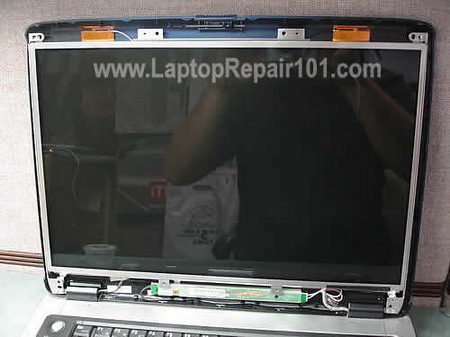
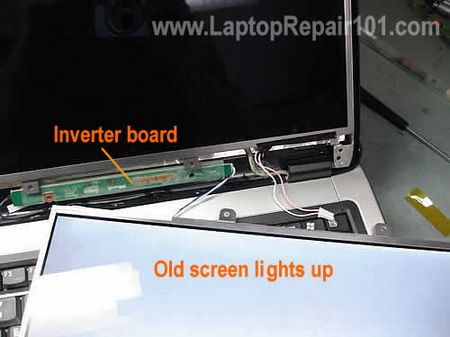
The old style screens have a backlight lamp inside and require an inverter board which is usually mounted on the lower part of the display assembly, as you can see on the following picture.
On the following picture you can see how the screen connected to the laptop. Also, check out this display diagram.
The video cable routed from the motherboard to the display through one of the hinges. Somewhere close to the hinge, the cable splits. The wider end connects to the screen (supplies data signal) and another one to the inverter board (supplies power for inverter).
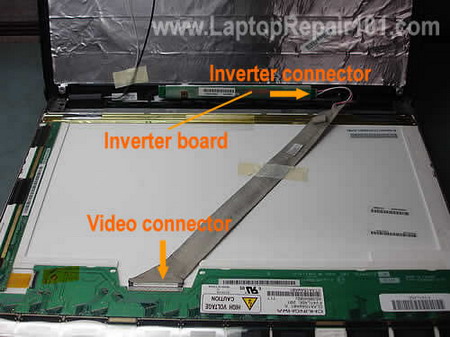
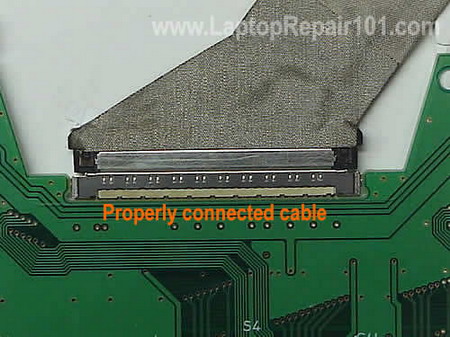
If your new screen lights up but has no image make sure the video cable plugged correctly. It’s possible that during the reassembly process you accidentally pulled the cable from the connector.
Reconnect the cable, secure the connection with sticky tape and test the laptop. There is a chance that now the screen will work properly.

The video cable has to be seated properly, all the way down into the connector.
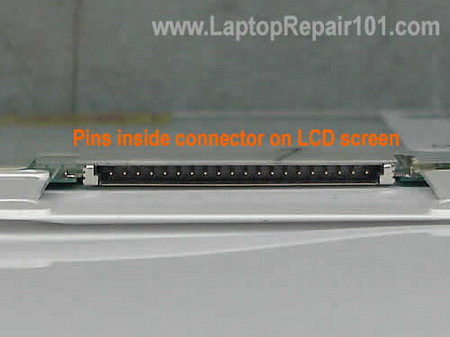
Some older LCDs have very thin pins inside the video connector as it shown on the following picture.
Take a look inside, make sure there are no damaged (bent) pins. It’s possible that you accidentally bent them while trying to plug in the cable.
You can straighten bent pins with a very small screwdriver. Be careful, they are very fragile.
Fortunately, most newer LCDs have a different type of connector, without any pins inside.
OK, you have reseated all cables but it still doesn’t work. What’s next?
If your original screen was cracked but undamaged areas still work and show some image, you can use it to test the laptop.
Disconnect the new LCD and install the old damaged one back in place. If the old screen still works but the new one doesn’t, your new screen is defective. Send it back to the seller for a replacement.
Here’s another scenario. The new screen kind of works. You can see a very faint image but there is no backlight.
Disconnect the new screen from the inverter board and plug in the old screen instead (I assume it has working CCFL), as it shown on the picture below. If the original screen lights up, apparently the new screen has defective backlight lamp.
Troubleshooting LED-backlit LCDs
Newer LED-backlit LCDs have only one cable connected to it. This cable supplies data signal and power for LED backlight.
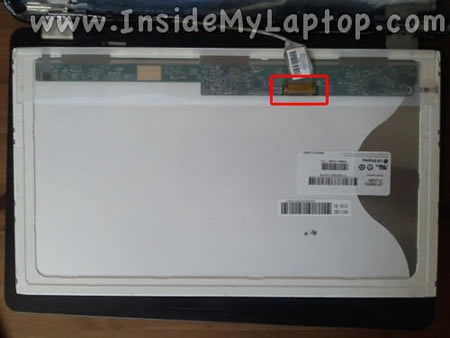
If your new screen doesn’t work, check the connection first. Make sure the cable seated properly, all the way down into the connector.
You can test the computer with the old, partially working screen, as we did earlier. If the old one still works, but the new doesn’t, your new screen is defective or not compatible.
Also, you might be interested in how to troubleshoot bad video.
231 Responses
dani882
Can you make a Asus A8jp dissasembly guide please?
I need that (for my laptop)
cj2600
dani882,
I would if I had this laptop but I don’t. 🙂
Valerie
I’m absolutely at my wits’ end here. I have a newly released laptop with a messed up screen, and I can’t find any websites selling the screen part # or model # at all. The official vendor’s website lists the screen, but as out-of-stock, and at either $600+ or $900+. Obviously, I can’t replace my laptop screen with the exact model it came equipped with. So my question is: How do I find out which screens are compatible with my laptop? What are the main sources of incompatibility? I know that my screen was TFT Active Matrix with LED backlight, so I can’t order any with the CCFL backlight. But apart from the size + backlight, is there any way to find out for sure if a certain video cable is compatible with my laptop?
I’ve googled everywhere and this blog seems to be the most helpful and knowledgeable, so I’m really hoping to get some glimmer of hope that I won’t have to put up with a broken screen for the rest of my laptop’s lifetime because I can’t afford a replacement screen. =\
Remon
just purchased replacement laptop screen for Dell B120 but replacement lights up but doens’t work, double checked to make sure connections are good, they are. I put the old screen in and can see parts of my desk top. Tried the old inverter with the new screen. Is this a case of a defective screen?
duale
I have old Toshiba laptop tecra a20, first hinges broke down and now I can’t see good on the moniter. how i can solve to change the monitor and the hinges or only the hinges
cj2600
Valerie,
So they already sell laptops with LED backlight? I’ve never seen or repaired one yet. I guess you can search for the LCD part number on the back side of the screen and then google it.
cj2600
Remon,
First of all, make sure the new LCD screen is compatible with the old video cable. If you purchased the same screen (same model), apparently it’s a defective one.
cj2600
duale,
You’ll have to find out why your LCD is not working properly. Take a closer look at the video cable. Maybe the broken hinge damaged the cable. Also, it’s possible the video cable got pulled from the connector on the LCD screen. Try reconnecting the cable, so it makes good contact with the screen.
If reconnecting the cable fixes the video problem, all you have to do is replace the broken hinges.
Jim
I’m repairing an M55 for a friend. The video is intermittent but mostly absent. It’s a black screen with the back light on. When I unplug and plug the monitor cable you can see the video momentarily. I checked all the connections and they are tight. Any ideas as to what could be the issue?
Thanks, Jim
cj2600
Jim,
Can you get the video if you move the video cable? I’m thinking maybe the video cable is bad and it’s shorted inside.
Did you test the laptop with an external monitor? Is the external video output working fine?
Jim
Strangeness continues….from the top…
User told me that it sounded like the computer was starting but nothing appeared on screen. I get the laptop home and….it boots up fine, I can see the screen.
I take it apart to check connections. ribbon to back of monitor is tight, ribbon to motherboard is tight. Put it back together. I walk it around a bit and jostle it to recreate ‘light travel’. I put it down, pick it up, repeat.
Start it back up, no monitor, but there is a back light. Take it apart, connections solid. When I do unplug/plug the cable from the motherboard the monitor does flicker back on.
I just plugged in an external monitor and that comes up fine. I hit fn-f5 and that cycles through the monitors and the laptop screen does come on. I unplugged the external, shut down the notebook and came back 5 minutes later and it turns on fine even without the external monitor.
Thoughts?
Kaitlin
Hey!
I attempted to fix my laptop screen as well. The new screen lit up completely white but there was no picture. I checked all the connections and tried again with no luck.
My old screen worked on one side where you could see the screen properly. I reinstalled the old screen so I could return the defective one and now this screen is not working either!? The screen is completely white…even the undamaged part! Does this mean the new screen is not defective after all? I did have some trouble connecting the “visual” port or whatever…
Please help!! I am sick of this bulky monitor and would like nothing more than a fully functioning laptop! : ) Thanks!
cj2600
Kaitlin,
It’s possible you accidentally damaged the video cable while replacing the LCD screen. This is just a guess.
Thomas
HELP.
– – – – – Problem: – – – – –
Laptop does boot.
Video works fine through external monitor.
Keyboard is functional
….But…Touchpad is disabled
….And…Backlight is off
– – – – – Possible conclusions: – – – – –
LCD inverter may be out (but doesn’t explain Touchpad issue)
Laptop thinks its in Standby mode (would explain both issues)
Backlight may be out (but doesn’t explain Touchpad issue)
– – – – – Solution: – – – – –
would be very much appreciated.
Thanks
adam
Hello
I purchase new lcd screen Samsung LTN150P2-L01, which was delivered with inverter (Ambit Rev:5 K021031.00, K021032.00, K021033.00) its SXGA+, my old, original screen was LG PHILIPS LP150X08 with the TDK inverter (TDK TBD281NR-1 EA12B281T).
The problem is that mam laptop compaq nx6310 has got output for inverter with 6 pin’s (like with old TDK which has 6-pin on input) , and my new inverter (which was delivered with new lcd screen) has got 16-pin input. Ofcource i can connect my new lcd screen to the old inverter, but what is the risk i damage the lcd or whole laptop (montherboard etc) ? How check compatibility of those two inverters?
Thanks
Scott
I recently purchased a new LTN140P2-LO1 screen as well to replace the one i had broke. I took it apart…put in the new monitor following instructions and when i plug it in I see a faint “HP: logo that pops up and then fades then the screen is black. I tried to plug in the old monitor and the same thing happend. I plugged it in following instructions and double checked the video cable connection. Did i somehow damage the video cable?
adamsr
All… don’t laugh here… I needed to replace the LCD on my Dell D630 so I bought the matching part # off Ebay. When it arrived, I went to install it only to find it had no screw holes for the inverter I was going to use off my old LCD display (the inverter was working fine so I was going to salvage it). So, I email the Ebay seller about not having anywhere to attach the inverter and they reply to tell me that my model doesn’t need the inverter… it will work just fine without it. I can’t see why Dell would put a part that isn’t needed in a laptop… they are too cheap for that!
Am I crazy? Is the Ebay seller?
Thanks!
Melanie
I bought a new replacement Inspiron E1405 screen on Ebay. I replaced my old one. When the monitor came on it showed the Dell logo and I was happy but then when the computer went to desktop I have a fragmented screen and when the mouse moves to the right side of the screen it flickers. Does anypne have any ideas? Thanks
Bruce
hello,
I have an hp pavillion dv9100cto series my problem is i get a black screen however when i use an external monitor windows show up but its set to the lowest resolution (4 bit) everything else seems to work fine and once in a blue moon the laptop display would show windows but its set at vga (800 x 600) screen resolution. How can this problem be fixed?
nick
Hya i have just put a new screen in my packard bell laptop, but we aint sure where the earth wire conects 2 if u could help me would be brill
Charles
My laptop starts up OK. However sometimes the screen appears blank—-UNTIL move or reposition the laptop screen to make it come on to SEE all my ICONs …How can I tell if it is the LCD screen cable or inverter cable problem?
yannis
Hi all,
I want to ask a question. I have a Toshiba A200 with a damaged screen (15,4″). I have found a same size screen from an Acer 1670 laptop.
Should I be able to fit it in my laptop? I am asking, because the Acer one will cost half the amount of a new one from Ebay.
In general, is there a way to make sure that the Acer screen is compatible before I buy it?
Denny L.
Hey,
The backlight to the new and the old screen don’t work anymore, all the cables are connected correctly, but the backlight still does not work. Is there something else that could be wrong with my laptop? such as unplugged cables inside the main board?
Thanks if someone could help me out…I’ve been trying to find some place to fix my laptop, but then I can’t find out answers.
Rachel Davies
hi i dont know if any of you can help i have a compaq c700 laptop and this was dropped and now 3/4 of the laptop screen is black and white is there anyway this can be replaced or even save my stuff that is on the laptop
shaukat
hello i have acer laptop the screen is blank if i connect to other monitor the lap top works so can the screen be repaired or i have to buy new screen please let me know as it would be appricaited
cj2600
Shaukat,
Take a closer look at the laptop screen under bright light. Is it completely blank or you still can see a very very dim image.
If there is a dim image, most likely your problem is related to the inverter board. In this case I would try replacing the inverter first.
Andy
I have a philips freevent x59. The old screen worked but no backlight. The invertor has been changed and the screen has just been replaced with a new one. It has the same problem. Still no backlight. Is there anything else. I have done the obvious and checked the connections
Bob
I have an Acer Aspire 3610, the LCD on it sort of works, it comes on bright white when switched on and then slowly fades in to the normal bios screen (no hdd installed atm) once it’s faded in it works in very very slow motion, i tested it by putting a windows installation disk in and going through the first couple of steps. I could see the WIndows installation menu and the mouse cursor arrow, as i moved the mouse the arrow moved really slowly across the screen, leaving a trail behind it. I’ve plugged a normal monitor in and that worked perfect. So, i’ve ordered a new ribbon cable for the monitor as i suspect that may be where the fault is, do you think that could be it?
Rick_D.
Hi I have an old HP ZD7000 that had a cracked screen. IT had the partnumber LP171W01(A4)(K1) I replaced it with a compatible one. The backlight comes on but there is no bios screen. I connect the old screen and it works just fine. Aside from the replacement being bad, is there anything else that could be wrong?
cj2600
Rick_D,
1. Bad replacement screen.
2. Incompatible replacement screen. Maybe it requires a different video cable. Some LCD screen might look the same but they requires a different harness.
mohammed zaid
acer 3050 model dvd r/w not working so please send me solution
Sylwia
HI there,
Im looking for 9 pin sata cable for internal power connector for my Asus W3V.
Im happy to buy the whole lot: internal power socket with the receiving board, the power jack and the cables. Just please give me your price.
All the best,
Sylwia
Ben
My laptop is a fujisu lifebok e8000 and it uses a samsung LTN150XG-02 glossy LCD screen. i wanted to replace it with a LTN150XG-01 matte screen but it doesnt work. everything works fine as swapped back the old one to post this. Do i have to get the EXACT same model as replacement? or do i have to change the inverter to make it compatible with the new screen? thanks!
Gary Magill
We have ordered a screen from screenaid and need to find a resolution for our customer. The old screen has a slot on each side of the adapter. But the new screen does not therefore the sodder joints wont allow the video connector to slide into the connector. the video connector has a clip on each side so it has to go past the adapter. Please advice
Gary
Jonathon
I have the same problem as Gary with a lcd panel. please help/
adrien
Hi,
I ordered the same model as the one that broke, connected it, but after 1 second of powering my pc shutdown. After checking it seems the screen I received wasn’t the one I had ordered. Now the laptop doesn’t react to the power button at all.
Do you have any idea what could be damaged and why it was damaged?
Thanks
adrien
Hi,
I changed my screen for one I thought was identical. When powering up, my laptop shutdown for good. It seems that I should have checked the screen I had received was the one I had ordered 🙁
Now my laptop doesn’t react to the powerup button anymore. Do you have any idea what I could have damaged, and why?
Thanks
cj2600
Gary Magill,
Apparently, the new screen is not compatible with the old one. Can you return it and purchase the right one?
cj2600
adrien,
Unplug the AC adapter, remove the battery and wait for a few minutes. Now plug in the AC adapter and try turning it on again. Does it work?
Mr.LCD repair
Thank you for this useful post. I found your blog through google. Your blog is quite interesting.. And I have added your site to my bookmarks 🙂 Repairing LCD is not something you can do it yourself. Atleast not for the people who are not computer savvy. Finding a right technician makes all the difference..
cj2600
Mr.LCDrepair,
I agree but not with the whole statement.
I wouldn’t recommend repairing LCDs for people without experience, but replacing the LCD is a different story. It’s not as difficult as it looks like. If you are careful enough, everything should be fine.
RAUL
I JUST BUY A NEW LCD SCREEN FOR MY LAPTOP I HAVE AVERATEC 4100
AND THE SCREEN DONT SEE ANY IMAGE JUST BLANK I PUT BACK THE OLD ONE AND DO THE SAME THING NO IMAGE I DONT NO WHAT HAPHEN BUT I CONNECT TO VIDEO PORT OF MY LCD TV AND WORKS FINE BUT NOT ON MY LAPTOP PLEASE HELP THANK YOU
cj2600
RAUL,
1. Make sure the LCD cable is properly connected to the motherboard.
2. Take a look inside the video connector on the motherboard. Make sure all pins inside are straight and there are no bent/damaged pins. Very carefully straighten the damaged pins if you find any.
3. Could be defective video cable.
Ed Aycock
I replaced the LCD screen in a Toshiba Satellite Pro 6100 with a replacement screen for that model. After connecting cables and powering up, it switches from gray, grayscale, red, green, blue, and then white to black 4 times quickly. Then it repeats over and over. I first thought the computer was just calibrating the color on the new screen, but it never ends. I took the screen off and reconnected the cables to make sure they were seated well. Same result. Any ideas?
cj2600
Ed Aycock,
What was wrong with the old screen?
Did you test the laptop with an external monitor? Does it display image on the external monitor?
Take a look inside the video connector on the motherboard/video card. Make sure all pins are straight and there are no damaged pins. Maybe you accidentally damaged pins inside the connector?
Ed Aycock
What was wrong with the old screen?
Did you test the laptop with an external monitor? Does it display image on the external monitor?
The old screen was cracked. I tested with an external monitor and the display was perfect.
Take a look inside the video connector on the motherboard/video card. Make sure all pins are straight and there are no damaged pins. Maybe you accidentally damaged pins inside the connector?
I checked pins inside the screen’s connector and they look good. I checked the pins on the cable and cleaned them. I don’t have the laptop apart to address the video card or motherboard. The screen is powering up, but not receiving image or signal from the computer. It is going through the color scale like a test pattern. I gave the right part number to the vendor, but maybe I just got a bad replacement screen.
kojo
Hi, i cleaned my Compaq presario c500laptop PC and now it has white lines on it .I want to replace with a used one please help me find one
.Thanks
Misty
Hi, I just replaced the LCD for my dell 1500, I can see that it works, but the computer keeps booting and rebooting in a loop. Help! It does it about 5-6 times then turns off. It goes to the XP screen then back to the Dell screen, then back to XP screen. I can’t get into the safe mode or set up menu even.
cj2600
Misty,
Here’s something to try. Unplug the LCD cable from the motherboard and start the laptop with an external monitor. Do you still have the same rebooting problem even when the LCD is unplugged?
If yes, your problem is not related to the new LCD screen. There is something else going on inside the laptop.
Erich hochstuhl
I had a dc jack replaced on a laptop. I shipped the MB when it cam back I put it back together. the HDD spins, HDD light goes on then off but nothing shows on the screen. I checked all the cable several times and disassebled the laptop at least 4 times. I don’t hear the fan spinning or cd rom.
Dan
Erich hochstuhl,
Check the memory. Make sure RAM modules are seated correctly.
Check the CPU. Make sure the CPU is seated correctly and the socket is locked.
marcelo
which models of ldc screen can I use for a hitachi old notebook model pc7np3-gbc27k110, 12.1″
How to know what to bay? Is there any site to check it in the Internet
THanks a lot
hope you are able to give me some helf, I would be very pleased…
jason
Ive installed my new screen ,works only in safe mode..need help!!!
Andy
Hi,
I have a Fujitsu Siemens Amilo Pro V2010 which shows a dark screen with a faint image. I have tried the screen attached to another (working) V2010 and it works. I then checked the broken V2010 with an external monitor and that works as well. Is it possible that the video chip could be damaged in a way to make it look like a backlight/inverter problem?
Yours in puzzlement,
Andy
gaurav singla
hello sir i have a problem with my laptop lenovo y500
screen.
a line is display on the screen but with whole sc reen.
many time its shakes and disappeaer that line.
Dennis Redding
I replaced my lcd screen in my Dell Inspiron 8600, but the screen cycles through colors of red, blue, green, and white. When I connect to an external lcd it shows a blue screen and reports that a hardware error has occurred.
Almeida C.
I am with purple vertical stripes on my screen. Follow the link for the problem with images, I believe to be the screen, but told me to be the reverse lcd or flat cable.
Max
I have two broken laptops: Packard Bell with dead motherboard and Dell with screen that shows faint image. I’ve tried to fix Dell by replacing screen and inverter bought on eBay, but it did not help. I wonder if I can take the screen, inverter and cable from Packard Bell and use them all in Dell?
Thank you in advance
cj2600
Max,
Most likely not. These are two different models.
cj2600
Almeida C.,
It’s not the inverter, that’s for sure.
Can you test the laptop with an external monitor? Are you getting same problem on the external video or not?
If the same stripes appear on both, internal and external screens, you have a bad video card.
If stripes appear only on the laptop screen and external video works fine, it’s possible you have bad LCD screen (more likely) or faulty cable (less likely).
cliff
Hi
I’ve replaced the screen on my sons girlfriends laptop (MSI PR210 YA Edition Pink Laptop) but it now has little flashes of coloured lines going down the screen. I can see everything okay but the lines are really annoying!
I’ve checked and it’s the right screen etc and when I connected it to my monitor the lines are not there.
I’ve checked all the cables and they all seem fine, but i’ve noticed that the metal lip on top of the video cable lead isn’t touching the connection on the screen. i’m talking about a miniscule gap but I wondered if they need to be touching to get a complete connection.
cj2600
cliff,
That means the video card works properly and the problem is somewhere inside the display panel.
1. Try reconnecting the video cable on the LCD screen if you haven’t done it already. It’s possible that the video cable is not making good contact with the connector on the LCD screen.
2. Access the video cable and move it a little bit while the laptop is on. Will it change anything on the screen? If moving the cable affects image on the screen, it’s possible you have a faulty video cable.
3. Could be defective LCD screen.
gmunton
A friend has a Toshiba P200 with a problematic screen, first the keyboard went, then a couple of weeks later suddenly the LCD screen stopped working for no apparent reason, an image can be obtained on an external mointor. He’s rplaced the keyboard and a damaged monitor cable to no avail, then the inverter, and finally the screen each with no success, we’ve upgraded the memory and hard drive in the process so in my opinion that rules out any software issues, advice please…
Mukesh Soni
Machine:
Lenovo 3000 N200 Model 0769-AH8
Problem:
I had my original LCD screen broken – LTN154X3-L06 / LTN154X3S2LV3.1 (on PCB)
so ordered one from a US based online store. The new one i got has this written on its pcb: LTN154X3S4LV3.2 (on PCB) and LTN154AT07-002 on a white sticker.
The new screen has same size and resolution and backlight type.
After changing the LCD, I get contents only on 2/3 of the screen…1/3 of the right width of the screen is filled with white and other colored vertical lines.
(so from left end to more than half towards right, the picture/desktop is perfect like nothing has happened. Rest of the screen on right has multi-colored vertical lines)
Any suggestion what is the problem? are the two screens not compatible? Any help will be greatly appreciated…I am in deep trouble due to this problem.
Thanks.
Soni
cj2600
Mukesh Soni,
I think you got a defective LCD screen. Your description sounds like a bad screen.
Contact the seller and replace the screen with another one. Hopefully, you still have warranty.
Christian HC
Hi!
I have a Thinkpad Z61m with a blank screen and no backlight.. An external monitor works perfect but i can’t even see the internal monitor in device manager. – Is it the LCD or the video card? – Thanks
cj2600
Christian HC,
It’s hard to tell. Are you sure that the laptop screen is completely blank? Maybe the image is still there but it’s just very dark? Take a closer look.
Try to switch video from the external to internal mode using Fn+F7 key shortcut.
James
I had half a screen on my dell vostro 1000. I saw an lcd
replacement advertised for less than dell. When I look at
the replacement it has no screw holes on the frame for the
inverter or the piece on top (mounting bracket )that the bezel is attached to.
Also white tape that says “Do Not Touch” covers the area
of the frame on top were the mounting bracket would go.
How can this be fixed. Does the white tape get pulled back
and the old metal frame removed and goe on the replacement lcd?
thanks
cj2600
James,
Apparently you are looking at a wrong screen. Try to find a new LCD screen that matches your screen.
It’s normal. You’ll find this warning on most LCD screens.
I doubt it. Most likely the mounting bracket is permanently soldered to the frame.
I had a problem like that last week. I was replacing the LCD screen on a Gateway laptop and purchased a new one with exactly the same model number, but… the revision was different. Instead of Rev.C1 I purchased Rev.C2
The new revision had two mounting brackets on the top and bottom and the screen didn’t fit into the case. I had to send this screen back and replace it with Rev.C1 screen.
Hamid
Hi,
Im trying to replace LCD on asus laptop but there is no display. I have noticed that a pin from ribbon connector is not there so do you think that could be the issue?
cj2600
Hamid,
It’s possible. Can you get at least the backlight?
Keith
I replaced an LCD on a Dell Inspiron 1525. I found it online for $120 shipped. It’s a Samsung LCD panel, 1280×800 WXGA 15.4″ screen. It fits into the Dell fine, but there was no bracket for the inverter board. I was able to use plyers and destroy the old screen (was already broke) to get the inverter bracket off that, then use a hammer to straighten it out. I got everything in, and I even had video for a few minutes until I powered it down and shut it off. Now it’s back together and I get no video. The backlight comes on, and you can see it flash when I use FN+F8 to cycle internal / external video. External monitors work fine also. I opened it back up (which is a pain I might add…) and reseated the cables. Still the only thing that comes on is the backlight. I just ordered a new LCD signal cable. Do you think that could be the problem? The LCD signal cable was attached with industrial strength tape on the old panel’s connector. I wonder if prying this tape up also damaged the signal cable.
The monitors aren’t exactly the same, but they state they are for Dell Inspiron 1525’s. Same resolution, same size same signal connector, same mounting holes same brand (Samsung). The only thing different is the placement of a 1cm connector (which is also on the broken LCD) which is not used at all. Also the part number differs (LTN154X3-LOD vs. LTN154AT10) but the thing is I saw the Vista boot screen when I powered it up (while still disassembled).
cj2600
Keith,
Have you tried reconnecting the video cable on the motherobard (or video card)? Maybe you accidentally pulled the cable from the connector while taking apart the display panel?
Keith
Yes. I reseated the cable. I ordered a new cable and will try that as well. Additionally I heard that some people may have issues with a little switch that detects when the laptop is closed. I will look for that as well if I can find it. They say it’s near the hinges.
Keith
Well I got the new cable today. Same results. Backlight is A OK. No video on the screen. Screen senses cable because when the cable is removed the screen turns pure white.
Video is fine through the VGA and HDMI outputs.
The replacement screen is going back. I hope they will honor it. It was purchased from eTech.com
cj2600
Keith,
What was wrong with the old screen?
kinkazu
Hi. I have 2 same machines and one of them had broken screen. I took a screen from the working one with all cables conencted etc. and ther eis no backlight there. I can see very dark icons. When the screen comes back to it’s parent it works ok. Is tehre anything else apart of cables,inverter, incompatible screen, that can cause such a behaviour?
cj2600
kukazu,
Are you sure that the laptop with broken screen works fine? Can you get light on the broken screen and the laptop is turned on?
Keith
Well the original screen is cracked and the little florecent backlight tubes in them are cracked.
So I got the new screen. Just the backlight work.
Got a new cable. No change.
RMA’d the new screen. Got another… different model but same connectors, size, specs.
Put the new screen in, now I get purple lines that slowly fade to light green. I messed with the connectors and when I unplug the cable and plug it in, it’s very distorted.
I almost think even though the screens this company is sending me have the same connectors, they are wrong. This Dell Inspiron 1525 came with a Samsung LTN154X3-LOD LCD. This company I got the screens from are sending me anything BUT a “LTN154X3-LOD”. They claim it’s still compatible (and looks so with the connector).
So am I getting faulty screens, incompatible screens, or is there something else wrong. I’m RMA’in the second screen.
cj2600
Keith,
It’s hard to tell what is causing the problem.
It looks like you are getting different failures with two different screens. I guess it’s possible that LCD screens you are getting are not compatible with the laptop somehow, or maybe they require a different video cable.
ujjal kumar mishra
i got your site incredible
Philip Santiago
hi can i ask you about my laptop? when i turn it on it was all black screen but when i connect it to monitor it has image but the image is like damage and you can barely read whats in it. please reply as soon as possible. thanks so much..
Jeff
Hello,
I replaced my laptop screen and now the computer has no power at all and wont even come on. I reconnected the battery and on my ac adapter the light is on until I plug it into the computer and then it goes off. I checked to make sure all connection where good and everything looked good. I even tried my old one and now it wont work??
Mario
Hi,
I replaced my dell 17″ WUXGA with WXGA (sharp to LG ) and I used my original inverter board.
It works only while it boots and in safe mode (in safe mode it loads standard VGA drivers). If it loads full Nvidia drivers for my go7900gs it looks its on but doesn’t show anything. I tired extending it onto my TV and it works fine on TV but nothing on LCD screen.
it seems that graphic drivers or graphic bios is blocking the new screen. I also read somewhere that all manufacturers block screens that are not for their line of laptops through bios but i cannot confirm it.
Can anyone help please.
thx in advance
p.s. windows are not the issues since i reinstalled them (win7 ultimate) and LCD screen works while installing but as soon as I update graphic driver it only works on TV or external monitor)
dave
hp compaq nc6000 lags on boot up i have to tap wireless card slot on bottom to boot.any ideas
Brian
I’m having similar issues with my Dell Vostro 1500. I had the 1280×800 resolution screen, but my kids cracked it so I ordered one and it came yesterday. I took the old screen out and unpacked the new screen and have the exact same problem y’all are seeing. The new screen has no mounting holes for the inverter bracket at the bottom and upper screen to back plate bracket at the top. Both of these brackets are screwed onto the screen.
I installed it loose and booted the computer. I got 8 Dell Windows staring back at me, then 8 Windows 7 boot ups then everything goes blank. I re-hooked up the old screen and it works just fine so it’s not the cable. I also tried the new inverter that came with the screen and the problem still followed the screen.
The OEM screen is a Chunghwa CLAA154WB08A. The new one that I got was a Chi Mei N154I5-L01
remark
I have a problem.Seller where I buy a LCD(LTN170WX) said that it is full compatilble with my old(LTN170WA-L01).But after replace exist only backlight,no imagr.What is the problem,incompatible LCD? Or something else?
Say me please,WX have anothe PINs in connector as WA model?
Have you a circuit diagram of both of connectors of this two LCDs?
I would be very grateful .
cj2600
remark,
Make sure the video cable is plugged correctly into the LCD screen. Try reconnecting the video cable just in case.
bharathvn
Excellent doc, i had similar problem with my laptop and rectified the same.
Thanks for nice work!!
Cheers
robert
Philips h12y (Vista) – old chimei screen damaged – part viewable. merchant says new LG screen compatible – but just get white screen – external monitor fine. Put old screen back – now also just white (both can be turned off with Fn/F3 keys). Double checked connections at both ends, cable doesn’t appear damaged Do I change inverter and/or cable? If new screen incompatible, has it done any irreversible damage? How can I check if LG screen is truly compatible (with inverter?)?
Farel
I recently replaced the screens on to seperate V6000 Laptops doing so I damaged one of the inverter boards(somehow bent 2 of the 6 prongs in the plug on the card). So I went ahead and replaced both inverters as well. One lap top (wifes) seems to work fine. Although its not used very often. The other one (mine) sometimes the inverter needs to be unplugged and plugged back in after a rebooting or when I wake it from sleep mode. I tried switching inverters. This makes no difference.
Any Ideas ???
harsh
Hi, I just replaced my broken screen on Hp dv 2000. After I turn the laptop on the screen just glows white. I don’t know what the problem is and what this means.
Rick
just replaced screen on sony vaio pcg 7112L turn it on and screen is red but you caan see a picture. it does not turn red with old screen if i tap on bottom of case near battery or push pressure then the true pic comes on. as soon as i move my hand it goes red and other colors again. the company i bought it from says its compatible. at the top of the screen where the ribbon hooks into the circuit board there is a large connector and a small connector. on old screen it only has one connector pls help.
Rob
I just replaced a crecked screen on my dell xps 1530 the back light comes on but nothing? do i need to load a driver? ive check all conections 8 time. please help
cj2600
Rob,
Did you get any image on the undamaged part of the cracked screen? If you did, can you install the cracked screen back and see if the image is still there?
Are you sure that your new screen is compatible with the laptop?
Rob
Yes i tried the old screen and it comes right on but i can only see the top 20% so i cant use it for much.I feel sure I have the correct screen I did my home work and sent the compony I bought it from all the info and even called to make sure everything matched up.
cj2600
Rob,
If you are getting image on the old cracked screen but not on the new one, most likely your new screen either not compatible or defective.
Contact the seller, explain that your cracked screen still works but the new one doesn’t and ask them to replace the screen.
mica
toshiba laptop screen broken how much will it be reply back soon as please
cj2600
mica,
It depends. What is your laptop model number? Are you going to replace the broken screen yourself?
Rebecca
I have a toshiba laptop and the when I open the laptop the screen does not come on. What could be the problem? And how can it be fixed? I can here the fan kick in but no screen.Thanks for your help.
Gary Gemmell
Could just be the laptop lid switch is jammed – check that first its always a first checkpoint before moving on. Usually a small microswitch – looks like a little piece of plastic in a hole – push it should move up and down.
Check by connecting an external monitor to make sure it isnt the graphics card in the laptop – some HP laptops i recently had a look at had that old fault of overheating graphics chip which eventually breaks itself free from the circuitboard due to insufficient cooling – Hp is already involved in litigation over this. If you get a display on the external screen im afraid it will likely require opening up the laptop and an engineer which usually (for good reason) is not cheap!
Could also be a loose cable – some laptops have faulty cable connections to the motherboard which eventually come loose after continual opening and closing of the screen/lid. Again that required opening up the laptop.
If the switch is not jammed closed then next suspect is the ccfl backlight – easily broken if you drop your laptop.
Next test would be the invertor – unfortunately these last two are not for beginners and would require opening up the screen and laptop to test them.
Jordan Russell
Slightly off-topic but is there a trick to turning laptop hinges when they’re not bolted in place? I have managed to get my two hinges lined up opposite ways and I can’t screw them back down like this. The hinges work so easily when they’re on the laptop but trying to turn them with your hand when they’re not bolted down is a nightmare 🙁 The hinges are still connected to the screen on this very-difficult-to-work-with laptop (Acer Aspire 6935G) and taking them off completely looks impossible.
MattH
My wife’s computer (Lenovo SL400) had the display go out. Was able to figure out that the backlight wasn’t working because there was a VERY faint image of the display when you look close. Replaced the inverter. Still no backlight. I then replaced the entire screen assembly. STILL no backlight. Had a friend who works for Dell come and check it out to see what I could be missing. He was at a loss too. Tried searching around the computer for a pinswitch (to turn on the display when the laptop is opened up) that might be stuck, but to no avail. No switch to be found.
What am I missing here?
Cassandra
I have a Toshiba Satellite A205-S5843. I installed the new screen(A205-S4607) according to your ScreenTex tutorial and my screen does not come on. I just saw a blue screen, then it went to black. the inverter wires seemed a bit short,
Please help.
TomS
MattH:
Did you ever find the solution to your Lenovo SL400 faint display issue? I have the same thing with mine. Replaced backlight with no luck. Replaced the whole monitor with no luck. Help!!!!
Paul
I think I have damaged the VGA cable on my laptop, as i was trying to replace the LCD screen due to in having a crack.
Now even when I attach the old LCD screen the laptop does not boot is this common? :O(
cj2600
Paul,
It’s not common. If you replaced the video cable and did everything fine, the laptop should start properly.
Did you install the correct video cable, maybe you purchased a wrong cable?
Mike O
I have a Gateway ma7… I purchased a replacement screen on Ebay.. It fits perfectly and all of the adapters match up (Inverter and Video Cable) When I turn on the screen it does not work it just displays lines everywhere. I know the new screen is good. I “tricked” the PC into thinking it was powering the old screen and sitched to the new one and it displayed fine.. The old screen is phillips and the new is Samsung.. Is this a Driver or software issue?
cj2600
Mike O,
Maybe the new screen is not fully compatible with the laptop? Sometimes updating the laptop BIOS to the latest version can help.
Ravin
Great compilation to solve laptop LCD issues.
My story!:
Replaced the cracked LCD on my Sony-VAIO-VGN-CR series laptop. It shows full white, no video.
Tried sevaral (atleast 5!), all with same problem ( white, no video).
Now even the old cracked screen shows white, no video!
Thank fully external monitor works.
Is it that the connector is damaged?
Have not touched the motherboard/video card side othe cable absolutely!
Please advice.
cj2600
Ravin,
Could be something wrong with the motherboard (yes, even if external video works fine).
I’ve seen Sony laptops failing like that (external screen works fine but internal screen white) before. Sometimes it’s bad LCD but sometimes motherboard failure.
It’s possible that your first screen wasn’t 100% compatible with the laptop and you fried something on the motherboard.
Also, just in case, check connection between the video cable and motherboard. Maybe you accidentally pulled the cable while replacing the screen. Try reconnecting the video cable on the motherboard.
Ravin
Does motherboard issue pretty much means laptop replacement time; isn’t?
Or is something possible?
To check motherboard side of the cable I need to figure how to disassemble the thing, tried y’day without luck. Do you have any ready reference for Sony-VAIO dis-assembly?
Thanks for quick response.
cj2600
Ravin,
Yep. Probably not worth fixing.
http://www.laptoprepair101.com/laptop/2008/01/07/service-manuals-for-sony-vaio-laptops-notebooks/
Read through a few disassembly guides and you’ll get the idea how to take it apart.
Ravin
Thanks a bunch, really appreciate.
Depending on how simple it will be for me will get back soon after disassemling…
Can you think of anyother diagnosis?
jr
i crack my screen on my toshiba satellite A205-S4577 and i found a SONY VAIO VGN-N120G MODEL PCG-7T1L on craigslist and i look up both lcd screen replacement online and both had this similiar
Size: 15.4″ Wide LCD Screen
Resolution: WXGA(1280X800)
Type: TFT Active Matrix Glossy
Backlight Type: CCFL 1-Bulb
Backlight Connector: 2 pin
Video Signal Connection: Standard 30-pin
both have the standard 30 pin connection so im guessing it can be done can some one comfirm this?
cj2600
jr,
Might work, might not. You never know until you try.
Even if the screen has similar specifications, it might not work.
Is it very chip on craigslist? You can find a brand new compatible screen for about $80 on eBay.
John
Please help me.
I kinda have the same problem as all of you, instead, my LCD isn’t broken. I know that because i connected the LCD to the motherboard of another laptop and it works. When i connect the new LCD to the “bad laptop” it doesn’t work.
Could that be the scenario of a broken motherboard?
alibole
Hi
I have a toshiba satellite a200-27u i have replaced the screen when i booted up to check it went fine i then put the laptop back together switched on no screen just black took apart again rechecked coonections all seemed fine still no screen moved the laptop and tried again this time it booted ok but again later i booted no screen tried puting it onto a moniter came on ok could see windows so not whats the problem is it a new data cable or inverter any help would be welcome.
alibole
cj2600
alibole,
It’s hard to tell what’s wrong. Could be just loose cable somewhere inside the laptop.
Here’s what you can try.
Disconnect the LCD screen cable from the motherboard and test your laptop with an external monitor. Try moving the laptop while it’s connected to the external monitor. Disconnecting the video cable from the motherboard will eliminate the entire LCD assemble and help you to narrow down the problem.
If your laptop works fine with the external monitor while the LCD screen disconnected, most likely your problem is somewhere inside the display panel (loose cable, bad cable, bad LCD screen, etc…)
If your laptop still looses video even on the external monitor (when LCD screen disconnected), there is something wrong on the motherboard (could be loose RAM, bad cable connection, bad motherboard, etc…).
cj2600
John,
What if you start your “bad laptop” with an external monitor?
Can you see image on the external monitor?
Does your “bad laptop” turn on at all?
roland
I have same problem Benq joybook p51e, I can see dim image it work very well with external monitor, I’v change the inverter, change LCD, change cable still not working please somebody help!!!!
cj2600
roland,
I assume that all new parts you installed are good.
Do you have a lid close switch somewhere on the laptop? Is you lid close switch a physical button or it’s a magnetic switch?
If it’s a button, try tapping on the switch. Maybe the button is dirty and got stuck inside the case. The laptop “thinks” your display is closed even when it’s open.
On some models the lid close switch has it’s own cable and can be unplugged from the motherboard. If that’s the case with your laptop, try disconnecting the lid close switch cable from the motherboard and test the laptop video again.
Pavol Lobb
so here is my new monitor i bough from friend for 50 euro it has worked for 3months or so … my original one was cracked (notebook asus m50v) is there any chance to get it working again?
http://img171.imageshack.us/i/dsc02213m.jpg/
cj2600
Pavol Lobb,
Looks like LCD screen failure to me. I guess you’ll have to replace the screen again.
Probably you can make it work temporarily if you torque the screen a little bit but this “fix” will not last (if work at all).
steven
Hey
This may be a long shot but what i got to loose :D. i have a alienware aurora m9700. The screen was completely black couldnt see a thing. I had a spare ribbon i borrowed of a friend and nothing still. so i grabbed a new screen now it comes on but is completely white. i checked the lcd cable multiple times. so iam assuming either the screen i got is faulty or possibly a faulty cable (tho both is unlikely but possible as friend cant rememeber if his one had a screen fault). I tested me laptop on a external monitour and it was fine.Also maybe the inverter tho i dont think it is. i have a couple of old laptops but the lcd connection to the board is diffrent. so could i try a diffrent screen with one of these cables?. i really am stumped atm tbh and any advice would be much appreciated.
cj2600
steven,
Did you use compatible video cable and LCD screen?
If the screen lights up (even if it’s solid white), the inverter works properly. I don’t think your problem is related to the inverter.
ALAA MS
Hi
I have a dell latitude d610
my screen does not work properly so i tried to replace it
then a weird things happens
If i replace the screen then turn on my computers nothing will show up only after windows started it shows and the blacklights light but the screen is still black
Now if i disconnect it and put the old screen then turn on my computers and replace the scrren while the computers is turned on it works properly
The probleme is when i restart the laptop it’s the same problem again, Nothing on the screen
So what shall i do?
I even tried flashing the main board but it’s still the same probleme
Thank you in advance
steven
yer it is a replacement screen (According to flea bay at least :S ) and the cables are both from the same machine model/spec.17” Wide Screen WUXGA 1920 x 1200. was just about to give up and run on a spare monitor as not sure i wont to sink to much more money in to this machine what with its age and spec etc. when i reconnected it again i noticed some faults. 40 pink blocks small look like ide cable ends all over the screen. and page_fault_nompad_area message now i dont remember see in that before but tbh i remember just plugging it in see the window start up and then switched it of. Also on the boot screen is loads of $. Was just on here to look them up when i thought id check back here first. Iam completely stumped tbh after building machines in the past and the odd repairs never come across anything like this before. so excuse the noobness and the grammer lol
cj2600
ALAA MS,
When you turn on the laptop with the new screen installed, do you see Dell logo on startup it it’s black right from the beginning?
Can you get any image on the external monitor with the new screen installed?
ALAA MS
No i can’t see anything
the monitor does not show anything not even on an external screen
the only time it works it’s when i turn te computer on with the old screen then replace it while it’s still running
Viral
I Have Laptop of HP 6120 And Boot Screen Blank When I boot It Normal But when i Press Near The Mouse Its Work Properly
Please Tell how I Repair It.
roland
cj2600 thanks, I don’t think there is lid switch on p51e and it was the switch, if it was the switch will not work with external monitor? if the display driver is not install it’s working perfect with external monitor and the laptop is new
cj2600
ALAA MS,
Weird!
Probably your new LCD screen either not 100% compatible or defective.
Matt
Hello, first of all thank you for making this website!
I have a laptop problem where I dropped it in the airport (while in the bag) and ever since, when I turn on the laptop the screen comes on (faint backlight) and the screen is dark wit ha series of very fine vertical lines.
If I squeeze the screen it works, but when I let go, the screen freezes at the image of when it was last being squeezed.
I made a video of the problem and the disassembly (briefly shown)! Any ideas?
cj2600
Matt,
Sounds like LCD screen failure. I guess you damaged the screen.
Try replacing the screen.
Melinda
I have TWO new screens for my eMachine e725. My son hit the laptop screen from the back and the original one shattered. I am not using the laptop hooked up to the desktop monitor…kinda defeating the purpose of a laptop! All I get is a white screen…no pics, fonts, faint images..it is correctly connected and the company swears one of these should work. Any ideas?
Robert
I tried order the part and fixing it myself. That didn’t happen. I’m not sure if the part even worked or if it was my installation. In the end I got it repaired by:
Best Buy / Geek Squad
1605 George Dieter
El Paso, Texas 79936
They took a while but did a perfect repair. I’m usually pretty handy but this was a bit beyond my normal scope of things. I would say that if you’re handy then to order or the part and give it a shot, this site is very helpful especially with the great pictures they have to show you step by step. If if you can’t do it, I’d look for a good place to get it repaired. Geek Squad did great for me but there are many other local shops out there. Mine works perfectly again and I am happy for that.
djul
thanks for this site..
i have problem with my new aedupack laptop. when i press power, its look good but bios can not load at all like hang ! what can i do for that problem ?
wayne mayes
i ahve a hp pavilion dv6700. when i push the on button the lights come on and then go off.
cj2600
wayne mayes,
1. Test your AC adapter with a voltmeter. Make sure the adapter outputs correct voltage. If not, replace the adapter.
2. If AC adapter in good working shape, probably this is motherboard failure.
Deissy
Hi,
It looks like my laptop was dropped on its top/back (behind the lcd screen) i dont know what its called. But there is a crack on the outside and the damage to my screen is on the same spot on the inside. It shows the white/color streaks on the same spot where it was cracked on the outside. Is there a way to fix it without replacing the screen since the damage is not on the screen?
Thanks!
Nelson
I have a Dell Inspiron Mini 10, recently exactly half (right side) of the screen went white with the other half working properly.
Is it a problem with the inverter or the lcd ??
The screen is halved vertically exactly at the middle.
cj2600
Nelson,
This is not inverter related failure, that’s for sure.
Sounds like LCD screen failure.
cj2600
Deissy,
It sounds like the LCD screen was damaged too. Otherwise it would display the image normally.
I’ll have to replace the screen with the back cover.
cj2600
djul,
Do you get any image on the screen at all?
If you get the initial logo but the laptop doesn’t go into BIOS, try removing the hard drive.
Does it go into BIOS with the hard drive removed?
cj2600
Robert,
Probably cost you a fortune? 🙂
cj2600
Melinda,
Did you get any image on the shattered screen, I mean on the undamaged area?
You can try installing the shuttered screen back into the laptop and check out if it sill has image and backlight.
If image appears on the damages screen but the new one is completely white, most likely the new screen is defective OR not compatible with your laptop.
BOB
My Compaq Presario LCD screen displayed a Vertical yellow line on the left hand side. After replacing the old LCD screen with a new one, the new screen displays the same line in exactly the same place. tried outputing to an external moniter and the display is display perfect. What else could it be ?
cj2600
BOB,
This is very unusual failure.
I you get a line on one side of the screen, usually this is LCD screen failure.
1. Try reconnecting video cable on the motherboard.
2. If it doesn’t help, replace the cable.
bren
i HAVE A DELL iNSPIRON 9200
I COULDNT GET IT OUT OF HIBERNATION. THEN I READ THAT IF YOU CHECK THE MEMORY TAKE IT OUT AND REPLACE IT AND THE SAME WITH THE BATTERY AND CHECK THE AC ADAPTER. MAKE SURE ITS PLUGGED INTO THE WALL CORRECTLY AND THEN REBOOT IT, IT SHOULD THEN START.WELL I DID THAT AND IT DID REBOOT THEN IT WENT RIGHT BACK DOWN. NOW IT WONT COME ON AT ALL. NO POWER LIGTS NOTHING NOT EVEN THE POWER BUTTON,.. AND SUGGESTIONS THANKING YOU IN ADVANCE
Johan
I cracked the screen of Toshiba A200 resulting in coloured and white patterns.
I replaced the screen, but now the screen shows an uniform gray picture. (quite bright and turns short periods into black during booting.)
Laptop runs fine with external monitor.
Please advise.
Gerv
Brilliant simple instructions. I am confident to proceed. I wish the rest of the internet was so useful!
One question however, I have a Toshiba P100-423, when buying/looking for a replacement screen is the “-423” totally essential for replacement criteria or is simply searching for “Satellite P100 screen” sufficient. I am getting very mixed advice and confusions. thanks muchly.
tapan dey
i have a hcl laptop it,s not start.it,s power adapter lights glow&off but the laptop is starts in battery ,what i can do.
cj2600
Gerv,
Just “Satellite P100 screen” should be sufficient but make sure it has same resolution as the original screen. Also, there are glossy and matte screens out there. Make sure to order the right one.
wayne mayes
i have a dell pp29l laptop and i need to remove the key broad. i have all of the screws out but there seems to be something in the center of the key broad holding it.can you help.
wayne
cj2600
wayne mayes,
Dell pp29l? I Google it and it refers to Dell Inspiron 1525 laptop.
js
I dropped my Dell Inspiron 1525 from about 2 feet on the tile floor. I thought Hard drive went bad, but connecting to desktop monitor confirmed that it was LCD that went bad. I ordered exact Dell part (new) for LCD that includes inverter. I was shocked to see there is no difference with the new LCD. I do not see any light in the LCD. I correctly inserted data cable and inverter cable. I checked to make sure these two cables are tight and secure. I read on this site and several others that replacing LCD should take care of it but what else is going on with my laptop? Any lose connections inside the laptop? Is it something I can take it apart? or any other tests I could do? I really appreciate your time and help with any advice you could give.
cj2600
js,
I would check connection between the video cable and motherboard.
Usually this connector located under the keyboard. Remove the keyboard and reconnect the cable.
Andy
HAve an dell 1555 lappy just upgraded from window vista to W7 Ultimate all things were proper but dont know in windows 7 the window is glitchy while opening window while playing game anything … tried updating my driver /uninstall and reinstall of vista driver but still its glitchy saw the tem its all normal as what graphich card it should be plz help if any one can
Ryan
I broke my LCD Screen on my asus, so I decided to replace it. I installed the new one and when I went to turn on my computer nothing happened. The power won’t turn on and my adapter won’t charge it. I followed all the instructions perfectly and to my knowledge o did nothing wrong so I thought it was the replacement screen. I removed and replaced it with the broken one and the same problem persists. Please help.
Stan
Hi, I have two laptops of my family’s in turmoil. One is the HP DV2304TX with classic video card Nvidia chip issue; the other one is Gateway T-6836u with some strange motherboard issue.
I’m trying to bubble wrap the DV2304 tonight and see if it works tomorrow. I also tested the Gateway T-6836. strange thing is, the exterior VGA works flawlessly, but internal LCD just doesn’t have backlamp! That screen is new, also tested with 3 other ones (the old broke one, HP’s, and this new one), invertor is new, cables are new too. It just doesn’t work. I suspect the power supply capacitors/other elements in the laptop just messed up? Please help and thank you so much..! Sincerely, Stan
cj2600
Andy,
Did you install Windows 7 32bit or 64bit version? I just looked at available drivers for Dell Studio 1555, and didn’t see drivers for Windows 7 32bit, only 64bit.
Maybe you should try installing 64bit instead of 32bit?
cj2600
Ryan,
I hope you didn’t replace the screen with the battery installed into the laptop.
What if you unplug the AC adapter, remove the battery and push on the power button for a few seconds? Sometimes this trick helps.
Also, make sure the video cable connected properly. Take a look inside the video connector on the motherboard. Maybe you accidentally damaged pins inside the connector.
cj2600
Stan,
It’s hard to tell what is wrong, but if you’ve replaced the LCD screen, inverter and video cable and it still doesn’t work, most likely there is a problem with the motherboard.
cj2600
Stan,
Another way to fix the problem is heating up the NVIDIA chip with a heat gun. I’ll publish a guide on how to do it very soon.
Right now I’m typing on a HP laptop fixed with the heat gun two days ago.
mitch
i got a compaq cq60-419wm the lcd screen got cracked and i ordered another that has the same resolution and says its for the cq60-419wm but i took the old one out hooked everything back up the computer boots up but no image is seen so i reconnected the old screen and still same outcome all sounds of the boot in process but no image on the screen i checked the pins incase i damaged one and i see nothing i have no back light on either screen i dunno im lost with it … any ideas?
cj2600
mitch,
How badly the pin is damaged? If it’s bent, probably you can straighten the pin with a needle. I’ve done it before.
If the pin is MISSING, I guess you’ll have to replace the motherboard.
Dustin
I just replaced the screen on my Dell Inspiron 1526, yet on the new screen it has a bunch of lines on it otherwise it’s display is normal, is this a result of installation error or is it something else?
Amir
I was replacing the HP Pavilion ZV5000 and i did not realize that there was a sign “DO NOT TOUCH THIS AREA”. I might touch it and when turned on the laptop the pixel in LCD damaged. I am not sure what did i do. Laptop is working fine with external display. The left portion of the screen is good but in other parts some are black and some with other color with no clear image. Can anyone help me.
hassan
i have alaptop (Dell inspiron 1525) when i installing the Video Driver the system sudenlly stop and death screen appear!!!
please help
cj2600
hassan,
Is it a freshly installed operating system?
cj2600
Amir,
I cannot tell if the LCD screen was damaged before you installed it into the laptop or you damaged it, but it does sound like a bad screen.
Amir
I have 2 laptops same model both (HP Pavilion ZV5000) both was working fine. The wirless in one laptop was not working so I was replacing the whole wireless which goes from the back of the screen and I am sure that I touched the white tape [DO NOT TOUCH THIS AREA” which damagaed both of my screen. First i want to warn everybody else if you are replacing a screen be careful do not touch that area. Second I want to ask the experts if this screen is repairable.
cj2600
Amir,
If you damaged the screen by touching [DO NOT TOUCH THIS AREA] it’s likely you will not be able to repair the screen.
Under the white tape there are a few ribbon cables connecting the LCD to the controller board. Each ribbon cable permanently soldered to the controller board and has many tiny solder points.
I guess you damaged one of these connections. That’s my guess.
Hannah
hi i sat a chair on my Acer laptop, the screen did not brake but it messed up half the screen and you cant really see anything on it. is there a way to fix this without replacing the screen?
cj2600
@ Hannah,
Nope. It looks like you’ve damaged the LCD screen and it has to be replaced.
The damaged screen cannot be repaired.
Jim Bruton
ok.replaced broken lcd screen on toshiba.everything works except it will black out 3 to 5 times and come back on.when i put a jump drive in usb port it does the same blacks out and comes back on.put the cracked screen back in everything works.any ideas thanks.
Hunter
Hi where can I check if two different LCDs are compatible for the same laptop, specifically my original LCD part # is LTN170WP-L02 and I ordered for same, but the seller shipped a different part # LP171WE3(TL)(A5), and they claim it is a compatible one.
But after I installed the new one, I am still having some issues on the display.
So not sure if the LCD is really compatible.
Thanks.
Shamesh
I have broken screen of lcd, it not work after i put in new one. what do i do to get it fix? it fine on side of left, in middle it rainbow colored and on side of right it all black. what this mean?
kim
I have an acer and when i turned it on today the top left hand side of the screen looks like a page from my printer when i set up the printer. I has horisontal lines on it that are covered i think over 200 pixels worth I cant use my programs to investigate cause the file tab etc is located in top left hand corner of most programs is the screen broken
Majid
Hey,
Great website.
Second,
I have a Toshiba Satellite U400 13″ which stopped displaying things a few weeks ago.The screen do have a faint display which I can see with a flash light.I replaced a new inverter, it worked for two days but the problem has come back.
However when I am connecting the left side LCD cable to the inverter the screen comes back the moment the cable just enters the place but when I push it further to adjust to its place, the problem comes back.
I showed it to someone but hes telling its a mother board problem.Is it really the case?PLz Help.
cj2600
@ Majid,
I don’t think this is motherboard problem. It’s possible your new inverter is defective OR the screen backlight lamp is failing.
I would try replacing the inverter board again and if the problem still exists, replace the screen. This is my guess.
Fourscreens
I accidentally dropped something on my laptop and the screen got messed up so I bought a new one and replaced it now it works but now it looks like has multiple screens. What u think could be the problem?
cj2600
@ Fourscreens,
Could be incompatible screen.
Poonam
Hey i can see the white lines like in this picture only but the screen is intact its not broken..
please tell me what to do for this..
cj2600
@ Poonam,
Sounds like a failed LCD screen. You’ll have to replace the screen.
Imie
I think I broke the video connector while I replace the new screen. Now my laptop is totally turns white. Can I replace the video connector by myself? Or how could I fix this problem? Could you show me how to replace it?
cj2600
@ lmie,
Is it broken physically?
What connector you are talking about, the one on the screen or motherboard.
If it’s on the motherboard, I don’t think you can fix it but depends on how bad the damage is.
Eamonn
I managed to break one of the pins off the part with the lcd connects to the motherboard. Do you know what this part is called. Is it possible to get a replacement? Is it possible to repair?
Eamonn
cj2600
@ Eamonn,
One of the pins INSIDE the connector? I don’t think you can fix that.
Have you tried connecting the video cable to the connector at all? Maybe it will run even with the broken pin. It’s possible (if you are lucky) the broken pin is the ground pin or something like that. This is just a guess.
bart
Got a question,
Replaced a broken screen in a notebook but is doesn’t work.
The old one showed with stripes and stuff, but when i put it in now, i get nothing, just like when i put the new one in.
An external monitor works fine.
I replaced both the screen and the cable.
Is it possible that the connector on the mainboard is the issue, or should i send the new monitor back as a DOA?
Cant be the videocard since an external monitor works like a charm.
Could use some help over here!
Thx in advance!
cj2600
@ bart,
Did you make sure that your new screen is 100% compatible? Did you remove the laptop battery while replacing the screen?
Bart
Im sure the screen i compatible. The battery was unplugged, but there is a slight chance the ac adaptor was still plugged in. not sure.
What are the consequences of this mistake?
Michael
Great site here. Excellent source of information.
The title of this page describes the problem I’m having, but I have tried a whole array of different solutions, and still no success.
The problem is that only the top third of the replacement LCD screen works. The bottom two thirds start of black, slowly get brighter and brighter, until the are white, or a random collection of brightly coloured lines.
The top third works perfectly.
I am yet to try to see if it is a problem to do with the backlight or maybe some pins inside the screen’s connection (this laptop is around 5 years old).
But, and here’s the annoying part, I have used TWO replacement screens, FOUR different inverters and TWO different cables, but I get the exact same problem no matter which part I swap around.
I am thinking of plugging the old screen in to see if it has the same problem. The damage that was done to it involved many cracks spread out across it, but a small portion of the screen still worked.
Monitors work fine with the laptop. No problems other than some widescreen incompaitbilites (unsupported resolutions by monitors).
Any ideas or possible problems? This has me completely stumped, and I’m running into a lot of the same suggestions online because of the time spent trying to fix this.
Thanks a lot for the help you’ve provided already =)
Vix
My dv5000z’s LCD only displayed lines, like Northern Lights, but VGA output to an external monitor worked just fine, so I decided to Ebay a similar LCD screen to replace it. I did some research online and got the impression that a replacement LCD only needed the same screen size, resolution, and back-lighting type to be compatible. I got this info from here. Is there more that determines compatibility than this?
My LCD specs:
Model LP154w01(TL)(A9)
WXGA (1280×800) 15.4″ diagonal (13.1 x 8.2″)
CCFL 1-bulb
My replacement LCD from Ebay:
Model LP154W01(A3)(K1)
WXGA (1280×800) 15.4″ diagonal (13.1 x 8.2″)
CCFL 1-bulb
As far as I can see, it should work perfectly fine! It certainly did NOT! So I tested and verified that the NEW LCD does work, and it does! (I can post about how I did this, but it gets pretty long. I have it typed out if anyone cares to read it though) I can’t get my laptop to recognize and use it unless I trick it into thinking that my OLD LCD is connected, which is not really feasible… having to boot up my computer with my OLD LCD and switch it to the NEW LCD everytime I want to use it. I don’t understand why it wont just accept my NEW LCD…it has the exact same specifications, made by the same manufacturer, just slightly different model numbers. I updated the bios on my motherboard to the latest version from HP, but that didn’t help. I’m not a computer expert, and I don’t know much about computer programming, but I did read online that people have modified BIOS to overclock the CPU. I was thinking that maybe I could somehow modify and flash a new BIOS that includes support for this monitor. Does that sound possible? If so, could you help me do that? Or are there any other suggestions to make this work besides finding the exact LCD model to replace it with?
Any help is appreciated!
cj2600
@ Bart,
If the laptop was turned off during the LCD screen replacement, a plugged in AC adapter shouldn’t damage anything.
cj2600
@ Michael,
This is not backlight or inverter related problem. That’s for sure.
You said new screens and cables didn’t fix the problem and external monitor works fine. This tells me that you might have a problem with the video connector on the motherboard.
Take a look inside the connector. Maybe you accidentally bent some pins while replacing the cable. This is just a guess.
cj2600
@ Vix,
In most cases it would be enough to make screen compatible. But in some cases you have to have exactly the same screen. I don’t know if this is true for your laptop.
I think either your new screen is defective or it’s not 100% compatible with the video cable.
Bart
Dear CJ2600,
Is is possible that purely the connector (or including circuits) on the mainboard is deffective? I still don’t get the new one as well as the old one working.
I remember seeing a little spark when connection the new monitor to the laptop. What does this point to?
Thx in advance again.
cj2600
@ Bart,
Cannot tell. Could be fried cable, fried motherboard.
Ollie
Hi,
I replaced a sony VPCEB4JOE screen. The backlight on the new screen does not come on, however the old one now doesnt come on either.
is this a defective cable to the screen from the motherboard?
Ollie
cj2600
@ Ollie,
It’s hard to tell. Was the new screen compatible with your Sony laptop?
If you install a wrong screen you can fry the motherboard.
I really cannot tell if it’s bad screen or failed video cable without replacing the cable (or testing the laptop with a known good screen).
You can try replacing the cable. If it doesn’t work, this could be motherboard related failure.
Farshad
Hi,
I have a problem with my replaced LCD:
I have a dell latitude e6400 laptop. Last week I replaced my broken LCD. The original LCD was a Samsung LCD, but the replacement LCD was a LG brand with the same properties (compatible).
After replacing LCD everything work well. But yesterday I realized that when I turn on the laptop, the boot screen or bios splash screen not appearing and after a few seconds the windows screen will appear.
Do you have any idea ?!
joel s
My HP laptop screen has been starting to fail for some time, but I was able to adjust the angle of the screen enclosure to get the display to “settle down” into normalcy so that I could work.
Now, I can no longer get a good display up–it goes from black, to flashing, to cloudy based upon the angle.
An external monitor shows nothing, but just flashes something about “Input Signal Out of Range” when I toggle the laptop function key (F4 on this laptop).
I took apart the screen enclosure, checked the connections, and nothing changed after I put it all back together.
I have noticed troubles with heat on this thing. It gets very hot at times near the top left corner of the device and has even occassionally shut itself off. After I let it cool, it came back and was functioning fine, though (except for the ongoing video display problem)
What steps should I try? I’m ready to unplug the hard drive and get my data through an external USB drive (I can’t see anything, although it appears to be booting up fine), but this is still a very good machine (hopefully)
Maybe start with a replacement screen? Or does the lack of display on an external monitor mean that the video components have failed?
Thank you very much
Prajwal
Hi , thanx for all tips n troubleshooting way,
One thing I can not locate inverter in my samsung R580 laptop , where is it, my screen goes dim after i changed new lcd after 2 weeks….
charlie downes
I have changed the screen as it was cracked, the new screen lights up but only get horizontal lines although computer works fine with the tv as a monitor. any idea what the problem might be ?
walter17
hi,
i have a question too. the small plug on the end of the inverter board, does it require to plug it in the right way? i was confused because it look as though it can plug either upside down or the other way.
my screen brightness now the down turn the screen bright. there’s no levels and now i’m seeing it turn on in a wave and then sometimes turn off and i have to close my lid to start it again.
so the plug on the inverter board? do i have it plug in the right way? how would i know?
anyone?
thanks!
gmick
Hi,
I have an issue with my screen. Recently I had stepped on my laptop and cracked the screen. The screen had been working for for a few weeks, just with cracks in the screen. I finally got around to replacing the screen. I might not have removed the battery when I did this; I can’t really remember. When I plugged in the new screen, it showed the image fine, but there was no backlight function. I turned it off and replaced the old screen. I unfortunately had similar results. Any help would be great! Thanks!
Shan
Hi, I have a problem with my replacement laptop screen. So I replaced the screen with an identical screen but when I start the laptop the replacement screen doesn’t work. If I start the laptop with the old screen (dead pixels all over the place) and then remove the old screen and put the new one in I can see picture and the screen works the way its intended but once i power the computer off the new screen doesn’t turn back on.
Thanks in advance
Rafael
I changed my screen but only works on windows safe mode, when the nvidia driver kicks in the image get distorted. What could be?
PAUL
I replaced a sony VPCEB4JOE screen. The backlight on the new screen does not come on, however the old one now doesnt come on either.
is this a defective cable to the screen from THE MOTHERBOARD .IVE TRIED A NEW CABLE AND STILL SAME PROBLEM
cj2600
@ PAUL,
Did you make sure that your new screen is compatible with your Sony laptop? If you installed a wrong or incompatible screen it’s possible you fried the motherboard.
Al B
up date on my toshiba A65-s126, laptop repair. removed the dc jack i had installed, cleaned the landing area. found that the small trace on the under side, inside left solder point, had made contact. an this was causeing the system to turn off. now up to needing password. any help here?
Raf
Hi I have replaced a broken screen on my COMPAQ CQ58, but the new screen doesn’t work. So I’ve installed the old one again, but also the old doesn’t work.
Any suggestions?
Thanks
fortune
pls i have jst replace my broken screen bt not working so i have decided to fix the old one too bt that also fails to work as well.initially it was working.what could be the cause? thanks
cj2600
@ fortune,
Make sure the video cable seated correctly on the back of the screen.
Was the replacement screen compatible with your laptop? You can fry the motherboard by installing a wrong screen.
sean
I installed a new LED screen, it powers on and everything looks good. When it gets to my desktop home screen it turns into a bunch of vertical lines. When I hook my old screen up everything works fine.
luke
Hello everybody,
I got a Lenovo S400 and my screen was broken so I replaced it with a new one,
it’s the same model. When I switched the screens everything seems fine but then when I start my laptop with the new screen it shows the “Lenovo” boot screen, but then when it should change to the Windowslogo it suddenly flickers a few times, and the display turns very dark (if you look very close you can recognize everything but its very dark). My first suggest was that the backlight could be defect or smth. so I bought a new one. Still the same problem after the “Lenovo” logo it turns very dark. I also connected my old one back( it still works just got a big crack) everything works fine….
I realy have no clue what could be the problem….
Could it be that I have to install a new Driver for the new screen? I kinda dont think so. Have no experience with this hardware.
It would be very awesome if someone could give me a tip atleast what it could be… Getting very mad at this point 😛
Anyways I wish you all the best and thank you forward for any answer.
Yours luke
cj2600
@ luke,
Try turning on the laptop in Safe Mode. Push on the power button and and hold down the F8 key. Select Safe Mode.
In this mode only the basic VGA driver is loaded. If the laptop screen works fine in Safe Mode uninstall the video driver, boot the laptop in normal mode and reinstall the driver.
cj2600
@ Sean,
It sounds like your new screen is defective or not 100% compatible with the laptop.
luke
@cj2600
Thousand thanks for the fast reply!
Unfortunately I sent the new screen back already.
But this makes me have hope, so I will get a new screen as fast as possible and try this out!!!! I just hope it wont turn dark after I push the F8 key.
I’ll keep you on update!
Yours luke
cj2600
@ luke,
When you buy a new screen make sure it’s compatible with your laptop.
Find the part number on the original one and search for the EXACT screen, not just one saying “compatible” with your laptop.
Also, I know that IBM/Lenovo laptop can be picky sometimes. It’s even better if you search by the part FRU number.
Steph
Hi, I don’t know a lot about computers but thought replacing a screen would be fairly simple but I think i broke something else in the process. My first screen was cracked but other than that was working fine. I ordered a new screen and think I installed it correctly but the display is extremely dark. I thought maybe the screen was defective and tried to test the old one but now that screen is really dark too… What could I have done and is it fixable??
Artis
Still not working screen, did not finf solutions here.
Now im gonna order cable. Maybe on disassembling that super thin cables i damaged soledring contact.
Sally Proctor
While working on my inspiron E1405 and after putting it back together, I had no screen. I Googled for help and found you. I used your troubleshooter and after securing my ribbon which was a little loose everything works!! Thanks for your good help.
Sally
Michael
I have replaced the LCD on my old Dell 1420 with one I ordered from Dell’s parts and service dept. I have been using it with an ext monitor for awhile, When I installed the new screen and booted up, I got the POST, also can get into the BIOS..looking good UNTIL it goes to a blank (backlight is on) screen. I checked all the connectors a few times. The ext monitor works fine but it doesnt recognize the new (internal LCD) within windows when I check the display settings page. i am running Windows 10 and it shows the “windowpane” with the progress wheel, then nada…Can someone help me with this?
James
Thank you!
I just replaced a new display and had a black screen. It was because I did not plug the connector for the display all the way in. I had to put on two pair of glasses in order to see the slots and tits fitting properly. It works fine now. Work time 20 minutes, including this post and paperwork. Thanks again.
ad0s1x
Hello team (: I have some problems as well :/ I have a HP G62 laptop (i3), can’t remember wich model exactly and cannot check at the moment, 🙂 BUT, the point is that the screen is cracked, but I can still see some only white parts of the screen. Tried it on TV and it’s not working (tried and key combination too, no luck), then borow a screen from a friend, as he has the same laptop (HP G62 i3) and everything on the plugs was identical but still stay dark screen??? any solution to that?
Les
Hello, first let me say I am a novice at screen replacing and probably have questions I don’t even know to ask; however, my pressing issue is that I ordered a replacement screen (clear glass on top) for a cracked one on an Asus k552ea. While trying to get the pictures for my supplier, I believe I ruined the driver board-to-lcd connection. It appears to have been glued somewhere inside the layers of the “monitor”. My question is 2-fold: #1, can that cable be replaced by itself and #2 if I ordered a new “monitor” would it come with that ribbon cable that attaches in 2 places on my driver board (that sits at the TOP and back of my “monitor”)?
Erin
Hi, I’ve installed a new screen on a Gateway NV Series Model N214. When first installing, the screen does not light up. When I plug the old screen back in and restart laptop it will light up, I then unplug the old screen, plug in the new and it lights up (no display just light). If I then leave the new screen plugged in and restart the laptop it does not light up. This is driving me crazy to say the least. I am getting ready to send the new screen back but wanted to get your opinion first. Thanks so much!
KAUSHIK CHATTOPADHYAYA
I REPLACED MY LCD SCREEN WITH AN LED SCREEN AND THE PICTURE IS NOT SHOWING.HOWEVER WHEN CONNECT MY LAPTOP TO ANOTHER MONITOR VIA A VGA CABLE BOTH SCREENS LIGHT UP AND SHOW PICTURE.ALSO WHEN THE LAPTOP RUNS IN SAFE MODE THE SCREEN SHOWS PICTURE.PLEASE HELP.