
In this post I explain how I test the inverter board in a laptop.
The inverter failure is very similar to the backlight lamp failure. In both cases the screen gets very dark and the image becomes very faint, barely visible under a bright light.
There is only one reliable way to test the inverter – replacing it with another one and see if the screen lights up after that.
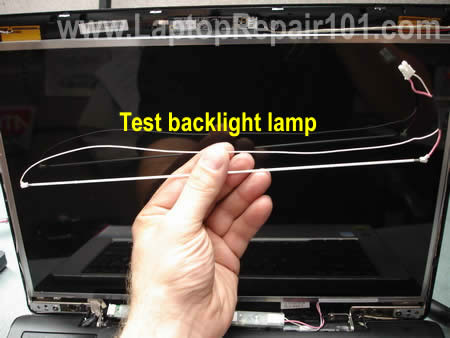
Alternatively, you can connect a new backlight lamp and see if your presumably bad inverter lights it up.
In most cases I go with the second method – using my test backlight lamp. Why? Because the same backlight lamp will work with many different inverters as long as they have matching connectors.
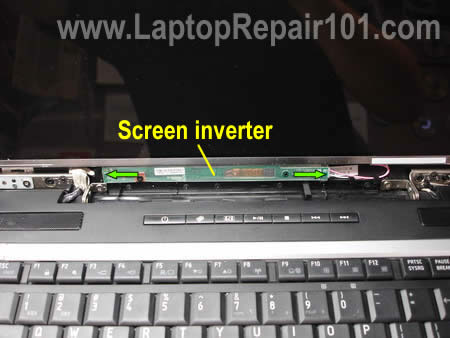
Usually the inverter is mounted inside the display panel below the screen. In most cases you can access it after you remove the display bezel. The inverter has connectors on both ends. The left side connects to the LCD cable. The right side connects to the backlight lamp which is mounted inside the screen. Check out this display diagram.
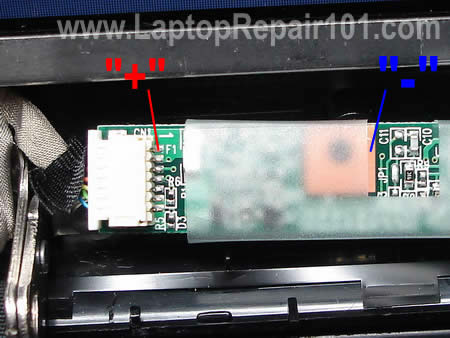
To make sure that inverter gets power from the motherboard (via the LCD cable), you can test it with a voltmeter. In my case I connected the “+” lead of the voltmeter to the pin 1 and the “-” lead to the ground trace around the screw hole. I got about 19.4V DC on that side of the board, so it’s getting power from the motherboard.
WARNING! If you accidentally short something on the inverter while testing, you can damage it. Proceed on your own risk! Not sure? Don’t do that!
So far we know the inverter is getting power from the motherboard, but the screen still has no light. Apparently, it’s either bad inverter or failed backlight lamp.
Now let’s test it with a known good backlight lamp.
1. Unplug the screen backlight cable from the right side of the inverter.
2. Connect a known good backlight lamp.
Turn on the laptop.
1. If the test backlight turns on, the lamp inside the screen is bad. In this case you’ll have to replace the screen. Also, you can replace the backligth lamp which is not easy and not recommended.
2. If the test backlight doesn’t turn on, most likely we have inverter failure. Replace it and test the laptop again.
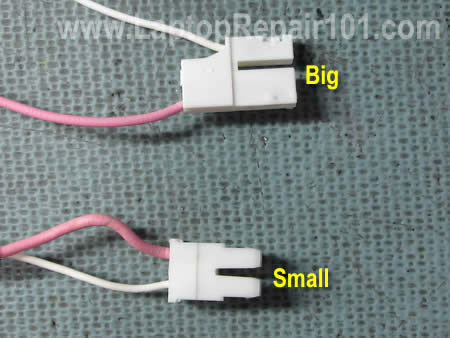
There are two different types of backlight connector, you can see them on the picture below. The top one (big) is not as common as the bottom one (small). I mostly use lamps with a small connector.
IMPORTANT! When you buy a new lamp for test, make sure the connector fits your inverter.
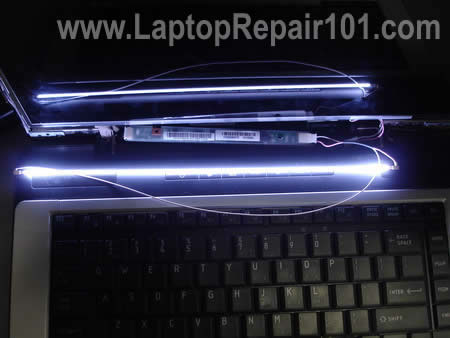
On the following picture you see how I’m testing the laptop with a new lamp.
Related articles:
Troubleshooting backlight failure.
Screen shows strange colors.
Troubleshooting video problems.
260 Responses
Israelinkvm
Hi CJ.
I love your blog, there’s a lot of tips that i’ve used to repair some laptop, thanks for that.
I have a problem with a laptop, when I turn it on, the screen is very dark, with one very very soft image, at first, I think it was the lcd inverter, I’ve changed it with no success, the screen keeps black, I’ve read your post and followed the steps to test the inverter with another backlight, when I do this nothing happens, the lamp doesn’t turn on, what this could be??, maybe the motherboard isn’t sending power to the inverter to turn on the lamp??please, I need your help. Thanks.
Note: When I plug an external monitor there’s no problem, video is ok.
P.S. Sorry for my english 🙁
cj2600
Israelinkvm,
Does it look like there is no backlight at all or it looks like the backlight works but the brightness is very low?
Israelinkvm
Like I said before, I’ve tested with another backlight but it doesn’t light up, the brightness is ok. 🙁
inquirer1
hi,what should be the voltage settings for multimeter if I would test the inverter?thanks.
chakra
Hi,
Thanks a zillion for this article. I had a dim LCD screen laptop. By following some of the instructions I could zero in on the problem. I tested out the DC part of the inverter board, I was getting around 15V, but I tested the AC section of the board (the other end feeding the backlight) on a multi-meter and I did not get a reading. So i could figure out that the inverter board was the problem. Replaced the inverter board and LCD screen lights up. Gave me a lot of satisfaction, kudos mate … great job of writing up the article in a very lucid manner.
cj2600
chakra,
That means the inverter is getting power from the motherboard.
I don’t think that you can test the AC output with a multimeter, at least it never worked for me. I tried testing the AC output on a working laptop, just to find out what readings I should expect but as soon as I connect the multimeter, the backlight shuts off. That’s way I suggest testing a faulty laptop with another known good backlight lamp.
I’m glad it worked for you.
cj2600
inquirer1,
When you test voltage coming to the inverter from the motherboard, you should set your voltmeter to test DC in the range somewhere between 0-50VDC.
I think you should expect readings somewhere between 10VDC-20VDC, it depends on the model.
You cannot use the voltmeter to test the AC output.
cj2600
Israelinkvm,
If the screen has no backlight and replacing the inverter with backlight lamp doesn’t help, apparently there is a problem with the motherboard.
Also, this problem could be related to the video cable, but it’s not a common failure. If you have the lid close switch – a small button which turns off the light on the screen when you close the display, make sure this button moves freely. A dirty lid close button might get stuck inside the case and the laptop “thinks” that the display is closed even when it’s open.
Bobinator
You can also use a cheap electricians amp-meter that measures induction via the magnetic field to test these. The coil creates a pretty hefty magnetic field.
cj2600
Bodinator,
Yes you can but I believe you’ll get positive readings only if both the backlight lamp and inverter are in a good working condition. The magnetic field will be created only if the inverter is loaded, right? But what if one of the parts is faulty and there is no magnetic field around the inverter? How can you tell if it’s a bad inverter or backlight lamp?
AJ Simkatu
I have a Dell Inspiron 1501 laptop where the LCD goes black at apparently random times after being turned on. The computer remains on and apparently continuing whatever functions it was working on, but the monitor is dark. Sometimes it will only stay on for a minute after bootup and other times I can use it for 10-20 minutes before it goes dark. I am pretty confident its not a battery issue and it shouldn’t be a hibernation or sleep issue, since I am always actively using the computer when this happens.
I’ve seen other people on the internet with similar laptop complaints, but I can’t seem to pinpoint a common cause. Could this be a bad LCD inverter?
Dan
To AJ Simkatu (comment 11),
If you still can see a very faint image on the screen even though the backlight is off, most likely your problem is related to the screen inverter. If you replae the inverter but the problem is still there, apparenlty it’s a faulty backlight lamp.
Again, sounds like either bad inverter or backlight.
If you have to guess, I would try replacing the inverter first.
JH
I have a screen thats is really bright and everything is washed out, Mouse pointer is only visible if it stops moving and fades in and out slowly when you stop and start it.
Laptop works fine through a VGA connection.
This a screen problem?
cj2600
JH,
Yep, to me your description sounds like a problem with the LCD screen.
sami
HI,
I’ve changed a broken screen of my laptop, but i get a dark screen with faded images whenever i turn it on ,i tried to test the inverter input and i got 1.85 v at start then it goes down to 0.48v after a few seconds ,the cables and connectors are all well connected and when i connect my notebook to an external monitor it works fine, can u tell me plz whats the problem and how can i solve it, thank u
Bobinator
“”Yes you can but I believe you’ll get positive readings only if both the back light lamp and inverter are in a good working condition. The magnetic field will be created only if the inverter is loaded, right? But what if one of the parts is faulty and there is no magnetic field around the inverter? How can you tell if it’s a bad inverter or back light lamp?””
An inverter takes a (relatively) high amperage low voltage signal and turns it into an extremly high (KV range) low amperage (mA range) signal. There are 4 failure points; CCFL, Inverter, Cable, and Mobo. Couple of things to keep in mind:
A: If the CCFL fails it will not load the inverter, so no mag field.
B: If the Cable fails (pretty much it can only fail one way), no voltage = no mag field.
C: If the inverter fails, you may or may not get voltage; if the CCFL is loading the inverter and the inverter is not producing enough voltage you’d probably not get a mag field.
D: If the mobo fails, no voltage or not enough.
Say the unit is DOA and you *THINK* it has a backlight issue, the ampmeter is the 3-second solution to see if you’ve got a functioning inverter. Most laptops go through a power-post procedure similar to a desktop psu and will load the inverter if it passes even if the unit fails to post.
I like the idea of ordering a $15 CCFL and using that to test; I hadn’t thought of that before and come to think of it to test this properly you’d need an assortment of CCFL’s and cable converters. It’d be easy to build a professional soluton from epoxy, wood, 2×3’s, plexiglass, some screws and a label maker.
I do keep a spare 12” LCD on hand, as well as a 20” chassis with an inverter hooked into it. You can load a high-end inverter with a low-end LCD ccfl. The problem with either is if you use a 12” LCD CCFL to test a 16” inverter anbd the 16” inverter is ok producing voltage for as 12” ccfl but not a 16” ccfl you wouldn’t know it until you plugged it into the 16” ccfl.
Rui
Hello i have a fujitsu siemens with geforce 6800 and my screen show many pink spots and when i twist the computer it get better, but on external monitor the image is always very good.
Do you have an ideia of what could it be? Many thanks
pj
sounds just like my laptop turn it on goes for about 1 or 2minute then goes black. computer is still working in want program it is in . when i turn it on the screen has a pink tinge to it.
Cameron
Hi CJ,
Thank you so much for your thorough review! It is very helpful!
My Inspiron 1520 has recently had random backlight failures in
which the screen goes dim. It always re-lights if I sleep and resume (or whenever I start an external monitor). The backlight stays on for a few minutes and then fails again.
Does this sound like a failing inverter or could there be other explanations?
Thanks again!
Cameron
Dave
I had computer in rain. Screen is still quit legable with some distortion of images. I ruled out motherboard and video card. So I thought it was the screen. I ordered new one hooked up the inverter to backlight backwards. Some sizzle then went dark. I then installed connector properly and screen lit up fine, but image is still garbled. Did I ruin new screen or ids the problem lcd cable. Thank You.
Dave
Nathan P
I have an issue with my laptop that I think is connected to the screen inverter. all the white colors (only true white, off white is fine) turns into this pink color with white lines and all the black (True black) turns into this green flashing color. if I move the screen about it some times gets better or worse but sadly my screen case is broken so I have to prop it up against pillows. Is this simply an issue with my screen inverter or with the wires, and is it fixable or not? can you recommend a good repair shop is Boise, ID that won’t tell me to get a new laptop? thank you for your time.
Brian
What if the screen comes on for a while then goes out. It does the same with an external monitor
moteldanny
i just split the soymilk on my laptop, while i didn’t get a chance to shut it off, and right now, when i open my laptop, the screen is very dark, but i can still see a little,very very dark, do you think it is inverter problem or it is motherboard’s….
cj2600
moteldanny,
There is no way you can tell without testing the laptop with a known good inverter board. If you spilled milk on the keyboard (not display), probably your failure is related to the motherboard.
cj2600
Brian,
Can you boot to the desktop or it fails before the laptop finish loading Windows?
Enter the BIOS setup menu and wait. Does it fail in BIOS?
cj2600
Nathan P,
Your problem is not connected to the inverter board. The screen is bright and you can see it, so the inverter works properly.
I think it’s either bad video cable or LCD.
You said, you can make it better or worse if you move the screen. I think your problem is connected to the video cable. I would try replacing the cable first.
davd
I have a Fujitsu LifeBook C Series computer, and it is having intermittent problems, that I believe to be in the inverter. I’m looking for a opinion from more experienced folks. Every once in awhile (usually after having been off for a while), the screen will go out, literally. It will freeze the image on the screen and warp it while it goes out. Simply moving the screen on its hinges fixes the problem and puts the LCD right back where it should be – in perfect looking condition. It may take up to 3 or 4 hinge movements before it finally comes back. I’ve never not been able to bring it back. The inverter is located directly under the LCD.
davd
also, it’s pretty worthy to note that the inverter itself gets very warm while in use. I checked its temperature and it was up to 102 Fahrenheit, I’m thinking that is abnormally high for inverters.
Davey
It’s got me beat and I hate that. Any ideas would be appreciated. Daughters laptop she says thinks her brother might have dropped it, no visible damage. Screen very dark. Changed power settings to never turn off screen when on mains. Then changed bios to default. Additional monitor works fine and is cloneing laptop screen. Gets 15v from motherboard so changed inverter. Next changed backlight. Both backlights have 16k ohms resistance which seems reasonable. Updated virus definitions and ran full scan. Can’t think of any logical reason why it doesn’t work? Can you help me be a good dad?
Han Ching
my notebook is toshiba L300-P502 got one problem, i cant think about what happen. when i pluged-in ac adapter while the battery full charged. the screen brightness might gone up and down flickers itself. until i turn off the ac power, the problem gone. what is the problem?
if i plug-in ac only sometime it may damn dark and bright dark and bright. the damn dark and bright dark and bright gone if i press Fn+F6 / F7, sometime i on for 4 hour without a problem. even the battery installed. damn notebook just 1 month old, my birthday gift after saving for 2 month to buy it.
partik
sir i have a dead laptop i want to use its lcd on my pc how can its posebale
jakett
hello CJ,
I have a Toshiba m45 laptop. The screen has a native resolution of 1280 X 800. When the laptop is powered on, it only displays a 1024 X 768 resolution. This also happens in setup screen also. The image occupies the top left of the screen with the rest being black. I’ve tried connecting a known working lcd screen with same results. When an external monitor is hooked up it functions with a 1280 X 1024 resolution which is the native resolution of the external monitor. Therefor i presume that the on-board video works. Could this be a bad cable or bad on-board video?
Any suggestions would be greatly appreciated.
thank you!
JakeTT
shawn smith
Hi, I have a Gateway 7510GX the screen back lite flickers, dims and often goes out, you can still see whats on the screen when it goes out. I was thinking that it was the inverter bord. I dont have a good board to test it with. What do you think?
Thank you for your time, Shawn Smith
Matt
Shawn Smith,
Do a search for that on google. I fixed my gateway 7510gx with the same problem with just a hot melt glue gun. worked like a charm. There is a tutorial on the web on how to do it.
Matt
Omar
Hello
I have a PCG-K33 vaio that i need to repair, the problem is that when i turn on the laptop i can see the logo of vaio and even if I enter to the bios setup I can see everything as normal, but in the momemnt that windows starts the back light goes off. I tried to reinstall windows but same issue goes off int he middle of the installation. And the video card is working because if i connect the laptop to a monitor I can see everything and If i get closer to the screen i can see the images but really realy dark.
What can i do? do you think that is the Inverter or the Lamp Light?
Thanks for your help
John Doucette
My son dropped his Gateway notebook. The LCD cracked. I removed it and order a replacement screen (actually 2). I installed both, but neither screen worked. I connected to an external monitor and everything worked.
Could I have received two bad replacement screens? or should I assume the inverter or backlight need to be replaced??
Thanks for any and all advice.
John
Mary Ann
I have a Dell Inspiron 1720 with Vista. If I just turn it on, I get a message to press any key to boot from floppy. It will only boot upcorrectly when I press the F8 key as soon as the DELL logo appears. When I ran diagnostics it gave error code 0322 and said the error was in accessing the LCD inverter. As long as I boot from the F8 key my LCD screen is fine, sharp and clear. It does not fit the description of a bad lcd inverter. Does anyone have any suggestions?
Vincent R.
This is great info. I’m a PC tech who does a lot of work for a lot of clients (sometimes I think too many).
I often left the LCD repair up to guess-work (whether it was the inverter or the LCD itself). For the most part I guessed (or deduced it correctly), but those ones I guessed wrong on were costly and time consuming mistakes I know I could have avoided.
I used to work with a group of technicians who would hoard their knowledge and never share what they knew with other techs. Needless to say nothing got done very well in that shop, I’ve since struck out on my own and have been doing very well.
Your little blog was very well written, informative and extremely helpful. I thank you for sharing your knowledge.
lukas
Dell model no:pp01s lobtop power on and off when tested power 18.5v shows be in components all matherboard.doide 330j12 has no power.
paul h
Hi,
Nice site to stumble upon.
I have a Laptop here with a strange problem.
its a Toshiba Equium m50-164 and the screen brightness seems to be backwards.
the Fn key for brightness works backwards so up is for lower and down is for higher.
now the problem that creates is that the screen brightness will not go up full (as the button is meant for darker and wont darken enough to fully turn off the inverter)
any ideas??
Ronald
i have a Fujitsu Siemens laptop, water poured on it i was able to dry it up and have it working but the voltage to the LCD inverter is 1.7 which i know should not be so, this has made my back light not to work, i will like to know what the possible back light voltages are so if i can tap from a point in the laptop to have it work. i am running a 14.4v batt.
Jeff
Hey, thanks for the GREAT info. Please dont ever get rid of this site.
PaulQ
Hi, found this site a number of months ago and regularly use it as a reference point, keep up the good work. I would be interested to know how i can test if the inverter is getting the required voltage from the motherboard? I am sure this must be possible but i am inexperienced in testing electronic components.
cj2600
PaulQ,
You can test the incoming voltage with a multimeter. When you take a look at the inverter side oriented to the cable (not LCD backlight), you’ll see a few a few connectors.
One of them could be marked pin 1. You’ll have to measure voltage between pin 1 and ground. It could be somewhere between 10-20VDC.
Be very careful, do not short the inverter with the voltmeter.
PaulQ
cj2600
thanks for responding to my query it looks like i misread the article above as your advice seems to be the same as was mentioned. Apologies!! I would also be interested to know how to trouble shoot problems with the incoming power i.e. i have seen laptops with faulty dc jacks which i have resoldered and still did not work is it possible to test the board at a given point and determine where the fault may lie or would you need a board schema?? Perhaps this could be a subject for a future article??
Regards
Paul
Larry Avent
I want to know if a bad inverter or floresent tube can give low
brightness (about 20% to 25%) I can adjust the brightness with
color settings and get it passable but the laptop (QOSMIO F25)
should be quite bright!
I have orderd a new inverter but I just wanted to pick you brain.
gentlefoot
Fantastic instructions – very clearly written with nice photos. It’s been really helpful to me. Keep up the good work.
James Brogen
Great test, saves lot of trouble and time and takes the guess work out of it.
mauricio
dear,
mauricio’m writing here from Brazil, I think its very good this site for people who are having problems in their notebooks, congratulations and grateful, I have a similar problem with a dell, sometimes the backlight turns on the sometimes not, sometimes which binds and because the place connected to external VGA external monitor, but when I disconnect the external monitor it’ll turn brown,
I hope your answer.
Thank you for teaching my teacher.
AL POE
Great reading I’ll tell you,,here’s my story on a Dell 1501 the lcd screen won’t apprear until a couple of hand slaps on the left rear of the screen and will then only stay on with slight pressure supplied by my hand on the left bottom corner pulling towards me. This works in any postion of the screen and once the pressure is release it slowly fades to white and other colors. What is on the left side that would do this,,a bad ground or connector. I going fix this some way,,,Please help me.
cj2600
AL POE,
I’m discassing LCD failures in this post. I think your failure is similar to the example 7.
I would say you have a faulty LCD screen and it has to be replaced. Apparently there is a bad solder joint somewhere on the LCD controller board and when you apply some pressure on the screen you temporarily fix it.
cj2600
mauricio,
Can you see a very very dim image on the screen when the backlight is off? It’s possible you have a faulty inverter board.
I do not understand this part of the description. The external monitor turns brown?
Eduardo
Hi!, i got a problem like that
I have an Acer X193w and it turn normally but in 2 seconds the light turn Off and i can see the image, its kindda screensaver..
can you help me?
PS: sorry about the bad english bro
Thanks!
Matt
I have replaced the lcd and the inverter on a gateway mx8738. I am going to try the multimeter test later this evening to see if the inverter is getting power. My screen now will only show a faint image. I dont have a lid closed switch, but was wondering if this computer has a magnetic switch and if so how would I test it or find it? I have also changed the lcd cable out but still nothing. When I boot the computer without an inverter connected at all it does the same thing as if it was connected and bad, dim screen. Any other things I should check before parting out this laptop?
catalin81x
Hi, I have a problem with a laptop, Dell D830 when I turn it on, the screen brightness is ajustable with “Fn key” at night is OK but at day the brightnes is to low. How i fix it???
Stefan
I have a similar problem with my Desktop LCD, a LCD Flatron W2242T.
The bottom half of my screen is dark and has light spots right at the bottom, whereas the top half works perfectly. I was considering buying a new screen which wud set me back $300 = =”
but this site has given me hope, maybe i have a faulty backlight at the bottom. Any advice on what i should do?
thanks guys
Jesse
Could the bulb and the inverter board go bad at the same time?
I sent the new inverter board back and ordered a new LCD screen. When I put the new screen in it’s still dark! I’m guessing they were both bad and now I’ve got to reorder the inverter board…
Thanks for your help!
waligi
Hi everyone,really need help with my compaq MA8.
when turned on,nothing appears on the screen and the touchpad lights up only for a few seconds and then goes back off.After that,nothing happens and any key combination given does not even give the usual beeps after.
I would appreciate any suggestions,thanks
cj2600
waligi,
1. I would test the power adapter. Maybe the adapter is dead and the battery doesn’t have enough power to start the laptop.
2. Check memory modules, make sure they are properly connected to the motherboard. Try reconnecting memory. Try removing modules one by one and test the laptop with one module at a time. It’s possible that your problem is related to memory.
cj2600
Jesse,
It’s possible but not very likely.
1. There is a chance that one of the new parts is defective.
2. You didn’t connect them properly. Try reconnecting parts.
3. If you replaced both but still experiencing the same problem, it could be related to the motherboard. I cannot tell what is wrong without looking at the laptop.
cj2600
Stefan,
I believe desktop LCDs have two backlight lamps inside ( I could be wrong).
Apparently one of the backlight lamps in your monitor is bad and has to be replaced. Cannot help you with that. I work only with laptops.
hannahtuk
I have a Dell Inspiron E1705 with an WXUGA+ display. I accidently closed the laptop screen cover when a pen was still sitting on the keyboard. Since then, about 1/3 of the screen (on the left side) is dimmed. It never gets really dark, but it’s definitely dimmer (and harder to see) than the rest of the screen, which looks normal. The transition in brightness is gradual – there’s not a clear “line” separating dim from normal. The image is otherwise fine – just dim in that left section of the screen. Is it a inventor problem? or backlight problem? or do I need to get a new lcd screen to fix it? Help~~~
cj2600
hannahtuk,
I don’t think that your problem is related to the inverter board because the rest of the screen is still bright. Apparently, you’ve damaged the backlight lamp inside the screen.
That means you’ll have to replace the screen.
hannahtuk
:'( That is too bad… It is the most expensive part! :'(
Thank you very much for your reply. I now for sure know what to buy then. Thank you!!~
tony
.
does inverter or the backlight problem cause your screen to be black permanently if not replaced?
I have a problem with my old laptop screen – sony grx series – that doesnt seem to turn on eventhough everything else seems to work fine. I can only get the screen to turn on only if i remove and reseat the ram or “shake” my laptop a couple of times.
is this indication of an inverter or backlight problem?
.
farooq
hi
dear
i study y r above page really very intrested
i have laptop reparing center here in my city
i have often needs for laptop ics for motherboard
reparing will y help me for my requrment of ics
and chip motherboard according requerment
thanks again and again for such a information
best regards
Ron
I have an HP ze5478cl. the lcd works for a minute goes grey then rolls like an old tv set with vertical hold problems, then comes back. it works fine with an external monitor.
so , my question is…LCD? Inverter? backlight? which is bad?
Thanks, Ron
JLyon
Hi,love this,it is so informative!
I’m having a similar problem,but not quite the same as what I’ve been reading & I hope you can help me.
I have a Dell Inspiron l6400 laptop. Nothing has happened to it, one day I turned it on & the bottom 1/3 of the screen has gone white/gray. There still seems to be light, but can’t see anything. When it 1st started,I could tap the bottom of the laptop it would come back on, but nothing brings it back now.
I took things apart to check for loose connection to lcd panel. Everything seems ok,no visible damage or anything. Checked the connection,unplugged & plugged the cable back in where it connects by the power button – nothing! Hooked it up to another monitor & dispaly on that monitor is fine.
Does that mean I need to replace the entire LCD, or could it be a bad cable or something else? I don’t want to spend a lot of $ to replace something & have it still not work!
I appreciate any advice/help you can give me.
Tony
Hi,
Great site! I have an IBM T30 and came home one day to the screen being dark. It lights up during reboot, logs on to windows and goes black again. I don’t see any faint image, but maybe I need to look harder with a flashlight. The unit has a docking station. I setup an external CRT on the docking station and it works fine. Device manager says everything is fine. The properties tab for display shows two screens inclduing the CRT and LCD. It says the LCD is “not active” if I recall right. I’m wondering if this is a problem with the inverter? The docking station probably has a card in it that is operating the CRT? Also, before ordering an inverter, I can’t determine which one it is. There are two different part numbers out there for my model and I don’t really want to take the laptop apart twice, once to find the number and one to install the part when I get my hands on one. I went to numerous sites, but they just identify with the T30 verus the full model which is a T30 236697U. The two part numbers I am finding out there are: 26P8412 (150nit LCD) and 26P8411 (200nit LCD. What are the nits? I have gone to the Lenovo / IBM site. It only lists an inverter / screen combo pack number for certain models and does not even list this model number. Thanks.
cj2600
Tony,
Instead of rebooting the laptop, try tapping on the lid close switch – a small button by the hinge. Can you light up the screen when tapping on the switch?
On some IBM laptop it’s really hard to see anything on the screen when the backlight is off, so look very closely.
Your descriptions sounds like a problem with the inverter or backlight lamp. Try replacing the inverter board first, they are not expensive.
I would find the FRU part number on the existing inverter and use it for buying a new one. It’s not difficult to removed the bezel, takes only 5 minutes. You don’t have to disassemble the entire display, simply lift up the lower part of the bezel, find the inverter part number and put it back together.
Ron
Great site!
I have an HP ze5478cl. the lcd works for a minute goes grey then rolls like an old tv set with vertical hold problems, then comes back. it works fine with an external monitor.
so , my question is…LCD? Inverter? backlight? which is bad?
Thanks, Ron
antoine
Great site!
I have a related problem with my 5 year old dell latitude d810. The screen is now dark and the image on the screen is barely visible but still working. Everything else works fine. Shortly before this problem, the screen started to flash when I opened windows or was slightly pink. Your site (and others) seems to indicate that this may be the inverter or the back light of the lcd. I have looked at your other post on the backlight, but does the way the problem occurred tell me something informative about its cause?
cj2600
antoine,
Most likely the pinkish screen is related to the backlight lamp failure, not the inverter failure.
David Morgan
Just to say abig thank you for putting this up, I thought it was excellent and it has helped me in resolving the issue of the backlight I have with my Toshiba Equium Laptop.
Props to you.
Dave
faysal
Hi i am facing a problem i installed new invertor in my dell laptop decause of old one is not working but my display keys function i,e Fn + Arrow keys not working i also fomate my hard disk with new partition installed Windows Xp.
Pease help me how i can enable Fn keys funtions.
Quick response highly be appreciated.
Thanks
cj2600
faysal,
I’m not sure why the Fn key doesn’t work. Did you reinstall all factory drivers and software after installing XP? You can install it from the CD or download from Dell website.
sanjay dey
Boss,
from where i can get the company service manuals and repairing guide with flow chart for laptops of all brands, pls help me
faysal
Thanks,
No im not installing factory drivers i have to find out then istall all
i want to ask that this keys are not working because of new invertor ? or some driver problem ok first i intalled drivers then lets see it is enable or not.
Thanks a lot again
Faysal
cj2600
faysal,
I don’t think so. If the screen lights up the inverter is working properly.
I guess you are missing a piece of software controlling the Fn key.
Tamal
Hello. My notebook Samsung R50 has its some left portion of it more darker than the rest of the LCD screen. And overall I have also noticed that my 3 year old this notebook of mine had its overall brightness reduced.
My question is: is it the CCFL needs to be replaced or is it the inverter gone bad?
Duane
I was given a laptop to check out since the monitor was not working. A month ago I concluded the monitor was just shot and needed to be replaced as I was able to get video to an external monitor but got no image on the LCD at all.
TodayI decided to break it out again to use with an external monitor. But this time I noticed if I pulled the monitor from the top forward (i.e. I pull it as I might close the laptop, But only pull enough until I lose the “slack”) I was able to see the monitor display without the back light. Once I let go, the image disappears. Then if it’s played around with in some other random fashion, I can get the display and back light to work.
I am wrong to assume that I may just have a wire problem and not an inverter or backlight issue? I took the laptop apart, but I just couldn’t figure out how to get the monitor off so I could take the bevel off it.
Laptop is a Toshiba A205-S5871.
cj2600
Tamal,
It’s hard to tell without testing the laptop with known good spare parts, but I think this is related to the CCFL.
From my experience, when inverter fails the entire screen goes dark.
The inverter either works and provides power to the backlight lamp, or doesn’t work and the backlight gets no power at all.
I think the backlight lamp goes bad.
cj2600
Duane,
Could be bad connection between the video cable and motherboard. Try reconnecting the cable.
Also, could be defective video cable.
Duane
Sweet! I went ahead and tried again and got to all the wires. Disconnected the wires and made sure the monitor cable was connected firmly, and now it finally works again.
Thank you~
dsi r4
Be for this post i have no idea regarding how to open LCD screen and make repairing of LCD screen .You provide very nice information and fantastic things.I am really glad about this.
Steve Midwinter
I have an Acer Aspire 1710 which has gone Black Screen completely , can see no image on screen. all sounds and processes at startup seem OK activity HDD etc and startup, havent tried it on an external monitor but all keyboard Fn F5 ext to switch to int ext monitor have no effect. also strangely on startup seems to be different the WiFi light sometimes not lighting so altho booting has a difference.. have checked manual and trouble shoot but to no avail. beginning to think inverter or lamp but would screen show something? currently bank/black. werd thing is only yesterday (when it was OK) I had been discussing inverters with a mate who’s Tosh had failed.. weird any help guys?
thanks Steve
Lay V.
Hi, my wife’s Gateway T-1625 laptop LCD is acting up. I’ve replaced it once already because my kids managed to crack it. It worked fine for about 2 months but now it’s beginning to flicker and twitch (I don’t know if that’s the right term for it haha!) There are horizontal lines at the bottom and top of the LCD that prevent you from seeing what’s behind them. Sometimes the screen dims and then gradually gets bright again. It repeats this sometimes. It seems to be slowly getting worse by the week. I’ve tested it with an external LCD monitor and everything works fine that way. Do you think I just got a cheap LCD that’s going faulty already? I’ve read your article, which is great btw, and I don’t think it’s an inverter problem since the laptop is still usable other than its annoying. Any help would be appreciated. Thanks and keep up the great work!
Henry
A customer left a Dell Inspiron 1520 for a replacement LCD. She told me that she had dropped the computer and the screen in it was shattered. I received a replacement screen, and installed it, but the screen is very dim. The backlight IS working, but appears to be at the lowest possible setting. The function up/down buttons come up on the diplay when pressed, but I still have the exact same brightness whether this is set all the way up or down. I have flashed the BIOS to the latest version, checked the BIOS settings and the screen settings are turned all the way up. Even put them at the halfway point to see if that would allow the screen to change in brightness with the funtion keys. It is still the same no matter what settings I change. I am leaning towards a bad inverter, but most of the inverters I have seen in the past are either bad or good, not in between such as this one. This computer has an offboard video card, Nvidia GeForce 8400 M. Could this card or something with the motherboard be causing this? One last thing worth mentioning, is it makes no difference if using battery, or AC power. Thank you for any help or suggestions that you might have. Will repost if I find a solution.
Henry
PS.
I tested the screen on a Toshiba that uses the same model screen, and there are no problems, so this IS a good screen. Also, and I find this interesting. The screen from the Toshiba DOES NOT work in the Dell. The screen out of the Toshiba is a 154EW08, the original and replacement from the Dell are both 154EW02’s. These screens seem interchangeable in the Toshiba, but not the Dell. I will order a known good inverter today as I would like to keep one in stock for test purposes anyway. Will let everyone know how this turns out.
Ernest
Duane i think your graphics card gone, just a little thought 🙂
Subrata
My three-year-old HP Pavilion DV6275US (RP284UA) shows distorted colors (not pinkish hue) on the Windows screen while booting up, keeps on flickering till the desktop comes up and soon after, with a series of horizontal black bands that go from bottom to top, widening all the time, goes blank. No image is visible after that, even with a flashlight. Moving the dislay panel back and forth does not make any difference. I hooked it to an external monitor and ran for hours without a hitch. That seems to exonerate the video card (NVidia GeForce Go 7400, integrated to the mobo). Looks like there could be three culprits 1) the inverter 2) the CCFL lamp 3) the LCD cable (an outside chance) or a combination of two or all of them! A local repair company of repute suggested replacement of the LCD screen that would set me back by Euro 195. I have read your articles with great interest and I think I can handle replacement of the the parts. Unfortunately, I have no way to test the unit with known good spares. Could you diagnose what is wrong and what I should order as replacement? Any help, comment, suggestions, posted on this page, would be appreciated.
cj2600
Subrata,
Looks like the video card is working properly, I agree with that.
1. Bad inverter board? I don’t think so. When inverter goes bad, you still should see a very fain image on the screen. From your description is sounds like you have no image at all, so it’s not related to the inverter board.
2. Bad backlight lamp? I don’t think so. There is no image on laptop screen at all, so it’s not related to the backlight either.
I think it’s either bad LCD screen (most likely) or faulty video cable (less likely).
Before you replace anything, try reconnecting the video cable connector on the motherboard. It’s located under the keyboard cover, close to the right hinge. Maybe the video cable is not making good connection with the motherboard.
You can buy a brand new LCD screen on eBay for less than $80 and replace it yourself.
cj2600
Henry,
Go to the device manager and uninstall display adapters. Restart the laptop and let it redetect the adapter (and LCD screen). Doing that might fix the problem.
I agree. From my experience (and I replaced hundreds of them), the inverter either work or not. I really doubt that your problem is related to the inverter board.
cj2600
Lay V,
I don’t think this is problem with the inverter board. A faulty inverter board cannot cause lines on the screen.
I think you have a faulty LCD screen (most likely) or there is a problem with the video cable (less likely).
Just in case, try reconnecting the video cable on both ends, on the motherboard and back of the LCD screen. Make sure both connectors are plugged correctly and secure.
If reconnecting the cable doesn’t help, I guess you’ll have to replace the screen again.
cj2600
Steve Midwinter,
If the screen is BLACK and BLANK, the problem is not related to the inverter or backlight lamp.
With failed inverter or backlight you still should see a very faint image on the screen.
I would definitely test the laptop with an external monitor.
If external video works fine but nothing appears on the screen, it’s possible you have a failed video cable OR the cable got disconnected from the motherboard.
1. Try reconnecting the cable.
2. Replace the cable.
If both, the internal and external screens do not work, it’s possible that you have a faulty memory module.
Again, test the laptop with the external monitor before jumping to any conclusion.
Subrata
Looks like the video card is working properly, I agree with that.
1. Bad inverter board? I don’t think so. When inverter goes bad, you still should see a very fain image on the screen. From your description is sounds like you have no image at all, so it’s not related to the inverter board.
2. Bad backlight lamp? I don’t think so. There is no image on laptop screen at all, so it’s not related to the backlight either.
I think it’s either bad LCD screen (most likely) or faulty video cable (less likely).
Before you replace anything, try reconnecting the video cable connector on the motherboard. It’s located under the keyboard cover, close to the right hinge. Maybe the video cable is not making good connection with the motherboard.
Thanks for your well-thought opinion. Last weekend I dismantled the LCD screen, thanks to your and another website’s step-by-step guide and took out the CCFL bulb. I re-assembled the laptop and left the bezel cover out so as to be able to reach the inverter at will. After making sure that the computer is otherwise functioning normally and I did not mess it up in the process, I connected the CCFL bulb. It lit up immediately, but started making a metallic repeating sound like a key emits when it gets accidentally pressed and remains depressed for a while. After a while the light went off. I kept the computer that way (front bezel removed) and tried the CCFl again just now. It did not light up. Incidentally, I noticed a very dim display on the screen while booting up the first time after removing the CCFL. I am not sure whether subsequent boots were also displaying the dimmed screen or the screen was entirely black. Please advise what you think from this development. Thanks.
Subrata
I think I messed up my last post by trying to add your response to my original post. So here it goes again. I have taken out the CCFL light from the display panel, reassembled the laptop and tested the light. The CCFL lit up but started emitting a metallic sound and after a while went off. I tried it later again (the laptop is working with an external monitor and I left the front bezel out to have access to the inverter at will) and found that the CCFL did not light up nor was there any sound. Could you tell me what I should replace? The video cable has been unplugged from the system board and re-seated without any difference in the display; it remains blank. BTW, the first time I booted up the computer with the CCFL outside, a very dim screen appeared but not on subsequent boots. Please advise.
CJ
Dell inspiron 1000 screen blacks out when (even slightly) adjusting position of screen towards close or open. The HD LED and power LED stay lit. No HD spin or fan. 3-finger salute does nothing. Can only do hard shut down and power up to revive. I have no problem if I just touch or squeeze the display; only problem when pivoting on hinges or when shaking the desk enough to adjust the display’s position. If it’s open at 90 degrees, for example, and I then open it to 91 degrees or close it to 89 degrees, display and fan shut off. As if sleeping. I exposed the hinges and made sure the sleep switch is not being triggered. Could it be a short in the cable running from the system board to the display? if so, where to get it and how to replace?
I’d appreciate any thoughts before I send it to Dell hell (recycling center)?
Thanks
Daz
My daughters laptop hp pavilion dv6000 entertainment displays wavey colours/ smudge difficult to discribe but when i plug my desktop monitor in a get a great picture.
Iv bought a new screen and it looks just the same. Iv uninstallled and reinstalled display adaptors and all still looks the same.
Any thoughts please please please ??? Daz
Rnady
I’ve been having an LCD issue with my laptop as well CJ. Its a Toshiba Satellite M105-S3041. When I flip the LCD screen open it’ll be on from 1 degree all the way up to 15 degree, but after that it’ll turn off. I ended up opening to check the connectors, etc and everything seemed fine. I’ve created a video to show you the issue. The screen works perfectly between 1 – 15 degrees. The monitor output works perfect as well.
http://www.youtube.com/watch?v=9c8cvbiiBmY
Andrei
I had a Dell XPS 1210 for repair presenting following symptoms: when booting i could see the DELL logo but after the screen turn pitch black. After i’ve tried the laptop on an external monitor and the image was good, i opened the screen and tested the backlight(with an replacement inverter). It wasn’t working. I changed the backlight, it was working but ONLY WITH THE BATTERY. When i was pluging the AC ADAPTER i was getting the same dim pitch black screen…so i reached the conclusion that the inverter was bad…replaced the inverter also and everything was working fine.
Any ideea why the inverter was working only with battery and not with AC Adapter?
Mack
It could be possible that the inverter was being overloaded with the extra current from the AC adapter. Laptops usually dim the screen when connected to a battery hence less current. Thats the only reason I could think of.
neil
I have a sony vgn-nr38e, you can just make out the logo on start but thats it. I have tried changing the inverter and have pluged the screen in to another laptop to check the back light which is working fine too. Im at a bit of a loss to whats happening, any help would be great.
tiffany
please write me back. my fiance just sent me this laptop from japan and the box was damaged and now i turn it on and it goes black BUT i just realized along with this website that if i push on the part of the screen where you show the screen invertor is, i can get the screen to flicker and dim back on. one side is bright and the other is dark… is it posible that this damage is done due to shipping? it wasnt wrapped or really protected. i cant believe the postal service didnt do anything to protect it. im going to take it in to be fixed, now that i know what is wrong and can help them out. i dont know much about computers, but i know how to figure it out and what to do .. but i wont do it myself. haha. i dont want to ruin it even more but please write me back!
Ray
I just replaced the inverter in my Dell 640m, and the display is still not working properly. It starts up, displays Dell logo, and then goes black. I can see a faint image on the display if I hold a flash light to it.
I connected an external monitor for now. When I use the keyboard to switch back and forth between the LCD and external monitor the LCD works for a few seconds, but is very pink.
Any thoughts?
LT
my toshiba laptop problems:
1) once the ac adapter was plugged in, the laptop screen was frozen with horizontal lines. cant move, cant shut down, no response to alt crtl del. But, if only use the battery without ac adapter, the laptop wil operate normally.
however, the battery only can use for 1 half hours. therefore, i hv to plug in the ac adapter. once plugged the screen was frozen with horizontal lines. cant move, cant shut down, no response to alt crtl del.
wat’s wrong with my toshiba laptop?
Sam
I replaced a perfectly working, albeit cracked screen, with what I was told was a compatible replacement – the new screen does work but is stuck at about 40-50% brightness and will not change via hotkeys, hardware, software or bios settings. It has 2 settings now and only toggles irratically between them instead of the proper 8 levels. I even transferred the new screen to my original backlight with no change – could the screen have damaged my inverter? It was working fine with the cracked screen so I’m a bit baffled.
When just the backlight is plugged in, can it’s brightness levels be controlled via hotkeys?
aaron
my Toshiba laptop will not start up
cj2600
Sam,
Is it a Dell laptop?
Enter the device manager and remove display adapter. Restart the laptop and let it re-detect the adapter.
Try reinstalling the display driver.
Imran
My hp hdx16 1060es screen has gone to black few days before. Then i move the screen upwards and downwards, its come back. Daily i get my screen on with this manner. But last two days before, i played the game “assassin creed” but next time when i powered on the laptop, my screen was totally black. I also tried many times to remove the battery and pushed the power button for a while, but now this trick is also not working for me. External monitor is working well. please suggest me whats the problem with laptop’s screen.
garryb
hey thanks for a great tutorial but i was wondering where can i buy one of these back light testers?
jvan
My Toshiba P205_S6287 was knocked off a table. It is still working however the 9″ plastic hinge attaching the top (lid) and bottom (base)broke on one side. The wires that go through that part are being pinched as small area of solid pixels appear on the display until I move the lid to a different position. I can’t determine which parts I’d need to fix the problem assuming it’s repairable. I’m concerned about further damaging the display wires opening and closing the lid.
Parts suppliers are also unsure as one said I needed a LCD cover assembly but another thought I needed a base assembly.
Your photos are most helpful and explanations clear but I’m stumped on this one.
mick
There’s a diagnostic test at startup on my laptop that tells you if the inverter and backlight are working fine. My backlight is out completely doesn’t come on at all but under a bright light i can see mostly it’s just faint. I come across the test by accident i went to start in safe mode but clicked f12 instead and got a choice to do a diagnostics test so did it and it tested everything on the laptop including an heading for the LCD and the tests for it were inverter it passed, backlight passed and graphics passed. In fact nothig failed at all it took about an hour to check everything. The light went out without warning never did it before just went out and hasn’t come back on!
Rebecca Meyers
Hello, I have an Acer Aspire 5516. The screen was broken when we received the laptop, but we did not realize that was the problem until it was returned to the Acer repair center and the tech called to tell us it was not a covered item. I have since replaced the lcd screen following your excellent directions. When I turned on the Laptop, it came on great, screen looked good. Yea….maybe 10 seconds, the screen dims out. Now I did some testing and it is NOT as dark as if the backlight is out.
The screen is now the correct brightness, however if I move the mouse, it dims. I do not know how long it takes for the screen to brighten up, as I have not seen it brighten, I just look and it is OK…This occurs on battery or outlet.
Any ideas???
I am going to take the backlight out of the old cracked lcd screen, how do I go about that?
Thanks again
Rebecca
Hello, me again…OK put the old screen back in works perfectly, with the exception of the black area where the screen is broken. So I am gonna take a stab and figure the problem is the new laptop screen! Brilliant right? Didn’t think of it till I wrote the previous post…duh! So I am calling the screen vendor.
Thanks for all you do!!
nixon
Sir,
I have a Dell Laptop inspiron 630m which i am facing a problem.the system works for a long time but suddenly LCD gets off blank. that time my cd drive works it comes out.and there is power light still working. then i need to switch it off by pressing the power button. Please solve me this problem.
Nixon
nicholas
Hello, I was wondering how one can pinpoint the faulty component, when the laptop had a flickering screen which now blacks out after a few minutes of use (but is visible under strong light). Is it the inverter issue, or perhaps the cables that feed it?
any ideas are appreciated. thanks
dsolod
Hello,
I am having similar problem but with a little detail. I get the very dull image on the screen only when my laptop (DELL Inspiron 6000) is cold. After running under this condition about 20 minutes and several restarts it begins showing the normal bright picture with NO problems after. Initially I thought that it might be either inverter or back light. Yesterday I replaced the inverter with no results. I am ready to replace the CCFL but now I am thinking that the problem could be something else.
If it’s a backlight problem then why it is working right now without any failures even when I restart laptop (because it’s warm). If it’s a connection, wire or soldering problem then it should failure from time to time during the work when i bend the screen and even touch the wires.
Does anybody have similar experience? Please give me a piece of advise! I would really appreciate this because I do not want to go through the CCFL replacing procedure if I am not sure that this is the case.
Thank you!
Gerry
I have a Dell XPS Inspiron Laptop…I have similar problem on my screen like some of the others here. The screen went black 6 months ago but, sometimes booth normally and then a few seconds later…the screen with go black again. I can see very faint image. Through research and reading your advice…it sounds like a bad inverter. I replaced the inverter and it works for 9 hours straight…the next day when I boot the laptop…it’s black again. I can use the laptop using an external monitor…so I know my video card is good. Any ideas/suggestion? Please help. This site is very informative…Thank you so much in advance.
cj2600
Gerry,
Maybe you purchased a defective inverter? Did you buy it from a reputable seller?
I would try replacing it again just in case. It worked for 9 hours, didn’t it?
cj2600
dsolod,
I guess you can buy a new CCFL lamp (it’s expenisve) and the laptop without installing the lamp into the LCD screen.
By the way, it’s not easy to replace the backlight lamp at all. I would suggest replacing the entire LCD screen if the backlight lamp is the problem.
cj2600
nicholas,
Most likely this is inverter related problem.
1. Try replacing the inverter board first.
2. If no help, most likely it’s bad backlight lamp inside the LCD screen. You’ll have to replace the screen (or backlight lamp inside the screen).
dsolod
cj2600,
Thank you for your reply. Here is the second part of my story. I got the new CCFL for replacement. I connected it to inverter and found it working when the original one did not. Bingo! Being sure that the lamp was the problem I replaced it with the new one on my DELL Inspiron 6000. When I assembled everything back and turned the notebook on I saw the familiar dull image. Whaaat!!! The first thing in my ming was that I damaged the back light during the installation. I disassembled everything back and suddenly it started working again. I tried to find the problem and bended slightly the screen and rechecked all the connection. Sometimes during those tests the lamp did not glow but i could not find the problem. I put everything back and now the laptop is working normally but already I had one situation when I had to restart the computer because of the dull image. I have no idea what to blame. It could be a electrical board on the screen, it could be the screen cable. I do not know what to do to be sure. I do not want to buy the new screen thinking that it might be cable. Could anybody give me piece of advise please?
Thanks!
Tim
Hi, I have a Dell Inspiron 1300, recently the inverter broke. But I can’t find this exact inverter. Si I would like to ask if I can use the inverter with P/N: YPNL-N021A IV12139/T-LF to replace the original inverter with P/N: PWB-IV11145/T/W2-LF?
Thank you very much for your kind attention and help!
.tim
cj2600
Tim,
Just search on Google for YPNL-N021A and you’ll find it.
I would recommend replacing it with the same inverter.
D Chai
In regarding to the two connector type you have shown in the picture. Are they inter-changeable? I mean if my original inverter has “big” connector plug into it, and, my newly purchased LCD screen happen has “small” connector at end of wire. Can I simply cut and connect the old one to replace the one on new screen?
Yamandu
I would like to know what I can do because the computer that I bought is having a failure, in LCD screen.
When I start the computer the screen begins to sweep from the bottom to the top, this happens for about 3 minutes, and after that time (about) it gets still and looks normal, although on the bottom of the screen a single line of pixels continuous flickering and changing of color (rose, purple, blue).
Sometimes also after a while or when starting a new program the failure starts again.
I updated the Nvdia drivers, tried to change the screen resolution, but nothing changed.
I tested the computer with an external LCD and the problem disapeared.
I need to find a solution because it seems to get worse.
Yours sincerely.
*Product Type : Notebook
*Product Model : X83Vm
*Place of Purchase : USA
*Date of Purchase : 2009/1/1
Anil
hello,
I am having a toshiba satellite laptop. The invertor was getting too hot below the screen. One fine day the screen went black but still can read under a tube light. I ordered a new screen invertor and replaced the old one. It works and still gets hot. Now after a week the screen again went black again.What could be the reason for the invertor getting hot.
Please help.
Regards
Anil
Kwame
I replaced my Toshiba Satellite L305’s broken screen with a friend’s Toshiba screen. His inverter wasn’t working so I used mine (well, the same type as mine, my original inverter broke so I ordered one online). The screen back light would stop working randomly or anytime there’s a drastic resolution change, like when I hook it up to my television and unhook it or closing the lid then reopening it. I would open the lid and the screen would flash on for a second then the back light would turn off again. Also when ever the brightness goes down to a certain level, the inverter a loud noise. Is the problem the compatibility with the screen and the inverter?
Alfred Valk
Hi,
i was looking for a advise because i made a mistake by fixing a cable between the inverter and the motherboard. I changed two of the four small cables. After i started up i stopped the laptop as soon as i can. But i think the damaged was already done. My question is, is only the inverter broken or is there a wider communication between the inverter and the motherboard so that a part of my motherboard is broken. Is starts whithout the inverter but not startup sound. Lights are up and a spinning cooler and harddrive. Further no dark movement on the screen.
Thank you for reading.
greetings from Holland.
Sharma
Hi, I have a slightly different problem in my Dell laptop. my screen back-light is working properly when running on a battery. but when i attach mains with that, lights turns off but i can still see display in a bright light area. so i need to charge laptop and detach power adapter before using it, that is very annoying. please help me.
Omarey
I have a Toshiba Satellite M55-S135. I found information that led me to believe I was having a problem with my backlight inverter. On startup the picture would flicker for a few seconds then go out. I ordered a backlight inverter for my laptop and it did not illuminate the screen. The old one did but continued to go out. I got another one and installed it. The backlight now seems to illuminate the screen but no images come up. I can here the computer starting up and the sound of the windows screen sounds but nothing shows up on screen. Now when I tried reinstalling the old inverter it does the same thing as the new one. Any suggestions?
Erick Clavijo
I have a Dell Latitude X1 with the described problem. Screen comes on. Eventually goes very dim but screen is still visible. Works fine with external monitor. When I removed the bezel I saw that the inverter board had a burned out circular mark on the board itself and you could smell it. Seems like the inverter board could be my culprit but I’m wondering if the same thing will happen to the replacement inverter? Do I have a bigger problem?
cj2600
Erick Clavijo,
Yep, sounds like the inverter board failure.
Will it happen again if you replace the inverter? I don’t know.
Try replacing the inverter board.
cj2600
Omarey,
I think you should check connection between the cable and LCD screen/motherboard. Try reconnecting the cable on both ends.
It’s possible you accidentally disconnected the cable from the LCD screen (or motherboard) while replacing the inverter board.
Check connection between the cable and LCD screen first, it’s on the back side of the screen.
cj2600
Sharma,
I’ve seen some people complaining about the same problem before but I don’t know the solution.
Enter the BIOS setup menu and find the LCD screen brightness settings. Reduce the screen brights for AC mode and test your laptop with AC adapter again. Does it help?
Young
Hi, great posting.
I have a toshiba laptop w/ ati radion 3100 card installed.
its lcd is 15.4″ wxga and manufactured by LG.
I have a spare wsxga+ 15.4″ lcd screen pulled from a thinkpad t61, and is manufactured by samsung. I tried to install samsung lcd to my toshiba, but the screen would not light up. I switched back to the LG and it works fine. what would be the problem? does the samsung lcd needs different inverter? or vga cable needs to be replaced. I checked the video cable and it fits. Please help.
thanks,
Tester
I have a toshiba A135. Everything works except that the LCD is mostly a green hue. I replaced the converter and still same prob. Then I purchased a broken A135 for parts and replaced the entire LCD screen and it is still doing the same thing. Output from the VGA connector is fine.. I have to assume the problem is with something on the motherboard ?
cj2600
Tester,
Did you mean the inverter board? You were wrong, a green hue on the screen cannot be caused by the inverter failure. Only the LCD screen backlight could be affected by the inverter failure.
Did you replace just the LCD screen or you replaced LCD and video cable?
If you replaced the LCD screen and video cable, then you are correct. Most likely this is the motherboard failure.
cj2600
Young,
The ThinkPad screen might require a different video cable.
raghav
Hi, I had ordered a new 15.4 inch screen for my Toshiba A 105. I noticed that the wired from the backlight of the new screen is of the “BIG” type … whereas the inverter itself accepts only the “SMALL” type. Do you have any suggestions on how I can replace the wires from the backlight? Thanks.
Kris
Hi! I just replaced a bad ccfl in my laptop. It went well. Next problem- when I turn it on with the lcd unplugged the whole screen lights up white but when i plug the lcd in and turn it on everything stays black. Is this a common symptom of a bad inverter? I don’t know if this helps but when I opened up the lcd the old ccfl was in two pieces and all black where the pieces met. The area over the inverter was getting really really hot. That makes me think that the inverter got too hot and broke the light. Any ideas on where the problem might lie?
Bubba
Boy oh boy what a nightmare it can be figuring it out. My dell inspiron laptops screen went dark and I could not figure it out. Thank G-D for this article, at least I knew that the only way to know for sure is to get either a backlight or inverter so I figured I will go with an inverter first , found mine, installed it and viola, it turned out being the inverter. Now shes working like a charm. Thanks guys
dinobandhu
i have a Lenovo Y510 laptop with me.
i work fine but from we days my laptop flip is not stand in 90 degree position it totally get flat 180when i open my laptop . i have give support from backsight to keep it in 90 degre position
Josh
I Have a preasrio v2000 I am having problems with the screen being solid white on the outer edges and in the middle a hazey white with white dots. I replaced the mother board thinking it was that. It still does this. any suggestions?
boetix
I have acer aspire 4715z with problems on the lcd, which only shows a white / light without seeming the least writing or drawing.
approximately situated where the damage? on the lcd, the inverter or something else?
thanks for the reply.
kapil
Hi, I have LCD goes black problem with my Sony Vaio FZ11S, already tested inverter it is working fine. I suspect strongly it has CCFL backlight got faulty. But here my question is, this 15.4 WXGA LCD screen has twin CCFL bulb so in case one CCFL bulb goes faulty other one should work Right? In that case I should get atleast some light on the screen? Is it possible that both CCFL goes faulty at same time? Please suggest how twin backlight works.
cj2600
kapil,
I don’t have a lot of experience with dual lamp screens, but it’s possible the dual inverter board works properly only when it’s loaded by two working backlight lamps, not just one lamp. Thus if one backlight lamp fails, the inverter board doesn’t get enough load and shuts off. Consequently the remaining working backlight lamp also stops working. This is my guess.
If you absolutely sure the inverter board is good, I guess you’ll have to replace the screen.
I think it’s possible but very unlikely.
Jim
Working on a Presario V3000. What would be an average resistance of a backlight? What would be the normal output of a functioning inverter?
Venkat
Hi,
I m not that good in fixing the laptop, I do have the Dell inspiron 6000 and the screen went dark, so please could anybody help in fixing the problem
I m able to connect to the external monitor and it is fine, but i wanted to fix the laptop screen help needed
thanks,
venkat
rooibos
I replaced an obvious broken LCD screen in a my Hp Pavillion 1285DX, but got no picture once all wires were connected. I was ready to replace the inverter, but it turns out the LCD ribbon cable was not making good connection even though it appeared to. It’s working fine now.
Chris Lowe
Just installed a brand new screen in my Sony Vaio pcg-8v1l. I have installed dozens of screens over the years and had no issues. On this install, it all went fine until I booted up.
On boot the Windows Logo and Login Buttons are all set to the right. When logged in, the Start bar across the bottom is about 2 inches below the lip on the display. In other words, I can not see it. I can paly around with the mouse and get to the bottom and start it, but when it pops up, I can only see the top half of the pop up menu. Can’t get to programs, control panel nothing.
Not sure what to do here. I checked all of the drives and they are up to date. I ran the Nvidia wizard and it is all correct. Changing screen resolution does not help either. Any ideas. All I did was replace the screen, nothing else. Could it be the Screen Inverter?
Troy
Great tips, but I tested the power from the motherboard and I only get 3.5v from about the thrid pin on the connector. I cannot get the 19v from the board to the invertor. What would be causing this?
Tom
I have a Lenovo 3000 N200 Model 0769 AUU
At startup the monitor has taken to randomly flickering or blacking out for a second and then working fine after it would appear to have warmed up. When I connect a remote monitor to it and run both monitors the remote does not flicker, only the LT’s monitor. The display driver is up to date as is Vista.
I am suspecting that the LCD screen is going bad but wonder if there would be anything else that would be causing that issue?
Thanks
Benjamin
Hey every one,
I have a problem too, I accidently put a strong magnet near the lampe and PAFF my lcd screen turned off.
What can I do to fix it? My PC is under garentee.
Im not a very good “bricoleur” fixer.
Cheers and thanks for the answer,
Benjamin
DEBABRATA SUKUL
dear sir acer 5230 model gating on/off problem
Yogesh
Hello,
I got Toshiba satellite_A215-S7413. All I got to see is its battery consumption is really heavy. This ages battery earlier. The culprits are 1) Processor 2) Wireless Card 3) CCFL Backlite.
I Working on processor means making bios upgrade for processor. then finding low power equivalent for existing. The processor needs to match even the existing connector slot.
Wireless card: for the moment very little can be done about this too.
So I concentrated on Backlite which consumes nearly 11-12W ( I have seen some lappis need only 14W for complete function).I am thinking of replacing CCFL with LED and design the necessary control circuit for this.
But my current obstacle is I dont know the protocol of communication with inverter card for brightness control and Pin configuration on inverter connector.
Is anybody here aware where will I find it?
EB
Hi! I hope u could help me. The problem is I have a thin blue line at the center(vertical) of the laptop’s screen. And beside the line(left) is about 1.5 to 2 inches of discoloration running vertically. It’s a bit brown and yellow of color. If a black text is under that discoloration it turns blue. The problem is visible from the moment I turn on the laptop but it does not appear when I connect another lcd monitor. Could u please help me? Oh and by the way how do I remove the inverter do i just pull the 2 cables out? I find it very tough to pull the one connected to the CCFL I’m afraid I might snap the connecting cables out. Thanks!
cj2600
EB,
Sounds like LCD screen failure. You’ll have to replace the screen.
You unplug cables by the connector. Do not pull by the cables.
Reseating these cables will not fix your problem. Again, you’ll have to replace the LCD screen.
Maros
PLEASE, can you tell me your opinion.. in case I have all the symptoms of the backlight or inverter not functioning..but when I turn laptop on/asus a6r/the screen is dim, I see the outline of the picture, but in windows..I am able to use fn+f7/lcd on/ key..and the lcd screen turns on..for a second or two..fully bright..then turns immediately off..
So based on that..I can assume that backlight is ok, and inverter is ok as well? since the displays always comes on..when pressed fn+lcd on, but then lcd turns automatically off..
Now here is the tricky part.. when I tried to fiddle with brightness, I found out that if I drop the brightness all the way down, the lcd is able to stay on..and on..for long long time..but then when I turn brightness up a bit, it turns off..as if it was not able to sustain/support with enough power the lcd brightness..so it goes dim..
Any chance you ve experienced it..or know what the problem is, Please?
Thank you.
cj2600
Maros,
Fn+F7. Is it for switching video between internal and external monitors?
If the screen light turns on for a while after you press Fn+F7, it confirms that most likely you have either bad inverter of failed LCD screen.
Which one is failing? Cannot tell without installing known good inverter OR backlight lamp.
Again, this confirms the inverter board or backlight lamp failure.
When you drop the brightness, you actually reduce voltage going from the inverter board to the backlight lamp and because of the the LCD screen brightness goes down.
And again, I cannot tell which one is failing.
It’s possible the inverter board can work properly only when it’s not loaded by the backlight lamp.
or
The backlight lamp can stay on only when the incoming voltage is low.
It’s not possible to troubleshoot backlight/inverter failure without test equipment. If you don’t have another known good inverter or spare backlight lamp, you’ll have to guess.
I would try replacing the inverter board first.
Rich
Thanks for this article. Replacing a failed (cracked) LCD, and after checking that it worked well we began assembling. On subsequent power up we found that the backup lamp was not working. New inverter did not fix and I was ready to order a new screen (or back lamp). Your article on inverters assisted me in troubleshooting down to a lack of 19v power to the inverter, so my assumption was a motherboard issue likely caused by inattention to detail and a subsequent short during the repair. With nothing to lose I placed a jumper wire from another 19v source to the inverter input and all works well now. Thanks for the article and hope the donation helps to keep you going. Is there a more direct route to your information as I found this article by accident. Thanks again…
Rich
Kishor
I am using HCL laptop for past 2 yrs. I am having problems with my LCD display. The screen starts flickering heavily. The display turns white..keeps fluctuating vertically. The flickering is more when i connect my charger to the laptop. Wht could be the reason for this problem. if u think there are some hardware issues, wht is the price of the damaged components.
It would be great if you can help me out with this one.
Thanks,
Kishor
wisani
Hi guys
I have Acer 3270 it can’t boot up when I press power buttin on orange light flick once can this problem be related with inveter coz I went through repair manual all seem to be okay can any one help.
wisani
totoy
Hello. I got some problem with my laptop lcd screen and not sure whether the problem occur related to the lcd inverter. my problem is that my screen start to shaking for a couple of minute after i turn on my laptop. then the display no shaking anymore but the display start to blink and creating a blur image resulting a mirror image like it shifting the blur image downward. this blinking image on my screen happen all the time and it only going back to normal for a couple of second. any suggestion or help about the problem?thanks.
Mark
Hello,
Hope someone can put me on the right trackt.
I’ve got a extensa 5230 with total black screen (no dim picture too).
Things I have try so far:
Replaced inverter(2x) no results.
Replaced backlight bulb without results.
Then I connected a cracked old screen and see dim picture.
So where to start from here..
Hope someone can help me.
Thanks in advange
for more info please contact me mark0251 at hotmail dot com
Iguanodon
Hi! I need to check several inverters that are in refection’s depot. I don´t have the laptops from where this inverters come from. Is there some way to prove if they works? Maybe connecting the a nominal voltage to certain terminal and how to identify those specific terminals of input voltage. Please, lend me and idea. Thank you.
cj2600
Iguanodon,
I doubt you can test inverters without original laptops.
boadi
i have a laptop that i am working on it now it has a dark screen and u can not even see any thing on the screen how can i know that is the screen or the inverter or trouble-shoot LCD creen
cj2600
boadi,
Can you use the laptop with an external monitor?
Does the laptop screen have backlight? Please provide more information.
Mike
Hello,
Just wondering if anyone could point me in the right direction w/ a problem I’m having. The bottom 3rd of my LCD stopped working completely (wasn’t getting any light etc), so I just purchased and installed a replacement. Upon power up I can see that the backlight is working (the screen is lit up), but the entire screen remains black throughout startup and never changes. I know the computer is working because I can hear the sounds from Window’s starting up etc. Is this a problem with the inverter then? Any information would be greatly appreciated; thanks!
Mike
cj2600
Mike,
This part sounds like the LCD screen failure.
Most likely it’s either not compatible OR defective LCD screen. Make sure you are using the right screen.
No, it’s not the inverter. You get backlight on the new screen, so the inverter board works properly.
Mike
Thanks for the info man.
The screens are the same in that they’re the same size, resolution, and they’re both WXGA. They are different in that the new one is the more “shiny” screen that you usually see today, whereas the original was the more dull type that was around more often when I bought the laptop (approximately 5 years ago). Would that make a difference or is it more likely that the new screen is simply defective?
Thanks again for the help.
Mike
cj2600
Mike,
Apparently, the new screen is Glossy and the old one was Matte. If both screens are identical, it shouldn’t make a difference.
I cannot tell if your new screen is compatible. How did you find the screen?
By the way, didn’t you check connection between the LCD cable and new screen. It’s possible the cable not seated correctly and because of that you have no image. Try reseating the cable.
Mike
I just found the screen by searching for Inspiron 6000 screen on Ebay, then made sure it matched up in terms of size, resolution, and WXGA. And of course the listing said it was compatible with my model. Is there anything else that has to be the same?
I will try reseating the cables…it was very difficult to get the video cable inserted at first. I realized after a few minutes that while the actual connection was the same, the new screen was not set up for a connector that had the little locking hinges on the sides, and once I took those off it slid in fairly easily.
Anyway again thanks for the help; if I don’t get a picture after reconnecting the cables I guess I’ll try to get an exchange.
Memphis
Greetings!
On my screen image is shown as a negative. I think the inverter is not a problem because the screen lights up! I think it is a flat cable, I’d love to hear your opinions!
thanks
cj2600
Memphis,
The photo you provided is bad quality and hard to see what’s going on.
But if the image turned negative, most likely this is LCD screen failure. You’ll have to replace the screen.
That’s right. This is not inverter issue.
caz
my laptop screen works okey but at times displays horizontal lines and the display hangs.on a slight touch of the plastic holding the screen it works ok.what could be the problem?
Mohammed
Hello my laptop is very dim and i cannot brighten it. i do see it booting up properly but with low visibility. Can someone tell me what i need to replace the light bulb or the inverter
maxV
Hi, I have a problem with my laptop screen.
The screen is very dim, black but it is still possible to recognize something on it. If one press the “lid close” switch or the LCD/externalmonitor(fn+f8) the screen comes to normal for about 1 second and goes black again. If I connect it to an external monitor I can work on the computer, so the PC is fine and the problem is on the laptop screen.
After reading in internet I was sure it could be the inverter so I bought a new inverter and replaced it.
with the new inverter the problem persist and the PC behaves exactly the same. So I sopouse the problem is not in the inverter (or i bought a defect inverter¿?).
I tried also turning on without inverter. In this case I have the same dim black screen but when I press the “lid close” switch or the lcd/externalmonitor key (fn+f8) the 1 second long “normal screen” flash does not appear.
If I can see a normal screen even for 1 second ..Does it means the screen and the lamp are ok?
I hope somebody can help me.
thanks a lot.
cj2600
maxV,
Most likely it’s either bad inverter or faulty backlight lamp inside the screen.
If you replaced the inverter board and it didn’t fix the problem, most likely this is backlight lamp problem. In this case you’ll have to replace the screen.
You can try replacing the backlight but it’s not easy. I explained this process here: http://www.laptoprepair101.com/laptop/2007/12/09/replace-laptop-backlight-ccfl-lamp/
No, it doesn’t mean that. If the lamp turns on for a second and then goes off, it could be a faulty lamp.
Jamal
Hi, A friend of mine has a laptop where the LCD has almost a “black shadow” that expands and diminishes from the left side of the screen. Sometimes the LCD will work fine for hours, but usually one side of the screen is unevenly dark. Do you think this points more towards the bulb or the inverter? Thanks!
Nomad666
I’ve browsed web page but no posting instructions. Compaq C700 laptop screen boots up white. Works fine on external monitor. I’ve testing an known working Toshiba LCD using instructions from this website (Swapped out Inverter & Cables)and Toshiba LCD boots up white screen also. This would lead me to believe LCD is not problem. Is it the Inverter? If it displays fine on external monitor does that mean on-board video is working fine on motherboard? Any help is appreciated.
Harry
Hey,
So I have a similar story to what a bunch of people have posted here. My screen is extremely dark (basically can’t see a thing) but for some reason my VGA to my external is working so that’s what I’m currently working off of. When I start the laptop up, I can see everything, even up until I log in. While the computer is loading all my programs, or maybe a bit longer, after a few minutes, the screen goes completely dark. If I put it to standby or hibernate and reactivate, the screen will reappear but will turn off in 3-10 minutes. Also, before this problem, I had opened my laptop off to clean out the fan with a compressed gas duster. After I put my laptop back together, this problem started to happen. Let me know what you think.
Cheers
klikblogmu
Very good article … I have a Toshiba laptop, inverter had twice replaced damaged …
ask for advice.
cj2600
@ klikblogmu,
What kind of advice you are asking for? If you know the inverter is bad, replace it.
Rakesh
Dear sir
i have compaq v6000 laptop thir is i am problem faceing with display there is dim display on scree iwas repaced invertor but problem not solved, so kind help for this
Anand
Dear Sir,
I didn’t find ur contact anywhere in this blog…i hope that i get a replay by this way.
I have a wipro laptop. when i using it, the screen light is gone off then i do the screen close.. open…close… open…suddenly the light will appear..
Now how can i consider that “is the inverter fail?” or ” is the lamp fail?” or “is the place loose connect where the wire comes out from the mother board”.
.Please help me by replaying to my mail.
fireworm
anyone can help???
if that say i cant find the same inverter?? can i change to other model inverter???
JERZY
thank you so much to keep this webpage on….
Great place to learn and share experience.
Thank you
mr c
Hi
where does the backlight actually sit on the screen, can you show in a picture form, having a hard time picturing it in my minds eye.
thanks.
TJ Shaw
This is superb article on debugging inverter and lamp. My problem is it keeps fading every few minutes and when I press Fn-F8, it comes back normal perfectly fine. So, how do I determine whether inverter bad or lamplight?
cj2600
@ TJ Shaw,
Unfortunately, you cannot tell which one is failing without testing the laptop with another working inverter board (of backlight lamp).
If you have to guess, try replacing the inverter first.
TJ Shaw
Thanks for the tip. When it works, it works like charm. Its fades randomly about 5-10 times a day and I have to press FN-LCD to get it back. I wonder if inverter was bad, would it ever glow? This random fading as opposed to permanent fading has put me into total confusion.
Leon
My Backlight from my laptop failed and everytime I press fn+F6 it would light up for about 1 sec and off. the internal screen of it is red everytime I turn it on and eventually become whiter.
I plugged into an external monitor,and everything is fine.
Jon
Hi
I have a Sony vgc-la1, I turn it on and the screen comes on fine for 2 seconds then goes off
Like it’s been turned off. So I press the standby button, to put it into stanby then press it again and it comes on for 2 sec then black screen again
Any ideas?
Thanks
Jon
manish kumar
i have a dell laptop model inspiron 1545.
I am getting a problem that my lcd screen will totally white after pressing power button. Can u tell me what problem is going with my laptop or any test by which i know the problem . u can mail me
cj2600
@ manish kumar,
How about video on the external monitor? Did you test external video?
Take a look at this post about white screen problems: http://www.laptoprepair101.com/laptop/2008/04/13/laptop-lcd-screen-turned-white/
c0dehunter
I want to test my Inverter but I dont know where is PIN 1 although I can see F1 printed. Is it that copper circle next to F1 sign?
I have provided a picture:
http://i.imgur.com/FSA13.jpg
cj2600
@ c0dehunter,
Sorry, cannot tell. It’s a Dell inverter, right? A new (used) Dell inverter shouldn’t be very expensive on eBay.
c0dehunter
Well, you see, that’s the funny thing. I already bought a new one and THIS ONE is the new one 🙂 I also bought a new CCFL and connected it to inverter but It doesn’t lit up. So I was guessing it must be something with cable coming from motherboard, right? That’s why I wanted to test Inverter to see if it gets electricity.
cj2600
@ c0dehunter,
When you test your laptop with new inverter and CCFL lamp, make sure the video cable still plugged into the LCD screen. On some laptop models the backlight will light up ONLY when you have video cable plugged into the screen. I guess it needs some kind of feedback from the screen. I don’t know if this is required for your laptop but do it just in case.
If the backlight still doesn’t work even with new inverter and CCFL lamp, most likely you are correct. It’s either bad cable or something wrong with the motherboard.
I guess just test both pins. I don’t think you’ll burn anything this way. 🙂
Shaun
I have a issue that I’m just lost on. All of a sudden, my screen went dark. I could still faintly see the image, so I know the system was still booting up.
Where I’m lost is the fact that when running on battery, the screen is perfectly fine. When it’s plugged in, it’s dark. Does this mean the inverter is going bad or is there another issue with my laptop?
Any help would be greatly appreciated here guys.
cj2600
@ Shaun,
It’s hard to tell what is causing the problem without testing the laptop with another known good inverter board or backlight lamp.
This could be either bad inverter or faulty backlight.
Most likely the laptop works fine with battery because you have lower brightness settings for the battery mode and inverter/backlight can handle this mode.
tushar
Hello, I have a acer laptop. My laptop screen can not stop at any point b’coz of its loose its connection with hardwere so how can i replace it and tell me b’coz of which part this fault arise?
Tushar
cj2600
tushar,
Sounds like both display hinges are broken and has to be replaced.
It’s necessary to disassemble the display panel and take a closer look at the hinges.
Jean-Philippe
I got this black scren problem.
Everytime I power on my computer, the backlight works for few seconds. Then, the screen starts making a crazy noise and the light turns off.
I can still see my desktop icons under a very big light.
After all Ive red about the subhect, I still cant figure if its an inverter, backlight, lcd or video cable problem.
I already ordered a new inverter on eBay, which I should receive shortly. But if it doesnt work, I wonder which new part I should get first (10$ video cable, 20$ backlight, 100$ lcd screen)…
Thanks for answering
alex
Hardware passed tests. When i hold down the function key and cycle f6 the screen comes back on for a few seconds then turns back off. It is working with a monitor.
cj2600
@ Jean-Philippe,
I don’t think this is video cable related problem. Don’t order the video cable.
Most likely it’s either bad inverter or failed backlight lamp.
Hopefully your new inverter will fix the problem. If not, you can try replacing the backlight lamp or just replace the whole LCD screen.
It’s possible to replace just the backlight lamp but it’s not easy. Take a look at this guide.
http://www.laptoprepair101.com/laptop/2007/12/09/replace-laptop-backlight-ccfl-lamp/
If it looks difficult, replace the screen.
cj2600
alex,
Take a closer look at the screen after it turns off. Is it completely blank or you still can see a faint image.
If the faint image is still on the screen, most likely it’s either failed inverter board or bad backlight lamp.
damyan
My screen gets darker when room lighting is off, it darkens in several phases, I would say.
When I turn on room lighting or it’s simply daylight, the LCD screen goes bright again.
Very strange, it does this even when Power is unplugged.
Any ideas?
cj2600
damyan,
This is normal. Sounds like you have LCD screen dimmer enabled.
Check the control panel and find LCD screen settings. Disable this option if you don’t like it.
Jean-Philippe
Hi
I still have troubleshooting with my laptop HP G60 screen. After changing the inverter, the problem is still there.
Screen boots normally. After few seconds, I can hear noise and screen light turns off within 2 minutes.
Is it an inverter, lcd screen, backlight or video cable problem…?
Heres a video that might help :
http://www.youtube.com/watch?v=Hge32-PRLkg&feature=youtu.be
Amathanio
Hi,
Do you know what’s the signal or the voltage is that’s the lamps are using. I wan’t to make a testcable with a LED because a backlight is so fragile.
Grtz
cj2600
@ Amathanio,
The backlight lamp needs very high voltage. The inverter outputs probably 1000-1500V AC. You CANNOT use a LED for that.
bitesh gupta
My laptop working good but when i put down my lcd screen on working period,windows goes on standby mode and when i active my windows a fatel error comes and laptop gone restart.what’s the problem in my laptop guide me.
thank’s…
Fabiog
Is it possible to test inverter with another one with the same connectors even though different reference.
In my case an Acer inverter for 15.4 to be used on a toshiba 15.4.
Is there a chance the acer or Toshiba one will be killed
thanks
cj2600
@ Fabiog,
If both inverters are identical, you can try it.
If inverters are different, I wouldn’t do it. You can damage the inverter or kill the motherboard.
I would suggest buying a new inverter. They are not expensive.
Dal
Your test method, while as good as my research has found, is not 100% reliable.
Example: failing, or intermittent inverter. Backlight lights for several seconds then turns off. Tested with lower power consuming CCFL. stayed lit = bad CCFL.
Not true – reconnected to laptop with inverter hanging loose and laptop worked perfectly for several hours. Mounted inverter and Backlight failed again.
Inverter is defective. Stress cracked trace or cold soldier failure.
Igor
Hi, i dont know the right sequence wich goes to inverter,but first one mine color is blue has voltage 19v. but it is your last if we will lok on your picture. An one more wire has 3v voltage is this Ok or my motherboard is damaged. My laptop is Hp 6820s . Tnx on answer,and sory on bad english.
Kevin
Hi,
I thought I had a bad inverter on my 6 year old dell Inspiron b130.
So I ordered a new one and after replacing the old one my screen was working again and for a few hours that I worked on laptop, it was just great. As I shut the laptop (just folded shut) as I always do, next morning I had black screen again. Any wisdom and or advice would be greatly appreciated. Thank you, Kevin
cole
Hi,
I read all the problem & comments above, but none the same to mine. My laptop screen wont display at initially, but after 30 to 45 minutes its display normal. What went wrong ? any idea?
sazcole
cj2600
@ Igor,
I cannot tell. I don’t know voltage specs for all laptops.
What is the problem? There is no image at all? Or the image is very dim? Can you get image on the external monitor?
cj2600
@ Kevin,
Does it go to sleep mode when you close the lid?
Try this. Unplug the AC adapter and remove the battery. Now try turning it on normally. Does it have backlight now?
cj2600
cole,
How about image on the external monitor. Does it appear fine as soon as the laptop is turned on?
R
I bought a four year old Dell Latitude D830
After running for around 20 to 30 minutes, the display goes very dim. If I then open and then close the display, it will come back on. Once the display goes out, it only lasts for about a minute.
Does this even in CMOS / setup so does not appear to be a setting issue.
Tested with an external monitor and works fine. Sound more like an inverter or back light issue?
dave
hi i have a compaq presario cq60 ive had just ova a year an now the screen wont show display all shows is blue square 3/4 of screen with white squares in an a 1/4 black with the same white squares bit if i connect to external display its fine any ideas please
Gary
I’m having video problems with a Packard Bell Argo C2. There is a faint image on the screen. I replaced the inverter and there is still faint image. I tested to see if the inverter was getting power and it was. I tried another inverter and I get the same dark image. I tried a known good backlight and that remained dark. If I connect an external monitor the image is fine. If the inverter is getting power could it still be a faulty cable from the motherboard. I also thought it could be a stuck lid switch but I have yet to find one.
cj2600
@ R,
No, it’s not settings related issue.
Sounds like either bad inverter or failing backlight lamp. You cannot tell which one is bad without testing the laptop with spare screen or inverter.
If you have to guess, try replacing the inverter board first.
cj2600
@ dave,
It would be easier if you can take a picture of your screen and upload somewhere.
You said the external screen works fine. Did you test it thoroughly? Does external screen work absolutely normal and there is go garbled image on it at all?
francesco
I THINK WHEN YOU REPLCE THE LCD SCREEN WITH A NEW ONE DO NOT NEED TO DO ANYTHING AND JUST REPLACE THE OLD LCD SCREEN WITH A NEW ONE AND THE PROBLEM IT IS SOLVE.
THANK YOU.
Aijaz
Dear Sir,
When I power on my laptop, the screen shows very white, that means lcd inverter working fine, but displaying nothing, while the other process continues, such as H.D.D Reading,etc. kindly solve my problem.
Thanks in advance.
cj2600
@ francesco,
This is correct. But you have to make sure that your new screen is compatible with the laptop.
If you install a wrong screen you can fry the motherboard.
cj2600
@ Aijaz,
Sounds like your laptop still works but the LCD screen not getting data signal from the LCD screen.
Please test your laptop with an external monitor. Can you get normal image on the external screen?
First, I would try reconnecting the video cable on the back or the LCD screen. It’s possible this is just bad connection between the cable and the screen. Reseeating the connection might fix the video problem.
Edward
Dell Inspiron 9300 with vertical lines on screen. Finally decided to get new screen which came with inverter but blank. Transferred inverter from old screen and can see full image on new screen but very faint. Inverters are not the same part no, even though both screens from same manufacturer. Does this point to faulty inverter supplied with new screen? I have refitted old screen with original inverter for time being and have good brightness with increasing number of thin vertical lines.
piulitza
I have one MSI CR700 notebook from 2years and half. Last year I had to replace his display because it got broken.
This year it began doing the following: Sometimes, when working on darker environments(especially games, but also black background web pages) the image brightness become intermittent darker, and black at all after a while. Sometimes it becomes white at all, this sometimes even after powering on the notebook, also happened after I reinstalled windows at all, Before I installed the graphic card drivers which makes me think it should not be the video card.
Got it to the shop which replaced the display, and there they said my cable connecting motherboard to display got damaged and replaced it… after one week it begun again…after that got it back to the technician that done that and he just plugged off and back in that video cable. It worked fine for other 2 weeks, when it begun again. I also notice that it sometimes it reacts when I touch the screen (making problems disappear or making even worse) which makes me think there is somewhere, something making a bad connection to my display. What you think I should check? Is it possible that inverter or back light make the display both dark/black or white? And that not all the time…it may work fine for 3-4 days.
shiv prakash prajapati
Can u pls explain how to check laptop inverter out put ( Ac voltage ) with the help of multimetre
Lehmann
Hi
My w700 was used more than 3 years. last week, inverter was not working. I checked it by multimeter: power input was ok but no power output. Video cable and backlight were working well. I purchased a new inverter from IBM parts center, installed and then problem solved.
But after a few days, the problem came back, checked by multimeter, the new one was broken again. I checked the inverter board, and found ohm of a pair of small capacitors was zero (very quickly to zero and meter never changes). It seems the capacitors were damaged. The two boards have same capacitor problem. This pair of samll capacitors are located just on top of the coil. Video cable and backlight have no problem.
I don’t know if it is the capacitors making the inverter malfunction? something must be wrong making the board broken again, and why? Please can you help me to solve this problem. Thanks.
p.s. In most time this w700 uses external monitor only, and sometimes uses both screens.
phindile
hi i just read the problems with baklights nad inverters, when i look at my laptop(dell latitude d630) i noticed that were the inveter is its lose how come i dont know? and theres bit of dirt in it.what could be the problem,lights,inverter or dirt coursing all of this.please help
thanks for helping us
bonita antcliff
how come my hp laptop compaq nx9010 has a black screen computer comes on and runs but notthing but black out screen. please help.
BHAVIN
i have one laptop before 2 days one problem created in it, now it is complately on but its display light come (not brightness) , i attech it with other crt or lcd monitor it is working properly
Dean
Why I power my laptop Hp pavilion dv5,It brings purple colour,wat could be the problem.Thax
Dražen Šarić ,Croatia
Regards !
Please can you help me …. I have problem with my lenovo 3000 N200 ,when i turn on laptop after while i can hear windows sound ,but can’t see anything on laptop lcd neither on external monitor .Is it graphical card on motherboard …
Thanks in advance …
cj2600
@ Dražen Šarić ,Croatia
If you can hear Windows sound probably the motherboard works properly.
Take a closer look at the screen. Are you sure there is no video on the screen? Maybe the image is very dim?
If you can see a dim image, it’s either bad inverter board or failed backlight lamp inside the LCD screen. Try replacing the inverter board first.
NOTE: some laptops will not display on external monitors on startup. In order to test video on the external monitor properly it’s necessary to unplug the video cable from the motherboard. Can you do that? Can you get image on the external screen when the video cable unplugged from the motherboard?
Carlos R.
Hey.
I have a laptop Asus A53SV-XE1. Last week when I turned it on the OS went up as usual, but a few seconds later the screen went very dim, at a point that you couldn’t see anything, but it wasn’t a black screen, just as I said; really dim. I immediately thought it was the screen inverter, but just to make sure I made a few tests to see if my video card was alright. Everything was fine. I used it with an external monitor for the past week, but yesterday when I turned it on again, the screen went on perfectly, but it stayed on for about 10 minutes, then dim for 5 (or something like that). This happened for like half and hour. However I kept using it for a couple more hours and the intermittence stopped and now the screen hasn’t gone dim again, not even for a few minutes, it doesn’t matter if I try shaking it. I want to know what happened and see if I have to take some sort of precaution.
I’m a laptop technician from DR, but I’m amazed by what happened and I want an explanation.
cj2600
@ Carlos R.,
Sounds like you have an intermittent failure. One of the components (probably inverter board) is failing.
Rosa Bellis
pls help <3 Samsung i7 17nchs 2nd gen..
there are instances wherein it blinks continuosly. once it starts, it wont stop anymore. it blinks 4 times per second. ive tried to adjust the settings of the definition but nothing happens. blinking though doesn't happen frequently.
oneday i was watching but then afterwards i closed the player. right after then, the backlight went dim and the blinking of the screen started.
im sure it's not just out of battery cause it still happens even if my laptop is fully charged. ive been using my laptop for four days now without battery and just connecting it to the charger and it hasn't blinked even once. is there another way to fix it?.. or a part of my laptop got damage or should be change? if yes then what should that be?
pls help me, i will really appreciate it <3
kipkoech
ma hp monitor 19 inch have problem in start its display quickly and desspeared that happen after every step till the time im requested for password its dssappears completely in starting and switching off the monitot there is displays and goes dark again testing ma vga cable ok and monitor ok whats the problem?
Lauren
I do not think this helped none of it did I don’t think I did anything wrong but it just does not work on my laptop same thing happened last time.
cj2600
@ Lauren,
What is wrong with the laptop? How it failed?
joebie59
My battery is totally dead will not charge at all have to leave on charger all the time, is that a bad thing to do
Antonio
I’d like to test all kinds of inverters/ccfls: I wonder how many inverters and ccfls I’d need for that, and adapter cables. Please email me if you can give me some advice. Thanks!.
cj2600
@ Antonio,
I have no idea how many different inverters and ccfls are out there.
Paul
Hi,
I have a laptop which shows the screen to be white with spurious cloudy marks in various places. I have swapped out the screen and I get the same result. IN this case would you believe it to be the inverter?
desmond
can i connect a led screen that has no inverter to a laptop using inverter… afraid it might get burnt
..any suggestion plz!
Victor
Sir:
I have an LCD screen panel salvaged from a viewsonic VA912b and the original power supply board using small connectors. It has 4 connectors in all. I purchased a DIY kit inverter and it doesn’t indicate if it is positive or negative accept the colours like pink and white in the picture. How do i know which side is the correct sequence because with the small connector you can plug in either ways. Thank you
ovi
Can any plz give me the ditails of hp compaq tc4200 lcd inverter…or how to test it with voltameter?
thanks in advance….
Bob Crozier
Do you know where I can buy the small inverter connectors? I have seen them advertised but only in packs of 50 or 100. I only need 1 and I have only replaced 2-3 of these in my lifetime.
Peter
my compaq presarion cq 40 TU laptop inverter board becomes very hot, then the screen became dark forever. what should i do?
Mike
I have a Satellite U400 series and I tried testing for power coming from the motherboard but nothing. Does that mean the video card on the motherboard is bad? I do not mind replacing the motherboard but would like to be sure first before replacing it and finding out that was not the issue. I do not have spare parts for this sold laptop. Thank you ever so much!