
In this guide I show how to work around some common laptop hardware problems without taking it apart.
1. Network port failure.
Most motherboards have the network port permanently attached. If the network port fails (I’m talking about hardware, not software failure), the whole motherboard has to be replaced.
Instead of replacing the motherboard, you can use a PCMCIA network card. You plug this card into the available PC slot in your laptop and you are back in business.
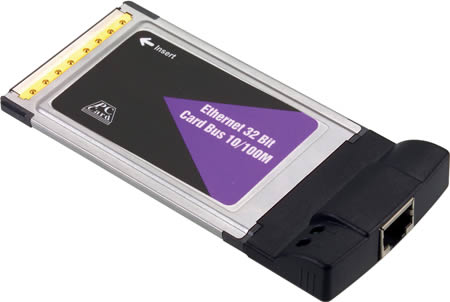
If you computer doesn’t have a PC slot, you can use a USB Ethernet adapter instead.
2. USB ports failure.
Most laptops have a few USB ports available. If one of them stops working, usually it’s not a big deal because you still have two or three more working ports left.
But what if all of them stopped working at once? Let’s say the USB controller on the motherboard went bad and the laptop stopped recognizing any device plugged into any USB port. Again, I’m talking about hardware, not software failure. In order to fix this problem you’ll have to replace the motherboard.
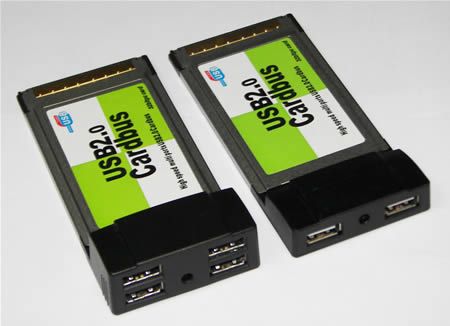
Alternatively, you can use a PCMCIA USB card. You plug this card into the PC slot and get two or four USB ports instead. It depends on the type of your PCMCIA card.
3. Internal wireless (Wi-Fi) card failure.
What can you do if the internal wireless card failed?
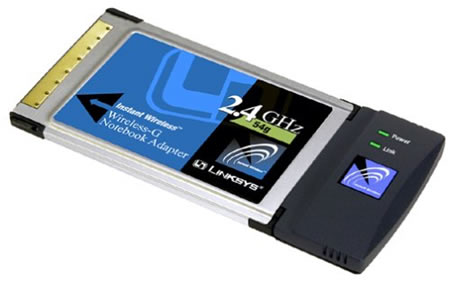
You can replace the failed wireless card with another one or use a PCMCIA wireless card instead.
4. Internal flash memory card reader failure.
Most newer laptops come with a flash memory card reader. Usually the card reader is soldered directly to the motherboard and if it fails, you have to replace the whole motherboard.
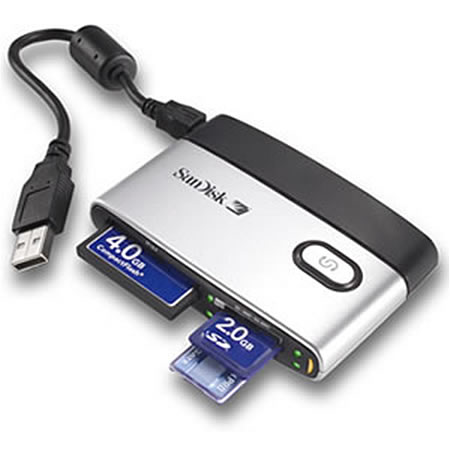
Alternatively, you can use an external USB flash memory card reader. All you have to do is plug the card reader into the available USB port and it’s ready to go.
5. Internal CD/DVD drive failure.
You’ll find an internal CD/DVD optical drive in most computers. If the optical drive failed and stopped reading discs, it has to be replaced with a new one.
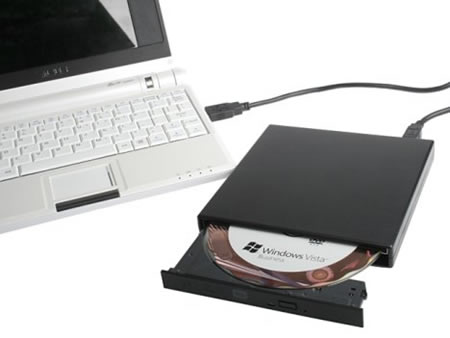
Instead of replacing the failed drive, you can use an external USB drive. Simply plug this drive into the USB port, let your computer detect the drive and it’s ready for you.
Also, you can use this optical drive with any other computer which is very convenient.
51 Responses
John K.
Hey, thanks for this post. I had all usb ports failed on me and didn’t know about PC card with USB.
Already ordered a new PC USB card. Found it on eBay for $14.
Mary
i’ve been using my lappy with network pc card for over 6 month. my network port failed and repair shop said it cost $250 to replace the motherboard. lol.
i paid $30 for a new lan card and it works great!
Jim
I’ve got a Dell Latitude that the pcmcia slots do not work (broken connector on the motherboard). In order to connect to a lan I use a usb nic. To use a mouse I also use a usb hub, this gives 3 usb ports on a computer that normally has only 1. Only problem I have is that occasionally the computer looses the mouse. I found that by unplugging the mouse and plugging it into another port everything works fine.
cj2600
Jim,
I also use a USB nic a lot.
When you reinstall Windows on a laptop (or desktop), it’s likely that the network card drive will be missing. I this case I connect my USB nic, load driver for this device from a CD, connect to the Internet and pull all needed drivers.
Jack
I have looked at the pcmcia usb adapters on ebay and they say that you need to plug that into another usb port to get enough power but all my usbs dont work. can you use the pcmcia usb adapter without the extra power?
cj2600
Jack,
I think you are looking at a wrong device. I think you are talking about USB hub, when you plug it into one USB port and get a few USB ports instead.
You need a PCMCIA USB card. This card doesn’t require anther USB port. This card takes power and signal from the PCMCIA port.
lcd
I bought an external optical disk drive with USB port for my laptop. Much cheaper than an internal one, while it is a little inconvient when I plug it in, for there is only one usb port left. If I want to use usb mouse, then I can not use a cooler at the same time.
S.R.BASHA
Dear Friends
Thanks for u r information very use full ………….
php
My laptop produce tic tic sound continueasly. Songs play but without sound. other task is performing as normal. Pls help to resolve the issue.
Sunil
my laptop is acer aspire 4736. my LAN port isn’t working(bought 6 months ago) as th network chipset burnt out. I want to know if it will be replaced under warranty or not?
cj2600
Sunil,
If the damage is not caused by you, it should be fixed under warranty.
R
Here’s another one you can use to fix the sound:
http://www.google.com/products?q=usb+external+audio&hl=en&scoring=p
Alan
Thanks for clearing up a problem with a loose rj-45 connector on my laptop. Greatly appreciated!
Sbu
My Laptop is HP dv6000 it fails to start operating system it just display the warning for few seconds then turns off.When I tried to re-installed it, it can’t read it from either USB port or DVD rom.Please help my school work is stuck
cj2600
Sbu,
What warning?
Vasilios Douros
I need to repair the usb ports on a Packard Bell Laptop, and it’s the first laptop I have seen in my life with NO PCMCIA slot!
cj2600
Vasilios Douros,
Maybe you have ExpressCard slot instead of PCMCIA slot?
Shiva
Hello – I suspect the video card on my Acer 7730G laptop is not working. Screen is blank (but you can still adjust brightness).
Is there any way to boot up using an external video card – say using the USB port (from a device like the Diamond BVU160) or perhaps from the Expresscard slot ?
Kind regards
Andrew
Hi,
I have a HP Pavillion Laptop, and recently my sound stopped working. No sound comes out from the headphone jack or the speakers. This must mean it is something to do with the sound card.
Please could you tell me what to do in order to fix this problem, I would rather not have an external sound card and would preferably fix this issue without replacing any parts if possible. I was wondering if it is something to do with the drivers?
Thanks, great website.
cj2600
Andrew,
This could be software related issue. Have you tried reinstalling sound driver?
Also, you can try reinstalling Windows OS from scratch. If the sound still missing, probably this is hardware failure.
Yimbo
Hi!
I have a msi wind u160
When i try to turn on the blue light come on only and the fan. ,but it doesnt see nothing on the screen , i dont know if i have to change the hd or is the screen problem.
I dont have any warranty becos i open it already uuppss.
cj2600
Yimbo,
Take a closer look at the screen. Can you see a very faint image or the screen completely blank?
If the screen completely blank, test laptop memory. This could be memory failure.
Do you have two memory modules installed? Try removing them one by one. Test the laptop with only one (either one) memory module installed.
onedreax
i got a better fix for all thatt! install Linux on ur machine
we got works around for most of hardware problems without having to use any external hardware.
works arounds using only software
onedreax
but still, this is a good solution, i mean i know theres a lot of people who prefer windows 🙂
cj2600
onedreax,
Dude, if you have bad hardware in our laptop, Linux will not fix it.
onedreax
well maybe you are right,, but think about. most of hardware failures are caused by driver problems, if thats the case, Linux works better… if you don’t want linux, fix the driver problem. or if it is bad hardware as you say, replace it with new one. dont waste money one external hardware caause thats just avoiding the problem..i say this ’cause sometimes external devices are very expensive, im just saying.. i mean i work with computers and thats what i do 😉
but like i said it’s a good solution.. but not all the time, neither forever …
have a nice day cj2600
Balaji
my laptop is compaq make bought 3 years before,
now my hard disk is corrupted, how to replace hard disk
any body have solution please help me.
Thanks
Bhavesh
Any one can suggest, how to reset BIOS Password of Compaq Presario V3000(3070TU)
Notebook not able to boot and so we can not use Windows base BIOS Updater
cj2600
Bhavesh,
Here’s a quote from the Compaq Presario v3000 maintenance and service guide:
cj2600
Balaji,
What is your laptop model?
You remove the failed hard drive and replace it with a new one. After that boot your laptop from recovery CD (or Windows installation CD) and install the operating system.
Bhavesh
Dear cj2600,
Though I have already try this couple of time but as per your instruction, this time I have disassemble all parts and leave Plain Motherboard of Compaq Presario D3000(3070TU) and then Connect the RTC Battery, Processor, RAM & LCD and last Power Adapter, Notebook PC Has been Power on it self but the PWD Issue does not solved!?
replay me if any mistake…
replay with any other please, because the problem is critical
Thanking you
Bhavesh
cj2600
Bhavesh,
In my previous comment I provided a quote from the official service manual. I’m not sure why it’s not working for you.
Bhavesh
CJ2600,
I have short out the problem and resolve it also
Now the Compaq Presario V3070TU work ok
Thanking you
Bhavesh
CJ2600,
I have a Notebook PC Compaq Presario V6000(6111TU)
Sound is ok but even after connecting of Headphone pin in Audio Jack Notebook inbuilt speaker is working
Reinstall Sound Drivers (Conexant HDAudio Driver) but problem is till continue
Reply me with batter solution
Thanking you
ram
i fallowed your instruction for the display problem of the hp tablet pc tx1000 its amaging i got it ok display come it nice working thanks thanks alot
Lydia
Last night, my HP mini laptop was acting slow, while I was deleting pictures and files. So, I decided to restart. Which I did, everytime it starts up. it doesn’t go directly where you enter your password on the user account. It stays stuck on loading part showing the windows xp icon. I have no clue what to do.
Rex
So there is no getting around replacing the motherboard both of my USB ports were damaged during travel, was thinking of resodering the pieces back into the motherboard but now I am looking into an external!
vinay
dear,
i have a lenovo y500 series laptop. there is a problem in my laptop “sometimes it is start and sometimes not” so please resolve my problem by mail. i will still waiting for ur reply.
thanking you.
cj2600
@ viany,
Possible memory failure. The laptop should have two memory modules installed. Try removing them one by one and test the laptop with each memory separately.
If one of the modules is bad, the laptop will start and work properly when you remove it.
Val
Hi there,
When I turn on my HP Pavillion TX 2522 the screen stays black, capslock and numlock are active, tried to remove the battery for half a day and then held the power button for 60 sec, it didn’t help so took it to get a free check up done-they said the motherborad is damaged and needs replacing for $240 🙁 I was wondering if anyone knows any ways to fix it, am a poor student so can’t really afford paying $240 and the lap top is not particularly new anyway!Thanks
cj2600
@ Val,
If you have nothing to lose, you can try one of the following methods:
http://www.laptoprepair101.com/laptop/2010/10/06/fix-video-problem-hp-laptops/
http://www.laptoprepair101.com/laptop/2011/02/23/fix-laptop-motherboard-with-failed-nvidia-graphics-chip/
Michael Myjak
I have a dell D800 with a broken microphone jack. Is there any way to fix just the jack? Like fix the solder joint on the mother board? If so, how do I disassemble the laptop to get at the offending jack?
Thanks –
Michael
cj2600
@ Michael Myjak,
Here’s Dell Latitude D800 service manual. The manual explains how to disassemble the laptop.
I don’t know if it’s possible to fix just the jack because I don’t know how bad the damage is.
krish
i have a sony vaio laptop. it is not starting up at all. what could possibly be the problem?
cj2600
@ krish,
How exactly it’s not starting up? Any lights at all when you push on the power button?
Try this. Remove the battery, unplug the AC adapter, push on the power button for a few seconds. Now plug in the AC adapter and try turning it on again.
Asmita
I have a HP G 42
Some times the screens starts to have lines moving like old time television, am not sure what to expect!
Kindly help, ASAP!
Imran
About USB ports failure recommendation:
I have a Toshiba Satellite L655D-S5050. First I noticed that my USB ports are not recognizing the printer, then tried the Flash Drive and still they were not functioning. At the same time I start to receive a Blue Scree of Death mentioning Bug Code USB Drive…. And from then I never could shutdown the pc successfully. After every attempt the Blue Screen appears saying the same message and Restarts automatically.
Later I tried every possible ways to fix the problem by consulting the Toshiba Support Forum. None worked and at the end I being advised that this is Hardware problem.
The Last thing I did was reinstalling the windows and after successfully installing when it requires a Restart to complete the process. It fails to shutdown properly shows the same Blue Scree and restarts and the installation starts again. And this continues over and over.
In this situation if I use a PCMCIA USB card as you suggested above will this problem be solved?
Another question when I’m using a PCMCIA USB card will it automatically block or stop my motherboard USB ports? If yes then I think this might work with me.
Please advise. Its very important and urgent for me to get this PC operational.
Regards,
Imran
Imran
Posting the problem Again. If anyone has the answer please take the time to respond! I really am in need of the that badly!!
About USB ports failure recommendation:
I have a Toshiba Satellite L655D-S5050. First I noticed that my USB ports are not recognizing the printer, then tried the Flash Drive and still they were not functioning. At the same time I start to receive a Blue Scree of Death mentioning Bug Code USB Drive…. And from then I never could shutdown the pc successfully. After every attempt the Blue Screen appears saying the same message and Restarts automatically.
Later I tried every possible ways to fix the problem by consulting the Toshiba Support Forum. None worked and at the end I being advised that this is Hardware problem.
The Last thing I did was reinstalling the windows and after successfully installing when it requires a Restart to complete the process. It fails to shutdown properly shows the same Blue Scree and restarts and the installation starts again. And this continues over and over.
In this situation if I use a PCMCIA USB card as you suggested above will this problem be solved?
Another question when I’m using a PCMCIA USB card will it automatically block or stop my motherboard USB ports? If yes then I think this might work with me.
Please advise. Its very important and urgent for me to get this PC operational.
Regards,
Imran
cj2600
@ Imran,
If the same problem appears after you reinstall the OS, this is hardware related problem. Probably failed USB controller on the motherboard.
I’m not sure if this will work but you can disable all USB ports in the device manager and try using an external PCMCIA USB card after that.
TerryM
USB and RG45 connectors CAN be replaced on the motherboard..I fixed those on my neighbor’s HP a while back when their kid jammed something into all of the connectors rendering them unusable! The connectors themselves are cheap to buy (eBay) but you need access to a solder sucker machine, and need to be a little handy with soldering. I charged my neighbot $45 for the repair..it beat buying a new motherboard for close to $200!
john14
i have a hp laptop. i tried to format it using usb but it wont work. the dvd drive of my unit is damaged so i am forced to use a usb bootable disk to format my unit. what will i do knowing that it did’nt boot from usb.? will an external dvd drive works in installing or i really need to replace the dvd drive. please help. i’m on my quota.