
In this guide I explains how to fix a broken keyboard connector on a laptop motherboard.
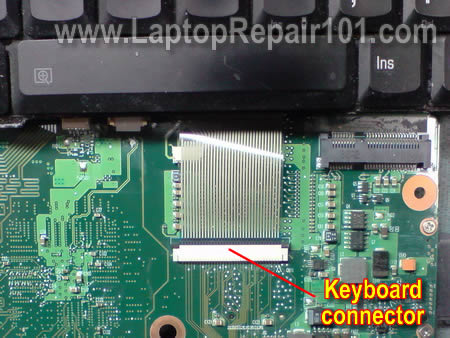
The connector is a very delicate mechanism. It’s very easy to get it damaged if you apply too much force while trying to unlock it.
The cable retainer (locking clip) is made of thin plastic and if it’s damaged, you are in trouble. Unfortunately, this part is not sold separately.
Well… let’s say it happened. The damage is done. How to fix it now?
On the picture below I show one of the most common connector types. It has the base (white in my case) and cable retainer (brown in my case).
When the connector is closed, the cable secured between the retainer and base.
The retainer applies some pressure on the cable and it makes contact with the pins inside the connector.
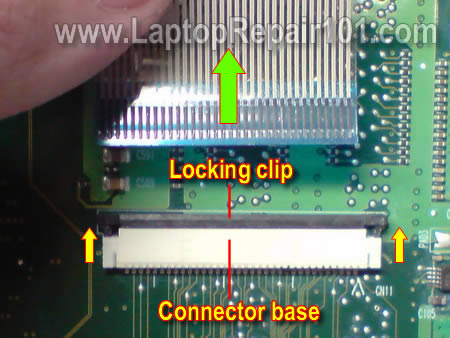
To unlock it properly, you have to move the retainer about 2 millimeters in the direction shown by two yellow arrows.
IMPORTANT! The retainer must remain attached base.
After that you can pull the keyboard cable and remove the keyboard.
If you are not careful enough, you can move the retainer too far and break it.
On the picture below you can see the retainer broken on both sides. It is missing the both locking hook.
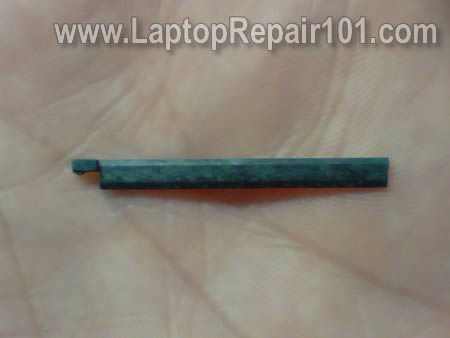
IMPORTANT! Do not though away the retainer. You still can use it.
The cable will not stay inside the connector without the locking clip.
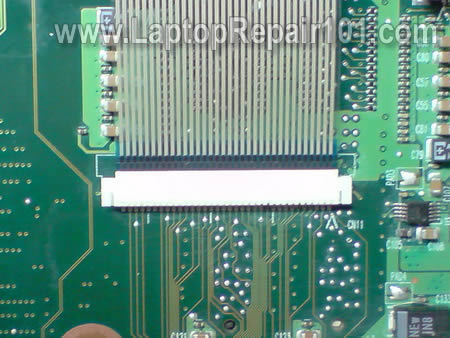
Here’s how fix this type of damage.
Position the broken piece the way it was inserted before.
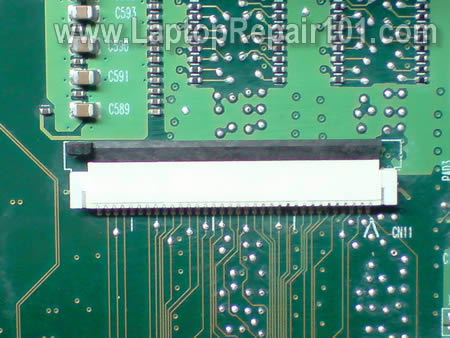
Carefully insert the cable into the connector. In this case the cable goes above the retainer.
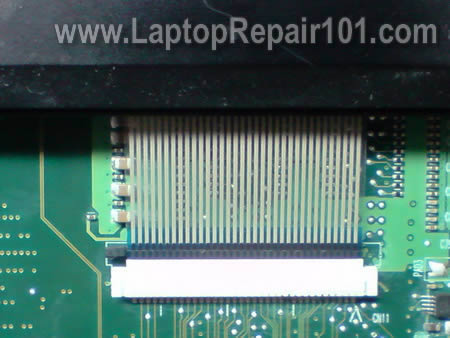
While holding the cable, carefully push the broken clip back in place. You can use a small screwdriver for that.
The clip fits tightly into the connector even though it has two broken hooks.
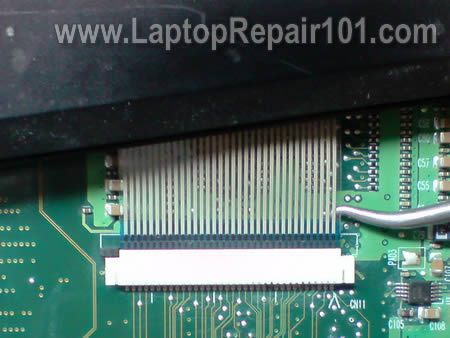
Secure the connection with sticky tape and test the keyboard. It should work just fine.
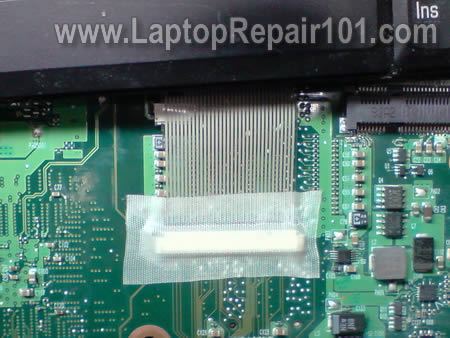
Here’s another connector type. The only difference – the keyboard cable is routed under the locking clip. Fix it the same way as the previous connector.
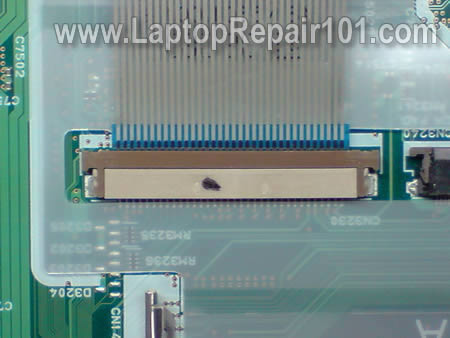
On the next picture you see another type of connector. The cable is inserted vertically.
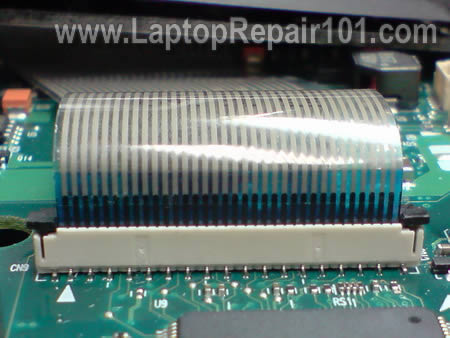
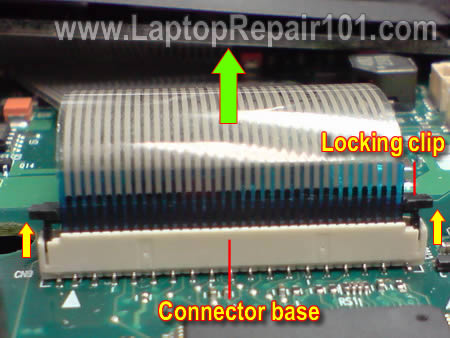
In order to unlock the connector, you’ll have to move the locking clip (brown piece) about 2 millimeters up in the direction shown by two yellow arrows.
After that you can pull the keyboard cable (green arrow) and remove the keyboard.
If you move the locking clip too far, you can break it.
In my example one side of the retainer got damaged.
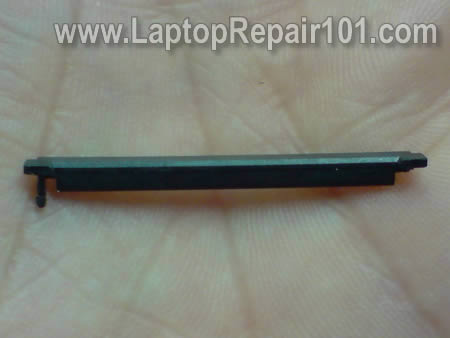
Insert the keyboard cable into the connector, position the broken retainer correctly (behind the cable in my case) and carefully push it in.
Even with a broken retainer the cable should be secured inside the connector.
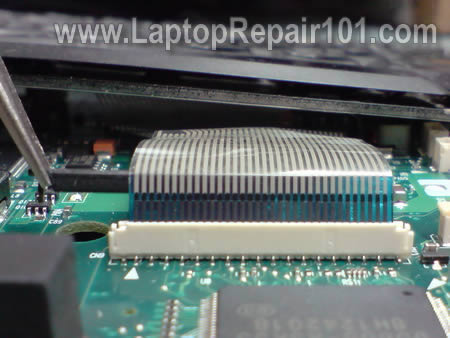
Here’s the same connector shown from the opposite side. You cannot even tell it is broken.
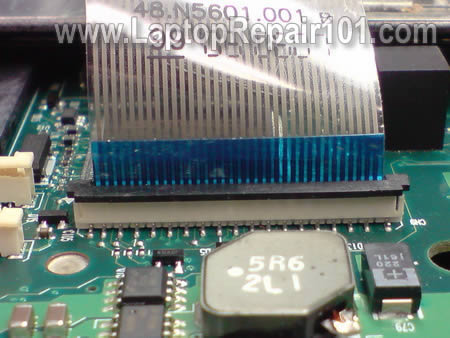
If this trick worked for you, it means I just saved you big bucks on the motherboard replacement. And I’m glad I did.
REPAIR TIPS FROM READERS:
Thank you to Alex for the following suggestion:
I found another way to fix it…
Have you lost the broken “Locking clip”?
Then do this…
Get some “electrical tape” on the back of the “flat cable” to make some “thickness”.
Make sure you are putting the tape on the right side, where there are no visible connections…Then very carefully push the cable into the connector… It will not come loose and the keyboard will work just fine!
Also read this post explaining how to repair broken touchpad connector.
201 Responses
X0MB13
on my p305-s8915, the clip flips up vertically. I tried to push it out since it looked like mine and broke it in half. It will either take long fingernails or tweezers to stand it vertically and push the connector back under the pins so it will tilt down again. A lil scotch tape and you are good to go again (thankfully)
john smith
a few hundred bucks? the mainboard on my laptop comes with the processor built in, so it comes to around AUD$2000
but i just did this on my other laptop…
thanks!
Prakash Chotalia
thank you dear,it is very usful,but right now i am not bale to donet sonthing my side.but i am always remember you , and any time i will get money or earn money i will defint donet some amount to our side.
Steve
My daughter has a toshiba satellite m55 s3294 which is mising a key. I know there are key repair kits available, but I would prefer to replace the keyboard. Is it necessary to get the s3294, or are there other m55 keybords which are compatible. I ask only because I am having difficulty finding that specific model inside the U.S. Thanks , this is a great site.
cj2600
Steve,
I’m sure that any keyboard designed for a Satellite M55 (any model) will work just fine. Search on eBay for Satellite M55 keyboard and you’ll find plenty.
long17dn
thank you very much
merry christmasts!
Paul M.
Just found this site – lots of good advice so thanks!
I’ve been using this trick on my nx5000 for a few years now (minus the sticky tape step) and it works fine. Was kicking myself when I first busted it though.
Am about to attempt fixing what sounds like a loose video cable from one of your other posts so I’ll be pulling it apart again.
deji
what if you loose the clip that hold the keybaord down
pls help
Peter R.
Thanks for the info
My situation was a bit worse as the clip got lost by the time I got to see my son’s laptop, but a piece of X-ray film bent 2-fold worked just fine (I’m pretty sure any other plastic will work, you need just to play with a few different kinds to find the right thickness).
Cheryl
Hi,
My dad purchased a Toshiba A505D-S6968 laptop recently and accidentally damaged the “shift” key. It still works when its pressed down, but they key itself cannot be re-attached to the laptop. What would be the best solution to repair it?
Thanks,
Cheryl
cj2600
Cheryl,
Take a look at this post: http://www.laptoprepair101.com/laptop/2007/03/20/key-fell-off-keyboard/
Steve
What is the best recommended type of tape to use for this repair?
Steve K
Thanks for the repair tip. I just performed this repair on a Powerbook G4 15″ and it brought the keyboard back to life! I used regular clear scotch tape for the repair.
anonymous
This happen to me, and I did a similar fix, it worked!, but I could by another socket, carefully take the clip away and use it for the one in the motherboard. No soldering is needed, just do it carefully.
The only difficult part of this method is where to by a new socket?
Laptop Repair Birmingham
Thanks for the post. I repair laptops and have done this on ocassion to the keyboard connector. They are so fragile.
Ken
I had to replace the power connector on my niece’s Toshiba A305 notebook, and I broke the latch on the keyboard socket. I tried this but there is only about 3/4 of the original latch and I still can’t get it to make good contact. Is there somewhere I can buy the latch?
Also … I believe the cable was above the latch. Is it possible I’m mistaken and the cable belongs below?
cj2600
Ken,
As a last resort, you can find a piece of plastic and make something similar to the broken latch. I REALLY doubt that you can buy this piece separately.
Laptop Repair Brighton
Hi, This is an excellent article if anyone ever has any problems with there laptop keyboard. Thanks for the time to write it.
Suzan
this has all been very helpful. thank you. My keyboard is totalled and I have purchased a usb keyboard. The laptop keyboard overrides the usb one and keeps intruding with nuisance letters.
I have successfully removed the keyboard as per instructions, however my connector has a metal cover holding it in place on what I assume is the motherboard. My laptop is Toshiba Pro S200 model.
This cover has 2 screws positoned on either side. I am not sure if removing this cover will free the connector. Should I be brave and undo the screws?
Suzan
Well, I unscrewed the cover plate and successfully removed the keyboard connector. Hopefully the usb keyboard will suffice for now.
thank you for the excellent directions.
Mary
I have keyboard issues with My Dell Inspiron 1545 beginning two months after I purchase it. I kept contacting Dell and they would send me a new keyboard. In the beginning the probelem was tht the keys on the keyboard were popping off because they were sending me “cheap” keyboards. After the fifth replace of the keyboard, during the repair and replacement of the last keyboard they sent, a couple of prongs became broken because, like I said this is the 5th time I had to replace the keyboard because the keys kept popping off. Finally Dell agreed to ship me a box to send in my laptop for repair. A couple of days later, they contacted me telling me that they cold not repair it unless I paid them $358 to replace the Motherboard. My point is, “The motherboard would have never been broken, if they had shipped me a quality keyboard to begin with. I can expect that the Keyboard connection on the Motherboard would be broken after, 5 attempts of installing a new keyboard. What pisses me off the most is that this laptop is only 7 or 8 months old, and they don’t want to fix it. So now they are shipping it back to me “unrepaired”. Also in the process, the battery clip became broken, because the battery had to be removed so many times to install the new keyboard. Just wondering if you have any suggestions on repairing the keyboard connection on the motherboard without having to replace the motherboard. Because at this point, I feel like I would be better off to purchase a New Laptop, instead of investing nearly $400 for a repair that I feel is in now way my fault. Through the past few months, I have learned that the customer service at Dell is awful. If they would have requested that I send in the laptop for repair, during the first time I had an issue with the keyboard, then this problem would be their’s, but since I did the install, 5 times because of Cheap keyboards, my motherboard is broken and I am without a laptop.
nick
Thank you, Best info I’ve found for re moving keyboard.
Deb
I just want to say THANK YOU for the directions on repairing the keyboard connector. I was ready to give up trying to fix it. This did the trick. THANKS!!!
Deb
charouite
Hello everyone,
I have a Toshiba Laptop A100-335 will not start.
The power light stays off.
The laptop connected to the mains, the battery flashes voyaynt a dozen times without result.
Thank you for your helping hand
pepe82
Hello,
I would like to buy the connector that is it on the image called “another connector type”, picture 10.
Somebody knows where I can find it?
Thank you
HUI SIANG
thank for yor infomation
Sylvie
How i can to known. My laptop doesn’t worked. No light nothing.
I try to diconnect everything but nothing.
Can you help me?
cloudbee
Thank you for your pictures and details.
Dave
Thank you a thousand times over for the step by step instruction for taking a laptop apart so I could replace the keyboard. The extra details about the keyboard connections made all the difference in the world. Be sure to get a snug fit with the connector as only 50% of the keys worked the first time. I reconnected the link and the keyboard works normally now. Thanks so much for your web site and instructions.
Stacey
Hello,
I had a tech add some thermal paste to my cpu, in opening the computer he removed the clip, in trying to put it back he broke it. I have tried to fallow your guide, my computer most resembles the last couple of photos. It’s a sony vaio vgn-a790. I have tried to place the clip back down after putting the cable in place but the clip will not stay down. In your article you don’t mention putting tape down on this type of connector. Do you have any other suggestions for keeping the clip in place? or any ideas on where to get one, other than purchasing the mother board? Thank you
Don
Hello, Was wondering about your website, is this site maintained on a daily basis? How often to people post stuff on your site? I would you be interested in more info and by the way Great site.
Thanks so much for your time in advance.
Best Regards-
Don
Donna
I have used super-glue many-a-time for a quick and sturdy fix. It takes good eye-hand coordination, some very tiny tools, and a gentle, yet sturdy touch. You can use it to repair, or like a resin to add a thin layer and sand with an emery board or something to give a more “snug” fit. Or you could get some epoxy/resin (for plastic) and do the same thing. If you can’t find any at an electronics store, sometimes you can find things like that at an auto parts store also.
Donna
….I should have noted that my post was in response to post #33, Stacey
Don
these keyboard connectors can snapped off easily. I use real caution and control when removing the keyboard and ribbon cable. And used the methods described above works real well! thanx!
ravi
thanx 4 the gr8 tips ….
keep it up bro..
🙂
jdub
Good tutorial, but what solutions are there for MacBook Pro ribbon connectors. The MBP connectors lift up and then clamp down, fairly simple concept, and I have done it with ease many times. The plastic clamp intended to clamp down the keyboard ribbon cable on my 2007 MBP apparently became brittle with age and crumbled. So, there is nothing left to secure the ribbon with. I have tried scotch tape and it does not secure the ribbon down tight enough to provide a tight connection. Any ideas at all. Here is a link showing what the connector looks like and how it operates. the pic doesn’t give much detail though:
http://guide-images.ifixit.net/igi/cxPQJhXx1t1yHWCw.large
Any advice at all would be greatly appreciated!
cris dean
thanks a lot….i love this basic guide for laptop…….thanks a lot men….
David
Hi,
I have an Acer 5532 Laptop, i tried to change the keyboard but i broken the actual white connector that is with the MB, ( it came in my hand) !! is there a solution for that?
Thanks
cj2600
David,
Unfortunately, there is no easy fix for that.
You’ll have to replace the motherboard OR use the laptop with an external USB keyboard.
I guess you can try searching for a tech able to solder this white piece back to the motherboard, but… I don’t even know if it’s possible.
Lisa
I replaced my keyboard on my Gateway netbook after spilling milk on it. The computer itself seems to work fine, but the keyboard still isn’t working even after replacing it with a new one. What could be wrong? Thanks.
salim
Hi,
I was wondering if you got any tip on how to repair mouse pad cable on toshiba Satellite L300 series. While removing the keyboard and top case to repair the DC jack, it came off. Now I don’t see an obvious way of putting it back. It does not seem to have any locking mechanism as far as I can see.
Any help will be highly apprecaited.
Regards
Salim
emf
Hey! Great tip!
I was wondering if you have any ideas for how to replace/repair such a connector as this first one if the hinge part broke off and is gone / lost.
I broke off a tiny 4-pin connector hinge on my Dell Inspiron 1545 power button board, and it fell off somewhere inside the machine. I completely disassembled but couldn’t find it.
So, is there some way to jerry-rig this thing to work, or can I find a replacement hinge part somewhere?
THANKS
– emf
cj2600
salim,
Try fixing it same way as I explained in the post.
1. Insect the touch pad cable back into the connector.
2. Push the locking clip into the connector. I believe it goes under the touch pad cable.
3. Secure the connection with sticky tape.
Bobinator5000
If the keyboard is missing a key don’t replace the keyboard; buy a new one for $20 form a parts store then switch keys off of the replacement.
Problem with replacing those FPC/FFC connectors is finding the right part. Sure you can cannibalize another board and on some the solder work is do-able, but really not breaking the connector in the first place is your best bet. You can also set the connector in place carefully via tape so it’s secure and encase in epoxy. Makes replacing the keyboard impossible but hey.
If anyone knows where to get FPC/FFC Connectors let me know; I know they make em’ in standard sizes.
cj2600
Bobinator5000,
That’s a good advice.
Here’s how to replace a single key: http://www.laptoprepair101.com/laptop/2007/03/20/key-fell-off-keyboard/
Harvey
Great article, great site. Cheers very helpful
killerboy vol
HP Pavilion dv5-1104tu Entertainment Notebook PC
http://i672.photobucket.com/albums/vv90/volcanoman3/fix-broken-keyboard-connector-06.jpg
PLEASE SEE THE IMAGE
I think i have broken a pin (the most left pin i dont know if it was connected motherboard ) the other pins i can see r connected
and some keys r not working
like
f9 , 9 ,0 , -,= ,o,p,[,/,. ,l , ; , ‘ ,home ,pg up ,pg dn, end , right n left arrow keys
del key
i have done cleaning the ribbon but no use
PLEASE HELP as i live in remote area not in the city
SHREE GANESHAYANAMA
thanks a lot
this is great site for all of us who have such a problems
Gaby
Hi
I need your help for a Toshiba Satellite A70, I have to replace the backlight of my LCD, I’m looking for a tutorial for this model because it has 2 cards, a card at the top of the screen and a second on the right side that I can not disconnect to release the rear portion of the screen and have access to the backlight as demonstrated in the tutorial I found on internet, unless there is another way without disconnecting the cards…
Tank you
Anindita
Hi,
my f5 key is stuck from inside, though if you see it from outside it looks perfectly normal.I was managing with that for some time. all on a sudden few of my keys(t,y,left control,tab,f6,5,6,num lock,[,],\) stopped working. Of these left control and f6 is stuck inside as has been mentioned earlier. The thing which is noticeable is all of these keys stopped working together. what do you think the problem is? is it that i have to change the keyboard or i have some problem with the connector? Looking forward to hear from you.
Anindita
hi,
forgot to mention one thing that all the above keys work when i use an external keyboard.
Donna
I have a Toshiba Satellite 135A laptop and it will no longer boot up when I press the button. Can I just order a new on off
switch or what part do I need to order?
Greg
hey thanks for the help. I recently recieved a laptop from my friend to fix the keyboard. I was hoping it was just a faulty keyboard but I was scared to see that it was a broken connector left after another guy took it apart.
I spent some time looking for a new lock to try and repair the connector but I couldnt find anything.
after some time I had the idea to layer tape under the bottom of the connector to ensure that the band was jammed in the connector and made contact. I stuck the connector in and taped it across the top to “lock” it, I then prayed. haha
Luckily it worked keyboard works as intended now, and I get to collect for the repair of this laptop. hope this helps.
Todd
After completely disassembling my sister’s Acer netbook to replace the hard drive, I got to the last step of putting it back together and broke the keyboard connector. I assumed there was no way to fix that but did a google search to see if there was a way. Found this excellent post and it is now working fine. Thanks!!!!
Kandi
Are you still around for help? I have a few issues that I need help with! Thanks
cj2600
Kandi,
Yes, I’m still around for help.
bergen4
Thank you for giving me the confidence to keep trying after I broke the classic connector. My Dell Studio 1555 works great now and I thought I might cry after everything went do well until the last step with the CONNECTOR. My new keyboard is as functional as the original but with all the keys.
hamed
i need acer hp all model board tricks
Agnes
Do you have a similar article about the connector for the IDE disk drive? The clip that should hold the ribbon firmly to the motherboard does not hold anymore… I have a Toshiba Satellite R15-S829, is there some secret to making this clip work?
USMC_Spike`
Question,
I reviewed instructions for removing the ribbon cable which
resulted in my breaking the connector on the mother board.
A row of pins broke off on one cable side and a row of bent
pins remains on the motherboard.
The Laptop is a lifebook A6120.
The connector is a zif type keygboard connector, with
30 pins, 15 on each side, pin spacing is approx 2mm.
The problem is this is a non-locking connector, so in
trying to unlock it, by gently pushing the two ends towards
the harddrive removed it from the motherboard.
So anyone know who makes the zif connector so that I can
find a replacement? Fujitsu is mum and refuses to, and
claims they don’t know and cannot know who the mfgr of the
connector.
I’ve got the rework station and the tips to solder on a new
connection. This is NOT the $560 solution that Fujitsu
told me about…buying one of their motherboards.
Please advise,
Spike
MARY
Toshiba M45
Initially I was replacing keyboard and checking out the touchpad that did not work. Everything went well except once the computer was turned on in 10 minutes would shut off. I opened it up completely this time and found cable was not connected correctly for fan. Now its back together I have cant connect the wireless cables back on because there is solder all over them and i ripped it off completely, the on/off switch does not work correctly the keyboard does not work at all there are 7 screws i have no idea where they belong and there is a small thin plastic piece that came from inside somewhere but i have no idea where. Where do I begin to get this thing working again?
anne
why doesn’t my touch pad work. I got my keyboard to work.
Steve @ Games Tables for Kids
Is there any way to repair after a row of keys don’t work: 8, I, K, , keys?
A replacement keyboard also has same issue when connected, so would this be an issue with the motherboard and is there any repair fixes at all – or ‘re-flow’ tricks?
Mant thanks
Steve
cj2600
@ Steve,
If a new keyboard didn’t fix the problem, it’s either failed keyboard controller or bad keyboard connector on the motherboard.
Take a look inside the keyboard connector. Make sure there is no dust or junk inside. Try cleaning the keyboard connector with a toothbrush and 99% alcohol. Reconnect the keyboard and test again.
If the problem still there, this is failed motherboard. You’ll have to use the laptop as is with an external keyboard or replace the motherboard.
cj2600
@ anne,
On some laptops you can disable the touch pad.
Check if the touch pad is enable. Check in the BIOS setup menu, touch pad option in control panel, touch pad software, etc…
Eric
I was replacing the keyboard on a Toshiba Satellite L655 when the locking clip itself snapped in half and lost a tiny third piece. Do you know where I can order a new locking clip? It’s only a tiny piece of plastic, so I’m hoping it can’t cost too much to replace however so far it’s been impossible to find one listed online.
Kandasoo
Hello Sir I did broke my toshiba stalliet L350 CLIP LOCKER AND WHEN I DO CONECT MY KEYBORD CALBE TO IT DOES NOT GET TIGHT AND MY KEYBOARD AND TOCHPAD BOTH OF THEM GOT DISABLE NONE OF THEM WORKS NOW IS THAT POSSIBLE THAT I CAN BUY CLIP AND A CABLE FOR MY MOUSE TOCHPAD TO FIX IT
I MEAN THE CLIP LOCKER AND THE EXTRA CALBLE FOR THE TOCHPAD WHICH IS CONECTED INSIDE THANKS IN ADVANCE PLEASE REPLY ME I AM WAITING FROM 8 MONTHS FOR THIS ISSUSE
Kandasoo
Yes That is great tutorial i was waiting for 8 months and a few mins i got my Keyboard working i fellow all of your steps and with the broken clip i got my keyboard back for Toshiba L350
But I Lose My mouse or tochpad which is not working and i lose my laptop battery which stops in 1% percent plug in not charging
Thanks it is really great method i will surely donat and trying to bring back my tochpad thankssssssssss and i am happy from kandasoo best regards
Kandasoo
Thanks All Damage Things Are Back On My Laptop Toshiba L350 Sattalliet Which Was Off For 8 Months Sir You Save My 500 Euros And You Save My Life God Blees You:d
Imranhashmi
Hello how to fix my keyboard all keys are workin but it type wrong characters
as when i type i it changes to /lo
o/lo
2/2w
w/2w
1/ 1 1
e/shows current system time
i disconected my keyboard from laptop and put it back i got these error i googled with many ways even i farmated my whol partions of system the problem still exist
if some one know any way to that please infor me
Geokid
Thx for the tip. Just broke the keyboard connector clip when replacing an LCD screen on my toshiba laptop. Though i was out the entire laptop and new screen i purchased, but your tip worked a charm and i’m back up and running. Thanks for the great tutorial.
cheers! (owe ya a beer!)
GeOKid
Pete Durmer
I SCREWED UP WHEN I REMOVED MY LAPTOP KEYBOARD. I BROKE THE RETAINING CLIP ON THE CONNECTOR. I ORDERED A NEW KEYBOARD AND OF COURSE IT CAME WITHOUT THE CLIP. I’M STUCK WITH A REPLACEMENT KEYBOARD AND NO WAY TO SECURE IT TO THE LAPTOP KEYBOARD CONNECTOR. ANY IDEA’S OR WORK A ROUNDS. I CAN’T LOCATE THE OLD CLIP. IN THE MEAN TIME I ORDERED A USB KEYBOARD IT HAS NOT ARRIVED YET. THE LAPTOP IN QUESTION IS AN ACER ASPIRE 5002. THANKS FOR YOUR HELP!!
Pete Durmer
HI GREG, I’M CURIOUS WHAT KIND OF TAPE DID YOU USE? HOW ABOUT DOUBLE SIDED CARPET TAPE ON THE BOTTOM, SHOVE IT IN AND THEN DUCT TAPE ACROSS THE TOP. WHAT DO YOU THINK?
hamza
hi i have a hp pavilion dv5 1110em and i have broken the socket pins on the motherboard for the keyboard i cannot buy a new motherboard as it is very rare,any help to fix motherboard’s keyboard socket pins?
anne
hi, my laptop got hit on the gound from the couch can it be fixed.
i cant turn it off now and the only thing i see a purplish, dak pinkish color
JM
This repair is only for certain types of connections, there are smaller ones, such as on the touchpad, that, if the plastic hinge is broken, nothing, not hot glue, not crazy – not even tape will cure it. Only a new plastic piece, which is impossible to come by.
Nick
I usually find a similar connector from a salvage motherboard (most of them made by Foxconn) and use infrared BGA rework station work to lift it up and replace it.
Roxane
Hi, the small ribbon connected to my touchpad toshiba satellite pro m10 laptop is broken and its not working. Where can i get a replacement and what is the correct name for it?
cj2600
@ Roxane,
I don’t think you’ll be able to find this part anywhere. It’s not sold separately.
Mark
I have an old IBM Thinkpad R40. It no longer gets power, it looks like the outlet where the the charger connects broke-off. How easy is to repair that. Is there a manual to help? Thanks, Mark
cj2600
@ Mark,
Here’s the service manual for ThinkPad R40 laptop.
Disassembly instructions start on the page 63.
The DC jack is attached to the harness. You’ll have to disassemble the laptop, unplug the damaged DC jack harness from the motherboard and replace it with a new one.
It look like eBay has only the DC jack without harness. Search for “ThinkPad R40 jack” on Amazon, you should find the harness, not just the jack.
Alex
I found another way to fix it…
Have you lost the broken “Locking clip”?
Then do this…
Get some “electrical tape” on the back of the “flat cable” to make some “thickness”.
Make sure you are putting the tape on the right side, where there are no visible connections…
Then very carefully push the cable into the connector… It will not come loose and the keyboard will work just fine!
Duh!
cj2600
@ Alex,
Thank you very much for your suggestion. I published it in the main post at the very end.
Silviu
hi .. i have a dell inspiron 1545 .. i have broke the locking clip and lost it.. then i have broke some pins from connector base… how in earth i can make my laptop keyboard work again.. i am bored to use external keyboard … any help here ?
cj2600
@ Silviu,
If pins inside the connector are damaged, I don’t think you’ll be able to fix it.
The keyboard connector soldered to the motherboard. I guess you’ll have to replace the motherboard or use it as is with the external keyboard.
Kevin
I bought an ACER netbook with a non-functioning keyboard off Craigslist. I took the keyboard off and the clip was not only broken but gone. I had no luck researching an FDC replacement clip. In my researching a fix I came across this site and the post of the x-ray film solution gave me an idea. I cut out a flat piece of the stiff plastic wrapping everything comes in these days. I cut it as wide as the ribbon cable and about 3/8 inch long. I inserted the ribbon cable and then inserted the strip I made on top of ribbon cable and underneath the row of 24 pins. I rounded the corners slightly to keep it from damaging the ribbon cable. It took me about 15 minutes with a needle nose pliers and flat head screw driver but the thickness was perfect and keeps the keyboard ribbon cable nice and snug. I am typing on my fully functional keyboard right now without the clip and I couldn’t be happier. I just said goodbye to my external USB keyboard.
Zac (Singapore)
I got an Acer One Happy 2 which i broke the black connector part and based the above example i improvised using laminated plastic for documents lamination with double sided tapes above the sticky tape which i used to keep the black connector in place to use for applying pressure onto after the keyboard is installed back. Thanks all for all the suggestions and it all works well for me now and do away with my newly purchased USB foldable soft keyboard. Thank GOD.
fluudi
Hi, i have bought a Dell latitude E5520, it has been filled with alcohol drink. I have cleaned it and its working fine except keyboard.
I have bought new keyboard, but it doesnt work.
accidentally I broke the connector from motherboard, few pins missing now.
Is it somehow possible to make cable from laptops keyboard to external USB port? so i could still use this laptop without external keyboard.
cj2600
@ fluudi,
I don’t think it’s possible.
Travis
Awesome fix – thank you. The electrical tape did the trick! FYI, I tried scotch tape first – 8 layers later, it still didn’t work. How ridiculous it would have been to spend $20 or $30 to order that silly plastic clip.
popster506
@Alex, I just screwed myself out of a new laptop by trying your suggestion. Good stuff there mate! A million thank yous.
Thanks to the original poster as well for starting the thread.
cj2600
Travis,
You are welcome! I’m glad you were able to fix it.
I really doubt you can buy this clip separately.
Sabine
Thank you soooooo much for this tutorial. I did a quick prayer after reading it three times, but it worked like a charm. I bought an old lap top for parts and actually broke the clip when I was taking out the laptop that I wanted to use, thank goodness, I learned pretty quickly from my mistake and gently lifted the one on the laptop that was being repaird, and presto, working keyboard!
wael
thank you
Dan
Thank You very much! This was very useful! Unfortunately while attempting to replace the keyboard on my laptop the video I chose to instruct me did not mention anything about the connector!! Idiot!
Thanks Again!!
mateusz
Thanks a lot!!!!!!! I was devastated when I find out that i broke this small think,further more, I was trying to reattach it, but the keyboard was not functioning. I broke it in friday evening, and I was sure that my case is hopeless, but when I find this page I just fix my keyboard in the matter of second,i’m so happy !! Thanks again!!
cj2600
@ mateusz,
I’m glad it worked for you.
json
hi i have broken my conector base which is on motherboard
can i repair it please i searched for that but did not find the totourial please help me how to repair it on motherboard
my laptop model is toshiba satliet l350
cj2600
@ json,
Unfortunately, I don’t think you can fix it. The connector base is soldered to the motherboard and it has many very small pins that hard to desolder.
Tamar
Thank you!! Broke and fixed it all in less than 24 hours, thanks to you. The saddest part was that I had to take out my contacts so I could actually focus on the little teeny parts up close (sans glasses too). I’m too young (32) to be having to look at stuff like an old lady, no? Eeks! Really though, thank you for this tutorial!!
jon
I recently replaced my keyboard because a diagonal line of keys
ztoped functioning. The new keyboard haz the zame izzue but, a uzb keyboard functions fine. What can i do?
Peter
Hi cj2600,
Thanks for a great tutorial. I have a similar problem, the difference is that my clip instead of sliding out (as in tutorial example) it opens up. One side (one hinge) is broken, that is why I cannot make a tight connection. I was able to locate one clip like that on a non working machine, but it is only ‘like’ it, it doesn’t fit tightly enough to give proper connection.
I have already tried electrical tape, piece of plastic, up to the point that installed keyboard had a bump in front from all the layers of the tape and plastic. But I only get some keys to work. Can you or anyone advise anything on this scenario. I would greatly appreciate it.
Thanks!!
Shaun
If you lost the clip altogether like I did there is still a fix. Cut an old credit card (or any other card of similar thickness) and cut it to be the same width as the clip. Stuff it on the opposite side of the cable contacts and your keyboard will be working.
Peter
Ok, I got it. Maybe the solution was mentioned above in the tutorial or one of the posts, but I have not understood. However thanks to all your comments and advices I come up with a solution for my version of a connector. Here it is for whoever will be interested. Note that clip in my connector does not slide out off the connector but opens up. There is a base of the connector where the keyboard cable lies, and then right above that there is a row of pins and then right on the top of those pins there is the clip that closes down on the pins pushing the cable on the base of the connector. The cable goes between the base and the pins. What I did, was I stuffed a piece of plastic between the cable and the pins. (I know ideas of sticking piece of plastic in there was introduced above but somehow I did not catch that right away in my scenario) But credit card was way too thick, I actually had to find a piece of very thin but firm plastic. And this did a trick. And of course tape it in there so it won’t move.
Thanks to all for help!!
Manish
While cleaning the keyboard, I spilled diluted glassware cleaner on to the detached keyboard. But after connecting, the keyboard is behaving strangely:
1. The Caps-lock LED is always ON although the caps toggling works.
2. Pressing ‘A’ generates ‘AQ’, with ‘AQQQQQQ’ when ‘A’ is held down (lower-case as well).
3. Pressing ” generates ‘]’ with ‘]]]]]]]’ when ” is held down.
4. Pressing ‘B’ generates ‘BG’, with ‘BGGGGGGGGG’ when ‘A’ is held down (lower case as well).
5. Pressing ‘\’ generates ‘\’, with ‘\’ when ‘\’ is held down.
6. does not work with ‘A’, ‘B’, ‘N’, ‘\’ and ” keys.
Everything else seems to just work fine. I have tried rebooting, reconnecting the keyboard several times, but no changes 🙁 Any ideas?
Thanks in advance.
cj2600
@ Manish,
I would do the following:
1. Turn off the laptop and remove the battery.
2. Let the keyboard dry properly.
3. Test the laptop again.
If the problem is still there, I guess you’ll have to replace the keyboard.
ctech
Sometimes my keys work fine, like now. Other times, without rebooting, certain keys like the R, Y, 5, 0, do not work when I press them. Sometimes if I press the R and Y key several times, or press them hard, with greater force, the R and Y will appear. Other times, repeatedly typing the R and Y still dont get them to appear.
This problem happened, it seems, shortly after I disassembled my laptop. What would cause this problem? I think it may be one of the wiring connectors that connect the keyboard to the main unit, and not an issue with the individual keys. Should I reopen my computer, disassemble the keyboard, and reattach it, which of the 3 internal cables would affect this?
What should I try to fix this? Its very annoying having to use the “On-Screen Keyboard” to type the Y and R keys when they temporarily stop working on the keyboard.
cj2600
@ chech,
I would try reconnecting the keyboard cable first. There should be only one wide ribbon cable connecting the keyboard to the motherboard. Unlock the connector and reseat the cable. Make sure it’s plugged in properly.
Tony
I have the same keyboard latch as peter in post 107, the connector for a Dell 1545. The plastic tab that fits atop a file folder cut to size is perfect to repair this. It will fit underneath the pins then just get the ribbon started until it slides in place. When the ribbon slid underneath the plastic it had some resistance so I didn’t bother with tape. Hope this helps and thanks.
Les
The clip on my laptop shattered when I tried to release the ribbon cable. 🙁 I have an HP HDX16, and the cable is the kind that fits under the locking clip. Ive tried tape and it just wont hold it securely. Is there any place I can order replacement clips? I dont wanna think that I have to spend $400 that HP wants for a replacement motherboard. Any advice would be great. Thanks in advance
Edcompsci
So what can you do if you completely lose the clip?
Glen
i recently installled a new ram in a friends dell netbook and i had to remove the keyboard in the process. now the laptop does not detect the letter e. what should i do? should i try reinserting the keyboard to the connector? ps all the other keys are working properly. was there a chance of damage?
cj2600
@ Glen,
Try reconnecting the keyboard. Maybe the connection is bad.
If it doesn’t help, I guess it will be necessary to replace the keyboard.
cj2600
@ Edcompaci,
It depends on the type of connector.
Sometimes you can replace it with a piece of plastic.
Check out this post: http://www.laptoprepair101.com/laptop/2011/12/25/how-to-repair-broken-touchpad-connector-on-laptop-motherboard/
cj2600
@ Les,
Check out this post: http://www.laptoprepair101.com/laptop/2011/12/25/how-to-repair-broken-touchpad-connector-on-laptop-motherboard/
Maybe you can use a piece of plastic instead as I did.
Nelson
Mate, I don’t wish to gush, but you just saved me fark knows how much on a repair bill after I disassembled my Acer to replace the keyboard, only to find the previous owner had obviously already had a problem & left the latch on the motherboard sticky-taped on (which fell off & went to Valhalla the moment I removed the tape, obviously).
After some wailing & gnashing of teeth, I went online, saw your article, & it inspired me to utilise a piece of playing card & a matchstick, along with the aforementioned electrical tape.
I am typing this on my now-working keyboard. Come payday, I shall cross your Paypal account with silver. You are a star. Thank you so much!
Darren
Just want to say thank you, I have a Toshiba Laptop that is mostly used by my kids. They pushed the DC adapter too far in and damaged it….. with the help of you website I spent $20 on a new AC adapter and soldering iron from Radio Shack and fixed it myself. Works great! Thanks for the guidance!!!
Jerry
Wow. I spent over two hours trying to devise some way to accomodate for the broken keyboard connector clip on my Inspiron 1545. Your method took 5 minutes and it works perfectly. Why didn’t I think of that? The sticky tape works great too but I also carefully and ever so gently inserted a small piece of a wooden pop-sicle stick into the opening over the connector in case the tape looses it’s tack. I would think that a toothpick would work too, or any sort of thin, non-conductive material. Thanks again!
Cappy
Thank you, thank you, thank you!!! This post saved my butt also. Acer 7551 laptop, broke the keyboard ribbon cable lock clip opening it (didn’t take much at all to break either! lol) and envisioned having to spend $$$ to repair my client’s machine. Read this and now have a working keyboard!
TIP: After using two tiny drops of JB Weld at either end of the broken clip to fix it in place, it still didn’t have enough pressure at the outside edges, so some keys weren’t working. I simply peeled off the heavy plastic tab from the cable of the bad keyboard, and used it as the already perfectly sized shim to slide in between the lock clip and the ribbon. Voila – a 10 minute repair and the keyboard works perfectly!
Danielle
Thank you so much! Upon finding my keyboard clip had broken clean off the motherboard of my laptop I was convinced it was a lost cause. A little scotch tape and a bit of finesse later, my keyboard is working perfectly. Awesome quick fix, thanks again!
RMichael
Thanks!This information really helped me repair a broken connector pin. Couldn’t afford a new laptop. Thanks again.
Ira Neal
Ref Acer 7551 laptop.
While replacing my keyboard broke the tiny Winnie little clips on the cable connector. On the new ribbon connector carefully cut two strips of electrical tape slid the cable into the socket held in place with sticky tape , WHEW all is well.
Good luck…
harish m
Thank you so much. I brock small plastic wedge piece while pulling keyboard connector on my Acer Aspire One netbook. A small end piece of the wedge flue somewhere in air and couldn’t find it. After inserting remaining wedge piece and starting netbook found out that few keys won’t respond after pressing the key. Your instructions gave me idea to put electric tape and stick back the connector. Now it is working just fine. Thank you so much.
Russ Swan
Mate, you’re a bloody godsend. Thank you, bloody thank you.
Russ
esygon
I’m lost on how the keyboard even makes connection I mean it’s covered on both side by a mylar cover, I broke my connector then tried pushing the pins back down and it seems to hold it firmly but still no continuity. As though I could check it for continuity with the end being covered in mylar and the other end stuck under the keyboard where I can’t get to it. Any suggestions would be helpful.
Thanks,
Rick
bsl20b50
Thank you! I had a loose connection for the ribbon cable connecting my wireless card and a few other items to the motherboard (including the charging LED – this made it easy to test the connection). If I held it just right I could get a good connection but as soon as I let go the light went out. I didn’t even realize there was a clip there – slid out the clip, slid in the ribbon and placed the clip back. Viola, a good, tight connection.
Again, thank you.
John
I am going to try this right away. If it works you will be a god.
Derek S
HEY!!! Thank you for this page!!! I thought I would have to pay $400 to replace the motherboard when I broke off one of my little tabs on the bracket. I brought it over to Fry’s Repair Shop and they had no clue on how to repair it. The bracket completely came off and one side was the place where the bracket went into, broke. SOOO I thought there was no way it could be fixed… GOODBYE $400. Because of your website, I found out that I was putting the ribbon on the wrong side of the bracket. I thought it should go OVER the ribbon because it would push down on the ribbon (the repair guy did the same thing). Thanks to you, I got it working and then put super glue on the pin side that was broken to get it secure. I tried tape but it just wasn’t working. YEAH… My computer is working again!!!!
Xzavier Watson
Thanks alot! Two of my clips broke right before I was about to trade with someone for a better one and I was afriad they would change there mind!! One clip was for my indicator lights and what makes my computer come on/off when I open/close it and the other was for my shortcut buttons on the top
toryy
darn wish I woulda saw this the other day, im dumb and forgot to turn of power and didn’t realize tha clip wuz broken and now I think I fried my laptop…it touchd tha motherboard and made a tiny spark and now nuttin will turn on…
Rzneader
Thank you! I kept adding layers of electrical tape to the top side of the male connector until it was thick enough to stay put. Still took some jiggling, but finally got it just right. One of those “why didn’t I think of that” ideas. I spent hours trying a bunch of other stupid things before I stumbled upon this. Laptop is up and running again!
TerryM
Instead of electrical tape, use a piece of stiff plastic sheeting cut to size. You can find the appropriate plastic on various packages where the product is displayed through the plastic. Cut it to size and press into place where the clip would go. This usually creates a tight enough connection to work, and its easier to work with then electrical tape.
cj2600
@ Terry M,
Yeah, it works better. Probably you can find it in your recycle bin. 🙂
Dabber529
I have this problem and haven’t read thru all the excellent responses yet but what I’m going try to do is try and order the connector itself and very carefully remove the locking bar from the new connector and use it in my motherboard. If anyone has already tried this and it worked, please let me know where you got the lock bar.
Thx-
Doug
adam
Hi,I took out the connector base along with locking clip out of the motherboard of the laptop.
Is there any way i can fix this problem ?
Thanks in advance
made1990
Hi,
I did not brake the locking clip, but the connector base :(..at least one side. The ZIF keeps holding, but apparently it is not working when i turn the laptop on
Any help? would be much appreciate.
Thx
cj2600
@ made1990,
I guess you are screwed. 🙁
The connector base soldered to the motherboard. I doubt you can resolver it at home.
Ruben
So I just broke the locking connector and very luckily I found this site. It worked and I’m happy but I wonder how long that tape will hold with the heat under the keyboard? Maybe it buys me enuf time to order the locking connector.
thanks
ron
both clips broke off the ends after trying several thin pieces of platic to make up the thickness so ribbon tape makes contact I finally used very thin 3M 2 sided tape cut a slither stuck it to the backside slowly slid it in and it firmly held in place, for reinforcment I dded another thin strip of scoth tape to the top so it would not putt away from connector if 2 sided tape failed,,easy fix,
Skeeterlost
I had the same problem with the connector to the clip breaking on my Toshiba L755D replacing a fan, and then putting the keyboard back, I looked every where for this clip connector, Cannot find. Thought I was going to have to buy a dead motor board to fix it. I found this site and read several of the reader’s comments, The best that worked for me was, using a square of thin stiff plastic from the grocery store bakery break fast rolls I had just eaten. LOL,,You see them all the time at the store, The clear molded plastic that holds a deli sub, breakfast rolls etc. Was perfect, I got my ribbon cable aligned and pushed this clear plastic square in the connector, It held it and then I taped it all down to the connector clip with sticky tape. Yippie!! I can now watch tv again with the HDMI. It is the only computer that I have with HDMI. I did go ahead and purchase another used Toshiba L775D just for a back up, from Ebay, will be here next week, Always can use back ups. I also purchased a wireless keyboard as a back up. The computer and my Roku is the only way I can watch my tv. I got rid of my cable last year, Saved $1000, and it’s nice to be free of cable. Thank you for this site. I hope this info can help another person, fix their clip/connector, if they break it. If you breathe on them , them break. This works. Just be patient and take your time, so you don’t damage something else.
Annie
This site is fantastic! We were on the verge of giving up, thinking that a connector should be attached to the ribbon, instead of the black plastic strip. You instructions and pic’s worked a treat. Many, many thanks.
Annie
Forgot to include that I have a Toshiba Satellite 350 (which is now in full working order – thanks to this site and my lovely bloke who repaired it for me. Thanks again.
Wolfgang Wagner
Congratulation, this is the best and detailed decription for solving a big problem. Thank you very much!!!!!!!!!!!!!!!!!!!!!!!!!!!!!!!!!!!!!!!!!!!!!!!!!!!!!!!!!!!!!!!!!!!!!!!!!!!!!!!!!!!!!!!!!!!!!!!!!!!!
Laurel Campbell
Excellent tutorial and picture study. I used this to help resolve my issues – I had a MOST of the pieces of my zif connector and used them for my fix. However this only lasted a few months. So I ordered a motherboard on ebay and I have it now.
My question: Any ideas on how to remove the ZIF connector “latch” from this new motherboard? I realize it is not supposed to be removed but I need it, lol!! I am going to have to “break” it but I want to break only one end and only a small small piece! I have tried to be gentle but the darn thing isn’t coming loose!
Thanks in advance.
cj2600
@ Laurel Campbell,
Is it the same type of ZIF connector as shown in the guide above? If yes, you’ll have to use a needle to unhook latches on both sides of the locking tab (cable retainer).
Laurel Campbell
@cj2600 Thanks! Yes, same zif connector as shown above. You are a genius. I broke the tiniest piece when doing this but it will not effect how the connector holds the cable, I feel certain. Going off to try it now, I am so tired of using the on-screen keyboard for the characters on the right most side of my keyboard — the P, the dash, the semicolon, all of the numeric keypad! Thumbs up!!
Charlita M
Thank you, thank you, thank you! Had this problem with a Toshiba Satellite, their website had BLANK pdf spec documents (so no go there) and I just had NO idea where to even TRY to reconnect the zif connector until I came here. Now at least I have an inkling of what to do — just unsure how I’m going to get the connector to hold onto the motherboard… THANKS AGAIN. You’ve done us ALL a great service!
Tomm
Another success story thanks to your excellent comments and photos. Most appreciated!
Mary
You saved me from certain death by the hand of my son 🙂
Gyrfalcon
Due to the location and orientation of my keyboard connector, neither of the 2 tape solutions worked for me. However, by placing the broken clip firmly into place and confirming the keyboard fuctions while holding the clip in place, I was able to use a hot glue gun to secure the clip in place and not worried about it slipping out. Hopefully this helps someone else that may have an odd motherboard layout. Thanks to all the previous posts. Without them, I wouldn’t have been able to figure out what worked for me.
Lisa Waitt
This is great, but I am trying to do something about an even tinier lock clip that holds the backlit keyboard cable into place. Two of the tiny mini teeth are gone, and it won’t stay there. I tried to tape it, but it’s so tiny, it won’t put the pressure it needs. Any suggestions?
pocho
hi, i had this really odd problem with the keyboard of my asus g73 laptop, it started to type two different letters with some keys, i press S and get SZ , press Z and get ZS and like that with about 10-15 keys… i dissasembled the keyboard but its working ok apparently, i started to play with the connector at the laptop , use some air compressed to clean it, at one point moving the ribbon cable connected i got to work it ok but it last a bit only…
what could be the problem? two pins of the connector are making shorticircuit? i did measeure the the outer pins of the ribbon cable and they dont have any interference with each other, please any one help me identify the problem!
i googled and only found two persons with the same problem but no solution or diagnose =(
THANKS!
cj2600
@ pocho,
Probably it’s just failed keyboard. I would try replacing the keyboard first.
Heinz Pfeil
Gratulation and Thanks
It happend to me twice, that I broke this retainer and once, that I damaged the cable, trying to fix it somehow!
Your exlanation is genious, I hope only, that I’ll find other laptops with swiss or german keyboards,to be able,to use my old N1020v again!!!
Thank you once again
Heinz Pfeil
Switzerland
Joël
Thanks,
The electrical tape does the job.
Regards J. Meinema
Joshua Roland
I have a laptop that a client attempted to disassemble him self, but he broke these retaining clips off of and lost them. They were not for the keyboard, but rather the power button and trackpad. Is there a place to purchase new ones?
cj2600
@ Joshua Roland,
I doubt you can purchase these parts separately.
Probably you can search for a not working motherboard on ebay and get both retaining clips from it.
Just in case, check out this post too.
Maybe you can fix connectors without buying anything.
Anthony
So I was cleaning my laptop little did I know I was getting into a little bit of an issue with my zif connector…. So after reading this article all the way through, let me just take this time out to thank you guys for putting this here for people to see. This saved me money by so much. My mom is so happy that I gave her my old laptop and also with a fixed keyboard. 😀
Kenny
Hi all..I (had) an even worse case.. I thought (was without sleep all night) that the clip had a door type clip and I pulled up on the top part to unlock it..and half of it broke off, never to be found…so now what..I realize the lock still worked so I tried to put the cable back in, but the lock only held half the cable in…wouldnt work…an also the pins in the connector were bent from me hitting them with the tool I tried to flip the clip lid up…So now what…I straghtened the pins out, but the worese thing happened next,,,the pin broke off of the mb connector…will finnish in the next comment
Kenny
So I took a multimeter and checked where the pins went to the MB…and believe it or not..under where the pin broke off was another pin closer to the MB…I bent it up, and tested it with the meter and it went to the pin I needed..so long story short I pushed the lock back in like you would normally, and the pin stood straight up…so I had to bend it down like the other pin…pushed the keyboard cable in, still would’t work..so I realize the keyboard cable needed to be trimmed off about 1/16th of an inch to get the conductors closer to the bad pin, and that worked so far…hard to believe, this was on a Toshiba L455 s0009 laptop…
Tom Malone
Thanks for posting this in such detail. The pictures helped me fix my problem. Couldn’t find this much detail anywhere else, including HP.
Tobbi
Thank you so much for your website! You totally saved me! I went to replace the keyboard on my Toshiba Satellite L455-S5000 Laptop after watching a video on line. I did not realize there was a cable retainer and accidentally broke it. I didn’t know which way it went in either but after trying a couple of the scenarios and repairs detailed here I was able to fix it. Turns out the retainer went under the cable and still holds it all together. Much to my relieve after having tried some of the other ways (on top with tape and so forth) when I turned it back on and typed it worked! Yeah!!! Thank you so much!! 🙂
Ismo
Thanks for all information. I opened my laptop for the first time to replace the power jack. While removing the keyboard I broke the clip retainer of the keyboard connector (I freaked out ), but by following the instructions above I was able to make the keyboard work well again.
shubham
Very very big thank you for laptop repair 101
Virgil
THANK YOU!!!!! This page saved the day.
wikky wales
thank u,added to my knowlegde
Rui
Can the broken clip be bought? and where? Thanks.
cj2600
@ Rui,
I doubt you can buy it separately.
One of the ways would be buying a damaged/failed motherboard on eBay and removing the clip from there.
cha
My cable get easily detached even when I put it back, the locking clip doesn’t secured the keyboard cable to the base connector! What should I do?
cj2600
@ cha,
Have you tried securing the locking clip and cable with sticky tape?
R Kumar
I tried to clean my dell vostro 1014 model laptop. While removing the cover and keyboard the whole connector on the mother board pulled out as I was not knowing the retaining mechanism to disconnect the keyboard ribbon, In this process the motherboard linning ( fine golden line/fine wires also damaged and difficult to identify the correct sequence) how to solder it or join it or revive it. Though Lap top is working and I am using on screen key board in microsoft windows as easy access. Please advise me or arrange a mother board lining diagram in the above stated damaged zone. Thanking you
yasin
I tried to clean hp g62 model laptop. While removing the cover and keyboard the it blocked a small two pins on the mother board becase i used screwer to pulled it but it goes down to motherboard when i conect tye keyboard some keys are not working becase of that small golden pin on my laptop mother board and i am in problem the laptop is not mine it cost me alot of money to buy new one please make an easy tutorial asap thanks
khan
Dear i have pulled out the complet keyboard conector and i want to rebuild it back but i do not know what to do and how does it work for toshiba stalliet
please provide an tutorial we have this problem with two laptops
thanks
sitofak
A tip:
Even if the black plastic bit has come off, it may not be broken. I have Lenovo G580 (model 20150) and after more than an hour of frustratingly trying to put it back, I have managed to do it without any electrical tape. If you have the same model or similar from Lenovo, the connector is probably not broken and you can still put it back in.
Jav
Thanks, Alex! That worked perfectly.
Nirav Patel
Thank you so much for such a great blog.helped me to solve my problem..
S R Shaw
I tried the electrical tape on the cable trick. it was too thick. used scotch tape. I used two layers clear tape on one end , one layer other end. My latch/lock piece was broken in two. THANKS For the Awesome tip. I hadnt given up but was close and its my sister’s machine. I was replacing the heat sink / fan unit for her.
Abhishek mathur
Sir i have hp pavilion G4-1303AU laptop and while i opened it to clean the laptop myself i accidently broke the power button ribbon,and the touchpad ribbons from both the sides please help
cuneyt
thank you very much. you really helped me to overcome my problem. thank you for your time to write such a helpfull writing..
JayT
Hi Sir – I have a bit of a different situation, where my problem is with a Roland Fantom G8 electronic piano keyboard. I have identified my locking pin to be the same as you have shown for “On the next picture you see another type of connector. The cable is inserted vertically.”
The piano keyboard has a large LCD screen and somehow after I opened the unit to clean, the ribbon pin connecting the LCD screen and the main board disconnected. Upon closer inspection, I noticed the “connector base” broke so only the side with the pins are there. I was able to locate the “locking pin” but when I place the locking pin in, it is not supported by the broken side of the “connector base” so the gap is still large for the ribbon and therefore the LCD screen has a very poor display. It’s as simple as the ribbon isn’t secured or snug enough and I know this because when I applied pressure to the ribbon the screen displays better.
I’ve tried tape and tried all your methods above, but without the other side of the connector base, it simply will not be a “snug” enough fit…Is there anything else I could do? Could I solder it? It’s so frustrating because I know it’s as simple as getting a snug connection with the ribbon and the “connector base” but I have no idea how to do it….
I have spent the last 2 weeks scouring the internet, called Roland, and went to best buy and Fry’s but no one could help me. This has made me terribly sad as I spent my life savings to buy this keyboard as I have a dream of becoming a music producer, and this piano keyboard is the heart and center for producing my music.
If there’s anyway you can contact/PM I can provide you pictures. I would be so greatly thankful if you could help me. Thanks so much.
cj2600
@ JayT,
You can upload this picture to one of the free photo sharing websites and post a link to the picture here.
Here’s what I think. You can find a piece of tough rubber to recreate the broken wall. Glue it to the logic board so it supports the exposed pins the same way the connector wall did. Maybe it will be enough to make a good connection with the ribbon cable.
JayT
ok, thanks for the response!! I’ve posted them to this link. Please let me know if it works. I called the manufacturer today and they were so rude and unwilling to help… yet someone like you, out of your kindness, is willing to help me. It seriously means a lot to me. Thanks again.
http://imgur.com/a/PDZNj#14
cj2600
@ JayT,
On the 4th picture, if I understand correctly, the blue piece is the ribbon cable with the contacts on the other side.
Here’s what you can try.
Cut a rectangular wood or plastic piece with the same length as the ribbon cable. Let’s call it a support brick.
Place the support brick on the ribbon cable. When you squeeze the support brick and back side of the connector (not broken wall), it will apply pressure on the ribbon cable and will help to make a good contact with the connectors.
Wrap up the connector with electrical tape so the brick apply pressure on the cable all the time without you squeezing it.
I hope you understand my idea. Not sure if this will work but I think it’s worth trying.
JayT
Hi, Thanks for the reply again!!
Yes, you are correct the blue piece is the “backside” of the ribbon cable. The contacts are on the other side. I tried what you suggested but that didn’t work, the pressure really needs to be quite strong and at the right angle, it’s very particular, otherwise the screen displays but the colors are all off. This is why it’s so hard! It needs a “perfect” connection!
However, I thought I had finally got it to work by really forcing it in there and using an extra piece of clear plastic, and after testing it, i was super happy thinking it was fixed, but after closing it, within 1 hour, the screen fuzzed up and went back to all blank white. It must have came loose.
Also wanted to note since Ive been messing with the ribbon cable and trying to connect it to the connector base, I noticed the tiny corners of the ribbon cable are starting to bend, I hope that’s not too damaging?
Also, because I’ve been pushing on it a lot, the cable is starting to really bend at the intersection where the rigid plastic part of the connection ends (where the wire pins are exposed) and the flexible cable begins. The cable isn’t ripping or anything, just bending/folding there. Hope it’s ok.
Anyways I feel like if I keep messing with it, something’s going to break.
I’m so sad, I am really out of ideas now besides taking it to the service center which will cost an amount I cannot afford. On top of that, this keyboard is 80 lbs, I can barely lift it, and I don’t have a car to transport it to the service center which is nearly 2 hours drive away. Sigh
Bill
What a great site! I wish I had become aware of it years ago. Some kind soul posted a link to this page on which was the first result in a “hp G60 zif connector” search. I have always marveled at how so many extremely knowledgeable pc people are wonderfully helpful, kind, patient, and generous with their very vast wealth of knowledge. Thank you all. I am very appreciative. I am writing this before knowing if I can successfully use the suggestions here, hahaha, but am so touched and grateful to find what I believe will work, and for FREE – WOW, that I was compelled to write. A very sincere thanks!
armen
I am not sure who gets this msg.
I have dell insp.1545 and tried to replace cell battery, as I was getting error msg. on dell.com that I need to replace the battery, whatever I did. still not fixed but I lost my mouse pad movements. I think I removed my keyboard fast. what the way to have it fixed? nothing is broken. I am using external mouse.
Reason I need the mouse pad is external mouse is not working on f2
JayT
hello again, I’ve been at this for 4 weeks trying to resolve it but no luck. I have been told my the manufacturer that my only option is to buy a new mainboard which I cannot afford.
I know if I can simply find this exact connect base part, I can take it to an electronics repair store to have them unsolder the broken one and resolder the new one. But I am in a bind and have no idea how to find this part, I’ve searched everywhere and cannot identify it. I tried searching 40 pin connector base but couldn’t find anything.
Could you pls help by letting me know what the “official” name of this part is? What should I search?
Thanks so much!!
Dave
Ok 1545 with the horizontal keyboard latch and both sid eclips broken. Tried the electrical tape trick, worked but several keys did not. tried to taped the broken clip in place and did not work. So I am looking for a way to get a clip from an old mother board. With 3 d printing I thought someone out there could copy a good one and sell them since Dell does not because it is part of the motrherboard.
Mike travis
Hi need the motherboard keyboard-connector modelnumber Or type for my Powerbook g4 1,0 GHz , The connector which is solded on the motherboard Is Brunet out ;)…i will order one but have no clue where to get one, i also have no idea from which manufacturer this connector Is?
TIA
Andrew Icesa
Hi am Andrew,
I have a acer laptop which has the connector’s clippers have been broken and they are kind of so small that they are not going to be used again..
Please help me on how to slot in the cable that will not come out again..
I am thinking of slotting in the cable and applying conductive paste but please advice me if this is ok and safe..
Gomarizo
Hey guys, I just writing from my broken keyboard. I just fixed after 1 week thinking how to do it. Very easy, and very effective. 5 minutes.
1.- Find a medium rigid plastic box or envelope. One of those that comes with any technology device. In my case, I have used the box of a shower lint.
2.- Cut a strip more or less same width and same length of that bloody clip.
3.- Cut about 2mm of the ribbon cable. As you are taking off a little strip. Ensure you are cutting within the wires area, you´ll identify them cause they are the (generally) white part of the ribbon cable.
4.- Introduce your ribbon cable in the connector.
5.- Use the plastic strip to make pressure and hold the Ribbon cable inside.
6.- ENJOY manually fixed keyboard!.
—————————————————————————————-
In Spanish.
Chavalotes, despues de una semana pensando como hacer esto de arreglar el el conector hembra ya que se me habia roto el pequeño clip de plastico que fija el cable del teclado al connector. Muy facil, te llevará 5 minutos.
1.- Busca una caja de plastico duro, pero flexible, de estas tipicas que vienen con cualquier dispositivo electronico, de las que normalmente necesitas unas tijeras porque no puedes abrirlas con la mano.
2.- Corta una pequeña tira, mas o menos de las dimensiones del clip que se te ha roto.
3.- Cortale al cable una tira de unos 2mm para dejar al descubierto los circuitos que transmiten los impulsos. Para ello simplemente tienes que cortar con unas tijeras un tirita de la punta del cable, asegurate que cortas dentro de la zona en donde estan los circuitos, esas tiras blancas que se ven en el cable.
4.- Introduce el cable en el conector como lo harias si todavia tuvieses es maldito clip.
5.- Cuando lo tengas dentro, utiliza esa tirita de plastico semiduro para fijar el cable al connector y que se aguante bien. Si ves que el plastico que has cortado no tiene espesor suficiente, busca otro de mas espesor o utiliza dos tiras a la vez.
6.- Una vez fijado, dale a las teclas. Debe funcionar.
7.- Disfruta de tu pedazo de apaño que acabas de marcarte. Si le has ganado la batalla a la obsolescencia programada.
@gomarizo
Accommodation
This Youtube video gives a really neat, cheap and easy cable connector fix that might work before you start taping, gluing or replacing the connector:
Easy Ribbon Cable Connector Fix, Repair:
https://www.youtube.com/watch?v=bhaeKdUltz8
Melissa
Thank you, Thank you, Thank you!
QueTip
The Youtube link from Accommodation above is the best solution. Here are the problems with some of the other solutions
Tape – Tape does not provide enough downward force to ensure a good connection. It might work for a while, but not a good solution for a long lasting fix.
Super Glue – Never put super glue on this connector/cable. The glue will melt the plastic connector and most likely the cable. Again, the glue does not provide any downward force to force the cable pins against the connector.
Hot Glue – Again, no real downward force using this method. If you ever have to remove this cable, you are going to have to ‘dig out’ the glue from the connector (if not before you remove the cable, most certainly before you put the cable back in the socket)
I used the method shown in the link above it works great. I used a business card cut to the exact size as the cable. When inserted, it pushes the cable down against the pins and makes a ‘really’ tight contact. While it is probably not as good as the original clip, it works ‘very well’ to resolve this problem
Good luck
Jm
What if I broke off the entire clip(retainer and base and all), but I see the “pins” on the board and clip. Can I fix it? Thanks in advance
RY
Plus 1 on this. The biggest thing to remember is the ribbon slides correctly into place you just need some trial and error to get the correct width of tape/pressure from putting it back together. Great post!..saved me $185
Sevan
Great post! , i’ve been looking for a fix, i have a similar problem, i have broke the lock, and its locked now and cant pull the cable out because its lock, what should i do ?
ankit dixit
Thank you.. I also broked my connector and by the help of this guide, I m able to fix it
Toby Carson
I fixed the keyboard on my DV7 3065dx which had a broken locking clip by buying the whole ZIF connector on Ebay just to get the locking clip. $12.50 but it worked. Highly preferable to replacing an entire motherboard.
Cabdullaahi Bootaan
This post was amazing thank you
Agudeza
It’s now 2016, and alot has changed in the way of pricing. But there are those who still benefit from tricks of the trade like this. I’m disgusted that many sellers actually try to sell these small clips for keyboard for $30+. It sickens me that they gouge people when the resellers of used laptop motherboards atually charge less for the motherboard than some people ask for these clips. I say this information is invaluable. And I complement the guy who shared it and since I am paying $6.21 for the replacement keyboard, I refuse to p[ay the asshole sellers on ebay $30+ for the clip. I will use the original clip with the broken clip on one side and use tape to secure it. That is actually how some older laptops were assembled anyway. Tape was used to secure the ribbon cables in many a laptop back in the day so I’m glad for this info. Thanks!