
Here’s how I fixed a Compaq Presario V6000 laptop motherboard with “no video” issue.
Also, this fix might work for the following HP/Compaq motherboards: HP Pavilion dv2000/dv6000/dv9000, Compaq Presario V3000 and probably some other models.
WARNING!
This repair might be harmful for your health and baking motherboard in an oven probably is a bad idea. It could be toxic. I did this repair for myself, at my own risk. If you decide to use these instructions, please do it at your own risk.
FIXING “NO VIDEO” ISSUE BY BAKING THE MOTHERBOARD.
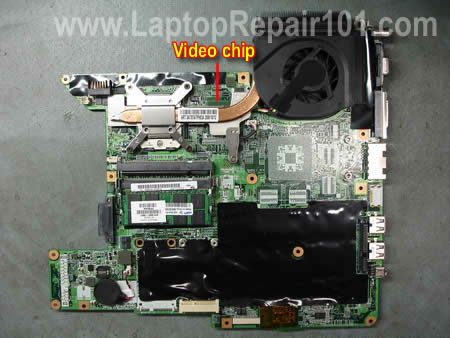
Problem description: I had an abandoned Compaq Presario V6000 computer. It was turning on when but after a few seconds turning off by itself. There was no video on internal screen or external monitor. I tried another AC adapter, new memory modules but it didn’t help. I was pretty sure the motherboard failed.
Research: After I did some research on the Internet, I found that this is a known problem with Pavilion dv2000/dv6000/dv9000 and Presario V3000/V6000 motherboards and most likely related to the graphics chip failure. The graphics chip is soldered to the motherboard. Apparently, there are bad solder joints between the chip and motherboard. Overtime the chip separates from the motherboard causing all kind of video problems.
Possible solution: One guy suggested baking the failed motherboard in a conventional oven preheated to 385 degrees Fahrenheit for exactly 8 minutes. This process should reflow the chip solder joints and give the motherboard a second life.
I had nothing to lose and decided to give it a try. Here’s how I did it step by step.
First of all, you’ll have to disassemble the laptop and remove the motherboard.
STEP 1.
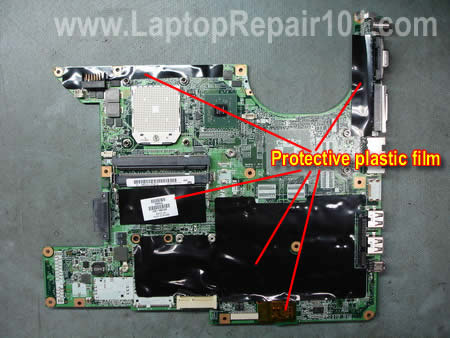
Remove all peripheral components installed on the motherboard (memory, cooling module, CPU, etc…). Remove all protective mylar tape. The motherboard will be baking at a very high temperature and all that can burn has to be removed.
Take pictures while stripping down the motherboard. They will help you to put all removed protective films back in proper locations.
STEP 2.
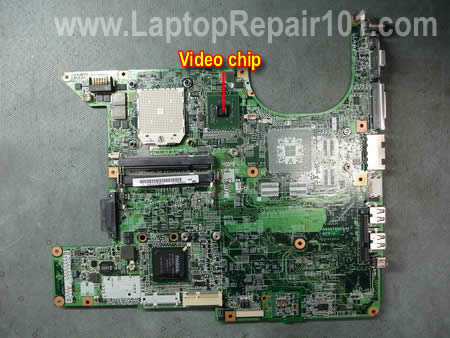
This side of the board has been stripped down.
You can see the graphics chip on the right side from the CPU socket.
STEP 3.
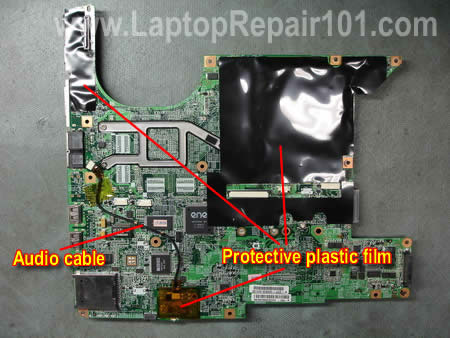
Remove all mylar from the other side of the motherboard. Disconnect the audio cable.
STEP 4.
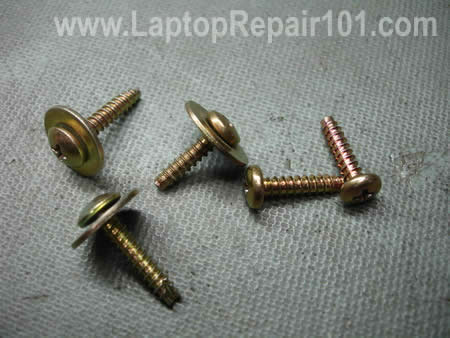
The motherboard will be seating in the oven on the baking pan. In order to elevate the motherboard above the baking pan I’ll use a few screws.
STEP 5.
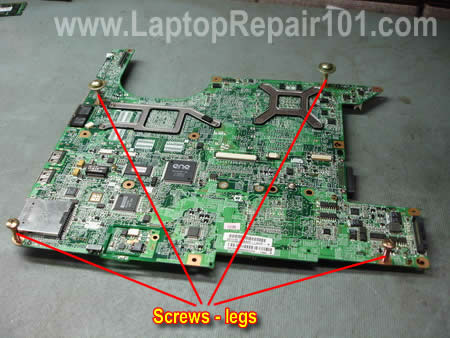
I installed screws in four corners of the motherboard. There are plenty holes for screws.
STEP 6.
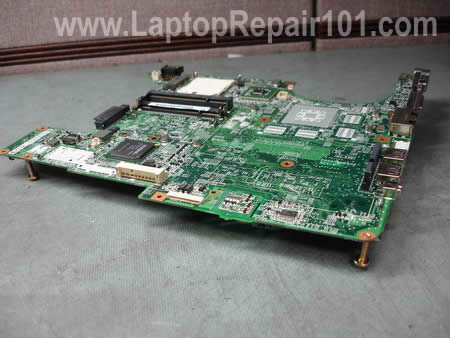
You can see there is a 3/4 inch gap between the board and desk surface. The graphics chip is facing up.
STEP 7.
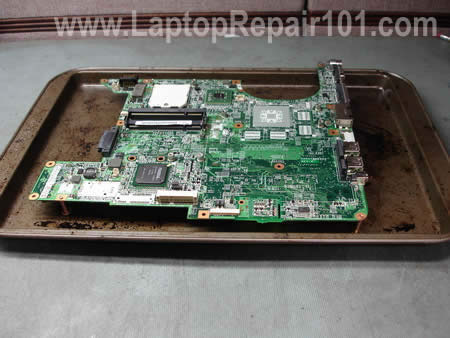
Place the motherboard on the baking pan. Make sure it’s not touching anything.
Preheat the conventional gas oven to 385 degrees Fahrenheit and place the board in the middle of the oven for 8 minutes. You’ll smell some burning plastic in about 6 minutes. 🙂
After that remove the baking pan with motherboard and let it cool down for about 30-40 minutes.
Assemble the laptop back together and see if it works.
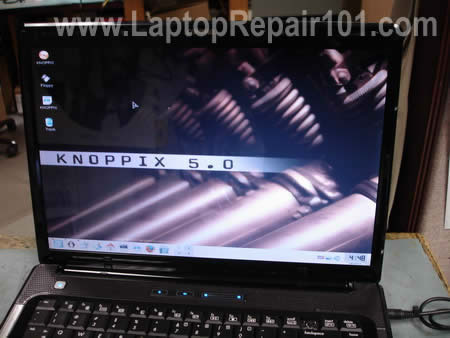
This fix worked for me! After I assembled everything back together, it started properly right away. The video had no glitches.
The next time I explain how to repair the same issue using bubble wrap. This method requires no disassembly.
For more permanent fix check out graphics chip repair with a heat gun.
204 Responses
vivek
well it work with hp dv2000 and compaq v6000 & v3000 , but strange problem appeared after that. the notebook won’t start instantly
every time you have to hold power on button for 30 sec which in turn turns off the entire unit then you try to power on the noteboot if you are luck enough it will start and will work flawless for hours. but momnet you turn off or try to restart the problem will appear again. still can’t diagnose
cj2600
vivek,
In my case the laptop turns on right away.
Aberdeen Laptop Repair
This is pretty good trick.
But you must be very careful with the temperature and time, condensators might not like this temperature.
Also this is temporary fix. The problem will come back in some time.
Ideally, on this laptops you need to change video-chip completely, or at least reflow the BGA.
cj2600
ALR,
That’s why I said try it only if you have nothing to lose. 🙂
We’ll see. I installed a new hard drive and loading Windows 7 for test. I don’t know yet how much this repair can last.
That’s right but how many people can do it at home?
cj2600
Update.
I did this repair 2 days ago.
Yesterday I was playing DVD movies all day long and video still works fine.
Hopefully this is a permanent fix. 🙂
adam
well this is a temporary fix just last for few weeks the permanent fix for this problem is re balling
or you can buy a hot air gun for less than 30 euro from any argos store
reflow the graphic ship at 200-250 c(this fix will last fron2-3 months)
thanks keep it up
john chung
bro can u do an assembly procedure for Dell 8600 ?
Phill Thorne
I agree with Adam. I bought a hot air gun from Argos in the UK for £12.99, stripped my Sony Vaio, put a G-Clamp (TWO FINGER TIGHT ONLY) on it and heated evenly about 3mm from the top of the chip untill stuff started to smoke! As the board cools very gently tightened the G-Clamp a bit at a time untill it was to the point where I would have to use a minimum force to tighten any further. Basically what you need to avoid is putting too much force on the chip while hot as all of the solder underneath will just spurt out like an over-filled jam sandwich! I advise practicing on another simular type chip from a broken TV or something first.
It worked after re-assembly but as Adam said it only lasts between weeks and months, just like the X-Box 360 X-Clamp repair which is much the same thing.
Basically it is down to the new weee regs that don’t allow the use of leaded solder anymore. The lead played a vital role in solder giving it much better tolerance to expansion through heat where as the new stuff just cracks.
cj2600
john chung,
Do you mean the laptop assembly procedure?
Check out this service manual for Dell Inspiron 8500/8600 laptops.
http://support.dell.com/support/edocs/systems/ins8500/en/8500/sm/index.htm
Phillip Thorne
I don’t see why decent graphics companies like Nvidia and ATI don’t make all of their GPU’s the same as CPU’s with pins that slot into a socket.
In fact those boys who write the weee regs should insist on it because the professional repair of this more often than not is not worth the charge, especially as it is likely to fail again.
I do the repair for other people now but only offer a 28 day guarantee. When I tell them why, even with my modest fee of £75 most of them prefer to just go buy a new laptop with 12 months warrenty. Imagine globally how many laptops must get scrapped and the increase in electronic waste? And this problem doesn’t seem to be getting better, in fact from my experience it’s getting worse.
efftech
i have a toshiba A205 laptop but whenever there is the charger plugged into the laptop the screen image gabbled but if operate it with the battery alone the system works fine. so please i wnat somebaody to help me out.
Tim Edmonds
Well this fix worked for me. Amazing that such a bizare procedure works. I had nothing to lose at the V6000 wouldn’t boot. Now it seems completely normal.
HP was very stupid for using such a feeble cooling design. They should have sone extensive testing before going to mass production. If they had, this weakness would have been detected.
cj2600
effthech,
Not sure what’s going on. Did you test the output voltage on the AC adapter. Maybe the voltage is not correct?
What if you remove the battery and start the laptop only with AC adapter? Do you still have a garbled screen this way?
What if you start the laptop in Safe Mode? The image is still garbled?
cj2600
john shung,
You’ll find disassembly instructions for a Dell Inspiron 8600 in this service manual.
Bill
My HP Pavillion dv9700 laptop’s screen shows a neon green rather than black for all pixels. If I start to close the screen, when it gets maybe three incles from being all the way shut, I can see the black go back to black, but when I reopen the screen the problem reemerges. I did open up the LCD area and attempted to wiggle/squeeze various wires but not seemed to do anything. Further, the brightness on the LCD is dimmer than I would expect (but still easily seen)and the function keys for brightness do nothing to alter the brightness of the screen.
From some various forums, I think it may have something to do with a slightly loose connection to the motherboard, but that’s a guess.
Can you help?
cj2600
Bill,
I think there could be a problem with the LCD cable.
Just in case test your laptop with an external monitor. The black color on the external monitor should be displayed properly. Isn’t it?
Paulj
Hey hp’ers
dont forget to update the bios after. The fan keeps running
to keep it cooler. I know the new soldering material
blows but lead based compounds are dangerous to our
feeble bodies! Im trying this technique now.
Its a pain putting laptops back together. If it works ill try it
on the xbox. And to think my mom said ill never be able to
cook anything!
annebo
I have a HP Pavilion ZT 3000 I would like to try your method on but the graphic card is a part which can be taken off…would it be ok or enough to try the oven solution with just this part ?
Thank you !
cj2600
annebo,
I cannot tell if this process will work in your case.
If the graphics card can be removed, try baking just the card.
Proceed at your own risk and good luck.
annebo
Well I tried the oven with only the graphic card but that didn’t solve the problem…I guess since the graphic card is kind of independent from the motherboard (HP Pavilion ZT3000), it’s not the same kind of problem…I guess I’ll have to buy another graphic card (found 2 (expensive) on ebay) and hope that was the problem…(grey/white or black screen at start up and fan working for a few seconds and stopping…)
Thanks anyway…that was fun and another way to tackle the problem..
Boobo
Nice work! My neighbour came round the other day with his V6000
asking if I could take a look. It had a very similar problem,
when switched on their was no display (even with an external
monitor) and it seemed to be resetting itself every minute.
After trying all the usual stuff without success and then reading
on various web sites about this being a fairly common fault I
asked my neighbour if he’d like me to give this a try and he said
yes.
I followed the disassemble guide then cooked it at 200 degrees
Celsius for 8 minutes. Cool down, rebuilt and hey presto, it’s
working again! Did the bios update which seems to have the fan
running all the time now but my neighbour is happy and he’s
promised to make a donation. Unfortunately he’s tighter than
gnat’s chuff so I wouldn’t expect too much but thanks for the
great work!
cyrus
this is pretty good.. if you dont have a devices like hot air solder or soldering iron.. hhahaaha use the oven lol ^^,
Gazza
I am about to try this now with a Compaq Presario V3000 @260 (max limit on my oven) will post back with results =)
cj2600
Gazza,
Don’t forget, it’s 385 degrees Fahrenheit or 196 degrees Celsius.
Good luck!
Gazza
Don’t forget, it’s 385 degrees Fahrenheit or 196 degrees Celsius.
Good luck!
…..shit, i forgot my oven is out by quite a bit, 196 celcius in mine in actual fact reads at 230 celcius, my mobo warped =[
Vincent
Excellent. It will be highly useful if the author could guide us in chiplevel service of motherboard like this
Laptop Willie
While you may get lucky and get the GPU to seat, it is just as likely that some other part of the systemboard will drop a component when the tray is removed from the oven. If you are using this method, which I do not recommend, you should have better luck turning the oven off and allowing it to cool as the oven cools. This will insure that the smaller parts stay put on the board.
Mark G
Hello this worked on my HP Pavillion dv6000 also. I got this computer from customer whom said that it is broken. There was a problem that when computer got warm, I mean after 15 seconds, the video failed. After baking motherboard the video is working for now. I’ll report later if the motherboard fails in couple days.
My failure on baking was that i put screws on wrong positions. My opinion is to use more screws because my motherboard bended a little. Also I backed it on normal oven so temperature is not so accurate. As a result of that SD card reader on bottom side of motherboard popped off but it is easy to but it back again. I’m not sure if it popped off before removing motherboard from oven. Maybe motherboard should cool longer time in oven but I decided to remove it because motherboard was bending. Temperature which I used was a 200 celsius, cooled 20 minutes outside (I checked temperature of motherboard before putting it back on pc).
I recommend this as last option.
Angga
Hi, Cj2600
I have a laptop HP 520, when I plug it into the adapter, the laptop only shows the orange LED and then die forever. when i unplug my adapter and plug it again, results were also similar. I try to turn on the laptop on the power button has no power at all. actually what happened with my laptop. What have the faulty component on the mainboard or something? and how to check them.
thank for your attention
cj2600
Angga,
Can you test the AC adapter and make sure it outputs correct voltage? Could be just a bad adapter.
Angga
I have been measuring the AC adapter with analog multitester, there indicate approximately 21vdc while behind the laptop shows 19vdc. is it normal?
Besides the AC adapter, what I should check next ..?
thanks Cj
centropy
Thanks for this detailed guide helped me out on this one.
rxntrik7
Thanks man, this totally worked on my gf’s broken gateway w430ua. She had a blank screen, all that lit up when powered on was power light and cd light flashed couple times. I thought it was hopeless to try, but it definatelly worked.
butters
Thanks to the author and all those people in the discuss.
I tried both oven and hair dryer.
It comes alive!!!
I suppose it’s because of the oven.
It is compaq F500.
I will report later.
warezconsole
hi
i run a small console/laptop repair company in the uk
i get these hp pavilion dv series in al the time with the same problem the gpu the only good fix is to strip down the laptop and reflow it i have a reflow oven and have a 98% succes rate on these laptops using a normal oven can dammage your motherboard if chips get a amount of heath for a to long time you damage the chip(s)
BW338
Oh my gosh! I did not expect the “kitchen oven re-flower” to adequately heat the board.
IT WORKED! And I am using it to write this comment!
My laptop missed the enhanced warranty period by 35 days. HP offered to replace the motherboard for $250. Ouch! Needless to say, I found you.
Thank you for an excellent source of troubleshooting directions, ideas and pictures. Paypal it is… 🙂
Regards,
Bruce
BW338
BTW: On the video driver chip, I found a nice packing of dust/lint against the side facing the fan when I removed the fan/heat-sink assembly. The packing was 3/16 thick on the fan side and wrapped around the lower side. It was quite dense.
The fan shroud on my V6305 has a slot in it that faces towards the chip/heat-sink. Dust had been blowing through this slot and collecting on the chip. I sure this contributed to the overheating.
The video chip is between the processor and the fan along the brass heat-sink strap. I’m sure the heat from the uP is affecting the video chip too. (Poor HP design? Not sure how I would cool it though. 🙂 )
Bruce
Slaveto
This is the funniest way to repair a mainboard 🙂 the plastic conectors for memory, keyboard an other will melt in oven …..:))))))))
cj2600
Slaveto,
They didn’t melt in my case. The laptop still works after this repair. 🙂
darth
sorry for my english, but im italian, but im here up to all because I’ve got to death with HP!
please first to starting the mod, read all here, because after there is 3 problem by that mod
1-by noise from cpu fan, and if for you is frustrating…
2-the life of cpu fan heatsink can is short, depending if go faulty by poor building materials
3-when is not connected with ac power, the battery half hour and is out
some considerations…
their is not one good house for build the pcs, i know something on it, i have a lot of skill for repair, and in the major, the brands who go broken, is hp, hewlett packard, acer, for dont talk of minor brands…all shit…
DELL? PERHAPS is a little more good, but how all pcs, have 2 problems: the hot and the dust.
i all the days dismantle, test, reassemble pc and so on (when you think to buy one laptop on ebay, half dismounted, considering the expensive exit of money from your tasks for take the spares which them dont have; monitor? 70\100$ hd caddy? 40\50$ who exit from your task, but how much during? yes ok, there is a lot of affairs on ebay, but if you are in USA dont buy in China or Europe\overseas, find to buy near you, ok?
for a lots of reasons (if the spares\object is broken, wrong etc)for send back the spares, the cost is lower than overseas, undstnd?
but dont buy that brands and, up to all, buy like new if its possible for you.
NOW, for all peeps who dont know, when open you laptop for do that reflowing (i talk of dvxxxx series), cut the white wire of the cpu fan.
This causes the CPU fan does not stop, NEVER.
YES I KNOW WHO THIS IS FRUSTRATING BECAUSE OF NOISE, BUT YOU WANT SEE YOUR LAPPY MITIGATING IN THE CENTURYS? THEN DO THAT.
but dont leave the cutting wire as is, put insulating tape on the cutin wire (if the wire go to touching the internal circuit, your laptop can go burnin, then attention on it or..puff!
on the cutting wire, im not sure however, its is at your own risk if u want do a try for put on circuit…mah…are you stupid?)
this can help your motherboard to live but much more long as you can imagine.
in that manner, the cpu fan never stop, only when reboot your pc\laptop stop for 3\4 sec; follow my advice, then after 2\3 hrs, put your hand on the left of the keyboard, where is cpu (at the left of keyboard) , how is now? is cooold.
ok thats all, i have do already 2 times, the reflowing at my dv6000 amd and, chit&chat that fat bstard who now soldering without the lead and, whit that issues have stolen a lot of money around all the world…the HP…yes yes, this make sense, hp pay tax by this stolen money and, a lot of pcs is stopped, the governor is satisfyed and…the earth can breathe, everything fits, this have one sense?
i called that also markets strategy, them are in their luxurious palace and you cry…buhu…im without pc now…damn hp…buhuhuuu…
or in that manner or…in what other i can make me satisfied?
now your beard is long till at your knee, and you all are still thinking that, and after there is also the hp assistance…now comings the very cocks amigo…
JZON
HA. Why not just use a heat gun. It would be faster and more efficient while not burning up all of the other components.
Also you can purchase a rework gun for not that much.
Kadog
Hello Thank you very much for your advice did this today to a laptop i aquired from a friend and works great now no problems at all thank you for your advice A++
PK
would you recomed this way or with a blow touch/heat gun that other people seen to be doing
PJ
is it ok to use a fan oven, do you still use it a 196 celsius, or do you turn it down to 180 ish celsius
cj2600
PK,
I didn’t try fixing motherboard with a heat gun.
Dave
Holy cow! I just did this in the oven, and it worked. It really worked! Thanks a bunch.
Cameron
I bought a persario v6000 off Craigslist about a month ago. After two weeks the wifi stopped working, then about a week later I went to turn on my laptop and it would just keep trying to reboot every 20sec or so and nothing would come on the screen. I read this posting and thought, what do I have to loose? I’m not a computer guy by any means, never taken one apart. Last night I was up until 3am taking the thing apart and puting it back together. I put the mobo in the oven for 8mins at 385 degrees. I’m now posting this comment with my Persario. I can’t believe this worked. Hopefully it will last, don’t want to go through that process again LOL!! Thanks so much for the info.
J. Nicholson
I’ve heard you can use a blow dryer. Would that work without having to disassemble the laptop?
colin
Hi i have a Dell Inspiron 5100 motherboard which is dead have put in oven when i took mit out there is a little battery that has come off, does any one know what this does.
Thanks Colin
Dann
Picked up a used V6000 for cheap with no video and tried this. Took some time to post which had me worried but then I got video and it works great!
I would really like to find or make a shim for the thermal pad over the GPU. I would think something like that might help it out a bit.
Thanks for the guide and all the good comments.
AGBAMUDIA. PRINCE
I did exactly by baking my HP dv9000 mother board and after fixing it .The VIDEO came back to life. Though i don’t know how long it will serve, but my Video problem is resolved. I really thank you for your online service.
R
That’s an ingenious solution for a bad solder joint. Only do something like this when you have nothing to lose. Again, very impressive.
Frank
I could not believed this actually worked.
I tried it once and put the mobo in the oven for 8 minutes at 385 degrees but still no video. I was dissappointed but the following day I decided to give it another shot. This time I put it at 400 degrees and for 9 minutes and I cant believe it worked. So if it doesnt work the first time, try doing it a second, and maybe even a third, but dont give up.
master po
wow! it worked for me! total pain in the ass though. hp…what a bunch of chumps. anyone had this problem re-occur after the oven fix?
shion
I heard this fix only works on nvidia chip. What about ati or intel gpu?
TechShui
I fix computers. Yes, I know there’s a lot of dead HP / Compaq laptop going around, and this “fix” might be a cheap way for people to get a few more months out of their laptops. However, it doesn’t fix underlying problem.
Whether you have an Intel ATI or nVidia model makes little difference, the type of motherboard HP uses in their laptops is always going to dissipate a LOT of heat. It’s thinner than most boards, and heats more quickly. Overheating doesn’t just make solder brittle. Overheating damages the CPU, GPU and memory controller chips all at once. If something is revived, there always a chance some other part will fail next… 🙁
@author Please edit this article to include a WARNING about toxic fumes.
There’s a lot of debate, but the lead in solder can burn off, especially above 400° and lead fumes are a known cancer-causing agent in the state of California. The plastic fumes might be just as bad, I don’t know, but at the very least, clean your oven afterward. Ok, everyone?
eric
i have the same problem with an old laptop dat i used for music presario f500 an i try wat u said an guess wat? it work now i can listen to all my songs ….
Kenneth
Well, I don’t know where you got this information, but I do have to thank you. I tried it, and it worked!! It really pis*** me off when I found out that there was a recall on my laptop for this issue and NO-ONE (especially compaq)told me. 0903And when mine starts having the problem they refuse to fix it. I have to tell you I really liked Compaq before this, but if this is the way they do business I won’t be buying another one. Anyway, this one works again…for now. Thanks a million, Ken
wongkeren
I have same problem, but with another brand.
I want to ask about the preheat to 385 deg F, how long is the preheated time requirement?
There is alot of plastic on the Main Board for junction connection with white and black colour, are there save for 385 deg F?
I afraid that the plastic became melt.
Please help me….
profpat
this solution is very effective, i tried this on most laptop board and desktop boards, to prevent other parts from melting or being heated by the oven, cover everything except the chipset with aluminum foil, cut a square on the aluminum foil to expose the video chipset or in the case of desktop board, the main chipset less the heatsink…with this method, my percentage of success is higher, good luck.
Dana
This sounds like the same cause of the Playstation 3’s “Yellow Light of Death” (YLOD) error and has basically the same exact solution. I’ve fixed my PS3 myself by doing the same thing except instead of putting the motherboard in the oven I used a heat gun and only heated the GPU instead of the whole motherboard. Worked like a charm and I imagine you would get the same results with the laptop as well. In addition, when reflowing connectors on a motherboard it is also wise to use “no clean” Flux to make sure the connectors do not crack again in the future.
Not a Stupid
What you think we are stupied…….
I don advice to do this because
you will burn the motherboar or your home
the cpu dont tolerate more than 70 degres
celsius
Not a stupied person
cj2600
Not a Stupid,
Not a very smart person either.
As you can see (or maybe not) I removed the CPU. 🙂
Shimon
You are a genius.
I did exactly what you described.
I couldn’t beleive but it really worked for me.
I appreciate it.
Thanks,
Shimon.
Israel.
Kipp
i had a v6000 and it was dead, i tried this trick about 2 months ago and it worked perfectly. and has been working since then untill today. started it up and realised it was dead again. ive already stripped my lap top appart down to the mobo and about to give this another try see if it brings her back to life. wish me luck.
Kipp
just got done cooking it, reassembled it. and it worked yet again! awesome. im so glad i found this technique. your a genius man. i recommend this to anyone having this same issue, if your careful and do exactly what it tells you it will work. this is my second time doing this to my laptop. thanks again.
Mel Boyer
I tried this method on a Compaq Presario v6000, and it worked perfectly. I reassembled it and got video. Brilliant!
DallasStars1Fan
WOW. I thought this was a joke at first, but after looking at $150+ for a new board and nothing to lose, I tried this out. It worked perfectly!
THANK YOU!!!
DallasStars1Fan
I failed to mention that this appears to have “fixed” the built in BCom WiFi card that had quit working as well.
Nicole
This worked on my computer. I had to bake it twice though. The second time I left it in for 9.5 minutes instead of 8.
Jeremy
I have to admit being a skeptic…who’da thunk to bake the mobo in the oven. But it worked, laptop fired up right off, no issues. This also had the added benefit of fixing the wireless that crapped out 6 months ago!!
cj2600
Jeremy,
I was skeptical too when I decided to try it but… the it worked great and the laptop still runs fine. 🙂
sean
The same problems to HP DV2000/6000/9000, Compaq Presario V3000/6000. It’s all about poor motherboard/graphic chips and terrible case designs to produce heating problem.
I still am thinking “baking mobo” is not safe. Becuase in the mobo, are there not only graphic chips but also many capacitors and resistors etc which are very weak at heating.
PC/Laptop repair technicians use certain machines for reflowing/reballing mobos and chips. But alternatively they use also heat guns so that they can heat up only targeting graphic chips or specific parts of mobos.
Thanks to my heat gun, I could fix some laptops.
But anyway, what you did deserves my thumb up.
Great job!
Tulio
Worked great with a F700 Compaq presario laptop, this is the 3rd. time i did this procedure, the others two with dv2000 and dv6000 hp laptops and still working both, great job.
Wilfred van Ingen
Absolute great!! worked on my HP DV6000 laptop was completly dead, after following your instructions its running like new again.
Thanks a lot,
Wilfred
Holly
I have a HP Pavilion dv6000 laptop that has been “dead” for around 5 months now. I’d looked around the internet and figured the Nvidia chip was most likely the problem but I hadn’t been brave enough to try the reflow fix. All the reflow videos I’d watched made it seem very complicated. So when I found this page tonight (and the step-by-step disassembly instructions also on this site) I figured I really had nothing to lose. I was very skeptical, I mean cooking a motherboard does not sound good! lol. But after several hours of taking apart, baking, and putting back together I am now typing this on my “dead” laptop. It’s been resurrected!! 🙂 Thanks for the awesome instructions!!
neolite
THIS REALLY DOES WORK !!!
ON MY COMPAQ V6000 !!!
Jose
I have done the baking trick twice and after a few weeks of use it dies again. It is a short fix. If there is a better one please let me know, thanks
jose
Charl
you gone a die few months after this, it’s extremely toxic, i prefer pay for that
cj2600
Charl,
I did this repair a few month ago and still walking. It was a fun project and I’m just sharing my experience.
By the way, soldering at home (without proper ventilation) is not good too.
Anyways, thank you for the note.
Just in case, I placed a warning right at the beginning of this post so people can think before doing that.
Thanks again.
JamesR404
How cool is this 😀
Michael
There are some videos on youtube explaining how to fix it with a heatgun.
Walliot
WRAP IT IN A TOWEL!!! You won’t need to disassemble the whole laptop… lets face it, most of us aren’t teck savvy…
Hello.. I just want to share my experience with all of you. I read somewhere that wrapping an xbox in towels fixes the rrod (red ring of death)… a video card failure just as explained here. Well, my HP dv6000 had the same problem. No video and would not boot, just kept flashing the led’s on top of the keyboard with black screen. I took out the hard drive and batttery, turned it on and wrapped it with towels so air would not enter the vents. I left it like that for an hour or so. Then I went back and pressed the power button until it turned completely off. The laptop was very hot. I didnt move it at all until it was cool again thinking that if there was molten solder inside, I might damage a connecton moving it. Well to my amazement, the computer booted up and WORKED without any problems.
Conclusion: Wrapping your computer in a towel will generate enough heat to reflow and fix the solder joints of a video card. Just remember to remove the battery and hard drive to avoid any heat damage to it.
cj2600
Walliot,
Thank you for comment. I think I might try this trick. I have an HP Pavilion tx1000 tablet with supposedly bad NVIDIA graphics laying around.
I’ll try your fix on my laptop. 🙂
cj2600
Walliot,
I cannot believe it but looks like it worked!!!!!
I didn’t have paper towels at work so I wrapped the laptop (HP Pavilion tx1000 tablet PC) with bubble wrap.
Just in case removed the hard drive and battery.
After the laptop was sealed, I turned it on and let it run for about 1.5 hours. Almost forgot about it. 🙂
Before I went home, I turned it off. Touched the bottom and it didn’t feel that hot.
Next morning I unwrapped the laptop AND…. it started booting!!!!
Unbelievable. I’ll make some photos tonight and upload it on the website.
I guess, I’ll try this trick with another failed laptop.
cj2600
I just tried same method on another HP Pavilion dv6000 laptop. After one hour in bubble wrap the laptop started with video. 🙂
clyde
hey..i have a pavillion dv9500 that when i power up the blue lights come on for 3-5 seconds and then go out..i do not hear any noises from system like it is running.how do you do the towel/bubble wrap treatment if it will not turn on to generate heat?? thanks, clyde
cj2600
clyde,
Yeah…probably you cannot, but…
Try reconnecting the battery, reseating memory modules. Try disconnecting/reconnecting AC adapter multiple times.
Maybe somehow the laptop will stay on while plugged to the AC.
emkay
I have a hp dv2000 (but exactly it’s dv2808ca), and I had the same problem, namely it didn’t work at all. Simply no response, computer was totally dead. So, I fully disassembled the laptop, looked on the motherboard solders with magnifying glass and found two of them disintegrated. Funny, the two solders connect that small thing that is on the other side of the motherboard, right by the nvidia card. So, it isn’t hard to guess which part was to blame for overheating this part of the motherboard. Anyway, I applied new solder (plumbing one :)), and it works!!! Reconnecting elements and cables were easy, but i don’t remember exact places for cables, so i can’t close outside covers. But it’s only a matter of time. Anyway, thanks for the advice!!
p.s. For those who have the same chipset, the two solders are numbered C178, and are on the top side of the motherboard (so you don’t need to disassemble everything like me and have a problem putting it back)
Cristian
Hi !
Thenks for your work theat you show us.
I’m not sure(Plastic parts do not melt?) but will be my last chance theat I have(to put in to the electic oven).
I will make it in a few days and I will let you now!
I have a 2,3 yaers Compaq Presario V6000 with AMD Processor;
when i push the power key he wants to start but after 2 secons he stops, after 4-5 secons want to start again , and the process repeats.
FlawleZ
I’ve been battling the same problem on my DV-6000 for a few days. The laptop would turn on for a few seconds then off again. No video. Somtimes it would stay on for about 15 seconds, then turn off again. For a while I had it booting up and running normal except the wireless card wasn’t being detected at all. I tried everything recommended even replacing the card with another, yet it didn’t help. Finally I pulled the motherboard out entirely and baked it in the oven for 6 minutes at 385F. Reinstalled exactly as it was before and voila! It boots and runs fine and now detects the wireless card. I recommend this for those who have tried everything and have had no luck. I’ve seen good results for baking video cards and motherboards in the past as it applies just enough heat to reseat the solder joints that break over time.
Hope it helps and good luck to those who continue to run into this problem.
racecar56
Easy way: Remove HDD/battery, connect laptop to AC power source, wrap laptop in bubble wrap or a towel (I used a towel), let it run for an hour. Turn it off, let it cool for a while (until it feels barely warm/room temp or even cool), turn on and be happy.
This worked for my HP Pavilion dv9000 with an Intel Core 2 Duo T7200 processor and a nVidia GeForce Go 7600 GPU. It had strange font problems, I rebooted, and was greeted with a grey screen with weird patterns/other stuff. This method, which I recently used, fixed my laptop.
Thank you Walliot.
cj2600
racecar56,
I mentioned this fix in the following post: http://www.laptoprepair101.com/laptop/2010/10/06/fix-video-problem-hp-laptops/
John
After doing these heat fixes, you need to apply new thermal paste, and a copper 1cent or 1p coin to the top of the GPU – this should solve the problem longer term.
John
I had the problem of colored lines on my DV9000 and this fixed my problem. Thanks for saving me few hundred bucks on repairs.
Colt
Did this today with a Presario v6000 and it worked. Thanks man great tut.
CRUEHEADS
I can’t belive it the oven trick worked !
Thanks !
Aftab
my prasario v6000 LCD Show four screen windows when I press near speakers and screen after shut down than show normal screen
cj2600
Aftab,
Test your laptop with an external monitor.
If external image is normal and this problem appears only on the laptop screen, most likely this is LCD screen related problem. That’s my guess.
Aftab
External monitor display is ok 4 to 6 time shutdown and screen moving up down then screen display appears normal
Aftab
This problem facing last 15 days I check out from technician he also said external monitor display is ok he tell that his LCD problem I think any thing is loose when I 4 to 6 time shutdown and proper moving and press the body then display appear normally
Allen Davis
PROBLEMS:
turn on lappy….powers up but black screen/lines on screen/turns on then turns off again.
MY SOLUTION:ps. viseo of this repair on Youtube (no it’s not mine).
TOOLS- philips screw driver, very small butane gas torch, tiny socket tool for 2 bolts beside wireless card…and as much knowledge as you can get on the stripdown and reassembly process_”Google” if you have to. Disconnect batteries,remove CPU and RAM!…
Strip lappy down to motherboard…locate GPU chip (usually NVIDIA chip)…chop a square piece into centre of thick cardboard slightly bigger than “GPU chip”, place over GPU chip and secure to board with cellotape…get thick aluminium foil, or thick aluminium builders tape (100% aluminium) and put over cardboard and as close to the “GPU chip” as possible (wrap tightly around the “GPU chip”.
If your happy that you’ve done that right, fire up the “Very Small Butane Torch” to a pencil like flame…and go in.
– keep torch about 8-10cm from “GPU chip” start counting as soon as butane torch tip touches the “GPU chip” count to 20 fairly fast (this is melting the solder on the GPU chip back into place)…slowly circle the “GPU chip” until the count reaches about 20 (1,2,3,4,…..20)…imediately remove the Butane torch and turn off flame (put torch in safe place away from everything, to cool down)…give “GPU chip” about 5 minutes to cool down.
—–Reassemble the lappy….(there should be no spare screws)
—–Reattach bios battery to M/board (on Compaq presario v6000 bios battery located beside wireless card and Ram/Memmory chips)
If it doesn’t Power-on properly the first time, Strip it back down and try again…counting from 1-30 fairly quickly.
If the jobs done right….this should fix the problem straight away.
This also works on other lappy’s with same problems (apparently)
I have only used this on Compaq presario v6000 (X2….this lappy I’m using right now is one of them, RIPLEY’s believe it or not!)
1x Hp Dv2000, and an Xbox360 gaming console with RROD.
!!!!Xbox may need redoing in a couple of months or years…we all know how reliable they are (but I do love them…HALO!!!!)
If you find this usefull! GREAT!!!!
If you follow instructions to the letter….”WRAP THE THICK ALUMINIUM FOIL” as close to the “GPU chip” as possible, and you won’t burn any other part of your M/board….remember about 8-10cm away from “GPU chip” when you are using the Butane Torch…
Allen Davis
PS….most laptop problems start when your cpu fan and cooling vents get blocked up with dust and soot…
before or after any repair you need to have the cpu fan unit pulled apart and cleaned thoroughly or the problem will come back and bite you in the ass again!
Also!…even though they are called Laptops…they shouldn’t be used on your lap unless they are on a flat hard surface, as the cooling system on laptops require good airflow to keep the cpu cool…and the cooling vents on most laptops are under neath the laptop….if you are having problems with laptop heating up too much, it might be a good idea (not a cool/I’m hip looking idea to glue 2x small rubber blocks at each corner of the back of your laptop to help with better airflow (cooling).
OR!….just but a laptop cooling pad, with it’s own fans fitted…these also come in clear plastic with really cool/hip neon coloured lights.
Regards Allen Davis
Brandon
The oven tricked worked for my v6000.
Thank you!!
The Raven
The oven repair worked!!! Wow you juste save me some $$$$$
Thank big time!!!
Stevie Gray
Unbelievable – the Laptop in a Towel suggestion worked.
My local repair shop said it was going to cost at least £150 to fix! The towel cost £1.50 !!!
This is 100 times cheaper 🙂
Thank you very much,
Stevie Gray
Mlixo
I can’t believe.
My computer Works!!!!!!!!!!!!!!!!!!!!!!!!
THANKS
Usman
Hello you dont need to put you laptop into owen
just remove your processor and on your laptop if its power on correctley
then only hetup your gpu unit with hotair gun for 1minute and after the cool down assumble it and enjoy
if you se same problem again then do it again and little peace of almonium foil on the gpu unit before reasumbling you heat sink because we hav put some presseure on your gpu by the reason of heat its lose their their paste which hold gpu unit on motherboard.
thankx.
and sorry 4 poor engglish.
sveintampa
The oven trick worked, however after using it for a day the computer would start acting up after about an hour or two being on. The screen starts flickering, mouse won’t work which forces me to shut it off. When the laptop cools down after a few minutes, I’ll power it back on and everything works fine again but then eventually will start acting up again. Is there a connection loose? did I not reassemble the laptop correctly? Is it possible to be the same problem acting up? Should I put it back into the over for a longer time or use a heat gun? Any help would be appreciated.
target_13
i was seriously doubtful about this article , and for most part i was thinking this wont work. then again, as the guy mentioned he had nothing to loose so i had also made up my mind that i’ll have to dump my laptop and get a new one. Mine is XPS M1530. i have got it working again by the same method and this re-heating the motherboard thing really works. The logic is corrent, the heat melts the soldering and it flows back into the places .
BUT
Its just a temporary solution, the performance goes down. and you cant use it again for heavy games or anything which uses heavr graphics
Goodluck with your experiment
Prince
Last year about 8 months ago i baked my dv9000 with video problem and it was resolved. i used it for period of 8 months and same problem just started a few days back can i still re bake it or heat it again?
cj2600
Prince,
8 months??? Not bad!
I guess you can try it again. You have nothing to lose any way, right?
Prince
Good day cj2600 and others guys, i tried same process again and it came back to life.
These trick is really amazing. Now my DV9000 is back again.
Thanks
Prince .A
ohn
Target_13 said
“Its just a temporary solution, the performance goes down. and you cant use it again for heavy games or anything which uses heavr graphics”
Dose the performance go down? why?
Dose it also do that when you are doing the serius version of this fix?
the one where you open the computer up and use a heatgun on the chip and put bether cooling on it?
target_13
hi (j)ohn.
The thing is, Nvidia 8600M GT , chips were made of poor heat resistant materials. so melting the soldering, only clears the way of the video signal, but actual processing is done in the chip which is made of poor quality materials.(which has been made offical by dell and Nvidia). Its like Overhauling a car’s engine. it will make your car run again, but you cant race with it. So, when you try playing heavy games again after repair, you’ll notice Lag and loss of FPS as time goes by.
This solution Though defintely works.
goodluck.
The IT Guy
This is not only dangerous, but can and most likely will reduce 90% of laptops to a complete mess.
The purpose of reflowing a system is to heat the GPU and ONLY the GPU up. Using the “Let’s bake this in the oven…..” technique (if it can even be called a technique … it’s plain butchery) is completely ridiculous.
To reflow a board it’s quite simple. This can be used on ANY motherboard.
– Open up the case and get down to the motherboard
– Strip away any plastic protectors on the board.
– If you have it, use some ELECTRICIANS FLUX (** DO NOT USE PLUMBERS FLUX YOU’LL FRY THE CHIP COMPLETELY!!!**) and drop the flux with a dropper or needle underneath the GPU chip while holding the motherboard at a 45 degree angle to help the flux run underneath the GPU chip. This helps the solder rebond to it’s pins easily. Make sure you run the flux through all the GPU and don’t worry about excess flux, once you heat the board up it’ll evaporate.
– Coat the WHOLE BOARD except the Graphics Processing Unit …. (or CPU if you’re reflowing the CPU) in aluminium foil (tin foil)
– Using a HeatGun (bought from any hardware store for about £15-20 – I use a 2000W TITAN on low power which heats up to about 280-300 celsius) simply keep the heatgun at about 3-4 inches above the chip and move the heatgun in a tight circular motion over the chip for about 60 seconds.
– Once this is done DO NOT move the board for the next 20 minutes!!!!! (If you do, you risk completely screwing up the GPU and it’ll never be fixed!)
– Reassemble after 20 MINUTES!
– Plug in and give it a try.
Reflowing without using a reballing reflow work station is never guaranteed but using a heatgun is the ONLY way to be attempting to reflow any component without a proper reballing reflow workstation.
Hope this helps and please, for your own safety DO NOT put your darn motherboard in an OVEN! Not only do you risk blowing a capacitor with excessive heat but umpteen other things can go wrong not to mention inhalation of toxic fumes from a component that might have exploded or been damaged!
Regards
The IT Guy
cj2600
The IT Guy,
That’s why I mentioned to proceed at your own risk. Maybe it’s not the best way to fix the motherboard but it works. My Compaq V6000 still runs fine since I baked the motherboard.
By the way, my next project will be fixing a motherboard with heat gun. Maybe I’ll create a guide for that.
Thank you for the instructions. They will be helpful.
Armed Sceptic
@Target13, not sure who’s rebuilding your motors but that analogy couldn’t be further for the truth. Seriously!
Justin
This board-bake fix worked for me too!!! Thanks so much.
Add
It’s working!!!..thanks for the tutorial..the only problem is my monitor..last time i sent this notebook to one technician..i think he swap my lcd with the faulty one..God damn that technician!!..Btw, this tutorial give a second life to my compaq presario v3000..
Joe
Tried baking dead mobo and it worked!!!!!!!!!!!!! Thanks a million!
ebarlow
thanks…the oven trick worked like a charm…..thanks again!!!!
Arjun reddy
Its awesome!!!
It is worked for my laptop.
Thanksss…
Hernan
I had having dust a Presario DV 6000, from I friend that gave to be fixed, but at that time I found that HP was fixing them for 285$, My friend told to throw it, he already buy a new. I have it and today cleaning, I found it, and did the search on internet and found this solution. I did it , I bake the modo for 8 min and now is working … thanks guys… I’m usisnf Linux Mint 10, ‘cuse no HD… great
Vikas
I also apply the fix on V6210 which I purchase from surplus for $25 and it worked I am running PinguyOS live from USB stick and Video look great. Problem I had was will power on for 190 a5 secs and fan kicks on then shut off with no video and restart. But your fix worked like a charm.. Thank You for the great fix
MUZ
Incroyable !
Cela fonctionne ! c’est la réparation la plus bizarre que j’ai effectué.
Unbelievable !
It fix my problem !
mo7md.zayona
Thanks,
My V6000 read ” Operating System not found”
and i put the windows XP CD into CD.Drive
but when i see the format loading it’s SAY “no harddrive”
my hard drive 0MB !!
what i do ?
Nydatapc
The oven method it’s the worst thing you can do to your motherboard. The heat gun it’s a bit more normal, but if you wanna have a complete fix for your nVidia chipset, use a hot air with temperature control( Aoyue int 2702A) or if you wanna do it like a real tech use Reballing Station BGA Rework Repair. It will never fail again as they are when using oven baking and hot air gun.
Chickenhawk
Thanks for the fix, stripped down a friend’s G6000 and baked the board, now working fine. This seems to be a general issue with HP, I’ve used the same fix for dead P2015 printers at work, this time baking the formatter board (the one with the USB and Ethernet sockets).
cj2600
Chickenhawk,
If the motherboard fails again, you can try heat gun repair: http://www.laptoprepair101.com/laptop/2011/02/23/fix-laptop-motherboard-with-failed-nvidia-graphics-chip/
LaptopRepairBrooklyn
Amazing computer repair guide. A bit prehistoric but most important is that worked fine for us. I had a dv6000 with an nVidia chipset, not showing image on screen. Usually we use hot gun to repair these problems, but we decide it to give it a try and it worked perfect. Good job guys.
Scott Hubs
I was really sceptical on doing this but I said what the hell it’s dead now can’t imagine it could get any worse. HP MB replacement is $320. I don’t think so. Baked it at 385 for 9 min instead of 8 min. Let it cool for a couple of hours, reassembled and TAH-DAH that puppie started right up. I left it on all night long and woke up to see it on. turned it off then turned it back on. Perfect. I really do thank you for this trick. Hope all goes well for anyone that tries this.
Scott Hubs
I also forgot to mention this trick has also fixed my internal wi-fi. It now works everytime. This is just too awesome. Next time I do this Im trying the flux thing as well as the heat gun so hopfully I won’t have to do this for a long time.
Scott Hubs
Well today the wifi has stopped working. My sound was not working at first either but I forgot to hook the sound board connection up. Sound now working after I hooked it up. The first time my wifi went out it was only a couple of months later before the whole computer stopped booting up. Ill report back later if it stops again.
Obiwan
The heat gun method worked for repairing the dead display, but didn’t fix the no-battery-charge or dead wi-fi. After a couple of more heat gun applications on the south bridge and wireless card area, the display went out and the machine would not boot again.
I then tried the oven method and that fixed it all!! Removing the metal heat sink mounting brackets prevents the plastic insulators under them from melting and smelling up the oven.
Thanks for the write-up and pictures. If I hadn’t seen it work, I wouldn’t have believed it.
Anyone doing this fix should be sure to update their BIOS to the latest version because it fixes the fan control issue that causes the overheating in the first place. HP has the BIOS updates available for download on their support site. The detailed service manual for disassembly/assembly is available also.
Bryan
thanks for this information! I’ve been looking around for a long time for a solid write up on how to fix my Compaq which has been sitting around useless for years until now!
Joe
Fantastic Website!!! Was able to diagnose my Compaq Presario F700GPU issue and reflow the solder. I used the aluminum foil covered cardboard with a hole to heat up the GPU from the back side method. Used a 125W floodlight about 1″ above the motherboard for an hour, then flipped the motherboard over with the GPU on top, used the same foil covered cardboard exposing only the top of the GPU and used my heat gun for 1 minute until it started to smell like something was happening. Let it cool for 1/2 hour, put it all back together and it has been working for 3 days so far. Without this fix, the laptop was headed for scrap. Thanks for the support!
Jeffp
Thank you so much for this trick…. I have both a hp dv6000 and a comq v6000 and this fixes both of them. They both lost wifi, then the screen, the would turn on and shut right back off. They now work fine. This fixed all my problems.
Cleber
It really works! I made it few minutes ago!
Brazilian, you can believe it!
Thanks for the author… you saved the money I spent on that notebook!
It’s alive!!!
————-
Funciona! Eu o fiz alguns minutos atrás!
Brasileiros, vocês podem acreditar!
Agradeço ao autor… você salvou o dinheiro que eu gastei neste notebook!
Está vivo!!!
mosuto
Ok i did baked my HP dv9000 MB but unfortunatly for me it didnt worked :(. I have to get me heat gun to try this nxt time .. i rly wana get this peace of junk back to life lol.
Great tips and great work guys keep going.
Gratz
BW338
The oven re-flow repair lasted one year. I bought a mobo on eBay for $60. Made sure GPU was well heat-sinked. I will let yall know how long it lasts. 🙂
Henry W
Just to say thanks people, someone gave me a G6031ea because it was faulty, not switching on and when it did the WIFI didn’t work, stripped the laptop down and as above put it in the oven at gas mark6(UK) and left it for 8 mins, put it back together and it works a treat.
fixit
awesome trick!!! my dv2700 running perfectly almost a week now, but how long will it last??? i’d bake my mobo @250c around 10 minutes, leave it cool down for half an hour, put it back together and pops its alive. currentlt my dv running perfectly
Mali
I m a computer technician but today I m overwhelm thanks for this information.Fantastic Website!!! Was able to diagnose my Compaq Presario V6000. This fix worked for me! After I assembled the laptop, it started properly right away taking me to the BIOS setup menu.I m so happy can I call you.
Anthony
Incredible,,,very well though out process for solving the video issue !!!! it works well !!!!
John Lower
I used a different variation of the bubble wrap idea. Remove the hard drive and the battery. Open the screen out, and just wrap the keyboard section with two or three layers of foam wrap. Seal off the vent holes on the bottom first with kraft tape. Find a box,like a large fed ex box, that will accept the warpped keyboard. Hook up the power supply and turn on the unit. Make sure you get it to at least stay lit. You may need to hit F7and F8 several times if it is cycling on and off but not booting. When you’re sure the unit will stay on, put the keyboard in the box but leave the screen up and out side. Now take towels and plug up the gaps around the screen and lay a few over the box. Leave it alone for two hours. When you check it after that time period, you should hear it running normally. Hit the mouse pad and see if you have a screen. It worked for me and cost about 1 cent in electricity! It’s been running fine for a week, and my wireless came back on line as well.
Person
this sounds very weird but i am looking forward to trying it out i can’t wait from all of the comments on here i’d say it works pretty damn well
John Lower
You do not need to bake this or take it apart. Open the screen up, turn it on, hit f7 an f8 togethere if it won’t keep the blue lights on until it does, hook up the power cable and wrap the keyboard in plastic, AFTER you tape up the vent holes on the bottom. A plastic bag is fine. Now warp the keyboard in a good, dense towl and leave it on for about an hour. Listen every so often for the fan to be running. When you hear it constantly on, unwrap and use as usual. My WIFI was out on my unit as well as the boot up, but after this fix, it worked too! Still working after a whole month of daily use. If it goes again, repeat the process. I’ve done that already once before.
BlueWolf
My. Word.
Well, if it didn’t damn well work! I hadn’t touched my laptop for over a year because of the notorious HP G6000 motherboard problem; nothing I did fixed it.
Now though, it does work (after stripping it and baking it), but there is still something not quite right with it, as it can still switch itself off. I’ll find the problem though, because at least I can now switch it on to attempt to do something about it.
Wonderful work, cheers.
kings
a good site. pls. what will be cause of a dell d600 laptop to flash all lights and go off?
BlueWolf
Well, after working for 10 days, it suddenly stopped again yesterday. Same problem: switch it on, the blue light appears for less than a second and, well, that’s it.
It is driving me mad, because as much as I hate HP and will never buy any product from them again, I remembered how much I liked this little laptop.
I now have a very expensive paperweight once more.
nisam manjeri
The oven idea is not great.
the board will work a maximum of 10-15 days.
after that the same problem will appear.
the professional method to fix this problem is using a heat gun
to heat the VGA chip.it will not damage other parts like cable connectors (key board,audio,etc).
but this also a temporary treatment.within 3 months you will face the same problem.2 or 3 times u can follow this treatment and after that the VGA chip will be damaged and should replace, or change the whole mother board.
manduria
i think you’d better place some kind of weight on the gpu while heating it: in this way solders recreate much stronger!
karlitos
Thanks! after I put my motherboard inside the oven like u said, started to smell …good I guess..then at the end….ta ta ta tan ….I had created a beautiful compaqpie home made style…. did not work for me. Thanks any way.
micky
well any budy tell me whats the principale is working in these type of repairing
cj2600
@ micky,
You solder the graphics chip back to the motherboard.
Robert
I can confirm that the concept here is sound. In essense you’re melting the solder that connects the graphics chip to the motherboard and resoldering it – ghetto style!
If you’re not the most technically minded soul, there’s an easier way to do this semi outlined above. Remove the battery and the hdd (to avoid damaging them) then wrap the whole damn laptop in towels – the goal being to stop airflow in the case. Plug it in and turn it on. Since the graphix chip runs hot, it will accomplish the same effect of melting and re-soldering itself to the motherboard.
I left mine running in this mummified state for about an hour and then turned it off and let everything cool down for about 12 hours (way overkill for the cooldown, but as I was at work, it didn’t really matter) anyway, after not working for about a year and a half, voila, when I powered everything back up – video! Not sure how long it will continue to run, before the crappily designed board will repeat the same problem, but we’ll see!
Graham Hawkins
Incredible! This worked on my Compaq Presario F500. Thanks a lot. I’d read about the design flaw with the nvidia chip overheating. Hopefully putting some thermal grease on it with make-shift heatsink (a coin) will prevent future problems!
Graham
Well, same thing happened again, as someone earlier warned about. Re-did the oven job and it’s back to working …for now.
Just wondering, what’s a good tool for changing the GPU clock speed? Is this possible on a Presario F-series laptop? Would lowering the clock speed even lengthen the life of the ‘fix’, before the same thing happens again?
Any other fixes to improve cooling??
cj2600
@ Graham,
I don’t think it’s possible.
Solderburns
I had a problem with my HP Touchsmart TX2 (and my TX before it). I tried the copper spacer trick and the heatlamp over the (NVIDIA) Northbridge chip of my TX several times but this didn’t work. Sold it on ebay for parts and bought a TX2 (yes I didn’t learn from the mistake that myself and thousands of other people have made).
Then I saw this post after the same thing happened with my TX2 a month after the warranty ended AAAARGH! Blinking caps lock and number lock lights, Blinking HP!
I stripped the motherboard of foam and the lithium battery only, then put the motherboard on three balls of aluminium foil (one of which was supporting the heatsink over the ATI Northbridge chip) on a flat tray and stuck it in the convection oven for 8 minutes preheated to 200 degrees Celcius. I then let the motherboard and oven cool with the door partially open for ten minutes then took the tray out to cool for another 15 minutes (the smell was not good, and the fan wires had melted). Otherwise the board looked fine.
I put the board in the computer and fired it up and WOW, crap in a bag and punch it… it worked!!!
Well, ok, it worked for 6 months of hard use then the black screen of death reappeared. I’ve just repeated the process again which takes about an hour and a half each time. I also take the opportunity to clean the dust the fan and heatsink.
If you’re considering selling a knackered HP laptop (that has the black screen of death) for parts I would have a go at the above. Remember to let the board cool slowly to avoid stressing the parts and soldered joints. What have you got to lose apart from an hour and a half of your time and a kitchen smelling of melted plastic? :o)
Nestor
i have this coputer presario v 6000, but my problem is with the power on all the unit. when i plug the charger on the laptop the blue light arround the plug is on but only in there when you press the on boton no light apear there or any sound like the fan or anything just the light on the charger area .
I relly appreciate any help
cj2600
@ Nestor,
First, I would try reseating both memory modules. It’s possible one of the modules has a bad contact with the memory slot.
If it doesn’t help, try removing memory modules one by one. Test the laptop with each memory module separately. It’s possible the laptop doesn’t start because one of the modules is bad.
Jason
Please changing at the begaining of the page to baking a motherboard instead of “backing”, thanks good tut btw 🙂 , helped me out
cj2600
@ Jason,
Fixed. Thanks. 🙂
Anonymousneb
It worked! couldn’t believe it. nice job.. tried all of the possible cheap reflowing method but the oven method is the only one that worked.
Chris
I still can’t believe it but this actually worked. The oven is probably a better method than the last comment. Running it without proper air flow could damage other parts.
bilatec
I had problem on hp Compaq nc6000,the problem that is if i press on botten the cd rom light come up & wireless light after some sec.it will goes off without power light and keyboard,hdd lighr
cj2600
@ bilatec,
Check the AC adapter. It’s possible your AC adapter is dead and the battery doesn’t have enough charge to start the laptop.
First, I would test the AC adapter. You can use a voltmeter. Make sure the AC adapter outputs correct voltage.
Paul
Like you said noyhing to lose , so I preheated oven to 385 and baked for 8 minutes and hey presto here it is working The wife thoughy I was crazy until she saw the lappy working .
Vipersnake
Hi i have a G6000 HP laptop, my problem is when i switch it on it just blinks and cut the power totaly, then i switch it again and the same thing, i removed the battery and switched it on directly from the AC and its still cannot hold on to the power, so i saw some of the methods of baking the board and i was wondering if this will work for me, and if so how long at what heat level do i bake it? please help
cj2600
@ Vipersnake,
Have you tested the AC adapter?
It’s possible the AC adapter is dead and the battery doesn’t have charge to start the laptop. I would test the adapter first.
Paul
385 degrees for 8 minutes
Ian Spence
I tried this yesterday and it worked!!!!
I removed everything possible from the motherboard, including the two metal supports shown in step 5, as they have plastic underneath. I also removed all the sticky labels. I then cooked it at 195-200 degrees Centigrade (385F) for 8 minutes.
Thank you for the tip.
alsonic koibis
Tanks, it works perfect!
aggie
On my lappy when i turn on all media, speaker wireless lights remain on and no display do i have to follow above tips ?.
christophe_m
Thanks, it works perfectly for my old Compaq Presario V6000 !
My computer was rebooting every 20 seconds + the screen was blank
Christophe from France.
You saved my day 🙂
deisha
will this work for my v6000 it has a few lines in the screen and my wifi card has low signal. Thanks
Hawzer
My Presario have the problem of blank screen and so do my sis son and couple friends too….HP sucks… any way how can I test the AC adapter before the frying operation? the special thing about my hp is that it worked perfectly when I was working in Saudi Arabia and never get heated!!!! later it started doing the rebooting thing, I put it aside and get a Toshiba with 3 years warranty :), then one day I remembered the hp junk and took the HDD format and plug-it to the system luckily it worked so I installed UBUNTU linux OS…for 2 months it worked soo fine till one day re-die….I’ll do some work on it and hope it will return to life, but the question is how to know that the AC adapter is fine?
jz1984
hp dv2000, sadly did not work for my motherboard
cj2600
jz1984,
This trick doesn’t work on all motherboards. Maybe you have a different failure, something like blown capacitor or another failed component.
This method works on motherboards with failed video chip.
Janos
Hi Mate,
maximum respect, I did the fix today and worked like a treat.
Thank you!!!
curt
I baked the motherboard (v6000)at 385 degrees for 8 minutes,then let it cool.reassembled and works great!thanks curt
Dan
I am about to try this. I’ve fixed plenty of Computers in my day. This was a “salvage” given to me with a few other hp laptops… one had a hole in the motherboard from some sort of short. one had a bad charging cable from the ac/dc adapter shorting and frying the charging system. $30 up and running… hopefully this fix works
Luis
Did this om my Macbook Pro 15″ 2008 and its working again. Just an advice, its better if you put the board before pre-heating since its safer for the components to increase temp slowly.
Spike
Just did this on an HP Presario V6210US and it worked like a charm. THANKS!!!!
Mohammed Fakhri
man , i really don’t have any words to thank you ! and seriously if I have a credit card , i would send you because you really deserve it !!!!
first of all , i have Hasse Laptop ( Chinese product ) with Nvidia … it was perfect but suddenly the monitor stopped working so i connected it to external monitor and it works fine !
after while , some green vertical lines started to appear ( ofcourse in external monitor ) and the color wasn’t perfect !
and now , it became dead ! i took it to many repair shops and all of them couldn’t fix it ( or in another word , they fix it but the problem returned after 2-5 days ) … so i bought new laptop.
and i don’t know why i suddenly remembered my old laptop and google it to find your post . and i tried Oven trick because im poor and i don’t have the heating GUN !
IT WORKS and really really thank you so much deep in my heart !
and as i usually say ( nothing have , nothing lose ) and here im the winner 😀 …
have a nice day sir and i will remember this adventure for ever !
Ganesh N Buchude
dear sir,
thank u very much my laptop problem solved.
Champ
I tryed this step by step, and now it does nothing but turns one light on same mobo same everything i had high hopes but it was worth a try, i was hoping for the best, but i let it cool down for about 35-45 minute’s and put it all together and just a blue power light comes on, and when i push the power button it does nothing 🙁 was still kinda fun tho.. no honey im not baking cookies hehe lol Thanks for the tips and the pictures helped alot also.
Mike
Does not work on my Compaq F700 all that happened after this was it was boot looping without video, if you hold down esc and power on it would stay on but without video.. it turned off on it’s own in about 3 min and now I can’t get it to stay on anymore.
ste w
THANX for the info.worked perfect on my hp g6000 and also fixed my wifi problem.SUPERB
STE W
Liverpool
Darko
Hello
Thank you very much my laptop problem also solved.
************************
I reccomend to use a thermometer for inspecting real temperature… it must reach at the end of baking process at least 232-234°C.
Also is recommended to add few beads of flux thinner for better soldering under BGA chip before baking.
Bye
wyward son
my wifes HP DV7-1130 died 3 times in the last 3 years and the baking worked all three times. Thanks
alewaste
I solved my problem too on my dv6146eu. I don’t know if it’s a permanent fix, but now my notebook are working and
I can cook my motherboard again… in case of another failure!
Mbu
It worked on ma v6000 too thnk u thnk u
Hok'tar
Thank you, Compaq Presario V6000 problem solved. Thanks,
shajee
Tnakyou it worked
James
Thanks for the help worked for me even the wifi was a fix.
Thanks
seattle98122
I know this is a long dead tired thread but just wanted to post something that might help someone else.. The reflow methods listed are good and will (if only temporarily) allow you to use your laptop again. . Also note.. they used zero thermal paste on the gpu and there is no contact with the heat pipe inside. I suggest using thermal paste as well as 2 copper shims (one on the CPU and one on the gpu) to help disperse future heat. The first time I did the “oven” method and it gave me about 60 days of use.. then it did it again.. Sadly the oven method destroys heat sensitive components and although the screen worked again, it wouldn’t recognize the IDE drive for very long then it would “lose” or drop the drive. the oven method can cause every component on your main board to float from where it should be. I wouldnt use the over method.. It ultimately does more harm than good.. I currently use the a torch with liquid flux and an aluminum heat shield to float the gpu back into position. Reballing is near impossible for the average person without templates and the proper equipment but with a pen-torch/heat-gun, liquid flux, thermal paste, as well as copper shims for both the CPU and GPU it is possible to give your broken laptop a new lease on life.. It doesn’t work for all Laptops with blank screens, the 6 beeps of death, or gpu floating issues, but it has worked for me and I have been using this once dead laptop for 2 years post reflow with no secondary problems or another blank screen .. Also take care when reattaching the heat pipe not to over tighten it or you could push your GPU off its pads. i will post a video detailing the process but it is basically a combination of 2 or 3 solutions rolled into 1 long term solution. Good Luck…
Abdul Hameed
I had a problem of overheating of my laptop for few days then it damaged the video chip and finally my laptop got dead,
cj2600
@ Abdul Hammed,
Unfortunately, there is not much I can do to help. If the vide chip failed you will have to replace the motherboard.
Are you sure this is video chip related failure? Maybe it’s just bad RAM? Have you tried removing/reseating RAM modules?
Steve
THANK YOU – for wasting my time. Does not work.
Daniel
HI,
My HP-Compaq no longer turn on after 8 years that i bought it.
It was never repaired or touched by a technician.
with your method of repair, Your laptop is still working?
thanks for your post.
Ignat
This is ridiculous, but… IT’S WORKING!!! Try on Compaq Presario F600. My friend was shocked, when saw, what’s I’m “baking” ))) Really MANY THANX TO AUTHOR!!!