
Today I show how to fix a known video problem on some HP laptops using bubble wrap.
Most likely the fix is not permanent but this will buy you some time, enough to backup personal files or even use the laptop until you get a new one. There is no guaranty this fix work 100%.
Here are some HP models affected by this known video failure problem: HP Pavilion dv2000, dv6000, dv9000, tx1000 tablet PC, Compaq 700, v3000, v6000 and probably some others.
If you know more models, please mention them in comments after this post.
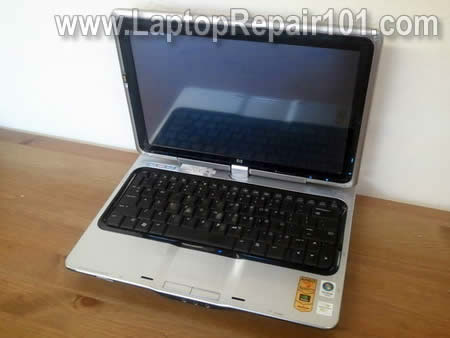
CAUSE OF THE PROBLEM:
As I know, the video problem somehow related to NVIDIA graphics chip located on the motherboard. Overtime the graphics chip separates from the motherboard and the video fails.
SYMPTOMS OF THE PROBLEM:
The computer turns on and all LEDs light up but there is no video on the screen or external monitor. The internal screen remains completely black and blank.
I found this trick mentioned by Walliot in this post. This trick called “towel fix” and used to fix “no video” issue in xbox360.
HOW TO FIX:
1. Remove the battery and hard drive.
2. Plug the AC adapter and turn on the laptop. Make sure it’s is actually on, all LEDs should work.
3. Wrap it up with towels so all air intakes are closed.
4. Keeps the laptop wrapped in the towel for about one hours.
5. Unplug the AC adapter from the wall the let it cool down (do not move it for a while).
6. Unwrap the laptop and try tuning it on.
I didn’t really believe that this trick might work and tried it just because of curiosity but… IT WORKED!!!!
#1. HP tx1000 Tablet PC repair.
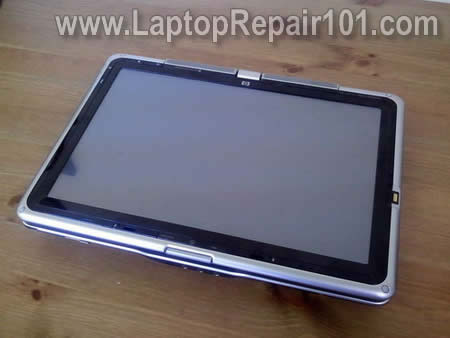
First, I tried this fix on a failed HP tx1000 Tablet PC.
I didn’t have paper towels at work but I had plenty of bubble wrap.
I closed it in a tablet mode (with hard drive and battery removed), plugged the AC adapter and wrapped the laptop properly in bubble wrap.

After that I just waited for about two hours and unplugged AC adapter from the wall. Waited for about 30 minutes and tried turning it on.
Success!!! It starts with with video.

I just couldn’t stop and tried the fix on another one.
#2. HP Pavilion dv6000.
This is a different model with very similar failure symptoms. It failed exactly the same way as the first one.
This time I did something extra. To make sure there is no cool air coming into the case through the bubble wrap, I closed all air vents with sticky tape.
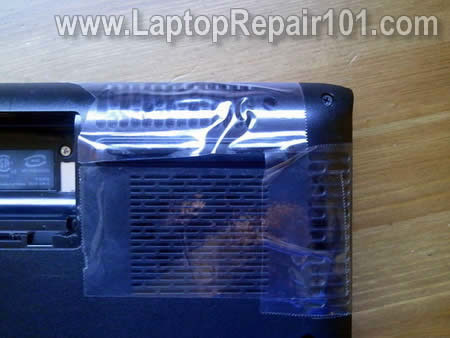
After that I turned it on from AC adapter (again with hard drive and battery removed) and wrapped the base.
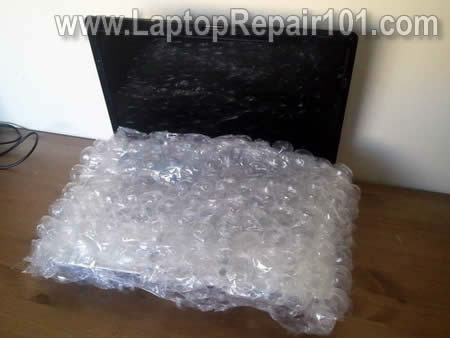
It was running like that for about 60-70 minutes but then I noticed that all LED lights went off.
Not sure what happened. Maybe the motherboard overheated too much and shut down on its own. Anyway, I didn’t touch it for about 30 minutes and let it cool down.
My fix was successful again! The laptop turned on with video and booted to the desktop.
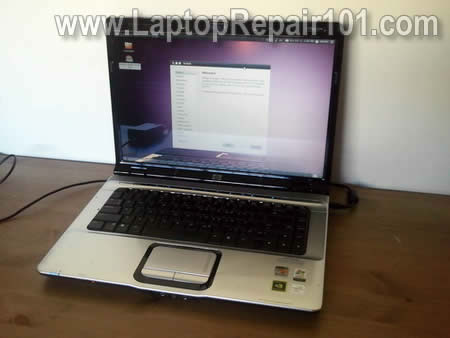
HOW THIS FIX WORKS:
Here’s my understanding of how this fix works.
When you run a laptop wrapped in towels (bubble wrap in my case), it gets very hot because there is no air circulation inside the heatsink.
The heatsink gets so hot that it melt solder between the chip and motherboard and the video chip gets resoldered to the motherboard.
Now I have to test for how long this fix last. 🙂
RELATED POSTS:
Also read backing the motherboard in an oven and how to reflow failed NVIDIA graphics chip with a heat gun.
200 Responses
Max
This procedure is called reflowing of BGA soldering.. As being said before, I would not trust this fix to run for long – month if lucky.
In the ideal world you need to get video chip off the motherboard, clean the solder, reball it and solder it back to the motherboard, but I wouldn’t risk it doing at home without required equipment (costs thousands).
Great work for discovering this kind of kludge!!! I’ll try this fix next time I have hands on dead pavillion.
Noob Rescue
Just like Max said, this is a temporary fix. The problem is due to certain circuits loosing contact with the motherboard. If you are trying to recover files and don’t have an external enclosure, then this should help to back them up before your computer fries again.
A permanent solution is to replace the motherboard.
cj2600
I think you are right, but for someone anxious to get personal data back or just make the laptop work for a while this could be a very easy and valuable solution. To be hones, I wouldn’t put any money in fixing this problem. Ideally you have to replace the motherboard but it’s too expensive.
This is a very good advice. If you are lucky and your laptop boots after this fix, back up all important files ASAP. After that just have fun with the fixed “zombie” laptop. 🙂
Yep, but I really doubt that you can find a brand new motherboard for these laptops. Most motherboards out there are refurbished.
OHENE BA
I am so grateful for this advice……so far i have worked on about 23 HP laptops with similar problem. I have a blower…so i take everything apart and heat the motherboard with the blower. But in few weeks it goes off again. I want to know how to replace the chip.
cj2600
OHENE BA,
I really doubt that you can replace the chip at home.
cj2600
int21h,
It might work. Basically it’s same method as described in my post – overheating the CPU and “resoldering” the faulty NVIDIA chip.
So far my “fixed” laptop work fine. 🙂
osvaldo
if you worked and did not burn your motherboard is a lucky man. please all the people who have video fails go to a service technician first. the only way to fix definitely the re-soldier or “reballing” process, but also works “reflow” is the same as explained here but with professional tools.
Tomas
Thanks man! It worked perfectly! I wrapped the computer with 2 nylon bags, a towel on the top and some blankets on the back and bottom. The screen I left it open so that it wouldn’t get damaged with the heat.
I left it like 1:30 hour and I started smelling burned plastic. So I turned off the machine, uncovered it and waited for it to cool down. It was very hot!
Then I put the hard drive back in and now it is working.
Just in case though, I will leave the program “TeamViewer” very accessible in my desktop in case I have to get in blindly if the fix is just to last one month. It’s a pity to throw the computer away, so if I can use it from another computer, that’s better than nothing.
But for now this works, and I will enjoy my display once more.
I will also post a link to here in HP’s forum for all the people who couldn’t get into that class lawsuit against NVIDIA.
Thanks!
Tomas.
cj2600
osvaldo,
Probably this is too expensive. Not worth repair.
Nixon
Sir, i like your site. i learn different kind of troubleshooting laptop.
id like to share my experience wih this kind of problem. when all LEDs are running but the screen is blank, i put some hot air pressure(480deg.c)to the video card or the whole motherboard. and after a while it runs.
Nixon
desti
Awesome!
Today a friend called me with exactly the same problem. i had no idea, didn´t google it, just stumbled a bit and stumbled upon this article 🙂
Awesome!
dvnhatbao
how can i fix my hp tx1000 ?chipset dont work …….my note book hasn’t wifi :((….so sad……Tell me how can i fix it ..thank
int21h
@dvnhatbao
just wrap laptop as outline in article above, it will work for wifi problems as well, as both problems have same cause. If you want, you can run Everest CPU Test to make fix faster.
@cj2600
one i did actually dropped wifi few days ago, but after performing fix again it works well.
Adrian123
So basically if i do this step on a dv9000 it wont set a fire
dele
does this only affect navidia card, or other vga card thanks
Will Jackson
very informative post would this troubleshooting steps work with other brand of laptop?
zekkon
its work for me..thanks alot for this.. how longer this will work>? if i put cooler in the back, this will work permanent?
Fix-m23
Good fix well its more like a test, then you know you gotta take the laptop apart, blow tourch chip and put a penny under the heatsink. Put back together and if you lucky a very long fix
Ashirwad R Rao
Add me too the list of people for whom this solution worked!!!…… a million thanks…. !!! wrapped the laptop in towels for around 2 hours …. and allowed it to cool down ….. started up with fingers crossed… and it started up!!!!… there are some intermittent video issues (colour inversion)… but i am not complaining!!! 🙂
Don
This procedure is called re-flowing of BGA soldering.. As being said before, I would not trust this fix to run for long – month if lucky.
In the ideal world you need to get video chip off the motherboard, clean the solder, re-ball it and solder it back to the motherboard, but I wouldn’t risk it doing at home without required equipment (costs thousands).
I think you are right, but for someone anxious to get personal data back or just make the laptop work for a while this could be a very easy and valuable solution. To be hones, I wouldn’t put any money in fixing this problem. Ideally you have to replace the motherboard but it’s too expensive.
If you are trying to recover files and don’t have an external enclosure, then this should help to back them up before your computer fries again.
This is a very good advice. If you are lucky and your laptop boots after this fix, back up all important files ASAP. After that just have fun with the fixed “zombie” laptop. 🙂
A permanent solution is to replace the motherboard.
Yep, but I really doubt that you can find a brand new motherboard for these laptops. Most motherboards out there are refurbished.
Hello All, interesting comments, I don’t normally reply to these things but I figured in this case I would. The correct term for what has occurred is re-balling of the BGA(BALL GRID ARRAY) Chip. I own two repair facilities(1 located in Silicone Valley, CA. & the 2nd in Concord “East Bay” ca.) this is all we do all day long 30-4- laptops a day, for a lot of Laptop repair Companies. We service customers in every state in the country as well as several locations outside the US. I assure you it is cost effective and it definitely is an ideal option to replacing a board. With that said, here is some additional information for you we see all brands not just HP, from MAC, Acer, HP, IBM, Dell, Toshiba, etc… Hope you get the picture it is not just HP, but laptops in general run very hot. When solder becomes molten the chip as it cools sucks in dirt and contaminants from the board. This produces what is called a cold solder joint. If you are lucky and you can do the above process to a laptop with out completely frying the chip(which by the way is not recommended)then you will have re-flowed the solder. But as someone mentioned this is what we call a band-aid fix, we offer a 90 warranty to the parts we repair or replace. We couldn’t possibly do this if it didn’t work, nor could we do as many laptops as we do.
The proper thing to do as someone stated above is to pull the chip, clean the pads and the board, re-ball the chip and re-apply directly to the board. Not only does it take the proper equipment to do this, but it takes experience. NO ONE who does this with success publishes the times an temps, which are essential to do the work even if you laid down the thousands of dollars for the BGA equipment.
One final note is that when someone reports “NO Video” this doesn’t mean that it is automatically the video chip. There are 5-10 different components that control whether or not someone sees an actual picture. In some cases it is video chips but certainly not all, also unlike other companies we have the ability under high powered microscopes to jump from one pad or trace to another, when there is a short on the board.
The bad thing is that after 1-3 re-flows the chip is shot, which means higher expense, if it is sent in right away a re-ball of the current chip is usually all it needs to repair it, as long as your not using the laptop on a blanket, the carpet, your lap, or a comforter, etc…
Hope this helped everyone…
Best Regards!!
Mariwan
As I know, The problem is not just the contacts between the GPU and the motherboard, the problem is even the contacts between the real chip and the pcb of the GPU..
paulss
HP Pavilion dv9925nr model fe695ua
I purchased a hp hp pavilion dv9925nr model fe695ua in fall of 2008. In August of 2010 my computer begin looping on and off. then the screen was blank one day I turned it on. I took it to bestbuy where I purchased it and they sent it in to be looked at. Came back with a diagnoises of bad motherboard. it would cost me $400 to fix it or should I say replace the entire motherboard. I tried the blanket trip first for about 15min. I was afraid I’d burn something up. Then I tried turning it on. Did not work. Then I put it in the blanket for about another 10 minutes and then turned it off and then on. It booted up and now I am on it. I am looking for someone who works on the motherboard and does not jump to purchased and entire MB first. All I need is the place where its a bad wire connection or chip nvida that needs help. I am convinced this is whats going on by the sounds of many others who are or have experienced this problem. HP is a rats hiney for not fixing this problem. ugh
but I am looking for someone who works on the different components on the motherboard. someone who has experience but wont charge me an arm and a leg.
Please email me.
thank you
paulss
back again. I was trying to upload the newest version of adobe flash and playing poker at the same time and all of a sudden got this weird loud noise and the screen went white with black little dashes across the screen. I had my pc on continuous after the first blanket boot up. after it went down I let it rest and then went back and did the blanket technique again so here I am using the pc again. If I cant find local help I may need to send my laptop off.
Thanks
email me if you have repair place suggestion. I live in central arkansas
Henri
super! was my last chance, and it works!!!!
tony
can i have a manual for disembling hp laptops. I am a technician.
Thanks
cj2600
tony,
Most HP service manuals (with disassembly instructions) available directly fro HP website.
Check out this post: http://www.laptoprepair101.com/laptop/2007/02/17/hp-compaq-laptop-notebook-manuals/
David
This is amazing, I thought my lappy was dead..I tried a bunch of things with no luck..then I got really upset and in the middle of the night, decided to search the web more thoroughly regarding this issue. Luckily, i came across this article, didn’t believe in it at first, but had nothing to lose and symptoms were exactly the same, so I gave it a try and now it’s back to life again. Unfortunately, I can’t do the proper procedure (re-soldering) as I have no equipment for that, so I really hope it’ll work for at least 6 months, but people here say a month is the longest one can get.. WEll, I’m a bit more optimistic, at least I know what’s wrong now.. Maybe i’ll just sell it while it works.. Huge thanks anyway, you made my life happier again.
David
And yeah, my laptop is Asus X55s which has a quite powerful graphics card – GF 9500M and it’s not soldered to the motherbord, so it’s replacable. The whole thing started with freezing in videogames. I’m thinking it just lacks proper cooling, I’ll try to think of something and hopefully avoid further “black screens”. But I guess the best solution would be – new videocard. We’ll see how it goes..
JAS
I’ve found this article useful. Maybe I should try this next time if my laptop appear to have the same problem again. Thanks..
V
Thanks a ton!
It really works, my HP DV65XX is working now.
Gabriel
hi!! i just wanna to thank you for this great trick!!! … IT REALLY WORKS!!
best regards from Brazil
Julian
Hi!
This seems like an easy temporary fix! Which permanent fixes are there, except from replacing the MB?
Can anyone clarify whether this is happening to ALL laptops or if this is fixed on newer ones?
Lennart Skoeld
Hi Its works for me on a HP DV 65XX Best regardes from me Lennart Skoeld from Sweden
BrunoG
WOW! The power of “Bubble Wrap”! It worked! The unit is up & running normally! It may not be a permanet solution, but the unit is working and maybe Santa will be kind to me for a replacement. Thanks cj2600 for a great post! Man, I luv this site!!!
maskur
good idea..but how long life time after repair?
cj2600
maskur,
I don’t know yet. People with “fixed” laptops not reporting back. I guess laptops still work fine for them after repair. 🙂
Jgs
damn… didn’t work.
BrunoG
Update: The fix, on the Compaq V6000, lasted for about 5 days. I could do the “bubble wrappage” again, but with some time on my hands I’m going to disassemble the unit and heat-shim-regrease both the CPU & GPU. Yes,the “bubble wrap” was only temporary, and is great for retrieving data. The permanent solution for me will be to reflow the chip in question. There are other articles on this site to help one if you are tempted to perform this act.
Pat
Often no video in a laptop means a bad inverter board, in most cases a new one is under $20.
Inverter board powers the back light in the LCD panel.
You can tell if the back light is out simply by looking at the laptop screen, (powered on), in direct sun light. If you see a clear image of your desktop, your back light is out.
Eddie Murphy
So many cheap-ass graphics chips/laptop manufacturers KEEP ON MAKING these design flaws. I cannot believe it. So please, everyone – sue the sh*t out of them until they learn how to do their job! That’s all we’re asking after all. If everything had to be replaced after just 1/5 of the time it should last, then EVERYTHING EVERYWHERE would be more expensive, not less.
Fight this, don’t be lazy.
If you’re in the UK, remember, you have to prove the fault was there at the time of sale once six months has elapsed since purchase. This kind of site is GREAT evidence to show to a court that the fault is in the DESIGN (not durable enough due to a cheap BGA manufacturing process). Hence even, for example, 4 whole years after purchase you should be on steady legal ground to insist on a replacement/refund/high-quality repair.
6 months until an undefined period as the law only says items should last a “reasonable” amount of time. Laptops should last 5 years maybe more, plenty do, so why not yours?
I for one would be happy to pay, say, £20 more for every laptop in order to have proper soldering on my chips. It’s just less hassle. For now, though, make the dodgy manufacturers feel the pinch – that’s what the law is there for.
Eddie Murphy
Oh yeah, and nice one for this post and for this site, very helpful, even for those with experience.
This is the same fix for 360
This is the same fix that the 360 uses when the GPU comes undone. It is just a temporary fix though.
Nikhil
Hi, I have Pavilion dv6137tx. Guess what, it worked but the graphics is still blurred. Kindly post a link on how to resolder the GPU component to MB. Any specific tool required?
Timothy
Worked like a charm. I’ll report back when the laptop will stop working again (assuming the same problem will occur), but for now I’m not going to run any heavy applications on it.
waac
It did work for my dv6000, but only for 2 weeks. I fixed it again but did it the right way this time. Taking the mother board out and reseating the video chip by heating it with a 125wat flood lamp for 3 minutes,(do this from the bottom side and shield the rest of the board with aluminum foil)then press the chip in with a towel for 30 seconds, then regrease the cpu and gpu for reattachment. However, (and this is the big fix) take out the little rubber spacer between the video chip and the coolant line and replace it with a clean penny, greased on both sides. Since repair, it runs perfect.
David
Ok, here I am reporting back with my asus x55sv). Today this black screen thing happened again. It’s been one month and 2 days since the day I brought it back to life. So I didn’t what else to do but to perform this method one more time and to my surprise, it worked again. I’m not sure for how long it’ll last this time but to be honest I’m not as optimistic anymore. I’ll let you know if it breaks down again and if I’ll be able to recover it for the 3rd time (Still hope it doesn’t come to that though)
Warren Carley
Helpful, but here is my problem. I have an HP Compaq f700 presario. The screen suddenly went blank. It works with an external monitor just fine. I have replaced the inverter board and still no picture. It seems to me that if it was the backlight then it would have gone out gradually, not suddenly. Is my next step replacing the LCD screen? Thanks so much
Rose
Thank you so much. It worked for my V3000. I am trying it now on my DV6000. I will let you know how it goes later.
Kieron U.K England
OMG, it worked thank you for this post,had`nt used the laptop in over 2 years because of this prob,nice to have it back again THANK YOU
Kieron
Thank you
It actually works!!! I can’t belive it!!
Thank you very very much 😀
cj2600
Warren Carley,
I don’t think your problem is related to the inverter board failure. When inverter goes bad, the screen loses backlight but you still should see a very faint image on the screen.
If your laptop screen went completely blank (but external monitor still works fine), it could be one of the following:
1. Bad connection between the LCD cable and motherboard or LCD screen. Try reconnecting the LCD cable on both ends.
2. Failed LCD cable. Try replacing the cable.
3. Failed LCD screen. Try replacing the screen.
4. There is a chance of bad video cable connector on the motherboard but it’s not a common one.
It’s hart to troubleshoot these kind or problems without spare parts.
thankful
WOOOOOOOOOOOOW ITTTT woooorked
Compaq presario v3000 45 on and 30 rest thank you so much.!
BrunoG
OK! Disassembled the V6000, and found very little “Thermal Grease” on both the GPU & CPU! Blew all the tumble dust out of the fan assembly, as it was loaded. Used the wife’s “Creme Brulee” torch to reflow the GPU chip. Note: be very careful about using heat on the board for there are several plastic pieces that don’t react kindly to overheating, and explain to your significant other that it’s all to save money!*wink* Cleaned, regreased, and shimmed the CPU & GPU. Re-assembled the laptop,and…”BAM”! It’s acting like a brand new unit! I don’t know how long the repair will last, nor do I have much faith in this model, but for now it’s working and I can delay the purchase of it’s replacement!
Rose
It’s been a few days since I said I would get back to you about my dv6000.I had to keep it wrapped and running much longer than I did with the v3000 because the problem with this computer was more extreme. I was doubtful about the outcome because of this, but it worked.
daviv m kilmer
Thank you soo much i was wondering about these very same things myself and i happened to run across this site thank you so much
ken
My hp dvnr6800 purchased 3 years ago develop a black screen and I tried the bubble wrap fix, it works manage to retrieve my data but moments ago 3 days after the fix it develop a white screen of death, from being black now I have white,darn any more smart fix?
Johnson
………. Did anyone stop and think how bad this could be for your processor?
cj2600
Johnson,
Why would you need a processor if the motherboard is dead?
waac
The processor is detachable, so yeah, dont burn that up, its worth quite a bit. However, dont worry, the processor can handle the heat. The degree of heat this operation attains wont melt it. Its the gpu that has malfunctioned and cant take the heat. Thats why works, at least temporarily. By the way, if you are doing any damage to the motherboard, its ok, cause its the motherboard that needs replacing to fix this issue.
cj2600
ken,
Does your laptop still work with an external monitor? Can you get image on the external screen?
The white screen could indicate bad connection between the video cable and LCD screen. Sometimes reseating the cable can fix the problem.
http://www.laptoprepair101.com/laptop/2008/04/13/laptop-lcd-screen-turned-white/
ravi
yes yes yes!
finally solved it.i just removed the keyboard and found the loose connection of lcd and fixed it.
francis hamzik
daughter had hp dv4 computer on then she noticed it shut off went dead ,no activity ,went to office depot they said it was a mechanical problem . Help
agus
This solution. can make damaged seriusly?
How long limit time turn on the laptop?
can i set power setting always on to operation mode during hotting?
Антон
спасибо. Всё помогло. Сделал так, как вы и описали. Всё заработало!!!!!
cj2600
Anton,
You are welcome! I hope this repair will last for some time.
Пожалуйста! Не уверен как долго компьютер будет работать но будем надеяться на лучшее. 🙂
Matthew Manzano
please help me fix my laptop? i have hp pavilion dv2000, the problem is that the screen always malfunction. sometimes it turns off by itself or otherwise the screen blurs it self with different side colors what pattern of repairing should i use?
cj2600
Matthew Manzano,
Test your laptop with an external monitor. Start the laptop and configure it to output video on the external monitor or even better on both internal and external monitors. What until laptop screen fails and look at the external monitor.
If external video works fine and the problem appears only on the laptop screen, this could be related to one of the following:
1. Loose connection between the video cable and motherboard or LCD screen. In this case reconnecting the video cable on both ends might fix the problem.
2. Could be bad video cable.
3. Could be bad LCD screen.
On the other hand, if video fails on BOTH the internal AND external screens, this is graphics card failure. The graphics card integrated into the motherboard. When graphics card fails, the entire motherboard has to be replaced.
cj2600
francis hamzik,
How dead is it? Do you see any light when AC adapter plugged in?
Maybe it’s just bad adapter and the laptop is dead because there is no power coming to the motherboard?
Dave
I have a Compaq CQ50 that doesn’t get any video the first time I turn it on. After turning it on and off a few times, the screen comes on and works fine. I took it apart and checked the connections, they are all tight. I decided to purchase a new (used) video cable to make sure it wasn’t a bad wire or something.
Do you think it is the same as the problem you described with the HP Nvidia chip? Any way to re-solder it permanantly? Or, could it be a bad inverter? I wouldn’t think it’s the inverter because it works sometimes.
Thanks,
Dave
cj2600
Dave,
Did you test laptop memory? This could be memory failure.
Do you have two memory modules installed? Try running laptop with only one module (either one) and see what happens. One of the modules could be bad.
Do you see a faint image on the screen when the laptop “fails to start”? If not, this is not inverter problem.
Dave
Removed one RAM chip and got the same results, repeated with the other chip and same results. No faint image, just nothing from video the first couple of times the system is turned on. I can see the backlight come on once the system decides to boot.
Any ideas?
cj2600
Dave,
Well… the problem is still there with different memory modules, so we can assume it’s not memory related failure.
It’s really hard to tell what is causing the problem.
The following troubleshooting technique require laptop disassembly.
You can disassemble your laptop to bare bone system: motherboard, CPU and memory and test it in this basic configuration. If it still fails intermittently, most likely this is motherboard related failure. If it works, start adding parts one by one and test the laptop after each part. This way you can find the part which is causing the problem.
SAN
hello experts. i have problem in compaq cq60-101au . no display on screen. hdd like blinks afer 5 sec. pls help me. some body says its nvedia chip is burnt .
cj2600
SAN,
1. Try removing the hard drive. Does your laptop start with video when hard drive removed? If yes, probably the hard drive is bad.
2. Try removing memory modules one by one. This could be memory failure. One of the modules could be bad. Test your laptop with only one (either one) memory module installed.
shean
hi I have a compaq preserio F700 laptop an when I turn it on it stays on for a few seconds an turrns off lights all on the sceern black the fan starts for a sec can someone tell me wats rong
David
So you’re effectively doing an ‘in-situ’ reflow of the graphics chip, very clever! If this doesn’t work, you can take the more extreme measure of baking the laptop motherboard.
Thanks for this tip.
cj2600
shean,
First of all, I would test the AC adapter. It’s possible the AC adapter is dead and the battery doesn’t have enough charge to start the laptop.
If AC adapter is good, try reseting memory modules. Try removing memory modules one by one.
If the laptop still fails, most likely this is motherboard problem.
cj2600
David,
Here’s how I baked the motherboard: http://www.laptoprepair101.com/laptop/2010/04/06/fixing-compaq-presario-v6000-motherboard-no-video-issue/
I did it a few months ago and the laptop still works fine.
Brian
This is what I do.
Power down and remove the battery. Wait a minute or two, the refit the battery and power lead, restart.
All is good again.
Lead solder needs a much higher temp than you are talking about!!!
Brian
Kevin
I have a HP Mini Model 1035NR. My problem is I cannot get full screen video, and it seems to double whats above at the bottom. I checked the bios, and it’s the same, only part screen. I have replaced the motherboard but same thing. Any Ideas
cj2600
Kevin,
Why did you replace the motherboard. Was it giving you same problem on the external monitor?
I think this LCD screen problem.
kevin
Hp suggested replacement of the motherboard. Should have known better. Should I replace the LCD
cj2600
kevin,
Is this laptop worth replacing the LCD screen?
I don’t know what else could be wrong: it’s either motherboard issue, bad video cable or failed LCD screen.
You’ve replaced the motherboard already.
From your description it doesn’t sound like the video cable issue.
Most likely it’s bad LCD but I cannot tell if it’s worth replacing. It’s up to you.
Michael
Just tried this fix on my problem DV9700 and it worked. Has anyone determined yet how long this fix lasts. Wonder if adding the copper shims to the on board video at this point will help prevent the overheating from happening again. Anyone try this yet?
Anyway, thanks for the tip.
cj2600
Michael,
If it fails again, you can try the heat gun repair. I just published a new post about NVIDIA chip repair here: http://www.laptoprepair101.com/laptop/2011/02/23/fix-laptop-motherboard-with-failed-nvidia-graphics-chip/
dv6000
Hi, I just did the bubble wrap method.
My display got garbled last time and it was repaired a year ago. Now same thing happened the display got garbled and I did the bubble wrap method. It worked. I was happy.
But now i only boot to bios. I cannot go to windows, everytime it shows the logo screen the laptops BSOD. Please help.
dv6000
I managed to get my laptop working again. Thanks to this method. I just figured out the problem, one of my RAM was not properly seated. Now it is booting up fine and no more garbled images. Thanks!
emmanuel
please my laptop has problem.it felled on ground.so when i picked it up and boot the laptop, i found out that the screen is divided into three equal half one part displaying while the other half is blank.when i push in the back of the blank screen it will display but once i remove my hand from it, it will go back to it,s blank state.
cj2600
dv6000,
Maybe the OS got corrupted? Try booting your laptop with Ubuntu (live Linux CD). Will it boot and run properly with Ubuntu?
Juan E
Please remember the is a law suit against HP regarding this issue. You may get your money back or a new computer.
Research more and get your money back like me. Best regards.
Peter
Never expected that this would work be it worked for me!
This is much beter than the oven trick!!!1
Thank you very much.
cj2600
Peter,
Not sure if it’s better but definitely easier.
sait
I purchased the following model of hp in april-2011 recently this is also effected by the similar problem with little variation.
Model HP Notebook PC G62-a22se
VatO_LokO
Just tried the heat gun method on a LG E500 without a heat gun, but with a hair dryer at full speed and full heat for about 8 min. (it then turned off by itself to prevent damage of overheating). Laptop works fine for about 3 hours (reinstalled Windows to stress it). Hope it lasts or at least will work again in the future!
Thanks a lot!
Paul
OMG You are a genius my friend. I have a HP dv2000 that has sat in a draw now for almost a year after my local computer repair shop told me my video card was damaged and could not be replaced or repaired. Little do they know. I did as instucted and removed battery and hard drive, then taped all air vents plugged it in and bubble wrapped and also wrapped in a towel. After 80mins i just switched off at wall and left for 30mins. Put back in the hard drive and battery and am extremely happy to say IT WORKED. I am far from a computer genius and found this all very easy. Again Thanks very much.
Geoffrey
Hi, when i power on my pavillion dv6000, all led light on, couples of seconds, it shut down, and automatically on bec again for 2 seconds, then shut down again. may i know wat is the problem? how to do this oven trick, or bubble wrap trick since it will auto shut down within 10 seconds.
Btw, in that case, is it means tat i have to use heat gun? is it possible to use a hair dryer?
thanks.
Pete
Hello, I’d like to ask you, if I have a hp pavilion 6200t CTO (probably :)) Which has three microchips on the motherboard and the nvidia gpu has a designated heatsink, the cpu and the “other” is on one heatsink arm, should i heat the processor which i do not know what it is and the gpu too, or just the gpu, and if i’m aloud to place a copper shim on that, or just the gpu? Thanks
cj2600
@ Pete,
I guess you are referencing another post where I fixed failed GPU with a heat gun.
You have to heat up only the GPU chip.
The GPU is soldered to the motherboard. The CPU seated in a socket which can be opened. If you know how the GPU looks, it’s hard to confuse with the CPU.
cj2600
@ Geoffrey,
Most likely this is known GPU failure. HP Pavilion dv6000 laptops are know for this issue.
If you going to remove the motherboard, I would go with heat gun trick.
I believe one guy mentioned that he was able to fix it with a hair dryer, it’s somewhere in the comments. You just have to figure out for how long you have to heat up the GPU chip.
LaptopRepairBrooklyn
In our computer repair shop Brooklyn NYC, we have a lot of clients, bringing on for repair laptops with Nvidia chipset failure. Beside HP and Compaq these problem appear to Sony Vayo, DELL and IBM also. The best fix for you, if you’re not a computer technician is to bring it to a computer repair shop near you, and ask them if they’re using the reflow method. The regular air method to fix the falling video chipset will not last specially now in the hot season.
Also, be aware that a laptop with falling memory chip will have the same symptoms like a laptop with falling video chipset (light on laptop but no video on screen), also before you going to a laptop repair shop try to hard reset your laptop, as they have the tendency to freeze and act like a video chipset problem.
Ron
I have an HP Pavilion tx2100 taped up all air vents, wrapped in towel as directed, left it on for 75 min, and bingo screen works again. Thanks for this jewel!
Pete
Hello If I have a hot air gun capable of 400C degree,what do you think for how long should I heat the GPU, and from what distance? Thanks
Bruce
My daughter’s DV9000 was having similar symptoms (blue lights lit but dark screen, etc.) however it would boot into safe mode okay – it just wouldn’t boot into a hi-res video mode. After fooling around for 20 hrs. with start-up items, etc., I figured it must have been the NVideo driver. I updated that but still wouldn’t ‘boot’ normally. I found this site re the bubble wrap method & said ‘what the heck’ ‘cuz I was out of free options. I took out the battery & disk drives, taped up the vents with foil tape, wrapped up the laptop with a large bath towel & left it on for 75 minutes. Let it cool for 2 hrs. & lo and behold it booted up normally! It’s been good so far for the last 3 days. I told my daughter to look for a new laptop ‘cuz I don’t know how long this one will last.
Aman
I can believe this actually worked, i have a compaq presario f500 and i had the same issue i.e. Lights on but no screen, done exactly as above except i wrapped bottom half of laptop in clingfilm and then towels and after cooling down it worked first time. Not sure how long it will last but gives me an opportunity to back all my stuff up, cheers mate great soloution
Bruce
Update to my June 20 post: Daughter’s DV9000 failed again after 1 week. Rethinking next step.
PA
Thanks for this info! Performed this rather unconventional ‘fix’ on my HP dv9700 today, and it worked! The reasoning behind the procedure is sound, and I figured that I had nothing to lose by trying this, as I had no display anyway! It was simple, and saved $ by not having to take it for repair. If it will last for a while with gentle use, it’ll buy time to backup important info from the unit while researching the next laptop purchase…not thinkin’ HP, though! THANKS again!
reboot
Had the same problem with my HP DV9072ea,
had the thing apart (+60screws!). Added a copper chim and thermal paste, both on CPU and GPU. Ran the computer wrapped in towels for an hour until the bottom of the computer reached 50,0C.
Tried to start the computer, first time it did show a ‘No operating system installed’, second time a warped HP logo and after that no succesfull booting.
Thats it, 4½ year old HP is going to the recycling.
We have had 5 HP laptops in the family and they all have stability issues, especially the TX2690.
Never an HP again.
reboot
Oh, did I mention the left hinge was broken to?
I wonder how a MBP will compare to my old unstable HP
realhockey
I tried this fix on my DV6000 taping the vents, removing hard drive and battery but I wrapped bottom half of DV6000 with a towel. Left it on for an hour as instructed, then shut off. Let it cool. When I rebooted, I was truly amazed that it worked. If it goes out again, I will try the baking the motherboard fix. I tried this one first becaue who wants to take apart their laptop if they don’t have to? Thanks for a great workaround fix.
cj2600
@ realhockey,
I would try the heat gun fix instead. I think it’s more reliable and safe.
BSat
@cj2600
Hi,
I have a HP DV4 1204TU. A couple of weeks back, when I switched on my laptop, all I could see was a solid white screen. The laptop works fine with an external monitor. The guys over at HP told me to replace the motherboard. Another guy told me it was probably related to the graphics card. I’m not sure if that’s true because it I can use it with an ext. display.
What do you think the problem is?
cj2600
@ BSat,
It’s hard to tell without testing the laptop without known good LCD screen.
This could be one of the following:
1. Bad connection between the video cable and LCD screen.
2. Bad LCD screen.
3. Motherboard failure.
Probably this is not graphics card failure because you still can see the external image.
First, I would try reconnecting video cable on the back of the LCD screen. This could help.
Mike
I have an HP Pavilion DV6700.But my problem is not the screen going blank completely. When i turn on my laptop, it starts completely well till it get to the ” windows starting” point, then the screen starts going off and on. it will do this for some time before it stops. when you i try putting a usb or even earphone in, the screen goes crazy again.I tried booting it from safe mode and to my surprise it works perfectly.Can someone please help me. The OS is Windows 7 32bit. Thanks
JB
I did the tape up the vents on my tx1000 and 10 minutes after turning on the computer did a self reboot and now works fine, I also redone the thermal paste and added a penny to the gpu.
Koala
So to everyone who has owned a HP/Compaq with these problems listen up:
Short version of my story….Own a DV6000 HP laptop. After being in and out of the repair shop at Fry’s for the better part of 3 years, my extended warranty finally ran out. Once again my laptop died. I felt like this was the end, but started doing research on the problem and possible solutions.
The problem is with the Nvidia Graphics Chip (GPU). It was not properly soldered to the motherboard; they used a lead free solder which is of poor quality. When the computer would get hot, as most laptops do, the solder would come un-done, causing the connections to get loose, and bam! screen would get black, not boot, beeps, loud fans, crazy lines across the screen, its a little different the exact outcome from laptop to laptop, but you get the point.
I have tried all the ‘cures’ out there. Blanket trick, oven trick, heat gun trick. I won’t go into detail, but you can google any of the above with HP laptop in the search box and get an answer.
Conclusion? All of the above methods work, although I have had the best results with the ‘heat gun’ method. It lasts the longest, but requires that you completely take apart the laptop, so it does require some technical skill, although there are many videos on YouTube that will walk you thru the process of taking apart the laptop.
Bottom Line? No matter what you do, as far as methods go, eventually the laptop will not work again. The best length of time I have gone is 4 months between fixes. The last problem came when I was updating my laptop. As it was installing new drivers, the GPU went out. Because of this the BIOS/registry got messed up. I had to re-install my whole operating system. Unfortunately it corrupted some files when the GPU went out. I had recovery programs, but wasn’t able to get everything off my Hard drive.
So if you are still using your HP/Compaq laptop and using the trick, please keep in mind that there could be a failure that might cause you to lose files/info. Please keep a backup of all important files (4-8gb USB stick should be fine for most people, they are like $15 now) so you don’t lose anything important.
I am still doing the trick, but after 3 years I am ready to move on to another laptop. I am tired of the stress and anxiety that I get from constantly working and fixing this one. Recommendation would be this: Don’t buy a HP again. The problem is you usually get alot for the money with HP and that might sway you to once again try them out. Because this could only be a one time thing right? They wouldn’t want this to happen again right? Wrong! I have already seen blogs and reports about additional problems with newer HP’s with i3 and i5 core’s.
Hope this helps someone out there!
Walter
I have fix my HP dv3 1075us. when i though it was time to trash it, after i got a macbook pro. I have given to my hp a a second life!!! Do you think it would last long since i used it about one time per week and just for running a softphone? It is a app that does not work with my mac, and it is not heavy.
Thank you so much I am so happy to give a new life to this baby
cj2600
@ Walter,
Cannot tell. All laptops are different.
Hopefully it will last for a while.
Walter
is me again. i contact hp about this issue, and also i told them how i fix it, so I told them how disappointed i was on the product and they offer me a free repair after i show knowledge thanks to you!!! I do not have a warranty for almost two years therefore they were hard to get!
cj2600
@ Walter,
Congratulations! Hopefully your laptop will last for a while after the motherboard replacement.
jwalker
My computer tech did the bubble wrap and my Compaq V6000 worked for about a week then black screen again. I’ll never buy another HP laptop.
Victor
I got repair my notebook following your instructions, thaks for all!!!
Beau
“Fixing” your laptop this way is a very bad idea. Yes it does reheat the solder on the GPU, but it also overheats EVERY other component on the motherboard. This will not be a permanent fix and will cause more damage than good. The best way to conduct this fix is to completely disassemble the laptop and just heat the GPU to reconnect the solder points.
cj2600
@ Beau,
It depends on what your goal is. If all you need is to make it working for a while in order to backup personal data quickly, it could be a very good idea.
Nope, the best way is replacing the motherboard with a new one but it’s very expensive.
I explained how to reheat just the GPU in the following post.
http://www.laptoprepair101.com/laptop/2011/02/23/fix-laptop-motherboard-with-failed-nvidia-graphics-chip/
But it requires complete laptop disassembly and most people cannot do that.
Also, I believe it’s not a permanent fix either. It might work for a while (and maybe a long time) but also it might fail soon.
me
thanks man , it worked for me, my laptop is toshiba L300D-21M.
thanks
Dips
HI Everyone,
My laptop was died just before a thanks giving and i was very disappointed. It was started but the screen goes Grey (Black and White) look. The sound system was working so I am able to hear the startup sound. The funny thing was i have auto login to gtalk and skype so the moment I logged in people start sending a message and I am able to hear the sound…
The main problem was, I have not taken the backup of my data yet … and was try to find how to take the backup.
Here is a trick:
1. Microsoft Windows has a “NARRATOR” (Speech), so if you hit the windows key + R, it opens the run window.
2. Type “NARRATOR” and hit enter.
3. The narrator will start. And it start taking about the open window, the command you type or the button you press.
4. So after Narrator stared, I attached my external hard disk and run the command prompt by: windows key + R and then type CMD and then enter
5. It speak everything about the open window, drive name and folder name in the drive.
6. For example I type dir on c:, it gives a list files/folder name, .. etc.
7. So I used xcopy command to copy everything from the drive. Goto the destination path and type below command. http://www.computerhope.com/xcopyhlp.htm
XCOPY /A /E /C/H enter
Now I was ready to use this method, and I did it… and it works …. Now I install new windows 7 and it works fine. I have to wait and watch how long it work… !!!
I will post you the updates…
Thanks
Alyssa
I just tried this on my HP DV2000 and it worked! I couldn’t believe it but I am so happy! This thing has been dead for years and I am glad I kept it now! I knew it would be fixed one day! Thank you many times!
Charles
Actually its really not a bad idea. in this way. the motherboard will detect over heating to harm the motherboard.(stable heat)
wont harm the chip set it self.
but by using a heat blower,spot light heat, or any kind of heating.
you wont know how long you need to heat it. you just heat it for just 2-3min. then u can see the board have funny puffed-up.
Jack
Thanks for the great idea for presario fix. Previously I had taken in my ailing computer to repair shop. They offerred free diagnostics. They couldnt figure out problem. I have found several solutions on the web and all involve removing motherboard and heating NVIDIA chip. In most cases this works. However, it doesrequire a lot of time and skill without screwing up some connector or component. I needed to get a few hours of reunning time to allow me to transfer to new computer. Basically one has not much to loose, just a cheap, crappy, poorly designed dead computer. Best regards
LD
I can’t believe it!
I just resurrected a Compaq that has been DEAD for 4 years.
In the process of trying to steal the touch pad out of it to fix another computer, I came across this fix.
With nothing to loose, I tried it and IT WORKED!!!!!!
Santanu Sengupta
Hi,
I ma trying to do the exercise on my HP tx 1200, which has the same identical symptoms. It is not opening now although it is getting th power on. I went to HP Tthey sais they cant repair and i have have to pay 450$ for new mother board. I said thank you & went to another laptop repair shop.They said it is the Nvidia chip problem and they would replace it. And would cost me $150.What should I do? Cant it be soldered and fixed, while i buy in good time a new one.Please suggest.
Santanu
cj2600
@ Santanu Sengupta,
If the graphics chip failed, most likely any repair will not last for a long time.
If you would like to fix it yourself, you can try this heatgun repair trick:
http://www.laptoprepair101.com/laptop/2011/02/23/fix-laptop-motherboard-with-failed-nvidia-graphics-chip/
szymon
Wow, thanks lot, it worked and laptop got even to a better state than before. I had some strange lines on the screen for few months and it worked only with generic driver (hanging with nvidia drivers).
After heating everything is back to original state 🙂
Kiwi
For everyone who wants to FIX his broken laptop,
i’d strongly recommend to use the oven OR heatgun reflow method..
This bubblewrap is a good theory, but you have to think about the other components, which get EXPOSED to TOO MUCH HEAT..
This will only shorten your laptop’s life..
You can better investt 3 – 4 hours in taking apart the laptop,
and do a oven or heatgun reflow (heatgun beaing the best),
it will satisfy you way more with a good working laptop..
Also invest in good thermal paste! (or new thermal pads!)
Good thing you put the information up cj2600,
but you should warn other surfers for the damage they could do to their laptops if they use your bubblewrap method..
sakthi
Hi,
I am sakthi, I have one Compaq 610 Laptop.Its motherboard power regulating IC Out put giving only 4.9 volt and other 3.3volt,1.7volt out put failed.It has a TPS5162 IC.I am unable get it in Chennai-India.Is there any equivalent IC or How to solve this problem KINDLY HELP ME. ADVANCE THANKS FOR YOUR REPLY.
by
s.sAKTHI
cj2600
@ Kiwi,
How about the over method. Do you think nothing is exposed to too much heat?
I would say the heat gun method would be preferred if you are able to disassemble the laptop and remove the motherboard.
On the other hand, if you need just a quick fix in order to access the data, you can try bubblewrap method. It doesn’t require any laptop disassembly.
cj2600
@ sakthi,
Sorry cannot help here. I’m not fixing motherboards on the component level.
Romi
THANK YOU! THANK YOU AND THANK YOU!
IT F*** WORKS! I wrapped it up with plastic cooking wrap (the cheapest) and then with the towel. I wrapped it hard tied. No air at all! I switched on for 1 hour and a half. It got really warm. (do not forget to remove the battery and the HardDisk)
Then let it chilling out for more than 45 minutes to chill out (with the plastic and the towel on) and it worked. unbelievable!
The chip is Nvidia GeForce 8400M GS
Besides my computer is not a compaq o HP but a COMPAL one!
COMPAL IFT00
Thank you so much!
roman
I forgot! after all, the chip is working but it gets really warm, it’d be useful to buy a cooling stand if you dont want to disasembly the whole computer…
Good luck to everyone!
Thanks again!
Dan Jennings
I have about 7 or 8 HP Pavilion boards in the computer room. I tried eBay to get so called refurbished motherboards for DV6000’s. Next I started to look for TX1000 boards. After I got 4 bad DV6000 boards from power sellers, I decided to try the heat gun trick. I took apart a TX1000, used foil that I folded & made a 1″ cut out. First I put the gun on low & warmed up the top side of the board. Next I took the heat gun [Note I timed how long it took to get the solder to start to flow. In my case 9-10 seconds heating up a small piece of solder on a penny.] Now that I knew how to time it, I got my cell phone, started the stop watch & when I got to like 20-30 seconds [I waited for a zero, ya know 20, 30, with the heat gun on “HIGH”, at 1″ away from the chip I timed it to 10 seconds. Just as I was about to lift the heat gun, I had a oven mitt on my free hand, I pressed as hard as I could for about 3 seconds, let the board cool [which took about 5 minutes.] Then I put it back together. Note: I had a set of feeler gauges from my tool box & I measured the space between the Heatsink & the GPU.I decided to do this because that thermal glob that HP calls a thermal pad, was all balled up from over heating. The gap was the same thickness as a penny so you know what I used for a shim. I even went as far as getting a penny from 1981 because 81 was the last year for solid copper pennies. It took me 35 minutes to assemble the notebook, started it up & it was like new. I even got my missing wifi to show up in device manager & actually work. I used this method on 2 TX1000 series notebooks/tablets. My $118 investment for the 2 ended up being sold for $225 each. Now I’m getting out all my DV6000 motherboards so I can finally sell them. Note, I test them for a few days because if the first heat didn’t work, I’d just do it again. Once you do it a couple of times it’s just like no job at all. It took me more time thinking about doing it than just doing it. What did I have to loose? Broken notebooks? Oh yeah & the temperature? I was getting readings in the 50’s [Celsius] Both ended up in the mid 30’s which is perfect. I di buy a small sheet of copper so I could make my own shims & toss the thermal pads…. Good luck to you guys who decide to try it. Hey, if I can do it, you can too. Take care, Dan
Gokmev
Lol, I can not believe that this worked on my Toshiba sattelite A200. Here is what I did:
I wrapped the laptop excluding the monitor side after turning it on(of course without HDD and battery). I could hear fan accelerationg as it gets hotter. As someone else mentioned in the comments, computer shut down when temperature got very high (to protect system I guess). I waited for it to cool down some time and gave it a try. First try was failure, however it started working after second try. I don’t think it is a permanent fix for me as it didn’t work straight away. If is stops working, I can try other methods.
Thank you
abhijit
my HP laptop pavilion g6. the videos go blank after few seconds but the audio continues to play on any media player.even the web cam fails to show the video. in some instances the problem disappears but it comes back again. it kind of haunts me.please tell how to fix.
Bro Dave
Got a Dell 9400 lost all video to it to a shop was told I needed a motherboard. Ordered one new but cheap then found this thread.
Had already dissasembled and thought what the heck Ill give it a try. Thought about the grapeics card and thought might as well bake that dude too. Put it back on and put some srews in the screw holes to elevate it put it on pan preheated the ole oven to 385 degrees F and stuck her in for 8 minutes. Let her cool for about an hour (was busy with something else) put it back in and it works perfect. Still got a new mobo but it was cheap enough so I will hang on to it.
But thanks guys for the thread I sure appreciate it cudos to all of you.
Josh
Just did this with my wife’s HQ DV9500. Blank but backlit screen. couldn’t see anything. wrapped in saran wrap and towel after removing battery and hard drives. after about an hour it shut its self off. let cool for 30 mins. re installed drives and battery. screen cam back on first boot. we’ll see how long it lasts but at least i can work with it now
Born Skeptic
To say that I was skeptical about this “fix” would be an enormous under statement. But, like most everyone else reading this proposed fix to the graphics issue, I decided I didn’t have anything to lose. Much to my surprise, after covering the fan and vents with tape, and wrapping the lower half of the machine in a towel, I allowed it to sit running for an hour. I then unplugged the power and let it sit for 45 minutes. Much to my amazement, after re-installing the hard drives and apply power, the thing booted up like it was fresh off the assembly line. AWESOME FIX!!
Quentin
Awesome trick. Just revived my HP TX 2000 laptop with it (Problem was nothing on screen and Caps and Num lock keys blinking forever).
I removed every easily accessible parts (RAM, Wireless card, battery, optical drive, keyboard) and wrapped the computer in plastic bags and towels.
It overheat in 1h, shutting itself down. After 15 more minutes, I put it back together and it started as it used to for 3.5 years.
Thanks for sharing this tip!
ryan
thank you so much i tried this because i really didnt have much to use i taped all the air intake valves for my compaq presario v6000 then wrapped it in walmart bags then wrapped it in a large towel and let it sit for 2hr then let cool for 30min. and it worked my wifi is even working now. im so happy its been broke for 2 months
cj2600
@ ryan,
I’m glad it helped. Just don’t count on this to be a permanent repair. Do not keep important files on the laptop because it might (and most likely) will fail again eventually.
ryan
i posted a comment earlier of how i did work for more but less than 24hrs later it failed is there a way to make this fix permanent i have yet to find a repair shop that will fix it. plz help
cj2600
@ ryan,
The heat gun method is more reliable but it’s necessary to disassemble the laptop.
http://www.laptoprepair101.com/laptop/2011/02/23/fix-laptop-motherboard-with-failed-nvidia-graphics-chip/
I don’t think the laptop is worth taking to the repair shop. Most likely they will quote you a new motherboard and make it not worth fixing.
Pichi
First of all, apologize for my bad english. I´m from Buenos Aires, Argentina. I´ll try this method in a Toshiba P305D and … now it´s working along one week without problems. Thanks a lot for this trick !
Alix
Simply amazing!
Worked on HP G7…Thanks!
Gao
You are the master! Man, worked again and again, this time 2 laptops one after the other. Merry Christmas!!!
Ron
Like some others, I was more than skeptical about this fix, but decided it was so easy to try, I’d give it a go. Much to my surprise, it worked! The laptop has been running A-OK for a couple of days now. If/when it fails again, I will disasseble it and do the heat gun fix, which I have used before with success. Maybe can squeeze another year out of the laptop. Thanks again and a donation is on the way.
Rohit
Tried today on my HP DV6000. Worked! Thanks a lot!!!
dps
If this works for my dv6700 do you recommend added the heat sync to keep if from failing in the future?
Thanks,
dps
emmanuelpeace
Leds light of Toshiba satellite C650 appears but no screen the Fan also not moving.
How can this problem be solved..I’ve try Cleaning the board but it is still not working.
What liquid is also best for cleaning labtop boards
makus
thank God it worked for my dv6000
Mark
Had nothing to lose to try this as I was given a couple of these to try and fix and they were assumed dead. I didn’t have the display problem, however the other symptoms of disappearing sound card, dvd drive, and NIC. Followed the procedure and worked great for me. Don’t know if it will last and for how long, but everything seems to be working so far. Been at least 24 hours and still working fine.
cj2600
@ emmanuelpeace,
First of all, I would try new memory. Or at least try removing existing memory modules one by one. If one of the modules failed, the laptop should start properly with another module installed.
Candi
This WORKED for me. I did the towel method. I did this last night and it worked last night and this morning. Not sure how long it will work but…hey!
Geek squad told me yesterday (black screen of death) that my computer (less than 2 yrs old, it’s a compaq presario cq56 laptop) is trash now…then I found this solution.
Justin
This is amazing. I did this fix last night on my Toshiba Satellite and it worked. I almost couldn’t believe it. Thanks so much!! Is there a tutorial for a permanent fix on the video chip?
LordVader
Tryed with my old HP DV9600,
After 6 months it still works :), my girlfriend is using the laptop everyday,
used the towel method
mfalme
for like 2 weeks my HP Dv6500 has been stuck on 4 split screens i tried formatting the HD, upgraded and downgraded the BIOS and nothing worked then i stumbled on this weird crazy sounding solution. One hour later after towel wrapping and cooling off and viola!! screen is fixed. am still in awe.
wirelessdj
Thank you. This worked on a dead HP Pavilion DV6000
grateful
I usually dont post or reply untill something huge happens. Thanks a million to the guy who made this post. Still not able to belive that my compaq presario v6000 turned on by following such simple steps. I was on the verge of throwing it in dust bin but you saved the laptop and made my day thanks bro.
Stammeo
Thank you. This worked on a HP Pavilion DV6000
AireTam
Works great… although this is not a temporary fix. my problem returned after a few days. so if you want this fix to last for a few months or so. apply 2 copper shims on cpu and gpu plus a new thermal paste.
Gontran
Tried the “bubble wrap” trick yesterday. It worked…
ErikD
It felt silly pampering my laptop with towels and bubble wrap and my wife was starting to worry about my mental health, but I figured; if it fails, the motherboard has to be replaced and if I don’t give it a try… the motherboard had to be replaced (according to Sony and laptop repair shops). So, I gave it a try and guess what? IT WORKED! (two days so far)
Fix for Sony Vaio VPC FE41M with Geforce 7400 go. Had the same probs as this guy: http://www.youtube.com/watch?v=JDl-ZxA2G_Y , but the GPU is now 100% online again. I taped the vents as well but I think that was overdoing it; the Vaio ran very hot (but didn’t shut down).
Thank you for this great and easy fix!
Renee
Wow, this worked. I have a HP Pavilion Entertainment. Screen was blank, but keyboard lights lit up. I used the towel method with an extra layer of bubble wrap. My computer did not shut down, rather the screen appeared after about an hour with a message saying that I need a hard drive. I let it run for 10 minutes with towel and bubble wrap off. I then shut it down let it cool for 30 min. I put the hard drive and battery in it, turned it on and it works. Thank you!
FRank
I have a Hp labtop. It wouldn’t start. My son broght it ti a repair place who said it needed a Mother Board. I goet it going ( Removed battery ) pressed the start button for 1 minute & used the plug Started right up. Now I have 1/2 a screan. the L/S is all lines. It works perfect with an external monitor. Could the repair man messed something up. It was missing a few sqrews when I got it back & the middle cover wasn’t properly installed. I never took one of these apart I think he messed something up in there. ANy suggestions? Thank you
cj2600
FRank,
Sounds like a problem with the LCD screen.
It’s possible but I cannot tell without looking at the laptop.
What is your HP laptop model? Some HP laptops had known issues with the video card.
cj2600
@ Renee,
If you have important data on the hard drive back it up ASAP. The laptop might fail again.
adrian
Worked on my HP Pavilion dv6655ec with Geforce 8400M GS. I removed battery, hard drive, taped all air vents and wrapped the notebook in towel (display was not wrapped). Plugged AC power, turned it on and let it overheat itself. Progressively the fan speed increased and after 45 minutes I started to wonder how long should I let it run. Fortunately few minutes later the notebook shut down itself due to overheat (ambient room temperature was very hot 31C, so it took little bit shorter, than in the blog post). I disconnected AC and let it cool down for 6 hours (still wrapped in towel). Then removed the towel, connected AC and hesitantly turned the notebook on. To my surprise I was greeted with HP logo and no disk found message (as my hard drive was still removed) 🙂 Thank you.
Dominic
Thank you SO much!! I didnt even have to let mine run for over 15 minutes when the screen came on.
yousaf
I removed hard drive and battery, turned on my gateway cx210x and wraped it in plastic shopper and then a towel and left it for about an hour. I checked it after an hour and it was yoo hote like fire :p I let it cool down for half an hour but still I have no vodeo on my laptop. What should I do??? 🙁
cj2600
@ yousaf,
Probably buy a new laptop. 🙂
yousaf
@cj2600
Hi. I tried it once more. And this time its screen turned on after half hour but I didn’t turned it off and after 10mins it automaticaly turned off. I let it cool down and then conected harddisk but it was again black screen. What do u think now? Do u think using heatgun will b better??
cj2600
@ yousaf,
Heatguy is more effective. You have nothing to lose, correct? Try it.
yousaf
Ok I shall try heat gun now. Tnx a lot bro 🙂
Caleb
Hi. I have an HP Pavilion DV6000 the is getting no power at all. The blue led that my charger plugs into is lit but nothing else is. Fans wont turn on, makes no noise and is virtually lifeless. Also battery does not work. Help?
Ivan
Had this problem on my G62 model.
The graphic chip was failing few times a day. Then I uninstalled graphic card driver and everithing was ok. I backed up all my data and then I throw that stupid hp away and since that day, I’m hp hater!
No more hp products for me, that’s for sure.
peter
I have success by a mixture of this and ctrl-alt-del knocking … Thanx! I can use my DV6000 again, but i don’t know how long, and may i can pereat this method any times?
Randy
I have a HP Touchsmart with a video issue that does not fit every other 310-1033 model i have read about in threads throughout the net, including HP’s help forum. I do not have the BSOD, my machine runs like a champ, but i get a black/dark green pixel spiral across the screen on solid backgrounds, and fine black/green pixel boarders around objects in my programs when trying to click stuff, and screwed up texted that is hard to see. my screen is bright, and with the exception of these frustrations i’ve listed my screen is crystal clear. I have no extra parts to test anything with, and i have no way to test an external monitor with the lack of the ports needed to do so. do i have a screen that needs replacing or should i try this trick in hoping it’s the gpu? my GPU is the AMD IGP HD 4200 series chip. should i do the bubble wrap method, the oven, or these methods using foil and heatguns/butane torches? I want to fix and upgrade this computer vs scavenging for parts. Please help me if you can, anyone. ty all in advance.
Tariq
That’s great idea, I spent 2 times money on my laptop, showing to it to the technician and after few months it starting encountering the same problem. I will try it myself.
Alaa
can that trick success with packard bell ?
peterekrap
it’s a very effective method. It worked with my nephews old SONY PCG-5K7P, I removed the battery and plugged its AC cord turned it ON, confirmed the bottom leds are lashing ( the glowing Blue and white light under the unit ) then pressed the display OFF switch leaving the LCD black… then wrapped it with CLING WRAP used for cooking i found in my kitchen. A few loops just to cobver all holes and air vents then, wrapped it with a clean and dry towel and few more layes of Cling Wrap just to hold the towel. I just want the heat to build up inside. then i layed it the underside on top even if i close the lid it wont fully close because of the towel thus preventing it to standby.. i waited for 60-70 minutes and same thing happed to me it was hot and the power was out and the LEDs were not glowing so I let it cool for 20 minutes and SUCCESS it worked I started in safe mode and restarted. but i think i will Install WINDOWS 7 because its Default OS windows VISTA is sluggish… perhaps turning it bottom side up will help because the GPU is situated under the unit. Just thought gravity will help as the solders underneath the GPU will stick more to the motherboard. Its one of the best hack I’ve learned, I think letting it cool in place will help because if you move it while its still very hot the GPU might slip if the GPU is not protected by a sealant… I thought i was going for the Heat Gun but it worked with the bubble wrap method……thanks really if you just know how happy I am and so was my Nephew knowing that he can use it again….save a lot of money<:
Doodlebugger
I have a HP4525s; to keep this heap of junk working I have to occasionally take the thing apart and heat up the graphics chip with a paint stripper heat gun. I guess that this method will fail one day, then I will have to chuck the thing in the bin. Can anyone suggest a laptop that does not use ball grid soldering. Here’s me thinking that the reliability of these things would improve.
Bengt
Hi, and thanks for the tip, I have several HP,6000-9000 and as a hobby, I have restored the gpu has warmed nVidia shpset with gas burners with good results,
win8 installed on dv9000 and suddenly stopped working, gpu,
then I remembered that I put this to wrap lap top but plastic and towels used the I.. and Hell it worked, I could never believe,
I have worked 40 years to ships 1 Officer and have some technical knowledge,..
Anyway, it was incredible, but I understand the why it is possible to use the enclosed heat to fix the solder,, fantastico
Perhaps we should have wrapped up our large diesel machines with plastic and towels as well,
and taken for a ride in the country, many thanks for the tip, SINCERELY, Bengt, Malmö
salvador
Thanks man, i owe you a few beers! this worked on my old pavilion 9500, bubble wrapped it out of curiosity and couldn’t believe my eyes when the screen lit up. Mine auto shut down after about 30 mins. Tho now it sees only 2gb ram instead of 4, i’m happy it works! Thanks again!
john
Thanks a lot sir my dv2000 is already fix with your idea thanks agin sir god bless..
Vasudevan V
Yousaf,
Mine is Dell XPS 15Z laptop 2 years old. At the right side of the screen about 15 % of screen area is become black and nothing is diplayed in these black area.
Is there any remedy or how to repair this ?
Herman
Well, after trying all the other potential solutions for a dark screen including resetting the memory, pulling the disc battery, powering down with the battery out and holding the power button down, thumping the thing around a bit (helps emotionally if nothing else) and so forth I decided to go for broke and try the towel trick. I taped the vents (HP DV6 series) and then wrapped it in foam. Then I wrapped it in a couple of towels and let it run for two hours. In the morning I put the hard drive and battery back in, turned it on and voila! It’s now back up and running, got a fresh back up completed and time to go computer shopping.
mark
the same problem is with hp d7 series i think. i have a hp dv7 3180us and it starts beeping whenever i turn it on. i used this method and it has been working since
Robin
Do you think this can do the trick on an All In One ?
I bought HP AIO 2 years ago, warranty expired in May this year and video turned off in June…… I’m sooooo happy with that :/
I thought this coulb be the motherboard, as it is an integrated video card just like laptops, then I bought a used mobo on Ebay, received it, tested it and screen was back and nice. 1 hour later, screen became pink and green so I switched off, then switched on and since no signal at all.
I’m really fed up with this comp, any advice welcome !
Seth
I have had 4 come into my local computer shop all HP computers including HP g62 model
t3ch
hello all,
about dv6000 with black screen ( gpu totaly not working ):
i have disassamble all parts to get to gpu chip, on gpu chip was no termal paste.. 🙂
then have cleaned cpu chip and gpu ( didnt have no paste ) with alcohol 96% for cleaning hands..
secure all around the gpu with aluminium foil and another bigger for better protection
then i have reflow gpu with hair dryer for 20s
then i have put new mars gamming termal paste up
and put everything back..
and didnt work.. 🙂
then i have reflow with towels, plastic bags..
and now its working.. with nano termal paste on gpu ( before didnt have nothing.. ? )
so now we will see how long it will work..
————————————————————————————————–
i have another dv6700 but have little different simptoms. screen goes into two lines of screens and looks like they repeat and repeat.. so everything works.. comp boot in system etc..
so when i try to reflow with towels, plastic bags it automaticaly shut down.. i have thinking to reflow it with old paste then change the paste so we dont burn the paste in first time.. 🙂
but this one shutdown so i am thinking with hair gun again and little more near than first time and for more than 20s..
well when i try this will write here and how long first works will write here.. 🙂
another thought:
first i dont shutdown comp never.. and now i have disable hibernating etc.. because last time when it hibernate this happen…
ok another thought:
what if we turn around comp when we shutdown it..? 🙂 or everytime you go sleep and comp goes to hibernate you turn it around.. ? 😀 ok i didnt try this but 😀 dont know.. anyway changing termal paste with something new and good is good idea because this is a problem in first place..
good luck to you all 😀
boom bolenat
Rob
Not once mentioned here and this worked for me..uninstall the NVidia graphics driver…worked like a charm
R Putnam
In case your attempted repair does not resurrect your laptop, there is a very good chance that there is nothing wrong with the hard drive, and all your files and data are still intact. One solution is to purchase a laptop hard drive enclosure with a USB connection, and install your laptop’s hard drive into that. Your old hard drive will act like a USB drive to some other laptop, or desktop machine, and you can access all your old data. Laptop hard drive enclosures can be purchased for as little as $10.
Copson Emmanuel
My Boss laptop DV6000 . Thanks so much for the post . The trick work for me after spending 250 Ghana cedis on repairs . If I had come across this post earlier I will have safe that money. Anyway thanks once again for post . God bless u .