
My computer runs very hot and eventually turns off or freezes – this is one of the most common complaints I have been receiving from my customer for many years.
Why it’s happening? Is there an easy fix for that?
Most likely this problem is heat related. Take a look at the following picture.
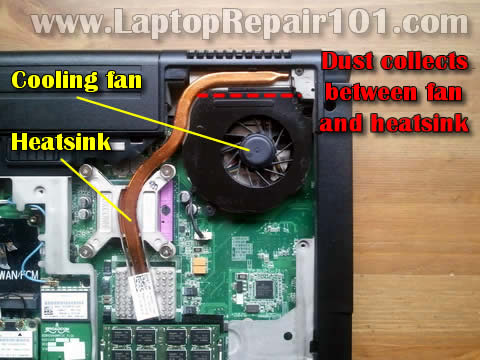
Any laptop has a cooling module which includes two parts: the heat sink and cooling fan. When it works, the processor (CPU) heats up and the heat sing heats up too. At some temperature level, the fan kicks in and cools down the heatsink.
The problem starts when the cooling module collects too much dust inside. The dust kills normal airflow inside the cooling module. Eventually, the processor overheats and the laptop turns off unexpectedly or freezes.
This problem can be fixed by cleaning the cooling module.
Cleaning the cooling module.
Some laptops give you an easy access to the heatsink and fan. In laptops like that you can access the cooling module through the bottom cover.
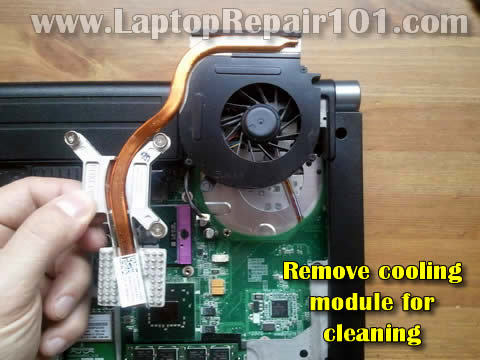
In my example I had to remove the cooling module. Otherwise, I wouldn’t be able to remove the fan and access the heatsink.
In some models you can remove the fan without separating the heatsink from the CPU.
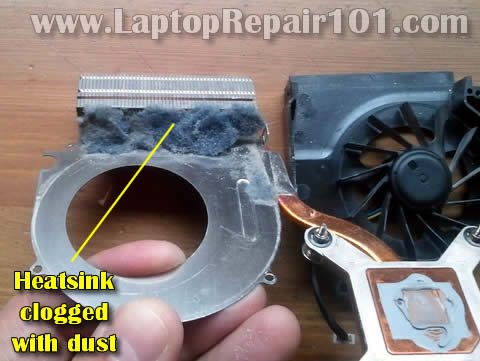
After I removed the fan, I found a thick layer of dust inside. Cleaning it up will fix the overheating problem.
Apply thermal paste on the processor.
You should apply new thermal paste before installing the heat sink back in place.
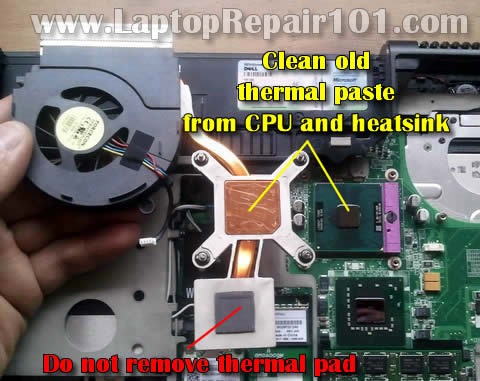
Remove old thermal paste from the processor and heatsink using alcohol swab.
WARNING: In some models the heatsink also covers the graphics chip. The part of the heatsink which covers the graphics chip might have thermal pad on it instead of regular thermal paste.
Do not replace thermal pad with thermal paste! Do not apply thermal paste on the thermal pad! Just leave thermal pad alone and apply thermal paste only on the processor.
I usually use Shin-Etsu paste which is relatively cheap and performs well.
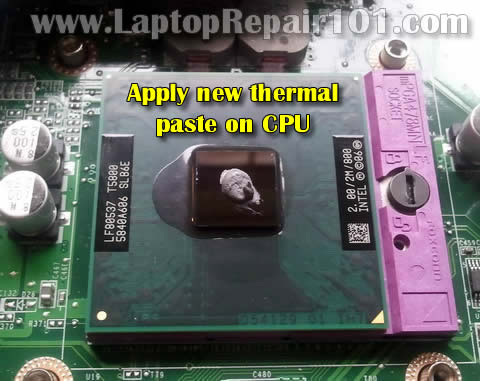
After applying new paste, install the cooling module back in place. Do not forget to connect the fan cable to the motherboard!
What if the cooling module cannot be removed easily?
In some laptops the cooling module is buried deep inside the case and cannot be easily accessed and removed. In order to remove it you’ll have to disassemble the whole laptop but it’s only for experienced users.
In this case you can use the following technique. It’s not perfect but works very well.
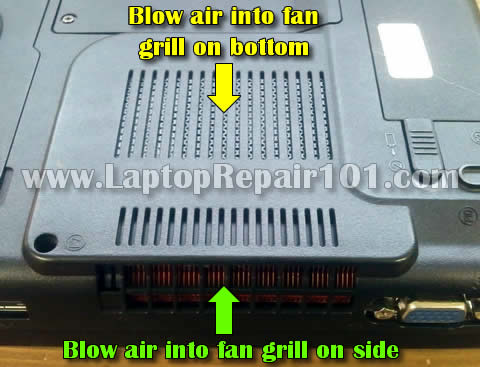
Buy a can of compressed air or use a compressor.
1. Blow air into the fan grill on the bottom.
2. Blow air into the fan grill on the side.
Switch direction a few times until all dust is gone. Most likely this quick cleaning will fix your problem too.
107 Responses
Michael
Hi there. Sadly my laptop is one of those where you cannot remove the heat sink without taking apart the whole thing. It’s an HP Pavilion dv9000 notebook. I already tried blowing air but it still feels hot. I want to try replacing thermal paste but don’t know how to remove the heat sink. Can you help?
cj2600
Michael,
You can find laptop disassembly instructions in the official HP service manual.
BC Laptop Repair
Laptop’s are sometimes ignored when it comes to collecting dust and overheating. It’s always a good idea to keep the vents clear away from the mess that collects on an office desk. The laptop will last longer given adequate ventilation.
Trever alex
thanks the same problem is happenning to my laptop is hp g series notbook once i turned it off the next day it wont turn on the light is blinking so i will try it out this way
cj2600
Trever alex,
I don’t think your problem is heat related.
You said the laptop will not start the next day. It means the laptop is not hot when it fails.
Something else is going on here. Could be memory failure.
Try reseating memory modules. Remove memory modules one by one. Test your laptop with each memory module separately.
oteniola
why if the laptop powered but not dispying what it may be the problem
cj2600
oteniola,
There is no simple answer to this question.
Can you get image on the external monitor?
If both, the internal and external monitors have no image, check laptop memory. This could be memory failure.
Try reseating memory modules. Try removing them one by one.
Willie Stovall
One thing you might try to prevent the collection of dust in the fins is cut a coffee filter the size of the air intake, which is usually on the bottom of the laptop, and using masking tape cover the intake. Make sure no tape covers the opening. this filters the air going into your laptop and shows dirt when it needs replacing.
Leandro
My laptop have the same problem my laptop model is HP dv7-3160. When i’m using it regularly the numlock light(led) and capslock light(led) are blinking. I cannot type or move my mouse. It freezes and specially when im on the internet watching some video streams or watching dvd on my dvd drive. Then may battery doesn’t last long. What seems to be the problem with that..Pls help me
cj2600
Willie Stovall,
DO NOT DO THAT!
The coffee filter cannot pass enough air. If you cover the intake the laptop will overheat.
Again, do not cover the intake.
Instead, just buy compressed air and blow some air into the intake once in while.
cj2600
Leondro,
It’s hard to tell if you have a problem with the keyboard or motherboard.
You can try the following. Disconnect the keyboard from the motherboard and use your laptop with an external USB keyboard. If the laptop works fine when internal keyboard disconnected, it could be bad keyboard. Try replacing the keyboard.
Try cleaning the cooling module. It’s possible the laptop freezes because of overheating. When you watching videos, the CPU and GPU heats up very quickly.
Most likely bad battery.
samith
my toshiba L300D laptop has the same problem, it shuts down within minuites it powers on, I removed the fan and heatsink and I found lots of dust covered the heat sink, I dint remove the CPU. After cleanning I put them back to gather and powered up but not boots up the laptop, I here the fan is working. Could you help me to figure out the problem.
thank you
jai panday
i have some problem in my sony vaio laptop cooling fan some time ok but after some time off how i can remove this problem, but i have installed new then fan same problem,
Stan
Hi there!
I’m considering to write an article about RMClock undervolting,but I have nowhere to comment about it.. but if you can I would love to share this powerful tool with everyone to lower the heat generated by laptops. if you can help that’s great! thanks!
cj2600
samith,
1. Check both memory modules. It’s possible one of the modules not seated correctly.
2. There is a chance that you pulled the CPU from the socket while removing the heat sink. Maybe the CPU has to be reseated.
cj2600
Stan,
You can comment about this tool here.
samith
Thank you, after swaping memory modules lap top starts, but it has the same problem as before. it keep cuting off after fiw minutes, only one accation it ran up to windows but only the curser on the screen, could you help me for this problem,
Thank you
samith
cj2600
samith,
Turn on the laptop and press F8 when logo appears on the screen.
From the menu select Last Known Good Configuration. This might help.
If it doesn’t help, it’s possible your Windows OS corrupted and has to be reinstalled.
Also, this could be hard drive problem. Run hard drive test. You can use Seatools from Seagate. It runs fine for most hard drives.
samith
Thank you very much for your instructions I managed to test the HDD and reinstalled the vista in my laptop. It boots up perfectly now, but my original problem is still there, it shuts down without a reason.I have cleaned the heatsink and put new thermal paste in the heatsink and CPU. (during the reinstallation process it did not cut off obout) as soon as vista started it cuts off with in 3 min so on. any idea where the problem is? (I suspect the fan) but i am not sure. your advice greatly appreciated.
Thank you
Jesse Taylor
Excellent guide. My laptop has been overheating and shutting down lately (it’s always running in a very dusty environment), and I have a laptop that requires me to detach the heatsink from the CPU. This helped me understand better what I need to do. Thank you.
eric adjei
my toshiba laptop if you put chager than the chager light goes off, and i have try the chager and is working too.
olorunfemi segun
pls my dell latitude D600 refuses to come up. when i put it on, it just behaves as if it wants to load, but later on it goes off. pls what can i do it it. thanks.
cj2600
olorunfemi segun,
It’s not very clear what’s going on with the laptop.
Does it turn on at all? Can you see Dell logo on startup? Does it start loading Windows OS?
Anthony
Hey, thanks for the guide. I wanted to ask, is Dust Off Gaming Gear safe to blow on a laptop grill/vent the way you mentioned? Are there any precautions I need to take (other than for using Dust Off properly) e.g. with respect to static, or is that unlikely to be an issue? And do you know if Dust Off leaves any residue on the laptop keys that can cause skin damage (in its pure gas form)?
Anthony
Oh yeah I should add, though my laptop’s fan still works, the core often reaches 90 – 100 centigrade. Would dust in the fan/heatsink be attributable for that much heat build-up? I’m pretty sure it’s slowly fried my ram as the PC is much slower than it used to be, especially when performing graphics intensive functions like games.
Gurjeet malhi
Hi
my lap top has gone in a unstoppable loop of “updating ” after u try to switch it off.
It shows “configuring 3 of 3 0% completed,do not switch off computer”
then it keeps on restarting endlessly and the same caption shows after every restarting.
Kindly help to stop this and get it started.
My laptop is Sony vaio cs 35gn
my operating sys is windows vista.
Thanx.
Gurjeet
cj2600
Gurjeet malhi,
I don’t know if it’s going to help but you can try.
Turn on the laptop and press F8 as soon as Sony logo appears on the screen. From the next menu select Safe Mode and try turning it on.
Will it boot to the desktop in Safe Mode. If it does, you can try reverting Windows OS using system restore. Revert it back to the time when OS was working fine.
cj2600
Anthony,
Yes, it should be safe if you use it properly.
cj2600
Anthony,
Definitely.
If the laptop still turns on, most likely there is nothing wrong with the RAM. It runs much slower because of overheating. The CPU overheats and slows down.
Cleaning the cooling fan and heatsink should cure the problem.
Tommy How
My Hp Laptop it burnt and spilt some plastic when some part was melt as over heat, then shut down automatically. tried to turn on again power not supply.
Is that mean i has to change a whole mother board.
Thanks
cj2600
Tommy How,
Cannot tell. It’s necessary to disassemble the laptop and take a closer look at the motherboard.
jaffa
hi there
i have a dell inspiron 1545 it turns and works perfect for about 20 minutes then cuts out and it heats up i have tried to clean the fan and still no good what other options do i have
cj2600
jaffa,
Take a closer look at the cooling fan. Does it spin at all? Maybe the cooling fan is bad.
Riick
RE: Using Air-in-a-Can to get rid of dust.
This can spread dust t/o the laptop – which might be very bad idea.
What I’ve done instead is use a good strong vacuum cleaner!
The idea of alternating *where* you apply air pressure is excellent.
Cheers!
………. Rick
mac
hi have laptop prob…my laptop fell down the power is still working but but nothing appeared on screen…all black….what would be the problem?
thank you n best regards!!!!!11
cj2600
@ mac,
Check memory modules. It’s possible one of the memory modules got dislocated and the laptop doesn’t boot because of that.
Eric
My laptop is compaq, it started to show white colour screen when i turn on, n power off after 10 second. Is it motherboard overheated?
christine
Hi
yes my lap top must be full of dust too.it’s just started this overheating nd shutting off phase.but before this hppened something is mking the type disappear when we type out a letter or letters;as one word or letter is typed the cursur vanishes somewhere else and or deletes a different letter in nother sentence!!!OMG! is this frustrating as H***
My computer is an acer Aspire and the children were throwing a football in the aprtment nd it dislodged one key and half dislodged another …now we hve lost the 1st key but still hve the retainers nd yes it’s the Letter A (SIGH)!
dhananjay
dear sir i have use wipro laptop my laptop cooling is not run who to repair this fan
martins
my laptop hp x6310,get very hot,always tels me critical battery and then switches off within 20 mins.for now it doen’t come on again even when i changed the battery on the charging indicator light turns on.what do i do?
aneiya
well do you have a insructional on how to replace the keys . my laptop has multiple keys missings and i cant find a cheap place to get them replaced . their cups are missing and some of the retainers are missing. cann you help PLLEAASSEE because i need it !
George
I have an Acer Laptop which is 8 yrs old. It was working fine till date. But now the laptop is not starting up. I have cleaned the Dust and the fan. When I power on the fan will start and work for 15 seconds and then it will stop. Nothing will come on the screen. Moreover there was no indicator blinking light showing that the Hard Disk is working. I have removed the RAM and re-inserted the same, but no luck. It will be highly appreciated, if you can help me on this problem.
heather
Hi there I am not sure if this is the right spot to put this. I’m pretty sure ik what the problem is but how do you take the keyboard thing off the keyboard without breaking it? Is it because there is so much dirt there? would like some ideas on how to solve this 🙂 TY i would like to try and replace the part myself. And its an acer 5272Z series. the problem i’m having is the adapter plug isn’t holding a charge. the adapter works and the batrery is ok but i have to jiggle the adapter to get it to work 🙂 would like to know if maybe replacing this part would solve the issue ty!
AGES EVANS HILLS
I’m using a Fujitsu siemens AMILO PI 2515.For some days now it stoped to work,the power led turns on but the computer doesnt boot.Infact am worried cos am loosing all my assignment.Help me out
cj2600
@ AGES EVANS HILLS,
It’s hart to tell why your laptop is failing. Could be memory problem. Try reseating memory modules. If you have two memory modules installed, try removing them one by one.
As a last resort, you can remove the hard drive recovery your files using an external USB enclosure.
Bikar Singh
Dear Sir,
My Wipro Laptop turns on but no display h.d.d lcd blink ,after 1 minte leptop restart but no display, i am replace 3 rams.
Please help.
Mart
I have an acer laptop that will not boot. I turn on unit and the green light comes on for about 2 seconds and then shuts down and then tries again by it self and goes on and off by it self every 2-3 seconds until I remove the battery. Computer was getting hot on occasion before this started. Any ideas?
cj2600
@ Mart,
I just mentioned this problem in this post:
http://www.laptoprepair101.com/laptop/2011/12/08/most-common-laptop-hardware-problems/
Check out Problem 3.
Try reseating memory modules. If it doesn’t help, probably this is motherboard related failure.
Aras
I Have Fujitsu siemens xi 2428
cooling is not run.
is cooling dead? or problem by 5+ volt mainboard????????????
cj2600
@ Aras,
Cannot tell without testing the laptop. Could be just failed cooling fan. Try replacing the fan first.
docjab1
Hello
If the thermal pad on the GPU is, or gets damaged in any dismantling or in any of your repairs, where can these be sourced from and are they all the same?? Thicknesses? Thermal properties? How would you know, which is which/ what is what? Is there a certain colour coding with different thermal pads denoting different thicknesses and different working temperatures? Any guidelines or advice would be greatly appreciated.
THANK YOU !! (I live in the UK)
docjab1
cj2600
@ docjab1,
You can find new thermal pad on eBay. Let’s say you are working on a HP Pavilion dv9000 notebook and need a new replacement thermal pad for it.
Go to eBay and search for “dv9000 GPU thermal pad”.
Probably there are but I’m not sure 100%. I think if you get a thermal pad from another laptop but it has same size, most likely it will work just fine.
Kevin Blumer
I think the worst laptops are Toshiba for collecting the dust and burning up. Soon as it starts to feel hot and starts going weird do something about it dont wait till you melt the mother board and its to late.
mara oton
I have a laptop toshiba L500-1UU. When i turn on, power lights on then after few seconds it dies. I had tried removing battery then connecting using power cord, nothing happens. Please help me!!!!! Thanks
cj2600
@ mare oton,
Can you test the AC adapter with a voltmeter? It’s possible the AC adapter is dead and the battery doesn’t have enough charge to start the laptop.
jmal
my laptop is siemens fujitsu/amilo pro/my basic problem is my browser freezing…and i have to turn it off..when i try to turn it on…the screen still black i must try and try to works…
mara oton
AC adapter is ok. I cleaned heat sink then it works for 2 hours and it again dies of its own. I tried to use cooling fan, but all USB port are not functioning. I test the port using USB mouse (optical mouse), the mouse lights only but the mouse pointer does not move. Are the USB ports damaged? It can be repair? I need your help pls. Thank a lot…
cj2600
@ mara oton,
Did you apply fresh thermal grease on the CPU? Can you see the colling fan working? Does it spin at all?
I cannot tell if this is hardware related failure or there is a problem with Windows OS.
Here’s what you can try to test USB ports. Boot your laptop from a live Linux CD (you can use Ubuntu OS). Test USB ports in Ubuntu.
If you can get USB optical mouse working in Ubuntu but not Windows, this is Windows OS related problem.
If mouse doesn’t work in Ubuntu and Windows, most likely this is hardware related issue.
I don’t think you can fix it because USB ports soldered to the motherboard and USB controller also integrated into the motherboard.
As a last resort, you can use a USB PC card.
Take a look at the second image in this post: http://www.laptoprepair101.com/laptop/2009/11/16/fix-hardware-problems-without-taking-apart-laptop/
mara oton
Yes the fan is spinning and i applied grease. I tried to open again and it operates for almost 5 hours without dying. USB ports did not function even though i used ubuntu. In windows it displayed message “USB Device Not Recognized”. Is this a driver problem? The sound also stops. “No audio device or headphone” display. Thank you so much for the help in advance. It helps a lot.
cj2600
@ mara oton,
I don’t think this is driver related issue. If USB ports stopped working in Ubuntu and Windows, most likely there is a problem with the motherboard.
mara oton
hello…thank for the help. my laptop is now ok but the usb ports are still in trouble…my friend had also a problem. his laptop toshiba L300 won’t power on if the power cord is connected but the battery is charging. if the battery is remove, no power indication. if the battery is connected and the power cord is disconnected, it works as normal…pls help for the problem..
cj2600
@ mara oton,
Did you try another AC adapter? Maybe it’s failing and screwing the whole system.
FAISAL
dear My Laptop having a problem from many days i am trying to install webcam driver but still not working . model is satellite L655-146 and Part number is PKS1JE ..
Let me know if you have any solution for webcam please sir.
Alan Brown
The blowout technique works better if augmented with a vacuum cleaner nozzle held over the opposite port.
cj2600
@ FAISAL,
Check your laptop device manager. Can you see the webcam in there? Probably it will be listed in the imaging devices as laptop integrated webcam or something similar.
Francis
Please help me.
I have a Sony Vaio VGN-SZ77ON that is heating up too much. How do an internal cleansing?
Francis
smileonce
i found a simple solution for it ( the heat fan running fast ) go to task manager and under performance tab check which program is using the maximum porcent of CPU, then go back to processes tab and shut down that program. after this my CPU usage went down from 75% to 2% ( i was doing nothing no game no browsing ) and my heat fan which was running very fast, started running very very slowly that i could’nd even hear the sound of the fan when i went close to the heat sink at the left side of my laptop and after a while there was no hot air coming from the left upper side. So you can try because i found that was helpfull to me
peter
these notes are useful to me thank u very much
mara oton
hi! i have a laptop gateway ms2274 given by my cousin. At starts, it works well. I used it at night and when i open to use it the other day, it has a power but no display. power lights on and fan spin. dvd drive lights on as it search for a cd or dvd to start. I tried the post(remove battery and holding the power button for 60 seconds then turn on) on the internet but no lack at all.Is my laptop is now unusable? Any help is greatly appreciated.
Chuks flexz
I have this dell laptop that power on and goes off on its own after 3 to 10 minutes.what is the solution
mara oton
the power cord of his toshiba L300 is ok. until this he only use the battery. but until when the life of the battery? i think is it a motherboard related problem? thanks for the help…
Paven
Hi
I have a Acer 5530G travelmate that is heating up.
I did find dust and fluff on the fan and cleaned it out. I cleaned out all the vents and applied new thermal paste but my laptop still heats up.
I checked the fan and it is working.
Not sure what else to check.
Help in this regard would be highly appreciated
khaldoun
hello, in my laptop the fan doesnt work at all, i changed it with other one but the problem remain the same,it could be circuitry problem,could someone give me the special fans circuit should be changed please.i have toshiba satellite M50.thank you in advance
cj2600
@ khaldoun,
I think you are correct. This sounds like a problem with the motherboard.
Sorry, I cannot help with with fixing the motherboard on the component level.
Here’s something you can try. If you have a voltmeter you can search for terminals on the motherboard with enough voltage to run the fan. If you solder the fan to the terminals it will run when the laptop is turned on. The fan will stay on all the time but at least it’s be cooling the CPU. Just an idea.
jason
my laptop keep randomly shutdown even I’ve sent it for full service. Do you have any idea about it?
thanks
cj2600
@ jason,
Turn on the laptop and listen for the cooling fan? Does it ever start?
Touch the laptop on the bottom. Does it feel hot in the cooling module area before the laptop shuts down?
jason
>
before the service, the bottom of the laptop is very hot.
and after the service (the technician clean up the heatsink, fan and also applying thermal grease)
the cooling fan working good but quite fast. And when I checked the processor temp with RealTempGT, the temp shown is around 41-49 degree.
but this problem occurs more often after service
basil
what are the effects of bad BIOS in a laptop
chetan
my laptop is freezing means when i turn on laptop it run very much slow
i has hp compaq 6910p
i remove the fan and access the heatsink. after this i clean the heatsink as well as fan and i alos do the following steps
1. Blow air into the fan grill on the bottom of the laptop.
2. Blow air into the grill on the side of the laptop.
After doing these steps nothing happend. the problem is same
plz tell me what can i do plz plz plz………….
Irshad Siddiqui
Hello,
My labtop is HP Mini Intel Atom. It become heated after some time. Its fan sounds with intervals. Can any freind suggest me how to open the cover of laptop to clean the heatsink. Thanks.
chetan
how to reflash the BIOS in hp compaq 6910p laptop plz plz plz tell me plz
scientist017
my laptop is acer aspire 5738Z model , the thermal paste was dried up and i accidently removed it , so i have used modelling clay as a replacement of thermal grease, will it harm my laptop?
scientist017
hi guys , just accidentally removed the thermal paste and threw it in dustbin, so i replaced it with modelling clay, my laptop work well enough as before , but , will it harm my laptop ?.
cj2600
@ scientist017,
I wouldn’t use the laptop like that. Buy thermal grease and apply it on the processor.
hanif
my laptop turns on but shuts down immediately after few second, sometimes it stays on for few minutes then turns down. this even happens when the temperature is cold..help me with this problem .
cj2600
@ hanif,
I would check the DC jack connector. It’s possible the laptop shuts down because it’s not getting any power from the AC adapter and the battery discharged.
Try moving the AC adapter tip inside the DC jack. Does the battery charging light flash when you move the adapter tip?
Lucian
hi, i have a problem with my ACER ASPIRE 5733Z laptop while i put the charger on then power leaking from all of the USB port so what to do? plzz help
Sudev
Hello, my laptop, toshiba satellite c64o, running since 3 years, and now showing a problem: when i turn it on, it works, but after sometime when it becomes hot, it switches off automatically without any warning. i showed it to a laptop service center. they took some amount from me and told VGA something was shot and repaired, it would work now, but when i brought it back to home, it is showing the same issue. i contacted them, and now they are telling that i need to change the graphics of my laptop… is it correct??… please help me… they are simply charging me and once they have already checked my system, i think they only opened and closed the laptop and took some amount from me…. please tell how can my laptop be repaired…
Regards,
cj2600
@ Sudev,
This sounds like heat related problem.
I cannot tell if this it graphics card issue without testing the laptop.
Do you see any video distortion on the screen at all? Maybe the image gets garbled before it shuts off?
In this model the graphics card integrated into the motherboard. You cannot replace the graphics card.
Teemo
Hey guys, I have an acer aspire v5-552p-x440 and the screen freezes and crashes very often. At first, I thought it was an overheating problem, so I bought a cooling pad but it’s still not working. Any ideas?
cj2600
@ Teemo,
I would test RAM and hard drive first.
Try removing RAM modules one by one and test the laptop with each one separately.
ali
very nice i like it realy helpfull
Miha
Hi! I have a laptop hp dv9000. I have been trying to install vista Os because I have no Os on it. When it gets to “expanding windows files ” after few second the screen gets one color with lines and freezes. I used a new HDD, I checked the Ram to make sure it’s not out from the motherboard. Please help!!!
cj2600
@ Miha,
Here’s what you can try. Disconnect the LCD cable from the motherboard and try installing OS with video on the external monitor.
If you get the same issue with the external monitor, most likely there is a problem with the laptop motherboard. Probably it’s related to NVIDIA chip – a known issue with HP Pavilion dv9000 laptops.
Miha
Thank you for your response, but if it’s the chip why the LCD works until
” expanding windows files”? Just confused…..:-(
cj2600
@ Miha,
It’s possible the installation process trying to load some graphics chip related files and fails. This is just a guess.
As I mentioned earlier try to install OS using an external monitor. Maybe you have a problem with the LCD screen not the graphics chip.
Miha
Thank you !!!
lmch
my laptop is dell inspiron n5010 and i am having a problem of my laptop frezzing frequently….please anyone suggest me to get out from this problem…..yours suggestion will be highly appreciated…..
john
i use hp 2000, it always off wen am using it, it only get stable if am playing video or music , i’ve clean the processor even put new paste but the problem still occur, what can i do?
hazbro
its acer aspire 4551, manage to turn on power but no display, after turn on fan will stop after few second, troubleshooting done, flash bios-no go, change ram-no go, also tried re-flow gpu also still not working, your advice is appreciated. thanks.
Ntimeh Rofus
Dear Sir, I Have A Laptop Hp pavillion dv6000. It When Off When Working And Do Not Come On Again But When Put On Charge It Indicate On The Charge Light. What Can Be The Problem Please!
Ntsizwa
Hi i have proline w258cu, i tried to change windows when its restart it comes on but freezes on splash logo screen can’t even gets on bois settings its stops there doesn’t switch off please help
cj666
Hi, i have a problem with my laptop hp pavilion g7 2251dx. My laptop is always freezing randomly and sometimes it freezes in startup. I already change my hdd 3 times and my ram and it still freezes and i dont know why it still freezes. Please help me for this problem
Raju Sharma
I have an Wipro Laptop which is 8 yrs old. It was working fine till date. But yesterday after a shutdown now the laptop is not starting up. I have cleaned the Dust and the fan And also changed the hitsing pest. When I power on the fan will start and work for 10seconds and then it will stop. Nothing will come on the screen. Moreover the indicator blinking light showing that the Hard Disk is working and when I touch the hard drive I can feel that the hard drive fan is moving.. I have removed the RAM and re-inserted the same, but no luck. It will be highly appreciated, if you can help me on this problem
Raju Sharma
yesterday after a shutdown now the laptop is not starting up. I have cleaned the Dust and the fan And also changed the hitsing pest. When I power on the fan will start and work for 10seconds and then it will stop. Nothing will come on the screen. Moreover the indicator blinking light showing that the Hard Disk is working and when I touch the hard drive I can feel that the hard drive fan is moving.. I have removed the RAM and re-inserted the same, but no luck
eme
i have a problem with my intel mini atom. it was fine until recently my sister forgot it outside in a hot sun. A neighbour helped picked it and gave it to me when i got home. First thing i noticed when i switched on, the control and right key were seizing. Then i left it for 3to 4 days to cool off. Still after the forth day, no changes. The right key was doing the left key’s job and pressing down an object on the screen was doing the right’s. Though its always normal when typing on microsoft word as I’m a writer, so i was happy then it started seizing there too. I kept on managing until weeks later, I was working on it and it started showing scattered colour, couldn’t pick up a thing, all whitish. I switched on and off, still the same. And suddenly after lots of stressing it came back normal. I want to believe its my cry to heaven that was answered. Nothing happened again just for the seizing keys that i learnt to adapt to. Until recently, weeks after it started again. now its been like this for days, no changes. Someone said its the screen, I almost believed until something strange happened today. I switched on and logged into the other user which i never tried to since the fault started and it was normal, i was happy thinking everything was back to normal and decided to switch to the other user, still whitish, i switched back to the one that showed normal earlier and it has been affected. Please what do i do? i have a lot of work on it. Thanks
dan
my laptop dell started disturbing when i changed from windows 7 to 10.over freezes, it can shut down its self after 7-10minutes,
i opened one time and the and the fan was not working on testing the fan with another machine it was ok,on measuring the voltage entering the fan there is nothing when i tried to loop from some other components the fan started running.but it still freezes and shuts down its self what can i do?