
In this post I explain how you can fix a motherboard with failed NVIDIA graphics chip. This repair might apply to some HP/Compaq laptops and probably some other brands. If this repair works for you, please mention the brand and model number in comments after the post. This will help other readers.
This method should work for the following models: HP Pavilion dv2000, Pavilion dv6000, Pavilion dv9000, Compaq Presario v3000, Presario v6000, HP Pavilion tx1000, Pavilion tx2000.
By the way, I just fixed my son’s Xbox 360 with red ring of death (error 74) using exactly same technique.
MOST COMMON PROBLEM SYMPTOMS
1. Laptop turns on with garbled video on the internal screen and external monitor.
2. Laptop turns on but there is no video on the screen or external monitor.
MY UNDERSTANDING OF THE PROBLEM
The graphics chip soldered to the motherboard. When the laptop runs hot for a long time, the graphics chip separates from the motherboard and video fails.
HOW TO FIX FAILED CHIP
Before I tried baking the motherboard in an oven or use bubble-wrap. But today I’m going to fix it using a heat gun.
Basically, I’m going to heat up the graphics chip with a heat gun to solder it back to the motherboard (reflow). I think this method is more reliable and the repair should last for a while.
WARNING!
There is no guaranty this method works all the time. While doing this repair you may damage the motherboard and make it unrepairable.
Proceed at your own risk and don’t blame me if after this repair you’ll get a very expensive door stop. 🙂
If you don’t feel comfortable doing this repair, take your laptop to the repair shop.
HOW I FIXED THE MOTHERBOARD
First of all, you’ll have to disassemble the laptop and remove the motherboard.
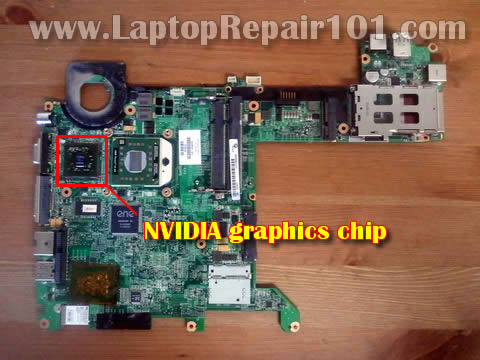
In my example I’m using a motherboard removed from HP Pavilion tx2000.
In most laptops the graphics chip located under the CPU heatsink (and it has NVIDIA logo on it), so there shouldn’t be a problem locating the chip.
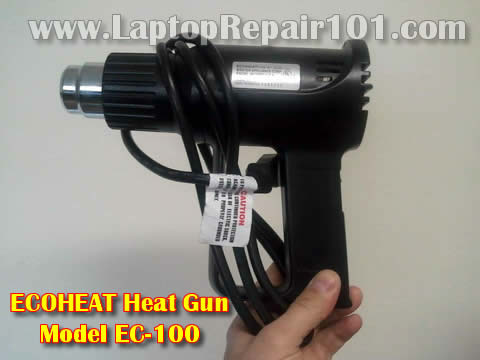
I’ll be using an Ecoheat heat gun EC-100.
In order to figure out how to position the heat gun and for how long, I tested it on a penny with a small piece of solder on the top.
The heat gun has a switch on the handle. There are two positions for the switch. Position 1 – slow. Position 2 – fast.
I used position 1 – slow.
I positioned the heat gun about 1 inch away from the penny and turned it on.

After about 40-45 second the solder started melting. After 50 seconds the solder melted completely.

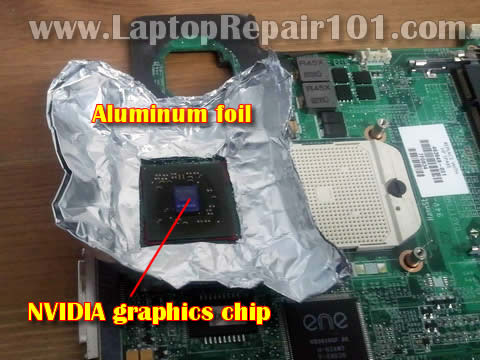
To protect the motherboard from the heat I used a regular cooking aluminum foil. I cut off a piece of aluminum foil and folded it a few times to make my protection shield thicker. After that I cut off a square opening right in the middle, same size as the NVIDIA chip.
If there is thermal grease on the chip it has to be removed. You can remove thermal grease using alcohol swabs.
It’s not necessary to make it perfectly clean. Just make sure there are no large chunks of the grease on the chip.
UPDATE: Some people mentioned that I should have applied some liquid flux underneath the chip for better results. I’ll definitely do it next time when I have to fix another motherboard.
I found this video explaining how to apply liquid flux under the chip. This video was made for Xbox 360 motherboard but should apply to any laptop motherboard too.
Finally, I positioned the heat gun above the NVIDIA chip about 1 inch away and turned the heat gun into the position 1.
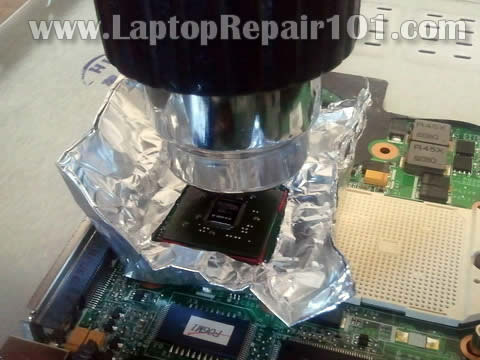
After 50 seconds I turned it off and let the motherboard cool down for about 20 minutes.
Don’t forget to apply new thermal grease on the graphics chip when you install the heat sink.
Some laptops use thermal pads instead of grease. If that’s the case with your laptop, make sure the thermal pad positioned correctly.
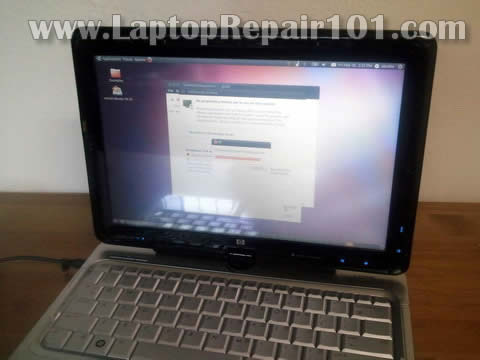
After I assembled the laptop back together, the video started properly!
The NVIDIA graphics chip problem fixed!
Will it last for a long time? I don’t know. Still testing.
234 Responses
Jason
I did similar repair about two months ago and it worked.
I fixed HP dv9000 notebook.
Heat gun GPU reflow fixes laptop - Hack a Day
[…] Solder connections on processors seem to be a very common failure point in modern electronics. Consider the Red Ring of Death (RRoD) on Xbox 360 or the Yellow Light of Death (YLoD) on PlayStation 3. This time around the problem is a malfunctioning Nvidia GPU on an HP Pavilion TX2000 laptop. The video is sometimes a jumbled mess and other times there’s no video at all. If the hardware is older, and the alternative to fixing it is to throw it away, you should try to reflow the solder connections on the chip. […]
Ahsan
Hi, i have fixed a ps3 with this method and a dead compaq f700. The ps3 worked for over a month, but died after that, i redid the ps3 in oven bake method and it worked like a charm after that.
The f700 on the other hand, worked for a month and started the video thing again, i reflowed it successful yesterday and installed the copper shim, but someone said to stress test it to make sure it is fine – bad mistake, the laptop turns on now but with garbled bios, so redoing it with the oven method. Will post if successful.
rogge
Dont you need som new flux to take away anny oxides in the cracked yoints?? ebay sell som kits for xbox i think…
just re heat will fix it temporary only
cj2600
rogge,
How do you apply it underneath the GPU chip?
Do you just drop it between the chip and motherboard?
Please let me know. I’ll make a note in the post.
Power Supply
Did a similar thing to my old hp dv2000. But I did mine in the oven. Lasted about 6 or 9 months then went again so pretty good result. One thing I did do was remove the thick piece of thermal tape/pad they use from the factory. This left a sizable gap between the GPU and the heatsink so I broke off a vain from an old CPU heatsink, cut a couple of pieces out roughly the same size as the pad I removed. I then coated both sides of each with a thin layer of arctic silver and placed them on top of each other in the spot where I removed the pad from. Worked quite well that way.
cj2600
rogge,
Thank you for your suggestion. I updated the post and mentioned your comment about applying some liquid flux underneath the GPU chip.
cj2600
Power Supply,
I baked my Compaq Presario v6000 motherboard about 9 months ago. The laptop still runs fine. I think it’s a very good result.
Here’s how I did it:
http://www.laptoprepair101.com/laptop/2010/04/06/fixing-compaq-presario-v6000-motherboard-no-video-issue/
Power Supply
Funny enough that’s the same laptop I am using right now. When the dv2000 died again I had this one laying around in my store from a customer that didn’t want it any more so I didn’t bother repairing it a second time. Still have the majority of it in parts though. The dv2000 finally went after a couple of days of playing games for about 5 to 8 hours straight. I like your idea of using screws to elevate the board. I just sat mine on balls of foil.
lulzdude
had the same problem with my tx2500z, finally tore it apart and baked it about a month ago 🙂 works now. it was originally killed by heat =/ no thermal shutdown, got stuck on in my backpack for an hour and baked its self to death.
khan
I repaired an HP dv6000’s GPU about a month ago using foil and pennies. I put the motherboard on top of the stove for a surface to handle the heat from the gun. I used the low setting and circled it around the chip for about 3 minutes. I had a stack of pennies on top of the GPU. Did not use any flux. The laptop runs fine now but has not been stress tested.
brian H
Have a HP compak presario. V6035 nr tl50 bought in Sinagpore and have the same problems noted here. My research also indicates the graphic chip so will try the heat system.
Ava
But this is not a permanent solution
cj2600
Ava,
Nothing is permanent in this world.
kris
could this work on a Sony Vaio PCG-K23?
Martoni
That work on ACER computer with NVIDIA chip 🙂
Aftab Balouch
permanent solution is to change the nvidia chip,
Burnout
Permanent solution is not changing the nvidia chip, as that will burn out sooner or later as well. Permanent solution is to never use a computer.
clara
can this trick for ACer laptop?
adamcpennington
This is one slick trick! My dad had a video problem with his HP laptop. I opted to build a new computer for him. He gave me the HP to use for parts. If this works I’ll have a new laptop. 😉
Falana taiwo
God bless you,i stil need to know more about computer.thanks
Priority Technology Solutions
That worked great. My client took his computer in for repair to a bunch of other shops and none of them could fix it. Thanks.
espen
also works on packard bell mb series.
thnx for sweet article
Don King, Jr.
Just fixed my wife HP dv9812us using the heat gun trick. It appears to be working fine now. She had photos on her computer that had not been backed up. Just follow the instructions. If I can do this anyone can. Good Luck.
teacher
If you’re patient, you might be able to back up your “no-video” computer before tearing into it —
My Dell D830 w/Nvidia Quatro 135 sometimes starts flickering the video, won’t respond to keyboard or pointing device, so I have to shut it down using the power switch. At other times, the Blue Screen Of Death (showing the generic hardware failure code) might occur. The most-often observed failure symptom is a black screen (no video) during and after booting.
In each of many instances of such failures over the past 3 months, I’ve been able to get the computer to boot normally by persisting in the following three steps:
1. Using the power button, shut the failed machine down, then immediately power on.
2. Wait three seconds for something (such as the manufacturer’s logo) to show on the screen.
3. If nothing appears on the screen within three seconds of power on, repeat this procedure from step 1.
Persist. It can take dozens of iterations and several minutes of patience before you are rewarded by seeing your dead screen resurrected. (So much for the popular “definition” of stupidity, which derides trying the same thing over and over while expecting a different outcome. This instance of “stupidity” allowed me to recover use of my computer so I could back it to USB drive before trying other solutions to the problem.)
I tried re-installing Nvidia driver from Dell site and the generic driver from Nvidia’s site, but although each worked for a while, the problem returned. I uninstalled the Nvidia driver software (using Add/Remove Programs) and the computer ran for a few weeks. The video performance was reduced as expected, but it was acceptable, so I thought the problem was solved. But last evening, after pressing the power-on button on the cold computer, there was no video even though no Nvidia driver was installed.
This morning, after several dozen iterations of the above 3-step procedure, I got the computer to “come back” once again, but it could fail again without warning..
I’m ready to try re-flowing. Thanks for the helpful post!
2011may13(14:34)-teacher
cj2600
Don King, Jr.
Congratulations!
I would strongly advice to backup all data as soon as possible because the laptop might fail again. Hopefully this repair will work for a long time for you.
Gibby4
the fix will last longer if you ensure a good contact between the gpu core and the heat sink, i suggest adding some therrmal paste and some come copper or prefereably thermal pad to ensure proper conection with the heat sink..
Hero Technologies
Cool! Thanks a million. Used that method on a client’s dv2000.
Zippy Da Great
Going to try this now… Thanks for the process… I will let you know if it works… off to get a heat gun.
Zippy Da Great
It work great! Thank you for posting this.. I got a heat gun from Harbor Freight… Cheap… Covered the mother board with foil except the GPU… Ran the heat gun on low setting for 60 seconds… And the laptop works… It was a good idea to test the solder on the penny first to get the time (seconds) needed for your heat gun to melt the solder properly… Just for fun i took off the heat sink pad from the GPU and used good high silver heatsink compound and a penny for a spacer… put compound on both sides of the penny and stuck it to the GPU… It fit great and oozed out the compound from both sides… so nice and tight… Thanks again!
Allan Empalmado
this technique works on Compaq pres v3k. Thank you very much for sharing this well-made guide.
mosuto
Thx for advice, i failed with my try some parts close to VGA chip falled when i tryed to remove the foil 🙁
tejas
i have hp dv6137tx model with nvidia geforce go 7400.i have just now replaced my whole motherboard 945 and GPU set 2days ago.it runs smoothly for surfing and other activities, but when i start games after 10-15mins the whole system shutdowns in 2secs,n everything is lost.GPU temperature is also not much around 62-65°c.
What will be the issue?is it video drivers or the nvidia chipset.
Dan C
I have fixed dozens of laptops with the Nvidia chip failure over the last few years. The repair can breath some life back into a failed machine but you should know, the repair doesn’t last in many cases. My company has finally stopped doing the repair because so many of the machines come back after a while (typically 1 to 2 months).
Sure the repair buys you some time, but advice from a tech about laptops, avoid purchasing machines with Nvidia chips in them. They all run hot, beyond design spec. to this day. We still get brand new laptops with failing Nvidia chips in them.
Just my thoughts.
cj2600
Yes, most likely this repair will not last forever but you’ll have enough time to backup data and maybe use the laptop until you are ready to buy a new one.
Just don’t keep any important data on the fixed laptop.
Andrew
Hello
I have hp dv6748us.I think der is a problem with the n vidia.
If i install the driver,the sound or webcam dont work.Initially i has problem when the bios screen appears the laptop would automatically restart.Now the problem stopped and this new problem has arised.Is there any way to repair or replace with new grapic card.
Clive
What type/size soldier did you use to test the heat gun?
computer repair melbourne
It’s a nice article. The way of explaining how one can fix laptop motherboard with failed NVIDIA graphics chip is very easy and awesome. Lots of tips and tricks are there in the article to learn. Thank you very much for sharing this well-made guide.
ARMANDO TAMAYO VARGAS
Muchas gracias, es increible la forma tan clara y facil que esplico todo el proceso, lo felicito, debe ser Usted un muy buen pedagógo.
Un especial saludo desde Bogotá – Colombia.
———————
Thank you very much, it’s amazing how clear and easy so that explains the whole process, I congratulate you, you must be a very good pedagogue.
A special greeting from Bogota – Colombia.
Nazzag
Hi cj2600.
Thank you for your site. Picking up lots of information here from you and from your correspondents.
My laptop is a Compaq Presario V3000, bought nearly 5 years ago, but recently conked out. Blue lights come on, fan spins, CD drive spins, but no display. Connecting to an external monitor did not assist. Techos in Melbourne Australia tell me “motherboard issue, not economically viable to repair/replace”. So, its a doorstop.
I am still grieving for it and refuse to believe it is dead.
I’m about to try your methods (wife refuses oven bake method!), but wanted to know if your laptops repaired by bubble wrap, towels, oven bake and hot air gun are still running, how long they did run for (if dead again), and if you had to repeat/try a process? Regards, Nazzag
Andy C
Thank you very much, have tried this and works great.
alex
hello i did what you said it started but with errors what to do now ?
Rudy Ponce
Thanks, with this tutorial I was able to fix my HP TX 1000, I wasn’t sure how much heat to apply. This got me an idea thanks again.
need2learn
thanks for the tutorial really helps lot. i tested on IBM T41 and its working now. most of the IBM laptops have this vga fault lot.
Raden
Ya nvidia chips are crap, as are their new eutectic ones, I hear!!
Scottie
Tried this on a Philips X57 with onboard nVidia graphics chip and it appears to have done the trick for now – Thanks!
Rob Beard
Thanks for this great guide. My step-daughter’s laptop had failed recently and I thought it might be the same issue. Turns out it was. Ever since she got her HP laptop it seemed to be running very hot and I knew that one day (having an NVidia chipset) that it would fail.
After reading the guide and using an ‘Challenge Xtreme’ 2000W heatgun from Argos at 350 degrees celsius and some no-clean flux from eBay (total cost about £25) I was able to get the laptop to fire up.
Now all I have to do is work out how to put the thing back together now!
As this worked so well I’m going to reball a friend’s PS3 console and an old AMD motherboard (HP Pavilion Slimline) with NVidia chipset too, I figure if I can get them working for a little while then it’s a bonus.
Rob
Riyas
0xc000000f Error Need HELP!!! File:\Windows\System32\Config\System
michael
good info but as this problem is due to bad design if overheating is the cause to fit solder doe not stop the overheating issue.So this means problem will reoccur some time again.Ive decided not to buy HP again as I have a dv2ooo and have this hardware problem.The manufacturer is responsible for selling a laptop which should not get so hot and work safely.Why should I the consumer have to pay more to get it fixed or try myself to fix it and risk further damage after buying a costly item.So I bought a new laptop.
victory
pls i need the link to the laptop disassembly procedure manual. i can’t find it.
thanks
tallygsm
Thank you very much, have tried this and works
david
My HP dv2500 the laptop turns on but the screen stays black and I have no idea what’s wrong with. Please help anybody, I would really appreciate it.
cj2600
@ david,
First, I would try removing memory modules one by one. Test laptop with each module separately. If there is no video with each module installed separately, most likely this is motherboard failure. Bad graphics chip?
Peltz
I repaired Fujitsu Siemens Amilo PA2548 couple of months back with the heatgun trick (I heated GPU and Chipset chips) but today it failed again. All of the sudden power went off and when I tried to power it on again just blank screen and fan was spinning at max speed, just like when it failed first time.
Did heatgun trick again for the GPU only but it didn’t seem to work, then I heated chipset and laptop powered on again with picture and all. So it seems that NVidia NForce chipset chip is the culprit in my case and not the GPU as I initially thought.
Now just to wait how long this fix lasts… No high hopes.
CH
This worked for me also. I used a slightly hotter heat gun from a longer distance away.
Also, while I was in there, I removed the aluminum block over the nvidia chip, and replaced it with two pre-1983 pennies (ground smooth and soldered together). I used silver thermal grease for the pennies and the cpu.
So far, so good.
Mac
This Has to be the most dangerous way to do it there is great chance you will dislodge other components on the mother board the chip is mounted on the board by a heat press plate. if you put
flux the solder will run between the pins . also the manufactures do not use regular 40/60 solder it is lead free solder so it contains more Tin. so when reheating, the heat should be applied to the four sides and not the center. the center should have a small
weight place on it about 10 grams of a non heat conductor.
ie a small metal dish with water will work for very short burst of heat. a short piece of aluminum pipe closed at 1 end.
be warned that too much heat will also separate the laminates of the mother board which can be up to 16 ply.
This should not be try unless you are prepared to buy a new computer if it fails. Never put a mother board in the Oven as this will damage the motherboard for sure.
(a toaster with butter and jam would be better than burnt CHIPS 🙂
Kat
I can sometimes see a faint image of my screen background and desktop icons in certain light…could this mean the problem with my screen is different than the one stated here. It fell a short distance in it’s bag, from the knee down I’d say (strap slipped off my shoulder). Just need to be sure that my black screen with no video on a separate monitor when a tv/appliance/puter store plugged it in briefly on the weekend could be the same as this situation before I embark on something totally foreign to me. if there is a different fix and you have instructions, please point me in their direction…thanks! K
cj2600
@ Mac,
This is absolutely correct. Try this fix only if you have nothing to lose.
cj2600
@ Kat,
Yes, your problem is different. If you see the faint image, most likely your problem related to one of the following:
1. Bad connection between the video cable and inverter board.
2. Failed video cable.
3. Failed inverter.
4. Failed LCD screen (bad backligh lamp).
If the laptop stopped working after you dropped it, most likely the backlight went off because you damaged the backlight lamp (it’s located inside the screen). This is just a guess.
Here’s how you troubleshoot LCD screen backligth problems.
I don’t know your laptop model. Newer laptops come with LED-backlit LCD screens. These screens don’t have inverter boards.
marian
my hp pavilion dv5-1250 ev have desktop white bat if i connect a old desktop i see very good
wat about this....
my laptop have the same problem although i have a home made cooling pad but it sims not 2stop the over heating so i opened it just as before but wait a sec i notice some thing the fan stress was not as before when playing game i looked under and saw the gpu on top of d cooling pad….may be this might work wat about if a fan can be fix facing the nvida gpu chip…….
cj2600
@ marian,
I have a post dedicated to white screen problem: http://www.laptoprepair101.com/laptop/2008/04/13/laptop-lcd-screen-turned-white/
It’s possible the video cable not making good connection with the LCD screen. Try reseating the cable.
vin
Toshiba Satellite P10-873 charging problem
My problem is as follows
When I socket the AC Charger into a power supply, the led light indicator on the charger will be on showing that the charger is working properly, but when i try to connect the charger to the laptop, it will give off a small electric spark upon making contact with the laptop charging port, the laptop itself will show no sign of charging, meanwhile the charger will stop working. But when i disconnect the charger from the laptop again, the led indicator on the charger will come on again showing that the charger is working properly.
I use the specified charger for the laptop. My laptop model is
Toshiba satelite P10-873.
Pls anyone with a step-by-step guide to solve this problem should please help me out urgently.
thanks.
cj2600
@ vin,
It’s hard to tell what is causing the problem but it could be one of the following:
1. Bad AC adapter. Test your laptop with another AC adapter.
2. Laptop DC jack is bad or not making good contact with the motherboard. If that’s the case, you’ll have to replace the DC jack. Maybe the jack is bad and shorts the AC adapter.
smoby
pls help me i have 3usb port one is working fine but the other 2 is not when i plug a usb card reader the system wil not read it but when i put it in other one it wil boot up.but the 2 that is not working stil have current in them but not has full as the working one
cj2600
@ smoby,
It’s hard to tell what’s going on. It’s possible those 2 USB ports got disconnected from the motherboard and have to be resoldered.
Do you know if 2 not working USB ports located on a separate board? Maybe this board is defective and has to be replaced.
I cannot help you without looking at the laptop.
Thomas
I’ve watched this for a while now and am about to try the method. I’d like to know since you said this…..
“Will it last for a long time? I don’t know. Still testing.”
How long did it last? I’d like to have an idea of how much time between repairs it would be.
Thanks for the great guide and all your help!
Thomas
cj2600
@ Thomas,
My laptop still works but I’m not using it every day. It was a test laptop.
Some people say this fix might last for a few months maybe even longer.
Gaius
As soon as I’ll get my hands on a heat gun, I’ll try the same method. But I don’t know exactly what or where the problem is, so I’m planning to heat the entire motherboard. Are there any parts that can’t stand heat at all and should I cover them with foil?
It’s an Amilo Xa3530 if that makes any difference.
cj2600
@ Gaius,
You can damage the motherboard. I was heating up just the NVIDIA chip, nothing else.
Gaius
Well it can’t get any worse, plus a new laptop has already been bought, because this one has been to 2 repair shops and both of them said it’s toast. So I’ve pretty much accepted that. I can’t heat only one chip since, like I said before, I don’t know where exactly the problem is and there is no way to find out for sure. I belive it is the GPU causing it because before dying, the graphics got worse and worse. So what would you suggest? Should I heat only the GPU or all the chips (there is 4 counting the CPU) or the entire board?
Anietie
Guys; i dont know if i have the same problem, my laptop just shut down on me and refused to boot up again. The caps lock light blinks when i turn it on but nothing shows on the screen. according to hp website, my motherboard is dead, but here i am hearing you guys talk about gpu; my laptop is out of warranty; my warranty expired just his august which is sad but i want to confirm if i am having the same problem so that i can try this method; thanks
cj2600
@ Anietie,
Did it happen just recently? Try this. Unplug the AC adapter, remove the battery, push on the power button for a few second. Now plug in the battery and adapter and try again.
Also, it’s possible the laptop shut down because of overheating. Did it feel hot on the bottom before shutting down? Wait for a while, let the processor to cool down and try again. Does it start after a while?
smoby
one at the left is onboard but the 2 at the right is attached one of the attached is working fine but the other is not……just as the left
ashish
my compaq presario v3000 is running propely sudden it stop working and switch off and now it start until ……….so what i do repair shop told me about the nvidia problem so is this can i apply or do something else…………
Clay
Worked like a charm, you da man!!!!!
Stephen Piper
I have an HP 6735B laptop that lasted just over a year before overheating. It was showing a start-up light sequence of 1 flash 5 times. I want to thank you for your post because I have just followed your method using a Fermi FHG2000 heat gun and the laptop lives! I heated the AMD Radeon GPU and southbridge chips for about 50-55 seconds each after timing this using solder on a penny.
I will report back if I notice anything strange happen…
Regards
cj2600
@ Stephen Piper,
I’m glad this method worked for you.
I guess this trick works not only on NVIDIA chips.
Please report after a while if your laptop still working fine.
Klevin
Hi, My laptop is Acer Aspire 4937G, using Nvidia G105M graphics chipset. It started to shutdown suddenly whenever i run some memory dependent software (movie player, 3D games, multi-tabbing on Chrome).
I tried cleaning the heatsink and everything but still the problem persists. I suspect there’s problem with the graphics card, i removed the old thermal compound(it’s dried out hard as a chunk of play-dough!) and applied some new thermal paste and things got worse. I can’t boot into windows anymore(shuts down at welcome screen).
I’ve been using ubuntu(didn’t install drivers for the graphics card, shuts down halfway during installation when i try) and runs fine but would still shutdown if i run any of the software stated above.
I don’t think its because of separated graphics chip.
I haven’t tried your way with the oven or the heat gun since i’m afraid of frying the whole board, so it there any alternatives?
cj2600
@ Klevin,
Take a closer look at the cooling fan. Does it start spinning at all? I’m thinking maybe the fan failed and the laptop shuts down because of overheating.
Klevin
The fan spins, i’d even propped a table fan next to my laptop but the same thing happens too. The laptop is not even hot by touch as it should be if it’s really overheating.
cj2600
@ Klevin,
If the fan works fine, probably you are correct. This is some kind of motherboard (graphics card) failure.
smoby
(my usb port not working) one at the left is onboard but the
2 at the right is attached one of
the attached is working fine but
the other is not……just as the left
cj2600
@ smoby,
I cannot tell what’s going on without looking at the laptop. It’s possible the USB port separated from the motherboard and has to be resoldered.
If it doesn’t help, you can use an external PCMCIA USB or ExpressCard USB.
Adetola
Pls i have a Asus F2HF Laptop, i dont knw d cause of it problem, but anytime i on the laptop, it only shows the green light, the fan does not spin, no beep from the ram, and nothing display on the screen….i have try to wash the board with some spirit and dry it in the sun but the problem still persist…can somebody help me with the solution…cos i dont have money for a new laptop now, and its even expensive to get here
thanks,
Adetola
cj2600
@ Adetola,
I suggest testing the laptop with external monitor. Do you have the same problem on the external monitor or it works properly?
Ravi
Well I applied this fine technique, worked fine for few days. Now I am facing another problem that my laptop boots and but before login onwards screen goes blank. That means I have only option left with me is to boot in safe mode and run my laptop.
I guess in safe mode graphic card hardware is disabeled so it boots up properly. Can you comment on this problem please.
cj2600
@ Ravi,
I guess it hasn’t been fixed completely. There is still a problem with the graphics chip.
Carlos
Thanks a lot for sharing this info. I am actually been sending my clients laptop into a repair shop every time i encounter this problem, and i am not getting any clue as to how they are doing it because they are hiding it from me, may be because they know how easy it is to learn.
I will definitely try this as soon as another client comes with the same issue.
Thank you very much and Happy Holidays to you and your love ones.
Stay Blessed,
Carlos
Manila
Philippines
Muji
Hi My laptop got the same problem with graphics card and after repairing by an engineer it start working as normal but after a month it again went to same state. This time i am trying to use this technique by my self. Is it alright to heat the graphics card again?
Thanks
tushiwarashi
ive been into laptop/desktop repairs for about 3 years and i can only conclude that these technique is only worth a while, even reballing doesnt help alot if the chip keeps overheating… therefore these are not permanent fix but if u are able maintain a good airflow (laptop coolers) after reflowing then your good to last long… what i did in one of my customer is drilling holes underneath the laptop’s case where the heatsink is located after reflowing bec, some brands doesnt have any holes to grasp air within… so what i did is escalate the heat dissipation by using those holes so the laptop cooler will provide air directly to the heatsink… keep in mind that reflowing too much will burn up the chip… but some large chips needs to be reflowed thorough for about 1:30 mins as unlike the chip in tx2000…
Randy
My HP dv7 was broken. It would blink the caps lock and num lock led code once every few seconds. According to HP site, that code indicates CPU failure. After reading this and other information on the internet I decided to reflow the ATI GPU and also the northbridge chip while I was at it. Both of those chips are cooled by the heat pipe. I decided the “oven soak method” would be smelly and ruin other devices on the board. I used a similar heat gun and to monitor temperature I used a thermocouple attached to the top of the chip with kapton tape and another on the underside of the board. I slowly heated the chips by bringing the gun closer to the chip over a minute or two making sure the heat soaked to the underside of the board. I monitored the temperature and made sure to never exceed 200C. I held the temperature for maybe a minute at most until the underside temperature stabilized and then I cooled it down slowly by pulling the gun away from the chip. Thanks for your post, it was very helpful.
cj2600
@ Muji,
It’s OK to try it again.
pillje
I have a problem with Compaq n610c, it won’t start at all. Power adapter is fine, i tried another one, but still the same. Any help would be appreciated?
cj2600
@ pillje,
Do you have any lights on the laptop at all?
Wiggle the power plug inside the DC jack. Does it feel loose?
It’s possible the DC jack is broken and the laptop doesn’t get any power from the AC adapter.
If it’s not the jack that this is motherboard failure.
Joe Shields
Hi
Is there a good reason for not just getting the heat off the GPU and letting the computer overheat the GPU its self?
What are the advantages of using these other methods?
Thanks a lot
Joe
cj2600
@ Joe Shields,
I don’t really understand the question.
Different methods require different tools.
I think the heat gun method is more reliable but you need to buy special equipment and also it’s necessary to remove the motherboard.
The bubble wrap method works too sometimes but it’s not as good as the heat gun method. Also, sometimes the laptop just doesn’t turn on, so you cannot overheat it.
The oven method is cheap but you can damage the motherboard and also it could be dangerous.
Joe Shields
Sorry I missed a word out of my previous post!
Is there a good reason for not just lifting the heat sink off the GPU and letting the computer overheat the GPU its self (if the computer is able to turn on)? Would this not be better than heating the whole computer up using the bubble wrap method (assuming you have a screw driver and can take the back off the computer)?
I did this once by letting the computer run without the heat sink for 15 mins, the computer worked for a day, but then it stopped working again. I have tried this technique again but am getting no signs of life 🙁
Any ideas?
Thanks a lot for your speedy reply!
p.s. nice linux!
cj2600
@ Joe Shields,
I think it might work. I don’t know if the GPU can get hot enough when it’s exposed to air.
In order to make it work, you have to melt solder under the GPU.
I think the next step would be using the heat gun.
sylven Black
I have a HP Pavillion DV6000 series limited edition laptop. The problem is when you press the power button to turn it on, it comes on for a second and shut right off. what might the problem be.
cj2600
@ sylven Black,
Take a look at the blue light around the power socket. Does it stay on after the laptop shuts off?
Santi
Hi, great post, i was wondering… with the flux.. at what point do you apply it, and if its when you mention it in your post… why would there be a gap for the flux to seep through?? isnt the chip soldered on firmly?
Im guessing i lift it up a little first or something?
Thanks a lot i can see your answering a lot of people!
Take care!
Scientific Anomaly
Sir,
I want to thank you for publishing this extremely helpful information.
I was able to fix a Macbook Pro A1229 model suffering from a known NVIDIA Geforce 8600m GT issue using this method, but failed outside the 4 year window for FOC manufacturer fix.
Thank you again.
cj2600
@ Santi,
You apply flux right before heating up the chip.
Yes, the chip is soldered to the motherboard but there should be a gap between the chip and motherboard. It’s not like a huge gap but should be enough for flux to the under the chip.
No!!! Don’t lift up anything. Just apply some flux (a drop or two) between the chip and motherboard and let it get under the chip.
Jesús
Hi!!!
Thanks for this!!! Yesterday I revived my graphics chip on my laptop!!!
I use flux, and less temperature; 300ºC 30 secs 400ºC 10 secs.
Thanks one more time for the idea!
Rayhan
I tried it for my Compaq presario f500.
It works for 2/3 days then again same problem….
I used hot gun method…i did it for 5 times..then after 2/3 days same issue….
One thing i did not used liquid flux…
Now what can i do…
i become bored …
Pls help me…
Aikins Henry
I tried to heating it and it worked once. I tried again but couldn’t work again. Can I get any other way to fix a intel board which does not display and also Amd board which doesn’t display either. Is there any way to repair Harddrive or processor?
cj2600
@ Rayhan,
I guess it’s time for a new laptop.
Mike_100
This goes without saying usally, but make sure the motherboard is plumb when you heat it up, and make sure there is plenty of Kester’s flux on the solder balls and cups. The best rig is infrared reflux, but short of that, a heat gun will do. Last, make sure you put back the heat sinks with a good quality heat transfer paste – not too much. Clean the surface of the chips real good with alcohol or mild solvent. Then put on the paste, and pull a razor blade over it to you have a uniform layer of thermal compound, and button it up. Do make sure the house dust and fibers are all out of the radiator/heat exchanger and that the fan is working well. If it does not work now, it is because it has been cooked before. Bad air flow in the heat exchanger or hair fibers of hypereutectic solder that shorted it out. Dang tree huggers and their foolish laws!!!!!!!!!!!!!!!!
Stephen Piper
HP-6735b update… The laptop I fixed with a heat gun failed after about a month. Its startup was intermittent until one day it failed as before with startup lights. I have just re-done (heater) the GPU and applied some pressure after 55 seconds to see if I could force the chip back on. It is now working again and will update again when it fails!
Mohammed Ali
I’ll love to be receiving tips or is any forum which I can join because your tips has helped me a lot.
I’ll really appreciate it if you guys will help me with this favour..
cj2600
@ Stephen Piper,
Did you use any flux the first time?
cj2600
@ Mohammed Ali,
You can subsribe to my twitter account at: http://twitter.com/laptopfixed
Jim1976
Thanks for all great info it helped me sort out my Sony Vaio’s VGN-NR31J/S GPU.Although i would suggest to everyone to try and download a repair manual from manufacturer and use your guide as well and include the following(at least basic tools) for the job:
1.Anti-Static ESD wristband
2.Liquid flux
3.Heatgun (any whith a concentrated nozzle will do)
4.Heat Paste (preferably silver compound – i used arctic silver 5)
My machine works a treat after a day at GPU 69 celcius max testing it on max battery with rally game. A reduction of 8 degrees in total and no crashes.
Will let you know if or any hickups as i go along.
Cheers
Jim
mike
my pavillio DV9000 don’t want to turn on?
cj2600
@ mike,
More details please.
Does it show any activity at all? Any light? Any image on the screen?
alexlee
my acer aspire 4551 fan stop working after 5 second!please help!black screen!
amd
David
Looks like you pulled the CPU too. I imagine as a precaution considering its proximity to your heat gun.
dave
hi
the zif touchpad connector came off the board on a hp tx1000 it took 2 of the tracks with it. would you know where the 4 connections terminate on the board to enable me to fit another zip socket and wire onto the motherboard
thanks
cj2600
@ alexlee,
I don’t know if this is true for your Acer Aspire 4551 laptop but on some laptops the cooling fan works only for a few seconds on startup and later it turns on when the CPU gets hot.
No video? Have you tried removing memory modules one by one? This could be memory related failure.
cj2600
@ David,
Yes I did, but I don’t think it was necessary.
With a good foil shielding the CPU should be safe.
cj2600
@ dave,
Take a look at this post:
http://www.laptoprepair101.com/laptop/2011/12/25/how-to-repair-broken-touchpad-connector-on-laptop-motherboard/
This could be helpful.
Jim1976
After 2 weeks applying the fix laptop failed again.Obviously my own fault as well as ran Furmark and OCCT almost 3 times a day in separate occasions to see how far i can push the machine lol!
On next fix will follow same steps as on my old post on Jan 27th and place copper shim on top of GPU chip after applying thermal paste and thermal paste again on top of copper shim and drill a few holes at bottom of plactic cover where GPU is located (using a soldering iron) and using a custom made laptop cooler (which propels air into the holes)
Any ideas/suggestions are most welcome and fingers crossed
Thanks
John
Looking for the tech manual to dismantle an Acer 9303WSMi which has the NVidia problem and weak wireless. Ideal guinea pig but Acer won’t supply the docs to pull it apart. Can you please steer me in the direction of a guide so I don’t break it before I get to reflow?
wipnme
Hello, I have a HP Pavillion DV6000
When I push the power button, the LED blue lights turn on, the dvd drive make noise and hd makes noise… activity. wireless led is amber but the screen…..no image or flash of an image on the screen (no post either). then after 10 seconds the laptop switches off and immediately tries to restart and just restarting over an over again. Also does not show post or anything through external monitor.
Is this related to the graphics chip mentioned in this post?
Any help be fantastic…..please
Henry
Hello!
I did same with Asus Z96s with nvidia 8600m GS chip and it worket !
Fahmy Gerges
i did that to my HP pavillion tx2000 and worked 😉
but there’s a problem , GPU temp is over 95 “95-105”
and i want to know can i put thermal paste on this chip although there are thermal pads . plz anyone answer me
Filesponge
A good article well written and it does work fine on most of these faults – just one thing i’d want to mention though, something I did by mistake and the board never worked after lol (no loss, i was testing the idea on a very old board).
The thing is, laptop boards have the button-cell batteries fitted, and that means the board is carrying the usual 3 volts around. Also, many boards still keep some voltage from when turned on previously in components such as capacitors.
By putting tin foil over the circuit, it can touch and secretly short out the board. You’l not know it as it’s going to be such a small short, but enough to risk damaging the board in other ways.
I suggest, removing the CMOS battery from the board, and hold the power-on button on the laptop down for at least 30 seconds, to help drain as much power as possible from the board.
It’s just a thought, and could help explain why some boards refuse to fix again after being heated this way once.
Many thanks for the helpful article.
cj2600
@ Filesponge,
Probably it’s a good idea to remove the CMOS battery. I didn’t think about it because in my case it wasn’t on the side I was covering with the foil.
Addy
I am sorry if I post this at wrong section but I just want to ask about my problem with graphic card and I hope you can help me. I have compaq presario v3000 and it use Mobile Intel® 945GM Express Chipset Family, the problem is I cant play game that I usually played, it says not enough graphics memory. I don’t know since when it become like this but I guess maybe after I upgraded it BIOS. I already taking my laptop to local repair shop and they dont know how to fix it(maybe they dont know the problem at all). After I check it online, I knew the problem is because of my maximum memory size of my graphic card is set to 32Mb. The default size should be 224Mb(i check it at intel support). I read about how to set it and it mention about a setting in system BIOS but i know nothing about BIOS, can you help me change it back to 224Mb size?
Omondi
I have a Lenovo Thinkpad Product ID:28472MU with display problem. It can’t display both internally and externally. How do i fix it? Thanks.
tx2500z
I have a tx2500z and it shows a bunch of green dots moving to many places at times. It it likely that this method will fix it? Windows always shows “Nvidia driver fails” no matter which driver I installed.
Thank you.
Connery Johnson
I’m a little confused… Do I apply the liquid flux underneath the chipset, and then remove and put new thermal grease on top of the chipset prior to using the heat gun?
cj2600
@ Connery Johnson,
1. Remove old thermal grease from the chip.
2. Apply liquid flux under the chip.
3. Heat the chip.
4. Apply new thermal grease and install heatsink.
Sumedh
I am having issue with my HP Pavilion DV6700 laptop.
Sr. Nodv6812nr
Problem: Continuously blinking LED lights (No beep) and no display on screen.
I have done all basic troubleshooting but no joy
After pushing to power button, it gives the continuous LED blinking lights on the keyboard and nothing on the screen.
I have tried removing and reseating the hard drive and the memory modules with no change.
Any suggestions would be very much appreciated.
Also let me how how to connect laptop hard drive to my desktop(I have SATA Port on my Desktop)
Please do the needful.
Many Thanks
Sumedh
Pune (India)
Spiro
Excellent!!! I repaired an HP dv9000 !!!
Thank you vm!!!
eddie3000
I am using a Samsung R70 laptop fixed using this method. Hope the fix last a long time! I used some liquid stuff for improving soldering results, put as much as I could under the nvidia chip. Then heated for 40seconds with my heat gun at position 2. Let it settle for a few minutes, tried it out before reassembling the laptop, it worked. I then cleaned the old grease and put new grease, and reassembled the laptop. The entire process took me about two hours. I am happy I don’t have to buy a new laptop, at least not yet.
Miksata
Fixed my Fujitsu CELSIUS H250 NVidia problem (blank screen) with the heat gun. Thank you!
BROWN HONKY
thank you it worked on my HP SLIMLINE
Meghan Fish
Thanks! Repaired a Compaq Presario V6000. First the wireless adapter failed, a week later the screen had no video. Reseating RAM helped, but the next day the problem returned. Reseating RAM did not help this time.
I saw various videos on GPU reflow so I thought I’d give it a try using a Porter Cable heat gun from Lowes ($30) and two layers of aluminum foil around the rest of the board.
I kept the heat gun on medium (mine didn’t have an actual temp setting) and made circles around the chip for probably 90 seconds. Let it cool ~30 mins before I hooked up the basics to test it – wireless card and video started working again.
Good Luck!
kenny merang
thanks for the very detail solution, I wonder if it work if I’m using other devices for heating purpose i.e hair dryer ??
pls advise..
Fadi
thank you so much
I had this problem before and i fixed
then I got the same thing and they told me to change the motherboard ?
kenny merang
My acer emachines d620 laptop got the same issue, I tried using hair dryer(220/50hz),(750W) and heating up the AMD graphic chip for about 12 minute ++ and it work.
Mohamed B
Thanks very much, I bought heat gun from home depot and used it without liquid flux (because i couldn’t find it). The motherboard work again perfectly. This the second time to fix my motherboard, first time i sent it for repair via ebay and second time, i fixed it by myself.
Is there any way to avoid this to happen again? do i need to use laptop cooler pad?
Thanks again.
mohad
how many second used the gun
you mentioned 50second will melting the solder if the solder melting you mean solder it again.
Fadi
I replaced the motherboard by new one and I applied some thermal paste but I didn’t put any copper shim which is important as the people said
and then I got new problem (overheat)and the laptop turn off itself automatically and this problem drive me crazy plase help me to fix this prblem
cj2600
@ Fadi,
On some HP laptops it’s necessary to apply thermal grease on the processor AND thermal pad on the GPU. Did you have thermal pad installed on the GPU when you disassembled the laptop? Didn’t you forget to apply it after the motherboard replacement?
ann
im having trouble with my lenovo G550 its 144 degrees celcius
jojogreg
I have sharp mebius laptop white in color with the problem of no display and a 4 long beep error when powering up.i tried replacing memory module 3times but the problem still exist.Disassemble the laptop and found the motherboard with built-in memory on it.I have no choice and thinking that if the culprit is the memory there’s no way that this can be repaired.But i have to do other option which is the video chip try to reheat it if possible the display can be restore but got no luck,but the worse is after reheating the video chip the laptop is dead no more power at all.whew..the problem is worsen..Can you pls.tell what happened after doing a reheat works in my laptop?why is that the unit is now dead set already?pls help..thanks..
JohnO
Stripped an Acer Aspire 9300WSMi down to bare bones but motherboard has two nvidia chips on-board! Which one do I need to cook, or shall I just do both?
Richard
The way to permanently fix is have someone fit a brand new revised Nvidia chipset. Search ebay. Heat gun or reflow/reball fixes will work but only for a short while.
sam
My lenovo y560 (i5) radeon gpu is dead, its an IGP.
As the notebook has switchable graphics, can i remove gpu permanently & not installing a new chip you have mentioned just to use Intel HD graphics as default display.
Do you think removing gpu can actually boot laptop.
Due to the dead gpu, the laptop cause lots of heat & runs ~65 degrees temp on idle in power saver mode, so i want it removed permanently.
PS: I want to remove gpu so that i can use intel hd graphics
Peter Lastbus
Thanks for step-by-step explanation on how to prepare and perform this repair, I think I might use it on our office laptop whenever I become brave enough to do so 🙂
Mario Velasquez
I just performed this steps on a HP TX2000.
I now have video.
Thank you so much for a good tutorial.
Chris
Ha, wow. This is just awesome. Glad I ran across this older post, worked like a charm. Wrapped in WM bags, towels and in my comforter 🙂 Left it about 1.5 hrs and checked, was officially off I guess due to protection, but it came right back on!
Hope it works at least for several mths. I will post back if it goes out again. Then Ill do the heat gun fix!
THANK YOU so much!
BK
I am very interested in trying this out. And just to make sure I am not going to overheat the Chip. do you know what temperature was it with the heat gun set to position 1? Coz I am wondering how I can determine the time I need to heat up the chip. Thanks.
tooldtoquit
Has anyone used liquid flux using the oven method? Used the oven way once on this v6000 before and it worked for approx. 6 mos. but then lost video again.Getting ready to do again but wondering if flux may make it work even longer.Please let me know as I’ve got it apart and am ready to go.
Thanks
CQ
Thank you for your advice, it worked on my VGN-FZ470E – I used the high setting of my heat gun (450C-842F) – 55 Seconds sharp with small round motions at a little less than 1 inch distance. The experiment with the solder gave a 30 seconds time necessary to melt (it became a sphere). So I estimated 55 seconds considering the surface of the chip and the non-direct exposure to the flow of hot air (to ball contacts are underneath the chip). I made sure the gun itself was at temperature before aiming at the chip (in both the experiment and the actual fact) I used aluminum adhesive tape to shape a flower petals style protective shield for the surroundings of the motherboard. I used a different thermal grease for the chip, cpu and memory. I used DRG-33 Thermal Compound – High Performance. The memory chips had pads, I used the thermal compound between the chips and the pads to make for the loss of uniformity due to the stripping process. So far so good. (A day after). But I have not run high-definition movies yet. THank You again. Great job.
Gabriel
Hi,
Tried it on ACER Aspire 1680 ATI chip after having a colored garbled screen. Tried 55s at 1″ distance and failed. Now when I start my laptop, I hear the fan starting for 2 sec and then nothing more happend. The screen is black! So much worse than before. The power of the heat gun was set up to get the solder in ball on a coin after 30sec at 1″ distance.
Might have damage something… Don’t know what could be change to make it work?
Hope this be helpful!
Dennis
Superbedankt voor de tip
Mijn laptop werkt weer.
Alleen nog een test.
Eerst heb ik wat vloeibare flux eronder gespoten, en toen 50sec 350Gr geföhnd.
Janos
You are the best!
I fixed a Compaq Presario V6000 in July 2012 with the oven trick. Today I fixed the same laptop with a heat gun (Black & Decker BD1602, setting 1): 300C degrees, 55 seconds.
Thank you!
Ian
Had my doubts, but worked TREAT! Thanks for the tip!
macc
i dnt ave a heat gun and i cant gt one to buy,can i use a hand dryer instead?
Kari James
thanks for the tip. It’s really worth a try..
kari
Jin
Do I need to take apart the laptop or can I do this method with the graphic card accessible? Is there a risk in melting components on the other side (keyboard or cables) if I don’t take it apart?
Thank you.
Jin
Wellpz it worked! I only removed the back cover and heat sinks to be able to access my Asus M51s model. It was “broken” and bubble wrap method didn’t work before for long so I had set it aside. However, today I got most of the necessary things (flux, heat gun) and did it for 53 sec without removing anything other than the keyboard on the other side. Since my thermal paste didn’t come yet, I just turned on the computer (with ram and hard drive inserted) to see if the screen would come on….AND IT WORKS! Hopefully the thermal paste will come tomorrow and I can put everything together so it can be used again.
naveen
Hi
Thanks for the heat gun technique
but any information when this will reoccur again
please let me know
naveen
Lee gerhartz
Hi just tried this but still the same problem is there anything else I could try hp dv5
cj2600
@ Lee gerhartz,
Probably failed motherboard. There is nothing else you can do.
Just in case, make sure this is not memory related failure. Try new memory.
Andy
This method works well! but I thought maybe I could shed a little more light on the causes of this problem, and some measures you can take to prevent it from recurring in the future…
GPU chips can overheat because the laptop fan/heatsink becomes clogged with dust, hair and debris, or because long term overheating can dry out the thermal transfer paste between the graphics chip and the heatsinks.
So make sure you keep all vents, heatsinks and fan assemblies clean and free of dust, by regularly vacuuming them out, or using an air duster to blast out debris (say… once a month or so) And after heat-gunning the graphics chip, make sure to replace the thermal transfer paste with a decent quality replacement paste to allow for maximum heat removal from the chip.
Another thing you can do on some laptops, is to set the fan to remain on constantly. Usually the options for this can be found in the BIOS settings of the laptop, or in the power management options. 🙂
Barry
I’ve just used this method on a Sony Vaio FZ21E. Watch out when removing the keyboard because it’s easy to break the connector. It doesn’t need to come out and just moves a fraction to release the ribbon cable. Take your time and research things like how to clean off and renew thermal paste plus organising little bags for screws, photos or notes to help with reassembly. I found YouTube videos but they were not 100% reliable guides. The FZ21E vaio laptop has three chips under the branched heat sink one of which had a pad which looked rather like dried out plasticene. I replaced that one with a silicon pad ordered from eBay. I found a tip about using liquid non-clean flux dripped behind the graphics chip with a pipette. I bought some of this too. Wear a glove to hold the aluminium foil mask in place because things get really uncomfortable. I blasted the chip for 50 secs on the lowest heat gun setting from a distance of around two inches moving the gun around slightly. Has it worked? I think so, but what nobody posts is temperatures. I’ve installed a little program to show the nVidia 8400m GT readings in the task bar. At start up it shows 48c which rises to 50c. Surfing or using office software it is steady at 52c. I let Microsoft Security Essentials run a full scan and it was steady at about 60c for five hours. I’m thinking that if the video chip is staying at these sort of temperatures the problem should not recur. Best of luck.
Barry
Is it worth trying the heat gun solution? Posts suggest it can work if you go about it systematically. Also you don’t really have much to lose if it goes wrong.
Dismantling and reassembling laptops successfully is difficult. It was only after taking the Sony Vaio apart that I realised there was some sort of pad rather than thermal paste on one of the chips. I’ve no idea what that chip does but it took me a while to decide to replace the pad which was clearly useless rather than use thermal paste in its place. Better to do the best job you can rather than jump straight into action.
There’s no doubt that the nVidia 8400/8600 GPU chips run hot and that lots of factors make the problem worse. If the laptop is being used for gaming I’d say forget about repairing it and buy something better designed to run cool under demanding conditions. Either that or change the way you make use of it. Also software to monitor temperatures would add much useful info to the topic if you do have a go. Andy’s previous post has great tips for keeping a laptop running at its best.
I’d like to add this to my post about the Sony Vaio FZ21E. After disassembly the Vaio stayed in bits for a couple of months. The original plan was just to remove the hard drive and put it in an enclosure because I couldn’t find a cheap heat gun. Screwfix UK had an offer for just under £13 which made me decide to give it a go. They’ve now reduced the price by a couple of pounds.
The process, apart from cooking fingers, produces a vile smell. The draught from the gun tries to blow the foil around unless you can steady it so wear a glove. I did the procedure outside and left the motherboard alone for half an hour so the solder had a chance to cool properly.
rorey10
i tried this and melted 2 IC’s beside the nvidia chip…:(
Barry
While the guide is very good the picture showing minimal tinfoil around the nVidia chip is misleading. rorey10 melted a couple of nearby chips. Several layers of tinfoil protecting a wider area around the chip is adviseable. I tried the heat gun on a duff ram stick and meltdown happens extremely fast. 50 secs worked for me with the video chip but 52 secs could have been a disaster. Remember to say “Abracadabra” before starting.
David
Why do people waste their time with this nvidia garbage?
lalit
Sir,
In above image, can i reflow the processor, and if yes then how to protect processor plastic case?
cj2600
@ lalit,
Why would you reflow the processor? It’s removable. If the processor failed, you just remove it from the socket and replace with a new one.
Erik
I was researching the feasibility of possible using a micro torch with the heat gun tip, no flame of course. I’m trying to fix a PS3 that was a friend’s who passed away. I have very little invested in it, and thought I could get more use from a micro torch than gun. Is this doable? I would obviously have to move the torch slowly around the perimeter of the GPU/CPU, but in your expertise can you offer any insights?
BrianR
Haven’t read all the posts here but would like to add that before placing your heatsink back on top of the video chip place a copper shim between said chip and heatsink. Apply thermal paste to each side of the shim too. Just make sure the shim touches nothing on the video chip apart from the upper metal of the chip itself. Ebay etc will have tons of these for sale for different machines so check them out.
The temperature of the chip will be reduced somewhat. Thus the life of the chip is extended.
Don’t tell me this doesn’t work… I’ve fixed loads of these darned laptops using the heat gun and shim method.
Also keep the laptop cool and at least clean out any dust from the heatsink foils or fins. Repaste your cpu at the same time.
Ignore the buffoons who say touch stuff to check temps etc… ask them to stick their fingers into a mains socket to see if the electric is still flowing!
Debbie
I have Toshiba A200-09V Satellite laptop that is dead in the water. I had a tech check it over. He took it completely apart: power AC cord/plug/ socket all good; battery good; checked continuity from power socket all accross the motherboard – all good. Battery good. Removed battery and pressed/held down the power button for 30-60 seconds with and without the Ac plugged in, no response. The laptop is still dead, will not come on. He couldn’t find any broken or cracked soldering points.
Does anyone have any idea what could be wrong. If it is the motherboard does anyone know an inexpensive place in Canada to buy one?
Thanks
cj2600
@ Debbie,
This is an old laptop. Replacing the motherboard doesn’t make sense.
Save money for a new laptop.
Dan S
I have a g7-1075dx with an Nvidia chip that I too believe has a bad connection (laptop turns on and just sits there and does not boot). I have found that if after I turn on the laptop and it powers on without booting I just leave the laptop on a pillow or any other surface which is a poor conductor of heat and let the laptop get very very warm for about an hour, the laptop will work when I power dowm the laptop and reboot.
Carlos Silva
will it work in a ATI GPU of a HP G62?
cj2600
@ Carlos Silva,
I don’t known. Never tried with ATI GPUs.
+DGSULE
I have tried this trick.It worked but I have do the same trick at every startup
cj2600
@ +DGSULE,
Sounds like the laptop is beyond repair. Get ready to buy a new laptop. And DO NOT KEEP ANY DATA on this laptop.
Spaceman
Hi,
Nice article. Is your laptop still working or did you need to repeat the process? I have an Acer 5520 that won’t start.
cj2600
@ Spaceman,
I don’t have this laptop anymore. It’s recycled because of age. 🙂
I’m not sure if this procedure will work for your Acer laptop.
Kathy E
Want to thank you for this. We have upped our success rate to 100%! 6 for 6 and the repairs have lasted for over a year some 2 years. Changed a couple things. We checked how long it took to soften a video chip on a bad board – 2.5 min., on low heat, 1 inch away. We also wrapped the board with tin foil and made the funnel out of a pop can. The last repair was a Toshiba, so it works for more than HPs. I think much of the success is from removing all the old heat paste from the CPU and video chip and replacing that with good silver stuff. Cleaning out the fans helped too I am sure.
Jason
I’ve done the oven baking method 3 times on my HP DV-7 laptop. First time it worked for 3 months did it again worked for a day. Did it one more time now I get these vertical light yellow lines or light yellow checker pattern or a total garbled mess. I think its finally done for. Unless anyone knows of another fix for this new problem.
cj2600
@ Jason,
Probably it’s done. Time to move to a new laptop.
Yar
repair the VGA has two options.. one is reflow the VGA chips what you have done..but it will only work for 3 or 6 months.. if you reballing the BGA it can be over 1 years even you play the game on it..or if it is NVIDIA chips you can replace the new one..
Sorry for my language..
🙂
cj2600
@ Yar,
Yeah, I know but you’ll have to have special equipment for that.
Vicram
Anyone know what the desired temperature is for a reflow?
Manuel Zamora
Part of the reason for the fails is that the re-flow is not done according to proper soldering techniques. You are essentially re-soldering the chip onto the board. When a solder job is done, flux is used to prevent oxidation. When a reflow is done, the solder is heated up and oxidation is allowed to occur. The solder points may have been broken before but the fix is only temporary due to the oxidation. A better method would be to apply free flowing flux to the chip area, hopefully, the flux reaches all areas underneath chip. The best method is to reball and use flux for the solder job, the solder job is stronger and clean. No oxidation .. or less than a reflow.
shal
my laptop when turned on displays the factory logo and then starts blinking.. all rebooting and troubleshooting attempts say that there is no issue on the computer.. what can be the problem?
Anu
When not having a heat gun close by…
Make a “collar” out of thin-foil around the GPU, with small “pockets” in each corner.
In each “pocket” put som soldering led.
Heat the GPU with a cigarette lighter(move it around all the time circular movement) until the led melts in the pockets…
Let all cool down 30min. Remove the thin foil.
Put everthing back togheter.
Enjoy youre laptop again.
Worked with Fuji..& Sie.. Xa 2528.
Anu..
Tardex
Thanks for posting something like this…. its helps alot but dont you think faulty processor ca also cause the same failure part like powering up the system and not displaying anything.
i will like to know know more about that… any different?
jibeckz
hi there.. I’ve acer aspire desktop with the same problem. When i power on the desktop, all the power supply fan and cpu fan working perfectly. But the is nothing shown in the monitor. My cpu using amd processor with ati graphic.. So, can i use this method for this desktop motherboard. Coz i already try to replace the ram and the hard disk. But there is nothing happen. Both my desktop have the same problew. The other one desktop using intel pentiun dual core processor with nvidia graphic.. Or should i buy a new one graphic card?
Gordon
I just used this method on my Dell Studio 1555 and it worked. (60 seconds of heating about and inch away from the chip)
Jim Davis
You are the man. After buying several motherboards and having the same results I tried your fix and it worked. Thank you very much.
25 years of computer work and still learning… Jim
Dash
I’ve have a Acer laptop with Intel HD Graphics 3000 and NVIDIA GT630m and i always received BSOD every time i use the NVIDIA when playing a game(15-20mins) but it never happen when using the integrated(INTEL) does this “reFlow” will work with that kind of problem?
I’ve used my laptop for over 2yrs and yeah i always play games and use After Effects. Already cleaned my fan and removed the dust and what ever blocking the air from flowing. I’ve tried all driver fix and almost all nvidia drivers actually, and been reinstalling my OS a lot of times.
cj2600
@ Dash,
I doubt that reflowing the chip will work in your case. Probably this is motherboard/chip related failure.
Dash
@cj2600
Can i still try reflowing the chip if ever ? I can play games with intel hd without receiving BSOD and i’ve used Prime95 to diagnose if its a CPU problem but prime95 returned no error. That’s why i doubt its my NVIDIA GPU.. if it doesn’t work then i know what causing it, the motherboard/chip..
GAUTAM
I HAVE A SONY LAPTOP MODAL NO VPCEG25EN IT IS GOOD CONDITION BUT WHEN I PLAY ANY VIDEO SONG THEN IT PLAY NOT GOOD STOP AGAIN AND AGAIN.GIVE ME SOLUTION
cj2600
@ Gautam,
There could be many different reasons why your laptop freezes while playing a video.
Make sure your OS is clean and the laptop doesn’t run may processes on the background. Remove all unnecessary applications.
Check the CPU load. Make sure it’s not running 100% all the time.
You can scan your laptop with Malwarebytes to find malware programs. Usually they are taking lots of resources.
samuel
bonjour
comment je peu faire pour avoir ce outils ,pour réparé la panne de video graphique
merci
pius john
please I need solutions. to my motherboard. not showing any sign to on
JOSÉ POMBINHO
hello
I have a problem with the connection of the flat cable from a Toshiba L755 keyboard and plug welded to the motherboard (type locking tab).
I’ve tried the suggested site in your technique (inserting the plastic entreas lines of plug contacts,) but works well …
Can you tell me what kind of record I buy a molex fabriclike, Farnnel)?
Thank you very much!
José Pombinho
TDK
Tried this technique and it worked like a charm. 50 seconds with heat gun on both video chips. Cleaned off old thermal paste on cpu, left thermal pads on the 2 graphic chip arms. When reassembling used new layer of thermal paste on all chip heat sink contacts. The laptop had split screen and would freeze and crash with any graphic intense app. Finally just gave BSOD and some parity errors. Works perfect now with GPU @ 60deg c.
Great job. Saved me buying a new mother board for my daughters laptop. Thanks again.
swapnil
@Gautam there might be problem of your hard disk.I had faced the same issue.
Phred
Thrilled by the penny & solder test run idea! Totally worked on a DV6000 Nvidia chip!
Good
i have two laptop have such a problem and i will apply d method to replace it
yt_gab
hi, do you think this will work also in ati chip?
Olumide
I just resurrected my laptop today.
This is the 3rd time the GPU will need reflow.
The previous two times were handled by repairers.
This time I did the repair myself 🙂
I didn’t have a heat gun, so I had to improvise, using a soldering iron to apply the heat.
I placed a small flat metal on the GPU’s flat top which normally makes contact with the heat sink, then applied the fully hot soldering iron on it for about 30 seconds.
I also did the same thing to another AMD chip beside the ATI GPU (Note: It was NOT the CPU but has the AMD logo on it, and shares the same heat sink with the cpu and gpu).
I tested it and… my laptop is back to life!
HP Pavilion dv-5 1111ea featuring
ATI Mobility Radeon 3450 graphics
AMD Turion x2 processor
Bayo
please how do I identify the graphics chipset on hp pavillon dv4 motherboard? I need to heat it up cos my dv4 is not displaying on the internal and a external monitor I used to confirm.
George bush
pls after I heat the VGA the system did not on again what will I do now
cj2600
@ George bush,
Using the heat gun method doesn’t always work. It’s possible your problem wasn’t related to the video chip at all.
cj2600
@ Bayo,
There are two large chips on the motherboard. One of them the CPU and another one the video chip.
The video chip is located on the same side with the CPU socket. Usually you can see something like NVIDIA or AMD printed on it.
yt_gab
yah it work on my toshiba l635 ati video chip.:D
simonzr
thank you, just got my hp pavilion dv96000 working doing the hot air gun method, everything works great & smooth,only had one screw left after putting it back together as well.
dennisp1947
I have really enjoyed reading all the comments and advice, all confirming my suspicions that common design problems with all laptop makes – known issues addressed in next model. Thanks for the info provided freely, I was planning some form of heat treatment myself and decided look first before “reinventing the wheel”. I have had a thought – instead of heat guns, soldering irons, hair dryers etc, how about a cube of brass – in the oven at 220c. When hot, put on gpu and leave it there until cool. Wouldn’t that do the trick, if so, much safer. If not successful, heat to 230c and try again.
I think I will try this myself.
picoman
I have applied this method on my DELL inspiron N5010 (ATI RADEON GPU) after the complete operation my laptop worked perfectly.
But after one month it sows the same problem. I have done the same thing and it works again.
Till now i have done this 7 times and my laptop shows the same problem again and again in near about 1 month of time.Is there any solution to fix it permanently.
And if there is no solution than, can i completely remove the graphic card from the mother board.I want to know that after removal of GPU does laptop will work properly from video card or it will show any problem.
thank-you
waqar
i tried it on my sony vaio all in one it worked and fixed the problem
Barry
I’ve done the heat treatment on two Vaios and the cure is only temporary. If it lasts five months you’ve done really well. The temperatures were monitored after my DIY reflow and the graphics chip never went beyond 60c which is quite acceptable. Clearly the 8400/8600 chips have problems other than those you can solve with a reflow. When my nVidia chip failed after 5 months I had it replaced with an upgraded chip from a Sony specialist. That’s not cheap and you run the risk of paying some con artist for the sort of repair you can do yourself.
Eugene
Greeting all
The USB n all the ports around my PC (Toshiba laptop) are not working, no respond at all.
Please help me fix the problem
Rixxx
Worked for An acer Aspire 9410 with scrambled picture/ three pictures of the same image mixed up. Made two heatsinks with copper and did the heatgun trick. Picture is stable now, and laptop repaired 😉
Choudu
reinstall operating system n install drivers. still if its not working means jus need to check motherboard
Choudu
picoman April 9, 2015 |
I have applied this method on my DELL inspiron N5010 (ATI RADEON GPU) after the complete operation my laptop worked perfectly.
But after one month it sows the same problem. I have done the same thing and it works again.
Till now i have done this 7 times and my laptop shows the same problem again and again in near about 1 month of time.Is there any solution to fix it permanently.
And if there is no solution than, can i completely remove the graphic card from the mother board.I want to know that after removal of GPU does laptop will work properly from video card or it will show any problem
Hello picoman,
hi picoman yep u jus remove ur graphic card. go with another nvidea graphic it may help.
Manuel
Where can I buy a NVIDIA Chip? specifically the “NVIDIA® GeForce® GT 740M” for the laptop “MSI GP60 2OD-072US”
Jan Zelman
Good idea, but this is usually used as diagnostics method, to make sure that the chip is actually bad. Works best with most nVidia chips, all ati and amd chips, occasionally works with intel chips, but not very often and they don’t die often either, so blame the graphics, if present. What you do is not actually reflow, and flux is not needed actually, but you are fixing the chip itself, albeit temporarily. the balls in BGA array are quite reliable (if you manage to solder the chip properly during manufacture, which is great pain in the ass in electronics factories), what gets damaged are thin golden wires that electrically connects the chip with substrate, this is caused by long-term exposure to increased temperatures (naturally because of blocked airflow of fan), the difference in thermal expansivity of epoxy and gold makes all the magic, and the wear reduces gold wire flexibility, which will break. Heating it up to temps up to 450 °C for around 20s makes connection that will work again… maybe day, maybe week, maybe month, maybe year. Heat kills your laptop, clear your fans regularily…
michael
need a help, i mistakenly delete standard graphic driver from my hp pavilion tx1000 and it restart but not displaying anything again. pls some help me
Aamir Ameen
i have TX 1000 laptop and i am facing problem of Vedio Graphic when i connect external monitors it works fine but when i start on its own it dosent shows any display can you help on this.
Ramu Kumar Beldar
i tried it on my acer aspire 5738G and it work….thahks for this trick.