
In this guide I explain how to recover files from a laptop (or desktop PC) with crashed, failed, damaged operating system.
WHEN CAN YOU USE THIS RECOVERY GUIDE?
1. The guide will work if the OS is damaged but the computer hardware still works fine.
2. The guide might work if the hard drive has some minor damage, like a few bad sectors.
PREPARING FOR RECOVERY
For this recovery I’ll be using a Ubuntu CD (Linux OS). Also, you can create a bootable Ubuntu USB flash drive. Don’t worry, you don’t have to be a Linux guru for that. The Linux interface will be very similar to Windows OS.
You need another working computer to download and create a bootable CD or USB drive.
1. Download the latest version of Ubuntu OS here. When you click on the download button you’ll start downloading an ISO image.
2. Burn this ISO image on a CD or create a bootable USB stick. It’s explained on the same download page, just scroll a little bit down.
3. Find the target drive where you going to save recovered files. You can use an external hard drive or USB flash drive. The target drive can be formatted with any common Windows file system: FAT, FAT32, NTFS.
DATA RECOVERY PROCESS
STEP 1.
Boot your laptop from the Ubuntu CD or USB.
If the computer keeps trying to boot from the internal hard drive, you’ll have to enter the BIOS setup menu and change the boot order. Set your CD/DVD drive or USB stick as first device in the boot order. Safe changes and restart the computer.
From my experience, Ubuntu OS works fine with most laptop and desktop PC hardware and you shouldn’t have any problem booting it to the desktop. It may not work if your computer hardware is too new.
STEP 2.
The computer will start booting from the CD or USB stick.
Now read carefully!
After some time a welcome screen will pop up. On this screen you can choose your language and choose between two options: Try Ubuntu and Install Ubuntu.
Select Try Ubuntu. The Linux OS will run directly from the CD or USB stick without changing any files on the hard drive.
STEP 3.
Ubuntu OS will continue loading and after a while you’ll boot to the desktop, as it shown on the following picture.

STEP 4.
In order to access the internal hard drive, you click on Places in the top toolbar. You should see your internal hard drive in the drop down menu under the Computer.
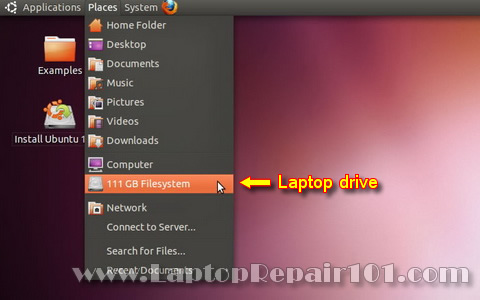
STEP 5.
When you click on the internal hard drive a new window will open up. In this window you’ll see all files located on the hard drive.
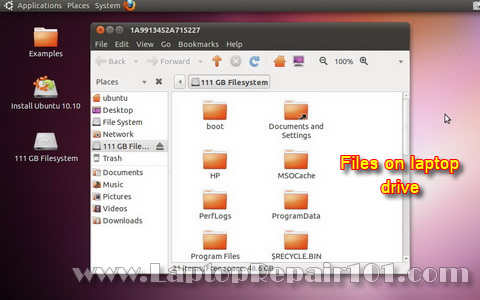
STEP 6.
Now plug in your target drive into the computer.
Another window will pop up. In this window you’ll see files located on the external drive. In my case I have no files on the external drive, that’s why the window is empty.
You can move windows same way you do it in Windows OS. Arrange both windows as you like.
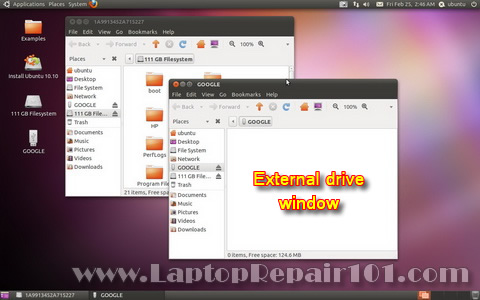
STEP 7.
Finally, drag and drop needed files from the internal hard drive to the external drive.
After the transfer is done, you can unplug the external drive and use it on any other computer.
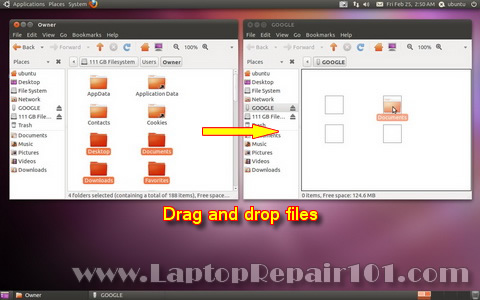
IF YOU HAVE FAILED HARDWARE
In case if your computer hardware failed, you should try recovery with external USB enclosure.
43 Responses
Computer Repair Rosemount
I have been seeing people use Ubuntu a lot now. Great article. I think there are some laptops that won’t support Ubuntu though. Have you heard anything about this?
Elsa Maritza Mosquea
Hi, I have a HP Pavilion dv6000 my dad bought it in 2007. My laptop is been having a problem since Monday and i don’t know this is happening because it is a good laptop. When i try to turn it on it turns off by itself and tries turn on again but keeps on turning off and i don’t understand why is doing that. Why is it turning off and on without showing anything in the screen? What can i do to fix it? Is the problem in the hardware?
Wolf
Hi.
The most probable cause is the motherboard.
bird
ok so my computer was working fine its a laptop and idk the model or w/e but ive had it for at least 4 yrs and my itunes and such was on it when i try to load it it ways either launch repair kit or start windows normally… when i hit start windows normally it says its loading but after 5 min or so it goes back to the the 2 options but when i hit repair kit it doesnt work either help
cj2600
bird,
Could be software related failure.
Here’s something to try.
Turn on your computer and press F8 a few times as soon as you get logo on the screen. You’ll get to the page with boom options.
1. Try “Last Known Good Configuration”.
2. If it doesn’t work, try Safe Mode. If you can boot in Safe Mode use system restore and revert it back to the time when Windows was loading properly.
Kelly
My laptop is a dell d620. I format my drive and left the partition but when i tried to reinstall a new windows 7 it just keep on loading till it shows there is no source disk found. I removed it and placed it back, then it just stoped. I removed d windows 7 cd restart my system and placed an xp cd. After it finished loading press install new. Then it displaced format stil leaving the partition and format just the c drive with ntfs file system but when it get to 7% it stop loading for more than an hour thirty minutes. I restarted again and ran my diagnostic tool. I displaced DST short test status fail. Error log and no had drive detected. Even though i see my hard drive flashing light. What do i do please help.
cj2600
Kelly,
Try reconnecting the hard drive. Remove it from the laptop and install back in.
After that make sure the hard drive detected in the BIOS and run Dell diagnostics utility again.
If the hard drive fails test, most likely the hard drive is bad and has to be replaced.
John
My laptop is HP Compaq nc6320. When I turn it on, laptop doesn’t recognize HDD. The problem is that it worked a week ago so i don’t know whats the problem. I tried this guide but it didn’t worked. Furthermore when I started laptop from Windows 7 installation dvd it showed that my HDD is EMPTY. Please, Help!!!
Computer Repair
Great and very helpful tips of recover files from computer with crushed operating system. It is very helpful to me because i also using Linux OS.
cj2600
@ John,
It’s not very clear. In the first part or your description you said the hard drive wasn’t recognizes. In the second part you said the hard drive appeared to be empty.
If the hard drive is recognized in the BIOS but Windows says it’s not formatted, apparently the file structure has been damaged badly but you still have a chance to recover data.
You can scan the hard drive with data recovery software (I’m using GetDataBack from Runtime Software). Again, it will work if the hard drive still spins and recognized in the BIOS.
If the hard drive is NOT recognized in the BIOS and the computer doesn’t see it at all, your only chance to get the data back will be clean room recovery.
LaptopRepairBrooklyn
These post is for Elsa Maritza Mosquea. Check the ligh on the right side of your HP laptop. Make sure that you have a blue light when pluging the AC Adapter. YOu might have a low battery also with a dead AC adapter and that’s why the laptop keeps restarting by itself.
NyDataPC
Recovering data from falling HDD can be done also by downloading the Hiren’s Boot CD, and using Mini Windows XP boot option from the CD.
http://www.hiren.info/pages/bootcd
Erin
I have a macbook and the other day it just basically stopped working. Whenever I try to turn it on it’ll have a bright screen for a while and then a flashing folder with a question mark, and there will be three small clicking sounds and one high pitched sound. I tried to do what I read on other sites(try repair in a certain program, try this button and that button) but nothing works, I even called some number I found and they said that it sounds really bad and has something to do with my hard drive?
I have no idea what to do, or who to call to see if someone could recover my data (pics, music, documents etc). Can you please help, do you have any ideas?
Thank-you!
Great
I have an Acer laptop, 5710. I use window 7,2 days ago, i tried to install Pro Evolution soccer 2011 game. After the install i restarted my system. To my greatest surprise, it not show anything in the screen. What might be the problem sir.
cj2600
@ Great,
Can you see the Acer welcome screen on startup or there is NO image at all?
Test your laptop with an external monitor. Can you get image on the external screen?
mak
Thanks for this tutorial.
I went through all above but it does not show my internal hard disk from Ubuntu there ,either the bios can’t detect the HD.
the bios shows only CD drive and flopy disk drive.
I tried also some of the Hiren’s tools to get access my HD but no lock.
what is the clean room recovery as you have mentioned on the above?
please help since I really need my data back.
Thank you
Steve
I tried to boot with Ububtu CD but the window XP locked up at the 1st screen with MS logo in the middle. The screen is dimmed or shaded. Anybody know what’s wrong?
sanjay
if windows user have a password than ???????
pls answer me plssss
cj2600
@ sanjay,
Shouldn’t matter. Linux can read through the Windows password.
nikki
I have the ubuntu on a CD and in my laptop. The screen where I can choose to try it or to install it is up, but when I try to select try it a box pops up telling me “/casper/vmlinuz:file not found” and underneath it says NO Texts! What did I do wrong? Help!
Nick
Hi, is there anyway to recover files from a drive with bitlocker?
Martin Willcocks
Thanks for this tutorial, I’m currently at the stage of copying files from the crashed Windows partition of my dual boot Ubuntu/Vista laptop to an external 2TB Seagate USB drive. All the screenshots up through Step 7 worked fine for me. My question is – does this also backup the Windows registry or is that hidden from the user? If it backs up the registry, where can that be found in the external drive data?
The laptop problem is that it cannot boot to Windows Vista because of a corrupted registry file, but it also will not boot to last known good configuration or any of the other options presented including safe mode.
cj2600
@ Martin Willcocks,
If you backup entire Windows directory, I think you also backing up registry.
Registry is not a single file. Registry has many files and I believe they are located at C:\Windows\System32\config\ directory.
Martin Willcocks
Thanks cj2600. The backup completed today with the exception of one file, in C:/Windows/Service Profiles/LocalService/AppData/LocalLow/Microsoft/CryptnetURLCache/MetaData , file named 9430…
which it says is a “special file” and cannot be copied. Any idea why Linux would be unable to copy this to the backup?
cj2600
@ Martin,
I don’t know why but I wouldn’t worry about this file too much. 🙂
Iris Goodeyes
I have a sony vaio something went wrong all of a sudden screen is black and says operating system not found. What do I do?
cj2600
@ Iris Goodeyes,
When you get “OS not found” error, most likely it’s one of the following:
1. The motherboard cannot see the hard drive because of poor connection between the hard drive and motherboard. Try reconnecting the hard drive and test the laptop again.
2. The hard drive is dead. Listen for the hard drive sounds. Can you hear it spinning?
3. The hard drive got erased.
clarencejackson
I want to thankyou for the information requested to save info from labtop, when all others companys called want you to give them money, not acknowledgeing you have bought their product duh? again thankyou
wade
THANK YOU!!!! My wife dropped her laptop before she backed up 6 monthes worth of pictures of our kids. Following your steps, I was able to recover everything. Thank you.
Charles
Hello, i went to the Ubuntu and downloaded the ISO image ,used the universal usb installer to burn to a formatted usb disk.
i changed the bios to boot first from usb-FDD THEN I TRIED USB-ZIP.
nothing happens.
i also tried cd rom drive and harddrive as first boot.
the computer just keeps goin throught the act of trying to startup.
i can not enter safe mode or restore.
i have a xp home setup disk, but want to backup my system drivers before i formatt the system.
i would be happy to make a donation if u can help me save my system setup before i formatt it on the cheap.
i don’t have the money to take it to a computer shop.
the computer is a hp pavilion 753n about 10 years old.
i think i pushed the off button one to many times and maybe have a virus
but could never detect any.
thanks for any suggestions, Charles
Uriah
Hi, I’ve been trying to retrieve data from my laptop’s hard drive after my Win 7 seemed to stop working for a few weeks now, and decided to try Ubuntu. While I have to thank you for writing this article that explains what to do better than any other site I’ve found so far, I have run into a bit of a problem. When I go to “Computer”, my hard drive isn’t listed at all. Instead, the only thing listed is the 0 byte file system. While at first I was worried that my hard drive had actually crashed, I checked BIOS to find that my computer still registers the hard drive. If you, or anyone, can help at all, I would really appreciate it.
Mirella
My Windows Vista system crashed. I reinstalled Ubuntu as per the steps you mentioned. But now when it comes to retrieving data I’m completely stuck. When I select File System, I can see folders that say – bin, boot,dev, etc…. but I cant see my files?
Please help i have some very important college documents that I need to retrieve by the end of this week.
Albert Wai
This works great! The whole process was painless. Thank you. I was so close to despair.
Mohammed Tayyab
Hi.
I completed the process as you told, but when i connected my external HDD to my other laptop, the folder is shown where i copied my files from a infected laptop on my external drive, but i am unable to open and view the contents.
Kindly provide me a alternate at the earliest, as it is very urgent.
regards,
Mohammed Tayyab
Tapan
Hi,
I am getting the below error while trying to boot ubuntu..
kernel panic – not syncing: Attempt to kill init! exitcode = 0x00000600
drm_kms_helper: panic occured, switching back to text console.
Could you please help me out why i am not able to boot ubuntu. I need to take the backup of my very important data
cj2600
@ Tapan,
Maybe your hardware not supported by Ubuntu Linux. You can try Knoppix.
Also, you can use external USB enclosure to back up data. Check this out: http://www.laptoprepair101.com/laptop/2007/04/17/access-hard-drive-using-usb-enclosure/
ananthu santhosh
i have actually got a similar problem as the one mentioned above , and iam able to hear my hard drive spinning . so what exactly does it mean ,when you hear these sounds ??
Maryline
I’m soooo glad to have found your page. It gave me courage and patience to make it to the end, it was a big challenge for me but I can now see my files being actually copied.
Thank you!!!
Stephen P
Upgraded to Windows 10. Mistake. Now Windows not working after a week. I did the steps above, but it will not let me see what was on my hard drive. It says error mounting. Windows is hibernated, refused to mount. Then – Failed to mount, the NTSF partition is in an usafe state. Please resume and shutdown Windows fully or mount the volume read-only with the ‘ro’ mount option.
I set the bios to ONLY boot from the DVD. I’ve shut down and restarted and still get this. Not sure how to shut windows down fully. I also tried the mount ‘ro’ option, but the mount doesn’t have a ‘ro’ option. Help is appreciated. I can’t afford to lose what was on this PC. Many thanks.
Manoj
What will happen if choose the install option rather than try ubuntu option??
Mhathung
I have a HP 14 r113tu notebook laptop which was installed an operating system windows 8.1 with bing and now replaced by windows 8.1 pro.
First let me tell you the story..
I bought this laptop 9 months ago and after using it for 6 months, i got a HDD problem so it was replaced with new HDD with pirated windows 8.1 pro. I was not given any windows installations disk nor the original windows which was pre install on my laptop. Now two days ago.. When I start up my laptop, I seen an error message showing (Boot device not found, please install an operating system on your hard disk). Hard disk
Now what will do?
Please help me
razee
this is helpful,
please, does it work on a system running on windows 8?
FARU
This works only with latest ubuntu version?
I tried with an older version..
When i connected an external hard disk…
No new page comes up..
It seems like i have nt connected external hard disk..
What should i do..?
Please reply me..