
In this post I provide a few liquid spill repair tips.
IMPORTANT: If you spilled something on your laptop you should stop using it right away, even if it appears to be running good. Right after the spill you should turn it off, unplug the power adapter and remove the battery. The laptop should be disassembled as soon as possible and all internal parts should be inspected for liquid damage.
Liquid spills are very unpredictable. Even a small liquid spill can cause serious damage.
IF YOU SPILLED A SMALL AMOUNT OF LIQUID
Let’s say you spilled less than a teaspoon of liquid on the keyboard and it stopped working properly, but anything else works fine.
In this case it could be enough to remove just the keyboard to evaluate the damage. Turn off the laptop, unplug the AC adapter and remove the battery. Now remove the keyboard and take a closer look underneath.
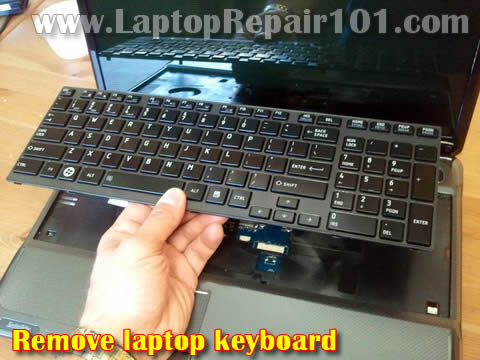
Search for any liquid presence under the keyboard.
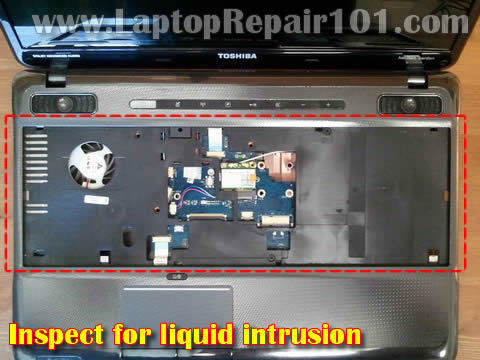
– If you see liquid on the motherboard, you’ll have to disassemble the laptop completely for the further inspection.
– If the motherboard appears to be completely dry, do not disassemble it any further. Replace the keyboard with a new one. Hopefully replacing the keyboard will fix it.
IF YOU SPILLED SUFFICIENT AMOUNT OF LIQUID
If you spilled a lot of liquid on the laptop, turn it off right away. Unplug the power adapter and remove the battery as soon as possible.
Most likely it will be necessary to remove the top cover and inspect the motherboard for the damage evaluation.
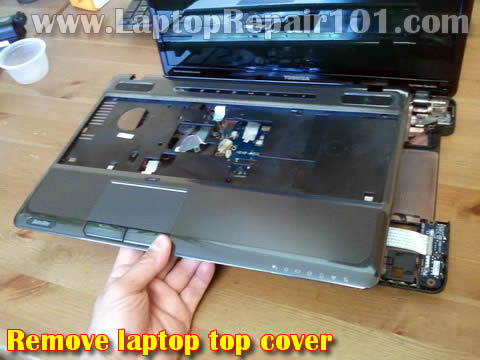
Search for any liquid presence on the back side of the top cover and motherboard.
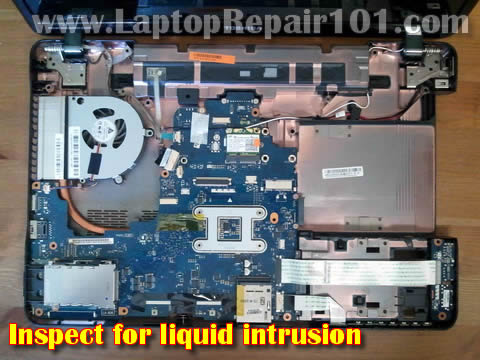
If the motherboard is wet, remove it from the laptop and inspect the other side.
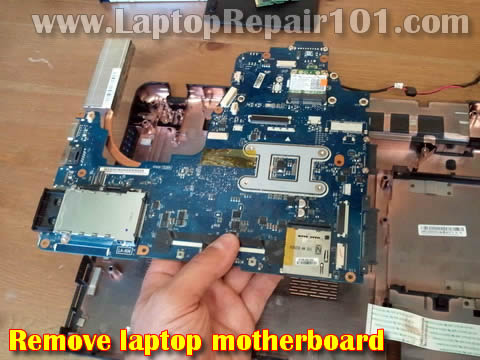
HOW TO CLEAN UP LIQUID DAMAGE
Wipe it out liquid with a soft cloth. Ideally, use an air compressor to dry the motherboard.
Be very careful wiping the motherboard because it has too many small components.
If you find any corrosion, you can clean it up with a toothbrush and 91%-99% isopropyl alcohol.
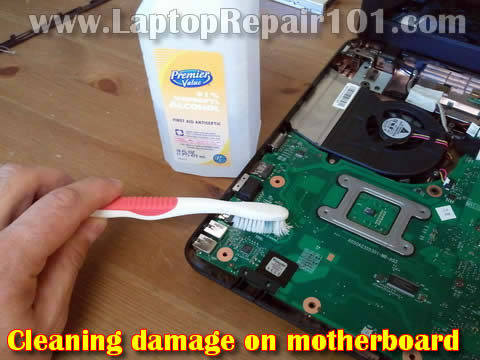
Make sure the motherboard (or any other internal component) is completely dry before testing it.
IF YOU SPILLED SOME LIQUID ON THE SCREEN
If you spilled liquid on the screen, wipe it out clean as soon as possible. The liquid might get inside the screen and damage it.
In one of the previous post I explained how to clean the screen with liquid damage. Believe me, it’s not easy. But if it happens, just replace the whole screen.
HOW TO ASSEMBLE THE LAPTOP AFTER CLEANING
You’ll have to assemble it back together step by step.
First, assemble just main components: motherboard, CPU with the cooling fan and RAM modules. Now turn it on and test basic image on the screen.
If it turns on and you can see the image, start adding other parts one by one and test after each step.
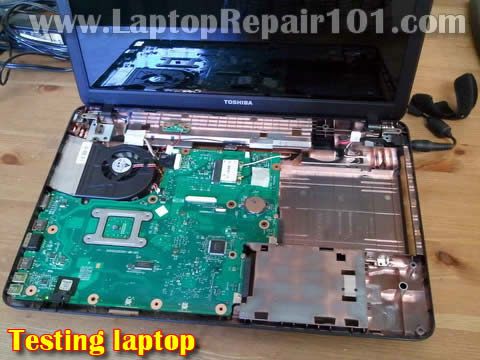
If the laptop doesn’t start after cleaning, take another look at the motherboard and other components. Maybe you missed a small damaged area. Try cleaning it again.
If it still doesn’t turn on, most likely the motherboard (or other component) is damaged.
HOW TO RECOVER DATA FROM HARD DRIVE
Let’s say the laptop is dead and you cannot do anything to make it work. You still should be able to recover personal data from the hard drive. I assume the hard drive wasn’t damaged by liquid.
You can access data using a USB enclosure.
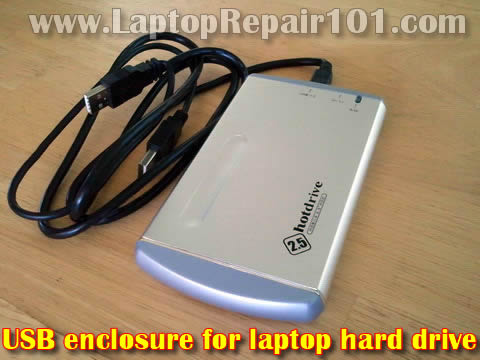
71 Responses
Paul M.
I got lucky. A few days ago spilled some green tea on the keyboard. It started typing on its own after that.
I removed the keyboard and the bottom was dry.
A new keyboard just arrived and it works great. No problem so far.
Tim
I wasn’t so lucky 🙁
Found a very small damaged area on motherboad. It had oxidation liky on a car battery. Tried cleaning it but the laptop is dead.
One drop of water killed the motheboard I guess.
Cindy
Thanks for the USB enclosure trick.
Took me a while to figure out how to take ownership over files though. Got all my files now.
Alexa
I spilled coffee about 2 months ago. Laptop work but keyboard doens’t type letters I and K. What should I do?
cj2600
@ Alexa,
It sounds like you’ll have to replace the keyboard. You cannot fix individual keys if they stopped working.
Access IT Systems
Another excellent way to recover a board after liquid spill is to wrap it in absorbant kitchen roll or similar, and place in a container filled with dry rice. Leave it overnight and the rice should draw out any remaining moisture. its not an exact science but it does work most of the time
Haroldo
Another way in case of water, is to create a cardboard box oven, covered with aluminum foil and an incandescent lamp with 60w. Leave the motherboard wet inside the box closed for five hours. The motherboard will be dry and ready for reuse
frisca
can i actually remove the keypad and put a new on my own?
Control Escape
Thanks for the tips they are great. The cardboard oven comment sounds interesting… I think as with any electronic device, the important thing is to power it down and remove the battery asap to avoid damgage (not always possible such as with iphones). Remember that if you do need to clean it then use non-ionised water!
cj2600
@ frisca,
Keypad or keyboard?
Yes, you can but it requires some technical skills.
It will be very helpful to have the laptop disassembly manual.
Lorenzo
Used your tip about external hard drive case. I didn’t know how to get my pictures. Thanks.
Nick
I have experienced cleaning laptop is not enough and motherboard must be dried in oven otherwise it will stop working in few days
victor
my laptop stop work i dontknow how or why am just close my laptop and try to use agen and just show the back ground can any one help me whithat pls
cj2600
@ victor,
Please provide more details.
Does it show Windows background or no icons or what?
Evie
My daughter spilled water on my laptop a long time ago. Now it turns on but the screen is blank. Only some lights around the keyboard light up. Is it useless now or should I try having it repaired?
Javi
About a week ago i spilled soda (not that much at all probably less tha a teaspoon) and ever since, y,u,i,k,j,h,and n has been REALLY sticky. i cleaned it up already and they still work. but like i said its really sticky. is there any way to fix this?
cj2600
@ Evie,
It’s hard to tell. You said the liquid was spilled a long time ago so there is a chance the laptop failure is not related to the liquid damage.
You can try basic troubleshooting steps as I explained here: http://www.laptoprepair101.com/laptop/2008/06/14/laptop-dead-troubleshoot-the-problem/
manking
Hey,
My friend poured a half a glass of water on her laptops keyboard. She tried to try it off and let it stay for a day and then she booted it up. But the whole keyboard is dead. How to make sure if all the motherboard circuits are still okay and replacing the keyboard would fix it?
josh
good day please i will like to know which chip is responsible for some keys on the laptop keyboard not to work properly for both internal and external keyboard
steve
my girlfriend cant seem to get the mouse cursor to move any reason for this please can u help i have shut it down and restarted but still nothing she has a hi grade notebook
lynn
Our Toshiba laptop got wet about 2 year ago and have not done anything with it due to we where moving. The worst part is that it was not that old when this all happen.We are trying to get it to work…Now we can get it to turn on and it goes to the first screen that say Toshiba innovation but cant get it to do anything else..please help…thanks
cj2600
@ lynn,
Liquid spills are unpredictable and hard to troubleshoot.
In cases like that I disassemble the laptop to barebone system and start testing step by step.
brendan
Hi. My daughter spilled a glass of water on our sleeping laptop when I wasn’t home. My wife immediately dried everything off and threw it in a bag of rice and we let it sit for days. She didn’t remove the battery (it’s a Dell XPS, I think you have to remove the case to remove the battery). I’ve been through this before, more or less figured it was toast, and we didn’t even try to do anything with it for about two weeks. Now when it gets plugged in, it will boot up and everything seems to work – keyboard, internet, the whole shebang – but it then shuts off after 3-5 minutes. Any help? Gracias!
Gareth
@Brendan
It sounds like it is overheating. Possibly, if there’s a cooling fan inside this laptop then it isn’t working anymore. Alternatively, the heat conducting paste between the cpu and the heatsink has been washed out or otherwise failed. If you have the service manual for your laptop you can find out how to remove the CPU and replace the thermal compound but check if there’s a working fan there first.
cj2600
@ brendan,
It’s hard to tell what is going on without taking it apart.
Maybe the cooling fan doesn’t start? It’s possible the fan controlling circuit got damaged by water. Just a guess.
umm ayman
hi
my daugter spilled some water over the laptop, it worked fine.but after one day there is no lights no fan sound when we switch.it on. Tried changing the ac ppower source that didnt help. Is there any fix? Pls help.
Kevin Gillenwater
Hi. I have used your site in the past and found it very helpful. A friend spilled a small amount of water on the keyboard of a Toshiba Satellite S855. He didn’t have the extended warranty that covered accidents, so I’m assuming that something like this wouldn’t be covered by the regular warranty.
Are you able to provide information on how to remove the keyboard of the particular model? I cannot seem to find anything (anywhere) which provides instruction for this particular model. There aren’t any screws in the battery compartment (like on the L755). I was going to follow the troubleshooting instructions that you provided with this article, but can’t seem to figure how to disassemble the keyboard.
Any ideas???
Thanks
Kevin
Kevin Gillenwater
UPDATE: I was able to remove the keyboard combining information the I found from several sources and then just proceeding carefully.
The way that I was able to remove it was to:
1. Remove the battery and power source before proceeding.
2. Remove the cover on the bottom which covered the memory compartment and the hard disk drive.
3. Remove the screw which holds the ODD (cd/dvd drive) in place.
4. Gently pull the ODD drive out of the slot.
5. Turn the laptop so that it is sitting in the upright position (like you were going to type on it) and gently insert your finger in the spot of the vacant ODD. At the bottom left corner of the keyboard, press up from the bottom and gently release the latches from left to right, bottom, side, and top. I used a thin exacto knife to gently release the latch as I moved across.
6. Once the keyboard was released, gently slide the clips holding the ribbon out and slide the ribbon out of the bracket.
Kevin
Delilah cline
What about liquids other than water? I had mt dew spilled on mine and now it will power on but no part of the keyboard works.
sarah
spilled small amount of water on my laptop, after drying up thoroughly, it will boot up and everything seems to work – keyboard, internet, even fan is working fine – but it then shuts off after 3-5 minutes. Any help?
cj2600
@ sarah,
It’s necessary to open up the laptop and take a closer look at the motherboard. It’s possible the motherboard was damaged by water. If you find corrosion on the motherboard, try cleaning it up with a tooth brush and alcohol. After that test the laptop again. I cannot tell you what is wrong without taking it apart.
angela
I spilled soda on my new laptop it turns on but the screen is black can it be fixed?
cj2600
@ angela,
There is no simple answer but remove the battery as soon as possible and don’t try to turn it on until liquid spill diagnostic is done.
It’s necessary to disassemble the laptop and take a closer look at the motherboard.
Ravi
I have spilled tea near the hp 1000-1401AU latpop touchpad buttons and keyboard. The amount of spill is little i have taken every drastic measures when we do if liquid gets in laptop and everything now works fine, expect i’m hearing some noise in the touchpad like crackling and buzzing sound. Does it really need to worry
cj2600
@ Ravi,
That’s not good. I wouldn’t use the laptop like that.
Normally, I would recommend taking it apart for liquid spill diagnostics. If you don’t want to do that, turn it off, remove the battery and don’t use for a few day. Let it dry.
Ashneet
I spilled aroud half a glass of water on my hp laptop(keyboard) .i immediately turned it off
and removed the battery after 10-15 mins and wiped out all the liquid as much as possible.
I turned it on after 48 hrs and fortunately it was working well
but i am afraid as i heard from sum that the effects of liquid spills may be seen after sum
time so wat shud i do now ??
shud i take it for a check or not on it for few more days??
cj2600
@ Ashneet,
Liquid spills aver very unpredictable. If you don’t want to take it apart for diagnostics, at least let it dry for a week.
Ayman
I spilt some water on my laptop. It splashed the keyboard and screen area. I switched the laptop off and wiped it clean. I then tried to start it up, the cpu works fine but the screen is black. Please help me fix it.
jedimust
@Delilah cline
Try cleaning your keyboard. If that doesnt work you may have to replace your keyboard.
TOSHIKO
hi. recently my laptop went black and won’t start again. bought this refurbished dell from costco a little over a year. they told me to send it for evaluation for repair. they claimed there was evidence of spillage on the mother board and they won’t repair.
i never spilled anything and yet they say i did. i complained because the evaluation was done by costco’s contractor and not by a third party, i would not accept. besides, because it was refurbished, the previous owner might have spilled and the trace was still there. what should i do? thanks.
cj2600
@ TOSHIKO,
Does it turn on at all? Maybe it’s something simple like failed RAM or dead AC adapter. Please provide more details about the failure.
henok
wow it healp me alot but i have one question for u my accer laptop spill water and no power at all how i solve it i check power IC it okey but no power help me
Steve
I have a Lenovo G580 laptop. It doesn’t turn on and there aren’t any lights on. I tested the adapter 20 vdc) and it’s okay. I opened up the laptop and with the adapter plugged in I checked the voltage at the laptop jack and it was less than 1 vdc. I disconnected the power harness from the motherboard and checked the voltage at the jack again and it was 20 vdc. The power harness was still plugged into the power jack board for this test. Is the problem the mainboard? Could it be other peripherals connected to the mainboard? Thanks
Ramkumar
I have Toshiba Satellite C850 – P0011 laptop…..
Yesterday I spilled some liquid on my laptop and suddenly i switched off the laptop but forget to remove the battery. Only after 2 hrs i removed the battery and it was wet. So i kept both laptop and battery under sunlight to dry it.
Today I switched on the laptop and everything works fine but it is NOT CHARGING… what should I
do…?
cj2600
@Ramkumar,
First of all, I would stop using the laptop for now.
In order to figure out why it’s not charging it’s necessary to disassemble the laptop and take a closer look at the motherboard.
It’s likely the liquid hit the spot with components responsible for the battery charging. A good clean up might help.
idris
I spilled water on my laptop….it worked well initially then I shut down to allow it dry off in the sunlight…afterwards its not coming up again…What can I do now pls?…thnx
cj2600
@ idris,
Apparently, it got damaged inside. It’s necessary to disassemble the laptop for further liquid spill diagnostic.
Michele
If I spilled 70% isopropyl alcohol on my keyboard and it stopped working is there any hope in fixing it?
Nicole
My laptop managed to get wet after I waited in the rain for a bus for about 15-20 minutes WITH an umbrella. I removed the battery and unplugged it as soon as I found out what happened. Half of my screen has water damage to it and my laptop is turning off by itself randomly. I know I should probably replace the screen, but my main concern is finding out why it keeps turning off. Do you have any thoughts on the matter?
Louis
Hi there, Thanks for the post!
Some water got under my dell inspiron 5000 series and I know my motherboard is fried. I was thinking I could buy a lower end dell and then just pull parts out of my old one to upgrade it. How likely is it that the processor and RAM memory are fried too if the motherboard is gone?
Thanks so much for the help!
Obsessed Computer Player
I can’t take off the keyboard and I’m very sad all the keys don’t work help?
Skye
Spilled an estimate of about 4-5 tbsp of water on my hp laptop and removed the battery about 5-10 min after. It won’t start up but a few keyboard lights show up.
Guddu
Spilled a small amount of colin( A cleaner) while cleaning on my acer e1-530 keyboard. Everything works fine except some keypads. When i type “Z” its types some random works “ja*mdg”. Some buttoms types nothing. Any idea what to do?
Princess
Spilled so much water on the keyboard but still working except the G and H letter .. i do place it infornt of the fan to make it dry fast but still when i tried to test it out still G and H is not working .
Belah
So, I accidentally spilled water all over my keyboard and then we took the keyboard off to let the inside dry. Eventually it dried out, and started to work. It worked fine yesterday but this morning we can’t get it to turn on. Help please?
Sony
I’ve not spilled any liquid on the laptop, but I’m guessing that some moisture or slight spray of water may have crept in. Keyboard, fan, screen…everything is working, but the LCD screen shows blue blurred light like halo lights at some places, eg, blue colour itself, blue halos on black edges of any folder, blue halos on white light of blue sky etc in a picture. I’ve no clue if this can be repaired or I need to replace the LCD. I’m using the laptop even after this issue, because I’ve to. I’ve also 3-4 desiccants inside the laptop bag. Please guide. I can provide more info or picture of screen, if required. Thank you!
Rea Panopio
I accidentally spilled a glass of water in my sister’s laptop (ASUS) this morning And it is the one that my brother bought last month. we can’t disassemble the battery because it is not detachable because it is look like a tablet. Also it doesn’t turn on when we were trying to open it. Is there anything we can do?
umer
AFTER WATER SPLIT ON MY LAPTOP
first it was not working at all
after 4-5 hours sunlight heat . now it’s working
but only one problem i am facing . when i shutdown, the fan and wifi signal light is ON. and fan keep working until battery fully drain.
Serious people with knowledge, please post possible solutions
Thanks in Advance .
Christian
My son threw up on the keyboard of my toshiba laptop the other day and the whole computer doesn’t work now. Any advice on how I could fix it or is it done for?
Thanks
Char
My son left the laptop out in the rain it loads up but the keys don’t work can anyone help me
Leila
Some of my water bottle spilt on the outside of my laptop when it was closed. When we opened it, it was dry on the inside but when I turned it on the cursor would freeze most of the time and the mouse pad wouldn’t respond. We’ve turned it off and left it by itself now, hoping it’ll be okay. Do you have any advice or information that could help?
Alvin
I spill some lot of water I tried to turn of the laptop then I look the components.then I try to turn on the laptop but doesn’t turn on .I tried to connect a charger then a blinking lights on the start button.Laptop:Asus A42N
Miri2903
I spilt a bit of water on the keyboard and the battery is wet as well but imot sure what to do because the laptop is not turning on, is there any possibility for it to get fixed and how can i?
Liam
I just recently spilled tea on a recent dell model laptop and as soon as it happened I removed everything and started cleaning, however whenever I try to start it nothing happens, although the power light will blink as well as stay on when it is charging. I can’t get anything else to work apart from that and I’m guessing it’s probably toast but any help would greatly be appreciated.
nicob.
So one of my classmates knocked my coffee (tim hortons with 2 sugars) cup onto my laptop (hp stream x360) at 11am. Tried to get it out of the way as soon as I can but let’s say 3 tablespoons worth found their way on the keyboard. First time a liquid spilled onto a laptop of mine so I didnt know what to do but I ran to the washroom with my laptop to dry it with paper towels. After that I let it run under the hand dryer 3 times. The laptop stayed on the whole time (I didn’t shut it off then), and I used it to take notes for the day. During class breaks I tried shutting it off multiple times and turning it on and it always worked. When I got home I took some sticky keys off and wiped them down with a windex cloth designed for electronics. Restarted it again and still works. Im going to leave it in 180 degree mode upside down tonight to dry it further. Hopefully it won’t mess up at all in the future but some of the comments here are making me paranoid – i want to use it for my tests in 3 weeks.
Couple more facts about the laptop – fanless design, cant take the battery off. Checked all ports and laptop speakers, touch screen all still working 15 hours after the spill. Will update with more info
Solo
a glass of water spoiled in to my laptop keyboard. I immediately unplug the battery. I tested it after 8 hours. i found it not working but saw a a charge light. then l kept it closed and battery dismantled. after a month i tested it. start for a moment and gone down. after 3 days I dismantled the RAM and cleaned it. it begins to get work again but a week later it goes down again. so what is the problem. which component can I replace to get my laptop to work,
Hallie
I spilled tea on mine a few months ago. Everything else works fine but there’s no sound. what should i do ?
Maria
Spilled drops of water on alienware laptop keyboard. Everything works but l and p keys. Took them apart, inspected. No probs. Put back together and still not working. Should have turned laptop upside down immediately but didn’t know. Tried hair dryer after a week. A little late I guess… been since Dec 30th. Now Jan 18. What to do?
MickeyWatson
I spilt tea on my Packard bell notebook the several times,I dried it but keeled using one night it went on standby and never showed a picture on the screen again I took the battery out and it was dry so I put it back in my laptop and I got a power light and charging light at the front and I could get a light when powering it up you could hear it turning over as if I wanted to give you the picture,so I took the hard drive out to recover my data and I put an other hard drive in and I found my laptop was totally dead can any one tell me what to do to get it working plz I really need help as I am not computer minded thanks in advance
Joy Henninger
Dropped some Gatorade on my laptop not much just a tad bit, about a few weeks ago, and it seems to turn on and off and charge but the screen just stays black!? Any suggestions on what I can do to fix it??
LydiaSherman
I spilt a fizzy drink on my keyboard, on the table and some went on the back of my laptop. straight away I jumped up and cleaned it all up with a towel. my keyboard works fine except 3 keys make a different noise when pressing down but they do work. however my earphones hole and the speakers doesn’t seem to work but my charger hole on the same side works. I ran a scan and my computer said my speakers are working fine but no sound is coming out through them nor through my earphones when plugged in. anything I can do?