
In this post I will summarize most common laptop hardware related problems and give some suggestions how to troubleshoot or repair them.
Problem 1.
Computer doesn’t turn on at all.
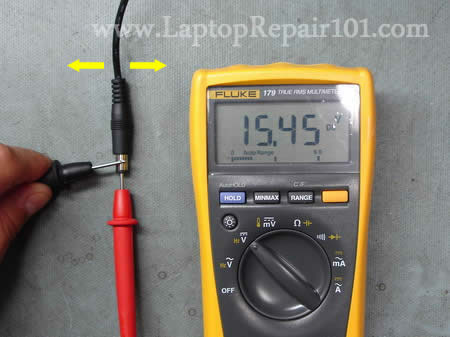
When you plug the AC adapter into the laptop, there are no lights turning on at all. When you push on the power button, nothing happens. The laptop appears to be completely dead, makes no sounds, no indications of life.
Possible problem:
– The AC adapter failed and the battery has no charge left. In this case test the AC adapter with a voltmeter. If it’s dead, replace it with a new one.
– DC jack failed and the motherboard doesn’t receive any power from the adapter. In this case the DC jack has to be replaced.
– Motherboard failed. The motherboard has to be replaced, if it’s not too expensive. Otherwise get ready to buy a new computer.
Here are some tips for testing AC adapter and DC jack.
Also, make sure to read step-by-step instructions for troubleshooting dead laptops.
Problem 2.
Screen is blank.
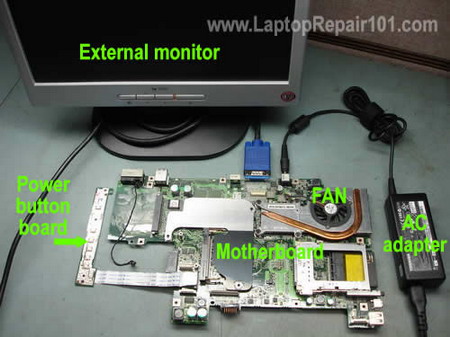
The laptop turns on, power LED lights up, cooling fan works but nothing appears on the screen. The screen is completely black and blank. There is no image on the screen at all.
Possible problem:
– This can be memory failure. It’s possible one of the memory modules failed. In this case you can try reseating memory modules to make sure they are making good contact with the slot. You can try removing memory modules one by one and test the laptop with only one module installed. You can try replacing memory modules.
– If reseating/replacing memory doesn’t help, try removing the hard drive, DVD drive, modem, wireless card, keyboard, etc… In other words, disassemble the laptop to bare minimum and test again. If the laptop still doesn’t turn on, most likely you have failed motherboard or processor.
Read this guide for bare bone system troubleshooting.
Problem 3.
Laptop turns on and off repeatedly.
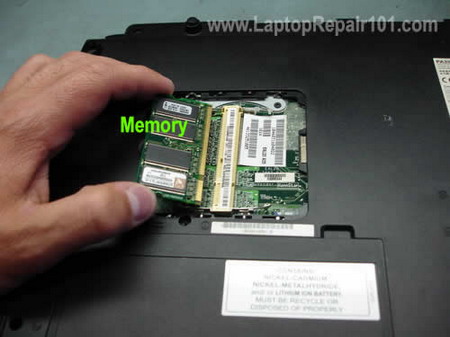
The laptop turn on without showing any image on the screen. After a few seconds it turns off by itself. Then it turns on and off again.
Possible problem:
Most likely this is motherboard failure. You can try reseating/replacing memory as I described in the Problem 2. If it doesn’t help, probably the motherboard failed.
Problem 4.
Laptop makes noise while running.
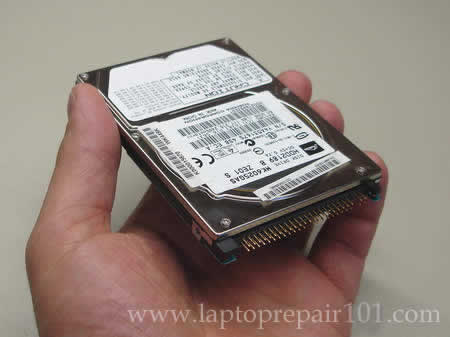
The laptop turns on and everything works fine, except it makes some constant weird grinding or rattling noise.
Possible problem:
In most cases this noise is coming from the cooling fan or hard drive. Take a closer look at the cooling fan.
If the fan doesn’t spin but the the laptop makes noise, probably it’s coming from the hard drive. Back up all personal data as soon as possible and replace the hard drive.
Also, you can remove the hard drive and stat the laptop. If the laptop still makes noise, most likely it’s bad fan.
Problem 5.
Laptop shuts down or freezes.
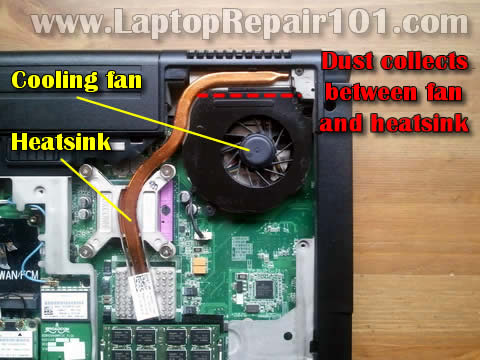
The laptop runs properly but after a while it freezes or shuts down without any warning. When it happens, the bottom feels hot. Also, the cooling fan runs louder than usual.
Possible problem:
Most likely this is heat related issue. It happens because the fan heat sink is clogged with dust and the processor not cooling down properly. Cleaning the fan and heat sink from dust should fix it.
Here’s how you fix heat related problems.
Problem 6.
Battery not charging properly.
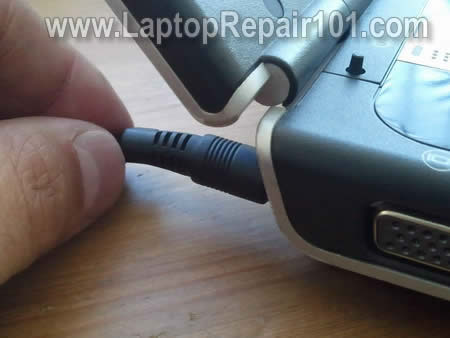
The battery stopped charging properly. It doesn’t charge at all or charges only after you adjust the position of AC adapter plug inside the power connector.
Possible problem:
– Failed battery. If it doesn’t charge completely try reconnecting the battery first. Also, try running the laptop just from AC adapter with battery removed. If it runs fine from AC adapter, most likely it’s either bad battery or failed motherboard. Try replacing the battery first.
– Failed DC power connector. If the battery charges only after you adjust the position of AC adapter tip inside the connector, most likely this the DC jack failed.
Here are some tips for charging problems.
Problem 7.
Screen light fails.
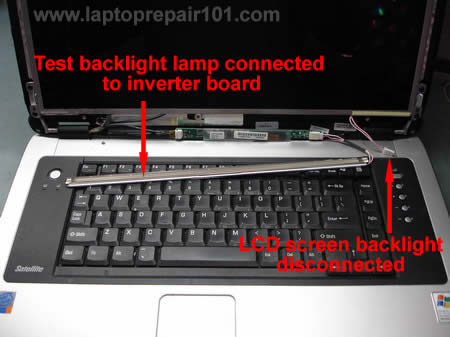
The laptop starts properly but after a while the screen light turns off. The image still appears on the screen but it’s very dark.
In some cases the screen light never starts and all you can see is a very faint image.
Possible problem:
Most likely it’s either failed screen inverter or backlight lamp (CCFL) failure. When either one fail, the backlight stops working.
In order to troubleshoot this, you’ll need some spare parts: either new working inverter or known good backlight lamp.
Read how to troubleshoot backlight failure.
Problem 8.
Strange or garbled image on the screen.
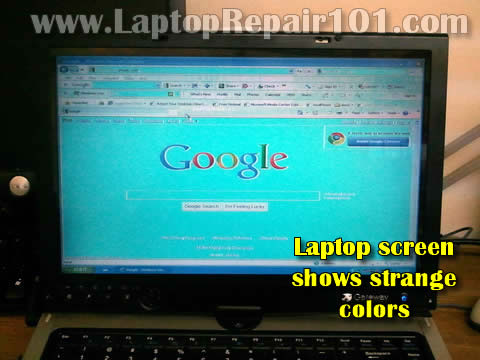
The laptop turns on properly but has a distorted or garbled image on the screen.
Possible problem:
– The graphics card failed. First of all, test your laptop with an external monitor or TV. If you see the same garbled image on the external screen, most likely the graphics card failed.
– If the problem appears only on the laptop screen, this can be related to one of the following: poor connection between the video cable and motherboard or screen. Also can be failed video cable or screen.
Here are examples of failed video and explanations how to narrow down the problem.
Also read why display shows strange colors.
Problem 9.
Some keyboard keys stopped working.
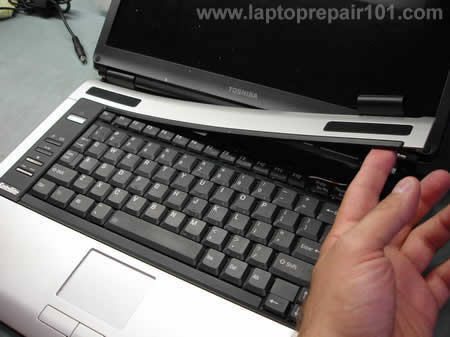
Some keyboard keys do not work at all or type wrong characters.
Possible problem:
Most likely the keyboard failed and they are not repairable. Read how to replace the keyboard.
Problem 10.
Keyboard has missing or broken keys.
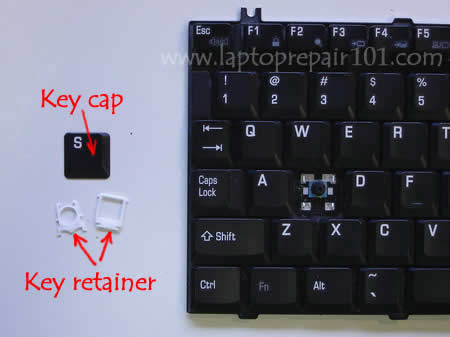
A key got separated from the laptop keyboard.
Problem solution:
If a key separated from the keyboard, it’s still possible to fix it.
If you have many keys missing, probably it makes sense to replace the whole keyboard.
Read how to attach a key back .
Problem 11.
Repetitive beep sound on startup.
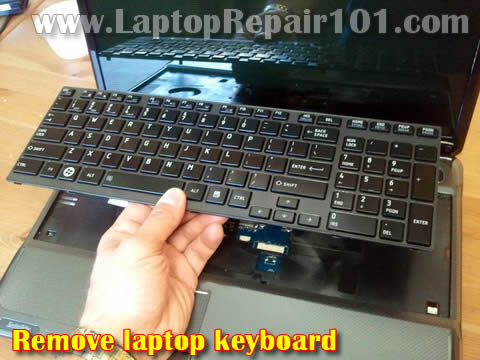
You turn on the laptop but there is no video on the screen. Instead, it starts making repetitive beeping sound. In some cases you can “fix” the problem temporarily if you press on the keyboard keys.
Problem solution:
Most likely you have stuck keys. In this case you’ll have to replace the keyboard.
Problem 12.
Liquid spill.
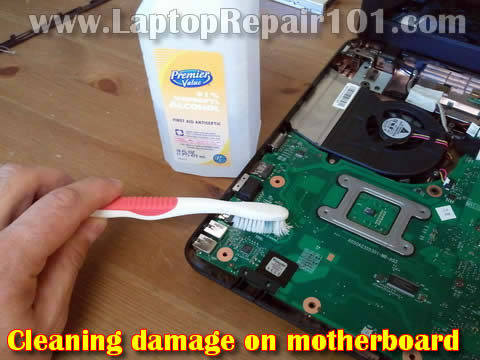
You spilled something on the laptop and it’s stopped working.
Problem solution:
Liquid spills are very dangerous and unpredictable. If it happened, turn off the laptop ASAP, remove the battery and do not use it until all internal parts are inspected for liquid damage.
It’s sill possible to make it work again.
Read how to deal with liquid spills.
329 Responses
Alex
My problem is similar to Problem 5 but here’s the difference: the laptop turns down ONLY when I’m playing games. When I use Firefox it stays on all day long. Is it also overheating?
cj2600
@ Alex,
Definitely this sounds like heat related issue. When you run games, the CPU is loaded all the time and runs hot all the time. Probably the heatsink is clogged partially and CPU overheats when you running games. Try cleaning the heatsink. It should help.
chris
On my notebook screen turns very dark. I tried new inverter but it didn’t do it. I am thinking about replacing the CCFL. Is it easy? Should I just buy a new screen?
Thanks.
cj2600
chris,
Replacing the CCFL is not easy. It’s mounted deep inside the laptop screen and the entire screen has to be disassembled.
There is a good chance to damage the screen while replacing the CCFL.
I would probably suggest replacing the screen.
But if you have nothing to lose, you can try replacing the lamp. I explained this process here.
http://www.laptoprepair101.com/laptop/2007/12/09/replace-laptop-backlight-ccfl-lamp/
Tim_1972
Can you help?
I have a HP Pavilion g6 laptop. 2,w,s,x keys stopped working. I want to replace the keyboard but I don’t know how.
cj2600
@ Tim_1972,
This definitely sounds like a problem with the keyboard.
You can use find keyboard replacement instructions in the HP service manual.
1. Remove the battery.
2. Remove one screw shown in the step 7.
3. Remove the keyboard as it shown in steps 8-13.
Good luck!
Ben
In response to Alex. Yes, in my experience I can’t stress enough how many heat issues (as well as other issues) can be solved by blowing out the dust and dirt and cleaning the cpu heatsink fans and videocard heatsink and fan if there is one. There are also laptop cooling pads that you can use during the game if you really had to! I also would do malware and virus checks and scans to make sure there isn’t something unnecessarily running and using more CPU in the background than is necessary. Hope you have resolved your issues.
Migzky
I have problem cnt u help me…i have lenovo t61 icant swicth on if i remove the battery and i turn on,the battery incator will light and blink and no response…thanks!
cj2600
@ Migzky,
First, I would test the laptop with another known good AC adapter. It’s possible your adapter failed.
Rupinder Singh
I have dell 1440 laptop(CDrom is not working),due to some mistake, the windows crashed and everytime i power on it, this message appears “Boot Manager is missing, click ctrl+alt+del to exit” ,Is this a hardware problem? how could i install windows 7 back easily?
Luis
Hello, i have an laptop toshiba that when i turn on with battery work every think ok… when i plug the ac cable, after a few seconds, its stops…breaks. I try without battery mas still same problem…
Wahab Imran
please I want you to email me. what are the component that someone can heat on a laptop board and also my laptop was hanging on booting to window I now check the memory, harddisk, processor is till not working I now give it another engineer he now said that his going to work on the board and later the laptop become operational. pls what are the likely things he may do on that board. I beg u in the name of God pls email me back.
cj2600
@ Rupinder Singh,
It’s hard to tell if this is hardware or software related issue. Could be just corrupted Windows OS. Could be hard drive failure.
First, I would test the hard drive. Run internal Dell diagnostic utility and see if the hard drive passes test.
If the hard drive is OK, you’ll have to find a CD-Rom. You cant try fixing the existing Windows OS installation by booting from Windows 7 CD and running OS repair.
cj2600
Luis,
How it stops working? Just shuts off?
Does the bottom of the laptop feel hot?
cj2600
@ Wahab Imran,
Maybe the failed graphics card?
Take a look at this post: http://www.laptoprepair101.com/laptop/2011/02/23/fix-laptop-motherboard-with-failed-nvidia-graphics-chip/
Is it what you are asking about?
Brian
Hi does an ac adapter have to give a steady voltage for it to work correctly as I have an adapter that is reading an initial 19v but then drops back to 0 again without disconnecting anything.
However I’m guessing the adapter itself is ok as the machine actually turns on it you hold the adapter plug in tight and sometimes also in a certain direction but its so sensitive it only stays on for a short time. Do you think its likely to be a mobo short or a problem with the DC jack? The DC jack has no loose connections on the board as far as I can see.
Thanks
Brian
cj2600
@ Brian,
This is not normal. The AC adapter has to provide a steady voltage.
This could be one of the following:
1. The AC adapter cable has a short inside. When you move the adapter plug or adapter cable you short cables and it stops providing power to the laptop.
2. The DC jack separated from the motherboard and has to be resoldered or replaced.
Here’s what I would do:
1. Test voltage on the AC adapter tip. While testing the voltage, wiggle the power cable. If power cuts off, this is defective AC adapter. Replace it.
2. If the AC adapter provides steady voltage even when you wiggle the cable, probably the AC adapter is bad and you have a problem with the DC jack. Try resoldering the DC jack.
It’s possible the solder joint has a micro crack which you cannot see. It’s a common DC jack failure.
Dj Alex
I have read your posts and others trying to fix my problem w/presario v6305nr turns on blk screen & lights blink fan goes on & off and the cd drives runs and repeats itself over & over lights shuts off and then starts all over again.Any ideas. This notebook has been sitting around for a 2yrs,waiting for one day to shed some light, I just bought a recovery disc from hp for 25.00 and it worked for about 2 weeks then it started back up again, i never opened it up. i would greatly appreciate your response and known expertease on this nightmare to end Sincerly Alex Rhoades Las Vegas. I am a well known dj W/lights & sound, but not so with your field. i think you can give me some direction on what path to take.
cj2600
Dj Alex,
First of all, try minimizing the laptop as much as you can. Remove the battery, hard drive, DVD drive, etc… Try turning on again and see if you can get the image.
Read this post on troubleshooting dead laptops: http://www.laptoprepair101.com/laptop/2008/06/14/laptop-dead-troubleshoot-the-problem/
If there is no image, try reseating memory modules. Try removing them one by one. This could be memory related problem. If the laptop fails with either module installed, probably it’s not memory.
From your description I suspect the motherboard failure. Maybe it’s one of those HP/Compaq laptops with well known NVIDIA graphics chip failure.
You can try one of the following tricks:
http://www.laptoprepair101.com/laptop/2010/10/06/fix-video-problem-hp-laptops/
or
http://www.laptoprepair101.com/laptop/2011/02/23/fix-laptop-motherboard-with-failed-nvidia-graphics-chip/
George
Hi there, nice article! I am trying to repair a HP DV4000 on which keyboard gets crazy after some time.. i thought it was the keyboard so i removed and put external USB.. the same happens!! Random keys, alt is stucking and crazy things.. thought about virus and boot from Hiren’s with keyboard test, the same happens!! I replaced the multicontroller chip PC97551 which seems to be in charge for almost everything including keyboard scan, but still does the SAME!!! Any ideas? No corrosion or any liquid inside the laptop!…
Thanks in advance!
Md. Kabir Hossain
Dear Sir,
I’m a Hardware Eng. but recently we have received Sony vio note book, the note book problem is when i connect power cable than auto power on & instant power off stay time 5-10 sec. but I’m not finding any damage & hot parts, yet, i was soldering whole Motherboard, but result 0000. So in this situation what can i do? please help me.
Problem 2: hp pavilion dv 3000, when i switching power than instant off stay time 2-5 sec. normally just i was slightly heated. but i can’t found any shock, & don’t hot motherboard, please give me solution early as possible with pic. (if possible)
Thank You*
Md. Kabir Hossain Kiron
CEO
Electro Care
Dhaka Bangladesh
blessing
i have an hp laptop, problem is that all ports on the machine are disabled meaning they are not functional and you cannot get anything into the machine or out of the machine.when you check the settings it says all ports are disabled and when you enable them and try to use a stick or flash it would have disabled already by itself.what could be the problem and how do you fix it.
cj2600
@ George,
Sounds like the motherboard related failure. Sorry cannot help here. I don’t fix motherboards on the component level.
cj2600
@ Md. Kabir Hossain,
You can try this method for troubleshooting dead laptops.
http://www.laptoprepair101.com/laptop/2008/06/14/laptop-dead-troubleshoot-the-problem/
cj2600
@ blessing,
This is a very weird problem. I’ve never seen something like that.
Does it say that all ports are disabled in the BIOS setup menu? Is it an error message in Windows?
Gary
Used a Fedora DVD-ROM for A CET class..Didnt install it but now windows is not booting….ive tried everything from repair screen to last known settings but no luck…diags show error 2000-0146…its a dell inspirion N5030
cj2600
@ Gary,
It looks like error 2000-0146 could be hard drive related.
After some research I found this thread on Dell support website.
Nikkita
Help! Okay the LCD screen on my laptop was broken, cracked in the corner after someone closed it with a pen on the keyboard..
I decided to replace the screen myself.. I took it apart got the serial number and ordered the replacement screen. Installed the new screen and nothing shows up except colored portions and lines. Figured it was a defective screen and sent it back for a replacement.
Got the replacement screen and the same thing happens!
Am I doing something wrong? Or is it that I just keep getting defective screens?
Thanks..
Tejaswi
Hi..
I dont have a problem with my screen and keyboard..but the screws that connect this two parts..are coming out..and that connection between the two is broken,,i cant fold my laptop..
please help me with this..
Edy
Pls help!!! How to override bios p/word of toshiba satellite 100A laptop. Rgds. Edy.
lino
hello…my acer aspire 5550 wont power on. the power button automatically lights on without pressing if the power cord is connected to the outlet. i remove the battery but no luck. please help me…..thanks
cj2600
@ Nikkita,
Maybe your new screens are not compatible.
What happens if you install the cracked screen back into the laptop? Can you get image on the cracked screen?
If your old screen shows image but new screens have only vertical lines, this is some kind of compatibility issue.
Make sure your new screen has same resolution as the original one.
cj2600
@ Tejaswi,
Sounds like broken hinges. The only way to fix it is replacing the hinges I guess. What is your laptop model?
cj2600
@ Edy,
Did you mean Toshiba Satellite A100 laptop?
There should be two pads on the motherboard under the memory module. You’ll have to short those pads with a screwdriver for a few second.
Could be similar to Satellite A135. http://www.youtube.com/watch?v=Eo1gg1EZV-o
The guy is cutting a piece of wire to short those pads. It’s not necessary. Just use a small flathead screwdriver.
The pads might look like that: http://i125.photobucket.com/albums/p44/HunterX21/Satellite/BIOS_C.jpg
In some Satellite A100 laptops the pads could be located under the keyboard. Take a look at this guide: http://techniciansguides.blogspot.com/2010/05/toshiba-sattelite-a100-bios-password.html
cj2600
@ lino,
Remove as many parts as you can. Battery, hard drive, memory. Disconnect the keyboard if you can.
Now plug in the AC adapter again. If the problem still there and power button lights up by itself, probably this is motherboard failure.
You can try this troubleshooting technique: http://www.laptoprepair101.com/laptop/2008/06/14/laptop-dead-troubleshoot-the-problem/
Tejaswi
Mine is Dell Inspiron 1525.
@ Tejaswi,
I dont have a problem with my screen and keyboard..but the screws that connect this two parts..are coming out..and that connection between the two is broken,,i cant fold my laptop..
Sounds like broken hinges. The only way to fix it is replacing the hinges I guess. What is your laptop model?
wazeer
My toshiba satellite laptop crashed when connected to ac outlet and used at the same time.Have to charge the battery and unplug it so that I may use it normally.Could you please help.
Thank you.
Jasmine
So I dropped my Asus laptop and now when I turn it on it tells me to Reboot our put in a media reboot and there is a clicking sound. But I don’t know how/have either. I’m going to try and contact the manufacturer. is that the best thing to do?
MAcdhimz
Thank You so much.. I’ve learned a Lot for this Site. it is very Helpful. Keep it Up Guys.
Chandra
All files turned to adobe while working on net. Sony Vaio Lap top and OS Windows-7 home basic.
Thanks
Akhidenor james
Pls, my toshiba laptop goes blank whenever the hardisk is instaled but come on with figures & numbers when the hardisk is removed. What do l do?
cj2600
@ Chandra,
Probably file association is wrong. Try reseating it back to default.
cj2600
@ Aknidenor james,
I cannot understand your question. What figures and numbers? Please provide a better description.
siva
thank you. really helped me. keep up the good work.bye.
Sid Trevor
Hi
I have replaced the keyboard in my Sony Vaio laptop but i am still getting the same problems as before.
i am getting the wrong symbol for different keys and was wondering if you could give me some idea what the cause could be.
Thanks Sid
s r gowda
please tell me the secrets to checkup the power supplys in laptop main board
thanks and regards your suggessions are wortful on effctive work
hossen
my asus 1001pxd shows “primary hard disk error”what is the solution of it?
Vanita
3 moth before i bye a new sony vio laptop having model no-VPCEG35EN.
But now its stat hanging for long periods of time.
Please tell me what should i do?
Laurie
I installed a wifi card internally, then my Dell laptop would not power on??? What did I do wrong, do you think I fried it?
cj2600
@ Laurie,
What happens if you remove the wireless card and start the laptop?
ancha
I have a problem with my laptop Sony Vaio VGN CR353 series..
After my mom fill some water on top of it my laptop won’t start normally with nothing respond at all from the led, the fan and etc…
i found this great website and i follow all the basic repair and after i clening up the motherboard with alcohol and tootbrush like you said 😀 and finally i’ve progress my laptop begin to show some reaction..
If you don’t mind please look up my short video that shows the recent condition og my laptop in
http://www.youtube.com/watch?v=Wi5x3UXvdkg&feature=youtu.be
hopefully you can give me any clue from your experience in laptop repairing.. maybe you’ve already faces the same problem 😀
Big apologize for my bad english 😀
Big thanks for any responds 😀
keep up the good work *two thumbs up
prashanth
my acer laptop mouse is not working kindly guide me
Syndulum
not sure if you installed the hard drive in a correct manner. Just to be sure about it, you can access the bios (normally F2 or f10 key while restarting) by hitting the bios key during Power on Self Test. If the hard drive is not showing in the list of drives, you probably have either connected the wires wrong or may be your HD is dead. Besides, you can also look for the green light near the keyboard that has the pic of a HD. If that is not lit or not flickering, there is something wrong either with Hd or the way it is connected.
sanjay vyas
thanks
really helpful
sanjayvyas
Dean
Hi.
I have a HP Pavilion dv7 laptop, I know that the battery has died in it. It was going bad for some time and now it’s dead. My issue is this. The Wifi won’t connect to my router although it see it and has a full signal. I sent it in for repair as it has a warranty on it, and they sent it back saying the dead battery was the cause.
Is this true, can a dead battery cause your wifi to do this even though you are plugged into the outlet?
Thanks, Dean. (PS OP feel free to email me if you want / can)
waskita
very helpfull artcles….
thank you so much
Samuel
Excellent description.
My problems is similar to what is shown above. The back light of my laptop screen goes off after few seconds while booting. Even though I can see the screen and give login password. I can see the desktop icons and work but have to have a closer look at screen or use other light like flash or torch. In two cases light comes back also. First, when I close and open the lid again and secondly, when the mouse pad is touched after the display of off as per time set (thus the lids is not moved in this case). In every case the light remains for not more that 4-5 seconds.
Please suggest what can be the problem and if possible the cost involved.
Thanks for the time and considering to reply.
Jacus aucamp
Hello,
My Dell laptop just died on me an hour ago and it’s totally dead,no lights come on either,its just dead!
I check the ac adapter and that is working fine on my other dell but this one is dead. I have most of my design work on my pc as im a graphic designer and i created my portfolio on this pc 2 years ago and now what do i do?
Please help. Any other ideas.
Thanks
Jacus
cj2600
@ Jacus aucamp,
If the AC adapter works with another laptop, probably it’s not the adapter failure.
Most likely it’s either bad DC jack or failed motherboard.
In order to backup data from the laptop you can do the following. Remove the hard drive from the laptop and install it into an external USB enclosure. Connect the enclosure to any other working PC and get your files.
By the way, if you have a SATA hard drive you can connect it directly to the PC. Most laptop SATA hard drives has same type of connector ad desktop hard drives.
fink
i’ve got a question:
my laptop hangs sometimes and it won’t shut even if the battery is removed. What could possibly be the cause n what’s the solution to this? please help.
Shirley Brown
Hi!
While I was keyboarding on my Acer today, I noticed that one of the keys doesn’t give me the right symbol when I use the shift key. It repeatedly gives me the same incorrect one. Any ideas about what I may have accidentally touched? Thanks
rey cjrj
hi..good day i have problem with my hp presario cq20 laptop. at first when i hit the power button it will light and it will turn off before the start up booting finish. and if i power it on again and press f8 it will open in safe mode even for hours….i dont know why if in normal mode not goes thru..i format it but it doesnt work at all please help me….thanks.
cj2600
@ rey cjrj,
I would run the hard drive and memory test first. Enter the BIOS setup menu. It’s likely that you HP has utilities for testing the hard drive and memory embedded into the BIOS.
cj2600
@ Shirley Brown,
What key you are asking about?
Maybe NumLock enabled?
Mike
I have a Toshiba Satellite M305-S4910 with 3.9 amperage output. Recenetly I had to purchase a new AC adapter 120W with 6.32 amperage. I wanna know if this big difference in AC amperage will hurt my laptop or not.
Thanks for any advice.
Jaekwon
My Packard Bell Easynot L4 fell and the DC Jack broke.
I replaced this, but now when powered up the power light comes on aswell as the fan. The screen is black, but I dont think it is going any further as the hard drive light doesnt come on/flash.
I just read above to try an external monitor. Other than that is it curtains for the laptop ?
Shashi
I have a hp laptop. when I push the power button it shows a brief power on then it goes off. Same thing happens every time I push the power botton on.
cj2600
@ Shashi,
I would test the AC adapter. It’s possible the AC adapter failed and the battery doesn’t have enough time to start the laptop.
Test the laptop with another AC adapter.
cj2600
@ Jaewon,
Did you check the memory modules? Maybe one of the modules not seated correctly. Try reseating memory modules. Also, test the laptop with only one module installed.
Did you try turning it on with the hard drive removed?
cj2600
Mike,
If your new AC adapter has THE SAME voltage but higher amperage, it’s OK to use. It will not damage the laptop.
Shashi
Thanks for reply of my previous mail (No.67 and 68). Yes I had tested my laptop with another AC adaptor. But it did not solve my problem.
cj2600
@ Shashi,
This could be one of the following:
1. DC jack failed. You can try replacing it with a new one.
2. If replacing the DC jack doesn’t help, most likely this is motherboard failure. Probably in this case the laptop not worth fixing (depends on the model).
Mac
I had problem 5 happen at first with my toshiba laptop where it randomly froze.I tried to restart it, but now I’m encountering problem 2. Some times it turns back on, but it will just crash again. What do I do?
Bamire Jamiu
On booting my Toshiba Laptop Satellite C6601QF operating Windows 7 Home Basic, it displays the following message:
Windows has encountered a problem communicating with a device connected to your computer. This error can be caused by unplugging a removable storage device such as external USB drive while the device is in use, or by faulty hardware such as a hard drive or CD-ROM drive that is failing. Make sure any removable storage is properly connected and then restart your computer.
If you continue to receive this error, contact the hardware manufacturer.
Status: 0xc00000e9
Info: An unexpected I/O error has occurred.
—- end of message.
I REALLY NEED EVERYTHING ON THIS LAPTOP BADLY. PLEASE HELP ME OUT.
MANY THANKS.
JAY.
lokesh
hi,
i am lokesh from india in my leaptop cd got stucked in Cd rom how can i ejact the cd
shivajee
while i watching movie on my lenovo laptop it stuck no. of times so i take out battery after that when i restart system is not responding .so ,i try booting but again it stop at setup. so, please suggest me any solution.
Raji
When I connect the AC adapter to charge my HP Compaq laptop, the charging light illuminates on the laptop but the battery doesn’t charge up. Also, on using the AC adapter, the laptop becomes slow. I have recently replaced my battery so guess there is no issue with that. Should I be replacing my AC adapter? Please advise.
Tariq
Hi when I turn on laptop just power lid on. no fan starts, no logo, no hdd lid. blank screen whats the problem?
Antonio
On booting a Toshiba Laptop Satellite A60-S166 operating Windows XP, it displays the following message:
No bootable CD in ATAPI CD ROM
INTEL UNDI,PXE-2.0(build 082)
For REALTEK RTL 8139(X)/8130/810X PCI FAST ETHERNET CONTROLLER V2.13(020326)
PXE-E61= Media test failure, check cable.
PXE-MOF: Exiting PXEE Rom.
Press any key when ready.
If I press F1 the screen shows:
IN TOUCH WITH TOMORROW TOSHIBA
Please, can you help me,
prashant
i have smsung rv509 laptop on pressing power button the mother board screen displays but the it keeps showing a black screen with cursor blinking on top corner
i installed the os 3 to 4 times every time os is instaled properly but after installation the laptop comes in same condition of black screen with cursor
pls help
cj2600
@ prashant,
Try reconnecting the hard drive. Maybe it’s bad connection between the hard drive and motherboard. Also, it’s possible the hard drive is failing.
cj2600
@ Antonio,
It’s possible the laptop will not boot because it doesn’t see the hard drive.
Enter the BIOS setup menu and check if the hard drive is detected.
Try reconnecting the hard drive.
Connect hard drive to another working PC and check out if it spins.
This could be hard drive failure.
cj2600
@ Tariq,
Possible memory failure. Access memory modules and remove them one by one. Test the laptop with only one module installed.
cj2600
@ Raji,
It’s hard to tell what is wrong. Yes, there is a chance of bad AC adapter.
I would test the laptop with another AC adapter. If the problem still there, probably this is motherboard related failure.
cj2600
@ shivajee,
This could be memory failure. Try removing memory modules one by one and test the laptop with each module separately.
ana
my laptops screen suddenly turns to one color like sometimes it turns to purple/green/red and it wouldn’t let me do anything. it just freezes to a color and it makes weird noises like how a tv will with a black and white flashing screen except my laptop just turns to a color. and this just happens randomly
ana
my laptops screen suddenly turns to one color like sometimes it turns to purple/green/red and it wouldn’t let me do anything. it just freezes to a color and it makes weird noises like how a tv will with a black and white flashing screen except my laptop just turns to a color. and this just happens randomly. and i cant do anything until i shut it off from the power button.
gaurav
My inspiron 1545 about 2.5 years old is not turning on when connected with ac supply with and without battery and there is no sign of led lid indicators, its like completly dead. Only charger shows green light.
About 3 months earlier windows was showing “consider replacing your battery “but i didnt changed the battery and used the laptop for 2 months and now its dead. Now i Dont know whether only the battery is the problem or the charger or the motherboard or something else.
Ehtesham Khan
My Toshiba Satellite A205-S5880 laptop turns off frequently in normal mode but it works fine in safe mode.
please help…
Sam
Hey have a problem with videos on my laptop. It use to be able to play 360p and up now it wont. I know its not a hardware problem but could use the help. Thanks.
Sapna
Hi!! My laptop is not starting when I starting it on!!!Can you tell me where can I fix it???Especially in NY and NJ?? And suggetions would definitely help!!!Thanks!!!
Ed Wingfield
I Dell Inspiron M5030, I replaced the screen but now the hard drive in the Bios is reading 0 GB. Any help ?
khouloud
in my laptop the screen show NTLDR manque in white and the screen in black pleaaaaaaase help
David
your articles are very useful and we do appreciate alot. i have a problem with my dell screen. when trying to adjust the colour it shows locked symbol asking for password. please help.
cj2600
@ David,
Make sure to login as an administrator. Probably you have a few user accounts on your laptop and your account doesn’t have administrative rights.
Mark Rea
Thanks for exhausting list of advices, it helped to locate and fix the issue with our office HP laptop.
Good job!
lhee whoo
i have this issue on my laptop, it works fine when run in battery but it will stop working or sometimes hangs up when ac power was attached to to the dc jack..(toshiba satellite L300)
anybody can share his/her knowledge will be a great help..
keith
Hey i haved problem with my HP laptop.
I know the battery is bad so i only use external power, its fine until when i turn it on its not working.. NO POWER, NO LIGHT, except the WHITE LED INDICATER beside DC JACK but it turns off after a while..
is it possible to be motherboard failure or just DC JACK problem?
please help
praveen
colling fan not working
mohammad khasim
hi!
i have a hp laptop,actually whenever i was startig a laptop,i get the display only till it will execute booting function, after that it will turn off automatically.plz help what the problem is going on?
aneeq
superbbbbbbbbbbbbbbbb
Pedram
Hi, I have a Toshiba A200, at the very bottom of the LCD, it is like a ribbon with disorder horizontal white lines so that I can’t see anything on that area the rest of the LCD screen is okay. I connect it to an external monitor and the entire screen is fine. So what can be the problem?
Thank you.
cj2600
@ Pedram,
Most likely this is defective LCD screen. I think you’ll have to replace the screen.
yirga
I have Toshiba laptop it doesnt turn on when i plug the adaptor only the AC power and battery LED is turned on. what will be possible reasons
CyberShot
Toshiba Satellite A300
When turning on Display comes and Turn off Automatically
hemant
i have this issue on my laptop, it works fine when run in battery but it will stop working or sometimes hangs up when ac power was attached to to the dc jack..(toshiba satellite L300)
Christopher Coleman
I have a Sony Viao Laptop that was dropped and now it boots to a black screen that says Operating System not found. My first guess was that the hard drive was bad/corrupted and after research and running some scans I was right. MY question is how do I know that is all that is wrong? I don’t want to buy a new HDD then find out that other components were damaged. I was thinking of using a HDD from another laptop and putting it in the laptop that was dropped but I guess I want to know how to diagnose other components. What tools/software scans do you recommend? Also with the failed HDD do you think if I bought and IDE connector/adaptor I could connect this to a desktop and possibly recover the data or ever get the HDD to work again? Is there an USB IDE connector to hook up an hdd?
gaurav
sir
iwant know that aser aspire one model ZG5 no display
Ferdz
Hello everyone!
i have LG R410 i notice that some is are not working like C, Y, and Q but but when i press it sequence it will works but then after a second it will not work again any suggestion how to fix this???
cj2600
@ Ferds,
Sounds like failing keyboard.
You can try reseating the keyboard cable on the motherboard. If this doesn’t help, try replacing the keyboard.
cj2600
@ Christopher Coleman,
You can download Ubuntu OS and burn it on a DVD. After that boot your laptop from this disc and test in the Ubuntu environment. If everything works fine in Ubuntu OS, probably only the hard drive is bad.
You’ll have to reinstall OS on the new drive in order to use it. Most likely the OS from another computer will not run properly in your laptop.
It depends on the hard drive failure. In some cases it’s possible.
You’ll have to scan for data using a data recovery software. Something like GetDataBack (for NTFS or FAT file system) or R-Studio.
You can purchase an external USB enclosure for IDE hard drives. Here’s an example: http://www.laptoprepair101.com/laptop/2007/04/17/access-hard-drive-using-usb-enclosure/
cj2600
@ hemant,
Did you test the laptop with another AC adapter?
cj2600
@ CyberShot,
Does the laptop still work after the display turns off?
Take a very close look on the screen. Do you see a very faint image on the screen?
If the laptop still works and you can see a very faint image on the screen this could be failed inverter board or failed LCD screen (actually failed backlight lamp inside the screen). I would try replacing the inverter board first.
cj2600
@ yerga,
Could be failed memory.
phbgjf
When I plug the AC adaptor a faint click noise sounds but no light is turned on. When I connect battery and push turn on button similar faint noises sound but no lights either. The laptop actually turned off suddenly while writing an email.
ANonymous
someone please help me…..my laptop turn off by itself when i was playing games(games with high graphics)..when i play an old games it work just fine…even when i watch movies or play facebook….it only turn off when i play new games…please help me… 🙁
aakash
sir,
when i give power to my toshiba satellite a100 laptop through ac adpter it turns off on that time only ac power and battery led are on . i have checked my ac adepter through multimeter,it has no problem.
Christian
I have a Lenovo G580 which when booted displays a dark blank screen however, when I connect it to an external monitor it will display everything fine on the external monitor. The built in display doesn’t want to display anything.
Jayesh
I have HP G42-456TU Notebook PC
Serial Number: CNF045BB4G
Product Number: XV919PA
Whenever I unplugged my charger laptop start working slow. when charger is in plug its working normal. Give me hints/support how to fix it.
cj2600
@ Jayesh,
Maybe you have some power settings enabled? On some laptops you can reduce the CPU speed when it runs off the battery. It makes the laptop slower while running from the battery but improves battery life.
nil
May I know what is the problem of laptop with blank screen and the hard disk is not running (no beep sound) during start up? Thanks.
cj2600
@ nil,
Does the laptop turn on at all? Can you see any lights?
star nguyen
my screen dosent turn on but the power button and locks lights turn on and the fan is not running as well please help windows 7 sony vaio laptop
shahzad
when i turn on my laptop the screen turns on for a second completely normal showing everything clearly but then it goes off. when i press the lid button(which turns off the screen) and then release it the screen lights up for a second and then goes off. whats the reason?
Anuja
Thanx for the article…..
But I had a new problem…..
the problem is that when i close the lid one of the junction(there are two junction joining keyboard and lid) is coming out making some weired noise i don’t know how to fix it permanently it is totally a hardware problem
liam
Hi can I ask I had to replace a power button unit on a hp q70 put new unit in no prob but still won’t work could it have got the motherboard.thanks
cj2600
@ liam,
Why do you think it was a power button related problem?
What happens when you push on the power button? Any lights on the laptop?
Satya
my hcl laptop is working only in power cable, without power cable it is not working using battery, battery is ok I tested it in another laptop, when i swith off the power the lap goes off within 3 secs
carlo
thanks for this information it will really helpful.
cj2600
@ Satya,
If the battery works in another laptop, it must be some kind of motherboard problem. I’m not sure what else could be causing that.
Chandra
My Lenovo Thinkpad R61 shows a white screen after I switch the power on. All system lights (LEDs) are working fine. I cannot hear the hard disk or fan sounds though. I cannot see any image or message on the screen and hence i can’t proceed. Help please, if anything can be dome.
Sajid waheed
i m facing problem 3 like Laptop turns on and off repeatedly.
i acted your problem recommendation solution but no more.
i tell you that some time my laptop runs in normal, as laptop show such like i have no problem but still in reality i have broblem
cj2600
@ Sajid waheed,
If you tried replacing memory but the problem still there, most likely the motherboard failing.
roushdy
i have problem in power supply section of motherboard compaq presario cq61-303as i traced the voltage input it is 19v when pluging— in turn the led iluminate &suddenly disappeared will you explain to me the test points in this area through the schematic diagram &the probable cause of this trouble which making no power on thank you for helping me in advance
Jahangir sk
Thank you sir.
prakash rudra
my lenovo laptop b560, was installed windows 8, after 2 days it tottaly black skin turn on to win8. please help me. How I turn to win 7? and how I turn on win8 truely.
Siva Prasad
Hi..Prakash Rudra
It it very common problem in every laptop which installed with windows 8. Windows updates may cause for this issue. Solution is “Remove the battery, disconnect adapter, press and hold power button for 50 seconds. Now don’t insert battery, connect with adapter and turn the laptop on. 100% your problem will solve.
Matthew
Dell Inspiron 17R N7110
Windows 7 Home Premium
None of the desktop shortcuts functioned correctly, so I rebooted the machine. During reboot the machine would display the Dell logo and the progress bar. Once the progress bar would fill up it would then go to the Windows Boot Manager and ask me to choose an operating system (only one operating system is installed – Windows 7) it would then quickly start the reboot process over again. and loop like this until I hit any key (doesn’t matter which). After that it would load windows. once windows would fully load I still cannot select any of the shortcuts, or the start menu. until I hit the windows key on the keyboard to bring up the start menu. after that everything seems to start to respond better (at least on the surface). I then replaced the HDD and installed windows 7 Home Premium to that HDD. once loaded it did the exact same things. I then took out the battery on the motherboard waited a little bit and then put it back in. Once I reset the system date and time in the BIOS and save, windows would then start to act normal again, but after a few minutes it would resume with the same problems. I then got a new battery and placed it in the motherboard. still no change. I am all out of Ideas! any help would be great! The laptop also seems to work normal for about an hour if I power it down for at least a half day or longer.
Joshua
Sound problem in my HP pavilion g6. Both external and Headphones sounds audio at the same time.tried making speakers as default and updated audio driver. Pls urgent help!!
cj2600
@ Joshua,
To me this sounds like a problem with the audio driver. I’ve seen it happening on laptops with a wrong audio driver installed. Did you search for the correct audio driver on HP website?
It’s possible you installed the latest audio driver available though Microsoft update but need the original driver from HP website.
aqir
hi..my laptop produce constant sound when i turn it on…blank screen..then i need to press keypad for it to turn on properly.. already replace with new keypad but the problem still occur…FYI i’m using hp pavillion dv4 OS windows 7…please help me..
Rebaz
hi my new dell inspiron R15 5521 is not shutdown correctly when I shutdown it, the screen is off but the bottom light is not off it is make my laptop power going to 0 and then my laptop is at start up is slow however about 4 times I format my laptop but it isn’t solve so can any one help me whats wrong with my laptop is there any hardware problem?
cj2600
@ Rebaz,
Try running Dell hardware diagnostics.
Turn on the laptop and press F12 when logo appears on the screen. Select diagnostics.
Maybe you’ll see what is failing in results.
mohsen
Hi.
I have a Vostro 3350. I was configuring a ubnt nano5 wireless antenna and i plugged the POE output to the laptop LAN port. after some times i smelled something is burning and suddenly the port smoked. i unplugged it immediately.
Ii tested the LAN port and it is working, but how i can make sure about the health of the laptop?
cj2600
@ mohsen,
Probably just keep an eye on it while using. There is not much you can do unless you want to take it apart and take a closer look inside.
biruk aweke
it is good explanation thanks.
aakash
my HP g62 does not display anything on the screen when the power button is pushed….however the fan works! Also the display works sometimes for not more than 10 minutes.Is there a problem with motherboard or any other issue?It is having inbuilt ati radeon graphics.
cj2600
@ aakash,
In order to figure out if this is motherboard related issue or not, you will have to test your laptop with an external monitor or TV connected to the VGA or HDMI port.
If the laptop video works fine on external monitor, most likely you have a problem with the screen.
Also, check RAM modules. This could be memory related failure too. Remove RAM modules one by one. Test the laptop with only one model at a time.
Nelusca
my computer loses charge very quickly and then it was the battery life just is completely depleted and everytime I turn it on it loses one percent of charge and after an hour or two after being out of charge it just won’t turn on at all. I brought a new battery and it still does the same thing. what can be the problem I’m starting to think its the motherboard
cj2600
@ Nelusca,
Did you buy a generic replacement battery or an OEM battery?
That sounds normal.
That sounds like a failed battery.
jamie
hey I have a hp g62
And just this morning I try turning it on the fan starts the light on the power button is showing but nothing loads up on the screen, when I try turn caps lock on the light doesn’t show either (is that also keyboard issues) wireless light shows as orange (off) not blue (on) and basically it just doesn’t do anything from there as though it freezes maybe straight after startup. Please help??
cj2600
@ jamie,
1. Unplug the AC adapter, remove the battery and let is seat like that for a few minutes. After that plug in the AC adapter and try turning it on again.
2. If step 1 doesn’t help, try removing RAM modules one by one and test the laptop with each RAM module individually. Could be failed RAM.
Stephen Samuel
Thanks
snbaba
i really learnt much here……thanks guy…i like it, good work
gaurav
The blinking code error show problem with memory module. But ram is working fine. Check the ram on another laptop. What’s the problem? How to solve? Thanks
S.Ramesh
Laptopscreen displays all overlapped image. Connecting to external monitor display is perfect. Help please.
Adebayo Dayo
I forget to remove battery from my hp 630 when I replaced the bad screen and since then, anytime I turn on my laptop the motherboard display light for 2 seconds have off again and video chip is too hot but the cooling fan and other components not working.
Naresh
My laptop all audio,video players are not working sometimes results no voice outcome and my lappy working slowly compare to past.
Kindly give suggestions to me.plssssss
Navin
I have Compaq Laptop, today its os corupted, when i go to installing OS it can not happening, i also try to enter in bios but it is going to hang when i press the baton for entering in bios.
why i can not enter in bios why is it going to hang please help me….
pooja
i have dell inspiron n5010 laptop when i starts the laptop it shows many small small vertical lines and restarts and again same line and does not start at all..it works fine on safe mode but get very hot and shut down directly…what shoul i do please help me
Roshan
Hi there,
Can you help me?
My laptop is not running when i am pressing its on/off button it is not showing anything.
The laptop is properly charging.
Emma
I have an LCD screen that sometimes shows a faded image (with horizontal white lines) and vertical multi-colored lines that slowly shift around. It’s very difficult to read when this happens. Once when I torqued the screen around the edge it suddenly snapped back to normal, but a week or so later it started showing the lines again. Then when I was browsing normally it snapped back to normal again. Do you know what might be causing it? I didn’t notice any problems with the computer until it overheated once. I have not yet tried to connect it to an external monitor; I’m too afraid to move it at this point.
Brenna
My HP Pavilion Entertainment PC recently starting having this problem:
Every time I turn the laptop on, it would run fine for a few minutes, then on the ENTIRE screen would appear vertical blue lines, sometimes they flicker, sometimes not. Sometimes the screen just goes black, though I can tell it is still lit up. It’s gotten worse and worse every time I try to use it, or try to turn it on.
When this happens, I have no choice but to unplug it and shut it off without properly shutting it down. When I turn it back on, it says that it was not shut down properly, and gives me the choice to start up in normal mode, or the two safe modes. When I choose normal mode, it barely is functioning before it does the same thing: volume shuts off, screen goes black or blue vertical stripes.
The safe modes work, but I can’t do anything on them and the volume does not function.
I really, really don’t want to lose all the photos, download files, music, documents, and all other files I have saved on that computer.
How can I get these files off, and how can I fix the computer from doing this? What is wrong with it?
I hope someone on here can help me with this problem!
amith kv
HI., i am using Dell Inspiron N5010 laptop .. 2 years old one.. and now i am facing a problem.. if i on my laptop boot screen has to display but in my laptop it showing nothing . i hve to off it by shutdown switch and again i hve to on it .. i have to repeat this procedure until my screen gets on.. so
please do help me with this issue.
Thanks in advance
amith kv
prashant hatwar
sir, i have laptop COMPAQ F700 AMD with NVIDIA GRAPHICS. But there is a problem with Nvidia graphics. I have shown to service station, they suggested me change the m/b which is in worth of Rs. 7000/- with one month warranty. should i change the m/b? or sell the laptop. plz suggest me.
cj2600
@ prashant hatwar,
I don’t think COMPAQ F700 worth replacing the motherboard. In my opinion, it’s better to save money for a new laptop.
cj2600
@ amith kv,
It’s not a very clear description of the problem. If I understood correctly, you have to restart the laptop a few times in order for the screen to work properly.
If that’s the case, check laptop RAM. It’s possible, one of the memory modules failing. Try removing memory modules one by one and test the laptop with each one separately.
Let me know how it goes.
ROBERT
My laptop will turn on but show nothing on the screen
cj2600
@ ROBERT,
Have you tested the laptop with an external monitor? Can you get external video to work?
Also, try removing RAM modules one by one. Test the laptop with each module separately.
cj2600
@ Brenna,
You will have to test the laptop with an external monitor. If the external video has the same problem, this is motherboard/graphics card related issue.
On the other hand, if the external video works fine, it’s either failing LCD screen or bad video cable.
Again, if the external video still works, you can boot the laptop and backup your files.
The other way is removing the hard drive and installing it into an external USB enclosure. After that you should be able to access your files on another computer.
cj2600
@ Emma,
Sounds like this the LCD screen is failing and has to be replaced.
cj2600
@ Roshan,
What do you mean it’s not running? It’s not turning on or appears to be completely dead?
Please provide more details about the failure.
cj2600
@ pooja,
For some reason I think this is graphics card related failure. To confirm that, test your laptop with an external monitor. If you see the same problem on the external video output, the graphics card is bad.
chukwuemeka
On my hp 620 laptop,the internal keyboard works at the booting stage but after booting, it stops working and makes a beep when it is clicked;it also happens likewise when i connect an external keyboard. please tell me the possible faults
...
i spilt a bit of water onto my keyboard however the battery of the laptop is located in the lid and the keyboard is only a dock for the tablet. I immediately cleaned it out and got the water out and everything works fine but i realised that my battery wont charge. It only works now when im connected to the ac adaptor because i only started to charge it when it was low on battery. The screen says that im plugged in but im not charging.
cj2600
@…,
What is your laptop model? It’s hard to understand the location of the battery from your description. If the battery stopped charging after the spill, most likely the motherboard was damaged.
I would stop using the laptop as soon as possible and take it apart for liquid spill diagnostic.
cj2600
@ chukwuemeka,
If both, the internal and external keyboards fail the same way, this could be software related issue.
Here’s what you can try.
1. Boot your laptop from a Live Linux CD. You can use Ubuntu or any other disctro you can boot from a disc. If the problem doesn’t appear in Linux, most likely it’s related to your current OS. Reinstall the OS.
2. Try disconnecting the internal keyboard from the motherboard and test the laptop just with the external USB keyboard. If it works properly with the internal keyboard disconnected, this could be the laptop keyboard failure. Try replacing it.
Mithun
Hi guys.. I have a dell vostro 3400, its display panel is broken and i have removed the display. Then i have assembled all the parts and now its not powering ON.. Can u guys help me out…
cj2600
@ Mithun,
It’s not powering on at all or the video doesn’t appear on the screen?
What happens when you push on the power button? Can you hear any noise or see lights?
john carlo
my laptop has no power at all. when i plug tha adptor there is ang click sound repeatedly?but before it happen to no power. my laptop was grounded in case..what should i do?what is the problem? its possible my power adaptor or my motherboard?pls advice guys.thnks
cj2600
@ John Carlo,
If the clicking sound coming from the AC adapter, probably the adapter is bad.
If it’s coming from the laptop, probably this is motherboard related problem.
Pat
Hi I have an AcerAspire One and I increased the Ram from 1gb to 2gb I followed a Youtube video on how to do the install. I carefully worked around the keyboard not wanting to disconnect it to cause damage to it. When I put in the new Ram and replaced all the screws and put the keyboard back in place I turned on the unit. While it was coming up I got a black screen and and did the configuration by just hitting enter. The laptop continued to come up as normal but I noticed when I was typing in a search that included just the M key and spacebar these 2 keys would not work. I tried shutting it down to restart that didn’t work, I checked to see if keyboard cable was not kinked or loose, and disconnected keyboard and reconnected being very careful and still both do not work. I even downloaded updated drivers to no naval. So after trying for 5hours
LJ
Hi.
My laptop (HP Pavilion g7, if it help) keeps going from the screen that leads to the startup menu to black, usually staying on one screen for 3-7 seconds before going to the other. I’ve tried going to the startup menu, but then it goes back to what it waa doing and starts making a high pitched noise.
Any idea on what this is and how it can be fixed?
Chris
Hi i have an ASUS K42F laptop it receives power but screen displays nothing, cpu fan wont run, but underneath its still warm, no lights on the power button…What dou you think is the cause of this, are solutions.Please help!! Thank you
engineware
@pat, try removing the keypad being careful with the flex especially, try inverting the keypad upside down and tap the keys repeatedly to reposition and possibly free any possible blocking object, reseat and retest , if not working, consider a replacement
john
my system is saying hard disk 0 place pls wat do i do
shiya
sir,
my HP 242 g2 laptop have a trouble, 2wsx keys stop working … is this software or hardware complaint .
I have warranty but since the product is Thailand based they didn’t claim it in India…. I purchased through online….
Jeriel
my laptop is not easily turning on you need to repeatedly press the space bar for the display to come out . .or mostly not turning on at all. sometimes it just turn off by its own but the light indicators are on except for the disk indicator (the one that keeps on blinking)..yesterday i was able to turn it on but i need to remove the front cover like the touch pad. and i notice that the fan is not working after you turn it on need to wait for 5 or more seconds..i already checked every thing ram(working) fan(cleaned).
Japneet
Hi
My computer screen does not turn on but on turning on the laptop beep sound comes. My laptop is out of waranty. I do not know what to do
waqas alam
hello my laptop model dell lattitude E6410, just freezes and stops by itself after an hour use the fan is also perfectly alright and laptop bettry is also good when it freezez i have to wait for atleast 5 mins and then it would strt work again and then shut down after a hour or half hour plz tell me wats the problem
OT
HI,,MY COMPAQ LAPTOP WONT SWITCH ON,, WHEN I INSERT THE CHARGER THE CHARGING LED GOES ON BUT IT STILL WONT SWITCH ON EVEN WITHOUT THE BATTRY
cj2600
@ OT,
Try reseating RAM modules. Try removing one RAM module at a time and test the laptop with each one separately.
danell witney
Sir I have my laptop which is SATELLITE C670-13G. and I like it so much but it fall from my bed to the ground and it no longer loads the windows and I cant use it ,am worried because its like my windows got spoilt yet I had some important information on it .when I switch it on it shows some words and media test failure ,check cable .and reboot and select proper boot device .sir pliz help me .my screen didn’t get spoilt.
cj2600
@ danell witney,
The laptop shows “media test failure” message because it cannot see the hard drive.
Try reconnecting the hard drive. Maybe it’s just disconnected from the motherboard.
Mahendrasingh
HI,,MY COMPAQ LAPTOP WONT SWITCH ON,, WHEN I INSERT THE CHARGER THE CHARGING LED GOES ON BUT IT STILL WONT SWITCH ON EVEN WITHOUT THE BATTRY
cj2600
@ Mahendrasingh,
It’s hard to tell what is wrong without looking at the laptop. Can be bad power button, failed RAM, failed motherboard.
subash timalsina
hey i have got problem on my laptop.my laptop models dell 3421 and i have been using it science 20 months ago.i bought it branded new
my OS is windows 8.1 and 2 GB ram an 1 GB graphics installed on it.
my problem is when i close my laptop through led then it produces some kind of noise so which i cannot get overcome .
how can i fix that problem.
B.r.
I have Acer inspire laptop with windows 8 and want to instal windows 7 but there is no option only UFIE boot not lasency. how can I change os
owenemmanuel
please sir, my computer is dell latitude 620. it just developed a fault recently;WHEN I plug d power adapter, the light on the adapter goes off and it will refuse to come up.i have tried trouble shooting it such as inserting a fully charged battery and plugging the adapter without inserting battery but it does’nt still come up please what can i do? i have also checked the ram and the hard drive
Dasharath Gupta
My laptop screen getting white while audio is clear, after remove and insert the battery again start properly for some time.
What is problem ?
Charles
My toshiba lap top is not booting up. Every time I on my lap top, it all ways says ” there is no bootable devis”. What can I do.
bolaji
how to read board and detect where the problème is
Binod Baral
Can any one tell me where I can bye the below mention laptop battery
Laptop: Toshiba Satellite E 305-S1995
Battery Model No: PA 3921U-1LBRS
I live in Nepal.
Ehsan
Hi ,dell inspiron N5010 (corei7) didn’t turned on, Gpu was shorted,I replaced GPU with new one,now laptop turn on and LED have backlight but no image and didn’t boot.I programed bios and ec ics but no change.What’s the problem?
k.k
my laptop cant turn on without the battery even if the adapter and sumtime fails in charging the battery
cj2600
@ k.k.
Most likely it’s either the DC jack is failing and has to be replaced or there is a problem with the logic board.
Francis
My hp pavilion g6 lap top turns on n goes off when u open it.but it doesnt turn on when u press the power button.
Jason
Hello. I am using Acer Aspire 4740G. Now I am unable to use the key for turn on/off bluetooth, wifi, increase/decrease volume of the speakers. It is because I have disconnected the wire of that connected to that keys. Here is my problem. When I connect that wire. Those keys are working perfectly but my keyboard will stop working. When I disconnect that wire, my keyboard working perfectly but I am unable to use those keys. What should I do? Please help me. Thank you in advance.
arvind
sir my laptop HCL v 20 amd Display not show My laptop is out of waranty. I do not know what to do i am chaking tha RAM IS OK SIR
Monica
Hi, I have a HP laptop. I was watching a movie when in my laptop then I paused it, then when I pressed the resume the colors on the screen just went still but the movie is still running(it also had vertical and horizontal lines) I shut it down and opened it again hoping that it will go back to it’s original form but unfortunately it did not. I did’nt opened it for how many months and now even the keyboards don’t work and when i opened it, it will not go to the password.. It just display the model of the laptop. Windows 8. It’s still charching. Can you help, pls.. Thank u 🙂
cj2600
@ Monica,
Is the hard drive and RAM modules easily accessible?
1. Remove the hard drive and try turning it on. Will it pass the initial logo screen?
2. Try removing RAM modules one by one. One of the modules can be bad.
cj2600
@ arvind,
Check out this post explaining how to troubleshoot dead laptops.
cj2600
@ Jason,
I assume all those keys (Bluetooth, Wi-Fi, volume) located on a separate media control board. The first step in troubleshooting process would be replacing this board.
If you have the same problem after replacing the media control board, most likely this is motherboard related issue.
cj2600
@ Fancis,
Sorry, but I don’t understand the problem description. Can you provide a better explanation?
saawi
Three days ago my laptop is not starting up when I push power button .after some time it start properly next day it shutdown itself without warning and now when I push power button only power button and fans work for 3-5 sec after that it shutdown automatically screen is black nothing is coming up on the screen
cj2600
@ saawi,
This could be RAM related problem. Try removing RAM modules one by one.
It might start properly when you remove the faulty one.
Swastik
My Hp Pavilion g6 Works properly in safe mode but in normal mode, all it does is load for a second and shutdown without any warning (before lap had this problem i used to play games for hours & it used to get hot)
thor
So my pc does not start up. I charged it for 1 h but it still did not start up.
the last time I used my pc I heard 3 loud beeps. I am using a Dell INSPIRON 3421 with windows 8.1p . please help
cj2600
@ thor,
3 long beeps indicate a problem with the chipset on the motherboard. It means the motherboard failed and has to be replaced.
cj2600
@ Swastik,
It’s possible the laptop shuts down because of overheating. Try cleaning the cooling fan first. Buy a can of compressed air or find an air compressor. Blow air into the fan grill on the bottom and side of the laptop. This will remove most of the dust from the cooling module and might fix your problem.
randybohanan
I have a sony labtop windows7the screen reads operating system not found no matter what button on key board is pushed can you help me
cj2600
@ randybohanan,
It’s either corrupted OS or hard drive failure.
First, I would run hard drive diagnostics. You can download Ultimate Boot CD (free) and burn it on a CD. After that boot from the CD and run hard drive diagnostics. If it fails test you’ll have to replace the hard drive and reinstall OS.
thor
tks That makes sense as if i shake my pc i hear something in it chipped
jacob
hi, i have 2 batteries in my laptop a main battery and one where the dvd normally is but even though my pc shows both batteries and i worked once it only drains the main battery and the external stays at 100% when the main is at 0% the pc shuts down the pc is bought with this battery designed for this laptop what could it be?
saawi
sir i follow the guide reseating and also 1 ram at a time but laptop have still black screen. only light and fan work for 5 -6 sec then it shutdown itself
RUDOLF OEHLING
The 9 – PGUP and – (minus) and + (plus) keys from the numeric key board of my Toshiba P 205 doesn’t work. How do I do to repair they?
Muppudathi
In goverment hcl laptop has to affect the problem of power is on processor is running stage but display is can’t, few minutes to automatically power off the system.
pls give some resoved techniques
sushant
Hi,
my laptop starts but get stucked at ‘windows starting’ screen and cpu fan starts at high speed with full noise. As per lenovo center its processor is damaged. if processor is damaged then how does it goes to ‘windows starting’ screen it should not even work?
does anyone think that it can happen?
if anyone encountered same issue please suggest me.
Thanks!
sushant.
Martin
Hey,
I have a fairly old viao laptop that I still like and that still works well… except when it’s turned on and plugged in to charge it crashes the router in the house.
I can have the laptop on, unplugged from power without a problem, I can charge the laptop while it’s off without a problem but as soon as it’s on and plugged in the router crashes.
This has happened in my house as well as my brothers house (different routers), I’ve replaced the charger and the battery to no effect.
I really like the laptop, I’m hoping against hope it can be salvaged. Any suggestions would be great?!
JYOTIRMOY BASU
My below model Laptop found Hard DISK Drive found defective/corrupted ( confirmed)and
I want to Replace the same .Please advise me which other manufactures HDD of same below
Criteria is suitable for my Laptop of SONY E-Series with full HDD details apart from Toshiba HDD
without taking the help of Technician ?
MODEL DETAILS
SONY – E SERIES VPCEB46F4
Intel core TM i5 – 480 M Processor
2.66 Ghz with turbo boost up to 2.93 Ghz
Window 7 Home premium
HDD 500GB /Memory 4GM
HARD DISK DETAILS ARE AS FOLLOWS
TOPSHIBA HDD , MK5065GSX
HDD2H82 S ZL01 S
DC + 5V , 1.0 A 010 AO/GJ002H
TSD-MK6459GSX(B)
E145163 SR@ LR39635 N723Z218
8455 MB ( CYL 16383 , H16 , S63 )
500GB ( LBAS 976, 773 , 168 Sectors )
Munish sharma
hello laptop without charger working ok good but attach the charger on laptop system hang after 5 min 10 min’s
plz help me
Bee
Hello!
I have a Fujitsu laptop which I have been using for about 5 years already.
Recently there was a problem around the power port/switch and I sent it for repair, and I asked the technician to help me clean the cooling fan too.
However after using for about a month or two, another problem came and my laptop suddenly switches off after using for a few minutes or after two hours…
And when it does, the battery charging light indicator flashes.
I have been using my laptop without the battery and it fully operates just by the adapter.
And I know it’s not my adapter problem as I have tried using another adapter and this problem still occurs.
I have tried moving the adapter tip inside the DC jack connector and the battery indicator flashes too.
Do you know if this problem is caused by a failed DC jack connector or due to Overheating or whether the cooling fan is not operating properly?
Hope to hear from you soon!
olusola
My hp 635 amd processor display nothing, when i try to power it up, the capslock blink 6 times and the whole system shut down. most scarey part is my laptop charger do power up the system without pressing the power button and same thing happens after the capslock blink 6 times. it shut down.
The power LED c0mes up, fan w0rking perfectly.
any idea pls?
AA
my esc, s and 0 button sometime working and sometime dont.
when i push the button on keyboard gently, the LED on power button turn off.
MB
laptop sometimes makes beep sound when it is turned on. This article says that some key might be stuck. How to solve the problem?
cj2600
@MB,
If one of the keys got stuck, you will have to replace the keyboard.
Junjun
Im using neo E4126. When Im switching on my laptop its beeping. When then beeping sound is starting the numpad and caps lock lights is blinking and after a minute it will automatically turn off. I try a few moment to switch on my laptop it happened again. Please help me with this asap. Thanks in advance.
Deepak
my problem is my laptop trun off when i unplugged bettry charger from laptop.. and again when i turn on laptop it show full bettry n again aftr sumtym laptop turn off.
sathish
My laptop mother board is failed…what can I do with the rest of the things..? Refurbished mother board is 8000 rupees… But people say even if I replace the mother board it will also fail in few months..is it true? Can I use the rest of the things to built a new desktop PC.. Like using LCD screen and hard drive and ram… Please help me.. Thanks in advance..
Naveen
Sr my laptop’s screen show many lines and after that it goes totly blank .
and I run new motherboard in my laptop and memory module also . Now i can,t understand what happend to it plz help me
anand
i have an asus laptop x201e-kx042d. the battery is completely drained. and the machine doesnt power up. when i connect the charger, the charging light glows for five seconds and then disappears. what could be the problem? thank you.
1111
i have a gateway and when you turn it on it just shows colors and you cant do anything
gg man
my dell lap 3742 stoped work after i have install nvidia program from ubuntu software it just dell sign apear and nothing more , i tried to remove inside battery & put it back & run .nothing new
what could be ?
thanks
Slavi
I opened my laptop to change the termo paste and now when i press the ON button the vents starts to spin for 2 -5 seconds and stops
Anupama
My laptop has same problem as no. 5. It turns on but starts giving beep noises and nothing is shown in the screen. What do you think I should do?
Robert
laptop turns on and comes up ‘no bootable devices’, also makes load clicking noises. Could hard drive be shot?
keshav
hey there
having inspiron 3537
nowadays getting burning smell from cd rom whenever I put in a cd….using laptop for long hours on battery for other purposes but no burning smell….whenever put in a cd, it plays, works fine but ONLY NOWADAYS accompanied by a burning smell…..Any causes and solutions …???
laptop in warrenty….!!
help neede….Thanx in advance…!!
bubacarr
oh thanks for ur well done i am a technical i do learn much but me too have Laptop Fujitsu but mostly if plug in to network cable just within 30 minute it go off and my wifi is not detect too i mean my wifi is not workin at all
Ssekandi Reagan
my laptop screen doesn’t show any thing but every thing of the mother board works well what’s the matter please
BIG UP FOR YOUR ADVISE
MWAKA STEPHEN-OGABA
i have a dell XPSM1530 SERIES. i acquired it in 2008.it has worked preety fine upto today when i experience a mixture of different strange colors on screen,and sometimes screen doesnt display when pc is on.What is the cause?
Ghulam Mustafa
when i install video driver and restart laptop lenovo t60 after run it give check memory peraity error with blue screen. can you help about solution
anil
hi,i on my hcl laptop (ME38)only message come (Lunch start up repair) and (start windows normaly) but both option not working. i hve to off or on by switch. BIOS set up utility also display by pressing F2 but not accept any command. can you help me to repair
Elle
Good day!
I have a neo basic laptop with an OS of Windows 7 basic. My laptop rebooted and after the start up a message flashed through the screen:
“Windows has encountered a problem communicating with a device connected to your computer.
This error can be caused by unplugging a removable storage device such as an external USB drive while the device is in use, or by faulty hardware such as a hard drive or CD-ROM drive that is failing. Make sure any removable storage is properly connected and then restart your computer.If you continue to receive this error message, contact the hardware manufacturer.
Status: 0xc00000e9
Info: An unexpected I/O error has occurred.”
Can you help me with this maam/sir? 🙂 Thank you in advance
Rosalie
I wanted to know if what is the cause of my laptop problem the @ and ” sign is exchange .
chris
I have a HP and when I turn it on then lights come on the battery light come on and the cap lock light blinks on and off but the screen won’t come on,I know the battery is dead but i use the ac adapter and the lights still come on so i don’t think its the adapter can please help me here i’m lost.ty
Mubashar
I have HP Elite book 8530p Laptop with the following problem:-
(1) The battery is in good condition, though the warranty has expired, and on fully charged meets upto 2 hrs with all multimedia ON.
(2) It happens to me since last week that when i try to ON the laptop, it simply does not. Even if the battery is fully charged. I press ON many times and suddenly it turns on. sometimes, after plugging in the AC Power for 1 or 2 mins (even the battery was fully charged last time) and then unplugging the aC Power. Dislodge the battery and again put into. The system Turn ON. I am unable to find out the problem.
when the Laptop turns on, it runs as nothing has happened.
I am stuck, please help.
Rajesh
Hi,
Dell vostro 1015 have such problem with no screen and led lights are blinking ,that means laptop is running but not display on screen, when i goes to repair shop they told motherboard chip is failed due to Overheating. possible charges are 25$$.
Rajesh
Great website for troubleshooting……keep posting new data and articles with laptops.
Abhay KUMAR
Sir
When I am installing Os in my (hcl me laptop 4 years old ) it allows to partition the disks after that it installed window update and after that it go for restart for completions of formation then restarting my computer and give beep sound continuesly upto 30sec and systems again switch off automatically after that when I switch on laptop again it start process from initial stage then again give beep sound what I should do please help me
For that I am grateful to u.
madan
my fan stopped working and after diagonosing my laptop it shows there is no hard drive…..what to do
Sunayan Saikia
Sony Vaio (model- pcg5kgp) laptop is not on, please tell how to solve the problem.
Milagro Mena
The laptop screen seems to go to a different solid color every time it is random sometimes i can turn the laptop on and it would work fine for a few minutes it has been showing me a whole lot of different solid colors
santosh kumar prasad
The lenovo y500 laptop power from ac to dc not supplying, Adapter and battery is ok, on Motherboard pin no. 5 and 6 was not supplying line/current. I checked twice while dissembled my laptop.
suraj
my acer laptop’s scrren resolution automatic increase and decrease.
and sometimes its suddenly turn off after power on.
plz give solution.
jhong
when i turn on my laptop, a long beep sounds about 5 to 10 seconds. after it normally run. then a few minutes the screen blinks more than times and it never stop. what to do?
whttt
my laptop screen keeps turning purple and then back to normal, i have a toshiba laptop. Can anyone help???
bhanu
Hi ,
I have a samsung laptop which i bought in 2013 it has i5 processor and 750 gb hard disk 4gb RAM. one day while i was working with it every thing was stuck up. First i was confused so i, waited for a while but the problem was unsolved so i switched my laptop off for a while and took the battery out. when i restarted it. My system doesn’t work. it said automatic repair and took 10 min and then blue screen error occured. i tried installing other windows OS. But it was of no use, my OS doesn’t get installed. I don’t know whether it is hard disk problem. because i tried installing linux using a pendrive and linux works fine when i keep the pendrive to my laptop but if i take out OS does not work again. So can u help me solve this. Thank you……………..
kelly happiness
Hai sir am having toshiba settilite. i loaded a new operating system on my laptop. i did backup very well, but one of the files ware encrypted in the older operating system. after installation i was dennied axcess to that file whenever i try to opon it it tells me that am not having full prevellage to that file. wat can i do? that file contains documents. thanks very much.
pavan
iam pavan my laptop put on the water up 1 hour .. my laptop purley short circuted..my laptop didn’t on after this incident…any possible is there shortcircuted laptops
Lanah
The other day, I’d hit my Compac (laptop) and had shown a blue screen before giving the options of ‘How to Start Windows’ or something close to that, choosing either the “Diagnose Problems” or the “Start Windows Regularly” all lead to the “Starting Windows screen” to the screen after that (where it shows only the cursor and a blackish screen) it stays there for several minutes, and won’t change after a while. I’ve also tried turning it off and on regularly but nothing else helps. Any ideas?
amir
hello dear I have a problem num.4 how can I repair it?
my hard have a noise while running
the only way is that to replace my hard????????
thanks
subham
My laptop is making repetitive beep sound at startup, and after it is turned on, the mouse pad isn’t working properly and moreover if I click on any file/folder dialogue boxes of “send this file to recycle bin” opens up one after the other. Neither clicking on yes or no is of any help.
The problem subsided on its own for a while but came back again after sometime.
While entering the password to unlock the computer, I have to use the Shift button, then I saw that the letters of my password got deleted, i.e., I concluded that Delete button has remained pressed (has gone faulty) because one Shift+Delete can do the work of Backspace button.
Am I correct in my conclusion, if yes, then what is the way out of the problem ??
Can there be a case of malware/virus ??
Hayls
Hi, hope that you can help me… I put my laptop on and it said starting windows and was normal and as soon as the screen went blue like it always does while busy going on it freezed and went black and then white and then the laptop made a loud weird noice and just went off… A weird smell came out and it went straight away hot. What can that be?
Eng daniel
@Hayls…all u will do is to uncouple the laptop and check for the cooling fan and clean the fan with a paint brush and other part of the component on the motherboard
Games_Arsenal96
Hey I’ve been having a HP 2000 for two years now with no problems. But a week ago randomly my tab, t, y, home, and braket keys turn on and off randomly
Hamza hussain
When i am using my laptop suddenly it turns off and cannot be turn on what is the problem
Solomon
My samsung laptop is facing the forth problem stated .it makes noise wen i on it . I changed d harddisck from 40gb to 120gb ide . When i tried to boot set up to window xp . It makes noise and later will write, no harddrive found . My engineer tried solding d connector to d board .. And now its no longer on again . D charging signal which is d light beeps ..
Joshua
Most of the times, my laptop doesn’t turn on but when it does it can freeze any time and change to white screen.
idris
I have a problem with my parked bell the keyboard turns to freeze some few minutes after wen it is powered on and when I connect an external keyboard it still behaves the same what can be the possible problem
shree
I am facing start up problem in Windows 7 dell inspiron n5010.
It’s stuck up in starting window. After completing the recommended start up repair – showed bad hard dsk. And again got back to start up screen! any ways to fix it??? Kindly lemme know asap
karry
my lenovo laptop wont charge or power on….with oe without battery. I tried taking out the battery and preasing the power button for 30 seconds before plugging in the adapter and switching the laptop back on, but nothing seems to be working. while I was cleaning my laptop this morning, I saw a tiny line on the screen which seemed like a scratch…but it wouldn’t go when I cleaned. and now I can make out that it is a crack. this only single line crack. please help me! my laptop won’t even turn on so I could see the severity of the crack and wether I would require a sceeen replacement….is it because of the crack that my laptop won’t charge or power on?
harith
I have a computer a65 Toshiba
When connecting the charger plug to work as soon as 2 seconds due closes and when I try again the same condition to Estgrq 2 seconds and turns off
khaleel kk
My laptop problem is , when the power button on the cooling fan will be turn on and after 5seconds automatically shut down without display screen.
KINDLY REPLY PLEASE .
azam khan
My lenovo pc has not working properly after 5-10 minuts automatically pc turns off and a beep sound coming what’s this problem any suggestion
Muhammad Afzal
My Dell laptop cursor moves itself (uncontrollable). Reinstalled Windows and for some time it worked smoothly then faced same problem again. Please help me. Is this a hardware problem or software issue? How to fix it any idea.
Korsah
my laptop went off suddenly when i was using it, i tried on it but i heard some noise from behind.
anjali
my laptop getting stuck while i am watching movies, videos…and it become very slow not responding.
Michael
I am having MAJOR issues with my laptops!! I just went and bought a newer HP Pavilion G7 w/ 8 gb. of DDR3 RAM, a 1 TB. HDD, AMD Amdon Graphics, a AMD A6 Processor that runs 2.8 MGHz w/ turbo up to 3.20 and I keep getting messages about high CPU Usage from “Google Chrome” I checked and it and @ times can go up to 90%+ of my CPU usage and I found (6) of them in my one Programs folder!! I’ve run Malware, Spyware, Virus, Etc… Scans from Norton, Microsoft, CC Cleaner, Etc… and all take forever (Near 1 1/2 hr.) yet never come up with anything, I’ve even re-set the laptop back to factory defaults!! I also have an Asus from 2009 that has 4 GB. of DDR2 Ram, 350 Gb. Dual HDD (Sorry the HP is Dual as well) that runs @ 2.34 GHz w/ turbo up to 2.8 and I noticed the same problems with it before it got to where it is now……sitting around b/c u can’t even search on the internet!!! I can give u a ton more info. if u have any ideas on whats going on!! I need to get my business up and running again…..I am a disabled, single father of a 14 yr. old girl who gets NO HELP AT ALL!!! If I can’t figure out what is going on were really in trouble!! PLEASE HELP!!!!!
diksha
my laptop’s battery backup working not properly. .. it will lose all battery within 20 min… so charger is going on always
plz help me
dell inspiron
rahul
hello sir………..
i have lenovo g50-70 laptop …….1 year 4 month old….
i was trying to install win 7 …..after complete installation …….it reboot the system……when it reboot the system …..the system shutdown and make weired sound…………..when i press power button ….the sound stop beeping…..and win7 normally started…………..the beep sound also occur when i update win7 ……..
Devchandra thakur
my laptop is start beeping as i press start button. every thing is working correctly but 5 beeps after 2 or 3 seconds continues.Model is DELL VOSTRO 2520.
Laura
Okay..so today/tonight when I restarted my laptop Dell Inspiron 15(I bought back in 2009) and this has happened a few times before…I logged my room mate into their window account(long story) and it said display stopped working properly it said this: Product
Windows
Problem
Video hardware error
Date
10/8/2015 5:11 PM
Status
Not Reported
Description
A problem with your video hardware caused Windows to stop working correctly.
Problem signature
Problem Event Name: LiveKernelEvent
OS Version: 6.0.6002.2.2.0.768.3
Locale ID: 1033
Files that help describe the problem
WD-20151008-1708.dmp
sysdata.xml
Version.txt
Extra information about the problem
BCCode: 117
BCP1: 87953008
BCP2: 8EA11FF0
BCP3: 00000000
BCP4: 00000000
OS Version: 6_0_6002
Service Pack: 2_0
Product: 768_1
I had to hard shut down my laptop because my monitor(my laptop is hooked to a monitor because my laptop screen is broken) went black..shut off. When I turned it back on..and signed into the admin account(my account) it did the same thing..so I did a “cold shut down” again and it worked. What do I do about this…I don’t want it to happen again. I do not like sharing a account due to certain issues that I don’t want to go into(trust issues and sites the room mate goes into….not to mention they’ve screwed me over..and changed my password on me before)
Point being and sorry about the paragraph..can you help me on this.. I’d like to keep it so that I don’t have to share a account and also so I don’t fry the laptop for good, etc.
Thank you.
arjun
last 2 months i used the same game-pad in the same lap.. but now when i connected to lap there is an error message is USB device is not recognized.. why? is my game pad is still working condition
arjun
model E-GPV
Siya Bhat
Hi!
My laptop condition is quite similar to 8! It was working fine whole day suddenly distorted images start appearing, though it never fell off, no heavy object was placed over it.
Don’t have idea what suddenly happened, I unplugged it, removed battery then again started but no use.
Could it be due to over heat? Suggest way please.
JPT NANI
Iam using DELL INSPIRION 1525 model laptop. Now the problem is its not showing anything after switching on the power but it remains onned we forced to off it by pressing the power button. Can plz make any favour to me and whats the main problem..
jatin
my leptop doesnt start up sometime, only 1st light glow. to make it start i used to hit on left side of leptop & then it always starts. whats problem please reply me.
hemanathan
hii
i am using hp pavilion g6..one my lap screen get black with active cursor….
when switch ON windows log coming ..after i logedin my desktop have black screen with cursor …..
after somedays above solution fixed automatically but very slow (full off virus)
so i changed OS win 7 32 bit i3 2350m processor two weak before ……..
even i cant find drivers for wifi, Bluetooth. Mousetouch ,cd .these not all woking without driver..
pls reply quickly
my time waste my net pack waste …….. how to get driver is this available
Foelsche
Where can I find the CMOS battery on my VAIO VGN-FS315H. How can I change them. I am not a technician.
Gruß
Dietmar
Paschal
my hp 200 laptop turned on and half of the screen wasn’t normal. I turned it off removed the battery. When I refixed the battery the red light which indicates turning on shows then after a while it goes off without any thing showing on my screen. I tried several times but thesame thing. Light comes on on the keyboard but screen remains blank and after a while the red light goes off.
Orimogunje olarenwaju
My laptop switches on but doesn’t display on the screen and it indicate a yellow light blinking
buchie
hi.i have a dell lat 505 laptop but it is not sensible to a device connected via USB cable or sim card in the modem also when i insert a disk,it is not sensed.please help.
thanks in advance
MDG4
Hello
Please i need your help, i have an Aspire Laptop of model: V5-123 (ZHL) who has display problem, for the first time i used bootable USB flash drive to install windows 8 from it but, it just got stuck in the BIOS. After i made several attempts then the system goes off never display again, but the power LED light up and cooling fan will work for 4 seconds and then stop but no display on the screen.
Please i seriously need your help.
thank you.
raj
The DMA of my HCL-ME SERIES laptop is not working.What can I do to solve?
Sambit Kumar Dang
i have a compaq presario C700 (C795TU) laptop having problem during start. it is automatically stopped after few times of turn on. please suggest me useful solution……. thanking you (sambit)
joey
my acer laptop after i have entered my password keeps on reloading repeatedly. what am I suppose to do?
Jhamjam barroga
please help me to answer my assignments.
1. NO VIDEO OUTPUT
-When you open your PC, nothing shows up in your monitor and the LED indicator of your monitor is flashing in yellow color.2. NO VIDEO OUTPUT
-Same as number one but now the LED indicator of your monitor is in steady orange color.
3. DOESN’T BOOT
– When you open your PC it will show the processor’s brand and/or the motherboard’s brand but doesn’t continue. Usually this error will result to system restart over and over again.
4. NEVER ENDING LOADING OF OPERATING SYSTEM
– The computer opens up then boots but when the operating system loads it, doesn’t continue and it will take a longtime if you’re going to wait for it to load.
5. KEYBOARD AND MOUSE SYSTEM RESTART
– This will happen only in standby mode, when you move your mouse or type something, your system will automatically restart and the worst part is it will delete a file at random.
6. SOUND ON/OFF ERROR
– Upon loading the operating system, you will hear a loading sound and then the sound stops, when you try running an audio file, no sound will be heard.
7. APPLICATION CAUSES SYSTEM TO RESTART
– Just like the mouse problem, when you open a program that will take the whole screen like for example a game and/or a program applications, when you close it, it will cause your system to restart.
please i need your help .thank you 🙂
krishna
my laptop display turns off automatically while playing games .what am I supposed to do .
ISMAIL
My problem is same as NO. 5. Happening for last 4/5 days when i play games. it goes about 90-95 degree Celsius in processor, gpu, motherboard, and shuts down without any notice. Sending it to the service center. Is that any big problem? anything that is major? I am very afraid about that. I love my laptop very much.
safer
I have laptop Toshiba c850d, the fan works continually and it does not stop on AC power but it stops on battery , my question is why fan works on AC power but not on Battery(charged 100%)?
Kristi
I have a Toshiba notebook . And after it fall down in floor doesnt work. I start it and screen went black and i was hearing a ‘tik’ only once . what i must do
Kara
Hello,
Are you still answering questions on this blog? Also, maybe you can archive some of those older questions under categories.
Any way, hopefully you are answering people via their emails b/c I am desperate for help! So much so that I’d be HAPPY to donate once I receive an answer from ya… is it working?? Lol! Hey! I said I was desperate. 😉
So, I have a Dell Inspiron. Sorry, I forget which number but I think it’s a 2100 series. But again, I may be wrong. I don’t dare turn on the computer.
Intermittently over a few months I’d get a BIOS pop up that said: Display Driver Stopped Responding but has recovered.
After a few time of checking a driver update was finally available. Then it stopped giving me the pop up.
Then after a few months it happened again and again. Then a few days ago I was working on a client’s website and I looked away for a moment, looked back and the screen was a solid mid green color!
Had to do a hard reset. It took forever to reboot. Then I ran a diagnostic test which said that the System Memory Failed. And the Advanced Pattern Test WME22-OID Failed. (I am uncertain about the last three characters. Ie, rather it’s an alpha O or a numerical 1. And the same with the 2nd of the last 3 characters).
Any idea about what is causing this problem? Maybe the memory became unseated when it fell off my ottoman? Or maybe a motherboard failure? Or memory card failure? Or some other hardware failure?
Your time and efforts to assist me would be greatly appreciated! Ty and Happy Holidays! I hope you’re having a spectacular season 🙂
Aiman Heycarl
I had a problem which related to number one. It happened twice to me.I found out the solution when its happened 1st time, and it working back as normal ,suddenly the next week , its happen again, this time i try do the same thing and its not turning on , Is it because of the motherboard? Should i replace with the new one and is it worth ? Need Answer , Thanks.
Nary
Wishing you all the best on carrer and thanks if you can help.i have a problem with my laptop sony vio e-series. It will automatically shutting down after few minutes. All features ate work properly exept to led indicator for battery and power. It continuesly open even if the loptop was shut down. Thank pkease….
shem
hello i need help! of late my laptop shows a black screen when turned on yet fun and hard disk are running. then sometimes it turns on but later some how it brings a full screen of colors i red,green,purple but in small tinny segments. i need help on this. could it be my display card dying?
arvind kumar
my laptop dell inspiron 5521 not working one ram slot how to solve it
mohsin
i have toshiba laptop . and its not getting on put adapter in plug two led will blinks and not getting start. please suggest us.
Charles Dessa
I need Help Badly..
I hav a Laptop Asus N73s, i used to play games a lot without any laggs ,issues or slow performance … my all drivers are updated even my graphic card is updated ( nvidia geforce gt 540 m ) . since 1 yr i having problem regarding slow performance , i cant play 2 to 3 video at the same time i hear wired noice while playing any video including youtube video , I cant even play Nfs underground 2 properly ….i used to play crysis , fary cry , fifa 14, nsf mostwanted in high graphic without any lag, issues or slow performance …. i hav formated my pc after that also im getting problem. when i switch on my pc after 10 to 15 min the problem starts. i hav bitdefender internet security 2015. when i start any application or game my laptop make sound like a jet plane about to take off the runway…
shaharil izam
Lenovo y480
my laptop is not connecting to the internet. I tried the ethernet cable as well. But doesn’t seems to be working. How could I make the ethernet cable be working on my laptop?
jay
I have hp envy17 1201tx laptop…and I am facing black screen issue after playing games or watching videos….to fix it I also updated my bios driver but then also nothing happened….sir if this is the screen inverter failure then plz suggest me where I could get thos spare parts online…..
thanks
jim
my aging asus notebook has failed the screen ribbon cable repeatedly (replaced 3 times). I want to get a new notebook – which manufacturers have best record of this failure NOT happening?
Williams
I have a Dell m5030 …if I put off my pc when I on it back it doesn’t boot up some seconds it will start beeping ….same thing goes to of I put my pc to sleep it never wake up and same beeping ..same as hibernation….what can I do to get it working perfect back ..please
kavitha
i have a hp windows 8, during start up,the logo and start-up process also displays, but the password page does not show.also the keyboard and mouse do not respond.what can i do for get it working perfect back.
Kelly
Hi, My Hp Laptop Has A Problem. When I press on buton, it starts but before loading windows shurts down. when i plug it on power, it also starts emediately by itself but then again shurts down. i tried it many times en once shown a mesage that hp bios settings are corupted or mising. but at times its starts nomaly en works for about an hour then it shurts down. no heating. thanks
Kevin
I am using Toshiba Satellite C850 – B699. My problem is that once i replace a harddisk it does not last for more than 3 months please help me understand where the problem is.
naveena
I dropped my laptop.every thing s working fine for except one thing, audio and video files are struckiing a lot, even the notification sound gets strucked.What would be the problem, can some please help me in figuring out
chamara
need a help,
I have new ASUS F555U laptop. I tried installing intel(R) HD graphics 520 several times. But it didn’t work. After that i had safe mode reboot to check the the drivers using device manager. At that time I saw some yellow balloons.Now they seems to be fixed. but I think since then it started to make a intermittent faint beep sound with in the laptop, not by speakers. when i move the mouse pointer it sounds and also at some other random times. when i plugged, the sounds increased little bit more. i am using windows 10. And the search options of the windows are not also working.(cortana in windows 10). I am not sure whether it is a windows problem or hardware problem?
Paul
Gateway laptop turns on and runs but screen does not operate or come on.After numerous tests of power and battery removal resulted with no success.However, after numerous on/off clicks the system came on and operated perfectly. if I shut the system down and try to restart, I encounter the same problem. again click the on key and the computer will start,but the screen will not come on. After numerous on/off clicks,the computer and screen will come on and work perfectly
eihn eihn lemit
my problem on my dell laptop is that when you turn it on, the fan is working but it is blank like everything is black , there are times that the screen has white colors vertically but it will vanished….can you help me??