
In this post I explain how to reinstall factory operating system. This should work for most laptops running Windows Vista or Windows 7 OS.
This could be useful if your OS stopped working properly, got corrupted or infected with a virus.
WARNING! Running system restore utility will erase all personal data on the hard drive and re-image it back to factory defaults. Make sure all personal data is backed up before reinstalling the OS. Also, make sure the laptop is running on AC power during the recovery process.
These days most computers are sold without recovery discs. Instead they have a hidden (or visible) recovery partition with the factory image. In order to re-image the hard drive back to defaults it’s necessary to initiate the recovery wizard and it’s very similar for many different brands.
As an example I’ll show step-by-step operating system re-installation process on HPs.
How to start Recovery Manager on HP laptops.
STEP 1.
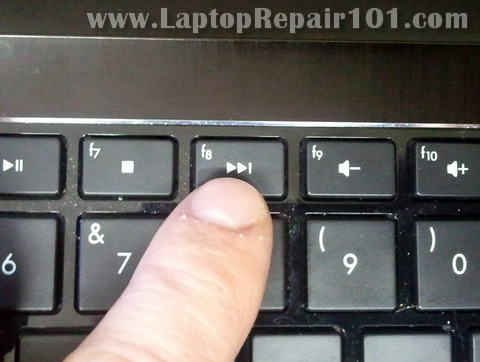
Turn on the computer and press the F8 key when HP (or any other brand) logo appears on the screen.
STEP 2.
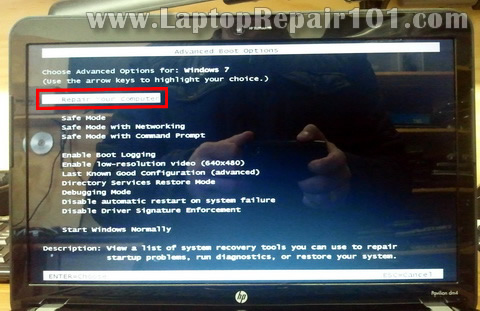
On the next screen you should see Advanced Boot Options.
If for some reason you don’t get this screen, restart and try the F8 key again.
From all available options select the very first line: Repair Your Computer and press on the Enter key.
STEP 3.
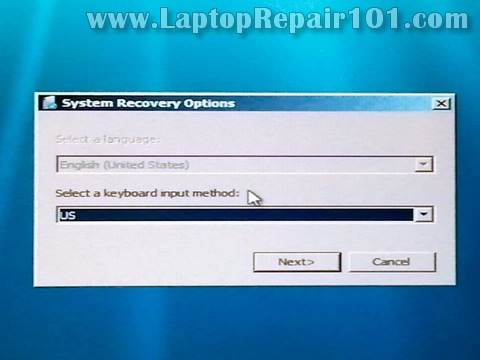
This should take you to the System Recovery Options.
Select available language and keyboard layout. Press on the next button.
STEP 4.
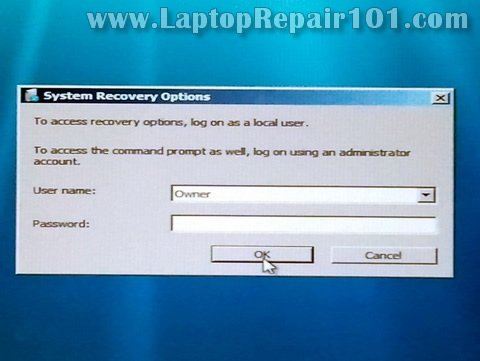
On the next screen select your user name (must be user with administrative rights) from the drop down menu.
Enter the user password and press the OK button.
STEP 5.
This will take you to the next System Recovery Options window.
The last option will be HP Recovery Manager. Click on it.
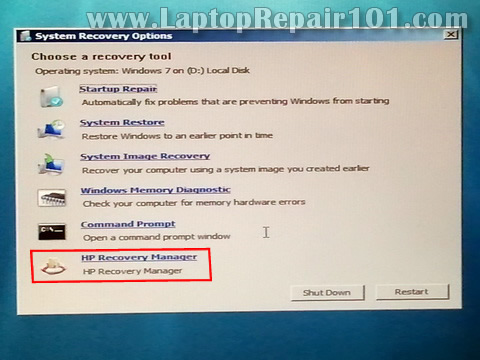
STEP 6.
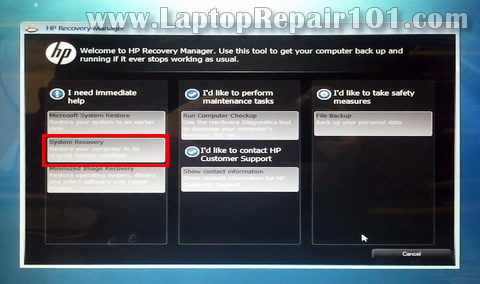
This will take you to the next window: HP Recovery Manager.
There are many different options here and one of them – System Recovery (Restore your computer to its original factory conditions).
Select this option and follow the instructions on the screen.
How to start Recovery Wizard on Toshiba laptops.
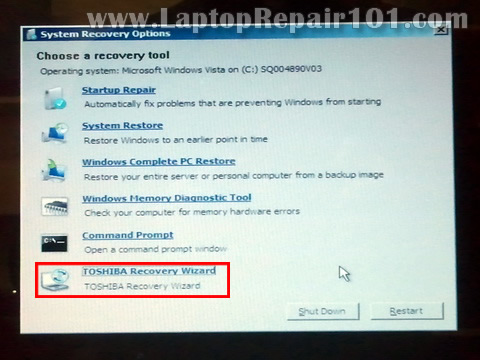
In order to start Toshiba Recovery Wizard you follow STEPS 1-5.
This will bring you to the same System Recovery Options with Toshiba Recovery Wizard at the end.
Click on the Toshiba Recovery Wizard button.
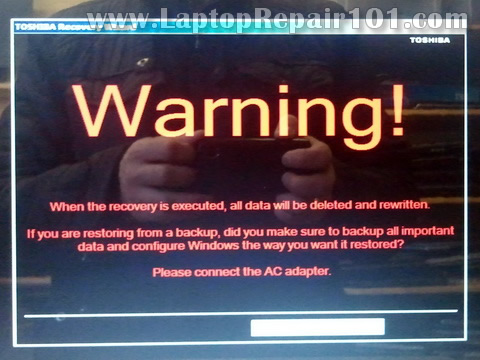
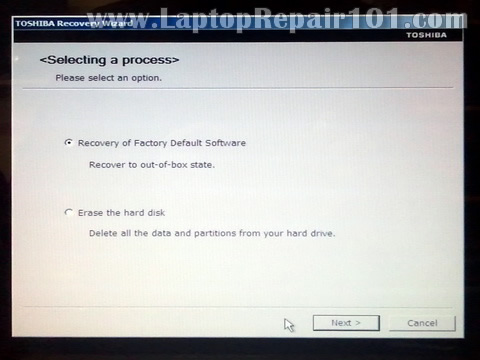
On the next scree you’ll see Toshiba warning about data deletion. Click the next button.
In the next Toshiba Recovery Wizard window you can select Recover to out-of-box state option.
Click on the next button and follow instructions.
How to start Backup and Recovery Manager on Dell laptops.
Here’s another example.
Again, follow steps 1-5 and on the System Recovery Options select the very last option: Dell Backup and Recovery Managers.
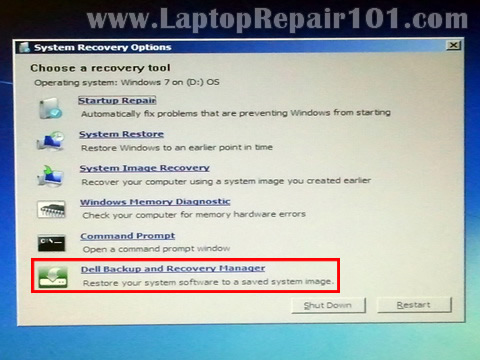
This will take you to the next window where you can start the operating system re-installation process. Follow the instructions.
Other options.
If the above mentioned way doesn’t work, try this.
Hold down the “0” (zero) key and turn on the computer. Do not release the key until the recovery interface starts loading.
42 Responses
asrratu mekonenn
it is good!!!!!!!!!!!!!!!!
Reuel
I have a dell laptop
I followed the steps you mentioned and it began the restoring to factory settings process.
Halfway through an error popped up with nothing written but showing an ‘X’ and there was an ‘ok’ option below the ‘X’
I clicked it and it took me back to the system restore window.
I tried again but this time it did not even respond 🙁
Please advise.
cj2600
@ Reuel,
Enter Dell diagnostic utility (Press F12 on startup and then go to diagnostics) and run all tests. Maybe there is a problem with the hard drive.
vhc
Thank a lot
Nick
Hi,
I tried recently to clone a HP G62 Hard drive to a bigger hard drive (from 320gb to 1000gb). Cloning process has been successful and computer boots to windows fine and it all seems ok until when I try to restore to manufacturer image from new hard drive. I keep getting “restore from this hard drive is not possible”. I have tried different cloning software and no luck so far. Could you help please?
Regards
Nick
Layan
@ Nick
Have you tried HDD raw copy 1.02?
vania
after a press f8, i don’t see “Repair Your Computer “
JK
Hello!
My netbook is jammed & I think it has something to do with this.
Mine’s brand is Fujitsu.
But the thing is, it can’t be turned on.
What should I do?
Help me please, thank you!
Tom
Also, on Dell computers and laptops, you can hit Control D when you see the blue Dell logo on startup. This will run a hard drive scan.
Jo Martin
Hi, I have an E-Machines Acer laptop Model No. ZRGA. I have tried pressing F8 when the E appears. I have tried tapping it, pressing in once and I have tried keeping my finger on it but I end up with the same result – a flashing hyphen in the top left hand corner and then a message saying:
Disk read error occurred.
Press Ctl+alt+Del to restart.
Any advice would be greatly appreciated. I have been told by the tech people at E machines plus another tech on a website that it is a software problem.
Thanks, Jo Martin
james
what about the Acer recovery files
when the OS start the only sign appears is the
boot manager missing
George imade
Sire, my Toshiba satelite can only display with battery but when charger connected to it or alone it shut down the system or the system will be restarted severely without an end with no display. I have check the mother board but there is no phisical damage on board.
pls if there is any idea on any component that is causing the problem. Thanks
Bhavin
I have an HP laptop and tried same steps as mentioned.. however in my laptop System Recovery option is disabled on HP Recovery Manager Screen.
Pllzzz help me out… how to get that enabled and proceed with system recovery…
Peace
Thanks for the tutorials it has really been informative
Ricky america
my problem is vedio card,, how to fixed im working a ship for 8 months pls help me how to fixed hp note book vedio card i search they say beak,, but no procedure ,, thank you for support.. God bless
msi
In MSI you press F3 when the laptop start.
just wanted to share and thank you all.
Cool
Hi,Guys i have a HCL laptop .First i have windows xp then i installed windows 7 on it but on another portion of disk after that i shut down my laptop and when i turn it on it just start and keeps on restarting,no motherboard logo just a blank screen ,No keyboard works,No cursor on he screen,Please Help me to repair my laptop
Paul
On Acer laptops you can press ALT + F10 when logo screen comes up and follow the instructions.
Oliver
Hi, I have a Hp laptop and its running windows Vista. I cannot on it or boot it.. its charger is okay and the power light is showing when I plugged in the charger but when I press the power to come on the light just showed up and it shutdown again.
any advice would be greatly appreciated. Please if anybody can help i will be very great full.
jason
my hp laptop model G60-23ous does not have the recovery option come up
Sreeraj
incase of samsung n150 plus,press f4 when samsung logo enters,you get complete reset options.
allison
my computer says press control alt delete to start, I do that and nothing happens, it is stuck there, what do I do?
Carman
My MSI CR650 laptop does not have recovery option. Please help
cj2600
@ Carman,
Try the F3 key.
Turn on the laptop and keep tapping on the F3 button until you get to the MSI Recovery Manager.
If it is successful, it will ask if you want to get your system back to default settings.
WARNING: This will erase all personal data from the hard drive.
Carman
Hi cj2600,
I’ve tried to press F3 until i get the Windows Boot Manager. Got 3 options to choose. I’ve choose all 3 options but still cannot. I cannot get the recovery manager. i also tried on F8 and choose repair your computer and choose directory services restore mode also cannot get. Any advise. Thank you
cj2600
@ Garman,
It’s possible there is no recovery partition. I guess you’ll have to find a copy of OEM Windows OS installation disk, install it and activate with the key from the bottom.
Julio Salcedo
Hi Carman, What OS do you have?
Tammy
My toshbia laptop starts up , but it says its trying to find my media, and that how far it goes . please help !!!
cj2600
@ Tammy,
It’s possible the hard drive failed. In cases like that I boot from an Ultimate Boot CD and rung hard drive test. That’s the first thing I would do.
Anu
my laptop doesn’t taken currenct system time and date after booting. every time i change the system time and time.
cj2600
@ Anu,
This is CMOS battery related problem. You’ll have to replace the CMOS battery. In some laptops it can be easily removed and replaced. In some models this battery soldered to the motherboard.
jl
My acer desktops can power on , n once i type my password to log in then i can only see black … can help me or advices me sir ?
cj2600
@ jl,
Try booting in Safe Mode. Turn on the PC and hold down the F8 key. Select Safe Mode.
If it works in Safe Mode but not normal mode, most likely this is software related issue. Did you install anything prior the failure? If you did, try uninstalling this application in Safe Mode (if it works).
Davidson
I have a black screen problem I can only see the the mouse but I can’t see anything else on the desktop page. I am able to go to the Internet through the fake laptop versus cleaner apps (when it ask me to register to clean my data). WHAT DO I DO?!?! PLEASE HELP!!! SEND ME A EMAIL!!!
bubacarr
very interesting sir thanks for your well job well i am hardware student so i got problem with one laptop i formatted it with OS Xp but when i on it it will on and off then it showed me message (failed to get pro address for get logical processor information )pls i need help i am total confused sir send it to my email .
hermie
hi sir i have a problem on my toshiba satelite l655d
when i turn on it shows boot compress press ctrl. delete
when i did that its shows only the logo and then again same question what should i do? i try to download the windows 7 starter it works for only an hour and when i log off its all gone?
what should i do? hope u can help me sir
thank u
Faizal
how to recover samsung laptop ?
precedent
My asus laptop use to hang when I opened many tab when browsing please what can I do to this
francis boye mensah
i have a sony laptop when i was turning it on, there came a notification ” repairing hard disk” then it started loading to be 100%. i waited then the screen went off. when i turned it on the machine couldn’t boot to desktop, i went to the BIOS and refreshed the machine. after it came to desktop but i couldn’t get accesa to the hard disk.there was this notification “NTFS” on the hard disk. when i click on “pc setting”, it sends me back to desktop. i also tried to enter the BIOS by pressing f2 but didn’t work.i tried booting from a disk but did not work. pls can u help
ALVIN JOHN CABANSAG
My loptop is window 7 convert to window 10 but they put the system not original now already expire i press the f8 for recovery but not responding what should i do
Saffroel
Looks great. Works on my Toshiba L745 laptops.
Naveen
Windows failed to start. A recent hardware or software change might be the cause. If Windows files have bee damaged or configured incorrectly,startup repair can help diagnose and fix the problem.This is displayed during the start of computer. It highlights two options they are launch startup repair (recommended), Start windows normally. But I clicked the first option. It takes more time with blank screen.