
Here is a simple diagram that will help you to understand how a notebook display assembly works and how an image appears on the screen. I’m not an artist and I tried my best drawing this diagram, so if you cannot see a laptop in this picture, don’t be mad. 😛
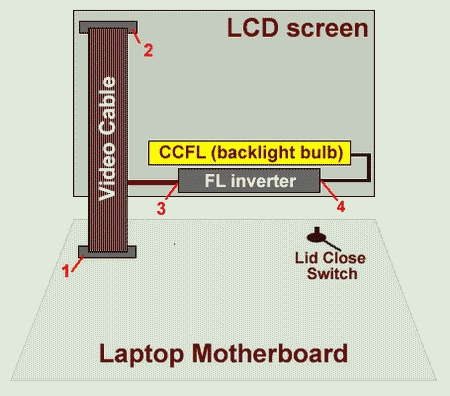
A generic display assembly includes a very few parts and knowing them will help you to understand witch part can cause a problem if you laptop video not working properly.
Video cable. A video signal from the motherboard goes to the LCD screen through the video cable. The video cable connects to the motherboard (or video card) through the connector 1. The video cable connects to the LCD screen through the connector 2. The video cable (in most cases) is also responsible for supplying a necessary voltage for the FL inverter board. The video cable connects to the FL inverter board at the point 3.
FL inverter board. This board is responsible for converting low voltage DC power (point 3) to high voltage AC (point 4), necessary to light up the backlight bulb. If the FL inverter board is bad, the LCD screen (backlight bulb) will not light up when you turn on the laptop, but you still should be able to see a very dim image on the screen.
CCFL (backlight bulb). When the backlight bulb lights up, you can see an images on the LCD screen. In most cases the backlight bulb is a part of the LCD screen and if it’s bad, the entire screen has to be replaced. By the way, some specialized repair shops can replace the backlight bulb itself.
Lid close switch. The lid close switch is a small button that locates close to the display hinges. On some newer models there is no button, because the switch is magnetic. You can set up your laptop to go to a hibernation mode or to a standby mode when the LCD is closed. It’s done through power management software. These modes are triggered when the display is closed and the lid close switch is pressed down. If the LCD screen on your laptop will not light up when you open the display assembly, check the lid close switch is stuck inside (it might happen because the switch is dirty).
Related articles:
Fixing notebook video problems.
Disassemble LCD screen with water damage.
Laptop has bad video on the screen.
333 Responses
BobbO
I can’t yet believe that I stumbled across your troubleshooting incident regarding the HP NX5000 shutting down 3 seconds into the power up. I am working on a customers notebook as we speak. I checked and swapped out everything else. When I got to the last component, the video signal interface to the sys board, I carefully removed it and immediately walked over to my bench. I connected an external display to the video port and Voila – the display works and the PC powers up normally.
I have just one question. I have removed the 5 screws under the rubber plugs on the display side of the LCD Assembly and removed it from the laptop base. What kind of technique or tools do I use to seperate the top cover and the screen’s plastic frame. Am I missing something else, or do you just need to muscle it a bit more. Did you wedge something flat/rigid between the 2 pieces and pop them apart or what? I really don’t want to buy a new LCD panel if I can get inside and correct the cable connection.
I realize that it’s still possible there is something else within the Assembly’s guts that may have gone south. However, this has gone exactly like you described so I’ll be looking for that loose plug.
Thanks for posting the article my friend. And thanks in advance for the pending help getting the LCD Assembly opened up.
Bobb
cj2600
Hey Bobb,
I hate taking apart HP display assembly! It’s even worse then taking apart IBM display. 😛
OK, I removed 5 screws under the rubber plugs first. After that I believe, I removed 2 screws on each display assembly side, you’ll find these screws under black seals. I don’t know if it’s necessary to remove screws on sides at this point, but I think it’ll make the entire display assembly looser. The worst part is that the LCD mask is glued to the screen. I was using a guitar pick. You place it between the mask and the screen and carefully move alone the side, separating the mask from the screen. Separate the mask on the bottom of the screen first (the closest side to the keyboard). Then you separate the mask from the screen on sides. Be careful, there are 3 plastic latches on each side of the LCD mask. I broke only 2 of them. 🙂 Finally, finish up on the top. After the mask is removed, everything is easy.
Blogtheinternet
Hey… very cool article, and excellent site! I am totally adding your feed into my google! Very cool site!!!
BobbO
That adhesive around the LCD frame is so strong it’s difficult to tell if you’ve missed a screw removal or what. Everything went well, although I think I busted 2-3 of the assembly catches/snaps too. My connector behind the LCD panel wasn’t really disconnected. But it wasn’t totally in place either. I disconnected nearly all the way and reseated it. AOK after that. Amazing!!! The owner is with the State Dept and rebound for Iraq. This PC goes thru some real hard knocks. I told her that this will fix it forever or for this week. We’ll see.
Again, thank you very much for your input and tips.
Liza Halbrook
Last week, my IBM T30 LCD screen needed a wiggle to display an image. This week, display is completely gone. the LCD is always lit but no image. All connectors on your diagram (1-4) has been reseated but no improvement. Any idea? Thanks.
ngbede
Men! thanks for such a powerful website. i got a dell inspiron 9300 with dispay problems, there are some vertical lines of varring coluors on the screen the problem has been on for about a month now it the lines are increasing periodically, also now the screen size has reduced from the original 17inches to about 15 inches how can i fix it?
cj2600
Liza,
Before you replace parts, start the laptop with an external monitor attached. If you get a video output on the external monitor, then most likely the system board is good and you have a problem somewhere inside the display assembly. If not, then you might have a problem with the system board.
I think it could be a bad video cable. I would try to replace it first. You have a good chance to fix the problem and the video cable is not as expensive as a new screen. If it doesn’t help, then you might have a problem with the screen (very expensive repair).
cj2600
Ngbede,
First of all, try to reload the video driver.
You can try to fix the lines on the screen by reseating the video cable on the system board (or video card). It’s connector #1 on the diagram above. I think you might have a bad video cable problem because the lines are changing the size. When you have vertical lines because of a bad LCD screen, they usually stay the same size all the time. Have you tried to connect an external monitor? Does it work fine?
Victor
I have a Dell Lattitude C810, the LCD has a vertical red line two inches from the left and a vertical blue line one inch from the right.
If I move the hinges a third and forth red line appear on the screen does this mean the LCD is bad or the cable?
I hooked up a CRT monitor and no lines appeared.
Email let me know.
cj2600
Victor,
most likely the LCD screen is bad.
Victor
The laptop also says “invalid time and date” and asks you to fix it in bios every time i unplug the laptop. Is there a cmos battery to replace in the C810 or is the regular battery needs to be replaced?
cj2600
Victor,
I think you’ll have to replace the reserve battery. Here’s a quote from Dell Latitude C810 service manual:
Follow Dell Latitude C810 service manual to replace the battery.
charz
My ibm thinkpad t21 screen is very dim, can just see the screen, but it’s bad. Just seen your bit about the button near the hinge which hibenates it. So I’m going to go and have a look.
Someone said to me that it might be the backlight. Is this expensive to repair if it is?
thanks
cj2600
A dim laptop screen might be caused by a failed FL inverter or a failed backlight bulb on the screen. I would say that most likely the FL inverter is bad and replacing it is not as expensive as replacing the screen. Check out this post that covers troubleshooting laptop video problems in more details.
A new FL inverter will cost you probable somewhere around $20 (from eBay). You’ll find a disassembly guide for IBM ThinkPad here.
charz
Well it definately isn’t the lid button anyway. So must be what you said. How long roughly would it last if I replaced it? I can’t afford a new laptop, so this one has to go til the death 😀
(Plus it’s 2nd hand, 2nd hand! Person I bought it off is lucky(?) to have a uni grant so bought one for like £800 :-0 )
cj2600
Charz,
If a new fl inverter fixes your backlight problem, you might consider yourself very lucky. Because it also could be a screen problem (you don’t want to know how much a new screen is 🙂 ). Some sellers on eBay offer a new inverter for $9.50!!!! ($3.49 inverter and $6 shipping). Under $10 for a new inverter that’s the best price I’ve ever seen. It might last you forever or just for a few days, nobody knows.
charz
I’ll try anything!
I think I will look for one and see if a friend can fix it for me as he is good with computers, not sure about laptops, but they’re sameish.
Cheers for your help 😀
enrique
ok i have a dell inspiron1150 i read the artical of fixing the dim screen ok when i first turn the computer on i see the dell name for a sec then its all dim i looked for swicth no luck in fiding one but i see talked about magnet which i did find whats the magnet pull a switch from insode the computer or is there something else wrong with it . it did it before but i left it alone foe few days then it worked but the time its staying dim .need some help dont really want to get a new one
sophie
Please help me im hopeless with computers!!!
I have a dell inspiron 6000. I turned the laptop on this morning and straight away there was a single vertical yellow line about 3 pixels thick right down the middle of the screen. This line is present through all the programs and ive tried rebooting the computer.
I have no experience to start taking the computer apart: is there anything i could try before taking the computer in to see a tecnician.
Please help
Sophie x
cj2600
Sophie,
I guess that a bad LCD screen. Take a look at the third picture on this post, your line looks the same, right? The screen should be replaced and it’s necessary to take the laptop apart. So, I think there is nothing that you can do yourself. Screens are expensive, and it could be more cost effective to buy a new laptop then to replace the screen.
Rodrigo
First of all, thanks for the great site!
I had the same problem as ngbede. I have a Toshiba P35 with a 17” widescreen LCD. One day, a vertical line appeared at my LCD and since then they increase day by day… They start at one color and progress to white… One component of the RGB is always turned on for the entire line, but others components continue to work for some time and then they all turn on.
I read something on the web about a “LCD driver” (not the software driver) that may be damaged if overheated. I had problems with overheat caused by a dirty heat sink.
What can I do to fix this? My local tech tried to play with the cables with no sucess.
cj2600
Rodrigo,
Check out my post related to a bad laptop video. Does your screen look like example 2 in the post? If yes, then most likely it’s the screen problem.
Rodrigo
Thanks cj… It looks like that… But now I have way more lines than that! hehehehe…
So my only hope is to replace my entire LCD? Do you know what causes this problem? I don’t want that to happen again!
cj2600
Rodrigo,
It’s not your fault that you have these lines and unfortunately you cannot be safe from this problem in the future, it might happen again on any other screen. I’m almost positive that’s a bad screen, I cannot be sure 100% without looking at the screen.
Jon
I have a toshiba satalite p35-605 17 in laptop and i bought a cable to connect to the tv. I have tried to get it to display on the tv for hours, but its not working. I used the fn f5 key and altered settings in the properties but nothing seems to work. the tv screen will flicker, but doesnt do anything else. if anyone knows what might be the problem let me know. I have tested the cord with other computers and it works fine. thanks
jon
cj2600
Jon,
Have you tried connecting the laptop to the TV first and restarting the laptop? I would also try reducing the laptop screen resolution to minimum, probably 800×600.
Kirish
I made a STUPID mistake. One of the kids I taught put my clear top to my pen drive on my laptop next to the track pad. I had a call to leave school to pick up my own child. I closed the lid not knowing the clear top was there. Once I got home and opened my laptop–OMG Screen damage big time. I can hook the laptop up to another monitor and use that screen- but the laptops screen is a mess of prple and red lines with a nice black leaf shaoped blob where the cler top pressed against the screen. I am in the processes of transfering data!!!
Anyone have any idea on the cost to repair the screen??? I have an Inspiron 6000 that is one year and 4 months old.
cj2600
Kirish,
You’ll have to replace the entire screen not just repair it. If you decide to replace it yourself, you can use Dell Inspiron 6000 service manual. The best price for a new screen you can find on Amazon or ebay, just search for “Inspiron 6000 screen”. You can find one for about $230-250.
If you take it to a laptop repair shop, you will have to pay $100-120 for labor plus a new screen. The screen will be more expensive if you buy it through the service center.
There is another option, you can call directly to Dell and ask them. I have no idea how much they will charge for the screen replacement.
mark anderton
i need help on how 2 fix the dell latitude cpi when i try n switch it on nothin happens and the batty wont charge and when i plug the charger in nothing happens can you help me plz email me back on how 2 fix this problem and what i can do? txt back mark
cj2600
Mark,
Did you test the adapter itself? May be it’s bad?
Jim
I have a Dell 9300 that I have ordered a replacement lcd for after line started developing randomly over the past month. For laughs, I called Dell to see what they would charge to fix it.
They gave me a 499.00 figure to replace the lcd and “run diagnostics” on the laptop to tell me of any other problems. *Note: No other problems if found would have been covered under that 499.00 price tag..that was just for them to replace the monitor and check everything out.
I bought a replacement lcd online for 230.00 and did it myself. Shop around a bit and you can find a lcd at a decent price and do it yourself. This isnt hard, just take your time and have a small screwdriver!
Kevin Johnson
i was wonder can you hook up a labtop lcd to an dvd player?
Della Ore
I have a dell inspiron 1300 and the entire right hand side of my screen is busted! How much will the repair/replacement cost? And where do I take it?
Jeff
I have a Dell Inspiron 6000. It starts up well but usually at the point I type in the password it goes dark. Get a good picture when I hook it up to another monitor. If the bulb is bad would I see all the windows start up? If it is the inverter I have the same question… I live in the jungle of Indonesia so taking it in for repairs is not reasonable. Is there an online hardware diagnostic out there? Would like to do a cheap fix here. Looking online for possible parts….are all Inspiron 6000 inverters compatible? Is there a way to know if something found here is compatible? If it’s the bulb, it’s hopeless right? Could it be the video card? Like only part of it fried?
cj2600
Jeff,
Even if you have a bad inverter or bad backlight bulb, you still should be able to see a faint imaged on the screen. Can you see a faint image after the screen goes black? If yes, then probably you have a failed inverter board. Yes, it could be a bad backlight bulb but I would replace the inverter first, because inverter board failures are more common then backlight bulb failures.
I don’t think that there is an online hardware diagnostic that can help you to narrow down the problem. The only way I know is replacing the inverter board and see if it fixes the problem.
I don’t know. I think it would be a good idea to open up the display assembly, find a part number on the inverter board and search for a replacement by the part number.
The backlight bulb is located inside the screen. I’ve never replaced the bulb myself but some companies offer this service. I replace the entire screen.
Usually a failed video card would affect the video output on both screens – laptop LCD and external monitor. You mentioned that the external video is fine, so I assume the video card works fine.
Caue C M Rego
This helped me a lot.
On my laptop, the FL inverter going bad haven’t made the light just dim, but totally black. It would only be visible by reflecting some external light on it, such as ambient or a flashlight (with that I can even work a little on it).
Anyway, maybe you should add that, at least as far as my research went from here, most of the cases when you can still see an image with no backlight, it is FL inverter problem, since it’s really rare for the CCFL to go bad.
What I don’t understand is why regular LCD monitors (for desktops) doesn’t give so many problems as laptop does. Maybe they don’t use FL inverters…
brad
I have a question how do I get to the back light on a sony vaio fxa-59…. They want $20 for the light vs. $450+ for a completly new monitor or a completly new PC
SAHM
Help! The bottom 2-3 inches of the screen on my Dell Inspiron 6000 laptop changes to grey with a bunch of lines in it. When it’s like this, nothing can be seen and the cursor does not work in this. I press on the left side of the screen in this area, functionality pretty much returns; however, the moment I take my thumb off, the image starts to fade and then it turns grey again with no functionality. Thank you!
sumit solomon
I m having a problem with my lcd it boots fine but here is a dark screen on my ibm p3 it works fine with an external monitor but it can not play the vedio files (songs) while i plug into the external monitor .Here is a white line also on the laptop screen in the left side of it.I can feel a dim light in it but no any display what kind of problem is it can i sort it out my self,plz reply immiediate.
thank u
sumit solomon
aslam
hi thanks for the information… Now I’m i had a pob with the laptop is it might the power prob with the screen… i gonna try.. and let know the stiuation….
thanks
rw
Hello, I have a Compaq Presario R3000, and about a month ago, the screen went dim and then ultimately out. I’ve troubleshooted it first by replacing the backlight – no luck, then the inverter – no luck. When hooked up to an external monitor – it’s fine. That only leaves the harness that connects the inverter to the main board, right? Or could the main board sitll be the culprit even though it functions fine with an external monitor?
Thanks in advance,
Ryan
rw
Regarding my post below, I should also add that, when i shine an independent light source into the lcd with the laptop on, it shows fine, so I’ve rule out the LCD as a cause also.
-Ryan
cj2600
Ryan,
It’s rear but it’s possible. I’ve seen that before 2 or 3 times. It’s possible that the video harness itself is fine, but the motherboard has a faulty connector the harness plugs into. I would probably go with replacing the video harness next. It gives you 50% chance and it’s much cheaper then replacing the motherboard.
It means that data signal is coming from the motherboard to the LCD screen , but there is no power coming to the inverter board and as a result the backlight bulb will not light up. I’m not really familiar with Compaq laptops and not sure 100% if the video harness caries both the data signal for the LCD and power for the inverter, most likely it does. If that’s the same harness, I would probably try replacing it. Sorry man, cannot give you better advice.
Mike Geraghty
I have a 4 year old Sony Vaio screen was dim now only lights for a second when I open or manually use the close switch. Do you sell bulbs? Mike
Asterios
I have a Toshiba Satellite P35-S611 laptop, which is 1.5 years old. Recently, I noticed a vertical purple line that comes up every so often. Does it mean that my LCD monitor is gonna die? What needs to be replaced?
Thanks for a prompt answer
Shawn Moss
Ok now heres my situation,I have a old 2001 Ibm thinkpad a21m laptop…..the video cable which connects the lcd screen to the laptop motherboard was damaged,in damage i mean it was puctured.How can I fix it “Myself”? and if its not possible for me to fix it.How much would you think it would run me for? thankyou
cj2600
Asteros,
It depends. Connect an external monitor and set the laptop to output video on both screens – laptop LCD and external monitor. Wait until the video fails. If the vertical line appears only on the laptop LCD but not on the external monitor, then most likely you have a bad LCD screen and have to replace it. If the line appears on both screens, then you have a bad video card, in this model it’s integrated into the system board. You’ll have to replace the system board.
I think you have a bad screen.
cj2600
Shawn Moss,
If you feel comfortable taking the laptop apart, you can fix it yourself. Here’s a link to IBM ThinkPad A21m hardware maintenance manual, this manual has step by step disassembly instructions.
Kurt Theurer
I have been checking a Presario X1000 notebook. It was working, hang up, mu client restarted it and it never came on again. No video, no sound. The first thing I noticed was that the cpu fan sopped spinning 3 seconds after I turned the notebook on. It has the video card on another board, I pushed the card by the superior part, near wher the screen connector is, and the notebook started normally, I reainstalled Windows XP and I installed Max OS X for intel on it. But if you merely hit the notebook or put it too strong on the table, the same problem again, I was as at the beginning. I have cleaned the video card contacts with contact cleaner and nothing. The video card has two sockets to the right side of it, I cleaned the connector sockets and nothing. Any idea?
Tony
Your instructions are great!
Based on what I’ve ready I may have a stuck lid close switch. The laptop is a fairly new Gateway 7326 which I’m guessing has a magnetic switch. I just can’t find it! Any ideas on where I should look or how to find it?
Scott Smith
I have a DELL Inspiron 8200. At first, monitor would start to display distorted lines until they consumed the screen. Initially, a firm yet loving thud would clear it up. Pressing around the keyboard varied the distortion patterns. Now, soon after startup, screen quickly distorts then goes blank (not dim, completely blank). I hooked up an external monitor and that works fine. I took it to a friend and naturally it worked fine for hours…got it home and problem back. I’d really like to fix it if I can.
debby
I have an old compaq armada 7800. Recently the screen goes all discoloured(reminds me of a mood ring) and the screen goes white. If i squeeze the sides sometimes the image will come back or sometimes freeze. Should I take it apart ? Is there a way to tighten the frame because it seems like the squeezing of it sometimes helps
Jyoti
Hi,
Your instructions are great — thanks!
I am getting a faint screen on my satellite A45-S150. It happened after I dropped my laptop on the floor.
I have followed some of your instructions, and so far have been successfully able to dismantle the LCD. However, I have no clue what I should do next. Should I
1.) check whether the lid close switch is “closed”? If so, where can I find such a switch on Toshiba Satellite A45-S150? Is it magnetic?
2.) check the FL invertor board? If so, how can I check if it is working fine or not?
As usual, your feedback will be invaluable.
Tom Erickson
Hi, Laptop Repair Guy: I have a Toshiba model 1955 laptop. In trying to correct an overheating problem, I disassembled most of the computer before cleaning the air blower chamber, because I had trouble with the cover screws, and thought I could take the whole bottom pan off. Had I read your site first, I would not have made the mistake.
After I assembled the computer, the overheating problem is solved, but the screen does not light up, even though it was working fine before the repair. I presume there is a faulty connection somewhere that sends power to the screen even though I the only cable I disconnected was the one to the hard drive, but the system seems to be powering up fine. Can you give me some idea of where to look for the problem, or how to test to verify if the connections to the screen are feeding signal and power to the screen?..
Thanks for your help. Tom Erickson..
Tom Erickson
Hi, Laptop Repair guy: Here is the answer to my own question regarding my Toshiba laptop model 1955, that after disassembling, the system seemed to power up fine, except that the screen remained black, and appeared not to be getting power. I read your instructions for checking connections to the strip wire between mother board and screen, and found that there is a removable snap-on plastic cover over the screen hinge section, under which the wires that come from the motherboard are plugged into a socket. Apparently in manipulating the screen, the plug came partially out of the socket, causing a false contact to the screen. I pushed the plug down into the socket, and as soon as I powered up, my screen started to function properly. Thanks for informative site, that helped me solve the repair problems.
Daniel Vizante
I have an Amilo Fujitsu Siemens with no backlight (I can see the imagine but very dim). It is possible to change only the converter ? Or I have to replace the hole LCD ? I have no high voltage (1500 V)
Steve Morecraft
I just followed your advice and replaced the FL inverter board which fixed my Acer Aspire 1804wsmi which had a dark screen with graphics which were just visible. Thanks Laptop Repair Guy !
jim
I recently replaced the lcd on my dell 9300 which had the typical vertical lines and eventually half the screen was blocked out. i bought a new replacement off ebay and it’s great other this one problem. When it runs on the battery the screen is very bright and seems to be normal but when it runs on ac it goes dim. I can still read everything but has to be in an almost dark room. What do you think is causing this unusual problem. by the way with the old screen this problem was just the opposite. thanks.
cj2600
Scott Smith,
You have an intermittent problem with video and very likely it happens because of a loose video harness. Check if both ends of the video harness are seated properly. Check the connection on the motherboard/video graphics card first because it’s easier to access and after that check the connection on the LCD screen.
Scott Smith
Thank you very much cj2600…I’ll give it a try.
cj2600
Jyoti,
First of all, I would open up the display assembly and check if both connectors on the inverter board. Make sure the connectors are seated properly, reseat them just in case. If reseating cables will not help, most likely you have a problem with the CCFL tube (backlight bulb). Probably it’s been damaged.
By the way, may be the screen lights up for a moment when you turn on the laptop or it stays black right from the beginning?
cj2600
Daniel Vizante,
Jonathan D. Gaiya
pls send me details on how to troubleshoot when the screen is flickering.
thank you
cj2600
Jim,
Check the power management settings, you’ll find it in control panel. May be the brightness is set to minimum when the laptop runs on AC power? I believe on some Dell laptops you can also adjust brightness in BIOS. Enter the BIOS setup and check if there are any settings for it.
Finally, try upgrading/reflashing the BIOS.
domino
Hi, I have a Dell Inspiron 3800 with scrambled graphics when running WindowsXP. A diagnostic cd tells me it is the fault of the video memory. I managed to order a new graphics card from an online auction site and install it, but it didn’t fix my problem… Perhaps the video memory is on the motherboard (system board)? Does anyone have a resource to find the video ram? I can even tell you the memory address that’s gone bad!
Thanks in advance for any help here.
Jerry Jones
Hello, I have a dell xps m170 and I am having a problem with the monitor. I was playing some games last night and all of a sudden it went black but it was still on it did not turn completely off (the screen was glowing black not like just a non powered LCD). The computer itself was also still on because I could hear the game sound. It did this twice last night and I let it set for around 20-30 mins and then it would work again. I figured it was due to overheating, but today I was just surfing the web and the laptop had been on for about 5 hours and then it did the same thing again. Now I have not gotten the screen to work. It has a glow but it is just black. I hooked up a normal monitor to it and it worked fine. I ran the diagnostics test and it found no problems but I do not know if that checks the lcd when I have it hooked up to another monitor. Any information would help.
nikos
Hi all.!
I have a toshiba a100-906 laptop and I have a strange problem with my guitar and my laptop’s monitor. When i was playing in front of an old crt i had electomagnetic noise to my guitar. When i was playing in front of an lg tft monitor everything was quiet as it should be. today i tried to play in front of my new lappy and guess what…NOISE!! I couldn’t explain what and how and why but after reading about the FL inverter i think that this thing is causing so much noise once again. :/ And i’m afraid that i can’t do anything about it…
Are all those things i say right? Anyone with the same experience?
Thanks
Nikos
peter oakley
i have a tiny laptop,It does not charge with or with out the battery the power supply seems ok but im not sure is there any way for to check it thanks
Carmen L.
I got a Dell latitude Cpx I would like to know if you can help me and show me where is the FLInverter on this laptop. I could see the screen but I got to shine a flashlight on it. I hope to hear from anyone that could help me. Thank you.
cj2600
Carmen,
I’m not familiar with this model but usually you can find inverter inside the display assembly, below the LCD screen. Here’s an example of replacing a failed inverter board on an IBM notebook.
bob
how do I reset nvram on a toshiba satellite 1955 with no video post
Marilyn
Great site and drawing of the laptop!
I have Dell inspiron 8100 that has the equivalent of snow…colored lines with mixed, squiggling color, but still able to read display. The problem comes and goes, unrelated to how long laptop is on.
Can you help? Thanks!
cj2600
Marilyn,
Test the laptop with an external monitor. If you get the same problem on the external video, probably you have a bad video card.
Carmen
No I could see it on the external monitor. They say it’s the FL inverter but I just don’t know where to find that in the dell latitude Cpx
Clinton
I have a Systemax laptop (yeah I know) and the screen went dark a while ago. I can see the image faintly and it does work with an external monitor. I looked online for a replacement inverter but I couldn’t find one. I eventually found one that is close to the same (website says it can act as a replacement for mine). I bought it and got it today. After plugging it in, the screen sitll doesn’t work. It stays dark the entire boot up/etc process. Is it the bulb? I don’t mind trying to open the lcd… I just want to sorta be sure about it before I do.
Clinton
nevermind. i checked the part number on the inverter i got in the mail and it’s not the one i need. i contacted the guy and should hopefully be able to get the part soon.
Apoorv
I have a Dell Inspiron 6000 with a WSXGA screen.
Since 2 weeks I’ve been having a problem where the backlight intermittently doesn’t come on when I boot up my laptop.
Sometimes after toggling through the CRT/LCD switch, the backlight will turn on again.
Any suggestions?
cj2600
Apoorv,
Probably it’s just a bad LCD inverter. Try replacing the inverter board.
Carmen L.
I want to know is the Fl Inverter inside the LCD screen. I have a Dell Latitude Cpx.
lostnrestless
Hi there..
im suffering the same fate as many here- vertical lines on my laptop (which is not so old). i specifically bought it for the display quality – nec ‘super shine view technology’ crap… and now im stuck with multiple vertical lines on the lcd. the problem is they’re clustered to 3-4 very very close ones.. like one thick line, and they disappear if i put ‘pressure’ on the lcd at some angles. please tell me this could still be a bad ribbon cable. to be very honest, it was just one to begin with – but seeing that putting downward pressure made it go away, i ‘jerked’ my screen somewhat hard 2-3 times.. and now im stuck with this thick one.. dnt tell me how stupid that was, ‘cos i already knw.
also, would u be able to help me with the service manual for disassembly , it’s an nec versa m540 (i knw its sold as packard bell in europe).
SDog
Dude – you fixed my laptop! Thank you SO much for giving me the idea to f**k around with the lid close switch – you just saved me a fortune!
lostnrestless
thanks for ur reply…can i bother u one more time, this time with more specific details:
with help frm ur posts i managed to take out my lcd screen.. to reach the ribbon cable at the back (thanks for improving my knowledge of laptop hardware by leaps n bounds btw!). i was fiddling around with the ribbon cable when i noticed this – if i take out the ribbon cable and power up the display is pure white (ccfl bulb) but WITHOUT those annoying lines. is that to be expected? to rephrase, since those lines come up only when the ribbon cable is plugged, im wondering if it could ‘still’ be the ribbon cable??
also no angles/pressure does anything anymore after i’ve tinkered with the ribbon cable on the backside. the lines are now like a shaded area about 7 pixels wide.
thanks again mate.
cj2600
lostnrestless,
Yes. On some models the display will go white when you unplug the data cable from the screen. The lines disappear because there is no signal coming to the LCD.
From my experience, when you have a bad video cable it will affect image on the entire screen. You can get no video at all, corrupted video, bad colors, etc… but across the entire screen.
If you have a few vertical lines running across the screen, as it shown in the example 2 in this post, then most likely you have a problem with the screen itself.
Rewel
Hi there,
I want to buy/assemble a LCD desktop monitor like the one I have in my notebook (15.4″, WSXGA+).
Can you possibly give me any further reference, please?
Thank you so much.
mangesh vasiya
i ahve mercury green320 laptop it have problem no dispaly.no beeb,power is on,but no beeb comes & no desplay.
Clinton
Hey. I know problems are posted all the time, but I am still in need of help. Earlier I thought that the inverter I ordered was the wrong one, so I ordered a different one. The screen still doesn’t light up though. The only thing I remember from the night it stopped working was a distinct burning smell from the back of the laptop (near the fan). Do you think this could be the CCFL tube or something else? I’ll probably end up getting it repaired unless it’s something sorta easy to fix. Thanks for any help.
cj2600
mangesh vasiya,
check the memory module, try reseating it. If it will not help, swap it with a known good memory stick and test again.
cj2600
Clinton,
Did you test the laptop with an external monitor, can you get any external video? Can you see a faint image on the LCD screen? If you have a bad CCFL tube the laptop still should work with an external screen and you should make out a faint image on the laptop LCD.
Sarah
i have a notebook 2800t which only displays the backlight and has no image showing. i have tried connecting it to a external monitor and it shows up to the xp screen fine then it turns the screen off but continues to boot on the laptop… i have also tried booting it in safemode and vga mode and the external works fine but as soon as you try to put the resolution up in vga mode it turns off. id love any help on trying to get the laptop screen or at least the external working (as i really cant afford a new screen) any help would be very appreciated thanks!
Clinton
CJ,
Yeah, I’ve used it with an external monitor so I know the video card (etc) still works. I can also see a faint image on the screen (which is how I know it’s not the lcd screen itself). I’m probably going to take the screen apart later today to check the bulb size and order a new one. I have a friend that has a soldering gun so I should be able to mount it once I get it. If you have any further ideas on what it could be, I would greatly appreciate the info. Thanks.
darryl sarnecki
Hello i am having m,ajor problems with turning on my computer.it satrted when i insatlled a program call system mechanics 7.0 .It was to advanced and i did not know how to use it.Any it cleaned away my web roser and i could not get on the internet.So i went back and reinstalled everything that was removed from my computer.Shortly after that my lap top made ths crazy beeping noise and it would not stop.Orange light came on too.i shut off manually .Then i went to turn on again and it would start for about 3 sec.then shut off.know i can not turn it on at all.I bought this from a friend and there is no warrenty i live in the deep north.And would cost alot to send away.Is this a mojor problem or can i fix this my self .Is my computer completely destroyed by a virus that i re installed ?please for the love of god get back to me please.
mike beckman
I have a toshiba a15-127 with a sharp lq150x1lhc3 a lcd. I am having difficulty finding a backlight tube online. Is a separate tube available? Thanks for your help, Mike
BlueEagle
I have a HP Pavilion N3270 with a faulty screen. It is very faint when the laptop boots up, and then goes blank. An external monitor works OK, and when I switch between the laptop screen and the monitor, the laptop screen appears OK for about 1-2 seconds, and then goes blank.
Thanks for your help
Legzy
I have a problem with the user here when he logged in he find that the keyboard is not function but when another user logged in the computer just function properly. what is the problem can you help me? with this
Mustapha
Hello,
I have a Spartan laptop with 17″ display and since this was a fairly pricey unit, my heart stopped when the display failed! I was picturing a fairly expensive repair or worse…
I followed the numerous posts here, regarding failed lcd displays and finaly, the culprit was a simple one: a stuck lid switch (the laptop simply thought the lid was closed and had shut down the lcd display to save power.)
I am relieved and I just wanted to say thank you very much! You guys are great 🙂
A very relieved laptop user.
Mustapha
P.s., I do “security” at a local bar and have to charge admission fee’s for our events and you guys can only guess how boring it can get. Well, I usually take along my laptop to help maintain sanity and in between checking id’s and charging admission, I usually browse the web or spend time going through youtube.com video’s. If my laptop had broken, well… it would have meant very boring shifts and ensuing madness 🙂
MINHAS UMAR
Dear Fellow
I have removed the laptop screen and wish to use the said screen as monitor but there is a problem that the connectors which are pluged in the motherboard i have placed out.But how can i use them, there are 2 kinds of connector, one is Vedio n the other i for 12 Volt supply. Can anyone let me know that how could i connect both of them
josh porter
i am having a similar problem, although it is not due to a bad backlight. my problem lies with the lid close switch. if i rapidly push the switch for a few eventually it will come on and stay on for a while. i hahe torn the whole thing down to the board itself to check the connection for the switch itself and the connection seems good, and no broken traces. so i have determined the problem to be my lid switch. any ideas where i can buy a new switch?
cj2600
Josh Porter,
Looks like a screen inverter problem to me. I think there is nothing wrong with the lid close switch and most likely you have a faulty inverter board. I would try replacing the inverter first, it might help you to fix the laptop.
Aaron N.
Hello i have a IBM R60e (im pretty sure) and i use it for playing games but recently when playing games the screen will bugg out when it is moved from a flat position and the only way i can get to go back to normal is by shutting down the Pc all together. PLEASE HELP!
Falk Werner
Hi Laptoprepairguy,
i have a broken thinkpad a31 and i would like to use it’s display as an external monitor. Do you know where i can get any information about the display-cable layout? Or the layout of the header?
Thanks for your help,
Falk
cj2600
Aaron N,
What do you mean by “screen will bugg out”? The backlight goes off, the video disappears, the image changes colors or what?
cj2600
Falk Werner,
I doubt that you can use the laptop display as an external monitor. I don’t know how you can do that.
Aaron N.
The screen gets cluttered with garbaged pictures that are all fuzzy and the colors are all messed up, its kind of hard to explain but thats what it generally looks like but some time it will just be black.
cj2600
Aaron N,
Sometimes you might experience this problem because the video cable doesn’t make a good connection with the motherboard or LCD screen. Check the connections first, make sure the video cable makes a good connection with the screen and system board.
Check video on an external monitor. If you get the same fuzzy picture and messed up colors on the external screen, you might have a bad video card.
Aaron N.
Thx Cj for the info, unfortunately i have no experience with laptops so i dont know where to start in checking the connection or how to take the laptop apart if you could help me out with that it would be great, ill also check on the external monitor.
Ryan
Did you ever get anywhere with this problem? I have the same problem.
Aaron N.
Hello again i have hooked up my laptop to an external monitor and it works perfectly so now i need to know how i can re-connect the video cable to the laptop display screen but for now i have it hooked up to a docking station so take ur time 🙂
cj2600
Aaron N,
IBM hardware maintenance guides have detailed disassembly instructions. You have an IBM ThinkPad R60e, right? Download the manual and take a look at pages 88 (video cable connects to the motherboard) and 111 (video cable connected to the back of the LCD screen). It’s not easy, if you feel uncomfortable tearing it apart, take the laptop to a repair shop.
Aaron N.
thx again cj ill probably take the laptop to a repair guy how much would fixing this kind of problem cost? do u know? 🙂
applet computer
I have a sony vaiopcg9522. It starts upon moniter good but laptopLCD show lining . Get a good picture when I hook it up to another monitor. If the bulb is bad would I see all the windows start up? If it is the inverter I have the same question… I live in the jungle of Indonesia so taking
cj2600
applet computer,
If the laptop LCD is still bright and you can see an image on it (even bad image), there is nothing wrong with the backlight bulb or inverter.
Bryan
I have a Compaq Presario R3000, and a couple of weeks ago I inadvertantly left it on hibernate while I was out of town for a week. When I tried to reboot, it initializes… goes until the Windows XP screen and then starts over..
I’ve tried booting from my XP disk, and that didn’t work.. I tried to upgrade to Media Center, and that didn’t work… So I figure it is a hardware issue.. Somebody.. Anybody PLEASE HELP!
Bhupi
I have the toshiba M35X…i corrected the power jack problem but the laptop would not boot up now. The blue light on the power switch tuns on but goes off in 3-4 seconds.
After reding the reviews i have opened and closed the laptop 10 times to check all coneecctions and everything looks fine.
could a problem in display monitor other than connections cause it? how can i identify the problem? PLease help…
Bhupi.
cj2600
Brian,
What did you mean by that? Are you getting errors during the upgrade or what?
Run tests for memory and hard drive. You can use Memtest86+ and Hitachi’s drive fitness tests, you’ll find links on the right side.
cj2600
Bhupi,
Did you remove the processor during disassembly? If you did, make sure the processor is seated properly and the socket is LOCKED.
george
Need help. I have a inspiron 9300 with a dim/faint screen. On boot, the dell logo displays normally. Then the screen goes dim. External monitor works fine. Dell diagnostics error is “Error accessing the lcd inverter”. My dell has a philips LCD LP171wx2 17 inch WXGA+ and my inverter board is a K08I020. Dell is no help and wants to charge me $500! Everytime I contact them it seems like everyone is working on commision-Way to lose customers Michael. I purchased a replacement screen with inverter on ebay mistakenly advertised as a 9300, but it is actually a screen and inverter for a 9400-philips LCD LP171wx2 (same screen) and inverter K08I025. When I attach the 9400 setup to my 9300 I get nothing-not even the dell logo. If I swap inverters I get the dell logo again but the new (9400) screen goes dim like the original problem. BTW the 9300 screen is dim including logo with the K08I025 (9400) inverter. So, my questions are:
1. Are these inverters compatable?
2. Do you think it is worth purchasing a K08I020 inverter (cant find any new ones on the internet)?
3. Are inverters specific for a particular motherboard/video card?
4. Do you think my problem can still be the motherboard or video card?
Thanks
cj2600
George,
Sorry, cannot give you a lot of help with Dells, I work mostly with Toshiba, IBM and business HP laptops.
I would say the inverter is specific for a particular screen. Both your screens are similar, so I guess both inverters should work. It’s possible the 9400 setup uses a different video cable, that’s why you are getting nothing on the screen with the 9400 setup.
Not sure what is wrong with your laptop but I would try this. Install the 9300 setup back as it used to be. If you turn on the laptop, the Dell logo appears and then the backlight goes off, right? Now unplug one cable from the inverter board (K08I020) – the cable witch goes to the 9300 screen backlight lamp(the data cable still should be attached to the screen) and instead plug the cable with goes to the 9400 screen backlight lamp. In other words you’ll get two screens connected to the same laptop, the data channel still would be connected to the 9300 screen but the inverter board will supply power for the 9400 backlight lamp. Turn on the laptop and check how the 9400 backlight lamp works. If it still turns on for a while and then goes off, I would try to find and replace the original K08I020 inverter, it might be your problem.
It’s just a guess.
michael
Hello i have a dell Dell Inspiron 1300 but i can,t seen to get it out of stay by mode.
The power light is flashing all the time and three lights on the top.
I have remove the battery and try just the power pack and it still does,nt work.
Even switch the main plug off and on, nothing will happend.
Last night everything was fine but i left it in stayby mode all night. The next day it would not come out of it.
Try pressing the button but no luck.
P.S: Only have a dell power pack now since the battery is dead.
Any help please?
Heather
I have the same problem as the guy who left comment 57, but the screen isn’t totally blank yet. It’s just covered with lines. How can I fix it? Thanks
Kefth
I have a Sony Vaio PCG-GRZ615 model for about 4 years. I experienced no problems, until yesterday when my LCD screen fickered two three times and then went off. However, I can still see a dim image on my LCD screen. I attached an extranl CRT monitor and everything and it works well. So no problem with the graphics card I pressume.
As far as I leart searching the internet my problem can be either a converter or a CCFL lamp problem.
I opened up the lcd screen and I am wodering the problem lies; IS IT A CCFL or a CONVERTER PROBLEM?
I give you one extra element that might with some extra help. When I press the lid switcher manually with a pen the CCFL light tries to light for a sec (yellow-red color) and then again goes off. This happens every time I press the lid switcher.
I know that when the converter starts working it gives a greater voltage supply for a second. So my question is… if the CCFL lamp was the problem would it flicker at all every time I press the lid switcher or it it will be just dead at all times?
Any suggestion would be appreciated.
Thank you
cj2600
Heather,
Did you test the laptop with an external screen? Do you see the same lines on the external display?
If lines appear on both internal and external screens, you have a problem with the motherboard/video card.
If lines appear only on the internal display and the external screen works fine, it could be a bad connection between the video cable/motherboard/screen, defective video cable or failing LCD screen. Reseating the video cable connections might help.
cj2600
Kefth,
It’s hard to say witch part is causing the problem, it could be the inverter board or the backlight lamp. I would try replacing the inverter board first because it’s much easier and the inverter board shouldn’t be very expensive.
Not sure about that. To me it looks like a faulty inverter board.
michael
See message : 128
Did,nt find out the problem with my dell laptop.
I rang dell and they replace the motherboard for free, under the warranty.
The call out guy only said it was the motherboard.
How many people have this trouble with a Dell Inspiron 1300
Matthew
I have a 3 year old Dell 9100 laptop who screen recently when dark. Based on what I read (i.e. you can still see a faint image on the screen) I decided to try replacing the inverter board. I bought a new one off of eBay and installed it. At first everything worked great, and I thought the problem was solved. Then, about 4 hours later, the screen went dark again.
Currently, it will boot up with the LCD on for the first 10 seconds and then it will go black. During the first 2 seconds of booting up, the screen has a pink tint to it. If I close the lid for about 10 seconds and then reopen it, the screen will stay on for about 5 minutes before going out again. This behaviour is similiar to the behavior of the old inverter board, except the close lid trick only provided about 10 seconds of functionality.
Is it possible that there something that is causing the inverter boards to burn out, or could it be that I purchased a bad inverter board? Is the problem something else entirely?
Any suggestions would be appreciated. Thanks.
cj2600
Matthew,
With a new inverter board your screen worked fine for a long time. I think it’s possible that you purchased a bad inverter board. I would try replacing it again.
If you still having the same problem even after replacing the inverter for the second time, I would probably blame the backlight lamp (located inside the screen).
Jamie
I have the same problem! I think my Sims 2 game is taking up my laptop space, maybe you should delete a big programme. I am selling my Sims 2 games and then buying the sims 2 life stories which is Laptop Friendly. If this doesn’t work. I will need your help!
Jamie.
Barbara
I have a Dell Inspiron 6000 and thought I had a bad inverter board (screen image was too faint to see much of anything). I took the screen apart and discovered that the cable going to the inverter board had become loose. I re-attached it, put the screen back togethe and bada-bing!, works great now! 🙂 I used this link to learn how to take the screen apart and put it back together:
Thought I was going to have to spend hundreds of dollars to repair this laptop and it didn’t cost me a thing!
Jacob
I need an LCD display (for a desktop, not a notebook.) Since I like hacks and saving money, I figured I would take a display from a really old /broken laptop. I managed to remove a display from a Quantex laptop. The unit I got was missing its bottom and didn’t have a model # on the top, so I don’t know the exact model of notebook, but I do have the numbers for the display, which I removed without damage. The monitor is IBM, model # “ITXG70M,” P/N “83H4500”, EC “FO2812”, and S/N “868953”. The video line coming out of it is not a ribbon cable, but the plugs at each end are thin and wide with a single layer of 20 pins (or holes, rather — the cable is female-female.) If I am looking at the side of the plug that faces upward when plugged into the video board (which piggyback-plugs onto the motherboard,) the colors of the 20 wires coming from the plug from left to right run as follows: Gray w/dark gray stripes || Solid light gray (same as base color on pin 1) || Purple w/stripes || Solid Purple || Solid Blue || Blue w/stripes || Solid Green || Green w/stripes || White w/stripes || Pink w/stripes || Solid White || Solid Pink || Yellow w/stripes || Solid Yellow || Orange w/stripes || Solid Orange || Red w/stripes || Solid Red || Brown w/stripes || Brown. Whew! What a mouthful! There is another cable coming from the inverter, which connects to the display itself with only 2 wires (making perfect sense,) but this other plug happens to have 10 pins, all connected, whose purpose I cannot help but wonder about their purpose. The open end of this plug has 2 layers of 5 holes each. If the plug is oriented the same way as the other one, the wire colors running left-to-right, top-to-bottom are as follows: Purple || Blue || Yellow || Brown || Black -/- next layer -\- White || Gray || Green || Orange || Red. If you know anything about this type of connection, know how I might adapt it to a common monitor interface (like DVI or VGA) or might be able to give me pinouts so I can figure it out myself, it would be appreciated greatly. Thanks.
Jay
I have a Dell Inspiron 6000 with the 15.4 Samsung WSXGA lcd. After being on for just a few minutes, my display would start to get a pinkish hue and then go dark. Could still see the faint image if I shone a flashlight on the screen, and it worked perfectly on external monitor. So based on similar reports I had read here I bought a replacement inverter board hoping that might be the easy fix. Sadly, that didn’t fix it. So next I bought a replacement lcd display. I found a new, factory-sealed 15.4 Samsung WUXGA which is the 1920×1200 display that Dell used in the 6000’s. My ATI Radeon x300 supports this resolution so I thought I was good to go.
Installed it and now I have no image on the lcd at all… not even the dim ‘ghost’ image. But I can see that the backlights are functioning. Still works fine on external monitor. BIOS is up to date (A09) and shows display as being 1920×1200 so I think it is recognizing the new lcd. ATI drivers updated and reinstalled as well. If I plug in my old lcd I can still see the dim image so I think the video cables are okay.
Puzzled. Any ideas?
cj2600
Jay,
I think this failure is related to the screen backlight lamp. In some cases, when the backlight lamp goes bad, you might see a pinkish hue on the screen.
It’s possible that your new 1920×1200 LCD screen requires a different video cable. Even though the connector on the screen looks alike, it might have a different pinout. You’ll have to find out witch cable you should use with this screen. Hopefully, you’ll be able to get video on the new screen if you install the correct video cable.
The backlight on the new screen works fine but it doesn’t work on the old screen. This proves my guess that you have a faulty backlight lamp on the old screen.
Grant
I have a Compaq Presario V2000 that is having an issue with the LCD only when opening it past about 60 degrees. When it is relatively closed, the image looks perfectly fine, but when opened up wide enough to actually use normally, it fills with horizontal lines and distrotion. I brought it to a repair guy and he said he thinks the LCD and motherboard need to be replaced, but I’m not so sure. Since it only happens depending on the angle, I was guessing it could be just the cable? Am I on the right track, or would you tend to agree with the repair guy?
Thanks for your help!
cj2600
Grant,
First of all, check connections on both ends of the video cable. Make sure the video cable is making a good contact with the LCD screen and the motherboard. I think it very well could be your problem. If reseating connections doesn’t help, try replacing the video cable.
I don’t think that this problem is related either to the screen or the motherboard. Of course, I could be wrong BUT check connections and the cable first.
Qianli Xie
Hi, I came aross you site and have been reading many very helpful infomation. I have a Toshiba Satellite 4030 CDS with a STN LCD screen and a 2590 CDT with a TFT LCD. The 2590 motherboard is complately dead, while the 4030 is still kicking. I am thinking of using the TFT from 2590 on the 4030. The 2590 has one connector for both video and FL inverter, while the 4030 has separate connectors for video (same number of pins as the 2590) and FL inverter. My questions: 1) Will it work, If I use TFT by connecting video to video connector on 4090 MB, and FL to the FL connector using the 4090 FL cable, but keep the TFT FL inverter board? 2) If the TFT FL inverter board doesn’t work, can I use the STN FL inverter board on TFT?
The 2590 and 4030 have the same connectors (1, 2, 3, and 4 shown on your drawing), except the 3 goes directly to MB on 4030. Both have exactly same video card (Trident Cyber9525 /
2.5MB). 4030 has options for either STN or TFT (model CDS and CDT), not sure if the two models use the same MB or different MB.
I am quite comfortable of taking them apart, but don’t know much about the difference beteen TFT and STN, and how they should be connected.
My special thanks in advance.
Qianli
cj2600
Qianli Xie,
Sorry, cannot help you with this modification. I doubt that it’s going to work.
AJAY Jamous
Hi,
I have 2 problems with my Toshiba Laptop A45-S250, the first is the Screen keeps falling (does not stay up) and i believe it is a hinge problem, therefor i would appreciate it if you could advise on where to get the hinges/ parts and how to install. My second question is the Hard drive just went and again, I need advise on what type of Hard drive to get and how to install.
Thank you for your help
AJ
somveer
My laptop screen shows some kind of vertical dotted lines, with each dots appearing to move one ater the other… like ants moving in a straight line.
in the beginning, there was only one line…now after sometimes, there are 10 and i think, it’s going to increase.
there is also a some part of the screen where it is brighter or paler…its like having a semi transparent-rectangle on the screen – it does not cover it completely but only some part.
my friends told me the pixels are getting damaged. i would like to know how to repair it…is this problem relted to the backlight or inverter?
cj2600
somveer,
This problem is not related to the backlight or inverter. I think this problem is related to the video card.
Make sure to test your laptop with an external monitor. Can you see the same vertical dotted lines on the external screen? If yes, this problem is related to the video card.
If your laptop has shared video (part of the main memory is used for video purposes), run the memory test. If the memory module fails the test, replace it and see if it fixes the problem.
Kevin
Hi, I have a 5-year-old Dell Inspiron 600m that recently the LCD screen won’t light up. It powers on and powers off fine but the screen stays black right from the beginning. External monitor works OK. I have tried reseating the cable connector but it did not solve the problem. This problem had happened three or four times before and usually after powering it on and off several times, the screen would light up. I noticed that the problem only happened if I turn off the laptop. I used to leave my laptop on my desk all the time and always put it into stand-by mode and I never experienced the problem. Recently, since I travel with my laptop everyday, the problem happened more often and now it’s been almost three weeks the screen did not work. I would like to know if the problem is related to inverter or backlight bulb?
cj2600
Kevin,
Can you see a very faint image on the screen? Does the backlight flash when you tapping on the lid close switch? Does the screen change color (maybe just a little bit) when you turn on the laptop?
naton
Hi
I’m in the process of helping a friend to change his toshiba satellite m70-340 smashed screen. The original screen is a LTN154x3, and the replacement screen is a LP154w01.
The new screen works but is about half it brightness when the brightness sitting is set to the maximum on the laptop. I know the new screen is not faulty as I tested it on another laptop and worked fine. I know that the inverter on my friend is not faulty too, as when used with the smatshed it works fine.
So how can I get the new screen to light properly?
N.B. With the new screen in the keys that adjust the brightness work in revers; the one suppose to increase the brightness decreases it, and the ine suppose to decrese it increases it.
Joseph Wisneiwski
My laptop will only work if I leave it on the charger and it always says it is charging and it is at 0%, and I will leave it on the charger for a day but it still says 0%. What should I do?
Cesar F
Can someone help me with a sony vaio fx 220 laptop that has no video at all? I tried an external monitor and nothing. Any help will be appreciated.. thanks
Martin Ruge
Dear all,
I`ve some trouble with the display of my notebook . The notebook is a HP Pavilion zv 5000. One day I closed the lid of the notebook, after I opened it I had a vertikal bar on my screen. Within the bar, the text or whatever is displayed correctly, but it is darker than text on the remaining screen. Isit possible that only the video cable is broken?
Martrin
Ray
Looking for ideas as to identifying faulty hardware. I have a laptop that the screen suddenly went blank whilst in use. There are no ‘beeps’ during startup, the screen is totally blank, not even a faint image, and when plugged into an external monitor there is nothing. My instinct tells me its the video card but the lack of system beeps during POST is making me doubt that. The lack of a faint image tells me its not the inverter board either.
Any ideas? I dont want to order in a new VGA if the problem lies elsewhere. Any ideas on testing to identify where the fault is?
The machine is an Acer Aspire 1522 WMLi. I am even having trouble identifying the VGA card inside it to price a replacement – currently stripping it down to view any parts numbers inside the chassis.
Any help of advice would be most appreciated.
cj2600
Martin Ruge,
I believe this is a problem with the LCD screen itself, not the video cable.
cj2600
Ray,
Check the memory first. Try reseating the memory module because there could be some kind of connection issue. Try replacing it with a known good module and test again.
Ray
cheers cj, seems to have helped, ill explain more..
previously when i plugged in an external monitor, when i attach the plug to the laptop, the green light on the monitor turns red and the monitor makes that frizzle sound when it switches off.
When I swapped in new RAM the machines fan and HDD fires up ( I can hear it ) but still no display, although when i plug in the external monitor the green light stays on, but still a blank screen.
Any other ideas?
cj2600
Ray,
If you have two memory slots available, try moving the RAM module from one slot to another.
I’m not sure witch key combination you have to use on Acer laptops in order to switch video signal between LCD/Monitor/TV, but try switching the video. For example on Toshiba laptops you press Fn and then F5 if you want to switch video from external monitor to internal screen, on IBM ThinkPad Fn+F7, on HP Fn+F4 but I’m not sure about Acers.
Find the key combination for your laptop and try that.
Also, try starting the laptop without the hard drive installed. In some cases a faulty hard drive can halt the entire system.
Ray
Made a fair bit of progress since last night, had the machine stripped down to get all the part numbers from the board, VGA and CPU. After more tests I have since came to the conclusion that the CPU is dead, you see all through this job there has been no beeps from the machine at all during startup, or anmy other time.
So I pulled the RAM out from the machine, again nothing, surely it should be beeping away like mad. I swapped in RAM last night from another Acer laptop and still nothing so I discounted the RAM then.
I still thought it was possibly the VGA, but again the lack of any beeps during POST made me more inclined to discount the VGA as the problem.
The problem I have is that I have limited spares to swap in, it means purchasing the item just to test it.
I have contacted 3 Acer support sites(Holland, Thailand, England) over this and there is still no reply, all I wanted from them was the availability of the VGA board as I could not find it anywhere. I would not recommend anyone to contact Acer, ‘laptopguy’ is much more attentive.
Would you agree with this assessment that it is most probably the CPU?
Thanks for all your help.
cj2600
Ray,
First of all, you checked the AC adapter, right?
Try reseating the VGA board and test the laptop again. Just disconnect it from the motherboard and connect back in. Have you tried it yet?
I agree. If known good memory stick didn’t help, most likely it’s not memory problem.
Are you sure that your ACER should beep if it’s “missing” the video card or memory? I fixed many different laptops but only very few of them beep if you forget to install memory or the video card is bad. So, I’m not sure about Acers.
Yes, it’s possible but from my experience CPU failures are not very common. I’ve been fixing laptops for over three years and so far I’ve seen very few failed processors, maybe five or six, not more. For these three years I’ve replaced many video cards, thousands motherboards and only few CPUs. In your case, if I would have to guess, CPU would be the last component to replace on my list.
Ad I mentioned before I don’t have any experience with Acer laptops, but I think I would try replacing the VGA board first.
Here’s something you can try. Try to assemble a barebone laptop system outside the laptop case, somewhere on your bench. Use only four components: motherboard, CPU with heatsink, VGA board and known good memory. Connect an external monitor and see if you can get video. Carefully press on the video card, so it’s making a good contact with the motherboard and see if it makes any difference.
If the motherboard gets power and you can see some LED activity when you turn it on, but there is nothing on both internal and external screen, try replacing the VGA board.
This is just a guess that I’m making over the Internet without even looking on the laptop.
Stacy
Hello!
I have a Sony VGN-FE590P in fairly new condition. I use it 12-15 hours a day. By noon the high pitched squeal that is coming from the screen makes me want to shoot myself. At first touching the screen subdues the sound but as the day wears on the squeal is louder and more persistant. It need a little tap or flick to the back or sides of the screen to subside. If I use the display properties to change the settings the noise stops when the screen goes blank during the change which tells me this is definitely the screen. Sony is no help they just tell me to reinstall my sound card driver. The laptop otherwise has no other problems. Is this the norm for this model or can I fix it somehow? I have worked extensively repairing desktop computers but I am afraid of the shiny fancy laptop.
Thanks
Stacy
Ray
cheers for the reply cj,
some interesting points you bring up there, I just wish I had checked this forum earlier, I am getting ready to head home now, I will try the ‘barebone’ approach in the morning and let you know how I get on.
As far as the ‘beeps’ are concerned, yeah, its a standard feature on desktop PC’s, I have tried numerous times to contact Acer requesting information on this with regards to this machine but they are totally useless.
In the event that it was the VGA or the CPU I have been trying to source these items (as my customer needs his machine back pronto), but it is very nearly impossible to get these items here (I am in Thailand), the Thai market is a very closed ecosystem with limited stocks of anything older than 2 years. Yes, if I went out searching 2nd hand PC shops I would probably find what I need but to get them from any form of supplier is impossible. We live on an island very far from Bangkok, so there is nowhere for me to look that is local.
Just some advice for anyone in the same situation – dont buy from Acer (or DELL, their support sucks too).
cheers again cj.
Ray
Seems like you were right cj, well done. I stripped the machine again this morning untill all that was in it was the board, VGA and the CPU, still nothing – dead as a door-nail.
I then pulled the VGA from it and booted it again, and to my surprise it beeped (now we know, Acers have beep codes), 1 long – 2 short, which obviously points towards the VGA(which was out), so I knew the VGA was fine.
My next step was something I really didnt want to do, but needs must, the problem I had was that I didnt have good spares to test on the machine, so I ripped open my own laptop ( Atec Vegus 198) which has got a Sempron 2800 inside (with the same socket 754) I dropped my Sempron in place of the Athlon and nothing, still dead.
My next move was to stick the Athlon chip into my Atec machine, boots fine had a play, everything was fine – although it did identify itself through the system panel as a Sempron 3000 even though it is labelled as an Athlon 3000 !!!.
Thanks for your help cj, much appreciated mate.
Ray
sam
i just bought toshiba laptop and after a week, i have notice an image on the screen like a straight blue/white line from the top to bottom…can any body advise what it is and can it be solve in a simple way..or i should return my laptop? please share your insight. Thanks
cj2600
Stacy,
I assume this high pitched squeal is coming from the inverter board, I don’t know what else can make this sound inside the laptop display panel.
In order to narrow down the problem and make sure this sound is coming from the display panel, it’s necessary to open up the laptop, unplug the inverter/video cable from the motherboard/video card and test run the laptop for a while with an external monitor. If the laptop is quite while running with the external screen, most likely there is a problem inside the display panel.
Here’s another way but it will work only if you have the lid close switch – small button located somewhere close to the hinges (not a magnetic one). First you’ll have to change setting to “Do nothing when I close the display” in the power management utility, so the laptop doesn’t go into hibernation/standby mode when you press on the lid close switch. Then wait until the laptop start making this high pitch squeal and press on the lid close switch. The screen light will turn off. If the squeal goes off when you press on the lid close switch, most likely this problem is related to the screen inverter. You’ll have to open up the screen and replace the inverter board.
I doubt that this noise is related to the sound card driver.
cj2600
Sam,
Does it look like one of the lines on the example 2 in this post? If it does, you have a defective LCD screen.
You should return your laptop and exchange it for a new one if you can.
neela
Hello, I have an old Toshiba Satellite a45-s150. When my lcd cracked, I replaced it with something from ebay. The connector at the end of the two wires that go to the fpl inverter did not fit into the original fpl inverter. So I took the connector off, and jammed the two wires into the connector that came with the original lcd screen — not soldered or anything, but just pushed them in real hard. This worked ok for a few days. Then the screen started to go blank (with a very faint image). If I opened the bezel, push the wires back in and closed the bezel, it make work a few minutes, but go blank again. Now the bezel is completely off, and even if I pushed the wires hard into the connector, the screen is not coming on. At one point I thougt it may be a lid close switch, but I couldn’t find any such switch on the machine. So what are the odds? Is it the fpl board itself, or the lcd screen itself, or just teh connector? or the switch that I haven’t found yet? How can I more reliably connect the connector to the wire? Is there a place I can buy a new connector, and crimp the wires in? Separately, what is an inexpensive place to buy a broken hinge? A $100 on ebay for a hinege felt pricey!!. Thanks a lot for your help.
cj2600
neela,
Could be connection related issue.
Do you still have the old cracked screen? Even though the screen is cracked, probably the backlight inside the screen is still working and you can use it for testing the laptop.
Connect the old cracked screen back to the laptop and turn it on. If the backlight on the old screen works all the time and will not turn off, most likely there is nothing wrong with the inverter board. This way you can test the inverter board.
Now, when we eliminated the inverter board, there could be two other problems. Either the backlight lamp inside the new screen is not good or the new screen is not making a good connection with the inverter. Unfortunately you cannot find it out until you make a good connection between the new screen and inverter board.
If you have nothing to loose, you can cut off the old connector from the old cracked screen and solder it to the new screen. If after that the new screen still goes dim after a while, apparently it has a faulty backlight lamp inside.
neela
Thanks cj2600. I will try it this weekend. Will let you know if that works. I am also guessing that the backlight lamp from the old screen can be used with the new screen. Thanks again.
Chris
Hi,
I have sony vgn-s260 laptop,i have changed motherboard recently,because computer wont’t boot up,now i have new motherboard(second hand) and laptop boot up but no graphic at all.black screen,i can hear that laptop is working hard drive etc.,but nothing on screen,i have even plug external monitor to vga-out ,still nothing no signal,do you think it is a bed graphic chipset on motherboard?thanks
Anna
I accidently dropped by 3 month old HP laptop and now the display is gone. I have a old DELL Latitude Laptop, is there anyway I can connect the HP to the DELL display?
Thanks,
Anna
April Meunier
I have just bought a Dell Vostro 1000 a month ago. I am having problems with the screen turning white and at different times it has blue and white horizontal stripes. It happens about twice a day and I have to restart the computer when it happens. Dell says it is a virus but I don’t have any. They have not been much help.Can you help me please.
Thanks, April
ama inder singh
I have this HP Pavillion dv2002tu model,just over an year old anf suddenly yesterday the whole screen has this pink and green dots which seems to be in constant motion at their own place.When a black screen of startup or the cmd prompt is there I see loads of small green dots which are flickering on their fixed postion all over the screen.Also when there is blue screem,evryhtng seems ok as no dots are visible and all white areas have small pink dots like th border of this message window is full of pink dots.Also during startup,I see three vertical green line,one in the center,another on extreme left and 1 cm from the right.
Kindly help….what is the reason..i have restarted it,reinstalled video drivers and formatted HDD..but nthng changes…Do i have to replace the LCD screen…hw much will it cost for 14.1′ widescreen to be replaced.I am from chandigarh,India
Looking forward for a reply…
laura
heyaa laptop guy .. i have a fujitsu seimens laptop and i was using it all of a sudden a blue page displayed which said errorr……….. then i restarted the computer and discoverd that it had crashed so i switched it off again and left ih however i am now trying to switch it on and deres no display whatso ever on the screen i can hear the drives and everyfing could u please help me .. urgentlyyyyyy
cj2600
April Meunier,
I don’t think this is a virus, to me it sounds like a hardware related problem. This laptop is still under warranty, right? Just send it back to Dell for repair.
cj2600
ama inder singh,
You’ll have to test your laptop with an external monitor and find out if you have the same video defect on the external video. From your description I can assume that you might have a problem with the graphics card or video memory.
If both laptop LCD screen and external monitor display same dots and lines, this problem is not related to the laptop LCD. Most likely there is something wrong with the video card or video memory. If the laptop has shared video memory, when a part of the main memory is used for the video purposes, it’s possible that the main memory is going bad. Just in case run memory diagnostics test and see if it fails. You can use Memtest86+ utility.
If video is bad only on the laptop LCD screen but the external monitor works fine, it’s likely that you have a problem with the LCD screen. I would also try reseating the video cable on the motherboard and on the LCD screen, just to make sure it’s not a connection related issue. If the video cable is not making a good contact with the screen or motherboard, you can get all kinds of video issues.
cj2600
laura,
First of all I would check the memory module, it could be bad. Try reseating the memory stick, just remove it from the expansion slot and install it back in placed. If you have only one memory module and two memory slots, try moving the module from one slot to another. If you have two memory modules installed, remove them one by one and try starting the laptop with only one module installed. Find out witch one is causing the problem.
ama inder singh
When I attached it to the external monitor,the screen is perfect,great resolution…so it means the LCD is gone bad…so do i have to replace the whole LCD screen…How much would be the tentative cost of new HP LCD screen…man,I don’t remember any physical pressure or damage to the laptop so how can the LCD screen be damaged.
Waiting for your good advice.
Thanks
Amar
cj2600
ama inder singh,
If external video works fine then most likely your problem is somewhere inside the laptop display panel. As I mentioned in my previous comment, this problem might be related to video cable connection or even bad video cable.
Anyway, I wouldn’t buy a new LCD screen without trying reseating the video cable.
ama inder singh
The laptop screen has mysteriously working fine since last 3 days…..It seems that may be some seating problem with video cable was there and it has seated into its place just by normal shocks of handling….please give ur view on this…
nd Thanks a lot for all your help and advice…..
Thanks a lot
Amar
robin
i am fixing a comapq laptop – model v2200us. the motherboard died and i bought a new one from hp. after installing it everthing appears fine except the video is distorted on the right side of the screen. i tried safe mode and the distortion is there as well. the display appears frayed at the edge, the letters are pixelated and slated which looks similar to a frayed edge. This is only on the right side from the top to the bottom of the screen. The colors are fine. I have not yet tried an external monitor but I will. I rechecked (reconnected) the video cable that connects to the motherboard and no change. Could this be a screen problem or a motherboard problem? We added ram and i will remove it to see if that makes a difference. Any help you can provide would be much appreciated.
cj2600
robin,
I would suggest testing the laptop with an external monitor first. If the same defect appears on the external screen, most likely this failure is related to the motherboard or software.
Enter the BIOS setup menu. Do you see the same distortion in the BIOS? If yes, then your problem is not software related.
From my experience, if video distortion appears only on a part of the screen there is something wrong with the screen itself.
Did you have this problem with video before the original motherboard died?
Leonid Syrkin
I made a bad mistake during replacement of a cracked Compaq Presario V6000 LCD. I misplaced the ribbon screen wire and after several open/close cycles I saw a lot of smoke and perfectly working screen got black. I took the screen apart and found that the wire got pinched, shorted out and melted. The laptop still worked fine with an external screen though. Then I bought and replaced the wire but did not get any sucsess. The screen is still black while external display is fine. Could the shortened wire danmage the LCD? What else could have happened? I will very much appreciate your advice.
cj2600
Leonid Syrkin,
The LCD screen is completely black? Can you see a very faint image on the screen? Take a closer look with a flashlight.
If you still can see a faint image, it’s possible that you fried the inverter board and replacing inverter can fix the problem.
Otherwise, if the LCD screen is COMPLETELY black and there is no image at all, I cannot tell you what is wrong without testing the laptop with a known good LCD screen. It’s either you fried something on the motherboard or damaged the LCD.
somvir
i have a IBM thinkpad model no. 600E. whan i start it it gives a error massage code 161 and 163.how can i troubleshoot it.
kwabena
Hi guys. can anyone help me out. my hp zv6000 notebook has no display at all. it how ever works fine on an external monitor. i’ve replaced the lcd, cable and inverter but still sohws nothing. its completely black. please help me
cj2600
Somvir,
Check out the laptop hardware and maintenance guide. Usually you can find error code descriptions in there.
cj2600
kwabena,
If you replaced the LCD, cable and inverter but there is no image on the screen, not even dim image, apparently you have a problem with the motherboard. I don’t know what else could be wrong.
vincentvaden
I’m having problem with the video of my compaq evo n1000v laptop.
And I’m planning of re-flowing the gpu chip. Can somebody show me where can I find the gpu chip of this specific brand. I’ve open the keyboard and the palmrest but i didn’t see the ati radeon chip.
Dave Rouse
I have a HP laptop 1610 modle and my LCD screen has gone dark
where I can hardly see an image. I tried pressing FN+F4 and nothing changes at all. I believe it may be a bad inverter board or
backlight gone bad. How do I go about replacing the inverter or the backlight on a laptop LCD screen so I can fix the problem.
Please help !!
cj2600
Dave Rouse,
There is a good chance that replacing inverter will fix the problem.
Here’s an example of replacing inverter board on an IBM ThinkPad laptop.
Screen inverter replacement.
It’s much harder to replace the backlight lamp. Here’s an example.
How to replace laptop backlight lamp (CCFL)
Carlos
I have one Acer Aspire 1804WSMi where after two years of use apper in the Dysplay two targes one Black and other White I lose half of display. What can I do to repair this problem ? Thanks Carl.
ron
I just replaced a lcd screen for a compaq nc6230 that was ran over with auto sreen is showing 4 small sreen in reverse. Did not change inverter. Should I? Please help.
Jeremy
My HP Pavilion’s screen has been acting up this weekend, Saturday morning the screen came on, but dim, for a few minutes, but I rebooted it ten minutes later and it worked fine all day. Today, the screen was dim again when it turned on but failed to lighten at all. Thinking it could’ve been cause by contact with a liquid or something, I dried it out with a blow dryer for thirty minutes and then it rebooted fine again, but I turned it off and am letting it dry until tomorrow to be safe. Anyone have any ideas what could be the cause?
ngarmadji elie
i need help about how to dismantle laptop and how to assemble it
cj2600
ngarmadji elie,
Check out this category with links to service manuals, you may find instructions for your laptop in there.
margaret
I was wondering if anyone can help me with my Fujisu siemens life book laptop . It will not turn on . I brought a new charger , but still it dose not work . Can anyone tell me how can I fix it myself please ?
Steven
Toshiba M105 – S3064 Notebook, Video dissapears at random (doing nothing, searching the internet, etc) I found that it does the same on another monitor, the bulb is lit, no picture, somtimes the colors are all black, except for the bulb lit at botom, white, red, blue, green. I tried shifting between notebook and monitor using FN +F5 it has 3 settings, my notebook, both, and other monitor, when working right it can be seen that way, the notebook only, or both notebook and monitor, or monitor only, when not working right it can only be seen when in both setting on notebook not monitor too.. I can erase the hard drive with sofware all day and screen will remain visible
cj2600
margaret,
There is no simple answer for your question. I assume that when you plug the power adapter you can see that power LED lights up but when you press on the power button nothing happens. Does it sound like your failure?
You have a new power adapter, so it’s good and the laptop gets power. In order to start any laptop with video you need three main components: motherboard, CPU and memory to be in good working condition. I would test the memory first. Try reseating the memory module. If you have to modules remove them one by one and test the laptop with each module separately. If the problem is not related to the memory, then you may have more serious problem.
That’s all I can suggest without looking at the laptop.
cj2600
Steven,
Check the BIOS version running on your laptop. Toshiba issued many different BIOS updates for this model and some of them address the video problems. Try updating the BIOS, it might help.
WARNING! Make sure to install correct BIOS. Toshiba offers BIOS 2.XX series for Windows XP and 5.XX series for Vista.
David
Hello..
My screen is cracked and I am looking for a replacement. I’ve been looking for some LCD screens, but how do I know if the’ye compatible with mine?
(Toshiba Satellite 17” P205-S6237)
cj2600
David,
Let me know your laptop model number, it’s on the same sticker with the serial number and I’ll look up the LCD part number for you.
nabaraj chaulagain
Hello.
My laptop is not power on.What is probulam?
Kelly Vlasis
Hello, I have a Dell Inspiron 8200 laptop. I cannot see any display on the internal LCD but have been using an external monitor and can see everything fine. Has the backlight gone south on me? What are your suggestions? Any help is appreciated.
cj2600
Kelly Vlasis,
You cannot see any image at all, even a very dim one? Try looking under the bright light, still nothing?
When you turn on the laptop, does the LCD screen changes color from completely black to gray, or it stays the same (black) all the time even after the laptop is up and running?
Anand
I have Dell Inspiron 1420 laptop with me. When ever it tries to connect to internet the screen goes off and comes back.Even while starting the screen goes off and come back to show the desktop icon. please help
makkavi
dear sir
i got acer laptop its working down but not display i cheak the external moniter but also not working.i cheang the cpu ram internal bettry also same problem .
Article Fair
We have a IBM T30 laptop and the display monitor will not display. However, we do see a faint image.
Is this a FL inverter problem? Thank you.
RK
Thank you for making my keyboard replace pain free. I love the step by step pictures.
jacob.p
i have adell inspiron laptop .it has display problem.lines appaear and when i tits it is not been there.
Peter henderson
Hey, ive got a laptop and the screen has a thick white line through the screen on the left side, what should I do?
Shahzad
Hi,
I’m using an HP-Compaq nx9030 notebook. recently the screen got damaged. I think the panel inside has cracked. the display is alright except along these cracks. i want to know if it can be repaired or should i go for replacement. Waiting for suggestions.
thanx
Gordon
I have a HP Pavillion zv6000 (zv6131us) which started out with the vertical lines and then progressed to lots of flickering and freezing.
Anyway, until I figure out a way to fix the lcd circuit board (not the inverter), I have made due with a temporary fix.
It is not ideal but it works.
Basically, I just rigged some sticks and vacuum bands to apply pressure in the middle 3 to 4 inches of the lcd. On another laptop, HP Pavillion DV5000, I used a half of a scrub sponge instead of the vacuum bands.
The bands create more pressure than the scrub sponge so the zv6000 never has a problem, but the dv5000 fickers every one in a while or if i acidentally knock the wooden sticks, lol.
Good luck
koda
I need help bad!!!! i drop my laptop an now the screen is pink, it is an hp. i need to know if there is any way i can fix this on my own or do i carry it to a technician and will this be expensive?
DAVID RUTTOH
I accidentally dropped my dell laptop but lucky enough nothing broke out. However, when I turned it on afterwards I could not see the images clearly they had become dark and distant. Could someone please tell me what might have happened or what needs to be checked in order to rectify the problem thanks.
basman rassam
Dear Sir
I need to know the pin configuration and voltages for the battery
(HSTNN -DB13 ) of my compaq nx 9030 ( lithium – ion 11.1 v 4400mAH)
The reason ,that i want to charge it externaly, for some reason i think that the charging of my computer is broken
arthur ismail
My toshiba laptop’s wireless antenna is on the top of the lcd.The other day I pushed hard the lcd and antenna cables snapped,.Now I have such poor wireless performance that I can’t go away from my router more than 2 metres.Have you got any suggestion to fix the problem.Otherwise,I will buy a usb wireless adapter that costs 30 $.Please suggest a cheaper option.
david
with in one week, after I bought dell inspiron 1420 laptop got some problem with display like halk of display pure black, remaining half normal. this is happening only at password entering page (after windows logo loading) I complained to dell, they changed MB, and Display still pbm existing. vedio driver also updated. but no improvement. what i can do further? please give me ideas.
zee
I do fix a notebook, but this time a have a problem with the C-mos, How do i clear the C-mos to remove the passord?
I love all your fine comments. thanks
Vivek
ya frendz… the same vertical straight line has been also appeared on my Compaq Presario V3137TU notebook today. it really hurts….
the waranty period has also been expired, i’m really shocked.
even after knowing the facts by you people that i’ll be coming continuously…
convey this message to compaq “i’ll die”… 🙁
Cristina
Hello,
I have a Hp Pavillion zv6000. One month ago the screen start show some horizontal stripes, but moving a bit the screen all goes away.Sometimes I got my screen froze and finally one day went totally black. But most like everyone, when in lighted place I could see the images on the screen. So I connected my laptop to a external device to be sure.Everything works fine. So I decided replace the LCD screen thinking was the backlight bulb.
Turns out that the screen still black even with the new screen. So following the possibilities I changed the inverter and nothing changed. In my last attempted I replace the LCD cable even thought this want’s the problem since I could see the images when have my laptop in a light place.
Do you think the backlight bulb in the new screen come death already?
There’s any other thing I can try before I give up and take to a repair?
I also checked the closed swich and was how is supposed to be.
Thank you
Buting
got a c2220 lifebook with a broken lcd but the backlit is still working before I replace the lcd. replace lcd and inverter but now there is no display or image or backlit. please help. ordered a video cable already
cj2600
Cristina,
Make sure all display parts are properly connected to each other. Try swapping parts. For example, test the old screen with the new inverter and cable, test the new screen with old inverter and cable, etc… Try different combinations.
I don’t know. It’s possible that your new screen is defective OR your new inverter board is bad. I cannot tell which one is causing the problem without testing your laptop with known good test parts.
cj2600
Buting,
Test your laptop with the old LCD screen and inverter again. If you still have backlight with original parts, apparently your new parts are not good.
Make sure the new LCD and inverter are compatible with your laptop.
Test your new screen with the old inverter.
mur
Very good topic. Thanks.
I’ve a Sony Via (VGN -CR190) laptop. When I power on the laptop, I can see a very dim image when showing the screen to light. When I connect the laptop to external monitor, I can see clear image in the external monitor. Is it problem with Invertor or bbacklight or LCD screen.
cj2600
mur,
There is no way I can tell you witch one is causing the problem without testing your laptop with another working backlight or inverter. Could be one or the other.
From my experience, inverters fail more often than backlight lamps.
Bruce
Is there a way (other than trial and error) to know if its a bad inverter board or LCD assembly (with backlight)?
Could be either and there’s a large difference in costs relative to each.
cj2600
Bruce,
Not really. If you have a problem with backlight, the only 100% guarantied way to find the culprit is testing the laptop with known good parts.
I usually use a spare backlight lamp witch I removed from an old cracked LCD. When I have to troubleshoot a laptop with backlight problem, I unplug the LCD screen (backlight cable) from the inverter board and plug in my test backlight lamp.
1. If my test backlight lamp lights up, the backlight lamp inside the LCD screen is bad and has to be replaced.
2. If my test backlight lamp doesn’t light up, most likely it’s bad inverter.
I’ve been using my test backlight lamp with many different laptops and this method works fine.
Jim Dee
I have a toshiba p25-s607, the unit is approximately 5 years old no warranty. When I boot up I get roughly 10 green/black rows across the entire screen and nothing else. Is there a way to either replace the video card and/or the motherboard on these units?
Loz Williams
Hi I have a parkard bell laptop and I am just trying to figure out what is wrong with it, it’s two years old and recently has not been charging proberly, it then went through a phase of the screen going blank but still being on, now when i plug the power adapter into the laptop the green light on the lead flashes on and off and it makes a clicking noise and it smells like burining and doesn’t charge. Firstly I thought this was one problem but now i, begining to think after reading a few posts that it is several, roughly how much would these problems cost to fix?, I don’t want to be over charged
Thanks
mike
try jiggling the handle
Topher
Hi, thanks again for such an informative site!
If you have a moment for advice, I would greatly appreaciate it. My Acer aspire 5100 has had intermittent days when it starts up but with no display at all. Now its looking like its gone permanently. I tested it on an external monitor and all is fine there. System is working fine.
Had it into acer to repair the issue under warranty 6 mnths back, and they replaced the mainboard, but didnt solve the problem.
Im suspecting the inverter, and am happy to replace it but Im confused since I frequently hear that without the inverter/backlight, I should still be able to see a very faint image on the screen. I cannot. When Im in the system on an external monitor, it doesnt show the ‘default monitor’ as being active, as if its disconnected. Should I be looking at the display cable into the board (twisting damage etc) and if so, how do I get in there (above or below)?
Also, does the intermittent nature of the problem sound like the inverter or cabling? Used to be most common after travel (especially by air)
Many thanks in advance!
jack w
I have an hp dv2210 and the screen flickers off and on and dim and on. Sometimes it will really flicker for a few minutes then go dark where I can see a faint image of the display.
Here is what I have observed trying to troubleshoot without disassmbly:
1) When on AC the problem gets a bit worse than on battery
2) If I restart repeatedly it will eventually work normally, usually 3-4 times on battery.
3) Problem is getting more frequent as I think something is starting to fail.
4) External monitor works normal.
I am thinking its an inverter board going out???
jack
jack w
from jack w on 10-Nov:
“I have an hp dv2210 and the screen flickers off and on and dim and on. ….”
Update: 23-Nov
I ordered a inverter board for my dv2000 for $25 that incl shipping. Replaced the board and all is fixed. I only had to remove the display bezel. The display plug broke apart on disconnect but I was able to piece connections back together when replacing board. works !
jack w
YOMI SHEHU
my laptop could only on for as much as used my hand to clip it to the ground.what could be the problem
micheal
thanks so much, mu laptop monitor would flash on setting changes, I used a flashlight to see while I dragged windows to to my ext display. Almost felt like I had to change my lamp or converter, then I saw your “Dirty cover switch” possibility. I played with it, pushing it in and out rapidly, monitor flashing every push, the viola! it stayed on,. thanks dude,. you saved me alot of frustration
cj2600
micheal,
If it fails again even with a clean lid close switch, most likely you’ll have to replace the inverter board.
Ryan
Ok, I had cracked my dv2000 screen. I just received the replacement and installed it. Now what happens is that the screen flickers, and will only stay on if its just in the right place. I think that this is a matter of some adjustment, but this is my first screen replacement job. One more thing, if I touch the screen it goes off too. Does it have anything to do with the video cable being loose (the original was taped down well)?
Thanks for help.
nate
I have a toshiba p205 s6237 and i am trying to locate the lid close switch because the screen is fainted. Do you have a video showing exactly where it is located or how it looks.
Rob
I just replaced an LCD w/inverter attached on my Dell Inspiron 6000 and it did not fix the dim screen.. I can barely see the screen. Any ideas what else it could be 🙁
cj2600
Rob,
Hard to tell. Could be bad video cable or motherboard problem.
I assume your new LCD/inverter is good.
cj2600
nate,
Why do you think there is a problem with the switch. From my experience it fails very rarely.
If you have a faint image on the screen, most likely it’s related to the inverter or backlight lamp.
jabed
my laptop sometime display not coming
syazalina
I have a HP Compaq CQ-40 notebook. The screen display flickers intermittently since the 1st day I bought it. The flickers will be much more when I charge the battery.
Few days ago I sent it to HP Service Center, & left it there for 3 days. They replace my lcd panel & I assumed it was ok after the reapir (I didn’t check whether the problem still persist or not). At home, I found that my laptop is still flickering as usual. This is very annoying. I don’t have time to go to the service centre, besides I really need to use it for my works.
Do u have any idea why my laptop’s screen keep flickering especially when it was being charged. Thanks in advance.
dawn
I have a dell latitude c600 laptop. When I turn it on there is a line across the middle and the bottom half is grey, but the top shows the top part of the screen.
FileSponge
Dawn – it sounds like your main display had gone faulty. Displays can often have ‘ssections’ that go wrong like that, I have many. Usually it’s because of the screen getting grabbed or being opened by holding just one corner – the display twists & your fault can arrive.
These are not really fixable, and its best to buy another screen for that model.
syazalina – this could be a ‘real’ fault that does need another screen, but it sounds more likely to either be your display settings in Windows (or whatever you are using), you must match the screen ‘refresh rate’ to what your laptop can handle. Not everybody can see these flickers so bad, so get a 2nd opinion on what is being seen.
If your laptop only does this while plugged in, it could be the charger, or battery. Try running it on just mains to check that.
Also, dont use it near other electrical things like a freezer etc. (very rare, but they can interfere on a semi-faulty computer).
Ryan – yes, its essential that all TFT & LCD screens have a good solid connection. The slightest break of connection can mess it all up randomly. It’s also possible that you have a screen that is not matched to the rest of the circuit your using. It can cause slight flicker and fuzzyness sometimes, tho i dont think is your actual problem on your.
Jofel
is it possible to use my ibm thinkpad lcd monitor to my desktop pc only monitor? How? do i need connectors on it?
cj2600
Jofel,
I don’t think it’s possible. At least I have seen any tutorial on converting a laptop LCD screen into a desktop LCD monitor.
nat hyland
hi there i have a fujitsu siemens amilo pro v2030, the screen is not functioning correctly as is very dim, i replaced the invertor but symptons still persist the invertor was purchased from ebay but sellers assured it was checked and 100% working before dispatch can i assume that its the backlight bulb that needs to be replaced or could it be the ribbon, thanks in advance
Nathaniel
I have a v2000 persario I have replaced the LCD and the Motherboard. I can hook up an external monitor and see it booting but still i cannot get anything to come up on the LCD. Talked to tech support and still I am not getting anywhere!! Is there any other parts that can be replaced..
cj2600
Nathaniel,
Take a closer look on the laptop LCD screen? Can you see any image at all? Maybe the image is there but it’s very dark?
Have you tried switching video from the external mode to internal using Fn and F4 keys? Press down the Fn key and at the same time press once on F4.
If there is no image on the laptop screen at all and Fn+F4 doesn’t help, there could be a problem with the video cable.
Jason
As I read some of these postings I see a lot of similar problems to mine. That is, the backlight does not come on and the video is working. At first I thought it was the close lid switch, but after disassembling the monitor on the Toshiba P205 I noticed that it uses a magnet to activate a reed switch. Also, when I close the lid (or run a magnet across the palm rest) the laptop goes to sleep, so I am to assume that the switch is working. -I have also connected an external monitor which does work. I don’t know if it is the backlight, inverter, or the power cable for the inverter (same as video cable). When I get home tonight I will run some tests and post back with the results. The symptoms to the problem are:
-the monitor goes blank almost immediately after turning the laptop on
-If the lid is opened and closed repeatedly (litterally) the backlight comes on for up to a few minutes then goes off
-the monitor does not respond to blunt force or shaking of the monitor
-at times when the backlight is on, it seems that only half of it is lit.
Eberendu samuel
i have a power failure on my laptop pls how can i repair it pls send the answer to my mail pls i need ur assistance
Bob
I am having a black LCD problem and tried the ON OFF exercise many times with no sucess. Do you repair laptops?
I have an Alienware Area 51 M5550 that just started to have this video display issue. When I turn the notebook on the screen is totally black as if there is no connection between the “box” and the lid or video display. Even though the screen was black the computer was booted and running fine as I got to all my “shared” files via my wireless network. I turned the notebook on and off a number of times with no luck.
Then this morning I turned it on and I had full video. Backed up all the files and turned the machine off. When I tried to turn it on a few minutes later – black screen.
When I tried your Fn + F4 trick I got most of the video screen back ie: I can see and use about 75% of the screen. No what? And where do I get this fixed?
yob
Guys I have problem with my HP Pavilion dv9000, when i turn on the power button it won’t function, i put the power cable to charge the battery and when i push the power button there is no function at all, the power led is off, only the charging led is on….. was it the system board is damaged? PLS HELP ME GUYS…TIA..
jose
my IBM T21 is not booting. I checked the battery ,CMOS cell,replaced RAM.In DC mode or in adapter mode it does not show any indication but grenn led glows (right top first)when charger is connected . when power switch is hit the system indicator just flash and goes off no screen no beeps no other indications
what may be the reason
Jason
hi my Acer aspire 9302 screen is totally blank/black.If i press the power on button and press f2, bios displays correctly but when i try to boot into windows, i get NTDRL(or something like that)FAILED and then the screen goes black/blank again.fans are working,HDD working(i think), blue tooth working.Have not tried it successfully with an external monitor yet. Can someone please help me out here as the laptop is brand new and i went through a lot to get it. Thanks
cj2600
Jason,
Sounds like a software related problem. NTLDR is on of the main boot files for Windows. If it’s missing or corrupted, Windows will not start.
First of all, try fixing the problem by running the repair process from the installation disc. Boot your laptop from the recovery/installation CD/DVD and select the repair option.
If it doesn’t work, try reinstalling the operating system from scratch. This will erase the hard drive so all personal files will be gone. Again, run the recovery disc and instead of repair choose another option – reinstall OS.
marley
i have a toshiba lao top that was not coming on, so i open it removed the video and it powered. i tested the voltage input and notice it had short circuitwish the video memory. PLEASE I AM LOOKING FOR THE VIDEO CARD
Paul
Hi,
A friend of mine asked me to replace their notebook screen as they got liquid into it.
I replaced it and the screen would not light up so I thought the backlight must have been damaged in transit. I was sent a second screen and have just fitted it but the same issue exists.
You can just about see the image but the backlight is not coming on. I also connected an external monitor via the VGA port which works fine so what else could be causing the issue?
Thanks
Paul.
amber
Hello,
I own a 4 year-old Laptop and some weeks ago 3 coloured lines apeared on the screen (pink and yellow), they are very thin but even though they disturb me when I watch movies.
I am really not a computer expert so, could somebody please tell me if it is an unrepairable damage of the screen or if I can somehow fix it?
Thank you very much 🙂
cj2600
amber,
Take a look at the example 2 in this post. Does it look like your problem? I think so.
Sounds like you have a problem with the LCD screen. You’ll have to replace the screen or use it as is.
motoplux
Hi there.
I have a problem with my Toshiba M50 LCD. It happens that when I increase the brightness of the screen after few seconds the image becames very dim (the lcd seems to be black but looking well the image is very very dim). Closing and reopening the lcd, in order to switch the lid close switch, the screen lights up again, but after few seconds same problem. Instead, getting the brightness to the minimum, and lighting up the screen, the LCD dosn’t switch off anymore. Do you thing it is an inverter problem or a backlight lamp problem?
Thanks in advance
cj2600
motoplux,
I cannot tell, could be either one. They both have very similar failure symptoms. I would definitely try replacing the inverter board first.
sarah
Hi,
My IBM R50 laptop was on for hardly 15 minutes and connected to a power supply when I heard a short frizzling sound and smelt burning. In a matter of seconds the machine went dead. I unplugged it from the power supply and tried restarting but nothing happened.
Has it anything to do with the power supply inside the laptop? Can it be changed? Or could it be the motherboard?
Do you think even if the laptop does not ‘revive’ is there a way of getting my stuff from the hard disk?
Thanks for letting me know.
cj2600
sarah,
Can you test the AC power adapter, just to make sure the laptop is still getting power from the wall?
Most components inside the laptop are mounted on the motherboard. From your description is sounds like one of the components have failed. I cannot tell if this component can be replaced or you have to replace the whole motherboard without removing the motherboard and taking a closer look. It’s necessary to remove the motherboard for further investigation.
Most likely yes. You’ll have to buy an external USB enclosure for notebook hard drives. After that you mount your hard drive inside the enclosure and connect it to another working computer. The hard drive will pop up in My Computer. You should be able to access the hard drive and back up your data.
man
I wish I could find the toshiba software applet for the P25 S607 that controlled performance
I’d like to set this dust magnet to long batter, low CPU power as it is now a usenet scoop.. and chewing through electricity
it is a great space heater now
Scott C
I have a Toshiba Satelite that seem to work perfectly until the screen is moved on its hinges. Depending on how far back it is moved the screen will either go mostly dark with a few lines showing (no image) or it will still have all colors Image can mot be seen). In only 1 out of 100 times can you move the screen back to get the correct image. The solution to getting your screen back is make sure it is displaying in color mode (Not Dark)
1. Put it to sleep and then wake it up (100% recovery)
2. Alt Ctrl Delete (50-75% recovery)
3. Alt Ctrl Delete then if still unreadable arrow key down once and enter (Switch User) (90-95% recovery)
Notes
a. This only happens when you move the screen.
b. It works perfectly with ext monitor even when the screen is dark.
c. I have taken the screen cover off and determined the issue is under the left side hinge where the cable from the screen (not the cable to the invertor) goes into the motherboard.
My questions are:
1. If it is a short then why does it come back to life after the above procedures. Wouldn’t it stay off until the short was resolved?
2. Can I go into the connection on the MB or is this better left to laptop techs?
Thanks for your help and thanks for the service you provide here.
Keven
I have a Gateway MX6453 notebook. It slipped off the table and even though my leg broke its fall it hit the floor with a direct hit on the back corner of the laptop. Now the screen is only working on the top 1/3. It looks great up there. But the bottom two thirds is completely gray. I light gray, and has no image showing through at all.
This happened about a year ago. I can hook up to an external monitor and with good results, but it takes a lot of guessing to find the right place to click on the laptop monitor to open the right controls for setting the laptop to work on the ext. monitor.
But that is not the question I have. I talked to a gateway service tech on the phone. Even though my warranty is long over he was nice enough to tell me he thought my problem is for sure the back light inverter. He told me it would cost 150-200 to fix. I just today looked and found ebay has them for under $10.00. I even opened the screen and verified the cables are connected on both ends and also the p/n. I am not sure how to check the cable as it is connected to the mother board.
Anyway, what do you think my problem is?
Please email your reply if possible. But I am going to book mark this site too.
Than you, Keven
cj2600
Keven,
Most likely you damaged the LCD screen and it has to be replaced.
There is a very very slight chance that this is connection related problem. Maybe the video cable got disconnected from the video card somehow and not seated properly. Before replacing the LCD screen take a look at the video cable. Make sure it’s connected properly. Try reconnecting the cable. If no help, you’ll have to replace the LCD screen.
LOL. I think he was joking. 🙂 Or maybe he wasn’t a technician at all.
Your problem is not related to the inverter board, that’s for sure. Let me explain myself.
The inverter board is a power supply for the backlight lamp inside the LCD screen. All it does is converting low voltage DC power into high voltage AC. If you can see the top 1/3 of the scree and it’s bright, it means the backlight lamp and inverter board work properly. When inverter fails, the ENTIRE screen is completely dark.
I think you have damaged the LCD screen.
Keven
cj2600, thank you. I have been thinking it is the LCD, too. But like you say It would be wise to check the cable connections to the video card/motherboard. I guess it will just take diving into the lower half of the laptop to learn how to access those connections. I assume by removing the keyboard.
I may have to return for more questions later. If any new advise and wisdom is out there for me, please don’t hesitate. I am not a bad do it my self guy, but this laptop/electronics thing is not my comfort area at all. But I think I will be getting better acquainted real soon.
Than you again,
Keven.
adl
hi
i need help
i have sony voia laptop last night was workin ok but when i turn it on this morning the light is on and i can hear the fan but no screen shown how can i fix this.
thank you
cj2600
adl,
Here’s something to try.
Turn off the laptop. Unplug the power adapter. Remove the battery. Wait for a couple of minutes. Plug the power adapter and try turning it on again.
Matt
We managed to replace the backlight in my Dell inspiron 6000 but the screen does not light up evenly. It is bright at the bottom and darker at the top. Also the brightness adjustment does not work.
I would greatly appreciate any comments from any one who has had the same problem. By the way I also replaced the inverter at the same time so i know it is working.
Many thanks
stefon
Hi i have a hp-dv5000 and the backlight in the screen is not coming on
The laptop is powering up as normal,just no light in the screen
i tried another screen of the same model and same thing so i guess its the mother board
any thing i can try otherwise?
cj2600
stefon,
Can you see any faint image on the laptop screen?
Can you get video on the external monitor?
mrdtb
Hi
I have a problem with a HP ZV5000. I received it with no hard drive and at that point it appeared to boot but there was no LCD or external output (I was told by a friend this was ‘a thing’ with some HP’s). I have now salvaged a HDD from another laptop, and formatted and installed XP, gone to the HP site and downloaded all the relevant drivers I can find. The notebook works fine but the LCD screen is black. There is output to external monitor now though. When I press Fn/F4 (screen toggle) The external goes blank for about half a second then comes back on. Nothing happens with the LCD, So I presume maybe inverter? or back-light?? However, when I boot the laptop using puppylinux it remains black until The X???? (i forget the name) video driver detects the card, and at this point the LCD light ups glowing a lovely white/grey colour (this is done with a CRT plugged in so I can see what is going on). Still no picture though.
I am stumped as to what might be causing it. Is it a driver issue? But then why don’t I get an OS splash? Sorry for prattling on I have looked all over the net for a solution but am failing to find anything similar.
Thanks for reading everyone.
DTB
Kris
I am working on this laptop for someone and the LCD seems to be messed up. I am not sure if I need to replace the LCD or the Inverter board. Here is what is going on. The Top 2/3 of the screen is just fine. The bottom 1/3 of the screen is a bunch of vertical lines. When you move the mouse to the bottom of the screen the pointer disappears in the vertical lines. I hooked it up to an external monitor and the screen on the external monitor is just fine so I don’t think it is the video board. I just need to know what to do. Replace the LCD or the inverter board. Any help is appreciated.
cj2600
Kris,
If the top 2/3 of the screen still works fine, this is not inverter problem. That’s for sure. Your description sounds more like the LCD screen failure.
I’m pretty sure that you’ll have to replace the LCD screen.
That’s right. The video card works properly.
Jc Shaulis
Yo, I tried to email you because of an issue I had on this post, but I can’t really figure out a way to find you. If however you see my email address, can you send me a e-mail? Thank you.
cj2600
Jc Shaulis,
If you have a question you can post it here. I’ll answer If I know what’s going on.
Theresa
Did you ever solve this problem?
I have a similar problem to #126-George. I have a dell Inspiron. Half of the screen went black so for a while we plugged in an ext. monitor and I ordered a new lid for it (It was cheap) installed new lid, it worked great, then plugged it in and went dim (cord was frayed) ordered a new inverter installed it. The screen is dim, will get bright when I run diagnostic test then says error accessing lcd inverter. When I go back to regular mode, screen is again dim. (controls neither brighten nor dim screen)
shida
dear sir
i hv acer travelmate 6292 my screen appeared to be very dark but still can see an image when look closer to it and when connected to external monitor, what should be repaired the lcd, backlight, inverter or the video cable?.
need your help and advised.
thank you in advanced
shida
dear sir
i hv reformat and reinslatted win xp sp1 to my another toshiba satellite l300 but the camera cnf7051 cant be installed and the pop up ‘webcam drive open fail. restart camera or computer’ keep pop up. i ve done it so many times but stll cant install the driver i ve downloaded the driver from toshiba site but seems doesnt work up. help me
thank you
ps your site very helpfull for those need an advised
pintu bera
thank you sir, I learn more from you.
Johnson
Hi I’ve got a Compaq V2000 working fine till I got back yesterday after leaving it on downloading stuff. I now have bottom 2/3 of the screen having horizontal bands across that looks like double images. Tried to reseat the video connectors don’t work, hooked to an external monitor and it works fine. Could it be the lcd that need to be replaced or should I try a new cable?
Thanks
adnan
hi, i am working on laptops repairing. i have problem in sony vio (VGN-CS 230J)laptop. when i connect to charger in running condition, after hrs laptop power off or tripped. please tell me suiable solution.
i will thankfull to you for this kindness.by
Abdullah
@adnan Press Fn+F8
Hannah
Hi! I am having a problem with my HP DV7-3085dx Notebook, because why all of a sudden a bright rectangular area appeared on laptop screen. I would like to show you pictures or send them to you via e-mail of what I am describing, that is if anyone is interested. Please help me in diagnosing this technical problem.
satender yadav
hi i m having hcl laptop. i am having problems with its display. earlier i got replaced the fl invertor board. but now the problem is that there are black spots on my display that increase and decreases auto matically and also a white horizontal white 1 pixel line shows. please help me to get over this problem. it would be a grat favour if you mail me the solution. bye
Bryar
I have an Acer Aspire 4720z laptop. I have had a few major hardware problems with it before but it was nothing I couldn’t handle. Internal power plug broken? Solder the cable directly to the power card… But this one has me baffled.
I just reattached the power cord the other day for what seams to be the 15th time when the screen looked like it wouldn’t cut on. I looked closer and noticed that it was indeed on but not lit up. Took it apart and saw that I didn’t rout the monitor cable right. Rerouted it and it worked just fine.
I had to take it apart again soon after because I forgot to reconnect the ribbon to the audio jacks and volume control wheel. When I started it back up it gave me the same problem I had before. I knew then what it was not; it’s not a power problem and it’s not from a pinched cable so it must either be the LCD back-light has finally kicked the bucket or it’s the inverter card. So I just plugged in a monitor and went on my way.
After an all day gaming session today I noticed that when I opened the lid to turn off the computer, the screen was lighting up… at least until it reaches about 90 degrees and then it shuts off. Is this a problem with the magnetic lid close switch and if it is where the devil would it be located? On the motherboard?
I looked and all I can see that would be anywhere near the magnet that could be the switch is a little black component that is 1mm x .5mm that has 3 solder connections. Two of which are on one side close to either edge and then the 3rd is on the opposite side right in the middle.
Is there a way to repair the switch without having to have to replace the motherboard or the switch. I am on a budget and that is not something that I would be able to afford.
Bryar
Update:
It was the switch and I have played with it with the same magnet from the lid. I can get the screen to stay on only under one condition: as long as the screen is opened in an acute angle, any further and the back-light shuts off.
kaushik
dear sir i have laptop hp povilion xt 118 problam is laptop screen is white light but no video
cj2600
kaushik,
Test your laptop with an external monitor. Can you see image on the external monitor?
If external video works fine but laptop screen remains completely white, check connection between the video cable and LCD screen.
Try reconnecting the cable on the back of the screen.
cj2600
satender yadav,
It’s a weird failure (increasing/decreasing black spots) but sounds like the LCD screen problem. I think you’ll have to replace the screen.
ting
hi sir! ok this is my problem i hope you can help me to configure this video problem.i have LG laptop and after hours of gaming i shut off then relax.after that when i open it again it was all dark.now i tried in external monitor but the display shows garbled numbers and letters.almost all zeros.i tried also to replace the memory but still just the same.there is backlight so theres no problem with the inverter.i tried also to reconnect all the connections regarding display but still just the same.no lcd display, garbled character in the external, backlight lights up.one thing i dont try yet is to rework the nvidia chip.what do you think is the problem?what else i can try.i dont want to buy new LCD because im not sure if that is the real problem.i will tell all my clients to donate here because i know this page really helps a lot.thank you i will wait for your response.
cj2600
ting,
Sounds like video card failure.
Yes, I think your problem is related to the video card but I cannot tell if rework the nvidia chip will help.
Do you know if in your laptop the video card integrated into the motherboard or it’s a discrete card?
If the video card is a discrete module, you can try replacing the video card.
I don’t think that your problem is related to the LCD screen. I really doubt that replacing the screen will make any difference.
When you get garbled image on the external monitor, it indicates a problem with the video card.
EB
Hi! I hope u could help me. The problem is I have a thin blue line at the center(vertical) of the laptop’s screen. And beside the line(left) is about 1.5 to 2 inches of discoloration running vertically. It’s a bit brown and yellow of color. If a black text is under that discoloration it turns blue. The problem is visible from the moment I turn on the laptop but it does not appear when I connect another lcd monitor. Could u please help me? Oh and by the way how do I remove the inverter do i just pull the 2 cables out? I find it very tough to pull the one connected to the CCFL I’m afraid I might snap the connecting cables out. Thanks!
cj2600
EB,
Sounds like LCD screen failure. You’ll have to replace the screen.
You unplug cables by the connector. Do not pull by the cables.
Reseating these cables will not fix your problem. Again, you’ll have to replace the LCD screen.
Stefan
Hi,
I have an ASUS F8VA and my monitor does not seem to turn on anymore. The laptop seems to work perfectly fine if I connect it to an external monitor but its own LCD display does not turn on at all. I tried detecting for displays in Windows and Linux and it is as if the LCD does not exist, it is not at all detected. Could it be a video cable problem or an inverter problem.?
I just had my laptop repaired about a month ago and they replaced the LCD so I am thinking it might be that they did not connect the video cable well enough or they gave me a crappy display 🙁
cj2600
Stefan,
I would check connection between the video cable and LCD screen/motherboard. Could be just loose cable.
Stefan
Hi,
Thanks for the quick reply. I checked the connection between the MB and the video cable and the connection between the MB and the inverter cable. They both looked fine and properly inseated. I made sure they are fix but no change in the situation. I took the LCD screen out completely and tested it with another laptop’s video cable/inverter and it works fine. So now, it’s either the video cable, the MB output to the video cable or the same story for the inverter. Seeing that I am not getting neither backlight nor display on the LCD, it’s either both cables, or the MB …
RONY EL-KIK
hi all
i have hp pavilion tx 2635ea and a pb exist,i see when i boot my laptop horizontal line and when i put an external screen all is fine on the external one n no problem can u help me please and thx
yenne
I have a samsung laptop. only 1/3 of the screen of the laptop displays properly. the other 2/3 displays almost all white. what is the problem of this laptop? how to fix it?
i’d be very grateful for this favor. 🙂
Yasir Farabi
Hi:
My laptop is Acer Extensa 5210. Sometimes (if laptop is moved/put in the bag) while starting it the initial BIOS screen shows some vertical white lines (becoz my BIOS is white). During windows loading period, there are some white areas in the middle of the screen which stars turning into black (windows loading color is black). When windows starts desktop color becomes green (color of my screensaver), which turns into black, grey, brown faded areas. Nothing on the screen can be read, nothing is displayed. Only colors appearing and fading.
The problem doesn’t always happen. And after some hitting on the laptop when I restart the laptop, it works fine.
Could you please help me out?
cj2600
yenne,
Does it look like this?
This is LCD screen failure.
You’ll have to replace the screen.
You’ll see other LCD screen failure examples in this post: http://www.laptoprepair101.com/laptop/2006/08/17/bad-video-on-lcd-screen/
cj2600
Yasir Farabi,
First of all test your laptop with an external monitor.
If external video fails same way as the external screen (you get vertical lines, faded areas, or other problems) most likely this is graphics card failure.
On the other hand, if the problem appears ONLY on the laptop screen and external monitor ALWAYS work properly, this could be one of the following:
1. Bad connection between the video cable and LCD screen. Reseating connectors on both ends of the video cable might fix the problem.
2. Could be failing LCD screen. Try replacing the screen.
3. Could be bad video cable. Try replacing the cable.
I cannot tell which one is causing the problem without testing the laptop with spare parts.
James
Hi,
I have a Toshiba Satellite A60-205
I have alot of vertical colored lines across the screen. in the middel i have a big large (transperant line). When i connected my TV screen to it, the lines where gone. So my videocard is ok.
– is it my screen?
– is it my videocable?
How much is a screen or videocable for this toshiba model?
Thank you, keep up the good work! 🙂
cj2600
@ James,
Sounds like LCD screen failure to me. I think you’ll have to replace the screen, not the cable.
From my experience, a failed video cable cannot cause transparent lines.
Dan at PcTechKnow
I have a HP G60 Laptop, going back in to check the magnetic lid switch,the other issue is when you move the screen slightly it knocks out the USB, and says found new Hardware, just hoping this is not motherboard issue.
Dino Davis
Hello friends
I am using VAIO VGN-C13G 13.3 ” LCD Screen LAPTOP. I am attaching some image files of my present issue. Although I rectified my inverter boards problem correctly and works fine.
[IMG]http://i56.tinypic.com/2whkzk7.jpg[/IMG]
[IMG]http://i55.tinypic.com/xp0ndg.jpg[/IMG]
in the black portion, LCD Back light is working. Expecting some valuable inputs
Mahmoud Kanso
I have Asus G73jh, half of the screen is displaying vertical colored strips, the other half is displaying inverted noisy colors.. i connected the laptop to an external monitor, every thing worked fine.
Should i replace the laptop screen, or just the screen cable ?
see this pic >>> http://i153.photobucket.com/albums/s212/7oda/g73jh.jpg
please help 🙁
cj2600
@ Mahmoud Kanso,
I think this is LCD screen failure. With a bad video cable you would be lines or other defects on the entire screen, not just part of the screen.
Most likely replacing the screen will fix it.
Dino Davis
I am attaching two image files of my present problem. please help me out
(removed by hosting company)
Syed
I have a IBM thinkpad R51, I am experiencing a vertical faded bar on my laptops screen which is about 2 inch wide from top to bottom. The bar remains there even if I run the bios i.e even if i do not run the OS.
I even connected the vga cable of my external monitor to my laptop to check if the problem still persist but there was no problem at all and the laptop on external monitor worked perfectly fine indicating there is no vga/ motherboard issue.
The problem occurred all of a sudden, the screen is not damaged/ broken in anyway and is working perfectly fine except the faded bar.
Kindly suggest me the solution and inform if it needs to be replaced/ repaired, or could there be a cable problem or only a little bit adjustment
Mathew rutha
I have a laptop CYBERCOM during window installation when reach to the starting window i mean after loading it break connection between Lcd and motherbord but power continuoes
Jon
Hi
I turn my sony VGC-LA1 all in one and after 2 secs it goes black but i can see desktop faintly when i lay it down. I have used another screen and does the same when i know screen is fine will that be inverter
thanks
Jon
andy crosno
I have an acer aspire 7720-6155. The screen remains black until it reaches the boot screen. Then when comes something has rolling screen
cj2600
@ andy crosno,
Test your laptop with an external monitor. Do you have any problem with the external image at all?
Scott
I have a toshiba M305 and the display is very faint and the backlight is off when fully the computer is fully opened. However when it is open a few inches the backlight comes on. Past the first few inches it turns back off.
Jukka S
I have Compaq Evo n1020V / PP2150
Problem is dark screen, where images can be seen very very faintly.
External monitor works ok. I opened the “lid” so i could reach the inverter. I measured that output voltage to the CCFL is missing.
First thought was that the inverter is dead, but can’t be sure, because input voltages to the board are 5v or less (6 pin connector)
Could anyone give any hints about how much input voltages should be? So is problem with inverter or somewhere before it.
I bought this laptop recently and screen was blank already so i can’t give any information about how and when backlight died.
cj2600
@ Jukka S,
New inverters are not expensive. Just buy a replacement inverter and test the laptop. That’s the best way to troubleshoot this kind of failures.
Jukka S
Just for case: The reason was the broken LCD-cable. I got the spare part with couple of euros from Ebay (Used, so lets see how long it will work.)
Murray
Hi,
I have a HP compaq nc6720.
Laptop turns on, sounds okay, desktop opening, so motherboard works fine, i hear the every sound.
But monitor does not work, no display, no reactions, no any light on it. Looks like there is no any electricity or no connection from motherboard.
It has began since i tried to input another adapter before 3 days.
i need your help immediately, thanks so much..
demondriver123
hi my laptop monitor display screen problem is like this!! help!! below is the picture. there’s a black panel on the right screen and multiple image below? how to resolve this probelm?! anyone help me! im using LG notebook X130 model.
http://www.flickr.com/photos/72712615@N05/6563538909/in/photostream/lightbox/
cj2600
@ Murray,
No video, no light on the screen at all? This could be the video cable related issue.
1. Test your laptop with an external monitor and confirm that external image works good.
2. Check connection between the video cable and motherboard. It’s possible the cable just got disconnected.
cj2600
@ demondriver123,
When you turn on the laptop, there should be LG logo before Windows starts loading.
Is this logo shifted too or it appears correctly, right in the middle of the screen?
venkatesh
its a dell studio 1537 laptop
how shoul i proceed next with my laptop for this problem of screen jumping
cj2600
@ venkatesh,
First, check your laptop with an external monitor. Make sure the external video works properly.
If the laptop image jumping, the problem could be with one of the following:
1. Bad connection between the video cable and LCD screen or motherboard.
2. Failed video cable.
3. Failed LCD screen.
I cannot tell which one is causing the problem without testing the laptop with spare parts.
Try reseating the video cable connectors first. If it doesn’t help, most likely this is LCD screen problem. If replacing the LCD screen doesn’t help, try replacing the video cable.
Ali
i have an LG RD510 and when i was dissembling ,i remove “4” (the FL inverter board from the CCFL (backlight bulb)) while the laptop is working and the screen is on ,i return it to his normal place but the screen wont work ,help me plz i can’t find i solution , i tried to restart the laptop but in vain.
cj2600
@ Ali,
Why did you disassemble the laptop? What was the problem?
Did you disconnect the inverter while the laptop was running?
yad
My Asus laptop has only show asus logy only. It can’t go ahead(not to going on bios also). I called to technician he said me it must to copy bios. What’s it means ? How to copy it? Asus k42m laptop model.
cj2600
@ yad,
I have no idea what it means.
N borum
Great Site!
HP dv9810uS (amd with nVidia) , has gotten to where it the video has even spaced thin vertical lines in native resolution. Change to 1024×768 and its viewable but still poor.
Since I had hooked up to an outside monitor and it ran fine video, I ordered a new replacement screen, original HP part.
No difference. checked plugins and connectors seem ok.Can inverters cause this or do I need to try the bubble wrap trick?
Thank you so much.
pitabird
Hello,
I have a HP Pavilion dv2410. I turn it on, it sounds like the fan is working and the lights are working, however the monitor is not working (even hookimg up externally). I am hard pressed to hear the hard drive working however even when the laptop was working proprly. I have had this laptop in during warranty period and they have said it is my motherboard both times, now out of warranty and still giving me problems. The last ‘motherboard’ replacement didn’t even last 6 months. Would a laptop motherboard go out that quick or is there somethimg else theybare not suspecting?? I am beginning to think it may be something besides the mb after reading your postings. I would really appreciate any help you may offer.
Thank You.
phindie
my dell latitude d630 was using it in friday during the day was so fine no sign of anything.but late during dinnr time when i open it it was dim i can see my desktop but but hey i had to make the screen lay flat to a thing,and since from there it hsant change AM SO WORRIED MAN and need to do my school work,please help
Irshad Siddiqui
Hello Friends
My Laptop is HP Mini of which screen has a horizontal line from left to right. I just want to know why it appeared and how it can be resolved. Please suggest on my email.
Thanks
happy
my laptop is acer aspir4315 i hanging problem main chip problem tall me wat do
gaurav
laptop toshiba satellite A135-S4656 no display problem plz help me
cj2600
@ gaurav,
Does the laptop turn on at all when you push on the power button?
If the laptop turns on but has no video on the screen (not even very dim image), this could be memory failure. Try reseating memory modules. Try removing memory modules one by one and test the laptop with each memory separately.
Julian Banks
I have a Dell Alienware m11x. Your article was very helpful with identifying what was likely the issue. I’m considering buying a replacement part to fix my screen.
My screen is extremely dim and can only be seen using a flashlight. The backlight is completely off.
When I disassemble everything if I move one of the cables around I can push it back and get the backlight to work, but as soon as I adjust the cable or reassemble it, it shuts right back off. This makes me think that one of the wires is malfunctioning. I’ve reseated and adjusted all the wires, but the backlight stays off. My video card is perfect, I’ve tested all the hardware stuff with diagnostics (even the lid sensor). Nothing came up wrong.
I’m guessing it’s either my inverter or the cables that run to the inverter since the backlight will turn on and stay on depending on what position I have the cables in. Thoughts?
Thanks a ton,
Julian
harsh
my laptop was heating and after some time shutdown automatically so i opened my laptop all part and when now after complete fitting restart it gives screen problem why?
Ronnie Binns
I have a Dell 3521 laptop with a display problem. It works fine for a while but if I touch the back of the screen to re-position it, the screen will go dark. I can still see the display in the background, but the backlight is out. I can shut the lid for a few seconds, then open it back up and all is well again…. for a little while. I noticed that just before the screen flickers and goes dark, the light gets really bright in the bottom right corner. So far I been told it is the backlight itself and the whole screen needs to be replaced, only the inverter needs to be replaced, and only the cable needs to be replaced. Which one is correct?