
Here’s how I installed an external USB Bluetooth adapter inside my laptop case.
My old computer wasn’t Bluetooth ready, it didn’t have the internal connector and antenna for it. I decided to modify my USB dongle and move it inside the case.
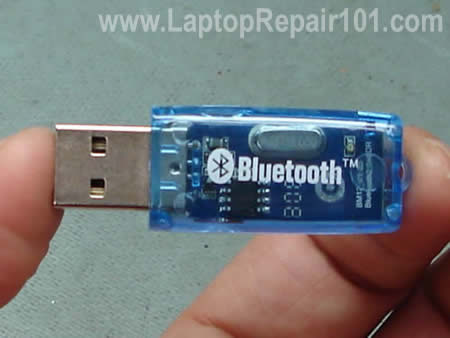
I didn’t want to use my laptop with an adapter sticking out from the side.
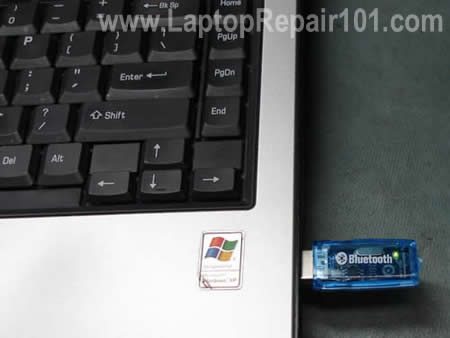
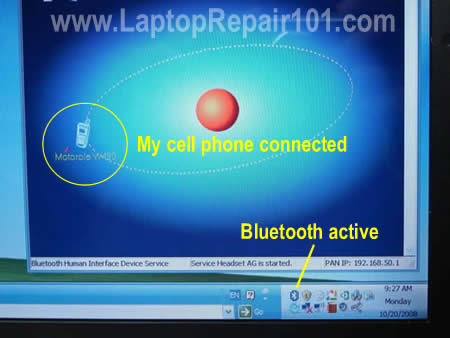
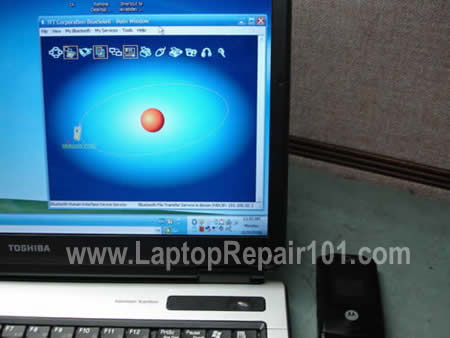
First of all, I installed Bluetooth adapter software on my computer to make sure everything is working fine while it’s connected to the USB port.
For this modification you’ll need:
1. Laptop disassembly experience.
2. Soldering skills and tools.
3. Inexpensive USB Bluetooth adapter.
This modification is only for experienced users. You can damage your computer. Proceed on your own risk!
This guide should works for most computers as long as you have enough space to mount the Bluetooth module inside the case.
First of all, I disassembled the case and found a place for the adapter.
In this guide I’m modifying a Toshiba Satellite A105.
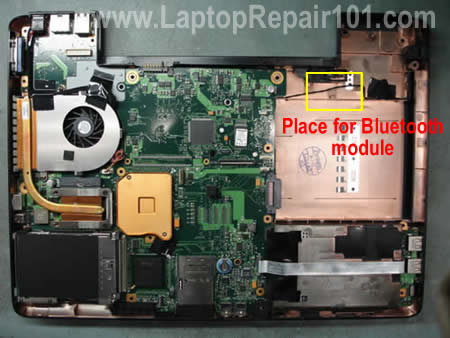
My idea was simple. Remove the Bluetooth adapter circuit board and solder it directly to one of the USB ports.
NOTE: after this modification one of the USB ports will not work.
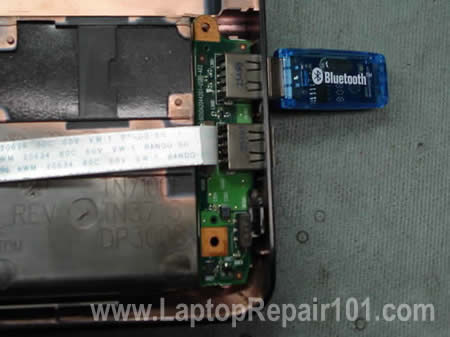
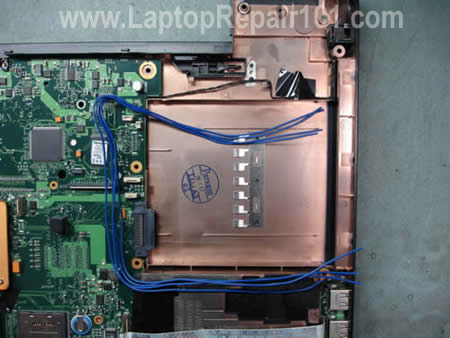
I found some thin wires laying around.
Make sure that wires are long enough for your project.
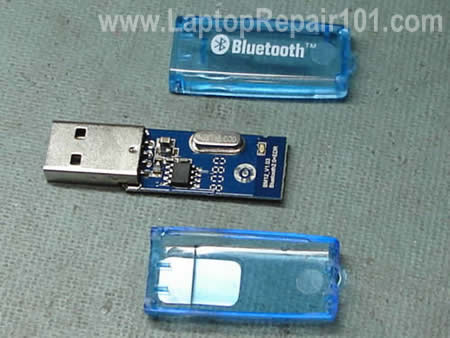
Disassembled the adapter and remove the circuit board.
Unsolder the USB connector.
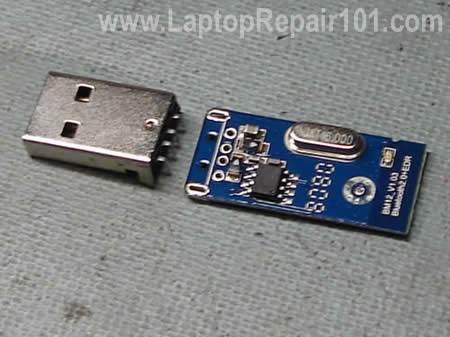
The circuit board easily fits into the empty place inside the laptop.
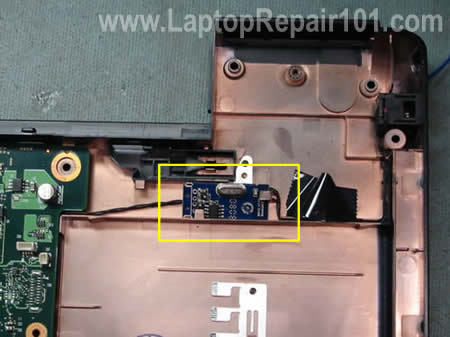
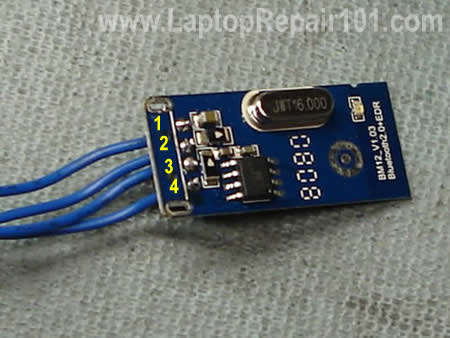
I soldered four wires to the circuit board. I used terminals for the USB connector.
After that I soldered wires to the back of the USB port.
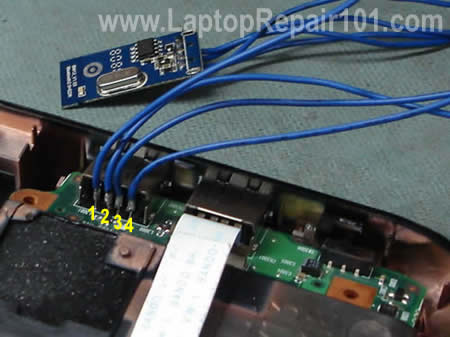
At the last step I installed the Bluetooth circuit board into the case and routed wires to the USB port.
I secured wires to the motherboard with electrical tape.
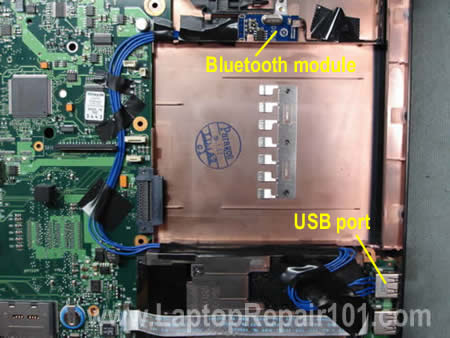
Finally, assembled the laptop and tested it. There is no on/off hardware switch for the Bluetooth module but I can turn it on and off through software.
Later I found that the reception range wasn’t as good as for external adapter but it was enough for me.
62 Responses
JEi
WoW.. I realy like every single idea that you have..
now im your long life student…
your a great teacher!!!
I personaly thank you for this things…
I hope to see more post from you my great teacher!!!
thanks…
Lux
Great idea….. But you can buy something like this for $19 bucks or less.
Roy
wow….where can i get those wires ?
al
nice, just be careful not to ever run into a problem with universal plug and play
Isuru
some blue tooth adapters can’t switch off through its driver software. so men should beware from this.because blue tooth signal are not good for their system little under to stomach
joseph
can you use the blue tooth and also plug a next usb in the same usb port that is connected to the blue tooth?
Mark Mohaan
Wow, you are the greatest teacher ever!!!! Thanks a lot..
rid
Hi,
can you use the blue tooth and also plug a next usb in the same usb port that is connected to the blue tooth?
thanks
cj2600
rid,
No, the same USB port will not work with another USB device. Basically, my laptop had 4 USB ports. One of them is taken by the “internal” Bluetooth module and now I have only 3 working USB ports.
alistair patcheco
woah ! dude u r my guru ….. man i like the way u think … alternative style … got any more crazy ideas next ….
Steve
LOL WTF, u bunch of noobs asking
wow….where can i get those wires ? and
can you use the blue tooth and also plug a next usb in the same usb port that is connected to the blue tooth?
What the helll, this mod could not be easier to understand, and you still ask stupid questions
A wires ANY DAMN ELECTRICAL SHOP, crap get an old appliance or somthing and loot them from there.
and how many times did he say that you CANT use the use port after connecting the bluetooth, i would have thought it was a nobrainer that if the USB port is missing from the outside of the case then u CANT use it, u cant use somthing that isnt there, dumbass
Also
Great idea….. But you can buy something like this for $19 bucks or less.
The point of this mod is to have an internal one, yes that one is small but this is internal, and fun to try.
omg people human brains are one of the most intelligent on the planet, why dont some of you use this feature, unless ur an ant or somthing then wtf u doing on this website
Steve
Great mod BTW :P, ive done this to a 16gb USB cause needed a hidden drive for personal stuff, no not pron ;P
Ray
Hello..
Great mod’..keep them coming! I just wanted to add that on the Uniwill-chassis’d Systemax laptop I own there’s a small service
cover next to the hard disk access cover that holds..a full-size
USB port! The depth is not great and the opening is only about
2 1/2″ inches long, but is perfect for stealthing a miniature Blue
-tooth adapter. The one I use is the newest style that’s barely
an inch long-it’s a rectangular profile, not the quarter-moon type. The slimmer dongle types tend to be longer and aren’t
an easy fit into the USB port-they go in at an angle and I wasn’t
comfortable with the idea of applying force..since it’s the bad DC jack on this laptop that brought me to this site in the first place . When I’m not using the BT I just disable it in the Device Manager.
Great, informative site…thanks again!
mas
hi steve,
it’s not about BT question. but i don’t know hoe to email you, that why i use this mail form. i found an interesting peripheral that has a function as WWAN card and GPS receiver. any idea if it is possible to be attached on other laptop ? mine is vgn s480. an old machine.
Dell Wireless 5530 HSDPA Mini Card
the 3G chipset used in this laptop also supports GPS. But it doesn’t work out of the box – you have to send a few AT commands to the modem first.
let me know for any possibilities or work around.
thanx,
GERALD ONYEBUCHI UZOH
My laptop screen display HP and remain parmanently dark when booting.
uche
bro,
u`re da bomb am a nigerian, a sophomore as well and very interesting in laptop repairs…not because i can make a living with it here in africa, but just cos i`ve got love for it…i love the stunt u pulled on the bluetooth stuff…thank a great deal…wish u could provide me wiv other useful tips for a starter like me
JuanOrtiz
Amazing! 🙂 I dont have the same laptop.. but is just about fining the perfect spot for it.
thanks!
ariclon
Hey, it´s great!!! Only one question, the usb port still works with other devices? Thanks!!! 😛
cj2600
ariclon,
The USB port I used for the Bluethooth module doesn’t work with other devices, it’s dedicated to the Bluethooth module. But I have three more. 🙂
Steven B.
OK I have to ask. You claim that the original USB port that has been modded cannot be used anymore because it is dedicated to the bluetooth device. Others have also claimed that after the mod the original USB port is no longer there but it appears to be there in the photos (it is unclear just how exactly it is supposed to be connected).
So, if you disable the bluetooth device, then could the original USB port possibly work? What if you install a hardware on/off switch such that the modification is no longer electrically connected to the original assembly? I don’t see why in theory this sort of thing could actually make all your USB ports work, but perhaps not while SIMULTANEOUSLY using bluetooth.
obaid
sir,I read this whole article is good to experiment it in in our homes but fortunately my laptop already have bluetooth, so i want to ask u that is that possible for me to try it on my desktop computer. reply plese
cj2600
Steven B,
If you disable the bluetooth device in the device manager, the USB port still will not work.
That’s a good idean. I havent tried it myself but it might work.
cj2600
obaid,
Why not? A desktop computer has same USB ports and this modification should work too.
John
You can also buy really tiny BlueTooth adapters that only protrude about 1/4″ from the USB jack. I have one of these for my HP laptop that didn’t have BT internally, much easier to live with and a LOT easier to install. I got three of them for $24, so they fit the $8/ea criteria. 🙂
cj2600
John,
You are correct. Using an external Bluetooth adapter is way easier. I installed mine inside the laptop just for fun. 🙂
Rumin8r
Bonus points if you install the board of a tiny USB hub so you can still have the port working.
user
Why not install a usb hub instead, and then from it the Bluetooth adapter? Then it should give you more ports to plug more crap on it (not power hungry ones).
I’m not sure if enough but I think twisted pair cable should be enough to handle 5 volts
You could even try enhancing the antenna for maximum range, then use the bluetooth headset for skype calls.
a bluetooth mouse and/or a camera
dam,
good to know there is comming soon v 3.0, there is so much flexibility in the Bluetooth protocols.
avisioncame
I agree with below, if you were to instead install a small usb hub, or some kind of splitter, then you could still be able to use the usb port.
Stuart Billington
Most laptops with 3 external USB ports have a 4th hidden somewhere. On most fujitsu laptops this is in a small recess next to the hard disk – just big enough to fit in a bluetooth USB adapter once you take off the plastic casing. No need for any soldering, just plug it in.
borneo
that’s was a very simple way…., i challange anyone to make it perfect like using keybord shorcut combination to activate and deactivate it, so really like internal bluetooth
kosh
HP laptops have an internal USB header for a secret “fourth port”. It is usually used for custom orders from corporate customers for pre-installed hardware.
You do need soldering skills to access it aftermarket, though.
Emmanuel
men, I really appreciate that and ur effort/lecture. it’s interesting keep the flag flying. i am still undergoing some training on laptop repair. i need ur advice, thanks
Gold
I have Toshiba Laptop Satellite Laptop. The laptop turnoff itself. Because the machine is very hot. Is it time to replace the fan? Infact, I bought fan and put that underneath the laptop and still the machine shuts off automatically. I had to use the ice pad once in a while.
How can I replace the fan and where can I buy the fan for toshiba laptop Satellite?
cj2600
Gold,
Is your fan making noise when it spins? If not, most likely all you need is a good cleaning. Your laptop shuts down because the heat sink is clogged with dust, take a look at this post for more information about overheating.
You can try cleaning the heat sink without disassembling the laptop. You’ll have to use compressed air to blow off dust inside the heat sink.
Buy a can of compressed air and spray it inside the air intake on the bottom of the laptop until all dust is gone. Test the laptop again. Does it help?
sandeep
i have a wipro little genius 4000 laptop i;ve tried your trick for breaking bios password but none of that password works for me . i have award bios and 845 board..
help me !
Ramon
Excellent article.
What bluetooth software did you use?
I have the same bluetooth USB adapter but I cannot make it work with any software.
do you know where I can download it?
remark
I have a problem.Seller where I buy a LCD(LTN170WX) said that it is full compatilble with my old(LTN170WA-L01).But after replace exist only backlight,no imagr.What is the problem,incompatible LCD? Or something else?
Say me please,WX have anothe PINs in connector as WA model?
Have you a circuit diagram of both of connectors of this two LCDs?
I would be very grateful .
RamaGMz
What about the sony laptops, when i run the lsusb command (in linux) it prints 7 interfaces on screen, if i had 4 outside, there is 3 inside the laptop, without “use”???
Another question, when you plug something in the usb that have the BTadapter solder in, what happens???
THX
Regards
cj2600
remark,
Try reconnecting the video cable on the back of the LCD screen. Maybe the cable is not making good connection.
Stops the licensing of Bluetooth
Stops the licensing of Bluetooth in my laptop toshiba satellite a305-s6872 I want to return to work, how please??
Khairul.
Hi, all toshiba laptop has this type of internal bluetooth? I use satelite l310.. But, last m0nth.. My bluetooth device can’t conect to any device.. After i f0rmat my lapt0p las week. Its still n0t functi0n well… So, i think, i want t0 try ur idea… So, i really need to kn0w that internal bluetooth can change easily?
cj2600
Khairul.
What type? Shown in this guide? Nope, internal Bluetooth card usually looks different. Different laptop models use different bluetooth modules.
I’m not familiar with Satellite L310 (apparently this model not sold in USA).
If your laptop came with internal bluetooth card, I would suggest one of the following:
1. Find the location of the original Bluetooth card and replace it with the same type of card.
2. Use a small USB Bluetooth plug (there are really small modules on the market).
Most likely the internal module located somewhere under the keyboard cover or top cover, I cannot tell.
sajad
you are great .keep on
desichannel
great.. i have a old blue-tooth adapter here .. little more bigger one .. let me try with that .. i don’t have driver cd .. i hope installing that software will solve that problem
Sandeep
Hi,
I am having great pleasure to see your project. And Can we operate any external things like 220 V fan or others by making some hardware in between of the USB and external things. If yes, give me some su7ggestions for doing this. Please kindly respond.
Looking forward for your reply
Regards
Deepu
cj2600
Sandeep,
I don’t really understand your question.
Do you want to run a 220V fan from USB power? No, you cannot.
jaggu
my laptop display is not working but the processor keeps on working but i cant see the display on my screem..
plz plz plz help..!!!
cj2600
jaggu,
Did you test your laptop with an external monitor? Can you see the external video?
patrick
Please can I ask for help, because my laptop TOSHIBA dynabook satellite 1860, it does not working, no signs of LED or other power, it maybe total died but i don’t know why is this happened, what cause
please reply
cj2600
patricik,
First of all, test voltage on the AC adapter. It’s possible your adapter is dead.
Richie
I had same problem with my laptop Toshiba M70-340 and i like the idia, but some old model laptop are design only for its battery consumption, that’s why the manufacturer design it for removable device such as bluetooth if the usb device attach permanently the battery will suffer, but im not telling you that your idia is wrong maybe you can improve it by putting a switch just like the switch of the Wi-fi modem (WLAN)
oyewole
pls i wnt to knw hw my admn password can b remove without formatting my system.
Larry Holmes
I did this mod before I saw your article. I was able to also fit a small 2-port USB expander in addition to the USB dongle; the dongle was one of the ultra-small ones now available, meant to be left in the computer all the time. I thought about just using that, because it is so small, but I wanted to free the USB port.
I connected the 2-port USB expander to the laptop’s main pc board (after I had disconnected the two signal pins of the connector from the pc board), where the connector was soldered to the pc board. This was tricky and I had to use extreme magnification because of poor eyesight. I connected the GND and +5v power from the connector pins to the expander, as you show in your instructions, also leaving them connected to the USB connector in the laptop.
I connected the dongle to one of the 2-port expansion connector’s USB pins after removing the connector itself from the expander p.c. board. The dongle was sealed in plastic so I had to leave that connector in place and carefully solder directly to the pins; I probably could have hacked it open somehow but I decided not to; it did not add much to the space required for the dongle to fit inside.
I connected the pins from the other 2-port expander’s connector pins on its p.c. board, again, after removing the connector itself to reduce the size of the expander p.c. board, to the corresponding pads on the laptop main p.c. board where the USB connector had been soldered. Since these are all surface mount connectors, if they are carefully de-soldered using proper tools and techniques, the pads will be left intact, and the connecting wires may be soldered to them without the need to work on the back side of the laptop main p.c. board, which in my case, meant I could do everything from the top of the p.c. board with only the keyboard removed from the case. I also used a de-soldering “machine” I have left from one of my past businesses, to do all the de-soldering, which allowed me to avoid damaging the main p.c. board. A “solder sucker” or braid COULD be used, but you’d need to be VERY VERY GOOD at this or you will probably damage one or more of the pads on the laptop main p.c. board as you remove connectors and add wires.
I then tested it by setting up and using the Bluetooth with a mouse and headphones, using software that came with them or was on my laptop. I plugged a USB keyboard into the regular USB connector on my laptop and verified that it worked.
I wrapped the two p.c. boards in some very thin tape which is used to repair garden hoses and so forth; it cures after it is wrapped on itself and the adhesive reacts. It is much thinner than electrical tape. Since all this equipment was difficult to fit inside the laptop, I was glad to have the extra tenth of an inch or so I got from using this tape, but I could probably have used electrical tape and made it work.
As you mentioned in your article, I had to experiment a bit, trying to fit the case back together with the two p.c. boards and wires tucked into spaces inside. Because there are spaces intended for some other expansion modules inside my Toshiba a505-s6986, but the connectors were not installed on the laptop’s main p.c. board, there was room for me to put the two p.c. boards into those spaces (with some trimming, pushing and shoving, that is, all done with the greatest care, of course) without the need to find another space somewhere else. This was fortunate because I don’t think there WAS a space somewhere else! Luckily, I was able to do all this by removing only the keyboard and bracket, and some small parts, which were put back when I closed the laptop back up.
A very difficult and tedious “hack”, which of course, would void my warranty, (although it worked out so well, I believe I could remove everything and return the laptop to factory condition much easier than it was to do the “hack” in the first place without modifying anything in the process).
The result was what I needed. Even though I have four USB connectors on my laptop, it was much more convenient and, in one case, physically possible, to have the bluetooth dongle inside the case, freeing up the USB connection for another add-on I needed to use there. The addition of the 2-port expander (which I bought at WalMart some time ago for about $6) made it all work out; I now have an internal Bluetooth addition to my laptop, with 4 USB connections free for use with other peripherals. If I could not have fit the expander in the case, I would not have installed the dongle there, since it was so small it did not stick out when plugged into the USB connector on the laptop. Adding the expander gave me Bluetooth internally AND the standard 4 USB connectors.
This required all my “skill” acquired after many years of working as first and technician, then, an engineer, to get everything inside the laptop, and, to measure power consumption, loading of the internal parts, as well as the USB power, to make sure this would all work without taxing my laptop power too much. YOU SHOULD NOT ATTEMPT THIS HACK UNLESS YOU ARE ALSO SKILLED AT SOLDERING, MEASURING ELECTRICAL VALUES, AND ALSO, FITTING THE HARDWARE INTO YOUR LAPTOP WITHOUT DAMAGING IT.
To be honest, it probably isn’t worth doing for most people, as the new mini dongles which are available to add Bluetooth simply by plugging into a USB connection are so small they will almost disappear into the side of a laptop, so why bother with all this just to have them tucked inside, and risk damaging your laptop? If I had it all to do over again, I wouldn’t!!
sincerely,
Larry Holmes
LightSpeed Technologies
vivek
hi,
1 my lap is lenovo my internal bluetooth is not working so can i use external device .
2 can u tell external device price
thanking u
cj2600
@ vivek,
Yes, you can use an external USB Bluetooth adapter. Just google it and you should be able to find one for about $10.
udayanka
i AM CURRENTLY WORKING ON A PROJECT WHICH HAS CONSIDERED TO SEND THE DATA GENERATED BY MY ELECTRONIC DEVICE TO THE pc OVER BLUETOOTH SERIAL COMMUNICATION…AND I KNOW I SHOULD USE A BLUETOOTH TRANSCEIVER MODULE IN THIS CASE…BUT THEY ARE BIT EXPENSIVE AND I WANT TO KNOW THAT CANT I USE A THIS KIND OF BLUETOOTH ADAPTER FOR MY CASE… PLEASE REPLY …
megan
Unless you are totally dependent on your laptop, you should do this just for kicks. I am going to install a PC expansion slot on my brand new w530, using similar techniques. Except I’ll be sure to make it so I can continue to use all of my external ports. And I might even add another port to the back of my machine.
And for Larry Holmes: who are you to tell people not to do anything they want with their computers? Who cares if you void the warranty? I’ve never used a warranty in my life. If something happens, I’ll buy another mobo and done deal. Mind your own business, Larry. You busy-body.
Bruce
Hello.. I did a search on google for bluetooth adapters and clicked on images. I have the SAME adapter you used on this page, “How I installed external Bluetooth adapter inside my laptop”. Can I ask a BiG favor of you.. I lost my driver disc for mine. Can you please help me out and either tell me the manufacturer of this adapter or possibly send me a copy of yours. I plug it in and it sees my DROID, but won’t do anything else with out the driver.
I thank you much in advance..
-Bruce
desosx
This is a really cool mod to your pc.
well, i just want to add. i think that you can get the bluetooth device to work and still have your usb port if you include a usb hub in your connection. I’m definitely giving this a try on my Asus G74SX bluetoothless laptop. and also maybe i’ll include my wireless mouse use dongle on the hub so i get 4 free usb ports instead of 2.
urvish
can I see the pin diagram of this Bluetooth which pin is vcc or which pin is stands for ground and also rx and tx because I want to connect it with my Arduino board so that’s why it is required.
Ashlry
What would happen if you remove a Bluetooth module from smartphone pcb,will other functions continue to work or will they not work?
Martin
This is awesome and gave me some ideas. Thanks!